
CV420-30X-IP - Security Camera MARSHALL - Free user manual and instructions
Find the device manual for free CV420-30X-IP MARSHALL in PDF.


User questions about CV420-30X-IP MARSHALL
0 question about this device. Answer the ones you know or ask your own.
Ask a new question about this device
Download the instructions for your Security Camera in PDF format for free! Find your manual CV420-30X-IP - MARSHALL and take your electronic device back in hand. On this page are published all the documents necessary for the use of your device. CV420-30X-IP by MARSHALL.
USER MANUAL CV420-30X-IP MARSHALL
natural_image
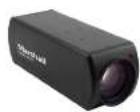
Black Marshall CV420-30X-IP optical camera with lens and mounting holes (no visible text or symbols beyond branding)User Manual
Table of Contents
Safety Instructions 02
-
Package Contents 04
-
Function Introduction 04
2.1 I/O Functions Introduction 04
2.2 Tally Indicator Light Function Description 05
- Installation Instructions 05
3.1 Installation Basics 05
3.2 Connecting Devices 06
- Network Function Settings 09
4.1 Web System Requirements 09
4.2 Connecting Camera to Network 09
4.3 Web Page Function Description 12
-
Specifications 24
-
Troubleshooting 26
Warranty 27
Marshall
Safety Instructions
1. Operation
1.1 Use camera in the recommended operating environments.
1.2 Do not place the camera in tilted position.
1.3 Do not place the product on an unstable cart, stand or table.
1.4 Do not use this product near water, extreme humidity or high heat.
1.5 Use recommended 14 "-20 mounts and attachments.
1.6 Use the power supply that is provided in box.
1.7 Always take the following precautions when handling the power plug. Failure to do so may result in sparks, shock or fire:
- Ensure the plug is free of dust before inserting it into a socket.
- Ensure that the plug is inserted into the socket completely and securely.
1.8 Do not overload wall sockets, use long extension cords, or plug camera into multi-output power strips.
1.9 Do not block vents on the camera body as they provide ventilation and prevent the product from overheating.
1.10 Do not open or remove camera body, camera warranty is void if opened.
1.11 Unplug the product from the wall outlet and consult a licensed service technician when the following conditions arise:
- f the power cords are damaged or frayed.
- If liquid is spilled into the product or the product has been exposed to rain or water.
2. Installation
2.1 For security consideration, please make sure any mounts that are used are standard UL or CE safety certified and installed by technician personnel.
3. Storage
3.1 Do not mount camera where power cord can be stepped on, as this may result in fraying or damage to the lead or the plug.
3.2 Never allow debris or objects of any kind to penetrate camera body. Never allow liquid of any kind to spill onto or into the camera body.
3.3 Unplug this product during thunderstorms, during electrical surges, or if it is not going to be used for an extended period of time.
3.4 Do not place camera or accessories on top of vibrating equipment or heated objects.
4. Cleaning
4.1 Unplug all the cables before cleaning. Use a damp cloth for cleaning. Do not use liquid or aerosol cleaners or allow any liquids to enter camera body. www.marshall-usa.com 12
liquids to enter camera boc www.marshall-usa.com12
Marshall
CV420-30X-IP Manual
Precautions
Warning: To reduce the risk of fire or electric shock, do not expose this camera to rain, moisture, debris or liquids.
If the HD camera will not be used for an extended time, unplug it from the power socket.

Caution: To reduce the risk of electric shock, do not remove cover (or back). No user-serviceable parts inside. Refer servicing to licensed service personnel. Please do not open it by yourself

This symbol indicates that this equipment may contain dangerous voltage which could cause electric shock.

This symbol indicates that there are important operating and maintenance instructions in this User Manual with this unit.
FCC Warning
This product has been tested and found to comply with the limits for a Class B computer device, pursuant to Article 15-J of FCC Rules. These limits are designed to provide reasonable protection against harmful interference in a residential installation.
This digital apparatus does not exceed the Class B limits for radio noise emissions from digital apparatus as set out in the interference-causing equipment standard entitled "Digital Apparatus" ICES-003 of Industry Canada.
Operation of this equipment in a residential environment could cause radio interference.
Marshall
1. Package Contents
CV420-30X-IP Power Cord Power Adapter

*Appearance may vary depending on country/region

2. Function Introduction
2.1 I/O functions Introductions
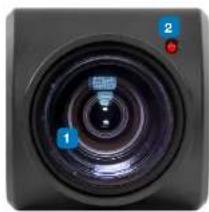
natural_image
Close-up of a black camera lens with blue and red buttons labeled 1 and 2 (no text or symbols beyond labels)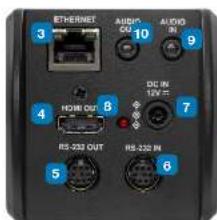
text_image
ETHERNET AUDIO DS 10 AUDIO IN HDMI OUT DC IN 12V RS-232 OUT RS-232 IN 5 6 7 8 9 10 3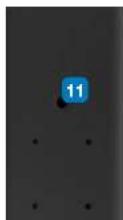
| No. Item. Function Descriptions | ||
| 1 Lens | 30x HD/UHD cameras lens | |
| 2 Tally indicator light Tally light displays status of the camera | ||
| 3 | Network port | Network port. Support routers or hubs (IEEE 802.3 at) with PoE power supply support |
| 4 | HDMI output | The factory output resolution is 4K/30. Please make sure that the connected display device supports 4K resolution |
| 5 | RS232 output | RS232 output port. At most 7 cameras can be connected in a serial connection |
| 6 | RS232 input | RS232 input port. At most 7 cameras can be connected in a serial connection |
| 7 DC 12 V power connector | AC power supply connecting port | |
| 8 | Power indicator light | After power is on, the indicator light will display in red |
| 9 Audio Input 3.5mm | Audio Input supports Line-level or Mic-level Stereo/Mono Input | |
| 10 | Audio output | Loop-through 3.5mm Output |
| 11 | Tripod screw holes | The camera is mounted on a (specification) 1/4", 20 UNC tripod deck |
www.marshall-usa.com3 4
Marshall
CV420-30X-IP Manual
2.2 Tally Indicator Light Function Description
2.2.1 The tally indicator light function may be enabled through the control of RS232 command.
The setting method is as follows:
Tally Mode: 8x 01 7E 01 0A 01 0p FF
p = 0 : OFF
p = 4 : On (half-brightness)
p = 5 : On (full-brightness)
3. Installation Instructions
3.1 Installation Basics
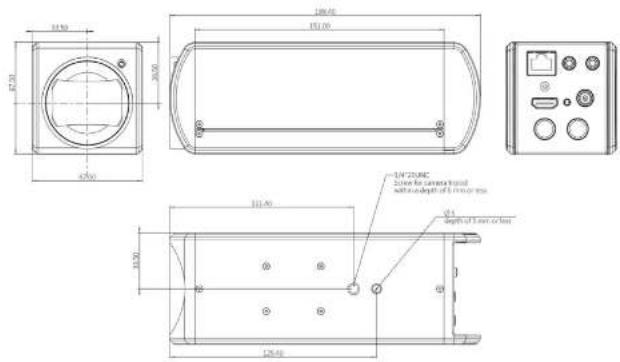
3.1.1 CV420-30X-IP Dimensions
Length x Width x Height : 168.3 x 67.0 x 67.0 mm
Weight
0.5 Kg
text_image
100.00 150.00 30.00 40.00 100.00 30.00 120.00 150.00 30.00 150.00 150.00 150.00 150.00 150.00 150.00 150.00 150.00 150.00 150.00 150.00 150.00 150.00 150.00 150, 25, 35, 45, 55, 65, 75, 85, 95, 105, 115, 125, 135, 145, 155, 165, 175, 185, 195, 205, 215, 225, 235, 245, 255, 265, 275, 285, 295, 305, 315, 325, 335, 345, 355, 365, 375, 385, 395, 405, 415, 425, 435, 445, 455, 465, 475, 485, 495, 505, 515, 525, 535, 545, 555, 565, 575, 585, 595, 605, 615, 625, 635, 645, 655, 665, 675, 685, 695, 705, 715, 725, 735, 745, 755, 765, 775, 785, 795, 805, 815, 825, 835, 845, 855, 865, 875, 885, 895, 905, 915, 925, 935, 945, 955, 965, 975, 985, 995, 100Marshall
3.2 Connecting devices
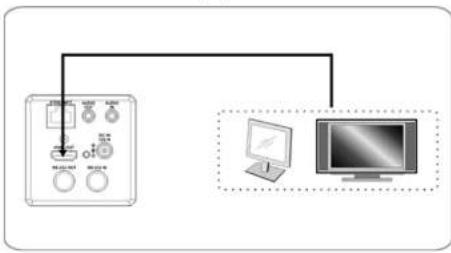
3.2.1 HDMI connection to TV/display screen
flowchart
graph TD
    A["Device 1"] --> B["Control Panel"]
    C["Device 2"] --> D["Control Panel"]
    E["Device 3"] --> F["Control Panel"]
    G["Device 4"] --> H["Control Panel"]
    I["Device 5"] --> J["Computer Monitor"]
www.marshall-usa.com5 6
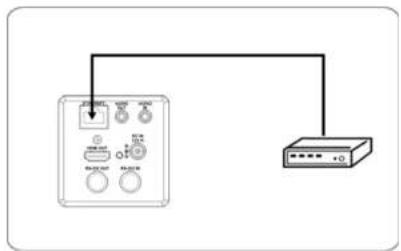
3.2.2 Connecting to Internet
text_image
Diagram showing connection between an electronic device with labeled ports and a network switchFor details of web page connection setting and description, please refer to Chapter 5 Network Function Settings Description.
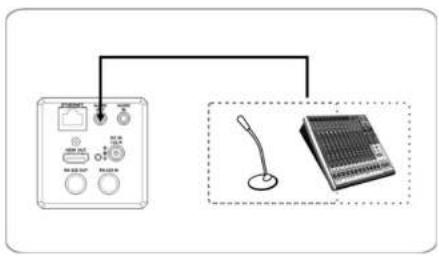
3.2.3 Connecting AUDIO IN
text_image
Diagram showing connection between a device with labeled ports and a sound mixer console, both connected to a microphone.Marshall
3.2.4 Connecting RS-232
CV420 camera includes a RS232 IN and OUT for Daisy Chain style connections, or can be setup via home run using splitters (use CV620-CABLE-07 extenders to convert to CAT RJ45 cables for longer runs).
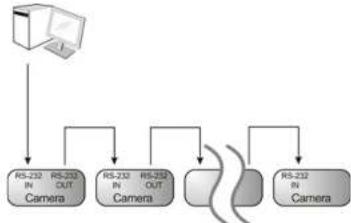
flowchart
graph TD
    A["Computer"] --> B["RS-232 IN Camera"]
    A --> C["RS-232 OUT Camera"]
    A --> D["RS-232 OUT Camera"]
    A --> E["RS-232 IN Camera"]
    B --> F["Processing Unit"]
    C --> F
    D --> F
    E --> F
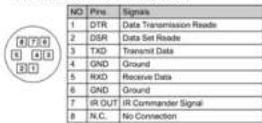
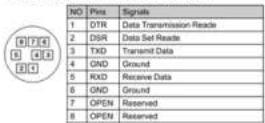
• RS-232 pin definition description
▼ RS-232 IN Pins Instructions
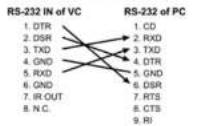
▼ RS-232 Connection Instructions
▼ RS-232 OUT Pins Instructions
▼ RS-232 Connection Instructions
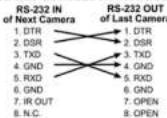
www.marshall-usa.com7 8
4. Network Function Settings
4.1 Web System Requirements
4.1.1 Web Browser :
- Internet Explorer 11 or above
- FireFox 66.0.3 or above
- Chrome 73 or above
- Edge 42.17134 or above
• Safari 12.1 or above
4.2 Connecting Camera to Network
4.2.1 Connecting to Internet
Two common connection methods are shown below
- Connecting via switch or router
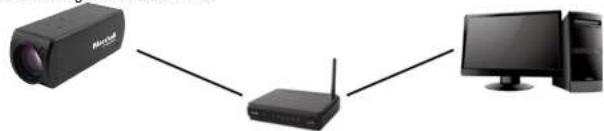
natural_image
Three connected devices: a projector, a wireless router, and a desktop computer (no visible text or symbols)- If the camera is connected to the computer directly, the computer IP address must be modified to have the same network segment as the camera. For example, the factory-preset default IP address of CV420-30X-IP is 192.168.100.100. The computer IP address must be set with the same subnet, such as 192.168.100.101, so that the computer can be connected correctly with the camera
- Connection Diagram
- Change network settings
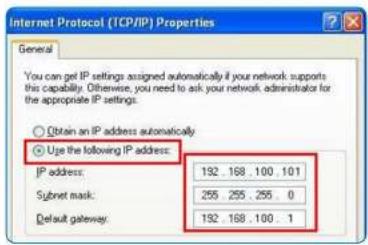
text_image
Internet Protocol (ICP/IP) Properties General You can get IP settings assigned automatically if your network supports this capability. Otherwise, you need to ask your network administrator for the appropriate IP settings. Obtain an IP address automatically Use the following IP address: IP address: 192 . 168 . 100 . 101 Subnet mask: 255 . 255 . 255 . 0 Default gateway: 192 . 168 . 100 . 1Marshall
4.2.2 Using Marshall VMS Software to View the Images
- The CV420-30X-IP DHCP initial setting is ON. If it is connected to the local area network (LAN), the camera IP can be retrieved via the following methods
• Install Marshall VMS software (Please download from the Marshall official website, www.marshall-usa.com)
- Open Marshall VMS software
- Search for the camera: Press [automatically search for the device] button to locate the CV420-30X-IP camera
- Click CV420-30X-IP in the list and start operation after connecting to network
Note: When using automatic search, the camera and computer must be in the same network segment, e.g.: 192.168.4.X
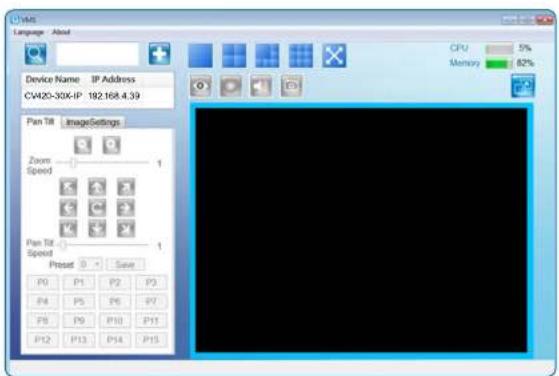
text_image
Device Name: IP Address CV420-30X-IP 192.168.4.39 Pan Tilt Image Settings Zoom Speed 1 Pan Tilt Speed 1 Preset 0 Save P0 P1 P2 P3 P4 P5 P6 P7 P8 P9 P10 P11 P12 P13 P14 P15 CPU 5% Memory 82%www.marshall-usa.com9 10
Marshall
CV420-30X-IP Manual
4.2.3 Using the Browser to View the Images
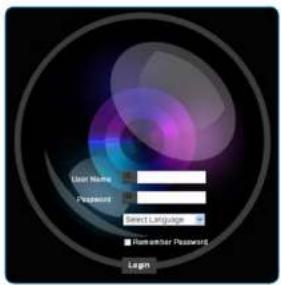
- Open the browser, and enter the URL of CV420-30X-IP in the IP address bar e.g.: http://192.168.100.100 (default IP address)
- Enter administrator's account and password Account: admin (Default) Password: 9999 (Default)
text_image
User Name Password Send Language Remember Password Login4.2.4 Using RTSP Player to View the Images
Besides the browser and VMS, other free software also can be used for RTSP connection, such as VLC, Quick Time, PotPlayer, and other free software
RTSP connection address formats are as follows:
• RTSP Main Streaming => rtsp://camera IP:8554/hevc
- RTSP Sub1 Streaming => rtsp://camera IP:8557/h264
- RTSP Sub2 Streaming => rtsp://camera IP:8556/h264
Example: Open VLC software and input the URL: rtsp://192.168.100.150:8557/h264
| Network Protocol |
| Please enter a network URL: |
| http://192.168.100.150.8557/#264| |
Marshall
4.3 Web Page Function Description
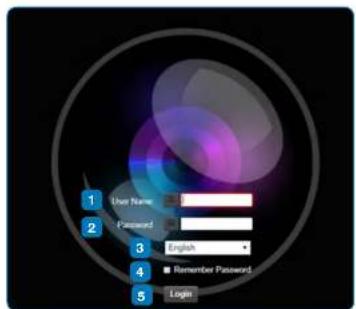
4.3.1 Login Screen
text_image
1 User Name 2 Password 3 English 4 Remember Password 5 Login| No. Item. Function Descriptions | ||
| 1 | Username Enter user account name (default: admin) | |
| 2 | Password Enter user password (default: 9999) | |
| 3 | Language selection | The system currently supports English, Traditional Chinese, and Simplified Chinese |
| 4 | Remember password | Saves user account name and password to the browser. |
| 5 | Login | Log into the administrator screen on the website |
www.marshall-usa.com11 12
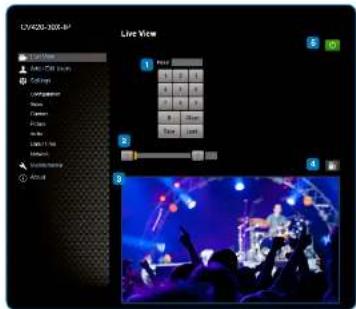
4.3.2 Viewing In Real Time
text_image
LVD202-2008-BP Live View 1 2 3 4 5 6 7 8 9 10 11 12 13 14 15 16 17 18 19 20 21 22 23 24 25 26 27 28 29 30 31 32 33 34 35 36 37 38 39 40 41 42 43 44 45 46 47 48 49 50 51 52 53 54 55 56 57 58 59 60 61 62 63 64 65 66 67 68 69 70 71 72 73 74 75 76 77 78 79 80 81 82 83 84 85 86 87 88 89 90 91 92 93 94 95 96 97 98 99 100| No. Item | 1. Function Descriptions | |
| 1 | Present setting Select the number first and then select SAVE or LOAD | |
| 2 | Zoom ratio | Adjust the zoom-in or zoom-out ratio via scroll bar |
| 3 | Preview window Display the screen currently captured by the camera | |
| 4 | Switch to Full Screen Switch the preview window to full screen | |
| 5 | Power button Turn on or turn off the camera power | |
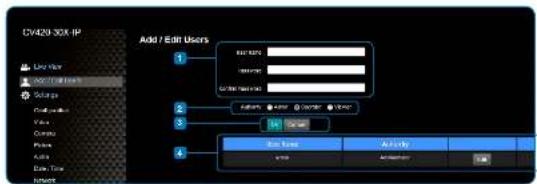
4.3.3 Account Management
text_image
CY420 30X IP Add / Edit Users ID: 100% Name: Activity: Action buttons Add User Activity Action buttons| No. Item. Function Descriptions | |||||
| 1 | Add user account | Enter a username and password to add a new user | |||
| 2 Permission setting Set the new account management permissions | |||||
| User Type | Admin | Operator | Viewer | ||
| View images Y | Y | Y | |||
| Settings | Y | Y | N | ||
| Account management | Y | N | N | ||
| 3 | Applying setting | Add the newly created user to the account list | |||
| 4 | List of accounts | Edit: Modify the user password and permissions | |||
4.3.4 System Configurations 4.3.5 Video Settings
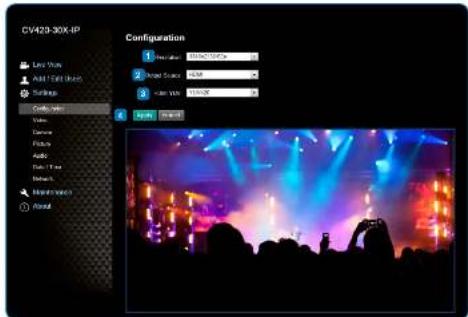
text_image
CV420-30X IP Configuration 1 2 3 4 5 6 7 8 9 10 11 12 13 14 15 16 17 18 19 20 21 22 23 24 25 26 27 28 29 30 31 32 33 34 35 36 37 38 39 40 41 42 43 44 45 46 47 48 49 50 51 52 53 54 55 56 57 58 59 60 61 62 63 64 65 66 67 68 69 70 71 72 73 74 75 76 77 78 79 80 81 82 83 84 85 86 87 88 89 90 91 92 93 94 95 96 97 98 99 100| No. Item | Function Descriptions | |
| 1 | Resolution | Set the resolution of the camera. Resolutions supported by the cameras are as follows:3840x2160P 89.94/50/29.97 fps1080P 59.94/50/29.97/25 fps720P 59.94/50/29.97/25 fpsAfter switching to the resolution, the camera will restart. Please refresh the browser |
| 2 | Output signal | According to the output resolution, selections are available for HDMI output, streaming output, or HDMI + streaming output. For output signals supported by different resolution, please refer to the following table: |
| Resolution Available output modes | ||
| 3840x2160/59.94p HDMI or streaming single output | ||
| 3840x2180/50p HDMI or streaming single output | ||
| 3840x2160/29.97p | ||
| 3840x2160/25p | ||
| 1080p/59.94 | ||
| 1080p/50 | ||
| 1080p/29.97 | ||
| 1080p/25 | ||
| 720p/59.94 | ||
| 720p/50 | ||
| 720p/29.97 | ||
| 720p/25 | ||
| 3 HDMI | YUV Select YUV422 or YUV420 (This function is only available for these two resolutions,3840x2160/59.94p and 3840x2160/50p and remains in display mode for all other resolutions) | |
| 4 Apply | After the setting has been modified, select this button to apply the setting | |
Marshall
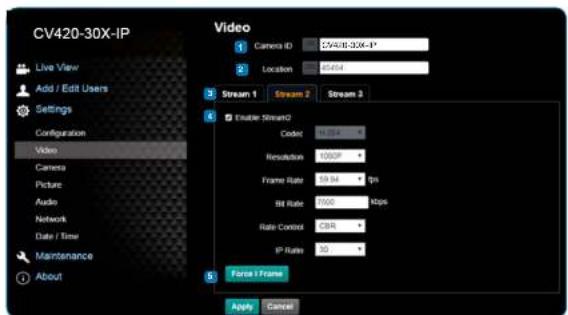
text_image
CV420-30X-IP Live View Add / Edit Users Settings Configuration Video Camera Picture Audio Network Date / Time Maintenance About Video 1 Camera ID: C:\4\10-3.06-1* 2 Location: 8544 3 Stream 1 Stream 2 Stream 3 4 Enable Stream0 Codict: 11.54 % Resolution: 100%# Frame Rate: 59.84 %# Bit Rate: 100% Nbps# Rate Control: CSR # IP Rate: 50 % 5 Force Frame Apply Cancel| No. Item. Function Descriptions | ||
| 1 Camera name | Modify the camera nameCamera names are limited to 1-12 charactersPlease use a camera name by mixing uppercase and lowercase letters and numbers.Do not use “/” and “space” or special symbols | |
| 2 | Camera location | Modify the location of the camera, such as Meeting Room 1Camera locations are limited to 1-12 charactersPlease use a camera name by mixing uppercase and lowercase letters and numbers.Do not use “/” and “space” or special symbols |
| 3 Streaming 1 / Streaming 2 / Streaming 3 | The CV420-30X-IP supports 3 streaming outputs. Please refer to 5.3.5.1 Streaming Parameter Setting for relevant settings | |
| 4 | Open streaming | Confirm the streaming function |
| 5 | Force I Frame | Check this item to insert IDR frame into specified series flow and apply its setting. User's setting will be reserved and displayed in GUI interface |
4.3.5.1 Streaming Paramater Setting
| Function | Streaming 1 | Streaming 2 | Streaming 3 | |
| Encode Format | H.265 | H.264 | ||
| Resolution | 4K /1080P / 720P | 1080P / 720P | 640x360 | |
| Frame rate | Setting according to the supported resolution | |||
| Bit Rate(kbps) | Range | 2,000-20,000 | 2,000-20,000 | 512-5,000 |
| Factory default | 15,000 | 7,500 | 1,000 | |
| Rate control | CBR / VBR | |||
| IP ratio | Setting according to the supported resolution | |||
www.marshall-usa.com15 16
4.3.6 Camera Settings 4.3.7 Picture Settings

text_image
CV420-30X-IP Live View Add / Exit Views Settings Configuration View Camera Picture Photo Extra Time Timeline Maintenance About Camera 1 2 3 4 5 Exposure White Balance Focus Mirror Node size % log 12.7 Exposure Comp Length 0.0 0.0 Double Speed: 0.0 Cam 1.00 Auto Cancel| No. Item | Function Descriptions | |
| 1 | Zoom ratio | Adjust the zoom-in or zoom-out ratio via scroll bar |
| 2 Exposure | Mode: Select exposure mode (Automatic/Shutter Priority/Aperture Priority/Manual)Exposure Comp. Level: Select exposure compensation levelGain: The gain limit is adjustable when the exposure mode is set to "Manual"Iris: The size of aperture is adjustable when the exposure mode is set to "Manual" or "Aperture Priority"WDR: Set the level of wide dynamic range (WDR) in order to obtain better images in dynamic lighting environments.Shutter Speed: The shutter speed is adjustable when the exposure mode is set to "Manual" or "Shutter Priority" | |
| 3 White balance | Mode: Select the color temperature modeAutoIndoorOutdoorOne Push WBATWMansuiSodium LampOpen Push Trigger: One push color temperature is adjustable when the white balance mode is set to "One Push Trigger"Manual Red/Blue: Manually adjust blue/red color temperature | |
| 4 Focus | Mode: Select manus/automatic focusFocus Range: The focusing range is adjustable when the focus mode is set to "Manual"AF Sensitivity: Set automatic focus sensitivityAF Frame: Set automatic focus range | |
| 5 MIRROR | Mirror: Set automatic flip mode | |
Marshall
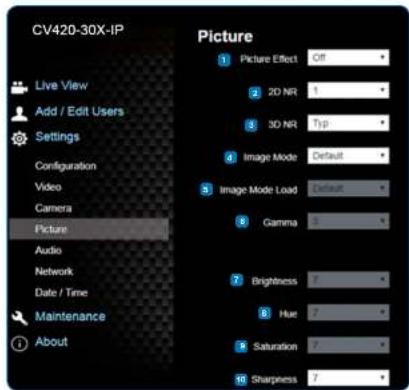
text_image
CV420-30X-IP Live View Add / Edit Users Settings Configuration Video Camera Picture Audio Network Date / Time Maintenance About Picture 1 Picture Effect Off 2 2D NR 1 3 3D NR Top 4 Image Mode Default 5 Image Mode Load Default 6 Gamma 3 7 Brightness 7 8 Hue 7 9 Saturation 7 10 Sharpness 7| No item | Function Descriptions | |
| 1 | Picture effect Set picture effect, Off / Film / Black and White | |
| 2 | 2D noise reduction settings | • 2D noise reduction settings |
| 3 | 3D noise reduction settings | • 3D noise reduction settings |
| 4 | Image mode | • The user may customize his/her desired image mode |
| 5 | Image mode load | • When no custom setting is needed, reset the picture parameters back to the factory default by selecting this item |
| 6 | Gamma | • Gamma Level adjustment: Adjustable when the image mode is set to Custom |
| 7 | Brightness | • Brightness adjustment; Adjustable when the image mode is set to Custom |
| 8 | Contrast | • Contrast adjustment: Adjustable when the image mode is set to Custom |
| 9 | Saturation | • Saturation adjustment; Adjustable when the image mode is set to Custom |
| 10 | Sharpness | • Adjust the sharpness of the Image |
www.marshall-usa.com17 18
4.3.8 Camera Settings 4.3.9 Time Settings
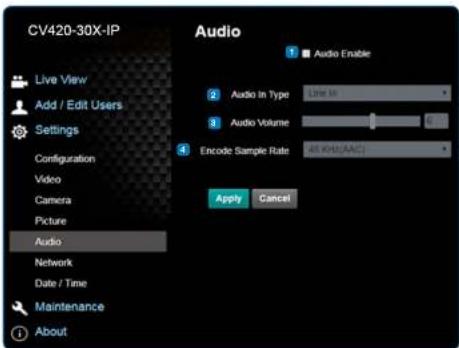
text_image
CV420-30X-IP Live View Add / Edit Users Settings Configuration Video Camera Picture Audio Network Date / Time Maintenance About Audio Audio Enable Audio In Type Line In Audio Volume 4 Encode Sample Rate 40 MHz (AEC) Apply Cancel| No. Item | Function Descriptions | |
| 1 Open | audio Turn on / off sound | |
| 2 Sound | track effect setting | Set MIC In / Line In |
| 3 Audio | Volume Adjust Volume | |
| 4 Encode | sample rate Set Encode | sample rate:• 48 KHz(AAC)• 44.1 KHz(AAC)• 16 KHz(G.711)• 8 KHz(G.711) |
Marshall
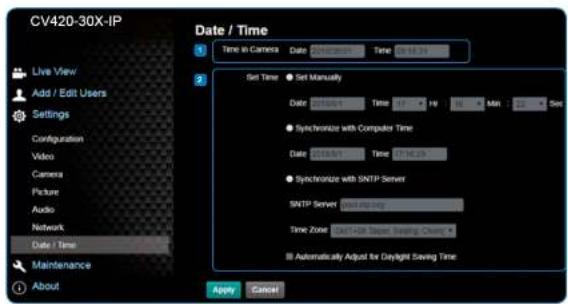
text_image
CV420-30X-IP Live View Add / Edit Users Settings Configuration Video Camera Picture Audio Network Date / Time Maintenance About Date / Time 1 Time in Camera Date 20:08:09:07 Time 06:18:24 2 Set Time ● Set Manually Date 20:08:01 Time 07 HP Max 22 Dim ● Synchronize with Computer Time Date 20:08:01 Time 07:18:25 ● Synchronize with SNTP Server SNTP Server Default Saving Clock Time Zone: SNTP+DR Select Saving Clock ■ Automatically Adjust for Daylight Saving Time Apply Cancel| No. Item. Function Descriptions | ||
| 1 Camera Time Display the date and time of the camera | ||
| 2 Set the Time | • Set Manually: Set time manually• Synchronize with computer time: Set the camera time according to the computer time• Synchronize with SNTP server: Set the camera time synchronously with the SNTP serverSNTP server address: Please change in network setting | |
www.marshall-usa.com19 20
4.3.10 Network Settings 4.3.11 Maintenance and Updating Firmware
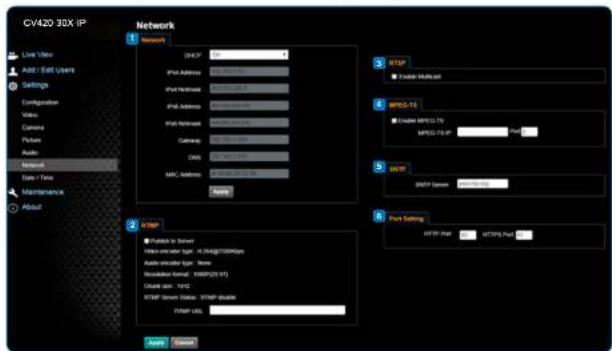
text_image
CV420 3DX IP Network 1 Network DHCP IPd Address IPd Neighborhood IPd Address IPd Neighborhood Cancere CNC MAC Address None 2 Start ■ Update to format Video output type: X-Ray/Hi/80bps Audio encoder Type: None Resolution format: IEEE/29.97 Create size: 1MHz RTMP Green Value: RTMP Double Other Units: Apply Reset 3 MSF ● Update Settings MPO-13 ● Create Stamp-16 MPO-13 IP None 4 MSF DHCP Format: 0x10^1.5x10^2.5x10^2.5x10^2.5x10^2.5x10^2.5x10^2.5x10^2.5x10^2.5x10^2.5x10^2.5x10^2.5x10^2.5x10^2.5x10^2.5x10^2.| No. Item | 1. Function Descriptions | |
| 1 | Network | Network setting of camera. Change of setting is available only when DHCP function is closed. |
| 2 | RTMP Setting | Copy the RTMP web address provided by the RTMP service platform and paste it to the RTMP connection address to publish the camera images on the RTMP service platform |
| 3 | RTSP Setting | To upload to YouTube for live streaming, the audio function must be turned on first |
| 4 MPEG | -TS Setting Set MPEG-TS formatThe following port has been used by the camera. Setting of the port may not connect correctly6554, 6550, 8557, 8060, 80, 81, 9090, 23 | |
| 5 SNTP | Setting Set SNTP Server IP | |
| 6 Port Setting | Set HTTP port. The default Port value is 80Change of setting is available only when DHCP function of cameras is closed | |
Marshall
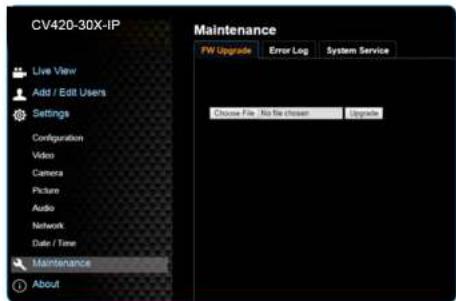
text_image
CV420-30X-IP Live View Add / Edit Users Settings Configuration Video Camera Picture Audio Network Date / Time Maintenance About Maintenance FW Upgrade Error Log System Service Choose File: No the chosen Upgrade| No. | Item. Function Descriptions | |
| 1 | Firmware Update | The camera firmware may be upgraded via web page. For the upgrade method, please download the FW upgrade manual from Marshall website |
4.3.12 Incident/Error Logs
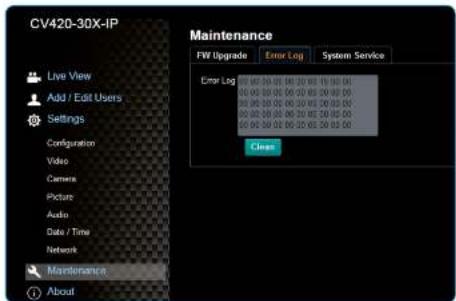
text_image
CV420-30X-IP Live View Add / Edit Users Settings Configuration Video Camera Picture Audio Date / Time Network Maintenance About Maintenance FW Upgrade Error Log System Service Error Log 00 00 00 00 00 00 00 15 00 00 00 00 00 00 00 00 00 20 00 00 00 00 00 00 00 00 00 20 00 00 00 00 00 00 00 20 00 25 00 05 00 00 00 00 25 00 25 35 35 35 00 00 00 00 25 35 35 35 35 Close| No. Item. Function Descriptions | ||
| 1 | Event Logs | If the camera encounters errors, an error code log will be established |
www.marshall-usa.com21 22
4.3.13 Additional Maintenance Settings
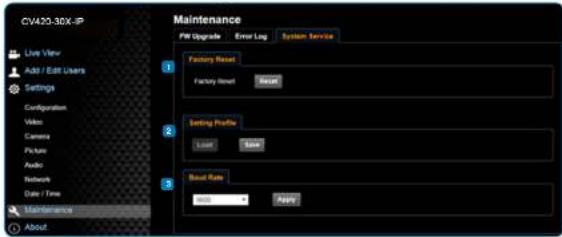
text_image
CV420-3DX-IP Live View Add / Edit Users Settings Configuration Video Camera Picture Audio Network Date / Time Maintenance About Maintenance PW Upgrade Error Log System Service 1 Factoring Reset Factory Reset Reset 2 Setting Profile User Save 3 Board Rate Auto Apply| No. Item | t. Function Descriptions | |
| 1 Reset | to the default value | Select the reset button to resume the factory default setting as the web page setting |
| 2 | Setting File | The web page setting parameters can be exported from the computer and imported/ applied to another camera |
| 3 Baud | Rate Set the camera Baud | Rate for the use of connecting RS-202 communication |
4.3.14 About
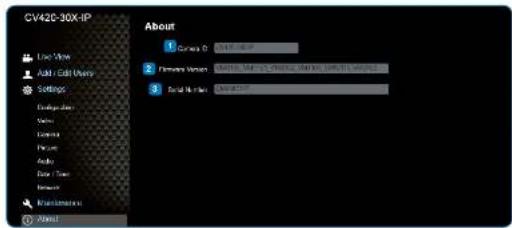
text_image
CV42C-30X-IP Line View Add Edit Options Settings Environment Status Environment Focus Action Center Time Environment Reinstatement About 1 Camera 0 2 Pattern Version 3 Solid Mode About| No. Item | Function Descriptions | |
| 1 | Camera ID Display the camera name | |
| 2 | Firmware Version Display the firmware version of the camera | |
| 3 | Serial Number Display the camera serial No. | |
Marshall
- Specifications
| Sensor 1/2.5" 8MP CMOS | |
| Video Format | "Resolution: 3840x2160p (UHD), 1920x1080p (HD), 1280x720p Frame-rate : 59.94/50/29.97/25 fps" |
| Optical Zoom | 30x |
| Focal Length | 4.6mm - 135mm |
| Angle-of-View (Horizontal) | 68° - 3.5° |
| Aperture | F1.5 ~ F3.4 |
| Shutter Speed | 1/1 - 1/10,000 sec |
| Minimum Object Distance | 1.5m (Wide/Tele) |
| Video S/N Ratio | >50dB |
| Color | Color: 0.1 Lux, F1.6, 50 IRE, AGC on |
| Night | BW: 0.02 Lux, F1.6, 50 IRE, AGC on |
| Day and Night | Mechanical IR Cut Filter |
| Day and Night Control | Modes: Auto, Color, Black/White |
| Preset Points | 128 |
| Patrol Group | 4 |
| Iris Control | Auto or Manual (remote control) |
| Lens Control | Autofocus: Auto, One-Push fast AF, Interval AF, Zoom Trigger AF, Zoom Tracking, ICR Compensation AF |
| Exposure Control | "Auto mode: True WDR Manual mode: shutter speed 1/1-1/10000 Shutter-Priority mode: shutter speed 1/1-1/10000 Flickerness mode: shutter speed, NTSC=1/60, PAL=1/50" |
| Gain Control | "AGC Manual gain" |
| White Balance | "Auto (2500K-7500K) ATW (2000K-10000K) Manual WB (R/B gain, One-push WB) Indoor (3200K) Outdoor (5800K)" |
| Backlight Compensation | On/Off |
| Defog | Yes |
| EV Compensation | Auto/Flickerless/Shutter-Priority Mode: -7~+7 |
| Gamma Correction | Yes |
www.marshall-usa.com23 24
Marshall
CV420-30X-IP Manual
| Sharpness Configurable | |
| Noise Reduction 2D/3D NR | |
| Dynamic Range | Ture WDR, 120dB |
| Privacy Mask | Spherical Privacy Zone Mask |
| Video Orientation | OFF, Flip, Mirror, Both |
| EIS | Yes |
| Video Profile | Multiple video profiles |
| Video Standard | H.265, H.264, MJPEG, Halvision SRT |
| Multiple Video Stream | *Triple streaming structureH.265 8M 60fps + H.264 2M 60fps + H.264 D130fps + HDMI* |
| Audio Compression Format | G.711 |
| Data Rate | *CBR (64-20000, default 8000)CVBR (64-20000, default max 8000)VBR (1-10)MJPEG (high, mild, low)* |
| System Compatibility | ONVIF profile S |
| Protocols | ARP, DHCP, DNS, FTP, HTTP, HTTPS, ICMP,IGMP, IPv4/6, NTP, RTSP/RTCP/RTP, QoS,SMTP, SNMP, TCP, TLS/TTLS, UDP, UPnP,802.1X, SRT, MPEG-TS |
| Internet Security | "IEEE 802.1XHTTPS" |
| Control Interface | RS-232 and IP |
| HDMI Output | HDMI 2.0 |
| Audio Out | Line Out, 3.5mm (Stereo/Mono) |
| Audio in | Line In, 3.5mm (Stereo/Mono) |
| RS-232 In | 8 Pin Mini-Din |
| RS-232 Out | 8 Pin Mini-Din |
| DC In | 12V +/- 20% |
| PoE | 802.3 af |
| Power consumption | < 12W |
| Storage Temperatures | -20°C ~ 60°C (-4°F ~ 140°F) |
| Operating Temperatures | 0°C ~ 40°C (32°F ~ 104°F) |
| Weight | 1 kg |
| Dimension | 188.4mm (L) x 67mm (H) x 67 mm (W) |
Marshall
6. Troubleshooting
This chapter describes problems you may encounter while using CV420-30X-IP. If you have questions, please refer to related chapters and follow all the suggested solutions. If the problem remains, please contact your distributor or the service center.
| No. Problem Solution | |
| 1 Boot without power signal | 1. Make sure you have plugged in the power cord.2. When using a PoE connection, ensure that the power supply supports IEEE 802.3af hubs |
| 2 There is no image output from CV420-30X-IP | 1. Check the power supply or PoE supply functions.2. Confirm the output signals are in streaming output.3. If the camera is connected to a monitor, confirm the monitor equipment supports 4K output4. Replace the cables and make sure they are not faulty. |
| 3 CV420-30X-IP Image is severely delayed | Please use 4K, 1080p or 720p 60/50 Hz signals rather than 25/30 Hz signals. |
| 4 RS-2C2 cannot be controlled | 1. Confirm the connection is correct (RS-232 Input / Output).2. Please make sure the Baud rate setting is the same as the control equipment. |
| 5 Whether the Internet can be used for operation | Please refer to Chapter 5 Network Function Description for the Internet usage or call marshall tech support. |
www.marshall-usa.com25 26
Warranty
Marshall Electronics warranties to the first consumer that this device will, under normal use, be free from defects in workmanship and materials, when received in its original container, for a period of two years from the purchase date. This warranty is extended to the first consumer only, and proof of purchase is necessary to honor the warranty. If there is no proof of purchase provided with a warranty claim, Marshall Electronics reserves the right not to honor the warranty set forth above. Therefore, labor and parts may be charged to the consumer. This warranty does not apply to the product exterior or cosmetics. Misuse, abnormal handling, alterations or modifications in design or construction void this warranty. No sales personnel of the seller or any other person is authorized to make any warranties other than those described above, or to extend the duration of any warranties on behalf of Marshall Electronics, beyond the time period described above.
Due to constant effort to improve products and product features, specifications may change without notice.
Marshall
20608 Madrona Avenue, Torrance, CA 90503
Tel: (800) 800-6608 / (310) 333-0606 • Fax: 310-333-0688
www.marshall-usa.com
support@marshall-usa.com