
Trinitron KV-ES34M91 - Vidéo-projecteur SONY - Free user manual and instructions
Find the device manual for free Trinitron KV-ES34M91 SONY in PDF.


| Product Type | CRT Television (Trinitron) |
| Brand | Sony |
| Model | KV-ES34M91 |
| Screen Size | 34 inches (diagonal) |
| Dimensions (W x H x D) | Approximately 800 x 650 x 550 mm |
| Weight | Approximately 55 kg |
| Power Consumption | 180 W (max) |
| Power Supply | AC 110-240 V, 50/60 Hz |
| Display Technology | Trinitron (aperture grille) |
| Audio Output | Built-in stereo speakers, 10W + 10W |
| Inputs | RF, Composite, S-Video, Component (Y/Pb/Pr), Audio L/R |
| Outputs | Audio L/R, Headphone jack |
| Remote Control | Included (model RM-xxx) |
| On-Screen Display | Yes, multilingual menu |
| Safety Features | Ventilation slots; do not block; avoid strong magnetic fields |
| Maintenance | Clean external surfaces with soft dry cloth; do not use liquid cleaners |
| Repairability | Parts and service available through authorized Sony service centers |
| Accessories Included | Power cord, remote control, batteries, user manual |
Frequently Asked Questions - Trinitron KV-ES34M91 SONY
User questions about Trinitron KV-ES34M91 SONY
0 question about this device. Answer the ones you know or ask your own.
Ask a new question about this device
Download the instructions for your Vidéo-projecteur in PDF format for free! Find your manual Trinitron KV-ES34M91 - SONY and take your electronic device back in hand. On this page are published all the documents necessary for the use of your device. Trinitron KV-ES34M91 by SONY.
USER MANUAL Trinitron KV-ES34M91 SONY
Operating Instructions
- Before operating the unit, please read this manual thoroughly and retain it for future reference.
KV-ES34
KV-ES29
WARNING
• Dangerously high voltages are present inside the TV.
- Operate the TV only between 110 – 240 V AC.
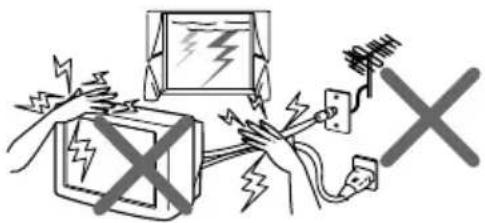 For your own safety, do not touch any part of the TV, the power cord and the antenna cable during lightning storms. For your own safety, do not touch any part of the TV, the power cord and the antenna cable during lightning storms. | 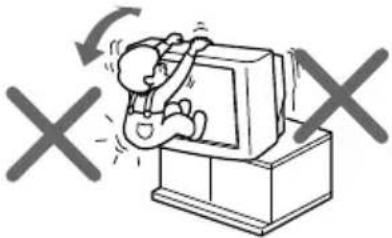 Install the TV in a stable position. Do not allow children to climb onto it. Install the TV in a stable position. Do not allow children to climb onto it. |
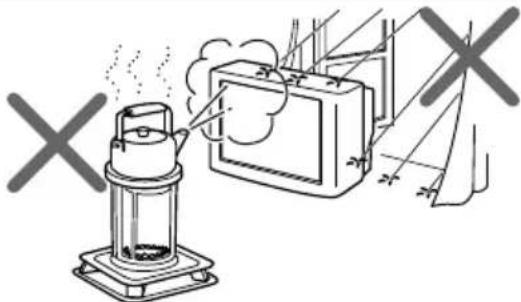 To prevent fire or shock hazard, do not expose the TV to rain or moisture. To prevent fire or shock hazard, do not expose the TV to rain or moisture. | 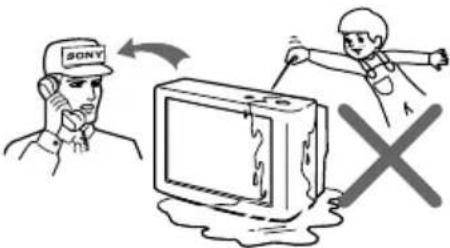 Do not operate the TV if any liquid or solid object falls into it. Have it checked immediately by qualified personnel only. Do not operate the TV if any liquid or solid object falls into it. Have it checked immediately by qualified personnel only. |
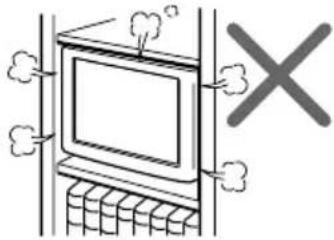 Do not install the TV in a confined space, such as a bookcase or built-in cabinet.Do not block the ventilation openings of the TV. Do not install the TV in a confined space, such as a bookcase or built-in cabinet.Do not block the ventilation openings of the TV. | 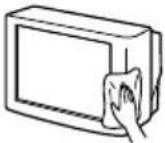  Clean the TV with a dry and soft cloth.Do not use benzine, thinner, or any other chemicals to clean the TV. Do not scratch the picture tube. Clean the TV with a dry and soft cloth.Do not use benzine, thinner, or any other chemicals to clean the TV. Do not scratch the picture tube. |
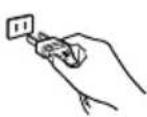 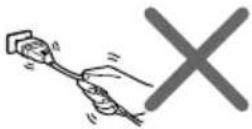 Pull the power cord out by the plug. Do not pull the power cord itself. Disconnect the TV if you are not going to use it for several days. Pull the power cord out by the plug. Do not pull the power cord itself. Disconnect the TV if you are not going to use it for several days. | 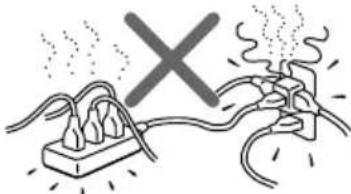 Do not plug in too many appliances to the same power socket. Do not damage the power cord. Do not plug in too many appliances to the same power socket. Do not damage the power cord. |
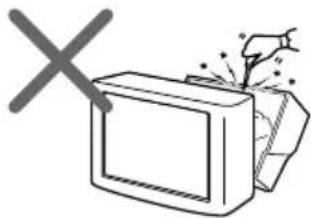 Do not open the cabinet and the rear cover of the TV. Refer servicing to qualified personnel. Do not open the cabinet and the rear cover of the TV. Refer servicing to qualified personnel. | 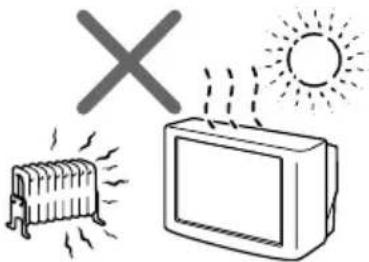 Do not install the TV in hot, humid or excessively dusty places. Do not install the TV in hot, humid or excessively dusty places. |
Table of Contents
WARNING
Using Your New TV
Getting Started 4
Step 1: Connect the antenna .... 4
Step 2: Insert the batteries into the remote....5
Step 3: Preset the channels automatically .... 5
Connecting optional components 6
Securing the TV 9
Watching the TV 10
Advanced Operations
Selecting the picture and sound modes 14
Viewing higher quality pictures ..... 15
Viewing your favorite channels ..... 16
Watching two programs at the same time 17
Displaying multiple programs ..... 19
Listening with surround sound ..... 22
Enjoying stereo or bilingual programs (KV-ES34M91/ES34M31/ES29M31 only).... 23
Viewing Teletext (KV-ES34M91/ES34M81/ES34M31/ES29M81/ES29M31 only).... 25
Operating optional components ..... 27
Adjusting Your Setup (MENU)
Introducing the menu system ...... 29
Changing the "A/V CONTROL" setting 32
Changing the "MULTI PICTURE" setting 35
Changing the "FEATURE" setting 📄37
Changing the "SET UP" setting 39
Changing the "CH PRESET" setting 42
Additional Information
Self-diagnosis function...... 45
Troubleshooting 46
Identifying parts and controls ..... 50
Specifications ...... Back cover
The features you will enjoy include:
- "DRC-MF" for viewing higher quality pictures (page 15)
- "FAVORITE CH" for quick and easy program selection (page 16)
- "PIP" & "TWIN" for viewing two programs (page 17)
- "PROGRAM INDEX" for displaying multiple programs (page 19)
- "PICTURE MODE" / "SOUND MODE" / "SURROUND" for customizing your TV (pages 14 and 22)
- "WIDE MODE" to view 16:9 pictures (page 38)
Your TV also offers the following features:
- Menu language options — English/Chinese/Arabic (page 12)
- "CHILD LOCK" for locking out specific channels (page 40)
- "INTELLIGENT VOL" for automatic volume adjustment (page 39)
- "FINE" tuning feature (page 44)
- Button Joystick 📄 on the remote control for easier operation (page 12)
- "ECO MODE" to save energy (page 38)
- "GAME MODE" for video games (page 38)
Getting Started
Step 1
Connect the antenna
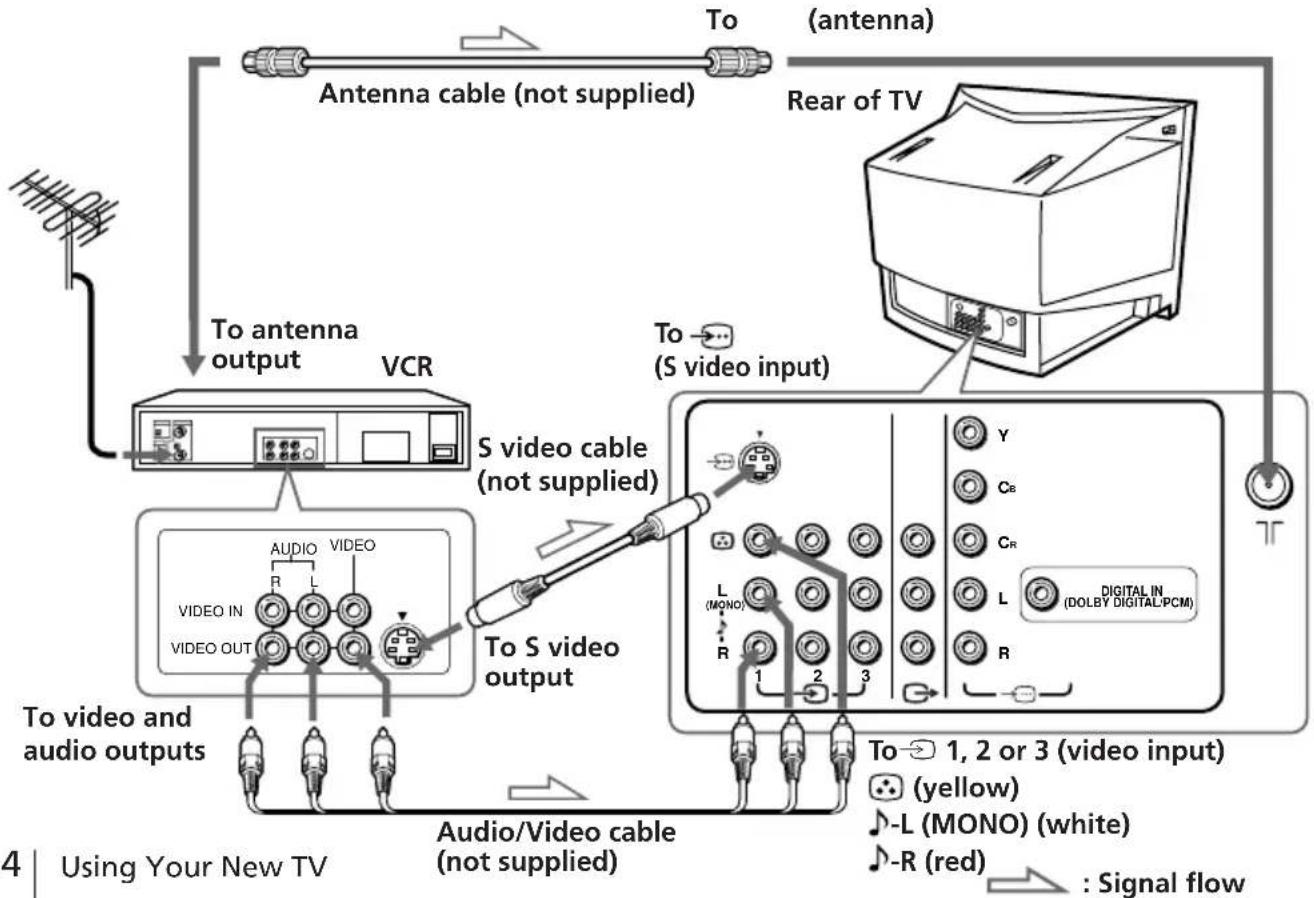
If you wish to connect a VCR, see the "Connecting a VCR" diagram below.
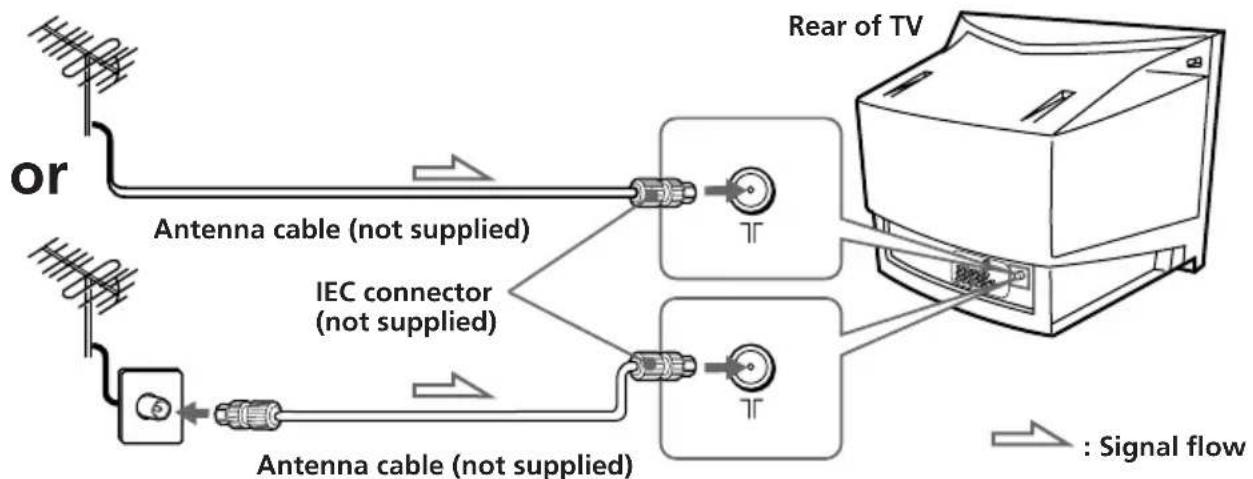
flowchart
graph TD
    A["Antenna cable (not supplied)"] --> B["Antenna cable (not supplied)"]
    C["Antenna cable (not supplied)"] --> D["Antenna cable (not supplied)"]
    E["IEC connector (not supplied)"] --> F["IEC connector (not supplied)"]
    G["Rear of TV"] --> H["Signal flow"]
    style A fill:#f9f,stroke:#333
    style C fill:#f9f,stroke:#333
    style E fill:#f9f,stroke:#333
    style G fill:#ccf,stroke:#333
    style B fill:#cff,stroke:#333
    style D fill:#cff,stroke:#333
    style F fill:#cff,stroke:#333
    style H fill:#ffc,stroke:#333
CAUTION
Do not connect the power cord until all other connections are complete; otherwise, a minimal current leakage through the antenna and/or other terminals to the ground could occur.
Connecting a VCR
To play a video tape, press → (see page 11).
flowchart
graph TD
    A["Antenna cable (not supplied)"] --> B["To antenna output"]
    B --> C["VCR"]
    C --> D["To video and audio outputs"]
    D --> E["Audio/Video cable (not supplied)"]
    E --> F["S video output"]
    F --> G["To S video input"]
    G --> H["To (S video input)"]
    H --> I["Antenna cable (not supplied)"]
    I --> J["Rear of TV"]
    J --> K["Digital IN (DOLBY DIGITAL/PCM)"]
    K --> L["To 1,2 or 3 (video input)"]
    L --> M["(yellow)"]
    L --> N["-L (MONO) (white)"]
    L --> O["-R (red)"]
    P["Using Your New TV"] --> Q["Audio and audio outputs"]
Notes
- If you connect a monaural VCR, connect the yellow plug to (the yellow jack) and the black plug to L (MONO) (the white jack).
- If you connect a VCR to the (antenna) terminal, preset the signal output from the VCR to the program number 0 on the TV.
- When both the S-video input) and 1 (video input) are connected, the S-video input) is automatically selected. To view the video input to 1 (video input), disconnect the S video cable.
Step 2
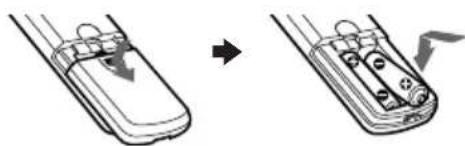
Insert the batteries into the remote
natural_image
Diagram showing a device being processed from a left-side mechanism to a right-side mechanism (no text or symbols present)Notes
- Do not use old batteries or different types of batteries together.
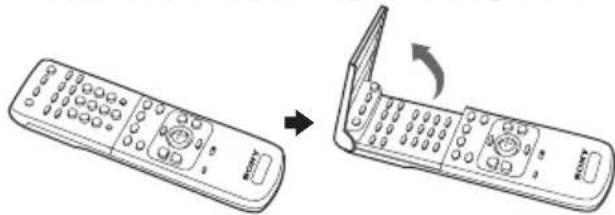
• To operate some of the functions of your TV, you may have to open the remote control cover.
natural_image
Line drawing of a remote control with an arrow indicating rotation (no text or symbols present)Step 3
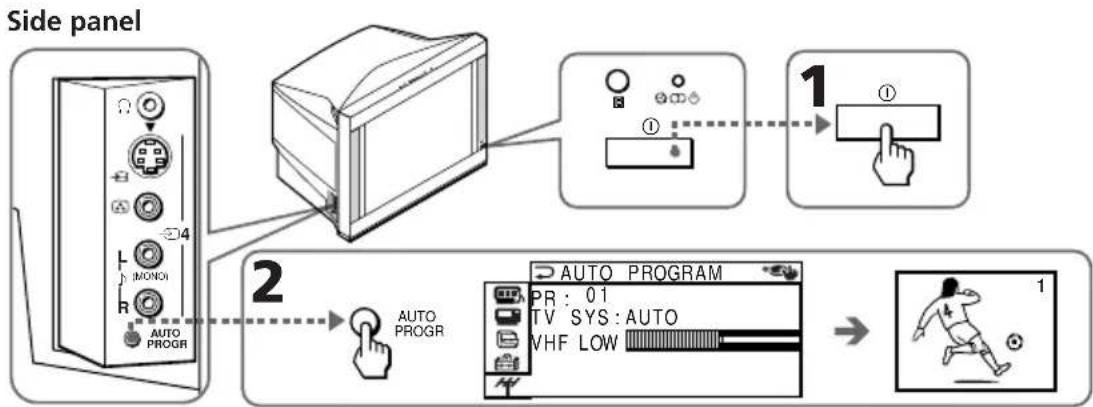
Preset the channels automatically
flowchart
graph TD
    A["Side panel"] --> B["Device"]
    B --> C["Control Unit ①"]
    C --> D["Hand Button ①"]
    D --> E["Automatic Control System"]
    E --> F["Auto Program"]
    F --> G["Action: PR: 01, TV SYS: AUTO, VHF LOW"]
Notes
- To stop the automatic channel presetting, press MENU twice.
- If your TV has preset an unwanted channel or cannot preset a particular channel, then preset your TV manually (see page 43).
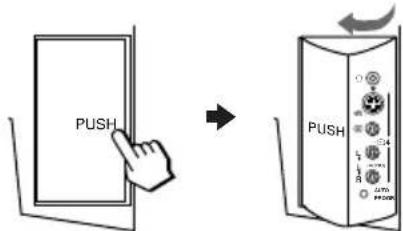
- To open the side panel of your TV, push on it until you hear a click, then it will open.
Connecting optional components
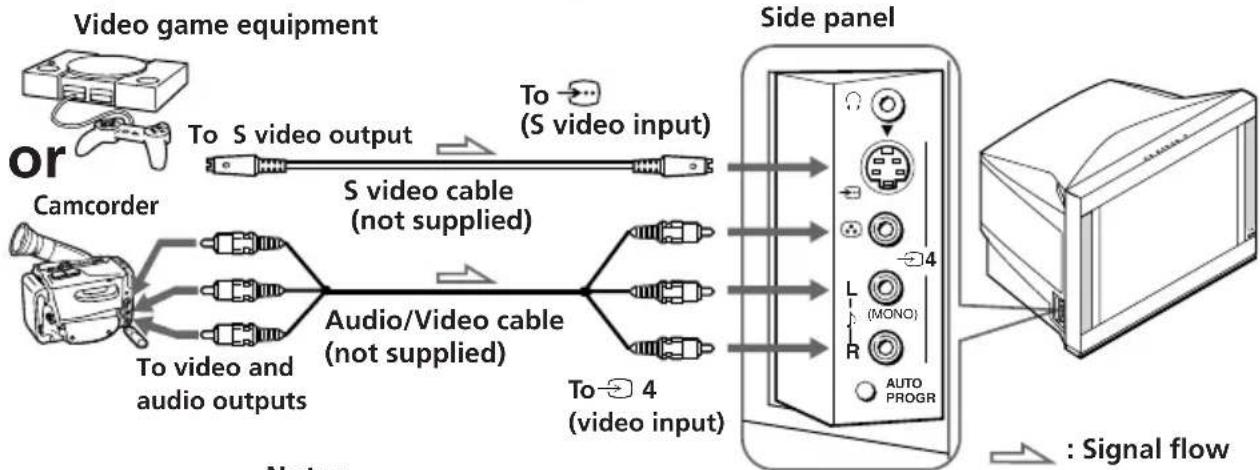
You can connect optional audio/video components, such as a VCR, multi disc player, camcorder, video game, or stereo system. To watch and operate the connected equipment, see pages 11 and 27.
Connecting a camcorder/video game equipment using the ➕ (video input) jacks
flowchart
graph LR
    A["or"] -->|To S video output| B["S video cable (not supplied)"]
    C["Camcorder"] --> D["To video and audio outputs"]
    D --> E["Audio/Video cable (not supplied)"]
    E --> F["To 4 (video input)"]
    B --> G["Side panel"]
    F --> G
    G --> H["4"]
    G --> I["L (MONO)"]
    G --> J["R AUTO PROGR"]
    H --> K[": Signal flow"]
    I --> K
    J --> K
Notes
- When connecting video game equipment, display the "FEATURE" menu and select "ON" for "GAME MODE" to adjust the picture setting that is suitable for video games (see page 38).
- You can also connect video equipment to the 1, 2, or 3 (video input) jacks at the rear of your TV.
- When both the ⑤video input) and ②4 (video input) are connected, the ③video input) is automatically selected. To view the video input to ②4 (video input), disconnect the S video cable.
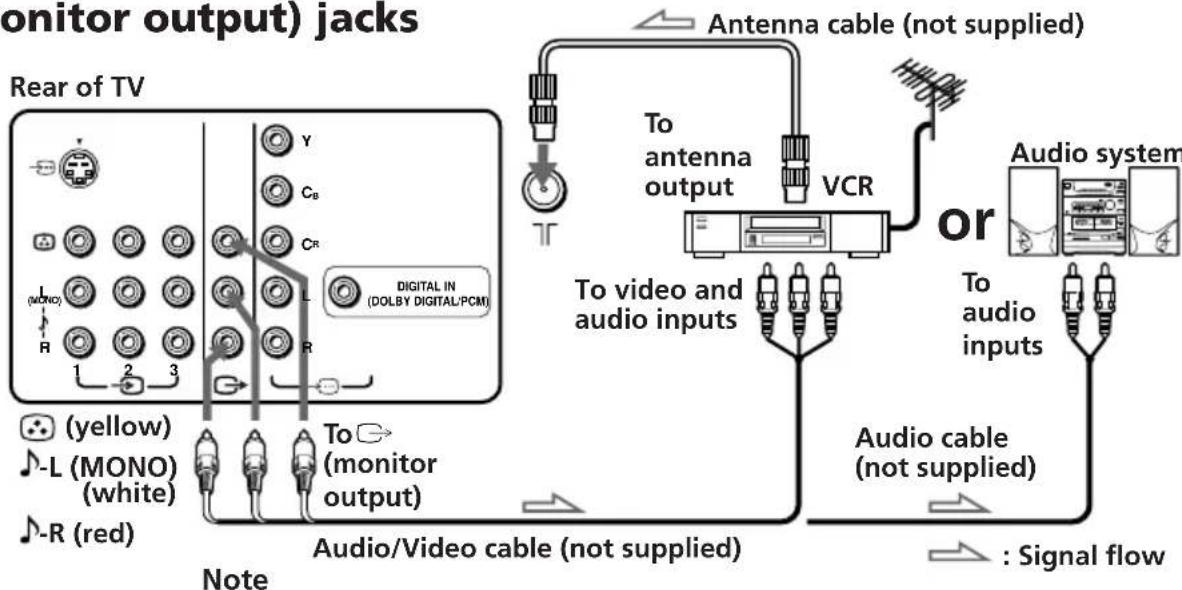
Connecting audio/video equipment using the (monitor output) jacks Antenna cable

flowchart
graph TD
    A["Monitor output"] --> B["Rear of TV"]
    B --> C["To (monitor output)"]
    C --> D["Audio/Video cable (not supplied)"]
    D --> E["Antenna cable (not supplied)"]
    E --> F["VCR"]
    F --> G["To antenna output"]
    G --> H["Audio system"]
    H --> I["To audio inputs"]
    I --> J["Audio cable (not supplied)"]
    J --> K["Signal flow"]
    style A fill:#f9f,stroke:#333
    style K fill:#ccf,stroke:#333
- If you select "DVD" on your TV screen, no signal will be output at the (monitor output) jacks (see page 11).
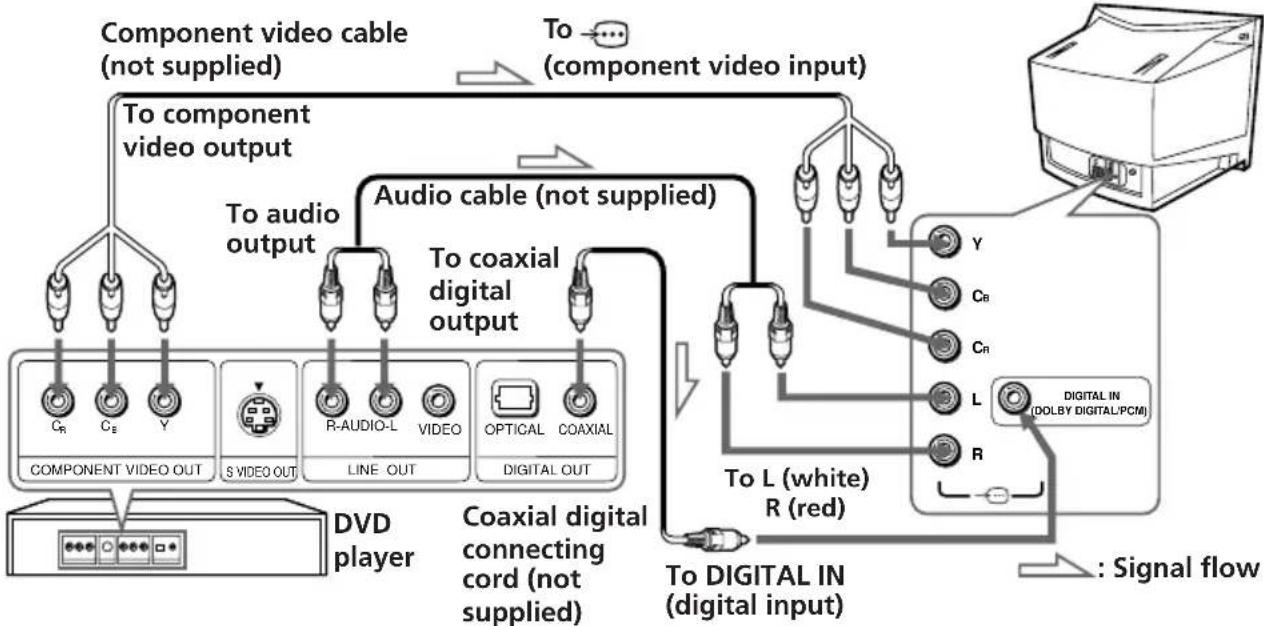
Connecting a DVD player to (component video input)
1 Using an audio cable, connect R and L under -component video input) on your TV to the LINE OUT, AUDIO R and L output connectors on your DVD player.
2 Using a coaxial digital connecting cord, connect DIGITAL IN under -component video input) on your TV to the DIGITAL OUT, COAXIAL output connector on your DVD player.
3 Using a component video cable, connect Y, C_B , and C_R under (component video input) on your TV to the COMPONENT VIDEO OUT Y, C_B , and C_R output connectors on your DVD player.
4 Press ➕ on the remote or the TV until "DVD" appears on the screen.
flowchart
graph TD
    A["Component video cable (not supplied)"] --> B["To component video output"]
    A --> C["To audio output"]
    A --> D["To coaxial digital output"]
    A --> E["To digital IN (digital input)"]
    B --> F["COMPONENT VIDEO OUT"]
    B --> G["S VIDEO OUT"]
    C --> H["R-AUDIO-L"]
    C --> I["VIDEO"]
    C --> J["OPTICAL"]
    C --> K["COAXIAL"]
    D --> L["TO L (white) R (red)"]
    E --> M["TO DIGITAL IN (DOLBY DIGITAL/PCM)"]
    F --> N["DVD player"]
    G --> N
    H --> N
    I --> N
    J --> N
    K --> N
    L --> N
    M --> N
    N --> O[": Signal flow"]
Notes
- Some DVD player terminals may be labeled differently:
| Connect To (on the DVD player) | |
| Y (green) Y | |
| C_B (blue) | C_b , B-Y or P_B |
| C_R (red) | C_r , R-Y or P_R |
- When connecting to (component video input) on your TV, you must connect Y, CB, and CR to receive the video signals, and at least connect DIGITAL IN to receive digital audio signals or connect L and R to receive analog audio signals (see page 34).
- When making connections to DIGITAL IN under (component video input) on your TV, always set "DIGITAL IN: OFF" in the "A/V CONTROL" menu. After completing all connections, then set "DIGITAL IN: ON". If you set "DIGITAL IN: ON" while still making connections to DIGITAL IN (component video input), a loud noise may suddenly come out from the speakers, affecting your hearing and causing damage to the speakers (see page 34).
continued
Connecting optional components (continued)
Connecting a DVD player to ➕ (video input)
Connect ➕ 1, 2, or 3 (video input) ♪/☐ (audio/video) connectors on your TV to LINE OUT on your DVD player.
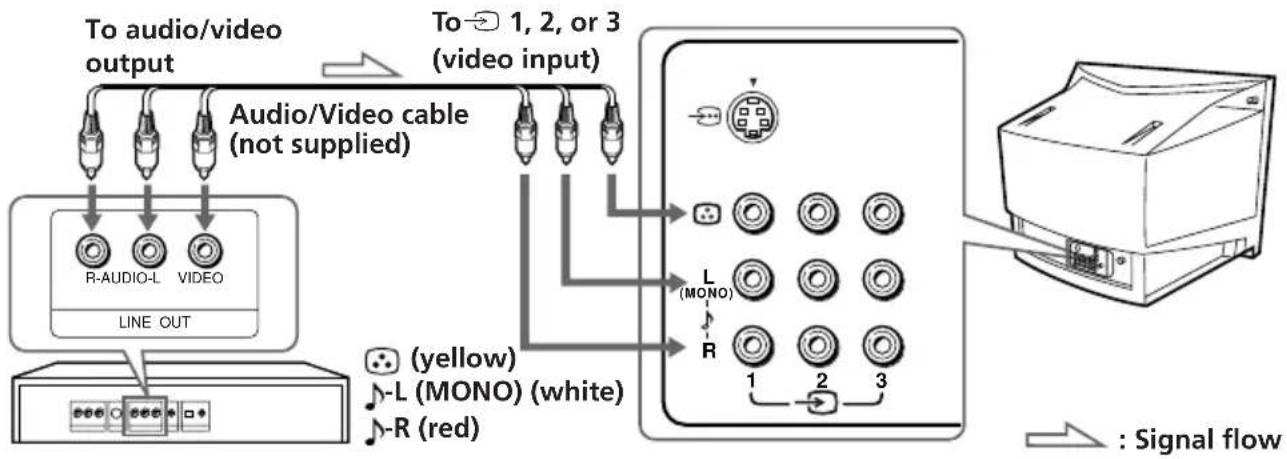
flowchart
graph TD
    A["To audio/video output"] --> B["Audio/Video cable (not supplied)"]
    B --> C["Line OUT"]
    D["To 1, 2, or 3 (video input)"] --> E["L (MONO)"]
    E --> F["Output Device"]
    G["(yellow)"] --> H["L (MONO) (white)"]
    I["(red)"] --> J["R (red)"]
    K["Signal flow"] --> L["Output Device"]
    style A fill:#f9f,stroke:#333
    style D fill:#f9f,stroke:#333
    style G fill:#ccf,stroke:#333
    style K fill:#cfc,stroke:#333
Notes
- Since the high quality pictures on a DVD disc contain a lot of information, picture noise may appear. In this case, adjust the sharpness ("SHARP") under "PERSONAL ADJUST" in the "PICTURE MODE" menu (see page 33).
- Connect your DVD player directly to your TV. Connecting the DVD player through other video equipment will cause unwanted picture noise.
Securing the TV
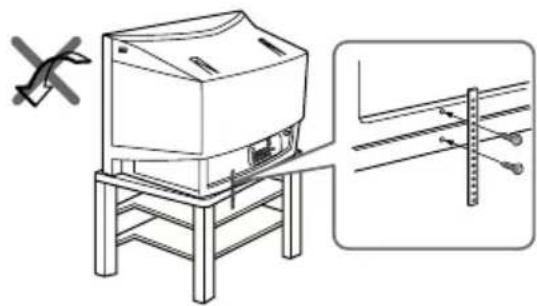
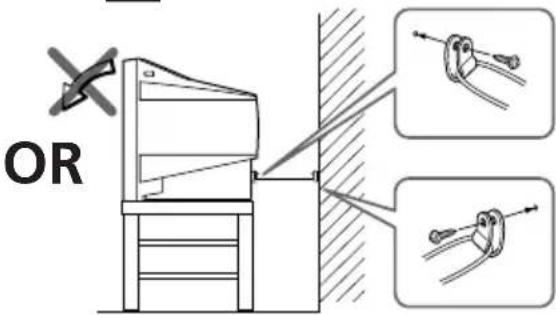
To prevent the TV from falling, secure the TV using one of the following methods:

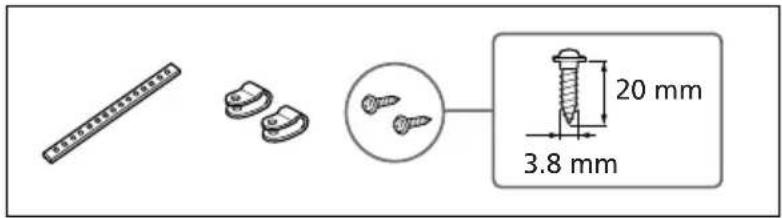
With the supplied screws, attach the stabilizer band to the TV stand and to the rear of the TV using the provided hole.
OR

Pass a cord or chain through the clamps and secure them to the rear of the TV and a wall or pillar.
A
natural_image
Technical line drawing of a mechanical device with mounting base and side view showing alignment details (no text or symbols)B
Note
- Use only the supplied screws. Use of other screws may damage the TV.
Watching the TV
This section explains various functions and operations used while watching the TV. Most operations can be done using the remote.
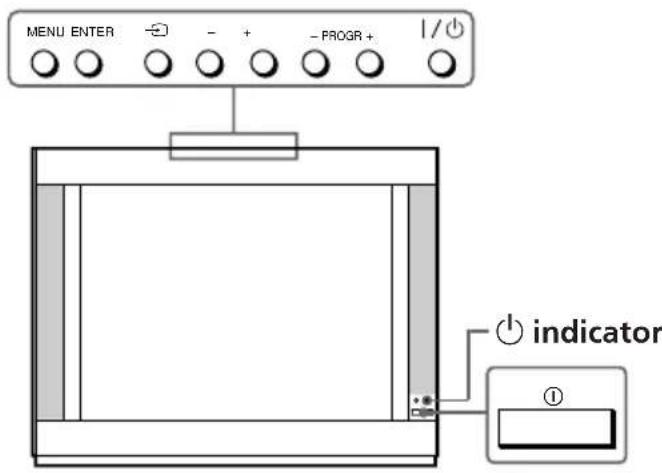
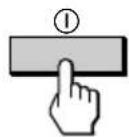
1 Press ① to turn on the TV.
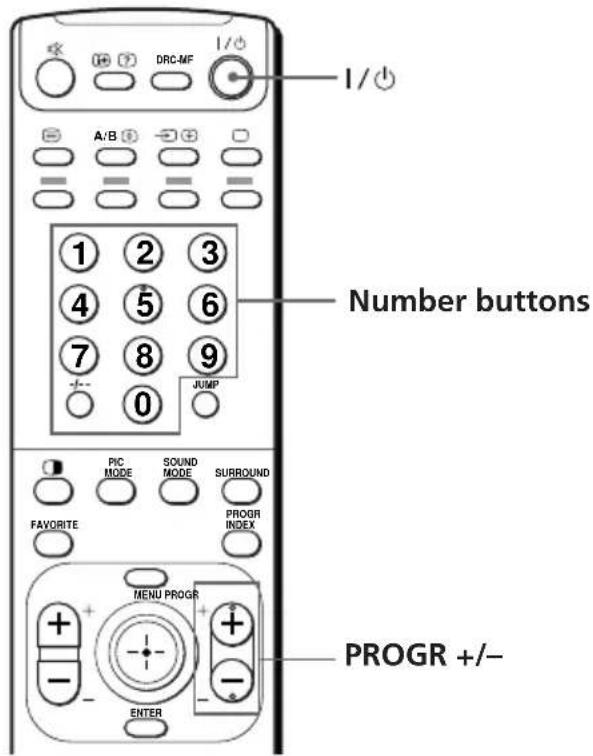
When the TV is in standby mode (the ⏻ indicator on the TV is lit red), press I/⏻ on the remote or on the TV.
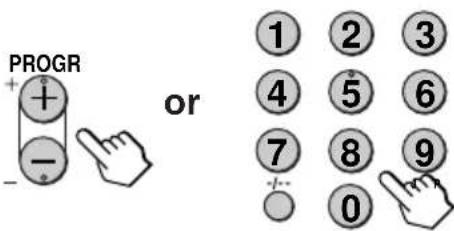
2 Press PROGR +/- or the number buttons to select the TV channel.
For double digit numbers, press -t--, then the number (e.g., for 25, press -t--, then 2 and 5).
Note
- When you turn on the TV, either the program number or video mode is displayed for approximately 40 seconds. The ECO MODE (ECO) icon will also appear if "ECO MODE" in the "FEATURE" menu is set "ON" (see page 38).
To select a TV program quickly
(1) Press and hold PROGR +/-.
(2) Release PROGR +/- when the desired program number appears.
Note
- When you select a TV program quickly, the picture may be disrupted. This does not indicate a malfunction.
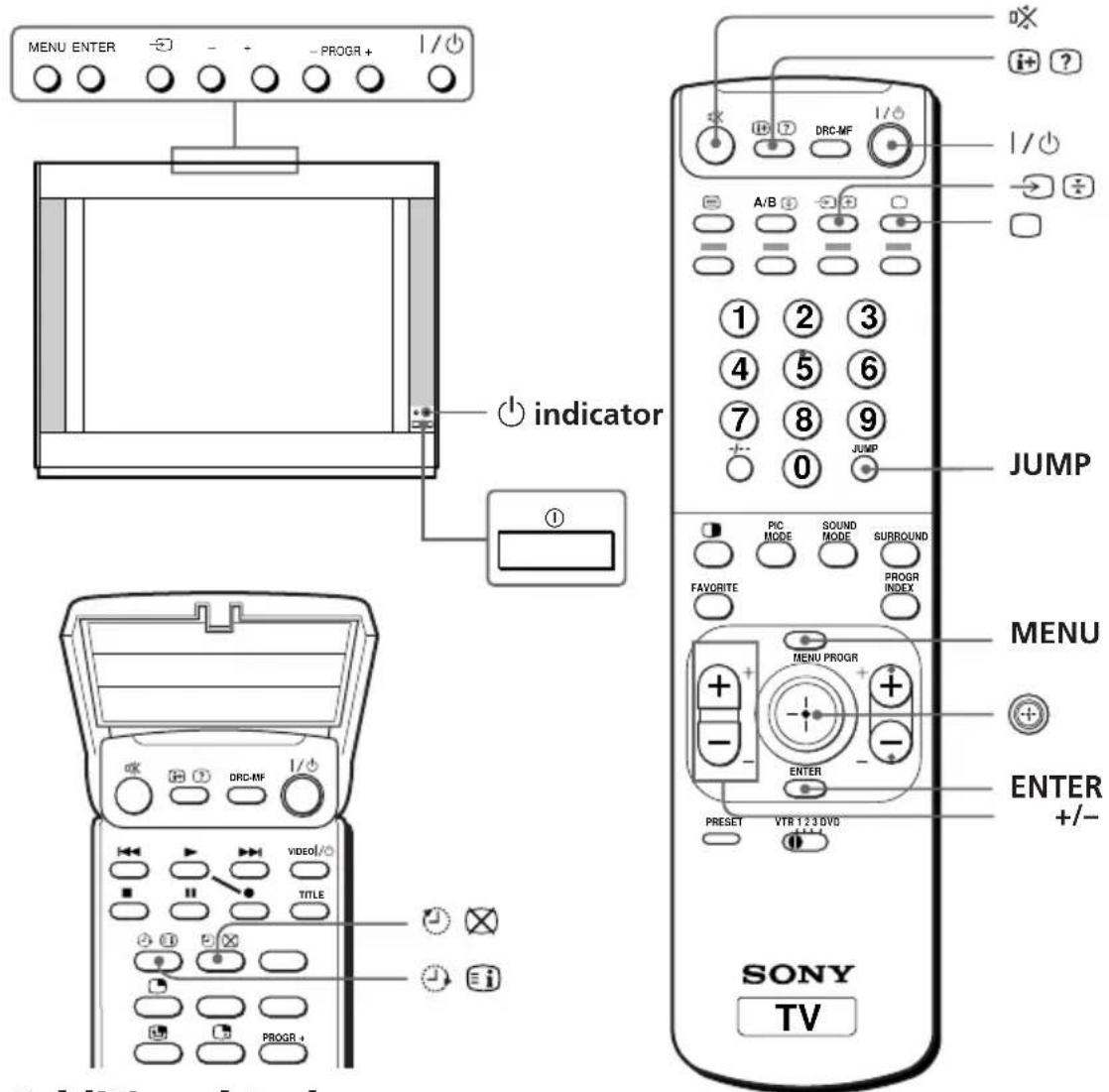
Additional tasks
| To | Press |
| Turn off temporarily | I/↓.The ↓ indicator on the TV lights up red. |
| Turn off completely | 1 on the TV. |
| Adjust the volume | Δ+/-. |
| Mute the sound | 呎. |
| Watch the video input (VCR, camcorder, etc.) | → (or → on the TV) to select “VIDEO 1”, “VIDEO 2”, “VIDEO 3”, “VIDEO 4” or “DVD”. To return to the TV screen, press □ (or → on the TV). |
| Jump back to the previous channel | JUMP. |
| Display the on-screen information* | i+. |
* Some picture/sound settings, and either the program number or video mode are displayed. The on-screen display for the picture/sound settings disappears after about 3 seconds.
continued
Watching the TV (continued)
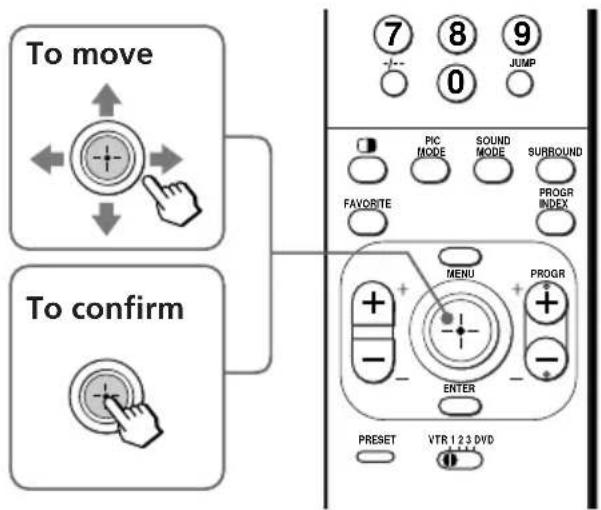
Using the Remote Control Button Joystick ( ⊕)
You can select the menu item on the screen by moving 📄up, down, left or right (see page 31).
To confirm a selected item, press Ⓕ. You can also press ENTER on the remote to confirm a selected item.
Changing the menu language
You can change the menu language as well as the on-screen language. For details on how to use the menu, see "Introducing the menu system" on page 29.
1 Press MENU.
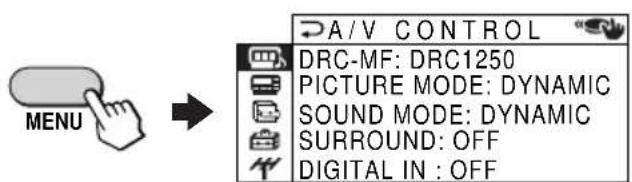
2 Move up or down to select when press.
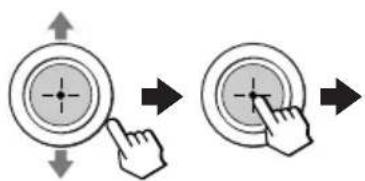
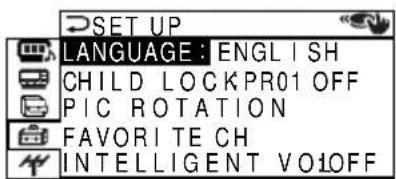
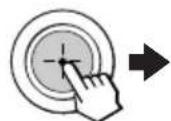
3 Make sure "LANGUAGE" is selected then press
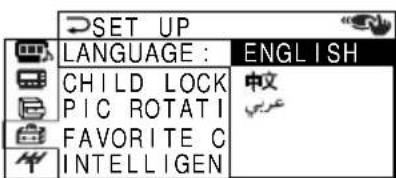
4 Move 📣 up or down to select the desired language (e.g., " ") then press ⏻.
The selected menu language appears.
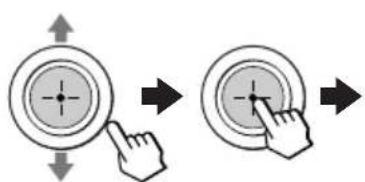
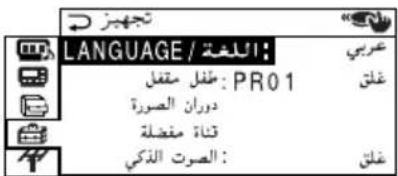
To return to the normal screen
Press MENU.
Setting the Wake Up timer
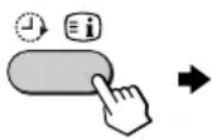
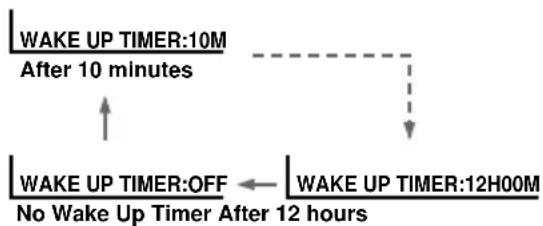
1 Press until the desired period of time appears.
The Wake Up timer starts immediately after you have set it.
flowchart
graph TD
    A["WAKE UP TIMER:10M After 10 minutes"] --> B["WAKE UP TIMER:OFF No Wake Up Timer After 12 hours"]
    B --> C["WAKE UP TIMER:12H00M"]
    C --> D["End"]
2 Select the TV channel or video mode you want to wake up to.
3 Press I/⏻, or set the Sleep timer if you want the TV to turn off automatically.
The ⏻ indicator on the TV lights up orange.
To cancel the Wake Up timer
Press until "WAKE UP TIMER: OFF" appears, or turn off the TV's main power.
Note
- If no buttons or controls are pressed for more than two hours after the TV is turned on using the Wake Up timer, the TV automatically goes into standby mode. To resume watching the TV, press any button or control on the TV or the remote.
Setting the Sleep timer
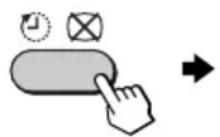
Press until the desired period of time appears.
The Sleep timer starts immediately after you have set it.
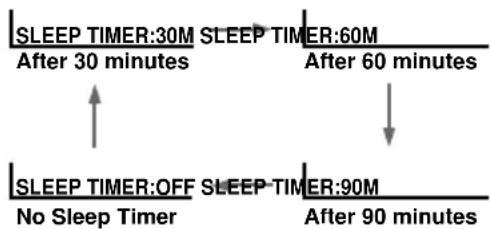
flowchart
graph TD
    A["SLEEP TIMER:30M"] --> B["After 30 minutes"]
    C["SLEEP TIMER:60M"] --> D["After 60 minutes"]
    E["SLEEP TIMER:OFF"] --> F["No Sleep Timer"]
    G["SLEEP TIMER:90M"] --> H["After 90 minutes"]
To cancel the Sleep timer
Press until "SLEEP TIMER: OFF" appears, or turn the TV off.
Selecting the picture and sound modes
You can select picture and sound modes and adjust the setting to your preference in the "PERSONAL" option.
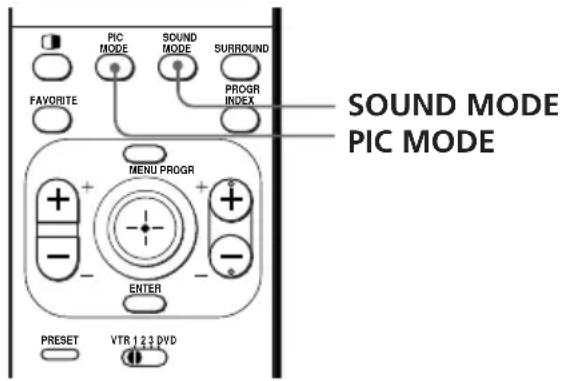
Selecting the picture mode
Press PIC MODE repeatedly until the desired picture mode is selected.
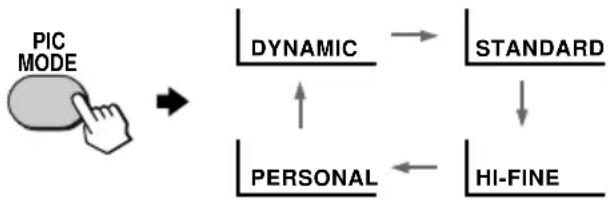
flowchart
graph TD
    A["PIC MODE"] --> B["DYNAMIC"]
    B --> C["STANDARD"]
    C --> D["HI-FINE"]
    B <--> E["PERSONAL"]
| Select | To |
| “DYNAMIC” | receive high contrast pictures. |
| “STANDARD” | receive normal pictures. |
| “HI-FINE” | receive higher resolution pictures with mild contrast. |
| “PERSONAL” | receive the last adjusted picture setting from the “ADJUST” option in the “A/V CONTROL” menu (see page 33). |
Selecting the sound mode
Press SOUND MODE repeatedly until the desired sound mode is selected.
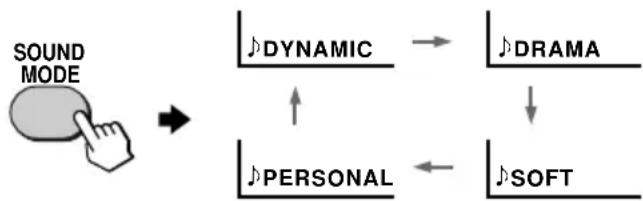
flowchart
graph TD
    A["SOUND MODE"] --> B["DYNAMIC"]
    B --> C["DRAM"]
    B --> D["PERSONAL"]
    D --> E["SOFT"]
| Select | To |
| “DYNAMIC” | listen to dynamic and clear sound that emphasizes both the low and high tones. |
| “DRAMA” | listen to sound that emphasizes voice and high tones. |
| “SOFT” | receive soft sound. |
| “PERSONAL” | receive the last adjusted sound setting from the “ADJUST” option in the “A/V CONTROL” menu (see page 33). |
Tip
- You can also set the picture and sound modes using the menu (see "Changing the "A/V CONTROL" setting" on page 32).
Viewing higher quality pictures
— "DRC-MF"
The Digital Reality Creation-Multi Function (DRC-MF) feature allows you to enjoy higher quality pictures on your TV. You can select "DRC1250" to watch super real (higher resolution) pictures, or "DRC100" to reduce flicker if necessary.
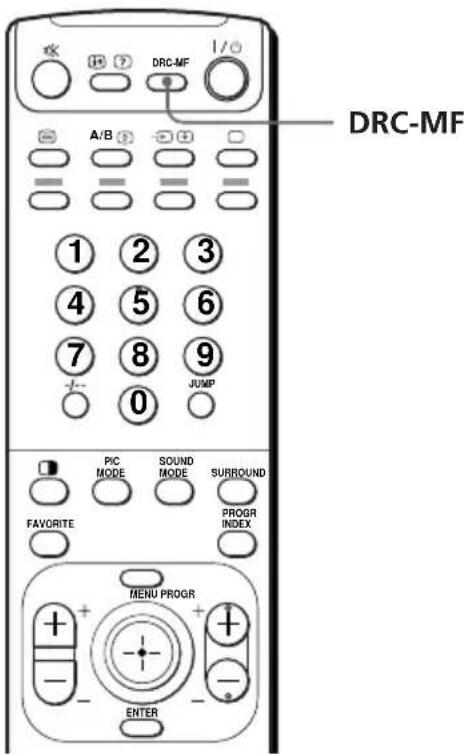
Press DRC-MF repeatedly until you receive the desired picture quality.

flowchart
graph LR
    A["DRC-MF"] --> B["DRC-MF: DRC1250"]
    B --> C["DRC-MF: DRC100"]
| Select | To |
| “DRC1250” | select higher resolution pictures. |
| “DRC100” | reduce flicker on the screen. |
Tip
- When the broadcast signal is weak, you may see some dots or noise on the TV screen. To reduce this interference, display the "A/V CONTROL" menu and select "ADJUST" in "PICTURE MODE", then adjust "SHARP" to reduce the sharpness (see page 33).
Note
- The DRC-MF mode is not selectable when using the "PROGRAM INDEX" or "FAVORITE CH" feature, or when the "GAME MODE", Picture-In-Picture ("PIP"), or "TWIN" mode is turned "ON".
The DRC-MF logo ( ) and "DRC-MF" are trademarks of
Sony Corporation.
Viewing your favorite channels
— “FAVORITE CH”
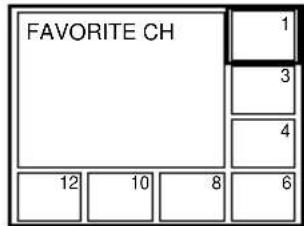
You can display seven favorite channels for quick and easy selection.
The last seven channels selected with the number buttons are displayed in "AUTO" mode. You can set up your own favorite channels in "MANUAL" mode under the "FAVORITE CH" menu (see "Changing the favorite channel setting" on page 41).
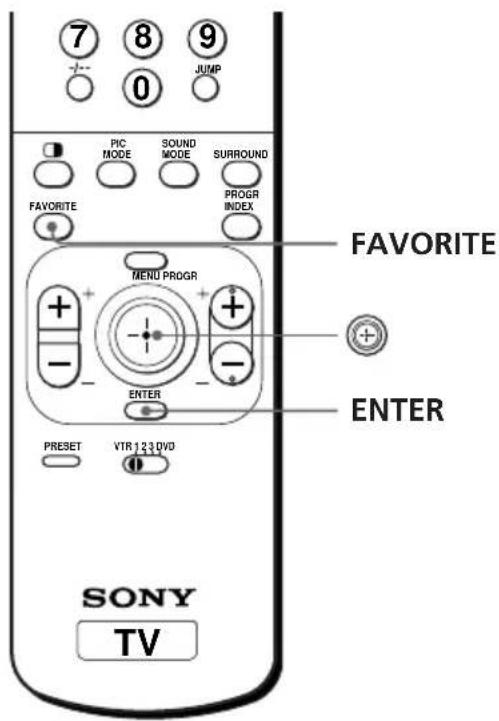
Selecting a favorite channel
1 Press FAVORITE.
FAVORITE


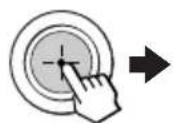
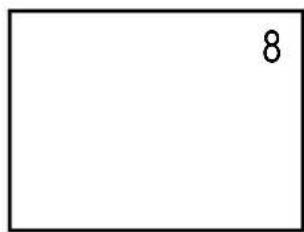
2 Move up, down, left or right to select the desired channel (e.g. PR 8), then press +.
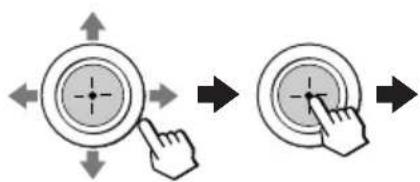
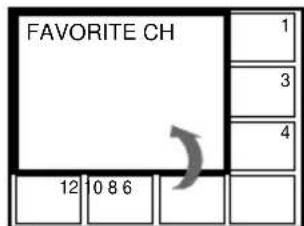
3 Press @again.
Note
- When you use your TV for the first time, seven preset channels appear.
Watching two programs at the same time
— "PIP", "TWIN"
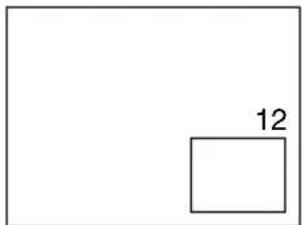
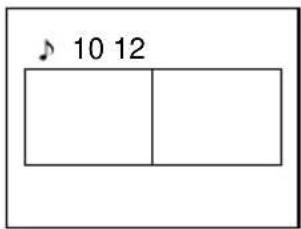
With the Picture-in-Picture (PIP) or TWIN pictures features, you can display a different TV program or video within or beside the main picture.
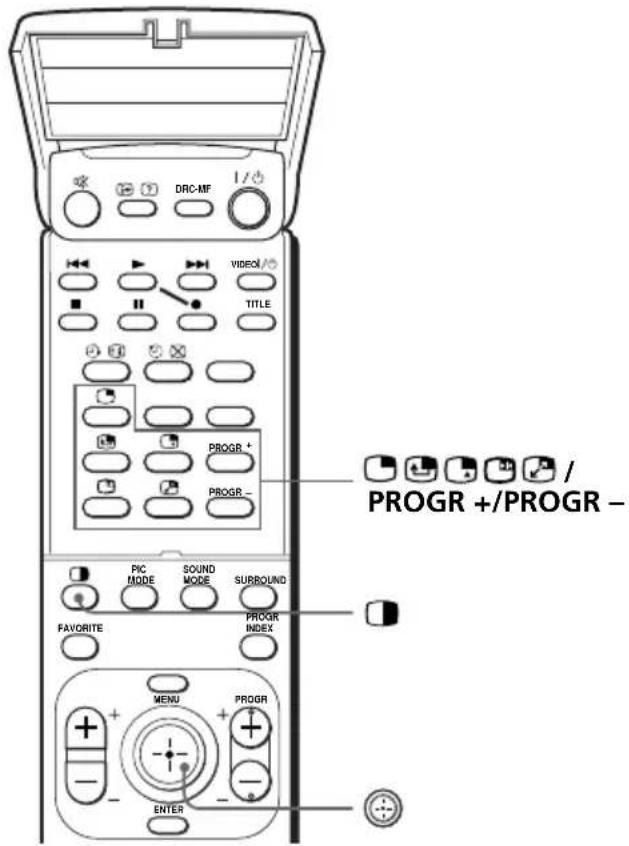
Displaying the PIP screen
Press

Displaying TWIN pictures
Press □


To return to the normal screen
Press (when in the PIP screen) or (when in the TWIN picture screen).
Tip
- You can also display the PIP screen or TWIN pictures using the menu (see "Changing the MULTI PICTURE setting" on page 35).
continued
Watching two programs at the same time (continued)
Additional PIP/TWIN pictures tasks
| To | Press/Move |
| change a TV program in the PIP screen or in the right TWIN picture | Press PROGR + or PROGR -. For a video input, press [IMAGE] |
| swap pictures between the main and PIP screens | Press 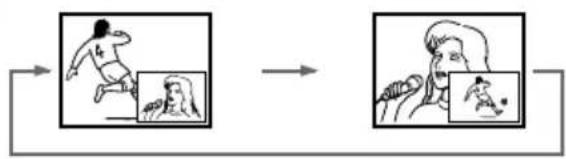 |
| freeze the PIP screen | Press [IMAGE]To unfreeze the screen, press the button again. |
| change the position of the PIP screen | Press  |
| swap the right and left pictures of the TWIN pictures | Press 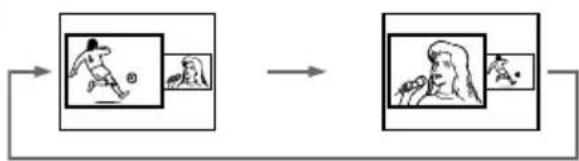 |
| change the screen size of the TWIN pictures | Move left to increase the left screen size.Move right to increase the right screen size.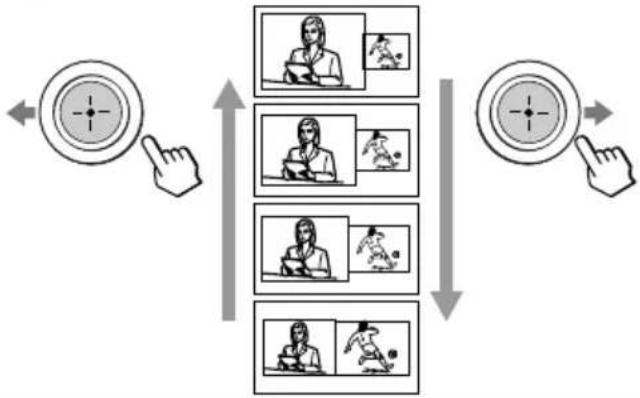 |
Notes
- The button does not function in the TWIN pictures mode.
- When you display a video input on the PIP screen at a faster/slower speed, the picture may be disrupted depending on the VCR type.
- If you display different color systems on the main screen and the PIP screen, the size of the PIP screen may be different and the PIP picture may be disrupted. This does not indicate a malfunction of the TV.
- In the TWIN picture screen, you can only operate and hear the sound of the main left screen ( ♩ appears on the screen).
- When the Button is pressed, the TV screen flickers or goes blank for about one second before the TWIN pictures appear. This does not indicate a malfunction of the TV.
Displaying multiple programs
— "PROGRAM INDEX"
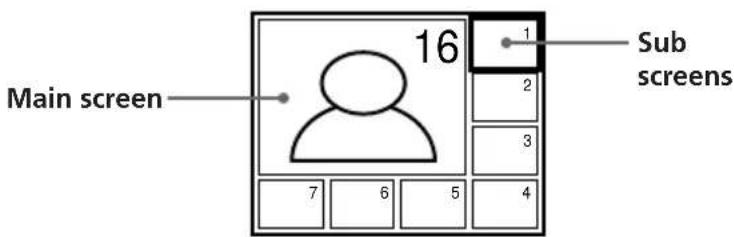
The PROGRAM INDEX feature displays all of the preset TV programs on twelve or seven sub screens for direct selection.
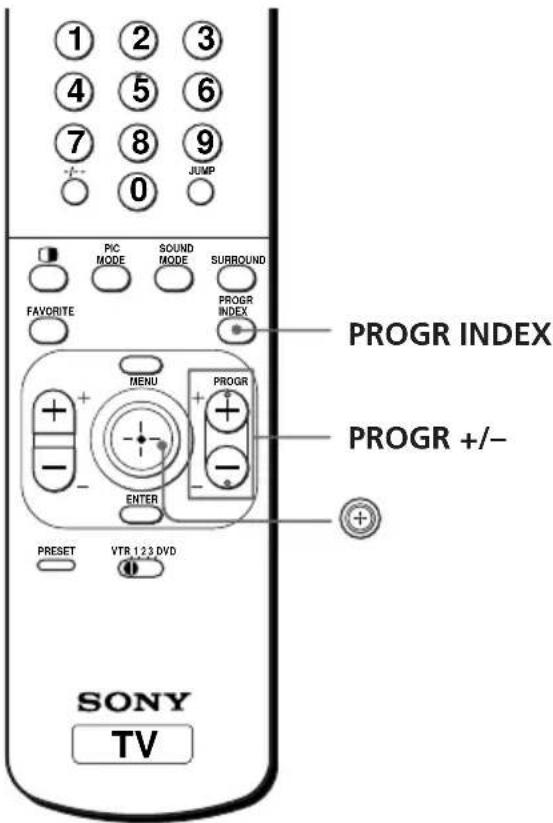
Press PROGR INDEX.
The first twelve preset programs appear one by one, clockwise from the upper left corner.


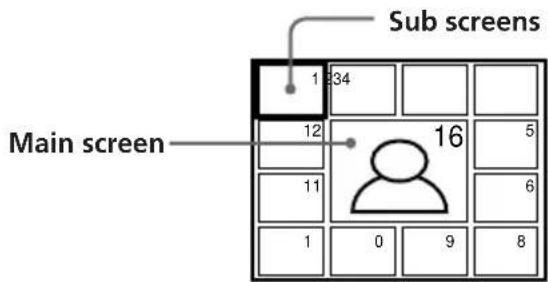
When the number of the preset TV programs is less than eight, the first seven preset programs appear one by one, clockwise from the upper right corner.
Tip
- When you press the PROGR INDEX button in the TWIN pictures mode, the left picture appears as the main screen of the PROGRAM INDEX mode.
continued
Displaying multiple programs (continued)
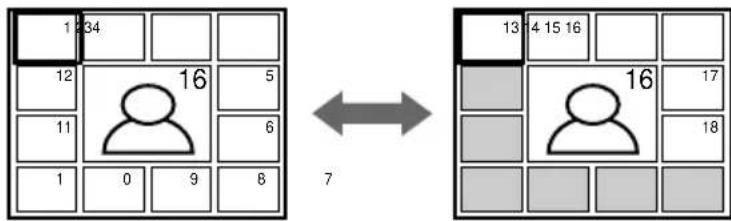
To view the next or the previous twelve preset programs
This works only when the number of the preset TV programs is more than twelve.
Press PROGR +/- on the remote or the TV.
To select the desired program directly from the sub screens
1 Move up, down, left or right to move the frame to the screen of the program you want to watch.
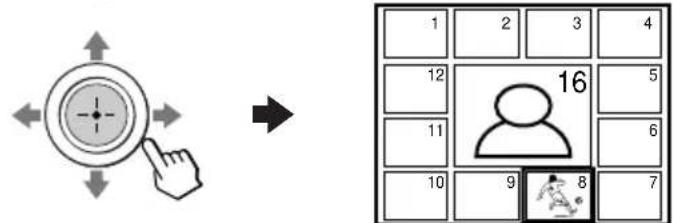
2 Press ⊕.


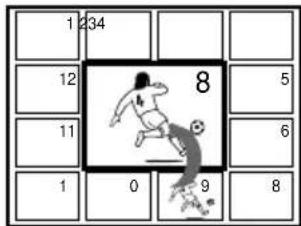
3 Press + again.


natural_image
Line drawing of a soccer player in motion, kicking a ball (no text or symbols)Tip
- Pressing the number buttons directly displays the program.
To return to the normal screen
Press PROGR INDEX again, or:
1 Select "PROGRAM INDEX" from the "MULTI PICTURE" menu.
2 Press
Tip
- You can also display multiple programs using the menu (see “Changing the MULTI PICTURE setting” on page 35).
Note
- When displaying multiple programs, only the sound of the main screen is heard.
Listening with surround sound
The surround feature enables you to enjoy the sound effects of a concert hall or movie theater.
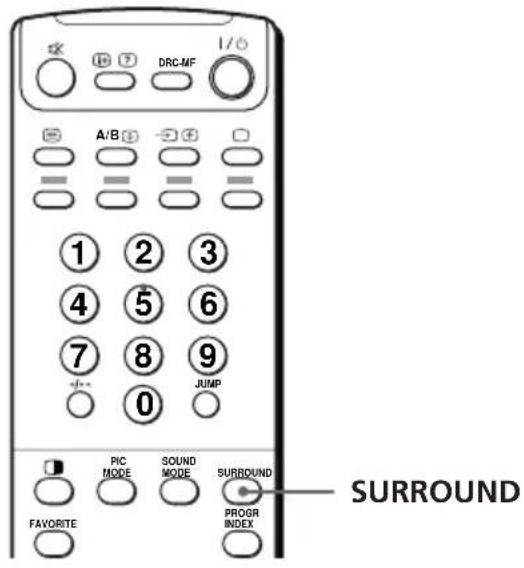
Press SURROUND repeatedly until you receive the desired surround sound.


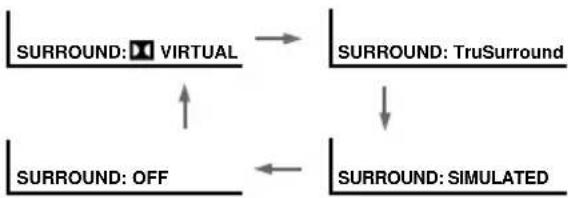
flowchart
graph TD
    A["SURROUND: VIRTUAL"] --> B["SURROUND: TruSurround"]
    B --> C["SURROUND: SIMULATED"]
    C --> D["SURROUND: OFF"]
    D --> A
| Select | To |
| “☐☐ VIRTUAL” | listen to Dolby* Surround encoded sound. |
| “TruSurround” | listen to the surround sound that spreads out to the rear of a room. |
| “SIMULATED” | listen to monaural sound with a stereo-like effect. |
| “OFF” | turn off the surround sound. |
Notes
- The Virtual Dolby Surround of this model consists of Dolby Digital, Dolby Pro Logic and TruSurround.
- The "☐☐ VIRTUAL" (Virtual Dolby Digital) is only available when receiving a Dolby Digital signal through the ☐☐ DIGITAL IN (component video input) jack at the rear of your TV and "DIGITAL IN: ON" in the "A/V CONTROL" menu is selected (see pages 7 and 32).
- When using the DIGITAL IN (component video input) jack at the rear of your TV, the available surround modes depend on the type of digital signal being received.
• SIMULATED uses SRS (MONO).
* Manufactured under license from Dolby Laboratories Licensing Corporation. DOLBY, the double-D symbol □□ and "PRO LOGIC" are trademarks of Dolby Laboratories Licensing Corporation.
"TruSurround" is a trademark of SRS Labs, Inc. SRS and the SRS symbol are registered trademarks of SRS Labs, Inc. in the United States and selected foreign countries. SRS and TruSurround are incorporated under license from SRS Labs, Inc. and are protected under United States Patent Nos.4,748,669 and 4,841,572 with numerous additional issued and pending foreign patents".
Enjoying stereo or bilingual
programs
(KV-ES34M91/ES34M31/
ES29M31 only)
You can enjoy stereo sound or bilingual programs of NICAM and A2 (German) stereo systems.
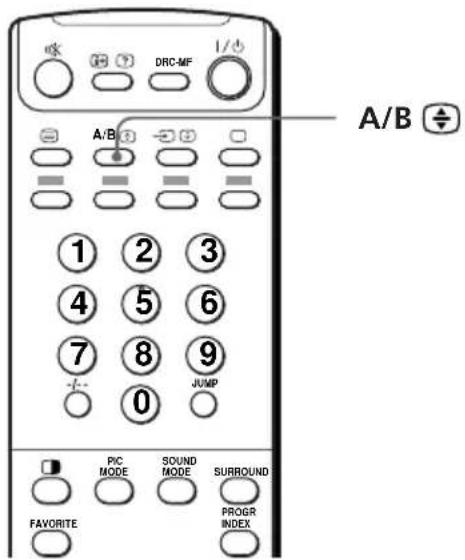
Press A/B repeatedly until you receive the sound you want.
The on-screen display changes to show the selected sound and the indicator on the TV lights up red.

NICAM
When receiving a NICAM program
Broadcasting On-screen display (Selected sound)
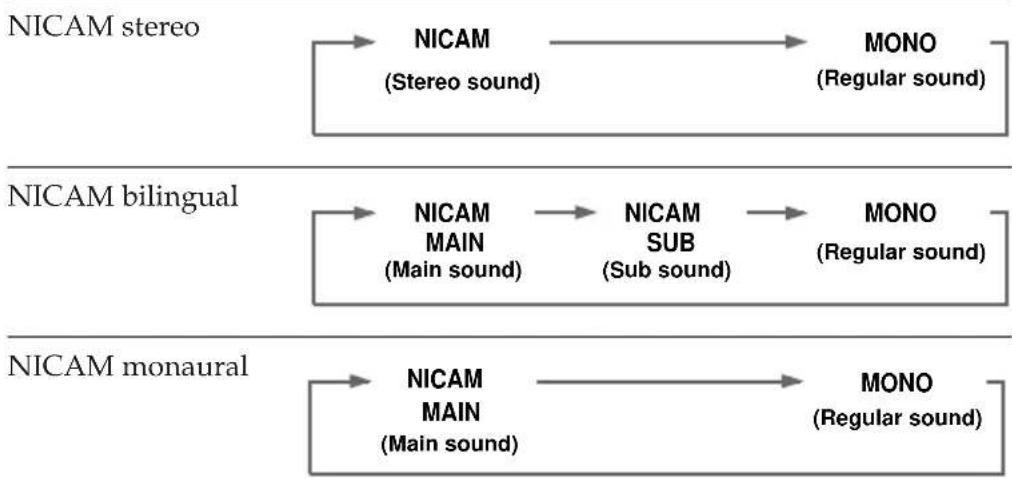
flowchart
graph LR
    A["NICAM stereo"] --> B["NICAM (Stereo sound)"]
    B --> C["MONO (Regular sound)"]
    D["NICAM bilingual"] --> E["NICAM MAIN (Main sound)"]
    E --> F["NICAM SUB (Sub sound)"]
    F --> G["MONO (Regular sound)"]
    H["NICAM monaural"] --> I["NICAM MAIN (Main sound)"]
    I --> J["MONO (Regular sound)"]
continued
Enjoying stereo or bilingual programs (continued)
When receiving an A2 (German) program
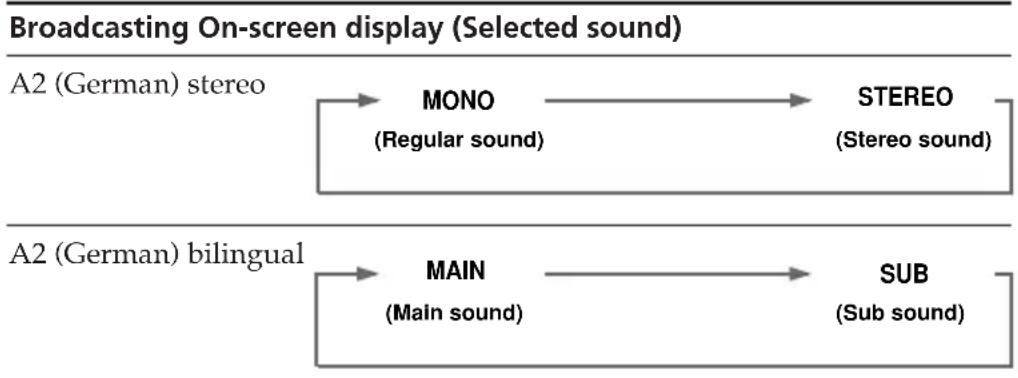
flowchart
graph LR
    A["Broadcasting On-screen display (Selected sound)"] --> B["A2 (German) stereo"]
    B --> C["MONO<br>(Regular sound)"]
    B --> D["STEREO<br>(Stereo sound)"]
    E["A2 (German) bilingual"] --> F["MAIN<br>(Main sound)"]
    E --> G["SUB<br>(Sub sound)"]
Notes
- If the signal is very weak, the sound becomes monaural automatically.
- If the stereo sound is noisy when receiving a NICAM program, select "MONO". The sound becomes monaural, but the noise is reduced.
If the sound is distorted or noisy when receiving a monaural program through the (antenna) terminal
Press A/B repeatedly until "MONO" appears on the screen.
To cancel the monaural sound setting, press A/B again until "AUTO" appears on the screen.

flowchart
graph LR
    A["MONO"] --> B["AUTO"]
Notes
- The “MONO” or “AUTO” setting is memorized for each program position.
- You cannot receive a stereo broadcast signal when the TV is in the "MONO" setting. Normally, set the TV to "AUTO".
Viewing Teletext
(KV-ES34M91/ES34M81/ES34M31/ES29M81/ES29M31 only)
Some TV stations broadcast an information service called Teletext which allows you to receive various information, such as stock market reports and news.
Displaying Teletext
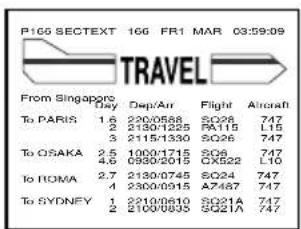
1 Select a TV channel that carries the Teletext broadcast you want to watch.
2 Press ☐ to display the text.
A Teletext page (normally the index page) is displayed. If there is no Teletext broadcast, "100?" is displayed at the top left corner of the screen after approximately 10 seconds.

To turn off Teletext
Press □.
continued
Viewing Teletext (continued)
Additional Teletext tasks
| To | Do this |
| display a Teletext page on the TV picture | Press ☑Each time you press ☑the screen changes as follows: Teletext → Teletext and TV → TV. |
| check the contents of a Teletext service | Press ☑An overview of the Teletext contents, including page numbers, appears on the screen. |
| select a Teletext page | Press the number buttons to enter the three-digit page number of the desired Teletext page.* If you make a mistake, reenter the correct page number. To access the next or previous page, press PROGR +/- . |
| hold (pause) a Teletext page (stop the page from scrolling) | Press ☑ display the symbol “” at the top left corner of the screen. To resume normal Teletext viewing, press ☑r . ☑ |
| reveal concealed information (e.g., an answer to a quiz) | Press ☑To conceal the information, press the button again. |
| enlarge the Teletext display | Press ☑Each time you press ☑the Teletext display changes as follows: Enlarge upper half → Enlarge lower half → Normal size. |
| stand by for a Teletext page while watching a TV program | 1 Enter the Teletext page number that you want to refer to, then press ☒2 When the page number is displayed, press ☑ show the text. |
* You can also select a Teletext page of any page number that appears in the colored column at the bottom of the screen using the corresponding color-coded button on the remote.
Using FASTEXT
This feature allows you to quickly access a Teletext page that uses FASTEXT. When a FASTEXT program is broadcast, colored menus appear at the bottom of the screen. The color of each menu corresponds to the color-coded buttons on the remote (red, green, yellow, and blue).
To access a FASTEXT menu
Press the color-coded button on the remote corresponding to the menu you want. The menu page appears on the screen after a few seconds.
Operating optional components
You can use the supplied remote to operate Sony video equipment such as Beta, 8 mm, VHS or DVD.
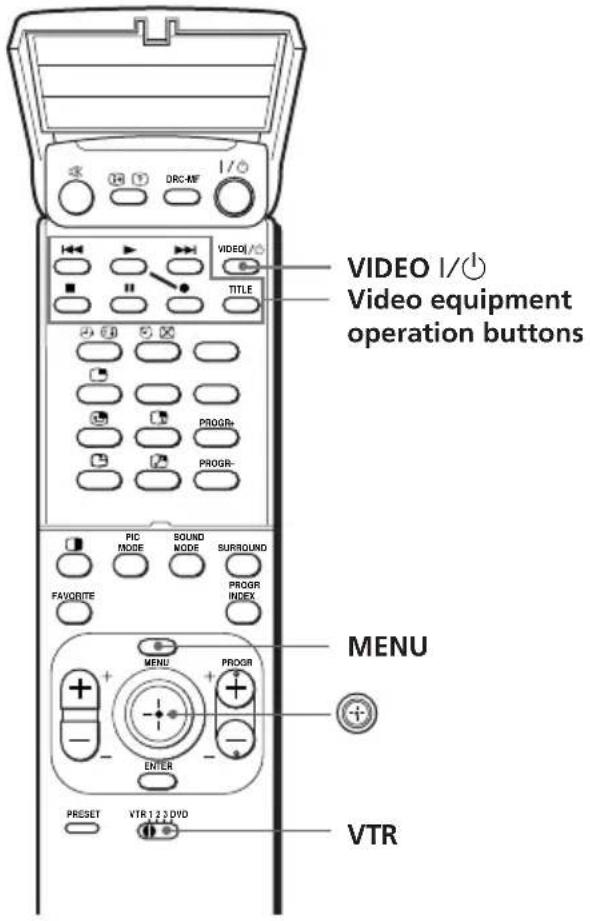
Setting up the remote to work with other connected equipment
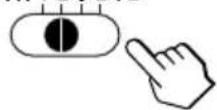
Switch VTR to select the desired equipment type (see the chart below).
For example, to operate a Sony 8 mm VCR:
VTR 1 2 3 DVD
| To control | Select |
| DVD | DVD |
| VTR1 (Beta) | 1 |
| VTR2 (8 mm) | 2 |
| VTR3 (VHS) | 3 |
Notes
- If your video equipment is furnished with a COMMAND MODE selector, set this selector to the same position as the VTR switch.
- If the equipment does not have a certain function, the corresponding button on the remote will not operate.
continued
Operating optional components (continued)
Operating a VCR using the remote
| To | Press |
| turn on/off | VIDEO | /⏻ |
| record | ▶ while pressing ●. |
| play | ▶ |
| stop | ■ |
| fast forward (▶▶) | ▶▶ |
| rewind the tape (◀◀) | ◀◀ |
| pause | IIPress again to resume normal playback. |
| search the picture forward (▶▶)or backward (◀◀) | ▶▶ or ◀◀ during playback.Release to resume normal playback. |
Operating a DVD player using the remote
| To | Press |
| turn on/off | VIDEO | /⏻ |
| play | ▶ |
| stop | ■ |
| pause | ■Press again to resume normal playback. |
| step through different tracks of an audio disc | ▶▶I to step forward or ◀◀◀ to step backward. |
| display the title menu | TITLE |
| display the menu | MENU while holding down ●. |
| select the menu item | Move⊕+ up, down, left or right while holding down ●. |
Introducing the menu system
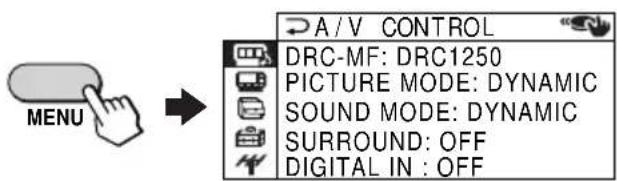
The MENU button lets you open a menu and change the settings of your TV. The following is an overview of the menu system.
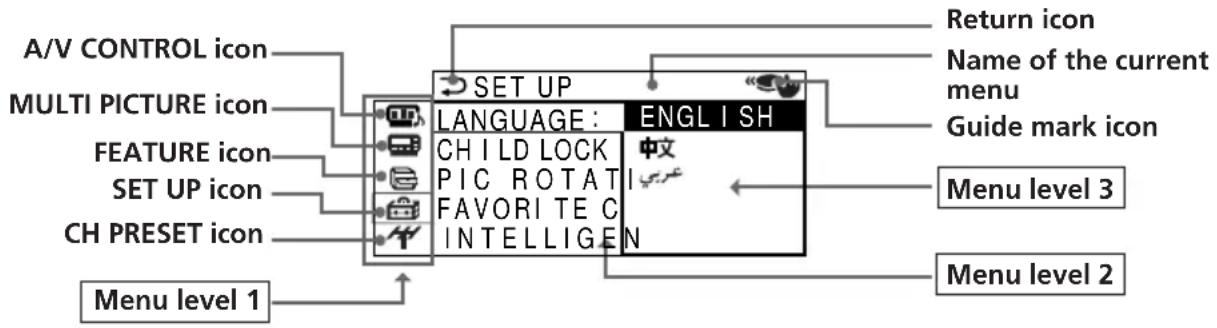
| Level 1 | Level 2 | Level 3/Function |
"A/VCONTROL" | "DRC-MF" | Select the "DRC-MF" mode:"DRC1250" → "DRC100" |
| "PICTURE MODE""ADJUST" | Select the picture mode:"DYNAMIC" → "STANDARD" → "HI-FINE" →"PERSONAL" → "ADJUST" | |
| Adjust the "PERSONAL" option:"PICTURE" → "COLOR" → "BRIGHT" → "HUE" →"SHARP" | ||
| "SOUND MODE""ADJUST" | Select the sound mode:"DYNAMIC" → "DRAMA" → "SOFT" →"PERSONAL" → "ADJUST" | |
| Adjust the "PERSONAL" option:"BASS" → "TREBLE" → "BALANCE" → "BBE"* | ||
| "SURROUND" | Select the "SURROUND" mode:"☐☐ VIRTUAL" → "TruSurround" → "SIMULATED" →"OFF" | |
| "DIGITAL IN" | Activate or deactivate the digital audio input jack at therear of your TV. | |
"MULTIPICTURE" | "PIP" | Activate or deactivate the PIP feature. |
| "PIP POSITION" | Change the position of the sub screen. | |
| "SWAP" | Swap the pictures between the main and sub screens. | |
| "TWIN" | Display a TV program or video beside the main screen. | |
| "PROGRAM INDEX" | Display all the preset TV programs at the same time. | |
"FEATURE" | "WIDE MODE" | Activate or deactivate WIDE MODE feature. |
| "ECO MODE" | Activate or deactivate ECO MODE feature. | |
| "GAME MODE" | Activate or deactivate GAME MODE feature. |
Introducing the menu system (continued)
| Level 1 | Level 2 | Level 3/Function |
“SET UP” | “LANGUAGE” | Change the menu language:“ENGLISH” → “中文” (Chinese) → “عربي” (Arabic) |
| “CHILD LOCK” | Lock out specific channels. | |
| “PIC ROTATION” | Rotate the picture. | |
| “FAVORITE CH” | Set favorite channels. | |
| “INTELLIGENT VOL” | Adjust the volume automatically. | |
“CH PRESET” | “AUTO PROGRAM” | Preset channels automatically. |
| “MANUAL PROGRAM” | Preset channels manually. | |
| “SKIP” | Skip unwanted or unused program numbers. | |
| “TV SYS” | Select the TV system:“B/G” → “I” → “D/K” → “M” | |
| “COL SYS” | Select the color system:“AUTO” → “PAL” → “SECAM” → “NTSC3.58” → “NTSC4.43” |
* The BBE is manufactured by Sony Corporation under license from BBE Sound, Inc. It is covered by U.S. Patent No. 4,638,258 and No. 4,482,866. The word "BBE" and the BBE symbol are the trademarks of BBE Sound, Inc.
How to use the menu
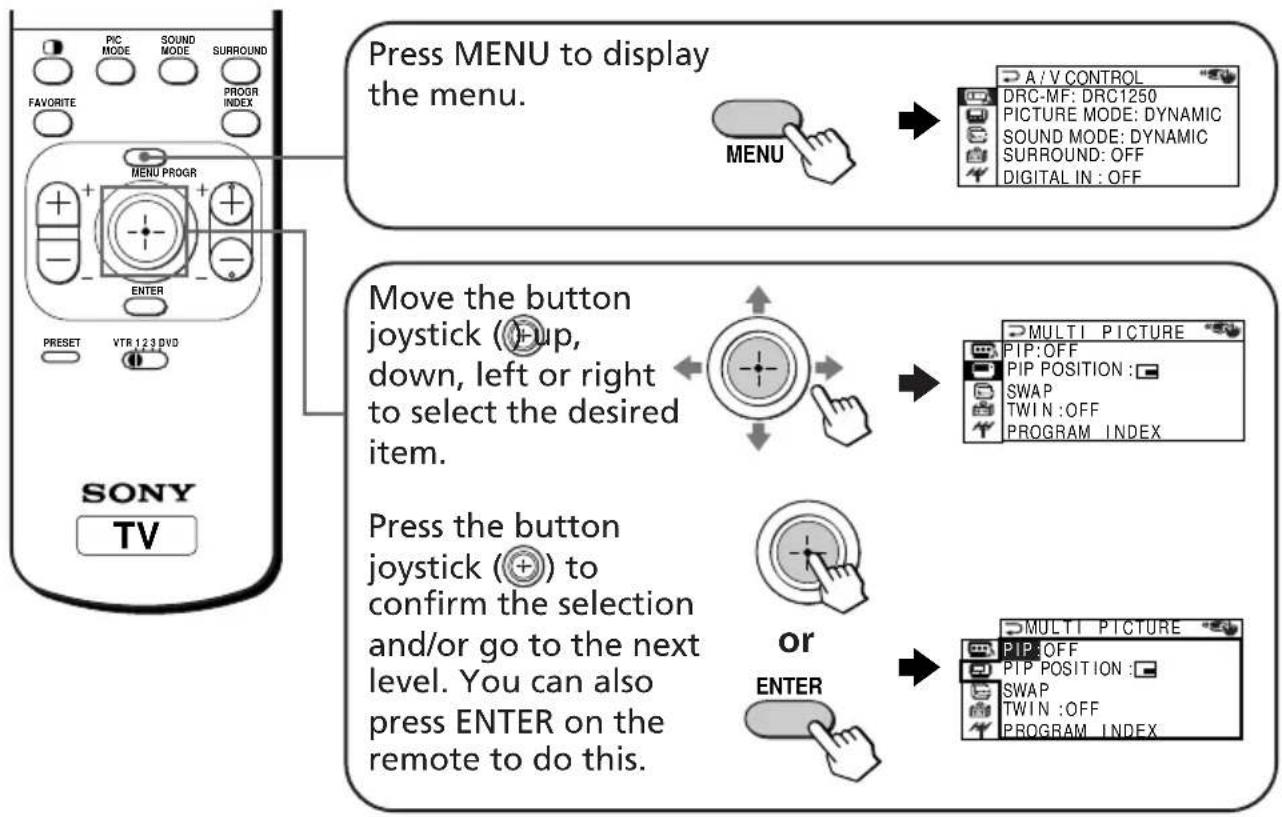
flowchart
graph TD
    A["SONY TV"] --> B["Press MENU to display the menu."]
    B --> C["MENU"]
    C --> D["A/V CONTROL"]
    C --> E["DRC-MF: DRC1250"]
    C --> F["PICTURE MODE: DYNAMIC"]
    C --> G["SOUND MODE: DYNAMIC"]
    C --> H["SURROUND: OFF"]
    C --> I["DIGITAL IN : OFF"]
    A --> J["Move the button joystick (÷up, down, left or right to select the desired item.)"]
    J --> K["MULTI PICTURE"]
    K --> L["PIP:OFF"]
    K --> M["PIP POSITION :"]
    K --> N["SWAP"]
    K --> O["TWIN :OFF"]
    K --> P["PROGRAM INDEX"]
    A --> Q["Press the button joystick (+) to confirm the selection and/or go to the next level. You can also press ENTER on the remote to do this."]
    Q --> R["OR"]
    R --> S["MULTI PICTURE"]
    S --> T["PIP:OFF"]
    S --> U["PIP POSITION :"]
    S --> V["SWAP"]
    S --> W["TWIN :OFF"]
    S --> X["PROGRAM INDEX"]
Other menu operations
| To | Press/Move |
| Adjust the setting value | Move up, down, left or right. |
| Move to the next/previous menu level | Move left or right. |
| Cancel the menu | Press MENU. |
Tips
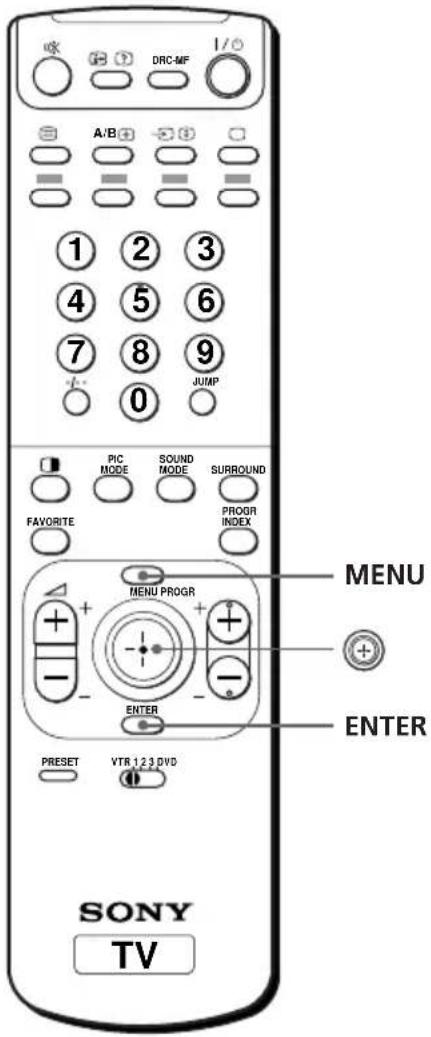
- If you want to exit from Menu level 2 to Menu level 1, move up or down until the return icon (D) is highlighted, then press or ENTER.
- The MENU, ENTER, and + / - buttons on the TV can also be used for the operations above.
Note
- If more than 60 seconds elapse between entries, the menu screen automatically disappears.
Changing the "A/V CONTROL" setting
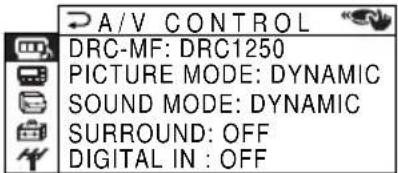
The "A/V CONTROL" menu allows you to adjust the picture and sound settings.
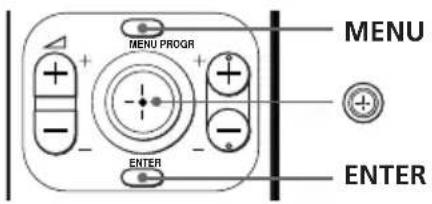
1 Press MENU.

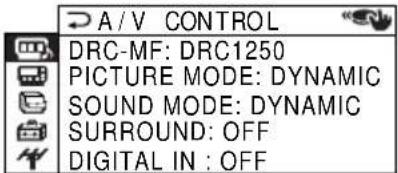
2 Move tip or down to select 📄, then press
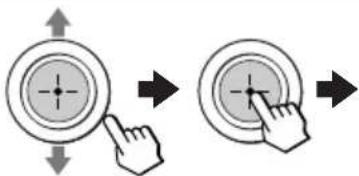
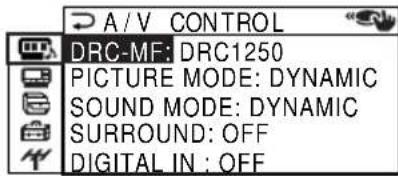
3 Move 📊 up or down to select either "DRC-MF", "PICTURE MODE", "SOUND MODE", "SURROUND", or "DIGITAL IN", then press Ⓕ.
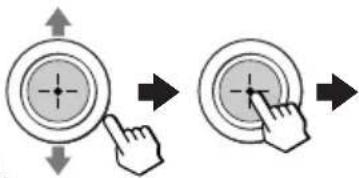
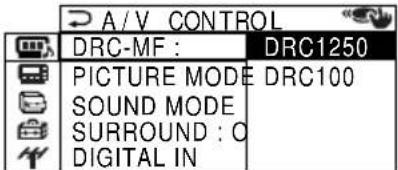
4 Move 📊 up or down to select the desired option, then press ✝.
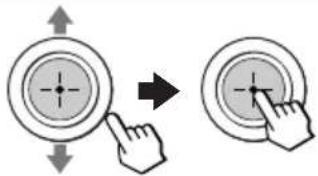
| For | Select |
| “DRC-MF” | either “DRC1250” or “DRC100”. |
| “PICTURE MODE” | either “DYNAMIC”, “STANDARD”, “HI-FINE”, “PERSONAL*”, or “ADJUST”. |
| “SOUND MODE” | either “DYNAMIC”, “DRAMA”, “SOFT”, “PERSONAL*”, or “ADJUST”. |
| “SURROUND” | either “☐☐ VIRTUAL”, “TruSurround”, “SIMULATED”, or “OFF”. |
| “DIGITAL IN” | either “ON” or “OFF”. |
* When the "PERSONAL" mode is selected, the last adjusted picture/sound settings from the "ADJUST" option are received (see page 33).
Tip
- For details on the options under the "DRC-MF", "PICTURE MODE" / "SOUND MODE", "SURROUND" and "DIGITAL IN" modes, see pages 15, 14, 22 and 34 respectively.
To return to the normal screen
Press MENU.
Adjusting the "ADJUST" options under "PICTURE MODE"
1 Move 📊 up or down to select the desired item (e.g., "COLOR"), then press Ⓕ.
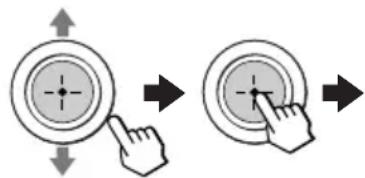
COLOR 80
2 Adjust the value according to the following table, then press
| For | Move down or left to | Move up or right to |
| “PICTURE” | decrease picture contrast | increase picture contrast |
| “COLOR” | decrease color intensity | increase color intensity |
| “BRIGHT” | darken the picture | brighten the picture |
| “HUE”* | increase red picture tones | increase green picture tones |
| “SHARP” | soften the picture | sharpen the picture |
* You can adjust "HUE" for the NTSC color system only.
3 Repeat the above steps to adjust other items.
The adjusted settings will be received when you select "PERSONAL".
Adjusting the "ADJUST" options under "SOUND MODE"
1 Move 📊 up or down to select the desired item (e.g., "BALANCE"), then press ⚠.
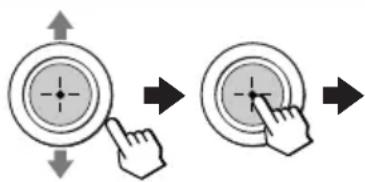
BALANCE 00
2 Adjust the value according to the following table, then press
| For | Move |
| “BASS” | down or left to decrease the bass, up or right to increase the bass. |
| “TREBLE” | down or left to decrease the treble, up or right to increase the treble. |
| “BALANCE” | down or left to increase the left speaker's volume, up or right to increase the right speaker's volume. |
| “BBE” | up or down to select “HIGH”, “LOW”, or “OFF”. “BBE” can produce clear sound. |
3 Repeat the above steps to adjust other items.
The adjusted settings will be received when you select "PERSONAL".
Changing the "A/V CONTROL" setting (continued)
Setting the "DIGITAL IN" options
1
In the "DIGITAL IN" menu, move ⊕ up or down to select the desired option (see table below).
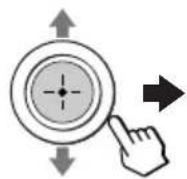
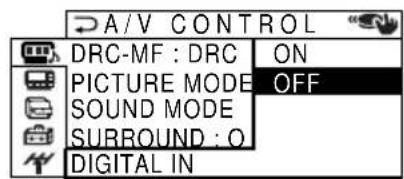
| Select | To |
| “ON” | receive digital audio signal through DIGITAL IN (component video input) jack. |
| “OFF” | receive analog audio signal through I: and R (component video input) jack. |
2
Press Ⓞ to confirm the selected option.

Note
- Your TV can only receive Dolby Digital or Linear PCM format digital signals through the DIGITAL IN (component video input) jack (see page 7). Receiving any other format digital signal may cause unwanted noise or no sound from the speakers.
Tip
- For details on the menu system and how to use the menu, refer to "Introducing the menu system" on page 29.
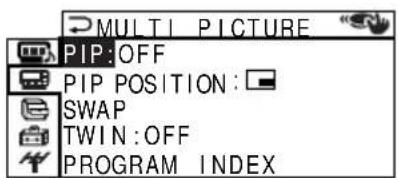
Changing the "MULTI PICTURE" setting
The "MULTI PICTURE" menu allows you to use the Picture-in-Picture (PIP), TWIN pictures, or PROGRAM INDEX features.
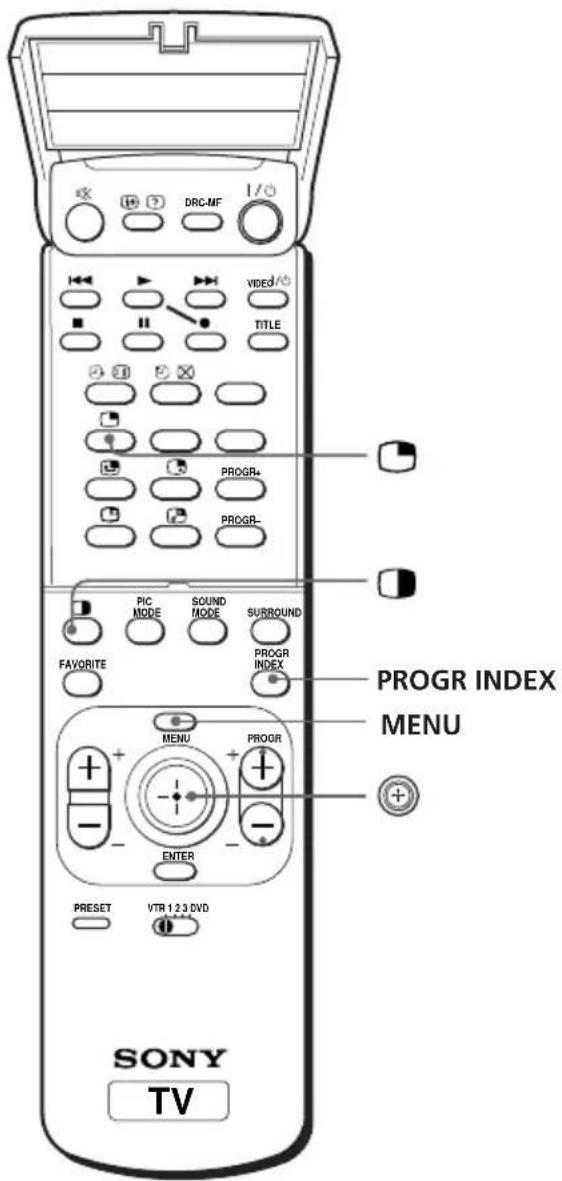
1 Press MENU.

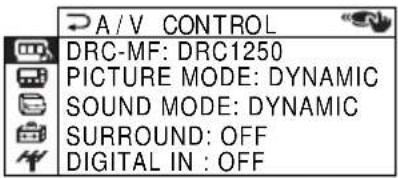
2 Move 📣 up or down to select 📄, then press 🕒
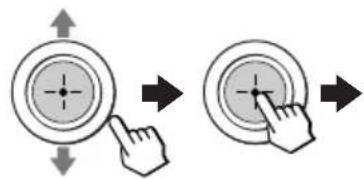
continued
Changing the "MULTI PICTURE" setting (continued)
3
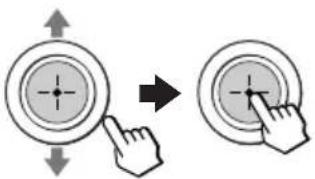
Move ⊕ up or down to select the desired option (see the table below), then press ⊕.
| Select | To |
| “PIP” | display the PIP screen within the main picture.Move ⊕ up or down to select “ON”, then press . ⊕To cancel, press ⊕ or select “OFF”, then press . ⊕ |
| “PIP POSITION” | change the position of the PIP screen.Move ⊕ up or down to select the desired position, then press . ⊕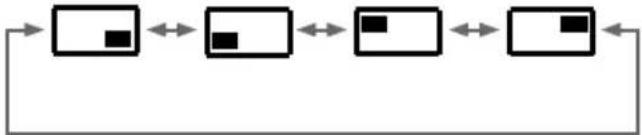 |
| “SWAP” | swap the main and PIP screens, or right and left pictures of the TWIN pictures. |
| “TWIN” | display a different TV program or video beside the main picture.Move ⊕ up or down to select “ON”, then press . ⊕To cancel, press ⊕ or select “OFF”, then press . ⊕ |
| “PROGRAM INDEX” | view multiple programs on the sub-screens.To cancel, press PROGR INDEX. |
To return to the normal screen
Press MENU.
Tip
- For details on the menu system and how to use the menu, see "Introducing the menu system" on page 29.
Changing the "FEATURE" setting
The "FEATURE" menu allows you to change the size of the picture on the screen when receiving wide mode (16:9) picture signals. You can also adjust the picture setting that is suitable for viewing video games, and reduce the power consumption of your TV.
1 Press MENU.
2 Move 📊 up or down to select 📊 then press .
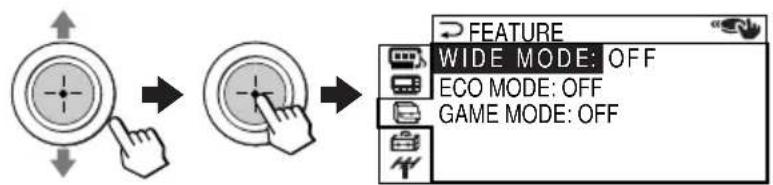
flowchart
graph LR
    A["User Interface"] --> B["Arrow pointing to the finger icon"]
    B --> C["Arrow pointing to the circular button"]
    C --> D["Feature: WIDE MODE: OFF"]
    C --> E["ECO MODE: OFF"]
    C --> F["GAME MODE: OFF"]
Changing the "FEATURE" setting (continued)
3
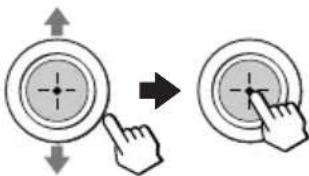
Move ⊕ up or down to select the desired option (see the table below), then press ⊕.
| Select | To | ||
| “WIDE MODE” | change the size of the picture when receiving wide-mode (16:9) picture signal.Move ↑up or down to select “ON”, then press .  → → 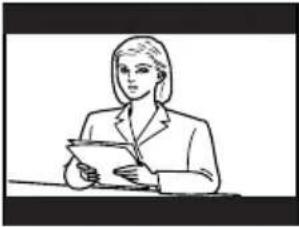 | ||
| To restore the normal picture size, select “OFF” then press [IMAGE] | |||
| “ECO MODE” | reduce power consumption of your TV to save energy.Move ↑up or down to select “ON”, then press . [To cancel, select “OFF”, then press [IMAGE] | ||
| “GAME MODE” | adjust the picture setting that is suitable to view video games.Move ↑up or down to select “ON”, then press . [To cancel, select “OFF”, then press [IMAGE] | ||
Notes
- When you turn on "ECO MODE", the picture may become dimmer. Turning "ECO MODE" off will restore the picture to its original setting.
- "WIDE MODE" and "GAME MODE" is available only when receiving signals through the ➞ (video input), ➞ (video input), or ➞ (component video input) jacks at the side and rear of your TV.
- If "ECO MODE" is on, the ECO MODE ( )ion will appear at the bottom right corner of the screen when you turn on the TV or when you press ion the remote (see pages 10 and 11).
To return to the normal screen
Press MENU.
Tip
- For details on the menu system and how to use the menu, see "Introducing the menu system" on page 29.
Changing the "SET UP" setting
The "SET UP" menu allows you to: change the menu language, block channels, adjust the picture position, program your favorite channels, and adjust the volume automatically.
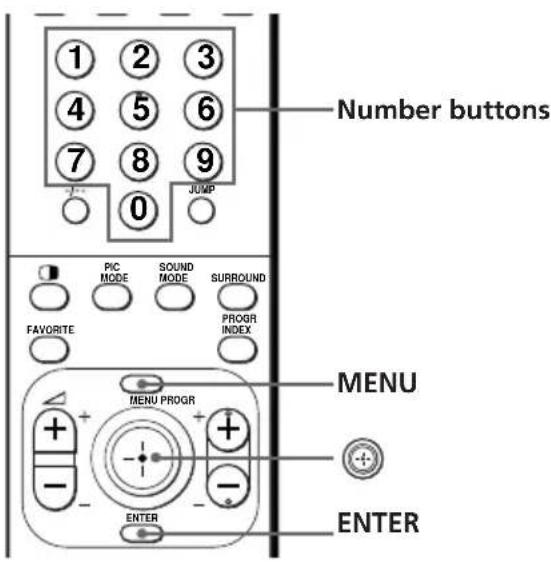
1 Press MENU.


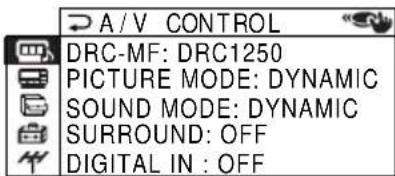
2 Move up or down to select then press.
natural_image
Two circular button diagrams with arrows indicating finger movement, no text or symbols present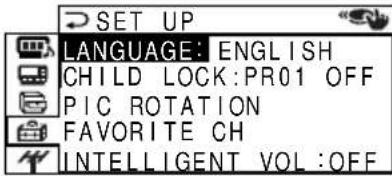
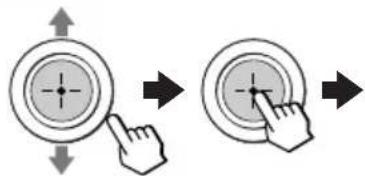
3 Move 📊 up or down to select the desired option, then press ✉.
| Select | To | |
| "LANGUAGE" | change the menu language (see page 12). | |
| "CHILD LOCK" | block channels (see page 40). | |
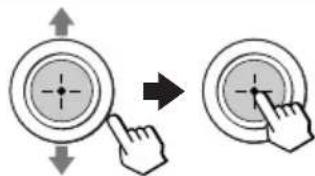
| "PIC ROTATION" | adjust the picture position when it is not aligned with the TV screen.Move⊕ up or right to adjust the position clockwise, then press⊕.Move⊕ down or left to adjust the position counterclockwise, then press⊕.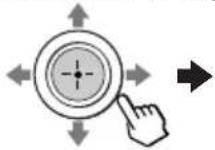 PIC ROTATION PIC ROTATION 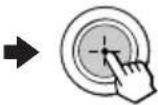 | |
| "FAVORITE CH" | select your favorite channels (see pages 16 and 41). | |
| "INTELLIGENT VOL" | adjust the volume of all TV program automatically.Move⊕ up or down to select "ON", then press⊕.To cancel, select "OFF", then press⊕. | |
Changing the "SET UP" setting (continued)
Blocking channels ("CHILD LOCK")
1
After selecting "CHILD LOCK", either move ⊕ up or down, or press the number buttons (or PROGR +/-) to select the desired channel (e.g. PR 06), then press ⊕.
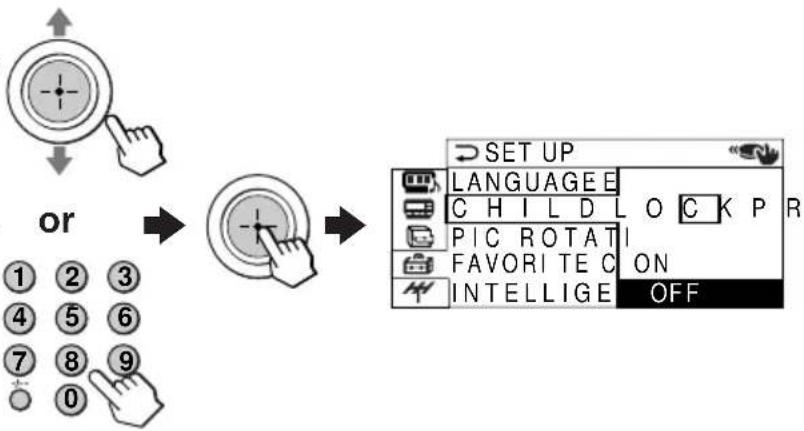
flowchart
graph LR
    A["or"] --> B["button press"]
    B --> C["SET UP"]
    C --> D["LANGUAGE E"]
    C --> E["C H I L D L O C K P R"]
    C --> F["PIC ROTATI"]
    C --> G["FAVORITE C ON"]
    C --> H["INTELLIGE OFF"]
2
Move 📣 up or down to select "ON", then press 🌐 To unlock the channel, select "OFF".
The lock symbol (🔒) appears on the screen when "ON" is selected.
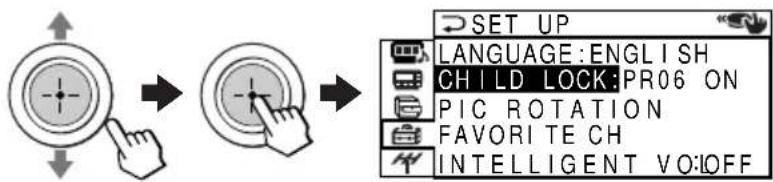
flowchart
graph LR
    A["Start"] --> B["Click Button"]
    B --> C["Next Step"]
    C --> D["SET UP"]
    D --> E["LANGUAGE: ENGLISH"]
    D --> F["CHOID LOCK: PR06 ON"]
    D --> G["PIC ROTATION"]
    D --> H["FAVORITE CH"]
    D --> I["INTELLIGENT VO:OFF"]
If a locked channel is selected, the lock symbol appears on the screen.
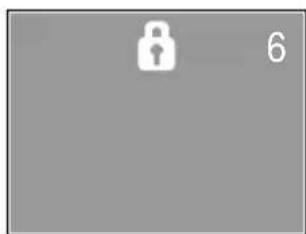
natural_image
Gray rectangular background with a white padlock icon and the number 6 in the corner (no text or symbols on the padlock itself)3
Repeat steps 1 and 2 to lock other channels.
To return to the normal screen
Press MENU.
Note
- If you preset a locked channel, that channel will be unlocked automatically (see page 42).
Changing the favorite channel setting
1 After selecting "FAVORITE CH", make sure "MODE" is selected, then press ⭕.
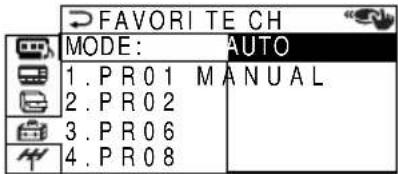
2 Move + up or down to select "MANUAL", then press +.
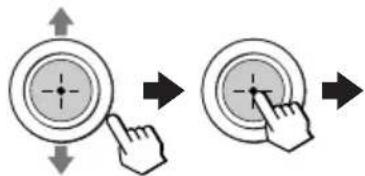
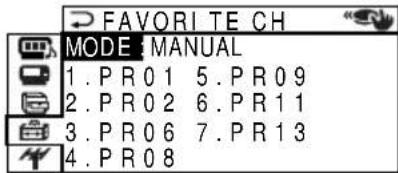
3 Move 📊 up or down to select the program you want to change, then press Ⓧ.
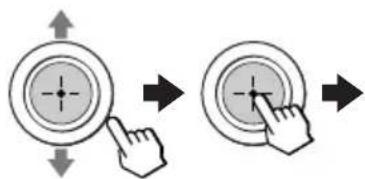
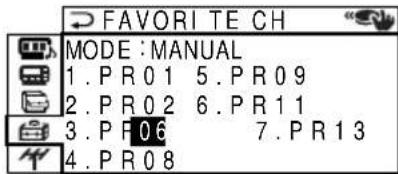
4 Move ⊕ up or down to change the number, then press ⊕.
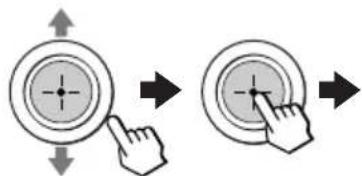
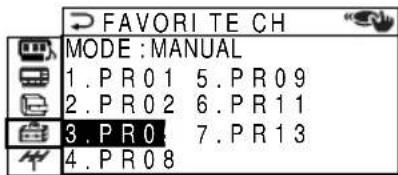
5 Repeat steps 3 and 4 to set other channels.
To return to the normal screen
Press MENU.
Note
- If you press the PROGR + / - buttons or number buttons in step 4 above, the TV will display the channel immediately.
Changing the "CH PRESET" setting
The "CH PRESET" menu allows you to adjust the setup of your TV. For example, you can manually tune in a channel with a weak signal that fails to be tuned in by automatic presetting.
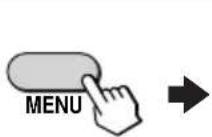
1 Press MENU.
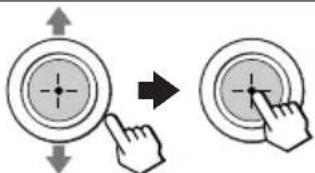
2 Move up or down to select H, then press
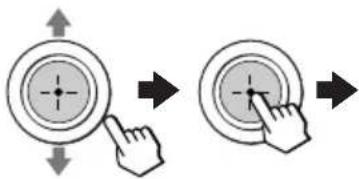
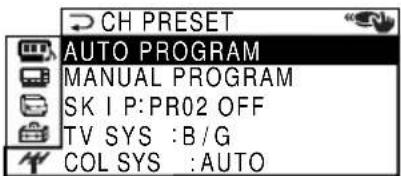
3 Move 📊 up or down to select the desired option, then press ✉
natural_image
Two circular buttons with arrows pointing to different button positions (no text or symbols)| Select | To |
| "AUTO PROGRAM" | preset channels automatically. |
| "MANUAL PROGRAM" | preset channels manually. See "Presetting channels manually" on page 43. |
| "SKIP" | skip unwanted or unused channels.1 Either move up or down, or press the number buttons (or PROGR +/− ) until the unused or unwanted channel number appears, then press id 2 Select "ON", then press id 3 To disable other channels, repeat steps 1 and 2.To restore the skipped channel, select "OFF" in step 2. |
| "TV SYS" | select the TV system. |
| "COL SYS" | select the color system. Normally, set this to "AUTO". |
To return to the normal screen
Press MENU.
Tip
- For details on the menu system and how to use the menu, refer to "Introducing the menu system" on page 29.
Presetting channels manually
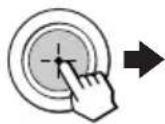
1 After selecting "MANUAL PROGRAM", select the program number to which you want to preset a channel.
(1) Make sure "PR" is selected, then press ⊕.
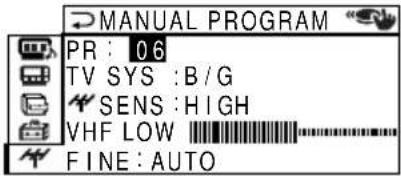
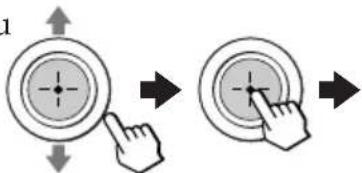
(2) Move 📤 up or down until the program number you want to preset (e.g., program number "10") appears on the menu, then press ⊕.
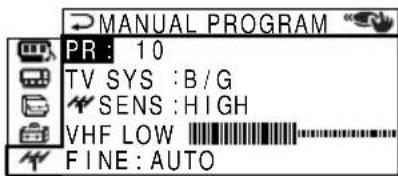
Tips
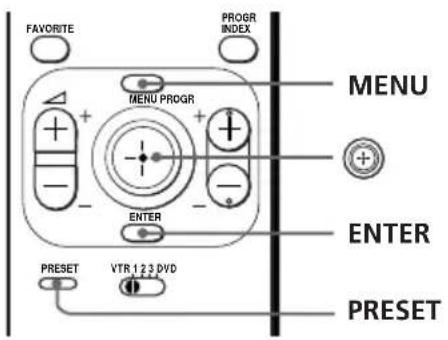
- You can also select the "MANUAL PROGRAM" menu directly by pressing the PRESET button on the remote.
- You can also select the program number with the PROGR +/- or number buttons.
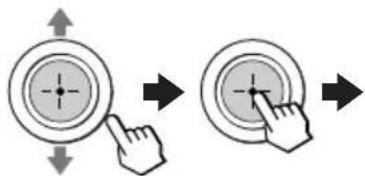
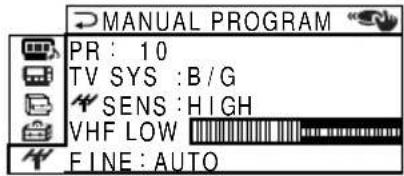
2 Select the desired channel.
(1) Move ⊕ up or down to select either "VHF LOW", "VHF HIGH", or "UHF", then press ⊕.
(2) Move 📊 up or down until the desired channel's broadcast appears on the TV screen, then press ✉.
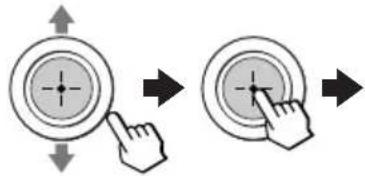
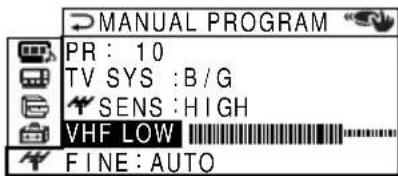
3 If the sound of the desired channel is abnormal, select the appropriate TV system.
(1) Move ⊕ up or down to select "TV SYS", then press ⊕
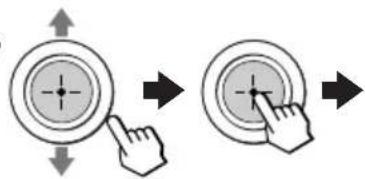
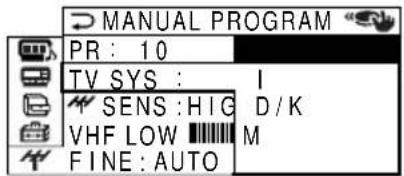
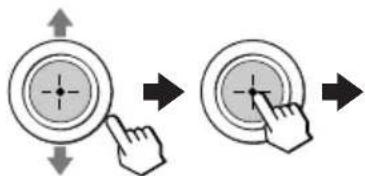
(2) Move ⊕ up or down until the sound becomes normal, then press ⊕.
natural_image
Two circular button diagrams with arrows indicating finger movement, no text or symbols present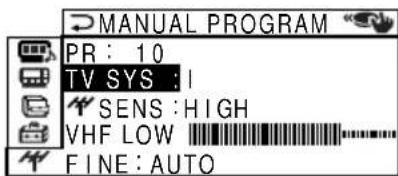
Changing the "CH PRESET" setting (continued)
4 If you are not satisfied with the picture and sound quality, you may be able to improve them by using the "FINE" tuning feature.
(1) Move ⊕ up or down to select "FINE", then press ⊕
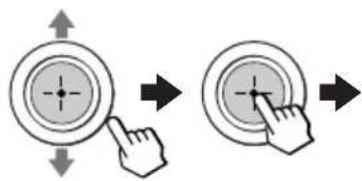
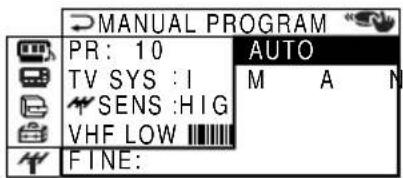
(2) Move ⊕ up or down to select "MANUAL", then press ⊕.
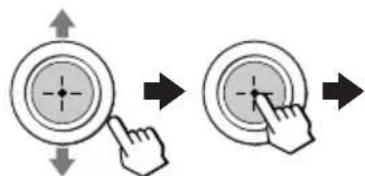
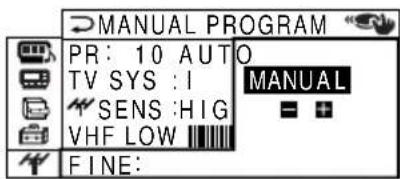
(3) Move either up, down, left or right until the picture and sound quality are optimal, then press .
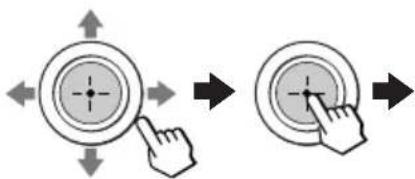
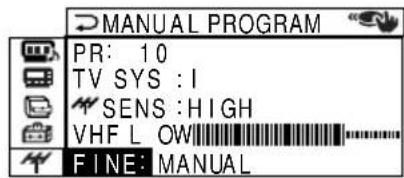
The + or - icon on the menu flashes while tuning.
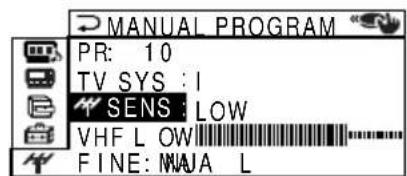
5 If the TV signal is too strong and the picture is distorted, you can adjust the TV reception sensitivity.
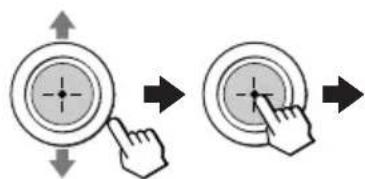
(1) Move ⊕ up or down to select " ↑ ↑ ↑ SENS", then press ⊕
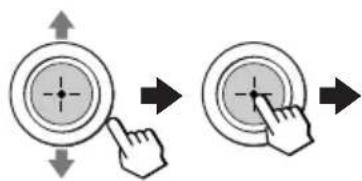
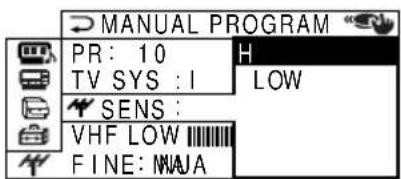
(2) Move ⊕ up or down to select "LOW", then press ⊕
To return to the normal screen
Press MENU.
Notes
- The TV system ("TV SYS") and the TV reception sensitivity ("SENS") settings are memorized for each program number.
- If you preset a locked channel, that channel will be unlocked automatically (see page 40).
Self-diagnosis function
Your TV is equipped with a self-diagnosis function. If there is a problem with your TV, the ⏻ (standby) indicator flashes red. The number of times the ⏻ indicator flashes indicates the possible causes.
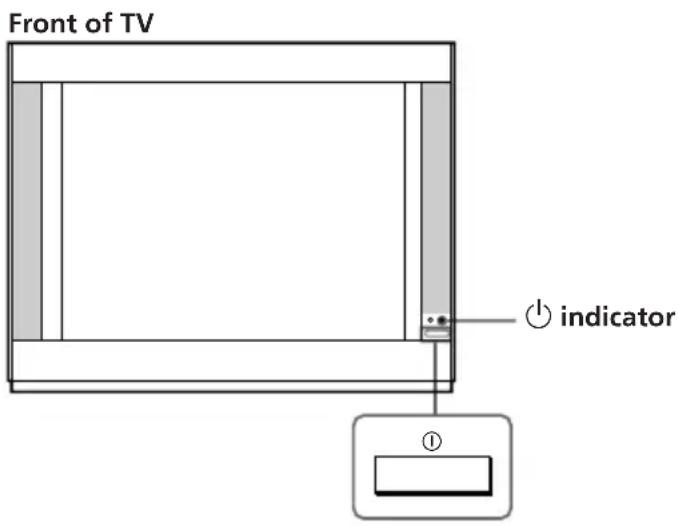
1 Check that the ⏻ indicator flashes red a number of times between 3-second intervals.
2 Count the number of times the ⏻ indicator flashes.
3 Press ① (main power) to turn off your TV.
4 Inform your nearest Sony service center about the number of times the ⏻ indicator flashed.
Be sure to note the model name and serial number located on the rear of your TV.
Troubleshooting
If you have any problem while viewing your TV, please check the following troubleshooting guide. If the problem persists, contact your Sony dealer.
| Symptom | Possible cause | Solutions | Page |
Snowy picture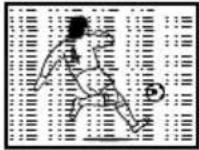 Noisy sound Noisy sound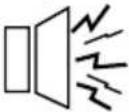 | The connection is loose or the cable is damaged. | Check the antenna cable and connection on the TV, VCR and at the wall. | 4 |
| Channel presetting is inappropriate or incomplete. | Press the PRESET button to display the “MANUAL PROGRAM” menu and preset the channel again. | 43 | |
| The antenna type is inappropriate. | Check the antenna type (VHF/UHF). Contact a Sony dealer for advice. | - | |
| The antenna direction needs adjustment. | Adjust the antenna direction. Contact a Sony dealer for advice. | - | |
| Signal transmission is low. | Try using a booster. | - | |
Distorted picture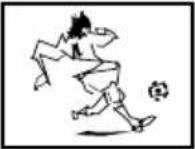 Noisy sound Noisy sound | Broadcast signals are too strong. | Press the PRESET button to display the “MANUAL PROGRAM” menu. Then, select “SENS: LOW”.Turn off or disconnect the booster if it is in use. | 44- |
Good picture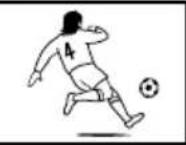 Noisy sound Noisy sound | The TV system setting is inappropriate. | If the sound of all the channels are noisy, display the “CH PRESET” menu and select “AUTO PROGRAM” to preset the channels again.If the sound of some channels is noisy, select the channel, then display the “CH PRESET” menu and select the appropriate TV system (“TV SYS”). | 4243 |
| The digital audio signal is inappropriate. | Set “DIGITAL IN: OFF” in the “A/V CONTROL” menu and connect and R (component video input) on your TV to receive analog audio signals. | 7, 34 | |
No picture No sound No sound | The power cord, antenna or VCR is not connected. | Check the power cord, antenna and the VCR connections. | 4 |
| The TV is not turned on. | Press I/1 (power).Press 1 (main power) on the TV to turn off the TV for about five seconds, then turn it on again. | 1011 | |
| Symptom Page | Possible cause | Solutions | |
Good picture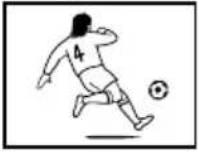 No sound No sound | The volume level is too low. | Press △ + to increase the volume level. | 11 |
| The sound is muted. | Press ☑ to cancel the muting. | 11 | |
| The broadcast signal has a transmission problem. | Press A/B until a better sound is heard. | 23 | |
| The digital audio signal is inappropriate. | Set “DIGITAL IN: OFF” in the “A/V CONTROL” menu and connect ☑ and R (component video input) on your TV to receive analog audio signals. | 7, 34 | |
| The “DIGITAL IN” setting in the “A/V CONTROL” menu is inappropriate. | When connecting to component video input) on your TV, set “DIGITAL IN: ON” to receive digital audio signals through DIGITAL IN, or set “DIGITAL IN: OFF” to receive analog audio signals through ☑ and R. | 34 | |
Dotted lines or stripes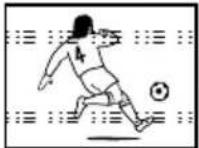 | There is local interference from cars, neon signs, hair dryers, power generators, etc. | Do not use a hair dryer or other equipment near the TV.Adjust the antenna direction for minimum interference. Contact a Sony dealer for advice. | -- |
Double images or “ghosts”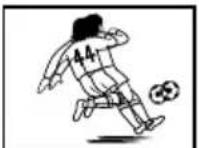 | Broadcast signals are reflected by nearby mountains or buildings. | Use a highly directional antenna.Use the fine tuning (“FINE”) function. | -44 |
| The antenna direction needs adjustment. | Adjust the antenna direction. Contact a Sony dealer for advice. | - | |
| Use of a booster is inappropriate. | Turn off or disconnect the booster if it is in use. | - | |
No color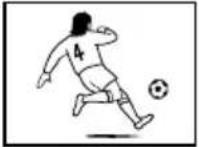 | The color level setting is too low. | Display the “A/V CONTROL” menu and select “ADJUST” of “PICTURE MODE”, then adjust the “COLOR” level. | 33 |
| The color system setting is inappropriate. | Display the “CH PRESET” menu and check the color system (“COL SYS”) setting (usually set this to “AUTO”). | 42 | |
| The antenna direction needs adjustment. | Adjust the antenna direction. Contact a Sony dealer for advice. | - | |
Abnormal color patches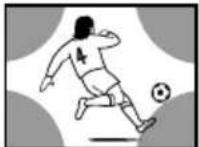 | The magnetic disturbance from external speakers or other equipment, or the direction of the earth’s magnetic field may affect the TV. | Locate external speakers or other equipment away from the TV. Do not move the TV while the TV is turned on. Press 1 (main power) on the TV to turn off the TV for about five minutes, then turn it on again. | - |
continued
Troubleshooting (continued)
| Symptom | Possible cause | Solutions | Page |
| TV cannot receive stereo broadcast signal.(KV-ES34M91/ES34M31/ES29M31 only) | The stereo reception setting is inappropriate. | Press A/B until “AUTO” appears on the screen. | 23 |
| Stereo broadcast sound switches on and off or is distorted.or | The connection is loose or the cable is damaged. | Check the antenna cable and connection on the TV, VCR and on the wall. | 4 |
| The antenna direction needs adjustment. | Adjust the antenna direction. Contact a Sony dealer for advice. | - | |
| The broadcast signal has a transmission problem. | Press A/B until a better sound is heard. | 23 | |
| The sound switches between stereo and monaural frequently.(KV-ES34M91/ES34M31/ES29M31 only) | The channel carries no Teletext broadcast. | — | 25 |
| Teletext display is incomplete(snowy picture or double images).(KV-ES34M91/ES34M81/ES34M31/ES29M81/ES29M31 only) | Connection is loose or the cable is damaged. | Check the antenna cable and connection on the TV, VCR, and at the wall. | 4 |
| The antenna direction is inappropriate. | Adjust the antenna direction. Contact a Sony dealer for advice. | - | |
| Signal transmission is too low. | Try using a booster.Use the fine tuning (FINE) function. | -44 | |
Picture slant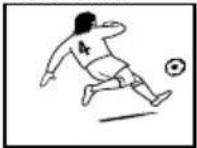 | Terrestrial magnetism is affecting your TV set. | Display the “SET UP” menu and adjust “PIC ROTATION” so that the picture is aligned to the TV screen. | 39 |
| Lines moving across the TV screen. | There is interference from external sources, e.g., heavy machineries, nearby broadcast station. | Use the fine tuning (“FINE”) function. | 44 |
| The indicator on your TV flashes red a number of times between 3-second intervals. | Your TV may need servicing. | Contact your nearest Sony service center. | 45 |
| Symptom | Possible cause Solutions | Page | |
| Cannot play shooting games. | Some shooting games which involve pointing a light beam at the TV screen with an electronic gun or rifle cannot be used with your TV. For detail, see the instruction manual supplied with the video game software. | — | — |
| TV cabinet creaks. | Changes in room temperature sometimes make the TV cabinet expand or contract, causing a noise. This does not indicate a malfunction. | — | — |
| A small “boom” sound is heard when the TV is turned on. | The TV's demagnetizing function is working. This does not indicate a malfunction. | — | — |
| Static discharge is felt when touching the TV cabinet. | This is the same static discharge that is felt when touching metal door handles or car doors especially when the air is dry, for example in winter. This does not indicate a malfunction. | — | — |
Identifying parts and controls
Front, top and side panels
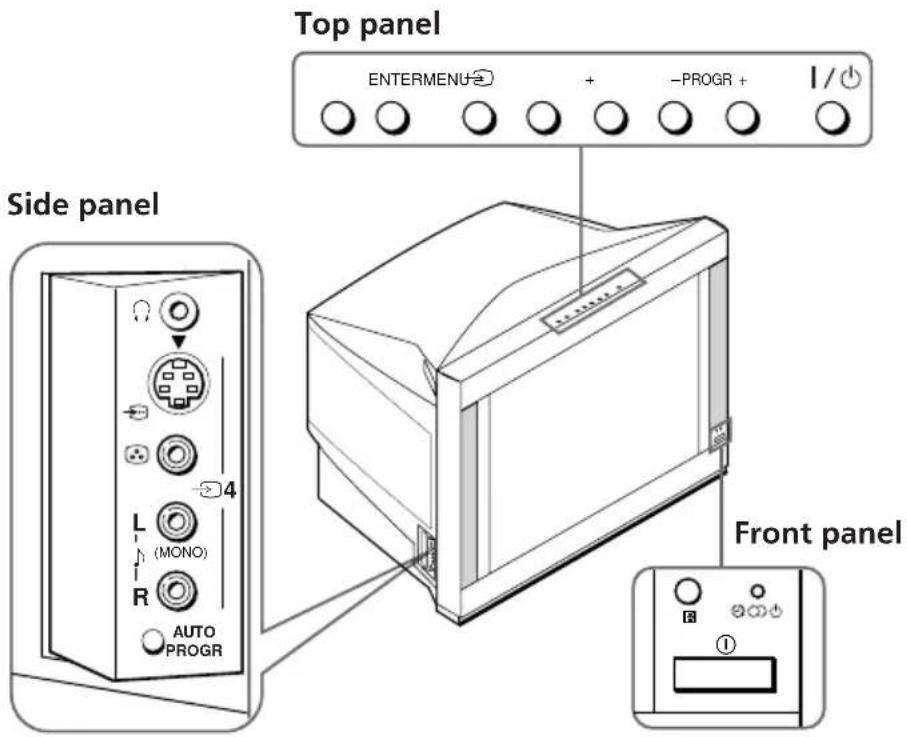
| Button | PageFunction | |
| Side panel | ||
| Ω | Headphone jack. - | |
| AUTO PROGR | Preset channels automatically. 5 | |
| Front panel | ||
| 1 | Turn off completely or 10 turn on the TV. | |
| Top panel | ||
| I/↓ | Turn off temporarily or 10 turn on the TV. | |
| PROGR +/- | Select program number. 10 | |
| Δ+/- | Adjust volume. 11 | |
| → | Select TV or video input. 11 | |
| ENTER | Confirm selected items. 31 | |
| MENU | Display the menu. 31 | |
Remote control
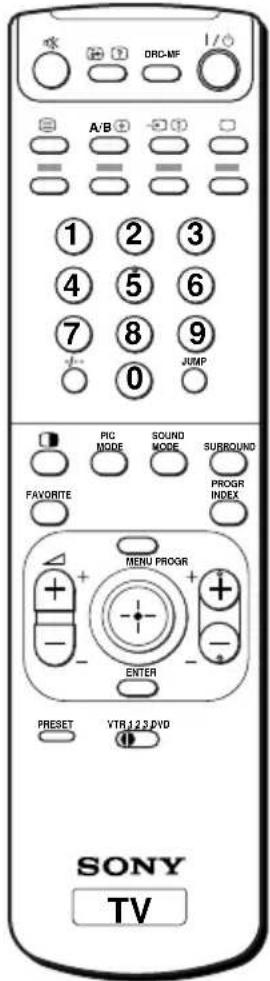
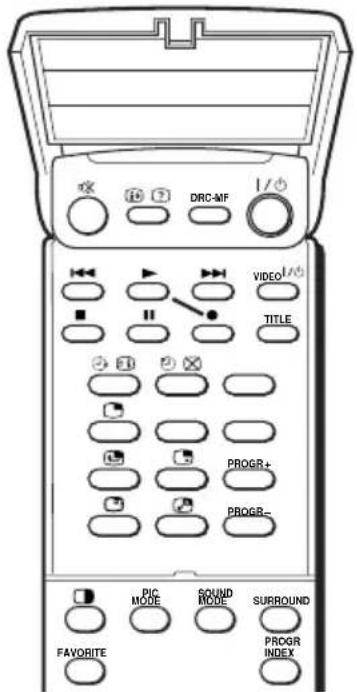
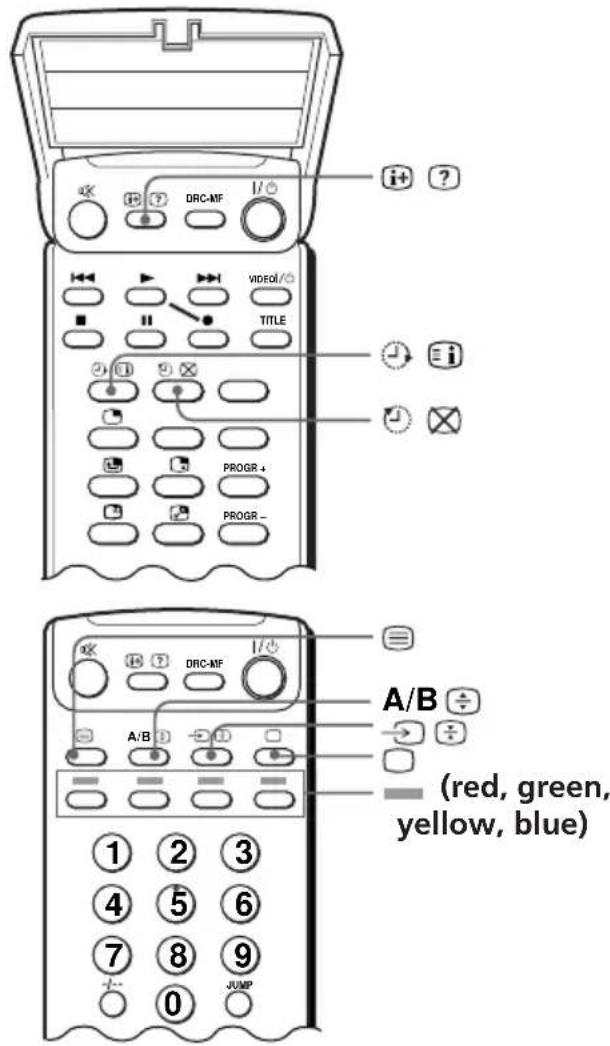
The names/symbols of buttons on the remote are indicated in different colors to represent the available functions.
| Label color | Button function |
| White | For general TV operations |
| Green | For Teletext operations |
| Yellow | For PIP operations |
| Function | PageB | |
| I / ⏻ | Turn off temporarily or 10 turn on the TV. | |
| PROGR +/- | Select program number. 10 | |
| 0 - 9, -/-- | Input numbers. 10 | |
| i+ | Display on-screen information. | 11 |
| o× | Mute the sound. 11 | |
| □ | Display the TV program. 11 | |
| → | Select TV or video input. 11 | |
| +/- | Adjust volume. 11 | |
| JUMP | Jump to previous channel. 11 | |
| Timer operations | ||
| ➊ | Set TV to turn on automatically. | 13 |
| ➂ | Set TV to turn off automatically. | 13 |
| SOUND MODE | Select sound mode. | 14 |
| PIC MODE | Select picture mode. | 14 |
| DRC-MF | Select DRC-MF mode. | 15 |
| Favorite Channel operations | ||
| FAVORITE | Display favorite channels. | 16 |
| ➌ | Select desired channel. | 16 |
| PIP and Twin picture operations | ||
| ➎ | Display the PIP screen. | 17 |
| ➎ | Display TWIN pictures. | 17 |
| ➌ | Adjust Twin picture size. | 18 |
| PROGR +/PROGR - | Change program in PIP/Twin picture. | 18 |
| ➎ | Select video input for PIP/Twin picture. | 18 |
| ➎ | Swap main and PIP/Twin picture. | 18 |
| ➎ | Freeze PIP screen. | 18 |
| ➎ | Adjust position of PIP screen. | 18 |
utton
continued
Identifying parts and controls (continued)
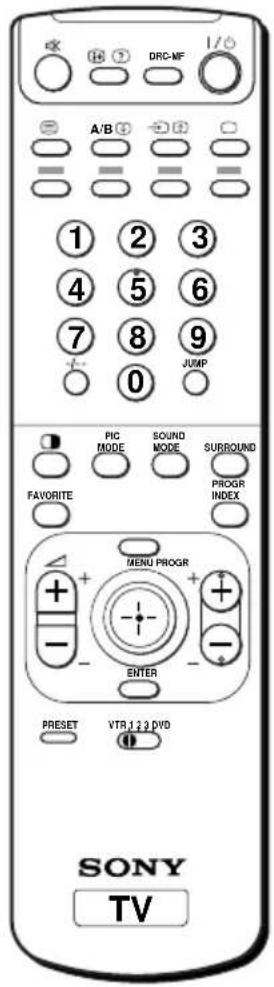
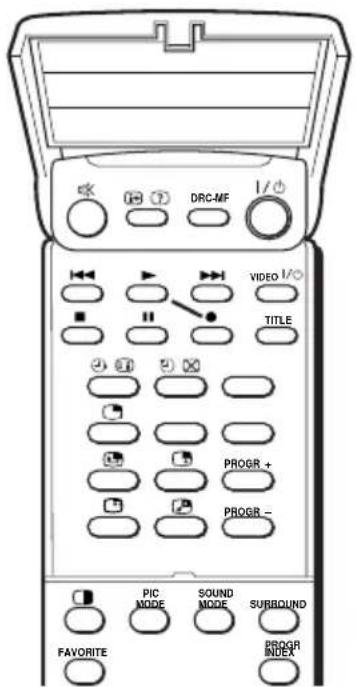
| Button | Function | Page |
| Program Index operations | ||
| PROGR INDEX | Display all preset TV 19 programs. | |
| PROGR +/- | View next/previous 12 TV 20 programs. | |
| Select desired channel. 20 | ||
| SURROUND | Select surround mode. 22 | |
| Stereo/bilingual operations(KV-ES34M91/ES34M31/ES29M31 only)A/B | Select stereo/bilingual mode. 23 | |
| Teletext operations (KV-ES34M91/ES34M81/ES34M31/ES29M81/ES29M31 only) | ||
| Display Teletext broadcast. 25 | ||
| Display Teletext service contents. | 26 | |
| Stop Teletext page from scrolling. | 26 | |
| Reveal concealed information. | 26 | |
| Enlarge the Teletext display. 26 | ||
| Show TV screen while waiting for Teletext page. | 26 | |
| 0 - 9 | Input Teletext page number. 26 | |
| PROGR +/- | Display the next or previous page. | 26 |
| (red, green, yellow, blue) | Access a FASTEXT menu. 26 | |
| Optional components operations | ||
| VTR | Set up the remote. 27 | |
| VIDEO I / ⏻ | Power. 28 | |
| TITLE | Display the title menu. | 28 |
| Play. | 28 | |
| Fast forward/Search forward. | 28 | |
| Rewind/Search backward. | 28 | |
| Record. | 28 | |
| Stop. | 28 | |
| Pause. | 28 | |
| Menu operations | ||
| MENU | Display the menu. | 31 |
| Select, adjust and confirm selected items. | 31 | |
| ENTER | Confirm selected items. | 31 |
| PRESET | Display “MANUAL PROGRAM” menu. | 43 |
Specifications
| KV-ES29M81KV-ES29M80KV-ES29M31 | KV-ES34M91KV-ES34M81KV-ES34M80KV-ES34M31 | Note | |
| Power requirements | 110-240 V AC, 50/60 Hz | ||
| Power consumption (W) | Indicated on the rear of the TV | ||
| Television system | B/G, I, D/K, M | ||
| Color system | PAL, PAL 60, SECAM, NTSC4.43, NTSC3.58 | ||
| Stereo/Bilingual system | NICAM Stereo/Bilingual B/G, I;A2 Stereo/Bilingual (German) B/G ES29M31 only | KV-ES34M91/ES34M31/ | |
| Teletext language | English, Arabic, French | KV-ES34M91/ES34M81/ES34M31/ES29M81ES29M31 only | |
| Channel coverageB/G | VHF: E2 to E12 / UHF: E21 to E69 / CATV: S01 toS03, S1 to S41 | ||
| I | UHF: B21 to B68 / CATV: S01 to S03, S1 to S41 | ||
| D/K | VHF: C1 to C12, R1 to R12 / UHF: C13 to C57, R21to R60 / CATV: S01 to S03, S1 to S41, Z1 to Z39 | ||
| M | VHF: A2 to A13 / UHF: A14 to A79/CATV: A-8 to A-2, A to W+4, W+6 to W+84 | ||
| (Antenna) | 75-ohm external terminal | ||
| Audio output (Speaker) | 15W + 15W 10% distortion | ||
| Number of terminal(Video) | Input: 4 Output: 1 Phono jacks; 1 Vp-p, 75 ohms | ||
| (Audio) | Input: 4 Output: 1 Phono jacks; 500 mVrms | ||
| (S Video) | Input: 2 Y: 1 Vp-p, 75 ohms,unbalanced, sync negativeC: 0.286 Vp-p, 75 ohms | ||
| (ComponentVideo) | Input: 1 Phono jacksY: 1 Vp-p, 75 ohms,sync negativeCB: 0.7 Vp-p, 75 ohmsCR: 0.7 Vp-p, 75 ohmsAudio: 500 mVrms | ||
| DIGITAL IN | Input: 1 Phono jack; 0.5 Vp-p, 75 ohms | ||
| (Headphone) | Output: 1 Stereo minijack | ||
| Picture tube | 29 in. 34 in. | ||
| Tube size (cm) | 72 86 Measured diagonally | ||
| Screen size (cm) | 68 80 Measured diagonally | ||
| Dimensions (w/h/d, mm) | 722 · 561 · 524 | 859 · 650 · 573 | |
| Mass (kg) | 56 84 | ||
Design and specifications are subject to change without notice.