Bravia KLV-46X200A - Vidéo-projecteur SONY - Free user manual and instructions
Find the device manual for free Bravia KLV-46X200A SONY in PDF.


User questions about Bravia KLV-46X200A SONY
0 question about this device. Answer the ones you know or ask your own.
Ask a new question about this device
Download the instructions for your Vidéo-projecteur in PDF format for free! Find your manual Bravia KLV-46X200A - SONY and take your electronic device back in hand. On this page are published all the documents necessary for the use of your device. Bravia KLV-46X200A by SONY.
USER MANUAL Bravia KLV-46X200A SONY
natural_image
Abstract digital graphic with world map, grid lines, and abstract shapes (no readable text or symbols)Operating Instructions
GB
⚠️ Before operating the TV, please read the “Safety information” section of this manual.
Retain this manual for future reference.
KLV-52X200A KLV-52X250A
KLV-46X200A KLV-46X250A
KLV-40X200A KLV-40X250A
BRAVIA
WARNING Introduction
- To prevent the risk of electric shock, if the AC power cord or plug is damaged, do not insert the plug into the AC power outlet. This plug cannot be used and should be destroyed.
- To prevent the risk of fire or electric shock, do not expose the TV set to rain or moisture.
- Dangerously high voltages are present inside the TV set. Do not open the cabinet. Refer servicing to qualified personnel only.
Thank you for choosing this Sony product. Before operating the TV, please read this manual thoroughly and retain it for future reference.
Trademark information
- Manufactured under license from BBE Sound, Inc.
Licensed by BBE Sound, Inc. under one or more of the following US patents: 5510752, 5736897. BBE and BBE symbol are registered trademarks of BBE Sound, Inc. - “Dolby”, “Pro Logic”, and the double-D symbol are trademarks of Dolby Laboratories.
- Manufactured under license from Dolby Laboratories.
- TruSurround technology is used as a virtualizer for Virtual Dolby Surround.
- TruSurround, SRS and ( ●) symbol are trademarks of SRS Labs, Inc. TruSurround technology is incorporated under license from SRS Labs, Inc.
- HDMI, the HDMI logo and High-Definition Multimedia Interface are trademarks or registered trademarks of HDMI Licensing LLC.
- The illustrations used in this manual are of the KLV-46X200A unless otherwise stated.




Table of Contents
Start-up Guide 4
Safety information 8
Overview of the remote 13
Overview of the TV buttons and indicators ....15
Watching TV
Watching TV....16
Viewing pictures from connected equipment 18
Using MENU Functions
Navigating through menus 20
Picture menu....21
Sound menu....24
Screen menu....26
Setup menu....28
AV Setup menu....30
Channel Setup menu ....31
PC Settings menu 33
Using Optional Equipment
Connecting optional equipment....35
Programming the remote 37
Additional Information
Specifications 39
Troubleshooting 41
Index 43
Before use
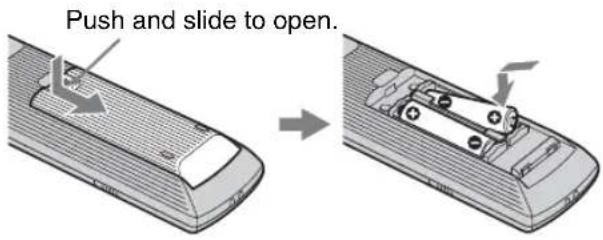
To insert batteries into the remote
Notes
- Observe the correct polarity when inserting batteries.
- Do not use different types of batteries together or mix old and new batteries.
- Dispose of batteries in an environmentally friendly way. Certain regions may regulate disposal of the battery. Please consult your local authority.
- Handle the remote control with care. Do not drop or step on it, or spill liquid of any kind onto it.
- Do not place the remote control in a location near a heat source, or in a place subject to direct sunlight, or in a damp room.
To replace the bezel unit
(KLV-52X200A/KLV-46X200A/KLV-40X200A only)
The bezel unit can be replaced with others that are sold separately. However, do not remove the unit except to replace it. For details, see the instructions supplied with bezel units.
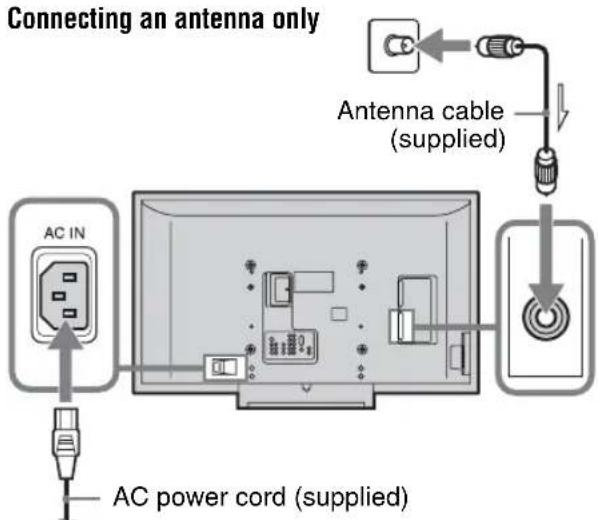
1: Connecting an antenna/VCR
Connecting an antenna only
Connecting an antenna and VCR
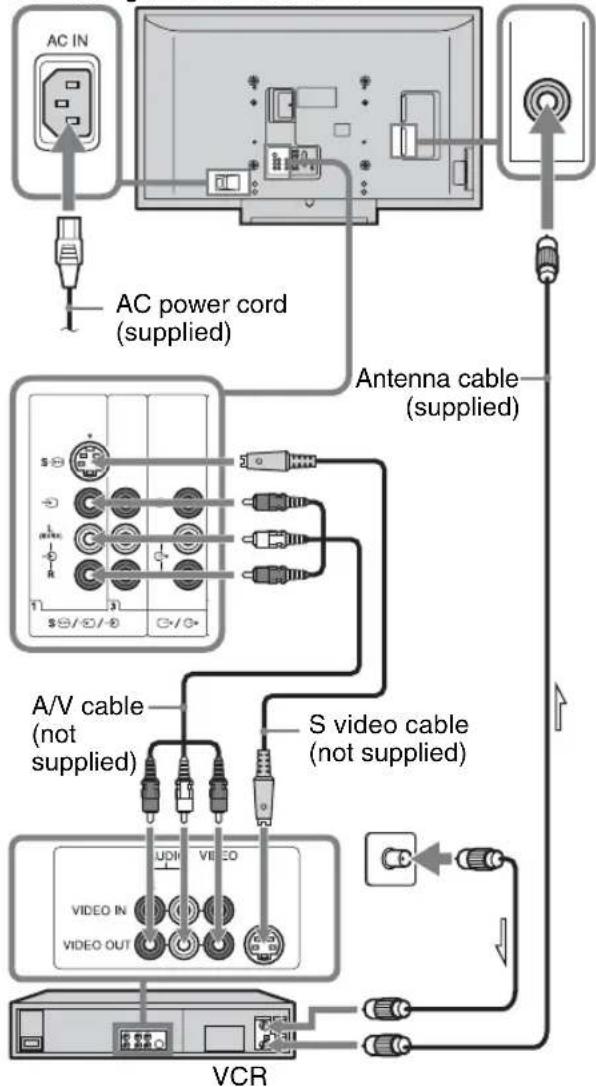
flowchart
graph TD
    A["AC IN"] --> B["AC power cord (supplied)"]
    B --> C["Antenna cable (supplied)"]
    C --> D["A/V cable (not supplied)"]
    C --> E["S video cable (not supplied)"]
    D --> F["VIDEO OUT"]
    E --> G["VIDEO"]
    F --> H["VCR"]
    G --> I["Power cord"]
    style A fill:#f9f,stroke:#333
    style B fill:#ccf,stroke:#333
    style C fill:#cfc,stroke:#333
    style D fill:#fcc,stroke:#333
    style E fill:#cff,stroke:#333
    style F fill:#ffc,stroke:#333
    style G fill:#cfc,stroke:#333
    style H fill:#fcc,stroke:#333
2: Preventing the TV from toppling over
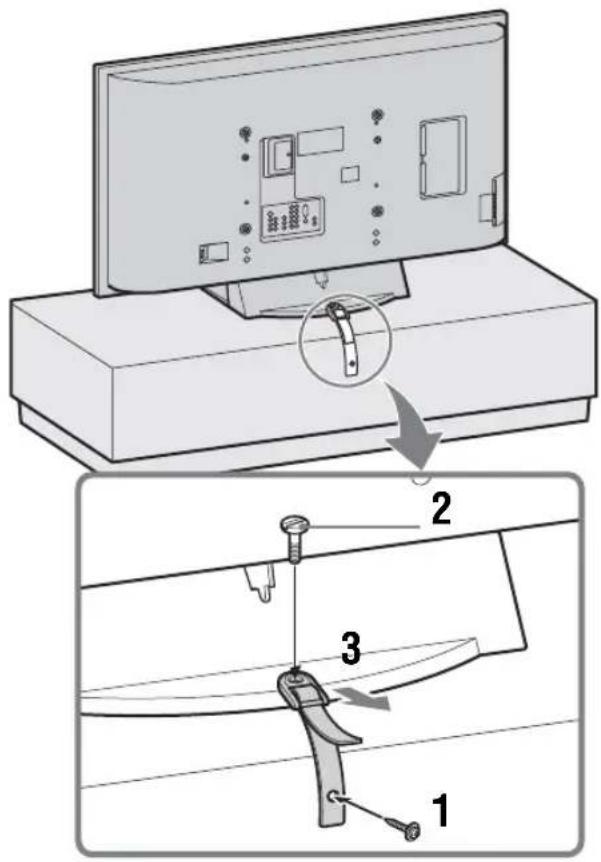
3: Bundling the cables
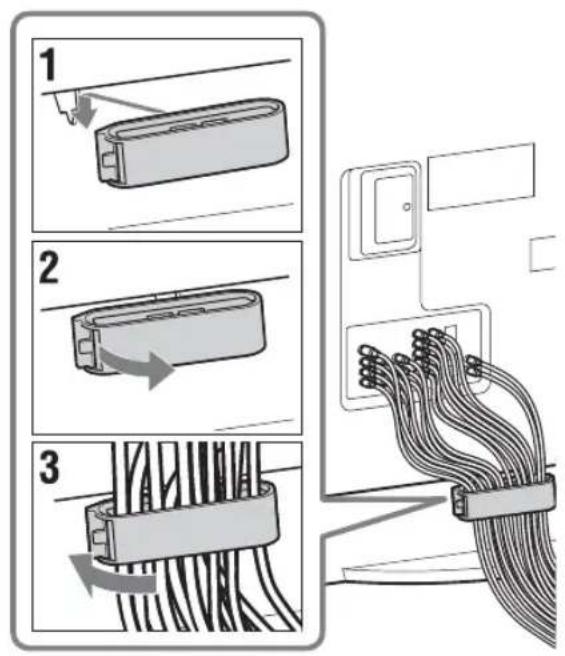
4: Selecting the language
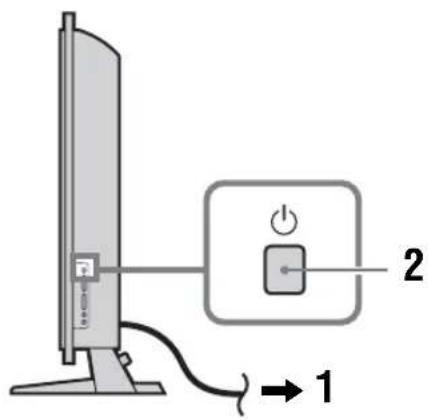
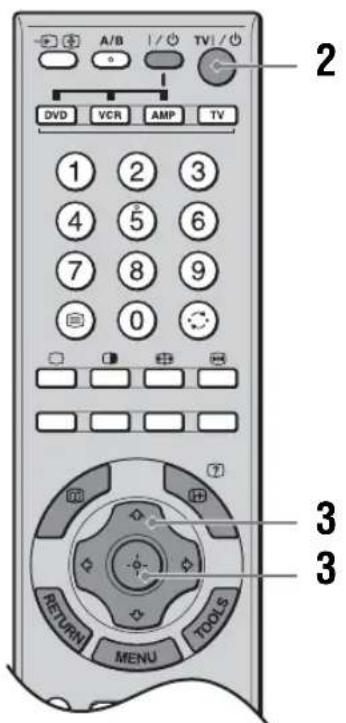
1 Connect the TV to your AC power outlet (110-240 V AC, 50/60 Hz).
2 Press ⏻ on the TV (right side).
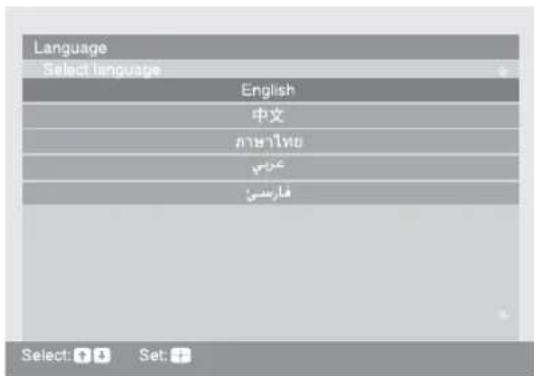
When you switch on the TV for the first time, the Language menu appears on the screen.
When the TV is in standby mode (the ⏻ (standby) indicator on the TV (front) is red), press TV ⏻/☐ on the remote to switch on the TV.
3 Press ↗/▽ to select the language displayed on the menu screens, then press ⊕.
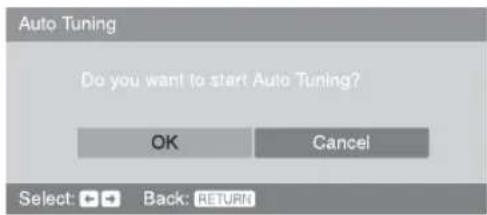
The message confirming the TV start auto-tuning appears on the screen, then go to "5: Auto tuning the TV".
5: Auto tuning the TV
The TV will search for and store all available TV channels.
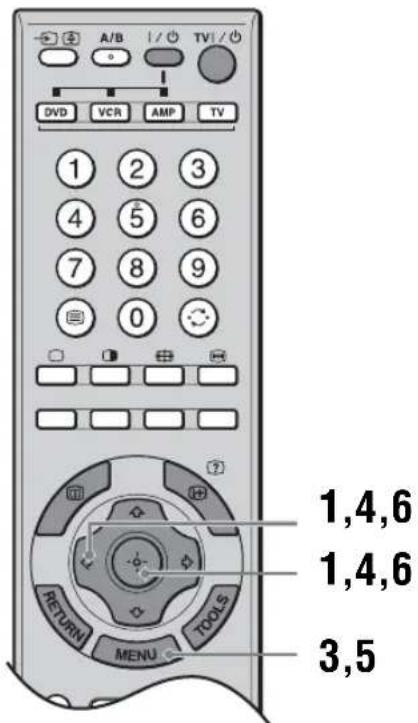
1 Press ⇔/→ to select "OK", then press ⊕.
The TV starts searching for all available channels. This may take some time, please be patient and do not press any buttons on the TV or remote.
If a message appears for you to confirm the antenna connection
No channels were found. Check the antenna connection and press / to select "Yes", then press ④ to start auto-tuning again.
2 When the Program Sorting menu appears on the screen, follow the steps of "Program Sorting" (page 31).
If you do not change the order in which the channels are stored on the TV, go to step 3.
3 Press MENU to display the Clock Set menu.
4 Press ↩/▽/◁/⇨ to set the day and time (hour and minute), then press ⏻
5 Press MENU to exit.
The TV has now tuned in all the available channels.
6 Press ⇔/⇨ to select the desired setting in "Display this menu next time?" dialog, then press ⊕ to exit.
Tip
If "Yes" is selected and the TV is switched off by pressing ⏻ on the TV, or is disconnected from the AC power outlet, the auto startup procedure restarts the next time the TV is switched on.
Safety information
For Safety
AC power cord
The shape of AC power plug, which is supplied with the TV set, varies depending on the regions. Be sure to connect the appropriate supplied AC power cord with the plug that fits into the AC power outlet.
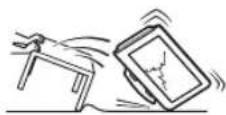
Unplug the AC power cord when moving the LCD TV. Do not move the LCD TV with the AC power cord plugged in. It may damage the AC power cord and result in fire or electric shock. If the LCD TV has been dropped or damaged, have it checked immediately by qualified service personnel.
Installation
Installation of the LCD TV on the wall should be carried out by qualified service personnel. Improper installation may render the LCD TV unsafe. The LCD TV should be installed near an easily accessible AC power jack.
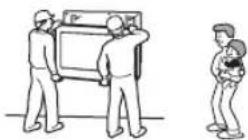
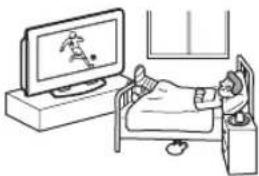
Medical institution
Do not place this LCD TV in a place where medical equipment is in use. It may cause malfunction of medical instruments.
natural_image
Illustration of a person in bed watching a soccer ball on a TV (no text or symbols)Carrying
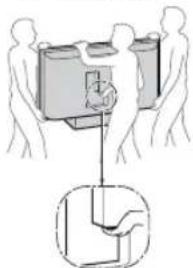
KLV-46X200A/40X200A KLV-46X250A/40X250A
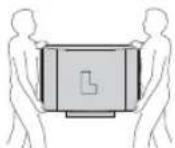
Carrying the LCD TV requires two or more people. If you carry the LCD TV in a manner other than that specified, it may drop and a serious injury may be caused. Be sure two or more people carry the LCD TV. When transporting, do not subject the LCD TV to shocks or excessive vibration.
The LCD TV may fall and be damaged or cause serious injury.
KLV-52X200A KLV-52X250A
natural_image
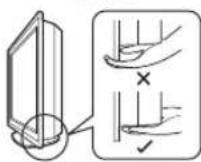
Illustration of a person lifting a container with a valve, no text or symbols presentWhen lifting the LCD TV or moving the LCD panel of the TV, hold it firmly by the bottom.
Installation and moving
Ventilation
Never cover the ventilation holes in the cabinet. It may cause overheating and result in fire. Unless proper ventilation is provided, the LCD TV may gather dust and get dirty. For proper ventilation, observe the following:
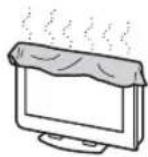
- Do not install the LCD TV turned backward or sideways.
- Do not install the LCD TV turned over or upside down.
- Do not install the LCD TV on a shelf or in a closet.
- Do not place the LCD TV on a rug or bed.
- Do not cover the LCD TV with cloth, such as curtains, or items such as newspapers, etc.
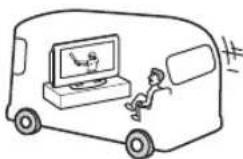
Vehicle and ceiling
Do not install this LCD TV in a vehicle or hang it from the ceiling. Bumping of the vehicle may cause the LCD TV to fall down and cause injury.
Water and moisture
Do not use this LCD TV near water - for example, near a bathtub or shower room. Also do not expose the LCD TV to rain. It may result in fire or electric shock.
Optional accessories
When installing the LCD TV, use the supplied stand or wall-mount bracket (not supplied). Be sure to attach the brackets supplied with your stand. If not, the LCD TV may fall and cause serious injury.
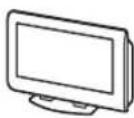
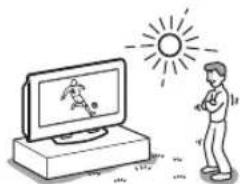
Outdoor use
Do not install this LCD TV outdoors. If the LCD TV is exposed to rain, it may result in fire or electric shock. If the LCD TV is exposed to direct sunlight, the LCD TV may heat up and it may damage the LCD TV.
natural_image
Illustration of a person standing beside a computer monitor with a cartoon character, under a bright sun (no text or symbols)Ship and vessel
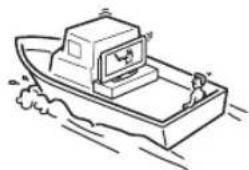
Do not install this LCD TV in a ship or vessel. If the LCD TV is exposed to seawater, it may cause fire or damage the LCD TV.
natural_image
Line drawing of a boat with a person standing on water, no text or symbols presentCord arrangement
Arrange the power cords or connecting cords in a safe place to avoid tripping on them.
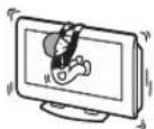
Fall
Place the LCD TV on a secure, stable stand. Do not hang anything on the LCD TV. The LCD TV may fall from the stand or wall-mount bracket (not supplied), causing damage or serious injury.
Recommended place for the LCD TV
Place the LCD TV on a stable, level surface. Otherwise, it may fall and cause injury.

Ventilation
Leave space around the LCD TV. Otherwise, adequate aircirculation may be blocked causing overheating and cause fire or damage the LCD TV.
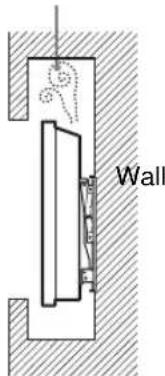
When installing the LCD TV on the wall
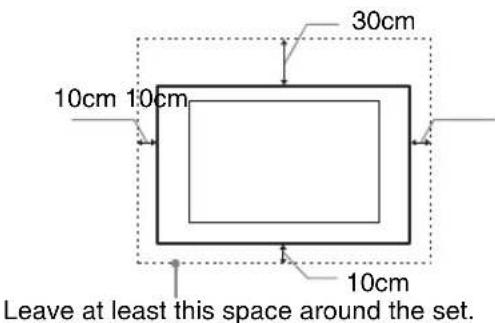
Never install the LCD TV as follows:
Air circulation is blocked.
When installing the LCD TV using a stand
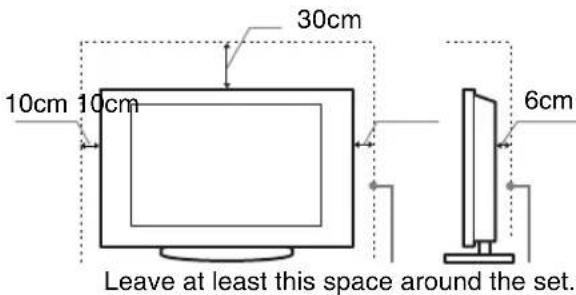
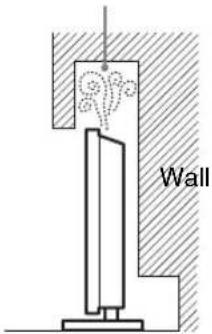
Never install the LCD TV as follows:
Air circulation is blocked.
Power Sources
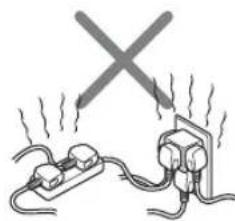
Overloading
This LCD TV is designed to operate on a 110-240V AC supply for the LCD TV. Take care not to connect too many appliances to the same AC power outlet as this could result in fire or electric shock.
natural_image
Simple line drawing of electrical connections with a crossed X mark above and wires on both sides (no text or symbols)When not in use
- If you will not be using the TV set for several days, the TV set should be disconnected from the AC power outlet for environmental and safety reasons.
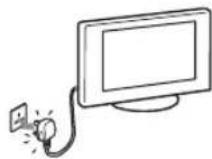
- The TV set is not disconnected from the AC power source when the TV set is switched off. To disconnect the TV set completely, pull the plug from the AC power outlet. However, some TV sets may have features which need the TV set to be left in standby to work correctly. The instructions in this manual will inform you if this applies.
AC power outlet
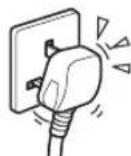
Do not use a poor fitting AC power plug. Insert the plug fully into the AC power outlet. If it is loose, it may cause arcing and result in fire. Contact your electrician to have the AC power plug changed. When you disconnect the AC power cord, disconnect it from the AC outlet first.
For the TV set with a three-wire grounding type AC mains plug

This TV set with CLASS 1 construction must be connected to an AC mains socket outlet with a protective earthing connection.
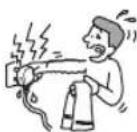
Moisture
Do not touch the AC power cord with a wet hand. If you plug/unplug the AC power cord with a wet hand, it may cause electric shock.
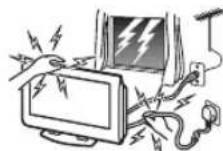
Lightning storms
For your own safety, do not touch any part of the LCD TV, AC power cord or antenna lead during lightning storms.
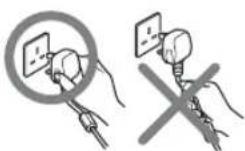
AC power cord protection
Pull out the AC power cord by the plug. Do not pull on the AC power cord itself.
Continued
Wiring
Unplug the AC power cord when wiring cables. Be sure to unplug the AC power cord for your safety, when hooking up.
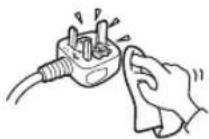
Cleaning
Clean the AC power plug regularly. If the plug is covered with dust and it picks up moisture, its insulation may deteriorate and result in fire. Unplug the AC power plug and clean it regularly.
Grounding
To avoid electric shock, be sure to connect the supplied AC power cord to a grounded power outlet. If the plug fails to fit, contact your electrician to have the outlet changed.
Use
Damage requiring service
If the surface of the LCD TV cracks, do not touch it until you unplug the AC power cord. Otherwise electric shock may result.
Servicing
Do not open the cabinet and the rear cover of the LCD TV. Refer to qualified service personnel only.

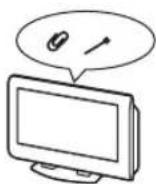
Ventilation holes
Do not insert anything in the ventilation holes. If metal or something flammable enters, it may result in fire or electric shock.
Moisture and flammable
- Do not let this LCD TV get wet. Never spill liquid of any kind on the set. If any liquid or solid object does fall through, do not operate the LCD TV. It may result in electric shock or damage to the LCD TV. Have it checked immediately by qualified personnel.
- Do not place any objects on the LCD TV. The LCD TV shall not be exposed to dripping or splashing and that no objects filled with liquids, such as vases, shall be placed on the LCD TV.
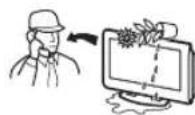
- To prevent fire, keep inflammable objects or naked lights (e.g. candles) away from the LCD TV.

Additional Safety Information
Electric shock
Do not touch the LCD TV with a wet hand. Doing so may cause electric shock or damage the LCD TV.
Protruding location
Do not install the LCD TV in protruding locations. If you install the unit in the following locations, injury may result.
- Do not install the LCD TV in a location where the LCD TV protrudes, such as pillars.
- Do not install the LCD TV in a location where your face may bump.
To prevent injury, this apparatus must be securely attached to the floor/wall in accordance with the installation instructions.
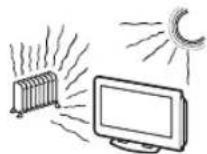
Placement
Never place the LCD TV in hot, humid or excessively dusty places. Do not install the LCD TV where it may be exposed to mechanical vibrations. Do not use the LCD TV where insects may enter.
Oils
Do not install this LCD TV in restaurants that use oil. Dust absorbing oil may enter into the LCD TV and damage the LCD TV.
Accessories
Secure the LCD TV from falling down.
If the LCD TV is not secured properly, it may fall and cause injury. Take measures against it using the supplied stand or a wall-mount bracket (not supplied).
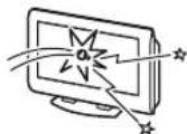
Broken pieces
Do not throw anything at the LCD TV. The screen glass may break by the impact and cause serious injury.
Corrosion
If you use this LCD TV near the seashore, salt may corrode metal parts of the LCD TV and cause internal damage or fire. It may also shorten the life of the LCD TV. If the LCD TV will be subjected to any of these conditions, steps should be taken to reduce the humidity and temperature of the area where the LCD TV is located.
Cleaning
Unplug the AC power cord when cleaning this LCD TV. If not, it may result in electric shock.
AC power cord
If you damage the AC power cord, it may result in fire or electric shock.
- Do not pinch, bend, or twist the cable excessively. The core lines may be bared and cut, and cause short-circuit, resulting in fire or electric shock.
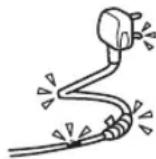
- Do not convert or damage the AC power cord.
- Do not put anything heavy on the AC power cord. Do not pull the AC power cord.
- Keep the AC power cord away from heat sources.
- Be sure to grasp the plug when disconnecting the AC power cord.
If the AC power cord is damaged, stop using it and ask your dealer or Sony service center to exchange it.
Not in use
For environmental and safety reasons, it is recommended that the LCD TV is not left in standby mode when not in use. Disconnect it from the AC power outlet.
Cable wiring
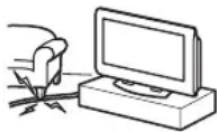
Take care not to catch your feet on the cables. It may damage the LCD TV.
Installation
Do not install optional components too close to the LCD TV. Keep optional components at least 30 cm away from the LCD TV. If a VCR is installed in front or beside the LCD TV, the picture may distort.
Heat
Do not touch the surface of the LCD TV. It remains hot, even for some time after the LCD TV is turned off.
Precautions
On viewing the LCD TV comfortably
- To view the LCD TV comfortably, the recommended viewing position is from four to seven times of the screen's vertical length away from the LCD TV.
• View the LCD TV in a moderate light room, as viewing the LCD TV in poor light taxes your eyes. And watching the screen continuously long times taxes your eyes, too.
On installing the LCD TV
- Use the specified wall-mount bracket or stands.
- Do not install the display unit in places subject to extreme temperature, for example in direct sunlight, or near a radiator, or heating vent. If the display unit is exposed to extreme temperature, the display unit may heat up and it may cause deformations of the casing or malfunctions.
- Do not install the display unit in a place exposed to direct air conditioning. If the display unit is installed in such a location, moisture may condense on the panel inside the display unit. It may cause a malfunction.
- After transporting the display unit directly from a cold to a warm location, or if the room temperature has changed suddenly, pictures may be blurred or show poor color over portions of the picture. This is because moisture has condensed on the panel inside the display unit. Let the moisture evaporate before using the display unit.
- To obtain a clear picture, prevent the lighting or sun light from illuminating the screen directly. If possible, install a lighting on the ceiling right above the LCD TV so that reflection of the lighting is minimized.
- The LCD TV is not disconnected from AC power outlet when the switch is in off position. To disconnect the LCD TV completely, pull the plug from AC power outlet.
- Make sure the LCD TV is completely switched off by pressing ⏻ on the TV (right side) before unplugging the AC power cord. Unplugging the AC power cord while LCD TV is switched on or at standby mode may cause the power and standby indicators to remain lit. This does not indicate a malfunction.
On adjustment volume
- Adjust the volume so as not to trouble neighbors. Sound carries very easily at night time. Therefore, closing the windows or using headphones is suggested.
- When using headphones, adjust the volume so as to avoid excessive levels, as hearing damage may result.
On handling the remote control
- Handle the remote control with care. Do not drop or step on it, or spill liquid of any kind.
- Do not place the remote control in a location near heat source, or in a place subject to direct sunlight, or in a damp room.
Continued
On cleaning the screen surface/cabinet
- Be sure to unplug the AC power cord connected to the LCD TV from the AC power outlet before cleaning.
- To remove dust from the screen surface/cabinet, wipe gently with a soft cloth. If dust is persistent, wipe with a soft cloth slightly moistened with a diluted mild detergent solution.
- Note that material deterioration or screen coating degradation may occur if the display unit is exposed to a volatile solvent, such as alcohol, thinner, benzine or insecticide, or if prolonged contact is maintained with rubber or vinyl materials.
- The ventilation holes can accumulate dust over time. To ensure proper ventilation, we recommend removing the dust periodically (once a month) using a vacuum cleaner.
On the screen
- Although the LCD screen is made with high-precision technology and has effective pixels of 99.99% or more, black dots may appear or bright points of light (red, blue or green) may appear constantly on the LCD screen. This is a structural property of the LCD panel and is not a malfunction.
- Do not expose the LCD screen surface to the sun. Doing so may damage the screen surface.
- Do not push or scratch the front filter, or place objects on top of this unit. The image may be uneven or the LCD panel may be damaged.
- If the unit is used in a cold place, a smear may occur in the picture or the picture may become dark. This does not indicate a failure. These phenomena improve as the temperature rises.
- Ghosting may occur when still pictures are displayed continuously. It may disappear after a few moments.
- The screen and cabinet get warm when this unit is in use. This is not a malfunction.
Disposal of Old Electrical & Electronic Equipment (Applicable in the European Union and other European countries with separate collection systems)
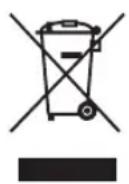
This symbol is on the remote control.
Overview of the remote
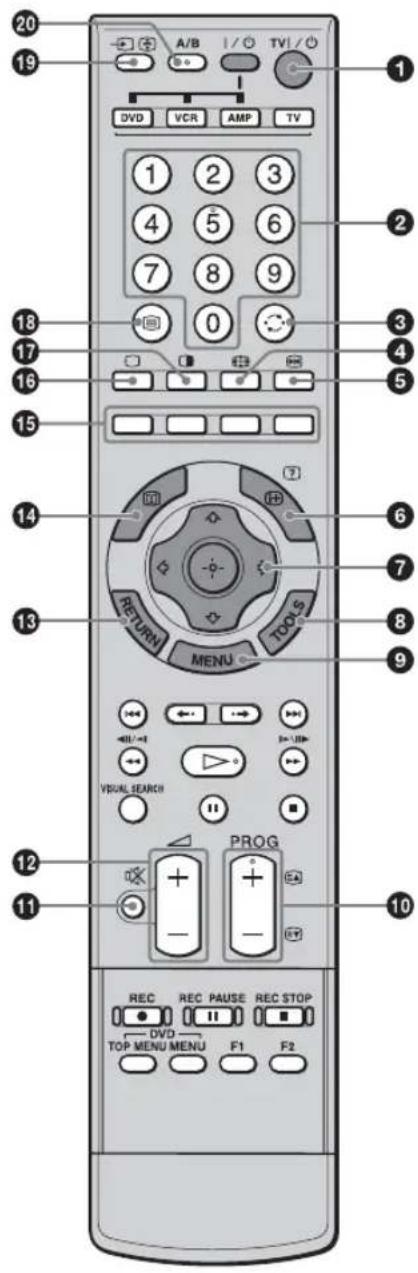
① TV I/⏻ - TV standby
Switches off the TV temporarily and on from standby mode.
②Number buttons
- In TV mode: Selects channels. For channel numbers 10 and above, enter the second digit within two seconds.
- In Text mode: Enters the three digit page number to select the page.
③ - Previous channel
Returns to the previous channel watched (for more than five seconds).
④ -Wide Mode (page 17)
⑤ →Picture freeze (page 17)
Freezes the TV picture.
6/ +info / Text reveal
- In TV mode: Displays information such as current channel number and screen mode.
- In Text mode (page 16): Reveals hidden information (e.g. answers to a quiz).
⑦ ↗/▽/◇/⇨/⊕ (page 16, 17)
⑧TOOLS (page 17, 19)
Enables you to access various viewing options and change/make adjustments according to the source and screen mode.
⑨MENU (page 20)
⑩PROG +/- / (page 16)
- In TV mode: Selects the next (+) or previous (-) channel.
- In Text mode: Selects the next ( ) or previous ( ) page
11 ☐ - Mute (page 16)
⑫ △ +/- - Volume
13RETURN
Returns to the previous screen of any displayed menu.
14
This button does not work with this model.
⑮Colored buttons (page 16)
⑯ -TV mode (page 18)
Exits Text mode, or returns to TV mode.
⑰ - Twin Picture (page 17)
Displays two pictures simultaneously.
18 - Text (page 16)
19/→Input select / Text hold
- In TV mode (page 18): Selects the input source from equipment connected to the TV jacks.
- In Text mode (page 16): Holds the current page.
20A/B - Dual Sound (page 25)
Continued
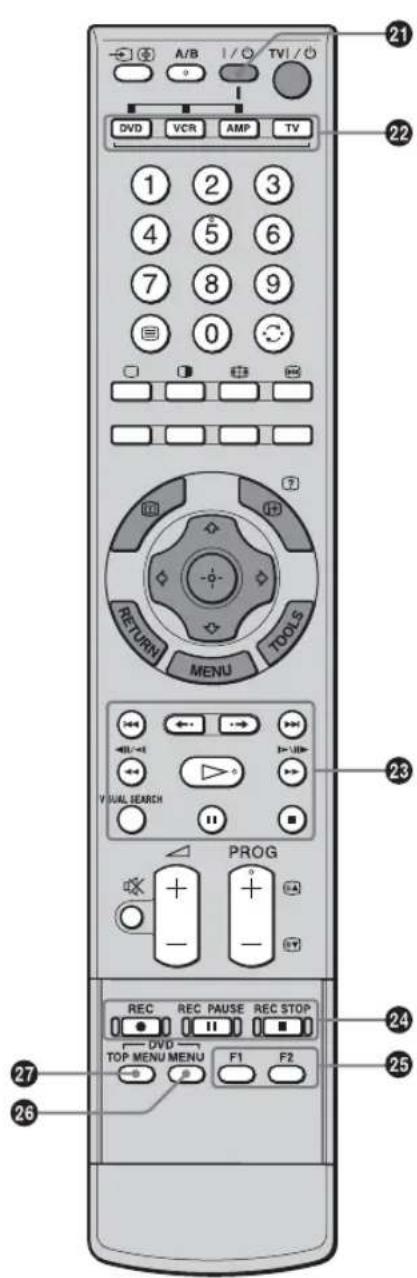
21I/
Switches on or off the optional equipment selected from the function buttons.
22 Function buttons
Enables you to operate the corresponding equipment. For details, see "Programming the remote" on page 37.
23 DVD/VCR operating buttons
- 🖱◀ : Replays the current program from the previous chapter mark (if any).
- ▶▶▶: Advances forward to the next chapter mark (if any).
• :Replays the current program for a set period of time.
• :Advances forward a set period of time. - ◀◀ : Plays a program in fast reverse mode.
- ▶: Plays a program in fast forward mode.
- ▷ : Plays a program at a normal speed.
• II : Pauses playback.
• ■ : Stops the playback. - VISUAL SEARCH: Only for Sony DVD recorders with the visual search function. For details, see the operating instructions supplied with the DVD recorder.
24 DVD/VCR record buttons
• REC: Starts recording.
• II REC PAUSE: Pauses the recording.
- ■ REC STOP: Stops the recording.
■ REC PAUSE and ■ REC STOP are available only on DVD recorders.
25F1/F2
- Selects a disc when using a DVD changer.
- Selects a function when using a combination unit (e.g. a DVD/VCR).
For details, see the operating instructions supplied with the DVD changer or combination unit.
26 DVD MENU
Displays the DVD disc menu.
27 DVD TOP MENU
Displays the top menu of the DVD disc.
Tip
The number 5, ▷, PROG + and A/B buttons have tactile dots. Use the tactile dots as references when operating the TV.
Overview of the TV buttons and indicators
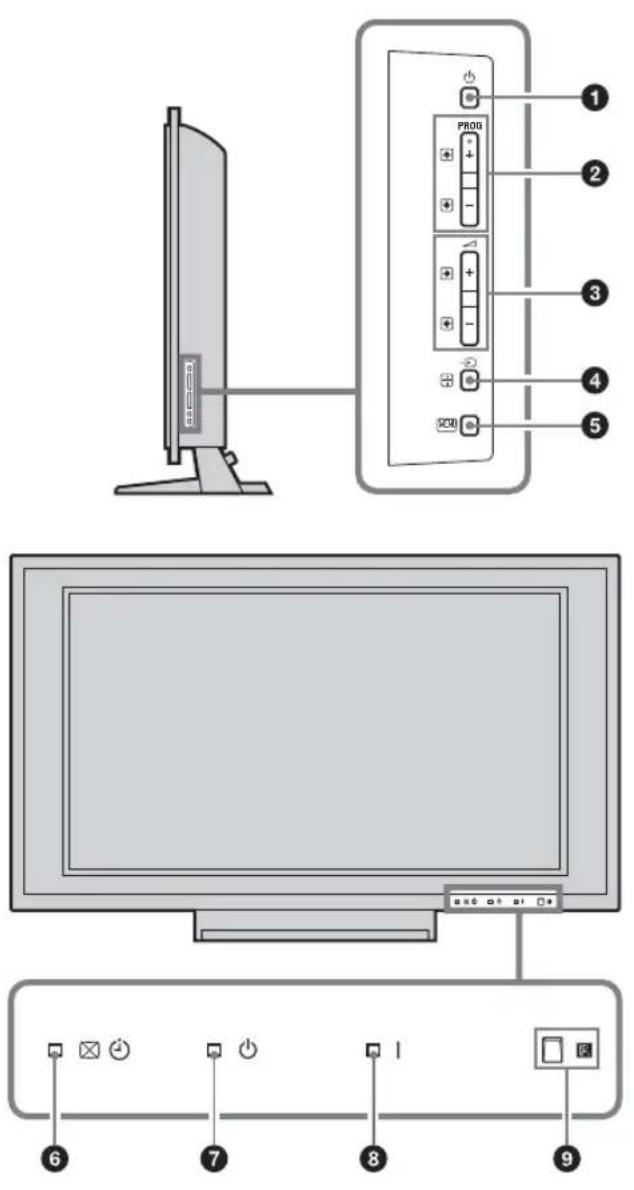
① ⏻ - Power
Switches the TV on or off.
②PROG +/- / ↑ ↓
- In TV mode: Selects the next (+) or previous (-) channel.
- In TV menu: Moves through the options up (or down (). ↓)
③ ∠+/-/ /→ ←
- In TV mode: Increases (+) or decreases (-) the volume.
- In TV menu: Moves through the options right (or left ().
④/→Input select/OK
- In TV mode (page 18): Selects the input source from equipment connected to the TV jacks.
- In TV menu: Selects the menu or option, and confirms the setting.
⑤ (page 20)
6 Picture Off/Timer indicator
- Lights up in green when the picture is switched off (page 28).
- Lights up in orange when the timer is set (page 28).
⑦ - Standby indicator
Lights up in red when the TV is in standby mode.
⑧I - Power indicator
Lights up in green when the TV is switched on. Flashes while the remote is being operated.
⑨ Remote control sensor/Light sensor (page 29)
- Receives IR signals from the remote.
- Do not put anything over the sensor, as its function may be affected.
Note
Make sure that the TV is completely switched off before unplugging the AC power cord. Unplugging the AC power cord while the TV is turned on may cause the indicator to remain lit or may cause the TV to malfunction.
Watching TV
Watching TV
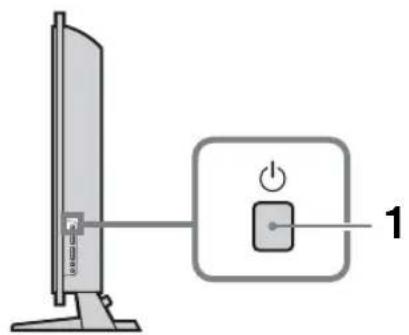
1 Press ⏻ on the TV (right side) to switch on the TV.
When the TV is in standby mode (the ⏻ (standby) indicator on the TV (front) is red), press TV I/⏻ on the remote to switch on the TV.
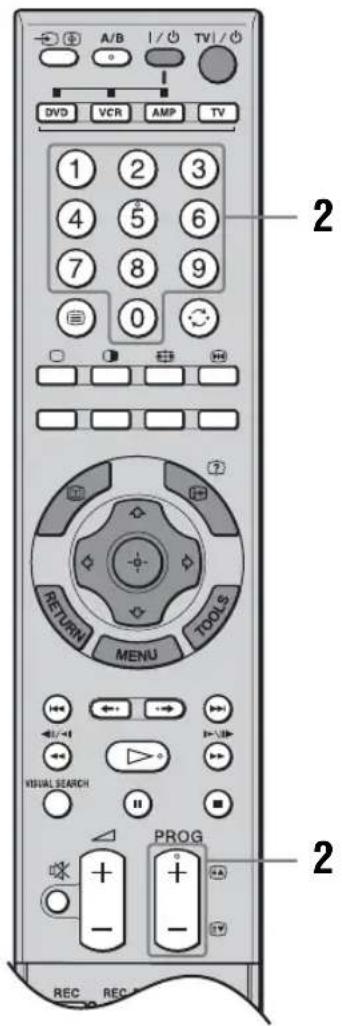
2 Press the number buttons or PROG +/- to select a TV channel.
To select channel numbers 10 and above using the number buttons, enter the second digit within two seconds.
Additional operations
To Do this
| Switch off the TV temporarily (standby mode) | Press TV I/⏻. |
| Switch off the TV Press ⏻ on the TV (right side). | |
| Switch on the TV without sound from standby mode | Press ☐. Press △ +/- to adjust the volume. |
| Adjust the volume Press △ + (increase)/ - (decrease). | |
| Mute the sound Press ☐. Press again to restore. | |
To access Text
Press ☐. Each time you press ☐, the display changes cyclically as follows:
Text and TV picture → Text → No Text (exit the Text service)
To select a page, press the number buttons or 📄/≡▼ To hold a page, press → ➕ ➕
To reveal hidden information, press Ⓗ + ?
To jump a page, press and / , then press (for three digit pages).
Note
Text Language displays can be either English, Persian or French depending on your broadcast signal.
Tips
- Ensure that the TV is receiving a good signal, or some text errors may occur.
- For information on the use of a Text service, select the index page.
- When four colored items appear at the bottom of the Text page, Fastext is available. Fastext allows you to access pages quickly and easily. Press the corresponding colored button to access the page.
To freeze the picture – Picture freeze
You can freeze the current picture to make a note of a telephone number or recipe.
1 Press

The frozen picture is displayed on the right of the screen. You can watch moving picture on the left.
2 Press again to return to normal TV mode.
To change the Wide Mode
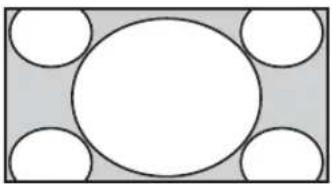
Press Repeatedly to select Wide Zoom, Normal, Full or Zoom.
Wide Zoom*
natural_image
Simple geometric diagram with a central circle surrounded by four smaller circles, no text or symbols present.Enlarges the center portion of the picture. The left and right edges of the picture are stretched to fill the 16:9 screen.
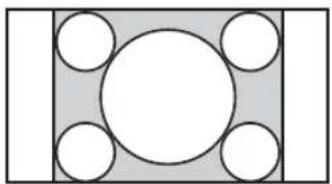
Normal
natural_image
Geometric diagram with a central circle surrounded by four smaller circles, no text or symbols present.Displays the 4:3 picture in its original size. Side bars are shown to fill the 16:9 screen.
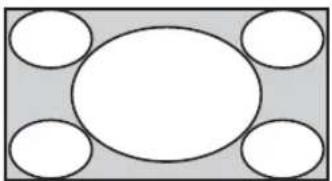
Full
natural_image
Simple diagram with a central oval and four surrounding empty circles, no text or symbols present.Stretches the 4:3 picture horizontally, to fill the 16:9 screen.
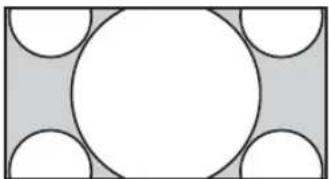
Zoom*
natural_image
Geometric diagram with a central circle surrounded by four semicircles on a gray background (no text or symbols)Displays cinemascopic (letter box format) broadcasts in the correct proportions.
* Parts of the top and bottom of the picture may be cut off.
Tips
- Alternatively, you can set "Auto Wide" to "On". The TV will automatically select the best mode to suit the input from an external equipment (page 26).
- In Wide Zoom or Zoom, you can adjust the picture position (e.g. to read subtitles) using the Vertical Shift option selected from Tools menu (see below).
- “Full 1”, “Full 2” and “Normal” are available for “Wide Mode” when PC input is selected (page 34).
To use the Tools menu
Press TOOLS to display the following options when viewing a TV program.
Options Description
Close Closes the Tools menu.
Twin Picture
See page 17.
(or Single Picture)
Picture Mode See page 21.
Sound Mode See page 24.
Power Saving See page 28.
Vertical Shift See page 27.
Vertical Size See page 27.
Sleep Timer
See page 28.
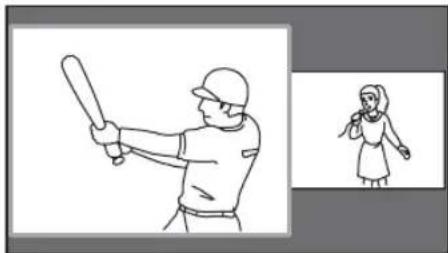
To view two pictures simultaneously – Twin Picture
You can view two pictures on the screen simultaneously.
Notes
• This function is not available for a PC input source.
- You cannot change the size of the pictures.
Press ☐ two pictures are displayed simultaneously.
natural_image
Illustration of a baseball player holding a baton and another person standing beside it (no text or symbols)Continued
To Do this
| Switch the active screen (the frame of the selected screen turns green) | Press ⇌/⇔. |
| Change the program on the active screen | Press PROG +/-. |
| Change the program on the inactive screen | Press ⇌/⇔. |
| Change the input source | 1 Select the active screen.2 Press +/repeatedly. |
| Return to normal TV mode | Press ☐. |
Tips
- You can select the same program for both screens.
- Pictures input through the HDMI and component jacks are not displayed on the right screen.
- You can also use the Twin Picture feature by selecting "Twin Picture" from the Tools menu, and return to normal TV mode by selecting "Single Picture" from the Tools menu.
Viewing pictures from connected equipment
Switch on the connected equipment, then press → repeatedly until the correct input symbol (see below) appears on the screen. For the details of connecting the other equipment, see page 35.
| On screen display | Labels of input jacks |
| Video 1 or S→Video 1 | 1 or S, and1 (L (MONO), R) |
| Video 2, Video 2 or S→Video 2 | 2, 2(Y, P B/CB, PR/CR)*1 or S→2, and2 (L (MONO), R) |
| Video 3 3 and 3 (E+MONO),R | |
| HD/DVD 1 1 (Y, P→B/CB, PR/CR) and→1 (L, R) | |
| HD/DVD 2 2 (Y, P→B/CB, PR/CR)*2 and→2(L, R) | |
| HDMI 1 HDMI IN 1 | |
| HDMI 2 HDMI IN 2, or, HDMI IN 2 and→HDMI IN 2 (L, R) | |
| PC | (RGB) PC IN and PC IN |
*1 Located on the side panel of the TV
*2 Located on the rear panel of the TV
To return to normal TV mode, press ☐
To use the Tools menu
Press TOOLS to display the following options when viewing pictures from connected equipment other than a PC.
Options Description
| Close Closes the Tools menu. |
| Twin Picture | See page 17. |
| (or Single Picture) |
| Picture Mode See page 21. |
| Sound Mode See page 24. |
| Power Saving See page 28. |
| Vertical Shift See page 27. |
| Vertical Size See page 27. |
| Sleep Timer See page 28. |
Using MENU Functions
Navigating through menus
“MENU” allows you to enjoy various convenient features of this TV. You can easily select channels or inputs sources and change the settings for your TV.
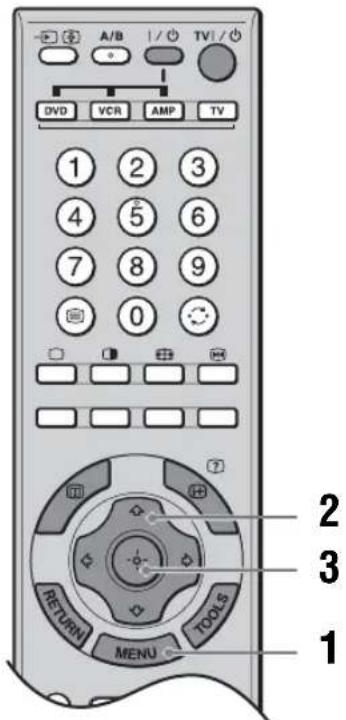
1 Press MENU to display the menu.
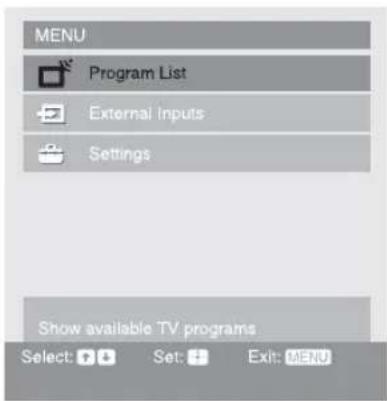
Icon Description

Program List
Displays available TV channels.
• To watch the desired channel, select the channel, then press ✉
- To assign a label to a channel, select "Edit Program Labels", then see page 31.

External Inputs
Selects equipment connected to your TV.
• To watch the desired external input, select the input source, then press
- To assign a label to an external input, select "Edit Video Labels", then see page 30.

Settings
Displays the Settings menu where most of the advanced settings and adjustments are performed. For details about settings, see page 21 to 32.
Note
The options you can adjust vary depending on the situation. Unavailable options are grayed out or not displayed.
2 Press ↩/▽ to select an option.
3 Press to confirm a selected option.
To exit the menu, press MENU.
Picture menu
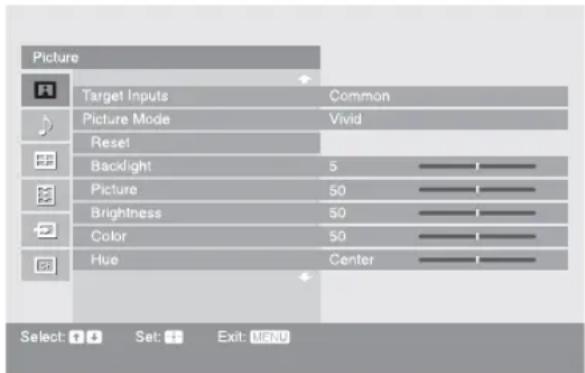
You can select the options listed below on the Picture menu.
1 Press ↩/▽ to select "Settings" on MENU, then press ⏻
2 Press ↗/▽ to select a menu icon, then press ⊕.
3 Press ↩/↙/↙/→ to select an option.
| Target Inputs | For the input currently being viewed, select whether to use the common setting or to set each item separately.“Common”: Applies common settings whose adjustments are shared with other inputs in which “Target Inputs” is set to “Common”.Current input name (e.g. Video 1): Allows you to set each option separately for the current input.TipSet each input to “Common” if you require the same settings to apply to each input. |
| Picture Mode | Selects the picture mode.“Vivid”: For enhanced picture contrast and sharpness.“Standard”: For standard picture. Recommended for home entertainment.“Custom”: Allows you to store your preferred settings. |
| Reset | Resets all the “Picture” settings except “Target Inputs” and “Picture Mode” to the factory settings.Tip“Advanced Settings” (page 23) is also not reset. Select “Reset” in “Advanced Settings” to reset items in “Advanced Settings”. |
| Backlight | Adjusts the brightness of the backlight. |
| Picture | Increases or decreases picture contrast. |
| Brightness | Brightens or darkens the picture. |
| Color | Increases or decreases color intensity. |
| Hue | Increases or decreases the green tones and red tones.Tip“Hue” can only be adjusted for an NTSC color signal (e.g. U.S.A. video tapes). |
Continued
| Color Temperature | Adjusts the whiteness of the picture.“Cool”: Gives the white colors a blue tint.“Neutral”: Gives the white colors a neutral tint.“Warm 1”/“Warm 2”: Gives the white colors a red tint. “Warm 2” gives a redder tint than “Warm 1”.Tip“Warm 1” and “Warm 2” can only be selected when you set “Picture Mode” to “Custom”. |
| Sharpness | Sharpens or softens the picture. |
| Noise Reduction | Reduces the picture noise (snowy picture).“Auto”: Automatically reduces the picture noise.“High”/“Medium”/“Low”: Modifies the effect of the noise reduction.“Off”: Turns off the Noise Reduction feature.“BNR”: Reduces the block picture noise. This is effective for a connected DVD player/digital receiver with MPEG playback.Tips• “Auto” is not available when watching component or HDMI inputs.• “Noise Reduction” is not available when using Freeze or Twin Picture features. |
| DRC Mode | Selects a high-resolution picture with 4x density, for high quality sources (e.g. DVD players, digital receivers).“Mode 1”: Recommended for moving pictures.“Mode 2”: Recommended for still images and text.“Off”: Turns off the DRC Mode.Tip“DRC Mode” is not available when “Game Mode” is set to “On” or when using Freeze or Twin Picture features; also not available when watching 480p, 576p, 720p, 1080i or 1080p sources. |
| DRC Palette | Customizes the level of detail (“Reality”) and smoothness (“Clarity”) for each input signal. For example, you can create a custom setting for your cable input’s picture, and create another for your DVD player’s pictures.The DRC palette appears.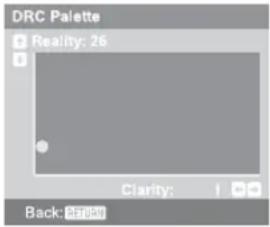 Press ⇌/ ⇌/ ⇌/ ⇌ to adjust the position of the marker (●).As you move the ● higher along the “Reality” axis, the picture becomes more detailed. As you move the ● to the right along the “Clarity” axis, the picture becomes smoother.Tip“DRC Palette” is not available when “Game Mode” is set to “On”, “DRC Mode” is set to “Off” or when using Freeze or Twin Picture features; also not available when watching 480p, 576p, 720p, 1080i or 1080p sources. Press ⇌/ ⇌/ ⇌/ ⇌ to adjust the position of the marker (●).As you move the ● higher along the “Reality” axis, the picture becomes more detailed. As you move the ● to the right along the “Clarity” axis, the picture becomes smoother.Tip“DRC Palette” is not available when “Game Mode” is set to “On”, “DRC Mode” is set to “Off” or when using Freeze or Twin Picture features; also not available when watching 480p, 576p, 720p, 1080i or 1080p sources. |
Advanced Settings
Customizes the Picture function in more detail. When you set “Picture Mode” to “Custom”, you can set/change these settings.
“Reset”: Resets all the advanced settings to the factory settings.
“Black Corrector”: Enhances black areas of the picture for stronger contrast.
“Adv. Contrast Enhancer”: Automatically adjusts “Backlight” and “Picture” to the most suitable settings judging from the brightness of the screen. This setting is especially effective for dark images scenes. It will increase the contrast distinction of the darker picture scenes.
“Gamma”: Adjusts the balance between bright and dark areas of the picture.
"Clear White": Emphasizes white colors.
"Live Color": Makes colors more vivid.
“Color Space”: Changes the color reproduction gamut. “Wide” reproduces the vivid color and “Normal” reproduces the standard color.
“White Balance”: Adjusts the color temperature color by color.
“Detail Enhancer”: Enhances the details of the picture.
"Edge Enhancer": Enhances the outline of the picture.
Tips
- “Adv. Contrast Enhancer” and “Detail Enhancer” are not available when using Freeze or Twin Picture features.
- “Live Color” is not available when “Color Space” is set to “Normal”.
Sound menu
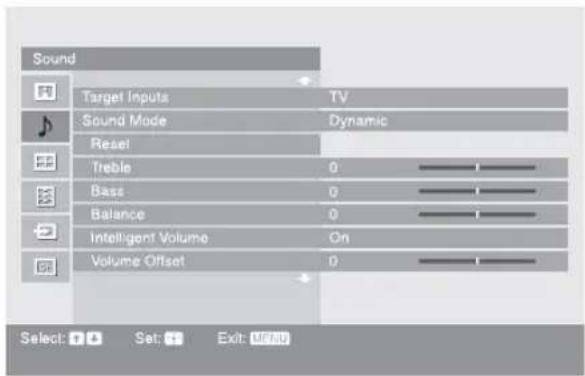
You can select the options listed below on the Sound menu. To select options in “Settings”, refer to “Picture menu” (page 21).
| Target Inputs | For the input currently being viewed, select whether to use the common setting or to set each item separately.“Common”: Applies common settings whose adjustments are shared with other inputs in which “Target Inputs” is set to “Common”.Current input name (e.g. Video 1): Allows you to set each option separately for the current input.TipSet each input to “Common” if you require the same settings to apply to each input. |
| Sound Mode | Selects the sound mode.“Dynamic”: Enhances treble and bass.“Standard”: For standard sound. Recommended for home entertainment.“Custom”: Flat response. Also allows you to store your preferred settings. |
| Reset | Resets all the “Sound” settings except “Target Inputs”, “Sound Mode” and “Dual Sound” to the factory settings. |
| Treble | Adjusts higher-pitched sounds. |
| Bass | Adjusts lower-pitched sounds. |
| Balance | Emphasizes left or right speaker balance. |
| Intelligent Volume | Keeps a constant volume level even when volume level gaps occur (e.g. adverts tend to be louder than programs). |
| Volume Offset | Adjusts the volume level of the current input relative to other inputs, when “Target Inputs” is set to the current input name (e.g. Video 1). |
| Surround | Selects the surround mode.“Dolby Virtual”: Uses the TV speakers to simulate the surround effect produced by a multi channel system.“Simulated Stereo”: Adds a surround-like effect to mono programs.“Off”: For normal stereo or mono reception. |
| BBE | Gives sound more impact by compensating for phase effects in speakers using the “BBE High Definition Sound System”, when “Sound Mode” is set to “Custom”. To reproduce sounds with impact, select “High” (more impact) or “Low” (less impact). Otherwise select “Off”. |
| Dual Sound | Selects the sound from the speaker for a stereo or bilingual broadcast. The selection varies, depending on the Broadcasting. |
| Broadcasting Selection | |
| NICAM stereo Stereo (stereo sound)Mono (regular sound) | |
| NICAM bilingual Main (main sound)Sub (sub sound)Mono (regular sound) | |
| NICAM monaural Main (main sound)Mono (regular sound) | |
| A2 (German) stereo Stereo (stereo sound)Mono (regular sound) | |
| A2 (German) bilingual Main (main sound)Sub (sub sound) | |
| NotesIf the signal is very weak, the sound becomes monaural automatically.If the stereo sound is noisy when receiving a NICAM program, select “Mono”. The sound becomes monaural, but the noise is reduced.The “Dual Sound” setting is memorized for each program position.You cannot receive a stereo broadcast signal when “Mono” is selected for the program position.You cannot receive stereo or dual sound when “Low” or “High” is selected in “Audio Filter” (page 32).TipsNICAM is receivable in following countries/regions. Hong Kong, Singapore, New Zealand, Malaysia, Thailand, etc.A2 (German) is receivable in following countries/regions. Australia, Malaysia, Thailand, etc.If you select other equipment connected to the TV, set “Dual Sound” to “Stereo”, “Main” or “Sub”. |
Tip
Sound menu options other than “Dual Sound” cannot be used for headphones and audio output jacks.
Screen menu
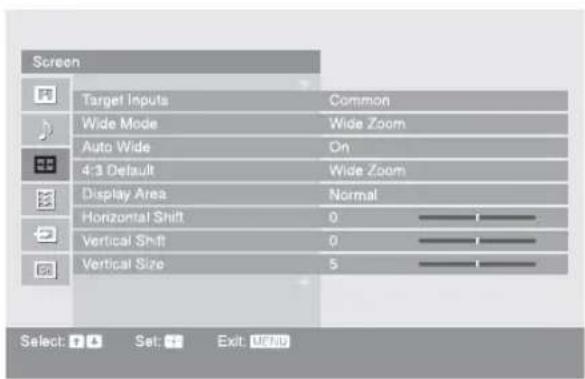
You can select the options listed below on the Screen menu. To select options in “Settings”, refer to “Picture menu” (page 21).
| Target Inputs | For the input currently being viewed, select whether to use the common setting or to set each item separately.“Common”: Applies common settings whose adjustments are shared with other inputs in which “Target Inputs” is set to “Common”.Current input name (e.g. Video 1): Allows you to set each option separately for the current input.TipSet each input to “Common” if you require the same settings to apply to each input. |
| Wide Mode | For details about “Wide Mode”, see “To change the Wide Mode” (page 17). |
| Auto Wide | Automatically changes “Wide Mode” according to the input signal from external equipment. To keep your setting, select “Off”.TipEven if “Auto Wide” is set to “On” or “Off”, you can always modify the format of the screen by pressing repeatedly. |
| 4:3 Default | Selects the default screen mode for use with 4:3 sources.“Wide Zoom”: Enlarges the 4:3 picture to fill the 16:9 screen, keeping the original image as much as possible.“Normal”: Displays conventional 4:3 sources in the correct proportions.“Off”: Keeps the current “Wide Mode” setting when the channel or input is changed.TipThis option is available only if “Auto Wide” is set to “On”. |
| Display Area | Adjusts the screen area displaying the picture.“Full Pixel”: Displays the picture for 1080i or 1080p sources in the original size when parts of the picture are cut off.“Normal”: Displays the picture in the original size.“-1”/“-2”: Enlarges the picture to hide the edge of the picture. |
| Horizontal Shift | Adjusts the horizontal position of the picture. Tip This option is not available when “Display Area” is set to “Full Pixel”. |
| Vertical Shift | Adjusts the vertical position of the picture when “Wide Mode” is set to “Wide Zoom” or “Zoom”. |
| Vertical Size | Adjusts the vertical size of the picture when “Wide Mode” is set to “Wide Zoom”. |
Setup menu
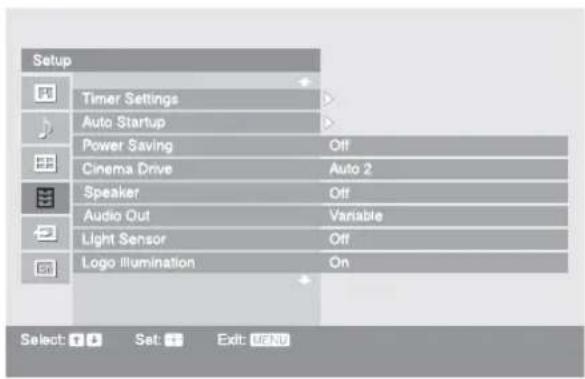
You can select the options listed below on the Setup menu. To select options in “Settings”, refer to “Picture menu” (page 21).
| Timer Settings | Sets the timer to switch on/off the TV.Sleep TimerSets a period of time after which the TV automatically switches itself into standby mode.When the Sleep Timer is activated, the 3Timer) indicator on the TV (front) lights up in orange.TipsIf you switch off the TV and switch it on again, “Sleep Timer” is reset to “Off”.“TV will soon turn off by Sleep Timer” appears on the screen one minute before the TV switches to standby mode.On TimerSets the timer to switch on the TV from standby mode.“Day”: Selects the day on which you want to activate the On Timer.“Time”: Sets the time to switch on the TV.“Duration”: Selects the time period after which the TV automatically switches to standby mode again.“Volume Setup”: Sets the volume for when the timer switches on the TV.When the On Timer is activated, the 3Timer) indicator on the TV (front) lights up in orange.Clock SetAllows you to adjust the clock. |
| Auto Startup | Starts the “first time operation menu” to select the language, tune in all available channels, and set the time. Usually, you do not need to do this operation because the language will have been selected and channels already tuned when the TV was first installed (page 6, 7). However, this option allows you to repeat the process (e.g. to retune the TV after moving house, or to search for new channels that have been launched by broadcasters). |
| Power Saving | Selects the power saving mode to reduce the power consumption of the TV.When “Picture Off” is selected, the picture is switched off and the 3Picture Off) indicator on the TV (front) lights up in green. The sound remains unchanged. |
| Cinema Drive | Provides smoother picture movement when playing DVD or VCR images taken on film, reducing picture blur and graininess.“Auto 1”: For a stable picture with minimal noise. Set to “Auto 2” if the screen is partially degraded.“Auto 2”: Use this setting for standard use.“Off”: Turns off the “Cinema Drive” feature.NotesEven if “Auto 1” or “Auto 2” is selected, “Cinema Drive” will be automatically turned off and a moving image will not be played smoothly if the image contains irregular signals or too much noise.“Cinema Drive” is not available when using Freeze or Twin Picture features, or when watching 480p, 576p, 720p or 1080p sources. |
| Speaker | Switches on/off the TV’s internal speakers.“On”: The TV speakers are turned on in order to listen to the TV’s sound through the TV speakers.“Off”: The TV speakers are turned off in order to listen to the TV’s sound only through your external audio equipment connected to the audio output jacks. |
| Audio Out | “Variable”: The audio output from your audio system can be controlled by the TV’s remote.“Fixed”: The audio output of the TV is fixed. Use your audio receiver’s volume control to adjust the volume (and other audio settings) through your audio system. |
| Light Sensor | “On”: Automatically optimizes the picture settings according to the ambient light in the room.“Off”: Turns off the “Light Sensor” feature.NoteBe sure not to put anything over the sensor, as its function may be affected. See page 15 for further information on the sensor. |
| Logo Illumination | Lights up and turns off the Sony logo on the front of the TV. |
| Language | Selects the language in which the menus are displayed. |
| Product Information | Displays your TV’s product information. |
| All Reset | Resets all settings to the factory settings and then displays the Auto Startup screen.NoteAll settings, including language, auto tuned channels, etc. will be reset. |
AV Setup menu
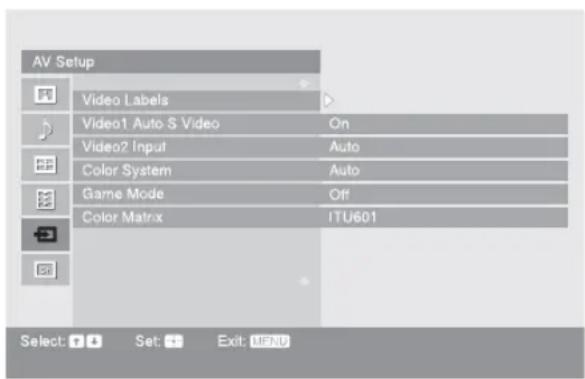
You can select the options listed below on the AV Setup menu. To select options in “Settings”, refer to “Picture menu” (page 21).
| Video Labels | Assigns a name to any equipment connected to the side and rear jacks. The name will be displayed briefly on the screen when the equipment is selected. You can skip an input source that is not connected to any equipment.1 Press ⇧/▽ to select the desired input source, then press⊕2 Press ⇧/▽ to select the desired option below, then press⊕Equipment labels: Uses one of the preset labels to assign a name to connected equipment.“Edit”: Creates your own label. Follow steps 2 to 4 of “Program Labels” (page 31).“Skip”: Skips an unnecessary input source. |
| Video 1 Auto S Video | Selects the input signal from S video jack S→○1 when S→○/→1 jacks are both connected.“On”: Switches automatically between the S video jack and the composite video jacks on the rear of the TV depending on the cable connection.“Off”: Activates the composite video jacks on the rear of the TV. |
| Video 2 Input | “Auto”: Switches automatically between the component video jacks, S video jack, and the composite video jacks on the left side of the TV depending on the cable connection.“Component”: Activates the component video jacks on the left side of the TV.“S Video”: Activates the S video jack on the left side of the TV.“Composite”: Activates the composite video jacks on the left side of the TV.TipWhen multiple cables are connected and “Auto” is selected, “Component”, “S Video”, “Composite” will be activated in that order. |
| Color System | Selects the color system (“Auto”, “PAL”, “SECAM”, “NTSC3.58” or “NTSC4.43”) according to the input signal from the input source. |
| Game Mode | Depending on the game software, reaction times may slow during fast-moving scenes, etc. Select “On” to improve the reaction times. |
| Color Matrix | Usually used in the factory setting (Video 1/2 (Composite and S video input signal), 3 is set to “ITU601”, and Video 2 (Component input signal)/HD/DVD 1/2/HDMI 1/2 is set to “Auto”). If the tone of the picture from the input source is unnatural, select either “ITU601” or “ITU709”, which normalizes the tone. |
Channel Setup menu
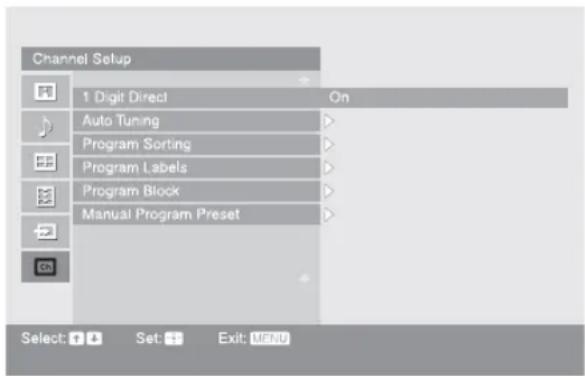
You can select the options listed below on the Channel Setup menu. To select options in “Settings”, refer to “Picture menu” (page 21).
| 1 Digit Direct | When “1 Digit Direct” is set to “On”, you can select a channel using one preset number button (0 - 9) on the remote.NoteWhen “1 Digit Direct” is set to “On”, you cannot select channel numbers 10 and above entering two digits using the remote. |
| Auto Tuning | Tunes in all the available channels.Usually you do not need to do this operation because the channels are already tuned when the TV was first installed (page 7). However, this option allows you to repeat the process (e.g. to retune the TV after moving house, or to search for new channels that have been launched by broadcasters). |
| Program Sorting | Changes the order in which the channels are stored on the TV.1 Press ↗/▽ to select the channel you want to move to a new position, then press ⊕2 Press ↗/▽ to select the new position for your channel, then press ⊕. |
| Program Labels | Assigns a channel name of your choice up to five letters or numbers. The name will be displayed briefly on the screen when the channel is selected.1 Press ↗/▽ to select the channel you want to name, then press ⊕.2 Press ↗/▽ to select the desired letter or number (“_” for a blank space), then press ⇒.If you input a wrong characterPress ↗/▽ to select the wrong character. Then, press ↗/▽ to select the correct character.To delete all the charactersSelect “Reset”, then press ⊕3 Repeat the procedure in step 2 until the name is complete.4 Select “OK”, then press . ⊕ |
| Program Block | Blocks an individual channel from being watched.1 Press ↗/▽ to select the channel you want to block, then press ⊕.2 Press ↗/▽ to select “Block”, then press ⊕.To watch the channel, select “Allow”. |
Continued
Manual Program Preset
Before selecting “Label”/“AFT”/“Audio Filter”/“Skip”, press PROG +/- to select the program number with the channel. You cannot select a program number that is set to skip.
Program/TV System
Presets program channels manually.
1 Press ↑/↓ to select "Program", then press
2 Press ⬆/⇨ to select the program number you want to manually tune (if tuning a VCR, select channel 00), then press ⊕
3 Press ↑/↓ to select "TV System", then press ⊕
4 Press ↩/▽ to select the best received TV broadcast systems, then press ⊕.
5 Press ↑/↓ to select "VHF Low", "VHF High" or "UHF", then press ⊕.
6 Press ⇔/→ until the desired channel's broadcast appears on the TV screen, then press ⏻
Label
Assigns a name of your choice, up to five letters or numbers, to the selected channel. This name will be displayed briefly on the screen when the channel is selected. To input characters, follow steps 2 to 4 of “Program Labels” (page 31).
AFT
Allows you to fine-tune the selected program number manually if you feel that a slight tuning adjustment will improve the picture quality. You can adjust the fine tuning over a range of -15 to +15. When “On” is selected, the fine tuning is performed automatically.
Audio Filter
Improves the sound for individual channels in the case of distortion in mono broadcasts. Sometimes a non-standard broadcast signal can cause sound distortion or intermittent sound muting when watching mono programs. If you do not experience any sound distortion, we recommend that you leave this option set to the factory setting “Off”.
Note
You cannot receive stereo or dual sound when “Low” or “High” is selected. Normally noise can be reduced with “Low”. If you still feel the sound is noisy, set the filter to “High”.
Skip
Skips unused channels when you press PROG +/- to select channels. (You can still select a skipped channel using the number buttons.)
Sensitivity
Adjusts the TV reception sensitivity if the TV signal is too strong and the picture is distorted. Press to select "Low", then press
Color System
Selects the color system (“Auto”, “PAL”, “SECAM”, “NTSC3.58”, or “NTSC4.43”) according to the channel.
PC Settings menu
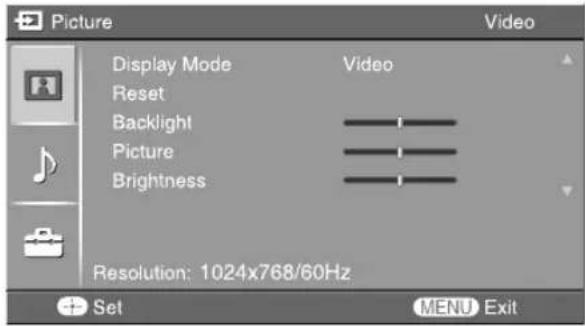
You can select the options listed below on the PC Settings menu when the TV is connected to a PC.
1 Press / repeatedly until PC appears on the screen.
2 Press MENU to display the PC settings menu.
Note
When you connect a PC to your TV for the first time, you may need to adjust the screen display. In such cases, perform "Auto Adjustment" or adjust the "Phase", "Pitch", "Horizontal Shift", or "Vertical Shift" in "Others" (page 34)
Picture
| Display Mode | Selects the display mode.“Video”: Select to view video images.“Text”: Select to view text, charts or tables. |
| Reset | Resets all the “Picture” settings except “Display Mode” to the factory settings. |
| Backlight | Adjusts the brightness of the backlight. |
| Picture | Increases or decreases picture contrast. |
| Brightness | Brightens or darkens the picture. |
| Color Temperature | Adjusts the whiteness of the picture.“Cool”: Gives the white colors a blue tint.“Neutral”: Gives the white colors a neutral tint.“Warm 1”/“Warm 2”: Gives the white colors a red tint. “Warm 2” gives a redder tint than “Warm 1”. |
Sound
| Sound Mode | Selects the sound mode.“Dynamic”: Enhances treble and bass.“Standard”: For standard sound. Recommended for home entertainment.“Custom”: Provides a flat response. Sound quality as customized on the connected PC is maintained in the TV sound. |
Continued
Others
| Auto Adjustment | Automatically adjusts the display position, phase and pitch of the picture when the TV receives an input signal from a connected PC. Tip Auto Adjustment may not work well with some input signals. In such cases, manually adjust “Phase”, “Pitch”, “Horizontal Shift” and “Vertical Shift”. |
| Reset | Resets all the “Others” settings to the factory settings. |
| Phase | Adjusts the phase when the screen flickers. |
| Pitch | Adjusts the pitch when the picture has unwanted vertical stripes. |
| Horizontal Shift | Adjusts the horizontal position of the picture. |
| Vertical Shift | Adjusts the vertical position of the picture. |
| Wide Mode | Selects the screen mode for signals with a 60 Hz vertical frequency. “Normal”: Displays the picture in its original size. “Full 1”: Enlarges the picture to fill the display area, keeping its original horizontal-to-vertical aspect ratio. “Full 2”: Enlarges the picture to fill the display area. |
| Power Management | Switches the TV to standby mode if no signal is received for 30 seconds. |
Connecting optional equipment
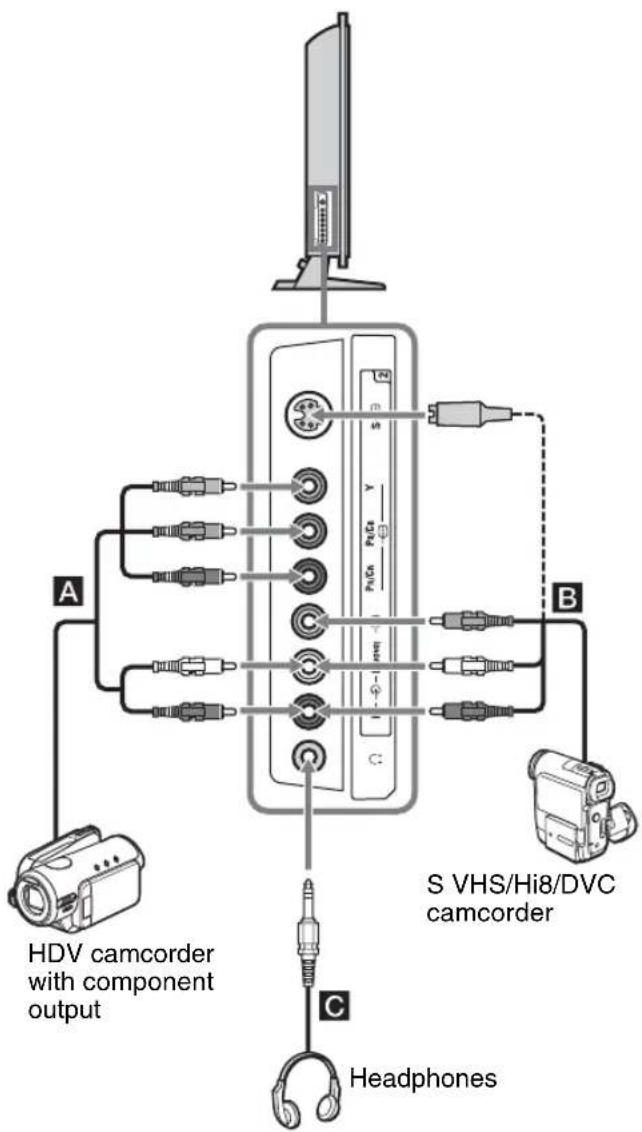
You can connect a wide range of optional equipment to your TV. Connecting cables are not supplied.
Connecting to the TV (side)
flowchart
graph TD
    A["Computer"] --> B["HDV camcorder with component output"]
    B --> C["Headphones"]
    B --> D["S VHS/Hi8/DVC camcorder"]
    D --> E["Hardware components"]
    E --> F["Headphones"]
    style A fill:#f9f,stroke:#333
    style B fill:#ccf,stroke:#333
    style C fill:#cfc,stroke:#333
    style D fill:#fcc,stroke:#333
    style E fill:#ffc,stroke:#333
| To connect Do this | |
| HDV camcorder with component outputA | Connect to the component Y, Pb/CB, Pr/CR jacks→2 and audio L (MONO), R jacks→ |
| S VHS/Hi8/DVC camcorder B | Connect to the S video jack 3→or the video jack 2and the audio jacks 2→To avoid picture noise, do not connect the camcorder to the video jack 2and the S video jack 2at the same time. If you connect mono equipment, connect to the L jack→2.TipYou can select the input signal by setting “Video 2 Input” in the “AV Setup” menu (page 30). |
| Headphones C | Connect to the ⏰jack to listen to sound from the TV on headphones. |
Continued
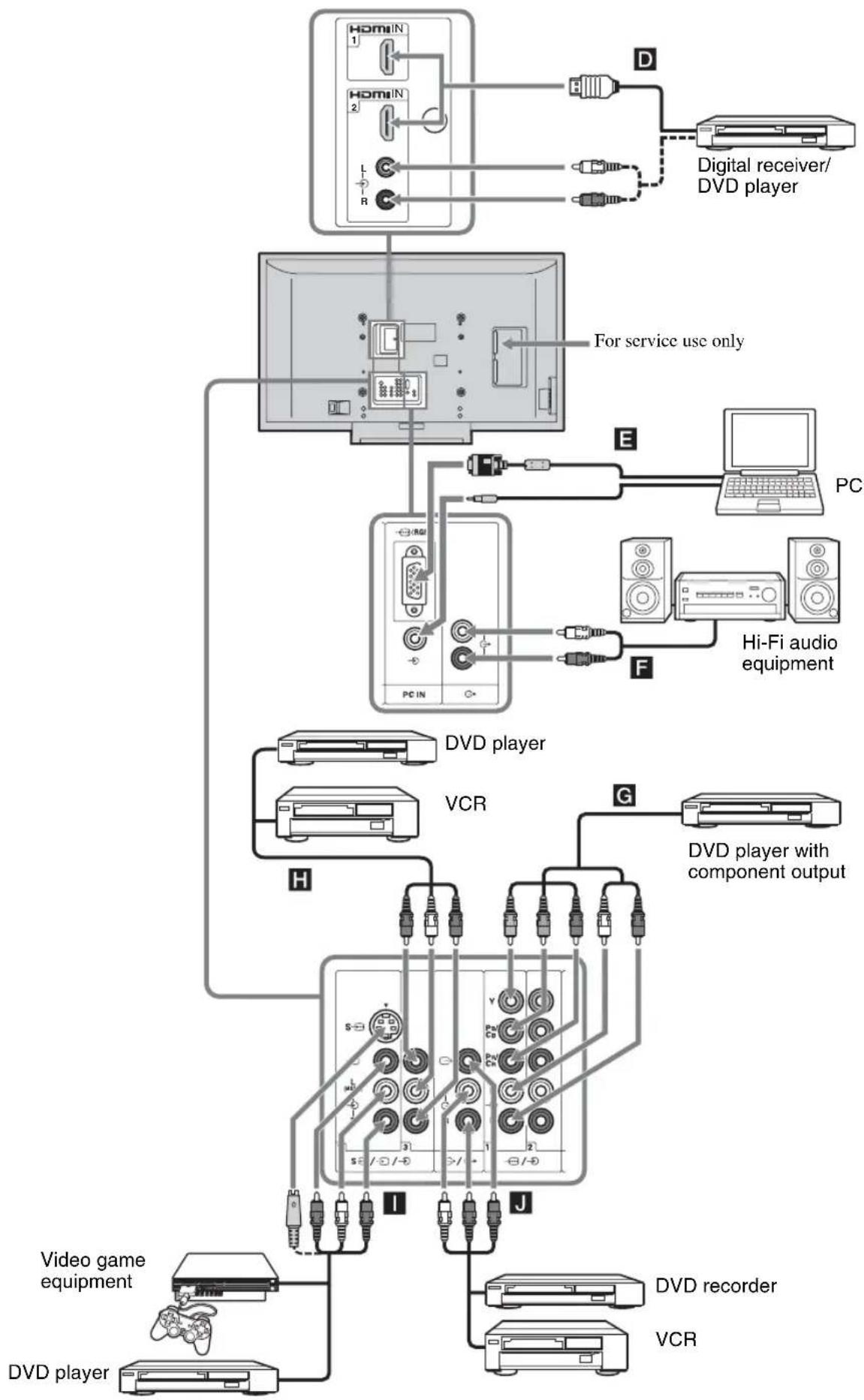
Connecting to the TV (rear)
flowchart
graph TD
    A["Home 1"] -->|D| B["Digital receiver/DVD player"]
    C["Home 2"] -->|E| D["Hi-Fi audio equipment"]
    E["PC"] -->|F| D
    F["VCR"] -->|G| G[" DVD player with component output "]
    H["Video game equipment"] --> I[" DVD recorder"]
    J["DVD player"] --> K["VCR"]
    L["For service use only"] --> M["PC IN"]
    style A fill:#f9f,stroke:#333
    style C fill:#f9f,stroke:#333
    style E fill:#f9f,stroke:#333
    style F fill:#f9f,stroke:#333
    style G fill:#f9f,stroke:#333
    style H fill:#f9f,stroke:#333
    style I fill:#f9f,stroke:#333
    style J fill:#f9f,stroke:#333
    style K fill:#f9f,stroke:#333
To connect Do this
| Digital receiver or DVD playerD | Connect to the HDMI IN 1 or 2jack if the equipment has an HDMI jack. The digital video and audio signals are input from the equipment. If the equipment has a DVI jack, connect the DVI jack to the HDMI IN 2 jack through a DVI - HDMI adaptor interface (not supplied), and connect the equipment's audio out jacks to the audio in the HDMI IN 2 jacks.NotesThe HDMI jacks only support the following video inputs: 480i, 480p, 576i, 576p, 720p, 1080i and 1080p. To connect a PC, use the PC IN jacks.Be sure to use only an HDMI cable that bears the HDMI logo. |
| PCEConnect to the PC IN jacks. It is recommended to use a PC cable (supplied). | |
| Hi-Fi audio equipmentF | Connect to the audio output jacksto listen to the sound from the TV on Hi-Fi audio equipment. To turn off the sound of the TV speakers, set “Speaker” to “Off” (page 29). |
| DVD player with component outputG | Connect to the component jacks and the audio jacksor2.TipYou can select the input signal by setting “Video 2 Input” in the “AV Setup” menu (page 30). |
| Video game equipment, DVD player or VCRHI | Connect to the S video jack $→or the video jackfor 3, and the audio jacksfor 3. To avoid picture noise, do not connect the camcorder to the video jack1 and the S video jackat the same time. If you connect mono equipment, connect to the L (MONO) jackfor 3. |
| DVD recorder or VCRJ | Connect to the video output jacksto record the image from the TV. Connect to the audio output jackste-record the sound from the TV on the DVD recorder or VCR. |
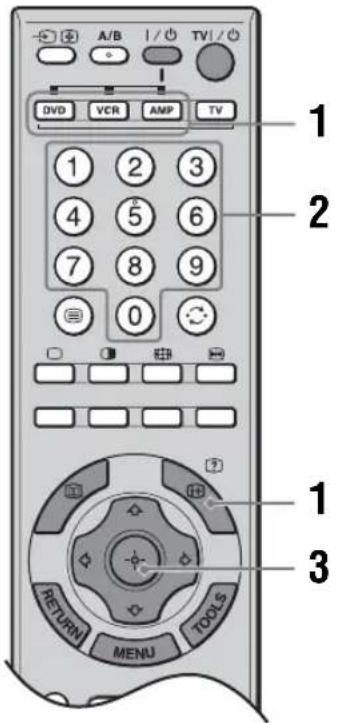
Programming the remote
If you have Sony VCRs/DVDs and Sony DVD Home Theater Systems/Amplifiers, do the following procedure to program the remote so that you can operate them using this remote.
Note
Before you start, look up the three-digit code for your equipment from the "Equipment's codes" on page 38.
1 Press and hold the DVD, VCR or AMP function button you want to program on the remote, then press Ⓗ, keeping the function button pressed down.
The selected function button (DVD, VCR or AMP) will flash.
2 Press the number buttons to enter the three-digit code while the button is lit. If code is not entered within 10 seconds, you must perform the step 1 again.
3 Press

When the programing is correct, the selected function button will flash twice, and when not, it will flash five times.
Continued
4 Switch on your equipment and check that the following main functions work.
▷ ( playback), ■ (stop), ◀◀ (rewind), ▶▶ (fast forward), channel selection for both VCR and DVDs, TOP MENU/MENU and ⇧/▽/<⇨/⇨ only for DVDs.
If your equipment is not working, or some of the functions do not work
Enter the correct code or try the next code listed.
To return to normal TV operation
Press the TV function button.
Equipment's codes
| Equipment Code |
| VCR 001*, 002, 003, 004 |
| DVD 101*, 151, 201, 202, 203 |
| Amplifier 301, 302, 303, 304, 401*, 402, 403, 451 |
* Factory setting
Additional Information
Specifications
Display Unit
Power Requirements:
110–240 V AC, 50/60 Hz
Screen Size:
KLV-52X200A/KLV-52X250A: 52 inches
KLV-46X200A/KLV-46X250A: 46 inches
KLV-40X200A/KLV-40X250A: 40 inches
Display Resolution:
1,920 dots (horizontal) × 1,080 lines (vertical)
Power Consumption:
KLV-52X200A/KLV-52X250A: 330 W
KLV-46X200A/KLV-46X250A: 260 W
KLV-40X200A/KLV-40X250A: 220 W
Standby Power Consumption:
0.5 W
Dimensions (w × h × d):
KLV-52X200A:
Approx. 1,415 × 890 × 384 mm (with stand)
Approx. 1,415 × 827 × 123 ~mm (without stand)
KLV-46X200A:
Approx. 1,262 × 795 × 322 mm (with stand)
Approx. 1,262 × 734 × 121 mm (without stand)
KLV-40X200A:
Approx. 1,111 × 717 × 322 ~mm (with stand)
Approx. 1,111 × 657 × 121 mm (without stand)
KLV-52X250A:
Approx. 1,415 × 890 × 384 ~mm (with stand)
Approx. 1,415 × 827 × 125 ~mm (without stand)
KLV-46X250A:
Approx. 1,262 × 795 × 322 ~mm (with stand)
Approx. 1,262 × 734 × 123 ~mm (without stand)
KLV-40X250A:
Approx. 1,111 × 717 × 322 mm (with stand)
Approx. 1,111 × 657 × 123 mm (without stand)
Weight:
V-52X200A/KLV-52X250A:
Approx. 54.5 kg (with stand)
Approx. 47.0 kg (without stand)
KLV-46X200A/KLV-46X250A:
Approx. 41.0 kg (with stand)
Approx. 36.0 kg (without stand)
KLV-40X200A/KLV-40X250A:
Approx. 35.0 kg (with stand)
Approx. 30.0 kg (without stand)
Panel System
LCD (Liquid Crystal Display) Panel
TV System
B/G, I, D/K, M
Color/Video System
PAL, SECAM, NTSC 3.58, NTSC4.43 (only Video In)
Antenna
75 ohm external terminal
Channel Coverage
B/G
VHF: E2 to E12 / UHF: E21 to E69 /
CATV: S01 to S03, S1 to S41
VHF: 0 to 12, 5A, 9A / UHF: 28 to 69 /
CATV: S01 to S03, S1 to S41(Australia only)
VHF: 1 to 11 / UHF: 21 to 69 /
CATV: S01 to S03, S1 to S41(New Zealand only)
I
UHF: B21 to B69 / CATV: S01 to S03, S1 to S41
D/K
VHF: C1 to C12, R1 to R12 / UHF: C13 to C57,
R21 to R60 /
CATV: S01 to S03, S1 to S41, Z1 to Z39
M
VHF: A2 to A13 / UHF: A14 to A79 /
CATV: A-8 to A-2, A to W+4, W+6 to W+84
Terminals
1,2
Supported formats: 1080i, 720p, 576p, 576i, 480p, 480i
Y: 1 Vp-p, 75 ohms, 0.3V negative sync
P_B / C_B : 0.7 Vp-p, 75 ohms
Pr / Cr : 0.7 Vp-p, 75 ohms
S→1,2
Audio: Two channel linear PCM
32, 44.1 and 48kHz , 16, 20 and 24 bits
Analog audio (phono jacks):
500 mVrms, Impedance 47 kilohms
(HDMI IN 2 only)
→
Video output (phono jack)
Audio output (phono jacks)
→
(RGB) PC IN
PC Input (D-sub 15-pin) (see page 40)
G: 0.7 Vp-p, 75 ohms, non Sync on Green
Optional Accessories
• Wall-Mount Bracket SU-WL51/SU-WL53
• TV stand SU - FL 6 1
• Colour Variation Unit:
CRU-52X1 (for KLV-52X200A)
CRU-46X1 (for KLV-46X200A)
CRU-40X1 (for KLV-40X200A)
Design and specifications are subject to change without notice.
Continued
PC Input Signal Reference Chart
| Signals Horizontal (Pixel) Vertical (Line) | Horizontal frequency (kHz) | Vertical frequency (Hz) | Standard | ||
| VGA 640 480 31.5 60 VGA | |||||
| 640 480 37.5 75 VESA | |||||
| 720 400 31.5 70 VGA-T | |||||
| SVGA 800 600 37.9 60 VESA Guidelines | |||||
| 800 600 46.9 75 VESA | |||||
| XGA 1024 768 48.4 60 VESA Guidelines | |||||
| 1024 768 56.5 70 VESA | |||||
| 1024 768 60 | 75 VESA | ||||
| WXGA | 1280 768 47.4 60 VESA | ||||
| 1280 768 47.8 60 VESA | |||||
| 1360 768 47.7 60 VESA | |||||
- This TV's PC input does not support Sync on Green or Composite Sync.
- This TV's PC input does not support interlaced signals.
- For the best picture quality, it is recommended to use the signals (boldfaced) in the above chart with a 60 Hz vertical frequency from a personal computer. In plug and play, signals with a 60 Hz vertical frequency will be selected automatically.
Troubleshooting
Check whether the ⏻ (standby) indicator is flashing in red.
When it is flashing
The self-diagnosis function is activated.
1 Count how many ⏻ (standby) indicator flashes between each two second break.
For example, the indicator flashes three times, then there is a two second break, followed by another three flashes, etc.
2 Press ⏻ on the TV (right side) to switch it off, disconnect the AC power cord, and inform your dealer or Sony service center of how the indicator flashes (number of flashes).
When it is not flashing
1 Check the items in the tables below.
2 If the problem still persists, have your TV serviced by qualified service personnel.
Picture
| Problem Cause/Remedy | |
| No picture (screen is dark) and no sound | ·Check the antenna connection.·Connect the TV to the AC power outlet, and press ⏻ on the TV (right side).·If the ⏻ (standby) indicator lights up in red, press TV I/○. |
| No picture or no menu information from equipment connected to the video input jack | ·Check that the optional equipment is on and press /repeatedly until the correct input symbol is displayed on the screen.·Check the connection between the optional equipment and the TV. |
| Double images or ghosting | ·Check antenna/cable connections.·Check the antenna location and direction. |
| Only snow and noise appear on the screen | ·Check if the antenna is broken or bent.·Check if the antenna has reached the end of its serviceable life (three to five years in normal use, one to two years at the seaside). |
| Distorted picture (dotted lines or stripes) | ·Keep the TV away from electrical noise sources such as cars, motorcycles, hair-dryers or optical equipment.·When installing optional equipment, leave some space between the optional equipment and the TV.·Make sure that the antenna is connected using the supplied antenna cable.·Keep the antenna cable away from other connecting cables. |
| Picture noise when viewing a TV channel | ·Select “Manual Program Preset” in the “Channel Setup” menu and adjust “AFT” (Automatic Fine Tuning) to obtain better picture reception (page 32). |
| Some tiny black points and/or bright points appear on the screen | ·The picture of a display unit is composed of pixels. Tiny black points and/or bright points (pixels) on the screen do not indicate a malfunction. |
| No color on programs | ·Select “Reset” in the “Picture” menu to return to the factory settings (page 21). |
| No color or irregular color when viewing a signal from the Y, PB/CB, PR/CR jacks →1 or 2 | ·Check the connection of the Y, PB/CB, PR/CR jacks →1 or 2.·Make sure that the Y, PB/CB, PR/CR jacks →1 or 2 are firmly seated in their respective jacks. |
Continued
| Problem Cause/Remedy | |
| Picture flashes initially when changing to HDMI mode or switching on the TV with HDMI mode. | • This is probably caused by the authentication process between HDMI equipment and the TV. It does not indicate a malfunction. |
Sound
| Problem Cause/Remedy | |
| No sound, but good picture | Press + / - or ※ (Mute).Check that “Speaker” is set to “On” in the “Setup” menu (page 29). |
| Noisy sound | See “Picture noise” causes/remedies on page 41. |
Channels
| Problem Cause/Remedy | |
| Some channels are blank | Scrambled/Subscription only channel. Subscribe to the Pay Per View service.Contact the broadcaster for transmission details. |
General
| Problem Cause/Remedy | |
| The TV turns off automatically (the TV enters standby mode) | ·Check if the “Sleep Timer” is activated, or confirm the “Duration” setting of “On Timer” (page 28). |
| The TV turns on automatically | ·Check if the “On Timer” is activated (page 28). |
| Some input sources cannot be selected | ·Select “Video Labels” in the “AV Setup” menu and cancel “Skip” of the input source (page 30). |
| The remote does not function | ·Check that the remote is set correctly for the equipment you are using.·Check whether the equipment you want to use corresponds to the function button being pressed (page 14).·If the remote does not operate the equipment even when the remote has been set correctly to the equipment, enter the necessary code as explained in “Programming the remote” (page 37).·Replace the batteries. |
Index
Numerics
1 Digit Direct 31
4:3 Default 26
A
Advanced Settings 23
AFT 32
All Reset 29
Antenna, connecting 4
Audio Filter 32
Audio Out 29
Auto Adjustment 34
Auto Startup 28
Auto Tuning 7, 31
Auto Wide 26
AV Setup menu 30
B
Backlight 21, 33
Balance 24
Bass 24
BBE 25
Black Corrector 23
Brightness 21, 33
C
Channel Setup menu 31
Channels
auto-tuning 7
selecting 16
Skip 32
Cinema Drive 29
Clear White 23
Clock Set 28
Color 21
Color Matrix 30
Color System 30, 32
Color Temperature 22, 33
Connecting
an antenna/VCR 4
optional equipment 35
Contrast Enhancer 23
D
Display Area 26
Display Mode 33
DRC Mode 22
DRC Palette 22
Dual Sound 25
E
Equipment labels 30
F
Fastext 16
Full 17
G
Game Mode 30
Gamma 23
H
Headphones 35
Horizontal Shift 27, 34
Hue 21
|
Intelligent Volume 24
L
Label 32
Language 6, 29
Light Sensor 29
Live Color 23
Logo Illumination 29
M
Manual Program Preset 32
MENU 20
N
Noise Reduction 22
Normal 17
0
On Timer 28
P
PC Settings menu 33
Phase 34
Picture Freeze 17
Picture 21, 33
Picture menu 21
Picture Mode21
Picture Off ( Indicator 15
Pitch 34
Power (I) indicator 15
Power (⏻) switch 15
Power Management 34
Power Saving 28
Product Information29
Program Block 31
Program Labels 31
Program Sorting 31
R
Remote control
inserting batteries 4
overview 13
programming 37
sensor 15
Reset
PC settings 34
picture 21, 33
sound 24
s
Screen menu 26
Sensitivity 32
Setup menu 28
Sharpness 22
Skip 30, 32
Sleep Timer 28
Sound menu 24
Sound Mode 24, 33
Speaker 29
Specifications 39
Standby (⏻) indicator 15
Surround 24
T
Target Inputs
picture 21
screen 26
sound 24
Text 16
Timer ( indicator 15
Timer Settings 28
Tools 17, 19
Treble 24
TV System 32
Twin Picture 17
V
VCR
connecting 4
Vertical Shift 27, 34
Vertical Size 27
Video Labels 30
Video1 Auto S Video 30
Video2 Input 30
Volume Offset 24
W
Wide Mode 17, 26, 34
Wide Zoom 17
Z
Zoom 17
http://www.sony.net/

Printed on 70% or more recycled paper using VOC (Volatile Organic Compound)-free vegetable oil based ink.