SY-MS44-18G - Switch SY Electronics - Free user manual and instructions
Find the device manual for free SY-MS44-18G SY Electronics in PDF.


| Product Type | HDMI Matrix Switch |
| Model | SY-MS44-18G |
| Inputs / Outputs | 4x HDMI 2.0 Inputs, 4x HDMI 2.0 Outputs |
| Maximum Resolution | 4K2K@60Hz YUV4:4:4 |
| Bandwidth | 18 Gbps |
| HDCP Compliance | HDCP 2.2 and 1.4 |
| HDR Support | HDR10 |
| 3D Support | Yes |
| Audio Support | Dolby TrueHD, DTS-HD Master Audio, PCM 2.0-7.1 |
| De-embedded Audio Outputs | 4x S/PDIF (coaxial) |
| Control Methods | Front panel, IR remote, RS232, IP (TCP), web interface |
| Power Supply | 5V DC, 3A max (adapter included) |
| Power Consumption | 13W max |
| Dimensions | 216 x 105 x 34 mm |
| Weight | 720 g |
| Case Material | Aluminium chassis |
| Operating Temperature | 0 to +45°C |
| Operating Humidity | 10 to 90% RH (non-condensing) |
| Warranty | 2 years from date of purchase (conditions apply) |
| Repair | Only by qualified professionals; warranty void if unauthorised repairs |
| Maintenance | Keep dry, well-ventilated; do not expose to liquids |
Frequently Asked Questions - SY-MS44-18G SY Electronics
User questions about SY-MS44-18G SY Electronics
0 question about this device. Answer the ones you know or ask your own.
Ask a new question about this device
Download the instructions for your Switch in PDF format for free! Find your manual SY-MS44-18G - SY Electronics and take your electronic device back in hand. On this page are published all the documents necessary for the use of your device. SY-MS44-18G by SY Electronics.
USER MANUAL SY-MS44-18G SY Electronics
The SY-MS44-18G is a true 4K 4x4 true HDMI 2.0 matrix, that can display any source (Blue-Ray player, HD DVD player, satellite receiver, game system, etc.) to any of its four output displays simultaneously.
Each HDMI output is amplified and equalized to ensure optimal HDMI signal transmission through long cables (up to 15m @ 1080p) without any loss of quality.
The SY-MS44-18G offers solutions for digital entertainment centres, HDTV retail and show sites, data centre control, information distribution, conference room presentation, school and corporate training environments.
Features
- 4x HDMI 2.0 Inputs
- 4x HDMI 2.0 outputs
- 4x de-embedded S/PDIF audio outputs
• Supports 4K2K@60Hz YUV4:4:4
• Bandwidth up to 18Gbps - Compliant to HDCP 2.2 and HDCP 1.4 (output follows input)
• Supports HDR 10 - Supports 3D
• Supports Dolby True HD and DTS-HD master audio
• Controllable from front panel, IR, RS232, IP, and web interface
Panel Descriptions
Front Panel

text_image
MS44-18G 18G HDMI 2.0 MATRIX 4 x 4 IR Out 1 Select Input 1 2 3 4 Out 2 Select Input 1 2 3 4 Out 3 Select Input 1 2 3 4 Out 4 Select Input 1 2 3 4| Item | Description |
| IR | IR Sensor for remote control |
| Out Groups | Contains the input select button and associated LEDs |
| Numbered LEDs | Indicates currently selected HDMI input for the given output group |
| Select Button | Changes the input selection |
Rear Panel

text_image
1 2 3 4 S/PDIF OUT IR IN Tx + Rx R5232 SERVICE LAN CTL SV == IN 1 IN 2 IN 3 IN 4 OUT 1 OUT 2 OUT 3 OUT 4| Item | Description |
| S/PDIF OUT | Coaxial S/PDIF digital de-embedded audio outputs |
| IN1 to IN4 | HDMI video input connectors |
| OUT1 to OUT4 | HDMI video output connectors |
| IR IN | Input from IR EYE sensor |
| RS232 | RS232 control port |
| Service | For system upgrade & engineering diagnostics only |
| LAN CTL | LAN control or access to the built-in web interface |
| 5V DC | 5V DC input |
System Connection
Usage Precautions
This HDMI matrix switcher should be installed in a clean environment that has adequate ventilation, temperature and humidity control.
All switches, plugs, sockets and power cables must be insulated and safety approved. All devices should be connected before powering on.
Connection Procedure
- Connect the HDMI source devices to the HDMI IN connectors of the switcher.
- Connect display devices to the HDMI output connectors as required.
- Connect the 5V DC PSU provided with your switcher to the DC input connector.
Using the MS44-18G
Manual Selection
To change the displayed image for any output, press the appropriate Select button on the front panel, to select the required input. The numbered LED on the front panel will light to indicate the current input selection for that output.
IR Remote Control
The IR remote control provided with the switcher may also be used to select the images, by first pressing an output number or the ALL button in the Output group (1-4), and then an input number in the Input group (1-4).
The PTP button on the IR remote will make the following selections: 1 1 , 2 2 , 3 3 and 4 4 .
Press X button to cancel operation and power button for standby mode. All other buttons are to be ignored.
IP and Web Control
The matrix switcher also provides a built-in web interface as well as IP control. The IP control commands are identical to the RS232 commands.
Connecting the MS44-18G
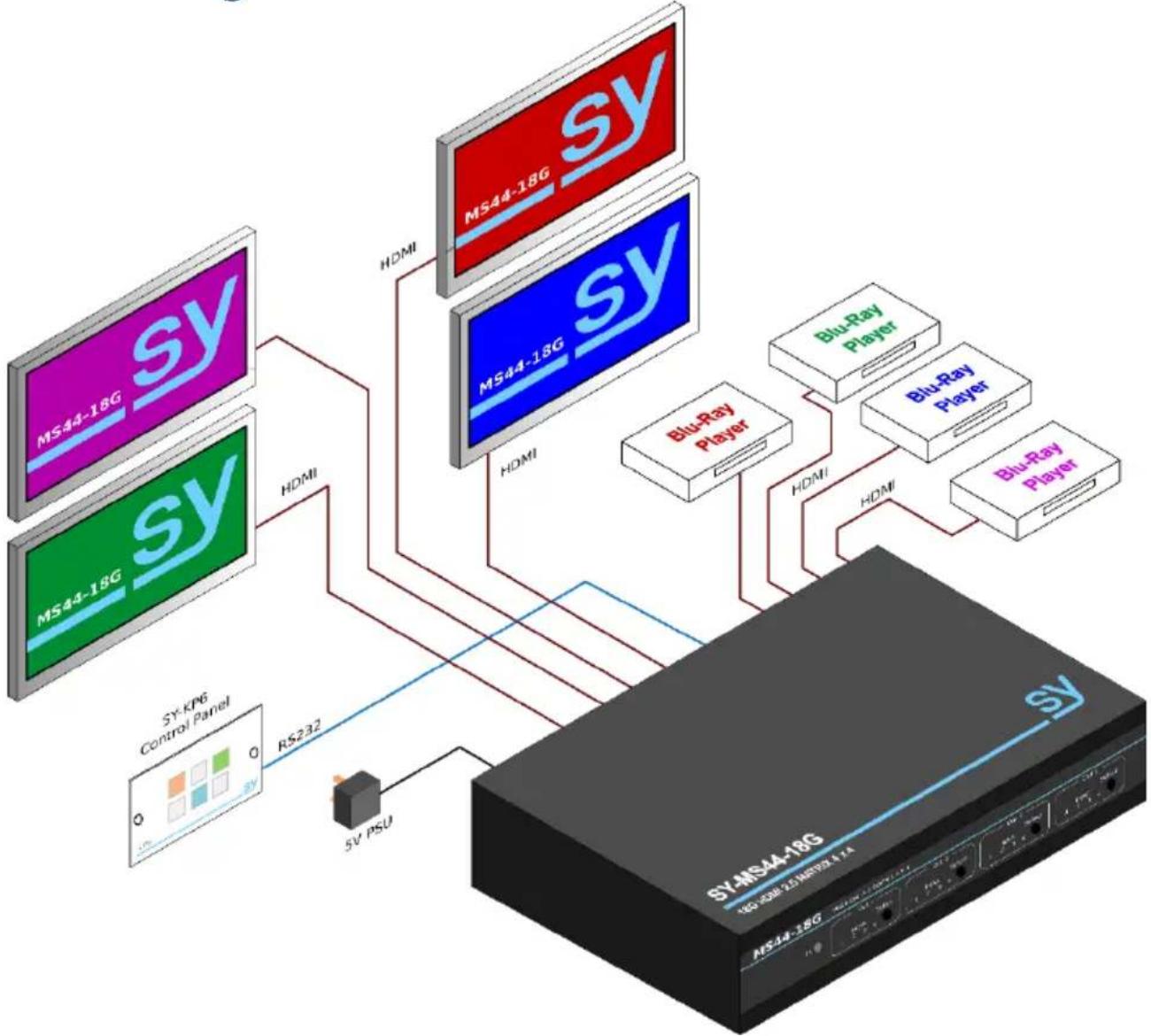
flowchart
graph TD
    A["MS44-18G"] -->|HDMI| B["MS44-18G"]
    C["MS44-1SG"] -->|HDMI| B
    D["Control Panel"] -->|RS232| E["SY-IP6"]
    E -->|5V PSU| F["SY-MS44-18G"]
    B --> G["Blu-Ray Player"]
    B --> H["Blu-Ray Player"]
    B --> I["Blu-Ray Player"]
    B --> J["Blu-Ray Player"]
    B --> K["MS44-18G"]
    style A fill:#f9f,stroke:#333
    style C fill:#f9f,stroke:#333
    style D fill:#f9f,stroke:#333
    style E fill:#ccf,stroke:#333
    style F fill:#cff,stroke:#333
    style G fill:#ffc,stroke:#333
    style H fill:#ffc,stroke:#333
    style I fill:#ffc,stroke:#333
    style J fill:#ffc,stroke:#333
    style K fill:#ffc,stroke:#333
RS232 and IP Commands
All RS232 commands are sent with the following settings:
115200 baud, 8 bits, no parity and 1 stop bit.
All commands are stated in ASCII notation and must be used as given in the following tables. The spaces shown in the commands are required and the command must only contain the values given in the Description column.
Commands can also be sent to the LAN CTL port using the following default IP settings:
Host IP Address: 192.168.1.168
Subnet Mask: 255.255.255.0
Router IP Address: 192.168.1.1
TCP Port: 5001
Input Selection
| Command | Description |
| @W op in # | Set matrix switch routing for video selection:op is 00 to 03 for outputs 1 to 4, or 04 for all outputsin is 00 to 03 for inputs 1 to 4 |
| @W 04 00 01 02 03 # | Mirror inputs and outputsThus, 1 -> 1, 2 -> 2, 3 -> 3 and 4 -> 4This command can also be used to set all the outputs to any input |
Power Mode
| Command | Description |
| @W 0F 00 # | Enter Standby mode |
| @W 0F 01 # | Exit standby mode |
System Commands
| Command | Description |
| @W 50 # | RebootMimics repowering the matrix switcher |
| @W 51 # | Restore Factory SettingsRemoves all previously programmed settings |
EDID Settings
| Command | Description | |
| @W XX AA BB # | XX is the Input NumberXX is 05 for input 1XX is 06 for input 2XX is 07 for input 3XX is 08 for input 4 | AA is the Video ModeAA is 00 for 1080pAA is 01 for 4K2K@30AA is 02 for 4K2K@60 (YC420)AA is 03 for 4K2K@60 (YC444) |
For the EDID setting command, BB is a bit mask (7,6,5,4,3,2,1,0) that allows multiple options to be set at the same time. For the colour depth settings, the values for bits 4 to 6 may be used in any combination to enable all desired colour depth modes. Bit 1 to select the number of audio channel, but only one bit must be set for these audio bits.
Bit 7 (HDR mode) and bit 0 (3D mode) can be used independently of all the other bits.
| Bit(s) | Function | Mode when Set (1) | Mode when Clear (0) |
| 7 | HDR | HDR On | HDR Off |
| 6, 5 & 4 | Colour Depth | 654xx1 = Enable 30 bit colourx1x = Enable 36 bit colour1xx = Enable 48 colourx = bit may 0 or 1 as required | 654xx0 = Disable 30 bit colourx0x = Disable 36 bit colour0xx = Disable 48 colourx = bit may 0 or 1 as required |
| 3, 2, & 1 | Audio Channels | 321001 = 2ch audio010 = 5.1h audio100 = 7.1ch audioAll other bit patterns are not allowed | 321000 = Not allowed |
| 0 | 3D | 3D Mode | 2D Only |
When sending the EDID setting command, the binary bits in the above table will need to be converted to their hexadecimal form as sent as two ASCII characters, for example:
To set the EDID for input 1 to 4K2K@60 (YC444), HDR, 48 bit colour, 7.1ch audio & 3D the binary bit pattern from the above table would be: 11001001, which is C9 in hexadecimal.
Also, XX = 05 for Input 1 and AA = 03 for 4K2K@60 (YC444).
The completed EDID command is: @W 05 03 C9 #
RS232 Control Software
The SY-MS44-18G can also be controlled via RS232 using PC software. The PC must be connected to the matrix switcher to allow the PC software to function correctly. Up on starting the software select the PC serial port from the drop-down list and click on the Connect button in the COM Setting panel.
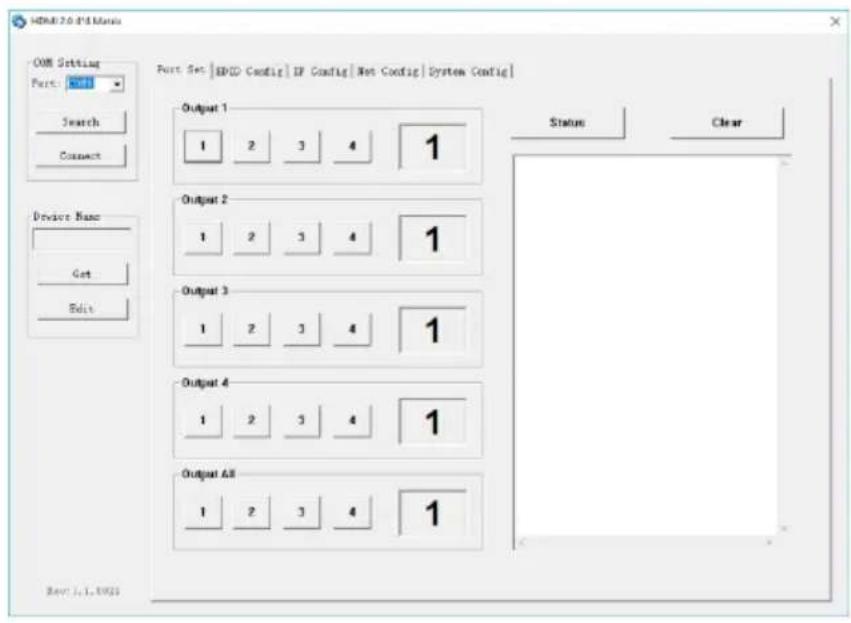
text_image
USB:2.0-4.5 Manager Port Setting Port Set | EP3D Config | IP Config | Net Config | System Config | Output 1 1 2 3 4 1 Output 2 1 2 3 4 1 Output 3 1 2 3 4 1 Output 4 1 2 3 4 1 Output 8 1 2 3 4 1 Status Clear Device Name Get Edit Rev:1.1.0005After clicking the Connect button, the software will read the current status from the matrix switcher.
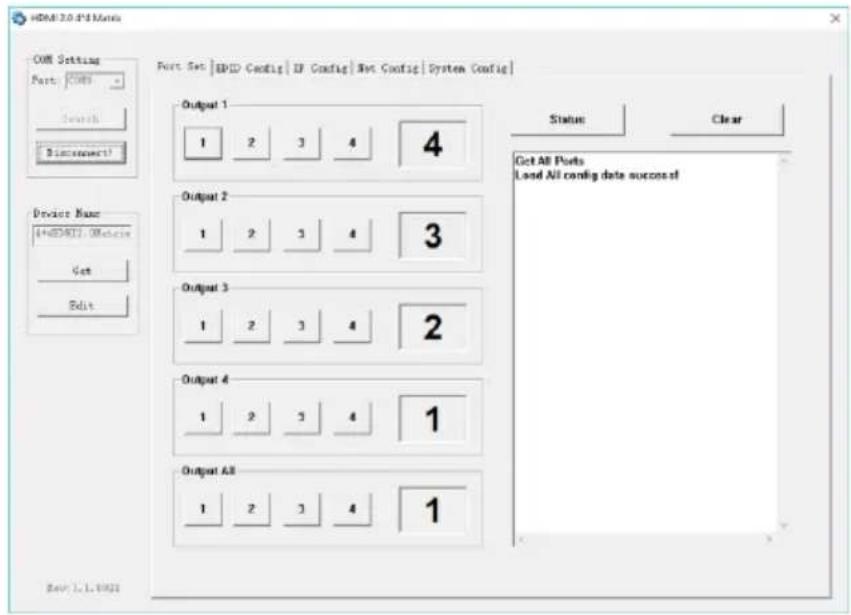
text_image
HDMI 2.0.45 Mono COM Setting Port: HDMI Search Disconnection! Port Set | EPID Config | IP Config | Not Config | System Config | Output 1 1 2 3 4 4 Output 2 1 2 3 4 3 Output 3 1 2 3 4 2 Output 4 1 2 3 4 1 Output AB 1 2 3 4 1 Status Clear Get AB Ports Lead All config date success? Edit Date: J.J.1981Clicking the Edit button in the Device Name panel will allow the user to set a unique name for the matrix switcher that can aid in device identification when installed in a network system.
Port Set Panel
The Port Set panel allows for video selections. Click on any numbered button to select that input for the chosen output group. The Output All group will set all outputs to the chosen input number.
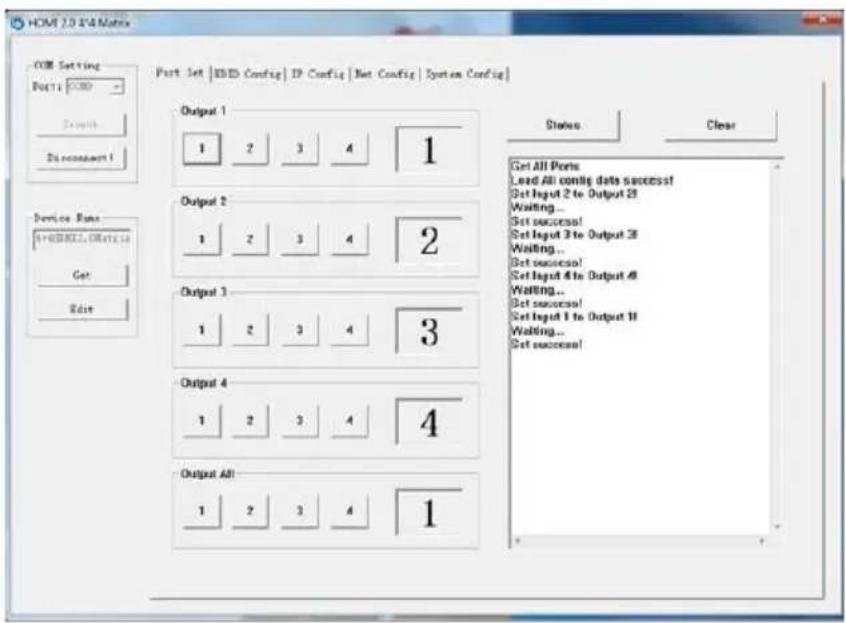
text_image
HDMI 2.0 X4 Matrix COM Setting Port1: HDMI Search Dis nccnspent 1 Device Run: SPRSDRL, SRTSL10 Get Edit Port Set | EBD Config | IP Config | Net Config | System Config Output 1 1 2 3 4 1 Output 2 1 2 3 4 2 Output 3 1 2 3 4 3 Output 4 1 2 3 4 4 Output All 1 2 3 4 1 Staves Clear Get All Ports Lead All config data success! Set Input 2 to Output 28 Waiting... Set success! Set Input 3 to Output 36 Waiting... Set success! Set Input 4 to Output 48 Waiting... Set success! Set Input 5 to Output 56 Waiting... Set success! Set Input 6 to Output 68 Waiting... Set success!EDID Config Panel
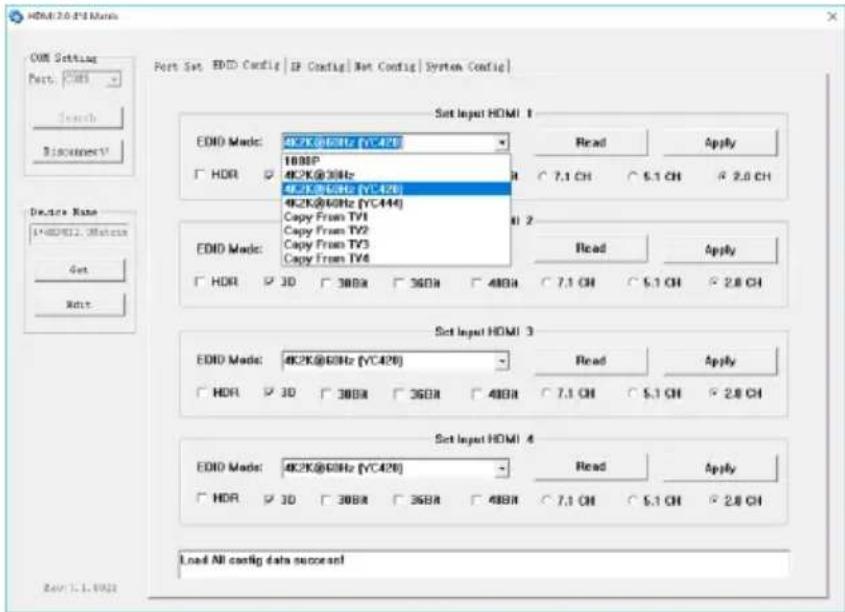
The EDID Config panel allows the EDID settings for each input to be configured as required. Note that the HDR, 3D, 30Bit, 36Bit and 48Bit options may be used in any combination, whereas only one audio mode can be selected. Whenever any of the Copy From TV1 to Copy From TV4 options are selected, the option buttons below that selection box are not available.
text_image
HDMI:2.0 F4 Modem Port Set: EDD Config | IP Config | Net Config | System Config | Set Input HDMI 1 EDD Mode: 4K2K@60Hz (VC428) 1000P 4K2K@30Hz 4K2K@60Hz (VC428) 4K2K@40Hz (VC444) Copy From TV1 Copy From TV2 Copy From TV3 Copy From TV4 Read Apply 7.1 CH 5.1 CH 2.0 CH 2 EDD Mode: HOR 3D 300A 360A 480A 7.1 CH 5.1 CH 2.0 CH Read Apply Set Input HDMI 3 EDD Mode: 4K2K@60Hz (VC428) HOR 3D 300A 360A 480A 7.1 CH 5.1 CH 2.0 CH Set Input HDMI 4 EDD Mode: 4K2K@60Hz (VC428) HOR 3D 300A 360A 480A 7.1 CH 5.1 CH 2.0 CH Read Apply Load All config data successfulAfter making any changes, click the relevant Apply button to store them in the matrix switcher.
The Read button for each input group reads the data from the current EDID mode of the respective input on the matrix switcher.
IP Config Panel
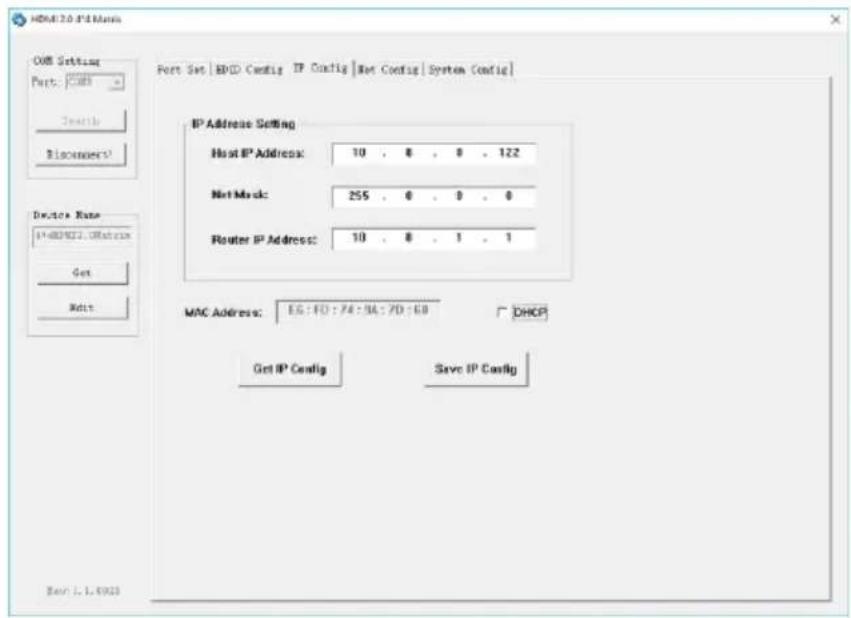
The IP Config panel allows the current IP settings to be viewed or changed. Note that the DHCP checkbox should be unchecked to enable the IP Address Setting controls. Once changes to the settings are complete, click on the Save IP Config button and then reset the matrix switcher by either power-cycling the unit or clicking on the Reset button on the System Config panel.
sy.uk 8 V1.0
This panel can also be used to determine the IP address of any SY-MS44-18G matrix switcher that is connected to the RS232 port.
text_image
HDMI:2.0 IP Menu Port Set | EPD Config | IP Config | Net Config | System Config | IP Address Setting Host IP Address: 10 , 8 , 8 , 122 Net Mask: 255 , 8 , 8 , 8 Router IP Address: 10 , 8 , 1 , 1 MAC Address: EG:FD:74:94:7D:6B DHCP Get IP Config Save IP Config End: 1.1.0023Note that the MAC address is fixed and cannot be changed.
Net Config Panel
The Net Config panel provide the following features:
- Determine how many SY-MS44-18G matrix switchers are on the local network and their IP settings.
- Allow a web browser to be opened for the selected matrix switcher.
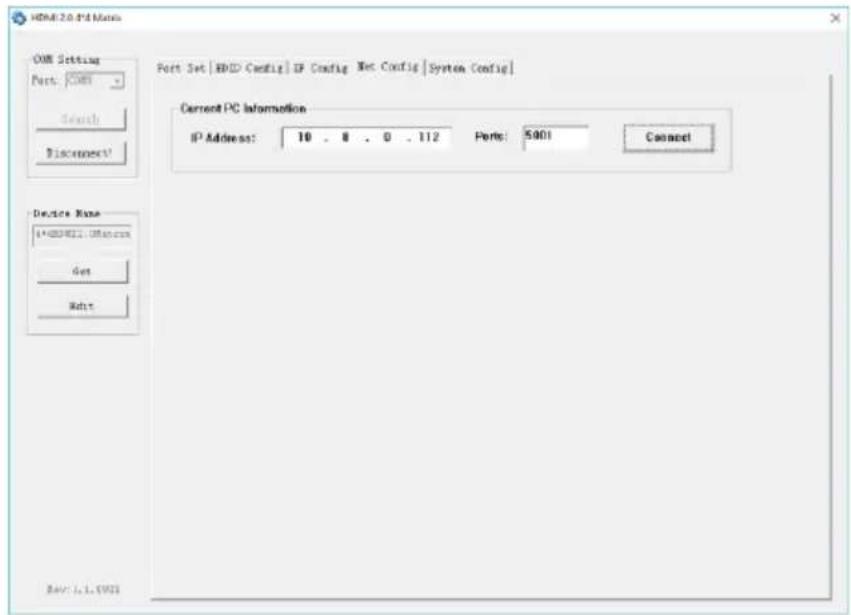
On the first panel, the IP Address is that of the controlling PC.
text_image
HDMI 2.0 Pd Manager OMI Setting Port: OMI Search Disconnect Port Set | EPID Config | IP Config | Net Config | System Config | Current PC Information IP Address: 10 . 8 . 0 . 112 Ports: 5901 Connect Device Name: 1*#000001.CMS.com Get Help Rev: 1.1.CMSClick the Connect button in the Current PC Information section:
text_image
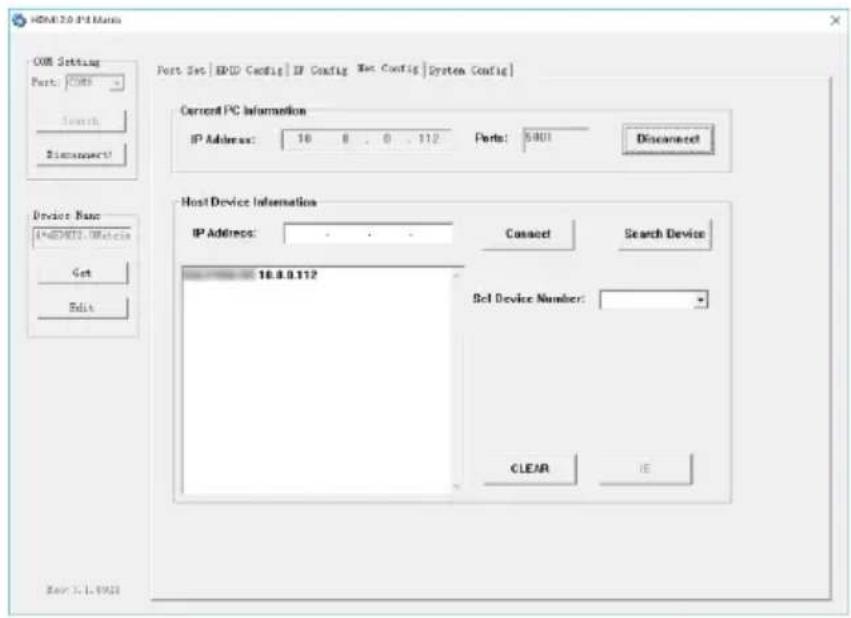
HDMI 2.0 Pkt Menu COM Setting Port: COM Search Disconnection! Current PC Information IP Address: 10 8 0 112 Ports: 5901 Disconnected Host Device Information IP Address: Connect Search Device 16.8.8.112 Set Device Number: CLEAR IE Get Edit Rev 3.1.1943Click the Search Device button to obtain a list of all SY-MS44-18G units on the local network.
Use the Set Device Number list to choose the desired matrix switcher.
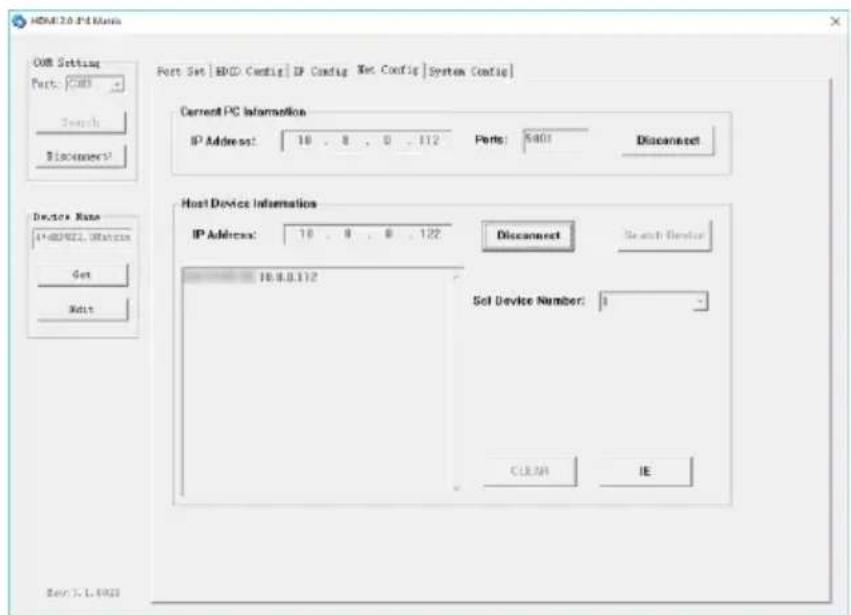
Click the Connect button in the Host Device Information section:
text_image
HDMI 2.0 P4 Main COM Setting Port: COM Search Discoverer? Port Set [BHD Config] IP Config Net Config System Config] Current IPC Information IP Address: 18 . 8 . 0 . 112 Ports: 5401 Disconnect Host Device Information IP Address: 18 . 8 . 0 . 122 Disconnect Search Server 16.8.0.112 Set Device Number: 1 - CIEAIE IE Rev: 7.1.0923Click IE button to open the web interface in the default browser.
System Config Panel
text_image
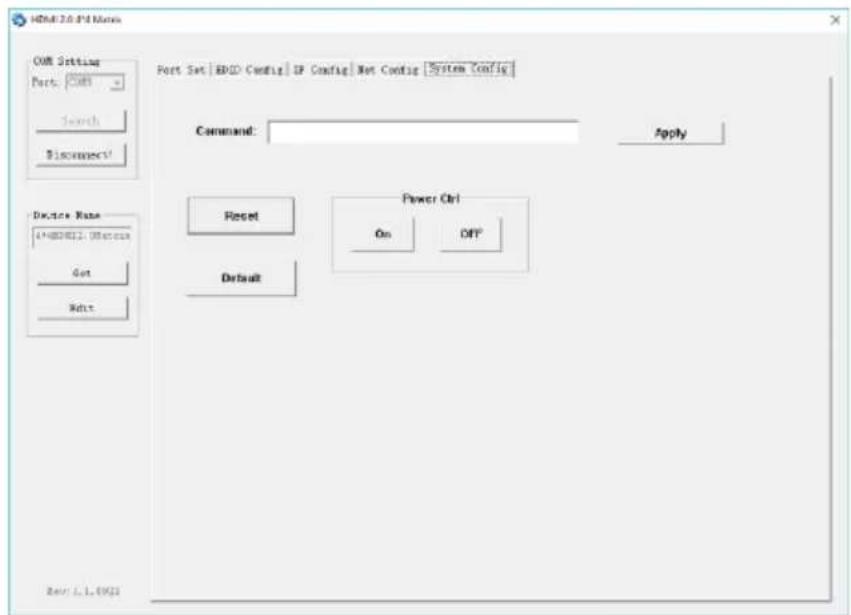
HDMI 2.0-4.9 Name COM Setting Port: COM Search Disconnect! Device Name: [1]NEDRCL, 800000 Get Edit Port Set | BCD Config | IP Config | Net Config | System Config Command: Apply Reset Power Ctrl On OFF Default Rev: L1.0921The System Config panel provides the following features:
- Specific commands can be sent to the matrix switcher when the Apply button is clicked.
- The matrix switcher can be reset to its current power on status. This will be required whenever the IP settings are changed.
- Turn the matrix switcher ON or OFF.
The OFF state is a standby mode that will only respond to the power ON command. While in this mode the HDMI outputs and the front panel of the matrix switcher are turned off.
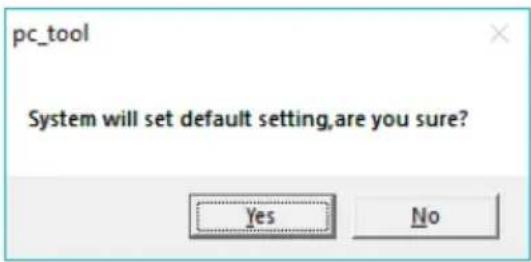
- Restore the matrix switcher to factory defaults. This will reset all settings back to their factory defaults – use with caution when the following window appears:
text_image
pc_tool System will set default setting,are you sure? Yes NoWeb Interface Control
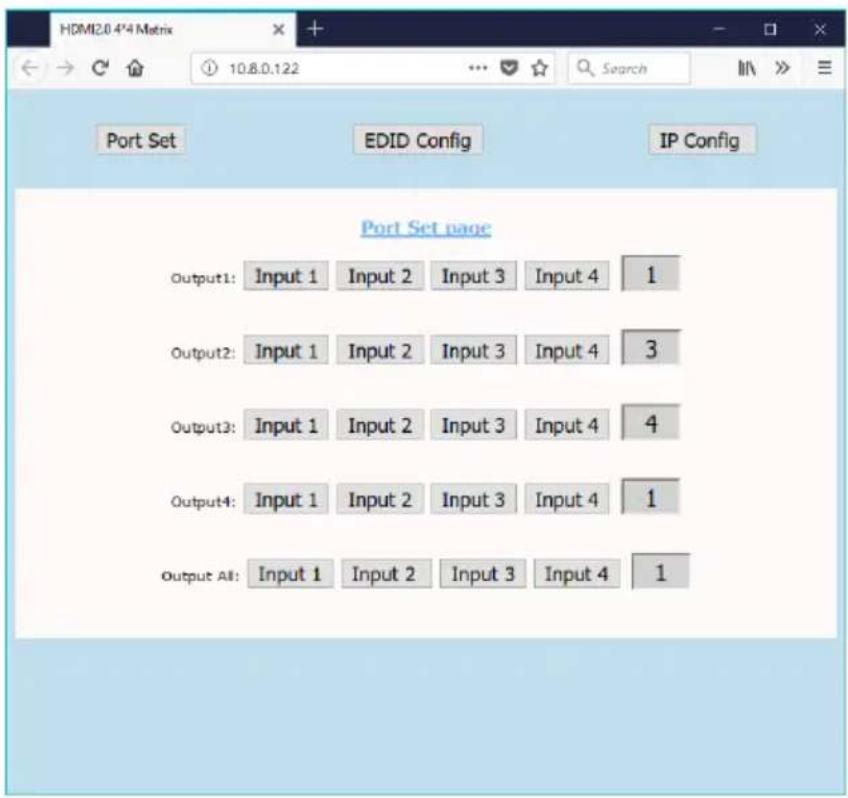
The built-in web interface provides control for input selection, EDID management and IP Configuration. The following browser screens are available after entering the Host IP address in the address bar of a web browser.
If the IP settings are not known, then use the RS232 control software to determine the current IP settings of the SY-MS44-18G as described for the IP Config panel in the RS232 Control Software section given above.
HDMI Selection (Port Set)
The Port Set page allows the user to make video selections for each individual output or for all outputs simultaneously.
text_image
HDMI2.0 4*4 Matrix Port Set EDID Config IP Config Port Set page Output1: Input 1 Input 2 Input 3 Input 4 1 Output2: Input 1 Input 2 Input 3 Input 4 3 Output3: Input 1 Input 2 Input 3 Input 4 4 Output4: Input 1 Input 2 Input 3 Input 4 1 Output All: Input 1 Input 2 Input 3 Input 4 1EDID Config
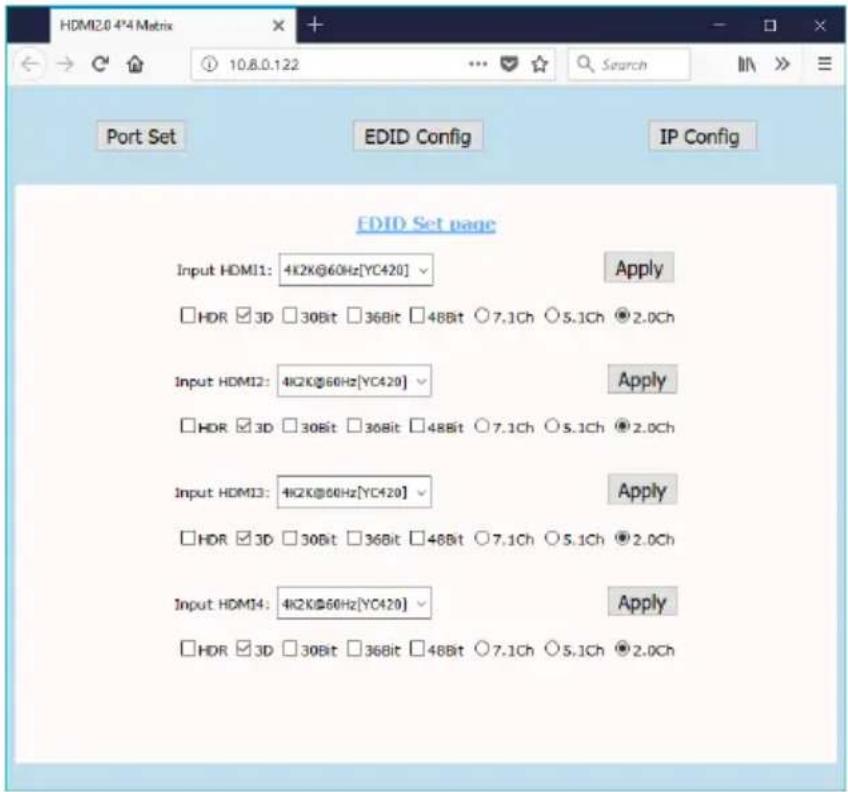
The EDID Config page allows the user to set up the EDID options for each of the four inputs. Note that the HDR, 3D, 30Bit, 36Bit and 48Bit options may be used in any combination, whereas only one audio mode can be selected.
text_image
HDMI2.0 4*4 Matrix Port Set EDID Config IP Config EDID Set page Input HDMI1: 4K2K@60Hz[YC420] Apply □ HDR □3D □30Bit □36Bit □48Bit ○7.1Ch ○5.1Ch ●2.0Ch Input HDMI2: 4K2K@60Hz[YC420] Apply □ HDR □3D □30Bit □36Bit □48Bit ○7.1Ch ○5.1Ch ●2.0Ch Input HDMI3: 4K2K@60Hz[YC420] Apply □ HDR □3D □30Bit □36Bit □48Bit ○7.1Ch ○5.1Ch ●2.0Ch Input HDMI4: 4K2K@60Hz[YC420] Apply □ HDR □3D □30Bit □36Bit □48Bit ○7.1Ch ○5.1Ch ●2.0ChEach drop-down list provides the following EDID options:
1080p
4K2K@30Hz
4K2K@60Hz YCbCr 420 (shown as YC420)
4K2K@60Hz YCbCr 444 (shown as YC444)
Copy From TV1
Copy From TV2
Copy From TV3
Copy From TV4
Note that the last four options (Copy From TV1 to Copy From TV4) do not allow any changes to the option buttons below the respective selection box.
Be sure to only choose the options that are best suited to HDMI source equipment, or use the Copy commands to make the HDMI input signal fully compatible with the display device.
Click the respective Apply button to set the new EDID option for that input.
IP Config
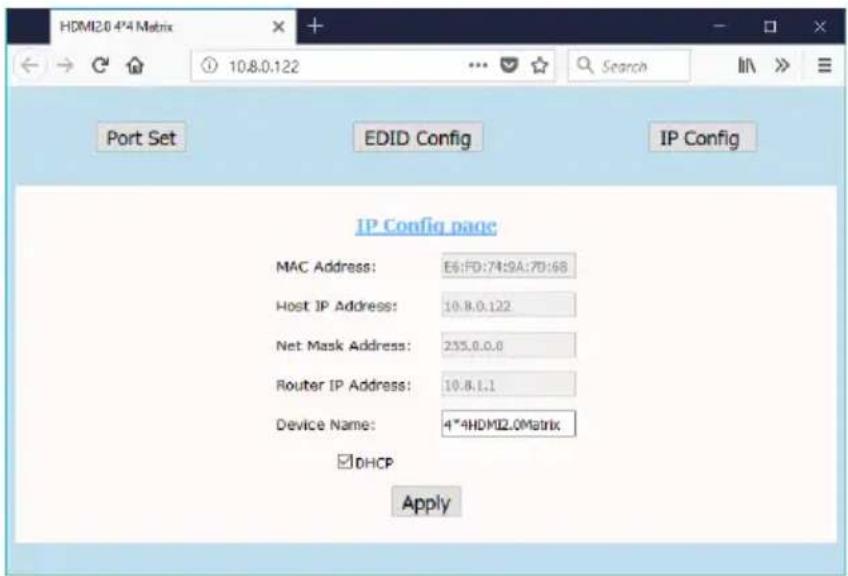
The IP Config page allows the user to configure new IP settings for the SY-MS44-18G. Any changes to these settings will only take effect after clicking on the Apply button.
Changes to the IP settings are only allowed when the DHCP box is not checked. Note that the MAC address cannot be changed at all.
The Device Name box will allow the user to set a unique name for the matrix switcher that can aid in device identification when on a network system.
text_image
HDMI2.0 4*4 Matrix 10.8.0.122 Port Set EDID Config IP Config IP Config page MAC Address: E6:FD:74:9A:7D:68 Host IP Address: 10.8.0.122 Net Mask Address: 235.0.0.0 Router IP Address: 10.8.1.1 Device Name: 4*4HDMI2.0Matrix DHCP ApplySpecifications
General
| HDMI Video Input/output | VESA and SMPTE 480p to 2160p with 3D. All HDMI resolutions to 3840x2160p @60Hz 4:4:4 | ||
| 480p@60Hz | 576p@50Hz | 720p@60Hz | |
| 1080p@24Hz | 1080p@50Hz | 1080p@60Hz | |
| 4K@24Hz 4K@30Hz | |||
| 4K@60Hz YUV4:2:0 4K@60Hz YUV4:4:4 | |||
| All PC resolutions to 1920x1200@60Hz | |||
| Bandwidth | 18 Gbps max. | ||
| HDMI Audio Input / Output | Pass through: All HDMI audio formats including Dolby D (TrueHD) / DTS (HD-Master Audio) / PCM. Channel count: from 2-8 (2.0 to 7.1) Sample rates: 32 kHz, 44.1 kHz, 48 kHz, 88.2 kHz, 96 kHz, 176.4 kHz and 192 kHz | ||
| De-embedded Audio Out | S/PDIF digital audio from HDMI output onto RCA connectors | ||
| Control | RS232, IP & IR RS232 – 115,200 Baud, no Parity, 1 Stop bit IP default address: 192.168.1.168 | ||
| Power Supply | 5V DC @ 3.0A max. | ||
| Power Consumption | 13W max. | ||
Environmental
| Operating Temperature | 0 to +45°C (+32 to +113°F) |
| Operating Humidity | 10 to 90 % RH (non-condensing) |
| Weight | 720g |
Physical
| Dimensions | 216 x 105 x 34mm |
| Case Material | Aluminium chassis |
Safety Instructions
To ensure reliable operation of this product as well as protecting the safety of any person using or handling this device while powered, please observe the following instructions.
- Use the power supply provided. If an alternate supply is required, check the voltage, polarity and that it has sufficient power to supply the device it is connected to.
- Do not operate this product outside the specified temperature and humidity range given in the above specifications.
- Ensure there is adequate ventilation to allow this product to operate efficiently.
- Repair of this product should only be carried out by qualified professionals as this product contains sensitive devices that may be damaged by any mistreatment.
- Only use this product in a dry environment. Do not allow any liquids or harmful chemicals to come into contact with this product.
After Sales Service
- Should you experience any problems while using this product, firstly refer to the Troubleshooting section in this manual before contacting SY Technical Support.
- When calling SY Technical Support, the following information should be provided:
• Product name and model number
• Product serial number
- Details of the fault and any conditions under which the fault occurs.
- This product has a two year standard warranty, beginning from the date of purchase as stated on the sales invoice. For full details please refer to our Terms and Conditions.
- SY Product warranty is automatically void under any of the following conditions:
- The product is already outside of its warranty period
- Damage to the product due to incorrect usage or storage
- Damage caused by unauthorised repairs
- Damage caused by mistreatment of the product
- Please direct any questions or problems you may have to your local dealer before contacting SY Electronics.