
Sportcam-100 - Camcorder LENCO - Free user manual and instructions
Find the device manual for free Sportcam-100 LENCO in PDF.


| Product Type | Camcorder |
| Brand | Lenco |
| Model | Sportcam-100 |
| Image Sensor | 1.3 MP CMOS |
| Lens | F3.1, f=9.3mm |
| Digital Zoom | 4x |
| LCD Display | 2.0-inch touch screen |
| Image Resolution | 5M (2592x1944), 3M (2048x1536), 1M (1280x1024) |
| Video Resolution | 720P (1280x720, 30fps), VGA (640x480, 60fps) |
| Video Format | AVI |
| Image Format | JPEG |
| Storage | TF card up to 32 GB (not included) |
| USB Interface | High-speed USB 2.0 |
| Power Supply | Built-in 3.7V rechargeable lithium battery |
| Charging Time | Approx. 2-4 hours |
| Modes | Photo, Video, Vehicle-mounted, PC Cam, Removable Disk |
| Dimensions (LxWxH) | 67 x 48 x 29 mm |
| Weight | Approx. 46.5 grams |
| System Requirements | Windows 2000/XP/Vista/7, 800MHz CPU, 512MB RAM |
| Auto Shutdown | After 5 minutes of idle time |
| Care and Cleaning | Use soft, dry cloth; avoid water, sand, dust; store in cool, dry place |
| Safety | Do not expose to direct sunlight; do not touch lens; backup data regularly |
| WEEE Directive | Do not dispose as household waste; follow local regulations |
Frequently Asked Questions - Sportcam-100 LENCO
User questions about Sportcam-100 LENCO
0 question about this device. Answer the ones you know or ask your own.
Ask a new question about this device
Download the instructions for your Camcorder in PDF format for free! Find your manual Sportcam-100 - LENCO and take your electronic device back in hand. On this page are published all the documents necessary for the use of your device. Sportcam-100 by LENCO.
USER MANUAL Sportcam-100 LENCO
Thank you for purchasing this video camera. The high-performance chip is adopted for this product which has such advantages as high definition of video, strong in continuity of dynamic pictures, supporting the video format AVI and taking clear pictures. The unique ultra portable design is adopted for this video camera and it is applicable in various fields to enable your daily life convenient, safe and colorful. Make sure to read this manual carefully and keep properly for reference in the future.
This user's manual has referred to the latest information during compiling. The screen display and illustrations are used in this user's manual for the purpose of introducing details of this digital camera in a more specific and direct way. Difference may arise between these displays and illustrations and the digital camera actually available for you due to difference in technological development and production batch, under which case, the actual functions of this video camera shall prevail.
Announcements
Please read the Announcements carefully before using this video camera for proper and safe operation, so as to bring its optimum performance into play and extend its service life.
Do not expose the video camera to sunshine directly, nor point its lens to sunlight. Otherwise, the image
sensor of the video camera may be damaged.
Take good care of the video camera and prevent water or sand particles from entering the video camera when it is used on the beach or near water, because water, sand particles, dust or component containing salt may damage the video camera.
- Keep the video camera contaminated free of dust and chemical materials. Place it in a cool, dry and well ventilated place. Do not place the video camera in a high temperature, moist or dusty place to avoid failure of the video camera.
- Be sure to use the video camera regularly during its long time storage. Please check if the video camera can operate normally before use.
If dirt or stain is accumulated on the video camera or on its lens, use soft, clean and dry rag to wipe it away gently. If the video camera or its lens is stained with sand particles, blow them away gently. Do not use cloth to wipe arbitrarily. Otherwise, it may scratch the surface of video camera or its lens.
If it is required to clean camera surface, firstly blow away the sand dust accumulated on this surface, and then wipe the camera gently with rag or tissue applicable to optical equipments. Please use the cleaning agent of video camera for wiping if necessary. Do not use organic solvent to clean the video camera.
◆ Do not touch the lens surface with fingers.
◆ Please back up the data if the memory card inside this digital camera is used for the first time. After that, format the memory card of this video camera at one time.
◆ The externally installed SD and MMC cards are manufactured from precise electronic components. Data may be lost or damaged under the following circumstances:
1. Improper use of the memory card
2. The memory card is bent, dropped or collided.
3. Place it under high temperature or moist environment or expose to sunshine directly.
4. Electrostatic or electromagnetic field exists around the memory card.
5. This memory card is taken out or power supply is interrupted when this camera or computer is connected to the memory card (i.e. during reading, writing and formatting).
6. Touch the metal contact surface of the memory card with fingers or metal materials.
7. The service life of the memory card expires (please replace the memory card regularly).
Product Introduction
◆ This product is small in and ease for installation.
The high-performance chip is adopted for this product which has such advantages as high definition of video, strong continuity of dynamic pictures, video recording available under low illumination level and supporting video format of AVI.
◆ Camera shooting can support VGA (640 x 480) and HD (1280 x 720) modes.
◆ Dimensions of 5M, 3M and 1M are available for taking pictures.
This product supports the watermark function for time and date and the videotape can display current time and date synchronously.
◆ Support high-speed USB2.0
◆ Support SD card of 32G to a maximum.
The recording mode of circulating coverage is adopted for this product, which can cover original pictures with new ones to keep rolling record in cycles.
◆ This product supports the video output and the in-situ playback function. The recorded video contents may
be inquired on the spot via vehicle-mounted displayer. Meanwhile, it supports the television and computer playback.
System Requirements
| System Requirements | |
| Operating System | Microsoft Windows2000, XP, Vista, 7 |
| CPU | Intel Pentium III of more than 800MHz or other CPU with equivalent performance |
| Internal Memory | Larger than 512MB |
| Sound Card and Display Card | The sound card and display card shall support DirectX8 or higher version. |
| CD Driver | Speed of 4 times or faster |
| Hard Disk | Free space of more than 500MB |
| Others | One standard USB1.1 or USB2.0 port |
Introduction to Appearance and Keypad
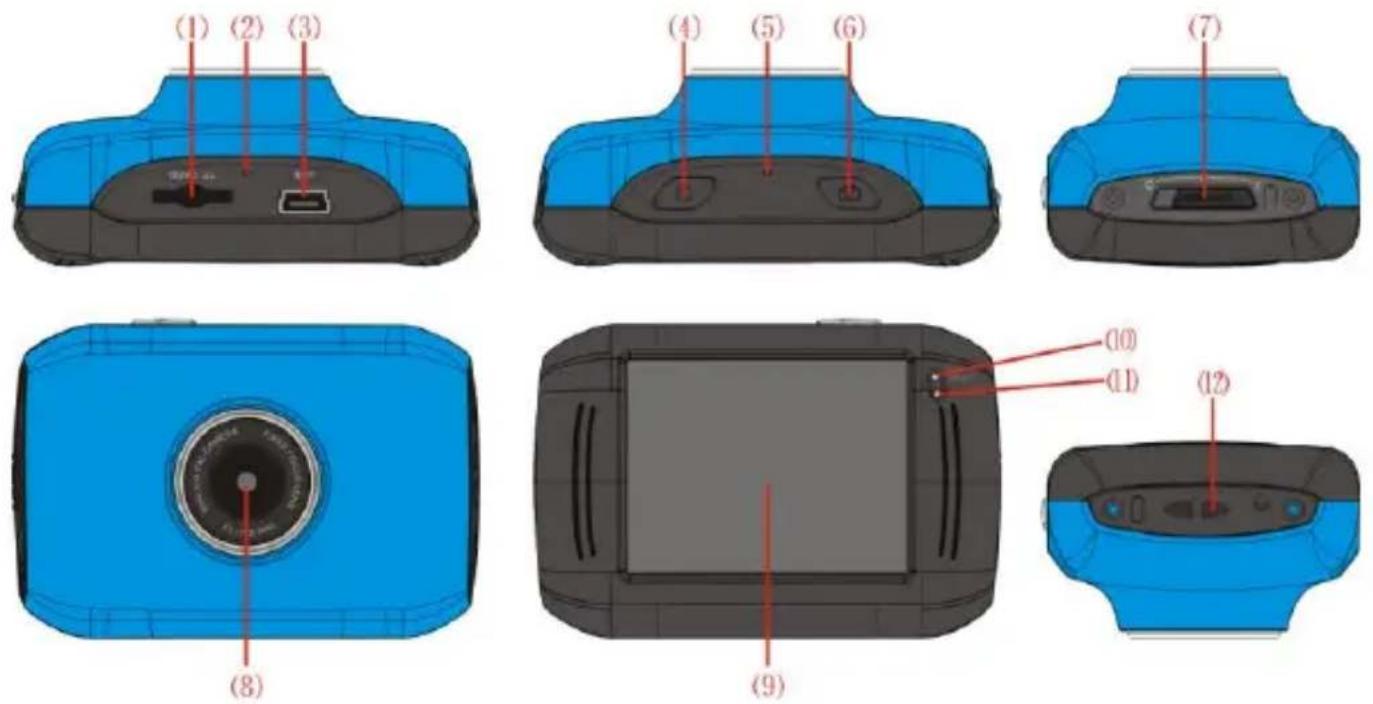
(1)TF card
(8)Lens
(2)Reset
(9)LCD TFT
(3)USB
(10) Working Indicator Light
(4)Key for Startup/shutdown
(11)Indicator Light for charging
(5)MIC
(12)Lanyard hole
(6)Shutter Key
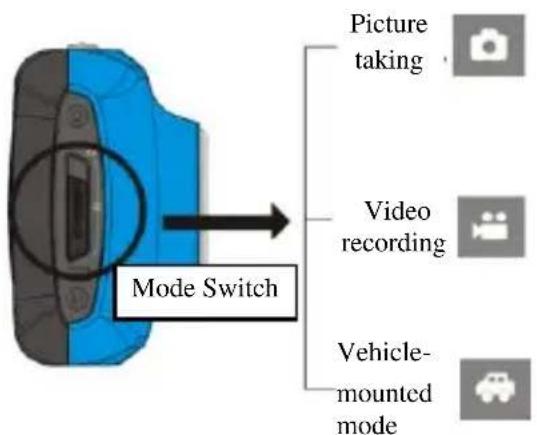
(7) Mode Switch:
-Taking Pictures
-Video Recording
-Vehicle-mounted Mode
Usage
1. Charge the built-in lithium battery
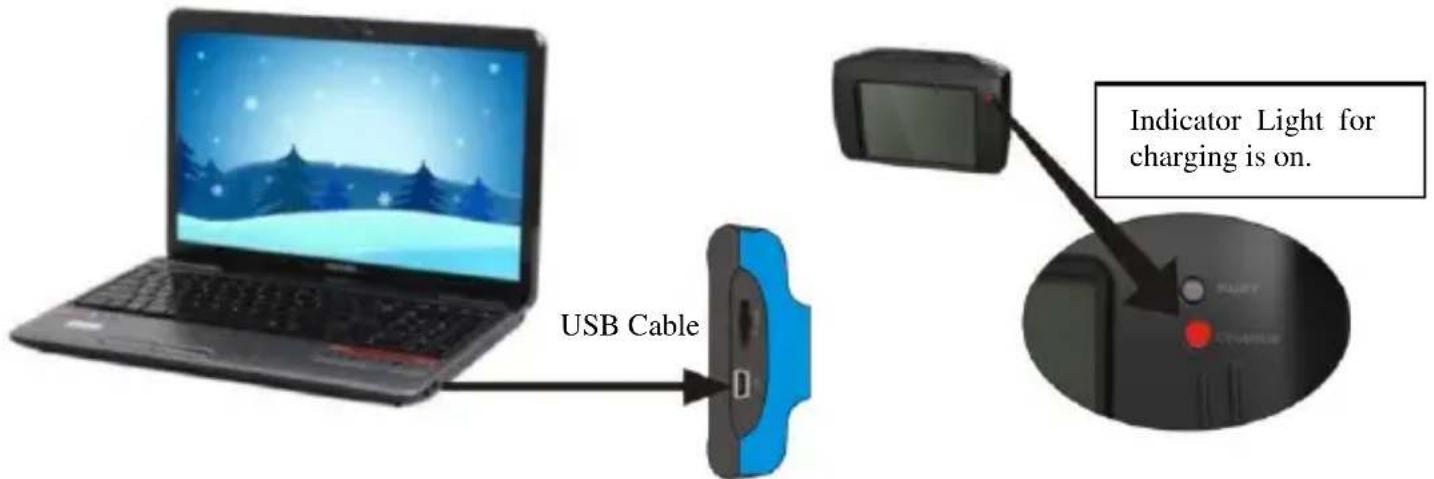
Connect the camera with computer for charging in the shutdown state. The indicator light for charging is on at this time and will be off after charging. In general, it can be fully charged after 2-4 hours.
2. Use of Memory Card
-
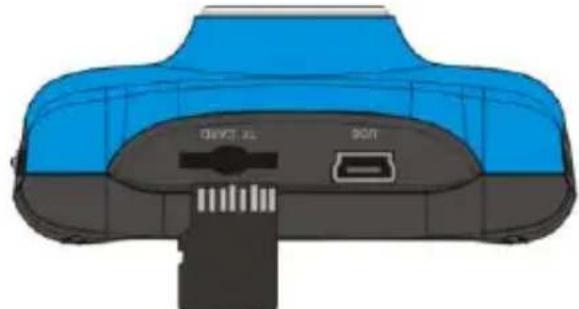
Push the TF card into the card slot according to the concave lettering beside the slot of memory card till it is completely inserted.
-
To take out the TF card, gently press the end of the memory card inward and it will pop up.
natural_image
Top-down view of a blue gaming device showing front panel, internal ports, and cable (no text or symbols visible)Note: No built-in memorizer is available in this video camera. Make sure to insert memory card before using.
- Startup/Shutdown
3.1 Startup: Press the POWER Key for 3 seconds, the screen is displayed and the camera enters the startup state.
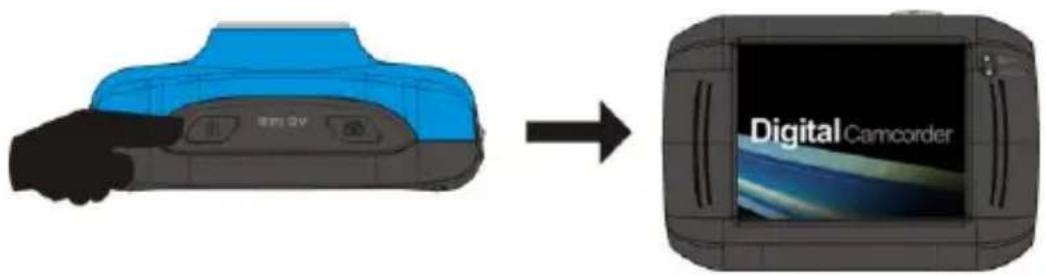
3.2. Shutdown: Press the POWER Key once under idle condition, and the camera will be shut down.
Automatic shutdown: when the idle time of the video camera reaches the time for automatic shutdown, it will be shut down automatically to save power. The default time of this camera for automatic shutdown is 5 minutes.
3.3. Shutdown in case of power shortage: when the power of the battery is insufficient, the LCD display screen will display the icon. Please charge it in time. When the icon turns into red and flickering, the video camera will be shut down automatically.
4. Conversion between Function Modes
Three modes are available for this video camera, i.e. picture taking mode, video recording mode and vehicle-mounted mode. Conversion is available via the mode switch after startup.
Picture taking mode: pictures can be taken;
Video recording mode: video can be recorded;
Vehicle-mounted mode: videotape can be recorded.
(one section every 5 minutes)
flowchart
graph TD
    A["Mode Switch"] --> B["Picture taking"]
    A --> C["Video recording"]
    A --> D["Vehicle-mounted mode"]
5. Indicator light
Busy light: when the camera is busy (such as, recording a film, taking photos, automatic off-screen), the busy light will be on.
Charging light: when the light is on for a long time, it prompts the user that the camera is charging.
6. Video recording mode
When the mode switch is turned to video mode, press the shutter button once or click the LCD center once to begin videoing under previewing state; press the shutter button once again if you want to stop videoing, and the camera will also stop videoing automatically when the memory card is full or the power is insufficient during videoing period:
1 00:12:18: Timer means that videoing can still last for 12 minutes and 18 seconds.
2 : mode icon represents that the camera is in videoing and recording mode at present.
3 : videoing size clicks this icon and you can choose 720P/VGA.
4 : means that the memory card is inserted at present.
5 : digital zoom icon, click it and enlarge it.
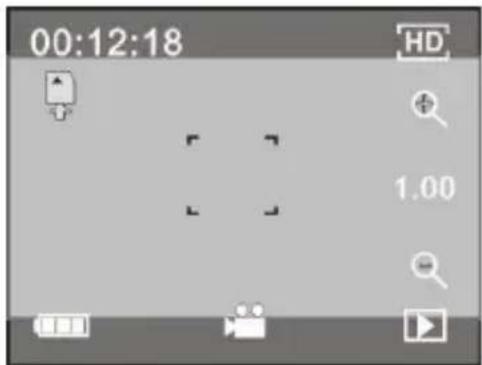
6 : digital zoom icon, click and minify it.
7 : visual shutter, click this icon for taking photos or recording.
8 : battery icon represents the present power of the battery.
9 : represents digital zoom times.
10 : click this icon to switch to the playback mode.
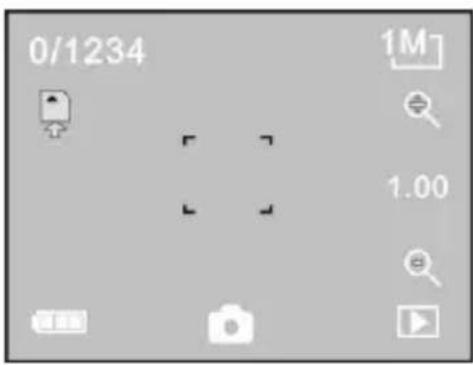
7 Photo mode:
Switch the mode switch into the photo mode, press the shutter button or click the LCD center once under the previewing state to take a photo:
1 0/1234: Counter, indicating current number of photos taken already /number of photos to be taken.
2 : mode icon, indicating that the camera is in photo taking mode at current.
3 : video size, click this icon to select 1M/3M/5M.
4 : means that the memory is been inserted at present.
5 : digital zoom icon, click it to enlarge.
6 : digital zoom icon, click it to minify.
7 : visual shutter, click this icon for taking photos or videoing.
8 : battery icon, indicates the power of the battery at present.
9 : indicates digital zooming times.
10 : click this icon to switch to the playback mode.
8 Vehicle-mounted mode:
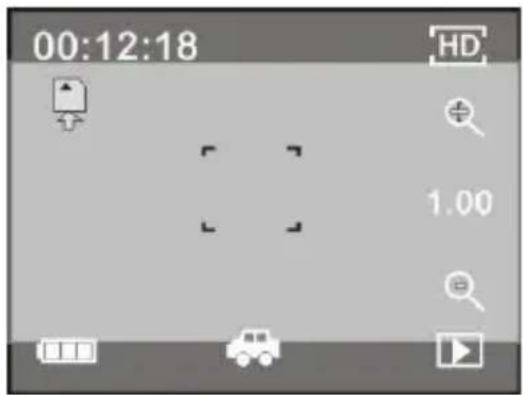
Turn the mode switch to vehicle-mounted mode, press the shutter button or click the LCD center once under the preview state to begin recording, save a segment for recording every 5 minutes, then start to record the next segment of video. When the storage card is full, the earliest segment of video will be deleted to release the corresponding space for continuous recording, and so the cycle.
1 00:12:18 timer, indicating that the camera can still record for 12 minutes and 18 seconds.
2 : mode icon, representing that the camera is in vehicle-mounted mode at present.
3 : video size, click this icon to select 1M/3M/5M.
4 : represents that the memory card is been inserted at present.
5 : digital zoom icon, click it to enlarge.
6 : digital zoom icon, click it to minify.
7 : visual shutter, click it for taking photos and recording.
8 : battery icon, representing the current power of the battery.
9 : indicates the digital zooming times.
10 : click this icon to switch into the playback mode.
Note: the screen will be off automatically during recording process in order to save power; user can press the power button shortly to start the screen and restore display.
9 Playback mode:
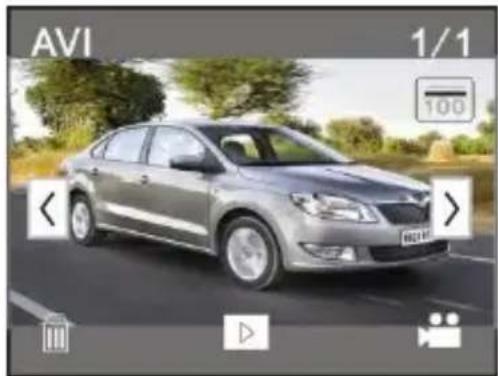
9.1 After starting up and entering the previewing state, click the playback icon ( ) at the lower right corner
of the LCD to switch to the playback mode:
Click
1 : represents that the current file is an AVI video file.
2 : represents that there is one file in the current folder/one file in total.
3 : current folder name (such as: I:\DCIM\100MEDIA
I: is the movable disk of the device).
4 : Means that clicking can select files frontwards.
5 : Means that clicking can select files backwards.
6 : Means that clicking can activate to confirm the deletion of the current file picture.
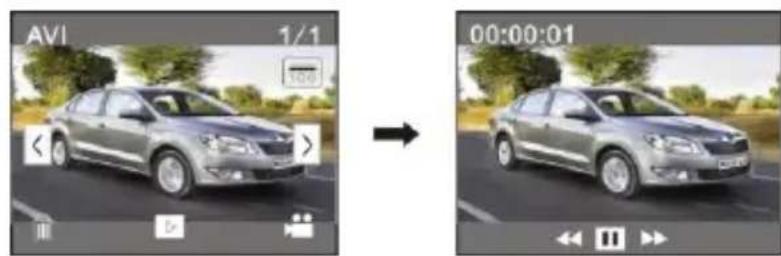
7 : Means that clicking can play the current movie clips.
8 : Means that clicking can switch back the previous photo mode (video mode).
natural_image
Silver sedan driving on a road with greenery and a camera interface overlay (no readable text or symbols in the image)9.2 Movie clips playing:
natural_image
Side-by-side comparison of a silver sedan on a road before and after camera exposure, showing video editing interface (no text or symbols on the car or road)Click to pause playing, click to play quickly, and click to play slowly.
9.3 File deletion:
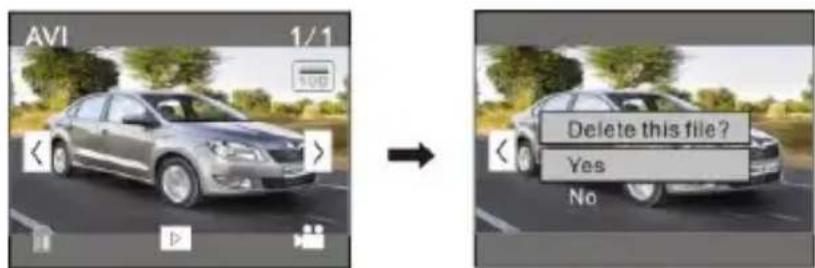
Click YES to delete the current file immediately, or click NO to cancel the deletion operation.
Apply on the personal computer
1. Connect to personal computer
The camera is provided with the plug and play function. Connect the device to the computer with USB line under turning-on state, then it will be switched into the movable hard disk mode.
Icon of movable disk will appear on the window of "my computer". Photos/videos you have taken are saved in folder I:\DCIM\100MEDIA (I is the movable disk of this device) in the movable disk. Files recorded in vehicle-mounted mode are saved in I:\DCIM\RECORDER.
Note: if movable disk function is used in windows 2000 or windows operating system with a higher edition, it is unnecessary to install drivers.
2、PC Cam Function
The default mode is Removable Disk when connected to the Computer, press shutter button to switch to the PC
Cam mode (the display will show "PC CAM" marks).
Install the PC Cam driver before switching to PC Cam model as following steps:
Put the CD Driver into the CD-ROM of the computer, Click "My computer" and then open F disk space, unzip
"Driver.rar" to the computer, and click driver.exe to install the driver as following graphic
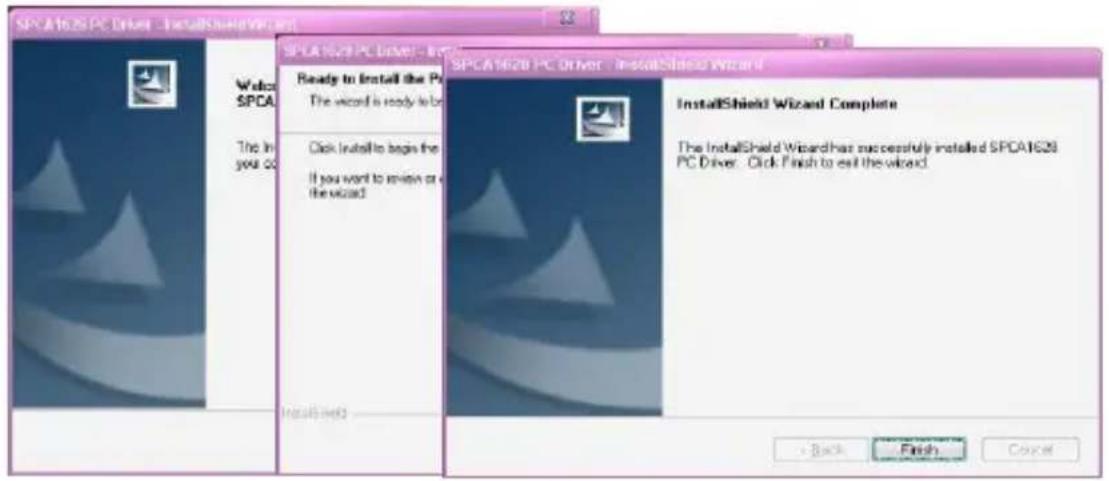
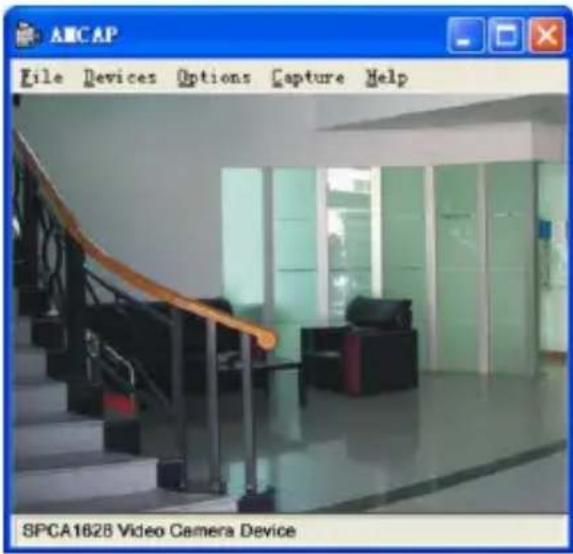
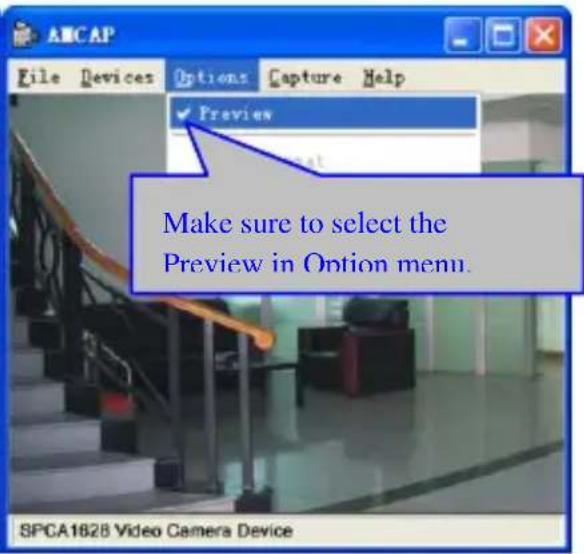
After installed, click start-program- “SPCA1628 PC Driver” in the program menu, Click Amcap shortcut icon, then enter into AMCAP window as following graphic
Technical parameters
| Image sensor | 1.3 million pixel (CMOS) | |
| Function mode | videoing, taking photos, vehicle-mounted mode, movable disk, PC cam | |
| Camera lens | F3.1 f=9.3mm | |
| Digital zooming | 4 times | |
| Shutter | Electronic shutter | |
| LCD display screen | 2.0-inch touch screen | |
| Image resolution | 5M (2592×1944), 3M (2048×1536), 1M(1280×1024) | |
| Video resolution | VGA: 640x480 (60 frames/second), 720P:1280x720 (30 frames/second) | |
| White balance | Automatic | |
| Exposure | Automatic | |
| File formats | Image | AVI |
| Video | JPEG | |
| Storage medium | TF card (Supporting up to 32GB), (without build-in flash memory) | |
| USB interface | High-speed USB 2.0 interface | |
| Power Supply | Built-in 3.7V rechargeable lithium | |
| Dimension (length × width × height) | 67*48*29mm | |
| Weight | about 46.5 grams | |

natural_image
Simple line drawing of a trash bin with crossed lines indicating no waste or discharge (no text or symbols)This symbol indicates that the relevant electrical product or battery should not be disposed of as general household waste in Europe. To ensure the correct waste treatment of the product and battery, please dispose them in accordance to any applicable local laws of requirement for disposal of electrical equipment or batteries. In so doing, you will help to conserve natural resources and improve standards of environmental protection in treatment and
disposal of electrical waste (Waste Electrical and Electronic Equipment Directive).
- Announcements
- Product Introduction
- Usage
- Charge the built-in lithium battery
- Use of Memory Card
- Conversion between Function Modes
- Indicator light
- Video recording mode
- Photo mode:
- Vehicle-mounted mode:
- Playback mode:
- Click
- Movie clips playing:
- File deletion:
- Apply on the personal computer
- Connect to personal computer
- 2、PC Cam Function
Brand : LENCO
Model : Sportcam-100
Category : Camcorder