
AVIC-8000NEX - Gps PIONEER - Free user manual and instructions
Find the device manual for free AVIC-8000NEX PIONEER in PDF.


| Product Type | GPS navigation system for automobile |
| Brand | Pioneer |
| Model | AVIC-8000NEX |
| Screen Size | 7 inches (WVGA) |
| Screen Type | Capacitive touchscreen |
| Apple CarPlay Compatible | Yes (iPhone 5s/5c/5 with iOS 7.1+) |
| Bluetooth Connection | Yes (calls and audio streaming) |
| Built-in Navigation | Yes with voice guidance |
| Navigation Options | Route guidance, points of interest |
| Supported Audio Formats | MP3, WMA, AAC, etc. |
| USB Inputs | 1 (Lightning to USB cable) |
| Power Supply | 12 V DC (vehicle battery) |
| Dimensions (approximate) | 178 x 100 x 165 mm (double DIN) |
| Weight (approximate) | 1.6 kg |
| Operating Temperature | -10°C to 60°C |
| Available Languages | French, English, German, etc. |
| Maintenance | Clean with a soft, dry cloth |
| Safety | Do not use certain functions while driving |
| Repairability | Contact a professional installer |
Frequently Asked Questions - AVIC-8000NEX PIONEER
User questions about AVIC-8000NEX PIONEER
0 question about this device. Answer the ones you know or ask your own.
Ask a new question about this device
Download the instructions for your Gps in PDF format for free! Find your manual AVIC-8000NEX - PIONEER and take your electronic device back in hand. On this page are published all the documents necessary for the use of your device. AVIC-8000NEX by PIONEER.
USER MANUAL AVIC-8000NEX PIONEER
The function described in this document
Apple CarPlay (iPhone 5s, iPhone 5c, iPhone 5, with iOS 7.1 or later installed)
For details refer to Using Apple CarPlay.
Notes on Bluetooth connection
- The Bluetooth connection between this product and the iPhone will be automatically terminated* when the iPhone is connected to this product via a Lightning to USB cable.
* If a Bluetooth call is in progress when the iPhone is connected by cable, the Bluetooth connection is terminated after the call ends. - Bluetooth audio streaming is not available when the iPhone is connected to this product via Lightning to USB cable.
Notes on the navigation system
The route guidance on the product will stop automatically if the route guidance function in Apple CarPlay is launched.
Notes on using Apple CarPlay with the AV Receiver
To use Hideaway navigation system and iPod1 at the same time, set "Apple CarPlay" in the "Smartphone Setup" to "Off" beforehand.
Apple CarPlay may not be available in your country or region.
For details about Apple CarPlay, visit the following site:
http://www.apple.com/

WARNING
Certain uses of an iPhone or a smartphone may not be legal while driving in your jurisdiction, so you must be aware of and obey any such restrictions. If in doubt as to a particular function, only perform it while the car is parked. No feature should be used unless it is safe to do so under the driving conditions you are experiencing.
Using Apple CarPlay
You can control Apple CarPlay compatible features directly from the screen.
In Apple CarPlay you can operate each application by tapping or scrolling on the screen of this product.
☐ Some gesture operations in Apple CarPlay may differ from those you are familiar with on your iPhone, depending on the feature.
☐ For iPhone devices compatible with Apple CarPlay, please refer to our website.
To use Apple CarPlay, set the "Apple CarPlay" in the "Smartphone Setup" to "On" beforehand.
- Pioneer is not liable for any issues that may arise from incorrect or flawed app-based content.
- The content and functionality of the supported applications are the responsibility of the App providers.
- In Apple CarPlay, functionality through the product is limited while driving, with available functions determined by the App providers.
- Availability of Apple CarPlay functionality is determined by the App provider, and not determined by Pioneer.
- Apple CarPlay allows access to applications other than those listed (subject to limitations while driving), but the extent to which content can be used is determined by the App providers.
Starting procedure
1 Connect an iPhone to this product via a Lightning to USB cable.
The Application menu screen appears.
☐ If an iPhone has been connected and another screen is displayed, touch [Apple CarPlay] on the Top menu screen to display the Application menu screen.
2 Touch the desired Apple CarPlay feature or application icon.
The desired feature or application is launched, and the operation screen appears.
3 Operate the feature or application.
Setting the driving position
You can change the display position of the side bar on the Application menu screen according to the driving position.
1 Touch the HOME button to display the Top menu screen.
2 Touch the following keys in the following order.

natural_image
Two icons: a gear and a wrench, both pointing to a tool (no text or symbols)The "System" screen appears.
3 Touch [Apple CarPlay settings].
4 Touch [Driving Position].
5 Touch the item you want to set.
- Left (default):
Select for a left-hand drive vehicle. The side bar on the application menu is displayed on the left-hand side of the screen.
• Right:
Select for a right-hand drive vehicle. The side bar on the application menu is displayed on the right-hand side of the screen.
The setting will be applied the next time a Apple CarPlay compatible iPhone is connected to this product via a Lightning to USB cable.
Adjusting the volume
You can adjust the guidance volume/alert sound volume separately from the main sound volume.
1 Touch the VOL (+/-) button.
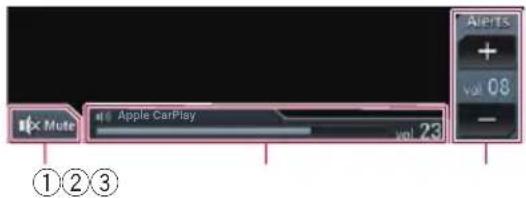
① Touch to mute. Touch again to unmute.
② Displays the main sound volume.
③ Adjusts the guidance volume/alert sound volume. Each touch of [+] or [-] increases or decreases the volume level.
☐ You cannot adjust the volume of the main sound on the screen. Touch the VOL (+/-) button to adjust the volume of the main sound.
☐ The volume menu is displayed for four seconds. If the screen disappears, touch the VOL (+/-) button again. The screen reappears.
Apple CarPlay
Apple CarPlay is a trademark of Apple Inc.
natural_image
Two icons: a gear and a wrench, both pointing to a tool (no text or symbols)Aparece la pantalla "Sistema".
3 Toque [Ajustes Apple CarPlay].
flowchart
graph LR
    A["Gear Icon"] --> B["Tool Icon"]

Brand : PIONEER
Model : AVIC-8000NEX
Category : Gps