
AH100 - Smartwatch ACER - Free user manual and instructions
Find the device manual for free AH100 ACER in PDF.


| Product Type | Windows Mixed Reality Head-Mounted Display |
| Brand | Acer |
| Model | AH100 (H7001) |
| Display Technology | LCD |
| Resolution (per eye) | 1440 x 1440 pixels |
| Total Resolution | 2880 x 1440 pixels |
| Refresh Rate | 90 Hz |
| Field of View | Approximately 100 degrees |
| Audio | 3.5 mm headphone jack (built-in microphone recommended) |
| Connectivity | HDMI 2.0 and USB 3.0 (cable attached) |
| Weight (approx.) | 440 g (without cable) |
| Dimensions (H x W x D) | Approx. 130 x 180 x 100 mm (without strap) |
| Power Source | Powered via USB connection to computer |
| Operating Temperature | 0 °C to 35 °C |
| Storage Temperature | -20 °C to 60 °C |
| Operating Humidity | 20% to 80% (non-condensing) |
| Required Operating System | Windows 10 RS2 (Developer mode) or later |
| Controllers | Optional; compatible with Xbox controller or Windows Mixed Reality controllers |
| Safety Certifications | CE, FCC, RoHS |
| Cleaning | Use a dry microfiber cloth for lenses; skin-friendly non-alcoholic antibacterial wipes for foam; do not wash foam |
| Included Accessories | Head-mounted display, HDMI/USB cable, Quick start guide |
Frequently Asked Questions - AH100 ACER
User questions about AH100 ACER
0 question about this device. Answer the ones you know or ask your own.
Ask a new question about this device
Download the instructions for your Smartwatch in PDF format for free! Find your manual AH100 - ACER and take your electronic device back in hand. On this page are published all the documents necessary for the use of your device. AH100 by ACER.
USER MANUAL AH100 ACER
Windows Mixed Reality
Head-Mounted Display
Development Edition
Quick start guide
Quick start guide
Quick start guide
Product overview
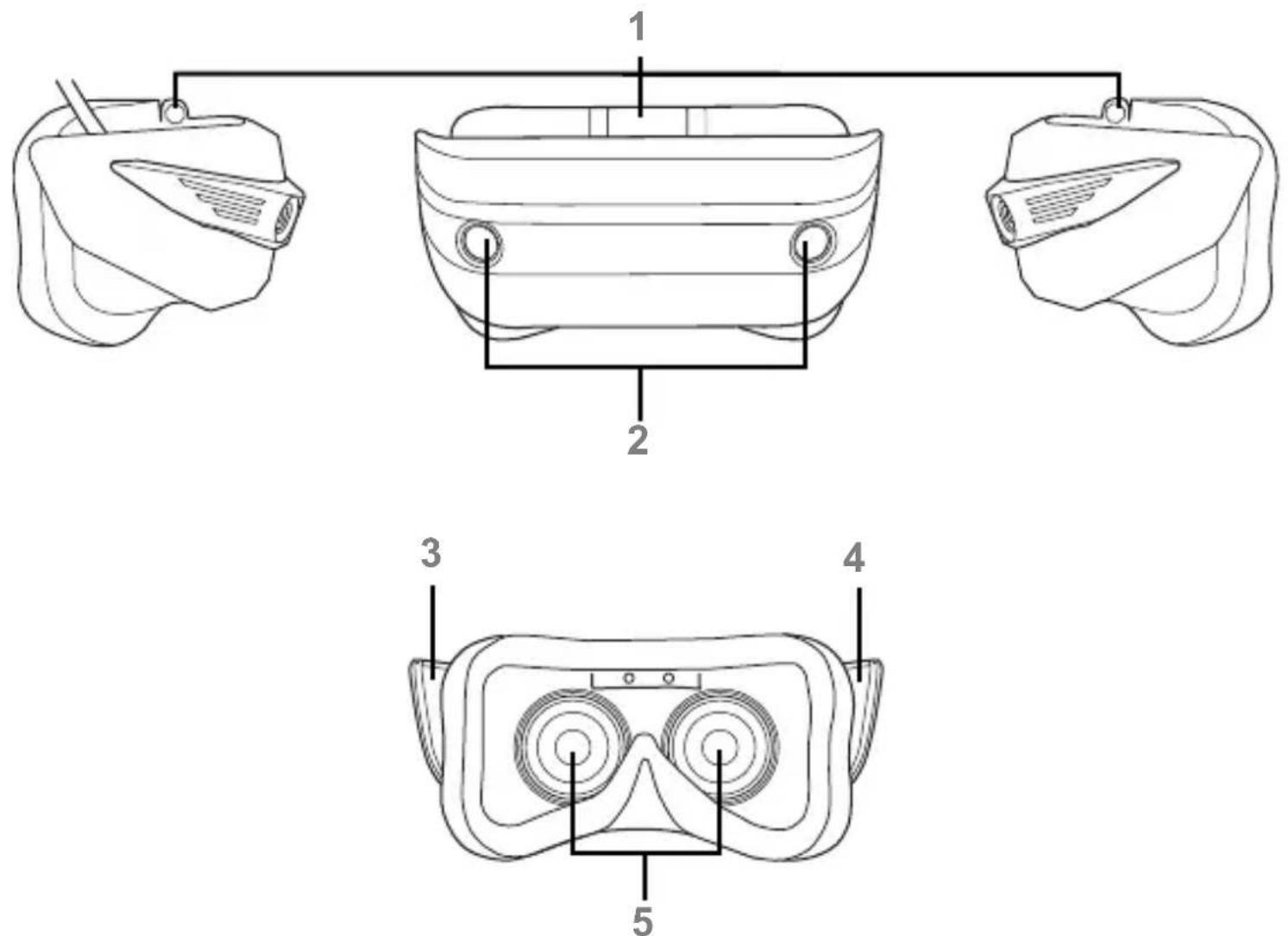
- Strap hinge
- Optical sensors
- Audio jack for headphones
- HDMI / USB cable
- Display lenses
Getting started
Note: The HMD requires Windows 10 RS2 in Developer mode (open Windows Settings > Update & security > For developers > Developer mode) and an internet connection to download updates.
Connecting your controller(s)
Connect the controller(s) to your computer.
Note: Connections depend on the type of controller. If no Windows Mixed Reality controllers are available, we recommend you use an Xbox controller.
Connecting your HMD
Connect the HDMI and USB cable to accessible ports on your computer.
- After a short delay, the setup app will start automatically.
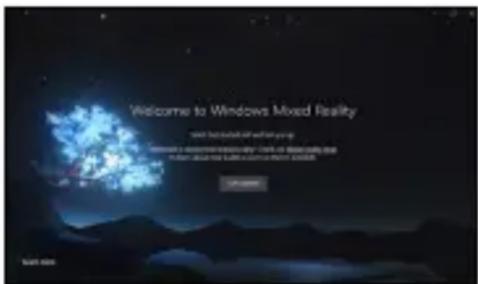
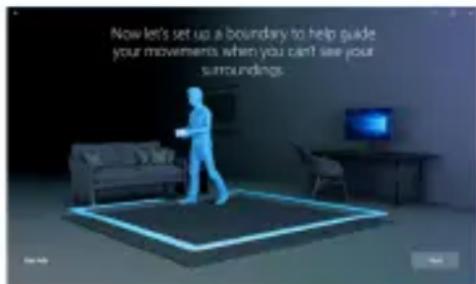
- Follow the instructions. Setup includes a hardware compatibility check and requires some information about your height, and optionally the boundaries of your room (if you plan to walk while using the HMD).
If you need some help, select Get help in the bottom-left corner.
Note: Do not wear the HMD until you have finished the setup process.
Connecting your (audio) headset
The tutorial includes audio, for best results connect your headset/headphones now.
- Connect your headset to the headphone jack on the left side of the HMD.
Note: A headset or headphones are recommended for a fully immersive experience.
If your headset has no microphone, select I don't have headphones with a mic.
Complete the tutorial
The tutorial will instruct you on how to use the HMD and controller(s).
Settings
Settings for your headset are installed after you finish the setup process. Open Windows Settings and select Mixed reality.
Support for developers
Developers seeking any development assistance should contact Microsoft support directly.
Important Health and Safety Information
Carefully read the following warnings and information before use of the product and follow all product safety and operating instructions. Failure to follow these instructions may cause injury and damage to your body, equipment, and property.
[Warning] Be safe to use this product
- Consult your doctor before using the product if you have pre-existing serious medical conditions (such as a heart ailment), conditions that affect your ability to safely perform physical activities, psychiatric conditions (such as anxiety disorders or post-traumatic stress disorder), or if you are pregnant or elderly.
- Do not use the product if you are sick, fatigued, under the influence of intoxicants or drugs, or are not feeling generally well, as it may exacerbate your condition.
- A comfortable virtual reality experience requires an unimpaired sense of motion and balance. Do not use this device when you are tired, need sleep, are under the influence of alcohol or drugs, are hung-over, have digestive problems, are under emotional stress or anxiety, or are suffering from cold, flu, headaches, migraines, or earaches, as this can increase your susceptibility to adverse symptoms.
- Do not handle sharp or otherwise dangerous objects while using this device. Never wear the device in situations that require attention, such as walking, bicycling, or driving.
- Do not use this device while in a moving vehicle such as a car, bus, or train, as this can increase your susceptibility to adverse symptoms.
[Warning] Children
- This product should not be used by children under the age of 13, as the headset is not sized for children and improper sizing can lead to discomfort or health effects, and younger children are in a critical period in visual development. Adults should make sure children (age 13 and older) use the headset in accordance with these health and safety warnings and instructions. Adults should monitor children (age 13 and older) who are using or have used the headset for any of the symptoms in these instructions. And should limit the time children spend using the headset and ensure they take breaks during use. Prolonged use should be avoided, as this could negatively impact hand-eye coordination, balance, and multi-tasking ability. Adults should monitor children closely during and after use of the headset for any decrease in these abilities.
- Do not leave the product within the reach of young children or allow them to use or play with it. They can hurt themselves or others, or damage the product.
- The product may contain small parts with sharp edges that may cause an injury or which could become detached and create a choking hazard for young children. Consult your doctor immediately if any parts of the product or accessories are swallowed.
[Warning] Seizures:
Some people (about 1/4000) may have severe dizziness, seizures, eye or muscles twitching or blackouts triggered by light flashes or patterns, and this may occur while they are watching TV, playing video games or experiencing virtual reality, even if they have never had a seizure or blackout before, or have no history of seizures or epilepsy. Such seizures are more common in children and young people under the age of 20. Anyone who experiences any of these symptoms should discontinue use of the headset and see a doctor. Anyone who previously has had a seizure, loss of awareness, or other symptom linked to an epileptic condition should see a doctor before using the headset.
To reduce the likelihood of a seizure, do not use the product if you are tired or need sleep.
[Use only in a safe environment]
While wearing the product's headset you are blind to the world around you. The image displayed in the headset will not match the real world. Always use the product in a clear and safe area. Do not rely on the product's chaperone system for protection. Do not use near stairways, large windows, heat sources, or outdoors. Clear the play area of people, furniture, and other things that may be obstacles or block you from freely moving around. For example, if a pet comes into the room while you are using the product, you likely will not be aware of the pet's presence and you could trip over your pet while moving in the virtual reality environment.
- Be Aware of the Cable and Connections Keep in mind the location of the cable and connections running from the headset so that you are not likely to trip over or pull on them while moving around or walking around the play area. Move your feet slowly and carefully to avoid tripping, including on the cable. Make sure to maintain good footing. Tripping over the cable or contacting obstacles could cause injury or damage. • Take Care of the Controllers While using the hand controllers, always check that you have sufficient overhead and surrounding clearance to allow you to fully extend your arms outward and upwards. Hitting persons or objects may cause injury or damage. Hold the controllers firmly and always use the wrist straps. If released while using, the controller may cause injury or damage.
- It is recommended that the product be used only while under the supervision of another person who is ready to warn of hazards that may arise while the product is being used. Examples of hazards that could arise include, but are not limited to, tangling of a cable in a manner that presents a tripping hazard, pets entering the area where the product is being used, and the user walking too close to a wall or another hazard).
Use Only In A Safe Environment
The headset produces an immersive virtual reality experience that distracts you from and completely blocks your view of your actual surroundings.
- Always be aware of your surroundings before beginning use and while using the headset. Use caution to avoid injury.
- Use of the headset may cause loss of balance.
- Remember that the objects you see in the virtual environment do not exist in the real environment, so don't sit or stand on them or use them for support.
- Remain seated unless your game or content experience requires standing.
- Serious injuries can occur from tripping, running into or striking walls, furniture or other objects, so clear an area for safe use before using the headset.
- Take special care to ensure that you are not near other people, objects, stairs, balconies, open doorways, windows, furniture, open flames, ceiling fans or light fixtures or other items that you can bump into or knock down when using - or immediately after using - the headset.
- Remove any tripping hazards from the area before using the headset.
- Remember that while using the headset you may be unaware that people and pets may enter your immediate area.
[Warning] Interference with medical devices
The product contains magnets or components that emit radio waves, which could affect the operation of nearby electronics, including cardiac pacemakers, hearing aids and defibrillators. If you have a pacemaker or other implanted medical device, do not use the headset without first consulting your doctor or the manufacturer of your medical device. Maintain a safe distance between the product and your medical devices, and stop using if you observe a persistent interference with your medical device.
- Do not use your device in a hospital, on an aircraft, or in any automobile that can be affected by radio frequencies. Doing so may cause malfunctions of equipment and may result in injury or damage to property.
[Precaution when using this device]
• Make sure the headset and sensor cables are not choking or tripping hazards. • Take at least a 10-to-15 minute break every 30 minutes, even if you don't think you need it. Each person is different, so take more frequent and longer breaks if you feel discomfort. You should decide what works best. - Ease into the use of this device to allow your body to adjust. Use the device for only a few minutes at a time at first, and only increase the amount of time using this device gradually as you grow accustomed to virtual reality. Looking around when first entering virtual reality can help you adjust to any small differences between your real-world movements and the resulting virtual reality experience. - Make sure this device is level and secured comfortably on your head, and make sure that you see a single, clear image. - Keep the product away from excessive moisture and extreme temperatures. Do not leave the product in places such as on a car dashboard, window sill, or behind a glass that is exposed to direct sunlight or strong ultraviolet light for extended periods of time. The headset contains lenses which may focus and intensify bright light sources, causing damage to the hardware. - Do not use the device if errors occur. Continued use of the device after errors occur may result in discomfort or personal injury - If you are allergic to the paint or metal parts on the device, you may experience itching, eczema, or swelling of the skin. If this happens, stop using the device and consult your physician.
[Warning] Loss of hearing
- Do not use the earphones at a high volume for prolonged periods of time, or permanent hearing loss may occur.
- Listening to sound at high volumes can cause irreparable damage to your hearing. Background noise, as well as continued exposure to high volume levels, can make sounds seem quieter than they actually are. Due to the immersive nature of the virtual reality experience, do not use the headset with the sound at a high volume so that you can maintain awareness of your surroundings and reduce the risk of hearing damage.
- Protect your hearing and ears when using a headset.
- Always turn the volume down before plugging the earphones into an audio source, and use only the minimum volume setting necessary to hear music. - Ensure the headset cable is not twisted around nearby objects.
[Warning] Discomfort
- Immediately stop using the headset if any of the following symptoms are experienced: seizures; loss of awareness; eye strain; eye or muscle twitching; involuntary movements; altered, blurred, or double vision or other visual abnormalities; dizziness; disorientation; impaired balance; impaired hand-eye coordination; excessive sweating; increased salivation; nausea; light-headedness; discomfort or pain in the head or eyes; drowsiness; fatigue; or any symptoms similar to motion sickness.
- Just as with the symptoms people can experience after they disembark a cruise ship, symptoms of virtual reality exposure can persist and become more apparent hours after use. These post-use symptoms can include the symptom above, as well as excessive drowsiness and decreased ability to multi-task. These symptoms may put you at an increased risk of injury when engaging in normal activities in the real world.
- Do not drive, operate machinery, cut, cook, or engage in other visually or physically demanding activities that have potentially serious consequences (i.e., activities in which experiencing any symptoms could lead to death, personal injury, or damage to property), or other activities that require unimpaired balance and hand-eye coordination (such as playing sports, riding a bicycle, skiing, swimming, skating, etc.) until you have fully recovered from any symptoms.
- Do not use the headset until all symptoms have completely subsided for several hours. Make sure you have properly configured the headset before resuming use.
- Be mindful of the type of content that you were using prior to the onset of any symptoms because you may be more prone to symptoms based upon the content being used. See a doctor if you have serious and/or persistent symptoms.
[Warning] Repetitive Stress Injuries
- Operate the product in a comfortable posture. Do not grip the product too tightly. Press the buttons lightly. If you have tingling, numbness, stiffness, throbbing, or other discomfort, immediately stop using the product and consult your doctor.
- Prolonged use of this device and input devices (e.g., controllers) can make your muscles, joints, or skin hurt. If any part of your body becomes tired or sore while playing, or if you feel symptoms such as tingling, numbness, burning, or stiffness, stop and rest for several hours before playing again. If you continue to have any of the above symptoms or other discomfort during or after play, stop using this device and consult a physician.
[Physical and Psychological Effects]
Content viewed using the product can be intense, immersive, and appear very life-like and may cause your brain and body to react accordingly. Certain types of content (e.g., violent, scary, emotional, or adrenaline-based content) could trigger increased heart rate, spikes in blood pressure, panic attacks, anxiety, PTSD, fainting, and other adverse effects. If you have a history of negative physical or psychological reactions to certain real-life circumstances, avoid using the product to view similar content. Similarly, it is important to remember that simulated objects, such as furniture, that may be encountered while using the product do not exist in the real world, and injuries may result when interacting with those simulated objects as if they were real, for example, by attempting to sit down on a virtual chair.
[Avoid Overuse]
Prolonged, uninterrupted use of the product should be avoided. It may negatively impact hand-eye coordination, balance, and/or cause other negative effects. While using the product frequently and for prolonged periods of time, you may experience tiredness or soreness in your muscles, joints, or other body parts. Take regular breaks from using the
product. The length and frequency of necessary breaks may vary from person to person. [General precautions]
- Protect the product and use only approved accessories. Non-approved product or accessories may cause injury and damage.
- Use the device for its intended purpose only.
- Do not paint the product or its accessories.
- Avoid using the product after a dramatic change in temperature.
- NOTICE: When taking the product from low-temperature conditions into a warmer environment or from high-temperature conditions into a cooler environment, allow the product to acclimate to room temperature before turning on power.
- Do not share the headset with persons with contagious conditions, infections or diseases, particularly of the eyes, skin or scalp. The headset should be cleaned between each use with skin-friendly non-alcoholic antibacterial wipes and with a dry micro fiber cloth for the lenses.
- The headset is worn next to your skin and scalp. Stop using the headset if you notice swelling, itchiness, skin irritation or other skin reactions. If symptoms persist, contact a doctor.
- Do not drop or cause an impact to the device.
- Do not use or store your device in areas with high concentrations of dust or airborne materials. Dust or foreign materials can cause your device to malfunction.
- Do not allow the device's connector to contact conductors, such as liquid, dust, metal filings, and pencil leads. Contact with conductors may cause a short circuit or corrosion at the connector and result in explosion, fire, or damage to the device.
- Do not bite or suck the device. Children or animals can choke on small parts
- Do not insert the device or supplied accessories into the eyes, ears, or mouth.
- Do not expose the device to heavy smoke or fumes.
- Keep the product dry, humidity and liquids may damage the parts or short electronic circuits.
- Do not store your device in very hot or very cold areas. We recommend you use your device at temperatures from 0°C to 35°C.
- Do not use this product if it is cracked, broken, or its cable is damaged or wire is exposed.
- Do not attempt to disassemble, modify, or repair this product by yourself, repairs should be made by an authorized service agent.
- When cleaning your device, mind the following:
- Unplug the product from its power source before cleaning. Use a damp cloth for cleaning, but NEVER use water to clean the product.
- Wipe the device and its lens with a clean, soft cloth or a cotton swab.
- Do not use chemicals or detergents. Doing so may discolor or corrode the
outside of the device
- Do not wash the foam cushioning. Doing so may cause the foam cushioning to deteriorate.
Environment
Temperature
- Operating: 0 °C to 35 °C
• Non-operating: -20 °C to 60 °C
Humidity (non-condensing)
• Operating: 20% to 80%
• Non-operating: 20% to 80%
Additional important regulatory information for your health and safety
You can download more information from the Acer support website by going to:
http://go.acer.com/?id=17883

Declaration of Conformity

Acer Incorporated 8F, 88, Sec. 1, Xintai 5th Rd., Xizhi New Taipei City 221, Taiwan


Acer America Corporation
303 West San Carlos St.
Suite 1902 San Jose, CA 95110
U.S.A
Tel: 1-254-298-4000
Fax: 1-254-298-4147
www.acer.com
We
Acer Incorporated
8F, 88, Sec. 1, Xintai 5th Rd., Xizhi, New Taipei City 221, Taiwan Contact Person: Mr. RU Jan, e-mail: ru.jan@acer.com
And
Acer Italy s.r.l
Via Lepetit, 40, 20020 Lainate (MI) Italy
Tel: +39-02-939-921, Fax: +39-02-9399-2913
www.acer.it
Declare under our own responsibility that the product: Product: Head-mounted display
Trade Name: acer
Regulatory model number: H7001
Sku name: AH10* (* is A~Z, a~z, 0~9, -, /, _ or blank)
We, Acer Incorporated, hereby declare under our sole responsibility that the product described above is in conformity with the relevant Union harmonization legislation:
Directive 2014/53/EU on Radio Equipment, RoHS Directive 2011/65/EU and ErP Directive 2009/125/EC. The following harmonized standards and/or other relevant standards have been applied:
Electromagnetic compatibility (Directive 2014/30/EU)
• EN 55032:2012/AC:2013 Class B
• EN 61000-3-2:2014 Class D
• EN 61000-3-3:2013
• EN 55024: 2010+A1:2015
Health and Safety (Directive 2014/35/EU)
• EN 60950-1:2006/A11:2009/A1:2010/A12:2011/A2:2013
RoHS (Directive 2011/65/EU)
• EN 50581:2012
Year to begin affixing CE marking 2017.

RU Jan / Sr. Manager
Acer Inc. (Taipei, Taiwan)
June 7, 2017
Date
Federal Communications Commission Declaration of Conformity
This device complies with Part 15 of the FCC Rules. Operation is subject to the following two conditions: (1) this device may not cause harmful interference, and (2) this device must accept any interference received, including interference that may cause undesired operation.
The following local Manufacturer / Importer is responsible for this declaration:
Product: Head-mounted display
Brand: acer
Regulatory model number H7001
Sku name AH10*
(* is "0-9", "a-z", "A-Z", "-" or blank)
Name of responsible party: Acer America Corporation
Address of responsible party: 333 West San Carlos St., Suite 1500
San Jose, CA 95110, U. S. A.
Contact person: Acer Representative
Phone no.: 1-254-298-4000
Fax no.: 1-254-298-4147
June 7, 2017

Product Overview
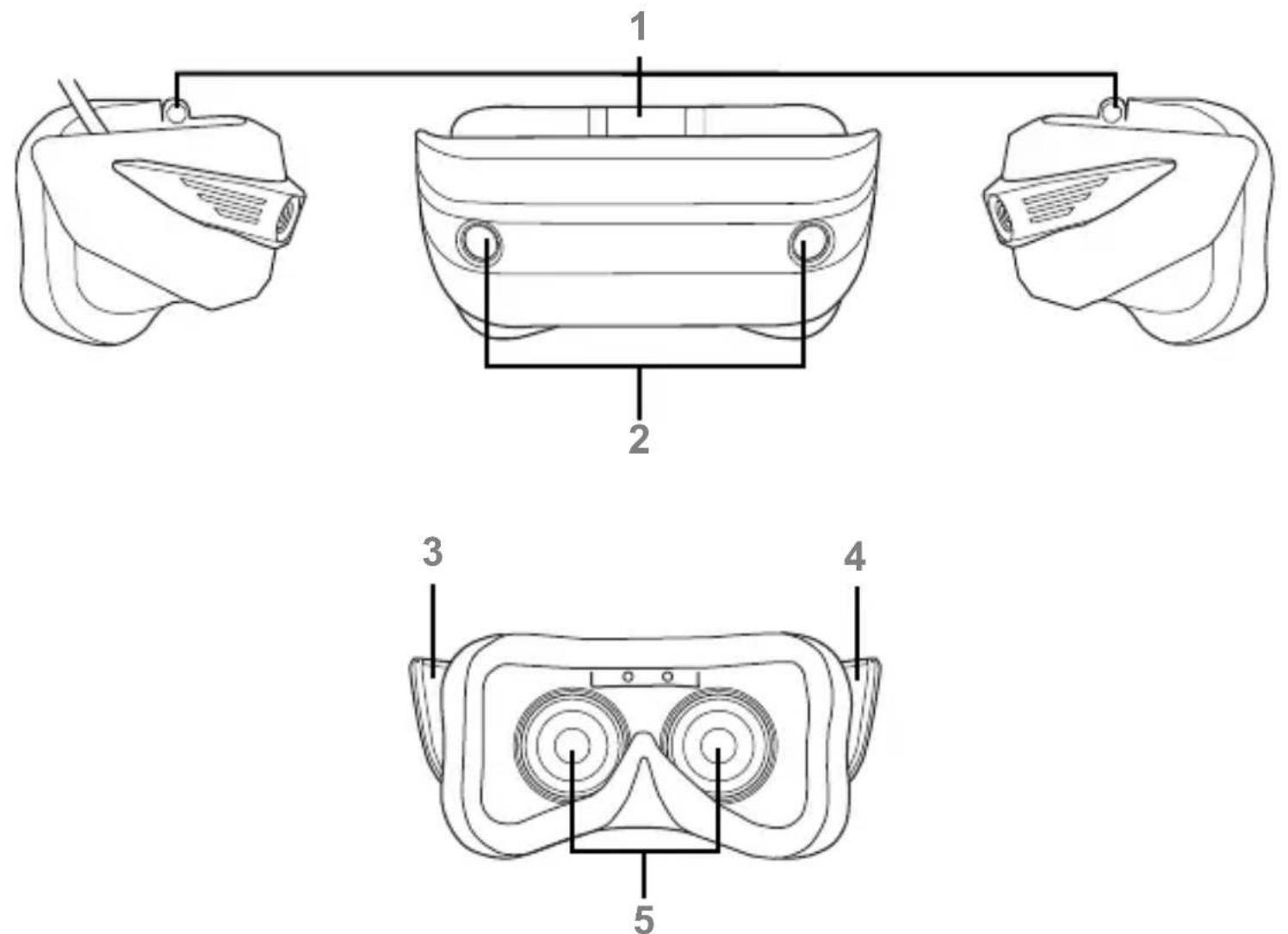
(Audio) Headset Connection
Acer Incorporated 6F, 88, Sec. 7, Xonal 5th Rd., Xonal New Taipei City 221, Taiwan
Declaration of Conformity
We,
Acer Incorporated
8F, 88, Sec.1, Xintai 5th Rd., Xizhi, New Taipei City 221, Taiwan
Contact person: Mr. RU Jan, e-mail: ru.jan@acer.com
and
Acer Italy s.r.l
Via Lepétit, 40, 20020 Lainate (MI) Italy
Tel: +39-02-939-921. Fax: +39-02 9399-2913
www.acer.it
RU Jan / Sr. Manager
Acer Inc. (Taipei, Taiwan)
June 7, 2017
Date


Acer America Corporation
303 West San Carlos St.
SAMS 1902 San Jose, CA 95152
U.S.A
Tel 1-254-298-4000
Fax. 5-254-238-1147
www.jbc@1001
FCC
Declaration of Conformity
(Audio) Headset Connection
Acer Incorporated 6F, 88, Sec. 7, Xintai 5th Rd., Xizhi New Taipei City 221, Taiwan
Declaration of Conformity
We,
Acer Incorporated
8F, 88, Sec. 1, Xintai 5th Rd., Xizhi, New Taipei City 221, Taiwan
Contact Person: Mr. RU Jan, e-mail: ru.jan@acer.com
Figure
Acer Italy s.r.l
Via Lepetit, 40, 20020 Lainate (MI) Italy
Phone: +39-02-939-921, Fax: +39-02 9399-2913
www.acer.it
RU Jan / Sr. Manager
Acer Inc. (Taipei, Taiwan)
June 7, 2017
Date


Acer America Corporation
303 West Sat Carlos St.
SAMS 1902 San Jose, CA 95152
U.S.A
Tel 1-254-298-4000
Fax. 5-254-238-1147
United States Federal Communications Commission
Declaration of Conformity

- WINDOWS MIXED REALITY
- PRODUCT OVERVIEW
- GETTING STARTED
- CONNECTING YOUR CONTROLLER(S)
- CONNECTING YOUR HMD
- CONNECTING YOUR (AUDIO) HEADSET
- COMPLETE THE TUTORIAL
- SETTINGS
- SUPPORT FOR DEVELOPERS
- IMPORTANT HEALTH AND SAFETY INFORMATION
- [WARNING] BE SAFE TO USE THIS PRODUCT
- [WARNING] CHILDREN
- [WARNING] SEIZURES
- [USE ONLY IN A SAFE ENVIRONMENT]
- USE ONLY IN A SAFE ENVIRONMENT
- [WARNING] INTERFERENCE WITH MEDICAL DEVICES
- [PRECAUTION WHEN USING THIS DEVICE]
- [WARNING] LOSS OF HEARING
- [WARNING] DISCOMFORT
- [WARNING] REPETITIVE STRESS INJURIES
- [PHYSICAL AND PSYCHOLOGICAL EFFECTS]
- [AVOID OVERUSE]
- ENVIRONMENT
- ADDITIONAL IMPORTANT REGULATORY INFORMATION FOR YOUR HEALTH AND SAFETY
- DECLARATION OF CONFORMITY
- WE
- AND
- FEDERAL COMMUNICATIONS COMMISSION DECLARATION OF CONFORMITY
- (AUDIO) HEADSET CONNECTION
- FCC
- UNITED STATES FEDERAL COMMUNICATIONS COMMISSION
Brand : ACER
Model : AH100
Category : Smartwatch