
MG7550 - Router MOTOROLA - Free user manual and instructions
Find the device manual for free MG7550 MOTOROLA in PDF.


| Product Type | Cable modem and wireless router combo |
| Model Number | MG7550 |
| Brand | Motorola |
| Dimensions (approx.) | 7.5 x 5.5 x 1.8 inches (19 x 14 x 4.5 cm) |
| Weight (approx.) | 1.2 lbs (0.54 kg) |
| Wireless Standards | 802.11ac dual-band (2.4 GHz and 5 GHz) |
| Wireless Speed | Up to 1900 Mbps combined (600 Mbps 2.4 GHz + 1300 Mbps 5 GHz) |
| Ethernet Ports | 4 x 10/100/1000 Gigabit LAN ports |
| WAN Connection | 1 x coaxial cable (DOCSIS 3.0) |
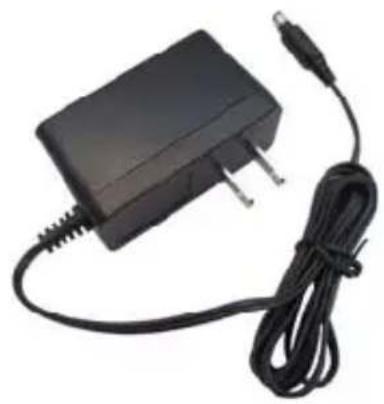
| Power Supply | External power cube, input: 100-240V AC, output: 12V DC, 2A |
| Power Consumption | Approximately 15 watts typical |
| Buttons | Power On/Off, WPS, WLAN on/off, Reset |
| Front Panel LEDs | Power, Downstream, Upstream, Online, 2.4 GHz WLAN, 5 GHz WLAN, WPS |
| Security Features | WPA/WPA2, WEP, SSID broadcast disable, MAC address filtering |
| Configuration | Web-based interface at http://192.168.0.1 (default credentials: admin/motorola) |
| Compatibility | Comcast XFINITY, Time Warner, Cox, and other major cable providers |
| Operating Temperature | 32°F to 104°F (0°C to 40°C) |
| Storage Temperature | -4°F to 140°F (-20°C to 60°C) |
| Certifications | FCC Part 15 Class B |
| Warranty | 2 years limited warranty |
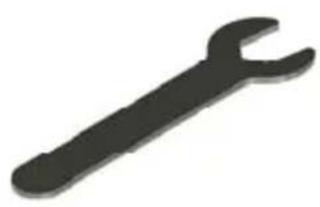
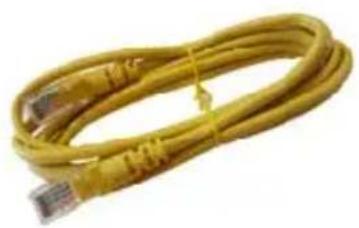
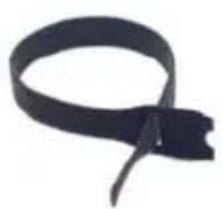
| Package Contents | MG7550 modem/router, power cube, coax cable, Ethernet cable, coax wrench, cable organizer |
| Maintenance & Cleaning | Unplug before cleaning; use a dry cloth; keep vents unobstructed |
| Safety Precautions | Do not expose to water; operate indoors only; ensure adequate ventilation |
Frequently Asked Questions - MG7550 MOTOROLA
User questions about MG7550 MOTOROLA
0 question about this device. Answer the ones you know or ask your own.
Ask a new question about this device
Download the instructions for your Router in PDF format for free! Find your manual MG7550 - MOTOROLA and take your electronic device back in hand. On this page are published all the documents necessary for the use of your device. MG7550 by MOTOROLA.
USER MANUAL MG7550 MOTOROLA
natural_image
Black wireless router with green control buttons and ventilation grille (no visible text or symbols)MG7550
Packaged with your MG7550 modem/router
natural_image
Black rectangular electronic device with attached cable and power connector (no visible text or symbols)Power Cube
natural_image
Black wrench icon on white background (no text or symbols)Coax Wrench
natural_image
Yellow wired Ethernet cable with network ports (no text or symbols visible)Ethernet Cable Velcro
natural_image
Black bandage with a small notch, no visible text or symbols® Cable Organizer
If you don't have cable Internet service, please order that from your cable service provider.
Now connect your MG7550 as shown on the next panel.
Connecting to a Coax Cable
Soon you'll need to connect your MG7550 to a "live" coax cable. Sometimes a cable will already be available. Sometimes there's a coax wall jack available, and you connect to the jack with a coax cable. Your MG7550 can also share a coax cable attached to a TV by using a coax splitter.
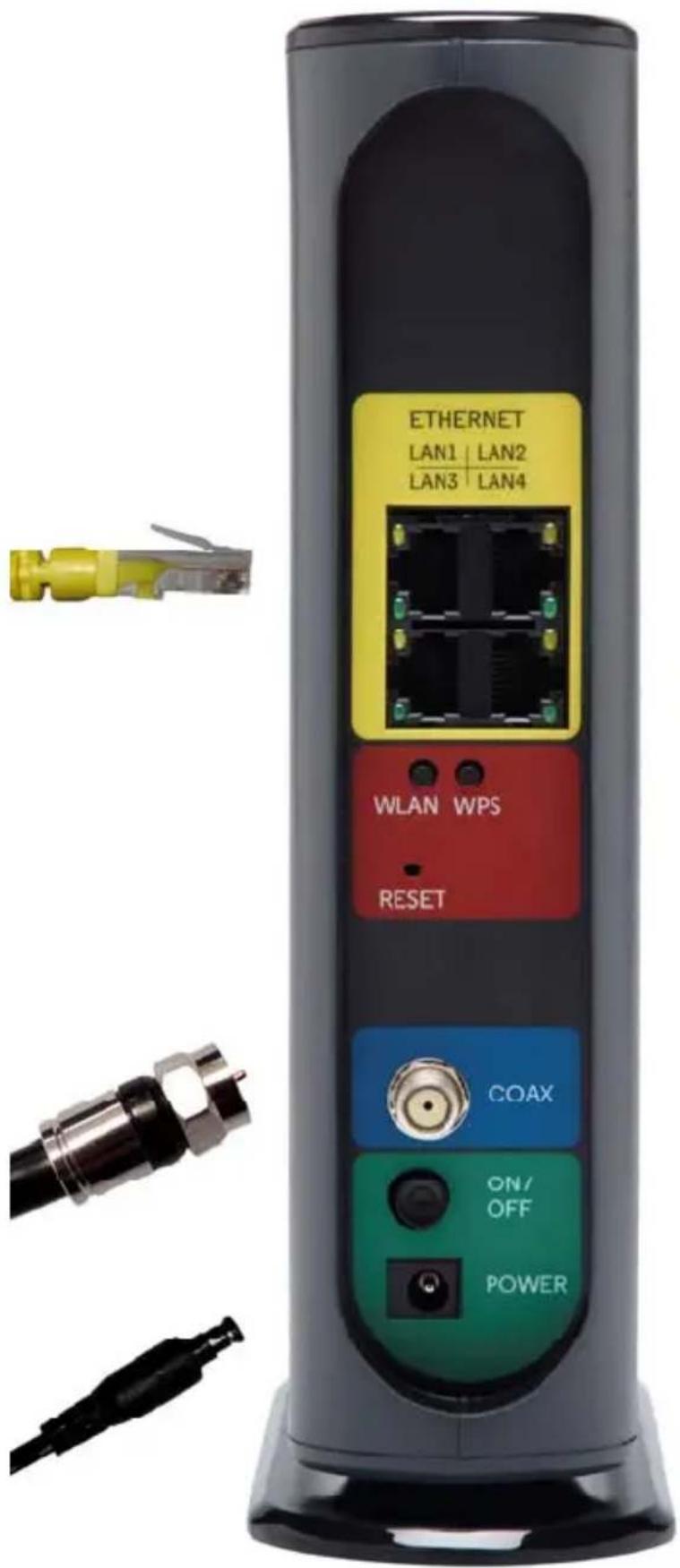
ETHERNET (LAN 1-4)
You can connect a computer, HDTV, game station, or other Ethernet-capable device to any of these 4 LAN ports.
WLAN button
Wi-Fi on/off button
WPS button
RESET
COAX
Connect a “live” coax cable to the modem’s COAX connector as discussed above. (Tighten the nut so it’s finger tight. You may want to use the supplied wrench. Make the connection snug but not over-tight.)
ON/OFF button
POWER
Connect the supplied power cube between the power jack and an electrical outlet.
Prepare to activate
By now you should have:
- Subscribed to cable Internet service.
• Connected your MG7550.
- Powered up your MG7550. To do this, the On/Off button needs to be On. Wait for the green online connection light to stop flashing and remain solidly lit. This may take up to 15 minutes.
You should have a recent cable bill handy because it has your account number and you'll probably need that.
If you're asked for information about the MG7550, you can find this on the label on the bottom of the MG7550.
Activate
For some service providers, you activate by calling them. Many service providers including Comcast and Cox prefer that you activate by opening the Web browser of a computer that's plugged into one of the MG7550's Ethernet ports.
If you don’t have a computer, you can use the Web browser of a Wi-Fi device such as a smartphone or tablet. In that case you’ll need the unique Wireless Network Name and Password printed on the bottom of your MG7550. You’ll use these in setting up your wireless device to connect to the MG7550. Once you’ve connected, you can open the browser of that wireless device.
For Comcast XFINITY Users Only:
If the activation page does not appear, please go to www.xfinity.com/internetsetup for more information and to activate your modem.
Here is a list of phone numbers for some major cable service providers. (Note that this list is subject to change.)
Comcast 1 (855) 652-3446
Time Warner 1 (855) 704 4503
Bright House 1 (888) 289-8988
Suddenlink 1 (877) 794-2724
Cable One 1 (877) 692 2253
Cox 1 (888) 556-1193
RCN 1 (866) 832-4726
Once your MG7550 is activated either online or by phone, your service provider will provision your MG7550 service. Typically this takes less than 5 minutes, but in some cases this may take 30 minutes or longer to complete.
Try to browse the Web using a device connected via Ethernet or Wi-Fi to the MG7550. If browsing works, Congratulations! Your MG7550 is working.
If your MG7550 is NOT working, see Troubleshooting Tips below.
Configuration Manager
You may not need to use the Configuration Manager. Here are some reasons for using the Configuration Manager:
- You want to change the wireless router setup. For instance, maybe you're replacing a router and want to use your existing Wireless Network Name and/or Password instead of the unique ones that come with the MG7550.
- You want to set up special Internet gaming settings.
- You want to set up parental controls including white lists and/or black lists for certain users and times.
- You want to get performance information about the MG7550 modem and/or built-in router. This can be helpful in optimizing wireless performance.
If you need to access the MG7550 Configuration Manager, open your Web browser. Type http://192.168.0.1 in the address bar and press the Enter key.
In the login dialog box, type the following User Name and Password in lower case, then click OK.
User Name: admin
Password: motorola
The status page will appear. If the Status page doesn't appear, please see the Troubleshooting Tips below.
For details about the Configuration Manager, please see www.motorolacable.com/MG7550manual
Wireless Router
As noted before, the MG7550 has a unique Wireless Network Name/SSID and Wireless Security Key/Password printed on the MG7550's bottom label. If you don't change these, you should set up your wireless devices to work with this SSID and security key.
Note that wireless performance depends on a number of factors. Please keep these things in mind:
- Where possible, put the MG7550 in a central place so that it's not too far away from your other wireless devices.
- Try to avoid interference from other wireless devices such as Bluetooth headsets and stereos, and 2.4 GHz cordless phones and base stations. Don’t put the MG7550 close to these interfering devices.
- Sometimes it helps to change the MG7550 wireless channel frequency to reduce interference with neighbors' wireless networks. This is discussed in the Troubleshooting section of this Quick Start.
Front Panel Lights
During Power up, the lights will blink for about a minute.
| LIGHT COLOR | DESCRIPTION | |
 Power Power | Green | ON: MG7550 power onOFF: MG7550 power off |
 Downstream Downstream | Green or Blue | Green Blinking: Scanning for DS channelGreen ON: Connected on 1 downstream channelBlue Blinking: Negotiating bonded channel(s) ^ Blue ON: Bonded with 2 or more channels |
 Upstream Upstream | Green or Blue | Green Blinking: Ranging in progressGreen ON: Connected on 1 channelBlue Blinking: Negotiating bonded channel(s) ^ Blue ON: Bonded with 2 or more channelsOFF: Upstream not connected |
 Online Online | Green | Blinking: Trying to go onlineON: OnlineOFF: Offline |
 2.4 GHzWLAN 2.4 GHzWLAN | Green | Blinking: Data is flowingON: Wi-Fi is enabledOFF: Wi-Fi is not enabled |
 5 GHzWLAN 5 GHzWLAN | Green | Blinking: Data is flowingON: Wi-Fi is enabledOFF: Wi-Fi is not enabled |
 WPS WPS | Green | Blinking: WPS is in discovery modeON: Light will remain solid afterWPS configuration is successful |
If a blue light blinks continuously, this indicates partial service (at least one designated channel has not completed bonding). You should still get high Internet speeds, but your service provider may want to know so they can adjust their network.
Troubleshooting Tips
What if I can't make an Internet connection right after installation?
- First turn your MG7550 off for at least 8 seconds, then on, to see if that fixes the problem.
- Check the connections you’ve made to your MG7550. Power and coax connections are required, and up to 4 Ethernet connections are optional. Are those connections good?
- Check that the MG7550's power cube is plugged into a live outlet, and that the Ethernet cable is connected securely to a computer.
- Make sure that your coax cable is live. You can check that by using it with a TV.
- Check that you provided the correct setup information to your cable service provider.
- Contact your cable service provider to make sure they've turned on your Internet service.
What if my MG7550 has been working, then stops working?
- First turn your MG7550 off for at least 8 seconds, then on, to see if that fixes the problem.
- If the MG7550's lights don't come on, check that the modem is getting power from its power cube and that the MG7550's power button is on.
- Check your MG7550 cables.
- Check with your service provider. Sometimes there's a service outage or some other service issue.
What if I'm getting Internet service but my speed is disappointing?
- Be sure you know what speed you're paying for. - Check the speed with a computer plugged into the modem. Use one of the tools found when you search the phrase: broadband speed test.
- If you get good speed when a computer's plugged into the modem, you may have a wireless problem. In that case, please re-read the wireless router section.
- Some video streaming services get bottlenecked, especially at busy times like after dinner. See whether you have the speed problem at less busy times.
- Try connecting your MG7550 nearer to where the coaxial cable comes into your home. This lets you see whether your home's cabling is a problem.
- If you're using a splitter with your MG7550, try the MG7550 without the splitter to see if that helps. If it does, you may need to get a better splitter.
What if I'm told that my MG7550 isn't approved by my cable service provider?
That's probably not true. Leading cable service providers have a list of certified cable modems for each of their Internet speeds. You can check the list for your service provider. You can also find information about certifications at www.motorolacable.com/services
What if I am connected wirelessly but my connection seems slow or keeps dropping?
Please re-read the Wireless Router section above.
What if I don't know my MG7550's Wireless Network Name/SSID or Security Key/Password?
The default values are printed on the bottom label of the MG7550. Use these unless you changed them. If you changed them, try to remember where you put the new values. If you have a device that connects wirelessly to the MG7550, it may show the Wireless Network Name/SSID and Password. You can also find this information in the MG7550 Configuration Manager. Information about using this is in the Configuration Manager section above.
If all else fails, reset the device to factory defaults by holding the Reset button for 10 seconds. You can then use the default values.
What if I think that wireless devices are interfering with my MG7550 wireless router?
- Where possible, put the MG7550 as far away as possible from interfering devices such as Bluetooth transmitters and neighbors' Wi-Fi routers.
- To try to pick a less used wireless channel for your MG7550, first go in to your MG7550's Configuration Manager.
- Click the Advanced button at the top of the page, then click the Wireless and Scan/Bridge menu items at the top of the page.
- Click the ScanWirelessAPs button. A list will appear of competing wireless networks, including the channels they are using. Write down one or more of the less used channel numbers, since a less used channel should be better for your MG7550.
- On the top of the page, click the Wireless Basic menu item.
- On the Basic page, select the channel you want in the Channel pulldown, then click Save.
Do you have any other questions? We have lots more information at www.motorolacable.com/mentor
We like to help.
Please visit our support Website or call our support specialists. Our Website has our Motorola Mentor information, and also provides returns and warranty information.
www.motorolacable.com/support
Email: support@motorolacable.com
Phone: 800-753-0797
Limited Warranty
MTRLC LLC warrants this product against defects in material and workmanship for a warranty period of 2 years. To read the full warranty, please go to www.motorolacable.com/warranty
Safety Precautions
These precautions help protect you and your MG7550.
- Do not put the MG7550 or its power cube in water, since this is a shock hazard.
■ The MG7550 should normally be installed indoors. If you use it outdoors, protect it from moisture and be careful about temperature. - Your MG7550 should be operated in an environment that's between 32 and 104^ Fahrenheit (0 to 40^ Centigrade).
- Your MG7550 should not be in a confined space. There should be room for air flow around the top, front, and sides of the MG7550.
■ Make sure to use your MG7550's power cube and a compatible electrical outlet.
FCC Statement
This device complies with Class B Part 15 of the FCC Rules. The device generates, uses and can radiate radio frequency energy and, if not installed and used as instructed, may cause harmful interference to radio communications. Only coaxial cables are to be used with this device in order to ensure compliance with FCC emissions limits. Accessories connected to this device by the user must comply with FCC Class B limits. The manufacturer is not responsible for any interference which results from use of improper cables, or which results from unauthorized changes or modifications to the device.

- Packaged with your MG7550 modem/router
- Connecting to a Coax Cable
- ETHERNET (LAN 1-4)
- WLAN button
- WPS button
- RESET
- COAX
- ON/OFF button
- POWER
- Prepare to activate
- Activate
- Configuration Manager
- Wireless Router
- Front Panel Lights
- Troubleshooting Tips
- We like to help.
- Limited Warranty
- Safety Precautions
- FCC Statement
Brand : MOTOROLA
Model : MG7550
Category : Router