SB4200 - Router MOTOROLA - Free user manual and instructions
Find the device manual for free SB4200 MOTOROLA in PDF.


User questions about SB4200 MOTOROLA
0 question about this device. Answer the ones you know or ask your own.
Ask a new question about this device
Download the instructions for your Router in PDF format for free! Find your manual SB4200 - MOTOROLA and take your electronic device back in hand. On this page are published all the documents necessary for the use of your device. SB4200 by MOTOROLA.
USER MANUAL SB4200 MOTOROLA
Click your selection:
Introduction
Introduces your SURFboard cable modem and the controls on the Top and Front Panel and Rear Panel.
Before You Begin
Lists the items needed to install your SURFboard cable modem and describes Precautions, Signing Up for Service, and Computer System Requirements.
Installation and Configuration Overview
Provides an overview and links to cable and configure your SURFboard cable modem, including Setting UpaUSBDriver.
Troubleshooting
Provides suggestions to fix common problems.
Contact Us
Provides contact information.
Frequently Asked Questions
Provides answers to common questions about the SURFboard cable modem.

text_image
Power Service Signal Active Utility SURFBoard® Cable Modem SURFboard® Cable ModemNext page
WARNING: TO PREVENT FIRE OR SHOCK HAZARD, DO NOT EXPOSE THIS DEVICE TO RAIN OR MOISTURE. THE DEVICE SHALL NOT BE EXPOSED TO DRIPPING OR SPLASHING AND NO OBJECTS FILLED WITH LIQUIDS, SUCH AS VASES, SHALL BE PLACED ON THE DEVICE.
CAUTION: TO ENSURE REGULATORY AND SAFETY COMPLIANCE, USE ONLY THE PROVIDED POWER AND INTERFACE CABLES. TO PREVENT ELECTRICAL SHOCK, DO NOT USE THIS PLUG WITH AN EXTENSION CORD, RECEPTACLE, OR OTHER OUTLET UNLESS THE BLADES CAN BE FULLY INSERTED TO PREVENT BLADE EXPOSURE.
CAUTION: DO NOT OPEN THE CABLE MODEM. DO NOT PERFORM ANY SERVICING OTHER THAN THAT CONTAINED IN THE INSTALLATION AND TROUBLESHOOTING INSTRUCTIONS UNLESS YOU ARE QUALIFIED TO DO SO. REFER ALL SERVICING TO QUALIFIED SERVICE PERSONNEL.
It is recommended that the customer install an AC surge arrestor in the AC outlet to which this device is connected. This is to avoid damaging the equipment by local lightning strikes and other electrical surges.

This product was qualified under test conditions that included the use of the supplied cable between system components. To be in compliance with regulations, the user must use this cable and install it properly.

Different types of cord sets may be used for connections to the main supply circuit. Use only a main line cord that complies with all applicable product safety requirements of the country of use.
Installation of this product must be in accordance with national wiring codes.
To prevent overheating, do not block the ventilation holes on the sides of the cable modem.
Wipe the cable modem with a clean, dry cloth. Never use cleaning fluid or similar chemicals. Do not spray cleaners directly on the unit or use forced air to remove dust.



This product is provided with a separate Regulatory and Safety Information and Software License and Warranty Information card. If one is not provided with this product, please ask your service provider or point-of-purchase representative, as the case may be.
THIS PRODUCT IS IN COMPLIANCE WITH ONE OR MORE OF THE STANDARDS LISTED ON THE REGULATORY AND SAFETY INFORMATION CARD. NOT ALL STANDARDS APPLY TO ALL MODELS.
NO WARRANTIES OF ANY KIND ARE PROVIDED BY MOTOROLA WITH RESPECT TO THIS PRODUCT, EXCEPT AS STATED ON THE SOFTWARE LICENSE AND WARRANTY INFORMATION CARD. MOTOROLA'S WARRANTIES DO NOT APPLY TO PRODUCT THAT HAS BEEN REFURBISHED OR REISSUED BY YOUR SERVICE PROVIDER.
Copyright © 2002 by Motorola, Inc.
All rights reserved. No part of this publication may be reproduced in any form or by any means or used to make any derivative work (such as translation, transformation or adaptation) without written permission from Motorola, Inc.
Motorola reserves the right to revise this publication and to make changes in content from time to time without obligation on the part of Motorola to provide notification of such revision or change. Motorola provides this guide without warranty of any kind, either implied or expressed, including, but not limited to, the implied warranties of merchantability and fitness for a particular purpose. Motorola may make improvements or changes in the product(s) described in this manual at any time.
MOTOROLA and the Stylized M Logo are registered in the US Patent & Trademark Office. Microsoft and Windows are registered trademarks and Windows Me and Windows XP are trademarks of Microsoft Corporation. Microsoft Windows screen shots are used by permission of Microsoft Corporation. Macintosh is a registered trademark of Apple Computer, Inc. Netscape and Navigator are registered trademarks of Netscape Communications Corporation. UNIX is a registered trademark of the Open Group in the United States and other countries. All other product or service names are the property of their respective owners. © Motorola, Inc. 2002.



Contents
Introduction ....1
Top and Front Panel 2
Rear Panel 3
Before You Begin 4
Precautions 5
Signing Up for Service 6
Computer System Requirements ....7
Ethernet Card 7
USB Connection 7
Installation and Configuration Overview 8
Cabling and Startup for a Single User 9
Setting Up a USB Driver 11
Setting Up a USB Driver in Windows 98 ....12
Setting Up a USB Driver in Windows 2000 ....16
Setting Up a USB Driver in Windows Me 20
Setting Up a USB Driver in Windows XP 21
Configuring TCP/IP 22

Home Print Exit


iv SURFboard Cable Modem User Guide
Configuring TCP/IP in Windows 95, 98, or Me ....23
Configuring TCP/IP in Windows 2000 or XP ....26
Verifying the IP Address in Windows 95, 98, or Me ....30
Verifying the IP Address in Windows 2000 or XP ....31
Cabling for Multiple Users 33
Ethernet and USB 33
Ethernet 34
Troubleshooting 35
Front-Panel Lights and Error Conditions 37
Removing the USB Driver from Windows 98 or Me ....38
Removing the USB Driver from Windows 2000 ....42
Removing the USB Driver from Windows XP 47
Contact Us 54
Frequently Asked Questions ....55
Glossary 57
Software License 59

Home Print Exit


v SURFboard Cable Modem User Guide

MOTOROLA
Introduction
Before You Begin
Installation & Configuration
Troubleshooting
FAQ
Glossary License
Introduction
Easier!
Unlike dial-up modems or ISDN, you're always on, always connected. For easiest set-up, use the Installation Assistant on the SURFboard Cable Modem CD-ROM.
Faster!
Your cable modem is up to 100 times faster than a dial-up modem. It lets you enjoy surfing the web without the long wait. Because many network and other factors can affect performance, the actual speed will vary.
Better!
Your cable modem is made by the company with over 50 years of cable TV expertise.
Congratulations, you have a new Motorola® SURFboard cable modem! It provides high-speed access to the Internet and other online services. This cable modem transmits and receives data much faster than traditional dial-up or ISDN modems. Unlike a dial-up modem, your SURFboard cable modem is always online. Just open your browser and surf!
You can use your high-speed, upgradeable cable modem to connect one or more computers in your home or business to the Internet. You can connect:
A single computer equipped with a Universal Serial Bus (USB) port directly to the USB port on the SURFboard cable modem
A single computer equipped with an Ethernet adapter directly to the Ethernet port on the SURFboard cable modem
■ Two computers; one to the USB port and one to the Ethernet port
Up to 32 computers to a single SURFboard cable modem using an Ethernet hub



1 SURFboard Cable Modem User Guide

MOTOROLA
Introduction
Before You Begin
Installation & Configuration
Troubleshooting
FAQ
Glossary License
The model number and Standby button position on your cable modem may be different than in the illustrations and screen images in this guide.

text_image
1 2 3 4 5 6 7 AIA AIA AIA AIA AIA AIA AIA AIA AIA AIA AIA AIA AIA AIA AIA AIA AIA AIA AIA AIA AIA AIA AIA AIA AIA AIA AIA AIA AIA AIA AIA AIA AIA AIAHome Print Exit

Top and Front Panel
For added security, you can press the Standby button (1) to suspend your Internet connection. No data is transmitted or received and the Standby button lights. All other lights turn off until you press the Standby button again. The Standby button may be located on the top of the SURFboard cable modem (as illustrated) or on the front.
The lights provide information about power, communications, and errors:
| Key Light | Flashing | On | |
| 2 | Power | Startup diagnostics in progress | The cable modem is powered on |
| 3 | Receive | Scanning for a receive (downstream) channel connection | The downstream channel is connected |
| 4 | Send | Scanning for a send (upstream) channel connection. | The upstream channel is connected |
| 5 | Online | Scanning for a network connection | The startup process is complete |
| 6 | Activity | Transmitting or receiving data | Transferring a large amount of data |
| 7 | Standby | This light does not flash | Internet service is blocked because the Standby button was pressed. If this light is on, all other lights are off. |
During normal operation, the Power, Receive, Send, and Online lights are on and the Activity light flashes when the cable modem is transferring data.

2 SURFboard Cable Modem User Guide

MOTOROLA
Introduction
Before You Begin
Installation & Configuration
Troubleshooting
FAQ
Glossary License
text_image
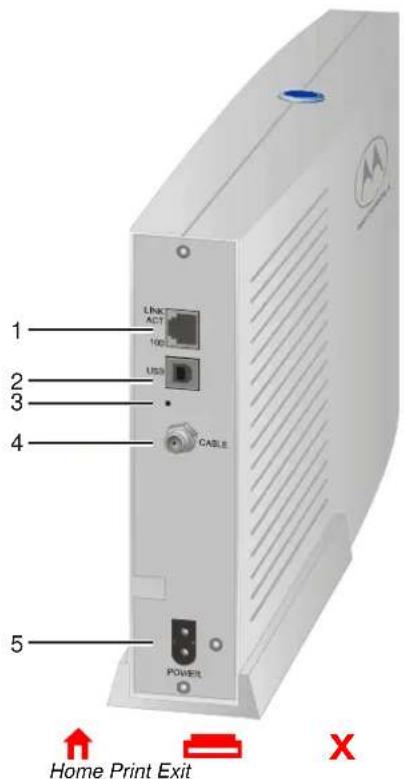
1 2 3 4 5 LINKT ACT 100 USD CABLE POWER Home Print Exit XRear Panel
The rear panel provides cabling connectors, status lights, and the power receptacle.
Key Item Description
1

The Ethernet port provides a connection to Ethernet equipped computers using a cable terminated with an RJ-45 connector. The adjacent lights are:
LINK/ACT — On when the Ethernet connection is available. It blinks during data transfer.
100 — On if there is a 100Base-T link and off for a 10Base-T link.
2
USB
The USB port provides a connection to USB equipped computers.
3
If you experience a problem, you can push this recessed button to reset the cable modem (see "Troubleshooting" on page 35). Resetting may take 5 to 30 minutes because the cable modem must find and lock on the appropriate communications channels.
4
CABLE The CABLE port provides a connection to the coaxial cable (coax) outlet.
5
POWER The POWER connector provides power to the cable modem.

3 SURFboard Cable Modem User Guide

MOTOROLA
Introduction
Before You Begin
Installation & Configuration
Troubleshooting
FAQ
Glossary License
Before You Begin
Before you begin the installation, check that you received the following items with your SURFboard cable modem:
Item Description
Power cord
10/100Base-T Ethernet cable
USB cable
SURFboard Cable Modem CD-ROM
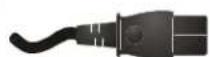


Connects the SURFboard cable modem to the AC electrical outlet
Connects to the Ethernet port
Connects to the USB port
Contains the User Guide and USB drivers
You will need 75-ohm coaxial cable (coax) with F-type connectors to connect your cable modem to the nearest cable outlet. If a TV is connected to the cable outlet, you may need a 5-900 MHz RF splitter and two additional coaxial cables to use both the TV and the cable modem. The coaxial cable and RF splitter are available at consumer electronic stores.



MOTOROLA
Introduction
Before You Begin
Installation & Configuration
Troubleshooting
FAQ
Glossary License
To avoid damaging your cable modem or PC with static electricity:

text_image
Always make the wall connection first.Before you connect or disconnect the USB or Ethernet cable, always touch the coaxial cable connector on the cable modem.
Precautions
Postpone cable modem installation until there is no risk of thunderstorm or lightning activity in the area.
To avoid damaging the cable modem with static electricity:
■ Always first connect the coaxial cable to the grounded cable TV wall outlet.
Before you connect or disconnect the USB or Ethernet cable from your cable modem or PC, always touch the coaxial cable connector on the cable modem to release any static charges.
To prevent overheating the cable modem, do not block the ventilation holes on its sides.
Do not open the cable modem. Refer all service to your cable service provider.
Wipe the cable modem with a clean, dry cloth. Never use cleaning fluid or similar chemicals. Do not spray cleaners directly on the unit or use forced air to remove dust.


5 SURFboard Cable Modem User Guide

MOTOROLA
Introduction
Before You Begin
Installation & Configuration
Troubleshooting
FAQ
Glossary License
> Signing Up for Service
You must sign up with a cable service provider to access the Internet and other online services.
To activate your service, call your local cable service provider.
You need to provide the MAC address printed on the bar code label marked HFC MAC ID on the rear panel. You can record your cable modem MAC address here:
You should ask your cable service provider the following questions:
Do you have any special system requirements?
When can I begin to use my cable modem?
Are there any files I need to download after I am connected?
Do I need a user name or password to access the Internet or use e-mail?


MOTOROLA
Introduction
Before You Begin
Installation & Configuration
Troubleshooting
FAQ
Glossary License
Computer System Requirements
You can use any web browser such as Microsoft® Internet Explorer or Netscape® Navigator® with your SURFboard cable modem.
For Microsoft Windows computers, the Installation Assistant application automatically checks your system configuration. You can start the Installation Assistant from the Main Menu on the SURFboard Cable Modem CD-ROM.
Your SURFboard cable modem is compatible with Microsoft Windows ^® , Macint ^® , and UNIX ^® computers.
Ethernet Card
You can use the Ethernet connection with any Windows, Macintosh, or UNIX computer equipped with a 10Base-T or 10/100Base-T Ethernet card.
Windows 95, UNIX, or Macintosh computers must use the Ethernet connection.
If you use an Ethernet card, it must be installed in your computer before you install the cable modem. If it is not installed, follow the installation instructions provided with your Ethernet card.
USB Connection
You can use the USB connection with any PC running Windows 98, Windows 2000, Windows Me, or Windows XP that has a USB interface. The USB connection requires special USB driver software that is supplied on the SURFboard Cable Modem CD-ROM.
You can upgrade the USB drivers from the Internet. For information, check our website http://www.motorola.com/broadband.



MOTOROLA
Introduction
Before You Begin
Installation & Configuration
Troubleshooting
FAQ
Glossary License
Installation and Configuration Overview
To connect a single PC running Microsoft Windows to a SURFboard cable modem, we recommend using the Installation Assistant application
You can start the Installation Assistant from the Main Menu on the SURFboard Cable Modem CD-ROM. In most cases, the Installation Assistant automatically configures your cable modem
To install and configure your cable modem for a single PC running Microsoft Windows, you can use the Installation Assistant.
Otherwise, to install and configure your cable modem:
1 Install the cables as described in one of:
■ "Cabling and Startup for a Single User" on page 9
■ "Cabling for Multiple Users" on page 33
2 If you are using the USB port only, go to "Setting Up a USB Driver" on page 11. Ethernet users can skip this step.
3 Configure TCP/IP and verify the IP address for your computer following one of:
■ "Configuring TCP/IP" on page 22
- Your Macintosh or UNIX user manual




MOTOROLA
Introduction
Before You Begin
Installation & Configuration
Troubleshooting
FAQ
Glossary License
text_image
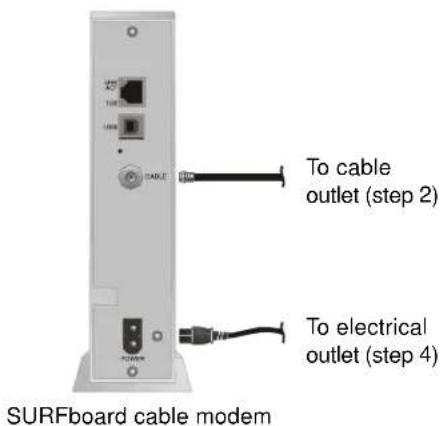
To cable outlet (step 2) To electrical outlet (step 4) SURFboard cable modem

Cabling and Startup for a Single User
Allow 5 to 30 minutes to power up the first time because the SURFboard cable modem must find and lock on the appropriate channels for communications.
1 Be sure your computer is on and the cable modem is unplugged.
2 Connect one end of the coaxial cable to the cable outlet or splitter. Connect the other end of the coaxial cable to the CABLE connector on the cable modem. Hand-tighten the connectors to avoid damaging them.
3 Insert the SURFboard Cable Modem CD-ROM into your CD-ROM drive.
4 Plug the power cord into the POWER connector on the cable modem and the electrical outlet. This turns your SURFboard cable modem on. You do not need to unplug it when not in use.
5 Check that the lights on the front of the cable modem cycle through this sequence:
■ Power flashes during the self-test and changes to solid green when the self-test is successfully complete.
■ Receive flashes while scanning for the receive channel and changes to solid green when the receive channel is locked.
■ Send flashes while scanning for the send channel and changes to solid green when the send channel is locked.
■ Online flashes while the cable modem downloads configuration data and changes to solid green when the download is complete.

9 SURFboard Cable Modem User Guide

MOTOROLA
Introduction
Before You Begin
Installation & Configuration
Troubleshooting
FAQ
Glossary License
Cabling and Startup for a Single User, continued
Caution

Do not connect both the Ethernet and USB cables to the same computer.

text_image
Connect to either Ethernet or USBComputer SURFboard cable modem

6 Connect your computer to the cable modem using USB or Ethernet:
USB: Be sure the SURFboard Cable Modem CD-ROM is inserted in your CD-ROM drive. Connect the USB cable to the USB port on the cable modem. Connect the other end to the USB port on your computer. Then perform "Setting Up a USB Driver" on page 11.
Ethernet: Connect the provided straight-through Ethernet cable to the Ethernet connector on the cable modem. Connect the other end to the Ethernet port on your computer. Ethernet users do not need to set up USB.
7 Perform the procedures for "Configuring TCP/IP" on page 22.

10 SURFboard Cable Modem User Guide

MOTOROLA
Introduction
Before You Begin
Installation & Configuration
Troubleshooting
FAQ
Glossary License
Setting Up a USB Driver
Be sure the SURFboard Cable Modem CD-ROM is inserted in your CD-ROM drive before you plug in the USB cable.
The following subsections describe setting up a USB driver. Perform the appropriate procedure for your Windows version:
■ "Setting Up a USB Driver in Windows 98" on page 12
"Setting Up a USB Driver in Windows 2000" on page 16
■ "Setting Up a USB Driver in Windows Me" on page 20
■ "Setting Up a USB Driver in Windows XP" on page 21
The SURFboard cable modem USB driver does not support Macintosh or UNIX computers. For those systems, you can connect through Ethernet only.



MOTOROLA
Introduction
Before You Begin
Installation & Configuration
Troubleshooting
FAQ
Glossary License
Setting Up a USB Driver in Windows 98

text_image
Add New Hardware Wizard This wizard searches for new drivers for USB Composite Device A device driver is a software program that makes a hardware device work. OK Next > Cancel
text_image
Add New Hardware Wizard What do you want Windows to do? • Search for the best driver for your device. (Recommended) • Display a lot of all the drivers in a specific location, so you can select the driver you want. < Back Next > Cancel
Be sure the SURFboard Cable Modem CD-ROM is inserted in your CD-ROM drive before you plug in the USB cable. This CD contains the USB drivers and must be inserted and read by the PC before you connect the cable modem to the PC.
A few seconds after you complete the USB connection, the Add New Hardware Wizard window is displayed.
1 Click Next.
2 Be sure "Search for the best driver for your device" is selected as in the window at bottom left.
3 Click Next.
12 SURFboard Cable Modem User Guide

MOTOROLA
Introduction
Before You Begin
Installation & Configuration
Troubleshooting
FAQ
Glossary License
Setting Up a USB Driver in Windows 98, continued
text_image
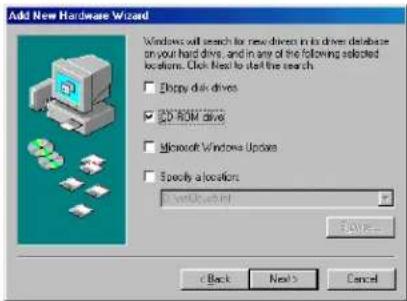
Add New Hardware Wizard Windows will search for new drivers in its driven database on your hard drive, and in any of the following selected locations. Click Next to select the search. □ Empty disk drives ☑ CD ROM drive □ Microsoft Windows Updates □ Specify a location: D:\win\chinal Back Next Cancel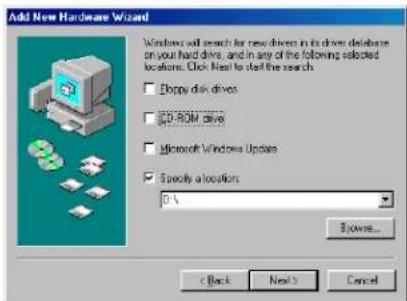
text_image
Add New Hardware Wizard Windows will search for new drivers in its drive database on your hard drive, and in any of the following selected locations. Click Next to select the search. Doppy disk drives D-ROM drive Microsoft Windows Update Specify a location: 0-5 Browse... < Back Next > CancelHome Print Exit
4 Be sure "CD-ROM drive" is the only box checked, as in the window at top left.
5 Click Next. The message "Please wait while Windows searches for a new driver for this device" is displayed.
If your computer successfully locates the driver, you can skip to step 8.
6 If your computer does not locate the driver, the previous window is displayed again. Select Specify a location and type the location of your CD-ROM drive as shown at bottom left.
To load the driver successfully, you may need to click Browse to manually select the NetMotCM.sys file on the CD-ROM.
7 Click Next.
13 SURFboard Cable Modem User Guide

MOTOROLA
Introduction
Before You Begin
Installation & Configuration
Troubleshooting
FAQ
Glossary License
Setting Up a USB Driver in Windows 98, continued

text_image
Add New Hardware Wizard Windows has found an updated drive for this device, and also some other drivers that should work with this device. What do you want to adopt? ● The updated drive [Recommended] Motorola Suitboard 420 USB Cable Modem ● One of the other drivers: < Back Next > Cancel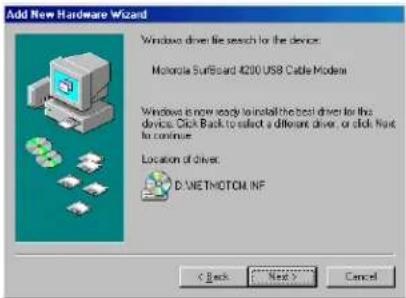
text_image
Add New Hardware Wizard Windows driven the search for the device. Motorola Surfboard 4200 USB Cable Modem Windows is now ready to install the best driver for this device. Click Back to select a different driver, or click Next to continue. Location of driver. D:\NETMOTOM.INF < Back Next > Cancel
8 Select The updated driver... and click Next.
If this window is not displayed, verify that the SURFboard Cable Modem CD-ROM is properly inserted in the CD-ROM drive. If you still cannot find the correct driver file, click Cancel to cancel the installation and perform the procedure for "Removing the USB Driver from Windows 98 or Me" on page 38. Then repeat this procedure.
9 After the window at bottom left is displayed, click Next.
If a window with the message Copying Files... displays and asks for your CD-ROM drive, type your CD-ROM drive letter (for example, "D:") and click OK.
If an Insert Disk window similar to the one below is displayed, Windows 98 system files are needed to complete the installation. To install the files, insert your Windows 98 CD-ROM is in the CD-ROM drive and click OK.

Although your SURFboard cable modem model number may be different than in the images in this guide, the procedure is the same.

14 SURFboard Cable Modem User Guide

MOTOROLA
Introduction
Before You Begin
Installation & Configuration
Troubleshooting
FAQ
Glossary License
Setting Up a USB Driver in Windows 98, continued

text_image
Add New Hardware Wizard Motorola Suitboard 4220 USB Cable Modem Windows has finished installing the software that your new hardware device requires. OK Finish Cancel
text_image
System Settings: Change To finish setting up your new hardware, you must restart your computer. Do you want to restart your computer now? Yes NoAfter all the necessary files are loaded, the window at upper left is displayed confirming a successful installation.
10 Click Finish. The window at bottom left is displayed.
11 Click Yes to restart your computer.
When you finish setting up the USB driver, you can continue with "Configuring TCP/IP" on page 22.
If you have difficulties setting up the USB driver, perform "Removing the USB Driver from Windows 98 or Me" on page 38 and repeat this procedure. If that does not correct your problem, see the Software License and Warranty Information card provided with your SURFboard cable modem for information about obtaining warranty service.

15 SURFboard Cable Modem User Guide

MOTOROLA
Introduction
Before You Begin
Installation & Configuration
Troubleshooting
FAQ
Glossary License
Setting Up a USB Driver in Windows 2000
text_image
Found New Hardware Wizard Welcome to the Found New Hardware Wizard This wizard helps you install a device driver for a hardware device. To continue, click Next. OK Next > Cancel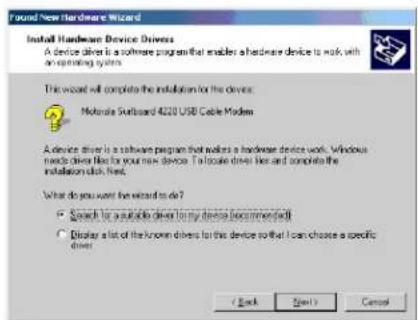
text_image
Found New Hardware Wizard Install Hardware Device Drivers A device driver is a software program that enables a hardware device to work with an operating system. This wizard will complete the installation for the devices. Motorola Platform 4220 USB Cable Modems A device driver is a software program that makes a hardware device work. Windows needs drive files to your new devices. To locate drive files and compute the installation disk file. What do you want the wizard to do? • Search for a suitable device (to my devices recommended) • Display a list of the known drivers for this device so that I can choose a specific driver. ( Back Next > Cancel
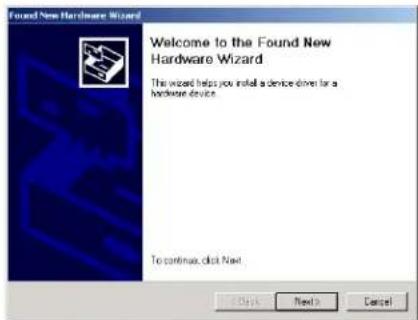
Be sure the SURFboard Cable Modem CD-ROM is inserted into the CD-ROM drive before you plug in the USB cable. A few seconds after you complete the USB connection, the Found New Hardware window is displayed.
1 Click Next.
2 Be sure "Search for a suitable driver for my device" is selected.
3 Click Next.
Although your SURFboard cable modem model number may be different than in the images in this guide, the procedure is the same.
16 SURFboard Cable Modem User Guide

MOTOROLA
Introduction
Before You Begin
Installation & Configuration
Troubleshooting
FAQ
Glossary License
Setting Up a USB Driver in Windows 2000, continued
text_image
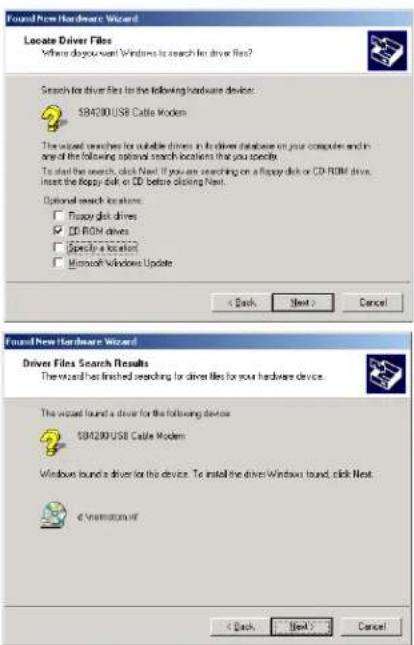
Found New Hardware Wizard Locate Driver Files Where do you want Windows to search for driver files? Search for driver files to the following hardware device: SB4200 USB Cable Modem The wizard searches for suitable drivers in the driver database on your computer and in any of the following options search locations that you specify. To start the search, click Next. If you are searching on a floppy disk or CD-ROM drive, Insert the floppy disk or CD before closing Next. Optional search locations: □ floppy disk drives □ CD-ROM drives □ Specify a location □ Microsoft Windows Update < Back Next > Cancel Found New Hardware Wizard Driver Files Search Results The wizard has finished searching for driver files for your hardware device. The wizard found a driver for the following device: SB4200 USB Cable Modem Windows found a driver for this device. To install the driver Windows found, click Next e-Animation of < Back Next > CancelHome Print Exit
4 Be sure "CD-ROM drives" is the only box checked, as in the window at top left.
5 Click Next. The lower window is displayed.
6 Click Next.
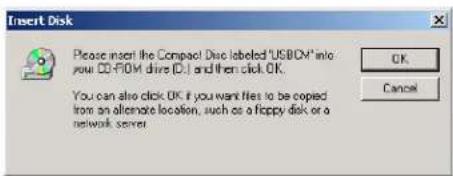
If the Insert Disk window is displayed, be sure the SURFboard Cable Modem CD-ROM is in the CD-ROM drive and follow steps 7 to 12. Otherwise, you can skip to step 13.
17 SURFboard Cable Modem User Guide

MOTOROLA
Introduction
Before You Begin
Installation & Configuration
Troubleshooting
FAQ
Glossary License
Setting Up a USB Driver in Windows 2000, continued
text_image
Insert Disk Please insert the Compact Disk labeled "USB/CM" into your CD-ROM drive (C:) and then click OK. You can also click OK if you want files to be copied from an alternate location, such as a floppy disk or a network server.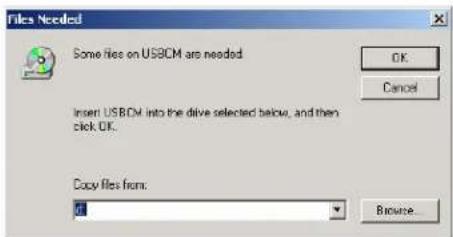
text_image
Files Needed Some files on USBCM are needed. Insert USBCM into the drive selected below, and then click OK. Copy files from: OK Cancel Browse...7 On the Insert Disk window, click OK. The Files Needed window is displayed.
8 If necessary, select your CD-ROM drive in the Copy files from list.
9 Click Browse.
10 Locate the NetMotCM.sys file in the CD-ROM root directory.
11 Double-click the NetMotCM.sys file. The Files Needed window is displayed.
12 Click OK. The Found New Hardware Wizard window is displayed.


18 SURFboard Cable Modem User Guide

MOTOROLA
Introduction
Before You Begin
Installation & Configuration
Troubleshooting
FAQ
Glossary License
Setting Up a USB Driver in Windows 2000, continued
text_image
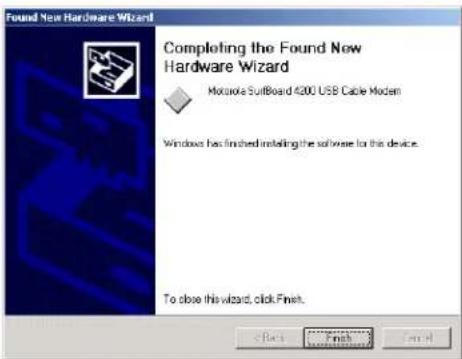
Found New Hardware Wizard Completing the Found New Hardware Wizard Mokuroa Suitboard 4200 USB Cable Modem Windows has finished installing the software for this device. To close this wizard, click Finish.13 Click Finish to complete the installation.
When you finish setting up the USB driver, you can continue with "Configuring TCP/IP" on page 22.
If you have any difficulties setting up the USB driver, perform "Removing the USB Driver from Windows 2000" on page 42 and repeat this procedure.


19 SURFboard Cable Modem User Guide

MOTOROLA
Introduction
Before You Begin
Installation & Configuration
Troubleshooting
FAQ
Glossary License
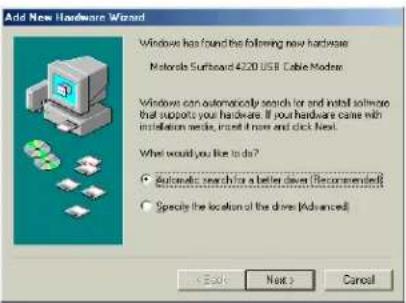
text_image
Add New Hardware Wizard Windows has found the following new hardware Motorola Surboard 4220 USB Cable Modem Windows can automatically search for and install software that supports your hardware. If your hardware calls with installation mode, install if now and click next. What would you like to do? Automatic search for a better drive (Recommended) Specify the location of the drive (Advanced) Next > Cancel
text_image
Add New Hardware Wizard Motorola Surfboard 4220 USB Cable Modem Windows has finished installing the new hardware device. Back Finish End
Setting Up a USB Driver in Windows Me
Be sure the SURFboard Cable Modem CD-ROM is inserted into the CD-ROM drive before you plug in the USB cable. A few seconds after you complete the USB connection, the Add New Hardware Wizard window is displayed.
1 Click Next. Windows automatically searches for the correct USB drivers and installs them. If the installation is successful, the window at bottom left is displayed.
2 If the window at bottom left is displayed, click Finish. Otherwise, be sure the SURFboard Cable Modem CD-ROM is correctly inserted in your CD-ROM drive.
When you finish setting up the USB driver, you can continue with "Configuring TCP/IP" on page 22.
Although your SURFboard cable modem model number may be different than in the images in this guide, the procedure is the same.

20 SURFboard Cable Modem User Guide

MOTOROLA
Introduction
Before You Begin
Installation & Configuration
Troubleshooting
FAQ
Glossary License

text_image
Found New Hardware Wizard Welcome to the Found New Hardware Wizard This Wizard helps you install software for: SB4100 USB CableMedian If your hardware came with an installation CD or floppy disk, insert it now What do you want the wizard to do? ● Install the software automatically (Recommended) ○ Install from a list or specific location (Advanced) Click Next to continue. < Back Next > Cancel
text_image
Found New Hardware Wizard Completing the Found New Hardware Wizard The wizard has finished installing the software for: Motorola Suitboard 4220 USB Cable Modem Click Finish to close the wizardHome Print Exit
Setting Up a USB Driver in Windows XP
Be sure the SURFboard Cable Modem CD-ROM is inserted into the CD-ROM drive before you plug in the USB cable. A few seconds after you complete the USB connection, the Found New Hardware Wizard window is displayed.
1 Be sure "Install the software automatically" is selected.
2 Click Next. Windows automatically searches for the correct USB drivers and installs them. If the installation is successful, the window at bottom left is displayed.
3 Click Finish to complete the installation. Otherwise, be sure the SURFboard Cable Modem CD-ROM is correctly inserted in your CD-ROM drive.
When you finish setting up the USB driver, you can continue with "Configuring TCP/IP" on page 22.
Although your SURFboard cable modem model number may be different than in the images in this guide, the procedure is the same.
21 SURFboard Cable Modem User Guide

MOTOROLA
Introduction
Before You Begin
Installation & Configuration
Troubleshooting
FAQ
Glossary License
Configuring TCP/IP
The SURFboard cable modem contains all required software. You do not need to configure the cable modem, but you must be sure that your computer is configured for TCP/IP (a protocol for communication between computers). Perform one of:
■ "Configuring TCP/IP in Windows 95, 98, or Me" on page 23
■ "Configuring TCP/IP in Windows 2000 or XP" on page 26
■ Follow the instructions in your Macintosh or UNIX user manual
After configuring TCP/IP, perform one of the following to verify the IP address:
■ "Verifying the IP Address in Windows 95, 98, or Me" on page 30
■ "Verifying the IP Address in Windows 2000 or XP" on page 31
■ Follow the instructions in your Macintosh or UNIX user manual
Your cable service provider may provide additional instructions to set up your computer.


MOTOROLA
Introduction
Before You Begin
Installation & Configuration
Troubleshooting
FAQ
Glossary License
Configuring TCP/IP in Windows 95, 98, or Me
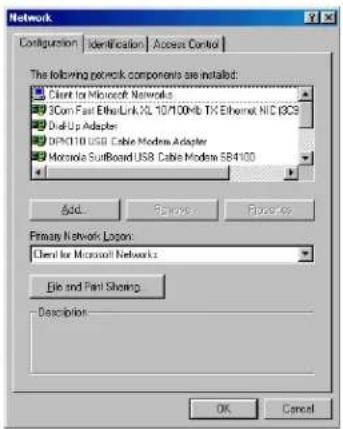
text_image
Network Configuration | Identification | Access Control | The following network components are installed: ■ Client for Microsoft Networks ■ 3Com Fast Ethernet XL 10/100Mb TX Ethernet NIC (8GB) ■ Dual-Up Adapter ■ DPDC110 USB Cable Modems Adapter ■ Microsoft SuitBoard USB Cable Modems 584100 Add... Remove... Remove... Primary Network Logon: Client for Microsoft Networks File and Print Sharing Description OK CancelThe following instructions are for Windows 95, 98 and Me. For Windows 2000 or XP, see "Configuring TCP/IP in Windows 2000 or XP" on page 26. For a Macintosh or UNIX system, refer to your user guide.
1 On the Windows Desktop, click Start.
2 Select Settings and then Control Panel from the pop-up menus.
3 Double-click the Network icon on the Control Panel window.
4 Select the Configuration tab on the Network window.
5 If TCP/IP is displayed in the list of network components, it is installed and you can skip to step 10. If TCP/IP is not displayed on the list, continue with step 6.
Although your SURFboard cable modem model number may be different than in the images in this guide, the procedure is the same.


23 SURFboard Cable Modem User Guide

MOTOROLA
Introduction
Before You Begin
Installation & Configuration
Troubleshooting
FAQ
Glossary License
Configuring TCP/IP in Windows 95, 98, or Me, continued
text_image
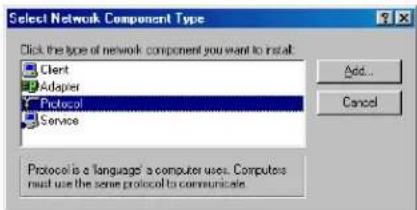
Select Network Component Type Click the type of network component you want to install. Client Adapter Protocol Service Add... Cancel Protocol is a Language's computer uses. Computers must use the same protocol to communicate.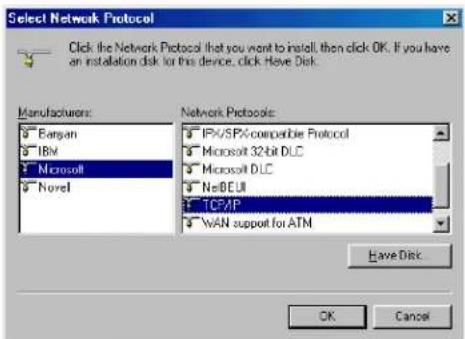
text_image
Select Network Protocol Click the Network Protocol that you want to install, then click OK. If you have an installation disk for this device, click Have Disk. Manufacturers: Bargan IBM Microsoft Novel Network Protocols: IPX/SPX-compatible Protocol Microsoft 32-bit DLC Microsoft DLC NetBEUI TCP/IP WAN support for ATM Have Disk OK Cancel

6 Click Add.
7 Double-click the Protocol option on Select Network Component Type window.
8 Click Microsoft in the Manufacturers section and click TCP/IP in the Network Protocol section of Select Network Protocol window.
9 Click OK.
24 SURFboard Cable Modem User Guide

MOTOROLA
Introduction
Before You Begin
Installation & Configuration
Troubleshooting
FAQ
Glossary License
Configuring TCP/IP in Windows 95, 98, or Me, continued
text_image
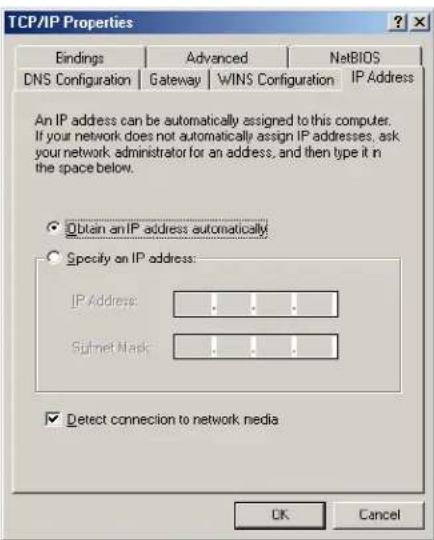
TCP/IP Properties Bindings Advanced NetsBIOS DNS Configuration Gateway WINS Configuration IP Address An IP address can be automatically assigned to this computer. If your network does not automatically assign IP addresses, ask your network administrator for an address, and then type it in the space below. Obtain an IP address automatically. Specify on IP address: IP Address: .... .... .... Subnet Mask: .... .... .... Detect connection to network media OK Cancel10 Click TCP/IP on the Network window. If there is more than one TCP/IP entry, choose the one for the Ethernet card or USB port connected to the cable modem.
11 Click Properties. The TCP/IP window is displayed.
12 Click the IP Address tab.
13 Click Obtain an IP address automatically.
14 Click OK to accept the TCP/IP settings.
15 Click OK to close the Network window.
16 Click OK when prompted to restart your computer and click OK again.
When you complete TCP/IP configuration, go to "Verifying the IP Address in Windows 95, 98, or Me" on page 30.


25 SURFboard Cable Modem User Guide

MOTOROLA
Introduction
Before You Begin
Installation & Configuration
Troubleshooting
FAQ
Glossary License
text_image
Control Panel Add/Remove Hardware Add/Remove Programs Administrative Tools ATI Multimedia... CSRAM DataTime Display Pusher Options Fonts Gaming Options Internet Options Jens Pushin Keyboard Mouse Network and Disk-up Connection Phone and Wizard... Power Options Punters QuickLine RealPlayer Regional Objects Scanning and Camera Scheduled Tasks Sounds and Multimedia System Users and Passwords Connects to other computers, networks, and the Internet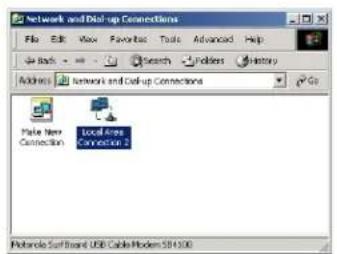
text_image
Network and Dial-up Connections File Edit View Favorites Tools Advanced Help Back Search Favorites History Address Network and Dial-up Connections Go Make New Connection Local Files Protocole Surband USB Cable Module 581430Home Print Exit
Configuring TCP/IP in Windows 2000 or XP
The following instructions are for Windows 2000 or XP. For Windows 95, 98, or Me, see "Configuring TCP/IP in Windows 95, 98, or Me" on page 23. For a Macintosh or UNIX system, refer to your user guide.
1 On the Windows Desktop, click Start.
2 Select Settings and then Control Panel from the pop-up menus.
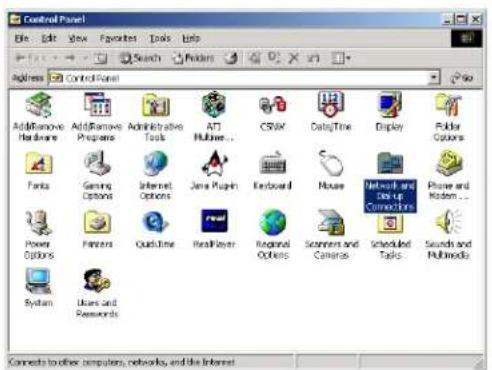
3 Double-click the Network and Dial-up Connections icon on the Control Panel window.
4 On the Network and Dial-up Connections window, click Local Area Connection number. The value of number varies from system to system. The Local Area Connection number Status window is displayed.

26 SURFboard Cable Modem User Guide

MOTOROLA
Introduction
Before You Begin
Installation & Configuration
Troubleshooting
FAQ
Glossary License
Configuring TCP/IP in Windows 2000 or XP, continued

text_image
Local Area Connection 2 Status General Connection Status Connected Duration 30.04.20 Speed 7500 Bits Activity Start Received Packages 0 0 Properties Disable Close
text_image
Local Area Connections / Properties General Connect Using: Himedia Surbound USB Color Modem SE4108 Configure Components checked are used by the connection: □ Text for Microsoft Networks □ Be and Hide Sharing for Microsoft Networks □ Internet Protocol TCP/IP Install Delete Properties Description Transmission Control Protocol/Internet Protocol. The default wireless network protocol that provides communication across these interconnected networks. Show command whether when connected Close Cancel
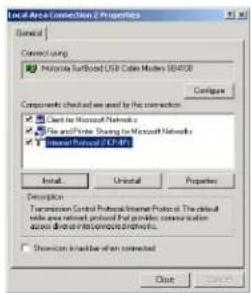
5 Click Properties. Information similar to the lower window is displayed.
6 If Internet Protocol (TCP/IP) is in the list of components, TCP/IP is installed. You can skip to step 10.
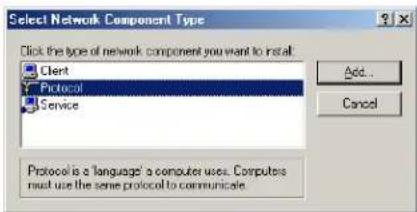
If Internet Protocol (TCP/IP) is not in the list, click Install. The Select Network Component Type window is displayed. Continue with step 7.
27 SURFboard Cable Modem User Guide

MOTOROLA
Introduction
Before You Begin
Installation & Configuration
Troubleshooting
FAQ
Glossary License
Configuring TCP/IP in Windows 2000 or XP, continued
text_image
Select Network Component Type Click the type of network component you want to install Client Protocol Service Add... Cancel Protocol is a 'language' a computer uses. Computers must use the same protocol to communicate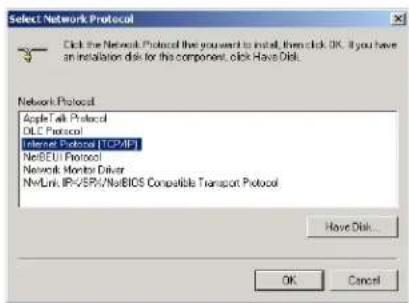
text_image
Select Network Protocol Click the Network Protocol the you want to install, then click OK. If you have an installation disk for this component, click Have Disk. Network Protocol Apple Talk Protocol DLC Protocol Internet Protocol [TCP/IP] NetBEU1 Protocol Network Monitor Driver NVLink IP/SPV/NetBIOS Compatible Transport Protocol Have Disk... OK Cancel7 Click Protocol on the Select Network Component Type window and click Add. The Select Network Protocol window is displayed.
8 Click Internet Protocol (TCP/IP) in the Network Protocol section on the Select Network Protocol window.
9 Click OK. The Local Area Connection number Properties window is re-displayed.




MOTOROLA
Introduction
Before You Begin
Installation & Configuration
Troubleshooting
FAQ
Glossary License
Configuring TCP/IP in Windows 2000 or XP, continued
text_image
Location & Connection 2 Properties General Connecting Portions Surface/USB Cable Moders SEVDCB Configure Connects checked are used by the connection C++ to Microsoft Networks File and Print Sharing for Microsoft Networks Internet Protocol (TCP/IP) Install Uninstall Properties Description Termination Control Protocol Internet Protocol: The default wire and network protocol provides communication access distance to remote protocols. Show options when connected Close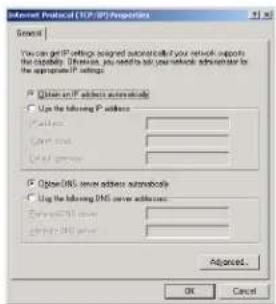
text_image
Internet Protocol (TCP/IP) Properties General You can get IP settings assigned to your network to the capability. Otherwise, you need to ask your network administrator to the appropriate IP settings. ■ Open an IP address automatics ■ Use the following IP address: Positive Cancel Help when ■ Open DNS server address automatics ■ Use the following DNS server address: Exceptional server Cancel DNS server Advanced... OK Cancel
10 On the Local Area Connection number Properties window, be sure the box next to Internet Protocol (TCP/IP) is checked.
11 Click Properties. The Internet Protocol (TCP/IP) Properties window is displayed as shown at bottom left.
12 Be sure Obtain IP address automatically and Obtain DNS server address automatically are selected.
13 Click OK to accept the TCP/IP settings.
14 Click OK to close the Local Area Connection number Properties window.
15 Click OK when prompted to restart your computer and click OK again.
When you complete the TCP/IP configuration, go to "Verifying the IP Address in Windows 2000 or XP" on page 31.

29 SURFboard Cable Modem User Guide

MOTOROLA
Introduction
Before You Begin
Installation & Configuration
Troubleshooting
FAQ
Glossary License

text_image
IP Configuration Ethernet Adapter Information PCI Bus Master Adapter Adapter Address 00-80-C6-E7-59-E6 IP Address 206.19.86.132 Subnet Mask 255.255.255.224 Default Gateway 206.19.86.129 OK Release Renew Release All Renew All More Info >>The values for Adapter Address, IP Address, Subnet Mask, and Default Gateway on your PC will be different than in the image above.
| Adapter Address | 00-80-C6-E7-59-E6 |
| IP Autoconfiguration Address | 169.254.191.251 |
In Windows 98, if autoconfiguration is displayed before the IP Address, call your service provider.

Verifying the IP Address in Windows 95, 98, or Me
The following instructions are for Windows 95, 98, or Me. For information about Windows 2000 or XP, see "Verifying the IP Address in Windows 2000 or XP" on page 31. For a Macintosh or UNIX system, refer to your user guide.
To check the IP address:
1 On the Windows Desktop, click Start.
2 Select Run. The Run window is displayed.
3 Type winipcfg.exe and click OK. A window similar to the example at top left is displayed.
4 Select your adapter name — the Ethernet card or USB device.
5 Click Renew.
6 Click OK after the system displays an IP address.
If after performing this procedure your computer cannot access the Internet, call your cable service provider for help.
30 SURFboard Cable Modem User Guide

MOTOROLA
Introduction
Before You Begin
Installation & Configuration
Troubleshooting
FAQ
Glossary License

text_image
C:\WINDOWS\System32\cmd.exe Microsoft Windows 2008 [Version 5.00.21951 (C) Copyright 1985-2008 Microsoft Corp. C:\>ipconfig Windows 2008 IP Configuration Ethernet adapter Local Area Connection 2: Connection-specific DNS Suffix . : purfboard.com IP Address. . . . . . . . . . . . . . . . . . . . . . . . . . . . . . . . . . . . . . . . . . . . . . . . . . . . . . . . . . . . . . . . . . . . . . . . . . Subnet Mask. . . . . . . . . . . . . . . . . . . . . . . . . . . . . . . . . . . . . . . . . . . . . . . . . . . . . . . . . . . . Default Gateway. . . . . . . . . . . . . . . . . . . . . . . . . . . . . . . . . . . . Ethernet adapter Local Area Connection: Media State. . . . . . . . . . ..: Cable Disconnected C:\>
text_image
Microsoft Windows 2000 [Version 5.00.2195] (C) Copyright 1985-2000 Microsoft Corp. C:\>ipconfig Windows 2000 IP Configuration Ethernet adapter Local Area Connection 2: Connection-specific DNS Suffix . : Autoconfiguration IP Address . . : 169.254.45.20 Subnet Mask . . . . . . . . . . . . : 255.255.0.0 Default Gateway . . . . . . . . . . . . : C:\>

Verifying the IP Address in Windows 2000 or XP
The following instructions are for Windows 2000 or Windows XP. For information about Windows 95, 98, or Me, see "Verifying the IP Address in Windows 95, 98, or Me" on page 30. For a Macintosh or UNIX system, refer to your user guide.
To check the IP address:
1 On the Windows Desktop, click Start.
2 Select Run. The Run window is displayed.
3 Type cmd and click OK. A window like the one at upper left is displayed.
4 Type ipconfig and press ENTER to display your IP configuration. A display, like the window at upper left, indicates a normal configuration.
If an Autoconfiguration IP Address is displayed as in the window at bottom left, there is an incorrect connection between your PC and the cable modem or there are cable network problems. Check:
- Your cable connections
Whether you can see cable-TV channels on your television
After verifying your cable connections and proper cable-TV operation, you can renew your IP address.

31 SURFboard Cable Modem User Guide

MOTOROLA
Introduction
Before You Begin
Installation & Configuration
Troubleshooting
FAQ
Glossary License
Verifying the IP Address in Windows 2000 or XP, continued

text_image
Microsoft Windows 2000 [Version 5.08.2195] (C) Copyright 1985-2000 Microsoft Corp. C:\>ipconfig /renew Windows 2000 IP Configuration Ethernet adapter Local Area Connection 2: Connection-specific DNS Suffix . : surfboard.com IP Address. . . . . . . . . . . . . . . . . . . . . . . . . . . . . . . . . . . . . . . . . . . . . . . . . . . . . . . . . . . . . . . Subnet Mask . . . . . . . . . . . . . . . . . . . . . . . . . . . . . . . . . . . . . . . . . . . . . . . . . . . . . . . . . . . . . . Default Gateway. . . . . . . . . . . . . . . . . . . . . . . . . . . . . . . . 206.19.86.161 C:\>To renew your IP address:
1 Type ipconfig /renew and press ENTER. If a valid IP address is displayed as shown at left, Internet access should be available.
2 Type exit and press ENTER to return to Windows.
If after performing this procedure your computer cannot access the Internet, call your cable service provider for help.




MOTOROLA
Introduction
Before You Begin
Installation & Configuration
Troubleshooting
FAQ
Glossary License
flowchart
graph TD
    A["SURF board cable modem"] -->|USB cable| B["Computer"]
    A -->|Ethernet cable| C["Computer"]
    A -->|Coaxial cable| D["Cable outlet"]

flowchart
graph TD
    A["SURFboard cable modem"] --> B["USB cable"]
    A --> C["Ethernet hub"]
    C --> D["Computer"]
    C --> E["Ethernet hub"]
    C --> F["Computer"]
    C --> G["Computer"]
    style A fill:#f9f,stroke:#333
    style B fill:#ccf,stroke:#333
    style C fill:#cfc,stroke:#333
    style D fill:#fcc,stroke:#333
    style E fill:#cff,stroke:#333
    style F fill:#ffc,stroke:#333
    style G fill:#fcc,stroke:#333
Home Print Exit
Cabling for Multiple Users
The SURFboard cable modem supports several multiple user configurations. Along with an optional hub or router, it can serve as an Internet gateway for up to 32 computers.
For information about multiple user service, contact your cable service provider.
Ethernet and USB
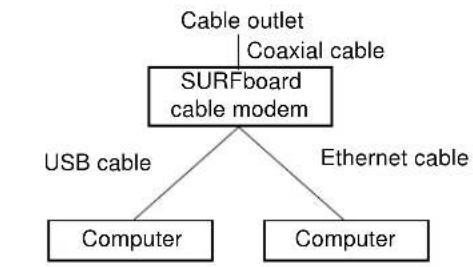
You can connect the USB port on one computer and the Ethernet port on another computer directly to the cable modem, as shown at top left.
Caution

Do not connect both the Ethernet and USB cables to the same computer.
You can connect a single computer to the USB port and from one to 31 remaining users to an Ethernet hub, as shown at bottom left. You cannot connect more than one computer to the cable modem through the USB port.

33 SURFboard Cable Modem User Guide

MOTOROLA
Introduction
Before You Begin
Installation & Configuration
Troubleshooting
FAQ
Glossary License
Cabling for Multiple Users, continued
Ethernet
You can connect up to 32 computers to an Ethernet hub connected to a SURFboard cable modem, as shown at left.

flowchart
graph TD
    A["Cable outlet"] --> B["SURFboard cable modem"]
    B --> C["Ethernet hub"]
    D["Coaxial cable"] --> B
    E["Ethernet cable"] --> B
    F["Computer"] --> G["Computer"]
    H["Computer"] --> I["Computer"]
    G --> J["Ethernet cable"]
    I --> J




MOTOROLA
Introduction
Before You Begin
Installation & Configuration
Troubleshooting
FAQ
Glossary License
Troubleshooting
If the solutions listed here do not solve your problem, contact your cable service provider. Before calling your service provider, try pressing the reset button on the rear panel. Resetting the cable modem may take 5 to 30 minutes. Your service provider may ask for the status of the front-panel lights as described in "Front-Panel Lights and Error Conditions" on page 37.
Problem Possible Solutions
Green POWER light is off
Check that the power cord is properly plugged into the electrical outlet and the cable modem.
Check that the electrical outlet is working.
If the Standby light is on, the Internet connection is off. Press the Standby button to reconnect to the Internet. Press the Reset button.



MOTOROLA
Introduction
Before You Begin
Installation & Configuration
Troubleshooting
FAQ
Glossary License
Problem
Cannot send or receive data
Possible Solutions
Check the lights on the front panel. Note the first light from top to bottom that is off. This light indicates where the error occurred as described in "Front-Panel Lights and Error Conditions" on page 37.
If all lights are off except the Standby light, the cable modem is in Standby mode. Press the Standby button to reconnect your Internet service.
If you have cable TV, check that your TV is working and the picture is clear. If you cannot receive your regular TV channels, your data service will not function.
Check the coaxial cable at the cable modem and wall outlet. Hand-tighten if necessary.
Check the IP address. Follow the steps in "Verifying the IP Address in Windows 95, 98, or Me" on page 30 or "Verifying the IP Address in Windows 2000 or XP" on page 31. Call your cable service provider if you need an IP address.
Check that the USB or Ethernet cable is properly connected to the cable modem and your computer.
Problems related to unsuccessful USB driver installation
Remove the USB driver. Follow the instructions in one of:
■ "Removing the USB Driver from Windows 98 or Me" on page 38
■ "Removing the USB Driver from Windows 2000" on page 42


36 SURFboard Cable Modem User Guide

MOTOROLA
Introduction
Before You Begin
Installation & Configuration
Troubleshooting
FAQ
Glossary License
Front-Panel Lights and Error Conditions
| Light | Turns Off During Startup If | Turns Off During Normal Operation If |
| Receive | The receive channel cannot be acquired | The receive channel is lost |
| Send | The send channel cannot be acquired | The send channel is lost |
| Online | IP registration is unsuccessful | The IP registration is lost |
| Power | The cable modem is not properly plugged into the power outlet | The cable modem is unplugged or is in standby mode. Press the Standby button |
For more information about the lights, see "Top and Front Panel" on page 2.



37 SURFboard Cable Modem User Guide

MOTOROLA
Introduction
Before You Begin
Installation & Configuration
Troubleshooting
FAQ
Glossary License
Removing the USB Driver from Windows 98 or Me

text_image
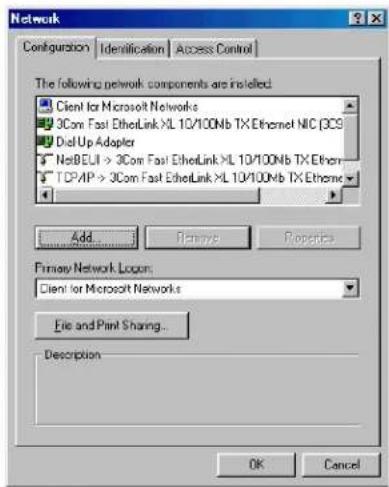
Network Configuration Identification Access Control The following network components are installed: Client for Microsoft Networks 3Com Fast EthelLink X/L 10/100Nb TX Ethernet Adapter Dial Up Adapter Motorola SurfBoard 4100 USD Cable Modem TCP/IP -> 3Com Fast EthelLink X/L 10/100Nb TX Ethernet Add... Remove Properties Primary Network Logom: Client for Microsoft Networks File and Plant Sharing... Description A network adapter is a hardware device that physically connects your computer to a network. OK Cancel1 On your Windows Desktop, right-click the Network Neighborhood icon and select Properties. The Network window is displayed.
2 Click the Motorola SurfBoard USB Cable Modem.
Although your SURFboard cable modem model number may be different than in the images in this guide, the procedure is the same.

38 SURFboard Cable Modem User Guide

MOTOROLA
Introduction
Before You Begin
Installation & Configuration
Troubleshooting
FAQ
Glossary License
Removing the USB Driver from Windows 98 or Me, continued
text_image
Network Configuration | Identification | Access Control | The following network components are installed: Client for Microsoft Networks 3Com Fast EthelLink XL 10/100Nb TX Ethernet NIC (3CS) DioUp Adapter NetBEUI > 3Com Fast EthelLink XL 10/100Nb TX Ethernet TCP/IP > 3Com Fast EthelLink XL 10/100Nb TX Ethernet Add... Remove Properties Primary Network Loop: Client for Microsoft Networks File and Print Sharing... Description OK Cancel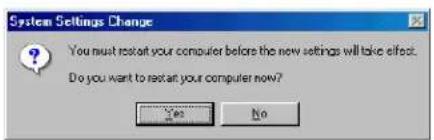
text_image
System Settings Change You must restart your computer before the new settings will take effect. Do you want to restart your computer now? Yes No
3 Click Remove. The Network window no longer displays Motorola SurfBoard USB Cable Modem in the list.
4 Click OK. The System Settings Change window is displayed.
5 Disconnect the USB cable from your PC or cable modem.
6 Click Yes to restart your computer.

39 SURFboard Cable Modem User Guide

MOTOROLA
Introduction
Before You Begin
Installation & Configuration
Troubleshooting
FAQ
Glossary License
Removing the USB Driver from Windows 98 or Me, continued
text_image
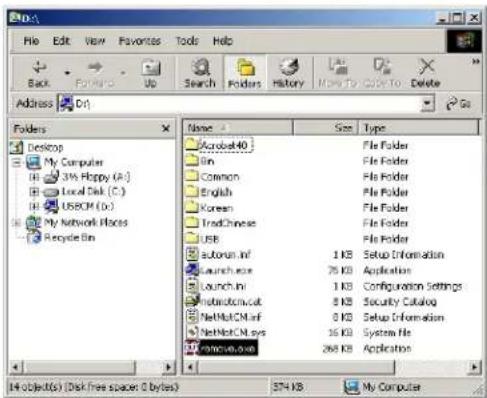
File Edit View Favorites Tools Help Back Forward Up Search Folders History MPT CNTO Delete Address Cn Folders Desktop My Computer 3% Hppy (A:) Local Disk (C:) USOM (D:) My Network Haces Recycle Bin Name Size Type Microsoft 40 File Folder Bin File Folder Common File Folder English File Folder Korean File Folder Trad Chinese File Folder USB File Folder Author-inf 1 KB Setup Information Launch.exe 25 KB Application Launch-inf 1 KB Configuration Settings Internet-cut 8 KB Security Catalog NetNotCM-inf 0 KB Setup Information NetNotCM.sys 35 KB System File Internet.exe 268 KB Application 14 object(s) (Disk free spacer 0 bytes) 374 KB My Computer7 Insert the SURFboard Cable Modem CD-ROM in the CD-ROM drive. After a short time, a window with language choices is displayed.
8 Press the Esc key on the keyboard to exit the start-up screens.
9 To start Windows Explorer, click Start and select Run.
10 In the Run window, type explorer and click OK. The Exploring window is displayed.
11 Select your CD-ROM drive (D: in the image at left).
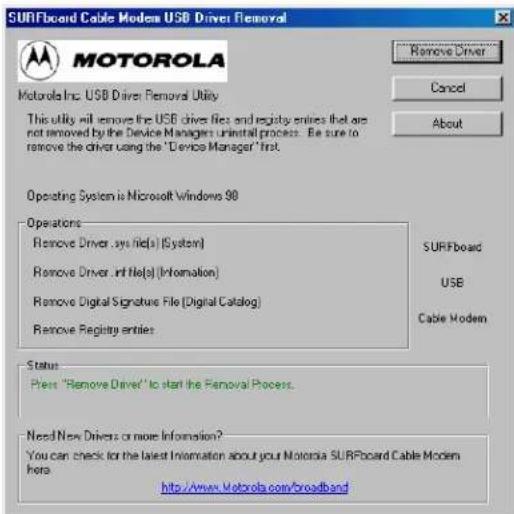
12 Double-click remove or remove.exe to run the Remove utility from the SURFboard Cable Modem CD-ROM. The SURFboard Cable Modem USB Driver Removal window is displayed.
Your Windows Explorer may appear slightly different than in the image on this page. There are slight variations between Windows versions and you can configure Windows Explorer as you like.


40 SURFboard Cable Modem User Guide

MOTOROLA
Introduction
Before You Begin
Installation & Configuration
Troubleshooting
FAQ
Glossary License
Removing the USB Driver from Windows 98 or Me, continued
text_image
SURFBoard Cable Modem USB Driver Removal Motorola Inc. USB Driver Removal Utility This utility will remove the USB driver files and registry entries that are not removed by the Device Managers' install process. Be sure to remove the driver using the "Device Manager" first. Operating System is Microsoft Windows 98 Operations Remove Driver .sys file(s) (System) Remove Driver .int file(s) (Information) Remove Digital Signature File (Digital Catalog) Remove Registry entries SURFBoard USB Cable Modem Status Press "Remove Driver" to start the Removal Process. Need New Drivers or more information? You can check for the latest Information about your Motorola SURFBoard Cable Modem here http://www.Motorola.com/broadband13 Click Remove Driver to remove the USB driver.
After you remove the USB driver, re-install the USB driver on your computer:
■ "Setting Up a USB Driver in Windows 98" on page 12
■ "Setting Up a USB Driver in Windows Me" on page 20
If you continue to have problems, contact your cable service provider.


41 SURFboard Cable Modem User Guide

MOTOROLA
Introduction
Before You Begin
Installation & Configuration
Troubleshooting
FAQ
Glossary License
Removing the USB Driver from Windows 2000

text_image
Control Panel File Edit View Favorites Tools Help Back Search Folders History Address Control Panel Go Accessibility Options Add/Remove Hardware Add/Remove Programs Administrative Tools Date/Time Display Folder Options Fonts Game Controllers Internet Options Keyboard Mouse Network and Setup Co... Phone and Modem ... Power Options Printers Regional Options Scanners and Cameras Scheduled Tasks Sounds and Multimedia System Users and Provides system information and changes environment settings My Computer

1 On your Windows desktop, click Start.
2 Click Settings.
3 Click Control Panel to display the Control Panel window.
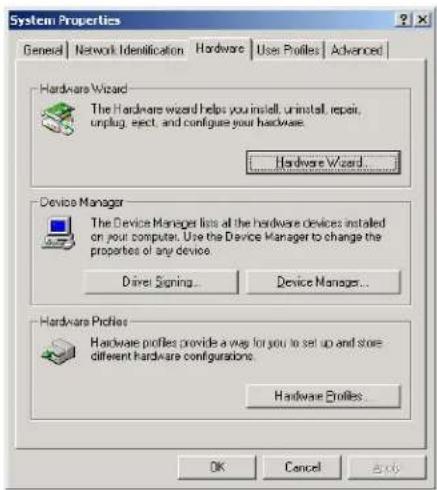
4 Double-click System to display the System Properties window.

42 SURFboard Cable Modem User Guide

MOTOROLA
Introduction
Before You Begin
Installation & Configuration
Troubleshooting
FAQ
Glossary License
Removing the USB Driver from Windows 2000, continued
text_image
System Properties General Network Identification Hardware Use Profiles Advanced Hardware Wizard The Hardware wizard helps you install, uninstall, repair, unplug, eject, and configure your hardware. Hardware Wizard... Device Manager The Device Manager lists all the hardware devices installed on your computer. Use the Device Manager to change the properties of any device. Dave Signing... Device Manager... Hardware Profiles Hardware Profiles provide a way for you to set up and store different hardware configurations. Hardware Profiles... OK Cancel Add5 On the System Properties window, click the Hardware tab.
6 Click the Device Manager button to display the Device Manager window:


43 SURFboard Cable Modem User Guide

MOTOROLA
Introduction
Before You Begin
Installation & Configuration
Troubleshooting
FAQ
Glossary License
Removing the USB Driver from Windows 2000, continued

text_image
Device Manager Action View MOTCROLA-RUQ2PT Computer Disk drives Disky adapters DVD/CD-ROM drives Floppy disk controllers Floppy disk drives IDE A1A/ATAPI controllers Keyboards Pice and other pointing devices Monitors Network adapters 3Com EtherLink 10/100 PCI For Complete PC Management NIC (3CROSC-TX) Motorola Surboard 41.03 USB Cable Modem Ports (COM & LPT) Sound, video and game controllers System devices Universal Serial Bus controllers7 On the Device Manager window, double-click Network Adapters.
8 Click the Motorola SurfBoard USB Cable Modem. The Uninstall icon is displayed on the window near the top.
9 Click the Uninstall icon.
10 Close the Device Manager window.
11 Close the Control Panel window.
Although your SURFboard cable modem model number may be different than in the images in this guide, the procedure is the same.

44 SURFboard Cable Modem User Guide

MOTOROLA
Introduction
Before You Begin
Installation & Configuration
Troubleshooting
FAQ
Glossary License
Removing the USB Driver from Windows 2000, continued
text_image
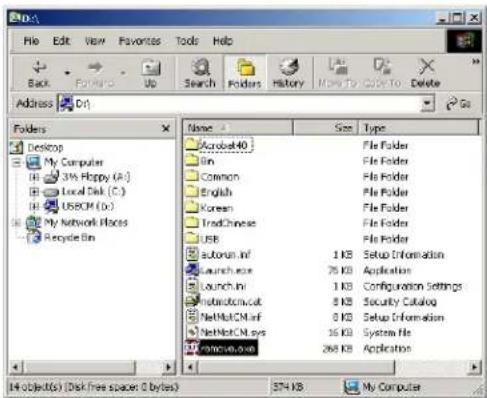
File Edit View Favorites Tools Help Back Forward Up Search Folders History MPT CNTO Delete Address Cn Folders Desktop My Computer 3% Hppy (A:) Local Disk (C:) USOM (D:) My Network Haces Recycle Bin Name Size Type Microsoft 40 File Folder Bin File Folder Common File Folder English File Folder Korean File Folder Trad Chinese File Folder USB File Folder Author-inf 1 KB Setup Information Launch.exe 25 KB Application Launch-inf 1 KB Configuration Settings Internet-cut 8 KB Security Catalog NetNotCM-inf 0 KB Setup Information NetNotCM.sys 35 KB System File Internet.exe 268 KB Application 14 object(s) (Disk free spacer 0 bytes) 374 KB My Computer12 Insert the SURFboard Cable Modem CD-ROM in the CD-ROM drive. After a short time, a window with language choices is displayed.
13 Press the Esc key on the keyboard to exit the start-up screens.
14 To start Windows Explorer, click Start and select Run.
15 In the Run window, type explorer and click OK.
16 Double-click My Computer.
17 Double-click the Motorola CD icon (D: in the image).
18 Double-click remove or remove.exe to run the Remove utility from the SURFboard Cable Modem CD-ROM. The SURFboard Cable Modem USB Driver Removal window is displayed.
Your Windows Explorer may appear slightly different than in the image on this page. There are slight variations between Windows versions and you can configure Windows Explorer as you like.


45 SURFboard Cable Modem User Guide

MOTOROLA
| Introduction | Before You Begin | Installation & Configuration | Troubleshooting | FAQ | Glossary License |
Removing the USB Driver from Windows 2000, continued

text_image
SURFboard Cable Modem USB Driver Removal MOTOROLA Motorola Inc: USB Driver Removal Utility This utility will remove the USB driver files and registry entries that are not removed by the Device Managers uninitial process. Be sure to remove the driver using the "Device Manager" init. Ensure your USB Cable Modem is disconnected. Operating System is Microsoft Windows XP Operators Remove Driver .sys file(s) (System) - Completed Remove Driver .int file(s) (Information) - Completed Remove Digital Signature File (Digital Catalog) - Completed Remove Registry entries - Completed Status The SURFboard Cable Modem USB driver has been removed. Need New Drivers or more Information? You can check for the latest information about your Motorola SURFboard Cable Modem here. http://www.Motorola.com/broadband19 The window on the left is displayed. Be sure the USB cable is disconnected.
20 Click Remove Driver.
Informational messages similar to the ones shown at left are displayed on the SURFboard Cable Modem USB Driver Removal window.
After you remove the USB driver, re-install the USB driver following "Setting Up a USB Driver in Windows 2000" on page 16. If you continue to have problems, contact your cable service provider.

46 SURFboard Cable Modem User Guide

MOTOROLA
Introduction
Before You Begin
Installation & Configuration
Troubleshooting
FAQ
Glossary License
Removing the USB Driver from Windows XP
text_image
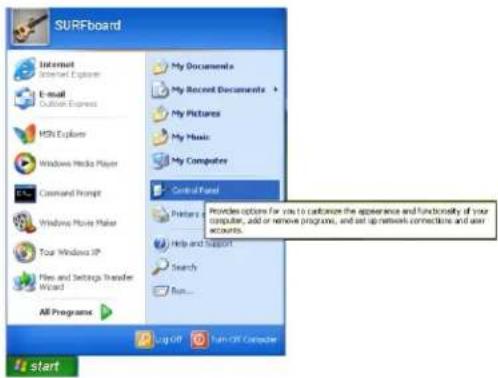
SURFboard Internet Selected Express E-mail Outlook Express MSN Explorer Windows Media Player Command Prompt Windows Movie Maker Tour Windows XP Files and Settings Transfer Wizard All Programs My Documents My Recent Documents + My Pictures My Music My Computer Control Panel Provides options for you to customize the appearance and functionality of your computer, add or remove programs, and set up network connections and user accounts. Help and Support Search Run... Log Off Turn Off Computer start

1 On the Windows desktop, click Start to display the Start window shown at left.
2 Click Control Panel to display the Control Panel window. The display varies, depending on your Windows XP view options.
3 If a Category view similar to below is displayed, click Performance and Maintenance. Otherwise, skip to step 5.

text_image
Control Panel Show Edit View Favorites Tools Help Control Panel Switch to Check Now Save Also Windows Capsets Help and Support Pick a category Appearance and Themes Features and Other Hardware Network and Internet Connections User Accounts Add or Remove Programs State, Time, Language, and Regional Options Sounds, Speech, and Audio Devices Accessibility Options Performance and Maintenance
47 SURFboard Cable Modem User Guide

MOTOROLA
Introduction
Before You Begin
Installation & Configuration
Troubleshooting
FAQ
Glossary License
Removing the USB Driver from Windows XP, continued
text_image
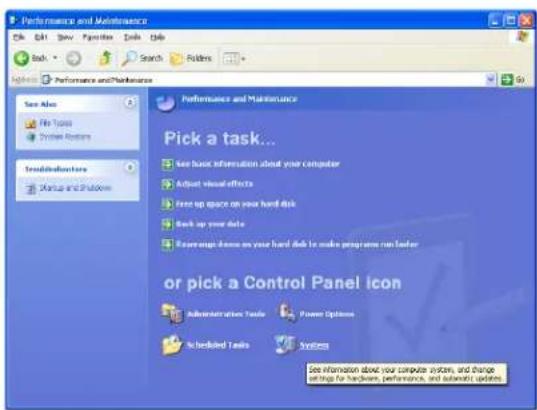
Performance and Maintenance Edit Edit Save Favorites Tools Help Back Search Folders Performance and Maintenance Save Also File Topics System Options Insolidators Status and Platform Performances and Maintenance Pick a task... See basic information about your computer Adjust visual effects Free up space on your hand disk Back up your data Reversware home on your hand disk to make programs run faster or pick a Control Panel icon Administration Tools Power Options Is checked Tasks Systems See information about your computer system, and change settings for hardsets, performances, and automatic updates4 On the Performance and Maintenance window, click System to display the System Properties window. Skip to step 6.


48 SURFboard Cable Modem User Guide

MOTOROLA
Introduction
Before You Begin
Installation & Configuration
Troubleshooting
FAQ
Glossary License
Removing the USB Driver from Windows XP, continued

text_image
Control Panel Edit Edit View Favorites Tools Help Control Panel Switch to Category Views See Also Unknown Updates Help and Support Accessibility Options Add Hardcovers Add or Memory... Administrative Tools Data and Time Display Slider Options Ports Game Controls Internal Options Keyboard Mouse Network Connectors Chrome and Flakes... Power Options Penters and Frames Regional and Language... Scrambers and Cameras Scheduled Tasks Sounds and Audio Devices Speech Textiles and Sheet Maps User Accounts5 If a classic view similar to at left is displayed, click System to display the System Properties window.


49 SURFboard Cable Modem User Guide

MOTOROLA
Introduction
Before You Begin
Installation & Configuration
Troubleshooting
FAQ
Glossary License
Removing the USB Driver from Windows XP, continued

text_image
System Properties System Restore Automatic Updates Remote General Computer Name Hardware Advanced Add Hardware Wizard The Add Hardware Wizard helps you install hardware. Add Hardware Wizard Device Manager The Device Manager lists all the hardware devices installed on your computer. Use the Device Manager to change the properties of any device. Driver Signing Device Manager Hardware Profiles Hardware profiles provide a way for you to set up and store different hardware configurations. Hardware Profiles OK Cancel Help6 On the System Properties window, click the Hardware tab.
7 Double-click the Device Manager button to display the Device Manager window.


50 SURFboard Cable Modem User Guide

MOTOROLA
Introduction
Before You Begin
Installation & Configuration
Troubleshooting
FAQ
Glossary License
Removing the USB Driver from Windows XP, continued
text_image
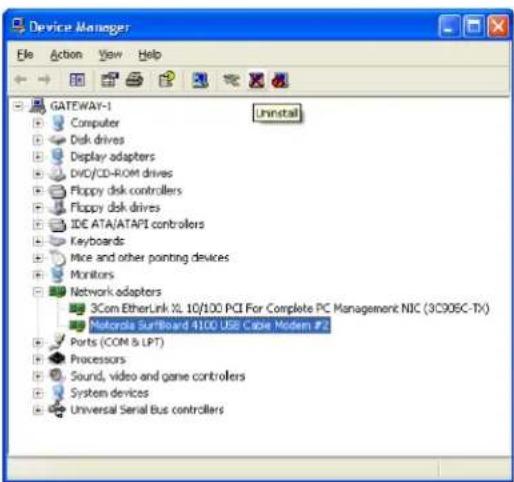
Device Manager File Action View Help GATEWAY-1 Computer Disk drives Display adapters DVD/CD-ROM drives Floppy disk controllers Floppy disk drives IDE ATA/ATAPI controllers Keyboards Mice and other pointing devices Monitors Network adaptors 3Com EtherLink XL 10/100 PCI For Complete PC Management NIC (3C906C-TX) Motorola SurfBoard 4100 USB Cable Modem #2 Ports (COM & LPT) Processors Sound, video and game controllers System devices Universal Serial Bus controllers8 On the Device Manager window, double-click Network adapters.
9 Click the Motorola SurfBoard USB Cable Modem. The Uninstall icon is displayed on the window near the top.
10 Click the Uninstall icon.
11 Close the Device Manager window.
12 Close the Control Panel window.
Although your SURFboard cable modem model number may be different than in the images in this guide, the procedure is the same.


51 SURFboard Cable Modem User Guide

MOTOROLA
Introduction
Before You Begin
Installation & Configuration
Troubleshooting
FAQ
Glossary License
Removing the USB Driver from Windows XP, continued
text_image
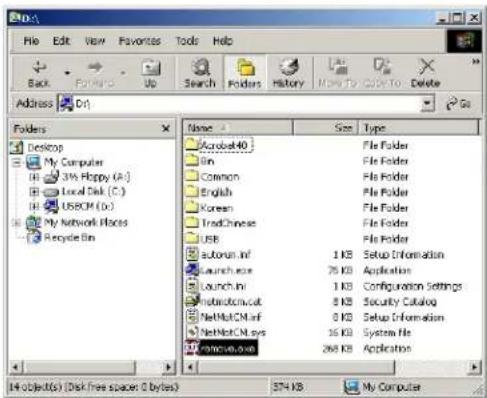
File Edit View Favorites Tools Help Back Forward Up Search Folders History MPT CNTO Delete Address Cn Folders Desktop My Computer 3% Hppy (A:) Local Disk (C:) USOM (D:) My Network Haces Recycle Bin Name Size Type Microsoft 40 File Folder Bin File Folder Common File Folder English File Folder Korean File Folder Trad Chinese File Folder USB File Folder Author-inf 1 KB Setup Information Launch.exe 25 KB Application Launch-inf 1 KB Configuration Settings Internet-cut 8 KB Security Catalog NetNotCM-inf 0 KB Setup Information NetNotCM.sys 35 KB System File Internet.exe 268 KB Application 14 object(s) (Disk free spacer 0 bytes) 374 KB My Computer13 Insert the SURFboard Cable Modem CD-ROM in the CD-ROM drive. After a short time, a window with language choices is displayed.
14 Press the Esc key on the keyboard to exit the start-up screens.
15 To start Windows Explorer, click Start and select Run.
16 In the Run window, type explorer and click OK.
17 Double-click My Computer.
18 Double-click the Motorola CD icon (D: in the image).
19 Double-click remove or remove.exe to run the Remove utility from the SURFboard Cable Modem CD-ROM. The SURFboard Cable Modem USB Driver Removal window is displayed.
Your Windows Explorer may appear slightly different than in the image on this page. There are slight variations between Windows versions and you can configure Windows Explorer as you like.


52 SURFboard Cable Modem User Guide

MOTOROLA
Introduction
Before You Begin
Installation & Configuration
Troubleshooting
FAQ
Glossary License
Removing the USB Driver from Windows XP, continued
text_image
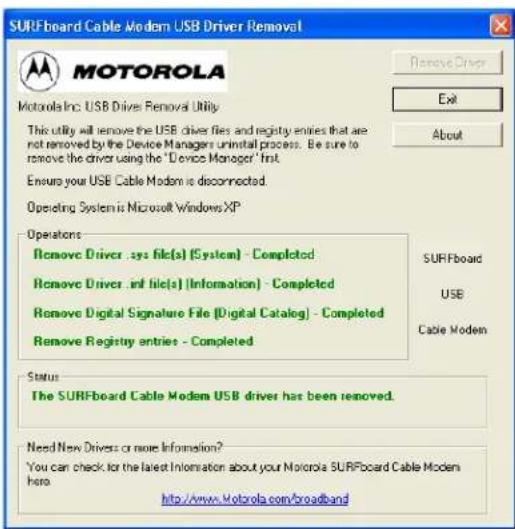
SURFboard Cable Modem USB Driver Removal MOTOROLA This utility will remove the USB driver files and registry entries that are not removed by the Device Manager uninitial process. Be sure to remove the driver using the "Device Manager" init. Ensure your USB Cable Modem is disconnected. Operating System is Microsoft Windows XP Operations Remove Driver .sys file(s) (System) - Completed Remove Driver .int file(s) (Information) - Completed Remove Digital Signature File (Digital Catalog) - Completed Remove Registry entries - Completed Status The SURFboard Cable Modem USB driver has been removed. Need New Drivers or more Information? You can check for the latest Information about your Motorola SURFboard Cable Modem here. http://www.Motorola.com/broadband20 The window on the left is displayed. Be sure the USB cable is disconnected.
21 Click Remove Driver.
Informational messages similar to the ones shown at left are displayed on the SURFboard Cable Modem USB Driver Removal window.
After you remove the USB driver, re-install the USB driver following "Setting Up a USB Driver in Windows XP" on page 21. If you continue to have problems, contact your cable service provider.


53 SURFboard Cable Modem User Guide

MOTOROLA
Introduction
Before You Begin
Installation & Configuration
Troubleshooting
FAQ
Glossary License
Contact Us
For information about customer service, technical support, or warranty claims, see the Software License and Warranty Information card provided with your SURFboard cable modem.
For answers to typical questions, see "Frequently Asked Questions" on page 55.
For information about Motorola consumer cable products, education, and support, visit http://www.motorola.com/broadband.

54 SURFboard Cable Modem User Guide

MOTOROLA
Introduction
Before You Begin
Installation & Configuration
Troubleshooting
FAQ
Glossary License
Frequently Asked Questions
Here are answers to questions our customers frequently ask.
Q What is high-speed cable Internet access?
A Cable Internet access uses cable television wires instead of telephone lines to connect to the Internet. It is extremely fast and affordable and does not tie up telephone lines for incoming or outgoing calls and faxes.
Q How fast are cable modems?
A Cable modems offer Internet access at speeds up to 100 times faster than a traditional phone modem. You can experience speeds of over 1,000 Kbps. Due to network condition such as traffic volume and the speed of the sites you visit, actual speed may vary. Many network and other factors can affect download speeds.
Q Can I still watch cable TV while using my cable modem?
A Yes, your cable TV line can carry the TV signal while you send and receive information on the Internet.
Q What are CableLabs Certified, DOCSIS and Euro-DOCSIS?
A CableLabs ^® Certified ^™ , DOCSIS ^™ , and Euro-DOCSIS ^™ are the industry standards for high-speed data distribution over cable television system networks. They are intended to ensure that all compliant cable modems interface with all compliant cable systems. Your Motorola SURFboard cable modem is DOCSIS or Euro-DOCSIS certified.


55 SURFboard Cable Modem User Guide

MOTOROLA
Introduction
Before You Begin
Installation & Configuration
Troubleshooting
FAQ
Glossary License
Q If I have a cable modem, can I still use my old 28.8 Kbps or 56 Kbps modem?
A Yes! Although once you've experienced the speed of cable Internet access, you'll never again want to wait for traditional dial-up services.
Q I have more than one computer. Do I need more than one SURFboard cable modem?
A No, not if your computers are connected on a network. The SURFboard cable modem supports current Internet connection sharing technologies to enable you to connect up to 32 PCs to the Internet using a single cable modem.
Q Do I need to change my Internet service provider (ISP)?
A Currently, most Internet service providers do not provide cable Internet access. Contact your cable company for your specific information.
Q Do I need to subscribe to cable TV to get cable Internet access?
A No, but you will need to subscribe to cable Internet service. Some systems require that you subscribe to basic service before you can get Internet access and/or offer a discount when you use your own cable modem. Check with your local cable company for specific information.
Q What type of technical support is available?
A For questions about your Internet service, connection, or cable modem, call your cable service provider.
Q What do I do if my SURFboard cable modem stops working?
A "Troubleshooting" on page 35 provides tips to diagnose problems and simple solutions. If you continue to have problems, call your cable service provider.


56 SURFboard Cable Modem User Guide

MOTOROLA
Introduction
Before You Begin
Installation & Configuration
Troubleshooting
FAQ
Glossary License
Glossary
| coaxial cable (coax) | A type of wire consisting of a center wire surrounded by insulation and a grounded shield of braided wire. The shield minimizes electrical and radio frequency interference. |
| DOCSIS | The CableLabs Data-Over-Cable Service Interface Specification defines interface standards for cable modems and supporting equipment. |
| download | To copy a file from one computer to another. You can use the Internet to download files from a server to your home PC. A DOCSIS cable modem downloads its configuration from a server during start-up. |
| downstream | In a cable data network, downstream describes the direction of data received by your computer from the Internet. |
| Ethernet | The most widely used type of local area network (LAN). The most commonly installed Ethernet networks are called 10Base-T. 10Base-T provides transmission speeds up to 10 megabits per second (Mbps), usually over twisted-pair wire. Fast Ethernet (100Base-T) provides transmission speeds up to 100 Mbps. |
| expansion slot | An opening in a computer where a circuit board can be inserted to add new capabilities. |
| F-type connector | A connector used to connect coaxial cable to equipment. |
| IP address | An Internet Protocol address is an identifier for a computer or device on a TCP/IP network. Networks using the TCP/IP protocol route messages based on the destination IP address. Your cable service provider assigns your cable modem an IP address to provide a continuous Internet connection. |


57 SURFboard Cable Modem User Guide

MOTOROLA
Introduction
Before You Begin
Installation & Configuration
Troubleshooting
FAQ
Glossary License
MAC address
The Media Access Control Address uniquely identifies each device that can be connected to an Ethernet network. It is permanently written to read-only memory (ROM) at the factory and printed on the rear panel of your SURFboard cable modem. You need to provide the MAC address to your cable service provider.
MHz
Mega Hertz. A measure of radio frequency - millions of cycles per second. One MHz means one million cycles per second.
splitter
A splitter is a device that divides the signal power from an input cable equally between two or more signals, each carrying a selected frequency range.
TCP/IP
Transmission Control Protocol/Internet Protocol is a set of protocols that provides standards and rules for communication between networks.
upstream
In a cable data network, upstream describes the direction of data sent from your computer to the Internet.
USB
Universal Serial Bus is a computer interface for add-on devices such as printers, scanners, and cable modems. When you connect your SURFboard cable modem to the USB port, Windows 98 and later versions automatically recognize the cable modem.


58 SURFboard Cable Modem User Guide
Software License
SURFboard Cable Modems
Motorola, Inc., Broadband Communications Sector ("Motorola")
Cable Data Division
101 Tournament Drive
Horsham, PA 19044
IMPORTANT: PLEASE READ THIS SOFTWARE LICENSE ("LICENSE") CAREFULLY BEFORE YOU INSTALL, DOWNLOAD OR USE ANY APPLICATION SOFTWARE, USB DRIVER SOFTWARE, FIRMWARE AND RELATED DOCUMENTATION ("SOFTWARE") PROVIDED WITH MOTOROLA'S CABLE DATA PRODUCT (THE "CABLE DATA PRODUCT"). BY USING THE CABLE DATA PRODUCT AND/OR INSTALLING, DOWNLOADING OR USING ANY OF THE SOFTWARE, YOU INDICATE YOUR ACCEPTANCE OF EACH OF THE TERMS OF THIS LICENSE. UPON ACCEPTANCE, THIS LICENSE WILL BE A LEGALLY BINDING AGREEMENT BETWEEN YOU AND MOTOROLA. THE TERMS OF THIS LICENSE APPLY TO YOU AND TO ANY SUBSEQUENT USER OF THIS SOFTWARE.
IF YOU DO NOT AGREE TO ALL OF THE TERMS OF THIS LICENSE (I) DO NOT INSTALL OR USE THE SOFTWARE AND (II) RETURN THE CABLE DATA PRODUCT AND THE SOFTWARE (COLLECTIVELY, "PRODUCT"), INCLUDING ALL COMPONENTS, DOCUMENTATION AND ANY OTHER MATERIALS PROVIDED WITH THE PRODUCT, TO YOUR POINT OF PURCHASE OR SERVICE PROVIDER, AS THE CASE MAY BE, FOR A FULL REFUND. BY INSTALLING OR USING THE SOFTWARE, YOU AGREE TO BE BOUND BY THE PROVISIONS OF THIS LICENSE AGREEMENT.
The Software includes associated media, any printed materials, and any “on-line” or electronic documentation. Software provided by third parties may be subject to separate end-user license agreements from the manufacturers of such Software.
The Software is never sold. Motorola licenses the Software to the original customer and to any subsequent licensee for personal use only on the terms of this License. Motorola and its 3 ^rd party licensors retain the ownership of the Software.



You may:
USE the Software only in connection with the operation of the Product.
TRANSFER the Software (including all component parts and printed materials) permanently to another person, but only if the person agrees to accept all of the terms of this License. If you transfer the Software, you must at the same time transfer the Product and all copies of the Software (if applicable) to the same person or destroy any copies not transferred.
TERMINATE this License by destroying the original and all copies of the Software (if applicable) in whatever form.
You may not:
(1) Loan, distribute, rent, lease, give, sublicense or otherwise transfer the Software, in whole or in part, to any other person, except as permitted under the TRANSFER paragraph above. (2) Copy or translate the User Guide included with the Software, other than for personal use. (3) Copy, alter, translate, decompile, disassemble or reverse engineer the Software, including but not limited to, modifying the Software to make it operate on non-compatible hardware. (4) Remove, alter or cause not to be displayed, any copyright notices or startup message contained in the Software programs or documentation. (5) Export the Software or the Product components in violation of any United States export laws.
The Product is not designed or intended for use in on-line control of aircraft, air traffic, aircraft navigation or aircraft communications; or in design, construction, operation or maintenance of any nuclear facility. MOTOROLA AND ITS 3 ^RD PARTY LICENSORS DISCLAIM ANY EXPRESS OR IMPLIED WARRANTY OF FITNESS FOR SUCH USES. YOU REPRESENT AND WARRANTY THAT YOU SHALL NOT USE THE PRODUCT FOR SUCH PURPOSES.
Title to this Software, including the ownership of all copyrights, mask work rights, patents, trademarks and all other intellectual property rights subsisting in the foregoing, and all adaptations to and modifications of the foregoing shall at all times remain with Motorola and its 3 ^rd party licensors. Motorola retains all rights not expressly licensed under this License. The Software, including any images, graphics, photographs, animation, video, audio, music and text incorporated therein is owned by Motorola or its 3 ^rd party licensors and is protected by United States copyright laws and international treaty provisions. Except as otherwise expressly provided in this License, the copying, reproduction, distribution or preparation of derivative works of the Software, any portion of the Product or the documentation is strictly prohibited by such laws and treaty provisions. Nothing in this License constitutes a waiver of Motorola's rights under United States copyright law.



This License and your rights regarding any matter it addresses are governed by the laws of the Commonwealth of Pennsylvania, without reference to conflict of laws principles. THIS LICENSE SHALL TERMINATE AUTOMATICALLY if you fail to comply with the terms of this License.
Motorola is not responsible for any third party software provided as a bundled application, or otherwise, with the Software.
U.S. GOVERNMENT RESTRICTED RIGHTS
The Product and documentation is provided with RESTRICTED RIGHTS. The use, duplication or disclosure by the Government is subject to restrictions as set forth in subdivision (c)(1)(ii) of The Rights in Technical Data and Computer Software clause at 52.227-7013. The contractor/manufacturer is Motorola, Inc., Broadband Communications Sector, 101 Tournament Drive, Horsham, PA 19044.

MOTOROLA
intelligence everywhere™
497302-001
5/02
English
MGBI
