
10.5 - Keyboard Brydge - Free user manual and instructions
Find the device manual for free 10.5 Brydge in PDF.


User questions about 10.5 Brydge
0 question about this device. Answer the ones you know or ask your own.
Ask a new question about this device
Download the instructions for your Keyboard in PDF format for free! Find your manual 10.5 - Brydge and take your electronic device back in hand. On this page are published all the documents necessary for the use of your device. 10.5 by Brydge.
USER MANUAL 10.5 Brydge
text_image
Tablet displaying multiple app icons on a screen, including New York, Calendar, and iTunes, displayed on a laptop keyboard.B R Y D G E 10.5 Series II
1 INSERT/REMOVE
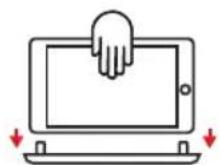
Place your Brydge on a flat surface, rotate the hinges upright to 90 ^2 and insert your iPad into the hinges with the home button on the right
natural_image
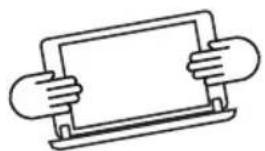
Simple line drawing of two hands holding a blank rectangular object (no text or symbols)Lift your iPad to test the hinge grip. Your iPad and Brydge should be held firmly together
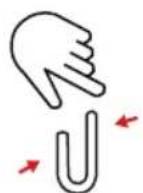
If the iPad is loose, remove and give the hinges a gentle squeeze. Repeat this process until your iPad is held firmly
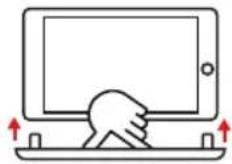
To remove, hold your iPad and pull straight up, with one hand firmly holding your Brydge against a hard surface
2 POWER

To manually power on, press and hold the power key: the light will turn green for 3 seconds to indicate power

To manually power off, press and hold the power key for 3 seconds; the light will turn red momentarily to indicate it's powered off
NOTE: To conserve battery, your Brydge will enter sleep mode after 20 minutes of non-use. Press any key to turn back on. Your Brydge will enter sleep mode when both devices are closed like a laptop
3 PAIR

Once the keyboard is on, press and hold the Bluetooth™ key for 3 seconds. The power key will flash blue until the keyboard is successfully paired
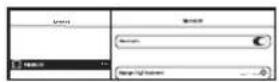
On your iPad, under Settings > Bluetooth select Brydge 10.5

The light on the power key will shut off to let you know the Brydge has paired and the iPad Settings will say connected
4 CHARGE

To check battery life, press and hold the battery key for four seconds Power key will flash three times: Green = 75-100% Yellow = 25-74% Red = 10-24%

When battery is 9% or lower, backlit keys will be disabled and light will flash continuously
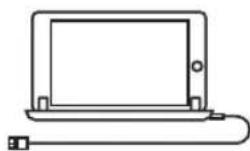
To charge your Brydge insert the supplied Micro USB cable into the charging port on the front right corner
NOTE: Charging can take up to 3 hours

The battery is charging when the light on the power key is red; your Brydge is fully charged when the light turns off
Once done charging you can remove the cable (battery should last 12 months or more based on use)
5 KEYBOARD SHORTCUTS
Undo
Command + Z
Copy
Command + C
Underline
Command + U
Show Dock
Command + Option + D
Home Screen
Command + H
Cut
Command + X
Paste
Command + V
Italic
Command + I
Switch App
Command + Tab
Search
Command + Space
Switch Language
ctrl + shift + Spacebar
(Spacebar allows you to toggle through available languages)
text_image
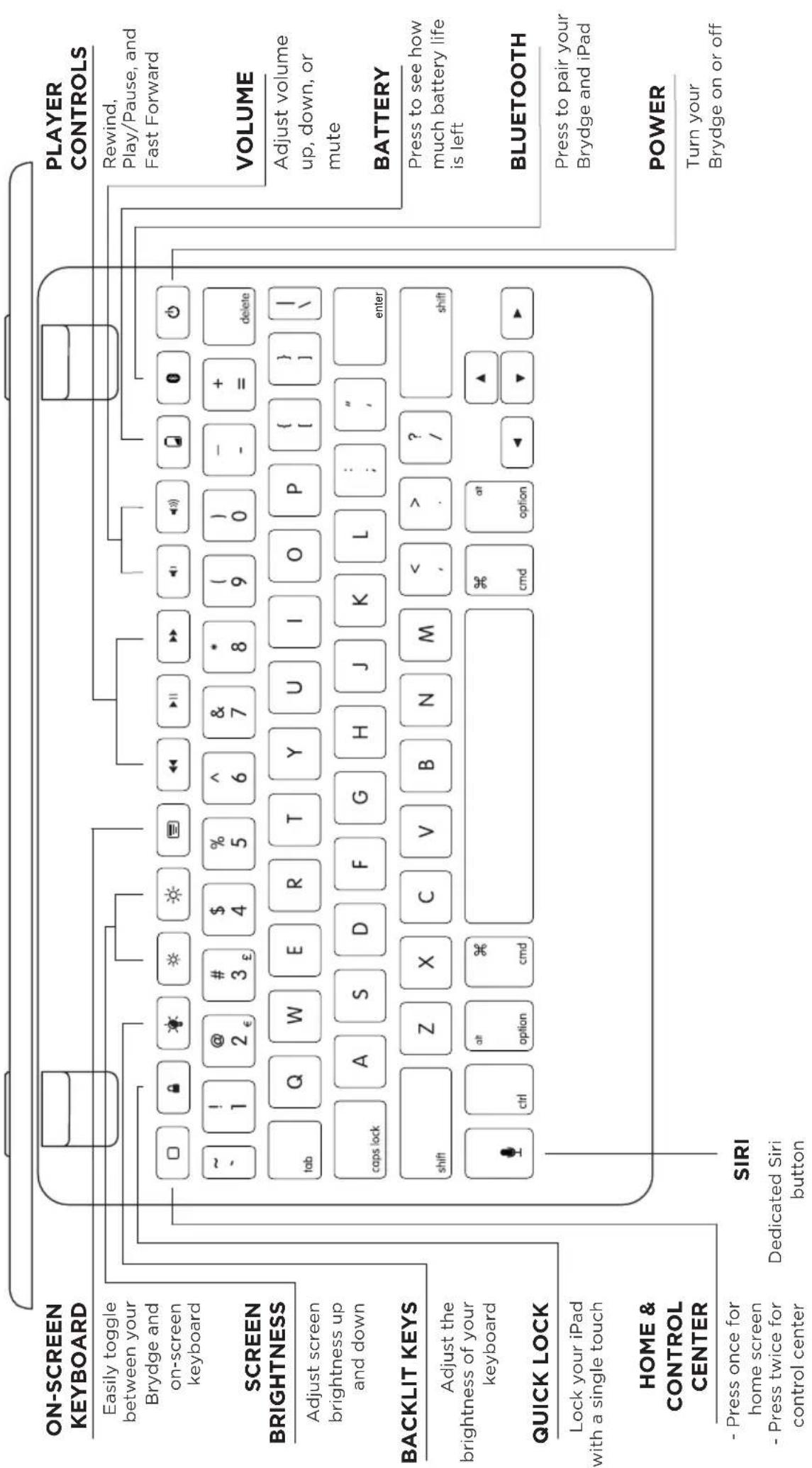
ON-SCREEN KEYBOARD Easily toggle between your Brydge and on-screen keyboard SCREEN BRIGHTNESS Adjust screen brightness up and down BACKLIT KEYS Adjust the brightness of your keyboard QUICK LOCK Lock your iPad with a single touch HOME & CONTROL CENTER - Press once for home screen - Press twice for control center SIRI Dedicated Siri button PLAYER CONTROLS Rewind, Play/Pause, and Fast Forward VOLUME Adjust volume up, down, or mute BATTERY Press to see how much battery life is left BLUETOOTH Press to pair your Brydge and iPad POWER Turn your Brydge on or offHave a question? Contact Brydge directly at support@brydge.com
Find more information at www.brydge.com