
1420-24G - Switch HP - Free user manual and instructions
Find the device manual for free 1420-24G HP in PDF.


| Product Type | Unmanaged Gigabit Ethernet Switch |
| Model | HP 1420-24G |
| Ports | 24 RJ-45 10/100/1000 Mbps ports |
| Dimensions (W x D x H) | 442 x 170 x 44 mm (17.4 x 6.7 x 1.7 in) |
| Weight | 2.4 kg (5.3 lb) |
| Power Supply | AC 100-240 V, 50-60 Hz, internal power supply |
| Power Consumption | 17.5 W (maximum) |
| Fan | Fanless (silent operation) |
| Mounting | 19-inch rack-mountable (brackets included) |
| Switching Capacity | 48 Gbps |
| Forwarding Rate | 35.7 million packets per second (64-byte packets) |
| MAC Address Table Size | 8,000 entries |
| LED Indicators | Per port: link/activity and speed; power LED |
| Operating Temperature | 0°C to 40°C (32°F to 104°F) |
| Operating Humidity | 10% to 90% non-condensing |
| Standards Compliance | IEEE 802.3, 802.3u, 802.3ab, 802.3x |
| Safety Certifications | UL, CE, FCC Class A |
| Maintenance | Clean with a dry, soft cloth; avoid liquids and solvents |
| Spare Parts / Repairability | No user-serviceable parts; contact HP support for repairs |
| Warranty | Limited Lifetime Warranty (terms apply) |
Frequently Asked Questions - 1420-24G HP
User questions about 1420-24G HP
0 question about this device. Answer the ones you know or ask your own.
Ask a new question about this device
Download the instructions for your Switch in PDF format for free! Find your manual 1420-24G - HP and take your electronic device back in hand. On this page are published all the documents necessary for the use of your device. 1420-24G by HP.
USER MANUAL 1420-24G HP
HPE OfficeConnect 1420 Switch Series Getting Started Guide
© Copyright 2016 Hewlett Packard Enterprise Development LP
The information contained herein is subject to change without notice. The only warranties for Hewlett Packard Enterprise products and services are set forth in the express warranty statements accompanying such products and services. Nothing herein should be construed as constituting an additional warranty. Hewlett Packard Enterprise shall not be liable for technical or editorial errors or omissions contained herein.
Confidential computer software. Valid license from Hewlett Packard Enterprise required for possession, use, or copying. Consistent with FAR 12.211 and 12.212, Commercial Computer Software, Computer Software Documentation, and Technical Data for Commercial Items are licensed to the U.S. Government under vendor's standard commercial license.
Links to third-party websites take you outside the Hewlett Packard Enterprise website. Hewlett Packard Enterprise has no control over and is not responsible for information outside the Hewlett Packard Enterprise website.
Acknowledgments
Intel®, Itanium®, Pentium®, Intel Inside®, and the Intel Inside logo are trademarks of Intel Corporation in the United States and other countries.
Microsoft® and Windows® are trademarks of the Microsoft group of companies.
Adobe® and Acrobat® are trademarks of Adobe Systems Incorporated.
Java and Oracle are registered trademarks of Oracle and/or its affiliates.
UNIX® is a registered trademark of The Open Group.
Contents
Preparing for installation 1
Safety recommendations ....1
Examining the installation site 2
Temperature/humidity 2
Cleanliness....2
EMI 3
Installing the switch 4
Rack mounting 4
Horizontal surface mounting 6
Wall mounting 6
Under-table mounting 8
Connecting cables 9
Connecting network cable 9
Installing the SFP/SFP+ transceiver module and optical fibers 9
Connecting the AC power cord 10
Connecting the power adapter....10
Verifying the installation 11
Document conventions and icons 12
Conventions 12
Network topology icons 13
Support and other resources 14
Accessing Hewlett Packard Enterprise Support 14
Accessing updates 14
Websites 15
Customer self repair 15
Remote support 15
Documentation feedback 15
Appendix A Chassis views and technical specifications 17
Chassis views 17
HPE 1420 5G 17
HPE 1420 5G PoE+ (32W) 17
HPE 1420 8G 18
HPE 1420 8G PoE+ (64W) 18
HPE 1420 16G 19
HPE 1420 24G 19
HPE 1420 24G 2SFP 20
HPE 1420 24G 2SFP+ 20
HPE 1420 24G PoE+ (124W) 21
Technical specifications 21
Chassis dimensions and weights 21
Ports and interface card slots 22
Environmental specifications 22
Power specifications 22
AC input voltage specifications 22
DC input voltage specifications 22
Power consumption specifications for non-PoE switches 23
Power consumption specifications for PoE switches 23
Appendix B LEDs 24
Power LED 24
Copper port LEDs 24
Fiber port LEDs 25
Appendix C Troubleshooting 26
Preparing for installation
The HPE OfficeConnect 1420 Switch Series includes models listed in Table 1.
Table 1 HPE OfficeConnect 1420 Switch Series models
| Product code | HPE description Alias RMN | ||
| Non-PoE | |||
| JH327A | HPE OfficeConnect 1420 5G Switch HPE 1420 5G Switch HNGZA-HA0026 | ||
| JH329A | HPE OfficeConnect 1420 8G Switch HPE 1420 8G Switch HNGZA-HA0028 | ||
| JH016A | HPE OfficeConnect 1420 16G Switch HPE 1420 16G Switch HNGZA-HA0020 | ||
| JG708B | HPE OfficeConnect 1420 24G Switch HPE 1420 24G Switch HNGZA-HA0024 | ||
| JH017A | HPE OfficeConnect 1420-24G 2SFP Switch | HPE 1420 24G 2SFP Switch | HNGZA-HA0021 |
| JH018A | HPE OfficeConnect 1420 24G 2SFP+ Switch | HPE 1420 24G 2SFP+ Switch | HNGZA-HA0022 |
| PoE | |||
| JH328A | HPE OfficeConnect 1420 5G PoE+ (32W) Switch | HPE 1420 5G PoE+ (32W) Switch | HNGZA-HA0027 |
| JH330A | HPE OfficeConnect 1420 8G PoE+ (64W) Switch | HPE 1420 8G PoE+ (64W) Switch | HNGZA-HA0029 |
| JH019A | HPE OfficeConnect 1420 24G PoE+ (124W) Switch | HPE 1420 24G PoE+ (124W) Switch | HNGZA-HA0023 |
IMPORTANT:
For regulatory identification purposes, the switches are assigned Regulatory Model Numbers (RMNs). The RMNs should not be confused with the marketing name HPE 1420, or the product codes.
Safety recommendations
To avoid any equipment damage or bodily injury, read the following safety recommendations before installation. The recommendations do not cover every possible hazardous condition.
- To avoid damage to the electrolytic capacitor in the switch, do not store the switch without power for more than one year.
- Before cleaning the switch, remove all power cords from the switch. Do not clean the switch with a wet cloth or liquid.
- Do not place the switch near water or in a damp environment. Prevent water or moisture from entering the switch chassis.
- Do not place the switch on an unstable case or desk. The switch might be severely damaged in case of a fall.
- Ensure good ventilation of the equipment room and keep the air inlet and outlet vents of the switch free of obstruction.
• Make sure the operating voltage is in the required range. - To avoid electrical shocks, do not open the chassis while the switch is operating or when the switch is just powered off.
- The accessories shipped with the switch, including but not limited to power cords, are intended only for the switch. Please do not use them for other products.
Examining the installation site
The switches must be used indoors. You can mount your switch in a rack, on a horizontal surface, on a wall, or under a table. Make sure the following requirements are met:
- A minimum of 5 cm (1.97 in) of clearance is reserved at the air inlet and outlet vents for ventilation.
- The rack has a good ventilation system and the air inlet and outlet vents are not blocked when the switch is mounted under a table or on a horizontal surface.
• The rack, table, or horizontal surface is sturdy enough to support the switch and its accessories. - The rack is reliably grounded.
To ensure correct operation and long service life of your switch, install it in an environment that meets the requirements described in the following subsections.
Temperature/humidity
Maintain temperature and humidity in the equipment room as described in "Environmental specifications."
- Lasting high relative humidity can cause poor insulation, electricity leakage, mechanical property change of materials, and metal corrosion.
- Lasting low relative humidity can cause washer contraction and ESD and cause problems including loose mounting screws and circuit failure.
- High temperature can accelerate the aging of insulation materials and significantly lower the reliability and lifespan of the switch.
Cleanliness
Dust buildup on the chassis might result in electrostatic adsorption, which causes poor contact of metal components and contact points, especially when indoor relative humidity is low. In the worst case, electrostatic adsorption can cause communication failure.
Table 2 Dust concentration limit in the equipment room
| Substance Concentration limit (particles/m3) | |
| Dust | ≤ 3 × 10^4 (no visible dust on the tabletop over three days) |
| NOTE:Dust diameter ≥ 5 μm | |
The equipment room must also meet strict limits on salts, acids, and sulfides to eliminate corrosion and premature aging of components, as shown in Table 3.
Table 3 Harmful gas limits in the equipment room
| Gas Maximum concentration (mg/m) | ^3 |
| SO_2 | 0.2 |
| H_2S | 0.006 |
| NH_3 | 0.05 |
| Cl_2 | 0.01 |
EMI
All electromagnetic interference (EMI) sources, from outside or inside of the switch and application system, adversely affect the switch in the following ways:
- A conduction pattern of capacitance coupling.
- Inductance coupling.
• Electromagnetic wave radiation.
• Common impedance (including the grounding system) coupling.
To prevent EMI, perform the following tasks:
- If AC power is used, use a single-phase three-wire power receptacle with protection earth (PE) to filter interference from the power grid.
- Keep the switch far away from radio transmitting stations, radar stations, and high-frequency devices.
• Use electromagnetic shielding, for example, shielded interface cables, when necessary.
Installing the switch

WARNING!
Before installing or moving the switch, remove the power cord.
You can install an HPE 1420 switch in a 19-inch rack, on a horizontal surface, on a wall, or under a table.
Rack mounting
- Wear an ESD wrist strap and make sure it makes good skin contact and is reliably grounded.
- Verify that the rack is securely grounded and is stable.
- Select mounting brackets for the switch.
The HPE 1420 16G switch uses Type-A mounting brackets, as shown in Figure 1.
The HPE 1420 24G, 1420 24G 2SFP, 1420 24G 2SFP+, and 1420 24G PoE+ (124W) switches use Type-B mounting brackets, as shown in Figure 2.
- Attach the mounting b rackets to both sides of the chassis with screws.
NOTE:
Mounting brackets are used only for securing the switch to the rack. A rack shelf on the rack is used to bear the switch weight.
Figure 1 Attaching Type-A mounting brackets to the switch
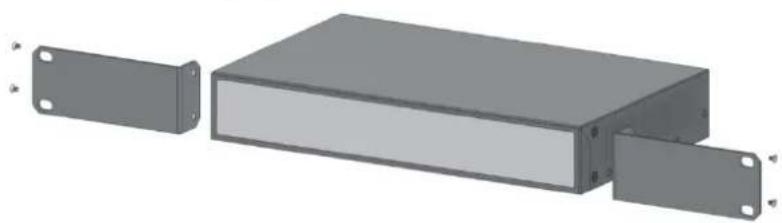
natural_image
3D rendering of a rectangular electronic device with two side panels and mounting holes (no text or symbols visible)Figure 2 Attaching Type-B mounting brackets to the switch
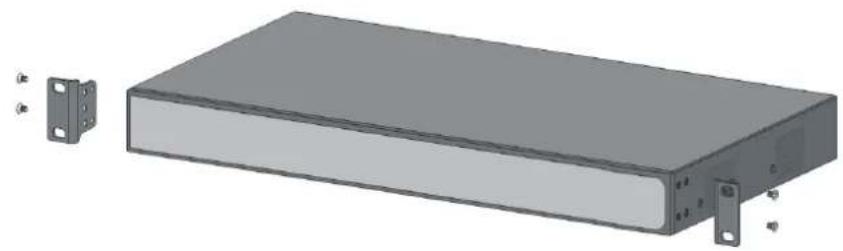
natural_image
3D rendering of a rectangular electronic device with mounting brackets and mounting holes (no text or symbols visible)- Place the switch on a rack shelf in the rack. Push the switch in until the oval holes in the brackets align with the mounting holes in the rack posts.
- Attach the mounting brackets to the rack posts with screws.
Figure 3 Attaching Type-A mounting brackets to the rack post
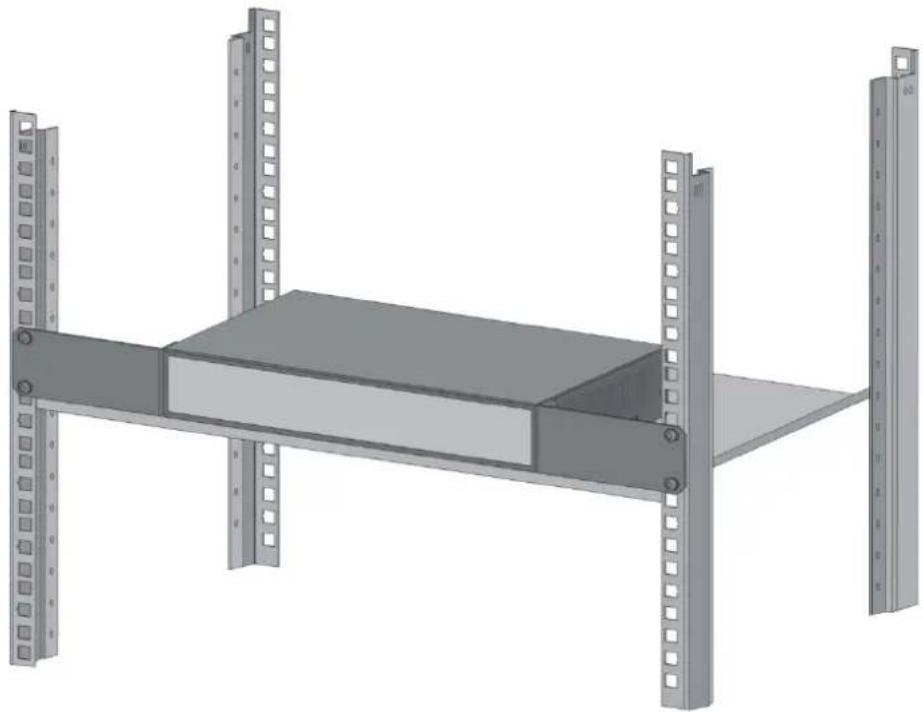
natural_image
3D rendering of a metal shelving unit with vertical supports and a central rectangular box (no text or symbols)Figure 4 Attaching Type-B mounting brackets to the rack post
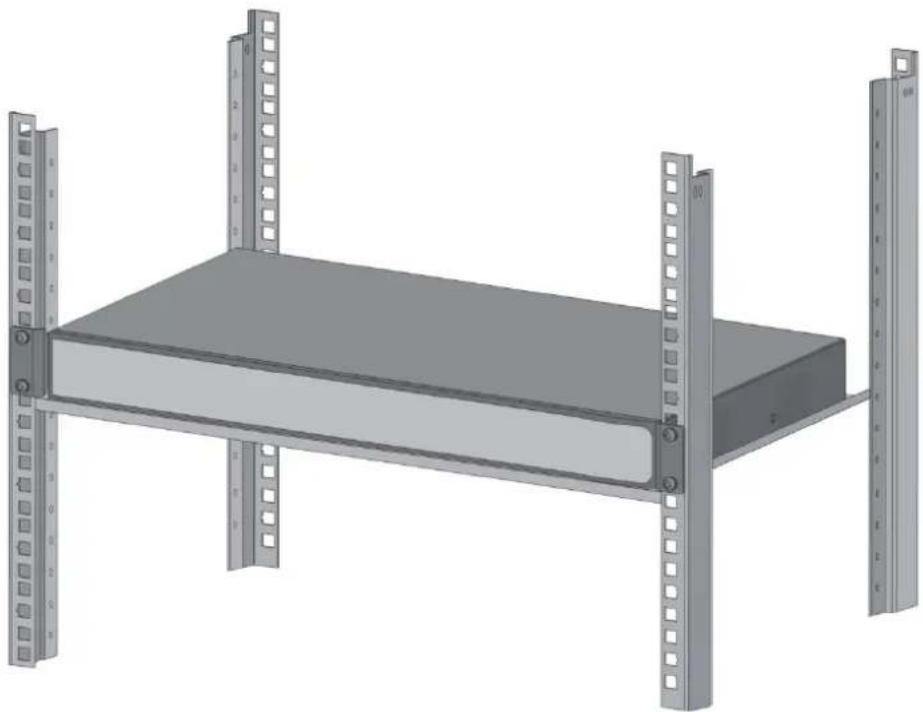
natural_image
3D rendering of a metal shelving unit with vertical supports and a central shelf (no text or symbols)Horizontal surface mounting
IMPORTANT:
- Reserve a clearance of 10 cm (3.9 in) around the chassis for heat dissipation.
- Do not place heavy objects on the switch.
To mount the switch on a horizontal surface:
- Verify that the horizontal surface is sturdy and reliably grounded.
- Place the switch bottom up, and clean the round holes in the chassis bottom with a dry cloth.
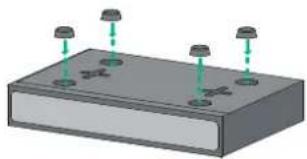
- Select rubber feet for the switch.
The HPE 1420 5G, 1420 5G PoE+ (32W), 1420 8G, 1420 8G PoE+ (64W), and 1420 16G switches use Type-A rubber feet, as shown in Figure 5.
The HPE 1420 24G, 1420 24G 2SFP, 1420 24G 2SFP+, and 1420 24G PoE+ (124W) switches use Type-B rubber feet, as shown in Figure 6.
- Attach the ru bber feet to the four round holes in the chassis bottom.
- Place the switch upside up on the horizontal surface.
Figure 5 Attaching Type-A rubber feet
natural_image
3D diagram of a rectangular block with four green sensor points and connecting lines, no text or symbols presentFigure 6 Attaching Type-B rubber feet
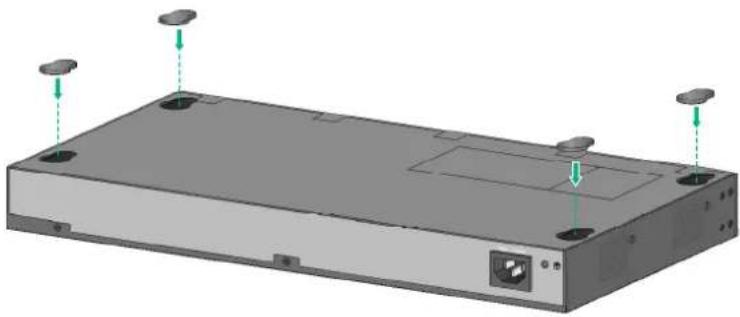
natural_image
3D rendering of a computer chassis with ports and mounting holes (no text or symbols)Wall mounting
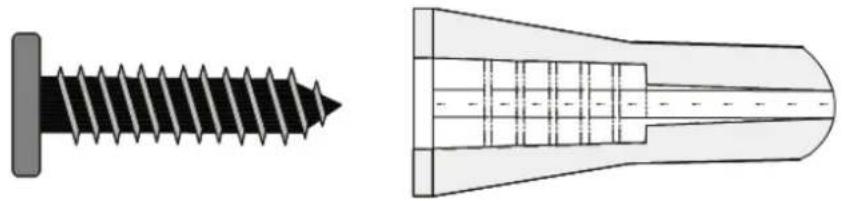
Only the HPE 1420 5G, 1420 5G PoE+ (32W), 1420 8G, 1420 8G PoE+ (64W), and 1420 16G switches can be installed on a wall. The type of screws used to mount the switch on the wall depends on the wall type. This section uses a concrete wall as an example.
The screws must be a minimum of 3 mm (0.12 in) and a maximum of 3.8 mm (0.15 in) in diameter. The screw head must be a minimum of 6 mm (0.24 in) and a maximum of 9.8 mm (0.59 in) in diameter.
Figure 7 Wall-mounting anchor kit
natural_image
Technical illustration of a screw and its conical tip assembly (no text or symbols)To install the switch on a concrete wall:
- Drill two holes at the same height, as shown in Figure 8.
Figure 8 Hole spacing
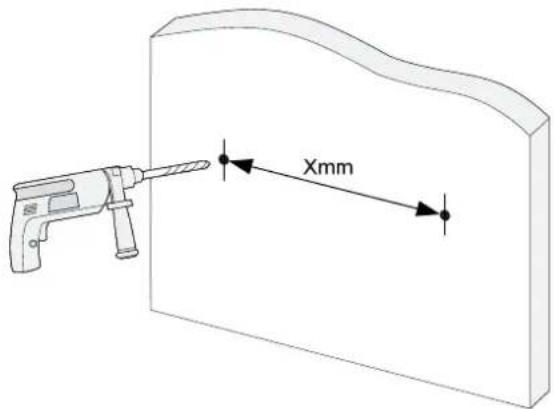
The hole depth and diameter depend on the wall anchors and screws you use. Make sure you can push the anchors to their full depth in the holes.
Installation hole spacing varies by switch model, as shown in Table 4.
Table 4 Installation hole spacing requirements
| Product | Installation | hole |
| HPE 1420 5G 74 mm (2.91 in) | ||
| HPE 1420 5G PoE+ (32W) 90 mm (3.54 in) | ||
| HPE 1420 8G 90 mm (3.54 in) | ||
| HPE 1420 8G PoE+ (64W) 90 mm (3.54 in) | ||
| HPE 1420 16G 160 mm (6.30 in) |
- Insert one wall anchor into each hole until the anchors are flush with the wall surface.
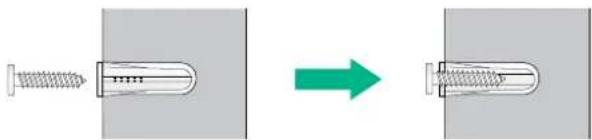
- Drive one screw into each wall anchor, and tighten the screws just enough to keep it secure in the wall anchor.
Leave a minimum clearance of 1.5 mm (0.06 in) between the base of the screw head and the wall anchor so the switch can hang on the screws securely.
Figure 9 Driving a screw into a wall anchor
natural_image
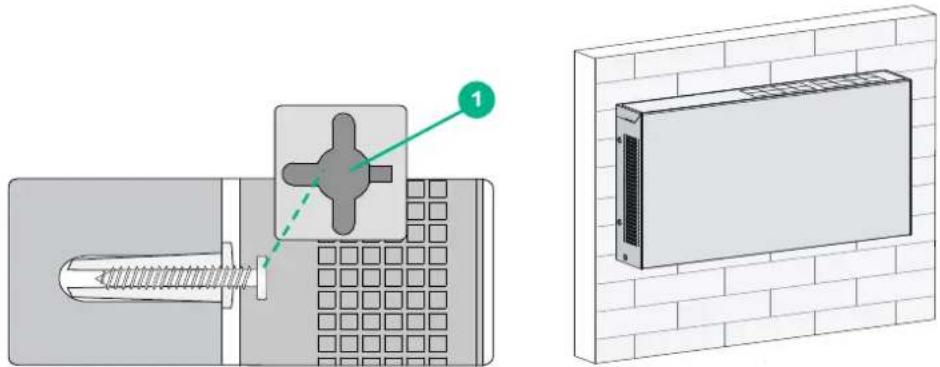
Diagram showing a screw being inserted into a pin, with a green arrow indicating the process (no text or symbols present)- Align the two mounting holes in the switch chassis bottom with the two screws on the wall and hang the switch.
Make sure the Ethernet ports are facing upwards or downwards and the chassis side panels are perpendicular to the ground.
Figure 10 Wall mounting
natural_image
Technical illustration of a mechanical component with a pin inserted into a grid, alongside its 3D rendering of a rectangular device mounted on a brick wall (no text or symbols present)(1) Mounting hole in the switch chassis bottom
Under-table mounting

CAUTION:
- A network-attached switch with cables mounted upside down can be heavy. Verify that the table is sufficiently strong and of a material that can support the screws that hold the weight of the switch and the attached cables. Make sure the cables are protected and out of the way.
- Regularly inspect the installation of the switch to ensure that the switch remains securely anchored and unobstructed.
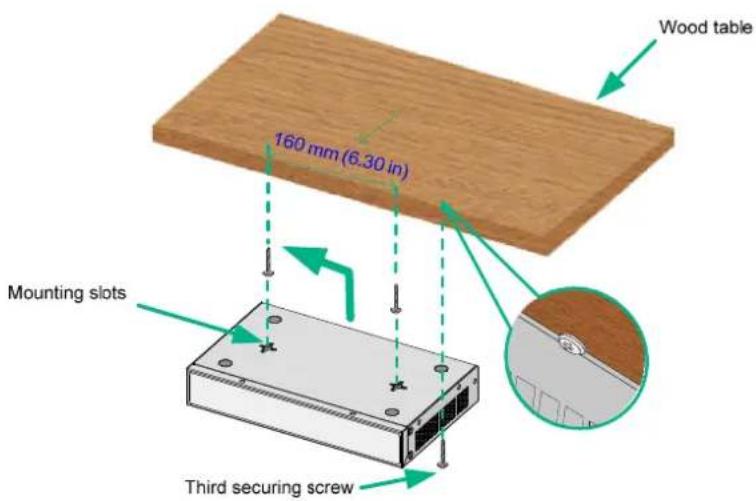
Only the HPE 1420 5G, 1420 5G PoE+ (32W), 1420 8G, 1420 8G PoE+ (64W), and 1420 16G switches support under-table mounting. The wall mounting screws (provided) can be used when you mount the switch under a table. This section uses the HPE 1420 16G as an example.
Figure 11 Under-table mounting
To mount the switch under a table:
- Follow the instructions on wall mounting to determine the location of screw holes to be used for under-table mounting.
- Align the two mounting holes in the switch chassis bottom with the two screws on the bottom of the table and hang the switch.
- Use a third screw to prevent switch movement.
NOTE:
Installation hole spacing varies by switch model. For more information, see Table 4.
Connecting cables
Connecting network cable
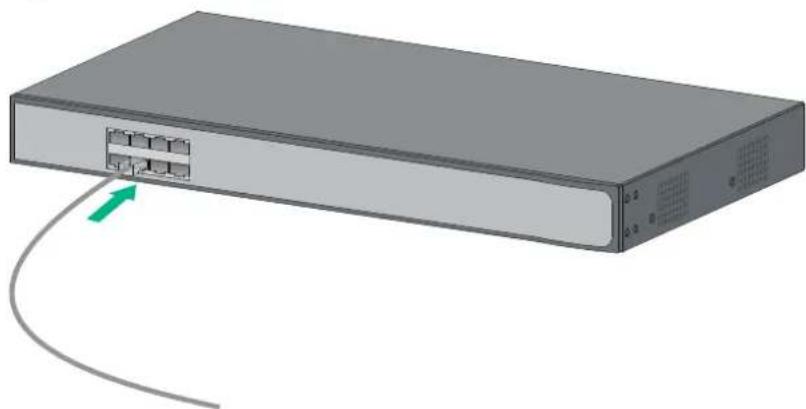
Use crossover cable or straight through cable to connect a PC or other network devices to the Ethernet port of the switch.
Figure 12 Connecting network cable
natural_image
Illustration of a gray network switch device with ports and a cable, no text or symbols presentInstalling the SFP/SFP+ transceiver module and optical fibers

CAUTION:
- Hold the SFP/SFP+ transceiver module by its two sides when you install or remove the module. Do not touch the golden plating of the module.
- Remove the optical fiber, if any, from a transceiver module before installing it.
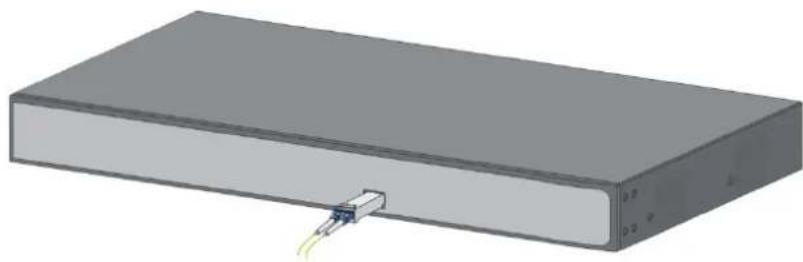
To install an SFP/SFP+ transceiver module and optical fibers:
- Wear an ESD wrist strap and make sure it makes good skin contact and is reliably grounded.
- Pivot the clasp of the module up. Holding the module, gently push the module into the slot until it has firm contact with the slot (when the top and bottom spring tabs catch in the slot).
- Remove protective sleeves from optical fibers, and the dust plug from the transceiver module.
- Connect the LC connectors of the optical fibers to the transceiver module.
NOTE:
- Keep the protective sleeves for future use.
- The fiber ports on the HPE 1420 24G 2SFP Switch operate in autonegotiation mode. For the link between the switch and the peer device to operate correctly, verify that the fiber ports on the peer device also operate in autonegotiation mode.
- For the link between the HPE 1420 24G 2SFP+ Switch and the peer device to operate correctly, set the fiber ports on both devices to operate at the same speed in full duplex mode.
Figure 13 Installing the SFP/SFP+ transceiver module and optical fibers
natural_image
3D rendering of a rectangular electronic device with a small connector and green cable, no visible text or symbolsConnecting the AC power cord
Only the HPE 1420 16G, 1420 24G, 1420 24G 2SFP, 1420 24G 2SFP+, and 1420 24G PoE+ (124W) support an AC power supply.
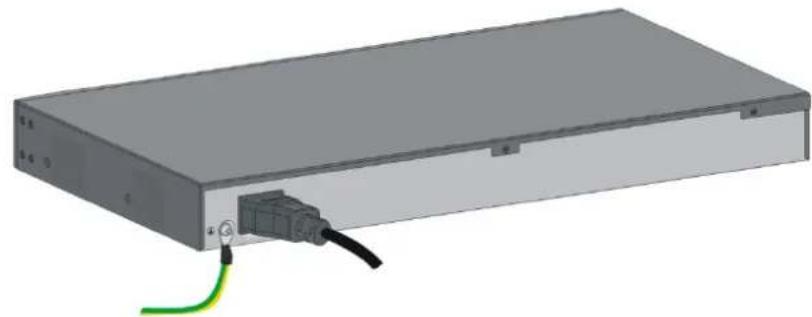
To connect the AC power cord:
- Wear an ESD wrist strap and make sure it makes good skin contact and is reliably grounded.
- Connect one end of the grounding cable to the grounding screw on the rear panel, and connect the other end to the ground.
- Make sure the correct power source is used.
- Connect one end of the AC power cord to the AC power receptacle on the switch.
- Connect the other end of the AC power cord to the AC power outlet.
- Examine the power LED. If it is ON, the power connection is correct.
Figure 14 Connecting the AC power cord to the AC power receptacle
natural_image
3D rendering of a gray electronic device with a black connector and green cable, no visible text or symbolsConnecting the power adapter
Only the HPE 1420 5G, 1420 5G PoE+ (32W), 1420 8G, and 1420 8G PoE+ (64W) support a power adapter. This section uses the HPE 1420 5G PoE+ (32W) as an example.
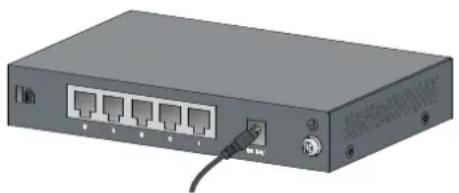
To connect the power adapter:
- Wear an ESD wrist strap and make sure it makes good skin contact and is reliably grounded.
- Connect one end of the grounding cable to the grounding screw on the rear panel, and connect the other end to the ground.
- Make sure the correct power source is used.
- Connect one end of the power adapter to the DC power receptacle on the switch.
- Connect the other end of the power adapter to the AC power supply.
- Examine the power LED. If it is ON, the power connection is correct.
Figure 15 Connecting the power adapter
natural_image
Illustration of a gray network switch device with five ports and a cable (no text or symbols)NOTE:
Hewlett Packard Enterprise recommends that you ground the HPE 1420 5G PoE+ (32W) or 1420 8G PoE+ (64W) if the PD connecting to it is grounded. The grounding cables are user supplied.
Verifying the installation
After you complete the installation, verify the following items:
• There is enough space for heat dissipation around the switch.
- The rack, table, or horizontal surface is stable.
- The grounding cable is securely connected.
- The correct power source is used.
- The power cords are correctly connected.
- All the interface cables are cabled indoors. If any cable is routed outdoors, verify that the socket strip with lightning protection and lightning arresters for network ports have been correctly connected.
Document conventions and icons
Conventions
This section describes the conventions used in the documentation.
Port numbering in examples
The port numbers in this document are for illustration only and might be unavailable on your device.
Command conventions
| Convention | Description |
| Boldface | Bold text represents commands and keywords that you enter literally as shown. |
| Italic | Italic text represents arguments that you replace with actual values. |
| [ ] Square brackets | enclose syntax choices (keywords or arguments) that are optional. |
| {x | y | ... } | Braces enclose a set of required syntax choices separated by vertical bars, from which you select one. |
| [x | y | ... ] | Square brackets enclose a set of optional syntax choices separated by vertical bars, from which you select one or none. |
| {x | y | ... }* | Asterisk marked braces enclose a set of required syntax choices separated by vertical bars, from which you select at least one. |
| [x | y | ... ]* | Asterisk marked square brackets enclose optional syntax choices separated by vertical bars, from which you select one choice, multiple choices, or none. |
| &<1-n> | The argument or keyword and argument combination before the ampersand (&) sign can be entered 1 to n times. |
| # A line that starts with a pound (#) sign is comments. | |
GUI conventions
| Convention | Description |
| Boldface | Window names, button names, field names, and menu items are in Boldface. For example, the New User window appears; click OK. |
| > | Multi-level menus are separated by angle brackets. For example, File > Create > Folder. |
Symbols
| Convention | Description |
| WARNING! | An alert that calls attention to important information that if not understood or followed can result in personal injury. |
| CAUTION: | An alert that calls attention to important information that if not understood or followed can result in data loss, data corruption, or damage to hardware or software. |
| IMPORTANT: | An alert that calls attention to essential information. |
| NOTE: | An alert that contains additional or supplementary information. |
| TIP: | An alert that provides helpful information. |
Network topology icons
| Convention | Description |
 | Represents a generic network device, such as a router, switch, or firewall. |
 | Represents a routing-capable device, such as a router or Layer 3 switch. |
 | Represents a generic switch, such as a Layer 2 or Layer 3 switch, or a router that supports Layer 2 forwarding and other Layer 2 features. |
 | Represents an access controller, a unified wired-WLAN module, or the access controller engine on a unified wired-WLAN switch. |
 | Represents an access point. |
 | Represents a wireless terminator unit. |
 | Represents a wireless terminator. |
 | Represents a mesh access point. |
 | Represents omnidirectional signals. |
 | Represents directional signals. |
 | Represents a security product, such as a firewall, UTM, multiservice security gateway, or load balancing device. |
 | Represents a security card, such as a firewall, load balancing, NetStream, SSL VPN, IPS, or ACG card. |
Support and other resources
Accessing Hewlett Packard Enterprise Support
- For live assistance, go to the Contact Hewlett Packard Enterprise Worldwide website: www.hpe.com/assistance
- To access documentation and support services, go to the Hewlett Packard Enterprise Support Center website: www.hpe.com/support/hpesc
Information to collect
• Technical support registration number (if applicable)
- Product name, model or version, and serial number
- Operating system name and version
- Firmware version
- Error messages
• Product-specific reports and logs
- Add-on products or components
• Third-party products or components
Accessing updates
- Some software products provide a mechanism for accessing software updates through the product interface. Review your product documentation to identify the recommended software update method.
• To download product updates, go to either of the following:
- Hewlett Packard Enterprise Support Center Get connected with updates page: www.hpe.com/support/e-updates
- Software Depot website: www.hpe.com/support/softwaredepot
- To view and update your entitlements, and to link your contracts, Care Packs, and warranties with your profile, go to the Hewlett Packard Enterprise Support Center More Information on Access to Support Materials page: www.hpe.com/support/AccessToSupportMaterials
IMPORTANT:
Access to some updates might require product entitlement when accessed through the Hewlett Packard Enterprise Support Center. You must have an HP Passport set up with relevant entitlements.
Websites
| Website | Link |
| Networking websites | |
| Hewlett Packard Enterprise Information Library for Networking | www.hpe.com/networking/resourcefinder |
| Hewlett Packard Enterprise Networking website | www.hpe.com/info/networking |
| Hewlett Packard Enterprise My Networking website | www.hpe.com/networking/support |
| Hewlett Packard Enterprise My Networking Portal | www.hpe.com/networking/mynetworking |
| Hewlett Packard Enterprise Networking Warranty | www.hpe.com/networking/warranty |
| General websites | |
| Hewlett Packard Enterprise Information Library | www.hpe.com/info/enterprise/docs |
| Hewlett Packard Enterprise Support Center | www.hpe.com/support/hpesc |
| Hewlett Packard Enterprise Support Services Central | ssc.hpe.com/portal/site/ssc/ |
| Contact Hewlett Packard Enterprise Worldwide | www.hpe.com/assistance |
| Subscription Service/Support Alerts | www.hpe.com/support/e-updates |
| Software Depot www.hpe.com/support/softwaredepot | |
| Customer Self Repair (not applicable to all devices) | www.hpe.com/support/selfrepair |
| Insight Remote Support (not applicable to all devices) | www.hpe.com/info/insightremotesupport/docs |
Customer self repair
Hewlett Packard Enterprise customer self repair (CSR) programs allow you to repair your product. If a CSR part needs to be replaced, it will be shipped directly to you so that you can install it at your convenience. Some parts do not qualify for CSR. Your Hewlett Packard Enterprise authorized service provider will determine whether a repair can be accomplished by CSR.
For more information about CSR, contact your local service provider or go to the CSR website:
www.hpe.com/support/selfrepair
Remote support
Remote support is available with supported devices as part of your warranty, Care Pack Service, or contractual support agreement. It provides intelligent event diagnosis, and automatic, secure submission of hardware event notifications to Hewlett Packard Enterprise, which will initiate a fast and accurate resolution based on your product's service level. Hewlett Packard Enterprise strongly recommends that you register your device for remote support.
For more information and device support details, go to the following website:
www.hpe.com/info/insightremotesupport/docs
Documentation feedback
Hewlett Packard Enterprise is committed to providing documentation that meets your needs. To help us improve the documentation, send any errors, suggestions, or comments to Documentation Feedback (docsfeedback@hpe.com). When submitting your feedback, include the document title,
part number, edition, and publication date located on the front cover of the document. For online help content, include the product name, product version, help edition, and publication date located on the legal notices page.
Appendix A Chassis views and technical specifications
Chassis views
HPE 1420 5G
Figure 16 HPE 1420 5G front panel
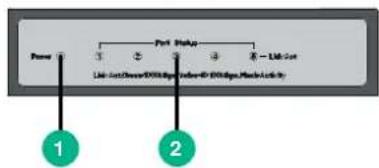
(1) Power LED (2) Copper port LEDs
Figure 17 HPE 1420 5G rear panel
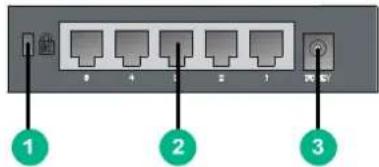
(1) Security slot
(2) 10/100/1000BASE-T copper ports
(3) DC Power receptacle
HPE 1420 5G PoE+ (32W)
Figure 18 HPE 1420 5G PoE+ (32W) front panel
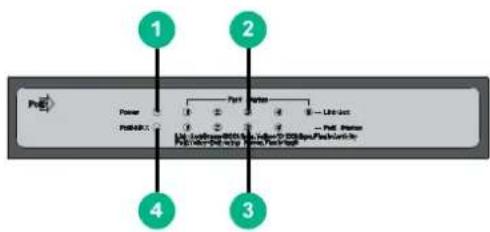
(1) Power LED
(2) Copper port LEDs
(3) PoE status LEDs
(4) PoE-MAX LED
Figure 19 HPE 1420 5G PoE+ (32W) rear panel
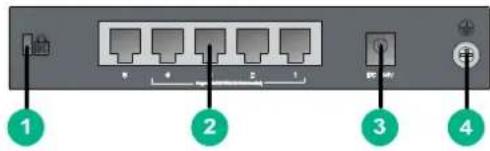
(1) Security slot (2) 10/100/1000BASE-T copper ports
(3) DC power receptacle
(4) Grounding screw
HPE 1420 8G
Figure 20 HPE 1420 8G front panel
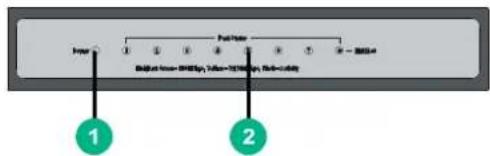
(1) Power LED (2) Copper port LEDs
Figure 21 HPE 1420 8G rear panel
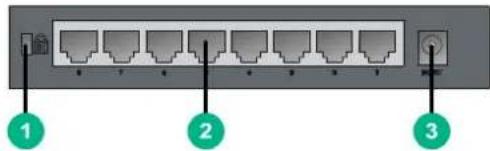
(1) Security slot (2) 10/100/1000BASE-T copper ports
(3) DC power receptacle
HPE 1420 8G PoE+ (64W)
Figure 22 HPE 1420 8G PoE+ (64W) front panel
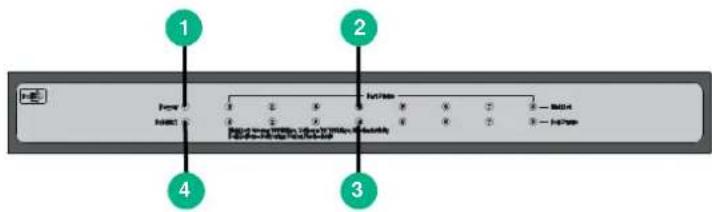
(1) Power LED (2) Copper port LEDs
(3) PoE status LEDs (4) PoE-MAX LED
Figure 23 HPE 1420 8G PoE+ (64W) rear panel
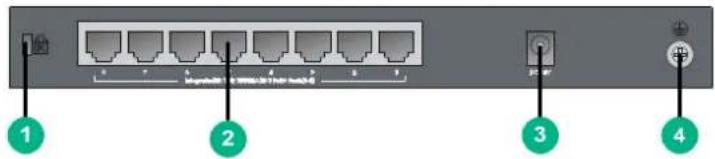
(1) Security slot
(2) 10/100/1000BASE-T copper ports
(3) DC power receptacle
(4) Grounding screw
HPE 1420 16G
Figure 24 HPE 1420 16G front panel
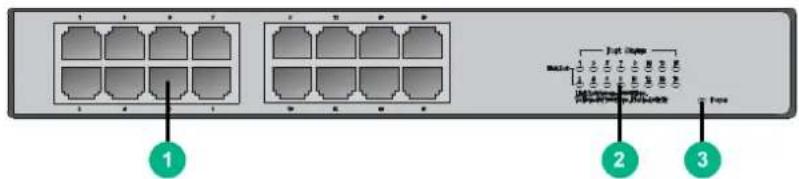
(1) 10/100/1000BASE-T copper ports (2) Copper port LEDs
(3) Power LED
Figure 25 HPE 1420 16G rear panel
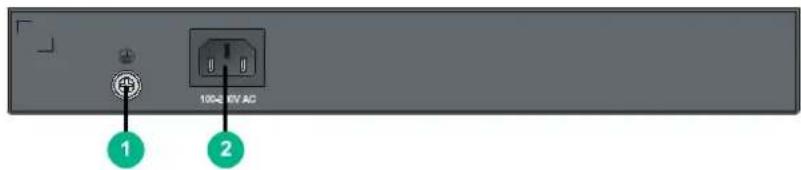
(1) Grounding screw (2) AC power receptacle
HPE 1420 24G
Figure 26 HPE 1420 24G front panel

(1) 10/100/1000BASE-T copper ports (2) Copper port LEDs
(3) Power LED
Figure 27 HPE 1420 24G rear panel

(1) Grounding screw (2) AC power receptacle
HPE 1420 24G 2SFP
Figure 28 HPE 1420 24G 2SFP front panel

(1) 10/100/1000BASE-T copper ports (2) 100/1000BASE-X SFP fiber ports
(3) Copper port LEDs (4) Power LED
(5) Fiber port LEDs
Figure 29 HPE 1420 24G 2SFP rear panel

(1) Grounding screw (2) AC power receptacle
HPE 1420 24G 2SFP+
Figure 30 HPE 1420 24G 2SFP+ front panel

(1) 10/100/1000BASE-T copper ports (2) 1000BASE-X SFP/10GBASE-SR/LR SFP+ ports
(3) Copper port LEDs (4) Power LED
(5) Fiber port LEDs
Figure 31 HPE 1420 24G 2SFP+ rear panel

(1) Grounding screw (2) AC power receptacle
HPE 1420 24G PoE+ (124W)
Figure 32 HPE 1420 24G PoE+ (124W) front panel

(1) 10/100/1000BASE-T copper ports (1 to 12 are PoE ports) (2) PoE status LEDs
(3) PoE-MAX LED (4) Copper port LEDs
(5) Power LED
Figure 33 HPE 1420 24G PoE+ (124W) rear panel

natural_image
Back panel with two labeled ports (1 and 2) pointing to a central socket, no text or symbols present.(1) Grounding screw (2) AC power receptacle
Technical specifications
Chassis dimensions and weights
| Chassis Dimensions (H x W x D) Maximum weight | |
| HPE 1420 5G 27 x 115 x 81 mm (1.06 × 4.52 × 3.18 in) 0.3 kg (0.66 lb) | |
| HPE 1420 5G PoE+ (32W) 27 x 158 x 105 mm (1.06 × 6.21 × 4.13 in) 0.5 kg (1.10 lb) | |
| HPE 1420 8G 27 x 158 x 105 mm (1.06 × 6.21 × 4.13 in) 0.5 kg (1.10 lb) | |
| HPE 1420 8G PoE+ (64W) 27 x 235 x 105 mm (1.06 × 9.24 × 4.13 in) 0.7 kg (1.54 lb) | |
| HPE 1420 16G 44 × 266 × 162 mm (1.73 × 10.47 × 6.38 in) 1.2 kg (2.65 lb) | |
| HPE 1420 24G 44 × 440 × 173 mm (1.73 × 17.32 × 6.81 in) 2.2 kg (4.85 lb) | |
| HPE 1420 24G 2SFP 44 × 440 × 173 mm (1.73 × 17.32 × 6.81 in) 2.2 kg (4.85 lb) | |
| HPE 1420 24G 2SFP+ 44 × 440 × 238 mm (1.73 × 17.32 × 9.37 in) 2.9 kg (6.39 lb) | |
| HPE 1420 24G PoE+ (124W) 44 × 440 × 238 mm (1.73 × 17.32 × 9.37 in) 3.3 kg (7.28 lb) |
Ports and interface card slots
| Chassis | 10/100/1000BASE-T auto-sensing Ethernet ports | 100/1000BASE-X SFP ports | 1000BASE-X SFP/10GBASE-SR/LR SFP+ |
| HPE 1420 5G 5 0 0 | |||
| HPE 1420 5G PoE+ (32W) | 5 (1 to 4 are PoE ports),PoE+ | 0 | 0 |
| HPE 1420 8G 8 0 0 | |||
| HPE 1420 8G PoE+ (64W) | 8 (1 to 8 are PoE ports),PoE+ | 0 | 0 |
| HPE 1420 16G 16 0 0 | |||
| HPE 1420 24G 24 0 0 | |||
| HPE 1420 24G 2SFP 24 2 0 | |||
| HPE 1420 24G 2SFP+ 24 0 2 | |||
| HPE 1420 24G PoE+ (124W) | 24 (1 to 12 are PoE ports), PoE+ | 0 | 0 |
Environmental specifications
| Chassis Operating temperature Relative humidity | |
| All chassis 0°C to 40°C (32°F to 104°F) 5% to 95%, noncondensing |
Power specifications
AC input voltage specifications
| Chassis Rated voltage range |
| HPE 1420 16G 100 VAC to 240 VAC @ 50 Hz or 60 Hz |
| HPE 1420 24G 100 VAC to 240 VAC @ 50 Hz or 60 Hz |
| HPE 1420 24G 2SFP 100 VAC to 240 VAC @ 50 Hz or 60 Hz |
| HPE 1420 24G 2SFP+ 100 VAC to 240 VAC @ 50 Hz or 60 Hz |
| HPE 1420 24G PoE+ (124W) 100 VAC to 240 VAC @ 50 Hz or 60 Hz |
DC input voltage specifications
| Chassis | Voltage |
| HPE 1420 5G 12V DC | |
| HPE 1420 5G PoE+ (32W) | 54V DC |
| HPE 1420 8G 12V DC | |
| HPE 1420 8G PoE+ (64W) 54V DC |
Power consumption specifications for non-PoE switches
| Chassis Min. power consumption Max. power consumption | |
| HPE 1420 5G 1 W 3 W | |
| HPE 1420 8G 1 W 4.5 W | |
| HPE 1420 16G 6.8 W 12 W | |
| HPE 1420 24G 8 W 16 W | |
| HPE 1420 24G 2SFP 7 W 18 W | |
| HPE 1420 24G 2SFP+ 9.5 W 21 W |
Power consumption specifications for PoE switches
| Chassis | Max. PoE power per port | Max. PoE ports at full 30 W output | Total PoE output | Min. power consumption | Max. power consumption (including total PoE output) |
| HPE 1420 5G PoE+ (32W) | 30 W 1 32 W | 5 W 40 W | |||
| HPE 1420 8G PoE+ (64W) | 30 W 2 64 W | 5 W 80 W | |||
| HPE 1420 24G PoE+ (124W) | 30 W 4 124 W | 10.5 W | 160 W |
Appendix B LEDs
Power LED
Table 5 Power LED description
| Status | Description |
| Steady green The switch is powered on and the power supply is operating correctly. | |
| Flashing green | The switch is powered on and is performing the self-test. The switch is faulty if the LED flashes green for five seconds. |
| Off The switch is not powered on or the power supply is faulty. | |
Copper port LEDs
Link/ACT LEDs
Table 6 Link/ACT LED description
| Status | Description |
| Steady yellow A 10/100-Mbps link is present. | |
| Flashing yellow The port is receiving or sending data at 10/100 Mbps. | |
| Steady green A 1000-Mbps link is present. | |
| Flashing green The port is receiving or sending data at 1000 Mbps. | |
| Off No link is present. | |
PoE LEDs
Table 7 PoE status LED description
| Status | Description |
| Steady yellow The port is supplying power correctly. | |
| Flashing yellow The port is supplying power incorrectly. | |
| Off The port is not supplying power. | |
Table 8 PoE-MAX LED description(HPE 1420 5G PoE+ (32W))
| Status | Description |
| Steady yellow The PoE power reaches the guard band (16 W to 32 W). | |
| Off The PoE power does not reach 16 W. | |
Table 9 PoE-MAX LED description(HPE 1420 8G PoE+ (64W))
| Status | Description |
| Steady yellow The PoE power reaches the guard band (48 W to 64 W). | |
| Off The PoE power does not reach 48 W. | |
Table 10 PoE-MAX LED description(HPE 1420 24G PoE+ (124W))
| Status | Description |
| Steady yellow The PoE power reaches the guard band (104 W to 124 W). | |
| Off The PoE power does not reach 104 W. | |
NOTE:
A port with a smaller port ID has a higher priority for getting power. When the PoE power reaches the guard band and a new port requires power, the switch compares the port IDs and performs one of the following actions:
- Does not supply power to the new port if the ID of the new port is greater than IDs of all existing ports.
- Stops power supply to existing ports whose IDs are greater than the ID of the new port, and supplies power to the new port.
Fiber port LEDs
Table 11 SFP port LED description
| Status | Description |
| Steady yellow A 100-Mbps link is present. | |
| Flashing yellow The port is receiving or sending data at 100 Mbps. | |
| Steady green A 1000-Mbps link is present. | |
| Flashing green The port is receiving or sending data at 1000 Mbps. | |
| Off No link is present. | |
Table 12 SFP+ port LED description
| Status | Description |
| Steady yellow A 1000-Mbps link is present. | |
| Flashing yellow The port is receiving or sending data at 1000 Mbps. | |
| Steady green A 10-Gbps link is present. | |
| Flashing green The port is receiving or sending data at 10 Gbps. | |
| Off No link is present. | |
Appendix C Troubleshooting
Table 13 describes the troubleshooting methods for common issues that you might encounter while using and managing the switch.
If a problem persists, contact Hewlett Packard Enterprise Support.
Table 13 Troubleshooting methods
| Symptom | Troubleshooting method |
| Power LED off | 1. Verify that the correct power source is used and the power cords are correctly connected.2. Verify that the power source side provides power supply correctly. |
| LAN interface LED off | 1. Verify that the network cable is correctly connected to the network port of the switch.2. Insert the two ends of a network cable into two network ports of the switch. If the port LEDs are off, replace the network cable. |

- HPE OfficeConnect 1420 Switch Series Getting Started Guide
- Acknowledgments
- Contents
- Preparing for installation 1
- Installing the switch 4
- Document conventions and icons 12
- Support and other resources 14
- Appendix A Chassis views and technical specifications 17
- Appendix B LEDs 24
- Appendix C Troubleshooting 26
- Preparing for installation
- IMPORTANT:
- Safety recommendations
- Examining the installation site
- Temperature/humidity
- Cleanliness
- EMI
- Installing the switch
- WARNING!
- Rack mounting
- NOTE:
- Horizontal surface mounting
- Wall mounting
- Under-table mounting
- CAUTION:
- Connecting cables
- Connecting network cable
- Installing the SFP/SFP+ transceiver module and optical fibers
- Connecting the AC power cord
- Connecting the power adapter
- Verifying the installation
- Document conventions and icons
- Conventions
- Port numbering in examples
- Command conventions
- GUI conventions
- Symbols
- Network topology icons
- Support and other resources
- Accessing Hewlett Packard Enterprise Support
- Accessing updates
- Websites
- Customer self repair
- Remote support
- Documentation feedback
- Appendix A Chassis views and technical specifications
- HPE 1420 8G
- HPE 1420 8G PoE+ (64W)
- HPE 1420 16G
- HPE 1420 24G
- HPE 1420 24G 2SFP
- HPE 1420 24G 2SFP+
- HPE 1420 24G PoE+ (124W)
- Technical specifications
- Chassis dimensions and weights
- Ports and interface card slots
- Environmental specifications
- Power specifications
- AC input voltage specifications
- DC input voltage specifications
- Power consumption specifications for non-PoE switches
- Power consumption specifications for PoE switches
- Appendix B LEDs
- Power LED
- Copper port LEDs
- Link/ACT LEDs
- PoE LEDs
- Fiber port LEDs
- Appendix C Troubleshooting
Brand : HP
Model : 1420-24G
Category : Switch