
APD 09X - Air conditioner DAITSU - Free user manual and instructions
Find the device manual for free APD 09X DAITSU in PDF.


| Product Type | Split Air Conditioner |
| Model | APD 09X |
| Brand | Daitsu |
| Cooling Capacity | 9000 BTU/h |
| Power Supply | 220-240V ~50Hz |
| Refrigerant | R32 |
| Wi-Fi Connectivity | Yes (EWPE Smart APP) |
| Smart Control | Via smartphone app (iOS/Android) |
| Remote Control | Included (with Wi-Fi button) |
| Fan Speeds | Multiple (Low, Medium, High) |
| Modes | Cool, Heat, Fan, Auto, Dry |
| Swing Function | Up/Down & Left/Right |
| Timer Function | Yes (preset scheduling) |
| Dimensions (Indoor Unit) | Approx. 700 x 230 x 250 mm |
| Dimensions (Outdoor Unit) | Approx. 600 x 300 x 450 mm |
| Weight (Indoor Unit) | Approx. 8 kg |
| Weight (Outdoor Unit) | Approx. 25 kg |
| Air Filter | Washable mesh filter |
| Filter Cleaning | Every 2 weeks |
| Self-Diagnosis | Yes (via error codes) |
| Compressor Type | Rotary |
| Noise Level (Indoor) | ≤ 40 dB(A) |
| Noise Level (Outdoor) | ≤ 55 dB(A) |
| Energy Efficiency | Class A (typical) |
| Operating Temperature Range | 16°C - 30°C (cooling) |
Frequently Asked Questions - APD 09X DAITSU
User questions about APD 09X DAITSU
0 question about this device. Answer the ones you know or ask your own.
Ask a new question about this device
Download the instructions for your Air conditioner in PDF format for free! Find your manual APD 09X - DAITSU and take your electronic device back in hand. On this page are published all the documents necessary for the use of your device. APD 09X by DAITSU.
USER MANUAL APD 09X DAITSU
1) Make sure the smart phone or tablet computer adopts standard Android or los operation system. For detailed version, please refer to the APP.
2) The Wi-Fi function doesn't support Chinese Wi-Fi network name.
3) The devices can be connected and controlled only in Wi-Fi and 4G hotspot modes.
4)Router with WEP encryption is not supported.
5) Software operation interface is universal and its control functions may not be completely corresponding to the unit. Software operation interface may vary along with APP upgrading or different operation system. Please refer to the actual program.
1. Install EWPE Smart APP
Scan the following QR code with your smart phone to download and install EWPE Smart APP directly.

App Download Linkage
2. Registration
Open EWPE Smart APP and click "Sign up" for registration.

3. Sign in
Except sign in in the prompt interface, you can also enter the homepage and click the profile picture at the left upper corner to sign in.

4. Add device
Click "+" at the right upper corner of homepage to add device.

After selecting, you can select different reset tools according to actual situation. The APP interface will provide relevant operation instructions for different tools.


Reset the air conditioner (refer to the operation instructions in APP interface) and click "Next" to add home appliance automatically (Wi-Fi password shall be input). Or after setting and energizing the air conditioner, click "Add appliance manually" at the right upper corner to select the wireless network for controlling the device. Then confirm family Wi-Fi and arrange configuration.

After accomplishing device reset and filling correct information, search device and arrange configuration.


Setting of Main Functions
In homepage, click the device in device list and enter device operation interface.
- Set mode, temperature and fan speed
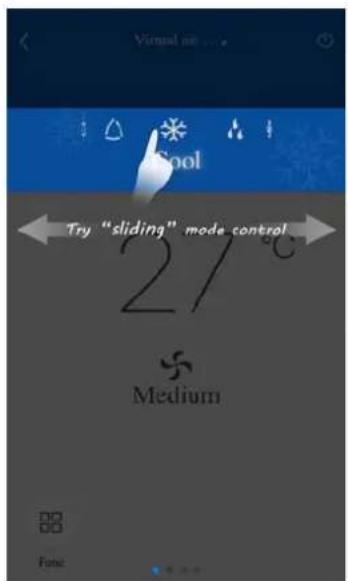


2. Set advance functions
Click Func at the left lower corner in device operation interface to enter advanced settings

Swing setting
Click "Up&down swing" or "Left&right swing" to turn on or turn off swing function. Click the arrow at the right lower corner of icon to enter the following interface and set swing range.

Preset setting

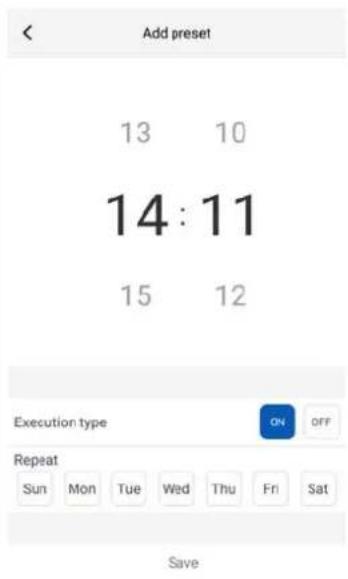
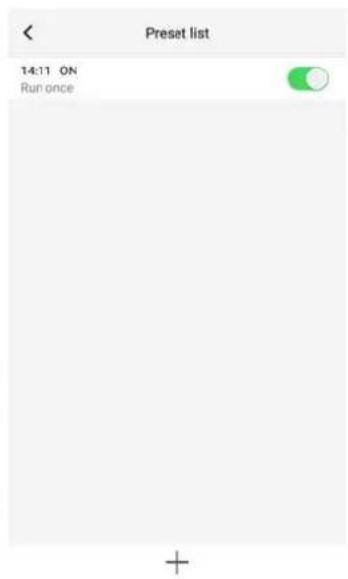
Setting of Other Functions
1. Menu of homepage
Click the profile picture at the left upper corner of homepage and set each function in the following menu.

2. Scene
Click "Scene" and then you can operate the devices in the preset scene.
Example: Edit scene name to "hhh" and preset the devices in device list. When this scene is executed, you can execute the selected presets to the devices in the scene.

3. Home management
Click "Home management" to create or manage family. You can also add family members according to the registered account.

4. Help
Click "Help" and view the operation instructions of the APP.
| < Help | ||
| Account | Appliance | Others |
| How to sign up | > | |
| How to log in | > | |
| How to find back password | > | |
| How to change password | > | |
| What is family | > | |
| How to create family | > | |
| How to invite family member | > | |
| How edit/dismiss family | > | |
| < | Help | |
| Account | Appliance | Others |
| How to add appliance | > | |
| Why "Disconnected" is shown | > | |
| Why long distance control can not work | > | |
| < | Help | |
| Account | Appliance | Others |
| How to feedback | > | |
5. Feedback
Click "Feedback" to submit feedback.

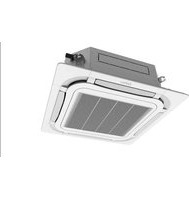


Brand : DAITSU
Model : APD 09X
Category : Air conditioner