ZW-51028C - Keyboard Zoweetek - Free user manual and instructions
Find the device manual for free ZW-51028C Zoweetek in PDF.


User questions about ZW-51028C Zoweetek
0 question about this device. Answer the ones you know or ask your own.
Ask a new question about this device
Download the instructions for your Keyboard in PDF format for free! Find your manual ZW-51028C - Zoweetek and take your electronic device back in hand. On this page are published all the documents necessary for the use of your device. ZW-51028C by Zoweetek.
USER MANUAL ZW-51028C Zoweetek
Air Mouse/Touchpad Dual Mode Mini Mouse Wireless Keyboard Combo User Manual Ver:2.1
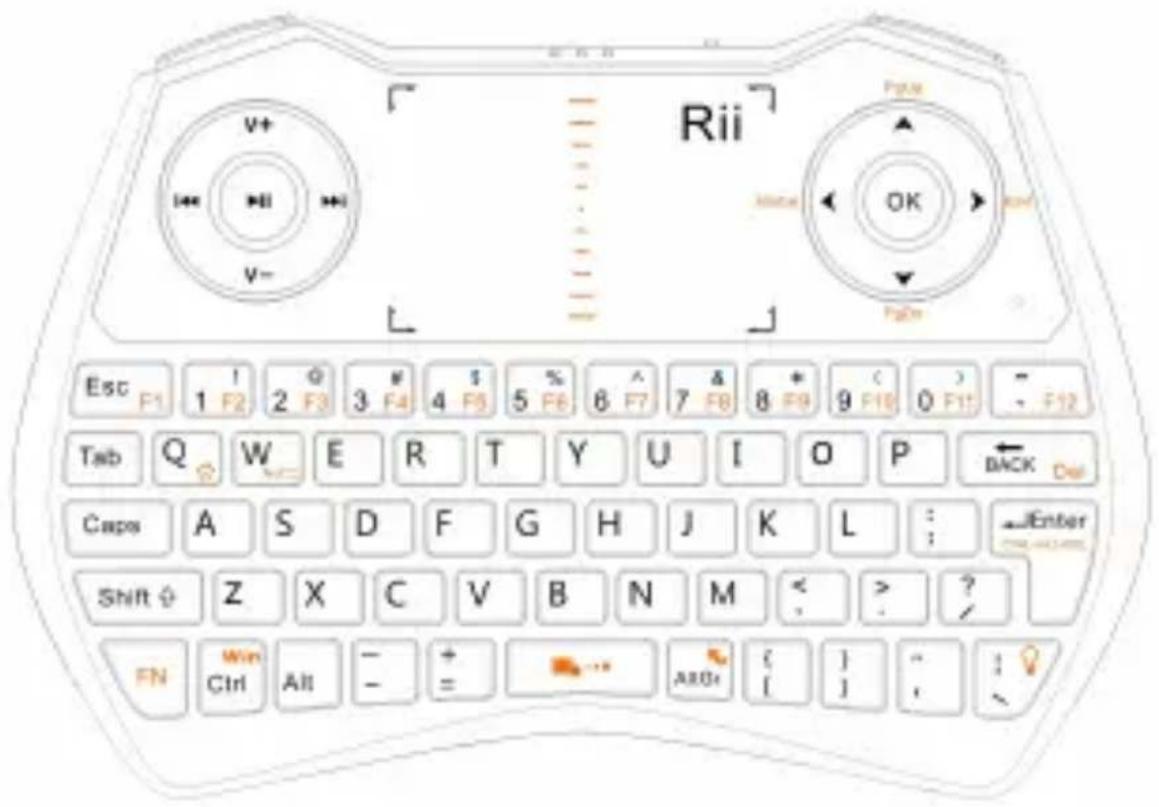
text_image
Rii V+ ←→ ←→ V- Page OK FgOn Esc F1 1 F2 2 F3 3 F4 4 F5 5 F6 6 F7 7 F8 8 F9 9 F10 0 F11 - F12 Tab Q W E R T Y U I O P BACK Del Caps A S D F G H J K L : Enter Shift Z X C V B N M < ? ? FN Win Ctrl All - + = ARB+ { } " ;Overview
Thank you for purchasing the mini air mouse/touchpad keyboard, which can replace traditional mouse and keyboard. It is a portable multifunctional keyboard and mouse combo, equipped with traditional keyboard, multimedia shortcuts, air mouse/touchpad, 2.4G audio, through which you can quickly browse the internet, have QQ voice chat or use skype phone, and listen to the music. It is compatible with a variety of operating systems, like Windows XP, Windows Vista, Windows CE and Windows 7, Windows 8, Windows 2000, and Android smart TV, as long as the terminal has standard USB port.
You have made the right choice. Be ready for endless fun and surprise!
Features
Windows multimedia control keys Switch between Air Mouse and Touchpad Wireless audio for online voice communication
Introduction
Product Overview
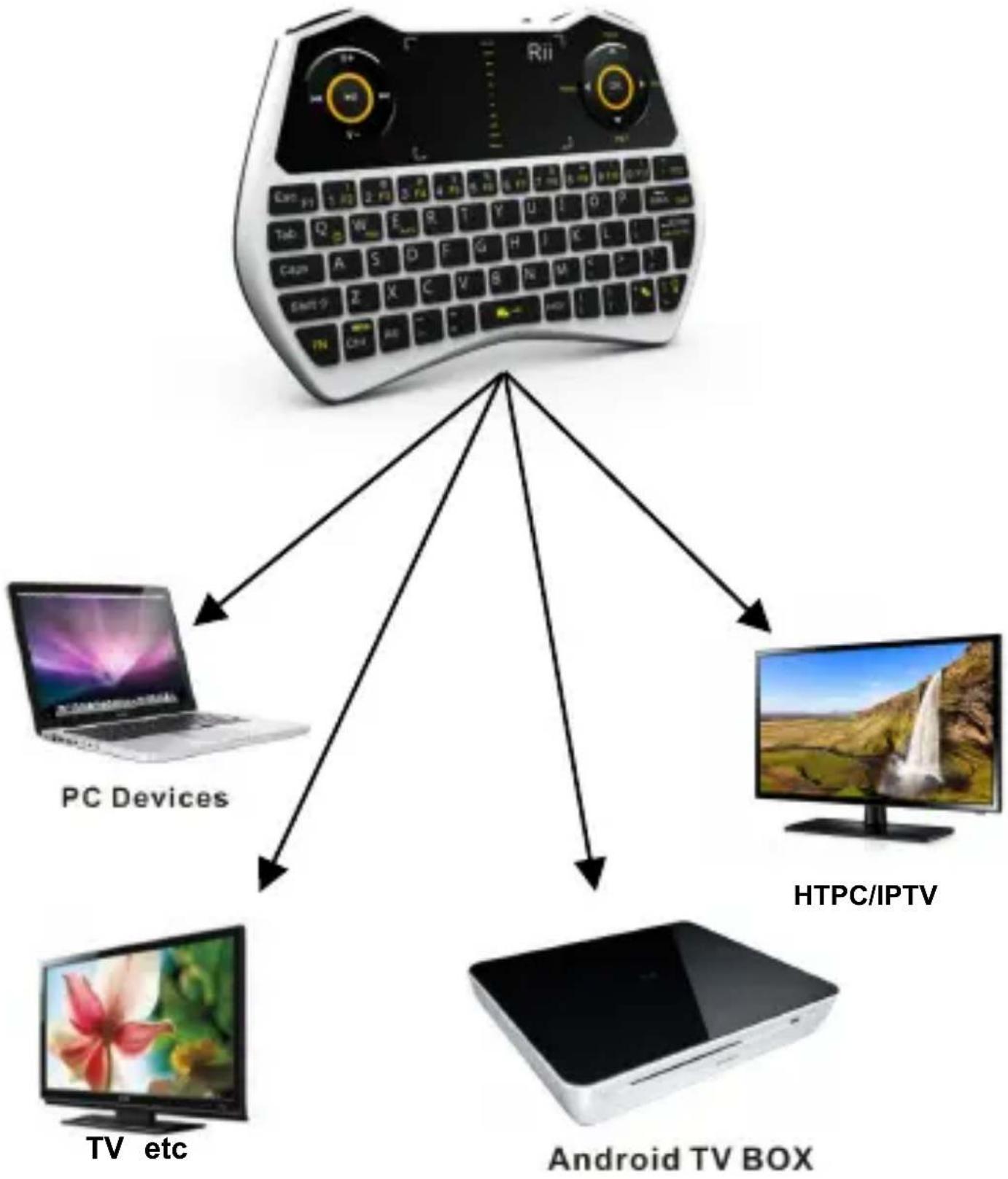
flowchart
graph TD
    A["PC Devices"] --> B["Android TV BOX"]
    C["HTPC/IPTV"] --> B
    D["TV etc"] --> B
    E["Android TV BOX"] --> B
    A --> C
    A --> D
    A --> E
    A --> F["Android TV BOX"]
    A --> G["PC Devices"]
Package Contents
- Multifunction Keyboard
- USB Wireless Receiver
- User Manual
- USB Charge Cable
Applicable Equipment and Operating Systems
Equipment
- With standard USB port Operating System
- Windows 2000
- Windows XP
- Windows Vista, Windows CE, Windows 7, Windows 8
• Linux(Debian-3.1, Redhat-9.0 Ubuntu-8.10
Fedora-7.0 tested)
- Android smart TV
Specification
• Dimension: 148*102*20mm
- Weight: 130g
Parameters
(wireless keyboard and air mouse)
• Frequency Range: 2401-2480MHz
• Transmission Power: 2.12 dBm (0.00162 W)
• Operation Voltage: 3.7V
- Operating Current: 60 mA ; When backlit LED is on: 100mA
- Charging Voltage: 4.7 V \~ 5.25 V
• Charging Current: 300 mA
- Sleep Mode Current: < 200 A
Battery: 450mAh rechargeable polymer Lithium-ion battery
Installation
- Open the giftbox and pick up USB receiver.
- Insert the USB Receiver into an available USB port.
- Turn on the keyboard with the switch. The keyboard is found and installed automatically.
No further actions are required – you are now ready to use your keyboard!
NOTE: USB cable is used for battery charging only.
Using Air Mouse

In open status, the cursor will follow your gestures to do the corresponding action, such as, moving, clicking and dragging, etc. Press
FN + ALTGr can lock the air mouse and switch to the Touchpad mode.
Notice: The cursor may move automatically if the devices encounters temperature change, falling-down, or impact.
The following steps are required for cursor correction:
a. Turn on the device.
b. Place the device horizontally on the table.
c. Press FN+Left Key of mouse and release.
d. The device will be reset. Backlit Led and blue light will be on 3 seconds. After that, the correction is done.
Touchpad
Use your finger to scroll the touchpad to perform cursor moving, clicking and dragging, etc.
Notice: FN+AltGr combination is to switch between air mouse and touchpad. Default mode is air mouse.
Switching off the keyboard after use
After use, please switch off the device. Place the USB receiver back to its chamber to avoid losing.
Auto sleep and wake-up feature
The keyboard supports auto sleep and wake-up. Without operation around 3 minutes, the keyboard will enter sleep mode. In sleep status, all LED indicators are off. Pressing any key (except FN,Ctrl, Space, WIN) can wake it up.
Charging the battery
The device adopts lithium rechargeable battery. Only approved cable and adaptor can be used for charging. Notice: when there is low battery, keyboard has low power warning. The blue light flashes fast and the keyboard may work abnormally. You need to recharge the battery. In charging, red LED will be on; when charging completes, red LED will be off.
LED Indication
When the keyboard is connected with the USB receiver, the blue light will be on; when the connection is down, blue light will flash; if no connection after 30 seconds, it will enter sleep mode with all lights off.
Maintenance
- Do not attempt to disassemble the device or replace rechargeable battery. Doing so will void the warranty.
- The battery will discharge if stored for a long period of time without usage.
- Use the specified charger. Disconnect the device after the battery has been fully charged. Overcharging the battery will shorten the life span of the battery.
- Do not expose the device in extreme heat or cold. Extreme temperatures will cause the life span of the battery to shorten.
- Use only a damp cloth with mild soap to clean the device. Solvents and other cleaning agents may cause damage to the device.
Disposal
Always dispose of the used appliance at a recycling centre. Do not dispose of the used appliance with the household waste.
Note:
Due to 2.4G wave technology adoption, the connection can be subject to interference from obstacles, like walls, metals, or other electronic devices. Please keep the space between the keyboard and USB receiver free of obstacle. In line with the policy of continued development, the manufacturer reserves the right to amend. The
specifications without prior notification. The illustrations in the user manual are for reference only. Please operate according to the real design.