ZW-51010 - Keyboard Zoweetek - Free user manual and instructions
Find the device manual for free ZW-51010 Zoweetek in PDF.


User questions about ZW-51010 Zoweetek
0 question about this device. Answer the ones you know or ask your own.
Ask a new question about this device
Download the instructions for your Keyboard in PDF format for free! Find your manual ZW-51010 - Zoweetek and take your electronic device back in hand. On this page are published all the documents necessary for the use of your device. ZW-51010 by Zoweetek.
USER MANUAL ZW-51010 Zoweetek
Mini 2.4GHz Wireless Keyboard Mouse Combo
User's Manual
text_image
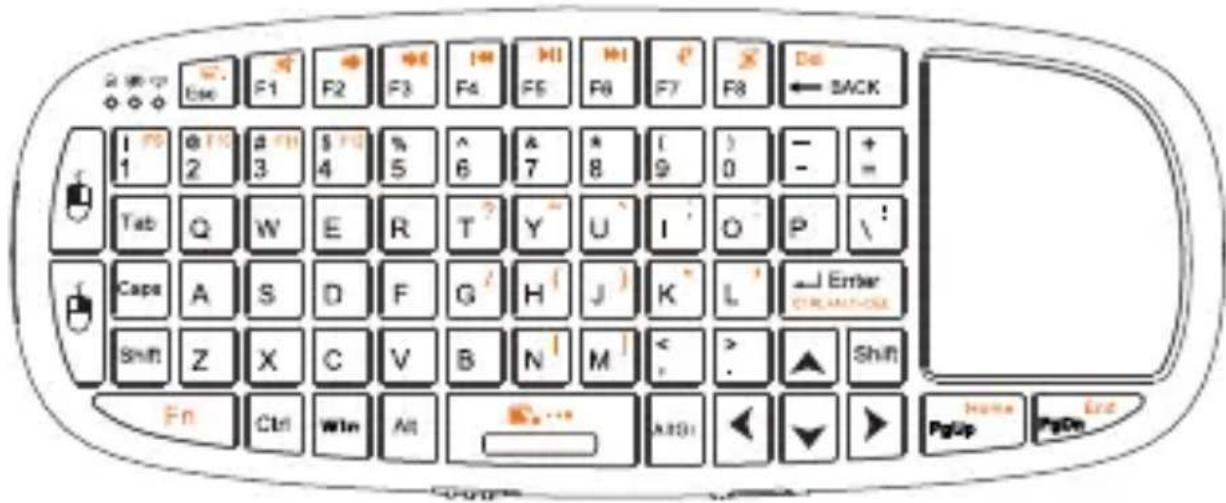
Ese F1 F2 F3 F4 M1 M1 F7 F8 Do ← BACK I 2 I 3 S 4 % 5 ^ 6 7 * 8 ( ) 9 - + = Tab Q W E R T Y U I O P \! Caps A S D F G H J K L Enter CIRCUAUSOCE Shift Z X C V B N M < > Shift Fn Ctrl Win Alt AIO↓ ↓ Home PgUp PgOn
2.4GHz Wireless
Mini 2.4GHz Wireless Keyboard with Touchpad & Laser Pointer 3 in 1
1. Safety Precautions
Safety Matters
Please refer to all safety precautions covered in this user manual to prevent injury or damage.
This product contains a rechargeable lithium-ion battery. All safety precautions should be taken into consideration when handling or operating any type of device that is powered by a battery such as this product. Do not drop, heat, crush & submerge this product in water. Do not operate this device in extreme humidity, heat or cold environments for long periods of time. Misuse of this device may cause injury and will void the device's warranty.

Attention to traffic safety
Do not operate or attempt to operate this device while driving or operating any moving vehicle.

Aircraft Safety
Please do not operate or attempt to operate this device while on board an aircraft. that may cause interference with the aircrafts operations and communications devices.

Combustible Agents and Chemicals
Please turn the device off while around fuel or any combustible agents or chemicals.

Turn off this device in the hospital
Please do not operate or attempt to operate This device in a hospital. Doing so may cause interference with medical operations and communications devices. As all wireless devices, this product may interfere with implanted cardiac pacemakers, hearing aids and other Medical implant devices.

Interference
All wireless devices may be subject to interference thus affecting the performance of this product
Replacement parts
Do not use any replacement parts other than those provided or recommended by the manufacturer

Do not look directly at or point the shiner at eyes. Doing so may cause permanent damage or blindness.
2. Overview
This is a wonderful combo, 2.4GHz Wireless mini QWERTY keyboard, Touch Pad combo, with USB interface receiver.
This product consists not only of normal wireless keyboard keys, but also of multimedia control keys and PC gaming control keys. It has built-in programmable smart touch pad - the world's first Touchpad which can be used in horizontal and vertical directions. It has power indicator, RF signal indicator, CAPSLOCK light, low-voltage indicator and keypad backlight to facilitate the use in dark environments.
3. Inrtoduction
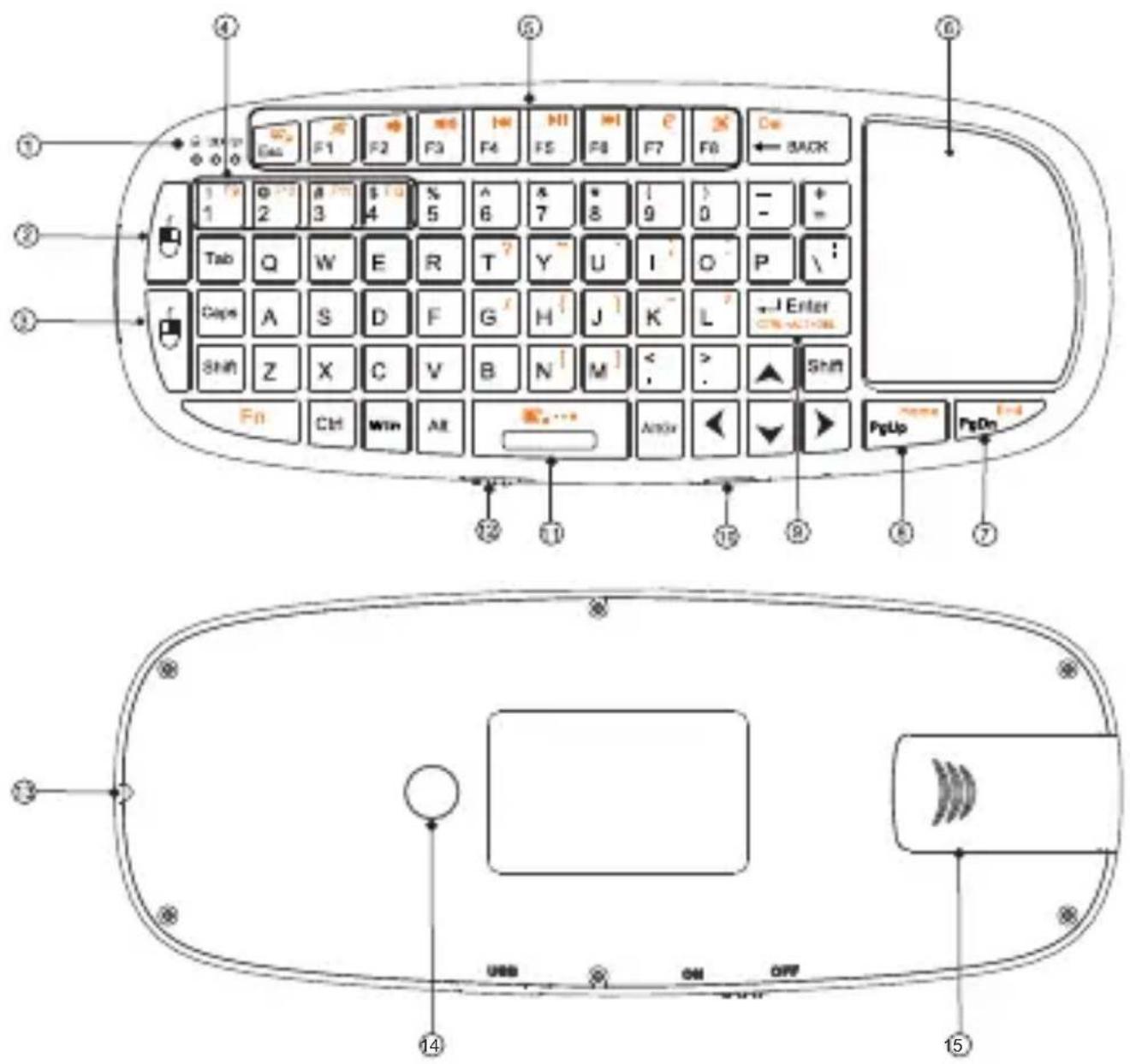
Keyboard Layout Illustration
text_image
Diagram of a mobile keyboard layout with labeled function keys and control buttons, including navigation and display areas.Keyboard Function Description Table
- (8) Bluetooth Communication indicator

Charging indicator

Battery capacity indicator
-
Left Mouse Button
-
Right Mouse Button
4.5. Multimedia Control Keys
Fn+Esc=Lock Touch Pad(Click & Double Click)
Fn+F1=Mute
Fn+F2=Volume down
Fn+F3=Volume up
Fn+F4=Previous
Fn+F5=Play/Pause
Fn+F6=Next
| Fn+F7=Internet | Fn+F8=Touchpad 90-degree flip |
| Fn+1=F9 | Fn+2=F10 |
| Fn+3=F11 | Fn+4=F12 |
- Touchpad
Fn+Touchpad=The Mouse Wheel Feature Innovative
-
Page Down: Fn+PgDn=End
-
Page Up: Fn+PaUp=Home
-
Fn+ENTER=Bring up the Task Manager etcs
-
USB Charging Port
-
Fn+ 📄 ⋯ =Touchpad DPI Adjustable Function
-
Power Switch
-
Laser Pointer
-
Laser Pointer Button
-
Bluetooth Dongle (Optional)
Touch Pad
The touchpad can be used in a horizontal or vertical position. To switch between horizontal or vertical mode, hold the Fn key and hit the Alt key.
Connecting the receiver
Slide the r eceiv er out fr om the USB Receiverstorage, compar tment on bac k of keyboard d, then insert Receiver into a USB port on computer/c onsole. Once receiver is inserted in USB por t, s lide the power switch on the keyboard to the "ON" position located on the left side of the unit to establish the c onconnection.
Auto sleep and wake feature
The keyboard also features an auto sleep and auto wake mode. If there is a long period of inactivity, the keyboard will automatically go into a sleep mode. During the sleep mode, the user can wake the unit up by pressing any key. The 2.4GHz receiver and Keyboard's RF indicator will continue to fash and will not power down.
Charging the battery
This device contains a built-in lithium-ion battery. is supplied with a USB-A to Mini-B cable. Please connect one end of cable to keyboard and other end of cable to USB port in order to charge the battery. When the battery is low, the low-voltage light will fash to warn the user. The unit will automatically turn off if the battery has been depleted.
Note: Fully charge the unit before operating for the first time. This device can be used when charging, but will extend the charging time.
Laser Pointer
Using the laser pointer only requires that the keyboard will be turned on. Press the Laser Switch as long as you want to use the laser pointer.
4. Appendix
Technical parameters
Specification
* Measurements (L x W x H): 154mm x 62.5mm x 12mm
* Weight (grams): 66g
* Operational Range: up to 15 meters
* Output power (db): +4db Max.
* Operation voltage: 3.3V
* Operation current: < 80mA
* Charging current: < 300mA
* Hibernation current: < 1mA
Suported Environment
* Windows 2000, Windows XP, Windows Vista, Windows CE, Windows 7
* Linux(Debian-3.1, Redhat-9.0 Ubuntu-8.10 Fedora-7.0 tested)
* Microsoft Xbox 360 (*may require firmware update)
* Sony PS3 (*may require firmware update)
5. Maintenance
* Do not attempt to disassemble the device or replace rechargeable battery. Doing so will void the warranty.
* The battery will discharge if stored for a long period of time without usage.
* Use the specified charger. Disconnect the device after the battery has been fully charged. Overcharging the battery will shorten the life span of the battery.
* Do not expose the device in extreme heat or cold. Extreme temperatures will cause the life span of the battery to shorten.
* Use only a damp cloth with mild soap to clean the device. Solvents and other cleaning agents may cause damage to the device.
Troubleshooting
Below are some basic troubleshooting options for the device. Please refer to the specific description, help you resolve some issues with the device.
| Issue Possible Issue | Solution |
| Unit does not respond | 1. Low battery power.2. Unit is not turned on. |
| Keyboard can not establish a connection to the receiver | 1. The receiver may not be inserted correctly.2. Possible wireless interference with another device. |
| The mouse pointer moves erratically and /or unresponsive. | 1. Device may not be within optional range of the receiver.2. Dust or oil on the touchpad. |
| The unit does not charge | 1. Defective battery.2. Check connections. |
6. Packing List
This equipment package contains the following items:
Mini Wireless Keyboard 1 unit
Wireless receiver 1 unit
USB-A to Mini-B Charge only Cable 1 unit
User Manual 1 unit