
Pro Click - Computer Mouse RAZER - Free user manual and instructions
Find the device manual for free Pro Click RAZER in PDF.


| Product Type | Computer Mouse |
| Brand | Razer |
| Model | Pro Click |
| Sensor | Razer™ 5G Advanced Optical Sensor with true 16,000 DPI |
| DPI | Up to 16,000 DPI (5 stages: 800, 1800 default, 3200, 5000, 10000; customizable via Razer Synapse 3) |
| Polling Rate | 1000 Hz |
| Button Life | Up to 50 million clicks (mechanical switches) |
| Number of Buttons | 8 independently programmable buttons |
| Scroll Wheel | Tilt-click scroll wheel with left/right tilt |
| Connectivity | Wired (Micro-USB), Wireless 2.4 GHz, Bluetooth (up to 3 devices) |
| Multi-host Connection | Up to 4 devices (2.4 GHz dongle + 3 Bluetooth) |
| Battery Life (Bluetooth) | Up to 350 hours |
| Battery Life (2.4 GHz) | Up to 200 hours |
| Charging Time | Approximately 4 hours for full charge |
| Dimensions (L x W x H) | 126.7 mm x 79.7 mm x 45.7 mm |
| Weight | 106 g (excluding cable) |
| System Requirements | PC or Mac with a free USB port |
| Software | Razer Synapse 3 enabled |
| Warranty | 2-year limited warranty |
| What's in the Box | Razer Pro Click mouse, 2.4 GHz Wireless USB dongle, USB cable (Micro-USB), documentation |
| Maintenance | Clean monthly with a soft cloth or cotton swab with warm water; avoid soap or harsh cleaning agents |
| Safety | Operate between 0°C and 40°C; keep away from liquid; do not disassemble |
| Ergonomic Design | Co-designed with Humanscale; ergonomic shape for productivity |
Frequently Asked Questions - Pro Click RAZER
User questions about Pro Click RAZER
0 question about this device. Answer the ones you know or ask your own.
Ask a new question about this device
Download the instructions for your Computer Mouse in PDF format for free! Find your manual Pro Click - RAZER and take your electronic device back in hand. On this page are published all the documents necessary for the use of your device. Pro Click by RAZER.
USER MANUAL Pro Click RAZER
natural_image
Abstract white line drawing of a stylized snake on a solid green background (no text or symbols)RAZER PRO CLICK
MASTER GUIDE
Designed as the ultimate go-to mouse for productivity, the switches in the Razer™ Pro Click are durable for up to 50 million clicks, combining performance with longevity.
CONTENTS
- WHAT'S INSIDE....3
- WHAT'S NEEDED 4
- LET'S GET YOU COVERED 4
- TECHNICAL SPECIFICATIONS....5
- GETTING STARTED 6
- SAFETY AND MAINTENANCE .... 12
7.LEGALESE....14
1. WHAT'S INSIDE
RAZER PRO CLICK

A. Left mouse button
B. Right mouse button
C. Scroll wheel
D. Left tilt-click
E. Right tilt-click
F. Cycle DPI stage up button
G. Status indicator
H. Mouse button 5
1. Mouse button 4
J. Micro-USB port
K. Ultraslick mouse feet
L. 5G optical sensor
M. USB dongle compartment
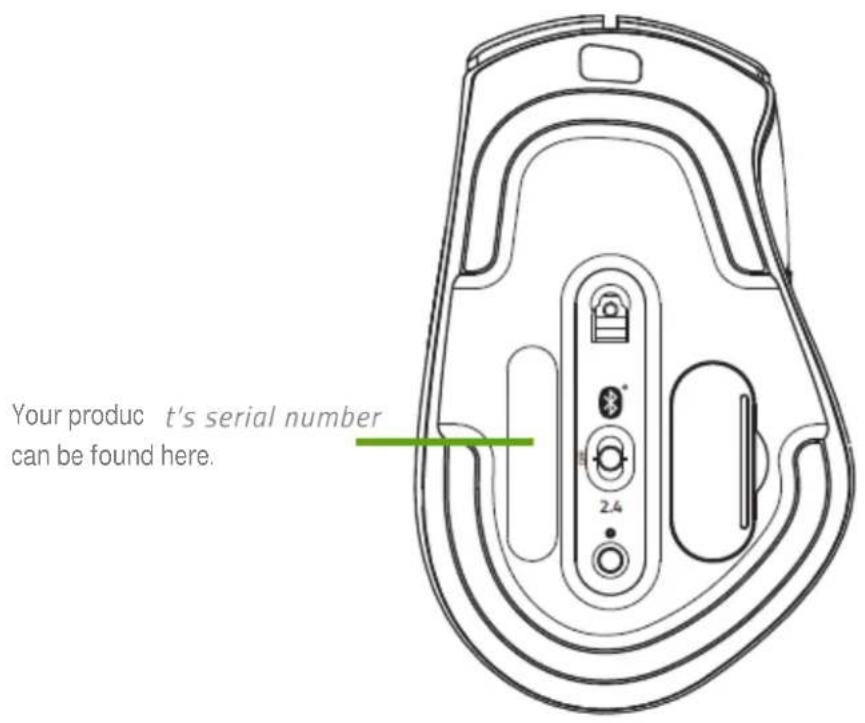
N. Slider switch
- Bluetooth mode
■ Power off mode
■ 2.4GHz mode
O. Pairing indicator
P. Pair/ switch button
Q. 2.4GHz Wireless USB dongle
R. USB cable
DPI stages are as follows: 800, 1800 (default), 3200, 5000, and 10000. The DPI stages can be customized using Razer Synapse 3.
2. WHAT'S NEEDED
PRODUCT REQUIREMENTS
■ PC or Mac with a free USB port
3. LCOVERED YOU
You've got a great device in your hands complete with a 2-year limited warranty coverage. Now maximize its potential and score exclusive Razer benefits by registering at razerid.razer.com
Got a question? Ask the Razer Support Team at support.razer.com.
4. TECHNICAL SPECIFICATIONS
TECHNICAL SPECIFICATIONS
■ Razer™ 5G Advanced Optical Sensor with true 16,000 DPI
- Up to 450 inches per second (IPS) / 40 G acceleration
■ 1000 Hz polling rate
■ Mechanical Switch with 50 million button life cycle
■ Tilt-click scroll wheel
- Ergonomic design (co-designed with Humanscale – world's premier expert in office ergonomics)
■ 8 independently programmable buttons
- Onboard DPI storage (up to 5 DPI stages)
■ Multi-host connection for up to 4 devices
■ Battery Life: Up to 350 hours (on BT) and up 200 hours (on 2.4 GHz)
■ Wired and wireless connectivity
■ Razer Synapse 3 enabled
APPROXIMATE SIZE & WEIGHT
■ Length: 126.7 mm / 4.68 in
■ Width: 79.7 mm / 2.95 in
■ Height: 45.7 mm / 1.69 in
■ Weight: 106 g / 0.30 lbs*
* Excluding cable
5. GETTING STARTED
Plug the USBkable from your computer's USB port to your Razer Pro
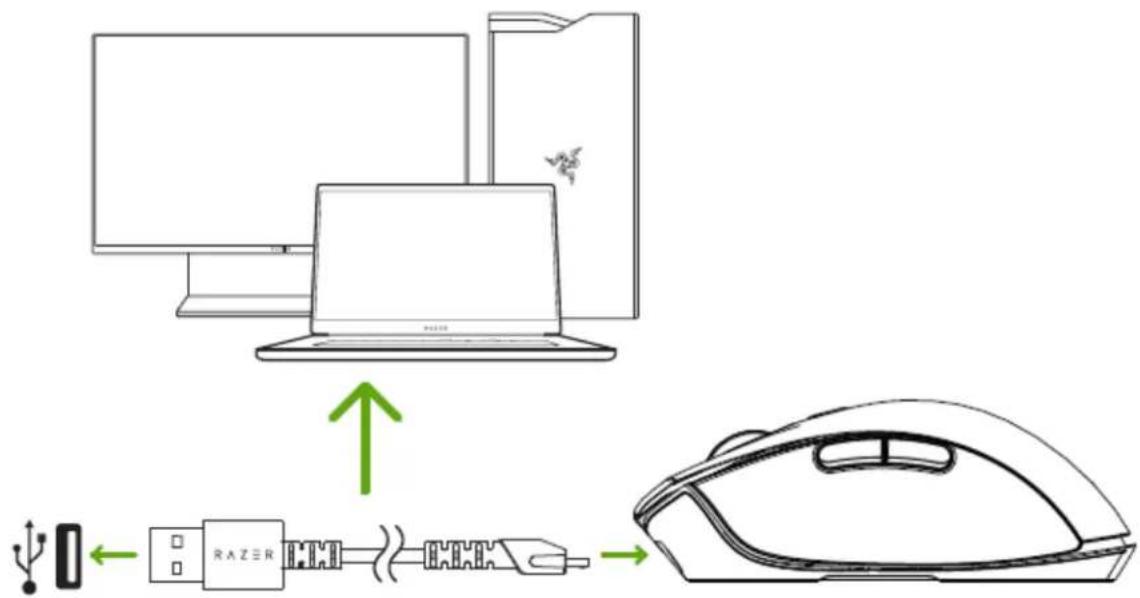
This connection also acts as the WIRED MODE for your device.
For best results, please fully charge your Razer Pro Click before using it for the first time. A depleted battery will be fully charged in approximately 4 hours. If the Razer Pro Click has not been used for an extended period, you may need to recharge it before use.
The Razer Pro Click requires a USB connection that can supply sufficient power to charge the battery. The battery charging process of the Razer Pro Click may be affected if connected to a non-powered USB hub or non-powered USB ports found on certain keyboards and other peripherals. When in doubt, it's preferable to connect the Razer Pro Click directly to the USB port of your computer.
CHARGING INDICATOR
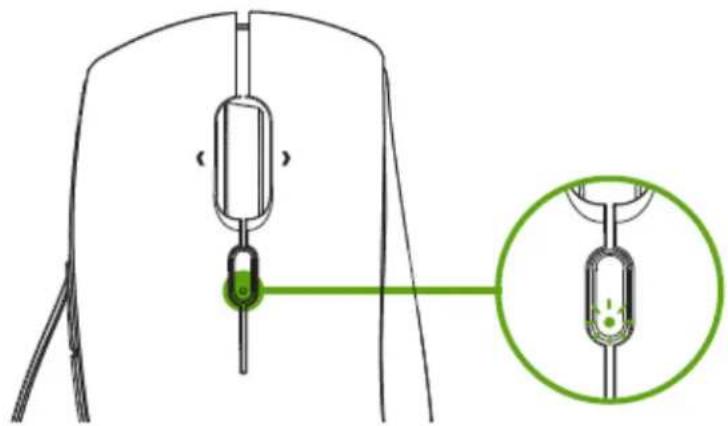
While plugged in, the Razer Pro Click 'status indicator will display its current battery level (as shown below).
| Battery level | Color | Effect | |
| <25% | Red | Breathing | |
| 26-50% | Orange |  | Breathing |
| 51-75% | Yellow |  | Breathing |
| 76-99% | Green | [HSC8] | Breathing |
| 100% | Green |  | Static |
LOW POWER INDICATOR
The Razer Pro Click 'status indicator will blink red twice in repeated intervals to indicate that the battery's power is less than 5%. This lighting sequence will repeat until the battery is drained or the mouse is connected to the PC via the charging cable.
natural_image
Diagram of a mechanical device with a green connector and a magnified inset showing internal components (no text or symbols)You can also check the Razer Pro Click's battery level by moving the slider switch from power off to either Bluetooth or 2.4Ghz mode. The status indicator will light up in the color according to the mouse's current power level (as shown below).
| Battery level | Color | |
| <25% | Red |  |
| 26-50% | Orange |  |
| 51-75% | Yellow |  |
| 76-100% | Green |  |
CONNECTING THE RAZER PRO CLICK VIA 2.4 GHZ MODE
- Remove the compartment cover of the Razer Pro Click and pull out the wireless USB dongle.

natural_image
Diagram showing a device being inserted into a housing, with no visible text or symbols- Close the compartment cover and connect the wireless USB dongle to the USB port of your computer.
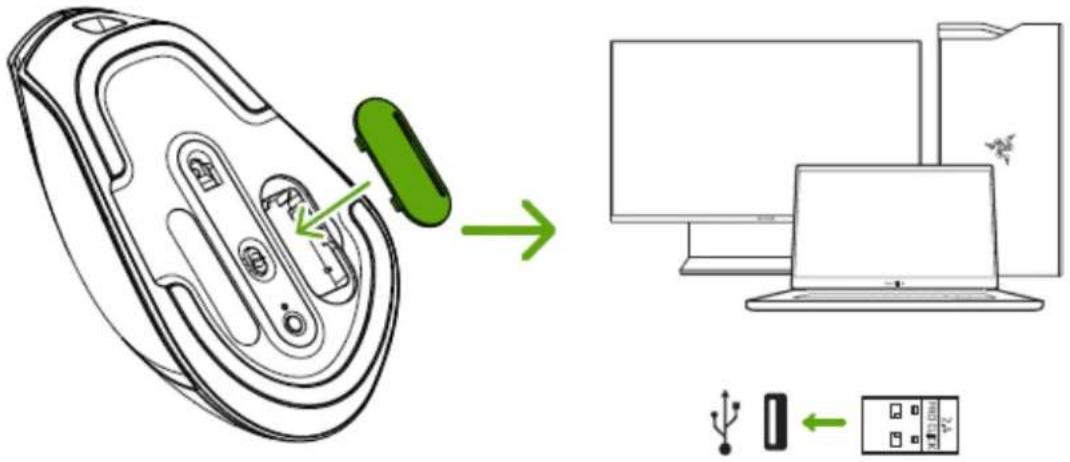
- Switch the slider to 2.4 GHz mode. The pairing indicator will start blinking rapidly.
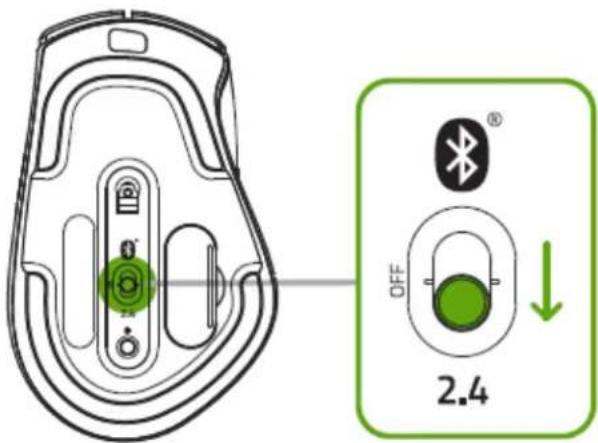
- Wait until the mouse automatically pairs with the wireless USB dongle. When paired, the pairing indicator will change to static white for 3 seconds before turning off.

Keep the pairing devices within close proximity of each other for a faster and more stable connection. Congratulations, your Razer Pro Click is now ready to use in 2.4 GHz mode.
CONNECTING THE RAZER PRO CLICK VIA BLUETOOTH MODE
- Switch the slider to Bluetooth mode ()*

- Select a slot for your Bluetooth device by tapping the pair/switch button. You can pair up to 3 Bluetooth devices on your Razer Pro Click.
| Slot | Color |
| 1 (Default) | Blue |
| 2 | Green |
| 3 | Yellow |

- Press and hold the pair/switch button for 3 seconds. The pairing indicator will blink twice in repeated intervals to show that the device is in pairing mode.
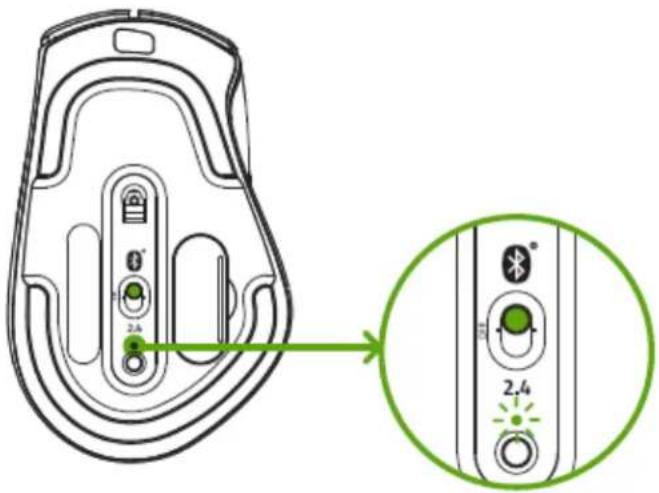
- Activate Bluetooth on your device and search for "Razer Pro Click" from the list of devices found.

- Wait until both devices are paired. When paired, the pairing indicator will change to static for 3 seconds before turning off.

Keep the pairing devices within close proximity of each other for faster and more stable connection.
Once both devices have been paired, your Razer Pro Click will automatically reconnect to the device whenever it is in Bluetooth mode and the device is within range.
6. SAFETY AND MAINTENANCE
SAFETY GUIDELINES
In order to achieve maximum safety while using your Razer Pro Click, we suggest that you adopt the following guidelines:
Should you have trouble operating the device properly and troubleshooting does not work, unplug the device and contact the Razer hotline or go to support.razer.com for assistance.
Do not take apart the device (doing so will void your warranty) and do not attempt to operate it under abnormal current loads.
Keep the device away from liquid, humidity or moisture. Operate the device only within the specific temperature range of 0^ C ( 32^ F) to 40^ C ( 104^ F). Should the temperature exceed this range, unplug and/or switch off the device in order to let the temperature stabilize to an optimal level.
COMFORT
Research has shown that long periods of repetitive motion, improper positioning of your computer peripherals, incorrect body position, and poor habits may be associated with physical discomfort and injury to nerves, tendons, and muscles. Below are some guidelines to avoid injury and ensure optimum comfort while using your Razer Pro Click.
- Position your keyboard and monitor directly in front of you with your mouse next to it. Place your elbows next to your side, not too far away and your keyboard within easy reach.
- Adjust the height of your chair and table so that the keyboard and mouse are at or below elbow-height.
- Keep your feet well supported, posture straight and your shoulders relaxed.
- During gameplay, relax your wrist and keep it straight. If you do the same tasks with your hands repeatedly, try not to bend, extend or twist your hands for long periods.
- Do not rest your wrists on hard surfaces for long periods. Use a wrist rest to support your wrist while gaming.
- Customize the keys on your keyboard to suit your style of gaming in order to minimize repetitive or awkward motions while gaming.
- Do not sit in the same position all day. Get up, step away from your desk and do exercises to stretch your arms, shoulders, neck and legs.
If you should experience any physical discomfort while using your mouse, such as pain, numbness, or tingling in your hands, wrists, elbows, shoulders, neck or back, please consult a qualified medical doctor immediately.
MAINTENANCE AND USE
The Razer Pro Click requires minimum maintenance to keep it in optimum condition. Once a month we recommend you unplug the device from the computer and clean it using a soft cloth or cotton swab with a bit of warm water to prevent dirt buildup. Do not use soap or harsh cleaning agents.
To get the ultimate experience in movement and control, we highly recommend a premium mouse mat from Razer. Some surfaces will cause undue wear on the feet requiring constant care and eventual replacement.
Do note that the sensor of the Razer Pro Click is 'tuned' or optimized especially for the Razer mouse mats. This means that the sensor has been tested extensively to confirm that the Razer Pro Click reads and tracks best on Razer mouse mats.
7. LEGALESE
COPYRIGHT AND INTELLECTUAL PROPERTY INFORMATION
©2020 Humanscale Corporation. All rights reserved. Humanscale and the Humanscale logo are either registered trademarks or trademarks of Humanscale Corporation in the United States and/or other countries.
©2020 Razer Inc. All rights reserved. Razer, the triple-headed snake logo, Razer logo, For Gamers. By Gamers, and Razer Chroma logo are trademarks or registered trademarks of Razer Inc. and/or affiliated companies in the United States or other countries. All other trademarks and trade names are the property of their respective owners and other company and product names mentioned herein may be trademarks of their respective companies.
Windows and the Windows logo are trademarks of the Microsoft group of companies.
The Bluetooth® word mark and logos are registered trademarks owned by Bluetooth SIG, Inc., and any use of such marks by Razer is under license.
Razer Inc. ("Razer") may have copyright, trademarks, trade secrets, patents, patent applications, or other intellectual property rights (whether registered or unregistered) concerning the product in this guide. Furnishing of this guide does not give you a license to any such copyright, trademark, patent or other intellectual property right. The Razer Pro Click (the "Product") may differ from pictures whether on packaging or otherwise. Razer assumes no responsibility for such differences or for any errors that may appear. Information contained herein is subject to change without notice.
LIMITED PRODUCT WARRANTY
For the latest and current terms of the Limited Product Warranty, please visit razer.com/warranty.
LIMITATION OF LIABILITY
Razer shall in no event be liable for any lost profits, loss of information or data, special, incidental, indirect, punitive or consequential or incidental damages, arising in any way out of distribution of, sale of, resale of, use of, or inability to use the Product. In no event shall Razer's liability exceed the retail purchase price of the Product.
GENERAL
These terms shall be governed by and construed under the laws of the jurisdiction in which the Product was purchased. If any term herein is held to be invalid or unenforceable, then such term (in so far as it is invalid or unenforceable) shall be given no effect and deemed to be excluded without invalidating any of the remaining terms. Razer reserves the right to amend any term at any time without notice.


- CONTENTS
- WHAT'S INSIDE
- WHAT'S NEEDED
- PRODUCT REQUIREMENTS
- LCOVERED YOU
- TECHNICAL SPECIFICATIONS
- TECHNICAL SPECIFICATIONS
- APPROXIMATE SIZE & WEIGHT
- GETTING STARTED
- CHARGING INDICATOR
- LOW POWER INDICATOR
- CONNECTING THE RAZER PRO CLICK VIA 2.4 GHZ MODE
- CONNECTING THE RAZER PRO CLICK VIA BLUETOOTH MODE
- SAFETY AND MAINTENANCE
- SAFETY GUIDELINES
- COMFORT
- MAINTENANCE AND USE
- LEGALESE
- COPYRIGHT AND INTELLECTUAL PROPERTY INFORMATION
- LIMITED PRODUCT WARRANTY
- LIMITATION OF LIABILITY
- GENERAL
Brand : RAZER
Model : Pro Click
Category : Computer Mouse