
LR96CBS20 - Fan SIEMENS - Free user manual and instructions
Find the device manual for free LR96CBS20 SIEMENS in PDF.


| Product Type | Built-in Extractor Hood |
| Model | LR96CBS20 |
| Brand | Siemens |
| Width | 90 cm |
| Depth | 50 cm |
| Height | 60 cm (adjustable) |
| Weight | Approx. 15 kg |
| Power Supply | 220-240 V, 50/60 Hz |
| Power Consumption | 250 W |
| Airflow (Max) | 650 m³/h |
| Noise Level (Max) | 70 dB(A) |
| Number of Fan Speeds | 4 |
| Control Type | Remote control and touch panel |
| Connectivity | Home Connect (Wi-Fi) |
| Lighting | LED, 2 x 3 W |
| Filter Type | Metal grease filter (dishwasher safe) |
| Carbon Filter | Optional (for recirculation mode) |
| Installation Type | Built-in (under cabinet) |
| Venting Type | Ducted or recirculation |
| Safety Features | Auto shut-off, overheat protection |
| Accessories | Remote control, installation kit |
| Warranty | 2 years (subject to terms) |
Frequently Asked Questions - LR96CBS20 SIEMENS
User questions about LR96CBS20 SIEMENS
0 question about this device. Answer the ones you know or ask your own.
Ask a new question about this device
Download the instructions for your Fan in PDF format for free! Find your manual LR96CBS20 - SIEMENS and take your electronic device back in hand. On this page are published all the documents necessary for the use of your device. LR96CBS20 by SIEMENS.
USER MANUAL LR96CBS20 SIEMENS
natural_image
Hand holding smartphone with floating icons of kitchen appliances on a dark screen (no text or symbols)EN Connect your extractor hood to the future. 8
Welcome to the connected home!
Congratulations on your new smart appliance with Home Connect, designed to simplify your life and make it more enjoyable.*
Home Connect helps you to manage your home appliances with ease and comfort, providing a variety of functions beyond simple remote control.
The Home Connect app gives you important and useful information about your home appliance, allowing you to customize and trigger certain functionalities and actions. Furthermore, the app offers support on how to properly maintain your home appliance and also inspires with a variety of recipes. Explore our ecosystem of partners and gain even more functionalities and services.
Home Connect opens up a world of possibilities exceeding your expectations of a home appliance.
* The availability of the Home Connect function depends on the availability of Home Connect services in your country. Home Connect services are not available in every country. You can find more information on this at www.home-connect.com
Explore: With the Home Connect app you can...

Manage your appliance
In the app's appliance section you have an overview of your connected home appliances, offering a variety of functions beyond simple remote control. Monitor the home appliance's progress, change or pause programs, change settings, trigger actions, and receive notifications.

Be inspired
The recipe section provides a variety of inspiring recipes, tips and videos, that will make cooking and baking even more enjoyable.

Get support
The service section gives helpful information on how to maintain and operate your home appliance properly.

Discover even more benefits
We are constantly expanding our ecosystems of partners. Please refer to www.home-connect.com for an overview of all partners.
Let's get started:
What you need
1 | Your extractor hood must be installed properly and plugged in.
2 | A smartphone or tablet equipped with a current version of iOS or Android operating system.
3 | Your extractor hood within the Wi-Fi signal of your home network.
4 | The name of your Wi-Fi network (SSID) and its password (key).
5 | This installation guide.
Important Information:
Data security: Home Connect values customer data, ensuring the transfer of data is encrypted. Home Connect utilizes a variety of security measures, which are periodically reviewed. For further information visit www.home-connect.com.
Appliance safety: To ensure safe operation of your appliance with Home Connect functionality, please consult the safety information in the appliance instruction manual.
Step 1: Download the Home Connect app and create a user account
1 | Open the App Store (Apple devices) or Google Play Store (Android devices) on your smartphone or tablet.
2 | Search for "Home Connect" in the Store and install the app.
Home Connect app:
home connect
3 | Open the app and register yourself so that you can create a Home Connect user account.
4 | Make a note of your Home Connect access data (user account and password) – you will need this later.
√ The app will take you through the necessary steps for linking your appliance with Home Connect. If necessary, the app will refer to these instructions.
Step 2: Connect your extractor hood to your home network
1 | Your extractor hood must be installed properly and plugged in.
2 | Open your Home Connect app to add your extractor hood.
3 | Please follow the directions in the app and refer to this guide only when prompted to by the app.
Information:
We are constantly working to improve the Home Connect app, which may lead to differences in the setup steps. Please rely on the instructions in the latest version of the Home Connect app to guide you through the setup process.
Step 2.1: Connect your extractor hood to your home network with WPS
Please enter step 2.1 only when prompted to by the app. The following steps describe operations at the home appliance itself.
Note:
To connect the extractor hood to your home network, the hood and the light must be switched off. You can cancel the process at any time by pressing ①.
1 | Press and hold the 🔔 symbol on your remote control until LED 7 on the appliance starts flashing.
2 | Press the + button on your remote control to start automatic login to your home network.
√ LED 1 and LED 7 flash on the appliance.
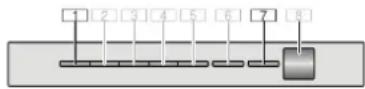
3 | Activate the WPS function on your home network router within the next 2 minutes.
√ If connection to the home network is successful, LED 3 and LED 7 flash on the appliance.
√ The app will get notified once your extractor hood has been successfully connected to your Wi-Fi network.
4 | Follow the instructions in the app.
Information:
If the connection could not be established within 2 minutes, make sure your extractor hood is within the range of your Wi-Fi network.
For some appliances the WPS mode is also called "automatic mode".
Step 2.2: Connecting the extractor hood to your home network, step by step
Follow the instructions in Step 2.2 only if the app tells you to. The following steps set out how to perform this operation on the appliance itself.
Note:
To connect the extractor hood to your home network, the hood and the light must be switched off. You can cancel the process at any time by pressing ①.
1 | Press and hold the 🔔 symbol on your remote control until LED 7 on the appliance starts flashing.
2 | Press the + button on your remote control twice to start manual login to your home network.
√ LED 2 and LED 7 flash on the appliance.
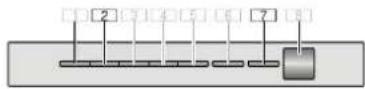
√ The appliance will open a temporary Wi-Fi network, "Home Connect", for a few minutes with the password "HomeConnect".
Using this temporary Wi-Fi network, the app will transfer the name (SSID) and the password of your home network to the extractor hood, thereby enabling the extractor hood to connect to your home network.
√ If connection to the home network is successful, LED 3 and LED 7 flash on the appliance.
3 | Follow the instructions in the app.
Information:
For some appliances the step-by-step mode is also called "SAP mode" or "manual mode". If the step-by-step mode does not work please check:
- Your appliance is in the range of the Wi-Fi network.
- Your smartphone/tablet is connected to your home Wi-Fi network.
- Your smartphone/tablet and appliance are connected to the same home Wi-Fi network.
Step 3: Connecting the extractor hood to the Home Connect app
Follow the instructions in Step 3 only if the app tells you to. The following steps set out how to perform this operation on the appliance itself.
1 | Press and hold the 📤 button on your remote control until LED 3 and LED 7 start flashing on the appliance.
2 | Follow the instructions in the app.
√ LED 7 on the appliance no longer flashes and lights up continuously. The login process is now complete.
Information:
If the connection could not be established make sure your smartphone/tablet is within range of your Wi-Fi network.
Home Connect opens up a world of possibilities, exceeding your expectations of a home appliance.
To learn more about smart home appliances with Home Connect and our partner ecosystem, visit www.home-connect.com