
XPrint - Printer Xiaomi - Free user manual and instructions
Find the device manual for free XPrint Xiaomi in PDF.


| Product Type | Portable Printer |
| Model | DMP 100 |
| Weight | 268 g (without packaging) |
| Input Voltage | 5V~2A |
| Connection Method | Bluetooth, NFC (Android) |
| Printing Method | Sublimation printing |
| Print Dimensions | 2×3 inch (54×86 mm) |
| Supported Image Formats | JPEG, PNG |
| Recommended Image Resolution | 1240×1864 pixels or higher |
| Charging Time | Approximately 1 hour (using 5V/2A charger) |
| Standby Auto-Off | After 10 minutes of inactivity |
| Battery Status | Not fully charged for transport; charge before first use |
| Indicator Lights | Power/Fault (white/red), Bluetooth (blue), Charging (red/green) |
| Operating Temperature | -5°C to 35°C |
| Charging Temperature | 5°C to 35°C |
| Accessories Included | Micro USB cable, removable print cartridge, 9 sheets of photo paper |
| App Requirement | XPrint app (iOS/Android) |
| Print Cartridge Replacement | Replace cartridge when empty; do not reuse photo paper |
| Safety Warnings | Avoid low/high temperatures; do not pull paper during printing |
| Compliance Standards | GB/T 26572 (RoHS) |
Frequently Asked Questions - XPrint Xiaomi
User questions about XPrint Xiaomi
0 question about this device. Answer the ones you know or ask your own.
Ask a new question about this device
Download the instructions for your Printer in PDF format for free! Find your manual XPrint - Xiaomi and take your electronic device back in hand. On this page are published all the documents necessary for the use of your device. XPrint by Xiaomi.
USER MANUAL XPrint Xiaomi
Portable printer XPrint™
User's manual
XPRINT™
Settings
01. Install the APP
Scan the QR code, or download from the App store and download the mobile app XPrint™.
02. Turn on printer
Press and hold the power button to turn on the printer.
For transportation safety, the battery is not fully charged. After turning on, you need to charge the device, according to prompts in the mobile application.


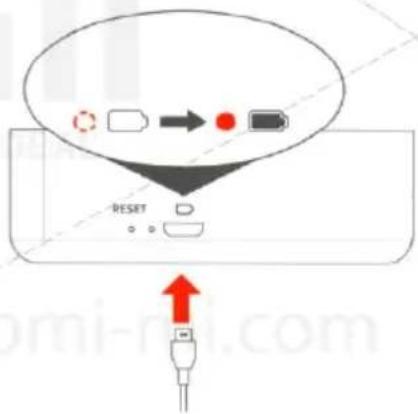
To charge, connect the Micro USB cable to the power source, and plug it into recharging slot on the back of the printer. When fully charged, the charging indicator will glow green.
Charge approximately 1 hour *, using the charger 5B-2A 10W.
* Data obtained under laboratory conditions, depending on your conditions, the charging time may be
different.
03. Connect to printer
Connection method 1: Android-powered mobile phone with NFC support.
- Enable the NFC feature on your mobile phone.
- Place your mobile phone on the printer to automatically connect to the printer.
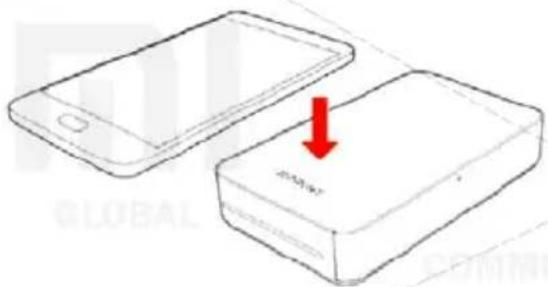

If you cannot connect to the printer, make sure that the NFC module of the mobile phone is in the zone above the XPRINT logo and try again.
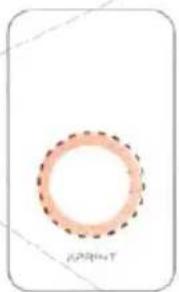
NFC reading zone
Connection method 2: mobile phone based on Android OS or iPhone with Bluetooth support.
1) Go to your mobile phone settings, turn on Bluetooth. 2) Update the list of Bluetooth devices, select ✉ XPrint-XXXX. 3) Confirm pairing to complete the connection.
Start printing, using mobile APP!
* To save battery power, the printer will automatically turn off after 10 minutes in standby mode.
* The photo will go in and out 5 times, for printing in separate colors and lamination. Do not pull paper out of the printer until a message appears in the mobile application, that the printing is complete.
Do not reuse photo paper. Reuse may damage the mechanism.
* As a gift to the device is a removable tray for printing with 9 sheets of photo paper.
Main Parameters
| Name | Portable printer XPrintTM |
| Model | DMP 100 |
| Weight | 268 g (w/o packaging) |
| Input voltage | 5V~2A |
| Connection method | Bluetooth |
| Printing method | Sublimation printing |
| Printing dimensions | 2*3 inch (54*86 mm) |
| Image format | JPEG, PNG |
Before using the product, read the user's manual carefully and keep it properly.
Name and content of harmful substances in the product
| Name of component | Harmful substances | |||||
| (Pb) | (Hg) | (Cd) | (Cr(VI)) | (PBB) | (PBDE) | |
| Mechanism | ○ | ○ | ○ | ○ | ○ | ○ |
| Circuit board | ○ | ○ | ○ | ○ | ○ | ○ |
| Housing | ○ | ○ | ○ | ○ | ○ | ○ |
This table is created according to the provisions of the standard GB/T 26572.○: the content of harmful substance in all homogeneous materials of the component is within the requirements of the standard GB / T 26572.×: at least one of the homogeneous materials of the component exceeds the limits of the requirements of the standard GB / T 26572.  | ||||||
Overview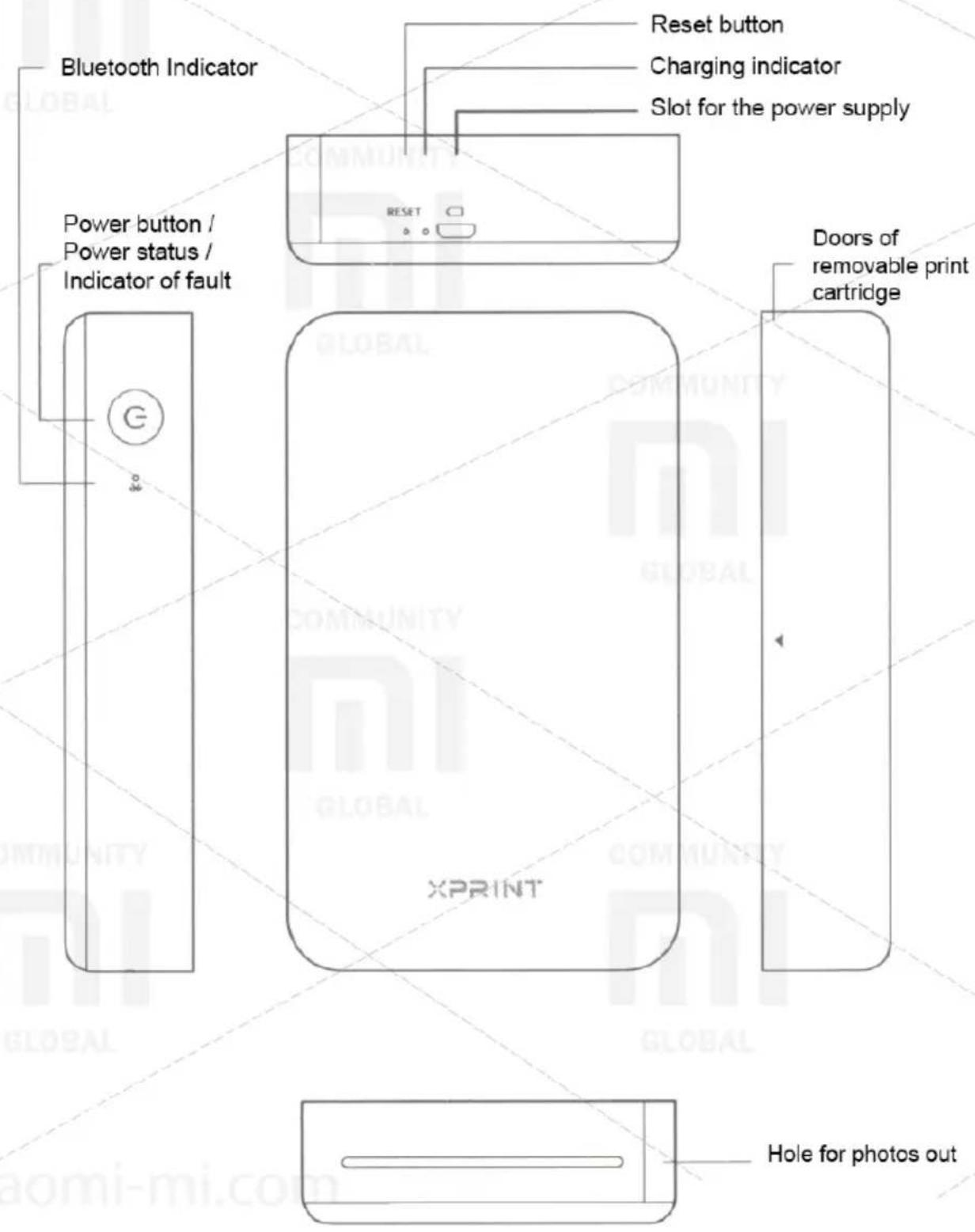
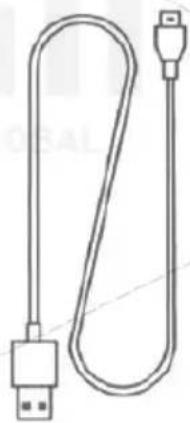
Micro USB Cable x 1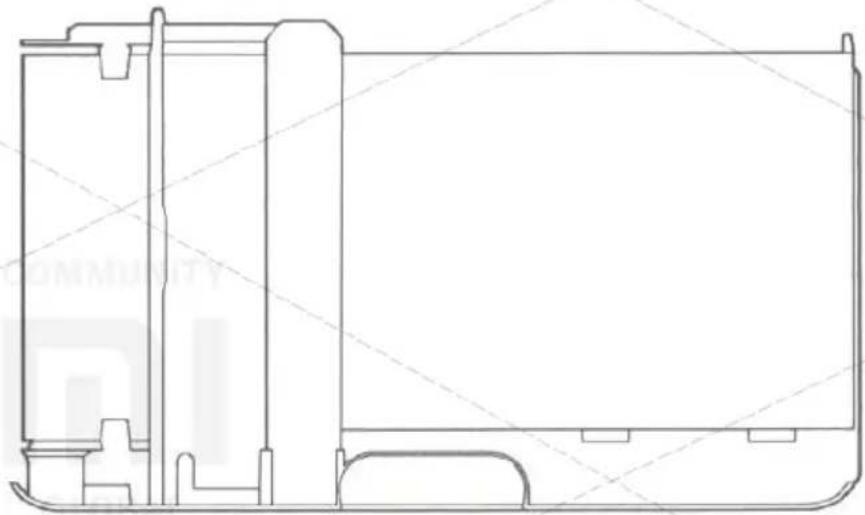
Removable print cartridge x 1
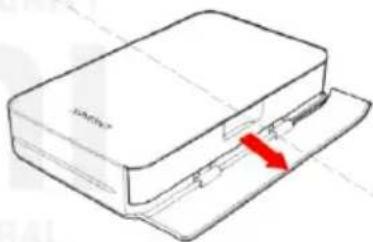
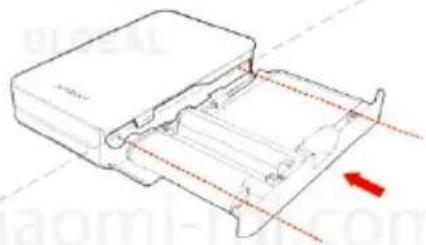
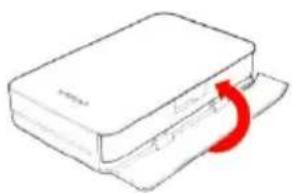
Changing of printing tray
1) Open the print-cartridge door bay; 2) Obtain a used removable print cartridge; 3) Insert a new removable print cartridge.
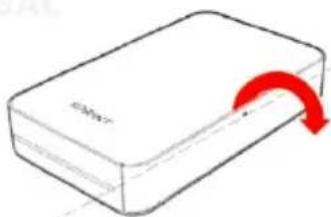

Do not open the removable print cartridge and do not reuse a photo paper.
4) Close the door of the removable print cartridge compartment.
Statuses of indicator
01. Power/Fault indicator
 | Not light up | Device is off |
 | Lights white | Device is on |
 | Slowly blinks white | Device upgrades / Heating continues / Cooling continues |
 | Quickly blinks white | Printing |
 | Quickly blinks red | Printer fault Fix the problem, according to the tips in the mobile application |
02. Bluetooth Indicator
 | Quickly blinks blue | Waiting for connection |
 | Lights blue Connected |
03. Charging indicator
 | Lights green | Fully charged |
| [ZBHD] | Lights red | Charging |
Caution!
- Recommended ambient temperature when using: - 5 °C \~ 35 °C, avoid using the device in low and high temperatures;
- Recommended temperature during charging: 5 °C \~ 35 °C, avoid charging the device at low and high temperatures;
- Recommended image resolution from 1240 x 1864 and above.
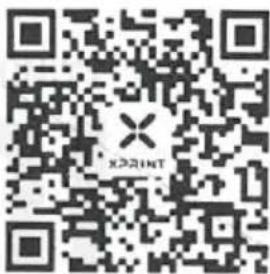
For more information, please visit http://www.hannto.com/service or scan your QR code and sign in to our customer support account at WeChat.
- PORTABLE PRINTER XPRINT™
- USER'S MANUAL
- XPRINT™
- SETTINGS
- INSTALL THE APP
- TURN ON PRINTER
- CONNECT TO PRINTER
- CONNECTION METHOD 1: ANDROID-POWERED MOBILE PHONE WITH NFC SUPPORT
- CONNECTION METHOD 2: MOBILE PHONE BASED ON ANDROID OS OR IPHONE WITH BLUETOOTH SUPPORT
- CHANGING OF PRINTING TRAY
- STATUSES OF INDICATOR
- POWER/FAULT INDICATOR
- BLUETOOTH INDICATOR
- CHARGING INDICATOR
- CAUTION
Brand : Xiaomi
Model : XPrint
Category : Printer