
Reader PRS-500 - E-reader SONY - Free user manual and instructions
Find the device manual for free Reader PRS-500 SONY in PDF.
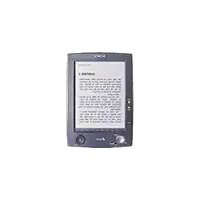


| Product Type | Portable Reader System (E-reader) |
| Brand | Sony |
| Model | PRS-500 |
| Dimensions (W/H/D) | 6.9 x 4.9 x 0.5 in (175 x 124 x 13 mm) |
| Weight | 8.8 oz (250 g) without cover |
| Power Source | Built-in rechargeable Li-ion battery (3.7 V) or AC adapter (5.2 V) |
| Battery Life | Approx. 7500 page turns per charge |
| Internal Memory | Approx. 64 MB user available |
| Supported Book Formats | BBeB (.lrf/.lrx), PDF (v1.4 or earlier), TXT, RTF, Word (converted) |
| Supported Audio Formats | MP3 (32–320 kbps, 22.05/44.1 kHz), AAC (.mp4/.m4a/.mov/.qt) |
| Supported Picture Formats | BMP, JPEG, GIF, PNG |
| Memory Card Slot | Memory Stick (up to 4 GB) and SD Memory Card (up to 2 GB) |
| Display | E-ink with zoom (3 levels) and orientation switch (vertical/horizontal) |
| Controls | 5-way control, number buttons (1–9,0), PAGE (<, >), SIZE, MARK, MENU, VOLUME +/– |
| Connectivity | USB 1.1/2.0 (Mini-B), optional cradle multi-connector |
| Headphone Jack | Yes (3.5 mm stereo) |
| Included Accessories | USB cable, AC adapter, soft cover, CD-ROM with CONNECT Reader software |
| Operating Temperature | 5°C to 35°C (41°F to 95°F) |
| Cleaning | Use a soft cloth; mild detergent if needed; avoid alcohol, benzene, or water ingress |
| Safety | Do not expose to rain/moisture; recycle battery per local regulations |
Frequently Asked Questions - Reader PRS-500 SONY
User questions about Reader PRS-500 SONY
0 question about this device. Answer the ones you know or ask your own.
Ask a new question about this device
Download the instructions for your E-reader in PDF format for free! Find your manual Reader PRS-500 - SONY and take your electronic device back in hand. On this page are published all the documents necessary for the use of your device. Reader PRS-500 by SONY.
USER MANUAL Reader PRS-500 SONY
Jumps to the table of contents
Operation Guide
PRS-500
Portable Reader System
About the Manuals
Included with Sony Reader is the Quick Start Guide and this PDF-format Operation Guide. Additionally, after installing CONNECT Reader software from the supplied CD-ROM, you can refer to the Help within CONNECT Reader.
Browsing the Operation Guide
This PDF-format Operation Guide can be browsed on both your computer and Sony Reader.
Browsing this Guide on your computer
Click the Start menu in the bottom left of the Desktop, then select “All programs” – “CONNECT Reader” – “PRS-500 Operation Guide” to start Adobe Acrobat Reader and open the Operation Guide.
For details on how to use Adobe Acrobat Reader, refer to the Adobe Acrobat Reader Help.
Hint
- To view the Operation Guide, you should have installed either Adobe Reader 5.0 or later. Adobe Reader can be downloaded for free from the Adobe website (www.adobe.com).
Browsing this Guide using Sony Reader
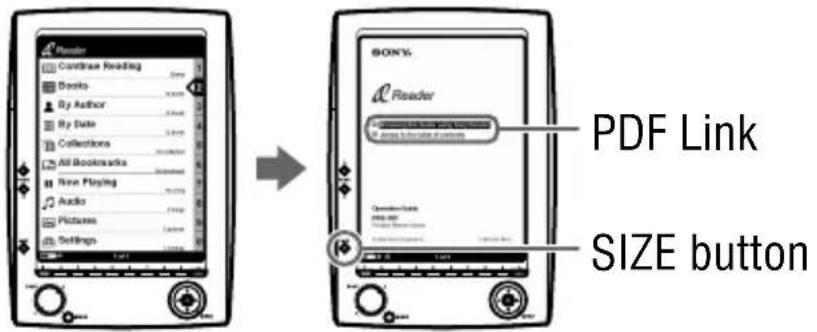
From the Home menu, select “Books” – “Operation Guide” from the Book list. The Operation Guide can be opened by selecting “Option Menu” – “Begin.”
Hints
- A ▶ mark on this Guide indicates a link. Using the 5-way control button, press ▲/▼ to select the desired link, then press ENT to jump to the linked page. • To zoom in a page, press SIZE.
For details on how to open books or PDF files, refer to ▶page 32, 37.
Using the CONNECT Reader Help
Refer to the CONNECT Reader Help for details about using CONNECT Reader, such as importing books to your computer and transferring them to Sony Reader.
Follow the steps below to start CONNECT Reader and browse Help.
1 Click the Start menu, then select “All programs” – “CONNECT Reader” – “CONNECT Reader.” 2 Click “Help” – “CONNECT Reader Help” on the Menu bar.
Help appears.
Table of Contents
About the Manuals 2
Browsing the Operation Guide ......2
Using the CONNECT Reader Help ....3
Introduction
What You Can Do with Sony Reader .... 7
Guide to Parts and Controls 8
Basic Operations
Menu Operations 13
Turning on Sony Reader 15
Inserting a Memory Card 18
Importing Content
Importing eBooks from CONNECT eBooks 22
Importing Content from Your Computer 24
Importing content files ....25
Transferring Content
Transferring Content to Sony Reader Connected with Your Computer 26
Transferring content via a memory card ....28
Reading/Playing/Viewing Content
Reading Books 32
Reading books transferred from your computer ....32
Switching screen orientation (vertical/horizontal) ....37
Displaying the book information ....38
Sorting the Book list ....39
Selecting a book from the Collection list ....40
Creating a bookmark on a page 41
Reading previously displayed pages ....44
Playing Audio Files 45
Playing audio files transferred from your computer ....45
Reading books while playing an audio file ....47
Viewing Pictures 49
Viewing pictures transferred from your computer ....49
Settings
Setting screen orientation 52
Locking the Sony Reader Screen 53
Setting the Slideshow 55
Checking Version Information for Sony Reader 56
Troubleshooting
Troubleshooting 57
Restoring default settings 63
Uninstalling CONNECT Reader 64
Other Information
Updating the Sony Reader's Firmware 65
About Books Pre-installed on Sony Reader 66
Notes on Sony Reader Disposal 67
Precautions 68
On safety 71
On installation 71
On heat build-up 72
On the headphones 72
Notes on memory cards ....73
On software 75
On Cleaning 76
On Copyrights 77
About GNU GENERAL PUBLIC LICENSE ....78
Specifications 80
Index 81
What You Can Do with Sony Reader
First, read the Quick Start Guide to prepare Sony Reader for use. Initially after purchase, you need to charge the Sony Reader battery and install the dedicated software "CONNECT Reader" on your computer.
Once initial preparation is complete, you can transfer content from your computer to Sony Reader to take anywhere you wish.
![graph LR A["World icon"] --> C["Laptop with file grid"] B["Disk icon"] --> C["Laptop with file grid"] C --> D["Electronic device with cable"]](/content/2026/05/805652/images/1ddc0a9ab444f7ef43a6e986c319cdec6bf5744edfea54bc889edddab0ae9a79.jpg)
*1 CONNECT eBooks (online e-Book store) *2 Audio/Picture/Text files that you already have
Charge Sony Reader, then install CONNECT Reader to your computer.

Importing
Download the eBooks from CONNECT eBooks on your computer.

Transferring
Transfer content from your computer to Sony Reader using CONNECT Reader.

Reading/Playing/Viewing
Enjoy the content on Sony Reader.
Guide to Parts and Controls
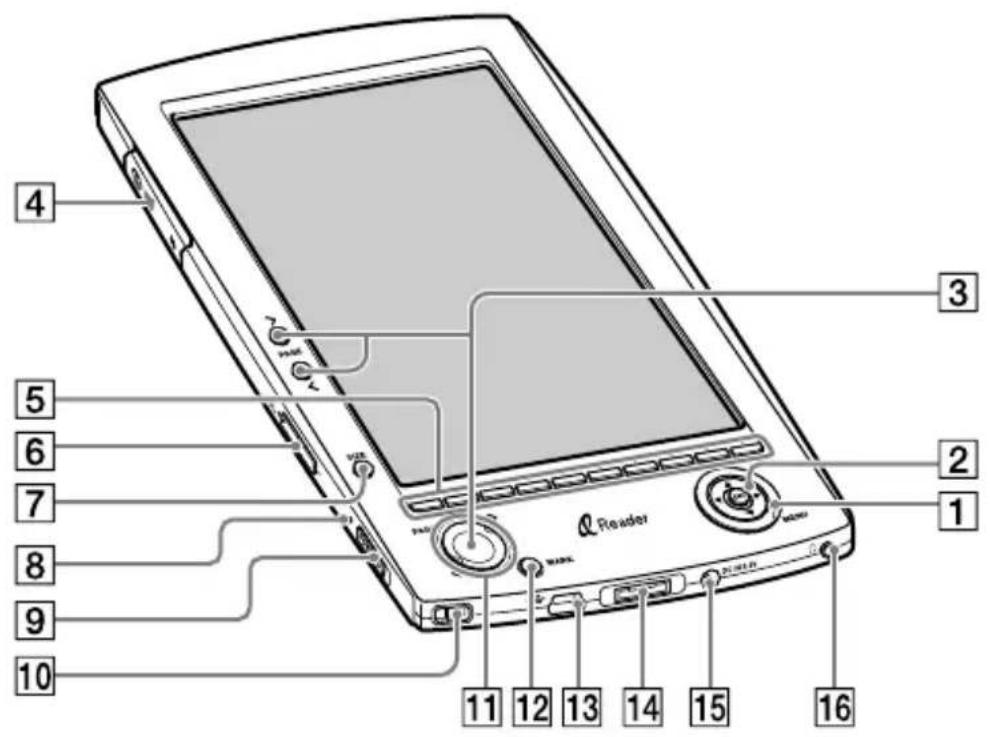
Front
1 MENU button
To return to the previous screen or show a menu. (page 13)
2 5-way control (◄/▲/▼/►/ENT) button
To select an item or scroll around the screen, press the ENT button, left (◀), up (▲), down (▼), or right (▶).
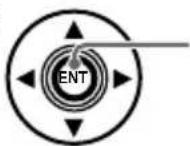
ENT button
To decide an item or apply a setting, press down on the ENT button.
In this manual, the operation of the 5-way control button is explained as follows.
(Example) Press ◀/▲/▼/▶ to select “1984” on the Book list, then press ENT.
3 PAGE (>/<) buttons
To turn the page or proceed/return to the next (>)/previous (<) content. (▶ page 32, 35, 47, 50)
4 Media slot
To insert a “Memory Stick” (optional) or SD Memory Card (optional). (▶ page 19)
5 Number (1 - 9,0) buttons
To select the numbered items on the screen or input numeric values on the Setting menu. (See page 32, 35, 45, 49)
6 VOLUME +/- buttons
To adjust the volume. (See page 47)
7 SIZE button
To zoom in/out a page or picture. (See page 36, 50)
8 Charge indicator
Lights up in red while charging, and goes off when charging is complete. (See page 16) Lights up in orange when Sony Reader is turned on.
9 POWER switch
To switch on/off Sony Reader. (See page 15)
10 Hole for hand strap
To attach the hand strap.
11 MARK LED
Lights up in blue to confirm creation of a bookmark. (See page 41)
12 MARK button
To create/remove a bookmark. (See page 41)
13 USB connector
To connect the USB cable (supplied). (See page 26)
14 Multi connector
To connect the optional cradle.
15 DC IN jack
To connect the AC power adapter (supplied).
16 (Headphones) jack
To connect headphones (optional). (See page 45)
Rear
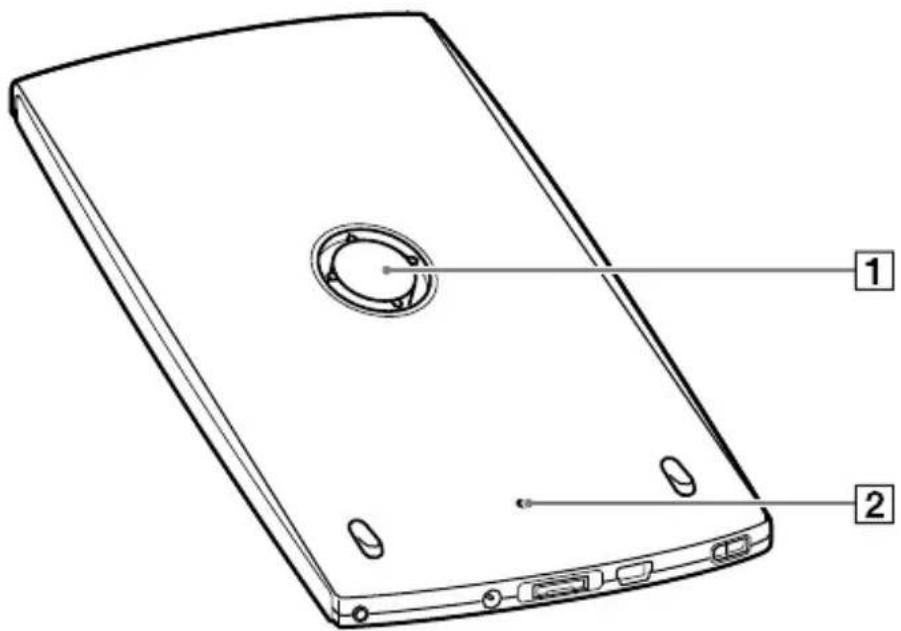
1 Soft cover attachment clip button
The soft cover is attached when purchased.
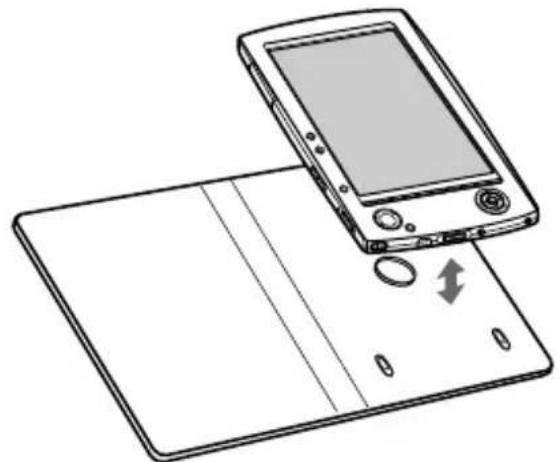
Removing/attaching the soft cover
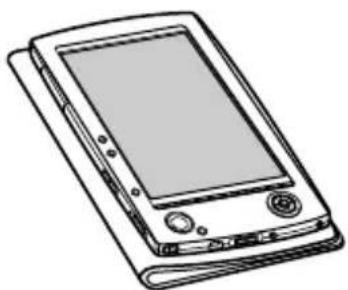
Folds open in use
Note
- Do not leave Sony Reader in a high ambient temperature, as it may damage the soft cover.
2 Reset button
To reset Sony Reader if no operation is possible. (See page 57)
Hint
- Remove the soft cover to access the Reset button.
About the serial number
The serial number provided for Sony Reader is required for customer registration. The number is on the label on the rear of Sony Reader. Do not remove the label.
Menu Operations
You can switch between screens, read/play/view content, or set items, using the 5-way control button, number buttons, or MENU.
Example: screen transition diagram of the Home menu – Book list – Option menu – Book page
![graph TD A["Reader"] --> B["Number tab Selected item is highlighted in black."] B --> C["Press ▲/▼ to select "Books" then press ENT."] C --> D["A Christmas Carol"] D --> E["Press ▲/▼ to select, then press ENT."] E --> F["A Christmas Carol"] F --> G["Press ▲/▼ to select, then press ENT."] G…](/content/2026/05/805652/images/8c97d3c7ce38161605d7959e294d47ba1bef29de2b435e194a2eddde143cbb26.jpg)
Hints
- By pressing and holding SIZE, screen orientation can be switched (vertically/horizontally). (See page 37)
- By using the number buttons, corresponding numbered items can be selected.
Turning on Sony Reader
Slide the POWER switch in the direction of ▶ to turn on Sony Reader.
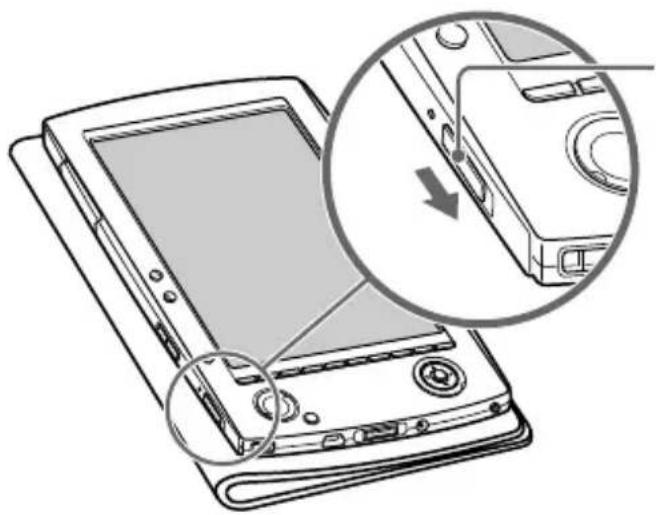
Slide the POWER switch.
Sony Reader turns on.
The start-up screen appears when turning on for the first time, or after reset, or when the battery is depleted. Lights up in orange when Sony Reader is turned on.
Note
- Sony Reader may take a few moments to turn on after charging a depleted battery.
To turn off Sony Reader
Slide the POWER switch in the direction of ▶ again. Sony Reader turns off.
About the resume function
Sony Reader automatically turns off if no operation is performed for 60 minutes. The previously displayed screen appears when turning on by sliding the POWER switch from this state.
Note
- When playing audio files or viewing a slideshow, Sony Reader does not turn off even if no operation is performed for 60 minutes.
About charging
Charging Sony Reader is required when using for the first time. Sony Reader can be charged in the following 2 ways.
- Connect to an AC outlet (refer to the Quick Start Guide).
- Connect to a computer via USB (▶ page 26).
Notes
- If the remaining battery power of a connected notebook computer is low, charging via USB connection may not be possible.
- If you connect Sony Reader to a notebook computer that is not connected to an AC outlet, the battery of the notebook computer will be consumed. Do not leave Sony Reader connected to a notebook computer that is not connected to an AC outlet for an extended period.
- USB charging is not possible if the battery becomes depleted. Use the AC power adapter.
You can check the remaining battery power by the indication in the bottom left of the screen. Charge the battery when remaining power is low (the fewer black segments indicated, the lower the remaining power).
![graph LR A["Rectangular Device"] --> B["Rectangular Device"] B --> C["Rectangular Device"] C --> D["Battery Icon"]](/content/2026/05/805652/images/da34fae189a03bea8a152ba7ee62bb97de643d7709e599f17c4089b37abe213e.jpg)
Note
- If the remaining battery power is low, the following warning appears. Charge the battery.
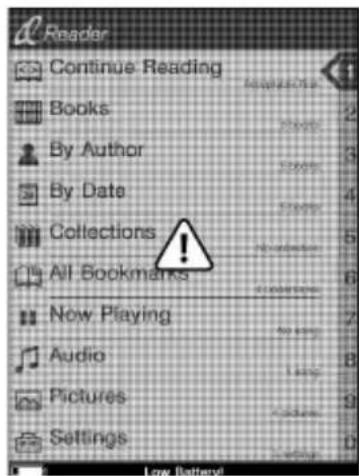
If you continue to use without charging, the following warning appears, and Sony Reader will turn off automatically.
Charge Sony Reader and turn it on again.
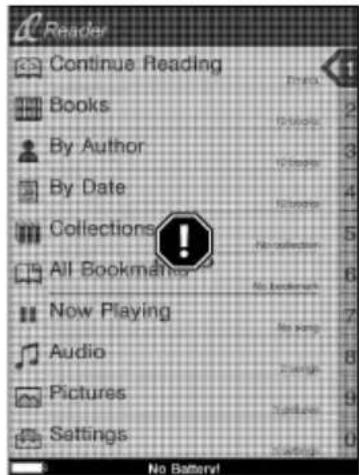
Inserting a Memory Card
The following memory cards can be inserted in the Media slot of Sony Reader.
| “Memory Stick”*1 | “Memory Stick”“Memory Stick PRO”“Memory Stick Duo” *3“Memory Stick Pro Duo” *3Sony Reader is compatible with both “MagicGate Memory Stick” and standard “Memory Stick.” |
| SD Memory Card*2 | SD Memory CardminiSD Card *4 |
*1 Sony Reader does not comply with the MagicGate standard, and data requiring the copyright protection function cannot be copied or played on Sony Reader. *2 Sony Reader does not comply with the copyright protection of SD Memory Cards. *3 "Memory Stick Duo" adaptor (sold separately) required. *4 miniSD Card adaptor (sold separately) required.
Notes
- An operation check is performed when using a "Memory Stick" of up to 4 GB; however, operation of all "Memory Stick" is not guaranteed.
- An operation check is performed when using an SD Card of up to 2 GB; however, operation of all SD Cards is not guaranteed.
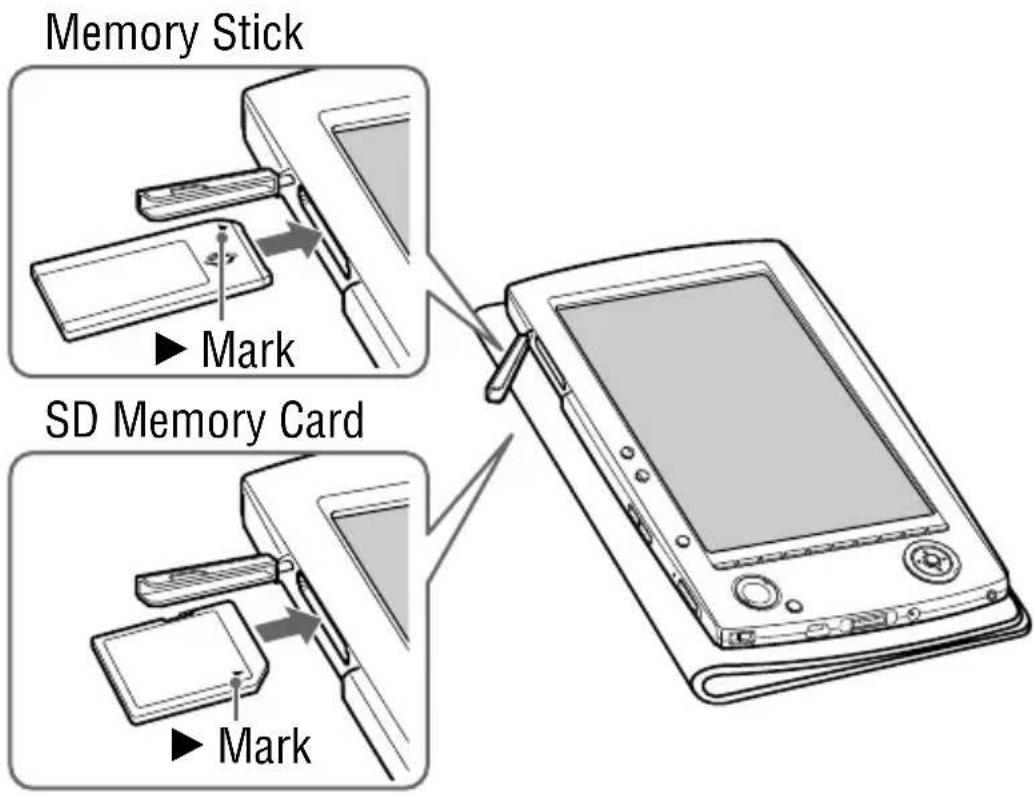
Inserting a memory card into Sony Reader
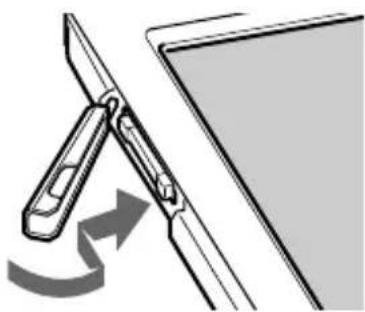
1 Open the Media slot cover.
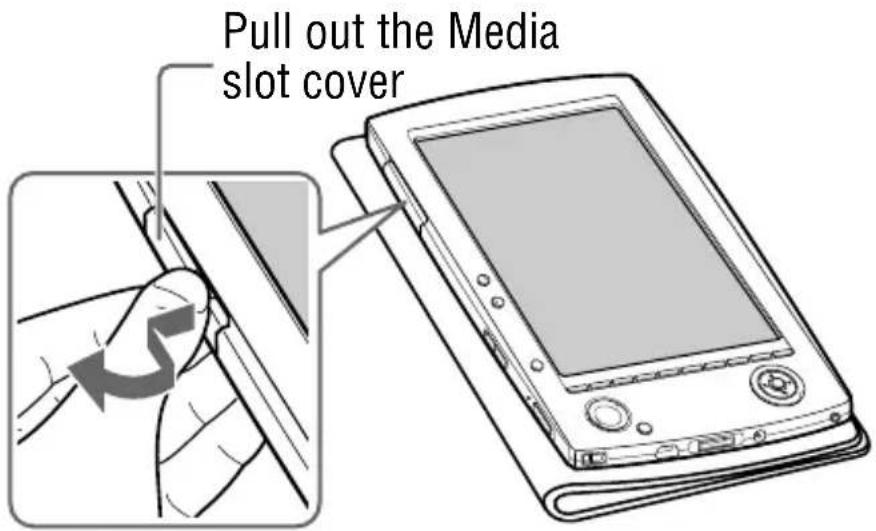
2 Insert a memory card in the ▶ direction with its label side up until it clicks into place.

Close the Media slot cover.
Notes
- Be sure to insert the memory card in the correct direction. Forced insertion may damage the slot.
- Do not insert an incompatible memory card, as it may cause malfunction.
- Do not use a deformed memory card or adaptor.
Removing a memory card from Sony Reader
1 Gently push in the memory card.
You will hear a click, and the memory card pops out.
Memory Stick
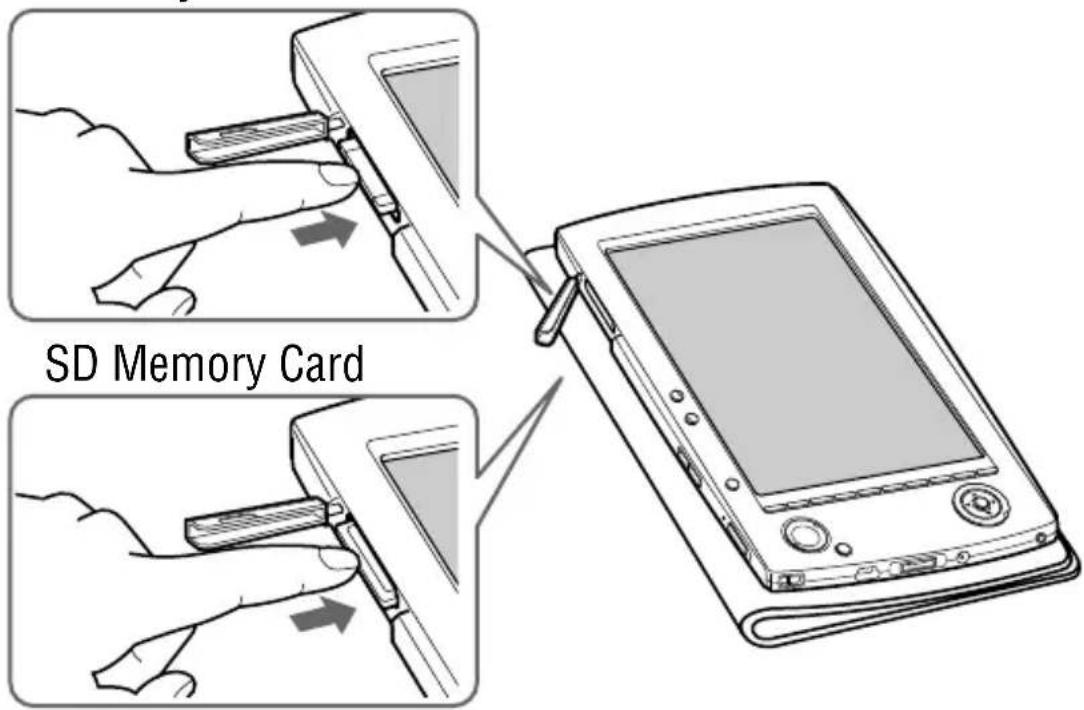
2 Remove the memory card squarely from the Media slot.
Notes
- Do not remove a memory card or turn off Sony Reader while reading or writing data, as data may be damaged.
- For details on handling memory cards, refer to ▶ page 73.
Importing eBooks from CONNECT eBooks
You can download eBooks from the online e-Book store "CONNECT eBooks" to your computer. Use the dedicated software CONNECT Reader to access CONNECT eBooks.
Notes
- To download eBooks, you need to prepare an Internet-accessible environment on your computer.
- You need to authorize your computer to CONNECT eBooks to download eBooks. You also need to authorize Sony Reader to CONNECT eBooks to transfer and read downloaded eBooks on Sony Reader. For details, refer to the CONNECT Reader Help.
1 Click the Start menu, then select “All programs” – “CONNECT Reader” – “CONNECT Reader” to start CONNECT Reader.
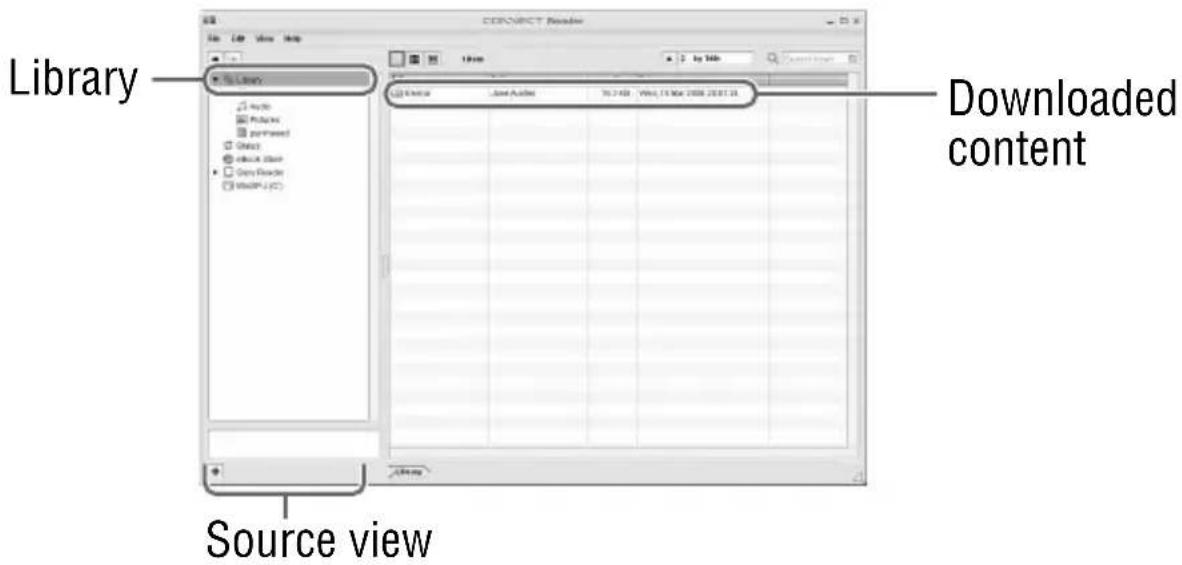
2 Click “eBook Store” in the Source view.
The View area is switched to the Store view and CONNECT eBooks appears.

Follow the page instructions to purchase (download).
Downloaded eBooks are automatically imported to "Library" in the Source view.
Hint
- Purchased eBooks are grouped under "Purchased" in the collection.
Hints
- eBooks can be read on CONNECT Reader using your computer. For details on CONNECT Reader operations, refer to the CONNECT Reader Help.
- The Source view appearance may vary depending on your computer.
Importing Content from Your Computer
You can import the content files stored on your computer into Library of CONNECT Reader.
You can import the following content files.
• Book PDF file, Text file, RTF file, Word file*, BBeB Book - Audio MP3 file, AAC file - MP3 file (.mp3 file extension)
The following specifications should be met in order to import an MP3 file.
Bit rate: 32 to 320 kbps
Sampling frequency: 22.05, 44.1 kHz
- AAC file (.mp4, .m4a, .mov, or .qt file extension)
The following specifications should be met in order to import an AAC file.
Bit rate: 40 to 320 kbps
Sampling frequency: 24.0, 44.1, 48.0 kHz
• Picture Bitmap file, JPEG file, GIF file, PNG file
* Word files will be automatically converted into RTF files during transfer only if Microsoft Word is installed on your computer.
For details on content files you can import, refer to the CONNECT Reader Help.
Importing content files
You can select content files stored on your computer and import them into Library.
1 Click the Start menu, then select “All programs” – “CONNECT Reader” – “CONNECT Reader” to start CONNECT Reader. 2 Click “Import Files” on the “File” menu.
The "Import Files" dialog box appears.
3 Click ▼ of the “Look in” list to select the folder containing the content file(s) to be imported, as necessary.
The content files in the selected folder are listed.
Hint
- You can also double-click the folder (in the folder list) to display the content files in the folder.
4 Select the content file to be imported.
To select multiple files, click the files while holding down the Ctrl key.
5 Click "Open."
The content file(s) is imported into Library.
Hint
- You can import all the content files in a selected folder at the same time into Library from “Import Folder” on the “File” menu.
Transferring Content to Sony Reader Connected with Your Computer
You can transfer (copy) the content in Library to Sony Reader.
1. Click the Start menu, then select “All programs” – “CONNECT Reader” – “CONNECT Reader” to start CONNECT Reader. 2. Connect Sony Reader to your computer using the supplied USB cable.
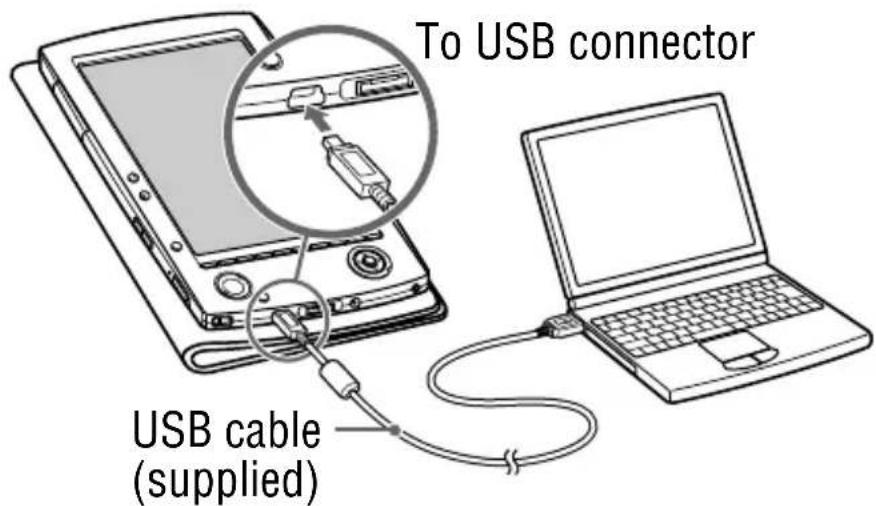
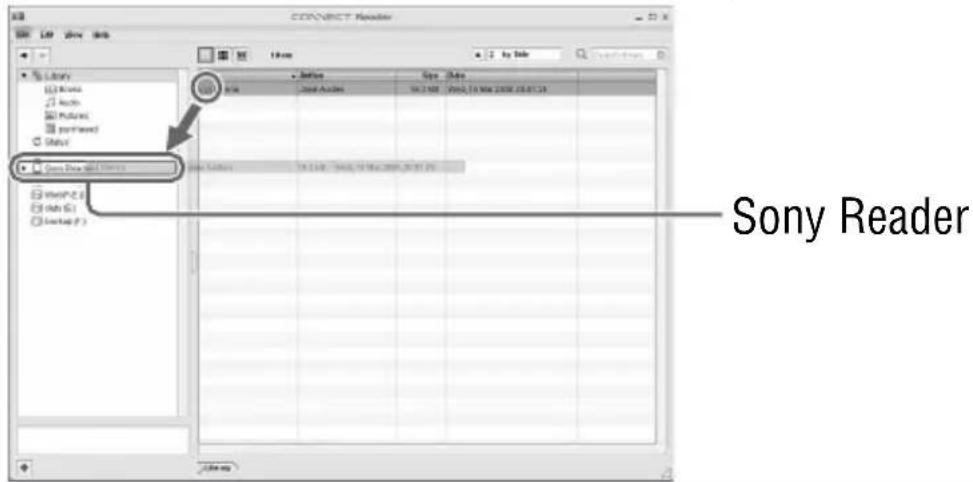
"Sony Reader" appears in the Source view of CONNECT Reader.
A screen appears on Sony Reader, indicating that it is connected to the computer.
Note
- If “Sony Reader” does not appear in the source view after connecting Sony Reader to your computer, disconnect the USB cable from Sony Reader, then reconnect it after a while. If the optional cradle is used, remove Sony Reader from the cradle, then replace it after a while.
3. Click “Library” in the Source view, then click (List view).
The View area is switched to the List view and all the content in Library is listed.
Hints
- When you click "Books," "Audio" or "Pictures" in the Source view, only their respective content is displayed.
- When you click 📁 (Thumbnail view), content can be displayed as thumbnails.
4. Select the content you want to transfer from the list.
To select multiple content, click the content while holding down the Ctrl key.
5. Drag the content from the list to “Sony Reader” in the Source view.
The content is transferred to Sony Reader.
Notes
- If there is not enough free space on Sony Reader's memory, content may not be transferable. Transfer any unnecessary content back to CONNECT Reader, then delete it to increase free space on Sony Reader. (▶ page 30)
- You cannot delete or copy transferred content on Sony Reader. Perform data management on CONNECT Reader. For details on the CONNECT Reader operations, refer to the CONNECT Reader Help.
Transferring content via a memory card
Content imported to CONNECT Reader can be transferred to a memory card on Sony Reader.
Hint
- “Memory Stick” and SD Memory Card can be used.
1 Click the Start menu, then select “All programs” – “CONNECT Reader” – “CONNECT Reader” to start CONNECT Reader. 2 Connect Sony Reader to your computer using the supplied USB cable. (▶ page 26)
"Sony Reader" appears in the Source view of CONNECT Reader.
3 Insert a memory card into the Media slot of Sony Reader. (▶ page 19)
"Memory Stick/SD Card on Sony Reader" appears in the Source view.
4 Click “Library” in the Source view of CONNECT Reader, then click 📋(List view).
The View area is switched to the List view and all the content in Library is listed.
Hints
- When you click “Books,” “Audio” or “Pictures” in the Source view, only their respective content is displayed.
- When you click 📄 (Thumbnail view), contents can be displayed as thumbnails.
5 Select the content you want to transfer from the list.
To select multiple content, click the content while holding down the Ctrl key.
6 Drag the content from the list to “Memory Stick/SD Card on Sony Reader” in the Source view.
The content is transferred to the memory card on Sony Reader.
Notes
- If there is not enough free space on the memory card, content may not be transferable. Transfer any unnecessary content back to CONNECT Reader, then delete it to increase free space on the memory card. (▶ page 30)
- You cannot delete or copy transferred content on Sony Reader. Perform data management on CONNECT Reader. For details on CONNECT Reader operations, refer to the CONNECT Reader Help.
To transfer content back to CONNECT Reader
1 Click the Start menu, then select “All programs” - “CONNECT Reader” - “CONNECT Reader” to start CONNECT Reader. 2 Connect Sony Reader to your computer using the supplied USB cable. (▶ page 26)
"Sony Reader" appears in the Source view.
3 Click “Sony Reader” in the Source view, then click (List view).
The View area is switched to the List view and all the content in Library is listed.
Hints
- When you click “Books,” “Audio” or “Pictures” in the Source view, only their respective content is displayed.
- When you click 📄 (Thumbnail view), contents can be displayed as thumbnails.
4 Select the content you want to transfer back from the list.
To select multiple content, click the content while holding down the Ctrl key.

Drag the content from the list to “Library” in the Source view.
The content is transferred back to CONNECT Reader.
Reading Books
Reading books transferred from your computer
Follow the steps below to read books transferred from your computer.
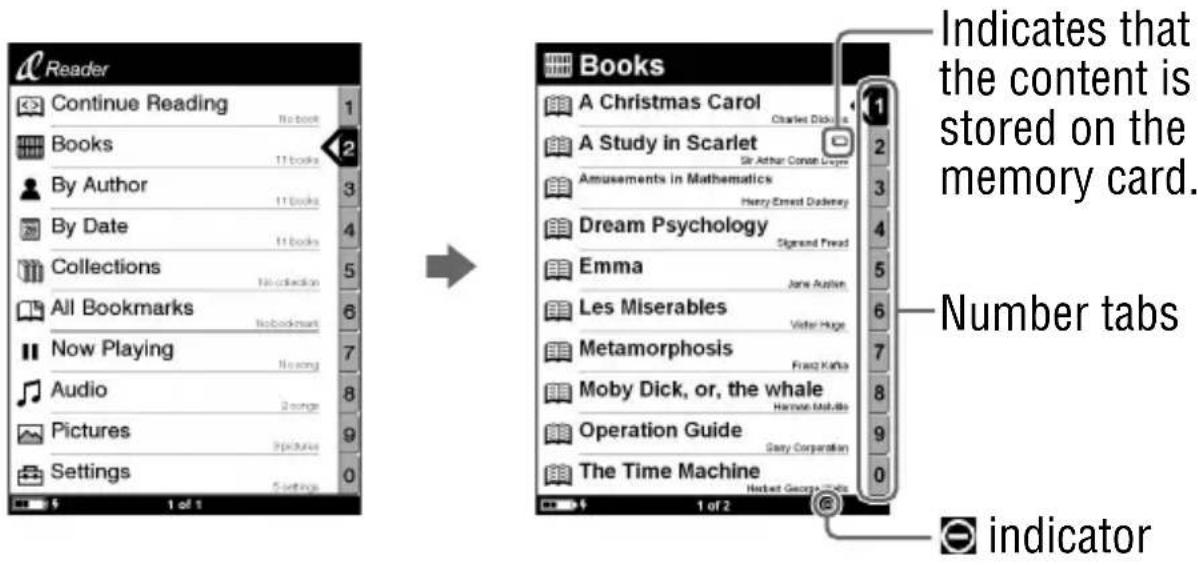
1 In the Home menu, press ▲/▼ to select “Books,” then press ENT.
The Book list appears.
Hints
- The content on the memory card also appears in the Book list.
- In addition to ▲/▼, you can also select an item by pressing the same number button as indicated on the number tab.
- To display the rest of the list, press > (repeatedly).
- You can jump directly to the last displayed page by selecting "Continue Reading" from the Home menu, without displaying the Book list.
- If an invalid operation is performed, G appears at the bottom of the screen.
2 Press ▲/▼ to select the desired book from the list, then press ENT.
The Option menu appears. (▶ page 34)
Hint
- To return to the previous screen, press < or ◀. To proceed to the next screen, press > or ▶.
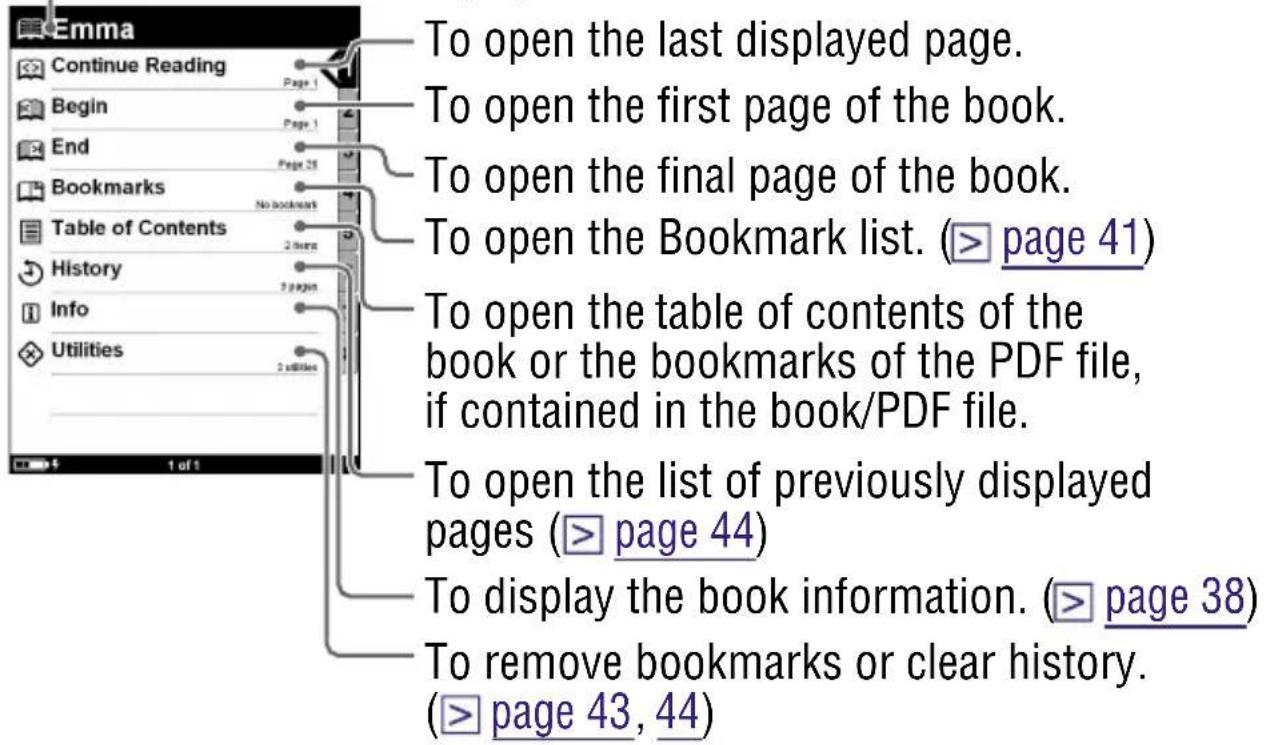
3 Press ▲/▼ to select how to open the book, then press ENT.
To read the book from the beginning, press ▲/▼ to select “Begin,” then press ENT.
The first page of the book appears.
To open the book's table of contents or the bookmarks of the PDF file, press ▲/▼ to select “Table of Contents,” then press ENT.
The table of contents/bookmarks appears (if contained in the book/PDF file).
Press MENU to close the book.
About the Option menu
The book title is displayed.
Book types supported by Sony Reader
The following are the book types supported by Sony Reader and their characteristics.
| eBook (.lrf and .lrx file extension) | A book in BBeB format that you can download from CONNECT eBooks. The link tool embedded in eBooks (page jumps, etc.) can be used. (➤ page 37) |
| PDF file (.pdf file extension) | A File in PDF format (Version 1.4 or before) Bookmark and link tool on PDF files can be used. |
| Text file (.txt file extension) | |
| RTF file(rtf. file extension) | An RTF file that is automatically converted from a Microsoft Word file.** Only if Microsoft Word is installed on your computer. |
Operations on the Book page screen
On the Book page screen, the following operations can be performed.
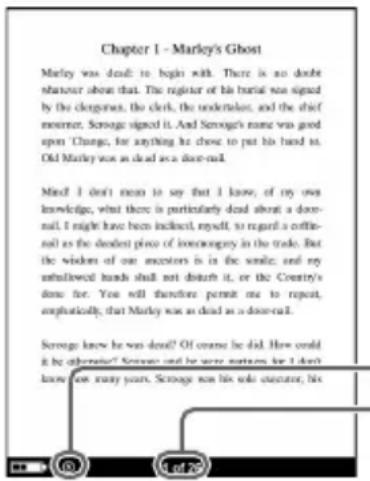
Size indicator
Current page number/
total page number
| Button Operation | |
| > button To proceed to the next page (press);jump 10 pages ahead of the current page (press and hold). | |
| < button To return to the previous page (press);jump 10 pages back from the current page (press and hold). | |
| Number buttons | To jump to a page a certain percentage (10× the number pressed) of the way into the book. For example, button 3 represents 30 % of the way into the book. |
| SIZE button | To zoom in/out a page. Every time you press SIZE, the page is magnified in steps and returns to the original scale after the maximum magnification. When reading an eBook or Text file: The scale switches in 3 steps (S, O-Indicated at the bottom of the screen). When reading a PDF file: The scale switches between “Fit width” (page fits the width of window) and “Fit Visible” (texts and graphics fit the width of window). By pressing and holding SIZE for a few seconds, screen orientation can be switched (vertically/ horizontally). (> page 37) |
| MARK button | To create/remove a bookmark on the current page (press) (> page 41, 43); Jump to the All Bookmark screen (press and hold). |
| MENU button | To close the page and return to the Option menu. |
To use the link tool of eBooks/PDF files on Sony Reader
When an eBook or a PDF file is displayed, you can use the embedded link tool.
The link appears highlighted on the screen. Press ENT to open the linked content or jump to the linked page.
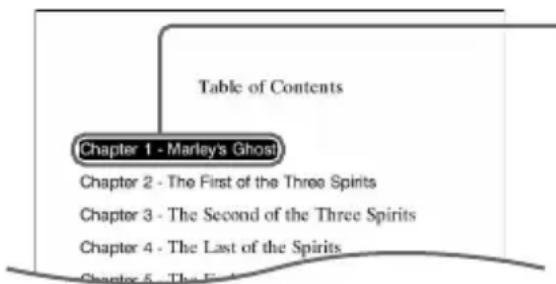
Link
Press ▲/▼ to select the desired link, and press ◀/▶ to return to the previously displayed page.
Switching screen orientation (vertical/horizontal)
Screen orientation (including menu screens) can be switched in the following 2 ways.
- Press and hold SIZE on a menu screen or a Book page screen. Press and hold SIZE again to switch back.
- Configure the setting from the Setting menu. (▶ page 52)
About screen division when screen orientation is set to horizontal
When set to horizontal, the Book page is divided into 2 parts (upper and lower). To display the lower part, press >.
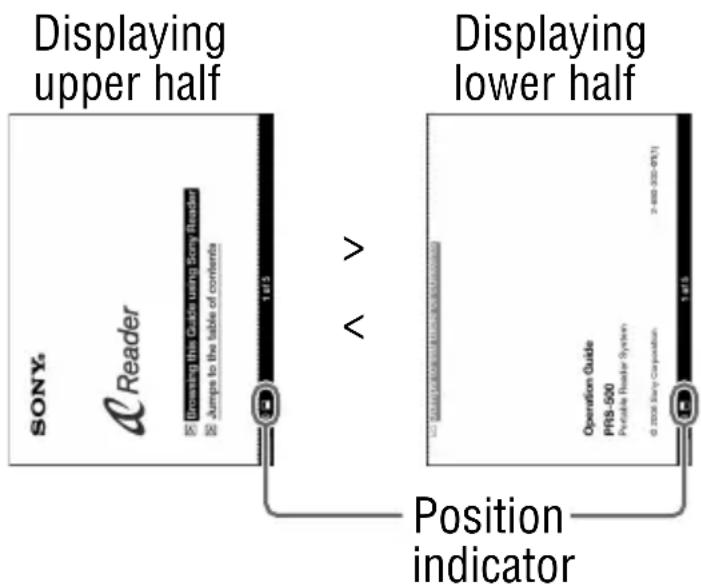
Displaying the book information
You can display the book information, such as the title, author, book cover thumbnail, etc.
1 In the Option menu, press ▲/▼ to select “Info,” then press ENT.
The book information appears.
Sorting the Book list
On the Book list, books are sorted by title alphabetically. You can also sort books by author or date.
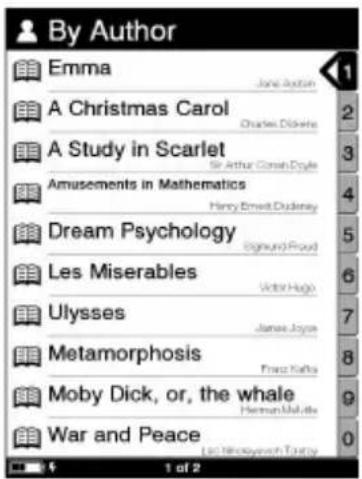
In the Home menu, press ▲/▼ to select “By Author” or “By Date,” then press ENT.
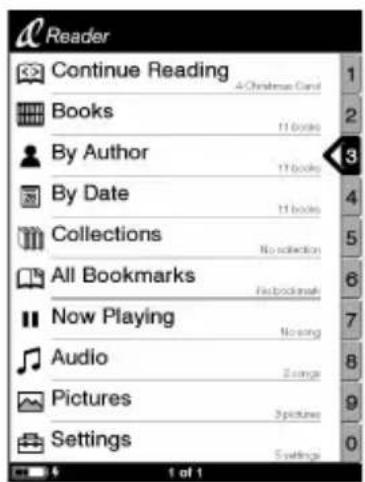

Hint
- If you select "By Date," books are sorted by date transferred to Sony Reader.
2 Press ▲/▼ to select the desired book from the list, then press ENT.
The Option menu appears.
3 Press ▲/▼ to select how to open the book, then press ENT.
Selecting a book from the Collection list
You can select and read a book from the list of collections created on CONNECT Reader.
Hint
- For details on how to create or transfer a collection, refer to the CONNECT Reader Help.
1 In the Home menu, press ▲/▼ to select “Collections,” then press ENT.
The Collection list appears.
2 Press ▲/▼ to select the desired collection from the list, then press ENT.
The Book list appears.
3 Select the desired book from the list, then press ENT.
Creating a bookmark on a page
You can create a bookmark on a page you may wish to return to.
1 On the Book page screen, press MARK on the desired page.
The MARK LED lights up, and the mark appears in the top right corner of the page.
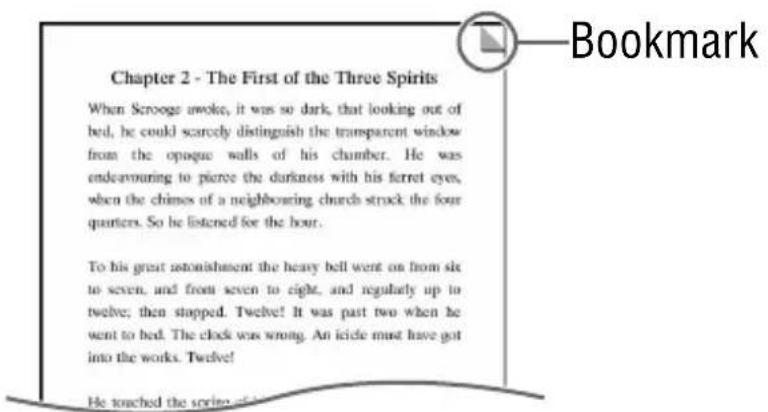
If you press MARK again, the bookmark will be removed.
Note
- When creating a bookmark, Sony Reader records the current page and the current page scale. Therefore, even on the same page, if the scale is switched and another bookmark created, the bookmarks will be stored at their respective scales.
To open the desired page from the Bookmark list
1 In the Option menu, press ▲/▼ to select "Bookmarks," then press ENT.
The Bookmark list appears.
2 Press ▲/▼ to select the desired page, then press ENT.
Hint
- Bookmarks can also be created on CONNECT Reader.
The bookmarks created on Sony Reader or CONNECT Reader will be retained when you transfer books between Sony Reader and CONNECT Reader.
If you transfer a book back to CONNECT Reader from Sony Reader, the bookmarks created on Sony Reader will overwrite those in the book on CONNECT Reader, and vice versa.
To remove all bookmarks in the current book
In the Option menu, press ▲/▼ to select "Utilities," then press ENT. 2 Press ▲/▼ to select "Remove All Bookmarks," then press ENT.
All bookmarks in the current book are removed.
Note
- Confirm carefully before removing bookmarks.
To select from the list of all bookmarks on Sony Reader
1 In the Home menu, press ▲/▼ to select "All Bookmarks," then press ENT.
The list of all bookmarks on Sony Reader appears.
2 Press ▲/▼ to select the desired page, then press ENT.
Hint
- The All Bookmark list can also be displayed by pressing and holding MARK.
Reading previously displayed pages
Sony Reader stores all displayed pages in memory for easy recall at any time.
1 On the Book page screen, press ◀.
As you press ◀ repeatedly, previously displayed pages appear in reverse order.
To show the displayed page history
1 In the Option menu, press ▲/▼ to select “History,” then press ENT.
The History list appears.
To clear History
In the Option menu, press ▲/▼ to select “Utilities,” then press ENT. 2 Press ▲/▼ to select “Clear History,” then press ENT. History data of the current book is cleared.
Note
- Confirm carefully before clearing History.
Playing Audio Files
Playing audio files transferred from your computer
MP3/AAC files can be played back on Sony Reader.
You can also read books while listening to an audio file. (▶ page 47)
When listening to audio files, connect the optional headphones to the headphone jack.
1 In the Home menu, press ▲/▼ to select “Audio,” then press ENT.
The Audio list appears.
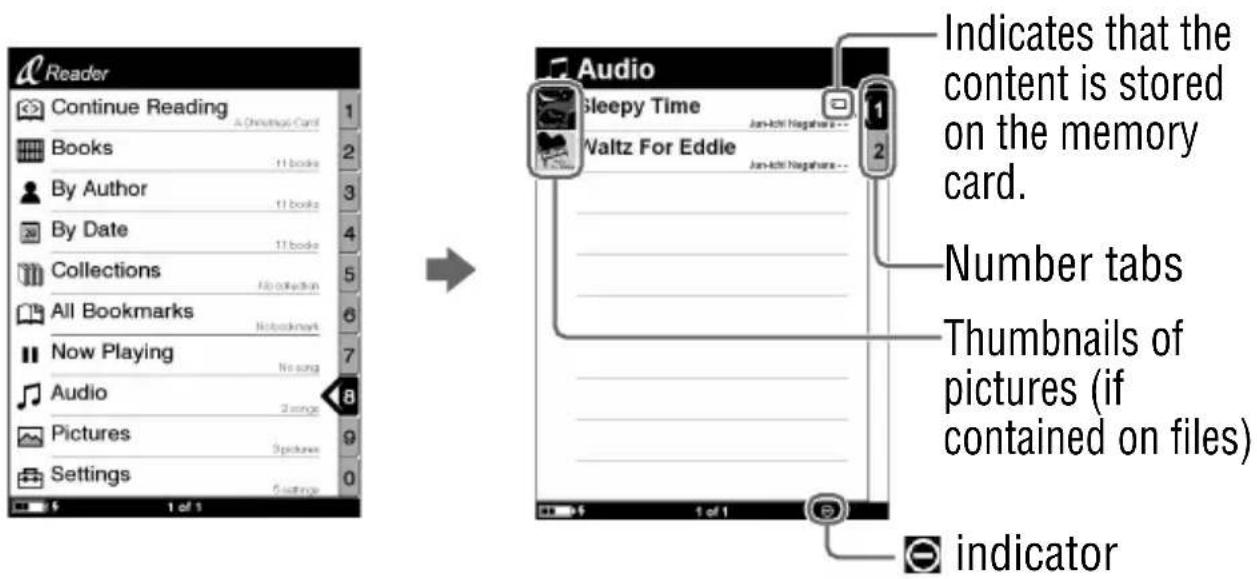
Hints
- The content on the memory card also appears in the Audio list.
- In addition to ▲/▼, you can also select an item by pressing the same number button as indicated on the number tab.
- To display the rest of the list, press > (repeatedly).
- If an invalid operation is performed, 📄 appears at the bottom of the screen.
- If an audio file is played, “Now Playing” can be selected on the Home menu and the Playback screen can be displayed.
- The Now Playing icon in the Home menu changes when an audio file is being played.

Press ▲/▼ to select the desired track from the list, then press ENT.
Playback starts.
Tracks are played in alphabetical order.
To stop playback, press ENT.
Operations on the Playback screen
On the Playback screen, the following operations can be performed.
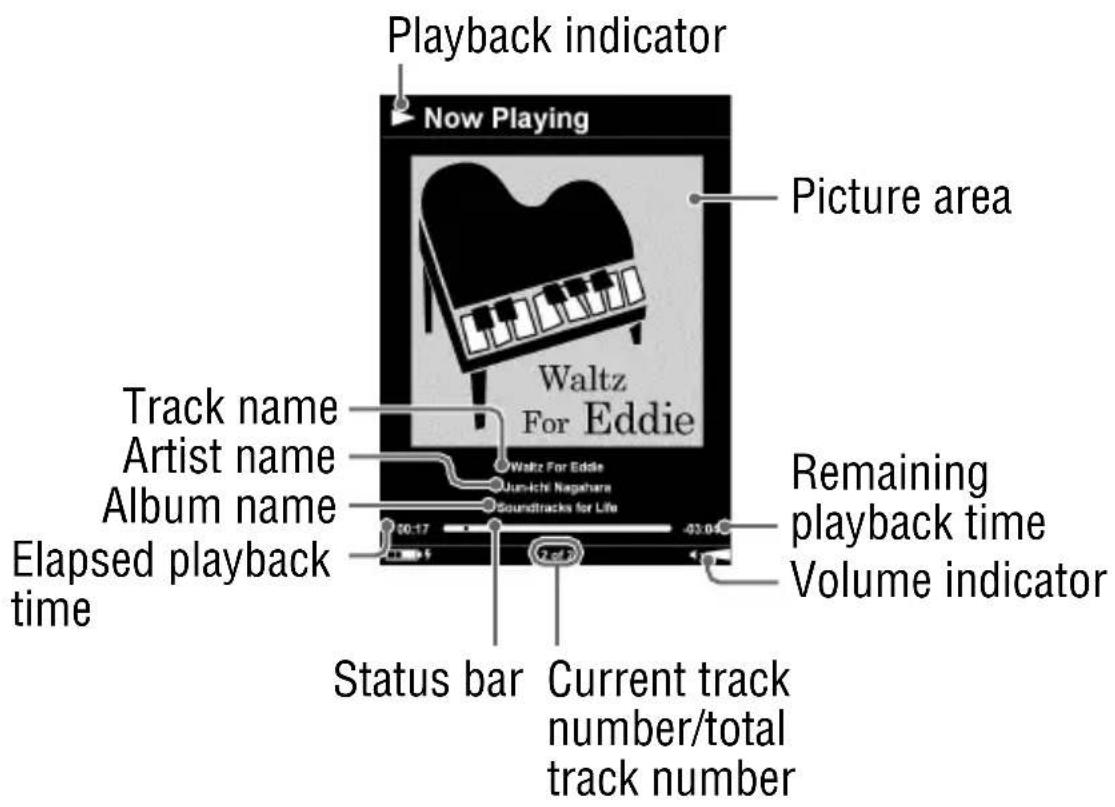
| Button Operation | |
| > button | To skip to the next track. |
| < button To skip to the previous track. | |
| ◀/▶ | To rewind/fast-forward the track. |
| ENT button To stop/restart playing the track. | |
| VOLUME +/- buttons | To adjust the volume. |
Reading books while playing an audio file
You can read books while listening to an audio file.
1 In the Home menu, press ▲/▼ to select “Audio,” then press ENT.
The Audio list appears.
2 Press ▲/▼ to select the desired track from the list, then press ENT.
Playback starts.
3 Press MENU to return to the Home menu.
4 Press ▲/▼ to select “Books,” then press ENT.
The Book list appears.
5 Press ▲/▼ to select the desired book from the list, then press ENT.
The Option menu appears.

Press ▲/▼ to select how to open the book, then press ENT.
The Book page screen appears.
While an audio file is played, the volume indicator appears at the bottom of the screen.
Hint
- To stop playback, press MENU 3 times to return to the Home menu, select “Now Playing” using ▲/▼ and ENT, then press ENT on the Playback screen.
Viewing Pictures
Viewing pictures transferred from your computer
BMP/JPEG/GIF/PNG files can be viewed on Sony Reader.
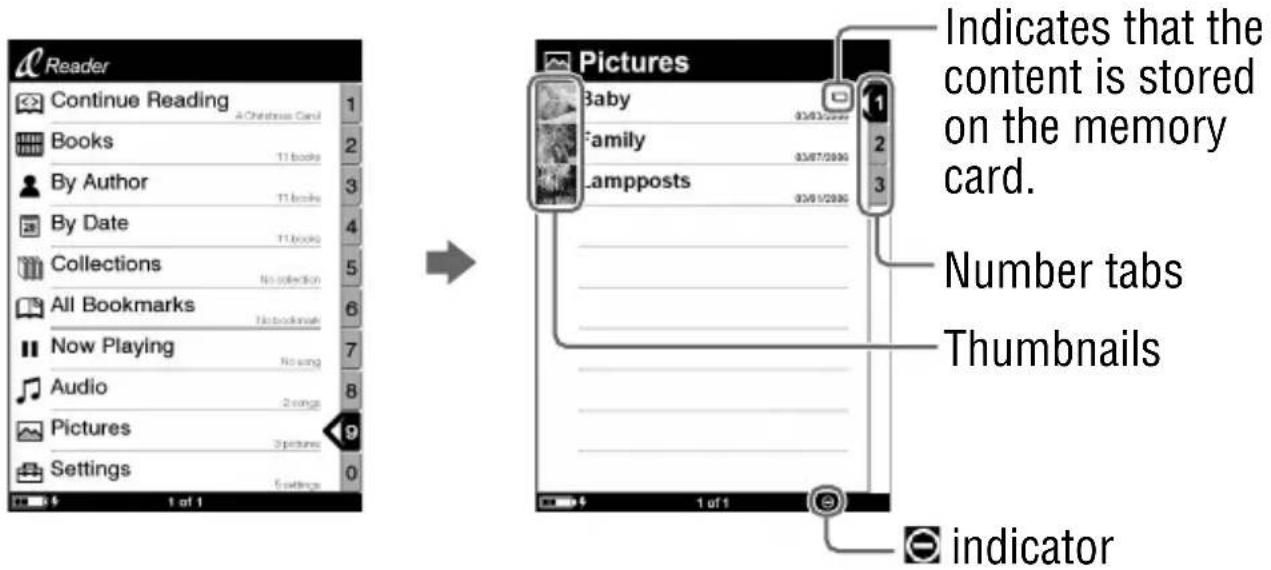
1 In the Home menu, press ▲/▼ to select “Pictures,” then press ENT.
The Picture list appears.
Hints
- The content on the memory card also appears in the Picture list.
- In addition to ▲/▼, you can also select an item by pressing the same number button as indicated on the number tab.
- To display the rest of the list, press > (repeatedly).
- If an invalid operation is performed, 📄 appears at the bottom of the screen.
2 Press ▲/▼ to select the desired picture from the list, then press ENT.
The picture appears.
Operations on the Picture viewer
On the Picture viewer, the following operations can be performed.
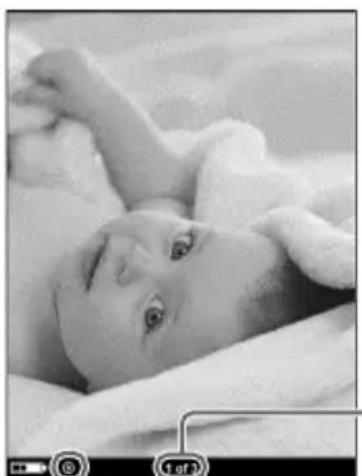
Current picture number/total picture number
Size indicator
| Button Operation | |
| > button To display the next picture. | |
| < button To display the previous picture. | |
| SIZE button To | zoom in/out a page. Every time you press SIZE, the picture is magnified in steps and returns to the original scale after the maximum magnification. The scale switches in 3 steps (S, M, L indicated at the bottom of the screen). |
| ENT button To | restore the original scale when the picture is magnified. |
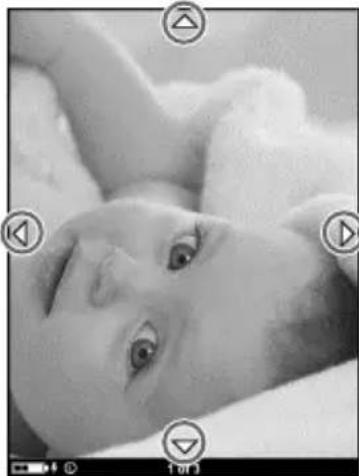
To scroll the magnified picture
If you zoom in the picture by pressing SIZE, ↕ ↗ appear at the edges of the screen.
Press ◀/▲/▼/▶ to scroll the screen.
To view a slideshow of pictures
You can view a slideshow of pictures.
With the slideshow set to on, select the desired picture with which to start the slideshow from the Picture list.
The slideshow setting can be configured from the Setting menu (▶ page 55).
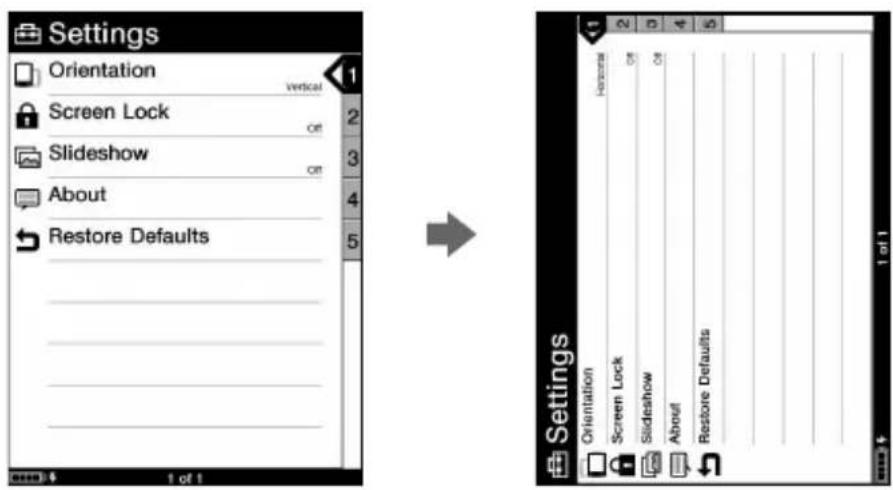
Setting screen orientation
Screen orientation (including menu screens) can be set to vertical/horizontal.
1 In the Home menu, press ▲/▼ to select “Settings,” then press ENT.
The Setting menu appears.
2 Press ▲/▼ to select “Orientation,” then press ENT.
The orientation is switched from vertical to horizontal.
Locking the Sony Reader Screen
You can lock the Sony Reader screen by setting a password. Follow the steps below.
1 In the Home menu, press ▲/▼ to select “Settings,” then press ENT.
The Setting menu appears.
2 Press ▲/▼ to select “Screen Lock,” then press ENT.
The Screen Lock setting screen appears.
3 Press ENT repeatedly to select "OFF" or "ON."
The setting switches from "OFF" to "ON," and the screen lock setting is activated.
4 Press ▼/◄/► to select “Code,” then press the number buttons to input the password.
The 4-digit password is set.
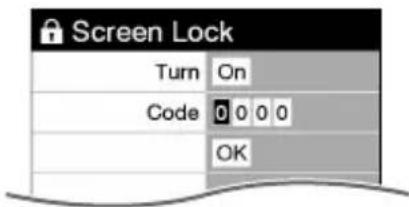
5 Press ▲/▼/◄/► to select "OK," then press ENT.
Once the password is set, next time you turn on Sony
Reader, the screen asking for the password appears. Press the number buttons to input the password, press ▼ to select “OK,” then press ENT. The Home menu appears.
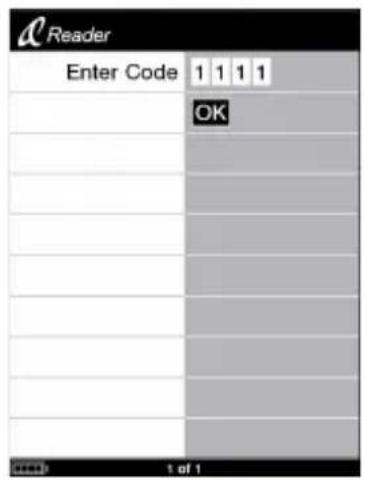
Note
- Be careful not to forget the password. If you lost your password, please call Sony Support 1-(866)-962-7669.
Setting the Slideshow
Follow the steps below to configure the slideshow settings.
1 In the Home menu, press ▲/▼ to select “Settings,” then press ENT.
The Setting menu appears.
2 Press ▲/▼ to select “Slideshow,” then press ENT.
The Slideshow setting screen appears.
3 Press ENT repeatedly to select "OFF" or "ON."
The setting switches from "OFF" to "ON," and the slideshow setting is activated.
4 Press ▼/◄/► to select “Slide Duration,” then press the number buttons to input the duration time.
"Slide Duration" can be set up to 60 seconds in 1 second increments.
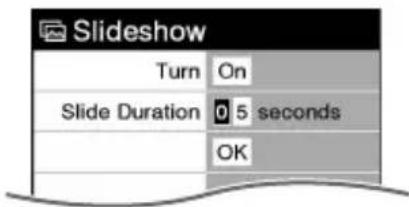
5 Press ▲/▼/◄/► to select “OK,” then press ENT.
Checking Version Information for Sony Reader
The product name and the firmware version of Sony Reader can be displayed.
1 In the Home menu, press ▲/▼ to select “Settings,” then press ENT.
The Setting menu appears.
2 Press ▲/▼ to select “About,” then press ENT.
The About screen appears.
Troubleshooting
If Sony Reader does not function as expected, try the following steps to resolve the issue.
1 Reset Sony Reader by pressing the Reset button with a small pin or clip.
The content and settings stored on Sony Reader are not affected by resetting, and no information is erased. After pressing the Reset button, turn on Sony Reader by sliding the POWER switch.
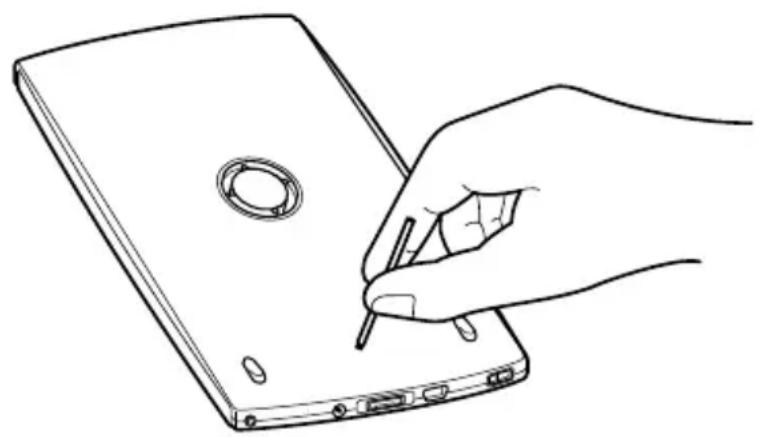
2 Check the symptoms in “Troubleshooting.” 3 Check for information about the issue in CONNECT Reader Help. 4 Look for information about the issue on one of the support Web sites.
http://www.sony.com/readersupport
5 If the approaches listed above fail to resolve the issue, please call Sony Support 1-(866)-962-7669.
Power
Symptom Cause or corrective action
| Battery life seems short. | → The operating temperature is below 5 °C (41 °F). This is due to the battery characteristics and not a malfunction.→ You have not used Sony Reader for a prolonged period. Efficiency of the battery will be improved by repeatedly charging and discharging.→ The battery needs to be replaced. Consult your nearest Sony Service Center.→ The battery has not been given enough time to charge fully. Charge the battery until the Charge indicator goes off. (The battery icon does not indicate remaining battery power during charging.) |
| Sony Reader cannot be turned on. | → Moisture condensation may have occurred. Wait for a few hours and then turn on Sony Reader.→ If the battery is depleted, charge the battery using the AC power adapter, as USB charge is not possible (page 16). |
Screen
Symptom Cause or corrective action
| It takes time for the display to appear. | → In a cold place such as outdoors, it may take time for the display to appear.This is due to the display characteristics and not a malfunction. |
Reading/playing/viewing contents
| Symptom Cause or corrective action | |
| A book cannot be read. | → A book with copyright protection cannot be read on any device other than the authorized one. |
| An audio file cannot be played back. | → Audio files that are not supported by Sony Reader cannot be played. For details on supported audio files, refer to ▶ page 45. |
| Sound is not output. | → Raise the volume if it is set low.→ If sound is not output through headphones, make sure the headphone plug is firmly inserted in the headphone jack. |
| A picture cannot be displayed. | → Picture files that are not supported by Sony Reader cannot be viewed. For details on supported picture files, refer to ▶ page 49.→ A picture of large size may not be displayable, and its file will not appear in the list. Delete the picture file using CONNECT Reader. |
| The data on Continue Reading, Bookmark or History of some files is missing. | → If the file status has changed (such as in the following cases), the data on Continue Reading, Bookmark or History may be deleted.A Text/RTF/PDF file is edited.An eBook purchased with a authorized Sony Reader is read on another de-authorized Sony Reader by memory card transfer. |
Connection to the computer
| Symptom Cause or corrective action | |
| Sony Reader cannot be operated during USB connection. | → Sony Reader cannot be operated while it is connected to a computer. |
| Sony Reader cannot be recognized. | → Is the power of Sony Reader turned on? Is the USB cable connected properly? Verify the above and try again.→ Are you using a USB hub or USB extension cable? Connecting Sony Reader via a USB hub or extension cable may not work and is not supported. Connect the USB cable directly to the computer.→ Verify that 📄 indicating connection via USB) is displayed at the top of the Sony Reader screen. If Sony Reader still cannot be recognized, disconnect the USB cable from Sony Reader, then reconnect it after a while. If the optional cradle is used, remove Sony Reader from the cradle, then replace it after a while. |
| Content cannot be transferred to Sony Reader from your computer. | → The USB cable is not connected properly. Disconnect the USB cable, then reconnect it.→ There is not enough free space on Sony Readers memory. Transfer any unnecessary content back to CONNECT Reader, then delete it to increase free space on Sony Reader. |
| There is no response from CONNECT Reader during communication with Sony Reader. | → Disconnect the USB cable from Sony Reader, then reconnect it. |
| Sony Reader becomes unstable while it is connected to the computer. | → Are you using a USB hub or USB extension cable?Connecting Sony Reader via a USB hub or extension cable may not work and is not supported.Connect the USB cable directly to the computer. |
eBook
| Symptom Cause or corrective action | |
| An eBook cannot be read. | → You may not have signed up for the service or authorized which is necessary for reading eBooks. Authorize your computer and Sony Reader. |
| → You may have tried to read the content owned by another user. The content owned by another user cannot be read. | |
| → The authorization data may be damaged caused by a shut down while reading an eBook. De-authorize your computer and Sony Reader, then authorize again. | |
Memory card
| Symptom Cause or corrective action | |
| Content on a memory card cannot be read/ played/viewed. | → Check that the memory card is inserted in the Media slot in the correct direction.→ Clean the terminal area of memory card gently with a soft cloth if it is dirty. |
| Content cannot be transferred to a memory card. | → Release the erasure prevention switch if it is locked.→ There is not enough free space on the memory card. Delete unnecessary data. |
| A memory card cannot be recognized. | → A memory card which is not formatted with FAT may not be able to be recognized on CONNECT Reader.When formatting a memory card, format it using the formatter supplied with the memory card, or using Windows Explorer by specifying FAT. |
Restoring default settings
All default settings of Sony Reader can be restored.
Notes
- The following occurs when you restore default settings. Perform any necessary operations beforehand.
- The password will be erased and the screen lock released.
1 In the Home menu, press ▲/▼ to select “Settings,” then press ENT.
The Setting menu appears.
2 Press ▲/▼ to select “Reset Defaults,” then press ENT.
The Reset Defaults screen appears.
If “Screen Lock” (▶ page 53) is set to “ON,” the screen asking for the password appears. Input the password, then select “OK.”
3 Press MARK to restore default settings.
Uninstalling CONNECT Reader
To uninstall the supplied software from your computer, follow the procedures below.
Note
- Before uninstalling, de-authorize your computer if it is authorized. For details on de-authorization, refer to the CONNECT Reader Help.
1 Click "Start" – "Control Panel." 2 Double-click "Add/Remove Programs." 3 Click “CONNECT Reader” in the “Currently Installed Programs” list, then click “Change and Remove.”
Follow the on-screen instructions and restart your computer. The uninstallation is complete when the computer has restarted.
Updating the Sony Reader's Firmware
By updating the Sony Reader's firmware, you can ensure your Sony Reader has the latest features. The latest firmware updates can be performed from the update menu on CONNECT Reader from “Help” – “Check for Updates.” For details on updates, refer to the CONNECT Reader Help or the following website. http://www.sony.com/readersupport
About Books Pre-installed on Sony Reader
Sony Reader is pre-installed with sample data so that you can try it out right away. The pre-installed sample data is for the purpose of trial reading, viewing and listening.
Notes on Sony Reader Disposal
The built-in rechargeable battery of Sony Reader is recyclable. Do not remove the battery yourself; consult "Sony Portable Reader System Support Center" (see page 70).

Li-ion Mn
Precautions
Owner's Record
The model and serial numbers are located on the back of the unit. Record the serial number in the space provided below. Refer to these numbers whenever you call upon your Sony dealer regarding this product.
Model No. ____ Serial No. ____
WARNING
To reduce the risk of fire or electric shock, do not expose this apparatus to rain or moisture.
Do not install the appliance in a confined space, such as a bookcase or built-in cabinet.
To reduce the risk of fire or electric shock, do not place objects filled with liquids, such as vases, on the apparatus.
Connect the AC power adapter to an easily accessible AC outlet. Should you notice an abnormality in the AC power adapter, disconnect it from the AC outlet.
For Customers in the USA
INFORMATION:
This equipment has been tested and found to comply with the limits for a Class B digital device, pursuant to Part 15 of the FCC Rules. These limits are designed to provide reasonable protection against harmful interference in a residential installation. This equipment generates, uses, and can radiate radio frequency energy and, if not installed and used in accordance with the instructions, may cause harmful interference to radio communications.
However, there is no guarantee that interference will not occur in a particular installation. If this equipment does cause harmful interference to radio or television reception, which can be determined by turning the equipment off and on, the user is encouraged to try to correct the interference by one or more of the following measures:
- Reorient or relocate the receiving antenna.
- Increase the separation between the equipment and receiver.
- Connect the equipment into an outlet on a circuit different from that to which the receiver is connected.
- Consult the dealer or an experienced radio/TV technician for help.
You are cautioned that any changes or modifications not expressly approved in this manual could void your authority to operate this equipment.
If you have any questions about this product:
Visit:
www.sony.com/readersupport
Contact:
Sony Portable Reader System Support Center at 1-(866)-962-7669
Write:
Sony Customer Information Services Center 12451 Gateway Blvd., Fort Myers, FL 33913
Declaration of Conformity
Trade Name: SONY
Model No.: PRS-500
Responsible Party: Sony Electronics Inc.
Address: 16530 Via Esprillo,
San Diego, CA 92127
U.S.A.
Telephone Number: 858-942-2230
This device complies with Part 15 of the FCC Rules. Operation is subject to the following two conditions: (1) This device may not cause harmful interference, and (2) this device must accept any interference received, including interference that may cause undesired operation.
For Customers in the USA and Canada RECYCLING LITHIUM-ION BATTERIES
Lithium-ion batteries are recyclable.
You can help preserve our environment by returning your used rechargeable batteries to the collection and recycling location nearest you.

For more information regarding recycling of rechargeable batteries, call toll free 1-800-822-8837, or visit http://www.rbrc.org/.
Caution: Do not handle damaged or leaking Lithium-ion batteries.
On safety
- Do not insert any foreign objects in the DC IN jack of Sony Reader.
- Be sure not to short-circuit the terminals of Sony Reader with metallic objects.
On installation
- Never subject Sony Reader to extremes of light, temperature, moisture or vibration.
- Never wrap Sony Reader in anything when it is being used with the AC power adapter. Heat build-up in Sony Reader may cause malfunction or damage.
On heat build-up
Heat may build up in Sony Reader while charging, or if it is used for an extended period of time.
On the headphones
Road safety
Do not use headphones while driving, cycling, or operating any motorized vehicle. It may create a traffic hazard and is illegal in many areas. It can also be potentially dangerous to play at a high volume while walking, especially at pedestrian crossings. You should exercise extreme caution or discontinue use in potentially hazardous situations.
Preventing hearing damage
Avoid using the headphones at a high volume. Hearing experts advise against continuous, loud and extended play. If you experience a ringing in your ears, reduce the volume or discontinue use.
Caring for others
Keep the volume at a moderate level. This will allow you to hear outside sounds and to be considerate to the people around you.
Warning
If lightning occurs while you are using Sony Reader, take off the headphones immediately.
Notes on memory cards
About "Memory Stick"
"Memory Stick" is a high-capacity compact IC recording media. Not only can you exchange data among "Memory Stick" compatible devices, but you can also use it as an external removable data storage.
About SD Memory Card
SD Memory Card complies with the compact memory card standard and is commonly used as a storage media for digital still cameras.
For details on memory cards supported by Sony Reader, refer to "Inserting a Memory Card" on page 18.
Notes on handling memory cards
- When using "Memory Stick Duo" on Sony Reader, an adaptor (sold separately) is required.
- When using miniSD Card on Sony Reader, an adaptor (sold separately) is required.
- Sony Reader does not comply with the following:
- MagicGate standard. – copyright protection of SD Memory Cards. – high-speed transfer of SD Memory Cards.
- You cannot record or delete data stored in a memory card when its erasure prevention switch is locked.
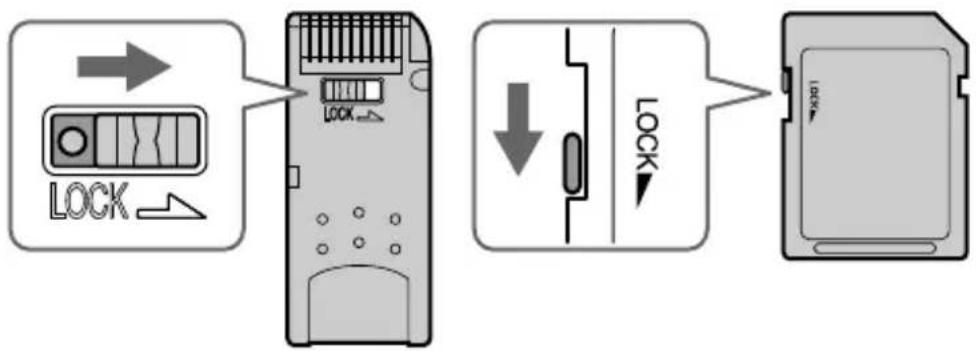
- Keep a memory card in its case when you carry or store it.
- Do not touch the connector of a memory card with bare hands or metallic objects.
- Do not bend, drop, or subject a memory card to excessive shock.
- Do not disassemble or modify a memory card.
- Do not allow a memory card to get wet.
- Avoid the following to prevent data damage. Sony does not provide any guarantee for damaged data.
- Remove a memory card or turn off Sony Reader while reading or writing data.
- Operate Sony Reader in a location where static charge or electrical noise is present.
- Do not use a label other than the dedicated one in the label area.
- Do not use or store Sony Reader in a location subject to:
- extreme high temperature, such as in a sun-heated car.
- direct sunlight. – high humidity or places with corrosive substances.
On software
• Copyright laws prohibit reproducing the software or the manual accompanying it in whole or in part, or renting the software without the permission of the copyright holder. - In no event will SONY be liable for any financial damage, or loss of profits, including claims made by third parties, arising out of the use of the software supplied with this Sony Reader. - In the event a problem occurs with this software as a result of defective manufacturing, SONY will replace it. However, SONY bears no other responsibility. - The software provided with this Sony Reader cannot be used with equipment other than that which is so designated. - Please note that, due to continued efforts to improve quality, software specifications may be changed without notice. - Operation of this Sony Reader with software other than that provided is not covered by the warranty. - The ability to display the languages on your CONNECT Reader will depend on the OS installed on your computer. For better results, please ensure that the installed OS is compatible with the desired language you want to display.
- We do not guarantee that all languages will be able to be displayed properly on your CONNECT Reader.
- User-created characters and some special characters may not be displayed.
- Explanations in this manual assume that you are familiar with the basic operations of Windows. For details on the use of your computer and operating system, please refer to the respective manuals.
On Cleaning
- Clean the Sony Reader's case with a soft cloth, such as a cleaning cloth for eyeglasses.
- If the Sony Reader's case becomes very dirty, clean it with a soft cloth slightly moistened with water or a mild detergent solution.
- Do not use any type of abrasive pad, scouring powder, or solvent, such as alcohol or benzene, as it may mar the finish of the case.
- Be careful not to let water get into Sony Reader from the opening near the connector.
- Clean the headphone plug periodically.
If you have any questions or problems concerning Sony Reader, consult your nearest Sony dealer.
Notes
- Recorded content is limited to private use only. Use of the content beyond this limit requires permission of the copyright holders.
- Sony is not responsible for incomplete recording/downloading or damaged data due to problems of Sony Reader or computer.
On Copyrights
The contents of each book pre-installed on this product are copyrighted works, edited with the cooperation of the publisher and editor hereto mentioned.
Copyright laws prohibit copying the data of this product or the contents of this manual (illustrations, related documents, etc.) in whole or in part without the permission of the copyright holder. Additionally, use of the data of this product or the contents of this manual is not allowed without Sony's permission except for personal use.
- SONY and the SONY logo are trademarks of Sony Corporation.
- BBeB, BBeB Book, and their logos are trademarks of Sony Corporation. • As trademark of Sony Corporation.
- CONNECT Reader and the CONNECT Reader logo are trademarks or registered trademarks of Sony Corporation.
- “Memory Stick,” “Memory Stick Duo,” “Memory Stick PRO,” “MagicGate Memory Stick,” and their logos are trademarks of Sony Corporation.
- Bitstream is a registered trademark, and Dutch, Font Fusion, and Swiss are trademarks, of Bitstream Inc.
- Microsoft, Windows, Windows NT, and Windows Media are trademarks or registered trademarks of Microsoft Corporation in the United States and/or other countries.
- Adobe, Adobe Reader and Adobe PDF are trademarks or registered trademarks of Adobe Systems Incorporated in the United States and/or other countries.
- MPEG Layer-3 audio coding technology and patents licensed from Fraunhofer IIS and Thomson.
- This product uses MontaVista Software, Inc.'s MontaVista(R) Linux(R) Professional Edition as the operating system.
COPYRIGHT ©1999-2006 MONTAVISTA SOFTWARE, INC. ALL RIGHTS RESERVED.
http://www.mvista.com/
- MontaVista is a registered trademark of MontaVista Software, Inc.
All other system names and product names appearing in this document are generally the registered trademarks or trademarks of their respective manufacturers. Further, the trademark ™ and registered trademark ® symbols are not indicated throughout this document.
Program ©2006 Sony Corporation Documentation ©2006 Sony Corporation
About GNU GENERAL PUBLIC LICENSE
Dear customers
Thank you for purchasing this product.
Included with this product is the following software which applies to GPL/LGPL. You may obtain, modify and redistribute the source codes of the software.
bash fileutils
findutils gcc glib glibc grep hardhatutils hostname mkcramfs mtd-utils mtools ncurses openssl pam procps psmisc sed shellutils sysutils sysvinit tar textutils time util-linux
These source codes are available on the web site.
Access the following web site to download.
http://www.sony.net/Products/Linux/
Note that Sony accepts no inquiries concerning the contents of these source codes.
For details on GNU GENERAL PUBLIC LICENSE, refer to "gpl.txt" and "lgpl.txt" on the CD-ROM.
Specifications
Model name
PRS-500
Power source
Built-in rechargeable battery: DC IN 3.7 V
AC power adapter: DC IN 5.2 V
Battery life (continuous playback)
Approx. 7500 pages (when the battery is fully charged)
User available capacity
Approx. 64MB
Available storage capacity of Sony Reader may vary.
Operating temperature
5 to 35 °C (41 to 95 °F)
Dimensions (w/h/d)
Approx. 6.9 x 4.9 x 0.5 inches
(maximum, without soft cover)
Mass
Approx. 8.8 oz (without soft cover)
Optional Accessories
Cradle for Reader BCR-RU1
Design and specifications are subject to change without notice.
Index
Symbols
< button 9
button 9
5-way control button ....8
A
Audio file 45
B
Battery 16
BBeB Books ......24
Bookmark 41
Book list ......13, 32
Book types ......34
C
Charge indicator 9
Charging 16
See also "Quick Start Guide"
Collection 40
CONNECT eBooks .....7, 22
CONNECT Reader ..22, 24, 26, 28
Help 3
Install ...... See “Quick Start Guide”
Uninstalling 64
D
DC IN jack ....10
Default settings ......63
E
eBooks 7, 22, 34
ENT button 8
H
Headphone jack 10
Hole for hand strap ....9
Home menu ....13
Horizontal 37,52
I
Import 22
Content 24
eBooks ......22
Information 38
L
Link 37
M
Manual 2
MARK button ......9, 41
MARK LED 9,41
Media slot 9,18
Memory Card ......18
"Memory Stick" 18, 73
MENU button 8, 13
Multi connector ....10
N
NEXT button 9,35
Number button ......9, 32, 45, 49
Number tab ....32, 45, 49
0
Option menu ......13, 34
P
PAGE 9
Picture 49
POWER switch 9, 15
R
Reading books ......32
while playing an audio file ....47
Reset ....57
Reset button .....11, 57
Resume 16
RTF file ......24, 35
S
SD Memory Card ......18, 73
Setting 52
Orientation ....52
Screen Lock ....53
Slideshow ....55
Version Information ....56
SIZE button 9
Slideshow ....51, 55
Soft cover attachment clip button ....11
Sort ....39
by Author ....39
by Date ....39
T
Table of contents ......34
Transfer 26
Troubleshooting ....57
U
Updating 65
USB 26
USB connector .....10, 26
V
Vertical 37,52
VOLUME button 9

- ABOUT THE MANUALS
- BROWSING THE OPERATION GUIDE
- BROWSING THIS GUIDE ON YOUR COMPUTER
- HINT
- BROWSING THIS GUIDE USING SONY READER
- HINTS
- USING THE CONNECT READER HELP
- TABLE OF CONTENTS
- INTRODUCTION
- BASIC OPERATIONS
- IMPORTING CONTENT
- TRANSFERRING CONTENT
- READING/PLAYING/VIEWING CONTENT
- SETTINGS
- TROUBLESHOOTING
- OTHER INFORMATION
- WHAT YOU CAN DO WITH SONY READER
- IMPORTING
- TRANSFERRING
- READING/PLAYING/VIEWING
- GUIDE TO PARTS AND CONTROLS
- FRONT
- REAR
- SOFT COVER ATTACHMENT CLIP BUTTON
- NOTE
- RESET BUTTON
- ABOUT THE SERIAL NUMBER
- MENU OPERATIONS
- TURNING ON SONY READER
- TO TURN OFF SONY READER
- ABOUT THE RESUME FUNCTION
- ABOUT CHARGING
- NOTES
- INSERTING A MEMORY CARD
- INSERTING A MEMORY CARD INTO SONY READER
- OPEN THE MEDIA SLOT COVER
- INSERT A MEMORY CARD IN THE ▶ DIRECTION WITH ITS LABEL SIDE UP UNTIL IT CLICKS INTO PLACE
- CLOSE THE MEDIA SLOT COVER
- REMOVING A MEMORY CARD FROM SONY READER
- GENTLY PUSH IN THE MEMORY CARD
- REMOVE THE MEMORY CARD SQUARELY FROM THE MEDIA SLOT
- IMPORTING EBOOKS FROM CONNECT EBOOKS
- FOLLOW THE PAGE INSTRUCTIONS TO PURCHASE (DOWNLOAD)
- IMPORTING CONTENT FROM YOUR COMPUTER
- IMPORTING CONTENT FILES
- TRANSFERRING CONTENT TO SONY READER CONNECTED WITH YOUR COMPUTER
- CLICK “LIBRARY” IN THE SOURCE VIEW, THEN CLICK (LIST VIEW)
- SELECT THE CONTENT YOU WANT TO TRANSFER FROM THE LIST
- DRAG THE CONTENT FROM THE LIST TO “SONY READER” IN THE SOURCE VIEW
- TRANSFERRING CONTENT VIA A MEMORY CARD
- CLICK “LIBRARY” IN THE SOURCE VIEW OF CONNECT READER, THEN CLICK 📋(LIST VIEW)
- DRAG THE CONTENT FROM THE LIST TO “MEMORY STICK/SD CARD ON SONY READER” IN THE SOURCE VIEW
- TO TRANSFER CONTENT BACK TO CONNECT READER
- DRAG THE CONTENT FROM THE LIST TO “LIBRARY” IN THE SOURCE VIEW
- READING BOOKS
- READING BOOKS TRANSFERRED FROM YOUR COMPUTER
- IN THE HOME MENU, PRESS ▲/▼ TO SELECT “BOOKS,” THEN PRESS ENT
- PRESS ▲/▼ TO SELECT THE DESIRED BOOK FROM THE LIST, THEN PRESS ENT
- PRESS ▲/▼ TO SELECT HOW TO OPEN THE BOOK, THEN PRESS ENT
- ABOUT THE OPTION MENU
- BOOK TYPES SUPPORTED BY SONY READER
- OPERATIONS ON THE BOOK PAGE SCREEN
- TO USE THE LINK TOOL OF EBOOKS/PDF FILES ON SONY READER
- SWITCHING SCREEN ORIENTATION (VERTICAL/HORIZONTAL)
- ABOUT SCREEN DIVISION WHEN SCREEN ORIENTATION IS SET TO HORIZONTAL
- DISPLAYING THE BOOK INFORMATION
- SORTING THE BOOK LIST
- SELECTING A BOOK FROM THE COLLECTION LIST
- CREATING A BOOKMARK ON A PAGE
- ON THE BOOK PAGE SCREEN, PRESS MARK ON THE DESIRED PAGE
- TO OPEN THE DESIRED PAGE FROM THE BOOKMARK LIST
- TO REMOVE ALL BOOKMARKS IN THE CURRENT BOOK
- TO SELECT FROM THE LIST OF ALL BOOKMARKS ON SONY READER
- READING PREVIOUSLY DISPLAYED PAGES
- TO SHOW THE DISPLAYED PAGE HISTORY
- TO CLEAR HISTORY
- PLAYING AUDIO FILES
- PLAYING AUDIO FILES TRANSFERRED FROM YOUR COMPUTER
- PRESS ▲/▼ TO SELECT THE DESIRED TRACK FROM THE LIST, THEN PRESS ENT
- OPERATIONS ON THE PLAYBACK SCREEN
- READING BOOKS WHILE PLAYING AN AUDIO FILE
- VIEWING PICTURES
- VIEWING PICTURES TRANSFERRED FROM YOUR COMPUTER
- IN THE HOME MENU, PRESS ▲/▼ TO SELECT “PICTURES,” THEN PRESS ENT
- PRESS ▲/▼ TO SELECT THE DESIRED PICTURE FROM THE LIST, THEN PRESS ENT
- OPERATIONS ON THE PICTURE VIEWER
- TO SCROLL THE MAGNIFIED PICTURE
- TO VIEW A SLIDESHOW OF PICTURES
- SETTING SCREEN ORIENTATION
- LOCKING THE SONY READER SCREEN
- SETTING THE SLIDESHOW
- CHECKING VERSION INFORMATION FOR SONY READER
- POWER
- SCREEN
- RESTORING DEFAULT SETTINGS
- UNINSTALLING CONNECT READER
- UPDATING THE SONY READER'S FIRMWARE
- ABOUT BOOKS PRE-INSTALLED ON SONY READER
- NOTES ON SONY READER DISPOSAL
- PRECAUTIONS
- OWNER'S RECORD
- WARNING
- TO REDUCE THE RISK OF FIRE OR ELECTRIC SHOCK, DO NOT EXPOSE THIS APPARATUS TO RAIN OR MOISTURE
- FOR CUSTOMERS IN THE USA
- INFORMATION
- IF YOU HAVE ANY QUESTIONS ABOUT THIS PRODUCT
- VISIT
- CONTACT
- WRITE
- DECLARATION OF CONFORMITY
- FOR CUSTOMERS IN THE USA AND CANADA RECYCLING LITHIUM-ION BATTERIES
- ON SAFETY
- ON INSTALLATION
- ON HEAT BUILD-UP
- ON THE HEADPHONES
- ROAD SAFETY
- PREVENTING HEARING DAMAGE
- CARING FOR OTHERS
- NOTES ON MEMORY CARDS
- ABOUT "MEMORY STICK
- ABOUT SD MEMORY CARD
- NOTES ON HANDLING MEMORY CARDS
- ON SOFTWARE
- ON CLEANING
- ON COPYRIGHTS
- ABOUT GNU GENERAL PUBLIC LICENSE
- DEAR CUSTOMERS
- SPECIFICATIONS
- INDEX
- SYMBOLS
- A
- B
- C
- D
- E
- H
- I
- L
- M
- N
- P
- R
- S
- T
- U
- V
Brand : SONY
Model : Reader PRS-500
Category : E-reader