
TDP-ET10 - Vidéo-projecteur TOSHIBA - Free user manual and instructions
Find the device manual for free TDP-ET10 TOSHIBA in PDF.


| Product Type | Video Projector |
| Brand | Toshiba |
| Model | TDP-ET10 (also available as TDP-ET20 with built-in DVD player) |
| Dimensions (W x H x D) | 344 x 322 x 155 mm |
| Weight | 4.8 kg (TDP-ET10) |
| Power Consumption | 340 W |
| Power Supply | 100-240 V AC, 50-60 Hz, 4.0 A |
| Display Technology | 1-chip DLP |
| Native Resolution | 854 x 480 pixels (WVGA) |
| Lens | F=2.5~2.7, f=7.56 mm |
| Lamp Type | High-pressure mercury lamp (230 W) |
| Lamp Life | Approximately 2,000 - 3,000 hours |
| Projection Screen Size | 38 - 134 inches |
| Projection Distance | 0.5 - 1.9 meters |
| Built-in Speakers | 5.1 channel (Subwoofer 5W, Front/Center 2W, Rear 1W) |
| DVD Player | Included only on TDP-ET20 model (slot-load, 12.7mm slim type) |
| Connectivity | HDMI, Component (Y/Pb/Pr), S-Video, Composite Video, VGA (Computer), Audio 3.5mm stereo, Digital audio coaxial (input and output), RS-232C control |
| Remote Control | Yes, with two AAA batteries |
| Keystone Correction | Horizontal and vertical adjustment via menu |
| Projection Modes | Front, Ceiling (TDP-ET10 only), Rear, Rear Ceiling (TDP-ET10 only) |
| Safety Features | Auto power-off, lamp cover detection, overheat protection |
Frequently Asked Questions - TDP-ET10 TOSHIBA
User questions about TDP-ET10 TOSHIBA
0 question about this device. Answer the ones you know or ask your own.
Ask a new question about this device
Download the instructions for your Vidéo-projecteur in PDF format for free! Find your manual TDP-ET10 - TOSHIBA and take your electronic device back in hand. On this page are published all the documents necessary for the use of your device. TDP-ET10 by TOSHIBA.
USER MANUAL TDP-ET10 TOSHIBA
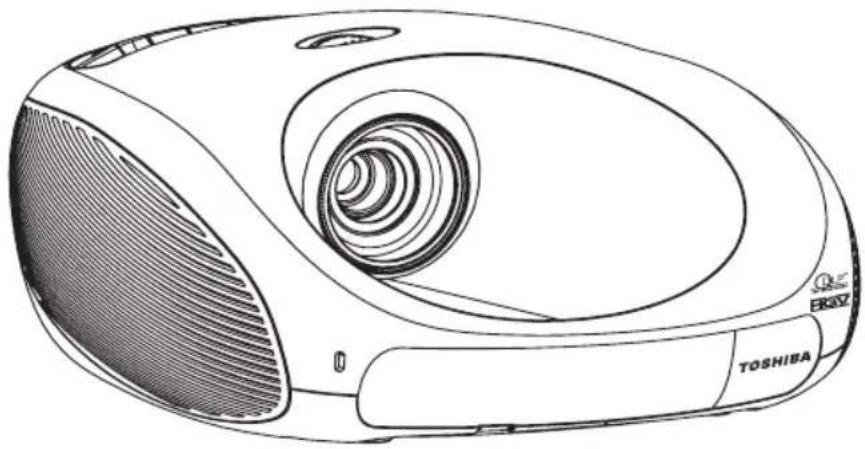
TDP-ET20 (with built-in DVD player)
natural_image
Line drawing of a portable electronic device with spiral chamber and TOSHIBA branding (no text or symbols on body)In the spaces provided below, record the Model and Serial Number located at the bottom of your projector. Retain this information for future reference.
Model No. Serial No.
The lightning flash with arrowhead symbol, within an equilateral triangle, is intended to alert the user to the presence of uninsulated “dangerous voltage” within the product’s enclosure that may be of sufficient magnitude to constitute a risk of electric shock to persons.

The exclamation point within an equilateral triangle is intended to alert the user to the presence of important operation and maintenance (servicing) instructions in the literature accompanying the appliance.
WARNING: TO REDUCE THE RISK OF FIRE OR ELECTRIC SHOCK, DO NOT EXPOSE THIS APPLIANCE TO RAIN OR MOISTURE. DANGEROUS HIGH VOLTAGES ARE PRESENT INSIDE THE ENCLOSURE. DO NOT OPEN THE CABINET. REFER SERVICING TO QUALIFIED PERSONNEL ONLY.
WARNING: USA only
Handling the cord on this product or cords associated with accessories sold with this product will expose you to lead, a chemical known to the State of California to cause birth defects or other reproductive harm. Wash hands after handling.
WARNING: USA only
This product contains mercury. Disposal of mercury may be regulated due to environmental considerations. For disposal or recycling information, please contact your local authorities or the Electronic Industries Alliance: www.eiae.org.
MODEL NAME: TDP-ET10, TDP-ET20 USA only
TRADE NAME: PROJECTOR MODEL NAME: TDP-ET10, TDP-ET20

Tested to Comply With FCC Standards
FOR HOME OR OFFICE USE
FCC NOTICE: This device complies with part 15 of the FCC Rules. Operation is subject to the following two conditions:
(1) This device may not cause harmful interference, and (2) this device must accept any interference received, including interference that may cause undesired operation.
This equipment has been tested and found to comply with the limits for a Class B digital device, pursuant to part 15 of the FCC Rules. These limits are designed to provide reasonable protection against harmful interference in a residential installation. This equipment generates, uses and can radiate radio frequency energy and, if not installed and used in accordance with the instructions, may cause harmful interference to radio communications.
However, there is no guarantee that interference will not occur in a particular installation. If this equipment does cause harmful interference to radio or television reception, which can be determined by turning the equipment off and on, the user is encouraged to try to correct the interference by one or more of the following measures:
- Reorient or relocate the receiving antenna.
- Increase the separation between the equipment and receiver.
- Connect the equipment into and outlet on a circuit different from that to which the receiver is connected.
- Consult the dealer or an experienced radio/TV technician for help.
RESPONSIBLE PARTY: TOSHIBA AMERICA INFORMATION SYSTEMS, INC.
9740 Irvine Blvd., Irvine, CA 92618-1697, USA
Phone: (949) 583-3000
WARNING:
USA only
Changes or modifications made to this equipment not expressly approved by Toshiba, or parties authorized by Toshiba, could void the user's authority to operate the equipment.
Notice
CANADA only
CAUTION: PLEASE READ AND OBSERVE ALL WARNINGS AND INSTRUCTIONS GIVEN IN THIS OWNER'S MANUAL AND THOSE MARKED ON THE UNIT. RETAIN THIS BOOKLET FOR FUTURE REFERENCE.
This set has been designed and manufactured to assure personal safety. Improper use can result in electric shock or fire hazard. The safeguards incorporated in this unit will protect you if you observe the following procedures for installation, use and servicing. This unit is fully transistorized and does not contain any parts that can be repaired by the user.
DO NOT REMOVE THE CABINET COVER OR YOU MAY BE EXPOSED TO DANGEROUS VOLTAGE. REFER SERVICING TO QUALIFIED SERVICE PERSONNEL ONLY.
1. Read Owner's Manual
After unpacking this product, read the owner's manual carefully, follow all the operating instructions, and heed all warnings.
natural_image
Cartoon illustration of a man writing at a desk with an open box and a smiling eraser above (no text or symbols)2. Power Sources
This product should be operated with only the type of power source indicated on the marking label. If you are not sure what type of power source is available to you, consult your product dealer and local power company. For products intended to operate with battery power or other power sources, refer to the operating instructions.
natural_image
Cartoon illustration of a man holding a coin with a smiling face, no text or symbols present3. Source of Light
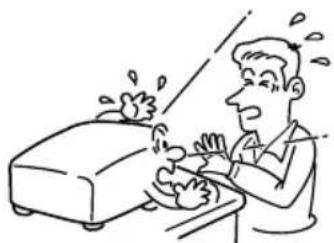
Do not look into the lens while the lamp is on. The strong light from the lamp may cause damage to your eyes or sight.
natural_image
Cartoon illustration of a person reacting to a ringing phone, no text or symbols present4. Ventilation
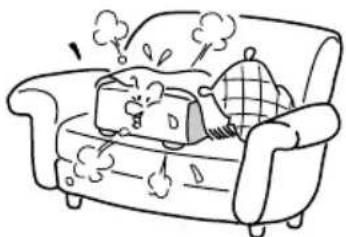
Place this product in a location with adequate ventilation to prevent heat build-up. Openings in the cabinet are provided for ventilation and must not be blocked or covered. Do not place this product on a bed, sofa, rug or other similar surfaces that may block the ventilation holes. This product should not be placed in a confined space or built-in installation such as a bookcase or rack unless proper ventilation is provided or the manufacturer's instructions have been adhered to.
natural_image
Cartoon illustration of a distressed sofa with steam and cloud effects (no text or symbols)5. Heat
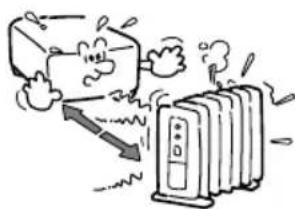
The product should be situated away from heat sources such as radiators, heat registers, stoves, or other products (including amplifiers) that produce heat.
natural_image
Cartoon illustration of a computer monitor emitting smoke from a speaker (no text or symbols)6. Water and Moisture
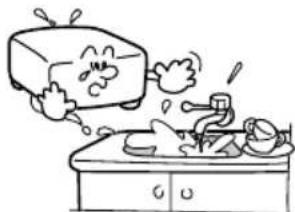
Do not place this product near water such as a bathtub, washbowl, kitchen sink, laundry tub, or in a wet basement, near a swimming pool and the like. Do not place objects filled with liquids, such as vases or cups, near or on the product.
natural_image
Cartoon illustration of a character washing clothes at a sink with steam rising (no text or symbols)7. Cleaning
Unplug this product from the wall outlet before cleaning. Do not use liquid cleaners or aerosol cleaners. Use a soft cloth for cleaning.
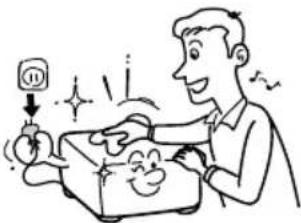
natural_image
Cartoon illustration of a man opening a gift box with sparkles and a smiling face (no text or symbols)8. Power-Cord Protection
Power-supply cords should be routed so that they are not likely to be walked on or pinched by items placed upon or against them, paying particular attention to cords at plugs, convenience receptacles, and the point where they exit from the product.
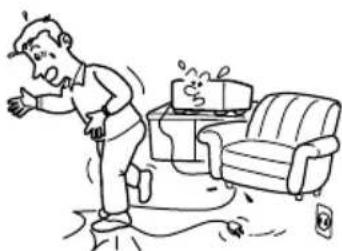
natural_image
Cartoon illustration of a person standing on the floor with a sofa and a coffee box nearby (no text or symbols)9. Overloading
Do not overload wall outlets, extension cords, or integral convenience receptacles as this can result in a risk of fire or electric shock.
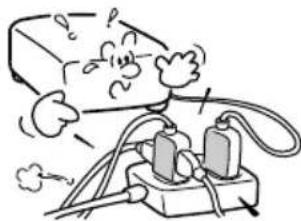
natural_image
Cartoon illustration of a person using a plug with wires and a cloud, no text or symbols presentIMPORTANT SAFETY INSTRUCTIONS (Continued)
10. Lightning storms
For added protection for this product, during a storm or when it is left unattended and unused for long periods of time, unplug it from the wall outlet. This will prevent damage to the product due to lightning and power-line surges.
However, while it is thundering or lightning, do not touch the apparatus and any connected cable and/or equipment.
This will prevent you from receiving the electric shock by an electric surge.
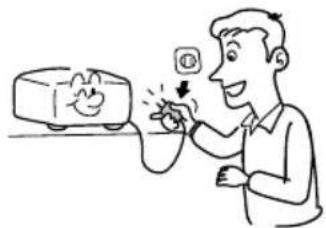
natural_image
Cartoon illustration of a man using a power cord to interact with a computer monitor (no text or symbols present)11. Object and Liquid Entry
Never push objects of any kind into this product through its openings as they may touch dangerous voltage points or short-out parts that could result in a fi re or electric shock. Never spill liquid of any kind on the product.
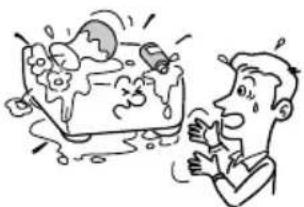
natural_image
Cartoon illustration of a man reacting to a large cartoon character (no text or symbols present)12. Do not place the product vertically
Do not use the product in the upright position to project the pictures at the ceiling, or any other vertical positions. It may fall down and cause damage to the product.
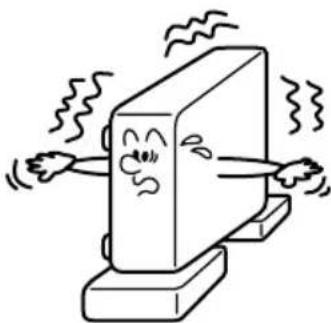
natural_image
Cartoon illustration of a computer monitor with arms and legs, showing motion lines (no text or symbols)13. Stack Inhibited
Do not stack other equipment on this product or place this product on the other equipment. The top and bottom of this product radiates heat and may overheat or cause damage to the other equipment.
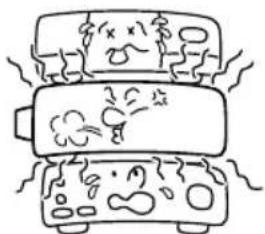
natural_image
Simple line drawing of three stacked containers with cartoon figures and smoke, no text or symbols present14. Attachments
Do not use attachments not recommended by the product manufacturer as they may cause hazards.
15. Accessories
Do not place this product on an unstable cart, stand, tripod, bracket, or table. The product may fall, causing serious injury to a child or adult, and serious damage to the product. A product and cart combination should be moved with care. Quick stops, excessive force, and uneven surfaces may cause the product and cart combination to overturn.
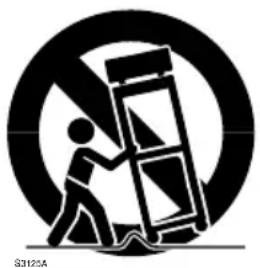
natural_image
Silhouette of a person pushing a large object inside a circular frame (no text or symbols)16. Damage Requiring Service
Unplug this product from the wall outlet and refer servicing to qualified service personnel under the following conditions:
a) When the power-supply cord or plug is damaged.
b) If liquid has been spilled, or objects have fallen into the product.
c) If the product has been exposed to rain or water.
d) If the product does not operate normally by following the operating instructions.
Adjust only those controls that are covered by the operating instructions as an improper adjustment of other controls may result in damage and will often require extensive work by a qualified technician to restore the product to its normal operation.
e) If the product has been dropped or damaged in any way.
f) When the product exhibits a distinct change in performance - this indicates a need for service.
17. If glass components, including the lens and lamp, should break, contact your dealer for repair service.
This product incorporates glass components, including a lens and a lamp. If such parts should break, please handle with care to avoid injury and contact your dealer for repair service. The broken pieces of glass may cause injury. In the unlikely event of the lamp rupturing, thoroughly clean the area around the projector and discard any edible items placed in that area.
18. Servicing
Do not attempt to service this product yourself as opening or removing covers may expose you to dangerous voltage or other hazards. Refer all servicing to qualified service personnel.
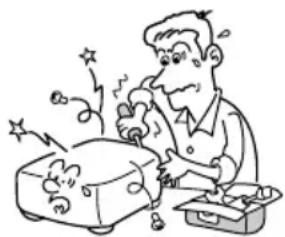
natural_image
Cartoon illustration of a person using a tool to clean or prepare food, with sparks flying around (no text or symbols)IMPORTANT SAFETY INSTRUCTIONS (Continued)
19. Replacement Parts
The user may perform replacement of the lamp but a service technician should make all other repairs. When replacement parts are required, be sure the service technician has used replacement parts specified by the manufacturer or have the same characteristics as the original part. Unauthorized substitutions may result in fire, electric shock, or other hazards.
20. Safety Check
Upon completion of any service or repairs to this product, ask the service technician to perform safety checks to determine that the product is in proper operating condition.
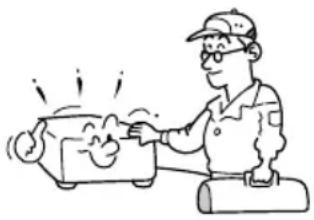
natural_image
Cartoon illustration of a person using a piggy bank to interact with a machine (no text or symbols present)- Do not leave thermal-paper documents or easily deformed items on top of the unit or near the air exhaust for long periods of time.
The heat from the unit could erase the information on the thermal paper, or cause deformation or warping.
- Do not use the product in a closed installation state.
Do not place the product in a box or in any other closed installation state otherwise it may overheat. This could result in a risk of fire.
POWER SUPPLY CORD SELECTION
If your line voltage is 220 to 240V, use one of the following types of cable.
| Plug confi guration Plug type | Line voltage | Plug confi guration Plug type | Line voltage | |
EURO 220 - 240V Australian 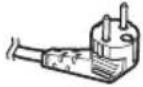 |  | 240V10A | 220 - 240V | |
UK 220 - 240V Switzerland 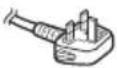 | 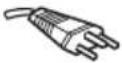 | 240V6A | 220 - 240V | |
| Use a 5A fuse which is approved by ASTA or BSI to BSI362. Always replace the fuse cover after changing the fuse. | 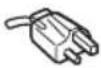 | North American 240V15A | 220 - 240V | |
IMPORTANT PRECAUTIONS
Save Original Packing Materials
The original shipping carton and packing materials will come in handy if you ever have to ship your projector. For maximum protection, repack the set as it was originally packed at the factory.
Moisture Condensation
Never operate this unit immediately after moving it from a cold location to a warm location. When the unit is exposed to such a change in temperature, moisture may condense on the crucial internal parts. To prevent the unit from possible damage, do not use the unit for at least 2 hours when there is an extreme or sudden change in temperature.
Location and Installation
- Do not place in hot locations, such as near a heater or in direct sunlight. Doing so could cause malfunction, and shorten the life of the projector.
- Avoid locations with oil or cigarette smoke, which can affect the quality and useful like of the product optical parts and darken the screen.
- Do not use the product vertically in any upright position or slantwise in an angle of 20 degrees or more.
- Using this instrument near a TV or radio may cause interference to the images or sound. If this happens, move it away from the TV or radio.
- In a high altitude location where air is thin, cooling efficiency is reduced so use it with the ambient temperature being lowered.
- The set of projector is hot after use. Handle with care.
- Do not use the projector while holding it in your hands or lap.
- Do not use the projector near a power source and the like, or in locations like a ship or vehicle that are subject to vibration or shock. Doing so may lead to a malfunction or shorten service life.
IMPORTANT PRECAUTIONS (Continued)
Avoid Volatile Liquid
Do not use volatile liquids, such as an insect spray, near the unit. Do not leave rubber or plastic products touching the unit for a long time. They will leave marks on the fi nish. If cleaning with a chemically saturated cloth, be sure to follow the product's precautions.
EXEMPTION CLAUSES
- Toshiba Corporation bears no responsibility in the case of damages arising from natural disaster such as earthquakes, lightning, etc., fi re not liable to Toshiba Corporation, acts by third parties, other accidents, or use under abnormal conditions including erroneous or improper operation and other problems.
- Toshiba Corporation bears no responsibility for incidental damages (lost profit, work interruption, corruption or loss of the memory contents, etc.) arising from the use of or the inability to use this unit.
- Toshiba Corporation accepts no liability whatsoever for any damages arising from not having followed the descriptions in this Instruction Manual.
- Toshiba Corporation accepts no liability whatsoever for any damages arising from malfunctions arising from combination with equipment or software that is not related to Toshiba Corporation.
OTHER CAUTIONS AND INFORMATION
Copyrights
Showing or transmitting commercial imaging software or broadcast or cable-broad casting programs with the purpose of other than the personal and private viewing, including modifying images using the freeze functions, or displaying with the varying aspect ratio of the images, could violate the direct or indirect copyrights of the imaging software or broadcast program, etc., if done without first consulting with the copyright holder. For this reason, please take appropriate measures before performing one of the actions listed above, including obtaining a license from the copyright holder.
Disposal
This product contains substances which are harmful to humans and the environment.
• The lamp contains mercury.
Please dispose of this product or used lamps in accordance with local regulations.
Following information is only for EU-member states:
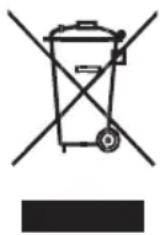
The use of the symbol indicates that this product may not be treated as household waste. By ensuring this product is disposed of correctly, you will help prevent potential negative consequences for the environment and human health, which could otherwise be caused by inappropriate waste handling of this product. For more detailed information and recycling of this product, please contact your local city office, you household waste disposal service or the shop where you purchased the product.
Trademarks
• VGA, SVGA, XGA, SXGA, UXGA are registered trademarks of International Business Machines Corporation.
- Digital Light Processing (DLP), Digital Micromirror Device and DMD are registered trademarks of Texas Instruments.
- HDMI, the HDMI logo and High-Definition Multimedia Interface are registered trademarks of HDMI licensing LCC.
• HQV and HQV logo are registered trademarks of Silicon Optix.
• Dolby, Dolby Digital, Pro Logic are registered trademarks of Dolby Laboratories.
- DivX and DivX logo are registered trademarks of DivX, Inc.
• Vikuiti and Vikuiti logo are registered trademarks of 3M.
- Kensington, MicroSaver, and ComboSaver are registered trade marks of Kensington Computer Products Group.
- All other trademarks and registered trademarks are the property of their respective owners.
Notational Conventions Used in This Manual
- References to pages with related information are annotated as follows. For example, if making a reference to page 36. p.36
- The illustrations in this document are for reference purposes only and may not reflect your package exactly.
Surround
- 5.1ch audio output is driven by 6 internal speakers. The sound surrounding effect is different from its ideal case provided by surrounding external speakers.
- This projector with 5.1ch Dolby Digital Consumer Decoder and Dolby Pro Logic II has been evaluated and approved by Dolby Laboratories.
REMOTE CONTROL BATTERIES
- Never throw batteries into a fi re.
- Be sure to use AAA size batteries.
- Attention should be drawn to the environmental aspects of battery disposal.
- Do not mix different battery types or combine used batteries with new ones.
- If the remote control does not operate correctly, or if the operating range becomes reduced, replace both batteries with new ones.
- If the batteries are dead or if you will not be using the remote control for a long time, remove the batteries to prevent battery acid from leaking into the battery compartment.
Using the batteries improperly may cause them to explode or leak and lead to burns or injury. If battery-leaking fluid contacts skin, wash the fluid off immediately with clean water and consult a doctor. If the fluid is spilled on an instrument, avoid contact and wipe it off using a soft cloth or tissue paper. Dispose of the used cloth or tissue paper.
On handling discs
- Do not touch the playback side of the disc.
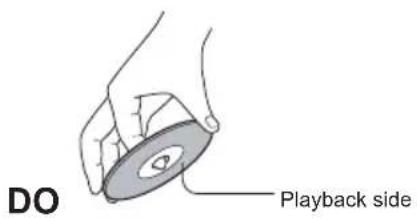
- Do not attach paper or tape to discs.
DO NOT
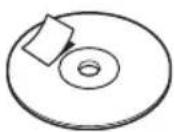
On cleaning discs
- Fingerprints and dust on the disc cause picture and sound deterioration. Wipe the disc from the center outwards with a soft cloth. Always keep the disc clean.
DO DO NOT
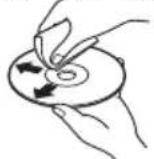
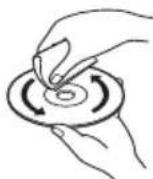
- Do not use any type of solvent such as thinner, benzine, commercially available cleaners or antistatic spray for vinyl LPs. It may damage the disc.
On storing discs
- Do not store discs in a place subject to direct sunlight or near heat sources.
- Do not store discs in moisture and dust places such as a bathroom or near a humidifi er.
- Store discs vertically in a case. Stacking or placing objects on discs outside of their case may cause warping.
Notes on copyright
The unauthorized recording, use, distribution, or revision of television programs, videotapes, DVDs, and other materials is prohibited under the Copyright Laws.
Structure of disc contents
Normally, DVD video discs are divided into titles, and the titles are sub-divided into chapters. Video CDs and Audio CDs are divided into tracks.
DVD video disc
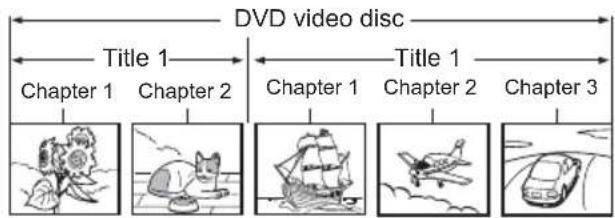
Video CD/Audio CD
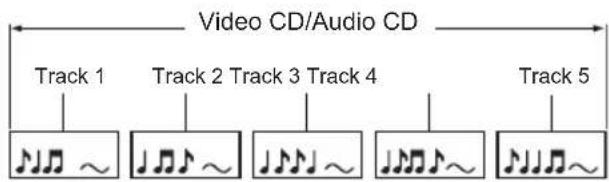
flowchart
graph LR
    A["Track 1"] --> B["Music Note Icon"]
    C["Track 2"] --> D["Music Note Icon"]
    E["Track 3"] --> F["Music Note Icon"]
    G["Track 4"] --> H["Music Note Icon"]
    I["Track 5"] --> J["Music Note Icon"]
    B --> K["Audio Note Icon"]
    D --> L["Audio Note Icon"]
    F --> M["Audio Note Icon"]
    H --> N["Audio Note Icon"]
    J --> O["Audio Note Icon"]
Each title, chapter or track is assigned a number, which is called "title number", "chapter number" or "track number" respectively. There may be discs that do not have these numbers.
About this owner's manual
This owner's manual explains the basic instructions of this unit. Some DVD video discs are produced in a manner that allows specific or limited operation during playback. As such, the unit may not respond to all operating commands. This is not a defect in the unit. Refer to instruction notes of discs.
Notes on region codes
The region code of this unit is set according to the location you purchased the unit. If region codes, which stand for their playable area, are printed on your DVD video disc and you do not find all or region code matches to your unit, disc playback will not be allowed by the player. Some DVDs that have no region code label may still be subject to area restrictions and therefore not playable.
On Video CDs
This unit supports Video CDs equipped with the PBC (Version 2.0) function. (PBC is the abbreviation of Playback Control.) You can enjoy two playback variations depending on types of discs.
• Video CD not equipped with PBC function (Version 1.1)
Sound and movie can be played on this unit in the same way as an audio CD.
• Video CD equipped with PBC function (Version 2.0)
In addition to operation of a Video CD not equipped with the PBC function, you can enjoy playback of interactive software with search function by using the menu displayed on the screen (Menu Playback). Some of the functions described in this owner's manual may not work with some discs.
playable discs
The following discs are available. DVD-Video, DVD+RW, DVD+R, DVD-RW, DVD-R, CD-DA, VCD, SVCD, ISO9600, CD-R, and CD-RW.
Some of these discs may be incompatible.
Be sure to always use only 12 cm discs.
| Disc Mark Contents Disc | Size | Maximum playback time | ||
| DVD video discs |  | Audio + Video (moving pictures) | 12 cm | Approx. 4 hours (single sided disc) |
| Approx. 8 hours (double sided disc) | ||||
| Video CDs |  | Audio + Video (moving pictures) | 12 cm | Approx. 74 minutes |
| Audio CDs |  | Audio 12 | cm Approx. | 74 minutes |
| The following discs are also available.• DVD-R/RW discs of DVD video format• CD-R/CD-RW discs of CD-DA, Video CD, or MP3 format• Kodak Picture CD and FUJICOLOR CD format Some of these discs may be incompatible. | ||||
- You cannot play discs other than those listed above.
- You cannot play discs of DVD-RAM, Photo CD, etc., or non standardized discs even if they may be labeled as above.
- Some CD-R/RWs cannot be played back depending on the recording conditions.
Because of problems and errors that can occur during the creation of DVD software and/or the manufacture of DVD discs, Toshiba cannot guarantee that this player will play every feature of every DVD bearing the DVD logo.
As one of the creators of DVD technology, Toshiba DVD players are manufactured to the highest standards of quality and, as a result, such incompatibilities are very rare.
Before Using
SAFETY PRECAUTIONS 2
IMPORTANT SAFETY INSTRUCTIONS 4
POWER SUPPLY CORD SELECTION 9
IMPORTANT PRECAUTIONS 9
EXEMPTION CLAUSES 10
OTHER CAUTIONS AND INFORMATION 10
REMOTE CONTROL BATTERIES 11
NOTES ON DISCS 12
CONTENTS 14
Preparations
Checking the package contents 16
Names of each part on the main unit 17
Control panel and remote control parts for TDP-ET10 18
Control panel and remote control parts for TDP-ET20 19
Terminal panel....20
Preparing and using the remote control 21
Placement 22
Connection....24
Operations
Turning the power on and off 26
Basic operations 28
TDP-ET20 DVD playback 31
About DVD VCD CD 31
Setup the DVD player....31
PASSWORD (For Parental control) 31
PARENTAL 32
RESET 32
DIVX® VOD 32
PBC setting 33
OSD LANGUAGE 33
AUDIO LANGUAGE 33
SUBTITLE LANGUAGE 33
MENU LANGUAGE 34
Playing a disc. 34
-
Basic playback 34
-
Playing in fast reverse or fast forward directions 36
-
To pause playback (still playback) 36
-
Locating a chapter or track 36
- Repeat playback 37
- Random playback 37
- Changing angles 37
- Title selection .... 37
- Changing soundtrack language 38
- Subtitles 38
- Display status 38
- Multimedia fi les on DVD/CD playback 39
Using menus 41
How to use the menus....41
Input MENU 42
Picture setting MENU 42
Audio setting MENU 45
Setup MENU 46
Status display MENU....47
Maintenance
About lamp 49
Lamp replacement 49
Lens and main unit cleaning 52
Others
Trouble indications 53
Before calling service personnel 54
Specification....56
List of general specifications .... 56
Separately sold product 56
List of supported signals (Y/Pb/Pr signals) 57
List of supported signals (Video, S-Video signals) 57
CONTROL terminal 58
Checking the package contents
Check that the following items are included in the box, along with the main unit. If any item is missing, please contact the store where you purchased the product.
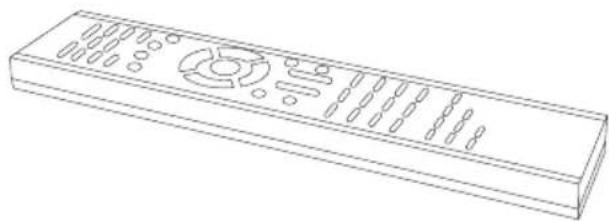
natural_image
Line drawing of a rectangular remote control with slots and buttons (no text or symbols)□ (1) Remote control ^4
☐ (2) R03 (size AAA) batteries for remote control
natural_image
Isometric view of a blank rectangular block with no text or symbols□ (3) Owner's manual (this book)
natural_image
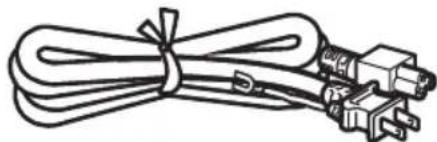
Line drawing of a coiled cable with connectors (no text or symbols)□ (4) Power cord ^2
natural_image
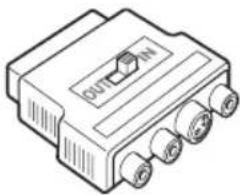
Line drawing of a rectangular electronic component with three ports and a central label (no readable text or symbols)□ (5) Scart adapter ^3
*1 Remote shape of TDP-ET10 is different from this figure. p.18
*2 The shape of supplied power cord varies on the product destination.
*3 Scart adapter is not supplied on some product destinations.
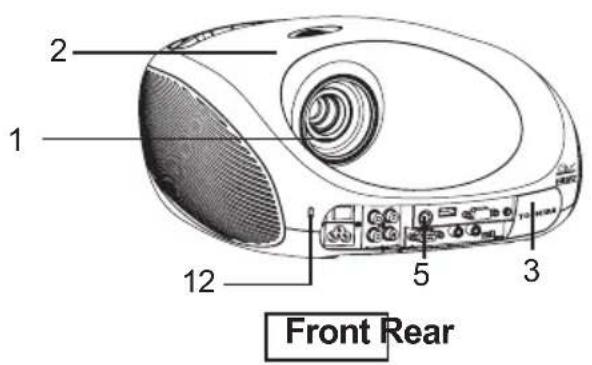
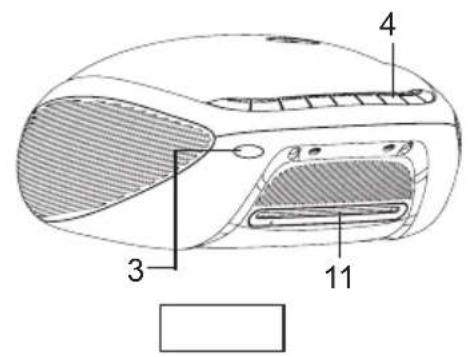
For more information, see the pages in parentheses.
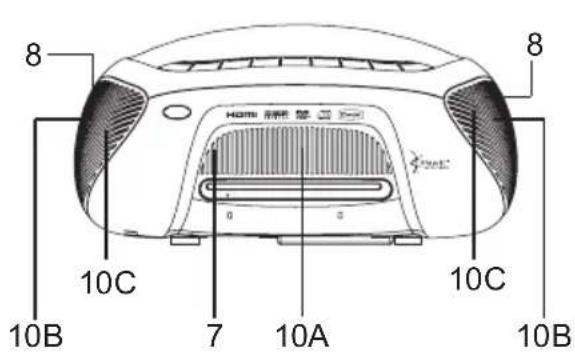
N a m e F u n c t i o n
(1) Lens Project expanded image.
(2) Focusing ring Adjust screen focus.
(3) Infrared remote sensor Sense commands from the remote control.
(4) Control panel Adjust the main functions of the projector.
(5) Terminal panel Connect external devices.
(6) Foot adjuster Adjust the vertical projection angle.
(7) Air intake Draw in air from outside the projector.
(8) Air exhaust
(9) Lamp cover
(10) Built-in 5.1 speakers
Open for lamp replacement. p.50
10A. Center speaker
10B. Front speakers
10C. Rear speakers
10D. Subwoofer speaker
(11) Disc slot (for TDP-ET20)
(12) Antitheft lock hole
Expel air that has grown hot inside the projector.
Built-in speakers to discrete audio channels.
Built-in speaker for center channel sound.
Built-in speaker for front channels sound.
Built-in speaker for rear channels sound.
Built-in speaker for subwoofer sound.
Insert DVD or CD disc. p.31
TOSHIBA recommend to use Kensington's MicroSaver or
ComboSaver for antitheft lock. For detail, please see the internet web site: www.kensington.com
p.18\~p.19
p.20
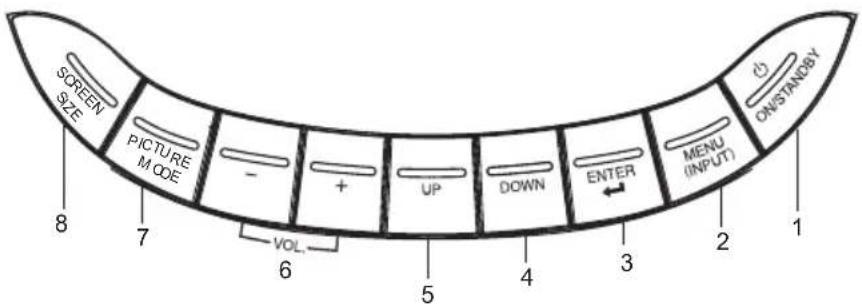
[TDP-ET10 control panel]
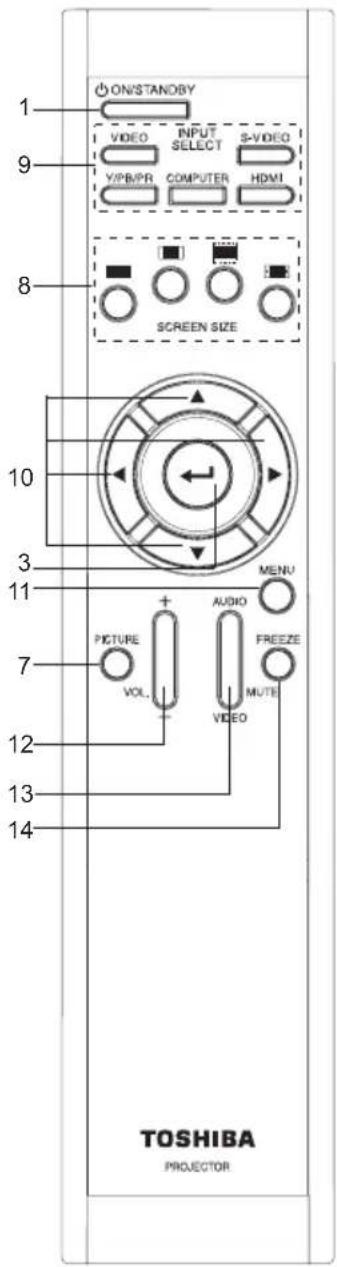
[TDP-ET10 Remote]
For more information, see the pages in parentheses.
(1) ON/STANDBY: Switch projector between ON and STANDBY.
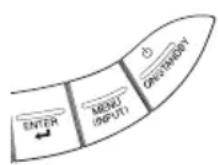
(2) MENU (INPUT) p.24 p.41:
Access the main programming menu or select input source.
(3) ENTER ⏻: Activate highlighted item in the on screen menu.
(4) DOWN: Move down and highlight the item.
(5) UP: Move up and highlight the item.
(6) + - : Increase / decrease the volume.
(7) PICTURE p.42: Select picture mode.
(8) SCREEN SIZE p.43 :
Select screen size: Full , Zoom , Theater Wide .

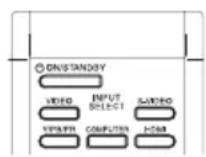
(9) INPUT SELECT p.24: Select Video, S-Video, YP _B PR, Computer, or HDMI.
(10) ▲ ▼ Select or adjust on screen programming menus.
(11) MENU p.41: Access the main programming menu.
(12) Vol +-: Increase / decrease the volume
(13) AUDIO MUTE: Cut off the sound temporarily.
VIDEO MUTE: Black out the projected image.
(14) FREEZE: Freeze the screen.
Control panel and remote control parts for TDP-ET20
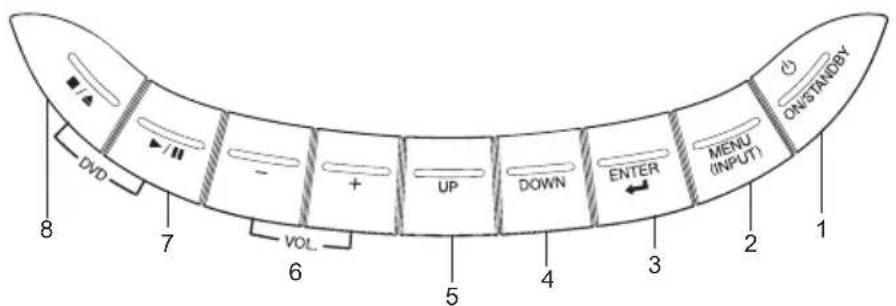
[TDP-ET20 control panel]
[TDP-ET20 Remote]
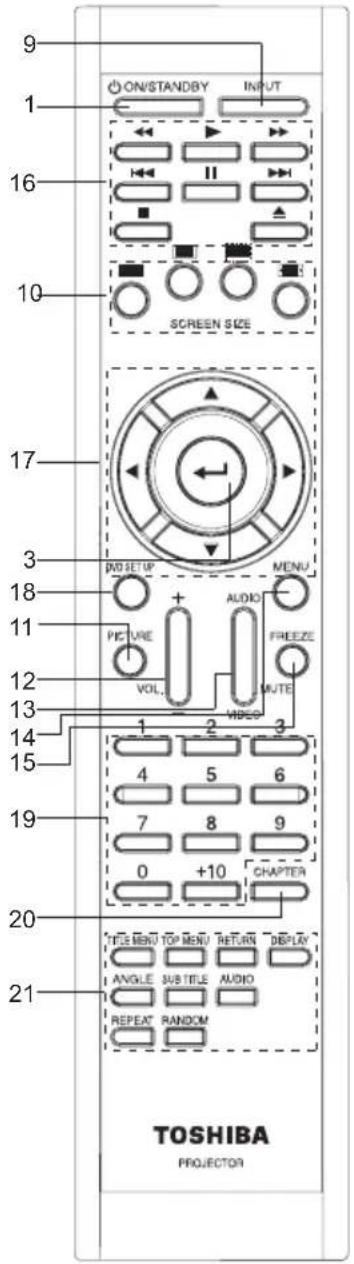
(1) ON/STANDBY: Switch the projector between ON and STANDBY.
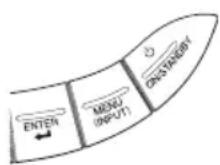
(2) MENU (INPUT) p.24 p.41: Access the main programming menu or select input source.
(3) ENTER ←: Activate highlighted items in the on screen menu.
(4) DOWN: Move down and highlights the item.
(5) UP: Move up and highlights the item.
(6) + - : Increase / decrease the volume.
(7) ▶Play the disc or Pause the disc.
(8) ■ / ▲ Stop the disc or Eject the disc.
(9) INPUT p.24: Select input source.
(10) SCREEN SIZE: Select screen size p.43
Full ■, 4:3 □oom , Theater Wide .
(11) PICTURE p.42: Select picture mode.
(12) VOL + -: Increase/decrease the volume.
(13) AUDIO MUTE: Cut off the sound temporarily.
VIDEO MUTE: Black out the projected image.
(14) MENU p.41: Access the main programming menu.
(15) FREEZE: Freeze the screen.
DVD Operation Keys
(16) Basic operation keys

(17) Navigation Keys

(18) DVD SETUP p.31 : Press to access the DVD setup menu.
(19) Number keys: Press number keys to play desired title.
(20) CHAPTER: Press to display Title/Chapter access menu. You can access desired section by pressing number and ◀▶◀ keys.
(21) Other operation keys
| TITLE MENU | Press to display the DVD title menu. |
| TOP MENU | Press to display the DVD root menu. p.37 |
| RETURN | Press to return to the upper level menu. |
| DISPLAY | Press to display information such as Title/Chapter/ Time etc. p.38 |
ANGLE Press to change angles in DVD. p.37
SUB TITLE Press to change subtitles setting. p.38
AUDIO Press to change soundtrack setting. p.38
REPEAT Press to change repeat playback mode. p.37
RANDOM Press to change random playback mode. p.37
For more information, see the pages in parentheses.
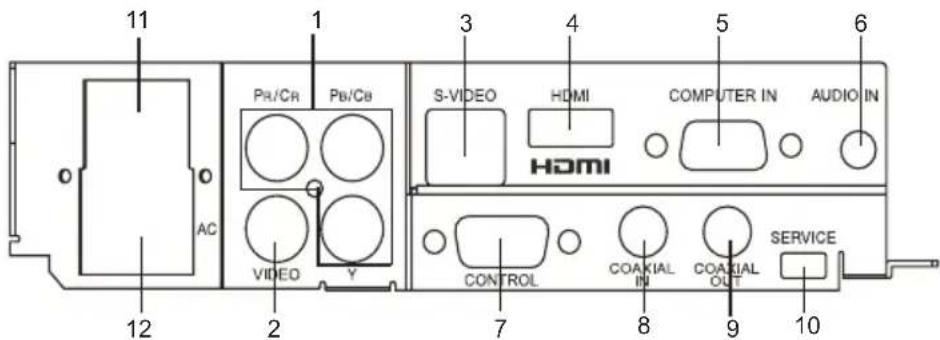
N a m e F u n c t i o n
(1) YP_BP_R/YC_BC_R (Component): Input component video signal from video equipment. p.24
(2) VIDEO terminal : Input video signal from video equipment.
(3) S-Video terminal : Input S-Video signals from video equipment.
(4) HDMI terminal : Input HDMI (Digital Audio/Video) signal from video equip-
ment. p.25
(5) COMPUTER IN terminal : Input RGB signal from a computer. p.25
(6) AUDIO IN terminal : Inputs audio signals from equipment with audio output.
(7) CONTROL serial terminal : When operating the projector via a computer, connect this to the controlling computer's serial port. p.57
(8) COAXIAL (Digital Audio) In : Inputs digital audio source with coaxial output. t e r m i n a l
(9) COAXIAL (Digital Audio) : Outputs digital audio signal to external audio system
Out terminal with coaxial input.
(10) Service terminal : For service purpose only.
(11) Main power switch : Switch power on/off
(12) AC In socket : Plug in AC Power
Note
Although this owner's manual abbreviates component video signals as YP_R , the product also supports signals from video equipment marked "YC B CR."
Preparing and using the remote control
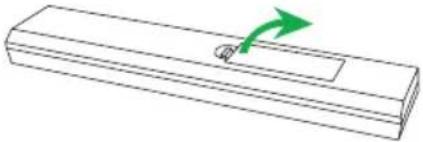
■ Loading dry-cell batteries into the remote control
(1) Remove the battery cover.
natural_image
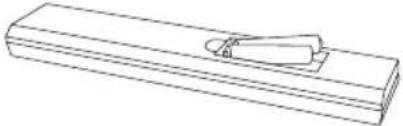
Simple line drawing of a rectangular object with a green arrow pointing to its side (no text or symbols)(2) Insert the dry-cell batteries.
Be sure to align the plus and minus ends of the batteries properly.
natural_image
Line drawing of a rectangular object with a clip attached, resembling a stylus or abstract form (no text or symbols)Two batteries (R03, size AAA) are used.
(3) Put back the battery cover.
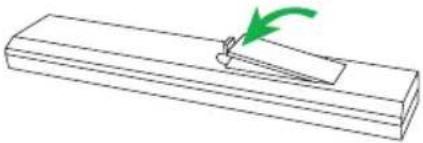
natural_image
Simple line drawing of a rectangular block with a green arrow pointing to its top edge (no text or symbols)- Point the remote control toward the projector's infrared remote sensor and press a button.
- Operating the projector from the front
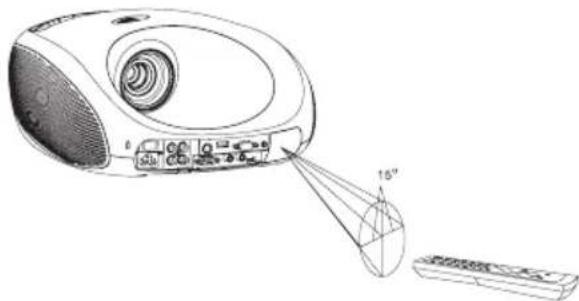
natural_image
Line drawing of a projector with a 16-inch angle indicator and a remote control unit (no text or symbols)- Operating the projector from the rear
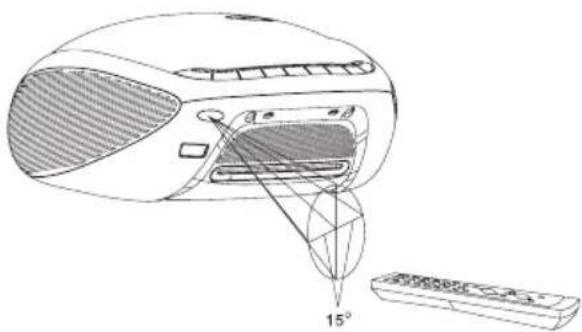
natural_image
Line drawing of a computer monitor with an open rear panel and a remote control unit, showing no text or symbols.Dry-cell batteries
- Before using the batteries, be sure to observe the Safety Precautions described in previous pages.
- Remove batteries from remote control when not using for extended periods.
- If the remote control stops working, or if its range decreases, replace all the batteries with new ones.
The remote control
- The remote control may fail to operate if the infrared remote sensor is exposed to bright sunlight or fluorescent lighting.
- Do not drop the remote control or strike it on a hard surface.
- Do not leave it in a hot or humid location.
- Do not get it wet or place it on top of wet objects.
- Do not take it apart.
- In rare cases, ambient conditions could impede the operation of the remote control. If this happens, point the remote control at the main unit and repeat the operation.
Placement Styles
This device can be placed in some different placement styles. The factory setting is "fl oormounted front projection" although you can modify the setting according to your needs. Set the Projection mode in accordance with your needs through remote control or control panel, enter SETUP menu.
| Floor-mounted front projection (Standard) | 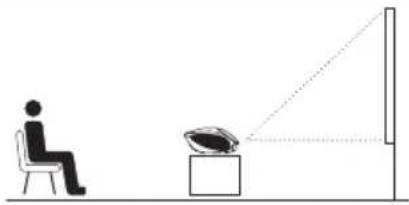 |
| Ceiling-mounted front projection (Ceiling)TDP-ET10 only | 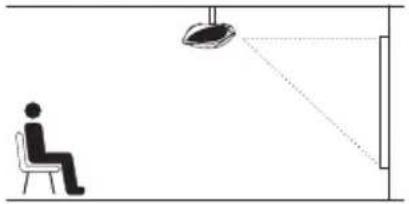 |
| Floor-mounted rear projection (Rear) | 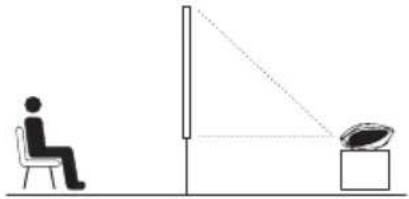 |
| Ceiling-mounted rear projection (Rear Ceiling)TDP-ET10 only | 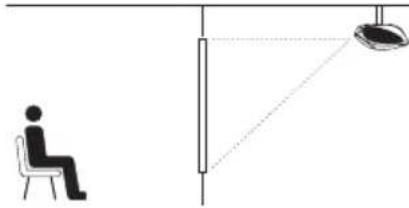 |
WARNING
• Always obey the instructions listed in the IMPORTANT SAFETY INSTRUCTIONS section of this manual when setting up the unit. Attempting to clean/replace the lamp at a high site by yourself may cause you to fall thus resulting in injury.
- If you wish to mount the projector on the ceiling, be sure to ask your dealer to do so. Mounting the projector on a ceiling requires special ceiling brackets (sold separately) and specialized installation knowledge. Improper mounting could cause the projector to fall resulting in a serious injury.
- If the projector is ceiling-mounted, install the breaker for turning off the power in case of anomaly. Let everyone involved with the use of the projector know that fact.
Note
In order to avoid image distortion, place the projector at fl at platform, the slope should not over 20 degree. Surface of projection screen or wall should be fl at and neat.
Projection Distance and Size
Use the figures, tables, and formulas below to determine the projection size and projection distance. (Projection sizes are approximate values for full-size picture with no keystone adjustment.)
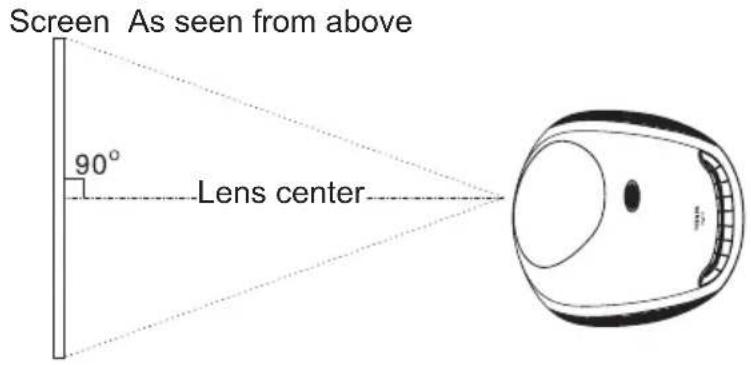
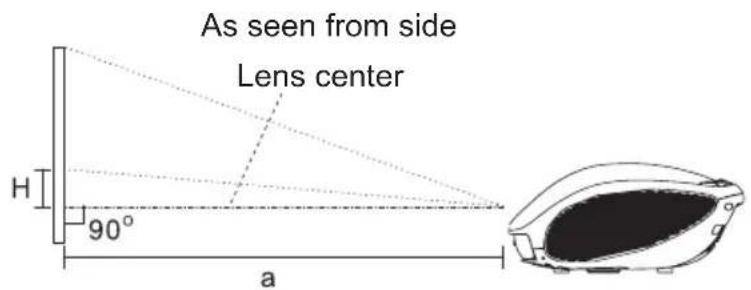
a (cm) = projection size (inches) x 1.433 - 13.32
H (cm) = projection size (inches) x 0.1868
“a” is the distance (cm) between front edge of the projector and the screen, and corresponds to a range of 40 cm to 177 cm. “H” is the height from the image bottom to the center of the lens.
| projection size inches (=cm) | projection distance a (cm) [inches] | height (H) (cm) [inches] | ||
| Edge of the projector to image | ||||
| 40 (=101.6 cm) 44.0 | [17.3] | 7.5 | [2.9] | |
| 50 (=127.0 cm) 58.3 | [23.0] | 9.3 | [3.7] | |
| 60 (=152.4 cm) 72.7 | [28.6] | 11.2 | [4.4] | |
| 80 (=203.2 cm) 101.3 | [39.9] | 14.9 | [5.9] | |
| 100 (=254.0 cm) 130.0 | [51.2] | 18.7 | [7.4] | |
| 120 (=304.8 cm) 158.6 | [62.5] | 22.4 | [8.8] | |
Before connection
- Some types of computers cannot be used or connected to this projector.
- Turn off the power of both devices before connecting.
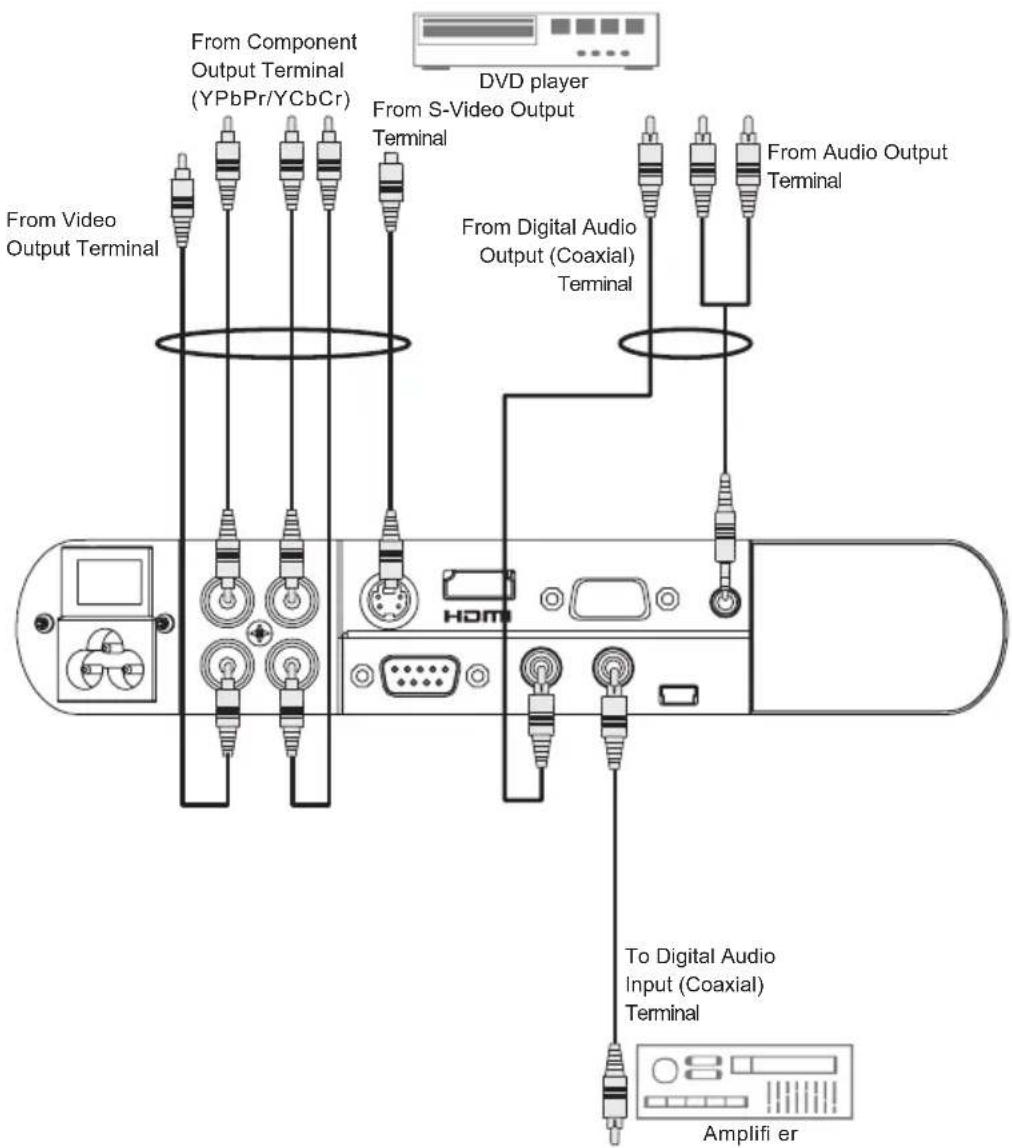
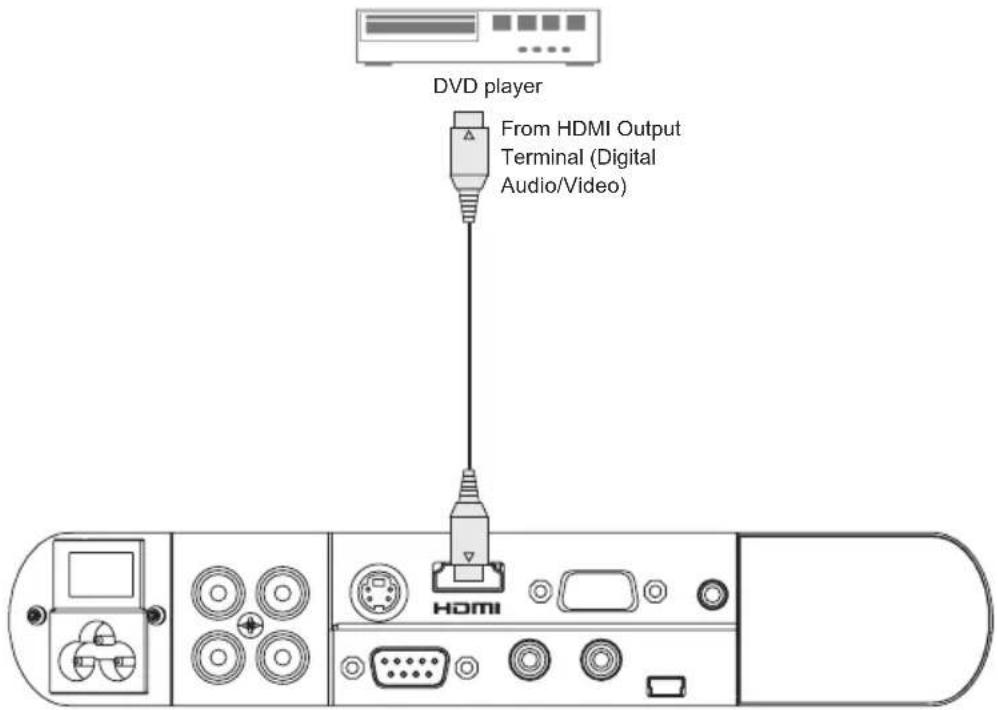
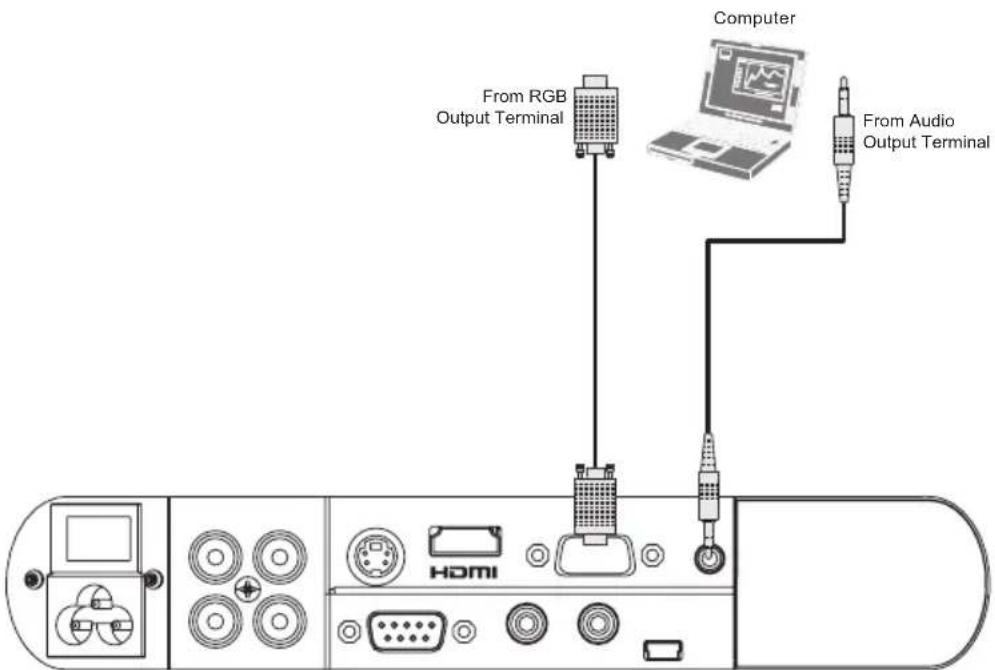
- The figure below is a sample connection. This does not mean that all of these devices can or must be connected simultaneously.
Overview of cable types:
| composite video cable S-Video cable | component video cable HDMI | cable | 3.5mm stereo audio cable | VGA computer cable |
■ Main Input
Connecting with Video/S-Video/Component
Connecting with HDMI
Connecting with Computer
Notes
• To select audio input, use On Screen menu, see p.28.
- Signals which resolution exceeds the native resolution (854 x 480 pixels) will be compressed. For this reason, some information may be lost, or image quality may be affected.
Turning the power on and off
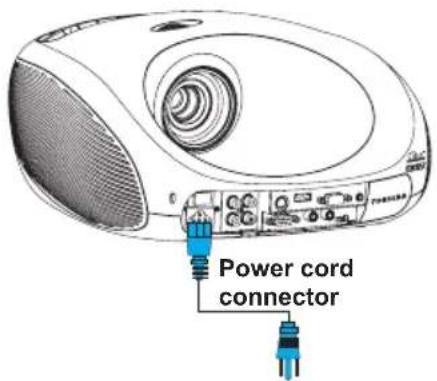
■ Connecting the power cord
① Insert the power cord connector into the AC IN socket of the projector.
② Insert the power cord plug into a wall or other power outlet.
■ Turning the power on
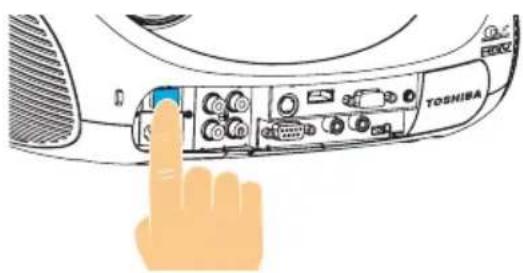
① Turn on the main power switch.
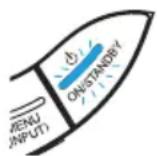
The blue LED at the Power key will start to flash, indicating standby mode.
② Activate the projector.
The projector can be activated by pressing the Power key on the control panel for 3\~5 seconds, or press the ON/Standby button on the remote control.
When the projector is activated, the red LED at the Power key starts to light up for seconds then off, all the blue LED on the control panel will light up and Start-up screen will display.
natural_image
Illustration of a hand pressing a button on a SonyISA computer interface (no text or symbols visible)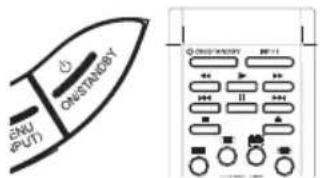
WARNING
- Do not look into the lens while the lamp is on. The strong light from the lamp may cause damage to your eyes or sight.
- Do not block the air intake or exhaust. Doing so could cause a fire due to internal overheating.
- Do not place your hands, face, or any other objects near the air exhaust. Doing so could cause injury or could deform or break the object.
- Turn off AC switch before plugging out power cable.
■ Using standby mode to save power and turning the power off
① Put the Projector into standby mode to save power.
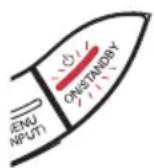
Pressing the ON/STANDBY button once, a power off indication message will appear. Press the ON/STANDBY button to put the projector into standby mode. The power off message has to be displayed for the second press of the power button to be valid.
When cooling lamp
A
Red: blink Blue: on
After cooling complete

B
Red: off Blue: blink
A The cooling fan will operate for about 60 seconds. In this state the power cannot be turned back on.
B In Standby mode. The ON/STANDBY indicator (Blue LED) is flashing.
② Press power switch to turn the power off.
Press the main power switch on the terminal panel to turn off the projector.
Note
- The projector consumes about 4W of power in standby mode. We recommend that you unplug the power cord or turn off the main power switch if you will not be using the projector for an extended period.
PRECAUTION
- If the power cord is unplugged before cooling is complete, give the lamp time (about 5 minutes) to cool before plugging it back in. If the lamp overheats, it may fail to light.
① Turn on the power.
Turn on the power by following the instruction in "Turning the power on" in p.26.
② Activate the connected device.
Turn on and start the connected device.
③ Select MENU language.
This projector can display the on screen language in English, French, German, Spanish, Italian, Portuguese, Japanese, Traditional Chinese, Simplified Chinese and Korean.
(1) Press [MENU] key to display MENU.
(2) Select SETUP icon using [UP] [DOWN] or ⚠️ key and press .
(3) Select 'Language' and press ⊙.
(4) Press [UP] [DOWN] or ⬆▼key to select desired language.
4 Select the INPUT source.
Input source can be changed using menu system.
(1) Press [MENU] key to display MENU.
(2) Select INPUT icon using [UP] [DOWN] or key and press .
(3) Select 'Main input' to select video input and press ⊙.
(4) Press [UP] [DOWN] or ⬆ key to select desired input source.
Audio input source also can be changed.
(5) Press [MENU] key to return the top of INPUT page.
(6) Select 'Audio input' to select audio input and press ⊖.
(7) Press [UP] [DOWN] or ⚠️▼key to select desired audio input source.
Selected Audio input source is memorized for each video input.
Audio input will be changed automatically when video input source is changed.
Select input source by pressing [INPUT] key on the remote control as well.
or
or
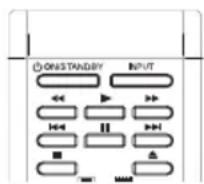
TDP-ET10
TDP-ET20
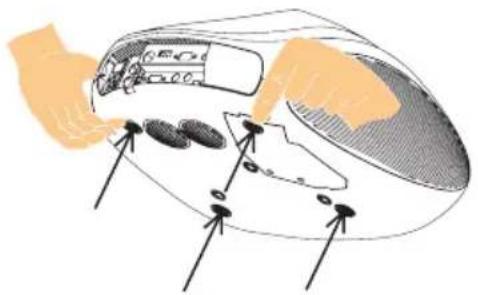
⑤ Projector placement angle adjustments
(1) There are 4 adjustable feet on bottom of the projector.
Each foot height can be adjusted by screwing and the placement angle and the height of the projected image can be changed.
(2) To adjust the projection size, it is needed to change placement closer/farther to the projection screen.
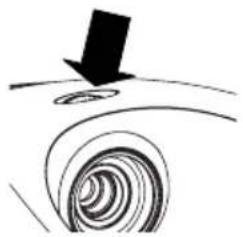
⑥ Adjusting the focus
Use focusing ring to adjust the focus.
natural_image
Abstract spiral pattern with a black arrow pointing downward (no text or symbols)7 Select a screen size (aspect ratio)
The aspect ratio is the ratio of image width to image height. HDTV and most DVD movies are 16:9, which is the default for this projector. Most TV programs are 4:3.
The image ratio can be changed using the 'SCREEN SIZE' button on the remote control. (Screen size can also be selected in 'PICTURE' page in MENU system.)
Select an aspect ratio to suit the format of the video signal. The following four aspect ratios are available.
(1) Full:
Scales an image so that it is displayed in the full of the screen in 16:9 aspect ratio. This mode is best for squeeze-signal video images.
(2) 4:3:
Scales an image so that it is displayed in the center of the screen in 4:3 aspect ratio. This mode is best for 4:3-signal video images.
(3) Zoom
Enlarges an image with letterbox format to display it in full screen format in 16:9 aspect ratio. The upper and lower portions of the image are cropped. Use this setting for wide-screen video in letterbox format.
(4) Theater Wide®:
A 4:3 aspect ratio image is enlarged NON-linearly in horizontal direction to accommodate 16:9 full-screen display. This stretches only the right and left sides of the image; the central part is unchanged. This mode is best for 4:3-signal video images displayed on a wide screen.
When input signal format is 1080i or 720p, actual screen size is fixed to Full without regard to the screen size setting.
8 Adjusting the volume
The speaker volume can be adjusted by pressing [-] [+] key on control panel or remote control.
⑨ Turning off the power
Turn off the power by following the instruction in "Turning the power off" in p.27.
Note
- Note that a lamp characteristics may rarely cause the brightness to fluctuate slightly.
- A lamp is consumable item. If used for extended periods, images will appear dark, and the lamp could burn out. This is characteristic of a lamp, and is not malfunction. (The lifetime of the lamp depends on conditions of use.)
- The DMD ^TM is made using extremely advanced technology, but there may be black spots (pixels that do not light) or bright spots (pixels that are constantly lit) on the panel. Please note that these are not malfunctions.
- Although this projector supports a wide range of RGB signals, any resolutions not supported by this projector (WVGA) will be expanded or shrunk, which will affect image quality slightly. To view high-quality images, it is recommended that the computer's external output should be set to WVGA (854 × 480) resolution.
- With some models of computer having LCD displays or the like, displaying images simultaneously on the projector and the monitor's display may prevent the images from displaying properly. If this happens, turn off the computer's LCD display. For information on how to turn off the LCD display, see the owner's manual of your computer.
- If a signal not supported by the projector is input, the “Unsupported signal” will appear.
- If no signal is being input from the connected device, the "No signal" will appear.
About DVD VCD CD
The DVicons on the heading bar show the playable discs for the function described under that heading.
DVD You can use this function with DVD video discs.
VCD You can use this function with Video CDs.
CD You can use this function with Audio CDs and CD-R/RW discs.
Setup the DVD player.
You can setup the DVD player setting.
(1) Press [DVD SETUP] key on the remote control when DVD input is selected. DVD setup menu will appear.
(2) In DVD setup menu, there are 2 pages. One is SYSTEM SETUP page and the other is LANGUAGE SETUP page. Press 🔒 key to select page and press 🔒 key to select each setup item.
(3) To exit from DVD setup menu, press 🔒▶▶▶key to select EXIT SETUP or [DVD SETUP] key again.
PASSWORD (For Parental control)
Unlock the password lock
To change parental level or password, it is required to enter password (4 digit security code) for unlocking.
(1) Select the PASSWORD in SYSTEM SETUP page and press ⏻ or ⏻key.
(2) Press number key to input current password and press key (If the password has not been set yet after you purchase this projector, it is '0000').
(3) If correct password is entered, will appear. If is still displayed, it means entered password is incorrect. Please enter the correct password again.
Enter new password
New password can be set to replace the default password.
(1) Select PASSWORD in SYSTEM SETUP page and press ⊖ or ⬇key.
(2) Please make sure is displayed. If is displayed, it is required to unlock the password lock.
(3) Press number button to input new password and press ⏻ key. Be sure to remember this number.
If you forget the password, you can erase your current password by entering password as '1048'.
PARENTAL
DVD discs equipped with the password function are rated according to their content. The contents allowed by a parental lock level and the way a DVD disc can be controlled may vary from disc to disc.
Notes
DVD video discs may or may not respond to parental lock settings. This is not a defect in the DVD player. Make sure this function works with your DVD video discs.
Before changing the rating, it is required to enter password for unlocking. Please see the PASSWORD heading. p.31
(1) Select RATING in SYSTEM SETUP page and press ⏻ or ⏻key.
(2) Press ⚠▼key to select the rating from 1 to 8. Rating 1 is restrictive while rating 8 can virtually playback all DVD software.
The parental lock level is equivalent in USA to following.
Level 1: Kid safe
Level 2: G
Level 3: PG
Level 4: PG-13
Level 5: PG-R
Level 6: R
Level 7: NC-17
Level 8: Adult
RESET
DVD setting except PASSWORD can be set to factory default using this menu.
(1) Select DEFAULT in SYSTEM SETUP page and press ⏻ or ⬇key.
(2) Select RESTORE to set DVD setting to factory default.
Notes
This function only effects DVD setting. Other setting such as projector setting will not set to default if restored.
DIVX® VOD
Some Divx Video-On-Demand fi les require registration code. Please get the code of your DVD video player as follow:
(1) Select DIVX ^® VOD in SYSTEM SETUP page and press ☑ or key.
(2) Your registration code will be shown.
Notes
This registration code is for DIVX ^® Video-On-Demand only, do not apply this code for other applications or website.
PBC setting

This DVD supports Video CDs equipped with the PBC (Version 2.0) function. (PBC is the abbreviation of Playback Control.) You can enjoy two playback variations depending on types of discs.
• Video CD not equipped with PBC function (Version 1.1)
Sound and movie can be played on this DVD in the same way as an audio CD.
• Video CD equipped with PBC function (Version 2.0)
In addition to operation of a Video CD not equipped with the PBC function, you can enjoy playback of interactive software with search function by using the menu displayed on the screen (Menu Playback).
Some of the functions described in this owner's manual may not work with some discs.
(1) Select PBC in SYSTEM SETUP page and press ⏻ or ▶key.
(2) Press ▲▼key to select ON/OFF and press key.
OSD LANGUAGE
On Screen Display (OSD) language can be selected in this menu. This setting is effective for DVD input only.
(1) Select OSD LANG in LANGUAGE SETUP page and press ⏻ or ⏻key.
(2) Press ⚠▼key to select OSD language and press key.
AUDIO LANGUAGE

Audio language can be selected in this menu. If you want to output other language, please use [Audio] key on the remote while playing the DVD.
(1) Select AUDIO LANG in LANGUAGE SETUP page and press ⏻ or ⬇key.
(2) Press ⚠▼key to select Audio language and press key.
Notes
Some DVD video discs may be played in a different language other than you selected. A prior language may be programmed on the disc.
SUBTITLE LANGUAGE DVD
Subtitle language can be selected in this menu. If you want to display other language, please use [Subtitle] key on the remote during play the DVD.
(1) Select SUBTITLE LANG in LANGUAGE SETUP page and press ⏻ or ⏻key.
(2) Press ▲key to select Subtitle language and press key.
Notes
Some DVD video discs may be set to display subtitles in a different language other than you selected. A prior subtitle language may be programmed on the disc.
Some DVD video discs allow you to change subtitle selections only via the disc menu. If this is the case, press the [TOP MENU] key on the remote and choose the appropriate subtitle language from the selection on the disc menu.
MENU LANGUAGE DVD
DVD menu language can be selected in this menu.
(1) Select MENU LANG in LANGUAGE SETUP page and press ⏻ or ▶key.
(2) Press ⚠▼key to select DVD menu language and press key.
Notes
Some DVD video discs may not include your pre-selected language. In this case, the DVD video player automatically displays disc menus consistent with the disc's initial language setting.
Playing a disc.
1. Basic playback DVD VCD CD
(1) Turn on the power and select DVD input.
(2) The DVD startup screen will appear on the screen.
(3) Load the disc in the disc slot with the label side facing up. (If the disc has a label.) Hold the disc without touching either of its surfaces, align it with the guides, and place it in position.
Notes
Insert a disc horizontally into the DVD disc slot, do not jam or force it strongly, otherwise the DVD may malfunction or the disc might be damaged.
(4) "LOADING" appears on the screen, then playback starts.
- A menu screen will appear on the screen, if the disc has a title menu.
- Press ◄ ▶ 📋 the remote control to select title, then press ENTER. Title is selected and play commences.
(5) Press VOL [+] [-] to adjust the volume.
Notes
When using an amplifier, adjust the volume with the amplifier.
(6) Press ■/ ▲ or ⊙ to end playback.
Resume feature
- Depending on the disc you are playing, when you press STOP one time, the DVD memorizes the location where playback is stopped. Press ▶ / 📄or 📋 resume the playback from the stopped location.
- If you press ☐ again or eject the disc, the DVD will clear the stopped location.

CAUTION
Never insert your finger into the disc hole when load the disc to the disc slot. Keep your fingers well clear of the disc slot when disc is loading or unloading. Neglecting to do so may cause personal injury.
Notes
Strong static electricity may affect the DVD player's operation and cause it not to work properly. If this happens, please try followings.
(1) Press ■/▲ key for 5 seconds. DVD player will eject the disc.
(2) If DVD player still don't work, turn OFF the POWER, disconnect and then reconnect the AC power cord, and turn ON the projector again.
To start playback in the stop mode:
Press ▶/ or ⊙
To pause playback (still mode):
Press ▶/ or 📋 during playback.
To resume normal playback, press ▶ / 📄 or ▶
- The sound is muted during still mode.
- If ^11 is pressed during pause, DVD plays frame by frame DVD VCD
To stop playback:
(1) Press ■/▲ or □
To remove the disc:
(1) Press ■/▲ during stop or ⏻
(2) Remove the disc after the disc comes out.
Notes
- If a non-compatible disc is loaded, "WRONG REGION" will appear according to the type of loaded disc. In this case, check your disc again.
- Some discs may take a minute or so to start playback.
- If you insert a single-sided disc the wrong way, "READ" will appear on the display for about 20-40 seconds. Then "NO DISC" will display and the disc will be ejected automatically.
- Some discs may not resume playing the same scene after stopping.
- Some playback operations of DVDs may be intentionally fixed by software producers. Since this projector plays DVDs according to the disc contents the software producers designed, some playback features may not be available. Also refer to the instructions supplied with the DVDs.
-
Do not move the projector during playback. Doing so may damage the disc. If you want to move the projector to other place or room, be sure to eject the disc and turn off the power beforehand.
-
If the disc is not loaded even if the disc is inserted into the DVD disc slot, remove the disc once and try to load the disc again.
- Do not put any objects other than discs in the disc slot. Doing so may cause the projector to malfunction.
- When you press a button, there may be a slight delay before the function activates.
2. Playing in fast reverse or fast forward directions DVD VCD

(1) Press or during playback.
(REW): Fast reverse playback (2X-20X)
(FF): Fast forward playback (2X-20X)
Each time you press ⏻ or ⏻ the playback speed changes.
To resume normal playback, press ▶/|| or ⏻
Notes
- The projector mutes sound and subtitles during reverse and forward scan of DVD video discs. However, the projector plays sound during fast forward(x2) or fast reverse(x2) play of audio CDs.
- The playback speed may differ depending on the disc.
3. To pause playback (still playback) DVD VCD CD
P r▶/e| or s during playback.
To resume normal playback, press ▶/∥ or ⊕
Notes
The sound is muted during still playback.
4. Locating a chapter or track DVD VCD CD
(1) Press or repeatedly during playback to select the chapter or track you want.
Playback starts from beginning of the selected chapter or track.
Notes
The “INVALID KEY” symbol may appear at the upper left of the screen. This means either the feature you tried is not available on the disc, or the DVD cannot access the feature at this time. This does not indicate a problem with the DVD.
5. Repeat playback DVD VCD CD
Repeat playback allows you to repeat Chapter/Title/All (DVD) or Track/All (CD/VCD).
(1) Press [REPEAT] on the remote control during playback or stop mode.
Repeat mode will change repeatedly as following.
CD/VCD: Track ▶ All ▶ Off
- If you press ■/▲ or □the Repeat function ends and playback stops.
• Some discs may not permit the repeat operation.
- Repeat does not work with an interactive DVD
6. Random playback DVD VCD CD
The DVD selects tracks or fi les at random and playback.
(1) Press [RANDOM] on the remote during playback.
Random mode will change ON or OFF.
7. Changing angles DVD
When playing back a disc recorded with multi-angle facility, you can change the angle that you are viewing the scene from.
(1) Press [ANGLE] on the remote control during playback.
The current angle will appear.
(2) Press [ANGLE] repeatedly until the desired angle is selected.
Notes
Depending on the DVD, you may not be able to change the angles even if multi-angles are recorded on the DVD.
8. Title selection DVD
Two or more titles are recorded on some discs. If the title menu is recorded on the disc, you can select the desired title.
(1) Press [TOP MENU] on the remote control during playback.
Title menu appears on the screen.
(2) Press ◀▶▶▶to select the desired title.
(3) Press ← or ▶
The playback of the selected title will start.
Notes
- Depending on the DVD, you may not be able to select the title.
- Depending on the DVD, a "title menu" may simply be called a "menu" or "title" in the instructions supplied with the disc.
- Depending on the DVD, the title menu may be displayed automatically when the disc is loaded.
- Depending on the DVD, a chapter menu may be displayed after you select a title.
9. Changing soundtrack language DVD VCD
You can select the language when you play a multilingual disc.
(1) Press [AUDIO] on the remote control during playback. The current soundtrack language will appear.
(2) Press [AUDIO] on the remote control repeated until the desired language is selected.
- The on screen display will disappear after a few seconds.
Notes
- If the desired language is not heard after pressing the button several times, the language is not recorded on the disc.
- Changing soundtrack language is cancelled when you eject the disc. The initial default language or available language will be heard if the disc is played back again.
- If you select DTS in playing DTS-encoded disc, no sound will be heard from the projector's speakers.
- Depending on the DVD, you may not be able to select the language by [AUDIO] key. It may be selected in the Title menu.
10. Subtitles DVD
When playing back a disc recorded with subtitles, you can select the subtitle language or turn the subtitle off.
(1) Press [SUBTITLE] repeatedly during playback until you desired language appears.
(2) To turn off the subtitle, press [SUBTITLE] until "OFF" appears.
- The "OFF" on screen display will disappear after a few seconds.
Notes
- Depending on the DVD, you may not be able to change subtitles, or to turn subtitles on or off.
- While playing a DVD, the subtitle may change when you loaded or eject the disc.
• In some cases, a selected subtitle language may not be changed immediately.
11. Display status

With press of [DISPLAY], the status of the disc will appear on the screen as follows:
(1) When DVD video is playing.

- Press [Display] again

- Press [Display] again to erase this OSD.
(2) When CD/VCD is playing.

- Press [Display] again to erase this OSD.
12. Multimedia fi les on DVD/CD playback CD DVD
(1) Load a disc on which Multimedia fi les have been recorded in the disc slot.
(2) A file menu screen will appear on the screen.
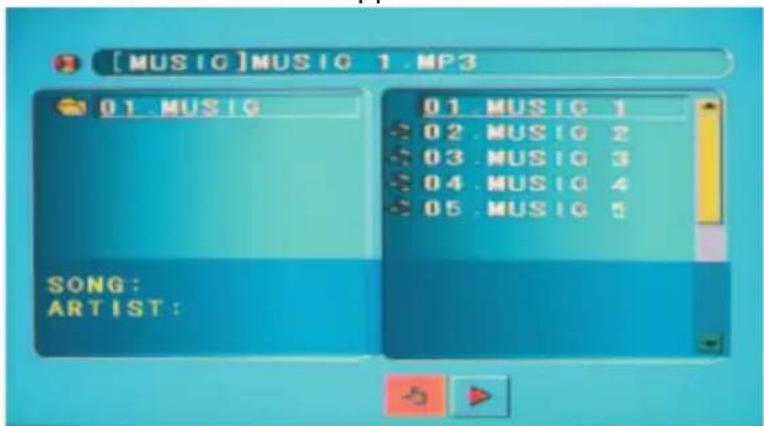
P r ◀ ⓔ s s to change folder window, fi le window, or fi le type buttons.
To change fi le types to play, press until fi le type display button is highlighted. And select following one fi le type icon desired and press ⏻.
M P 3 : Divx:
(3) In fi le window, press ⚠ 📋 Number buttons (0-9) to select the desired folder/fi le.
The selected file starts playing back.
(4) Press ☐ to end playback.
Notes
- File name can't be displayed correctly in some languages such as Japanese, Chinese, and Korea etc.
• Supported Divx fi le: ver. 3.11/4.0/5.x - A file name must incorporate "mp3", "divx", or "avi" extension.
TDP-ET20 DVD Playback (Continued)
- CD fi le system: ISO9660 Level1, 2, or Joliet.
- This internal DVD video player requires discs/recordings meet certain technical standards in order to achieve optimal playback quality. Pre-recorded DVDs are automatically set to these standards. There are many different types of recordable disc formats (including CD-R containing MP3/Divx fi les). Because this area of technology is still evolving, Toshiba cannot guarantee that all recordable discs will produce optimal playback quality. The technical criteria set forth in this owner's manual are meant only as a guide.
- You must obtain any required permission from copyright owners to download to download or use copyrighted content. Toshiba cannot and does not grant such permission.
You can call up on-screen menus, and conduct a number of adjustments and settings using the operation buttons p.18 p.19 on the control panel (main unit side) and remote control.
■ How to use the menus
The menu shown below is for operation instructions purposes and might differ from the actual display.
- Press the [MENU] button. Display the menu.
- Select a category.
Select the category using ⚠️/ [UP] [DOWN] key. There are following 5 categories:

Input menu p.42
Picture setting menu p.42
Audio setting menu p.45
Setup menu p.46
Status display menu p.47
![Inputs Input Source: DVD Video input DVD Component HDMI Video S-vides Computer Audio input DVD [UP] / [DOWN] Select [ENTER] Enter [MENU] Return](/content/2026/05/805115/images/cbb697586d0b40d5f0c208d5903da29f928d3b0ca1e37cab631a6164a1360202.jpg)
Displays the current adjustments and settings of selected category.
Item shown with gray cannot be adjusted with the current input source.
3. Adjustment & Settings
Press ⬤ to enter the selected category. Select item with ⚠[UP] [DOWN] key and press ⬤ again.
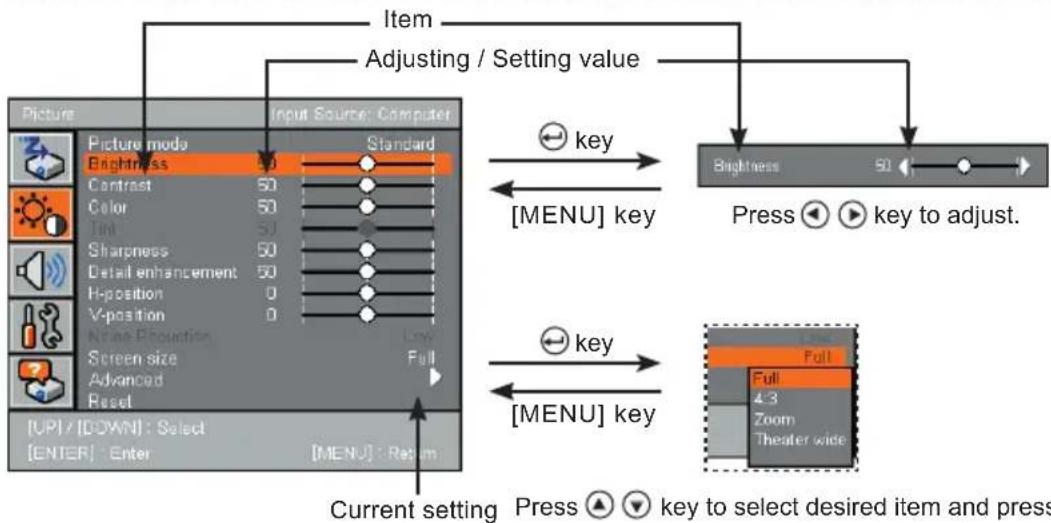
flowchart
graph TD
    A["Item"] --> B["Adjusting / Setting value"]
    B --> C["Picture Mode"]
    C --> D["Brightness: 50"]
    C --> E["Contrast: 50"]
    C --> F["Color: 50"]
    C --> G["Dim: 50"]
    C --> H["Sharpness: 50"]
    C --> I["Detail enhancement: 50"]
    C --> J["H-position: 0"]
    C --> K["V-position: 0"]
    C --> L["Name Resolution: Low"]
    C --> M["Screen size: Full"]
    C --> N["Advanced"]
    C --> O["Reset"]
    P["Current setting"] --> Q["Press ▲▼ key to select desired item and press"]
    R["Key"] --> S["[MENU"] key]
    T["Key"] --> U["[MENU"] key]
    V["Key"] --> W["[MENU"] key]
    X["Key"] --> Y["[MENU"] key]
    Z["Key"] --> AA["[MENU"] key]
    AB["Key"] --> AC["[MENU"] key]
    AD["Key"] --> AE["[MENU"] key]
    AF["Key"] --> AG["[MENU"] key]
    AH["Key"] --> AI["[MENU"] key]
    AJ["Key"] --> AK["[MENU"] key]
    AL["Key"] --> AM["[MENU"] key]
    AN["Key"] --> AO["[MENU"] key]
    AP["Key"] --> AQ["[MENU"] key]
    AR["Key"] --> AS["[MENU"] key]
    AT["Key"] --> AU["[MENU"] key]
    AV["Key"] --> AW["[MENU"] key]
    AX["Key"] --> AY["[MENU"] key]
    AZ["Key"] --> BA["[MENU"] key]
The figure shows displays given for operation instructions purposes. As the display may differ depending one the item, use the following pages as a reference.
4. Press the MENU button.
The category selecting menu is displayed.
5. End Press the MENU button.
(The menu disappears 30 seconds after the last operation.)
■ Input MENU
Video input source and audio input source can be selected separately in this projector.
Video input
Video input source can be selected in this menu from DVD, Component, HDMI, Video, S-video and Computer.
Press ⏻. Select with ⬆ [UP] [DOWN] key.
Audio input
Audio input source can be selected in this menu from DVD, HDMI, Digital (Coax) and Analog. Audio input source links to the video input source and it is memorized.
For example, after analog is selected for audio input when video input is S-video, analog will be selected automatically for audio input whenever S-video is selected for video input.
Press ⏻. Select with ⬆ [UP] [DOWN] key.
■ Picture setting MENU
Picture mode
Select a picture mode. The following four modes are available for each input.
- Standard
- Dynamic
- Theater 1
- Theater 2
Press ⏻. Select with ⚠️ [UP] [DOWN] key.
Brightness
Adjust the brightness of the image.
Press ⏻. Adjust with ⏻ - or ⏻+ ] (Brighter) key.
Contrast
Adjust the image contrast.
Press ⏻. Adjust with ⏻[ - ] (Lower) or ⏻+ ] (Higher) key
Color
Adjust the color of the image.
Press ⏻. Adjust with ⏻[ - ] (Lighter) or ⏻+ ] (Deeper) key.
Tint
Adjust the tint of the image color.
Press ⬇. Adjust with ⬇[ - ] (Reddish) or ⬇+ ] (Greenish) key.
This can be adjusted only when video input source is video/s-video and input signal is NTSC or NTSC4.43.
Sharpness
Adjust the sharpness of the image.
Press ⏻. Adjust with ⏻[ - ] (Softer) or ⏻+ ] (Sharper) key.
Detail Enhancement
Set the function to enhance detail of the image.
Press ⏻. Adjust with ⏻[ - ] (Lower) or ⏻+ ] (Higher) key.
H-position
Adjust horizontal position of the image.
Press ⏻. Adjust with ⏻[ - ] (Move left) or ⏻+ ] (Move right) key.
This can be adjusted when input source is Computer or HDMI.
V-position
Adjust vertical position of the image.
Press ⏻. Adjust with Ⓐ[-] (Move down) or Ⓜ[+] (Move up) key.
This can be adjusted when input source is Computer or HDMI.
Noise Reduction
Adjust the function to reduce screen noise.
Press ⏻. Select from Off/Low/Mid/High with Ⓐ/ [UP] [DOWN] key.
Screen Size
Set the screen size (aspect ratio) of the projection image.
- Press ⏻. Select from Full/4:3/Zoom/Theater wide with ⚠️/☐UP] [DOWN] key.
- When input signal format is 1080i or 720p, actual screen size is fixed to Full without regard to the screen size setting.
Advanced
Detailed adjustment is available in Advanced MENU.
Press ⬇ to go to advanced MENU.
Reset
Reset Picture setting MENU adjustments and settings to factory default.
Press ⏻. Confirmation window will appear and select [Yes] with ⏻[ - ] or ⏻[ + ] key and press ⏻ to reset.
Advanced MENU
Overscan
Adjust overscan ratio of the image.
Press ⏻. Adjust with ⏻[ - ] (Lower) or ⏻[ + ] (Higher) key.
No overscan when set to 100%
NTSC mode
Set the black level for video/s-video input.
Press ⬇. Select US(7.5IRE)/Japan(0IRE) with ⚠/☐UP] [DOWN] key.
This can be adjusted only when video input source is video/s-video and input signal is NTSC or NTSC4.43.
HDMI mode
Set the black/white level for HDMI input.
Press ⏻. Select HDMI/DVI with ⬆/fUP] [DOWN] key.
This can be adjusted when input source is HDMI.
Frequency
Adjust the sampling frequency to eliminate periodic patterns and flickering when many vertical lines appear on the screen.
Press ⏻. Adjust with ⏻[ - ] or ⏻[ + ] key.
This can be adjusted when input source is Computer.
Phase
Adjust the sampling phase to eliminate fl icker.
Press ⏻. Adjust with ⏻[ - ] or ⏻[ + ] key.
This can be adjusted when input source is Computer.
Mpeg NR
Adjust the detail of noise reduction. Mpeg noise reduction level.
Press ⏻. Adjust with ⏻[ - ] (Lower) or ⏻+ ] (Higher) key.
Reset
Reset Advanced picture setting MENU adjustments and settings to factory default.
Press ⏻. Confirmation window will appear and select [Yes] with ⏻[ - ] or ⏻[ + ] key and press ⏻ to reset.
■ Audio setting MENU
Volume
Adjust the volume of sound.
Press ⏻. Adjust with ⏻[ - ] (Lower) or ⏻+ ] (Higher) key.
Bass
Adjust the bass level of sound.
Press ⏻. Adjust with ⏻[ - ] (Lower) or ⏻+ ] (Higher) key.
Treble
Adjust the treble level of sound.
Press ⏻. Adjust with ⏻[ - ] (Lower) or ⏻+ ] (Higher) key.
Surround
Set the surround mode of speaker output.
Press ⏻. Select from Stereo/Dolby/Concert Hall/Stadium with ⚠️ [UP] [DOWN] key.
- When Dolby is selected, surround mode are changed automatically between Dolby digital and Dolby Pro Logic II in accordance with input audio signal format. (Dolby digital is available only when input signal format is AC-3)
L/R reverse
Set L channel /R channel speaker output reversed.
When this projector is used in ceiling mount or rear projection, it is recommended to speaker output reversed.
Press ⏻. Select On/Off with ⬆/☐UP] [DOWN] key.
Center
Adjust the center speaker output level.
Press ⏻. Adjust with ⏻[ - ] (Lower) or ⏻+ ] (Higher) key.
Digital Audio Delay
This projector uses high quality video processing system and it takes some frames period to process. Digital audio delay can adjust the audio delay for audio-video synchronization.
Press ⏻. Adjust with ⏻[ - ] (Shorter) or ⏻+ ] (Longer) key.
Sub-Woofer
Adjust the sub-woofer output level.
Press ⏻. Adjust with ⏻[ - ] (Lower) or ⏻+ ] (Higher) key.
Reset
Reset Audio setting MENU adjustments and settings to factory default.
Press ⏻. Confirmation window will appear and select [Yes] with ⏻[ - ] or ⏻+ ] key and press ⏻ to reset.
Setup MENU
Language
Select a language used in menu system. The following ten languages are available.
- English
- French (Français)
- Germany (Deutsch)
- Italian (Italiano)
- Spanish (Español)
- Portuguese (Português)
- Japanese (日本語)
- Simplified Chinese (简体中文)
- Traditional Chinese (繁體中文)
-Korean(한국어)
Press ⏻. Select with ⬆ [UP] [DOWN] key.
H-Keystone
Correct the horizontal keystone distortion of the screen.
Press ⏻. Adjust with ⏻[ - ] (Shrinking leftward) or ⏻+ ] (Shrinking rightward) key
V-Keystone
Correct the vertical keystone distortion of the screen.
Press ⏻. Adjust with ⏻[ - ] (Shrinking downward) or ⏻+ ] (Shrinking upward) key
Notes
- Depending on the amount of keystone adjustment and the content of images, some information may be lost, or the picture quality may suffer.
- Keystone adjustment will not change the shape of the menus (OSD) and the background (with no signal input).
Lamp Time Reset
Reset the lamp timer to zero.
This should only be done after the lamp has been replaced.
Press ⏻. Confirmation window will appear and select [Yes] with ⏻[ - ] or ⏻[ + ] key and press ⏻ to reset.
Lamp Power
Set the lamp power.
When lamp power is set to high, the screen becomes brighter, but the fan noise become a little increased.
Press ⬇. Select from Standard/High with ⬇/[fUP] [DOWN] key.
Fan mode
Set the cooling fan speed.
Setting fan mode to high increases the cooling fan speed. Set this option to use the projector at high altitude (over 1800 meter / 6000 feet above sea level)
Press ⏻. Select from Standard/High with ⬆/☐UP] [DOWN] key.
Projection mode
Sets projection mode in accordance with placement style. p.22
The following four modes are available.
- Standard
- Ceiling (TDP-ET10 only)
- Rear
- Rear ceiling (TDP-ET10 only)
Press ⬇. Select with ⬆/ [UP] [DOWN] key.
Keypad Light
Set keypad light on or off.
Press ⏻. Select from On/Off with ⬆/☐UP] [DOWN] key.
Reset
Reset Setup MENU adjustments and settings to factory default.
Press ⬤. Confirmation window will appear and select [Yes] with ⬤ / [- ] or ⬤ / [ + ] key and press ⬤ to reset.
Reset All
Resets all adjustments and settings except language to factory default.
Press ☺. Confirmation window will appear and select [Yes] with ⬇[ - ] or ⬇[ + ] key and press ☺ to reset.
■ Status display MENU
Video format
Display video signal format of current input signal.
H Frequency
Display Horizontal sync frequency of current input signal.
V Frequency
Display Vertical sync frequency of current input signal.
Audio format
Display audio signal format of current input signal.
Lamp Time
Display time of lamp use.
Displays lamp time as a measure of when the lamp should be replaced. (Cannot be used as a counter of guaranteed lamp time) When displayed time approached approximate 2,000 - 3,000 hours, consult with a store about getting a TLPLET10 replacement lamp (sold separately) prepared.
Notes
- If a lamp is used for extended periods, images will appear dark, and the lamp could burn out. This is characteristic of a lamp, and is not malfunction. (The lifetime may vary much due to conditions of use.)
Total Time
Display the total time that this projector is used.
Version
Display fi rmware version.
This shows the version of the projector's internal control program. This version is referred to for customer service, etc.
About lamp
The product's light source is a mercury lamp that lights at increased internal pressure. Be sure to fully understand the following characteristics of the lamp and handle it with extreme care.
- The lamp may burst with a loud noise due to impact or deterioration, or fail to light at the expiration of its life.
- How long it takes before the lamp burst or the life expires may vary greatly by lamp. Some may burst shortly after first use.
- Burst is likely to happen if the lamp is used after the replacement period has elapsed.
- When the lamp bursts, the broken pieces of glass may get inside the product or be released outside from the openings for ventilation.
- When the lamp bursts, a slight amount of mercury gas enclosed in the lamp along with glass dust may be released from the openings for ventilation.
- Immediately replace the lamp when a sign appears on the screen.
- When the projector detects that lamp life is ending, a message will appear on the screen.
- The risk of burst will increase if the lamp is continuously used without being replaced.
- Frequently check the used hours and prepare spares when the replacement time approaches. (Refer to "Status display". p.47)
■ When the lamp is broken.
- If glass components, including a lamp and a lens, should break, handle the broken pieces with care to avoid injury and contact your dealer for repair service.
- In the event of lamp burst, unplug the product from the wall outlet, leave and completely ventilate the room. Then, thoroughly clean the area around the projector and discard any edible items placed in that area.
- When the lamp bursts, consult a doctor if glass dust or mercury gas gets into your eyes or you breathe it.
Lamp replacement
A lamp is consumable supplies. If used for extended periods, images will appear dark, and the lamp could burn out. This is characteristic of a lamp, and is not malfunction. (The lifetime of the lamp depends on condition of use). If this happens, replace it with a new one.

WARNING
- If the projector is mounted on the ceiling, it is recommended to use your Toshiba dealership when the lamp has to be exchanged.
Uncovering the lamp while the projector is mounted on a ceiling may lead to a danger of damage from falling pieces of glass if the lamp is broken. Besides, working at high elevations can also be hazardous.
Do not attempt to replace the lamp by yourself.
- When replacement is required, be sure to use: TLPLET10 (sold separately).

CAUTION
- If you have been using the projector, the lamp will be very hot, and may cause burn injuries.
Wait for the lamp to cool (for longer than 1 hour) before replacing it. - If the lamp should break, please handle with care to avoid injury due to broken pieces and contact your dealer for repair service.
① Unplug power cord.
② Wait until lamp is suffi ciently cooled.
Wait for at least 1 hour.
③ Keep the projector stationary.
Do not move the projector while replacing the lamp.
4 Remove the lamp cover.
Loosen the two screws and raise the lamp cover.
If necessary, use a screwdriver or other small tool to remove the cover. Use care to avoid damaging your fingers.
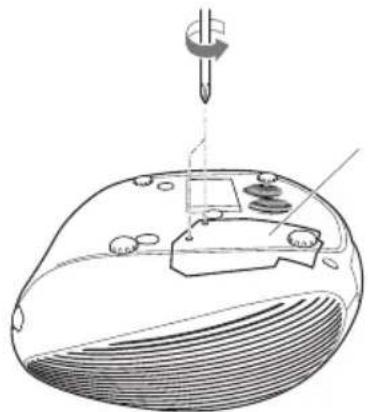
natural_image
Diagram of a computer mouse with a screwdriver inserted, showing internal components and a handle (no text or labels)⑤ Remove the lamp.
Loosen the three lamp locking screws and pull up the handle to release the lamp. Remove the lamp.
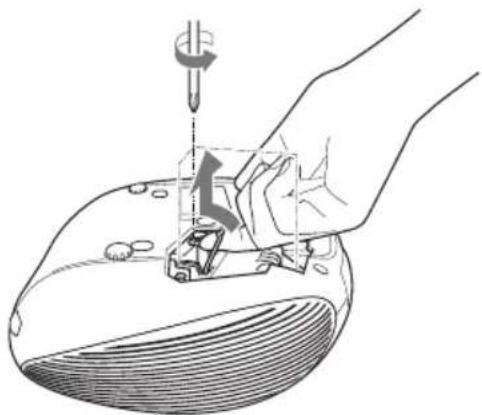
natural_image
Illustration of a hand using a tool to adjust or install a component into a curved surface (no text or symbols present)
Install the new lamp.
Insert the new lamp into position and lock it into place with the three lamp locking screws.
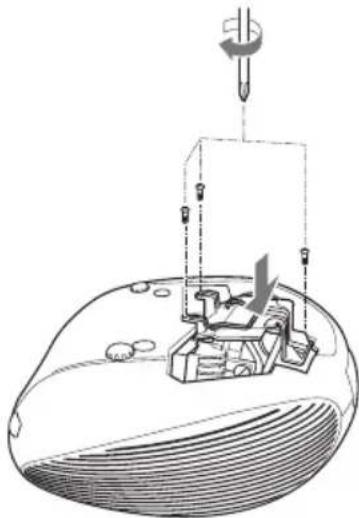
natural_image
Technical diagram of a mechanical assembly with no visible text or symbols
Replace the lamp cover.
Align the cover, and press it in, then tighten the screws loosened in step 4 until the lamp cover is no longer loose.

Reset the lamp timer.
Reset the lamp timer by using "lamp timer reset" in Setup menu. p.46

Notes and Precautions
- The Lamp time item in the Status display menu indicates the “estimated” time of lamp use. p.47
- Attach the lamp cover so that it is not loose. If it is not attached correctly, the projector and/or lamp may not work correctly.
- When replacing the lamp, always use a new lamp.
- The lamp is made out of glass and is fragile. Do not touch the lamp your bare fingers. Handle the lamp with a wrap or gloves. Do not drop or shake the lamp. Doing so may cause damage to the lamp.

Lamp Environmental Safety
This projector's lamp contains trace amounts of environmentally harmful inorganic mercury.
Be careful not to break new or used lamps. Dispose of used lamps in accordance with local regulations.

WARNING
Request cleaning and maintenance of a ceiling-mounted unit from your projector dealership. Attempting to clean/replace the lamp at a high site by yourself may cause you to drop down, thus resulting in injury.
Lens cleaning
- Clean the lens with a commercially available blower and/or lens cleaner.
- The lens is easily scratched, so do not rub it with hard objects, or strike it.
■ Main unit cleaning
- Clean the main unit after unplugging the power cord.
- Wipe dirt off the main unit gently with a soft cloth.
- If the soiling is severe, dip the cloth in a neutral detergent diluted in water, wring well, and gently wipe off the dirt, then fi nish up by wiping with a dry cloth.
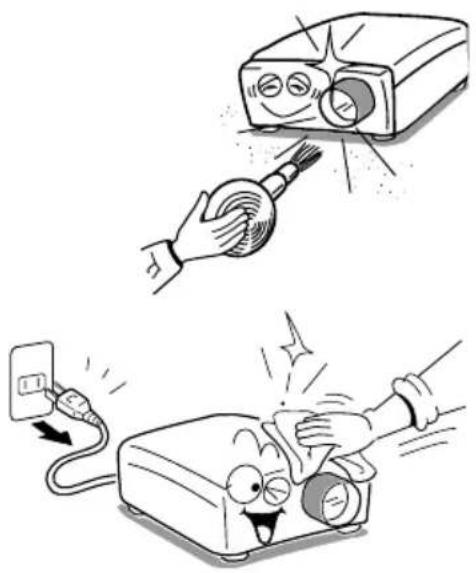
natural_image
Illustration of a hand using a power adapter to lift a device, showing mechanical components and motion (no text or symbols)■ Replacing cooling fans
To maintain the performance, it is recommended that cooling fans should be replaced about every 2 to 3 years. Consult with your dealer for details.
The indicator lights inform you of internal abnormalities.
| LED indicators State/ | Problems |
| No LED lit | No power⇒ Problem with projectorUnplug the power cord, and contact your dealer.⇒ The lamp cover is not properly attached.Unplug the power cord, and reattach the lamp cover. |
| Red LED is fl ashing at ON/STANDBY indicator (2Hz) | Power went out during use⇒ Internal overheating, or the outside temperature is too high.Place the projector so that the air intake and exhaust are not blocked.Unplug the power cord and wait for a short while, then turn the power back on.* The icon will appear before the power goes out.* After approx. one minute of abnormal display, the projector returns to the standby state waiting for internal cool down. |
| Red LED is fl ashing at ON/STANDBY indicator (5Hz) | Power went out during use⇒ Problem with internal cooling fan.Unplug the power cord, and contact your dealer.* The icon will appear before the power goes out.* After approx. one minute of abnormal display, the projector returns to the standby state waiting for internal cool down. |
| Red LED lit at ON/STAND-BY indicator | Power went out during use, or won't come on⇒ Lamp temperature is high so that it is diffi cult to turn on, the lifetime of the lamp has ended or the projector is malfunctioning.Unplug the power cord and wait for a short while, then turn the power back on.If a lamp burns out, replace it with a new one.* After approx. one minute of abnormal display, the projector returns to the standby state waiting for internal cool down. |
If you think something is wrong, check the followings before contacting customer service. Please see “Trouble indications” p.53 as well.
| If This Happens Check | |
| No Power • Is the | power cord plugged in? Is it connected to the projector?Is the lamp cover loose? |
| The projector won’t be activate | • Is Pressing ON/STANDBY button quickly? To activate the projector, press the ON/STANDBY button on control panel for 3-5 seconds. |
| Power goes out during use | • Is the ambient temperature high?Is the air intake or air exhaust blocked? |
| No picture • Is the | projector turned on?Is the mute function on?Is the brightness setting minimized?Are the connections set up correctly?Are all the connected devices functioning properly? |
| No audio • Is the | projector turned on?Is the mute function on?Is the volume setting minimized?Are the connections set up correctly?Are all the connected devices functioning properly? |
| Picture not dis-played correctly | • Is the input signal supported by the projector?Is there something generating an abnormal video signal, for instance the video tape? |
| Picture blurred Part of picture out of focus | • Is the lens dirty?Is the lens focus adjusted optimally?Is the projection distance within the projector’s supported range?Is the projector’s screen placement angle tilted too far?Is the sharpness or sampling phase adjustments off? |
| Image is dark • Is | the brightness or contrast adjustments off?Is the lamp nearing the end of its service life? |
| Remote control doesn’t work | Are the remote control’s batteries drained?Are the batteries inserted into the remote control correctly?Is the remote control being used within the effective range?Are there any obstructions between the remote control and projector?Are there any fluorescent or other bright lights shining at the projector’s infrared remote sensor? |
For TDP-ET20
| If This Happens Check | |
| Playback does not start | • Is the disc inserted?• Is the disc inserted upside down?• Is an unplayable disc inserted?• Is the disc dirty?• Is the parental lock function set? |
| The playback picture has occasional distortion. | • Is the disc dirty?• Is the play mode in fast forward or fast reverse playback? |
| Playback does not follow the course of the disc's programs | • Is it in the mode of repeat playback or random playback? |
| DVD operation keys do not work | • Power supply fl ectuation or other abnormalities such as static electricity may interrupt correct operations.Press ■/▲key for 5 seconds, and then DVD player will eject the disc. If DVD player still don't work, turn OFF the POWER, disconnect and then reconnect the AC power cord, and turn ON the projector again. |
■ List of general specifications
| Item Specifi cation | ||
| Consumption Power 340 W | ||
| Input Rating 100~240V AC, 50~60 Hz, 4.0A | ||
| Weight 4.8 kg (TDP-ET10) 5.0 kg (TDP-ET20) | ||
| External Dimensions 344 x 322 x 155 mm (W x H x D) | ||
| Cabinet material PC+ABS resin | ||
| Conditions for usage environ-ment | Temp: 5°C to 35°C; relative humidity: 30% to 70% | |
| Display pixels 1 chip DMDTM | ||
| Picture elements 409, 920 pixels (854H x 480V) | ||
| Lens F=2.5~2.7 f=7.56 mm | ||
| Lamp High-pressure mercury lamp (230 W) | ||
| Projection screen size 38~134 inches | ||
| Projection distance 0.5~1.9 meters | ||
| DVD player (for TDP-ET20) | 12.7mm-high Slim type, slot load mechanism | |
| Built-in 5.1 Speakers | Sub woofer 5W Front/Center 2W Rear 1W | |
| Connection terminal | Control terminal | Serial: Dsub 9 pin |
| Computer IN terminal | Mini D sub 15 pin RGB | |
| Component (Y/PB/PR) IN terminal | Y: RCA Pin Jack 1 V (p-p), 75Ω PB: RCA Pin Jack 0.7 V (p-p), 75Ω PR: RCA Pin Jack 0.7 V (p-p), 75Ω | |
| S-Video IN terminal | Mini DIN 4 pin | |
| VIDEO IN terminal RCA Pin | Jack 1 V (p-p), 75Ω | |
| Digital AV IN terminal | HDMI terminal type A | |
| Analog audio IN terminal | 3.5mm dia. stereo mini-jack, 1.5 V (rms) | |
| Digital audio IN terminal | Coaxial IN: 0.5 Vp-p, 75 Ω | |
| Digital audio OUT terminal | Coaxial OUT: 0.5 Vp-p, 75 Ω | |
Note
Designs and specifications are subject to change without notice. This model may not be compatible with features and/or specifications that may be added in the future.
■ Separately sold product Replacement Lamp Model TLPLET10.
■ List of supported signals (Y/Pb/Pr signals)
| Signal format fh (kHz) fv (Hz) | |
| 480i(525i)@60Hz 15.73 59.94 | |
| 480p(525p)@60Hz 31.47 59.94 | |
| 576i(625i)@50Hz 15.63 50.00 | |
| 576p(625p)@50Hz 31.25 50.00 | |
| 720p(750p)@60Hz 45.00 60.00 | |
| 720p(750p)@50Hz 37.50 50.00 | |
| 1080i(1125i)@60Hz 33.75 60.00 | |
| 1080i(1125i)@50Hz 28.13 50.00 |
■ List of supported signals (Video, S-Video signals)
| Video mode fh (kHz) fv (Hz) fsc (MHz) | |||
| NTSC | 15.73 | 60 | 3.58 |
| PAL 15.63 | 50 | 4.43 | |
| SECAM | 15.63 | 50 | 4.25 or 4.41 |
| PAL-M | 15.73 | 60 | 3.58 |
| PAL-N | 15.63 | 50 | 3.58 |
| PAL-60 | 15.73 | 60 | 4.43 |
| NTSC4.43 | 15.73 | 60 | 4.43 |
■ CONTROL terminal
Conditioning of the projection unit can be also done by a computer via the RS-232C.
● Pin assignment
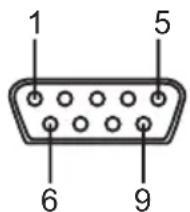
D-sub 9 pin
| Pin No. | Signal Name | Description |
| 1 | N.C | No connection |
| 2 | RXD | Receiving data |
| 3 | TXD | Sending data |
| 4 | DTR | Data terminal ready |
| 5 | GND | Signal ground |
| 6 | DSR | Data set ready |
| 7 | RTS | Request to send |
| 8 | CTS | Consent to send |
| 9 | N.C | No connection |
- Interface format
-
Communication method RS-232C, 9600bps, No Parity, Data Length: 8 bits; Stop Bit Length: 1 bit
-
Communication format STX (02h) Command (3Byte) ETX (03h)
Only 1 command valid per communication.
-
Data format For input commands, only ASCII-compliant all-uppercase alphanumeric characters supported.
-
Replies Acknowledge ACK (06h) CR (0Dh) Data ... Normally ended ACK (06h) ESC (1Bh) Aborted No acknowledge NAK (15h)
If commands are to be sent consecutively, wait for the response from the projector before sending the next command.
● Main Commands
| Item Command | Item Command | ||
| DVD play DPL Input Component IN2 | |||
| DVD stop DST Input HDMI | IN3 | ||
| Vol. up | VLU Input Video | IN9 | |
| Vol. down | VLD Input S-video | INA | |
| Input Computer | IN1 | Input DVD | INB |
Note
- Contact your dealer for control cable and other commands.