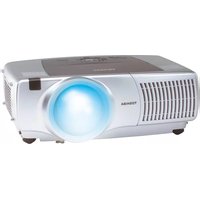
TLP-SX3500 - Vidéo-projecteur TOSHIBA - Free user manual and instructions
Find the device manual for free TLP-SX3500 TOSHIBA in PDF.


| Product type | LCD video projector |
| Model | TLP-SX3500 |
| Brand | Toshiba |
| Display panel | 2.5 cm (0.99") TFT active matrix LCD |
| Native resolution | SXGA+ (1400 x 1050) |
| Lamp type | 310 W high-pressure mercury lamp |
| Lamp life | Approximately 2000 hours |
| Lens | Zoom lens F=1.7~2.4, f=30.5~45.8 mm |
| Keystone correction | Vertical digital correction |
| Lens shift | Vertical optical shift |
| Speaker | 2 × 1.0 W stereo |
| Input ports | RGB (M1-D, BNC), S-Video, Composite Video, Component (Y/Cb/Cr), Audio (R/L, mini jack) |
| Output ports | RGB out, Audio out, DC out (5V), Control (RS-232C), Network (RJ-45) |
| Power supply | AC 100-120V / 220-240V, 5.2A / 2.2A |
| Power consumption | 470 W |
| Dimensions (W x H x D) | 420 x 150 x 310 mm (excluding protrusions) |
| Weight | 7.7 kg |
| Noise level | Whisper mode for quiet operation |
| Features | My Memory (4 presets), Picture-in-Picture, Freeze, Magnify, Auto adjust, Network control |
| Air filter | Cleanable/replaceable every 100 hours |
| Safety | Lamp cover interlock, thermal protection, auto power off |
| Optional lamp | TLPLX45 |
| Operating temperature | 0°C to 35°C |
Frequently Asked Questions - TLP-SX3500 TOSHIBA
User questions about TLP-SX3500 TOSHIBA
0 question about this device. Answer the ones you know or ask your own.
Ask a new question about this device
Download the instructions for your Vidéo-projecteur in PDF format for free! Find your manual TLP-SX3500 - TOSHIBA and take your electronic device back in hand. On this page are published all the documents necessary for the use of your device. TLP-SX3500 by TOSHIBA.
USER MANUAL TLP-SX3500 TOSHIBA
User's Manual - Operating Guide
Thank you for purchasing this projector.
WARNING Before using, first read the "Before using" section of this manual. Then read other sections of this manual to ensure correct usage through understanding. After reading, store them in a safe place for future reference.
NOTE • The information in this manual is subject to change without notice.
- The manufacturer assumes no responsibility for any errors that may appear in this manual.
- The reproduction, transmission or use of this document or contents is not permitted without express written authority.
TRADEMARK ACKNOWLEDGMENT :
• VGA and XGA are registered trademarks of the International Business Machines Corporation.
- Apple and Mac are registered trademarks of Apple Computer, Inc.
• VESA and SVGA are trademarks of the Video Electronics Standard Association.
- Windows is a registered trademark of Microsoft Corporation.
- Internet Explorer is a trademark of Microsoft Corporation.
All other trademarks are the property of their respective owners.
Before Using
SAFETY PRECAUTIONS
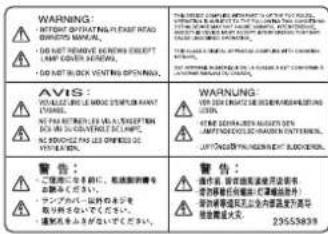
The lightning flash with arrowhead symbol, within an equilateral triangle, is intended to alert the user to the presence of uninsulated "dangerous voltage" within the product's enclosure that may be of sufficient magnitude to constitute a risk of electric shock to persons.

The exclamation point within an equilateral triangle is intended to alert the user to the presence of important operating and maintenance (servicing) instructions in the literature accompanying the appliance.
WARNING: TO REDUCE THE RISK OF FIRE OR ELECTRIC SHOCK, DO NOT EXPOSE THIS APPLIANCE TO RAIN OR MOISTURE. DANGEROUS HIGH VOLTAGES ARE PRESENT INSIDE THE ENCLOSURE. DO NOT OPEN THE CABINET. REFER SERVICING TO QUALIFIED PERSONNEL ONLY.
Before Using (continued)
IMPORTANT SAFETY INSTRUCTIONS
CAUTION: PLEASE READ AND OBSERVE ALL WARNINGS AND INSTRUCTIONS GIVEN IN THIS OWNER'S MANUAL AND THOSE MARKED ON THE UNIT. RETAIN THIS BOOKLET FOR FUTURE REFERENCE.
This set has been designed and manufactured to assure personal safety. Improper use can result in electric shock or fire hazard. The safeguards incorporated in this unit will protect you if you observe the following procedures for installation, use and servicing. This unit is fully transistorized and does not contain any parts that can be repaired by the user.
DO NOT REMOVE THE CABINET COVER, OR YOU MAY BE EXPOSED TO DANGEROUS VOLTAGE. REFER SERVICING TO QUALIFIED SERVICE PERSONNEL ONLY.
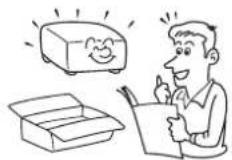
1. Read Owner's Manual
After unpacking this product, read the owner's manual carefully, and follow all the operating and other instructions.
3. Source of Light
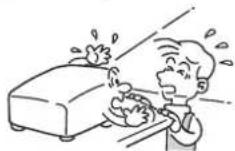
Do not look into the lens while the lamp is on. The strong light from the lamp may cause damage to your eyes or sight.
2. Power Sources
This product should be operated only from the type of power source indicated on the marking label. If you are not sure of the type of power supply to your home, consult your product dealer or local power company. For products intended to operate from battery power, or other sources, refer to the operating instructions.

4. Ventilation
Openings in the cabinet are provided for ventilation and to ensure reliable operation of the product and to protect it from overheating, and these openings must not be blocked or covered. The openings should never be blocked by placing the product on a bed, sofa, rug or other similar surface. This product should not be placed in a built-in installation such as a bookcase or rack unless proper ventilation is provided or the manufacturer's instructions have been adhered to.
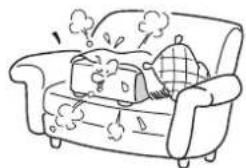
natural_image
Cartoon illustration of a person relaxing on a sofa with smoke and cloud effects (no text or symbols)Before Using (continued)
IMPORTANT SAFETY INSTRUCTIONS (continued)
5. Heat
The product should be situated away from heat sources such as radiators, heat registers, stoves, or other products (including amplifiers) that produce heat.
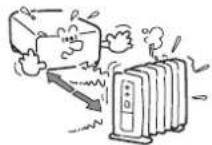
6. Water and Moisture
Do not use this product near water. - for example, near a bath tub, wash bowl, kitchen sink, or laundry tub; in a wet basement; or near a swimming pool and the like.
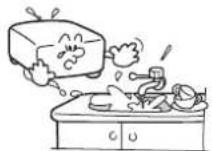
7. Cleaning
Unplug this product from the wall outlet before cleaning. Do not use liquid cleaners or aerosol cleaners. Use a soft cloth for cleaning.
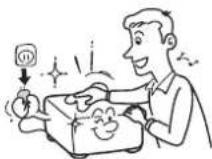
8. Power-Cord Protection
Power-supply cords should be routed so that they are not likely to be walked on or pinched by items placed upon or against them, paying particular attention to cords at plugs, convenience receptacles, and the point where they exit from the product.
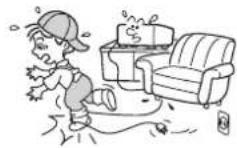
9. Overloading
Do not overload wall outlets; extension cords, or integral convenience receptacles as this can result in a risk of fire or electric shock.
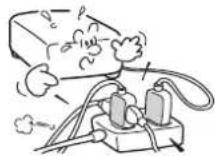
10. Lightning storms
For added protection for this product during storm, or when it is left unattended and unused for long periods of time, unplug it from the wall outlet. This will prevent damage to the product due to lightning and power-line surges.
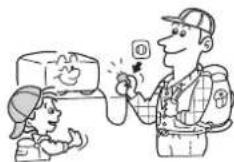
Before Using (continued)
IMPORTANT SAFETY INSTRUCTIONS (continued)
11. Object and Liquid Entry
Never push objects of any kind into this product through openings as they may touch dangerous voltage points or short-out parts that could result in a fire or electric shock. Never spill liquid of any kind on the product.
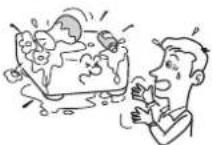
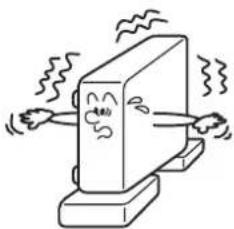
12.Do not place the product vertically
Do not use the product in the upright position to project the pictures at the ceiling, or any other vertical positions. It may fall down and dangerous.
natural_image
Cartoon illustration of a computer monitor with arms and legs, showing motion lines (no text or symbols)13.Stack Inhibited
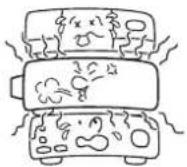
Do not stack other equipment on this product or do not place this product on the other equipment. Top and bottom plates of this product develops heat and may give some undesirable damage to other unit.
14. Attachments
Do not use attachments not recommended by the product manufacturer as they may cause hazards.
15.Accessories
Do not place this product on an unstable cart, stand, tripod, bracket, or table. The product may fall, causing serious injury to a child or adult, and serious damage to the product. Use only with a cart, stand, tripod, bracket, or table recommended by the manufacturer, or sold with the product. Any mounting of the product should follow the manufacturer's instructions, and should use a mounting accessory recommended by the manufacturer. A product and cart combination should be moved with care. Quick stops, excessive force, and uneven surfaces may cause the product and cart combination to overturn.

Before Using (continued)
IMPORTANT SAFETY INSTRUCTIONS (continued)
16. Damage Requiring Service
Unplug this product from the wall outlet and refer servicing to qualified service personnel under the following conditions:
a) When the power-supply cord or plug is damaged.
b) If liquid has been spilled, or objects have fallen into the product.
c) If the product has been exposed to rain or water.
d) If the product does not operate normally by following the operating instructions. Adjust only those controls that are covered by the operating instructions as an improper adjustment of other controls may result in damage and will often require extensive work by a qualified technician to restore the product to its normal operation.
e) If the product has been dropped or damaged in any way.
f) When the product exhibits a distinct change in performance - this indicates a need for service.
17. If glass components, including lens and lamp, should break, contact your dealer for repair service.
This product incorporates glass components, including a lens and a lamp. If such parts should break, please handle with care to avoid injury and contact your dealer for repair service. The broken pieces of glass may cause to injury. In the unlikely event of the lamp rupturing, thoroughly clean the area around the projector and discard any edible items placed in that area.
18.Servicing
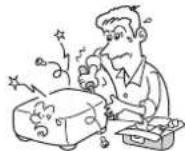
Do not attempt to service this product yourself as opening or removing covers may expose you to dangerous voltage or other hazards. Refer all servicing to qualified service personnel.
19.Replacement Parts
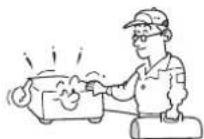
When replacement parts are required, be sure the service technician has used replacement parts specified by the manufacturer or have the same characteristics as the original part. Unauthorized substitutions may result in fire, electric shock, or other hazards. (Replacement of the lamp only should be made by users.)
20.Safety Check
Upon completion of any service or repairs to this product, ask the service technician to perform safety checks to determine that the product is in proper operating condition.
21. Do not leave thermal-paper documents or easily deformed items on top of the unit or near the air exhaust.
The heat from the unit could erase the information on the thermal paper, or cause deformation or warping. Also, when you touch a metal object put near the air exhaust, a burn may be caused.
Before Using (continued)
POWER SUPPLY CORD SELECTION
If your line voltage is 220 to 240V, use one of the following types of cable.
| Plug configuration | Plug type | Line voltage |
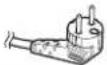 | EURO | 220 - 240V |
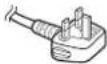 | UK | 220 - 240V |
Use a 5A fuse which is approved by ASTA or BSI to BSI362.
Always replace the fuse cover after changing the fuse.
| Plug configuration | Plug type | Line voltage |
 | Australian 240V 10A | 200 - 240V |
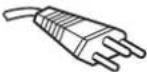 | Switzerland 240V 6A | 200 - 240V |
IMPORTANT PRECAUTIONS
Save Original Packing Materials
The original shipping carton and packing materials will come in handy if you ever have to ship your LCD projector. For maximum protection, repack the set as it was originally packed at the factory.
Moisture Condensation
Never operate this unit immediately after moving it from a cold location to a warm location. When the unit is exposed to such a change in temperature, moisture may condense on the crucial internal parts. To prevent the unit from possible damage, do not use the unit for at least 2 hours when there is an extreme or sudden change in temperature.
Place and Manner of Installation
- Do not place in hot locations, such as near heating equipment. Doing so could cause malfunction, and shorten the life of the LCD panel.
- Avoid locations with oil or cigarette smoke. Doing so will dirty the LCD panel and other optical parts, shortening their lives, and darkening the screen.
- Do not use in angle of 20^ or more degrees. Doing so could shorten the life of the lamp.
- If used at high altitudes, the unit could cease operation even if used within the rated temperature range. This is because the thinner air at high altitudes decreases the internal cooling efficiency. Therefore, please lower the ambient temperature if using at high altitudes.
Before Using (continued)
IMPORTANT PRECAUTIONS (continued)
Avoid Volatile Liquid
Do not use volatile liquids, such as an insect spray, near the unit. Do not leave rubber or plastic products touching the unit for a long time. They will leave marks on the finish. If cleaning with a chemically saturated cloth, be sure to follow the product's precautions.
LCD Panel
The life of the LCD panel is limited. Take care over the points below so as to use the panel for years.
- To prolong the life of this panel, never fail to turn the power off when the panel is not in use and make sure that the lamp has gone out. The state of the lamp being extinguished helps enhance the effect of energy saving.
- If the air filter is stained and is clogged up, the main unit inner temperature rises. As a result, the life of the LCD is shortened and a malfunction may also occur. Clean the air filter from time to time and replace it regularly. It is recommended that this replacement be done at the time of replacing a lamp. (Ask a dealer where the unit was purchased or your nearby service station about an air filter for replacement.)
In the spaces provided below, record the Model and Serial No. located at the bottom of your LCD projector.
Model No. Serial No.
Retain this information for future reference.
Before Using (continued)
EXEMPTION CLAUSES
- Toshiba Corporation bears no responsibility in the case of damages arising from natural disaster such as earthquakes, lightning, etc., fire not liable to Toshiba Corporation, operating by third parties, other accidents, or use under abnormal conditions including erroneous or improper operation and other problems.
- Toshiba Corporation bears no responsibility for incidental damages (lost profit, work interruption, corruption or loss of the memory contents, etc.) arising from the use of or the inability to use this unit.
- Toshiba Corporation accepts no liability whatsoever for any damages arising from not having followed the descriptions in this Instruction Manual.
- Toshiba Corporation accepts no liability whatsoever for any damages arising from malfunctions arising from combination with equipment or software that is not related to Toshiba Corporation.
OTHER CAUTIONS AND INFORMATIONS
Copyrights
Publicly showing or transmitting commercial imaging software or broadcast or Cable-broad casting programs, either commercially or collecting a fee from the audience, or modifying images using the freeze or resize functions, could violate the direct or indirect copyrights of the imaging software or broadcast program, etc., if done without first consulting with the copyright holder. For this reason, please take appropriate measures before performing one of the actions listed above, including obtaining a license from the copyright holder.
Disposal
This product contains substances which are harmful to humans and the environment.
- The solder used in the PCB manufacturing process contains lead.
• The lamp contains inorganic mercury.
Please dispose of this product or used lamps in accordance with local regulations.
Projector Features
This multimedia projector is used to project various computer signals as well as NTSC/PAL/SECAM video signals onto a screen. Little space is required for installation and large images can easily be realized.
Ultra High Brightness
Crisp, ultra-bright presentations is achieved by using an ultra high brightness lamp and a highly efficient optical system.
Whisper Mode Equipped
Special mode is available for reducing projector noise to achieve quieter operation.
User Memory Function
This projector can memorize 4 settings by MY MEMORY function.
Partial Magnification Function
Interesting parts of images can be magnified for closer viewing.
Keystone Distortion Correction
Quick correction of distorted images electrically.
Optical Lens Shift
The lens of this projector can be shifted vertically. When you want to finely adjust the picture position, use the LENS SHIFT buttons.
Preparation
Please see the "Contents Of Package" of the "User's Manual – Quick Guide". Your projector should come with the items shown there. Contact your dealer anything is missing.
NOTE • Keep the original packing material for future reshipment. For moving the projector, be sure to use the original packing material. Use special caution for the lens part.
Contents
Before Using 2
SAFETY PRECAUTIONS ……2
IMPORTANT SAFETY
INSTRUCTIONS 3
POWER SUPPLY CORD
SELECTION 7
IMPORTANT PRECAUTIONS ...7
EXEMPTION CLAUSES 9
OTHER CAUTIONS AND
INFORMATIONS 9
Projector Features 10
Preparation....10
Part Names 12
Projector 12
Control Buttons 13
Remote control 13
Setting Up 14
Arrangement 14
Adjusting The Projector's
Elevator 15
Using The Lens shift Buttons …15
Connecting Your Devices 16
Connecting The Power Supply …19
Remote Control 20
About The Laser Pointer 20
Loading Batteries 20
Operating The
Remote Control 21
Using The Remote
ID Feature 21
Using The Mouse/Keyboard
Control Function 22
Power ON/OFF 23
Turning On The Power 23
Turning Off The Power 23
Operating 24
Selecting An Input Signal ……24
Selecting The Aspect Ratio ……25
Using The Automatic
Adjustment Feature 25
Adjusting The Picture Position …26
Correcting The Keystone
Distortion 26
Adjusting The Volume 27
Muting The Sound 27
Temporarily Blanking
The Screen 27
Freezing The Screen 28
Using The Magnify Feature ……28
Displaying The Child Window …29
Selecting An Audio Input 29
Multifunctional Settings 30
Using The Menu Functions ……30
MAIN Menu 31
PICTURE-1 Menu 32
PICTURE-2 Menu 34
INPUT Menu 35
AUTO Menu 37
SCREEN Menu 39
OPTION Menu 41
NETWORK Menu 43
Network Setting Up 44
Lamp 45
Replacing The Lamp 46
Air Filter 47
Caring For The Air Filter……47
Other Care 48
Caring For The Inside Of
The Projector 48
Caring For The Lens 48
Caring For The Cabinet And
Remote Control 48
Troubleshooting 49
Related Messages 49
Regarding The Indicator Lamps …51
Phenomena That May Easily Be
Mistaken For Machine Defects …53
Warranty And After-Service 55
Specifications 55
TECHNICAL
Part Names
Projector
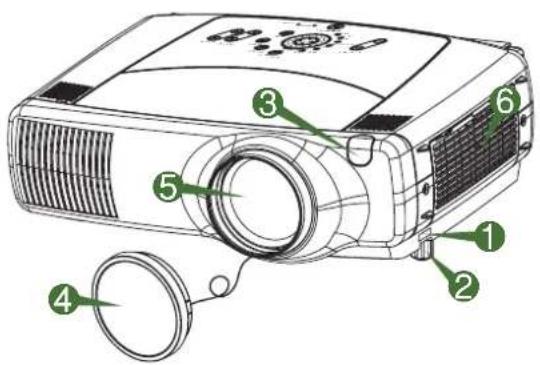
Projector (Front/Right)
1 Elevator button
② Elevator foot
③ Remote sensor
4 Lens cap
⑤ Lens
The picture is projected from here.
⑥ Filter cover
An air filter is inside.
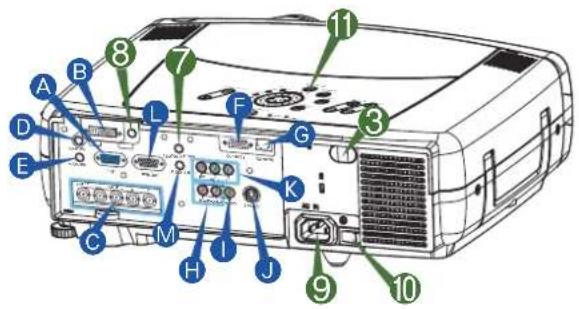
Projector (Rear/Left)
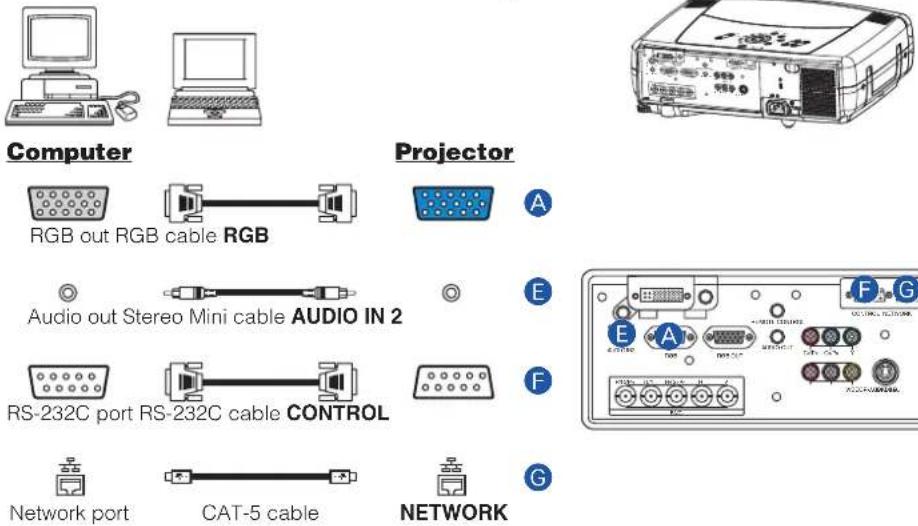
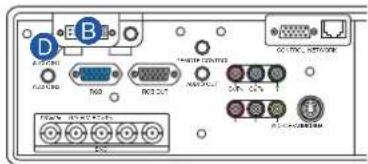
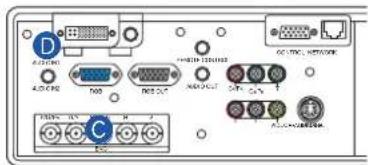
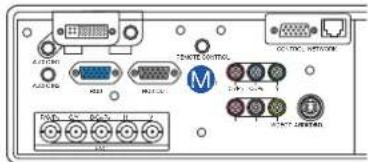
A RGB port
B M1-D port
C BNC port
D AUDIO IN 1 port
E AUDIO IN 2 port
F CONTROL port
G NETWORK port
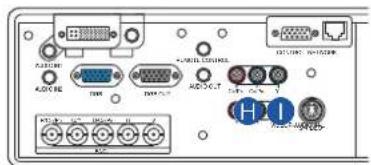
H AUDIO IN R/L port
1 VIDEO IN port
J S-VIDEO port
COMPONENT port
RGB OUT port
M AUDIO OUT port
7 REMOTE CONTROL port
8 DC OUT port
9 AC Inlet
10 Power switch
Control buttons
See the following page.
Part Names (continued)
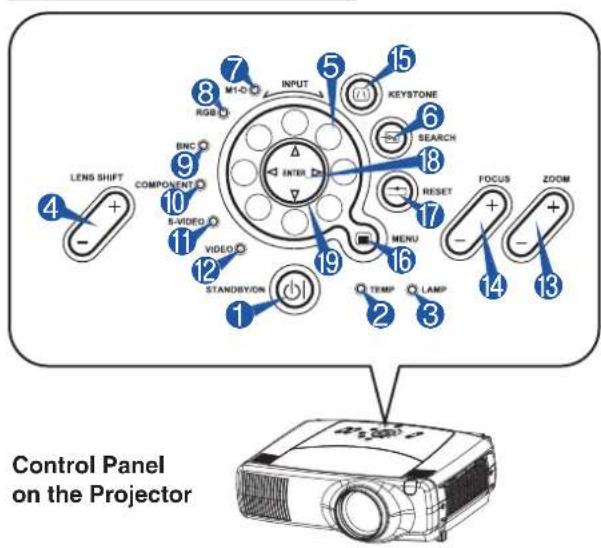
Control Buttons
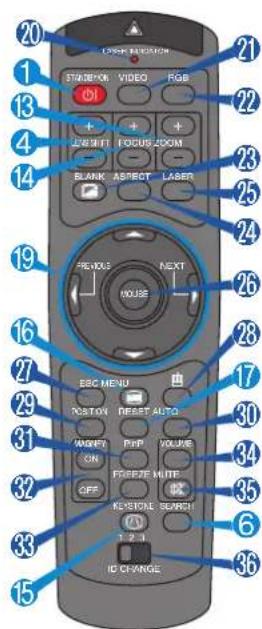
Remote Control
1 STANDBY/ON button
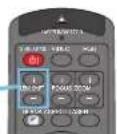
4 LENS SHIFT buttons
⑥ SEARCH button
13 ZOOM buttons
14 FOCUS buttons
15 KEYSTONE button
16 MENU button
17 RESET button
18 ENTER button
( mouse left button)
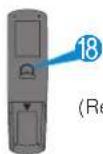
19 Cursor buttons ▲/▼/◄/► (Keyboard Arrow keys 📋/ lightning)
Remote Control
1 STANDBY/ON button and STANDBY/ON indicator
② TEMP indicator
③ LAMP indicator
4 LENS SHIFT buttons
⑤ INPUT dial
6 SEARCH button
7 M1-D indicator
8 RGB indicator
9 BNC indicator
COMPONENT indicator
S-VIDEO indicator
12 VIDEO indicator
13 ZOOM buttons
14 FOCUS buttons
15 KEYSTONE button
16 MENU button
17 RESET button
18 ENTER button
19 Cursor buttons ▲/▼ ◀▶
20 LASER INDICATOR
21 VIDEO button
RGB button
② BLANK button
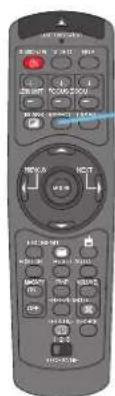
24 ASPECT button
25 LASER button
26 Cursor buttons ▲/▼ ◀ ▶
( Mouse move pointer)
7 ESC button
(Keyboard ESO key)
28 (Mouse right button)
29 POSITION button
30 AUTO button
31 PinP button
32 MAGNIFY buttons
FREEZE button
34 VOLUME button
35 MUTE button
ID CHANGE switch
Setting Up
Arrangement

WARNING • Before installation, make sure that the projector is turned off and the power code is disconnected.
- Do not set up and move the projector, while it is hot.
• Install the projector in a suitable environment according to instructions of this manual. - The power outlet should be close to the projector and easily accessible.
Refer to the illustrations and tables below to determine the screen size and projection distance. The values shown in the table are calculated for a full size screen. (±10%)
Reference for the 4:3 aspect ratio
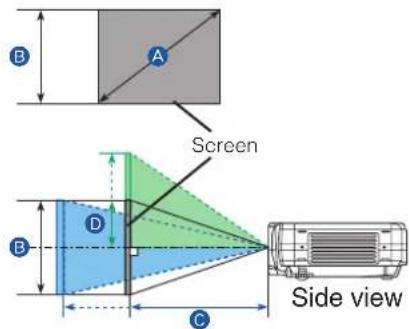
| A[inch (m)] | B[inch (cm)] | C[inch (m)] D[inch (cm)] | ||
| min. max. min. max. | ||||
| 40(1.0) 24(61) 46(1.2) | 71(1.8) 12(30) 24(61) | |||
| 60(1.5) 36(91) 71(1.8) | 107(2.7) 18(46) 36(91) | |||
| 70(1.8) 42(107) 83(2.1) | 126(3.2) 21(53) 42(107) | |||
| 80(2.0) 48(122) 95(2.4) | 144(3.7) 24(61) 48(122) | |||
| 100(2.5) 60(152) 120(3.0) | 181(4.6) 30(76) 60(152) | |||
| 120(3.0) 72(183) 144(3.7) | 217(5.5) 36(91) 72(183) | |||
| 150(3.8) 90(229) 181(4.6) | 272(6.9) 45(11.4) 90(229) | |||
| 200(5.1) | 120(305) | 243(6.2) 364(9.2) 60(152) | 120(305) | |
| 250(6.4) | 150(381) | 304(7.7) 455(11.6) 75(191) | 150(381) | |
| 300(7.6) | 180(457) | 366(9.3) 547(13.9) 90(229) | 180(457) | |
| 350(8.9) | 210(533) | 427(10.9) 638(16.2) 105(267) | 210(533) | |
| 400(10.2) | 240(610) | 489(12.4) 730(18.5) 120(305) | 240(610) | |
| 500(12.7) | 300(762) | 612(15.5) 913(23.2) 150(381) | 300(762) | |
Reference for the 16:9 aspect ratio
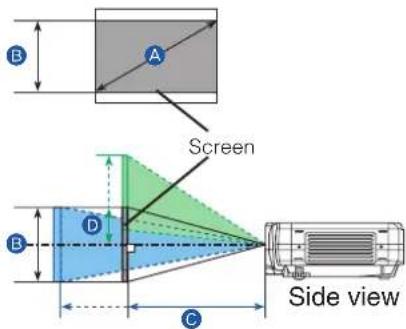
| A[inch (m)] | B[inch (cm)] | C[inch (m)] D[inch (cm)] | ||||
| min. | max. | min. | max. | |||
| 40(1.0) | 20(50) | 50(1.3) | 77(2.0) | 10(25) | 23 | 58) |
| 60(1.5) | 29(75) | 77(2.0) | 117(3.0) | 15(37) | 34 | (87) |
| 70(1.8) | 34(87) | 91(2.3) | 137(3.5) | 17(44) | 40 | (102) |
| 80(2.0) | 39(100) | 104(2 | 6) 157(4.0) | 20(50) | 46 | (116) |
| 100(2.5) | 49(125) | 131(3 | 3) 197(5 | 0) 25 | (62) | 57(145) |
| 120(3.0) | 59(149) | 158(4 | 0) 237(6 | 0) 29 | (75) | 69(174) |
| 150(3.8) | 74(187) | 198(5 | 0) 297(7 | 5) 37 | (93) | 86(218) |
| 200(5.1) | 98(249) | 265(6 | 7) | 396(10.1) | 49 | (125) |
| 250(6.4) | 123(311) | 332(8.4) | 496(12.6) | 61 | (156) | |
| 300(7.6) | 147(374) | 399(10.1) | 596(15.1) | 74 | (187) | |
| 350(8.9) | 172(436) | 466(11.8) | 696(17.7) | 86 | (218) | |
| 400(10.2) | 196(498) | 533(13.5) | 795(20.2) | 98 | (249) | |
| 450(11.4) | 221(560) | 600(15.2) | 895(22.7) | 110 | (280) | |
Setting Up (continued)
Adjusting The Projector's Elevator

WARNING • Do not touch about the lens and ventilation openings during use or immediately after use to prevent a burn.

CAUTION • Do not incline the projector rightward or leftward. Also do not incline it backward or forward exceeding 9 degrees. Exceeding these range could cause function, and could shorten the lifetime of the consumables.
- To prevent damaging the projector and injuring yourself, always hold the projector whenever using the elevator buttons to adjust the elevator feet.
You can use the elevator feet to make adjustments if the surface on which you need to set the projector is uneven or if you otherwise need to adjust the angle of projection. The adjustment range of the elevator feet is 0 to 9 degrees.

Press and hold in the elevator buttons.

Raise or lower the projector to the desired height and then release the elevator buttons. When you release the elevator buttons, the elevator feet will lock into position.

As necessary, you can also finely adjust the height of the projector by twisting the elevator feet by hand.
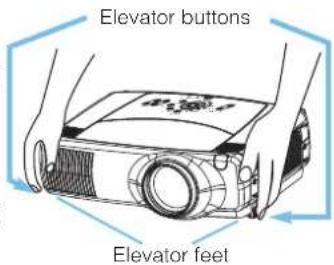
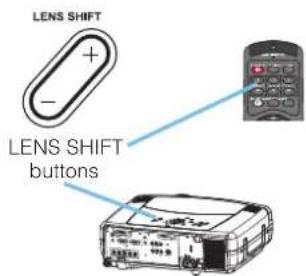
Using The Lens Shift Buttons
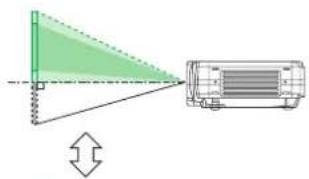
The lens of this projector can be shifted vertically. When you want to finely adjust the picture position, use the LENS SHIFT buttons of the projector.
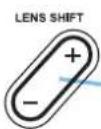
LENS SHIFT buttons
Projector
Remote control
natural_image
Diagram showing a green triangular object interacting with a truck, with an arrow indicating direction (no text or symbols present)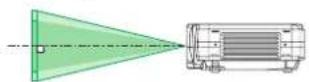
Setting Up (continued)
Connecting Your Devices
WARNING • Whenever attempting to connect other devices to the projector, read thoroughly, this manual and the manual of each device to be connected. Incorrect connecting could result in fire or electrical shock.
CAUTION • TURN OFF ALL DEVICES prior to connecting them to the projector. Attempting to connect a live device to the projector may generate extremely loud noises or other abnormalities that may result in malfunction and/or damage to the device and/or projector.
ATTENTION • Make sure that you connect devices to the correct port. Incorrect connection may result in malfunction and/or damage to the device and/or projector. Refer to the section "Technical" of this manual for the pin assignment of connectors and RS-232C communication data.
- Some cables have to be used with core set. Use the accessory cable or a designated-type cable for the connection. For cables that have a core only at one end, connect the core to the projector.
- Secure the screws on the connectors and tighten.
- Whenever attempting to connect a laptop computer to the projector, be sure to activate the laptop's RGB external image output (set the laptop to CRT display or to simultaneous LCD and CRT display). For details on how this is done, please refer to the instruction manual of the corresponding laptop computer.
NOTE • Some computers may have multiple display screen modes. Use of some of these modes may not be compatible with this projector.
- For some RGB input modes, the optional Mac adapter is necessary.
- When the image resolution is changed on a computer, depending on an input, automatic adjust function may take some time and may not be completed. In this case, you may not be able to see a check box to select "Yes/No" for the new resolution on Windows. Then the resolution will go back to the original. It might be recommended to use other CRT or TFT monitors to change the resolution.
NOTE Plug-and-Play Capability
- Plug-and-Play is a system incorporated in the computer, its operating system and peripheral equipment (i.e. display devices).
- This projector is compatible with VESA DDC 2B. Plug-and-Play can be achieved by connecting this projector to computers that are VESA DDC (display data channel) compatible.
- Please take advantage of this function by connecting the accessory RGB cable to the RGB port (DDC 2B compatible). Plug-and-Play may not work properly if any other type of connection is attempted.
- Please use the standard drivers in your computer as this projector is a Plug-and-Play monitor.
- The TLP-SX3500's M1-D is compatible with HDCP (High-bandwidth Digital Content Protection) and therefore capable of displaying video from HDCP compatible DVD players, et al. However, if the HDCP standards are modified, the TLP-SX3500's M1-D might not be able to display video from HDCP compatible developed in conformance to such modified HDCP standards.
Setting Up (continued)
Please refer to the following (for example) for connecting your devices. See the rear of the projector. You can see the ports.
Examples of connection with a computer
■ If using a M1-D input (to mouse control)
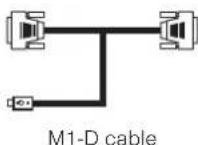
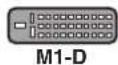
B

©
■ If using a BNC input
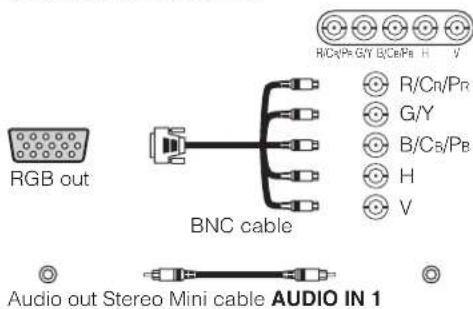
C
Setting Up (continued)
Examples of connection with a VCR/DVD Player

VCR/DVD Player Projector
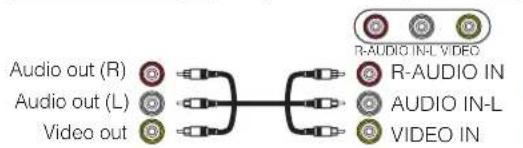
flowchart
graph LR
    A["Audio out (R)"] --> B["Video out"]
    C["Audio out (L)"] --> B
    D["Video out"] --> B
    B --> E["R-AUDIO INL VIDEO"]
    B --> F["R-AUDIO IN"]
    B --> G["AUDIO IN-L"]
    B --> H["VIDEO IN"]
H
H
■ If using a component signal
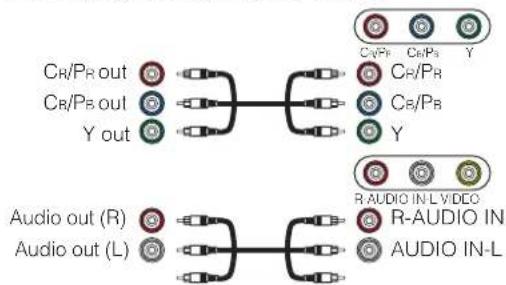
flowchart
graph TD
    A["Cr/Pr out"] --> B["Output"]
    C["Cr/Ps out"] --> B
    D["Y out"] --> B
    B --> E["Output"]
    F["Audio out (R)"] --> G["Output"]
    H["Audio out (L)"] --> G
    G --> I["Output"]
    J["Output"] --> K["Output"]
    L["Output"] --> M["Output"]
    N["Output"] --> O["Output"]
    P["Output"] --> Q["Output"]
    R["Output"] --> S["Output"]
    T["Output"] --> U["Output"]
    V["Output"] --> W["Output"]
    X["Output"] --> Y["Output"]
    Z["Output"] --> AA["Output"]
K
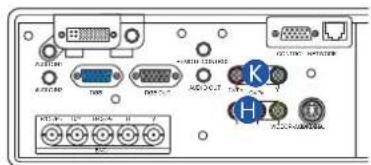
H
■ If using a SCART RGB input
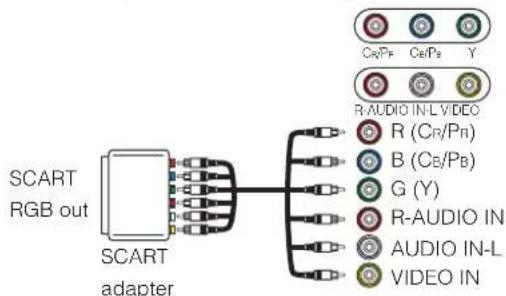
K
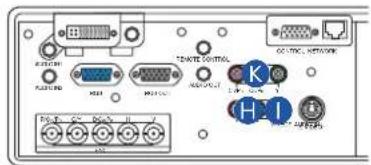
H
1
Setting Up (continued)
Connecting to a monitor

Monitor Projector

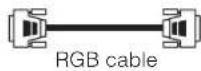
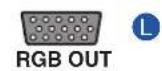
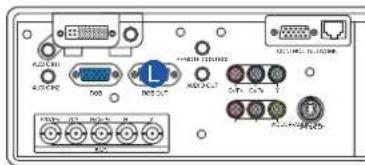

Connecting to a speaker (with amplifier)

Speaker Projector
Audio in
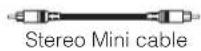
AUDIO OUT
Connecting The Power Supply
WARNING • Use extra caution when connecting the power cord as incorrect or faulty connections may result in fire and/or electrical shock. Please adhere to the "Before using" section of this manual and the following.
- Only plug the power cord into outlets rated for use with the power cord's specified voltage range.
- Only use the power cord that came with the projector. If it is damaged, contact your dealer to newly get correct one.
- Never modify the power cord.
• Make sure that you firmly connect the power cord to the projector and wall outlet.
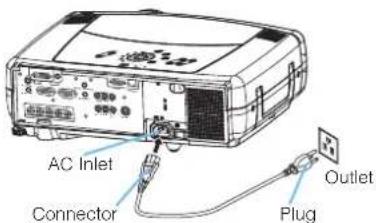
1 Connect the connector of the power cord to the AC inlet of the projector.
2 Firmly plug the power cord's plug into the outlet.
Remote Control
About The Laser Pointer
WARNING • The laser pointer of the remote control is used in place of a finger or rod. Never look directly into the laser beam outlet or point the laser beam at other people. The laser beam can cause vision problems.
CAUTION • Use of controls or adjustments or performance of procedures other than those specified herein may result in hazardous radiation exposure.
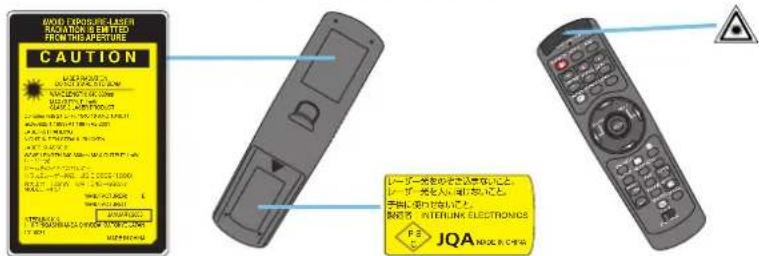
This remote control has a laser pointer in place of a finger or rod. The laser beam works and the LASER INDICATOR lights while the LASER button is pressed.
Loading Batteries
CAUTION About the battery
- Keep a battery away from children and pets.
- Use only the battery specified: two AA batteries.
- Do not mix new battery with used one.
- Make sure the plus and minus terminals are correctly aligned when loading the battery (as indicated in the remote control).
- Dispose of batteries in accord with environmental laws.
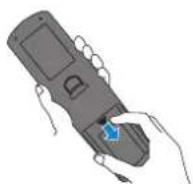
1 Remove the battery cover.
Slide back and remove the battery cover in the direction of the arrow.
2 Insert the batteries.
Align and insert the two AA batteries according to their plus minus terminals (as indicated in the remote control).
3 Close the battery cover.
Replace the battery cover in the direction of the arrow and snap it back into place.
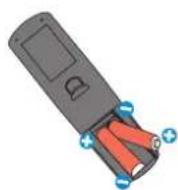
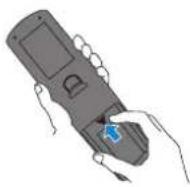
Remote Control (continued)
Operating The Remote Control

CAUTION • Do not disassemble the remote control.
- Do not place the remote control near the projector's lens, fan, or vents.
- Do not drop or otherwise expose the remote control to physical impact.
- Do not get the remote control wet or place it on wet objects on it. Doing so may result in malfunction.
- Remove the batteries from the remote control and store them in a safe place if you won't be using the remote control for an extended period.
NOTE
- Replace the batteries whenever the remote control starts to malfunction.
- When strong light, such as direct sunlight or light from an extremely close range (such as from an inverter fluorescent lamp), hits the projector's remote sensor, the remote control may cease to function. Adjust the direction of the projector to keep light from directly hitting the projector's remote sensor.
The remote control works with the projector's remote sensor.
- Front remote sensor is 3 meters with a 60 degree range (30 degrees to the left and right of a remote sensor).
Rear remote sensor is 3 meters with a 40 degree range (20 degrees to the left and right of a remote sensor).
- Also a remote signal reflected in the screen etc. may be available. If it is difficult to send a remote signal to the sensor directly, please try.
- Since the remote control uses infrared light to send signals to the projector (Class1 LED), be sure to use the remote control in an area free from obstacles that could block the remote control's output signal to the projector.
memo You can use the remote control as a wired remote control, by connecting the REMOTE CONTROL ports of the main unit and remote control via an audio cable (3.5 dia. stereo mini cable with plugs).
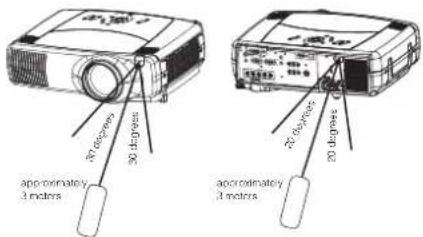
Using The Remote ID Feature
This is the function to properly use when you use two or three same type projectors at the same time. This function should be used combining a setup of a projector.
1
Set the ID number to the projector beforehand, referring to the item "IR REMOTE ID" of the section "OPTION Menu".
memo When the ALL is selected to the item "IR REMOTE ID" of the OPTION menu, the projector is controlled by a remote control irrespective of the position of the ID CHANGE switch.
2
Slide the knob of the switch into the position of the ID number of the projector you want to control.
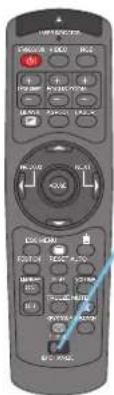
ID CHANGE switch
Remote Control (continued)
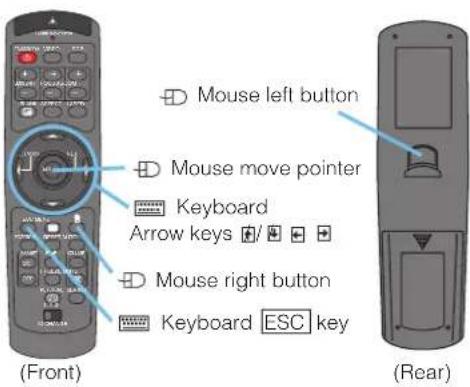
Using The Mouse/Keyboard Control Function

CAUTION • Before connecting, read the manuals of the device you will connect. Mistaken use of the mouse/keyboard control could damage your equipment.
- Only connect to a PC or an USB Hub connected PC.
- Do not unplug the connector cables while the computer is operating.
Using the USB control feature, you can use the remote control as a simplified mouse or keyboard of the computer.
Connect the M1-D port of the projector to the computer via the M1-D cable. Then functions illustrated below will be enabled.
memo The USB control can be used with Windows 95 OSR 2.1 or higher. It may not be possible to use the remote control, depending on the computer's configurations and mouse drivers.
memo The function can be used only for the functions illustrated on the right.
memo The projector would be enumerated as a mouse and a keyboard of HID (Human Interface Device) class devices, after connecting cable.
Power ON/OFF
WARNING • When the power is ON, a strong light is emitted. Do not look into the lens or vents of the projector.
NOTE • Turn the power on/off in right order. Please power on the projector before the connected devices. Power off the projector after the connected devices.
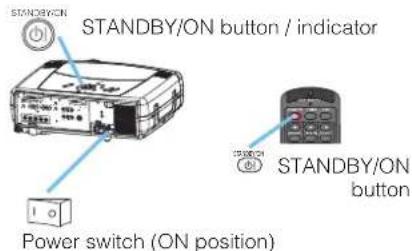
Turning On The Power
1 Remove the lens cap.
2 Set the power switch to [1] (ON). The STANDBY/ON indicator will light to solid orange.
3 Press the STANDBY/ON button. The projector lamp will light up and the STANDBY/ON indicator will begin blinking green. When the power is completely on, the indicator will stop blinking and light green.
4 Use the LENS SHIFT buttons to shift the picture upward or downward.
5 Select an input signal according to the section "Selecting An Input Signal" of the following page.
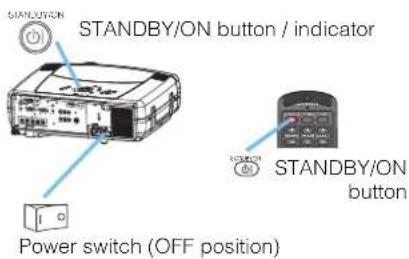
Tuming Off The Power
1 Press the STANDBY/ON button.
The message "Power off?" will appear on the screen for approximately 5 seconds.
2 Press the STANDBY/ON button again while "Power off?" the message is visible. The projector lamp will go off, and the STANDBY/ON indicator will begin blanking orange. Then the STANDBY/ON indicator will stop blinking and light to solid orange when the lamp cooling is complete.
3 Switch the power switch to [O] (OFF). The STANDBY/ON indicator will go off.
4 Attached the lens cap.
Operating
Selecting An Input Signal
1
Select an input signal.
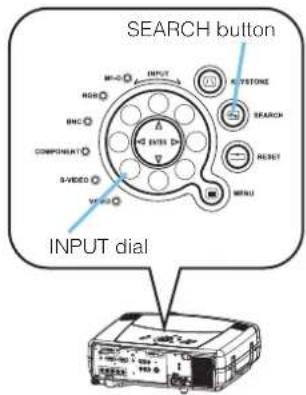
■ Using the INPUT dial
Turn the INPUT dial of the projector. Turning the dial cycles through the input ports as shown below. Select the signal you wish to project.

flowchart
graph LR
    M1-D --> RGB
    RGB --> BNC
    BNC --> COMPONENT
    VIDEO --> S-VIDEO
    S-VIDEO --> COMPONENT
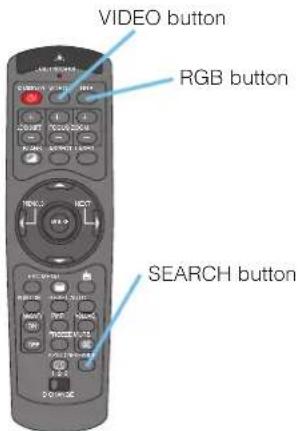
■ Using SEARCH button
Press the SEARCH button of the projector or the remote control. Pressing the button automatically cycles through input ports and displays the picture of retrieved signal.
memo If no signal is found or the projector is unstable to find an input signal at any of its ports, it will turn to the state it was in prior to the search.

flowchart
graph TD
    A["M1-D"] --> B["RGB"]
    B --> C["BNC"]
    C --> D["COMPONENT"]
    D --> E["S-VIDEO"]
    E --> F["VIDEO"]
    F --> A
■ Using RGB button
Press the RGB button of the remote control. Pressing the button toggles between the RGB ports as shown below Select the signal you wish to project.

■ Using VIDEO button
Press the VIDEO button of the remote control. Pressing the button toggles between the VIDEO ports as shown below Select the signal you wish to project.

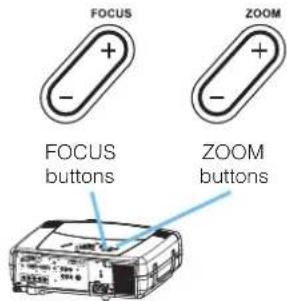
2
Use the ZOOM buttons to adjust the screen size.
3
Use the FOCUS buttons to adjust the focus.
Operating (continued)
Selecting The Aspect Ratio
1 Press the Aspect button to toggle between the modes for aspect ratio.
■ For an RGB signal

memo NORMAL keeps the original aspect ratio of the input signal.
■ For a video signal / no signal

memo For a HDTV signal of 1125i(1080i) or 750p(720p), only 16:9 and REAL can be selected. REAL cannot be selected when there is no input signal.
ASPECT button
Using The Automatic Adjustment Feature
memo The automatic adjustment operation requires approximately 10 seconds. Also, please note that it may not function correctly with some input.
Press the AUTO button.
1 ■ For an RGB signal
The Vertical position, the horizontal position, the clock phase and horizontal size will be automatically adjusted. And the aspect ratio will be automatically selected.
memo Make sure that the application window is set to its maximum size prior to attempting to use this feature. Dark pictures may still be incorrectly adjusted. Use a bright screen when adjusting.
■ For a video signal or s-video signal
The signal type mode best suited for the respective input signal will be selected automatically.
This function is available only when the AUTO is selected to the item VIDEO of the INPUT menu. For a component video signal, the signal type is identified automatically independently of this function.
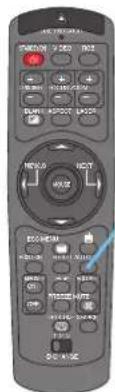
AUTO button
■ For a video signal, s-video signal or component video signal
The vertical position and horizontal position will be automatically adjusted.
■ For a component video signal
The aspect ratio will be automatically selected. The clock phase will be automatically adjusted.
Operating (continued)
Adjusting The Picture Position
memo This function is not available for M1-D signals.
1
Press the POSITION button. As illustrated on the right, a dialog will appear on the screen to aid you in adjusting the position.
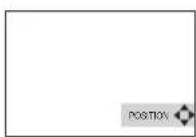
2
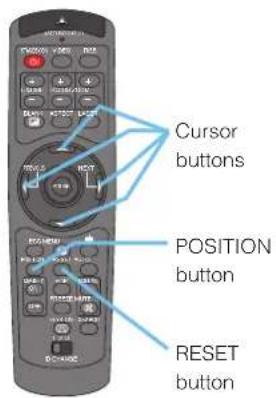
Use the cursor buttons ▲/▼ to adjust the position.
memo When you want to initialize the position, press the RESET button during adjustment.
3
Press the POSITION button again to close the dialog and complete this operation.
memo Even if you don't do anything, the dialog will automatically disappear after a few seconds.
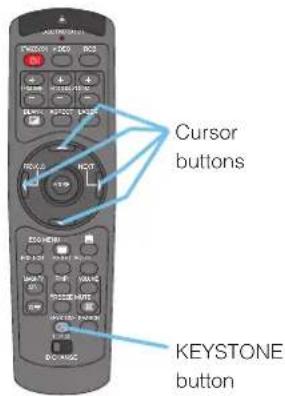
Correcting The Keystone Distortion
1
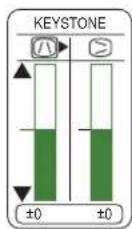
Press the KEYSTONE button. As illustrated on the right, a dialog will appear on the screen to aid you in correcting the keystone distortion.
2
Use the cursor buttons ↗ to select the direction of distortion to correct (@).
3
Use the cursor buttons ▲ to ▼ correct the distortion.
4
Press the KEYSTONE button again to close the dialog and complete this operation.
memo Even if you don't do anything, the dialog will automatically disappear after a few seconds.
memo When this adjustment is excessive, certain degradation may appear on the picture. Also, please note that it may not function correctly with some input.
Operating (continued)
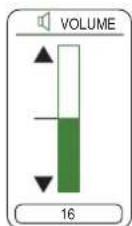
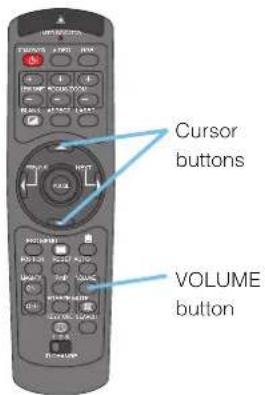
Adjusting The Volume
1 Press the VOLUME button. As illustrated on the right, a dialog will appear on the screen to aid you in adjusting the volume.
2 Use the cursor buttons ▲to▼ adjust the volume.
3 Press the VOLUME button again to close the dialog and complete this operation.
memo Even if you don't do anything, the dialog will automatically disappear after a few seconds.
Muting The Sound
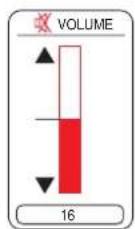
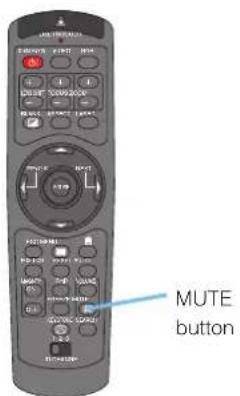
1 Press the MUTE button.
As illustrated on the right, a dialog will appear on the screen indicating that you have muted the sound.
2 Press the MUTE or VOLUME button to restore the sound.
memo Even if you don't do anything, the dialog will automatically disappear after a few seconds.
Temporarily Blanking The Screen
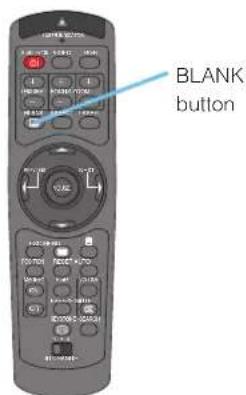
1 Press the BLANK button. The input signal screen will shut off, and a BLANK screen will appear.
memo You can set the BLANK screen using the menu. Please refer to the item "BLANK" of the table of the section "SCREEN Menu".
2 Press the BLANK button again to remove the blank screen, and return to the input signal screen.
Operating (continued)
Freezing The Screen
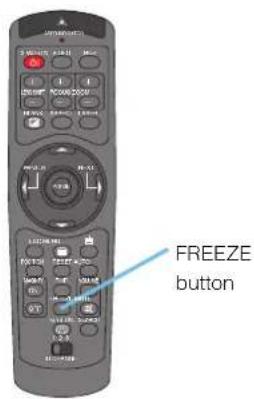
1 Press the FREEZE button. As illustrated on the right, a dialog will appear on the screen, and the screen will freeze at the current image.
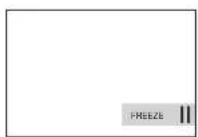
2 Press the FREEZE button again to restore the screen to normal. The icon "ll" will change to the icon "▶. And after a couple of seconds, the dialog will be closed and the screen will be restored to normal.
memo The freezing feature will automatically finish if a remote control's button that changes some display state (ex. blanking the screen, displaying a dialog or a menu, adjusting the picture, changing the input signal) is pressed, or a button of projector is pressed.
NOTE • If the projector continues projecting the same image for a long time (i.e. you forget to exit FREEZE mode), the image might possibly remain as an afterimage. Do not leave the projector in FREEZE mode for too long.
Using The Magnify Feature
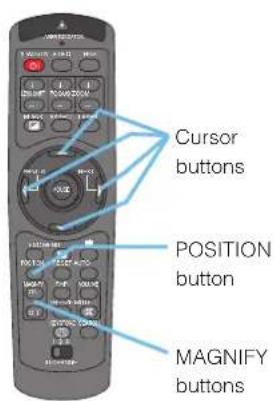
1 Press the MAGNIFY ON button.
As illustrated on the right, a dialog will appear on the screen to aid you in magnifying the picture.
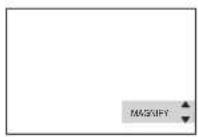
2 Press the POSITION button, then use the cursor buttons ▲/▼ to select the area to zoom.
3 Press the POSITION button again to finalize the zoom area.
4 Use the cursor buttons ▲ to adjust the zoom level.
5 Press the MAGNIFY button again to close the dialog and complete this operation.
memo The magnify feature will automatically finish if the automatic adjustment is execute, or the aspect, the signal type mode of video or the signal input state is changed.
Operating (continued)
Displaying The Child Window
memo This feature called "PinP (Picture in Picture)" is available only when a RGB signal is selected to main screen. And this feature does not work when UXGA (1600 x 1200) or higher signal is input.
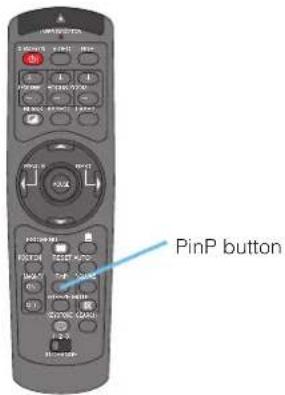
Press the PinP button.
The child window with a picture of a video signal will appear.
2 Press the PinP button again to change the size of the child window or close the window.
Small child window Large child window ↑ ↓ No child window
memo You can select the video signal to display in the child window, and the position of the child window. Please refer to the items "P.INP. INPUT" and "P.INP. POSIT." of the table of the section "INPUT Menu".
Selecting An Audio Input
memo This feature is available only when the child window is on the screen.
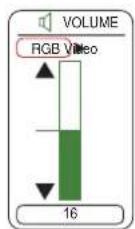
1 When the child window is on the screen, press the VOLUME button. As illustrated on the right, a dialog will appear on the screen.
2 Use the cursor buttons ↗ to select an audio input.
RGB (Audio input for the main screen)
Video (Audio input for the child window)
memo You also can adjust the volume using the cursor buttons ◀/▶. Please refer to the section "Adjusting The Volume".
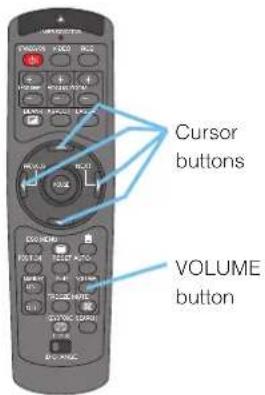
3 Press the VOLUME button again to close the dialog and complete this operation.
memo Even if you don't do anything, the dialog will automatically disappear after a few seconds.
Multifunctional Settings
Using The Menu Functions
This projector has the following menus: MAIN, PICTURE-1, PICTURE-2, INPUT, AUTO, SCREEN, OPTION and NETWORK. Each of these menus is operated using the same methods. The basic operations of these menus are as follows.
1
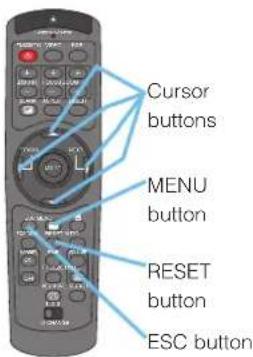
Press the MENU button. The menu will appear on the screen.
2
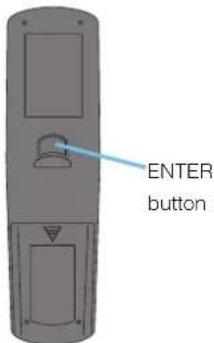
Use the cursor buttons ▲/▼ to select a menu, then press the ▶or the ENTER) button to progress. The display of the selected menu will appear.
3
Use the cursor buttons ▲/▼ to select an item, then press the ▶or the ENTER) button to progress. The operation display of the selected item will appear.
4
Use the cursor buttons to operate the item. memo When you want to reset the adjustment, press the RESET button during the operation. Note that the items whose functions are performed simultaneously with operating (ex. LANGUAGE, WHISPER, H PHASE etc.) are not reset. memo When you want to return to the previous display, press the OR ESC button.
5
Press the MENU button again to close the menu display and complete this operation. memo Even if you don't do anything, the menu w automatically disappear after a few seconds.
ex. Turning off the built-in speaker
Multifunctional Settings (continued)
MAIN Menu
With the MAIN menu, the items shown in the table below can be performed. Perform each operation in accordance with the instructions in the table below.
| MENU | ||
| MAIN | BRIGHT | +0 |
| PICTURE-1 | CONTRAST | +0 |
| PICTURE-2 | ASPECT | 4.3 |
| INPUT | WHISPER | NORMAL |
| AUTO | MIRROR | NORMAL |
| SCREEN | LANGUAGE | ENGLISH |
| OPTION | (Language) | |
| NETWORK | RESET | |
| Item Description | |
| BRIGHT | Adjust the brightness using the▲buttons. : Light ⇔ Dark |
| CONTRAST | Adjust the contrast using the▲buttons. : Strong ⇔ Weak |
| ASPECT | Select an aspect ratio using the▲buttons. :■ For an RGB signalNORMAL ⇔ 4:3 ⇔ 16:9 ⇔ REALThe NORMAL keeps the original aspect ratio of the input signal.■ For a video signal / no signal4:3 ⇔ 16:9 ⇔ SMALL ⇔ REALmemo For a HDTV signal of 1125i(1080i) or 750p(720p), only the 16:9 and REAL can be selected. REAL cannot be selected when there is no input signal. |
| WHISPER | Select the NORMAL or the WHISPER using the▲buttons. :NORMAL ⇔ WHISPERWhen the WHISPER is selected, acoustic noise and screen brightness are reduced. |
| MIRROR | Select a mirror status using the▲buttons. :NORMAL ⇔ H:INVERT ⇔ V:INVERT ⇔ H&V:INVERTex.TOSHIBAABIHBOTABIHOTABIHOTABIHOTABIHOTABIHOTABIHOTABIHOTABIHOTABIHOTABIHOTABIHOTABIHOTABIHOTABIHOTABIHOTABIHOTABIHOTABIHOTABIHOTABIHOTABIHOTABIHOTABIHOTABIHOTABIHOTABIHOTABIHOTABIHOTABIHOTABIHOTABIHOTABIHOTABIHOTABIHOTABBHIBAABIHOTABIHOTABIHOTABIHOTABIHOTABIHOTABIHOTABIHOTABIHOTABIHOTABIHOTABIHOTABIHOTABIHOTABIHOTABIHOTABIHOTABIHOTABIHOTABIHOTABIHOTABIHOTABIHOTABIHOTABIHOTABIHOTABIHOTABIHOTABIHOTABIHOTABIHOTABIHOTABIHOTABAISHENGLISH ⇔ FRANÇAIS ⇔ DEUTSCH ⇔ ESPAÑOL ⇔ ITALIANO ⇔ NORSKNEDERLANDS ⇔ PORTUGUÉS ⇔ 日本語 ⇔ 筒体中文 ⇔ 繁體中文한글 ⇔ SVENSKA ⇔ PYCCKИЙ ⇔ SUOMI ⇔ POLSKI ⇔ TÜRKÇE |
| LANGUAGE | Select a menu language using the▲buttons. :ENGLISH ⇔ FRANÇAIS ⇔ DEUTSCH ⇔ ESPAÑOL ⇔ ITALIANO ⇔ NORSKNEDERLANDS ⇔ PORTUGUÉS ⇔ 日本語 ⇔ 筒体中文 ⇔ 繁體中文한글 ⇔ SVENSKA ⇔ PYCCKИЙ ⇔ SUOMI ⇔ POLSKI ⇔ TÜRKÇE |
| RESET | Select the EXECUTE using the▲button to reset the MAIN menu items. :EXECUTE ⇔ CANCELThe items of the MAIN menu are collectively returned to the initial setting. Note that the items “WHISPER” and “LANGUAGE” are not reset. |
Multifunctional Settings (continued)
PICTURE-1 Menu
With the PICTURE-1 menu, the items shown in the table below can be performed. Perform each operation in accordance with the instructions in the table below.
| MENU | ||
| MAIN | GAMMA | NORMAL |
| PICTURE-1 | COLOR BAL R | +0 |
| PICTURE-2 | COLOR BAL G | +0 |
| INPUT | COLOR BAL B | +0 |
| AUTO | SHARPNESS | +0 |
| SCREEN | COLOR | +0 |
| OPTION | TINT | +0 |
| NETWORK | MY MEMORY | LOAD1 |
| Item Description | ||
| GAMMA | Select a gamma mode using the▲buttons. :NORMAL ⇔ CINEMA ⇔ DYNAMIC ⇔ CUSTOMSelecting the CUSTOM and then pressing the ▶(or the ENTER) button calls the CUSTOM menu.CUSTOM MenuSelect an item using the▲buttons, and press the▶(or the ENTER) button to perform each function.GAMMA ⇔ COLOR TEMP ⇔ R ⇔ G ⇔ Bmemo The R, G and B can be selected only when theUSER is selected under the COLOR TEMP. 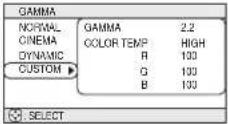 | |
| GAMMA | Adjust the gamma data using the▲buttons. :Up ⇔ Down | |
| COLOR TEMP | Select a color temperature using the▲buttons. :HIGH ⇔ MIDDLE ⇔ LOW ⇔ USER | |
| R | Adjust the red color level for the USER mode of the COLORTEMP using the▲buttons. : Strong ⇔ Weak | |
| G | Adjust the green color level for the USER mode of the COLORTEMP using the▲buttons. : Strong ⇔ Weak | |
| B | Adjust the blue color level for the USER mode of the COLORTEMP using the▲buttons. : Strong ⇔ Weak | |
| COLOR BAL R | Adjust the red color balance using the▲buttons. :Strong ⇔ Weak | |
| COLOR BAL G | Adjust the green color balance using the▲buttons. :Strong ⇔ Weak | |
| COLOR BAL B | Adjust the blue color balance using the▲buttons. :Strong ⇔ Weak | |
| SHARPNESS | Adjust the sharpness using the▲buttons. :Clear ⇔ Soft | |
| COLOR | Adjust the whole color using the▲buttons. :Strong ⇔ Weakmemo This item can be selected only at a video signal. | |
| TINT | Adjust the tint using the▲buttons. :Green ⇔ Redmemo This item can be selected only at a video signal. | |
(This table is continued to the following page.)
Multifunctional Settings (continued)
PICTURE-1 Menu (continued)
| Item Description | |
| MY MEMORY | Select a command to load or save using the ▲buttons, and then press the ▶or the ENTER) button to perform the function.:LOAD1 ⇔ LOAD2 ⇔ LOAD3 ⇔ LOAD4SAVE1 ⇔ SAVE2 ⇔ SAVE3 ⇔ SAVE4This projector has 4 numbered memories for adjustment data.Performing the SAVE1, SAVE2, SAVE3 or SAVE4 puts the current adjustment data on the memory whose number corresponds with the command's number.The current adjustment data of the items BRIGHT and CONTRAST in the MAIN menu and the items in the PICTURE-1 menu is stored.Performing the LOAD1, LOAD2, LOAD3 or LOAD4 loads the data on the memory whose number corresponds with the command's number, and adjusts the picture automatically depending on the data. |
| RESET | Select the EXECUTE using the ▲button to reset the PICTURE-1 menu items.:EXECUTE ⇔ CANCELThe items of the PICTURE-1 menu are collectively returned to the initial setting.Note that the items "MY MEMORY" and "GAMMA" of the CUSTOM menu under the item "GAMMA" are not reset. |
Multifunctional Settings (continued)
PICTURE-2 Menu
With the PICTURE-2 menu, the items shown in the table below can be performed. Perform each operation in accordance with the instructions in the table below.
memo This menu cannot be selected at a M1-D signal.
| MENU | ||
| MAIN | V POSITION | 20 |
| PICTURE-1 | H POSITION | 142 |
| PICTURE-2 | H PHASE | 31 |
| INPUT | H SIZE | 1344 |
| AUTO | OVER SCAN | 5 |
| SCREEN | RESET | |
| OPTION | ||
| NETWORK | ||
| Item Description | |
| V POSITION | Adjust the vertical position using the ▲buttons. :Up ⇔ Downmemo This item cannot be selected for a M1-D signal. |
| H POSITION | Adjust the horizontal position using the ▲buttons. :Left ⇔ Rightmemo This item cannot be selected for a M1-D signal. |
| H PHASE | Adjust the horizontal phase to eliminate flicker using the ▲buttons. :Right ⇔ Leftmemo This item can be selected only at a RGB signal or a component video signal other than a COMPONENT port input of 525i(480i)/625i(576i)/SCART RGB. |
| H SIZE | Adjust the horizontal size using the ▲buttons. :Large ⇔ Smallmemo This item can be selected only at a RGB signal.memo When this adjustment is excessive, the picture may not be displayed correctly. In such a case, please reset the adjustment pressing the RESET button during this operation. |
| OVER SCAN | Adjust the over-scan ratio using the ▲buttons. :Small ⇔ Largememo This item can be selected only at a video signal.memo When this adjustment is too large, certain degradation may appear at the frame area of the picture. In such a case, please adjust small. |
| RESET | Select the EXECUTE using the ▲button to reset the PICTURE-2 menu items. :EXECUTE ⇔ CANCELThe items of the PICTURE-2 menu are collectively returned to the initial setting.Note that the item "H PHASE" is not reset. |
Multifunctional Settings (continued)
INPUT Menu
With the INPUT menu, the items shown in the table below can be performed. Perform each operation in accordance with the instructions in the table below.
| MENU | ||
| MAIN | COLOR SPACE | AUTO |
| PICTURE-1 | COMPONENT | COMPONENT |
| PICTURE-2 | VIDEO | AUTO |
| INPUT | 3D-YCS | TURN OFF |
| AUTO | VIDEO NR | LOW |
| SCREEN | P. INP. INPUT | VIDEO |
| OPTION | P. INP. POSIT. | |
| NETWORK | POWERUP INPUT | RGB |
| Item Description | |
| COLOR SPACE | Select a color space mode using the▲buttons. :AUTO ⇔ RGB ⇔ SMPTE240 ⇔ REC709 ⇔ REC601Selecting the AUTO automatically selects the optimum mode.memo This item can be selected only at a RGB signal or a component video signal other than a COMPONENT port input of 525i(480i)/625i(576i)/SCART RGB.memo The AUTO operation may not work well at some signals. In such a case, select a suitable mode except the AUTO. |
| COMPONENT | Select a function of COMPONENT port using the▲buttons. :COMPONENT ⇔ SCART RGBWhen the SCART RGB is selected, the COMPONENT port function as a port for a SCART RGB signal input. Please refer to the section "Connecting Your Devices". |
| VIDEO | Select a signal type mode using the▲buttons. :AUTO ⇔ NTSC ⇔ PAL ⇔ SECAM ⇔ NTSC4.43 ⇔ M-PAL ⇔ N-PALSelecting the AUTO automatically selects the optimum mode.memo This item is performs only at a video signal from the VIDEO port or the S-VIDEO port. For a component video signal, the signal type is identified automatically independently of this function.memo The AUTO operation may not work well at some signals. If the picture becomes unstable (ex. a irregular picture, a color lack), please select the mode depending on the input signal. |
| 3D-YCS | Select the TURN ON or the TURN OFF using the▲buttons. :TURN ON ⇔ TURN OFFWhen the TURN ON is selected, the 3D-YCS mode works for a completely still image, or images with few motions.memo This item performs only at a video signal of NTSC3.58.memo When this function performs, the setting of the item "VIDEO NR" of this INPUT menu is not effective. |
| VIDEO NR | Select a noise reduction level using the▲buttons. :HIGH ⇔ MIDDLE ⇔ LOWThe noise on screen is reduced according to the selected level.memo This item performs only at a video signal from the VIDEO port or the S-VIDEO port. At a video signal of NTSC3.58, this function performs only when the TURN OFF is selected to the item "3D-YSC" of this INPUT menu.memo When this adjustment is excessive, certain degradation may appear on the picture. |
(This table is continued to the following page.)
Multifunctional Settings (continued)
INPUT Menu (continued)
| Item Description | |
| P.IN P. INPUT | Select a signal input port for the child window using the▲buttons.:VIDEO ⇔ S-VIDEomemo About the child window, please refer to the section "Displaying the Child Window". |
| P.IN P. POSIT. | Select the display position of the child window using the▲buttons.:⇨⇨⇨⇨⇨☐memo About the child window, please refer to the section "Displaying the Child Window". |
| POWERUP INPUT | Select a signal input port to display just when the projector is turned on, using the▲/▼buttons.:LAST INPUT ⇔ M1-D ⇔ RGB ⇔ BNC ⇔ COMPONENT ⇔ S-VIDEO ⇔ VIDEO Selecting the LAST INPUT selects the port that was used at the last time. |
| INFORMATION | Pressing the (or the ENTER) button displays the INPUT INFORMATION menu.The INPUT INFORMATION menu shows the information about the current signal input as illustrated below.[IMAGE] [IMAGE] [IMAGE] [IMAGE] [IMAGE]memo The "FRAME LOCK" message means the frame lock function is working.This function automatically works when a RGB signal with vertical frequency of 50 to 60 is input, and it displays a moving picture more smoothly.memo The "SCART RGB" message means the COMPONENT port is working as a SCART RGB port. Please refer to the item "COMPONENT" in this table. |
| RESET | Select the EXECUTE using the▲button to reset the INPUT menu items.:EXECUTE ⇔ CANCELThe items of the INPUT menu are collectively returned to the initial setting. Note that the item "INFORMATION" is not reset. |
Multifunctional Settings (continued)
AUTO Menu
With the AUTO menu, the items shown in the table below can be performed. Perform each operation in accordance with the instructions in the table below.
| MENU | ||
| MAIN | ADJUST | |
| PICTURE-1 | POWER OFF | 0 min |
| PICTURE-2 | SEARCH | TURN ON |
| INPUT | RESET | |
| AUTO | ||
| SCREEN | ||
| OPTION | ||
| NETWORK | ||
| Item Description | |
| ADJUST | Pressing the ▶ for the ENTER) button performs the automatic adjustment.■ For an RGB signalThe vertical position (V POSITION), the horizontal position (H POSITION), the clock phase (H PHASE) and the horizontal size (H SIZE) will be automatically adjusted. And the aspect ratio (ASPECT) will be automatically selected.Make sure that the application window is set to its maximum size prior to attempting to use this feature. Dark pictures may still be incorrectly adjusted.Use a bright screen when adjusting.■ For a video signal or s-video signalThe signal type mode best suited for the respective input signal will be selected automatically.This function is available only when the AUTO is selected to the item "VIDEO" of the INPUT menu. For a component video signal, the signal type is identified automatically independently of this function.■ For a video signal, s-video signal or component video signalThe vertical position and horizontal position will be automatically adjusted.■ For a component video signalThe aspect ratio will be automatically selected.The clock phase will be automatically adjusted.memo This operation requires approximately 10 seconds, and the message "AUTO IN PROGRESS" is displayed during the operation.memo This operation may not work well at some signals. If the picture becomes unstable (ex. a irregular picture, a color lack), please select the suitable mode to the item "VIDEO" of the INPUT menu. |
| POWER OFF | Set the time using the Buttons.:Long (max. 99 minutes) ⇔ Short (min. 0 minute = DISABLE)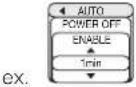  When the time is set to 1 to 99, the projector lamp will go off and the STANDBY/ON indicator begins blinking when the passed time with a proper signal (without no-signal and an unsuitable signal) reaches at the set time.Please refer to the section "Turning Off The Power". When the time is set to 1 to 99, the projector lamp will go off and the STANDBY/ON indicator begins blinking when the passed time with a proper signal (without no-signal and an unsuitable signal) reaches at the set time.Please refer to the section "Turning Off The Power". |
(This table is continued to the following page.)
Multifunctional Settings (continued)
AUTO Menu (continued)
| Item Description | |
| SEARCH | Select the TURN ON or the TURN OFF using the▲buttons. :TURN ON ⇔ TURN OFFWhen the TURN ON is selected, detecting no signal cycles through input ports and displays the picture of retrieved signal.[IMAGE]memo When the TURN ON is selected, pressing the RGB button selects the M1-D ports, and pressing the VIDEO button selects the COMPONENT port.memo If no signal is found or the projector is unstable to find an input signal at any of its ports, it will return to the state it was in prior to the search. |
| RESET | Select the EXECUTE using the▲button to reset the AUTO menu items. :EXECUTE ⇔ CANCELThe items of the AUTO menu are collectively returned to the initial setting. Note that the item “ADJUST” is not reset. |
Multifunctional Settings (continued)
SCREEN Menu
With the SCREEN menu, the items shown in the table below can be performed. Perform each operation in accordance with the instructions in the table below.
| MENU | ||
| MAIN | BLANK | BLACK |
| PICTURE-1 | START UP | ORIGINAL |
| PICTURE-2 | MyScreen | |
| INPUT | MyScreen LOCK | TURN OFF |
| AUTO | MENU POSITION | |
| SCREEN | MESSAGE | TURN ON |
| OPTION | RESET | |
| NETWORK | ||
| Item Description | |
| BLANK | Select a type of the BLANK screen using the▲buttons.:MyScreen ⇔ ORIGINAL ⇔ BLUE ⇔ WHITE ⇔ BLACKThe BLANK screen is the screen, which is displayed by pressing the BLANK button.The MyScreen is the screen you can register a desired screen, and theORIGINAL is the existing standard screen. The BLUE, the WHITE and theBLACK are the non-pattered (plain) screens in each color.memoTo avoid remaining as an afterimage, the MyScreen and the ORIGINALscreens will change to the BLACK screen after several minutes.memoFor the MyScreen, please refer to the item "MyScreen" in this table. |
| START UP | Select a type of the START UP screen using the▲buttons.:MyScreen ⇔ ORIGINAL ⇔ TURN OFFThe START UP screen is the screen, which is displayed by detecting no signalor an unsuitable signal.The MyScreen is the screen you can register a desired screen, and theORIGINAL is the existing standard screen. When the TURN OFF is selected,the BLACK is used.memoTo avoid remaining as an afterimage, the MyScreen and the ORIGINALscreens will change to the BLANK after several minutes. If also the BLANKscreen is the MyScreen or the ORIGINAL, it will change to the BLACK screen.memoAbout the MyScreen, please refer to the item "MyScreen" in this table.About the BLUE, BLACK and BLANK screens, please refer to the item"BLANK" in this table. |
| MyScreen | Pressing the (▶ the ENTER) button starts the MyScreen registration. Pleasesee the flow chart on the following page.memoImages registered in MyScreen will be of lesser quality than the original. |
| MyScreen LOCK | Select the TURN ON or the TURN OFF using the▲buttons.:TURN ON ⇔ TURN OFFThe TURN ON disables the operation of the item "MyScreen" of this SCREENmenu. |
| MENU POSITION | Adjust the menu position using the▲/ / button↓: ▶Up↑Left ⇔ + ➔ Right↓DownmemoTo finish this operation, press the ESC button but not the◀button. |
(This table is continued to the following page.)
Multifunctional Settings (continued)
SCREEN Menu (continued)
| Item Description | |
| MESSAGE | Select the TURN ON or the TURN OFF using the▲buttons. :TURN ON ⇔ TURN OFFWhen the TURN ON is selected, the following message function works.The message of the "AUTO IN PROGRESS" for the auto adjustment.The message of the "NO INPUT IS DETECTED"The message of the "SYNC IS OUT OF RANGE"The message of the "Searching ..."The message of the "Detecting ..."The indication of the input signal by input change.The indication of the aspect ratio by changing the aspect ratio.The indication of "FOCUS" by adjusting the focus.The indication of "FREEZE" and "II" while freezing the screen by pressing the FREEZE button.memo When the TURN OFF is selected, please remember if the picture is freezing. Do not mistake freezing for a malfunction. |
| RESET | Select the EXECUTE using the▲button to reset the SCREEN menu items. :EXECUTE ⇔ CANCELThe items of the SCREEN menu are collectively returned to the initial setting. |
How to register your picture as the MyScreen
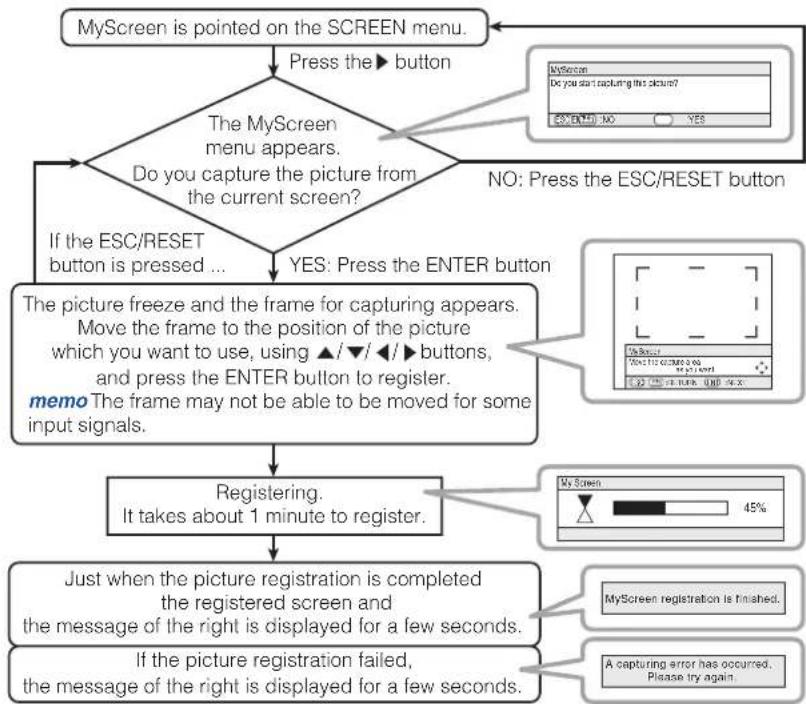
flowchart
graph TD
    A["MyScreen is pointed on the SCREEN menu."] --> B["Press the ▶ button"]
    B --> C{The MyScreen menu appears.}
    C -->|Yes| D["No: Press the ESC/RESET button"]
    C -->|No| E["If the ESC/RESET button is pressed ..."]
    E --> F{The picture freeze and the frame for capturing appears.}
    F -->|Yes| G["Yes: Press the ENTER button"]
    F -->|No| H["Move the frame to the position of the picture which you want to use, using ▲/▼/◄/► buttons, and press the ENTER button to register. memo The frame may not be able to be moved for some input signals."]
    H --> I["Registering. It takes about 1 minute to register."]
    I --> J["Just when the picture registration is completed the registered screen and the message of the right is displayed for a few seconds."]
    J --> K{If the picture registration failed, the message of the right is displayed for a few seconds.}
    K --> L["My Screen registration is finished."]
    K --> M["A capturing error has occurred. Please try again."]
Multifunctional Settings (continued)
OPTION Menu
With the OPTION menu, the items shown in the table below can be performed. Perform each operation in accordance with the instructions in the table below.
| MENU | ||
| MAIN | VOLUME | 16 |
| PICTURE-1 | SPEAKER | TURN ON |
| PICTURE-2 | IR REMOTE | 12238 |
| INPUT | IR REMOTE ID | ALL |
| AUTO | LAWP TIME | 1234 h |
| SCREEN | FILTER TIME | 4321 h |
| OPTION | SERVICE | |
| NETWORK | RESET | |
| Item Description | |
| VOLUME | Adjust the volume using the▲buttons. :High ⇔ Low |
| SPEAKER | Select the TURN ON or the TURN OFF using the▲buttons. :TURN ON ⇔ TURN OFFWhen the TURN ON is selected, the built-in speaker works. |
| IR REMOTE | Select a remote sensor using the▲button (1), then switchit using the ENTER button (2). :(1) 1: FRONT ⇔ 2: TOP ⇔ 3: REAR (2) □ (Off) ⇔ ☑ (On) memoA sensor cannot be turned off when the other two are off.Always at least one sensor is on. memoA sensor cannot be turned off when the other two are off.Always at least one sensor is on. |
| IR REMOTE ID | Select a number as an ID number for remote control using the▲buttons. :ALL ⇔ 1 ⇔ 2 ⇔ 3The projector is controlled by the remote control whose ID CHANGE switch is set into the position of the same number as this number. When the ALL is selected, the projector is controlled by a remote control irrespective of the position of the ID CHANGE switch.memoPlease refer to the section "Using The Remote ID Feature". |
| LAMP TIME | Pressing the button or RESET button displays the LAMP TIME menu.Select the RESET using button to reset the timer. :RESET ⇔ CANCELSelecting the RESET resets the count of the lamp timer to 0.memoPerform this function only when you have replaced the lamp. The lamp timer counts the used time of the current lamp, to display the messages about the lamp. Incorrect performing causes incorrect operation of the messages.memoAbout replacing the lamp, please refer to the section" Lamp". |
| FILTER TIME | Pressing the button or RESET button displays the FILTER TIME menu.Select the RESET using button to reset the timer. :RESET ⇔ CANCELSelecting the RESET resets the count of the filter timer to 0.memoPerform this function only when you have cleaned or replaced the air filter. The filter timer counts the used time of the air filter after cleaning or replacement, to display the messages about the air filter. Incorrect performing causes incorrect operation of the messages.memoAbout caring for the air filter, please refer to the section "Air Filter". |
(This table is continued to the following page.)
Multifunctional Settings (continued)
OPTION Menu (continued)
| Item Description | ||
| SERVICE | Pressing the (or the ENTER) button calls the SERVICE menu.SERVICE MenuSelect an item using the ▲buttons, and press the (or the ▲ENTER) button to per form each function.:FANSPEED ⇔ AUTO ADJUST ⇔ LENS TYPE ⇔ LENS LOCK ⇔ GHOST ⇔ FILTER MESSAGE | |
| FANSPEED | Select the fan speed level using the ▲buttons. : HIGH ⇔ NORMALThe HIGH ups rotation speeds of fans, though. Please use this function in using a projector at highlands etc.memo Note that the projector is noisier when the HIGH is selected. | |
| AUTO ADJUST | Select the ENABLE or the DISABLE using the ▲buttons. :ENABLE ⇔ DISABLEWhen the ENABLE is selected, detecting a signal change to a RGB signal performs the automatic adjustment of the vertical position (V POSITION), the horizontal position (H POSITION), the clock phase (H PHASE) and the horizontal size (H SIZE).Depending on conditions, such as input image, signal cable to the unit, environment around the unit, etc., the automatic adjustment may not work correctly. In such a case, please choose DISABLE to disable the automatic adjustment, and adjust manually. | |
| LENS TYPE | Select the lens type currently used using the ▲buttons. :AUTO ⇔ 1 ⇔ 2 ⇔ 3 ⇔ 4 ⇔ 5Please select depending on the following.AUTO: automatically selects optimum mode.1: for a standard lens2: for a fixed short throw lens3: for a short throw lens4: for a long throw lens5: for a super long throw lensmemo This setting has an influence on the keystone distortion etc.memo About the optional lens, ask your dealer. | |
| LENS LOCK | Select the TURN ON or the TURN OFF using the ▲buttons. :TURN ON ⇔ TURN OFFSelecting the TURN ON locks the adjustment of the lens shift, the zoom and the focus. | |
| GHOST | 1. Choose a color element of ghost using the bottoms / ◀ ▲2. Adjust the chosen element using buttons ▲o disappear ghost. | |
| FILTERMESSAGE | Use the ▲button to set the timer for the interval to show the message for cleaning up the air filter.100h ⇔ 200h ⇔ 300h ⇔ TURN OFF ⇔ 50hAfter selecting "50h", "100h", "200h" or "300h", the message "REMINDER ..." will appear after the timer reaches the interval time set by this operation. Please refer to the "FILTER TIME" item 41 and the table "Related message" 50. When "TURN OFF" is chosen, the air filter cleaning message will not appear. Selecting "TURN OFF" displays the message to call an attention to disabling the air filter cleaning message.Please check and clean the air filter periodically, even if there is no message. If the air filter becomes blocked by dust or others, the internal temperature will rise, which could cause malfunction, or reduce the lifetime of the projector.It is recommended to choose "100h" in general. Please be careful with the operating environment of the projector and the condition of air filter, especially when "200h", 300h or "TURN OFF" is chosen. | |
| RESET | Select the EXECUTE using the button to reset the OPTION menu items.:EXECUTE ⇔ CANCELThe items of the OPTION menu are collectively returned to the initial setting. Note that the items "VOLUME", "LAMP TIME", "FILTER TIME" and "SERVICE" are not reset. | |
Multifunctional Settings (continued)
NETWORK Menu
This projector provides the NETWORK function. If you use this function, please set up the projector according to the Network environment in which you use it.
memo If DHCP function on your Network is activated, the following operation is not normally required, because DHCP function on this projector is active as initial settings. Please see the section "Network Setting Up".
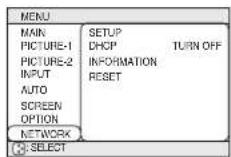

| Item Description | ||
| SETUP | Press the (▶ the ENTER) button, then the IP ADDRESS menu as right comes up. memo This menu will be shown only when the DHCP is disabled at the NETWORK menu. The IP Address is identification number of the projector on the Network.1. Set the IP Address using the ▲buttons. memo The same IP Address with other units cannot be used. Press the (▶ the ENTER) button at the IP ADDRESS menu, then the SUBNET MASK menu comes up. The SUBNET MASK is an address of the Network.2. Set the address of the Network to be used. Press the (▶ the ENTER) button at the SUBNET MASK menu, then the DEFAULT GATEWAY menu comes up. The DEFAULT GATEWAY is the main device to access outside of the Network.3. Set the address of the device as gateway to an outer Network. | 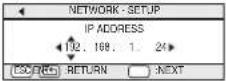 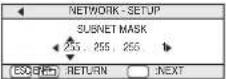 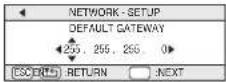 |
| DHCP | Select the TURN ON or the TURN OFF using the ▲▼ buttons. : TURN ON ⇔ TURN OFFIf your Network doesn't support the DHCP function, select the TURN OFF. |  |
| INFORMATION | Pressing the (▶ the ENTER) button displays the INFORMATION menu. The menu shows the information about the current Network setting as illustrated right. | 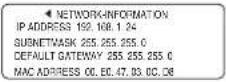 |
| RESET | Select the EXECUTE using the ▲button to reset the NETWORK menu items. : EXECUTE ⇔ CANCELAll items on the NETWORK menu are returned to the initial setting. | |
Network Setting Up
This projector provides the NETWORK function. When you start to use this function, please consult your dealer for further information.
To start, connect the NETWORK port to a gateway device via a CAT-5 cable, then set up the projector according to the Network environment in which you use it.
When your Network enables the DHCP function
You can set automatically, if you set the DHCP function to "TURN ON" using the NETWORK menu. Please refer to the section "NETWORK Menu".
When your Network doesn't support the DHCP function or When you use a fixed address even if your Network can support the DHCP function
Please set the IP Address, the Subnet Mask, the Default Gateway and the DHCP using the NETWORK menu. 43 At first, set the DHCP function to "TURN OFF".
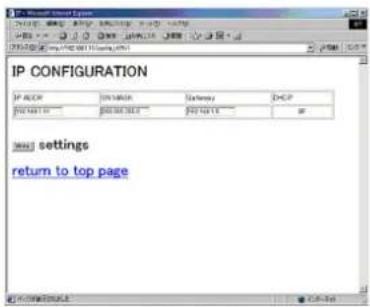
You can set them using a Web Browser (Internet Explorer 4.0 or higher) on the computer connected to the Network.
Input the same IP address as set to the projector onto the Web Browser on the computer connected to LAN.
ex. Case of IP Address = 192.168.1.11
1) Input "http://192.168.1.11".
2) Click "ENTER".
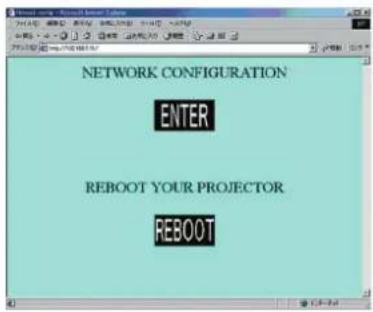
3) Input the required data according to the screen.
4) Make sure of the input data, then click "Write". memo These setting will be active after reboot. These setting will be stored, and used when DHCP is OFF.
5) Click "Return to top page".
6) Click "REBOOT" to complete this operation.
Lamp

WARNING

HIGH VOLTAGE

HIGH TEMPERATURE

HIGH PRESSURE
The projector uses a high-pressure mercury glass lamp. The lamp can break with a loud bang, or burn out, if jolted or scratched, handled while hot, or worn over time. Note that each lamp has a different lifetime, and some may burst or burn out soon after you start using them. In addition, when the bulb bursts, it is possible for shards of glass to fly into the lamp housing, and for gas containing mercury to escape from the projector's vent holes.
About disposal of a lamp
This product contains a mercury lamp; do not put in trash. Dispose of in accord with environmental laws.
For more information, call your dealer.

Disconnect the plug from the power outlet
- If the lamp should break (it will make a loud bang when it does), unplug the power cord from the outlet, and make sure to request a replacement lamp from your local dealer. Note that shards of glass could damage the projector's internals, or cause injury during handling, so please do not try to clean the projector or replace the lamp yourself.
- If the lamp should break (it will make a loud bang when it does), ventilate the room well, and make sure not to breathe the gas that comes out of the projector vents, or get it in your eyes or mouth.
- Before replacing the lamp, make sure the power switch is off and the power cable is not plugged in, then wait at least 45 minutes for the lamp to cool sufficiently. Handling the lamp while hot can cause burns, as well as damaging the lamp.

- Do not open the lamp cover while the projector is suspended from above. This is dangerous, since if the lamp's bulb has broken, the shards will fall out when the cover is opened. In addition, working in high places is dangerous, so ask your local dealer to have the lamp replaced even if the bulb is not broken.
- Do not use the projector with the lamp cover removed. At the lamp replacing, make sure that the screws are screwed in firmly. Loose screws could result in damage or injury.

- Use only the lamp of the specified type only.
- If the lamp breaks soon after the first time it is used, it is possible that there are electrical problems elsewhere besides the lamp. If this happens, contact your local dealer or a service representative.
- Handle with care: jolting or scratching could cause the lamp bulb to burst during use.
- If the indicators or a message prompts you to replace the lamp (see the section "Related Messages" and "Regarding the indicator Lamps"), replace the lamp as soon as possible. Using the lamp for long periods of time, or past the replacement date, could cause it to burst. Do not use old (used) lamps; this is a cause of breakage.
Lamp (continued)
Replacing The Lamp
If the indicators or a message prompts you to replace the lamp, replace the lamp as soon as possible.
1 Turn off the projector, and unplug the power cord. Allow the lamp bulb to cool for at least 45 minutes.
2 Contact your dealer to prepare a new lamp. Tell the dealer your lamp type number. If the projector is mounted on the ceiling, or if the lamp has broken, also ask the dealer to replace the lamp.
In the case of replacement by yourself,
3 After making sure that the projector has cooled adequately, slide the knob of a lamp cover lock as shown in the Figure. Then, one side of the lamp cover is raised. Pull up the lamp cover and remove it, as shown in the Figure.
Lamp cover knob Lamp cover
4 Unscrew the 3 screws, and slowly pull out the lamp by the handle. Be careful not to touch the inside of the lamp case.
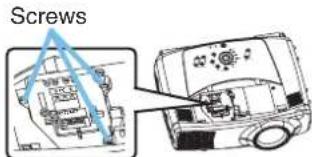
5 Insert the new lamp, and tighten the 3 screws firmly to lock it in place.
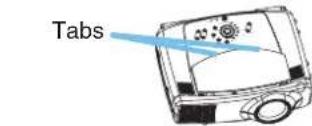
6 Interlocking the 2 tabs of the lamp cover to the projector, put the lamp cover on the projector. Then push the point of the lamp cover to fix it, as shown in the Figure. Make sure that the lamp cover does't come up.
7 Turn on the projector, and reset the lamp timer.
(1) While the projector running, press the MENU button to open the menu.
(2) Choose the "OPTION" on the menu using the ▲ / ▼ button, then press the ▶ button or ENTER button.
(3) Choose the "LAMP TIME" using the ▲ / ▼ button, then press the button or RESET button.
(4) Choose the "RESET" using the button.
memo When the lamp has been replaced after the message of "THE POWER WILL TURN OFF AFTER 0hr." is displayed, complete this operation within 10 minutes of switching power on.
memo Incorrectly resetting of the lamp timer (resetting without replacement, or neglect of resetting after replacement) will result in incorrect message functions.
Air Filter
WARNING • Please carefully read the "Before using" section of this manual.
- Before caring, make sure the power switch is off and the power cable is not plugged in, then wait at least 45 minutes for the lamp to cool sufficiently.
- Use only the air filter of the specified type only.
- Do not use the projector with the air filter and filter cover removed. The use without the air filter could result in damage.
CAUTION • If the air filter becomes clogged by dust or the like, internal temperature rises and could cause malfunction. The power is automatically turned off in order to prevent the projector from overheating internally.
Caring For The Air Filter
Cleaning the air filter every 100 hours using the FILTER MESSAGE function 42 is recommended. If the indicators or a message prompts you to clean the air filter, clean the air filter as soon as possible. Please check and clean the air filter periodically, even if there is no message. If the soiling will not come off the air filter, or it becomes damaged, then it needs to be replaced. Please replace the air filter as soon as possible.
memo When you replace the lamp, please replace also the air filter.
1 Turn off the projector, and unplug the power cord. Allow the lamp bulb to cool for at least 45 minutes.
2 After making sure that the projector has cooled adequately, remove the filter cover and air filter.
3 Apply a vacuum cleaner to the top of the filter cover and the air filter to clean.
If the soiling will not come off the air filter, or it becomes damaged, it needs to be replaced.
If the air filter needs to be replaced, contact your dealer to prepare a new air filter. Tell the dealer your air filter type.
Hold the release buttons of the filter cover while pulling down it.
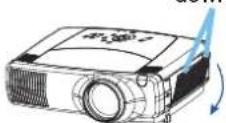
4 Insert the cleaned air filter or a new air filter, and replace the filter cover.
5 Turn on the projector power, and reset the filter timer.
(1) While the projector running, press the MENU button to open the menu.
(2) Choose the "OPTION" on the menu using the ▲ / ▼ button, then press the button or ENTER button.
(3) Choose the "FILTER TIME" using the ▲ / ▼ button, then press the ▶ button or RESET button.
(4) Choose the "RESET" using the button.
Hold the release button of the air filter while pulling out it.
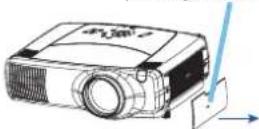
memo Incorrectly resetting of the filter timer (resetting without replacement, or neglect of resetting after replacement) will result in incorrect message functions.
Other Care
WARNING • Please carefully read the "Before using" section of this manual. • Before caring, make sure the power switch is off and the power cable is not plugged in.
- Be cautious of high temperature. Do not touch about the lens and ventilation openings during use or immediately after use prevent a burn.
- Never try to care for the inside of the unit yourself. Doing so is dangerous.
CAUTION • Incorrect care could have adverse influence such as discoloration, peeling paint, etc. - Do not use cleaner or chemicals other than those listed below, including benzene and paint thinner.
- Do not use aerosols or sprays.
- Do not polish or wipe with hard objects.
Caring For The Inside Of The Projector
In order to ensure the safe use of your projector, please have it cleaned and inspected by your local dealer about once every year.
Caring For The Lens
1 Turn off the projector, and unplug the power cord.
2 Lightly wipe the lens with a commercially available lens-cleaning wipe. Do not touch the lens directly with your hand.
Caring For The Cabinet And Remote Control
1 Turn off the projector, and unplug the power cord.
2 Wipe lightly with gauze or a soft cloth. memo If soiling is severe, dip soft cloth in water or a neutral cleaner dilute in water, and wipe lightly after wringing well. Then, wipe lightly with a soft, dry cloth.
Troubleshooting
Related Messages
When the unit's power is on, messages such as those shown below may be displayed. When any such message is displayed on the screen, please respond as described below. If the same message is displayed after the treatment, or if a message other than the following appears, please contact your dealer or service company.
memo Although these messages will be automatically disappeared around several minutes, it will be reappeared every time the power is turned on.
| Message Description | |
| CHANGE THE LAMP AFTER REPLACING LAMP, RESET THE LAMP TIMER. | The time the lamp timer has counted is approaching 2000 hours.Preparation of a new lamp, and an early lamp change is recommended. After you have change the lamp, please be sure to reset the lamp timer. |
| CHANGE THE LAMP AFTER REPLACING LAMP, RESET THE LAMP TIMER.THE POWER WILL TURN OFF AFTER ** hr. | The time the lamp timer has counted is approaching 2000 hours, so a lamp change within ** hours is recommended.When lamp usage reaches 2000 hours, the power will automatically be turned off.Please change the lamp by referring to the section “Lamp”. After you have changed the lamp, please be sure to reset the lamp timer. |
| CHANGE THE LAMP AFTER REPLACING LAMP, RESET THE LAMP TIMER.THE POWER WILL TURN OFF AFTER 0 hr. | As the time the lamp timer has counted has reached 2000 hours, the power will soon be automatically turned off.Please immediately turn the power off, and change the lamp by referring to the section “Lamp”. After changing the lamp, please be sure to reset the lamp timer. |
(This table is continued to the following page.)
NOTE • A lamp has a finite product life. Lamps are characterized by the fact that, after long hours of usage, a lamp will no longer light up, or the lamp will break or burst, etc. This projector is equipped with an automatic shut-down function, such that the power will automatically be turned off when lamp usage time has reached 2000 hours. Please be aware, however, that among lamp types, there are major differences in product lifetimes; a lamp may thus fail to light even prior to the functioning of the automatic shut-down function of this projector.
Troubleshooting (continued)
Related Messages (continued)
| Message Description | |
| REMINDER*** HRS PASSED AFTER THE LAST FILTER CHECK.FILTER MAINTENANCE IS ESSENTIAL TO REMOVE WARNINGMESSAGE, RESET FILTER TIMER.SEE MANUAL FURTHER INFO. | The time the filter timer has counted has reached the interval time set by the "FILER MESSAGE" of "SERVICE" item in the OPTION menu.Please clear or change the air filter by referring to the section "Air Filter". After caring for the air filter, please be sure to reset the filter timer. |
| PLEASE CHECK THAT THE FILTER HAS BEEN CLEANED.Failure TO CLEAN MAY RESULT IN DAMAGE TO THE PROJECTOR.SEE MANUAL FURTHER INFO. | The internal portion temperature is rising.Please turn the power OFF, and allow the unit to cool down at least 20 minutes. After the projector has sufficiently cooled down, please make confirmation of the following items, and then turn the power on again.Is there blockage of the air passage aperture?Is the air filter dirty?Does the peripheral temperature exceed 35°C?Is the filter cover in place? |
| NO INPUT IS DETECTED ON *** | There is no input signal.Please confirm the signal input connection, and the status of the signal source. |
| SYNC IS OUT OF RANGE ON *** fH *****kHz fV *****Hz | The horizontal or vertical wavelength of the inputted signal is outside of the response parameters of this unit.Please confirm the specs for this unit or the signal source specs. |
Troubleshooting (continued)
Regarding The Indicator Lamps
Lighting and flashing of the STANDBY/ON indicator, the LAMP indicator, and the TEMP indicator have the meanings as described in the table below. Please respond in accordance with the instructions within the table. If the same indication is displayed after the treatment, or if an indication other than the following is displayed, please contact your dealer or service company.
NOTE • When the interior portion has become overheated, for safety purposes, the power source is automatically turned off, and the indicator lamps may also be turned off. In such a case, press the “○” (OFF) side of the main power switch, and wait at least 45 minutes. After the projector has sufficiently cooled down, please make confirmation of the attachment state of the lamp and lamp cover, and then turn the power on again.
| STANDBY/ON indicator | LAMP indicator | TEMP indicator | Description |
| Lighting in Orange | Turned off | Turned off | The projector is in a standby state.Please refer to the section “Power On/Off”. |
| Blinking in Green | Turned off | Turned off | The projector is warming up.Please wait. |
| Lighting in Green | Turned off | Turned off | The projector is in an on state.Ordinary operations may be performed. |
| Blinking in Orange | Turned off | Turned off | The projector is cooling down.Please wait. |
| Blinking in Red | (discretionary) | (discretionary) | The projector is cooling down. A certain error has been detected.Please wait until the STANDBY/ON indicator finishes blink, and then perform the proper response measure using the item descriptions below as reference. |
| Lighting in Red | Lighting in Red | Turned off | The lamp does not light, and there is a possibility that interior portion has become heated.Please turn the power off, and allow the unit to cool down at least 20 minutes. After the projector has sufficiently cooled down, please make confirmation of the following items, and then turn the power on again.Is there blockage of the air passage aperture?Is the air filter dirty?Does the peripheral temperature exceed 35°C?If the same indication is displayed after the treatment, please change the lamp by referring to the section “Lamp”. |
(This table is continued to the following page.)
Troubleshooting (continued)
Regarding The Indicator Lamps (continued)
| STANDBY/ON indicator | LAMP indicator | TEMP indicator | Description |
| Lighting in Red | Blinking in Red | Turned off | Either there is no lamp and/or lamp cover, or either of these has not been properly fixed.Please turn the power off, and allow the unit to cool down at least 45 minutes. After the projector has sufficiently cooled down, please make confirmation of the attachment state of the lamp and lamp cover, and then turn the power on again.If the same indication is displayed after the treatment, please contact your dealer or service company. |
| Lighting in Red | Turned off | Blinking in Red | The cooling fan is not operating.Please turn the power off, and allow the unit to cool down at least 20 minutes. After the projector has sufficiently cooled down, please make confirmation that no foreign matter has become caught in the fan, etc., and then turn the power on again.If the same indication is displayed after the treatment, please contact your dealer or service company. |
| Lighting in Red | Turned off | Lighting in Red | There is a possibility that the interior portion has become heated.Please turn the power off, and allow the unit to cool down at least 20 minutes. After the projector has sufficiently cooled down, please make confirmation of the following items, and then turn the power on again.Is there blockage of the air passage aperture?Is the air filter dirty?Does the peripheral temperature exceed 35°C?If the same indication is displayed after the treatment, please change the lamp by referring to the section "Lamp". |
| Lighting in Green | Alternative Blinking in Red | There is a possibility that the interior portion has become overcooled.Please use the unit within the usage temperature parameters (0°C to 35°C). After the treatment, resent the power to ON.If the same indication is displayed after the treatment, please contact your dealer or service company. | |
| Lighting in Green | Simultaneous Blinking in Red | It is time to clean the air filter, or there is no filter cover.Please immediately turn the power OFF, and clean or change the air filter by referring to the section "Air Filter".After cleaning or changed the lamp, please be sure to reset the filter timer. After the treatment, resent the power to ON. | |
Troubleshooting (continued)
Phenomena That May Easily Be Mistaken For Machine Defects

WARNING • Never use the projector if abnormal operations such as smoke, strange odor, excessive sound, damaged casing or elements or cables, etration of liquids or foreign matter, etc. should occur. In such cases, immediately off the power switch and then disconnect the power plug from the power outlet or making sure that the smoke or odor has stopped, contact your dealer or service company.
Before requesting repair, please check in accordance with the following chart. If the situation cannot be corrected, please contact your dealer or service company.
NOTE • Although bright spots or dark spots may appear on the screen, this is a unique characteristic of liquid crystal displays, and such do not constitute or imply a machine defect.
| Phenomenon Cases not involving a machine defect | Reference pages | |
| Power does not come on. | The electrical power cord is not plugged in.Correctly connect the power cord. | 19 |
| The power switch is not set to the on position.Set the power switch to [ I ] (On). | 23 | |
| The main power source has been interrupted during operation such as by a power outage (blackout), etc.Please turn the power off, and allow the unit to cool down at least 20 minutes. After the projector has sufficiently cooled down, please turn the power on again. | 23 | |
| Either there is no lamp and/or lamp cover, or either of these has not been properly fixed.Please turn the power off, and allow the unit to cool down at least 45 minutes. After the projector has sufficiently cooled down, please make confirmation of the attachment state of the lamp and lamp cover, and then turn the power on again. | 45, 46 | |
| Neither sounds nor pictures are outputted. | The signal cables are not correctly connected.Correctly connect the connection cables. | 16, 17 |
| Signal source does not correctly work.Correctly set up the signal source device by referring to the manual of the source device. | - | |
| The input changeover settings are mismatched.Select the input signal, and correct the settings. | 24 | |
(This table is continued to the following page.)
Troubleshooting (continued)
Phenomena That May Easily Be Mistaken For Machine Defects (continued)
| Phenomenon Cases not involving a machine defect | Reference pages | |
| Pictures are displayed, but no sounds are heard. | The signal cables are not correctly connected.Correctly connect the connection cables. | 16, 17 |
| The volume is adjusted to an extremely low level.Adjust the VOLUME to a higher level. | 27, 41 | |
| The sound is muted.Press the MUTE button to restore the sound. | 27 | |
| The audio input is not correctly selected when the child window is displayed.Correctly select the audio input. | 30 | |
| Sounds are heard, but no pictures are displayed. | The lens cap is attached.Remove the lens cap. | 12, 23 |
| The signal cables are not correctly connected.Correctly connect the connection cables. | 16, 17 | |
| The brightness is adjusted to an extremely low level.Adjust the BRIGHT to a higher level using the menu function. | 31 | |
| The screen is blanked.Press the BLANK button to return to the input signal screen. | 27 | |
| Video screen display freezes. | The FREEZE function is working.Press the FREEZE button to restore the screen to normal. | 28 |
| Colors have a faded-out appearance, or Color tone is poor. | Color settings are not correctly adjusted.Perform picture adjustments by changing the COLOR BAL R,COLOR BAL G, COLOR BAL B, COLOR and/or TINT settings, using the menu functions. | 32 |
| Pictures appear dark. | The brightness and/or contrast are adjusted to an extremely low level.Adjust the BRIGHT and/or CONTRAST settings to a higher level using the menu function. | 31 |
| The WHISPER function is working.Select the NORMAL to the item WHISPER in the MAIN menu. | 31 | |
| The lamp is approaching the end of its product lifetime.Replace the lamp. | 45, 46 | |
| Pictures appear blurry. | Either the focus and/or horizontal phase settings are not properly.Adjust the focus using the focus buttons, and/or H PHASE using the menu function. | 24, 34 |
| The lens is dirty or misty.Clean the lens by referring to the section "Caring For The Lens". | 48 | |
| Input signal changes with no operation. | The INPUT dial is set between the click points.Turn the INPUT dial and set it at a click point. | 24 |
Warranty And After-Service
If a problem occurs with the equipment, first refer to the "Troubleshooting" and run through the suggested checks. If this does not resolve the problem, please contact your dealer or service company. They will tell you what warranty condition is applied.
Specifications
NOTE
• This specifications are subject to change without notice.
| Item Specification | ||
| Product name Liquid crystal projector | ||
| Liquid crystal panel | Panel size 2.5 cm (0.99 type) | |
| Drive system TFT active matrix | ||
| Pixels 1,470,000 pixels (1400 horizontal x 1050 vertical) | ||
| Lens Zoom lens F=1.7 ~ 2.4 f=30.5 ~ 45.8 mm | ||
| Lamp 310W | ||
| Speaker 1.0W + 1.0W (Stereo) | ||
| Power supply | AC100 ~ 120V, 5.2AAC220 ~ 240V, 2.2A | |
| Power consumption 470W | ||
| Temperature range 0 ~ 35°C (Operating) | ||
| Size | 420 (W) x 150 (H) x 310 (D) mm (Not including protruding parts)Please refer to the figure of the section "TECHNICAL" of the end of this manual. | |
| Weight (mass) 7.7 kg | ||
| Ports | RGB input portsRGBM1-DBNC (R, G, B, H, V)Video input portsVIDEO INS-VIDEOCOMPONENT(CR/PR, CB/PB, Y)Audio input portsAUDIO IN 1AUDIO IN 2AUDIO IN R/LRGB output portRGB OUTAudio output portAUDIO OUTControl portCONTROLOther portsNETWORKREMOTE CONTROLOC OUT | |
| Optional Parts | Lamp TLPLX45 | |
| Others • Please consult your dealer. | ||
01 TLP-SX3500-ENG-OG-3rd 06.10.31 11:45 AM ページ56



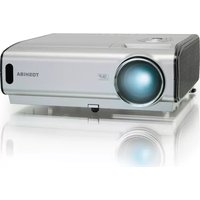
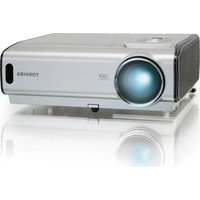
- User's Manual - Operating Guide
- TRADEMARK ACKNOWLEDGMENT :
- Before Using
- SAFETY PRECAUTIONS
- Before Using (continued)
- IMPORTANT SAFETY INSTRUCTIONS
- Read Owner's Manual
- Source of Light
- Power Sources
- Ventilation
- IMPORTANT SAFETY INSTRUCTIONS (continued)
- Heat
- Water and Moisture
- Cleaning
- Power-Cord Protection
- Overloading
- Lightning storms
- Object and Liquid Entry
- 12.Do not place the product vertically
- 13.Stack Inhibited
- Attachments
- 15.Accessories
- Damage Requiring Service
- If glass components, including lens and lamp, should break, contact your dealer for repair service.
- 18.Servicing
- 19.Replacement Parts
- 20.Safety Check
- Do not leave thermal-paper documents or easily deformed items on top of the unit or near the air exhaust.
- POWER SUPPLY CORD SELECTION
- IMPORTANT PRECAUTIONS
- Save Original Packing Materials
- Moisture Condensation
- Place and Manner of Installation
- IMPORTANT PRECAUTIONS (continued)
- Avoid Volatile Liquid
- LCD Panel
- EXEMPTION CLAUSES
- OTHER CAUTIONS AND INFORMATIONS
- Copyrights
- Disposal
- Projector Features
- Ultra High Brightness
- Whisper Mode Equipped
- User Memory Function
- Partial Magnification Function
- Keystone Distortion Correction
- Optical Lens Shift
- Preparation
- Contents
- Before Using 2
- Projector Features 10
- Preparation....10
- Part Names 12
- Setting Up 14
- Remote Control 20
- Power ON/OFF 23
- Operating 24
- Multifunctional Settings 30
- Network Setting Up 44
- Lamp 45
- Air Filter 47
- Other Care 48
- Troubleshooting 49
- Warranty And After-Service 55
- Specifications 55
- TECHNICAL
- Part Names
- Part Names (continued)
- Remote Control
- Setting Up
- Arrangement
- Setting Up (continued)
- Adjusting The Projector's Elevator
- Using The Lens Shift Buttons
- Connecting Your Devices
- NOTE Plug-and-Play Capability
- Examples of connection with a VCR/DVD Player
- Connecting to a monitor
- Monitor Projector
- Connecting to a speaker (with amplifier)
- Speaker Projector
- Connecting The Power Supply
- About The Laser Pointer
- Loading Batteries
- Remote Control (continued)
- Operating The Remote Control
- CAUTION • Do not disassemble the remote control.
- NOTE
- Using The Remote ID Feature
- 1
- 2
- Using The Mouse/Keyboard Control Function
- Power ON/OFF
- Turning On The Power
- Tuming Off The Power
- Operating
- Selecting An Input Signal
- ■ Using the INPUT dial
- ■ Using SEARCH button
- ■ Using RGB button
- ■ Using VIDEO button
- 3
- Operating (continued)
- Selecting The Aspect Ratio
- Using The Automatic Adjustment Feature
- Adjusting The Picture Position
- Correcting The Keystone Distortion
- 4
- Adjusting The Volume
- Muting The Sound
- Temporarily Blanking The Screen
- Freezing The Screen
- Using The Magnify Feature
- Displaying The Child Window
- Press the PinP button.
- Press the PinP button again to change the size of the child window or close the window.
- Selecting An Audio Input
- Multifunctional Settings
- Using The Menu Functions
- 5
- ex. Turning off the built-in speaker
- Multifunctional Settings (continued)
- MAIN Menu
- PICTURE-1 Menu
- PICTURE-2 Menu
- INPUT Menu
- AUTO Menu
- SCREEN Menu
- OPTION Menu
- NETWORK Menu
- Network Setting Up
- When your Network enables the DHCP function
- When your Network doesn't support the DHCP function or When you use a fixed address even if your Network can support the DHCP function
- ex. Case of IP Address = 192.168.1.11
- Lamp
- WARNING
- About disposal of a lamp
- Lamp (continued)
- Replacing The Lamp
- In the case of replacement by yourself,
- Air Filter
- Caring For The Air Filter
- Other Care
- Caring For The Inside Of The Projector
- Caring For The Lens
- Caring For The Cabinet And Remote Control
- Troubleshooting
- Related Messages
- Troubleshooting (continued)
- Regarding The Indicator Lamps
- Phenomena That May Easily Be Mistaken For Machine Defects
- Warranty And After-Service
- Specifications
Brand : TOSHIBA
Model : TLP-SX3500
Category : Vidéo-projecteur