PDVD700 - DVD player Lenoxx - Free user manual and instructions
Find the device manual for free PDVD700 Lenoxx in PDF.


User questions about PDVD700 Lenoxx
0 question about this device. Answer the ones you know or ask your own.
Ask a new question about this device
Download the instructions for your DVD player in PDF format for free! Find your manual PDVD700 - Lenoxx and take your electronic device back in hand. On this page are published all the documents necessary for the use of your device. PDVD700 by Lenoxx.
USER MANUAL PDVD700 Lenoxx
natural_image
Black Lenovo portable open-up with a silver car displayed on screen, showing DVD and fan modules (no text or symbols on the device itself)Safety Information
1. User notice
After purchasing the DVD player, please read the operations and other instructions of the user manual carefully.
2. Disc
Do not use broken or damaged discs. Using a broken or damaged disc can damage the DVD player.
3. Inspection
Check the DVD player and power adapter for any damage before use.


text_image
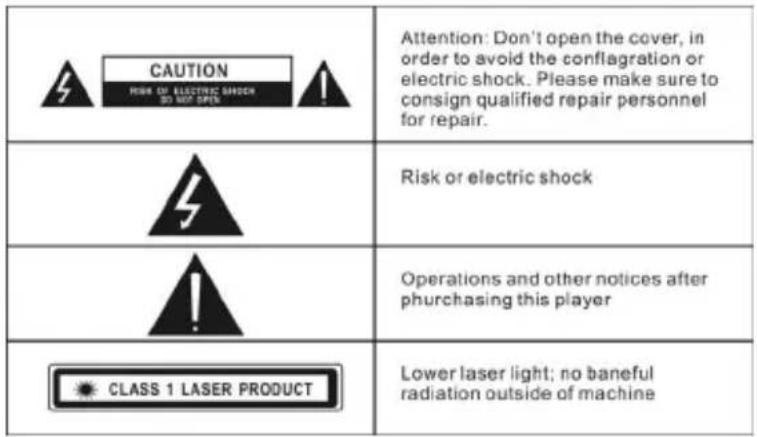
CAUTION HIGH ON ELECTRIC SHOCK SO NOT OPEN Attention: Don't open the cover, in order to avoid the conflagration or electric shock. Please make sure to consign qualified repair personnel for repair. Risk or electric shock Operations and other notices after purchasing this player CLASS 1 LASER PRODUCT Lower laser light; no baneful radiation outside of machine4. Repair
In order to avoid electric shock, please the included adaptors and ensure proper connection. If repairs are required to your unit, please consult a qualified technical service center.
5. Earphone
Take care when adjusting volume when using earphones. Using earphones at a high volume can damage your hearing.
6. Humidity
In avoid of electric shock and fire accident, please don't use the DVD player in a wet environment such as rain or bathtub or in a humid environment such as sauna.
7. Keep away from liquid
Ensure the DVD player and its spare parts are kept away from and liquid source. Liquid inside the DVD player can cause an electronic shock.
8. Keep away from heat
Ensure the DVD player and its spare parts are kept away from heat sources such as heaters, induction cookers, and so on.
9. Thunder and Lightning
Do not use the DVD player during thunder and lightning conditions.
10. Ventilation
Ensure the DVD player is used in a ventilated environment. Do not use with it resting on a bed, sofa, or other soft surfaces as it can cause the DVD player and other parts components to be very hot and can cause a fire.
11. LCD Screen
Do not drop, impact or scratch the LCD screen. Do not rest heavy items on top of the DVD player.
Note: Do not to touch the LCD screen directly should it become broken. If the liquid of LCD has touched the skin, please wash your skin with water for at least 15 minutes
12. Laser
Attention: This DVD player is equipped with a laser system. In case of requiring repair, please contact the distributor or our technical service center. Do not open the DVD.
13. Charger
Use the supplied AC charger to re-charge the battery. Ensure that it is suitable for your
local environment and use a suitable travel adaptor if using overseas.
Unsuitable INPUT, OUTPUT can cause damage to the DVD player, fire or electric shock.
Do not use the AC adaptor or battery if they are damaged.
14. Battery and charging
1) Charging process:
Before shipping, all batteries have not enough power.
Connect either the 240V mains power adaptor (indoor use) or the 12V car adaptor (in car use) to the DC input socket on the DVD player.
The DVD player will charge by itself.
The red light will be on when the battery is charging.
When it is fully charged, the light will be green.
Note: you can play a DVD while the DVD player is charging.
Note:
Please consult a qualified service technician to replace the battery if required.
1) Do not put the battery into fire.
2) When the DVD player is charging or playing, do not install the battery.
3) Do not put the battery into water or other liquids, it will cause damage to the battery.
4) Do not hit, impact or drop the battery.
5) Do not open the battery and change the structure.
6) If you want to have a long rest or sleep, please take the power off to prevent rechargeable cell damage or damage caused by an unexpected accident.
7) Use in temperatures -5^ C — 40^ C
Disc Type
Disc Introduction
| Disc Type | Disc Marks | Record contents | Disc size | Playing time on the disc |
| DVD | DVD | Audio/Video | 12CM8CM | Up to 2 hours (SS-SL; Single-sided single-layer disc) |
| Up to 4 hours (DS-SL; Double-sided single-layer disc) | ||||
| Up to 80 minutes (SS-SL; Double-sided single-layer disc) | ||||
| Up to 160 minutes (DS-SL; Double-sided double-layer disc) | ||||
| Super VCD | Super VCD | Audio/Video | 12CM Up to | 74 minutes |
| VCD | VCD1.0/2.0 | Audio 8CM | Up to 20 minutes | |
| CD | CD | Audio | 12CM Up to | 74 minutes |
| 8CM Up to | 20 minutes | |||
| MP3 Audio 12CM Up to 600 minutes | ||||
Using discs
Hold the disc on the discs edge, do not touch the surface.
Do not put tape or stickers on disk
Do not let the disc be exposed to direct sunlight or direct heat source
After playing a disc, store the disc in its case or other storage method where it will be kept clean and undamaged.
Cleaning discs
Before play disc, use a soft clean cloth to clean the disc from the centre to the outer of the disc.
Do not use gasoline, non-special disc cleaners or anti static spray to clean the disc.
Panel
text_image
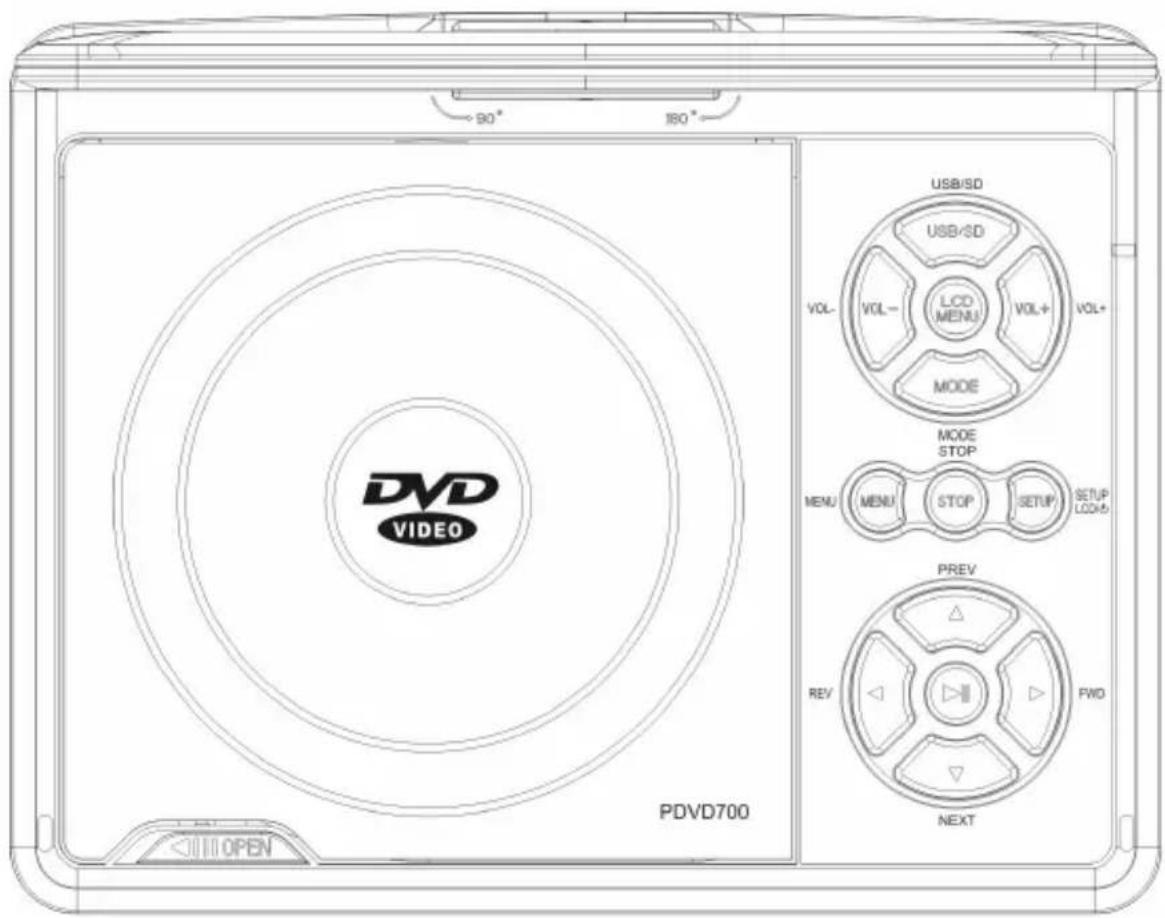
90° 180° DVD VIDEO PDVD700 USB/SD USB/SD VOL- VOL- LCD MENU VOL+ VOL+ MODE MODE STOP MENU MENU STOP SETUP SETUP LOAD5 PREV REV FWD NEXT OPEN| VOL- Press to | decrease volume |
| USB/SD | When in disc playback, press to change from disc play mode to USB/SD mode. |
| VOL+ Press to increase volume | |
| MODE Press to change playback mode | |
| LCD MENU Press to access the LCD setting menu | |
| MENU | Press to access a DVD discs menu on discs which allow this function |
| STOP Press to stop playback | |
| SETUP Press to access the set up menu for the DVD player | |
| REV | Press to rewind in DVD playback. Press to go back a song in CD playback. |
| PREV | Press to fast forward in DVD playback. Press to go forward a song in CD playback. |
| FWD | Press to go back a chapter when playing a DVD disc which allows for this function |
| NEXT | Press to go forward a chapter when playing a DVD disc which allows for this function |
| ► || Press to pause playback, press again to resume playback | |
| OPEN Switch to open lid for DVD player | |
Side panel
| USB | USB socket |
| SD/MMC SD/MMC Card | socket |
| Ω EARPHONE | Connect earphones to this jack, earphones not included |
| AV OUT Video out signal | |
| AV IN External video input signal | |
| OFF/ON OFF/ON switch | to turn the player off and on |
| SC9-12V Socket for connection to mains adaptor or car adaptor |
Remote Control
text_image
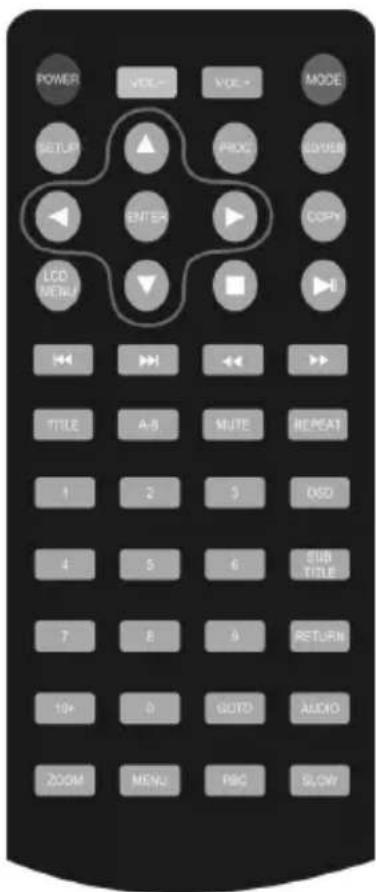
POWER VOTE MODE MODE SETUP ▲ PROC COPY ENTER COPY LCD MENU ■ H TITLE A-B MUTE REPEAT 1 2 3 DSD 4 5 6 SUB TITLE 7 8 9 RETURN 10+ 0 GUTO AUDIO ZOOM MENU FBC SLOW| POWER | Press this button to turn the DVD player on or off. The unit must be switched on the side panel to enable this. |
| VOL+ Press to increase volume | |
| A-B Use to set a certain playback point when playing a DVD disc | |
| TITLE | Press to display the program title, only on DVD discs which allow for this |
| PROG/SEARCH N/A for this model | |
| VOL- Press to decrease volume | |
| MUTE Press to mute the sound | |
| REPEAT In CD disc playback, press to repeat the current music track | |
| SETUP Press to access the set up menu for the DVD player | |
| MODE Press to change playback mode | |
| LCD MENU Press to access the LCD setting menu | |
| ■ Press to stop playback | |
| ◀ Directional button – | left. For use in menus |
| ▲ Directional button – | up. For use in menus |
| ▶ Directional button – | right. For use in menus |
| ▼ Directional button – | down. For use on menus |
| ENTER Press to make a selection when changing settings in menus | |
| COPY For use with the copy from CD disc to flash stick function | |
| ▶||Press to pause playback, press again to resume playback | |
| SD/USB | When in disc playback mode, press to change from disc play mode to USB/SD mode. |
| Number keys Press during CD disc playback to jump to a particular track | |
| OSD Press when playing a disc to display disc playback info | |
| SUBTITLE Press to access subtitles on discs which allow for this function | |
| RETURN Exits current operation, e.g.: menu | |
| GOTO | Press to jump to a particular section when playing a DVD disc that allows for this function |
| AUDIO Press to switch between left/right/stereo sound playback | |
| ZOOM Press during DVD playback to zoom into the picture on the screen | |
| ◀◀ | Press to rewind in DVD playback. Press to go back a song in CD playback. |
| ▶▶ | Press to fast forward in DVD playback. Press to go forward a song in CD playback. |
| MENU | Press to access a DVD discs menu on discs which allow this function |
| PBC For use with VCD | discs only |
| |◀◀ | Press to go back a chapter when playing a DVD disc which allows for this function |
| ▶▶I | Press to go forward a chapter when playing a DVD disc which allows for this function |
| SLOW Press to slow play a DVD disc which allows for this function | |
Batteries in the remote control
- Remove the battery cover from the rear of the remote control.
- Add 2 x batteries to the remote as per the polarity directions in the battery compartment in the remote control.
- Put the battery cover back onto the rear of the remote control.
Note:
- Do not use re-chargeable batteries in the remote control, because they lose power at a slower rate.
- Do not mix different brands and type of batteries, do not use old and new batteries together.
- When the remote control function is not strong or control range is small, replace the batteries.
- If the remote control will not be used for a long time, remove the batteries to avoid damage to the remote control from battery leakage or corrosion.
- Do not use the remote control ion hot or humid conditions.
- Do not disassemble the remote control.
Basic Function Operation
1. Operation
Connect either the 240V mains power adaptor (indoor use) or the 12V car adaptor (in car use) to the DC input socket on the DVD player.
Switch the ON button on the machine to turn on the DVD player.
Turn the switch to OFF when not in use.
2. TFT picture adjustment
Press LCD MENU to access the LCD setup menu for adjustment.
3. Place disc
1) Press OPEN to open the disc cover.
2) Hold the edge of the disc insert the disc.
3) Close the disc cover.
4. Play /Pause
1) This player will automatically play once the disc is loaded.
2) Press ▶ || to pause
3) Press ▶ || once more to resume play.
5. Character display
Press OSD to show disc information and operation function and press OSD once again to turn off the display.
6. DVD disc menu play
Some DVD discs are recorded with title menu or chapter menu.
When MENU button on the remote controller is pressed, the screen will display the menu at your choice. Press direction buttons to adjust and press ENTER to confirm and press number buttons to select. Press MENU button again to return root menu. Press TITLE button once again to return title menu.
7. Select chapter play direct by number button
Press number buttons to directly select the chapter to play once the player finished the disc reading.
1) Press number buttons 1-9 for the chapters with the number less than 10.
2) For the chapters with the number above 10, press 10+ button (it switches to 20+, 30+...when pressed in succession), before pressing number button 0-9
8. Play back from USB/SD/MMC memory card
Press the SD/USB button to play back from USB or memory card.
9. DVD Menu Setup
1) System Setup Page
a. TV Display: NTSC & PAL & AUTO
b. Last Memory State: When the DVD player is powered off, the system can resume playback from its last position when the DVD player is turned on again. ON / OFF.
c. Screen Saver: ON / OFF.
d. Display Type: 4:3, 16:9
e. Password: works with classification disc.
f. Rating (Age limit)
| 1 | Kid Safe | 2 | G | 3 | Pg | 4 | Pg | 13 |
| 5 | Pg-R | 6 | R | 7 | NC | 17 | 8 | Adult |
g. Default Value: Factory Reset.
2. Language Setup
a.OSD Language: English, Chinese, French, German, Spanish, Italian, Portuguese, Russian,
b. Audio Language: English, Chinese, French, German, Spanish, Italian, Portuguese, Russian,
C. Subtitle Language: English, Chinese, French, German, Spanish, Italian, Portuguese, Russian,
d.Menu Language: English, Chinese, French, German, Spanish, Italian, Portuguese, Russian,
3. Audio Setup
a. brightness, contrast ratio, hue, saturation, sharpness
4) Digital Setup:
a. OP mode: Line Out & RF
b. Dynamic Range: Full 6/8, 4/8, 2/8, off
c. Dual mono: Stereo Mono L, Mono R, Mix Mono
Disc Play
1. Audio Track Selection
1) You may select the required language when playing DVD or super VCD discs with multi languages
During the play of DVD and super VCD, press AUDIO to choose the language (depends on the discs)
2) You may select mono L, mono R or stereo for the CD or VCD with multi audio tracks.
2. Fast play
During the play of discs, you can use fast forward or rewind to search specific target.
Press ◀◀ enter into fast rewind status. Every press of ◀◀ will adjust the rewind speed.
FRX2 → FRX4 → FRX8 → FRX16 → FRX32 → Play Press ▶ || for normal play
2) Press ▶▶ enter into fast forward status. Every press of ▶▶ will adjust the forward speed.
FF X2→ FFX4 → FFX8 → FFX16 → FFX32 → Play Press ▶ || for normal play
3. Slow Play
You can use slow motion video according to the following steps.
1) Press SLOW to enter into slow play mode. Every press of this key will adjust the slow speed
SFX2 → SFX4 → SFX8 → SFX16 → Play Press▶ || for normal display
4. Repeat Play
You can select title repeat and chapter repeat during the play of DVD discs.
1) Chapter repeat:
Press REPEAT till the screen displays "REPEAT CHAPTER"
2) Title Repeat:
Press REPEAT till the screen displays REPEAT TITLE
3) Cancel Repeat:
Press REPEAT till the screen displays REPEAT OFF
You can select single repeat and disc repeat during the play a CD disc.
1) Repeat One
Press REPEAT till the screen displays "REPEAT ONE ",
2) Disc Repeat
Press REAPEAT till the screen displays "DISC REPEAT"
3) Cancel Repeat
Press REPEAT TILL the screen display disappears
5. Turnoff PBC function
Press PBC and the screen will show" PBC OFF ".
Press once again and the PBC is turned on
6. Certain Portion Repeat
During the playback of a disc, you may press "A-B" button to enjoy your prefer portion repeatedly.
1) Press "A-B" at the beginning point of the contents to be repeated and the screen will display "Repeat A-" to set the start point A.
2) Press "A-B" at the end point of the contents to be repeated and the screen will display "Repeat A-B" to set the end point B
3) Press “A-B” once again and the on screen display will disappear, then the repeat play will be cancelled.
7. Subtitle Selection
You may select one subtitle to be display for the DVD disc playback with multi language
1) Press SUBTITLE to select one subtitle display
2) Cancel subtitle display: press SUBTITLE till the screen displays OFF
Note: Subtitle function depends on the discs. If the subtitle on the discs is non-selectable, then it is void to press SUBTITLE
8. Chapter search, Time search
Press GOTO during disc play and press direction keys to select among the following options:
1) Title: To display current title. You can input the title number to be played.
2) Chapter: To display current playing chapter. You can input the chapter number to be played.
3) Time: To display the current playing time. You can input the time to be played After choosing, press ENTER and exit the menu.
9. Zoom Function (Only effective for DVD, SVCD, VCD)
To zoom in or zoom out the certain motion pictures or still image
1) During disc play, press ZOOM to zoom into 2x.
2) Press ZOOM in turn to zoom into 3x. 4x and zoom out 1/2x. 1/3x and 1/4x.
3) When resuming to the original image, press ZOOM until the zoom disappears.
10. MP3 Disc Play
1) Place the disc into the DVD player. The screen will display the disc menu and the machine automatically play.
2) Directory selection; Press ◀to move the cursor to the directory area (the left side of the screen). Press ▲or ▼to select one folder and press ENTER to confirm
3) Chapter Selection: Press◀ to move the cursor to chapter area (the right side of the screen). Press ▲ or ▼ to select one folder and press ENTER to play
4) Choose the chapter with remote control: If the song quantity is under 10, you can
choose directly with the numerical buttons on the remote control.
CD copying to USB flash stick
1. Copy from MP3 disc
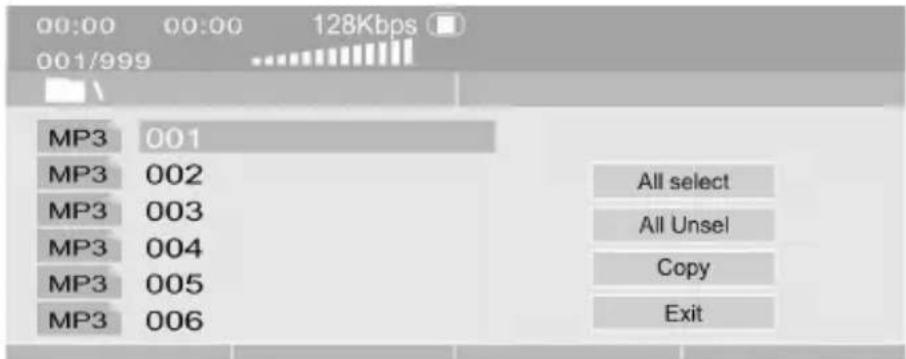
When playing a MP3 disc, insert a USB flash stick to the USB port on the DVD player, press the COPY button. The screen will show display as below.
text_image
00:00 00:00 128Kbps 001/999 MP3 001 MP3 002 MP3 003 MP3 004 MP3 005 MP3 006 All select All Unsel Copy ExitPress ENTER to select songs, then move cursor to "COPY", press ENTER to start. If you need to copy all files on the MP3 disc, move the cursor to "All select", press ENTER.
2. Copy from CD disc
When playing a CD disc, insert a USB flash stick to the USB port on the DVD player, press the COPY button. The screen will display as below.
| CD RIP | |||
| OPTION | TRACK | ||
| SPEED | Normal | track01 | 04:06 |
| BITRATE | 128Kbps | track02 | 03:32 |
| CREATE ID3 | Yes | track03 | 02:52 |
| DEVICE | USB 1 | track04 | 03:26 |
| SUMMARY | track05 | 02:16 | |
| selected track | 0 | track06 | 03:52 |
| selected time | 00:00 | track07 | 02:35 |
| start | exit | select all | select none |
Press ENTER to select songs, then move cursor to "COPY", press ENTER to start. If you need to copy all files on the CD disc, move the cursor to "select all", press ENTER.
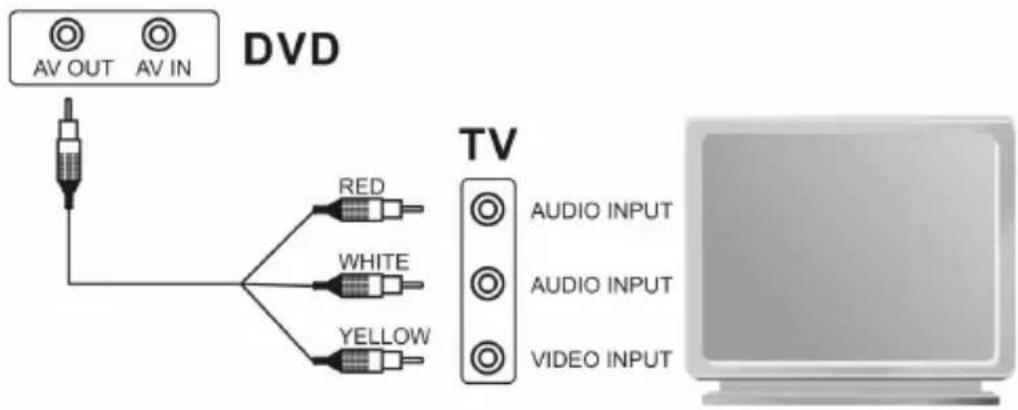
AV OUT (Signal to TV)
To connect the DVD player with a TV set, ensure the channel selected to view on the TV screen is the correct AV channel relating to the AV ports that the DVD player has been connected to.
text_image
DVD AV OUT AV IN RED WHITE YELLOW TV AUDIO INPUT AUDIO INPUT VIDEO INPUTAV lead is not included.
Troubleshooting
| Fault | Solution |
| No power/no charging | Check that the adaptor is connectedCheck that the DVD player is ON |
| No disc | Check that disc has been placed in the DVD player correctlyIf the disc is damaged or dirty change to a different discEnsure the disc is of a compatible format to be played in the DVD player |
| No pictures | When connected to a TV set using the AV ports, check the TV is turned onCheck that the DVD player is turned on |
| Can not choose song Some discs do not have this function | |
| Remote is not working | Remote is damagedCheck batteries are inside the remoteEnsure the batteries are not flat |
| No Audio | Check that the volume is not on silentCheck that the sound is not on muteThere is no sound when in Pause, fast forward, fast rewind modes. |
DVD Specification
| Compatible disc | DVD, SVCD, VCD, CD, CD-R/RW, JPEG, DVD-R/RW, WMA, AVI, MP3. |
| Supporting out device USB/MMC/SD | |
| Anti-shock function | DVD; 3 seconds; VCD/CD; 10seconds; MP3; 90seconds |
| Audio out | AUDIO; 2. 0V+-0. 2, Speak: 8 Ω/1. 5W;Output of earphone: 15mW |
| Frequency | 20HZ—20KHZ |
| Audio (S/N) Radio | ≥50dB |
| Range of activity | ≥50dB |
| VEDIO OUTPUT | 1. 0V±0. 2Vp-p(75 Ω) |
| VEDIO OUTPUT PAL/NTSC/ANTO | |
Accessories
MEPS approved adaptor
Car charger
Remote control
English Manual
Lenoxx Electronics (Aust) Pty Ltd
6 Oban Court Laverton North 3026
Tel: +61 3 9267 2100 - Fax: +61 3 9267 2199
Email Address: lenoxx@lenoxx.com.au
Web site: www.lenoxx.com.au