
L5100 - Smartphone LG - Free user manual and instructions
Find the device manual for free L5100 LG in PDF.


User questions about L5100 LG
0 question about this device. Answer the ones you know or ask your own.
Ask a new question about this device
Download the instructions for your Smartphone in PDF format for free! Find your manual L5100 - LG and take your electronic device back in hand. On this page are published all the documents necessary for the use of your device. L5100 by LG.
USER MANUAL L5100 LG
natural_image
Black-and-white photo of a person holding a remote control device and a smartphone displaying a photo (no visible text or symbols)
natural_image
Silhouette of a person using a computer (no visible text or symbols)
natural_image
Red and white striped background with blurred image patches (no text or symbols)Einführung
natural_image
Black-and-white photo of a person using a handheld device (no visible text or symbols)
natural_image
Red banner with a small icon of a traffic light, no visible text or symbolsRichtlinien
natural_image
Black-and-white photo of a person using a handheld device (no visible text or symbols)
natural_image
Red banner with a small icon of a traffic light, no visible text or symbolsRichtlinien
natural_image
Black-and-white photo of a person using a handheld device (no visible text or symbols)
natural_image
Red and white striped background with faint circular patterns (no text or symbols)L5100 Funktionen
Telefon-Übersicht
Vorderseite
natural_image
Black-and-white photo of a person in profile wearing glasses and holding a device (no visible text or symbols)
natural_image
Red banner with a small icon of a document or newspaper, no readable text or symbols present.L5100 Funktionen
Innenseite
natural_image
Black-and-white photo of a person using a computer (no visible text or symbols)
natural_image
Red and white abstract graphic with a small icon (no text or symbols)L5100 Funktionen
natural_image
Black-and-white photo of a person using a computer (no visible text or symbols)
natural_image
Red and white graphic with a small icon of a document or newspaper on the left (no readable text or symbols)L5100 Funktionen
natural_image
Person wearing a mask and holding an object, with a small inset image showing a person in the background (no visible text or symbols)
natural_image
Abstract red and white graphic with a small icon (no text or symbols)L5100 Funktionen
natural_image
Black-and-white photo of a person holding a device with a smartphone (no visible text or symbols)
natural_image
Red and white striped background with faint circular images (no visible text or symbols)Erste Schritte
natural_image
Illustration of hands holding a smartphone with red indicator lights (no text or symbols)
natural_image
Illustration of hands holding a clipboard with a red circular mark on the surface (no text or symbols)Wichtig
natural_image
Line drawing of a hand holding a pen or stylus (no text or symbols)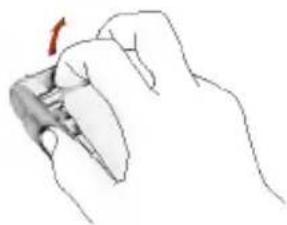
natural_image
Hand holding a small object with a red arrow indicating direction (no text or symbols)natural_image
Illustration of a hand holding a smartphone with a red highlight on the screen (no text or symbols visible)SIM-Karte einsetzen
natural_image
Illustration of a hand holding a smartphone with a red arrow pointing to the screen (no text or symbols present)natural_image
Illustration of a hand holding a smartphone with a red number '1' on the screen (no text or symbols beyond the number)natural_image
Black-and-white photo of a person using a smartphone and tablet device (no visible text or symbols)
natural_image
Red banner with a document icon in the bottom-left corner (no text or symbols on the graphic itself)Erste Schritte
natural_image
Illustration of a hand holding a smartphone with a red scroll on screen (no text or symbols visible)natural_image
Illustration of a white electronic device with a red circle highlighting a cable and plug, showing internal components (no text or symbols)text_image
Warning symbol with crossed-out scissors and magnifying glass, indicating no proper action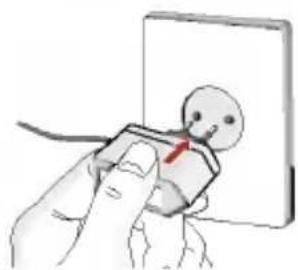
natural_image
Illustration of a hand holding a small object with a red arrow, next to a blank board (no text or symbols)natural_image
Illustration of a mobile phone with a cable and red connectors (no text or symbols visible)natural_image
Black-and-white photo of a person sitting at a desk with a computer monitor (no visible text or symbols)
natural_image
Red and white abstract graphic with a small icon, no readable text or symbolsErste Schritte
natural_image
Black-and-white photo of a person using a computer (no visible text or symbols)
natural_image
Red and white abstract image with horizontal bands and blurred objects (no text or symbols)natural_image
Black-and-white photo of a person using a handheld device (no visible text or symbols)
natural_image
Red banner with a small icon of a butterfly, no visible text or symbolsnatural_image
Black-and-white photo of a person using a microscope (no visible text or symbols)
natural_image
Red banner with a small icon of a pen or stylus, no visible text or symbolsnatural_image
Black-and-white photo of a person wearing glasses and holding an object, with no visible text or symbols.
natural_image
Red banner with a small icon of a butterfly, no visible text or symbolsnatural_image
Black-and-white photo of a person using a computer (no visible text or symbols)
natural_image
Red banner with a small icon of a computer mouse, no visible text or symbolsnatural_image
Black-and-white photo of a person using a computer (no visible text or symbols)
natural_image
Red banner with a small icon of a butterfly, no visible text or symbolsnatural_image
Person using a microscope with a small inset image showing a person's face (no visible text or symbols)
natural_image
Red and white graphic with a small icon of a laptop on the left (no text or symbols)Menü-Übersicht

5 t-zones
(Siehe Seite 66)

6 Kontakte
(Siehe Seite 67)
natural_image
Black-and-white photo of a person using a handheld device (no visible text or symbols)
natural_image
Red and white striped background with blurred outdoor scenes (no visible text or symbols)Special [Menü 1]
natural_image
Black-and-white photo of a person using a handheld device (no visible text or symbols)![LG L5100 - Special [Menü 1] - 1](/content/2026/05/802426/images/4e1860b0fba00e2cdd22572830581d5571a75d28ef51b962de47f3cd17790497.jpg)
natural_image
Red banner with a small icon of a camera on the left, no visible text or symbols.My Media [Menü 2]
natural_image
Black-and-white photo of a person using a handheld device (no visible text or symbols)![LG L5100 - My Media [Menü 2] - 1](/content/2026/05/802426/images/97419a98ad9bd7ffc41f517706ee41f6dc056f58d0a38b8f8b9f6e02f1c6c07b.jpg)
natural_image
Red banner with a small icon of a train car, no visible text or symbolsAnrufliste [Menü 3]
natural_image
Silhouette of a person using a computer (no visible text or symbols)![LG L5100 - My Media [Menü 2] - 2](/content/2026/05/802426/images/d9c5e3a455292a169639163ba7917f80470198fcb68222b01aca83bee5040f57.jpg)
natural_image
Red banner with a small icon of a boat on the left, no visible text or symbols.Anrufliste [Menü 3]
natural_image
Black-and-white photo of a person using a device (no visible text or symbols)![LG L5100 - My Media [Menü 2] - 3](/content/2026/05/802426/images/08745c22c35a189d60e45a3cbc0805adb6eabe7c396660b4178d481a66923113.jpg)
natural_image
Red banner with a small icon of a train car, no visible text or symbolsAnrufliste [Menü 3]
Wichtig
natural_image
Black-and-white photo of a person using a computer (no visible text or symbols)
natural_image
Red banner with a small icon of a document or folder, no visible text or symbolsNachrichten [Menü 4]
Schreiben [Menü 4-1-1]
natural_image
Black-and-white photo of a person using a handheld device (no visible text or symbols)![LG L5100 - Schreiben [Menü 4-1-1] - 1](/content/2026/05/802426/images/d1c5ca49851566a5e38f8cc6c33450aa6c63fc096bcc252d32722221f3e60448.jpg)
natural_image
Red banner with a small icon of a document or folder, no visible text or symbolsNachrichten [Menü 4]
natural_image
Black-and-white photo of a person using a computer (no visible text or symbols)![LG L5100 - Schreiben [Menü 4-1-1] - 2](/content/2026/05/802426/images/ca030b4f2d4e02540977c457d3fd23ace9ca19647452938490e38f142d5b666a.jpg)
natural_image
Red banner with a small icon of a hand holding a document, no visible text or symbolsNachrichten [Menü 4]
natural_image
Black-and-white photo of a person using a handheld device (no visible text or symbols)![LG L5100 - Nachrichten [Menü 4] - 1](/content/2026/05/802426/images/94b8df7e04ce507d9ca58c92d132ab22f7eac405aca8db30b7c1a7f10b3ddc9e.jpg)
natural_image
Red and white abstract background with blurred background elements (no text or symbols)Nachrichten [Menü 4]
Eingangsbox [Menü 4-2-2]
natural_image
Black-and-white photo of a person using a computer (no visible text or symbols)![LG L5100 - Eingangsbox [Menü 4-2-2] - 1](/content/2026/05/802426/images/a6cfded402ba3a42dc2cc5c6884d56cdf841d23a3c0f61c4ea7e3b6b94e8db4f.jpg)
natural_image
Red banner with a small icon of a document or folder, no visible text or symbols.Nachrichten [Menü 4]
natural_image
Black-and-white photo of a person using a handheld device (no visible text or symbols)![LG L5100 - Nachrichten [Menü 4] - 1](/content/2026/05/802426/images/3ce5d6ac6b699228da8f18662c82ed362771d3fe480eea16eb76c506c00cdfaf.jpg)
natural_image
Red banner with a small icon of a hand holding a document, no visible text or symbolsNachrichten [Menü 4]
CB-Service (Cell Broadcast) [Menü 4-4]
natural_image
Black-and-white photo of a person using a computer (no visible text or symbols)![LG L5100 - CB-Service (Cell Broadcast) [Menü 4-4] - 1](/content/2026/05/802426/images/6a495ce26042b895f06bcd971c1768631bd0b80f6cb5aedc45dbfeb26b4aca3e.jpg)
natural_image
Red banner with a small icon of a hand holding a document, no visible text or symbolsNachrichten [Menü 4]
natural_image
Black-and-white photo of a person using a handheld device, no visible text or symbols![LG L5100 - Nachrichten [Menü 4] - 1](/content/2026/05/802426/images/5e2e7ad723b4783292fe6a550599dfbf37a7133b69c8933155b5383d8a194b05.jpg)
natural_image
Red and white abstract image with horizontal stripes and blurred objects (no text or symbols)t-zones [Menü 5]
natural_image
Black-and-white photo of a person using a computer (no visible text or symbols)![LG L5100 - t-zones [Menü 5] - 1](/content/2026/05/802426/images/2ef5e1b95f4db6c8112ab199cd77fb4df0d79101316598a2e18f4ddbce01518b.jpg)
natural_image
Red banner with a small icon of a document or folder, no visible text or symbolsKontakte [Menü 6]
natural_image
Black-and-white photo of a person using a handheld device (no visible text or symbols)![LG L5100 - t-zones [Menü 5] - 2](/content/2026/05/802426/images/e134e705ef2754d64c10a6e27368ab9596a580571a95ad8b2392be946e795573.jpg)
natural_image
Red banner with a small icon of a document or folder, no visible text or symbolsKontakte [Menü 6]
Speichern in [Menü 6-7]
natural_image
Black-and-white photo of a person using a computer (no visible text or symbols)![LG L5100 - Speichern in [Menü 6-7] - 1](/content/2026/05/802426/images/af94e8a79028246ca4b34fcfebd870d57e14554b08bfbe1c414bd8fb0c891dad.jpg)
natural_image
Red and white striped background with blurred outdoor scenes (no visible text or symbols)Kalender [Menü 7]
Wecker [Menü 7-1]
natural_image
Black-and-white photo of a person using a handheld device (no visible text or symbols)![LG L5100 - Wecker [Menü 7-1] - 1](/content/2026/05/802426/images/2213c88efb696af8954390dae324466a64986467ada8daeaf420e5b6cafe0a12.jpg)
natural_image
Red banner with a small icon of a notebook, no visible text or symbolsKalender [Menü 7]
natural_image
Black-and-white photo of a person using a computer (no visible text or symbols)![LG L5100 - Kalender [Menü 7] - 1](/content/2026/05/802426/images/cb6be18856210a97e0ce49af700bf069befe398e1ed53e7b0ac7979fd0337ccc.jpg)
natural_image
Red banner with a small icon of a notebook or folder, no visible text or symbols on the main graphic area.Kalender [Menü 7]
Rechner [Menü 7-5]
natural_image
Black-and-white photo of a person wearing safety goggles, holding an object near a smartphone (no visible text or symbols)Kamera [Menü 8]
natural_image
Black and white photo of a person holding an object, possibly a device or tool, with no visible text or symbols.![LG L5100 - Kamera [Menü 8] - 1](/content/2026/05/802426/images/c5098651b3768f01fdd35304c2888da70d43b6f2268980baed1ace8423c79e45.jpg)
natural_image
Red banner with a small icon of a camera, no visible text or symbolsKamera [Menü 8]
text_image
① ③ ② Selected resolution 10natural_image
Black-and-white photo of a person using a computer (no visible text or symbols)![LG L5100 - Kamera [Menü 8] - 1](/content/2026/05/802426/images/674762cdc5e9902714ea2642f3a625b889dafc69650eff49c7ed75a7c5122bf8.jpg)
natural_image
Red banner with a small icon of a camera on the left (no text or symbols)Kamera [Menü 8]
natural_image
Black-and-white photo of a person using a computer (no visible text or symbols)![LG L5100 - Kamera [Menü 8] - 2](/content/2026/05/802426/images/773d530252855ca14d0e71a263dc986ee15cdc430215377dea660f1b212f3270.jpg)
natural_image
Red banner with a small icon of a camera, no visible text or symbolsKamera [Menü 8]
natural_image
Black-and-white photo of a person using a computer (no visible text or symbols)![LG L5100 - Kamera [Menü 8] - 1](/content/2026/05/802426/images/571fcbd38c5ac3a6110364fcf6a3c90064c9941653d5f477ce12650183431b62.jpg)
natural_image
Red banner with a small icon of a camera, no visible text or symbolsKamera [Menü 8]
Meine Videos [Menü 8-5]
natural_image
Silhouette of a person using a computer (no visible text or symbols)![LG L5100 - Meine Videos [Menü 8-5] - 1](/content/2026/05/802426/images/8c58c5ed880f9f9cc11e964be9b6fb02810ff1ba195f03a1789d87d77fc9de62.jpg)
natural_image
Red and white abstract image with horizontal stripes and blurred objects (no text or symbols)Einstellungen [Menü 9]
natural_image
Black-and-white photo of a person using a computer (no visible text or symbols)![LG L5100 - Einstellungen [Menü 9] - 1](/content/2026/05/802426/images/9103ce188a3b94ca85ce8ff50547931aa5b3dba5bc732d964d707fa912261b81.jpg)
natural_image
Red banner with a small icon of a document or seal, no readable text or symbols present.Einstellungen [Menü 9]
natural_image
Black-and-white photo of a person using a computer (no visible text or symbols)![LG L5100 - Einstellungen [Menü 9] - 1](/content/2026/05/802426/images/d71194388c7cd249739c8e335d128e196b0575eab379e42fab6f9e744694ca21.jpg)
natural_image
Red banner with a small icon of a document or seal, no readable text or symbols present.Einstellungen [Menü 9]
Favoriten [Menü 9-3]
natural_image
Black-and-white photo of a person using a handheld device (no visible text or symbols)![LG L5100 - Favoriten [Menü 9-3] - 1](/content/2026/05/802426/images/5c46a7354543d888e5b491218fae41198213b75a98809406c6128442896e71d1.jpg)
natural_image
Red banner with a small icon of a document or seal, no readable text or symbols present.Einstellungen [Menü 9]
natural_image
Black-and-white photo of a person using a handheld device (no visible text or symbols)![LG L5100 - Einstellungen [Menü 9] - 1](/content/2026/05/802426/images/08216fe58d22e997906b2223f5b595cadaf96debd691bfa022ae94acd72fabd4.jpg)
natural_image
Red banner with a small icon of a document or seal, no readable text or symbols present.Einstellungen [Menü 9]
natural_image
Black-and-white photo of a person using a computer (no visible text or symbols)![LG L5100 - Einstellungen [Menü 9] - 1](/content/2026/05/802426/images/4f4a37b7392b4e5737eaf8d66629acea9a9a8e8386c188530394fd2a1233e22c.jpg)
natural_image
Red banner with a small icon of a document or seal, no readable text or symbols present.Einstellungen [Menü 9]
Telefonsperre [Menü 9-7-2]
natural_image
Black-and-white photo of a person using a handheld device (no visible text or symbols)![LG L5100 - Telefonsperre [Menü 9-7-2] - 1](/content/2026/05/802426/images/83e2d71b9061bee8c329ae29b09fb3ab4ae9565ca4d9c250a7a6ed73e12f3cb4.jpg)
natural_image
Red banner with a small icon in the bottom-left corner, no readable text or symbols present.Einstellungen [Menü 9]
Codes verändern [Menü 9-7-5]
natural_image
Black-and-white photo of a person using a computer (no visible text or symbols)![LG L5100 - Codes verändern [Menü 9-7-5] - 1](/content/2026/05/802426/images/da519d89094a9726a2f9d8785df01f5e9fbe32cbfa7e94128f55f9c5d23b429e.jpg)
natural_image
Red banner with a small icon in the bottom-left corner, no readable text or symbols present.Einstellungen [Menü 9]
natural_image
Black-and-white photo of a person using a computer (no visible text or symbols)![LG L5100 - Einstellungen [Menü 9] - 1](/content/2026/05/802426/images/0c6720b864fb3912d983ab49d4d859a827ee1b57bc6a120f9d4f24d542556983.jpg)
natural_image
Red banner with a small icon of a train station, no visible text or symbols on the image itself.Einstellungen [Menü 9]
Profile [Menü 9-0-4]
natural_image
Black-and-white photo of a person wearing protective gear, focused on a device with a smartphone in the background (no visible text or symbols)![LG L5100 - Profile [Menü 9-0-4] - 1](/content/2026/05/802426/images/a1a1af80f07db7a952328a3eeb12ebe6405f804b4aa5cdc93ff8776719e6a73a.jpg)
natural_image
Red banner with a small icon in the bottom-left corner, no readable text or symbols present.Einstellungen [Menü 9]
natural_image
Black-and-white photo of a person using a computer (no visible text or symbols)![LG L5100 - Profile [Menü 9-0-4] - 2](/content/2026/05/802426/images/11497fb0427e95fcfb48b57ef3632fe7de1049263712b6425e10033df91c421c.jpg)
natural_image
Red banner with a white checkmark icon and faint background images (no readable text or symbols)natural_image
Black-and-white photo of a person using a computer (no visible text or symbols)![LG L5100 - Profile [Menü 9-0-4] - 3](/content/2026/05/802426/images/cf7f5f81119184ca2803e32b183e07a0a076ce716f3463fa797eb8ed7145e77d.jpg)
natural_image
Red and white striped background with faint vertical panels (no text or symbols)Zubehör
natural_image
Black-and-white photo of a person wearing glasses and holding an object, with no visible text or symbols.
Glossar
natural_image
Black-and-white photo of a person using a computer (no visible text or symbols)
Glossar
natural_image
Black-and-white photo of a person using a computer (no visible text or symbols)
Glossar
natural_image
Black-and-white photo of a person wearing glasses and holding an object, with no visible text or symbols.
Glossar
natural_image
Black-and-white photo of a person using a handheld device (no visible text or symbols)
natural_image
Red banner with a checkmark icon and blurred background (no readable text or symbols)Glossar
natural_image
Black-and-white photo of a person wearing glasses and holding an object, with no visible text or symbols.
Glossar
natural_image
Black-and-white photo of a person using a handheld device (no visible text or symbols)
Glossar
natural_image
Black-and-white photo of a person using a handheld device (no visible text or symbols)natural_image
Black-and-white photo of a person using a computer (no visible text or symbols)
natural_image
Red banner with a checkmark icon and blurred background (no readable text or symbols)natural_image
Black-and-white photo of a person using a handheld device (no visible text or symbols)
natural_image
Red banner with a white checkmark icon and blurred background (no readable text or symbols)natural_image
Black-and-white photo of a person using a computer (no visible text or symbols)
natural_image
Red and white striped background with faint architectural photos (no visible text or symbols)Service Center
Please read this manual carefully before operating your mobile phone. And retain it for future reference.
natural_image
Black-and-white photo of a person holding a remote control device and a smartphone displaying a photo (no visible text or symbols)
natural_image
Black-and-white photo of a person in profile, possibly a camera or video player, with no visible text or symbols.
natural_image
Red and white striped background with faint circular images (no text or symbols)Introduction
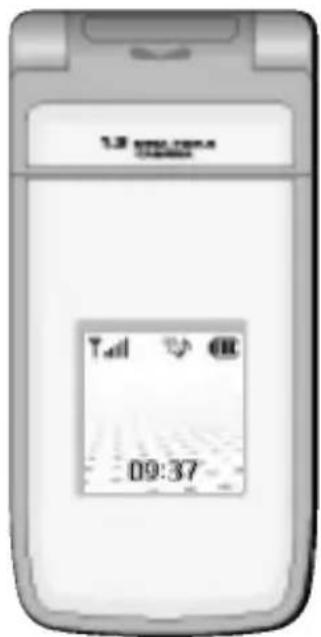
Congratulations on your purchase of the advanced and compact L5100 mobile phone, designed to operate with the latest digital mobile communication technology.
text_image
1.2 my own Tall OK 09:37- This user guide contains important information on the use and operation of this phone. Please read all the information carefully for optimal performance and to prevent any damage to or misuse of the phone. Any changes or modifications not expressly approved in this user's guide could void your warranty for this equipment.
Guidelines for safe and efficient use
Read these simple guidelines. Breaking the rules may be dangerous or illegal. Further detailed information is given in this manual.
Exposure to radio frequency energy
Radio wave exposure and Specific Absorption Rate (SAR) information
This mobile phone model L5100 has been designed to comply with applicable safety requirement for exposure to radio waves. This requirement is based on scientific guidelines that include safety margins designed to assure this safety of all persons, regardless of age and health.
- The radio wave exposure guidelines employ a unit of measurement known as the Specific Absorption Rate, or SAR. Tests for SAR are conducted using standardized method with the phone transmitting at its highest certified power level in all used frequency bands.
- While there may be differences between the SAR levels of various LG phone models, they are all designed to meet the relevant guidelines for exposure to radio waves.
- The SAR limit recommended by the International Commission on Non-Ionizing Radiation Protection (ICNIRP), which is 2W/kg averaged over ten (10) gram of tissue.
- The highest SAR value for this model phone tested by DASY4 for use at the ear is 0.592 W/kg (10g).
- SAR data information for residents in countries/regions that have adopted the SAR limit recommended by the Institute of Electrical and Electronics Engineers (IEEE), which is 1.6 W/kg averaged over one (1) gram of tissue.
natural_image
Black-and-white photo of a person using a computer with a smartphone displaying a small image (no visible text or symbols)
natural_image
Red banner with a small icon of a traffic light, no visible text or symbolsGuidelines
Product care and maintenance
Warning: Use only batteries, charger and accessories approved for use with this particular phone model.
The use of any other types may invalidate any approval or warranty applying to the phone, and may be dangerous.
- Do not disassemble this unit. Take it to a qualified service technician when repair work is required.
- Keep away from electrical appliance such as a TV, radio or personal computer.
- The unit should be kept away from heat sources such as radiators or cookers.
- Do not drop.
- Do not subject this unit to mechanical vibration or shock.
- The coating of the phone may be damaged if covered with wrap or vinyl wrapper.
- Use dry cloth to clean the exterior of the unit. (Do not use solvent such as benzene, thinner or alcohol.)
- Do not subject this unit to excessive smoke or dust.
- Do not keep the phone next to credit cards or transport tickets; it can affect the information on the magnetic strips.
- Do not tap the screen with a sharp object; otherwise, it may damage the phone.
- Do not expose the phone to liquid or moisture.
- Use the accessories like an earphone cautiously.
Efficient phone operation
To enjoy optimum performance with minimum power consumption please:
- Hold the phone as you would speak on any other telephone.
While speaking, angle the antenna in a direction up and over your shoulder. - If your mobile phone supports infrared, never direct the infrared ray at anyone's eye.
Electronics devices
All mobile phones may get interference, which could affect performance.
- Do not use your mobile phone near medical equipment without requesting permission. Avoid placing the phone over the pacemaker, i.e. in your breast pocket.
- Some hearing aids might be disturbed by mobile phones.
- Minor interference may affect TVs, radios, PCs, etc.
Road Safety
Check the laws and regulations on the use of mobile phones in the areas where you drive.
- Do not use a hand-held phone while driving.
- Give full attention to driving.
- Use a hands-free kit, if available.
- Pull off the road and park before making or answering a call if driving conditions so require.
- RF energy may affect some electronic systems in your motor vehicle such as car stereo, safety equipment.
- When your vehicle is equipped with an air bag, do not obstruct with installed or portable wireless equipment. It can cause serious injury due to improper performance.
natural_image
Black-and-white photo of a person using a handheld device (no visible text or symbols)
natural_image
Red banner with a small icon of a camera lens, no visible text or symbolsGuidelines
Blasting area
Do not use the phone where blasting is in progress.
Observe restrictions, and follow any regulations or rules.
Potentially explosive atmospheres
- Do not use the phone at a refueling point. Don't use near fuel or chemicals.
- Do not transport or store flammable gas, liquid, or explosives in the compartment of your vehicle, which contains your mobile phone and accessories.
In aircraft
Wireless devices can cause interference in aircraft.
- Turn off your mobile phone before boarding any aircraft.
- Do not use it on the ground without crew permission.
Children
Keep the phone in a safe place out of small children's reach. It includes small parts which if detached may cause a choking hazard.
Emergency calls
Emergency calls may not be available under all cellular networks. Therefore, you should never depend solely on the phone for emergency calls. Check with your local service provider.
Battery information and care
- You do not need to completely discharge the battery before recharging. Unlike other battery systems, there is no memory effect that could compromise the battery's performance.
- Use only LG batteries and chargers. LG chargers are designed to maximize the battery life.
- Do not disassemble or short-circuit the battery pack.
- Keep the metal contacts of the battery pack clean.
- Replace the battery when it no longer provides acceptable performance. The battery pack may be recharged hundreds of times until it needs replacing.
- Recharge the battery if it has not been used for a long time to maximize usability.
- Do not expose the battery charger to direct sunlight or use it in high humidity, such as the bathroom.
- Do not leave the battery in hot or cold places, this may deteriorate the battery performance.
Table of contents
L5100 features.... 12
- Parts of the phone 12
• 1.3 Mega pixel digital camera with DSC look .. 17
• Display information 20
Getting started 22
- Installing the SIM card and the handset battery .. 22
- Charging the battery 24
- Disconnecting the adapter 25
• Turning your phone on and off 26 - Access codes 26
- Barring password 27
General functions 28
- Making and answering calls ...... 28
- Entering text 30
- Contacts 34
• In-call menu 34 - Multiparty or conference calls 36
Menu tree 38
Selecting functions and options 40
Interactive [Menu 1] 41
My Media [Menu 2] 42
- Pictures [Menu 2-1] 42
- Sounds [Menu 2-2] 42
• Games & more [Menu 2-3] 43 - Videos [Menu 2-4] 43
• Memory status [Menu 2-5] 43
Call register [Menu 3] 44
- Missed calls [Menu 3-1] 44
• Received calls [Menu 3-2] 45
• Dialled calls [Menu 3-3] 45 - Delete recent calls [Menu 3-4] 46
- Call durations [Menu 3-5] 46
- Call costs [Menu 3-6] 47
- Cost settings [Menu 3-7] 47
• GPRS information [Menu 3-8] 48
Messages [Menu 4] 49
- Text messages [Menu 4-1] 49
• Multimedia messages (MMS) [Menu 4-2] ..... 53
• Voice messages [Menu 4-3] 58 - Info service [Menu 4-4] 59
- Templates [Menu 4-5] 60
- Name card [Menu 4-6] 62
• Memory status [Menu 4-7] 62
t-zones [Menu 5] 63
Contacts [Menu 6] 64
- Search [Menu 6-1] 64
- Add new [Menu 6-2] 65
- Speed dials [Menu 6-3] 66
- Caller groups [Menu 6-4] 66
- Copy all [Menu 6-5] 67
- Delete all [Menu 6-6] 67
- Set memory [Menu 6-7] 67
• Information [Menu 6-8] 68
Organiser [Menu 7] 69
- Alarm clock [Menu 7-1] 69
- Scheduler [Menu 7-2] 69
- Memo [Menu 7-3] .... 71
• Voice recorder [Menu 7-4] 72
• Calculator [Menu 7-5] 72
• World time [Menu 7-6] 73 - Unit converter [Menu 7-7] 74
Camera [Menu 8] 75
• Take photos [Menu 8-1] 76
• Take videos [Menu 8-2] 79
• Frame shot [Menu 8-3] 80
• My photos [Menu 8-4] 80
• My videos [Menu 8-5] 83
- Camera settings [Menu 8-6] 84
Settings [Menu 9] 85
• Profiles [Menu 9-1] 85
- Date & Time [Menu 9-2] 87
• Favourites [Menu 9-3] 88
- Phone settings [Menu 9-4] 88
- Call settings [Menu 9-5] 89
- Activate IrDA [Menu 9-6] 92
• Security settings [Menu 9-7] 93
• Network settings [Menu 9-8] 96
• GPRS settings [Menu 9-9] 96
- Internet [Menu 9-0] 98
- Reset settings [Menu 9-*] ....102
Q&A 103
Accessories 106
Technical data 107
natural_image
Black-and-white photo of a person using a smartphone (no visible text or symbols)
natural_image
Red and white striped background with faint architectural or landscape photos (no visible text or symbols)L5100 features
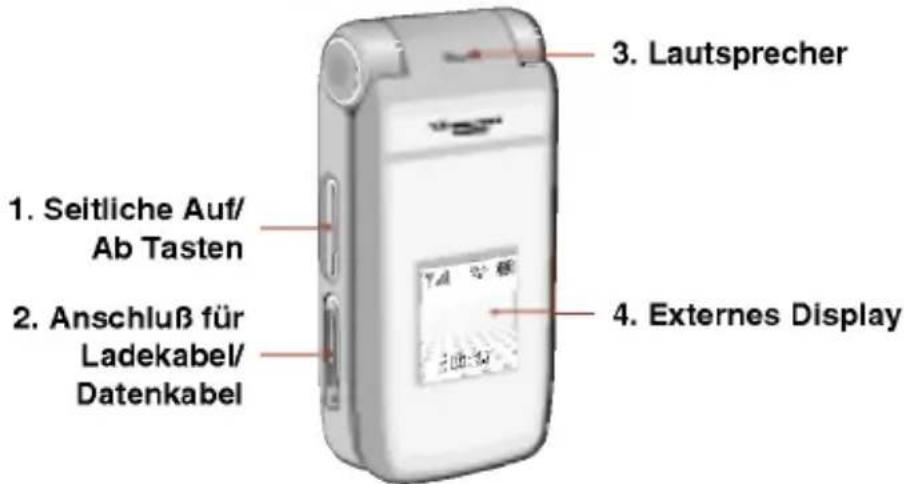
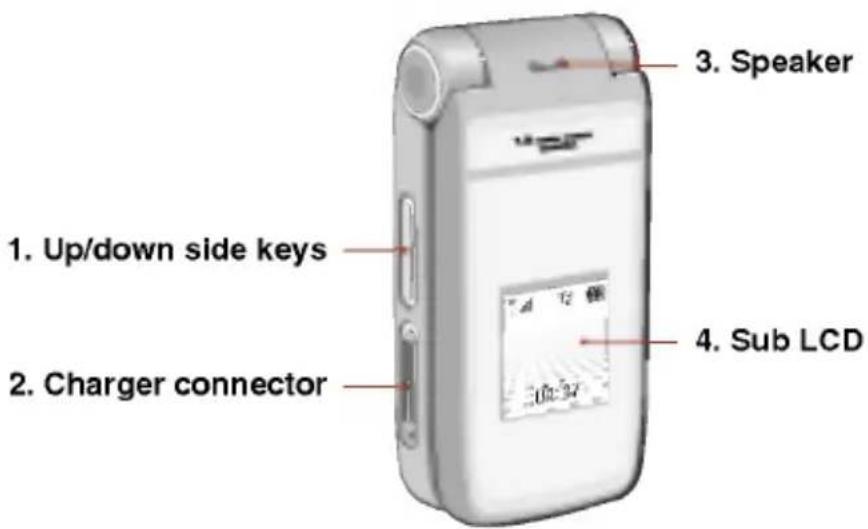
Parts of the phone
Front view
text_image
1. Up/down side keys 2. Charger connector 3. Speaker 4. Sub LCD1. Up/down side keys
- Press and hold down this key to display the current time on the sub LCD.
- Controls the volume of keypad tone in standby mode with the phone open.
- Controls the earpiece volume during a phone call.
- Use these keys to zoom in/out in the camera preview mode.
-
Controls the volume during the playback of the video clips, or games.
-
Charger connector: Connect the mains adapter here for charging. Also connect the USB cable here to use the PC sync program.
- Speaker
- Sub LCD
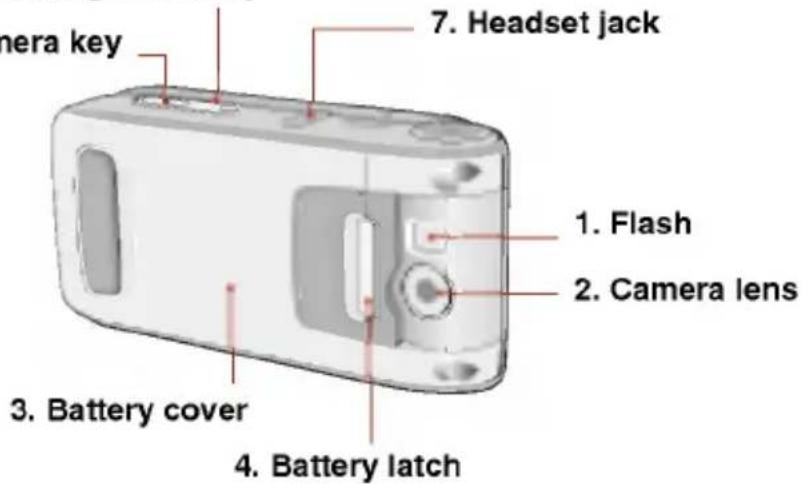
Rear view
-
Camera setting menu key
-
Side camera key
text_image
7. Headset jack 1. Flash 2. Camera lens 3. Battery cover 4. Battery latch- Flash
- Camera lens

Note
- Dirt on the camera lens could affect the image quality.
- Battery cover
- Battery latch: Press this to open the battery cover.
- Side camera key: Press and hold down this key to activate the camera mode. Also use this key to take a shot.
- Internet/Camera setting menu key
• After opening the phone, a long press of this key connects to the Internet.
- (Camera) In the preview mode, press this key to open the camera setting menu and confirm the selection.
- Headset jack: Connect a headset here.
natural_image
Silhouette of a person using a device with a smartphone in the background (no visible text or symbols)
natural_image
Red and white graphic with a small icon of a document or newspaper, no readable text or symbols.L5100 features
Open view
text_image
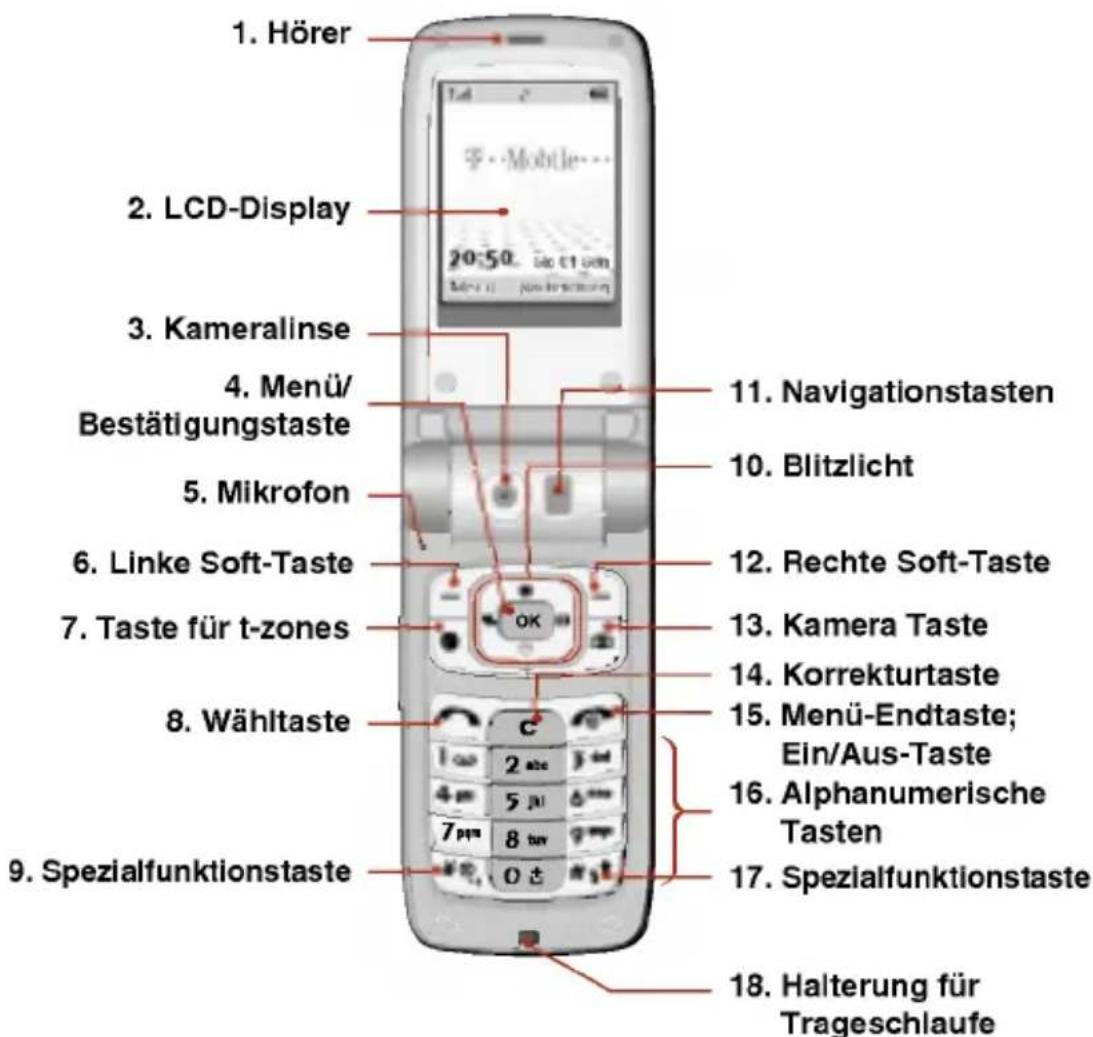
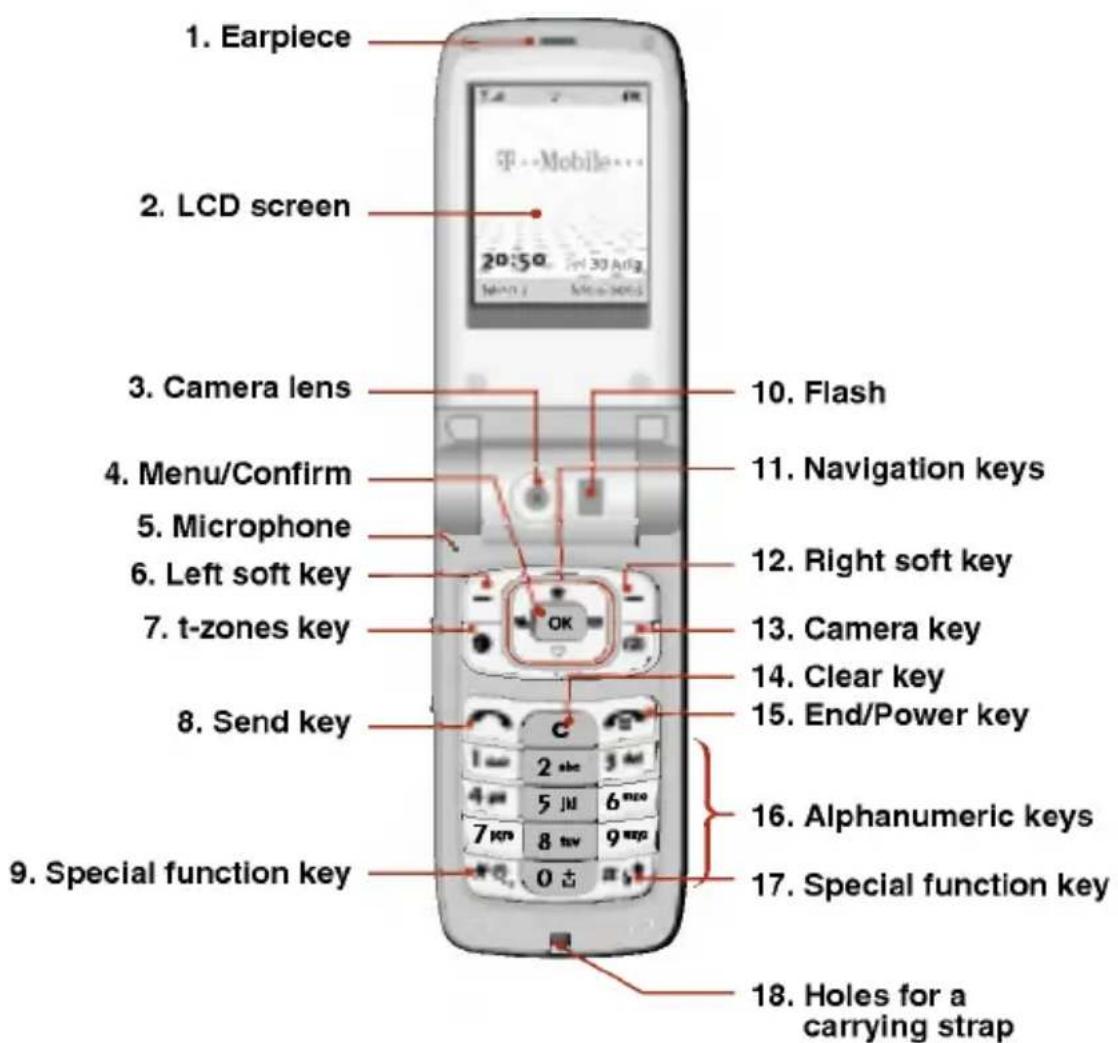
1. Earpiece 2. LCD screen 3. Camera lens 4. Menu/Confirm 5. Microphone 6. Left soft key 7. t-zones key 8. Send key 9. Special function key 10. Flash 11. Navigation keys 12. Right soft key 13. Camera key 14. Clear key 15. End/Power key 16. Alphanumeric keys 17. Special function key 18. Holes for a carrying strap-
Earpiece
-
LCD screen: Displays phone status icons, menu items, Web information, pictures and more in full colour.
-
Camera lens
-
Menu/Confirm key: Opens the menu and confirms actions. * In standby mode, holding this key down connects to the Internet.
-
Microphone: Can be muted during a call for privacy. (See page 35.)
-
- Left soft key / Right soft key: Each of these keys performs the function indicated by the text on the screen immediately above it.
-
t-zones key: Accesses the t-zones.
-
Send key: Dials a phone number and answers incoming calls. You can also quickly access the latest incoming, outgoing and missed calls by pressing the key in standby mode.
-
Special function key (x)
- Self-timer: In camera shot mode, press this key to activate/deactivate the self-timer. You can set the desired delay time using Timer mode menu [Menu 8-6-3]. (See page 84.)
-
Flash: In preview mode, you can turn the flash on/off by pressing 📄. And you can set the desired flash mode using the Flash mode menu [Menu 8-6-4]. (See page 84.)
-
Navigation keys: Use to scroll through menus and move the cursor. You can also use these keys for quick access to the following functions.
- Up navigation key (☐): By pressing this key in standby mode, you can search the Contacts by name.
- Down navigation key (♡): A shortcut key to the Favorite menu.
natural_image
Black-and-white photo of a person using a computer (no visible text or symbols)
natural_image
Red and white graphic with a small icon of a document or newspaper, no readable text or symbols.L5100 features
- Left navigation key (|): A shortcut key to the Profiles menu.
-
Right navigation key ( ) |): A shortcut key to the message inbox.
-
Camera key: Use for camera feature.
- In standby mode, press this key once to go to the Camera menu. Long press of this key directly opens the viewfinder. Then use this key to take a shot.
-
Clear key: Deletes a character by each press. Hold the key down to clear all input. Also use this key to go back to the previous screen.
-
End/Power key: Used to end a call or reject a call and also to go back to standby mode. Hold this key down to turn the phone on/off.
-
Alphanumeric keys: Enter numbers, letters and some special characters.
-
Special function key ( #_3^* )
-
Press and hold down to enter a pause while keying in a phone number.
-
Flash: In camera shot mode, with this key you can turn the flash on/off.
-
Holes for a carrying strap
1.3 Mega pixel digital camera with DSC look
The flexible LCD screen rotates ANTICLOCKWISE up to 180 degrees. It functions as a viewfinder, and enables you to take pictures with ease and pizzazz. When the clamshell is turned 180 degrees, you can use the main LCD screen as an external one. It's almost a digital camera.

Note
- Do not rotate the LCD screen by force. Do not try to rotate the LCD screen clockwise.
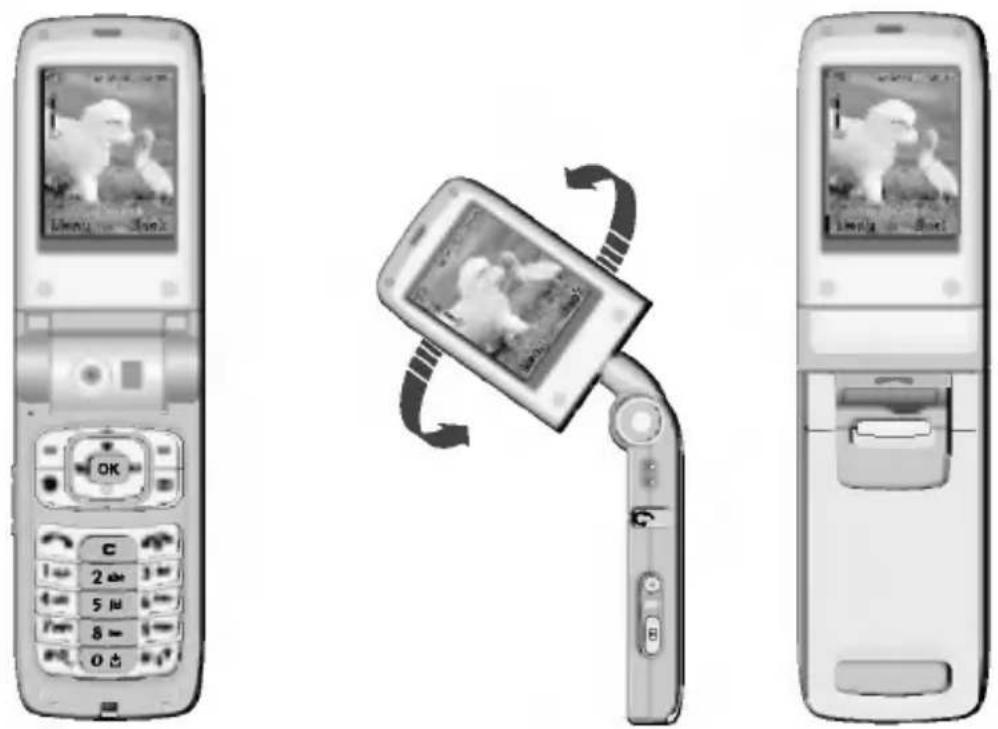
This state enables you to take self-shots.
natural_image
Black-and-white photo of a person using a smartphone to interact with a device (no visible text or symbols)
natural_image
Red and white graphic with a small icon of a document or newspaper, no readable text or symbols.L5100 features
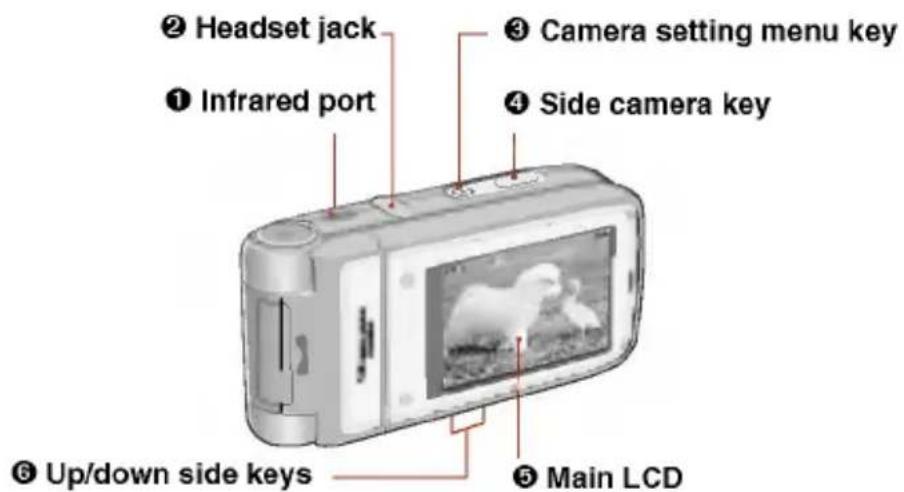
After turning the clamshell 180 degrees, and in the clamshell closed state, you can use the phone as a digital camera.
text_image
② Headset jack ① Infrared port ③ Camera setting menu key ④ Side camera key ⑥ Up/down side keys ⑤ Main LCD① Infrared port
② Headset jack
③ Camera setting menu / confirm key: In the preview mode, opens the camera setting menus and confirms the choice.
④ Side camera key: Press and hold down this key to open the camera module. And press this key to take a shot.
⑤ Main LCD: When you take a picture, functions as the viewfinder.
⑥ Up/down side keys: Use to move the cursor to the left or right. And you can zoom in/out using these keys.
Taking pictures in the clamshell closed state
- Turn the clamshell 180 degrees to make the main LCD outside.
- Press and hold down the side camera key (4) for over 2 seconds. It opens camera module and the preview screen opens.

Note
- In the preview mode, no key operation for 2 minutes will close the camera module and go back to standby mode.
- Focus on the subject to capture, then press the side camera key (4). The captured image is automatically saved in My photos [Menu 8-4]. (Refer to page 80 regarding My photos.)
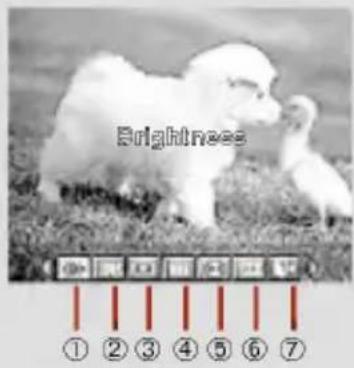
- Before taking a shot, you can set the following options by pressing the camera setting menu key (③).
text_image
Brightness ① ② ③ ④ ⑤ ⑥ ⑦① Brightness: 6 grades are available.
② White Balance: 5 settings are available: Auto, Daylight, Incandescent, Cloudy, and Flourescent.
③ Resolution: Select the desired resolution. Refer to page 78.
④ Color Mode: 5 settings are available: Color, Mono, Sepia, Blue, and Negative.
⑤ Shot Mode: Select between Single shot and Multiple shot.
⑥ Photo gallery: After taking a shot, you can use this to check out the captured image.
⑦ Exit: Select this to exit from the setting menu.
To move between setting menus, use up/down side keys (6).
After highlighting a menu, press the camera setting menu key (③) to open the menu.
Select the desired value using the up/down side keys (6) and press the camera setting menu key (3) to confirm it.
natural_image
Black-and-white photo of a person in profile wearing glasses and holding a device (no visible text or symbols)
natural_image
Abstract red and white graphic with a small icon (no text or symbols)L5100 features
Display information
The table below describes various display indicators or icons that appear on the phone's display screen.
On-Screen Icons
| Icon | Description |
| Indicates the strength of the network signal. | |
| Indicates a call is in progress. | |
| Indicates that you are roaming on another network. | |
| Indicates that GPRS service is available. | |
| Indicates the alarm has been set and is on. | |
| Indicates the status of the battery charge. | |
| Indicates the receipt of a text message. | |
| Indicates the receipt of a voice message. | |
| Indicates the receipt of a MMS message. | |
| Indicates that Call divert function is activated. | |
| Indicates that the Vibrate only profile has been set. | |
| Indicates the Loud profile is activated. | |
| Indicates the Silent profile is activated. | |
| Indicates the Headset profile is activated. | |
| [CCA2] | Indicates the Car profile is activated. |
 | Indicates the T-Mobile profile is activated. |
 | Indicates that you can use the push message service. |
| [DAT3] | Indicates that you have a schedule for the selected day in the schedule menu. |
| [IW5HD] | Indicates that the phone is accessing the WAP. |
 | Indicates that you are using GPRS. |
 | Indicates that you entered the security page. |
natural_image
Black-and-white photo of a person using a smartphone and tablet device (no visible text or symbols)
natural_image
Red and white abstract image with blurred figures and shapes, no visible text or symbolsGetting started
Installing the SIM card and the handset battery
Make sure the power is off before you remove the battery.
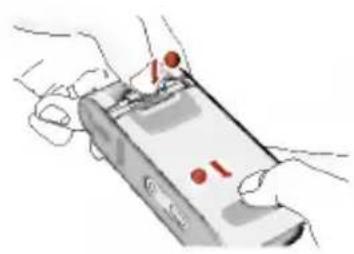
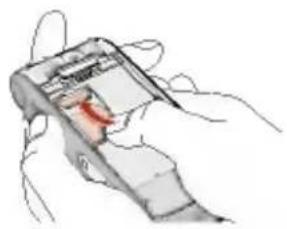
1. Remove the battery cover.
Press the battery release latch and slide the battery cover toward the bottom of the phone. And remove the battery cover.
natural_image
Illustration of hands holding a smartphone with red indicator lights (no text or symbols)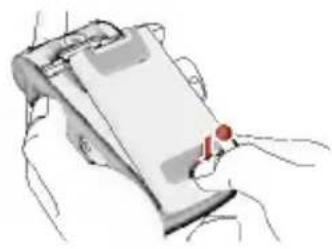
natural_image
Illustration of hands holding a clipboard with a red circular mark on the surface (no text or symbols)
Note
- Removing the battery from the phone when the power is on may cause the phone to malfunction.
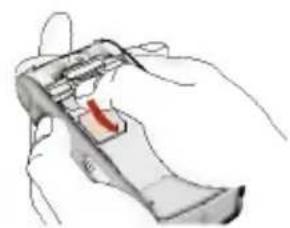
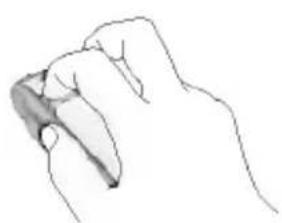
2. Remove the battery.
Hold the top edge of the battery and lift the battery from the battery compartment.
natural_image
Line drawing of a hand holding an object, no text or symbols present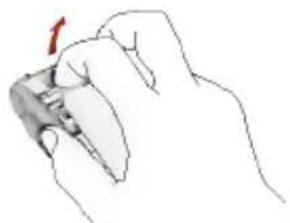
natural_image
Hand holding a small mechanical component with a red arrow indicating rotation (no text or symbols)3. Install the SIM card.
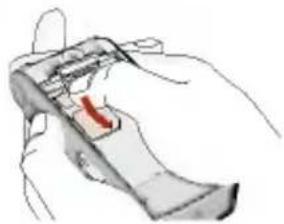
Insert the SIM card into the holder. Slide the SIM card into the SIM card holder. Make sure that the SIM card is inserted properly and that the gold contact area on the card is facing downwards. To remove the SIM card, press down lightly and pull it in the reverse direction.
natural_image
Illustration of a hand holding a smartphone with a red highlighted screen (no text or symbols visible)To insert the SIM card
natural_image
Illustration of a hand holding a smartphone with a red arrow pointing to the screen (no text or symbols present)To remove the SIM card
Note
- The metal contact of the SIM card can be easily damaged by scratches. Pay special attention to the SIM card while handling. Follow the instructions supplied with the SIM card.
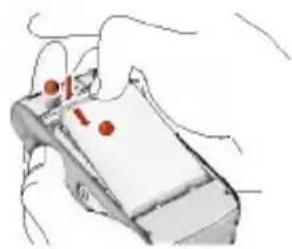
4. Install the battery.
natural_image
Illustration of a hand holding a smartphone with red dots and a number 1, no text or symbols presentInsert the bottom of the battery first into the bottom edge of the battery compartment. Push down the top of the battery until it snaps into space.
natural_image
Black-and-white photo of a person using a computer with a smartphone (no visible text or symbols)
natural_image
Red and white graphic with a small icon of a folder or document, no readable text or symbols.Getting started
5. Replace the battery cover.
natural_image
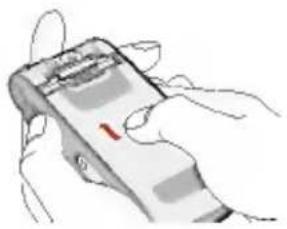
Illustration of a hand holding a smartphone with a red indicator light (no text or symbols visible)Place the battery cover in the phone and slide it until the latch clicks.
Charging the battery
Only use the mains adapter supplied with your phone.
natural_image
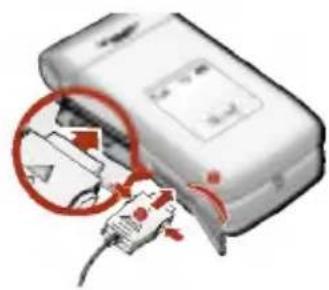
Close-up of a white electronic device with red circular annotations highlighting internal components (no readable text or symbols)- With the battery in position on the phone, connect the lead from the mains adapter to the left side of the phone. Lift the charger connector lid off and turn it 180 degrees. Make sure that the arrow on the lead connector is facing towards the front of the phone.
Note
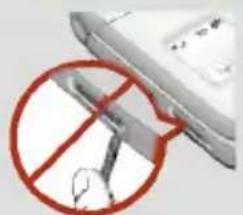
- Folding the rubber lid excessively to open it can cause damage the lid.
natural_image
Close-up of a car with a red prohibition symbol (no text or symbols present)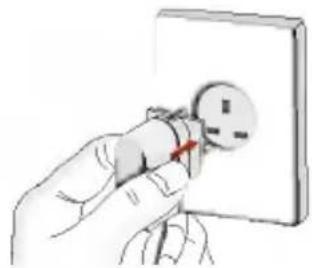
natural_image
Hand inserting a plug into an electrical outlet (no text or symbols visible)- Connect the other end of the adapter to the power outlet.
Caution
- Use of unauthorised accessories could damage your phone and invalidate your warranty.
- Do not force the connector as this may damage the phone and/or the mains adapter.
Note
- "Charging" appears on the screen after connecting the mains adapter. If the battery is totally discharged, it may take a few minutes before this appears.
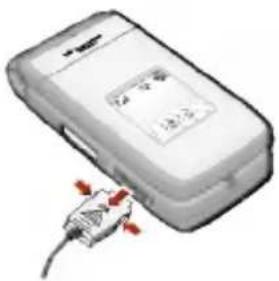
Disconnecting the adapter
natural_image
Illustration of a mobile phone with a cable and plug, no visible text or symbols- When charging is finished, the moving bars of the battery icon stop and 'Full' is displayed on the screen.
- Unplug the adapter from the power outlet. Disconnect the adapter from the phone by pressing the grey tabs on both sides of the connector and pull the connector out.
Note
- Ensure the battery is fully charged before using the phone for the first time.
- Do not remove the battery or SIM card while charging.
- In the case the battery is not properly charged, please turn the phone off and on using the power key, then recharge the battery. After detaching and reattaching the battery, please recharge the battery.
natural_image
Black-and-white photo of a person using a smartphone (no visible text or symbols)
natural_image
Red banner with a small icon of a document or folder, no readable text or symbols present.Getting started
Turning your phone on and off
Turning your phone ON
- Install a battery to the handset and connect the phone to an external power source such as the mains adapter, cigarette lighter adapter or hands-free car kit. Or install a charged battery pack to the handset.
- Press 📋 for a few seconds until the LCD screen is turned on.
- Depending on the status of the PIN code request setting you may need to enter your PIN code.
Turning your phone OFF
- Press ☐ for a few seconds until the LCD screen is turned off.
Access codes
You can use the access codes described in this section to avoid unauthorised use of your phone. The access codes (except PUK and PUK2 codes) can be changed by using the Change codes feature [Menu 9-7-5]. See page 96.
PIN code (4 to 8 digits)
The PIN (Personal Identification Number) code protects your SIM card against unauthorised use. The PIN code is usually supplied with the SIM card. When the PIN code request is set to Enable, your phone will request the PIN code every time the phone is switched on. When the PIN code request is set to Disable, your phone connects to the network directly without the PIN code.
PIN2 code (4 to 8 digits)
The PIN2 code, supplied with some SIM cards, is required to access functions such as Advice of Call Charge and Fixed dial number. These functions are only available if supported by your SIM card. Check with your network for further information.
PUK code (4 to 8 digits)
The PUK (PIN Unblocking Key) code is required to change a blocked PIN code. The PUK code may be supplied with the SIM card. If not, contact your network operator for the code. If you lose the code, also contact your network operator.
PUK2 code (4 to 8 digits)
The PUK2 code, supplied with some SIM cards, is required to change a blocked PIN2 code. If you lose the code, also contact your network operator.
Security code (4 to 8 digits)
The security code protects the unauthorised use of your phone. The default security code is set to '0000' and the security code is required to delete all phone entries and to activate the Reset settings menu. Also, the security code is required to enable or disable the phone lock function to prevent unauthorised use of the phone. The security code default setting can be modified from the Security settings menu.
Barring password
The barring password is required when you use the Call barring function. You obtain the password from your network operator when you subscribe to this function. See page 94 for further details.
natural_image
Black-and-white photo of a person using a computer (no visible text or symbols)
natural_image
Red striped background with blurred image patches, no visible text or symbolsGeneral functions
Making and answering calls
Making a call
- Make sure your phone is switched on.
- Enter a phone number, including the area code. To edit a number on the LCD screen, press the right/left navigation keys to move the cursor to the desired position or simply press the clear key (c) to erase one digit at a time.
▶ Press and hold the clear key (c) to erase the entire number.
- Press the send key ( ) to call the number.
- To end the call, press the end key (☐) or the right soft key. You can also end the call by closing the folder.
Making a call using the send key
- In standby mode, press the send key ( ), and the latest incoming, outgoing and missed phone numbers will be displayed.
- Select the desired number by using the up/down navigation key.
- Press
Making an international call
- Press and hold the 0 ± key for the international prefix. The '+' character automatically selects the international access code.
- Enter the country code, area code, and the phone number.
- Press
Ending a call
When you have finished your call, press the end (☐) key.
Making a call from the Contacts
You can save the names and phone numbers dialled regularly in the SIM card and/or phone memory, which is Contacts. You can dial a number by simply looking up the desired name in the Contacts. For further details on the Contacts feature, please refer to page 64-68.
Adjusting the volume
If you want to adjust the earpiece volume during a call, use the side keys (f). Press the up side key to increase and down side key to decrease the volume.

Note
- In standby mode, pressing the side keys adjusts the key tone volume.
Answering a call
When you receive a call, the phone rings. If the caller can be identified, the caller's phone number (or name and image if saved in the Contacts) is displayed. This phone supports the Photo Caller ID feature.
- To answer an incoming call, open the phone. (When Flip open has been set as the answer mode. See page 90 [Menu 9-5-2].)

Note
- If Any key has been set as the answer mode (see page 90), any key press will answer a call except for the 📞 or the right soft key.
natural_image
Person using a smartphone and tablet device (no visible text or symbols)
natural_image
Red banner with a small icon of a computer mouse, no visible text or symbolsGeneral functions
▶ To reject an incoming call, press and hold one of the side keys on the left side of the phone without opening the phone.
▶ You can answer a call while using the Contacts or other menu features.
- To end the call, close the folder or press the 🔒 key.
Switching quickly to Vibrate only profile
You can switch your phone quickly to the Vibrate only profile by pressing and holding down the left navigation key (|æ() after opening the phone. To activate another profile again, press the left navigation key (|æ() and select the desired one.
Signal strength
You can check the strength of your signal by the signal indicator (T_{mill}) on the LCD screen of your phone. Signal strength can vary, particularly inside buildings. Moving near to a window may improve reception.
Entering text
You can enter alphanumeric characters using the phone's keypad. For example, storing names in the Contacts, writing a message, creating a personal greeting or scheduling events in the calendar all require entering text.
The following text input methods are available in the phone.
T9 mode
This mode lets you enter words with only one keystroke per letter. Each key on the keypad has more than one letter. The T9 mode automatically compares your keystrokes with an internal dictionary to determine the correct word, thus requiring far fewer keystrokes than the traditional ABC mode. This is sometimes known as predictive text.
ABC mode
This mode lets you enter letters by pressing the key labeled with the required letter once, twice, three times or more until the letter is displayed.
123 mode (Number mode)
Type numbers using one keystroke per number. To change to 123 mode in a text entry field, press the # key until 123 mode is displayed.
Changing the text input mode
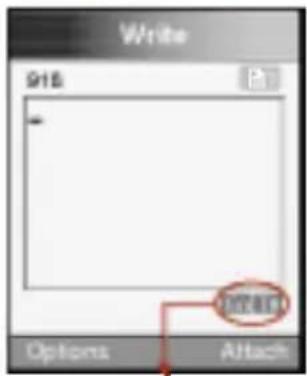
text_image
Write 918 Options Attachtext input mode
- When you are in a field that allows characters to be entered, you will notice the text input mode indicator in the lower right corner of the LCD screen.
- Change the text input mode by pressing #5. You can check the current text input mode in the lower right corner of the LCD screen.
▶ Using the T9 mode
The T9 predictive text input mode lets you enter words easily with a minimum number of key presses. As you press each key, the phone begins to display the characters that it thinks you are typing based on the built-in dictionary. You can also add new words in the dictionary. As new words are added, the word changes to reflect the most likely candidate from the dictionary.
- When you are in the T9 predictive text input mode, start entering a word by pressing keys 2 mix to 9 mix. Press one key per letter.
natural_image
Black-and-white photo of a person in profile wearing glasses and holding an object, with no visible text or symbols.
natural_image
Red banner with a small icon of a butterfly, no visible text or symbolsGeneral functions
- The word changes as letters are typed. Ignore what's on the screen until the word is typed completely.
- If the word is still incorrect after typing completely, press the down navigation key once or more to cycle through the other word options.

Example
- Press 4 am 6 min 6 min 3 out to type Good.
-
Press 4.31 6.72 6.73 3.41 [Down navigation key] to type Home.
-
If the desired word is missing from the word choice list, add it using the ABC mode.
-
You can select the language of the T9 mode. Press the left soft key [Options], then select T9 languages. Select the desired language of T9 mode. You can also turn off the T9 mode by selecting T9 off. The default setting on the phone is T9 enabled mode.
-
Enter the whole word before editing or deleting any keystrokes.
- Complete each word with a space by pressing the 05 key.
▶ To delete letters, press ☐. Press and hold down ☐ to erase entire words.

Note
- To exit from the text input mode without saving your input, press 📞. The phone goes back to standby mode.
▶ Using the ABC mode
Use the 2 ^abs to 9 ^vnn keys to enter your text.
- Press the key labeled with the required letter:
- Once for the first letter
- Twice for the second letter
- And so on
- To insert a space, press the Ⓞ key once. To delete letters, press the ⓒ key. Press and hold down the ⓒ key to clear the whole display.
Note: Refer to the table below for more information on the characters available using the alphanumeric keys.
| Key | Characters in the order display | |
| Upper case | Lower case | |
| ., - ? !' @ : 1 | ., - ? !' @ : 1 | |
| A B C 2 | a b c 2 | |
| D E F 3 | d e f 3 | |
| G H I 4 | g h i 4 | |
| J K L 5 | j k l 5 | |
| M N O 6 | m n o 6 | |
| P Q R S 7 | p q r s 7 | |
| T U V 8 | t u v 8 | |
| W X Y Z 9 | w x y z 9 | |
| Space key, 0 (Long press) | Space key, 0 (Long press) | |
natural_image
Black-and-white photo of a person using a computer with a smartphone in the background (no visible text or symbols)
natural_image
Red banner with a small icon of a computer mouse, no visible text or symbolsGeneral functions
▶ Using the 123 (Number) mode
The 123 mode enables you to enter numbers in a text message (a telephone number, for example).
Press the keys corresponding to the required digits before manually switching back to the appropriate text entry mode.
Contacts
You can store phone numbers and their corresponding names in the memory of your SIM card. In addition, you can store up to 255 numbers and names in the phone memory.
The SIM card and phone are both used in the same way in the Contacts menu. (Refer to page 64-68 for details.)
In-call menu
Your phone provides a number of control functions that you can use during a call. To access these functions during a call, press the left soft key [Options].
During a call
The menu displayed on the handset screen during a call is different to the default main menu displayed when in standby mode, and the options are described below.
Making a second call
You can get a number you wish to dial from the Contacts to make a second call. Press the right soft key then select Search. To save the dialled number into the Contacts during a call, press the right soft key then select Add new.
Switching between two calls
To switch between two calls, press the left soft key then select Swap.
Answering an incoming call
To answer an incoming call when the handset is ringing, simply press the 🔔 key. The handset is also able to warn you of an incoming call while you are already on a call. A tone sounds in the earpiece, and the display will show that a second call is waiting. This feature, known as Call waiting, is only available if your network supports it. For details of how to activate and deactivate it see Call waiting [Menu 9-5-4] on page 91.
If Call waiting is activated, you can put the first call on hold and answer the second, by pressing ↗ or by selecting left soft key, then Hold & Answer. You can end the current call and answer the waiting call by selecting left soft key and then End & Answer.
Rejecting an incoming call
You can reject an incoming call without answering by simply pressing the 🔒 key.
During a call, you can reject an incoming call by pressing the left soft key [Menu] key and selecting the Conference / Reject or by pressing the 📞.
Muting the microphone
You can mute the microphone during a call by pressing the [Menu] key then selecting Mute on. The handset can be unmuted by selecting Mute off. When the handset is muted, the caller cannot hear you, but you can still hear them.
Switching DTMF tones on during a call
To turn DTMF tones on during a call, press the left soft key, and then select DTMF on. DTMF tones can be turned off the same way. DTMF tones allow your phone to make use of an automated switchboard.
natural_image
Black-and-white photo of a person using a computer with a smartphone in the background (no visible text or symbols)
natural_image
Red banner with a small icon of a butterfly, no visible text or symbolsGeneral functions
Multiparty or conference calls
The multiparty or conference service provides you with the ability to have a simultaneous conversation with more than one caller, if your network operator supports this feature. A multiparty call can only be set up when you have one active call and one call on hold, both calls having been answered. Once a multiparty call is set up, calls can be added, disconnected or separated (that is, removed from the multiparty call but still connected to you) by the person who set up the multiparty call. These options are all available from the In-Call menu. The maximum callers in a multiparty call are five. Once started, you are in control of the multiparty call, and only you can add callers to the multiparty call.
Making a second call
You can make a second call while currently on a call. Enter the second number and press the 🔍 key. When the second call is connected, the first call is automatically placed on hold. You can swap between calls by pressing the left soft key then selecting Swap.
Setting up a conference call
Place one call on hold and while the active call is on, press the left soft key and then select the Conference / Join all.
Putting a conference call on hold
Press the left soft key, then select the Conference / Hold all.
Activate the conference call on hold
Press the left soft key, then select the Conference / Join all.
Adding calls to the conference call
To add a call to an existing conference call, press the left soft key, then select the Conference / Join all.
Displaying callers in a conference call
To scroll through the numbers of the callers who make up a conference call on the handset screen, use the up/down navigation keys.
Taking a private call during a conference call
To have a private call with one caller from a conference call, display the number of the caller you wish to talk to on the screen, then press the left soft key. Select the Conference / Private to put all the other callers on hold.
Ending a conference call
To end a conference call, press the 🔒 key. You can also end a conference call by selecting End call after pressing the left soft key.
natural_image
Black-and-white photo of a person wearing glasses and holding an object, with a small inset image showing a person in the background (no visible text or symbols)
natural_image
Red and white striped background with faint circular images of people (no visible text or symbols)Menu Tree
The following illustration shows the available menu structure and indicates the:
▶ Number assigned to each menu option.
▶ Page where you can find the feature description.
You can go to the desired menu using the Menu/Confirm key (OK) and navigation keys.

1 Interactive (see page 41)

2 My Media (see page 42)
1 Pictures
2 Sounds
3 Games & more
4 Videos
5 Memory status

3 Call register (see page 44)
1 Missed calls
2 Received calls
3 Dialled calls
4 Delete recent calls
5 Call durations
6 Call costs
7 Cost settings
8 GPRS information

4 Messages (see page 49)
1 Text messages
2 Multimedia messages (MMS)
3 Voice messages
4 Info service
5 Templates
6 Name card
7 Memory status

5 t-zones (see page 63)

6 Contacts (see page 64)
1 Search
2 Add new
3 Speed dials
4 Caller groups
5 Copy all
6 Delete all
7 Set memory
8 Information

7 Organiser (see page 69)
1 Alarm clock
2 Scheduler
3 Memo
4 Voice recorder
5 Calculator
6 World time
7 Unit converter

8 Camera (see page 75)
1 Take photos
2 Take videos
3 Frame shot
4 My photos
5 My videos
6 Camera settings

9 Settings (see page 85)
1 Profiles (for SAT SIM)
2 Date & Time
3 Favourites
4 Phone settings
5 Call settings
6 Activate IrDA
7 Security settings
8 Network settings
9 GPRS settings
0 Internet
* Reset settings
natural_image
Black-and-white photo of a person holding a device, possibly a phone or mobile device, with no visible text or symbols.
natural_image
Red striped background with faint architectural photos and text overlays (no readable signage or symbols)Selecting functions and options
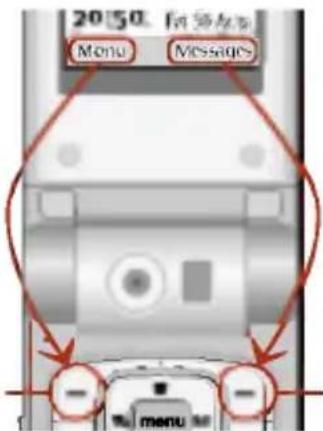
Your phone offers a set of functions that allow you to customise the phone. These functions are arranged in menus and sub-menus, accessed via the two soft keys marked ( - ) and ( - ). Each menu and sub-menu lets you view and alter the settings of a particular function
The roles of the soft keys vary according to the current context; the label on the bottom line of the screen just above each key indicates its current role.
Press the left soft key to access the available menu.
text_image
20:50 Menu Messages - menuPress the right soft key to activate the corresponding action.
Interactive [Menu 1]
Your service provider can offer special application through SIM card, such as home banking, stock market, etc. If you are registered for one of these services, the service name will appear at the end of the main menu. With the Interactive menu, your phone is future-proof and will support additions to your service provider's service. For further information, contact your service provider.
![LG L5100 - Interactive [Menu 1] - 1](/content/2026/05/802426/images/98175bcfdede2ddf09ce6e61b2edef95b4ea55c61e36e0603cb3087b8a3e63f2.jpg)
natural_image
Black-and-white photo of a person wearing glasses and holding an object, with no visible text or symbols.![LG L5100 - Interactive [Menu 1] - 2](/content/2026/05/802426/images/52e79b3c627618d0b2e1379ca6fccbf771dabbca3e43c253a65073c86872fb89.jpg)
natural_image
Red and white striped background with faint architectural photos (no visible text or symbols)My Media [Menu 2]
You can download ringtones, sounds, games, pictures, and wallpaper through WAP.
Press the menu key and select My media using navigation keys.
Pictures [Menu 2-1]
More pictures: Connects to the t-zones. You can download pictures using the WAP. And they are stored in My pictures.
My pictures: There are MMS template images pre-installed by LG and images pre-installed by T-Mobile. And the downloaded images are stored in this menu. After selecting a desired image using left/right navigation keys, press the left soft key [Options]. You can:
- set it as the wallpaper (except for template images)
- send it via text message (only for template images) or via multimedia message (except for template images)
- rename it
- delete the selected image or all the images in My picture.
My photos: Opens the My photos. The photos taken with L5100 are stored in here. (For more details, refer to pages 80-82)
Sounds [Menu 2-2]
t-music: Connects to the t-zones. You can download various ringtones and caller tunes using the WAP. And they are stored in My sounds.
My sounds: There are TMO pre-installed sounds and LG pre-installed MIDI sounds and I-melodies. And the downloaded sounds are stored in this menu. After selecting a desired sound using left/right navigation keys, press the left soft key [Options].
You can:
- send it via text message (only for I-melodies) or via multimedia message
- set it as the ringtone
- rename it
- delete the selected sound or all the sounds in My sounds.
Games & more [Menu 2-3]
t-games: Connects to the t-games. You can download games using the WAP. And they are stored in My games & more.
My games & more: There is a pre-installed game. And the downloaded games are stored in this menu.
Videos [Menu 2-4]
t-movies: Connects to the t-movies. You can download movies using the WAP. And they are stored in My movies.
My movies: You can play the downloaded movies in here.
My videos: Opens the My videos. The video clips recorded with L5100 are stored in here. (For more details, refer to pages 83-84.)
Memory status [Menu 2-5]
You can check the current memory status on the phone.
![LG L5100 - Memory status [Menu 2-5] - 1](/content/2026/05/802426/images/fc804ab3c2f33d92c30c9c24aedf40aabfa3c973984a5cc1205d9e8291f0eca5.jpg)
natural_image
Black-and-white photo of a person using a computer (no visible text or symbols)![LG L5100 - Memory status [Menu 2-5] - 2](/content/2026/05/802426/images/8ab9ab41fef003090e5ea8770a7a19320f6e181e685316dc6747a1289107725a.jpg)
natural_image
Red and white abstract image with horizontal stripes and faint vertical patterns (no text or symbols)Call register [Menu 3]
(Dependent on the network service)
You can check the record of missed, received, and dialled calls only if the network supports Calling Line Identification (CLI) within the service area.
The number and name (if available) are displayed together with the date and time at which the call was made. You can also view call times and costs.
Press the menu key and select Call register using navigation keys.
Missed calls [Menu 3-1]
This option lets you view the last 10 unanswered calls. After selecting a phone number, you can make a call to the number by pressing the send key (☐). And using the left soft key [Options], the following options are available.
▶ Write text message: You can send a text message to this number.
▶ Write multimedia message: You can send a multimedia message to this number.
▶ Edit: Edits the contact entry.
▶ Save (Shown if the name is not saved in the Contacts): Saves the number creating a new contact in the Contacts.
▶ Add to name (Shown if the name is not saved in the Contacts): You can add the number to an existing contact entry.
▶ Delete: Deletes the call from the list.
▶ View details: Displays the call information.
Note
- You can delete all the call records from the list using the Delete recent calls menu [Menu 3-4].
Received calls [Menu 3-2]
This option lets you view the last 10 incoming calls. After selecting a phone number, you can make a call to the number by pressing the send key (☐). And using the left soft key [Options], the following options are available.
▶ Write text message: You can send a text message to this number.
▶ Write multimedia message: You can send a multimedia message to this number.
▶ Edit: Edits the contact entry.
▶ Save (Shown if the name is not saved in the Contacts):
Saves the number creating a new contact in the Contact.
▶ Add to name (Shown if the name is not saved in the Contacts): You can add the number to an existing contact entry.
▶ Delete: Deletes the call from the list.
▶ View details: Displays the call information.
![LG L5100 - Received calls [Menu 3-2] - 1](/content/2026/05/802426/images/fdce9c92b8bd1bb8050582d1ebcfdeae3f95495543586b188f6c441b60bb0252.jpg)
Note
- You can delete all the call records from the list using the Delete recent calls menu [Menu 3-4].
Dialled calls [Menu 3-3]
This option lets you view the last 10 outgoing calls (called or attempted). After selecting a phone number, you can make a call to the number by pressing the send key (☐). And using the left soft key [Options], the following options are available.
▶ Write text message: You can send a text message to this number.
▶ Write multimedia message: You can send a multimedia message to this number.
![LG L5100 - Dialled calls [Menu 3-3] - 1](/content/2026/05/802426/images/4c445404705e9ad469c41c2e20a9d615b44440d893894e61d4bab68c02430044.jpg)
natural_image
Black-and-white photo of a person using a microscope, no visible text or symbols![LG L5100 - Dialled calls [Menu 3-3] - 2](/content/2026/05/802426/images/a61b0a9c3c74e87cc42f0c45a899082bbad07d5258d57716cfb2a5bc12a91cae.jpg)
natural_image
Red banner with a small icon of a boat, no visible text or symbolsCall register [Menu 3]
▶ Edit: Edits the contact entry.
▶ Save (Shown if the name is not saved in the Contacts): Saves the number creating a new contact in the Contacts.
▶ Add to name (Shown if the name is not saved in the Contacts): You can add the number to an existing contacts entry.
▶ Delete: Deletes the call from the list.
▶ View details: Displays the call information.
Note
- You can delete all the call records from the list using the Delete recent calls menu [Menu 3-4].
Delete recent calls [Menu 3-4]
Use this to clear up the missed call list, received call list, or dialled call list. You can also clear up all call lists at a time by selecting All calls.
Call durations [Menu 3-5]
Use this to view the duration of your incoming and outgoing calls. You can check each call duration at the bottom of screen while scrolling using the up/down navigation keys. Pressing the ☐ key or the left soft key [Reset] resets the call timer of selected call. To prevent accidental reset, you are requested to enter the security code.
![LG L5100 - Call durations [Menu 3-5] - 1](/content/2026/05/802426/images/bba9a9140a5294efc1006ef882c10b56a63165e8eb6095ceb1a118c0821da6f6.jpg)
text_image
Call duration 1. Load call Received calls Dedied calls All calls 00:00:00 Reset Back- Last call: Length of the last call
• Received calls: Length of the incoming calls
• Dialled Calls: Length of the outgoing calls - All calls: Total length of all calls made or received calls since the timer was last reset.
Notice
- The actual time invoiced for calls by your service provider may vary, depending on network features, rounding-off for billing, etc.
Call costs [Menu 3-6]
This network service allows you to check the last call cost and the total call cost. The call cost is displayed on the bottom of the LCD screen. To reset the call cost, press the left soft key [Reset] or the OK key. You are requested to enter the PIN2 code
Note
- The actual cost invoiced for calls by your service provider may vary, depending on network features, rounding-off for billing, taxes, etc.
Cost settings [Menu 3-7]
Call cost's limit [Menu 3-7-1]
This network service allows you to limit the cost of your calls to the number of charging units or units of currency. You can make or receive a call up to the specified cost limit. You can change the call cost's limit after entering the PIN2 code.
Set tariff [Menu 3-7-2]
You can set the currency type and the unit price. Contact your service providers to obtain charging unit prices. To select the Currency or 1 Unit in this menu, you need the PIN2 code.
![LG L5100 - Set tariff [Menu 3-7-2] - 1](/content/2026/05/802426/images/e52b93b6ee15c7f4ef713b718f8d04bc03553ca08f8665747946baf192052050.jpg)
natural_image
Black-and-white photo of a person using a computer (no visible text or symbols)![LG L5100 - Set tariff [Menu 3-7-2] - 2](/content/2026/05/802426/images/242dd5e18061d4b7c10aeb5cc7c14bae5ed6a9be2910294d5b97216a80034d5e.jpg)
natural_image
Red banner with a small icon of a shoe and a blurred background (no text or symbols)Call register [Menu 3]
Note
- When all units have been used, no calls can be made except emergency calls. Depending on the SIM card, you need the PIN2 code to set a call cost limit.
Auto display [Menu 3-7-3]
This network service allows you to see automatically the cost of your last call. If you select On in Auto display menu, you can see the cost of the last call when the call is released.
GPRS information [Menu 3-8]
You can check the amount of data transferred over the network through the GPRS information option. In addition, you can also view how much time you are online. (GPRS stands for General Packet Radio Service.)
WAP information [Menu 3-8-1]
You can check the data volume and the time spent using WAP.
On the selected menu, pressing the left soft key [Reset] or the OK key clears the counter.
External device [Menu 3-8-2]
You can check the data volume and the time spent using GPRS with an external device such as a serial port.
Total data [Menu 3-8-3]
You can check the total amount of data through WAP and the external device.
Messages [Menu 4]
Press the menu key (☐) and select Messages using navigation keys.
Or you can go to this menu by pressing the right soft key [Messages] in standby mode.
Text messages [Menu 4-1]
Your phone receives voice mail notification messages and Short Message Service (SMS) messages.
Voice mail and SMS are network services. Please contact your network operator for more information.
When the icon appears, you have received voice mail.
When the 📄 icon appears, you have received a new text message.
If the message memory is full, a message is displayed, the 📄 icon flashes and you cannot receive any new messages.
Use the Delete option in the Inbox menu to delete obsolete messages.
Once there is space in the message memory, any undelivered SMS messages will be received (provided sufficient space is available).
Write [Menu 4-1-1]
You can write and edit text messages up to 6 pages. (approximately 918 characters)
-
Key in your message. For details on how to enter text, refer to page 30 through 34 (Entering Text).
-
After you complete the message, press the left soft key [Options] to select required option. The following options are available.
▶ Send : Enter the number or select the number from the Contacts or the recent numbers using the left soft key [Options]. You can send a message up to 5 phone numbers at a time.
![LG L5100 - Write [Menu 4-1-1] - 1](/content/2026/05/802426/images/659691fbe60fee0480336295066f482d4390891e22ffb4d98f112eb4824ce26f.jpg)
natural_image
Black-and-white photo of a person using a handheld device (no visible text or symbols)![LG L5100 - Write [Menu 4-1-1] - 2](/content/2026/05/802426/images/216ff3a29d81049062fe3abd814dc0e785d6fa334eb10cbb657387244973babc.jpg)
natural_image
Red banner with a small icon of a document or folder, no visible text or symbols.Messages [Menu 4]
▶ Save to draft: Allows you to save the message so that it can be sent later.
▶ T9 languages: Select the language for T9 input mode. You can also deactivate T9 input mode by selecting 'T9 off'. For further details on the T9 mode, refer to page 30 through 32.
▶ Clear text: Erases the whole text.
▶ Exit editor: Allows you to exit from the Write menu.
- You can also send attachments with the message by pressing the right soft key [Attach], while you're entering a message.
▶ Symbol: You can attach special characters.
Note: You can also insert special characters by pressing ( * ), while keying in a message.
▶ Emoticon: You can put various emoticons preset in the phone.
▶ Picture: You can send and receive text messages that contain pictures, known as 'Picture messages'. Several preset pictures are available in the phone and they can be replaced with new ones received from other sources.
▶ Animation: Attaching an animation in a message can be done through EMS (Enhanced Messaging Service). You can select any of 15 animations in the phone.
▶ Sound: If available, you can attach a sound available for a short message.
▶ Text template: You can use text templates already set in the phone.
▶ Phone number: You can add phone numbers in the message.
▶ Name card: You can attach your name card.
Inbox [Menu 4-1-2]
Received text messages and page messages can be searched and the contents can be viewed.
Received messages are displayed in date order.
Press the menu key and select Messages → Text message → Inbox.
Or, you can take a shortcut by pressing the right navigation key ( ) in standby mode.
| Icon | Description |
| Read SIM message | |
| Unread SIM message | |
| Read message | |
| Unread message | |
| Read delivery report | |
| Unread delivery report |
![LG L5100 - Inbox [Menu 4-1-2] - 1](/content/2026/05/802426/images/a5b9a252c1e4bbc0e6969e2a120f28eceeb9ed3fee40a7662408d70be5e03e3b.jpg)
Note
- SIM message refers to the message saved in the SIM memory. And the network distinguishes an incoming message into the SIM message or just message.
natural_image
Black-and-white photo of a person using a computer (no visible text or symbols)
natural_image
Red banner with a small icon of a document or folder, no visible text or symbols.Messages [Menu 4]
Each received message has the following options available. Press the left soft key [Options].
▶ Reply: Replies to the received message.
▶ Forward: Forwards a received message to other recipients.
▶ Return call: Calls the sender's phone.
▶ Extract: Extracts a picture, sound, text web page or email address from the message. These will be saved in My folder, Contacts, or bookmarks.
▶ Delete: Deletes the selected message from the Inbox.
Outbox [Menu 4-1-3]
You can view the list and contents of sent messages in this menu and can also verify if the transmission was successful.
| Icon | Description |
![LG L5100 - Outbox [Menu 4-1-3] - 1](/content/2026/05/802426/images/7701c822bbe54a74dfa14812269aa1079ba7463d19fe1808dfcee7b6c95d80d5.jpg) | Sent SIM message |
![LG L5100 - Outbox [Menu 4-1-3] - 2](/content/2026/05/802426/images/61f64bf9c098245ca481fe160d53de8e8090cb175136bf14edd1c1bb1d793416.jpg) | Sent message |
The following options are available.
▶ Forward: Forwards the current message to other recipients.
▶ Delete: Deletes the selected message from the Outbox.
Draft [Menu 4-1-4]
In this menu, you can see the message list saved as draft. Scroll through the list using the up/down navigation keys. You can send draft messages by pressing the left soft key [Options].
Settings [Menu 4-1-5]
This menu lets you set up the default SMS information.
▶ Message types: Sets the default message type (Text, Voice, Fax, Paging, X.400, E-mail, and ERMES). The network can convert the messages into the selected format.
▶ Validity period: Sets the length of time for which your text messages will be saved at the SMS center while attempts are made to deliver them to the recipient. Possible values are 30 minutes, 1 hour, 6 hours, 1 day, 1 week and the maximum authorised by your network operator.
▶ Paper: You can insert one of 4 wallpaper images to a text message.
▶ Delivery report: Activates or deactivates the report function. When this function is activated, the network informs you whether or not your message has been delivered.
▶ Pay for reply: Allows the recipient of your SMS message to send you a reply via your message centre, if the service is provided by the network.
▶ Message centre number: Saves or changes the number of your SMS centre when sending text messages. You must obtain this number from your service provider.
▶ Bearer setting: Selects GPRS or GSM. Contact your network operator or service provider for information related to setting a selected bearer, pricing and connection speed.
Multimedia messages (MMS) [Menu 4-2]
A multimedia message can contain text, images, and/or sound clips. This feature can be used only if it is supported by your network operator or service provider. Only the devices that offer compatible multimedia message or e-mail features can receive and send multimedia messages.
![LG L5100 - Multimedia messages (MMS) [Menu 4-2] - 1](/content/2026/05/802426/images/cf22ef9db924317f49b53bf9de7984c8703e0bd8f01c23893b47269e454fbd88.jpg)
natural_image
Black-and-white photo of a person holding a device, no visible text or symbols![LG L5100 - Multimedia messages (MMS) [Menu 4-2] - 2](/content/2026/05/802426/images/bce88ded411d191eee06009a80698dd549ffab2bcfd5afebe64d70f3d664ced3.jpg)
natural_image
Red banner with a small icon of a document or folder, no readable text or symbols present.Messages [Menu 4]
Write [Menu 4-2-1]
- Key in the text message. Using the right soft key, you can input symbols, numbers and emoticons, or select the text input mode. After the text message input, press the left soft key [Done].
- Add an image. Add a sound or a video clip. You can move to the next section using the up/down navigation.
- You can add a slide by moving the cursor on ☐, then pressing the OK key or the left soft key [Select]. You can also add a slide using the right soft key [Menu].
Note: Up to 9 slides are possible.
- Press the right soft key [Menu]. The following options are available.
▶ Send: Select this to send the multimedia message. This phone supports multiple numbers and e-mail addresses.
▶ Preview: Displays the multimedia message you wish to send.
▶ Save: You can save the multimedia message in draft or as a template.
▶ Delete: Deletes the message you're been creating.
▶ Slide duration: Set the slide duration. Enter the desired duration using the numeric keypad.
▶ Slide format: Select where to align the image.
▶ Add slide: Adds a slide before of after the current slide.
▶ Remove slide: Deletes the selected slide.
Inbox [Menu 4-2-2]
You will be alerted when you have received messages. They will be saved in the Inbox. You can identify each message by icons. For details, see the icon description below.
| Icon | Description |
| Read normal message | |
| Unread normal message | |
| Read notification message | |
| Unread notification message | |
| Read high priority message | |
| Unread high priority message | |
| Read low priority message | |
| Unread low priority message |
If the phone has 'No space for messages', you can make space by deleting messages, media and applications.
▶ Timer stop: The Timer stop menu is displayed when you receive a message including various pictures. Usually, the pictures are sequentially displayed automatically. However, if you select this menu, you can see the next picture by pressing the left soft key [Next] manually.
▶ Timer start: Select this to activate the slide show automatically again.
▶ Previous slide: Displays the previous page.
![LG L5100 - Inbox [Menu 4-2-2] - 1](/content/2026/05/802426/images/09ecba649ec255846d86159d71400b68ef17a3502e09d78bfd8d124bab71fbfd.jpg)
natural_image
Black-and-white photo of a person using a handheld device (no visible text or symbols)![LG L5100 - Inbox [Menu 4-2-2] - 2](/content/2026/05/802426/images/78815b7ee8c4a9ec5b554abe00e7d9d9602883f750ddb59f0cc05a94b934633b.jpg)
natural_image
Red banner with a small icon of a document or folder, no readable text or symbols present.Messages [Menu 4]
▶ Restart: Restarts the slide show from the first slide.
▶ Save message: Saves a multimedia message in draft form or as a template.
▶ Save items: Extracts pictures or sounds. They will be saved in My folder or Contacts.
▶ Details: Displays information about received messages: Sender's address, Subject (only for Multimedia message), Message date & time, Message type, Message size.
▶ Reply: Replies to the sender.
▶ Reply all: Replies to all senders.
▶ Delete message: Deletes the current message.
▶ Forward: Forwards the selected message to other recipients.
Outbox [Menu 4-2-3]
Use this to see sent messages. For each sent message, you can see the delivery status.
| Icon | Description |
| Sent |
▶ Timer stop: The Timer stop menu is displayed when you receive a message including various pictures. Usually, the pictures are sequentially displayed automatically. However, if you select this menu, you can see the next picture by pressing the left soft key [Next] manually.
▶ Timer start: Select this to activate the slide show automatically again.
▶ Previous slide: Displays the previous page.
Messages [Menu 4]
▶ Restart: Restarts the slide show from the first slide.
▶ Save message: Saves a multimedia message in draft form or as a template.
▶ Save items: Extracts pictures or sounds. They will be saved in My folder or Contacts.
▶ Details: Displays information about received messages: Sender's address, Subject (only for Multimedia message), Message date & time, Message type, Message size.
▶ Delete message: Deletes the current message.
▶ Forward: Forwards the selected message to other recipients.
Draft [Menu 4-2-4]
Using this menu, you can preset up to five multimedia messages that you use most frequently. This menu shows the preset multimedia message list.
The following options are available.
▶ Send: Select this to send the multimedia message. This phone supports multiple numbers and e-mail addresses.
▶ Preview: Displays the multimedia message you wish to send.
▶ Save: You can save the multimedia message in draft or as a template.
▶ Delete: Deletes the message you're been creating.
▶ Slide duration: Set the slide duration. Enter the desired duration using the numeric keypad.
▶ Slide format: Select where to align the image.
▶ Add slide: Adds a slide before of after the current slide.
▶ Remove slide: Deletes the selected slide.
![LG L5100 - Draft [Menu 4-2-4] - 1](/content/2026/05/802426/images/9089dd44a716e16399ea2bb1ed0c4f41a3e318d9cf796a19b032aef3ddf14571.jpg)
natural_image
Black-and-white photo of a person using a computer (no visible text or symbols)![LG L5100 - Draft [Menu 4-2-4] - 2](/content/2026/05/802426/images/e9c0071bd67a163a3832f0d807a16072c82860c4e0b0e8888ab2e387eb8372bb.jpg)
natural_image
Red banner with a small icon of a document or folder, no readable text or symbols present.Messages [Menu 4]
Settings [Menu 4-2-5]
Via this menu, you can set up the default multimedia message information.
The following options are available.
▶ Message title: Enter the message title.
▶ Slide duration: Set the duration of each slide.
▶ Alignment: Select where to align the image.
▶ Validity period: Set the duration for keeping messages on the network server.
▶ Auto download
- On: If you select this, messages are downloaded automatically on receipt.
- Off: Defers downloading messages.
- Home Network only: Downloads messages only when you are in your home network.
- Reject: Select this, if you do not want to download messages.
▶ Profiles: See page 101 for further information.
Voice messages [Menu 4-3]
This menu provides you with a quick way of accessing your voice mailbox (if provided by your network).
Before using this feature, you must enter the voice server number obtained from your network operator.
When a new voice message is received, the symbol will be displayed on the screen. Please check with your network provider for details of their service in order to configure the handset correctly.
Listen to voice messages [Menu 4-3-1]
Once this option has been selected, simply press the left soft key [OK] to listen to voice messages. You can also hold down the key in standby mode to listen to voice messages.
Voice mail centre [Menu 4-3-2]
You can input and set the voice mailbox centre.
Info service [Menu 4-4]
Info service messages are text messages sent by the network to mobile phone users. They provide general information such as weather reports, traffic news, taxis, pharmacies, and stock prices. Each type of information is associated with a number, which can be obtained from the network operator. When you receive an info service message, a popup message will indicate a new message receipt or the info service message will be displayed directly. In standby mode, the following options are available when viewing info service messages.
Receive [Menu 4-4-1]
Use this to enable or disable the reception of broadcast messages.
Inbox [Menu 4-4-2]
The list of received broadcast messages can be searched and the contents viewed.
Topics [Menu 4-4-3]
(Dependent to network and subscription)
To create new topics, press the left soft key [Options] then select Add new. If you already have topics, you can deactivate, edit, or delete them by using the left soft key [Options].
natural_image
Black-and-white photo of a person using a handheld device (no visible text or symbols)
natural_image
Red banner with a small icon of a document or envelope, no visible text or symbols.Messages [Menu 4]
Alert [Menu 4-4-4]
Set alert On or Off for a new broadcast message.
Auto display [Menu 4-4-5]
If you select this option On, all received broadcast messages will be automatically displayed.
Languages [Menu 4-4-6]
(Dependent to network and subscription)
This option lets you select the preferred languages. Cell broadcast messages will be displayed in the selected language. If you use all the languages supported by the phone, select Automatic at the end of the list.
Templates [Menu 4-5]
There are pre-defined messages in the list. You can view and edit the template messages or create new messages. Two types of templates are available: Text and Multimedia.
Text messages [Menu 4-5-1]
- Please call me back.
• I'm late. I will be there at...
• Where are you now?
• I'm on the way.
• Top urgent. Please contact.
• I love you.
The following options are available.
▶ Edit: Use this to write a new message or edit the selected template message from the text template list.
▶ Delete: Deletes the selected template message from the text template list.
▶ Send via text message: Use this to send the selected template message by SMS.
▶ Send via multimedia message: Use this to send the selected template message by MMS.
▶ Add new: Use this to create a new template.
Multimedia messages [Menu 4-5-2]
▶ Send: Sends the multimedia template. Supports multiple numbers and email addresses.
▶ Preview: Displays the draft multimedia message.
▶ Save: Saves multimedia messages in draft form or as templates.
▶ Delete: Deletes the multimedia template.
▶ Slide duration: Set the slide duration. Enter the desired duration using the numeric keypad.
▶ Slide format: Select where to align the image.
▶ Add Slide: Adds a slide before or after the current slide.
▶ Remove Slide: Deletes the highlighted slide.
![LG L5100 - Multimedia messages [Menu 4-5-2] - 1](/content/2026/05/802426/images/643fef906e298b3d72844554c12b0e6d9ae902cf810b0d78e80e24fb12e31beb.jpg)
natural_image
Black-and-white photo of a person using a computer (no visible text or symbols)![LG L5100 - Multimedia messages [Menu 4-5-2] - 2](/content/2026/05/802426/images/b1e549b8dfebc3b9051ab4d7339fad81ec12385fdc203d0c71538a672987d98d.jpg)
natural_image
Red banner with a small icon of a document or folder, no readable text or symbols present.Messages [Menu 4]
Name card [Menu 4-6]
This option helps you to make your own name card.
- Press the left soft key [Add].
-
Key in the name, mobile phone number, office number, Fax number, and E-mail address.
-
Press the left soft key [Save]. With the name card, the following options are available.
▶ Edit: Use this to edit the name card.
▶ Delete: Use this to delete the name card.
▶ Send via text message: Use this to send the name card by SMS.
Note: You can also attach the name card when you write a text message using the Attach function. See page 50.
▶ Send via multimedia message: Sends the name card by MMS.
Memory status [Menu 4-7]
You can check the current memory status for Text messages and Multimedia messages.
![LG L5100 - Memory status [Menu 4-7] - 1](/content/2026/05/802426/images/62304fbdee9c42000b5065a5cbb5a26fd67efb93bc7b6937b69bec3d888a07d5.jpg)
text_image
t-zones [Menu 5]This menu enables you to access t-zones.
Press the menu key and select t-zones using navigation keys. Or, you can easily access t-zones by pressing the Ⓞ key in standby mode
The usage of t-zones requires WAP online connection which leads to costs. Please contact your service provider for details.
![LG L5100 - Memory status [Menu 4-7] - 2](/content/2026/05/802426/images/b98a30349dcbd68edc2c37df70a63777e658d08c53f1d9b9aabd64b8721ffbaa.jpg)
natural_image
Black-and-white photo of a person wearing glasses and holding an object, with no visible text or symbols.![LG L5100 - Memory status [Menu 4-7] - 3](/content/2026/05/802426/images/a5642a7d86fe0dfcf4432e24d042048c9325898012bbcfeef8530990d8e15b39.jpg)
natural_image
Red and white abstract image with diagonal stripes and blurred objects (no text or symbols)Contacts [Menu 6]
You can save phone numbers and their corresponding names in the memory of your SIM card. In addition, you can save up to 255 numbers and names in the phone memory.
Press the menu key in standby mode, then select Contacts.
Search [Menu 6-1]
- Select Search.
- Enter the start of the name that you wish to find.
- After finding the desired name, you can make a call to the number by pressing the send key (☐). Or press the left key [Options] to use the following options.
▶ Write text message
Use this to write a text message to the name.
▶ Write multimedia message
Use this to write a multimedia message to the name.
▶ Photo view / Normal view
Shows all the images stored in the Contacts. You can search the Contacts by the photo.
▶ Edit
Edits the name, number the listing group and photo.
▶ Copy
Use this to copy the Contacts entry from SIM to the phone memory or vice versa. Select whether to keep the original phone number or not.
▶ Delete
Deletes the contact entry.
▶ View details
To view details of the selected name.
Add new [Menu 6-2]
You can add a contact entry using this function.
There are 2 memories: Phone memory and SIM memory. To select the memory, go to Set memory [Menu 6-7]. The phone memory capacity is 255 entries. You can enter up to 20 characters in each name in the phone memory. The SIM card memory capacity depends on the SIM card.
- Press the menu key and select Contacts → Add new.
- You can add new contact entries to SIM memory or the phone memory. To select the memory, go to Set memory [Menu 6-7]. (Refer to page 67.)
▶ Adding new entries into SIM memory
You can enter a name and a number, select the caller group, and attach a photo image. (Depends on the SIM)
▶ Adding new entries into the phone memory
You can enter a name, numbers, E-mail address and memo, select the caller group, and attach a photo image.
Tip
- Pause feature: When you call automated systems (such as voice mail or credit billing numbers), you often have to enter a series of numbers. Instead of entering these numbers by hand, you can store the numbers in the Contacts using the Pause feature. Between numbers to insert a pause, press and hold down

Note
• This phone supports the Photo caller ID feature.
natural_image
Black-and-white photo of a person using a computer (no visible text or symbols)
natural_image
Red banner with a small icon of a document or folder, no visible text or symbolsContacts [Menu 6]
Speed dials [Menu 6-3]
You can assign any of the keys 2 to 9 with a name list entry. You can call directly by pressing this key for 2-3 seconds.
- Press the menu key and select Contacts → Speed dials.
- To add a number to Speed dials, press the left soft key [Add]. Search the name through the Contacts.
- You can change or delete a speed dial number, make a call or send a message by pressing the left soft key [Options].
Caller groups [Menu 6-4]
There are 6 pre-defined groups, as well as one additional group labeled Others, where you can create lists.
- Select Caller groups. Every group list will be displayed: Family, VIP, Friends, Colleague, Group 1, Group 2, and Others.
- Select the group name that you want to manage by pressing the left soft key [Options]. The following submenus will be displayed except for Others.
▶ Add member: Add a member to the group.
▶ Member list: Displays the member list in the group.
▶ Group ringtone: Use this to select the ringtone to be used when you receive a voice phone call from a person in the group
▶ Group icon: Use this to select the graphic icon to be displayed when you receive a call from a person in the group.
▶ Rename: Assigns a new name to the group.
▶ Delete member: Delete a member from the group.
Copy all [Menu 6-5]
You can copy/move entries from the SIM card memory to the phone memory and vice versa.
SIM to Phone [Menu 6-5-1]
Use this to copy the entry from the SIM Card to Phone memory.
Phone to SIM [Menu 6-5-2]
Use this to copy the entry from the Phone memory to the SIM Card.
The following options are available.
▶ Keep original: When copying, the original dial numbers are kept.
▶ Delete original: When copying, the original dial numbers will be erased.
Delete all [Menu 6-6]
You can delete all entries in the SIM, Phone, and Voice list. Except for Voice list, this function requires the security code. Press 📞 to return to standby mode.
Set memory [Menu 6-7]
You can select the memory for the Contacts feature between the SIM and the phone. If you select Variable, when adding entry, the phone will ask where to save the number.
![LG L5100 - Set memory [Menu 6-7] - 1](/content/2026/05/802426/images/2700daea6c31a6b86c5860654592d8df0ee47bd3d34c1d433d8399bd9e342ccc.jpg)
natural_image
Black-and-white photo of a person using a computer with a monitor (no visible text or symbols)![LG L5100 - Set memory [Menu 6-7] - 2](/content/2026/05/802426/images/cdea4171d183898efd70bbd63047f95e5ff0b702845c763108daebd4068e2913.jpg)
natural_image
Red banner with a small icon of a document or folder, no visible text or symbols.Contacts [Menu 6]
Information [Menu 6-8]
Service dial number (SIM dependent) [Menu 6-8-1]
Use this to view the list of Service Dialling Numbers (SDN) assigned by your network operator (if supported by the SIM card). Such numbers include the emergency, directory enquiries and voice mail numbers.
- Select the Service dial number option.
- The names of the available services will be shown.
- Use the up/down navigation keys to select a service. Press 📞.
Check memory [Menu 6-8-2]
You can check the current memory status of the SIM card and phone memory.
Own number (SIM dependent) [Menu 6-8-3]
Use this to display your phone number in the SIM card.
Alarm clock [Menu 7-1]
You can set the alarm to go off at a specified time.
- Alarm on/off: Select On using the left/right navigation key. To deactivate the alarm function, select Off.
- ☐ Alarm time: Enter the alarm time using the numeric keys.
- 📄 Repetition: Select the desired one from Once, Daily, Weekly and Monthly using the left/right navigation key.
- Alarm melody: Select the desired alarm melody using the left/right navigation key.
- Press the left soft key [Set] or the OK key.
When the alarm function is activated, 📄 is shown in standby mode.
When the alarm time is reached, it sounds the alarm melody.
▶ To turn off the alarm, press the right soft key [Quit].
Scheduler [Menu 7-2]
When you enter this menu, a calendar appears. A square cursor is located on the current date. You can move the cursor to another date using navigation keys. On the calendar, you can use the following keys.
| Each press of | 1 on skips back a year. |
| 3 on skips forward a year. | |
| 7 per or #5 skips back a month. | |
| 9 now or #5 skips forward a month. | |
| To go back to the today's date, press 5 in. | |
![LG L5100 - Scheduler [Menu 7-2] - 1](/content/2026/05/802426/images/d99251163af5b8e566564ace3555d781fb88c556ccb16e5d5f69a6be79e17051.jpg)
natural_image
Black-and-white photo of a person using a computer (no visible text or symbols)![LG L5100 - Scheduler [Menu 7-2] - 2](/content/2026/05/802426/images/a251a66348839fdd6428e58b64c0d54a3aa4b91538a2f8388a5f7bc4d7121ce7.jpg)
natural_image
Red banner with a small icon of a notebook, no visible text or symbolsOrganiser [Menu 7]
To enter a schedule note on the selected day,
- Press the left soft key [Select], press the left soft key [Options] again, and select Add new.
- Enter a note. And set the alarm time.
- Select the desired one from the repetition options.
- Select when to alarm.
Note: The Scheduler alarm will work even if the phone is switched off.
- Press the left soft key [Save] or the OK key.
After a schedule is entered on a date, the date is shown in a different colour and 📋 appears on the right bottom of the screen.
This function reminds you of your schedule. The phone will sound an alarm tone if you set the phone to do so.
The following options are available.
▶ Add new: You can edit a maximum of 40 characters and take up to 30 notes.
▶ View all schedules: Shows the notes that are set for all days.
Use the up/down navigation keys to browse through the note lists.
▶ Go to date: Use this to jump to a specific date. Enter the date using the numeric keys and the left/right navigation keys
▶ Calendar: Goes back to the calendar.
▶ Edit: Use this to edit the schedule.
▶ Scheduler tone: The phone can sound an alarm tone when the scheduled date and time for an event has been reached. Select the desired alarm tone.
▶ Delete: Use this to delete the schedule
Organiser [Menu 7]
▶ Delete past: You can delete expired schedule notes that have already been notified.
▶ Delete all: Use this to delete all schedules. You are asked to confirm this action.
Memo [Menu 7-3]
Add new [Menu 7-3-1]
Use this to add a new memo. The phone can store up to 20 memos and 60 characters for each memo. Input the memo and then press the left soft key [Options].
▶ Save: Allows you to save the memo.
▶ T9 languages: Select the T9 language to use in the memo.
▶ Exit editor: Allows you to exit from the memo editor.
View list [Menu 7-3-2]
Select this menu to check the memos you've taken.
-
Select a memo.
-
Press the left soft key [Select]. The selected memo is opened.
Note: Using the up/down navigation keys, you can directly view the other memos without going back to the memo list.
- Press the left soft key [Options]. The following options are available.
▶ Edit: You can edit the selected memo.
▶ Delete: Deletes the selected memo.
▶ Delete All: Deletes all memos. You are asked to confirm this action.
![LG L5100 - View list [Menu 7-3-2] - 1](/content/2026/05/802426/images/8e7dd7409574ea4508bfdadb8a481067465aed3ace3d6c721d8bc6ae5a6c874f.jpg)
natural_image
Black-and-white photo of a person using a handheld device (no visible text or symbols)![LG L5100 - View list [Menu 7-3-2] - 2](/content/2026/05/802426/images/db441c0711fb3644a9e98786ca0b17f7f2002d28f1d1b2548040231f1296c5d0.jpg)
natural_image
Red banner with a small icon of a notebook or device, no visible text or symbols.Organiser [Menu 7]
Voice recorder [Menu 7-4]
You can record a memo. You can record up to 3 voice memos up to a maximum of 30 seconds each.
You can play or delete the recorded memo or record new voice memo using the left soft key [Options] key.
Record new [Menu 7-4-1]
- To record a voice memo, select Record new.
- Once recording is started, the message 'Recording...' and the recording time is displayed.
- When you finish recording, press the left soft key [Save].
![LG L5100 - Record new [Menu 7-4-1] - 1](/content/2026/05/802426/images/f7013a91ba05967f3e452c152467353185c068e04c5b7cd2c02ed790cb91a801.jpg)
Note
- If all memo locations are full, you must delete an old memo before recording a new one.
View list [Menu 7-4-2]
The phone shows the voice memo list, starting with the most recent memo. You can play or delete the recorded memo, or send it via MMS by pressing the left soft key [Options]. You can also delete all the memos.
Calculator [Menu 7-5]
Using this feature, you can use the phone as a calculator.
The calculator provides the basic arithmetic functions: addition, subtraction, multiplication and division.
Using the calculator
-
Enter the first number using the numeric keys.
-
Press the corresponding navigation key to select a mathematical function.
Note
-
To erase any mistake or clear the display, use the c key.
• To include a decimal point, press the ☑ key.
• To include a minus sign, press the √# key. -
To calculate the result, press the left soft key [Result] or ☑ key.
-
After calculation, press the left soft key [Clear] to return to the initial state.
World time [Menu 7-6]
You can check the current time of Greenwich Mean Time (GMT) and 57 major cities around the world, using the left/right navigation keys.
The screen shows the city name, current date and time.
To select the time zone in which you are located, proceed as follows:
-
Select the city corresponding to your time zone by pressing the left/right navigation keys one or more times. The local date and time are displayed on the below of the screen.
-
If you want to change the time display in standby mode to the selected time, press the left soft key [Options] and select Set.
-
To activate the summer time function, press the left soft key [Options] and set Summer time On.
![LG L5100 - World time [Menu 7-6] - 1](/content/2026/05/802426/images/dc288c0aa2ca1bf5e04ad785a2a00e77dd7a13b6fbd5d5171a29d9bb879142ef.jpg)
Note
- The time zone setting of each city in World time menu may be affected by network condition.

natural_image
Silhouette of a person looking at a vehicle, no visible text or symbols
natural_image
Red banner with a small icon of a notebook or notebook, partially obscured by blurred background figures (no readable text)Organiser [Menu 7]
Unit converter [Menu 7-7]
This converts any measurement from one unit to another.
There are 4 types that can be converted into units: Length, Surface, Weight and Volume.
- Select one of four unit types by pressing the left soft key [Unit].
- Move to the Current unit section by pressing the down navigation key.
- Select the unit you want to convert using the left/right navigation keys.
- Move to the Convert unit section by pressing the down navigation key.
- Select the unit you want to convert to, using the left/right navigation keys.
- Input numbers using the numeric keys. Conversion is calculated automatically.
![LG L5100 - Unit converter [Menu 7-7] - 1](/content/2026/05/802426/images/587dd5a3187f3d622e1a80276b8f1029f68ba3aa2196ed0af3250d9fd5c738a8.jpg)
Note
- You can input a decimal number by pressing the ☑ key.
Camera [Menu 8]
L5100 has a 1.3 Mega pixel digital camera which allows you to take pictures at a maximum resolution 1280x960 pixels (also known as SXGA). The CMOS sensor guarantees high definition and quality of the images. Taking pictures will be more fun thanks to the additional functions such as the 4x Zoom (depending on the resolution), Brightness control, White balancing and Colour effects.
And the integrated flash allows you to take pictures even when light conditions are poor.
With the integrated camera, it is also possible to record a video clip and to use the VOD (Video on Demand) service, which allows you to download video clips from WAP.
Press the menu key and select Camera using navigation keys.
Or, you can go to this menu by pressing 📋 or 📄 in standby mode.
![LG L5100 - Camera [Menu 8] - 1](/content/2026/05/802426/images/05de99ea645a089a006a027408d7e855060a1d6d22576ccd8dbc9f53373b5189.jpg)
Note
- If the battery is too low, you may not use the Camera feature.

natural_image
Black-and-white photo of a person using a computer (no visible text or symbols)
natural_image
Red banner with a small icon of a camera on the left, no visible text or symbols.Camera [Menu 8]
Take photos [Menu 8-1]
Press the menu key and select Camera → Take photos. Or, press the camera hot key (☐ or ☐) longer than 2 seconds in standby mode. You can see the viewfinder.
Before taking a shot, press the left soft key [Menu] to set the following values.
![LG L5100 - Take photos [Menu 8-1] - 1](/content/2026/05/802426/images/66ac86f6737c7b393580a766dcbcec02c81ddede7842c86576e0454ce9ce5b0a.jpg)
text_image
Brightness ① ② ③ ④ ⑤ ⑥ ⑦① Brightness: 6 grades are available.
② White Balance: 5 settings are available: Auto, Daylight, Flourescent, Cloudy, and Incandescent.
③ Resolution: Refer to the page 78 for further information.
④ Color Mode: 5 settings are available: Color, Mono, Sepia, Blue and Negative.
⑤ Shot Mode: Select between Single shot and Multiple shot.
⑥ Photo gallery: Access the My photos. After taking a shot, you can use this to check out the captured image.
⑦ Exit: Select this to exit from the setting menu.
To move between the setting menus, use left/right navigation keys. After highlighting a menu, press the Ⓞ key to open the menu. Select the desired value using left/right navigation keys and press the Ⓞ key to confirm it.
You can also use the following keys before taking a shot.
![LG L5100 - Take photos [Menu 8-1] - 2](/content/2026/05/802426/images/67110e92e6e12f1502092713975c998861a04c828a859dae95ff09bc3f8ac289.jpg)
text_image
① ② ③ Selected resolution① Zooming bar: You can zoom in/out using the up/down navigation keys (☑, ☑) or up/down side keys. And this bar shows the zooming state. The maximum zoom scale depends on the image size as follows.
SXGA(1x) / VGA(4x) / QVGA(4x) / Panorama(1x)
② Self timer: To activate/deactivate the self-timer, press 📄. When the self-timer is activated, 🔒 is shown.
Note
- You can set the desired delay time using Timer mode menu [Menu 8-6-3].
③ Flash: To turn the flash on/off, press #3. When the flash is on, # is shown.
Note
- You can set the desired flash mode using Flash mode menu [Menu 8-6-4].
Taking a single still shot (☐)
- In the preview mode, press the left soft key [Menu] to open the camera setting menu.
- Highlight the Shot Mode using left/right navigation keys and press the OK key.
natural_image
Black-and-white photo of a person using a handheld device (no visible text or symbols)
natural_image
Red banner with a small icon of a camera, no visible text or symbolsCamera [Menu 8]
- Select the Single Shot mode (☐).
Note
- In the Single shot mode, you can select the resolution from QVGA (320X240), VGA (640X480), SXGA (1280X960), and Panorama (1280X640).
- After finishing camera option setting, focus on the subject to capture and press the Camera key (☐). With a click, the image is captured and then automatically saved in the My photos (See page 80).
Taking multiple shots in succession (☐)
-
In the preview mode, press the left soft key [Menu] to open the camera setting menu.
-
Highlight the Shot Mode using left/right navigation keys and press the OK key.
-
Select the Multiple Shot mode (☐).
Note
- In the Multiple shot mode, you can select the resolution between QVGA (9 shots) and VGA (3 shots).
- After finishing camera option setting, focus on the subject to capture and press the Camera key (☐). With a click, the image is captured and then automatically saved in the My photos (See page 80).
Take videos [Menu 8-2]
You can record the video up to 30 minutes. But it depends on the resolution, the available memory capacity, and the quantity of data to be compressed.
Press the menu key and select Camera → Take videos.
You can record a video clip in this menu by pressing the Camera key (☐).
- Before shooting, you can set the desired shooting values by pressing the left soft key [Menu].
![LG L5100 - Take videos [Menu 8-2] - 1](/content/2026/05/802426/images/7cf1b6f959b9a474a6c0e7e9196152ed6182a230afdd7bd3fa524092ef031a08.jpg)
text_image
Brightness ① ② ③ ④ ⑤① Brightness: 6 grades are available.
② White Balance: 5 settings are available: Auto, Daylight, Flourescent, Cloudy, and Incandescent.
③ Resolution: Select the desired resolution from QCIF(176X44), S-QCIF(128X96), and MMS. Select MMS for a video clip to send using a multimedia message.
④ Color mode: 5 settings are available: Color, Mono, Sepia, Blue, and Negative.
⑤ Exit: Select this to exit from the setting menu.
You can also use the following features. (For more information, see page 77.)
▶ Self timer: Press the ✗.
▶ Flash: Press the #3.
-
Press the Camera key to start recording a video clip. "Recording" appears on the LCD screen.
-
To stop recording, press the Camera key again. It is automatically saved in My videos [Menu 8-5]. And you can keep recording another video clip by pressing the Camera key.
![LG L5100 - Take videos [Menu 8-2] - 2](/content/2026/05/802426/images/752ccf6a1e593b6dd101bc586a322cdc38bbc670dcdc9901ef8e33d4c36ac8a4.jpg)
natural_image
Black-and-white photo of a person using a smartphone (no visible text or symbols)![LG L5100 - Take videos [Menu 8-2] - 3](/content/2026/05/802426/images/8e43cdd8e3023d0dda3d66d1050b031e22fe52d2fd1bd9361b39db9925625137.jpg)
natural_image
Red banner with a small icon of a camera on the left, no visible text or symbols.Camera [Menu 8]
Frame shot [Menu 8-3]
Press the menu key and select Camera → Frame shot.
You can enjoy taking a shot in diverse preset frames. There are 15 preset frames.
- To select the desired frame to take a shot in, press the left soft key [Menu].
- Highlight the Frame(☐) using left/right navigation keys and press the OK key.
- After selecting the desired frame, press the OK key.
- After exiting from the option menu by selecting Exit (☐), take a shot by pressing the Camera key. The captured image is autoatically saved in the My photos (See page 80).
![LG L5100 - Frame shot [Menu 8-3] - 1](/content/2026/05/802426/images/e23ed25c501ed4b8df4ecb3759ffb4cd2df059ce2178e55c1599867f02d99fa4.jpg)
Note
- The resolution of the frame shots is fixed to 176x220 pixel.
My photos [Menu 8-4]
Press the menu key and select Camera → My photos.
All the still images taken in the Take photos menu are stored in this menu. You can view, organise and send the pictures saved in your phone.
- Select the picture you want a full screen of and press the ☐ key. Or press the left soft key [Options] to access the following sub-menus.
▶ Normal view : You can view one image at a time.
▶ Multi view/ List view : (Shown in the normal view) Go back to the multi view/list view mode.
▶ Send via multimedia message : You can send the selected image via a multimedia message.
Note
- For details, refer to Multimedia messages – Write on page 54.
- Because of the big size, the pictures of which resolution is SXGA cannot be sent via MMS. The phone will ask if you want to resize the picture in order to send it via MMS.
▶ Add to phonebook : You can add the selected image to a contact entry to use the Photo Caller ID feature.
▶ Slide show : Plays back every image in succession. To pause/resume the slide show, press the left soft key. To stop the slide show and go back to My photos, press the right soft key.
▶ Set as wallpaper : You can set the selected image as the internal LCD wallpaper or external LCD wallpaper.
▶ File protect : You can lock/unlock the selected image by selecting this. When an image is locked, “💡” is shown on the left of the image name. The locked images cannot be deleted.
▶ Edit ; (Shown in the normal view) After selecting the normal view of an image, you can edit it as follows. After editing, the changed image can be saved by pressing the left soft key [Save]. And the original image is retained.
- Effect filters: You can give various effects to the image. After selecting the desired effect from 12 effect filters using the left/right navigation key, press the left soft key [Save]. The changed image is stored.
- Resize: You can change the image size using the left/right navigation key.
natural_image
Black-and-white photo of a person using a computer (no visible text or symbols)
natural_image
Red banner with a small icon of a camera on the left, no visible text or symbols.Camera [Menu 8]
- Trim: After pressing the right soft key [Zoom], you can zoom in/out with the right/left soft keys. And display the desired part using the navigation keys. Press the Ⓞ key. The trimmed image is saved.
Note: Trimmed images cannot be edited.
- Rotate: You can rotate the image 90, 180, or 270 degrees.
Note: The table below shows the available photo edit features in each resolution.
| Resolution\Photo edit | Effect filters | Resize | Trim | Rotate |
| QVGA (320X240) | O | X | O | O |
| VGA (640X480) | O | O | O | O |
| SXGA (1280X960) | X | O | O | X |
| PANORAMA (1280X640) | X | O | O | X |
| Trimmed image (176X220) | X | X | X | X |
| The resized image from PANORAMA (220X108) | X | X | X | X |
▶Rename : You can change the name of the selected image.
▶ Delete : Deletes the selected image.
▶ Multiple delete : (Shown in the multi view mode) You can delete several images at a time. Select the images to delete through the list by pressing the OK key, then press the left soft key [Delete].
▶ Delete all : Deletes all the images in your phone.
▶View details : You can check the title, resolution, size, and date and time of the selected image.
My videos [Menu 8-5]
Press the Menu key and select Camera → My videos.
The list of all the recorded video clips opens. Select the desired video clip using up/down navigation keys, then press the OK key. Or you can access the following submenu using the left soft key [Options].
▶ Play : Plays the selected video clip.
▶ Send via multimedia message : You can send the video clip via multimedia message.
▶ File protect : You can lock/unlock the selected video clip by selecting this. When a video clip is locked, “💡” is shown on the left of the video clip name.
▶ Rename : You can change the title of the selected video clip.
▶ Delete : Deletes the selected video clip.
▶ Multiple delete : You can delete several video clips at a time. Select the video clips to delete through the list by pressing the OK key, then press the left soft key [Delete].
▶ Delete all : You can delete all the video clips in your phone.
While watching a video clip, you can use the following keys.
| To pause/resume the playback. | Press ☐ key. |
| To change the play option (between once and repeat). | Press Left soft key (☐). |
| To skip backward. | Use Left navigation key (☐). |
| To skip forward. | Use Right navigation key (☐). |
| To increase the volume. | Press Up navigation key (☐)/Up side key. |
| To decrease the volume. | Press Down navigation key (☐)/Down side key. |
| To stop playback and go back to the My movie gallery. | Press Clear key (☐) or Right soft key (☐). |
![LG L5100 - My videos [Menu 8-5] - 1](/content/2026/05/802426/images/5be9d159d4408733a20cacbf73e3126f55727372aa9639e7738de2769264c736.jpg)
natural_image
Black-and-white photo of a person wearing glasses and holding an object, with no visible text or symbols.![LG L5100 - My videos [Menu 8-5] - 2](/content/2026/05/802426/images/e41723f8a91456207db160e90cfe8b1afcf9a9774134578c06f81a09526ad828.jpg)
natural_image
Red banner with a camera icon in the corner (no text or symbols)Camera [Menu 8]
Note
- To exit from the playback screen, press the right soft key or several times.
Camera settings [Menu 8-6]
Press the Menu key and select Camera → Camera settings.
In this menu, you can set the following options.
- Image quality: Select the desired image quality to be captured. The higher image quality, the more memories are used.
- Photo view style: Select the desired My photos style between List view and Multi view.
- Timer mode: Select the desired delay time when activating the self-timer.
- Flash mode: Select the desired flash mode between Once and Continuous.
▶ Once: After taking one shot, the flash is turned off.
▶ Continuous: The flash keeps activated. Therefore, Continuous flash mode will consume the phone's battery faster.
- Slideshow interval: Select the desired slideshow interval between 3 sec and 5 sec.
Settings [Menu 9]
Press the menu key and select Settings using navigation keys.
Profiles [Menu 9-1]
In Profiles, you can adjust and customise the phone tones for different events, environments, or caller groups.
There are six preset profiles: T-Mobile, Vibrate only, Silent, Loud, Headset and Car. Each profile can be personalised.
Press the menu key ☐ and select Profiles using navigation keys.
Changing the profile
-
A list of profiles is displayed.
-
In the profile list, scroll to the profile you want to activate and press the left soft key [Select] or OK key.
-
Then, select Activate.

Note
- When a headset or a hands-free kit is connected to the phone, Headset profile or Car profile is automatically activated respectively.
Customising profiles – Personalise
You can customise profiles except Vibrate only and Silent. Scroll to the desired profile in the profile list. After pressing the OK key or the left soft key, select Personalise. The profile setting options open.
Set the options as required.
▶ Incoming call alert: Set the alert type for incoming calls.
▶ Ringtone: Select the desired ringtone from the list. Scroll through the list using up/down navigation keys. You can hear the desired tone prior to making a selection.
▶ Ring volume: Select the desired volume level of the ringtone.
natural_image
Black-and-white photo of a person using a handheld device (no visible text or symbols)
natural_image
Red banner with a small icon in the bottom-left corner, no readable text or symbols present.Settings [Menu 9]
▶ Message alert type: Set the alert type for the message receipt.
▶ Message tone: Select the alert tone for the message receipt.
▶ Keypad tone: Select the desired keypad tone.
▶ Keypad volume: Set the desired volume level of the keypad tone.
▶ Effect sound volume: Set the desired volume level of effect sound.
▶ Power on/off volume: Set the desired volume level of the ringtone when switching the phone on/off.
▶ Automatic answer: (only in Headset profile and Car profile) You can activate the automatic answer feature. Select the time before answering automatically. If you select "Off", you have to press and hold the key on the headset to answer a call.
▶ Powerbell setting: (only in General, Loud, Headset, and Car profiles) If you set this On, the ringtone volume will gradually increase from level 1 up to the level you set when you receive a call.
Customising profiles – Alert for
You can set the phone to alert for the calls from some caller groups even when Vibrate only profile or Silent profile is activated.
- Tick the caller groups to alert for by pressing the left soft key [On].
- Press the right soft key [Save] to save the setting.
Customising profiles – Rename
You can rename a profile and give it any name you want.
T-Mobile profile and Loud profile can be renamed.
-
To change the name of a profile, scroll to the profile in the profile list and after pressing the ☑ key or the left soft key, select Rename.
-
Key in the desired name and press the ☑ key or the left soft key [Save].
Date & Time [Menu 9-2]
This option lets you change the current time and date displayed.
The following options are available.
Set date [Menu 9-2-1]
Use this to enter the day, month and year. You can change the date format via the Date format menu option.
Date format [Menu 9-2-2]
YYYY/MM/DD (year/month/day)
DD/MM/YYYY (day/month/year)
MM/DD/YYYY (month/day/year)
Set time [Menu 9-2-3]
Use this to enter the current time. You can choose the time format via the Time format menu option.
Time format [Menu 9-2-4]
24 hours
12 hours
Dual time [Menu 9-2-5]
You can activate the phone to run dual time clocks. After selecting On, select the desired dual time zone.
Beep every hour [Menu 9-2-6]
You can set the phone to beep every hour by selecting On.
![LG L5100 - Beep every hour [Menu 9-2-6] - 1](/content/2026/05/802426/images/56de64a32ad2b56d445b9aa910ae84a6fd3b7bf137eac7353c438e6f46eae9f2.jpg)
natural_image
Black-and-white photo of a person using a computer (no visible text or symbols)![LG L5100 - Beep every hour [Menu 9-2-6] - 2](/content/2026/05/802426/images/268a2ec180ce76131a0cf6ac3a5dd149e285cb316542f9fbdde22fec8868e14e.jpg)
natural_image
Red banner with a small icon in the bottom-left corner, no visible text or symbols on the main graphic area.Settings [Menu 9]
Favourites [Menu 9-3]
In this menu, you can construct your own menu with the frequently used menus for easy access. In standby mode, you can easily access your favourite menu by pressing the down navigation key (♡) and using the up/down navigation keys.
10 menus are listed from the factory. You can change the favourite menu list using the Change option.
In each menu, the following options are available by pressing the left soft key [Options].
▶ Select: Selects the menu.
▶ Change: You can change the favorite menu with the another menu.
▶ Delete: Deletes the selected favorite menu.
▶ Delete all: Deletes all the favorite menus.
▶ View details: Displays the route to the favorite menu.
Phone settings [Menu 9-4]
Many features of your phone can be customised to suit your preferences. All of these features are accessed via the Phone settings menu.
Wallpaper [Menu 9-4-1]
Use this to set up the display on the internal/external LCD screen in standby mode.
Backlight [Menu 9-4-2]
Use this to select whether or not the phone uses the backlight. A small increase in standby/talk time can be achieved by turning the backlight off.
Menu colour [Menu 9-4-3]
Your phone provides you with 4 menu colour themes. Set the menu colour by scrolling and pressing the left soft key [Select].
Font setting [Menu 9-4-4]
Select the desired font.
Greeting note [Menu 9-4-5]
To enter a greeting note, select On. And input a greeting note using the keypad. The greeting note is displayed in standby mode.
Languages [Menu 9-4-6]
You can select the display language. When the language option is set to Automatic, the language is automatically selected according to the language of the SIM card used. English will be set if the language on the SIM card is not supported by the phone.
Network name [Menu 9-4-7]
Select whether to display the network name when the phone is turned on/off.
Call settings [Menu 9-5]
To set the options related to calls.
Call divert [Menu 9-5-1]
When this network service is activated, you can direct your incoming calls to another number, for example, to your voice mailbox number. For details, contact your network operator.
Select one of the divert options, for example, select If busy to divert voice calls when your number is busy or when you reject incoming calls.
![LG L5100 - Call divert [Menu 9-5-1] - 1](/content/2026/05/802426/images/2ebb51a19808fdcc615b3535e9737e4d50978b2e21c3486002e3f46a1e2d3d33.jpg)
natural_image
Black-and-white photo of a person looking through a computer monitor (no visible text or symbols)![LG L5100 - Call divert [Menu 9-5-1] - 2](/content/2026/05/802426/images/c477b8b5896521dad0dd7c891e79f4b50cca91301a2dc8d7164ba229dc4af7fd.jpg)
natural_image
Red banner with a small icon in the bottom-left corner, no visible text or symbols on the main graphic area.Settings [Menu 9]
The following options are available.
▶ All voice calls: Diverts all voice calls unconditionally.
▶ If busy: Diverts voice calls when the phone is in use.
▶ If no reply: Diverts voice calls which you do not answer.
▶ If out of reach: Diverts voice calls when the phone is switched off or out of coverage.
▶ All data calls: Diverts to a number with a PC connection unconditionally.
▶ All fax calls: Diverts to a number with a fax connection unconditionally.
Each option has the following menu:
- Activate: Activates the corresponding service.
- To voice mail: Forwards to message centre. This function does not apply to All data calls and All fax calls menus.
- To other number: Input the number for call diverting.
- Favourite number: After entering up to 5 frequently used phone numbers, you can divert calls to them.
- Cancel: Cancels the selected call divert.
• View status: You can check the status of the service.
▶ Cancel all: Cancels all call divert settings.
Answer mode [Menu 9-5-2]
Select the desired mode to answer a call.
▶ Flip open: When the phone rings, you can answer a call simply by opening the folder.
▶ Any key: When the phone rings, you can answer a call by pressing any key except the 🔒 key and the right soft key (☐).
▶ Only send key: You can answer a call only by pressing the send key.
Send my number [Menu 9-5-3]
This network service lets you decide whether your phone number is displayed (On) or hidden (Off) from the person you are calling. Select Set by network to reset the phone to the setting that you have agreed upon with your service provider.
Call waiting [Menu 9-5-4] (Network Service)
The network will notify you of a new incoming call while you have a call in progress. Select Activate to request the network to activate call waiting, Cancel to request the network to deactivate call waiting, or View status, to check if the function is active or not.
Minute minder [Menu 9-5-5]
When set to On, the phone will beep every minute during an outgoing call to keep you informed of the length of the call.
Auto redial [Menu 9-5-6]
Select On, and your phone will make a maximum of five attempts to connect the call after an unsuccessful call attempt.
Closed user group [Menu 9-5-7]
This is a network service that specifies the group of people who you can call and who can call you. For more information, contact your network operator or service provider. If a group index is specified, it is used for all outgoing calls. If no group index is specified, the network will use the preferential index.
(A specific index is stored in the network.)
▶ Preset: Select this to activate the previous CUG index.
▶ On: You can edit the CUG indexes and activate it.
▶ Off: Deactivates this function.
![LG L5100 - Closed user group [Menu 9-5-7] - 1](/content/2026/05/802426/images/553622ea6c94202e364d8c1a7c930c38a8f072fdb146845a36e517f7f3fd7ce2.jpg)
natural_image
Black-and-white photo of a person using a handheld device, no visible text or symbols![LG L5100 - Closed user group [Menu 9-5-7] - 2](/content/2026/05/802426/images/52edef24da2fe8022339fbcfada42b667755afab21622a73c39d51976593fe16.jpg)
natural_image
Red banner with a small icon in the bottom-left corner, no readable text or symbols present.Settings [Menu 9]
Activate IrDA [Menu 9-6]
This feature allows you to send or receive data/fax through the infrared port. To use an infrared connection:
• Install the modem driver for receiving or sending the data/fax.
• Install the network dial-up software supplied by your network provider or fax application program for a fax call on your PC.
- Configure and activate an IrDA-compliant infrared port on your PC.
- Activate the infrared feature on the phone; the symbol appears on the right side at the bottom of the display.
- Call the network service number given to you by the service provider.
If there is no communication between your phone and the IrDA-compliant device within 30 seconds of activation of the feature, it is automatically deactivated.
For further details, contact your network provider.
![LG L5100 - Activate IrDA [Menu 9-6] - 1](/content/2026/05/802426/images/0e4f2d93c0e5729a6eccc09e365bc6d1c089c0b06d7457f0510a7ded1d458270.jpg)
text_image
15° IrDA port IrDA port![LG L5100 - Activate IrDA [Menu 9-6] - 2](/content/2026/05/802426/images/3822c37ccf8694f1d0cfbc631573d648308d0818ded34354570212b77235c294.jpg)
Note
- PC Sync is a program for data exchange between PC and the phone by a data cable. Therefore, if you want to use this function, you need the accessory kit. For more information, you can use the PC Sync Help file on the CD.
- With this IrDA feature, you can transfer anything you want such as contact entries, messages, pictures, video clips, etc.
Security settings [Menu 9-7]
Various passwords are used to protect certain features of your phone. Refer to page 26-27 for the various passwords.
PIN code request [Menu 9-7-1]
When the PIN code request feature is enabled, you must enter your PIN each time you switch the phone on. Consequently, any person who does not have your PIN cannot use your phone without your approval.
![LG L5100 - PIN code request [Menu 9-7-1] - 1](/content/2026/05/802426/images/8135d991c80cbee5eb37b05d719d42f73ba0edc382df8aec82aafc3c93a122d2.jpg)
Note
- Before disabling the PIN code request feature, you must enter your PIN.
The following options are available:
- Enable: You must enter the PIN each time the phone is switched on.
- Disable: The phone connects directly to the network when you switch it on.
natural_image
Black-and-white photo of a person using a computer (no visible text or symbols)
natural_image
Red banner with a small icon in the bottom-left corner, no readable text or symbols present.Settings [Menu 9]
Phone lock [Menu 9-7-2]
You can lock your phone. Select the desired phone lock option. To change the phone lock option, you are asked to enter the security code.
▶ To unlock the phone, press the right soft key and enter the security code.
Call barring service [Menu 9-7-3] (Network dependent)
Call barring lets you restrict the making and receiving of calls with your phone. For this function, you need the barring password, which you can obtain from your service provider.
The following options are available:
▶ All outgoing: No call can be made.
▶ Outgoing international: International calls cannot be made.
▶ Outgoing international except home country: When abroad, calls can be made only to numbers within the current country and to your home country, the country where your home network provider is located.
▶ All incoming: No call can be received.
▶ Incoming when abroad: Calls cannot be received when you are using your phone outside your home service area.
▶ Cancel all barrings: All call barring settings are deactivated; calls can be made and received normally.
▶ Change password: Use this to set and change the call barring password obtained from your service provider using this option. You must enter the current password before you can specify a new one. Once you have entered a new password, you are asked to confirm it by entering it again.
![LG L5100 - Call barring service [Menu 9-7-3] (Network dependent) - 1](/content/2026/05/802426/images/fdbfa5549bdba795640ace7dd5a8fe59189885f901f41cd323a8790b8bc1a350.jpg)
Note
- To use Call barring service, you must input the network password. When calls are barred, calls may be possible to certain emergency numbers on some networks.
Fixed dial number (FDN) [Menu 9-7-4] (SIM dependent)
Use this to restrict your outgoing calls to selected phone numbers, if this function is supported by your SIM card. The PIN2 code is required.
When FDN is activated, if you try to dial a number not included in the FDN list, the message "Check FDN" will appear.
The following options are available:
▶ Enable: Use this to only call phone numbers saved in the Contacts. You must enter your PIN2 code.
▶ Disable: Allows you to call any number.
▶ Number list: Use this to view the numbers saved as fixed dial numbers.
![LG L5100 - Fixed dial number (FDN) [Menu 9-7-4] (SIM dependent) - 1](/content/2026/05/802426/images/ee1b8b195c5d52562406386f4c10d22ee72e6d086a1a19d47357648a0b647824.jpg)
Note
- Not all SIM cards have a PIN2. If your SIM card does not, this menu option is not displayed.
natural_image
Black-and-white photo of a person using a computer (no visible text or symbols)
natural_image
Red banner with a small icon in the bottom-left corner, no visible text or symbols on the main graphic area.Settings [Menu 9]
Change codes [Menu 9-7-5]
The Change codes feature lets you change your current password to a new one. You must enter the current password before you can specify a new one.
Use this to change the access codes: Security code, PIN1 code, PIN2 code
![LG L5100 - Change codes [Menu 9-7-5] - 1](/content/2026/05/802426/images/7ff93f57ddb762e8d3a611e6c5f25689d2f9a971283f67f722ab0a40ec33e681.jpg)
Note
• PIN: Personal Identification Number.
Network settings [Menu 9-8]
The Network settings feature enables you to indicate whether the network used when roaming (outside your home area) is selected: Automatic, Manual, Preferred.
![LG L5100 - Network settings [Menu 9-8] - 1](/content/2026/05/802426/images/ab9587ea99c295b8eba1163e7fd1deeb65a8e4f3e6b23d6fb652da7dd4a482b5.jpg)
Note
- You can select a network other than your home network only if it has a valid roaming agreement with your home network.
GPRS settings [Menu 9-9]
GPRS (General Packet Radio Service) is a technology that allows mobile phones to be used for sending and receiving data over the mobile network. GPRS is a data bearer that enables wireless access to data network such as the Internet.
Before you can use GPRS technology:
- You need to subscribe to the GPRS service. For availability and subscription to GPRS service, contact your network operator or service provider.
- You need to save the GPRS settings for the applications used over GPRS.
Attach [Menu 9-9-1]
If you select Power on and you are in a network that supports GPRS, the phone registers to the GPRS network and sending short messages will be done via GPRS. Also, starting an active packet data connection, for example, to send and receive e-mail, is quicker. If you select When needed, the phone will use a GPRS connection only if you start an application or action that needs it. The GPRS connection is closed after it is no longer required by any application.
![LG L5100 - Attach [Menu 9-9-1] - 1](/content/2026/05/802426/images/ea97261de06edd0edb7259c2d90dd9a9ab89ed7973976003d7b6c91429f25100.jpg)
Note
- If there is no GPRS coverage and you have chosen Automatic, the phone will periodically try to establish a connection.
External device [Menu 9-9-2]
When you use Internet via GPRS by using external device, you can set the following six profiles: Rename, APN, IP address, DNS, User ID, and Password.
![LG L5100 - External device [Menu 9-9-2] - 1](/content/2026/05/802426/images/5d11f67b7277c090523821bf2ac7b3389e68f5cc0e4f86ef6c6cc2cad22e488e.jpg)
natural_image
Black-and-white photo of a person using a handheld device (no visible text or symbols)![LG L5100 - External device [Menu 9-9-2] - 2](/content/2026/05/802426/images/0243ad4a11962ea7925a024124341862ffc8616794ca447902feb7d137fb50ed.jpg)
natural_image
Red banner with a small icon in the bottom-left corner, no readable text or symbols present.Settings [Menu 9]
Internet [Menu 9-0]
You can access various WAP (Wireless Application Protocol) services such as banking, news, weather reports and flight information. These services are specially designed for mobile phones and they are maintained by WAP service providers.
Check the availability of WAP services, pricing and tariffs with your service provider whose service you wish to use. Service providers will also give you instructions on how to use their services.
Please contact your service provider to open your Internet account. To use the WAP Browser, you must indicate your phone number via the Own number menu option (See page 68 for further details.).
To launch the browser in standby mode, press and hold down the ☐ key or Camera setting menu key (☐) on the right side of the phone.
Once connected, the homepage is displayed. The content depends on the service provider.
You can access any website page by entering its URL address. To exit the browser at any time, press the 🔒 key. The phone will return to standby mode.
Navigating with the WAP browser
You can surf the Internet using either the phone keys or the WAP browser menu.
Using the phone keys
When surfing the Internet, the phone keys function differently to phone mode.
| Key | Description |
| Scrolls each line of the content area | |
| Returns to the previous page | |
| Selects options and confirms actions |
Using the WAP browser menu
There are various menu options available when surfing the Wireless Web.

Note
- The WAP browser menus may vary, depending on your browser version.
Home [Menu 9-0-1]
Connects to a homepage. The homepage will be the site which is defined in the activated profile. It will be defined by the service provider if you have not defined it in the activated profile.
Bookmarks [Menu 9-0-2]
This menu allows you to store the URL of favourite web pages for easy access at a later time. You can also create folders and organise the bookmarks in each folder.
To create a bookmark
- Press the left soft key [Options].
- Select New bookmark and press the OK key.
- Enter the desired URL and title and press the OK key.
![LG L5100 - Bookmarks [Menu 9-0-2] - 1](/content/2026/05/802426/images/46cac995ec9f8c7ac52e8f28901b60bc522c2b1fee5242936b49a7db77900dd6.jpg)
natural_image
Black-and-white photo of a person using a smartphone to interact with a device (no visible text or symbols)![LG L5100 - Bookmarks [Menu 9-0-2] - 2](/content/2026/05/802426/images/be73fd28b058e81e18d2832468d17ff21a73806c5bc6ed616e717df221fe5699.jpg)
text_image
Red banner with a small icon containing Chinese characters and a document symbol.Settings [Menu 9]
Note
- Use the 1a9 key and ⚙0.1 key to enter symbols. To enter “.”, press 1a9.
After creating bookmarks, the following options are available.
▶ Connect: Connects to the selected bookmark.
▶ Edit: You can edit the URL and/or the title of the selected bookmark.
▶ New bookmark: Select this to create a new bookmark.
▶ New folder: Select this to create a new folder.
▶ Delete: Deletes the selected bookmark.
▶ Delete all: Deletes all the bookmarks and folders.
Your phone has several pre-installed T-Mobile bookmarks. These pre-installed bookmarks cannot be deleted.
Push messages [Menu 9-0-3]
- Inbox
You can order Push messages from WAP service providers. Push messages are notifications of, for example, news headlines and they can contain a text message or the address of a WAP service. For availability and subscription, contact your WAP service provider. Service providers can update an existing Push message every time a new Push message is received. Messages can be updated even if you have moved them to another folder. When Push messages expire, they are deleted automatically.
▶ Information: Shows the information of received push messages.
▶ Load: Connects to a specific site using the information in the received push message.
▶ Delete: Deletes the selected push message.
- Receive
You can choose whether or not you wish to receive push messages.
Profiles [Menu 9-0-4]
For more information, consult your service provider.
Each profile has submenus as follows:
▶ Activate: Activates the selected profile.
▶ Settings: Use this to edit and change WAP settings for the selected profile.
▶ Rename: You can change the selected profile's name.
▶ Delete: Deletes the selected profile from the list.
▶ Add new: You can add a new profile
![LG L5100 - Profiles [Menu 9-0-4] - 1](/content/2026/05/802426/images/f07dc09762a101fd44d769f21d5b65b4caacfdf6f33513081f29656a262c197c.jpg)
Note
- The changes using these options may affect the MMS function.
Go to URL [Menu 9-0-5]
You can connect directly to the site you want. After entering a specific URL, press the ☑ key.
Cache settings [Menu 9-0-6]
The information or services you have accessed are saved in the cache memory of the phone.
- Clear cache
Removes all context saved in cache.
natural_image
Black-and-white photo of a person using a computer (no visible text or symbols)
natural_image
Red banner with a small icon of a document or seal, no readable text or symbols present.Settings [Menu 9]
- Cache check
Set a value whether a connection attempt is made through cache or not.
Note: Cache is a buffer memory, which is used to save data temporarily.
Security certification [Menu 9-0-7]
A list of the available certification is shown.
Reset profiles [Menu 9-0-8]
You can reset profiles to return to original settings.
WAP information [Menu 9-0-9]
The WAP browser version is displayed.
Reset settings [Menu 9-\*]
You can reset your phone to its default configuration. To do so, proceed, as follows.
-
Select the Reset settings menu option.
-
You are requested to enter the 4-digit security code.
Note
- The security code is preset to 0000. To change this, refer to page 96.
Please check to see if any problem which you may have with your phone is described here before taking it for service or calling a service engineer.
Q How do I view the list of outgoing calls, incoming calls and missed calls?
A Press
Q How do I clear all call history?
A Press the left soft key and then 3.41 4.51 4.51.
Q How do I view all numbers saved in the memory?
A Press the up navigation key.
Q does not disappear from the screen.
A Check whether you are in a service area. If you continue to see ✗, turn off the power and wait for approximately 2 minutes before turning it back on. If there is no change, relocate to another area and check again.
Q Connection is poor or is not audible in certain areas.
A In certain areas, signal strength can vary dramatically. Try moving to a different location. Heavy network traffic may affect the ability to connect, or the stability of the call.
natural_image
Black-and-white photo of a person using a smartphone (no visible text or symbols)
natural_image
Red banner with a white checkmark icon and blurred background (no readable text or symbols)Q&A
Q Connection is poor even when established.
A In certain areas, signal strength can vary dramatically. Try moving to a different location. Heavy network traffic my affect the ability to connect, or the stability of the call.
Q LCD does not turn on.
A Remove and replace the battery and turn on the power. If the phone still does not turn on, charge the battery and try again.
Q An echo can be heard during connection with a certain telephone in a certain area.
A It is called 'Echo Phenomenon'. It occurs if the volume is too high or caused by special properties (semi electronic telephone exchange) of the machine on the other end.
Q The phone gets warm.
A During long calls, or if camera/games/Internet are used for a long time, the phone may become hot. This is perfectly normal and has no effect upon the life of the product or performance.
Q Standby duration of the phone gradually becomes shorter.
A Batteries have a limited life. When the battery lasts for half its original time, it requires replacement. Only use authorised replacement parts.
Q Usage time of battery becomes shorter.
A If the battery time is short, it may be due to the user environment, or large volume of calls, or weak signals.
Q No number is dialled when you recall a contact entry.
A Check that the numbers have been saved correctly, by using the Contact Search feature. Resave them, if necessary.
Q You cannot be contacted.
A Is your phone switched on ( ☎ pressed for more than three seconds)? Are you accessing the right cellular network? Have you set an incoming call barring option?
Q I cannot find the lock, PIN, or PUK code, or password?
A The default lock code is '0000'. If you forget or lose the lock code, contact your phone dealer. If you forget or lose a PIN or PUK code, or if you have not received such a code, contact your network service provider.
natural_image
Black-and-white photo of a person wearing glasses and holding an object, with no visible text or symbols.Technical data
There are a variety of accessories available for your mobile phone. You can select these according to your personal communication requirements. Consult your local dealer for availability.
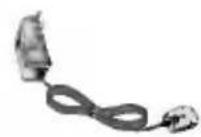
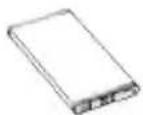
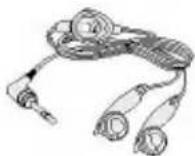
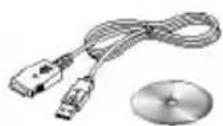
Supplied adapter
This adapter lets you charge the while at home or in the office.
Battery
Standard battery is available.
Stereo headset
Allows hands-free operation. Includes earpiece and microphone.
Data cable kit
Connects your phone to a PC.
USB cable
▶ To download the MP3 files to the phone.
▶ To upload the pictures/movies taken on the phone to the PC.
Serial cable
▶ To download the ring tones, wallpaper or Java games.
▶ To manage the phonebook, scheduler, and message box on the PC.
Note
- Always use genuine LG accessories. Failure to do this may invalidate your warranty.
- Accessories may be different in different regions: please check with our regional service company or agent for further enquiries.

text_image
Technical dataGeneral
Product name : L5100
System : GSM 900 / DCS 1800
Ambient Temperatures
Max : +55°C
Min : -10°C
Declaration of Conformity
LG Electronics

This model complies with the essential requirements of Article 3 of the R&TTE 1999/5/EC Directive, if used for its intended use.
- Health (Article 3.1.a of the R&TTE Directive)
-
Safety (Article 3.1.a of the R&TTE Directive)
-
Electromagnetic compatibility (Article 3.1.b of the R&TTE Directive)
- Efficient use of the radio frequency spectrum (Article 3.2 of the R&T
I hereby declare under our sole responsibility
that the product mentioned above to which this declaration relates complies with the above mentioned articles of the directive.
If available, write the contact person(s)
CE 0700
Mr. Jin Seog, Kim
LG Amsterdam Branch Office
Capronilaan 6, 1119 NR Schiphol-rijk, The Netherlands
(Tel.) +31-20-655 7774
Mr. Ji Jong, Jeon
LG Electronics Inc. GSM Division
Emerald BD, 1042 Hogye-Dong, Dongan-Gu Anyang-city, Kyuongki-Do 431-080, Korea