
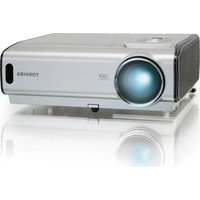
TDP-P6 - Vidéo-projecteur TOSHIBA - Free user manual and instructions
Find the device manual for free TDP-P6 TOSHIBA in PDF.


| Product Type | Video Projector |
| Brand | Toshiba |
| Model | TDP-P6 |
| Display Technology | DLP |
| Native Resolution | XGA (1024 x 768) |
| Brightness | 2000 ANSI Lumens |
| Contrast Ratio | 2000:1 |
| Lens | Manual Zoom and Focus |
| Projection Distance | 1.2 - 12 m |
| Screen Size | 0.76 - 7.62 m (30 - 300 inches) |
| Keystone Correction | Vertical ±20° |
| Light Source | UHP Lamp, 200W |
| Lamp Life (Normal/Eco) | 2000 hours / 3000 hours |
| Inputs | VGA, S-Video, Composite, USB (Mouse Control), RS-232 |
| Audio Output | 3.5 mm Stereo Jack |
| Built-in Speaker | 1W Mono |
| Power Supply | AC 100-240V, 50/60Hz |
| Power Consumption | 260W (Operating), <5W (Standby) |
| Dimensions (W x D x H) | 297 x 210 x 70 mm |
| Weight | 2.3 kg |
| Noise Level (Normal/Eco) | 32 dB / 28 dB |
| Accessories | Remote Control, Power Cable, VGA Cable, User Manual |
| Cleaning | Use a soft, dry cloth. Avoid solvents. |
| Safety Features | Auto Shutdown (30 min idle), Overheat Protection, Lamp Door Safety |
| Repairability / Spare Parts | Lamp user-replaceable; other parts require professional service. |
Frequently Asked Questions - TDP-P6 TOSHIBA
User questions about TDP-P6 TOSHIBA
0 question about this device. Answer the ones you know or ask your own.
Ask a new question about this device
Download the instructions for your Vidéo-projecteur in PDF format for free! Find your manual TDP-P6 - TOSHIBA and take your electronic device back in hand. On this page are published all the documents necessary for the use of your device. TDP-P6 by TOSHIBA.
USER MANUAL TDP-P6 TOSHIBA
natural_image
Exterior view of a TOSHIBA projector with ventilation slots and a mouse, no visible text or symbols on the device itself.TDP-P6
Digital Projector
English
Français
Deutsch
Español
日本語

English
Declaration of Conformity
Manufacturer: Toshiba Corporation
1-1, Shibaura 1-Chrome, Minato-ku, Tokyo, Japan
We declare under our sole responsibility that the TDP-P6 projector conform to the following directives and norms:
EMC Directive 89/336/EEC, Amended by 93/68/EEC
EMC: EN 55022
EN 55024
EN 61000-3-2
EN 61000-3-3
Low Voltage Directive 73/23/EEC, Amended by 93/68/EEC
Safety: EN 60950: 2000
August, 2003
Trademarks
Apple, Macintosh, and PowerBook are trademarks or registered trademarks of Apple Computer, Inc. IBM is a trademark or registered trademark of International Business Machines, Inc. Microsoft, PowerPoint, and Windows are trademarks or registered trademarks of Microsoft Corporation.
FCC Warning
This equipment has been tested and found to comply with the limits for a Class A digital device, pursuant to part 15 of the FCC Rules. These limits are designed to provide reasonable protection against harmful interference when the equipment is operated in a commercial environment. This equipment generates, uses, and can radiate radio frequency energy and, if not installed and used in accordance with the instruction manual, may cause harmful interference to radio communications. Operation of this equipment in a residential area is likely to cause harmful interference in which case the user will be required to correct the interference at his own expense.
Agency Approvals
NOM, c-Tick, SJQA, IRAM
Other specific Country Approvals may apply, see please product certification label.
Canada
This Class A digital apparatus complies with Canadian ICES-003.
Remote Control Warning
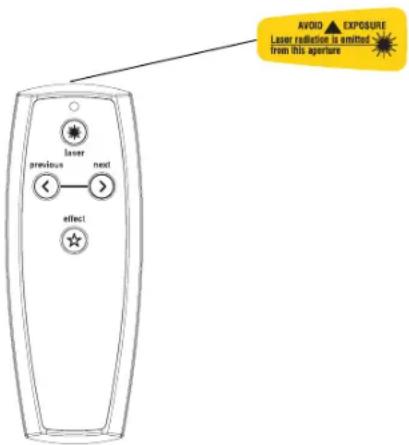
Laser radiation class II product; wavelength 650nm; maximum output 1mW. Remote control complies with applicable requirements of 21 CFR 1040.10 and 1040.11.
Remote control complies with applicable requirements of EN 60 825-1: 1994 +A11.
Do not look into the laser beam emitted from the top of the remote control.
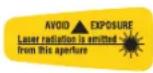
Table of Contents
Introduction 5
Connecting a computer 6
Required computer connections 6
Displaying a computer image 7
First-time projector use with Windows 98 8
Adjusting the image 10
Connecting a video device 11
Displaying a video image 12
Shutting down the projector 14
Troubleshooting your setup 14
Using the keypad buttons 22
Using the remote control 23
Using the audio 24
Optimizing computer images 25
Presentation features 25
Optimizing video images 26
Customizing the projector 26
Using the menus 27
Picture menu 28
Settings menu 31
Maintenance 34
Cleaning the lens 34
Replacing the projection lamp 35
Appendix 37
Accessories 37
For assistance with this projector 37
Red LED Behavior and Projector Errors 38
Projected image size 38
If you are experienced in setting up presentation systems, use the Quick Set Up card that was included in the box. For complete details on connecting and operating the projector, refer to this User's Guide.
Important Operating Considerations
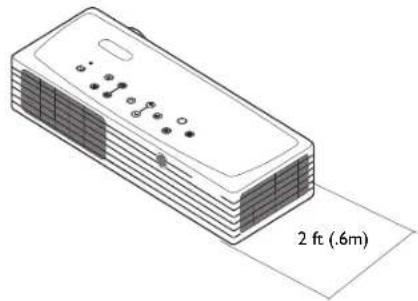
Do not place the projector on a tablecloth or other soft covering that may block the vents. Intake vents are placed along the left, front and back sides of the projector. Exhaust vents are placed along the right side of the projector. In the unlikely event that the lamp ruptures, discard any edible items and thoroughly clean the area along the right side of the projector.
Do not place objects in the area along the right side of the projector
natural_image
Isometric line drawing of a rectangular electronic device with buttons and a flat base, labeled '2 ft (.6m)' (no other text or symbols)Introduction
Your new digital projector packs great performance into a shape and size customized for the mobile professional. It fits comfortably in your laptop bag then transitions easily into your presentation environment. It is easy to connect, easy to use, and easy to maintain.
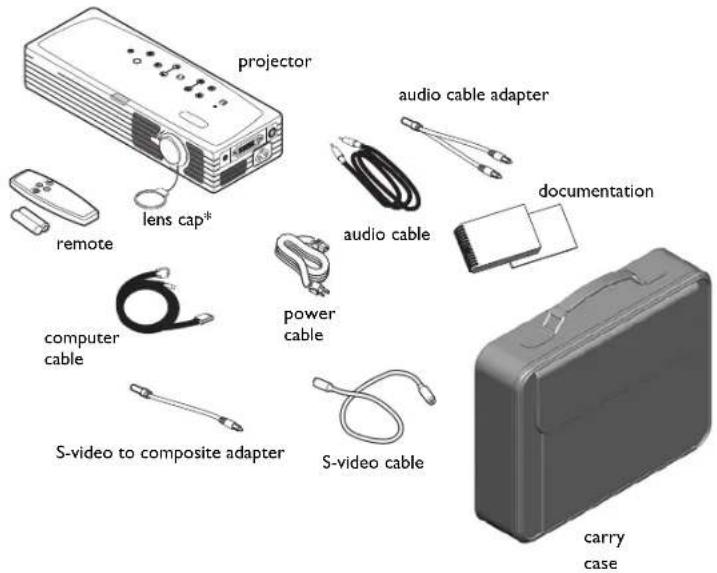
* the lens cap with tether ships in the accessory pouch. Insert the tether into the small hole under the lens when you unpack your projector.
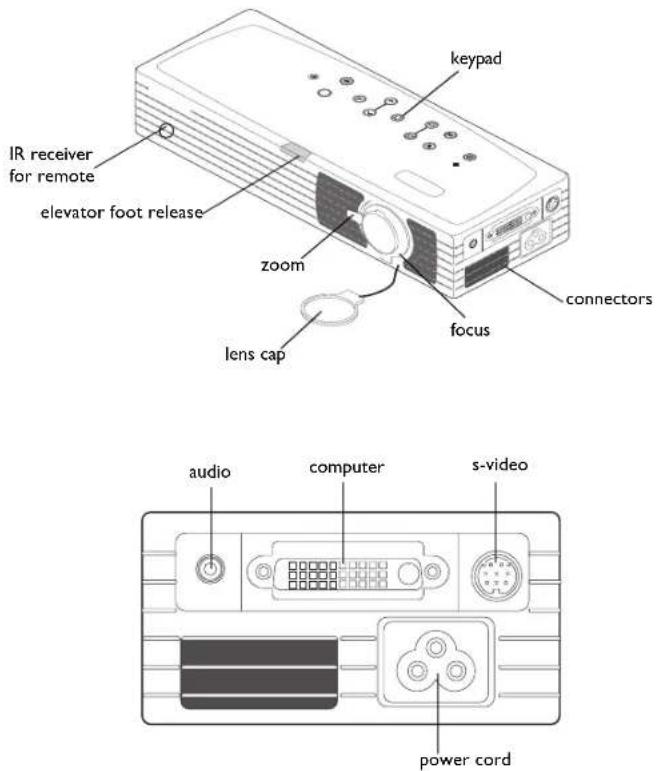
Projector components and features
Connecting a computer
Required computer connections
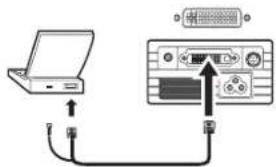
Connect the black end of the computer cable to the Computer in connector on the projector. Connect the blue end to the video (VGA) port on your computer. If you are using a desktop computer with a single VGA port, you first need to disconnect the monitor from that computer's video port.
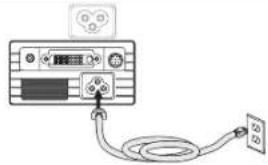
Connect the black power cable to the connector on the side of the projector and to your electrical outlet.
The Power LED on the projector's keypad turns solid green and the fans start to run.
NOTE: Always use the power cable that shipped with the projector.
Optional computer connections
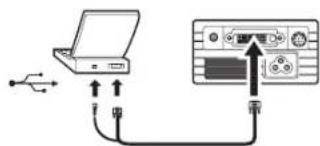
To advance slides in a PowerPoint™ presentation using the remote, plug the USB connector on the computer cable into the USB mouse connector on your computer. USB drivers must be installed to use the USB feature. For more information, see page 9.
To have sound with your presentation, connect the audio cable to your computer and to the computer Audio In connector on the projector.
connect computer cable

connect power cable

natural_image
Diagram of a device with an attached cable and connector, no visible text or symbolsconnect USB portion of computer cable

connect audio cable


Displaying a computer image
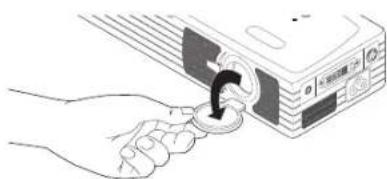
| Remove the lens cap. | remove lens cap | |
| Press thePowerbutton on the top of the projector.The LED flashes green. When the lamp comes on, the startup screen is displayed and the LED is steady green. It can take a minute for the image to achieve full brightness.? No startup screen? Get help on page 15. | press Powerpower[IMAGE] | 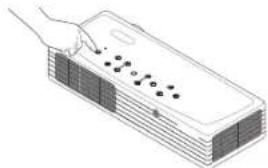 |
| Turn on your computer.The computer's image should appear on the projection screen. If it doesn't, press theSourcebutton on the projector's keypad. | turn on computer[IMAGE]source[IMAGE] | 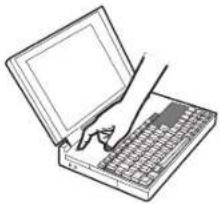 |
| Make sure your laptop's external video port is active.Many laptops do not automatically turn on their external video port when a projector is connected. Refer to your computer's documentation to learn the activation commands specific for your computer. For example, some laptops use a key combination of FN + F5 to turn the external display on and off.? No computer image? Try pressing theAuto Imagebutton on the keypad. Get help on page 16. | activate laptop's external port[IMAGE]auto image[IMAGE] | 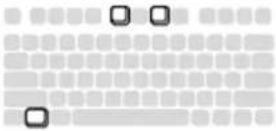 |
natural_image
Illustration of a hand inserting a coin into a projector (no text or symbols)First-time projector use with Windows 98
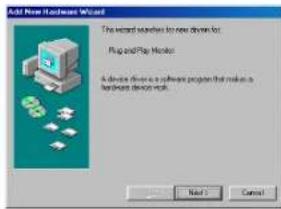
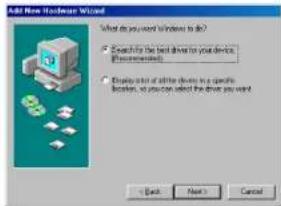
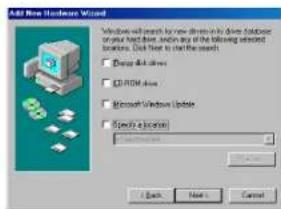
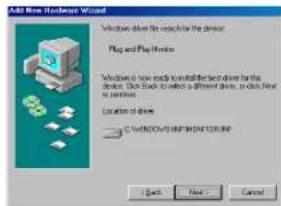
The first time you connect a computer running Windows 98 to the projector, the computer recognizes the projector as "new hardware" and the Add New Hardware Wizard appears. Follow these instructions to use the Wizard to load the correct driver (which was installed with your Windows operating system).
If you are running Windows 2000, Windows ME, or Windows XP, skip these steps and go to "Adjusting the image" on page 10.
a Click Next to begin searching for the driver.
b Make sure "Search for the best driver" is selected, then click Next.
c Uncheck any checked boxes, then click Next. Windows automatically locates the driver. If this driver has been removed, reload the driver using your Windows operating system CD.
d When Windows finds the driver, you are ready to install it. Click Next.
a
b
C
d
Skip this page if you did not connect the USB portion of the computer cable. The USB connection enables slide advance during presentations and projector control software.
For Windows 98:
- If you connected the USB cable, the Add New Hardware Wizard appears again. Drivers must be installed to use the USB functionality.
• The Wizard launches three times.
The first time it detects a USB Composite Device.
The second time a USB Human Interface Device (for the keyboard).
The third time it detects a USB Human Interface Device (for the mouse).
For Windows 2000, Windows ME, and Windows XP:
- The USB drivers are automatically installed.
Adjusting the image
| Adjust the height of the projector, if necessary, by pressing the release button to extend the elevator foot. |
adjust height
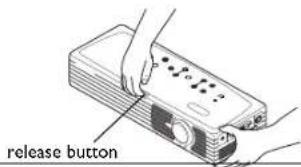
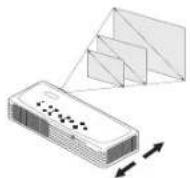
Position the projector the desired distance from the screen at a 90 degree angle to the screen.
See page 38 for a table listing screen sizes and distances.
adjust distance
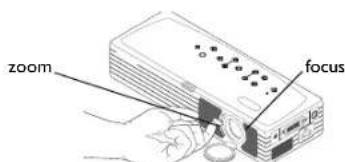
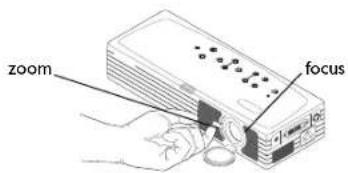
Adjust the zoom tab or the focus dial by rotating them until the desired image size and sharpness are produced.
adjust zoom and focus
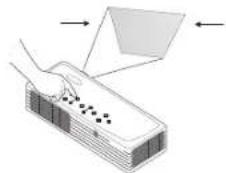
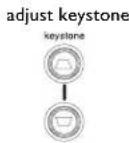
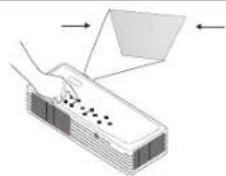
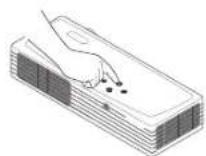
If the image is not square, adjust the keystone by using the buttons on the keypad.
Press the upper Keystone button to reduce the upper part of the image, and press the lower Keystone button to reduce the lower part.
adjust keystone

natural_image
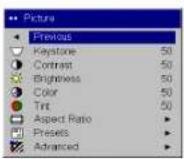
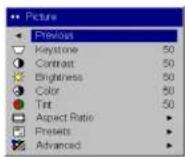
Illustration of a hand pressing down on a rectangular object with dots, showing directional arrows (no text or symbols)Adjust the Contrast or Brightness in the Picture menu.
See page 27 for help with the menus.
adjust Contrast or Brightness

Connecting a video device
Standard video connections
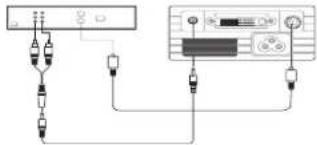
Plug the S-video cable's connector into the S-video-out connector on the video device. Plug the other connector into the S-Video connector on the projector.
Plug the white connector of the audio adapter into the left audio out connector on the video device and plug the red connector into the right audio out connector on the video device.
Plug the audio cable into the other end of the audio cable adapter and into the audio in connector on the projector.
connect S-video cable and audio cable and adapter


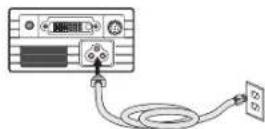
Connect the black power cable to the connector on the side of the projector and to your electrical outlet. The Power LED on the keypad turns solid green and the fans start to run.
NOTE: Always use the power cable that shipped with the projector.
connect power cable

Optional video connections
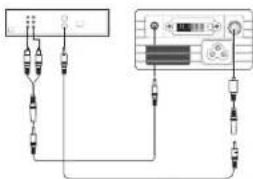
If the video device uses a composite video connector, plug a composite video cable (sold separately) into the composite connector on the video device and into the S-video adapter. Plug the S-video adapter into the S-video connector on the projector. Use the audio cables as described above.
connect composite video cable and adapter and audio cable and adapter


Displaying a video image
| Remove the lens cap. | remove lens cap | |
| Press the Power button on the top of the projector.The LED flashes green. When the lamp comes on, the startup screen is displayed and the LED is steady green. It can take a minute for the image to achieve full brightness.? No startup screen? Get help on page 15.Plug in and turn on the video device. | press Powerpower[IMAGE] | 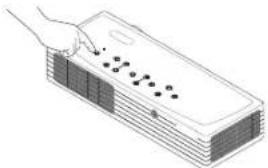 |
| ? No video image? Try pressing the Source or Auto Image button on the keypad. Get help on page 15. | turn on video device[IMAGE]source auto image | 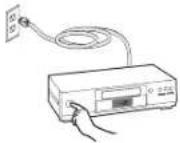 |
| Adjust the height of the projector by pressing the release button to extend the elevator foot. | adjust height | 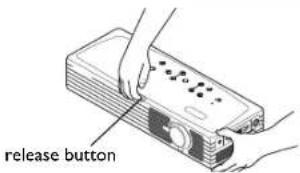 |
| Position the projector the desired distance from the screen at a 90 degree angle to the screen. See page 38 for a table listing screen sizes and distances to the screen. | adjust distance | 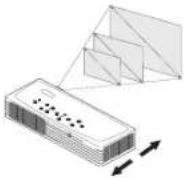 |
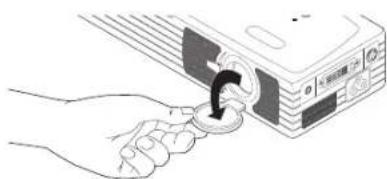
natural_image
Illustration of a hand inserting a coin into a projector (no text or symbols)Adjust the zoom using the tab or the focus using the dial by rotating them until the desired image size and sharpness are produced.
adjust zoom and focus
If the image is not square, adjust the keystone using the buttons on the keypad. Press the upper Keystone button to reduce the upper part of the image, and press the lower Keystone button to reduce the lower part.
natural_image
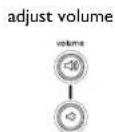
Diagram showing a hand pressing down on a rectangular object with dots, next to an upward arrow indicating direction (no text or symbols)Adjust the volume on the keypad.
Adjust the Contrast, Brightness, Color, or Tint in the Picture menu. See page 27 for help with the menus.
adjust Picture menu

Shutting down the projector
By default, the projector automatically displays a blank screen after no active source is detected for 30 minutes. This blank screen helps preserve the life of the projector. The image returns when an active source is detected or a remote or keypad button is pressed.
Screen Save
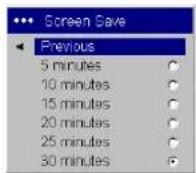
You can make the blank screen appear after a different time interval using the Settings>System menu. See page 32. There are six time options, ranging from five minutes to 30 minutes with five minute intervals.
Power Save
The projector also has a Power Save feature that, when activated, automatically turns the lamp off after no signals are detected for 20 minutes. After 10 additional minutes with no signal, the projector powers down. If an active signal is received before the projector powers down, the image is displayed. You must press the Power button to display an image after 30 minutes have passed. When Power Save is enabled, Screen Save is disabled. See page 31.
Turning off the projector
To turn off the projector, press the power button and verify that you want to turn the projector off by pressing the power button again within 3 seconds. You can cancel the shutdown by not pressing the power button a second time. The lamp turns off and the LED blinks green for 1 minute. When the lamp has cooled, the LED lights green. Unplug the power cable to completely power off the projector.
Troubleshooting your setup
If your image appears correctly on the screen, skip to the next section (page 23). If it does not, troubleshoot the setup.
The LED on top of the projector indicates the state of the projector and can help you troubleshoot.
Table I: LED behavior and meaning
| LED color/behavior Meaning | |
| solid green The projector is plugged in, or the projector has been turned on and the software has initialized or the projector has been turned off. | |
| blinking green The power button has been pressed and the software is initializing, or the projector is powering down. | |
| blinking red see page 38 for more information | A fan or lamp failure has occurred. Make sure the vents aren't blocked (see page 20).Turn off the projector and wait one minute, then turn the projector on again. If the Change Lamp message appears, replace the lamp and reset the lamp timer. Contact your Toshiba Dealer if the problem persists. |
| solid red An unidentifiable error: please contact your Toshiba Dealer. | |
The following tables show common problems. In some cases, more than one possible solution is provided. Try the solutions in the order they are presented. When the problem is solved, you can skip the additional solutions.
Source Troubleshooting
| Problem | Solution | Result |
No startup screen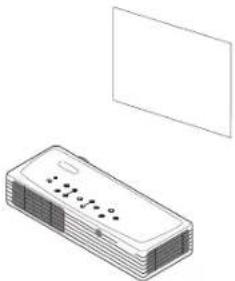 | Plug power cable in and press the power button. Remove lens cap.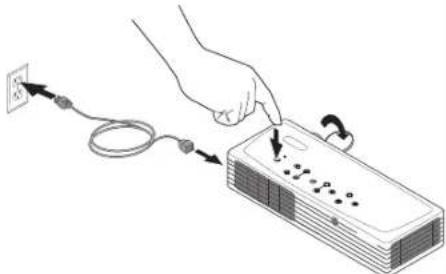 | Correct image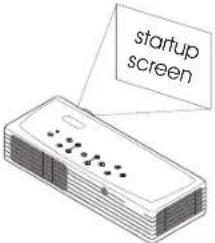 |
Only startup screen appears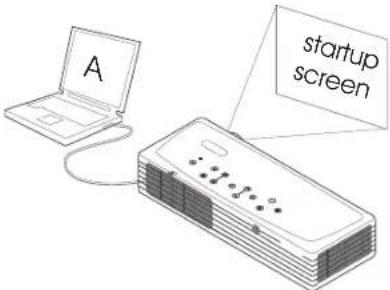 | Press the Source buttonActivate laptop's external portor restart laptop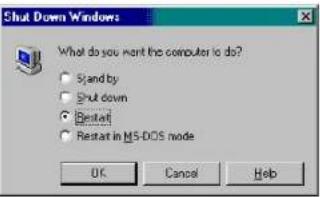 | Computer image projected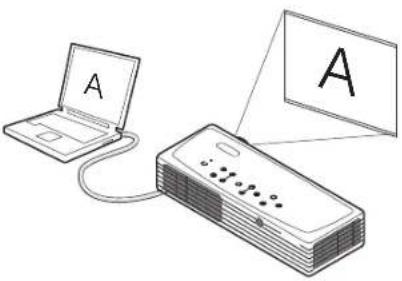 |
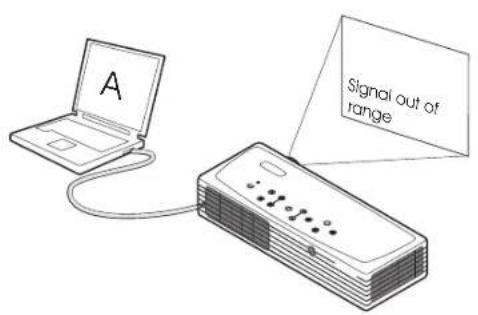
No computer image, just the words "Signal out of range"
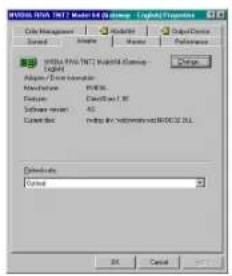
Adjust computer refresh rate in Control Panel>Display>Settings>Advanced>Adapter (location varies by operating system)
You may also need to set a different resolution on your computer, as shown on the following page
Computer image projected
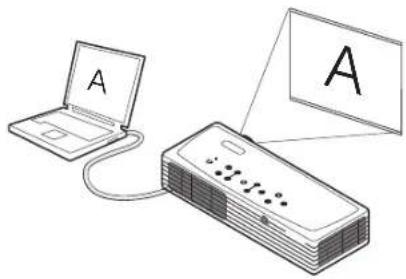
Image fuzzy or cropped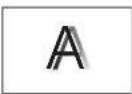 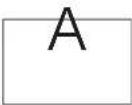 | Set your computer's display resolution to the native resolution of the projector(Start>Settings>ControlPanel>Display>Settings tab,select1024x768)For a laptop, disable laptop monitoror turn-on dual-display mode 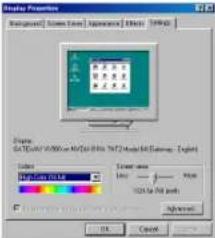 | Image clear and not croppedA |
Remote control not advancing PowerPoint slides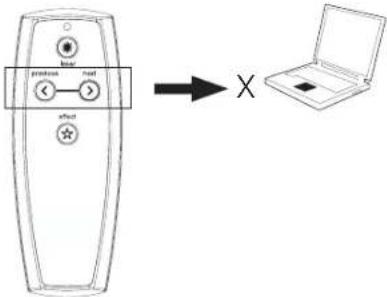 | Connect computer cable (page 6), then load USB drivers, if needed (page 8)Check batteries in remote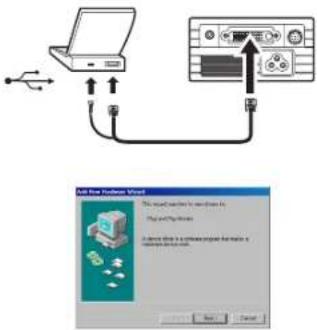 | Remote advances slides.See page 23 for information on the remote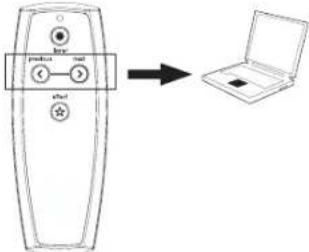 |
Projector troubleshooting
| Problem | Solution | Result |
Image not square | Adjust keystone on keypad[ABW4]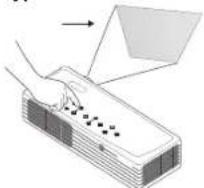 | Square image |
Edges of video image distorted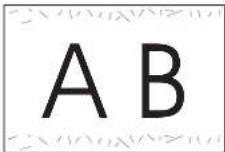 | Turn Overscan on in the Picture>Advanced menu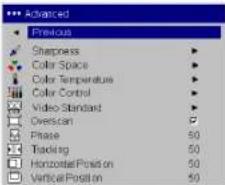 | Correct image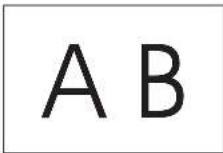 |
Image not sharp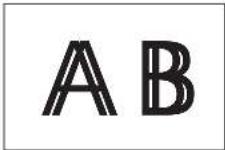 | Adjust Sharpness in the Picture>Advanced menu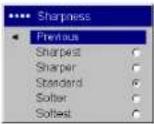 | Correct image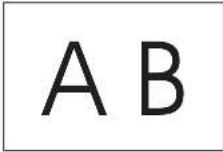 |
Image does not fit 16:9 screen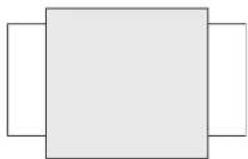 | Change aspect ratio to 16:9 in Picture>Aspect ratio menu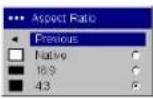 | Correct image |
Image reversed left to right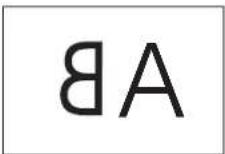 | Turn off Rear in Settings>System menu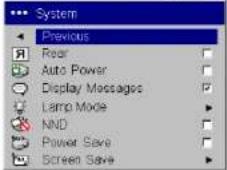 | Correct image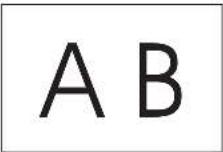 |
Video image “torn” and fragmented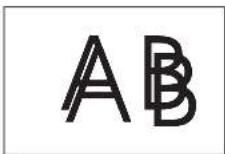 | Change Video Standard in Picture>Advanced menu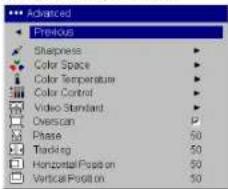 | Correct image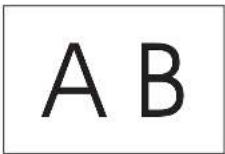 |
Projected colors don’t match source | Adjust color temperature, color space, color control, brightness, and contrast in the Picture and Advanced menus. Also, adjust color and tint (video sources only).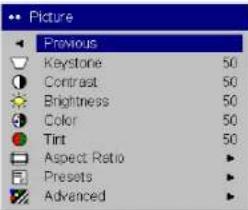 | Correct image |
Lamp won’t turn on, LED blinking red (page 14)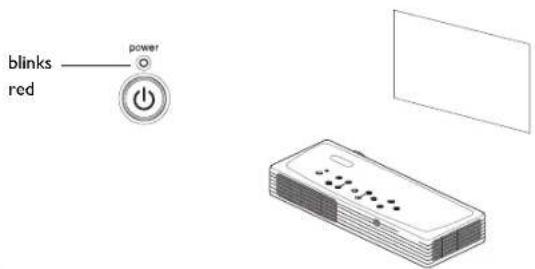 | Make sure vents aren’t blocked; allow projector to cool for one minute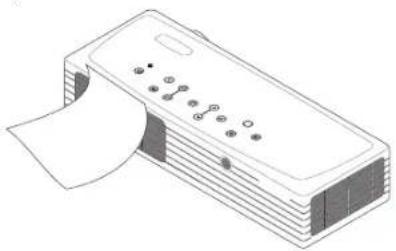 | Unplug projector; wait one minute; plug in projector and turn it on: lamp lights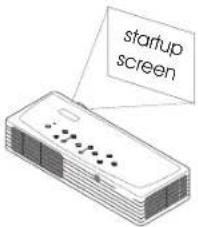 |
Lamp won't turn on, LED blinking red (page 14)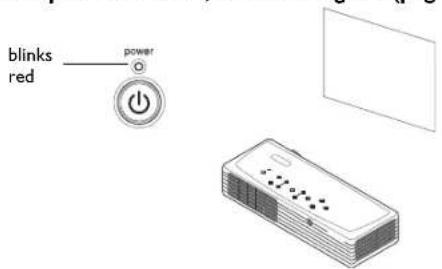 | Lamp must be replaced (page 35)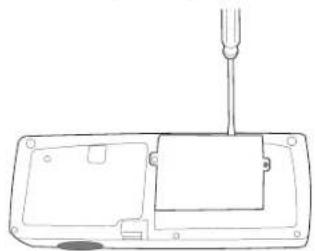 | Lamp turns on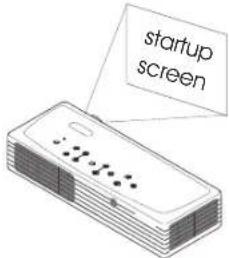 |
Image not centered on screen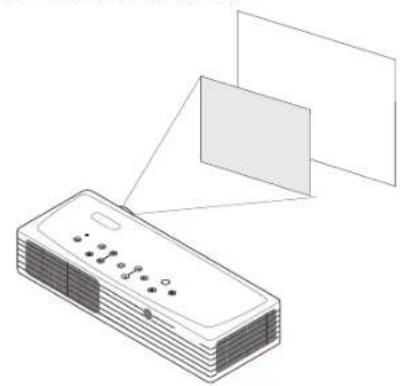 | Move projector, adjust zoom, adjust height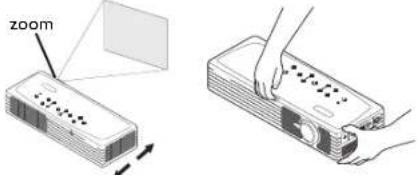 Adjust horizontal or vertical position in Picture>Advanced menu Adjust horizontal or vertical position in Picture>Advanced menu | Correct image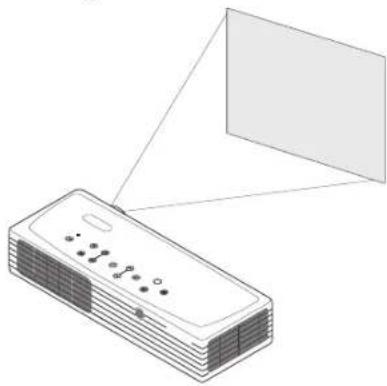 |
Still need assistance?
If you still need assistance, please contact your authorized Toshiba dealer.
Using the keypad buttons
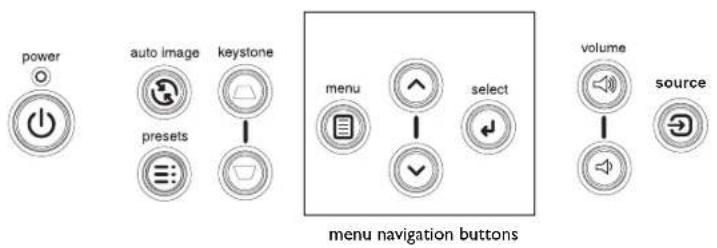
Most buttons are described in detail in other sections, but here is an overview of their functions:
Power-turns the projector on (page 7) and off (page 14).
Menu-displays the on-screen menus (page 27).
Select—confirms choices made in the menus (page 27).
Up/Down arrows—navigates to and adjusts settings in the menus (page 27).
Auto Image—resets the projector to the source.
Presets—cycles through the available preset settings (page 29).
Keystone-adjusts squareness of the image (page 10).
Volume-adjusts sound (page 24).
Source-changes the active source between computer and video.
Using the remote control
The remote uses two (2) provided AAA batteries. They are easily installed by sliding the cover off the remote's back, aligning the + and - ends of the batteries, sliding them into place, and then replacing the cover.
To operate, point the remote at the projection screen or at the projector (not at the computer). The range of optimum operation is about 30 feet (9.14m).
To use the laser pointer, press and hold the Laser button. The laser turns off when the button is released, or times out after two (2) minutes of continuous operation.
WARNING: Do not look into the laser beam emitted from the top of the remote control.
Previous and Next buttons allow you to navigate through your PowerPoint presentation while in Slide Show mode. Connect the USB connector on the computer cable to your computer to use these buttons. When you do this for the first time, the Add New Hardware wizard may appear. See page 8 for details on loading the correct USB drivers.
The effect button allows you to invoke a user-definable action, such as freeze or blank the screen (see page 32 to learn to program this button).
Troubleshooting the remote
- Make sure the batteries are installed in the proper orientation and are not dead. When battery power is adequate, the LED at the top of the remote lights when any button is pressed.
- Make sure you're pointing the remote at the projector, not the computer, and are within the remote range of 30 feet (9.14m).
- If you are trying to advance PowerPoint slides, make sure the USB cable is connected (page 6) and the correct drivers are installed (page 8).
Using the audio
To play sound from the projector, connect your source to the Audio In connector on the projector.
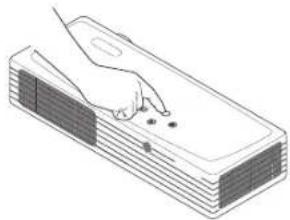
To adjust the volume, use the buttons on the keypad.
Troubleshooting audio
If there is no sound, check the following:
• Make sure the audio cable is connected.
- Make sure mute isn't active (used with the Effect key).
- Make sure the volume is turned up enough. Press the volume button on the keypad.
- Adjust the audio source.
- If playing a video, make sure the playback has not been paused.
connect audio cable

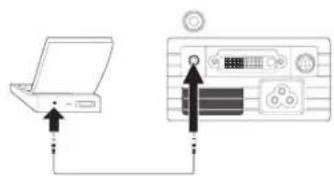
computer: audio cable
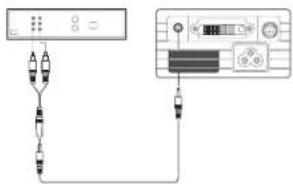
video: audio cable and adapter
adjust volume

natural_image
Line drawing of a hand pressing down on a stack of books (no text or symbols)Optimizing computer images
After your computer is connected properly and the computer's image is on the screen, you can optimize the image using the onscreen menus. For general information on using the menus, see page 27.
- Adjust the Keystone, Contrast, or Brightness in the Picture menu.
- Change the Aspect Ratio. Aspect Ratio is the ratio of the image width to image height. TV screens are usually 1.33:1, also known as 4:3. HDTV and most DVDs are 1.78:1, or 16:9. Choose the option that best fits your input source. See page 28 for details.
- Adjust the Color Space, Color Temperature, or Color Control in the Advanced menu.
- Adjust the Phase, Tracking, or Horizontal or Vertical position in the Advanced menu.
- Once you have optimized the image for a particular source, you can save the settings using Presets. This allows you to quickly recall these settings later. See page 29.
Presentation features
Several features are provided to make it easier to give presentations. The following is an overview, details are found in the menu section on page 27.
- The remote's Effect button allows you to assign various features to the key. The default effect is About, which displays information about the projector and current source. You can select from Blank, Mute, Aspect Ratio, Source, Auto Image, Freeze, Zoom, and About. See page 32 for details.
- The Freeze effect allows you to freeze the displayed image. This is useful if you want to make changes on your computer without your audience seeing them.
- The Startup Logo and Blank Screen menu options let you change the default startup screen to a black, white, or blue screen. See page 32.
- Two menu options, Power Save and Screen Save, are provided to automatically shut down the projector after several minutes of inactivity or display a black screen. This helps preserve lamp life. See page 31 and page 32.
- A Lamp Mode option is also available to let you optimize lamp brightness or lamp life. See page 31.
Optimizing video images
After the video device is connected properly and the image is on the screen, you can optimize the image using the onscreen menus. For general information regarding menu usage, see page 27.
- Adjust the Keystone, Contrast, Brightness, Color, or Tint in the Picture menu. See page 28.
- Change the Aspect ratio. Aspect ratio is the ratio of the image width to image height. TV screens are usually 1.33:1, also known as 4:3. HDTV and most DVDs are 1.78:1, or 16:9. Choose the option that best fits your input source. See page 28.
- Select a Sharpness setting in the Advanced menu. See page 30.
- Select a different Color Temperature, or use the Color Control to individually adjust the intensity of the red, green, and blue color. See page 30.
- Select a different Video Standard. Auto tries to determine the standard of the incoming video. Select a different standard if necessary. See page 30.
- Turn overscan on to remove noise around the video image. See page 30.
- Once you have optimized the image for a particular source, you can save the settings using Presets. This allows you to quickly recall these settings later. See page 29.
Customizing the projector
You can customize the projector for your specific setup and needs. See page 31 to page 33 for details on these features.
- For rear projection, turn Rear mode on in the Settings>System menu.
- Specify which source the projector checks first for active video during power-up.
- Specify the function of the Effect Key on the remote.
- Turn the projector's display messages on and off.
- Turn on power saving features.
- Specify blank screen colors and startup logos.
- Specify the menu language.
- Specify a lamp mode to optimize either brightness or lamp life.
- Prevent your computer from entering Screen Save mode.
- Save settings for the active source as a preset.
Using the menus
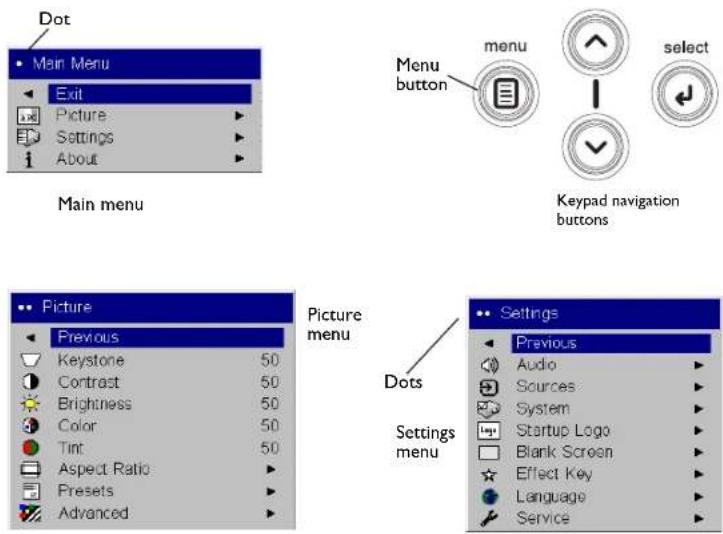
To open the menus, press the Menu button on the keypad. (The menus automatically close after 60 seconds if no buttons are pressed.) The Main menu appears. Use the arrow buttons to move up and down to highlight the desired submenu, then press the Select button.
To change a menu setting, highlight it, press Select, then use the up and down arrow buttons to adjust the value, select an option using radio buttons, or turn the feature on or off using check boxes. Press Select to confirm your changes. Use the arrows to navigate to another setting. When your adjustments are complete, navigate to Previous, then press Select to go to the previous menu; select Exit or press the Menu button at any time to close the menus.
Dots appear before the menu name. The number of dots indicate the menu's level, ranging from one (the Main menu) to four (the most nested menus).
The menus are grouped by usage:
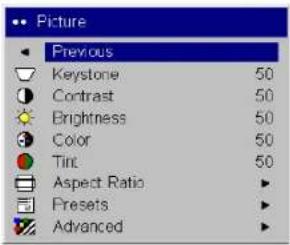
- The Picture menu provides image adjustments.
- The Settings menu provides set-up type adjustments that are not changed often.
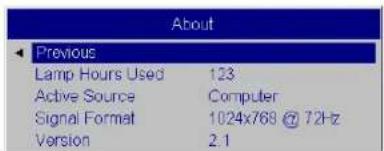
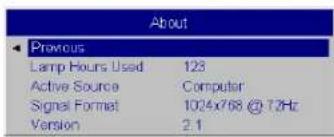
- The About menu provides a read-only display of information about the projector and source.
Certain menu items may be hidden until a particular source is connected. For example, Sharpness is only available for video sources and will be hidden when a computer source is active. Other menu items may be grayed out when they are not available. For example, Brightness is grayed out until an image is active.
About menu
Picture menu
To adjust the following five settings, highlight the setting, press Select, use the up and down arrows to adjust the values, then press Select to confirm the changes.
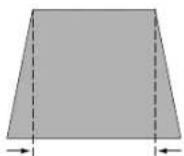
Keystone: adjusts the image vertically and makes a squarer image. You can also adjust keystone from the keypad.
Contrast: controls the degree of difference between the lightest and darkest parts of the picture and changes the amount of black and white in the image.
Brightness: changes the intensity of the image.
Color: (video sources only) adjusts a video image from black and white to fully saturated color.
Tint: (NTSC video sources only) adjusts the red-green color balance in the image.
Aspect Ratio: Aspect ratio is the ratio of the image width to image height. TV screens are usually 1.33:1, also known as 4:3. HDTV and most DVDs are 1.78:1, or 16:9. The default is 4:3, which displays the input resized up or down to fill the display area.
Select Native to see the unmodified input with no resizing by the projector. Select 16:9 to watch enhanced widescreen DVDs.
increasing keystone
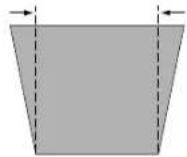
decreasing keystone
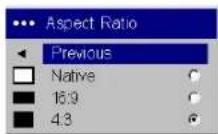
Aspect ratio
Presets: The provided Presets optimize the projector for displaying computer presentations, film images, and video images. (Film input is material originally captured on a film camera, like a movie; video input is material originally captured on a video camera, like a TV show or sporting event.) You can use the preset as a starting point, then further customize the settings for each source. The settings you customize are saved in the preset for each source. To restore the factory default settings, choose Factory Reset in the Settings>Service menu.
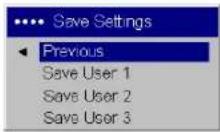
There are also three user-definable presets. To set a preset for the current source, adjust the image, select Save Settings in the Presets menu, then choose Save User 1, 2, or 3. You can recall these settings in the future by selecting the appropriate user presets.
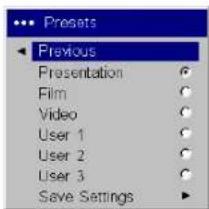
Presets
Save User Presets
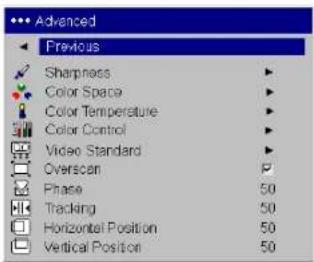
Advanced menu
Sharpness: (video sources only) changes the clarity of the edges of a video image. Select a sharpness setting.
Color Space: (computer sources only) allows you to select a color space that has been specifically tuned for the input. When Auto is selected, the projector automatically determines the standard. To choose a different setting, turn off Auto, then choose either RGB, REC709 or REC601.
Color Temperature: changes the intensity of the colors. Select a listed setting.
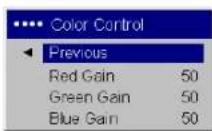
Color Control: allows you to individually modify each color. Highlight the color, press Select, then use the arrows to adjust the value.
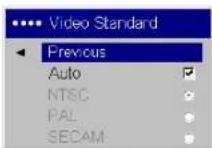
Video Standard: (video sources only) When it is set to Auto, the projector attempts to pick the video standard automatically based on the input signal it receives. (The video standard options may vary depending on your region of the world.) If the projector is unable to detect the correct standard, the colors may not look right or the image may appear "torn." If this happens, manually select a video standard by selecting NTSC, PAL, or SECAM from the Video Standard menu.
Overscan: (video sources only) removes noise around the video image.
The following 4 options are for computer sources only.
Phase: adjusts the horizontal phase of a computer source.
Tracking: adjusts the vertical scan of a computer source.
Horizontal/Vertical Position: adjusts the position of a computer source.
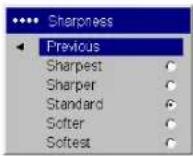
Sharpness
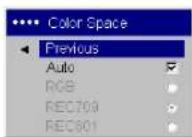
Color Space
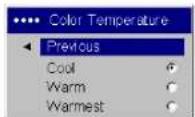
Color Temperature
Color Control
Video Standard
Settings menu
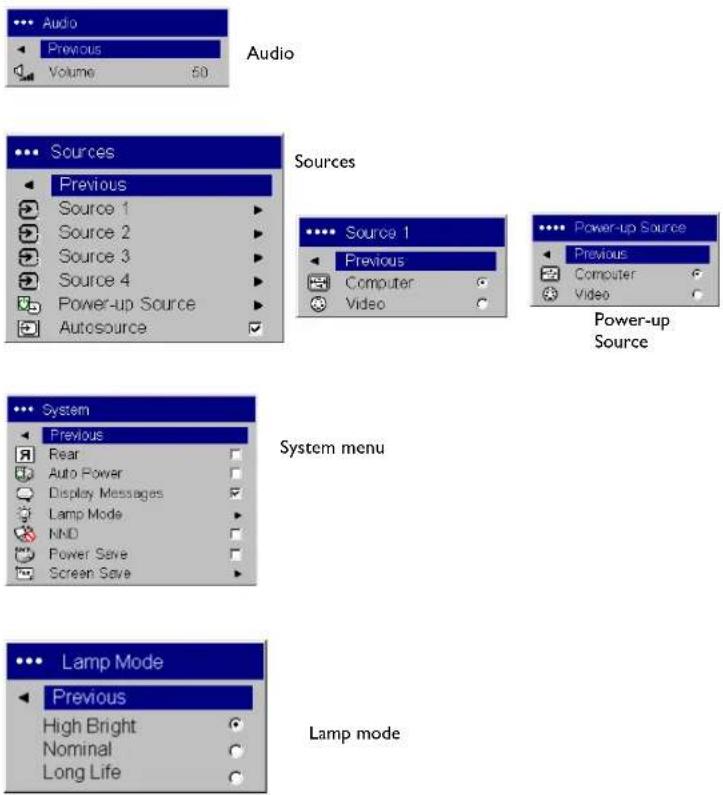
Audio: allows volume adjustments. You can also adjust volume from the keypad.
Sources: allows you to assign a particular input to a specific source key when using certain optional remotes. Also allows selection of a default Power-up Source and enables or disables Autosource. When Autosource is not checked, the projector defaults to the source selected in Power-up Source. If no source is found, a blank screen displays. When Autosource is checked, Power-up Source determines which source the projector defaults to at power-up. If no signal is present, the projector checks the sources in order until a source is found or until power down.
Power-up Source: determines which source (computer or video) the projector checks first for active video during power-up.
System menu
Rear: reverses the image so you can project from behind a translucent screen.
Auto Power: When Auto Power is checked, the projector turns on when power is applied and turns off if a source becomes inactive.
Display Messages: displays status messages (such as "Searching" or "Mute") in the lower-left corner of the screen.
Lamp Mode: allows you to optimize the lamp mode for your specific use. The default is High Bright, which maximizes the light output. Select Long Life to maximize lamp life and minimize fan noise, or Nominal to balance brightness, lamp life, and fan noise.
NND (Notebook No-Doze): prevents your notebook computer from going into Screen Save mode (functions only when the USB connector is plugged in).
Power Save: automatically turns the lamp off after no signals are detected for 20 minutes. After 10 additional minutes with no signal, the projector powers down. If an active signal is received before the projector powers down, the image will be displayed.
Screen Save: automatically blanks the screen with a black color after no signals are detected for a preset number of minutes (the default is 30 minutes). The image returns when an active source is detected or a remote or keypad button is pressed. Screen Save is disabled when Power Save is enabled.
Startup Logo: allows you to display a blank Black, White, or Blue screen instead of the default screen at startup and when no source is detected.
Blank Screen: determines what color displays when no source is active.
Effect Key: allows you to assign a different function to the Effect button on the remote to quickly and easily use the effect. Only one effect can be enabled at a time. Highlight an effect and press Select to choose a different one.
Blank: shows an empty screen.
Mute: turns off all sound.
Aspect Ratio: sets the ratio of the image width to image height.
Source: cycles through the available sources.
Auto Image: causes sources to be reacquired.
Freeze: pauses the projected image.
Zoom: lets you magnify a part of the screen. This feature only works if you purchase an optional remote control with mouse buttons and cursor control. To use the Zoom effect, press Effect, then press the left button to zoom the image, press the right mouse decrease the magnification. You can use the cursor control to pan the image, displaying different parts of it (only if the image is magnified). To return to the original size and cancel Zoom, press the Effect button a second time.
About: is the default effect. It displays the About menu.
Screen Save
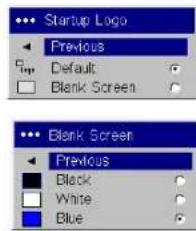
Startup Logo
Blank Screen
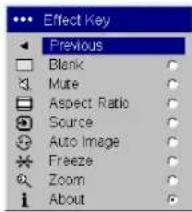
Effect Key
Language: allows you to select a language for the onscreen display of menus and messages.
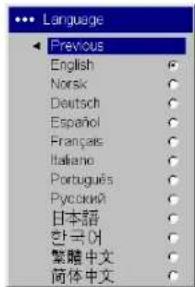
Language
Service: to use these features, highlight them and press Select.
Factory Reset: restores all settings (except Lamp Hours) to their default after displaying a confirmation dialog box.
Lamp Reset: resets the lamp hours counter in the About menu to zero after displaying a confirmation dialog box. Do this only after changing the lamp.
Service Code: only used by authorized service personnel.
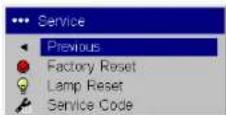
Service menu
Maintenance
Cleaning the lens
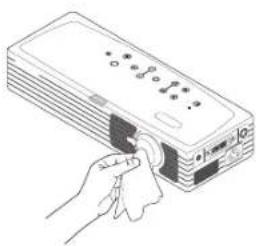
I Apply a non-abrasive camera lens cleaner to a soft, dry cloth.
Avoid using an excessive amount of cleaner, and don't apply the cleaner directly to the lens. Abrasive cleaners, solvents or other harsh chemicals might scratch the lens.
2 Lightly wipe the cleaning cloth over the lens in a circular motion. If you don't intend to use the projector immediately, replace the lens cap.
clean the lens with a soft dry cloth and non-abrasive cleaner
natural_image
Line drawing of a hand inserting a button into a device (no text or symbols visible)Replacing the projection lamp
The lamp hour timer in the About menu counts the number of hours the lamp has been in use. Fifty hours before the specified end of the lamp's life, the message "Change lamp" briefly appears on the screen at each startup. After 50 additional hours, the lamp will no longer light. You can order new lamp modules from your dealer.
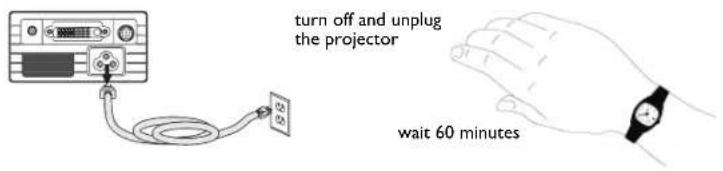
I Turn off the projector and unplug the power cable.
2 Wait 60 minutes to allow the projector to cool thoroughly.
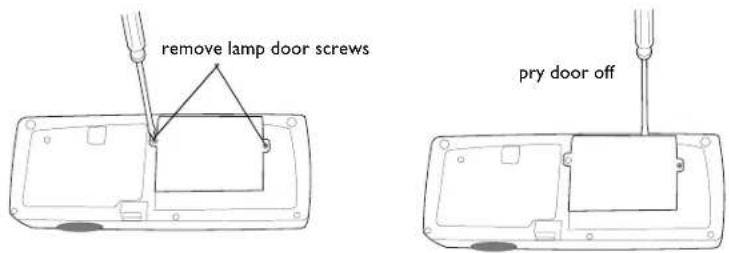
3 Turn the projector upside down and loosen the two screws on the lamp door. Pry the door straight up to disengage the power interrupt connector (located on the underside of the door) and remove the lamp door. Be sure to pry the door straight up, not at an angle, to avoid damaging the power interrupt connector.
NOTE: The projector will not turn on while the lamp door is removed.
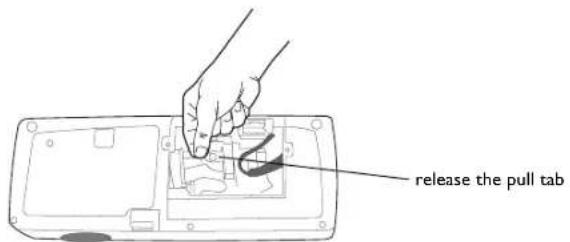
4 Pull the pull tab on the lamp module up to release the catch.
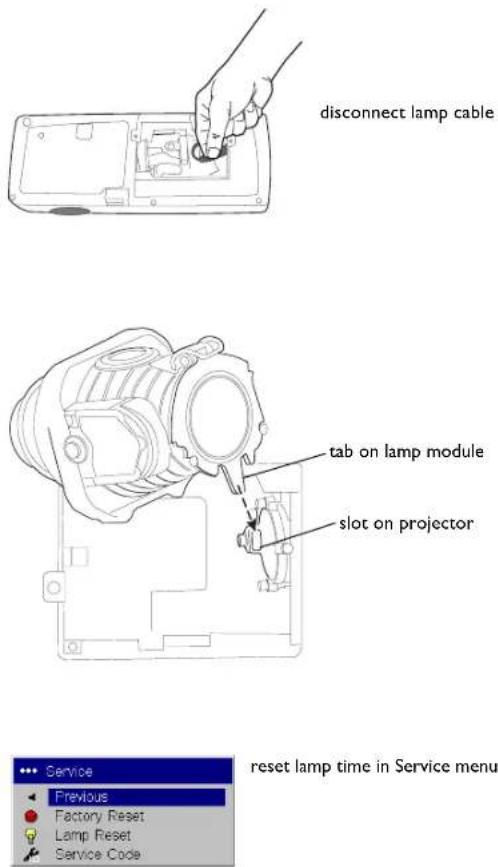
5 Pinch the lamp cable's connector tabs to release the catch while pulling firmly on the connector to unplug the lamp.
About menu
WARNINGS:
• To avoid burns, allow the projector to cool for at least 60 minutes before you replace the lamp.
- Do not drop the lamp module. The glass may shatter and cause injury.
- Do not touch the glass lamp screen. Fingerprints can obscure projection sharpness.
- Be extremely careful when removing the lamp housing. In the unlikely event that the lamp ruptures, small glass fragments may be generated. The lamp module is designed to contain most of these fragments, but use caution when removing it.
6 Carefully remove the lamp module. Note that the lens end of the module has a tab that connects in a slot in the bottom of the lamp cavity. You must pull upward with enough force to disconnect the tab from the slot. Dispose of the lamp in an environmentally proper manner.
7 Install the new lamp module. Slide the new module straight down over the tunnel/hood, align the tab with the slot, then press to connect.
8 Re-latch the pull tab while pressing down on the lamp module.
9 Re-plug in the lamp cable.
10 Replace the lamp door by aligning the connector on the back of the door with the projector and replacing the two lamp door screws.
11 Plug in the power cable, then press the Power button to turn the projector back on. Reset the lamp hour timer by simultaneously holding down the two Volume keys on the projector's keypad for 10 seconds. At that point the LED will turn green and you can power on the projector. You can also navigate to the Settings>Service menu and select Lamp Reset to reset the lamp timer.
Appendix
Accessories
Standard Accessories (ship with the projector)
| Shipping Box (with packaging) |
| Carry Case |
| Computer Cable 6.6 ft (2 m) |
| S-Video Cable 6 ft (1.8 m) |
| S-video to RCA Adapter |
| Audio Cable 6 ft (1.8 m) |
| Audio Cable Adapter |
| Power Cable (US) 10 ft (3m) |
| Power Cable (European) 10 ft (3m) |
| Remote Control |
| Projection Lamp Module (included in projector) |
| Quick Setup card |
| User's Guide |
| Safety Card |
For assistance with this projector
For assistance with your Toshiba projector in the United States, please visit www.toshiba.com/tacp or contact by phone at 800-846-6672.
For assistance with your Toshiba projector in Europe, please visit www.toshiba-europe.com or contact your local Toshiba dealer.
For assistance with your Toshiba projector in Asia/Japan, please contact your local Toshiba dealer.
Red LED Behavior and Projector Errors
If the projector is not functioning properly and the red LED is blinking, consult Table 2 to determine a possible cause. There are two second pauses between the blinking cycles.
Table 2:
Red LED Behavior Explanation
| One (1) blink The lamp won't strike after five (5) |
| attempts. Check the lamp and lamp door installations for loose connections. |
| Two (2) blinks The lamp counter hours have exceededlamp life hours. Replace the lamp andreset the lamp hours counter. |
| Three (3) blinks The projector has shut down the lamp. | |
| Turn off the projector and wait one minute, then turn the projector on again. Replace the lamp. Contact your local Toshiba dealer for repair if replacing the lamp does not solve the problem. | |
| Four (4) blinks The fan has failed. Contact your local Toshiba dealer for repair. |
| Five (5) blinks The projector is overheating. Check for a blocked air vent. Contact your local Toshiba dealer for repair if clearing the air vents does not solve the problem. |
| Solid red Unidentifiable error: contact your local Toshiba dealer. |
Projected image size
Table 3:
Range of distance to the screen for a given screen size
| DiagonalScreen Size(inches/m) | Image Width(inches/m) | Distance to screen | |
| Maximumdistance(feet/m) | MinimumDistance(feet/m) | ||
| 40/1 32/0.8 5.6/1.7 4.8/1.5 | |||
| 50/1.3 40/1 6.9/2.1 6/1.8 | |||
| 60/1.5 48/1.2 8.2/2.5 7.2/2.2 | |||
| 100/2.5 | 80/2 13.8/4.2 | 12.1/3.7 | |
A
About 32
Aspect Ratio 32
audio 24
Audio In connector 6, 11
audio volume 13
Auto Image 32
Auto Power 31
B
Blank 32
blinking green 14
blinking red 14
Brightness 10
C
cleaning the lens 34
Color 13
colors are incorrect 20
computer connections optional 6
required 6
Computer connector 6
computer image optimize 25
Contrast 10, 13
D
Display Messages 31
Drivers 8
USB 9
Windows 98 9
E
Effect Key 32
elevator foot 10
F
first time use
driver installation 8
focus 10, 13
For 37
Freeze 32
fuzzy image 17
|
image
display video 12
image display
computer 7
image does not fit screen 19
image edges distorted 18
image not centered 21
image not sharp 18
image not square 18
image reversed 19
image size matrix 38
image torn 19
K
Keystone 10, 13
L
lamp replacement 35
lamp won't turn on 20, 21
Language 33
laptop
connecting 6
external video port 7
LED
blinking green 14
blinking red 20
solid green 14
solid red 21
LED behavior 14
Lens cleaning 34
Low Power 31
M
Main menu 27
menu system 27
Mute 32
N
no computer image 16
no startup screen 15
0
only startup screen appears 15
P
Picture menu 28
Power button 12
power cable 6, 11
Power Save 31
presentation features 25
projector
customizing 26
shutdown 14
standard accessories 37
troubleshooting problems 14
projector height 10, 12
projector positioning 10, 12
R
Rear 31
remote control 23
not working 17
replacing the lamp 35
S
Settings menu 31
shutdown
projector 14
solid green 14
solid red 14
Source 32
Source troubleshooting 15
Sources 31
standard accessories 37
S-video connector 11
T
Tint 13
Troubleshooting 14, 15
U
USB, using your mouse 6
v
video connections
optional 11
standard 11
Video connector 11
video images
optimizing 26
w
Windows 98 8
Windows ME, XP, 2000 9
Z
zoom 10, 13, 32
- TDP-P6
- Declaration of Conformity
- Trademarks
- FCC Warning
- Agency Approvals
- Canada
- Remote Control Warning
- Table of Contents
- Important Operating Considerations
- Introduction
- Connecting a computer
- Required computer connections
- Optional computer connections
- First-time projector use with Windows 98
- For Windows 98:
- Connecting a video device
- Standard video connections
- Optional video connections
- Shutting down the projector
- Screen Save
- Power Save
- Turning off the projector
- Troubleshooting your setup
- Still need assistance?
- Using the keypad buttons
- Using the remote control
- Troubleshooting the remote
- Using the audio
- Troubleshooting audio
- Optimizing computer images
- Presentation features
- Optimizing video images
- Customizing the projector
- Using the menus
- Picture menu
- Advanced menu
- Settings menu
- System menu
- Maintenance
- Cleaning the lens
- Replacing the projection lamp
- WARNINGS:
- Appendix
- Accessories
- For assistance with this projector
- Red LED Behavior and Projector Errors
- Projected image size
- A
- B
- C
- D
- E
- F
- |
- K
- L
- M
- N
- 0
- P
- R
- S
- T
- U
- v
- w
- Z
Brand : TOSHIBA
Model : TDP-P6
Category : Vidéo-projecteur