
TLP-561 - Vidéo-projecteur TOSHIBA - Free user manual and instructions
Find the device manual for free TLP-561 TOSHIBA in PDF.


| Product Type | LCD Video Projector with Document Imaging Camera |
| Model | TLP-561 |
| Display Technology | 3-panel TFT Active Matrix LCD |
| Resolution | XGA (1024 x 768) per panel |
| Lamp Type | High Pressure Mercury Lamp |
| Lamp Life | Approx. 1500 hours |
| Projection Screen Size | 30 to 180 inches |
| Projection Distance | 0.70 to 3.63 m |
| Zoom Lens | Manual zoom, F=2.0-2.4, f=14.5-17.4mm |
| Keystone Correction | Digital (vertical) |
| Audio | Built-in 1W monaural speaker |
| Inputs | Computer (RGB/Y/Pb/Pr), Video (composite), S-Video, Audio (3.5mm) |
| Outputs | Computer Out (monitor loop-through) |
| Control | RS-232C, USB (for presentation mode) |
| Document Imaging Camera | CCD sensor, LED light, manual focus, adjustable gain |
| Power Consumption | 250W (max), 15W standby |
| Dimensions (W x H x D) | 260 x 95.5 x 352 mm |
| Weight | 4.3 kg |
| Operating Temperature | 0°C to 35°C |
| Operating Humidity | 30% to 70% RH |
| Safety Features | Auto power off on no signal, thermal protection, lamp cover safety switch |
| Maintenance | Air filter cleaning, lamp replacement |
| Supplied Accessories | Power cord, RGB cable, audio cable, control cable, USB cable, remote control with batteries, lens cover |
Frequently Asked Questions - TLP-561 TOSHIBA
User questions about TLP-561 TOSHIBA
0 question about this device. Answer the ones you know or ask your own.
Ask a new question about this device
Download the instructions for your Vidéo-projecteur in PDF format for free! Find your manual TLP-561 - TOSHIBA and take your electronic device back in hand. On this page are published all the documents necessary for the use of your device. TLP-561 by TOSHIBA.
USER MANUAL TLP-561 TOSHIBA
TLP560 TLP561 TLP260 TLP261
(WITH DOCUMENT IMAGING CAMERA)
(WITH DOCUMENT IMAGING CAMERA)

natural_image
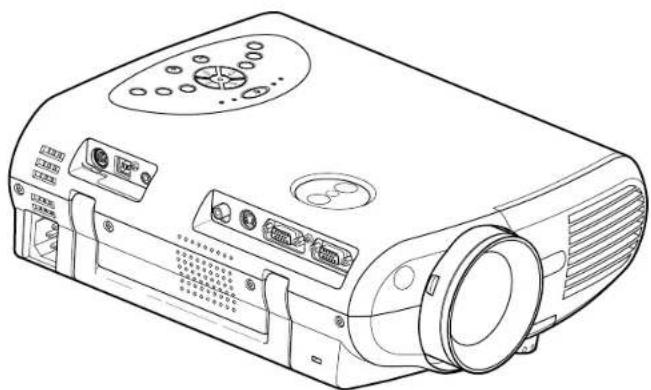
Line drawing of a projector with control panel and drive unit (no text or symbols)TLP560/TLP260
SAFETY PRECAUTIONS

2
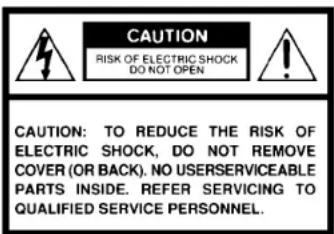
WARNING: TO REDUCE THE RISK OF FIRE OR ELECTRIC SHOCK, DO NOT EXPOSE THIS APPLIANCE TO RAIN OR MOISTURE. DANGEROUS HIGH VOLTAGES ARE PRESENT INSIDE THE ENCLOSURE. DO NOT OPEN THE CABINET. REFER SERVICING TO QUALIFIED PERSONNEL ONLY.

The lightning flash with arrowhead symbol, within an equilateral triangle, is intended to alert the user to the presence of uninsulated “dangerous voltage” within the product’s enclosure that may be of sufficient magnitude to constitute a risk of electric shock to persons.

The exclamation point within an equilateral triangle is intended to alert the user to the presence of important operating and maintenance (servicing) instructions in the literature accompanying the appliance.
IMPORTANT PRECAUTIONS
CONTENTS
3
Save Original Packing Materials
The original shipping carton and packing materials will come in handy if you ever have to ship your LCD projector. For maximum protection, repack the set as it was originally packed at the factory.
Avoid Volatile Liquid
Do not use volatile liquids, such as an insect spray, near the unit. Do not leave rubber or plastic products touching the unit for a long time. They will mar the finish.
Moisture Condensation
Never operate this unit immediately after moving it from a cold location to a warm location. When the unit is exposed to such a change in temperature, moisture may condense on the crucial internal parts. To prevent the unit from possible damage, do not use the unit for at least 2 hours when there is an extreme or sudden change in temperature.
Exemption Clauses
- Toshiba Corporation bears no responsibility in the case of damages arising from earthquakes, fire not liable to Toshiba Corporation, operating by third parties, other accidents, or use under abnormal conditions including erroneous or improper operation and other problems.
- Toshiba Corporation bears no responsibility for incidental damages (lost profit, work interruption, corruption or loss of the memory contents, etc.) arising from the use of or the inability to use this unit.
- Toshiba Corporation accepts no liability whatsoever for any damages arising from not having followed the descriptions in this Owner's Manual.
- Toshiba Corporation accepts no liability whatsoever for any damages arising from malfunctions arising from combination with equipment or software that is not related to Toshiba Corporation.
In the spaces provided below, record the Model and Serial No. located at the bottom of your LCD projector.
Model No. ____ Serial No. ____
Retain this information for future reference.
IMPORTANT SAFETY INSTRUCTIONS
CONTENTS
4
CAUTION: PLEASE READ AND OBSERVE ALL WARNINGS AND INSTRUCTIONS GIVEN IN THIS OWNER'S MANUAL AND THOSE MARKED ON THE UNIT. RETAIN THIS BOOKLET FOR FUTURE REFERENCE.
This set has been designed and manufactured to assure personal safety. Improper use can result in electric shock or fire hazard. The safeguards incorporated in this unit will protect you if you observe the following procedures for installation, use and servicing. This unit is fully transistorized and does not contain any parts that can be repaired by the user.
DO NOT REMOVE THE CABINET COVER, OR YOU MAY BE EXPOSED TO DANGEROUS VOLTAGE. REFER SERVICING TO QUALIFIED SERVICE PERSONNEL ONLY.
1. Read Owner's Manual
After unpacking this product, read the owner's manual carefully, and follow all the operating and other instructions.
2. Power Sources
This product should be operated only from the type of power source indicated on the marking label. If you are not sure of the type of power supply to your home, consult your product dealer or local power company. For products intended to operate from battery power, or other sources, refer to the operating instructions.

3. Source of Light
Do not look into the lens while the lamp is on. The strong light from the lamp may cause damage to your eyes or sight.
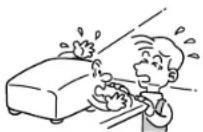
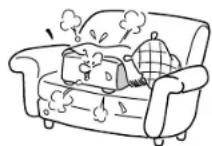
4. Ventilation
Openings in the cabinet are provided for ventilation and to ensure reliable operation of the product and to protect it from overheating, and these openings must not be blocked or covered. The openings should never be blocked by placing the product on a bed, sofa, rug or other similar surface. This product should not be placed in a built-in installation such as a bookcase or rack unless proper ventilation is provided or the manufacturer's instructions have been adhered to.
Continued

IMPORTANT SAFETY INSTRUCTIONS (continued)
5
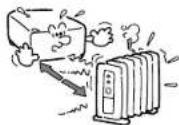
5. Heat
The product should be situated away from heat sources such as radiators, heat registers, stoves, or other products (including amplifiers) that produce heat.
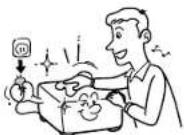
7. Cleaning
Unplug this product from the wall outlet before cleaning. Do not use liquid cleaners or aerosol cleaners. Use a damp cloth for cleaning.
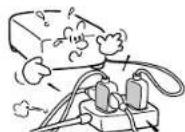
9. Overloading
Do not overload wall outlets; extension cords, or integral convenience receptacles as this can result in a risk of fire or electric shock.
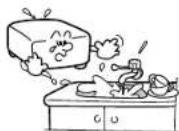
6. Water and Moisture
Do not use this product near water – for example, near a bath tub, wash bowl, kitchen sink, or laundry tub; in a wet basement; or near a swimming pool and the like.
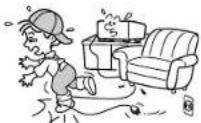
8. Power-Cord Protection
Power-supply cords should be routed so that they are not likely to be walked on or pinched by items placed upon or against them, paying particular attention to cords at plugs, convenience receptacles, and the point where they exit from the product.
10. Lightning
For added protection for this product during storm, or when it is left unattended and unused for long periods of time, unplug it from the wall outlet. This will prevent damage to the product due to lightning and power-line surges.
Continued

IMPORTANT SAFETY INSTRUCTIONS (continued)

6
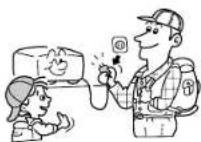
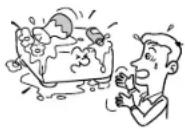
11. Object and Liquid Entry
Never push objects of any kind into this product through openings as they may touch dangerous voltage points or short-out parts that could result in a fire or electric shock. Never spill liquid of any kind on the product.
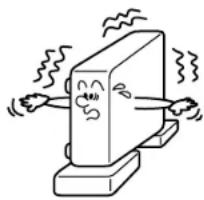
12. Do not place the product vertically
Do not use the product in the upright position to project the pictures at the ceiling, or any other vertical positions. It may fall down and dangerous.
natural_image
Cartoon illustration of a computer monitor with arms and legs, showing a sad face and dynamic motion lines (no text or symbols)13. Stack Inhibited
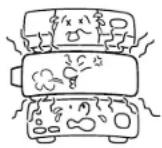
Do not stack other equipment on this product or do not place this product on the other equipment.
Top and bottom plates of this product develops heat and may give some undesirable damage to other unit.
14. Attachments
Do not use attachments not recommended by the product manufacturer as they may cause hazards.
15. Accessories
Do not place this product on an unstable cart, stand, tripod, bracket, or table. The product may fall, causing serious injury to a child or adult, and serious damage to the product. Use only with a cart, stand, tripod, bracket, or table recommended by the manufacturer, or sold with the product. Any mounting of the product should follow the manufacturer's instructions, and should use a mounting accessory recommended by the manufacturer.
A product and cart combination should be moved with care. Quick stops, excessive force, and uneven surfaces may cause the product and cart combination to overturn.

IMPORTANT SAFETY INSTRUCTIONS (continued)
CONTENTS
7
16. Damage Requiring Service
Unplug this product from the wall outlet and refer servicing to qualified service personnel under the following conditions:
a) When the power-supply cord or plug is damaged.
b) If liquid has been spilled, or objects have fallen into the product.
c) If the product has been exposed to rain or water.
d) If the product does not operate normally by following the operating instructions. Adjust only those controls that are covered by the operating instructions as an improper adjustment of other controls may result in damage and will often require extensive work by a qualified technician to restore the product to its normal operation.
e) If the product has been dropped or damaged in any way.
f) When the product exhibits a distinct change in performance – this indicates a need for service.
17. If glass components, including lens and lamp, should break, contact your dealer for repair service.
This product incorporates glass components, including a lens and a lamp. If such parts should break, please handle with care to avoid injury and contact your dealer for repair service. The broken pieces of glass may cause to injury.
In the unlikely event of the lamp rupturing, thoroughly clean the area around the projector and discard any edible items placed in that area.
18. Servicing
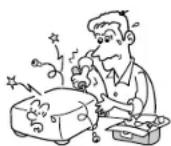
Do not attempt to service this product yourself as opening or removing covers may expose you to dangerous voltage or other hazards. Refer all servicing to qualified service personnel.
19. Replacement Parts
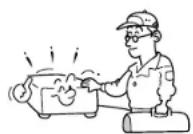
When replacement parts are required, be sure the service technician has used replacement parts specified by the manufacturer or have the same characteristics as the original part. Unauthorized substitutions may result in fire, electric shock, or other hazards. (Replacement of the lamp only should be made by users.)
20. Safety Check
Upon completion of any service or repairs to this product, ask the service technician to perform safety checks to determine that the product is in proper operating condition.
IMPORTANT SAFETY INSTRUCTIONS (continued)

8
- Do not get your hands between the camera arm and the main unit when setting the camera arm back in its original position.
To avoid injury, be careful not to get your hands caught when setting the camera arm back in its original position. Families with children should be particularly careful.
- Do not leave documents on the unit or near of the air exhaust for long periods of time.
The heat could erase or discolor the letters on a thermal paper.
- Do not look into the arm light while it is lit.
The strong light may cause damage to your eyes or sight.
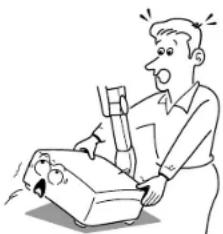
- Do not carry by the camera arm.
Do not carry the projector by the camera arm.
Doing so can result in damage or injury.
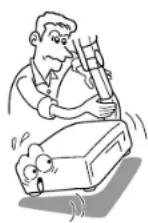
- Do not move the projector while the arm is still erect.
Always store the arm back in position when moving the projector. Otherwise injury or damage may result.
natural_image
Cartoon illustration of a man holding an open book with a surprised expression (no text or symbols)Power supply cord selection
CONTENTS
9
If your line voltage is 220 to 240V, use one of the following types of cable.
| Plug configuration | Plug type | Line voltage |
| EURO240V10 – 15A | 220 – 240V | |
| UK240V6A | 200 – 240V | |
| Australian240V10A | 200 – 240V | |
| North American240V15A | 200 – 240V | |
| Switzerland240V6A | 200 – 240V |
| Plug configuration Plug type | Line voltage | |
| EURO | 220 – 240V | |
| UK | 220 – 240V | |
Use a 5A fuse which is approved by ASTA or BSI to BSI362.
Always replace the fuse cover after changing the fuse.
| Switzerland240V6A | 200 – 240V |
Contents
Before use
SAFETY PRECAUTIONS 2
IMPORTANT PRECAUTIONS 3
IMPORTANT SAFETY INSTRUCTIONS .... 4
Power supply cord selection 9
Contents 10
Names of each part on the main unit.... 11
Names of each part on the remote control 14
Loading batteries.... 15
Remote control operation 16
Installation and connections
Floor-mounted projector placement 17
Lens shift function 20
Projector placement angle adjustment (Foot adjuster) .. 21
Ceiling-mounted projector placement 22
Connecting a computer 23
Connecting video equipment 24
Projector operation control by a computer 26
How to use the output connector 27
Operations
Projection on the screen 28
Turning the power off 33
Adjusting the picture automatically.... 34
Correcting the keystone distortion 35
Cutting off the picture and sound temporarily 36
Freezing the picture 37
Enlarging the picture size 38
Displaying PIP Sub-pictures.... 39
Displaying Information 40
Operating the presentation mode 41
Adjustments & Settings
Operating the menu screen 43
GUIDE MENU adjustments and settings 45
FULL MENU adjustments and settings - Picture 46
FULL MENU adjustments - Position 47
FULL MENU adjustments - Color 48
FULL MENU adjustments and settings - Audio 49
FULL MENU adjustments and settings - Display 50
FULL MENU settings - Default setting 51
FULL MENU settings - Reset 52
PIP menu setting 53
Document imaging camera
Part names (of the document imaging camera model) ... 54
Preparation of the document imaging camera 55
Picture projection with the document imaging camera .. 56
Locking the white balance 59
Correcting illuminated defects 60
Maintenance
Trouble indications 61
Air filter cleaning 62
Lens and main unit cleaning 64
Lamp replacement 65
Others
Before calling service personal 67
Pin assignment of COMPUTER IN, COMPUTER OUT connector .... 69
Applicable signal 70
Controlling the projector by using RS-232C 72
Specifications 77
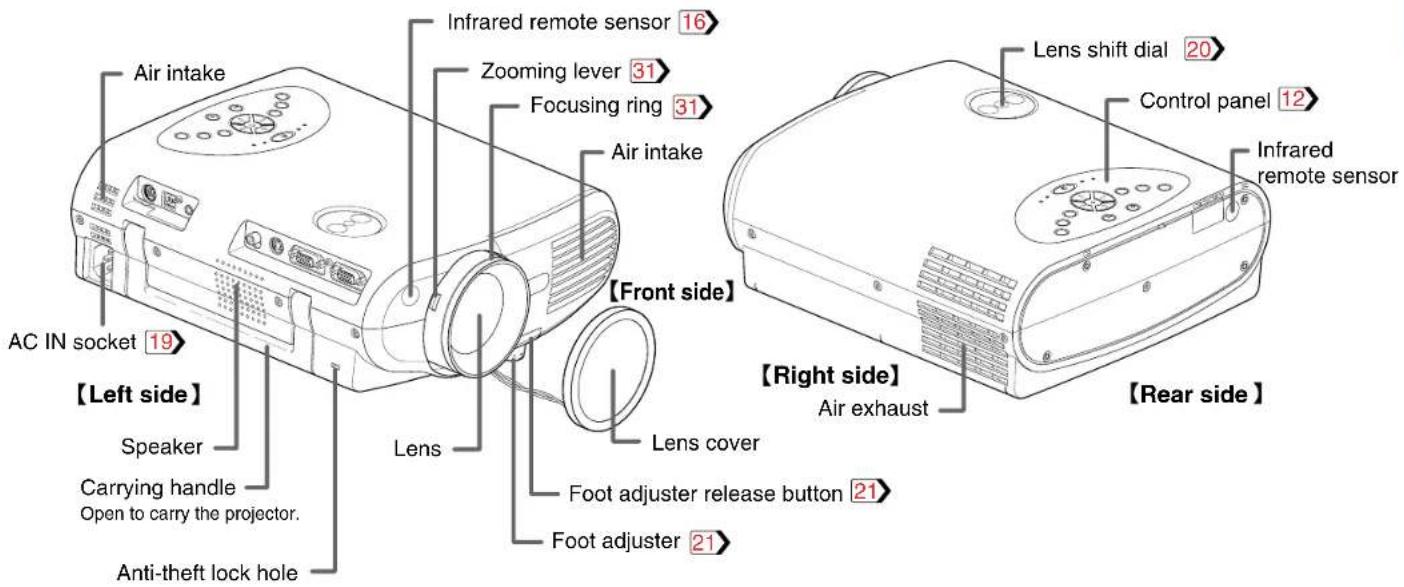
Names of each part on the main unit
CONTENTS
11
CAUTION
Openings in the cabinet are provided for ventilation and to ensure reliable operation of the product and to protect it from overheating, and these openings must not be blocked or covered.
The explanation here is only for the model without the document imaging camera. For the model with the document imaging camera, refer to 54.
Note
The air exhaust discharges high temperature air. Do not put anything around the air exhaust, otherwise it may deform due to the high temperature air.
Continued

Names of each part on the main unit (continued)
CONTENTS
12
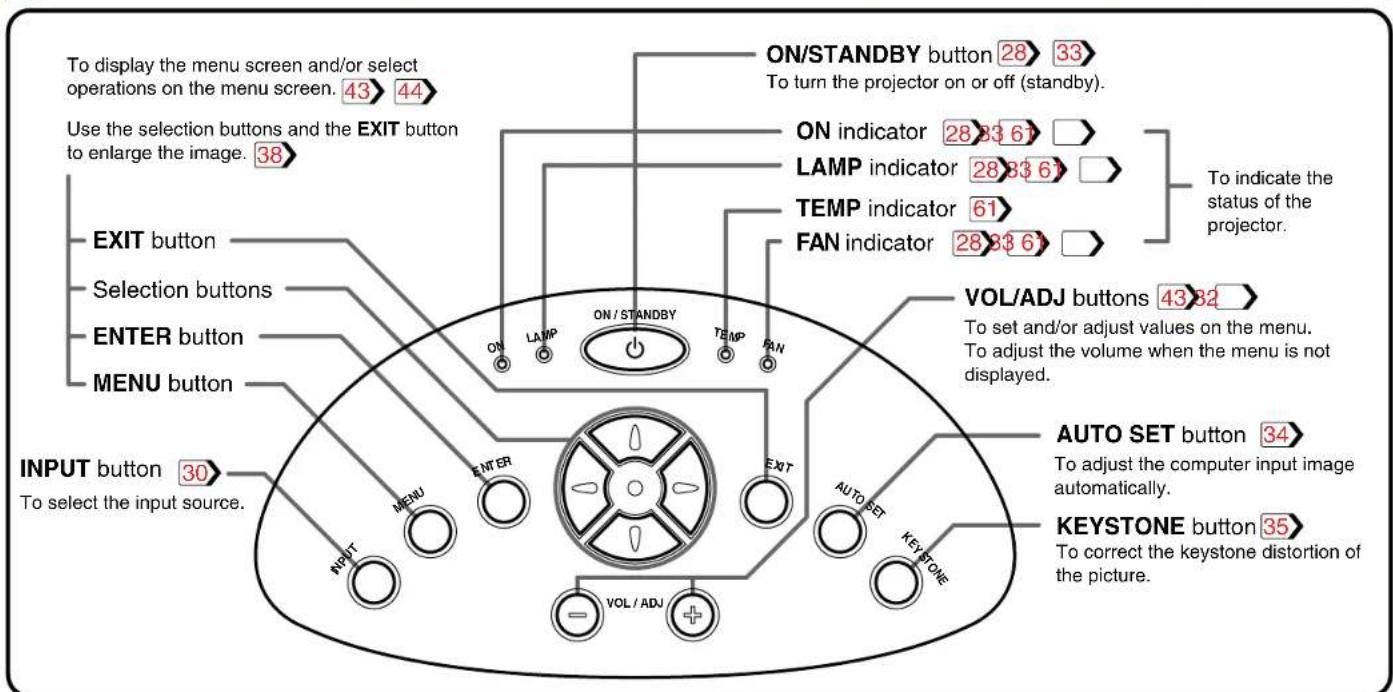
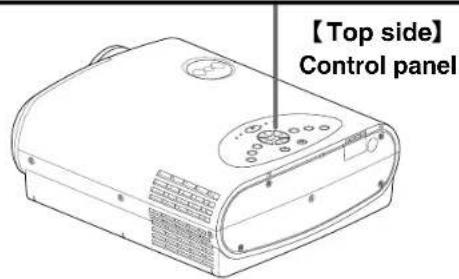
Names of each part on the main unit (continued)
CONTENTS
![AUDIO IN jack 23 25 (Ø 3.5mm stereo mini-jack) To enter audio signal from a computer or a video equipment. USB connector 41 To connect to a USB connector of a computer when using the presentation mode. CONTROL connector 26 27 (RS-232C connector) To connect a computer to control the projector. VIDEO IN jack 24 To enter video signal from a video equipment, etc. S-VIDEO IN connector 24 To enter S-Video signal from video equipment, etc. COMPUTER OUT connector 27 To connect a monitor, etc. COMPUTER IN connector 23 25 To enter RGB signal from a computer, etc. or component video signal (Y/PB/PR Signal) from a video equipment. [Left side]](/content/2026/05/801358/images/dc564f1e7e339e68dfe409b1f7382ad7338e3233c97ceb9e2fc107febd584e47.jpg)
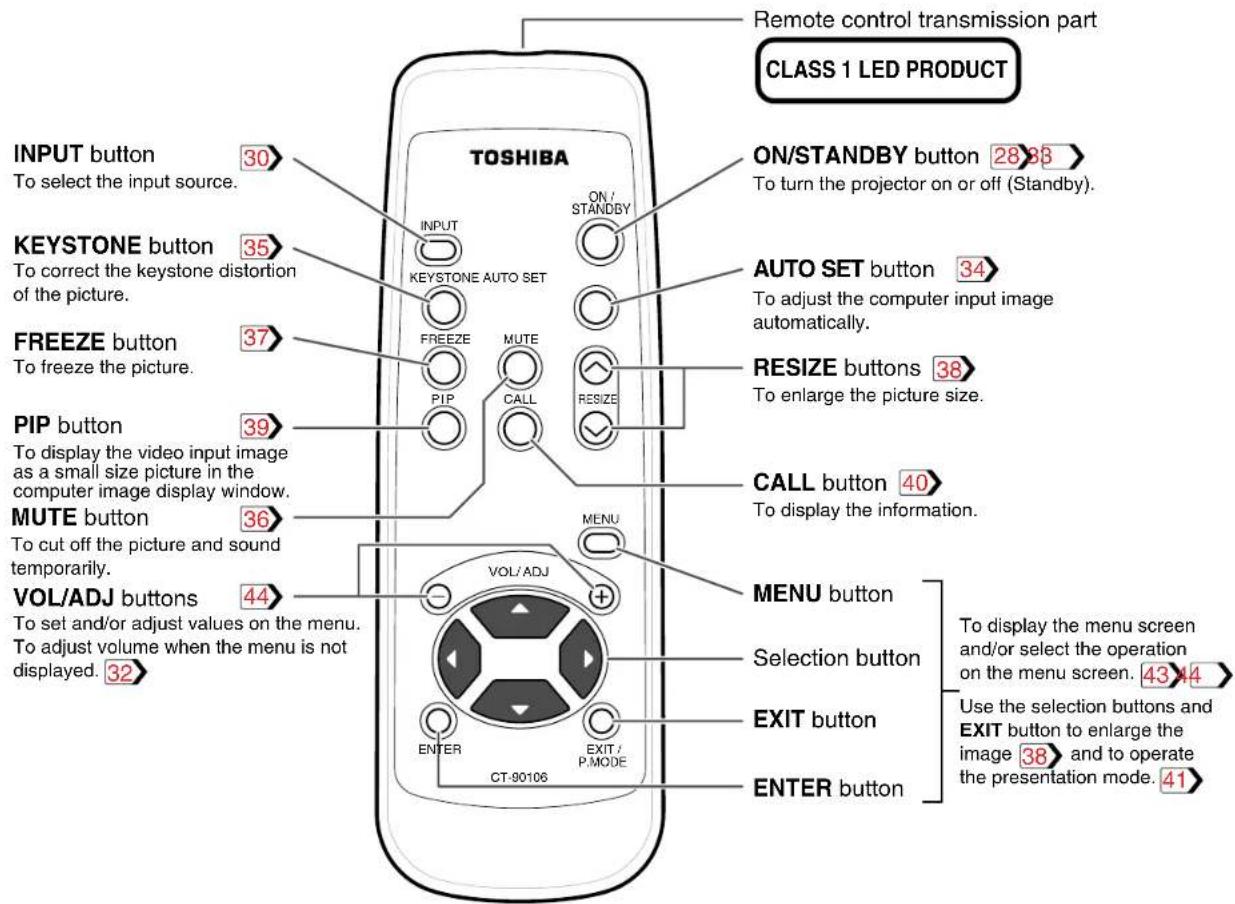
Names of each part on the remote control
CONTENTS
Loading batteries
CONTENTS
Notes
Using batteries incorrectly can cause them to leak or burst. Strictly observe the following.
- Install the batteries with their + and - ends facing correctly.
- Do not charge, heat, disassemble, or short the batteries or throw them into a fire.
- Do not leave any exhausted batteries in the remote control.
- Do not mix different types of batteries or new and old batteries.
- When you will not be using the remote control for a prolonged period, take the batteries out of the remote control.
- When the remote control stops working or only works at very close range, replace all the batteries with new ones.
- When replacing the batteries, use longer life alkaline batteries.
- If a battery has leaked, carefully wipe off any residue inside the battery case before loading new batteries.
1
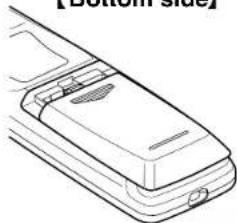
【Bottom side】
natural_image
Line drawing of a mobile phone with a partially open screen and buttons (no text or symbols)Open the cover.
2
natural_image
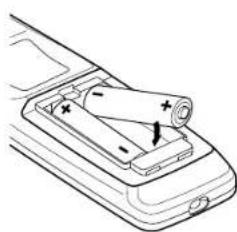
Diagram of a battery pack inside a mobile phone casing, showing internal components and polarity indicators (no text or symbols)Install the batteries.
Make sure that the +/- polarities match the illustration in the compartment.
3
natural_image
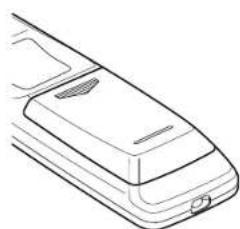
Line drawing of a mobile phone rear panel with a handle and ventilation slots (no text or symbols)Attach the cover.
Remote control operation

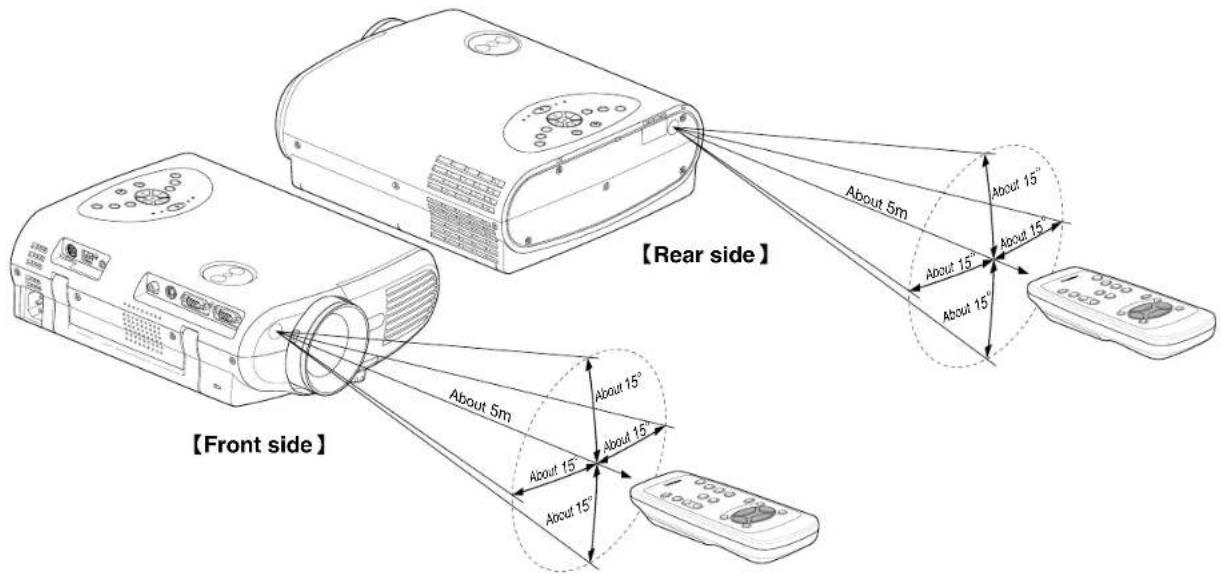
Point the remote control at the infrared remote sensor and press a button.
Notes
- The remote control may not operate when there is sunlight or other strong light such as a fluorescent lamp shining on the projector's remote sensor.
- Operate the remote control from a position where the remote sensor is visible.
- Do not drop the remote control or otherwise jolt it.
- Keep the remote control out of locations with excessively high temperature or humidity.
- Do not get water on the remote control or place wet objects on it.
- Do not disassemble the remote control.
• Under unusual circumstances the remote control may not operate well due to the location being used or the surroundings.
At such times, change the direction of the remote control to the projector and retry the operation.
Floor-mounted projector placement

There are two ways to place the floor-mounted projector.
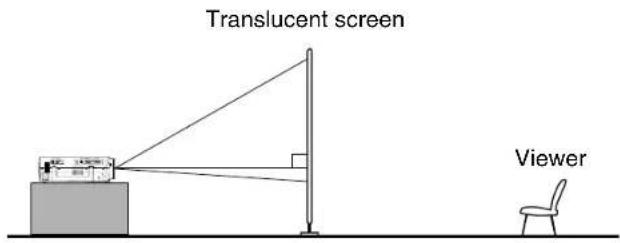
When the projector is mounted in the rear projection mode, the picture is reversed. Set the "Projection mode" (on the menu screen) according to the projection method. 51 At shipping from factory, it is set for the Floor-mounted front projection.
For the ceiling-mounted projector placement, refer to the page 22.
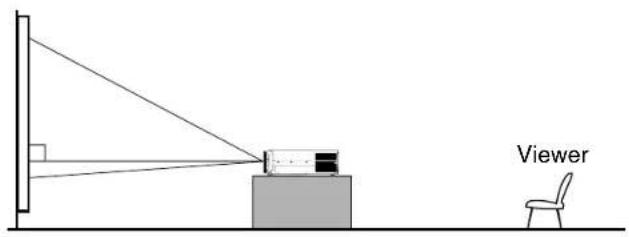
Floor-mounted front projection
Viewing a picture projected on the front of the screen from a floor installation.
Floor-mounted rear projection
Viewing a picture projected through the back of the screen from a floor installation.
Floor-mounted projector placement (continued)
1 Place the projector on a steady, level surface such as a table.
To obtain proper screen projection, place the projector so that the light beam hits the screen squarely.
Top view
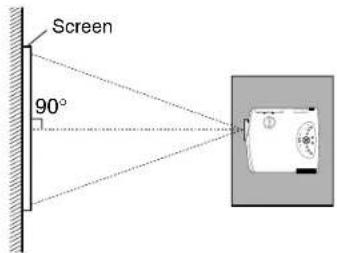
Point the lens straight at the center of the screen as above.
Side view
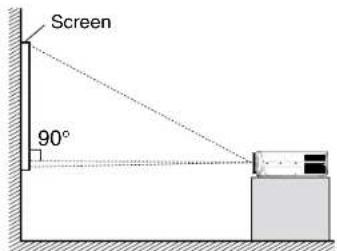
Place the projector horizontally so that the projecting light hits the screen squarely.
2 Determine the screen size projected on the screen.
The projection size depends on the distance between the lens and the screen. Adjust the projection size by changing the distances as shown below.
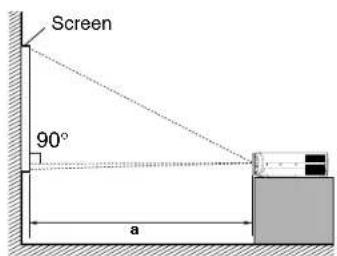
$$ a (\min.) = \frac {\text { Projection size } \times 2 0 . 3 2 - 3 1}{1 0 0 0} $$
$$ a (\max.) = \frac {\text { Projection size } \times 2 4 . 3 8 - 3 2}{1 0 0 0} $$
a: Distance between the lens and the screen (m) Limit: 0.70m < a < 3.63m
• The values are approximations.
| Projection size (inches) | a (m) | |
| Minimum (At maximum zoom) | Maximum (At minimum zoom) | |
| 30 | - | 0.70 |
| 36 | 0.70 | 0.85 |
| 50 | 0.98 | 1.19 |
| 80 | 1.59 | 1.92 |
| 100 | 2.00 | 2.41 |
| 120 | 2.41 | 2.89 |
| 150 | 3.02 | 3.63 |
| 180 | 3.63 | - |

You can adjust the vertical projection position with the lens shift dial. 20
Continued

Floor-mounted projector placement (continued)

3
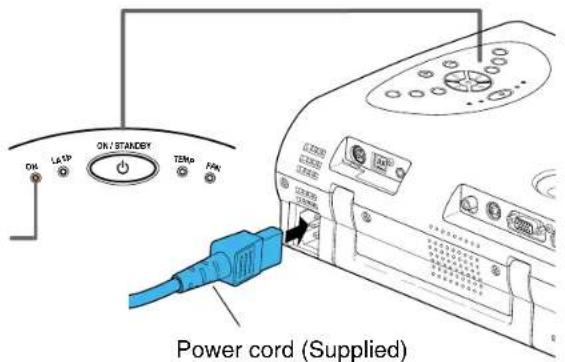
Connect the power cord.
- Insert one end into the AC IN socket on the projector.
- Insert the other end into a wall outlet.
The three indicators, TEMP, LAMP, and ON, light in green for several seconds and then the ON indicator lights in orange and the projector turns to the standby mode.
Do not perform any operations while the three indicators are lit green.
Light (Orange)
4
Take off the lens cover.
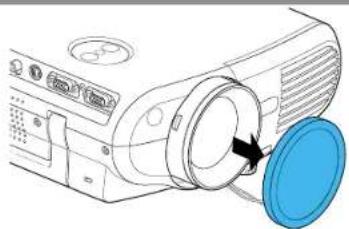
natural_image
Diagram of a computer monitor with a blue circular cover and an arrow pointing to the lens (no text or symbols present)Notes
- When the projector is moved from a cold location to a warm location, or when the ambient temperature in the projection room has risen suddenly, moisture may condense on the lens or the internal optical section to blur the projected pictures. In such a case, leave the projector for an adequate time (1 to 2 hours, depending on the room's condition) before using it, so it adjusts to the ambient temperature.
- If the screen is exposed to direct sunlight or other strong light, the projected picture will become too faint to see. Shut out the light with curtains or by other means.
- If the screen and the projector are not installed properly, the projected picture may be distorted.
Lens shift function
When turning the lens shift dial, the lens moves to upward or downward and the projection position on the screen is to be adjusted. At shipping from factory, it is set to the state turned clockwise fully (the highest projection position). Refer to "Projection on the screen" 28, and adjust it after projecting a picture.
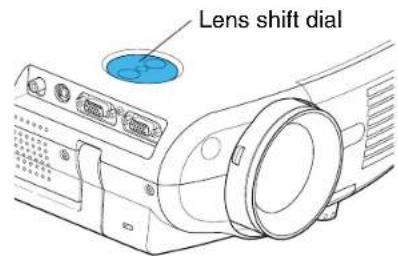
When the lens shift dial is turned counterclockwise fully, the projection position becomes the lowest.
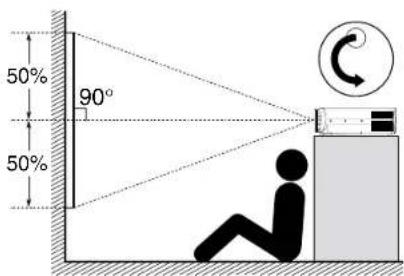
When the lens shift dial is turned clockwise fully, the projection position becomes the highest.
At shipping from factory, the lens shift dial is set to this state.
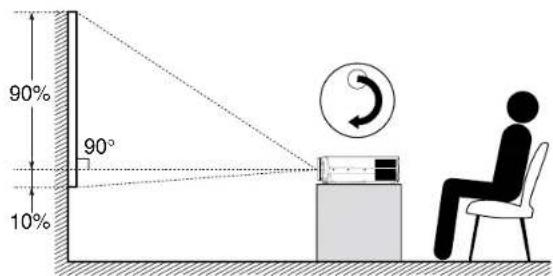
Notes
- Never give strong force to the lens shift dial as this may cause malfunction.
- At the ceiling-mounted projector placement 22, the relation between the moving direction of the projection position and the turning direction of the lens shift dial becomes contrary from the case of the floor-mounted projector placement.
Projector placement angle adjustment (Foot adjuster)

The tilt of the projector can be adjusted using the foot adjuster. Adjust this when the highest position by the lens shift dial [20] is insufficient. Refer to "Projection on the screen" [28] , and adjust the foot adjuster after projecting a picture.
1
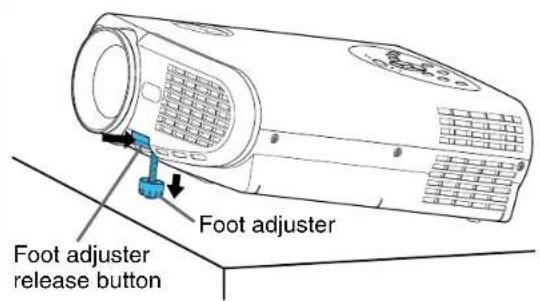
Lift the front of the projector until the desired tilt angle is obtained and hold down the foot adjuster release button.
The foot adjuster will extend.
Release the button to lock in position.
2
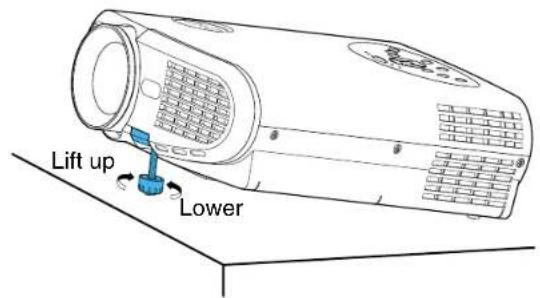
Turn the foot adjuster to make fine adjustment to the height.
Turn clockwise to lift up.
Turn counterclockwise to lower.
Notes
- To put the foot adjuster back, hold down the foot adjuster release button and lower the front slowly.
- Be sure to hold the projector when putting the foot adjuster back so as not to let the front fall on your fingers.
- Do not tilt the projector at an angle exceeding the range adjustable by the foot adjusters, since the life duration of the lamp may be shortened.
Ceiling-mounted projector placement

22
CAUTION
When a ceiling mount is required, please consult with the dealer.
Ceiling-mounted front projection
Viewing a picture projected on the front of the screen from a ceiling installation.
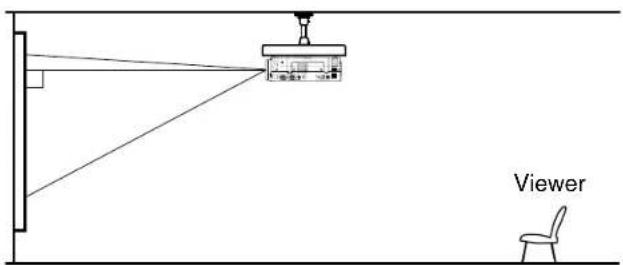
Ceiling-mounted rear projection
Viewing a picture projected through the back of the screen from a ceiling installation.
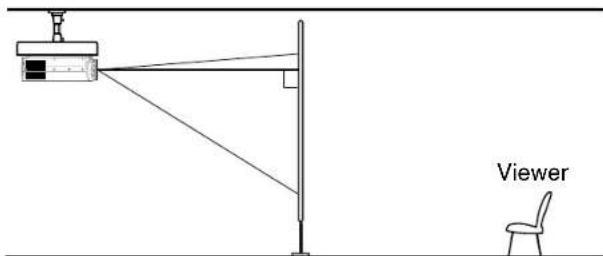
Translucent screen
Perform the "Projection mode" setting on the menu screen for the projection method. 51
Note
The relation between the projection size and the distance to the screen is the same as that of the floor-mounted projection mode 18.
Connecting a computer

You can project the picture from the computer.
Check that the power supplies for the projector and for the computer are off before connecting the cables.
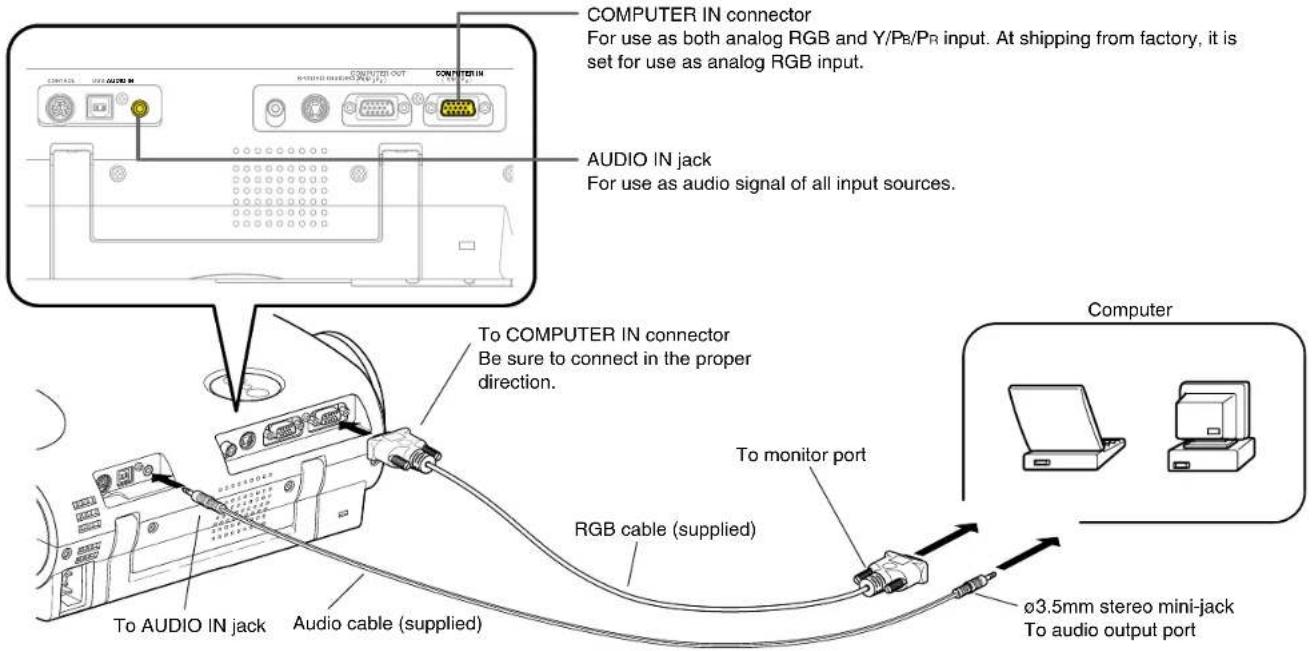
Notes
- The projector cannot be connected to a computer without an analog RGB connector. For details, refer to the computer manual.
- You may not be able to connect some computers to the projector. For details, consult the dealer.
- When connecting to a Macintosh computer, some models may need a Mac adapter for connection.
- Some computers may have output modes which are not compatible with this projector. Check the compatibility of the connectors, signal levels, timing, resolutions, etc.
Connecting video equipment

You can project the picture from video equipment.
Check that the power supplies for the projector and for the video equipment are off before connecting the cables.
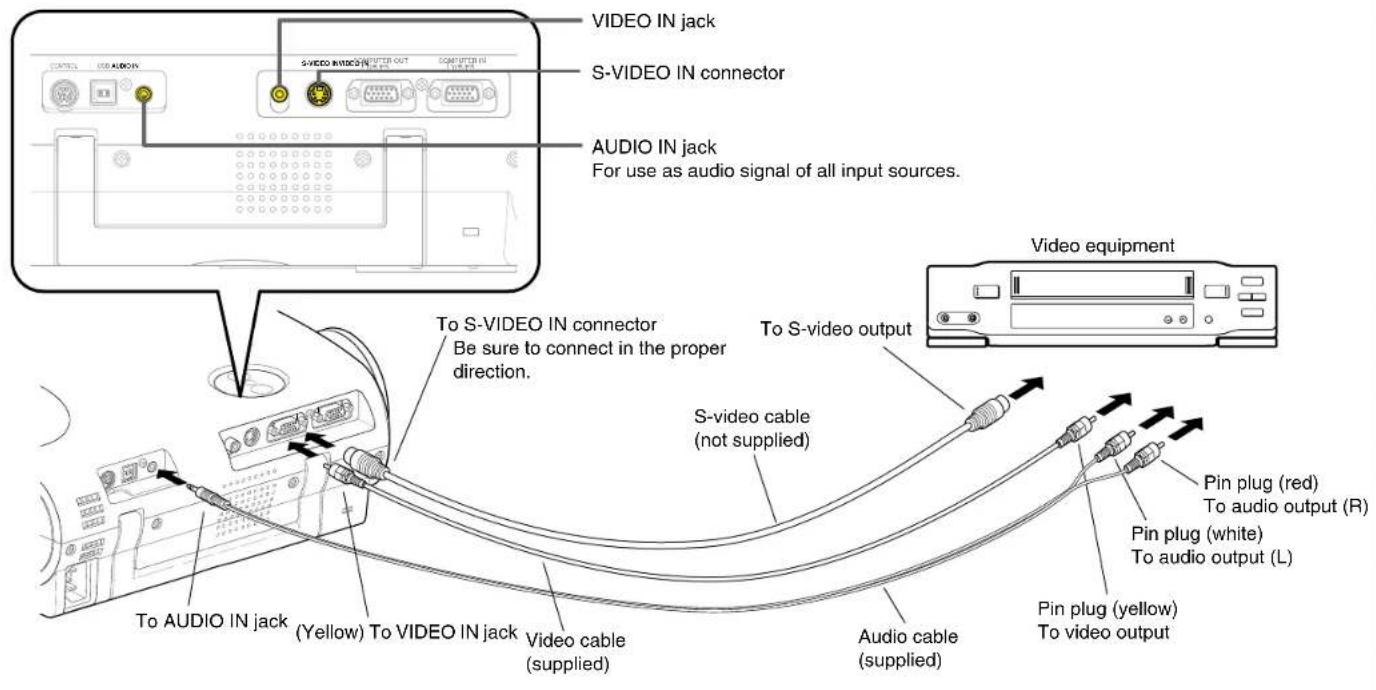

The S-VIDEO IN connector and VIDEO IN jack can be used independently, but the audio input jack is used for all input sources.
Connecting video equipment (continued)

You can project the picture from video equipment with component video output jack.
Check that the power supplies for the projector and for the video equipment are off before connecting the cables.
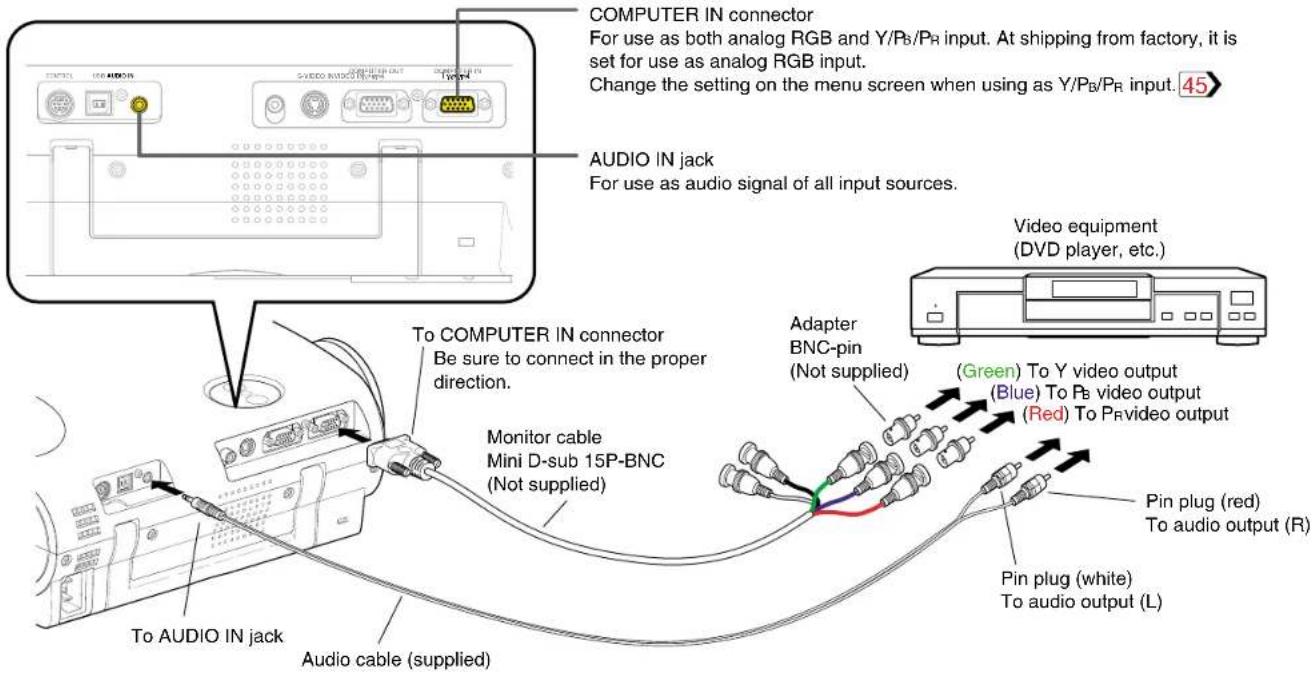
Projector operation control by a computer

You can control the projector by a computer connected with the control cable supplied. ^[72] Check that the power supplies for the projector and for the computer are off before connecting the cables.
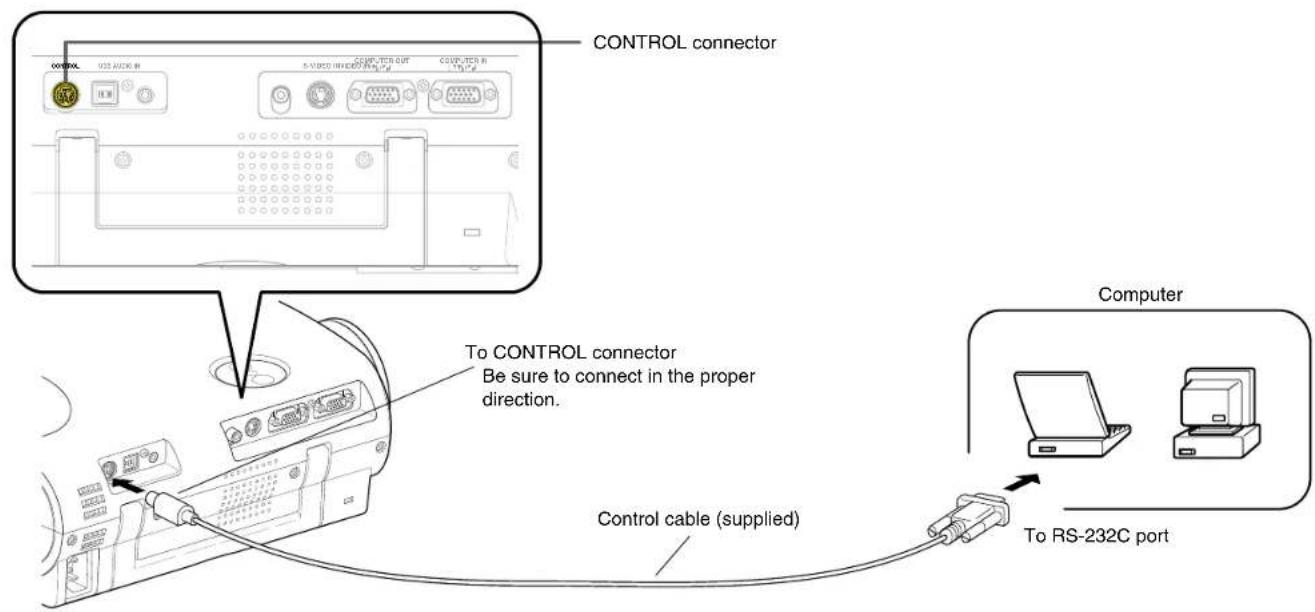

Do not connect any cable other than the exclusive one supplied.
How to use the output connector
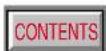
You can output analog RGB signal to a computer monitor, etc.
Check that the power supplies for the projector and for the computer are off before connecting the cables.
Notes
• The analog RGB signals or Y/PB/PR signals of the COMPUTER IN connector are output from the COMPUTER OUT connector.
- Signals are output from the COMPUTER OUT connector even when in the standby mode.
- A general computer monitor may not display a normal picture with Y/PB/PR signals.
Projection on the screen
CONTENTS
28
CAUTION – Do not look into the projection lens while operating the projector.
Remote control
Preparation
1 Install and connect the projector properly.
② Take off the lens cover.
1
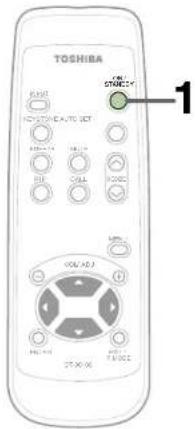
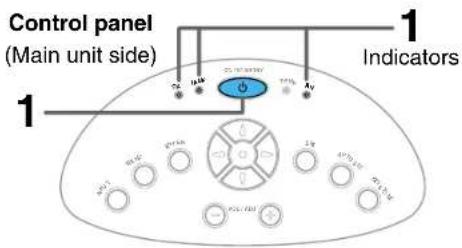
Press ON/STANDBY.
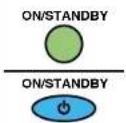
The projector turns on and the ON, LAMP and FAN indicators light in green.
(The LAMP indicator blinks while the lamp is warming up.)

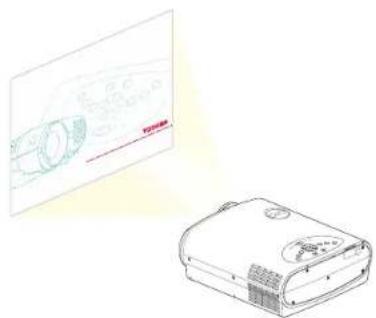
The lamp lights and the start up display appears.
natural_image
Illustration of a projector device and its screen showing internal components (no text or symbols)Notes
- The startup screen disappears when you push the EXIT button or wait for a while. You can also set the startup screen not to be displayed on the menu screen. 51
- When a projector is used for the first time, the language selection menu is displayed after the startup screen disappears. Set it up with procedures 2 and 3 on the next page.
Projection on the screen (continued)

29
Control panel
(Main unit side)
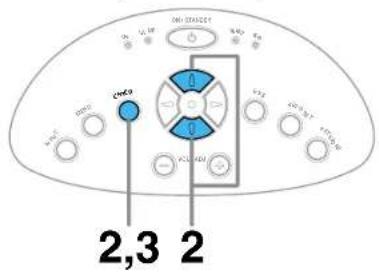
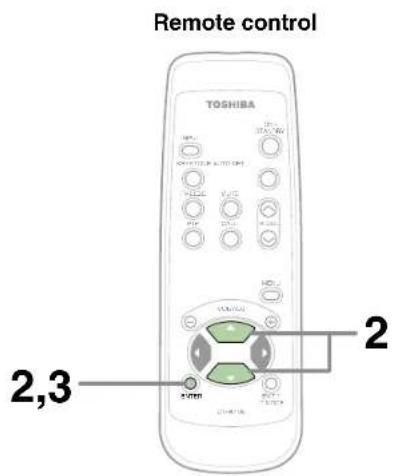
When a projector is used for the first time, the language selection menu, which is to select a language for displaying menus or messages, is displayed. Select a desired language. (At shipping from factory, it is set to English.)
flowchart
graph LR
    A["Hexagon structure"] --> B["Green Circle"]
    C["Hexagon structure"] --> D["Blue Circle"]
    E["Enter"] --> F["ENTER"]
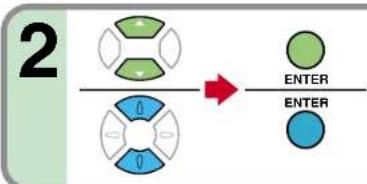
Select a desired language with the selection buttons (▲/▼), and press ENTER.
A menu confirming the selection result is displayed in the selected language.
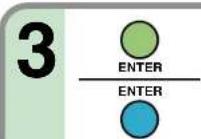
Press ENTER to confirm.
Press EXIT to return to step 2 if you want to re-select a language.
Notes
- The language selection menu will not be displayed on the second and subsequent times you turn on the power. However, if "Reset all" 52 is executed, the language selection menu will be displayed when the power is turned on next.
• The language can also be selected on the menu screen. 50 - This Owner's manual is described on the supposition that English was selected.
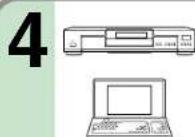
Turn on the connected equipment and put it in playback mode.
Select "Cancel" or install driver contained in the supplied CD-ROM, when the dialog box of the Add New Hardware Wizard screen appears on the computer when connecting a computer. (The supplied CD-ROM contains a driver information file named TOSHIBA_TLP.inf. Click the Browse button of the dialog box to find and designate this file.)
Continued

Projection on the screen (continued)
CONTENTS
30
Remote control
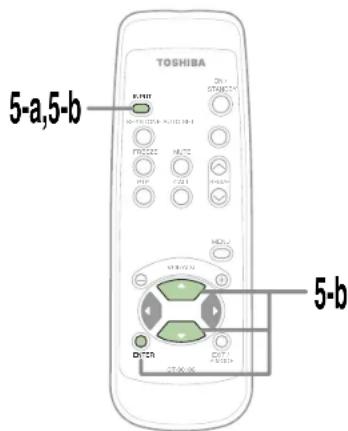
Control panel
(Main unit side)
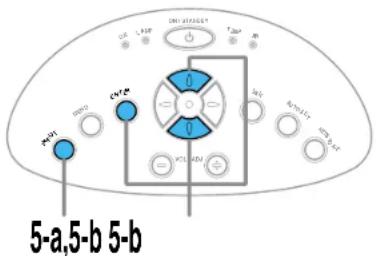
Select the input source to project.
There are two kinds of methods as follows (5-a and 5-b.)


Select the input source by pressing INPUT repeatedly.
At shipping from factory, "Analog RGB" connected to COMPUTER IN connector or "Video" connected to VIDEO IN Jack can be selected. (You can select "Camera" when using the model with a document imaging camera.)
The icon and the name of the selected input source appear on the screen.
Note
The types of input sources selected when the INPUT button is pressed repeatedly can be set from the menu screen. 45


Press INPUT and hold for two seconds.
The input source selection menu appears.
Select the input source to project with the selection buttons (▲/▼).
Regardless of the contents of input source settings on the menu screen, all the input sources are displayed here for selection.
Press ENTER.
A picture of the selected input source is projected.
When a sound signal source is also connected, sound is emitted from the speaker.
Continued


Projection on the screen (continued)
CONTENTS
31
Notes
(Signal sent from the computer)
- If you project an image from a computer with an LCD screen while monitoring the image on the computer, the image may not be projected properly, depending on the computer model. In this case, turn off the computer display. For details on controlling the computer display, etc., refer to the computer's manual and description on the software for the computer used.
- The TLP560/TLP561 projects an image by XGA signal (1024 x 768) in full screen. The image quality from a computer signal other than XGA may be inferior. It is recommended to set the external monitor connected to the computer to XGA mode (1024 x 768).
- The TLP260/TLP261 projects an image by SVGA signal (800 x 600) in full screen. The image quality of a computer signal except SVGA may deteriorate. It is recommended to set the external monitor connected to the computer to SVGA mode (800 x 600).
- The projector can be also applied to DDC2B (Display Data Channel 2B). If your computer is applied to the DDC, start up your computer after turning on the projector. If the order is reversed, the computer may not output any signal.
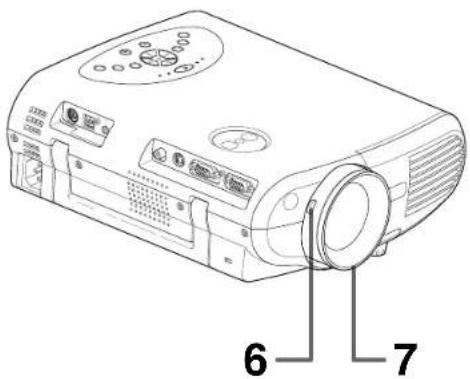
6
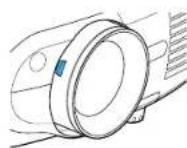
Adjust the picture size by turning the zooming lever.
Turn to the right to enlarge the picture.
Turn to the left to reduce the picture.
7
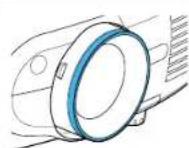
Focus on the picture by turning the focusing ring.
A still picture is recommended for focusing.
Projection on the screen (continued)
CONTENTS
32
Remote control
Control panel
(Main unit side)
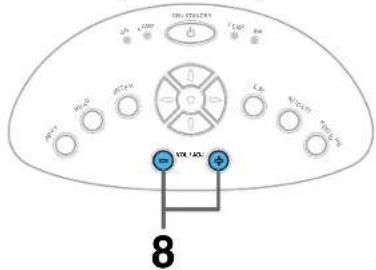
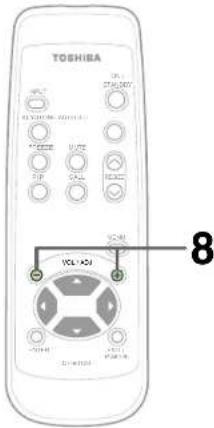
8
VOL/ADJ
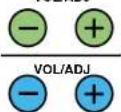
Press VOL/ADJ (+/-) to adjust volume.
Press the (+) button to increase volume.
Press the (-) button to decrease volume.
Notes
• To change the projecting angle, adjust the foot adjuster. 21
- If the screen image suffers keystone distortion, press the KEYSTONE button to adjust the distortion. 35
- Due to lamp characteristics, flickers may occasionally occur in a picture. This is not malfunction of the unit.
• The lamp may rarely burst with a loud sound.
- The projector's liquid crystal panel is made using extremely advanced technology, but there may be black spots (pixels that do not light) or bright spots (pixels that are constantly lit) on the panel. Please note that these are not malfunctions.
- When trying to press a button whose operation is not available, the icon appears.
- When supplying the signal not compatible with the projector, the ? icon appears.
- When signals are not input from the input source, the OFF icon appears.
- The projector may stop operating if the surrounding temperature is too high or if the air filter is clogged with dust. 61
About the LCD Panel
The life of the LCD panel is limited.
Take care over the points below so as to use the panel for years.
- To prolong the life of this panel, never fail to turn the power off when the panel is not in use and make sure that the lamp has gone out. The state of the lamp being extinguished helps enhance the effect of energy saving.
- If the air filter is stained and is clogged up, the main unit inner temperature rises. As a result, the life of the LCD is shortened and a malfunction may also occur. Clean the air filter from time to time 62 and replace it regularly. It is recommended that this replacement be done at the time of replacing a lamp. (Ask a dealer where the unit was purchased or your nearby service station about an air filter for replacement.)
Turning the power off

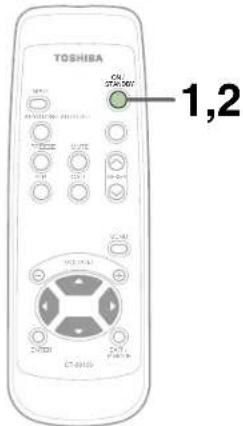
Remote control
Control panel
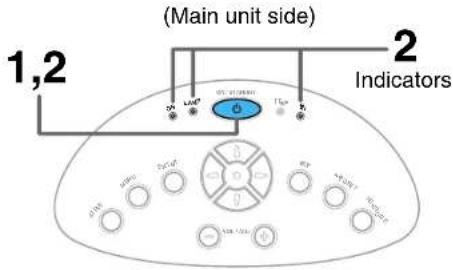
1
ON/STANDBY

ON/STANDBY

Press ON/STANDBY after using the projector.
An instruction message for turning the power off appears on the screen and disappears after a while. When the message disappears, operation becomes invalid.
2
ON/STANDBY

ON/STANDBY

Press ON/STANDBY again.
Cooling starts. Once cooling is completed, the LAMP and FAN indicators turn off and the standby mode is set. (The ON indicator turns in orange.)
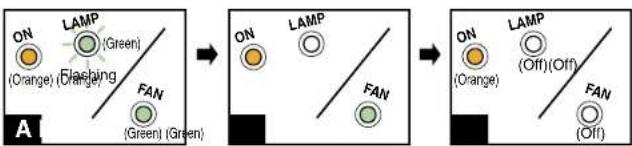
A
To protect the light source lamp, the LAMP indicator blinks as long as a minimum of cooling is necessary. The power cannot be turned back on during this time. Unplugging the power cord at this time will shorten the lamp's duration life.
B
The cooling fan continues to run for a while to expel the heat remaining inside. If you are in a hurry, however, you may unplug the power cord at this time.
C
The standby mode is set.
Notes
- The projector consumes about 15W of power in the standby mode. We recommend you unplug the power cord when not using the projector for long periods of time.
- Be sure that the LAMP indicator has turned off before unplugging the power cord. Cutting the power by unplugging the power cord while the projector is operating or the light source lamp is being cooled will shorten the lamp's duration life. Should a fault or some other irregularity arise with this unit, unplug the power cord.
- When reinserting the power plug before the lamp has cooled, please wait until the lamp has cooled sufficiently before use. When the lamp is at a high temperature, it may not light and it's life duration will be shortened.
Adjusting the picture automatically

Remote control
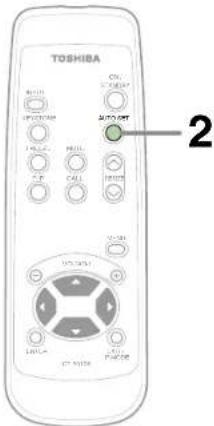
Control panel
(Main unit side)
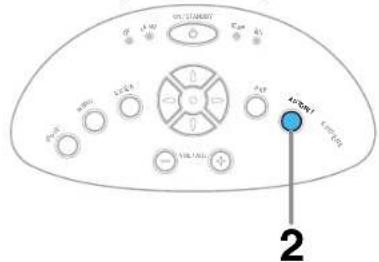
You can adjust the optimum horizontal position, vertical position, sampling phase and sampling frequency for projecting analog RGB signals at the touch of a button.
1
Input full screen video signals from the input source (computer) and project the image.
Adjustments may not be performed properly for images that are not displayed on the entire screen or for extremely dark images.
2
AUTO SET

AUTO SET
Press AUTO SET.
The horizontal position, vertical position, sampling phase and sampling frequency are adjusted automatically.
The icon

appears during signal processing.
Notes
- Automatic adjustment may not be performed properly for signals other than those computers' signals with which the projector is compatible.
- The horizontal position, vertical position, sampling phase and sampling frequency can also be adjusted from the menu screen 47.
\* Sampling frequency
Analog RGB signals input from the computer are converted into digital signals inside the projector. The sampling frequency is the number of times per second the analog signals are converted into digital signals. In order to capture (sample) each individual dot of the computer's signals, the sampling frequency must be adjusted to match the computer's dot clock frequency. If this adjustment is off, details of the image details may be blurred, a striped pattern may appear if images with many vertical lines are displayed, or the image's width may change. For computer signals with which are projector-compatible, the sampling frequency is adjusted automatically even when the AUTO SET button is not pressed.
\* Sampling phase
The sampling phase is the timing at which the computer's analog RGB signals are sampled. If the sampling phase is off, the individual dots cannot be sampled at the proper timing, resulting in blurred or flickering images.
Correcting the keystone distortion

Control panel
(Main unit side)
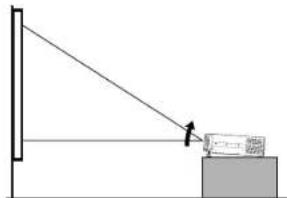
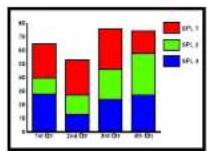
A picture may be expanded on the upper side if projected upward from the projector lifted up by the foot adjuster. The projector can correct this keystone distortion.
natural_image
Simple line drawing of a person projecting a box onto a wall, with no text or symbols present.Before correction
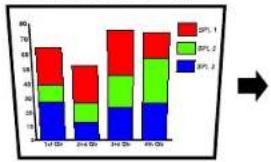
bar_stacked
| Quarter | SP1.1 (%) | SP1.2 (%) | SP1.3 (%) | | :--- | :--- | :--- | :--- | | 1st Q1 | 35 | 10 | 25 | | 2nd Q1 | 28 | 12 | 15 | | 3rd Q1 | 30 | 15 | 20 | | 4th Q1 | 32 | 20 | 25 | | 5th Q1 | 30 | 25 | 25 |After correction
1
KEYSTONE

KEYSTONE

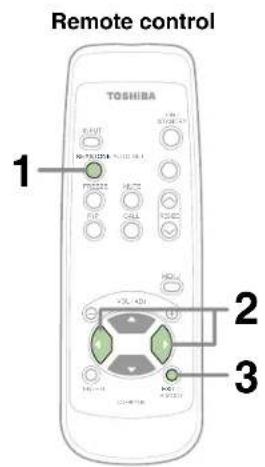
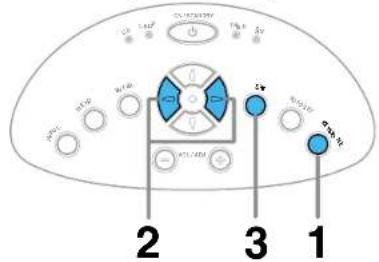
Press KEYSTONE.
The keystone adjustment menu appears.
(This menu is the same as the sub-menu which is displayed when "Correct the keystone distortion of the screen" is selected from GUIDE MENU. 45)
2


Adjust the distortion with the selection buttons (◄/►).
: The upper part of the screen shrinks.
: The upper part of the screen expands.
3

EXIT

To finish the adjustment, press EXIT repeatedly until the menu disappears.
Notes
- Turn the lens shift dial clockwise fully before using the foot adjuster. 20
- Due to digital correction processing, some of the information may dropped or the picture quality may be degraded depending on the keystone correction setting or the contents of the signal source.
Cutting off the picture and sound temporarily

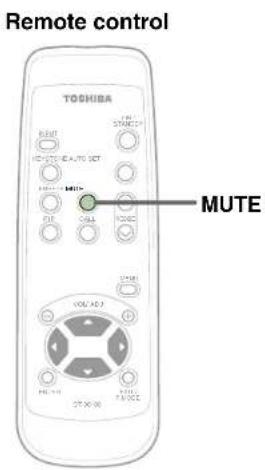
The image and sound of this projector can be turned off if you wish to temporarily project the image from another projector or an OHP, etc., onto the screen.

Press MUTE.
The sound and picture are cut off temporarily.
To cancel the mute mode, press MUTE again. The image and sound will be output.
The icon appears in the mute mode.
Note
The mute mode is cancelled if another operation is performed during the mute mode.
Freezing the picture

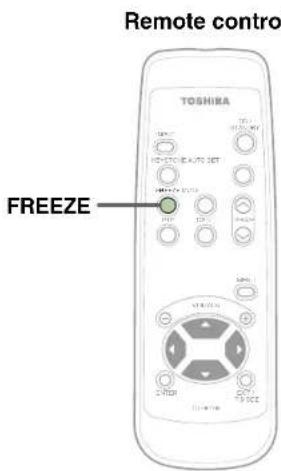
You can freeze the image being projected.
Use this function to stop moving images from a video recorder during presentations.

Press FREEZE.
The picture freezes.
To release the picture, press FREEZE again.
The icon appears in the freeze mode.
Notes
- The frozen image can be enlarged with the RESIZE buttons. The freeze mode is cancelled if any operation other than RESIZE is performed.
- The freeze mode cannot be set when there is no input (when no signals are being supplied from a signal source).
- The input source's moving image continues to run even when the projector is set in freeze mode.
Enlarging the picture size
CONTENTS
Remote control
The icon 📄 appears in the resize mode.
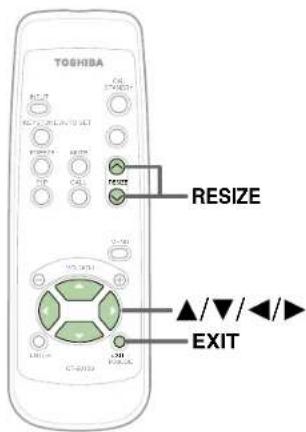
You can enlarge (resize) the picture size projected.

RESIZE
Press RESIZE (介
The enlargement ratio increases each time the RESIZE (∧) button is pressed.
The enlargement ratio can be increased continuously by keeping the button pressed in.




To reduce the enlargement ratio, press the RESIZE (▼button. The enlargement ratio can be reduced continuously by keeping the button pressed in.

The enlarged section is moved when the selection buttons (▲▼/▲) are pressed.
The section can be moved continuously by keeping the button pressed in.
![123456 '()[]}?< PQRST 123456 3456789 10?<>@ Z01234 %&'()#](/content/2026/05/801358/images/ff5164e3f3add2213429e0b736b41eef3c7fb32de3bda830d2d7ebe80a5c9de3.jpg)

EXIT
Press the EXIT button to cancel the resize mode and return to the original size.
Notes
- Enlarged images can be frozen by pressing the FREEZE button. The frozen image can also be enlarged or reduced.
- The resize mode is cancelled if any operation other than setting the freeze mode is performed.
- This projector uses electrical digital resizing, so the picture quality degrades when images are enlarged.
- In rare cases, the picture may be disturbed while the magnification section is being moved.
- This function does not work in no input status (no signal is supplied from the signal source).
Displaying PIP Sub-pictures

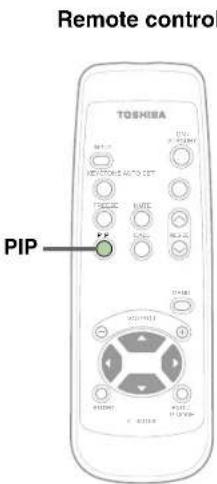
Video or S-video images can be displayed as small images within the computer's image. (Referred to as "sub-pictures" in this manual.)

Press PIP.
A sub-picture is displayed.
Press the PIP button again to turn off the sub-picture.
Notes
- The PIP function cannot be used when a source other than an RGB input source is selected.
- The PIP function cannot be used without signals supplied from an RGB signal source.
- The sub-picture turns off if any other operation is performed.
- The signal source, size and display position to display sub-pictures can be changed from the menu screen. 53
Displaying Information
CONTENTS
Remote control
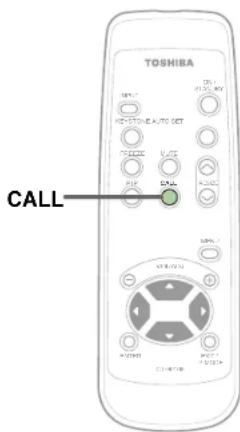
Information on the input signal source, etc., can be displayed.

Press CALL.
The information described below is displayed.
The information display turns off when the CALL button is pressed again.

Status display
Input - current input source
H-resolution - the horizontal resolution of the input signal (at RGB input)
V-resolution - the vertical resolution of the input signal (at RGB input)
H-frequency - the horizontal frequency of the input signal (at RGB input)
V-frequency - the vertical frequency of the input signal (at RGB input)
Sync - the polarity of the sync signal (at RGB input)
Video mode - the color mode of the video signal (at Video, S-Video input)
Signal format- the formatting of the Y/PB/PR signal (at Y/PB/PR input)
Lamp time - the elapsed usage time of the lamp
Version - the version of the firmware
Shutter - the shutter speed of the document imaging camera (at document imaging camera input)
Notes
- The information displayed is not refreshed even if it changes. To refresh the information, turn off the information display, then turn it back on.
- The information display turns off if any other operation is performed.
- The “Lamp time” shows an approximate time for lamp replacement. (It should not be used as a lamp warranty time counter.) If the time indicated here nears 1500H, contact your store of purchase about obtaining a replacement lamp (TLPL55, sold separately).
- The "Lamp time" can be reset when the lamp is replaced.
- The "Version" is the version of the control program used in the projector and is used for servicing, etc.
Operating the presentation mode

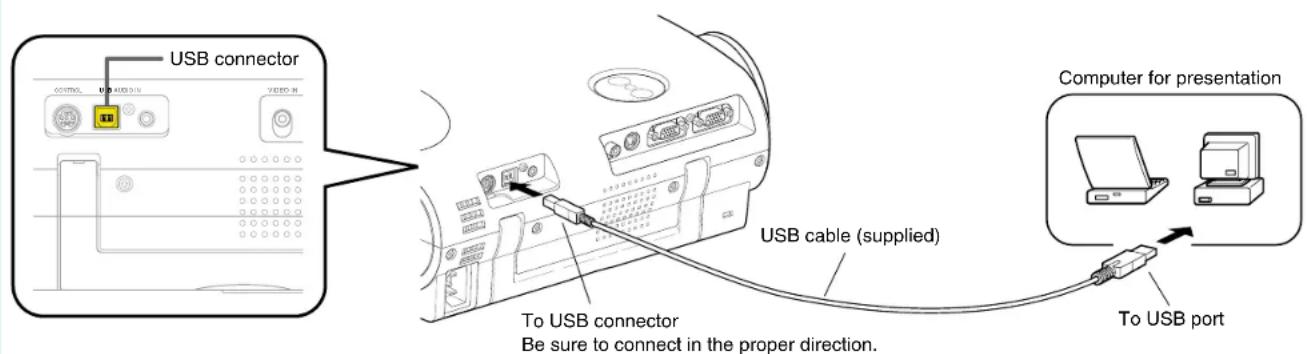
You can change the slide, for the presentation on the computer, by using the remote control when connecting the projector to the computer with the supplied USB cable.
1 Connect a computer to the projector with the supplied USB cable.
Also connect the RGB cable and the audio cable if necessary. 23
Notes
- This function is available with O.S (operating system) of Windows 98/98SE, Windows Me, Windows 2000, Windows XP or Mac OS9 with a USB port as standard.
- When connecting to the computer's USB port for the first time, a message asking you to insert the Windows98 or Windows 98SE CD-ROM may appear on the computer's monitor screen, depending on whether or not the device driver is installed. If so, do as the message says.
- When using a USB cable other than the supplied one, be sure to use a shielded type.
2
Start a presentation on the computer.
- In case of Microsoft ^ PowerPoint ^ , start the slide show to make a state of displaying the first slide.
- In case of Adobe® Acrobat ® or AcrobatReader®, make state that [Full Screen] is selected from [View] menu.
- This function is also available in other application software that can change a slide by pressing , of a computer.
Operating the presentation mode (continued)

Control panel
(Main unit side)
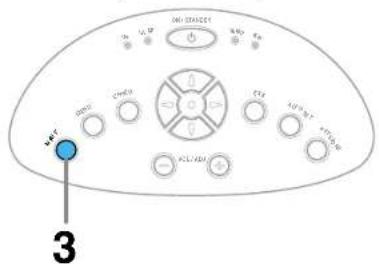
3
INPUT

INPUT

Select the computer input with INPUT.
You can change the order of procedure 1 to 3.
4
Adjust the projector before presentation if necessary.
In the presentation mode after step 5, the projector cannot be adjusted.
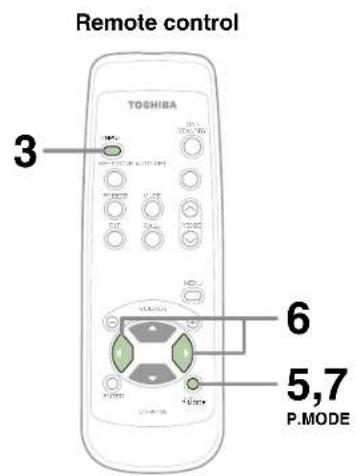
5

P.MODE
Press P.MODE and hold for two seconds.
The projector enters into the presentation mode.
The icon 📄 appears in the presentation mode.
6
Change a slide with the selection buttons (◀)
: Advancing to the next slide.
: Returning to the previous slide.
- The selection buttons of the main unit can not be used.
- The slide can not be switched even if you press and hold the selection buttons continuously.
(The function is different from the keys of the computer.)
7

P.MODE
When the presentation is finished;
To exit the presentation mode, press P.MODE.
The projector returns to the normal mode.
Operating the menu screen
CONTENTS
Various adjustments and settings can be made on the menu screen. The basic operations on the menu screen are shown here.
Start
GUIDE MENU: You can adjust or set the functions used frequently.
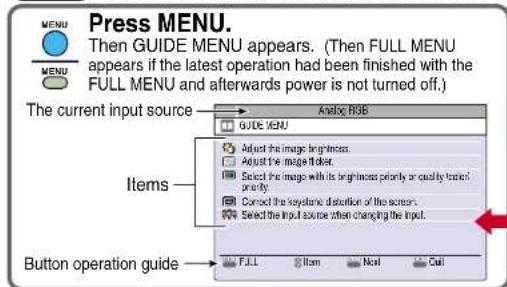
When you make more detailed adjustments and settings, call the FULL MENU.
Return to the GUIDE MENU when the MENU button is pressed.
FULL MENU: For the operating instruction, refer to the next page. 44

Press MENU button once again.
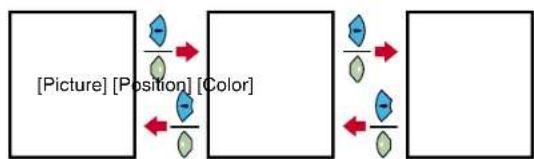
The FULL MENU of [Picture] appears.
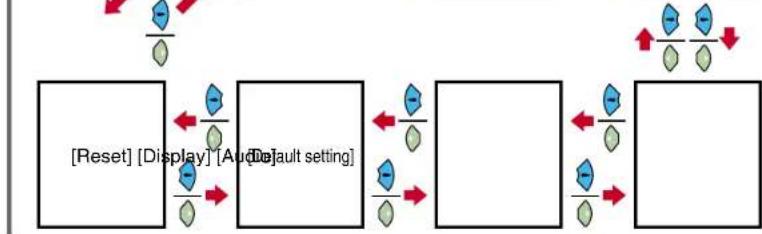
FULL MENU has seven pages of [Picture], [Position], [Color], [Audio], [Display], [Default setting] and [Reset].
Use the selection button (◀/▶) to change the page of FULL MENU.
flowchart
graph LR
    A["Picture"] --> B["Position"]
    B --> C["Color"]
    C --> D["Directional Arrow"]
    D --> E["Red Arrow"]
    style A fill:#f9f,stroke:#333
    style B fill:#bbf,stroke:#333
    style C fill:#f9f,stroke:#333
    style D fill:#f9f,stroke:#333
    style E fill:#bbf,stroke:#333
flowchart
graph LR
    A["Reset"] --> B["Display"]
    B --> C["Default setting"]
    C --> D["Red Arrow Down"]
    D --> E["Red Arrow Up"]
    E --> F["Red Arrow Down"]
    style A fill:#f9f,stroke:#333
    style B fill:#bbf,stroke:#333
    style C fill:#bfb,stroke:#333
    style D fill:#ffb,stroke:#333
    style E fill:#fbb,stroke:#333
    style F fill:#fbb,stroke:#333
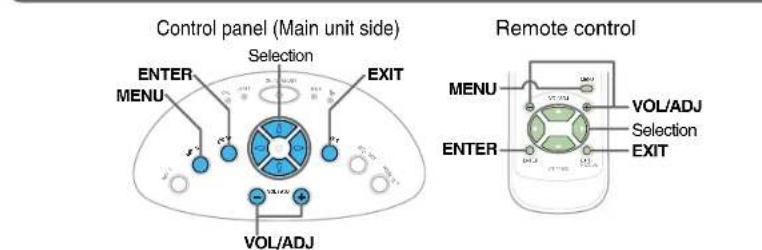
Adjust and set it with the button indicated on the button operation guide.
According to the selected item, the kind ([adjustment],[setting] or [execution]) and the button to be used are indicated on the button operation guide.
flowchart
graph TD
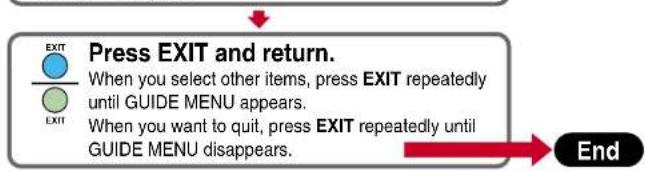
    A["EXIT"] --> B["Press EXIT and return."]
    B --> C["When you select other items, press EXIT repeatedly until GUIDE MENU appears."]
    C --> D["When you want to quit, press EXIT repeatedly until GUIDE MENU disappears."]
    D --> E["End"]
Note
The item displayed on the menu with gray is not available.
Continued

Operating the menu screen (continued)

44
flowchart
graph TD
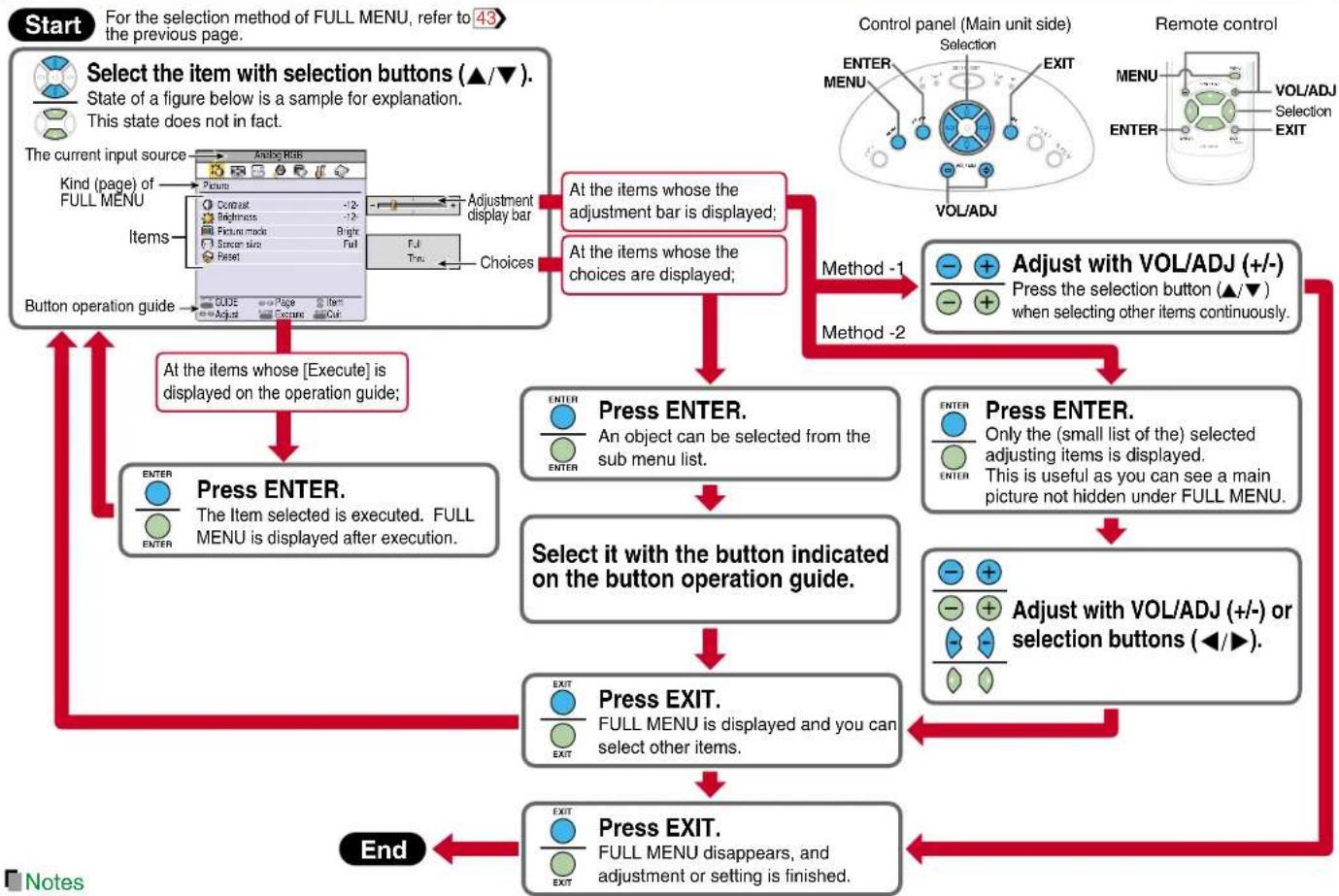
    A["Start: Select the item with selection buttons (▲/▼). State of a figure below is a sample for explanation. This state does not in fact."] --> B["The current input source"]
    B --> C["Kind (page) of FULL MENU"]
    C --> D["Adjustment display bar"]
    D --> E["Button operation guide"]
    E --> F["Press ENTER. The Item selected is executed. FULL MENU is displayed after execution."]
    F --> G["Press EXIT. FULL MENU is displayed and you can select other items."]
    G --> H["End"]

    I["Control panel (Main unit side)"] --> J["ENTER MENU"]
    J --> K["VOL/ADJ"]
    K --> L["Adjust with VOL/ADJ (+/-) Press the selection button (▲/▼) when selecting other items continuously."]
    L --> M["Press ENTER. An object can be selected from the sub menu list."]
    M --> N["Select it with the button indicated on the button operation guide."]
    N --> O["Press EXIT. FULL MENU disappears, and adjustment or setting is finished."]

    P["Remote control"] --> Q["MENU"]
    Q --> R["VOL/ADJ Selection EXIT"]
    R --> S["Press ENTER. Only the (small list of the) selected adjusting items is displayed. This is useful as you can see a main picture not hidden under FULL MENU."]
    S --> T["Adjust with VOL/ADJ (+/-) or selection buttons (◀/▶)."]
- The item displayed on the menu with gray is not available.
- An exclusive menu is displayed when making PIP function sub-picture settings.

Notes
- The item displayed on the menu with gray is not available.
- An exclusive menu is displayed when making PIP function sub-picture settings.
GUIDE MENU adjustments and settings

On GUIDE MENU, you can set or adjust the functions frequently used.
To operate GUIDE MENU, refer to page 43.
| The relationship between input source and item Yes: Adjustable -: Not displayed | ||||||||
| Analog RGB | Y/PB/PR | Video | S-Video | camera | ||||
| Adjust the image brightness. | Contrast | ADJ. | Adjust the contrast of the picture. | Yes | Yes | Yes | Yes | Yes |
| Brightness | ADJ. | Adjust the brightness of the picture. | ||||||
| Adjust the image flicker. | Phase ADJ. | Adjust the flicker of the picture. (Sampling clock phase adjustment) | Yes | - | - | - | - | |
| Adjust the image color. | Color ADJ. | Adjust the color depth of the picture. | - | Yes | Yes | Yes | - | |
| Adjust the gain of the document imaging camera. | Camera gain ADJ | Adjust the document imaging camera's gain. | - | - | - | - | Yes | |
| Reduce the flicker. | Shutter | Select a shutter speed below to decrease the flickering of the document imaging camera's picture. | - | - | - | - | Yes | |
| SETA: The shutter speed is set automatically. | ||||||||
| SET5: The shutter speed is fixed to 50 Hz. | ||||||||
| SET6: The shutter speed is fixed to 60 Hz. | ||||||||
| Select the image with its brightness priority or quality (color) priority. | Bright SET | The picture is set with its brightness priority. | Yes | - | - | - | - | |
| True color SET | The picture is set with its color quality priority. | |||||||
| Correct the keystone distortion of the screen. | Keystone ADJ. | Adjust the keystone distortion. | Yes (common for all of the inputs) | |||||
| Select the input source when changing the input. | COMPUTER | SET | ☑: COMPUTER IN connector is selectable with the INPUT button. | Yes (common for all of the inputs) | ||||
| SETA: Use COMPUTER IN connector as Analog RGB input. | ||||||||
| R/PR | SETY: Use COMPUTER IN connector as Y/Ps/PR input. | |||||||
| VIDEO SET | ☑: Video input is selectable with the INPUT button. | |||||||
| S-VIDEO SET | ☑: S-Video input is selectable with the INPUT button. | |||||||
| CAMERA SET | ☑: Camera input is selectable with the INPUT button. | |||||||
Notes
- The items related to the camera (the document imaging camera) are displayed only with models having a camera.
- "Sampling phase" is adjusted and memorized for each RGB signal 70.
- "Keystone" and "Input source setting" can be adjusted (set) at all input sources, but the adjustments (settings) made at one input source are applied to all input sources.
- It is impossible to exit from the menu if no input source is selected.
- If the check in the check box for the currently selected source is removed, the setting becomes effective the next time the input is changed.
- The adjustments or settings made are memorized automatically when the power is turned off by pressing the ON/STANDBY button. If the power cord is unplugged or if a power failure occurs while the projector is on, the adjustments or settings are not memorized.
FULL MENU adjustments and settings - Picture

You can make various adjustments or settings of the picture from FULL MENU [Picture]. To operate FULL MENU, refer to page 44.
| The relationship between input source and item Yes: Adjustable - Not displayed | ||||||||
| Contrast | ADJ. | Adjust the contrast of the picture. | Yes | Yes | Yes | Yes | ||
| Brightness | ADJ. | Adjust the brightness of the picture. | Yes | Yes | Yes | Yes | ||
| Sharpness ADJ. | Adjust the sharpness of the picture. (In Y/Pb/Pr input mode, sharpness is a setting item.) | - | Yes | Yes | Yes | |||
| Camera gain ADJ. | Adjust the document imaging camera's gain. | - | - | - | Yes | |||
| Picture mode Bright SET | The picture is set with its brightness priority. | Yes | - | - | - | |||
| True color SET | The picture is set with its color quality priority. | |||||||
| Video mode Auto. SET | The video mode (color system) is set automatically. | - | - | Yes | Yes | |||
| NTSC SET | The video mode is fixed to NTSC system. | |||||||
| PALSET | The video mode is fixed to PAL system. | |||||||
| SECAM SET | The video mode is fixed to SECAM system. | |||||||
| PAL-N | SET | The video mode is fixed to PAL-N system. | ||||||
| PAL-M | SET | The video mode is fixed to PAL-M system. | ||||||
| PAL60 | SET | The video mode is fixed to PAL60 system. | ||||||
| NTSC4.43 | SET | The video mode is fixed to NTSC4.43 system. | ||||||
| Signal format | Auto. SET | The Y/Pb/Pr signal format is set automatically. | - | Yes | - | - | ||
| 480i (525i) | SET | The Y/Pb/Pr signal format is fixed to 480i (525i) mode. | ||||||
| 480p (525p) | SET | The Y/Pb/Pr signal format is fixed to 480p (525p) mode. | ||||||
| 575i (625i) | SET | The Y/Pb/Pr signal format is fixed to 575i (625i) mode. | ||||||
| 720p (750p) | SET | The Y/Pb/Pr signal format is fixed to 720p (750p) mode. | ||||||
| 1080i (1125i) SET | The Y/Pb/Pr signal format is fixed to 1080i (1125i) mode. | |||||||
| Shutter | Auto. SET | The shutter speed is set automatically. | - | - | - | Yes | ||
| 50Hz | SET | The shutter speed is fixed at 50 Hz. | ||||||
| 60Hz | SET | The shutter speed is fixed at 60 Hz. | ||||||
| Screen size | Full | SET | TLP560/561: The picture is converted to XGA (1024 x 768 dot) resolution.TLP260/261: The picture is converted to SVGA (800 x 600 dot) resolution. | Yes | YesYesYes | TLP261: YesTLP561: - | ||
| Thru | SET | The picture is displayed with the input source resolution. | ||||||
| Wide SET | The picture is converted to wide screen format. | - | Yes | Yes | Yes | |||
| Reset | EXEC. | Return the adjustments and settings of FULL MENU [Picture] to the factory default values. | Yes | Yes | Yes | Yes | ||
Notes
- The items related to the camera (the document imaging camera) are displayed only with models having a camera.
- A part of function is restricted if you set the "Video mode" or "Signal format" to the modes other than [Auto]. [51]
- The adjustments or settings made are memorized automatically when the power is turned off by pressing the ON/STANDBY button. If the power cord is unplugged or if a power failure occurs while the projector is on, the adjustments or settings are not memorized.
FULL MENU adjustments - Position

You can adjust the picture position etc. of the analog RGB input from FULL MENU [Position]. To operate FULL MENU, refer to page 44.
| The relationship between input source and item Yes: Adjustable -: Not displayed | |||||||
| Analog RGB | Y/PB/PR | Video | S-Video Camera | ||||
| H-position | ADJ. | Adjust the horizontal display position of the picture. | Yes | - | - | - | - |
| V-position | ADJ. | Adjust the vertical display position of the picture. | Yes | - | - | - | - |
| Phase ADJ. | Adjust the flicker of the picture. (Sampling clock phase adjustment) | Yes | - | - | - | - | |
| Frequency | ADJ. | Adjust the sampling frequency of the input signal if vertical stripes appear in the detailed image. | Yes | - | - | - | - |
| Reset | EXEC. | Return the adjustments of FULL MENU [Position] to the factory default values. | Yes | - | - | - | - |
Notes
- This menu is not displayed except with analog RGB input.
- The adjustment of each item in this menu is memorized for each RGB signal input 70.
- The adjustments made are memorized automatically when the power is turned off by pressing the ON/STANDBY button. If the power cord is unplugged or if a power failure occurs while the projector is on, the adjustments are not memorized.
FULL MENU adjustments - Color

You can adjust the color condition of the picture from FULL MENU [Color]. To operate FULL MENU, refer to page 44.
| The relationship between input source and item Yes: Adjustable -: Not displayed | |||||||
| Analog RGB | Y/PB/PR | Video | S-Video Camera | ||||
| Color | ADJ. | Adjust the color depth of the picture. | - | Yes | Yes | Yes | - |
| Tint | ADJ. | Adjust the tint of the picture. (Not adjustable at PAL, SECAM, PAL-N,PAL-M and PAL60) | - | - | Yes | Yes | - |
| R-level ADJ. | Adjust the red level of the picture. | Yes | Yes | Yes | Yes | Yes | |
| G-level ADJ. | Adjust the green level of the picture. | Yes | Yes | Yes | Yes | Yes | |
| B-level ADJ. | Adjust the blue level of the picture. | Yes | Yes | Yes | Yes | Yes | |
| Reset | EXEC. | Return the adjustments of FULL MENU [Color] to the factory default value. | Yes | Yes | Yes | Yes | Yes |

The adjustments made are memorized automatically when the power is turned off by pressing the ON/STANDBY button. If the power cord is unplugged or if a power failure occurs while the projector is on, the adjustments are not memorized.
FULL MENU adjustments and settings - Audio

You can set the sound emitted from the speaker from FULL MENU [Audio].
To operate FULL MENU, refer to page 44.
| The relationship between input source and item Yes: Adjustable -: Not displayed | ||||||||
| Analog RGB | Y/PE/PR | Video | S-Video Camera | |||||
| Volume ADJ. | Adjust the sound volume emitted from the speaker. | YesYesYesYes | ||||||
| Speaker output On SET | The sound is emitted from the speaker. | Yes (common) | - | |||||
| Off SET | No sound is emitted from the speaker. | |||||||
| Channel select L+R SET | The sound of the left and right channels is mixed and emitted from the speaker. | Yes (common) | - | |||||
| L SET | Only the sound of the left input channel is emitted from the speaker. | |||||||
| R SET | Only the sound of the right channel is emitted from the speaker. | |||||||
| Loudness On SET | The loudness effect is added to the speaker sound. | Yes (common) | - | |||||
| Off SET | The loudness effect is not added to the speaker sound. | |||||||
| Reset | EXEC. | Return the adjustments and settings of FULL MENU [Audio] to the factory default values. | Yes (common) | - | ||||
Notes
- When the camera input is selected, sound is not emitted.
• Each item can be set at every input source except the camera input, but the settings made at one input source are applied to all input sources as shown in the table. The sound volume can be adjusted for each input source except the camera input. - The adjustments or settings made are memorized automatically when the power is turned off by pressing the ON/STANDBY button. If the power cord is unplugged or if a power failure occurs while the projector is on, the adjustments or settings are not memorized.
FULL MENU adjustments and settings - Display

You can set the language, menu display, etc. from FULL MENU [Display].
To operate FULL MENU, refer to page 44.
| The relationship between input source and item Yes: Adjustable -: Not displayed | ||||||||
| Analog RGB | Y/Pa/PR | Video | S-Video Camera | |||||
| Keystone ADJ. | Adjust the keystone distortion caused by changing the installation angle. | Yes (common for all of the inputs) | ||||||
| Language | English | SET | Menus and messages are displayed in English. | Yes (common for all of the inputs) | ||||
| Français | SET | Menus and messages are displayed in French. | ||||||
| Deutsch | SET | Menus and messages are displayed in German. | ||||||
| Italiano | SET | Menus and messages are displayed in Italian. | ||||||
| Español | SET | Menus and messages are displayed in Spanish. | ||||||
| Português | SET | Menus and messages are displayed in Portuguese. | ||||||
| 日本語 | SET | Menus and messages are displayed in Japanese. | ||||||
| 中文(简体字) | SET | Menus and messages are displayed in Chinese (Simplified). | ||||||
| 中文(繁體字) | SET | Menus and messages are displayed in Chinese (Traditional). | ||||||
| 한국어 | SET | Menus and messages are displayed in Korean. | ||||||
| Icon On | SET | The icon is displayed. | Yes (common for all of the inputs) | |||||
| Off | SET | The icon is not displayed. | ||||||
| Menu position Upper left | SET | The menu is displayed at the upper left of the screen. | Yes (common for all of the inputs) | |||||
| Upper right | SET | The menu is displayed at the upper right of the screen. | ||||||
| Lower left | SET | The menu is displayed at the lower left of the screen. | ||||||
| Lower right | SET | The menu is displayed at the lower right of the screen. | ||||||
| Menu translucent | On | SET | The menu background becomes translucent. | Yes (common for all of the inputs) | ||||
| Off | SET | The menu background is normal. | ||||||
| Reset | EXEC. | Return the adjustments and settings of FULL MENU [Display] to the factory default values. | Yes (common for all of the inputs) | |||||
Notes
• Each item can be set at all input sources, but the settings made at one input source are applied to all input sources.
- The adjustments or settings made are memorized automatically when the power is turned off by pressing the ON/STANDBY button. If the power cord is unplugged or if a power failure occurs while the projector is on, the adjustments or settings are not memorized.
- The setting of "Menu translucent" is not available if no signal is input. Also, the background of the menu will not be translucent, regardless of the settings.
FULL MENU settings - Default setting

You can set the Input source, projection mode, etc. from FULL MENU [Default setting].
To operate FULL MENU, refer to page 44.
| The relationship between input source and item Yes: Adjustable -: Not displayed | ||||||
| Input source setting | SET | COMPUTER IN connector is selectable with the INPUT button. | Yes (common for all of the inputs) | |||
| SET | Aldg RBMPUTER IN connector as Analog RGB input. | |||||
| SET | Pe/Bse COMPUTER IN connector as Y/PB/Pr input. | |||||
| VIDEO SET | : Video input is selectable with the INPUT button. | |||||
| S-VIDEO SET | : S-Video input is selectable with the INPUT button. | |||||
| CAMERA SET | : Camera input is selectable with the INPUT button. | |||||
| Projection mode Standard SET | The projector is set to the floor-mounted front projection mode. | Yes (common for all of the inputs) | ||||
| Rear SET | The projector is set to the floor-mounted rear projection mode. | |||||
| Ceiling SET | The projector is set to the ceiling-mounted front projection mode. | |||||
| Rear ceiling SET | The projector is set to the ceiling-mounted rear projection mode. | |||||
| Background | Logo SET | The TOSHIBA logo is displayed when no signal is input. | Yes (common for all of the inputs) | |||
| Blue | SET | The entire screen is set to blue when no signal is input. | ||||
| None | SET | Nothing is displayed when no signal is input. | ||||
| No signal power off | Off | SET | The power does not turn off automatically even if no signal status continues. | Yes (common for all of the inputs) | ||
| 5 min. | SET | The power turns off automatically when no signal status continues for approx. 5 min. | ||||
| Power on | Manual | SET | The power turns on by pressing the ON/STANDBY button. | Yes (common for all of the inputs) | ||
| Auto. | SET | When the power plug is inserted, the power is on. | ||||
| Start-up screen | On | SET | The start-up display appears when the power is turned on. | Yes (common for all of the inputs) | ||
| Off | SET | The start-up display does not appear when the power is turned on. | ||||
| Reset | EXEC. | Return the settings of FULL MENU [Default setting] to the factory default values. | Yes (common for all of the inputs) | |||
Notes
- It is impossible to exit from the menu if no input source is selected.
- If the check in the check box for the currently selected source is removed, the setting becomes effective the next time the input is changed.
- In the following conditions, the function to detect no signal ("No signal background", "No signal power off") does not activate:
1) When "Video mode" 46 is set to the modes other than [Auto] and Video input or S-Video input is selected.
2) When "Signal format" 46 is set to the modes other than [Auto] and Y/PB/PR input is selected. - Note that the projector automatically powers up at the restoration of power after a failure, if "Power on" is set to [Auto] with the power plug inserted.
- Even if "Power on" is set to [Auto], the setting of [5 min.] of "No signal power off" is effective.
• Each item can be set at all input sources, but the settings made at one input source are applied in common to all input sources. - The settings made are memorized automatically when the power is turned off by pressing the ON/STANDBY button. If the power cord is un-plugged or if a power failure occurs while the projector is on, the settings are not memorized.
FULL MENU settings - Reset
CONTENTS
52
You can return the adjusting and setting values of all menus to the factory default setting.
EXEC. Return the adjustments and settings of all menus to the factory default setting. Reset all
Note
The resettings made are memorized automatically when the power is turned off by pressing the ON/STANDBY button. If the power cord is unplugged or if a power failure occurs while the projector is on, the resettings are not memorized.
PIP menu setting

When a PIP sub-picture is displayed, the PIP menu screen will appear if you press the MENU button.
You can make the PIP sub-picture settings when a PIP subpicture is displayed.
To cancel the menu, press the EXIT button.
| Source | Select the signal source for PIP sub-picture. | |
| SETVideoinput is selected as signal source. | ||
| SETVideoinput is selected as signal source. | ||
| Size | Set the PIP sub-picture size. | |
| SETAllThe PIP sub-picture size is set to small. | ||
| SETModThe PIP sub-picture size is set to medium. | ||
| SETLargeThe PIP sub-picture size is set to large. | ||
| Position | Set the PIP sub-picture display position. | |
| SET: The sub-picture is displayed at the upper left of the screen. | ||
| SET: The sub-picture is displayed at the upper right of the screen. | ||
| SET: The sub-picture is displayed at the lower left of the screen. | ||
| SET: The sub-picture is displayed at the lower right of the screen. | ||
| Reset | EXEC. Return the settings of PIP MENU to the factory default setting. | |
Notes
- The size of the PIP sub-picture differs according to the signal type (resolution) of the main picture.
- The settings made are memorized automatically when the power is turned off by pressing the ON/STANDBY button. If the power cord is unplugged or if a power failure occurs while the projector is on, the settings are not memorized.
Part names (of the document imaging camera model)

CAUTION
When using the camera, be careful not to pinch your hand or fingers into the arm.
On the document imaging camera model, you can project pictures using the document imaging camera. The document imaging camera can directly project any materials (documents, illustrations, etc.) without using an OHP film.
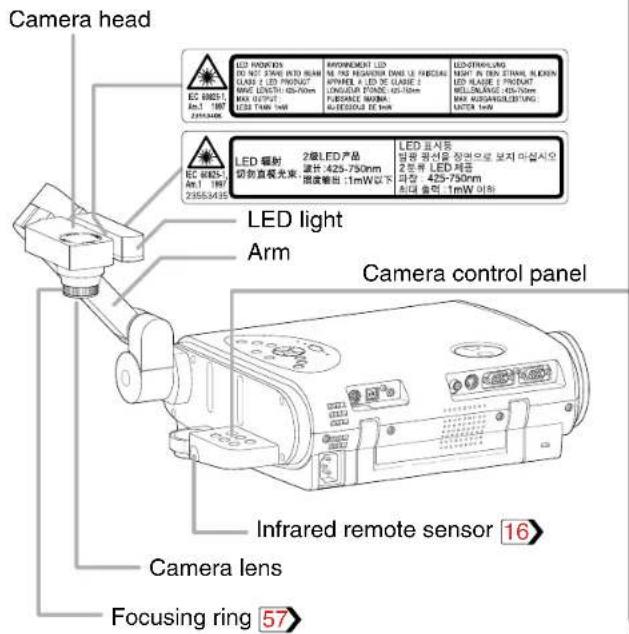
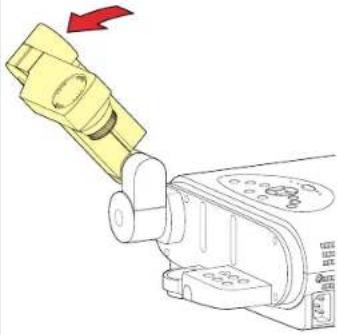
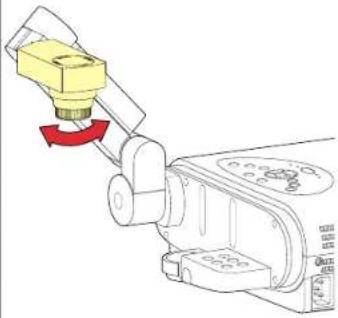
Preparation of the document imaging camera

Before preparations(stowed away)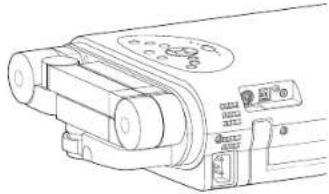 | 1) Raise up the arm.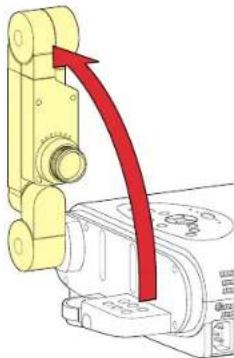 | 2) Pull up the camera head. 3) Turn the camera head.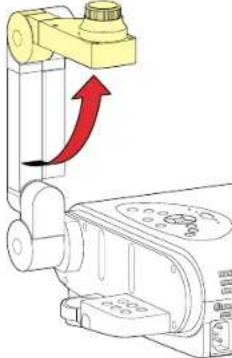 | 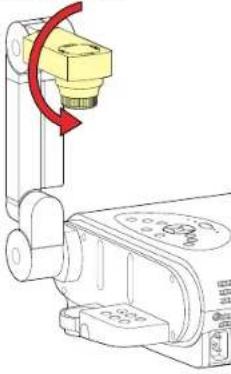 |
| 4) Incline the arm backward. 6) Pull up the light. 7) Turn the light.5) Move the camera head toward the object. | |||
 |  | 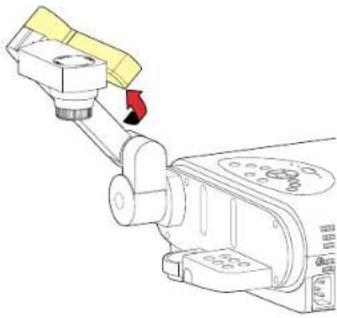 | 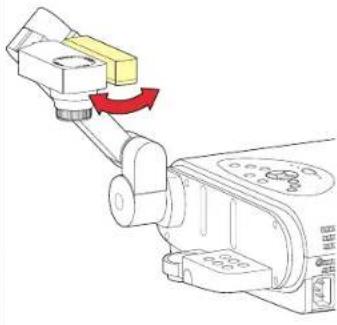 |
Note
Never give shocks or impacts to the camera or arm as this may cause malfunction.
Picture projection with the document imaging camera

CAUTION
Do not look into the arm light while it is lit.
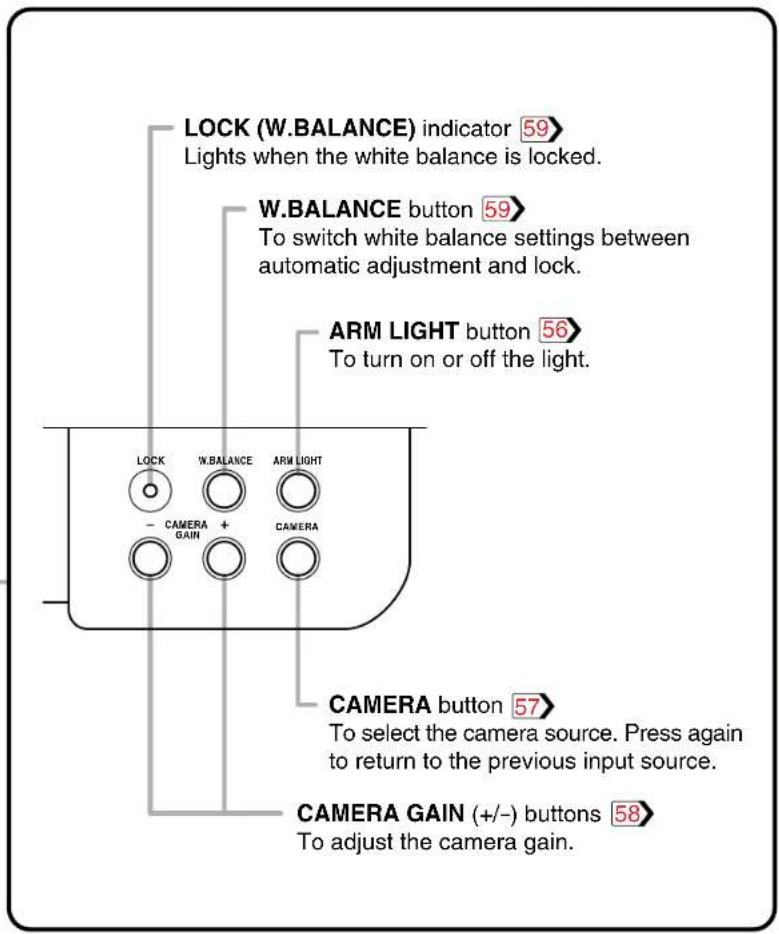
Camera control panel
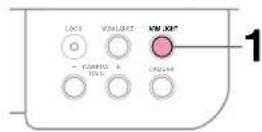
Preparation
1 Project a picture on the screen as explained in the step "Projection on the screen". 28
1
ARM LIGHT

Press ARM LIGHT.
The light turns on.
2
Set a document to be projected.
Place the document (illustrations, etc.) onto or around the projector, and turn the camera head to the direction of the document.
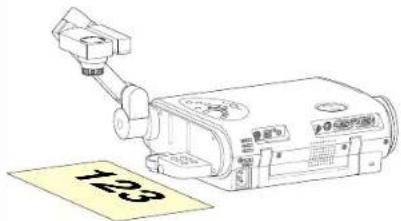
Images on the screen
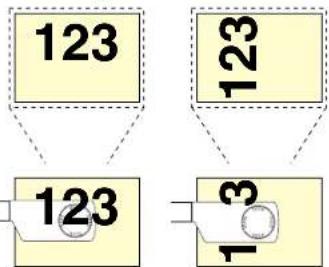
Setting direction
Notes
- Do not leave documents on the unit or near of the air exhaust for long periods of time. The heat could erase or discolor the letters on a thermal paper.
- Use the arm light when necessary according to the brightness of the room.
Picture projection with the document imaging camera (continued)
CONTENTS
57
Remote control
Control panel
(Main unit side)
Camera control panel
3
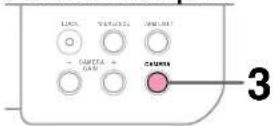
CAMERA


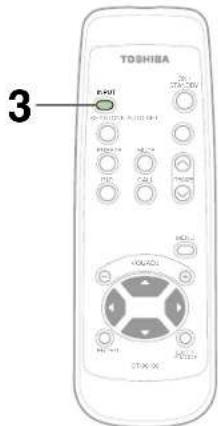
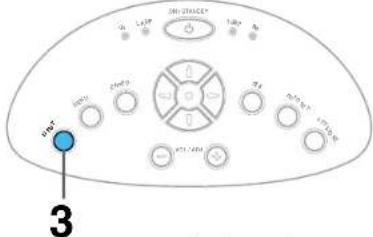
Press CAMERA to select the camera input mode.
- Pressing CAMERA again will return the input selection to the previous mode.
- You can also select it by pressing INPUT on the remote control or on the main unit. Set the input source on the menu screen when selecting by the INPUT button. 30
- The CAMERA button can be used regardless of the input setting.
- "Camera" is displayed when the picture switches to the document imaging camera's picture.
4
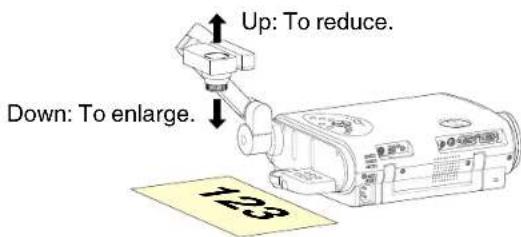
Move the camera head to adjust the size of the picture.
5
Focus on the picture by turning the focusing ring on the camera head.
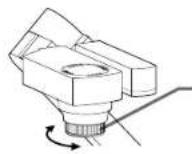
Focusing ring
Continued
Picture projection with the document imaging camera (continued)

Camera control panel
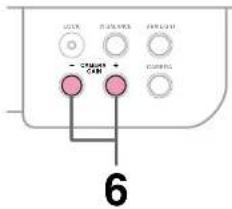
6
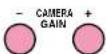
Press CAMERA GAIN (+/-) to improve view of a camera subject which is too dark or vivid.
Notes
- You can adjust the "Sharpness" of the camera image on the menu screen. 46
- If the image flickers due to a fluorescent light in the room, either turn off the fluorescent light or set the "Shutter" on the menu screen. 46
Note that the image may still flicker due to the lighting, the document status, the image adjustment, etc., even if the "Shutter" setting is changed.
7
When finished, turn off the light and close it, and put back the arm.
Follow the steps of "Preparation of the document imaging camera" in reverse.
Notes
• The light turns off automatically when the arm is inclined.
- When the arm is not raised up, the camera source cannot be projected.
• In the camera input selected, the sound is not emitted.
Locking the white balance

This projector's camera is always being adjusted automatically for projected color balance; however, the balance can shift away from optimum due to the color scheme of the document. Should this occur, the white balance can be set to a fixed condition by using the following procedure.
1
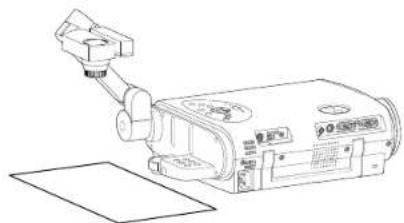
Project a white paper and enlarge it to fill the screen.
natural_image
Line drawing of a mechanical device with a tool and base plate (no text or symbols)2


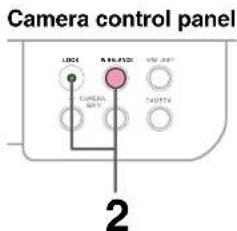
Press W.BALANCE to turn the LOCK indicator on.
The white balance is locked.
To release the white balance, press W.BALANCE again to turn the LOCK indicator off.
Notes
- If you raise up the arm while the camera input is being selected, the color of the picture may vary for an instant due to the automatic white balance adjustment. This is not a malfunction.
- If you put the arm back and raise it again while the white balance is locked (the LOCK indicator is lit), the projector will release the white balance.
- Should this be the case, or if you would like to adjust it to a desired tint, adjust "R-level", "G-level" or "B-level" on the FULL MENU [Color] screen.
Correcting illuminated defects
CONTENTS
60
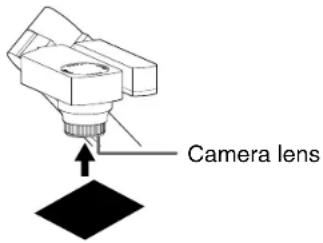
For the CCD image sensor used in the camera unit, in rare cases some of the pixels may be disturbed due to the influence of cosmic rays, etc. This disturbance may cause white spots to appear on the picture.
If white spots appear on the document camera image, use the procedure described below to correct the problem.
1
With the document camera operating, fully cover the camera lens with a piece of black paper or cloth.
2
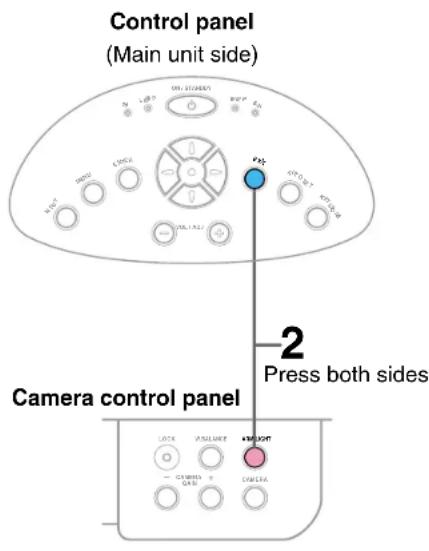
ARM LIGHT


Press ARM LIGHT on the camera control panel and EXIT on the projector's control panel simultaneously.
You can not use the remote control buttons.
Note
Do not press ARM LIGHT and EXIT buttons simultaneously if the camera lens is not covered. Doing so will not only erase the white spot correction data already set but also result in parts of the image that are properly displayed being corrected. Also be careful if the camera input mode is not selected.
Trouble indications
CONTENTS
If there is some problem inside the projector, the indicators light up or blink.
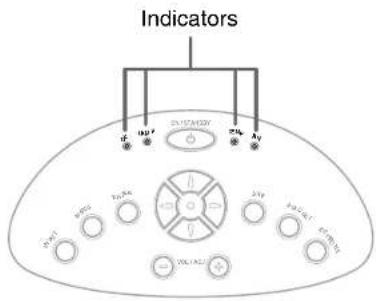
Control panel
(Main unit side)
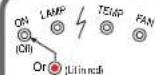 | The power does not come on.→Malfunction of the unit.·Unplug the power cord and call the dealer. |
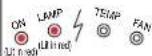 | The lamp turns off or does not light up.→The projector will return to the standby mode in about 2 minutes.If the projector does not operate normally when the power is switched on again, the lamp is at the end of its life duration or the unit has a fault.Lamp's life duration is over, replace the lamp with a new one.65·Unplug the power cord and call the dealer. |
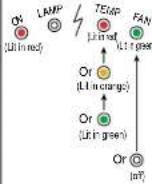 | The power turns off or does not come on.→The inside is too hot, or the projector has been working in an area of high temperature.·Place the projector correctly so the intake and exhaust fan's holes are not covered.Turn the projector off, and leave it for a while, and turn it on again.Clean the air filter.62*Theicon appears before the power turned off.*The projector returns to the standby mode after the fault display has been shown for about 2 minutes. |
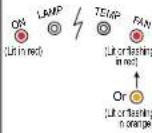 | The power turns off or does not come on.→Trouble with the cooling fan.·Unplug the power cord and call the dealer.*Theicon appears before the power turned off.*The projector returns to the standby mode after the fault display has been shown for about 2 minutes. |
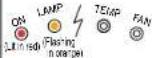 | The power turns off or does not come on.→The lamp cover is not properly attached.·Unplug the power cord and reattach the lamp cover.66*Theicon appears before the power turned off.*The projector returns to the standby mode after the fault display has been shown for about 2 minutes. |
Notes
- If abnormality occurs while operating, unplug the power cord.
- When reinserting the power cord before the lamp has cooled, please wait until the lamp has cooled sufficiently before use. When the lamp is at a high temperature, it may not light and the life duration will be shortened.
Air filter cleaning
CONTENTS
CAUTION
If you use the projector mounted on the ceiling, ask the dealer to carry out the maintenance such as cleaning.
The filter inside the air filter cover is the part to shut out dusts or dregs.
Do not use the projector with the filter taken off.
We recommend you clean the air filter frequently. (The cleaning period is once per 50 hours approximately).
1 Unplug the power cord.
2
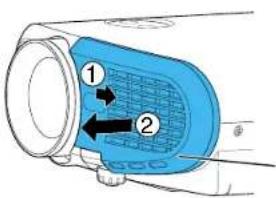
Take off the front cover.
Slide the front cover rightward side for about 3 mm, then the front cover can be taken off toward you.
Front cover
3
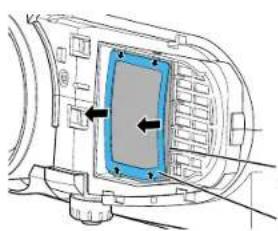
natural_image
Technical diagram of a mechanical component with arrows indicating direction (no text or symbols)Detach the air filter.
Take off the filter frame by pulling the middle part of it toward you, then detach the air filter.
Air filter
Filter frame
4
Clean the air filter.
Use a vacuum cleaner to carefully remove any dust and dirt from the front cover, air filter and filter frame.
Be careful that the air filter is not sucked into the vacuum cleaner.
Air filter cleaning (continued)

Notes
- When the air filter is dusty, the ventilation is impaired. This causes the temperature inside the projector to rise, and may damage the unit.
- Attach the air filter and the filter frame firmly after the cleaning. If it is not set correctly, the dusts will enter and they will be projected and overlapped on the picture.
- If you wash the air filter with water, be sure to let it dry fully before reinstalling it. Using it damp will result in malfunction.
- If the air filter is damaged, contact your store of purchase and replace it with a new one. Using a damaged air filter will cause dust or dirt to get inside the projector and onto the images.
5 Mount the air filter and the filter frame.
Place the air filter in the projector, then insert the four tabs on the filter frame into the holes in the projector.
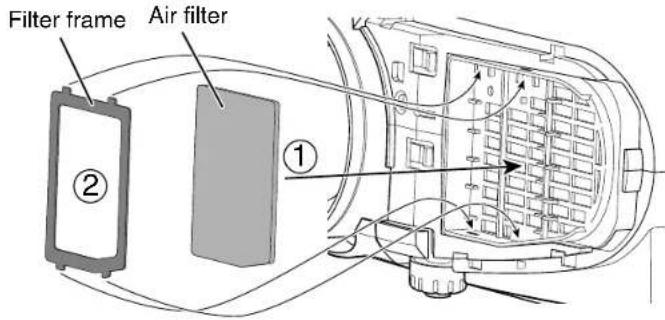
6 Mount the front cover.
Insert the hooks of the front cover into the projector first, then slide it to the lens side to fix it.
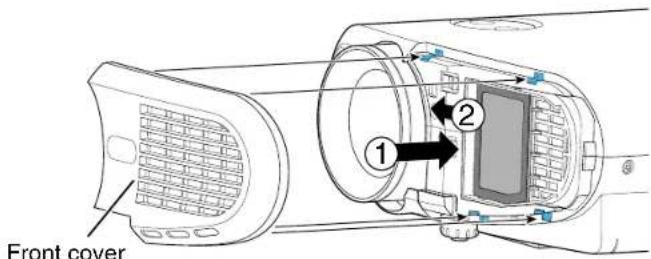
Lens and main unit cleaning
CONTENTS
CAUTION
If you use the projector mounted on the ceiling, ask the dealer to carry out the maintenance such as cleaning.
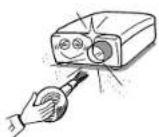
Cleaning the lens
Use a blower or a lens cleaner to clean the lens. Never rub or tap the lens with a hard object as the lens surface is fragile.
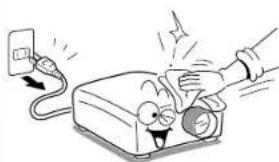
natural_image
Illustration of a blood pressure monitor with a hand performing a test (no text or symbols present)Cleaning the main unit
- Pull out the power cord before cleaning.
- Use a soft cloth to wipe off stains from the surface.
• To remove difficult stains, use a soft cloth slightly moistened with a weak solution of synthetic detergent and water, and finish with a soft, dry cloth.
Replacing the intake, exhaust fans and air filter
To maintain the efficiency of the projector, replace the intake and exhaust fans about every two to three years. Ask the dealer for the replacement.
Lamp replacement
CONTENTS
The lamp will eventually begin to project dark or dull pictures and finally will not light up. (Lamp's life depends on operating conditions.) In such a case, replace the lamp with new one.
CAUTION
- If you use the projector mounted on the ceiling, ask the dealer to carry out the maintenance such as cleaning or replacement of the lamp.
- When replacing, always use lamp "TLPL55" (sold separately). For details, refer to the lamp instruction.
- If you have been using the projector, the lamp will be very hot, and may cause burn injuries. Wait for the lamp to cool (for longer than 1 hour) before replacing it.
- If the lamp should break, please handle with care to avoid injury due to broken pieces and contact your dealer for repair service.
1 Unplug the power cord.
2 Wait until the lamp gets cool enough.
3
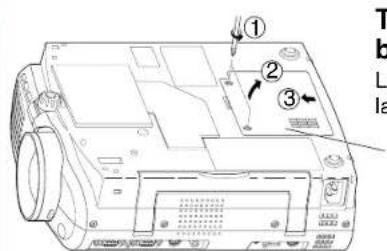
Take off the lamp cover on the bottom panel.
Loosen the two screws, and pull off the lamp cover.
Lamp cover
4
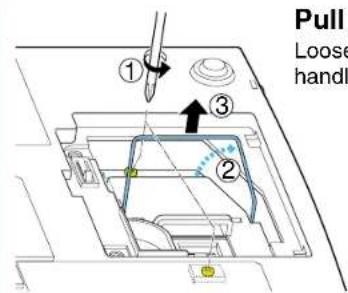
Pull out the lamp.
Loosen the two fixing screws, and lift up the handle to pull out the lamp.
Lamp replacement (continued)
CONTENTS
Notes
- When the CALL button is pressed, the "Lamp time" (the approximate amount of time the lamp has been used) will be displayed. 40
- The lamp should be replaced if the total working time exceeds about 1,500 hours.
When the "Lamp time" is displayed as 1500 hours, the icon appear. It will disappear when you do some operation.
- Attach the lamp cover firmly after replacing the lamp. If it is not set correctly, the power will not turn on.
- Use a new lamp when replacing it.
- The lamp is made of glass and is very fragile. Do not touch the lamp with your bare hands and do not jolt or damage it. Do not try to use an exhausted lamp.
A small amount of inorganic mercury harmful to environment is used for the lamp. Dispose of the exhausted lamp according to the rules of your area.
5 Load a new lamp.
Slide until it hits the bottom and tighten the two fixing screws.
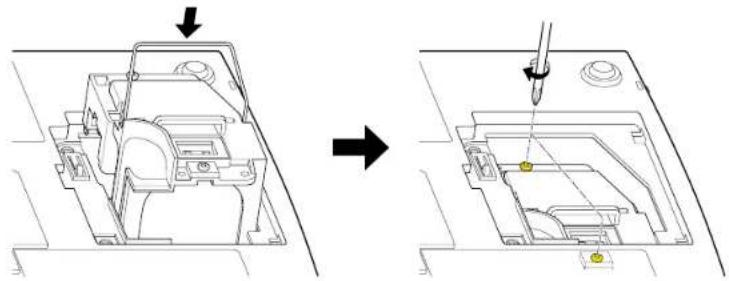
6
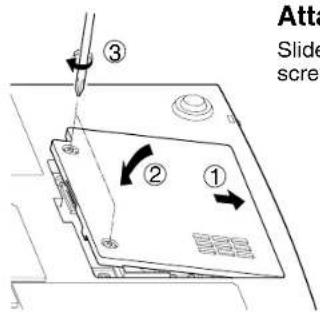
Attach the lamp cover.
Slide the cover into place and tighten the two screws.
7 Reset the lamp timer.
Refer to the lamp instructions for resetting.
Before calling service personal

Check the following points before asking for support service. Refer also to "Trouble indications". 61
| Symptom | Cause | Correction | Page |
| The power does not come on. | · The power cord is disconnected. | Firmly plug in the power cord. | 19 |
| · The lamp cover is not attached correctly. | Attach the cover correctly. | 66 | |
| The power turns off while using the projector. | · The ambient temperature of the projection room is too high. | Lower the ambient temperature of the projection room, and turn the power on. | 61 |
| No image appears. | · The lens cover is on. | Take off the lens cover. | 19 |
| · The wrong input is selected. | Select the input source correctly. | 30 | |
| · The muting mode is on. | Press MUTE to restore the picture. | 36 | |
| · The “Brightness” adjustment is at its darkest. | Make the “Brightness” adjustment. | 45 | |
| · The source is not correctly connected to the projector. | Connect the source correctly to the projector. | 23 - 25 | |
| No sound is heard. | · The wrong input is selected. | Select the input source correctly. | 30 |
| · The muting mode is on. | Press MUTE to restore the sound. | 36 | |
| · The sound volume is at it's minimum. | Adjust the sound volume. | 32 | |
| · The source is not correctly connected to the projector. | Connect the source correctly to the projector. | 23 - 25 | |
| Desired input source cannot be selected by the INPUT button. | · Input is not set so that it can be selected with the INPUT button. By default, only the Analog RGB and Video input modes can be selected. | Set from the menu screen so that the source can be selected with the INPUT button. | 4530 |
| Analog RGB input or Y/PB/PR input colors are not right. | · The COMPUTER connector's input setting is wrong. | On the menu screen, set for the proper input signal type. | 45 |
| The image is blurred. Focusing is uneven. | · The lens is dirty. | Clean the lens with a blower or lens cleaner, etc. | 64 |
| · The picture is out of focus. | Focus the picture. | 31 | |
| · The projection distance is not appropriate. | Adjust the distance properly. | 18 | |
| · The projecting light is not hitting the screen squarely. | Adjust the projecting direction so that the light hits the screen squarely. | 18 | |
| · The “Brightness”, “Contrast”, “Sharpness” or “Phase” adjustments are not correct. | Make the “Picture” adjustments. | 46 | |
| The picture is dim. | · The “Brightness” or “Contrast” adjustments are not correct. | Make the “Picture” adjustments. | 46 |
| · The lamp life is ending. | Replace the lamp. | 65 | |
| The color is faint. The tint is not good. | · The “Color”, “Tint”, “R-Level”, “G-Level” or “B-Level” adjustments are not correct. | Make the “Color” adjustments. | 48 |
| · The lamp life is ending. | Replace the lamp. | 65 |
Before calling service personal (continued)

| Symptom | Cause | Correction | Page |
| The remote control does not work. | • The remote control is not facing the remote sensor. | Face the remote control transmitter toward the remote sensor on the projector. | 16 |
| • The remote control is too far away. | Operate within about 5 meters. | 16 | |
| • There is an obstruction between the remote control and the remote sensor. | Remove the obstacle. | - | |
| • The batteries are exhausted. | Replace the batteries. | 15 | |
| The presentation made cannot be used from the remote control unit. | • The USB cable is not properly connected. | Connect the USB cable properly. | 41 |
| • The computer or OS is not compatible. | The remote control mouse function is not available. | - | |
| • The batteries are exhausted. | Replace the batteries. | 15 | |
| Document camera image is blurry. | • The lens is dirty. | Clean the lens with a blower or lens cleaner, etc. | 64 |
| • The picture is out of focus. | Focus the picture by turning the focus ring. | 57 | |
| • The light is not on. | Turn on the light. | 56 | |
| Document camera image flickers. | • Image is being affected by fluorescent light in the room. | Set the shutter speed on the menu screen. | 45 |
Pin assignment of COMPUTER IN, COMPUTER OUT connector
COMPUTER IN
COMPUTER OUT
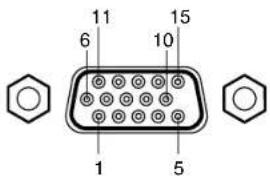
Input signal
Analog R, G, B signal: 0.7V(p-p) 75Ω
Horizontal sync signal:
TTL level (positive/negative polarity)
Vertical sync signal:
TTL level (positive/negative polarity)
Y signal: 1.0V(p-p) 75Ω
P_B , P_R signal: 0.7V(p-p) 75Ω
Mini D-sub 15pin connector
| Pin No. | Description | |
| RGB input | Y/PB/PR input | |
| 1 | Video signal (Red) | Color difference signal (PR) |
| 2 | Video signal (Green) | Luminance signal (Y) |
| 3 | Video signal (Blue) | Color difference signal (PB) |
| 4 | GND | * |
| 5 | GND | * |
| 6 | GND (Red) | GND (PR) |
| 7 | GND (Green) | GND (Y) |
| 8 | GND (Blue) | GND (PB) |
| 9 | N.C | * |
| 10 | GND | * |
| 11 | GND | * |
| 12 | DDC data | * |
| 13 | Horizontal sync signal | * |
| 14 | Vertical sync signal | * |
| 15 | DDC clock | * |
*: Do not connect anything.
Applicable signal
CONTENTS
70
Applicable computer signal
The unit is applicable to the following signals. However, some computers may have different timings than those in the chart. Make the necessary adjustments if the picture has flickers or is blurred.
Signal Timing (Horizontal)
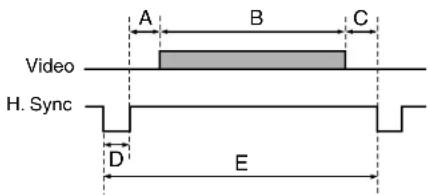
Signal Timing (Vertical)
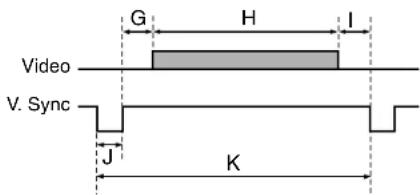
Timing chart
| Mode | Resolution | A(Pixels) | B(Pixels) | C(Pixels) | D(Pixels) | E(Pixels) | fh(kHz) | fv(Hz) | Clock(MHz) | G(Lines) | H(Lines) | I(Lines) | J(Lines) | K(Lines) |
| TEXT70 640 x 350 50 640 | 14 96 800 31.4 | 69 70.086 | 25.175 | 59 350 38 | 2 449 | |||||||||
| TEXT70 640 x 400 50 640 | 14 96 800 31.4 | 69 70.086 | 25.175 | 34 400 13 | 2 449 | |||||||||
| TEXT85 640 x 350 96 640 | 32 64 832 37.8 | 61 85.080 | 31.500 | 60 350 32 | 3 445 | |||||||||
| TEXT85 640 x 400 96 640 | 32 64 832 37.8 | 61 85.080 | 31.500 | 41 400 1 | 3 445 | |||||||||
| NEC PC98 24k 640 x 400 | 85 640 59 64 8 | 48 24.820 | 55.900 2 | 11.047 25 | 400 11 8 | 444 | ||||||||
| VGA60 640 x 480 48 640 | 16 96 800 31.46 | 69 59.940 | 25.175 3 | 3 480 10 | 2 525 | |||||||||
| VGA72 640 x 480 128 640 | 24 40 832 37.8 | 61 72.809 | 31.500 | 28 480 9 | 3 520 | |||||||||
| VGA75 640 x 480 120 640 | 16 64 840 37.5 | 500 75.000 | 31.500 | 16 480 1 | 3 500 | |||||||||
| VGA85 640 x 480 80 640 | 56 56 832 43.26 | 69 85.008 | 36.000 2 | 5 480 1 3 | 509 | |||||||||
| MAC13" 640 x 480 96 640 | 64 64 864 35.0 | 600 66.667 | 30.240 | 39 480 3 | 3 525 | |||||||||
| SVGA56 800 x 600 128 | 800 24 72 1024 | 35.156 56 | 250 36.00 | 00 22 600 | 1 2 625 | |||||||||
| SVGA60 | 800 x 600 | 88 | 800 | 40 | 128 | 1056 | 37.879 | 60.317 | 40.000 | 23 | 600 | 1 | 4 | 628 |
| SVGA72 800 x 600 64 800 | 56 120 | 10 | 40 48.077 | 72.188 | 50.000 23 | 600 37 6 | 666 | |||||||
| SVGA75 800 x 600 160 | 800 16 80 1056 | 46.875 75 | 600 49.50 | 00 21 600 | 1 3 625 | |||||||||
| SVGA85 800 x 600 152 | 800 32 64 1048 | 53.674 85 | 61 56.25 | 50 27 600 | 1 3 631 | |||||||||
| *MAC16" | 832 x 624 216 | 832 40 | 64 1152 4 | 49.725 74 | 550 57.28 | 39 632 | 1 3 667 | |||||||
| *XGA43i | 1024 x 768 | 56 | 1024 | 8 | 176 | 1264 | 35.522 | 43.479 | 44.900 | 20 | 768 | 0 | 4 | 817 |
| *XGA60 | 1024 x 768 | 160 | 1024 | 24 | 136 | 1344 | 48.363 | 60.004 | 65.000 | 29 | 768 | 3 | 6 | 806 |
| *XGA70 | 1024 x 768 | 144 | 1024 | 24 | 136 | 1328 | 56.476 | 70.069 | 75.000 | 29 | 768 | 3 | 6 | 806 |
| *XGA75 | 1024 x 768 | 176 | 1024 | 16 | 96 | 1312 | 60.023 | 75.029 | 78.750 | 28 | 768 | 1 | 3 | 800 |
| *XGA85 | 1024 x 768 | 208 | 1024 | 48 | 96 | 1376 | 68.677 | 84.997 | 94.500 | 36 | 768 | 1 | 3 | 808 |
| *MAC19" | 1024 x 768 | 180 | 1024 | 20 | 96 | 1320 | 60.197 | 74.872 | 73.200 | 30 | 768 | 3 | 3 | 804 |
Applicable signal (continued)

Timing chart (Continued)
| Mode | Resolution | A(Pixels) | B(Pixels) | C(Pixels) | D(Pixels) | E(Pixels) | fh(kHz) | fv(Hz) | Clock(MHz) | G(Lines) | H(Lines) | I(Lines) | J(Lines) | K(Lines) |
| **SXGA1152x864 75Hz 1 | 152 x 864 256 1 | 52 64 128 | 1600 67 | 7.500 75.000 | 108.000 | 32 86 | 4 1 3 900 | |||||||
| **SXGA1280x960 60Hz 1 | 280 x 960 312 1 | 280 96 112 | 1800 60 | 0.000 60.000 | 108.000 | 36 96 | 0 1 3 1000 | |||||||
| **SXGA1280x960 85Hz 1 | 280 x 960 224 1 | 280 64 160 | 1728 85 | 9.938 85.002 | 148.500 | 47 96 | 0 1 3 1011 | |||||||
| **SXGA1280x1024 60Hz | 1280 x 1024 248 | 1280 48 | 112 1688 | 63.981 60.020 | 108.000 | 38 | 1024 1 3 | 1066 | ||||||
| **SXGA1280x1024 75Hz | 1280 x 1024 248 | 1280 16 | 144 1688 | 79.976 75.025 | 135.000 | 38 | 1024 1 3 | 1066 | ||||||
| **SXGA1280x1024 85Hz | 1280 x 1024 224 | 1280 64 | 160 1728 | 91.146 85.024 | 157.500 | 44 | 1024 1 3 | 1072 | ||||||
| **UXGA60 1600 x 1200 3 | 04 1600 64 192 | 2160 75.000 | 60.000 | 162.000 | 13 1250 | |||||||||
| **UXGA65 1600 x 1200 3 | 04 1600 64 192 | 2160 81.250 | 65.000 | 175.500 | 13 1250 | |||||||||
| **UXGA70 1600 x 1200 3 | 04 1600 64 192 | 2160 87.500 | 70.000 | 189.000 | 13 1250 | |||||||||
| **UXGA75 1600 x 1200 3 | 04 1600 64 192 | 2160 93.750 | 75.000 | 202.500 | 13 1250 |
Notes
- Signal sources marked “*” and “**” are displayed in compressed format (“*”: TLP260/TLP261, “**”: TLP260/TLP261/TLP560/TLP561), so some of their data may be missing or their picture quality may be degraded.
- With analog RGB inputs, if the signal source's dot clock frequency exceeds 165 MHz, some pixel signals cannot be sampled.
The compatible Video and S-Video signal
| Mode | fh (kHz) | fv (Hz) | fsc (MHz) |
| NTSC | 15.73 | 60 | 3.58 |
| PAL | 15.63 | 50 | 4.43 |
| SECAM | 15.63 | 50 | 4.25 or 4.41 |
| PAL-M | 15.73 | 60 | 3.58 |
| PAL-N | 15.63 | 50 | 3.58 |
| PAL-60 | 15.73 | 60 | 4.43 |
| NTSC4.43 | 15.73 | 60 | 4.43 |
The compatible components video signal (Y/PB/PR)
| Mode | fh (kHz) | fv (Hz) |
| 480i (525i) | 15.73 | 59.94 |
| 480p (525p) | 31.47 | 59.94 |
| 575i (625i) | 15.63 | 50.00 |
| 720p (750p) | 45.00 | 60.00 |
| 1080i (1125i) | 33.75 | 60.00 |
Controlling the projector by using RS-232C
CONTENTS
72
You can also control the projector by entering the command from a computer via RS-232C.
Signal assignment of RS-232C
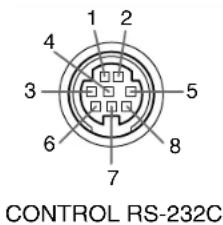
| Pin No. | Signal | Description |
| 1 | RXD | Receiving data |
| 2 | CTS | Consent to send |
| 3 | DSR | Data set ready |
| 4 | GND | Signal ground |
| 5 | RTS | Request to send |
| 6 | N.C | No connection |
| 7 | TXD | Sending data |
| 8 | N.C | No connection |
Interface format
| 1 | Communication method | RS-232C9600 bps, No parity, Data length: 8 bits,Stop bit: 1 bit | ||
| 2 | Communication format | STX (02h) | Command (3Byte) | ETX (03h) |
| One command only can be used per communication. | ||||
| 3 | Data format | Commands shall be composed of alphanumeric characters of ASCII description.Use only capital letters. | ||
| 4 | Return value | Acknowledge | ACK (06h) | |
| Not Acknowledge | NAK (15h) | |||
Command list
| Classification | Items/Status | Selection Adjustment Command | Analog RGB | Video S-Video Y/P | B/PR | Camera | ||
| Power On PON - Yes Yes Yes Yes Yes | ||||||||
| Off (with confirmation message) POF | - Yes | Yes Yes Yes | Yes | |||||
| Shut Down (without confirmation message) | PSD | - Yes Yes Yes Yes | Yes | |||||
| Normal (RS-232C Condition Display Off) | DOF | - Yes Yes Yes Yes Yes | ||||||
| Picture | Contrast | VCN | Yes | Yes | Yes | Yes | Yes | |
| Brightness | VBR | Yes | Yes Yes | Yes Yes Yes | ||||
| Sharpness | VSH | Yes - | Yes Yes Yes Yes | |||||
| Camera gain | Increase | CGU | - | - | - | - | Yes | |
| Decrease | CGD | - | - | - | - | Yes | ||
| Picture mode | Bright | MVB | - | Yes | - | - | - | |
| True color | MVP | - | Yes | - | - | - | ||
Notes
- When commands are transmitted serially, wait for the reply of the projector (acknowledge or not acknowledge) before sending the next command.
- Adjustment commands include "ARG" (increase adjustment value) and "ALF" (decrease adjustment value). For usable items (marked "Yes"), send after the selection command.
- The "Yes" marks in the input source columns indicate that that command can be used.
Controlling the projector by using RS-232C (continued)

| Classification | Items/Status | Selection Adjustment Command | Analog RGB | Video S-Video Y/P | _B/Pr | Camera | ||
| Picture Video (Continued) | o mode Auto. KV0 -- Yes Yes -- | |||||||
| NTSC KV1 -- Yes Yes -- | ||||||||
| PAL KV2 -- Yes Yes -- | ||||||||
| SECAM | KV3 -- Yes Yes -- | |||||||
| PAL-N | KV4 -- Yes Yes -- | |||||||
| PAL-M | KV5 -- Yes Yes -- | |||||||
| PAL60 | KV6 -- Yes Yes -- | |||||||
| NTSC4.43 | KV7 -- Yes Yes -- | |||||||
| Signal format | Auto. | SG0 | - | - | - | - | Yes | |
| 480i (525i) | SG1 | - | - | - | - | Yes | ||
| 480p (525p) | SG2 | - | - | - | - | Yes | ||
| 575i (625i) | SG3 | - | - | - | - | Yes | ||
| 720p (750p) | SG4 | - | - | - | - | Yes | ||
| 1080i (1125i) | SG5 | - | - | - | - | Yes | ||
| Shutter | Auto. | CSA | - | - | - | - | Yes | |
| 50Hz | CS0 | - | - | - | - | Yes | ||
| 60Hz | CS1 | - | - | - | - | Yes | ||
| Screen size | Full | MSF | - | Yes | Yes | Yes | Yes *1 | |
| Thru | MST | - | Yes | Yes | Yes | Yes *1 | ||
| Wide | MSW | - | - | Yes | Yes | Yes | ||
| Picture reset | DRV | - | Yes | Yes | Yes | Yes | ||
| Position | H-position | PHP | Yes | Yes | - | - | - | |
| V-position | PVP | Yes | Yes | - | - | - | ||
| Phase | PPH | Yes | Yes | - | - | - | ||
| Frequency | PCK | Yes | Yes | - | - | - | ||
| Position reset | DRP | - | Yes | - | - | - | ||
| Color | Color | VCL | Yes | - | Yes | Yes | Yes | |
| Tint | VTN | Yes | - | Yes *2 | Yes*2 | - | ||
| R-level | VLR | Yes | Yes | Yes | Yes | Yes | ||
| G-level | VLG | Yes | Yes | Yes | Yes | Yes | ||
| B-level | VLB | Yes | Yes | Yes | Yes | Yes | ||
| Color reset | DRC | - | Yes | Yes | Yes | Yes | ||
*1 Not possible for TLP561. *2 Not possible for PAL/SECAM.
Controlling the projector by using RS-232C (continued)

| Classification | Items/Status | Selection Adjustment Command Command | Analog RGB | Video S-Video Y/P | _B/PR | Camera | |||
| Audio Volume Increase VLU - Yes Yes Yes Yes - | |||||||||
| Decrease VLD - Yes Yes Yes Yes - | |||||||||
| Speaker output On AS1 - Yes Yes Yes Yes - | |||||||||
| Off AS0 - Yes Yes Yes Yes - | |||||||||
| Channel select L+R AMA - Yes Yes Yes Yes - | |||||||||
| L AML - Yes Yes Yes Yes - | |||||||||
| R AMR - Yes Yes Yes Yes - | |||||||||
| Loudness Off LM0 - Yes Yes Yes Yes Yes - | |||||||||
| On LM1 - Yes Yes Yes Yes Yes - | |||||||||
| Audio reset DRA - Yes Yes Yes Yes - | |||||||||
| Display | Keystone | PKV Yes Yes Yes Yes Yes Yes Yes Yes Yes Yes Yes Yes Yes Yes | |||||||
| Keystone reset | DRK - Yes Yes Yes Yes Yes Yes | ||||||||
| Language | English | LEN - Yes Yes Yes Yes Yes Yes | |||||||
| French | LFR - Yes Yes Yes Yes Yes | ||||||||
| German | LGR - Yes Yes Yes Yes Yes | ||||||||
| Italian | LIT - Yes Yes Yes Yes Yes | ||||||||
| Spanish | LSP - Yes Yes Yes Yes Yes | ||||||||
| Portuguese | LPO - Yes Yes Yes Yes Yes | ||||||||
| Japanese | LJP - Yes Yes Yes Yes Yes | ||||||||
| Chinese(Simplified) | LPK - Yes Yes Yes Yes Yes | ||||||||
| Chinese(Traditional) | LKT - Yes Yes Yes Yes Yes | ||||||||
| Korean | LKK - Yes Yes Yes Yes Yes | ||||||||
| Icon | On | MO0 - Yes Yes Yes Yes Yes | |||||||
| Off | MO1 - Yes Yes Yes Yes Yes | ||||||||
| Menu position | Upper left | MP1 - Yes Yes Yes Yes Yes | |||||||
| Bottom left | MP2 - Yes Yes Yes Yes | ||||||||
| Upper right | MP3 - Yes Yes Yes Yes | ||||||||
| Bottom right | MP4 - Yes Yes Yes Yes | ||||||||
| Menu translucent | On | MB1 - Yes Yes Yes Yes Yes | |||||||
| Off | MB0 - Yes Yes Yes Yes | ||||||||
| Display reset (except keystone) | DRD - Yes Yes Yes Yes | ||||||||
Controlling the projector by using RS-232C (continued)

| Classification | Items/Status | Selection Adjustment Command | Analog RGB | Video S-Video Y/P | _B/PR | Camera | |||
| Default setting | Input source setting | COMPUTER On I10 | - Yes Yes Yes | Yes Yes | |||||
| Off I11 - Yes Yes Yes Yes Yes Yes | |||||||||
| Analog RGB | IS0 - Yes Yes Yes Yes Yes | ||||||||
| Y/PB/PR | IS1 - Yes Yes Yes Yes Yes | ||||||||
| VIDEO On I30 - Yes | Yes Yes Yes Yes | ||||||||
| Off I31 - Yes Yes Yes Yes Yes | |||||||||
| S-VIDEO On I40 - Yes | Yes Yes Yes Yes | ||||||||
| Off I41 - Yes Yes Yes Yes Yes | |||||||||
| CAMERA On I60 - Yes | Yes Yes Yes Yes | ||||||||
| Off I61 - Yes Yes Yes Yes Yes | |||||||||
| Projection mode Standard PJ0 - Yes Yes Yes Yes Yes | |||||||||
| No signal background | Logo | BG0 | - | Yes | Yes | Yes | Yes | Yes | |
| Blue background | BG1 | - Yes Yes Yes Yes | |||||||
| Non | BG2 | - Yes Yes Yes Yes | |||||||
| No signal power off | Off | PN0 | - | Yes | Yes | Yes | Yes | Yes | |
| 5 min. | PN1 | - Yes Yes Yes Yes | |||||||
| Power on | Manual | AP0 | - | Yes | Yes | Yes | Yes | Yes | |
| Auto. | AP1 | - Yes Yes Yes Yes | |||||||
| Startup screen | On | MS0 | - | Yes | Yes | Yes | Yes | Yes | |
| Off | MS1 | - | Yes | Yes | Yes | Yes | Yes | ||
| Default setting initialize | DRI | - | Yes | Yes | Yes | Yes | Yes | ||
| Reset | Reset all | DRS | - | Yes | Yes | Yes | Yes | Yes | |
| Status display (CALL) | DON | - | Yes | Yes | Yes | Yes | Yes | ||
| Input selection | Toggle | IN0 | - | Yes | Yes | Yes | Yes | Yes | |
| COMPUTER | IN1 | - | Yes | Yes | Yes | Yes | Yes | ||
| VIDEO | IN3 | - | Yes | Yes | Yes | Yes | Yes | ||
| S-VIDEO | IN4 | - | Yes | Yes | Yes | Yes | Yes | ||
| CAMERA | IN6 | - | Yes | Yes | Yes | Yes | Yes | ||
Controlling the projector by using RS-232C (continued)

| Classification | Items/Status | Selection Adjustment Command | Analog RGB | Video S-Video Y/P | _B/PR | Camera | ||
| RESIZE Inc | Increase the enlargement ratio RUP - Yes Yes Yes Yes Yes | |||||||
| Decrease the enlargement ratio (Minimum: reset status) | RDW - Yes Yes Yes Yes Yes | |||||||
| Move the enlargement section | Up PO1 | - Yes Yes Yes Yes Yes | ||||||
| Down | PO2 | - Yes Yes Yes Yes Yes | ||||||
| Left | PO3 | - Yes Yes Yes Yes Yes | ||||||
| Right | PO4 | - Yes Yes Yes Yes Yes | ||||||
| Enlargement reset | RS0 | - Yes Yes Yes Yes Yes | ||||||
| FREEZE | On | FON - Yes Yes Yes Yes Yes | ||||||
| Off | FOF | - Yes Yes Yes Yes Yes | ||||||
| MUTE | On | MON - Yes Yes Yes Yes Yes | ||||||
| Off | MOF | - Yes Yes Yes Yes Yes | ||||||
| PIP | On | PIN | - | Yes | - | - | - | |
| Off | PIF | - | Yes | - | - | - | ||
| PIP input source | Video | PI0 | - | Yes | - | - | - | |
| S-Video | PI1 | - | Yes | - | - | - | ||
| PIP size | Small | PS0 | - | Yes | - | - | - | |
| Middle | PS1 | - | Yes | - | - | - | ||
| Large | PS2 | - | Yes | - | - | - | ||
| PIP position | Upper left | PP0 | - | Yes | - | - | - | |
| Upper right | PP1 | - | Yes | - | - | - | ||
| Lower left | PP2 | - | Yes | - | - | - | ||
| Lower right | PP3 | - | Yes | - | - | - | ||
| PIP reset | DRW | - | Yes | - | - | - | ||
| AUTO SET | PAT | - | Yes | - | - | - | ||
| Camera | Shortcut | CDR | - | Yes | Yes | Yes | Yes | |
| Auto. W/B | On | CW1 | - | - | - | - | Yes | |
| Off | CW0 | - | - | - | - | Yes | ||
| Lighting | On | CL1 | - | - | - | - | Yes | |
| Off | CL0 | - | - | - | - | Yes | ||
Specifications
CONTENTS
Main unit
Power consumption TLP560/TLP260: 240W (Standby: 15W)
TLP561/TLP261: 250W (Standby: 15W)
Mass TLP560/TLP260: 3.7kg
TLP561/TLP261: 4.3kg
Dimensions TLP560/TLP260: 260 x 95.5 x 295 (mm)
(Except the protrusion parts) (W/H/D)
TLP561/TLP261: 260 x 95.5 x 352 (mm) (W/H/D)
Cabinet Material PC+ABS resin and ABS resin
Ambient environment Temperature: 0 deg. to 35 deg.
Humidity : 30% to 70% RH
Lamp High pressure mercury lamp
Projection screen size 30 to 180 inches
Projection distance 0.70 to 3.63m
Speaker 1W (monaural)
Connectors
• COMPUTER IN Mini D-sub 15-pin Analog RGB/Y/PB/PR (combination)
• COMPUTER OUT Mini D-sub 15-pin Analog RGB/Y/PB/PR (combination)
• S-VIDEO IN Mini DIN 4-pin
• VIDEO IN 1V(p-p), 75Ω, RCA pin jack
• AUDIO IN 1.3V(rms), more than 22kΩ, ∅3.5mm stereo mini jack
• CONTROL Mini DIN 8-pin (RS-232C)
- USB Type B
Liquid crystal display
Projection system 3-panel transmission
Panel size 0.7 inches
Driving system TFT active matrix
Picture elements
TLP560/TLP561: 786,432 pixels (1024 x 768 dots) (H./V.) x 3
TLP260/TLP261: 480,000 pixels (800 x 600 dots) (H./V.) x 3
Projection lens
Lens Zooming lens
F=2.0 to 2.4 f=14.5 to 17.4mm
Focusing Manual operation
Zooming Manual operation
Document imaging camera (with camera model)
Lens F = 2.8, f = 3.4mm
Focusing Manual operation
Zoom None (adjusted by distance to subject)
Iris Auto./Manual
Image element 1/3 inch CCD
Effective pixels for pickup section
805,486 pixels (1034 x 779 dots) (H./V.)
Lighting LED light (class 2)
Specifications (continued)

78
Sold separately
Replacement lamp TLPL55
- The design and specifications are subject to change without notice.
Trademarks
NEC, PC-98 series are trademarks of NEC Corporation.
VGA, SVGA, XGA, SXGA, UXGA are trademarks or registered trademarks of International Business Machines Corporation.
Macintosh is a registered trademark of Apple Computer, Inc.
Windows is a registered trademark of Microsoft Corporation in the U.S. and other countries.
Display Data Channel is a trademark of Video Electronics Standard Association.
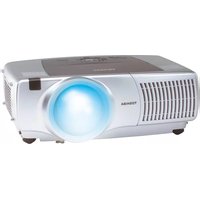
- TLP560 TLP561 TLP260 TLP261
- SAFETY PRECAUTIONS
- IMPORTANT PRECAUTIONS
- Save Original Packing Materials
- Avoid Volatile Liquid
- Moisture Condensation
- Exemption Clauses
- IMPORTANT SAFETY INSTRUCTIONS
- Read Owner's Manual
- Power Sources
- Source of Light
- Ventilation
- IMPORTANT SAFETY INSTRUCTIONS (continued)
- Heat
- Cleaning
- Overloading
- Water and Moisture
- Power-Cord Protection
- Lightning
- Object and Liquid Entry
- Do not place the product vertically
- Stack Inhibited
- Attachments
- Accessories
- Damage Requiring Service
- If glass components, including lens and lamp, should break, contact your dealer for repair service.
- Servicing
- Replacement Parts
- Safety Check
- Power supply cord selection
- Contents
- Before use
- Installation and connections
- Operations
- Adjustments & Settings
- Document imaging camera
- Maintenance
- Others
- Names of each part on the main unit
- CAUTION
- Names of each part on the main unit (continued)
- Names of each part on the remote control
- Loading batteries
- Notes
- 1
- 2
- 3
- Remote control operation
- Floor-mounted projector placement
- Floor-mounted front projection
- Floor-mounted rear projection
- Floor-mounted projector placement (continued)
- Place the projector on a steady, level surface such as a table.
- Determine the screen size projected on the screen.
- Connect the power cord.
- 4
- Lens shift function
- Projector placement angle adjustment (Foot adjuster)
- Ceiling-mounted projector placement
- Ceiling-mounted front projection
- Ceiling-mounted rear projection
- Note
- Connecting a computer
- Connecting video equipment
- Connecting video equipment (continued)
- Projector operation control by a computer
- How to use the output connector
- Projection on the screen
- Preparation
- Press ON/STANDBY.
- Projection on the screen (continued)
- Select the input source by pressing INPUT repeatedly.
- Press INPUT and hold for two seconds.
- Select the input source to project with the selection buttons (▲/▼).
- Press ENTER.
- 6
- Adjust the picture size by turning the zooming lever.
- 7
- Focus on the picture by turning the focusing ring.
- 8
- Press VOL/ADJ (+/-) to adjust volume.
- About the LCD Panel
- Turning the power off
- Press ON/STANDBY after using the projector.
- Press ON/STANDBY again.
- A
- B
- C
- Adjusting the picture automatically
- Input full screen video signals from the input source (computer) and project the image.
- Press AUTO SET.
- \* Sampling frequency
- \* Sampling phase
- Correcting the keystone distortion
- Press KEYSTONE.
- Cutting off the picture and sound temporarily
- Press MUTE.
- Freezing the picture
- Press FREEZE.
- Enlarging the picture size
- Press RESIZE (介
- Displaying PIP Sub-pictures
- Press PIP.
- Displaying Information
- Press CALL.
- Status display
- Operating the presentation mode
- Connect a computer to the projector with the supplied USB cable.
- Start a presentation on the computer.
- Operating the presentation mode (continued)
- Select the computer input with INPUT.
- Adjust the projector before presentation if necessary.
- 5
- Press P.MODE and hold for two seconds.
- Change a slide with the selection buttons (◀)
- To exit the presentation mode, press P.MODE.
- Operating the menu screen
- Start
- Operating the menu screen (continued)
- GUIDE MENU adjustments and settings
- FULL MENU adjustments and settings - Picture
- FULL MENU adjustments - Position
- FULL MENU adjustments - Color
- FULL MENU adjustments and settings - Audio
- FULL MENU adjustments and settings - Display
- FULL MENU settings - Default setting
- FULL MENU settings - Reset
- PIP menu setting
- Part names (of the document imaging camera model)
- Preparation of the document imaging camera
- Picture projection with the document imaging camera
- Press ARM LIGHT.
- Set a document to be projected.
- Picture projection with the document imaging camera (continued)
- Press CAMERA to select the camera input mode.
- Press CAMERA GAIN (+/-) to improve view of a camera subject which is too dark or vivid.
- When finished, turn off the light and close it, and put back the arm.
- Locking the white balance
- Correcting illuminated defects
- Trouble indications
- Air filter cleaning
- Unplug the power cord.
- Take off the front cover.
- Detach the air filter.
- Clean the air filter.
- Air filter cleaning (continued)
- Mount the air filter and the filter frame.
- Mount the front cover.
- Lens and main unit cleaning
- Cleaning the lens
- Cleaning the main unit
- Replacing the intake, exhaust fans and air filter
- Lamp replacement
- Lamp replacement (continued)
- Load a new lamp.
- Attach the lamp cover.
- Reset the lamp timer.
- Before calling service personal
- Before calling service personal (continued)
- Pin assignment of COMPUTER IN, COMPUTER OUT connector
- Applicable signal
- Applicable computer signal
- Applicable signal (continued)
- Controlling the projector by using RS-232C
- Controlling the projector by using RS-232C (continued)
- Specifications
- Main unit
- Liquid crystal display
- Projection lens
- Document imaging camera (with camera model)
- Specifications (continued)
- Sold separately
Brand : TOSHIBA
Model : TLP-561
Category : Vidéo-projecteur