
TLP-S70 - Vidéo-projecteur TOSHIBA - Free user manual and instructions
Find the device manual for free TLP-S70 TOSHIBA in PDF.


| Product Type | Video Projector |
| Brand | Toshiba |
| Model | TLP-S70 |
| Dimensions (W x H x D) | 303 x 84 x 206 mm |
| Weight | 2.2 kg |
| Power Consumption | 265 W |
| Display Panel | 0.7 inch TFT active matrix LCD, 3-panel transmission |
| Panel Resolution | 800 x 600 (SVGA) |
| Lens (Zoom) | F=1.8-2.1, f=26.5-31.5 mm |
| Lamp Type | High-pressure mercury lamp (replaceable, model TLPLV2) |
| Projection Screen Size | 33 to 300 inches |
| Projection Distance | 1.45 m to 11.29 m |
| Built-in Speaker | 1 W monaural |
| Input Terminals | COMPUTER (D-sub 15 pin RGB/Y/Pb/Pr), MONITOR (D-sub 15 pin), S-VIDEO (mini DIN 4 pin), VIDEO (RCA), AUDIO (3.5mm stereo mini-jack) |
| Control Terminal | Mini DIN 8 pin (RS-232C) |
| Supported RGB Signals | Up to 1600 x 1200 @ 60 Hz (UXGA) |
| Key Features | Auto keystone correction, digital zoom (100-80%), freeze, mute, resize, auto setup, on-screen menus |
| Cleaning | Air filter cleaning recommended every 100 hours; lens cleaning with blower/cleaner |
| Safety | Do not look into lens, avoid moisture, unplug before cleaning |
| Lamp Life | Approximately 3000 hours (replace when dark or burned out) |
| Air Filter | Removable and washable; replace if torn |
Frequently Asked Questions - TLP-S70 TOSHIBA
User questions about TLP-S70 TOSHIBA
0 question about this device. Answer the ones you know or ask your own.
Ask a new question about this device
Download the instructions for your Vidéo-projecteur in PDF format for free! Find your manual TLP-S70 - TOSHIBA and take your electronic device back in hand. On this page are published all the documents necessary for the use of your device. TLP-S70 by TOSHIBA.
USER MANUAL TLP-S70 TOSHIBA
natural_image
Line drawing of a projector with ventilation slots and control panel (no text or symbols)TLP-T70M / T60M / TLP-S70/TLP-S40
SAFETY PRECAUTIONS

The lightning flash with arrowhead symbol, within an equilateral triangle, is intended to alert the user to the presence of uninsulated "dangerous voltage" within the product's enclosure that may be of sufficient magnitude to constitute a risk of electric shock to persons.

The exclamation point within an equilateral triangle is intended to alert the user to the presence of important operating and maintenance (servicing) instructions in the literature accompanying the appliance.
WARNING: TO REDUCE THE RISK OF FIRE OR ELECTRIC SHOCK, DO NOT EXPOSE THIS APPLIANCE TO RAIN OR MOISTURE. DANGEROUS HIGH VOLTAGES ARE PRESENT INSIDE THE ENCLOSURE. DO NOT OPEN THE CABINET. REFER SERVICING TO QUALIFIED PERSONNEL ONLY.
WARNING: Handling the cord on this product or cords associated with accessories sold with USA only this product, will expose you to lead, a chemical known to the State of California to cause birth defects or other reproductive harm. Wash hands after handling
FCC Radio Frequency Interference Statement
Note: This equipment has been tested and found to comply with the limits for a Class USA only A digital device, pursuant to part 15 of the FCC Rules. These limits are designed to provide reasonable protection against harmful interference when the equipment is operated in a commercial environment. This equipment generates, uses, and can radiates radio frequency energy and, if not installed and used in accordance with the instruction manual, may cause harmful interference to radio communications. Operation of this equipment in a residential area is likely to cause harmful interference in which case the user will be required to correct the interference at his own expense.
WARNING: Changes or modifications made to this equipment, not expressly approved by USA only Toshiba, or parties authorized by Toshiba, could void the user's authority to operate the equipment.
WARNING: This is a Class A product. In a domestic environment this product may cause radio interference in which case the user may be required to take adequate measures.
CAUTION: Laser beam is emitted when the laser button of the remote control is pressed. Do not look at the laser beam directly from the front of the remote control. Do not turn the laser beam toward a person or to a mirror.
IMPORTANT SAFETY INSTRUCTIONS
CAUTION: PLEASE READ AND OBSERVE ALL WARNINGS AND INSTRUCTIONS GIVEN IN THIS OWNER'S MANUAL AND THOSE MARKED ON THE UNIT. RETAIN THIS BOOKLET FOR FUTURE REFERENCE.
This set has been designed and manufactured to assure personal safety. Improper use can result in electric shock or fire hazard. The safeguards Incorporated in this unit will protect you if you observe the following procedures for installation, use and servicing. This unit is fully transistorized and does not contain any parts that can be repaired by the user.
DO NOT REMOVE THE CABINET COVER, OR YOU MAY BE EXPOSED TO DANGEROUS VOLTAGE. REFER SERVICING TO QUALIFIED SERVICE PERSONNEL ONLY.
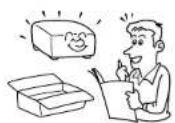
1. Read Owner's Manual
After unpacking this product, read the owner's manual carefully, and follow all the operating and other instructions.
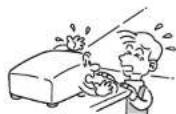
3. Source of Light
Do not look into the lens while the lamp is on. The strong light from the lamp may cause damage to your eyes or sight.
2. Power Sources
This product should be operated only from the type of power source indicated on the marking label. If you are not sure of the type of power supply to your home, consult your product dealer or local power company. For products intended to operate from battery power, or other sources, refer to the operating instructions.

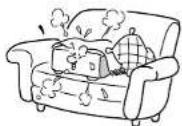
4. Ventilation
Openings in the cabinet are provided for ventilation and to ensure reliable operation of the product and to protect it from overheating, and these openings must not be blocked or covered. The openings should never be blocked by placing the product on a bed, sofa, rug or other similar surface. This product should not be placed in a built-in installation such as a bookcase or rack unless proper ventilation is provided or the manufacturer's instructions have been adhered to.
IMPORTANT SAFETY INSTRUCTIONS (Continued)
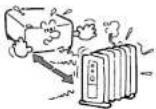
5. Heat
The product should be situated away from heat sources such as radiators, heat registers, stoves, or other products (including amplifiers) that produce heat.
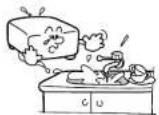
6. Water and Moisture
Do not use this product near water. - for example, near a bath tub, wash bowl, kitchen sink, or laundry tub; in a wet basement; or near a swimming pool and the like.
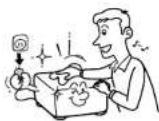
7. Cleaning
Unplug this product from the wall outlet before cleaning. Do not use liquid cleaners or aerosol cleaners. Use a soft cloth for cleaning.
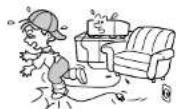
8. Power-Cord Protection
Power-supply cords should be routed so that they are not likely to be walked on or pinched by items placed upon or against them, paying particular attention to cords at plugs, convenience receptacles, and the point where they exit from the product.
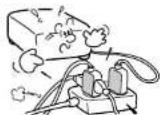
9. Overloading
Do not overload wall outlets; extension cords, or integral convenience receptacles as this can result in a risk of fire or electric shock.
10. Lightning storms
For added protection for this product during storm, or when it is left unattended and unused for long periods of time, unplug it from the wall outlet. This will prevent damage to the product due to lightning and power-line surges.
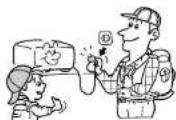
11. Object and Liquid Entry
Never push objects of any kind into this product through openings as they may touch dangerous voltage points or short-out parts that could result in a fire or electric shock. Never spill liquid of any kind on the product.
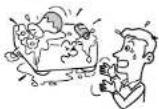
12. Do not place the product vertically
Do not use the product in the upright position to project the pictures at the ceiling, or any other vertical positions. It may fall down and dangerous.
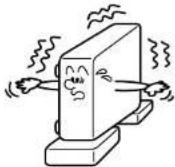
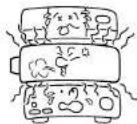
13. Stack Inhibited
Do not stack other equipment on this product or do not place this product on the other equipment. Top and bottom plates of this product develops heat and may give some undesirable damage to other unit.
14. Attachments
Do not use attachments not recommended by the product manufacturer as they may cause hazards.
15. Accessories
Do not place this product on an unstable cart, stand, tripod, bracket, or table. The product may fall, causing serious injury to a child or adult, and serious damage to the product. Use only with a cart, stand, tripod, bracket, or table recommended by the manufacturer, or sold with the product. Any mounting of the product should follow the manufacturer's instructions, and should use a mounting accessory recommended by the manufacturer. A product and cart combination should be moved with care. Quick stops, excessive force, and uneven surfaces may cause the product and cart combination to overturn.

IMPORTANT SAFETY INSTRUCTIONS (Continued)
16. Damage Requiring Service
Unplug this product from the wall outlet and refer servicing to qualified service personnel under the following conditions:
a) When the power-supply cord or plug is damaged.
b) If liquid has been spilled, or objects have fallen into the product.
c) If the product has been exposed to rain or water.
d) If the product does not operate normally by following the operating instructions. Adjust only those controls that are covered by the operating instructions as an improper adjustment of other controls may result in damage and will often require extensive work by a qualified technician to restore the product to its normal operation.
e) If the product has been dropped or damaged in any way.
f) When the product exhibits a distinct change in performance - this indicates a need for service.
17. If glass components, including lens and lamp, should break, contact your dealer for repair service.
This product incorporates glass components, including a lens and a lamp. If such parts should break, please handle with care to avoid injury and contact your dealer for repair service. The broken pieces of glass may cause to injury. In the unlikely event of the lamp rupturing, thoroughly clean the area around the projector and discard any edible items placed in that area.
18. Servicing
Do not attempt to service this product yourself as opening or removing covers may expose you to dangerous voltage or other hazards. Refer all servicing to qualified service personnel.
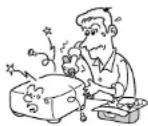
19. Replacement Parts
When replacement parts are required, be sure the service technician has used replacement parts specified by the manufacturer or have the same characteristics as the original part. Unauthorized substitutions may result in fire, electric shock, or other hazards. (Replacement of the lamp only should be made by users.)
20. Safety Check
Upon completion of any service or repairs to this product, ask the service technician to perform safety checks to determine that the product is in proper operating condition.
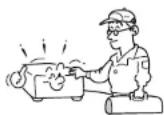
21. Do not leave thermal-paper documents or easily deformed items on top of the unit or near the air exhaust for long periods of time.
The heat from the unit could erase the information on the thermal paper, or cause deformation or warping.
22. Do not get your hands between the camera arm and the main unit when setting the camera arm back in its original position. (Models equipped with document camera)
To avoid injury, be careful not to get your hands caught when setting the camera arm back in its original position. Families with children should be particularly careful.
23. Do not carry by the camera arm. (Models equipped with document camera)
Do not carry the projector by the camera arm. Doing so can result in damage or injury.
24. Do not move the projector while the arm is still erect. (Models equipped with document camera)
Always store the arm back in position when moving the projector. Otherwise injury or damage may result.
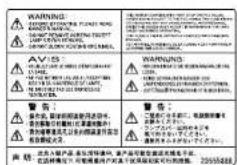
LABEL LOCATIONS
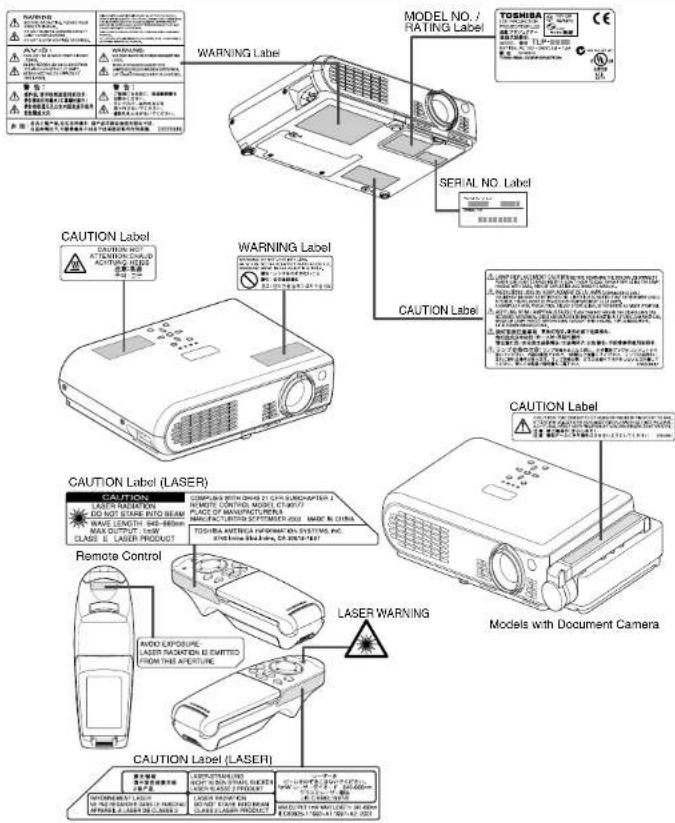
POWER SUPPLY CORD SELECTION
If your line voltage is 220 to 240V, use one of the following types of cable.
| Plug configuration | Plug type | Line voltage | Plug configuration | Plug type Line voltage | |
 | EURO | 220 – 240V |  | Australian 240V 10A | 200 – 240V |
 | UK | 220 – 240V |  | Switzerland 240V 6A | 200 – 240V |
| Use a 5A fuse which is approved by ASTA or BSI to BSI362. Always replace the fuse cover after changing the fuse. |  | North American 240V 15A | 200 – 240V | ||
IMPORTANT PRECAUTIONS
Save Original Packing Materials
The original shipping carton and packing materials will come in handy if you ever have to ship your LCD projector. For maximum protection, repack the set as it was originally packed at the factory.
Moisture Condensation
Never operate this unit immediately after moving it from a cold location to a warm location. When the unit is exposed to such a change in temperature, moisture may condense on the crucial internal parts. To prevent the unit from possible damage, do not use the unit for at least 2 hours when there is an extreme or sudden change in temperature.
Place and Manner of Installation
- Do not place in hot locations, such as near heating equipment. Doing so could cause malfunction, and shorten the life of the LCD panel.
- Avoid locations with oil or cigarette smoke. Doing so will dirty the LCD panel and other optical parts, shortening their lives, and darkening the screen.
- Do not place slantwise in angle of 20^ or more. Doing so could shorten the life of the lamp.
- Using this instrument near a TV or radio may cause Interference to the Images or audio sound. If this happens, move it away from the TV or radio.
- Moving the projector from a low-temperature room to a high-temperature room may cause condensation on the lens or internal parts in the instrument. If you continue to use it in that situation, the malfunction may result. Ensure to wait until the condensation naturally disappears.
- In a high altitude location where air is thin, cooling efficiency of the scanner is reduced so use it with the ambient temperature being lowered.
IMPORTANT PRECAUTIONS (Continued)
Avoid Volatile Liquid
Do not use volatile liquids, such as an insect spray, near the unit. Do not leave rubber or plastic products touching the unit for a long time. They will leave marks on the finish. If cleaning with a chemically saturated cloth, be sure to follow the product's precautions.
LCD Panel
The life of the LCD panel is limited. Take care over the points below so as to use the panel for years.
- To prolong the life of this panel, never fail to turn the power off when the panel is not in use and make sure that the lamp has gone out. The state of the lamp being extinguished helps enhance the effect of energy saving.
- If the air filter is stained and is clogged up, the main unit inner temperature rises. As a result, the life of the LCD is shortened and a malfunction may also occur. Clean the air filter from time to time and replace it regularly. It is recommended that this replacement be done at the time of replacing a lamp. (Ask a dealer where the unit was purchased or your nearby service station about an air filter for replacement.)
In the spaces provided below, record the Model and Serial No. located at the bottom of your LCD projector.
Model No. Serial No.
Retain this information for future reference.
EXEMPTION CLAUSES
- Toshiba Corporation bears no responsibility in the case of damages arising from natural disaster such as earthquakes, lightning, etc., fire not liable to Toshiba Corporation, operating by third parties, other accidents, or use under abnormal conditions including erroneous or improper operation and other problems.
- Toshiba Corporation bears no responsibility for incidental damages (lost profit, work interruption, corruption or loss of the memory contents, etc.) arising from the use of or the inability to use this unit.
- Toshiba Corporation accepts no liability whatsoever for any damages arising from not having followed the descriptions in this Instruction Manual.
- Toshiba Corporation accepts no liability whatsoever for any damages arising from malfunctions arising from combination with equipment or software that is not related to Toshiba Corporation.
OTHER CAUTIONS AND INFORMATIONS
Copyrights
Showing or transmitting commercial imaging software or broadcast or cable-broad casting programs with the purpose of other than the personal and private viewing, including modifying images using the freeze or resize functions, or displaying with the varying aspect ratio of the images, could violate the direct or indirect copyrights of the imaging software or broadcast program, etc., if done without first consulting with the copyright holder. For this reason, please take appropriate measures before performing one of the actions listed above, including obtaining a license from the copyright holder.
Disposal
This product contains substances which are harmful to humans and the environment.
- Solder used in the internal parts contains the lead.
- The lamp contains inorganic mercury. Please dispose of this product or used lamps in accordance with local regulations.
Trademarks
• VGA, SVGA, XGA, SXGA, UXGA are trademarks or registered trademarks of International Business Machines Corporation.
• Macintosh is a registered trademark of Apple Computer, Inc.
• Windows is a registered trademark of Microsoft Corporation in the U.S. and other countries.
- Adobe is a registered trademark and Acrobat Reader is a trademark of Adobe Systems Incorporated.
Notational Conventions Used in This Manual
References to pages with related information are annotated as follows. For example, if making a reference to page 36: p.36
CONTENTS
Before Using
SAFETY PRECAUTIONS 2
IMPORTANT SAFETY INSTRUCTIONS 3
LABEL LOCATIONS 8
POWER SUPPLY CORD SELECTION 9
IMPORTANT PRECAUTIONS 9
EXEMPTION CLAUSES 11
OTHER CAUTIONS AND INFORMATIONS .... 11
CONTENTS 12
Preparations
Checking the package contents 14
Names of each part on the main unit 15
Names of each part on the control panel and remote control 16
Names of each part on the document camera
(models with a document camera) 17
Preparing and using the remote control 18
Placement 19
Connection 21
Operations
Turning the power on and off 22
Basic operations 24
Using handy features 26
Using auto setting (Auto setting) 26
Correcting the keystone distortion (Keystone) 27
Zooming out the images 27
Cutting off the picture and sound temporarily (Mute) 28
Freezing the image (Freeze) 28
Enlarging the picture size (Resize) 29
Displaying Information [Status display] 30
Using the menus 31
How to use the menus 31
The image adjustment menu 32
The default setting menu 32
The display setting menu 33
Reset menu (Special menu) 33
Using the document camera 34
Uninstalling the camera 34
Installing the camera 34
Preparation of the document camera (when loading the camera).... 35
Preparing the document camera
(for use being separated from the projector) 35
Image projection with the document camera 36
Locking the white balance 38
Mainenance
Air filter cleaning 39
Lens and main unit cleaning 40
Lamp replacement 40
Others
Trouble indications 42
Before calling service personnel 43
Specifications 45
List of general specifications 45
Document camera specifications
(Models equipped with document camera) 45
List of supported signals (RGB signals) 46
List of supported signals (Y/PB/PR signals) 47
List of supported signals (Video, S-Video signals) 47
Pin assignment of COMPUTER & MONITOR terminals 47
CONTROL terminal 48
Separately Sold Product 48
Checking the package contents
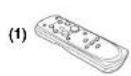
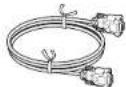
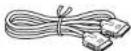
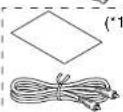
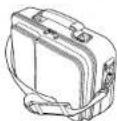
Please make sure that the following items are included in the box, along with the main unit. If any item is missing, please contact the store immediately where you purchased the product.
(6)
(11)

(7)
(12)
(9)
(13)

(10)
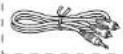
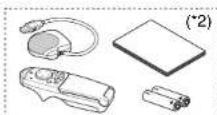
□ (1) Remote control
☐ (2) R03 (SIZE AAA) batteries for remote control (2)
11(3) CD-ROM
(4) Owner's Manual
(5) Power cord (See note)
□(6) RGB cable
□(7) Quick Reference(*1)
(8) Video cable(*1)
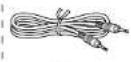
(9) Audio cable (for computer)(*1)
(10) Audio cable(*1)
(*1) Not supplied for TLP-S70.TLP-S71.
Note
The shape and number of supplied power cords vary depending on the product destination.
◆ The Supplied CD-ROM
The supplied CD-ROM contains an owner's manual, including information omitted in this Owner's manual (Getting started) and Acrobat® Reader™ to view the manual.
■ Installing Acrobat® Reader™
Windows®: Run the CD-ROM, select the Reader/English folder, and run ar500enu.exe. Follow the on-screen instructions. Macintosh: Run the CD-ROM, select the Reader/English folder, and run Reader Installer. Follow the on-screen instructions to install the software.
■ Viewing the manual
Run the CD-ROM and double-click on Start.pdf. Acrobat® Reader™ launches, and the menu screen of the Owner's manual appears. Click on your language. The Owner's Manual cover and list of bookmarks appear. Click on a bookmark title to view that section of the manual. Click on p. to view a reference page with related information. See the Help menu for more information about Acrobat® Reader™.
Names of each part on the main unit
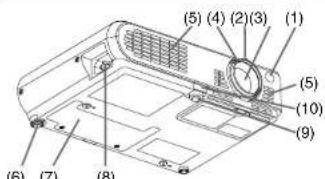
(1) Infrared remote sensor: Senses commands from the remote control.
(2) Lens : Projects expanded image.
(3) Zooming lever: Adjusts screen size.
(4) Focusing ring : Adjusts screen focus.
(5) Air intake: Draws in air from outside unit.
(6) Tilt adjuster: Adjusts the projector's horizontal tilt.
(7) Lamp cover: Remove to replace lamp.
(8) AC IN socket : Connect the supplied power cord here.
(9) Foot adjuster : Adjusts the vertical projection angle.
(10) Foot adjuster release button : Press to stow the foot adjuster. p.25
(11) Control panel : Operates the projector. p.16
(12) Camera input terminal* : Connect the camera. p.34 p.35
(13) Camera mounting stays* : Hold the camera control panel. p.34
(14) Air exhaust : Expels air that has grown hot inside the projector.
(15) Speaker : Plays audio.
(16) Anti-theft lock hole : Attach a security chain, etc. here.
(17) AUDIO terminal : Feeds the audio signal from a computer or video
equipment.
(18) MONITOR terminal : Connected to the monitor display.
(19) COMPUTER terminal : Feeds the RBG signal from a computer or the component video signal (Y/PB/PR) from a video equipment.
(20) VIDEO terminal : Feeds the video signal from a video equipment.
(21) S-VIDEO terminal : Feeds the S-video signal from a video equipment.
(22) CONTROL terminal : Connected to the RS-232C port on a controlling
computer for operating the projector. p.48
Note
*: For the models with a document camera
Names of each part on the control panel and remote control
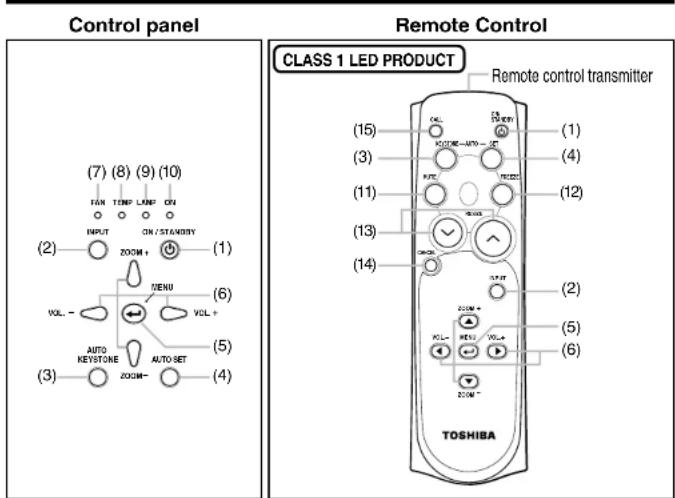
Name: Main Function
| (1) ON/STANDBY button | : Turns the power on/off (standby). p.22 |
| (2) INPUT button : Selects input. | p.24 |
| (3) AUTO KEYSTONE button | : Adjusts keystone (trapezoidal distortion). p.27 |
| (4) AUTO SET button | : Sets up image and mode. p.26 |
| (5) MENU button | : Displays menus and makes selections. p.31 |
| (6) Selection buttons | : Menu selections and adjustments, etc. p.31 |
| (7) FAN indicator | : Displays cooling fan mode. p.23 p.42 |
| (8) TEMP indicator | : Lights when internal temperature too high. p.42 |
| (9) LAMP indicator | : Displays lamp mode. p.23 |
| (10) ON indicator : Displays whether power is on or off. | p.22 |
| (11) MUTE button | : Cuts off the picture and sound temporarily. p.28 |
| (12) FREEZE button | : Pauses image. p.28 |
| (13) RESIZE buttons : Enlarges picture size. | p.29 |
| (14) CANCEL button | : Exiting the operation. p.30 |
| (15) CALL button | : Displays the information on the screen. p.30 |
Notes
- For the remainder of this manual, buttons are referred to as follows:
Selection buttons → ▲ ▼ ▶; MENU button → 📋 - For further information of the mouse remote control supplied with the TLP-T60M, TLP-T61M, TLP-T70M, TLP-T71M, see the Owner's Manual of the Mouse Remote Control.
Names of each part on the document camera (models with a document camera)
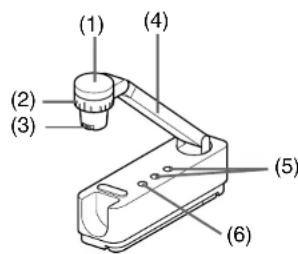
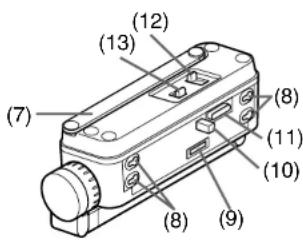
Name : Function
(1) Camera head : Document camera.
(2) Camera lens : Shooting lens for the document camera.
(3) Focus ring : Adjusts the focus.
(4) Camera arm : Adjusts the shooting angle.
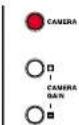
(5) CAMERA GAIN buttons: Adjusts the camera gain.
(6) CAMERA button : Toggles between the camera input and previous input. p.36
(7) Tip resistant bar: Pulled out when a camera is used separated from the
projector
(8) Stay mounting holes: Aligns with the projector's stay.
(9) Camera output terminal
(CAMERA OUT) : Connected to the accessory camera cable when a
camera is used separated from the projector.
(10) Lock bar
(11) Connector
(12) Connect lever
(13) Lock lever
: Locked to the projector.
: Camera signal is output.
: Connector is connected to the projector.
: Used when the camera is disconnected from the projector.
Preparing and using the remote control
■ Loading dry-cell batteries into the remote control
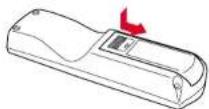
①Remove the battery cover.
②Insert the dry-cell batteries.
Be sure to align the plus and minus ends of the batteries properly.
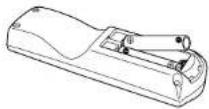
Two batteries (R03, SIZE AAA) are used.
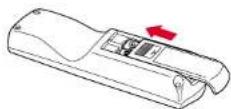
③Replace the battery cover.
■ Operating the remote control
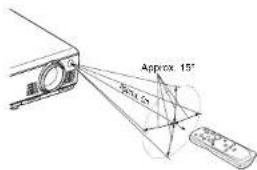
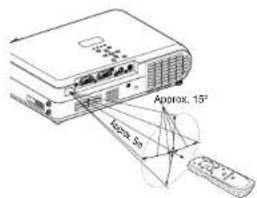
Point the remote control toward the projector's infrared remote sensor, and press a button on the remote control.
- Operating the projector from the front
- Operating the projector from the rear
Dry-cell batteries
- Before using the batteries, be sure to observe the Safety Precautions described in previous pages.
- Remove batteries from remote control when not using for extended periods.
- If the remote control stops working, or if its range decreases, replace all the batteries with new ones.
The remote control
- The remote control may fail to operate if the infrared remote sensor is exposed to bright sunlight or fluorescent lighting.
- Do not drop or bang.
- Do not leave in hot or humid locations.
- Do not get wet or place on top of wet objects.
- Do not take apart.
- In rare cases, ambient conditions could impede the operation of the remote control. If this happens, point the remote control at the main unit again, and repeat the operation.
- For further information of the mouse remote control supplied with the TLP-T60M, TLP-T61M, TLP-T70M, TLP-T71M, see the Owner's Manual of the Mouse Remote Control.
Placement
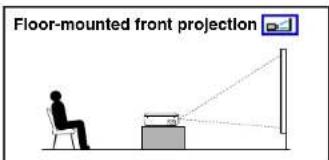
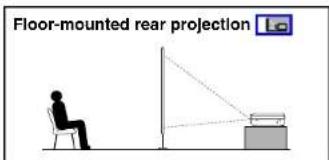
Placement Styles
As shown in the figures below, this device can be placed in 4 different styles. The factory setting is "floor-mounted front projection." Set the placement style in the default setting menu p.32, in accordance with your needs.
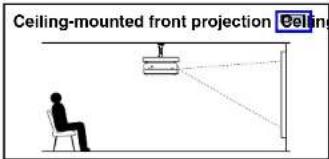
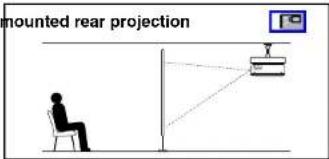
CAUTION
• Always obey the instructions listed in IMPORTANT SAFETY INSTRUCTIONS when placing the unit.
- If you wish to mount the projector on the ceiling, be sure to ask your dealer to do so. Mounting the projector on a ceiling requires special ceiling brackets (sold separately) and specialized knowledge. Improper mounting could cause the projector to fall, resulting in an accident.
- If the projector is ceiling-mounted, install the breaker for turning off the power in case of anomaly. Let everyone involved with the use of the projector know that fact.
Placement (Continued)
Projection Distance and Screen Size (with optical zooming)
Use the figures, tables, and formulas below to determine the screen size and projection distance. (Screen sizes are approximate values for full-size picture with no keystone adjustment)
Screen As seen from above
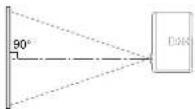
For TLP-T70M/T71M/S70/S71
a (min length) = size (inches) - 1.54726.44
a (max length) = size (inches) - 1.290722.06
a is the distance (m) between the lens and the screen, and corresponds to a range of 1.45 m to 11.29 m.
| screen size (cm) | projection distance a(m) | |
| min length (zooming max) | max length (zooming min) | |
| 40(102) | 1.45 | 1.75 |
| 60(152) | 2.21 | 2.66 |
| 80(203) | 2.97 | 3.57 |
| 100(254) | 3.72 | 4.47 |
| 150(381) | 5.61 | 6.74 |
| 200(508) | 7.51 | 9.01 |
| 250(635) | 9.40 | 11.27 |
| 300(762) | 11.29 | — |
As seen from the side
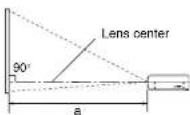
For TLP-T60M/T61M/S40/S41
a (mln length) = size (inches) - 1.428530.68
a (max length) = size (inches) - 1.190825.574
a is the distance (m) between the lens and the screen, and corresponds to a range of 1.26 m to 9.73 m.
| screen size (cm) | projection distance a(m) | |
| min length (zooming max) | max length (zooming min) | |
| 40(102) | 1.26 | 1.52 |
| 60(152) | 1.91 | 2.30 |
| 80(203) | 2.56 | 3.08 |
| 100(254) | 3.21 | 3.86 |
| 150(381) | 4.84 | 5.82 |
| 200(508) | 6.47 | 7.77 |
| 250(635) | 8.10 | 9.73 |
| 300(762) | 9.73 | — |
Connection
Before connection
- Read the owner's manual of the device to connect to the projector.
- Some types of computer cannot be used or connected to this projector.
Check for an RGB output terminal, supported signal p.46, etc. - Turn off the power of both devices before connecting.
- The figure below is a sample connection. This does not mean that all of these devices can or must be connected simultaneously. (Dotted lines mean items can be exchanged.)
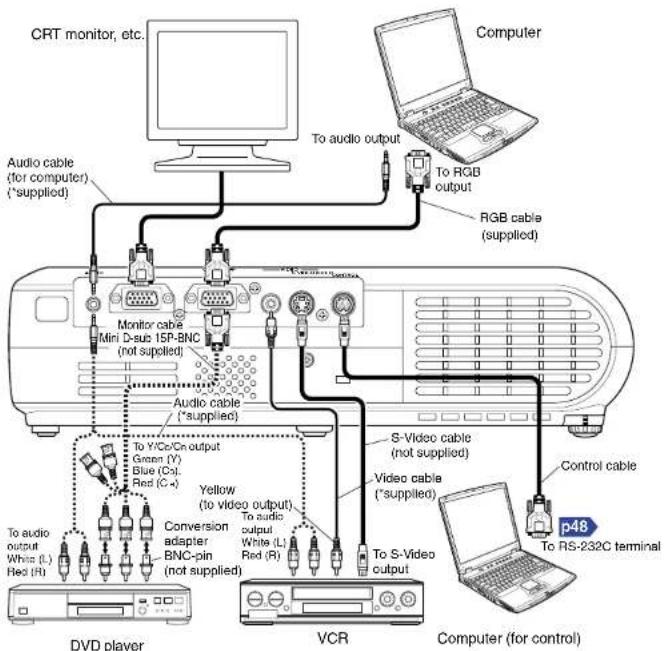
*Audio cable (for computer), Audio cable and Video cable are not supplied with TLP-S70/S71.
Note
- The AUDIO terminal can be used with all the devices for input terminal.
Turning the power on and off
■ Connecting the power cord
⑦ Insert the power cord connector into the AC IN socket of the projector.
② Insert the power cord plug into a wall or other power outlet.
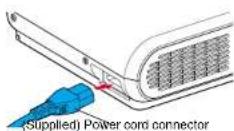
When the power cord is plugged in, the following three green indicators will come on for several seconds: ON, TEMP, and LAMP. Next, the ON indicator will change to orange, indicating standby mode.
(Do not perform any operations while the 3 green indicators are on.)
■ Removing the lens cover
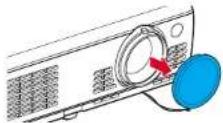
Be sure to remove the lens cover when the power is turned on. If it is left on, it could become deformed due to heat.
■ Turning the power on
- Press the ON/STANDBY button.
The power turns on, and the following 3 green indicators light: ON, LAMP, and FAN. After a moment, the start-up screen appears.
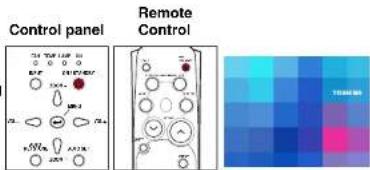
WARNING
- Do not look into the lens during operation. Doing so could damage your vision.
CAUTION
- Do not block the air intake or exhaust. Doing so could cause a fire due to internal overheating.
- Do not place your hands, face, or other objects near the air exhaust. Doing so could cause bums, deform/break the object.
Notes
- The start-up screen will disappear after a moment. You can dismiss the start-up screen before this by performing any operation. You can also configure the start-up screen not to appear via the Display setting menu p.33.
- The first time you use the projector after purchase, after the start-up screen disappears, the Language menu is displayed p.24.
■ Turning the power off
① Press the ON/STANDBY button.
A message appears on the screen, confirming that you wish to shut off the power. This message will disappear after a moment. (This operation is no longer valid after the message disappears.)
② Press the ON/STANDBY button again.
The screen turns off, but the internal cooling fan continues to operate for a short while. Then, the projector goes into standby mode.

flowchart
graph LR
    A["When cooling lamp during internal cooling after cooling is completed"] --> B["Step A: FAN TEMP LAMP ON\n(Green), (Green) Floaming, (Orange) Change"]
    B --> C["Step B: FAN TEMP LAMP ON\n(Green), (Orange) Change"]
    C --> D["Step C: FAN TEMP LAMP ON/FAN TEMP LAMP ON\n(Green), (Orange), (Orange) Change"]
A During cooling, the LAMP indicator flashes. In this state, the power cannot be turned back on. In addition, unplugging the power cord in this state will shorten the life of the lamp.
B After the LAMP indicator goes off, the cooling fan continues to operate for a short while in order to expel excess internal heat. If you are in a hurry, there is no problem with unplugging the power cord in this state.
C In standby mode.
Note
- The projector consumes about 6W of power in standby. We recommend you to unplug the power cord if you will not use the projector for an extended period.
PRECAUTIONS
- Before unplugging the power cord, make sure that the LAMP indicator is off. Unplugging the power cord and cutting off the power while the projector is running or being cooled will shorten the life of the lamp. However, please unplug the power cord if the projector locks up or acts abnormally.
- If the power cord was unplugged before cooling was complete, give the lamp sufficient time to cool before plugging it back in. If the lamp overheats, it may fail to light, and its lifetime will be shortened.
LCD Panels
LCD panels wear out. In order to prolong the lifetime of your LCD panel, take the following precautions.
- In order to extend the lifetime of the LCD panel, always turn off the power when not in use, and make sure that the lamp is off. Keeping the lamp off is also very effective at saving electricity.
- If the air filter becomes dirty and clogged, the projector's internal temperature will rise, shortening the lifetime of the LCD panel and causing malfunctions. Clean the air filter from time to time 1:39, and replace it periodically. Contact the store where you purchased your projector, or your local Service Station for replacement air filters.
Basic operations
① Turn on the power.
Turn on the power by following the instructions in "Turning on the power" p.22
② Select the language and the lamp power (When using the first time).
When the projector is used for the first time after purchase, menu for language and lamp power selection and configuration is displayed in English. (If the screen is out of focus, adjust it according to the step 6.)
| 1Use the ⚪ btons to select the desired language and press the ⚪ button. Message for setup confirmation is displayed in a selected language. |
| 2Using the ⚪ button, select Standard or Low and press the ⚪ button. The lamp power, if selected, will be toggled without pressing the ⚪ button. The display automatically disappears in a few seconds. |
Notes
- When the projector is turned on the next time, the Language and Lamp power menus do not appear upon startup. However, if "Reset all" is executed from the Reset menu p.33, the Language and Lamp power menus will be displayed the next time when the power is turned on
- The language can also be set via the Display setting menu p.33 and Lamp power via the Default setting menu p.32.
- This owner's manual assumes that English has been selected.
③ Place connected device(s) in operating status.
Turn on and boot up connected computers and other devices.
4 Select input.
①Press the INPUT button.
A list of inputs appears on the screen.
② Use the 🔊 tons to select the desired input, and press the ⏻ button.
The picture for the selected input is projected.
| Computer |
| Y/PB/PR |
| Video |
| S-video |
When a camera is connected with the document camera model:
| Computer |
| Y/PE/PR |
| Video |
| S-video |
| Camera |
⑤ Projector placement angle adjustments
The placement angle and the height of the projected image can be adjusted by the foot adjuster.
① Lift up the front of the projector to the desired angle, then press the foot adjuster release button.
The foot adjuster extends. Release the button to lock the position.
②Turn the foot adjuster to fine-tune the angle.
③To adjust the horizontal angle, use the tilt adjuster.
To stow the foot adjuster, hold up the projector while pressing the foot adjuster release button, then slowly lower the projector.
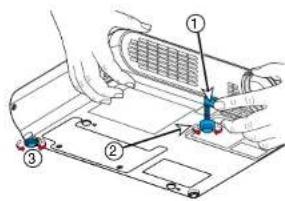
⑥ Adjusting the picture size and focus
①Use the zooming lever to adjust the screen size.
② Use the focusing ring to adjust the focus.
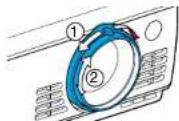
⑦ Adjusting the volume with the 🔊 buttons
The speaker volume can be adjusted when an audio signal is being input.
Notes
- Note that because of the lamp characteristics, the brightness of the lamp may fluctuate slightly.
• A lamp is a consumable supply.
If used for extended periods, images will appear dark, and the lamp could burn out. This is characteristic of a lamp, and is not malfunction. (The lifetime of the lamp depends on conditions of use.)
- The LCD panel is made using extremely advanced technology, but there may be black spots (pixels that do not light) or bright spots (pixels that are constantly lit) on the panel. Please note that these are not malfunctions.
- Although this projector supports a wide range of RGB signals [3.45] , any resolutions not supported by the model (XGA or SVGA, depending on the model) will expand or shrink the pictures, and will affect image quality slightly. To view high-quality images, it is recommended that the computer's external output should be set to the projector's resolution.
- With some models of computer having LCD displays or the like, displaying images simultaneously on the projector and the monitor's display may cause the images to be shown improperly. If this happens, turn off the computer's LCD display. For information on how to turn off the LCD display, see the owner's manual of your computer.
- If a signal not supported by the projector is input, the ? icon will appear.
- If a no signal is being input from the connected device, the OFF icon will appear.
- If an unavailable operation button is pressed, the ✗ icon will appear.
Using handy features
■ Using auto setting (Auto setting)
This function sets up the projector to the optimum state for each type of the input signal by using simple operations.
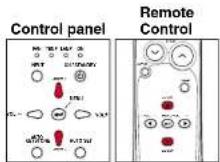
① Press the AUTO SET button.
The Auto setting menu appears.
② Press the AUTO SET button again.
The menu item is automatically adjusted/set. For computer input, the 📄 icon will appear during processing.
Control panel
Remote
Control
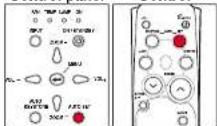
Note
- Auto adjustment/setting may not be performed correctly for input signals other than those supported by the projector p.46, p.47.
• Manual adjustment and setting
The menu items vary depending on the input type, as shown in the table below. Use the 🔊️ 🔊️ 🔊️ button to adjust the items in the table below, then press the 🔊️ button when you are finished. The menu disappears. (The CANCEL button on the remote control also allows you to exit the menu mode.)
| Input | Item | Description | |
| Computer | Select Item | Phase | Adjust with 🔒 to eliminate flicker. |
| Frequency | Adjust with 🔒 to eliminate periodic patterns and flickoring when many vertical lines appear on the screen. | ||
| H-position | Move left 🔒 Move right | ||
| V-position | Move down 🔒 Move up | ||
| Clamp 1 | Adjusts the clamp pulse position with 🔒 or 🔒. | ||
| Clamp 2 | Adjusts the clamp pulse width with 🔒 or 🔒. | ||
| Y/P_B/P_R | Select Item | Phase | Adjust with 🔒 to eliminate flicker. |
| Signal format | [●: Enter to setting mode]→[▲: Select one of the following]→ [Apply: ]480l(525l)@60Hz/480p(525p)@60Hz/576i(625i)@50Hz/576p(625p)@50Hz/720p(750p)@60Hz/720p(750p)@50Hz/1080l(1125l)@60Hz/1080l(1125l)@50Hz/1035l(1125l)@60Hz/1152l(1250l)@50Hz | ||
| Video S-video | Video mode | [●: Enter to setting mode]→[▲: Select one of the followings]→ [Apply: ]NTSC/PAL/SECAM/PAL-N/PAL-M/PAL60/NTSC4.43 | |
Note
- Moving pictures generated with the DVD software for computers may appear unnatural if it is projected with this projector, but it is not a malfunction.
■ Correcting the keystone distortion (Keystone)
When the foot adjuster p.25 is used to change the projection angle, the picture will undergo keystone (trapezoidal) distortion. This projector is capable of correcting this keystone distortion.
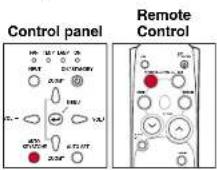
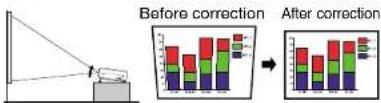
① Press the AUTO KEYSTONE button.
The Keystone menu appears.
② Press the AUTO KEYSTONE button again.
The keystone distortion is automatically corrected. The _n will appear during processing
- Manual adjustment
Use the 🔊 buttons for keystone adjustment. When the adjustment is finished, press the 🔊 button. The menu disappears. (The CANCEL button on the remote control also allows you to exit the menu mode.)
| Item Description | |
| Shrink button of the screen ⬇ Shrink top of the screen | |
Notes
- Depending on the amount of keystone adjustment and the content of images, some information may be lost, or the picture quality may suffer.
- Keystone adjustment will not change the shape of the menus.
■ Zooming out the images
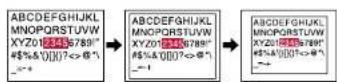
This equipment is provided with the digital zoom (electric zoom) (100-80%) capability in addition to the optical zoom.
You can use the digital zoom in applications where the optical zoom is not applicable due to some physical reasons for installations (Note, however, that digitally zoomed display suffers from some degradation).
Press the ZOOM – button.
Each time the ZOOM – button is pressed, the image is reduced in size.
Using handy features (Continued)
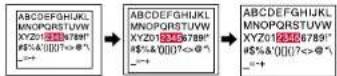
② Press the ZOOM + button to bring it back to the original size.
Each time the ZOOM + button is pressed, the image size increases. (You cannot make it larger than the original size.)
Notes
- Pressing either the ZOOM- or ZOOM+ button would display the icon. - The adjustment value will automatically be saved.
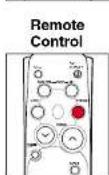
■ Cutting off the picture and sound temporarily (Mute)
When you want to project the images of another projector, overhead projector, etc. temporarily, this projector's images and sound can be turned off.
- Press the remote control's MUTE button.
The picture and sound are cut off. The Mute function is released when pressing the MUTE button again. To cancel the command, press the CANCEL button.
Notes
- The can will appear while mute is in effect. - Operating any other functions cancel the muting.
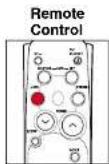
■ Freezing the image (Freeze)
The image being projected can be made to be frozen. This function is to be used to pause a video during a presentation, etc.
- Press the remote control's FREEZE button.
The picture pauses. The Freeze function is released when pressing the FREEZE button again. To cancel the command, press the CANCEL button.
Notes
• The ion will appear while freeze is in effect.
- The freeze function can be used on the resize function. Other operations will release the freeze.
- Even if an image is frozen on the projector, the pictures are running on the video or other equipment.
- If you use this function on video soft sold on the market, broadcast or broadcast on cable except for the purpose of your private viewing and listening, it may infringe the copyright protected by the copyright laws.
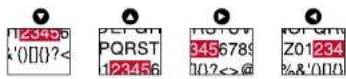
■ Enlarging the picture size (Resize)
The image being projected can be enlarged.
① Press the remote control's RESIZE ⬆ button.
The enlargement ratio is increased each time the RESIZE ⏻ button is pressed.

To decrease the enlargement ratio, press the remote control's RESIZE √ button.
The enlargement ratio is decreased each time the RESIZE button is pressed. (The image cannot be shrunk to less than its original size.)

③ Press and hold down the ▶ buttons to move the enlarged area.
④ Press the CANCEL button to undo the resize.
The resize is released, and the image returns to its original size.
Notes
- The icon will appear while resize is in effect.
- An enlarged image can be frozen using the FREEZE button. The resize function on a frozen image can also be used.
- Operations other than freeze will cancel the resize.
- Since the enlargement is performed using digital processing, enlarging will cause the image to appear jagged.
- Rarely, the picture could become garbled while the enlarged area is being moved.
- If you use this function on video soft sold on the market, broadcast or broadcast on cable except for the purpose of your private viewing and listening, it may infringe the copyright protected by the copyright laws.
Using handy features (Continued)
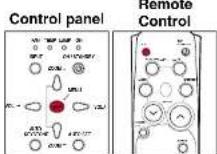
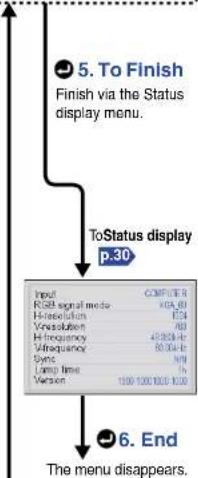
■ Displaying Information [Status display]
This displays information about the input signal, lamp use time, etc.
- Press the button twice (or press the CALL button on the remote control once).
When the button is pressed once, the Setting display menu appears. Pressing it again displays information p.31. The table below shows what kind of information is displayed. Press the button (or press the CALL or CANCEL button on the remote control to serve the same purpose) again to dismiss the display.
"Yes": displayed, "No": not displayed
| Item Description | Computer | Y/Pb/Pn | Video S-video | Camera | |
| Input Input source | name Yes Yes Yes Yes | ||||
| RGB signal mode | RGB input mode [Note 1] | Yes | No | No | No |
| H-resolution | Horizontal resolution (in bits) | Yes | No | No | No |
| V-resolution | Vertical resolution (in bits) | Yes | No | No | No |
| H-frequency | Horizontal sync frequency | Yes | No | No | No |
| V-frequency | Vertical sync frequency [Note 2] | Yes | No | No | No |
| Sync Sync signal | polarity [Note 3] | Yes | No | No | No |
| Signal format | Y/Pb/Pr signal format | No | Yes | No | No |
| Video mode | Color method of video signal | No | No | Yes | No |
| Lamp time | Time of lamp use [Note 4] | Yes | Yes | Yes | Yes |
| Version | Firmware version [Note 5] | Yes | Yes | Yes | Yes |
Notes
1: The mode of supported RGB signals p.46 is shown.
2: Same as the refresh rate of the computer signal.
3: Sync signal polarity shown as P (positive) or N (negative) for [H/V].
4: Displays [Lamp time] as a measure of when the lamp should be replaced. (Cannot be used as a counter of guaranteed lamp time.) When the displayed time approaches 3,000 hours, consult with a store about getting a TLPLV2 replacement lamp (sold separately) prepared.
5: [Version] shows the version of the projector's internal control program. This version is referred to for customer service, etc.
Notes
- The displayed information will not be refreshed if the status changes. To refresh the information, dismiss the display, then display it again.
- Conducting another operation while information is being displayed dismisses the display.
Using the menus
You can call up on-screen menus, and conduct a number of adjustments and settings using the operation buttons p.16 on the control panel (main unit side) and remote control.
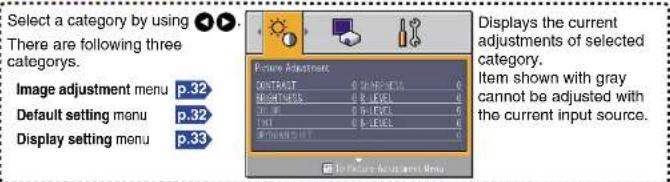
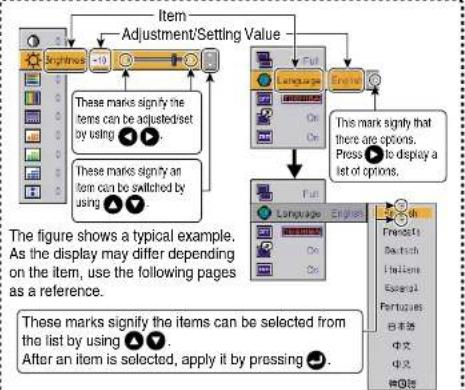
■ How to use the menus
The menu shown below is only for operation instructions and might be different from the actual display. 1. Start 📁 Display the Setting display menu
2. Select a Category
3. Adjustments & Settings
flowchart
graph TD
    A["Initial"] --> B{Adjustment/Setting Value}
    B --> C["Full"]
    C --> D["Language"]
    D --> E["English"]
    E --> F["Full"]
    F --> G["Language"]
    G --> H["English"]
    H --> I["Full"]
    I --> J["Language"]
    J --> K["English"]
    K --> L["Full"]
    L --> M["Language"]
    M --> N["English"]
    N --> O["Full"]
    O --> P["Language"]
    P --> Q["English"]
    Q --> R["Full"]
    R --> S["Language"]
    S --> T["English"]
    T --> U["Full"]
    U --> V["Language"]
    V --> W["English"]
    W --> X["Full"]
    X --> Y["Language"]
    Y --> Z["English"]
    Z --> AA["Full"]
    AA --> AB["Language"]
    AB --> AC["English"]
    AC --> AD["Full"]
    AD --> AE["Language"]
    AE --> AF["English"]
    AF --> AG["Full"]
    AG --> AH["Language"]
    AH --> AI["English"]
    AI --> AJ["Full"]
    AJ --> AK["Language"]
    AK --> AL["English"]
    AL --> AM["Full"]
    AM --> AN["Language"]
    AN --> AO["English"]
    AO --> AP["Full"]
    AP --> AQ["Language"]
    AQ --> AR["English"]
    AR --> AS["Full"]
    AS --> AT["Language"]
    AT --> AU["English"]
    AU --> AV["Full"]
    AV --> AW["Language"]
    AW --> AX["English"]
    AX --> AY["Full"]
    AY --> AZ["Language"]
    AZ --> BA["English"]
    BA --> BB["Full"]
    BB --> BC["Language"]
    BC --> BD["English"]
    BD --> BE["Full"]
    BE --> BF["Language"]
    BF --> BG["English"]
    BG --> BH["Full"]
    BH --> BI["Language"]
    BI --> BJ["English"]
    BJ --> BK["Full"]
    BK --> BL["Language"]
    BL --> BM["English"]
    BM --> BN["Full"]
    BN --> BO["Language"]
    BO --> BP["English"]
    BP --> BQ["Full"]
    BQ --> BR["Language"]
    BR --> BS["English"]
    BS --> BT["Full"]
    BT --> BU["Language"]
    BU --> BV["English"]
    BV --> BW["Full"]
    BW --> BX["Language"]
    BX --> BY["English"]
    BY --> BZ["Full"]
    BZ --> CA["Language"]
    CA --> CB["English"]
    CB --> CC["Full"]
    CC --> CD["Language"]
    CD --> CE["English"]
    CE --> CF["Full"]
- Back
flowchart
graph TD
    A["Input: COMPUTER"] --> B["RGB signal meta: XOA_81"]
    B --> C["H-resolution: I24"]
    C --> D["Vensolation: 763"]
    D --> E["H-frequency: 491803-H"]
    E --> F["5*frequency: 88104-H"]
    F --> G["Sync: NMI"]
    G --> H["Loop time: 5%"]
    H --> I["Version: 100-100-100-100"]
    I --> J["End: The menu disappears."]
Note
- Menu adjustments and settings are saved when the power is turned off via the ON/STANDBY button. If the power cable is disconnected before this, or the power goes out, then the data will not be saved.
- You can also use the CANCEL button on the remote control to dismiss the menu display.
Using the menu (Continued)
■ The image adjustment menu
Use this menu to adjust image-related items.
Items that can be adjusted are marked with "Yes", and those that cannot are marked with "No".
| Item | Description | Computer | Y/Pa/Pr | Video S-video | Camera | |
| Contrast | Lower Hohop | Yes | Yes | Yes | Yes | Yes |
| Brightness | Darker Bright | Yes | Yes | Yes | Yes | Yes |
| Color | Lighter Deep | No | Yes | Yes | Yes | No |
| Tint [Note 1] | Reddish Greenish | No | No | Yes | Yes | No |
| Sharpness | Softer Sharp | No | Yes | Yes | Yes | Yes |
| R-level | Less red More Red | Yes | Yes | Yes | Yes | Yes |
| G-level | Less green More green | Yes | Yes | Yes | Yes | Yes |
| B-level | Less blue More Blue | Yes | Yes | Yes | Yes | Yes |
| Updown shift [M+7] | Shift down Shift | No | Yes | Yes | Yes | No |
Notes
1: Tint can only be adjusted when Video mode is set to NTSC or NTSC4.43.
2: Up/down shift can only be adjusted when Screen size p.33 is set Wide.
■ The default setting menu
This menu shows placement status and other settings.
| Item ▲▼ | Description |
| Sets projection mode in accordance with Placement Style p.19(Placeodon floor) ▲▼ (Rear) ▲▼ (Hung fromceiling) ▲▼ (Back hungfrom ceiling) | |
| Sets the period of time to wait until turning off the power after signal input stops:Off (not turned off) ▲▼ 1 min ▲▼ 2 min ▲▼ ... ▲▼ 60 min | |
| Sets whether to turn on the power when the ON/STANDBY button is pressed(Manual), or when the power cord is plugged In (Auto). Manual ▲▼ Auto | |
| Sets the lamp power Standard ▲▼ Low | |
| Sets the camera's shutter speed to either (50Hz) or (60Hz). 50Hz ▲▼ 60Hz. | |
| Sets the camera's white balance to (Auto) or (Fixed). Auto ▲▼ Fixed. |
Notes
1: When lamp power is set to low, the screen becomes a little darker, but the cooling fan noise gets quieter. This setting will be cleared when you turn the power off. The setting will be back to "Standard" when the power is turned on next time.
2: White balance, if set to Fixed, is reset upon power off and the Auto is resumed the next time the unit is turned on. (Models with the document camera)
Notes
- Note that if Power on is set to Auto, then if the power cord is plugged in when power is restored after a power outage, the projector power will come on.
- Even if Power on is set to Auto, press the ON/STANDBY button to turn off the power. Unplugging the power cord to cut off the power will shorten the life of the lamp.
■ The display setting menu
Use this menu to set screen display-related items.
| Item | Description |
| Screen size | |
| (Full): Display with LCD panel's resolution(Thru): Display with sampling resolution (for computer input)(Wide): Wide-screen display (for Video, S-video, and Y/R/PR) | |
| Language | Select one of the languages below to use for displaying menus and messages [●: Enter setting mode] → [▲▼:Selection] → [Apply: ▼ ]English/Français/Deutsch/Italiano/Espanol/Português/日本語 / 中文(简体字)/中文(繁体字)/한국어 |
| Background | Screen to display when there is no input signal 📄️ 🐎 🐎 🐎 🐎 🐎 🐎 🐎 🐎 🐎 🐎 🐎 🐎 🐎 🐎 🐎 🐎 🐎 🐎 🐎 🐎 🐎 🐎 🐎 🐎 🐎 🐎 🐎 🐎 🐎 🐎 🐎 🐎 🐎 🐎 |
| Icon | Display icons as function guides On Off |
| Start-up screen | Display start-up screen when power turned on On Off |
Notes
- If "Thru" is selected for screen size, portions exceeding the pixel count of the LCD panel p.45 will not appear on the screen. Note that for RGB signals with clock speeds SXGA3_60 p.45 or lower, all input pixel signals are sampled. (This effect is noticeable when the screen is enlarged using the Resize function p.29). However, if the clock speed is higher than this, the RGB pixel signal is reduced before sampling.
- Displaying the images with the aspect ratio different from the original with the purpose of other than the personal and private viewing, using the screen size menu may violate the copyright protected by the law.
■ Reset menu (Special menu)
When other menus are not displayed and the button is held down, the menu appears.
- When the screen is placed vertically, and Auto keystone correction is executed, but the keystone correction is not successful, stow the foot adjuster in its original position, place the projector on a flat surface, select Horizontal reference value reset, and press the button.
- Select Reset All and press the 📋 button to return all menu items to the factory settings.
| DescriptionItem | |
| Horizontal reference value reset | Reset the horizontal reference value for Auto keystone correction [ ▶: Enter execution mode] → [Yes ▶ ▼ No] → [Apply: ▶] |
| Reset all | Reset all menu items to their factory settings [ ▶: Enter execution mode] → [Yes ▶ ▼ No] → [Apply: ▶] |
Using the document camera
Please read this chapter if the model you purchased includes a document camera.
■ Uninstalling the camera
1) Place the folded document camera with the bottom side up.
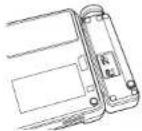
2) Slide the connect lever in the direction of an arrow.
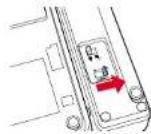
3) Pressing the lock lever in the direction of an arrow, slide the document camera.
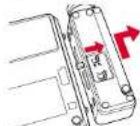
■ Installing the camera
1) Place the folded document camera with the bottom side up.
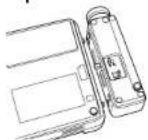
2) Align the four registration marks.
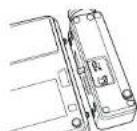
3) Slide the document camera in the direction of an arrow until it clicks.
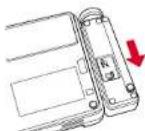
4) Slide the connect lever in the direction of an arrow.
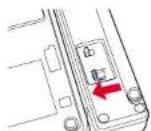
PRECAUTIONS
- Before mounting or dismounting the document camera, disconnect the power plug.
- Place a soft cloth beneath the projector when mounting or dismounting the camera.
- Do not dismount or mount the document camera while the projector is upright or kept in the air.
- Before mounting the camera, confirm that the interconnection connector is closed with the connect lever. If you attempt to mount the camera with the connector being protruded, connector may be damaged.
- When mounting the camera, be sure to slide the document camera until it is locked with click sound.
- Confirm the four registration stays are aligned before sliding the camera.
■ Preparation of the document camera (when loading the camera)
Status before preparation (When stowed)
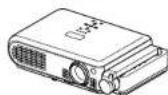
- Do not jolt or force the camera head or camera arm. Doing so could cause malfunction.
- Note that when extending or rotating the camera arm, the arm moves in an arc. Take care not to bump yourself or others with it.
- Before connecting the camera cable, make sure that the projector power is off.
■ Preparing the document camera (for use being separated from the projector)
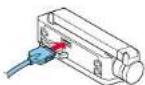
1) Connect the supplied camera cable to the camera input terminal.
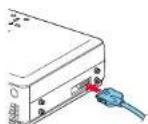
2) Connect the other end of the camera cable to the camera terminal on the document camera.
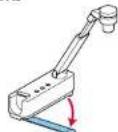
3) Pull out the tip resistant bar and set up the document camera.
PRECAUTIONS
- Insert a camera cable straight and securely until it locks. When disconnecting the cable, pull it out releasing the lock on both sides of the plug.
- Be sure to pull the tip resistant bar fully until it forms the angle of 90 degree. If you don't use the bar, the camera may topple over.
- Note that the camera may tip over if you attempt to rotate the arm in the opposite side of the tip resistant bar.
- For camera interconnection, be sure to use the supplied camera cable (1 m). If you use the other cables, the normal operation cannot be achieved and even the malfunction may result.
Note
- Connecting or disconnecting the camera cable with the projector's power ON may cause camera error ( [icon] is displayed) and even turn off the power.
Using the document camera (Continued)
■ Image projection with the document camera
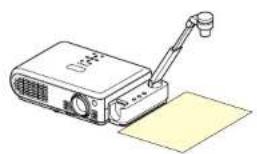
① Place the document.
Set the document at the top of or the side of the projector.
natural_image
Illustration of a projector with a tripod and a yellow sheet, no text or symbols present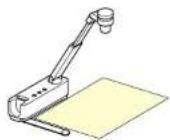
② Press the CAMERA button, and select camera input.
- The input returns to the previous input when the CAMERA button is pressed again.
- Camera input can also be selected by pressing the remote control or camera's INPUT button.
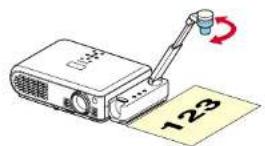
3 Rotate the camera lens to align the orientation of the document for shooting.
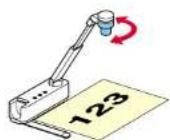
4 Move the camera head up and down to adjust the image size.
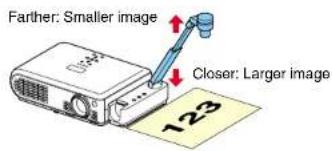
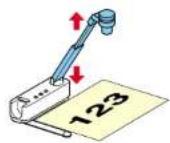
- Closeup shot with the distance shorter than 100 mm cannot be performed.
⑤ Adjust the focus using the focus ring on the camera head
Rotate the focus ring to either NEAR or FAR, whichever is better in focusing.
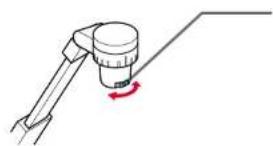
natural_image
Simple line drawing of a mechanical tool with a rotating arm and handle (no text or symbols)Turn the focusing ring to adjust the focus.
- Near : 100 mm to 300 mm Far : 300 mm to 5 m
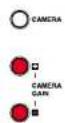
6 If the screen is too dark or too bright, use the CAMERA GAIN (+/-) buttons to make it easier to see. The Sharpness of the camera image can also be adjusted using the Image adjustment menu p.32.
⑦ After use, turn off the light, and fold up the document camera.
Fold up the camera using the opposite order from Preparation of the document camera.
PRECAUTION
- If the room's fluorescent lighting causes the image to flicker, either turn off the fluorescent light, or set the Shutter speed from the Default menu p.32. Note that changing the Shutter speed setting may not eliminate the flicker, depending on the lighting, state of the document, or image adjustment.
Note
- No audio is output when camera input is selected.
Using the document camera (Continued)
■ Locking the white balance
Although the projector's camera is constantly adjusting the color balance of the images. It photographs, the color balance may be disrupted, depending on the color layout of the document, etc. If this happens, the white balance can be locked using the procedures below.
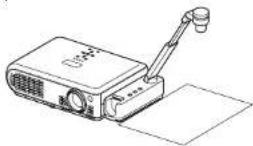
⑦ Lay down a piece of white paper, and adjust so it fills the screen.
Adjust the camera head and arm so that the white paper fills the screen completely.
② Set the White balance to Lock in the Default menu. p.32
The white balance is locked. If you want to return to the auto adjustment, set the White balance to Auto in the Default menu.
Notes
- White balance setting to Fixed, if power is turned off, will be back to Auto.
- The color of the room lighting may prevent the white balance from being adjusted to the optimum level. In this situation, or if you want to use a certain tinting, adjust the R-level, G-level and B-level on the Image adjustment menu p.32.
Air filter cleaning
The air filter prevents dust and debris from getting inside the projector. Never run the projector with the filter removed. It is recommended that the air filter is cleaned regularly.
- The icon message "Check the air filter for dirt." is displayed every 100 hours. (If the usage time exceeds 100 hours, this message is displayed for 30 seconds when the image is displayed for the first time after power is turned on. This display will be dismissed with any operation.)
- Check out the filter and any debris is found, use the following procedure for cleaning.
WARNING
- Request cleaning and maintenance of a ceiling-mounted unit from your projector dealership.
① Unplug power cord.
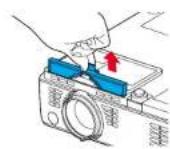
② Remove the air filter.
Pull out the air filter by taking the catch shown in the figure.
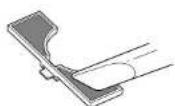
③ Clean the filter.
Carefully remove the dust and dirt from the air filter with a vacuum cleaner or the like.
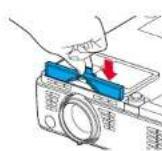
④ Replace the air filter.
Notes
- Allowing dirt and dust to build up in the air filter will worsen the air circulation inside the projector, causing the internal temperature to rise, causing the projector to stop working or malfunction.
- Insert the air filter all the way in. Leaving gaps will allow dust and dirt to get inside the projector again.
- If you wash the air filler with water, make sure to dry it completely before replacing it.
- If the air filter is torn, consult with your dealer about replacing it with a new one. Continuing to use a ripped filter will allow dust and dirt to get inside the projector.
Lens and main unit cleaning
WARNING
- Request cleaning and maintenance of a ceiling-mounted unit from your projector dealership.
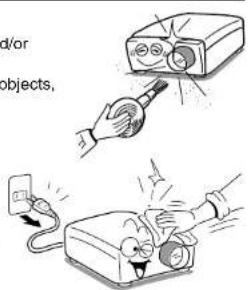
■ Lens cleaning
- Clean the lens with a commercially available blower and/or lens cleaner.
- The lens is easily scratched, so do not rub it with hard objects, or strike it.
■ Main unit cleaning
- Clean the main unit after unplugging the power cord.
- Wipe dirt off the main unit gently with a soft cloth.
- If the soiling is severe, dip the cloth in a neutral detergent diluted in water, wring well, and gently wipe off the dirt, then finish up by wiping with a dry cloth.
- Replacing air intake and exhaust fans, and air filter
To maintain the performance, it is recommended that these should be replaced about every 2 to 3 years. Consult with your dealer for details.
Lamp replacement
A lamp is consumable supplies. If used for extended periods, images will appear dark, and the lamp could burn out. This is characteristic of a lamp, and is not malfunction. (The lifetime of the lamp depends on condition of use. If this happens, replace it with a new one.
WARNING
- If the projector is mounted on a ceiling, request a lamp replacement from your projector dealership.
- When replacing, always use lamp "TLPLV2" (sold separately).
CAUTION
- If you have been using the projector, the lamp will be very hot, and may cause burn injuries. Wait for the lamp to cool (for longer than 1 hour) before replacing it.
- If the lamp should break, please handle with care to avoid injury due to broken pieces and contact your dealer for repair service.
① Unplug power cord.
② Wait until lamp is sufficiently cooled.
Wait for at least 1 hour.
Lamp replacement (Continued)
③ Remove the lamp cover.
Loosen the 2 screws, then pull up to the direction of the arrow with your fingers on the area shown in the figure to remove the lamp cover.
④ Pull out the lamp.
Loosen the 2 screws holding the lamp in place, and pull up the handle to remove the lamp.
⑤ Mount the new lamp.
Align the orientation, press down until the bottom is reached, and lock in place using the two lamp locking screws.
⑥ Replace the lamp cover.
Align the cover, and press it in, then tighten the screws loosened in step ③ until the lamp cover is no longer loose.
7 Reset the lamp timer.
See the lamp's manual for instructions on resetting the lamp timer.
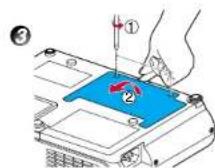
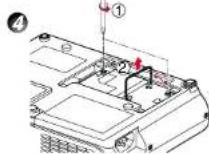
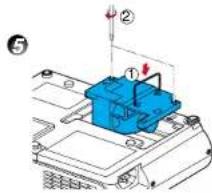
Notes and Precautions
- Press the 📋 button twice to display (a rough guide) the time of lamp use, the Lamp time item, in the Status display menu. p.30
- It is recommended that the lamp should be replaced after 3,000 hours of use. When Lamp time reaches 3,000 hours, the 📋 icon and a message will appear. This display disappears when you press 🔒 button.
- Attach the lamp cover correctly so that it is not loose. If it is not attached correctly, the lamp may fail to come on p.42, and the lamp's lifetime may be shortened.
- Always replace the lamp with a new one.
- The lamp is made out of glass. Do not touch the glass surface with your bare hands, bang it, or scratch it. (Dirt, jolts, scratches and the like could break the lamp.)
Used Lamps
This projector's lamps contain trace amounts of environmentally harmful inorganic mercury. Be careful not to break used lamps, and dispose it in accordance with local regulations.
Trouble indications
The indicator lights inform you of internal abnormalities.
| FAN LAMPTEER [Cr] | No power Problem with projector · Unplug the power cord, and contact your dealer. |
| FAN LAMPTEER [Red it], [Red it] | Lamp went out during use, or won't come on Lamp temperature is high so that it is difficult to turn on, the lifetime of the lamp has ended or the projector is malfunctioning. · Unplug the power cord and wait for a short while, then turn the power back on. · If a lamp burns out, replace it with a new one. After approx. one minute of abnormal display, the projector returns to the standby state waiting for internal cool down. |
| FAN TEMP LAMP ON [Green it], [Red it], [Red it] | Power went out during use Internal overheating, or the outside temperature is too high. · Place the projector so that the air intake and exhaust are not blocked. · Unplug the power cord and wait for a short while, then turn the power back on. · Clean the air filter. p.39 The icon will appear before the power goes out. After approx. one minute of abnormal display, the projector returns to the standby state waiting for internal cool down. |
| FAN TEMP LAMP ON [Red it], [Red it], [Red it] | Power went out during use Problem with internal cooling fan. · Unplug the power cord, and contact your dealer. The icon will appear before the power goes out. After approx. one minute of abnormal display, the projector returns to the standby state waiting for internal cool down. |
| FAN TEMP LAMP ON [Orange I, [Red it], [Red it] | Power went out during use, or power won't come on The lamp cover is not properly attached. · Unplug the power cord, and reattach the lamp cover. p.41 After approx. one minute of abnormal display, the projector returns to the standby state waiting for internal cool down. |
| Model with a document camera FAN LAMPTEER [Green it], [Red it] | Power went out during use Camera is not correctly connected. · Disconnect the power plug and check the connection with the camera. The icon will appear before the power goes out. After approx. one minute of abnormal display, the projector returns to the standby state waiting for internal cool down. |
PRECAUTIONS
- Make sure to unplug the power cord if something goes wrong.
- If the power cord is unplugged before cooling is complete, give the lamp enough time to cool before plugging it back in. If the lamp overheats, it may fail to light. Unplugging the power cord repeatedly when the temperature is high will shorten the life of the lamp. (Even if you are not concerned about lamp lifetime, the light may not come on if you do not wait at least 3 minutes.)
Before calling service personnel
If you think something is wrong, check the followings before contacting customer service. Please see "Trouble Indications" p.42 as well.
| If This Happens | Check |
| No power | Is the power cord plugged in? Is it connected to the projector?Is the lamp cover loose? p.42 |
| Power goes out during use | Is the ambient temperature high? p.42Is the air filter clogged? p.42Is the air intake or air exhaust blocked? p.42 |
| No picture | Is the projector turned on? p.24Is the mute function on? p.28Is the brightness setting minimized? p.32Are the connections set up correctly? p.21Are all the connected devices functioning properly? |
| No audio | Is the projector turned on? p.24Is the mute function on? p.28Is the volume setting minimized? p.25Are the connections set up correctly? p.21Are all the connected devices functioning properly? |
| Picture not displayed correctly | Is the input signal supported by the projector? p.46 , p.47Is the correct video mode selected? p.26Is the correct signal format selected? p.26Is the selecting of computer or Y/Pa/Pa input correct? p.24Is there something generating an abnormal video signal, for instance the video tape? |
| Picture blurred Part of picture out of focus | Is the lens dirty? p.40Is the lens focus adjusted optimally? p.25Is the projection distance within the projector's supported range? p.20Is the projector's screen placement angle tilted too far? p.19Are the sharpness or sampling phase adjustments off? p.26 p.32 |
| Image is dark | Are the brightness or contrast adjustments off? p.32Is the lamp nearing the end of its service life? p.30 |
| Colors too light Bad shading | Are the color, tint, R-level, G-level, or B-level adjustments off? p.32Is the screen dirty?Is the lamp nearing the end of its service life? p.30 |
| Remote control doesn't work | Are the remote control's batteries drained?Are the batteries inserted into the remote control correctly? p.18Is the remote control being used within the effective range? p.18Are there any obstructions between the remote control and projector?Are there any fluorescent or other bright lights shining at the projector's infrared remote sensor? |
| The images from the document camera are blurry | • Is the document imaging camera's lens dirty? • Is the document imaging camera out of focus? p.37 • Is the location of the object being focused too dark? |
| The Images from the document camera are flickering | • Is there impact from the room's fluorescent lighting? Turn off the fluorescent lights, or change the shutter speed settings. p.32 |
Specifications
■ List of general specifications
| Item Specification | ||
| Consumption Power 265 W | ||
| Weight | TLP-T70M/T60M/S70/S40: 2.2 kg | |
| TLP-T71M/T61M/S71/S41: 2.7kg | ||
| External Dimensions(including protruding parts) | Models without document imaging camera:303 · 84 · 206 mm (W · H · D) | |
| Models equipped with document imaging camera:358 · 84 · 206 mm (W · H · D) | ||
| Cabinet material* PC+ABS resin and ABS resin | ||
| Conditions for usage environment | Temp: 0°C to 35°C; relative humidity: 30% to 70% | |
| LCD Panel | Display method | 3-panel transmission |
| Panel size | 0.7 type | |
| Drive system | TFT active matrix | |
| Picture elements | TLP-T series: 786,432 pixels (1,024H · 768V) | |
| TLP-S series: 480,000 pixels (800H · 600V) | ||
| Lens Zoom lens TLP-T60M/T61M/S40/S41 F=2.0-2.3 f=23.0-27.4 mm | ||
| TLP-T70M/T71M/S70/S71 F=1.8-2.1 f=26.5-31.5 mm | ||
| Lamp High-pressure mercury lamp | ||
| Projection screen size 33-300 type | ||
| Projection distance TLP-T60M/T61M/S40/S41 : 1.26-9.73 m | ||
| Speaker 1 W (Monaural) | ||
| Connection terminal | COMPUTER terminal Mini D sub 15 pin RGB / Y/Pe/Pr (dual use) | |
| MONITOR terminal | Mini D sub 15 pin RGB / Y/Pe/Pr (dual use) | |
| S-VIDEO terminal Mini D DIN 4 pin | ||
| VIDEO terminal | RCA Pin Jack, 1 V (p-p), 75 Ω | |
| AUDIO terminal | 3.5mm dia. stereo mini-jack, 1.5V (rms); 22 kΩ or more | |
| CONTROL terminal | Mini DIN 8 pin (RS-232C) | |
Each plastic part displays the materials it is made from, in order to facilitate recycling after this product becomes no longer usable.
■ Document camera specifications
(Models equipped with document camera)
| Item Specification | |
| Lens | F=2.8, f=2.8mm |
| Focusing | Switching in two steps |
| Zooming | None (adjusted through distance from subject) |
| Image element | 1/4.2 type honeycomb CCD |
| Effective pixels for pickup section | 629,856 pixels (648H · 486V · 2) |
Specifications (Continued)
■ List of supported signals (RGB signals)
This projector supports the following RGB signals. Note, however, that depending on the computer model, the screen may show flicker or streaking. Please adjust the projector if this happens.
(Press the AUTO SET button, and adjust automatically or manually. p.26)
| Resolution | Mode | Refresh rate (Hz) | H-frequency (kHz) | Clock (MHz) |
| 720 x 400 | 720x400_85 | 85.039 | 37.927 | 35.500 |
| 640 x 480 | VGA_60 | 59.940 | 31.469 | 25.175 |
| VGA_72 | 72.809 | 37.861 | 31.500 | |
| VGA_75 | 75.000 | 37.500 | 31.500 | |
| VGA_85 | 85.008 | 43.269 | 36.000 | |
| 800 x 600 | SVGA_56 | 56.250 | 35.156 | 36.000 |
| SVGA_60 | 60.317 | 37.879 | 40.000 | |
| SVGA_72 | 72.188 | 48.077 | 50.000 | |
| SVGA_75 | 75.000 | 46.875 | 49.500 | |
| SVGA_85 | 85.061 | 53.674 | 56.250 | |
| 832 x 624 | MAC16" | 74.550 | 49.725 | 57.283 |
| 1024 x 768 | XGA_43i | 86.957 | 35.522 | 44.900 |
| XGA_60 | 60.004 | 48.363 | 65.000 | |
| XGA_70 | 70.069 | 56.476 | 75.000 | |
| XGA_75 | 75.029 | 60.023 | 78.750 | |
| XGA_85 | 84.997 | 68.667 | 94.500 | |
| MAC19" | 74.700 | 60.134 | 79.857 | |
| 1152 x 864 | SXGA1_75 | 75.000 | 67.500 | 108.000 |
| 1280 x 960 | QuadVGA_60 | 60.000 | 60.000 | 108.000 |
| QuadVGA_85 | 85.002 | 85.938 | 148.500 | |
| 1280 x 1024 | SXGA3_60 | 60.020 | 63.981 | 108.000 |
| SXGA3_75 | 75.025 | 79.976 | 135.000 | |
| SXGA3_85 | 85.024 | 91.146 | 157.500 | |
| 1400 x 1050 | SXGA+ | 60.012 | 63.973 | 118.094 |
| 1600 x 1200 | UXGA_60 | 60.000 | 75.000 | 162.000 |
| UXGA_65 | 65.000 | 81.250 | 175.500 | |
| UXGA_70 | 70.000 | 87.500 | 189.000 | |
| UXGA_75 | 75.000 | 93.750 | 202.500 | |
| UXGA_85 | 85.000 | 106.250 | 229.500 | |
| 1792 x 1344 | 1792x1344_60 | 60.000 | 83.640 | 204.750 |
| 1856 x 1392 | 1856x1392_60 | 60.000 | 86.333 | 218.250 |
| 1920 x 1440 | 1920x1440_60 | 60.000 | 90.000 | 234.000 |
Note
- Signals whose resolution exceeds the LCD panel's number of pixels p.45 will be compressed. For this reason, some information may be lost, or image quality may be affected.
■ List of supported signals (Y/P B /P R signals)
| Signal format fh(kHz) fv(Hz) | |
| 480i(525i)@60Hz 15.73 59.94 | |
| 480p(525p)@60Hz 31.47 59.94 | |
| 576i(625i)@50Hz 15.63 50.00 | |
| 576p(625p)@50Hz 31.25 50.00 | |
| 720p(750p)@60Hz 45.00 60.00 | |
| 720p(750p)@50Hz 37.50 50.00 | |
| 1080i(1125i)@60Hz 33 75 60.00 | |
| 1080i(1125i)@50Hz 28 13 50.00 | |
| 1035i(1125i)@60Hz 33 75 60.00 | |
| 1152i(1250i)@50Hz 31 25 50.00 |
■ List of supported signals (Video, S-Video signals)
| Video mode fh(kHz) | fv(Hz) fsc(MHz) | ||
| NTSC 15.73 60 | 3.58 | ||
| PAL 15.63 50 | 43 | ||
| SECAM 15.63 50 | 4.25 or 4.41 | ||
| PAL-M 15.73 60 | 3.58 | ||
| PAL-N 15.63 50 | 3.58 | ||
| PAL-60 | 15.73 60 4.43 | ||
| NTSC4.43 | 15.73 60 4.43 | ||
■ Pin assignment of COMPUTER & MONITOR terminals
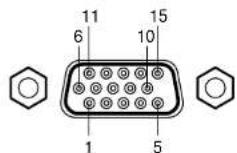
Mini D sub 15 Pin connector Input Signal
- RGB input R/G/B signals: 0.7V (p-p) 75 Ω Horizontal sync signal: TTL level (Pos/neg polarity) Vertical sync signal: TTL level (Pos/neg polarity)
- Y/PB/PR input Y signal: 1.0V (p-p) 75 Ω PB/PR signals: 0.7V (p-p) 75 Ω
| Pin No. | Pin description | |
| During RGB input | During Y/Pa/Pb input | |
| 1 | Video signal (R) | Color difference signal (Pa) |
| 2 | Videc signal (G) | Luminance signal (Y) |
| 3 | Videc signal (B) | Color difference signal (Pb) |
| 4 | GND | + |
| 5 | GND | + |
| 6 | GND (R) | GND (Pb) |
| 7 | GND (G) | GND (Y) |
| 8 | GND (B) | GND (Pb) |
| 9 | N.C + | |
| 10 | GND | + |
| 11 | GND | + |
| 12 | N.C + | |
| 13 | Horizontal sync signal | + |
| 14 | Vertical sync signal | + |
| 15 | N.C + | |
Do not connect anything.
Specifications (Continued)
■ CONTROL terminal
- Pin assignment
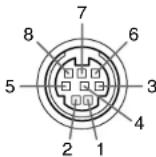
Mini DIN 8 pin connector
| Pin No. | Signal Name | Description |
| 1 | RXD | Receiving data |
| 2 | CTS | Consent to send |
| 3 | DSR | Data set ready |
| 4 | GND | Signal ground |
| 5 | RTS | Request to send |
| 6 | N.C | No connection |
| 7 | TXD | Sending data |
| 8 | N.C | No connection |
- Interface format
1 Communication method RS-232C, 9600bps, No Parity, Data Length: 8 bits;
Stop Bit Length: 1 bit
2 Communication format STX (02h) Command (3Byte) ETX (03h)
Only 1 command valid per communication.
3 Data format For input commands, only ASCII-compliant all-uppercase
alphanumeric characters supported.
4 Replies Acknowledge ACK (06h) CR (0Dh) Data ... Normally ended
ACK (06h) ESC (1Bh)... Aborted
No acknowledge NAK (15h)
If commands are to be sent consecutively, wait for the response from the projector
before sending the next command.
- Main Commands
| Item | Command |
| Power on | PON |
| Power off | POF |
| Icon display on | MO0 |
| Icon display off | MO1 |
| Auto setting (RGB input) | PAT |
| Status display on | DON |
| Status display off | DOF |
| Item | Command |
| Computer input select | IN1 |
| Y/PB/PRInput select | IN2 |
| Video input select | IN3 |
| S-video input select | IN4 |
| Camera input select | IN5 |
Note
- Contact your dealer for control cable and other commands.
■ Separately Sold Product
Replacement Lamp Model TLPLV2
Note
- Design, specifications, etc. subject to change without notice for improvements, etc.
TOSHIBA CORPORATION
- SAFETY PRECAUTIONS
- IMPORTANT SAFETY INSTRUCTIONS
- Read Owner's Manual
- Source of Light
- Power Sources
- Ventilation
- IMPORTANT SAFETY INSTRUCTIONS (Continued)
- Heat
- Water and Moisture
- Cleaning
- Power-Cord Protection
- Overloading
- Lightning storms
- Object and Liquid Entry
- Do not place the product vertically
- Stack Inhibited
- Attachments
- Accessories
- Damage Requiring Service
- If glass components, including lens and lamp, should break, contact your dealer for repair service.
- Servicing
- Replacement Parts
- Safety Check
- Do not leave thermal-paper documents or easily deformed items on top of the unit or near the air exhaust for long periods of time.
- Do not get your hands between the camera arm and the main unit when setting the camera arm back in its original position. (Models equipped with document camera)
- Do not carry by the camera arm. (Models equipped with document camera)
- Do not move the projector while the arm is still erect. (Models equipped with document camera)
- POWER SUPPLY CORD SELECTION
- IMPORTANT PRECAUTIONS
- Moisture Condensation
- Place and Manner of Installation
- IMPORTANT PRECAUTIONS (Continued)
- Avoid Volatile Liquid
- LCD Panel
- EXEMPTION CLAUSES
- OTHER CAUTIONS AND INFORMATIONS
- Copyrights
- Disposal
- Trademarks
- Notational Conventions Used in This Manual
- CONTENTS
- Before Using
- Preparations
- Operations
- Mainenance
- Others
- Checking the package contents
- Note
- ◆ The Supplied CD-ROM
- ■ Installing Acrobat® Reader™
- ■ Viewing the manual
- Names of each part on the main unit
- Names of each part on the control panel and remote control
- Notes
- Names of each part on the document camera (models with a document camera)
- Preparing and using the remote control
- Placement
- Placement Styles
- CAUTION
- Placement (Continued)
- Projection Distance and Screen Size (with optical zooming)
- Connection
- Before connection
- Turning the power on and off
- WARNING
- PRECAUTIONS
- LCD Panels
- Basic operations
- Using handy features
- ■ Using auto setting (Auto setting)
- ■ Correcting the keystone distortion (Keystone)
- ■ Zooming out the images
- Using handy features (Continued)
- ■ Displaying Information [Status display]
- - Press the button twice (or press the CALL button on the remote control once).
- Using the menus
- ■ How to use the menus
- Select a Category
- Adjustments & Settings
- Using the menu (Continued)
- ■ The image adjustment menu
- ■ The default setting menu
- ■ The display setting menu
- ■ Reset menu (Special menu)
- Using the document camera
- ■ Uninstalling the camera
- ■ Installing the camera
- ■ Preparation of the document camera (when loading the camera)
- ■ Preparing the document camera (for use being separated from the projector)
- Using the document camera (Continued)
- ■ Image projection with the document camera
- ① Place the document.
- ② Press the CAMERA button, and select camera input.
- Rotate the camera lens to align the orientation of the document for shooting.
- Move the camera head up and down to adjust the image size.
- ⑤ Adjust the focus using the focus ring on the camera head
- If the screen is too dark or too bright, use the CAMERA GAIN (+/-) buttons to make it easier to see. The Sharpness of the camera image can also be adjusted using the Image adjustment menu p.32.
- ⑦ After use, turn off the light, and fold up the document camera.
- PRECAUTION
- ■ Locking the white balance
- ⑦ Lay down a piece of white paper, and adjust so it fills the screen.
- ② Set the White balance to Lock in the Default menu. p.32
- Air filter cleaning
- ① Unplug power cord.
- ② Remove the air filter.
- ③ Clean the filter.
- ④ Replace the air filter.
- Lens and main unit cleaning
- ■ Lens cleaning
- ■ Main unit cleaning
- - Replacing air intake and exhaust fans, and air filter
- Lamp replacement
- ② Wait until lamp is sufficiently cooled.
- Lamp replacement (Continued)
- ③ Remove the lamp cover.
- ④ Pull out the lamp.
- ⑤ Mount the new lamp.
- ⑥ Replace the lamp cover.
- Reset the lamp timer.
- Notes and Precautions
- Used Lamps
- Trouble indications
- Before calling service personnel
- Specifications
- ■ Document camera specifications
- Specifications (Continued)
- ■ List of supported signals (RGB signals)
- ■ CONTROL terminal
- - Pin assignment
- - Interface format
- - Main Commands
- ■ Separately Sold Product
Brand : TOSHIBA
Model : TLP-S70
Category : Vidéo-projecteur