
DVD4730 - DVD player LG - Free user manual and instructions
Find the device manual for free DVD4730 LG in PDF.


User questions about DVD4730 LG
0 question about this device. Answer the ones you know or ask your own.
Ask a new question about this device
Download the instructions for your DVD player in PDF format for free! Find your manual DVD4730 - LG and take your electronic device back in hand. On this page are published all the documents necessary for the use of your device. DVD4730 by LG.
USER MANUAL DVD4730 LG
Before connecting, operating or adjusting this product, please read this instruction booklet carefully and completely.
WARNING: TO REDUCE THE RISK OF FIRE OR ELECTRIC SHOCK, DO NOT EXPOSE THIS PRODUCT TO RAIN OR MOISTURE.
CAUTION: THIS DVD PLAYER EMPLOYS A LASER SYSTEM.
TO ENSURE PROPER USE OF THIS PRODUCT, PLEASE READ THIS OWNER'S MANUAL CAREFULLY AND RETAIN FOR FUTURE REFERENCE, SHOULD THE UNIT REQUIRE MAINTENANCE, CONTACT AN AUTHORIZED SERVICE LOCATION-SEE SERVICE PROCEDURE.
USE OF CONTROLS, ADJUSTMENTS OR THE PERFORMANCE OF PROCEDURES OTHER THAN THOSE SPECIFIED MAY RESULT IN HAZARDOUS RADIATION EXPOSURE.
TO PREVENT DIRECT EXPOSURE TO LASER BEAM, DO NOT TRY TO OPEN THE ENCLOSURE. VISIBLE LASER RADIATION WHEN OPEN THE ENCLOSURE. DO NOT STARE INTO BEAM.
THE APPARATUS SHALL NOT BE EXPOSED TO DRIPPING OR SPLASHING AND THAT NO OBJECTS FILLED WITH LIQUIDS, SUCH AS VASES, SHALL BE PLACED ON THE APPARATUS.
WARNING: CHANGES OR MODIFICATIONS NOT EXPRESSLY APPROVED BY THE PARTY RESPONSIBLE FOR COMPLIANCE COULD VOID THE USER'S AUTHORITY TO OPERATE THE EQUIPMENT.

This product is manufactured to comply with the radio interference requirements of EEC DIRECTIVE 89/336/EEC, 93/68/EEC and 73/23/EEC.
RECORD YOUR MODEL NUMBER (Now, while you can see it)
The model and serial number of your new DVD player are located on the back of the DVD player cabinet. For your future convenience, we suggest that you record these numbers here:
MODEL NO.
SERIAL NO.
Introduction
□ Safety Precautions....2
Table of Contents....3
□ Precautions....4
Notes on Discs 5
□ Identification of Controls 6-9
Front Panel/Display window....6
Rear Panel 7
Remote Control....8
Preparing the Remote Control 9
Operating with the Remote Control 9
Connections
□ Connecting to a TV 10
□ Connecting to an Audio System .... 11
□ Connecting to Optional Audio System ..... 12-14
Enjoying Dolby Digital Sound....12
Enjoying Dolby Pro Logic Surround Sound ..... 13
Enjoying 2 Channel Digital Stereo Sound....14
Enjoying DTS Sound....14
Basic Operations
☐ Basic Playback 15-18
Basic Playback 15-16
Still Picture....17
Frame Advance 17
Skipping chapters and tracks forward or back .. 17
Scanning at High Speed....18
Playing in Slow-Motion 18
Operation Using GUI Menu Icons
☐ General Information about GUI menu icons .... 19
☐ Detailed description of each GUI menu icon....20
Advanced Operation
□ Using a title menu 21
□ Using a DVD menu 21
□ Memorizing Settings for Viewed DVDs
(Last Condition Memory) 22
□ Changing subtitle language ..... 23
□ Changing audio soundtrack language....23
□ Viewing from another angle 24
□ Producing a 3D Surround effect ..... 24
□ Repeat Play....25
□ Storing markers in memory to be viewed
(listened to) again 26
□ Zoom Feature 27
□ Random Play....27
Program Play....28
□ Playback with MP3 29-30
Initial Settings
Selection of initial settings 31
□ Selecting disc Languages 32
☐ Selecting rating level and password ..... 33-34
□ Selecting TV Aspect....35
□ Selecting Menu Language 36
□ Others (DRC/Pseudo/Vocal)....37
☐ Selecting Digital Audio Output ..... 38
☐ Table of Languages and Their Abbreviations ... 39
Reference
□ Disc Requirements/Copyright Information.....40
Before Calling Service Personnel....41
Specifications....42
Notes on handling
☐ When shipping the DVD player, always use the original shipping carton and packing materials.
For maximum protection, repack the unit as it was originally packed at the factory.
☐ Do not use volatile liquids, such as insect spray, near the DVD player. Do not leave rubber or plastic products in contact with the DVD player for a long time. They will leave marks on the finish.
☐ The top and rear panels of the DVD player may become warm after a long period of use. This is normal and not a malfunction.
☐ When the DVD player is not in use, be sure to remove the disc and turn off the power.
☐ If you do not use the DVD player for a long period, the unit may not function properly in the future. Turn on and use the DVD player occasionally.
Notes on Locating
☐ When you place this DVD player near a TV, radio, or VCR, the playback picture may become poor and the sound may be distorted. In this case, move the DVD player away from the TV, radio, or VCR.
Notes on Cleaning
Use a soft, dry cloth for cleaning.
☐ For stubborn dirt, soak the cloth in a weak detergent solution, wring well and wipe. Use a dry cloth to wipe it dry. Do not use any type of solvent, such as thinner and benzine, as they may damage the surface of the DVD player.
☐ If you use a chemical saturated cloth to clean the unit, follow that product's instructions.
Warning: Cleaning and adjustment of lenses and/or other components of playback mechanism should be performed by a qualified service technician.
To Obtain a Clear Picture
The DVD player is a high technology, precision device. If the optical pick-up lens and disc drive parts are dirty or worn down, the picture quality becomes poor. To obtain a clear picture, we recommend regular inspection and maintenance (cleaning or parts replacement) every 1,000 hours of use depending on the operating environment. For details, contact your nearest dealer.
Notes on Moisture Condensation
Moisture condensation damages the DVD player. Please read the following carefully.
Moisture condensation occurs, for example, when you pour a cold drink into a glass on a warm day. Drops of water form on the outside of the glass. In the same way, moisture may condense on the optical pick-up lens inside this unit, one of the most crucial internal parts of the DVD player.
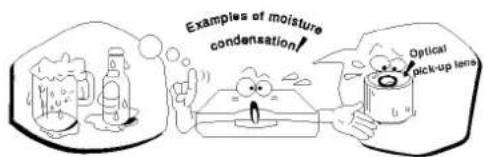
text_image
Examples of moisture condensation! Optical pick-up lensMoisture condensation occurs during the following cases.
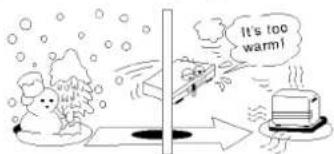
☐ When you bring the DVD player directly from a cold place to a warm place.
☐ When you use the DVD player in a room where you just turned on the heater, or a place where the cold wind from the air conditioner directly hits the unit.
In summer, when you use the DVD player in a hot and humid place just after you move the unit from an air conditioned room.
☐ When you use the DVD player in a humid place.
text_image
It's too warm!☐ Do not use the DVD player when moisture condensation may occur.
If you use the DVD player in such a situation, it may damage discs and internal parts. Remove the disc, connect the power cord of the DVD player to the wall outlet, turn on the DVD player and leave it "ON" for two or three hours. After two or three hours, the DVD player will have warmed up and evaporated any moisture. Keep the DVD player connected to the wall outlet and moisture condensation will seldom occur.
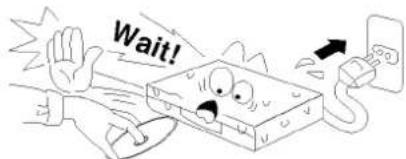
text_image
Wait!This section shows you how to handle, clean, and store discs.
On Handling Discs
Do not touch the playback side of the disc.

- Do not attach paper or tape to discs.

On Storing Discs
Do not store discs in a place subject to direct sunlight or near heat sources.
Do not store discs in places subject to moisture and dust such as a bathroom or near a humidifier.
Store discs vertically in a case. Stacking or placing objects on discs outside of their case may cause warping.
On Cleaning Discs
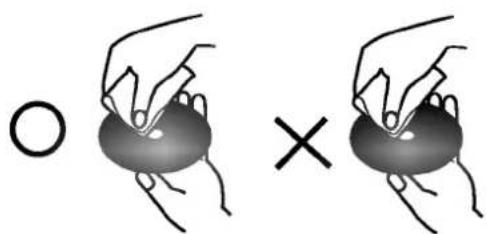
☐ Fingerprints and dust on the disc cause picture and sound deterioration. Wipe the disc from the centre outward with a soft cloth. Always keep the disc clean.
If you cannot wipe off the dust with a soft cloth, wipe the disc lightly with a slightly moistened soft cloth and finish with a dry cloth.
Do not use any type of solvents such as thinner, benzine, commercially available cleaners or anti-static spray for vinyl LPs. They may damage the disc.
natural_image
Illustration of two hands holding a circular object, one with a circle and the other with an 'X' symbol (no text or labels)About This Owner's Manual
- This owner's manual explains the basic instructions of this DVD player.
Some DVD video discs have functions that may not be explained in this owner's manual. Therefore, some instructions may differ from this owner's manual, and there may be extra instructions. In this case, follow the instructions displayed on the TV screen or package. - “ Ⓧ ” may appear on the TV screen during operation. This icon means the function explained in this owner's manual is not available on that specific DVD video disc.

text_image
DVD4830 1 2 3 4 5 6 7 8 9 10 1 2 3 4 5 7 6 8 9 10 DVD4730 1 POWER button 2 STANDBY indicator Power ON mode: Green color, Standby mode: Red color 3 Display window 4 Disc tray 5 Remote sensor 6 OPEN/CLOSE button 7 PLAY button 8 PAUSE/STEP button 9 SKIP/SCAN buttons 10 STOP buttonDisplay Window
text_image
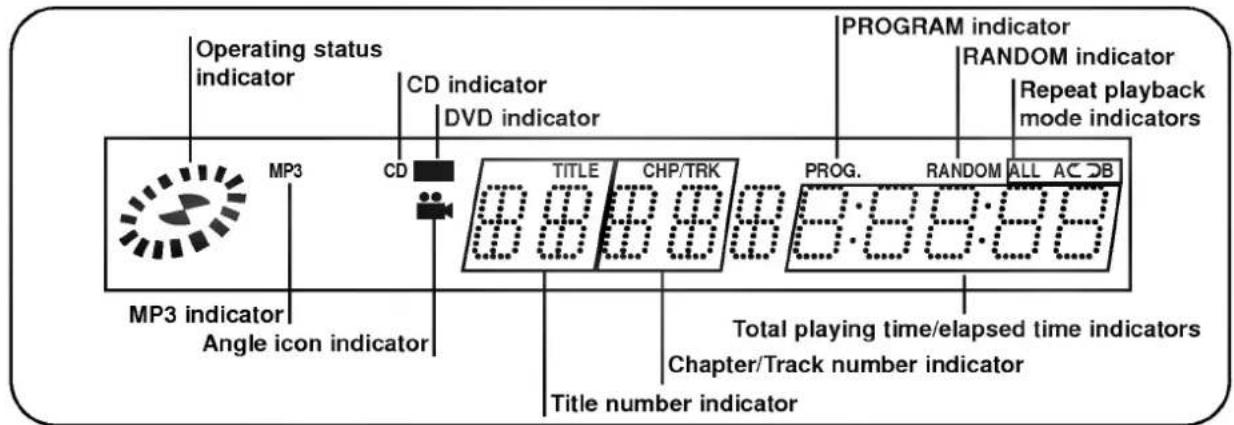
Operating status indicator CD indicator DVD indicator PROGRAM indicator RANDOM indicator Repeat playback mode indicators MP3 CD TITLE CHP/TRK PROG. RANDOM ALL AC DB MP3 indicator Angle icon indicator Total playing time/elapsed time indicators Chapter/Track number indicator Title number indicator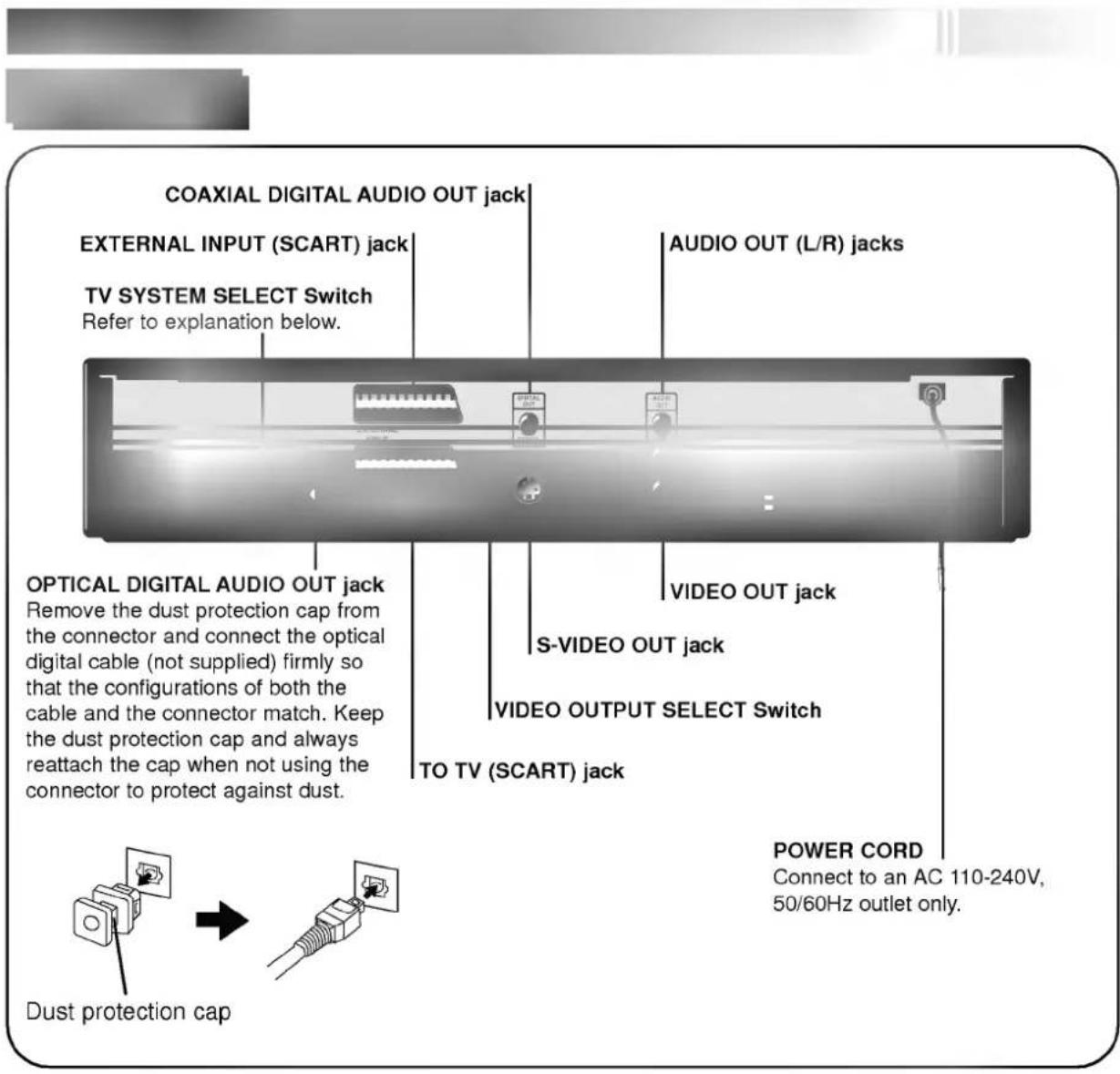
text_image
COAXIAL DIGITAL AUDIO OUT jack EXTERNAL INPUT (SCART) jack TV SYSTEM SELECT Switch Refer to explanation below. AUDIO OUT (L/R) jacks OPTICAL DIGITAL AUDIO OUT jack Remove the dust protection cap from the connector and connect the optical digital cable (not supplied) firmly so that the configurations of both the cable and the connector match. Keep the dust protection cap and always reattach the cap when not using the connector to protect against dust. VIDEO OUT jack S-VIDEO OUT jack VIDEO OUTPUT SELECT SWITCH TO TV (SCART) jack POWER CORD Connect to an AC 110-240V, 50/60Hz outlet only. Dust protection capYou can enjoy NTSC or PAL discs by using your TV SYSTEM SELECT switch to choose the appropriate system.
• If you try to play back a PAL disc with an NTSC-TV. The player will not playback the disc.
- When the selected TV SYSTEM SELECT switch does not coincide with the system of your TV, normal color picture may not be displayed.
- Select the TV SYSTEM SELECT switch when the power is turned off.
- When you playback NTSC disc with PAL-TV, some discs may produce black bands at the top and bottom of the screen.
| Position of TV SYSTEM SELECT switch | Connected TV | Available disc |
| PAL | PAL | NTSC/PAL DVD disc |
| NTSC | NTSC | NTSC DVD disc |
| AUTO | MULTI system TV | NTSC/PAL DVD disc |
REMOTE CONTROL
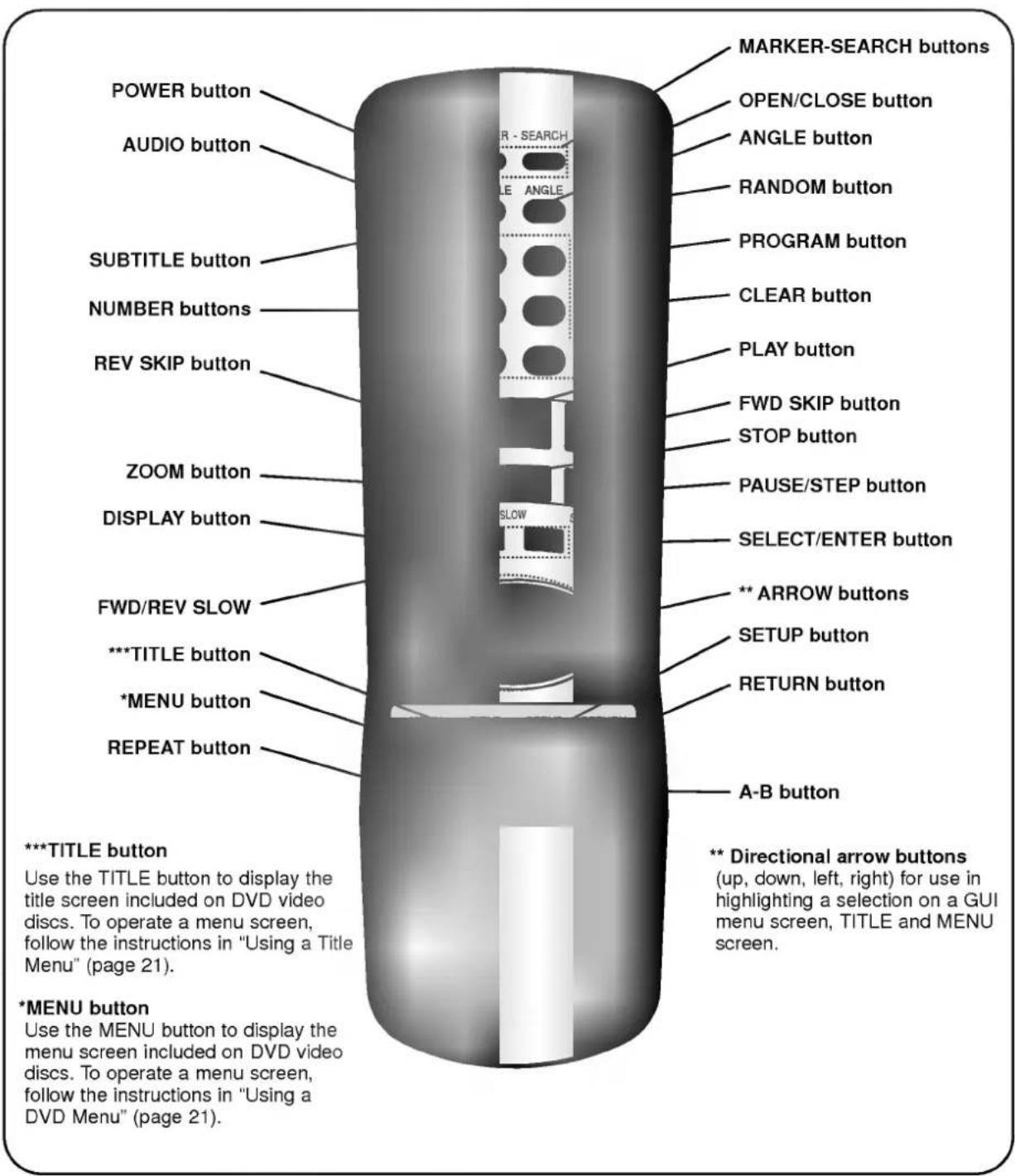
You will find instructions for each of the remote control functions in the appropriate sections of this instruction manual.
text_image
POWER button AUDIO button SUBTITLE button NUMBER buttons REV SKIP button ZOOM button DISPLAY button FWD/REV SLOW ***TITLE button *MENU button REPEAT button R - SEARCH LE ANGLE SLOW MARKER-SEARCH buttons OPEN/CLOSE button ANGLE button RANDOM button PROGRAM button CLEAR button PLAY button FWD SKIP button STOP button PAUSE/STEP button SELECT/ENTER button ** ARROW buttons SETUP button RETURN button A-B button ***TITLE button Use the TITLE button to display the title screen included on DVD video discs. To operate a menu screen, follow the instructions in "Using a Title Menu" (page 21). *MENU button Use the MENU button to display the menu screen included on DVD video discs. To operate a menu screen, follow the instructions in "Using a DVD Menu" (page 21). ** Directional arrow buttons (up, down, left, right) for use in highlighting a selection on a GUI menu screen, TITLE and MENU screen.Preparing the Remote Control
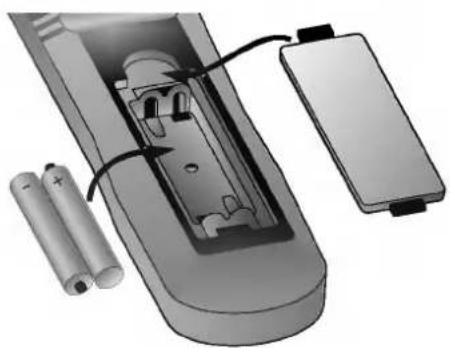
Insert the batteries into the remote control so you can use it to operate the DVD player.

Open the battery cover.

Insert batteries (AAA size).
● Make sure to match the + and - on the batteries to the marks inside the battery compartment.

Close the cover.
natural_image
Diagram of a remote control unit with batteries and battery pack (no text or symbols)- Improper use of batteries may cause battery leakage and corrosion.
To operate the remote control correctly, follow the instructions.
Do not insert the batteries into the remote control in the wrong direction.
Do not charge, heat, open, or short-circuit the batteries. Do not throw the batteries into fire.
Do not leave dead or exhausted batteries in the remote control.
Do not use different types of batteries together, or mix old and new batteries.
If you do not use the remote control for a long period of time, remove the batteries to avoid possible damage from battery corrosion.
If the remote control does not function correctly or if the operating range becomes reduced, replace all batteries with new ones.
If battery leakage occurs, wipe the battery liquid from the battery compartment, then insert new batteries.
The batteries should last about one year with normal use.
Operating with the Remote Control
This section shows you how to use the remote control.
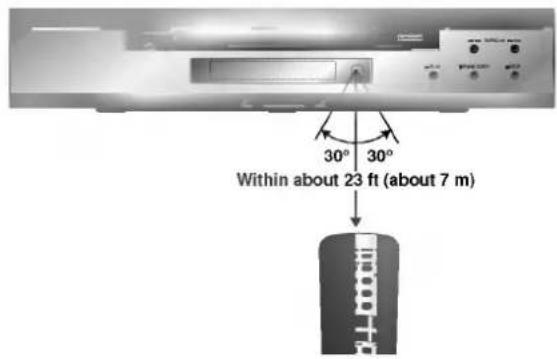
Point the remote control at the remote sensor and press the buttons.
text_image
30° 30° Within about 23 ft (about 7 m)Distance: About 23 ft (7 m) from the front of the remote sensor
Angle: About 30^ in each direction of the front of the remote sensor
* Do not expose the remote sensor of the DVD player to a strong light source such as direct sunlight or illumination. If you do so, you may not be able to operate the DVD player with the remote control.
Direct the remote control at the remote sensor of the DVD player.
Do not drop or give the remote control a shock.
Do not leave the remote control near an extremely hot or humid place.
Do not spill water or put anything wet on the remote control.
Do not open the remote control.
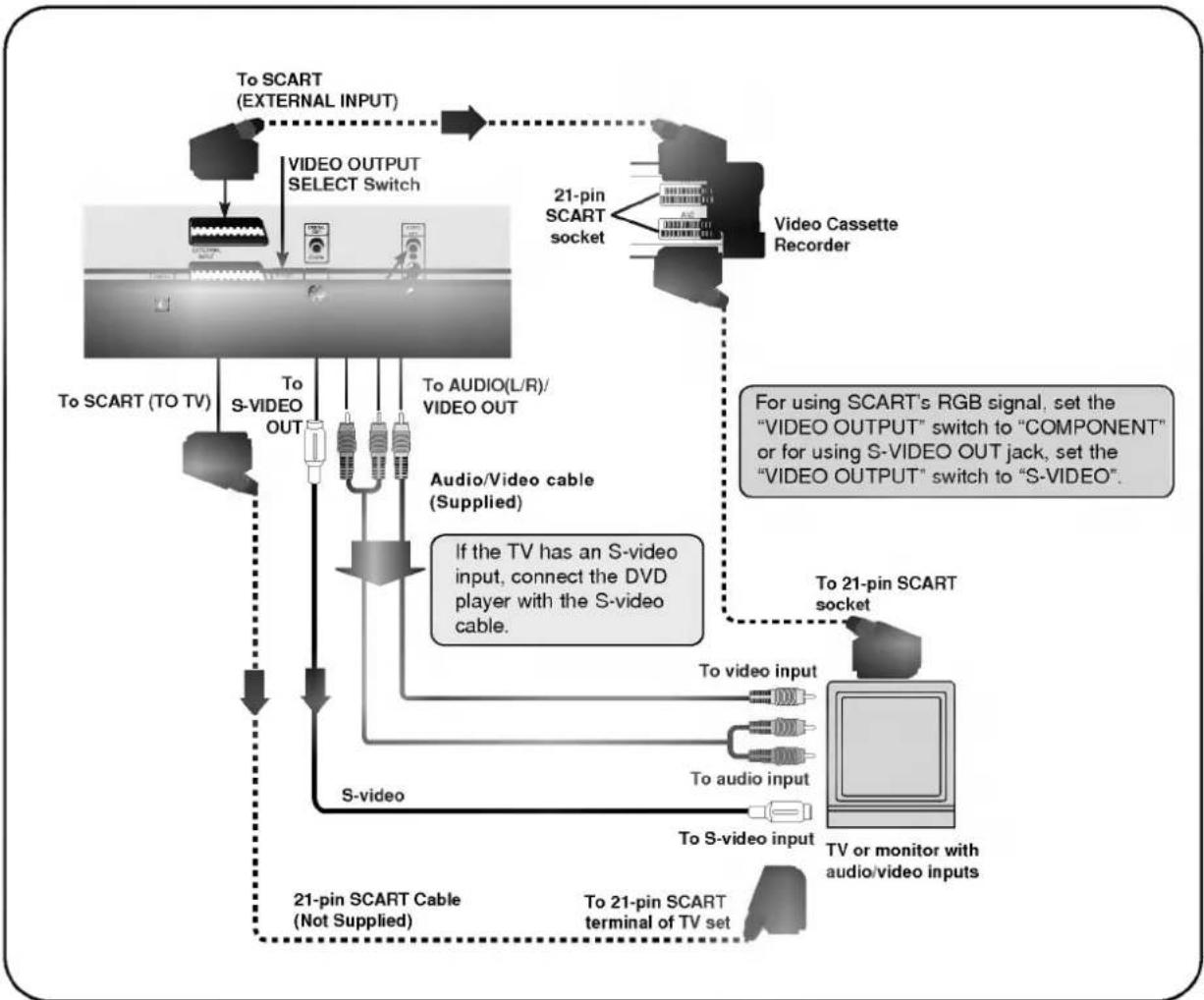
Connect the DVD player to your TV
If the DVD player is connected to the TV through a video cassette recorder, the picture may not be played back normally with some DVDs. So we strongly recommended you not to connect the DVD player to your video cassette recorder when setting up your home entertainment system.
• To view pictures from the video cassette recorder, set the player to the standby mode.
flowchart
graph TD
    A["To SCART (External Input)"] --> B["VIDEO OUTPUT SELECT Switch"]
    B --> C["To S-VIDEO OUT"]
    C --> D["Audio/Video cable (Supplied)"]
    D --> E["S-video"]
    E --> F["21-pin SCART Cable (Not Supplied)"]
    F --> G["To 21-pin SCART terminal of TV set"]
    G --> H["To video input"]
    H --> I["To audio input"]
    I --> J["To 21-pin SCART socket"]
    J --> K["Video Cassette Recorder"]
    K --> L["21-pin SCART socket"]
    L --> M["For using SCART's RGB signal, set the "VIDEO OUTPUT" switch to "COMPONENT" or for using S-VIDEO OUT jack, set the "VIDEO OUTPUT" switch to "S-VIDEO"."]
    style A fill:#f9f,stroke:#333
    style B fill:#ccf,stroke:#333
    style K fill:#cfc,stroke:#333
    style L fill:#fcc,stroke:#333
- Refer to the owner's manual of your TV as well.
When you connect the DVD player to your TV, be sure to turn off the power and unplug both units from the wall outlet before making any connections.
Connect the DVD player to your TV directly. If you connect the DVD player to a VCR, the playback picture will be distorted because DVD video discs are copy protected.
In case of the TV set corresponding to RGB signal, the RGB signal is automatically selected in the TV (Only when the "VIDEO OUTPUT Switch" is set to "COMPONENT" on the Rear Panel).
Warning
Do not set the Digital Audio Output of this DVD player to "Dolby Digital" unless you are connecting the DIGITAL OUT jack of this DVD player to an AV decoder that has the Dolby Digital decoding function. High volume sound may damage your hearing as well as the speakers (Refer to "Selecting Digital Audio Output" on page 38).
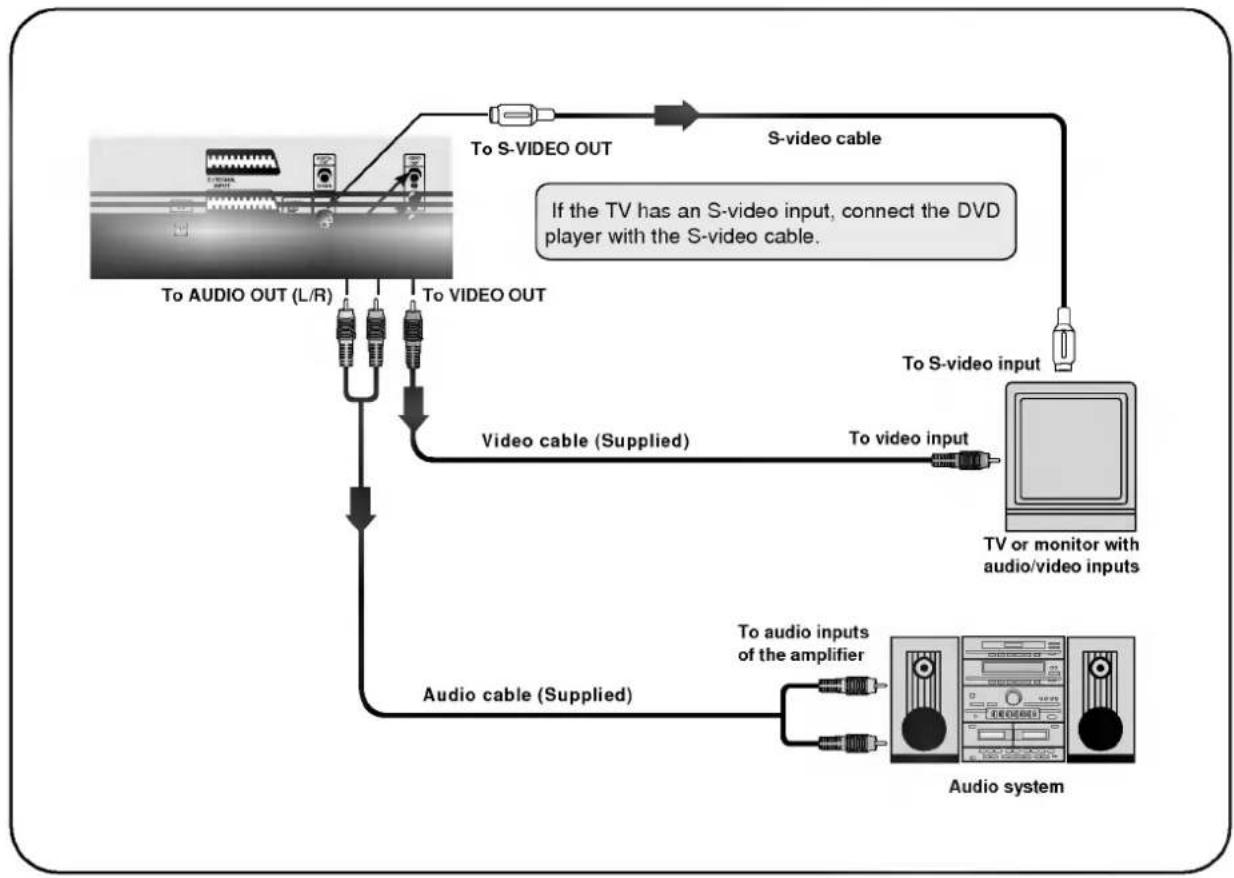
You can listen to the sound of audio CDs and DVD video discs in stereo.
flowchart
graph TD
    A["To S-VIDEO OUT"] --> B["S-video cable"]
    C["To AUDIO OUT (L/R)"] --> D["Video cable (Supplied)"]
    E["To VIDEO OUT"] --> D
    F["To video input"] --> G["TV or monitor with audio/video inputs"]
    H["To audio inputs of the amplifier"] --> I["Audio system"]
    D --> J["Audio cable (Supplied)"]
    G --> J
    I --> J
○ Refer to the owner's manual of your audio system as well.
When you connect the DVD player to other equipment, be sure to turn off the power and unplug all of the equipment from the wall outlet before making any connections.
If you place the DVD player near a tuner or radio, the radio broadcast sound might be distorted. In this case, move the DVD player away from the tuner and radio.
The output sound of the DVD player has a wide dynamic range. Be sure to adjust the receiver's volume to a moderate listening level. Otherwise, the speakers may be damaged by a sudden high volume sound.
Turn off the receiver before you connect or disconnect the DVD player's power cord. If you leave the receiver power on, the speakers may be damaged.
Warning
Do not set the Digital Audio Output of this DVD player to "Dolby Digital" unless you are connecting the DIGITAL OUT jack of this DVD player to an AV decoder that has the Dolby Digital decoding function. High volume sound may damage your hearing as well as the speakers (Refer to "Selecting Digital Audio Output" on page 38).
Enjoying Dolby Digital Sound
You can enjoy the high quality dynamic sound of Dolby Digital, Dolby Pro Logic, and 2 Channel Digital Stereo.
Dolby Digital
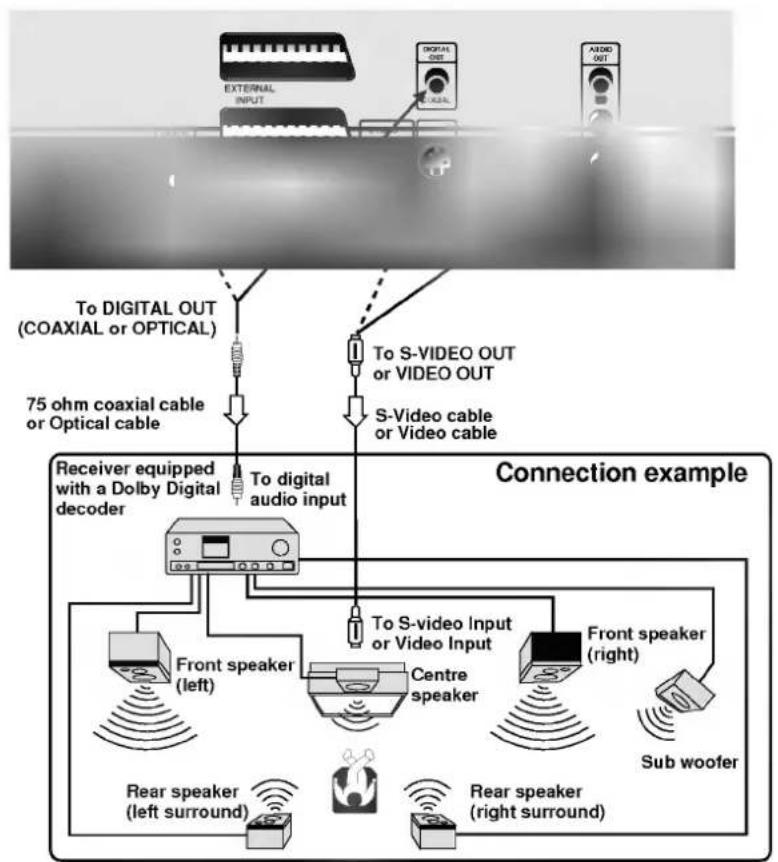
Dolby Digital is the surround sound technology used in theatres showing the latest movies, and is now available to reproduce this realistic effect in the home. You can enjoy motion picture and live concert DVD video discs with this dynamic realistic sound by connecting the DVD player to a 6 channel receiver equipped with a Dolby Digital decoder or Dolby Digital processor.
To enjoy Dolby Digital sound from this DVD player you need the following:
● DVD recorded in Dolby Digital
- 6 channel receiver equipped with a Dolby Digital decoder, or Dolby Digital processor and power receiver
● 5 speakers and 1 sub woofer
flowchart
graph TD
    A["External Input"] --> B["75 ohm coaxial cable or Optical cable"]
    C["Digital Out"] --> D["To DIGITAL OUT (COAXIAL or OPTICAL)"]
    E["S-Video Cable"] --> F["To S-VIDEO OUT or VIDEO OUT"]
    G["Receiver equipped with a Dolby Digital decoder"] --> H["To digital audio input"]
    I["Front speaker (left)"] --> J["To S-video Input or Video Input"]
    K["Centre speaker"] --> L["Front speaker (right)"]
    M["Rear speaker (left surround)"] --> N["Rear speaker (right surround)"]
    O["Subwoofer"] --> P["Subwoofer"]
To enjoy Dolby Digital sound You need to select "Dolby Digital" on the SETUP menu.
* Manufactured under license from Dolby Laboratories. "Dolby", "Pro Logic", and the double-D symbol are trademarks of Dolby Laboratories. Confidential Unpublished works. Copyright 1992-1997 Dolby Laboratories. All rights reserved.
Enjoying Dolby Pro Logic Surround Sound
Dolby Pro Logic Surround
You can still enjoy the excitement of Surround Sound even if your A/V receiver does not offer Dolby Digital decoding, if your A/V receiver has a Dolby Pro Logic decoder. Refer to the following connection diagram.
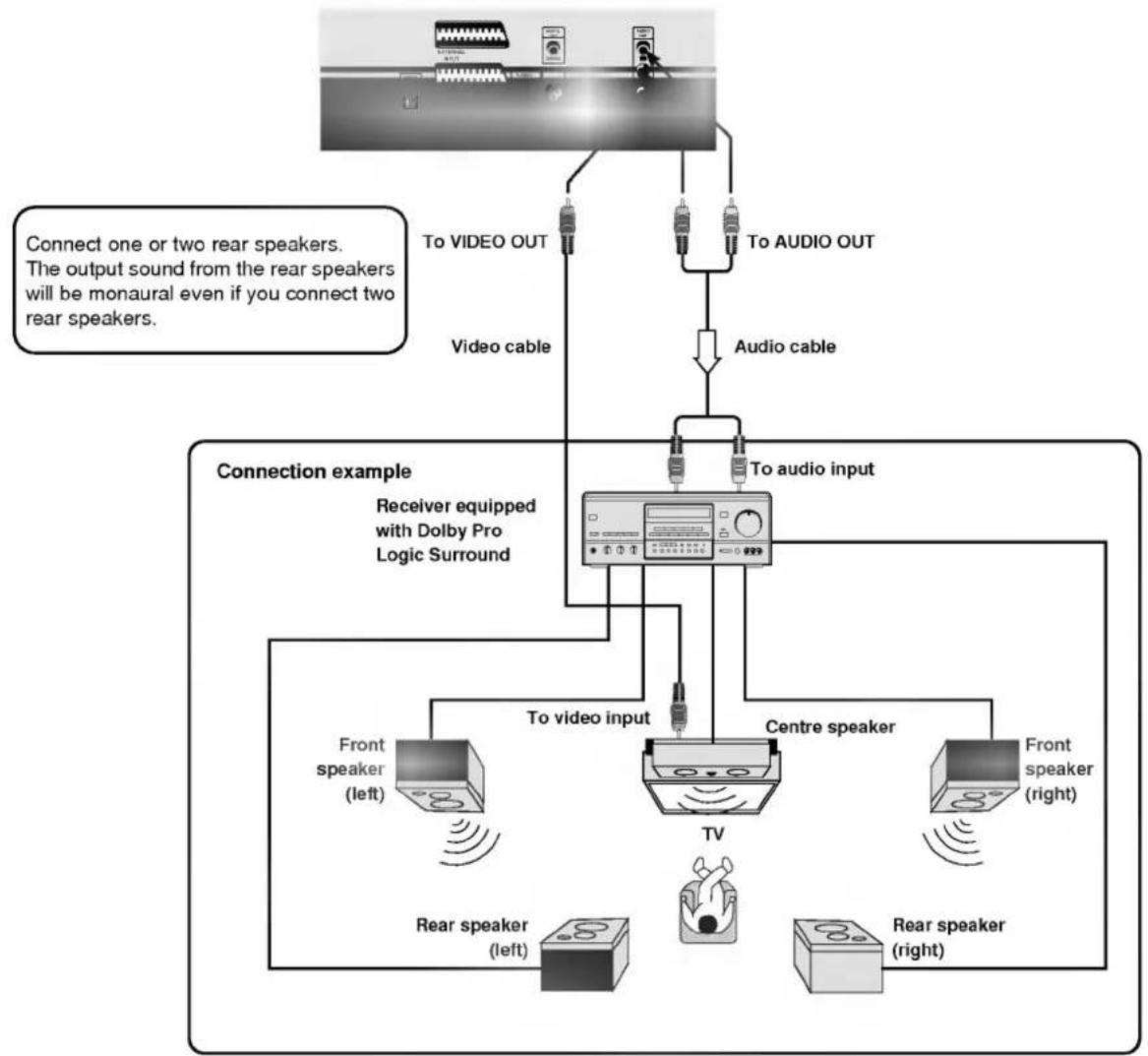
flowchart
graph TD
    A["Input Image"] --> B["Video Cable"]
    B --> C["Audio Cable"]
    C --> D["To Audio Input"]
    D --> E["Receiver equipped with Dolby Pro Logic Surround"]
    E --> F["Front speaker (left)"]
    E --> G["Front speaker (right)"]
    E --> H["Rear speaker (left)"]
    E --> I["Rear speaker (right)"]
    J["To VIDEO OUT"] --> B
    K["To AUDIO OUT"] --> C
    L["To video input"] --> E
    M["TV"] --> E
    N["Centre speaker"] --> E
    O["Connect one or two rear speakers."] --> B
    P["Output sound from the rear speakers will be monaural even if you connect two rear speakers."] --> B
● With a receiver equipped with Dolby Digital
Connect the equipment the same way as described in "Enjoying Dolby Digital Sound" on the previous page. Refer to that receiver's owner's manual and set the receiver so you can enjoy Dolby Pro Logic Surround sound.

Warning
Do not set the Digital Audio Output of this DVD player to "Dolby Digital" unless you are connecting the DIGITAL OUT jack of this DVD player to an AV decoder that has the Dolby Digital decoding function. High volume sound may damage your hearing as well as the speakers (Refer to "Selecting Digital Audio Output" on page 38).
Enjoying 2 Channel Digital Stereo Sound
2 Channel Digital Stereo
You can enjoy the dynamic sound of 2 Channel Digital Stereo by connecting this DVD player to a receiver equipped with a digital audio input and speaker system (right and left front speakers).
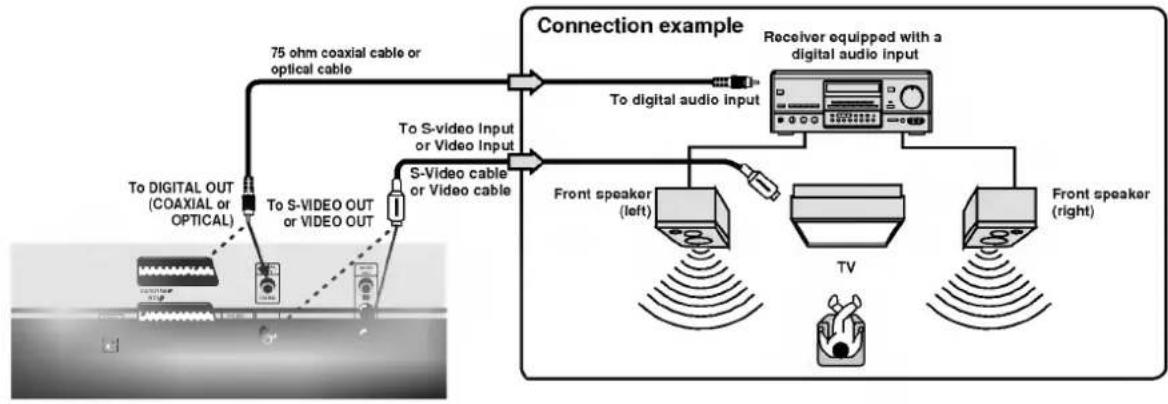
flowchart
graph TD
    A["Device with 75 ohm coaxial cable or optical cable"] --> B["To digital audio input"]
    C["Device with S-video cable or video cable"] --> D["To digital audio input"]
    E["Front speaker (left)"] --> F["TV"]
    G["Front speaker (right)"] --> H["TV"]
    I["To digital out (COAXIAL or OPTICAL)"] --> J["To S-VIDEO OUT or VIDEO OUT"]
    K["To S-video Input or Video Input"] --> L["To digital output"]
    M["Connection example"] --> N["Receiver equipped with a digital audio input"]
    style A fill:#f9f,stroke:#333
    style C fill:#f9f,stroke:#333
    style E fill:#f9f,stroke:#333
    style I fill:#ccf,stroke:#333
    style K fill:#ccf,stroke:#333
Enjoying DTS Sound
Introducing DTS Digital Surround™...the finest technology ever invented to transform existing "home theatre" systems into six discrete channels of exceptionally clear, better-than-compact disc, digital audio performance. And DTS Digital Surround is the only 5.1 surround sound format that can deliver this revolutionary 3-dimensional experience through new music recordings on compact discs, original 5.1 soundtracks on motion picture laserdiscs, and soon, a wide variety of products on DVD.
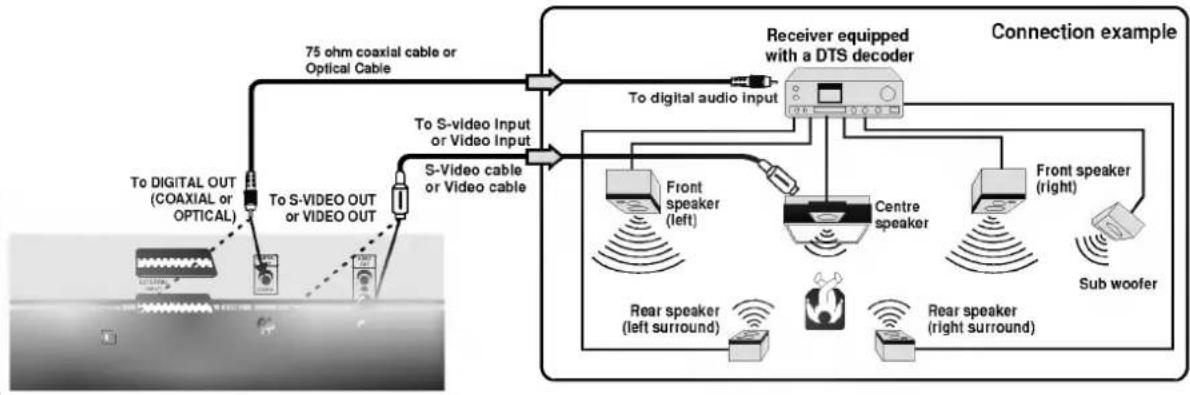
flowchart
graph TD
    A["To DIGITAL OUT (COAXIAL or OPTICAL)"] --> B["To S-VIDEO OUT or VIDEO OUT"]
    B --> C["S-Video cable or Video cable"]
    C --> D["75 ohm coaxial cable or Optical Cable"]
    D --> E["Receiver equipped with a DTS decoder"]
    E --> F["To digital audio input"]
    F --> G["Front speaker (left)"]
    F --> H["Centre speaker"]
    F --> I["Front speaker (right)"]
    F --> J["Sub woofer"]
    G --> K["Rear speaker (left surround)"]
    H --> L["Rear speaker (right surround)"]
    I --> M["Sub woofer"]
"DTS" and "DTS Digital Out" are trademarks of Digital Theater Systems, Inc.

text_image
DVD VIDEO CONTRACT DISC DIGITAL AUDIOThis section shows you the basics on how to play back a DVD video disc.
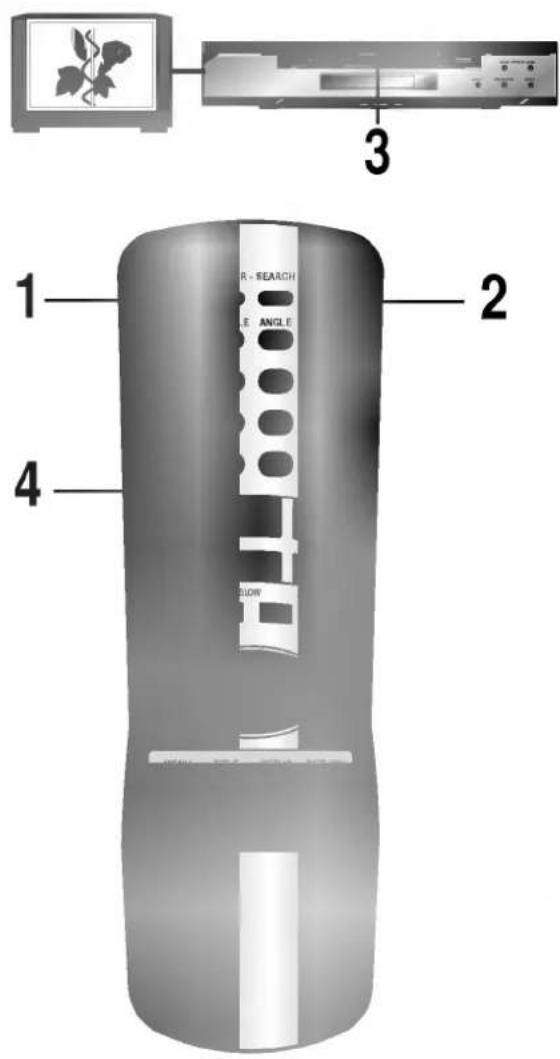
text_image
1 R - SEARCH 2 Angle 3 4 FLOWPreparations
- When you want to play back DVD video discs, turn on the TV and select the video input source connected to the DVD player.
- When you want to enjoy the sound of DVD video discs or audio CDs from the audio system, turn on the audio system and select the input source connected to the DVD player.
● For connection details, see pages 10 through 14. - Set the playback picture size according to the aspect ratio of the connected TV at the SETUP menu (TV Aspect).
- If you do not have the necessary equipment to enjoy Dolby Digital sound, set the Digital Audio Output at the SETUP menu to "PCM".
Press POWER.
The DVD player turns on and the power indicator light is changed to a green color.
Press OPEN/CLOSE.
The disc tray opens.
- You can open the disc tray by pressing this button even if the DVD player is in standby mode.
Place a disc on the disc tray with the playback side down.
There are two different disc sizes. Place the disc in the correct guide on the disc tray. If the disc is out of the guide, it may damage the disc and cause the DVD player to malfunction.
Press PLAY.
The disc tray is automatically closed and playback begins.
- If the disc is placed in upside down (and it is a single sided disc), "NO DISC" or "DISC ERROR" appears on the TV screen.

Operating status indicator
- If you insert an audio CD, the CD indicator lights up in the DVD display. The title number does not appear.
● After playing back all of the chapters in the title, the DVD player automatically stops and returns to the menu screen.
When a menu screen appears on the TV screen.
In case of interactive DVDs with control, a menu screen appears on the TV screen. Perform step 5 on page 16 to start play.
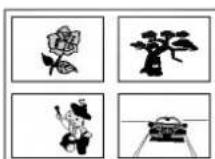
Example of interactive DVD On-Screen Menu
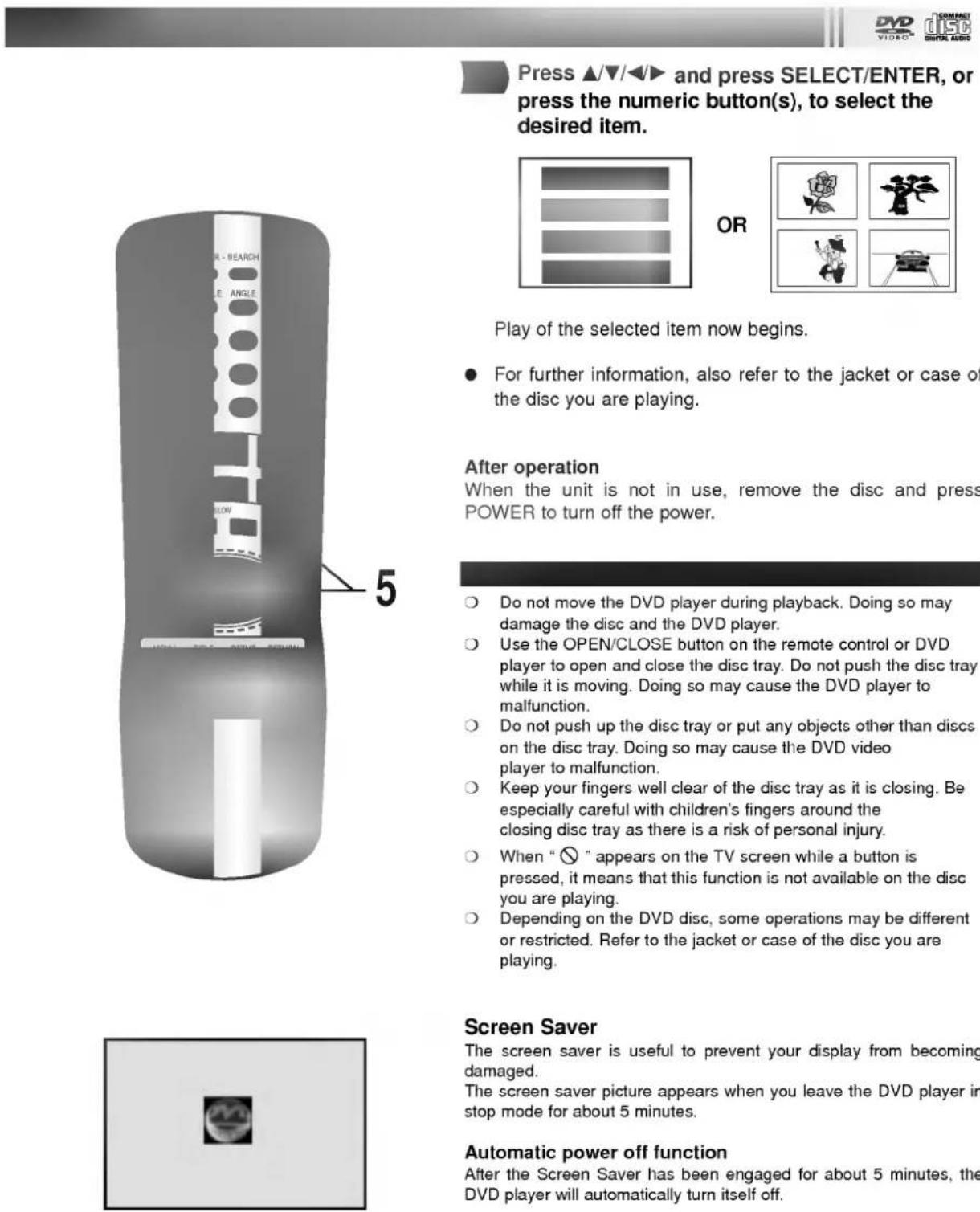
Press ▲/▼/◄/► and press SELECT/ENTER, or press the numeric button(s), to select the desired item.
Play of the selected item now begins.
- For further information, also refer to the jacket or case of the disc you are playing.
After operation
When the unit is not in use, remove the disc and press POWER to turn off the power.
Do not move the DVD player during playback. Doing so may damage the disc and the DVD player.
Use the OPEN/CLOSE button on the remote control or DVD player to open and close the disc tray. Do not push the disc tray while it is moving. Doing so may cause the DVD player to malfunction.
Do not push up the disc tray or put any objects other than discs on the disc tray. Doing so may cause the DVD video player to malfunction.
Keep your fingers well clear of the disc tray as it is closing. Be especially careful with children's fingers around the closing disc tray as there is a risk of personal injury.
When "☒" appears on the TV screen while a button is pressed, it means that this function is not available on the disc you are playing.
Depending on the DVD disc, some operations may be different or restricted. Refer to the jacket or case of the disc you are playing.
Screen Saver
The screen saver is useful to prevent your display from becoming damaged.
The screen saver picture appears when you leave the DVD player in stop mode for about 5 minutes.
Automatic power off function
After the Screen Saver has been engaged for about 5 minutes, the DVD player will automatically turn itself off.
text_image
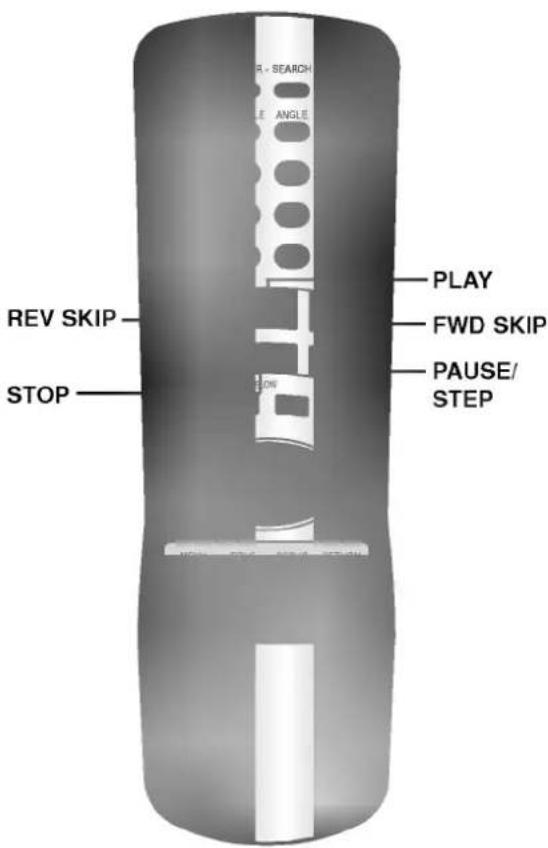
REV SKIP STOP PLAY FWD SKIP PAUSE/ STEP

Press STOP during playback.
- When play is stopped, the unit records the point where STOP was pressed (RESUME function). Press PLAY and play will resume from this point.
Resume function will be cleared when the STOP is pressed on the STOP mode.
Resume function will be cleared when the power is turned off and then on.
○ Opening the disc tray cancels Resume function.
The Resume function may not be available on some DVD discs.
Press PAUSE/STEP during playback.
DVD
The player will be placed in the still picture mode.
CD
The player will be placed in the pause mode.
Press PAUSE/STEP during still playback.
(Each time you press PAUSE/STEP, the picture advances one frame)
To resume normal playback, press PLAY.
Skipping chapters and tracks forward or back
Skipping forward
Press SKIP ▶▶ during playback.
A chapter (DVD) or a track (CD) is skipped each time the button is pressed.
Skipping back
Press SKIP ◀ during playback.
- When the button is pressed once midway through a chapter/track, the player returns to the start of that chapter/track. When it is pressed again, a chapter/track is skipped each time the button is pressed.
text_image
R - SEARCH LE ANGLE PLAY FWD/REV SKIP FLOW

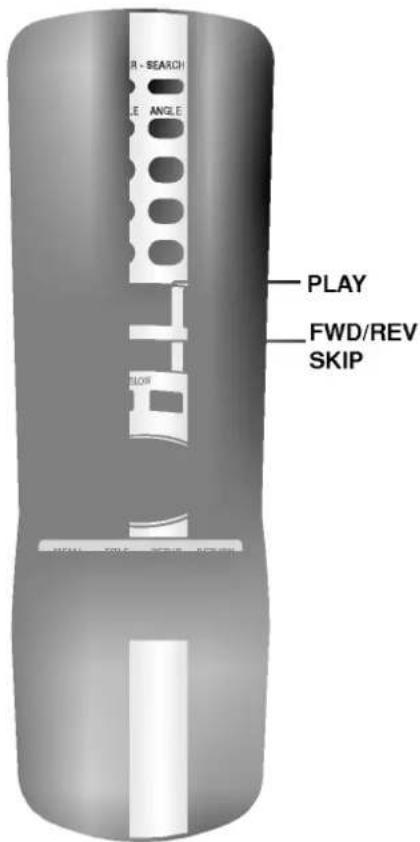
To Scan at fast forward or fast reverse playback.
Press and hold SKIP ◀◀ or ▶▶ button during playback.
[TV screen]
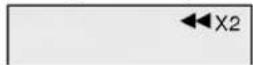
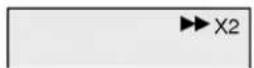
- The speed of advance (reverse) is relatively slow at first. When the button is pressed again, the speed becomes faster. (Each time the button is pressed, the speed increases up to 4 steps.)
● The speed will be retained even after the button is released.
To return to normal playback, press PLAY.
The DVD player does not play back sound during the high speed reverse and forward playback of DVD video discs. However, the DVD player plays back sound during fast forward or fast reverse playback of audio CDs.
Press SLOW ◀ or ▶ during playback.
The playback speed becomes 1/16 (DVD) of the normal speed.
[TV screen]
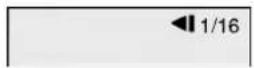
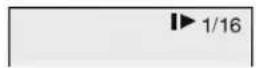
● The speed of slow-motion is slow at first. When the button is pressed again, the speed becomes faster. (Each time the button is pressed, the speed increase up to 4 steps.)
● The speed will be retained even after the button is released.
To return to normal playback, press PLAY.
The sound is muted during slow-motion playback.
- Subtitles do not appear on the screen during slow motion playback.
The slow does not work in case of Audio CDs.
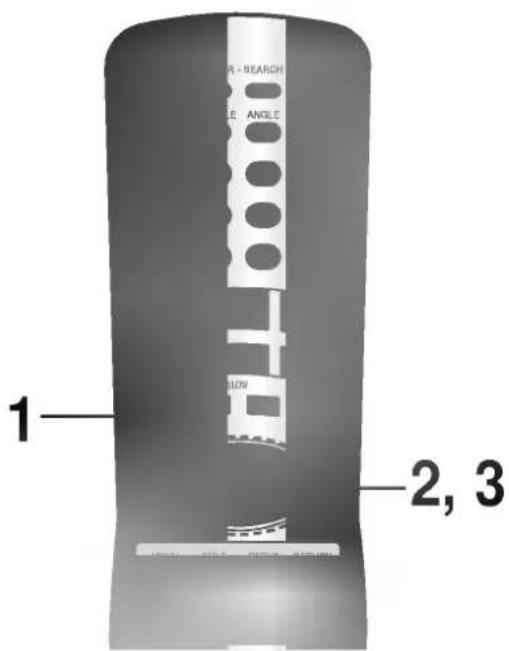
This unit features GUI Menu Icons showing disc information (title/chapter/track number, elapsed playing time, audio/subtitle language, angle, and sound) and player information (repeat play, play mode, marker, etc.). Some icons only show the indicated information. Other icons allow the settings to be changed.
text_image
R - SEARCH ANGLE SLOW 1 2, 3Common procedures

Press DISPLAY during playback.
● Title function can be accessed from the stop mode.

Press ▲/▼ to select the desired item.
● The current selected item is indicated by a yellow frame on its GUI menu icons.

Press ◀/▶ to select the desired setting.
- When numbers are displayed (e.g. title No.), the numeric buttons can also be used for setting instead of ◀.
- For some functions, the setting will be registered immediately; for others, SELECT/ENTER must be pressed.
To clear the GUI Menu Icons, press DISPLAY.
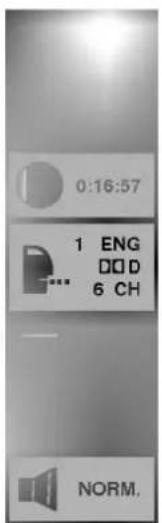
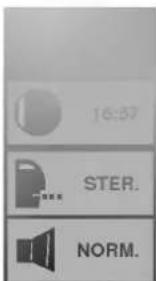
Examples of GUI Menu Icons.
(The screens may differ depending on the disc contents.)
text_image
0:16:57 1 ENG DOD 6 CH NORM,(DVD GUI)
text_image
16:57 STER. NORM.(CD GUI)



(DVD and CD GUI)
You can view information about a disc and its operational status on the TV screen.
Press DISPLAY during playback.
[TV screen] DVD GUI
| 0:16:57 |
| 1 ENG DOD 6 CH |
| NORM. |
| FUNCTION(Press ▲/▼ to select desired item) | SELECTION METHOD |
| To show the current title No.and to jump to the desired title No. | ◀/▶, orNumericSELECT/ENTER |
| To show the current chapter No.and to jump to the desired chapter No. | ◀/▶, or NumericSELECT/ENTERSKIP |
| To show the elapsed timeand directly select scenes by the desired time. | NumericSELECT/ENTER |
| To show the current audio soundtrack language,encoding method, channel No.and to change the settings. | ◀/▶,AUDIO |
| To show the current subtitles languageand to change the setting. | ◀/▶,SUBTITLE |
| To show the current angle No.and to change the angle. | ◀/▶,ANGLE |
| To show the current sound (NORMAL or 3D SURROUND)and to change the setting. | ◀/▶ |
Press DISPLAY during playback.
[TV screen] CD GUI
| 16:57 | |
| STER. | |
| NORM. |
| FUNCTION(Press ▲/▼ to select desired item) | SELECTION METHOD |
| To show the current track No.and to jump to the desired track No. | ◀/▶, or Numeric SELECT/ENTER SKIP |
| To show the elapsed time.(Display only) | — |
| To show the current audio (STEREO, LEFT, RIGHT)and to select to the desired audio channel. | ◀/▶,AUDIO |
| To show the current sound (NORMAL or 3D SURROUND)and to change the setting. | ◀/▶ |
DVD VIDEO™
Some movie discs may contain two or more titles. If the disc has a title menu recorded on it, the TITLE button can be used to select the movie title. (The details of operation differ depending on the disc used.)
- Selecting a title may not be possible on certain DVD discs.
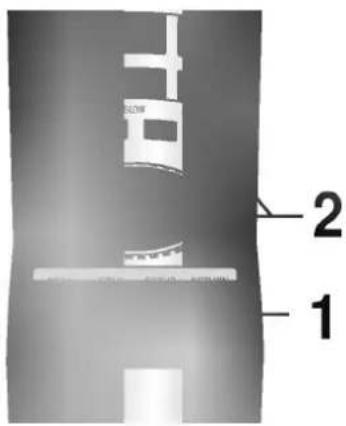
text_image
1 2
Press TITLE.
A list of the titles on the disc is displayed.
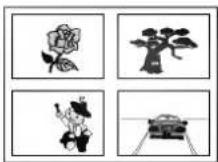
Pressing TITLE again to resume play from the scene when TITLE was first pressed.
- Resume play may not be possible on certain discs.

Press ▲/▼/◄/► and press SELECT/ENTER or PLAY, or press the numeric button(s), to select desired title.

text_image
Diagram showing four flower images and a car on a road, with an arrow indicating direction.The selected title now starts playing.
DVD VIDEO
Some DVDs have unique menu structures called DVD menus. For example, DVDs programmed with complex contents provide guide menus, and those recorded with various languages provide menus for audio and subtitle language. Although the DVD menu's contents and operation differ from disc to disc, the following explains the basic operation when this feature is used.

Press MENU during play.
The DVD menu available on the disc is now displayed.
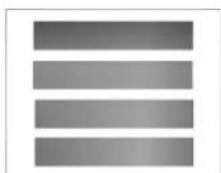
text_image
BOWL 1 2 TIPS SERV SERVPressing MENU again resumes play from the scene when MENU was first pressed.
- Resume play may not be possible on certain discs.

Press ▲/▼/◄/► and press SELECT/ENTER, or press the numeric button(s), to select desired item.
The selected item is now executed.
DVD VIDEO™
This unit stores, in memory, settings for DVDs you have watched. Settings remain in memory even if you remove the disc from the player, or switch power to OFF. If you load a disc that has its settings memorized, the "Resume disc from last position?" message will appear on the TV screen. When you start playing the disc, the memorized settings are automatically recalled.
You can memorize details for the following six settings.
Latest Stop Position (Page 17)
TV Aspect (Page 35)
Disc Subtitle Language (Page 23)
Disc Audio Language (Page 23)
Disc Menu Language (Page 32)
Angle (Page 24)
text_image
R - SEARCH E - ANGLE FLOW 2Load the DVD that was memorized.
It will appear on the TV screen as below
- If the screen is left for more than 10 seconds, playback will start from the beginning of the title automatically.
natural_image
A plain gray rectangular shape with no text, numbers, or symbols.Press ◀▶ to select "Yes" and press SELECT/ENTER.
The memorized settings are automatically recalled.
natural_image
Top-down view of a car on a road with lane markings (no text or symbols)- Settings are stored in memory for use any time.
☐ You can store settings for up to 1 DVD in memory. If you memorize settings for more than 1 DVD previously memorized settings are erased in order from the least recently memorized settings. Subsequently, if you try to call up these previously memorized settings, you will get the latest settings that have taken their place.
○ Switching of the audio mode etc., is automatic on some discs.
This unit does not store settings in memory, if you remove the disc from the player or switch power to the player OFF when DVD or title menu is displayed on the TV screen.
It is possible to change the subtitle language to a different language from the one selected at the initial settings. (See page 32 for further info.) This operation works only with discs on which multiple subtitle languages are recorded.
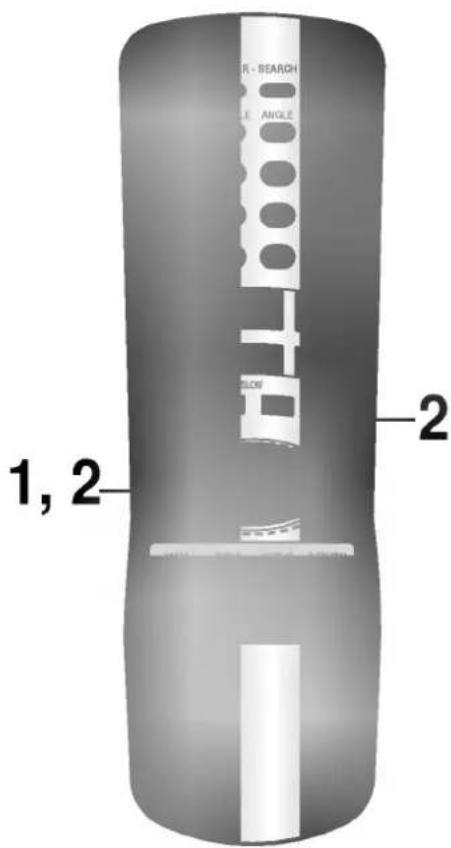
1, 2
text_image
R - SEARCH LE ANGLEIn some cases, the subtitle language is not changed to the selected one immediately.
When a disc supporting the closed caption is played, the subtitle and the closed caption may overlap each other on the TV screen. In this case, turn the subtitle off.
When the desired language is not selected even after pressing the button several times, it means that the language is not available on the disc.
When the power is turned on or the disc is removed, subtitles appears in the language selected at the initial settings. If this language is not recorded on the disc, the disc's priority language appears.

Press SUBTITLE during playback.

Press repeatedly SUBTITLE until the desired language is selected.
Number of the subtitle language being played back.
To eliminate the On Screen Subtitles.
Press SUBTITLE repeatedly to select OFF at step 2.
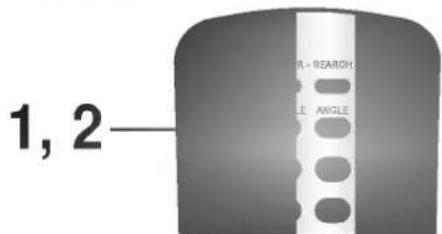
It is possible to change the audio soundtrack language to a different language from the one selected at the initial settings in case of DVD disc. (See page 32 for further info.) This operation works only with discs on which multiple audio soundtrack languages are recorded.
And it is possible to change the audio channel in case of audio CD.
text_image
1, 2— R - RESEARCH LE ANGLEWhen the desired language is not selected even after pressing the button several times, it means that the language is not available on the disc.
When the power is turned on or the disc is removed, the language heard is the one selected at the initial settings. If this language is not recorded on the disc, only the available language on the disc will be heard.
- Some discs may not respond to Audio feature.
• DVD

Press AUDIO during play.
Number of the audio soundtrack language being played back.


Press AUDIO repeatedly until the desired language is selected.

• CD

Press AUDIO during play.

Press AUDIO repeatedly until the desired sound is selected.
DVD VIDEO™
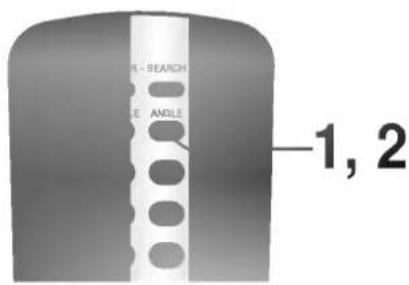
Some DVDs may contain scenes which have been shot simultaneously from a number of different angles. For these discs, the same scene can be viewed from each of these different angles using the ANGLE button. (The recorded angles differ depending on the disc used.)

Press ANGLE during playback.
Number of angle being played back.
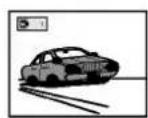

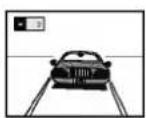

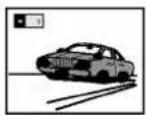


Press ANGLE repeatedly until the desired angle is selected.
text_image
LE - RESEARCH LE ANGLE 1, 2For your reference
- The ANGLE indicator will blink in the DVD display window at scenes recorded at different angles to indicate that angle switching is possible.
- The angle number can be programmed beforehand; the angle will be switched to the selected number when the ANGLE indicator blinks.
This function only works for discs having scenes recorded at different angles.


This unit can produce a 3D Surround effect, using 3D Surround Sound technology, which simulates multi-channel audio playback from two conventional stereo speakers instead of the five or more speakers normally required to listen to multi-channel audioA from a home theatre. This feature works with DVD discs encoded with Dolby Pro Logic and Dolby Digital audio tracks.

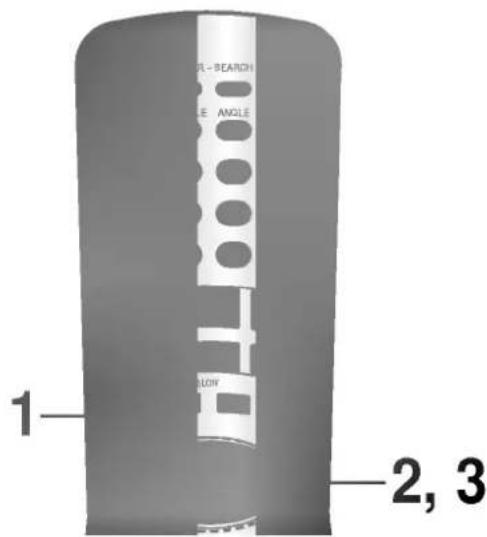
Press DISPLAY during playback.

Press ▲/▼ to select NORM.
text_image
1 2, 3 BEARCH ANGLE FLOW
Press ◀/▶ repeatedly until the desired sound is selected.
Each time this button is pressed, the TV screen display changes:
This 3D Surround effect may not be available on some DVD discs, such as those recorded with a mono audio soundtrack.
Turn off the TV surround sound and other surround effects when using this 3D surround effect.
For best 3D Surround effect using only two speakers it is recommended that the two speakers be positioned approximately 2m to 2.5m apart, and the listening position should be 2m to 2.5m away from the speakers.
Repeating viewing (listening) Press REPEAT during playback.
Each time this button is pressed, the TV screen changes as shown below and the disc will repeat a chapter or title (DVD) or a track (CD).
• DVD
Repeat of chapter being played
Repeat of title being played
Cancel repeat mode (normal play)
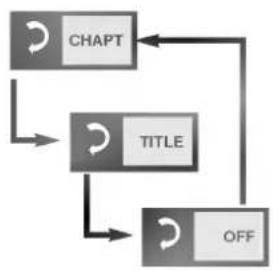
flowchart
graph TD
    A["CHAPT"] --> B["TITLE"]
    B --> C["OFF"]
    C --> A
• CD
Repeat of track being played
Repeat of entire disc contents
Cancel repeat mode (normal play)
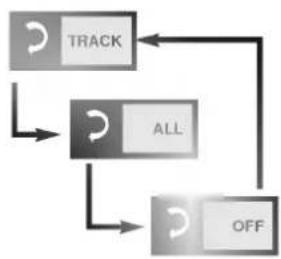
flowchart
graph TD
    A["TRACK"] --> B["ALL"]
    B --> C["OFF"]
    C --> A
To enjoy program repeat play (CD)
If REPEAT is pressed during program play, repeat play is operated as below.
Repeat of the current programmed track
Repeat of all programs
Cancel repeat mode (Program play)
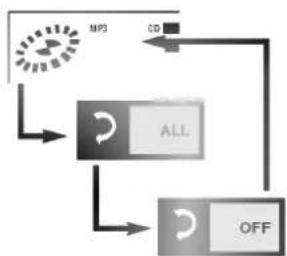
flowchart
graph TD
    A["MPD"] --> B["ALL"]
    B --> C["OFF"]
    C --> D["CD"]
    D --> A
To return to normal play
Press REPEAT several times until "OFF" is displayed.
Repeating sections between two specific points (A-B repeat)

Press A-B during play at the point where repeat play is to start (A).
- You can select "OFF" at this step by pressing CLEAR.

Press A-B during play at the point where repeat play is to be concluded (B).

Repeat play of the selection between points A and B starts.
To return to normal play
Press A-B once "OFF" is displayed.

Repeat play works only with discs for which the elapsed playing time appears in the DVD display window during playback.
- Repeat play may not work correctly with some DVDs.
○ A-B repeat play works only within a title DVD or a track CD.
Some subtitles recorded around point A or B may fail to appear (DVD).
DVD VIDEO
Storing a MARKER in the DVD memory is similar to marking your page in a book. It allows you to quickly return to any point on the disc.
Storing a marker in the memory

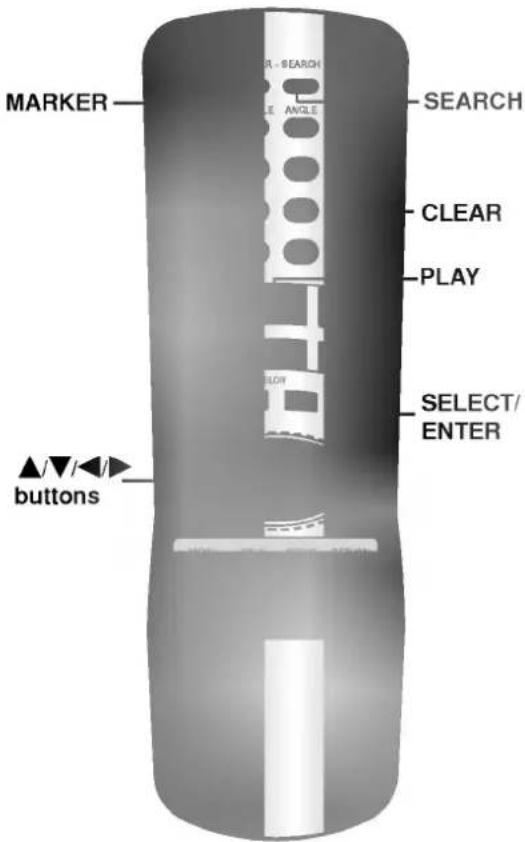
Press MARKER during play at the starting point to be viewed (listened to) again.
Indicates "1/5" is stored in the memory. Up to 5 markers can be stored in the memory.
Recalling/Clearing a marker

Press SEARCH during playback.
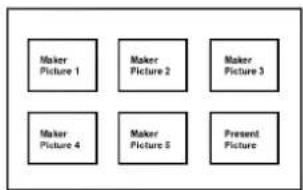
flowchart
graph TD
    A["Maker Picture 1"] --> B["Maker Picture 2"]
    B --> C["Maker Picture 3"]
    D["Maker Picture 4"] --> E["Maker Picture 5"]
    E --> F["Present Picture"]
text_image
MARKER SEARCH CLEAR PLAY SELECT/ ENTER ▲▼/◄/ buttons
Press ▲/▼/◄/► to select the marker to be recalled/cleared.

Press PLAY or SELECT/ENTER to recall a marker. or Press CLEAR to clear a marker.
Play resumes from the point corresponding to the selected marker, or the selected marker is cleared.
● The "Present Picture" is not cleared.
These operations work only with discs for which the elapsed playing time appears in the DVD display window during playback or stop.
Some subtitles recorded around the marker may fail to appear (DVD).
All the markers are cleared when the power is turned off or the disc is removed and when TV Aspect mode is changed at the SETUP menu.
The marker is not stored when the DVD or title menu is displayed on the TV screen.
The Zoom feature allows you to "ZOOM-IN" and enlarge the picture on the screen to either 4 times (X4) or 16 times (X16) its normal size.
text_image
1, 3 2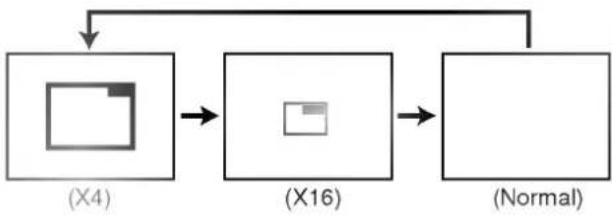
flowchart
graph TD
    A["(X4)"] --> B["(X16)"]
    B --> C["(Normal)"]
DVD VIDEO™
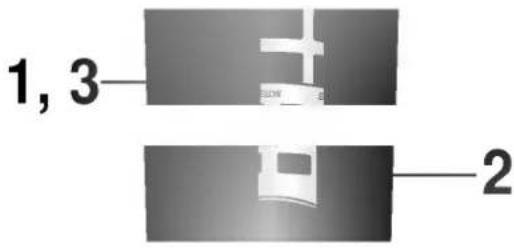
Press ZOOM during normal playback or still playback.
- The square frame will be displayed in the centre of the picture. If no button is pressed for more than 10 seconds, the square frame will disappear.
• Each press of the ZOOM button changes the TV screen in the left sequence. - The magnification level will be displayed in the upper right corner of the zoom area.
If you press ▲/▼/◄/► buttons the zoom point shifts.
Press SELECT/ENTER.
The selected frame is displayed in full size on the TV screen.
To resume normal playback
Press ZOOM again to cancel Zoom feature and resume normal playback or still playback.
Some discs may not respond to the Zoom feature.
○ Zoom does not work on subtitles or menus included on DVD video discs.


Note: This function only works with karaoke DVD and with audio CD discs. Random does not work with DVD movies.
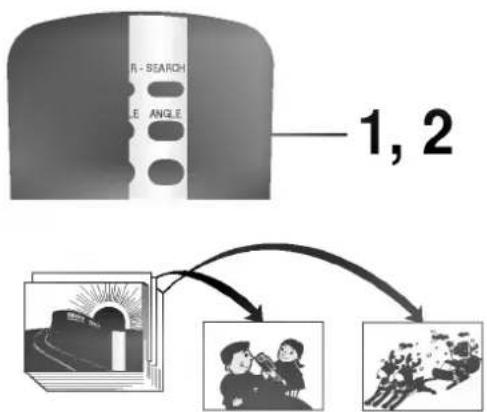
You can playback titles, or tracks in random order. (Random playback)
The DVD player automatically selects the titles in a DVD video karaoke disc only and plays them back randomly.
flowchart
graph TD
    A["Input Image"] --> B{1, 2}
    B --> C["Output Images"]
    C --> D["Final Image"]
- Random playback may not be possible on certain discs.
If you press the SKIP ▶▶ button during random playback, the DVD player goes to another track randomly and starts playback.
Random play (DVD)
Press RANDOM during stop.
The DVD player starts random playback.
- If you press RANDOM during normal playback, the DVD player will randomly select another title and begin random playback immediately.
To resume normal playback, press RANDOM.
The RANDOM indicator in the DVD display window disappears.
Random play (CD)
The player plays the tracks on the disc in random order.
Press RANDOM during stop.
The random playback screen appears on the TV screen.
- If you press the RANDOM button during normal playback, the DVD player immediately selects another track and begins random playback.
To resume normal playback, press RANDOM during random playback.
The RANDOM indicator in the DVD display window disappears.
COMPACT disc DIGITAL AUDIO
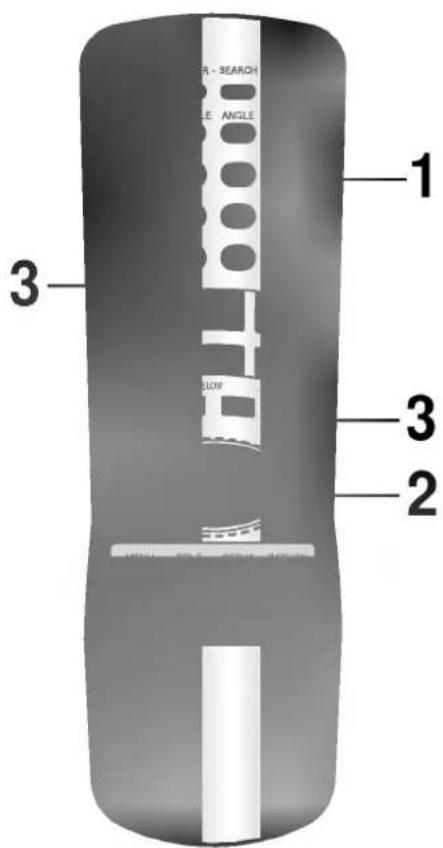
The player plays the tracks on the disc in an order you specify.
Note: Program play function is possible only with audio CDs. It does not work with DVD movie discs.
text_image
FL- SEARCH LE ANGLE 1 3 3 2
Press PROGRAM during playback or stop mode.
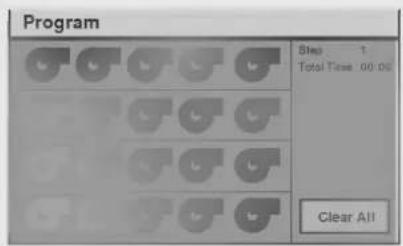
The program playback screen appears on the TV screen.
text_image
Program Step 1 Total Time: 00:00 Clear All• To exit the screen, press PLAY or PROGRAM.

Press ▲/▼/◄/► and press the numeric button(s), to select the desired track number.

text_image
Program Step 3 Total Time set: 1.0 Clear All- Repeat step 2 to select another track.
- Up to 20 tracks can be programmed.

Press PLAY or SELECT/ENTER to exit the screen.
The selected track is stored in the memory and play now begins in the programmed sequence.
- If you press PROGRAM to exit the screen, the selected tracks are not memorized.
After playback of all tracks programmed
Play is stopped.
Clearing the program
● To clear the program one by one
Press ▲/▼/◄/► to select the unwanted No. and then press CLEAR.
● To clear all the programs
Press ▲/▼/◄/► to select the "Clear All" and press SELECT/ENTER. Press PLAY or SELECT/ENTER to exit the screen. If you press PROGRAM to exit the screen, the programs are not cleared. (The programs are also cleared when the power is turned off or the disc is removed.)
To play an MP3 file

Load an MP3 disc.
The MP3 menu is displayed.
text_image
2, 3 4 2, 4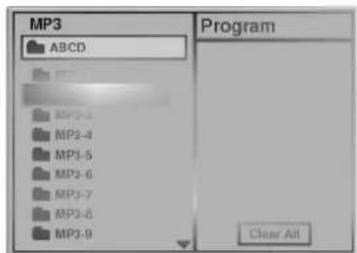
text_image
MP3 ABCD Program Clear All
Press ▲/▼ buttons to select the directory where MP3 files that you want to play are located and then press SELECT/ENTER.
text_image
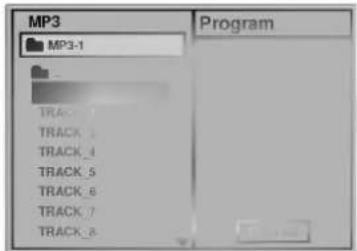
MP3 MP3-1 Program TRACK_1 TRACK_2 TRACK_3 TRACK_4 TRACK_5 TRACK_6 TRACK_7 TRACK_8
Press ▲/▼ button to select the desired MP3 file of the selected directory on your disc.
The directory and file name is onlydisplayed in English.
○ If there is an impossible code to display, it will be displayed underlined ( ) instead of English.
If a directory has no MP3 file, the "⊗" is displayed with the directory name.
This unit can play up to 256 files per disc. A disc recorded with more than 256 files cannot be played.
The maximum allowable depth of nested folder is 50.
○ Disc format is compatible with ISO9660 only.
If you record mp3 files using the software which cannot create a FILE SYSTEM, for example "Direct -CD" etc., it is impossible to playback mp3 files. We therefore recommend that you use "Easy-CD Creator", which creates an ISO9660 file system.
A single session disc requires mp3 files in the first track. If there is no mp3 file in the 1st track, it cannot playback mp3 files. If you wish to playback mp3 files, format all the data in the disc or use a new one.
If there are already data files which are not mp3 files on the CD-R disc, please, do not use that disc; use a new one instead. However, if the disc is a CD-RW disc, this does not apply.
If you select another file by pressing ▲/▼ during playback, the file is played after 5 seconds automatically.
If you select a directory by pressing ▲/▼ during playback, the playback is stopped after 5 seconds.
text_image
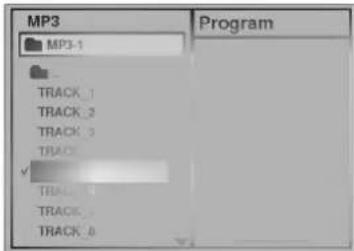
MP3 MP3-1 TRACK_1 TRACK_2 TRACK_3 TRACK_4 TRACK_5 TRACK_6 TRACK_7 TRACK_8 Program
text_image
MP3 MP3-1 TRACK_1 TRACK_2 TRACK_3 TRACK_4 TRACK_5 TRACK_6 TRACK_7 TRACK_8 ProgramIf you want to return to the previous menu, press the RETURN button.

Press SELECT/ENTER or PLAY to start playback of a file.
For your reference
- Press SKIP▶ or SKIP◀ to play the next file or previous file during playback.
- Press TITLE to move to 1st page of current directory during playback and press TITLE again to move to the next page within 5 seconds.
- Press MENU to move to the Root Directory during playback.
text_image
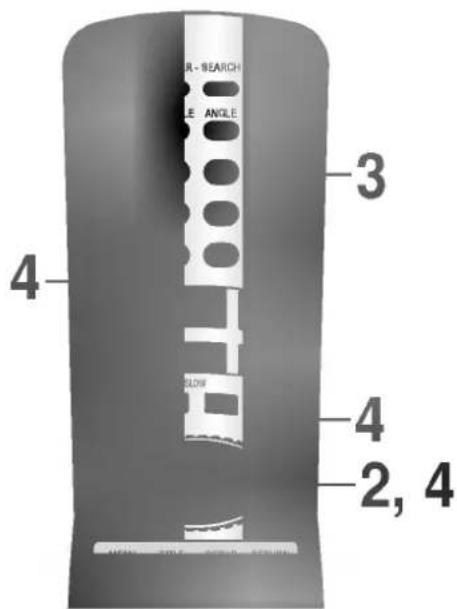
AIR-SEARCH ANGLE ANGLE 3 4 FLOW 4 2, 4To play an MP3 file repeatedly
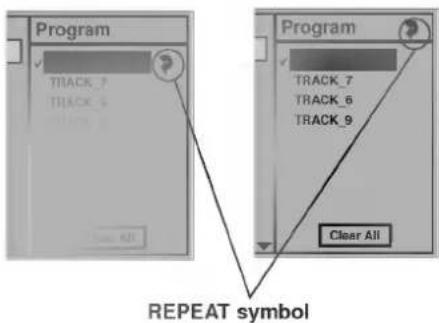
- If you press REPEAT button once during play, the current MP3 file will play repeatedly.
- If you press REPEAT button twice during play, the all MP3 files on the program list will play repeatedly.
- If you press REPEAT button three times, the repeat play will be cancelled.
text_image
Program TRACK_7 TRACK_6 TRACK_9 Program TRACK_7 TRACK_6 TRACK_9 Clear All REPEAT symbolClearing the program
● To clear the program one by one
Press ▲/▼/◄/► to select the unwanted MP3 file on the program list and then press CLEAR.
● To clear all the programs
Press ▲/▼/◄/► to select the "Clear All" and press SELECT/ENTER.
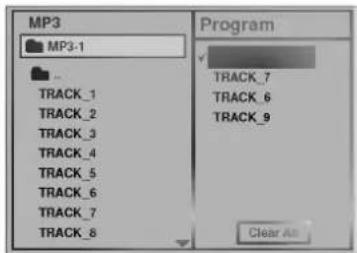
To program play an MP3 file
Follow steps 1 to 2 on previous page.
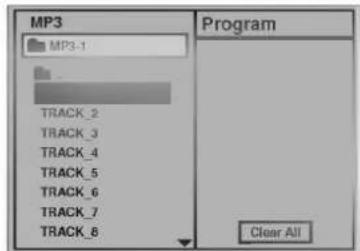
Select an MP3 file to program with ▲/▼.
text_image
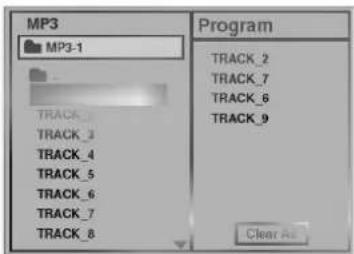
MP3 MP3-1 TRACK_2 TRACK_3 TRACK_4 TRACK_5 TRACK_6 TRACK_7 TRACK_8 Program Clear AllPress PROGRAM button to add an MP3 file on the program list.
text_image
MP3 MP3-1 TRACK_2 TRACK_7 TRACK_6 TRACK_9 TRACK_3 TRACK_4 TRACK_5 TRACK_6 TRACK_7 TRACK_8 Program Clear As- Repeat steps 2 - 3 to select another track.
- Up to 60 files can be programmed.
Press ▶ button and select the desired MP3 file and press SELECT/ENTER or PLAY button to play.
text_image
MP3 MP3-1 TRACK_1 TRACK_2 TRACK_3 TRACK_4 TRACK_5 TRACK_6 TRACK_7 TRACK_8 Program TRACK_7 TRACK_6 TRACK_9 Clear AllIf you want to enter the main menu, press ◀ button.
After playback all tracks programmed
Play is stopped.
Once the initial settings have been completed, the player can always be operated under the same conditions (especially with DVD discs). The settings will be retained in the memory until they are changed, even if the power is switched off.
text_image
E - RESEARCH E - ANGLE H B 2, 3 3 1DVD VIDEO ^TM
Selection of initial settings

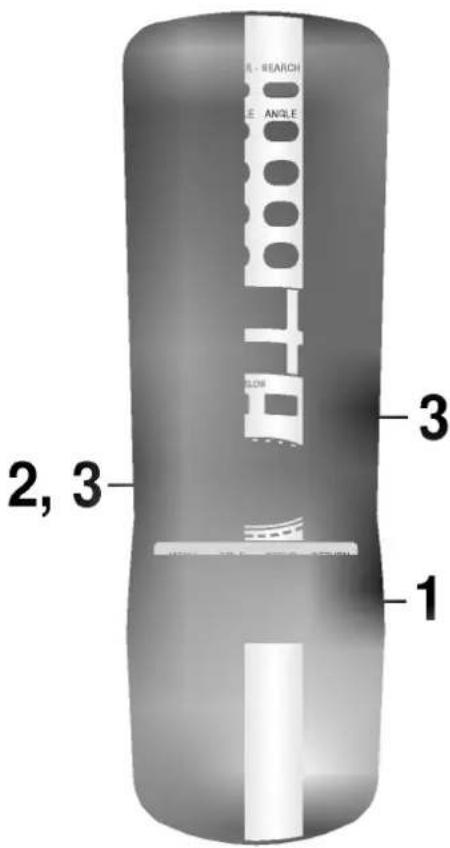
Press SETUP in the stop or playback mode.
The SETUP menu is displayed.
text_image
Disc Subtitle Disc Menu Rating Password TV Aspect Menu Language Digital Audio Options Others
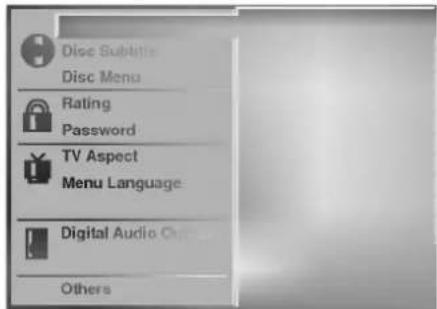
Press ▲/▼ to select the desired item.
The screen will show the current setting for the selected item, and the alternate setting(s).
• Disc Audio (see page 32)
• Disc Subtitle (see page 32)
• Disc Menu (see page 32)
• Rating (see page 33)
- Password (see page 34)
• TV Aspect (see page 35)
- Menu Language (see page 36)
- Others (DRC/Pseduo PAL/Vocal) (see page 37)
• Digital Audio Output (see page 38)

Press ▶ and then ▲/▼ to select the desired setting and press SELECT/ENTER.
- Some items require additional steps. (See the respective page.)
When the alternate setting is selected the screen returns to the Initial Settings display.
To exit SETUP menu
Press SETUP, RETURN or PLAY.
This is to select the audio soundtrack language, subtitle language and the language used in title menus or DVD menus which will always be used for every disc to be played back.
When you play back a DVD video disc, the DVD player automatically displays the pre-selected subtitle language if it is included on the disc.
text_image
R-H RESEARCH ILE ANGLE FLOW 2 1, 2DVD VIDEO

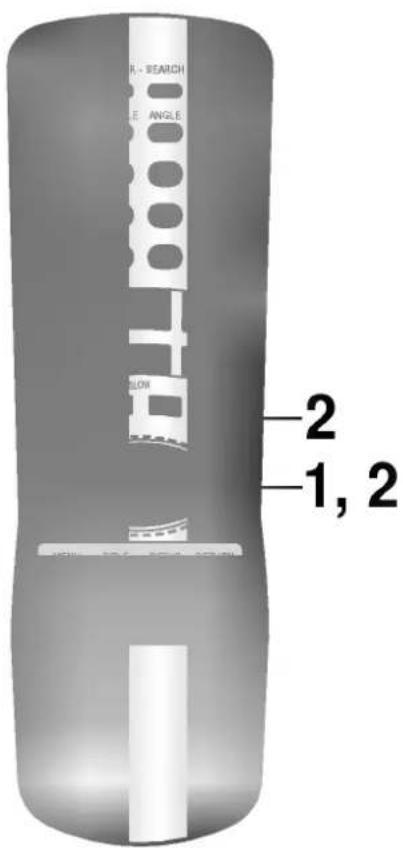
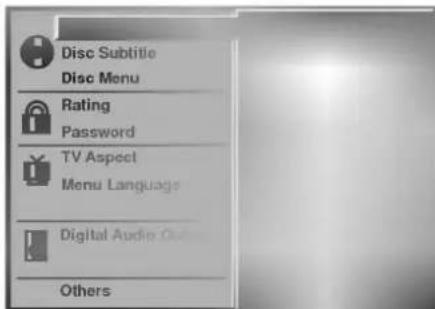
At the setup screen, press ▲/▼ to select "Disc Audio" and press ▶.
text_image
Disc Subtitle Disc Menu Rating Password TV Aspect Menu Language Digital Audio Out Others
Press ▲/▼ to select the desired language and then press SELECT/ENTER.
Original : The original language of each disc will be selected. English : The English will be Selected.
Other : Another language can be selected. You can input 4-digit language code. (Refer to the language codes on page 39. Press CLEAR if an incorrect language code is entered.)
The "Disc Subtitle" and "Disc Menu" are selected by the same method.
If the language selected is not available on the disc, the original language designated by each disc will be selected.
This is to prohibit the playing of specified DVDs which are unsuitable for children.
- Some DVD discs contain a restriction level which enables parents to remove scenes or prevent playback of discs by children. DVD players are equipped with a password designed to prevent children changing the level.
text_image
R - SBARCH LE ANGLE 2 1, 2
Selecting rating level (DVD only)

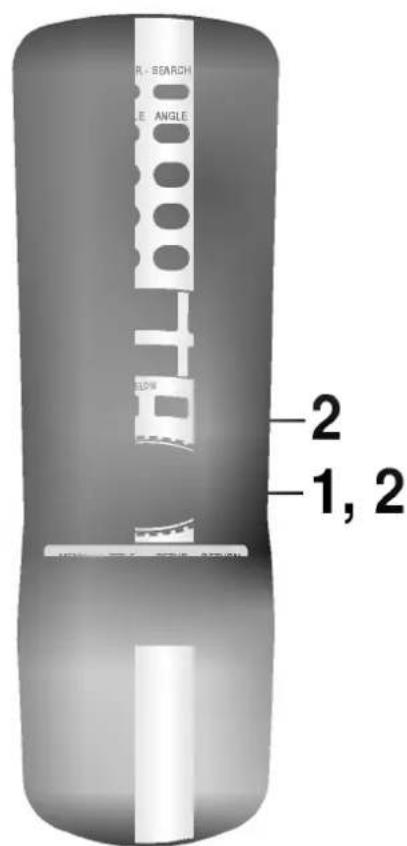
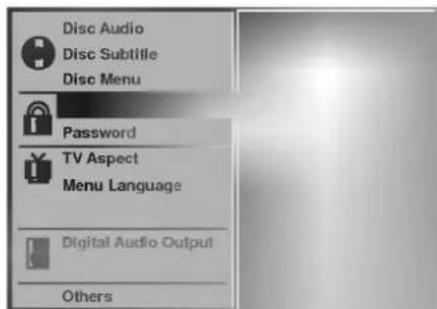
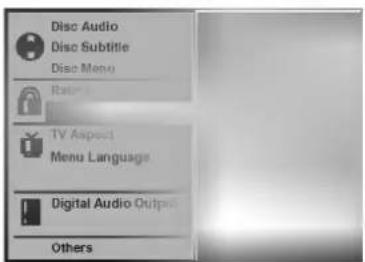
At the SETUP screen, press ▲/▼ to select "Rating" and press ▶.
text_image
Disc Audio Disc Subtitle Disc Menu Password TV Aspect Menu Language Digital Audio Output Others
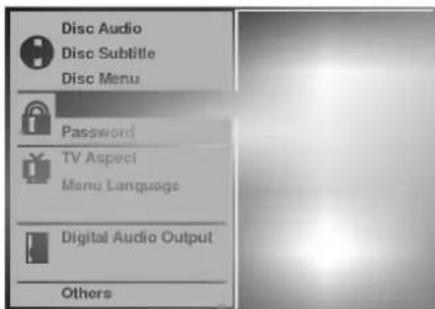
Press ▲/▼ to select the desired level and press SELECT/ENTER.
text_image
Disc Audio Disc Subtitle Disc Menu Password TV Aspect Menu Language Digital Audio Output OthersYou cannot play DVD video discs rated higher than the level you selected unless you cancel the parental lock function. For example, when you select level 7, discs rated higher than level 7 are blocked and cannot be played.
If you change the level and enter a password, playback of all DVDs with ratings higher than your selection will be blocked, unless the correct password is entered again. For example: if you change the level to "5", the DVD player will not play discs with ratings of "6", "7" or "8" unless the correct password is entered on the remote control.
DVD VIDEO™
text_image
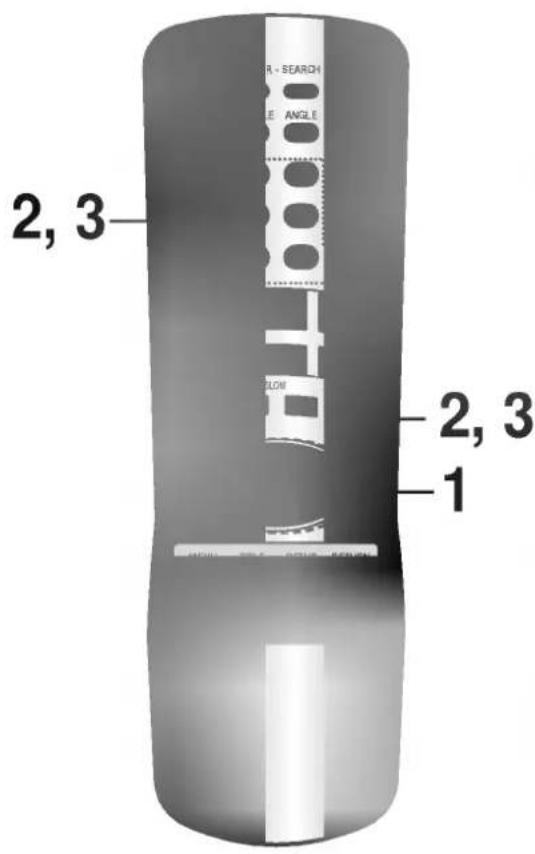
2, 3 R - SEARCH LE ANGLE 2, 3 FLOW 1Setting your password (DVD only)
If you change the rating level to "7" or lower, you must enter a 4-digit "password" to prevent playback of discs with higher ratings.
At the SETUP screen, press ▼ to select "Password" and press ▶.

text_image
Disc Audio Disc Subtitle Disc Menu Rating TV Aspect Menu Language Digital Audio Output OthersInput a 4-digit password and press SELECT/ENTER.
Example : 1234
Do not forget your password.
Input the 4-digit password again and press SELECT/ENTER to verify.
Setting is finished.
● The rating is locked. Any discs whose rating is higher than the setting cannot be played back unless the correct password is entered.
To change/clear memorized password
At the SETUP screen, press ▼ to select "Password" and press ▶.
Input your password and Press SELECT/ENTER.
text_image
Disc Audio Disc Subtitle Disc Menu Radio TV Aspect Menu Language Digital Audio Outputs OthersTo clear your 4-digit password
If you forget your password, to clear the current password, follow the procedure below.
At the SETUP screen
1 Press ▼ to select "Password" item.
2 Enter 6-digit number "210499" and then press SELECT/ENTER.
The 4-digit password is cleared.
3 Enter a new password
Refer to "Setting your password" section on the right.
To change or clear your password, press ▲/▼ to select the "Change" or "Clear" and press SELECT/ENTER.
To change the rating level/password, follow the steps on page 33-34 again.
Select the appropriate screen type according to your TV set; conventional size screen (4:3) or wide-screen (16:9).
text_image
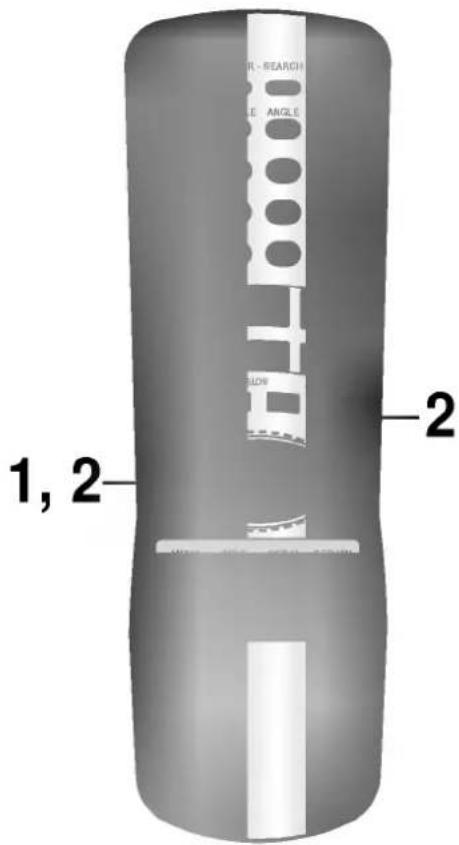
3L - SEARCH LE ANGLE 1, 2 2
4:3 Letterbox
4:3 Panscan
16:9 Wide

At the SETUP screen, press ▲/▼ to select "TV Aspect" and press ▶.
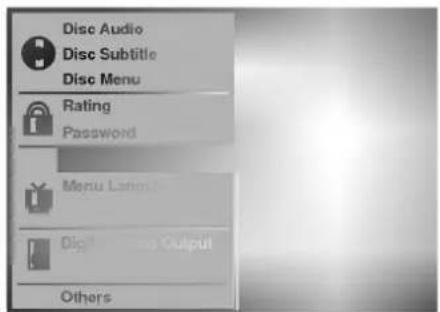
text_image
Disc Audio Disc Subtitle Disc Menu Rating Password Menu Latin Digital Output Others
Press ▲/▼ to select the desired Aspect and press SELECT/ENTER.
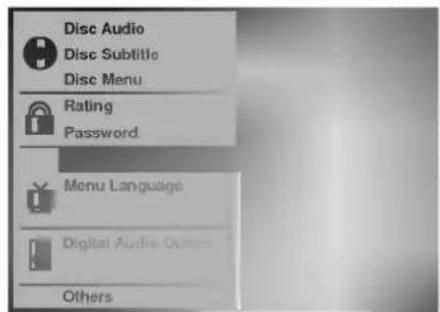
text_image
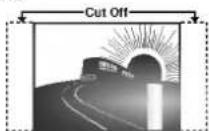
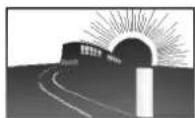
Disc Audio Disc Subtitle Disc Menu Rating Password Menu Language Digital Audio Outputs Others4:3 Letterbox : The video material not formatted in the Pan & Scan style is played back in the letterbox style (black bands appear at top and bottom of screen).
4:3 Panscan : Select when a conventional TV set is connected. The video material formatted in the Pan & Scan style is played back in that style (the left and right edges are cut off).
16:9 Wide : Select when a wide-screen TV set is connected. Played in "FULL" size. (Setting the wide-screen TV to "FULL" mode is also necessary.)
* Each screen shows an example when the video material for a wide-screen is played. (This setting does not affect the video material for conventional size.)

natural_image
Gray gradient banner with a DVD and VIDEO logo in the corner (no text or symbols on the banner itself)Selects language for DVD menus and displays on the TV.

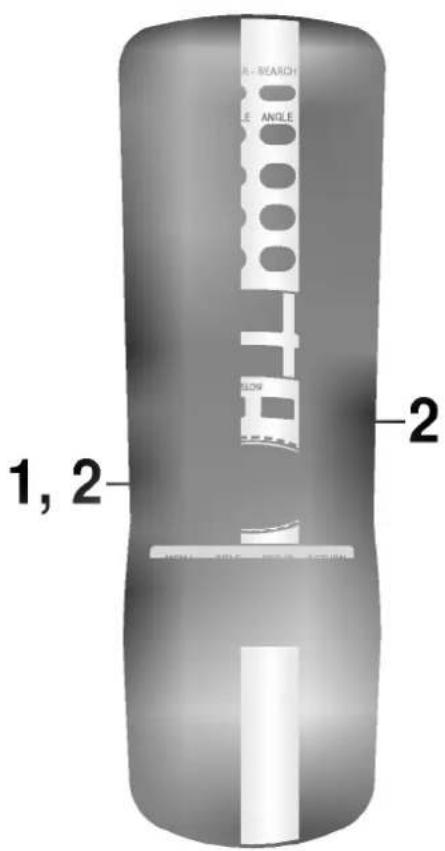
At the SETUP screen, press ▲/▼ to select "Menu Language" and press ▶.
text_image
1, 2 2 H - SEARCH ANGLE H - 0.005 H - 0.005 H - 0.005 H - 0.005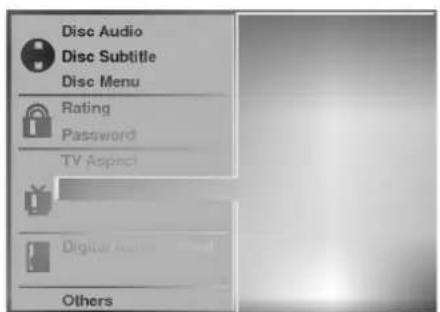
text_image
Disc Audio Disc Subtitle Disc Menu Rating Password TV Aspect Digital Audio Others
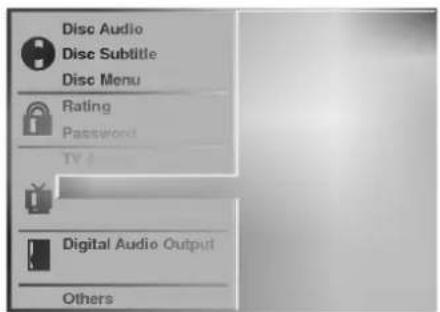
Press ▲/▼ to select the desired Language and press SELECT/ENTER.
text_image
Disc Audio Disc Subtitle Disc Menu Rating Password TV Digital Audio Output OthersThe DRC, Pseudo PAL and Vocal settings can be changed.
DVD VIDEO

text_image
1, 2 2 R - SEARCH LE ANGLE H SOWAbout DRC (Dynamic Range Compression)
With the DVD format you have the opportunity to hear a programme's soundtrack in the most accurate and realistic presentation possible, thanks to the use of digital audio technology. However, in certain instances you may wish to slightly compress the dynamic range of the audio output (the difference between the loudest sounds and the quietest ones) so that you may listen to a movie at a lower volume without losing dialogue intelligibility.

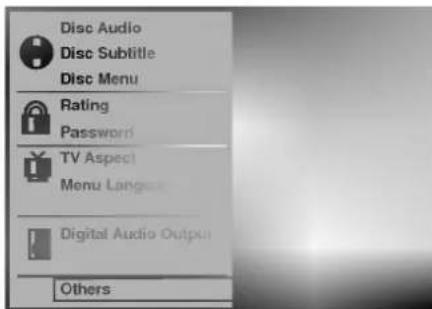
At the SETUP screen, press ▲/▼ to select "Others" and press ▶.
text_image
Disc Audio Disc Subtitle Disc Menu Rating Password TV Aspect Menu Lang Digital Audio Output Others
Press ▲/▼ to select the desired items and press SELECT/ENTER.

DRC (Dynamic Range Compression) On/Off
On: Select this option to turn on the Dynamic Range Compression circuitry so that the dialogue remains clear even at low volume levels.
Off: Select this option to turn off the Dynamic Range Compression and have the soundtrack presented exactly as it was created.

Pseudo PAL On/Off
On: A NTSC DVD disc can be played back with the PAL colour system TV set, depending on the disc.
Off: A NTSC DVD disc cannot be played back with the PAL colour system TV set.

Vocal On/Off
Set to On only when a multi-channel karaoke DVD is being played. The karaoke channels on the disc will then be mixed into a normal stereo sound.
The DRC function works only during playback of Dolby Digital recorded discs.
The level of Dynamic Range Compression may differ depending on the DVD disc.
When playing karaoke, connect appropriate audio equipment such (such as an amplifier) to the DVD video player.
The Pseudo PAL can be displayed when the SYSTEM selector on the rear panel is switched to PAL mode.
If there are any problems during playback of a NTSC disc, select the "Pseudo PAL" to "On" mode.
The picture can be streamed according to TV type when the "Pseudo PAL" is in "On" mode.
Each DVD disc has a variety of audio output options. Set the player's Digital Audio Output according to the type of audio system you use.
text_image
R - SEARCH E ANGLE 2 1, 2| Playback Disc | OUTPUT | ||
| Stream/PCM | Dolby Digital/ PCM | PCM only | |
| 96 kHz Linear PCM DVD | PCM | PCM | PCM |
| DTS DVD | DTS bit Stream | Not Output | Not Output |
| Dolby Digital DVD | Dolby Digital bit Stream | Dolby Digital bit Stream | PCM |
| MPEG DVD | MPEG bit Stream | PCM | PCM |
| Audio CD | PCM | PCM | PCM |
| DTS Audio CD | DTS bit Stream | DTS bit Stream | DTS bit Stream |
DVD VIDEO ^TM

At the SETUP screen, press ▲/▼ to select Digital Audio Output and press ▶.
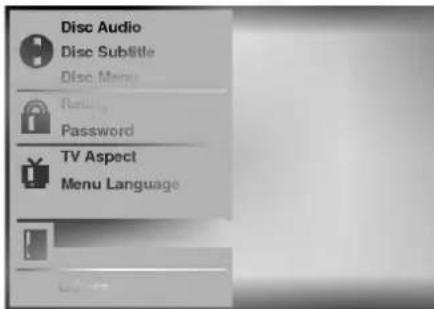
text_image
Disc Audio Disc Subtitle Disc Menu Rating Password TV Aspect Menu Language
Press ▲/▼ to select the desired output and press SELECT/ENTER.
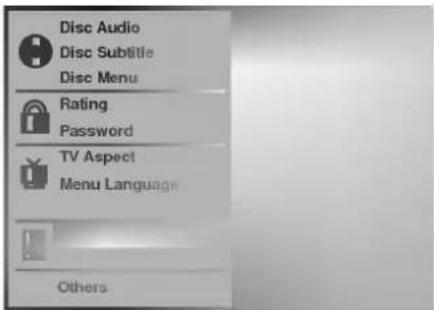
text_image
Disc Audio Disc Subtitle Disc Menu Rating Password TV Aspect Menu Language OthersDOLBY DIGITAL/PCM: Select "DOLBY DIGITAL/PCM" if an active digital output is supplied to a Dolby Digital decoder, (or an amplifier or other equipment with Dolby Digital decoder).
Stream/PCM: Select "Stream/PCM" if an active digital output is supplied to an amplifier or other equipment with DTS decoder, Dolby Digital decoder and MPEG decoder.
PCM: Select "PCM" if an active digital output is supplied to an amplifier or other equipment with linear PCM only (or MD recorder or DAT deck).
When you are not using the player's digital audio output, don't select any of the options.
If an active digital audio output signal is supplied to a receiver or other equipment without a corresponding digital decoding capability, a very loud noise may be produced which could permanently damage the speakers.
The DTS DVD disc sound is played back only when the DVD player is connected to a receiver with a DTS decoder.
DVD VIDEO™
Enter the appropriate code number for the initial settings "Audio", "Subtitle" and/or "Menu" (See page 32).
| Code | Language | Code | Language | Code | Language | Code | Language |
| 6565 | Afar | 7079 | Faroese | 7678 | Lingala | 8375 | Slovak |
| 6566 | Abkhazian | 7082 | French | 7679 | Laothian | 8376 | Slovenian |
| 6570 | Afrikaans | 7089 | Frisian | 7684 | Lithuanian | 8377 | Samoan |
| 6577 | Ameharic | 7165 | Irish | 7686 | Latvian, Lettish | 8378 | Shona |
| 6582 | Arabic | 7168 | Scots Gaelic | 7771 | Malagasy | 8379 | Somali |
| 6583 | Assamese | 7176 | Galician | 7773 | Maori | 8381 | Albanian |
| 6588 | Aymara | 7178 | Guarani | 7775 | Macedonian | 8382 | Serbian |
| 6590 | Azerbaijani | 7185 | Gujarati | 7776 | Malayalam | 8385 | Sundanese |
| 6665 | Bashkir | 7265 | Hausa | 7778 | Mongolian | 8386 | Swedish |
| 6669 | Byelorussian | 7273 | Hindi | 7779 | Moldavian | 8387 | Swahili |
| 6671 | Bulgarian | 7282 | Croatian | 7782 | Marathi | 8465 | Tamil |
| 6672 | Bihari | 7285 | Hungarian | 7783 | Malay | 8469 | Telugu |
| 6678 | Bengali; Bangla | 7289 | Armenian | 7784 | Maltese | 8471 | Tajik |
| 6679 | Tibetan | 7365 | Interlingua | 7789 | Burmese | 8472 | Thai |
| 6682 | Breton | 7378 | Indonesian | 7865 | Nauru | 8473 | Tigrinya |
| 6765 | Catalan | 7383 | Icelandic | 7869 | Nepali | 8475 | Turkmen |
| 6779 | Corsican | 7384 | Italian | 7876 | Dutch | 8476 | Tagalog |
| 6783 | Czech | 7387 | Hebrew | 7879 | Norwegian | 8479 | Tonga |
| 6789 | Welsh | 7465 | Japanese | 7982 | Oriya | 8482 | Turkish |
| 6865 | Danish | 7473 | Yiddish | 8065 | Panjabi | 8484 | Tatar |
| 6869 | German | 7487 | Javanese | 8076 | Polish | 8487 | Twi |
| 6890 | Bhutani | 7565 | Georgian | 8083 | Pashto, Pushto | 8575 | Ukrainian |
| 6976 | Greek | 7575 | Kazakh | 8084 | Portuguese | 8582 | Urdu |
| 6978 | English | 7576 | Greenlandic | 8185 | Quechua | 8590 | Uzbek |
| 6979 | Esperanto | 7577 | Cambodian | 8277 | Rhaeto-Romance | 8673 | Vietnamese |
| 6983 | Spanish | 7578 | Kannada | 8279 | Rumanian | 8679 | Volapūk |
| 6984 | Estonian | 7579 | Korean | 8285 | Russian | 8779 | Wolof |
| 6985 | Basque | 7583 | Kashmiri | 8365 | Sanskrit | 8872 | Xhosa |
| 7065 | Persian | 7585 | Kurdish | 8368 | Sindhi | 8979 | Yoruba |
| 7073 | Finnish | 7589 | Kirghiz | 8372 | Serbo-Croatian | 9072 | Chinese |
| 7074 | Fiji | 7665 | Latin | 8373 | Singhalese | 9085 | Zulu |
This DVD player can play back the following discs.
| Disc mark | Contents | Disc size | Maximum playback time | |
| DVD video discs |  | Audio+Video (moving pictures) | 12 cm | Approx. 4 hours (single sided disc) |
| Approx. 8 hours (double sided disc) | ||||
| 8 cm | Approx. 80 minutes (single sided disc) | |||
| Approx. 160 minutes (double sided disc) | ||||
| Audio CDs |  | Audio | 12 cm | 74 minutes |
| 8 cm | 20 minutes |
You can play back CD-R and CD-RW disc also.
You cannot playback discs other than those listed above. (Video CD, CD-ROM, CD-Extra, CD-G, photo CD, and CD-i discs can not be played on this DVD player.)
Region Management Information: This DVD Player is designed and manufactured to respond to the Region Management Information that is recorded on a DVD disc. If the Region number described on the DVD disc does not correspond to the Region number of this DVD player, this DVD player cannot play that disc.
The Region number of this DVD player is 2.

You may not be able to play back some DVD video discs on this player if they were purchased from outside your geographic area or made for business purposes. When you try to play back an unauthorized disc, "Check Regional Code" appears on the TV screen.
It is forbidden by law to copy, broadcast, show, broadcast on cable, play in public, and rent copyrighted material without permission. DVD video discs are copy protected, and any recordings made from these discs will be distorted. This product incorporates copyright protection technology that is protected by method claims of certain U.S. patents and other intellectual property rights owned by Macrovision Corporation and other rights owners. Use of this copyright protection technology must be authorized by Macrovision Corporation, and is intended for home and other limited viewing uses only, unless otherwise authorized by Macrovision Corporation. Reverse engineering or disassembly is prohibited.
Symptoms and Correction
Check the following guide for the possible cause of a problem before contacting service.
| Symptom | Cause | Correction |
| No power. | The power cord is disconnected. | Plug the power cord into the wall outlet securely. |
| The power is on, but the DVD player does not work. | No disc is inserted. | Insert a disc. (Check that the DVD or, audio CD indicator in the DVD display is lit.) |
| No picture. | The TV is not set to receive DVD signal output. | Select the appropriate video input mode on the TV so the picture from the DVD player appears on the TV screen. |
| The video cable is not connected securely. | Connect the video cable into the jacks securely. | |
| The connected TV power is turned off. | Turn on the TV. | |
| No sound. | The equipment connected with the audio cable is not set to receive DVD signal output. | Select the correct input mode of the audio receiver so you can listen to the sound from the DVD player. |
| The audio cables are not connected securely. | Connect the audio cable into the jacks securely. | |
| The power of the equipment connected with the audio cable is turned off. | Turn on the equipment connected with the audio cable. | |
| The Digital Audio Output is set to the wrong position. | Set the Digital Audio Output to the correct position, then turn on the DVD player again by pressing the POWER button. | |
| The playback picture is poor. | The disc is dirty. | Clean the disc. |
| The DVD player does not start playback. | No disc is inserted. | Insert a disc. (Check that the DVD, or audio CD indicator in the DVD display is lit.) |
| An unplayable disc is inserted. | Insert a playable disc. (Check the disc type, color system and Regional code.) | |
| The disc is placed upside down. | Place the disc with the playback side down. | |
| The disc is not placed within the guide. | Place the disc on the disc tray correctly inside the guide. | |
| The disc is dirty. | Clean the disc. | |
| A menu is on the TV screen. | Press the SETUP button to turn off the menu screen. | |
| The Rating level is set. | Cancel the Rating function or change the rating level. | |
| The remote control does not work properly. | The remote control is not pointed at the remote sensor of the DVD player. | Point the remote control at the remote sensor of the DVD player. |
| The remote control is too far from the DVD player. | Operate the remote control within about 23 ft (7 m). | |
| There is an obstacle in the path of the remote control and the DVD player. | Remove the obstacle. | |
| The batteries in the remote control are exhausted. | Replace the batteries with new ones. |
DVD player/Outputs/Supplied Accessories
| [DVD player] | Power supply | AC 110-240V, 50/60 Hz |
| Power consumption | 16 W | |
| Mass | 6.6 lbs (3.0 kg) | |
| External dimensions (W X H X D) | 17" X 3.5" X 9.7" (430 x 88 x 247 mm) | |
| Signal system | PAL 625/50, NTSC 525/60 | |
| Laser | Semiconductor laser, wavelength 650 nm | |
| Frequency range (audio) | 4 Hz to 20 kHz | |
| Signal-to-noise ratio (audio) | More than 100 dB (EIAJ) | |
| Dynamic range (audio) | More than 95 dB (EIAJ) | |
| Harmonic distortion (audio) | 0.008 % | |
| Wow and flutter | Below measurable level (less than + 0.001 % (W.PEAK)) (EIAJ) | |
| Operating conditions | Temperature: 41°F to 95°F, Operation status: Horizontal | |
| [Outputs] | Video output | 1.0 V (p-p), 75 Ω, negative sync., RCA jack x 1/SCART(TO TV) |
| S-video output | (Y) 1.0 V (p-p), 75 Ω, negative sync., Mini DIN 4-pin x 1(C) 0.3 V (p-p), 75 Ω, | |
| Audio output (digital audio) | 0.5 V (p-p), 75 Ω, RCA jack x 1 | |
| Audio output (optical audio) | Optical connector x 1 | |
| Audio output (analog audio) | 2.0 Vrms(1 KHz, 0 dB), 330 Ω, RCA jack (L, R) x 1/SCART(TO TV) | |
| [Supplied Accessories] | Video cable....1Audio cable....1Remote control....1Batteries....2 | |
* Designs and specifications are subject to change without notice.