
DS6512E2 - DVD player LG - Free user manual and instructions
Find the device manual for free DS6512E2 LG in PDF.


| Product Type | DVD Player |
| Model | DS6512E2 |
| Brand | LG |
| Dimensions (Approx.) | 430 x 250 x 40 mm |
| Weight (Approx.) | 1.8 kg |
| Power Supply | AC 120-240V, 50/60Hz |
| Power Consumption | 15 W |
| Playback Disc Formats | DVD, DVD±R/RW, CD, CD-R/RW |
| Playback File Formats | MP3, JPEG |
| Video Outputs | HDMI, Composite, Component |
| Audio Outputs | Stereo RCA, Digital Optical |
| Connectivity | USB port |
| Remote Control | Included |
| Main Functions | Play, Pause, Stop, Skip, Repeat, Zoom, Slow Motion |
| Maintenance | Clean with soft dry cloth; avoid liquids |
| Safety Precautions | Do not expose to moisture; use only supplied power cord |
| Spare Parts & Repairability | Contact LG authorized service center |
| General Information | Region code may apply; check user manual |
Frequently Asked Questions - DS6512E2 LG
User questions about DS6512E2 LG
0 question about this device. Answer the ones you know or ask your own.
Ask a new question about this device
Download the instructions for your DVD player in PDF format for free! Find your manual DS6512E2 - LG and take your electronic device back in hand. On this page are published all the documents necessary for the use of your device. DS6512E2 by LG.
USER MANUAL DS6512E2 LG
Before connecting, operating or adjusting this product, please read this instruction booklet carefully and completely.
Safety Precautions

WARNING
RISK OF ELECTRIC SHOCK DO NOT OPEN

WARNING: TO REDUCE THE RISK OF ELECTRIC SHOCK
DO NOT REMOVE COVER (OR BACK) NO USER-SERVICEABLE PARTS INSIDE REFER SERVICING TO QUALIFIED SERVICE PERSONNEL.

This lightning flash with arrowhead symbol within an equilateral triangle is intended to alert the user to the presence of uninsulated dangerous voltage within the product's enclosure that may be of sufficient magnitude to constitute a risk of electric shock to persons.

The exclamation mark within an equilateral triangle is intended to alert the user to the presence of important operating and maintenance (servicing) instructions in the literature accompanying the product.
WARNING: TO REDUCE THE RISK OF FIRE OR ELECTRIC SHOCK, DO NOT EXPOSE THIS PRODUCT TO RAIN OR MOISTURE.
CLASS 1 LASER PRODUCT KLASSE 1 LASER PRODUKT LUOKAN 1 LASER LAITE KLASS 1 LASER APPARAT CLASSE 1 PRODUIT LASER
CAUTION:
This Digital Video Disc Player employs a Laser System.
To ensure proper use of this product, please read this owner's manual carefully and retain for future reference, should the unit require maintenance, contact an authorized service location-see service procedure.
Use of controls, adjustments or the performance of procedures other than those specified herein may result in hazardous radiation exposure.
To prevent direct exposure to laser beam, do not try to open the enclosure. Visible laser radiation when open. DO NOT STARE INTO BEAM.
CAUTION: The apparatus shall not be exposed to water (dripping or splashing) and that no objects filled with liquids, such as vases, shall be placed on the apparatus.

This product is manufactured to comply with the radio interference requirements of EEC DIRECTIVE 89/336/EEC, 93/68/EEC and 73/23/EEC.

Notes on copyrights:
It is forbidden by law to copy, broadcast, show, broadcast via cable, play in public, or rent copyright material without permission.
This product features the copy protection function developed by Macrovision. Copy protection signals are recorded on some discs. When recording and playing the pictures of these discs on a VCR, the picture noise will appear.
This product incorporates copyright protection technology that is protected by method claims of certain U.S. patents and other intellectual property rights owned by Macrovision Corporation and other rights owners. Use of this copyright protection technology must be authorized by Macrovision Corporation, and is intended for home and other limited viewing uses only unless otherwise authorized by Macrovision Corporation. Reverse engineering or disassembly is prohibited.
SERIAL NUMBER: The serial number is found on the back of this unit. This number is unique to this unit and not available to others. You should record requested information here and retain this guide as a permanent record of your purchase.
Model No. ____
Serial No. ____
Table of Contents
Introduction
Safety Precautions 2
Table of Contents 3
Before Use 4-5
Playable Discs 4
Precautions 5
Notes on Discs 5
About Symbols 5
Front Panel and Display Window 6
Remote Control....7
Rear Panel....8
Preparation
Connections 9-10
Connecting to a TV 9
Connecting to Optional Equipment ..... 10
Before Operation 11-14
General Explanation....11
On-Screen Display....11
Initial Settings 12-14
• Using your DVD player very first time ..... 12
- Initial Settings General Operation....12
- Language 12
- Picture....12
- Sound 13
- Others 13
- Parental Control....14
Operation
Operation with DVD 15-17
Playing a DVD 15
General Features 15
- Moving to another TITLE .... 15
- Moving to another CHAPTER 15
- Slow Motion....15
- Still Picture and Frame-by-Frame Playback . 16
- Search. 16
- Random 16
- Repeat 16
- Repeat A-B 16
• Time Search 16
- Zoom. 16
• 3D Surround ..... 17
- Marker Search.... 17
Special DVD Features 17
- Title Menu 17
- Disc Menu....17
- Camera Angle 17
- Changing the Audio Language....17
- Subtitles 17
Operation with Audio CD and MP3 Disc.....18
Playing an Audio CD and MP3 Disc ..... 18
- Pause 18
- Moving to another Track.... 18
- Repeat Track/All/Off 18
- Search....18
- Random 18
- Repeat A-B 18
• 3D Surround ..... 18
- Changing the Audio Channel ..... 18
Programmed Playback 19
Programmed Playback with Audio CD and MP3 Disc 19
- Repeat Programmed Tracks....19
- Erasing a Track from Program List ..... 19
- Erasing the Complete Program List ..... 19
Additional Information 20-21
Last Condition Memory 20
Screen Saver....20
Video Mode Setting 20
Controlling the TV 20
Notes on MP3 Discs 21
Reference
Troubleshooting 22
Language Code List 23
Country Code List....24
Specifications 25
About the symbols for instructions
⚠️ Indicates hazards likely to cause harm to the unit itself or other material damage.
Indicates special operating features of this unit.
Indicates tips and hints for making the task easier.
Before Use
playable Discs

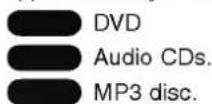
DVD (8 cm / 12 cm disc)

Audio CD (8 cm / 12 cm disc)
In addition, this unit can play a CD-R or CD-RW that contains audio titles or MP3 files.

Notes
- Depending on the conditions of the recording equipment or the CD-R/RW disc itself, some CD-R/RW discs cannot be played on the unit.
- The unit cannot play the CD-R/RW discs that contain no data, or contain different kinds of formatted data other than MP3 and CD-DA data.
- Do not attach any seal or label to either side (the labeled side or the recorded side) of a disc.
- Do not use irregular shaped CDs (e.g., heart-shaped or octagonal). It may result in malfunctions.

Notes on DVDs
Some playback operations of DVDs may be intentionally fixed by software manufacturers. As this unit plays DVDs according to disc content designed by the software manufacturer, some playback features of the unit may not be available, or other functions may be added. Refer also to the instructions supplied with the DVDs. Some DVDs made for business purposes may not be played on the unit.
Regional code of the DVD player and DVDs
This DVD player is designed and manufactured for playback of region "2" encoded DVD software.
The region code on the labels of some DVD discs indicates which type of player can play those discs. This unit can play only DVD discs labeled "2" or "ALL". If you try to play any other discs, the message "Check Regional Code" will appear on the TV screen. Some DVD discs may not have a region code label even though their playback is prohibited by area limits.


Note on DTS-encoded CDs
To avoid possible damage to the audio system, turn down the volume before playing back such discs, adjust the volume gradually, and keep the volume level low. To enjoy DTS Digital Surround™ playback, an external 5.1 channel DTS Digital Surround™ decoder system must be connected to the digital output of the unit.
Disc-related terms
Title (DVD only)
The main film content or accompanying feature content or additional feature content, or music album. Each title is assigned a title reference number enabling you to locate it easily.
Chapter (DVD only)
Sections of a picture or a musical piece that are smaller than titles.
A title is composed of one or several chapters. Each chapter is assigned a chapter number, enable you to locate the chapter you want. Depending on the disc, no chapters may be recorded.
Track (Audio CD only)
Sections of a picture or a musical piece on an audio CD. Each track is assigned a track number, enabling you to locate the track you want.
Before Use (Cont'd)
Precautions
Handling the unit
When shipping the unit
The original shipping carton and packing materials come in handy. For maximum protection, re-pack the unit as it was originally packed at the factory.
When setting the unit
The picture and sound of a nearby TV, VCR, or radio may be distorted during playback. In this case, position the unit away from the TV, VCR, or radio, or turn off the unit after removing the disc.
To keep the surface clean
Do not use volatile liquids, such as insecticide spray, near the unit. Do not leave rubber of plastic products in contact with the unit for a long period of time. They will leave marks on the surface.
Cleaning the unit
To clean the cabinet
Use a soft, dry cloth. If the surfaces are extremely dirty, use a soft cloth lightly moistened with a mild detergent solution. Do not use strong solvents, such as alcohol, benzine, or thinner, as these might damage the surface of the unit.
To obtain a clear picture
The DVD player is a high-tech, precision device. If the optical pick-up lens and disc drive parts are dirty or worn down, the picture quality will be poor. Regular inspection and maintenance are recommended after every 1,000 hours of use. (This depends on the operating environment.) For details, please contact your nearest dealer.
Notes on Discs
Handling discs
Do not touch the playback side of the disc. Hold the disc by the edges so that fingerprints will not get on the surface. Do not stick paper or tape on the disc.


Storing discs
After playing, store the disc in its case. Do not expose the disc to direct sunlight or sources of heat, or leave it in a parked car exposed to direct sunlight, as there may be a considerable temperature increase inside the car.
Cleaning discs
Fingerprints and dust on the disc can cause poor picture quality and sound distortion. Before playing, clean the disc with a clean cloth. Wipe the disc from the center out.

natural_image
Illustration of two hands holding a donut with a circle and an 'X' symbol (no text or labels)Do not use strong solvents such as alcohol, benzine, thinner, commercially available cleaners, or anti-static spray intended for older vinyl.
About Symbols
About the ⊙ symbol display
“ ⊗ ” may appear on the TV screen during operation. This icon means the function explained in this owner's manual is not available on that specific DVD video disc.
About the disc symbols for instructions
A section whose title has one of the following symbol is applicable only to the disc represented by the symbol.
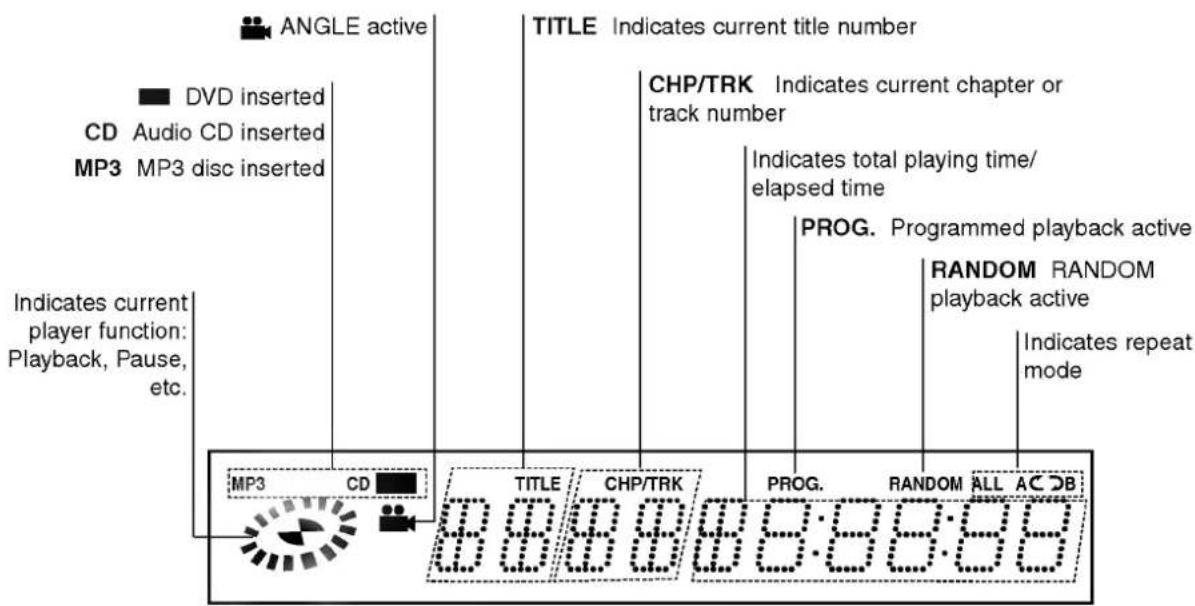
Front Panel and Display Window

Remote Control

Remote Control Operation Range
Point the remote control at the remote sensor and press the buttons.
- Distance: About 23 ft (7 m) from the front of the remote sensor
- Angle: About 30^ in each direction of the front of the remote sensor
Remote control battery installation

Detach the battery cover on the rear of the remote control, and insert two R03 (size AAA) batteries with + and - aligned correctly.
Caution
Do not mix old and new batteries. Never mix different types of batteries (standard, alkaline, etc.).

Rear Panel

\* System Select switch
You can enjoy NTSC or PAL discs by using System Select switch to choose the appropriate system.
PAL: Select when DVD player is connected with PAL-TV.
NTSC: Select when DVD player is connected with NTSC-TV.
AUTO: Select when DVD player is connected with Multi system TV.
- When the selected System Select switch does not coincide with the system of your TV, normal color picture may not be displayed.
- Set System Select switch when the power is turned off.

Do not touch the inner pins of the jacks on the rear panel. Electrostatic discharge may cause permanent damage to the unit.
Connections

Tips
- Depending on your TV and other equipment you wish to connect, there are various ways you could connect the player. Use only one of the connections described below.
- Please refer to the manuals of your TV, VCR, Stereo System or other devices as necessary to make the best connections.
- For better sound reproduction, connect the player's AUDIO OUT jacks to the audio in jacks of your amplifier, receiver, stereo or audio/video equipment. See "Connecting to optional equipment" on page 10.

Caution
- Make sure the DVD Player is connected directly to the TV. Set the TV to the correct video input channel.
- Do not connect the DVD Player's AUDIO OUT jack to the phono in jack (record deck) of your audio system.
- Do not connect your DVD Player via your VCR. The DVD image could be distorted by the copy protection system.
Connecting to a TV
- Make one of the following connections, depending on the capabilities of your existing equipment.
Video connection
1 Connect the VIDEO OUT jack on the DVD Player to the video in jack on the TV using the video cable (V).
2 Connect the Left and Right AUDIO OUT jacks of the DVD Player to the audio left/right in jacks on the TV (A) using the audio cables.
SCART connection
Connect the TO TV scart jack on the DVD Player to the corresponding in jacks on the TV using the scart cable (T).

Rear of DVD player
Connections (Cont'd)
Connecting to Optional Equipment
Connecting to an amplifier equipped with two channel analog stereo or Dolby Surround
Connect the Left and Right AUDIO OUT jacks on the DVD Player to the audio left and right in jacks on your amplifier, receiver or stereo system, using the audio cables (A).
Connecting to an amplifier equipped with two channel digital stereo (PCM) or to an Audio/Video receiver equipped with a multi-channel decoder (Dolby Digital™, MPEG 2 or DTS)
1 Connect one of the DVD Player's DIGITAL AUDIO OUT jacks (COAXIAL X) to the corresponding in jack on your amplifier. Use an optional digital (coaxial X) audio cable.
2 You will need to activate the player's digital output. (See "Digital Audio Output" on page 13).
Digital Multi-channel sound
A digital multi-channel connection provides the best sound quality. For this you need a multi-channel Audio/Video receiver that supports one or more of the audio formats supported by your DVD Player (MPEG 2, Dolby Digital and DTS). Check the receiver manual and the logos on the front of the receiver.
Caution:
Due to the DTS Licensing agreement, the digital output will be in DTS digital out when DTS audio stream is selected.
Notes
- If the audio format of the digital output does not match the capabilities of your receiver, the receiver will produce a strong, distorted sound or no sound at all.
– Six Channel Digital Surround Sound via digital connection can only be obtained if your receiver is equipped with a Digital Multi-channel decoder. - To see the audio format of the current DVD in the On-Screen Display, press AUDIO.
Rear of DVD player

flowchart
graph TD
    A["TO TV"] --> B["Digital OUT COAXIAL"]
    A --> C["AUDIO OUT"]
    A --> D["VIDEO OUT"]
    B --> E["X"]
    C --> F["A"]
    D --> G["Audio INPUT"]
    E --> H["COAXIAL DIGITAL INPUT"]
    F --> I["Audio INPUT"]
Amplifier (Receiver)
Before Operation
Caution:
Before using the remote control, press the DVD or TV button to select the device to be operated.
General Explanation
This manual gives the basic instructions for operating the DVD Player. Some DVDs require specific operation or allow only limited operation during playback. When this occurs, the symbol ⊙ appears on the TV screen, indicating that the operation is not permitted by the DVD Player or is not available on the disc.
On-Screen Display
The general playback status can be displayed on the TV screen. Some items can be changed on the menu.
On-screen display operation

Press DISPLAY during playback.

Press ▲ or ▼ to select an item. The selected item will be highlighted.
3 Press ◀ or ▶ to change the setting of an item. The number buttons can be also be used for setting numbers (e.g., title number). For some functions, press SELECT/ENTER to execute the setting.
Temporary Feedback Field Icons

Repeat Title

Repeat Chapter

Repeat A-B

Repeat Off

Resume play from this point

Action prohibited or not available

Notes
- Some discs may not provide all of the features on the on-screen display example shown below.
- If no button is pressed for 10 seconds, the On-Screen Display disappears.
| Items | Function (Press ▲▼ to select desired item) | Selection Method | ||
| Title Number |  | 1/3 | Shows the current title number and total number of titles, and skips to the desired title number. | ◀ / ▶, orNumber, SELECT/ENTER |
| Chapter Number |  | 1/12 | Shows the current chapter number and total number of chapters, and skips to the desired chapter number. | ◀ / ▶, orNumber, SELECT/ENTER |
| Time search |  | 0:16:57 | Shows the elapsed playing time, and searches the point by the elapsed time directly. | Number, SELECT/ENTER |
| Audio language and Digital Audio Output mode |  | 1 ENG□□D6 CH | Shows the current audio soundtrack language, encoding method and channel number, and changes the setting. | ◀ / ▶ |
| Subtitle language |  | Shows the current subtitles language, and changes the setting. | ◀ / ▶ | |
| Angle |  | 1/1 | Shows the current angle number and total number of angles, and changes the angle number. | ◀ / ▶ |
| Sound | [γWT2] | NORM. | Shows the current sound mode, and changes the setting. | ◀ / ▶ |

Before Operation (Cont'd)
Initial Settings
You can set your own Personal Preferences on the player.
Using your DVD player very first time
When you have just connected your DVD player for the very first time, the first on-screen menu asks which language you prefer to use for your DVD player. Select a language using ▲/▼ buttons then press SELECT/ENTER.
This operation changes the language used for the on-screen displays and setup menu.

natural_image
Completely dark image with no visible content or text.Initial Settings General Operation
1 Press SETUP. The setup menu appears.

2 Press ▲▼ to select the desired item. The screen will show the current setting for the selected item, as well as alternate setting(s).
3 While the desired item is selected, press ▶, then ▲▼ to select the desired setting.
4 Press SELECT/ENTER to confirm your selection.
Some items require additional steps.
5 Press SETUP, RETURN or PLAY to exit the setup menu.
Language
Disc Language

Select a language for the disc's Menu, Audio and Subtitle.
Original : The original language set for the disc is selected. Other : To select another language, press number buttons to enter the corresponding 4-digit number according to the language code list on page 23. If you enter the wrong language code, press CLEAR.

Menu Language
Select a language for the setup menu. This is the menu you see when you press SETUP.
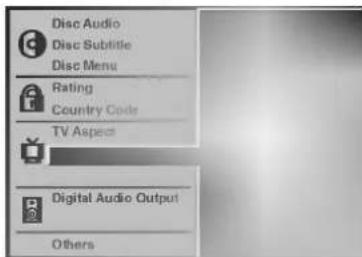
Picture
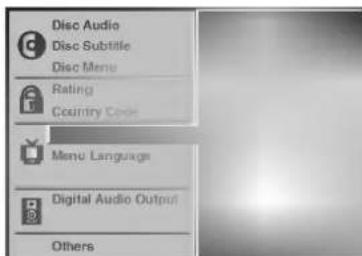
TV Aspect

4:3 Letterbox: Select when a standard 4:3 TV is connected. Displays theatrical images with masking bars above and below the picture.
4:3 Panscan: Select when a standard 4:3 TV is connected. Displays pictures cropped to fill your TV screen. Either sides of the picture are cut off.
16:9 Wide: Select when a 16:9 wide TV is connected.
Before Operation (Cont'd)
Sound
Digital Audio Output
Each DVD disc has a variety of audio output options. Set the player's Digital Audio Output according to the type of audio system you use.
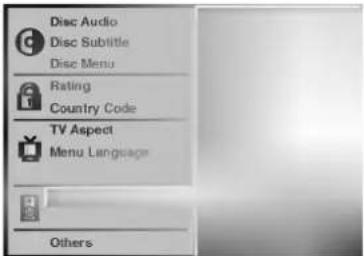
DOLBY DIGITAL/PCM: Select "DOLBY DIGITAL/PCM" if you connected the DVD Player's DIGITAL OUT jack to a Dolby Digital decoder (or an amplifier or other equipment with a Dolby Digital decoder).
Stream/PCM: Select "Stream/PCM" if you connected the DVD Player's DIGITAL OUT jack to an amplifier or other equipment with a DTS decoder, Dolby Digital decoder or MPEG decoder.
PCM: Select when connected to a 2 channel digital stereo amplifier. The DVD player outputs sounds in the PCM 2ch format when you play a DVD video disc recorded on the Dolby Digital, MPEG1 or MPEG2 recording system.
Sample Frequency
To change the Sample Frequency setting, first select the desired Digital Audio Output as indicated as above. If your receiver or amplifier is NOT capable of handling 96KHz signals, select 48KHz. When this choice is made, this unit will automatically convert any 96KHz signals to 48KHz so your system can decode them. If your receiver or amplifier is capable of handling 96KHz signals, select 96KHz. When this choice is made, this unit will pass each type of signal through without any further processing.
Others
The DRC and Vocal settings can be changed.
- Press ▲▼ to select the desired item and press SELECT/ENTER. The setting of the selected item is changed between On and Off.


natural_image
Blank grayscale image with no visible text, symbols, or discernible featuresDynamic Range Control (DRC)
With the DVD format, you can hear a program's soundtrack in the most accurate and realistic presentation possible, thanks to digital audio technology. However, you may wish to compress the dynamic range of the audio output (the difference between the loudest sounds and the quietest ones). Then, you may listen to a movie at a lower volume without losing clarity of sound. Set DRC to On for this effect.
Vocal
Set Vocal to On only when a multi-channel karaoke DVD is playing. The karaoke channels on the disc will mix into a normal stereo sound.
Before Operation (Cont'd)
Parental Control
Rating

Movies on DVDs may contain scenes not suitable for children. Therefore, discs may contain Parental Control information that applies to the complete disc or to certain scenes on the disc. These scenes are rated from 1 to 8, and alternatively, more suitable scenes are available for selection on some discs. Ratings are country dependent. The Parental Control feature allows you to prevent discs from being played by your children or to have certain discs played with alternative scenes.

1 Select "Rating" on the Setup menu using the ▲▼ buttons.
2 While "Rating" is selected, press ▶.
3 When you have not entered a password yet; Enter a 4-digit password using the number buttons to create a personal 4-digit security password, then press SELECT/ENTER. And enter the 4-digit password again and press SELECT/ENTER to verify. When you have already entered a password; Enter a 4-digit password using the number buttons to confirm the personal 4-digit security password, then press SELECT/ENTER. If you make a mistake before pressing SELECT/ENTER, press CLEAR and enter 4-digit security password again.
4 Select a rating from 1 to 8 using the ▲▼ buttons. One (1) has the least playback restrictions. Eight (8) has the most playback restrictions.
Unlock: If you select Unlock, Parental Control is not active. The disc will play in full.
Ratings 1 to 8: Some discs contain scenes not suitable for children. If you set a rating for the player, all disc scenes with the same rating or lower will be played. Higher rated scenes will not be played unless an alternative scene is available on the disc. The alternative must have the same rating or a lower one. If no suitable alternative is found, playback will stop. You must enter the 4-digit password or change the rating level in order to play the disc.
5 Press SELECT/ENTER to confirm your rating selection, then press SETUP to exit the menu.
Country Code

Enter the code of a country/area whose standards were used to rate the DVD video disc, referring to the list (See "Country Code List", page 24.).

1 Select Country Code using the ▲▼ buttons on the setup menu.
2 While Country Code is selected, press ▶.
3 Follow step 3 of "Rating" on left.
4 Select the first character using the ▲▼ buttons.
5 Shift the cursor using ◀▶ buttons and select the second character using ▲▼ buttons.
6 Press SELECT/ENTER to confirm your country code selection, then press SETUP to exit the menu.
Note
Confirmation of the 4-digit password is necessary when the code is changed (see "Changing the 4-digit code" on below).
Changing the 4-digit code
1 Follow Steps 1-2 as shown above to the left (Rating).
2 Enter the old code, then press SELECT/ENTER.
3 Select Change using the ▲▼ buttons then press SELECT/ENTER.
4 Enter the new 4-digit code, then press SELECT/ENTER.
5 Enter exactly the same code a second time and verify by pressing SELECT/ENTER.
6 Press SETUP to exit the menu.
If you forget your 4-digit code
If you forget your password, to clear the current password, follow the procedure below.
1 Press SETUP to display the setup menu.
2 Use the Number buttons to enter the 6-digit number "210499." The 4-digit password is cleared. "P CLr" appears on the display. The message will appear if the disc tray is closed. It will be on the display until you try another feature.
3 Enter a new code as shown above to the left (Rating).
Operation with DVD
Playing a DVD

Getting to play

- Turn on the TV and select the video input source connected to the DVD player.
- When you want to enjoy the sound of discs or from the audio system, turn on the audio system and select the input source connected to the DVD player.

Press OPEN/CLOSE to open the disc tray.

Load your chosen disc in the tray, with the label facing up.
When a double-sided DVD is inserted, make sure the side you want to play is facing up.

Press OPEN/CLOSE to close the tray.
READING appears on the TV screen, and playback starts automatically. If playback does not start, press PLAY. In some cases, the disc menu might appear instead.

When the menu screen is displayed
The menu screen may be displayed first after loading a DVD which contains a menu.

Use the ◀▶▲▼ buttons to select the title/chapter you want to view, then press SELECT/ENTER to start playback. Press TITLE or MENU to return to the menu screen.

Notes
- If Parental Control is set and the disc is not within the Rating settings (not authorized), the 4-digit code must be entered and/or the disc must be authorized (see "Parental Control", on page 14).
– DVDs may have a region code. - Your player will not play discs that have a region code different from your player. The region code for this player is 2 (two).
General Features

Note
Unless stated, all operations described are based on remote control use. Some operations can be carried out using the setup menu.
Moving to another TITLE


When a disc has more than one title, you can move to another title as follows:
- Press DISPLAY when playback is stopped, then press the appropriate numbered button (0-9) to select a title number.
Moving to another CHAPTER


When a title on a disc has more than one chapter, you can move to another chapter as follows:
- Press SKIP/SCAN ◀◀◀ or ▶▶◀ briefly during playback to select the next chapter or to return to the beginning of the current chapter.
- Press I◄◄ twice briefly to step back to the previous chapter.
- To go directly to any chapter during DVD playback, press DISPLAY. Then, press ▲▼ to select C (chapter). Then, enter the chapter number using the numbered buttons (0-9).

Note
For two-digit numbers, press the buttons in rapid succession.
Slow Motion

1 Press SLOW ◀ or ▶ during playback. The player will enter SLOW mode.
2 Use the SLOW ◀ or ▶ to select the required speed:
◀ 1/16, ◀ 1/8, ◀ 1/4 or ◀ 1/2 (backward), or ▶
1/16, ▶ 1/8, ▶ 1/4 or ▶ 1/2 (forward).
3 To exit slow motion mode, press PLAY.
natural_image
Completely dark gray image with no visible content, text, or symbols.Operation with DVD
General Features (cont'd)
Still Picture and Frame-by-frame playback
1 Press PAUSE/STEP during playback. The player will now go into PAUSE mode.
2 You can advance the picture frame by frame by pressing PAUSE/STEP repeatedly on the remote control.
Search
1 Press and hold SKIP/SCAN ◀◀◀ or ▶▶▶ for about two seconds during playback.
The player will now go into SEARCH mode.
2 Press and hold SKIP/SCAN I◀◀ or ▶▶▶ repeatedly to select the required speed: ◀◀X2, ◀◀X4, ◀◀X16, ◀◀X100 (backward) or ▶▶X2, ▶▶X4, ▶▶X16, ▶▶X100 (forward).
3 To exit SEARCH mode, press PLAY.
Random
1 Press RANDOM during playback or in stop mode. The unit automatically begins Random Playback and RANDOM appears on the display window.
2 To return to normal playback, press RANDOM until RANDOM disappears on the display window.
Repeat

DVD Video Discs - Repeat Chapter/Title/Off
1 To repeat the currently playing chapter, press REPEAT.
The Repeat Chapter icon appears on the TV screen
2 To repeat the title currently playing, press REPEAT a second time.
The Repeat Title icon appears on the TV screen.
3 To exit Repeat mode, press REPEAT a third time. The Repeat Off icon appears on the TV screen.
Repeat A-B

To repeat a sequence in a title:
1 Press A-B at your chosen starting point.
A- appears briefly on the TV screen.
2 Press A-B again at your chosen end point.
A-B appears briefly on the TV screen, and the repeat sequence begins(a-b repeat appears on the player's display).
3 To cancel the sequence, press A-B.
Time Search

The Time Search function allows you to start playing at any chosen time on the disc.
1 Press DISPLAY during playback. The on-screen display appears on the screen.
The Time Search box shows the elapsed playing time of the current disc.
2 Within 10 seconds, press ▲▼ to select the Time Search icon in the on-screen display.
The “-:-:-” appears in the Time Search box.
3 Within 10 seconds, use the numbered buttons to enter the required start time. Enter hours, minutes and seconds from left to right in the box.
If you enter the wrong numbers, press CLEAR to remove the numbers you entered. Then enter the correct numbers.
4 Within 10 seconds, press SELECT/ENTER to confirm the start time.
Playback starts from the selected time on the disc. If you enter an invalid time, playback will continue from the current point.
Zoom

The Zoom function allows you to enlarge the video image and to move through the enlarged image.
1 Press ZOOM during playback or still playback to activate the Zoom function.
If you press ZOOM repeatedly, the magnification level increases up to six times.
2 Use the ◀▶/▲▼ buttons to move through the zoomed picture.
3 Press CLEAR to resume normal playback or return to the paused image.
Note
- The zoom function may not work for some DVDs.
- The zoom function may not work on multi-angle scenes.
Operation with DVD
General Features (cont'd)
3D Surround


This unit can produce a 3D Surround effect, which simulates multi-channel audio playback from two conventional stereo speakers, instead of the five or more speakers normally required to listen to multi-channel audio from a home theater system.
1 Press SOUND to select "3D SUR" during playback.
2 To turn off the 3D Surround effect, press SOUND again to select "NORM".
Marker Search


You can start playback from a memorized point. Up to nine points can be memorized. To enter a mark, follow these steps.
1 During disc playback, press MARKER when playback reaches the spot that you want to memorize.
The Marker icon will appear on the TV screen briefly.
2 Repeat step 1 to enter up to nine Marker points on a disc.
To Recall a Marked Scene
1 During disc playback, press SEARCH.
The MARKER SEARCH menu will appear on the screen.
2 Within 10 seconds, press ◀▶ to select a Marker number that you want to recall.
3 Press SELECT/ENTER.
Playback will start from the Marked scene.
4 To remove the MARKER SEARCH menu, press SEARCH.
To clear a Marked Scene
1 During disc playback, press SEARCH.
The MARKER SEARCH menu will appear on the screen.
2 Press ◀▶ to select the Marker number that you want to erase.
3 Press CLEAR.
The Marker number will be erased from the list.
4 Repeat steps 2 and 3 to erase additional Marker numbers.
5 To remove the MARKER SEARCH menu, press SEARCH.
Special DVD Features

Checking the contents of DVD Video discs: Menus
DVDs may contain menus that allow you to access special features. To use the disc menu, press MENU. Then, press the appropriate number button to select an option. Or, use the ◀/▲▼ buttons to highlight your selection, then press SELECT/ENTER.
Title Menu

1 Press TITLE.
If the current title has a menu, the menu will appear on the screen. Otherwise, the disc menu may appear.
2 The menu can list camera angles, spoken language and subtitle options, and chapters for the title.
3 To remove the title menu, press TITLE again.
Disc Menu

1 Press MENU.
The disc menu is displayed.
2 To remove the disc menu, press MENU again.
Camera Angle


If the disc contains sequences recorded from different camera angles, the angle icon blinks on the display. You can then change the camera angle if you wish.
- Press ANGLE repeatedly during playback to select a desired angle.
The number of the current angle appears on the display.
Changing the Audio Language


Press AUDIO repeatedly during playback to hear a different audio language or audio track.
Subtitles


Press SUBTITLE repeatedly during playback to see the different subtitle languages.

Note
If ⊗ appears, the feature is not available on the disc.
natural_image
Blank grayscale gradient image with no visible text, symbols, or identifiable objectsOperation with Audio CD and MP3 Disc
Playing an Audio CD and MP3 disc
The DVD Player can play MP3 formatted recordings on CD-ROM, CD-R or CD-RW discs.
Before playing MP3 recordings, read the notes on MP3 Recordings on page 21.
1 Insert a disc and close the tray. The menu appears on the TV screen.

Audio CD menu
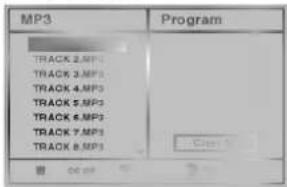
MP3 menu
2 Press ▲▼ to select a track then press PLAY. Playback starts. During playback, the current track's elapsed playing time will appear on the display. Playback will stop at the end of the disc.
3 To stop playback at any other time, press STOP.
Pause
1 Press PAUSE/STEP during playback.
2 To return to playback, press PLAY or press PAUSE/STEP again.
Moving to another Track
- Press SKIP/SCAN ◀◀◀ or ▶▶▶ briefly during playback to go to the next track or to return to the beginning of the current track.
- Press SKIP/SCAN I◄◄ twice briefly to step back to the previous track.
- In case of audio CD, to go directly to any track, enter the track number using the numbered buttons (0-9) during playback.
Repeat TRACK/ALL/OFF
1 To repeat the track currently playing, press REPEAT. The Repeat Track icon appears on the menu screen.
2 To repeat all tracks on a disc, press REPEAT a second time.
The Repeat ALL icon appears on the menu screen.
3 To cancel Repeat mode, press REPEAT a third time. The Repeat OFF icon appears on the menu screen.
Search
1 Press and hold SKIP/SCAN ◀◀◀ or ▶▶▶ for about two seconds during playback.
The player will now go into SEARCH mode.
2 Press and hold SKIP/SCAN I◀◀ or ▶▶I repeatedly to select the required speed: ◀◀X2, ◀◀X4, ◀◀X8 (backward) or ▶▶X2, ▶▶X4, ▶▶X8 (forward).
3 Search speed and direction are indicated on the menu screen.
4 To exit SEARCH mode, press PLAY.
Random
1 Press RANDOM during playback or when playback is stopped.
The unit automatically begins Random Playback and RANDOM or "RAND." appears on the display window and menu screen.
2 To return to normal playback, press RANDOM repeatedly until RANDOM or "RAND." disappears on the display window and menu screen.
Repeat A-B
To repeat a sequence.
1 During disc playback, press A-B at your chosen starting point.
The Repeat icon and "A -" appears on the menu screen.
2 Press A-B again at your chosen end point.
The Repeat icon and "A B" appears on the menu screen, and the sequence begins to play repeatedly.
3 To exit the sequence and return to normal play, press A-B again.
The Repeat icon and "OFF" appears on the menu screen.
3D Surround
This unit can produce a 3D Surround effect, which simulates multi-channel audio playback from two conventional stereo speakers, instead of the five or more speakers normally required to listen to multi-channel audio from a home theater system.
1 Press SOUND to select "3D SUR" during playback.
2 To turn off the 3D Surround effect, press SOUND again to select "NORM".
Changing the Audio Channel
Press AUDIO repeatedly during playback to hear a different audio channel (STEREO, LEFT or RIGHT).
Programmed Playback
Programmed Playback with Audio CD and MP3 Disc
Program allows you to store your favorite tracks for a particular disc in the player memory.
Program can contain 32 tracks (Audio CD) or 60 tracks (MP3 disc).
1 Insert the disc and close the tray. The menu is displayed on the TV screen.
2 Press PROGRAM during playback or in the stop mode to enter the Program Edit mode.
The E will appear to the right of the word Program on the right side of the menu screen.
Note
Press PROGRAM to exit the Program Edit mode; the E mark will disappear.
3 Press ▲▼ to select a track then press SELECT/ENTER to place the selected track on the Program list.
4 Repeat step 3 to place additional tracks on the Program list.
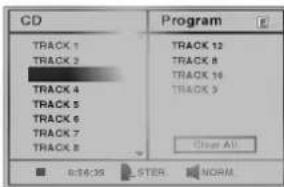
Audio CD menu

MP3 menu
5 Press ▶.
The programmed track you selected last is highlighted on the program list.
6 Press ▲▼ to select the track you want to start playing.
Press TITLE to move to the next page. Press MENU to move to the previous page.
7 Press PLAY to start. Playback begins in the order in which you programmed the tracks and "PROG." appears in the display window. Playback stops after playing the last programmed track on the program list.
To resume normal playback from programmed playback
Press and hold PROGRAM until "PROG." indicator disappears in the display window.
Repeat Programmed Tracks
- To repeat the track currently playing, press REPEAT. The Repeat Track icon appears on the menu screen.
- To repeat all tracks on the program list, press REPEAT a second time. The Repeat All icon appears on the menu screen.
- To cancel Repeat mode, press REPEAT a third time. The Repeat Off icon appears on the menu screen.
Erasing a Track from Program List
1 Press PROGRAM during playback or in the stop mode to enter the Program Edit mode.
The E mark will appear.
2 Press ▶ to move to the Program list.
3 Use ▲▼ to select the track that you wish to erase from the Program list.
4 Press CLEAR.
The track will be erased from the Program list.
Erasing the Complete Program List
1 Follow steps 1-2 of "Erasing a Track from Program List" as above.
2 Use ▲▼ to select "Clear All", then press SELECT/ENTER.
The complete Program for the disc will be erased.
The programs are also cleared when the disc is removed.
Additional Information
Last Condition Memory

This player memorizes the last condition for the last disc you have watched. Settings remain in memory even if you remove the disc from the player or switch off the player. If you load a disc that has its settings memorized, the latest stop position is automatically recalled.
Notes
- Settings are stored in memory for use any time.
- This player does not memorize settings of a disc if you switch off the player before commencing to play it.
Screen Saver
The screen saver picture appears when you leave the DVD Player in stop mode for about five minutes. After the Screen Saver has been engaged for about five minutes, the DVD Player will automatically turn itself off.
Video Mode Setting
- With certain discs, the playback picture may be flickering or Dot Crawl is shown on straight lines. That means Vertical interpolation or De-interlace is not perfectly matched with the disc. In that case, the picture quality can be improved with changing video mode.
- To change the video mode, press and hold DISPLAY about 3 seconds during playback of the disc. Changed video mode number is displayed on the TV screen. Check whether video quality is improved. You can repeat above procedure until desired picture quality appears.
- Procedure of video mode is changed; MODE1 → MODE2 → MODE3 → MODE4 → MODE5 → MODE1
- If you turn off the power, the video mode will be back to initial state (MODE1).
Controlling the TV
Your remote control is capable of operating your DVD player as well as limited functions of LG TV. Follow the instructions below to operate for your LG TV.
1 Before using the remote control, press the DVD or TV button to select the device to be operated. To switch the remote control mode (to operate a different device), be sure to press the DVD or TV button first.
2 The POWER, PR./CH (▼/▲), VOL (◄/►), MUTE and TV AV buttons on remote control are used to operate the LG TV.
Setting Remote Control Codes for LG TV
- This remote control supports two remote control codes for LG TV: Code 1 and Code 2. Code 1 is for LG TV with NTSC or multi system. Code 2 is for LG TV with PAL system.
- When the unit is shipped from the factory, the remote control is set to Code 1.
- To set the remote control to Code 2, hold down both the TV button and "2" number button on the remote control. (If the batteries in the remote control are replaced while the remote control is set to Code 2, the setting will revert Code 1.)
- To set the remote control back to Code 1, hold down both the TV button and "1" number button on the remote control.
Note
If the remote control does not operate your particular TV, try one of the other code or use the remote control originally supplied with the LG TV. Due to the variety of codes used by manufacturer, OUR COMPANY cannot guarantee that the remote control will operate every model of the LG TV.
Additional Information(Continued)
Notes on MP3 Discs
About MP3
- An MP3 file is audio data compressed by using MPEG1, the audio layer-3 file-coding scheme. We call files that have the ".mp3" file extension "MP3 files".
- The player can not read an MP3 file that has a file extension other than ".mp3".
- The player can not read a fake MP3 file that has a file extension ".mp3".
MP3 Disc compatibility with this player is limited as follows:
- Sampling Frequency / only at 44.1kHz
- Bit rate/ within 32 - 320kbps
- CD-R physical format should be "ISO 9660"
- If you record MP3 files using the software which cannot create a FILE SYSTEM, for example "Direct-CD" etc., it is impossible to playback MP3 files. We therefore recommend that you use "Easy-CD Creator", which creates an ISO9660 file system.
- A single session disc requires MP3 files in the first track. If there is no MP3 file in the 1st track, it cannot playback MP3 files. If you wish to playback MP3 files, format all the data in the disc or use a new one.
- We do not recommend using CD-RW discs. Please use finished CD-R discs only.
- File names should be named using 8 letters or less and must incorporate the ".mp3" extension e.g. "******* .MP3".
- Do not use special characters such as “_?!><+*}{[@];;V.,” etc.
- Total number of files on the disc should be less than 200.
- Use 74 minute CD-R discs (650M), do not use 80 minute CD-R (700M) software.
This DVD player requires discs/recordings to meet certain technical standards in order to achieve optimal playback quality. Pre-recorded DVDs are automatically set to these standards. There are many different types of recordable disc formats (including CD-R containing MP3 files).
Customers should also note that permission is required in order to download MP3 files and music from the Internet. Our company has no right to grant such permission. Permission should always be sought from the copyright owner.
Troubleshooting
Check the following guide for the possible cause of a problem before contacting service.
| Symptom | Cause | Correction |
| No power. | The power cord is disconnected. | Plug the power cord into the wall outlet securely. |
| The power is on, but the DVD player does not work. | No disc is inserted. | Insert a disc. (Check that the DVD or, audio CD indicator in the display window is lit.) |
| No picture. | The TV is not set to receive DVD signal output. | Select the appropriate video input mode on the TV so the picture from the DVD player appears on the TV screen. |
| The video cable is not connected securely. | Connect the video cable into the jacks securely. | |
| The connected TV power is turned off. | Turn on the TV. | |
| No sound. | The equipment connected with the audio cable is not set to receive DVD signal output. | Select the correct input mode of the audio receiver so you can listen to the sound from the DVD player. |
| The audio cables are not connected securely. | Connect the audio cable into the jacks securely. | |
| The power of the equipment connected with the audio cable is turned off. | Turn on the equipment connected with the audio cable. | |
| The Digital Audio Output is set to the wrong position. | Set the Digital Audio Output to the correct position, then turn on the DVD player again by pressing POWER. | |
| The playback picture is poor. | The disc is dirty. | Clean the disc. |
| The DVD player does not start playback. | No disc is inserted. | Insert a disc. (Check that the DVD, or audio CD indicator in the DVD display is lit.) |
| An unplayable disc is inserted. | Insert a playable disc. (Check the disc type, color system and Regional code.) | |
| The disc is placed upside down. | Place the disc with the playback side down. | |
| The disc is not placed within the guide. | Place the disc on the disc tray correctly inside the guide. | |
| The disc is dirty. | Clean the disc. | |
| The Rating level is set. | Cancel the Rating function or change the rating level. | |
| The remote control does not work properly. | The remote control is not pointed at the remote sensor of the DVD player. | Point the remote control at the remote sensor of the DVD player. |
| The remote control is too far from the DVD player. | Operate the remote control within about 23 ft (7 m). | |
| There is an obstacle in the path of the remote control and the DVD player. | Remove the obstacle. | |
| The batteries in the remote control are exhausted. | Replace the batteries with new ones. |
Language Code List
Enter the appropriate code number for the initial settings "Disc Audio", "Disc Subtitle" and/or "Disc Menu" (See page 12).
| Code | Language | Code | Language | Code | Language | Code | Language |
| 6565 | Afar | 7079 | Faroese | 7678 | Lingala | 8375 | Slovak |
| 6566 | Abkhazian | 7082 | French | 7679 | Laothian | 8376 | Slovenian |
| 6570 | Afrikaans | 7089 | Frisian | 7684 | Lithuanian | 8377 | Samoan |
| 6577 | Ameharic | 7165 | Irish | 7686 | Latvian, Lettish | 8378 | Shona |
| 6582 | Arabic | 7168 | Scots Gaelic | 7771 | Malagasy | 8379 | Somali |
| 6583 | Assamese | 7176 | Galician | 7773 | Maori | 8381 | Albanian |
| 6588 | Aymara | 7178 | Guarani | 7775 | Macedonian | 8382 | Serbian |
| 6590 | Azerbaijani | 7185 | Gujarati | 7776 | Malayalam | 8385 | Sudanese |
| 6665 | Bashkir | 7265 | Hausa | 7778 | Mongolian | 8386 | Swedish |
| 6669 | Byelorussian | 7273 | Hindi | 7779 | Moldavian | 8387 | Swahili |
| 6671 | Bulgarian | 7282 | Croatian | 7782 | Marathi | 8465 | Tamil |
| 6672 | Bihari | 7285 | Hungarian | 7783 | Malay | 8469 | Telugu |
| 6678 | Bengali; Bangla | 7289 | Armenian | 7784 | Maltese | 8471 | Tajik |
| 6679 | Tibetan | 7365 | Interlingua | 7789 | Burmese | 8472 | Thai |
| 6682 | Breton | 7378 | Indonesian | 7865 | Nauru | 8473 | Tigrinya |
| 6765 | Catalan | 7383 | Icelandic | 7869 | Nepali | 8475 | Turkmen |
| 6779 | Corsican | 7384 | Italian | 7876 | Dutch | 8476 | Tagalog |
| 6783 | Czech | 7387 | Hebrew | 7879 | Norwegian | 8479 | Tonga |
| 6789 | Welsh | 7465 | Japanese | 7982 | Oriya | 8482 | Turkish |
| 6865 | Danish | 7473 | Yiddish | 8065 | Panjabi | 8484 | Tatar |
| 6869 | German | 7487 | Javanese | 8076 | Polish | 8487 | Twi |
| 6890 | Bhutani | 7565 | Georgian | 8083 | Pashto, Pushto | 8575 | Ukrainian |
| 6976 | Greek | 7575 | Kazakh | 8084 | Portuguese | 8582 | Urdu |
| 6978 | English | 7576 | Greenlandic | 8185 | Quechua | 8590 | Uzbek |
| 6979 | Esperanto | 7577 | Cambodian | 8277 | Rhaeto-Romance | 8673 | Vietnamese |
| 6983 | Spanish | 7578 | Kannada | 8279 | Rumanian | 8679 | Volapük |
| 6984 | Estonian | 7579 | Korean | 8285 | Russian | 8779 | Wolof |
| 6985 | Basque | 7583 | Kashmiri | 8365 | Sanskrit | 8872 | Xhosa |
| 7065 | Persian | 7585 | Kurdish | 8368 | Sindhi | 8979 | Yoruba |
| 7073 | Finnish | 7589 | Kirghiz | 8372 | Serbo-Croatian | 9072 | Chinese |
| 7074 | Fiji | 7665 | Latin | 8373 | Singhalese | 9085 | Zulu |
Country Code List
Enter the appropriate code number for the initial setting "Country Code" (See page 14).
| Code | Country | Code | Country | Code | Country | Code | Country |
| AD | Andorra | ER | Eritrea | LC | Saint Lucia | SC | Seychelles |
| AE | United Arab Emirates | ES | Spain | LI | Liechtenstein | SD | Sudan |
| AF | Afghanistan | ET | Ethiopia | LK | Sri Lanka | SE | Sweden |
| AG | Antigua and Barbuda | FI | Finland | LR | Liberia | SG | Singapore |
| AI | Anguilla | FJ | Fiji | LS | Lesotho | SH | Saint Helena |
| AL | Albania | FK | Falkland Islands | LT | Lithuania | SI | Slovenia |
| AM | Armenia | FM | Micronesia | LU | Luxembourg | SJ | Svalbard and Jan Mayen Islands |
| AN | Netherlands Antilles | FO | Faroe Islands | LV | Latvia | ||
| AO | Angola | FR | France | LY | Libya | SK | Slovak Republic |
| AQ | Antarctica | FX | France (European Territory) | MA | Morocco | SL | Sierra Leone |
| AR | Argentina | MC | Monaco | SM | San Marino | ||
| AS | American Samoa | GA | Gabon | MD | Moldavia | SN | Senegal |
| AT | Austria | GB | Great Britain | MG | Madagascar | SO | Somalia |
| AU | Australia | GD | Grenada | MH | Marshall Islands | SR | Suriname |
| AW | Aruba | GE | Georgia | MK | Macedonia | ST | Saint Tome and Principe |
| AZ | Azerbaidjan | GF | French Guyana | ML | Mali | SU | Former USSR |
| BA | Bosnia-Herzegovina | GH | Ghana | MM | Myanmar | SV | El Salvador |
| BB | Barbados | GI | Gibraltar | MN | Mongolia | SY | Syria |
| BD | Bangladesh | GL | Greenland | MO | Macau | SZ | Swaziland |
| BE | Belgium | GM | Gambia | MP | Northern Mariana Islands | TC | Turks and Caicos Islands |
| BF | Burkina Faso | GN | Guinea | MQ | Martinique (French) | TD | Chad |
| BG | Bulgaria | GP | Guadeloupe (French) | MR | Mauritania | TF | French Southern Territories |
| BH | Bahrain | GQ | Equatorial Guinea | MS | Montserrat | ||
| BI | Burundi | GR | Greece | MT | Malta | TG | Togo |
| BJ | Benin | GS | S. Georgia & S. Sandwich Isls. | MU | Mauritius | TH | Thailand |
| BM | Bermuda | MV | Maldives | TJ | Tadjikistan | ||
| BN | Brunei Darussalam | GT | Guatemala | MW | Malawi | TK | Tokelau |
| BO | Bolivia | GU | Guam (USA) | MX | Mexico | TM | Turkmenistan |
| BR | Brazil | GW | Guinea Bissau | MY | Malaysia | TN | Tunisia |
| BS | Bahamas | GY | Guyana | MZ | Mozambique | TO | Tonga |
| BT | Bhutan | HK | Hong Kong | NA | Namibia | TP | East Timor |
| BV | Bouvet Island | HM | Heard and McDonald Islands | NC | New Caledonia (French) | TR | Turkey |
| BW | Botswana | NE | Niger | TT | Trinidad and Tobago | ||
| BY | Belarus | HN | Honduras | NF | Norfolk Island | TV | Tuvalu |
| BZ | Belize | HR | Croatia | NG | Nigeria | TW | Taiwan |
| CA | Canada | HT | Haiti | NI | Nicaragua | TZ | Tanzania |
| CC | Cocos (Keeling) Islands | HU | Hungary | NL | Netherlands | UA | Ukraine |
| CF | Central African Republic | ID | Indonesia | NO | Norway | UG | Uganda |
| CG | Congo | IE | Ireland | NP | Nepal | UK | United Kingdom |
| CH | Switzerland | IL | Israel | NR | Nauru | UM | USA Minor Outlying Islands |
| CI | Ivory Coast | IN | India | NU | Niue | ||
| CK | Cook Islands | IO | British Indian Ocean Territory | NZ | New Zealand | US | United States |
| CL | Chile | OM | Oman | UY | Uruguay | ||
| CM | Cameroon | IQ | Iraq | PA | Panama | UZ | Uzbekistan |
| CN | China | IR | Iran | PE | Peru | VA | Vatican City State |
| CO | Colombia | IS | Iceland | PF | Polynesia (French) | VC | Saint Vincent & Grenadines |
| CR | Costa Rica | IT | Italy | PG | Papua New Guinea | ||
| CS | Former Czechoslovakia | JM | Jamaica | PH | Philippines | VE | Venezuela |
| CU | Cuba | JO | Jordan | PK | Pakistan | VG | Virgin Islands (British) |
| CV | Cape Verde | JP | Japan | PL | Poland | VI | Virgin Islands (USA) |
| CX | Christmas Island | KE | Kenya | PM | Saint Pierre and Miquelon | VN | Vietnam |
| CY | Cyprus | KG | Kyrgyzstan | PN | Pitcairn Island | VU | Vanuatu |
| CZ | Czech Republic | KH | Cambodia6 | PR | Puerto Rico | WF | Wallis and Futuna Islands |
| DE | Germany | KI | Kiribati | PT | Portugal | WS | Samoa |
| DJ | Djibouti | KM | Comoros | PW | Palau | YE | Yemen |
| DK | Denmark | KN | Saint Kitts & Nevis Anguilla | PY | Paraguay | YT | Mayotte |
| DM | Dominica | KP | North Korea | QA | Qatar | YU | Yugoslavia |
| DO | Dominican Republic | KR | South Korea | RE | Reunion (French) | ZA | South Africa |
| DZ | Algeria | KW | Kuwait | RO | Romania | ZM | Zambia |
| EC | Ecuador | KY | Cayman Islands | RU | Russian Federation | ZR | Zaire |
| EE | Estonia | KZ | Kazakhstan | RW | Rwanda | ZW | Zimbabwe |
| EG | Egypt | LA | Laos | SA | Saudi Arabia | ||
| EH | Western Sahara | LB | Lebanon | SB | Solomon Islands |
Specification
General
| Power requirements | AC 110-240V, 50/60 Hz |
| Power consumption | 14W |
| Dimensions (approx.) | 360 X 67 X 248 mm (w/h/d) |
| Mass (approx.) | 2.5 kg |
| Operating temperature | 5°C to 40°C (41°F to 104°F) |
| Operating humidity | 5 % to 90 % |
System
| Laser | Semiconductor laser, wavelength 650 nm |
| Signal system | PAL/NTSC |
| Frequency response | DVD (PCM 96 kHz): 8 Hz to 44 kHzDVD (PCM 48 kHz): 8 Hz to 22 kHzCD: 8 Hz to 20 kHz |
| Signal-to-noise ratio | More than 100dB (ANALOG OUT connectors only) |
| Harmonic distortion | Less than 0.008% |
| Dynamic range | More than 100 dB (DVD)More than 95 dB (CD) |
Outputs
| VIDEO OUT | 1.0 V (p-p) 75 Ω, sync negative, RCA jack x 1/SCART(TO TV) |
| Audio output (digital audio) | 0.5 V (p-p), 75 Ω, RCA jack x 1 |
| Audio output (analog audio) | 2.0 Vrms (1 kHz, 0 dB), 330 Ω, RCA jack (L, R) x 1/SCART(TO TV) |
Accessory
| Video cable | 1 |
| Audio cable | 1 |
| Remote control | 1 |
| Batteries | 2 |
- Design and specifications are subject to change without notice.
Manufactured under license from Dolby Laboratories. "Dolby" and the double-D symbol are trademarks of Dolby Laboratories. Confidential unpublished works. Copyright 1992-1997 Dolby Laboratories. All rights reserved.
"DTS" and "DTS Digital Out" are registered trademarks of Digital Theater Systems, Inc.

LG
Odtwarzacz DVD
natural_image
Two hands holding a circular object, one open and one crossed, with no text or symbols present.natural_image
Solid gray vertical rectangle with no text, symbols, or discernible featuresnatural_image
Solid dark image with no visible content, text, or symbolsnatural_image
Two 3D-rendered mechanical parts with circular features, one resembling a helmet or device and the other a curved component (no text or symbols)A lemezek tárolása
natural_image
Two hands holding a donut-shaped object, one open and one crossed (no text or symbols)[Non-Text]
DVD
The image is too blurry to recognize any text content.
Audió CD-k
The image is too blurry to recognize any text content.
MP3 lemezek

natural_image
Solid dark gray vertical band with no visible text, symbols, or patternsnatural_image
Solid gray vertical rectangle with no text, symbols, or discernible featuresnatural_image
Gradient grayscale image with no text, symbols, or identifiable objectsnatural_image
Completely blank or indistinct image with no visible text, symbols, or discernible features.Probléma esetén
natural_image
Illustration of two hands holding a circular object with a cross symbol (no text or labels)DVD-soitin takaa
Liitännät (jatkoa)
Kuva
TV:n kuvasuhde

natural_image
Solid gray vertical bar with no text or symbolsnatural_image
Solid gray vertical rectangle with no text, symbols, or discernible featuresAudio CD -valikko
MP3-valikko
5 Paina ▶.
natural_image
Completely blank or indistinct image with no visible text, symbols, or discernible features.Vianetsintä
natural_image
Illustration of two hands holding a donut with a circle and an 'X' symbol (no text or labels)Bild
natural_image
Completely blank or uniformly gray image with no visible text, symbols, or discernible features.Drift med DVD
natural_image
Blank grayscale image with no visible text, symbols, or discernible featuresCLASS 1 LASER PRODUCT KLASSE 1 LASER PRODUKT LUOKAN 1 LASER LAITE KLASS 1 LASER APPARAT CLASSE 1 PRODUIT LASER
ADVARSEL:
Denne DVD-afspiller benytter et laser system.
natural_image
Illustration of two hands holding a circular object, one open and the other closed, with no text or symbols present.Billede
TV Aspekt

natural_image
Completely dark image with no visible content or text.Betjening med DVD
Generelle Funktioner (fortsat)
For at slette et Markeret Scene
natural_image
Completely blank or indistinct image with no visible text, symbols, or discernible features.Fejlfinding
CLASS 1 LASER PRODUCT KLASSE 1 LASER PRODUKT LUOKAN 1 LASER LAITE KLASS 1 LASER APPARAT CLASSE 1 PRODUIT LASER
ADVARSEL:
Grunninnstillinger 12-14
\* Bryter for systemvalg
natural_image
Gradient grayscale image with no text, symbols, or identifiable objectsBilde
TV-aspekt
4:3 Letterbox: Velges når du har koblet til en vanlig 4:3 TV. Filmen vises med svarte kanter i overkant og underkant av bildet.
4:3 Panscan: Velges när du har koblet til en vanlig 4:3 TV. Filmen vises med bildet strukket ut slik at de fyller hele skjermen. Begge sidekantene på bildet blir kuttet av.
16:9 Wide: Velges när du har koblet til en 16:9 bred TV.

Før bruk (Fortsatt)
Lyd
Digitale Audio Signaler [Digital Audio Output]
natural_image
Blank grayscale image with no visible text, symbols, or discernible featuresDynamic Range Control (DRC)
natural_image
Completely blank or indistinct image with no visible text, symbols, or discernible content.Feilsøking
- Safety Precautions
- WARNING
- CAUTION:
- Notes on copyrights:
- Table of Contents
- Introduction
- Preparation
- Operation
- Reference
- About the symbols for instructions
- Before Use
- playable Discs
- Notes
- Notes on DVDs
- Regional code of the DVD player and DVDs
- Note on DTS-encoded CDs
- Disc-related terms
- Title (DVD only)
- Chapter (DVD only)
- Track (Audio CD only)
- Before Use (Cont'd)
- Precautions
- Handling the unit
- When shipping the unit
- When setting the unit
- To keep the surface clean
- Cleaning the unit
- To clean the cabinet
- To obtain a clear picture
- Notes on Discs
- Handling discs
- Storing discs
- Cleaning discs
- About Symbols
- About the ⊙ symbol display
- About the disc symbols for instructions
- Remote Control
- Remote Control Operation Range
- Remote control battery installation
- Caution
- \* System Select switch
- Connections
- Tips
- Connecting to a TV
- Video connection
- SCART connection
- Connections (Cont'd)
- Connecting to Optional Equipment
- Digital Multi-channel sound
- Before Operation
- General Explanation
- On-Screen Display
- On-screen display operation
- Temporary Feedback Field Icons
- Before Operation (Cont'd)
- Initial Settings
- Using your DVD player very first time
- Initial Settings General Operation
- Language
- Disc Language
- Menu Language
- Picture
- TV Aspect
- Sound
- Digital Audio Output
- Sample Frequency
- Others
- Dynamic Range Control (DRC)
- Vocal
- Parental Control
- Rating
- Country Code
- Changing the 4-digit code
- If you forget your 4-digit code
- Operation with DVD
- Playing a DVD
- Getting to play
- When the menu screen is displayed
- General Features
- Note
- Moving to another TITLE
- Moving to another CHAPTER
- Slow Motion
- General Features (cont'd)
- Still Picture and Frame-by-frame playback
- Search
- Random
- Repeat
- DVD Video Discs - Repeat Chapter/Title/Off
- Repeat A-B
- Time Search
- Zoom
- 3D Surround
- Marker Search
- To Recall a Marked Scene
- To clear a Marked Scene
- Special DVD Features
- Checking the contents of DVD Video discs: Menus
- Title Menu
- Disc Menu
- Camera Angle
- Changing the Audio Language
- Subtitles
- Operation with Audio CD and MP3 Disc
- Playing an Audio CD and MP3 disc
- Pause
- Moving to another Track
- Repeat TRACK/ALL/OFF
- Changing the Audio Channel
- Programmed Playback
- Programmed Playback with Audio CD and MP3 Disc
- To resume normal playback from programmed playback
- Repeat Programmed Tracks
- Erasing a Track from Program List
- Erasing the Complete Program List
- Additional Information
- Last Condition Memory
- Screen Saver
- Video Mode Setting
- Controlling the TV
- Setting Remote Control Codes for LG TV
- Additional Information(Continued)
- Notes on MP3 Discs
- About MP3
- MP3 Disc compatibility with this player is limited as follows:
- Troubleshooting
- Language Code List
- Country Code List
- Specification
- Odtwarzacz DVD
- A lemezek tárolása
- Probléma esetén
- Liitännät (jatkoa)
- Kuva
- TV:n kuvasuhde
- Vianetsintä
- Bild
- Drift med DVD
- ADVARSEL:
- Billede
- TV Aspekt
- Betjening med DVD
- Generelle Funktioner (fortsat)
- For at slette et Markeret Scene
- Fejlfinding
- \* Bryter for systemvalg
- Bilde
- TV-aspekt
- Før bruk (Fortsatt)
- Lyd
- Digitale Audio Signaler [Digital Audio Output]
- Feilsøking
Brand : LG
Model : DS6512E2
Category : DVD player