
DVD361 - DVD player Reflexion - Free user manual and instructions
Find the device manual for free DVD361 Reflexion in PDF.


| Product Type | DVD Player |
| Brand | Reflexion |
| Model | DVD361 |
| Power Supply | AC 100-240 V, 50/60 Hz |
| Power Consumption | <10 W |
| Laser Type | Semiconductor laser, wavelength 650 nm |
| Signal System | NTSC / PAL |
| Frequency Response | 20 Hz to 20 kHz (1 dB) |
| Signal-to-Noise Ratio | More than 80 dB (analog out) |
| Dynamic Range | More than 85 dB (DVD/CD) |
| Video Outputs | SCART, Video Out (1 Vp-p, 75 Ω), HDMI |
| Audio Outputs | Analog L/R (2 Vrms, 1 KHz, 0 dB), HDMI |
| HDMI Output | Yes, with resolution up to 1080p |
| USB Input | Yes, for media playback |
| Disc Compatibility | DVD, VCD, CD, MP3, JPEG |
| Playback Functions | Zoom, Slow, Repeat, A-B, Program, Angle (DVD) |
| Aspect Ratio Options | 4:3 PanScan, 4:3 Letterbox, 16:9 |
| OSD Languages | English, French, German, Italian, Spanish, Portuguese (selectable) |
| Parental Control | Yes, password-protected (default 1369), levels 1-8 |
| Auto Standby | Selectable: Off, 3 hours, 4 hours |
| Safety Features | Laser class, surge protection, no user-serviceable parts |
| Maintenance | Clean with dry cloth; unplug during storms |
Frequently Asked Questions - DVD361 Reflexion
User questions about DVD361 Reflexion
0 question about this device. Answer the ones you know or ask your own.
Ask a new question about this device
Download the instructions for your DVD player in PDF format for free! Find your manual DVD361 - Reflexion and take your electronic device back in hand. On this page are published all the documents necessary for the use of your device. DVD361 by Reflexion.
USER MANUAL DVD361 Reflexion
natural_image
Line drawing of a front-mounted computer monitor with control panel and drive buttons (no text or symbols)BENUTZERHANDBUCH DVD361
www.ultramedia.de
DVD PLAYER
natural_image
Line drawing of a front-mounted computer monitor with control panel and drive buttons (no text or symbols)USER MANUAL DVD361
www.ultramedia.de
DVD PLAYER
Before connecting, operating or adjusting this product, please read this user's manual carefully and completely.
Important Safety Instructions
1) Read these instructions.
2) Keep these instructions.
3) Heed all warnings.
4) Follow all instructions.
5) Do not use this apparatus near water.
6) Clean only with dry cloth.
7) Do not block any ventilation openings, install in accordance with the instructions.
8) Do not install near any heat sources such as radiations, heat registers, stoves, or other apparatus
(including amplifiers) that produce heat.
9) Do not defeat the safety purpose of the polarized plug. If the provided plug does not fit into your
outlet, consult an electrician for replacement of the obsolete outlet.
10) Protected the power cord from being walked on or pinched particularly at plugs, convenience
receptacles, and the point where they exit from the apparatus.
11) Only use attachments/accessories specified by the manufacturer.
12) Unplug this apparatus during lighting storms or when unused for long periods of time.
13) Refer all servicing to qualified service personnel. Servicing is required when the apparatus
has been damaged in any way, such as power-supply cord or plug is damaged, liquid has been
spilled or objects have fallen into the apparatus, the apparatus has been exposed to rain or
moisture, does not operate normally, or has been dropped.
14) Mains plug is used as the disconnect device, the disconnect device shall remain readily operable.
15) The ventilation should not be impeded by covering the
ventilation openings with items, such as
newspapers, table-cloth, curtains, etc.
16) No naked flame sources, such as lighted candles, should be placed on the apparatus.
17) Attention should be drawn to the environmental aspects of battery disposal.
18) The use of apparatus in moderate climate.
19) The apparatus shall not be exposed to dripping or splashing and that no objects filled with
liquids, such as vases, shall be placed on the apparatus.
WARNING: To reduce the risk of fire or electric shock, do not expose this apparatus to rain or moisture.
WARNING: The batteries shall not be exposed to excessive heat such as sunshine, fire or the like.
CAUTION: Danger of explosion if battery is incorrectly replaced. Replace only with the same or
equivalent type. (Only for with Lithium ion battery apparatus)
WARNING: The excessive sound pressure from earphones and headphones can cause hearing
loss. (Only for with earphones port apparatus)

The symbol indicates that dangerous voltages constituting a risk of electric shock are present within this unit.
The symbol indicates that there are important operating and maintenance instructions in the literature accompanying this unit.
This symbol indicates that this product incorporates double insulation between hazardous mains voltage and user accessible parts. When servicing use only identical replacement parts.
This marking indicates that this product should not be disposed with other household wastes throughout the EU. To prevent possible harm to the environment or human health from uncontrolled waste disposal, recycle it responsibly to promote the sustainable reuse of material resources. To return your used device, please use the return and collection systems or contact the retailer where the product was purchased. They can take this product for environmental safe recycling.

Safety Precautions
WARNING
RISK OF ELECTRIC SHOCK DO NOT OPEN
Warning: This digital video disc player employs a laser system. Use of controls, adjustments, or the performance of procedures other than those specified herein may result in hazardous radiation Exposure.
Warning: To prevent direct exposure to laser beam, do not open the enclosure. Visible laser radiation when open.
Warning: Never stare directly into the laser beam.
Caution: Do not install this product in a confined space such as a book case or similar unit.
Warning: when the unit using by child, parents must make sure to let the child understand all contents in Instruction book how battery using to guarantee using battery correctly all the time.
Warning: we will not take any responsibility if user incorrectly use battery, not following our warning instruction label on the battery case.
Warning: more than 250mm USB extension cord is prohibited to use for USB port
N Notes on Copyrights:
It is forbidden by law to copy, broadcast, show,broadcast via cable, play in public, or rent copyrighted material without permission.
This product features the copy protection function developed by Macrovision. Copy protection signals are recorded on some discs. When recording and playing the pictures of these discs picture noise will appear. This product incorporates copyright protection technology that is protected by method claims of certain U.S. Patents and other intellectual property rights owned by Macrovision Corporation and other rights owners. Use of this copyright protection technology must be authorized by Macrovision Corporation, and is intended for home and other limited viewing uses only unless otherwise authorized by macrovision Corporation. Reverse engineering or disassembly is prohibited.
- SERIAL NUMBER: You can find the serial number on the back of the unit. This number is unique to this unit and not available to others. You should record requested information here and retain this guide as a permanent record of your purchase.
Model No. ____ Serial No. ____ Date of Purchase ____

Identification of Controls
Main Unit
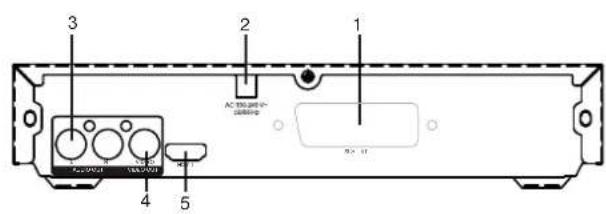
1 SCART.
2. POWER CORD
3. AUDIO OUT/L/R(Left/Right)
4. VIDEO OUT
5. HDMI
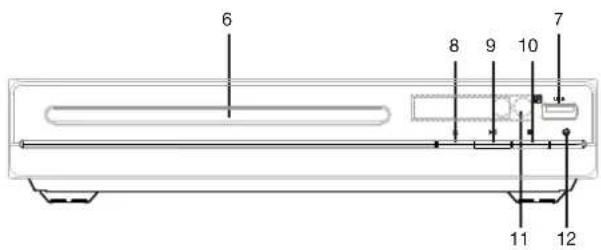
6.CD DOOR
7. USB
8. OPEN/CLOSE KEY
9. PLAY/PAUSE
10. STOP KEY
11. REMOTE WINDOW
12. POWER KEY
Identification of Controls
Remote control unit
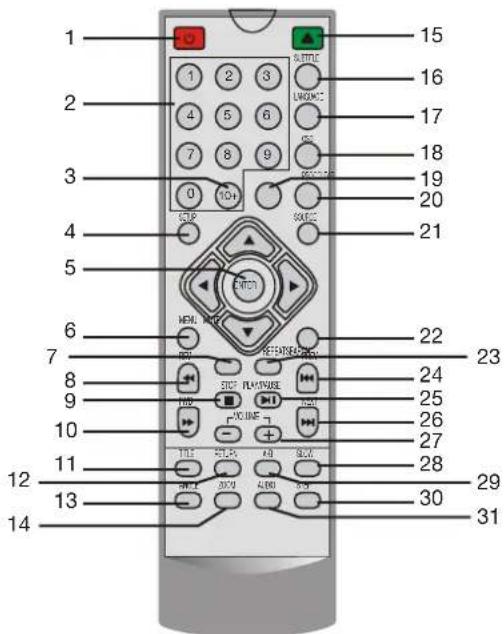
- Normal play/Standby mode switch.
2.0-9 NUMBER BUTTON
Selects numbered items in a menu.
3.10+ BUTTON
In order to select a track 10 or greater, first press 10+, For example; select track 12, first press 10+, and then press number 2 button.
4. SETUP
Accesses or removes setup menu.
5. ENTER
Confirms menu selection.
6. MENU
Return to DVD root menu(DVD).
7.SEARCH
Goto time point, title or chapter you want in DVD Mode.
8.◀ BUTTON
Press ◀ BUTTON allow skipping back at 5-level speed (X2->X4->X8->X16->X32->PLAY), press PLAY button return to normal playback.
9.STOP
When this button is pressed once, the unit records the stopped point, from where playback will resume if PLAY(▶) is pressed after wards. But if STOP button is pressed again instead of PLAY(▶) button, there will be no resume function.
10. ▶ BUTTON
Press ▶▶BUTTON allow skipping ahead at 5-level speed (X2->X4->X8->X16->X32->PLAY), press PLAY button return to normal playback.
11. TITLE
Return to DVD title menu.
12.RETURN
Return to root menu from normal play, and then return to normal play from root menu.
13.ANGLE
DVD: Press ANGLE will change the view angle, on DVDs that support this feature.
Identification of Controls
Remote control unit
14.ZOOM
DVD/VCD: Use ZOOM to enlarge or shrink the video image.
- Press ZOOM during playback or still playback to activate the
Zoom function. The square frame appears briefly in the right bottom of the picture.
- Each press of the ZOOM button changes the TV screen in the following sequence:
2 x size→3 x size→4 x size→1/2 x size→1/3 x size→1/4 x size→normal size
JPEG: Use ZOOM to enlarge or shrink the picture.
- Press 'ZOOM'
2,Used "◀" to enlarge,or "◀" to shorten the picture.
Use the button to move through the zoomed picture.
15.
OPEN/CLOSE.
16.SUBTITLE
Press SUBTITLE repeatedly during playback to hear a different subtitle languages.
17. LANGUAGE
Press LANGUAGE key to change the OSD language.
18.OSD
To display the playtime and status information.
19.CLEAR
Clear the input number in SEARCH or PROGRAM state.
20.PROGRAM
DVD/VCD: The program function enables you to store your favourite tracks from the disc. Press PROGRAM button, then PROGRAM MENU will appear on screen, now you can use the number key to direct input the titles, chapters or tracks number and select PLAY option. TO resume normal playback, press PROGRAM and select clear program option on the program menu, press PROGRAM again to exit program menu.
21. SOURCE
DVD/USB.
22. MUTE
Disable Audio output.
23.REPEAT
Press REPEAT during playback to select a desired repeat mode.
DVD: you can play select repeat chapter/title/off.
CD/VCD: you can select repeat single/all/off.
MP3: you can select repeat single/folder/off.
24.Reverse Skip
Go to previous chapter/ track to the beginning.
25.PLAY/PAUSE
Press PLAY/PAUSE once to pause playback, pressing
PLAY/PAUSE second time will resume the playback.
26. Forward Skip
Go to next chapter/track.
27.VOL+/-
Adjust volume
28.SLOW
Press Slow button repeatedly to enter slow playback, and cycle between different speeds. The speeds are 1/2, 1/4, 1/8, 1/16,
and normal.
29.A-B
Set A-B.
30.STEP
Step the motion in DVD mode.
31.AUDIO
DVD: Press AUDIO repeatedly during playback to hear a different audio language or audio track, if available.
CD/VCD:Press AUDIO repeatedly during playback to hear a
different audio channel ( Left, Right, Mix, Stereo).
SETUP Menu Setting
General Setup Page
Press SETUP button to get the setup menu. Use direction buttons
▲▼◀▶ to select the preferred item. After finishing settings, press
SETUP again to normal display.
The following menu items can be changed:
GENERAL: selects the GENERAL PAGE menu.
AUDIO: selects the AUDIO PAGE menu.
VIDEO: selects the VIDEO PAGE menu.
PREFERENCE : selects the PREFERENCE PAGE menu.
PASSWORD: selects the PASSWORD PAGE menu.
General Setup Page
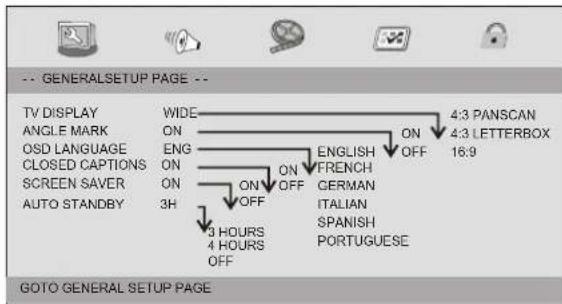
TV DISPLAY: selects the aspect ratio of the playback picture.
4:3 PANSCAN: if you have a normal TV and want both sides of the picture to be trimmed or formatted to fit your TV screen.
4:3 LETTERBOX: if you have a normal TV. In this case, a wide picture with black bands on the upper and lower portions of the TV screen will be displayed.
16:9:wide screen display.
Angle Mark
Displays current angle setting information on the right hand corner of the TFT screen if available on the disc.
OSD Language
You can select your own preferred language settings.
Closed Captions
Closed captions are data that are hidden in the video signal of some discs. Before you select this function, please ensure that the disc contains closed captions information and your TV set also has this function.
Screen Saver
This function is used to turn the screen saver On or Off.
Auto Standby
This function is used to select auto standby settings after 3 or 4 hours.
3 HOURS: the unit will turn to standby mode after 3 hours if there is no interaction from user within this period of time.
4 HOURS: the unit will turn to standby mode after 4 hours if there is no interaction from user within this period of time.
OFF: the auto standby function is disabled, and unit will stay in "on" mode even if no interaction from user.
Audio Setup Page
Audio Setup Page
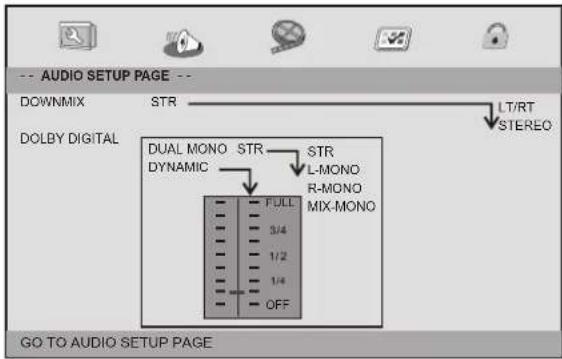
SETUP Menu Setting
Audio Setup Page
Downmix
This options allows you to set the stereo analog output of your DVD Player.
→ LT/RT :Select this option if your DVD Player is connected to a Dolby Pro Logic decoder.
→ Stereo :Select this option when output delivers sound from only the two front speakers.
Dolby digital
The options included in Dolby Digital Setup are: 'Dual Mono' and 'Dynamic'.
Dual Mono
→ Stereo: Left mono sound will send output signals to Left speaker and Right mono sound will send output signals to Right speaker.
→ L-Mono: Left mono sound will send output signals to Left speaker and Right speaker.
→ R-Mono: Right mono sound will send output signals to Left speaker and Right speaker.
→ Mix-Mono: Left and Right mixed mono sound will send output signals to Left and Right speakers.
Dynamic
Dynamic range compression.
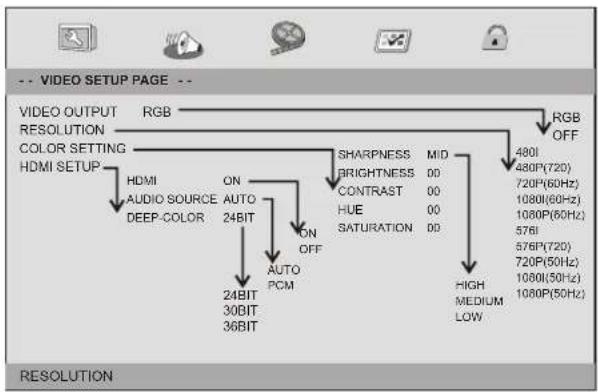
Video Setup Page
flowchart
graph TD
    A["VIDEO OUTPUT RESOLUTION"] --> B["RGB"]
    B --> C["HDMI"]
    C --> D["AUDIO SOURCE DEEP-COLOR"]
    D --> E["ON AUTO 24BIT"]
    E --> F["ON OFF"]
    F --> G["AUTO PCM"]
    G --> H["24BIT 30BIT 36BIT"]
    I["RGB OFF"] --> J["480I 480P(720) 720P(60Hz) 1080I(60Hz) 1080P(50Hz) 576I 576P(720) 720P(50Hz) 1080I(50Hz) 1080P(50Hz)"]
    K["SHARPNESS MID"] --> L["BRIGHTNESS DD"]
    M["CONTRAST 00"] --> N["HUE 00"]
    O["SATURATION DD"] --> P["SATURATION DD"]
    Q["HIGH MEDIUM LOW"] --> R["HIGH MEDIUM LOW"]
VIDEO OUTPUT
Set it for SCART output.
RESOLUTION
Please select proper resolution according to your TV, otherwise the TV will have no signal.
COLOR SETTING
Setting the video quality.
HDMI
Setting the options related to the HDMI.
SETUP Menu Setting
Preference Page
Preference Page
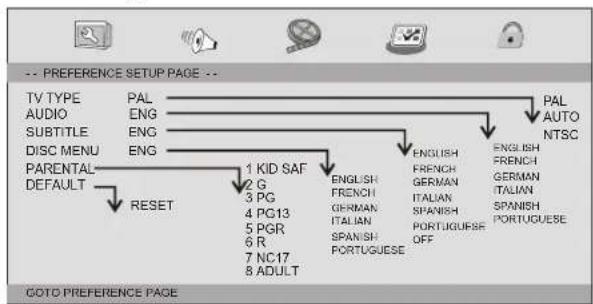
flowchart
graph TD
    A["TV TYPE"] --> B["PAL"]
    C["AUDIO"] --> D["ENG"]
    E["SUBTITLE"] --> F["ENG"]
    G["DISC MENU"] --> H["ENG"]
    I["PARENTAL"] --> J["RESET"]
    K["DEFAULT"] --> L["1 KID SAF"]
    M["GOTO PREFERENCE PAGE"] --> N["2 G"]
    O["ENGLISH"] --> P["FRENCH"]
    Q["GERMAN"] --> R["ITALIAN"]
    S["SPANISH"] --> T["PORTUGUESE OFF"]
    U["ENGLISH"] --> V["FRENCH"]
    W["GERMAN"] --> X["ITALIAN"]
    Y["SPANISH"] --> Z["PORTUGUESE"]
TV Type
Selecting the colour system that corresponds to your TV when AV outputs. This DVD Player is compatible with both NTSC and PAL.
PAL - Select this if the connected TV is PAL system. It will change the video signal of a NTSC disc and output in PAL format.
NTSC-Select this if the connected TV is NTSC system. It will change the video signal of a PAL disc and output in NTSC format.
Auto: Chang the video signal output automatic according to the playing disk format.
Audio: Selects a language for audio (if available).
Subtitle: Selects a language for subtitle (if available).
Disc Menu: Selects a language for disc menu (if available).
Parental
Some DVDs may have a parental level assigned to the complete disc or to certain scenes on the disc. This feature lets you set a playback limitation level. The rating levels are from 1 to 8 and are country dependent. You can prohibit the playing of certain discs that are not suitable for your children or have certain discs played with alternative scenes.
Default: Back to the factory setting.
SETUP Menu Setting
Password Setup Page
Password Setup Page
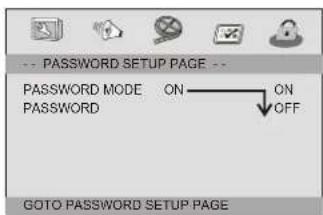
Password mode: Set password mode on/off. If set to off, change parental level will not check password.
Password Setup Page
- Password: select the menu password change page.
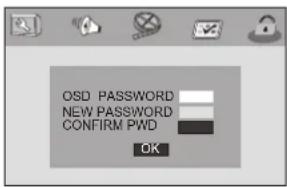
OSD PASSWORD: Enter the OLD password, (Factory setting is 1369), and the cursor will jump automatically to NEW PASSWORD.
NEW PASSWORD: Enter the NEW password. Enter 4 digits from the remote control unit numeric buttons, and the cursor will automatically jump to CONFIRM PASSWORD.
CONFIRM PASSWORD: Confirm the NEW password by entering it again. If the confirmation is incorrect, the cursor will stay in this column. After entering, the correct new password again, the cursor will jump automatically to OK.
OK: When cursor is on this button, press ENTER key to confirm setting.
N Note: If the password has been changed, the parental and disc lock code will also be changed. The default password(1369)is always active even the password has been changed.
Parameters and specifications Electronical parameters
| Item | Standard requirement | |
| Power requirements | : AC 100-240 V, 50/60 Hz | |
| Power consumption | : <10W | |
| Operating humidity | : 5 % to 90 % | |
| Output | VIDEO OUT | :1 Vp-p (75Ω) |
| AUDIO OUT | :2 Vrms (1 KHz, 0 dB) | |
System
| Laser | :Semiconductor laser, wavelength 650 nm |
| Signal system | :NTSC / PAL |
| Frequency response | :20Hz to 20 kHz(1dB) |
| Signal-to-noise ratio | :More than 80 dB (ANALOG OUT connectors only) |
| Dynamic range | :More than 85 dB (DVD/CD) |
N Note: Design and specifications are subject to change prior notice.
Storage and work circumstances:
| 1. Storage circumstances | Temperature | Humidity | |
| 6 months | -20 C | +45 C~ | 65+20% |
| 1 week | -20 C | +65 O~ | 65+20% |
| 2.Work circumstances | Temperature | Humidity |
| Standard charge | 0 C +45 C~ | 65+20% |
| Standard discharge | -20 C +65 C~ | 65+20% |

- BENUTZERHANDBUCH DVD361
- DVD PLAYER
- USER MANUAL DVD361
- Important Safety Instructions
- Safety Precautions
- WARNING
- N Notes on Copyrights:
- Identification of Controls
- Main Unit
- Remote control unit
- 2.0-9 NUMBER BUTTON
- 3.10+ BUTTON
- SETUP
- ENTER
- MENU
- 7.SEARCH
- 8.◀ BUTTON
- 9.STOP
- ▶ BUTTON
- TITLE
- 12.RETURN
- 13.ANGLE
- 14.ZOOM
- 15.
- 16.SUBTITLE
- LANGUAGE
- 18.OSD
- 19.CLEAR
- 20.PROGRAM
- SOURCE
- MUTE
- 23.REPEAT
- 24.Reverse Skip
- 25.PLAY/PAUSE
- Forward Skip
- 27.VOL+/-
- 28.SLOW
- 29.A-B
- 30.STEP
- 31.AUDIO
- SETUP Menu Setting
- General Setup Page
- Angle Mark
- OSD Language
- Closed Captions
- Screen Saver
- Auto Standby
- Audio Setup Page
- Downmix
- Dolby digital
- Dual Mono
- Dynamic
- Video Setup Page
- VIDEO OUTPUT
- RESOLUTION
- COLOR SETTING
- HDMI
- Preference Page
- TV Type
- Parental
- Password Setup Page
- Parameters and specifications Electronical parameters
- Storage and work circumstances:
Brand : Reflexion
Model : DVD361
Category : DVD player