
Link LW930 - Home Automation Lightwave - Free user manual and instructions
Find the device manual for free Link LW930 Lightwave in PDF.


| Product Type | Home Automation Hub |
| Brand | Lightwave |
| Model | Link LW930 |
| RF Frequency | 433.92 MHz & 868 MHz |
| Input Rating | 12V DC |
| Power Consumption | 3W approx. |
| Connectivity | Ethernet (LAN) to router |
| Compatible Devices | Smartphones, tablets, PCs (iOS, Android, Web) |
| Maximum Devices | Up to 240 devices |
| Maximum Controllers | 6 per device (one can be the Link) |
| Warranty | 2 years standard |
| Dimensions | Approx. 120 x 120 x 30 mm (estimated) |
| Weight | Approx. 150 g (estimated) |
| Operating Temperature | 0°C to 40°C (typical) |
| LED Indicators | Green (normal), Amber/Flashing (linking), Red (error) |
| Main Functions | Control lighting, heating, sockets, energy monitoring, create moods, events, timers |
| App Features | Rooms, moods, timers, events, heating schedules, energy display |
| Remote Access | Yes, via internet connection |
| Factory Reset | Press and hold reset button for 10 seconds |
| Signal Booster Support | Yes, up to 6 commands can be extended |
Frequently Asked Questions - Link LW930 Lightwave
User questions about Link LW930 Lightwave
0 question about this device. Answer the ones you know or ask your own.
Ask a new question about this device
Download the instructions for your Home Automation in PDF format for free! Find your manual Link LW930 - Lightwave and take your electronic device back in hand. On this page are published all the documents necessary for the use of your device. Link LW930 by Lightwave.
USER MANUAL Link LW930 Lightwave
Lightwave Link
LW930
Instruction Manual
EC DECLARATION OF CONFORMITY
Responsible Authority:
LightwaveRF
PLC,
Innovation Campus Birmingham
Faraday
Wharf
Holt
Street
Birmingham
4BB
Tel: +44 (0)121 250 3625
Email:
enquiries@lightwaverf.com
Model Number(s): JSJSLW930
Description: Lightwave Link
Directives this equipment
Complies with: 2006/95/EC The Low Voltage Directive N/A
2004/108/EEC The Electromagnetic Compatibility Directive
1999/5/EC R&TTE Directive
93/68/EEC CE Marking Directive
Standards Applied in order to verify compliance
Safety: BS EN 60730-1:2011
Health:
R&TTE: EN 301 489-1 V1.9.2: (2011-09), EN 301 489-3 V1.4.1: (2002-08)
EN 300 220-1 V2.1.1: 2006, EN 300 220-2 V2.1.2: 2007
EMC: EN 301 489-1 V1.9.2: (2011-09), EN 301 489-3 V1.4.1: (2002-08),
EN 55022: 2010, EN 61000-3-2: 2006 + A1: 2009 + A2: 2009 Class A,
EN 61000-3-3: 2008, EN61000-4-2: 2009,
EN 61000-4-3: 2006 +A1: 2008 +A2: 2010, EN 61000-4-4: 2012,
EN 61000-4-5: 2006, EN 61000-4-6: 2009, EN 61000-4-11: 2004
For and on behalf of LightwaveRF PLC
Name J Shermer
Position Managing Director
Get Started
Lightwrve RF
How do I get started?
Power the Lightwave Link and connect it to your home WiFi router. The instructions in this booklet will explain how. The Lightwave Link will the set itself up automatically. Download the free 'LightwaveRF' App and follow the in-App instructions.
What do I need?
A standard home WiFi router with a broadband connection, a WiFi enabled device such as a smartphone, and some LightwaveRF devices to control are all that is required.
Help video & further guidance
For additional guidance, and to watch a video that will help guide you through the installation process, please visit the support section on www.lightwaverf.com
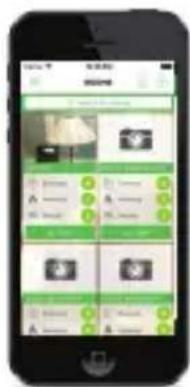

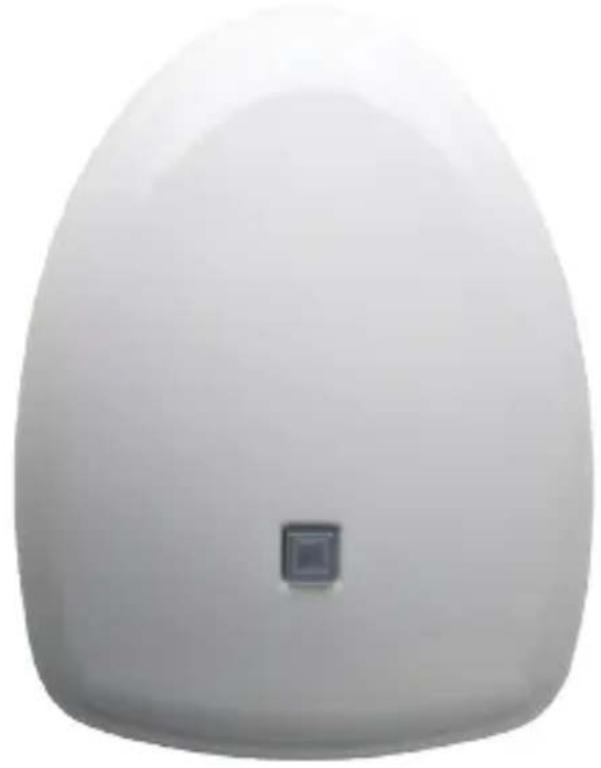
Lightwave Link Installation
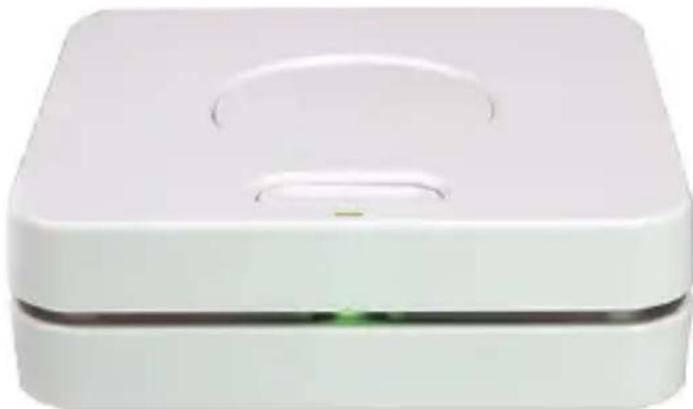
Indicator LED
Main button
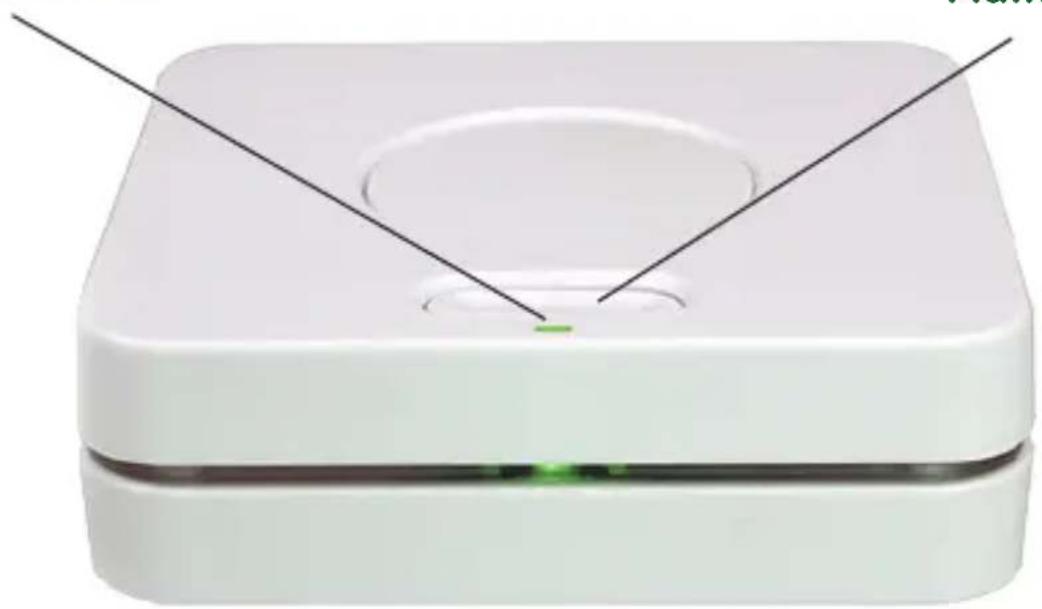
IMPORTANT: Please retain these instructions for guidance on how to link other LightwaveRF devices.
Installation
Lightwrve RF
The Lightwave Link requires a wireless router with a permanent internet connection in order to operate. You will also require a WiFi enabled smartphone, tablet or PC.
-
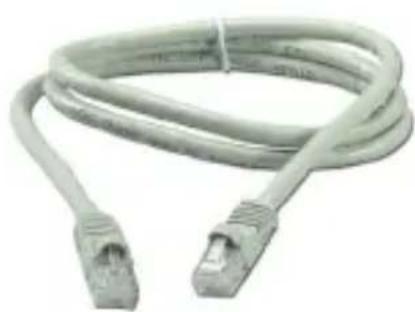
Take the Ethernet connector cable (supplied) and connect it to any spare available LAN port on your wireless router. Connect the other end of the cable to the Lightwave Link's single port.
-
Plug in the power supply, and push the jack plug into the DC connection on the back of the Lightwave Link. Turn on the power supply. The green LED on the Lightwave Link will illuminate to indicate that the Link has power and is ready to be set up from the LightwaveRF smartphone or Web App.
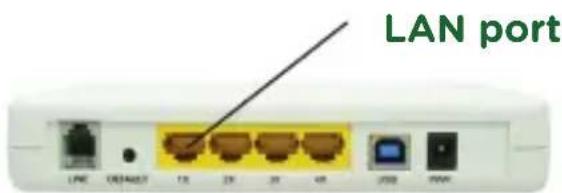
typical wireless router

LED Indicator lights
The LED indicators are used to indicate the status of the Link and to indicate if there is a problem. If there is a problem reported, it will usually refer to an insecure cable connection or a server connection problem. If it has been set up correctly, the App will display details of any specific problem. See www.lightwaverf.com for support. There are three states: green, amber and red.
Steady green: Status normal
Flashing green: Transmitting
Flashing green/amber: Linking mode
Steady red: Cannot contact server
Flashing red: Cable / router problem

Registering /de-regestering devices
Once the App is downloaded and set up, you will be able to register multiple smartphones / tablets to use it (see in-App instructions).
De-registering / factory reset
To de-register all linked smartphones / tablets devices, and to return the Lightwave Link to factory settings, press and hold the Reset button on the rear of the device for 10 seconds. When the LEDs flash red / green, press the Link button. The LED will flash red ten times to confirm the reset.
LightwaveRF App setup
Lightw VE RF
App Setup
- Download the LightwaveRF App from the App Store or Google Play. It should automatically install onto your device.
- Select the App icon and enter the App.
- Please follow the in-App instructions and tutorials which will take you through the setup procedure.
Web App
You can also control the Lightwave Link from the LightwaveRF Web App. This is a more extensive platform very suited to setting up and viewing large installs. This can be accessed at www.lightwaverf.com.
LightwaveRF App setup
Lightwrve RF
Basic App features
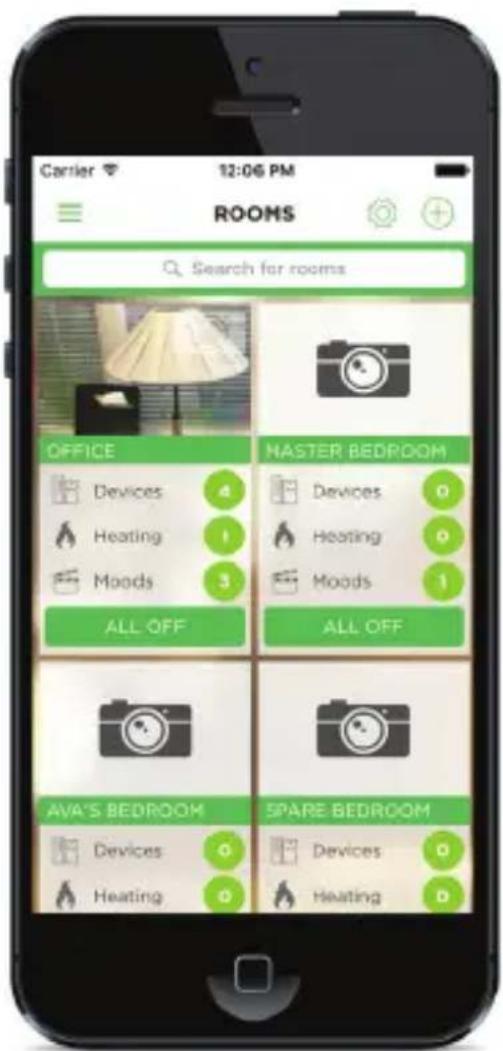
Rooms
The LightwaveRF Apps organise your linked LightwaveRF lighting and power devices into rooms which you can name. These rooms could be, most commonly, the rooms of your house, such as 'lounge' or 'kitchen', but you can personalise them to represent what ever you like.
Within these rooms you can set up and access LightwaveRF devices. You can name these devices as anything that you choose, so, a dimmer could be labelled ‘bedside light’ or a socket ‘kettle’, for instance.
The LightwaveRF Web App will also allow rooms to be grouped together to form 'zones'.
LightwaveRF App setup
Lightwrve RF
Choosing device type & Moods
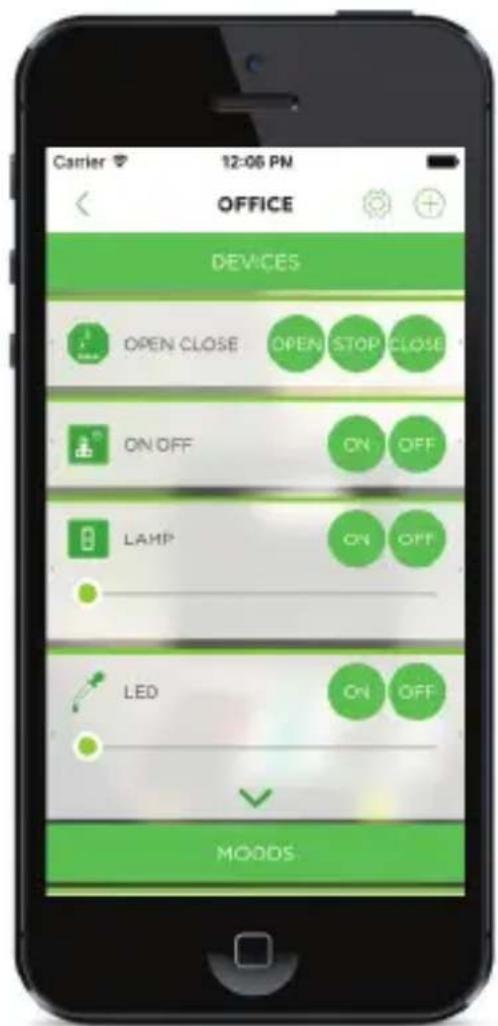
Once you have set up a room, you can begin to populate it with LightwaveRF devices. You need to define the device type as this allows the correct command buttons to be displayed when you control that device from the App. Dimmers, for example, should be set to ‘dimming’.
Other options for other devices include
On/off (e.g. Sockets or Relays), Open/close (e.g. In-line Relay)
When setting up a room, you can also select a ‘Mood’. A Mood allows you to group together several LightwaveRF devices and control them from one button. You can also set the dim level or on/off status you want the devices to come on at.
Additional App features
Events
An Event is simply a list of LightwaveRF devices that you want to control at the same time. When you activate the Event, all the devices in the list will do whatever you have preset them to do. You could, for instance, set an Event called ‘cinema’ which, when activated, will drop the projector screen, dim the lights, and close the curtains, all at the touch of one button.
Timers
You can add a Timer to any single LightwaveRF device to control it automatically at a set time. However, being able to control Events is what really makes Timers such a useful feature. You can set up an Event and trigger it automatically at the same time everyday, at dusk, three times a day, every Wednesday, or whatever combination you desire. This can be used to, say, automatically turn on outdoor lights at dusk every day, turn on lights in a random pattern when you are out for security, or to turn on the radio and slowly bring up bedroom lights on a weekday.
LightwaveRF App setup
Lightw r ve RF
Heating Devices
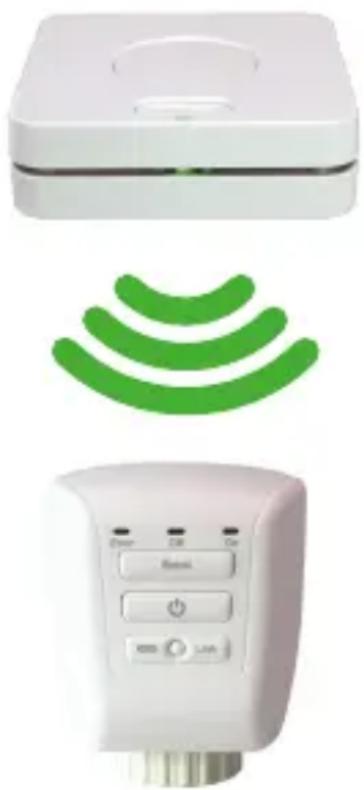
The Lightwave Link can also be used to coordinate and schedule LightwaveRF heating devices. Each heating device, such as Thermostats, Radiator Valves and Boiler Switches, can be linked to the LightwaveRF App in the same way as other LightwaveRF devices using the Heating Page. These devices can be set up and controlled on the LightwaveRF App. You can also use the LightwaveRF Web App (accessed from www.lightwaverf.com) to operate and schedule heating devices. This is ideal for use on a tablet.
Planning Heating Schedules
Each heating device can be independently scheduled. This allows you to plan when your heating comes on in each room every day. You can access and save schedules by selecting the relevant device from the Heating Page. This way, you can easily customise your routine as your daily activities change. Plan the schedule for the boiler by selecting and scheduling the main LightwaveRF Home Thermostat.
LightwaveRF App setup
Lightwrve RF
Energy Monitor
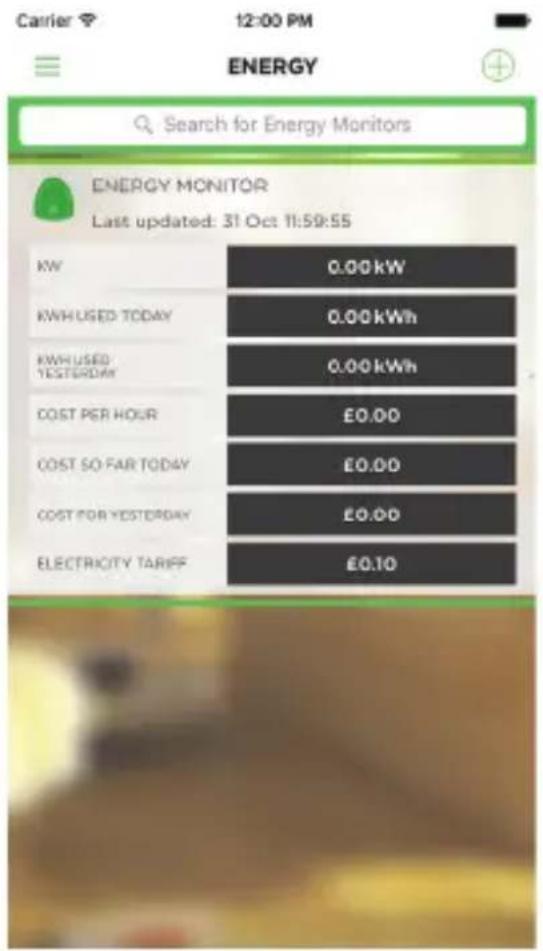
The Energy Display screen shows energy usage information gathered from a LightwaveRF Energy Monitor linked to the Lightwave Link. This data is live and updated every 15-30 seconds.
Creative ideas
Lightwrve RF

1. (Basic): Scene Lighting
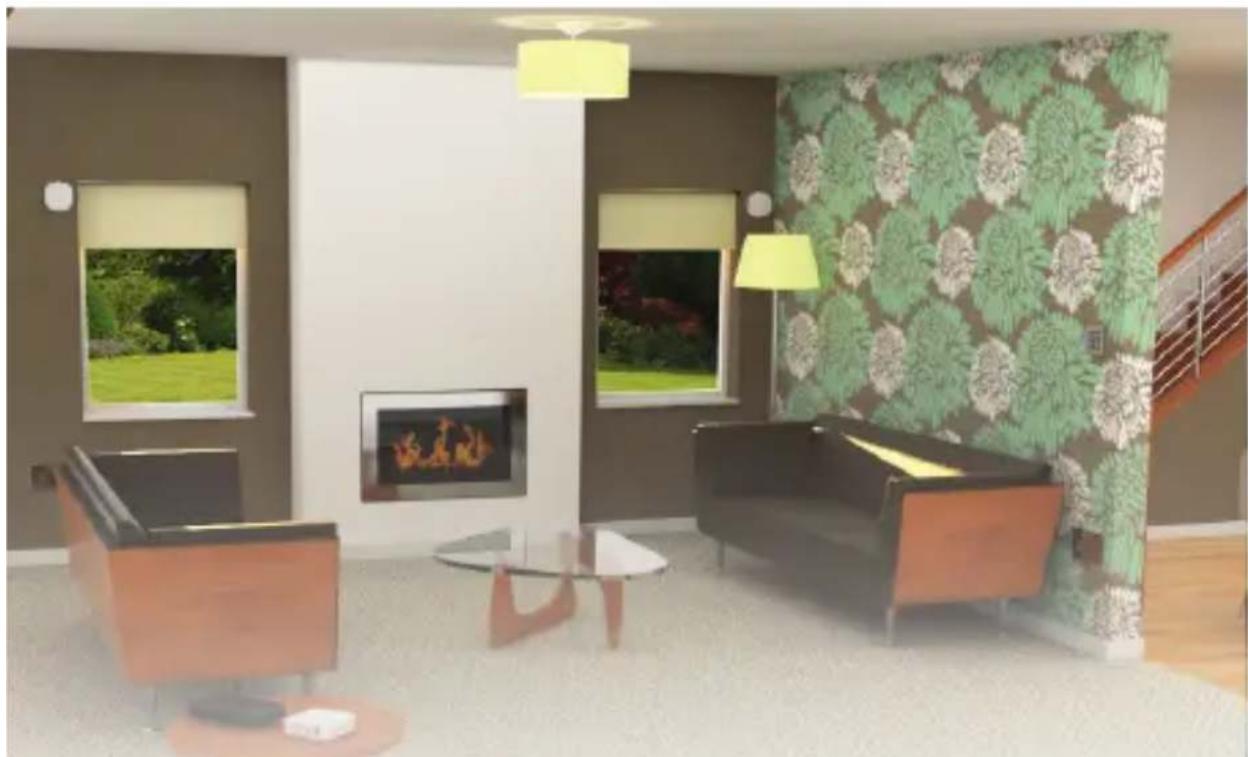
Required: Lightwave Link, Dimmer(s), Dimmable Plug-ins
LightwaveRF Dimmer Switches & Dimmable Plug-ins enable you to control all of your ceiling lights and socket powered lamps individually or together as a group. The Mood settings on the App allow you to set and recall your own favourite lighting scenes at the touch of a button. You can dim all the lights for watching a movie or create a relaxed mood for entertaining - even add your favourite colour by including LightwaveRF LED strips in a mood. At the end of the evening, press the ‘all off’ button to turn off all lights and lamps.
Creative ideas
LightwVe RF
2.(Intermediate):Family safety
Required: Lightwave Link, Sockets
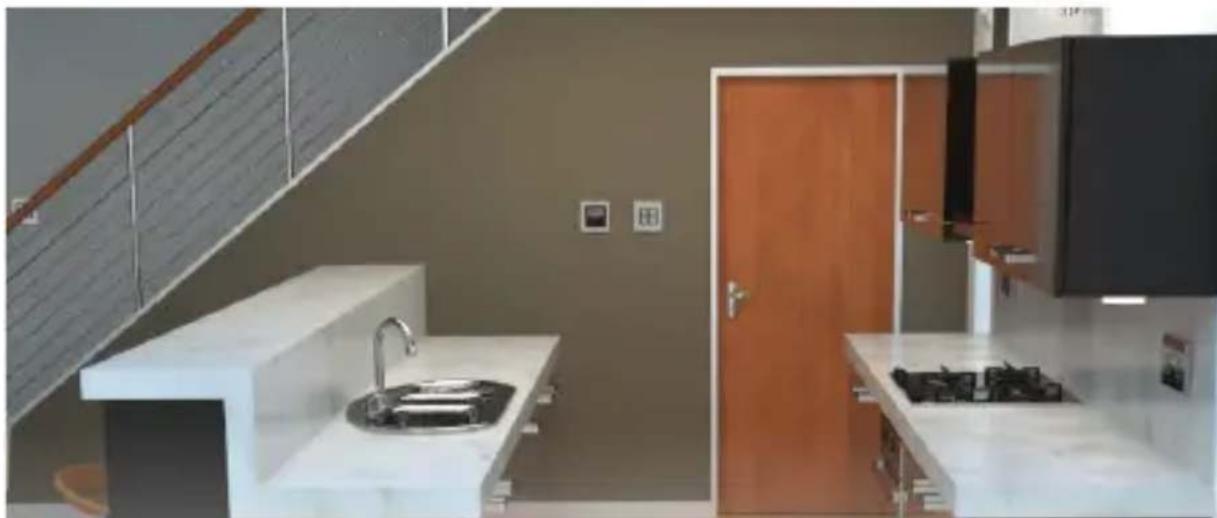
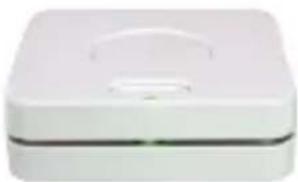
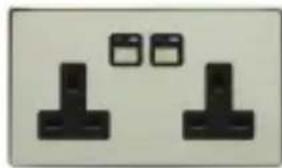
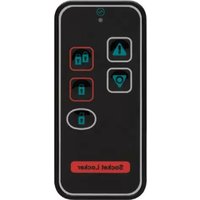
Dangerous appliances in the kitchen (blender, microwave, hot plate, etc.) might be a worry if you're not always around to supervise the family. With the Lightwave Link, you can control the Sockets from anywhere using your smartphone. This means that you can lock dangerous devices when you're on your way home from work, or even turn off something left on accidentally (hair straighteners are a very common problem!) If the kids are up early, you can lock everything in the kitchen automatically on a timer whilst you sleep.
Creative ideas
Lightwave RF
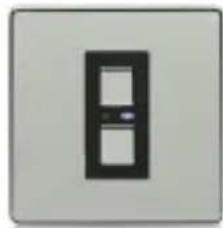
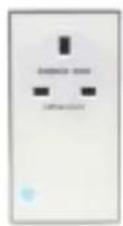
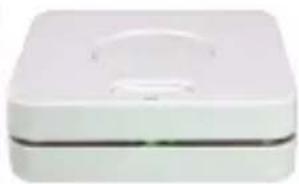
3. (Advanced): Simulated occupancy
Required: Lightwave Link, Dimmer(s)/Plug-ins
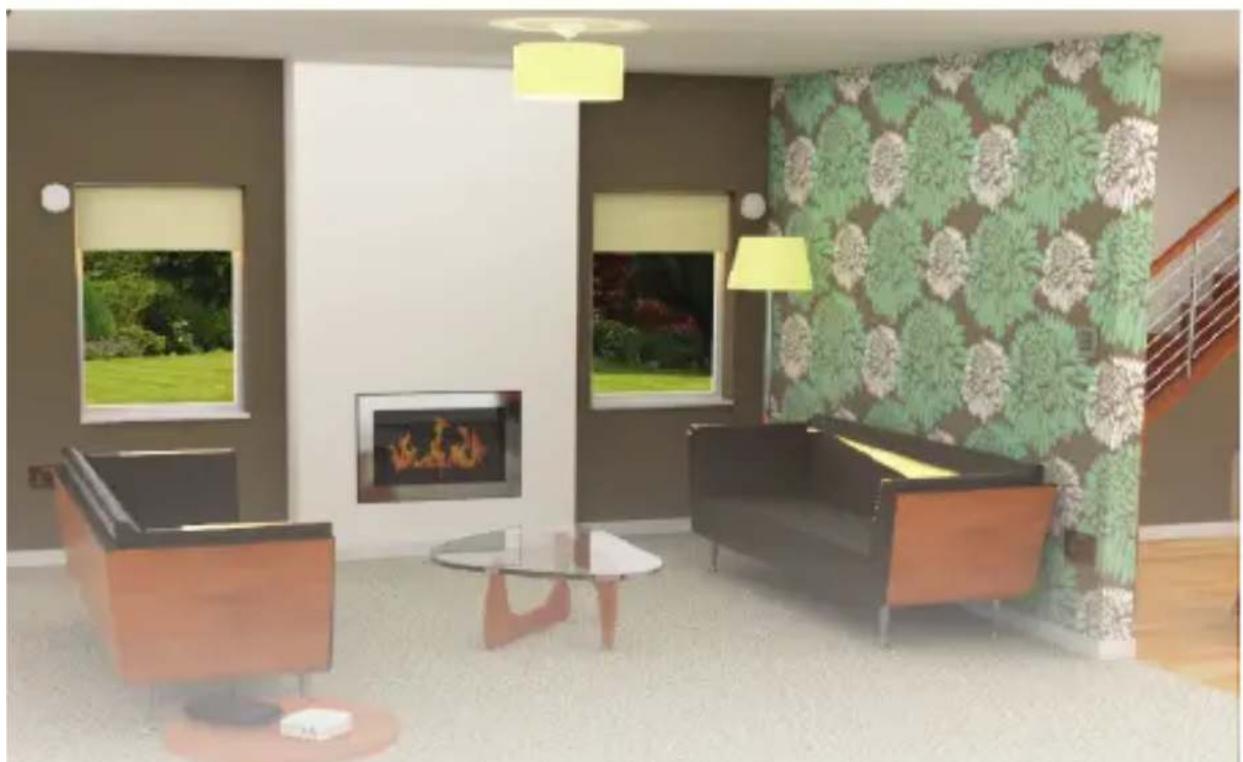
This setup gives you control over your devices from anywhere in the world. Via the Lightwave Link, every LightwaveRF Dimmer or Plug-in can be controlled using a smartphone wherever you are. So, when you're away on holiday, you can turn on lights to make it look like someone's home. You can even set them to come on automatically at different times each evening using a timed event and the 'random delay' feature - enough to fool even the most watchful of intruders!
Troubleshooting
Lightwave RF
Problem: The Indicator LED on the Lightwave Link constantly flashes red
Solution: There may be a connection problem between your network and the LightwaveRF server. First, check the Ethernet cable connection. If this is properly connected, try plugging the cable into another port on your WiFi router. If possible, try using an alternative Ethernet cable to ensure that there is not a cable fault. Also, make sure that there are no non-standard firewall/port forwarding rules on your network (the Lightwave Link operates on ports 69 & 2011 on UDP for remote connectivity and 9760 & 9761 for local connectivity).
Problem: On the restoration of power after a power cut, my LightwaveRF devices remain in the ‘off’ state even if they were previously ‘on’.
Solution: After a power cut LightwaveRF devices will default to the 'off' position as a safety measure (for example it may be dangerous for an un-monitored device like a hot plate connected to a LightwaveRF Socket to turn on after a power cut). The exception to this are the LightwaveRF CFR bulbs which default to 'on'. If you would like a device to default to 'on' after a power cut instead, a fridge for example, you can set the Lightwave Link to automatically send an 'on' command on startup (resupmtion of power). To link your devices to this on command, place your devices into linking mode, then cut power to the Lightwave Link and immediately restore it. If successful, the LED indicator light/s on the device will flash to indicate that they have stored the new command from the Lightwave Link.
Troubleshooting
Lightwrve RF
Problem: My Lightwave Link will not connect (the Red indicator LED constantly flashes). I have a BT HomeHub 4.
Solution: If you have a BT HomeHub 4 and are now experiencing connectivity issues with your Lightwave Link, it is likely that it will be related to the 'Smart Setup' feature of the HomeHub router. Disabling this fixes the connectivity issues on most setups. To do this, you will need to use your internet browser to adjust the Home Hub settings by going to http://b-thub.home and then clicking 'Advanced Settings'. In this section, select 'Home Network' and choose to disable the 'Smart Setup' feature.
The Lightwave Link should be able to connect and behave as expected once this has been done.
Problem: My Lightwave Link will not connect (the Red indicator LED constantly flashes). I have a BT HomeHub 5.
Solution: Plug the Lightwave Link ethernet cable into port number 4 on the Homehub Router. This should solve the connection problem.
FAQs
Lightwrve RF
Q. How do I know if I have the latest firmware?
A. The Lightwave Link will automatically check for firmware updates several times a day and on boot up. There is no need to manually update this.
Q. Does the Lightwave Link require a static IP address?
A. Our system uses the MAC address of the Lightwave Link for remote commands and as such does not require you to have a static IP. The system will work with or without a static IP address.
Q. How much power does the Lightwave Link use?
A. 3W (approximately).
Q. Can I set the time manually?
A. No. This is set by checking with an internet NTP Server.
Q. How many devices can I have on the Lightwave system?
A. Each device has 6 memory slots for up 6 controllers (one of these can be the Lightwave Link allowing multiple smartphones to control up to 240 devices.
Q. Which ports does the Lightwave Link use?
A. The Lightwave Link operates on ports 69 & 2011 on UDP for remote connectivity and 9760 & 9761 for local connectivity.
FAQs
LightwVe RF
Q. How do I use a Signal Booster with the Lightwave Link?
A. The Signal Booster can extend the range of 6 unique commands from the Lightwave Link. Each of these commands needs to be transmitted using the LightwaveRF App whilst the Booster is in linking mode for it to be saved and stored. It will then automatically repeat the signal when ever that command is sent using the LightwaveRF App.
Q. Do I need a permanent internet connection?
A. On startup the Lightwave Link always needs an internet connection to acquire the time and its location. It is possible to use the Link without this connection later, however remote commands will not function.
Technical Specification
Lightw ve RF
Specification
RF frequency: 433.92 MHz & 868 MHz
Input rating: 12V
Energy usage: 3W approx.
Warranty: 2 year standard warranty

Lightwrve RF
Innovation Campus Birmingham
Faraday Wharf
Holt Street
Birmingham
B7 4BB


Version 2.3
www.lightwaverf.com


- LIGHTWAVE LINK
- EC DECLARATION OF CONFORMITY
- GET STARTED
- LIGHTWRVE RF
- HOW DO I GET STARTED
- WHAT DO I NEED
- HELP VIDEO & FURTHER GUIDANCE
- LIGHTWAVE LINK INSTALLATION
- INSTALLATION
- LED INDICATOR LIGHTS
- REGISTERING /DE-REGESTERING DEVICES
- DE-REGISTERING / FACTORY RESET
- LIGHTWAVERF APP SETUP
- LIGHTW VE RF
- APP SETUP
- WEB APP
- BASIC APP FEATURES
- ROOMS
- CHOOSING DEVICE TYPE & MOODS
- ADDITIONAL APP FEATURES
- EVENTS
- TIMERS
- LIGHTW R VE RF
- HEATING DEVICES
- PLANNING HEATING SCHEDULES
- ENERGY MONITOR
- CREATIVE IDEAS
- (BASIC): SCENE LIGHTING
- LIGHTWVE RF
- 2.(INTERMEDIATE):FAMILY SAFETY
- LIGHTWAVE RF
- (ADVANCED): SIMULATED OCCUPANCY
- TROUBLESHOOTING
- PROBLEM: THE INDICATOR LED ON THE LIGHTWAVE LINK CONSTANTLY FLASHES RED
- PROBLEM: ON THE RESTORATION OF POWER AFTER A POWER CUT, MY LIGHTWAVERF DEVICES REMAIN IN THE ‘OFF’ STATE EVEN IF THEY WERE PREVIOUSLY ‘ON
- PROBLEM: MY LIGHTWAVE LINK WILL NOT CONNECT (THE RED INDICATOR LED CONSTANTLY FLASHES). I HAVE A BT HOMEHUB 4
- PROBLEM: MY LIGHTWAVE LINK WILL NOT CONNECT (THE RED INDICATOR LED CONSTANTLY FLASHES). I HAVE A BT HOMEHUB 5
- FAQS
- HOW DO I USE A SIGNAL BOOSTER WITH THE LIGHTWAVE LINK
- DO I NEED A PERMANENT INTERNET CONNECTION
- TECHNICAL SPECIFICATION
- SPECIFICATION
Brand : Lightwave
Model : Link LW930
Category : Home Automation