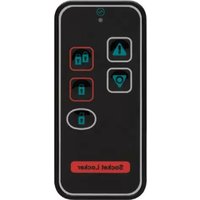
LW103 - Remote control Lightwave - Free user manual and instructions
Find the device manual for free LW103 Lightwave in PDF.


| Product Type | Remote Control |
| Brand | Lightwave |
| Model | LW103 |
| Dimensions (L x W x H) | 150 x 45 x 25 mm |
| Weight (with batteries) | 100 g |
| Power Source | 2 x AAA batteries (3V DC) |
| Battery Life | Approximately 12 months (typical use) |
| Control Type | Infrared (IR) |
| Range | Up to 10 meters |
| Main Functions | Power on/off, volume control, channel selection, input source, menu navigation, mute, numeric keypad |
| Compatible Devices | Lightwave LW series devices (TV, set-top box, etc.) |
| Maintenance | Clean with a soft, dry cloth. Do not use water or cleaning agents. |
| Safety Precautions | Keep away from moisture and heat. Do not disassemble. Replace batteries when low. |
| Spare Parts | Batteries (AAA), replacement remote available from Lightwave |
| Repairability | Battery compartment only; no user-serviceable parts inside. |
| Operating Temperature | 0°C to 40°C |
| Storage Temperature | -20°C to 60°C |
| Color | Black |
| Material | ABS plastic |
| Certifications | CE, RoHS |
| Package Contents | Remote control, user manual, 2 x AAA batteries (not included in all regions) |
Frequently Asked Questions - LW103 Lightwave
User questions about LW103 Lightwave
0 question about this device. Answer the ones you know or ask your own.
Ask a new question about this device
Download the instructions for your Remote control in PDF format for free! Find your manual LW103 - Lightwave and take your electronic device back in hand. On this page are published all the documents necessary for the use of your device. LW103 by Lightwave.
USER MANUAL LW103 Lightwave
Connect Series
www.lightwaverf.house
EC DECLARATION OF CONFORMITY
Responsible Authority:
LightwaveRF
PLC,
Innovation Campus Birmingham
Faraday
Wharf
Holt
Street
Birmingham
B7
4BB
Tel: +44 (0)121 250 3625
Email:
enquiries@lightwaverf.com
Model Number(s): JSJSLW103
Description: Socket Locker
Directives this equipment
Complies with: 2006/95/EC The Low Voltage Directive N/A
2004/108/EEC The Electromagnetic Compatibility Directive
1999/5/EC R&TTE Directive
93/68/EEC CE Marking Directive
Standards Applied in order to verify compliance
Safety: BS EN 60730-1: 2011
Health:
R&TTE: EN 301 489-1 V1.9.2: (2011-09), EN 301 489-3 V1.4.1: (2002-08)
EN 300 220-1 V2.1.1: 2006, EN 300 220-2 V2.1.2: 2007
EMC: EN 301 489-1 V1.9.2: (2011-09), EN 301 489-3 V1.4.1: (2002-08),
EN 55022: 2010, EN 61000-3-2: 2006 +A1: 2009 +A2: 2009 Class A,
EN 61000-3-3: 2008, EN61000-4-2: 2009,
EN 61000-4-3: 2006 +A1: 2008 +A2: 2010, EN 61000-4-4: 2012,
EN 61000-4-5: 2006, EN 61000-4-6: 2009, EN 61000-4-11: 2004
For and on behalf of LightwaveRF PLC
Name J Shermer
Position Managing Director

Get Started
Lightwrve RF
How do I get started?
Refer to the setup guide on the following pages to get going. This will guide you through the setup process and explain how to link the Socket Locker to your LightwaveRF devices.
How does it work?
The Socket Locker will allow you to ‘lock’ your LightwaveRF sockets, dimmers and plug-ins. This prevents them from being turned on or off manually for safety.
Help video & further guidance
For additional guidance, and to watch a video that will help guide you through the installation process, please visit the support section on www.lightwaverf.com



Device setup
LightwVe RF
Overview
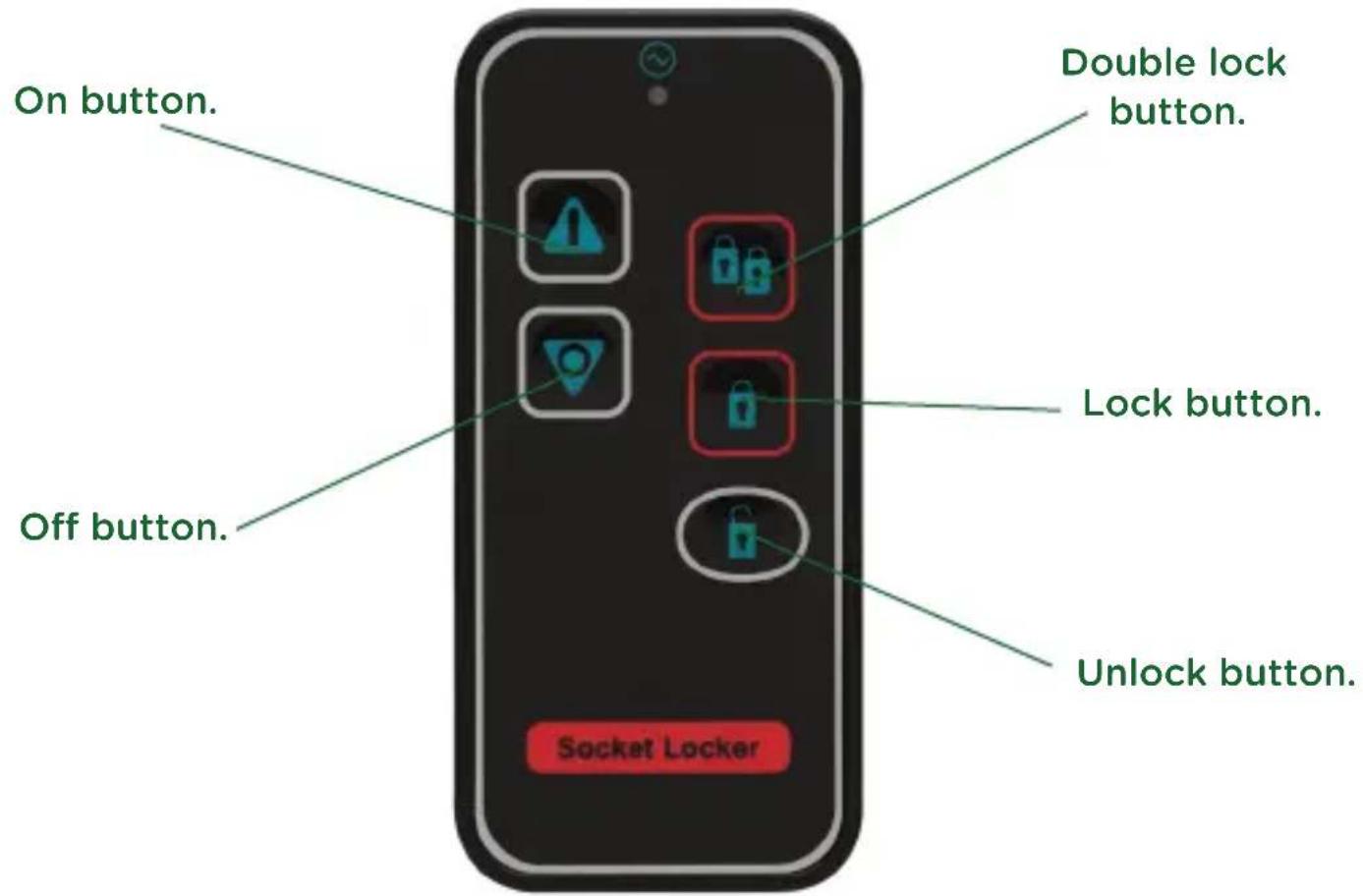
IMPORTANT: Please retain these instructions for guidance on how to link remote handsets and other LightwaveRF controllers. For additional guidance please visit the support section on www.lightwaverf.com
Setup
Linking the Socket Locker to a LightwaveRF dimmer or socket
LightwaveRF devices each have 6 unique memory slots (except Basic Plug-ins) which means they can link with up to 6 LightwaveRF controllers in total.
NOTE: If you are using a smartphone/tablet/PC to control the socket via the Lightwave Link, this will always count as ONE controller and take up one memory slot even if you are using multiple smartphones/tablets.
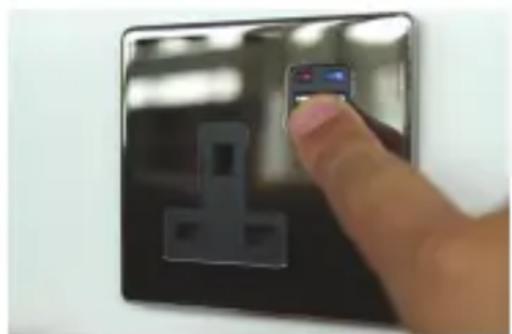
- On the socket or dimmer, press and hold down the button/s until the blue and amber LEDs flash alternately. The device is now in 'linking mode'.
- On the Socket Locker, press the 'on' button; the blue light on the socket or dimmer will flash to confirm that the Socket Locker is now linked.


Device setup
Lightw RF
NOTE: Linking mode lasts for 12 seconds; if no signal is received from a remote handset during this time, then the socket will automatically exit learning mode without linking to the handset.
If, when expecting a quick flashing blue LED to confirm pairing, a slow amber flash is received instead, then the socket memory is full, and no further remotes may be linked with it unless one of the existing remotes is unpaired first (see below).
Unlinking the Socket Locker and clearing the socket memory
Removing a single device:
- On the socket or dimmer, press and hold down the button/s until the blue and amber LEDs flash alternately, and then release it. The device is now in linking mode.
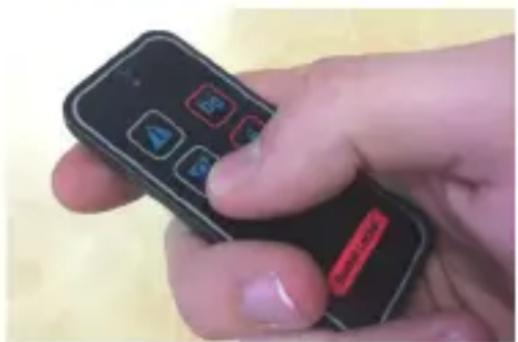
- On the Socket Locker, press the 'on' or 'off' button; the amber light on the socket will flash to confirm that the remote is now unlinked.

Device setup
Lightwrve RF
Clearing memory (will remove all linked remotes):
- Press and hold down the dimmer or socket button until the blue and amber LEDs flash alternately, and then release it. The device is now in linking mode.
- Press and hold down the button again (the bottom button in the case of the dimmer) until the blue and amber LEDs flash simultaneously. Then, tap (don't hold) the button (bottom button on the dimmer); the amber LED will flash quickly to confirm that the memory has been cleared.

NOTE: Reliable range of operation is around 15 metres indoors and up to 100m outdoors using the Lightwave Link. This figure may vary depending upon the environment; very thick walls, bodies of water or large metal objects may interfere with radio range.
If the distance between the transmitter and receiver is too great to achieve reliable operation, the LightwaveRF Signal Booster may be used in conjunction with this product to increase the range.
Remote operation
Lightwrve RF
Locking the socket
- The Socket Locker is designed to ‘lock’ LightwaveRF devices so that pressing the manual buttons will not operate them. This can also be achieved using the LightwaveRF App. If it is locked on, then a LightwaveRF socket, relay or plug-in will not turn off manually. If it is locked off, then they will not turn on manually. A locked device is usually signified by a slow flashing amber LED or simultaneously flashing blue & amber LEDs.
- To lock a device, press the 'lock' button on the Socket Locker (or Smartphone App).
- To unlock a device, press the ‘unlock’ button on the Socket Locker (or Smartphone App).
Pressing the ‘double lock’ button also locks manual button on the linked device. However, in addition it will prevent any other LightwaveRF remotes or the App from issuing RF commands to that device.

Remote operation
Lightwrve RF
IMPORTANT: If the Socket Locker is misplaced, locked sockets can be reset by turning of mains power to the circuit for a period of 30 seconds.
NOTE: You can also lock other LightwaveRF devices such as plug-ins and relays using the Socket Locker. LightwaveRF basic plug-ins or CFLs cannot be locked. For information on how to link the Socket Locker to other devices, please refer to the instructions for that particular device available on the support section of www.lightwaverf.com.

Flashing LED sequences on a socket or dimmer
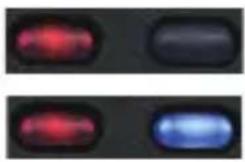
Slowly flashing amber: the socket or dimmer is locked
Blue & flashing amber: the socket or dimmer has been successfully locked / unlocked
Creative ideas
Lightwrve RF


2. (Intermediate): Time for bed kids
Required: Socket, Socket Locker
No matter when you tell the children that it's time to turn off the games console and go to bed they always manage to find a way of carrying on. With Lightwave you can make sure that when you say it's time, it really is time. If the gaming console or television is plugged into a LightwaveRF socket, you can use a Socket Locker to lock them so that they cannot be turned back on. If you have the Lightwave Link, you can also do this from your smartphone and set the lock to activate automatically a bedtime every day!
Creative ideas
Lightwrve RF


3.(Advanced):Family safety
Required: Sockets, Lightwave Link
Dangerous appliances in the kitchen (blender, microwave, hot plate, etc.) might be a worry if you're not always around to supervise the family. With the Lightwave Link, you can control the sockets from anywhere using your smartphone. This means that you can lock dangerous devices when you're on your way home from work, or even turn off something left on accidentally (hair straighteners are a very common problem!) If the kids are up early, you can lock everything in the kitchen automatically on a timer whilst you sleep.
Troubleshooting
Lightwave RF
Problem: The Socket Locker will not operate the dimmer / socket.
Solution: The Socket Locker may be encountering interference or may be at the edge of its reliable range of operation. First, ensure that there are no large pieces of metal or bodies of water in the path of the transmission. If the problem persists, try moving closer to the device, or consider using a LightwaveRF Signal Booster to extend the range by relaying the signal between Socket Locker and target device.
Problem: The Socket Locker will not link to a LightwaveRF socket or dimmer.
Solution: Check the Socket Locker battery strength: if the battery strength is low, it will not produce enough power to drive the RF radio signal. Tap any 'on' button on the controller to transmit a signal. A strong battery signal is indicated by the LED light on the controller remaining lit for 1-2 seconds after releasing the button. A low battery is indicated if the LED light turns off immediately. If this happens, please replace the battery.
Problem: I've misplaced the Socket Locker and my devices are locked
Solution: You can reset locked devices such as sockets and dimmers by turning off the mains power for 30 seconds. This will unlock the device (but not reset the memory).
Technical Specification
LightwVe RF
Specification
RF frequency: 433.92 MHz
Input rating: 3V (battery)
Warranty: 2 year standard warranty


Lightwrve RF
MEGAMAN®
2 Quadrant Park
Mundells
Welwyn Garden City
Herts
AL7 1FS
01707 386035

www.lightwaverf.house


- CONNECT SERIES
- EC DECLARATION OF CONFORMITY
- GET STARTED
- LIGHTWRVE RF
- HOW DO I GET STARTED
- HOW DOES IT WORK
- HELP VIDEO & FURTHER GUIDANCE
- DEVICE SETUP
- LIGHTWVE RF
- OVERVIEW
- SETUP
- LINKING THE SOCKET LOCKER TO A LIGHTWAVERF DIMMER OR SOCKET
- LIGHTW RF
- UNLINKING THE SOCKET LOCKER AND CLEARING THE SOCKET MEMORY
- REMOTE OPERATION
- LOCKING THE SOCKET
- FLASHING LED SEQUENCES ON A SOCKET OR DIMMER
- CREATIVE IDEAS
- (INTERMEDIATE): TIME FOR BED KIDS
- 3.(ADVANCED):FAMILY SAFETY
- TROUBLESHOOTING
- PROBLEM: THE SOCKET LOCKER WILL NOT OPERATE THE DIMMER / SOCKET
- PROBLEM: THE SOCKET LOCKER WILL NOT LINK TO A LIGHTWAVERF SOCKET OR DIMMER
- PROBLEM: I'VE MISPLACED THE SOCKET LOCKER AND MY DEVICES ARE LOCKED
- TECHNICAL SPECIFICATION
- SPECIFICATION
- MEGAMAN®
Brand : Lightwave
Model : LW103
Category : Remote control