DS-GTC-212-3 - Support voiture Havis - Free user manual and instructions
Find the device manual for free DS-GTC-212-3 Havis in PDF.


User questions about DS-GTC-212-3 Havis
0 question about this device. Answer the ones you know or ask your own.
Ask a new question about this device
Download the instructions for your Support voiture in PDF format for free! Find your manual DS-GTC-212-3 - Havis and take your electronic device back in hand. On this page are published all the documents necessary for the use of your device. DS-GTC-212-3 by Havis.
USER MANUAL DS-GTC-212-3 Havis
Owner's Manual Havis Docking Station For Getac F110 Rugged Tablet
DS-GTC-210 Series
DS-GTC-211
DS-GTC-212
DS-GTC-213
DS-GTC-211-3
DS-GTC-212-3
DS-GTC-213-3
natural_image
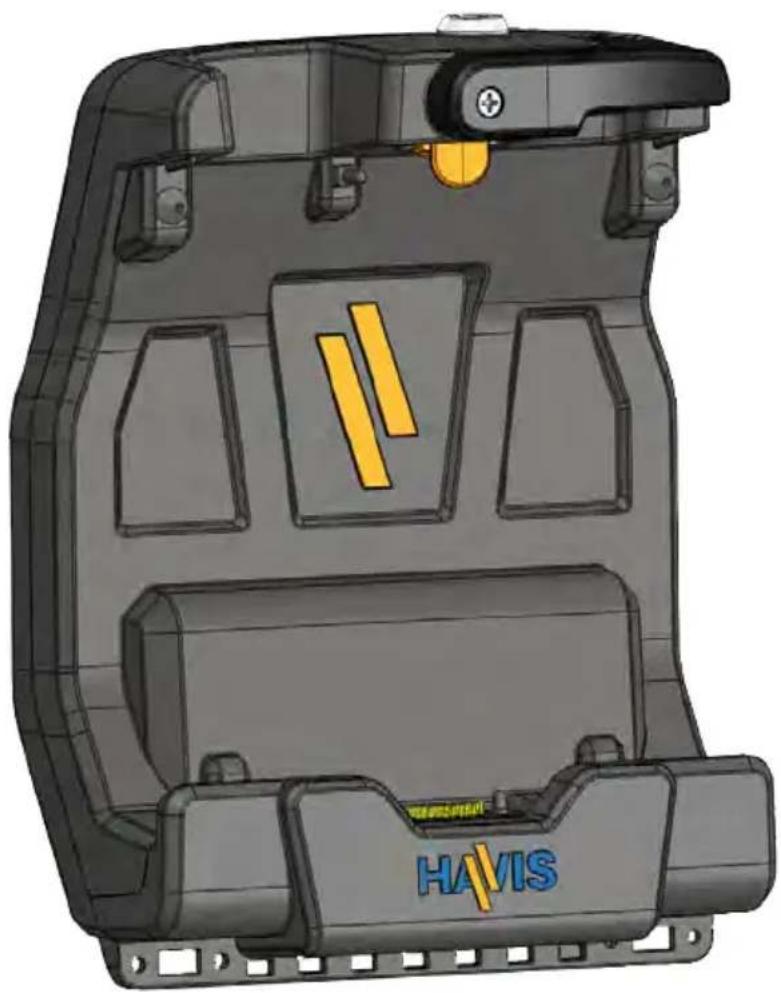
3D CAD model of a mechanical housing component with visible internal compartments and mounting holes (no text or symbols)Havis is pleased to provide this Owner's Manual to aid in the proper installation and use of the DS-GTC-210 Series Docking Station for the Getac F110 Rugged Tablet.
For questions regarding the set-up of your DS-GTC-210 Series Docking Station, please contact Havis at 1-800-524-9900 or visit www.havis.com for additional product support and information.
This Owner's Manual applies to the following Part Numbers:
DS-GTC-211
DS-GTC-212
DS-GTC-213
DS-GTC-211-3
DS-GTC-212-3
DS-GTC-213-3
WARNING
- NEVER STOW OR MOUNT THE DOCKING STATION DIRECTLY IN A VEHICLE AIRBAG DEPLOYMENT ZONE.
• DO NOT USE COMPUTER WHILE DRIVING.
CAUTION
- READ ALL INSTRUCTIONS THOROUGHLY BEFORE BEGINNING INSTALLATION.
- DO NOT STORE, INSTALL, OR OPERATE THE DOCKING STATION WHERE WATER, MOISTURE, STEAM, DUST, ETC. ARE PRESENT
- DO NOT DOCK OR UNDOCK YOUR COMPUTER UNLESS IT IS POWERED OFF. DOCKING OR UNDOCKING WITH YOUR COMPUTER IN ON, STANDBY, HIBERNATION, OR SLEEP MODES CAN CAUSE PERMANENT DAMAGE.
- FOR THE DS-GTC-211, DS-GTC-211-3, DS-GTC-212 & DS-GTC-212-3 DOCKING STATIONS: DO NOT CONNECT DIRECTLY TO VEHICLE VOLTAGE SOURCE: This product requires a certified, automotive grade, Getac approved 95W power source rated for a continuous, regulated 19VDC output (Havis Part Number LPS-116 or equivalent). Failure to comply with this requirement will cause product damage that is NOT repairable and is NOT covered under warranty.
- FOR THE DS-GTC-213 & DS-GTC-213-3 DOCKING STATION: DO NOT CONNECT DIRECTLY TO VEHICLE VOLTAGE SOURCE: The Getac F110 tablet requires a certified, Getac approved power source rated for a continuous, regulated 19VDC output. Getac recommends using the power adapter included with the tablet; failure to comply with this requirement will cause product damage that is NOT repairable and is NOT covered under warranty.
NOTICE
- FOR DOCKING STATION MODELS EQUIPPED WITH A BUNDLED POWER SUPPLY (DS-GTC-212, DS-GTC-212-3) REFER TO THE SUPPLIED LIND POWER SUPPLY REFERENCE GUIDE.
- WHEN TABLET IS DOCKED, THE BATTERY WILL ONLY CHARGE BETWEEN 0°C to 50°C (32°F to 122°F). PLEASE REFER TO GETAC F110 OWNER'S MANUAL FOR MORE INFORMATION.
Table of Contents
Specifications 3
Parts Included 4
Port Replication Capability & Antenna Identification 5
Installation 6
Cable Management 7
Operation - Docking 8
Operation - Undoing 10
Precautions
- Do not place metal objects or containers of liquid on top of the Docking Station
- If a malfunction occurs, immediately unplug the Power Supply and remove the laptop
- Use only the specified Power Supply (Part # LPS-116) with this Docking Station
- Do not connect cables into ports other than what they are specified for
- Do not leave the Docking Station in a high temperature environment (greater than 85^, 185^ ) for a long period of time
Specifications
| Power Supply Input 19.0V DC-In |
| Dimensions 11.1” (28.2 cm) H x 8.7” (22.2 cm) W x 4.4” (11.1 cm) D |
| Weight 2.6 lbs (1.18 kg) |
| Operating Environment -20°C to 60°C (-4°F to 140°F) |
| Storage Environment -40°C to 71°C (-40°F to 160°F) |
EC DECLARATION OF CONFORMITY in accordance with EN 50498
Manufacturers Name: Havis, Inc.
Manufacturers Address: 75 Jacksonville Road, Warminster, PA 18974 USA
Declares under our sole responsibility that the product:
Product name: Havis Docking Station For Getac F100 Fully Rugged Tablet
Model: DS-GTC-21X, where 'X' may be any alphanumeric character and which describes product options. May be followed by any alphanumeric characters which describe product options.
Product Options: This declaration covers all options of the above product which bear the CE Marking.
Is in conformity with the following standards or other normative documents:
Automotive EMC Directive EN 50498:2010, Electromagnetic compatibility (EMC) - 2004/108/EC: Product family standard for aftermarket electronic equipment in vehicles
Directive 2011/65/EU Restriction of the use of certain hazardous substances (RoHS)
Supplementary Information:
The product herewith complies with the requirements of the Automotive EMC Directive 2004/108/EC, Annex I, 6.5, 6.6, 6.8, and 6.9. This product requires the use of a recommended e-Marked automotive power supply when used within vehicles.
Warminster, PA, USA April 11, 2014
Bruce Jonik, Director of Engineering, Havis, Inc.
FCC 47CFR, Part 15 compliance: This is an FCC Class B device. Any changes or modifications to the model DS-GTC-21X not expressly approved by Havis, Inc. could void the user's authority to operate this equipment.
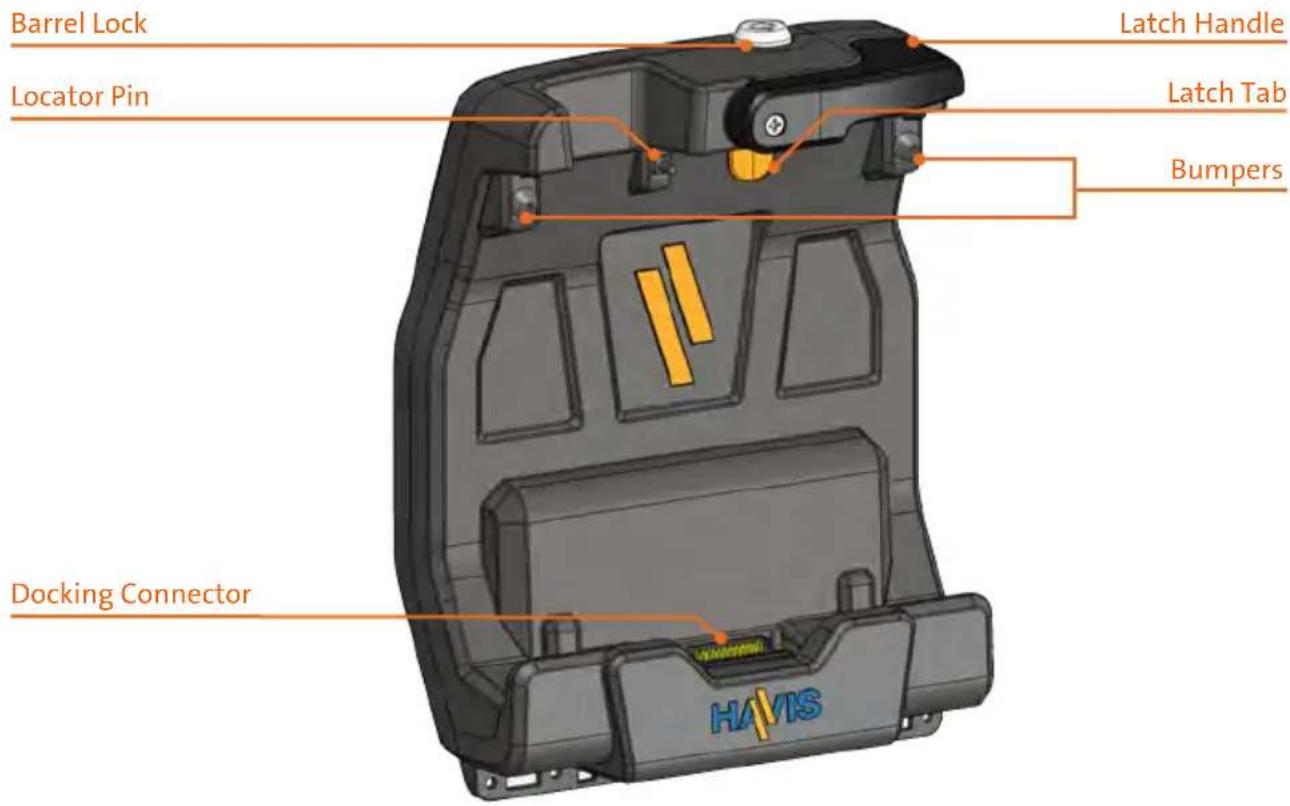
Docking Station
text_image
Barrel Lock Locator Pin Docking Connector Latch Handle Latch Tab Bumpers HAVIS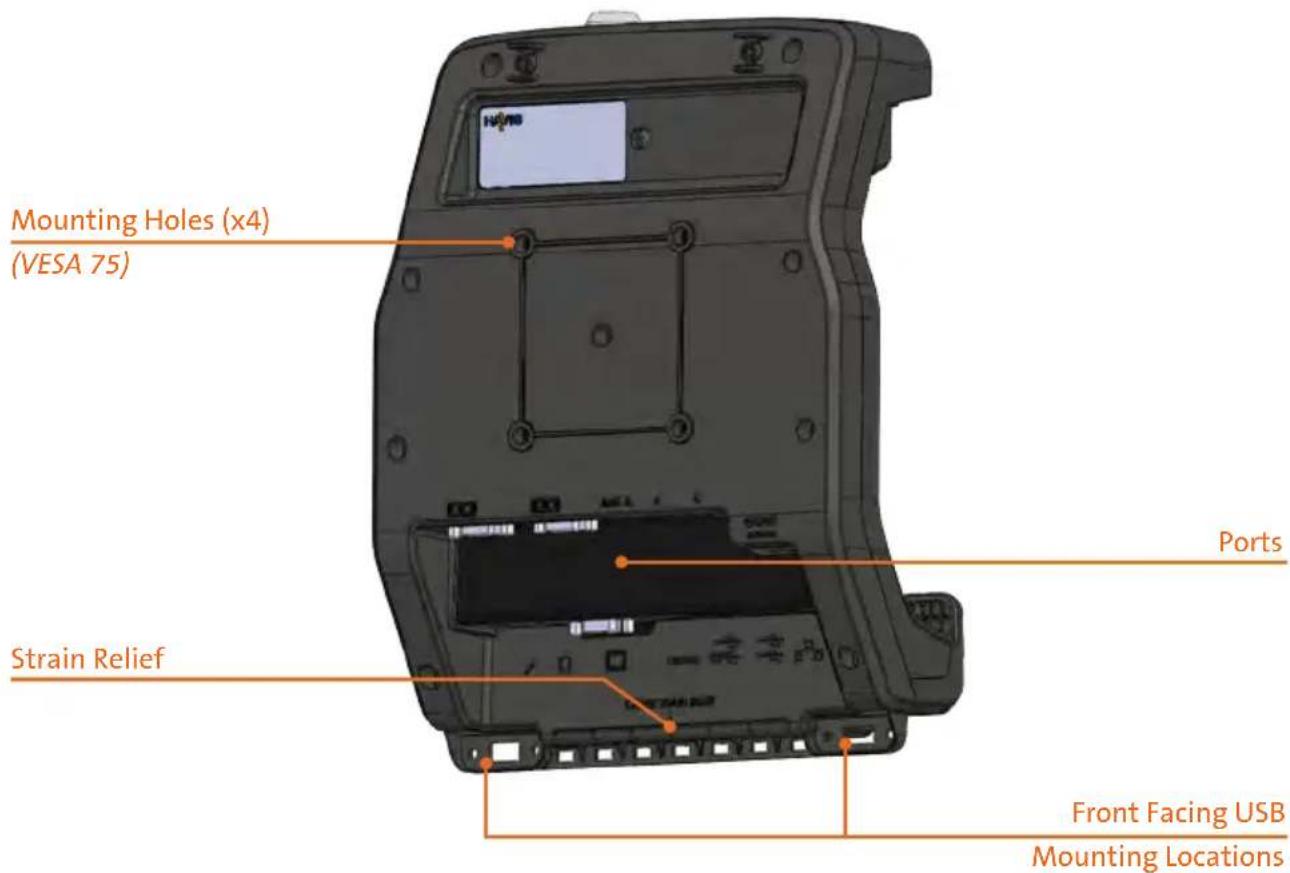
text_image
Mounting Holes (x4) (VESA 75) Strain Relief Ports Front Facing USB Mounting LocationsHardware Kit
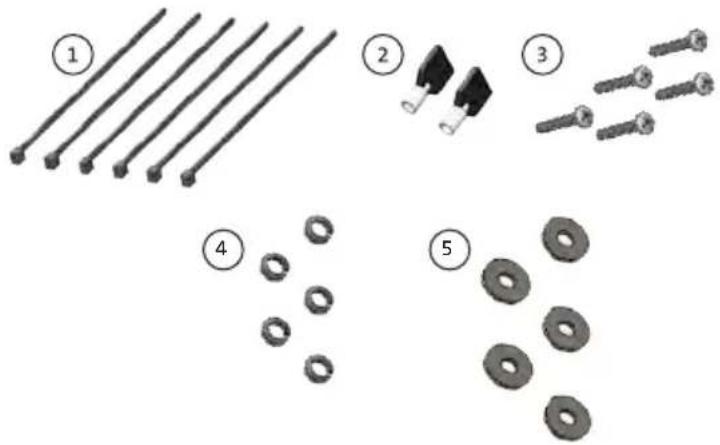
This Hardware Kit includes:
- Zip Ties (6)
- Keys (2)
- M4 x 0.7 x 25mm long Pan Head Screws (5)
- Split Lock Washers (5)
- Washers, M4 (5)
Tools required for installation:
- #2 Phillips
(For M4 Pan Head Screws)
text_image
Diagram showing five types of mechanical components with numbered labels: rods, bolts, washers, and washers.Port Replication Capability & Antenna Identification
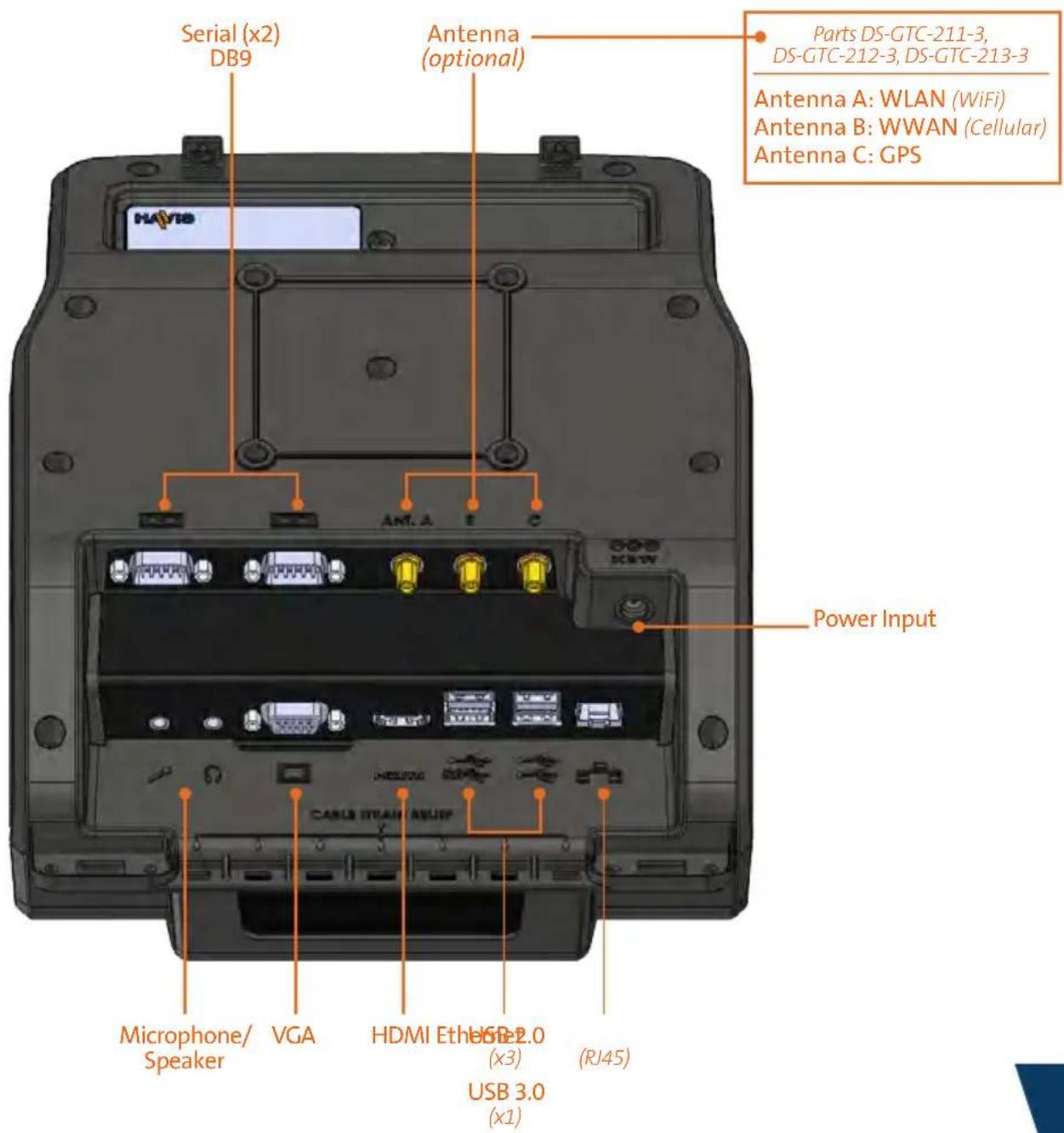
text_image
Serial (x2) DB9 Antenna (optional) Parts DS-GTC-211-3, DS-GTC-212-3, DS-GTC-213-3 Antenna A: WLAN (WiFi) Antenna B: WWAN (Cellular) Antenna C: GPS Power Input Microphone/ Speaker VGA HDMI Etho USB 2.0 (x3) (RJ45) USB 3.0 (x1)
NOTE: If you are mounting the optional Front Exiting USB Cable (Part # DS-DA-311), please refer to page 11 before beginning Installation.
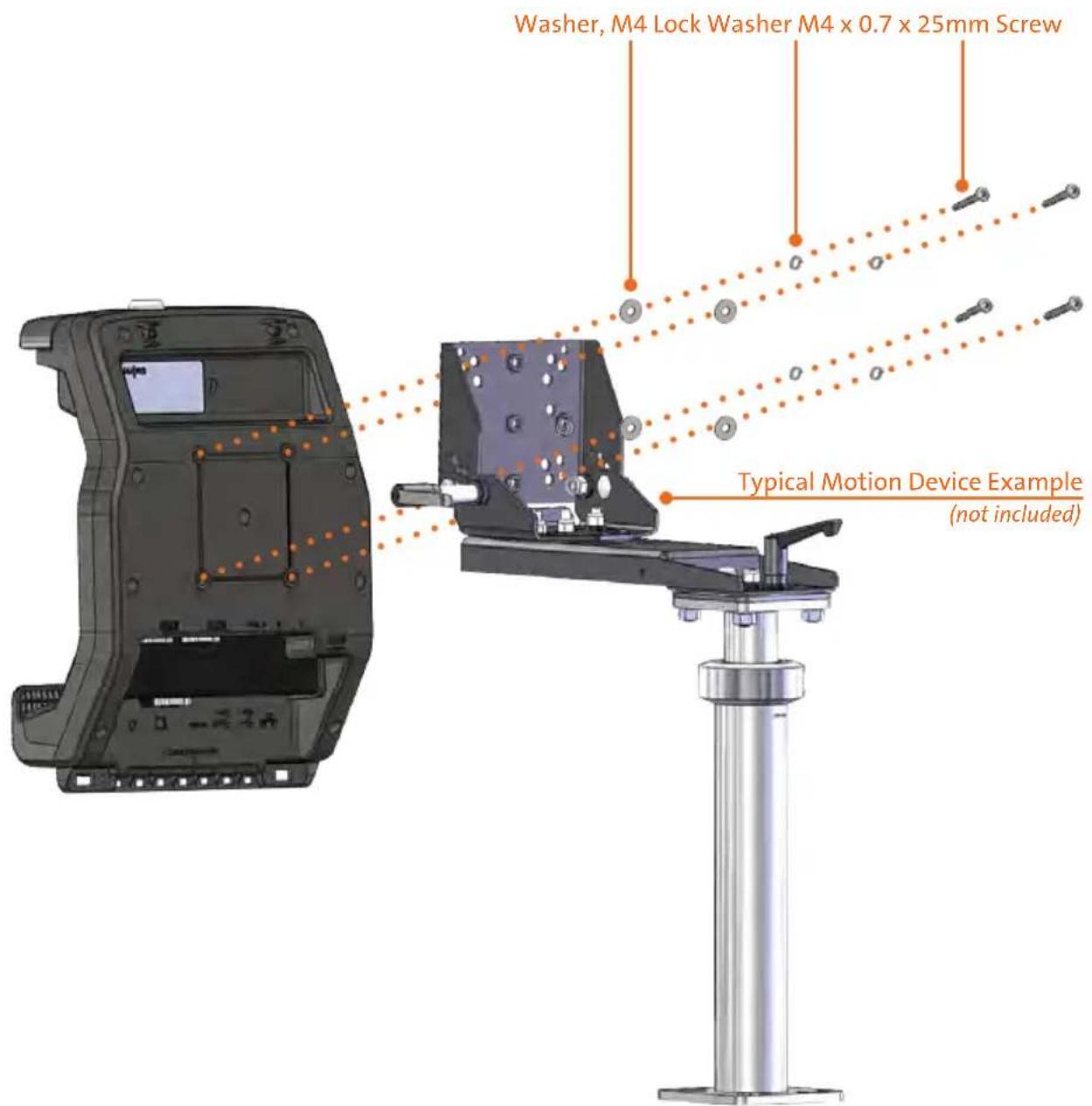
1) Install the Docking Station to the Motion Device using four (4) M4 x 0.7 x 25mm long Pan Head Screws (Hardware Kit Item 3), four (4) Split Lock Washers (Hardware Kit Item 4), and four (4) Washers, M4 (Hardware Kit Item 5). Torque screws to 20 in-lbs (2.3Nm) ± 10%.
text_image
Washer, M4 Lock Washer M4 x 0.7 x 25mm Screw Typical Motion Device Example (not included)1) Tip the Docking Station to a position that is comfortable to work with.
2) Install all cables that are necessary for computing needs.
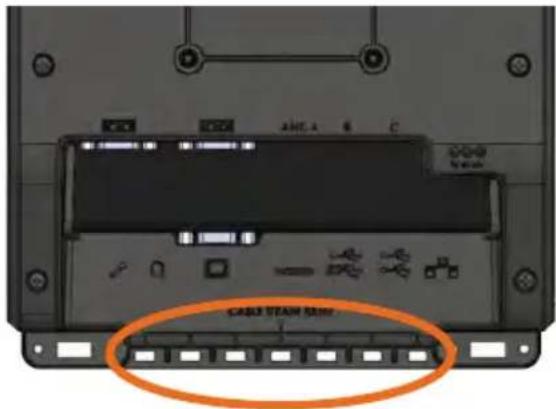
3) Use Zip Ties (Hardware Kit Item 1) and the Strain Relief Points on the bottom of the Docking Station to secure cables and reduce risk of accidental disconnects.
text_image
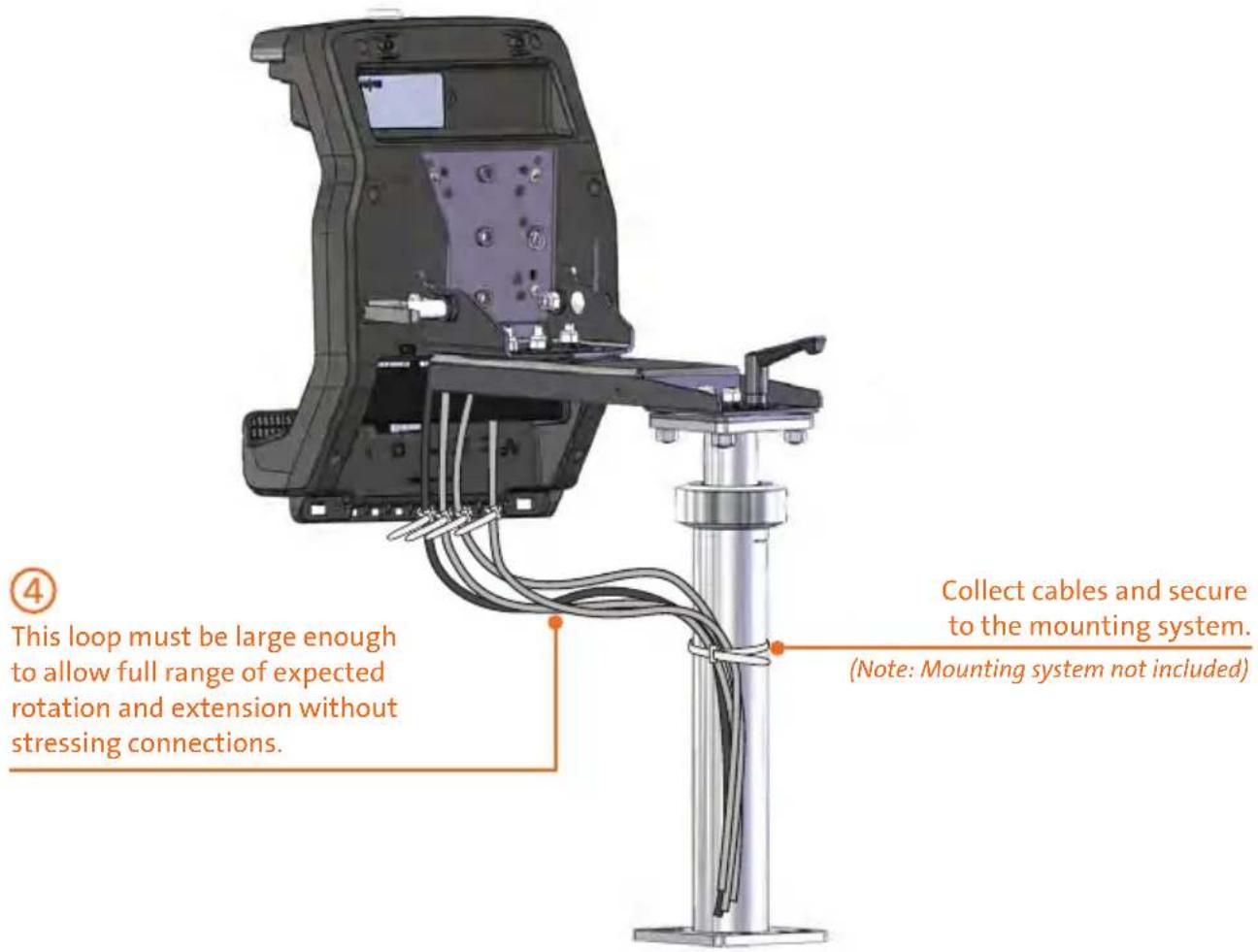
CABLE TEAM TINEL4) Create a service loop with cables to ensure that no tension is on the connectors and to enable intended motion.
5) Tie off cables onto a stationary part of the mounting system.
text_image
④ This loop must be large enough to allow full range of expected rotation and extension without stressing connections. Collect cables and secure to the mounting system. (Note: Mounting system not included)CAUTION
DO NOT FORCE TABLET ONTO DOCKING STATION. IF THERE IS RESISTANCE, CHECK ALIGNMENT OF TABLET ON DOCKING STATION.
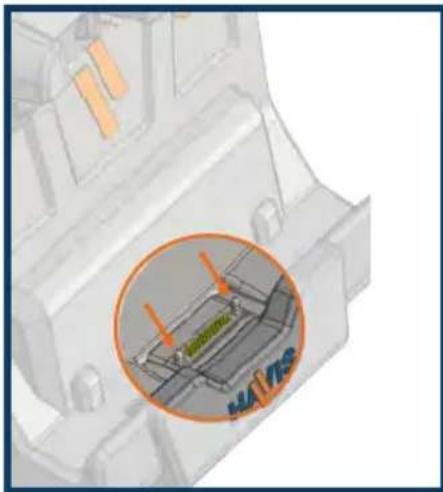
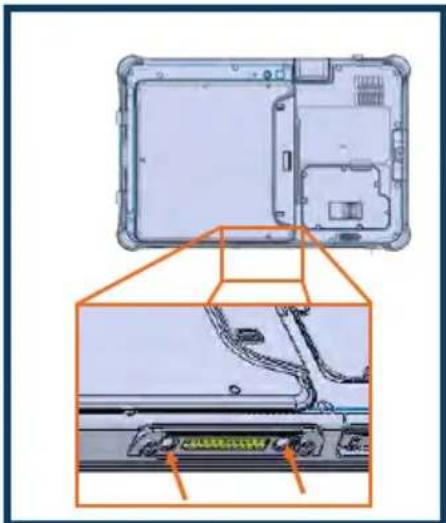
NOTE: Ensure a proper connection by aligning the tablet's Alignment Sockets with the Docking Station's Alignment Posts
text_image
SMA/TRSAlignment Posts DS-GTC-210 Series Docking Station

natural_image
Diagram of a laptop rear panel showing internal components and cable routing (no text or symbols)Alignment Sockets Back Side of Getac F110 Rugged Tablet
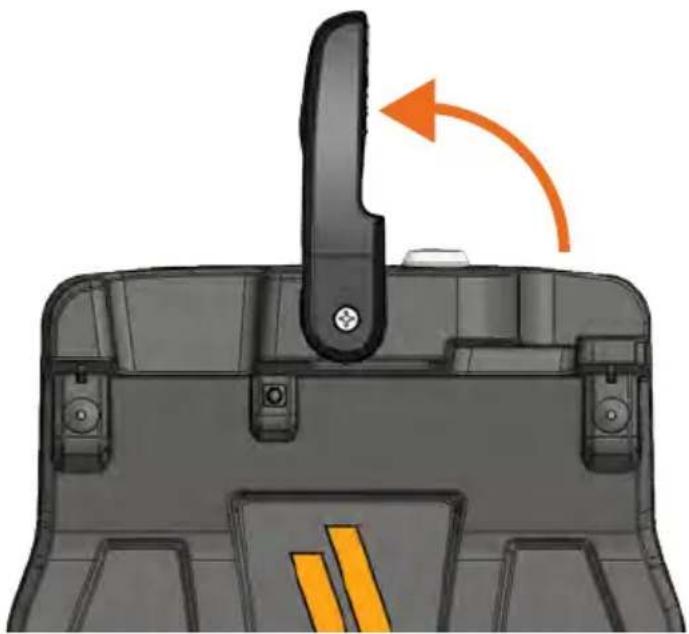
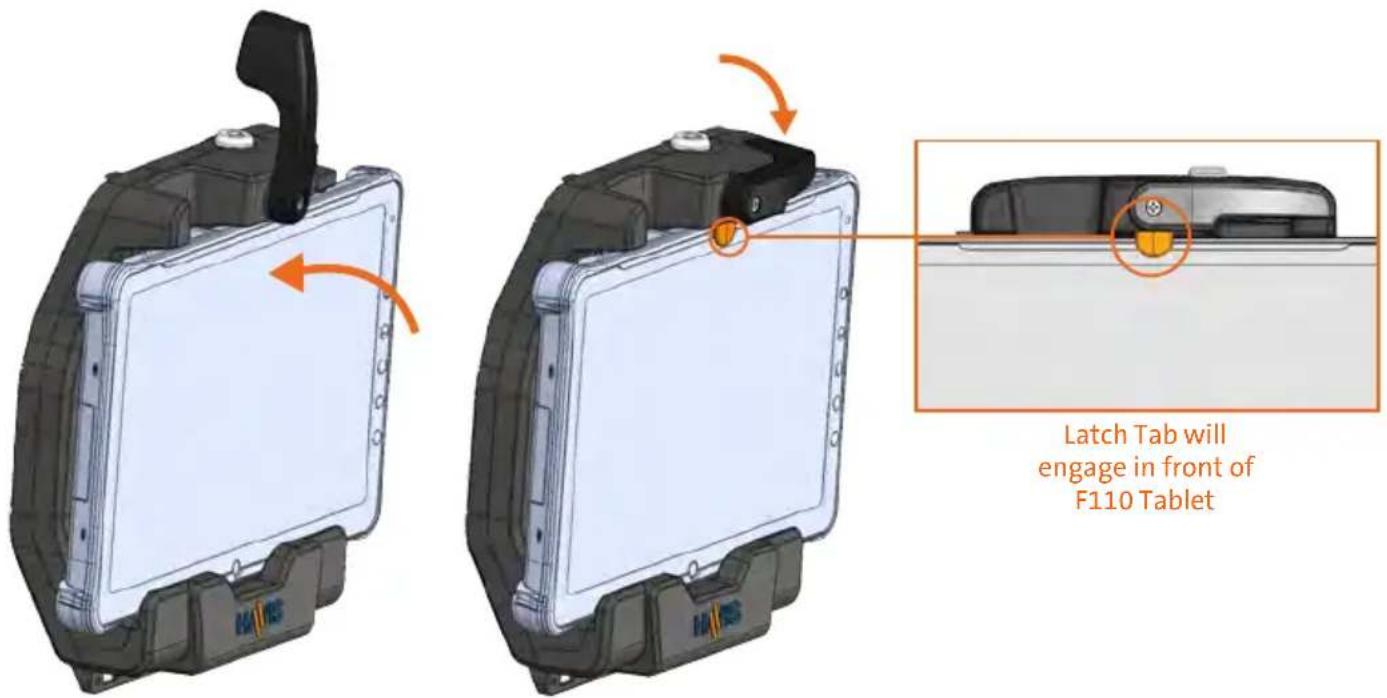
1) Ensure Docking Station is unlatched by lifting Latch Handle.
natural_image
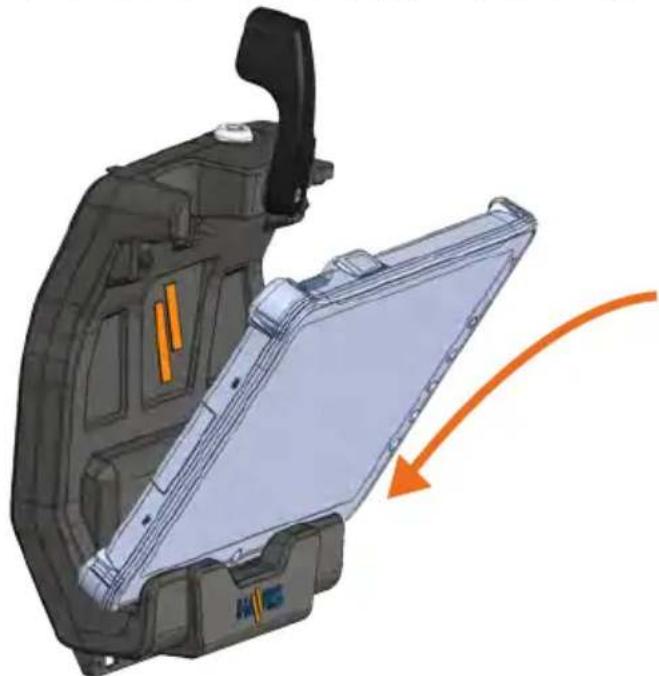
Close-up of a mechanical component with an orange arrow indicating rotation or movement (no text or symbols visible)2) Hold tablet in landscape orientation, with bottom angled toward Docking Station. Lower tablet into the bottom of the Docking Station.
natural_image
3D diagram of a vehicle chassis with an orange arrow indicating motion or force, showing internal components and no text or symbols.3) Pivot tablet so the top aligns with the Locator Pin at the top of the Docking Station. Lower the Latch Handle to secure tablet in place.
text_image
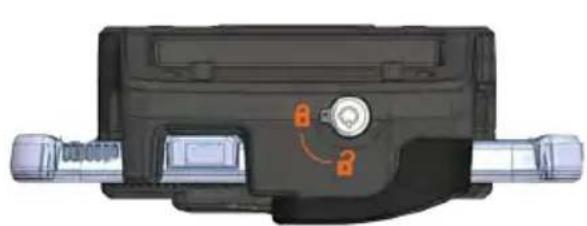
Latch Tab will engage in front of F110 Tablet4) For theft deterrence, secure tablet by locking Docking Station with supplied key (Hardware Kit Item 2).
natural_image
Top-down view of a mechanical component with orange arrows indicating a specific part (no text or symbols visible)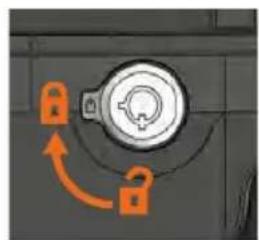
natural_image
Close-up of a lock mechanism with orange arrows indicating clockwise motion (no text or symbols)
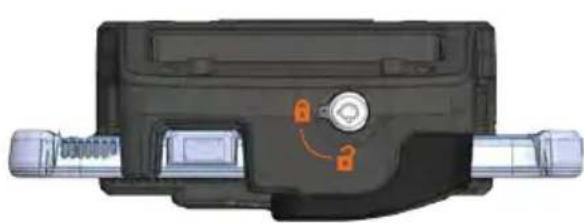
1) If previously locked, unlock Docking Station using supplied key.
natural_image
Top-down view of a mechanical component with orange arrows indicating a specific part (no text or symbols visible)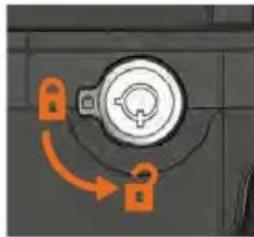
natural_image
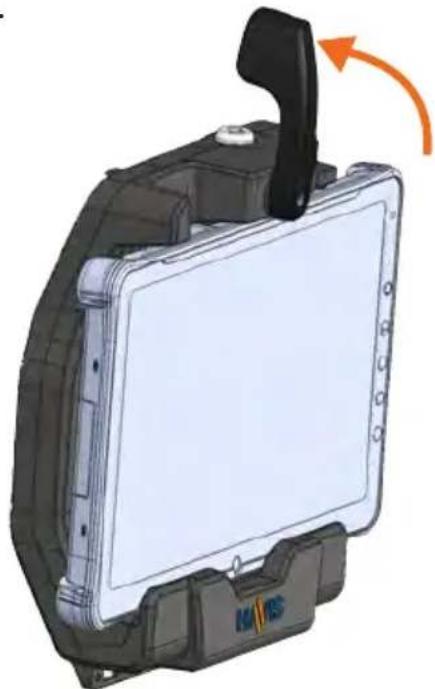
Close-up of a lock mechanism with orange arrows indicating clockwise motion (no text or symbols)2) While holding tablet with one hand, lift the Latch Handle on the top of Docking Station.
natural_image
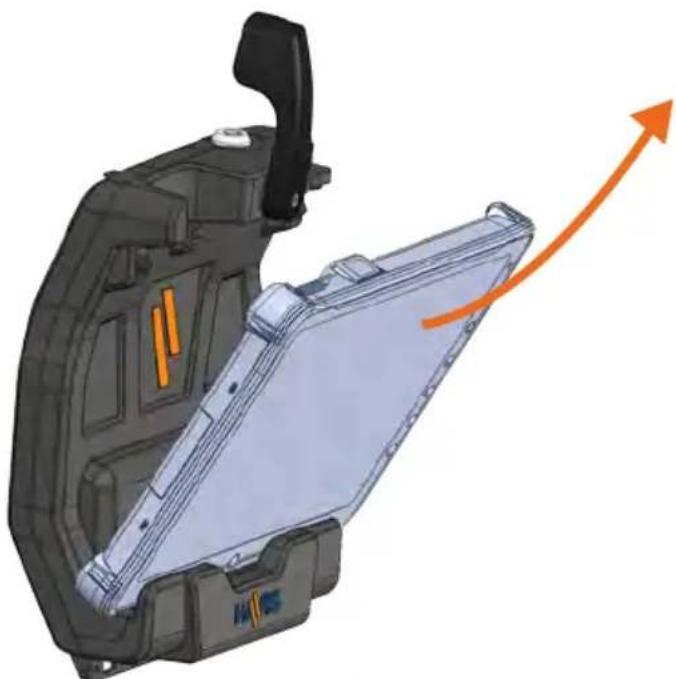
3D rendering of a mechanical device with a lever and mounting base, showing internal components and a rotation arrow (no text or symbols)3) Once unlatched grab both sides of tablet, rock the top forward and carefully lift out of Docking Station, top end first.
natural_image
3D mechanical assembly diagram showing internal components and an orange arrow indicating upward motion (no text or symbols)DS-DA-311 - Remote USB Extension Cable
(For further Installation Instructions, refer to the Instructions included with DS-DA-311)
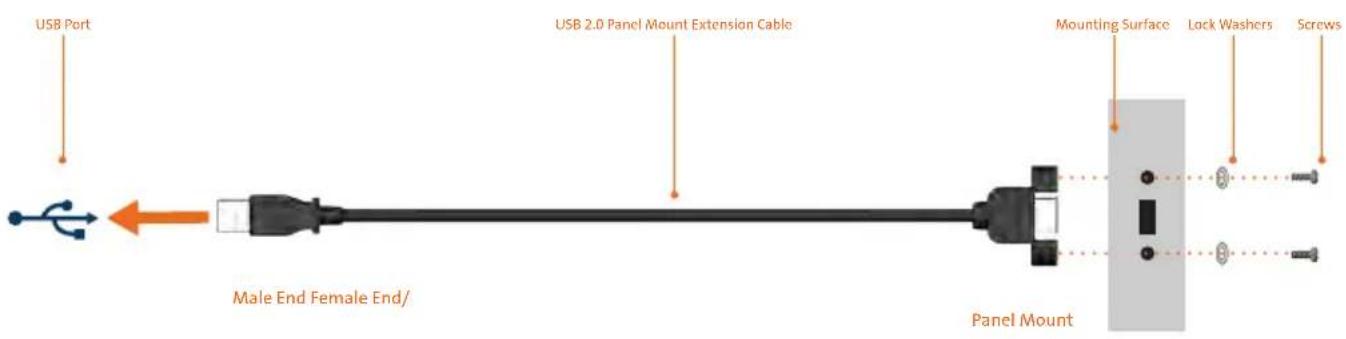
1) Determine if USB will exit the left or right side of Docking Station.
2) Remove the Screws from USB Cable.
3) Align the female end of the USB Cable with mounting surface hole pattern. Insert Screws and Lock Washers and tighten Screws.
4) Plug male end of USB Cable into USB Port.
5) Strain Relief cable as needed.
6) If the connected peripheral has a cable requiring strain relief, use Int. Zip Tie (Hardware Kit Item #1) by snapping into hole just below port.
7) Continue on with Installation on Page 6.
CAUTION: DO NOT OVERTIGHTEN SCREWS
text_image
USB Port USB 2.0 Panel Mount Extension Cable Mounting Surface Lock Washers Screws Male End Female End/ Panel MountRelated Products
Havis offers a wide variety of accessory products specifically for use with the DS-GTC-210 Series Docking Station. For more information or to order, please visit www.havis.com.
natural_image
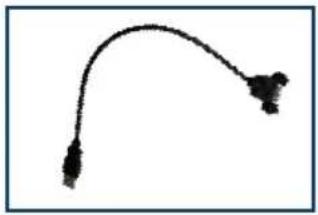
Simple curved line with two connectors, no text or symbols presentDS-DA-311
USB Extension Cable
Allows for more convenient access for up to two (2) of the available USB 2.0 ports. Can be mounted to the right, left, or both sides on DS-GTC-200 Series Docking Stations.
natural_image
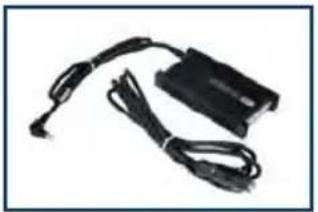
Black electronic device with two cables, no visible text or symbolsLPS-116
95W Power Supply
External in-vehicle power supply and cable for Getac F110 Rugged Tablet with cigarette lighter adaptor.
natural_image
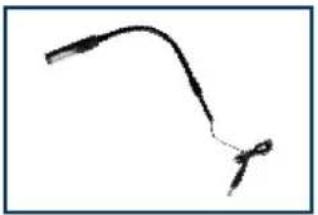
Simple line drawing of a curved object with a looped end (no text or symbols)DS-DA-102
Night Eyes II
In-vehicle night time viewing from six long lasting, soft true, red LED lights on a flexible steel gooseneck.
natural_image
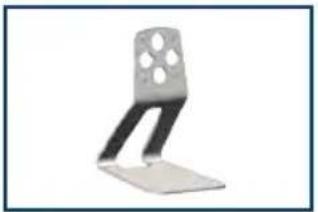
Metal bracket with four circular holes, no text or symbols visibleDS-DA-218
Desktop Stand for Tablet Docking Stations
Durable stand for mounting tablet Docking Stations for use in the home or office.
natural_image
Close-up of a black mechanical component with a metallic handle and circular base (no visible text or symbols)DS-DA-501
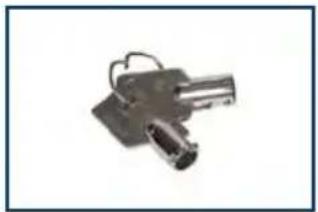
Replacement Keys
Set of two (2) replacement keys for DS-GTC-210 Series Docking Stations.
Havis, Inc.
75 Jacksonville Road Warminster, PA 18974
www.havis.com 1-800-524-9900