
A - Audio player Block - Free user manual and instructions
Find the device manual for free A Block in PDF.


| Product Type | Network Audio Player |
| Brand | Block |
| Model | A |
| Dimensions (W x H x D) | 126 x 203 x 121 mm |
| Weight | 1.44 kg |
| Power Supply | External AC adapter, 230V~50Hz |
| Power Consumption (Operation) | 18 W (max) |
| Power Consumption (Standby) | < 2 W (Network standby) |
| Power Consumption (Off) | 0.1 W |
| Frequency Response | 35 Hz - 20 kHz @ -3 dB |
| Signal-to-Noise Ratio | > 70 dB |
| Audio Output Power | 15 Watt |
| Supported File Formats | AAC, AAC+, MP3, WAV, WMA, FLAC |
| Max Sampling Rate | 48 kHz |
| Network | WLAN 2.4 & 5 GHz, Bluetooth, Ethernet (RJ-45) |
| Streaming Protocols | Bluetooth, DLNA, UPnP with UNDOK™ App |
| Internet Radio | Access to >25,000 stations worldwide |
| Station Presets | 10 (via remote control) |
| USB Port | USB-A for USB sticks (FAT32, MP3/WMA/FLAC up to 48 kHz) |
| AUX Input | 3.5 mm stereo jack (rear) |
| Bluetooth | Version not specified, supports pairing with external devices |
| Remote Control | Infrared (IR) with batteries (CR2032 or similar) |
| Equalizer Modes | Normal, Rock, Pop, News |
| Cable Length (Power) | Not specified, but must be positioned safely |
| Repair / Service | Contact authorized specialist or service centre; opening only by authorized personnel |
| Cleaning | Disconnect power, use dry cloth; mild cleaning fluid if needed; avoid solvents |
| Safety Certifications | EMC certified, meets EU directives (73/23/EEC, 89/336/EEC) |
| Waste Disposal | EU Directive 2002/96/EC – do not dispose with household waste |
Frequently Asked Questions - A Block
User questions about A Block
0 question about this device. Answer the ones you know or ask your own.
Ask a new question about this device
Download the instructions for your Audio player in PDF format for free! Find your manual A - Block and take your electronic device back in hand. On this page are published all the documents necessary for the use of your device. A by Block.
USER MANUAL A Block
Block Multiroom | Bluetooth | HIFI ○ ● ●

natural_image
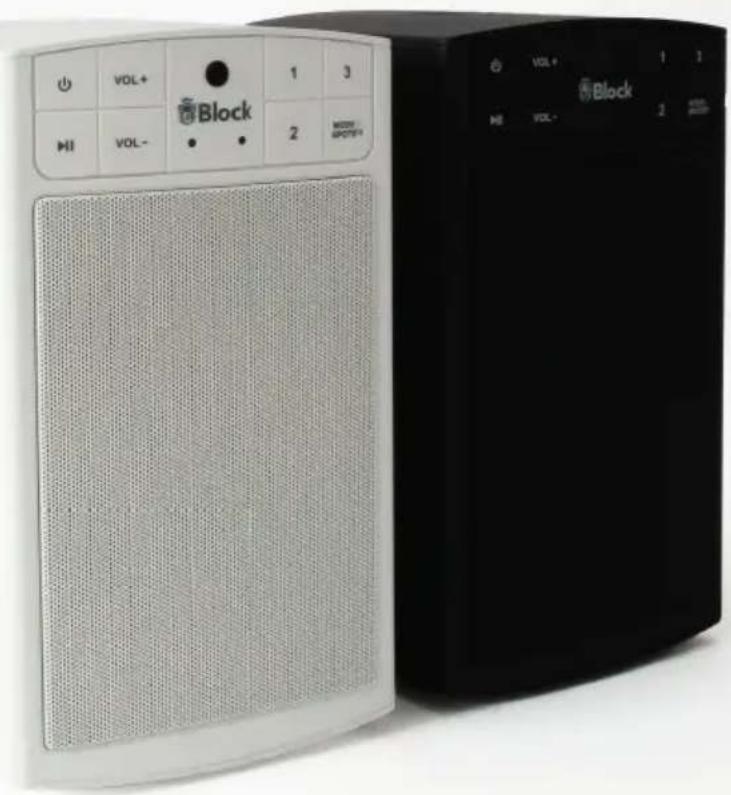
Two black electronic devices with sound waves, one labeled 'Block' and the other showing a digital display (no readable text or symbols on the device surfaces)Thank you for choosing topurchase this high quality device. This manual shall give you an overview of how to operate your device. You will receive safety information and you will be informed about how to clean your equipment best. The safety and operating information must be strictly followed in order to ensure the long-term and safe functioning of the product. Please, take some time to peruse the manual carefully. The operating instructions should be retained in a safe place for future reference, to be given with a resale. Due to software updates or technical developments with third manufactures (e.g. Apas), parts of this manual can be updated. Every now and then please visit our website www.audio-block.com to check whether there are up to date operating instructions for downloading.
For this purpose, compare the status on the cover page with the information on the Internet. If you have any further questions regarding your device, please contact an authorized specialist supplier or our service centre. In case of a defect resulting from improper operation, misuse or non-observance of the operating instructions, please be aware that the guarantee for this defect will be invalidated. Besides, no liability can be accepted for consequential damages. This product is EMC certified and meets all the directives and requirements of the European Union, CF and 30HS documentation are provided.
CONTENTS:

Safety instructions 18-71
Operating elements on the uni....72
Connections to the device 23
The remote control 24
Structure of the BLOCK A 25
USB Internet radio | AUX 26
Pair an external device with The Block A | Spotfy connect ....27
Troubleshooting....78
Technical Data 29
Care and transport 29
Block
SAFETY INSTRUCTIONS
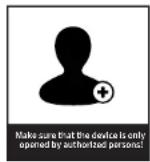
Caution to avoid the risk of electric shock, do not modify this device! The opening of the device as well as charges in the appliance may be carried out only by authorized personnel. Important security instructions:
▶ Before using the device for the first time, please read the operating instructions thoroughly.
▶ This device is to be used indoors only.
This device may be connected only to a socket intended for it.
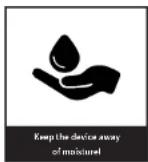
▶ This device is not to be exposed to humidity.
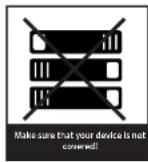
▶ Make sure the appliance does not stand to close to other objects
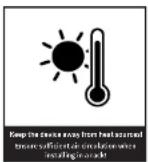
▶ Make sure the appliance does not stand near a heat source
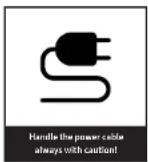
▶ Make sure that the connection cable is not damaged or is going to be damaged

mation on disposal of the old equipment
Your product is made of high quality and recyclable materials. With this symbol, the product fulils the EU Directive 2007/96 / PC. Please do not dispose of your appliance in the domestic waste but in a suitable separate collection of materials. Electronic devices, accessories and packaging shall be handled to special places intended and marked by signs for its purpose. For more information, where you find these places, please contact your local garbage disposal service. Please keep to this regulation in order to give a better environment to our children.

ipment complies with the FU norm (73/23/FFC) and fulils the electromagnetic
compatibility (89/336/FFC).
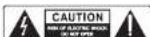
The flash icon shall warn the user of not isolated hazardous voltages in the device's housing. This voltage could be strong enough to injure people through an electrical shock. The exclamation marks shall draw the attention of the user to the fact that the manual delivered together with the device, contains important operating and maintenance instructions.
HANDLING BATTERIES
Batteries may contain flammable substances. Improper handling can cause batteries to leak, strongly heat, ignite, or even explore what, could damage your device and your health.
Follow these instructions.
▶ Keep children away from batteries.
▶ In case of batteries have been swallowed, report this to your doctor immediately.
▶ Never charge batteries (unless specifically stated).
▶ Never discharge batteries by high power output.
▶ Never short - circuit batteries.
▶ Never expose batteries to excessive heat, such as sunshine, fire or something similar.
Do not disassemble or deform batteries. Your hands or fingers could be injured or battery fluid could get into your eyes or on your skin. Should this happen, rinse the affected area with plenty of clear water and inform your doctor immediately.
▶ Avoid strong jolts and vibrations
▶ Never exchange the polarity. Make sure that the poles Plus (+) and minus (-) are correctly inserted, to prevent short circuits.
- If necessary, clean battery and device contacts before insertion. Do not mix new and old batteries or batteries of different types. This could cause malfunctions on your device. Besides, the weaker battery would discharge too strongly.
▶ Remove any discharged batteries immediately from the unit.
▶ Remove the batteries from your device if they haven't been used for an extended period of time.
- Replace at the same time all discharged batteries in a device with new batteries of the same type. If you want to store or to dispose the batteries, isolate their contacts with an adhesive tape.

Block
SAFETY INSTRUCTIONS
Do not let electrical appliances in children's hands! Never let children unattended to use electrical devices. Also keep the Packaging foils far away from children. There is a danger of shocking and suffocation.
SAFE POSITIONING
▶ Use the device exclusively in dry rooms
If you bring the device from a cold into warm surroundings, it could be humid inside the equipment. In this case, wait about two to tree hours before running it.
▶ Place the device on a firm and horizontal plane surface.
▶ Place the device with at least 10 cm of distance to the wall.
▶ Do not cover existing ventilation openings.
- Avoid the proximity of heat sources, such as radiators, or devices with strong magnetic fields, such as loudspeakers.
▶ Do not place open sources of fire, such as burning candles, on the device.
▶ Do not place the device on sensitive surfaces.
SECURE CONNECTION
▶ Connect the device only to an easily accessible and suitable installed socket. With 230 V - 50 Hz.
The net plug must be of easy access so that the device can be easily and quickly disconnect from the power supply, in case of emergency.
▶ Locate the power cable so that nobody can trip over it or step on it.
▶ Do not use extension cables. Do not bend or squeeze the net cable.
▶ Always pull the mains cable from the socket.
SAFE USE
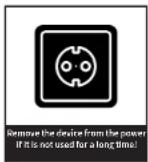
- Disconnect the power plug from the power socket and remove the serial cable from the device if you do not use the unit for a long time or when a thunderstorm is approaching.
The not cable shall not be wrapped around the device during operation nor in touch to hot surfaces. Avoid humidity to enter the housing.
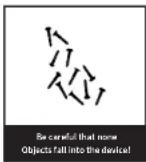
▶ Never touch the device, the net cable or the net plug with wet hands. There is a risk of electric shock. Should an item or liquid get into the housing, immediately disconnect the device from the power supply and have it checked. - Have your equipment inspected by qualified personnel before restarting it. Otherwise there is the anger of electric shock.
▶ Never use the device if it is damaged, or if there is any damage to the net cable or to the plugs. In case the appliance is damaged, immediately pull the plug from the socket.
▶ Never open the device. In case of faults, please contact our service centre or any other specialized shop.
▶ The remote control has an infrared diode Class I
▶ Do not look at the I FD with optical devices.

Block
- Infrared sensor for remote control.
- ON/OFF button: press this button to switch the device on or to switch the device to standby.
A long press or the „ON / OFF" button places the device in standby mode without a network connection.
In this case, the device can only be switched on again with the ON/OFF button on the device. - „Play / Pause" button: after a single press, the device pauses, after another Press the reproduction will continue.
- Volume - button: press this button to raise the volume of the playback.
- Volume - button: press this button to decrease the volume of the playback.
- Indicator LLD light: during set up it blinks white, it's white during operation and red in standby mode.
- Blue Indicator I FD light: blinks when there is no network connection. It shines constantly when there is network connection.
- "Station key 1" button: by pressing this key, a station can be saved and recalled. Hold the transmitter down for a while to save it.
- "Station key 2" button: by pressing this key, a station can be stored and recalled.
- "Station key 3" button: by pressing this key, a station can be saved and recalled.
- "Mode / Spotify" button: by pressing this button you can switch between the playback modes.
CONNECTIONS ON THE DEVICE
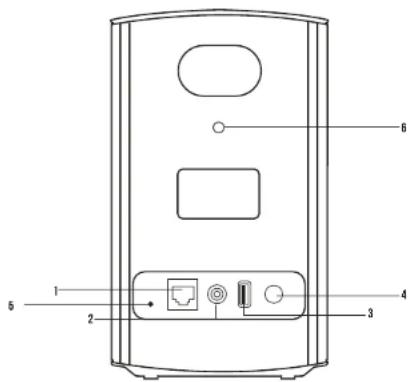
- LAN connector for RJ-45 connector (Ethernet)
- AUX input to connect external audio sources
- USB input to connect a USB stick
- Power supply for the supplied external power adapter. The power cord must not be damaged or defective, use only the supplied AC adapter.
- Reset to reset to factory settings
- Wall mount
Block
REMOTE CONTROL

- Standby button: Switches the device to network standby, long press of this button "Standby" turns the device on Standby without Network connection. In this case the equipment can be turned on only by pressing the button
- "Mute" button: turns the sound off
- "Music Player" button: switches the Block A to the operating mode
- "Spotify" button; switches the Block A to the operating mode "Spotify Connect".
- "I Radio" button switches the Block A to the operating mode, Internet radio.
- "BT" button switches the Block A to the operating mode, Bluetooth*
- "AUX" button; switches the Block A to the operating mode, AUX".
- "BT PAIR" button: Turns Block A into pairing mode. In this mode you can connect the Block A to a Blue both-enabled device.
- "Norma" button: adjusts the equalizer mode, Normal
- "Rock" button sets the Equalizer mode, Rock
- "Vol 1" button: increases the volume.
- "Play/Pause" button.
- "Back" button: on music player mode, the device will change to the previous track.
- "Forward" button: on music player mode, the device will change to the next track.
- Vol - button: Reduces the volume.
- „Pop“ button: Sets the equalizer mode „Pop“
- "News" button: Sets the "News" equalizer mode
- Buttons „1 - 10°: on radio mode, recall the stored stations.
STRUCTURE OF THE BLOCK A
- Unpack all components.
- Connect the cable of the supplied AC adapter to the Block A. Plug the Plug-in power supply in a socket.
- After powering up, BlockA should be in setup mode (blue - White LED blinking). If this is not the case or you want to make a new configuration, press the reset button on the back (about 5 seconds) until the device returns to factory settings and wait until the blue LED on the front panel starts flashing
- Configuration install the free app, UNDOK™ on your smartphone or tablet. This is available in the respective stores for iOS and Android.
- Open the Wi-Fi settings of your smartphone or tablet and connect to the Block A (not with your home Wi-Fi).
- Follow the instructions of the attached operating instructions for the "UNDOK" app
Block
THE USB-PORT
You can connect a removable storage device (eg, USB stick) to the USB port of your Block A. This storage medium must be formatted FAT 32 in order to be read from Block A. This may possibly be limited in size, it depends on the manufacturer of the storage medium. The Block A recognizes MP3, WMA and FIAC files with a maximum sampling rate of 48 kHz. The bit rate is not limited here. You can use the USB media player both with the optional remote and with the device itself, but it is recommended to use the UNDOK™ app.
If you have defined Block A as the basic device in the UNDOK "app, the contents of the USB stick can also be played back on other devices in your multi-room system.
THE INTERNETRADIO
If you have connected your Book A to the Internet as it is described in the instructions for the UNDOK™ app, you are now able to receive internet radio without any further settings. Your Internet radio connects 'fully automatically to one of the largest databases for Internet broadcasters, in which more than 25,000 stars worldwide are listed. Using the app UNDOK™ you can save your favourite channels as favourites and recall them at anytime.
CONNECTING EXTERNAL DEVICES USING BLUETOOTH®
Your Block A is equipped with a modern Bluetooth® interface. These can be used to couple any signal source that complies with the Bluetooth® standard to Block A. So you can use it to pair any signal source that complies to with Bluetooth® standard Block A. Possible signal sources are smartphones (iOS, Android, Windows Phone), tablet PCs (iOS, Android, Windows 6) or media player (Pod, similar) with Bluetooth® function.
To activate the Bluetooth function, press the button on the optional remote control, "BT", or select the source "Bluetooth" in the app, UNDOK™. Activate the Bluetooth function on your external device. Please note that the Block A is only suitable for receiving audio data, not for sending. To put the Block A in "Pairing Mode", press the "BTPAIR" button.
THE AUX CONNECTION
The rear AUX connector on the Block A processes electrical high-love, audio signals in analogous form. This connector is suitable for all external devices with analogue audio output. Please consult the operating instructions of the external device for connection. A suitable cinch cable is available in the accessories stores.
PAIR AN EXTERNAL DEVICE WITH THE BLOCK A:
Using your external device, search for Bluetooth enabled devices in your area, select your Block A, and start pairing (pinching devices). In case of problems or for further pairing instructions, please refer to the operating instructions of the device you would like to pair with your Block A. You can then activate the music playing function of your external device and your Block A will play the music.
PLAYING AUDIO FILES:
- Press the "Play" button on the optional remote control to play a song.
- Press the "Pause" button on the optional remote control to pause a song.
- Press the "Forward" button on the optional remote to skip to the next track
- Press the "Back" button or the optional remote control to skip to the previous track. Alternatively, you can control music playback directly from your external device or the UNDOK™ app.
HOW TO USE SPOTIFY CONNECT
To use Connec., you will need Spotify Premium. Details can be found on the enclosed flyer.
- Connect your new device to the same Wi-Fi network that your phone, tablet or PC is connected to Open the Spotify app on your phone, tablet or PC and play a song. If you use the app on your phone, up the image of the song at the
- bottom of the screen, Tablet and PC users please go to step 4.
- Touch the Connection
Select your device from the list. If it is not displayed, you make sure it's connected to the same Wi-Fi network as your phone, table, or PC.
The Spotify product is subject to a third party license terms: www.sotify.com/connect/third-party-license.Spotify is the registered trademark of the Spotify Group.

Block
TROUBLESHOOTING
| Error description Possible cause and remedies | |
| No power, even though the device is switched on | - The power cable is not connected- The socket is defective- The power cable is faulty - fault must be repaired by a technician- The power supply is defective - Fault must be repaired by a technician |
| No sound - The device is not switched on | - No input signal- A wrong input is selected on the device- Mute button pressed or volume control set too low? |
| Loud hum - Your device is too close to another device or the TV | |
| The optional remote control is not working | - Check if the batteries are correctly inserted- Are the batteries empty? Please replace them with new ones- Point the remote control towards the receiver on the device- Remove any objects between the remote control and the device- Check if the distance between the remote control and the device is more than 5 meters |
| Buttons do not work (device or remote control) | - Turn the unit off and then on again.- Alternatively, disconnect the device from the power supply and then plug it again. (The device can be influenced by external current influences) |
ERROR MESSAGES AND TROUBLESHOOTING (NETWORK)
| Report Cause Repairing | ||
| No connection 1. | Incorrect PasswordCorrect password, no contact to the router | 1. Enter the correct password2. Disable Mac filter on the router |
| Format Error The file format is not recognized Make sure that the stream in WMA, MP3, AAC+ or FLAC is encoded with no more than 48 KHz. | ||
| Netzwerk Error Inc | correct information is received from the network | Data from the server is unreadable, possibly restart the Block A and router. |
| Network not available | Problems connecting the router Switch on or restart the router, possibly check WLAN reception at the location. | |
| Network timeout No answer from network The selected station can not be received at the time, please change the channel | ||
| Update failed | Software update failed | Check your network settings or try at a later time again. |
TECHNICAL DATA
| Power | 15 Watt |
| Signal to noise ratio | >70 dB |
| Frequency Response | 35 Hz - 20 KHz @ -3dB |
| Intemicrodio | uber 25.000 Sonder weltweit |
| Station memory | 10 |
| File formats | AAC | AAC1 | MP3 | WAV | WMA | F, AC |
| Streaming | Bluetooth | DLNA | UPnP mit UNDCKTM App |
| Network | WLAN 2/4 & 5 GHz and Bluetooth |
| Power consumption „OT" | 0,1 Wall |
| Power consumption „Network-standby" | < 2 Wall |
| Power consumption „operation" | 18 Wall (max.) |
| W | H | D | 126 x 203 x 121 mm |
| Weight | 1,44 kg |
CARE AND TRANSPORT
CARE AND CLEANING OF THE APPLIANCE
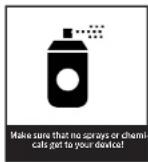
Before you clean it, disconnect it from the power supply. Use only clean and dry clothes to clean your appliance. If the appliance is very dirty, you can clean the unit with a damp cloth and mile cleaning fluid. Never use liquids such as gasoline, alcohol, petroleum or other solvents.
TRANSPORT THE UNIT
Please keep the packaging and the instructions for use so that you can pack the unit properly for transporting or shipping. The original packaging is designed so that you can safely transport or ship the device. Please keep this manual for future reference.

- Block Multiroom | Bluetooth | HIFI ○ ● ●
- CONTENTS:
- Block
- SAFETY INSTRUCTIONS
- HANDLING BATTERIES
- SAFE POSITIONING
- SECURE CONNECTION
- SAFE USE
- STRUCTURE OF THE BLOCK A
- THE USB-PORT
- THE INTERNETRADIO
- CONNECTING EXTERNAL DEVICES USING BLUETOOTH®
- THE AUX CONNECTION
- PAIR AN EXTERNAL DEVICE WITH THE BLOCK A:
- PLAYING AUDIO FILES:
- HOW TO USE SPOTIFY CONNECT
- CARE AND TRANSPORT
- CARE AND CLEANING OF THE APPLIANCE
- TRANSPORT THE UNIT
Brand : Block
Model : A
Category : Audio player