
Mobile drive USB-C - External hard drive LACIE - Free user manual and instructions
Find the device manual for free Mobile drive USB-C LACIE in PDF.


User questions about Mobile drive USB-C LACIE
0 question about this device. Answer the ones you know or ask your own.
Ask a new question about this device
Download the instructions for your External hard drive in PDF format for free! Find your manual Mobile drive USB-C - LACIE and take your electronic device back in hand. On this page are published all the documents necessary for the use of your device. Mobile drive USB-C by LACIE.
USER MANUAL Mobile drive USB-C LACIE
natural_image
Two silver rectangular electronic devices with ports, shown from front and side views (no visible text or symbols)
Click here to access an up-to-date online version
of this document. You will also find the most recent content as well as expandable illustrations, easier navigation, and search capability.
Minimum system requirements 4
2 LED Indicator and Cables 6
Status Light Information 6
USB-C 6
USB-C-to-USB-C 6
USB-C-to-USB 3.0/2.0 Type A 7
3 Getting Connected 8
STEP 1 - Connect the USB cable....8
STEP 2 - LaCie Setup Assistant....10
- Launch LaCie Setup Assistant - Mac.... 10
- Launch LaCie Setup Assistant - Windows.... 11
• LaCie Selup AssistantSteps 12
STEP 3 - LaCie Desktop Manager (Optional) 13
4 LaCie Desktop Manager 14
Install LaCie Desktop Manager.... 14
LaCie Desktop Manager quick access 14
Info tab....15
Eco tab 16
- Uninstall LaCie Desktop Manager 17
• Mac....17
- Windows 17
5 Unmounting Your Drive 18
Mac....18
Windows 18
6 Optional Formatting and Partitioning 20
About file system formats.... 20
• Mac 20
- Windows 20
Formatting instructions 21
- Windows 21
• Mac....21
7 Frequently asked questions 23
All users 23
- Problem: My file transfers are too slow.... 23
- Problem: I'm receiving file transfer error messages.... 23
Mac....24 - Problem: The drive icon does not appear on my desktop. 24
Windows 24 - Problem: The drive icon doesn't appear in Computer. 24
Introduction
Welcome to the user manual for the LaCie Porsche Design Mobile Drive. This exciting family of hard drives combines Porsche Design's sophisticated solid aluminum design with LaCie's cutting-edge technology. Connect its USB-C port to your computer for fast transfers of all your data.
Review this user manual for instructions on how to connect your hard drive to your computer. If this manual doesn't answer your questions or if you are having trouble, consult the Frequently asked questions section to help resolve common issues.
For advanced troubleshooting or to report a problem with your LaCie device, contact LaCie customer support.
Box content
• LaCie Porsche Design Mobile Drive
- USB-C-to-USB-C cable
- USB-C-to-USB Type A adapter cable (compatible with Type A USB 2.0 and USB 3.0 ports)
- Quick Install Guide
- Complete software suite: LaCie Private-Public, LaCie Backup Assistant, LaCie Desktop Manager (Eco Mode)

Note: A PDF of this user manual and software utilities are pre-loaded on the drive.

Important info: Save your packaging. In the event that the drive should need to be repaired or serviced, it must be returned in its original packaging.
Minimum system requirements
You can connect your LaCie device to a computer that meets the following minimum requirements:
- Windows 7 or higher
• Mac OS X 10.7 or higher

Note: For optimal performance, connect the product to a USB-C host port on your computer. To achieve full interface bandwidth, you can also connect the Porsche Design Mobile Drive to a USB 3.0 port on a computer or device. Connecting the Porsche Design Mobile Drive to a USB 2.0 port reduces performance to USB 2.0 transfer rates.
LED Indicator and Cables
Status Light Information
Your hard drive features a status light that provides general information about the product. Refer to the chart below for details.
| Light behavior Status | |
| On and steady Drive is on | |
| Flickering Data access | |
| On for 1 second, off for 30 seconds Eco mode | |
| Off Drive is off |
USB-C
USB is a serial input/output technology for connecting peripheral devices to a computer. USB-C is the latest implementation of this standard and it provides higher bandwidth and new power management features.
Transfer rates can attain up to 5Gb/s as opposed to USB 2.0's 480Mb/s. This means USB-C is theoretically up to ten times faster than its predecessor.
Your LaCie drive is shipped with two cables for universal compatibility with all modern computers:
- USB-C-to-USB-C
• USB-C-to-USB 3.0/2.0 Type A
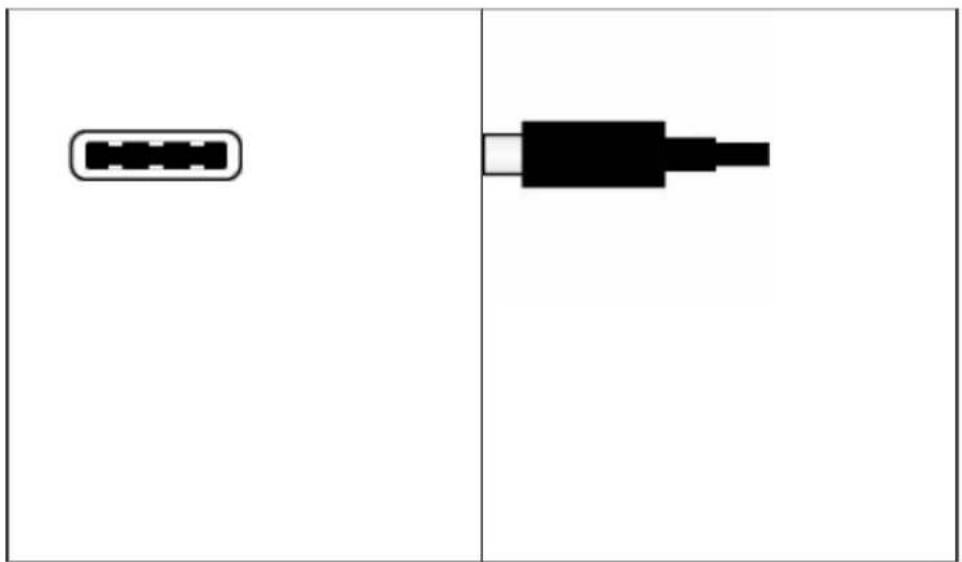
USB-C-to-USB-C
Use the USB-C-to-USB-C cable to ensure maximum data transfer performance when used with compatible ports. Connecting your product is easy since the USB-C cable is identical on both ends.
| Connector face Cable end |
natural_image
Two electronic component symbols: a rectangular connector and a black connector, shown side by side (no text or labels)USB-C-to-USB 3.0/2.0 Type A
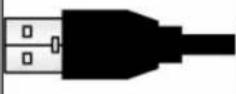
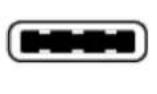
Use the USB-C-to-USB 3.0/2.0 Type A cable for compatibility with computers that do not have a USB-C port. The USB-C end is connected to the LaCie hard drive and the Type A end is connected to the computer's USB 3.0 or USB 2.0 Type A port. Drive performance is limited to USB 2.0 transfer rates when connected to a USB 2.0 port.
| Connector face (to computer) | Cable end (to computer) | Cable end (to product) | Connector face (to product) |
 |  |  |  |
Getting Connected
! Caution: Do not stack multiple LaCie Porsche Design Mobile Drives as they may overheat.
Installing your LaCie hard drive is easy thanks to LaCie Setup Assistant. Follow the setup steps in the order they are given to ensure that your LaCie hard drive's volume mounts correctly on your computer.
STEP 1 - Connect the USB cable
Before connecting the LaCie device, confirm the USB port on your computer. Your LaCie device is shipped with two cables (see LED Indicator and Cables):
- USB-C-to-USB-C: use this cable if your computer has a USB-C port.
-
USB-C-to-USB 3.0/2.0 Type A: use this cable if your computer does not have USB-C port.
-
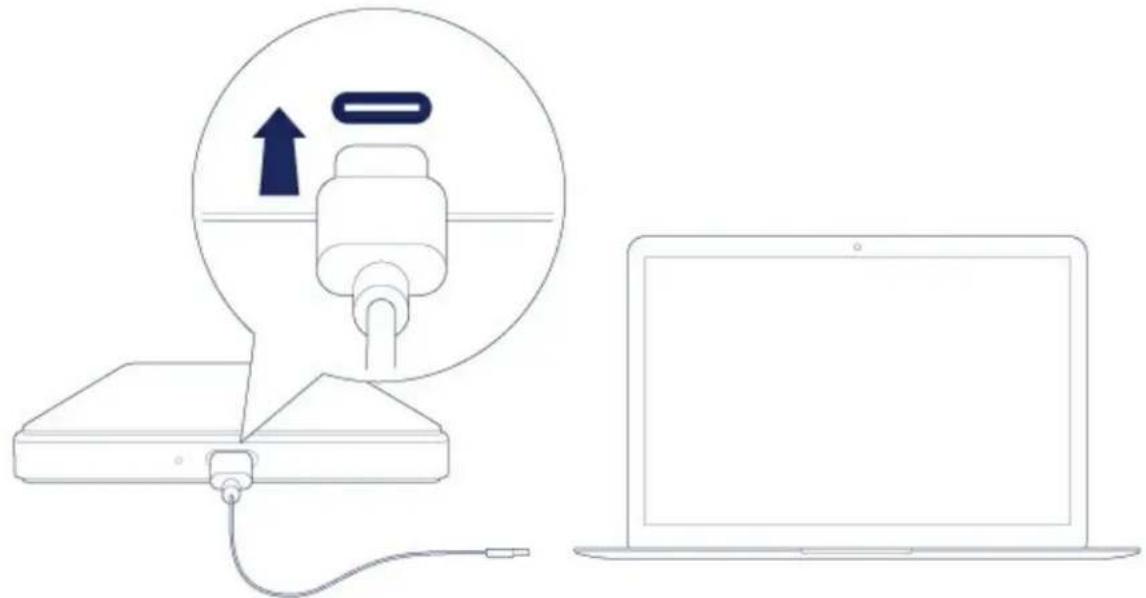
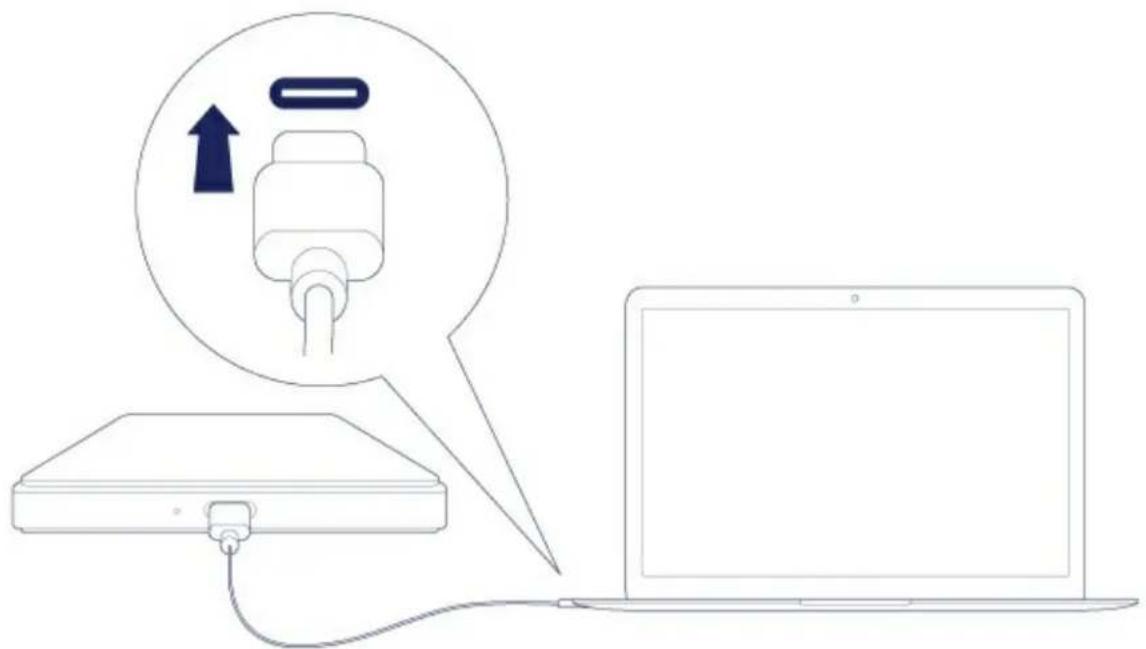
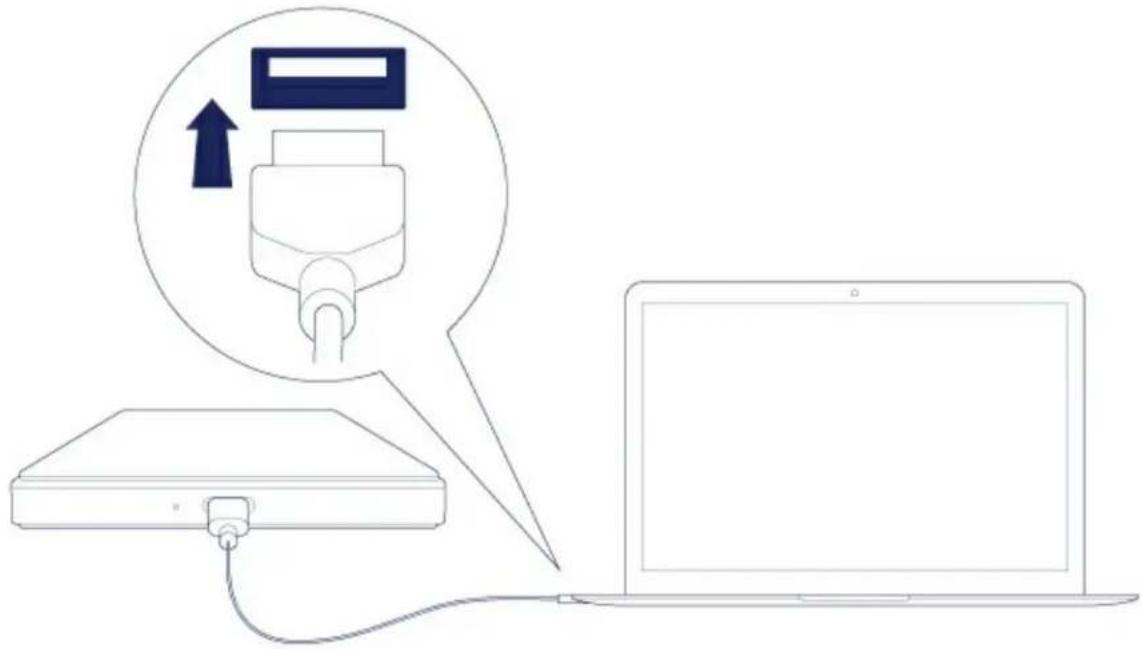
Connect the cable to the USB-C port on the back of the LaCie Porsche Design Mobile hard drive.
natural_image
Line drawing of a laptop connected to a device with an upward arrow, next to a battery plug (no text or symbols)- Connect the other end of the cable to your computer.
- The image below shows a connection to a computer with a USB-C port.
text_image
Diagram showing a device connected to a laptop via cable, with an icon indicating the connection point.- The image below shows a connection to a computer with a USB 3.0/2.0 Type A port.
natural_image
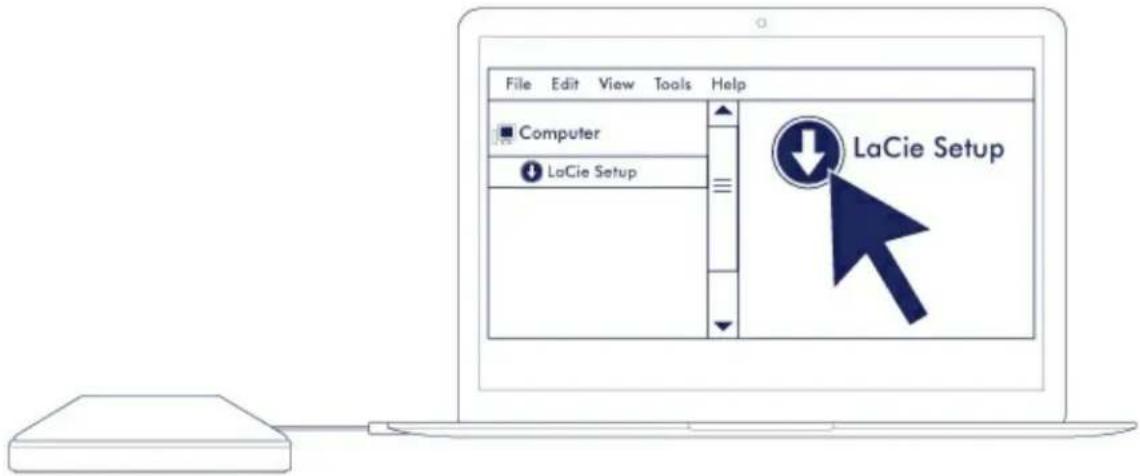
Line drawing of a laptop connected to an RJ48 network device, with an icon showing the RJ48 plug and cable (no text or symbols present)The drive partition mounts on your desktop (Mac) or in Computer (Windows).
text_image
File Edit View Tools Help Computer LaCie Setup LaCie Setup
Note: If the drive does not mount on your computer, see troubleshooting topics in the Frequently asked questions section to help resolve common issues.
STEP 2 - LaCie Setup Assistant
LaCie Setup Assistant must be launched before using your drive. It will allow you to:
- Easily format the hard drive according to your needs.
• Copy the user manual to the hard drive.
• Install software for added features. - Register your LaCie device.

Important info: If you do not launch LaCie Setup Assistant or if you quit it after the formatting has begun, your drive will not be ready to use and will require manual formatting. Additionally, the user manual and utilities will not be available and must be downloaded from the LaCie customer support.
Launch LaCie Setup Assistant - Mac
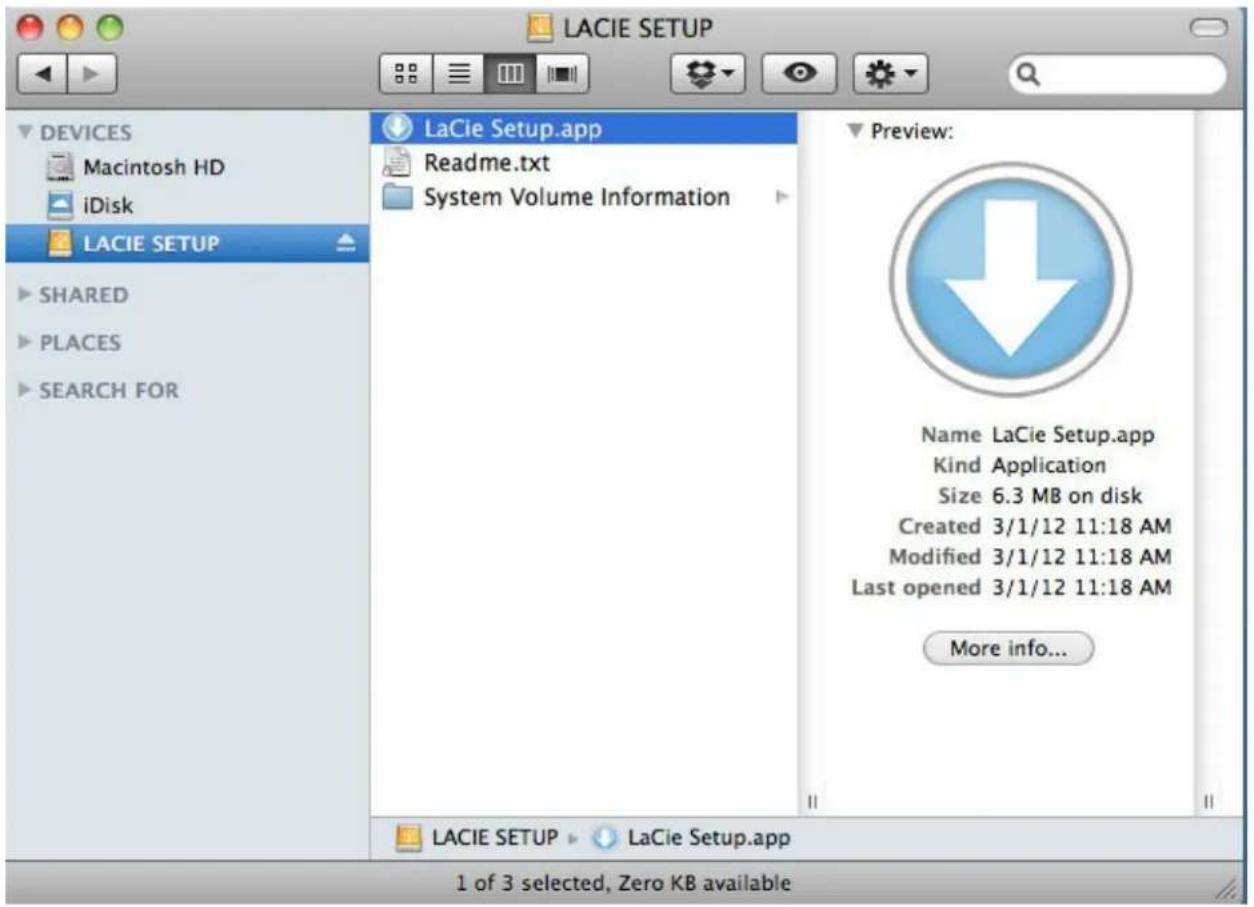
Open the LACIE SETUP volume on your desktop and then double click LaCie Setup.
text_image
LACIE SETUP DEVICES Macintosh HD iDisk LACIE SETUP SHARED PLACES SEARCH FOR LaCie Setup.app Readme.txt System Volume Information Preview: Name LaCie Setup.app Kind Application Size 6.3 MB on disk Created 3/1/12 11:18 AM Modified 3/1/12 11:18 AM Last opened 3/1/12 11:18 AM More info... LACIE SETUP > LaCie Setup.app 1 of 3 selected, Zero KB availableLaunch LaCie Setup Assistant - Windows
AutoPlay: Windows AutoPlay may detect your LaCie hard drive as soon as it is connected to your computer. If the AutoPlay window appears, choose Open folder to view files using Windows Explorer and double-click LaCie Setup.
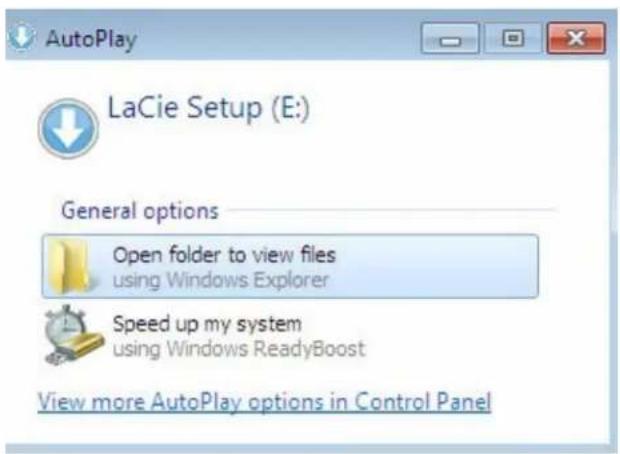
text_image
AutoPlay LaCie Setup (E:) General options Open folder to view files using Windows Explorer Speed up my system using Windows ReadyBoost View more AutoPlay options in Control PanelManual access: open the LACIE SETUP volume in Computer and double-click LaCie Setup.
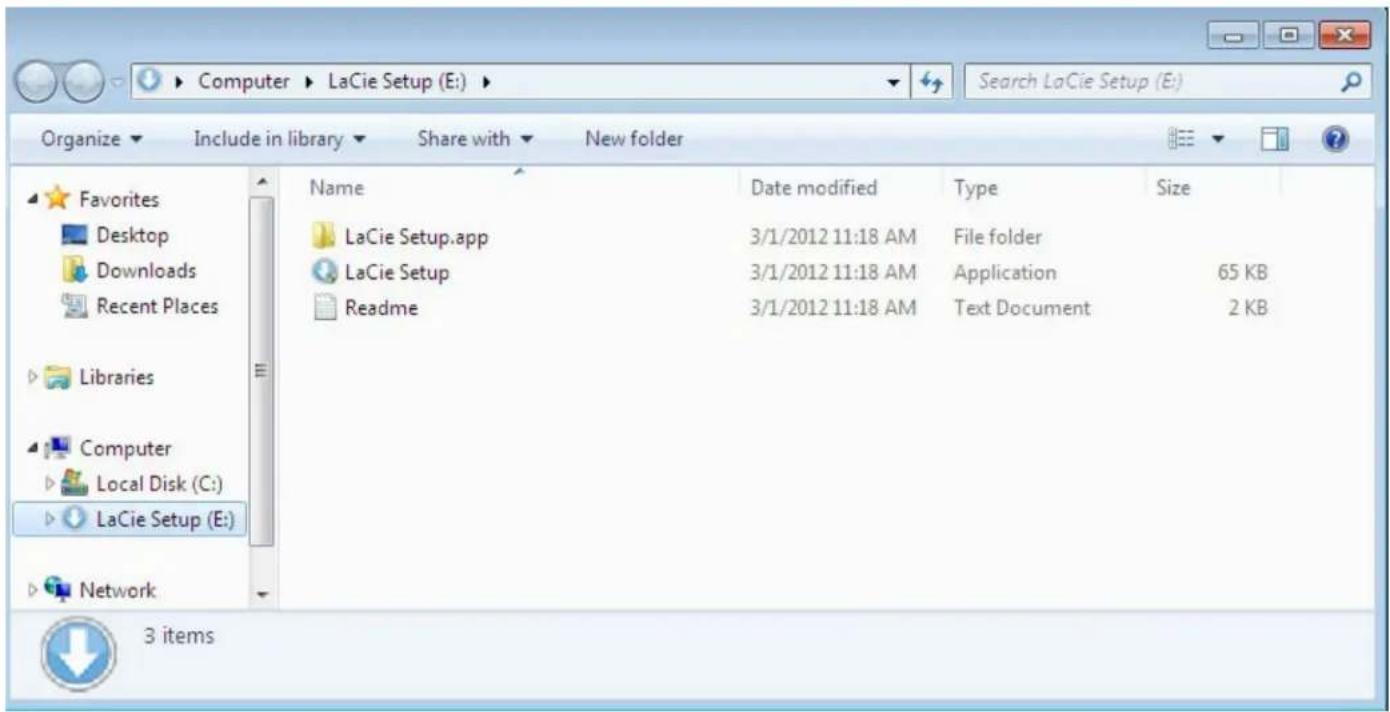
text_image
Computer > LaCie Setup (E:) Organize Include in library Share with New folder Search LaCie Setup (E:) Favorites Desktop Downloads Recent Places Libraries Computer Local Disk (C:) LaCie Setup (E:) Network Name Date modified Type Size LaCie Setup.app 3/1/2012 11:18 AM File folder LaCie Setup 3/1/2012 11:18 AM Application 65 KB Readme 3/1/2012 11:18 AM Text Document 2 KB 3 itemsLaCie Setup Assistant steps
Follow the steps below to format your LaCie device for your operating system. LaCie Setup Assistant guides you through formatting and registering your hard drive as well as installing LaCie software utilities.
You can also use your system's native disk utility program to format or partition your LaCie drive. If you use the disk utility, you can download software utilities and the user manual from LaCie customer support.

Important info for Mac users: You may be prompted to enter your computer password to continue with LaCie Setup Assistant.

Important info for Windows users: While running LaCie Setup Assistant, generic pop-up windows may ask if you wish to change your computer's settings. This is a normal request when formatting a disk or installing certain software, such as Genie Timeline. To successfully complete LaCie Setup Assistant, LaCie recommends that you agree to change the settings.
- Select your language.
- Read the license agreement before choosing Next. Selecting Next confirms that you accept the license agreement.
- Use the slider to partition your LaCie hard drive. There are two options for partitions:
• LaCie Share: formatted as FAT32 for compatibility with Windows and Mac.
• LaCie: formatted for your operating system, NTFS for Windows or HFS+ for Mac.
Move the slider to the left to reduce the size of the LaCie Share partition. If you do not want the LaCie Share volume, move the slider all the way to the left.
- A prompt alerts you that the disk will be formatted. Select Yes to continue. LaCie Setup Assistant formats the hard drive.
- Register your LaCie device.
- Choose the software utilities that you want to install. Certain software utilities may begin to install before LaCie Setup Assistant has finished. Follow the software utility installer before completing LaCie Setup Assistant. If you do not install software utilities during this step, you can return to LaCie Setup Assistant at any time.
- LaCie Setup Assistant provides a summary of the installation. Choose Finish to close the program.
To install software utilities after the initial installation, you can run LaCie Setup Assistant again. Since the format is complete you are only prompted to choose software utilities. LaCie Setup Assistant is available on:
• LaCie Share: if you created two partitions
• LaCie: if you created one partition
STEP 3 - LaCie Desktop Manager (Optional)
LaCie Desktop Manager is a software utility available in LaCie Setup Assistant. It can help you manage your LaCie drive's Eco mode and provide additional information. See LaCie Desktop Manager for details.
LaCie Desktop Manager
LaCie Desktop Manager allows you to see advanced information about your LaCie drive and to configure Eco mode.
Install LaCie Desktop Manager
To confirm that LaCie Desktop Manager is already installed on your computer, check the following:
• Windows: go to Search and type
. If it appears, you can skip the installation
steps.
- Mac: go to Go > Applications and look for LaCie Desktop Manager. If it appears, you can skip the installation steps.
If you do not have LaCie Desktop Manager, follow the instructions below to install it:
- In a Windows Explorer window or on the Mac desktop, double click the LaCie hard drive partition with LaCie Setup Assistant. The original partition name can be or . If you have changed the names of your partitions, perform a search on the partitions using your operating system.
- Open the folder LaCie Setup.
- Double click LaCie Setup to launch the installer.
- Select your language.
- Read the license agreement before choosing Next. Selecting Next confirms that you accept the license agreement.
- Register your LaCie device if you have not already registered it.
- Select LaCie Desktop Manager to install the software and complete the setup.
The installer for LaCie Desktop Manager is also available at LaCie customer support.
LaCie Desktop Manager quick access
You can access LaCie Desktop Manger by clicking its icon:
- Windows: system tray

text_image
LACIE 08:25 02/12/2009- Mac: menu bar
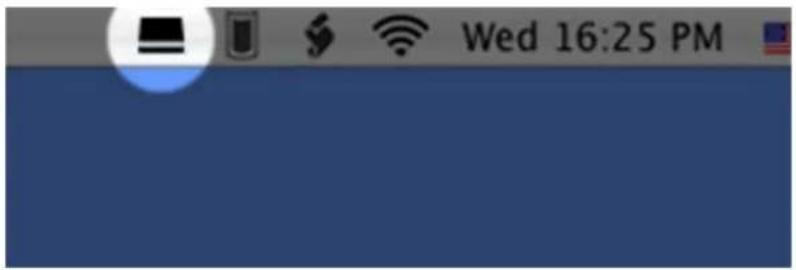
text_image
Wed 16:25 PMInfo tab
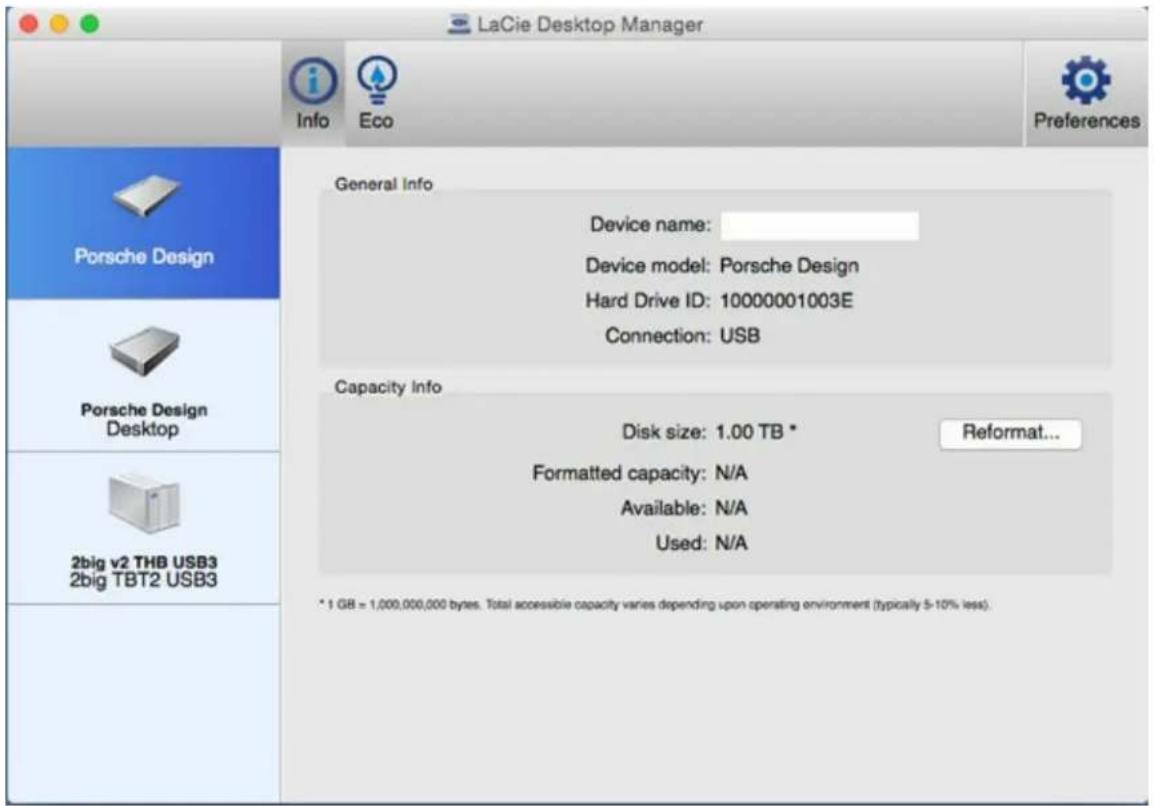
text_image
LaCie Desktop Manager Info Eco Preferences General Info Device name: Device model: Porsche Design Hard Drive ID: 10000001003E Connection: USB Capacity Info Disk size: 1.00 TB * Reformat... Formatted capacity: N/A Available: N/A Used: N/A * 1 GB = 1,000,000,000 bytes. Total accessible capacity varies depending upon operating environment (typically 5-10% less).LaCie Desktop Manager shows all compatible connected LaCie devices on the left-hand column. Choose the drive you want to view and click the Info tab. On this page you can review advanced information about your drive such as device name, the internal hard disk serial number (not the LaCie product serial number), available capacity, connection type, etc.
You can also reformat the drive by clicking Reformat. LaCie Desktop Manager directs you to your operating system's disk utility. For information on how to format your hard drive using the disk utility, see Optional Formatting and Partitioning.
Caution: Formatting the hard drive deletes all of its data. If you have information that you want to protect or continue to use, back up the data on the hard drive before formatting it.
Eco tab
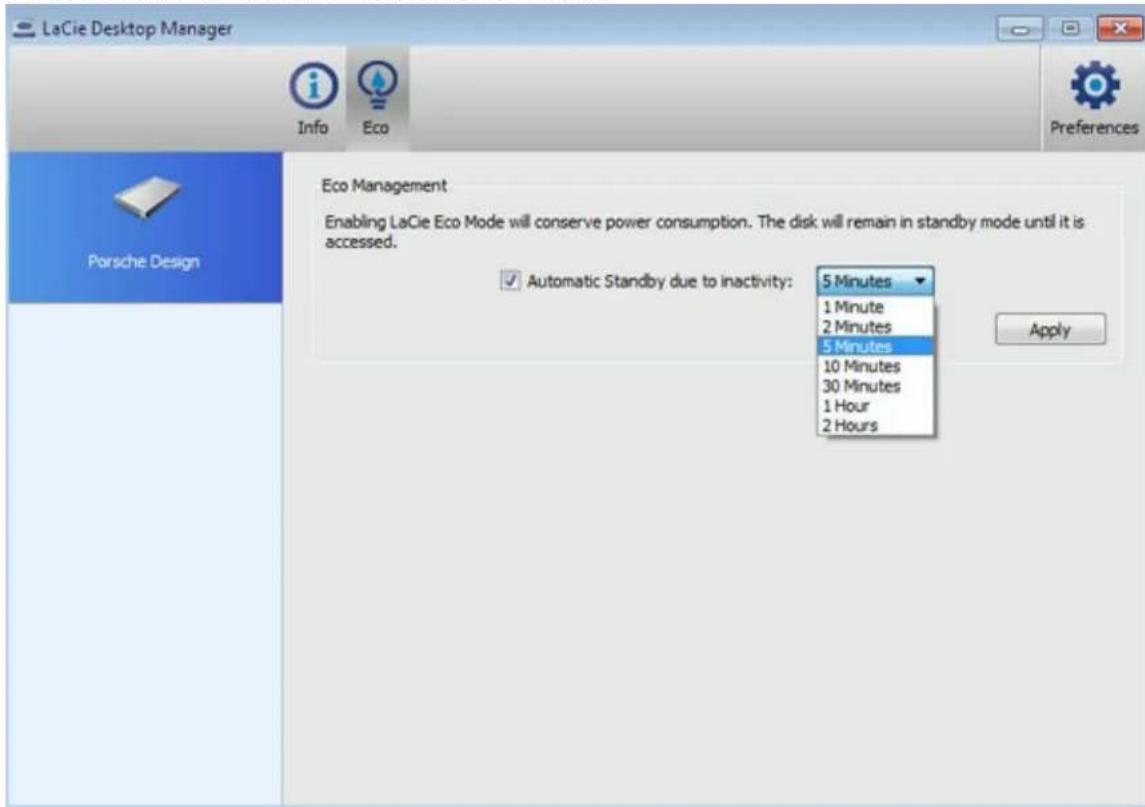
By default, your drive enters Eco mode after five minutes of inactivity in order to conserve energy. To exit Eco mode, access data on the drive and the disk automatically powers on.
You can manage this feature using LaCie Desktop Manager in the Eco tab.
Windows: deselect box for Automatic Standby due to Inactivity to turn off Eco mode or select a period of inactivity after which the drive enters Eco mode.
text_image
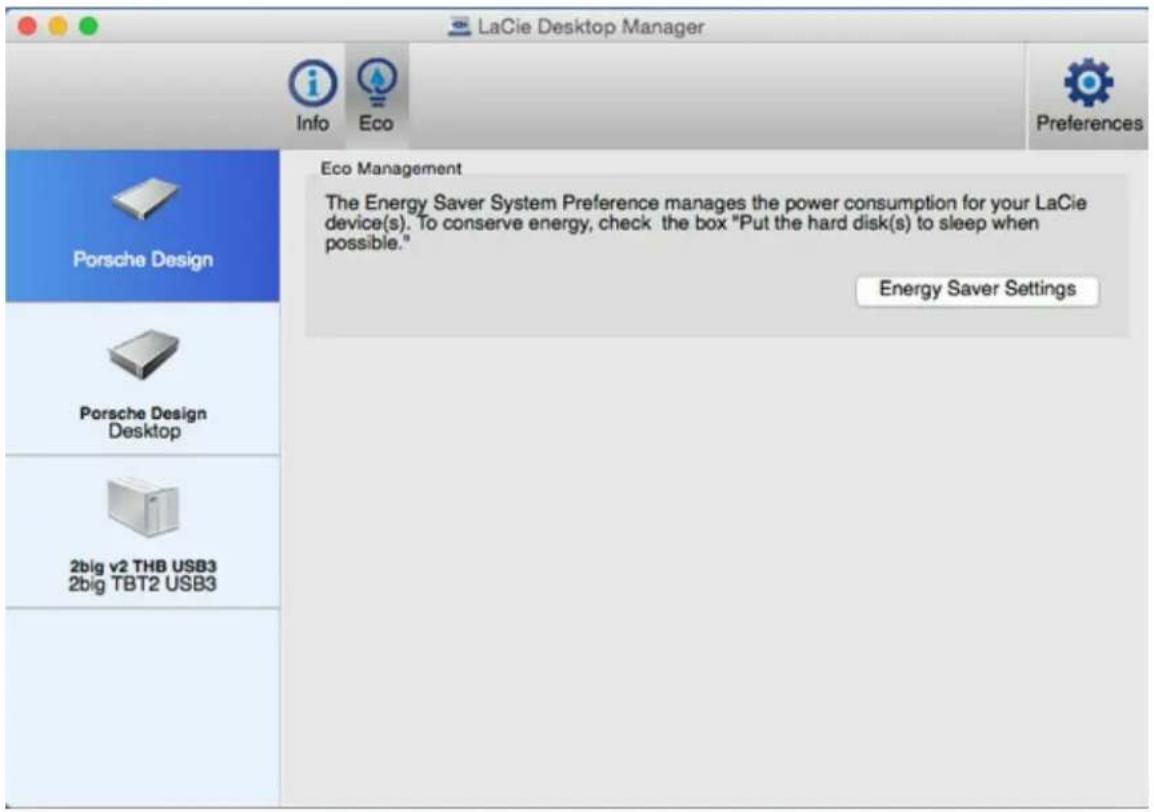
LaCie Desktop Manager Info Eco Preferences Porsche Design Eco Management Enabling LaCie Eco Mode will conserve power consumption. The disk will remain in standby mode until it is accessed. ✓ Automatic Standby due to inactivity: 5 Minutes 1 Minute 2 Minutes 5 Minutes 10 Minutes 30 Minutes 1 Hour 2 Hours ApplyMac: Mac OS manages Eco Mode. You can click Energy Saver Settings to enter the System Preferences. Select "Put the hard disk(s) to sleep when possible" to conserve energy.
text_image
LaCie Desktop Manager Info Eco Preferences Porsche Design Porsche Design Desktop 2big v2 THB USB3 2big TBT2 USB3 Eco Management The Energy Saver System Preference manages the power consumption for your LaCie device(s). To conserve energy, check the box "Put the hard disk(s) to sleep when possible." Energy Saver SettingsUninstall LaCie Desktop Manager
Mac
Click the LaCie Desktop Manager icon in the menu bar and then select Preferences. In the window that opens, click Uninstall LaCie Desktop Manager.
Windows
Use Control Panel to uninstall LaCie Desktop Manager.
Unmounting Your Drive
USB external devices feature “plug & play” connectivity, which means that your LaCie storage can be connected and disconnected while the computer is running. However, to prevent failures it is important to follow the steps below when disconnecting your device.
Mac
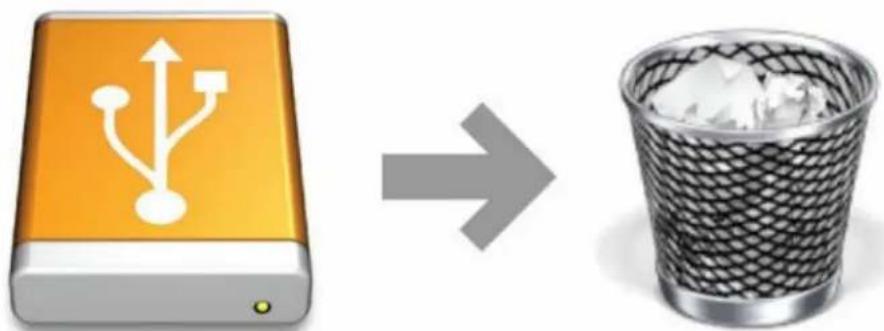
Drag the storage device icon to the Trash. When the icon disappears from the desktop, the storage device can be disconnected.
The icon pictured below is a generic USB device icon. A photorealistic icon that looks like the device may represent your LaCie storage.
natural_image
Icon showing a USB switch next to a trash bin with ice (no text or symbols)Windows
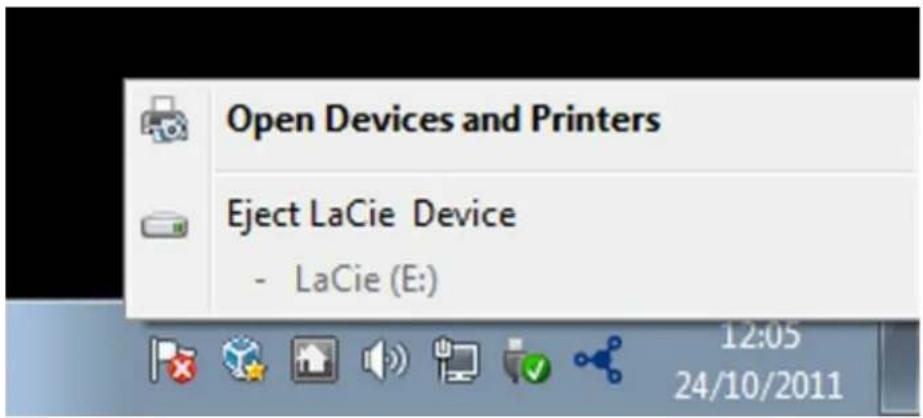
From the system tray on the lower right, click the plug icon. It has a white check mark inside a green circle.

text_image
08:25 02/12/2009A message appears detailing the devices that can be safely unmounted.
text_image
Open Devices and Printers Eject LaCie Device - LaCie (E:) 12:05 24/10/2011Select Eject for the device you want to unmount. A message appears notifying you that it is safe to remove the drive.
Optional Formatting and Partitioning
You can use LaCie Setup Assistant to format your LaCie hard drive when it is first connected to a computer (Windows or Mac). LaCie Setup Assistant helps you to quickly format the storage device according to your needs.
Read the information below if you:
- Aborted LaCie Setup Assistant while it was formatting.
- Want to reformat your storage device after LaCie Setup Assistant has successfully completed.
- Own a LaCie storage device that does not feature Setup Assistant (for example, LaCie USB keys or RAID devices).
About file system formats
Before following the instructions to format your hard drive, review the hard drive file formats available on your computer.
Mac
Mac OS Extended (HFS+): compatible with Mac only. Mac OS Extended refers to the file system used by Mac OS X.
exFAT: compatible with Mac and Windows. exFAT is used as an alternative to FAT32 since it does not share the same limitations. It is therefore an excellent cross-platform file system.
FAT32: compatible with Mac and Windows. A FAT32 partition can reach 2TB when formatted on a Mac. The individual file size is limited to 4GB. FAT32 can affect your hard drive's performance.
Mac file system formats
Use HFS+ if:
...you will be using the storage device on Macs only.
Use exFAT if:
...you will be using your storage device with both Windows and Mac computers.
Use FAT32 if:
...you will be using your storage device with Windows and Mac computers, and at least one of these computers is incompatible with exFAT.
Windows
NTFS: since it is the native file system for Windows, volumes created in NTFS are read and write with computers running Windows. Earlier versions of Mac OS X 10.5 or higher may read and write to the NTFS partitions with the help of third-party drivers. There are two formats for NTFS, MBR and GPT. The maximum volume size for MBR is 2TB while the more recent GPT format does not assign limits to file or partition sizes.
exFAT: compatible with Mac and Windows. exFAT is used as an alternative to FAT32 since it does not share the same limitations. It is therefore an excellent cross-platform file system.
FAT32: compatible with Mac and Windows. A FAT32 partition can reach up to 32GB when formatted with Windows. The individual file size is limited to 4GB. FAT32 can affect your hard drive's performance.
Windows file system formats
Use NTFS if:
...you will be using the storage device only with Windows computers since performance is optimal when compared to exFAT or FAT32.
Use exFAT if:
...you will be using your storage device with both Windows and Mac computers.
Use FAT32 if:
...you will be using your storage device with Windows and Mac computers, and at least one of these computers is incompatible with exFAT.
Formatting instructions
The steps below can help you format and partition a storage device.
Caution: Formatting erases everything on the storage device. LaCie highly recommends that you back up all data on your storage device before performing the steps below. LaCie is not responsible for any data lost due to formatting, partitioning or using a LaCie storage device.

Note: Refer to your operating system's documentation for more information on formatting and partitioning storage devices.
Windows
- Make sure the storage device is connected to and mounted on the computer.
- Right click on Computer and choose Manage. From the Manage window select Disk Management.
- From the list of storage devices in the middle of the Disk Management window, locate your LaCie device.
- To create a new partition, right click on the volume and select New Simple Volume. Follow the on-screen instructions when the New Simple Volume Wizard appears.
Mac
- Make sure the storage device is connected to and mounted on the computer.
- Select Go > Utilities in the Finder menu bar.
- In the Utilities folder, double-click Disk Utility. ☐All connected storage devices, partitions or disk images are displayed in the left column.
-
Select the LaCie drive in the left-hand column.
-
Click the Erase tab.
- Choose a format from the drop-down window.
- Enter the volume a name.
- Click Erase and confirm your selection in the pop-up window.
Frequently asked questions
For help setting up and using your LaCie hard drive, review the frequently asked questions below. For additional support resources, go to LaCie customer support.
All users
Problem: My file transfers are too slow.
Q: Are both ends of the USB cable firmly attached?
A: Review troubleshooting tips for cable connections below:
- Check both ends of the USB cable and make sure that they are fully seated in their respective ports.
- Try disconnecting the cable, waiting 10 seconds, and then reconnecting it.
- Try a different USB cable.
- If the drive is still not recognized, restart your computer and try again.
Q: Are there other USB devices connected to the same port or hub?
A: Disconnect other USB devices and see if the drive's performance improves.
Q: Is the drive connected to a USB 2.0 port on your computer or hub?
A: If your drive is connected to a USB 2.0 port or hub, the inferior performance is normal. A USB-C device can only operate at USB-C performance levels when it is connected directly to a USB-C port or Type-A USB 3.0 port. Otherwise, the USB-C device operates at the slower USB transfer rates.
Q: Does your computer or operating system support USB-C or USB 3.0?
A: Confirm that your computer and operating system support USB 3.0.
Q: Is your computer's internal hard drive limiting transfer speeds?
A: A computer with a low-performance internal hard drive can limit transfer speeds for external hard drives.
Problem: I'm receiving file transfer error messages.
Q: Did you get an "Error -50" message while copying to a FAT32 volume?
A: When copying files or folders from a computer to a FAT 32 volume, certain characters in the names cannot be copied. These characters include, but are not limited to: ? < > / \ :
Check your files and folders to ensure that these characters are not in the names.
If this is a recurring problem or you cannot find files with incompatible characters, consider reformatting the
drive to NTFS (Windows users) or HFS+ (Mac users). See Optional Formatting and Partitioning.
Q: Did you get an error message telling you that the drive has been disconnected when coming out of sleep mode?
A: Ignore this message since the drive remounts on the desktop despite the pop-up. LaCie drives conserve power by spinning down when you set your computer to sleep mode. When the computer awakes from sleep mode, the drive may not have enough time to spin up, causing the pop-up to appear.
Mac
Problem: The drive icon does not appear on my desktop.
Q: Is your Finder configured to hide hard drives on the desktop?
A: Go to Finder and then check Preferences > General tab > Show these items on the desktop. Confirm that Hard Disks is selected.
Q: Is your drive mounting in the operating system?
A: Open Disk Utility at Go > Utilities > Disk Utility. If the drive is listed in the left-hand column, check your Finder preferences to see why it is not displayed on the desktop (review the question above).
Q: Does your computer's configuration meet the minimum system requirements for use with this drive?
A: Refer to the product packaging for the list of supported operating systems.
Q: Did you follow the correct installation steps for your operating system?
A: Review the installation steps in Getting Connected.
Windows
Problem: The drive icon doesn't appear in Computer.
Q: Is the drive listed in Device Manager?
A: All drives appear in at least one place in Device Manager.
- Windows 7 and 10: Click Start and right click on the Computer to select Device Manager.
- Windows 8: In the modern interface, type Device Manager and then click it.
Look in the Disk Drives section and, if necessary, click the plus sign to view the full list of devices. If you're uncertain that your drive is listed, unplug it and then reconnect it. The entry that changes is your LaCie drive.
Q: Is your drive listed next to an unusual icon?
A: Windows Device Manager usually provides information about failures with peripherals. While the Device Manager can assist with troubleshooting most problems, it may not display the exact cause or provide a precise solution.
An unusual icon next to the hard drive can reveal a problem. For example, instead of the normal icon based on the type of device, it is instead an exclamation point, question mark or an X. Right click this icon and then choose Properties. The General tab provides a potential reason why the device is not working as expected.