
DMR-EH75 - DVD Recorder PANASONIC - Free user manual and instructions
Find the device manual for free DMR-EH75 PANASONIC in PDF.


| Product Type | DVD Recorder with HDD and VHS |
| Model Number | DMR-EH75V |
| Hard Disk Drive (HDD) Capacity | 80 GB |
| Playable Discs | DVD-RAM, DVD-R, DVD-R DL, DVD-RW (Video mode), +R, +R DL, +RW, DVD-Video, DVD-Audio, Video CD, CD, CD-R/RW (MP3, JPEG, TIFF, DivX) |
| Recording Discs | DVD-RAM, DVD-R, DVD-RW (Video mode), +R, +RW |
| Card Slot | SD Memory Card (8 MB to 2 GB) |
| Video Recording Formats | MPEG2 (DVD Video Recording format for HDD and DVD-RAM) |
| Recording Modes (HDD/DVD) | XP (high quality), SP (standard), LP (long play), EP (extra long play), FR (flexible) |
| Recording Modes (VHS) | SP, EP, VP |
| TV Tuner | NTSC (analog) with MTS stereo/SAP |
| TV Guide On Screen | 8-day program listings (USA/Canada only, requires IR Blaster for cable/satellite) |
| VCR Plus+ | Yes |
| Video Outputs | HDMI (with HDAVI Control), Component (Y/Pb/Pr), S-Video, Composite (RCA), RF (VHF/UHF) |
| Audio Outputs | HDMI, Optical digital audio, Analog stereo (RCA) |
| Inputs | Composite (AV IN 2, 3), S-Video, DV (i.LINK), RF |
| Power Consumption | Approx. 16 W (standby), approx. 30 W (operating) |
| Region Code | 1 (for DVD-Video) |
| Accessories Included | Remote control, 75 Ω coaxial cable, Audio/Video cable, IR Blaster, DVD-RAM disc, batteries, product registration card |
| Safety Certifications | FCC Class B, Laser Class 1/Class 3B |
| Cleaning | Use soft dry cloth; DVD lens cleaner RP-CL720PP recommended annually |
| Warranty | Limited warranty (see page 95 of manual) |
Frequently Asked Questions - DMR-EH75 PANASONIC
User questions about DMR-EH75 PANASONIC
0 question about this device. Answer the ones you know or ask your own.
Ask a new question about this device
Download the instructions for your DVD Recorder in PDF format for free! Find your manual DMR-EH75 - PANASONIC and take your electronic device back in hand. On this page are published all the documents necessary for the use of your device. DMR-EH75 by PANASONIC.
USER MANUAL DMR-EH75 PANASONIC
Operating Instructions
DVD Recorder
Model No. DMR-EH75V












Dear Customer
Thank you for purchasing this product. For optimum performance and safety, please read these instructions carefully.
Before connecting, operating or adjusting this product, please read the instructions completely.
Please keep this manual for future reference.
Region number supported by this unit
Region numbers are allocated to DVD players and DVD-Video according to where they are sold.
- The region number of this unit is "1".
- The unit will play DVDs marked with labels containing "1" or "ALL".
Example:


If you have any questions contact 1-800-211-PANA (7262)
The warranty can be found on page 95.
THIS PRODUCT UTILIZES A LASER.
USE OF CONTROLS OR ADJUSTMENTS OR PERFORMANCE OF PROCEDURES OTHER THAN THOSE SPECIFIED HEREIN MAY RESULT IN HAZARDOUS RADIATION EXPOSURE. DO NOT OPEN COVERS AND DO NOT REPAIR YOURSELF. REFER SERVICING TO QUALIFIED PERSONNEL.
WARNING:
TO REDUCE THE RISK OF FIRE, ELECTRIC SHOCK OR PRODUCT DAMAGE, DO NOT EXPOSE THIS APPARATUS TO RAIN, MOISTURE, DRIPPING OR SPLASHING AND THAT NO OBJECTS FILLED WITH LIQUIDS, SUCH AS VASES, SHALL BE PLACED ON THE APPARATUS.
| DANGER - VISIBLE AND INVISIBLE LASER RADIATION WHEN OPEN. AVOID DIRECT EXPOSURE TO BEAM.FDA 21 CFR/Class Bb | |
| 注意 | - 打开时有可见及不可见激光辐射,避免光来照射。 |
| 注意 | - ここを聞くと可视及び不可視レーザ光が出す。 |
| - ピームを見たり、難のたりしないでください。 | |
| CAUTION - CLASS 38 VISIBLE AND INVISIBLE LASER RADIATION WHEN OPEN. AVOID EXPOSURE TO THE BEAM.IC00825-1 AD/Class 38 | |
| ATTENTION- RAYONNEMENT LASER VISIBLE ET INVISIBLE CLASSE 38 EN CAS DU'OUVERTURE, EVITER UNE EXPOSITION AU PAISZEEN. | |
| FORSIGTIG - SYNJIG OG USYNJIG LASERSTRALING KLASSE 38 NAR LAGET ER ABENT. UNDGA AT BLIVE UDSAT FOR STRÄLEN. | |
| VARO - AWATTESSA OLET ALTINA LUOKAN 38 NAKYVÄ JA NAKYMÄTÖNTÄ LASERSATELYA, VARO ALISTUMISTA SETELLE. | |
| VARNING - KLAS 38 SYNJIG OCH OSYNJIG LASERSTRALING NAR DENNA DEL AR ÖPPNAD UNIVK EXPONERING FOR STRÄLEN. | |
| VORSICHT - SICHTBARE UND UNSICHTBARE LASERSTRALHUNG KLASSE 38, WENN ABECKING GEÖFFNET NICHT DEM STRÄHL, AUSSETZEN. | |
| CAUTION - VISIBLE AND INVISIBLE LASER RADIATION WHEN OPEN. AVOID EXPOSURE TO THE BEAM.IC00825-1 | |
| ATTENTION- RAYONNEMENT LASER VISIBLE ET INVISIBLE EN CAS DU'OUVERTURE, EXPOSITION DANGERSE AU PAISZEAL. | |
| ADVERSEL - SYNJIG OG USYNJIG LASERSTRALING VED ABNING. UNDUR UNSICE TETTELLE FOR STRÄLEN. | |
| VARO! - AWATTESSA OLET ALTINA NAKYVÄ JA NAKYMÄTÖN LASERSATELYLLE. ÄLA KATSO SATEESEN. | |
| VARNING - SYNJIG OCH OSYNJIG LASERSTRALING NAR DENNA DEL AR ÖPPNAD, BETRAKTA EJ STRÄLEN. | |
| VORSICHT - SICHTBARE UND UNSICHTBARE LASERSTRALHUNG, WENN ABECKING GEÖFFNET NICHT DEM STRÄHL, AUSSETZEN. | |
| ADVERSEL - SYNJIG OG USYNJIG LASERSTRALING NAR DEKSEL ÁPNES, UNIVG ASKPOKNERING FOR STRÄLEN.VQLI J67 | |
(Inside of product)

CAUTION
RISK OF ELECTRIC SHOCK DO NOT OPEN

CAUTION: TO REDUCE THE RISK OF ELECTRIC SHOCK, DO NOT REMOVE SCREWS. NO USER-SERVICEABLE PARTS INSIDE. REFER SERVICING TO QUALIFIED SERVICE PERSONNEL.

The lightning flash with arrowhead symbol, within an equilateral triangle, is intended to alert the user to the presence of uninsulated “dangerous voltage” within the product’s enclosure that may be of sufficient magnitude to constitute a risk of electric shock to persons.

The exclamation point within an equilateral triangle is intended to alert the user to the presence of important operating and maintenance (servicing) instructions in the literature accompanying the appliance.
CAUTION!
DO NOT INSTALL OR PLACE THIS UNIT IN A BOOKCASE, BUILT-IN CABINET OR IN ANOTHER CONFINED SPACE. ENSURE THE UNIT IS WELL VENTILATED. TO PREVENT RISK OF ELECTRIC SHOCK OR FIRE HAZARD DUE TO OVERHEATING, ENSURE THAT CURTAINS AND ANY OTHER MATERIALS DO NOT OBSTRUCT THE VENTILATION VENTS.
Note to CATV system installer:
This reminder is provided to call the CATV system installer's attention to Article 820-40 of the NEC that provides guidelines for proper grounding and, in particular, specifies that the cable ground shall be connected to the grounding system of the building, as close to the point of cable entry as practical.
The socket outlet shall be installed near the equipment and easily accessible. The mains plug of the power supply cord shall remain readily operable. To completely disconnect this apparatus from the AC Mains, disconnect the power supply cord plug from AC receptacle.
FCC Note:
This equipment has been tested and found to comply with the limits for a Class B digital device, pursuant to Part 15 of the FCC Rules. These limits are designed to provide reasonable protection against harmful interference in a residential installation. This equipment generates, uses, and can radiate radio frequency energy and, if not installed and used in accordance with the instructions, may cause harmful interference to radio communications. However, there is no guarantee that interference will not occur in a particular installation. If this equipment does cause harmful interference to radio or television reception, which can be determined by turning the equipment off and on, the user is encouraged to try to correct the interference by one or more of the following measures:
Reorient or relocate the receiving antenna. Increase the separation between the equipment and receiver. Connect the equipment into an outlet on a circuit different from that to which the receiver is connected. Consult the dealer or an experienced radio/TV technician for help.
FCC Caution: To assure continued compliance, follow the attached installation instructions and use only shielded interface cables when connecting to peripheral devices.
Any changes or modifications not expressly approved by the party responsible for compliance could void the user's authority to operate this equipment.
This device complies with Part 15 of the FCC Rules. Operation is subject to the following two conditions: (1) This device may not cause harmful interference, and (2) this device must accept any interference received, including interference that may cause undesired operation.
Responsible Party:
Panasonic Corporation of North America
One Panasonic Way
Secaucus, NJ 07094
Telephone No.: 1-800-211-7262
IMPORTANT SAFETY INSTRUCTIONS
Read these operating instructions carefully before using the unit. Follow the safety instructions on the unit and the applicable safety instructions listed below. Keep these operating instructions handy for future reference.
1) Read these instructions. 2) Keep these instructions. 3) Heed all warnings. 4) Follow all instructions. 5) Do not use this apparatus near water. 6) Clean only with dry cloth. 7) Do not block any ventilation openings. Install in accordance with the manufacturer's instructions.
8) Do not install near any heat sources such as radiators, heat registers, stoves, or other apparatus (including amplifiers) that produce heat.
9) Do not defeat the safety purpose of the polarized or grounding-type plug. A polarized plug has two blades with one wider than the other. A grounding-type plug has two blades and a third grounding prong. The wide blade or the third prong are provided for your safety. If the provided plug does not fit into your outlet, consult an electrician for replacement of the obsolete outlet.
10) Protect the power cord from being walked on or pinched, particularly at plugs, convenience receptacles, and the point where they exit from the apparatus. 11) Only use attachments/accessories specified by the manufacturer. 12) Use only with the cart, stand, tripod, bracket, or table specified by the manufacturer, or sold with the apparatus. When a cart is used, use caution when moving the cart/apparatus combination to avoid injury from tip-over. 13) Unplug this apparatus during lightning storms or when unused for long periods of time. 14) Refer all servicing to qualified service personnel. Servicing is required when the apparatus has been damaged in any way, such as power-supply cord or plug is damaged, liquid has been spilled or objects have fallen into the apparatus, the apparatus has been exposed to rain or moisture, does not operate normally, or has been dropped.

Getting started
IMPORTANT SAFETY INSTRUCTIONS ...... 2
Table of contents 3
- About descriptions in these operating instructions .... 4
HDD, disc and card information 5
- HDD and discs you can use for recording and play .... 5
- Discs that cannot be played .... 6
- Play-only discs [12 cm (5")/8 cm (3')]....7
- Cards you can use on this unit....7
- Regarding DivX discs, MP3 discs and still pictures (JPEG, TIFF) 8
Important notes for recording 9
HDD (Hard disk drive) handling care 10
Unit care.... 11
Disc and card handling 11
Video cassette information 11
Inserting a disc.... 12
Inserting a video cassette.... 12
Inserting/Removing the SD card 12
Accessories.... 13
The remote control 13
Control reference guide 14
- Remote control.... 14
- FUNCTIONS window 14
- Main unit.... 15
- The unit's display.... 15
STEP 1 Connection.... 16
- If your television does not have AUDIO/VIDEO terminals, an RF modulator is necessary.... 19
- If the antenna connector doesn't match.... 20
- DVD output and DVD/VHS output 20
- To enjoy even higher picture quality.... 21
- Connecting an amplifier or system component .... 21
- Connecting with an HDMI (High Definition Multimedia Interface) terminal .... 22
● Control with HDMI (HDAVI Control) 22
STEP 2 Setting up the TV Guide On Screen® system.... 23
STEP 3 Downloading....25
STEP 4 Set up to match your television and the unit's remote control .... 26
- Selecting television type.... 26
- Television operation 26
- When other Panasonic products respond to this remote control.... 26
Recording
Note about recording.... 27
- HDD and discs .... 27
- FR (Flexible Recording).... 27
- When the format confirmation screen is displayed 27
- When removing a recorded disc.... 27
- Recording modes and approximate recording times 28
• VHS 28
- Recording mode 28
- HDD, discs and VHS 28
- To specify a time to stop recording— One Touch Recording....28
- Watching the TV while recording.... 28
Recording television programs.... 29
- Recording television programs.... 29
- Selecting audio to record 30
- Flexible Recording mode (FR) 30
- Playing while you are recording 31
- Playing from the beginning of the title you are recording— Chasing playback 31
- Playing a title previously recorded while recording— Simultaneous rec and play 31
Scheduled recording 32
- Using the TV Guide On Screen® system to make scheduled recordings.... 32
- Manually programming scheduled recordings.... 33
- Using VCR Plus+ system to make scheduled recordings...... 33
- Check, change or delete a program.... 34
Utilizing the TV Guide On Screen® system.... 35
- Using the LISTINGS Service to set scheduled recording and scheduled reminder.... 36
- To make scheduled recording 36
- To make scheduled reminder 36
- Other Episode Options ......36
- Using the SEARCH Service to search TV programs by genre, keyword, etc. 37
- To search TV programs by genre....37
- To search TV programs by new keyword ....37
- To search TV programs by saved keyword ....37
- Using SETUP Service to change the settings of the TV Guide On Screen® system....38
- Access to the TV Guide On Screen® system setup screen—“Change system settings”....38
- Customizing the channel lineup – "Change channel display"......38
- Change the initial settings—“Change default options”....38
- Display progress in getting TV Guide On Screen data— "Display setup progress"......39
- Using SCHEDULE Service to check, change or delete a program set for scheduled recording or scheduled reminder manually ....39
- To change the previously set scheduled recording or scheduled reminder ....39
- Other Schedule Options ......39
- History Options ......39
Playing back
Playing recorded video contents/Playing play-only discs .....40
- Selecting recorded programs (titles) to play— Direct Navigator....40
● Operations during play....41
●Simple editing operations during play 42
- Changing audio during play 42
- Status messages....42
Playing DivX discs, MP3 discs and still pictures (JPEG/TIFF)......
- Selecting file type to play ....43 - To select file type....43
- Playing DivX discs....43 - Using the tree screen to find a folder....43 - About DivX VOD content....44
- Playing MP3 discs....44 - Using the tree screen to find a group....44
- Playing still pictures....44
- Useful functions during still picture play 45
Using on-screen menus ....46 - Common procedures ....46
- Disc menu—Setting the disc content ....46
- Play menu—Change the play sequence....46
- Video menu—Change the picture quality....47
- Audio menu—Change the sound effect 47
- Other menu-Change the display position ....47
Delete Navigator to delete titles 47
- Deleting titles or pictures during play ....47 Playing a video cassette ....48
● Operations....48
-Adjusting the playback picture 49 - Manual tracking 49 - Vertical locking adjustment 49
●VHS Index Search System (VISS) 49
- Changing audio ....49
●Auto Bilingual Choice Function 49
●S-VHS Quasi Playback (SQPB)......49
●Various on-screen display indications....50
Editing
Editing titles/chapters ....51
- Editing titles/chapters and playing chapters....51
- Title operations....52
- Chapter operations....52
Creating, editing and playing playlists ....53
- Creating playlists....53
●Editing and playing playlists/chapters 54
- Playlist operations....54
- Chapter operations....54
Editing still pictures 55
- Album and picture operation ....55
Copying
Note about copying ....56
Before copying....57
Copying titles or playlists ....59
- Copy Navigator ....59
- One Touch Copy....60
- HDD → DVD or VHS 60
- VHS → HDD or DVD 61
- DVD → HDD 61
- DVD → VHS 61
- Copying using the copying list— Advanced Copy (Create List)....62 - Copy Navigator/Copying list icons and functions....63
- Copying MPEG2 moving pictures from an SD card—Copy video (MPEG2) 63
- Copying a video cassette or DVD-Video [finalized DVD-R, -R DL, DVD-RW (DVD-Video format), +R, +R DL] — Advanced Copy (Time Limit)....64
Copying still pictures 66
- Copying using the copying list....66
● Copying all the still pictures on a card—Copy all Pictures .....67
Recording from a video cassette recorder....68
- Manual recording ....68
- DV camcorder recording (DV Camcorder Rec.)....69
Convenient functions
HDD, disc and card management....70
- Common procedures....70
- Setting the protection—Disc Protection ....70 - Cartridge-protection ....70
● Providing a name for a disc—Disc Name....70
- Deleting all titles and playlists—Delete All Titles....71
- Deleting all the contents of a disc or card—Format ....71
- Selecting the background style—Top Menu style ....72
- Selecting whether to show the Top Menu first— Playback will start with: ....72
- Enabling discs to be played on other equipment—Finalize......72
- Creating Top Menu—Create DVD Top Menu ....72
Entering text....73
Changing the unit's settings 74
- Common procedures....74
- Summary of settings ....74 - Changing the speaker setting to suit your speaker....78
Channel/Clock settings when
TV Guide On Screen® system is not used....79
● Auto channel/clock settings....79 - Adjust Time Zone....79
- Channel captions ....80
- VCR Plus+ Channel Setting ....80
Reference
Frequently asked questions 81
Messages....83
Troubleshooting guide....85
Specifications 92
Glossary 93
Product Service ....94 - Product information....94
Limited Warranty 95
Index 96
About descriptions in these operating instructions
- Pages to be referred to are indicated as (→ ) .
- These operating instructions describe operations mainly using the remote control.
- The contents of the screens used in these instructions may not necessarily match what you will see on your screen.
- The displays shown in these instructions are examples. The actual displays depend on the disc etc.
HDD and discs you can use for recording and play
| Disc type | Hard disk drive (HDD)●80 GB | DVD-RAM●4.7 GB/9.4 GB, 12 cm (5")●2.8 GB, 8 cm (3") | |
| Logo - |  | ||
| Indicated in these instructions with HDD RAM | |||
| Recording format | DVD Video Recording formatThis is a recording method which allows you to record and edit television broadcasts and so on.You can delete unwanted parts of a title, create playlists, etc.Digital broadcasts that allow “One time only recording” can be recorded to a CPRM compatible disc. | ||
| Data that can be recorded and played | VideoStill pictures | VideoStill pictures | |
| Re-writable*1 | Yes Yes | ||
| Play on other players*2 | - Only on DVD-RAM | compatible players(It is not possible to finalize the disc.) | |
| Usable high speed recording disc type*3 | - Up to 5X recording | speed discs | |
| What you can do on this unit | |||
| Recording broadcasts that allow one copy | Yes Yes [CPRM (→ | 93) compatible discs only] | |
| Recording both Main and SAP for MTS broadcast+4 | Yes*5 | Yes*5 | |
| Recording 16:9 aspect picture+4 | Yes*5 | Yes*5 | |
| Creating and editing playlists Yes Yes | |||
| Disc type | DVD-R●4.7 GB, 12 cm (5")●1.4 GB, 8 cm (3") | DVD-R DL(dual layer on single side)●You cannot directly record to a DVD-R DL disc on this unit(→ 9) | DVD-RW●4.7 GB, 12 cm (5")●1.4 GB, 8 cm (3") |
| Logo |  |  |  |
| Indicated in these instructions with | -R before finalization | -R DL before finalization | -RW(V) before finalization |
| DVD-V after finalization | DVD-V after finalization | DVD-V after finalization | |
| Recording format | DVD-Video formatThis recording method is the same as commercially available DVD-Video.●Digital broadcasts that allow “One time only recording” cannot be recorded. | ||
| Data that can be recorded and played | video Video Video | ||
| Re-writable*1 | No No | Yes | |
| Play on other players*2 | Only after finalizing the disc.(→ 72, 93) | Only on DVD-R DL compatible players after finalizing the disc.(→ 72, 93) | Only after finalizing the disc.(→ 72, 93) |
| Usable high speed recording disc type*3 | Up to 16X recording speed discs | Up to 4X recording speed discs | Up to 6X recording speed discs |
| What you can do on this unit | |||
| Recording broadcasts that allow one copy | No No No | ||
| Recording both Main and SAP for MTS broadcast*4 | No [Only one is recorded. → 76, Multi-channel TV Sound (MTS)] | No [Only one is recorded. → 76, Multi-channel TV Sound (MTS)] | No [Only one is recorded. → 76, Multi-channel TV Sound (MTS)] |
| Recording 16:9 aspect picture*4 | No (The picture is recorded in 4:3 aspect.) | No (The picture is recorded in 4:3 aspect.) | No (The picture is recorded in 4:3 aspect.) |
| Creating and editing playlists | No No No | ||
| Disc type | +R *6●4.7 GB, 12 cm (5") | +R DL(double layer on single side)●You cannot directly record to a +R DL disc on this unit(→ 9) | +RW |
| Logo - | - | ||
| Indicated in these instructions with | +R before finalization | +R DL before finalization | +RW |
| DVD-V after finalization | DVD-V after finalization | ||
| Recording format | +VR format●Digital broadcasts that allow “One time only recording” cannot be recorded. | ||
| Data that can be recorded and played | video Video Video | ||
| Re-writable*1 | No No Yes | ||
| Play on other players+2 | Only after finalizing the disc.(→ 72, 93) | Only on +R DL compatible players after finalizing the disc.(→ 72, 93) | Yes(It is not possible to finalize the disc.) |
| Usable high speed recording disc type+3 | Up to 16X recording speed discs | Up to 2.4X recording speed discs | Up to 4X recording speed discs*7 |
| What you can do on this unit | |||
| Recording broadcasts that allow one copy | No No No | ||
| Recording both Main and SAP for MTS broadcast *4 | No [Only one is recorded. → 76 Multi-channel TV Sound (MTS)] | No [Only one is recorded. → 76 Multi-channel TV Sound (MTS)] | No [Only one is recorded. → 76 Multi-channel TV Sound (MTS)] |
| Recording 16:9 aspect picture*4 | No (The picture is recorded in 4:3 aspect.) | No (The picture is recorded in 4:3 aspect.) | No (The picture is recorded in 4:3 aspect.) |
| Creating and editing playlists No No | No | ||
*1 The amount of the recordable disc space doesn't increase even if the program is deleted when you use one time recording disc. (→ 28, Recording modes and approximate recording times) *2 RAM Can be played on Panasonic DVD recorders and DVD-RAM compatible DVD players. If you play a DVD-R DL or +R DL, use compatible equipment. *3 The high-speed recording discs listed here are compatible with this unit. However, this is not the copy speed. *4 For further information (→ 9, Important notes for recording) *5 When "Recording for High-Speed Copying" is set to "Off" (→ 75)(The default setting is "On".) *6 +R discs recorded with this unit and +R discs recorded with another Panasonic DVD recorder may be incompatible. However, discs that are finalized are compatible and can be played. *7 You can play 8X recording speed discs recorded on another equipment. - We recommend using Panasonic discs and cards. We also recommend using DVD-RAM discs with cartridges to protect them from scratches and dirt. - You may not be able to record depending on the condition of the discs and you may not be able to play them due to the condition of the recording. - You cannot record programs that allow "One time only recording" to CPRM compatible DVD-R and DVD-RW on this unit. You can record other programs as DVD-Video format.
Note
- When "Recording for High-Speed Copying" is set to "On", the restrictions on secondary audio recording etc. are also applied to DVD-RAM. Turn this setting "Off" if high speed copy to DVD-R, etc. is not necessary when recording a program ( → 75). (The default setting is "On".)
Finalize
A process that makes playing recorded disc possible on equipment that can play such media. After finalizing, the disc becomes play-only and you can no longer record or edit. (→ 72)
Formatting
Formatting is the process of making a disc (such as DVD-RAM, etc.) recordable on recording equipment. (→ 71)
You cannot directly record to a DVD-R DL and +R DL discs on this unit.
Record to the HDD and then copy to the disc.
When playing DVD-R DL (Dual Layer, single-sided) and +R DL (Double Layer, single-sided)
DVD-R DL (Dual Layer, single-sided) and +R DL (Double Layer, single-sided) discs have two writable layers on one side. If there is not enough space on the first layer to record a program, the remaining portion of the program is recorded on the second layer. When playing a title recorded on both layers, the unit automatically switches between layers and plays the title in the same way as a normal program. However, video and audio may momentarily cut out when the unit is switching layers.
■ Recording modes and approximate recording times → 28
Discs that cannot be played
●2.6/5.2 GB DVD-RAM, 12 cm (5") ●3.95/4.7 GB DVD-R for Authoring ●DVD-R recorded in DVD Video Recording format - DVD-R (DVD-Video format), DVD-R DL, DVD-RW (DVD-Video format), +R, +R DL recorded on another unit and not finalized (→ 72, Finalize)
- PAL discs (you can still play the audio on DVD-Audio) ●DVD-Video with a region number other than "1" or "ALL"
- Blu-ray
- DVD-ROM, +R 8 cm (3"), CD-ROM, CDV, CD-G, Photo CD, CVD, SVCD, SACD, MV-Disc, PD, etc.
Note about using a DualDisc
- The digital audio content side of a DualDisc does not meet the technical specifications of the Compact Disc Digital Audio (CD-DA) format so play may not be possible.
Play-only discs [12 cm (5")/8 cm (3")]
| Disc type | DVD-Video | DVD-Audio | DVD-RW (DVD Video Recording format) |
| Logo |   |  |  |
| Indicated in these instructions with | DVD-V DVD-A -RW(VR) | ||
| Instructions High quality movie and music discs | High fidelity music discs●Played on this unit in 2 channels | DVD-RW* recorded on another DVD Recorder●You can play programs that allow “One time only recording” if they have been recorded to a CPRM compatible disc.●By formatting (→71) the disc, you can record to it in DVD-Video format and play it on this unit.●It may be necessary to finalize the disc on the equipment used for recording. | |
| Disc type DVD-R CD Video CD | ||||
| Logo – |  |  |  | |
| Indicated in these instructions with | DivX | CD | DivX, MP3 and JPEG/TIFF | VCD |
| Instructions | •DVD-R* with video recorded in DivX | Recorded audio and music (including CD-R/RW*) | •CD-R* and CD-RW* with video recorded in DivX•CD-R* and CD-RW* with music recorded in MP3 (→ 44)•CD-R* and CD-RW* with still pictures recorded in JPEG and TIFF | Recorded music and video (including CD-R/RW*) |
* Close the session after recording. Play may be impossible on some discs due to the condition of the recording. - The producer of the disc can control how discs are played. So you may not always be able to control play as described in these operating instructions. Read the disc's instructions carefully. - Operation and sound quality of CDs that do not conform to CD-DA specifications (copy control CDs, etc.) cannot be guaranteed.
Regarding DVD-Audio
Some manufacturers do not allow down-mixing, therefore some multi-channel DVD-Audio will prevent down-mixing (→ 93) of all or part of their contents. Tracks that are prevented from being down-mixed will not play properly on this unit (e.g. audio is played from the front two channels only). Refer to the disc's jacket for more information.
Cards you can use on this unit
| Type | SD Memory Card/miniSDTM Card */MultiMediaCard |
| Indicated in these instructions with | SD |
| Data that can be recorded and played | Still picturesVideo (MPEG2) |
| Instructions You can insert directly into the SD card slot.※ A miniSD® card adaptor included with the miniSDTM card is necessary.• You can play and copy still pictures taken on a digital camera, etc. (→ 43, 66).• You can set the DPOF (Digital Print Order Format) for automatic printing on your home printer or at a photo developing store (→ 55, 93).• MPEG2 moving pictures shot with a Panasonic SD Video camera, etc. can be copied to the HDD or DVD-RAM. (→ 63)• MPEG2 moving pictures cannot be played directly from the SD card. | |
Compatible with: FAT12 or FAT16
Suitable SD Memory Cards
| ●You can use SD Memory Cards with the following capacities (from 8 MB to 2 GB). |
| 8 MB,128 MB, | 16 MB,256 MB, | 32 MB,512 MB, | 64 MB,1 GB, | 2 GB (Maximum) |
- Useable memory is slightly less than the card capacity.
- Please confirm the latest information on the following website.
http://panasonic.co.jp/pavc/global/cs
(This site is in English only.)
- If the SD Memory Card is formatted on other equipment, the time spent for recording may become longer. Also if the SD Memory Card is formatted on a PC, you may not be able to use it on this unit. In these cases, format the card on this unit (→ 7193).
● This unit supports SD Memory Cards formatted in FAT12 system and FAT16 system based on SD Memory Card Specifications.
- We recommend using a Panasonic SD card.
Regarding DivX discs, MP3 discs and still pictures (JPEG, TIFF)
DivX
| Playable discs | -R CD |
| File format DivX | ●Files must have the extension“.DIVX”,“.divx”,“.AVI” or“.avi”.  |
| Number of folders | Maximum number of folders recognizable: 300 folders (including the root folder) |
| Number of files | Maximum number of DivX files recognizable *1: 200 files |
| Support version | DivX ver.3.11, 4.x, 5.x●Video- Number of stream: Up to 1- Codec: DIV3, DIV4, DIVX, DV50- Picture size: 32×32 to 720×576- FPS (Frame Per Second): Up to 30 fps●Audio- Number of stream: Up to 8- Format: MP3, MPEG, AC3- Multi channel: AC3 is possible. MPEG multi is 2 ch conversion.GMC (Global Motion Compensation) is not supported. |
MP3
| discs | |
| format MP3 | ●Files must have the extension “.mp3” or “.MP3”. |
| Number of folders (groups) | Maximum number of folders (groups) recognizable: 99 folders (groups) (including the root folder) |
| Number of files (tracks) | Maximum number of files (tracks) recognizable *1: 999 files (tracks) |
| Bit rates 32 kbps to 320 kbps | |
| Sampling frequency | 16 kHz/22.05 kHz/24 kHz/32 kHz/44.1 kHz/48 kHz |
| ID3 tags not compatible | |
- If there is a large amount of still picture data, etc., within an MP3 file, playback may not be possible.
Still pictures (JPEG, TIFF 4 )
| Playable discs and cards | HDD RAM SD CD |
| File format | JPEG, TIFF (non-compressed RGB chunky format)●Files must have the extension “.jpg”, “.JPG”, “.tif” or “.TIF”. |
| Number of pixels | between 34×34 and 6144×4096 pixels(Sub sampling is 4:2:2 or 4:2:0) |
| Number of folders | CD Maximum number of folders recognizable:99 folders (including the root folder)HDD RAM SD This unit can handle a maximum of 300 folders (including higher folders) |
| Number of files | CD Maximum number of files recognizable *1:999 filesHDD RAM SD This unit can handle a maximum of 3000 files |
| MOTION JPEG | not compatible |
*1 Total number of recognizable files including MP3, JPEG, DivX, and other types of files is 4000.
*2 Operation may take time to complete when playing TIFF format still pictures, or when there are many files and/or folders; some files may not display or be playable.
CD
- Compatible formats: ISO9660 level 1 or 2 (except for extended formats), Joliet
- This unit is compatible with multi-session, but reading or playback of the disc may take time if there are many sessions.
- Operation may take time to complete when there are many files (tracks) and/or folders (groups), and some files (tracks) may not display or be playable.
- English alphabet and Arabic numerals are displayed correctly. Other characters may not be displayed correctly.
- The display order on this unit may differ from how the order is displayed on a computer.
- Depending on how you create the disc (writing software), files (tracks) and folders (groups) may not play in the order you numbered them.
- This unit is not compatible with packet-write format.
- Depending on the recording conditions, the disc may not play.
- Compatible formats: DCF *3 compliant (Content recorded on a digital camera, etc.)
*3 Design rule for Camera File system: unified standard established by Japan Electronics and Information Technology Industries Association (JEITA).
You can play MP3 and still pictures (JPEG/TIFF) on this unit by making folders as shown below. However, depending on how you create the disc (writing software), play may not be in the order you numbered the folders.
CD
Structure of MP3 folders
Prefix with 3-digit numbers in the order you want to play them.
![graph TD A["Root"] --> B["001 (folder=group)"] A --> C["002 group"] A --> D["003 group"] B --> E["001track.mp3 (file=track)"] B --> F["002track.mp3"] B --> G["003track.mp3"] C --> H["001track.mp3"] C --> I["002track.mp3"] C --> J["003track.mp3"] D --> K["001track.mp3"] D --> L["002track.mp3"] D -->…](/content/2026/05/796413/images/42bdf4b6349f6823e4b3dfffefd1454dd34f495993942ba2b61ca7163752a872.jpg)
RAM CD SD
Structures of still pictures
Files inside a folder are displayed in the order they were updated or taken. - CD: When the highest level folders are "DCIM" folders, they are displayed first on the tree.![graph TD A["Root"] --> B["002 folder"] A --> C["003 folder"] B --> D["P0000001.jpg"] B --> E["P0000002.jpg"] C --> F["P0000003.jpg"] C --> G["P0000004.jpg"] C --> H["P0000005.jpg"] C --> I["P0000006.jpg"] C --> J["P0000007.jpg"] C --> K["P0000008.jpg"] C --> L["P0000009.jpg"] C --> M["P0000010.jpg"]…](/content/2026/05/796413/images/4605b4a120e6fc1e9790effffb9a7fbabb7c732bc02f23380e4836c8411d766e.jpg)
| Manufactured under license from Dolby Laboratories.“Dolby” and the double-D symbol are trademarks of Dolby Laboratories. |
| “DTS” and “DTS 2.0 + Digital Out” are trademarks of Digital Theater Systems, Inc. |
| U.S. patent Nos. 4,631,603, 4,577,216, 4,819,098 and 4,907,093. |
| Official DivX CertifiedTM product.Plays DivX® 5, DivX®4, DivX® 3, and DivX® VOD video content (in compliance with DivX CertifiedTM technical requirements).DivX, DivX Certified, and associated logos are trademarks of DivXNetworks, Inc. and are used under license. |
| SD logo is a trademark.Portions of this product are protected under copyright law and are provided under license by ARIS/SOLANA/4C. |
| This product incorporates copyright protection technology that is protected by U.S. patents and other intellectual property rights. Use of this copyright protection technology must be authorized by Macrovision, and is intended for home and other limited consumer uses only unless otherwise authorized by Macrovision. Reverse engineering or disassembly is prohibited. |
| HDMI, the HDMI logo and High-Definition Multimedia Interface are trademarks or registered trademarks of HDMI Licensing LLC. |
Important notes for recording
| Recording of MTS broadcasting | HDD RAMBoth Main and SAP audio can be recorded.You can change the audio during playback. (→ 42, Changing audio during play)However in the following cases, select whether to record the Main or SAP audio:- Recording or copying sound in LPCM (→ 76, Audio for XP Recording)- “Recording for High-Speed Copying” is set to “On”(The default setting is “On”.→ 75)Main SAP  If you record from external equipment- Select both “Main” and “SAP” on the external equipment. If you record from external equipment- Select both “Main” and “SAP” on the external equipment. | -R -R DL -RW(V) +R +R DL +RWSelect the Main or SAP audio before recording or copying[→ 76, Multi-channel TV Sound (MTS)]The selected audio only is recorded or copied.Main 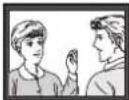 If you record from external equipment- Select “Main” or “SAP” on the external equipment. If you record from external equipment- Select “Main” or “SAP” on the external equipment. |
| Recording of Widescreen broadcasting |  Recorded in 16:9 aspect (Widescreen) *When “Recording for High-Speed Copying” is set to “Off”●When “Recording for High-Speed Copying” is set to “On”, 16:9 aspect programs are recorded in 4:3 aspect.(The default setting is “On”.→ 75) Recorded in 16:9 aspect (Widescreen) *When “Recording for High-Speed Copying” is set to “Off”●When “Recording for High-Speed Copying” is set to “On”, 16:9 aspect programs are recorded in 4:3 aspect.(The default setting is “On”.→ 75)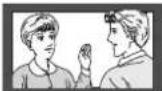 | -R -R DL -RW(V) +R +R DL +RWRecorded or copied in 4:3 aspect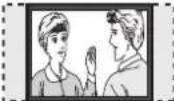 |
| Copying titles in high speed mode from the HDD to DVD-R, etc. | Set “Recording for High-Speed Copying” to “On” before recording to the HDD (→ 75).(The default setting is “On”).You can copy titles in high speed mode (→ 57); however, the above settings are necessary before recording to the HDD.Record to the HDD  High speed copy to DVD-R, etc. High speed copy to DVD-R, etc. | |
| Recording of digital broadcasting | It is not possible to record digital broadcasts that allow “One time only recording” onto DVD-R, DVD-RW, +R, +RW or 8 cm (3") DVD-RAM discs. Use the HDD or CPRM (→ 93) compatible DVD-RAM.HDD RAM CPRM compatible discs only.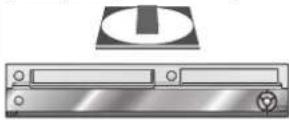  “One time only recording” titles can only be transferred from the HDD to CPRM compatible DVD-RAM (They are deleted from the HDD). They cannot be copied.Even when copying to videotape the title may not be copied correctly because of the copy guard.You cannot copy a playlist created from “One time only recording” titles. “One time only recording” titles can only be transferred from the HDD to CPRM compatible DVD-RAM (They are deleted from the HDD). They cannot be copied.Even when copying to videotape the title may not be copied correctly because of the copy guard.You cannot copy a playlist created from “One time only recording” titles. | |
| Playing the disc on other DVD players | -R -R DL -RW(V) +R +R DLThe disc must be finalized after recording or copying (→ 72).It is necessary to finalize DVD-R, etc. on this unit after recording or copying titles to them. You can then play them as a commercially sold DVD-Video. However, the discs become play-only and you can no longer record or copy.*× You can record and copy again if you format DVD-RW. 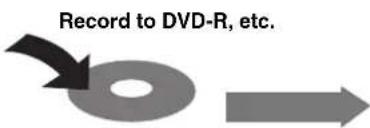 Finalize Finalize 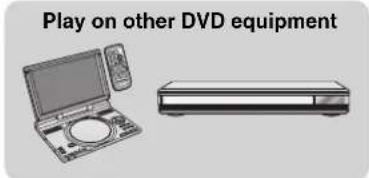 +RWWe recommend you create the menu before playing a +RW. (→ 72, Creating Top Menu—Create DVD Top Menu) +RWWe recommend you create the menu before playing a +RW. (→ 72, Creating Top Menu—Create DVD Top Menu) | |
| Recording to DVD-R DL and +R DL | You cannot directly record to DVD-R DL and +R DL discs on this unit.Record to the HDD and then copy to the disc. | |
- It is not possible to record to two drives simultaneously.
- It is not possible to record continuously from one side of a double-sided disc to the other. You will need to eject the disc and turn it over.
HDD (Hard disk drive) handling care
The HDD is a high precision recording instrument and because of its long recording capability and high speed operation it is a very special device that is easily susceptible to damage.
As a basic rule, save important content to a disc as backup.
■ The HDD is a device that is not built to withstand vibration/shock or dust.
Depending on the setup environment and handling of the HDD, some content may become damaged and play and recording may no longer be possible. Especially during operation, do not subject the unit to any vibration, shock, or remove the AC power plug from the household AC outlet. In the event of a power failure during recording or play, the content may be damaged.
■ The HDD is a temporary storage device.
The HDD is not an everlasting storage device for recorded content. Use the HDD as a temporary storage place for one-off viewing, editing, or saving recorded content to a disc.
- Immediately save (backup) all content as soon as you feel there may be a problem with the HDD.
If there is an irregularity within the HDD, repetitive strange sounds or problems with picture (block noise, etc.) may result. Using the HDD in this condition may worsen the problem and in the worst case the HDD may no longer become usable. As soon as you notice this type of problem, copy all content to disc and request service. Recorded content (data) on an HDD that has become unusable is unrecoverable.
- When the HDD has been automatically placed in the SLEEP mode (→ below), or the unit is turned on or off, there may be an unexpected sound. This does not indicate a problem with this unit.
■ Setup precautions.
- Do not place in an enclosed area where the rear cooling fan and the cooling vents on the side are covered up.
- Place the unit on a surface that is flat and not subject to vibration or impact.
- Do not place on anything that generates heat like a video cassette recorder, etc.
- Do not place in an area often subject to temperature changes.
- Place in an area where condensation does not occur. Condensation is a phenomenon where moisture forms on a cold surface when there is an extreme change in temperature. Condensation may cause internal damage to the unit.
- Conditions where condensation may occur.
- When there is an extreme change in temperature (moving from a very hot location to a very cold location, or vice versa, or when subjected to an air conditioner or when cooled air directly impacts the unit). When the HDD (which warms during operation) is subjected to cold air, condensation may form on the inside of the HDD and may cause damage to the HDD heads, etc.
- When there is high humidity or a lot of steam in the room.
- During the rainy season.
In the above situations, without turning the unit on, let the unit adjust to the room temperature and wait 2–3 hours until condensation is gone.
■ Cigarette smoke, etc. causes malfunction or breakdown
The unit may break down if cigarette smoke or bug spray/vapor, etc. gets inside the unit.
■ While operating
- Do not move the unit or subject it to vibration or impact. (The HDD may become damaged.)
- Do not remove the AC power plug from the household AC outlet, or flip the power breaker switch.
While the unit is on, the HDD is rotating at high speed. Sound or movement due to rotation is normal.
■ When moving the unit
① Turn the unit off. (Wait until "BYE" disappears from the display.) ② Remove the AC power plug from the household AC outlet. ③ Move only after the unit has come to a complete stop (approx. 2 minutes) in order to avoid subjecting it to vibration and shock. (Even after turning the unit off, the HDD continues operating for a short time.)
■ HDD recording time remaining
This unit records using a VBR (Variable bit rate) data compression system to vary recorded data segments to match video data segments, which may cause differences in the displayed amount of time and space remaining for recording.
If the remaining amount of time is insufficient, delete any unwanted titles to create enough space before you start recording. (Deleting a playlist will not increase the amount of time.)
■ When "SLEEP" appears in the display
The HDD has been automatically placed in SLEEP mode. (The HDD continues to rotate at high speed while the unit is on. To extend the life of the HDD, it will enter SLEEP mode if no operation is performed for 30 minutes while there is no disc on the disc tray.)
- While in SLEEP mode, playback or recording may not begin immediately because the HDD takes time to reactivate.
- When not using the unit, we recommend removing the disc from the tray to allow the HDD to enter SLEEP mode.
■ Indemnity concerning recorded content
Panasonic does not accept any responsibility for damages directly or indirectly due to any type of problem that results in loss of recorded or edited content (data), and does not guarantee any content if recording or editing does not work properly. Likewise, the above also applies in the case where any type of repair is made to the unit (including any other non-HDD related component).
Unit care
The precision parts in the unit are readily affected by the environment, especially temperature, humidity, and dust. Cigarette smoke can also cause malfunction or breakdown.
To clean the unit, wipe with a soft, dry cloth.
- Never use alcohol, thinner, or benzine to clean the unit.
- Before using a chemically treated cloth, carefully read the instructions that came with the cloth.
Observe the following points to ensure continued listening and viewing pleasure.
Dust and dirt may adhere to the unit's lens over time, making it impossible to record or play discs.
Use the DVD lens cleaner (RP-CL720PP) about once every year, depending on frequency of use and the operating environment.
Carefully read the lens cleaner's instructions before use.
Do not place the unit on amplifiers or equipment that may become hot.
The heat can damage the unit.
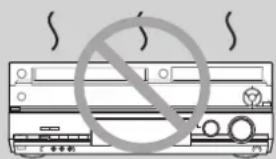
Note
- Do not obstruct the rear panel's internal cooling fan.
Before moving the unit, ensure the disc tray is empty. Failure to do so will risk severely damaging the disc and the unit.
Disc and card handling
■ How to hold a disc or card
Do not touch the recorded surface or the terminal surface.

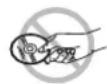

■ Concerning non-cartridge discs
Be careful about scratches and dirt.
■ If there is dirt or condensation on the disc
Wipe with a damp cloth and then wipe dry.


■ Handling precautions
- Do not attach labels or stickers to discs. (This may cause disc warping and un-balanced rotation, rendering it unusable.)
- Write on the label side of the disc only with a soft, oil-based felt pen. Do not use ballpoint pens or other hard writing implements.
- Do not use record cleaning sprays, benzine, thinner, static electricity prevention liquids or any other solvent.
- Do not use scratch-proof protectors or covers.
- Do not expose the terminals of the card to water, garbage or other strange things.
- Do not drop, stack, or impact discs. Do not place objects on them.
- Do not use the following discs:
- Discs with exposed adhesive from removed stickers or labels (rental discs etc.).
- Discs that are badly warped or cracked.
- Irregularly shaped discs, such as heart shapes.


- Do not place in the following areas:
- In direct sunlight.
- In very dusty or humid areas.
- Near a heater.
- Locations susceptible to significant differences in temperature (condensation can occur).
- Where static electricity or electromagnetic waves occur.
- To protect discs from scratches and dirt, return them to their cases or cartridges when you are not using them.
The manufacturer accepts no responsibility and offers no compensation for loss of recorded or edited material due to a problem with the unit or recordable media, and accepts no responsibility and offers no compensation for any subsequent damage caused by such loss.
Examples of causes of such losses are:
- A disc recorded and edited with this unit is played in a DVD Recorder or computer disc drive manufactured by another company.
- A disc used as described above and then played again in this unit. ● A disc recorded and edited with a DVD Recorder or computer disc drive manufactured by another company is played in this unit.
Video cassette information
■ Video cassettes
- Break off the video cassette's tab to prevent accidental erasure. Cover the hole with tape when you want to use the video cassette for recording again.
- You can use video cassettes with the VHS and S-VHS marks, but the unit is unable to make full use of the characteristics of S-VHS video cassettes.
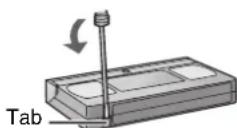
■ Video cassette care
- Poor quality or damaged video cassettes can cause the heads to become dirty and malfunction. Store your video cassettes carefully and discard them when they become dirty or damaged.
- Never use video cassettes on which juice has been spilled or those that are extremely damaged since this will not only cause the heads to become dirty, but will also make the unit malfunction.
■ Maintenance
Cleaning the video heads
Dirt on the video heads can cause poor recording and playback.
→
→
If the picture does not improve, use an optional head-cleaning cassette (part number NV-TCL30PT). If the problem persists, seek advice from a qualified service person.
Inserting a disc
1 Press [▲, OPEN/CLOSE] on the main unit to open the tray.
- You can insert a cartridge or non-cartridge disc.
2 Press [▲, OPEN/CLOSE] on the main unit to close the tray.
Note
- A double-sided disc should be loaded with the side you want to record/play facing down.
- It is not possible to record or play continuously from one side of a double-sided disc to the other. You will need to eject the disc and turn it over.
- When using 8 cm (3") DVD-RAM or 8 cm (3") DVD-R, remove the disc from the cartridge.
Automatic drive select function
RAM [Only for discs with the write-protect tab on the cartridge set to "PROTECT" (→ 70, Cartridge-protection)] DVD-V DVD-A VCD CD
- If the unit is stopped or recording to the HDD or VHS, it automatically switches to the DVD drive when a disc is inserted.
- If you eject a disc and close the disc tray, the HDD drive is automatically selected.
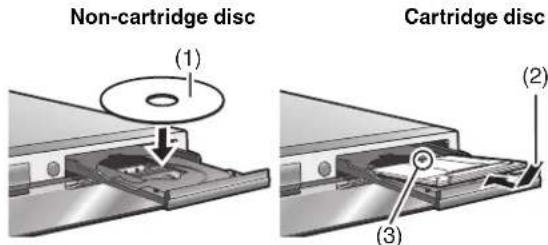
(1) Insert label-up. (2) Insert fully so it clicks into place. (3) Insert label-up with the arrow facing in.
Inserting a video cassette
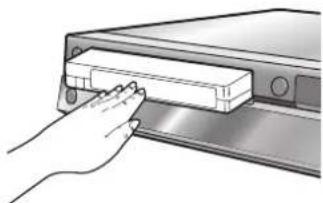
The surface on which you can see a roll of tape should face up.
Insert a video cassette.
●The unit is automatically turned on. - Play starts automatically if you insert a video cassette with the tab removed.
For main unit
- Press [▲, EJECT] on the main unit.
For remote control
- Press [DRIVE SELECT] to select VHS drive and then press and hold [■, STOP] for about 3 or more seconds.
Inserting/Removing the SD card
When the card indicator ("SD") on the unit's display is flashing, the card is being read from or written to. Do not turn off the unit or remove the card. Such action may result in malfunction or loss of the card's contents.
- Inserting foreign objects can cause a malfunction.
- You can use SD Memory Cards with capacities from 8 MB to 2 GB (→7).
Opening the cover
Press down.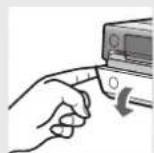
Inserting the card
Press on the center of the card until it clicks into place.
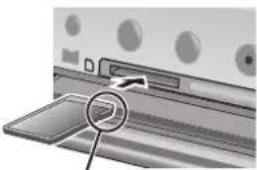
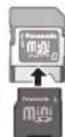
If you are using a miniSD™ card, insert it into the miniSD™ card adaptor that comes with the card. Insert and remove this adaptor from the unit.
Insert the card label up with the cut-off corner on the right.
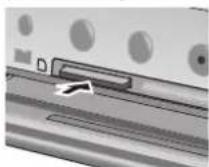
Removing the card
(1) Press on the center of the card. (2) Pull it straight out.
Closing the cover
Press up.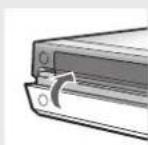
Automatic drive select function
- If you insert an SD card while the unit is stopped, the "SD Card Operations" screen is displayed. Select an item and press [ENTER] to switch to the SD drive (→ 44, 66). If you remove an SD card, the HDD drive is automatically selected.
Keep the small memory cards such as the SD Memory Card out of reach of children. If swallowed, seek medical advice immediately.
Accessories

Please check and identify the supplied accessories. Use product numbers indicated in parentheses when asking for replacement parts. (Product numbers correct as of January 2006. These may be subject to change.)
To order accessories, refer to "Accessory Purchases" on page 95.
- For use with this unit only. Do not use it with other equipment.
Also, do not use cords for other equipment with this unit.
□ 1 75 Ω coaxial cable (K2KZ2BA00001)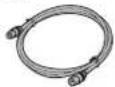
□ 1 Audio/Video cable (K2KA6BA00003)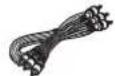
□ 1 Remote control (EUR7659Y90)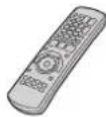
□ 1 IR Blaster
(K2ZZ04C00001)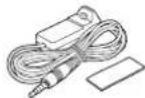
☐ 2 Batteries for the remote control
R6 size
□ 1 DVD-RAM disc
Product Registration Card
Please complete and return the included product registration card, or register via the Internet at: http://www.prodreg.com/panasonic/
The model number and serial number of this product can be found on either the back or the bottom of the unit.
Please note them in the space provided below and keep for future reference.
MODEL NUMBER DMR-EH75V SERIAL NUMBER
User memo:
DATE OF PURCHASE
DEALER NAME
DEALER ADDRESS
TELEPHONE NUMBER
The remote control
Batteries
- Insert so the poles (+ and -) match those in the remote control.
- When closing the lid, insert it from the - (minus) side.
- Do not use rechargeable type batteries.
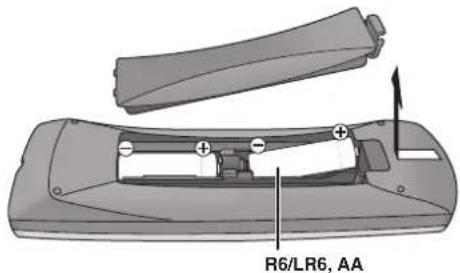
Do not:
- mix old and new batteries.
- use different types at the same time.
- heat or expose to flame. ●take apart or short circuit.
- attempt to recharge alkaline or manganese batteries.
- use batteries if the covering has been peeled off.
Mishandling of batteries can cause electrolyte leakage which can damage items the fluid contacts and may cause a fire.
Remove if the remote control is not going to be used for a long period of time. Store in a cool, dark place.
Note
- If you cannot operate the unit or TV using the remote control after changing the batteries, please re-enter the codes (→ 26).
Use
Aim at the sensor, avoiding obstacles, at a maximum range of 7 m (23 feet) directly in front of the unit.
Remote control signal sensor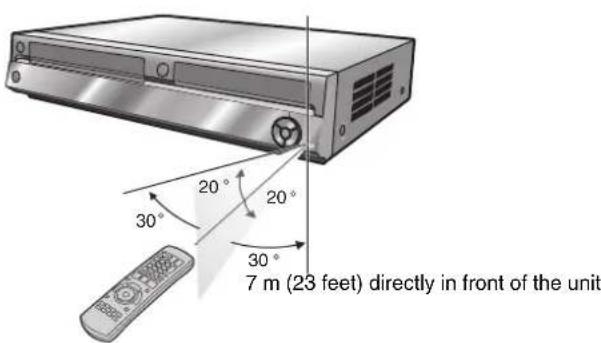
Note
- Keep the transmission window and the unit's sensor free from dust.
- Operation can be affected by strong light sources, such as direct sunlight, inverter fluorescent lamps, and the glass doors on cabinets.
Remote control
Instructions for operations are generally described using the remote control.
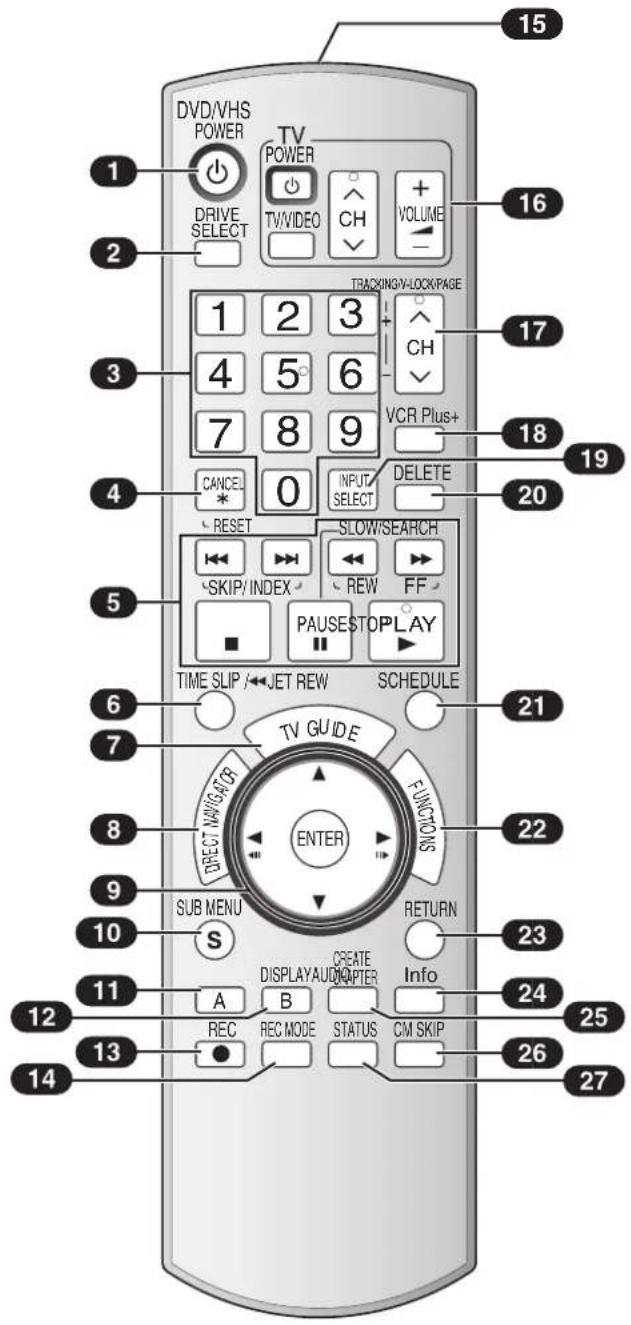
![[DRIVE SELECT] button HDD DVD SD VHS Before performing operations, press [DRIVE SELECT] to make sure that the correct drive is selected. The drive indicator of the selected drive lights up on the main unit.](/content/2026/05/796413/images/9c740f134fb2190112525ce591da7c618d562a4ab7cfbc9b34846d973900f9ef.jpg)
1 Turn the unit on. → 23
2 Select drive (HDD, DVD, SD or VHS) ....→ above
3 Select channels and title numbers etc./Enter numbers
4 Cancel/Reset the tape counter
5 Basic operations for recording and play
6 Skip the specified time/ ....→ 42 Jet rewind button (JET REW)....→ 48
7 Show program listings (TV Guide On Screen® system) ....→ 32
8 Show Direct Navigator/Top menu ....→ 40, 51
9 Selection/Enter, Frame-by-frame....→41
10 Show sub menu. → 36, 51
11 Select audio/....→30, 42, 49 [A] for Direct Navigator....→40
12 Show on-screen menu/....→46 [B] for Direct Navigator....→44
13 Start recording → 29
14 Change recording mode. → 29
15 Transmit the remote control signal
16 Television operations ....→ 26
17 Channel select/....→29 Change pages in the TV GUIDE system/....→32 TRACKING/V-LOCK....→49
18 Show VCR Plus + screen → 33
19 Input select (IN1, IN2, IN3 or DV)....→68
20 Delete items. → 47
21 Show scheduled recording list ....→ 34
22 Show FUNCTIONS window ....→ below
23 Return to previous screen
24 Changing the size of information window/ Displays help information → 35
25 Create chapters. → 42
26 Skip a minute forward. → 42
27 Show status messages → 42, 50
Note
- Buttons such as the [●, REC] button do not protrude as much as other buttons to stop them from being pressed accidentally.
- The word "button" is not used in these operating instructions so "Press the [ENTER] button." is shown as "Press [ENTER]."
- You can use this remote control to operate your TV if you set the TV manufacturer code (→ 26).
FUNCTIONS window
By using the FUNCTIONS window you may access the main functions quickly and easily. For example, when you want to delete a title with Delete Navigator, or copy a title with Copy Navigator, etc. (→ 47, 59)
1 While stopped Press [FUNCTIONS].
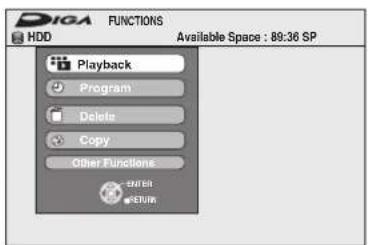
Functions displayed depend on the selected drive or type of disc.
2 Press [▲, ▼] to select an item and then press [ENTER].
If you select "Other Functions", press [▲, ▼] to select an item and then press [ENTER].
Main unit
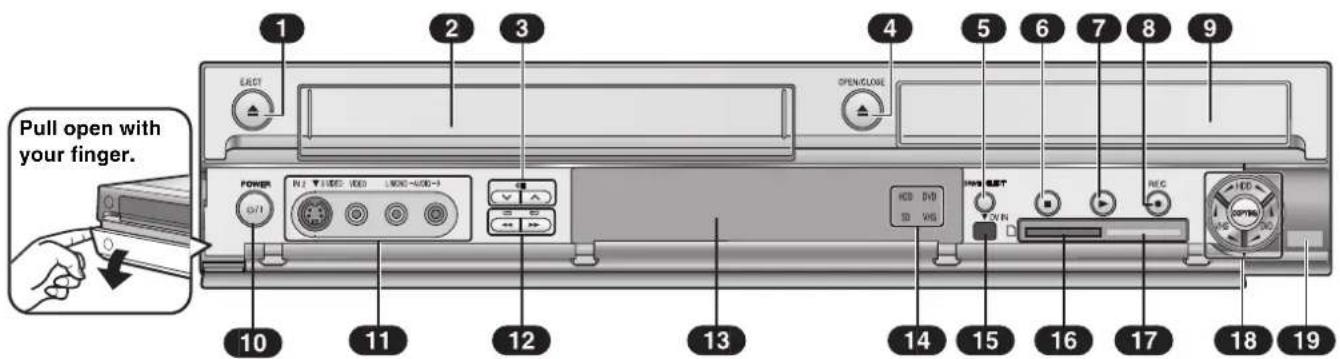
1 Cassette eject button (▲, EJECT)....→ 12 2 Cassette compartment 3 Channel select (CH, v, ∧) → 29 4 Open/close disc tray (▲, OPEN/CLOSE)....→12 5 Select drive ....→ 14 •Drive changes each time you press [DRIVE SELECT]. 6 Stop (■) → 29, 41 7 Start play (▶)....→ 40, 48 8 Start recording/Specify the time to stop recording (●, REC)....→28,29 9 Disc tray....→12 10 POWER button (☐/I, POWER) → 23
- Press to switch the unit from on to standby mode or vice versa. In standby mode, the unit is still consuming a small amount of power.
11 Connectors for external equipment (IN2) ..... → 68 12 DVD-Search, VHS-REW/FF buttons (◀/◀◀, ▶▶/▶▶)....→ 41, 48
13 The unit's display....→ below 14 Drive indicator (HDD/DVD/SD/VHS) .....→ 14 15 Connector for a digital video (DV) camcorder (DV IN)....→ 69 16 SD card slot ....→ 12 17 Power indicator - This lights up blue when you turn the unit on. It goes off if you set "FL Display" to "Dim" or "Automatic". 18 One Touch Copy operation button....→60 19 Remote control signal sensor....→ 13 IR Blaster signal sensor....→ 17
Rear panel terminals (→ 16)
■ Off Timer
The unit automatically switches to standby when it has not been used for about 6 hours.
You can turn this feature off or change the time to 2 hours.
(→ 74, "Off Timer")
The unit's display
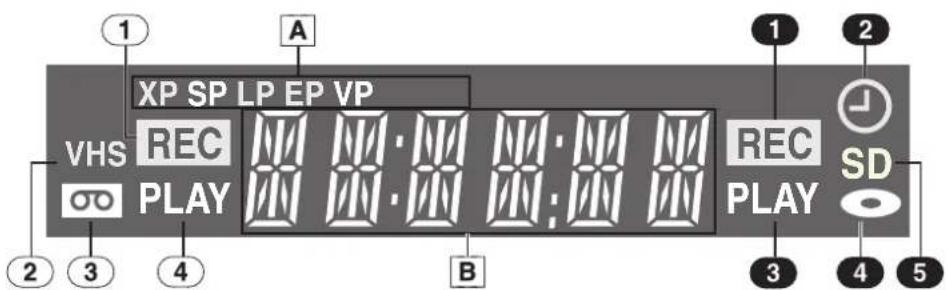
HDD/DVD/VHS
A Recording mode indicator HDD/DVD:
XP, SP, LP, EP: (→ 28)
XP SP LP EP (all on): FR mode (→ 30)
VHS:
SP, LP*, EP, VP: (→ 28)
* Playback only
HDD/DVD/SD/VHS
B Main display
●Digital Clock, Counter, etc.
VHS
① Recording indicator On: During recording Flashes: During pause recording ② VHS indicator ③ Tape indicator ④ Playing indicator
HDD/DVD/SD
1 Recording indicator
On: During recording
Flashes: During pause recording
2 Scheduled recording indicator (💡) (→ 32)
- The scheduled recording indicator lights only when the unit's power is off.
On:
When a scheduled recording program is registered and a recordable disc is inserted.
Flashes:
The scheduled recording indicator flashes when the unit cannot start the scheduled recording (e.g., there is no disc, etc.).
3 Playing indicator 4 Disc indicator 5 SD card indicator
STEP 1 Connection
This section includes diagrams of six common methods of connection (A to F, → 16–18).
Please connect using the one that best suits you.
- Visit Panasonic's homepage for more information about connection methods. (This is in English only.) http://www.panasonic.com/consumer_electronics/dvd_recorder/dvd_connection.asp
- Before connection, turn off all equipment and read the appropriate operating instructions. When using a cable service or satellite service.
- You need to subscribe to a cable TV or satellite service to enjoy viewing their programming.
- Consult your service provider regarding appropriate cable box or satellite receiver.
■ RF OUT terminal
The picture and sound signal from this unit does not go through the RF OUT terminal to the television.
Make sure you connect one of the following terminals on this unit to the television: the AUDIO/VIDEO OUT terminal, the S VIDEO OUT terminal, the COMPONENT VIDEO OUT terminal or HDMI AV OUT terminal.
- Refer to page 20 if the antenna connector doesn't match.
■ When the unit is not to be used for a long time
To save power, unplug it from the household AC outlet. This unit consumes a small amount of power, even when it is turned off (approx. 16 W).
Note that the program listings are not downloaded while the unit is unplugged.
Connect the unit directly to the television
(Connection B, D, F)
Video signals fed through video cassette recorders will be affected by copyright protection systems and the picture will not be shown correctly on the television.
![graph TD A["Television"] --> B["This unit"] B --> C["VCR"] D["Television"] --> E["VCR"] E --> F["This unit"]](/content/2026/05/796413/images/908abfe0584d4ed26491f61b556779452cf541874eae53b4610f36f076ea59f3.jpg)
A Connection with a television
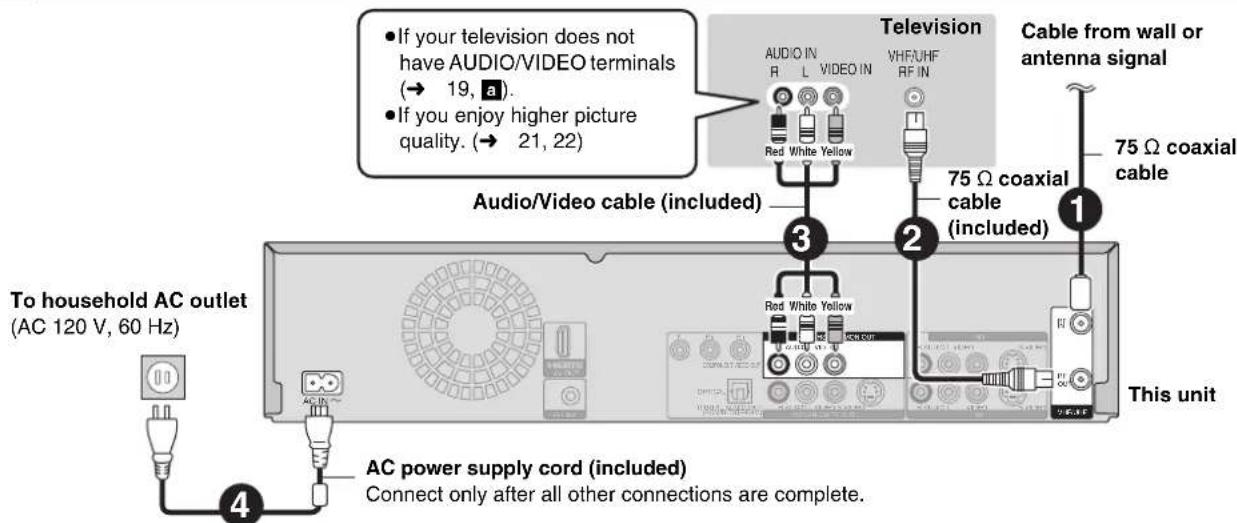
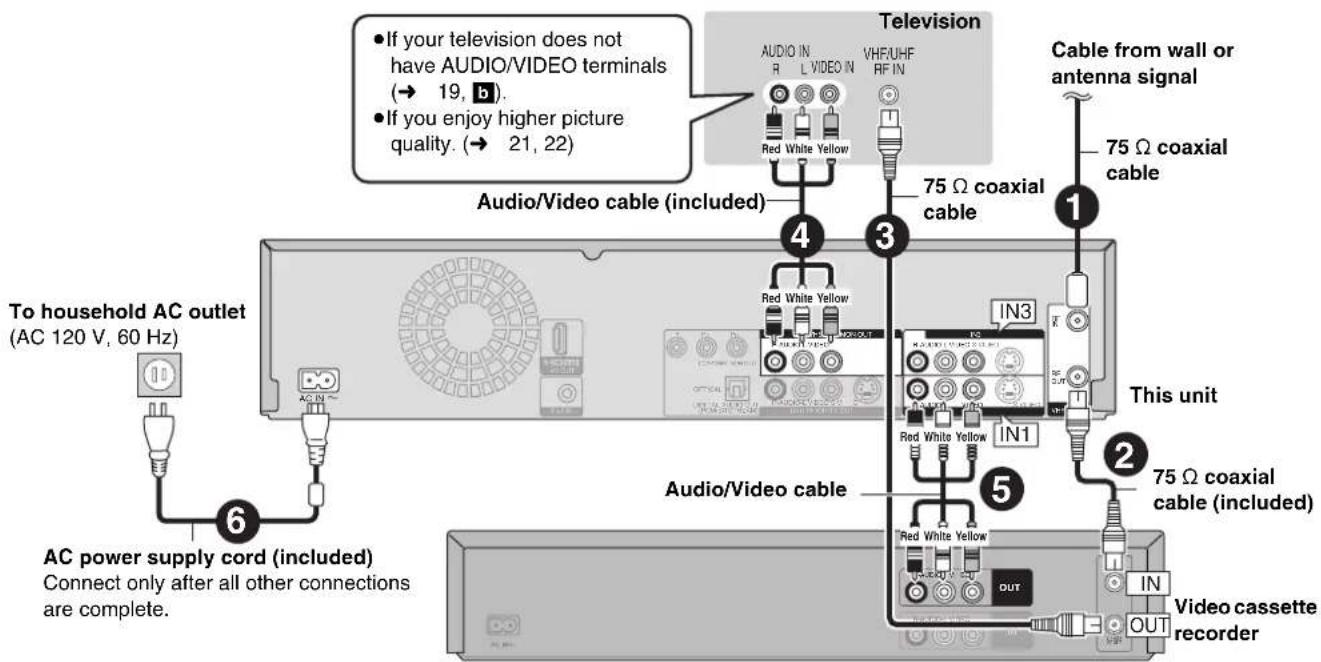
B Connection with a television and video cassette recorder
The connection will allow the video cassette recorder to be used for playback and recording when this unit is turned off.
DirecTV/DISH Network service is only available in the United States.
C Connection with a television and cable box or DirecTV receiver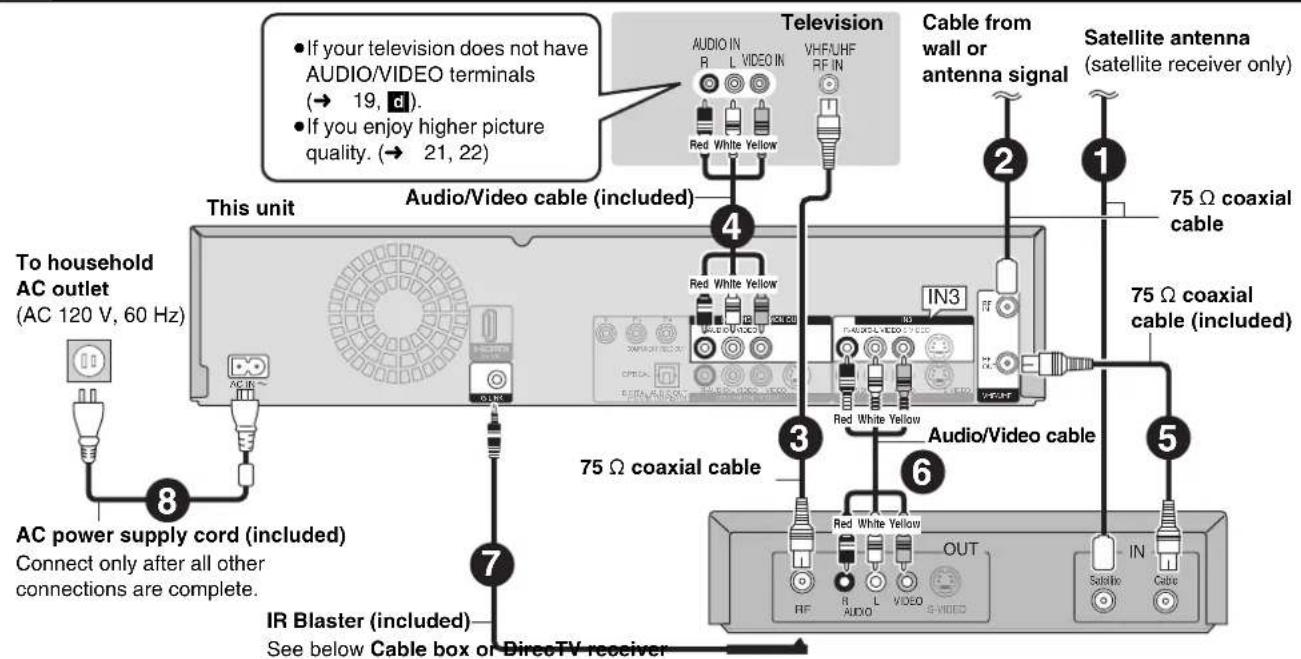
D Connection with a television, video cassette recorder and cable box or DirecTV receiver
![graph TD A["To household AC outlet (AC 120 V, 60 Hz)"] --> B["AC power supply cord (included)"] B --> C["Connect only after all other connections are complete."] C --> D["10"] D --> E["1"] E --> F["Cable box or DirecTV receiver"] F --> G["75 Ω coaxial cable (included)"] G --> H["2"] H --> I["Cable f…](/content/2026/05/796413/images/275b8a0d273cff12fed0103f4a0b5fc437b67981d22fdf0d14a10ce77613ce00.jpg)
Why should I connect the IR Blaster?
The IR Blaster is necessary for operating a cable box or DirecTV receiver with this unit's remote control. Additionally, if the IR Blaster is not correctly connected or set up, you cannot make scheduled recordings or download program listings.
Setting the IR Blaster
Place the IR Blaster in front of the signal sensor of the cable box or DirecTV receiver.
Read the cable box or DirecTV receiver operating instructions regarding positioning of the signal sensor.
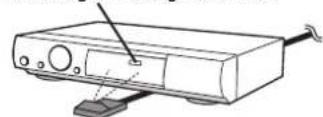
If necessary, use the double-sided adhesive tape (included) to secure the IR Blaster to a flat surface, e.g., television stand surface.
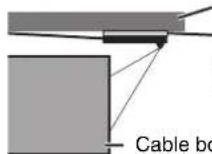
If you peel off the adhesive tape, the surface may become damaged. Once you have confirmed the cable box or DirecTV receiver is operating correctly, secure it by attaching the adhesive tape.
Cable box or DirecTV receiver
Program listings for satellite services other than DirecTV cannot be received. Without this information, program-based recordings cannot be made. However, recordings can still be set manually.
You can use the DISH Network TV Guide to make scheduled recordings on this unit.
DirecTV/DISH Network service is only available in the United States.
E Connection with a television and satellite receiver other than DirecTV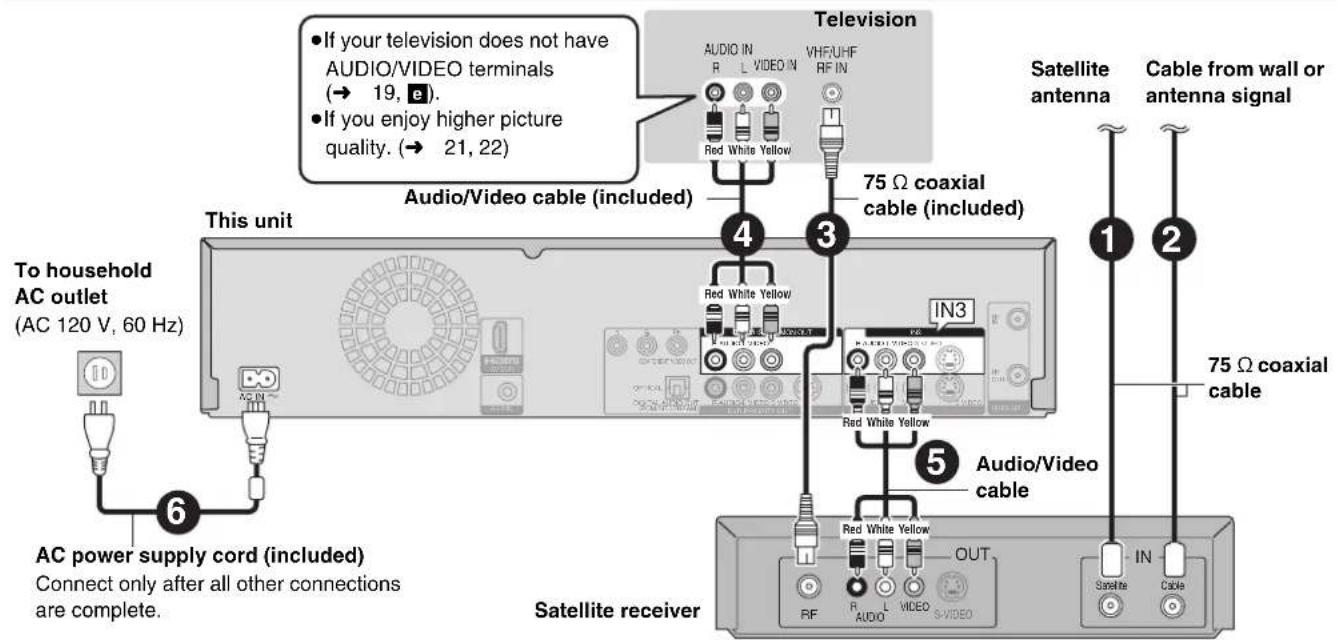
F Connection with a television, video cassette recorder and satellite receiver other than DirecTV
The connection will allow the video cassette recorder to be used for playback and recording when this unit is turned off.
![graph TD A["Television"] -->|75 Ω coaxial cable (included)| B["Satellite receiver"] B -->|Audio/Video cable (included)| C["Video cassette recorder"] C -->|Audio/Video cable| D["Satellite receiver"] D -->|Radio White Yellow| E["AC power supply cord (included)"] E --> F["To household AC outlet (AC 120…](/content/2026/05/796413/images/4906dbfcdb52d161ae92bc2b480b9128ba2df3d18be5418b62cb14fe4b0bf956.jpg)
If your television does not have AUDIO/VIDEO terminals, an RF modulator is necessary.
The circled numbers in the illustration refer to connections “A” through “F”. Also connect all other cables as well.
a Connection with a television (→ 16, A)
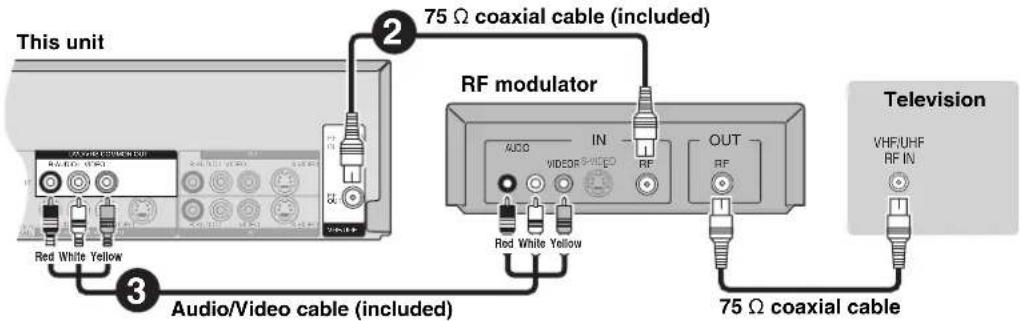
b Connection with a television and video cassette recorder (→ 16, B)
c Connection with a television, video cassette recorder, and cable box or DirecTV receiver (→ 17, D)
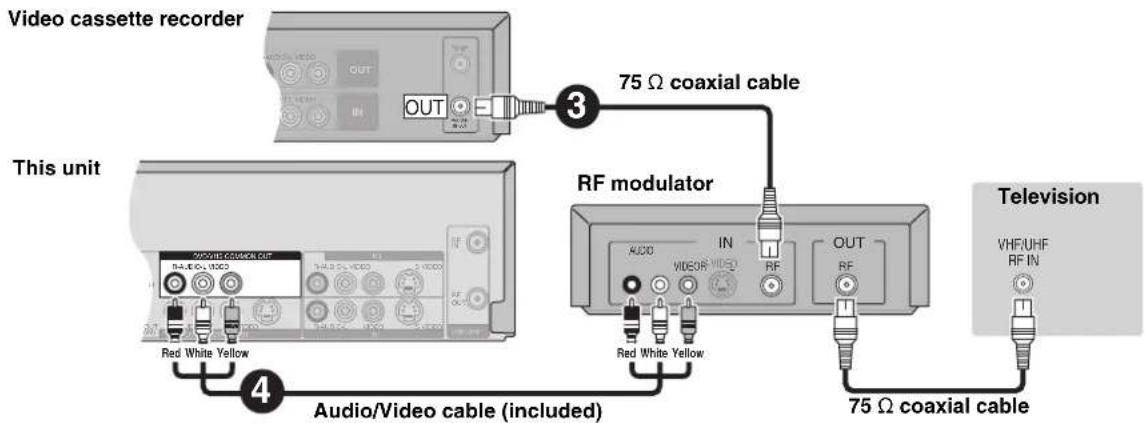
d Connection with a television and cable box or DirecTV receiver (→ 17, C)
e Connection with a television and satellite receiver other than DirecTV (→ 18, E)
f Connection with a television, video cassette recorder, and satellite receiver other than DirecTV (→ 18, F)
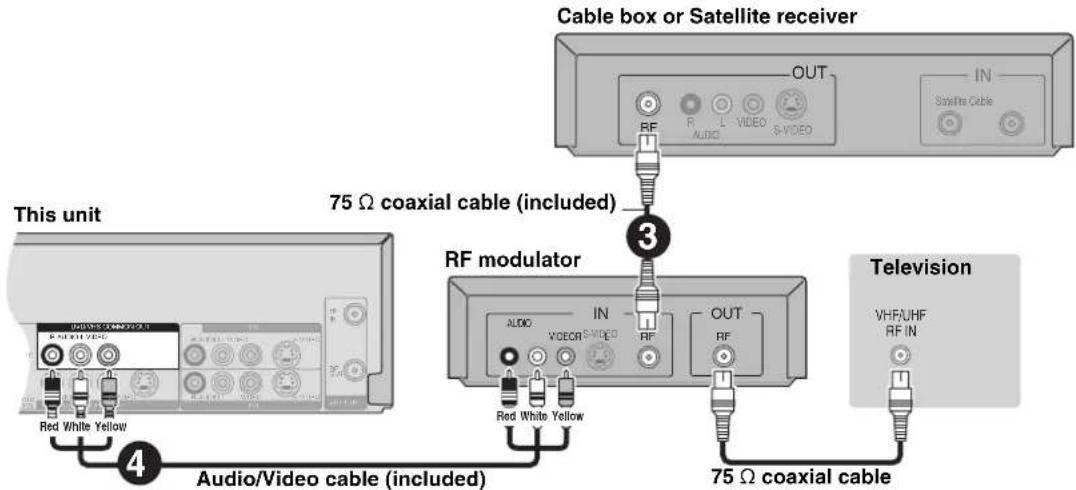
If the antenna connector doesn't match
Use one of the following connections to suit the antenna lead to the unit's RF IN terminal, and the 75 Ω coaxial cable to the antenna terminals on the equipment (television, etc.). Refer to the other equipment's operating instructions.
| Type This | unit Other equipment (television etc.) | ||||
| A twin lead | from the antenna(Flat) Twin lead300 Ω cable 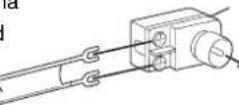 | 300 to 75 ΩtransformerTo the unit'sRF IN terminal | 75175 Ω coaxial ca | 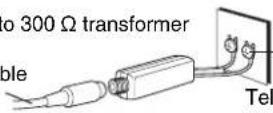 | VHF or UHFevision |
| A twin lead and a coaxial plug | from the antenna(Flat) Twin le 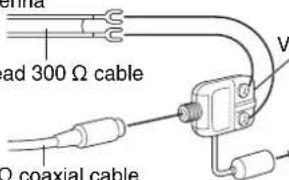 (Round) 75 L (Round) 75 L | HF/UHF band mixerTo the unit'sRF IN terminal | VHF/UHF bar75 Ω coaxial ca | 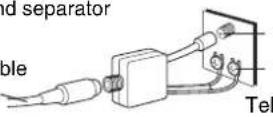 | VHFUHFevision |
| Two twin leads | from the antenna(Flat) Twir 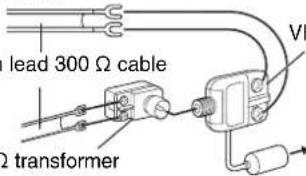 300 to 75 Ω 300 to 75 Ω | HF/UHF band mixerTo the unit'sRF IN terminal | VHF/UHF b75 Ω coaxial ca | 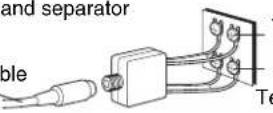 | VHFUHFelevision |
DVD output and DVD/VHS output
The unit has DVD/VHS COMMON output terminals and DVD PRIORITY output terminals.
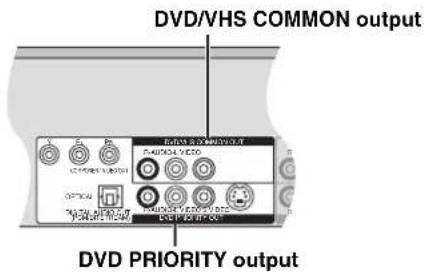
DVD/VHS COMMON OUT
- For DVD/VHS COMMON output terminals, both DVD and VHS signals can be output.
DVD PRIORITY OUT
- You can also playback a tape with the DVD PRIORITY output terminal except while recording, or making a scheduled recording, on the DVD.
To enjoy even higher picture quality
Connecting to the S VIDEO IN terminal
The S VIDEO OUT terminal achieves a more vivid picture than the VIDEO OUT terminal. (Actual results depend on the television.) After completing "Connection with a television" (→ 16), "Connection with a television and cable box or DirecTV receiver" (→ 17) or "Connection with a television and satellite receiver other than DirecTV" (→ 18), connect the S Video cable as illustrated below.
Usually you can watch a picture from the INPUT2 terminal. When you want to playback VHS while recording on DVD, change to the INPUT1 terminal.
![graph TD A["This unit"] --> B["Red White Yellow"] B --> C["Audio cable S"] C --> D["Video cable"] D --> E["Red White"] E --> F["VIDEO R"] F --> G["IN"] H["Television"] --> I["Red White Yellow"] I --> J["Connected Audio/Video cable (included) *"]](/content/2026/05/796413/images/bf6a6210578fd424fe3562d5f110e95bd933f161e5e08df3547816cebe8deeb5.jpg)
For how to connect the Audio/Video cable (→ 16, [A]), (→ 17, [C]) or (→ 18, [E])
Connecting to the COMPONENT VIDEO IN terminals
These terminals can be used for either interlace or progressive output (→ 94) and provide a purer picture than the S VIDEO OUT terminal.
After completing "Connection with a television" (→ 16), "Connection with a television and cable box or DirecTV receiver" (→ 17) or
"Connection with a television and satellite receiver other than DirecTV" (→ 18), connect the COMPONENT VIDEO cable as illustrated below.
Usually you can watch a picture from the COMPONENT VIDEO INPUT terminal. When you want to playback VHS while recording on DVD, change to the INPUT1 terminal.
- Connect to terminals of the same color.
![graph TD A["Television"] --> B["Component video cable"] A --> C["Audio cable"] A --> D["Connected Audio/Video cable (included) *"] B --> E["Red White"] B --> F["White"] B --> G["Yellow"] C --> H["Red White"] C --> I["White"] C --> J["Red White"] C --> K["White"] D --> L["Red White"] D --> M["White"]…](/content/2026/05/796413/images/5cc0ff61842f54c5ed597222fa75ee316a3b44d638bbe700c72e997e1802aa2b.jpg)
For how to connect the Audio/Video cable (→ 16, A), (→ 17, C) or (→ 18, E)
Connecting an amplifier or system component
■ Connection to a stereo amplifier
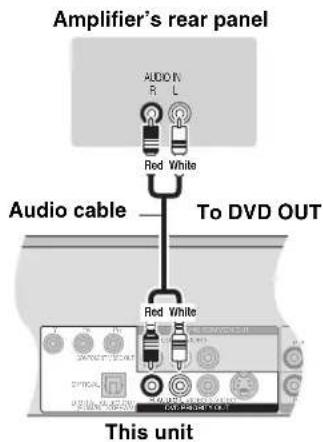
or
■ Connecting an amplifier with a digital input terminal
- When connecting this unit to a television with an HDMI cable, set "HDMI Audio Output" to "Off" in the Setup menu (→ 77).
- To enjoy multi-channel surround sound DVD-Video, connect an amplifier with a built-in decoder displaying these logo marks using an optical digital audio cable and change the settings in "Digital Audio Output" (→ 76).
- Before purchasing an optical digital audio cable, check the terminal shape of the connected equipment.
- You cannot use DTS Digital Surround decoders not suited to DVD
- Even if using this connection, output will be only 2 channels when playing DVD-Audio.
Amplifier's rear panel
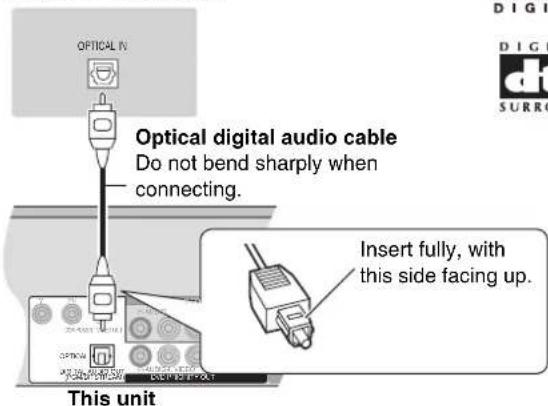
Connecting with an HDMI (High Definition Multimedia Interface) terminal
HDMI is the next-generation interface for digital devices. When connected to an HDMI compatible unit, an uncompressed digital audio and video signal is transmitted. You can enjoy high quality, digital video and audio with just one cord. When connecting to an HDMI-compatible HDTV (High Definition Television), the output can be switched to 1080i or 720p HD video.
Set the following:
From the Setup menu (→ 77), set "HDMI Video Output" and "HDMI Audio Output" to "On".
- Please use HDMI cables that have the HDMI logo (as shown on the cover).
Connecting to a TV Connecting to an amplifier![graph TD A["Television"] --> B["HDMI IN"] B --> C["This unit"] C --> D["HDMI AV OUT"] D --> E["Amplifier's rear panel"] E --> F["HDMI IN"] F --> G["This unit"] G --> H["HDMI AV OUT"] style A fill:#f9f,stroke:#333 style E fill:#f9f,stroke:#333 style F fill:#f9f,stroke:#333 style G fill:#f9f,stroke:#3…](/content/2026/05/796413/images/fde4a04345bc9a1f743b7c570d35d64eb84041a6dee1c110ae9316544999ac97.jpg)
- If connecting to equipment incompatible with CPPM (Content Protection for Prerecorded Media) (→ 93), copy-protected DVD-Audio cannot be output through the HDMI terminal. Connect the audio cables (red, white) to the corresponding audio input terminals.
- If you are connecting to equipment that is only compatible with 2 channel output, audio with 3 channels or more will be down mixed (→ 93) and output as 2 channels. (Some discs cannot be down mixed.)
- For units compatible with HDCP (High-Bandwidth Digital Content Protection) copyright protection that are equipped with a digital DVI input terminal (PC monitors, etc.):
Depending on the unit, images may not display properly or at all when connecting with a DVI/HDMI switching cable. (Audio cannot be output.)
- If the speaker setup cannot be completed on the amplifier, then use the "HDMI Connection Speakers Setting" setting (→ 77).
- If connecting to equipment incompatible with CPPM (Content Protection for Prerecorded Media) (→ 93), copy-protected DVD-Audio cannot be output through the HDMI terminal. Connect to the amplifier with an optical digital cable or audio cables (red and white).
Control with HDMI (HDAVI Control)
If connecting with a Panasonic television equipped with the HDAVI function, you can use this convenient function to control both the recorder and the television.
After connecting the unit to a television using an HDMI cable, set "Ctrl with HDMI" to "On". (→ 77)
- Depending on the cable used, this function may not be possible.
For the connection to be completed and activate correctly, turn on all HDAVI Control compatible equipment and select this unit's input channel on the connected television. Also when the connection or settings are changed, repeat this procedure.
Automatic input switching
When the following operations are performed the television will automatically switch the input channel and displays the corresponding action.
- When play starts on the unit
- When an action that uses the display screen is performed (e.g., Direct Navigator screen, schedule recording screen)
Note
- When the unit is recording on the DVD drive, the output does not automatically switch even if when you operate the VHS.
Power on link
The television automatically turns on and the corresponding display appears when the following operations are performed with the television in standby mode.
- When play starts on the unit
- When an action that uses the display screen is performed (e.g., Direct Navigator screen, schedule recording screen)
Note
- When the unit is recording on the DVD drive, the television does not automatically turn on even if you operate the VHS.
Power off link
When the television is turned off, this unit is also automatically turned off. The unit automatically turns off even if the FUNCTIONS screen, the status message, or the on-screen menu is displayed, during playback, or when the unit is only scheduled recording.
Note
- Even if the television is turned off, the unit will not turn off at the same time in the following conditions:
- When you pressed [●, REC] and the unit is recording.
- When copying
- When finalizing
For your reference
- When [▶, PLAY] is pressed on this unit for "automatic input switching" or "power on link", the playback is not immediately displayed on the screen and it may not be possible to watch the contents from where playback starts.
In this case, press [◀◀, SKIP] or [◀◀, SLOW/SEARCH] to go back to where playback started.
- When the DIGITAL AUDIO OUT (Optical) terminal is used for audio output and the unit is connected to the television with a HDMI cable, set "HDMI Audio Output" to "Off" in the setup menu. (77)
Equipment compatible with and equipment scheduled to be compatible with HDAVI Control (as of January 2006).
Plasma TVs: TH-42/50/58PX600, TH-37/42/50PX60, TH-58PX60, TH-42PD60, TH-42/50PX6
LCD TVs: TC-26/32LX600, TC-23/26/32LX60, TC-26/32LE60
LCD projection TVs: PT-52/56/61LCX66
Receiver: SA-XR57P
- The HDAVI Control function will only work if you can connect this unit with Panasonic equipment equipped with the HDAVI control function. Before purchasing equipment, confirm that it has the HDAVI Control function.
STEP 2 Setting up the TV Guide On Screen® system
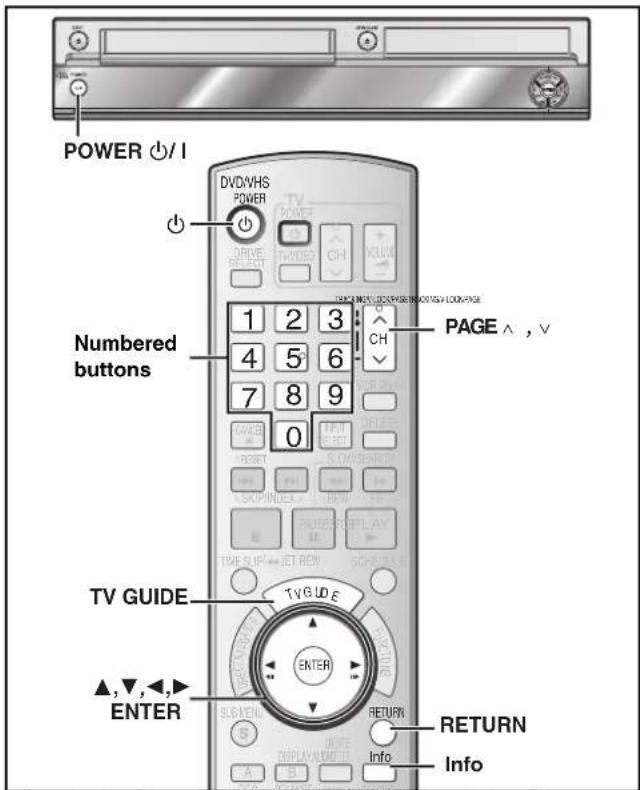
After plugging the unit into your household AC outlet and then pressing [☐, DVD/VHS POWER] to turn the unit on for the first time, the unit starts language, TV aspect type and TV Guide On Screen® system setup.
TV Guide On Screen® system
This unit features the TV Guide On Screen® system that provides an 8-day grid of TV programs available in your area. Use the TV Guide On Screen® system to choose TV programs and simplify the recording of your favorite TV shows (→ 32, 35–39). Best of all this service is free!
- The first few days of listings usually appear within 24 hours after a successful Setup. It may take up to six days for the full eight days of program listings to appear.
- In order to cool the circuits used when downloading the program listings, the cooling fan may sometimes operate when the unit is turned off. This is not a malfunction.
IMPORTANT
- The TV Guide On Screen® system must be set up whether it is then used or not. You cannot use the scheduled recording feature unless this setup is completed.
- TV Guide On Screen system is supported by selected DISH network and DirecTV receivers, using 480i mode.
- DirecTV/DISH Network service is only available in the United States.
- If you are using a satellite service other than DirecTV, you cannot receive the program listings on this unit. Without this information, program-based recordings cannot be made. However, recordings can still be set manually.
Preparation
Turn on the television and select the appropriate video input to suit the connections to this unit.
- When using the cable box or DirecTV receiver, check the following.
- Make sure the IR Blaster is connected and positioned properly (→ 17).
- Make sure the cable box or DirecTV receiver is turned on.
1 Press [⏻, DVD/VHS POWER].
![graph TD A["Select Language\nSeleccione el Idioma\nSélection de Langue"] --> B["English"] A --> C["Espanol"] A --> D["Français"] A --> E["Press ENTER\nPulse ENTER\nAppuyer sur ENTER"]](/content/2026/05/796413/images/0499d304d44806248909a36ed150f0d7e7b5113049d26b8c09cd3c8de9405ac4.jpg)
2 Press [▲, ▼] to select the language and then press [ENTER].
- If you make a mistake, press [RETURN] to return to an earlier screen.
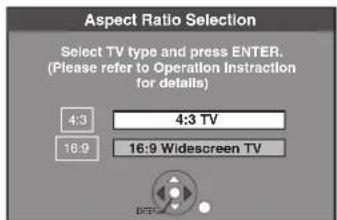
3 Press [▲, ▼] to select "4:3 TV" or "16:9 Widescreen TV" and then press [ENTER]. TV Guide setup begins.
- Only English is displayed in the TV Guide On Screen® system. Other languages cannot be displayed.
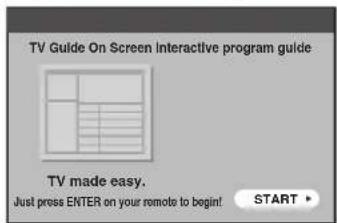
Press [ENTER].
Following the on-screen messages, input the operating environment for your television.
| Basic operations of the remote control | |
| To highlight selection → [▲,▼,◄,►] | |
| To confirm → Press [ENTER] | |
| To view help information → Press [Info] | |
| To enter numbers → Press the numbered buttons |
- Select "Next" and then press [ENTER] to go to the next screen.
- Select "Back" and then press [ENTER] to return to the previous screen.
4 Set the country (USA/Canada)
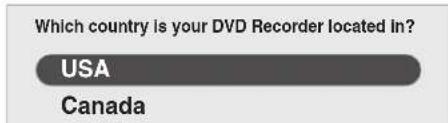
5 Set the ZIP (Postal) code
Please enter the 5-digit ZIP Code where your DVD Recorder is located:

6 Set the service(s) being used.
- You can select up to 2 services. Press [▲, ▼] to select the service being used and press [ENTER]. If you want to select 2 services, press [▲, ▼] to select one more service and press [ENTER].
- If you selected "Cable with a Cable Box" or "DirecTV", then also set and select "Antenna".
- If you cannot choose the service you use, then select "Antenna", and continue. Then, after exiting the "Set Clock and Channels Automatically" screen in step 8, press [ENTER], continue and press [RETURN]. After this step, perform "Set Clock Manually". (→ 25)
Please select which service(s) you would like your TV Guide On Screen™ to support (check all that apply):
Antenna
Cable without a Cable Box Cable with a Cable Box DirecTV DISH Network
To learn more about the setup contents of various services, see the list on the next page.
Refer to the control reference on page 23.
Please perform setup by following all instructions that apply to your current service. DirecTV/DISH Network service is only available in the United States.
| Service Set the following | |
| Antenna | ●You cannot select both “Antenna” and “Cable without a Cable Box”.●Further setup is not necessary. |
| Cable without a Cable Box | |
| Cable with a Cable Box | 1 Cable box connection channel (“RF, Channel 2”/ “RF, Channel 3”/ “RF, Channel 4”/ “IN3”)- Select “IN3”.(If you are connecting the cable box to this unit’s RF terminal, select “RF, Channel 2”, “RF, Channel 3” or “RF, Channel 4”, according to the cable box setting.)2 Are you using a digital service package?Select “Yes”, “No” or “I don’t know”.3 Check how the channels are input.Select how your current cable box inputs 2, 3, and 4-digit numbered channels.4 Cable box brand- Move down with [▼] for more brands.- You can also press [PAGE ∧] or [PAGE ∨] to skip several lines.- Select “Not Listed” if you cannot find your brand on the list.5 IR signal code- Make sure your cable box is set to the channel that appears on screen and then press [ENTER].The unit begins trying various IR codes to see which one communicates properly with your cable box. It’s quite common for this phase of the setup to be repeated numerous times. YesNoTest this code again- If the cable box has changed to channel 09, select “Yes”.- If the cable box is still set to the same channel, select “No”. Repeat this step until the cable box changes to channel 09.If you want to try the code again for some reason, e.g., you accidentally moved the IR Blaster, select “Test this code again”. YesNoTest this code again- If the cable box has changed to channel 09, select “Yes”.- If the cable box is still set to the same channel, select “No”. Repeat this step until the cable box changes to channel 09.If you want to try the code again for some reason, e.g., you accidentally moved the IR Blaster, select “Test this code again”. |
| DirecTV | 1 Satellite receiver connection channel (“RF, Channel 2”/ “RF, Channel 3”/ “RF, Channel 4”/ “IN3”)- Select “IN3”.(If you are connecting the satellite receiver to this unit’s RF terminal, select “RF, Channel 2”, “RF, Channel 3” or “RF, Channel 4”, according to the satellite receiver setting.)2 Check how the channels are input.Select how your current DirecTV receiver inputs 2, 3, and 4-digit numbered channels.3 Satellite receiver brand- Move down with [▼] for more brands.- You can also press [PAGE ∧] or [PAGE ∨] to skip several lines.4 IR signal code- Turn your satellite receiver ON and then press [ENTER].If you are watching DirecTV in 4:3 aspect with the side panel, set the side panel to “Off” on the DirecTV receiver in order to correctly receive the program listings.The unit begins trying various IR codes to see which one communicates properly with your satellite receiver. It’s quite common for this phase of the setup to be repeated numerous times.[Did your satellite receiver change channels?YesNoTest this code againLook at the display of the DirecTV receiver.- If the channel display changes, then select “Yes”.- If the satellite receiver is still set to the same channel, select “No”. Repeat this step until the satellite receiver changes the channel.If you want to try the code again for some reason, e.g., you accidentally moved the IR Blaster, select “Test this code again”. |
| DISH Network | ●Satellite receiver connection channel (“RF, Channel 2”/ “RF, Channel 3”/ “RF, Channel 4”/ “IN3”)- Select “IN3”.(If you are connecting the satellite receiver to this unit’s RF terminal, select “RF, Channel 2”, “RF, Channel 3” or “RF, Channel 4”, according to the satellite receiver setting.)You cannot use the IR Blaster included with this unit.You cannot set other equipment. |
Yes
- If the cable box has changed to channel 09, select "Yes".
- If the cable box is still set to the same channel, select "No". Repeat this step until the cable box changes to channel 09. If you want to try the code again for some reason, e.g., you accidentally moved the IR Blaster, select "Test this code again".
① Satellite receiver connection channel (“RF, Channel 2”/ “RF, Channel 3”/ “RF, Channel 4”/ “IN3”) - Select “IN3”. (If you are connecting the satellite receiver to this unit’s RF terminal, select “RF, Channel 2”, “RF, Channel 3” or “RF, Channel 4”, according to the satellite receiver setting.)
② Check how the channels are input. Select how your current DirecTV receiver inputs 2, 3, and 4-digit numbered channels.
③ Satellite receiver brand
- Move down with [▼] for more brands.
- You can also press [PAGE ∧] or [PAGE ∨] to skip several lines.
④ IR signal code
- Turn your satellite receiver ON and then press [ENTER]. If you are watching DirecTV in 4:3 aspect with the side panel, set the side panel to "Off" on the DirecTV receiver in order to correctly receive the program listings.
The unit begins trying various IR codes to see which one communicates properly with your satellite receiver. It's quite common for this phase of the setup to be repeated numerous times.
Yes
Look at the display of the DirecTV receiver. - If the channel display changes, then select "Yes". - If the satellite receiver is still set to the same channel, select "No". Repeat this step until the satellite receiver changes the channel. If you want to try the code again for some reason, e.g., you accidentally moved the IR Blaster, select "Test this code again".
- Satellite receiver connection channel ("RF, Channel 2"/ "RF, Channel 3"/ "RF, Channel 4"/ "IN3")
Select "IN3".
(If you are connecting the satellite receiver to this unit's RF terminal, select "RF, Channel 2", "RF, Channel 3" or "RF, Channel 4", according to the satellite receiver setting.)
You cannot use the IR Blaster included with this unit.
You cannot set other equipment.
Once setup is finished → 25, Step 7, Confirm the settings.
STEP 3 Downloading
7 Confirm the settings.
e.g.,
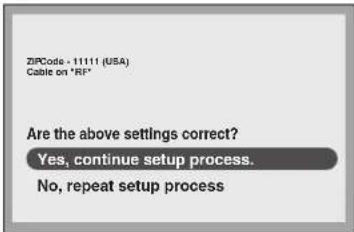
- If the information is correct, select "Yes, continue setup process".
- If the information is not correct, select "No, repeat setup process" to start the setting again.
8 Press [ENTER].
Depending on the equipment that you connected, one of the following screens appears.
"Set Clock and Channels Automatically" screen
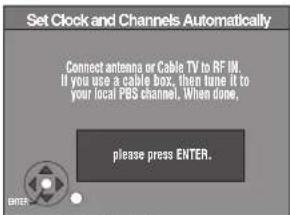
Press [ENTER].
The unit starts setting channels automatically. This takes a few minutes. The unit then proceeds with setting the clock automatically. The time is displayed when finished.
A television reception screen or a blue background screen is displayed. If there is an error while setting the channels and/or clock automatically, the "Set Clock Manually" screen (→ below) is automatically displayed.
"Set Clock Manually" screen
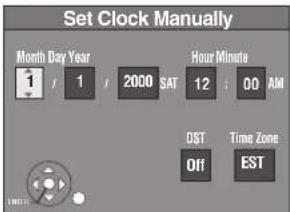
1 Press [◀, ▶] to select the item you want to change and then press [▲, ▼] to change the setting.
- DST (Daylight Saving Time): On or Off If you select "On", the clock is advanced one hour starting at 2 a.m. on the first Sunday in April and ending at 2 a.m. on the last Sunday in October.
- Time Zone shows the time difference from Greenwich Mean Time (GMT).
EST (Eastern Standard Time) = GMT -5 CST (Central Standard Time) = GMT -6 MST (Mountain Standard Time) = GMT -7 PST (Pacific Standard Time) = GMT -8 AST (Alaska Standard Time) = GMT -9 HST (Hawaii Standard Time) = GMT -10
2 Press [ENTER].
A television reception screen or a blue background screen is displayed. The clock starts.
Regarding DST (Daylight Saving Time)
Legal revision is expected to change the DST period in 2007. When you use the unit with DST on, the change may cause the unit's clock to go behind the actual time. Check the DST setting in "Set Clock Manually" in the "Setup menu" (→ 74), set DST off and reset the clock precisely if you are using this function. This setting is only for when TV Guide On Screen® system is not used. (→ 79)
When you want to change the TV Guide settings after moving, etc., please perform setup steps ① and ② on page 79. (The program listings will be erased.)
After completing steps ① and ②, please perform TV Guide setup again from the beginning.
Refer to the control reference on page 23.
If you are using a satellite service other than DirecTV, you cannot receive the program listings on this unit.
1 Press [⏻, DVD/VHS POWER]. (The unit turns off, then wait 24 hours.)
"BYE" appears briefly. This shows the unit is in standby mode. The unit is now ready to download the program listings.
No damage will occur if the unit is used sooner, but the channel line-up and program listings may not have been fully downloaded.
Check the following again, so the downloading will not fail. If you connect a cable box or a DirecTV receiver,
- the output terminal of the cable box or DirecTV receiver is connected to this unit's RF IN or IN3 terminal (→ 17) ● the IR Blaster is correctly connected and installed (→ 17) ●the cable box or DirecTV receiver is turned on
2 Press [TV GUIDE].
- If you find "TV Guide On Screen Setup Progress" displayed on the television, the unit has not yet downloaded the TV Guide On Screen® data.
- If you press [TV GUIDE] without completing setup, the start setup screen will appear. If you want to complete TV Guide setup select "Start setup".
- This unit may download more than one channel line-up. Follow the on-screen instructions and select one of these.
![graph TD A["No Cancellation"] --> B{Comparison} B -->|Yes| C["Output: 100%"] B -->|No| D["Output: 100%"]](/content/2026/05/796413/images/f21ec5e9bb4b575196de3ad098db4f3580aa9e06a1a8407fd3ba517c0d872b0c.jpg)
For updating data
Leave the unit in standby mode when you are not using it. The unit will download the necessary data to maintain the program listings while it is in standby mode.
Note
Some Setup menus no longer need to be set after this unit downloads the program listings. These menus turn grey and become un-selectable. (→ 74)
If you press [TV GUIDE] and the following screen appears, then the unit has not been able to obtain data for 3 days or more.
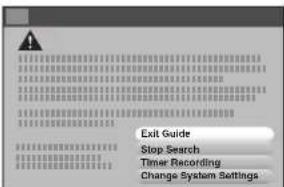
| Exit Guide: | Return to the television reception screen. |
| Stop Search: | Stop downloading the data. (However the unit will automatically stop downloading the data 5 days after it first started.) |
| Search Again: | Restart the data download when it has stopped |
| Timer Recording: | Set for scheduled recording manually (→ 33) |
| Change System Settings:Set the TV Guide settings again. |
| ●In step 6, if you selected "Antenna" or "Cable without a Cable Box" to use simultaneously with another service, then you may need to select either "Antenna" or "Cable without a Cable Box" only (→23). You will now be able to watch broadcasts with this unit. |
If further assistance is needed,
Contact Panasonic's Customer Call Center at
1-800-211-PANA (7262).
STEP 4 Set up to match your television and the unit's remote control
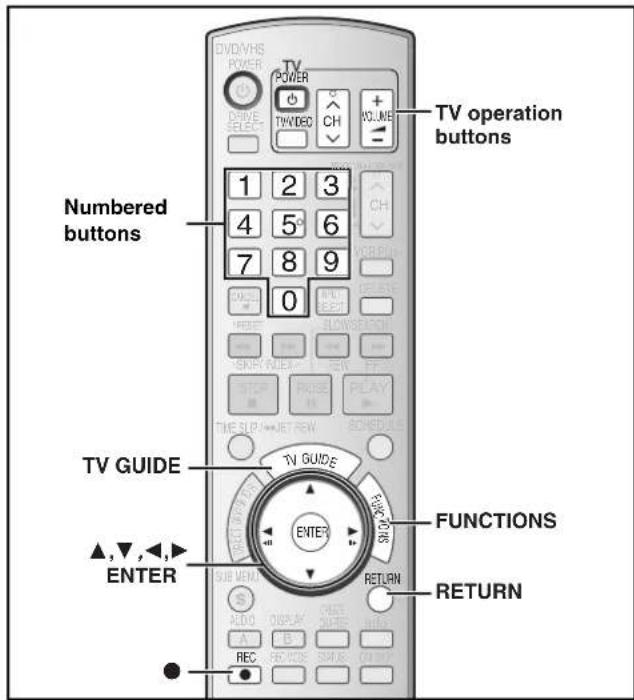
Selecting television type
This setting allows you to select the type of television connected.
1 While stopped
Press [FUNCTIONS].
2 Press [▲, ▼] to select "Other Functions" and then press [ENTER]. 3 Press [▲, ▼] to select "Setup" and then press [ENTER]. 4 Press [▲, ▼] to select "TV Screen" and then press [▶]. 5 Press [▲, ▼] to select "TV Type" and then press [ENTER].
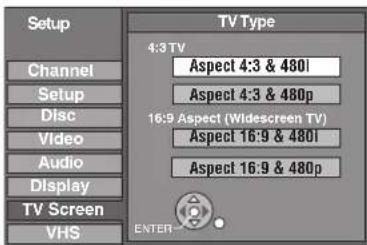
●Aspect 4:3/Aspect 16:9:

4:3 standard aspect television 16:9 widescreen television
•480p/480i:
- Select "480p" if the television is compatible with progressive output.
- Select "480i" if the television is not compatible with progressive output or you are unsure about television compatibility.
6 Press [▲, ▼] to select the item and then press [ENTER].
When connected to a 4:3 standard aspect television
To change how a DVD-Video or DVD-RAM widescreen picture is shown on a 4:3 standard aspect television
→ 77, "4:3 TV Settings for DVD-Video" or "4:3 TV Settings for DVD-RAM"
Television operation
You can operate the TV through the unit's remote control.
Point the remote control at the television.
While pressing [☐, TV POWER], enter the code with the numbered buttons.
e.g., 0 2 5 0: [0] → [2] → [5] → [0]
Manufacturer and Code No.
| Panasonic National QUASAR | 0250/0051 PHILIPS (RC-5) 0054 | |
| FISHER 0154 SANYO | 0154 | |
| GE | 0047 SHARP | 0165/0093 |
| GOLDSTAR | 0178/0457/0317 | SONY 0000 |
| HITACHI | 0145 SYLVANIA | 0054 |
| JVC | 0053 THOMSON | 0047 |
| LG | 0178/0457/0317 | TOSHIBA 0156 |
| MAGNAVOX | 0054 ZENITH | 0017 |
| MITSUBISHI | 0150 | |
Test by turning on the television and changing channels.
- Repeat the procedure until you find the code that allows correct operation.
- If your television brand is not listed or if the code listed for your television does not allow control of your television, this remote control is not compatible with your television.
When other Panasonic products respond to this remote control
Change the remote control code on the main unit and the remote control (the two must match) if you place other Panasonic products close together.
Use "1", the factory set code, under normal circumstances.
After performing steps 1 to 3 (→ left)
4 Press [▲, ▼] to select "Setup" and then press [▶]. 5 Press [▲, ▼] to select "Remote Control Code" and then press [ENTER]. 6 Press [▲, ▼] to select the code (Set Code 1, Set Code 2, or Set Code 3) and then press [ENTER].
- The code on the unit has been set.
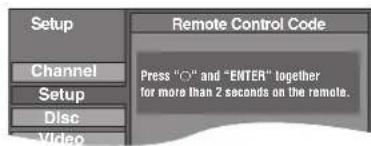
7 While pressing [ENTER], press and hold the numbered button ([1], [2] or [3]) for more than 2 seconds. ●The code on the remote control has been set. 8 Press [ENTER]. - When the following indicator appears on the unit's display and you are unable to operate the unit

The unit's remote control code
Press and hold [ENTER] and the indicated number button at the same time for more than 2 seconds.
To return to the previous screen
Press [RETURN].
To exit the screen
Press [RETURN] several times.
HDD and discs
■ FR (Flexible Recording)
The unit automatically selects a recording rate between XP and EP (8H) that will enable the recordings to fit in the remaining disc space with the best possible recording quality.
- You can set FR (Flexible Recording) mode when copying (→ 59, 60, 64) or programming scheduled recordings (→ 36, To make scheduled recording) or Flexible recording (→ 30).
■ Using “Flexible Recording” is convenient in these kinds of situations.
RAM -R -RW(V) +R +RW
- When the amount of free space on the disc makes selecting an appropriate recording mode difficult
- When you want to record a long program with the best picture quality
HDD
- When you want to record a title to HDD so that it can then be copied to fit one 4.7 GB disc perfectly. You do not need to edit the recorded title, or change the recording mode when copying, to fit the disc space.
e.g., Recording a 90 minutes program to disc If you select XP mode, the program will not fit one disc.
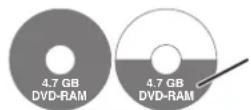
A second disc is necessary for 30 minutes of the program.
Another disc is necessary.
If you select SP mode, the program will fit one disc.
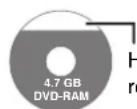
However there will be 30 minutes remaining disc space.
If you select "Flexible Recording" the program will fit one disc perfectly.
■ When the format confirmation screen is displayed
RAM -RW(V) +R +R DL +RW
When you insert a new disc or a disc recorded on a computer or other equipment, a format confirmation screen is displayed. Format the disc to use it. However, all the recorded contents are deleted.
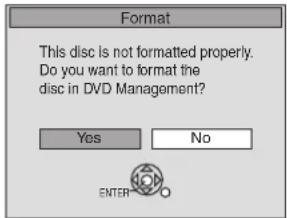
Press [◀] to select "Yes" and then press [ENTER].
- Several steps are necessary to format a disc. Refer to "Deleting all the contents of a disc or card—Format" (→ 71)
■ When remove a recorded disc
-R -R DL -RW(V) +R +R DL
When you press [▲, OPEN/CLOSE] on the main unit while stopped: The following screen appears when you have not processed the disc for play on other equipment.
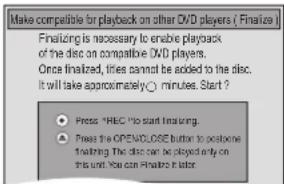
■ When finalizing the disc
Press [●, REC] on the main unit.
- You cannot stop this process once you have started it.
- If you want to set the background, play menu select or providing a disc name, select "Top Menu Style", "Playback will start with:" (→ 72) or "Disc Name" (→ 70) in "DVD Management" before finalizing.
■ When opening the tray without disc finalization Press [▲, OPEN/CLOSE] on the main unit.
1 Sec. Quick Start for Recording & EPG Display
(When connecting to a TV using the Video or S-Video terminal) From the power on state, recording starts about 1 second after
[●, REC] is pressed. If [TV GUIDE] is pressed while the unit is off, the Electronic Program Guide (EPG) starts being displayed in less than 1 second, with the full EPG being displayed in about 1.5 seconds.
× Only when recording to the HDD or DVD-RAM
■ Recording modes and approximate recording times
Depending on the content being recorded, the recording times may become shorter than indicated.
| Recording Mode | HDD(80 GB) | DVD-RAM | DVD-R/DVD-RW/+R/+RW(4.7 GB) | DVD-R DL*3(8.5 GB) | +R DL*3(8.5 GB) | |
| Single-sided(4.7 GB) | Double-sided*1(9.4 GB) | |||||
| XP (High picture quality recording mode) | 17 h 1 h 2 h | 1 h 1 h 45 min 1 h | 45 min | |||
| SP (Standard recording mode) | 34 h 2 h 4 h | 2 h 3 h 35 min 3 h | 35 min | |||
| LP (Long recording mode) | 68 h 4 h 8 h | 4 h 7 h 10 min 7 h | 10 min | |||
| EP (Extra long recording mode)*4 | 142 h (106 h *2) | 8 *3) 16 h | (12 h 6 *2) h | 8 *2)h | 14 h 20 min(10 h 45 min) | Cannot copy |
| FR (Automatic mode selection)*4 | 142 h maximum | 8 h maximum | 8 h maximum for one side | 8 h maximum | 14 h 20 min | Approximately 9 h with video quality equivalent to LP mode |
*1 It is not possible to record or play continuously from one side of a double sided disc to the other. *2 When "Recording Time in EP Mode" is set to "EP-Extended Play (6H)" in the Setup menu (→ 75). The sound quality is better when using "EP-Extended Play (6H)" than when using "EP-Extended Play (8H)". *3 You cannot record directly to these discs with this unit. The table shows the recording time when copying. *4 When recording to the HDD in FR mode (recordings 5 hours or longer) or EP mode, you cannot perform high-speed copy to +R, +R DL or +RW discs. - RAM When recording to DVD-RAM using EP (8H) mode, play may not be possible on DVD players that are compatible with DVD-RAM. Use EP (6H) mode if playback may be on other equipment.
VHS
Recording mode
SP: You can record the length shown on the tape.
EP: 3 times the length of SP mode.
VP: 5 times the length of SP mode.
- To have a longer recording capacity, select "EP" or "VP".
- If the image quality is important to you or if you wish to store the tape for a long period, select "SP".
- The unit can play tapes recorded in LP mode on other equipment.
VP mode:
- A tape recorded in VP mode by the unit cannot be played back by other VCRs. It is recommended to distinguish it from other tapes by writing "VP" on the tape label, etc.
- It takes more time for automatic tracking to work when playing tapes recorded with VP mode, and it may not work at all with some tapes. Do tracking manually if this is the case (→ 49)
Note
- Even if the video cassette you use is labeled "S-VHS", it is not possible to record in the S-VHS system with the unit. It records in the normal VHS system.
- You cannot change channels while recording. You can change channels while in pause mode.
- When recording is paused for 5 or more minutes, the unit returns to stop mode.
■ To display the approximate remaining tape time
When you insert a tape, “—” appears on the unit's display.
To display the approximate remaining tape time, fast-forward or rewind the tape.
1 Select "Select Tape Length" from the "VHS" tab and select the corresponding tape length. (→ 77) 2 Press [STATUS] several times.
The unit's display changes as follows each time [STATUS] is pressed.
Input channel → Counter → Remaining tape time
- The remaining tape time may not be displayed correctly depending on the tape used.
HDD, discs and VHS
■ To specify a time to stop recording—One Touch Recording
HDD RAM -R -RW(V) +R +RW VHS
Preparation
- Press [DRIVE SELECT] to select the recording drive (HDD, DVD or VHS).
- The "HDD", "DVD" or "VHS" indicator lights up on the unit.
During recording
Press [●, REC] to select the recording time.
- You can also press [●, REC] on the main unit.
- You can specify up to 4 hours later. ●The unit display changes as shown below.
Counter (Cancel) → OFF 0:30 → OFF 1:00 → OFF 1:30 ; uparrow OFF 4:00 ← OFF 3:00 ← OFF 2:00 ←
- This does not work during scheduled recordings (→ 32) or while using Flexible Recording (→ 30).
- If you change the channel or recording mode while recording is paused, the time specified to stop recording is canceled. (Except VHS)
To cancel
Press [●, REC] several times until the counter appears.
- The time to stop recording is canceled; however, recording continues.
To stop recording partway
Press [■, STOP].
■ Watching the TV while recording
HDD RAM -R -RW(V) +R +RW VHS
Preparation
- Press [TV/VIDEO] to change the input mode to TV.
Press TV's [CH, ∧, ∨] to select the desired TV channel.
For your reference
- You can also do this if the unit is making a scheduled recording. ●The recording is unaffected.
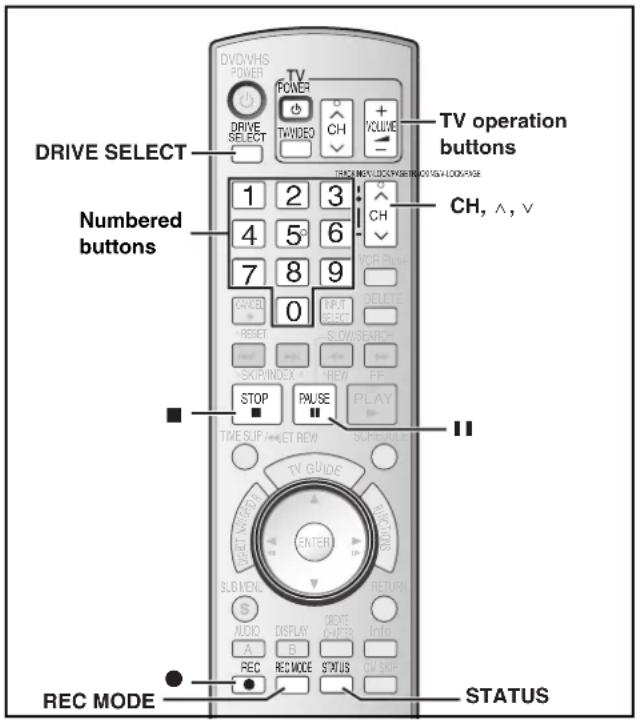
Recording television programs
HDD RAM -R -RW(V) +R +RW VHS
You can record up to:
- HDD 500 titles on HDD (When continuously recording for long durations, titles are automatically divided every 8 hours.)
• RAM -R -RW(V) 99 titles on a disc
• +R +RW 49 titles on a disc
Preparation
- Turn on the television and select the appropriate video input to suit the connections to this unit.
- Turn on this unit.
See also the notes "Important notes for recording" (→ 9) and "Note about recording" (→ 27).
Note
- It is not possible to record to two drives simultaneously.
- +RW You can create a Top Menu using "Create DVD Top Menu" (→ 72).
Recording or editing on the disc may delete the menu. In that case, create the menu again.
1 Press [DRIVE SELECT] to select the recording drive (HDD, DVD or VHS).
The "HDD", "DVD" or "VHS" indicator lights up on the unit.
If you selected the DVD drive insert a disc. (→12)
If you selected the VHS drive insert a video cassette with an intact accidental erasure prevention tab. (→12)
2 Press [CH, ∧, ∨] to select the channel.
![PANASONIC DMR-EH75 - Press [CH, ∧, ∨] to select the channel. - 1](/content/2026/05/796413/images/91ef4bd14cc3feb4387fbe0a6f866c0dd74816397a059e14fc64810e06f82e83.jpg)
e.g., HDD
To select with the numbered buttons:
Antenna Mode
| e.g., 5: [0] → [5] |
| 15: [1] → [5] |
CableTV, Satellite Channel
| e.g., | 5: [0] → [0] → [0] → [5] |
| 15: [0] → [0] → [1] → [5] | |
| 115: [0] → [1] → [1] → [5] | |
| 1115: [1] → [1] → [1] → [5] |
- VHS The "DV" channel can be selected however it cannot be recorded.
- Select the audio to record (→ 30).
3 Press [REC MODE] to select the recording mode [HDD/discs (XP, SP, LP, or EP) / VHS (SP, EP or VP)].
■ HDD/discs![PANASONIC DMR-EH75 - Press [REC MODE] to select the recording mode [HDD/discs (XP, SP, LP, or EP) / VHS (SP, EP or VP)]. - 1](/content/2026/05/796413/images/f43f871f5382a501b526605bcebf8cbb5bcf8a24ee8fed9e828a3a1041a5928a.jpg)
Remaining time on the disc (XP mode: 15 hours 7 minutes)
![PANASONIC DMR-EH75 - Press [REC MODE] to select the recording mode [HDD/discs (XP, SP, LP, or EP) / VHS (SP, EP or VP)]. - 2](/content/2026/05/796413/images/e65edad771f048cdeb40ab109b5e5d7cb7cfa7482af1c81fbcee8a2a511b9515.jpg)
Remaining time on the disc (EP mode: approximately 130 hours) h: Hour
- When there is over 100 hours available, the remaining recording time is displayed in hourly units.
- When XP mode is selected, you can also record sound using LPCM ( → 76).
VHS![PANASONIC DMR-EH75 - Press [REC MODE] to select the recording mode [HDD/discs (XP, SP, LP, or EP) / VHS (SP, EP or VP)]. - 3](/content/2026/05/796413/images/6b8267a1e44d5dbf0c4b45c2a52537cf6e16c12a2a3acd354bbf95b45210233e.jpg)
Remaining time on the tape (SP mode: 2 hours)
4 Press [●, REC] to start recording.
![PANASONIC DMR-EH75 - Press [●, REC] to start recording. - 1](/content/2026/05/796413/images/b7bf306a8787081710e591c737201ea35c03c394f2a73e3309a6ee96c3f87b61.jpg)
e.g., HDD
Recording will take place on open space on the HDD or on disc. Data will not be overwritten.
- You cannot change the channel or recording mode during recording. You can change the channel or recording mode while paused; however, the recording will then be as a separate title.
- You can record while the unit is in standby for scheduled recording, but once the time for the scheduled recording to begin is reached, any recording taking place will stop and the scheduled recording will begin.
■ To pause recording
Press [11, PAUSE].
Press again to restart recording.
You can also press [●, REC] to restart.
- HDD RAM -R -RW(V) +R +RW (Title is not split into separate titles.)
■ To stop recording
Press [■, STOP].
- From the start to the end of the recording is called one title.
- -R -RW(V) +R +RW It takes about 30 seconds for the unit to complete recording management information after recording finishes.
- If the program is listed in the program listings (→ 36), its name is automatically made the title name after recording. (The recorded title must be more than 3 minutes.)
In order to play DVD-R, DVD-RW (DVD-Video format) and +R (recorded with this unit) on other DVD players, it is necessary to finalize them (→ 72).
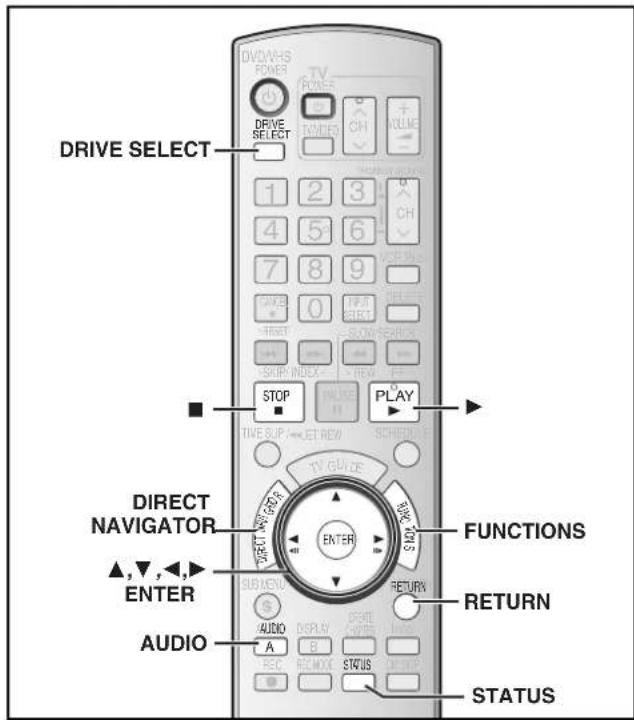
Selecting audio to record
HDD RAM
Press [AUDIO].
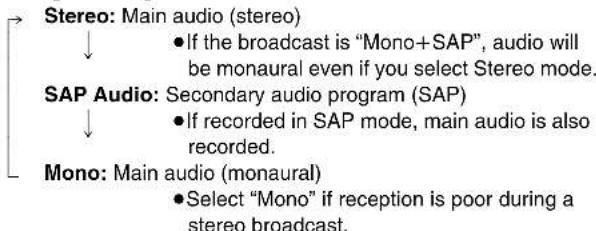
![PANASONIC DMR-EH75 - Press [AUDIO]. - 2](/content/2026/05/796413/images/1ac4f5bc7a59e8a9e9a8a1bcb67420725e42caa52c69979e2697236eacedb3de.jpg)
e.g., "Stereo" is selected. "(" appears when the unit is receiving the audio type you selected.
- If you change the sound setting while recording, the recorded sound will also change.
Note
You cannot change the audio type in the following cases while the unit is stopped, whichever drive is selected.
●While a disc other than DVD-RAM is inserted. - When "Recording for High-Speed Copying" is set to "On" (→ 75). (The default setting is "On".) - When the recording mode is XP and "Audio for XP Recording" is set to "LPCM" (→ 76).
-R -RW(V) +R +RW
HDD RAM (When recording sound in LPCM)
HDD RAM (When "Recording for High-Speed Copying" is set to "On")
Select the audio [Main or Secondary Audio Program (SAP)] in "Multi-channel TV Sound (MTS)" in the Setup menu. (→76)
Flexible Recording mode (FR)
HDD RAM -R -RW(V) +R +RW
The unit sets the best possible picture quality that fits the recording within the remaining disc space. The recording mode becomes FR mode.
Preparation
- Select the channel or the external input (IN1, IN2, IN3 or DV) to record.
- Press [DRIVE SELECT] to select the recording drive (HDD or DVD).
1 While stopped
Press [FUNCTIONS].
2 Press [▲, ▼] to select "Other Functions" and then press [ENTER]. 3 Press [▲, ▼] to select "Flexible Recording" and then press [ENTER].
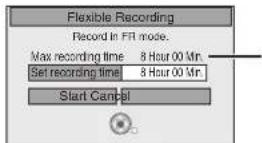
Maximum recording time This is the maximum recording time in FR mode.
4 Press [◀, ▶] to select "Hour" and "Min." and then press [▲, ▼] to set the recording time.
- You can also set the recording time with the numbered buttons. ●Maximum recording time is 8 hours.
5 Press [▲, ▼, ◀, ▶] to select "Start" and then press [ENTER].
- Recording starts.
- All the recording modes from XP to EP appear in the display.
To exit the screen without recording
Press [RETURN].
To stop recording partway
Press [■, STOP].
To show the remaining time
Press [STATUS].
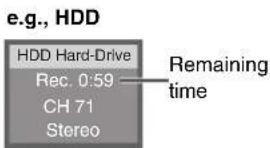
Playing while you are recording
HDD RAM
■ Playing from the beginning of the title you are recording—Chasing playback
While recording or scheduled recording
Press [▶, PLAY].
- There is no sound output while searching forward or backward.
To stop play
Press [■, STOP].
To stop recording
2 seconds after play stops
Press [■, STOP].
To stop scheduled recording
Press [■, STOP] then press [◀, ▶] to select "Stop recording" and then press [ENTER].
■ Playing a title previously recorded while recording—Simultaneous rec and play
- You can also change the drive and play while recording. Press [DRIVE SELECT] to select the recording drive (HDD or DVD).
1 While recording or scheduled recording, press [DIRECT NAVIGATOR].
2 Press [▲, ▼, ◀, ▶] to select a title and then press [ENTER].
- There is no sound output while searching forward or backward.
To stop play
Press [■, STOP].
To exit the Direct Navigator screen
Press [DIRECT NAVIGATOR].
To stop recording
After play stops
1 Press [DIRECT NAVIGATOR] to exit screen.
2 If the recording is on other drive Press [DRIVE SELECT] to select the recording drive (HDD or DVD).
3 Press [■, STOP].
To stop scheduled recording
Press [■, STOP] then press [◀, ▶] to select "Stop recording" and then press [ENTER].
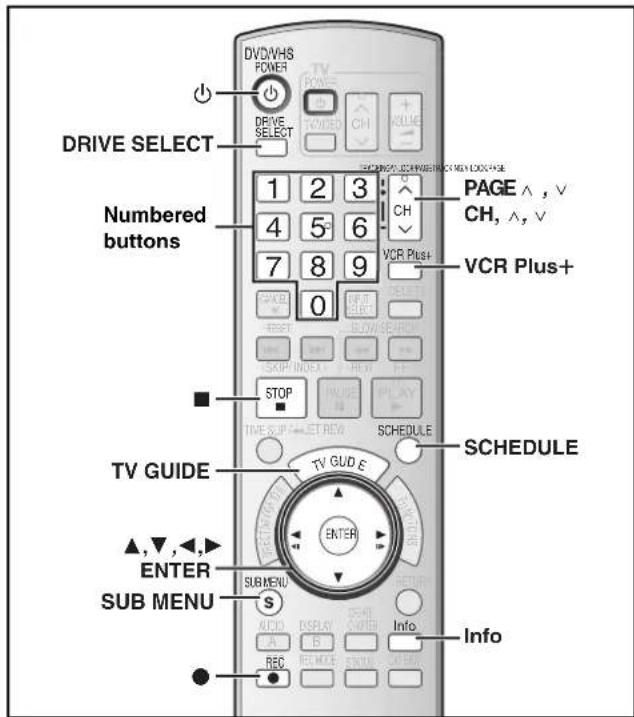
See also the notes "Important notes for recording" (→ 9).
HDD RAM -R -RW(V) +R +RW
- You can enter up to 8 days in advance.
- The program name becomes the name of the recorded title if the program is listed on the program listings.
- There may be some channels that are not displayed in the program listings even if they are receivable. In this case set them manually (→ 33).
Program listings for satellite services other than DirecTV cannot be received.
- Customers using the DISH Network service can set scheduled recordings on the DISH Network receiver (→ below).
- If you are using another satellite service, you can use manual recording to record.
DirecTV/DISH Network service is only available in the United States.
Using the DISH Network service
Program scheduled recordings using the DISH Network receiver. At this time, set the unit to the channel that the receiver broadcasts from the DISH Network receiver.
1 Press [CH, ∧, ∨] to select the appropriate channel on this unit. 2 Press [⏻, DVD/VHS POWER] to turn this unit off. - Visit Gemstar's homepage for more information about scheduled recordings for DISH Network.
URL: http://www.tvgos.com/support/echostar/
Preparation
- Turn on the television and select the appropriate video input to suit the connections to this unit.
- If recording to DVD, insert a disc that you can use for recording (→ 12).
When programming is finished and [TV GUIDE] is pressed
- The unit goes to scheduled recording standby ("💡" lights on the unit's display); however, it may not turn off automatically. To save power, turn the unit off by pressing [⏻, DVD/VHS POWER].
- Scheduled recordings are activated regardless of whether the unit is turned on/off.
- When using the cable box or the satellite receiver, make sure the cable box or the satellite receiver is turned on.
■ Notes on scheduled recording → 34
■ To check, change or delete a program → 34
■ To cancel scheduled recording when it has already begun 1 Press [DRIVE SELECT] to select the recording drive. 2 Press [■, STOP] then press [◀, ▶] to select "Stop recording" and then press [ENTER].
Using the TV Guide On Screen® system to make scheduled recordings
HDD RAM -R -RW(V) +R +RW
You can perform scheduled recording easily by just marking the desired program(s) in the program listings.
For successful scheduled recordings
The program listings will not display immediately after purchasing this unit. Complete the TV Guide On Screen® system setup and download the program listings (→23).
1 Press [TV GUIDE].
If the program listings is not completely downloaded, the
"Display setup progress" screen is displayed.
Select "LISTINGS" using [◀, ▶]. (You can use only the portion of TV programs that downloaded).
Further instructions on utilizing the TV Guide On Screen® system → 35
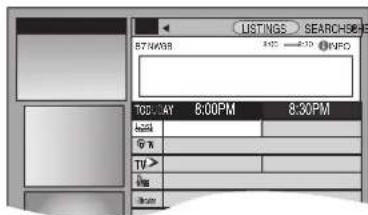
2 Press [▲, ▼, ◀, ▶] to select the program.
• To skip one screen
Press [PAGE ∧] or [PAGE ∨].
3 Press [●, REC].
“”appears in the list to indicate that the program is set for
scheduled recording
- Press [●, REC] to change the frequency.
Each time you press the button:
![graph TD A["Records only once."] --> B["R"] B --> C["W"] C --> D["Off"] E["Records regularly."] --> F G["Records weekly."] --> H](/content/2026/05/796413/images/b8e2ad6eea9b4584560acedb5e504459c44d9a423bff066e02beb88d44dd21d6.jpg)
- As long as the setting is not changed, the program is recorded to the HDD in the recording mode selected by the unit. • To change the setting
Press [SUB MENU] ( → 36, To make scheduled recording, step 2).
Repeat steps 2 to 3 to program other recordings.
4 Press [TV GUIDE].
Returns to the television screen.
■ Manually programming scheduled recordings
HDD RAM -R -RW(V) +R +RW
- You can manually set the date, channel, start and end times and so on for programs you want to record.
1 Press [SCHEDULE].
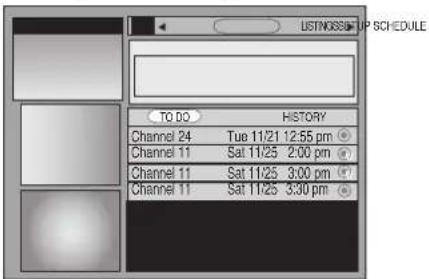
2 Press [SUB MENU].
Schedule Options menu is displayed.
3 Press [▲, ▼] to select "new manual recording" and then press [ENTER].
4 Enter the settings.
Press [▲, ▼] to select the item and then press [◀, ▶] or the numbered buttons to change the setting.
date: Month/Day/Year
| start: | ●You can set up to 8 hours. |
| end: | ●Press [◀, ▶] to select “am” or “pm”. |
| channel: | e.g., 5ch: [0] → [0] → [5] |
input: RF/IN1/IN2/IN3
recorder: HDD/DVD/use default
- When the recording drive is "DVD" and there is not enough remaining space, recording automatically switches to the "HDD" (→ 34, Relief Recording).
quality: XP/SP/LP/EP/FR
frequency: once/weekly/daily/off
5 Press [▲] to select "schedule recording" and then press [ENTER].
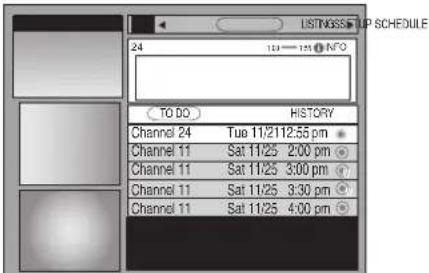
Press [▲, ▼] to select "TO DO" and repeat steps 2 to 5 to program other recordings.
6 Press [TV GUIDE].
Returns to the television screen.
■ Using VCR Plus+ system to make scheduled recordings
HDD RAM -R -RW(V) +R +RW
Entering PlusCode® numbers is an easy way of scheduling recording. You can find them in TV listings in newspapers and magazines.
- VCR Plus+ system works only if you connect antenna or cable ready.
1 Press [VCR Plus+].
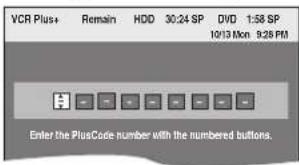
2 Press the numbered buttons to enter the PlusCode number.
- You can also use the [▲, ▼, ◀, ►] buttons.
- To correct the number Press [◀] to move back to correct a digit.
3 Press [ENTER].
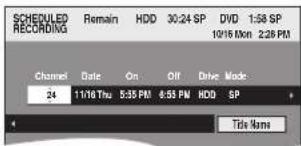
- When "XP" is displayed in the unit's display, the recording mode automatically changes to "FR" in order to prevent loss of recording when there is not enough space. You can change to "XP" in the [SCHEDULE] screen (→ 34). - You can only change the channel settings here. Select using [▲, ▼]. Change other settings (→ 34)
4 Press [ENTER].
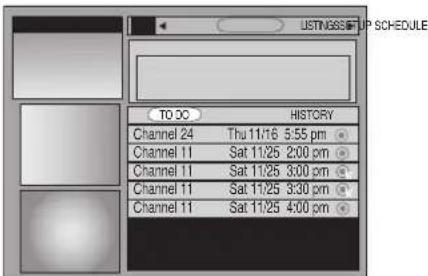
Repeat steps 1 to 4 to program other recordings.
5 Press [TV GUIDE].
Returns to the television screen.
Refer to the control reference on page 32.
Check, change or delete a program
1 Press [SCHEDULE].
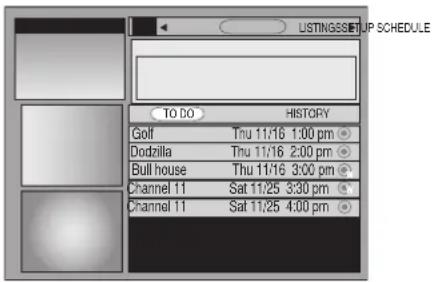
2 Press [▲, ▼] to select the program.
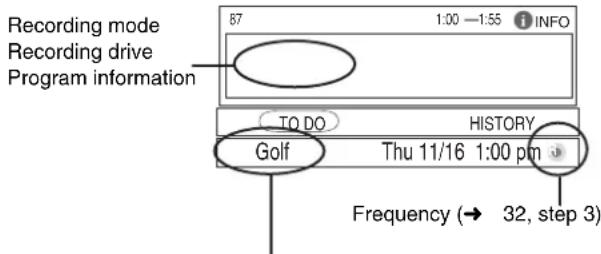
Channel or program name (only set for scheduled recording using TV Guide On Screen® system)
3 Press [SUB MENU].
The Schedule Options menu is displayed.
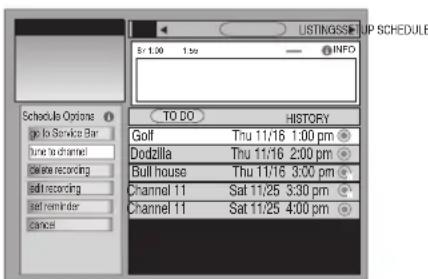
■ To change the recording settings
① Press [▲, ▼] to select "edit recording" and then press [ENTER]. ② Press [▲, ▼, ◀, ▶] to select the item and press [◀, ▶] or the numbered buttons to change the setting as necessary. ③ Press [▲] to select "schedule recording" and then press [ENTER].
■ To delete the program
① Press [▲, ▼] to select "delete recording" and then press [ENTER]. The confirmation screen is displayed. ② Press [▲, ▼] to select "yes" and then press [ENTER].
4 Press [TV GUIDE].
Returns to the television screen.
- The unit is not off. To save power, turn the unit off by pressing [⏻, DVD/VHS POWER].
Notes on scheduled recording
- "flashes when the unit cannot go to scheduled recording standby.
- Scheduled recordings begin when the set time is reached even when recording or when playing.
- Scheduled recordings do not begin while copying in normal speed mode (→ 58).
- If the unit is turned on when scheduled recording begins, it remains turned on after recording finishes. It does not turn off automatically. You can turn the unit off during scheduled recording.
- If you are making consecutive recordings that will start one after the other, the very end of the title cannot be recorded.
e.g., Program① 10:00–11:00
Program② 11:00–12:00
![graph TD A["Program ② Program ①"] --> B["11:00"] B --> C["Recorded"] B --> D["Not recorded"] C --> E["Recorded"] D --> F["Not recorded (approximately 15 seconds)"]](/content/2026/05/796413/images/aa6245e822183d3f6d29d8c2fe3fbceb2e87a4387295bb299430a2b7ff3cb09f.jpg)
- If you set DST (Daylight Saving Time) to ON when manually setting the clock (→ 25), scheduled recording may not work when summer switches to winter and vice versa.
■ When there is a duplicate or overlapping program scheduled recording
The program scheduled recording that was set last is recorded. None of the program that was set earlier is recorded even if there is only partial overlapping.
Program scheduled recordings that are not recorded are highlighted in grey in the SCHEDULE screen.
![graph LR A["Programs set earlier"] --> B["Not recorded"] C["Program set last"] --> D["Recorded"] style D fill:#f9f,stroke:#333,stroke-width:2px note right of D Not recorded](/content/2026/05/796413/images/5dd786f6b34fbfb0ba2f577ed0a7619725912b23887cb2711a2eee6b0f6bcaaa.jpg)
■ Relief Recording
When the recording drive is set to "DVD" for scheduled recording and if the program will not fit onto the disc, the recording drive will be changed to the "HDD" automatically.
If there is no disc in the tray or the disc cannot be recorded on or when scheduled recording starts while copying, the recording drive will be changed to the HDD.
- The Direct Navigator shows which programs were relief-recorded ("" is displayed.) (→ 40).
- If the time remaining on the HDD is insufficient, as much of the program as possible will be recorded onto the HDD.
Refer to the control reference on page 32.
■ Screen Components
(The screen displayed when [TV GUIDE] is pressed)
![Video window (The title highlighted is displayed.) Menu Panel Ads (Panel menu) Listings Options menu This appears when you press [SUB MENU]. Listings Options go to Service Bar video unlocked channel ID logo edit channels done cancel TODAY 8:30PM 8:00PM Last Channel ρTV TV> WWBG recation Service Bar…](/content/2026/05/796413/images/d05c7445cab48321ee3e668dd49a87234c8852b98950dd3140893a7a04b1f9f8.jpg)
1 Press [TV GUIDE].
2 Press [SUB MENU], press [▲] to select "go to Service Bar" and then press [ENTER].
- You can also press [▲] only to go to the Service Bar.
3 Press [◀, ▶] to select a menu on the Service Bar.
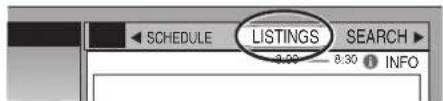
■ To use menus
Press [▼].
The Service bar consists of 4 menus.
| LISTINGS:(→ 36) | You can set scheduled recording and scheduled reminder. |
| SEARCH:(→ 37) | You can search TV programs by genre, keyword, etc. |
| SETUP:(→ 38) | You can change the settings of the TV Guide On Screen® system. |
| SCHEDULE:(→ 39) | You can check, change, or delete a program set for scheduled recording or scheduled reminder manually. |
Remote control buttons used in all the menus
| [▲, ▼, ◀, ▶] | Select/Enter |
| [ENTER] | |
| [PAGE ∧] [PAGE ∨] | Skip one screen |
| [SUB MENU] To show Panel menu | |
| [Info] | Change the size of information window |
| Displays help information for operation | |
Panel menu items common to all the menus
| (appear when [SUB MENU] is pressed) | |
| go to Service Bar: | Return to the Service bar |
| done: | Finish setting |
| cancel: | Cancel an entry on the menu |
■ To watch the TV program on the selected channel
When "LISTINGS" is selected
Press [▲, ▼, ◀, ▶] to select the TV program and then press [ENTER].
While recording, you cannot change from the channel being recorded.
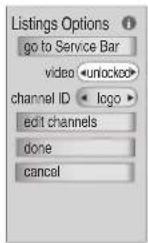
■ Changing how the channel is displayed, etc.
When "LISTINGS" is selected
① Press [SUB MENU].
The Listings Options menu is displayed (→ above).
② Press [▲, ▼] to select the item, then press [◀, ▶] or [ENTER] to change the setting.
| video: | The highlighted title is displayed in the Video window.The title in the Video window will not change if you select “locked”. |
| channel ID: | Select how channels are displayed (e.g., logo, number or both) |
| edit channels: | Change channel line-up (→ 38, Change channel display) |
■ To shortcut to a desired item
When "LISTINGS" is selected
① Press the numbered buttons to select the number you want to shortcut to. (e.g., channel 26, 6 hours ahead)
② Press [▲, ▼] to select the item, then press [ENTER] to shortcut.
| go to channel: | highlighted jumps to desired channel's current listings |
| hours ahead: | highlighted jumps ahead number of hours entered |
| hours back: | highlighted jumps back number of hours entered |
| days ahead: | highlighted jumps ahead number of days entered |
| days back: | highlighted jumps back number of days entered |
Continued on next page
Refer to the control reference on page 32.
Using the LISTINGS Service to set scheduled recording and scheduled reminder
When "LISTINGS" is selected in step 3 on page 35, the LISTINGS screen is displayed.
You can set scheduled recording and scheduled reminder. You can also view titles selected from the program listings.
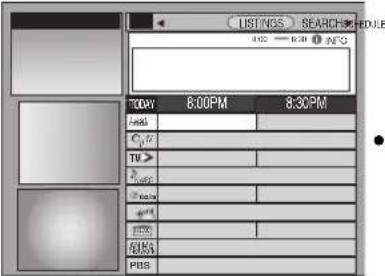
- You can set how the channels are displayed on screen (→ 35, Listings Options)
Press [▲, ▼, ◀, ▶] to select the TV program, then press [SUB MENU].
The Episode Options menu is displayed.
![graph TD A["go to Service Bar"] --> B["watch now"] B --> C["set recording"] C --> D["set reminder"] D --> E["cancel"] F["To make scheduled recording (→ below)"] --> G["To make scheduled reminder (→ right)"] H["Other Episode Options (→ right)"] --> I](/content/2026/05/796413/images/939c868dbc7ed40f09595d2a36476ff8781b6548d79e1d140a20d300d10c8209.jpg)
To make scheduled recording
1 Press [▲, ▼] to select "set recording" and then press [ENTER].
The Record Options menu is displayed.
2 Press [▲, ▼] to select the item and then press [◀, ▶] or the numbered buttons to change the setting.
Record Options
| frequency: once/regularly/weekly/off | |
| start: | On time/1 to 120 min late/120 to 1 min early |
| end: | |
| recorder: HDD/DVD/use default | |
| ●When the recording drive is “DVD” and there is not enough remaining space, recording automatically switches to the “HDD” (→ 34, Relief Recording). | |
| quality: XP/SP/LP/EP/FR | |
| cancel: ●To cancel scheduled recording | |
3 Press [▲] to select "schedule recording" and then press [ENTER].
Return to the LISTINGS screen.
"" appears in the list to indicate that the program is set for scheduled recording.
- Notes about scheduled recordings (→ 32)
To make scheduled reminder
You can set for the channel to change automatically when a program set for scheduled reminder starts. This will prevent you from missing a program you want to watch while you are watching another program.
1 Press [▲, ▼] to select "set reminder" in Episode Options menu and then press [ENTER]. The Remind Options menu is displayed.
2 Press [▲, ▼] to select the item and then press [◀, ▶] or the numbered buttons to change the setting.
Remind Options
| frequency: once/regularly/weekly/off | |
| auto tune: Choose whether the channel changes automatically or not when a scheduled reminder starts | |
| when: | Set the start time for a scheduled reminder. (e.g., On time or up to 15 minutes early/late the start time of the program) |
3 Press [▲] to select "schedule reminder" and then press [ENTER].
Return to the LISTINGS screen.
"appears in the list to indicate that the program is set for scheduled reminder.
■ When the notification message appears on the television screen
If you set the reminder, a program notification message (→ below) is displayed on the television screen at the time the reminder is set for. Select whether to continue watching the current channel or change the channel to the program you want to watch.
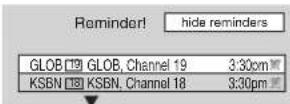
To change the channel to the program you watch
Press [▲, ▼] to select the channel and then press [ENTER].
- If you turn "auto tune" on in step 2 above, press [ENTER] only to change the channel automatically.
To cancel the notification message and continue watching the current channel
Press [▲, ▼] to select "hide reminders" and then press [ENTER].
Note
You cannot set a scheduled recording and a scheduled reminder for the same time on different channels.
■ Other Episode Options
You can configure the individual settings of the program listings.
When Episode Options menu is displayed (→ left)
Press [▲, ▼] to select the item and then press [◀, ▶], [ENTER] or the numbered buttons to change the setting.
Items that can be set up differ depending on the situation.
| watch now: | Change the television screen to the selected program |
| tune to channel: | Choose whether the channel changes automatically or not when the selected program starts |
| set recording: | Set a program for scheduled recording (→ left, To make scheduled recording) |
| delete recording: | Delete a program set for scheduled recording |
| edit recording: | Change the previously set recording settings (→ left, Record Options) |
| set reminder: | Set a scheduled reminder (→ above, To make scheduled reminder) |
| delete reminder: | Delete a scheduled reminder |
| edit reminder: | Change the previously set scheduled reminder settings (→ above, Remind Options) |
Using the SEARCH Service to search TV programs by genre, keyword, etc.
When "SEARCH" is selected in step 3 on page 35, the SEARCH screen is displayed.
The SEARCH service displays program listings sorted into your preferred categories.
There are various categories, such as movies, sports, children's, educational, news, variety, series, HDTV, keyword, and alphabetically. Each category will contain individual minor categories.
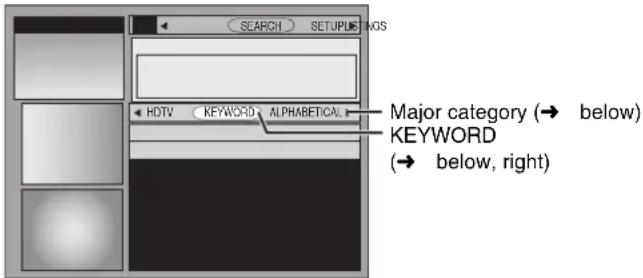
■ To search TV programs by genre
1 Press [◀, ▶] to select the major category.
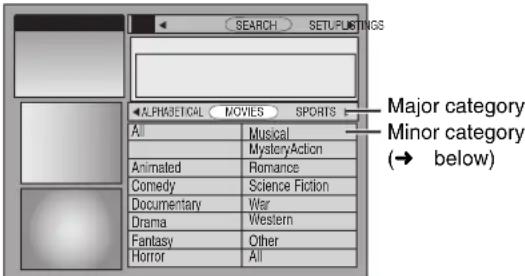
2 Press [▲, ▼, ◀, ▶] to select the minor category and then press [ENTER].
Search starts, and the titles that apply are displayed in the list. If there are no titles that apply, "No match found" is displayed.
- When sorting alphabetically, programs with the same name (such as reruns or subsequent broadcasts of the same program) are displayed together in one column. In this case, press [▲, ▼] to select a program name and then press [ENTER]. Each broadcast of the program is then displayed separately.
3 Press [▲, ▼] to select a program and then press [ENTER]. The Episode Options menu is displayed.
You can now set the scheduled recording or scheduled reminder (→ 36).
■ To search TV programs by new keyword
You can also perform a more detailed search when you enter a new keyword.
For example, set as shown below when you want to search for action movies that feature Bruce Ree.
type: Actor
category: Movies
sub: Action
enter keyword: Bruce Ree
1 Press [◀, ▶] to select "KEYWORD" and then press [SUB MENU].
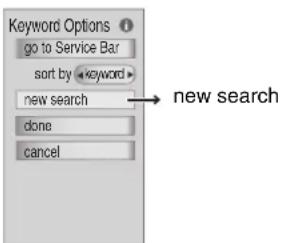
2 Press [▲, ▼] to select "new search" and then press [ENTER].
Search Options menu is displayed.
3 Press [▲, ▼] to select the item (type, category or sub) and then press [◀, ▶] to select the setting.
Items that can be set up differ depending on the situation.
Search Options
| type: Select a search type (e.g., actor, director) | |
| category: Select a program category (e.g., action, baseball) | |
| sub: | Select a program sub category (e.g., action, baseball) |
| enter keyword: | Enter a keyword (→ below, KEYWORD input screen) |
4 Press [▲, ▼] to select "enter keyword" in Search Options menu and then press [ENTER].
KEYWORD input screen is displayed.
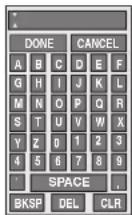
SPACE: Creates one open character
BKSP: Deletes the previous character
DEL: Deletes the next character
CLR: Deletes all characters
1. Press [▲, ▼, ◀, ▶] to select a letter and then press [ENTER].
Repeat step 1 as necessary.
2. Press [▲, ▼] to select "DONE" and then press [ENTER] to finish entering.
Search starts, and the titles that apply are displayed in the list.
- If there are no titles that apply, "No match found" is displayed.
- The newly input keywords are all saved. If you search for a keyword and no match is found, the input keyword is saved.
5. Press [▲, ▼] to select a program and then press [ENTER].
Episode Options menu is displayed.
You can now set the scheduled recording or scheduled reminder (→ 36).
■ To search TV programs by saved keyword
1. Press [◀, ▶] to select "KEYWORD".
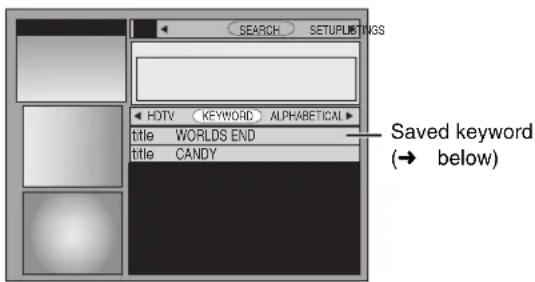
2. Press [▲, ▼] to select saved keyword and then press [ENTER].
Search starts, and the titles that apply are displayed in the list. If there are no titles that apply, "No match found" is displayed.
3. Press [▲, ▼] to select a program and then press [ENTER] to view a list of episodes.
4 Press [▲, ▼] to select the episode and then press [ENTER]. The Episode Options menu is displayed.
You can now set the scheduled recording or scheduled reminder (→ 36).
■ To change the saved keyword or search parameters
1 Press [◀, ▶] to select "KEYWORD".
2 Press [▲, ▼] to select the saved keyword and then press [SUB MENU].
The Search Options menu is displayed.
Repeat steps 3 to 5 (→ above, To search TV programs by new keyword).
Items that can be set up differ depending on the situation.
| edit search: | Change the saved keyword setting |
| delete search: | Delete the saved keyword |
Refer to the control reference on page 32.
Using SETUP Service to change the settings of the TV Guide On Screen® system
When "SETUP" is selected in step 3 on page 35, the SETUP screen is displayed.
The SETUP service allows you to redo the channel settings, customize the channel line-up, and set the TV Guide On Screen® system's start-up pattern.
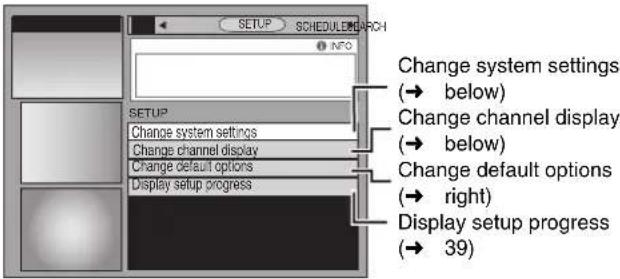
■ Access to the TV Guide On Screen® system setup screen—"Change system settings"
You can verify any information entered during setup, or completely redo the setup, for the TV Guide On Screen® system.
1 Press [▲, ▼] to select "Change system settings" and then press [ENTER].
The information that was set is displayed, and you are asked to confirm whether it is correct.
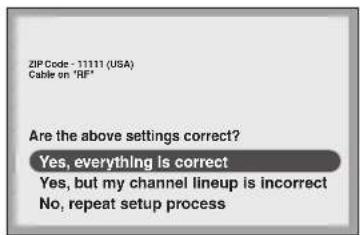
2 Press [▲, ▼] to select the message and then press [ENTER].
- "Yes, everything is correct"
- The information that was set will remain intact. Press [▲, ▼, ◀, ▶] to select "Next" and then press [ENTER] to exit the screen.
- "Yes, but my channel lineup is incorrect"
① Press [▲, ▼, ◀, ▶] to select one of the following channel lineups and then press [ENTER].
② Press [▲, ▼, ◀, ▶] to select "Next" and then press [ENTER].
Then follow the operation instructions given on screen.
- "No, repeat setup process"
- The TV Guide On Screen® system setup screen is displayed. Follow the on-screen prompts to redo the setup (→ 23, step 4).
■ Customizing the channel lineup – “Change channel display”
You can customize the channel line-up. You can easily change channel line-up should the cable company occasionally revise their channel assignments.
1 Press [▲, ▼] to select "Change channel display" and then press [ENTER].
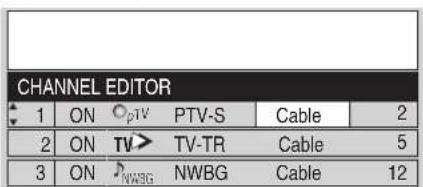
CHANNEL EDITOR screen
2 Press [▲, ▼] to select the channel to customize and then press [ENTER].
The Grid Options menu is displayed. The items that can be set up vary depending on the situation.
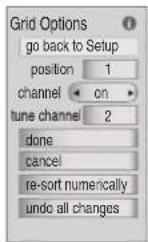
3 Press [▲, ▼] to select the item, then press [◀, ▶] or the numbered buttons to change the setting.
Grid Options
| position: Change the position where the channel appears in the LISTINGS screen (and CHANNEL EDITOR) | |
| channel: On: Channel is always displayed in LISTINGS and SEARCH screenOff: Channel is never displayed in LISTINGS and SEARCH screenauto-hide: Display a channel only when program information is available | |
| service: Change the service for a channel if there is more than one service available (e.g., cable, over-the-air, antenna, DirecTV, etc.) | |
| input: Change the input for the channel if there is more than one input (e.g., Antenna 1, Antenna 2, etc.) | |
| tune channel: Correct the tune channel number using the remote | |
| re-sort numerically: | Change the channel order in the LISTINGS screen (and CHANNEL EDITOR) to numeric |
| undo all changes: | Reset all channel editor options (and LISTINGS screen) to their original settings |
■ Change the initial settings — “Change default options”
You can change the size of the Information box, as well as the default settings for scheduled recording and scheduled reminders.
1 Press [▲, ▼] to select "Change default options", then press [ENTER].
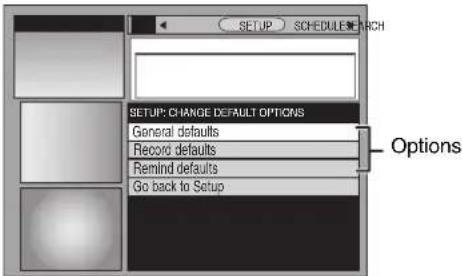
2 Press [▲, ▼] to select the option, then press [ENTER]. The items for each option are displayed (→ 39).
3 Press [▲, ▼] to select the item, then press [◀, ▶] or the numbered buttons to change the setting.
4 Press [▲, ▼] to select "done", then press [ENTER].
General defaults
| box size: | Change the size of the Information box |
| box position: | Change the position of the Information box |
| video: | The highlighted title is displayed in the Video window.The title in the Video window will be not change if you select “locked”. |
| channel ID: | Change how channels are displayed (e.g., logo, number or both) |
| auto guide: | Choose whether the TV GUIDE screen is displayed automatically or not when you turn on this unit. |
Record defaults
| start: Change the start time for scheduled recording |
| end: Change the end time for scheduled recording |
| recorder: Select the recording drive |
| quality: Select the recording mode |
Remind defaults
| auto tune: Choose whether the channel changes automatically or not when a scheduled reminder starts |
| when: Set the start time for a scheduled reminder.(e.g., On time or up to 15 minutes before/after the start time of the program) |
■ Display progress in getting TV Guide On Screen data — “Display setup progress”
Check the progress in obtaining TV Guide On Screen data. If there is a check placed beside "channel lineup data", you can make scheduled recordings and scheduled reminders from the program listings grid.
Press [▲, ▼] to select "Display setup progress", then press [ENTER].
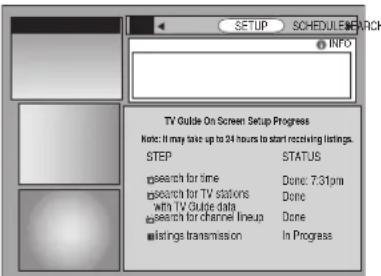
Press [ENTER] to close the screen.
Using the SCHEDULE service to manually check, change, or delete a program set for scheduled recording or scheduled reminder.
When "SCHEDULE" is selected in step 3 on page 35, the SCHEDULE screen is displayed.
The SCHEDULE service displays programs registered for recording and scheduled reminders on the list. You can sort the list, delete programs, change the frequency/recording drive, or modify the start/end times of selected programs.
- You can manually set the scheduled recording (→ 33) and scheduled reminder if the program listings have not been downloaded.
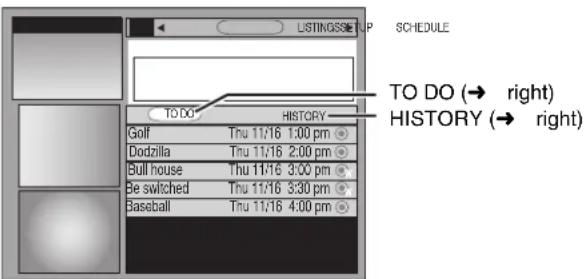
■ To change the previously set scheduled recording or scheduled reminder
1 Press [◀, ▶] to select "TO DO", then press [▲, ▼] to select the title, and then press [SUB MENU]. The Scheduled Options menu is displayed.
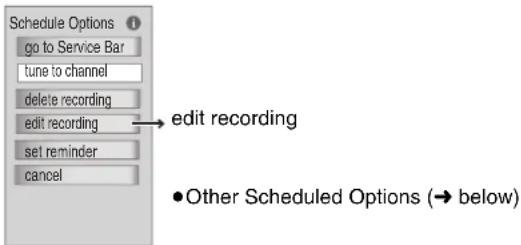
2 Press [▲, ▼] to select "edit recording" or "edit reminder", and then press [ENTER]. The Record Options (→ 36) or Remind Options (→ 36) is displayed. 3 Press [▲, ▼] to select the item, and then press [◀, ▶], [ENTER], or the numbered buttons to change the setting. 4 Press [▲] to select "schedule recording" or "schedule reminder", and then press [ENTER]. Items that can be set up differ depending on the situation.
■ Other Schedule Options
| sort by: | Sort recorded programs by date or title |
| watch now: | Change the television screen to the selected program |
| tune to channel: | Choose whether the channel changes automatically when the selected program starts |
| new manual recording: | Set a program for manual recording (→ 33) |
| set recording: | Set a program for scheduled recording (→ 36, To make scheduled recording) |
| delete recording: | Delete a program set for scheduled recording |
| new manual reminder: | Set a manual reminder |
| set reminder: | Set a scheduled reminder (→ 36, To make scheduled reminder) |
| delete reminder: | Delete a scheduled reminder |
■ History Options
You can view the scheduled recordings history. Information about scheduled recordings that were not performed is displayed in the INFO screen.
1 Press [◀, ▶] to select "HISTORY", and then press [SUB MENU].
The History Options menu is displayed.
2 Press [▲, ▼] to select the item, and then press [◀, ▶] or [ENTER] to change the setting.
Items that can be set up differ depending on the situation.
History Options
| view as: Display recorded programs in groups or lists | |
| sort by: | Sort recorded programs by date or title |
| delete episode history: | Delete recording history of the selected title |
| delete all history: | Delete history of all recordings listed in the History screen (including recordings about to begin or in progress) |
Playing recorded video contents / Playing play-only discs
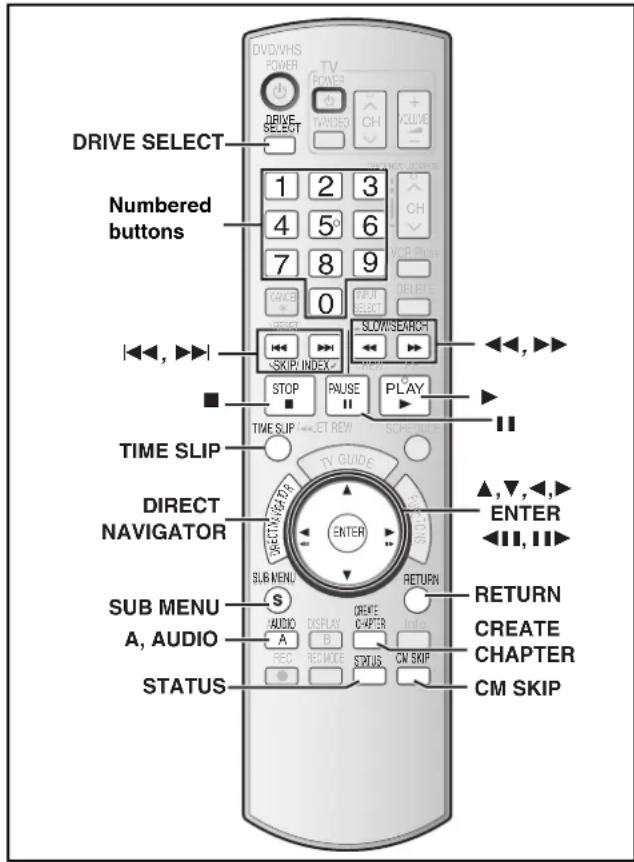
■ If the video is stretched vertically
- 16:9 aspect images will be recorded as 4:3 images if recorded under the following conditions:
- If recorded to the HDD or DVD-RAM with "Recording for High-Speed Copying" set to "On" in the Setup menu (Factory default setting is "On" → 75).
- If recorded to a DVD-R, DVD-R DL, DVD-RW (DVD-Video format), +R, +R DL or +RW disc. You may be able to adjust it by changing the display mode on your television; please refer to the television's operating instructions.
Preparation
- Turn on the television and select the appropriate video input to suit the connections to this unit.
- Turn on this unit.
1 Press [DRIVE SELECT] to select the playback drive (HDD or DVD).
The "HDD" or "DVD" indicator lights up on the unit.
- It is possible to watch playback from one drive while recording on another (editing is not possible).
If you selected the DVD drive, insert a disc. (→ 12)
2 Press [▶, PLAY].
HDD RAM -R -R DL -RW(V) +R +R DL +RW -RW(VR)
Play starts from the most recently recorded title.
DVD-V, DVD-A, CD, VCD, and MP3
Play starts from the beginning of the disc.
DivX
DivX menu screen appears (→ 43)
- When using cartridge discs with the write-protect tab in the protect position (→ 70), play automatically starts when inserted in the unit.
- Selecting recorded programs (titles) to play – Direct Navigator
HDD, RAM, -R, -R DL, -RW(V), +R, +R DL, +RW, -RW(VR)
1 Press [DIRECT NAVIGATOR].
- Thumbnail Mode
![PANASONIC DMR-EH75 - Press [DIRECT NAVIGATOR]. - 1](/content/2026/05/796413/images/7142ef7605e18dee1038405991b9867d705437cea4c484962120d9c85dde8866.jpg)
- Table Mode
![PANASONIC DMR-EH75 - Press [DIRECT NAVIGATOR]. - 2](/content/2026/05/796413/images/3cfe365cf6746b81336e12550ca0378e9fb341e7aa31623bf9bb697aa4c37953.jpg)
Switching the Direct Navigator appearance
① Press [SUB MENU] while Thumbnail Mode is displayed. ② Press [▲, ▼] to select "Table Mode" and then press [ENTER]. - The display appearance used last is saved even after the unit is turned off.
2 HDD RAM
Press [A] to select "Video".
![PANASONIC DMR-EH75 - Press [A] to select "Video". - 1](/content/2026/05/796413/images/bf93d0a0a3578565b28024df14811119e9553655f0f76fa19b593dcf103c7d56.jpg)
HDD To sort Title View for easy searching (Table Mode only) This function is convenient when searching for one title to playback from many titles.
① Press [SUB MENU]. ② Press [▲, ▼] to select "Sort" and then press [ENTER]. ③ Press [▲, ▼] to select the item and then press [ENTER]. If you select an item other than "No." - The Direct Navigator screen will reappear after playback of the selected title has finished. (You cannot play titles continuously.) - If you exit the Direct Navigator screen, or switch to the "Picture" Direct Navigator screen, the sorted Title View will be canceled.
3 Press [▲, ▼, ◀, ▶] to select the title and then press [ENTER].
You can also select titles with the numbered buttons.
HDD
RAM -R -R DL -RW(V) +R
+R DL +RW -RW(VR)
e.g., 5: [0] → [0] → [5] 15: [0] → [1] → [5] 115: [1] → [1] → [5]
5: [0] → [5] 15: [1] → [5]
To show other pages
Press [▲, ▼, ◀, ▶] to select "Previous" or "Next" and then press [ENTER]. (Thumbnail Display only)
- You can also press [◀◀, SKIP] or [▶▶], SKIP] to show other pages.
To exit the screen
Press [DIRECT NAVIGATOR].
Direct Navigator screen icons
Title protected.
Title that was not recorded due to recording protection (Digital broadcasts, etc.)
✗ Title cannot be played [When copying a title to the HDD, or when data is damaged, etc.]
● Currently recording.
Titles that have been rerouted to the HDD ( → 34, Relief Recording)
Title with "One time only recording" restriction ( → 93, CPRM)
■ When a menu screen appears on the television
DVD-V DVD-A
Press [▲, ▼, ◀, ▶] to select the item and then press [ENTER].
Some items can also be selected using the numbered buttons.
VCD
Press the numbered buttons to select the item.
e.g., 5: [0] → [5] 15: [1] → [5]
●To return to the menu screen
DVD-V Press [DIRECT NAVIGATOR] or [SUB MENU].
DVD-A Press [DIRECT NAVIGATOR].
VCD Press [RETURN].
- Depending on the type of disc, playback methods will differ. Read the disc's instructions carefully.
Note
- It is not possible to play continuously from one side of a double-sided disc to the other. You will need to eject the disc and turn it over.
- Depending on the disc, it may take time for the menu screen, pictures, sound, etc. to start.
- Discs continue to rotate while menus are displayed. Press [■, STOP] when you have finished playback to protect the unit's motor, your television screen, and so on.
Operations during play
| Stop | Press [■, STOP].The stopped position is memorized.Resume play functionPress [▶, PLAY] to restart from this position.Stopped position●If [■, STOP] is pressed several times the position is cleared.●The position is cleared if the tray is opened (except HDD).●DVD-A CD VCD and MP3/DivX: The position is cleared if the unit is turned off. |
| Pause | Press [■, PAUSE].Press [■, PAUSE] again or [▶, PLAY] to restart play. |
| Search | Press [◀◀, SLOW/SEARCH] or [▶▶, SLOW/SEARCH].The speed increases up to 5 steps. (+R +R DL +RW up to 3 steps)●Press [▶, PLAY] to restart play.●Audio is heard during first level of forward search.DVD-A (except moving picture parts) CD and MP3: Audio is heard during all levels of search.●DivX: Audio is not heard during all levels of search.●Depending on the type of disc, search may not be possible. |
| Skip | During play or while paused, press [◀◀, SKIP] or [▶▶, SKIP].Skip to the title, chapter or track you want to play.●Each press increases the number of skips.●DivX: Backward direction [◀◀, SKIP] only. |
| Starting from a selected item | Press the numbered buttons.Play starts from the selected title, chapter or track.HDD, MP3 and JPEG/TIFFe.g., 5: [0] →[0] →[5]15: [0] →[1] →[5]●DVD-A Selecting groupsWhile stopped (screen saver is displayed on the television → right)e.g., 5: [5]●Other discs (You can select a track with DVD-Audio.)e.g., 5: [0] →[5]15: [1] →[5]●This works only when stopped (screen saver is displayed on the television→ above) with some discs.●VCD (with playback control)If you press the numbered buttons while stopped (the above screen saver is displayed on the television) you can cancel PBC. (Elapsed play time appears on the unit's display.) |
| Quick ViewHDD RAM | Press and hold [▶, PLAY].Play speed is quicker than normal.●Press again to return to normal speed. |
| Slow-motionHDD RAM -R -R DL -RW(V) +R +R DL+RW DVD-VDVD-A (Motion picture parts only)-RW(VR) VCD | While paused, press [◀◀, SLOW/SEARCH] or [▶▶, SLOW/SEARCH].The speed increases up to 5 steps.●Press [▶, PLAY] to restart play.●VCD Forward direction [▶▶, SLOW/SEARCH] only.●The unit will pause if slow-motion play is continued for approximately 5 minutes (except DVD-VDVD-A VCD). |
| Frame-by-frameHDD RAM -R -R DL -RW(V) +R +R DL+RW DVD-V DVD-A (Motion picture parts only)-RW(VR) VCD | While paused, press [◀] ([◀■])or [▶] ([■▶]).Each press shows the next frame.●Press and hold to change in succession forward or backward.●Press [▶, PLAY] to restart play.●VCD Forward direction [▶] ([■▶]) only. |
Continued on next page
Refer to the control reference on page 40.
| HDD | RAM | -R | -R DL | -RW(V) | +R | +R DL |
| +RW | -RW(VR) |
CM Skip
| HDD | RAM | -R | -R DL | -RW(V) | +R | +R DL |
| +RW | -RW(VR) | |||||
1 Press [TIME SLIP].
2 Press [▲, ▼] to select the time and then press [ENTER].
Play skips the specified time.
- Each time you press [▲, ▼], the time increases [▲] or decreases [▼] by 1-minute intervals. (Press and hold for 10-minute intervals.)
![PANASONIC DMR-EH75 - Press [▲, ▼] to select the time and then press [ENTER]. - 1](/content/2026/05/796413/images/b916c3fc4b5bda324feace6fe691a8da0d51c269fadbe4fa0104700348aedd88.jpg)
This automatically disappears in
approximately 5 seconds. To show the screen again, press [TIME SLIP] again.
Press [CM SKIP].
Each time you press, playback restarts approximately a minute later.
Simple editing operations during playback
Create chapters
(→ 51, Title/Chapter)
HDD RAM
Press [CREATE CHAPTER].
Chapters are divided at the point pressed.
- Press [◀◀, SKIP] or [▶▶I, SKIP] to skip to the start of a chapter.
Changing audio during playback
Press [AUDIO].
HDD RAM -RW(VR) VCD and DivX

e.g., "Stereo" is selected
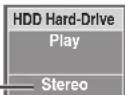
- When playing an SAP broadcast recorded on the HDD, DVD-RAM, DVD-RW (DVD Video Recording format): Main Audio↔SAP Audio
DVD-V DVD-A
You can change the audio channel number each time you press the button. This allows you to change things like the soundtrack language (→ 46, Soundtrack).

e.g., English is selected.
Note
You cannot change the audio type in the following cases.
- When a DVD-R, DVD-R DL, DVD-RW (DVD-Video format), +R, +R DL or +RW disc is in the disc tray while DVD drive is selected.
- When the recording mode is XP and "Audio for XP Recording" is set to "LPCM" (→ 76).
- When "Recording for High-Speed Copying" is set to "On" (→ 75). (The default setting is "On".)
Status messages
Press [STATUS].
The display changes each time you press the button.
![graph TD A["HDD Hard-Drive"] --> B["Selected drive/type of disc"] B --> C["Recording or play status/input channel"] C --> D["Play"] D --> E["Audio type"] E --> F["Stereo"] F --> G["Recording drive/ Copy progress indicator"] G --> H["Title number and elapsed time during play/ Recording mode"] H --> I…](/content/2026/05/796413/images/fdd7a5d334298bc4f6473973374c8b35be75153da587525cc91d9de2e83e6613.jpg)
Playing DivX discs, MP3 discs and still pictures (JPEG/TIFF)
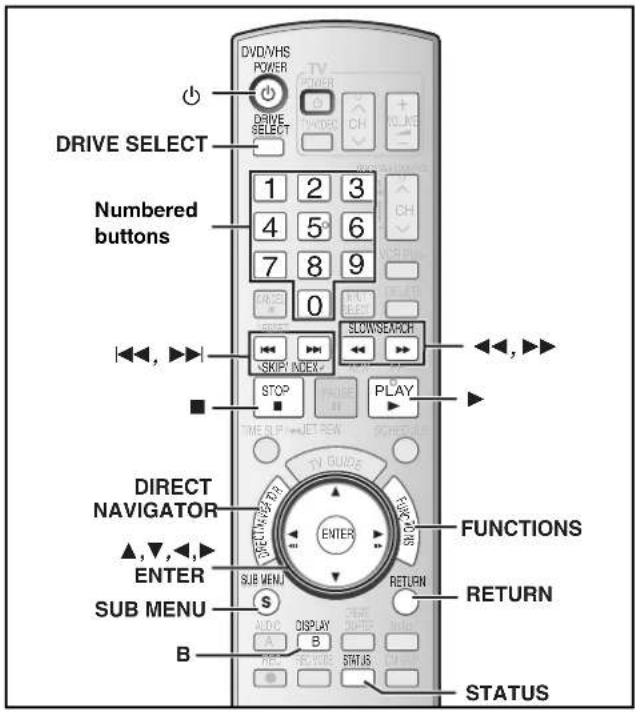
Selecting file type to play
CD
You can play CD-R/CD-RW discs that contain MP3 files, DivX video content, or still pictures recorded on a computer. The screen shown below is displayed when you insert a disc containing DivX video content, MP3 files, and still pictures (JPEG/TIFF).
e.g.,
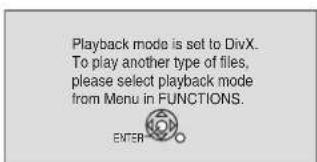
- When playing the file displayed on the screen, press [ENTER].
- When you want to play files other than the one displayed on the screen, follow the steps below.
■ To select file type
1. Press [RETURN]. 2. Press [FUNCTIONS].
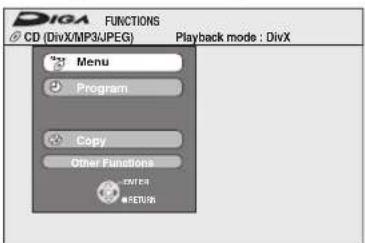
3. Press [▲, ▼] to select "Menu" and then press [ENTER].
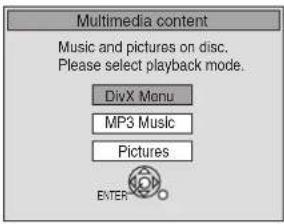
4. Press [▲, ▼] to select the playback mode and then press [ENTER].
If "DivX Menu" is selected: Go to "Playing DivX discs" step 2 in the column below. If "MP3 Music" is selected: Go to "Playing MP3 discs" step 2 on page 44. If "Pictures" is selected: Go to "Playing still pictures" step 3 or 4 on page 45.
Playing DivX discs
-R CD
- You can play DVD-R and CD-R/CD-RW discs that contain DivX video content recorded on a computer.
Preparation
Press [DRIVE SELECT] to select the DVD drive.
1. Press [DIRECT NAVIGATOR].
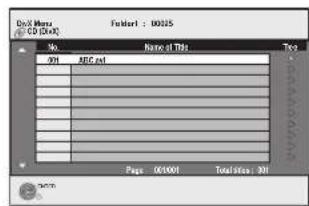
- Files are treated as titles.
- When the MP3 or JPEG Menu is displayed, perform steps 1 to 4 in "To select file type" on the left column, selecting "DivX Menu" in step 4 to change the playback mode.
2 Press [▲, ▼] to select the title and then press [ENTER].
Play starts on the selected title.
- You can also select the title with the numbered buttons.
e.g., 5: [0] → [0] → [5] 15: [0] → [1] → [5]
To stop playing
Press [■, STOP].
To show other pages
Press [◀◀, SKIP] or [▶▶, SKIP].
To exit the screen
Press [DIRECT NAVIGATOR].
Note
● Picture sizes set at the recording time may prevent the unit from showing pictures in the adequate aspect. You may be able to adjust the aspect through the TV. - Successive play is not available. - Playback is not possible if recording is performed on the HDD drive.
■ Using the tree screen to find a folder
1 While the file list is displayed
Press [▶] while a title is highlighted to display the tree screen.
F: Selected folder no./Total folder no. including DivX title.
![Dsn1 Menu CD [Sn1] Select Folder 12.27.2003 Image1001 Image1002 Image1003 Image1004 Image1005 Image1006 Image1007 Image1008 Image1009 Image1010 Image1011 Image1012 Image1013 Image1014 Image1015 Image1016 Image1017 Image1018 Image1019 Image1020 Image1021 Image1022 Image1023 Image1024 Image1025 Image1…](/content/2026/05/796413/images/c312776b40245eb64182e65d9292fbbd6bb6c894a58e0354fd4bcabd4b0d226c.jpg)
You cannot select folders that contain no compatible files.
2 Press [▲, ▼] to select a folder and then press [ENTER].
The file list for the folder appears.
To return to the previous screen
Press [RETURN].
Refer to the control reference on page 43.
■ About DivX VOD content
DivX Video-on-Demand (VOD) content is encrypted for copyright protection. In order to play DivX VOD content on this unit, you first need to register the unit.
Follow the on line instructions for purchasing DivX VOD content to enter the unit's registration code and register the unit.
Visit www.divx.com/vod for more information.
Display the unit's registration code.
(→ 74, "DivX Registration" in "Setup" tab)
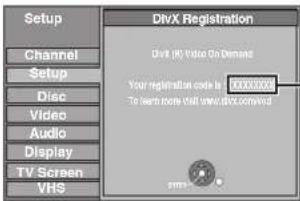
8 alphanumeric characters
- We recommend that you make a note of this code for future reference.
- After playing DivX VOD content for the first time, another registration code is then displayed in "DivX Registration". Do not use this registration code to purchase DivX VOD content. If you use this code to purchase DivX VOD content, and then play the content on this unit, you will no longer be able to play any content that you purchased using the previous code.
- If you purchase DivX VOD content using a registration code different from this unit's code, you will not be able to play this content. ("Authorization Error" is displayed.)
Regarding DivX content that can only be played a set number of times
Some DivX VOD content can only be played a set number of times. When you play this content, the remaining number of plays is displayed. You cannot play this content when the number of remaining plays is zero. ("Rental Expired" is displayed.)
When playing this content
●The number of remaining plays is reduced by one if - you press [⏻, DVD/VHS POWER]. - you press [■, STOP]. - you press [◀◀, SKIP], [◀◀, SLOW/SEARCH] or [▶▶, SLOW/SEARCH] etc. and arrive at another content or the start of the content being played. - scheduled recording starts on the HDD. - you press [DRIVE SELECT] to change the drive. - Resume functions do not work.
Playing MP3 discs
CD
- You can play CD-R/CD-RW discs which contain MP3 files that have been recorded on a computer.
- You may not be able to playback MP3 which contain still pictures.
Preparation
Press [DRIVE SELECT] to select the DVD drive.
1 Press [DIRECT NAVIGATOR].
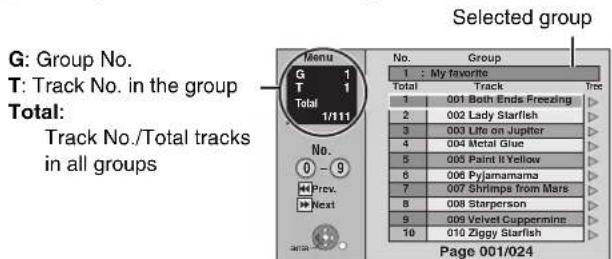
- Files are treated as tracks and folders are treated as groups.
- When the DivX or JPEG Menu is displayed, perform steps 1 to 4 in "To select file type" on page 43, selecting "MP3 Music" in step 4 to change to the playback mode.
2 Press [▲, ▼] to select the track and then press [ENTER].
Play starts on the selected track.
- "□" indicates the track currently playing.
- You can also select the track with the numbered buttons. e.g., 5: [0] → [0] → [5] 15: [0] → [1] → [5]
To stop playing
Press [■, STOP].
To show other pages
Press [|◀◀, SKIP] or [▶▶|, SKIP].
To exit the screen
Press [DIRECT NAVIGATOR].
■ Using the tree screen to find a group
1 While the file list is displayed
Press [▶] while a track is highlighted to display the tree screen.
Selected group No. /Total groups
If the group has no track, “—” is displayed as group number.
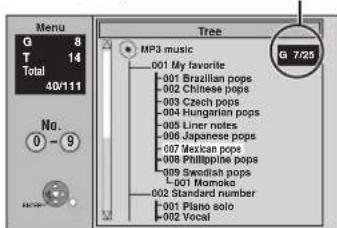
- You cannot select groups that contain no compatible files.
2 Press [▲, ▼, ◀, ▶] to select a group and then press [ENTER].
The file list for the group appears.
To return to the previous screen
Press [RETURN].
Playing still pictures
HDD RAM SD CD
- You can use SD Memory Cards with capacities from 8 MB to 2 GB (→ 7).
- You can playback still pictures recorded on to a CD-R/CD-RW on a computer.
- You cannot playback still pictures while recording or copying.
- Inserting, Removing the SD card (→ 12) While stopped, put the card in the slot, and the menu (→ below) is automatically displayed. Press [▲, ▼] to select "Go to Album View" and press [ENTER]. Then you can continue from step 2 below.
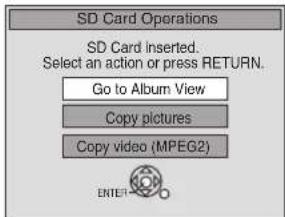
- Selecting file type to play (→ 43)
1 Press [DRIVE SELECT] to select e.g., SD card drive
the drive (HDD, DVD or SD).
The indicator lights up on the unit.

2 Press [DIRECT NAVIGATOR].
HDD RAM SD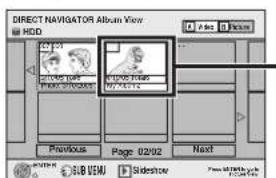
Album View screen
Recording date of the first picture in the album/number of pictures/album name.
- Depending on the digital camera, the editing software on the PC etc., the information about the recording date may not be displayed. In this case, the date will appear as [--/--/--].
HDD RAM If "Video" title view is displayed, press [B] to switch to the "Picture" view screen.
CD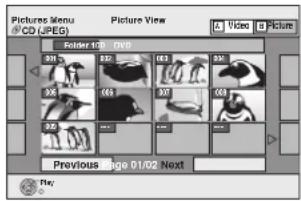
Picture View screen (Go to step 4)
Direct Navigator screen icons
Picture protected.
Picture in which the number of prints is set (DPOF)
To show other pages
Press [▲, ▼, ◀, ▶] to select "Previous" or "Next" and then press [ENTER].
- You can also press [◀◀, SKIP] or [▶▶I, SKIP] to show other pages.
To select the still pictures in another folder → below
3 Press [▲, ▼, ◀, ▶] to select the album and then press [ENTER].
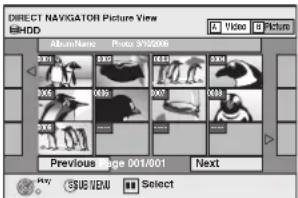
e.g., HDD
You can also select album with the numbered buttons.
e.g.
5: [0] → [0] → [5]
15: [0] → [1] → [5]
115: [1] → [1] → [5]
4 Press [▲, ▼, ◀, ▶] to select the still picture and then press [ENTER].
You can also select still pictures with the numbered buttons. e.g.,
5: [0] → [0] → [0] → [5]
15: [0] → [0] → [1] → [5]
115: [0] → [1] → [1] → [5]
1115: [1] → [1] → [1] → [5]
- Press [◀, ▶] to display the previous or next still picture.
- Useful functions during still picture play (→ right).
To return to the Album View or Pictures View screen, press [RETURN].
To exit the screen
Press [DIRECT NAVIGATOR]
■ To show the picture properties
Press [STATUS] twice.
Shooting date
To exit the picture properties screen, press [STATUS].
■ To select the still pictures in another folder
(→ 93, Structure of folders displayed by this unit)
RAM SD
To switch to another higher folder
(Only if there is a multiple number of higher folders recognizable)
1 While the Album View is displayed, press [SUB MENU].
2 Press [▲, ▼] to select "Select Root folder" and then press [ENTER].
3 Press [◀, ▶] to select the higher folder and then press [ENTER].
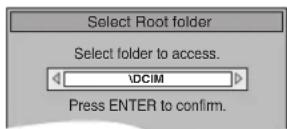
Useful functions during still picture play
You can display still pictures one by one at a constant interval.
HDD RAM SD
While the Album View screen is displayed
1 Press [▲, ▼, ◀, ▶] to select the album and then press [▶, PLAY].
You can also start slideshow with the following steps.
While the Album View screen is displayed.
1 Press [▲, ▼, ◀, ▶] to select the desired album and then press [SUB MENU].
2 Press [▲, ▼] to select "Start Slideshow" and then press [ENTER].
CD
While the Picture View screen is displayed
1 Press [▲] to select the "Folder" and then press [SUB MENU].
2 Press [▲, ▼] to select "Start Slideshow" and then press [ENTER].
●To change the display interval
① Press [▲, ▼] to select "Slideshow settings" in step 2 and then press [ENTER].
② Press [▲, ▼] to select "Display Interval" and press [◀, ▶] to select the desired interval (0 to 30 seconds) and then press [ENTER].
- Repeat play
① Press [▲, ▼] to select "Slideshow settings" in step 2 and then press [ENTER].
② Press [▲, ▼] to select "Repeat play" and then press [◀, ▶] to select "On" or "Off" and then press [ENTER].
During play
1 Press [SUB MENU].
2 Press [▲, ▼] to select "Rotate Right" or "Rotate Left" and then press [ENTER].
- Rotation information will not be stored.
- CD Still pictures
- When disc or album is protected - When played on other equipment - When copying pictures
- If you remove the SD card while the Picture View screen is displayed, picture rotation information may not be properly stored. Make sure that you do not remove the SD card until the screen has closed
During play
1 Press [SUB MENU]. 2 Press [▲, ▼] to select "Zoom in" and then press [ENTER]. - To return the picture to its original size, press [▲, ▼] to select "Zoom out" in step 2 and then press [ENTER]. - When zooming in, the picture may be cut off. ●The enlargement information will not be stored. - The "Zoom in/Zoom out" function is only available for still pictures smaller than 640×480 pixels.
The Review screen is displayed.
Press [▲, ▼, ◀, ▶] to select "Folder" and then press [ENTER].
Press [▲, ▼] to select the folder and then press [ENTER].

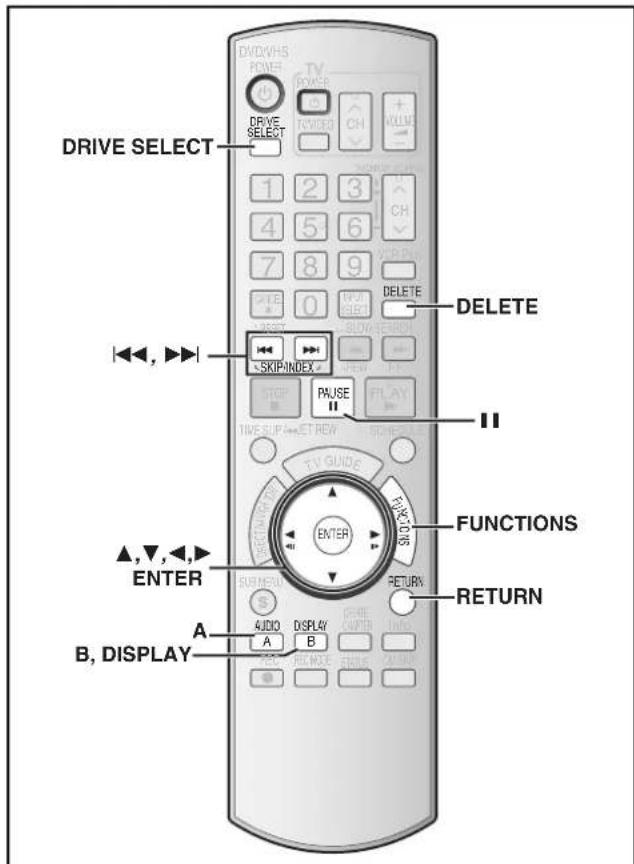
■ Common procedures
Press [DISPLAY].
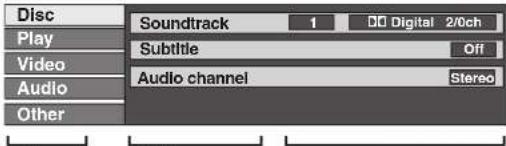
Menu Item Setting
Depending on the condition of the unit (playing, stopped, etc.) and disc contents, there are some items that you cannot select or change.
Press [▲, ▼] to select the menu and then press [▶].
Press [▲, ▼] to select the item and then press [▶].
Press [▲, ▼] to select the setting.
Some items can be changed by pressing [ENTER].
To clear the on-screen menus
Press [DISPLAY].
■ Disc menu—Setting the disc content
Soundtrack
HDD RAM -R -R DL -RW(V) -RW(VR)
The disc's audio attributes appear.
DVD-V DVD-A
Select the audio and language (see below: Audio attribute, Language).
DivX
Select the soundtrack number.
- Soundtrack numbers are displayed even when there is only one audio type.
Subtitle*
DVD-V DVD-A
Turn the subtitle On/Off and select the language (see below: Language).
HDD RAM -R -R DL -RW(V) +R +R DL +RW -RW(VR) (Only
discs that contain subtitle On/Off information)
Turn the subtitle On/Off.
Subtitle On/Off information cannot be recorded using this unit.
If the subtitles overlap closed captions recorded on discs, turn the subtitles off.
DivX
Select the subtitle On/Off and select the subtitle number.
- Subtitle numbers are displayed even if there are not multiple subtitles.
Audio channel HDD RAM -RW(VR) VCD and DivX
→ 42, Changing audio during play
Angle DVD-V DVD-A
Change the number to select an angle.
Still-P (Still picture) DVD-A
Selects the play method for still pictures.
Slide Show: Plays according to the default order on the disc.
Page: Select the still picture number and play.
●RANDOM: Plays in random order.
- Return: Returns to the default still picture on the disc.
Source Select (DivX)
●Automatic: The constructing method of the DivX contents is automatically distinguished and output.
- Interlace: Select when the disc contents were recorded using interlace.
- Progressive: Select when the disc contents were recorded using progressive.
PBC (Playback control → 94) VCD
Indicates whether menu play (playback control) is on or off.
* You may have to use the menus (→ 41) on the disc to make changes. - The display changes according to the disc content. You cannot change when there is no recording.
Audio attribute
LPCM/PPCM/□□Digital/DTS/MPEG:
k (kHz):
b (bit):
ch (channel):
Signal type
Sampling frequency
Number of bits
Number of channels
Language
ENG: English
FRA: French
DEU: German
ITA: Italian
ESP: Spanish
NLD: Dutch
SVE: Swedish
NOR: Norwegian
DAN: Danish
POR: Portuguese
RUS: Russian
JPN: Japanese
CHI: Chinese
KOR: Korean
MAL: Malay
VIE: Vietnamese
THA: Thai
POL: Polish
CES: Czech
SLK: Slovak
HUN: Hungarian
FIN: Finnish
*: Others
■ Play menu - Change the play sequence
This function works only when the elapsed play time is displayed. Select the item for repeat play. Depending on the disc, the items that can be selected will differ.
Repeat play
• All
- Chapter
(1)
- Group
- Playlists
• Title
2.2.1 Resolutions of this shareholders' meeting
- Track
Select "Off" to cancel.
CD VCD
HDD RAM -R -R DL -RW(V) +R +R DL +RW
DVD-V -RW(VR)
DVD-A and MP3
HDD RAM
HDD RAM -R -R DL -RW(V) +R +R DL +RW
DVD-V -RW(VR)
DVD-A CD VCD and MP3
■ Video menu—Change the picture quality
Picture HDD RAM -R -R DL -RW(V) +R +R DL +RW DVD-V DVD-A -RW(VR) VCD
To select the picture quality mode during play.
●Normal: Default setting - Soft: Soft picture with fewer video artifacts ●Fine: Details are sharper •Cinema: Mellows movies, enhances detail in dark scenes.
DNR HDD RAM -R -R DL -RW(V) +R +R DL +RW DVD-V DVD-A -RW(VR) VCD and DivX
Reduces mosaic-like distortion and picture degradation. On ↔ Off
Progressive 4 (→ 94)
Select "On" to enable progressive output. - Select "Off" if the picture is stretched horizontally. - When progressive output is on, closed captions cannot be displayed.
Transfer* [When "Progressive" (→ above) is set to "On".]
When the tray is opened the setting will return to "Auto1".
Select the method of conversion for progressive output to suit the type of material being played (→ 93, Film and video).
•Auto1 (normal):
Automatically detects the film and video content, and appropriately converts it.
- Auto2: In addition to "Auto1", automatically detects film contents with different frame rates and appropriately converts it.
- Video: Select when using "Auto1" and "Auto2", and the content is distorted.
Line-in NR (Only when IN1, IN2 or IN3 is selected)
Reduces video tape noise while copying.
Depending on the video tape, jittering may occur.
●Automatic: Noise reduction only works on picture input from a video tape. - On: Noise reduction works for any video input. - Off: Noise reduction is off. Select when you want to record input as is.
* Only when you have selected "480p" in "TV Type" (→ 77).
■ Audio menu—Change the sound effect
V. Surround Sound HDD RAM -R -R DL -RW(V) +R +R DL +RW DVD-V DVD-A -RW(VR)
(Dolby Digital with 2 channels or more only)
- Emphasis •Natural • Off
Enjoy a surround-like effect if you are using two front speakers only.
- Turn V. Surround Sound off if it causes distortion. (Check the surround function on the connected equipment.) ●V. Surround Sound does not work for SAP recordings.
Dialog Enhancer HDD RAM -RW(V) +R +RW DVD-V DVD-A -RW(VR) and DivX
(Dolby Digital with 3 channels or more only, including a center channel) The volume of the center channel is raised to make dialog easier to hear. On ↔ Off
■ Other menu—Change the display position
Position
1 (Standard)-5: The higher the setting the lower the on-screen menu moves.
Delete Navigator to delete titles
HDD RAM -R -R DL -RW(V) +R +R DL +RW SD
(You cannot delete items on finalized discs.)
- A title or a picture cannot be restored once it is deleted. Make certain before proceeding.
- You cannot delete while recording or copying.
- HDD RAM SD If you delete a recorded title (or a still picture), the space deleted becomes available for recording.
- -RW(V) +RW Disc space increases only when the last recorded title is deleted.
- -R -R DL +R +R DL Available space does not increase after deletion.
Preparation
- Press [DRIVE SELECT] to select the drive (HDD, DVD or SD). • RAM SD Release protection (→ 70)
1 While stopped
Press [FUNCTIONS].
2 Press [▲, ▼] to select "Delete" and then press [ENTER].
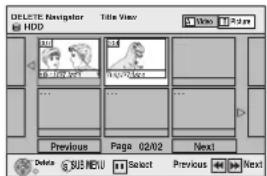
HDD RAM To switch to the other view
Press [B] to select "Picture".
Press [A] to select "Video".
3 Deleting a title:
Press [▲, ▼, ◀, ▶] to select the title to be deleted and then press [ENTER].
Deleting an album:
Press [▲, ▼, ◀, ▶] to select the album to be deleted and then press [DELETE].
Deleting still pictures:
① Press [▲, ▼, ◀, ▶] to select the album which contains the still pictures to delete and then press [ENTER]. ② Press [▲, ▼, ◀, ▶] to select the still pictures to delete and then press [ENTER].
You can confirm the titles or pictures etc. that you have selected using the sub menu.
- Refer to sub menu operations for the "Title View" (51, step 5).
- Refer to sub menu operations for the "Picture View" or "Album View" (→ 55, step 4).
To show other pages
Press [◀◀, SKIP] or [▶▶, SKIP] to show other pages. Multiple editing: Select with [▲, ▼, ◀, ►] and then press [■, PAUSE]. (Repeat) A check mark appears. Press [Ⅱ, PAUSE] again to cancel.
4 Press [◀] to select "Delete" and then press [ENTER].
The title, album or the picture is deleted.
To return to the previous screen
Press [RETURN].
To exit the screen
Press [RETURN] several times.
Deleting titles or pictures during play
1 During play
Press [DELETE].
You cannot delete a picture during a slideshow.
2 Press [◀, ▶] to select "Delete" and then press [ENTER].
The title or the picture is deleted.
Playing a video cassette
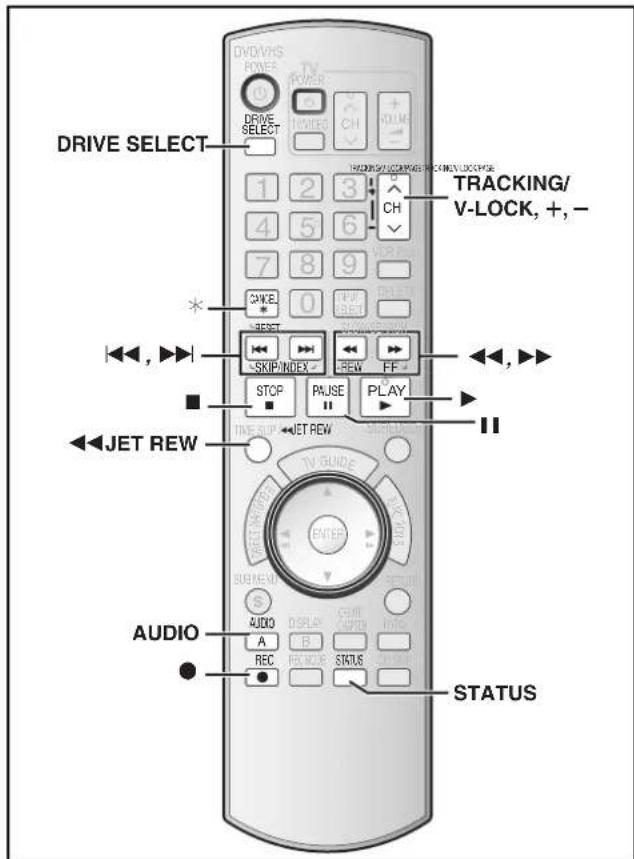
VHS
Preparation
- Select the unit viewing channel (e.g. the AV input) on the TV.
- Turn on this unit.
1 Press [DRIVE SELECT] to select the VHS drive.
2 Insert a recorded video cassette. (→12)
3 Press [▶, PLAY].
- Play starts automatically if you insert a video cassette with the tab removed.
Note
- When the tape reaches its end, the unit automatically rewinds it to the beginning. This function does not work during scheduled recording, fast-forwarding and specified stop recording.
- Jet Search, cue, review or slow playback will be automatically canceled after 10 minutes and for pause it will be canceled after 5 minutes.
- When viewing a still picture or during slow playback, the picture that appears in VP mode may be distorted.
- When playing back a tape which was recorded on another VCR, it may be necessary to adjust the tracking (→49). In some cases the picture quality may still be inferior. This is due to format constraints.
Operations
| Stop | Press [■, STOP]. |
| Pause | Press [■, PAUSE].Press [■, PAUSE] again or [▶, PLAY] to restart play. |
| Fast-forward/Rewind | While stoppedPress [◀◀] (backward)/[▶▶] (forward). |
| Cue/Review | During playTap or keep pressing [◀◀] (backward)/[▶▶] (forward).If you keep pressing these buttons, normal playback restarts by releasing them.Tap [▶, PLAY] to restart normal playback. |
| Jet Search | During playTap [◀◀] (backward)/[▶▶] (forward) twice. You can increase Cue/Review search speed.Press [▶, PLAY] to restart normal playback.You can select search speed to view the recorded picture. (→ 77)The picture recorded in EP or VP mode may be distorted if it is played at approx. 35 times speed. A vertical scroll may occur. It is not a malfunction but if it happens, change to approx. 27 times speed.The picture may not be in color or may be distorted depending on the TV. |
| Slow | During playPress and hold [■, PAUSE] for about 2 seconds or more.Press [▶, PLAY] to restart normal playback. |
| Jet Rewind | To perform a Higher Speed RewindPress [◀◀JET REW].Depending on the tape or an operating condition, the rewind speed may change somewhat.The tape counter is reset to “0:00.00” when the tape is rewound to the beginning.Depending on the tape, this function may not work. |
| Repeat Playback | During play or while stoppedKeep pressing [▶, PLAY] for about 5 or more seconds.The “R ▶” indication appears on the TV screen.At the end of the program, the tape rewinds to the beginning and plays it again (it only works if there is at least 5 seconds blank space at the end of the program). This repeats until you make another operation.Press [▶, PLAY] to restart normal playback. |
Adjusting the playback picture
■ Manual tracking
The unit usually makes tracking adjustments, but you may need to do it manually if noise appears on a tape recorded on other equipment.
During play
Press [TRACKING/V-LOCK, +] or [TRACKING/V-LOCK, -].
Repeat until the noise disappears.
■ Vertical locking adjustment
Adjust the vertical synchronization to stop the picture from jiggling while paused.
This works only while VHS is paused during recording on the DVD.
While paused
Press [TRACKING/V-LOCK, +] or [TRACKING/V-LOCK, -].
Repeat until the jiggling stops.
■ To return to auto tracking
Press both [TRACKING/V-LOCK, +] and [TRACKING/V-LOCK, -] simultaneously.
■ To remove the noise from a paused picture
Start slow play, then adjust the tracking.
Note
●This function may not work with some TV models and tapes.
- You can also adjust the tracking and vertical synchronization with [CH, ∧, ∨] on the main unit.
VHS Index Search System (VISS)
The unit automatically records special index signals on the tape every time a recording is started. The index search function makes use of these index signals to let you find the beginning of a desired program quickly and easily.
■ Index signals are recorded in the following cases.
- When a recording is started by pressing [●, REC].
Preparation
- Insert a recorded video cassette. (→ 12)
While stopped or during normal play
Press [◀◀] or [▶▶].
●Each press increases the number of skips.
■ To cancel the index search
Press [■, STOP].
Note
- Up to 20 index signals can be searched for in both directions.
- If you press either one of the buttons too much, you can control the number of skips by pressing the opposite button.
- The figure on the display decreases by 1 each time an index signal is located.
- This feature may not work correctly if the index signals are too close together. Make recordings of at least 5 minutes.
Changing audio
While playing tapes
Press [AUDIO].
The audio changes as follows:
Stereo → Mono L → Mono R → No display (Normal audio track)
Auto Bilingual Choice Function
When a stereo broadcast or SAP broadcast is recorded and played back on the unit, stereo sound will be automatically selected in the case of a stereo broadcast and SAP sound will be automatically selected in the case of a dual-sound broadcast (Mono and SAP or Stereo and SAP).
- This function may not work properly if the program is played back from a mid point. In a case like this, press [AUDIO] and select the right sound.
- The function will not work with a cassette which has been recorded using external equipment.
S-VHS Quasi Playback (SQPB)
It is also possible to play back tapes recorded in the S-VHS system.
- Some picture noise may occur depending on the type of tape used.
- It is not possible to fully obtain the high resolution that S-VHS is capable of.
- It is not possible to record in the S-VHS system with the unit.
Refer to the control reference on page 48.
Various on-screen display indications
On-screen display below appears during play on VHS.
To see these displays, set "Status Messages" to "Automatic". (→ 76)
Press [STATUS].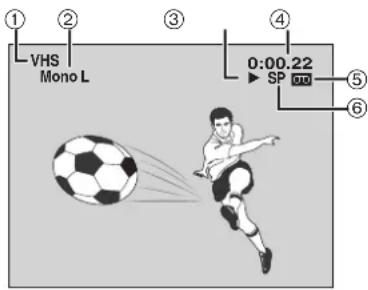
| 1 | Current drive |
| 2 | Audio indicatorsThe Left (Mono L) and Right (Mono R) indicators show which sound mode is selected as follows:Stereo: Stereo indicators appear.Mono L: The Mono L indicator appears.Mono R: The Mono R indicator appears.Normal: Neither the L nor R indicator appears. |
| 3 | Operation status display |
| 4 | Shows the tape counter and remaining tape timePressing [STATUS] once makes the on-screen display appear. After that, press the button repeatedly to change the display as follows:No display → Tape counter → Remaining tape time↑●Press [*, RESET] to reset the tape counter (elapsed time) to “0:00.00”. The tape counter is automatically reset to “0:00.00” when inserting a video cassette.The remaining time is approximate. It will be incorrect if you set the wrong tape time in “Select Tape Length” in the “VHS” menu and if the tape is of poor quality. (→ 77) |
| 5 | Cassette-in indicatorShows whether you have inserted a video cassette. |
| 6 | Recording mode indicator (→ 15, 28) |
Note
- The on-screen display may be distorted depending on the playback tape or the input signal.
- Status messages appear while stopped or recording. (→ 42)
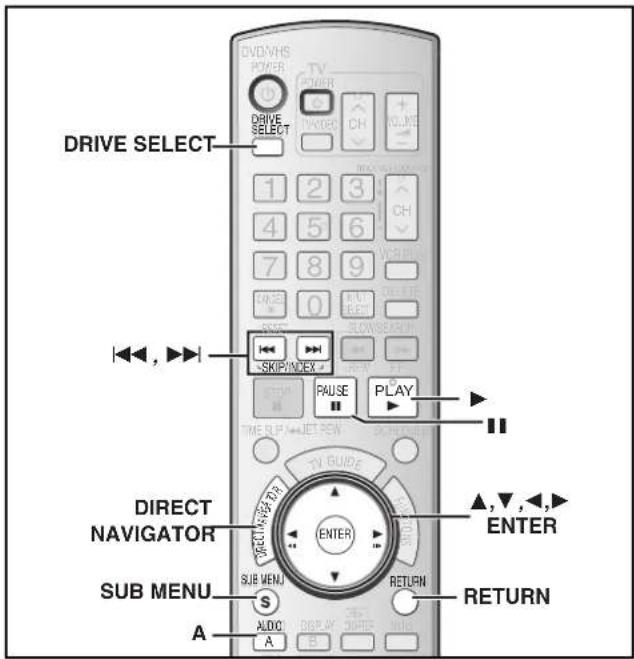
HDD RAM -R -R DL -RW(V) +R -RW(VR) +R DL +RW (You cannot edit finalized discs.)
Title/Chapter
Programs are recorded as a single title consisting of one chapter.
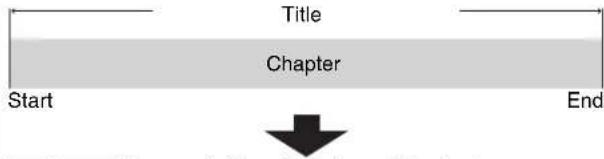
HDD RAM You can divide a title into multiple chapters. Each division point inserted creates an individual chapter
(→ 42, 52)
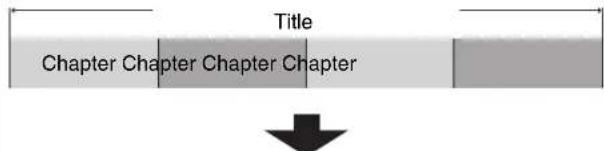
HDD RAM You can change the order of chapters and create a playlist (→ 53).
- -R DL +R DL Even if you finalize the disc, chapters are not automatically divided. However, if you copied titles in high speed the chapters are copied from the source title.
●The maximum number of items on a disc
HDD
- Titles: 500
- Chapters: Approximately 1000 per title (Depends on the state of recording.)
RAM -R -R DL -RW(V) +R +R DL +RW
- Titles: 99 (+R +R DL +RW 49 titles)
- Chapters: Approximately 1000
(+R +R DL +RW Approximately 250)
(Depends on the state of recording.)
Note
- Once deleted, divided or shortened, recorded content cannot be restored to its original state. Make certain before proceeding.
- You cannot edit during recording or copying, etc.
- Restricted recording information remains even after editing (e.g. dividing a title, etc.).
- +R +R DL Management information is recorded in unused sections when you edit discs. The available space on these discs decreases each time you edit their contents.
We recommend that you edit on the HDD and then copy to disc.
Editing titles/chapters and playing chapters
You can modify (remove unnecessary parts, divide, etc.) recorded programs.
Preparation
- Turn on the television and select the appropriate video input to suit the connection to this unit.
- Turn the unit on.
- Press [DRIVE SELECT] to select the drive (HDD or DVD) containing the recorded title to be edited.
• RAM Release protection (→ 70).
1 During play or while stopped, press [DIRECT NAVIGATOR].
2 HDD RAM
Press [A] to select "Video".
3 Press [▲, ▼, ◀, ▶] to select the title.
Title View screen
To show other pages
Press [▲, ▼, ◀, ▶] to select "Previous" or "Next" and then press [ENTER].
- You can also press [◀◀, SKIP] or [▶▶, SKIP] to show other pages.
Multiple editing
Select with [▲, ▼, ◀, ▶] and then press [■, PAUSE]. (Repeat)
A check mark appears. Press [11, PAUSE] again to cancel.
4 Press [SUB MENU].
5 Press [▲, ▼] to select the operation and then press [ENTER].
- If you select "Edit Title", press [▲, ▼] to select the operation and then press [ENTER] (→ 52).
![graph TD A["Delete Title"] --> B["Properties"] B --> C["Edit Title"] C --> D["View Chapters"] D --> E["Table Mode"] E --> F["Album View"] F --> G["Switching the Direct Navigator appearance → 40"] G --> H["Playing still pictures (JPEG/TIFF) → 44, step 2"] H --> I["Refer to "Title operations"…](/content/2026/05/796413/images/7c739bc903bd780c00880454c4261a1cada471944980d5c222a1911e6c9e5bd7.jpg)
If you select "View Chapters"
6 Press [▲, ▼, ◀, ▶] to select the chapter.
To start play → Press [ENTER].
To edit → Step 7.
Chapter View screen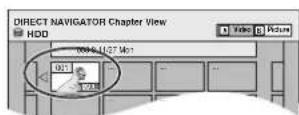
• To show other pages/Multiple editing (→ above)
7 Press [SUB MENU], then [▲, ▼] to select the operation and then press [ENTER].
![graph LR A["Delete Chapter"] --> B["Create Chapter"] B --> C["Combine Chapters"] C --> D["View Titles"] D --> E["Refer to "Chapter operations" (→ 52)."]](/content/2026/05/796413/images/78fe0b069acbc4f569e153990bbcd64dc1f95fc7ef6fc5328a8f01a95e3f0536.jpg)
- You can go back to the Title View.
To return to the previous screen
Press [RETURN].
To exit the screen
Press [DIRECT NAVIGATOR].
Refer to the control reference on page 51.
Title operations
| After performing steps 1 to 5 (→ 51) | ||
| Delete Title* HDD RAM -R -R DL -RW(V) +R +R DL +RW | Press [◀, ▶] to select “Delete” and then press [ENTER]. • Once deleted, the recorded contents are lost and cannot be restored. Make certain before proceeding. • -R -R DL +R +R DL The available recording space does not increase when you delete titles. • -RW(V) +RW Available recording space increases only when the last recorded title is deleted. It does not increase if other titles are deleted. | |
| Properties HDD RAM -R -R DL -RW(V) +R +R DL +RW -RW(VR) | Information (e.g., time and date) is shown. • Press [ENTER] to exit the screen. | 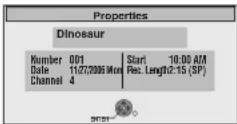 |
| Title Name HDD RAM -R -R DL -RW(V) +R +R DL +RW | You can give names to recorded titles. → 73, Entering text | |
| Set Protection* Cancel Protection* HDD RAM +R +R DL +RW | If set, this will protect the title from accidental erasure. Press [◀, ▶] to select “Yes” and then press [ENTER]. The lock symbol appears when the title is protected. • When the title is protected, some items cannot be accessed. Release the protection to access the inaccessible items. | 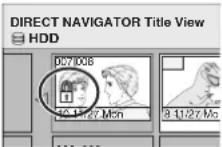 |
| Shorten Title HDD RAM (→ below, “For quicker editing”) | You can remove unnecessary parts of the recording such as commercials. 1 Press [ENTER] at the start point and end point of the section you want to delete. 2 Press [▲, ▼] to select “Exit” and then press [ENTER]. • Select “Next” and then press [ENTER] to delete other sections. 3 Press [◀, ▶] to select “Delete” and then press [ENTER]. | 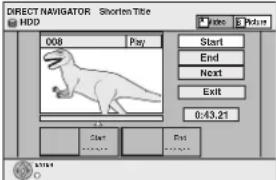 |
| Change Thumbnail HDD RAM -R -R DL -RW(V) +R +R DL +RW (→ below, “For quicker editing”) | You can change the image to be shown as the thumbnail picture in the Title View. 1 Press [▶, PLAY] to start play. 2 Press [ENTER] when the image you want to use as a thumbnail is shown. To change the thumbnail Restart play and then press [▲, ▼] to select “Change”, then press [ENTER] at the point you want to change. 3 Press [▲, ▼] to select “Exit” and then press [ENTER]. | 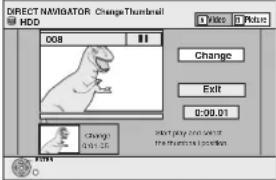 |
| Divide Title HDD RAM (→ below, “For quicker editing”) | You can divide a title into two. 1 Press [ENTER] at the point you want to divide the title. 2 Press [▲, ▼] to select “Exit” and then press [ENTER]. 3 Press [◀, ▶] to select “Divide” and then press [ENTER]. To confirm the division point Press [▲, ▼] to select “Preview” and then press [ENTER]. (The unit plays 10 seconds before and after the division point.) To change the division point Restart play and then press [▲, ▼] to select “Divide”, then press [ENTER] at the point where you want to divide the title Note • The divided titles retain the name and CPRM property (→ 93) of the original title. • Video and audio just before and after the dividing point may momentarily cut out. | 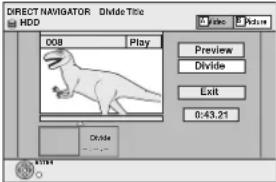 |
* Multiple editing is possible.
Chapter operations
| After performing steps 1 to 7 (→ 51) | ||
| Delete Chapter* HDD RAM | Press [◀, ▶] to select “Delete” and then press [ENTER].Once deleted, the recorded contents are lost and cannot be restored. Make certain before proceeding.To delete only the chapter division point, use “Combine Chapters”. (→ below) The recorded contents are not deleted. | |
| Create Chapter HDD RAM(→ below, “For quicker editing”) | Select the point where you want to start a new chapter while viewing the title.1 Press [ENTER] at the point you want to divide.Repeat this step to divide at other points.2 Press [▲, ▼] to select “Exit” and then press [ENTER]. | 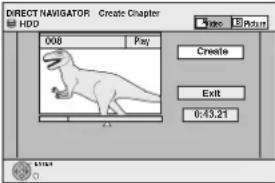 |
| Combine Chapters HDD RAM | Press [◀, ▶] to select “Combine” and then press [ENTER].●The selected chapter and following chapter are combined. | |
* Multiple editing is possible.
Creating, editing and playing playlists
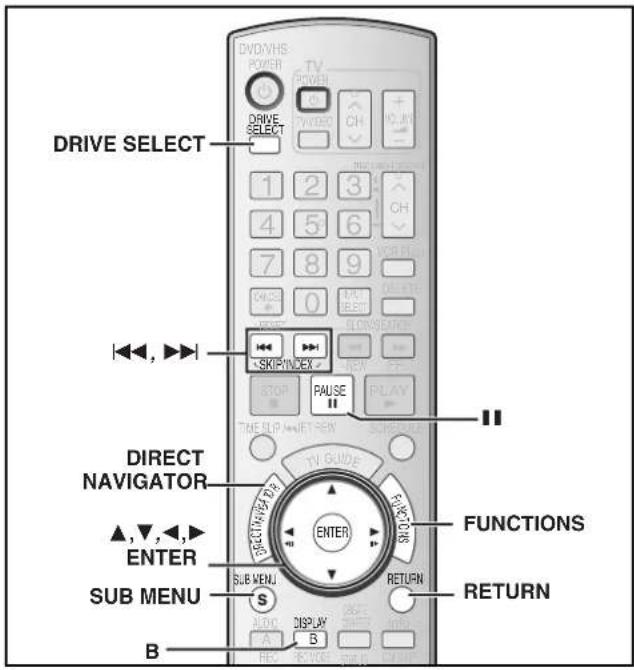
![graph TD A["You can arrange the chapters (→ 51) to create a playlist."] --> B["Chapter Title"] B --> C["Chapter Chapter"] C --> D["Chapter Chapter"] D --> E["Chapter Playlist"] E --> F["Copying (→ 59) a playlist will create a title."]](/content/2026/05/796413/images/75a46dc2c7676e10ff2751ebd433794bef25659c30b3f80a75f61de6d124274e.jpg)
- Editing playlists doesn't modify the recorded data. Playlists are not recorded separately so this doesn't use much capacity.
HDD RAM
•The maximum number of items on a disc
- Playlists: 99
- Chapters in playlists: Approximately 1000
(Depends on the state of recording.)
- If you exceed the maximum numbers of items for a disc, all the items entered will not be recorded.
Creating playlists
HDD RAM
Preparation
- Turn on the television and select the appropriate video input to suit the connection to this unit.
- Turn the unit on.
- Insert a disc with the title to edit (→ 12)
- Press [DRIVE SELECT] to select the drive (HDD or DVD) containing the recorded title to be edited. • RAM Release disc or cartridge protection (→ 70).
- You cannot create or edit a playlist while recording or while copying.
1 While stopped
Press [FUNCTIONS].
2 Press [▲, ▼] to select "Other Functions" and then press [ENTER].
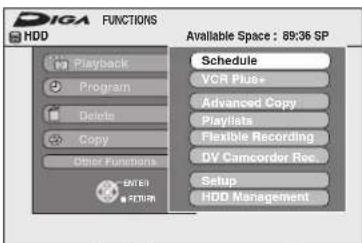
3 Press [▲, ▼] to select "Playlists" and then press [ENTER].
4 Press [▲, ▼, ◀, ▶] to select "Create" and then press [ENTER].
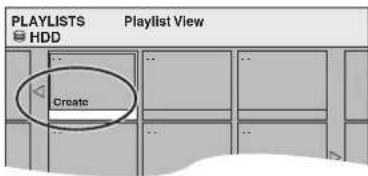
5 Press [◀, ▶] to select the source title and then press [▼].
- Press [ENTER] to select all the chapters in the title, then skip to step 7.
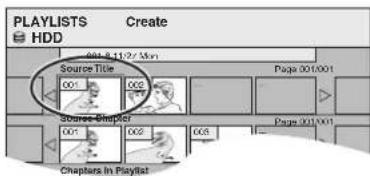
6 Press [◀, ▶] to select the chapter you want to add to a playlist and then press [ENTER].
Press [▲] to cancel.
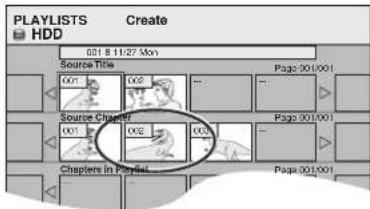
- You can also create a new chapter from the source title. Press [SUB MENU] to select "Create Chapter" and then press [ENTER] (→ 52, Create Chapter).
7 Press [◀, ▶] to select the position to insert the chapter and then press [ENTER].
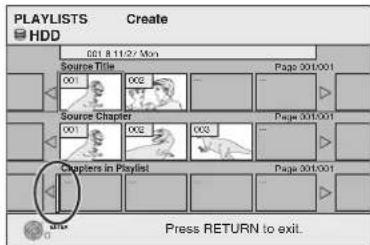
- Press [▲] to select other source titles.
- Repeat steps 6 to 7 to add other chapters.
8 Press [RETURN].
All the selected scenes become the playlist.
To return to the previous screen
Press [RETURN].
To exit the screen
Press [RETURN] several times.
Continued on next page
Refer to the control reference on page 53.
Editing and playing playlists/chapters
HDD RAM
-RW(VR) (Play only)
1 While stopped, press [FUNCTIONS]. 2 Press [▲, ▼] to select "Other Functions" and then press [ENTER]. 3 Press [▲, ▼] to select "Playlists" and then press [ENTER]. 4 Press [▲, ▼, ◀, ▶] to select the playlist. To start play → Press [ENTER]. To edit → Step 5.
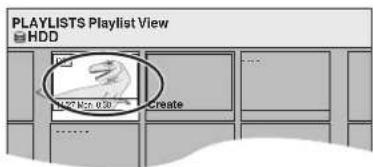
Playlist View screen
• To show other pages/Multiple editing (→ 51)
5 Press [SUB MENU], then press [▲, ▼] to select the operation and then press [ENTER]. - If you select "Edit", press [▲, ▼] to select the operation and then press [ENTER].
![graph TD A["Create"] --> B["Copy"] B --> C["Playlist Name"] C --> D["Change Thumbnail"] E["Delete Playlist"] --> F["Properties"] F --> G["Edit"] H["View Chapters"] --> I["Refer to "Playlist operations""]](/content/2026/05/796413/images/43a8ae54fe69337fdf139549165486c7274996580509dd924d12433ea72bce4a.jpg)
If you select "View Chapters" 6 Press [▲, ▼, ◀, ▶] to select the chapter. To start play → Press [ENTER]. To edit → Step 7.
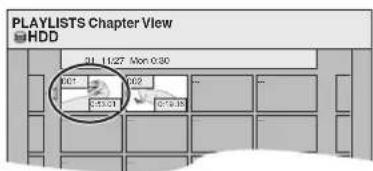
Chapter View screen
• To show other pages/Multiple editing (→ 51)
7 Press [SUB MENU], then press [▲, ▼] to select the operation and then press [ENTER].
![graph TD A["Add Chapter"] --> B["Move Chapter"] B --> C["Create Chapter"] C --> D["Combine Chapters"] D --> E["Delete Chapter"] E --> F["View Playlists"] F --> G["Refer to "Chapter operations"."]](/content/2026/05/796413/images/7fb7898c7539ad2ff347561999e7c1916c128a47b9525d5805e669d43757a2bd.jpg)
- You can go back to the Playlist View.
To return to the previous screen, press [RETURN].
To exit the screen, press [RETURN] several times.
Playlist operations
| After performing steps 1 to 5 (→ left) | |
| Delete Playlist* HDD RAM | Press [◀, ▶] to select “Delete” and then press [ENTER].Once deleted, the playlists are lost and cannot be restored.Make certain before proceeding. |
| Properties HDD RAM-RW(VR) | Playlist information (e.g., length and date) is shown.•Press [ENTER] to exit the screen.[IMAGE] |
| Create HDD RAM | → 53, Creating playlists, Step 5 to 8 |
| Copy* HDD RAM | Press [◀, ▶] to select “Copy” and then press [ENTER].•The copied playlist becomes the newest one in the playlist view screen. |
| Playlist Name HDD RAM | → 73, Entering text |
| Change Thumbnail HDD RAM | → 52, Change Thumbnail |
* Multiple editing is possible.
Chapter operations
HDD RAM
After performing steps 1 to 7 (→ left) - Editing chapters in a playlist does not modify the source titles and source chapters.
| Add Chapter | → 53, Creating playlists, Step 5 to 8 |
| Move Chapter | Press [▲, ▼, ◀, ▶] to select the position to insert the chapter and then press [ENTER].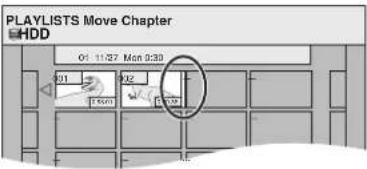 |
| Create Chapter | → 52, Create Chapter |
| Combine Chapters | → 52, Combine Chapters |
| Delete Chapter* | → 52, Delete ChapterThe playlist itself is deleted if you erase all the chapters in it. |
* Multiple editing is possible.
Refer to the control reference on page 53.
HDD RAM SD
- You can edit pictures and albums.
- You can use SD Memory Cards with capacities from 8 MB to 2 GB (→ 7).
- You cannot edit still pictures recorded on CD-R/CD-RW.
Preparation
- Press [DRIVE SELECT] to select the drive (HDD, DVD or SD).
- RAM SD Release protection (→ 70, Setting the protection—Disc Protection).
1 Press [DIRECT NAVIGATOR].
2 HDD RAM
Press [B] to select "Picture".
3 Editing an album:
Press [▲, ▼, ◀, ▶] to select the album to edit and then press [SUB MENU].
- When you want to create an album using "Create Album", press [SUB MENU] without selecting an album.
Editing a still picture:
① Press [▲, ▼, ◀, ▶] to select the album that contains the still picture to edit, then press [ENTER]. ② Press [▲, ▼, ◀, ▶] to select the still pictures to edit, then press [SUB MENU].
To show other pages:
Press [▲, ▼, ◀, ▶] to select "Previous" or "Next" and then press [ENTER].
- You can also press [◀◀, SKIP] or [▶▶, SKIP] to show other pages.
Multiple editing:
Select with [▲, ▼, ◀, ▶] and then press [■, PAUSE]. (Repeat)
A check mark appears. Press [■, PAUSE] again to cancel.
- To switch to another higher folder (→ 45)
4 Press [▲, ▼] to select the operation and then press [ENTER].
• To edit the album
(e.g., RAM)
![graph TD A["Start Slideshow Slideshow settings"] --> B["(→ 45)"] C["Add Picture"] --> D["Title View Select Root folder"] E["Create Album"] --> D F["Edit Album"] --> D G["Copy to HDD"] --> D H["Album Name"] --> I["Album and picture operation (→ below)"] J["Delete Album Protection Setup"] --> I K["Can…](/content/2026/05/796413/images/f458206d6c842aeeb83111c3a17eb0a490e43de5ab451a80efb27b4e6bea8283.jpg)
To return to the previous screen
Press [RETURN].
To exit the screen
Press [DIRECT NAVIGATOR].
Album and picture operation
| After performing steps 1 to 4 | ||
| Delete Picture*Delete Album*HDD RAM SD | Press [◀, ▶] to select “Delete” and then press [ENTER].●Once deleted, the recorded contents are lost and cannot be restored. Make certain before proceeding.●When deleting a album, files other than the still picture files inside the album will also be deleted. (This does not apply to albums under the album concerned.) | |
| Album NameHDD RAM SD | You can give names to albums.→ 73, Entering text●Album names input using this unit may not be displayed on other equipment. | |
| Protection Setup*Set ProtectionCancel Protection*HDD RAM SD | If set, this will protect the still picture or album from accidental deletion.Press [◀, ▶] to select “Yes” and then press [ENTER].The lock symbol appears when the still picture or album is protected.●Even if the protection setting is used by this unit to protect album, the album may be deleted by another unit. | |
| Print Order(DPOF)*SD | You can select individual pictures for printing and specify the number of prints to be made.Press [◀, ▶] to select number of print (0 to 9) and then press [ENTER].The DPOF mark appears (→ right).To cancel the print setting●Set the number of prints to “0”.●Print settings (DPOF) made using this unit may not be viewable on other equipment.●When this is set by this unit, any settings established by other units will be released.●Settings cannot be made for files not in accordance with DCF standards or if there is no remaining space on the card | |
| Add PictureCreate AlbumHDD RAM SD | 1 Press [◀, ▶] to select “Start” or “Yes” and then press [ENTER].2 Select the album that contains the still picture you want to add and then press [ENTER].RAM SD To switch to another higher folder → 673 Press [▲, ▼] to select the item and then press [ENTER].●If “Select pictures to copy” is selectedSelect the still picture you want to add and then press [ENTER].●If “Copy all pictures” is selectedAll the still pictures in the album will be copied.4 Press [◀, ▶] to select “Yes” or “No” and then press [ENTER].●If you want to continue copying, select “Yes” and go to step 2.5 Only for “Create Album”Press [◀, ▶] to select the item and then press [ENTER].●If “Yes” is selectedYou can give names to albums. (→ 73, Entering text)●If “No” is selectedThe recording date of the first picture in the album becomes the album name. (If there is no recording date information, the date will appear as [--/--/--].) | 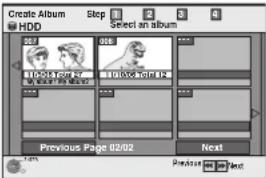 |
| Copy to DVD-RAMCopy to HDDHDD RAM | Press [◀, ▶] to select “Start Copying” and then press [ENTER].You cannot copy if multiple albums are selected. | |
* Multiple editing is possible. Note - Scheduled recordings do not start when performing "Add Picture", "Create Album", "Copy to DVD-RAM" or "Copy to HDD". - You cannot perform "Add Picture" or "Create Album" to a higher folder.
Note about copying
See also the notes "Important notes for recording" (→ 9).
You can select from a variety of methods to copy on the unit.
You cannot copy titles which have been treated to prevent copying.
| Direction | Type of copy you want Suitable methods | Is copying in High speed mode? | Finalize+1 | |
| From To | ||||
| HDD | RAM -R -R DL-RW(V) +R+R DL +RW | When you want to copy a title or a playlist | One Touch Copy → 60 | Yes selectable |
| When you want to copy multiple titles in combination | Copy Navigator → 59 | Yes automatically set | ||
| Advanced copy (Create List) → 62 | Yes selectable | |||
| When you want to copy multiple playlists in combinationWhen you want to copy in a selected recording mode. | Advanced copy (Create List) → 62 | Yes selectable | ||
| VHS | When you want to copy a title or a playlist | One Touch Copy → 60 | No | |
| When you want to copy multiple titles or playlists in combination | Advanced copy (Create List) → 62 | No | ||
| VHS | HDD | When you want to copy from the selected start point to the end of the tape | One Touch Copy → 61 | No |
| When you want to copy from the selected start point to the end of the tapeWhen you want to copy only for the specified timeWhen you want to copy to fit in the 4.7 GB disc | Advanced Copy (Time Limit) → 64 | No | ||
| RAM -R-RW(V) +R+RW | When you want to copy from the selected start point to the end of the tape | One Touch Copy → 61 | No selectable | |
| When you want to copy from the selected start point to the end of the tapeWhen you want to copy only for the specified timeWhen you want to copy to fit in the remaining capacity of the disc | Advanced Copy (Time Limit) → 64 | No selectable | ||
| RAM -RW(VR) +RW | HDD | When you want to copy the whole of the disc One Touch Copy → 61 | Yes*2 | — |
| When you want to copy multiple titles or playlists in combination | Advanced copy (Create List) → 62 | Yes*2 | ||
| VHS | When you want to copy the whole of the discWhen you want to copy from the beginning of the selected title or playlist to the end of the disc | One Touch Copy → 61 | No | |
| When you want to copy multiple titles or playlists in combination | Advanced copy (Create List) → 62 | No | ||
| -R -R DL -RW(V)+R +R DL | HDD •Cannot copy — — — | |||
| VHS | When you want to copy the whole of the discWhen you want to copy from the beginning of the selected title to the end of the disc | One Touch Copy → 61 | No | |
| DVD-V (Finalized -R-R DL -RW(V) +R+R DL) or DVD-V on sale that are not copy-protected, etc. | HDD | When you want to copy the whole of the discWhen you want to copy only for the specified time | Advanced Copy (Time Limit) → 64 | No |
| VHS | When you want to copy the whole of the discWhen you want to copy only for the specified time | Advanced Copy (Time Limit) → 64 | No | |
| SD | HDD | When you want to copy MPEG2 moving pictures | Copy video (MPEG2) → 63 | Yes |
| RAM | ||||
*1 -R -R DL -RW(V) +R +R DL You cannot select "Top Menu Style" or "Playback will start with.". If you want to set play menu select or the background color, select "Top Menu Style" or "Playback will start with:" in "DVD Management" before copying. *2 +RW → HDD: Normal speed only
■ Copying still pictures HDD RAM SD
- When you want to copy multiple still pictures in combination (→ 66)
- When you want to copy all still pictures from an SD card to the HDD or DVD-RAM (→ 67)
■ Before copying
When copying a title with main and secondary (SAP) audio
- Select the audio type for recording MTS broadcasts from "Multi-channel TV Sound (MTS)" (→ 76) when:
- Copying to a DVD-R, DVD-R DL, DVD-RW (DVD-Video format), +R, +R DL and +RW.
- When "Audio for XP Recording" is set to "LPCM" (→ 76) and you are copying in XP mode.
Copying 16:9 aspect titles
The titles are copied in 4:3 aspect if you copy to a DVD-R, DVD-R DL, DVD-RW (DVD-Video format), +R, +R DL or +RW.
■ Approximate copying times (Max. speed)
(excludes time required to write data management information)
| HDD | 5X Speed DVD-RAM | 16X Speed DVD-R | 4X Speed DVD-R DL (Dual Layer) | 4X Speed ×1 DVD-RW | 8X Speed +2 +R | 2.4X Speed +R DL (Double Layer) | 4X Speed +RW | ||||||||
| Rec mode | Rec time | Required time | Speed | Required time | Speed | Required time | Speed | Required time | Speed | Required time | Speed | Required time | Speed | Required time | Speed |
| XP | min 10X min 80X | 12 min 5 | X 6 min | 10X 15 min | 4X 15 min | 4X | 8 min 35 s | 7X 25 min | 2.4X | 15 min | 4X | ||||
| SP 6 | 2 min 25 s | 25X | 7 min 30 s | 8X | 7 min 30 s | 8X | 4 min 10 s | 14X | 12 min 30 s | 4.8X | 7 min 30 s | 8X | |||
| LP 3 | 1 min 15 s | 48X | 3 min 45 s | 16X | 3 min 45 s | 16X | 2 min 25 s | 25X | 6 min 15 s | 7.2X | 3 min 45 s | 16X | |||
| EP (6 H) | 2 min 30 | X 52 s | 69X | 2 min 30 s | 24X | 2 min 30 s | 24X | ||||||||
| EP (8 H) | 1 min 30 s | 40X 42 s | 86X | 1 min 53 s | 32X | 1 min 53 s | 32X | ||||||||
- The above rated value indicates the fastest time and speed required for copying one-hour title from HDD to each disc in the above list supporting high speed copying. *1 On this unit, the copying performance with a 6X Speed DVD-RW will be the same as the performance with a 4X Speed DVD-RW. *2 On this unit, the copying performance with a 16X Speed +R will be the same as the performance with a 8X Speed +R.
Note
- Recording or playing while copying, the unit may not perform the maximum recording speed.
- Depending on the condition of the disc, copying speed of this unit may vary.
-R -R DL -RW(V) +R +R DL +RW To high speed copy titles (or playlists created from those titles), set “Recording for High-Speed Copying” to “On” before recording to the HDD. (The default setting is “On” → 75).
However in the following cases, copying to the disc using the high speed mode does not work.
- When arranging multiple titles for copying, if any titles recorded with "Recording for High-Speed Copying" to "Off", then you cannot preformed with high-speed copy.
- Playlists created from titles using a variety of recording modes or multiple titles using FR recording mode
- Playlists mixed with a variety of audio types (Dolby Digital and LPCM, etc.)
- Titles that contain many deleted segments. MPEG2 moving picture titles copied to the HDD from an SD card
- +R, +R DL, +RW titles recorded in FR mode (recordings 5 hours or longer) and EP mode. (" " is displayed)
If high-speed copying to a high-speed recording compatible disc (RAM 5X, -R +R 8X or faster):
If you think that the operation sound is too loud, set "Rapidity of High-Speed copying" to "Silent mode" in the Setup menu (→ 75). However, the time required for copying will become longer.
Regarding copying to DVD-R DL (single-sided, Dual Layer) and +R DL (single-sided, Double Layer)
When not using high speed copy, titles are temporarily copied to the HDD at normal speed and then copied at high speed to DVD-R DL and +R DL. The titles that were temporarily copied to the HDD are then deleted.
You cannot copy to DVD-R DL and +R DL in the following cases.
- When there is not enough free space on the HDD. (When copying to a new blank DVD-R DL, if you fill a new disc when copying to it, the equivalent of up to 4 hours of free space in SP mode is needed on the HDD.)
- When the number of titles recorded to the HDD and the number of titles to be copied to the DVD-R DL and +R DL is greater than 500 in total.
When playing a title recorded on both layers, video and audio may momentarily cut out when the unit is switching layers.
Regarding copying of digital broadcasts that allow "One time only recording"
You can copy a recorded title to a CPRM (→ 93) compatible DVD-RAM, however, the title is deleted from the HDD.
- Titles or playlists cannot be copied from DVD-RAM to the HDD.
- You cannot use "One Touch Copy". Use the "Copy Navigator" (→ 59) or "Advanced copy (Create List)" (→ 62).
- Titles will not be copied if they are protected (→ 52)
- You cannot copy playlists created from "One time only recording" titles.
- Titles with recording limitations and playlists cannot be registered on the same copying list.
Regarding copying from VHS
- It is not possible to copy a copied "One time only recording" title.
- If you want to copy to the HDD and then to -R -R DL -RW(V) +R +R DL +RW in high speed mode, set "Recording for High-Speed Copying" to "On" before recording to the HDD.
- If a part of a tape recorded in VP mode is copied to the HDD or a disc, noise may appear on that part.
Regarding copying to VHS
- When copying "One time only recording" titles to VHS, the copy guard signal is also copied.
- Even when copying to tape the title may not be copied correctly because of the copy guard.
Note
- If you select a recording mode with better picture quality than the original, the picture quality does not improve. (However it does prevent against degradation of picture quality.)
+R DL You cannot select EP mode when you copy to +R DL disc.
- Copy-protected disc/video tapes cannot be copied. Most disc/video tapes are copy-protected to prevent illegal copying, so they cannot be copied.
- Copying is automatically stopped when playback of the source stops or the remaining capacity of the disc is filled. (A message appears on the TV screen and then disappears a few seconds later.)
- Depending on the copy type, copy direction, and copy speed, the following restrictions are applied to the settings and operations while copying.
| Copy Navigator One Touch Copy | ||||||
| Copy speed High speed | mode | Normal speed mode | High speed mode | Normal speed mode | ||
| Copy direction | HDD → DVD | HDD → DVDDVD → HDD | HDD → DVDDVD → HDD | HDD → VHSDVD → VHS | VHS → HDDVHS → DVD | |
| Are title points maintained? | Yes Yes Yes Yes | Yes*1 | Yes*1 | |||
| Are chapters maintained?*2 | Yes No Yes No No No | |||||
| Are thumbnails maintained? | Yes | No*4 | Yes*5 | No No No | ||
| Playing HDD while copying | No No | Yes*6 | No No | Yes*6 | ||
| Recording HDD while copying | No No | Yes*6 | No No No | |||
| Advanced Copy (Create List) Advanced Copy (Time Limit) | |||||
| Copy speed | High speed mode | Normal speed mode | Normal speed mode | ||
| Copy direction HDD → DVD | DVD → HDD | HDD → DVDDVD → HDD | HDD → VHSDVD → VHS | DVD → HDDDVD → VHS | VHS → HDDVHS → DVD |
| Are title points maintained? | Yes | Yes | Yes*1 | No | Yes*1 |
| Are chapters maintained?*2 | Yes | No | No | No | Yes*3 |
| Are thumbnails maintained? | Yes*5 | No*4 | No | No | No |
| Playing HDD while copying | Yes*6 | No | No | No | Yes*6 |
| Recording HDD while copying | Yes*6 | No | No | No | No |
*1 In copying from HDD or DVD to VHS, the index signal is automatically recorded for each title. You can search desired titles with [◀◀] or [▶▶]. (→ 49) In copying from VHS to HDD or DVD, the title is divided by index signal detected and then recorded. You can search desired titles with Direct Navigator's Title View (→ 40) after transfer copy.
- Titles recorded within 15 minutes (25 minutes in VP mode) of each other may not be divided properly.
- The recording time may become longer than the original title depending on the number of index signals.
- When copying index signals, it may look as if you are rewinding a tape on the screen.
- When the index signal is recording, it may appear that the tape is rewinding.
- If you want to copy without dividing the contents into titles, set "Time Limit" to "On" before copying (→ 64). (HDD RAM: The contents are not divided into titles, but chapters are created.)
*2 RAM -R DL +R DL +RW: One title becomes one chapter. -R -RW(V) +R: Chapters are created automatically (-R -RW(V) about 5 minutes, +R about 8 minutes) when finalizing after copying the disc.
*3 HDD RAM: Only when "Time Limit" is set to "On". (In this case, titles are not divided.)
*4 Thumbnails may return to the default position.
*5 When copying playlists to, the thumbnails may not reflect changes made to them.
*6 Possible only with titles on the HDD (However, it is not possible when copying with automatic finalization or when copying MPEG2 moving pictures from an SD card.)
- You cannot perform chasing play and edit, etc. while copying. (You can only perform chasing play when copying from VHS to the HDD.)
- You cannot play a playlist while copying titles with "One time only recording" restriction. (→ 9, Recording of digital broadcasting)
●Still pictures cannot be played.
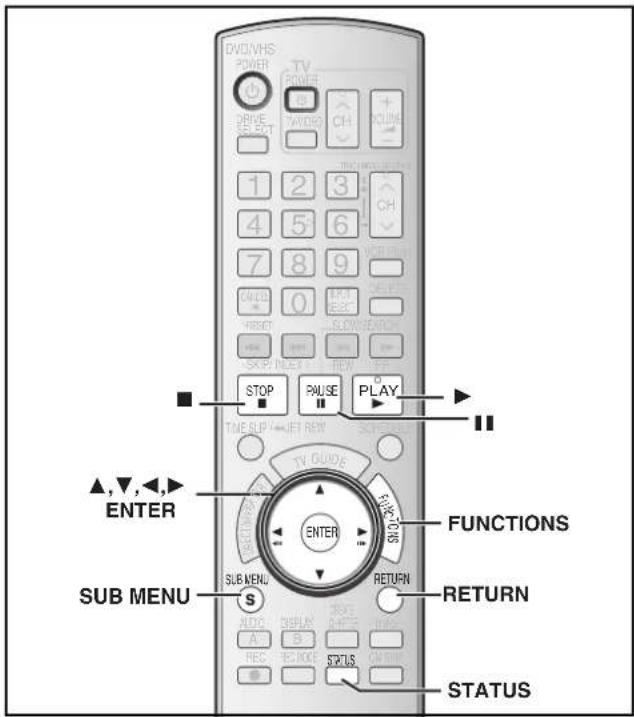
Copy Navigator
DVD-R, DVD-R DL, DVD-RW (DVD-Video format), +R and +R DL are automatically finalized. After finalizing, the discs become play-only and you can also play them on other DVD equipment. However, you can no longer record or edit.
- You cannot select "Top Menu Style" or "Playback will start with:". If you want to set play menu select or the background color, select "Top Menu Style" or "Playback will start with:" in "DVD Management" before copying.
HDD → RAM -R -R DL -RW(V) +R +R DL +RW
(You cannot copy to finalized discs.)
Preparation
- Insert a disc that you can use for recording (→ 5–7, 12).
- Confirm that there is enough remaining disc space.
- When the confirmation screen is displayed (→ 27, When the format confirmation screen is displayed).
■ Copying speed mode and recording mode
The copy speed set by the Copy Navigator is as follows:
HDD → RAM : High speed
HDD → -R -R DL -RW(V) +R +R DL +RW : → below
| “Recording for High-Speed Copying (→ 75)” | Speed mode |
| When source titles were recorded with “On” selected | High speed |
| When source titles were recorded with “Off” selected | Normal speed (FR recording mode) |
| When there are source titles recorded with “On” selected and source titles recorded with “Off” selected |
+R +R DL +RW The source title recorded in FR mode (recordings 5 hours or longer) or EP mode will be normal speed (FR recording mode).
If there is not enough remaining space on the destination disc to copy in the above mode, the copying mode will change to FR. Copy data size: The total data size shown may be larger than the sum of the data sizes for each registered item because of data management information being written to the copy destination, etc.
1 While stopped
Press [FUNCTIONS].
2 Press [▲, ▼] to select "Copy" and then press [ENTER].
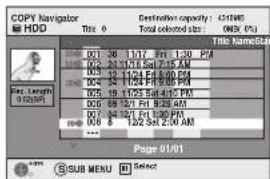
3 Press [▲, ▼] to select the title you want to copy and then press [ENTER].
- To select a multiple number of items together, press [II, PAUSE] to add the check mark and then press [ENTER] (→ 62, Multiple editing). • To show other pages (→ 62)
4 After you start copying DVD-R, DVD-R DL, DVD-RW (DVD-Video format), +R and +R DL discs, they become play-only and you can no longer record or edit.
Press [◀, ▶] to select "Start Copying" and then press [ENTER].
Copying starts.
To return to the previous screen
Press [RETURN].
To stop copying
Press and hold [RETURN] for 3 seconds.
●However, you cannot stop finalizing after it has started. ■ Copy Navigator icons and functions → 63 ■ To check the properties of a title and sort Title View 1 Press [▲, ▼] to select the title and then press [SUB MENU].
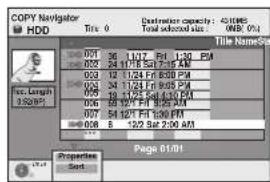
2 Press [▲, ▼] to select "Properties" or "Sort" and then press [ENTER].
Properties:
The name, recording date, channel, etc. of the selected title are shown.
Sort:
Press [▲, ▼] to select the item and then press [ENTER].
This changes the way that titles are displayed. You can select to display titles by No., recording date, day, channel, recording start time, and title name. (You cannot select a title if it has a check mark.) If you close the COPY Navigator screen, the display order is canceled.
Note
- When copying titles in high speed mode to 5X high speed recording compatible DVD-RAM or 8X high speed recording compatible DVD-R or +R, the sound of the disc rotating becomes louder than normal.
- If you want copy to perform more quietly, select "Silent mode" in "Rapidity of High-Speed copying" in the Setup menu (→ 75).
- If you register multiple titles, they are copied in order from the title at the top of the screen and not in the order you registered them. To change the order that titles are copied, create a copying list and then copy the contents of the list (→ 62).
Refer to the control reference on page 59.
One Touch Copy
■ Copy direction![[◀HDD] HDD → VHS [◀VHS] VHS → HDD [◀DVD] VHS → DVD COPYING HDD DVD [◀DVD] DVD → VHS COPYING indication](/content/2026/05/796413/images/e41a6c81ebdaec6e62c8a859f7cbf38e6c8c0c5da6b9d218030abfd7bd7ee85b.jpg)
Preparation
Copy to:
- DVD: insert a disc that you can use for recording (→ 5–7, 12). VHS: insert a video cassette with an accidental erasure prevention tab (→ 11, 12).
- Confirm that there is enough remaining disc or tape space.
- Select the recording mode.
- HDD/DVD ↔ VHS
Copy from:
● DVD: insert the disc containing the program to be copied. ● VHS: insert the video cassette containing the program to be copied.
■ Copying speed mode and recording mode
The copy speed during One Touch Copy is set as follows:
HDD → RAM : High speed RAM -RW(VR) → HDD : High speed +RW → HDD : Normal speed only HDD → -R -R DL -RW(V) +R +R DL +RW : → below
| “Recording for High-Speed Copying (→ 75)” | Speed mode |
| When source titles were recorded with “On” selected | High speed |
| When source titles were recorded with “Off” selected | Normal speed(same as source title)●Playlists as copied in FR recording mode |
+R +R DL +RW The source title recorded in FR mode (recordings 5 hours or longer) or EP mode will be normal speed (FR recording mode).
If there is not enough remaining space on the destination disc to copy in the above mode, the copying mode will change to FR.
HDD → VHS : Normal speed only
RAM -R -R DL -RW(V) +R +R DL +RW → VHS
Normal speed only (select recording mode in VHS drive before copying)
■ You can select the copy direction from the copy source and copy destinations below with this method:
HDD → RAM -R -R DL -RW(V) +R +R DL +RW VHS
The title or playlist being played will automatically be copied.
Copying will start from the beginning of the title or playlist being played, regardless of the current position.
- You cannot copy playlists with a play time more than 8 hours. When you copy a playlist, it will become a title in the destination drive.
VHS → HDD RAM -R -RW(V) +R +RW
Copying automatically starts from the current position on the video cassette.
RAM -RW(VR) +RW → HDD
All the titles or playlists recorded on a disc are copied automatically to the HDD. - You cannot copy the playlist which is longer than 8 hours. (When you copy multiple playlists, the playlist which is longer than 8 hours is omitted.)
RAM -R -R DL -RW(V) -RW(VR) +R +R DL +RW → VHS
All the titles recorded on the disc, the beginning of the selected title to the end of the disc or the start to the end of the selected playlist is automatically copied to the video cassette.
Note
- When copying is not started or not executed, the "COPYING" indicator blinks for about 7 seconds. Check if the unit is properly prepared.
■ HDD → DVD or VHS
- The HDD status messages are not shown while copying. (→ 76) ●Audio output is stereo (L R) during HDD playback.
1 Play the desired title or playlist to copy. (→ 40, 54)
- You can also copy even after pressing [11, PAUSE] to pause playback.
2 Press and hold [◀HDD] or [HDD▶] on the main unit for about 3 seconds or more (until "START" on the unit's display stops flashing).
- The "COPYING" indicator on the main unit lights up.
- Check if copying starts properly.

Current copy status (38% has been copied) *
* Remaining copy time appears when copying at normal speed.
When the finalize confirmation screen appears
-R -R DL -RW(V) +R +R DL
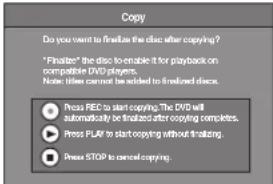
- If you press [●, REC] on the main unit, the disc will automatically be finalized after copying completes.
- After finalizing, the discs become play-only and you can also play them on other DVD equipment. However, you can no longer record or edit.
- If you press [▶, PLAY] on the main unit, you can start copying without finalizing.
- If you press [■] on the main unit, you can cancel copying.
■ Recording and playing in HDD while copying (Only when high-speed copying without finalizing.)
Press [ENTER] to cancel the screen display, and then operate play or record.
- To confirm the current progress, press [STATUS]. ●During copying, you cannot chase play, edit, etc.
■ To stop copying partway
When High-speed copying
Press and hold [RETURN] for about 3 seconds or more.
When Normal Speed copying
Press [■, STOP] or press and hold [RETURN] for about 3 seconds or more.
●However, you cannot stop finalizing after it has started - Even if "Copy and finalize" is selected in the confirmation screen, the disc will not be finalized if you stop copying partway.
■ VHS → HDD or DVD
- The VHS status messages are not shown while copying. (→ 76)
While both VHS and HDD or DVD are stopped
Press and hold [◀VHS] or [VHS▶] on the main unit for about 3 seconds or more (until "START" on the unit's display terminates flashing).
- The "COPYING" indicator on the main unit lights.
- Check if copy starts properly.

■ When the finalize screen appears (→ 60) ■ When copy without finalize
When copying starts, the selected drive automatically changes to HDD. Therefore, the current state of the HDD drive appears on the unit's display.
(When the HDD is stopped, the display on the right appears. The elapsed DVD recording time is not displayed.)
■ To stop copying partway
Press [■, STOP] or press and hold [RETURN] for about 3 seconds or more.
●However, you cannot stop finalizing after it has started. - Even if "Copy and finalize" is selected in the confirmation screen, the disc will not be finalized if you stop copying partway.
■ DVD → HDD
- The DVD status messages are not shown while copying. (→ 76) ●Audio output is stereo (L R) during DVD playback.

■ When you want to copy titles
Go to step 2
- All the titles recorded on a disc are copied automatically during play or while stopped.
■ When you want to copy playlists
Press [▶, PLAY] to play back the desired playlist (→ 54).
- All the playlists recorded on a disc are copied automatically regardless of the current position.
- You can copy while playback is paused by pressing [III, PAUSE].
2 Press and hold [DVD▶] on the main unit for about 3 seconds or more (until “START” on the unit’s display terminates flashing).
- The "COPYING" indicator on the main unit lights.
- Check if copy starts properly.

Current copy status (38% has been copied)*
■ Recording and playing in HDD while copying (Only when high-speed copying)
Press [ENTER] to cancel the screen display, and then operate play or record.
●To confirm the current progress
Press [STATUS].
- During copy, you cannot chasing play, edit and etc.
■ To stop copying partway
When High-speed copying
Press and hold [RETURN] for about 3 seconds or more.
When Normal Speed copying
Press [■, STOP] or press and hold [RETURN] for about 3 seconds or more.
■ DVD → VHS
- The DVD status messages are not shown while copying. (→ 76) ●Audio output is stereo (L R) during DVD playback.

■ When you copy a whole disc
Make sure that the DVD is stopped.
- Press [STATUS] to check that the resume play function is not active on the DVD drive. If the DVD counter appears on the unit's display, press [■, STOP] to clear the resume play position. (→ 41)
- When the resume play function is active, the copy will start from the memorized position to the end of the disc.
■ When you copy a title from the beginning of the selected title to the end of the disc ■ When you copy a playlist from the beginning of the selected playlist to the last playlist
Press [▶, PLAY] to play back the desired title (→ 40) or playlist (→ 54).
- You can copy (a title or playlist) while playback is paused by pressing [11, PAUSE].
- You cannot copy the playlist which is longer than 8 hours. (When you copy multiple playlists, the playlist which is longer than 8 hours is omitted.)
2 Press and hold [◀DVD] on the main unit for about 3 seconds or more (until “START” on the unit’s display terminates flashing).
- The "COPYING" indicator on the main unit lights.
- Check if copy starts properly.
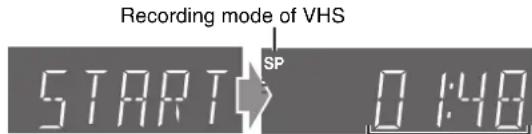
Remaining time on the tape (1 hour 48 minutes)
■ To stop copying partway
Press [■, STOP] or press and hold [RETURN] for about 3 seconds or more.
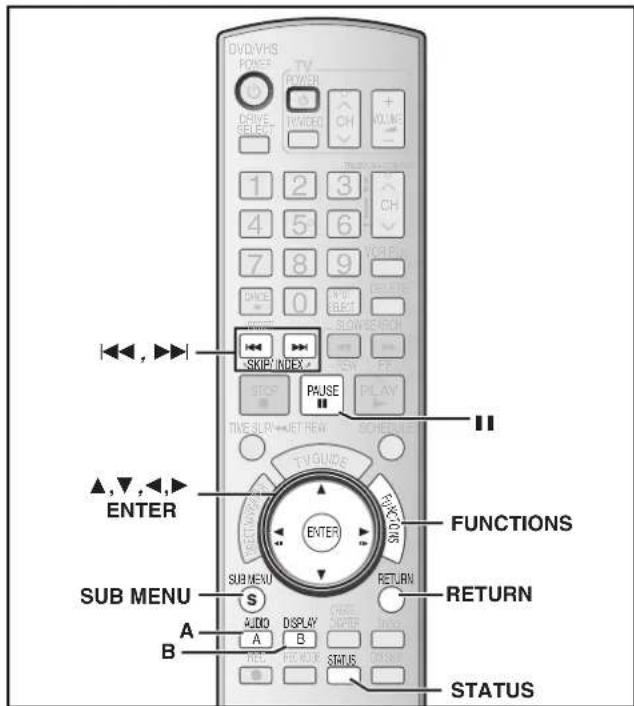
Copying using the copying list—Advanced Copy (Create List)
HDD → RAM -R -R DL -RW(V) +R +R DL +RW VHS RAM -RW(VR) +RW → HDD VHS
You can arrange titles and playlists as desired for copy. (You cannot copy to finalized discs.)
Copy to:
- DVD: insert a disc that you can use for recording (→ 5–7, 12). •VHS: insert a video cassette with an accidental erasure prevention tab (→ 11, 12).
- Confirm that there is enough remaining disc or tape space. Copy from:
- DVD: insert the disc containing the program to be copied. See also notes "Before copying" (→ 57)
1 While stopped
Press [FUNCTIONS].
2 Press [▲, ▼] to select "Other Functions" and then press [ENTER].
3 Press [▲, ▼] to select "Advanced Copy" and then press [ENTER].
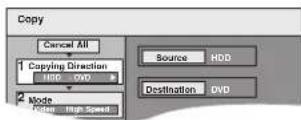
- If you are not going to change the registered list press [▼] several times (→ step 7).
4 Set the copy direction.
- If you are not going to change the copying direction, press [▼] (→ step 5). ① Press [▲, ▼] to select "Copying Direction" and then press [▶]. ② Press [▲, ▼] to select "Source" and then press [ENTER]. ③ Press [▲, ▼] to select the drive and then press [ENTER]. ④ Press [▲, ▼] to select "Destination" and then press [ENTER]. ⑤ Press [▲, ▼] to select the drive and then press [ENTER]. ⑥ Press [◀] to confirm.
5 Set the recording mode.
- If you are not going to change the recording mode, press [▼] (→ step 6). ① Press [▲, ▼] to select "Mode" and then press [▶]. ② Press [▲, ▼] to select "Content Type" and then press [ENTER]. ③ Press [▲, ▼] to select "Video" and then press [ENTER].
④ Press [▲, ▼] to select "Recording Mode" and then press [ENTER]. ⑤ Press [▲, ▼] to select the mode and then press [ENTER]. ⑥ Press [◀] to confirm.
6 Register titles and playlists for copy.
- If you are going to copy a registered list without making any changes to it (→ step 7).
① Press [▲, ▼] to select "Create List" and then press [▶].
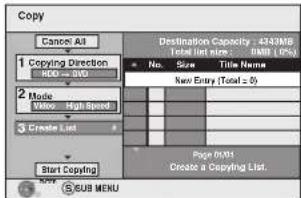
② Press [▲, ▼] to select "New Entry" and then press [ENTER]. ③ Press [A] to select "Video" or press [B] to select "Playlists".
④ Press [▲, ▼, ◀, ▶] to select the titles or playlists and then press [ENTER].
- When copying to a disc using high speed mode -R -R DL -RW(V) :
items indicated with " " or " " can be registered.
+R +R DL +RW
only item indicated with “” can be registered.
- To select a multiple number of items together, press [II, PAUSE] to add the check mark and then press [ENTER] (→ below, Multiple editing).
• To show other pages (→ below)
• To edit the copying list (→ 63)
You can register a multiple number of titles and playlists on the copying list by repeating steps ② to ④.
- You cannot start copying when the value of the "Total list size" (→ 63) exceeds 100 %. (Destination capacity is not sufficient.)
⑤ Press [◀] to confirm.
7 Press [▲, ▼] to select "Start Copying" and then press [ENTER].
- When copying titles in high speed mode to 5X high speed recording compatible DVD-RAM or 8X high speed recording compatible DVD-R or +R, the sound of the disc rotating becomes louder than normal.
- If you want copying to be quieter, select "Silent mode" in "Rapidity of High-Speed copying" in the Setup menu (→ 75).
8 Press [◀, ▶] to select "Yes" and then press [ENTER] to start copying.
(HDD → -R -R DL -RW(V) +R +R DL only)
Press [◀, ▶] to select "Copy and finalize" or "Copy only" and press [ENTER] to start copying.
- If "Copy and finalize" is selected, the disc will be finalized after copying.
The disc becomes play-only and can be played on other DVD equipment, however you can no longer record or edit.
To show other pages
Press [▲, ▼, ◀, ▶] to select "Previous" or "Next" and then press [ENTER].
- You can also press [◀◀, SKIP] or [▶▶, SKIP] to show other pages.
Multiple editing
Select with [▲, ▼, ◀, ▶] and then press [■■, PAUSE]. (Repeat) Press [ENTER] to register to the list.
- A check mark appears. Press [11, PAUSE] again to cancel.
- When you switch between the "Video" and "Playlists" tab, the check mark is canceled.
To play the disc on other DVD players:
-R -R DL -RW(V) +R +R DL Finalize the disc (→ 72)
+RW Create DVD Top Menu (→ 72)
■ To stop copying
Press and hold [RETURN] for 3 seconds.
When High-speed copying
All titles that have completely copied at the point canceled are copied.
When Normal Speed copying
Copies until the point canceled. However, for titles with "One time only recording" restriction, only titles that have completely copied at the point canceled are copied to the disc. Titles that are canceled before the copy is complete are not copied and remain on the HDD.
- -R DL +R DL If copy is canceled during the step while copying to the HDD, then nothing will be copied. However, if copy is canceled during the step while copying to disc from the HDD, then only titles completely copied at the point canceled are copied.
Even if the title was not copied to the DVD-R, DVD-R DL, DVD-RW (DVD-Video format), +R, +R DL or +RW, the amount of remaining writable disc space becomes less.
■ To return to the previous screen
Press [RETURN].
■ Recording and playing while copying
You can record and play using the HDD while high-speed copying. (Only when high-speed copying without finalizing.) ●Still pictures cannot be played. Press [ENTER] to cancel the screen display. ●To confirm the current progress
Press [STATUS].
Note
- Scheduled recordings executed while copying are recorded to the HDD regardless of the recording drive settings.
(Only when high-speed copying without finalizing.)
■ Copy Navigator/Copying list icons and functions
Copy Navigator/Copying list icons

Titles and playlists that can be copied in high speed mode to DVD-R, DVD-R DL, DVD-RW (DVD-Video format), +R, +R DL or +RW.

Titles and playlists that can be copied in high speed mode to DVD-R, DVD-R DL, DVD-RW (DVD-Video format). (However, titles and playlists cannot be copied in high speed mode to +R, +R DL or +RW.)

Title with "One time only recording" restriction
(→ 9, Recording of digital broadcasting)

Titles deleted from the HDD by "One time only recording" restriction after copying.
(→ 9, Recording of digital broadcasting)

Title or playlist contains still picture(s)
●Still picture(s) cannot be copied.
Data size of each registered item
Total list size:
Data size recorded to the copy destination
- When copying at normal speed, the total data size will change according to the recording mode.
- The total data size shown may be larger than the sum of the data sizes for each registered item, because of data management information being written to the copying destination, etc.
■ To edit the copying list
Select the item in step 6-④ (→ 62) 1 Press [SUB MENU]. 2 Press [▲, ▼] to select the operation and then press [ENTER].
Clear All:
Clear all items registered on the copying list.
Press [◀, ▶] to select "Yes" and then press [ENTER].
Add:
Add new items to the copying list.
Press [▲, ▼, ◀, ▶] to select the playlists or titles to be added and then press [ENTER].
Remove:
Remove the selected items.
Press [◀, ▶] to select "Yes" and then press [ENTER].
You can also remove multiple items (→ 62, Multiple editing).
Move:
Move selected items or change the order of items on the copying list. Press [▲, ▼] to select the destination and then press [ENTER].
To cancel all registered copying settings and lists
After performing steps 1 to 3 (→ 62)
1 Press [▲, ▼] to select "Cancel All" and then press [ENTER]. 2 Press [◀, ▶] to select "Yes" and then press [ENTER]. ●The settings and lists may be canceled in the following situations.
- When a title, still picture, etc. has been recorded or erased at the copy source
- When steps have been taken, for instance, to turn off the unit, open the tray, change the copy direction, etc.
Copying MPEG2 moving pictures from an SD card—Copy video (MPEG2)
Motion pictures encoded in the MPEG2 format, which have been taken by a Panasonic SD Video Camera, digital video camera etc., can be recorded on HDD or DVD-RAM.
(All the recordings on the same date become a title.)
- You cannot playback MPEG2 moving pictures on an SD card with this unit.
You must copy the files to the HDD or a DVD-RAM.
- You cannot playback or record while copying MPEG2.
![graph LR A["Camera"] --> B["MPEG2"] B --> C["High-speed copy"] C --> D["HDD"] D --> E["VIDEO®"] E --> F["DVD-RAM"]](/content/2026/05/796413/images/43fe4fbd643ab8026987fee18021080526b3c982c428fd44133d3a4515f0ec08.jpg)
* Conventionally recorded programs
The display below automatically appears when you insert a card into the SD card slot while stopped.
Press [▲, ▼] to select "Copy video (MPEG2)" and then press [ENTER]. Then go to step 6 on page 62.
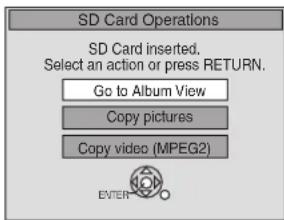
How to copy
Refer to "Copying using the
copying list—Advanced Copy
(Create List)" (→ 62)
Please set the items in step 4 and
5 as shown below.
Copying Direction:
Source→SD card
Mode:
Content Type→Video
- MPEG2 moving pictures on an SD card are automatically registered on the copy list.
- If there are no MPEG2 moving pictures on an SD card, "Copy video (MPEG2)" is not displayed.
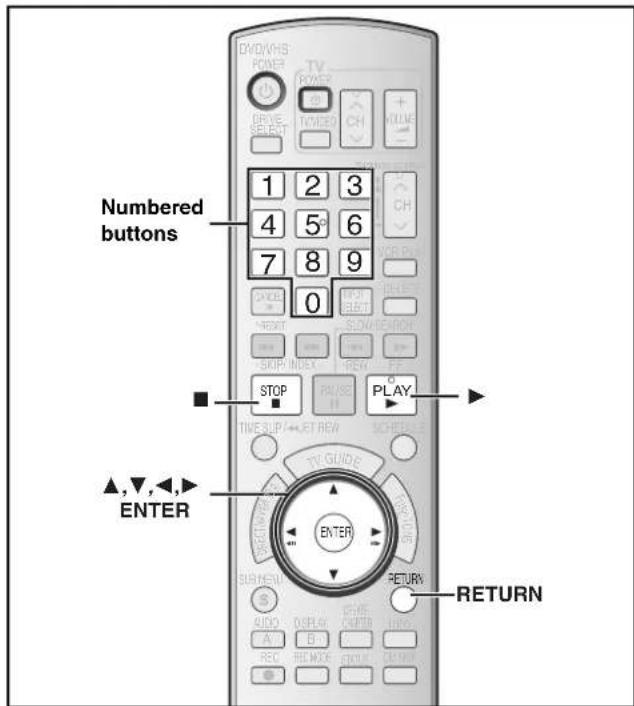
Copying a video cassette or DVD-Video [finalized DVD-R, -R DL, DVD-RW (DVD-Video format), +R, +R DL] —Advanced Copy (Time Limit)
■ You can select the copy direction from the copy source and copy destinations below with this method: VHS → HDD RAM -R -RW(V) +R +RW
Copying automatically starts from the current position on the video cassette.
- You can copy from the start to the end of a video cassette when the recording mode is set to FR and the "Time Limit" is set to "Off".
DVD-V (Finalized -R -R DL -RW(V) +R +R DL) → HDD VHS
Copy the contents of the disc that are currently being played. You can copy the content of finalized DVD-R, DVD-R DL, DVD-RW (DVD-Video format), +R and +R DL etc. to the HDD and re-edit. While playing a disc, the content being played is copied to the HDD or VHS according to the set time.
HDD If you perform search, frame-by-frame or pause while copying, that portion of title is not recorded.
●Operations and on screen displays during copy are also recorded.
- Almost all DVD-Video on sale have been treated to prevent illegal copying, and cannot be copied.
- The following cannot be copied: DVD-Audio, Video CD, Audio CD and so on.
Preparation
Copy to:
- DVD: insert a disc that you can use for recording (→ 5–7, 12).
- VHS: insert a video cassette that you can use for recording and search for the position to start recording. (→ 11, 12).
- Confirm that there is enough remaining disc or tape space. Copy from:
- DVD: insert the disc containing the program to be copied.
- VHS: insert the video cassette containing the program to be copied and search for the position to start copying.
After performing steps 1 to 5 (→ 62, Copying using the copying list—Advanced Copy (Create List))
- "Content Type" is automatically set to "DVD-Video" or "VHS-Video" in step 5-(2)
- You cannot select items that cannot be set in "Recording Mode" in step 5-④.
6 Set "Time Limit".
- If you are not going to change the setting (→ step 7).
■ Setting the unit to copy according to the set time
① Press [▲, ▼] to select "Time Limit" and then press [▶].
② Press [▲, ▼] to select "Time Limit" and then press [ENTER].
- Setting the unit to copy all the content on the disc
③ Press [▲, ▼] to select "Off" and then press [ENTER].
④ Press [◀] to confirm.
Copy will continue until there is not enough available recording space on the HDD or tape.
- Setting the copying time
③ Press [▲, ▼] to select "On" and then press [ENTER].
④ Press [▲, ▼] to select "Set time" and then press [ENTER].
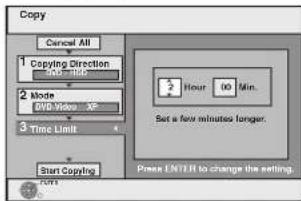
⑤ Press [◀, ▶] to select "Hour" and "Min." and then press [▲, ▼] to set the recording time.
⑥ Press [ENTER].
⑦ Press [◀] to confirm.
- Copying to the HDD or VHS continues for the set time even after the content being played finishes.
- Set a few minutes longer than the source title, in order to include the operation time before play begins.
- You can also set the recording time with the numbered buttons.
- When copying a finalized disc, set a few minutes longer than the source title to include the operation time before play begins and the copy time.
- When the recording mode is set to FR, there are some differences depending on whether "Time Limit" is set to "On" or "Off". (Only when recording to video cassettes) (→ 65, About FR recording mode)
- When the recording mode is not set to FR and the "Time Limit" is set to "Off", copying will continue until the copy destination is full.
7 Press [▲, ▼] to select "Start Copying" and then press [ENTER].
8 Press [◀, ▶] to select "Yes" and then press [ENTER] to start copying.
VHS → HDD RAM -R -RW(V) +R +RW
When the confirmation screen appears
(VHS → -R -RW(V) +R only)
Press [◀, ▶] to select "Copy and finalize" or "Copy only" and press [ENTER].
- If "Copy and finalize" is selected, the disc will be finalized after copying. The disc becomes play-only and can be played on other DVD equipment, however you
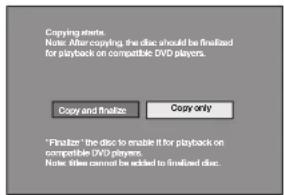
■ To stop copying partway
Press and hold [RETURN] for about 3 seconds or more.
- However, you cannot stop finalizing after it has started. - Even if "Copy and finalize" is selected in the confirmation screen, the disc will not be finalized if you stop copying partway.
DVD-V → HDD VHS
- Disc play automatically begins from title 1 when "First Title" is selected from the "Playback will start with:" menu when finalizing the disc (→ 72).
- The screen saver on the right is recorded at the beginning.
- The content is recorded as 1 title from the start of copy to the end.
When the top menu is displayed
Press [▲, ▼, ◀, ▶] to select the title you want to start copying, and then press [ENTER].
- While playing in order, all the titles after the selected title are recorded until the set time. (After the last title on the disc has finished playing, the top menu is recorded until the set time is reached.)
Note
- If play does not begin automatically or if the top menu does not display automatically, press [▶, PLAY] to start.
- Even if you copy a high quality video/audio DVD, the original picture and audio quality cannot be exactly replicated.
- If you want to copy a title from a finalized DVD-RW (DVD Video Recording format), create a copy list and then copy. (→ 62, Copying using the copying list—Advanced Copy (Create List))
■ To stop copying partway
Press [■, STOP] or press and hold [RETURN] for about 3 seconds or more. - If stopped partway, copying will be up to that point. - Copying is automatically stopped when the tape reaches the end or the remaining capacity of the disc is filled. (A message appears on the TV screen and then disappears a few seconds later.)
To return to the previous screen
Press [RETURN].
■ About FR recording mode
(VHS → HDD RAM -R -RW(V) +R +RW only)
When the recording mode is set to FR and "Time Limit" is set to "Off":
- All the recorded contents on the video cassette are copied (blank spaces are not copied).
- When copying to the HDD, the best picture quality possible is selected to fit a 4.7 GB disc perfectly.
- It may take some time before copying starts as the video cassette is fast-forwarded to the end and then rewound to the beginning. If there is not enough free space on the disc, the copy is canceled. ●A new title is created each time the VISS index signal is detected.
When the recording mode is FR and "Time Limit" is set to "On":
- The contents on the video cassette from the copy start point is copied for the set time limit (blank parts with no recording are copied).
- When copying to the HDD, the best picture quality possible is selected to fit a 4.7 GB disc perfectly.
- Titles are not created. (HDD RAM chapters will be created)
Copying still pictures
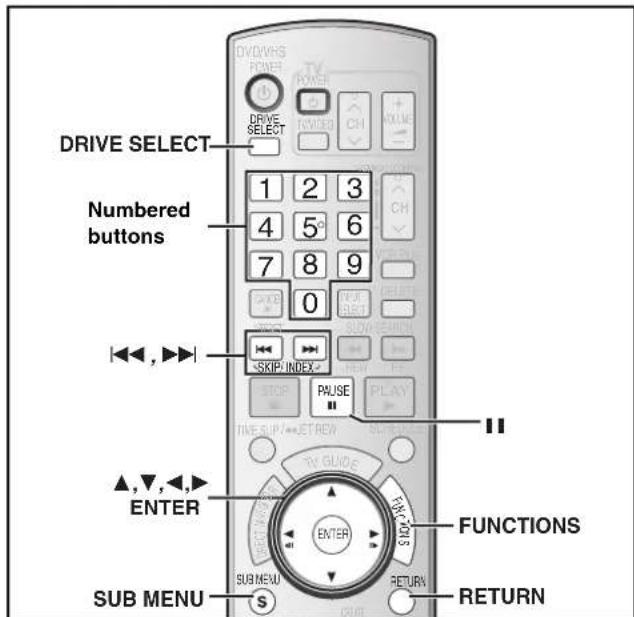
- You can use SD Memory Cards with capacities from 8 MB to 2 GB (→ 7).
- Still pictures recorded on CD-R or CD-RW cannot be copied.
While stopped, put the card in the SD slot, and the menu (→ below) is automatically displayed.
Press [▲, ▼] to select "Copy pictures" and then press [ENTER].
Then go to step 4 on page 67, "Copying all the still pictures on a card—Copy all Pictures".
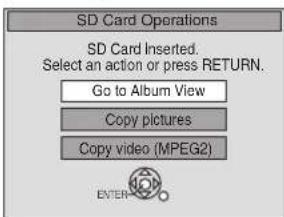
Press [RETURN] to exit the screen.
Copying using the copying list
- You cannot copy still pictures recorded on CD.
1 While stopped
Press [FUNCTIONS].
2 Press [▲, ▼] to select "Other Functions" and then press [ENTER].
3 Press [▲, ▼] to select "Advanced Copy" and then press [ENTER].
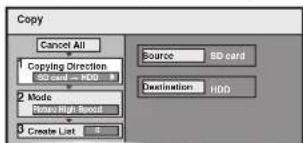
- If you are not going to change the registered list press [▼] several times (→ step 7).
4 Set the copy direction.
- If you are not going to change the copying direction, press [▼] (→ step 5).
① Press [▲, ▼] to select "Copying Direction" and then press [▶].
② Press [▲, ▼] to select "Source" and then press [ENTER].
③ Press [▲, ▼] to select the drive and then press [ENTER].
④ Press [▲, ▼] to select "Destination" and then press [ENTER].
⑤ Press [▲, ▼] to select the drive and then press [ENTER]. The same drive as the copy source can be selected.
⑥ Press [◀] to confirm.
5 Set the recording mode.
- If you are not going to change the recording mode, press [▼] (→ step 6).
① Press [▲, ▼] to select "Mode" and then press [▶].
② Press [▲, ▼] to select "Content Type" and then press [ENTER].
③ Press [▲, ▼] to select "Picture" and then press [ENTER].
"Recording Mode" is automatically set to "High Speed".
④ Press [◀] to confirm.
6 Register still pictures for copy.
- If you are going to copy a registered list without making any changes to it (→ step 7).
You can register still pictures or still picture folders.
- Still pictures and folders cannot be registered on the same list.
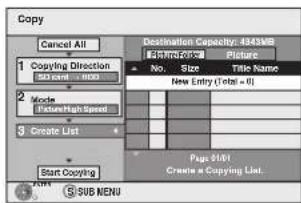
■ To register individual still pictures
1 Press [▲, ▼] to select "Create List" and then press [▶].
2 Press [▲, ▼] to select "New Entry" and then press [ENTER].
3 Press [▲, ▼, ◀, ▶] to select a still picture and then press [ENTER].
- To select a multiple number of items together, press [II, PAUSE] to add the check mark and then press [ENTER] (→ 67, Multiple editing) • To show other pages (→ 67)
- To select the still pictures in another folder (→ 67) • To edit the copying list (→ 67)
You can register a multiple number of still pictures on the copying list by repeating steps 2 to 3.
4 Press [◀] to confirm.
■ To register on a folder by folder basis 1 Press [▲, ▼] to select "Create List" and then press [▶]. 2 Press [▲, ▼] to select "Picture/Folder" and then press [ENTER].
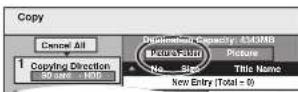
3 Press [▲, ▼] to select "Folder" and then press [ENTER]. 4 Press [▲, ▼] to select "New Entry" and then press [ENTER]. 5 Press [▲, ▼] to select the folder and then press [ENTER].
- To select a multiple number of items together, press [11, PAUSE] to add the check mark and then press [ENTER] (→ 67, Multiple editing).
● To show other pages (→ 67) - To switch to another higher folder (→ 67) • To edit the copying list (→ 67)
You can register a multiple number of folders on the copying list by repeating steps 4 to 5.
6 Press [◀] to confirm.
7 Press [▲, ▼] to select "Start Copying" and then press [ENTER].
- For individual still pictures only
When specifying another folder as the copying destination, select "Folder".

8 Press [◀, ▶] to select "Yes" and then press [ENTER] to start copying.
To stop copying
Press and hold [RETURN] for 3 seconds.
To return to the previous screen
Press [RETURN].
To show other pages
Press [▲, ▼, ◀, ▶] to select "Previous" or "Next" and then press [ENTER].
- You can also press [◀◀, SKIP] or [▶▶, SKIP] to show other pages.
Multiple editing
Select with [▲, ▼, ◀, ▶] and then press [■■, PAUSE]. (Repeat) Press [ENTER] to register to the list.
- A check mark appears. Press [11, PAUSE] again to cancel.
■ To edit the copying list
Select the item in step 5—③ (for a still picture) or 5—⑤ (for a folder) (→ 66)
1 Press [SUB MENU]. 2 Press [▲, ▼] to select the operation and then press [ENTER].
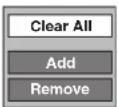
Clear All:
Clear all items registered on the copying list.
Press [◀, ▶] to select "Yes" and then press [ENTER].
Add:
Add new items to the copying list.
Press [▲, ▼, ◀, ▶] to select the still picture or folder to be added and then press [ENTER].
Remove:
Remove the selected items.
Press [◀, ▶] to select "Yes" and then press [ENTER].
You can also delete multiple items (→ above, Multiple editing).
To cancel all registered copying settings and lists
After performing steps 1 to 3 (→ 66)
1 Press [▲, ▼] to select "Cancel All" and then press [ENTER]. 2 Press [◀, ▶] to select "Yes" and then press [ENTER]. ●The settings and lists may be canceled in the following situations.
- When a title or still picture has been recorded or deleted at the copy source
- When steps have been taken, for instance, to turn off the unit, remove the card, open the tray, change the copying direction, etc.
■ To select another folder
(→ 93, Structure of folders displayed by this unit) 1 Press [▲, ▼, ◀, ▶] to select "Folder" and then press [ENTER].
If you want to switch to another higher folder (→ below)
2 Press [▲, ▼] to select the folder and then press [ENTER].

You can also select folders with the numbered buttons.
e.g., 5: [0] → [0] → [5]
15: [0] → [1] → [5]
115: [1] → [1] → [5]
- The still pictures of different folders cannot be registered on the same list.
To switch to another higher folder
- Only when selecting the source folder
(If there is a multiple number of higher folders recognizable on this unit)
While the screen on the right appears
① Press [SUB MENU] and then press [ENTER].
② Press [◀, ▶] to select the higher folder and then press [ENTER].
You cannot register a folder with a different higher folder to the same list.
③ Press [▲, ▼] to select the desired folder and then press [ENTER].
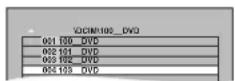
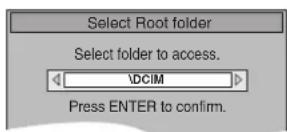
Copying all the still pictures on a card—Copy all Pictures
SD → HDD RAM
Preparation
Press [DRIVE SELECT] to select the SD drive.
1 While stopped
Press [FUNCTIONS].
2 Press [▲, ▼] to select "Other Functions" and then press [ENTER]. 3 Press [▲, ▼] to select "Copy all Pictures" and then press [ENTER].
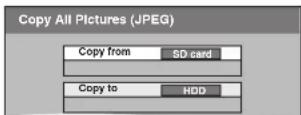
4 Press [▲, ▼] to select "Copy to" and then press [◀, ▶] to select the drive. 5 Press [▲, ▼, ◀, ▶] to select "Copy" and then press [ENTER].
To stop copying
Press and hold [RETURN] for 3 seconds.
To return to the previous screen
Press [RETURN].
Note
- When copying the still pictures on an album by folder basis (→ 66) or card by card basis (→ above, Copy all Pictures), files other than the still picture files inside the folder will also be copied. (This does not apply to the lower folders contained inside the folders.)
- If still pictures are already contained inside the copying destination folder, the new still pictures are recorded following the existing still pictures.
- If the space on the destination drive runs out or the number of files/folders to be copied exceeds the maximum (→ 8), copying will stop partway through.
- When a name has not been input for the copy source folder, it is possible that this folder's name will not be the same on the copy destination. It is recommended that you input a folder name before copying (→ 55, Album Name).
- You cannot copy the information about the print number setting (DPOF) or the picture rotation.
- The sequence in which the still pictures are registered on the copy list may not be the same at the copying destination.
Recording from a video cassette recorder
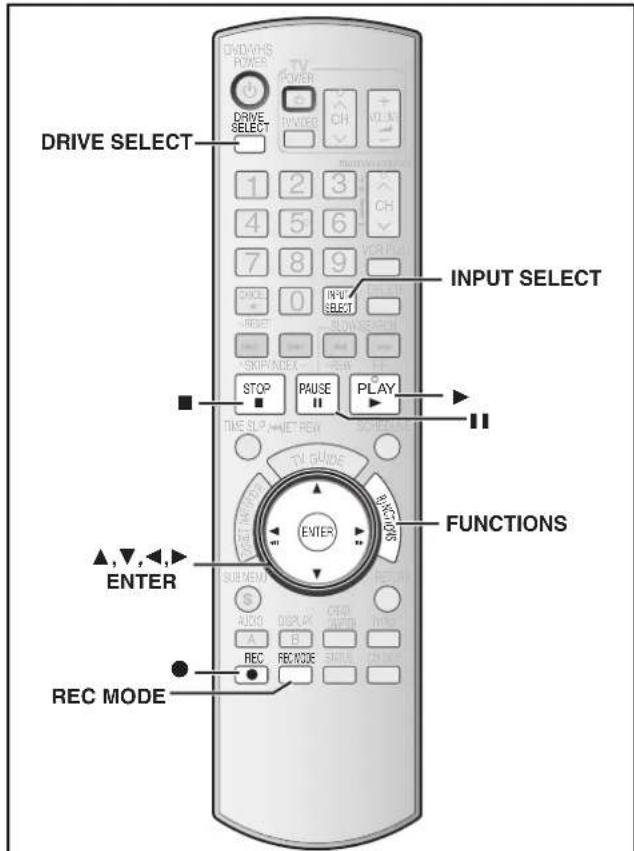
e.g.: Connecting other video equipment to the IN2 or DV input terminals
You can also connect to the IN1 or IN3 input terminals on the rear.
●Turn off the unit and other video equipment before connecting.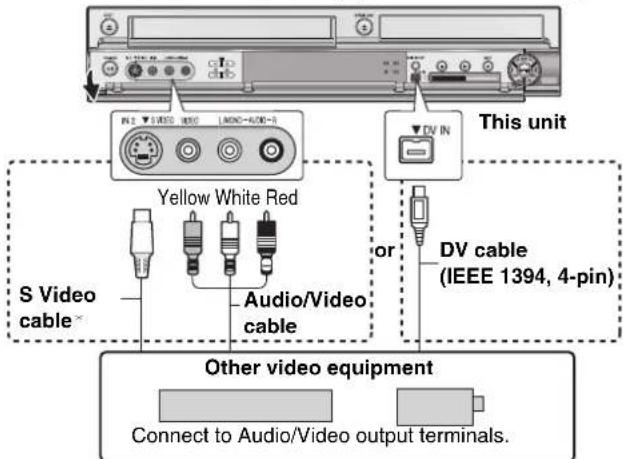
If the audio output of the other equipment is monaural
Connect to L/MONO on the IN2 input terminals at the front.
* The S-VIDEO terminal achieves a more vivid picture than the VIDEO terminal.
When recording from the unit's DV terminal
Select the type of audio recording from "Select Audio Channel for DV Input" in the Setup menu (→ 76).
When recording from DV equipment (e.g., digital video camcorder), you can record audio/video recordings from DV tape only.
When copying 16:9 aspect titles:
- If copying to the HDD RAM:
Set "Recording for High-Speed Copying" to "Off" and you can copy in 16:9 aspect titles.
- If copying to -R -RW(V) +R +RW
Regardless of the "Recording for High-Speed Copying" settings, the video will record in 4:3 aspect titles*.
* You can change the screen size by adjusting the screen mode on the television.
Note
- If it becomes time for a scheduled recording to start while copying, the recording will start and the copying will stop.
Manual recording
HDD, RAM, -R, -RW(V), +R, +RW, VHS
Preparation
- Connect a video cassette recorder to this unit's input terminals.
- Press [DRIVE SELECT] to select the recording drive (HDD, DVD, or VHS).
- Press [REC MODE] to select the recording mode.
Note
- When recording using this unit's input terminals, only the sound received at the time of recording will be recorded. As long as the secondary audio that is recorded on the video cassette is not output on the unit in play, it is not recorded.
1 While stopped
Press [INPUT SELECT] to select the input channel for the equipment you have connected.
e.g., If you have connected to IN2 input terminals, select "IN2".
HDD, RAM, -R, -RW(V), +R, +RW
2 Start play on the other equipment. 3 When you want to start recording, press [●, REC].
Recording starts.
VHS
2 Press [▶, PLAY]. - Start playing the video cassette and find the recording start point. 3 Press [III, PAUSE], then press [●, REC]. - Put the unit in recording standby mode. 4 Start play on the external device. 5 Press [II, PAUSE] at the point where you want to start recording.
To skip unwanted parts
Press [11, PAUSE] to pause recording. (Press again to restart recording.)
To stop recording
Press [■, STOP].
Almost all videos and DVD software on sale have been treated to prevent illegal copying. Any software that has been so treated cannot be recorded using this unit.
- Using Flexible Recording (→ 30), you can save the content of a video cassette (approx. 1 to 8 hours) to a 4.7 GB disc with the best possible quality of recording without wasting disc space.
DV camcorder recording (DV Camcorder Rec.)
HDD RAM -R -RW(V) +R +RW
When the "DV Camcorder Rec." function is used, programs are recorded as a title. At the same time chapters are created at each break in the images and the playlist is created automatically.
Preparation
① Turn off the main unit and DV equipment, then connect the DV equipment with the unit's DV input terminal (→ 68). ② Turn on the main unit and then press [REC MODE] to select the recording mode. ③ Turn on the DV equipment and pause play on the DV equipment at the point you want recording to start.
After preparation is completed, the following screen appears.
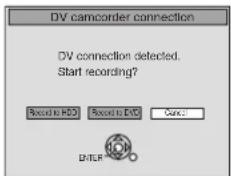
- Press [◀, ▶] to select "Record to HDD" or "Record to DVD" as the copy destination and press [ENTER]. You can now continue to step 4, below.
- When the screen is not displayed, press [DRIVE SELECT] to select "HDD" or "DVD" and then continue from step 1.
1 While stopped Press [FUNCTIONS].
2 Press [▲, ▼] to select "Other Functions" and then press [ENTER].
3 Press [▲, ▼] to select "DV Camcorder Rec." and then press [ENTER].
4 Press [◀, ▶] to select "Record" and then press [ENTER]. Recording starts.
When recording finishes
The confirmation screen appears. Press [ENTER] to finish DV camcorder recording.
To stop recording
Press [■, STOP].
Notes on DV camcorder recording
- Only one piece of DV equipment (e.g., digital video camcorder) can be connected to the unit via the DV input terminal.
- If you use video camcorders from other manufacturers, these are not guaranteed to work.
- It is not possible to operate the unit from the connected DV equipment.
- The DV input on this unit is for use with DV equipment only. (It cannot be connected to a computer, etc.) ●The DV equipment name may not be shown correctly.
- Depending on the DV equipment, the images or audio may not be input properly.
- The date and time information on the tape in the DV equipment will not be recorded.
- You cannot record and play simultaneously.
If the DV camcorder recording function does not work properly, check the connections and DV equipment settings, and turn the unit off and back on.
If that does not work, follow the instructions for manual recording (→ 68, Manual recording).
HDD, disc and card management
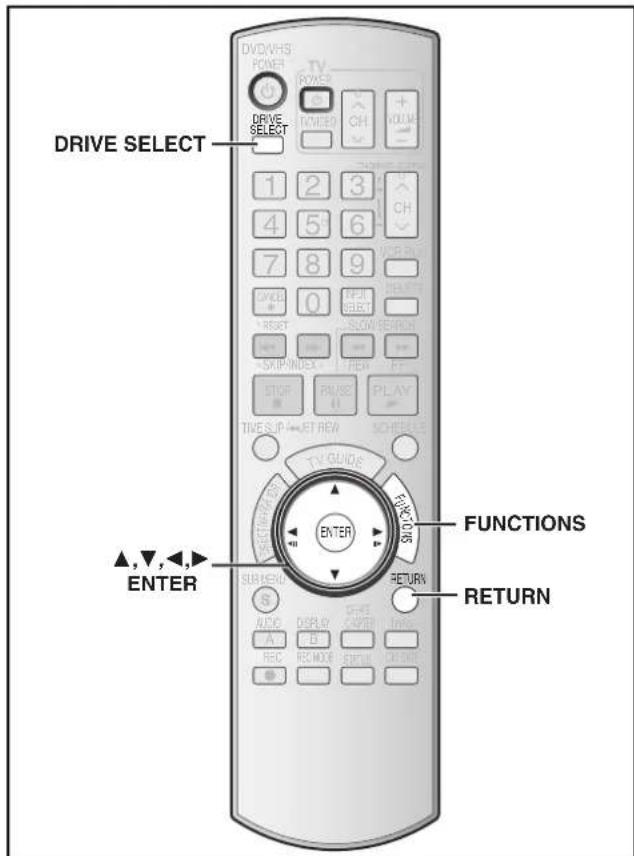
HDD RAM -R -R DL -RW(V) +R +R DL +RW -RW(VR) SD - You can use SD Memory Cards with capacities from 8 MB to 2 GB (→ 7).
Common procedures
1 While stopped
Press [FUNCTIONS].
2 Press [▲, ▼] to select "Other Functions" and then press [ENTER].
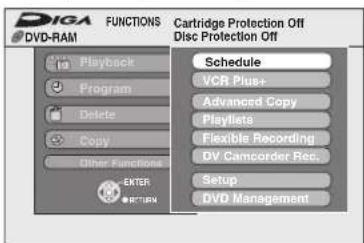
3 Press [▲, ▼] to select "HDD Management", "DVD Management" or "Card Management" and then press [ENTER].
e.g., RAM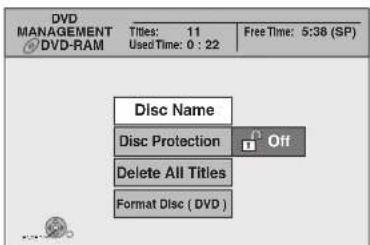
To return to the previous screen, press [RETURN]. To exit the screen, press [RETURN] several times.
Setting the protection—Disc Protection
RAM
Preparation
- Press [DRIVE SELECT] to select the DVD drive.
After performing steps 1 to 3 (→ left)
4 Press [▲, ▼] to select "Disc Protection" and then press [ENTER].
5 Press [◀, ▶] to select "Yes" and then press [ENTER].
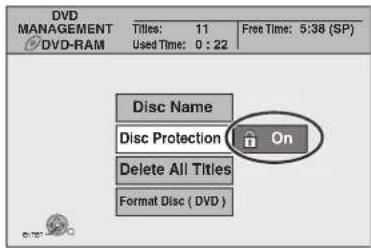
The lock symbol appears closed when the disc is write-protected.
■ Cartridge-protection
For a DVD-RAM with a cartridge
- With the write-protect tab in the protect position, play automatically starts when inserted in the unit.
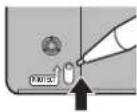
SD
Switch the write-protect switch to the "LOCK" position.

Providing a name for a disc—Disc Name
RAM -R -R DL -RW(V) +R +R DL +RW
(You cannot provide a name finalized discs.)
You can provide a name for each disc.
Preparation
- Press [DRIVE SELECT] to select the DVD drive.
• RAM Release protection (→ above).
After performing steps 1 to 3 (→ left)
4 Press [▲, ▼] to select "Disc Name" and then press [ENTER].
→ 73, Entering text
●The disc name is displayed in the DVD MANAGEMENT window.
- -R -R DL -RW(V) +R +R DL With a finalized discs the name is displayed on the Top Menu.
- +RW The disc name is displayed only if you play the disc on other equipment.

Deleting all titles and playlists—Delete All Titles
HDD RAM
Preparation
- Press [DRIVE SELECT] to select the drive (HDD or DVD).
- Release protection (→ 70).
After performing steps 1 to 3 (→ 70)
4 Press [▲, ▼] to select "Delete All Titles" and then press [ENTER].
5 Press [◀, ▶] to select "Yes" and then press [ENTER].
6 Press [◀, ▶] to select "Start" and then press [ENTER].
A message appears when finished.
7 Press [ENTER].
Note
- Once deleted, the recorded contents are lost and cannot be restored. Make certain before proceeding.
- Deleting all video titles will result in all playlists also being deleted.
- Still picture data (JPEG, TIFF) or computer data cannot be deleted.
- Delete does not work if one or more titles are protected.
Deleting all the contents of a disc or card—Format
HDD RAM -RW(V) +RW -RW(VR) SD
+R +R DL (New disc only)
Preparation
- Press [DRIVE SELECT] to select the drive (HDD, DVD or SD).
- Release protection (→ 70).
Note
Formatting deletes all contents (including computer data), and they cannot be restored. Check carefully before proceeding. The contents are deleted when you format a disc or card even if you have set protection.
After performing steps 1 to 3 (→ 70)
4 Press [▲, ▼] to select "Format Hard Drive", "Format Disc (DVD)" or "Format memory card" and then press [ENTER]. 5 Press [◀, ▶] to select "Yes" and then press [ENTER]. 6 Press [◀, ▶] to select "Start" and then press [ENTER].
A message appears when formatting is finished.
Note
- Formatting normally takes a few minutes; however, it may take up to a maximum of 70 minutes (RAM).
- Do not disconnect the AC power supply cord while formatting. This can render the disc or the card unusable.
7 Press [ENTER].
Note
- When a disc or card has been formatted using this unit, it may not be possible to use it on any other equipment.
- -R -R DL CD Formatting cannot be performed on the disc.
- You can format DVD-RW only as DVD-Video format on this unit.
To stop formatting RAM
Press [RETURN].
- You can cancel formatting if it takes more than 2 minutes. The disc must be reformatted if you do this.
Refer to the control reference on page 70.
Selecting the background style—Top Menu style
-R -R DL -RW(V) +R +R DL +RW
You can select the background that will be displayed as the DVD-Video top menu after finalizing.
After performing steps 1 to 3 (→ 70)
4 Press [▲, ▼] to select "Top Menu Style" and then press [ENTER].
5 Press [▲, ▼, ◀, ▶] to select the background and then press [ENTER].
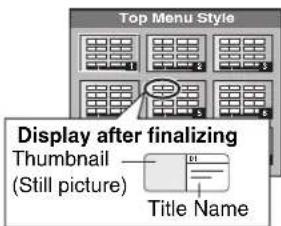
- You can change thumbnails displayed in the top menu. (→ 52, Change Thumbnail)
Selecting whether to show the Top Menu first—Playback will start with:
-R -R DL -RW(V) +R +R DL +RW
You can select whether to show the top menu after finalizing.
After performing steps 1 to 3 (→ 70)
4 Press [▲, ▼] to select "Playback will start with:" and then press [ENTER].
5 Press [▲, ▼] to select "DVD's Top Menu" or "First Title on DVD" and then press [ENTER].
DVD's Top Menu: The top menu appears first. First Title on DVD: The disc content is played without displaying the top menu.
Enabling discs to be played on other equipment—Finalize
-R -R DL -RW(V) +R +R DL
Make selections from "Top Menu Style" and "Playback will start with:" above before finalizing the disc.
After performing steps 1 to 3 (→ 70)
4 Press [▲, ▼] to select "Finalize" and then press [ENTER].
5 Press [◀, ▶] to select "Yes" and then press [ENTER].
6 Press [◀, ▶] to select "Start" and then press [ENTER].
A message appears when finalizing is finished. Note
- You cannot cancel finalizing.
- Finalizing takes up to 15 minutes. (Finalizing may take up to 60 minutes with DVD-R DL and +R DL.)
- Do not disconnect the AC power supply cord while finalizing. This will render the disc unusable.
7 Press [ENTER].
Note
When finalizing a high-speed recording compatible disc, it may take longer than displayed on the confirmation screen (approximately four times).
After finalizing
- -R -RW(V) +R +RW(V) The disc becomes play-only and you can no longer record or edit.
- -RW(V) You can record and edit the disc after formatting (→ 71) although it becomes play-only after finalizing.
- When copying in high-speed, chapters will be replicated.
- -R -RW(V) +R Titles are divided into about 5-minute (+R 8-minute)* chapters, if
- the titles were directly recorded to the disc.
- the titles were copied using any mode other than the high-speed mode.
* This time varies greatly depending on the condition and mode of recording.
- There is a pause of several seconds between titles and chapters during play.
Note
Chapters on a finalized disc do not appear as thumbnails in the disc's top menu.
| Before finalizing | After finalizing |
Recording/Editing/Entering name Yes No
Play on other players No Yes
- You cannot finalize discs recorded on other manufacturer's equipment.
- If you finalize discs recorded on Panasonic equipment other than this unit, the background selected as "Top Menu Style" may not be displayed.
- Discs finalized on this unit may not be playable on other players due to the condition of the recording.
- Visit Panasonic's homepage for more information about DVDs. http://www.panasonic.com
Creating Top Menu—Create DVD Top Menu
+RW
+RW discs contain no Top Menu data. Top Menu is a convenient function. We recommend you create the menu before playing a +RW disc on other equipment.
After performing steps 1 to 3 (→ 70)
4 Press [▲, ▼] to select "Create DVD Top Menu" and then press [ENTER].
5 Press [◀, ▶] to select "Yes" and then press [ENTER].
6 Press [◀, ▶] to select "Start" and then press [ENTER]. Creating DVD Top Menu starts. You cannot cancel creating. Creating DVD Top Menu can take a few minutes.
7 Press [ENTER].
- Recording or editing on the disc may delete the menu. In that case, create the menu again.
- You cannot use the title menu for playing on this unit.
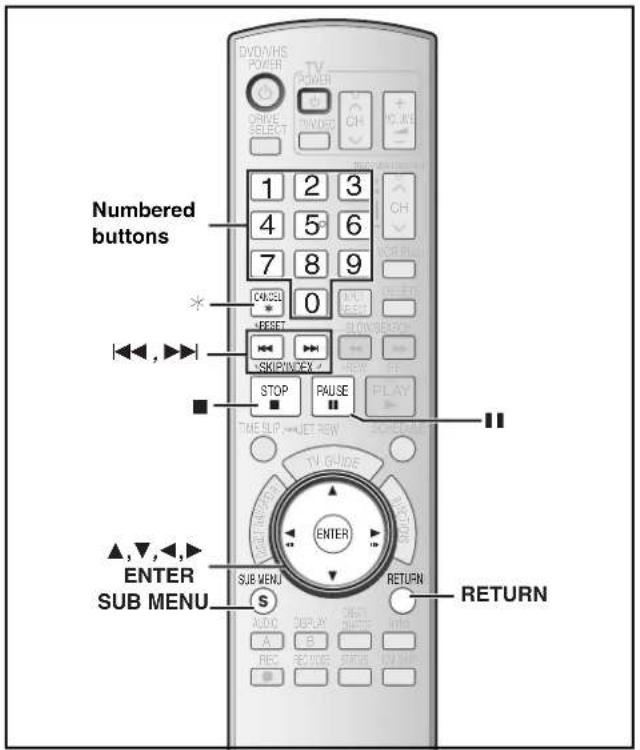
HDD RAM -R -R DL -RW(V) +R +R DL +RW SD
You can give names to recorded titles, etc.
The maximum number of characters:
HDD RAM Characters
Title 64
Playlist 64
Album of still pictures 36
Disc (RAM) 6
-R -R DL -RW(V) +R +R DL +RW Characters
Title 44
Disc 40
SD Characters
Album of still pictures 36
Note
If a name is long, parts of it may not be shown in some screens.
1 Show Enter Name screen.
Title
Select "Title Name" in step 5 on page 51.
Playlist
Select "Playlist Name" in step 5 on page 54.
Disc
Select "Disc Name" in step 4 of "Providing a name for a disc—Disc Name" on page 70.
Folder of still pictures
Select "Album Name" in step 4 on page 55, "Editing still pictures".
Name field: shows the text you have entered
![Title Name Top Menu Preview (Finalized Disc) ① 1 2 3 4 5 6 7 8 9 0 ② A B C a b c i - - ③ D E F d e f i / - % ④ G H I g h i # S & ⑤ J K L l k l < - > # ⑥ M N O m n o [ j ] ⑦ P O R S p q r s ! / ⑧ T U V t u v [ j ] ⑨ W X Y Z w x y z ! / ⑩ - - ? ! ; : ; . Space](/content/2026/05/796413/images/5a8a0fd7236e16d718e4af13d469a82cafa46568240e1e8d321499f1126763fe.jpg)
2 Press [▲, ▼, ◀, ▶] to select a character and then press [ENTER].
Repeat this step to enter other characters.
•To erase a character
Press [▲, ▼, ◀, ▶] to select the character in the name field and then press [■, PAUSE]. (The selected characters are erased.)
●Using the numbered buttons to enter characters
e.g., entering the letter "R"
① Press [7] to move to the 7th row. ② Press [7] twice to highlight "R". ③ Press [ENTER].
•To enter a space
Press [*, CANCEL] and then press [ENTER]. - Save/recall phrases (→ below)
3 Press [■, STOP] (Set).
"Now writing." appears, then the screen returns to the Title view screen.
To end partway
Press [RETURN].
Text is not saved.
■ To save phrases
You can save frequently used phrases and recall them later.
Maximum number of saved phrases: 20
Maximum number of characters per phrase: 20
After entering the phrase (steps 1 to 2)
1 Press [▲, ▼, ◀, ▶] to select "Phrase Save" and then press [ENTER].
- You can also press [▶▶▶, SKIP] to select "Phrase Save".
2 Press [◀, ▶] to select "Save" and then press [ENTER].
- Press [RETURN] to cancel.
■ To recall a saved phrase
1 Press [▲, ▼, ◀, ▶] to select "Phrase List" and then press [ENTER]. - You can also press [◀◀, SKIP] to select "Phrase List". 2 Press [▲, ▼, ◀, ▶] to select the phrase to be recalled and then press [ENTER].
■ To erase saved phrases
1 Press [▲, ▼, ◀, ▶] to select "Phrase List" and then press [ENTER]. - You can also press [◀◀, SKIP] to select "Phrase List". 2 Press [▲, ▼, ◀, ▶] to select the phrase to be erased. 3 Press [SUB MENU] to show "Erase Phrase" and then press [ENTER]. 4 Press [◀, ▶] to select "Erase" and then press [ENTER]. 5 Press [RETURN].
For your reference
If you enter a long name, only part of it is shown in the TOP MENU after finalization (→ 72). When entering a title name, the name that will appear in the TOP MENU can be previewed in "Top Menu Preview (Finalized Disc)" window.
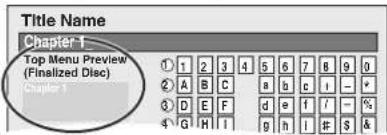
Changing the unit's settings
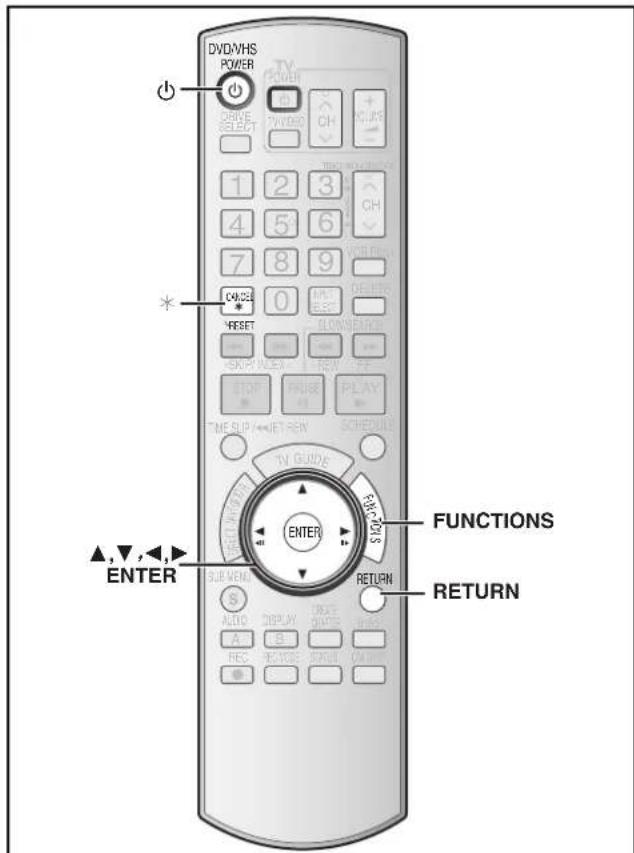
| Tabs | Menus | Options (Underlined items are the factory presets.) | ||
| Channel | TV Guide SettingsSet the TV Guide On Screen® system. | |||
| Signal Source (RF IN)*3Select to suit the type of antenna you are using. | ●Antenna ●CableTV____ | |||
| Set Channels Automatically *1 *2 (→ 79) | - | |||
| Preset Channel Captions *2 *3 (→ 80) | - | |||
| Manual Channel Captions *2 *3 (→ 80) | - | |||
| VCR Plus+ Ch. Setting*2 *3 *4 | - | |||
| Setup | Off TimerSelect how long the unit remains on when it is not being used. | ●2 Hours | ●6 Hours | ●Off |
| Remote Control Code (→ 26) | ●Set Code 1 | ●Set Code 2 | ●Set Code 3 | |
| Clock SettingsPress [ENTER] to show the following settings. | ||||
| Set Clock Automatically*1 *2 (→ 79) | ||||
| Set Clock Manually^1 (→ 25) | ||||
| Adjust Time Zone*1 *5 (→ 79) | ●-1 | ●0 | ●+1 | |
| DivX RegistrationDisplays the unit's registration code. You need this registration code to purchase and play DivX Video-on-Demand (VOD) content. | - | |||
| Restore Default SettingsThis returns all values in the Setup menus, except for the clock, channel settings, ratings level, and on-screen language, to the default settings. | ●Yes | ●No | ||
| Tabs | Menus | Options (Underlined items are the factory presets.) | |||
| Disc | Settings for PlaybackPress [ENTER] to show the following settings. | ||||
| RatingsSet a ratings level to limit DVD-Video play.Follow the on-screen instructions. Enter a 4-digit password with the numbered buttons when the password screen is shown.Do not forget your password. | ●8 No Limit: All DVD-Video can be played.●1 to 7: Prohibits play of DVD-Video with corresponding ratings recorded on them.●0 Lock All: Prohibits play of all DVD-Video. | ||||
| ●Unlock Recorder●Change Level | ●Change Password●Temporary Unlock | ||||
| Play DVD-Audio in Video ModeSelect “Video Mode (Video On)” to play DVD-Video content on some DVD-Audio. | ●Video Mode (Video On): The setting returns to “Audio Mode (Video Off)” when you change the disc or turn the unit off.●Audio Mode (Video Off) | ||||
| AudioLanguage | Choose the language for audio, subtitle and disc menus.DVD-V●Some discs start in a certain language despite any changes you make here.●Enter a code (→94) with the numbered buttons when you select “Other ××××”.When the selected language is not available on the disc, the default language is played. There are discs where you can only switch the language from the menu screen (→41). | ●English●French●Spanish●Original: The original language of each disc will be selected.●Other ×××× | |||
| SubtitleLanguage | ●Automatic: If the language selected for “Audio Language” is not available, subtitles of that language will automatically appear if available on that disc.●English●French●SpanishOther ×××× | ||||
| MenuLanguage | ●English●French●SpanishOther ×××× | ||||
| Settings for RecordingPress [ENTER] to show the following settings. | |||||
| Recording Time in EP ModeSelect the maximum number of hours for recording in EP mode (→28, Recording modes and approximate recording times). | ●EP-Extended Play (6H): You can record for 6 hours on an unused 4.7 GB disc.●EP-Extended Play (8H): You can record for 8 hours on an unused 4.7 GB disc.The sound quality is better when using “EP-Extended Play (6H)” than when using “EP-Extended Play (8H)”. | ||||
| Recording for High-Speed CopyingYou can copy recorded titles from the HDD to DVD-R, DVD-R DL, DVD-RW (DVD-Video format), +R, +R DL and +RW using high-speed mode. However the aspect ratio and secondary audio of the recorded titles are restricted.There are no restrictions when “Off” is selected, but you can no longer high-speed copy to DVD-R, DVD-R DL, DVD-RW (DVD-Video format), +R, +R DL and +RW. | ●On: You can high-speed copy to DVD-R, etc. Press [◀, ▶] to select “Yes”.●The following restrictions are applied to recorded titles.- Pictures are saved in 4:3.- Select the type of audio in advance from “Multi-channel TV Sound (MTS)” (→76).- You are no longer able to switch the audio when watching a program on an input channel on the TV connected to this unit (e.g., video 1, etc.).●Off | ||||
| Rapidity of High-Speed copyingSelect the speed of high-speed copying (When using high-speed copy compatible DVD-RAM 5X, DVD-R, +R 8X or +RW 4X discs). | ●Top speed mode●Silent modeWhen copying, the operation sound will become quieter.However, the time required for copying will become longer. | ||||
| Video | Still Mode (paused video)Select the type of picture shown when you pause play (→93, Frames and fields). | ●Automatic●Field: Select if jittering occurs when “Automatic” is selected.(The picture is coarser.)●Frame: Select if small text or fine patterns cannot be seen clearly when “Automatic” is selected. (The picture is clearer and finer.) | |||
| Seamless PlaySelect the play mode between playlist chapter segments and partially deleted titles. | ●On: The chapters in playlists are played seamlessly. This does not work when there are several audio types included on the playlist and when using Quick View. Additionally, the positioning of chapter segments may change slightly.●Off: The points where chapters in playlists change are played accurately, but the picture may freeze for a moment. | ||||
| Black Level ControlSelect normal, lighter or darker for adjusting the black level control to the desired setting for picture enhancement. | |||||
| Input LevelAdjusts the black level of the input signal. | ●Lighter ●Darker ____ | ||||
| Output Level (Composite/SVideo)Adjusts the black level of the output signal from the VIDEO OUT and S VIDEO OUT terminal. | ●Lighter ●Darker | ||||
| Output Level (Component)Adjusts the black level of the output signal from the COMPONENT VIDEO OUT (Y/Rb/Pr) terminals. | ●Lighter ●Normal ____ | ●Darker | |||
| Tabs | Menus | Options (Underlined items are the factory presets.) | |
| Audio | Dynamic Range Compression DVD-V (Dolby Digital only) Change the dynamic range for late night viewing. | ●On ●Off — | |
| Multi-channel TV Sound (MTS) Select whether to record the main or secondary (SAP) audio type when:●Recording to a DVD-R, DVD-R DL, DVD-RW (DVD-Video format), +R, +R DL and +RW.●When “Recording for High-Speed Copying” is set to “On”.●Recording or copying sound in LPCM. (→ below, Audio for XP Recording). | ●Main ●Secondary Audio Program (SAP) You cannot select the audio on this unit when recording from an external source, such as when copying from a video cassette recorder (except from DV equipment connected to this unit’s DV input terminal). Select on the other equipment. | ||
| Digital Audio Output Change the settings when you have connected equipment through this unit's DIGITAL AUDIO OUT terminal (→ 21).●Press [ENTER] to show the following settings. | |||
| PCM Down Conversion Select how to output audio with a sampling frequency of 96 kHz or 88.2 kHz.●Signals are converted to 48 kHz or 44.1 kHz despite the settings across if the signals have a sampling frequency of over 96 kHz or 88.2 kHz, or the disc has copy protection. | ●On: Signals are converted to 48 kHz or 44.1 kHz. (Choose when the connected equipment cannot process signals with sampling frequency of 96 kHz or 88.2 kHz.)●Off: Signals are output as 96 kHz or 88.2 kHz. (Choose when the connected equipment can process signals with sampling frequency of 96 kHz or 88.2 kHz.) | ||
| Dolby Digital Select how to output the signal. If “Bitstream” is selected, the connected equipment decodes the signal. If “PCM” is selected, this unit decodes the signal and output it as 2 channel. NoteNot making the proper settings may result in noise, or some trouble for digital recording. | ●Bitstream: When connecting to equipment displaying the Dolby Digital logo.●PCM: When connecting to equipment not displaying the Dolby Digital logo. | ||
| DTS ●Bitstream | ——: When connecting to equipment displaying the DTS logo.●PCM: When connecting to equipment not displaying the DTS logo. | ||
 | |||
| Audio for XP Recording Choose the audio type when recording or copying with XP mode. | ●Dolby Digital (→ 93)●LPCM (→ 93)- The picture quality of LPCM recordings may be lower than that of normal XP mode recordings.- The audio recording becomes Dolby Digital even if you selected LPCM when using a recording mode other than XP.- When recording a MTS broadcast, select the type of audio in advance from “Multi-channel TV Sound (MTS)” (→ above). | ||
| Select Audio Channel for DV Input You can select the kind of audio when recording from the unit’s DV terminal (→ 68). | ●Stereo 1: Records audio (L1, R1).●Stereo 2: Records added audio such as narration (L2, R2) subsequent to original recording.●Mix: Records both Stereo 1 and Stereo 2.-R -RW(V) +R +RWWhen recording a MTS broadcast, select the type of audio in advance from “Multi-channel TV Sound (MTS)” (→ above). | ||
| Display | Status Messages Choose whether to show status messages automatically. | ●Automatic ●Off | |
| On-screen Language Choose the language for these menus and on-screen messages. | ●English ●Español ●Français- Only English is displayed in the TV Guide On Screen® system regardless of the settings. Other languages cannot be displayed. | ||
| Blue Background Select “Off” if you do not want to have the unit show the blue background when reception is weak. | ●On ●Off | ||
| FL Display Changes the brightness of the unit’s display.●The power indicator goes off when you set “FL Display” to “Dim” or Automatic”. | ●Bright ●Dim●Automatic:The display turns dark during play, and reappears momentarily if a button is pressed. When the unit is turned off all displays disappear. While using this mode the standby power consumption can be reduced. | ||
| TV Screen | TV Type (→ 26)Set to match the type of television connected. | 4:3 TVAspect 4:3 & 480i16:9 Aspect (Widescreen TV)Aspect 16:9 & 480i | Aspect 4:3 & 480pAspect 16:9 & 480p |
| Functions of HDMIPress [ENTER] to show the following settings. | |||
| HDMI Video Output •On | _:Off: When video output from COMPONENT VIDEO OUT terminal. | ||
| HDMI ResolutionYou can only select items compatible with the connected equipment. This setting normally does not need to be changed. However if you are concerned about output picture quality, it may be improved by changing the setting.Still pictures play at a resolution equivalent to 480p regardless of the settings. | Auto: Automatically selects the output resolution best suited to the connected television (1080i, 720p or 480p).480p720p1080i | ||
| HDMI Output Display AspectSettings used when 4:3 aspect video is output on the television as 16:9 aspect.(Only effective when 720p or 1080i is selected as the output resolution) | Full: Video output is enlarged to match the screen size.Normal: Video is output as 4:3 aspect. Side panels (black bars on the left and right) will appear on the screen. | ||
| HDMI RGB Output RangeEffective when connected to a device that only supports RGB output. | Standard:Enhanced: When the black and white images are not distinct. | ||
| HDMI Audio Output •On | _:Off: Audio is output from an amplifier when using the DIGITAL AUDIO OUTPUT terminal. | ||
| HDMI Connection Speakers SettingYou can set the unit to output the best possible sound for your speakers. | Auto: When using the speaker settings of the connected equipmentMulti Channel: When using three or more speakers with equipment that cannot set the speaker settings2 Channel: When using two speakers | ||
| Multi Channel Setting (→ 78)Displayed when “Multi-channel” is selected in “HDMI Connection Speakers Setting” | You can adjust the settings for speaker size, presence and audio-delay. | ||
| Ctrl with HDMI | On: When “On” is selected, you can operate other “Ctrl with HDMI” compatible devices using the “Ctrl with HDMI”.Off: | ||
| 4:3 TV Settings for DVD-VideoSelect how a DVD-Video widescreen picture is shown on a 4:3 standard aspect television. | Pan and Scan (Stretch to fit):Video recorded for a widescreen is played as Pan & Scan (unless prohibited by the producer of the disc).Letterbox (Shrink to fit):Video recorded for a widescreen is played in the letterbox style. | ||
| 4:3 TV Settings for DVD-RAMSelect how a DVD-RAM widescreen picture is shown on a 4:3 standard aspect television. | 4:3 Aspect:Pan and Scan (Stretch to fit):Video recorded for a widescreen is played as Pan & Scan.Letterbox (Shrink to fit):Video recorded for a widescreen is played in the letterbox style. | ||
| VHS | Select Tape LengthSet the length of tape you are using so the unit can show the correct remaining time. | T120:T160:T180 | Titles played as recorded.T140 and T160 tapesT180 tapesX35- Select [X27] if the picture is poor at [X35]. |
| Jet SearchSet the speed for Jet Search when playing EP and VP tapes.It is possible to view the picture recorded in EP or VP mode at approx. 27 or 35 times speed. | X27 | X35 | |
■ Changing the speaker setting to suit your speaker
When connecting with an HDMI cable to an amplifier, use the following settings on this unit if you cannot set the speaker delay effect on the amplifier. Speaker presence and size (Ⓐ)
1 Press [▲, ▼, ◀, ▶] to select the speaker icon (Ⓐ) and then press [ENTER]. 2 Press [▲, ▼] to select the setting and then press [ENTER]. Icon examples: Surround speaker (LS)    Large Small No • Large: Select when the speaker supports low-frequency (under 100 Hz) reproduction. - Small: Select when the speaker does not support low-frequency reproduction. If the subwoofer is set to "No", the front speakers will automatically be set to "Large". (In this case, we recommend connecting a speaker that can reproduce bass below 100 Hz.)Delay time (®)
(Effective when playing multi-channel audio) If either distance Ⓒ or Ⓔ is less than Ⓓ, find the difference in the relevant table and change to the recommended setting. 1 Press [▲, ▼, ◀, ▶] to select the speaker icon (®) and then press [ENTER]. 2 Press [▲, ▼] to select the setting and then press [ENTER].  © Center speaker| Difference Setting | |
| Approx. 34 cm (1 1/10 feet) | 1.0 ms |
| Approx. 68 cm (2 1/5 feet) | 2.0 ms |
| Approx. 102 cm (3 3/10 feet) | 3.0 ms |
| Approx. 136 cm (4 2/5 feet) | 4.0 ms |
| Approx. 170 cm (5 1/2 feet) | 5.0 ms |
| Difference Setting | |
| Approx. 170 cm ( 51/2 feet) | 5.0 ms |
| Approx. 340 cm (11 feet) | 10.0 ms |
| Approx. 510 cm ( 161/2 feet) | 15.0 ms |
Channel/Clock settings when TV Guide On Screen® system is not used
Refer to the control reference on page 74.Preparation:
If the program listings has already been downloaded, return the unit to the factory preset condition using the steps indicated below. When the unit is on and stopped ① Press and hold [CH, ∨] and [CH, ∧] on the main unit for about 5 seconds. The unit turns off. ② Press [☐, DVD/VHS POWER] to turn the unit on. ③ After the language and TV aspect is setup, press [RETURN] and exit the TV Guide On Screen® system setup screen.Note
You can set scheduled recording only manually after you set the unit with "Set Channels Automatically". Auto channel/clock settings
1 While stopped Press [FUNCTIONS]. 2 Press [▲, ▼] to select "Other Functions" and then press [ENTER]. 3 Press [▲, ▼] to select "Setup" and then press [ENTER]. 4 Press [▲, ▼] to select "Channel" and then press [▶]. 5 Press [▲, ▼] to select "Set Channels Automatically" and then press [ENTER]. 6 Press [ENTER]. Auto Channel Setting starts. This takes a few minutes. The unit then proceeds with Auto Clock Setting. The time is displayed when finished.  - DST, Daylight Saving Time, shows the summertime setting. - TIME ZONE shows the time difference from Greenwich Mean Time (GMT). EST (Eastern Standard Time) = GMT -5 CST (Central Standard Time) = GMT -6 MST (Mountain Standard Time) = GMT -7 PST (Pacific Standard Time) = GMT -8 AST (Alaska Standard Time) = GMT -9 HST (Hawaii Standard Time) = GMT -10 For other areas: xx hr - If the Auto Clock Setting does not start automatically, select "Clock Settings" from the "Setup" tab and then select "Set Clock Automatically". - If the time was not set correctly, use manual clock setting (→ 25) or adjust time zone. 7 Press [ENTER]. \- Regarding DST (Daylight Saving Time) → 25 \- The unit configures channels according to the Signal Source (RF IN) settings as follows.| Signal Source (RF IN) | Band Channel | |
| Antenna | VHF 2 to 13 | |
| UHF 14 to 69 | ||
| CableTV | VHF 2 to 13 | |
| CATV LOW BAND 95 to 99 | ||
| CATV MID/SUPER BAND 14 to 36 | ||
| CATV HYPER BAND 37 to 65 | ||
| ULTRA BAND | 66 to 94100 to 125 | |
| SPECIAL CATV CHANNEL | 1 |
■ Adjust Time Zone
Adjust the time zone (-1 or +1) if it was not set correctly with auto clock setting. You cannot change this setting if you set the clock manually. 1 While stopped Press [FUNCTIONS]. 2 Press [▲, ▼] to select "Other Functions" and then press [ENTER]. 3 Press [▲, ▼] to select "Setup" and then press [ENTER]. 4 Press [▲, ▼] to select "Setup" and then press [▶]. 5 Press [▲, ▼] to select "Clock Settings" and then press [ENTER]. 6 Press [▲, ▼] to select "Adjust Time Zone" and then press [ENTER].  \- Regarding DST (Daylight Saving Time) → 25 7 Press [▲, ▼] to select “-1” or “+1” and then press [ENTER]. To return to the previous screen Press [RETURN]. To exit the screen Press [RETURN] several times. To cancel partway while Auto Channel/Clock Setting is taking place Press [RETURN]. To set so the TV Guide On Screen ® system is not displayed automatically when you turn the unit on When the power is turned on and the Start setup screen is displayed, press [▲, ▼] to select "Don't remind me again" and press [ENTER]. Refer to the control reference on page 74.Channel captions
You can use the preset captions, or manually enter new ones yourself. The captions you enter are displayed when the channel is displayed and in the Direct Navigator screen. 1 While stopped Press [FUNCTIONS]. 2 Press [▲, ▼] to select "Other Functions" and then press [ENTER]. 3 Press [▲, ▼] to select "Setup" and then press [ENTER].  4 Press [▲, ▼] to select "Channel" and then press [▶].▶ Preset Channel Captions
After performing steps 1 to 4 ( → above) 5 Press [▲, ▼] to select "Preset Channel Captions" and then press [ENTER].  6 Press [▲, ▼] to select the caption and then press [▶]. You can choose from the following captions. ABC, PBS, CBS, CNN, FOX, ESPN, NBC, HBO, A&E, AMC, FAM, MAX, MTV, SHOW, TBS, USA, TNT, CBC, UPN, CTV, WB, TSN, DSC, GLOB \- When selecting the caption, press and hold [▲, ▼] to scroll up and down the screen. 7 Press [▲, ▼] to select the channel corresponding to the caption and then press [◀]. - Channels are only displayed if they contain a station and if captions have not been added manually. - To delete the channel number, press [*, CANCEL]. Repeat steps 6 and 7 to enter other channels. 8 Press [ENTER].▶ Manual Channel Captions
After performing steps 1 to 4 ( → left) 5 Press [▲, ▼] to select "Manual Channel Captions" and then press [ENTER]. 6 Press [▲, ▼] to select the channel and then press [▶]. \- Channels are only displayed if they contain a station and if preset captions have not been added. 7 Press [▲, ▼] to select the first character and then press [▶]. - You can choose from the following characters: A-Z, 0-9, -, &, !, /, (space) - To delete the caption, press [*, CANCEL]. - Repeat this step to enter the other characters.  8 Press [◀, ▶] to return to the "Channel Number" column. Repeat steps 6 to 8 to enter other channels. 9 Press [ENTER].VCR Plus+ Channel Setting
Set these guide channels so you can use the VCR Plus+ programming number for timer recording. Before setting up, refer to a TV magazine for lists containing information channels, station names, and guide channels. After performing steps 1 to 4 ( → left) 5 Press [▲, ▼] to select "VCR Plus+ Ch. Setting" and press [ENTER].  6 Press [▲, ▼] to select the guide channel you want to set and press [▶]. When selecting the guide channel, press and hold [▲, ▼] to scroll the screen up and down. 7 Press [▲, ▼] to select the channel corresponding to the guide channel and press [◀]. To delete a number, press [*, CANCEL]. Repeat steps 6 and 7 to enter other channels. 8 Press [ENTER].Frequently asked questions
Refer to the following items if you have any doubts about unit operations. Set up Page| What equipment is necessary to play multi channel surround sound? | ●You cannot playback multi-channel sound on this unit without other equipment. You must connect this unit with a HDMI cable or an optical digital cable to an amplifier with a built-in (Dolby Digital or DTS) decoder.●An amplifier supporting CPPM and the HDMI standard version 1.1 must be connected to this unit to play multi-channel audio on a DVD-Audio. | 21, 22— |
| Are the headphones and speakers directly connected to the unit? | ●You cannot directly connect them to the unit. Connect through the amplifier, etc. | 21 |
| Is my television progressive output compatible? | ●All Panasonic televisions that have 480p input terminals are compatible. Consult the manufacturer if you have another brand of television. | — |
| The television has S VIDEO IN terminal, COMPONENT VIDEO IN terminals and HDMI IN terminal. Which should I connect with? | ●The quality of the output picture becomes finer in the following order.- VIDEO IN terminal, S VIDEO IN terminal, COMPONENT VIDEO IN terminals and HDMI IN terminal. However it will take longer to startup when this unit is connected with the HDMI IN terminal. | — |
| Can I play DVD-R, DVD-R DL, DVDRW (DVD-Video format), +R, +R DL and +RW recorded with this unit with other equipment? | ●You can play on compatible equipment such as DVD players after finalizing the disc on this unit. It is not necessary to finalize +RW. However, depending on the condition of the recording, the quality of the disc and capabilities of the DVD player, play may not be possible. To enable play on other players, please use “Create DVD Top Menu” in the DVD Management.●If you play a DVD-R DL or +R DL are compatible equipment. | 72— |
| Can I play DVD-Video, DVD-Audio and Video CDs bought in another country? | ●You can play them if the video standard is NTSC.●However, you cannot play DVD-Video if their region number does not include “1” or “ALL”. Refer to the disc’s jacket for more information. | —Cover |
| Can a DVD-Video that does not have a region number be played? | ●The DVD-Video region number indicates the disc conforms to a standard. You cannot play discs that do not have a region number. You also cannot play discs that do not conform to a standard. | — |
| Please tell me about disc compatibility with this unit. | ●This unit records and plays DVD-R, DVD-RW (DVD-Video format), +R, +RW and plays DVD-RW (DVD Video Recording format). You cannot directly to DVD-R DL, and +R DL discs with this unit, you must first record to the HDD. And then copy from the HDD to disc.●This unit also records and plays high-speed recording compatible DVD-R, DVD-R DL, DVD-RW, +R, +R DL and +RW discs. | 5–7— |
| Please tell me about CD-R and CD-RW compatibility with this unit. | ●This unit plays CD-R/CD-RW discs which have been recorded in one of the following standards: CD-DA, Video CD, MP3, DivX and still pictures (JPEG/TIFF). Close the session after recording.●You cannot write to a CD-R or CD-RW with this unit. | 8— |
| Can I record from a commercially purchased video cassette or DVD? | ●Most commercially sold video cassettes and DVD are copy protected; therefore, recording is usually not possible. | — |
| Can I record digital audio signals using this unit? | ●You cannot record digital signals. The digital audio terminals on this unit are for output only. (The audio recorded from a digital video camcorder using the DV camcorder recording function, for example, is recorded digitally.) | — |
| Can a digital audio signal from this unit be recorded to other equipment? | ●You can record if using the PCM signal. When recording DVD, change the “Digital Audio Output” settings to the following from the Setup menu.- PCM Down Conversion On- Dolby Digital PCM- D T S P C MHowever, only- As long as digital recording from the disc is permitted.- As long as the recording equipment is compatible with a sampling frequency of 48 kHz.●You cannot record MP3 signals. | 76— |
| Can I switch to SAP during recording? | ●With HDD and DVD-RAM, you can, and the audio recorded also changes. Just press [AUDIO].●With DVD-R, DVD-RW (DVD-Video format), +R, +RW you cannot. Change before recording with “Multi-channel TV Sound (MTS)” in the Setup menu. | 3076 |
| Can I high-speed copy to a disc? ●Yes, you can. Depending on the disc type, the maximum speed varies. Refer to the table (Approximate copying times). | 57 | |
| Does the TV Guide On Screen® system work with analog and digital cable boxes/satellite receivers? | ●Yes. The TV Guide On Screen® system works with both analog and digital cable boxes.●If you are using a satellite service other than DirecTV, you cannot use the TV Guide On Screen® system. | — |
| I have relocated, changed my television reception system or cable box etc. How should I redo the TV Guide On Screen® system setup? | ●Select “Change system settings” in “SETUP” in the menu of the TV Guide On Screen® system. If you select “No, repeat setup process”, you can then access the TV Guide On Screen® system setup screen. You can also access the setup screen from “TV Guide Settings” in the Setup menu. | 38, 74 |
| Please tell me about the downloading of program listings data. | ●Channel line-up data is transmitted continuously, 24 hours a day 7 days a week.●Program listings information that contains details about each program is usually transmitted four times a day, and the cycles last approximately 3 hours. The TV Guide On Screen® system only requires one transmission a day to maintain up-to-date program listings. Because the unit must be turned off in order to receive new information, multiple transmissions are conveniently scheduled early to mid-morning and during the early afternoon hours. | — |
| Why doesn’t my favorite program have more information in the information window or expanded information window? | ●The hardware that makes TV Guide On Screen® system possible is a computer chip that has limited storage space. Factors used in determining which programs display detailed program information are the number of channels turned “ON” in the CHANNEL EDITOR screen and the availability of the descriptions.Setting channels that cannot be received to “OFF” in the CHANNEL EDITOR screen may increase the amount of information displayed. | 38 |
| Can I record one channel while watching another? | If you connect an antenna or cable ready●Yes. Change the television’s input mode to “TV”.If you connect a cable box or a satellite receiver●No. The user cannot watch one program and record another. | — |
| If I have a power failure, will I need to reset the scheduled recording of programs I have already set? | ●In most cases the scheduled recording of programs will be saved. However, if an extended power failure occurs, it is strongly recommended that you verify the scheduled recording of programs that you had previously set. Press [SCHEDULE] to display the SCHEDULE screen. | 34 |
| I do not want to use TV Guide On Screen® system. | ●Set the unit with “Set Channels Automatically” in the Setup menu. Note that you can set scheduled recording only manually after you set the unit with “Set Channels Automatically”. | 79 |
| Authorization ErrorThis unit is not authorized to play this titles. | ●You are trying to play the DivX VOD content that was purchased with a different registration code. You cannot play the content on this unit. | — |
| Cannot finish recording completely. | ●The program was copy-protected.●The HDD or disc may be full.●The maximum number of times you can record the program is exceeded. | — — — |
| Cannot play. | ●You inserted an incompatible disc (Discs recorded in PAL video, etc.). | — |
| Cannot record on the disc. | ●The disc may be dirty or scratched. | 11 |
| Unable to format. | ||
| Cannot display on this unit. | ●You tried to play a non-compatible image.●Turn the unit off and re-insert the card. | 8 12 |
| Cannot record. Disc is full. | ●HDD RAM SD Create space by deleting any unnecessary titles.[Even if you delete recorded content from the DVD-R, DVD-R DL, +R or +R DL there is no increase in disc space. Available disc space on DVD-RW (DVD-Video format) or +RW increases only when the last recorded title is deleted.]●Use a new disc. | 47, 52, 71 — |
| Cannot record. The number of titles has exceeded the maximum limit. | ||
| No disc | ●The disc may be upside down. | — |
| No folders. | ●There is no compatible folder in this unit. | 93 |
| No SD CardNo valid SD card. | ●The card is not inserted. If this message is displayed with a compatible card already inserted, turn off the unit, remove and then re-insert the card.●The card inserted is not compatible or the card format does not match. | 12 7 |
| There is not enough free space on the copying destination. | ●Create space by deleting any unnecessary items.●Delete one or more items registered on the copy list to ensure that the “Total list size” is not exceeded. | 47, 52, 55, 71 63, 67 |
| Please change the disc. ● | There may be a problem with the disc. Press [▲, OPEN/CLOSE] on the main unit to remove it and check it for scratches or dirt. (The unit turns off automatically after you open the tray.) | 11 |
| This is a non-recordable disc. | ●The unit cannot record on the disc you inserted. Insert a DVD-RAM or unfinalized DVD-R, DVD-RW (DVD-Video format) or +R.●You cannot directly to DVD-R DL, and +R DL discs with this unit. You must first record to the HDD, and then copy from the HDD to disc.●You inserted an unformatted DVD-RAM, DVD-RW +R, +R DL or +RW. | 5–7 — 71 |
| This disc is not formatted properly. | ||
| Insufficient Hard Drive space. Four hours (SP) of free hard drive space is needed in order to start copying to DVD-R/+R DL (D.Layer) disc.Too many titles on the Hard Drive. To allow titles to be copied to a DVD-R/+R DL (D.Layer) disc, please delete unnecessary titles. | ●-R DL +R DL It is not possible to copy when there is not enough free space on the HDD or when the total number of the recorded titles on the HDD and the titles to be copied are greater than 500.Delete unwanted titles from the HDD. | — |
| Rental Expired. | ●The DivX VOD content has zero remaining plays. You cannot play it. | — |
| ⊗ | ●The operation is prohibited by the unit or disc. | — |
| No VHS cassette. | ●A video cassette is not inserted when recording programs. Insert a video cassette with an accidental erasure prevention tab. | 11, 12 |
| Please check write protect tab on the VHS cassette. | ●A video cassette without the accidental erasure prevention tab is inserted when recording programs. Use a video cassette with an accidental erasure prevention tab. | 12 |
| Now recording on DVD or Hard Drive.To watch the VHS playback, connect a TV to DVD/VHS COMMON OUT terminal at the back of the unit, and select the appropriate input on the TV. | ●The VHS plays back while recording on DVD or HDD. You can watch the VHS playback by connect to the DVD/VHS COMMON terminals. | 20 |
| HARD ERR* | ●If there is no change after turning the unit on and off, consult the dealer where the unit was purchased. | — |
| No AUDIO* | ●Should you connect equipment that does not support CPPM the audio from the CPPM copy protected DVD-Audio cannot be output from HDMI AV OUT terminal. Connect the audio cable of the Audio/Video cable (Red, White) to a HDMI compatible AUDIO IN terminal. | — |
| No READ | ●The disc is dirty or badly scratched. The unit cannot record, play, or edit.●You have used a DVD lens cleaner and it has finished. Press [▲, OPEN/CLOSE] on the main unit to eject the disc. | 1111 |
| PLEASE WAIT* | ●Displayed when the unit is started. This is not a malfunction.●The unit is carrying out its recovery process. You cannot operate the unit while “PLEASE WAIT” is displayed. | — |
| SET □(“□” stands for a number.) | ●The remote control and main unit are using different codes. Change the code on the remote control. Press and hold [ENTER] and the indicated number button at the same time for more than 2 seconds. Press and hold [ENTER] and the indicated number button at the same time for more than 2 seconds. | 26 |
| SLEEP | ●In order to extend HDD life, the HDD is in SLEEP mode. | 10 |
| SP 15:50EP 120 h“SP”, “EP” and the numbers are examples. | ●Available space on the HDD or disc.The example “SP 15:50” is displayed when less than 100 hours are available and the example “EP 120h” is displayed when over 100 hours are available.“SP” and “EP” are recording modes, “15:50” means “15 hours 50 minutes” and “120h” means “120 hours”. | 29 |
| UNFORMAT* | ●You inserted an unformatted DVD-RAM, DVD-RW, +RW, an unused +R, +R DL or DVD-RW (DVD-Video format) that has been recorded on other equipment.Format the disc to use it.However all the recorded contents on a disc are deleted. | — |
| UNSUPPORT* | ●You have inserted a disc the unit cannot play or record on. | 5-7 |
| F74 | ●The HDMI connection could not be authenticated due to a transfer malfunction. | — |
| F75 | ●The HDMI connection could not be authenticated due to an internal data malfunction. | — |
| U59 ●The unit is hot. | The unit switches to standby for safety reasons. Wait for about 30 minutes until the message disappears.Select a position with good ventilation when installing the unit. Do not block the cooling fan on the rear of the unit. | — |
| U61 | ●(When a disc is not inserted) Displays when a malfunction has occurred during recording, playback or copy. This is displayed when the unit is in the recovery process to return to normal operation; it is not broken. Once the display clears you can use the unit again. | — |
| U71 | ●The connected equipment is not HDMI compatible. | — |
| U72U73 | ●The HDMI connection acts unusually.- The connected equipment is not HDMI compatible.- The HDMI cable is too long. Please use a cable 5.0 meters or less.- The HDMI cable is damaged. | — |
| U88 | ●(When a disc is inserted) Displays when there was something unusual detected with the disc while playback or copy. This is displayed when the unit is in the recovery process to return to normal operation; it is not broken. Once the display clears you can use the unit again. | 85 |
| U99 | ●The unit fails to operate properly. Press [POWER ⏻/I] on the main unit to switch the unit to standby. Now press [POWER ⏻/I] on the main unit again to turn the unit on. | — |
| H□□ or F□□(“□” stands for a number.) | ●There is something unusual. (The service number displayed after “H” or “F” depends on the unit’s condition.)●Check the unit using the troubleshooting guide. If the service number does not disappear, do the following.1 Disconnect the plug from the AC outlet, wait a few seconds, then reconnect it.2 Press [POWER ⏻/I] to turn the power on. (The unit may be fixed.)If the service number does not disappear despite doing the above, request service from the dealer. Inform the dealer of the service number when requesting service. | —85-91 |
Troubleshooting guide
Before requesting service, make the following checks. If you are in doubt about some of the check points, or if the solutions indicated in the chart do not solve the problem, refer to the "Customer Services Directory" on page 95. The following do not indicate a problem with this unit:| ●Regular disc rotating sounds.●Poor reception due to atmospheric conditions.●Image disturbance during search.●Interruptions in reception due to periodic satellite broadcasting breaks.●A sound is heard when the HDD goes into SLEEP mode, or operations are slow to respond in SLEEP mode. | ●Operations do not work due to a poor-quality disc. (Try again using a Panasonic disc.)●The unit freezes due to one of its safety devices being activated. (Press and hold [POWER ⭕/l] on the main unit for 10 seconds.)●When the HDD has been automatically placed in the SLEEP mode (→ 10), or the unit is turned on or off, there may be an unexpected sound. This does not indicate a problem with this unit. |
| To return the channel settings and clock to the factory preset (No setting) | ●Press and hold [CH, ∧] and [CH, ∨] on the main unit for about 5 seconds. (Current channel line-up and program listings are cleared.) | — |
| To return all the settings other than the main ones to the factory preset | ●Select “Yes” in “Restore Default Settings” in the Setup menu. This returns all values in the Setup menus, except for the clock, channel settings, ratings level, and on-screen language, to the default settings. | 74 |
| To reset the ratings level settings | ●While the disc tray is open, press [DRIVE SELECT] to select the DVD drive then press and hold [●, REC] and [▶] on the main unit at the same time for 5 or more seconds. | — |
| To restore the unit if it freezes due to one of the safety devices being activated | ●Press and hold [POWER ⏻/I] on the main unit for 10 seconds. (The settings remain.) | — |
| No power. | ● Insert the AC power supply cord securely into a known active AC outlet. | 16–18 |
| The unit switches to standby mode. | ● This is a power saving feature. It can be changed if desired using “Off Timer” in the Setup menu.● One of the unit's safety devices is activated. Press [POWER ⏻/l] on the main unit to turn the unit on. | 74— |
| The display is dim. | ●Change “FL Display” in the Setup menu. | 76 |
| “12:00A” is flashing on the unit’s display. | ●After setting the TV Guide On Screen® system, wait until the clock is downloaded. (The flashing “12:00A” will change to the current time.)●If the unit’s display does not change to the current time even after waiting, we recommend that you set the clock using “Set Clock Manually”.●If you do not want to use the TV Guide On Screen® system, set the clock with “Set Clock Automatically”. | —2579 |
| Compared to the actual recorded time, the elapsed time displayed is less. | ●The displayed recording/play time is converted from the number of frames at 29.97 frames (equal to 0.999 seconds) to one second. There will be a slight difference between the time displayed and the actual elapsed time (e.g., actual one-hour elapsed time may display as approximately 59 minutes 56 seconds). This does not affect the recording. | — |
| The time recorded on the disc and the available time shown do not add up.The play time shown for MP3 does not agree with the actual time. | ●Times shown may disagree with actual times.●Even if you delete recorded content from the DVD-R,DVD-R DL, +R or +R DL there is no increase in disc space.●Available recording space on DVD-RW (DVD-Video format) or +RW increases only when the last recorded title is deleted. It does not increase if other titles are deleted.●More disc space than the actual recording time is used after recording or editing the DVD-R, DVD-R DL, +R or +R DL 200 times or more.●While searching, the elapsed time may not display correctly. | ———— |
| “U61” or “U88” is displayed and the disc cannot be ejected. | ●The unit is carrying out the recovery process. Do the following to eject the disc.1Press [POWER ⏻/I] on the main unit to switch the unit to standby.If the unit doesn’t switch to standby, press and hold [POWER ⏻/I] on the main unit for about 10 seconds. The unit is forcibly switched to standby.2While the unit is off, press and hold [■] and [CH, ^] on the main unit at the same time for about 5 seconds. Remove the disc. | — |
| The images from this unit do not appear on the television.Picture is distorted. | ●Make sure that the television is connected to the VIDEO OUT terminal, S VIDEO OUT terminal, COMPONENT VIDEO OUT terminals or HDMI AV OUT terminal on this unit.●Make sure that the television's input setting (e.g.,VIDEO 1) is correct.●Progressive output is set to on but the connected television is not progressive compatible. Press and hold [■] and [▶] on the main unit at the same time for more than 5 seconds to cancel this setting. The setting will change to interlace.●When connecting with a component video cable to a television that is incompatible with progressive video, check if there is also an HDMI cable connected to an amplifier, etc. If so, turn the power off to the device connected with an HDMI cable, and set the “HDMI Video Output” to “Off” in the Setup menu.●To output video from a device connected with an HDMI cable, set “HDMI Video Output” to “On” in the Setup menu.●Picture may not be seen when more than 4 devices are connected with HDMI cables. Reduce the number of connected devices. | 16-21——7777— |
| Television reception worsens after connecting the unit. | ●This can occur because the signals are being divided between the unit and other equipment. It can be solved by using a signal booster, available from audio-visual suppliers. If it is not solved by using a signal booster, consult the dealer. | — |
| Status messages do not appear. | ●Select “Automatic” in “Status Messages” in the Setup menu. | 76 |
| The blue background does not appear. | ●Select “On” in “Blue Background” in the Setup menu. 76 | |
| The 4:3 aspect ratio picture expands left and right.Screen size is wrong. | ●Use the television to change the aspect. Refer to your television’s operating instructions.●If connecting with a component video cable, set “Progressive” to “Off” in the Video menu. If this doesn’t help or you cannot set it to “Off”, then set the “TV Type” to “4:3 TV Aspect 4:3 &480i” in the Setup menu.●Check the settings for “TV Type”, “4:3 TV Settings for DVD-Video” or “4:3 TV Settings for DVD-RAM” in the Setup menu.●If you connect an HDMI cable, set “HDMI Output Display Aspect” to “Normal” in the Setup menu. | —47, 777777 |
| The recorded title is stretched vertically. | ●16:9 aspect programs are recorded in 4:3 aspect in the following cases.- If you recorded to the HDD or a DVD-RAM and “Recording for High-Speed Copying” was set to “On” in the Setup menu. (The factory preset is “On”)- If you recorded to a DVD-R, DVD-R DL, DVD-RW (DVD-Video format), +R, +R DL or +RW. It may be possible to adjust the display mode on the TV. Refer to your television’s operating instructions. | 75— |
| There is a lot of after-image when playing video. | ●Turn “DNR” off if it is on. 47 | |
| When playing DVD-Video using progressive output, one part of the picture momentarily appears to be doubled up. | ●Set “Progressive” in the Video menu to “Off”. This problem is caused by the editing method or material used on DVD-Video, but should be corrected if you use interlace output.●When you use the HDMI AV OUT terminal for video output, follow the steps below for setting.1 Connect this unit to the TV with any cable except the HDMI cable2 Set “HDMI Video Output” to “Off” in the Setup menu | 47—77 |
| There is no apparent change in picture quality when adjusted with the Video menu in the on-screen menus. | ●The effect is less perceivable with some types of video. — | |
| The channels keep changing. | ●When the unit is turned off, it uses the IR Blaster to scan the cable box or the DirecTV receiver channels and acquire the program listings data. To watch a cable box or a DirecTV receiver program (even if not recording) turn the unit back on. | — |
| No sound.Low volume.Distorted sound.Cannot hear the desired audio type. | Check the connections and the “Digital Audio Output” settings. Check the input mode on the amplifier if you have connected one.Press [AUDIO] to select the audio.Turn off V. Surround Sound in the following cases.- When using discs that do not have surround sound effects such as Karaoke discs.- When playing MTS broadcast programs.DVD-AThe disc may have a restriction on the method of audio output.This unit cannot playback multi-channel discs that prevent down-mixing unless the unit is connected with a HDMI cable to an amplifier supporting CPPM and the HDMI standard version 1.1. Refer to the disc jacket for more information.Audio may not be output due to how files were created. (DivX)Audio may not be heard when more than 4 devices are connected with HDMI cables.Reduce the number of connected devices.The sound effects will not work when the bitstream signal is output from the HDMI AV OUT terminal or the OPTICAL DIGITAL AUDIO OUT terminal.To output audio from a device connected with an HDMI cable, set “HDMI Audio Output” to “On” in the Setup menu.If the sound is distorted when the unit is connected to an amplifier with the HDMI cable, adjust the settings in “HDMI Connection Speakers Setting” in the Setup menu to match the connection.Depending on the connected equipment, the sound may be distorted if this unit is connected with an HDMI cable.When recording with “Recording for High-Speed Copying” set to “On”, only the “Main” or “SAP” audio can be recorded. If you copy discs other than DVD-R, DVD-R DL, DVD-RW (DVD-Video format), +R, +R DL or +RW set this to “Off” in the Setup menu. | 16–21, 7630, 4247————7777—75 |
| Cannot switch audio. | You cannot switch the audio in the following cases.- When a DVD-R, DVD-R DL, DVD-RW (DVD-Video format), +R, +R DL or +RW disc is in the disc tray while DVD drive is selected.- When the recording mode is XP and “Audio for XP Recording” is set to “LPCM”.- When “Recording for High-Speed Copying” is set to “On”. (The default setting is “On”.)When connecting an amplifier using an optical digital cable or an HDMI cable, you cannot switch the audio if “Dolby Digital” is set to “Bitstream”. Set “Dolby Digital” to “PCM” or connect using audio cables.There are discs for which audio cannot be changed because of how the disc was created. | —767521, 22, 76— |
| Cannot operate the television.The remote control doesn't work. | ●Change the manufacturer code. Some televisions cannot be operated even if you change the code.●The remote control and main unit are using different codes. Change the code on the remote control. | 26 |
| 26 | ||
| Press and hold [ENTER] and the indicated number button at the same time for more than 2 seconds. | ||
| ●The batteries are depleted. Replace them with new ones.●You are not pointing the remote control at the main unit's remote control signal sensor during operation.●Colored glass may obstruct the signal reception/transmission.●Don't place the signal sensor in direct sunlight or in areas that may be subject to sunlight exposure.●It may be necessary to set the code on the remote control again after changing the batteries.●It may be necessary to set the manufacturer code again after changing the batteries. | 13——2626 | |
| The unit is on but cannot be operated. | ●Recording drive or playback drive has not been selected properly.●Some operations may be prohibited by the disc.●The unit is hot ("U59" appears on the display). Wait for "U59" to disappear.●One of the unit's safety devices may have been activated. Reset the unit as follows:1 Press [POWER ⏻/I] on the main unit to switch the unit to standby.If the unit doesn't switch to standby, press and hold [POWER ⏻/I] on the main unit for about 10 seconds. The unit is forcibly switched to standby.Alternatively, disconnect the AC power supply cord, wait one minute, then reconnect it.2 Press [POWER ⏻/I] on the main unit to switch it on. If the unit still cannot be operated, consult the dealer. | 14, 29, 40—— |
| HDD activation is slow. | ●The HDD is in SLEEP mode. ("SLEEP" appears in the unit's display.) | 10 |
| Cannot eject disc. ●The unit is recording. | ●The unit may have a problem. While the unit is off, press and hold [■] and [CH, ∧] on the main unit at the same time for about 5 seconds. Remove the disc and consult the dealer. | —— |
| Startup is slow.When the unit is turned on, audio and video output takes a long time. | ●Startup takes time in the following situations.- A disc other than a DVD-RAM is inserted.- The clock is not set.- Immediately after a power failure or the AC power supply cord is connected.- When the unit is connected with an HDMI cable. | — |
| Takes time to read DVD-RAM. | ●It may take time to read a disc if it is being used for the first time in this unit or it has not been used for a long time. | — |
| Cannot record.Cannot copy. | You haven't inserted a disc or the disc you inserted cannot be recorded on. Insert a disc the unit can record onto.The disc is unformatted. Format the disc using DVD Management.RAM -RW(V) +RW +R+R DLThe write-protect tab on the cartridge is set to PROTECT, or the disc is protected with DVD Management.Some programs have limitations on the number of times they can be recorded. (CPRM)You cannot record when there is not enough space or when the number of titles has reached its limit. Delete unwanted titles or use a new disc.You cannot record directly to DVD-R DL and +R DL discs with this unit. You must first record to the HDD, and then copy from the HDD to disc.-R DL +R DL In the following situations, you cannot copy. Delete unnecessary titles from the HDD and then copy.- If there is not enough space available on the HDD (If you will copy titles from the HDD to a blank disc and fill the entire disc, HDD disc space equivalent to 4 hours of SP mode recording is necessary).- If the total number of titles recorded on the HDD or titles to be copied exceed 500:You cannot record and copy on finalized discs.However you can record and copy again if you format DVD-RW and +RW disc.Due to peculiarities of DVD-R, DVD-R DL, DVD-RW (DVD-Video format), +R, +R DL and +RW you may be unable to record onto them if you either insert and remove the disc or switch the unit on and off while a disc is loaded, a total of fifty times.A DVD-R, DVD-R DL, DVD-RW (DVD-Video format), +R, +R DL and +RW recorded on this unit may not be recordable on other Panasonic DVD Recorders.If you connect a DISH Network, scheduled recording using the TV Guide On Screen® or VCR Plus+ system does not work. However, if DISH Network is selected in TV Guide Setup, then you can set scheduled recordings with the DISH Network receiver. | 5-771709347, 52, 71—47, 51——— |
| Cannot record from external equipment. | Check that the connection is correct.Select the input channel ("IN1", "IN2", "IN3" or "DV") for the equipment you have connected . | 16-18, 68— |
| Scheduled recording does not work properly.VCR Plus+ system does not work properly. | The scheduled program is incorrect or different scheduled program times overlap. Correct the program.The scheduled program may be deleted if there is an interruption to the power.VCR Plus+ system works properly only if you connect antenna or cable ready.If you connect a DISH Network, VCR Plus+ system does not work properly. | 34——— |
| Scheduled recording does not stop even when [■, STOP] is pressed. | Press [DRIVE SELECT] to select the recording drive.Press [■, STOP] then press [◀, ▶] to select "Stop recording" and then press [ENTER].Recording stops. | — |
| The scheduled program remains even after recording finishes. | The scheduled program remains unless set to "Once". | 32, 33 |
| A part or whole of a recorded title has been lost. | If there is a power failure or the plug is disconnected from the household AC outlet while recording or editing, the title may be lost or the HDD/disc may become unusable.You will have to format the disc (HDD RAM -RW(V) +RW) or use a new disc. We cannot offer any guarantee regarding lost titles or discs. | 71 |
| The program name and the recorded title do not match. | There was a program change after scheduled recording was set but the recorded title still has the old program name. | — |
| Cannot copy to a DVD-R, etc. disc using the high-speed mode. | If "Recording for High-Speed Copying" set to "Off" in the Setup menu before recording to the HDD, then high-speed copy cannot be performed (The default setting is "On").+R -R DL +RW If recorded in FR mode (recordings 5 hours or longer) or EP mode, you cannot perform high-speed copy.+R -R DL +RW Titles recorded with other Panasonic DVD recorders "Recording for High-Speed Copying" set to "On", and then copied to the HDD on this unit may not copy to +R, +R DL or +RW discs with high-speed copy. | 75——75 |
| When copying, it takes a long time even when high-speed mode is selected. | Use a disc that is compatible with high-speed recording. Even if the disc is high-speed recording compatible, the maximum speed may not be possible due to the condition of the disc.It takes longer than normal to copy many titles.You cannot high-speed copy to DVD-R, DVD-R DL, DVD-RW (DVD-Video format), +R, +R DL and +RW, titles longer than 6 hours when using other Panasonic DVD Recorders that are not compatible with EP (8 hour) mode recording. | ——— |
| An unusually loud sound is coming from the rotating DVD-R, etc. | When recording or high-speed copying to a DVD-R, DVD-R DL, DVD-RW (DVD-Video format), +R, +R DL and +RW the sound of the disc rotating may be louder than normal; however, this is not a problem. | — |
| The DV camcorder recording function does not work. | If images cannot be recorded or if the recording is aborted, check the connections and DV equipment settings.You cannot start recording until the images from the DV equipment appear on the television.Recording may not be performed as desired if the time codes on the tape in the DV equipment are not successive.Depending on the equipment, the DV camcorder recording may not operate properly.You can only record audio/video images on a DV tape. | 69——— |
| There is no picture on the television during scheduled recording. | Scheduled recordings are activated regardless of whether the unit is turned on/off. Turn on the power to confirm the contents of the scheduled recording. | — |
| Although initial setup for the TV Guide On Screen® system was completed hours ago, program listings does not display when [TV GUIDE] is pressed. | Leave the unit turned off for at least 24 hours.Initial setup was done incorrectly. (e.g, The user entered the wrong country, ZIP/postal code or cable box information.) Select “Change system settings” menu and verify the data entered during initial setup. If the settings are wrong, set up the TV Guide On Screen® system again.Check the connection and set up the TV Guide On Screen® system again.If you connect a cable box and/or a DirecTV receiver- the output terminal of the cable box and/or the DirecTV receiver is connected to this unit's RF IN or IN3 terminal- the IR Blaster is correctly connected and installed- the cable box and/or the DirecTV receiver is turned onIf you do not connect a cable box and a DirecTV receiver- the antenna cable is connected to this unit's RF IN terminalThe program listings was temporarily unavailable in your area (Wait another 24 hours or Redo setup).The program listings is not available in your area. Set the unit using “Set Channels Automatically”. Note that you can only manually set scheduled recording after you set the unit using “Set Channels Automatically”.Consult your service provider if you are using a cable box or a satellite receiver.The TV Guide On Screen® system may not be able to receive the program listings data if reception is poor. This may be improved by using a booster. Consult your dealer.The TV Guide On Screen® system is only supported by selected DirecTV receivers, using 480i mode.If you are watching DirecTV in 4:3 aspect with the side panel, set the side panel to “Off” on the DirecTV receiver in order to correctly receive program listings. | —383817, 1817—16, 17—79——— |
| “Cable code -INCOMPLETE-” appears in the TV Guide On Screen® system setup. | The unit cannot find the correct IR code for the cable box. Consult your service provider. | — |
| Some or all of the channels display “No Listing”. | For a newly installed unit, the TV Guide On Screen® system may not have been given enough time to download the initial data. This procedure can only occur when the unit is in standby mode for a period of 24 hours. (During this time, do not turn on the unit as the download will be interrupted.) Once the procedure takes place the phrase “No Listing” will be replaced with program information.The channel(s) in question was (were) recently turned “ON” (in the CHANNEL EDITOR screen); however, TV Guide On Screen® system has yet to receive channel data for this channel. Leave the unit in standby mode.Immediately after beginning use there are several days of blank listings. You can display the program listings for up to the next 8 days without any blank listings by downloading program listings continuously over several days.The unit was left turned on for an extended period of time and the TV Guide On Screen® system was unable to receive program listings data. Press [Ø, DVD/VHS POWER] to set the unit in standby mode when not in use.During the data download the station from which data is downloaded had an unscheduled power outage.If using an over-the-air antenna, marginally poor reception can cause some of the data to be missed.If using a cable box and/or a satellite receiver, it was accidentally turned off. In installations using a cable box and/or a satellite receiver, the box must be left on continuously. | —————— |
| Cannot receive some channels displayed on the program listings. | Cable TV subscribers receive channel data for all available channels your cable TV provider offers. In order to view all the channels, you'd also have to subscribe to all the channels. If you are connected to an over-the-air antenna the channel data you receive often represents a viewing area larger than you would typically be able to receive. Your location, the type of TV antenna you are using and your distance from each station's transmitting antenna will all determine which channels are viewable from your location. Once you've determined which channels can be received, all others can be removed from the program listings. Set these channels to “OFF” in the CHANNEL EDITOR screen. | 38 |
| Some over-the-air or cable channels are not listed on the program listings and even on the CHANNEL EDITOR screen. | Presently, the TV Guide On Screen® system does not list all channels in any given broadcast area. As a result, channels are selected primarily on a “majority rules” basis. Channels with the highest potential viewership are given top priority.Data for local programming which is not provided to TV Guide’s data distribution network would also not be available. | —— |
| The program highlighted doesn’t match up with the video window on the TV screen.The unit doesn’t change channels or it changes to the wrong channel.Some channels are listed on the wrong number. | The data entered during the initial setup was incorrect (e.g., The user entered the wrong ZIP/ postal code or selected the incorrect channel line-up). Select “Change system settings” menu and verify the data entered during initial setup. If the settings are wrong, set up the TV Guide On Screen® system again.The Video window is locked to remain on the channel you were previously watching.The station in question may have made recent program schedule changes and the TV Guide On Screen® system has not yet been updated.The cable company has not yet informed industry sources of their channel line-up changes. Use the CHANNEL EDITOR feature to make adjustments. | 3838—38 |
| Two stations are received on certain channels; morning and evening programs differ. | ● Such situations occur more frequently on cable TV. “Split” channels occur when the cable provider may not have an adequate number of open channels and chooses to switch the channel line to better suit the subscribers’ viewing habits. When a “Split” channel occurs, program data for only one channel is usually provided. | — |
| Cable box/satellite receiver doesn’t change channels with TV Guide On Screen® system. | ● The incorrect cable box/satellite receiver brand code was selected during the initial setup. Select “Change system settings” menu and verify the data entered during initial setup. If the setting is wrong, set up the TV Guide On Screen® system again.● The user has incorrectly connected or positioned the IR Blaster. Please reconnect or reposition it. Select “Change system settings” menu and verify the data entered during initial setup.● The cable box/satellite receiver has no remote capability and is incompatible. Consult your service provider.● The user has an “after market” brand cable box/other than DirecTV receiver, which may be incompatible. Consult your service provider. | 3817, 38—— |
| Cannot record a program. The screen remains snowy or blue. | If you do not connect a cable box and a satellite receiver● The unit hooked up incorrectly. Please reconnect it, or contact the cable company for proper wiring procedure.● The user selected the incorrect channel-lineup. Select “Change system settings” menu and verify the data entered during initial setup. If the setting is wrong, set up the TV Guide On Screen® system again.If you connect a cable box and/or a satellite receiver● The unit is not set to the correct output channel. Select “Change system settings” menu and verify the data entered during initial setup. If the setting is wrong, redo the setup correctly choosing 03, 04 or the output channel set by your cable system.● The cable box or the satellite receiver was left OFF. The user should always leave the cable box or the satellite receiver turned on and the unit turned off (when not in use). | 16–183838— |
| The SCHEDULE screen only shows the channel number of the program instead of the program name. | ● The time slot and channel for the scheduled program may not have yet received program listings information. Once updated information is received the program name will appear in the SCHEDULE screen.● If you set a scheduled recording manually, which does not display the program name. | —— |
| Play fails to start even when [▶, PLAY] is pressed.Play starts but then stops immediately. | ●Insert the disc correctly with the label facing up.●The disc is dirty.●You tried to play a blank disc or disc unplayable on this unit.●You may be able to copy a “One time only recording” title that was recorded to DVD-RAM using a different Panasonic DVD Recorder to this unit’s HDD, but play is not possible due to copyright protection.●When recording to DVD-RAM using EP (8H) mode, play may not be possible on DVD players that are compatible with DVD-RAM. In this case use EP (6H) mode.●You cannot play discs during DV camcorder recording.●If playing DivX VOD content, refer to the homepage where you purchased it. (DivX) | 12115–7—75—44 |
| Audio and video momentarily pause. | ●This occurs between playlist chapters.●This occurs between chapters and with partially deleted titles on +RW, finalized DVD-R, DVD-R DL, DVD-RW (DVD-Video format), +R, and +R DL that have been copied using the high-speed mode.●This occurs as scenes change during Quick View.●When playing a title recorded on both layers of a DVD-R DL or +R DL, video and audio may momentarily cut out when the unit is switching layers. | ——— |
| DVD-Video is not played. | ●You have set a ratings level to limit DVD-Video play. Change this setting. | 75 |
| Alternative soundtrack and subtitles cannot be selected. | ●The languages are not recorded on the disc.●You may not be able to use the on-screen menus to change the soundtrack and subtitles on some discs. Use the disc’s menus to make changes. | —41 |
| No subtitles. | ●When progressive output is on, closed captions cannot be displayed.●Subtitles are not recorded on the disc.●Turn the subtitles on. Set “Subtitle” on the on-screen menu to “On”. | ——46 |
| Angle cannot be changed. | ●Angles can only be changed during scenes where different angles are recorded. | — |
| You have forgotten your ratings password.You want to cancel the ratings level. | ●The ratings level returns to the factory preset. While the disc tray is open, press [DRIVE SELECT] to select DVD drive then press and hold [●, REC] and [▶] on the main unit at the same time for 5 or more seconds (“INIT” will appear on the unit’s display). | — |
| Quick View does not work. | ●This does not work when audio is other than Dolby Digital.●This does not work when recording is in XP or FR mode. | —— |
| The resume play function does not work. | ●Memorized positions are canceled when- press [■, STOP] several times.- open the disc tray (except HDD).- DVD-A CD VCD SD turn off the power.- a recording or scheduled recording was executed. | — |
| It takes time before play starts. | ●It will take a little time for DivX videos to start playing. (DivX) | — |
| Picture stops. | ●Picture may stop if the DivX files are greater than 2 GB. (DivX) | — |
| Cannot edit. | ● If there is not enough disc space on the HDD, you cannot edit on the HDD. Delete some unnecessary titles to create some disc space. | 10 |
| Cannot format. | ● The disc is dirty. Wipe with a damp cloth and then wipe dry.● -R -R DL CD You tried formatting a disc that you may not be able to use in this unit. | 115-7 |
| Cannot create chapters.Cannot mark the start point or the end point during “Shorten Title” operation. | ● The unit writes the chapter division information to the disc when you turn it off or remove the disc. The information is not written if there is an interruption to the power before this.● These operations are not possible with still pictures.● You cannot set points if they are too close to each other. You cannot set an end point before a start point. | ——— |
| Cannot delete chapters. | ● When the chapter is too short to delete, use “Combine Chapters” to make the chapter longer. | 52 |
| The available recording time doesn’t increase even after deleting recordings on the disc. | ● Available recording space on the DVD-R, DVD-R DL, +R and +R DL does not increase even after deleting previously recorded titles.● Available recording space on a DVD-RW (DVD-Video format) or +RW increases only when the last recorded title is deleted. It does not increase if other titles are deleted. | ——— |
| Cannot create a playlist. | ● You cannot select all the chapters at once in a title if the title also includes still pictures. Select them individually. | — |
| Cannot display Direct Navigator screen. | ●This screen cannot be displayed during recording or copy. — | |
| Cannot edit or format a card. | ●Release the card's protection setting. (With some cards, the “Write Protection Off” message sometimes appears on the screen even when protection has been set.) | 70 |
| The contents of the card cannot be read. | ●The card format is not compatible with the unit. (The contents on the card may be damaged.) Format using FAT12 or FAT16 with other equipment or format the card with this unit. ●The card contains a folder structure and/or file extensions that are not compatible with this unit. ●Turn off and then turn on the unit again. ●You can use SD Memory Cards with capacities from 8 MB to 2 GB on this unit. | 7, 71, 9393—— |
| Copying, deleting and setting protection takes a long time. | ●When there are a lot of folders and files, it may sometimes take a few hours. ●When repeating copying or deleting, it may sometimes take a long time. Format the disc or card. | —71 |
| Scheduled recording began in the middle of editing a still picture. | ●If it comes to the time scheduled for recording, the recording may start even though you are editing. | — |
| OSD messages do not appear. | ●Go to “Display” and select “Automatic” in “Status Messages”.●Press [STATUS] to show the on-screen messages constantly. | 7650 |
| The blue background appears during play. | ●You are playing a blank or poor quality part of the tape.●You can damage the unit if you play dirty or damaged tapes and this can cause the blue background to appear. Consult your dealer. | —— |
| Picture is distorted. | ●When the unit starts making a scheduled recording on the DVD during VHS playback, some picture distortion may occur. This does not indicate a problem with the unit. | — |
| Cannot see the picture. | ●When the TV is connected to the DVD PRIORITY output terminal on this unit, you cannot watch pictures played back on VHS while recording, or making a scheduled recording, on the DVD. Connect to the DVD/VHS COMMON output terminals to be able to watch pictures played back on VHS. | 20 |
| Cannot hear the desired audio type. | ●Press [AUDIO] to select the audio. 49 | |
| There is noise when playing a video tape. | ●Adjust the tracking.●The tape is old or damaged. | 49— |
| Cannot play. | ●Tapes recorded under a TV system other than NTSC (PAL, SECAM, etc.) cannot be played. | - |
| The playback screen flickers. | ●The video head is dirty. ●The tape is too old or damaged. | - - |
| Cannot record TV program. | ●The desired channel is not selected. Select the desired TV program. | 29 |
| Cannot record. | ●The erasure prevention tab has been removed. Cover the hole with adhesive tape. ●Insert a video cassette. | 11 12 |
Specifications
Recordable discs:
DVD-RAM:Ver. 2.0 Ver. 2.1/3X-SPEED DVD-RAM Revision 1.0 Ver. 2.2/5X-SPEED DVD-RAM Revision 2.0 DVD-R: for General Ver. 2.0 for General Ver. 2.0/4X-SPEED DVD-R Revision 1.0 for General Ver. 2.x/8X-SPEED DVD-R Revision 3.0 for General Ver. 2.x/16X-SPEED DVD-R Revision 6.0 for DL Ver. 3.0 for DL Ver. 3.x/4X-SPEED DVD-R for DL Revision 1.0 DVD-RW: Ver. 1.1 Ver. 1.1/2X-SPEED DVD-RW Revision 1.0 Ver. 1.2/4X-SPEED DVD-RW Revision 2.0 +R: Ver. 1.0 Ver. 1.1 Ver. 1.2 for DL Ver. 1.0 +RW Ver. 1.1 Ver. 1.2/4X-SPEEDRecording system:
DVD-RAM: DVD Video Recording format DVD-R: DVD-Video format DVD-R DL (Dual Layer): DVD-Video format DVD-RW: DVD-Video format +R, +R DL (Double Layer), +RW,Internal HDD capacity: 80 GB
Recording time:
●Maximum 8 hours (using 4.7 GB disc) XP: Approx. 1 hour SP: Approx. 2 hours LP: Approx. 4 hours EP: Approx. 6 hours or 8 hours ●Maximum approx. 142 hours with 80 GB HDD (EP 8H mode) XP: Approx. 17 hours SP: Approx. 34 hours LP: Approx. 68 hours EP: Approx. 106 hours or 142 hoursPlayable discs:
DVD-RAM: DVD Video Recording format DVD-R: DVD-Video format, DivX DVD-R DL (Dual Layer): DVD-Video format DVD-RW: DVD-Video format, DVD Video Recording format +R, +R DL (Double Layer), +RW, DVD-VIDEO, DVD-AUDIO, CD-Audio (CD-DA), Video CD, CD-R/CD-RW (CD-DA, Video CD, MP3, JPEG, DivX)Optical pick-up:
System with 1 lens, 2 integration units (662 nm wavelength for DVDs, 780 nm wavelength for CDs)LASER Specification
Class 1 LASER Product Wave Length: 780 nm (CDs) 662 nm (DVDs) Laser Power: No hazardous radiation is emitted with the safety protectionTelevision system
TV system: NTSC system, 525 lines, 60 fields Antenna reception input: TV Channel: 2 ch–69 ch CATV Channel: 1 ch–125 chVideo system
Recording system: MPEG2 (Hybrid VBR) (for DVD) Input: LINE (pin jack) ×3, 1.0 Vp-p; 75 Ω S connector ×3 Y:1.0 Vp-p; 75 Ω C: 0.286 Vp-p; 75 Ω Output: LINE (pin jack) ×2, 1.0 Vp-p; 75 Ω (for DVD PRIORITY 1) S connector ×1 Y:1.0 Vp-p; 75 Ω C: 0.286 Vp-p; 75 ΩComponent video output:
(for DVD PRIORITY) Y, PB , PR × 1 Y: 1.0 Vp-p; 75 Ω (480i/480p) PB : 0.7 Vp-p; 75 Ω PR : 0.7 Vp-p; 75 ΩAudio system
Recording system: Dolby Digital (2ch), (for DVD) Linear PCM (XP mode 2 ch) Analog input: LINE (pin jack) ×3 Reference input: 309 mVrms FS: 2 Vrms (1 kHz, 0 dB) Input impedance: 22 kΩ Analog output: LINE (pin jack) ×2 (for DVD PRIORITY 1) Reference output: 309 mVrms FS: 2 Vrms (1 kHz, 0 dB) Output impedance: 1 kΩ (Load impedance: 10 kΩ) Number of channels: Recording: 2 channels (for DVD) Playback: 2 channels Number of track: Hi-Fi: 2 track (for VHS) Normal: 1 track Digital output: Digital audio optical output connector ×1 (for DVD PRIORITY 1) (PCM, Dolby Digital, DTS) HDMI output: (19 pin type A) ×1 HDMI Ver.1.2a (EDID Ver.1.3)SD card slot
Still picture: SD Memory Card Slot: 1 pc (JPEG, TIFF) Compatible media: SD Memory Card*, MultiMediaCard * Includes miniSD™ cards (A miniSD™ adaptor needs to be inserted.) Format: FAT12, FAT16 Image file format: JPEG conforming to DCF (Design rule for Camera File system) TIFF (Uncompressed RGB chunky), DPOF ompatible Sub sampling; 4:2:2 or 4:2:0 Number of pixels: between 34 × 34 and 6144 × 4096 pixels Thawing time: Approx. 3 sec (6 M pixels, JPEG)SD video (MPEG2)
Compatible media: SD Memory Card*, MultiMediaCard * Includes miniSD™ cards (A miniSD™) adaptor needs to be inserted.) Codec: MPEG2 (SD-Video Entertainment Video Profile) File format: SD-Video format confirming Video Recording conversion and transfer is possible from card to HDD or DVD-RAM disc. After Video Recording conversion and transfer to HDD or DVD-RAM disc, the playback is possible.VHS
Recording format: VHS Video Cassette System Standard with FM audio Heads: 4 Helical Scan Heads for Video 2 Helical Scan Heads for FM audio 1 Fixed Heads for Normal audio Tape speed/ SP: 33.35 mm/s, 120 min (with T-120 cassette) Recording time: EP: 11.12 mm/s, 360 min (with T-120 cassette) FF/REW time: FF/REW: Approx. 60 s (with T-120 cassette) Jet RW: Approx 43 s (with T-120 cassette) SD card slot: 1 pc DV input: IEEE 1394 Standard, 4 Pin: 1 pc G-LINK terminal: only use the included IR Blaster Regional code: # 1 Clock unit: Quartz-controlled 12-hour digital display Operating temperature range: 5 °C to 40 °C (41 °F to 104 °F) Operating humidity range: 10 % to 80 % RH (no condensation) Power supply: AC 120 V, 60 Hz Power consumption: Approx. 34 W Dimensions: Approx. 430 mm (W)×84 mm (H)×352 mm (D) [Approx. 1615/16'' (W) × 35/16'' (H) × 137/8'' (D)] Mass: Approx. 6.8 kg (14.96 lbs) Power consumption in standby mode: approx. 16 WNote
Specifications are subject to change without notice. Mass and dimensions are approximate. \- Useable capacity will be less (SD Memory Card).Bitstream
This is the digital form of multi-channel audio data (e.g., 5.1 channel) before it is decoded into its various channels.CPPM (Content Protection for Prerecorded Media)
A copy protection system used for DVD-Audio files. This unit supports CPPM.CPRM (Content Protection for Recordable Media)
CPRM is technology used to protect broadcasts that are allowed to be recorded only once. Such broadcasts can be recorded only with CPRM compatible recorders and discs.Decoder
A decoder restores the coded audio signals on DVDs to normal. This is called decoding.DivX
DivX is a popular media technology created by DivX, Inc. DivX media files contain highly compressed video with high visual quality that maintains a relatively small file size.Dolby Digital
This is a method of coding digital signals developed by Dolby Laboratories. Apart from stereo (2-channel) audio, these signals can also be multi-channel audio. A large amount of audio information can be recorded on one disc using this method. When recording on this unit Dolby Digital (2 channel) is the default audio.Down-mixing
This is the process of remixing the multi-channel audio found on some discs into two channels. It is useful when you want to listen to the 5.1-channel audio recorded on DVDs through your television's speakers. Some discs prohibit down-mixing and this unit can then only output the front two channels. DVD-A Tracks that do not allow down-mixing will not play correctly on this unit except when connecting with an HDMI cable to an amplifier that meets HDMI Ver. 1.1 standards and is CPPM compatible.DPOF (Digital Print Order Format)
DPOF is the standard printing format for still picture data taken by a digital camera, etc. It is used for automatic printing at a photo developing store or on your home printer.Drive
In the instance of this unit, this refers to the hard disk (HDD), disc (DVD), SD card (SD) and video cassette (VHS). These perform the reading and writing of data.DTS (Digital Theater Systems)
This surround system is used in many movie theaters. There is good separation between the channels, so realistic sound effects are possible.Dynamic range
Dynamic range is the difference between the lowest level of sound that can be heard above the noise of the equipment and the highest level of sound before distortion occurs. Dynamic range compression means reducing the gap between the loudest and softest sounds. This means you can listen at low volumes but still hear dialog clearly.EPG (Electronic Program Guide)
This is a system used to display the program listings on televisions, computers and cellular phones. Data is transmitted using the internet or television waves. This unit is compatible with the method using television waves. You can use the program listings for functions such as scheduled recording.Film and video
DVD-Video are recorded using either film or video. This unit can determine which type has been used, then uses the most suitable method of progressive output. Film: Recorded at 24 frames per second. (Recorded at 30 frames per second as well). Generally appropriate for motion picture films. Video: Recorded at 30 frames/60 fields per second. Generally appropriate for TV drama programs or animation.Finalize
A process that makes play of a recorded CD-R, CD-RW, DVD-R, etc. possible on equipment that can play such media. You can finalize DVD-R, DVD-R DL, DVD-RW (DVD-Video format), +R and +R DL on this unit. After finalizing, the disc becomes play-only and you can no longer record or edit. However, finalized DVD-RW can be formatted to become recordable.Folder
This is a place on the hard disk or memory card where groups of data are stored together. In the case of this unit, it refers to the place where still pictures (JPEG, TIFF) and MPEG2 are stored.Structure of folders displayed by this unit
The following can be displayed on this unit. ***: Numbers XXX: Letters DVD-RAM   * Folders can be created on other equipment. However, these folders cannot be selected as a copying destination. - The folder cannot be displayed if the numbers are all "0" (e.g., DCIM000 etc.). - If a folder name or file name has been input using other equipment, the name may not be displayed properly or you may not be able to play or edit the data.Formatting
Formatting is the process of making media such as DVD-RAM recordable on recording equipment. You can format DVD-RAM, DVD-RW (only as DVD-Video format), +RW, SD memory card and the HDD or unused +R and +R DL on this unit. Formatting irrevocably deletes all contents.Frames and fields
Frames refer to the single images that constitute the video you see on your television. Each frame consists of two fields.  Frame Field Field - A frame still shows two fields, so there may be some blurring, but picture quality is generally better. - A field still shows less picture information so it may be rougher, but there is no blurring.HDD (Hard disk drive)
This is a mass data storage device used in computers, etc. A disk with a surface that has been treated with magnetic fluid is spun and a magnetic head is brought in close proximity to facilitate the reading and writing of large amounts of data at high speed.HDMI (High-Definition Multimedia Interface)
HDMI is a next-generation digital interface for consumer electronic products. Unlike conventional connections, it transmits uncompressed digital video and audio signals on a single cable. This unit supports high-definition video output (720p, 1080i) from HDMI AV OUT terminals. To enjoy high-definition video a high definition compatible television is required.JPEG (Joint Photographic Experts Group)
This is a system used for compressing/decoding color still pictures. If you select JPEG as the storage system on digital cameras, etc., the data will be compressed to 1/10 to 1/100 of its original size. The benefit of JPEG is less deterioration in picture quality considering the degree of compression.LPCM (Linear PCM)
These are uncompressed digital signals, similar to those found on CDs. LPCM sound is available when recording in XP mode.Glossary
MPEG2 (Moving Picture Experts Group)
A standard for efficiently compressing and expanding color video. MPEG2 is a compression standard used for DVD and satellite based digital broadcasting. This unit records programs using MPEG2. MPEG2 moving picture files shot with a Panasonic SD multi-camera, etc. can be copied to the HDD or a DVD-RAM disc.MP3 (MPEG Audio Layer 3)
An audio compression method that compresses audio to approximately one tenth of its size without any considerable loss of audio quality. You can play MP3 you have recorded onto CD-R and CD-RW.Pan&Scan/Letterbox
In general, DVD-Video are produced with the intention that they be viewed on a widescreen television (16:9 aspect ratio), so images often don't fit regular (4:3 aspect ratio) televisions. Two styles of picture, "Pan & Scan" and "Letterbox", deal with this problem. Pan&Scan: The sides are cut off so the picture fills the screen. Letterbox: Black bands appear at the top and bottom of the picture so the picture itself appears in an aspect ratio of 16:9. Playback control (PBC)
If a Video CD has playback control, you can select scenes and information with menus. (This unit is compatible with version 2.0 and 1.1.)Progressive/Interlace
NTSC, the video signal standard, has 480 interlaced (i) scan lines, whereas progressive scanning uses twice the number of scan lines. This is called 480p. Using progressive output, you can enjoy the high-resolution video recorded on media such as DVD-Video. Your television must be compatible to enjoy progressive video.Protection
You can prevent accidental erasure by setting writing protection or deletion protection.Sampling frequency
Sampling is the process of converting the heights of sound wave (analog signal) samples taken at set periods into digits (digital encoding). Sampling frequency is the number of samples taken per second, so larger numbers mean more faithful reproduction of the original sound.Thumbnail
This refers to a miniature representation of a picture used to display multiple pictures in the form of a list.TIFF (Tag Image File Format)
This is a system used for compressing/decoding color still pictures, a common format for storing high quality images on digital cameras and other devices.1080i
In one high definition image, 1080 alternating scan lines pass every 1/60th of a second to create an interlace image. Because 1080i more than doubles current television broadcasts of 480i, the detail is much clearer and creates a more realistic and rich image.720p
In one high definition image, 720 scan lines pass at the same time every 1/60 th of a second to create a progressive image. Since progressive video does not alternate scan lines like interlace, there is a minimal amount of screen flicker. Language code list| Abkhazian: 6566 | Chinese: | 9072 | Hausa: | 7265 | Lithuanian: | 7684 | Romanian: | 8279 | Telugu: | 8469 |
| Afar: 6565 | Corsican: | 6779 | Hebrew: 7387 | Macedonian: | 7775 | Russian: | 8285 | Thai: | 8472 | |
| Afrikaans: 6570 | Croatian: | 7282 | Hindi: | 7273 | Malagasy: 7771 | Samoan: | 8377 | Tibetan: | 6679 | |
| Albanian: 8381 | Czech: | 6783 | Hungarian: | 7285 | Malay: | 7783 | Sanskrit: | 8365 | Tigrinya: | 8473 |
| Ameharic: 6577 | Danish: | 6865 | Icelandic: 7383 | Malayalam: | 7776 | Scots Gaelic: | 7168 | Tonga: 8479 | ||
| Arabic: 6582 | Dutch: | 7876 | Indonesian: | 7378 | Maltese: | 7784 | Serbian: 8382 | Turkish: | 8482 | |
| Armenian: 7289 | English: | 6978 | Interlingua: 7365 | Maori: | 7773 | Serbo-Croatian: | 8372 | Turkmen: | 8475 | |
| Assamese: 6583 | Esperanto: | 6979 | Irish: | 7165 | Marathi: 7782 | Shona: | 8378 | Twi: | 8487 | |
| Aymara: 6589 | Estonian: | 6984 | Italian: | 7384 | Moldavian: | 7779 | Sindhi: | 8368 | Ukrainian: 8575 | |
| Azerbaijani: 6590 | Faroese: | 7079 | Japanese: 7465 | Mongolian: | 7778 | Singhalese: 8373 | Urdu: | 8582 | ||
| Bashkir: 6665 | Fiji: | 7074 | Javanese: 7487 | Nauru: | 7865 | Slovak: | 8375 | Uzbek: | 8590 | |
| Basque: 6985 | Finnish: | 7073 | Kannada: | 7578 | Nepali: | 7869 | Slovenian: | 8376 | Vietnamese: | 8673 |
| Bengali, Bangla: 6678 | French: | 7082 | Kashmiri: 7583 | Norwegian: | 7879 | Somali: | 8379 | Volapük: | 8679 | |
| Bhutani: 6890 | Frisian: | 7089 | Kazakh: 7575 | Oriya: | 7982 | Spanish: | 6983 | Welsh: 6789 | ||
| Bihari: 6672 | Galician: | 7176 | Kirghiz: | 7589 | Pashto, Pushto: | 8083 | Sundanese: | 8385 | Wolof: | 8779 |
| Breton: 6682 | Georgian: 7565 | Korean: | 7579 | Persian: 7065 | Swahili: | 8387 | Xhosa: | 8872 | ||
| Bulgarian: 6671 | German: | 6869 | Kurdish: 7585 | Polish: | 8076 | Swedish: | 8386 | Yiddish: | 7473 | |
| Burmese: 7789 | Greek: | 6976 | Laotian: | 7679 | Portuguese: | 8084 | Tagalog: | 8476 | Yoruba: | 8979 |
| Byelorussian: 6669 | Greenlandic: | 7576 | Latin: | 7665 | Punjabi: 8065 | Tajik: | 8471 | Zulu: | 9085 | |
| Cambodian: 7577 | Guarani: | 7178 | Latvian, Lettish: | 7686 | Quechua: | 8185 | Tamil: | 8465 | ||
| Catalan: 6765 | Gujarati: | 7185 | Lingala: | 7678 | Rhaeto-Romance: | 8277 | Tatar: | 8484 |
Product Service
1. Damage requiring service — The unit should be serviced by qualified service personnel if: (a)The AC power supply cord or AC adaptor has been damaged; or (b)Objects or liquids have gotten into the unit; or (c)The unit has been exposed to rain; or (d)The unit does not operate normally or exhibits a marked change in performance; or (e)The unit has been dropped or the cabinet damaged. 2. Servicing — Do not attempt to service the unit beyond that described in these operating instructions. Refer all other servicing to authorized servicing personnel. 3. Replacement parts — When parts need replacing ensure the servicer uses parts specified by the manufacturer or parts that have the same characteristics as the original parts. Unauthorized substitutes may result in fire, electric shock, or other hazards. 4. Safety check — After repairs or service, ask the servicer to perform safety checks to confirm that the unit is in proper working condition.■ Product information
For product information or assistance with product operation: Refer to "Customer Services Directory" on page 95.Panasonic Consumer Electronics Company, Division of Panasonic Corporation of North America
One Panasonic Way, Secaucus, New Jersey 07094Panasonic Puerto Rico, Inc.
Ave. 65 de Infantería, Km. 9.5 San Gabriel Industrial Park, Carolina, Puerto Rico 00985Panasonic DVD Recorder Limited Warranty
Limited Warranty Coverage
If your product does not work properly because of a defect in materials or workmanship, Panasonic Consumer Electronics Company or Panasonic Puerto Rico, Inc. (collectively referred to as "the warrantor") will, for the length of the period indicated on the chart below, which starts with the date of original purchase ("warranty period"), at its option either (a) repair your product with new or refurbished parts, or (b) replace it with a new or a refurbished product. The decision to repair or replace will be made by the warrantor.| Product or Part Name Parts Labor | ||
| DVD Recorder One (1) Year | One (1) Year | |
| Rechargeable Batteries, DVD-RAM Disc (in exchange for defective item) | Ten (10) Days Not Applicable | |
Carry-In or Mail-In Service
For Carry-In or Mail-In Service in the United States call 1-800-211-PANA (7262) or visit Panasonic Web Site: http://www.panasonic.com For assistance in Puerto Rico call Panasonic Puerto Rico, Inc. (787)-750-4300 or fax (787)-768-2910.Limited Warranty Limits And Exclusions
This warranty ONLY COVERS failures due to defects in materials or workmanship, and DOES NOT COVER normal wear and tear or cosmetic damage. The warranty ALSO DOES NOT COVER damages which occurred in shipment, or failures which are caused by products not supplied by the warrantor, or failures which result from accidents, misuse, abuse, neglect, mishandling, misapplication, alteration, faulty installation, set-up adjustments, misadjustment of consumer controls, improper maintenance, power line surge, lightning damage, modification, or commercial use (such as in a hotel, office, restaurant, or other business), rental use of the product, service by anyone other than a Factory Servicenter or other Authorized Servicer, or damage that is attributable to acts of God.THERE ARE NO EXPRESS WARRANTIES EXCEPT AS LISTED UNDER "LIMITED WARRANTY COVERAGE". THE WARRANTOR IS NOT LIABLE FOR INCIDENTAL OR
CONSEQUENTIAL DAMAGES RESULTING FROM THE USE OF THIS PRODUCT, OR ARISING OUT OF ANY BREACH OF THIS
WARRANTY. (As examples, this excludes damages for lost time, travel to and from the servicer, loss of media or images, data or other recorded content. The items listed are not exclusive, but are for illustration only.) ALL EXPRESS AND IMPLIED WARRANTIES, INCLUDING THE WARRANTY OF MERCHANTABILITY, ARE LIMITED TO THE PERIOD OF THE LIMITED WARRANTY. Some states do not allow the exclusion or limitation of incidental or consequential damages, or limitations on how long an implied warranty lasts, so the exclusions may not apply to you. This warranty gives you specific legal rights and you may also have other rights which vary from state to state. If a problem with this product develops during or after the warranty period, you may contact your dealer or Servicenter. If the problem is not handled to your satisfaction, then write to the warrantor's Consumer Affairs Department at the addresses listed for the warrantor. PARTS AND SERVICE WHICH ARE NOT COVERED BY THIS LIMITED WARRANTY ARE YOUR RESPONSIBILITY.Customer Services Directory
Obtain Product Information and Operating Assistance; locate your nearest Dealer or Servicenter; purchase Parts and Accessories; or make Customer Service and Literature requests by visiting our Web Site at: http://www.panasonic.com/consumersupport or, contact us via the web at: http://www.panasonic.com/contactinfo You may also contact us directly at: 1-800-211-PANA (7262), Monday-Friday 9 am-9 pm; Saturday-Sunday 10 am-7 pm, EST. For hearing or speech impaired TTY users, TTY : 1-877-833-8855Accessory Purchases
Purchase Parts, Accessories and Instruction Books online for all Panasonic Products by visiting our Web Site at: http://www.pasc.panasonic.com or, send your request by E-mail to: npcparts@us.panasonic.com You may also contact us directly at: 1-800-332-5368 (Phone) 1-800-237-9080 (Fax Only) (Monday – Friday 9 am to 8 pm, EST.) Panasonic Services Company 20421 84th Avenue South, Kent, WA 98032 (We Accept Visa, MasterCard, Discover Card, American Express, and Personal Checks) For hearing or speech impaired TTY users, TTY : 1-866-605-1277Service in Puerto Rico
Panasonic Puerto Rico, Inc. Ave. 65 de Infantería, Km. 9.5, San Gabriel Industrial Park, Carolina, Puerto Rico 00985 Phone (787)750-4300, Fax (787)768-2910 F1104Index
Advanced Copy
Create List 62 Time Limit 64 Angle 46Audio
Attribute 46 Language 46 Playback 42 Receiving, recording ....30 VHS 49 Auto Bilingual Choice ....49 Change Thumbnail 52Channel
Adjusting, hiding 38 Audio 46 Auto channel settings ......79 Caption 80 CHANNEL EDITER ....38 VCR Plus+ Ch. Setting 80 Chapter 42,51 Chasing playback 31Cleaning
Disc 11 Main unit 11 Clock setting 25,79 CM Skip 42Connection
Amplifier, system component .....21–22 Antenna 16–18, 20 Cable box 17 DV input terminal 68 HDMI 22 IN2 input terminals 68 IR Blaster 17 Satellite receiver 17–18 Television 16–22 Video cassette recorder .....16–18, 68Copy
SD card (MPEG2) 63 Still picture 66 Title/playlist 59–62 Copy (playlist) 54 Copy Navigator ....59 CPRM 93 Create Chapter 42, 52 Create playlists ....53Delete
Album 55 All titles 71 Chapter 52, 54 Playlist 54 Still picture 55 Title 52 Delete Navigator 47 Dialog Enhancer 47 Direct Navigator 40, 44, 51, 55 Divide Title 52 DivX 8,43,93 DNR 47 DPOF 55,93 DV camcorder recording .....69 DVD-RAM, DVD-R, DVD-R DL, DVD-RW, +R, +R DL, +RW ....5-7 Enabling discs to be played on other equipment—Finalize .....72 Finalize 72,93 Flexible Recording 30 Format 71,93 FR (Flexible Recording Mode) .....27 FUNCTIONS window 14 HDMI 22,77,93 Jet Rewind 48 JPEG 8,43,93Language
Audio 46 Code list 94 On-screen 76 Soundtrack 46 Subtitle 46 LPCM 76,93Menu
MP3 44 On-screen 46 Setup 74Mode
Recording 28 Still Mode 75 MP3 8,44Name
Album 55 Disc 70 Entering text 73 Playlist 54 Title 52Noise reduction (NR)
DNR 47 Line-in NR 47 One Touch Copy 60-61On-screen
Language 76 Menus 46 On-screen display 50 Status messages 42 PCM Down Conversion .....76 Picture 47 Playlist 53 Progressive 47, 94Properties
Playlist 54 Still picture 45 Title 52Protection
Album 55 Card 70 Cartridge 70 Disc 70 Still picture 55 Title 52 Quick Start 27 Quick View 41 Ratings level 75Recording
DV automatic recording 69 Flexible Recording 30 Mode 28 Relief 34 Scheduled 32-34Recording for
High-Speed Copying 75 Relief Recording 34 Remaining tape time 50 Remote control code 26 Repeat play 46 Repeat Playback 48 Restore Default Settings 74 Resume play function 41 Satellite receiver 17–18 Scheduled recording 32–34, 36 Scheduled reminder 36 SD card 7,12,93 Setup menu 74 Shorten Title 52 Signal Source (RF IN) 74 Simultaneous rec and play 31 Soundtrack 46 SQPB 49 Status messages 42Still pictures
Copying 66 Edit 55 Play 44 Subtitle 46 TIFF 8,43,94 Time Slip 42 Tracking 49 Transfer 47 TV Guide On Screen® 23, 32, 35 TV Type 26 V. Surround Sound 47 VCR Plus+ 33 VCR Plus+ Ch. Setting 80 VISS 49 VP mode 28 - Para más información sobre los métodos de conexión, vea la página de inicio de Panasonic. (Sólo está en inglés.) http://www.panasonic.com/consumer_electronics/dvd_recorder/dvd_connection.asp - Antes de hacer la conexión, apague todos los equipos y lea los manuales de instrucciones apropiados. Cuando usa un servicio de cable o un servicio de satélite. - Es menester que se abone a un servicio televisivo de cable o de satélite para que pueda ver sus programas. - Consulte a su proveedor del servicio por lo que respecta a la apropiada caja del cable o receptor de satélite.■ Terminal RF OUT
La señal de imagen y sonido desde esta unidad a su televisor no pasa a través del terminal RF OUT. Asegúrese de que esté conectado a su televisor uno de los siguientes terminales en esta unidad: el terminal AUDIO/VIDEO OUT, el terminal S VIDEO OUT, el terminal COMPONENT VIDEO OUT o el terminal HDMI AV OUT.■ When the unit is not going to be used for a long time
Para ahorrar energía, desenchufe la unidad de la toma de CA. Esta unidad consume una pequeña cantidad de energía aunque se encuentre apagada (16 W aproximadamente). Repare en que los listados de programas no se descargan mientras que la unidad está desenchufada. Conexión a un televisor y caja del cable o receptor DirecTV Why do I have to connect the IR Blaster?
El IR Blaster es necesario para que funcione una caja del cable o un receptor DirecTV con el mando a distancia de esta unidad. Además, si el IR Blaster no está correctamente conectado o configurado, no puede hacer grabaciones programadas ni descargar listados de programas.Adjusting the IR Blaster
Coloque el IR Blaster delante del sensor de la señal de la caja del cable o del receptor DirecTV. Lea las instrucciones de funcionamiento de la caja del cable o del receptor DirecTV por lo que respecta a la colocación del sensor de la señal.  Si es necesario, utilice la cinta adhesiva de doble cara (incluida) para sujetar el IR Blaster a una superficie llana.  por ejemplo la superficie del soporte del televisor Si despega la cinta adhesiva, la superficie podría dañarse. Una vez que haya confirmado que la caja del cable o del receptor DirecTV está funcionando correctamente, sujételo uniéndolo con la cinta adhesiva. Caja del cable o del receptor DirecTVTo enjoy even higher image quality
■ S VIDEO OUT terminal
Los terminales S VIDEO OUT logran una imagen más viva que la del terminal VIDEO OUT. (El resultado real depende del televisor.)■ COMPONENT VIDEO OUT terminals
Estos terminales pueden usarse para el entrelazado o la salida progresiva y proporcionan una imagen más clara que la del terminal S VIDEO OUT. Conecte a los terminales del mismo color.■ HDMI AV OUT terminal
HDMI es la interfaz de nueva generación para dispositivos digitales. Cuando conectada a una unidad compatible con la HDMI, se transmite una señal digital de vídeo y audio sin comprimir. Sólo con un cable puede gozar del vídeo y el audio digital de alta calidad. Cuando conecta un HDTV (televisor de alta definición) compatible con la HDMI, la salida puede ser conmutada al vídeo HD 1080i o 720p.Adjust the following:
Desde el menú CONFIGURACIÓN, "Salida de video HDMI": [Activado] (predeterminado en la fábrica) Desde el menú CONFIGURACIÓN, "Salida de audio HDMI": [Activado] (predeterminado en la fábrica) TV Guide On Screen® system setup
Después de enchufar la unidad en la toma doméstica de CA y luego de pulsar [☐, DVD/VHS POWER] para encenderla por la primera vez, ésta inicia su lenguaje, proporciona el tipo de aspecto TV y configura el sistema TV Guide On Screen®. Si usa un servicio de satélite diferente de DirecTV, no puede recibir los listados de programas en esta unidad.Preparation
- Encienda el televisor y seleccione la entrada de vídeo apropiada a las conexiones de esta unidad. - Cuando usa la caja del cable o un receptor DirecTV, compruebe lo siguiente. \- Asegúrese de que esté conectado y colocado correctamente el IR Blaster (→ 97). \- Asegúrese de que esté encendida la caja del cable o el receptor DirecTV. 1 Pulse [⏻, DVD/VHS POWER]. 2 Pulse [▲, ▼] para seleccionar el idioma y luego pulse [ENTER]. Si hace un error, pulse [RETURN] para volver a la pantalla anterior. 3 Pulse [▲, ▼] para seleccionar "TV de 4:3" o "TV ancho de 16:9" y luego pulse [ENTER]. Va a tener comienzo la configuración de la guía TV. Pulse [ENTER]. En el sistema TV Guide On Screen® sólo se visualiza el inglés. Los demás idiomas no se visualizan. Siguiendo los mensajes en la pantalla, inserte el ambiente operativo para su televisor.| Funcionamiento básico del mando a distancia |
| Para seleccionar un elemento → [▲, ▼, ◀, ▶] |
| Para confirmar → pulse [ENTER] |
| Para ver la información de ayuda → pulse [Info] |
| Para insertar los números → Pulse los botones numéricos |
| Buscar de nuevo: | Reiniciar la descarga de los datos cuando se ha parado |
| Grabación temporizada: Ajuste manualmente para la grabación programada |
| Cambiar los ajustes del Restablezca los ajustes de la guía TV. sistema: |
Inserting a disc
1 Pulse [▲, OPEN/CLOSE] en la unidad principal para abrir la bandeja. \- Puede insertar un disco con o sin cartucho. 2 Pulse [▲, OPEN/CLOSE] en la unidad principal para cerrar la bandeja. Disco sin cartucho Disco con cartucho  (1) Insértelo con la cara impresa hacia arriba. (2) Inserte completamente hasta que haga un ruido seco. (3) Insértelo etiqueta arriba con la flecha hacia adentro.Note
- Tiene que cargar un disco de doble cara con la cara que quiere grabar/reproducir mirando hacia abajo. - No es posible grabar o reproducir continuamente desde una cara a la otra en un disco de dos caras. Tendrá que expulsar el disco y darle la vuelta. - Cuando utilice un DVD-RAM de 8 cm (3") o un DVD-R de 8 cm (3"), quite el disco del cartucho.Automatic unit selection function
RAM (Sólo para discos con la lengüeta de protección contra la escritura en el cartucho puesta en "PROTECT") DVD-V DVD-AVCD CD
- Si la unidad está grabando en la HDD o VHS o bien se para, cuando está insertado un disco ella cambiará automáticamente a la unidad DVD. - Si expulsa un disco o cierra su bandeja, se selecciona automáticamente la unidad HDD.Inserting a videocassette
The surface on which you can see the tape reel must face upward.
Insert a videocassette
- La unidad se enciende automáticamente. - La reproducción inicia automáticamente por si inserta un videocasete que tenga quitada su lengüeta.For the main unit
\- Pulse [▲, EJECT] en la unidad principal.For the remote control
\- Pulse [DRIVE SELECT] para seleccionar la unidad VHS, luego pulse y mantenga pulsado [■, STOP] durante 3 o más segundos. Introduction/Removal of the SD card
Cuando parpadee el indicador de tarjeta ("SD") en el visualizador de la unidad, la tarjeta estará siendo leída o se estará escribiendo en ella. No apague la unidad ni saque la tarjeta. Esto puede causar un fallo en el funcionamiento o hacer que se pierda el contenido de la tarjeta. - Puede utilizar tarjetas de memoria SD con capacidades de 8 MB a 2 GB.Inserting the card
Presione en el centro de la tarjeta hasta que quede colocada haciendo un ruido seco.Removing the card
(1) Presione el centro de la tarjeta. (2) Tire de ella recta.   Introduzca la tarjeta con la etiqueta hacia arriba y la esquina recortada hacia la derecha.Automatic unit selection function
\- Si inserta una tarjeta SD mientras que la unidad está parada, se visualiza la pantalla “Operaciones de la tarjeta SD.”. Seleccione un elemento y pulse [ENTER] para cambiar la unidad SD (→ 102). Si quita una tarjeta SD, se selecciona automáticamente la unidad HDD.Keep small memory cards such as SD cards out of the reach of children. If swallowed, consult a doctor immediately.
Note on recording
■ Recording modes and approximate recording times for the HDD and discs
Dependiendo del contenido que está siendo grabado, los tiempos de grabación pueden ser inferiores a los indicados.| Modo de grabación | HDD(80 GB) | DVD-RAM | |
| Un solo lado(4,7 GB) | Dos lados*1(9,4 GB) | ||
| XP (Modo de grabación de alta calidad de la imagen) | 17 h 1 h 2 h | ||
| SP (Modo de grabación estándar) | 34 h 2 h 4 h | ||
| LP (Modo de grabación de larga duración) | 68 h 4 h 8 h | ||
| EP (Modo de grabación de duración extralarga)*4 | 142 h(106 h*2) | 8 h(6 h*2) | 16 h(12 h*2) |
| Modo de grabación | DVD-R/DVD-RW/+R/+RW(4,7 GB) | DVD-R DL*3(8,5 GB) | +R DL*3(8,5 GB) |
| XP (Modo de grabación de alta calidad de la imagen) | 1 h 1 h 45 min 1 h 45 min | ||
| SP (Modo de grabación estándar) | 2 h 3 h 35 min 3 h 35 min | ||
| LP (Modo de grabación de larga duración) | 4 h 7 h 10 min 7 h 10 min | ||
| EP (Modo de grabación de duración extralarga)*4 | 8 h(6 h*2) | 14 h 20 min(10 h 45 min *2) | No se puede copiar |
■ Recording modes for VHS
SP: Puede grabar la longitud indicada en la cinta. EP: 3 veces la longitud del modo SP. VP: 5 veces la longitud del modo SP. - Para lograr una más larga capacidad de grabación, seleccione "EP" o "VP". - Si la calidad de la imagen es importante para usted o bien si desea almacenar la cinta durante un largo período, seleccione "SP". - La unidad puede reproducir en otro equipo cintas grabadas en el modo LP.VP mode:
- Una cinta grabada por la unidad en el modo VP no puede reproducirse por otras videograbadoras. Se recomienda que se la destaque de otras cintas escribiendo “VP” en la respectiva etiqueta, etc. - Lleva más tiempo para que funcione la localización automática cuando reproduce cintas grabadas con el modo VP, y no puede funcionar en absoluto con algunas cintas. Si fuese el caso, haga la localización manualmente.Note
- Aunque el videocasete que usa está marcado con "S-VHS", no será posible grabar en el sistema S-VHS con la unidad ya que ésta graba con el sistema VHS normal. - No puede cambiar los canales mientras que graba. Puede cambiar los canales mientras está en modo pausa. - Cuando la grabación sigue estando en pausa durante 5 o más minutos, la unidad vuelve a pararse. Consulte la referencia de los controles en la page 98. HDD RAM -R -RW(V) +R +RW VHS Puede grabar hasta: - HDD 500 títulos en la HDD. (Cuando la grabación continúa durante mucho tiempo, los títulos se dividen cada 8 horas.) • RAM -R -RW(V) 99 títulos en un disco • +R +RW 49 títulos en un discoPreparation
- Encienda el televisor y seleccione la entrada de vídeo apropiada a las conexiones de esta unidad. - Encienda esta unidad. - No es posible grabar en dos unidades al mismo tiempo.1 Press [DRIVE SELECT] to select the recording unit (HDD, DVD, or VHS).
El indicador "HDD", "DVD" o "VHS" se enciende en la unidad. \- Si ha seleccionado la unidad DVD inserte un disco. (→ 99) \- Si ha seleccionado la unidad VHS inserte un videocasete que tenga la lengüeta de protección contra el borrado accidental intacta. (→ 99)2 Press [CH, ∧, ∨] to select the channel.
Para seleccionar con los botones numéricos: Modo antena CableTV, Canal del satélite Ej., 5: [0] → [5] 15: [1] → [5] Ej., 5: [0] → [0] → [0] → [5] 15: [0] → [0] → [1] → [5] 115: [0] → [1] → [1] → [5] 1115: [1] → [1] → [1] → [5] - VHS El canal "DV" puede ser seleccionado pero no puede ser grabado. - Seleccione el audio para grabar.3 Press [REC MODE] to select the recording mode [HDD/discs (XP, SP, LP or EP) / VHS (SP, EP or VP)].
4 Press [●, REC] to start recording.
La grabación se hará en el espacio vacío de la HDD o del disco. Los datos no se escribirán encima de otros. \- Durante la grabación no se puede cambiar el canal ni el modo de grabación. Durante la pausa puede cambiar el canal o el modo de grabación; pero la grabación tendrá entonces un título distinto. ■ Para especificar un tiempo para detener la grabación Durante la grabación Pulse [●, REC] para seleccionar el tiempo de grabación. ■ Para hacer una pausa en la grabación Pulse [II, PAUSE]. Pulse de nuevo para reiniciar la grabación. \- HDD RAM -R -RW(V) +R +RW (El título no se divide en títulos distintos.)■ To stop recording
Pulse [■, STOP]. \- La sección desde que empieza hasta que termina la grabación es un título.Using the TV Guide On Screen® system for scheduled recordings
HDD RAM -R -RW(V) +R +RW
Puede realizar fácilmente una grabación programada sólo marcando el/los programa/s deseado/s en los listados de programas. - Puede insertar con hasta 8 días de antemano. - El nombre del programa se convierte en el nombre del título grabado por si el programa se encuentra detallado en los listados de programas.1 Press [TV GUIDE].
Menú  Marca y frecuencia de grabación  Graba una sola vez.  Graba regularmente.  Graba semanalmente. Desactivado2 Press [▲, ▼, ◀, ▶] to select the program.
\- Para saltar una pantalla Pulse [PAGE ∧] o [PAGE ∨].3 Press [●, REC].
“” aparece en la lista para indicar que el programa está ajustado para la grabación programada. Pulse [●, REC] para cambiar la frecuencia. (→ arriba, Marca y frecuencia de grabación) Repita los pasos de 2 a 3 para programar otras grabaciones.4 Press [TV GUIDE].
Vuelve a la pantalla del televisor. \- La unidad pasa a la espera de la grabación programada ("se enciende en el visualizador de la unidad); sin embargo, él no se apaga automáticamente. Para ahorrar corriente, la unidad se apaga pulsando [☐, DVD/VHS POWER].To cancel a scheduled recording after it has started
1 Pulse [DRIVE SELECT] para seleccionar la unidad de grabación. 2 Pulse [■, STOP] luego pulse [◀, ▶] para seleccionar "Parar grabación" y por fin pulse [ENTER].Playback while recording
HDD RAM| Reproducción de persecución | Puede reproducir desde el comienzo del título que está grabandoMientras va haciendo una grabación o una grabación programadaPulse [▶, PLAY]. |
| Grabación y reproducción simultáneas | Mientras va grabando puede reproducir un título grabado anteriormente.1 Mientras va haciendo una grabación o una grabación programadaPulse [DIRECT NAVIGATOR].2 Pulse [▲, ▼, ◀, ▶] para seleccionar un título y luego pulse [ENTER].Para salir de la pantalla DIRECT NAVIGATORPulse [DIRECT NAVIGATOR]. |
To stop playback
Pulse [■, STOP].To stop recording
2 segundos después de parar la reproducción Pulse [■, STOP].To stop scheduled recording
Pulse [■, STOP] luego pulse [◀, ▶] para seleccionar “Parar grabación” y por fin pulse [ENTER]. Consulte la referencia de los controles en la page 98.Playback of recorded video/Playback of playback-only discs
Preparation
- Encienda el televisor y seleccione la entrada de vídeo apropiada a las conexiones de esta unidad. - Encienda esta unidad.1 Press [DRIVE SELECT] to select the playback unit (HDD or DVD).
El indicador "HDD" o "DVD" se enciende en la unidad. \- Es posible ver la reproducción de una unidad mientras se graba en la otra (no se puede editar). Si seleccionó la unidad DVD inserte un disco. (→ 99)2 Press [▶, PLAY].
HDD RAM -R -R DL -RW(V) +R +R DL +RW -RW(VR) La reproducción empieza desde el título grabado más recientemente. DVD-V DVD-A CD VCD y MP3 La reproducción empieza desde el comienzo del disco.■ Selecting recorded programs (titles) to play —Direct Navigator
HDD RAM -R -R DL -RW(V) +R +R DL +RW -RW(VR)1 Press [DIRECT NAVIGATOR].
2 HDD RAM
Pulse [A] para seleccionar "Vídeo". 3 Press [▲, ▼, ◀, ►] to select the title and then press
También puede seleccionar títulos con los botones numéricos| HDD | RAM | -R | -R DL | -RW(V) | +R | ||||
| +R DL | +RW | -RW(VR) | |||||||
| ej., | 5: | [0] → [0] → [5] | 5: | [0] → [5] | |||||
| 15: | [0] → [1] → [5] | 15: | [1] → [5] | ||||||
| 115: | [1] → [1] → [5] | ||||||||
To exit the screen
Pulse [DIRECT NAVIGATOR].■ When a menu screen appears on the TV
DVD-V DVD-A
Pulse [▲, ▼, ◀, ▶] para seleccionar el elemento y luego pulse [ENTER]. Algunos elementos también se pueden seleccionar con los botones numéricos.VCD
Pulse los botones numéricos para seleccionar el elemento. Ej., 5: [0] →[5] 15: [1] →[5] \- Para volver a la pantalla de menú DVD-V Pulse [DIRECT NAVIGATOR] o [SUB MENU]. DVD-A Pulse [DIRECT NAVIGATOR]. VCD Pulse [RETURN].Operations during playback
| Parada | Pulse [■, STOP].La posición de detención se memoriza.Función de reanudación de la reproducciónPulse [►, PLAY] para reiniciar la reproducción desde esta posición. |
| Pausa | Pulse [■■, PAUSE].Pulse de nuevo [■■, PAUSE] o [►, PLAY] para reiniciar la reproducción. |
| Búsqueda | Pulse [◀◀, SLOW/SEARCH] o [▶▶, SLOW/SEARCH].La velocidad aumenta hasta 5 pasos. (+R +R DL+RW hasta 3 pasos)●Pulse [▶, PLAY] para reiniciar la reproducción. |
| Salto | Durante la reproducción o la pausa, pulse [◀◀, SKIP] o [▶▶], SKIP].Salte al título, capítulo o pista que quiera reproducir.●Cada pulsación aumenta el número de saltos. |
| Inicio desde un elemento seleccionado | Pulse los botones numéricos.La reproducción empieza desde el título, capítulo o pista seleccionado.HDD, MP3 y JPEG/TIFFEj., 5: [0] →[0] →[5]15: [0] →[1] →[5]DVD-A Selección de grupoDurante la parada (el salva pantallas se visualiza en el televisor → derecha)Ej., 5: [5]Otros discos (Puede seleccionar la pista con DVD-Audio.)Ej., 5: [0] →[5] 15: [1] →[5]Esto sólo funciona durante la parada con algunos discos (el salvapantallas se visualiza en el televisor → arriba) |
| Quick View*1 | Mantenga pulsado [▶, PLAY].La velocidad de reproducción es superior a la normal.Pulse de nuevo para volver a la velocidad normal. |
| Cámara lenta*2 | Durante la pausa, pulse [◀◀, SLOW/SEARCH] o [▶▶, SLOW/SEARCH].La velocidad aumenta hasta 5 pasos.Pulse [▶, PLAY] para reiniciar la reproducción.VCD Dirección de avance [▶▶, SLOW/SEARCH] solamente.La unidad hará una pausa si la reproducción a cámara lenta continúa durante unos 5 minutos (excepto DVD-V DVD-A VCD). |
| De cuadro en cuadro*2 | Durante la pausa, pulse [◀] ([◀◀]) o [▶] ([◀▶]).Cada pulsación muestra el cuadro siguiente.Mantenga pulsado para cambiar en orden avance o retroceso.Pulse [▶, PLAY] para reiniciar la reproducción.VCD Dirección de avance [▶] ([◀▶]) solamente. |
| Salto del tiempo especificado (Time Slip) *3 | 1 Pulse [TIME SLIP].2 Pulse [▲, ▼] para seleccionar el tiempo y luego pulse [ENTER].La reproducción salta el tiempo especificado.Cada vez que pulsa [▲, ▼], el tiempo aumenta [▲] o disminuye [▼] en intervalos de 1 minuto. (Mantenga pulsado para cambiar a intervalos de 10-minutos.) |
| Salto CM*3 | Pulse [CM SKIP].Cada vez que lo pulsa, la reproducción empieza aproximadamente 1 minuto después. |
×1 HDD RAM
×2 HDD RAM -R -R DL -RW(V) +R +R DL +RW DVD-V DVD-A (Partes de imagen móvil solamente) -RW(VR) VCD ×3 HDD RAM -R -R DL -RW(V) +R +R DL +RW -RW(VR) Consulte la referencia de los controles en la page 98.Playback of still images
HDD RAM SD CD
- Puede reproducir imágenes fijas grabadas en un CD-R/CD-RW en un ordenador. - No puede reproducir imágenes fijas mientras graba o copia. - Introducción y extracción de la tarjeta SD (→ 99) Mientras está parada, inserte la tarjeta en su ranura y automáticamente se visualiza el menú (→ abajo). Pulse [▲, ▼] para seleccionar "Ir a vista álbum" y pulse [ENTER]. Luego, puede continuar desde el paso 2 abajo.  1 Pulse [DRIVE SELECT] para seleccionar la unidad (HDD, DVD o SD). ej., Unidad de tarjeta SD El indicador se enciende en la unidad.  2 Pulse [DIRECT NAVIGATOR].HDD RAM SD
 Pantalla de vista álbum Grabar la fecha de la primera imagen en el álbum/número del nombre imágenes/álbum. \- Según sea la cámara digital, el software de edición en el ordenador etc., la información relativa a la fecha podría no visualizarse. En este caso, ella se visualiza así [--/--/--]. HDD RAM Si se visualiza la vista del título "Vídeo", pulse [B] para pasar a la pantalla de vista "Imagen". CD Vaya al paso 4  Pantalla de vista imagen Iconos de la pantalla Direct Navigator  Imagen protegida.  Imagen en la que está puesto el número de impresiones (DPOF).To display other pages
Pulse [▲, ▼, ◀, ▶] para seleccionar "Atrás" o "Avanza" y luego pulse [ENTER]. \- También puede pulsar [◀◀, SKIP] o [▶▶, SKIP] para mostrar otras páginas. 3 Pulse [▲, ▼, ◀, ▶] para seleccionar el álbum y luego pulse [ENTER].  Ej., HDD También puede seleccionar el álbum con los botones numéricos. ej.. 5: [0] → [0] → [5] 115: [1] → [1] → [5] 15: [0] → [1] → [5] \- Pulse [◀, ▶] para visualizar el álbum anterior o siguiente. 4 Pulse [▲, ▼, ◀, ▶] para seleccionar la imagen fija y luego pulse [ENTER]. También puede seleccionar imágenes fijas con los botones numéricos. ej., 5: [0] → [0] → [0] → [5] 115: [0] → [1] → [1] → [5] 15: [0] → [0] → [1] → [5] 1115: [1] → [1] → [1] → [5] \- Pulse [◀, ▶] para visualizar la imagen fija anterior o siguiente. Para volver a la pantalla de vista álbum o a la de vista imagen Pulse [RETURN]. Para salir de la pantalla Pulse [DIRECT NAVIGATOR].Playing a video cassette
VHS
Preparation
- En el televisor seleccione la unidad que ve el canal (por ejemplo la entrada AV). - Encienda esta unidad. 1 Pulse [DRIVE SELECT] para seleccionar la unidad VHS. 2 Inserte un videocasete grabado (→ 99). 3 Pulse [▶, PLAY]. \- La reproducción inicia automáticamente por si inserta un videocasete que tenga quitada su lengüeta.Note
- Cuando la cinta llegue a su fin, la unidad se rebobina automáticamente hasta su comienzo. Esta función no obra durante la grabación programada, el avance rápido y la grabación con parada establecida. - La búsqueda Jet, la localización progresiva, la revisión o la reproducción lenta se cancelarán automáticamente después de 10 minutos y para la pausa éstas se cancelarán después de 5 minutos. - Cuando ve una imagen fija o durante la reproducción lenta, la imagen que aparece en el modo VP podría salir distorsionada. - Cuando reproduce una cinta que se grabó por otra videograbadora, podría ser necesario ajustar la localización. En algunos casos la calidad de la imagen podría todavía resultar inferior. Esto se debe a limitaciones de formato. ■ Operaciones| Parada | Pulse [■, STOP]. |
| Pausa | Pulse [III, PAUSE].Pulse de nuevo [II, PAUSE] o [▶, PLAY] para reiniciar la reproducción. |
| Avance rápido/Rebobinado | Durante la paradaPulse [◀◀] (atrás)/[▶▶] (avance). |
| Localización progresiva/Revisión | Durante la reproducciónTeclee o mantenga pulsado [◀◀] (atrás)/[▶▶] (avance).Si mantiene pulsado estos botones, al soltarlos la normal reproducción reinicia.Teclee [▶, PLAY] para reiniciar la normal reproducción. |
| Búsqueda Jet | Durante la reproducciónTeclee dos veces [◀◀] (atrás)/[▶▶] (avance).Puede aumentar la velocidad de búsqueda en la localización progresiva/Revisión.Pulse [▶, PLAY] para reiniciar la normal reproducción.Puede elegir la velocidad de búsqueda para ver la imagen grabada.La imagen grabada en el modo EP o VP podría salir distorsionada por si se reproduce a una velocidad aproximada de 35 veces. Podría ocurrir un desplazamiento vertical. Esto no es un funcionamiento defectuoso pero si tiene lugar, cambie a una velocidad aproximada de 27 veces.Según sea el televisor, la imagen podría salir sin color o salir distorsionada. |
| Lento Durante la reproducción | Pulse y mantenga pulsado [III, PAUSE] durante 2 segundos o más.Pulse [▶, PLAY] para reiniciar la normal reproducción. |
| Rebobinado Jet | Para ejecutar un rebobinado a velocidad más rápidaPulse [◀◀JETREW].Según la cinta o la condición de funcionamiento, la velocidad del rebobinado podría algo variar.El contador de la cinta se repone a “00:00.00” cuando ella se rebobine hasta el comienzo.Según la cinta, esta función podría no obrar. |
| Reproducción repetida | Durante la reproducción o la paradaMantenga pulsado [▶, PLAY] durante 5 segundos o más.En la pantalla del televisor aparece la indicación “R▶”.Al fin del programa, la cinta se rebobina hasta el comienzo y se reproduce de nuevo (esto sólo funciona por si hay un espacio vacío de al menos 5 segundos al fin del programa). Esto se repite hasta que haga otra operación.Pulse [▶, PLAY] para reiniciar la normal reproducción. |
Panasonic Consumer Electronics Company, Division of Panasonic Corporation of North America
One Panasonic Way, Secaucus, New Jersey 07094 http://www.panasonic.comPanasonic Puerto Rico, Inc.
Ave. 65 de Infantería, Km. 9.5 San Gabriel Industrial Park, Carolina, Puerto Rico 00985
- DEAR CUSTOMER
- REGION NUMBER SUPPORTED BY THIS UNIT
- WARNING
- CAUTION
- RISK OF ELECTRIC SHOCK DO NOT OPEN
- NOTE TO CATV SYSTEM INSTALLER
- FCC NOTE
- IMPORTANT SAFETY INSTRUCTIONS
- GETTING STARTED
- RECORDING
- PLAYING BACK
- EDITING
- COPYING
- CONVENIENT FUNCTIONS
- CHANNEL/CLOCK SETTINGS WHEN
- REFERENCE
- ABOUT DESCRIPTIONS IN THESE OPERATING INSTRUCTIONS
- NOTE
- FINALIZE
- FORMATTING
- YOU CANNOT DIRECTLY RECORD TO A DVD-R DL AND +R DL DISCS ON THIS UNIT
- WHEN PLAYING DVD-R DL (DUAL LAYER, SINGLE-SIDED) AND +R DL (DOUBLE LAYER, SINGLE-SIDED)
- RECORDING MODES AND APPROXIMATE RECORDING TIMES →
- DISCS THAT CANNOT BE PLAYED
- NOTE ABOUT USING A DUALDISC
- REGARDING DVD-AUDIO
- HTTP://PANASONIC.CO.JP/PAVC/GLOBAL/CS
- REGARDING DIVX DISCS, MP3 DISCS AND STILL PICTURES (JPEG, TIFF)
- CD
- STRUCTURE OF MP3 FOLDERS
- RAM CD SD
- STRUCTURES OF STILL PICTURES
- IMPORTANT NOTES FOR RECORDING
- HDD (HARD DISK DRIVE) HANDLING CARE
- THE HDD IS A DEVICE THAT IS NOT BUILT TO WITHSTAND VIBRATION/SHOCK OR DUST
- THE HDD IS A TEMPORARY STORAGE DEVICE
- IMMEDIATELY SAVE (BACKUP) ALL CONTENT AS SOON AS YOU FEEL THERE MAY BE A PROBLEM WITH THE HDD
- SETUP PRECAUTIONS
- CIGARETTE SMOKE, ETC. CAUSES MALFUNCTION OR BREAKDOWN
- WHILE OPERATING
- WHEN MOVING THE UNIT
- HDD RECORDING TIME REMAINING
- WHEN "SLEEP" APPEARS IN THE DISPLAY
- INDEMNITY CONCERNING RECORDED CONTENT
- UNIT CARE
- DO NOT PLACE THE UNIT ON AMPLIFIERS OR EQUIPMENT THAT MAY BECOME HOT
- DISC AND CARD HANDLING
- HOW TO HOLD A DISC OR CARD
- CONCERNING NON-CARTRIDGE DISCS
- IF THERE IS DIRT OR CONDENSATION ON THE DISC
- HANDLING PRECAUTIONS
- EXAMPLES OF CAUSES OF SUCH LOSSES ARE
- VIDEO CASSETTE INFORMATION
- VIDEO CASSETTES
- VIDEO CASSETTE CARE
- MAINTENANCE
- CLEANING THE VIDEO HEADS
- INSERTING A DISC
- AUTOMATIC DRIVE SELECT FUNCTION
- INSERTING A VIDEO CASSETTE
- THE SURFACE ON WHICH YOU CAN SEE A ROLL OF TAPE SHOULD FACE UP
- INSERT A VIDEO CASSETTE
- FOR MAIN UNIT
- FOR REMOTE CONTROL
- INSERTING/REMOVING THE SD CARD
- INSERTING THE CARD
- REMOVING THE CARD
- ACCESSORIES
- PRODUCT REGISTRATION CARD
- USER MEMO
- THE REMOTE CONTROL
- BATTERIES
- DO NOT
- USE
- REMOTE CONTROL
- FUNCTIONS WINDOW
- WHILE STOPPED PRESS [FUNCTIONS]
- PRESS [▲, ▼] TO SELECT AN ITEM AND THEN PRESS [ENTER]
- MAIN UNIT
- OFF TIMER
- THE UNIT'S DISPLAY
- HDD/DVD/VHS
- HDD/DVD/SD/VHS
- VHS
- HDD/DVD/SD
- STEP 1 CONNECTION
- RF OUT TERMINAL
- WHEN THE UNIT IS NOT TO BE USED FOR A LONG TIME
- A CONNECTION WITH A TELEVISION
- B CONNECTION WITH A TELEVISION AND VIDEO CASSETTE RECORDER
- WHY SHOULD I CONNECT THE IR BLASTER
- SETTING THE IR BLASTER
- IF YOUR TELEVISION DOES NOT HAVE AUDIO/VIDEO TERMINALS, AN RF MODULATOR IS NECESSARY
- A CONNECTION WITH A TELEVISION (→ 16, A)
- B CONNECTION WITH A TELEVISION AND VIDEO CASSETTE RECORDER (→ 16, B)
- C CONNECTION WITH A TELEVISION, VIDEO CASSETTE RECORDER, AND CABLE BOX OR DIRECTV RECEIVER (→ 17, D)
- D CONNECTION WITH A TELEVISION AND CABLE BOX OR DIRECTV RECEIVER (→ 17, C)
- E CONNECTION WITH A TELEVISION AND SATELLITE RECEIVER OTHER THAN DIRECTV (→ 18, E)
- F CONNECTION WITH A TELEVISION, VIDEO CASSETTE RECORDER, AND SATELLITE RECEIVER OTHER THAN DIRECTV (→ 18, F)
- IF THE ANTENNA CONNECTOR DOESN'T MATCH
- DVD OUTPUT AND DVD/VHS OUTPUT
- DVD/VHS COMMON OUT
- DVD PRIORITY OUT
- TO ENJOY EVEN HIGHER PICTURE QUALITY
- CONNECTING TO THE S VIDEO IN TERMINAL
- CONNECTING TO THE COMPONENT VIDEO IN TERMINALS
- CONNECTING AN AMPLIFIER OR SYSTEM COMPONENT
- CONNECTION TO A STEREO AMPLIFIER
- CONNECTING AN AMPLIFIER WITH A DIGITAL INPUT TERMINAL
- CONNECTING WITH AN HDMI (HIGH DEFINITION MULTIMEDIA INTERFACE) TERMINAL
- SET THE FOLLOWING
- CONTROL WITH HDMI (HDAVI CONTROL)
- AUTOMATIC INPUT SWITCHING
- POWER ON LINK
- POWER OFF LINK
- FOR YOUR REFERENCE
- STEP 2 SETTING UP THE TV GUIDE ON SCREEN® SYSTEM
- TV GUIDE ON SCREEN® SYSTEM
- IMPORTANT
- PREPARATION
- PRESS [⏻, DVD/VHS POWER]
- PRESS [▲, ▼] TO SELECT THE LANGUAGE AND THEN PRESS [ENTER]
- PRESS [▲, ▼] TO SELECT "4:3 TV" OR "16:9 WIDESCREEN TV" AND THEN PRESS [ENTER]. TV GUIDE SETUP BEGINS
- PRESS [ENTER]
- SET THE COUNTRY (USA/CANADA)
- SET THE ZIP (POSTAL) CODE
- SET THE SERVICE(S) BEING USED
- ANTENNA
- YES
- STEP 3 DOWNLOADING
- CONFIRM THE SETTINGS
- PRESS [◀, ▶] TO SELECT THE ITEM YOU WANT TO CHANGE AND THEN PRESS [▲, ▼] TO CHANGE THE SETTING
- REGARDING DST (DAYLIGHT SAVING TIME)
- REFER TO THE CONTROL REFERENCE ON PAGE
- PRESS [⏻, DVD/VHS POWER]. (THE UNIT TURNS OFF, THEN WAIT 24 HOURS.)
- PRESS [TV GUIDE]
- FOR UPDATING DATA
- STEP 4 SET UP TO MATCH YOUR TELEVISION AND THE UNIT'S REMOTE CONTROL
- SELECTING TELEVISION TYPE
- TELEVISION OPERATION
- WHEN OTHER PANASONIC PRODUCTS RESPOND TO THIS REMOTE CONTROL
- HDD AND DISCS
- FR (FLEXIBLE RECORDING)
- USING “FLEXIBLE RECORDING” IS CONVENIENT IN THESE KINDS OF SITUATIONS
- RAM -R -RW(V) +R +RW
- HDD
- WHEN THE FORMAT CONFIRMATION SCREEN IS DISPLAYED
- RAM -RW(V) +R +R DL +RW
- WHEN REMOVE A RECORDED DISC
- R -R DL -RW(V) +R +R DL
- WHEN FINALIZING THE DISC
- SEC. QUICK START FOR RECORDING & EPG DISPLAY
- RECORDING MODES AND APPROXIMATE RECORDING TIMES
- RECORDING MODE
- VP MODE
- TO DISPLAY THE APPROXIMATE REMAINING TAPE TIME
- HDD, DISCS AND VHS
- TO SPECIFY A TIME TO STOP RECORDING—ONE TOUCH RECORDING
- HDD RAM -R -RW(V) +R +RW VHS
- DURING RECORDING
- PRESS [●, REC] TO SELECT THE RECORDING TIME
- TO CANCEL
- TO STOP RECORDING PARTWAY
- WATCHING THE TV WHILE RECORDING
- PRESS TV'S [CH, ∧, ∨] TO SELECT THE DESIRED TV CHANNEL
- RECORDING TELEVISION PROGRAMS
- PRESS [DRIVE SELECT] TO SELECT THE RECORDING DRIVE (HDD, DVD OR VHS)
- PRESS [CH, ∧, ∨] TO SELECT THE CHANNEL
- PRESS [REC MODE] TO SELECT THE RECORDING MODE [HDD/DISCS (XP, SP, LP, OR EP) / VHS (SP, EP OR VP)]
- PRESS [●, REC] TO START RECORDING
- TO PAUSE RECORDING
- PRESS [11, PAUSE]
- TO STOP RECORDING
- PRESS [■, STOP]
- SELECTING AUDIO TO RECORD
- HDD RAM
- PRESS [AUDIO]
- R -RW(V) +R +RW
- FLEXIBLE RECORDING MODE (FR)
- HDD RAM -R -RW(V) +R +RW
- WHILE STOPPED
- PLAYING WHILE YOU ARE RECORDING
- PLAYING FROM THE BEGINNING OF THE TITLE YOU ARE RECORDING—CHASING PLAYBACK
- PLAYING A TITLE PREVIOUSLY RECORDED WHILE RECORDING—SIMULTANEOUS REC AND PLAY
- USING THE DISH NETWORK SERVICE
- WHEN PROGRAMMING IS FINISHED AND [TV GUIDE] IS PRESSED
- NOTES ON SCHEDULED RECORDING →
- TO CHECK, CHANGE OR DELETE A PROGRAM →
- USING THE TV GUIDE ON SCREEN® SYSTEM TO MAKE SCHEDULED RECORDINGS
- FOR SUCCESSFUL SCHEDULED RECORDINGS
- PRESS [▲, ▼, ◀, ▶] TO SELECT THE PROGRAM
- PRESS [●, REC]
- MANUALLY PROGRAMMING SCHEDULED RECORDINGS
- PRESS [SCHEDULE]
- PRESS [SUB MENU]
- PRESS [▲, ▼] TO SELECT "NEW MANUAL RECORDING" AND THEN PRESS [ENTER]
- ENTER THE SETTINGS
- PRESS [▲] TO SELECT "SCHEDULE RECORDING" AND THEN PRESS [ENTER]
- USING VCR PLUS+ SYSTEM TO MAKE SCHEDULED RECORDINGS
- PRESS [VCR PLUS+]
- PRESS THE NUMBERED BUTTONS TO ENTER THE PLUSCODE NUMBER
- CHECK, CHANGE OR DELETE A PROGRAM
- PRESS [▲, ▼] TO SELECT THE PROGRAM
- TO CHANGE THE RECORDING SETTINGS
- TO DELETE THE PROGRAM
- NOTES ON SCHEDULED RECORDING
- WHEN THERE IS A DUPLICATE OR OVERLAPPING PROGRAM SCHEDULED RECORDING
- RELIEF RECORDING
- SCREEN COMPONENTS
- USING THE LISTINGS SERVICE TO SET SCHEDULED RECORDING AND SCHEDULED REMINDER
- TO MAKE SCHEDULED RECORDING
- TO MAKE SCHEDULED REMINDER
- WHEN THE NOTIFICATION MESSAGE APPEARS ON THE TELEVISION SCREEN
- OTHER EPISODE OPTIONS
- USING THE SEARCH SERVICE TO SEARCH TV PROGRAMS BY GENRE, KEYWORD, ETC
- TO SEARCH TV PROGRAMS BY GENRE
- TO SEARCH TV PROGRAMS BY NEW KEYWORD
- TO SEARCH TV PROGRAMS BY SAVED KEYWORD
- USING SETUP SERVICE TO CHANGE THE SETTINGS OF THE TV GUIDE ON SCREEN® SYSTEM
- ACCESS TO THE TV GUIDE ON SCREEN® SYSTEM SETUP SCREEN—"CHANGE SYSTEM SETTINGS
- CUSTOMIZING THE CHANNEL LINEUP – “CHANGE CHANNEL DISPLAY
- CHANGE THE INITIAL SETTINGS — “CHANGE DEFAULT OPTIONS
- DISPLAY PROGRESS IN GETTING TV GUIDE ON SCREEN DATA — “DISPLAY SETUP PROGRESS
- USING THE SCHEDULE SERVICE TO MANUALLY CHECK, CHANGE, OR DELETE A PROGRAM SET FOR SCHEDULED RECORDING OR SCHEDULED REMINDER
- TO CHANGE THE PREVIOUSLY SET SCHEDULED RECORDING OR SCHEDULED REMINDER
- HISTORY OPTIONS
- PLAYING RECORDED VIDEO CONTENTS / PLAYING PLAY-ONLY DISCS
- IF THE VIDEO IS STRETCHED VERTICALLY
- PRESS [DRIVE SELECT] TO SELECT THE PLAYBACK DRIVE (HDD OR DVD)
- PRESS [▶, PLAY]
- SELECTING RECORDED PROGRAMS (TITLES) TO PLAY – DIRECT NAVIGATOR
- HDD, RAM, -R, -R DL, -RW(V), +R, +R DL, +RW, -RW(VR)
- PRESS [DIRECT NAVIGATOR]
- SWITCHING THE DIRECT NAVIGATOR APPEARANCE
- PRESS [A] TO SELECT "VIDEO
- PRESS [▲, ▼, ◀, ▶] TO SELECT THE TITLE AND THEN PRESS [ENTER]
- TO SHOW OTHER PAGES
- TO EXIT THE SCREEN
- WHEN A MENU SCREEN APPEARS ON THE TELEVISION
- DVD-V DVD-A
- VCD
- CM SKIP
- PRESS [TIME SLIP]
- PRESS [▲, ▼] TO SELECT THE TIME AND THEN PRESS [ENTER]
- PRESS [CM SKIP]
- SIMPLE EDITING OPERATIONS DURING PLAYBACK
- CREATE CHAPTERS
- PRESS [CREATE CHAPTER]
- CHANGING AUDIO DURING PLAYBACK
- HDD RAM -RW(VR) VCD AND DIVX
- STATUS MESSAGES
- PRESS [STATUS]
- PLAYING DIVX DISCS, MP3 DISCS AND STILL PICTURES (JPEG/TIFF)
- SELECTING FILE TYPE TO PLAY
- TO SELECT FILE TYPE
- PLAYING DIVX DISCS
- R CD
- USING THE TREE SCREEN TO FIND A FOLDER
- ABOUT DIVX VOD CONTENT
- PLAYING MP3 DISCS
- USING THE TREE SCREEN TO FIND A GROUP
- PLAYING STILL PICTURES
- HDD RAM SD CD
- PRESS [▲, ▼, ◀, ▶] TO SELECT THE ALBUM AND THEN PRESS [ENTER]
- PRESS [▲, ▼, ◀, ▶] TO SELECT THE STILL PICTURE AND THEN PRESS [ENTER]
- TO SHOW THE PICTURE PROPERTIES
- TO SELECT THE STILL PICTURES IN ANOTHER FOLDER
- RAM SD
- USEFUL FUNCTIONS DURING STILL PICTURE PLAY
- HDD RAM SD
- DURING PLAY
- PRESS [▲, ▼] TO SELECT THE FOLDER AND THEN PRESS [ENTER]
- COMMON PROCEDURES
- PRESS [DISPLAY]
- MENU ITEM SETTING
- DISC MENU—SETTING THE DISC CONTENT
- SOUNDTRACK
- HDD RAM -R -R DL -RW(V) -RW(VR)
- DIVX
- SUBTITLE
- HDD RAM -R -R DL -RW(V) +R +R DL +RW -RW(VR) (ONLY
- AUDIO CHANNEL HDD RAM -RW(VR) VCD AND DIVX
- ANGLE DVD-V DVD-A
- STILL-P (STILL PICTURE) DVD-A
- SOURCE SELECT (DIVX)
- PBC (PLAYBACK CONTROL → 94) VCD
- AUDIO ATTRIBUTE
- LANGUAGE
- PLAY MENU - CHANGE THE PLAY SEQUENCE
- REPEAT PLAY
- VIDEO MENU—CHANGE THE PICTURE QUALITY
- PICTURE HDD RAM -R -R DL -RW(V) +R +R DL +RW DVD-V DVD-A -RW(VR) VCD
- DNR HDD RAM -R -R DL -RW(V) +R +R DL +RW DVD-V DVD-A -RW(VR) VCD AND DIVX
- PROGRESSIVE 4 (→ 94)
- TRANSFER* [WHEN "PROGRESSIVE" (→ ABOVE) IS SET TO "ON".]
- LINE-IN NR (ONLY WHEN IN1, IN2 OR IN3 IS SELECTED)
- AUDIO MENU—CHANGE THE SOUND EFFECT
- SURROUND SOUND HDD RAM -R -R DL -RW(V) +R +R DL +RW DVD-V DVD-A -RW(VR)
- DIALOG ENHANCER HDD RAM -RW(V) +R +RW DVD-V DVD-A -RW(VR) AND DIVX
- OTHER MENU—CHANGE THE DISPLAY POSITION
- POSITION
- DELETE NAVIGATOR TO DELETE TITLES
- HDD RAM -R -R DL -RW(V) +R +R DL +RW SD
- PRESS [▲, ▼] TO SELECT "DELETE" AND THEN PRESS [ENTER]
- DELETING A TITLE
- PRESS [◀] TO SELECT "DELETE" AND THEN PRESS [ENTER]
- TO RETURN TO THE PREVIOUS SCREEN
- DELETING TITLES OR PICTURES DURING PLAY
- PRESS [◀, ▶] TO SELECT "DELETE" AND THEN PRESS [ENTER]
- PLAYING A VIDEO CASSETTE
- PRESS [DRIVE SELECT] TO SELECT THE VHS DRIVE
- INSERT A RECORDED VIDEO CASSETTE. (→12)
- ADJUSTING THE PLAYBACK PICTURE
- MANUAL TRACKING
- VERTICAL LOCKING ADJUSTMENT
- WHILE PAUSED
- TO RETURN TO AUTO TRACKING
- TO REMOVE THE NOISE FROM A PAUSED PICTURE
- VHS INDEX SEARCH SYSTEM (VISS)
- INDEX SIGNALS ARE RECORDED IN THE FOLLOWING CASES
- WHILE STOPPED OR DURING NORMAL PLAY
- TO CANCEL THE INDEX SEARCH
- CHANGING AUDIO
- WHILE PLAYING TAPES
- AUTO BILINGUAL CHOICE FUNCTION
- S-VHS QUASI PLAYBACK (SQPB)
- VARIOUS ON-SCREEN DISPLAY INDICATIONS
- TITLE/CHAPTER
- RAM -R -R DL -RW(V) +R +R DL +RW
- EDITING TITLES/CHAPTERS AND PLAYING CHAPTERS
- MULTIPLE EDITING
- CREATING, EDITING AND PLAYING PLAYLISTS
- CREATING PLAYLISTS
- EDITING AND PLAYING PLAYLISTS/CHAPTERS
- EDITING AN ALBUM
- EDITING A STILL PICTURE
- PRESS [▲, ▼] TO SELECT THE OPERATION AND THEN PRESS [ENTER]
- TO EDIT THE ALBUM
- NOTE ABOUT COPYING
- COPYING STILL PICTURES HDD RAM SD
- BEFORE COPYING
- WHEN COPYING A TITLE WITH MAIN AND SECONDARY (SAP) AUDIO
- COPYING 16:9 ASPECT TITLES
- APPROXIMATE COPYING TIMES (MAX. SPEED)
- R -R DL -RW(V) +R +R DL +RW TO HIGH SPEED COPY TITLES (OR PLAYLISTS CREATED FROM THOSE TITLES), SET “RECORDING FOR HIGH-SPEED COPYING” TO “ON” BEFORE RECORDING TO THE HDD. (THE DEFAULT SETTING IS “ON” → 75)
- IF HIGH-SPEED COPYING TO A HIGH-SPEED RECORDING COMPATIBLE DISC (RAM 5X, -R +R 8X OR FASTER)
- REGARDING COPYING TO DVD-R DL (SINGLE-SIDED, DUAL LAYER) AND +R DL (SINGLE-SIDED, DOUBLE LAYER)
- REGARDING COPYING OF DIGITAL BROADCASTS THAT ALLOW "ONE TIME ONLY RECORDING
- REGARDING COPYING FROM VHS
- REGARDING COPYING TO VHS
- R DL YOU CANNOT SELECT EP MODE WHEN YOU COPY TO +R DL DISC
- COPY NAVIGATOR
- COPYING SPEED MODE AND RECORDING MODE
- TO STOP COPYING
- PROPERTIES
- SORT
- PRESS [▲, ▼] TO SELECT THE ITEM AND THEN PRESS [ENTER]
- ONE TOUCH COPY
- COPY TO
- COPY FROM
- YOU CAN SELECT THE COPY DIRECTION FROM THE COPY SOURCE AND COPY DESTINATIONS BELOW WITH THIS METHOD
- HDD → RAM -R -R DL -RW(V) +R +R DL +RW VHS
- VHS → HDD RAM -R -RW(V) +R +RW
- RAM -RW(VR) +RW → HDD
- RAM -R -R DL -RW(V) -RW(VR) +R +R DL +RW → VHS
- HDD → DVD OR VHS
- PLAY THE DESIRED TITLE OR PLAYLIST TO COPY. (→ 40, 54)
- PRESS AND HOLD [◀HDD] OR [HDD▶] ON THE MAIN UNIT FOR ABOUT 3 SECONDS OR MORE (UNTIL "START" ON THE UNIT'S DISPLAY STOPS FLASHING)
- WHEN THE FINALIZE CONFIRMATION SCREEN APPEARS
- RECORDING AND PLAYING IN HDD WHILE COPYING (ONLY WHEN HIGH-SPEED COPYING WITHOUT FINALIZING.)
- TO STOP COPYING PARTWAY
- WHEN NORMAL SPEED COPYING
- VHS → HDD OR DVD
- DVD → HDD
- DVD → VHS
- COPYING USING THE COPYING LIST—ADVANCED COPY (CREATE LIST)
- WHEN HIGH-SPEED COPYING
- RECORDING AND PLAYING WHILE COPYING
- COPY NAVIGATOR/COPYING LIST ICONS AND FUNCTIONS
- TOTAL LIST SIZE
- TO EDIT THE COPYING LIST
- CLEAR ALL
- REMOVE
- MOVE
- TO CANCEL ALL REGISTERED COPYING SETTINGS AND LISTS
- COPYING MPEG2 MOVING PICTURES FROM AN SD CARD—COPY VIDEO (MPEG2)
- HOW TO COPY
- MODE
- COPYING A VIDEO CASSETTE OR DVD-VIDEO [FINALIZED DVD-R, -R DL, DVD-RW (DVD-VIDEO FORMAT), +R, +R DL] —ADVANCED COPY (TIME LIMIT)
- YOU CAN SELECT THE COPY DIRECTION FROM THE COPY SOURCE AND COPY DESTINATIONS BELOW WITH THIS METHOD: VHS → HDD RAM -R -RW(V) +R +RW
- DVD-V (FINALIZED -R -R DL -RW(V) +R +R DL) → HDD VHS
- SET "TIME LIMIT
- SETTING THE UNIT TO COPY ACCORDING TO THE SET TIME
- PRESS [▲, ▼] TO SELECT "START COPYING" AND THEN PRESS [ENTER]
- PRESS [◀, ▶] TO SELECT "YES" AND THEN PRESS [ENTER] TO START COPYING
- ABOUT FR RECORDING MODE
- COPYING STILL PICTURES
- COPYING USING THE COPYING LIST
- ADD
- TO SELECT ANOTHER FOLDER
- TO SWITCH TO ANOTHER HIGHER FOLDER
- COPYING ALL THE STILL PICTURES ON A CARD—COPY ALL PICTURES
- SD → HDD RAM
- RECORDING FROM A VIDEO CASSETTE RECORDER
- WHEN RECORDING FROM THE UNIT'S DV TERMINAL
- WHEN COPYING 16:9 ASPECT TITLES
- MANUAL RECORDING
- HDD, RAM, -R, -RW(V), +R, +RW, VHS
- HDD, RAM, -R, -RW(V), +R, +RW
- TO SKIP UNWANTED PARTS
- DV CAMCORDER RECORDING (DV CAMCORDER REC.)
- AFTER PREPARATION IS COMPLETED, THE FOLLOWING SCREEN APPEARS
- WHEN RECORDING FINISHES
- NOTES ON DV CAMCORDER RECORDING
- HDD, DISC AND CARD MANAGEMENT
- SETTING THE PROTECTION—DISC PROTECTION
- RAM
- CARTRIDGE-PROTECTION
- SD
- PROVIDING A NAME FOR A DISC—DISC NAME
- DELETING ALL TITLES AND PLAYLISTS—DELETE ALL TITLES
- DELETING ALL THE CONTENTS OF A DISC OR CARD—FORMAT
- HDD RAM -RW(V) +RW -RW(VR) SD
- AFTER PERFORMING STEPS 1 TO 3 (→ 70)
- TO STOP FORMATTING RAM
- SELECTING THE BACKGROUND STYLE—TOP MENU STYLE
- R -R DL -RW(V) +R +R DL +RW
- SELECTING WHETHER TO SHOW THE TOP MENU FIRST—PLAYBACK WILL START WITH
- ENABLING DISCS TO BE PLAYED ON OTHER EQUIPMENT—FINALIZE
- AFTER FINALIZING
- CREATING TOP MENU—CREATE DVD TOP MENU
- RW
- SHOW ENTER NAME SCREEN
- PRESS [▲, ▼, ◀, ▶] TO SELECT A CHARACTER AND THEN PRESS [ENTER]
- PRESS [■, STOP] (SET)
- TO END PARTWAY
- TO SAVE PHRASES
- TO RECALL A SAVED PHRASE
- TO ERASE SAVED PHRASES
- CHANGING THE UNIT'S SETTINGS
- CHANGING THE SPEAKER SETTING TO SUIT YOUR SPEAKER
- SPEAKER PRESENCE AND SIZE (Ⓐ)
- DELAY TIME (®)
- CHANNEL/CLOCK SETTINGS WHEN TV GUIDE ON SCREEN® SYSTEM IS NOT USED
- AUTO CHANNEL/CLOCK SETTINGS
- ADJUST TIME ZONE
- CHANNEL CAPTIONS
- PRESET CHANNEL CAPTIONS
- MANUAL CHANNEL CAPTIONS
- VCR PLUS+ CHANNEL SETTING
- FREQUENTLY ASKED QUESTIONS
- TROUBLESHOOTING GUIDE
- SPECIFICATIONS
- RECORDABLE DISCS
- RECORDING SYSTEM
- INTERNAL HDD CAPACITY: 80 GB
- RECORDING TIME
- PLAYABLE DISCS
- OPTICAL PICK-UP
- LASER SPECIFICATION
- TELEVISION SYSTEM
- VIDEO SYSTEM
- COMPONENT VIDEO OUTPUT
- AUDIO SYSTEM
- SD CARD SLOT
- SD VIDEO (MPEG2)
- BITSTREAM
- CPPM (CONTENT PROTECTION FOR PRERECORDED MEDIA)
- CPRM (CONTENT PROTECTION FOR RECORDABLE MEDIA)
- DECODER
- DOLBY DIGITAL
- DOWN-MIXING
- DPOF (DIGITAL PRINT ORDER FORMAT)
- DRIVE
- DTS (DIGITAL THEATER SYSTEMS)
- DYNAMIC RANGE
- EPG (ELECTRONIC PROGRAM GUIDE)
- FILM AND VIDEO
- FOLDER
- STRUCTURE OF FOLDERS DISPLAYED BY THIS UNIT
- FRAMES AND FIELDS
- HDD (HARD DISK DRIVE)
- HDMI (HIGH-DEFINITION MULTIMEDIA INTERFACE)
- JPEG (JOINT PHOTOGRAPHIC EXPERTS GROUP)
- LPCM (LINEAR PCM)
- GLOSSARY
- MPEG2 (MOVING PICTURE EXPERTS GROUP)
- MP3 (MPEG AUDIO LAYER 3)
- PAN&SCAN/LETTERBOX
- PLAYBACK CONTROL (PBC)
- PROGRESSIVE/INTERLACE
- PROTECTION
- SAMPLING FREQUENCY
- THUMBNAIL
- TIFF (TAG IMAGE FILE FORMAT)
- I
- P
- PRODUCT SERVICE
- PRODUCT INFORMATION
- PANASONIC CONSUMER ELECTRONICS COMPANY, DIVISION OF PANASONIC CORPORATION OF NORTH AMERICA
- PANASONIC PUERTO RICO, INC
- PANASONIC DVD RECORDER LIMITED WARRANTY
- LIMITED WARRANTY COVERAGE
- CARRY-IN OR MAIL-IN SERVICE
- LIMITED WARRANTY LIMITS AND EXCLUSIONS
- THERE ARE NO EXPRESS WARRANTIES EXCEPT AS LISTED UNDER "LIMITED WARRANTY COVERAGE". THE WARRANTOR IS NOT LIABLE FOR INCIDENTAL OR
- CONSEQUENTIAL DAMAGES RESULTING FROM THE USE OF THIS PRODUCT, OR ARISING OUT OF ANY BREACH OF THIS
- CUSTOMER SERVICES DIRECTORY
- ACCESSORY PURCHASES
- SERVICE IN PUERTO RICO
- INDEX
- ADVANCED COPY
- AUDIO
- CHANNEL
- CLEANING
- CONNECTION
- COPY
- DELETE
- MENU
- NAME
- NOISE REDUCTION (NR)
- ON-SCREEN
- RECORDING FOR
- STILL PICTURES
- TERMINAL RF OUT
- WHEN THE UNIT IS NOT GOING TO BE USED FOR A LONG TIME
- WHY DO I HAVE TO CONNECT THE IR BLASTER
- ADJUSTING THE IR BLASTER
- TO ENJOY EVEN HIGHER IMAGE QUALITY
- S VIDEO OUT TERMINAL
- COMPONENT VIDEO OUT TERMINALS
- HDMI AV OUT TERMINAL
- ADJUST THE FOLLOWING
- TV GUIDE ON SCREEN® SYSTEM SETUP
- AUTOMATIC UNIT SELECTION FUNCTION
- VCD CD
- INSERTING A VIDEOCASSETTE
- THE SURFACE ON WHICH YOU CAN SEE THE TAPE REEL MUST FACE UPWARD
- INSERT A VIDEOCASSETTE
- FOR THE MAIN UNIT
- FOR THE REMOTE CONTROL
- INTRODUCTION/REMOVAL OF THE SD CARD
- KEEP SMALL MEMORY CARDS SUCH AS SD CARDS OUT OF THE REACH OF CHILDREN. IF SWALLOWED, CONSULT A DOCTOR IMMEDIATELY
- NOTE ON RECORDING
- RECORDING MODES AND APPROXIMATE RECORDING TIMES FOR THE HDD AND DISCS
- RECORDING MODES FOR VHS
- PRESS [DRIVE SELECT] TO SELECT THE RECORDING UNIT (HDD, DVD, OR VHS)
- PRESS [REC MODE] TO SELECT THE RECORDING MODE [HDD/DISCS (XP, SP, LP OR EP) / VHS (SP, EP OR VP)]
- USING THE TV GUIDE ON SCREEN® SYSTEM FOR SCHEDULED RECORDINGS
- TO CANCEL A SCHEDULED RECORDING AFTER IT HAS STARTED
- PLAYBACK WHILE RECORDING
- TO STOP PLAYBACK
- TO STOP SCHEDULED RECORDING
- PLAYBACK OF RECORDED VIDEO/PLAYBACK OF PLAYBACK-ONLY DISCS
- PRESS [DRIVE SELECT] TO SELECT THE PLAYBACK UNIT (HDD OR DVD)
- SELECTING RECORDED PROGRAMS (TITLES) TO PLAY —DIRECT NAVIGATOR
- PRESS [▲, ▼, ◀, ►] TO SELECT THE TITLE AND THEN PRESS
- WHEN A MENU SCREEN APPEARS ON THE TV
- OPERATIONS DURING PLAYBACK
- ×1 HDD RAM
- PLAYBACK OF STILL IMAGES
- TO DISPLAY OTHER PAGES
Brand : PANASONIC
Model : DMR-EH75
Category : DVD Recorder