
NP-NB30 - Uncategorized SAMSUNG - Free user manual and instructions
Find the device manual for free NP-NB30 SAMSUNG in PDF.


User questions about NP-NB30 SAMSUNG
0 question about this device. Answer the ones you know or ask your own.
Ask a new question about this device
Download the instructions for your Uncategorized in PDF format for free! Find your manual NP-NB30 - SAMSUNG and take your electronic device back in hand. On this page are published all the documents necessary for the use of your device. NP-NB30 by SAMSUNG.
USER MANUAL NP-NB30 SAMSUNG
natural_image
Open laptop computer with visible keyboard and display screen (no text or symbols)
natural_image
Illustration of a light blue laptop computer with a white outline (no text or symbols)Chapter 1.
Getting Started
Product Features 2
Before You Start 3
Contents 7
Safety Precautions 8
Proper Posture During Computer Use 24
Important Safety Information 27
Replacement Parts and Accessories 30
Regulatory Compliance Statements 33
WEEE SYMBOL INFORMATION 48
Overview 50
Turning the Computer On and Off 56
Product Features
natural_image
Close-up of a laptop keyboard with a green abstract graphic overlay on the right side (no text or symbols visible)
text_image
intel Atom™ inside™ LONG LIFE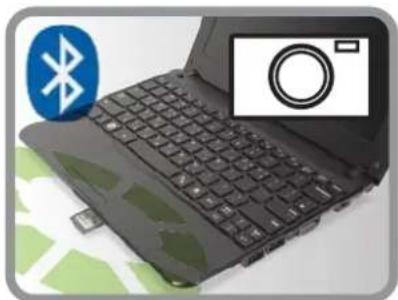
natural_image
Laptop with a Bluetooth icon and camera symbol on the right (no text or symbols on the device)PC in Hand
- Improved portability through its compact size and lightweight design
- Slim, Polished Design
Small but Powerful PC
● An Intel "Atom" Processor with Low Power Consumption and Low Heat
- Extended Use Time through the use of Power-Efficient Parts
Versatile and Convenient Use
● A Camera Module for Video Chatting or Conferencing (Optional)
● Wireless LAN and Bluetooth Function (Optional)
● Multi Card Slot Support (Optional)
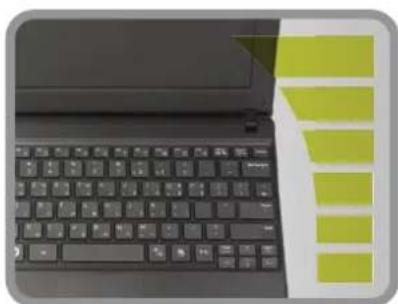
- Easy-to-Use Keyboard

Optional items may be changed or may not be provided depending on the computer model.
Before You Start
Before reading the User Guide, first check the following information.

- Optional items, some devices and software referred to in the User Guide may not be provided and/or changed by upgrade.
Note that the computer environment referred in the User Guide may not be the same as your own environment.
● Images used in this User Guide may differ from actual product.
● This guide decribes procedures for using both the mouse and the touchpad.
- This manual has been written for the Windows operating system. The descriptions and figures may differ depending on the installed operating system.
● The User guide supplied with this computer may vary depending on your model.
Safety Precaution Notations
| Icon Notation Description | ||
| Warning | Failing to follow instructions marked with this symbol, may cause personal injury and or fatality. | |
| Caution | Failing to follow instructions marked with this symbol, may cause slight injury to yourself or damage your property. | |
Text Notations
| Icon Notation Description | ||
| Before You Start | Content included in this section includes information required before using a function. | |
| Caution | Content included in this section includes information required about the function. | |
| Note | Content included in this section includes helpful information to use the function. | |
Copyright
© 2010 Samsung Electronics Co., Ltd.
Samsung Electronics Co., Ltd. owns the copyright of this manual.
No part of this manual may be reproduced or transmitted in any form or by any means, electronic or mechanical, without the consent of Samsung Electronics Co., Ltd.
The information in this document is subject to change without notice due to improving the performance of the product.
Samsung Electronics shall not be liable for any data loss. Please take care to avoid losing any important data and backup your data to prevent any such data loss.
Precautions for Operating System Support
If a problem occurs because of the reinstallation of other operating systems(OS) or a previous version of a OS pre-installed on this computer, or a software that does not support the OS, the company will not provide technical support, a replacement or refund, and if our service engineer visits you due to this problem, a service charge will be applied.
Performance Restrictions
① Online games and some games(3D,2D) may not be supported and Full HD video and some high bit rate HD video playback may be slow and stutter on this computer.
② There is one memory slot provided on this computer. It supports 2GB memory max. To upgrade to 2GB memory, replace the current memory with a 2GB memory module.
About the Product Capacity Representation Standard
About HDD Capacity Representation
The capacity of the storage device (HDD, SSD) of the manufacturer is calculated assuming that 1KB=1,000 Bytes.
However, the operating system (Windows) calculates the storage device capacity assuming that 1KB=1,024 Bytes, and therefore the capacity representation of the HDD in Windows is smaller than the actual capacity due to the difference in capacity calculation.
(E.g. For a 80GB HDD, Windows represents the capacity as 74.5GB, 80x1,000x1,000x1,000 byte/(1,024x1,024x1,024)byte = 74.505GB)
In addition, the capacity representation in Windows may be even smaller because some programs such as Recovery Solution may reside in a hidden area of the HDD.
About Memory Capacity Representation
The memory capacity reported in Windows is less than the actual capacity of memory. This is because BIOS or a video adapter uses a portion of memory or claims it for further use.
(E.g. For 1GB(=1,024MB) memory installed, Windows may report the capacity as 1,022MB or less)
Q. What is a Recovery Area?
A. - Samsung computers have an additional partition to recover computers or save backup files. (Only for models with the Samsung Recovery Solution.) This partition is called a Recovery Area and it includes a recovery image that comprises of the OS and application programs.
- You can either double-click the Samsung Recovery Solution icon on the desktop or press F4 while booting the computer to enter the Recovery Area. Then you can back up the present computer state or recover the computer from backed up images.
- For deleting the Recovery Area, you need to use an additional Recovery Area Removal Tool. After deleting the recovery area, you can use the newly created partition for other uses, such as for saving personal data. Be careful that once the recovery area is deleted, the Samsung Recovery Solutions will not work anymore.
Q. The capacity representation of the hard disk drive(HDD) in Windows is different from the product specifications.
A. - The capacity of the storage device (HDD) of the manufacturer is calculated assuming that 1KB=1,000 Bytes. However, the operating system (Windows) calculates the storage device capacity assuming that 1KB=1,024 Bytes, and therefore the capacity representation of the HDD in Windows is smaller than the actual capacity. This is due to the difference in capacity calculation and does not mean the installed HDD is different from the product specifications.
- The capacity representation in Windows may be smaller than the actual capacity because some programs occupy a certain area of the HDD outside of Windows.
- For models with Samsung Recovery Solution, the HDD capacity representation in Windows may be smaller than the actual capacity because Samsung Recovery Solution uses a hidden area of about 5\~20GB of the HDD to save the recovery image, and that hidden area is not counted towards the total size available to Windows. The size of Samsung Recovery Solution varies by models because of the different size of applied programs.
Contents
Chapter 1. Getting Started
Product Features 2
Before You Start 3
Contents 7
Safety Precautions 8
Proper Posture During Computer Use 24
Important Safety Information 27
Replacement Parts and Accessories 30
Regulatory Compliance Statements 33
WEEE SYMBOL INFORMATION 48
Overview 50
Turning the Computer On and Off 56
Chapter 2. Using the Computer
Keyboard 60
Touchpad 63
External-type CD drive
(To be purchased) 68
Multi Card Slot (Optional) 70
Connecting a monitor / TV 73
Adjusting the Volume 78
Wired Network 83
Wireless Network (Optional) 87
Sharing Content in a Home Network
(Easy Content Share) (Optional) 90
HDD Protection Function (Optional) 97
Chapter 3. Settings and Upgrade
LCD Brightness Control 100
BIOS Setup 102
Setting a Boot Password 105
Changing the Boot Priority 108
Upgrading Memory 109
Battery 111
Using the Security Lock Port 116
Chapter 4. Troubleshooting
Using Samsung Recovery Solution 118
Reinstalling Windows 7 133
Reinstalling Windows XP 138
Questions and Answers 142
Chapter 5. Appendix
Product Specifications 164
Glossary 166
Index 171
Safety Precautions
For your security and to prevent damage, please read the following safety instructions carefully. Since these are commonly applied to Samsung Computers, some figures may differ from the actual product.

Warning
Failing to follow instructions marked with this symbol may cause personal injury and even fatality.
Installation Related
natural_image
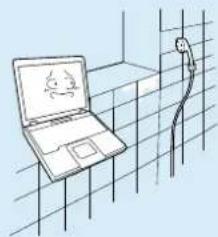
Line drawing of a laptop on a grid surface with a curved line beside it (no text or symbols)Do not install the product in places exposed to humidity such as bathrooms.
There is a danger of electric shock. Use the product within the operating conditions specified in the Manufacturers User Guide.

Keep the plastic bags out of the reach of children.
There is a danger of suffocation.
natural_image
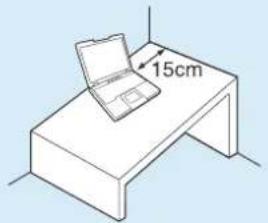
Line drawing of a laptop placed on a desk with a 15cm measurement annotation (no other text or symbols)Keep a distance of 15cm or more between the computer and the wall and do not place any objects between them.
Failing to do so may cause an increase in the internal temperature of the computer and result in injury.
natural_image
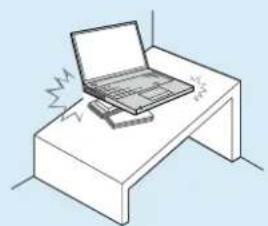
Line drawing of a desk with a laptop and a small object, no text or symbols presentDo not install the computer on a slant or a place prone to vibrations, or avoid using the computer in that location for a long time.
Failing to do so may result in an increased risk of malfunctions or damage to the product.

Warning
Failing to follow instructions marked with this symbol may cause personal injury and even fatality.
natural_image
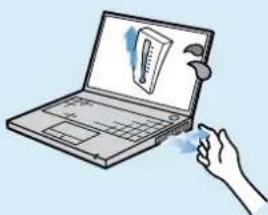
Illustration of a hand holding a laptop displaying a thermometer and temperature gauge (no text or symbols on the device)Avoid exposing any part of your body to the heat from the computer vent or AC adapter for a long time when the computer is on.
Exposing a part of your body close to the heat from the vent or AC adapter for long periods of time may cause a burn.
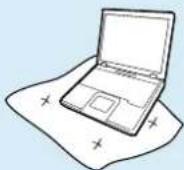
Avoid blocking the vent at the bottom or side of the computer when using it on a bed or cushion.
If the vent is blocked, there is a danger of damaging the computer or overheating the inside of the computer.
Power Related
The power plug and wall outlet figures may differ depending on the country specifications and the product model.
natural_image
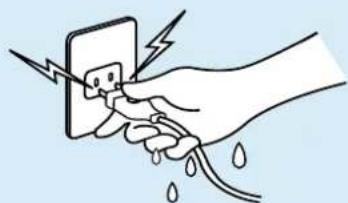
Illustration of a hand using a plug to plug electrical socket with lightning bolts (no text or symbols)Do not touch the main plug or power cord with wet hands.
There is a danger of electric shock.
natural_image
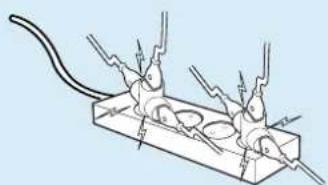
Diagram of electrical connections on a circuit board with wires and components (no text or labels)Do not exceed the standard capacity (voltage/current) of a multi-plug or power outlet extension when using it for the product.
This may result in electric shock or fire.

Warning
Failing to follow instructions marked with this symbol may cause personal injury and even fatality.
text_image
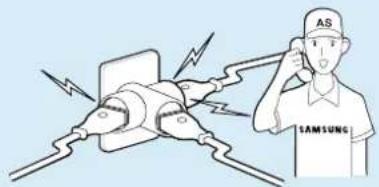
AS SAMSUNGIf the power cord or power outlet makes a noise, disconnect the power cord from the wall outlet and contact a service center.
This may result in electric shock or fire.
natural_image
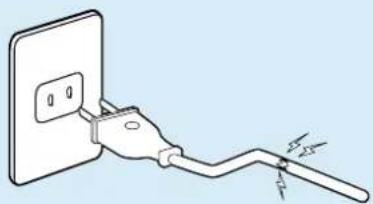
Simple line drawing of a plug inserted into a socket, with a lightning bolt indicating the pin (no text or symbols present)Do not use a damaged or loose main plug or power cord or power outlet.
This may result in electric shock or fire.
natural_image
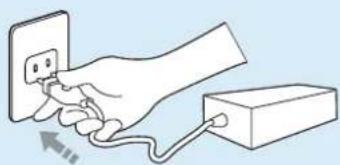
Illustration of a hand inserting a plug into a socket connected to a power strip (no text or symbols)Plug the power cord firmly into the power outlet and AC adapter.
Failing to do so may result in electric shock or fire.

natural_image
Illustration of a hand using a power plug to disassemble electrical socket (no text or symbols)Do not unplug the power cord out by pulling the cable only.
If the cord is damaged, it may result in electric shock or fire.

natural_image
Simple line drawing of a cabinet with a power outlet and a lightning bolt symbol (no text or labels)Do not bend the power cord excessively or do not place a heavy object over the power cord. It is especially important to keep the power cord out of reach of infants and pets.
If the cord is damaged, it may cause electric shock or fire.
natural_image
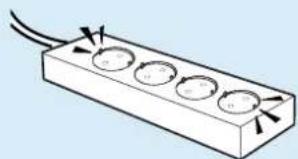
Simple line drawing of a rectangular electronic component with three circular holes and wires (no text or symbols)Connect the power cord to an outlet or multiple power plug (extended cable) with a ground terminal.
Failing to do so may result in electric shock.

Warning
Failing to follow instructions marked with this symbol may cause personal injury and even fatality.
text_image
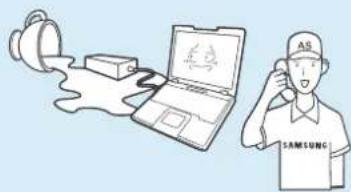
AS SAMSUNGIf any foreign substance such as water enters the power input jack, AC adapter or the computer, disconnect the power cord and contact the service center.
Damage to the device within the computer may result in electric shock or fire hazard.
natural_image
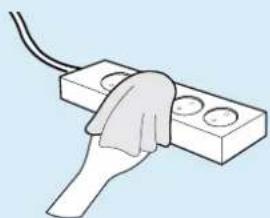
Simple line drawing of a hand holding a plug with three circular holes, connected to a rectangular block (no text or symbols)Keep the power cord or outlet clean so that they are not covered with dust.
Failing to do so may result in fire.
AC Adapter Usage Precautions
text_image
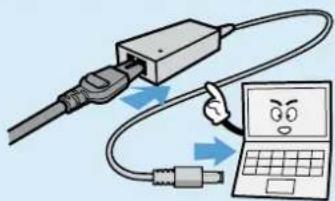
Illustration showing a plug connecting to a laptop with a cartoon face, indicating connection or alert.Connect the power cord to the AC adapter firmly.
Otherwise, there is a danger of fire due to an incomplete contact.
Use only the AC adapter supplied with the product.
Using another adapter may cause the screen to flicker.
text_image
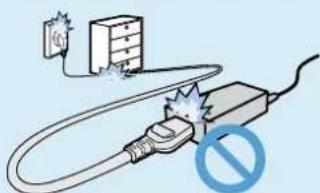
Diagram illustrating electrical connections with a fuse, fuse, and a prohibition symbolDo not place heavy objects or step onto the power cord or AC adapter to avoid damaging the power cord or AC adapter.
If the cord is damaged, there is a danger of electric shock or fire.

Warning
Failing to follow instructions marked with this symbol may cause personal injury and even fatality.
Battery Usage Related

Keep the battery out of the reach of infants and pets, as they could put the battery into their mouths.
There is a danger of electric shock or choking.
text_image
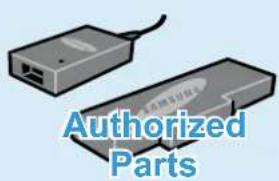
Authorized PartsUse an authorized battery and AC adapter only.
Please use an authorized battery and adapter approved by Samsung Electronics.
Unauthorized batteries and adapters may not meet the proper safety requirements and may cause problems or malfunctions and result in an explosion or fire.
natural_image
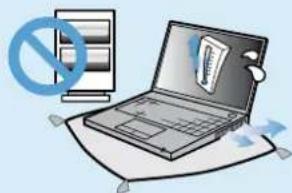
Illustration of a laptop with a smartphone and a no-smoking symbol, no text or labels presentDo not use the computer in a badly ventilated location such as on bedding, on a pillow or cushion, etc, and do not use it in a location such as room with floor heating as it may cause the computer to be overheated.
Take care that the computer vents (on the side or the bottom) are not blocked especially in these environments. If the vents are blocked, the computer may overheat and it may cause a computer problem, or even an explosion.

Warning
Failing to follow instructions marked with this symbol may cause personal injury and even fatality.
natural_image
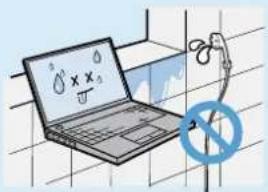
Illustration of a laptop with water droplets and a hand holding a 'no' symbol, placed on a tiled floor (no text or symbols on the laptop or background)Do not use the computer in a humid location such as a bathroom or sauna.
Please use the computer within the recommended temperature and humidity range (10\~35°C, 20\~80% RH).
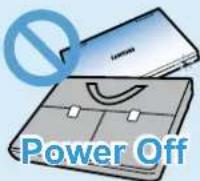
Do not close the LCD panel and put the computer into your bag to move it when it is still turned on.
If you put the computer into your bag without turning it off, the computer may overheat and there is a danger of fire. Shut the computer down properly before moving it.
natural_image
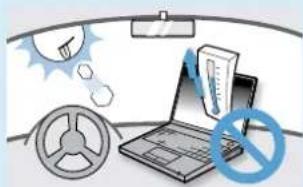
Illustration of a car interior with steering wheel, laptop, and no-smoking symbol (no text or labels)Never heat the battery or put the battery into a fire. Do not put or use the battery in a hot location such as a sauna, inside a vehicle exposed to the heat, and so on.
There is a danger of an explosion or fire.

Warning
Failing to follow instructions marked with this symbol may cause personal injury and even fatality.
natural_image
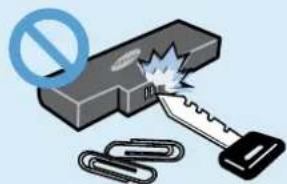
Illustration of a hand holding a tool with a prohibition symbol above, next to chains and a key (no text or symbols present)Take care not to allow metal objects such as a key or clip to touch the battery terminal (metal parts).
If a metal object touches the battery terminals, it may cause excessive current flow and it may damage the battery, or result in a fire.
natural_image
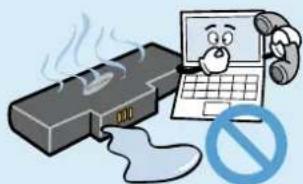
Illustration of a cartoon-style office with a steaming briefcase, a computer monitor, and a no-smoking symbol (no text or labels)If liquid leaks out of the battery or there is a funny smell coming from the battery, remove the battery from the computer and contact a service center.
There is a danger of an explosion or fire.
natural_image
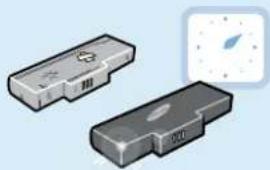
Two gray electronic component blocks with no visible text or symbolsTo use the computer safely, replace a dead battery with a new, authorized battery.

Please charge the battery fully before using the computer for the first time.

Warning
Failing to follow instructions marked with this symbol may cause personal injury and even fatality.
Usage Related
natural_image
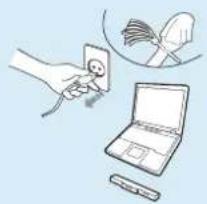
Illustration of a hand inserting a plug into a laptop, with a magnifying glass showing the plug and a small battery nearby (no text or symbols)Disconnect all cables connected to the computer before cleaning it. If you are cleaning a notebook computer, remove the battery.
There is a danger of electric shock or damage to the product.
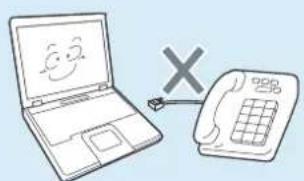
text_image
Illustration showing a smiling laptop connected to a telephone with a cross symbol indicating cancellation or error.Do not connect a phone line connected to a digital phone to the modem.
There is a danger of a electric shock, fire or damage to the product.
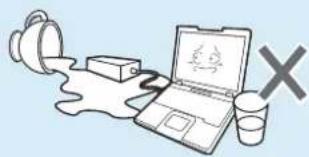
natural_image
Illustration of a laptop with a screen and a 'X' symbol, emitting smoke from a lamp (no text or symbols present)Do not place any container filled with water or chemicals over or near the computer.
If water or chemicals enter the computer, this may cause fire or electric shock.
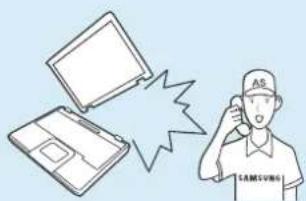
text_image
Illustration showing a person wearing a cap with 'AS' and a speech bubble, accompanied by two devices.If the computer is broken or dropped, disconnect the power cord and contact a service center for a safety check.
Using a damaged computer may result in electric shock or fire.
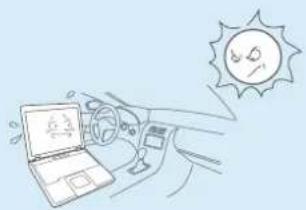
natural_image
Illustration of a hand using a laptop with a sad face on the sun (no text or symbols)Avoid leaving the computer exposed to direct sunlight when the computer is in a badly ventilated location such as inside a vehicle.
This may result in overheating, fire or being stolen.
natural_image
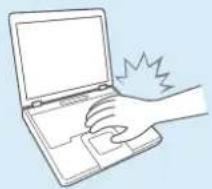
Line drawing of a hand typing on a laptop keyboard (no text or symbols)Do not use your notebook PC for long periods of time while a part of your body is making direct contact with it. The temperature of the product may increase during normal operation.
This may result in harming or burning your skin.

Warning
Failing to follow instructions marked with this symbol may cause personal injury and even fatality.
Upgrade Related
natural_image
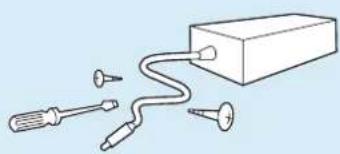
Illustration of a medical or electrical device with three screws and a rectangular block connected by wires (no text or symbols)Never disassemble the power supply or AC adapter.
There is a danger of electric shock.
text_image
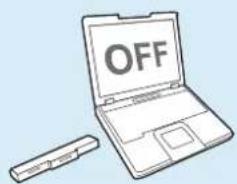
OFFWhen removing the RTC (Real Time Clock) battery, keep it out of the reach of children as they could touch and/or swallow it.
There is a danger of choking. If a child has swallowed it, contact a doctor immediately.
natural_image
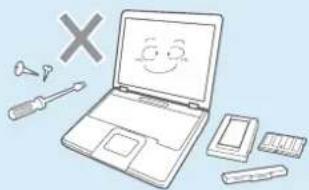
Illustration of a laptop with a smiling face, crossed out by a 'X' symbol and tools (no text or labels)Use only authorized parts (multi-plug, battery and memory) and never disassemble parts.
This may result in damage to the product, electric shock or fire.
text_image
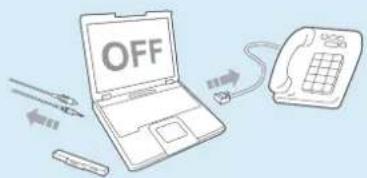
OFFShut down the computer and disconnect all cables before disassembling the computer. If there is a modem, disconnect the phone line. If you are disassembling a notebook computer, make sure to remove the battery.
Failing to do so, may cause electric shock.

Warning
Failing to follow instructions marked with this symbol may cause personal injury and even fatality.
Security and Movement Related
natural_image
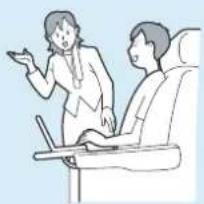
Illustration of two people in a meeting, one gesturing while speaking (no text or symbols present)Follow the instructions for the relevant location (e.g. airplane, hospital, etc.) when using a wireless communication device (wireless LAN, Bluetooth, etc.).
text_image
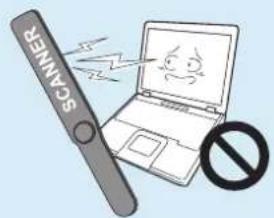
SCANNETAvoid exposing a drive to magnetic fields. Security devices with magnetic fields include airport walk-through devices and security wands. The airport security devices that check carry-on luggage, such as conveyor belts, use x-rays instead of magnetism and will not damage a drive.
text_image
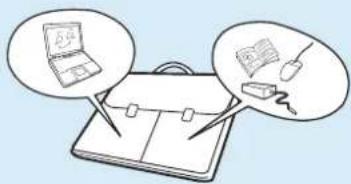
Illustration of a closed notebook with speech bubbles containing icons: a notebook, a computer mouse, and a notebook with a magnifying glass.When carrying the notebook computer with other items, such as the adapter, mouse, books etc, take care not to press anything against the notebook computer.
If a heavy object is pressed against the notebook computer, a white spot or stain may appear on the LCD. Therefore, take care not to apply any pressure to the notebook.
In this case, place the notebook computer in a separate compartment away from the other objects.

Caution
Failing to follow instructions marked with this symbol may cause slight injury or damage to the product.
Installation Related
Do not block the ports (holes), vents, etc. of the product and do not insert objects.
Damage to a component within the computer may cause electric shock or fire.
Do not place a heavy object over the product.
This may cause a problem with the computer. In addition, the object may fall and cause injury, or damage the computer.
When using the computer with it lying on its side, place it so that the vents face upwards.
Failing to do so, may cause the internal temperature of the computer to rise and the computer to malfunction or halt.
Battery Usage Related
Dispose of worn-out batteries properly.
● There is a danger of fire or explosion.
● The battery disposal method may differ depending on your country and region. Dispose of the used battery in an appropriate way.
Do not throw or disassemble the battery and do not put it into water.
This may cause an injury, fire or explosion.

Caution
Failing to follow instructions marked with this symbol may cause slight injury or damage to the product.
Use only a battery authorized by Samsung Electronics.
Failing to do so may cause an explosion.
Do not heat the battery or expose it to heat (e.g. inside a vehicle during the summer).
There is a danger of explosion or fire.
Avoid contact with metal objects such as car keys or clips when keeping or carrying a battery.
Contact with a metal may cause excessive current and a high temperature and may damage the battery or cause a fire.
Charge the battery according to the instructions in the manual.
Failing to do so, may cause an explosion or fire from damage to the product.
Usage Related
Do not place a candle, light cigar, etc. over or on the product.
There is a danger of fire.
Use a wall outlet or multi-plug with a grounding part.
Failing to do so may result in electric shock.
Make sure to have the product tested by a safety service engineer after repairing the product.
Authorized Samsung Repair Centers will carry out safety checks after a repair. Using a repaired product without testing it for safety may cause an electric shock or fire.

Caution
Failing to follow instructions marked with this symbol may cause slight injury or damage to the product.
In case of lightning, immediately turn the system off, disconnect the power cord from the wall outlet and phone line from modem. Do not use a modem or phone.
There is a danger of electric shock or fire.
Do not use your computer and AC-Adapter on your lap or soft surfaces.
If the computer temperature increases, there is a danger of burning yourself.
Connect only permitted devices to the connectors or ports of the computer.
Failing to do so, may cause electric shock and fire.
Close the LCD panel only after checking if the notebook computer is turned off.
The temperature may rise and it may cause overheating and deformation of the product.
Do not press the Eject Button while the Floppy Disk/CD-ROM drive is in operation.
You might lose data and the disk might be suddenly ejected and could cause an injury.
Take care not to drop the product while using it.
This may cause personal injury or loss of data.
Do not touch the antenna with electricity facility such as the power outlet.
There is a danger of electric shock.
When handling computer parts, follow the instructions on the manual supplied with the parts.
Failing to do so, may cause damage to the product.
If the computer emits smoke, or there is a burning smell, disconnect the power plug from the wall outlet and contact a service center. If your computer is a notebook computer, make sure to remove the battery.
There is a danger of fire.

Caution
Failing to follow instructions marked with this symbol may cause slight injury or damage to the product.
Do not use a damaged or modified CD/Floppy Disk.
There is a danger of damaging the product or personal injury.
Do not insert your fingers into the PC Card Slot.
There is a danger of injury or electric shock.
Use recommended computer cleansing solution when cleaning the product and only use the computer when it is completely dried.
Failing to do so may cause electric shock or fire.
Emergency disk eject method using paperclip should not be used while the disk is in motion.
Make sure to use the emergency disk eject method only when the Optical Disk Drive is stopped.
There is a danger of injury.
Do not place your face close to the Optical Disk Drive tray when it is operating.
There is a danger of injury due to an abrupt ejection.
Check CDs for cracks and damage prior to use.
It may damage the disc and cause disorder of device and injury of user.
Upgrade Related
Take care when touching the product or parts.
The device may be damaged or you may be injured.
Take care not to throw or drop a computer part or device.
This may cause injury or damage to the product.
Make sure to close the computer cover before connecting the power after a reassembly.
There is a danger of electric shock if your body touches an internal part.

Caution
Failing to follow instructions marked with this symbol may cause slight injury or damage to the product.
Use parts authorized by Samsung Electronics only.
Failing to do so, may cause fire or damage the product.
Never disassemble or repair the product by yourself.
There is a danger of electric shock or fire.
To connect a device that is not manufactured or authorized by Samsung Electronics, enquire at your service center before connecting the device.
There is a danger of damaging the product.
Security and Movement Related
When moving the product, turn the power off and separate all connected cables first.
The product might be damaged or users may trip over the cables.
For long periods of not using the notebook computer, discharge the battery and preserve as it is detached.
The battery will be preserved at its best condition.
Do not operate or watch the computer while driving a vehicle.
There is a danger of a traffic accident. Please concentrate on driving.

Caution
Failing to follow instructions marked with this symbol may cause slight injury or damage to the product.
Cautions on Preventing Data Loss (Hard Disk Management)
Take care not to damage the data on a hard disk drive.
● A hard disk drive is so sensitive to external impact that an external impact may cause loss of data on the surface of the disk.
● Take extra care, because moving the computer or an impact on the computer when it is turned on may damage the data of the hard disk drive.
- The company is not liable for any loss of any data caused by a customer's careless usage or bad environmental conditions.
Causes that may damage the data of a hard disk drive and the hard disk drive itself.
- The data may be lost when an external impact is applied to the disk while disassembling or assembling the computer.
● The data may be lost when the computer is turned off or reset by a power failure while the hard disk drive is operating.
● The data may be lost and irrecoverable due to a computer virus infection.
● The data may be lost if the power is turned off while running a program. - Moving or causing an impact to the computer while the hard disk drive is operating, may cause files to be corrupted or bad sectors on the hard disk.
To prevent data loss due to damage to the hard disk drive, please backup your data frequently.
Proper Posture During Computer Use
Maintaining a proper posture during computer use is very important to prevent physical harm.
The following instructions are about maintaining a proper posture during computer use developed through human engineering. Please read and follow them carefully when using the computer.
Otherwise, the probability of (RSI: Repetitive Strain Injury) from repeated operations may increase and serious physical harm may be caused.

The instructions in this manual have been prepared so that they can be applied within the coverage of general users.
If the user is not included in the coverage, the recommendation is to be applied according to the user's needs.
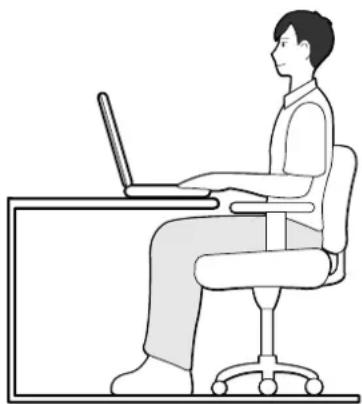
Proper Posture
Adjust the heights of desks and chairs appropriate to your height.
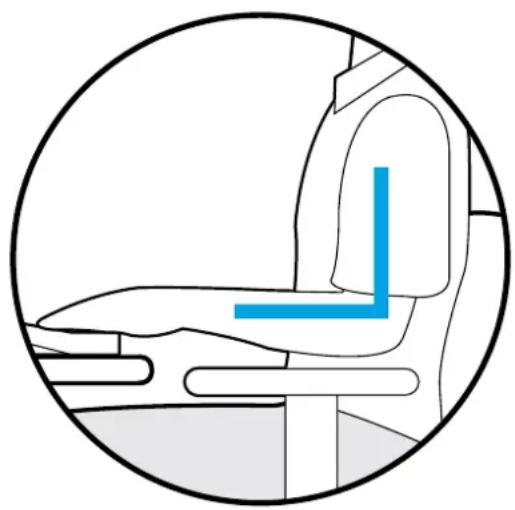
The heights are to be adjusted so that your arm forms a right angle when you place your hand over the keyboard while sitting down on a chair.
Adjust the height of chair so that your heel is comfortably placed on the floor.
- Do not use the computer while you are lying down, but only while you are sitting down.
- Do not use the computer on your lap. If the computer temperature increases, there is a danger of burning yourself.
● Work while keeping your back straight. -
Use a chair with a comfortable back.
-
Keep the center of your leg weight not on the chair but on your feet when you are sitting on a chair.
- To use the computer while talking over the telephone, use a headset. Using the computer with the phone on your shoulder is bad for posture.
- Keep frequently used items within a comfortable work range (where you can reach them with your hands).
natural_image
Line drawing of a person sitting at a desk using a laptop (no text or symbols)Eye Position
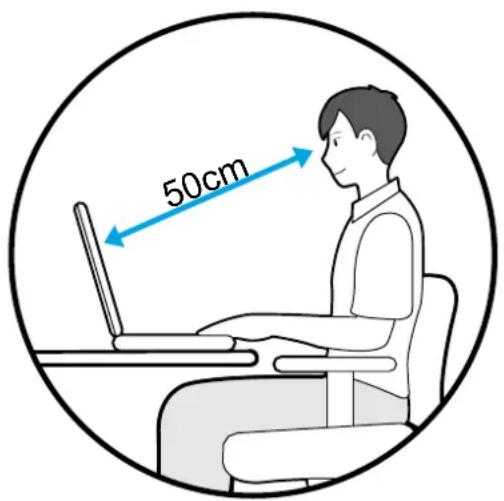
Keep the monitor or LCD away from your eyes by at least 50cm.
text_image
50cm- Adjust the height of the monitor and the LCD screen so that its top height is equal to or lower than your eyes.
- Avoid setting the monitor and LCD excessively bright.
- Keep the monitor and LCD screen clean.
- If you wear glasses, clean them before using the computer.
- When entering contents printed on a paper into the computer, use a static paper holder so that the height of the paper is almost equal to that of the monitor.
Hand Position
Keep your arm at a right angle as shown by the figure.
natural_image
Diagram of a human seated chair with a blue arrow pointing to the seat (no text or symbols)- Keep the line from your elbow to your hand straight.
- Do not place your palm over the keyboard while typing.
- Do not hold the mouse with excessive force.
- Do not press the keyboard, touchpad or mouse with excessive force.
- It is recommended connecting an external keyboard and mouse when using the computer for long periods of time.
Volume Control (Headphones and Speakers)
Check your volume first to listen to music.

natural_image
Circular icon with blue arrow and circular arrow, labeled 'VOLUME' below (no readable text or symbols)Check your volume!!

natural_image
Side profile illustration of a person wearing a blue headset (no text or symbols)- Check if the volume is too loud before using headphones.
- It is not recommended using headphones for long periods of time.
- Any deviation from the equalizer default setting could cause hearing impairment.
- The default setting can be changed through software and driver updates without your intervention. Please check the equalizer default setting before first usage.
Use Time (Break Time)
● Take a break for 10 minutes or more after a 50-minute period when working for more than one hour.
Illumination
- Do not use the computer in dark locations. The illumination level for computer use must be as bright so for reading a book.
- Indirect illumination is recommended. Use a curtain to prevent reflection on the LCD screen.
Operation Condition
- Do not use the computer in hot and humid locations.
- Use the computer within the allowed temperature and humidity range specified in the User Guide.
Important Safety Information
Safety Instructions
Your system is designed and tested to meet the latest standards for safety of information technology equipment. However, to ensure safe use of this product, it is important that the safety instructions marked on the product and in the documentation are followed.

Always follow these instructions to help guard against personal injury and damage to your system.
Setting Up your System
- Read and follow all instructions marked on the product and in the documentation before you operate your system. Retain all safety and operating instructions for future use.
- Do not use this product near water or a heat source such as a radiator.
-
Set up the system on a stable work surface.
● The product should be operated only with the type of power source indicated on the rating label. -
Ensure that the electrical outlet you are using to power your equipment is easily accessible in case of fire or short circuit.
- If your computer has a voltage selector switch, make sure that the switch is in the proper position for your area.
- Openings in the computer case are provided for ventilation. Do not block or cover these openings. Make sure you provide adequate space, at least 6 inches (15 cm), around the system for ventilation when you set up your work area. Never insert objects of any kind into the computer ventilation openings.
- Ensure that the fan vents on the bottom of the casing are clear at all times. Do not place the computer on a soft surface, doing so will block the bottom vents.
- If you use an extension cord with this system, make sure that the total power rating on the products plugged into the extension cord does not exceed the extension cord power rating.
- For Notebooks with glossy display bezels the user should consider the placement of the Notebook as the bezel may cause disturbing reflections from surrounding light and bright surfaces.
Care During Use
- Do not walk on the power cord or allow anything to rest on it.
- Do not spill anything on the system. The best way to avoid spills is to not eat or drink near your system.
- Some products have a replaceable CMOS battery on the system board. There is a danger of explosion if the CMOS battery is replaced incorrectly. Replace the battery with the same or equivalent type recommended by the manufacturer. Dispose of batteries according to the manufacturers instructions. If the CMOS battery requires replacement insure that a qualified technician performs the task.
- When the computer is turned off, a small amount of electrical current still flows through the computer.
To avoid electrical shock, always unplug all power cables, remove the battery and modem cables from the wall outlets before cleaning the system.
● Unplug the system from the wall outlet and refer servicing to qualified personnel if: - The power cord or plug is damaged.
– Liquid has been spilled into the system. - The system does not operate properly when the operating instructions are followed.
– The system was dropped or the casing is damaged.
– The system performance changes.
① When installing and operating devices please refer to safety requirements in the user guide.
② Devices can be used only with the equipment specified in the technical specifications of the devices.
③ If any smell of burning or smoke is detected from the computer the unit should be switched off and battery removed. The unit should be checked by a qualified technician before reuse.
④ Service and repair of devices should be carried out by authorized service centers.
⑤ Do not allow your portable computer to operate with the base resting directly on exposed skin for extended periods of time. The surface temperature of the base will rise during normal operation (particularly when AC Power is present). Allowing sustained contact with exposed skin can cause discomfort or eventually a burn.
Replacement Parts and Accessories
Use only replacement parts and accessories recommended by manufacturer.

To reduce the risk of fire, use only No. 26 AWG or larger telecommunications line cord.

Do not use this product in areas classified as hazardous. Such areas include patient care areas of medical and dental facilities, oxygen rich environments, or industrial areas.
Battery Disposal

Do not put rechargeable batteries or products powered by non-removable rechargeable batteries in the garbage.
Contact the Samsung Helpline for information on how to dispose of batteries that you cannot use or recharge any longer.
Follow all local regulations when disposing of old batteries.

THERE IS A RISK OF EXPLOSION IF BATTERY IS REPLACED BY AN INCORRECT TYPE. DISPOSE OF USED BATTERIES ACCORDING TO THE INSTRUCTIONS.
Laser Safety
All systems equipped with CD or DVD drives comply with the appropriate safety standards, including IEC 60825-1. The laser devices in these components are classified as “Class 1 Laser Products” under a US Department of Health and Human Services (DHHS) Radiation Performance Standard. Should the unit ever need servicing, contact an authorized service location.

● Laser Safety Note:
Use of controls or adjustments or performance of procedures other than those specified in this manual may result in hazardous radiation exposure. To prevent exposure to laser beams, do not try to open the enclosure of a CD or DVD drive.
● Class 1M laser radiation when operating part is open.
Do not view directly with optical instruments.
● Class 3B invisible laser radiation when open.
Avoid exposure to the beam.
Connect and Disconnect the AC adapter
The socket-outlet shall be installed near the equipment and shall be easily accessible. Do not unplug the power cord out by pulling the cable only.
Power Cord Requirements
The power cord set (wall plug, cable and AC adapter plug) you received with your computer meets the requirements for use in the country where you purchased your equipment.
Power cord sets for use in other countries must meet the requirements of the country where you use the computer. For more information on power cord set requirements, contact your authorized dealer, reseller, or service provider.
General Requirements
The requirements listed below are applicable to all countries:
- All power cord sets must be approved by an acceptable accredited agency responsible for evaluation in the country where the power cord set will be used.
- The power cord set must have a minimum current capacity of 7 A and a nominal voltage rating of 125 or 250 volts AC, as required by each country's power system. (USA ONLY)
- The appliance coupler must meet the mechanical configuration of an EN 60 320/IEC 320 Standard Sheet C7 (or C5) connector, for mating with appliance inlet on the computer.
Regulatory Compliance Statements
Wireless Guidance
(If fitted with 2.4G band or 5G band)
Low power, Radio LAN type devices (radio frequency (RF) wireless communication devices), operating in the 2.4GHz/5GHz Band, may be present (embedded) in your notebook system. The following section is a general overview of considerations while operating a wireless device.
Additional limitations, cautions, and concerns for specific countries are listed in the specific country sections (or country group sections). The wireless devices in your system are only qualified for use in the countries identified by the Radio Approval Marks on the system rating label. If the country you will be using the wireless device in, is not listed, please contact your local Radio Approval agency for requirements. Wireless devices are closely regulated and using them may not be allowed.
The RF field strength of the wireless device or devices that may be embedded in your notebook are well below all international RF exposure limits as known at this time. Because the wireless devices (which may be embedded into your notebook) emit less energy than is allowed in radio frequency safety standards and recommendations, manufacturer believes these devices are safe for use. Regardless of the power levels, care should be taken to minimize human contact during normal operation.
Some circumstances require restrictions on wireless devices. Examples of common restrictions are listed on the next page:

- Radio frequency wireless communication can interfere with equipment on commercial aircraft. Current aviation regulations require wireless devices to be turned off while traveling in an airplane. 802.11ABGN (also known as wireless Ethernet or Wifi) and Bluetooth communication devices are examples of devices that provide wireless communication.
- In environments where the risk of interference to other devices or services is harmful or perceived as harmful, the option to use a wireless device may be restricted or eliminated. Airports, Hospitals, and Oxygen or flammable gas laden atmospheres are limited examples where use of wireless devices may be restricted or eliminated. When in environments where you are uncertain of the sanction to use wireless devices, ask the applicable authority for authorization prior to use or turning on the wireless device.
- Every country has different restrictions on the use of wireless devices. Since your system is equipped with a wireless device, when traveling between countries with your system, check with the local Radio Approval authorities prior to any move or trip for any restrictions on the use of a wireless device in the destination country.
- If your system came equipped with an internal embedded wireless device, do not operate the wireless device unless all covers and shields are in place and the system is fully assembled.
- Wireless devices are not user serviceable. Do not modify them in any way. Modification to a wireless device will void the authorization to use it. Please contact manufacturer for service.
- Only use drivers approved for the country in which the device will be used. See the manufacturer System Restoration Kit, or contact manufacturer Technical Support for additional information.
United States of America
USA and Canada Safety Requirements and Notices
Do not touch or move antenna while the unit is transmitting or receiving.
Do not hold any component containing the radio such that the antenna is very close or touching any exposed parts of the body, especially the face or eyes, while transmitting.
Do not operate the radio or attempt to transmit data unless the antenna is connected; if not, the radio may be damaged.
Use in specific environments:
The use of wireless devices in hazardous locations is limited by the constraints posed by the safety directors of such environments.
The use of wireless devices on airplanes is governed by the Federal Aviation Administration (FAA).
The use of wireless devices in hospitals is restricted to the limits set forth by each hospital.

Explosive Device Proximity Warning
Do not operate a portable transmitter (such as a wireless network device) near unshielded blasting caps or in an explosive environment unless the device has been modified to be qualified for such use.

Use On Aircraft Caution
Regulations of the FCC and FAA prohibit airborne operation of radio-frequency wireless devices because their signals could interfere with critical aircraft instruments.
Other Wireless Devices
Safety Notices for Other Devices in the Wireless Network: Refer to the documentation supplied with wireless Ethernet adapters or other devices in the wireless network.

The Part 15 radio device operates on a non-interference basis with other devices operating at this frequency. Any changes or modification to said product not expressly approved by Intel could void the user's authority to operate this device.
Unintentional Emitter per FCC Part 15
This device complies with Part 15 of the FCC Rules. Operation is subject to the following two conditions:(1) this device may not cause harmful interference, and (2) this device must accept any interference received, including interference that may cause undesired operation.

This equipment has been tested and found to comply with the limits for a Class B digital device pursuant to Part 15 of the FCC Rules. These limits are designed to provide reasonable protection against harmful interference in a residential installation. This equipment generates, uses, and can radiate radio frequency energy and if not installed and used in accordance with the instructions may cause harmful interference which will not occur in a correct installation. If this equipment does cause harmful interference to radio or television reception, which can be determined by turning the equipment off and on, the user is encouraged to try to correct the interference by one or more of the following measures:
● Reorient or relocate the receiving antenna.
- Increase the separation between the equipment and receiver.
- Connect the equipment into an outlet on a circuit different from that to which the receiver is connected.
- Consult the dealer or an experienced radio/TV technician for help.
If necessary, the user should consult the dealer or an experienced radio/television technician for additional suggestions. The user may find the following booklet helpful: "Something About Interference." This is available at FCC local regional offices. Our company is not responsible for any radio or television interference caused by unauthorized modifications of this equipment or the substitution or attachment of connecting cables and equipment other than those specified by our company. The correction will be the responsibility of the user. Use only shielded data cables with this system.
Intentional emitter per FCC Part 15
(If fitted with 2.4G band or 5G band) Low power, Radio LAN type devices (radio frequency (RF) wireless communication devices), operating in the 2.4GHz/5GHz Band, may be present (embedded) in your notebook system. This section is only applicable if these devices are present. Refer to the system label to verify the presence of wireless devices.
Wireless devices that may be in your system are only qualified for use in the United States of America if an FCC ID number is on the system label.
This device is restricted to indoor use due to its operation in the 5.15 to 5.25 GHz frequency range. FCC requires this product to be used indoors for the frequency range 5.15 to 5.25 GHz to reduce the potential for harmful interference to co-channel Mobile Satellite systems. High power radars are allocated as primary users of the 5.25 to 5.35 GHz and 5.65 to 5.85 GHz bands. These radar stations can cause interference with and/or damage this device.
The power output of the wireless device (or devices), which may be embedded in your notebook, is well below the RF exposure limits as set by the FCC.
Operation of this device is subject to the following two conditions: (1) This device may not cause harmful interference, and (2) this device must accept any interference received, including interference that may cause undesired operation of the device.

Wireless devices are not user serviceable. Do not modify them in any way.
Modification to a wireless device will void the authorization to use it. Contact manufacturer for service.
FCC Part 68
(If fitted with a modem device.)
This equipment compiles with part of the FCC rules. On the back of this equipment is a label that contains, among other information, the FCC registration number and ringer equivalence number (REN) for this equipment. If requested, this information must be provided to the telephone company.
This equipment uses the following USOC jacks : RJ11C
An FCC compliant telephone cord and modular plug is provided with this equipment. This equipment is designed to be connected to the telephone network or promises wiring using a compatible modular jack which is Part 68 compliant. See Installation Instructions for details.
The REN is used to determine the quantity of devices which may be connected to telephone line. Excessive RENs on the telephone line may result in the devices not ringing in response to an incoming call. In most, but not all areas, the sum of RENs should not exceed five (5.0). To be certain of the number of devices that may be connected to a line, as determined by total RENs, contact the local telephone company to determine the maximum REN for the calling area.
If the terminal equipment causes harm to the telephone network, the Telephone Company will notify you in advance that temporary discontinuance of service may be required. But if advance notice is not practical, the telephone company will notify the customer as soon as possible. Also, you will be advised of your right to file a complaint with the FCC if you believe it is necessary.
The telephone company may make changes in its facilities, equipment, operations, or procedures that could affect the operation of the equipment. If this happens, the telephone company will provide advanced notice in order for you to make necessary modifications to maintain uninterrupted service.
If trouble is experienced with this equipment (Modem) for repair or warranty information, please contact your local distributor. If the equipment is causing harm to the telephone network, the telephone company may request that you disconnect the equipment until the problem is resolved.
The user must use the accessories and cables supplied by the manufacturer to get optimum performance from the product.
No repairs may be done by the customer. This equipment cannot be used on public coin phone service provided by the telephone company. Connection to party line service is subject to state tariffs.
Canada
The Telephone Consumer Protection Act of 1991 makes it unlawful for any person to use a computer or other electronic device, including fax machines, to send any message unless such message clearly contains in a margin at the top or bottom of each transmitted page or on the first page of the transmission, the date and time it is sent and an identification of the business or other entity, or other individual sending the message and the telephone number of the sending machine or such business, other entity, or individual. (The telephone number provided may not be any number for which charges exceed local or long-distance transmission charges.)
In order to program this information into your fax machine, refer to your communications software user manual.
Unintentional Emitter per ICES-003
This digital apparatus does not exceed the Class B limits for radio noise emissions from digital apparatus as set out in the radio interference regulations of Industry Canada.
(If fitted with 2.4G band or 5G band) Low power, Radio LAN type devices (radio frequency (RF) wireless communication devices), operating in the 2.4GHz/5GHz Band, may be present (embedded) in your notebook system. This section is only applicable if these devices are present. Refer to the system label to verify the presence of wireless devices.
Wireless devices that may be in your system are only qualified for use in Canada if an Industry Canada ID number is on the system label.
When using IEEE 802.11a wireless LAN, this product is restricted to indoor use due to its operation in the 5.15- to 5.25-GHz frequency range. Industry Canada requires this product to be used indoors for the frequency range of 5.15 GHz to 5.25 GHz to reduce the potential for harmful interference to co-channel mobile satellite systems. High power radar is allocated as the primary user of the 5.25- to 5.35-GHz and 5.65 to 5.85-GHz bands. These radar stations can cause interference with and/or damage to this device.
The maximum allowed antenna gain for use with this device is 6dBi in order to comply with the E.I.R.P limit for the 5.25-to 5.35 and 5.725 to 5.85 GHz frequency range in point-to-point operation.
The power output of the wireless device (or devices), which may be embedded in your notebook, is well below the RF exposure limits as set by Industry Canada.
Operation of this device is subject to the following two conditions: (1) This device may not cause harmful interference, and (2) this device must accept any interference received, including interference that may cause undesired operation of the device.

To prevent radio interference to licensed service, this device is intended to be operated indoors and away from windows to provide maximum shielding. Equipment (or its transmit antenna) that is installed outdoors is subject to licensing.

Wireless devices are not user serviceable. Do not modify them in any way. Modification to a wireless device will void the authorization to use it. Contact manufacturer for service.
Telecommunications per DOC notice (for products fitted with an IC-compliant modem)
The Industry Canada label identifies certified equipment. This certification means that the equipment meets certain telecommunications network protective, operation, and safety requirements. The Department does not guarantee the equipment will operate to the users' satisfaction.
Before installing this equipment, users should make sure that it is permissible to be connected to the facilities of the local telecommunications company. The equipment must also be installed using an acceptable method of connection. In some cases, the inside wiring associated with a single-line individual service may be extended by means of a certified connector assembly. The customer should be aware that compliance with the above conditions may not prevent degradation of service in some situations. Repairs to certified equipment should be made by an authorized Canadian maintenance facility designated by the supplier. Any repairs or alterations made by the user to this equipment, or equipment malfunctions, may give the telecommunications company cause to request the user to disconnect the equipment.
Users should make sure, for their own protection, that the electrical ground connections of the power utility, telephone lines, and internal metallic water pipe system, if present, are connected together. This precaution may be particularly important in rural areas.

To avoid electrical shock or equipment malfunction do not attempt to make electrical ground connections by yourself. Contact the appropriate inspection authority or an electrician, as appropriate.
The Ringer Equivalence Number (REN) assigned to each terminal device provides an indication of the maximum number of terminals allowed to be connected to a telephone interface. The termination on an interface may consist of any combination of devices subject only to the requirement that the sum of the Ringer Equivalence Numbers of all the devices does not exceed 5.
Brazil
European Union CE Marking and Compliance Notices
Products intended for sale within the European Union are marked with the Conformité Européenne (CE) Marking, which indicates compliance with the applicable Directives and European standards and amendments identified below. This equipment also carries the Class 2 identifier.
The following information is only applicable to systems labeled with the CE mark CE
European Directives
This Information Technology Equipment has been tested and found to comply with the following European directives:
● EMC Directive 2004/108/EC
● Low Voltage Directive 2006/95/EC
● R&TTE Directive 1999/5/EC
Manufacturer Information
Samsung Electronics Co., Ltd.
416, Maetan-3Dong, Yeongtong-Gu, Suwon-City, Gyeonggi-Do, 443-742, Korea
Samsung Electronics Suzhou Computer Co., Ltd.
No. 198, Fangzhou Road, Suzhou Industrial Park, Jiangsu Province, 215021, China
Tel:+86-512-6253-8988
For the web or the phone number of Samsung Service Centre, see the Warranty or contact the retailer where you purchased your product.
European Radio Approval Information (for products fitted with EU-approved radio devices)
This Product is a Notebook computer; low power, Radio LAN type devices (radio frequency (RF) wireless communication devices), operating in the 2.4GHz/5GHz band, may be present (embedded) in your notebook system which is intended for home or office use. This section is only applicable if these devices are present. Refer to the system label to verify the presence of wireless devices.
Wireless devices that may be in your system are only qualified for use in the European Union or associated areas if a CE mark with a Notified Body Registration Number and the Alert Symbol is on the system label.
The power output of the wireless device or devices that may be embedded in you notebook is well below the RF exposure limits as set by the European Commission through the R&TTE directive.
The low band 5.15 - 5.35 GHz is for indoor use only.

See 802.11b and 802.11g restrictions for specific countries or regions within countries under the heading “European Economic Area Restrictions” below.
EU R&TTE Compliance Statements
| cs | Česky [Czech] | Samsung tímto prohlašuje, že tento Notebook PC je ve shodě se základními požadavky a dalšími příslušnými ustanoveními směrnice 1999/5/ES. |
| da | Dansk [Danish] | Undertegnede Samsung erklærer herved, at følgende udstyr Notebook PC overholder de væsentlige krav og øvrige relevante krav i direktiv 1999/5/EF. |
| de | Deutsch [German] | Hiermit erklärt Samsung, dass sich das Gerät Notebook PC in Übereinstimmung mit den grundlegenden Anforderungen und den übrigen einschlägigen Bestimmungen der Richtlinie 1999/5/EG befindet. |
| et | Eesti [Estonian] | Käesolevaga kinnitab Samsung seadme Notebook PC vastavust direktiivi 1999/5/EÜ põhinõuetele ja nimetatud direktiivist tulenevatele teistele asjakohastele sätetele. |
| en | English | Hereby, Samsung, declares that this Notebook PC is in compliance with the essential requirements and other relevant provisions of Directive 1999/5/EC. |
| es | Español [Spanish] | Por medio de la presente Samsung declara que el Notebook PC cumple con los requisitos esenciales y cualesquiera otras disposiciones aplicables o exigibles de la Directiva 1999/5/CE. |
| el | Ελληνική [Greek] | ME THN ΠΑΡΟΥΣΑ Samsung ΔΗΛΩΝΕΙ OTI Notebook PC ΣΥΜΜΟΡΦΩΝΕΤΑΙ ΠΡΟΣ ΤΙΣ ΟΥΣΙΩΔΕΙΣ ΑΠΑΙΤΗΣΕΙΣ ΚΑΙ ΤΙΣ ΛΟΙΠΕΣ ΣΧΕΤΙΚΕΣ ΔΙΑΤΑΞΕΙΣ ΤΗΣ ΟΔΗΓΙΑΣ 1999/5/EK. |
| fr | Français [French] | Par la présente Samsung déclare que l’appareil Notebook PC est conforme aux exigences essentielles et aux autres dispositions pertinentes de la directive 1999/5/CE. |
| it | Italiano [Italian] | Con la presente Samsung dichiara che questo Notebook PC è conforme ai requisiti essenziali ed alle altre disposizioni pertinenti stabilite dalla direttiva 1999/5/CE. |
| lv | Latviski [Latvian] | Ar šo Samsung deklarē, ka Notebook PC atbilst Direktīvas 1999/5/EK būtiskajām prasībām un citiem ar to saistītajiem noteikumiem. |
| lt | Lietuvių [Lithuanian] | Šiuo Samsung deklaruoja, kad šis Notebook PC atitinka esminius reikalavimus ir kitas 1999/5/EB Direktyvos nuostatas. |
| nl | Nederlands [Dutch] | Hierbij verklaart Samsung dat het toestel Notebook PC in overeenstemming is met de essentiële eisen en de andere relevante bepalingen van richtlijn 1999/5/EG. |
| mt | Malti [Maltese] | Hawnhekk, Samsung, jiddikjara li dan Notebook PC jikkonforma mal-ħtiāijiet essenzjali u ma provvedimenti oħrajn relevanti li hemm fid-Dirrettiva 1999/5/EC. |
| hu | Magyar [Hungarian] | Alulírott, Samsung nyilatkozom, hogy a Notebook PC megfelel a vonatkozó alapvető követelményeknek és az 1999/5/EC irányelv egyéb előírásainak. |
| pl | Polski [Polish] | Niniejszym Samsung oświadcza, ŝe Notebook PC jest zgodny z zasadniczymi wymogami oraz pozostałymi stosownymi postanowieniami Dyrektywy 1999/5/EC. |
| pt | Português [Portuguese] | Samsung declara que este Notebook PC está conforme com os requisitos essenciais e outras disposições da Directiva 1999/5/CE. |
| sl | Slovensko [Slovenian] | Samsung izjavlja, da je ta Notebook PC v skladu z bistvenimi zahtevami in ostalimi relevantnimi določili direktive 1999/5/ES. |
| sk | Slovensky [Slovak] | Samsung týmto vyhlasuje, že Notebook PC spĺňa základné požiadavky a všetky prislušné ustanovenia Smernice 1999/5/ES. |
| fi | Suomi [Finnish] | Samsung vakuuttaa täten että Notebook PC tyyppinen laite on direktiivin 1999/5/EY oleellisten vaatimusten ja sitä koskevien direktiivin muiden ehtojen mukainen. |
| sv | Svenska [Swedish] | Härmed intygar Samsung att denna Notebook PC står I överensstämmelse med de väsentliga egenskapskrav och övriga relevanta bestämmelser som framgår av direktiv 1999/5/EG. |
| Íslenska [Icelandic] | Hér með lýsir Samsung yfir því að Notebook PC er í samræmi við grunnkröfur og aðrar kröfur, sem gerðar eru í tilskipun 1999/5/EC. | |
| no | Norsk [Norwegian] | Samsung erklærer herved at utstyret Notebook PC er i samsvar med de grunnleggende krav og øvrige relevante krav i direktiv 1999/5/EF. |
| Türkiye [Türkçe] | Bu belge ile, Samsung bu Notebook PC’nin 1999/5/EC Yönetmeliğinin temel gerekliliklerine ve ilgili hükümlerine uygun olduğunu beyan eder. |
To view the EU Declaration of Conformity for this product (in English only), go to: http://www.samsung.com/uk/support/download/supportDownMain.do then search the model number of the product. If the Declaration of Conformity for the model you are interested in is not available on our web-site, please contact your distributor.
European Economic Area Restrictions
Local Restriction of 802.11b/802.11g Radio Usage
[Note to integrator: The following statements on local restrictions must be published in all end-user documentation provided with the system or product incorporating the wireless product.]

Due to the fact that the frequencies used by 802.11b/802.11g wireless LAN devices may not yet be harmonized in all countries, 802.11b/802.11g products are designed for use only in specific countries or regions, and are not allowed to be operated in countries or regions other than those of designated use.
As a user of these products, you are responsible for ensuring that the products are used only in the countries or regions for which they were intended and for verifying that they are configured with the correct selection of frequency and channel for the country or region of use. Any deviation from permissible settings and restrictions in the country or region of use could be an infringement of local law and may be punished as such.
The European variant is intended for use throughout the European Economic Area. However, authorization for use is further restricted in particular countries or regions within countries, as follows:
General
European standards dictate maximum radiated transmit power of 100 mW effective isotropic radiated power (EIRP) and the frequency range 2400 – 2483.5 MHz.
The low band 5.15 - 5.35 GHz is for indoor use only.
Belgium
The product may be used outdoors, but for outdoor transmissions over a distance of 300m or more, a license from the BIPT is required.
This restriction should be indicated in the manual as follows:
For Metropolitan departments:
2.400 - 2.4835 GHz for indoor use.
2.400 - 2.454 GHz (channels 1 to 7) for outdoor use.
For Guadeloupe, Martinique, St Pierre et Miquelon, Mayotte:
2.400 - 2.4835 GHz for indoor and outdoor use.
For Reunion, Guyane:
2.400 - 2.4835 GHz for indoor use.
2.420 - 2.4835 GHz for outdoor use (channels 5 to 13)
The low band 5.15 - 5.35 GHz is for indoor use only.
European Telecommunication Information (for products fitted with EU-approved modems)
Marking by the symbol indicates compliance of this equipment to the Radio and Telecom Terminal Equipment Directive 1999/5/EC. Such marking is indicative that this equipment meets or exceeds the following technical standards: CTR 21 - Attachment requirements for pan-European approval for connection to the analogue Public Switched Telephone Networks (PSTNs) of TE (excluding TE
supporting voice telephony services) in which network addressing, if provided, is by means of Dual Tone Multi-Frequency (DTMF) signaling.

Although this equipment can use either loop disconnect (pulse) or DTMF (tone) signaling, only the performance of the DTMF signaling is subject to regulatory requirements for correct operation.
It is therefore strongly recommended that the equipment is set to use DTMF signaling for access to public or private emergency services.
DTMF signaling also provides faster call setup.
This equipment has been approved to Council Decision 98/482/EEC - "CTR 21" for Pan-European single terminal connection to the Public Switched Telephone Network (PSTN).
However, due to differences between the individual PSTNs provided in different countries, the approval does not, of itself, give an unconditional assurance of successful operation on every PSTN termination point. In the event of problems, you should contact manufacturer Technical Support.
WEEE SYMBOL INFORMATION

Correct disposal of this product (Waste Electrical & Electronic Equipment)
(Applicable in the European Union and other European countries with separate collection systems.)
This marking on the product, accessories or literature indicates that the product and its electronic accessories (e.g. charger, headset, USB cable) should not be disposed of with other household waste at the end of their working life. To prevent possible harm to the environment or human health from uncontrolled waste disposal, please separate these items from other types of waste and recycle them responsibly to promote the sustainable reuse of material resources.
Household users should contact either the retailer where they purchased this product, or their local government office, for details of where and how they can take these items for environmentally safe recycling.
Business users should contact their supplier and check the terms and conditions of the purchase contract. This product and its electronic accessories should not be mixed with other commercial wastes for disposal.

Pb
Correct disposal of batteries in this product
(Applicable in the European Union and other European countries with separate battery return systems.)
This marking on the battery, manual or packaging indicates that the batteries in this product should not be disposed of with other household waste at the end of their working life. Where marked, the chemical symbols Hg, Cd or Pb indicate that the battery contains mercury, cadmium or lead above the reference levels in EC Directive 2006/66. If batteries are not properly disposed of, these substances can cause harm to human health or the environment.
To protect natural resources and to promote material reuse, please separate batteries from other types of waste and recycle them through your local, free battery return system.
USA ONLY
This Perchlorate warning applies only to primary CR (Maganese Dioxide) Lithium coin cells in the product sold or distributed ONLY in California USA.
"Perchlorate Material- special handling may apply, See www.dtsc.ca.gov/hazardouswaste/perchlorate."
Overview
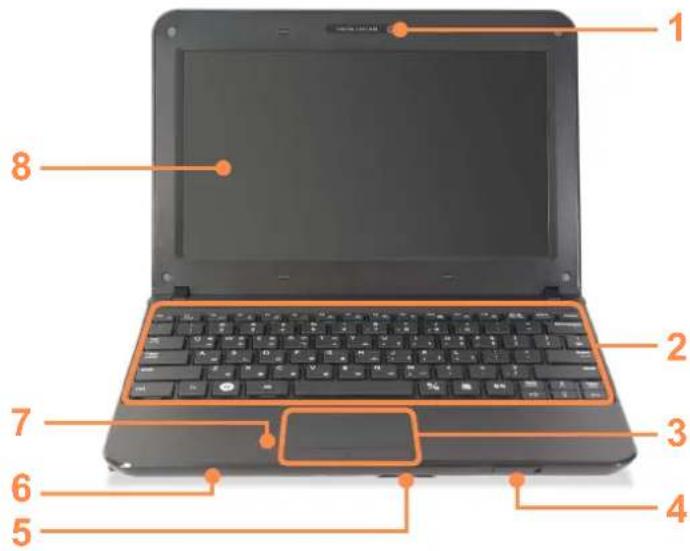
Front View
text_image
Laptop screen diagram with numbered annotations pointing to key components
- Optional items may be changed or may not be provided depending on the computer model.
● The actual color and appearance of the computer may differ from the pictures used in this guide.
| 1 | Camera Lens (Optional) Using this lens, you can take still pictures and record video. | |
| 2 | Keyboard A device to enter data by pressing the keys. | |
| 3 | Touchpad/Touchpad Buttons | The touchpad and touchpad buttons provide functions similar to the mouse ball and buttons. |
| 4 | Power Switch ⏻/I | Turns the computer on or off. |
| 5 | Multi Card Slot (Optional) | A card slot that supports SD card, SDHC card, MMC card and SDXC card. |
| 6 | Status Indicators Shows the operating status of the computer.The corresponding operating LED is lit when the corresponding function operates. | |
| 7 | Microphone (Optional) | You can use the built-in microphone. |
| 8 | LCD The screen images are displayed here. | |
Status Indicators
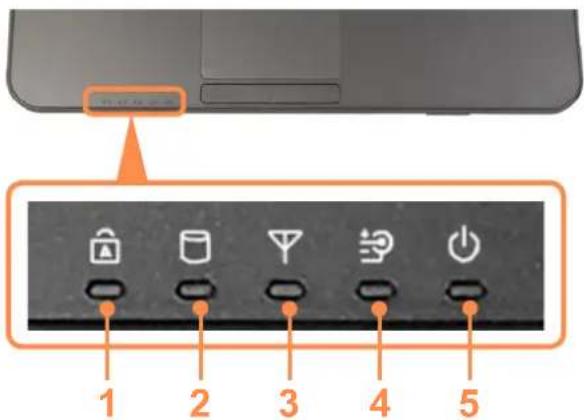
text_image
1 2 3 4 5| 1 | Caps Lock This turns on when the Caps Lock key is pressed allowing capital letters to be typed without holding the Shift button down. |
| 2 | Hard Disk Drive Indicates that the hard disk drive is running. |
| 3 | Wireless LAN This turns on when the wireless LAN is operating. |
| 4 | Charge Status This shows the power source and the battery charge status.Green: When the battery is fully charged or the battery is not installed.Amber: When the battery is being charged.Off: When the computer is running on battery power without being connected to AC adapter. |
| 5 | Power This shows the computer operating status.On: When the computer is operating.Blinks: When the computer is in Sleep mode. |
Right View
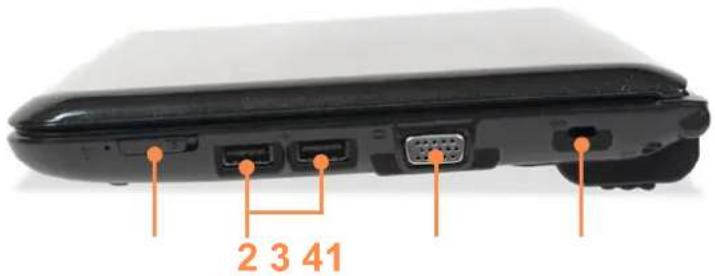
text_image
2 3 41| 1 | Wireless LAN Switch (Optional) | In models with a wireless LAN function, first make sure that the wireless LAN function is turned off. |
| 2 | USB Port You can connect USB devices to the USB port such as a keyboard/mouse, digital camera, etc. | |
| 3 | Monitor Port | A port used to connect a monitor, TV or projector supporting a 15pin D-SUB interface. |
| 4 | Security Lock Port You can connect a Kensington lock to the Security Lock Port to prevent the computer from being stolen. | |
Left View
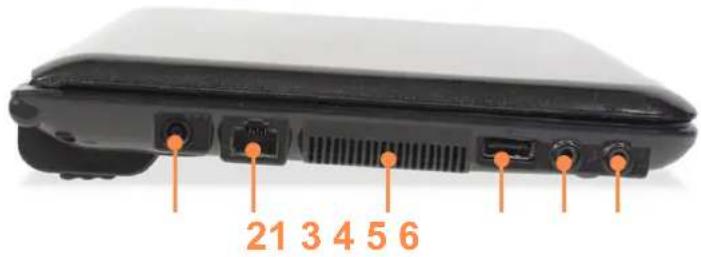
text_image
21 3 4 5 61 DC Jack Ajack to connect the AC adapter that supplies power to the computer.
2 Wired LAN Port 📁 Connect the Ethernet cable to this port.
3 Fan Vents The internal heat of the computer is emitted through these holes.
If the vents are blocked the computer may overheat. Avoid blocking the vents as this may be dangerous.
4 USB Port ≠ Chargeable USB Port ↔ (Optional) You can connect USB devices to the USB port such as a keyboard/mouse, digital camera, etc. (Chargeable USB: You can charge USB devices through the USB port even when the computer is turned off.)
- Charging a device through a Chargeable USB takes longer than using a regular charger.
- Press the F2 key when the Samsung logo appears in the booting sequence to enter the BIOS Setup, select Advanced > USB Charge In Sleep Mode, and set it to Enable. Then you can use the Chargeable USB Port feature even in sleep mode.
5 Microphone Jack A jack used to connect the microphone.
6 Headphone Jack Ⓐ jack used to connect the headphones.
Back View
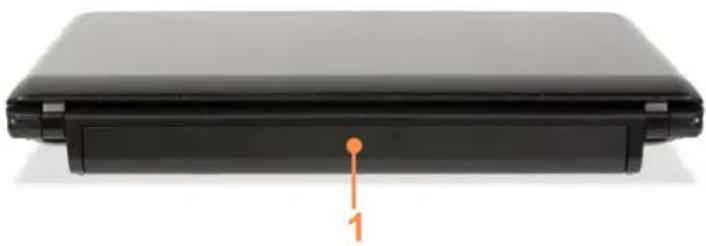
natural_image
Black rectangular electronic device with a labeled orange arrow pointing to a numbered point (1), no visible text or symbols on the body.1 Battery This is a Lithium-Ion rechargeable battery that supplies power to the computer.
Bottom View
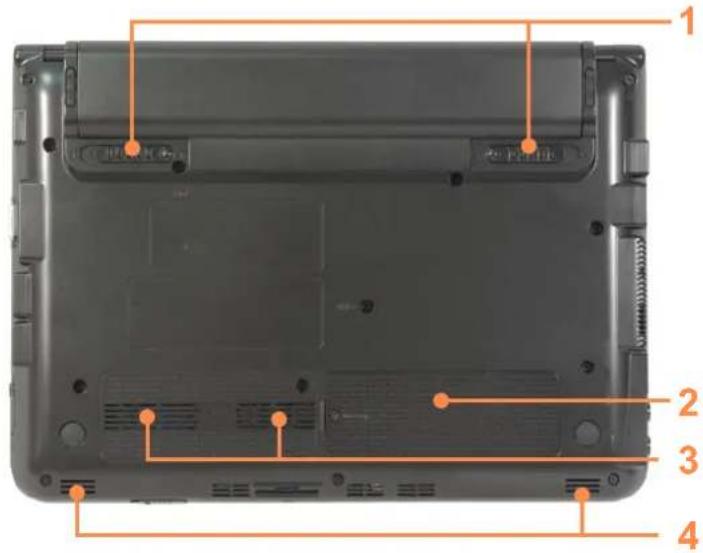
text_image
Laptop back view with numbered annotations pointing to key components1 Battery Latches The latch used to remove or install the battery.
2 Memory Compartment Cover The main memory is installed inside the cover.
3 Fan Vents The internal heat of the computer is emitted through these holes.

If the vents are blocked the computer may overheat. Avoid blocking the vents as this may be dangerous.
4 Speaker A device used to generate sound.
Turning the Computer On and Off
Turning the computer on
1 Install the battery and connect the AC adapter.
2 Lift the LCD panel up.
3 Slide the Power Switch to turn the computer on.
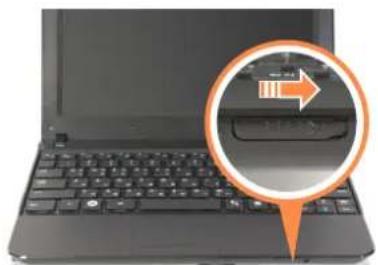
natural_image
Laptop keyboard with a highlighted orange arrow pointing to the screen (no text or symbols visible)
- When running the computer on battery power, the LCD brightness is dimmed automatically to save battery power.
Press the Fn + key to increase the LCD brightness. - When turning the computer on for the first time, the Register Windows screen appears. You can use the computer after registering your user information.
Turning the computer off

Since the procedures to turn the computer off may differ depending on the installed operating system, please turn the computer off according to the procedures for the purchased operating system.
▶ For Windows 7
1 Click the Start button on the taskbar.
2 Click Shut down to shut down the computer.
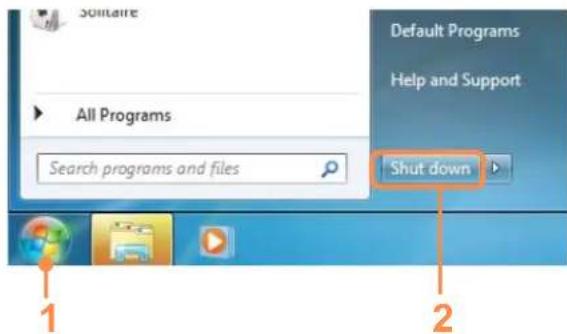
text_image
Solitaire All Programs Search programs and files Default Programs Help and Support Shut down
Save all your data before clicking on Shut down.
▶ For Windows XP
1 Click the Start button on the taskbar.
2 Click Turn Off Computer.
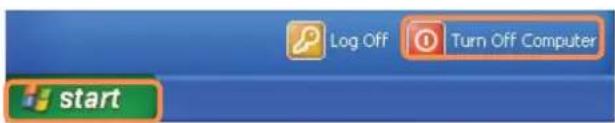
text_image
Log Off Turn Off Computer start3 Click Turn Off.
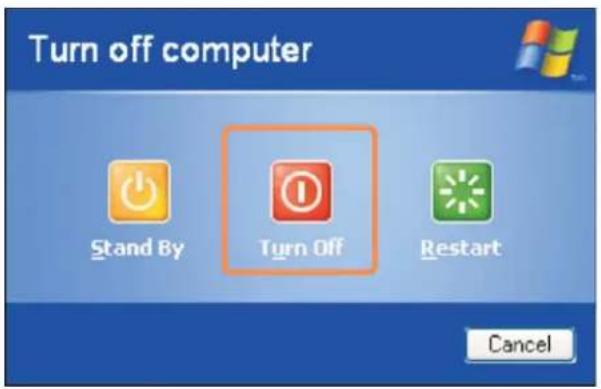
text_image
Turn off computer Stand By Turn Off Restart Cancel
- If the computer has not turned off properly due to a system error, press
+ + . When [Windows Task Manager] dialog box appears, click Shut Down > Turn Off to turn off the computer. Your unsaved work may be lost/damaged. - If
++ ++ keys do not operate either, press the power button for more than 4 seconds to turn off the computer. Your unsaved work may be lost/ damaged. The next time you turn on your computer, a hard disk check will be performed, before Windows starts.
Samsung Fast Booting
If you are using the system very often while on the move, use Fast Booting to reduce the booting time.
With Fast Booting active, the system will switch to hybrid power saving mode if you close the LCD panel, slide the Power Switch ⏻/l into the on position, or press the Fn + Esc key.
In hybrid saving mode, the data you are working on will be saved to memory and the HDD, in the event of a sudden power failure, ensuring the safety of your data.
However, as unexpected accidents can always occur, it is recommended backing up any important data beforehand.
Using Fast Booting
1 From your desktop, double-click the Fast Booting icon 🤔.
(If the program icon does exist on the Windows Desktop, select the corresponding program from Start > All Programs > Samsung.)
2 Select ON or OFF depending on your requirements, and click OK.
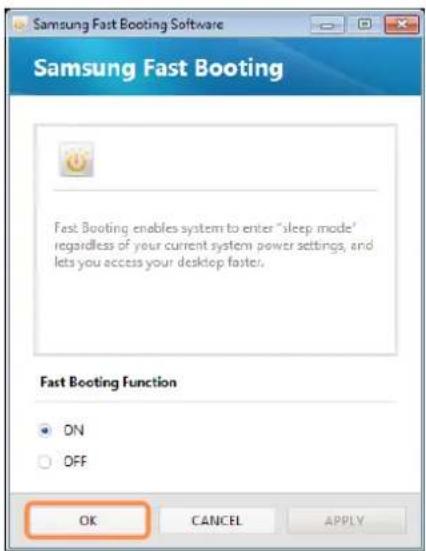
text_image
Samsung Fast Booting Software Samsung Fast Booting Fast Booting enables system to enter "sleep mode" regardless of your current system power settings, and lets you access your desktop faster. Fast Booting Function • ON ○ OFF OK CANCEL APPLY3 The Fast Booting function will be turned on or off according to your selection.
While the Fast Booting function is enabled
- You cannot change some power options in the Control Panel. To change these, first disable the Fast Booting function.
● The existing power saving mode and maximum power saving mode functions have been replaced by this function.
● Battery and AC power should be removed before you open memory door to change or add memory.
The LCD may flicker once if the Fast Booting function is turned ON or OFF.
Chapter 2.
Using the computer
Keyboard 60
Touchpad 63
External-type CD drive (To be purchased) 68
Multi Card Slot (Optional) 70
Connecting a monitor / TV 73
Adjusting the Volume 78
Wired Network 83
Wireless Network (Optional) 87
Sharing Content in a Home Network
(Easy Content Share) (Optional) 90
HDD Protection Function (Optional) 97
natural_image
Illustration of a laptop with blank screen and abstract design (no text or symbols)Keyboard
Shortcut key functions and procedures are discussed in the following sections.

● The keyboard is supplied according to the corresponding country.
- The keyboard may differ depending on your country. The following mainly describes the shortcut keys.
Shortcut Keys
You can use the following functions by pressing the keys below with the Fn key.


| Fn+ Name Function | ||
| REST(Sleep Mode) | Switches to Sleep mode. To wake the computer up, press the Power button. | |
| Gauge | Shows the remaining battery charge.You can only use this function when the Easy Display Manager program is installed. | |
| Euro | Enters the Euro monetary unit symbol.This key may not be provided depending on the keyboard type. | |
| CRT/LCD | Switches the screen output to the LCD or external monitor when an external monitor (or TV) is connected to the computer. | |
| Backlight Turns the LCD backlight on or off. | ||
| Mute Mutes or cancels mute. | ||
 | Samsung Support Center | System diagnosis, recovery and Internet consultation program,Samsung Support Center, will be launched. (Optional) |
 For some models,Samsung Magic Doctor is launched. For some models,Samsung Magic Doctor is launched. | ||
 | Easy SpeedUp Manager | You can select operation mode when you need maximum system performance or low-noise/low power consumption with one-click.Silent: Low-noise and low power consumption modeNormal: Normal ModeSpeed: Maximum performance mode. The system operates in its maximum performance, and system resources are allocated to the currently active program with priority for maximum performance. For Windows XP model, Easy SpeedUp Manager function is provided in Magic Keyboard program.If you reinstall Windows XP, you have to install the Magic Keyboard program additionally using the System Software Media in order to use this function.(For models supplied with a System Software Media.)If you don't want fan noise turning ON and OFF in the Silent mode, select the Advanced menu >Fan Silent Mode >Low in the BIOS Setup. The fan keeps turning ON and works in Low noise mode. For Windows XP model, Easy SpeedUp Manager function is provided in Magic Keyboard program.If you reinstall Windows XP, you have to install the Magic Keyboard program additionally using the System Software Media in order to use this function.(For models supplied with a System Software Media.)If you don't want fan noise turning ON and OFF in the Silent mode, select the Advanced menu >Fan Silent Mode >Low in the BIOS Setup. The fan keeps turning ON and works in Low noise mode. |
 | Wireless network | Turns on or off wireless network device in a model equipped with wireless network device. |
 | Touchpad | Turns the Touchpad function on or off.When using an external mouse only, you can turn the Touchpad off. |
| F11 | Num Lock Turns the numeric keyboard on or off. | |
| F12 | Scroll Lock | If you turn the Scroll Lock on, you can scroll the screen up or down without changing the cursor location in some applications. |
Screen Brightness Control
To adjust the LCD brightness press the Fn + ⚠ key combination or the Fn + ⚡ key combination.
The changed screen brightness is displayed at the center of the screen for a moment.
Volume Control
To control the volume, press the Fn + key combination or the Fn + key combination.
You can mute the sound or cancel the mute function by clicking the Fn + F6 key combination.
Numeric Key
The numbers are printed in blue on the numeric keys.
If Num Lock is turned on by pressing the Fn + key combination, you can use the numeric keys to enter digits.
Other Function Keys
Application Key
Performs the right-click mouse function (touchpad).
Touchpad
The touchpad provides the same function as a mouse and the left and right buttons of the touchpad plays the role of the left and right buttons of a mouse.

- Use the Touchpad with your fingers. Using a sharp object may damage the Touchpad.
- If you touch the Touchpad or press the Touchpad buttons while booting up, the Windows boot time may be extended.
Touchpad Use to move the cursor.
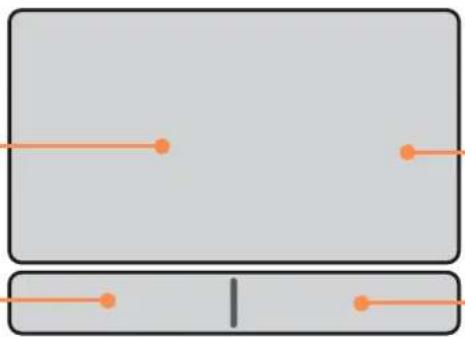
natural_image
Pure electrical circuit lines without any symbolsScroll Area
Plays the role of the mouse wheel. You can scroll up and down using the Scroll Area.
Touchpad Left Button
You can select or run a program using this button.
Touchpad Right Button
Plays the role of the right mouse button.
Basic Touchpad Functions
Moving the cursor on the screen
Place your finger on the touchpad slightly and move your finger.
The mouse cursor will move accordingly. Move your finger in the direction you wish to move the cursor.
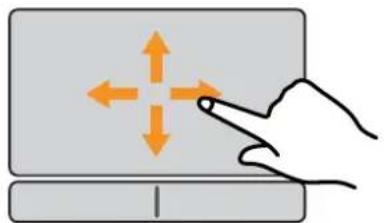
natural_image
Hand pointing at a computer screen with four orange arrows indicating left and right movement (no text or symbols)Click Function
Place your finger on the touchpad and tap your finger once over an item you want.
Alternatively, press the left touchpad button once.
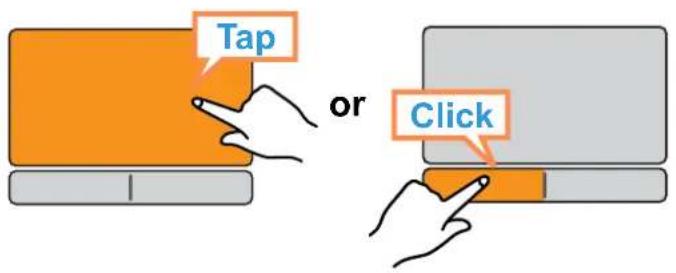
text_image
Tap or ClickDouble-Click Function
Put your finger on the touchpad and quickly tap twice with your finger on an item you want.
Alternatively, press the left touchpad button twice quickly.
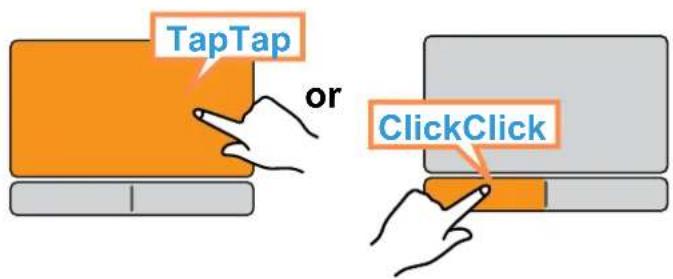
text_image
TapTap or ClickClickRight Button Function
This corresponds to clicking the right mouse button.
Press the right touchpad button once. The corresponding pop-up menu appears.
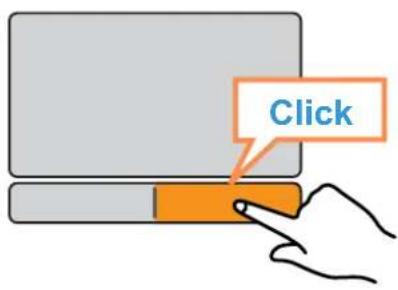
text_image
ClickDrag Function
Dragging refers to moving an item to another place after selecting it.
Press and hold down the left touchpad button over an item you want to drag and move the item to the new location.
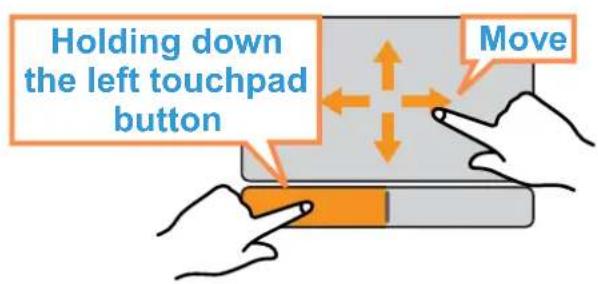
text_image
Holding down the left touchpad button MoveTouchpad Scroll Function
The touchpad scroll area provides the mouse wheel function (scroll function). Place your finger on the touchpad's right edge for vertical scrolling or the bottom edge for horizontal scrolling and then move your finger along the edge to scroll the screen vertically or horizontally.
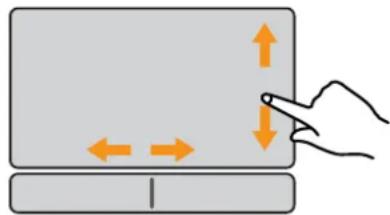
natural_image
Illustration of a hand pressing down on a computer monitor with directional arrows indicating movement (no text or symbols)The Gesture Function of the Touchpad (Optional)

- The Touchpad Gesture function may not be provided and the version of the function may differ depending on the model. Some usage procedures may differ depending on the version.
- For detailed usage procedures, refer to the description in the Touchpad Settings window.
- The images in this document may differ from the actual screen images and a different Touchpad may be provided depending on the model. In addition, since the pictures used in this document are pictures of a representative model, they may differ from the actual appearance of your computer.
- These descriptions are written based on Windows 7, the latest operating system. Therefore, some descriptions and figures may differ from your operating system. But as the usage is similar to other Windows operating systems, you can use these descriptions for reference.
● The path may differ depending on the operating system.
Using the Touchpad, you can use the following additional Gesture functions.
- Scroll function using two fingers
- Zoom functions using two fingers
- Rotation function using two fingers.
- Move function using three fingers
Configuring the Gesture Function
If the Gesture function is not activated, you can activate it according to the following procedures.
1 The gesture setting path may differ depending on the model.
▶ A Model
Click the Start > Control Panel > Hardware and Sound > Mouse > Device Settings tab > Settings button.
▶ B Model
Click the Start > Control Panel > Hardware and Sound > Mouse > ELAN > Options button.
2 The Touchpad Settings window appears. Click over the corresponding item to select the item in the Select an item and click OK.

To cancel the Gesture function, unselect the corresponding item in the Touchpad Settings window and click OK.
The Scroll Function
This function is the same as the scroll area of the Touchpad.
If you place two fingers over the Touchpad and move them up, down, left or right, the screen is scrolled up, down, left or right.
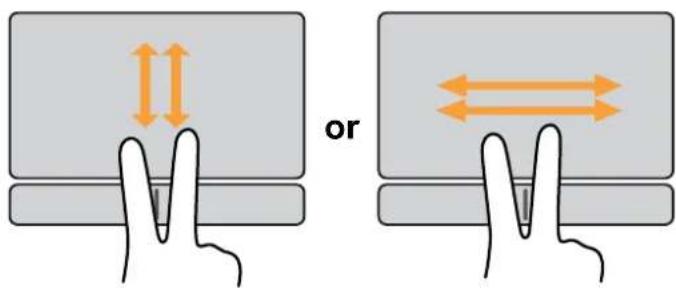
text_image
or orZoom Functions
If you place two fingers over the Touchpad together or apart, the current image or text is zoomed in or out.
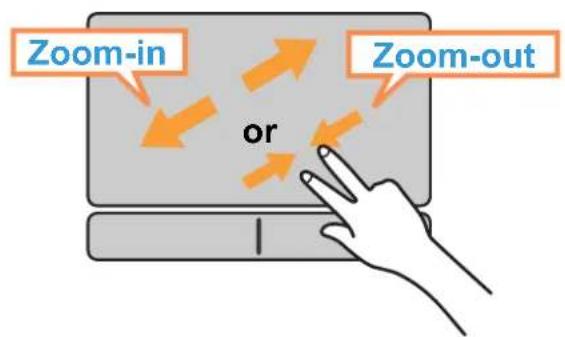
text_image
Zoom-in or Zoom-outRotation Function
Place two fingers over the touchpad, hold one of them in place and then turn the other one counterclockwise or clockwise to rotate the photo or image.
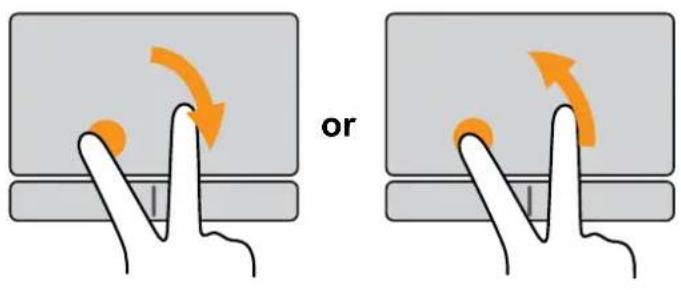
text_image
orMove Function
When watching a photo or surfing the Internet, you can move to the previous or next photo or Internet page without using the mouse or buttons.
Place three fingers over the Touchpad and slightly touch the surface of the Touchpad with them in the left or right direction to move to the previous or next photo or Internet page.
For example, if you touch the Touchpad in the left direction using three fingers while looking at a website, the previous page is displayed.
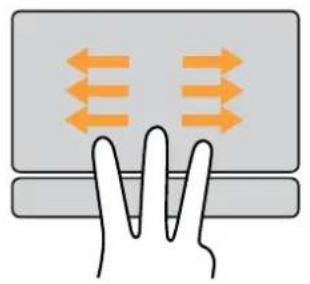
natural_image
Illustration of a hand typing on a laptop keyboard with three orange double-headed arrows above (no text or symbols)Touchpad On/Off Function
If you want to use the mouse only without using the touchpad, you can turn the touchpad off.
To lock the touchpad function, press the Fn + F10 keys.

You can set the touchpad and touchpad button settings in the tabs that appear when clicking Start > Control Panel > Hardware and Sound > Mouse.
External-type CD drive (To be purchased)
This computer supports an external USB CD-ROM drive (can be additionally purchased).
Check if the interface type of the external CD-ROM drive is a USB type. For detailed specifications, refer to the catalog.

- Do not insert a cracked or scratched CD.
Otherwise, the CD may break and damage the optical disk drive when the CD rotates at a high speed. - When you clean a CD or DVD title, wipe with a soft cloth from inside to outside.
- Do not eject a CD when the CD operating LED is on.
- The images used for the illustration are of a representative model, therefore the images may differ from the the actual product.
● Using a CD that is not in the shape of a circle is not recommended.
Connecting the CD Drive
Connect the CD drive to the USB port.
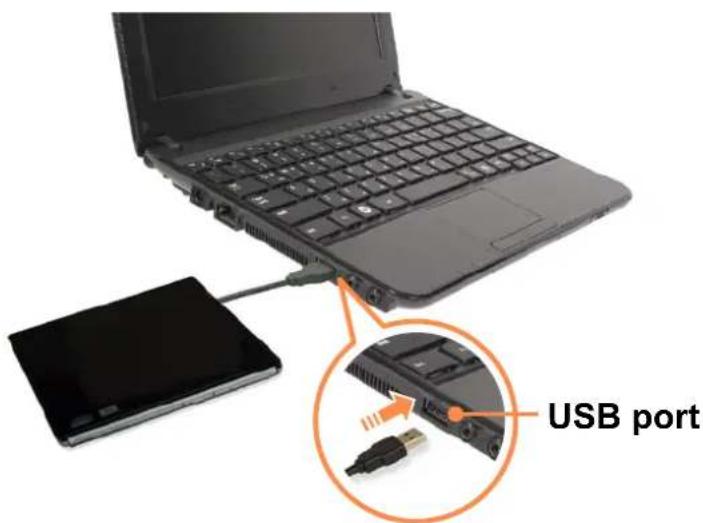
text_image
USB portInserting and Ejecting a CD
1 Press the Eject button of the CD drive.
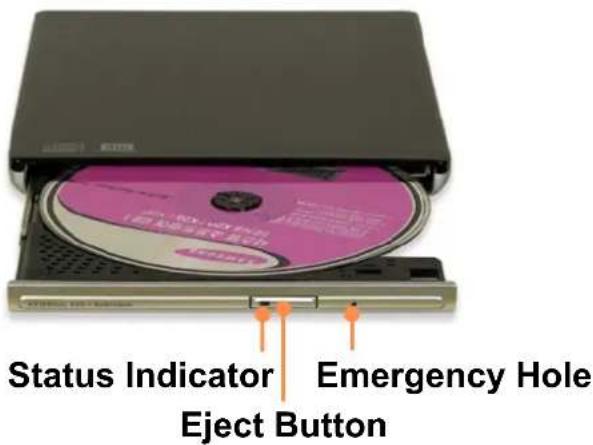
text_image
Status Indicator Emergency Hole Eject Button2 When the CD tray opens, insert a CD or DVD and push the tray in until it clicks.
3 Push the CD tray inward until it clicks. The CD drive status indicator is turned on.

- A CD drive's reading and writing speed may differ depending on the condition and type of the media.
- To eject a CD when the CD drive does not work or the computer is off, place the end of a paper clip ( ) into the Emergency Hole until the CD tray is ejected.
Multi Card Slot (Optional)
Using the multi card slot, you can read and write data to a SD card, SDHC card, MMC card, SDXC card.
You can use a card as a removable disk and conveniently exchange data with digital devices such as a digital camera, digital camcorder, MP3, etc.

- You have to additionally purchase a multi card with the necessary capacity depending on your requirements.
- You can use a multi card just like any data storage device. A copyright protection function is not supported.
- Since you can lose a card when moving the computer, keep the card separately.
- Before using the slot, remove the dummy card from the slot. (Only models supplied with a dummy card).
● Supported Cards: SD Card, SDHC card, MMC card, SDXC card - The images used for the illustration are of a representative model, therefore the images may differ from the the actual product.
- These descriptions are written based on Windows 7, the latest operating system. Therefore, some descriptions and figures may differ from your operating system. But as the usage is similar to other Windows operating systems, you can use these descriptions for reference.
To Insert and Use a Memory Card
1 Insert the card into the multi card slot in the indicated direction.
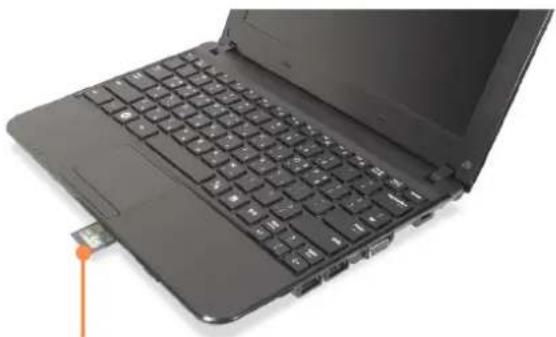
natural_image
Laptop keyboard with a small orange icon attached to the left side (no visible text or symbols)Example) SD Card
2 The card drive appears. Click Open folder and view files.
If the window does not appear, click Start > Computer.
(For Windows XP, click Start > My Computer.)
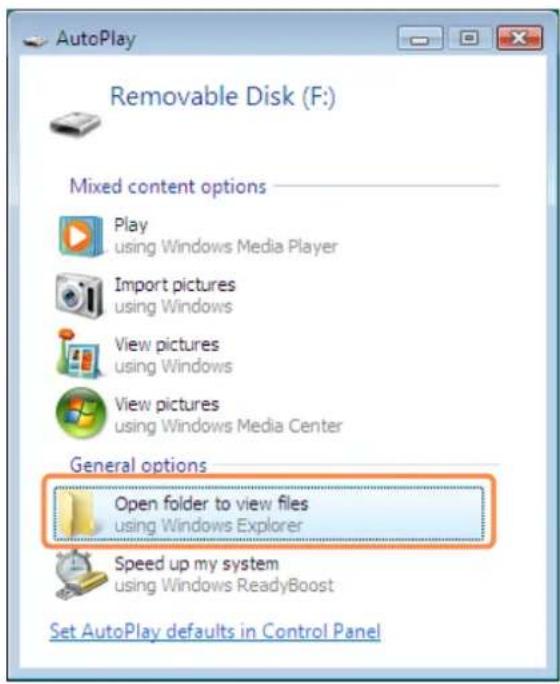
text_image
Removable Disk (F:) Mixed content options Play using Windows Media Player Import pictures using Windows View pictures using Windows View pictures using Windows Media Center General options Open folder to view files using Windows Explorer Speed up my system using Windows ReadyBoost Set AutoPlay defaults in Control Panel3 You can save, move and delete data by double-clicking the corresponding drive.
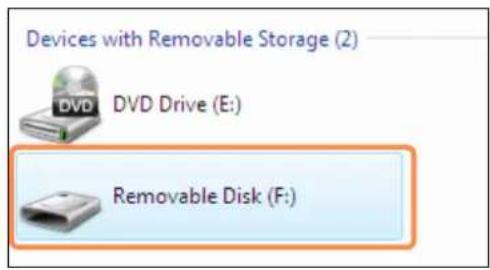
text_image
Screenshot of a device selection interface showing DVD drive and removable disk options with labels
The device name of the card drive may differ depending on your computer model.
You can only use the card after formatting it.

Using a Mini SD and RS-MMC
Since the above cards are too small, you cannot insert the cards into the slot directly.
Insert the card into the dedicated adapter (available from most electronic retailers) and then insert the adapter into the multi card slot.
However, depending on the adapter's body material, some RS-MMC cards may not be recognized properly.
Samsung recommends checking the card is recognized correctly prior to purchasing.
To remove a memory card
Take hold of the end of the card and remove the card.
To format a memory card
When using the memory card for the first time, you must format the card before using it.

Formatting a card deletes all data saved on the card. If the card includes data, backup the data before formatting it.
1 Click Start > Computer.
(For Windows XP, click Start > My Computer.)
2 Right-click over a card drive with the touchpad and select Format.
3 Click Start to the formatting.

● To use a card to exchange data with a digital device such as a digital camera, formatting the data using the digital device is recommended.
- When you try to use a card, which is formatted in the computer, in another digital device, you may have to format the card again in the device.
- You cannot format, write or delete data from a SD, or SDHC card with a write protection tab when it is in the Lock position.
- Inserting and removing a memory card repeatedly may damage the memory card.
Connecting a monitor / TV
Using an external display device is useful when you are giving a presentation or watching a video or movie through your monitor.

- You have to buy a connection cable additionally.
- Due to restrictions of the operating system the DualView function is not supported for Windows 7 Starter.
Connecting to the Monitor / TV
Connecting to the Monitor port
Connect the computer to the RGB port of the monitor or TV using a monitor cable (15-pin).
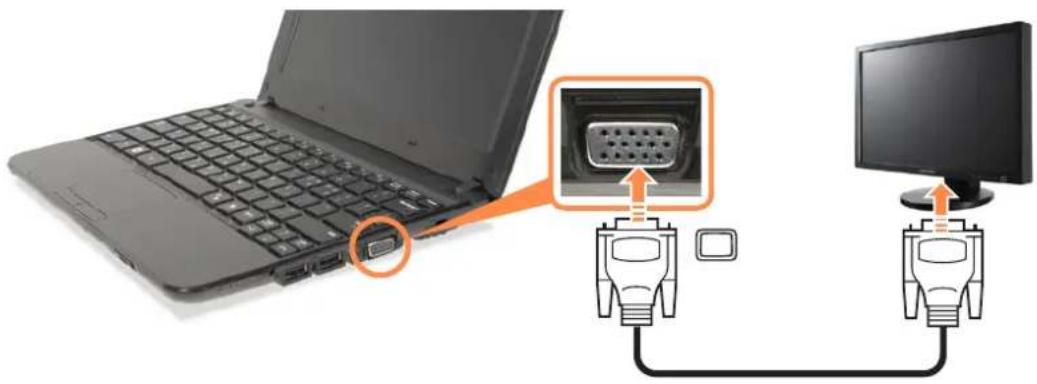
text_image
Diagram showing connection between a laptop, an VGA socket, and a monitor via two connected VGA connectors.Viewing Through a Monitor / TV
You can switch the display device using the shortcut key.
Switching the Display Device using the Shortcut Key
Press the Fn + key combination once. Then the Easy Display Manager screen appears in which you can select a display device.
Whenever you press the F4 key while holding down the Fn key, the selected option is changed.
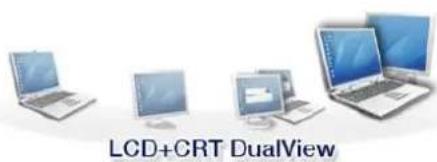
text_image
LCD+CRT DualViewExample) Selecting LCD+CRT Dual View

- LCD: Notebook Screen
● CRT: External Monitor Screen
● LCD+CRT Clone : Notebook+ External Monitor Screen - LCD+CRT DualView: Notebook+ External Monitor Screen in Dual View
● What is Dual View?
Dual View is a function that enables you to view a computer screen over two display devices. It is convenient when you need a wide screen.
- Due to restrictions of the operating system the DualView function is not supported for Windows 7 Starter.

External Monitor / TV is not supported in the DOS Command Prompt window.
Using Dual View to View Extended Screen
Dual View is a function that enables you to view a computer screen over two display devices. This is convenient when needing a wide screen for work.
In Dual View mode, you can select the screen resolution and color quality for each display device, as if there were two separate graphics cards.

Due to restrictions of the operating system the DualView function is not supported for Windows 7 Starter.
Selecting Dual View
Check if the external display device is properly connected and follow the instructions below.
▶ For Windows 7
1 Click the Start > Control Panel > Appearance and Personalization > Adjust screen resolution.
2 Click the monitor number 2 icon and select Extend these displays in the Multiple displays item. Click the Apply button and then the OK button.
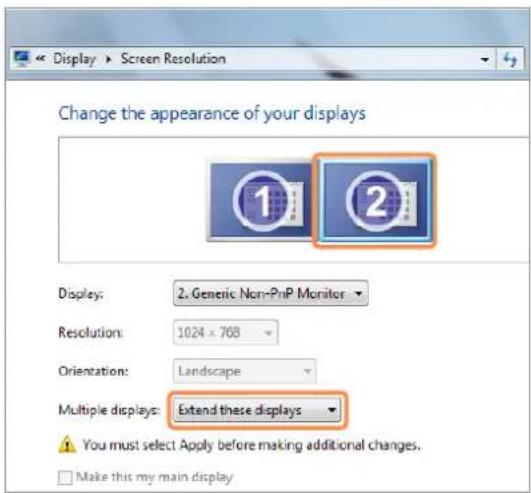
text_image
Change the appearance of your displays Display: 2. Generic Non-PnP Monitor Resolution: 1024 x 768 Orientation: Landscape Multiple displays: Extend these displays You must select Apply before making additional changes. Make this my main display3 When notebook LCD is set as the main device, the 1 digit is displayed over it and the 2 digit is displayed over the auxiliary display device. Now you can expand the Desktop screen over 2 display devices.
When using Dual View, it is recommended setting the LCD as the main device (number 1).

Adjusting the resolution of the auxiliary display device (Monitor Number 2)
If the resolution of the auxiliary display device is output, you can adjust the resolution and color quality by clicking Start > Control Panel > Appearance and Personalization > Adjust screen resolution > Monitor Number 2.
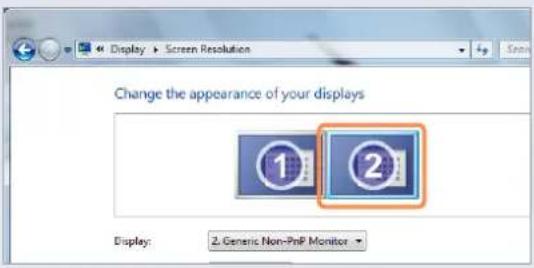
text_image
Change the appearance of your displays 1 2 Display: 2. Generic Non-PnP Monitor▶ For Windows XP
1 Connect the external display device (e.g. a monitor or a projector) to the corresponding port of the system. To connect a TV, connect the TV to the TV output port of the system.
2 Press touchpad right button on the desktop, click Properties, and then click the Settings tab.
3 Click the monitor 2 icon, select the Extend my Windows desktop onto this monitor check box, and then click Apply.
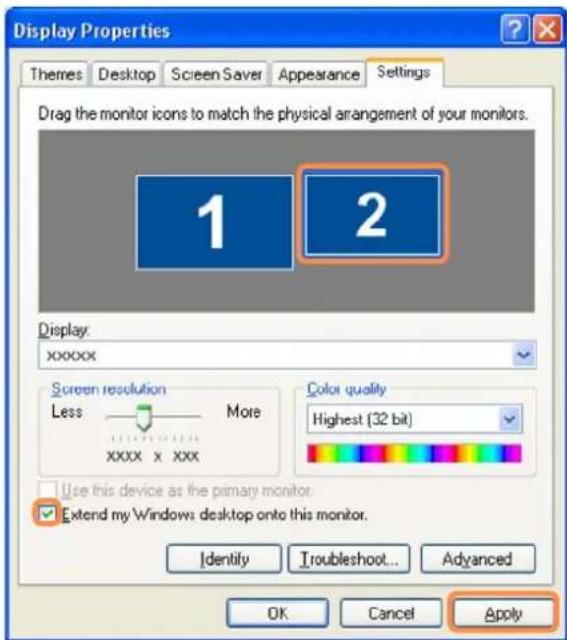
text_image
Display Properties Themes Desktop Screen Saver Appearance Settings Drag the monitor icons to match the physical arrangement of your monitors. 1 2 Display: xxxxx Screen resolution Less More XXXX x XXX Color quality Highest (32 bit) Use this device as the primary monitor. Extend my Windows desktop onto this monitor. Identify Troubleshoot... Advanced OK Cancel Apply4 When the configuration is complete, click Identify on the left side of Troubleshoot. The primary display device(the LCD) is indicated as 1, and the secondary display device is indicated as 2. Now you can view the screen through two monitors.
When you use Dual View, configuring the LCD as the 'Primary' monitor is recommended.
text_image
1 Windows 10.3
text_image
21 : Primary 2 : Secondary

Adjusting the resolution of the auxiliary display device (Monitor Number 2)
If the screen of the secondary display device is displayed, change the settings to the desired screen resolution and color quality in the [Display Properties] dialog box.
Using Window in Dual View
Click on the window title bar of the main LCD (monitor number 1) and drag it into the auxiliary display device (monitor number 2) to move the window.
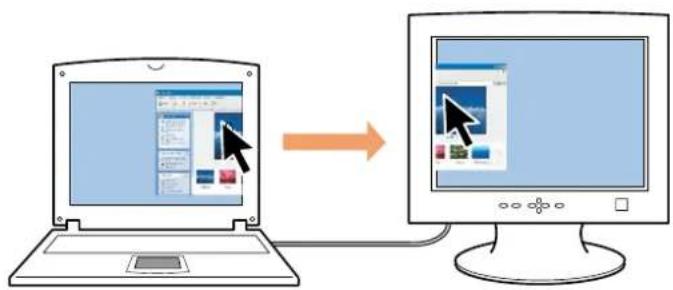
flowchart
graph LR
    A["Laptop with icons"] --> B["Computer with icons"]
    style A fill:#f9f,stroke:#333
    style B fill:#bbf,stroke:#333
Canceling Dual View
▶ For Windows 7
1 Click the Start > Control Panel > Appearance and Personalization > Adjust screen resolution.
2 Click the monitor number 2 icon and select Show Desktop on 1 only in the Multiple displays item. Click the Apply button and then the OK button.
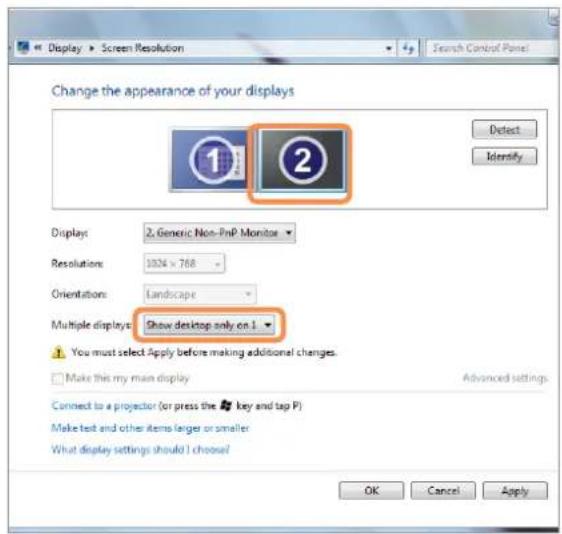
text_image
Change the appearance of your displays Detect Identify Displays: 2. Generic Non-PnP Monitor Resolutions: 1024 x 768 Orientations: Landscape Multiple displays: Show desktop only on 1 You must select Apply before making additional changes. Make this my main display Advanced settings Connect to a projector (or press the Key and tap P) Make test and other items larger or smaller What display settings should I choose! OK Cancel Apply▶ For Windows XP
Click the monitor 2 icon, clear the Extend my Windows desktop onto this monitor check box, and then click Apply.
Adjusting the Volume
You can adjust the volume using the keyboard and the volume control program.

Since these descriptions are written on the basis of the latest operating system, Windows 7, some of the content and the figures of the descriptions may differ depending on the operating system. Since the procedures for other Windows operating systems are similar, use the computer referring to these descriptions.
Adjusting the Volume using the Keyboard
Press the Fn + key combination or Fn + key combination to adjust the volume. Press the Fn + key combination to turn the volume on or off.
Adjusting the Volume using the Volume Adjustment Program
Click the Volume icon 📋 on the taskbar and slide the volume control bar to adjust the volume.
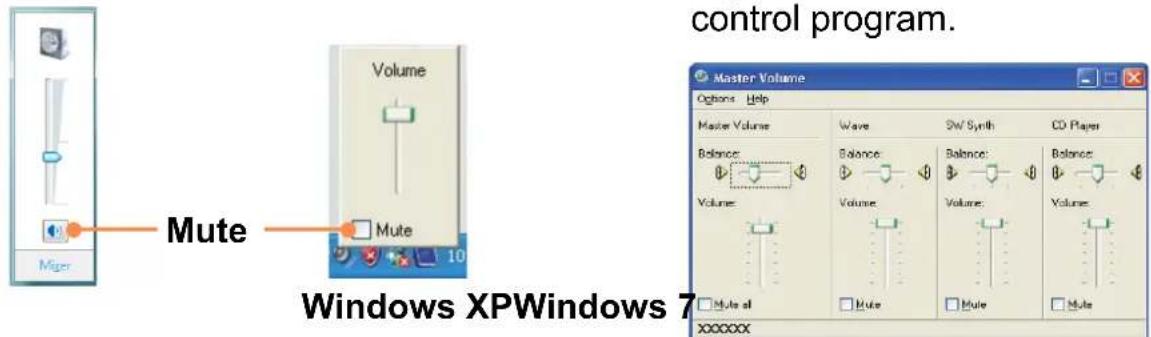
text_image
control program. Volume Mute 10 Windows XPWindows 7 Master Volume Options Help Master Volume Wave SW Synth CD Player Balance: Balance: Balance: Volume: Volume: Volume: Volume: Mute al Mute Mute XXXXXXX▶ For Windows 7
Right-click over the Volume icon and select Open Volume Mixer to adjust the volume.
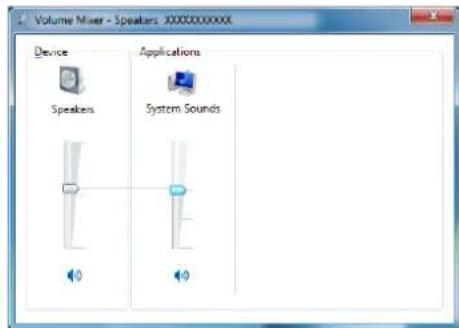
text_image
Volume Mixer - Speakers XXXXXXXXXX Device Speakers Applications System Sounds▶ For Windows XP
Double-click the Volume icon 📋 and adjust the volume level in the volume control program.
Using SRS
The SRS function enables you to experience more stereophonic sound by expanding the space-perception through the stereo speaker.

This function is available for specific models only.
▶ For Windows 7
1 Right-click over the Volume icon in the Taskbar and select Play Device (P).
2 Select Speaker in the Play tab and click Properties.
3 Select the SRS tab in the Speaker Properties window. Select a mode and click the Use checkbox on the left. Click OK. You will be able to experience a more stereophonic sound in the selected mode.
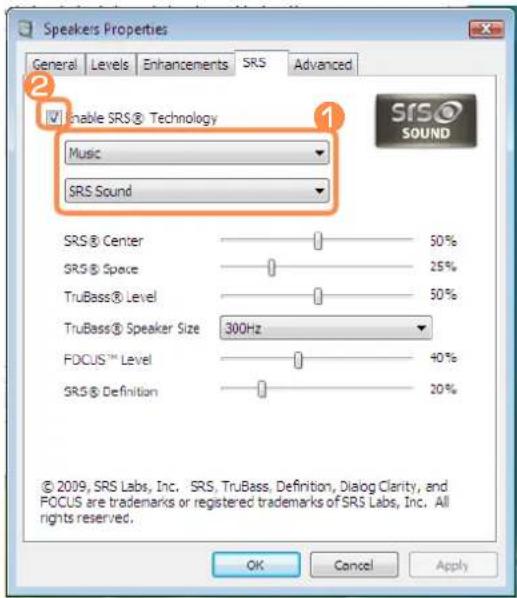
text_image
Speakers Properties General Levels Enhancements SRS Advanced 2 Enable SRS® Technology Music SRS Sound SRS® Center 50% SRS® Space 25% TruBass® Level 50% TruBass® Speaker Size 300Hz FDCUS™ Level 40% SRS® Definition 20% © 2009, SRS Labs, Inc. SRS, TruBass, Definition, Dialog Clarity, and FOCUS are trademarks or registered trademarks of SRS Labs, Inc. All rights reserved. OK Cancel Apply● Music: Select to listen to music.
WOW HD technology has been used.
● Movie: Select to watch a movie. TruSurround XT technology has been used.
- When using a Headphone plugged in the Headphone jack: Some of the setting details under each menu will change.
CS Headphone technology has been used.

● The SRS function is only supported for a computer's built-in speakers or headphones.
- It is recommended to unchecking the SRS option before recording, and to check it before play. It is to prevent sound distortion because of double application of SRS effect when user plays the file recorded by using stereo mix.
▶ For Windows XP
1 Click Control Panel > Sound, Voice and Audio Device > Sound and Audio Devices.
2 Click the audio tab, select SRS Premium Sound in Play > Default Device (D):, and then click the OK button at the bottom.
In this case, although you can change the volume in the SRS Mixer, you can also change the volume in the Master Volume of the Realtek HD Audio Output Mixer.
Therefore, when SRS is selected, you can set the Master Volume of the Realtek HD Audio Output Mixer to the maximum value and then set the actual volume using the SRS Mixer.
This operation may not be required depending on the type of SRS driver.
3 Click on Control Panel > Sound, Voice and Audio Device > SRS Control Panel.
Check the Enable checkbox and select a mode. Then you can listen to sound through the selected SRS effect.
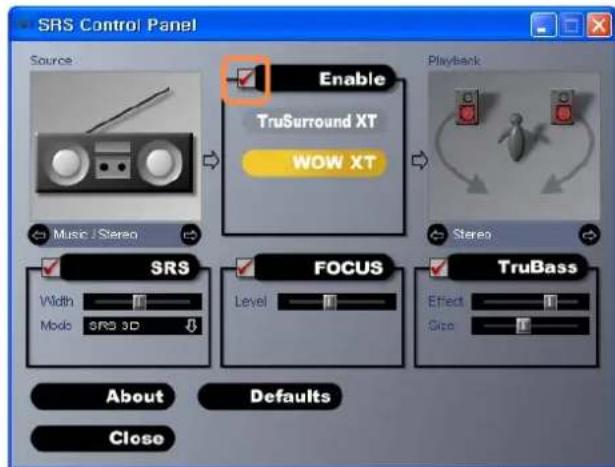
text_image
SRS Control Panel Source Enable TruSurround XT WOW XT Playback Music / Stereo Stereo SRS Width Mode SRS 3D FOCUS Level TruBass Effect Size About Defaults Close● WOW XT (Music): Select to listen to music.
● TruSurround XT (Movie/Video): Select to watch a movie.

- The SRS function is only supported for a computer's built-in speakers or headphones.
- It is recommended unchecking the SRS option before recording, and checking it before playing sound. This is to prevent sound distortion due to the double application of the SRS effect when a user plays the recorded file by using stereo mix.
Using Recorders
This section describes how to perform recording on a computer by using Windows Recorder.
▶ For Windows 7
1 Connect a microphone to the microphone jack.
You can also use the internal MIC.
2 Right-click over the Volume icon on the taskbar and select Recording Device.
3 Check if the microphone is set as the default recording device.
If this is the case, it is already set as the default device. If not, right-click over the microphone and select Set default.
4 Click Start > All Programs > Accessories > Sound Recorder and click Start recording to start a recording.

text_image
Sound Recorder Start Recording 0:00:00 ?▶ For Windows XP
1 Connect a microphone to the microphone jack.
You can also use the internal MIC.
2 Click Start > Control Panel > Sounds, Speech, and Audio Devices > Sounds and Audio Devices.
3 Click Advanced from Volume and then, click Options > Properties.
4 Select Realtek HD Audio input from the mixer device to select Recording from Adjust Volume for.
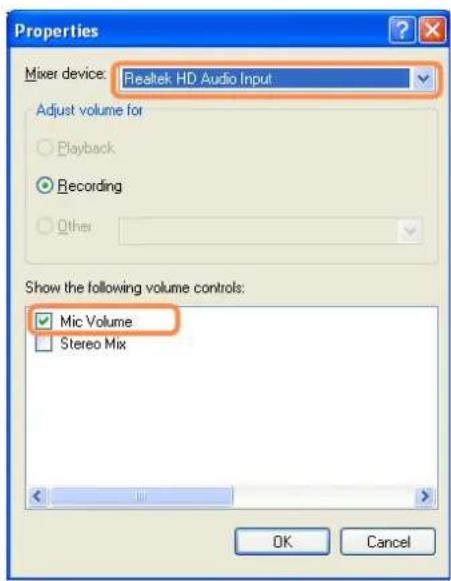
text_image
Properties Mixer device: Realtek HD Audio Input Adjust volume for Playback Recording Other Show the following volume controls: Mic Volume Stereo Mix OK Cancel5 Select Mic Volume from Show the following volume controls and click OK.
6 When Recording Control window appears, check the Select checkbox. Increase the recording volume to increase the recording sensitivity and close the window.
7 Click Start > All Programs > Accessories > Entertainment > Sound Recorder.
8 Click the Record button to perform recording.
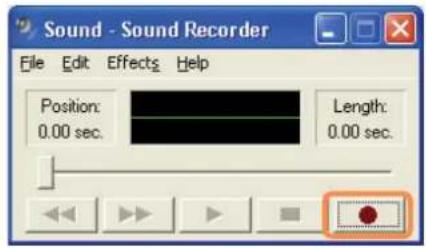
text_image
Sound - Sound Recorder File Edit Effects Help Position: 0.00 sec. Length: 0.00 sec.
The default recording duration of Windows is 60 seconds. Download a dedicated recording program from the Internet to record audio data for a long time.
Wired Network
A wired network is a network environment used for a company network or broadband internet connection at home.

Since these descriptions are written on the basis of the latest operating system, Windows 7, some of the content and the figures of the descriptions may differ depending on the operating system. Since the procedures for other Windows operating systems are similar, use the computer referring to these descriptions.
1 Connect a LAN cable to the computer's LAN port.
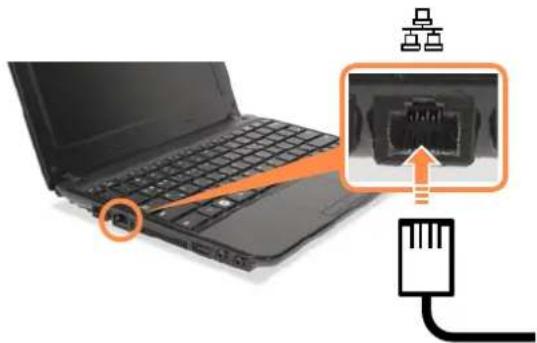
natural_image
Laptop with USB cable inserted into a connector, showing connection to an Ethernet cable (no text or symbols visible)2 ▶ For Windows 7
Click Start > control Panel > Network and Internet > Network and Sharing Center and click Change adapter settings in the left menu pane.
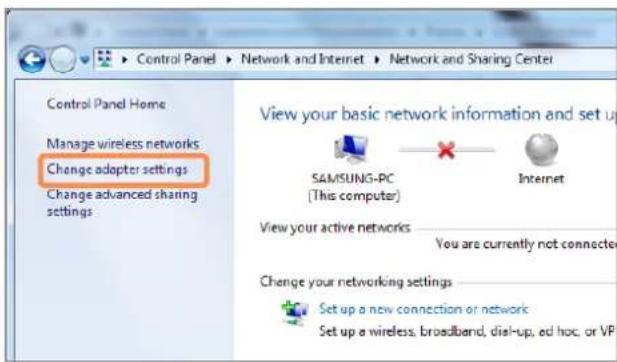
text_image
Control Panel Home Manage wireless networks Change adopter settings Change advanced sharing settings View your basic network information and set up SAMSUNG-PC (This computer) Internet View your active networks You are currently not connected Change your networking settings Set up a new connection or network Set up a wireless, broadband, dial-up, ad hoc, or VP▶ For Windows XP
Click Start > Control Panel > Network and Internet Connections > Network Connection.
3 Select Local Area Connection and click the right button of the touch pad and select Properties.
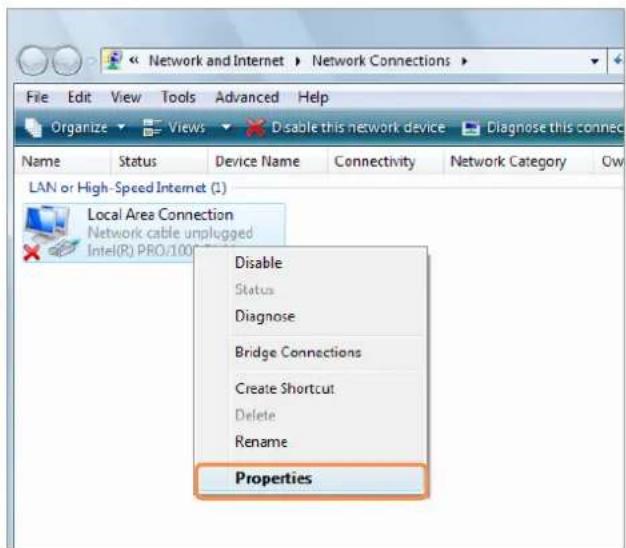
text_image
Network and Internet > Network Connections > File Edit View Tools Advanced Help Organize Views Disable this network device Diagnose this connec Name Status Device Name Connectivity Network Category CW LAN or High-Speed Internet (1) Local Area Connection Network cable unplugged Intel(R) PRO:100 Disable Status Diagnose Bridge Connections Create Shortcut Delete Rename Properties
The LAN Device name may differ depending on your computer's Network Device.
4 ▶ For Windows 7
Select Internet Protocol Version 4 (TCP/IPv4) from the Networking tab and click Properties.
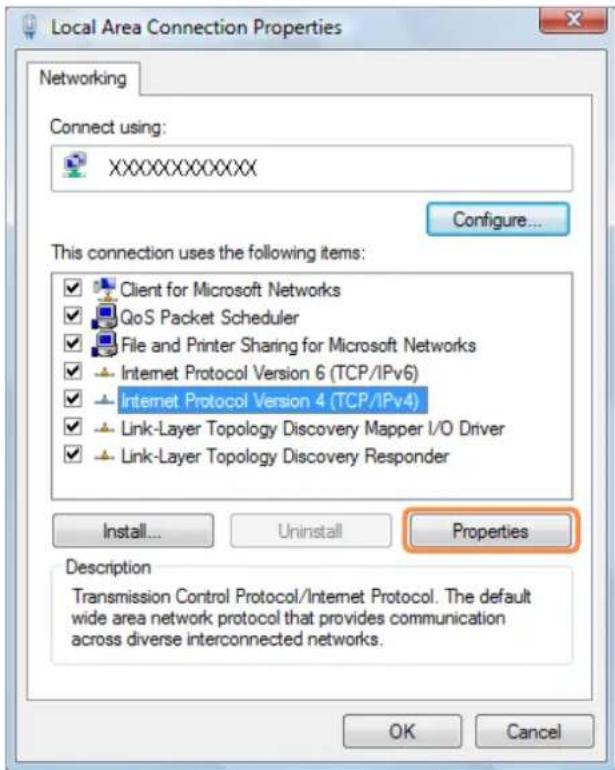
text_image
Local Area Connection Properties Networking Connect using: XXXXXXXXXXXXX Configure... This connection uses the following items: ✓ Client for Microsoft Networks ✓ QoS Packet Scheduler ✓ File and Printer Sharing for Microsoft Networks ✓ Internet Protocol Version 6 (TCP/IPv6) ✓ Internet Protocol Version 4 (TCP/IPv4) ✓ Link-Layer Topology Discovery Mapper I/O Driver ✓ Link-Layer Topology Discovery Responder Install... Uninstall Properties Description Transmission Control Protocol/Internet Protocol. The default wide area network protocol that provides communication across diverse interconnected networks. OK Cancel▶ For Windows XP
Click General tab and select a LAN driver from Connect using:. Select Internet Protocol(TCP/IP) and click Properties.

● The displayed LAN driver may vary depending on the LAN device type.
- Click Install to add a network component as shown in the figure below: You can add a client, a service, or a protocol.
5 Configure IP settings.
Select Obtain an IP address automatically when using DHCP. If you use a static IP, select Use the following IP address and enter the values.
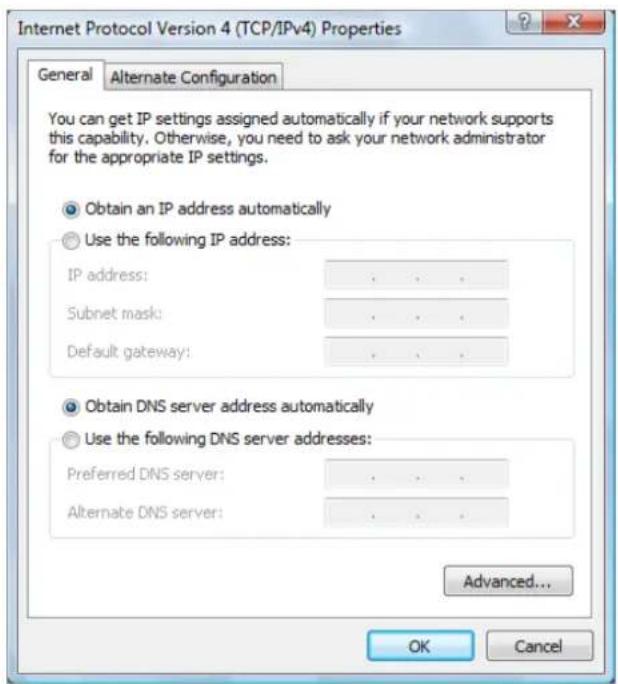
text_image
Internet Protocol Version 4 (TCP/IPv4) Properties General Alternate Configuration You can get IP settings assigned automatically if your network supports this capability. Otherwise, you need to ask your network administrator for the appropriate IP settings. Obtain an IP address automatically Use the following IP address: IP address: . Subnet mask: . Default gateway: . Obtain DNS server address automatically Use the following DNS server addresses: Preferred DNS server: . Alternate DNS server: . Advanced... OK Cancel
If the IP of your computer is not automatically assigned, contact the network administrator.
6 If all settings are made, click OK. Now the network configuration is finished.
Using both DHCP and a fixed IP simultaneously
Using the Alternate Configuration provided by Windows, you can set both automatic and fixed IP addresses and then you can select to use either of them to connect to the Internet.
1 ▶ For Windows 7
Click Start > Control Panel > Network and Internet > Network and Sharing Center and click on Change adapter settings in the left menu pane.
▶ For Windows XP
Click Start > Control Panel
Network and Internet Connections > Network Connection > Local Area Connection by using the right button of the touch pad and click Properties.
2 Right-click over the Local Area Connection and select Properties.
3 For Windows 7, select Internet Protocol Version 4 (TCP/IPv4) from the Networking tab and select Properties.
For Windows XP, select Internet Protocol (TCP/IP) and click Properties.
4 Select the Alternate Configuration tab, select User configured, fill in the corresponding fields and click the OK button.
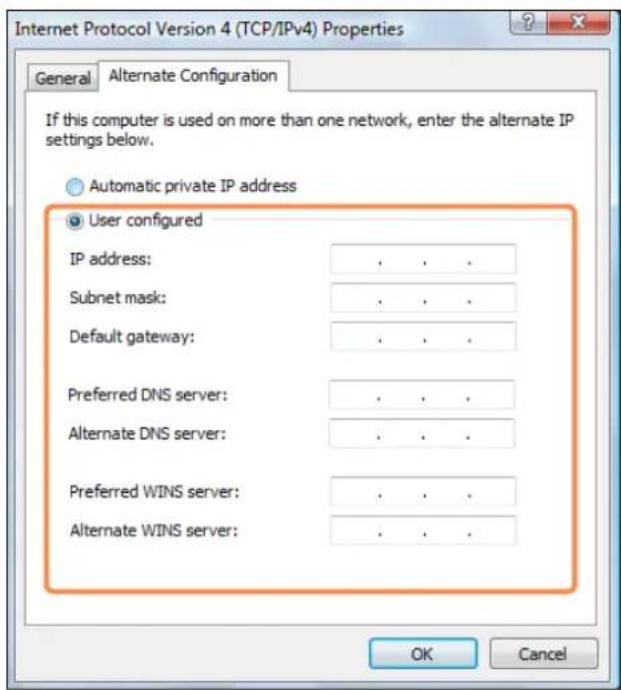
text_image
Internet Protocol Version 4 (TCP/IPv4) Properties General Alternate Configuration If this computer is used on more than one network, enter the alternate IP settings below. Automatic private IP address User configured IP address: . . . Subnet mask: . . . Default gateway: . . . Preferred DNS server: . . . Alternate DNS server: . . . Preferred WINS server: . . . Alternate WINS server: . . . OK CancelWireless Network (Optional)
A wireless network allows computers to share resources or an internet connection without using LAN cables between them.

- This description is applied only to the models equipped with wireless LAN cards or devices.
- Some of the pictures shown in this description may vary depending on the wireless LAN device.
● To use wireless LAN, you have to turn the wireless LAN device on.
Press the Fn + F9 key combination to open the Wireless On/Off window and set the Wireless LAN item to On.

What is Access Point (AP)?
AP is a network device that connects wired LAN to wireless LAN and corresponds to the wireless hub of a wired network. Also, AP allows you to connect more than one computer where wireless LAN is enabled.
Connecting to Wireless LAN
If there is an AP, you can connect to the Internet via the AP using the Wireless LAN connection method provided by Windows.
Some processes may differ depending on the operating system version. Moreover, the provided images may differ from the actual screen images.
▶ For Windows 7
1 If you click the Network Connections icon in the system tray, a list of available APs appears. If you select an AP to connect to, the Connect button appears.
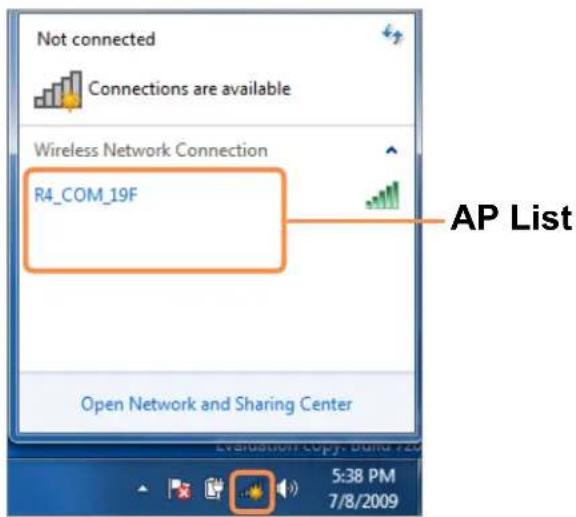
text_image
Not connected Connections are available Wireless Network Connection R4_COM_19F AP List Open Network and Sharing Center 5:38 PM 7/8/20092 Click Connect.
If a network key is set for the AP, enter the network key and then click Connect.
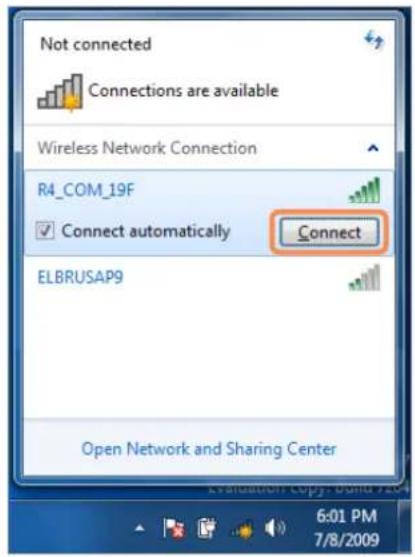
text_image
Not connected Connections are available Wireless Network Connection R4_COM_19F Connect automatically Connect ELBRUSAP9 Open Network and Sharing Center 6:01 PM 7/8/2009
For the network key, please ask your network administrator.
3 When Connected to the AP is displayed, click the Close button. You can access the network.
▶ For Windows XP
1 Click the Wireless Network Connection icon from the Taskbar using the right button of the touch pad. Then, click View Available Wireless Networks.

text_image
Change Windows Firewall settings Open Network Connections Repair View Available Wireless Networks2 Select an AP to be connected and click Connect.
If a network key is set in the AP, the network key input window will appear. Enter the network key in the input window and click OK.
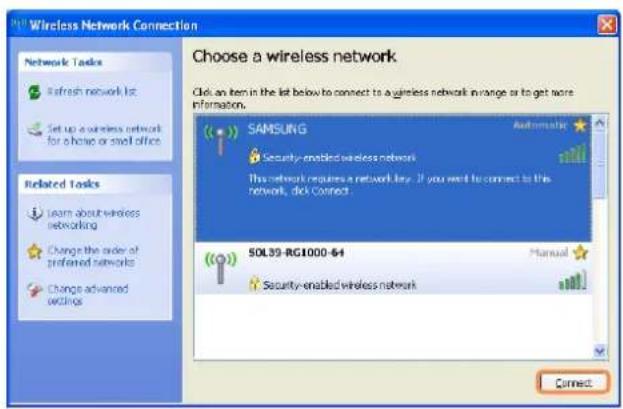
text_image
Wireless Network Connection Choose a wireless network Click an item in the list below to connect to a wireless network in range or to get more information. SAMSUNG Security-enabled wireless network This network requires a network key. If you want to connect to this network, click Connect SOL39-RG1000-64 Security-enabled wireless network Connect
For a network key, contact the network administrator.
3 Once Connected to AP is displayed, you can use a wireless network.
To check the network connections
Place the mouse over the Wireless Network Connection icon ■(For Windows XP, □) from the Taskbar. Then, the status will appear.
Windows 7
text_image
Wireless Network Connection ( XXX ) Speed: 11.0 Mbps Signal Strength: Excellent Status: ConnectedWindows XP
Sharing Content in a Home Network (Easy Content Share) (Optional)
Easy Content Share is a DLNA application that allows you to play photos, videos and music files on your TV.

● These descriptions are for Windows 7 and for supported models only.
- The Digital Living Network Alliance (DLNA) aligns industry leaders in the CE, mobile, and PC industries through digital interoperability, and DLNA-certified devices allow users to play videos, photos and music files stored on a computer on a TV.
- To play content using DLNA technology, both your computer and TV must be DLNA certified.
For information on whether a product supports DLNA, refer to the respective user manuals.
To play videos, photos and music files stored on a computer, configure the settings in the order as shown below.
- Configuring the network settings for your computer and TV
- Adding shared content on your computer
- Playing content on your TV using your computer
Configuring the network settings for your computer and TV
To share content, all shared devices must be connected to the same access point. Configure the network settings by following the steps below.
1 Connect your computer and TV to an access point through a wired or wireless LAN connection, as shown in the figure below.
[Network connection diagram]
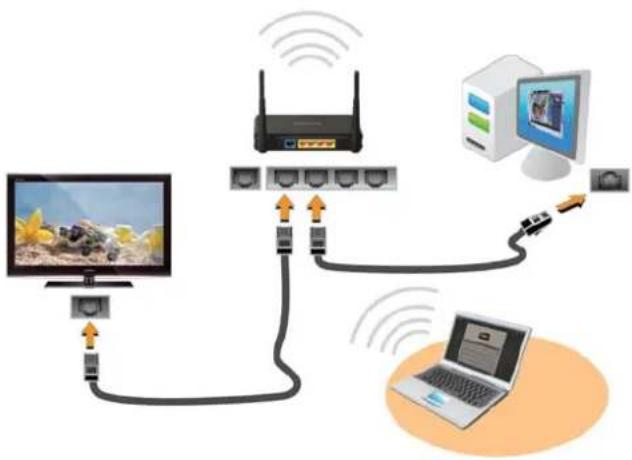
flowchart
graph TD
    A["TV"] -->|USB cable| B["Router"]
    B --> C["Computer"]
    C --> D["Laptop"]
    D -->|USB cable| B
    B -->|USB cable to PC| C
2 Configure the IP address settings for your computer and TV.
You must check the Obtain an IP address automatically (DHCP) checkbox.

- For more information on how to configure the IP address for your computer, refer to Chapter 2. Using the Computer > Network.
- For more information on how to configure the IP address for your TV, refer to the user manual of your TV.
3 To check whether the network settings have been configured correctly, double-click the Easy Content Share icon on the your computer's Desktop to run the program.
(If the program icon does exist on the Windows Desktop, select the corresponding program from Start > All Programs > Samsung.)
If the connected computer and TV are shown in the program window, the network settings have been configured successfully.
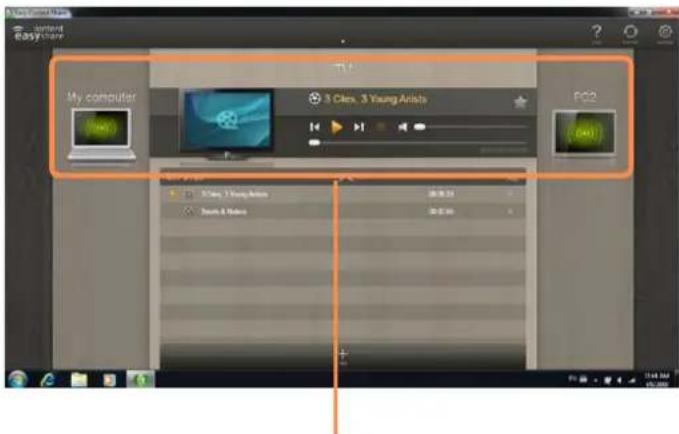
text_image
My Computer 3 Clex, 3 Young Artists PC2 3 Clex, 3 Young Artists Stock & Notes 添加到 添加到Devices that can share content

If a connected device is not displayed, refer to Chapter 4. Troubleshooting > Q&A > Easy Content Share Related.
Adding shared content on your computer
Add the videos, photos and music files that you want to play on your TV as shared items.
You can only play shared items on your TV.
1 Click Settings at the top right of Easy Content Share.
2 Click My computer > Add Folder + . The Browse For Folder window appears. Select a folder to share and click OK.
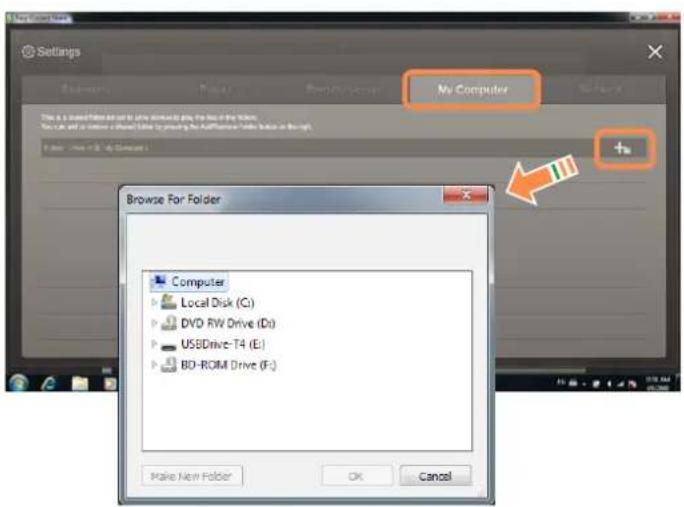
text_image
Settings My Computer Browse For Folder Computer Local Disk (C:) DVD RW Drive (D:) USBDrive-T4 (E:) BD-ROM Drive (F:) Make New Folder OK Cancel3 The selected folder is added to the shared list.
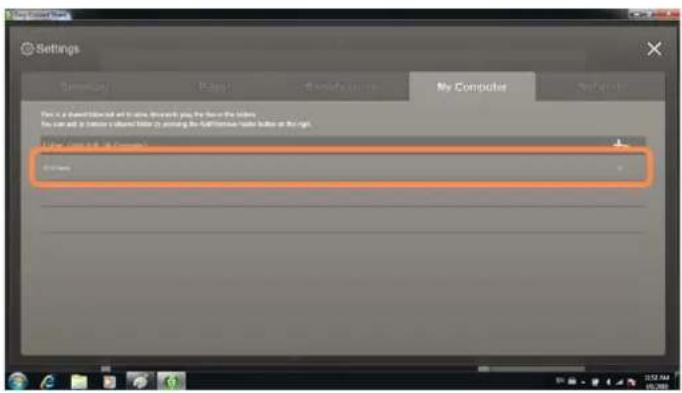
text_image
Settings My Computer Don't use a defaulted set to store, therefore you have the hidden. You can use a better information table in your main computer's buttons on this day. My Computer is not currently available.Playing content on your TV using your computer
After you have set photos, videos and music files as shared items, you can play them on your TV using your computer.
1 In Easy Content Share, select the TV you want to use to play content.
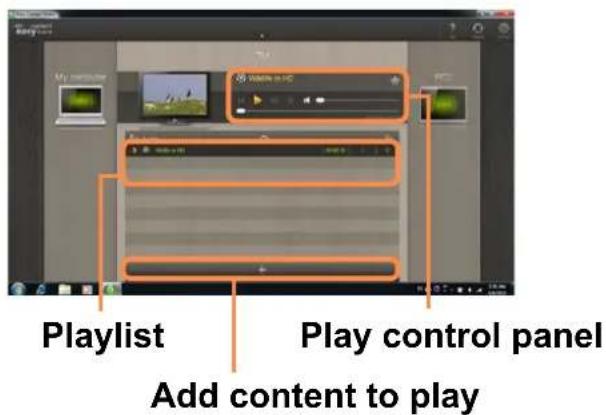
text_image
Playlist Play control panel Add content to play2 Select the item you want to play in the playlist, and then click Play
3 The selected file is played on the TV. Using the Play Control panel, you can control the item being played on the TV.
4 To stop playing, click Stop.

Easy Content Share does not support subtitles due to DLNA constraints.
To use subtitles, refer to Chapter 4. Troubleshooting > Q&A > Easy Content Share Related.
Adding a video, photo or music file to the playlist
1 Click Add Content in the Playlist screen. The shared content list is displayed.
2 In the shared content list, check the checkbox in front of the item you want to add to the playlist, and then click Add to playlist
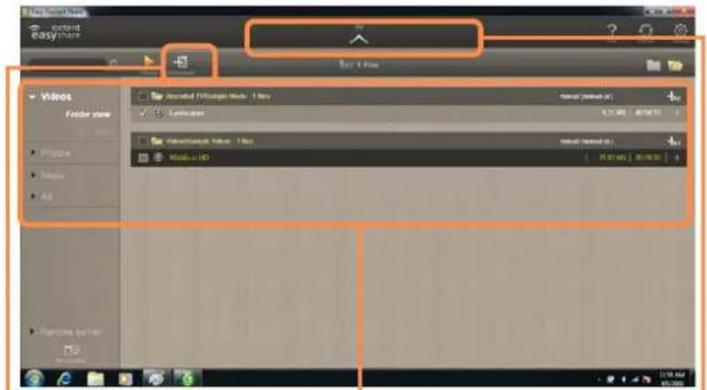
Add the selected item to the playlist
Return to the playlist screen
Shared content list
3 Click Return to playlist screen In the playlist screen, you can find that the selected item has been added to the playlist.
Playing the content stored on a computer when Easy Content Share is not installed
You can also play the videos, photos and music files stored on a computer when Easy Content Share is not installed on your TV by using Windows Media Player.
As described in the steps below, configure the content sharing settings to play content on your TV.

The computer containing the shared content (when Easy Content Share is not installed) must be connected to the same access point to which the computer where Easy Content Share is installed and the TV is connected to.
▶ For Windows Media Player 12
1 Click Start > All Programs > Windows Media Player.
2 Click Stream and check the Automatically allow devices to play my media... menu item.
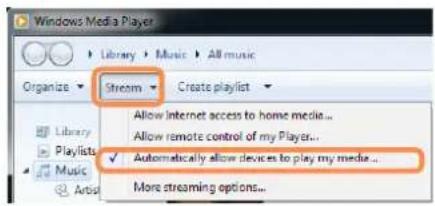
text_image
Windows Media Player Library > Music > All music Organize > Stream > Create playlist Library Playlists Music Action Allow Internet access to home media... Allow remote control of my Player... ✓ Automatically allow devices to play my media... More streaming options...3 Click Start > All Programs > Accessories > Windows Explorer.
4 Right-click the folder to share. From the menu displayed, point to Include in library.
Click Videos, Photos or Music in the displayed sub menu, according to the type of content contained in the selected folder.
If the selected folder contains two or more types of content, you must click each corresponding menu item (Videos, Photos or Music) to register each type of content.
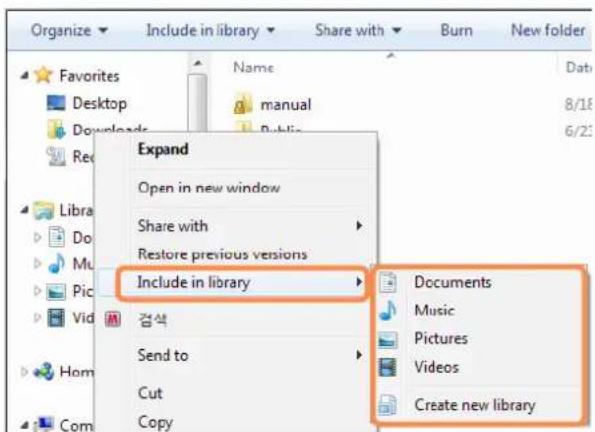
text_image
Organize Include in library Share with Burn New folder Favorites Desktop Downloads Red Open in new window Share with Restore previous versions Include in library Documents Music Pictures Videos Create new library▶ For Windows Media Player 11
1 Click Start > All Programs > Windows Media Player.
2 Click Library > Media Sharing.
The Media Sharing window is displayed. Check the Share my media checkbox and then click OK.
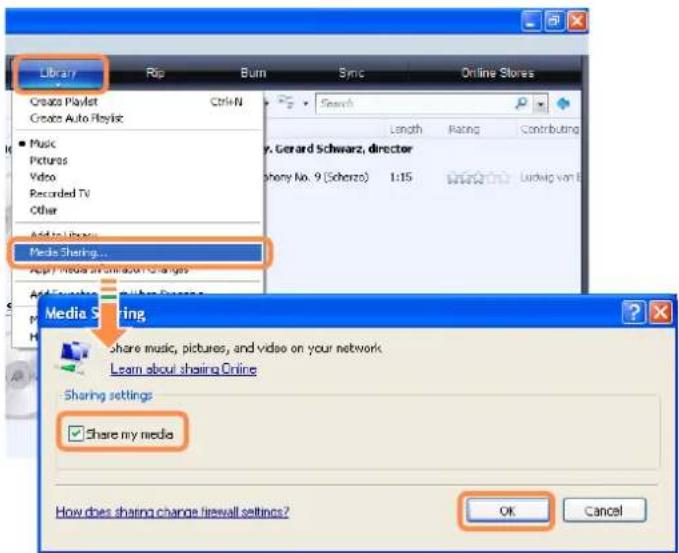
text_image
Library Create Playlist Ctrl+N Create Auto Playlist Music Pictures Video Recorded TV Other Media Sharing... Apply media information changes Media Sharing Share music, pictures, and video on your network. Learn about sharing Online Sharing settings Share my media How does sharing change firewall settings? OK Cancel3 In the Media Sharing window, click Settings.... The Media Sharing - Default Settings window is displayed. Check the Allow new devices and computers automatically (not recommended) checkbox.
A popup window is displayed. Click Yes. Then click OK in the Media Sharing- Default Settings window and in the Media Sharing window.
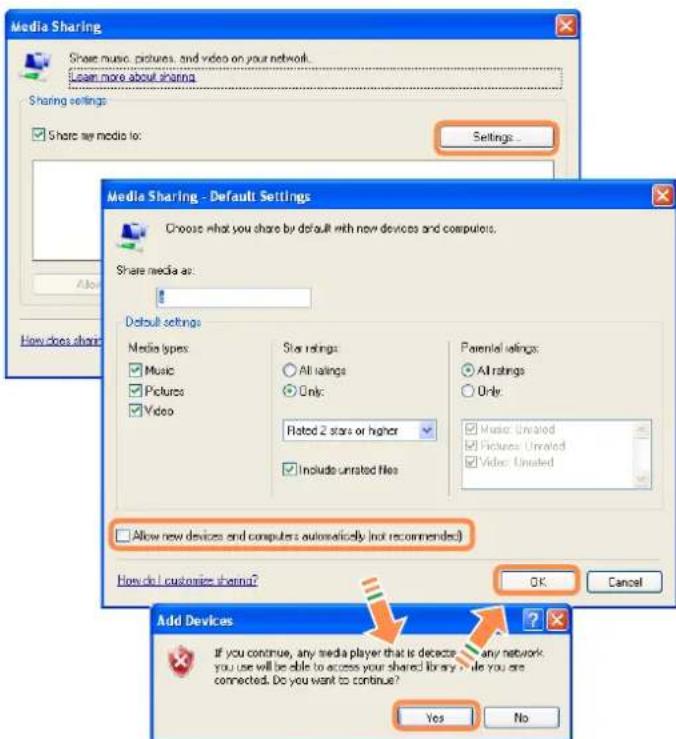
text_image
Media Sharing Share music, pictures, and video on your network. Learn more about sharing Sharing settings Share we media to: Settings... Media Sharing - Default Settings Choose what you share by default with new devices and computers. Share media as: Default settings Media types: Music Pictures Video Star ratings: All ratings Only: Rated 2 stars or higher Include unrated files Parental ratings: All ratings Only: Music: Unrated Pictures: Unrated Video: Unrated Allow new devices and computers automatically (not recommended) How do I customize sharing? OK Cancel Add Devices If you continue, any media player that is detect any network you use will be able to access your shared library you are connected. Do you want to continue? Yes NoAfter the registration has been finished, you can find the added folder is listed in the shared content list of Easy Content Share.
For a shared content item, the name of the computer where the item is stored is displayed next to it, allowing you to identify the computer. This is useful when multiple computers are providing content.
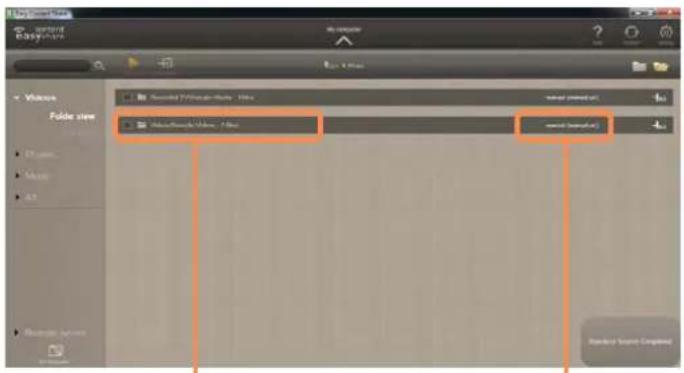
text_image
Save As/Down File Save As/Down File Save As/Down FileA folder added as a shared item
The name of the PC where the content is stored

Content sharing is only available with Windows Media Player 11 or later. If your Windows Media Player is earlier than Windows Media Player 11, download and install Windows Media Player 11 or later from the Microsoft website.
HDD Protection Function (Optional)
This function protects the HDD from external impacts while operating by using the 3-axis sensor that detects inclinations, movement and vibrations.

This function is only provided for models that are shipped from the factory with this function.
Through the icon colors, the HDD protection status can be identified. You can activate or deactivate the function by right-clicking over the icon in the taskbar.
| Icon Color Operating Status | |
| The HDD protection function is activated. | |
| The HDD protection function is deactivated. | |
| The HDD has received an impact and the HDD protection function is currently running. | |
To set the sensitivity of the protection function, right-click the icon 📋, and select Open Control Panel.
| Sensitivity Operating Status | |
| High | Select this option for operating environments with no possibility of shocks (default). |
| Medium | Select this option for operating environments with the possibility of slight shocks (e.g. in a vehicle or on a lap). |
| Low | Select this option for operating environments with a possibility of severe shocks (not recommended). |

- If external movement (e.g. if a user moves or the vehicle carrying the computer moves) is detected while the HDD is in operation such as watching a video or copying data, the current operation and the HDD are stopped accordingly. If the external movement stops, the paused operation resumes after approximately 3 seconds.
- The hard disk drive damage protection and data protection functions are not guaranteed for all circumstances.
natural_image
Illustration of a green laptop computer with a white cable, no text or symbols presentChapter 3.
Settings and Upgrade
LCD Brightness Control 100
BIOS Setup 102
Setting a Boot Password 105
Changing the Boot Priority 108
Upgrading Memory 109
Battery 111
Using the Security Lock Port 116
LCD Brightness Control
You can adjust the LCD brightness in 8 levels.
Controlling the Brightness Using the Keyboard
Adjust the LCD brightness by pressing the Fn + ⚠ key or the Fn + ⚡ key.
The LCD brightness can change up to 8 levels and the brightness increases by 1 level when pressing the Fn + key once.

- Maintaining the changed LCD brightness even after turning the computer on again
To maintain the LCD brightness set by using the brightness control keys or through the Power Options, follow the procedures below.
- Turn the computer on and press the F2 key when the SAMSUNG logo appears on the screen to enter the BIOS Setup.
-
Select the Boot menu and set the Brightness Mode Control item to User Control.
-
Press the F10 key to save the settings and exit Setup.
● Saving battery power consumption
Decreases the LCD brightness when the computer is running on battery power to save battery power consumption.
● LCD bad pixels principle of laptop computer
Samsung observes the specifications regarding strict quality and reliability of LCD. But in spite of that, it is inevitable that there might be a small number of bad pixels. A large number of bad pixels can cause problems in appearance, but a small number of pixels doesn't affect the computer performance.
Therefore Samsung observes and manages the following dot principles:
- Bright dot : 2 or less
- Black dot : 4 or less
- Combination of Bright and Dark : 4 or less

Instructions for Cleaning the LCD
Clean the LCD panel with a soft cloth lightly moistened with computer cleansing detergent moving in one direction.
Cleaning the LCD panel with excessive force can damage the LCD.
BIOS Setup
The BIOS Setup enables you to configure your computer hardware according to your needs.

- Use the BIOS setup to define a boot password, change the booting priority, or add a new device.
Since incorrect settings may cause your system to malfunction or crash, take care when configuring the BIOS.
● The functions of the BIOS setup are subject to change for product function enhancement purposes.

The BIOS Setup menus and items may differ depending on your computer model.
Entering the BIOS Setup
1 Turn the computer on.
2 When the booting screen (SAMSUNG logo) appears, press the F2 key to enter the BIOS Setup.
text_image
SAMSUNG
Press the F12 key while the booting screen(SAMSUNG logo) appears, the system will try to boot from the network.
3 After a moment, the BIOS setup screen appears.
The items in the BIOS setup may differ depending on the product.
The BIOS Setup Screen
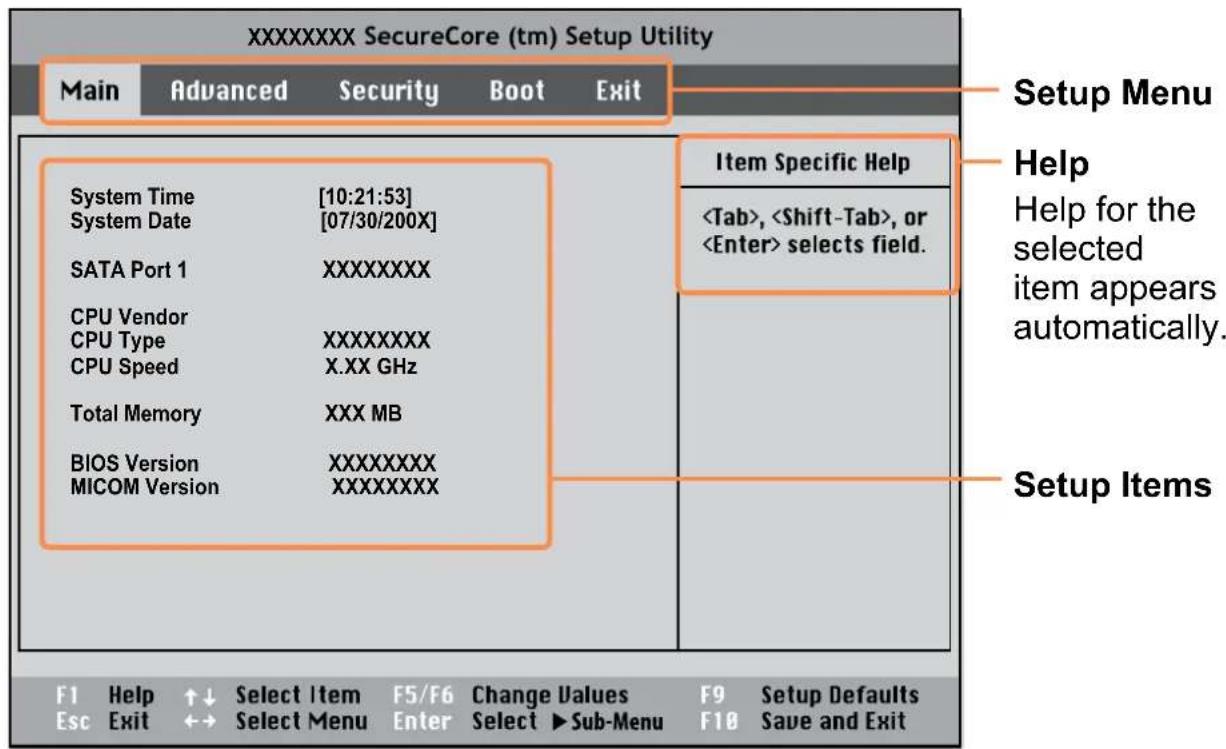
text_image
XXXXXXXX SecureCore (tm) Setup Utility Main Advanced Security Boot Exit System Time [10:21:53] System Date [07/30/200X] SATA Port 1 XXXXXXXX CPU Vendor CPU Type XXXXXXXX CPU Speed X.XX GHz Total Memory XXX MB BIOS Version XXXXXXXX MICOM Version XXXXXXXX Item Specific Help| Setup Menu Description | |
| Main | Used to change the basic system and environment settings. |
| Advanced | Used to configure advanced functions on your computer for devices and chipsets. |
| Security Used to configure security functions, including passwords. | |
| Boot | Used to set the boot priority and other boot options |
| Exit Used to exit the Setup either saving the changes or not. | |
System Setup Keys
In the Setup, you have to use the keyboard.
| F1 Press to view the Setup Help. | ||
| Up & Down Keys |  | Press to move up and down. |
| F5/F6 |  | Press to change the item value. |
| F9 Press to load the default Setup settings. | ||
| ESC |  | Press to return to a higher level menu or to move to the Exit menu. |
| Left & Right Keys |  | Press to move to another menu. |
| Enter Press to select an item or to enter a sub menu. | ||
| F10 Press to save the changes and exit Setup. | ||

The keyboard image and color may differ from the actual keyboard.
Setting a Boot Password
When setting a password, you have to enter the password to use the computer or enter the BIOS Setup.
By configuring a password, you can restrict system access to authorized users only and protect data and files saved on the computer.

Do not lose or forget your password.
If you have forgotten your password, contact a Samsung service center. In this case, a service fee will be charged.
Setting a Supervisor Password
A Supervisor Password is required to turn the computer on or to start the System Setup.
When setting a Supervisor Password, users other than supervisors cannot use the computer.
1 Select the Security menu in the BIOS Setup.
2 In the Set Supervisor Password item, press
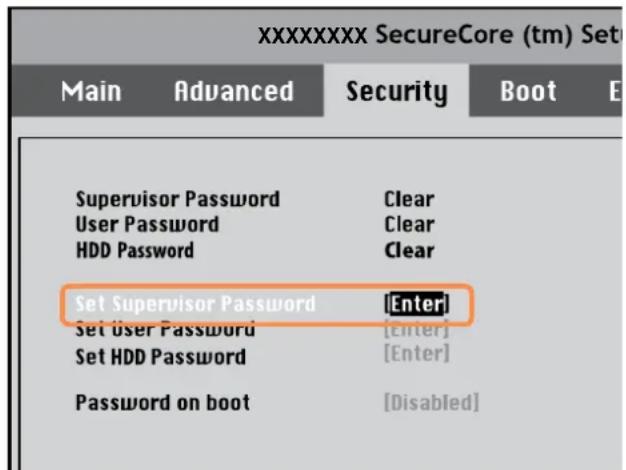
text_image
XXXXXXXX SecureCore (tm) Set Main Advanced Security Boot Supervisor Password Clear User Password Clear HDD Password Clear Set Supervisor Password Enter Set User Password [Enter] Set HDD Password [Enter] Password on boot [Disabled]3 Enter a password, press
The password can be up to 8 alphanumeric characters. Special characters are not allowed.
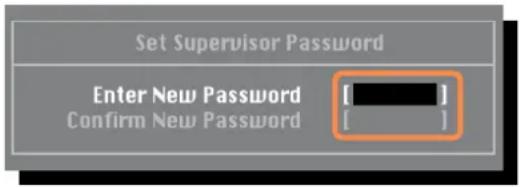
text_image
Set Supervisor Password Enter New Password Confirm New Password [ ] [ ]4 When a message confirming the password configuration appears in the Setup Notice window, press
The supervisor password has been set.
The supervisor password is required to turn the computer on or to enter the BIOS Setup.
Setting a User Password
The User Password restricts access to the computer or for configuring the BIOS Setup, like a Supervisor Password. However, the Setup items that can be configured with a User Password are restricted, unlike for a Supervisor Password.
Before configuring a user password, a supervisor password must have been configured. Deactivating the supervisor password also deactivates the user password.
In the Set User Password item, press
Setting Up a Boot Password
To setup a boot password, the administrator password (Set Supervisor Password) should be set in advance. Set the Password on boot item to Enabled.
Once a boot password is set, you have to enter the password to boot up the computer.
Setting up a Hard Disk Drive Password (Optional)
A supervisor password must be set using the Set Supervisor Password menu.
If you set a password for a hard disk drive, it cannot be accessed from another computer.
Press
Password item and define a password as described in Step 3 of the Setting up the Supervisor Password.

The hard disk drive password setting function is not provided for some models.

Changing the hard disk drive password
For security purposes, you can only change a hard disk drive password after restarting the computer by pressing the computer Power button. If you cannot change the hard disk drive password or the HDD Password Frozen message appears when entering the BIOS Setup and selecting Security > HDD Password, press the Power button to turn the computer on again.
Deactivating the Password
1 Press
2 In the Enter Current Password item, enter the currently configured password and press
3 Leave the Enter New Password item field empty, and press
4 Leave the Confirm New Password field empty, and press
5 In the Setup Notice window, press
The password is deactivated.
Changing the Boot Priority
This computer is configured to boot from an external-type ODD first.
This chapter describes how to change the boot priority so that the computer boots from the hard disk drive first.
1 Select the Boot menu in the BIOS Setup.
2 Press
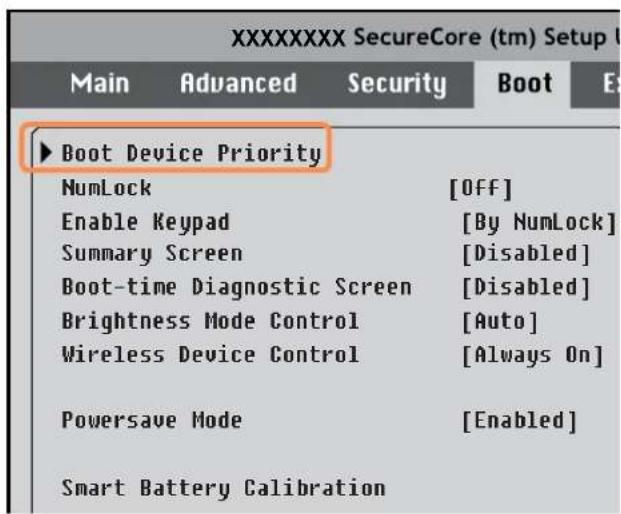
text_image
XXXXXXXX SecureCore (tm) Setup U Main Advanced Security Boot Ex ▶Boot Device Priority NumLock [Off] Enable Keypad [By NumLock] Summary Screen [Disabled] Boot-time Diagnostic Screen [Disabled] Brightness Mode Control [Auto] Wireless Device Control [Always On] Powersave Mode [Enabled] Smart Battery Calibration3 Press the down key (↓) to move to the IDE HDD item and press the F6 key to move the item to the top.
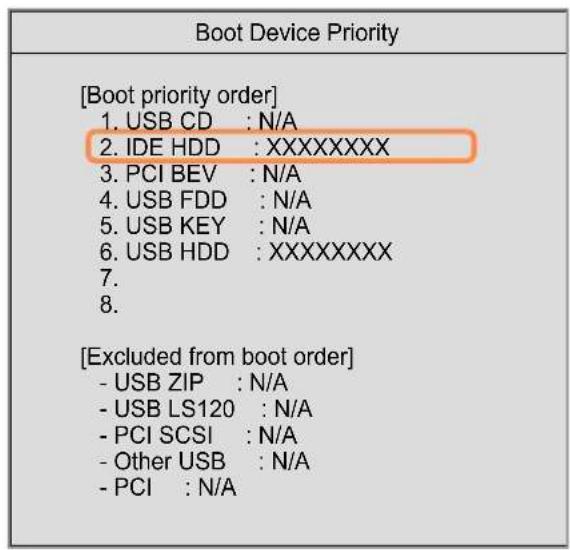
text_image
[Boot priority order] 1. USB CD : N/A 2. IDE HDD : XXXXXXXXX 3. PCI BEV : N/A 4. USB FDD : N/A 5. USB KEY : N/A 6. USB HDD : XXXXXXXXX 7. 8. [Excluded from boot order] - USB ZIP : N/A - USB LS120 : N/A - PCI SCSI : N/A - Other USB : N/A - PCI : N/A4 Press the F10 key to save the settings and exit Setup.
The highest boot priority device is now set to the Hard Drive.
Upgrading Memory
A memory is installed in the memory slot at the bottom of this computer. The procedures to replace the memory are described below.

- Replace new memory only after shutting the computer down completely. Do not replace memory when the computer is in Sleep mode.
- Disconnect main power plug and remove the battery before continuing.
- Only use the same type of memory as specified in the Product Specification.
● The memory compartment cover may differ from the figure below. - You must use only memory modules with the specifications (DDR2 or DDR3) printed on the memory slot that appears when you open the memory compartment cover at the bottom.
e.g) in the case of using DDR2
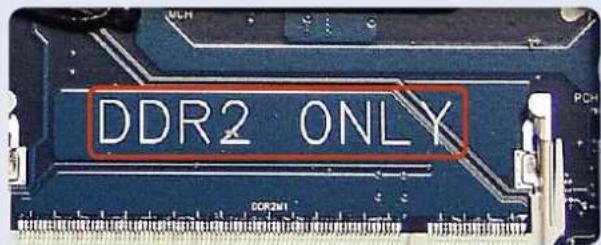
text_image
DDR2 ONLYReplacing the Memory
1 Remove the screw on the memory compartment cover at the bottom of the computer using a screw driver.
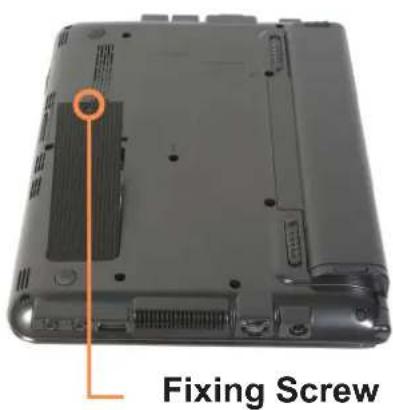
text_image
Fixing Screw2 Pull the memory module latches outward. The memory module will pop up.
Remove the memory module out at an angle of 30 degrees.
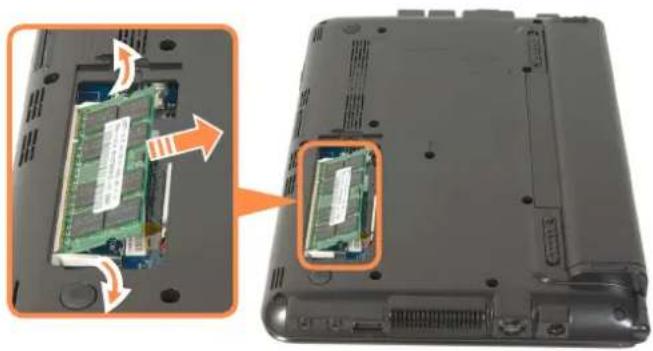
natural_image
Laptop back view showing internal components with arrows indicating motion (no text or symbols visible)3 Insert a new memory module into the memory slot at an angle of approximately 30 degrees aligning it to the angle of the memory slot.
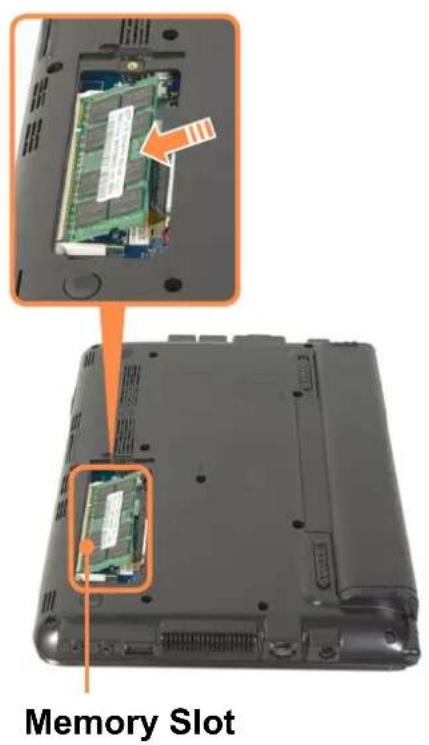
text_image
Memory Slot4 Push the memory module down so that it is completely fixed. If the memory does not fit easily, push the memory module down while pulling the memory module latches outward.
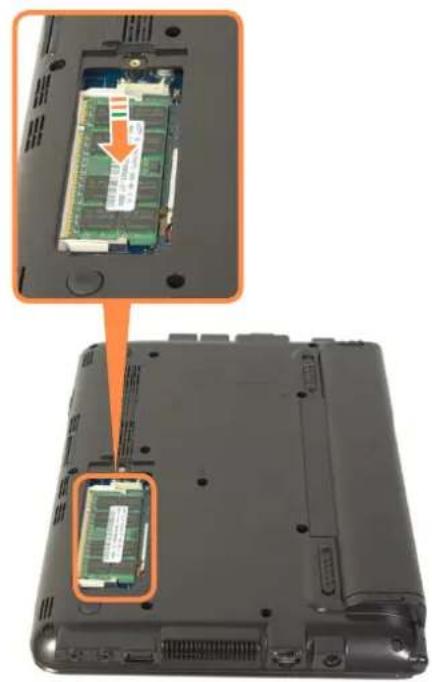
natural_image
Laptop back view showing internal components with an orange arrow pointing to a green card slot (no text or symbols visible)5 Close the memory compartment cover and fasten the screw.
Battery
Please refer to the following instructions when running the computer on battery power without connecting the AC power.
A Lithium-Ion smart battery is supplied with this computer.

Carefully read and follow the precautions printed on the battery before using the battery.

Precautions
- Use only chargers specified in the User Manual.
- Never heat the battery pack, put it near or in a fire or use at a temperature higher than 60°C, as this may cause fire.
- Never cause a short circuit between the battery pack terminals or disassemble the battery pack.
- Carefully read and follow the precautions printed on the battery and the safety instructions in the User Manual before using the battery.
- Please refer to the system operation environment of this manual and operate and store the battery at room temperature.
Installing/Removing the Battery
1 Shutdown the system, close the LCD panel and place the computer upside down on a flat surface.
2 Pull the two battery latches outwards ☐, then remove the battery.
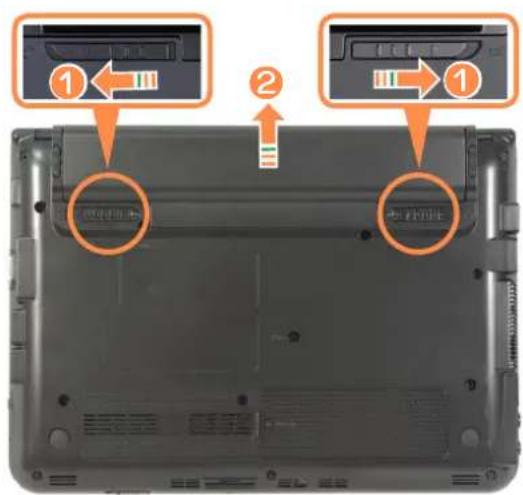
text_image
Laptop screen rear view showing two labeled buttons (① and ②) with arrows pointing to the interface, indicating navigation or status.3 To install the battery again, slide the battery into the system.
The battery latches move inwards and fix the battery automatically.
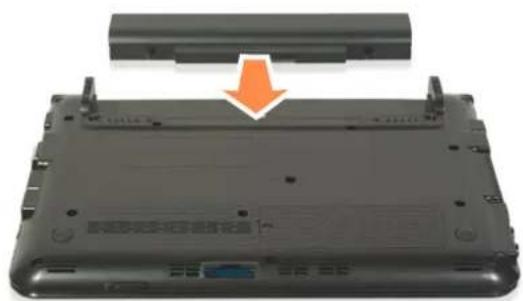
natural_image
Laptop back panel with a highlighted orange arrow indicating a component (no text or symbols visible)
Check if the battery latch has been moved inwards.
Charging the Battery
1 Attach the battery and connect the AC adapter to the DC-in jack of the computer.
The battery will then start charging.
2 When charging is complete, the Charge LED turns green.
| Status Charge LED | |
| Charging Amber | |
| Charging complete Green | |
| AC adapter not connected | Off |
Measuring the Remaining Battery Charge
You can view the battery charge status by completing the following procedures.
To use the shortcut key to view
Press the Fn + keys on the keyboard. The remaining battery charge (%) will displayed for a moment.
You can only view the charge status in this way when Easy Display Manager is installed on your computer.

Battery Warning
If the battery residual amount is 3\~5%, the computer automatically shuts down after saving the data. The battery residual amount may vary depending on the computer model.
Confirming the battery charge in the Taskbar
Disconnect the AC adapter and move the mouse cursor over the battery icon in the system tray of the Taskbar to confirm the remaining battery charge.
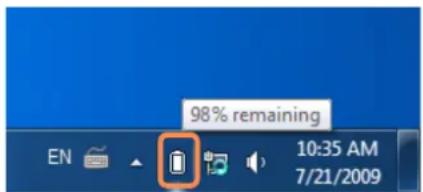
text_image
98% remaining EN EN 10:35 AM 7/21/2009Battery Lifetime Information
A battery is an expendable supply, so when using it over a long time, the capacity/battery life is shortened. If the battery life is reduced to under half of its initial time, we recommend purchasing a new battery.
When not using the battery for a long time, store the battery after charging it to 30-40% of its capacity. This extends the battery life time.
Extending the Battery Usage Time
Decreasing the LCD Brightness
Press the Fn + keys on the keyboard to decrease the LCD brightness to extend the battery usage time.
Disabling Unused Devices (Only for Windows XP)
If you turn off unused devices, battery usage time will improve.
1 Click Device Manager from Start > Control Panel > Performance and Maintenance > Systems > Hardware tab.
2 Right-click the devices that you are not using and select Disable.
Using the Battery Calibration Function
When charging/discharging the battery repeatedly for a short time only, the battery usage time may be reduced by the difference between the actual battery charge and the remaining charge display. In this case, the actual battery charge and the remaining charge display will be the same by discharging the battery completely using the Battery Calibration function, and then recharging it again.
1 Disconnect the AC power adapter after turning off the computer.
2 Restart your computer and press the F2 button when the Samsung logo appears, to start the BIOS Setup.
3 Move to the Boot > Smart Battery Calibration item using the direction keys and press .
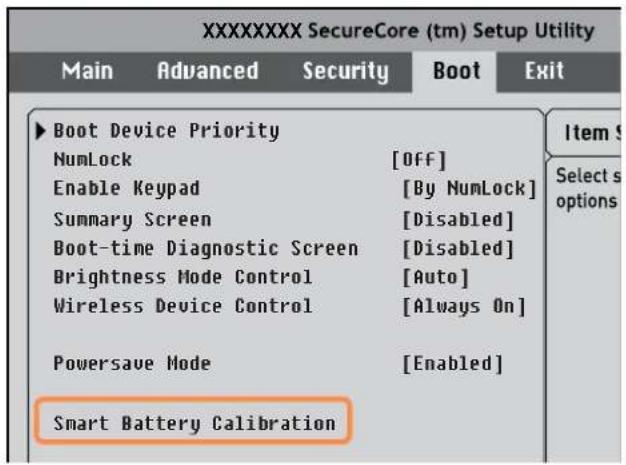
text_image
XXXXXXXX SecureCore (tm) Setup Utility Main Advanced Security Boot Exit ▶ Boot Device Priority NumLock [OFF] Enable Keypad [By NumLock] Summary Screen [Disabled] Boot-time Diagnostic Screen [Disabled] Brightness Mode Control [Auto] Wireless Device Control [Always On] Powersave Mode [Enabled] Smart Battery Calibration4 Highlight Yes in the Battery Calibration Confirmation window and press .
The Battery Calibration function is activated and the battery is forcefully discharged. To stop the operation, press the
This operation requires 3\~5 hours depending on the battery capacity and the remaining battery charge.
Using the Security Lock Port
You can connect a Kensington lock to the Security Lock port to prevent your computer from being stolen when you need to use the computer in a public place.
To use this feature, you must purchase a Kensington lock additionally. To use the Kensington lock, refer to the product manual.
Tie the Kensington lock cable to a fixed object and install the other end of the cable to the Security Lock port.
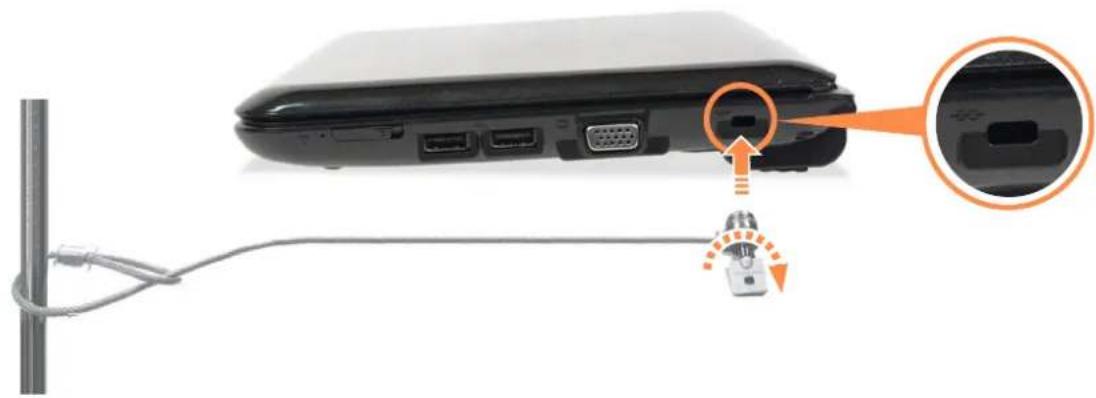
natural_image
Laptop rear panel with attached cable and connector, showing internal components and a close-up of the cable (no text or symbols visible)Chapter 4.
Troubleshooting
Using Samsung Recovery Solution
(Optional) 118
Reinstalling Windows 7
(For Windows 7. For supported models only) 133
Reinstalling Windows XP
(For Windows XP, For supported models only) 138
Questions and Answers 142
Windows Related 142
Display Related 145
Sound Related 147
Wired LAN Related 149
Wireless LAN Related 151
Games and Programs Related 155
Bluetooth 158
Easy Content Share Related 160
natural_image
Illustration of a yellow laptop computer with a white outline (no text or symbols)Using Samsung Recovery Solution (Optional)
Samsung Recovery Solution is a program that can backup your hard disk and restores it later when a problem occurs with your computer. It also provides a System Software function that enables you to install or backup device drivers and system software programs needed for your system to function properly.

- Samsung Recovery Solution may not be provided or the version may differ depending on the model. In addition, some functions may not be provided or may differ depending on the version. For more information on using Samsung Recovery Solution, please refer to the online help of the program.
● The screen images in this document may differ from actual product. - If your computer does not have an internal ODD, you need an external ODD connected to your computer to use the Backup Function or Restore Function using DVDs.
- The System Software function may not be provided depending on the program version.
Samsung Recovery Solution Functions
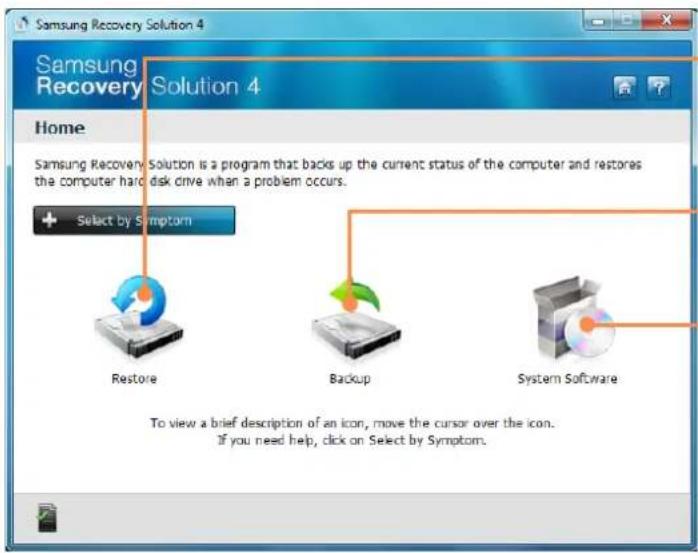
text_image
Samsung Recovery Solution 4 Home Samsung Recovery Solution is a program that backs up the current status of the computer and restores the computer hard disk drive when a problem occurs. + Select by Symptom Restore Backup System Software To view a brief description of an icon, move the cursor over the icon. If you need help, click on Select by Symptom.Restore: A function that restores the computer to a previous state after a problem occurs
Backup : A function that backs up the data on the computer
System Software: A function that reinstalls or backs up device drivers and application programs needed for the system

The system software function is supported by Samsung Recovery
Solution version 4 or later. Therefore, the function may not be supported depending on the version.

Please back up your important data as data loss may occur for the C drive while restoring/backing up the computer through Samsung Recovery Solution.
- Restore Function
Using this function, you can easily restore your computer to a previous, stable state when your computer no longer works properly or you are unable to boot up your computer due to some problem. If you have backed up data, you can restore the backup data.
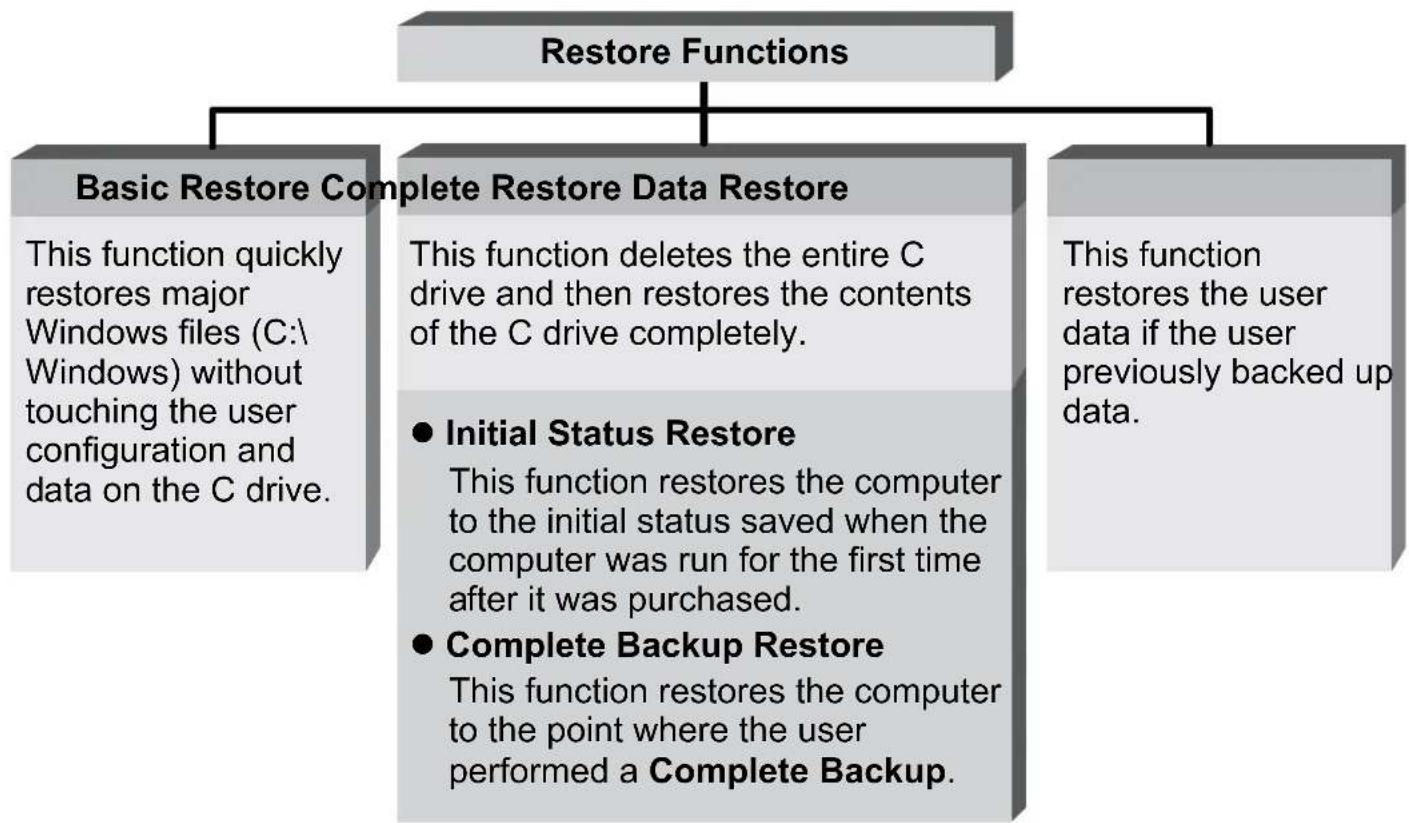
flowchart
graph TD
    A["Restore Functions"] --> B["Basic Restore Complete Restore"]
    A --> C["Complete Restore Data Restore"]
    A --> D["This function restores the user data if the user previously backed up data."]
    B --> E["This function quickly restores major Windows files (C:\Windows) without touching the user configuration and data on the C drive."]
    C --> F["This function deletes the entire C drive and then restores the contents of the C drive completely."]
    C --> G["Initial Status Restore"]
    G --> H["This function restores the computer to the initial status saved when the computer was run for the first time after it was purchased."]
    G --> I["Complete Backup Restore"]
    I --> J["This function restores the computer to the point where the user performed a Complete Backup."]
- Backup Function
You can backup the entire C drive or all your data to another hard disk drive or DVD. You can restore the backed up drive or data using the Restore function.
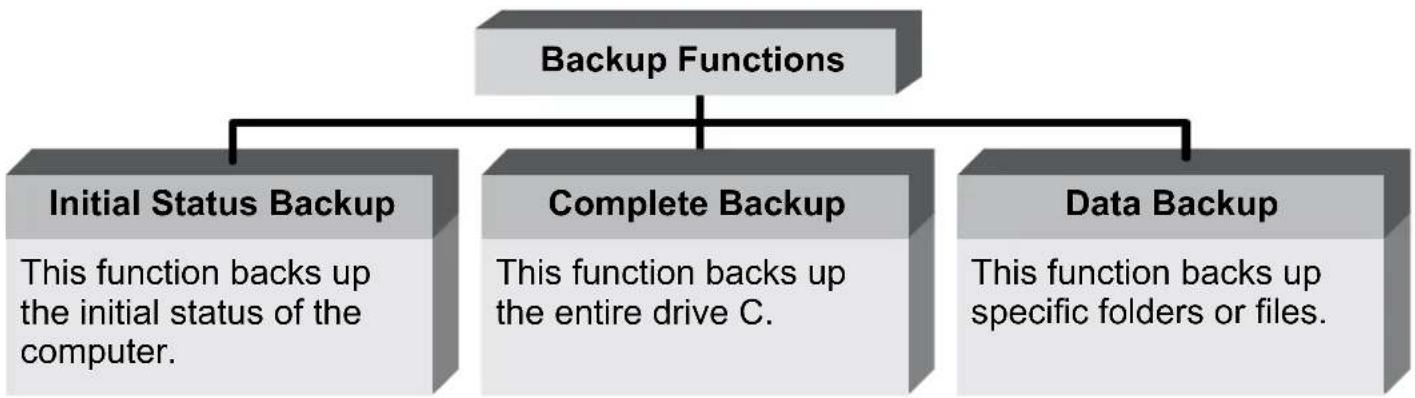
flowchart
graph TD
    A["Backup Functions"] --> B["Initial Status Backup"]
    A --> C["Complete Backup"]
    A --> D["Data Backup"]
    B --> E["This function backs up the initial status of the computer."]
    C --> F["This function backs up the entire drive C."]
    D --> G["This function backs up specific folders or files."]
- System Software function
You can back up the System Software saved on the hard disk to another hard disk drive or DVD, and reinstall part or all software programs to your computer.
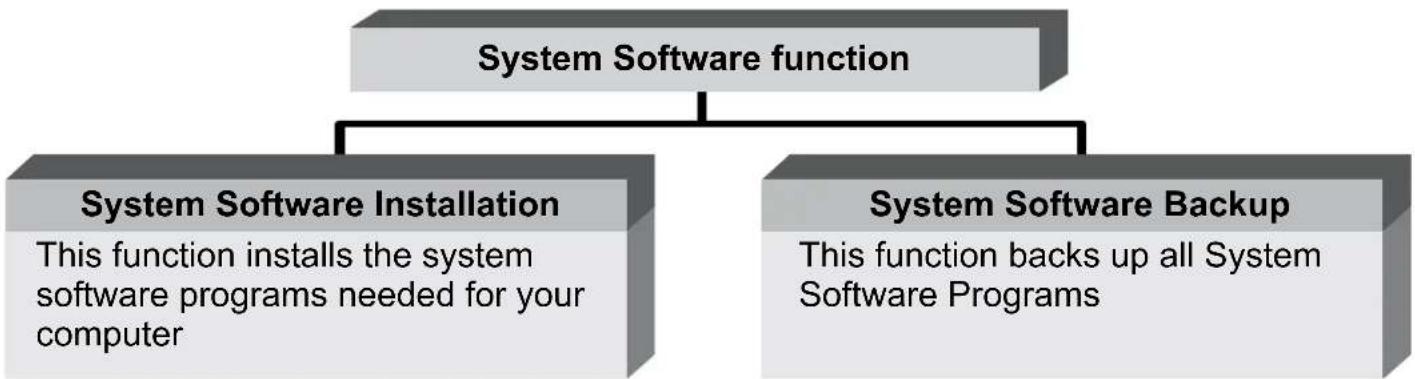
flowchart
graph TD
    A["System Software function"] --> B["System Software Installation"]
    A --> C["System Software Backup"]
    B --> D["This function installs the system software programs needed for your computer"]
    C --> E["This function backs up all System Software Programs"]

- The system software function is supported by Samsung Recovery Solution version 4 or later. Therefore, the function may not be supported depending on the version.
- You can confirm the version of the current Samsung Recovery Solution in the Samsung Recovery Solution screen.
Example) If the program name that appears in the Samsung Recovery Solution screen is Samsung Recovery Solution 4, it indicates that the version of the Recovery Solution is version 4. If the name is Samsung Recovery Solution III, it indicates that the version of the Recovery Solution is version 3.
Restore Function
Not only can you use Samsung Recovery Solution when Windows is running, but also when you are unable to boot up into Windows. Let's learn how to use Samsung Recovery Solution.
Optional functions such as Initial State Image, Initial Status Backup, and Partitioning are only available in some models.
Partition Setup & Initial Status Backup
If you turn your computer on for the first time, the Initial Status Backup function is performed after registering Windows. This function saves an image of the Initial Status of the C drive to a secure location so that users can restore the computer to the Initial Status using the Complete Restore function. An Initial Status Backup is only performed once immediately after the computer is purchased.
1 If you turn the power on for the first time, the Register Windows screen appears. If you register Windows according to the instructions on the screen, the computer will be restarted.
2 After the computer has been restarted, the Partition Setup screen appears.
To resize the C and D drives, adjust the partition size using the slide bar and the click Next.

The Partition Setup function is only available when the computer is turned on for the first time and will not be available afterwards. Once you have completed the partitioning, it cannot be resized. Partition the disk carefully.
3 The Initial Status Backup screen appears.
To continue the Initial Status Backup, click Restart Now. The computer will restart.
4 The Initial Status Backup is performed to backup the initial status of the C drive to a secure location. This backup image is used for the Complete Restore function that restores your computer to the initial status.
5 When the Initial Status Backup is complete, restart Windows.
Restoring the computer
Restore is a function that enables restoring the computer to a saved point when the computer was purchased or a user-saved point.
The Restore function provides the Basic Restore and Complete Restore options.
1 – When Windows is running:
Click Start > All Programs > Samsung > Samsung Recovery Solution > Samsung Recovery Solution.
- When Windows does not start:
Turn the computer on and press the F4 key when the boot screen (SAMSUNG logo) appears. After a moment, the computer boots up in Restoration mode and the Samsung Recovery Solution screen appears.

For computers supporting the touch screen function, the touch screen function does not work during Restore Mode. In this case, please use the touchpad or mouse.
2 If the initial menu screen appears, click Restore.
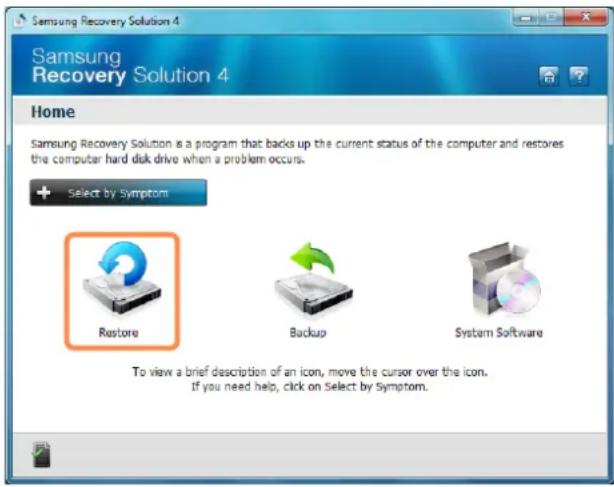
text_image
Samsung Recovery Solution 4 Home Samsung Recovery Solution is a program that backs up the current status of the computer and restores the computer hard disk drive when a problem occurs. + Select by Symptom Restore Backup System Software To view a brief description of an icon, move the cursor over the icon. If you need help, click on Select by Symptom.
If you click Select by Symptom, the Select by Symptom menu appears. If you select a symptom, a recommended restoration option will blink. Click the restoration option to continue.
3 Select either Basic Restore or Complete Restore from the Restore menu.
- A Basic Restore restores the major Windows files only while maintaining the user configuration and data on the C drive in a short time.
- A Complete Restore deletes the entire C drive and then restores the contents of the C drive.

Run Complete Restore if the computer does not work even after Basic Restore has been completed.
3-1 If you have selected Basic Restore:
In the Basic Restore screen, click the Next button. The system will be restarted.
3-2 If you have selected Complete Restore:
In the restoration point selection screen, select the restoration point described as 'Computer Initial Status' and click the Next button. The system will be restarted.
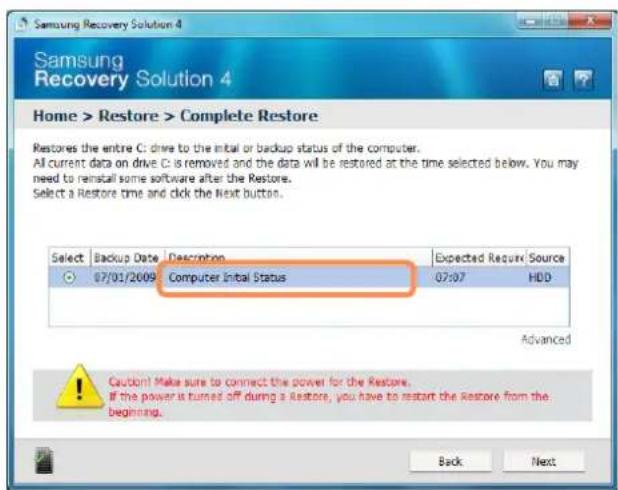
text_image
Samsung Recovery Solution 4 Home > Restore > Complete Restore Restores the entire C: drive to the initial or backup status of the computer. All current data on drive C: is removed and the data will be restored at the time selected below. You may need to reinstall some software after the Restore. Select a Restore time and click the Next button. Select Backup Date Description Expected Require/Source 07/01/2009 Computer Initial Status 07:07 HDD Advanced Caution! Make sure to connect the power for the Restore. If the power is turned off during a Restore, you have to restart the Restore from the beginning. Back Next
In the Advanced menu, you can change the size of the hard drive partitions (e.g. C: and D:).
● Make sure to backup your data in advance, as all data will be deleted after the partition size is changed.
● The functions of the Advanced menu are not available in products with the HyperSpace function (restriction).
- The Advanced menu is only activated when the computer boots up in the restoration area. (by pressing the F4 key during the booting sequence.)

Since a Complete Restore deletes all user data as well as additionally installed programs, please backup your important data first using the Data Backup function, before running Complete Restore.
4 If the Samsung Recovery Solution program is launched for the first time after purchasing the computer, the license agreement screen appears before the restoration is started. Read the agreement and click Agree to continue.
5 The computer boots up into restoration mode and the restoration progress message appears. If you click OK, the restoration begins. The restoration may take some time, please wait for a moment.
6 When the ‘Restart the System’ message appears after the restoration is complete, click OK to restart the system.

Make sure that the power cord is connected while the restoration is in process. The first time the computer boots up after a Complete Restore has been performed, the speed of the boot process may be slowed down due to the system optimization process. At this time, do not shut the computer down by force.
Backup Function
Complete Backup/Restore
A Complete Backup saves the complete image of the C drive onto another drive or DVD. A Complete Restore restores the image file saved by the Complete Backup onto the C drive.
- Complete Backup

If you run Complete Backup using a DVD, you can restore the computer even when a problem occurs with the hard disk or when the restoration area is removed.
1 Click Start > All Programs > Samsung > Samsung Recovery Solution > Samsung Recovery Solution.
2 When the initial menu screen appears, click Backup.
3 Click Complete Backup in the backup menu.
4 Enter a description for the backup regarding the current computer status in the Description field so that you can easily recognize it later, and specify the Save Path. If your computer has a DVD-Writer, you can specify the DVD drive as the Save Path.
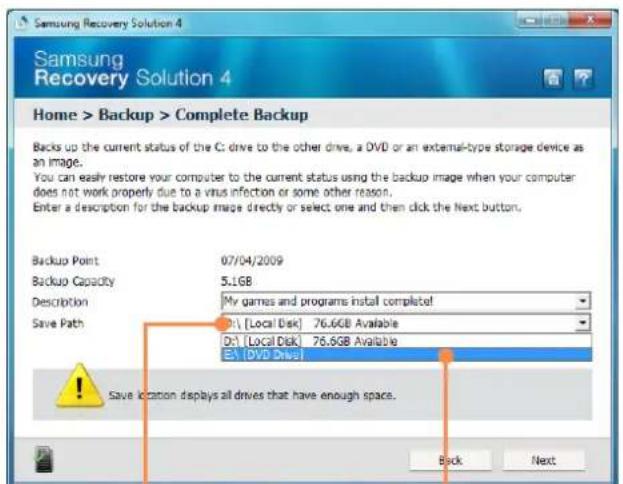
text_image
Samsung Recovery Solution 4 Home > Backup > Complete Backup Backs up the current status of the C: drive to the other drive, a DVD or an external-type storage device as an image. You can easily restore your computer to the current status using the backup image when your computer does not work properly due to a virus infection or some other reason. Enter a description for the backup image directly or select one and then click the Next button. Backup Point 07/04/2009 Backup Capacity 5.1GB Description My games and programs install complete! Save Path D:\ [Local Disk] 76.6GB Available D:\ [Local Disk] 76.6GB Available E:\ DVD Drive Save location displays all drives that have enough space. Back NextSelect Drive D.
Select the DVD drive.
5 If you click the Next button, the system restarts in restoration mode and the Complete Backup begins. If you have selected the DVD drive as the Save Path, the "Insert a blank DVD" message appears. Insert a blank DVD and click the OK button.
Samsung Recovery Solution 4

To continue the backup, a blank DVD is required. Confirm that the DVD surface is clean and then insert the DVD.

Samsung Recovery Solution supports DVD+R, DVD-R, DVD+RW, and DVD-RW, but does not support CD-R, CD-RW, DVD-RAM, DVD-DL (Dual Layer), HD-DVD, and Blu-Ray.
6 The Complete Backup begins. If multiple DVDs are required, the expected number of DVDs is displayed in the progress screen. Whenever burning a DVD is completed, the "Insert the next DVD" message will appear. Continue the backup according to the instructions.
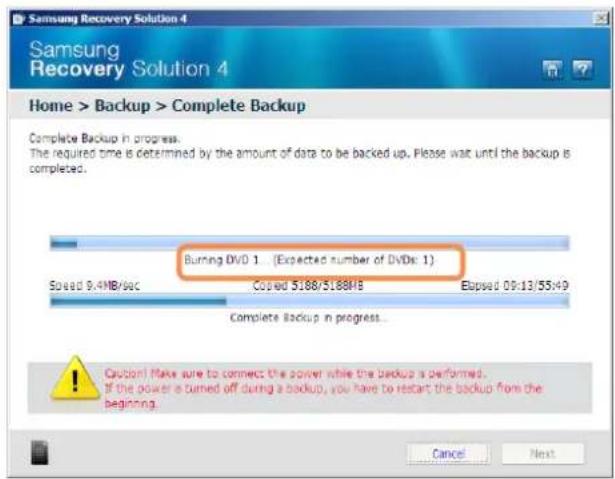
text_image
Samsung Recovery Solution 4 Samsung Recovery Solution 4 Home > Backup > Complete Backup Complete Backup in progress. The required time is determined by the amount of data to be backed up. Please wait until the backup is completed. Burning DVD 1. (Expected number of DVDs: 1) Speed 9.4MB/sec Copred 5188/5188HB Elapsed 09:13/55:49 Complete Backup in progress... Caution! Make sure to connect the power while the backup is performed. If the power is turned off during a backup, you have to restart the backup from the beginning. Cancel Next7 When the 'Restart the System' message appears after the backup is complete, click OK to restart the system.
- Complete Restore
1 – When backing up onto DVD Turn the computer on and insert the backup DVD into the DVD drive. If there are multiple backup DVDs, insert the first DVD. – When backing up to another drive Proceed to Step 2.
2 Click Start > All Programs > Samsung > Samsung Recovery Solution > Samsung Recovery Solution.

When you cannot start Windows, turn the computer on and press the F4 key in the boot screen to enter restoration mode.
3 When the initial menu screen appears, click Restore and then click Complete Restore.
4 Select a Complete Backup restoration point in the restoration point selection screen and click the Next button. The system is restarted.
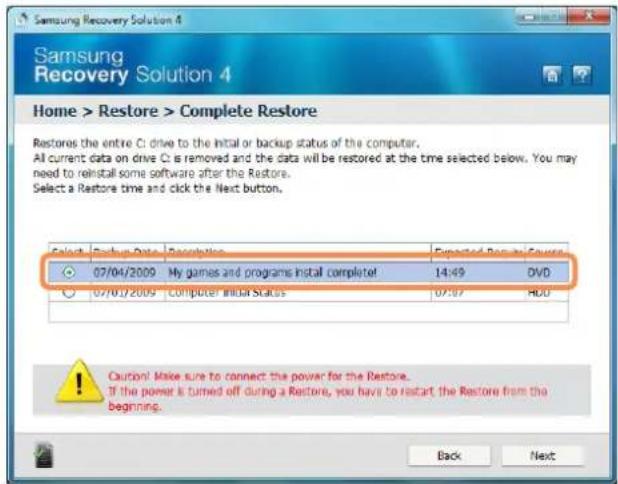
text_image
Samsung Recovery Solution 4 Home > Restore > Complete Restore Restores the entire C: drive to the initial or backup status of the computer. All current data on drive C: is removed and the data will be restored at the time selected below. You may need to reinstall some software after the Restore. Select a Restore time and click the Next button. Select Restore Date Description Expected Restore Status 07/04/2009 My games and programs install complete! 14:49 DVD 07/03/2009 Computer Initial Status 07:07 HDD Caution! Make sure to connect the power for the Restore. If the power is turned off during a Restore, you have to restart the Restore from the beginning. Back Next5 The restoration progress message appears after the computer boots up in restoration mode. If you click OK, the restoration begins.

If multiple DVDs have been used for a Complete Backup, whenever burning a DVD is completed, the "Insert the next DVD" message will appear.
6 When the 'Restart the System' message appears after the restoration is complete, click OK to restart the system. The Complete Restore has been completed.
Data Backup/Restore
Data Backup enables you to save specific files or folders onto another drive or DVD. Data Restore enables you to restore data using the data saved by a Data Backup when data is lost. This guide describes the Backup and Restore procedures on the basis of backing up and restoring by using DVD.
- Data Backup
1 Click Start > All Programs > Samsung > Samsung Recovery Solution > Samsung Recovery Solution.

When you cannot start Windows, turn the computer on and press the F4 key in the boot screen to enter restoration mode.
2 When the initial menu screen appears, click Backup and then click Data Backup.
3 In the data selection screen, select either Basic Selection or Select from all, select a folder or file to be backed up, and then click the Next button.
4 Enter a description for the backup in the Description field so that you can easily recognize it later and specify the Save Path. If your computer has a DVD-Writer, you can specify the DVD drive as the Save Path.
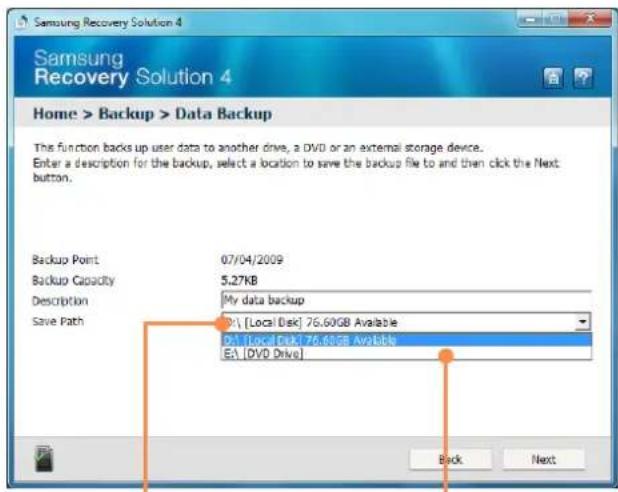
text_image
Samsung Recovery Solution 4 Samsung Recovery Solution 4 Home > Backup > Data Backup This function backs up user data to another drive, a DVD or an external storage device. Enter a description for the backup, select a location to save the backup file to and then click the Next button. Backup Point 07/04/2009 Backup Capacity 5.27KB Description My data backup Save Path [Local Disk] 76.60GB Available [Local Disk] 76.60GB Available EA [DVD Drive] Back NextSelect Drive D.
Select the DVD drive.

If you have specified a hard disk drive or a removable disk as the Save Path, the SamsungRecovery\SamsungData folder is created on the corresponding drive (e.g. D:) and the data is saved to the folder. Take care to not delete the folder by mistake or on purpose.
5 If you click the Next button, the Data Backup begins. If you have selected the DVD drive as the Save Path, the "Insert a blank DVD" message appears. Insert a blank DVD and click the OK button.
6 The "Backup is completed" message appears.
- Data Restore
1 – When backing up onto DVD Turn the computer on and insert the backup DVD into the DVD drive.
- When backing up to another drive Proceed to Step 2.
2 Click Start > All Programs > Samsung > Samsung Recovery Solution > Samsung Recovery Solution.

When you cannot start Windows, turn the computer on and press the F4 key in the boot screen to enter restoration mode.
3 When the initial menu screen appears, click Restore and then click Data Restore.
4 Select a backup item to be restored in the backup list and click the Next button.
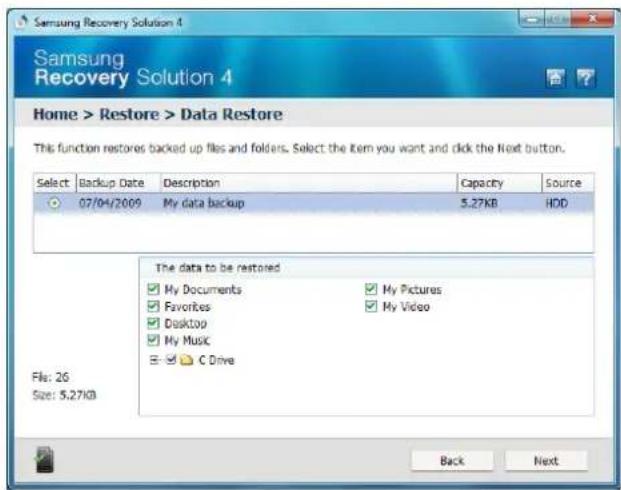
text_image
Samsung Recovery Solution 4 Home > Restore > Data Restore This function restores backed up files and folders. Select the item you want and click the Next button. Select Backup Date Description Capacity Somer 07/04/2009 My data backup 5.27KB HDD The data to be restored My Documents My Pictures Favorites My Video Desktop My Music C Drive File: 26 Size: 5.27KB Back Next5 Select a folder for the restoration and click the Next button. Data Restore begins.
6 When Data Restore is completed, check if the data has been restored to the specified folder.
System Software Function
Using System Software
The System Software function is a function that enables you to reinstall device drivers and System Software Programs or back up those programs.

The system software function is supported by Samsung Recovery Solution version 4 or later. Therefore, the function may not be supported depending on the version.

The System Software Installation Function only works in Microsoft Windows.
- Installing System Software
1 Click Start > All Programs > Samsung > Samsung Recovery Solution > Samsung Recovery Solution.
2 When the initial menu screen appears, click System Software > System Software Installation.
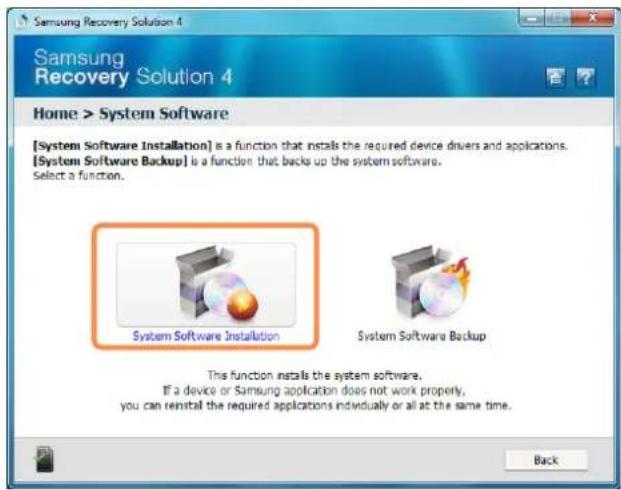
text_image
Samsung Recovery Solution 4 Home > System Software [System Software Installation] is a function that installs the required device drivers and applications. [System Software Backup] is a function that backs up the system software. Select a function. System Software Installation System Software Backup This function installs the system software. If a device or Samsung application does not work properly, you can reinstall the required applications individually or all at the same time. Back3 When the Samsung System Software screen appears, check all the device drivers and application programs you want to install and then click Install Now.
4 After the installation is complete, the computer will restart.
- System Software Backup
1 Click Start > All Programs > Samsung > Samsung Recovery Solution > Samsung Recovery Solution.
2 When the initial menu screen appears, click System Software > System Software Backup.
3 Specify the Save Path. If your computer has a DVD-Writer, you can specify the DVD drive as the Save Path.
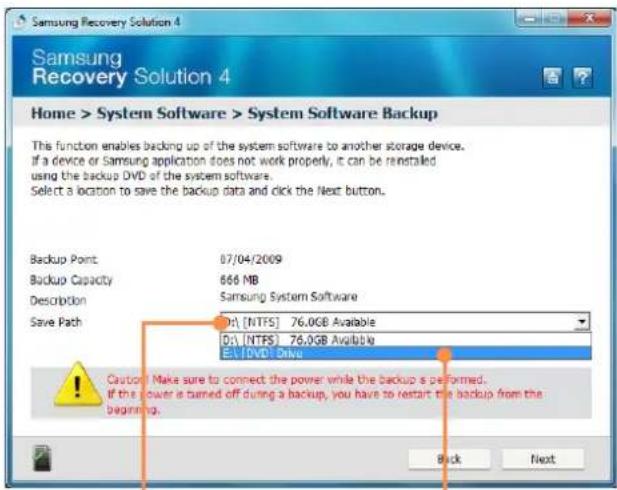
text_image
Samsung Recovery Solution 4 Home > System Software > System Software Backup This function enables backing up of the system software to another storage device. If a device or Samsung application does not work properly, it can be reinstalled using the backup DVD of the system software. Select a location to save the backup data and click the Next button. Backup Point 87/04/2009 Backup Capacity 666 MB Description Samsung System Software Save Path D:\ [NTFS] 76.0GB Available D:\ [NTFS] 76.0GB Available E:\ DVD Drive Caution: Make sure to connect the power while the backup is performed. If the power is turned off during a backup, you have to restart the backup from the beginning. Back NextSelect Drive D.
Select the DVD drive.

If you have specified a hard disk drive or a removable disk as the Save Path, the SamsungSoftware folder is created on the corresponding drive (e.g. D:) and the system software programs are saved to that folder. Take care to not delete the folder.
4 If you click the Next button, the Software Backup begins. If you have selected the DVD drive as the Save Path, the "Insert a blank DVD" message appears. Insert a blank DVD and click the OK button.
5 After the backup, the “System Software Backup is completed” message appears.

- If you want to install the System Software Programs backed up on the drive, run the SoftwareMediaXX.exe file in the SystemSoftware folder.
- When installing System Software Programs from the backed-up DVD, insert the DVD and follow the System Software Installation directions.
● To delete Samsung Recovery Solution, refer to the Help section of the program.
Reinstalling Windows 7
(For Windows 7. For supported models only)
You can reinstall Windows using the SYSTEM RECOVERY MEDIA for Windows when Windows is no longer working properly. (For models supplied with a SYSTEM RECOVERY MEDIA.)
For models supplied with the Samsung Recovery Solution, you can reinstall Windows using the Samsung Recovery Solution.
These descriptions are for Windows 7 and for supported models only.

● A SYSTEM RECOVERY MEDIA may not be supplied depending on your computer model.
- If you cannot start Windows, or if you want to delete all existing data and reinstall Windows, install Windows according to the descriptions in [Reinstalling when Windows does not start].
- To reinstall Windows using SYSTEM RECOVERY MEDIA, an external-type ODD must be connected before turning the computer on. The following descriptions assume that an external ODD is connected.

Reinstalling Windows may delete data (files and programs) saved on the hard disk drive. Make sure to backup all important data. Samsung Electronics shall not be held liable for any loss of data.
Reinstalling in Windows
1 Insert the SYSTEM RECOVERY MEDIA into the DVD drive.
2 When the AutoPlay window appears, select Run setup.exe and click Allow.

This screen may not appear depending on the security level.
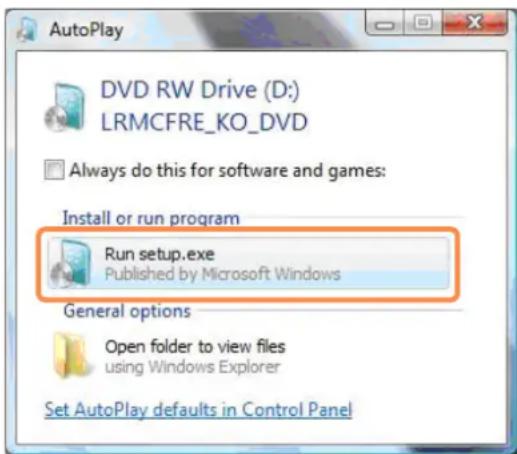
text_image
AutoPlay DVD RW Drive (D:) LRMCFRE_KO_DVD Always do this for software and games: Install or run program Run setup.exe Published by Microsoft Windows General options Open folder to view files using Windows Explorer Set AutoPlay defaults in Control Panel3 If the Select Windows Installation window appears, click Install Now. When the Select Update window appears, click on the relevant item.
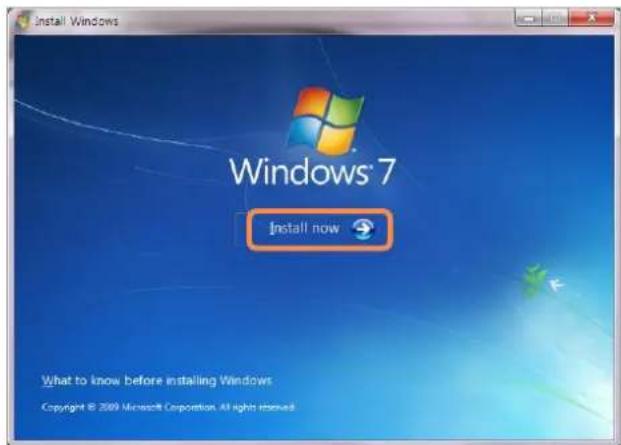
text_image
Install Windows Windows 7 Install now What to know before installing Windows Copyright © 2009 Microsoft Corporation. All rights reserved.Windows 7 installation selection window

- If you select Go online to get the latest updates for installation in the Select Update window, the latest updates are installed and Step 4 follows. At this time, the computer must be connected to the Internet.
- For Windows 7, the screen asking for the operating system to be installed may appear depending on the version. If you click the Next button, the screen of Step 4 appears.
4 If the User Agreement screen appears, select I accept the license terms and then click Next.

For Windows 7, this screen may not appear depending on the version.
5 The following window appears, select an installation option.
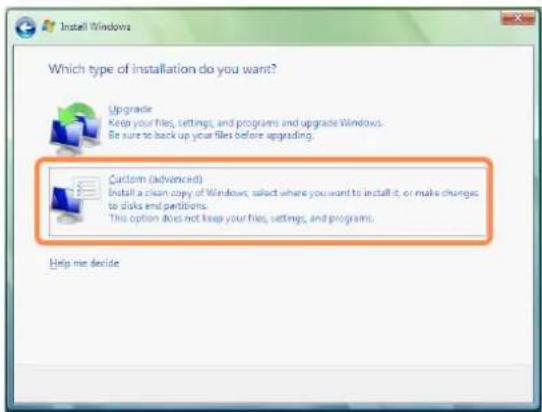
text_image
Which type of installation do you want? Upgrade Keep your files, settings, and programs and upgrade Windows. Be sure to back up your files before upgrading. Custom (advanced) Install a clean copy of Windows, select where you want to install it, or make changes to disks and partitions. This option does not keep your files, settings, and programs. Help me decideIf you click Custom, the procedures from Step 6 continue sequentially. If you click Upgrade, the procedures from Step 7 continue sequentially.

For Windows 7, this screen may not appear depending on the version.

- Custom
Select this option to Reinstall Windows. You have to reinstall all necessary device drivers and programs after the Custom installation. In addition, unnecessary folders and files may remain on the hard disk drives after the installation (e.g. C:\Windows.old, etc.).
- Upgrade
Select this option to Upgrade Windows while maintaining current files, configurations and programs. Although you therefore do not need to reinstall the device drivers and programs, some programs may not work properly after the upgrade.
6 When a window appears asking for the location to install the operating system to, select a disk drive partition and click the Next button.

Drive D includes an area to save the backup image used by Samsung Recovery Solution. Installing Windows to drive C is recommended.

When previous Windows installation files are in the selected partition, a message appears informing you that the files and folders will be moved to the Windows.old folder. Click the OK button.
7 The Windows installation continues. The computer will restart 3 times during the installation. If the Press any key to boot from CD or DVD... message appears after a restart, do not press any button.
8 Register a user according to the instructions on the Windows screen.
9 When the registration is complete, the Windows Desktop screen appears.

For a smooth computer operation, installing the necessary software installation is recommended.
Reinstalling when Windows does not start
When Windows does not start, boot up with the SYSTEM RECOVERY MEDIA and from there you can reinstall Windows.
1 Insert the SYSTEM RECOVERY MEDIA into the DVD drive and restart the computer.
2 If the Press any key to boot from CD or DVD... message appears while booting, press any key on the keyboard.
Press any key to boot from CD or DVD.....
3 After a while, the Options windows such as Language, Time, Keyboard, etc. appear. Confirm the settings and click the Next button.
4 If the Select Windows Installation window appears, click Install Now.

For Windows 7, the screen asking for the operating system to be installed may appear depending on the version. If you click the Next button, the screen of Step 5 appears.
5 If the User Agreement screen appears, select I accept the license terms and then click Next.

For Windows 7, this screen may not appear depending on the version.
6 When the window asking for the installation type appears, click Custom.

For Windows 7, this screen may not appear depending on the version.
7 When a window appears asking for the location to install the operating system to, select the partition of the disk drive and then click the Next button.

Drive D includes an area to save the backup image used by Samsung Recovery Solution. Installing Windows to drive C is recommended.

● A If you click Drive Options (Advanced), you can delete, format, create or expand a partition. Click on a function and proceed according to the instructions on the screen.
- When previous Windows installation files are in the selected partition, a message appears informing you that the files and folders will be moved to the Windows.old folder. Click the OK button.
8 The subsequent steps are the same as those from Step 7 of Installing in Windows.
Reinstalling Windows XP
(For Windows XP, For supported models only)
You can reinstall Windows using the SYSTEM RECOVERY MEDIA when Windows does not work properly. (For models supplied with a SYSTEM RECOVERY MEDIA.)
For models supplied with the Samsung Recovery Solution, you can reinstall Windows using the Samsung Recovery Solution.
These descriptions are for Windows XP and for supported models only.

● A SYSTEM RECOVERY MEDIA may not be supplied depending on your computer model.
● The SYSTEM RECOVERY MEDIA is supplied as a CD or DVD depending on your model, and some models are printed as System Recovery CD.
- To reinstall Windows using SYSTEM RECOVERY MEDIA, an external-type ODD must be connected before turning the computer on. The following descriptions assume that an external ODD is connected.

Reinstalling Windows may delete data (files and programs) saved on the hard disk drive. Make sure to backup all important data. Samsung Electronics shall not be held liable for any loss of data.
Running SYSTEM RECOVERY MEDIA
Insert the SYSTEM RECOVERY MEDIA into the CD-ROM drive.
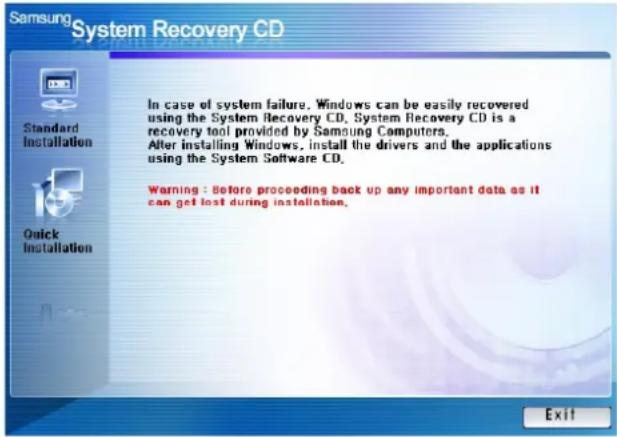
text_image
Samsung System Recovery CD Standard Installation Quick Installation In case of system failure, Windows can be easily recovered using the System Recovery CD, System Recovery CD is a recovery tool provided by Samsung Computers. After installing Windows, install the drivers and the applications using the System Software CD. Warning : Before proceeding back up any important data as it can get lost during installation. Exit- Standard Installation
You can change the settings for partitioning, the installation folder, etc. during the Windows installation. However, reinstalling Windows may delete the data on the hard disk drive such as files, programs, etc. In order to minimize damage from data loss, please remember to always back up data.
- Quick Installation
This re-installs Windows with the user data and the system configuration intact. The user data in the already existing Windows folders may be preserved as the existing Windows folders are overwritten.
Standard Installation
Explain Standard Installation option as a standard.
1 In the initial screen, click Standard Installation.
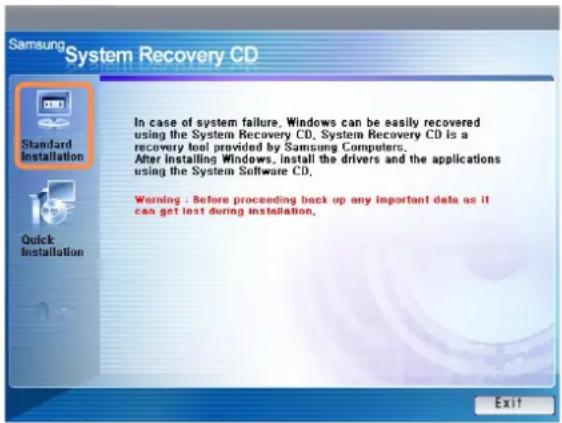
text_image
Samsung System Recovery CD Standard Installation Quick Installation In case of system failure, Windows can be easily recovered using the System Recovery CD, System Recovery CD is a recovery tool provided by Samsung Computers. After installing Windows, install the drivers and the applications using the System Software CD. Warning: Before proceeding back up any important data as it can get lost during installation. Exit2 The description for the Standard Installation appears. Click Yes. The installation starts, and the system will be restarted after a while.

When Quick Installation is selected, Setup proceeds with Step 3 before automatically installing Windows. Quick Installation overwrites the existing Windows version, so that drivers or applications do not need to be reinstalled.
3 After the system has restarted, the message 'Press any key to boot from CD' appears. Do not press any key at this time. After a while the partition configuration screen appears. To not change the partition, press Enter.

● What is partition configuration?
Partition configuration is a function that divides the hard disk drive into one or several partitions. Note that changing the partition deletes all of the data on the hard disk drive.
- When installing Windows in the standard installation, do not install Windows XP in the Recovery partition as this partition is used as the recovery area in Samsung Recovery Solution.
If Windows is reinstalled in the Recovery partition, the system recovery function cannot be used since the recovery area is damaged.
4 Select the folder to install the Windows operating system. To delete the previous version of Windows and install in the current folder, press L on the keyboard.

If you press ESC to select another folder for the installation, new Windows folders are created causing a risk of dual booting.
5 After the installation process copies the necessary folders for the Windows installation, restart the system, and the message "Press any key to boot from CD" is displayed. You do not need to enter anything. In a moment, the Windows XP installation screen will appear to proceed with the installation.
6 When the Regional and Language Options window appears, click Next.
7 When a window that requires your name and organization pops up, enter your name and the organization and click Next.
8 When the Date and Time Settings window appears, click Next. Setup will continue.
9 When the system restarts to display Press any key to boot from CD, do not press any key.
When you see the Windows desktop, this means that the installation process is completed.
Reinstalling when Windows does not start
When Windows does not start, boot up with the SYSTEM RECOVERY MEDIA and from there you can reinstall Windows.
1 Insert the SYSTEM RECOVERY MEDIA into the CD-ROM drive and start the computer.
2 If the following message appears on the screen, press any key from the keyboard.
Press any key to boot from CD.....
3 Do not press any key at this time. After a while the partition screen appears. To not change the partition, press Enter.
4 Select the desired file system (format). To maintain the current file system, press Enter.
5 Select the folder to install the Windows operating system. To delete the previous version of Windows and install in the current folder, press L on the keyboard.
6 After the installation process copies the necessary folders for the Windows installation, restart the system, and the message “Press any key to boot from CD” is displayed. You do not need to enter anything. In a moment, the Windows XP installation screen will appear to proceed with the installation.
7 Follow the instructions of the Windows XP installation wizard to continue with the installation.
8 When the installation is complete, the computer will restart. When the system has restarted, the Press any key to boot from CD message appears.
Ignore the message.
The system boots and the Windows and Windows Registration screen appears. Register Windows, following the instructions to finish the Windows installation. Remove the SYSTEM RECOVERY MEDIA and install the device drivers and application programs using Standard Installation from the System Software Media.
Questions and Answers
This section provides information on possible problems, solutions and other references for system use.

- These descriptions are written based on Windows 7, the latest operating system. Therefore, some descriptions and figures may differ from your operating system. But as the usage is similar to other Windows operating systems, you can use these descriptions for reference.
● The path may differ depending on the operating system.
Windows Related

When unwanted confirmation windows appear repeatedly while installing or running a program, connecting to the Internet, or when you cannot use Internet banking services. (for the Windows 7 operating system only)
A In Windows 7, the frequency of the confirmation window that appears during the program installation or execution or after changing Windows settings is determined by the security level setting in the User Account Control. This may occur when the security level in the User Account Control is set to Alarm always.
① Click Start > Control Panel > User Accounts and Family Protection > User Accounts > Change User Accounts Control Settings.
② Select a level and click the OK button to finish the setting.
Q The Windows Firewall setting according to the network location (for the Windows 7 operating system only)
A Windows 7 allows different Windows firewall settings for each network location.
The following network locations are available: Home Network, Company Network and Common Network. You can determine whether to use the Windows Firewall and select a firewall security setting for each location.
① If the network setting window appears in Windows 7 after setting up the IP address, select a location.
② Click Start >Control Panel >System and Security >Windows Firewall >Activate or Deactivate Windows Firewall.
③ Set up a firewall for the Home and Company (Private) Network Location Settings and the Common Network Location Settings, and click the OK button.
Q What Is Virtual XP? (For Windows 7 only, For supported models only)
A Virtual XP refers to a virtual operating system that allows you to run Windows XP virtually in the Windows 7 environment. By using Virtual XP, you can use applications that do not run on Windows 7.
▶ Requirements for Running Virtual XP
① Virtual XP is only available on these three operating systems: Windows 7 Professional, Ultimate, and Enterprise.
② The memory must be 2 GB or more and the virtualization function of the BIOS must exist and be activated by the CPU.

For more information, refer to the Help section of the OS or visit Microsoft's website.

What are the restrictions of Windows 7 Starter?
A ① The DualView function is not supported when an external display device is connected.
② The Aero function of Windows 7 is not supported.
③ The Set as Background function to change the wallpaper of the Desktop is not supported.
④ Functions that are not supported by the operating system, may also not be supported by related programs such as Easy Display Manager, the graphics driver and so on.

For more information, refer to the Help section of the OS or visit Microsoft's website.
Display Related

The LCD screen is too dark or too bright.
A Turn on the LCD backlight or adjust the screen brightness.
Press Fn + to turn on the LCD backlight or press Fn + , Fn + to adjust the screen brightness.

The screen saver disturbs screen viewing during Media Player or video file operation.
A ▶ For Windows 7
Unselect Library > More Options
Player > Allow screen saver during playback in the Media Player.
▶ For Windows XP
Click Tools > Options > Player and then clear the Allow screen saver during playback in the Media Center check box.

In the following cases, the screen blinks or there is noise for a short time.
- Click the Graphics Related tab, Change Resolution, Change Display Device, Remove the AC Adapter, Restart the System, Change Power Scheme.
A This may happen while the video driver is examining the connected device. While the detection process is busy, any connected display devices may blink or some noise may occur.

When I connect an external display and change the settings to display the screen image on both the LCD and the external display by pressing the Fn + F4 key combination, the screen is not displayed properly.
A Press Fn + F4 key combination again. If the screen is still not displayed or only part of the screen is displayed by doing this, that means the LCD resolution is too low or too wide and the external display does not support the resolution.
Right-click over the Desktop, select Properties, select the Settings tab and change the resolution to 800 x 600.
Q The Taskbar on the bottom of the screen does not appear when a projector is used as the display device.
A This may happen, if the projector does not support LCD resolution. In this case change the resolution to 800 x 600 (recommended) on your computer.
Q Switching the MS-DOS command prompt to full screen mode or Windows mode by pressing the
A Pressing the
Please press the
Q The shortcut icons are not displayed on the screen even if I press the shortcut key.
A The shortcut icons only appear when the Easy Display Manager program is installed.
Q The color is strange when the picture is displayed on the connected monitor (or projector).
A Check the monitor signal cable connection and reconnect the cable.
Sound Related

How can I configure the sound for video or audio chatting?
A1 Configuring the Realtek HD Audio Manager
① Select Control Panel > Realtek HD Audio Manager.
② Select the Mic tab.
③ Select the Suppress noise and the Remove sound echo items and click the OK button.
▶ For Windows 7
When using the Remove sound echo option, select the Play Device > Speaker > Level tab and set the Microphone to Mute.
▶ For Windows XP
Using Acoustic Echo Cancellation option keeps the Microphone Volume muted in the Playback Mixer.
A2 Playback Mixer Settings
① Double-click the Volume icon in the Taskbar and select Options > Properties from the menu.
② Select Realtek HD Audio Input in the Mixer device field, confirm that the Microphone is selected in the Show the following volume controls field, and click the OK button.
③ Select the Microphone item in the Record Control window and close the window.
Q I cannot hear my voice with the internal microphone.
A This is because the sound from the internal microphone is removed so that the sound is not delivered to the speaker and causes feedback from the internal microphone. However, you can record the sound from the microphone normally.
▶ For Windows 7
When using an external microphone, select the Play Device > Speaker > Level tab and deselect Mute for the Microphone. Then you can listen to the sound from the external microphone through the speakers.
▶ For Windows XP
When using an external microphone, if you disable the microphone channel mute function of the play mixer, you can hear the sound input into the external microphone through the speaker.
Q Sound is recorded abnormally when I select the Remove sound echo option, connect an external microphone, select the Play Device > Speaker > Level tab and then deselect Mute for the Microphone.
A This occurs because the algorithm used to remove the echo sound regards some of the sound as an echo and removes this, as the recording is done by playing the sound from the external microphone.
▶ For Windows 7
After selecting the Remove sound echo option, please select the Play Device > Speaker > Level tab and select Mute for the Microphone for a normal recording.
▶ For Windows XP
In this case, select Mute in the Microphone Volume of the Playback Mixer after selecting Acoustic Echo Cancellation item.
Q How can I configure the Recording Mixer while broadcasting music in WinAMP? (for the Windows XP operating system only)
A1 Playback Mixer Settings
① Double-click the Volume icon in the Taskbar and select Options > Properties from the menu.
② Select Realtek HD Audio Input in the Mixer device field, select Stereo Mix in the Show the following volume controls field, and click the OK button.
③ Select the Stereo Mix item in the Record Control window and close the window.
A2 Realtek HD Sound Effect Manager Settings
① Click Start > Control Panel > Sounds, Speech, and Audio Devices > Realtek HD Sound Effect Manager.
② Click Microphone tab.
③ Unselect Noise Suppression and Acoustic Echo Cancellation and Click OK.
Wired LAN Related

The function
A
- Using the
① ▶ For Windows 7
Click Start > Control Panel > Network and Internet > Network and Sharing Center and click on Change adapter settings in the left menu pane.
▶ For Windows XP
Click Start > Control Panel > Performance and Maintenance > System > Hardware > Device Manager > Network Adapters.
② Right-click on the Local Area Connection and select Properties.
③ Click Configure > Power Management tab. Select Allow this device to bring the computer out of standby, then click OK. Restart the system.
- If the system wake up from Sleep mode even though there is no received signal, use the system after disabling the
function. - The LAN LED may not be turned off if System is shutdown without disabling the WOL
option. - Connecting a wired LAN while using a wireless LAN may not activate the
function. Set the Wireless LAN to Disable to use the function.

For Windows 7, Wake On LAN is not supported Ping.
Q When I am connected to a 100Mbps/1Gbps wired LAN and the computer exits Sleep/hibernation mode, a message appears informing you of a connection to a 10Mbps/100Mbps wired LAN.
A When the computer exits standby/hibernate mode, restoring the network takes about 3 seconds.
When the network is restored, it operates at 100Mbps/1Gbps.

The Home Group function (for the Windows 7 operating system only)
A Home Group is a function that enables connecting all the computers at home allowing users to access the data on all computers as if accessing the data on the local computer.
If you set the first computer to use a Home Group as a Home Network, you can create a Home Group. A second (and more) computer can participate in the created Home Group. A password is required for participation and you can confirm the password on the first computer.
This function is only available between computers that have the Windows 7 operating system installed. If an older operating system that Windows 7 is installed on a computer, the computer cannot create or participate in a Home Group.
In addition, using the Home Group function is restricted in the Windows 7 Starter version because of the operating system properties.
Wireless LAN Related

I cannot find an AP.
A Verify whether the Wireless LAN LED is on.
If it is turned off, turn it on by pressing the Wireless LAN On/Off button
$$ (\mathbf {F n} + \boxed {\text { }}). \tag {A9} $$

The Wireless LAN device is operating properly, but I cannot connect to the Internet or to another computer.
This is due to an incorrect configuration, or a configuration error. Check the following:
A1 When connecting to a wireless Ad-Hoc network, check if the network name (SSID) is the same.
A2 If a network key (encryption key) is used, the AP (Access Point) and wireless Ad-Hoc network keys must be the same.
The AP network key can be configured using an AP management program. For more detailed information, ask your network administrator or product provider.
A3 Check that the device driver is installed properly. If the driver is not properly installed, you will find a yellow exclamation mark on the network icon by clicking Device Manager > Network Adapter.

The signal strength is excellent, but I cannot connect to the network.
Even if the signal strength is excellent, the network connection may not operate properly if the TCP/IP properties are not properly configured, or the network key (encryption key) is incorrect.
A1 Check that the TCP/IP properties are configured properly. When connecting to an AP, right-click the Network Connections icon on the taskbar and select Network and Sharing Center. If you click the View Status next to a connected wireless network device and then click the Detail button, you can view the IP information.
For Windows XP, double-click the icon and check if the IP address is properly allocated on the Support tab.

If the IP is not allocated properly, the IP address will be displayed as follows (e.g. 169.254.xxx.xxx).
If the network does not provide DHCP, you have to specify the correct IP address by asking your network administrator.
Even if the network provides DHCP, the server may not allocate an IP address to the client properly, and the client station cannot connect to the network.
- Check the AP Settings
For the AP settings, refer to the User Guide provided by the AP manufacturer.
A2 Verify whether the environment is suitable for using a wireless LAN. The use of a wireless LAN may be restricted according to the environment and distance. Obstacles such as walls or doors affect the use of a wireless LAN. Install the AP in a high and open space, 50cm from the wall and far removed from any other radio signal sources.
A3 Verify whether the AP is operating properly.
- When the AP is not operating normally, turn off the AP, wait a short while, and turn it on again.
- Verify whether the AP's firmware is the most recent version. (Contact the AP manufacturer or the place where you purchased the AP for details of the AP firmware.)
A4 Verify whether the AP has been properly connected to the network. Verify whether the network is operating normally by connecting the wired network cable, which has been connected to the AP, to your computer.
A5 Check the network key settings (encryption key) again. When automatic code conversion (a passphrase function) has been selected and data communication is not functioning even with a normal wireless connection, it is recommended entering the network key (encryption key) manually.
A6 Check the AP settings as follows. (The following is recommended for a standard environment and thus may differ according to the specific wireless network environment.)
- When several APs are present simultaneously, check the channel settings for each AP. When different APs are using nearby channels, interference may occur between the electronic waves. Set the AP channels further apart from each other. (Ex: Ch1, Ch5, Ch9, Ch13)
- When an AP's SSID (Service Set ID) option is set to "Hide", you cannot search for that AP on the computer. We recommend unselecting the "Hide" option for the AP. The SSID is a name used for distinguishing one wireless LAN from another wireless LAN.
- It is recommended using Long Preamble. Preamble is a signal for data transmission synchronization. Short Preamble may be supported by some types of APs but may cause compatibility problems.
- It is recommended using a static IP.
- Since static channel selection is more reliable than auto channel selection, it is recommended using a static channel.
Q I have set the same IP address for both the wireless and wired connections, but they do not work properly.
A You cannot use wireless and wired connections using the same IP address. To sequentially use both the wired and wireless connections with the same IP address, you need to set the currently not needed connection to Do Not Use in the Network Connections of the Control Panel.
Q The wireless LAN does not work properly when there is a device operating on an adjacent frequency in the vicinity of the product.
A1 Channel interference may occur when a wireless video transceiver or a microwave oven is being used. If you experience channel interference from other equipment, we recommended changing the channel for connecting to the AP. For more information about AP settings, refer to the User Manual supplied by the AP manufacturer.
A2 Since IEEE802.11g equipment operates in hybrid mode when there is active IEEE802.11b equipment, the data rate may be degraded.
Games and Programs Related
Windows may not provide some functions properly when performing some applications especially games, or may cause a problem due to a device driver compatibility issue. For the latest device drivers and bug fixes, please refer to the respective company's website.

3D game is not executed, or some functions are not working.
A Change the graphic setting of the game to "2D" or "Software Renderer," then execute the program again.

Game play is not displayed smoothly on the screen.
A For 3D games, the texture data for the 3D screen display is saved to the system memory. If there is insufficient system memory, the data is saved to the hard disk drive and loaded to memory when required. This operation may temporarily stop displaying the picture on the screen. In this case, lower the game resolution or the screen settings.

The picture on the screen is displayed as a broken image for some games.
A A part of the picture on the screen may be broken when playing some games that require a high-specification graphics card. In this case, set the 3D function setting for the game to a lower value or set the game resolution to a lower value.

I launched a game right after installing it, and the game is not executed.
A This problem may occur when the game is not compatible with Windows. Launch the game again, and it will be executed properly.
Q Fn + Key combination does not work.
A While displaying video of VCD or MPEG, or the display setting is Dual View, you cannot toggle display devices. Also the installation of NetWare Client 32 program disables the function of Fn + F4
While playing a game, pressing the Fn + keys does not work or the screen is not properly displayed.
A Some games and 3D application programs may change the display device control. Therefore, pressing the Fn + F4 keys may terminate the running program or may display an abnormal screen. Press the Fn + F4 keys before launching a program and do not press them while running the program.
Q Running speed of a game is too slow or fast. (for the Windows XP operating system only)
A Change the setting of Power Schemes to "Always On." (Click Start > Control Panel > Performance and Maintenance > Power Options > Power Schemes tab, then configure the Power schemes field to "Always On.")
Q Some part of a game image is not displayed or is displayed in black.
A This may happen when running a game designed for DirecX 8.1 or which has 1024 x 768 as the default resolution, such as NHL 2003, MVP Baseball 2003, Special Forces, Hangame, Pmang etc.
Q The picture is not displayed properly for some games.
A Some games may not display the picture properly when the screen resolution is set to 1024 × 600 and the color quality is set to 32 bit.
For these games, set the screen resolution to 1024 x 600 or 800 x 600, and the color quality to 16bit.
Bluetooth

How to view the Bluetooth help information.
A ▶ For Windows 7
Press the Windows + F1 key combination to launch Windows Help and search for Bluetooth related items in the Help section.
▶ For Windows XP
Double-click the My Bluetooth Environment shortcut icon on the Desktop to launch the program, and then press the F1 key to view the help information.

I cannot find or connect the headset.
A1 If the headset is connected to another device and is currently being used, you will not be able to locate it. In this case, even if you locate the headset, you will not be able to connect it. Disconnect the headset from the device and then try again.
A2 For some headset models, if the headset is connected to the power adapter, the headset cannot be connected through the Bluetooth wireless connection.
Disconnect the headset from the power adapter and try again.
A3 A Bluetooth headset generally provides On/Off and Pairing modes. To connect the headset to another Bluetooth device such as a computer or cellphone, it must be in Pairing mode. Switch the headset to Pairing mode and try again.
In general, a Bluetooth headset in Pairing mode is automatically switched to On/Off mode after a predetermined period of time.
Usage Instructions
- Generally, Bluetooth devices deliver stable performance while connected within a 3m(10 ft.) distance.
- For Bluetooth to operate smoothly, use the computer in an open environment with no walls or obstacles in the way and having low radio interference.
- You can connect to only one Bluetooth device at a time for a phone connection, data syncing, electronic business card exchange, FAX transmission/reception, sound related functions, and serial port functions.
-
It is recommended using only one Bluetooth device at a time as connecting multiple Bluetooth or other wireless devices at the same time may slow or destabilize the Bluetooth connection.
● Data communications via Bluetooth may be poor when the CPU load is at full capacity or there are insufficient system resources. -
The Bluetooth function of a Bluetooth PDA, mobile phone, mouse or keyboard may be turned off. To use them in connection with a Samsung computer supporting Bluetooth, you must check if the Bluetooth function of the device to connect to is turned on.
For the procedures on turning on the Bluetooth function of a device, refer to the relevant device manual.
- The services provided by Bluetooth devices may vary depending on their capabilities. For the services provided by the Bluetooth device, refer to the device manual.
Easy Content Share Related

No connected device is shown in Easy Content Share.
If no connected device is shown, check the following.
A1 Check whether your TV supports DLNA. For more information on this, refer to the User Manual of your TV.
A2 Check whether all devices connected to the access point are turned on.
A3 Check whether your PC and TV are connected to the access point correctly.
A4 Check whether the network location of your PC is set to Home network or Work network.
If not, click Control Panel > All Control Panel Items > Network and Sharing Center > Public Network.
Change the network location to Home network or Work network.
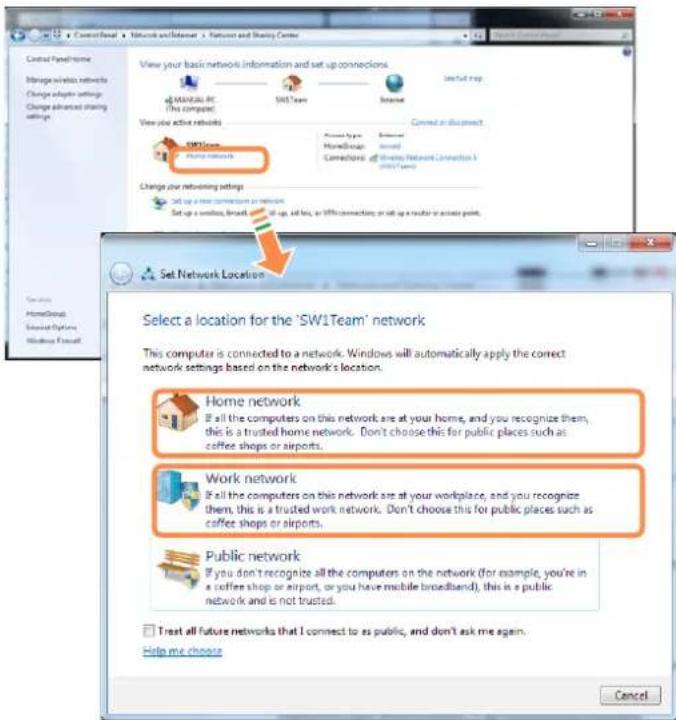
text_image
Control Panel Name Manage wireless networks Change adapter settings Change advanced sharing settings View your basic network information and set up connections. MISI-CAU-RC This computer SWS Team Internet See Full map View your active networks SWS Team Home Network Connect to a connect Change your networking settings Set up a new connection or network Set up a wireless, broadband, or all-up, add to, add to, or 10% connection; or set up a reader or access point. Set Network Location Select a location for the 'SW1Team' network This computer is connected to a network. Windows will automatically apply the correct network settings based on the network's location. Home network If all the computers on this network are at your home, and you recognize them, this is a trusted home network. Don't choose this for public places such as coffee shops or airports. Work network If all the computers on this network are at your workplace, and you recognize them, this is a trusted work network. Don't choose this for public places such as coffee shops or airports. Public network If you don't recognize all the computers on the network (for example, you're in a coffee shop or airport, or you have mobile broadband), this is a public network and is not trusted. Treat all future networks that I connect to as public, and don't ask me again. Help me choose CancelA5 This problem may occur due to a vaccine program. (This is only applicable to models where McAfee Security Center is installed).
In this case, change the settings by following the steps below.
① Double-click the McAfee Security Center icon No launch it.
Click Configure > Internet & Network > Advanced.
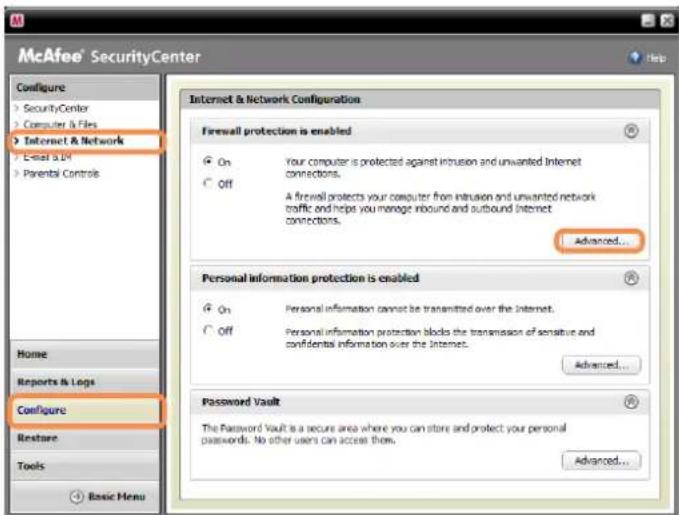
text_image
McAfee® SecurityCenter Configure • SecurityCenter • Computer & Files • Internet & Network • Email: 244 • Parental Controls Home Reports & Logs Configure Restore Tools Basic Menu Internet & Network Configuration Firewall protection is enabled ○ On Your computer is protected against intrusion and unwanted Internet connections. ○ Off A firewall protects your computer from intrusion and unwanted network traffic and helps you manage inbound and outbound Internet connections. Advanced... Personal information protection is enabled ○ On Personal information cannot be transmitted over the Internet. ○ Off Personal information protection blocks the transmission of sensitive and confidential information over the Internet. Advanced... Password Vault The Password Vault is a secure area where you can store and protect your personal passwords. No other users can access them. Advanced...② Select the Network menu item. In the Network pane to the right of the window, check whether the Type is set to Trusted.
If it is not set to Trusted, change it to Trusted by performing these operations:
Click Edit > Change the type to Trusted > Click OK.
text_image
Networks 1. Security level 2. Project Parameters 3. Networks 4. Internal PS 5. External Services 6. External Settings 7. Integration Detection 8. External Features Categories Add Edit Remove Networks 1. Security Level 2. Profile Properties 3. Networks 4. Internal PS 5. External Services 6. External Features 7. Security Level Add Edit Remove Add Rule □ Edit Create a rule using a simple IP address on an IP address range, specifying the level of trust user must be required to access a computer or network. □ Single From IP Address, 100/100 3.1 □ Range To IP Address, 100/100 3.264 □ Default Cancel OK CancelQ My TV which has been used successfully with Easy Content Share is suddenly not shown in the list.
A1 This is because the network is unstable. Click Refresh to update the list of devices connected to the access point.
A2 This problem may occur due to a vaccine program. (This is only applicable to models where McAfee Security Center is installed).
Q. Refer to answer A5 for the question Q. No connected devices are shown in Easy Content Share.
Q Subtitles are not displayed when viewing videos on my TV.
A Easy Content Share does not support subtitles due to DLNA constraints. To enjoy videos with subtitles, you should install Samsung TV's bundled DLNA S/W (applicable to Samsung TVs only).
① Install the DLNA S/W bundled with your Samsung TV on your computer.
② Share the files you want to play using the Samsung TV's bundled DLNA S/W.
(For more information on how to use Samsung TV's bundled DLNA S/W, refer to the User Manual of your TV.)
③ Run Easy Content Share. If the Samsung TV's bundled DLNA S/W you installed is listed in the remote server list of Easy Content Share, the sharing settings have been configured successfully.
④ In Easy Content Share, add the shared content of the Samsung TV's bundled DLNA S/W to the playlist. Now you can enjoy subtitles.
Q No screen is displayed when I try to view a video on my TV.
A If the format of the video is not supported by your TV, no screen will be output. The same symptom also occurs when other playback devices except for your TV do not support the video format.
Q Do only the PC and TV have the DLNA function?
A Some cell phones, printers, photo frames and refrigerators, etc. support the DLNA function.
Devices supporting the DLNA function can share files with each other. Depending on each product, a product may only support sharing photos or music files. For detailed information on the DLNA functions, refer the user manual of each product.
text_image
Ap Pre Glo IncChapter 5.
Appendix
Product Specifications 164
Glossary 166
Index 171
Product Specifications
The system specifications may differ depending on the derived models. For detailed system specifications, refer to the product catalog.
| CPUIntel ATOMTM Processor | |
| Main Memory (Optional) | Memory type: DDR2 SODIMMDDR3 SODIMM |
| Main Chipset Intel NM10 Express | |
| Hard Disk Drive (Optional) 9.5mmH SATA HDD | |
| Graphics Intel GMA 3150 (Internal) | |
| Operating Environment | Temperature : -5~40°C for storage, 10~35°C when operating Humidity : 5~90% for storage, 20~80% when operating |
| Operating Voltage 100 - 240VAC | |
| Frequency 50/60Hz | |
| Output Power (Optional) 40W | |
| Output Voltage (Optional) 19VDC 2.1A(40W) |

- Optional components may not be provided or different components may be provided depending on the computer model.
● The system specifications are subject to change without notice.
Registered Trademarks
Samsung is a registered trademark of Samsung Co., Ltd.
Intel, ATOM/ Pentium/Celeron are registered trademarks of the Intel Corporation.
Microsoft, MS-DOS, and Windows are registered trademarks of the Microsoft Corporation.

TruSurround XT
is a trademark of SRS Labs, Inc.
TruSurround XT technology is incorporated under license from SRS Labs, Inc.
SRS TruSurround XT™ processes multichannel audio content to create a truly immersive surround sound experience with rich bass and clear dialog from the laptop speakers or headphones.

WOW HD
is a trademark of SRS Labs, Inc.
WOW HD technology is incorporated under license from SRS Labs, Inc.
SRS WOW HD™ significantly improves the playback quality of mono and stereo audio, delivering a dynamic 3D entertainment experience with deep bass and high frequency clarity for crisp detail.

is a trademark of SRS Labs, Inc.
WOW XT technology is incorporated under license from SRS Labs, Inc.
SRS WOW XT™ significantly improves the playback quality of audio, delivering a dynamic 3D entertainment experience with deep bass from even the smallest and most closely spaced speakers.

is a trademark of SRS Labs, Inc.
CS Headphone technology is incorporated under license from SRS Labs, Inc.
CS Headphone™ delivers a 5.1 surround sound experience over standard headphones or earbuds when listening to multichannel content, such as DVD movies.
All other product or company names mentioned herein are registered trademarks of their respective companies.
ENERGY STAR® Partner

As an ENERGY STAR® Partner, SAMSUNG has determined that this product meets the ENERGY STAR® guidelines for energy efficiency.
Glossary
The Glossary lists the terminologies used in this User Guide.
For terminologies other than these, look in Windows Help.
Backup
A way to save the current data to restore it later if necessary. A backup is a way to restore computer data when the data or computer is damaged.
Chargeable USB
This program enables supplying power to a specific USB port when the system is in power saving mode, hibernation mode or off.
Client
This refers to a computer that uses a shared network resource provided by a server.
DDR SDRAM (Double Data Rate
Synchronous Dynamic Random Access Memory)
DRAM is a memory type whose cells consist of a capacitor and transistor manufactured at a low price. SDRAM is a memory type whose performance has been improved by synchronizing the clock with the external CPU clock. DDR SDRAM is a memory type whose performance has been improved by
doubling the operating speed of the SDRAM and is widely used nowadays. This computer uses DDR SDRAM.
Device Manager
An administrative tool used to manage computer devices. You can add or remove hardware or update a device driver using the Device Manager.
Direct X
An application interface developed to enable Windows application programs to access hardware devices at a very high speed. Since the operating speed of graphics, memory and sound cards must be very fast to provide high quality video and sound for games, Direct X enables faster control and interaction between applications and hardware devices. By using Direct X, the multimedia performance of Windows has been hugely improved.
Driver
Software that interacts between the hardware and the operating system. An operating system knows the hardware information and controls the hardware. In general, a driver is supplied with the corresponding hardware device.
DVD (Digital Versatile Disk)
DVD was developed to replace CD (compact disk). Although the shape and size of the disc are the same as that of a CD, the capacity of a DVD is at least 4.7GB while the capacity of a CD is 600MB. DVD video is digital unlike VHS (analog) video and supports MPEG2 compression and digital audio. To play a DVD, a DVD drive is required.
Firewall
A security system used to protect an internal network or intranet from external networks through an authentication procedure.
Hibernation Mode
A power mode that saves all data in memory to the hard disk and turns the CPU and hard disk off. When canceling Hibernation Mode, all application programs that were running are restored to their last state.
Icon
This refers to a small image that represents a file that users can use.
LAN (Local Area Network)
A communications network connecting computers, printers and other devices within a local area such as within a building. A LAN enables all connected devices to interact with other devices on the network. The current LAN uses the Ethernet media access control method developed in the early 1980s. To connect to an Ethernet, a network card called a LAN card, Ethernet card or network interface card is required. To exchange data between computers, a protocol is required besides the hardware equipment. Windows XP uses TCP/IP as the default protocol.
LCD (Liquid Crystal Display)
There are Passive Matrix and Active Matrix LCD types. This computer uses the Active Matrix type LCD called a TFT LCD. Since an LCD is implemented by transistors instead of a cathode-ray tube unlike a CRT, its size can be slim. And because it does not blink, it reduces eye strain.
Network
A group of computers and devices, such as printers and scanners, connected by a communications link. A network can be either small or large and can be connected permanently through cables or temporarily through telephone lines or wireless links. The biggest network is the Internet, a worldwide network.
Notification Area
This refers to the right area of the Taskbar including program icons such as the volume control, the power options and the time.
Power Schemes
This refers to a pre-determined power management option group. For example, you can set the time the computer waits before entering Standby Mode, or before the monitor or hard drive turns off. The settings are saved as a power scheme.
Quick Launch
This refers to a toolbar that can be configured so that you can launch a program such as Internet Explorer or display the Windows Desktop with one click. You can add any icon to the quick launch area of the Taskbar and launch frequently used program by clicking that icon.
Server
In general, a server refers to a computer that provides shared resources for network users.
Share
This refers to setting a resource of a computer such as a folder or printer so that other users can also use it.
Shared Folder
A folder that can be used by other users on the network.
This refers to a device that saves information to semiconductors unlike a normal hard disk drive (HDD). There are two types of SSD. One saves data to the DRAM and the other saves data to the Flash Memory. Since there are no mechanical parts, an SSD provides a much better performance than an HDD. Especially, a Flash Memory-Type SSD provides high reliability and durability.
Network Administrator
A user who plans, configures and manages network operations. Sometimes, a network administrator is called a system administrator.
Sleep Mode
A power mode that enables computers to save power consumption when they are not being used. When a computer is in Sleep Mode, the data on the computer memory is not saved to the hard disk. If the power is turned off, the data in memory will be lost.
System File
System Files refer to files that are read and used by the Windows operating system. In general, system files must not be deleted or moved.
USB (Universal Serial Bus)
This refers to a serial interface standard developed to replace the conventional interface standards such as Serial and PS/2. While USB 1.1 supports 12Mbps (12 million bits per second), USB 2.0 supports a data rate that is 40 times (480Mbps) faster than that of USB 1.1. The data rate of USB 2.0 is equivalent to that of IEEE1394. Therefore USB 2.0 is used for A/V devices supported by IEEE 1394 and a 2nd HDD and CDRW that require a high data rate.
Virtual XP Mode
This is a virtual operating system that enables running Windows XP programs on the Windows 7 operating system. Using this mode, you can run programs that do not run on Windows 7.
Windows Media Player
A multimedia program included with Windows. Using this program, you can play a media file, create an audio CD, listen to a radio broadcast, search and manage media files, and copy files to a portable device, etc.
Index
B
Battery 111
Battery Calibration 114
BIOS Setup 102
Booting Priority 108
C
CD Drive / Recording 68
Charge 112
Click 64
Connect / Output Monitor 73
D
Dual View 75
L
LCD Brightness 100
M
Memory 109
Multi Card Slot 70
P
Password 105
Product Specifications 164
R
Recorder 81
Remaining Battery Charge 113
S
Safety Precautions 8
Security Lock Port 116
Shortcut Keys 60
Status Indicators 51
T
Touchpad 63
V
Volume Control 78
W
Wired Network 83
Wireless Network 87
PR2XX_N / KR2XX_N
BR1XX_N / LR1XX_N