A34 - Smartphone AVUS - Free user manual and instructions
Find the device manual for free A34 AVUS in PDF.


User questions about A34 AVUS
0 question about this device. Answer the ones you know or ask your own.
Ask a new question about this device
Download the instructions for your Smartphone in PDF format for free! Find your manual A34 - AVUS and take your electronic device back in hand. On this page are published all the documents necessary for the use of your device. A34 by AVUS.
USER MANUAL A34 AVUS
natural_image
Black and white photo of a Huawei smartphone with app interface, no visible text or symbols on the device body beyond brandingINSTRUCTION MANUAL
BEDIENUNGSANLEITUNG
ANDROID OS 4.4
INHALT
Kapitel Seite
natural_image
Diagram of a smartphone interior showing internal components and two upward arrows indicating movement or force (no text or symbols present)natural_image
Diagram of a smartphone internal structure showing battery pack and internal components (no text or labels)Symbolfoto
LADEN DES AKKUS 4
natural_image
Close-up of a black USB flash drive with an arrow pointing to the button (no text or symbols visible)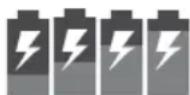

Akku geladenAkku Ia
natural_image
Vertical black arrow pointing to the left side of a dark gray object (no text or symbols)natural_image
Abstract geometric symbol with a white triangle inside a circle on black background (no text or symbols)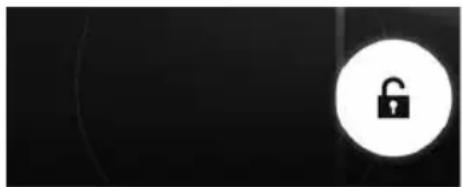
natural_image
Black background with a white circular icon containing a black open padlock symbol (no text or numbers)TELEFONIEREN 9
9.1 Anruf tätigen
natural_image
Abstract digital interface icons including a telephone handset, smiley face, and chat bubble on black background (no text or symbols)natural_image
Gray-scale interface toolbar with clock, telephone, and address icons (no text or symbols)11 TELEFONBUCH
2 Install/Remove the SIM Card 45
3 Install/Remove the Memory Card 46
4 Battery Charging 47
5 Turn on/off the Mobile Phone 48
6 Display and Status Symbols 49
6.1 Home Screen 49
6.2 Display Symbols 50
7 Description of the Keys and Display 51
8 Function Description of the Keys and Display 52
8.1 Usage of the touch screen 53
8.2 Un-/Lock the touch screen 54
9 Phone 55
9.1 Make a phone call 55
9.2 Answer a call 56
10 Call Log 57
11 People 58
12 Messages 59
13 E-Mail 60
CONTENT
chapter Page
14 Multimedia 61
14.1 Bluetooth 61
14.2 Browser 61
14.3 Camera 62
14.4 Gallery 63
14.5 Videos 63
14.6 FM-Radio 63
14.7 Downloads 64
14.8 File Manager 64
15 Extras 65
15.1 Time and Alarm 65
15.2 Calender 65
15.3 To Do 66
15.4 Calculator 66
16 Google Play 66
17 Settings 67
17.1 Wireless & Networks 67
17.2 Device 68
17.3 Personal 68
Reference to Declaration of Conformity 71
1 SAFETY PRECAUTION
Dear Customer!
Congratulations on your purchase of AVUS A34!
You have made the right decision.
Included in delivery:
Mobile phone, battery, travel charger, micro USB cable, headset, screen protector, user manual, warranty card
This mobile phone fits for a purpose in any GSM and UMTS network all over the EU.
Safety Precaution
This section includes some important notes for safety and effective operation, please read it carefully before using the cell phone.
General Information
- Please use the original accessories or other ones approved by the cell phone's manufacturer. Use of any accessories other than the approved ones may result in poor performance, damage of the cell phone, or even harm to your body, and impede relevant local calibration of telecommunication terminals.
- Please take care that your mobile phone does not come into touch with water or any other liquid. If moisture gets into your cell phone, the mobile phone itself or the battery could be damaged.
- Please turn off the cell phone before cleaning it, and use antistatic cloth, not chemicals or cleaning agents which will cause damage to the cell phone.
SAFETY PRECAUTION 1
- Please do not touch your mobile phone with needles, spikes or any other sharps, because the screen could be damaged.
- Considering the cell phone could produce an electromagnetic field, please do not place it next to magnetic objects, such as computer hard drive.
- Interference will happen when using the cell phone under electronic devices environment, such as television, telephone, radio and personal computer.
- Never make the cell phone exposed in the sun or placed in any high radiation environment, high temperature will shorten its life span.
- Do not drop, knock, or throw the phone with great force. Any rough actions may cause break of the internal circuit board.
- Do not try to dismantle the cell phone or its battery.
- Do not put the cell phone together with any flammable or explosive materials.
- Do not charge the cell phone without battery on.
Battery Safety
- Avoid battery short-circuit, because short-circuit will lead to overheating or burning of the battery.
- Never place the battery in any high-radiation environment or throw it into fire, otherwise, it will lead to an explosion.
- Do not dismantle or modify the battery, otherwise, it will lead to leakage, overheating, explosion or firing of the battery.
- Please place the battery in a dry place, if you will not use it for a long time.
1 SAFETY PRECAUTION
- Battery can be recharged hundreds of times, but it will eventually be exhausted. Please substitute a new battery when the operating time (calling time and standby time) become significantly shorter.
- Please stop charging and using the battery, if it is damaged or shows obvious aging problem.
- Return the exhausted battery to the manufacturer or dispose of it as regulated by environment-related ordinances. Do not dispose of it as household garbage.
- Please use the original battery or the ones approved by the cell phone's manufacturer. Use of any batteries other than the approved ones may result in poor performance, or explosion of your cell phone.
WARNING: Do not charge the battery, if it has been damaged. Should any battery liquid leak to your eyes or skin, please make a thorough cleansing with clean water and see the doctor immediately.
Warning for Electronic Equipment
Some electronic equipment may produce electromagnetic interference or shield to the cell phone signal, such as electronic vehicle system; if necessary, please consult the equipment's manufacturer before using them.
Safety under Traffic Environment
- Airbags, brakes, speeding up control system and fuel-supply system shouldn't be influenced by any wireless transmission. If you encountered any relevant issues, please contact your mobile manufacturer.
SAFETY PRECAUTION 1
- Do not put your cell phone on the airbag or the area covered by the airbag. Airbag may produce great inflation pressure, so the cell phone, if placed in the airbag area, will be ejected by great pressure and cause serious harm to user.
- Please turn off the phone in any fueling places or places where use of any doubleway radio-tape recorders is prohibited.
Operating Notes for Drivers
- While driving, please follow the relevant traffic laws and pay attention to traffic safety.
- If possible, please use the hands-free function.
- If conditions permit, please stop the car to make/answer calls.
Aviation Safety
- To protect the aircraft's communications systems from being interfered, please turn off cell phone before the plane taking off and never use it during the flight. According to the safety regulations, you may use the cell phone again upon the permission of the crew after the landing of the aircraft.
- If your phone has the function of being automatically turned on at the set time, please check your alarm clock setting to ensure that it will not be turned on during the flight.
1 SAFETY PRECAUTION
Notes for Using under Medical Devices Environment
- Please ensure the following practices when using the cell phone under medical devices (e.g. cardiac pacemaker) environment: Keep the cell phone at least 20 cm away from medical equipment; do not put the cell phone in the chest pocket, and use it on the side without the pacemaker, so as to reduce the potential interference; if necessary, please turn off the phone. For other issues, please consult the manufacturer of the medical equipment before using the cell phone.
- If you have other personal medical devices (such as implanted cochlea, etc.), please consult the manufacturer, so as to determine whether these devices can screen the surrounding RF signal.
- In some places with special requirements, such as hospitals or health care places, please note restrictions on the use of cell phone, and turn off the cell phone when required.
Note for Risk of Potentially Explosion
- Please turn off cell phone before entering any areas with risk of potential explosion, such as gas, fuel stations or any places storing or transferring chemicals.
- Do not remove, install or charge the battery in the aforesaid areas with risk of potential explosion, sparks of such areas may cause explosion or fire, bringing body injury or even death to people.
- In order to avoid possible interference under blasting operations, please turn off the cell phone before entering any places with electronic blasting pipes or other electronic devices for blasting.
SAFETY PRECAUTION 1
Liability Disclaimer
AVUS shall not bear any liability for any relevant, indirect, special, incidental, or inevitable injuries caused by the use of this product, including injuries which have been considered, or unconsidered (but likely to happen) by AVUS. For more information please refer to the affixed warranty card.
INSTALL/REMOVE THE SIM CARD 2
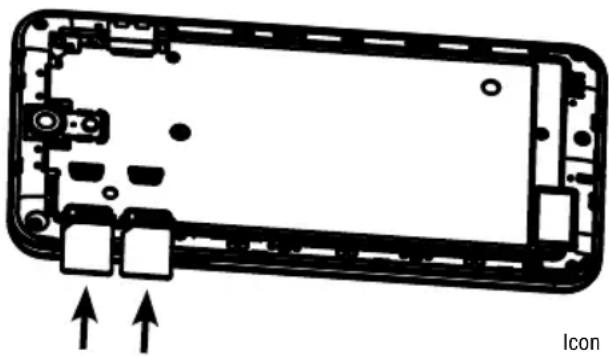
- Remove the battery cover. Raise the battery cover. Do not push the battery cover.
- Slide the SIM card into the slot shown, taking care to place it "circuit side" down and align the notch on the card with the notch on the receptacle.
- For removing the SIM card please slide the SIM card in the opposite direction.
- Please note: If your mobile phone does not identify the SIM card, please check, if the SIM card is in the right position and not damaged.
natural_image
Diagram of a smartphone rear panel with internal components and two upward arrows indicating orientation (no text or symbols)3 INSTALL/REMOVE THE MEMORY CARD
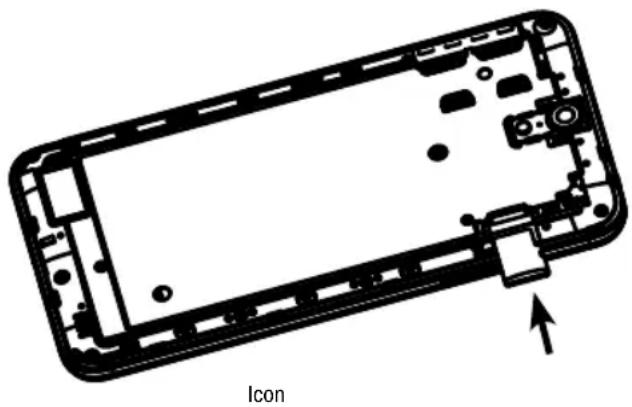
If extra storage capacity is required, you can install a memory card. This device uses microSD memory card.
- Slide the microSD card cover towards the direction of arrow.
- Remove the memory card: Please slide the memory card in the opposite direction.
- Please note: If the memory card is not identified by your mobile phone, please ensure, if the memory card is in the right position and not damaged.
natural_image
Diagram of a smartphone interior showing internal components and an icon label (no text or symbols beyond the label)BATTERY CHARGING 4
The cell phone can be charged either under power-on or power-off status. New battery will achieve optimal performance after fully charging and discharging several times. When the battery is exhausted, please recharge it, excessive discharge can damage your battery.
Please note: If the battery is discharged deeply, the battery indicator will appear a few minutes later.
After the battery is fully charged, please disconnect the charger and disconnect or turn off the power. When charging, the battery capacity icon on the screen will show animation. If fully charged, the animation will stop.
When charging, battery may become very warm, it is normal.
Battery performance is influenced by many factors, including your carrier network configuration, signal strength, the temperature while using the device; the functions you choose and use, accessories and voice, data or other application mode.
Please note: If the battery has been set aside for a long time or the power battery is very low, it may take some time to show it is charging.
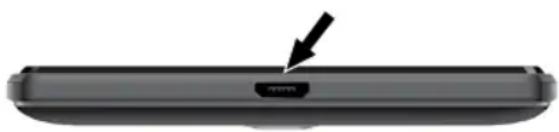
natural_image
Close-up of a black USB flash drive with an arrow pointing to the button (no text or symbols visible)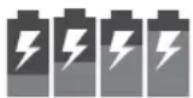
Charging

Charging finished
Warning: Any kind of battery short circuit may cause explosion, fire or personal injury and other serious consequence!
5 TURN ON/OFF THE MOBILE PHONE
Long press the key for 2 - 3 seconds to switch on/off the phone. If you have activated the PIN code, when switching on, the screen will display "Enter PIN". You get the PIN code together with the SIM card from the network operator.
Warning: If you input the wrong PIN code three times, the SIM card will be blocked, please contact the network operator for help decoding.

natural_image
Vertical black arrow pointing to the left side of a dark gray object (no text or symbols)Long press the key for 2 - 3 seconds to switch on/off the phone.
BOLS 6
6.1 Home Screen

text_image
WLAN connection Bluetooth Signal strength Battery Status Google 12:20 Time 12:20 Weekday, Date Kamera Galerie Maps Einstellungen Connections and Services (Energy Control) Phone, Contacts, Apps (Menu), SMS/MMS, Browser Apps (individually adjustable)6 DISPLAY AND STATUS SYMBOLS
6.2 Display Symbols
Following icons may appear on the screen:

Battery status

Signal strength

Bluetooth connection

WLAN connection

GPS locating

Data synchronization

Auto brightness

Vibration

Silent

New e-mails

New SMS/MMS

Missed calls

Headset plugged

Alarm

Flight mode

USB connection
D DISPLAY 7
text_image
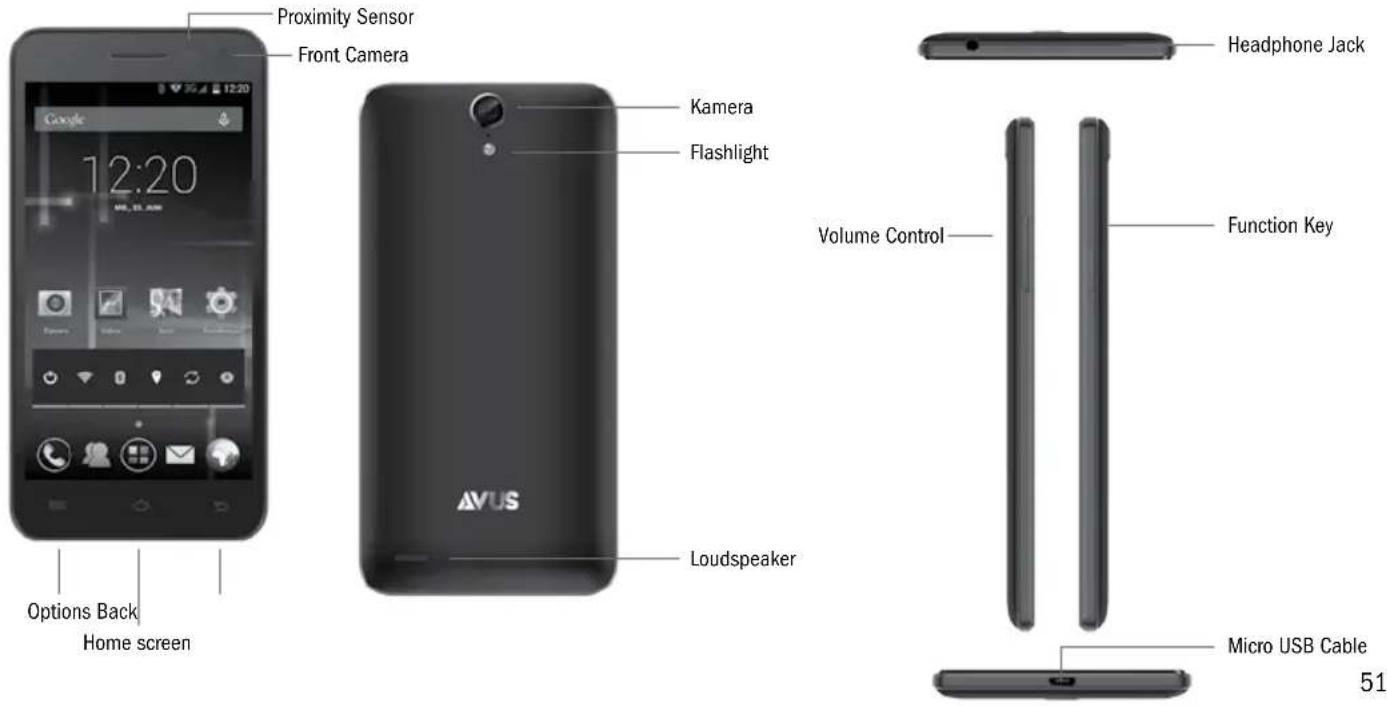
Proximity Sensor Front Camera 12:20 Google Options Back Home screen Kamera Flashlight AVUS Loudspeaker Volume Control Headphone Jack Function Key Micro USB Cable 518 FUNCTION DESCRIPTION OF THE KEYS AND DISPLAY
Key/Symbol
Function
Function Key Turn on/off the mobile phone De-/activate the flight mode
Restart
Select a profile: silent, vibration, loud
Volume control Upper key: louder
Lower key: less noisy
De-/activate the vibration and silent profile

Options List of all options, which are available at the moment

Home screen Go back to the home screen

Back One step back
DESCRIPTION OF THE KEYS AND DISPLAY 8
8.1 Usage of the touch screen
To use the most functions of this mobile phone, you need to touch icons, items or the on-screen keyboard.
Touch and hold an icon, if you want to run a function (for example if you want to put an icon on the home screen in the next line). You can change the background image by touching the background and after some seconds the menu will appear.
If you want to scroll for example, touch a point on the screen and push your finger in a specific direction. If you want to change between the menu pages, you have to wipe over the screen.
If you touch the screen with both fingers and contract or stretch them, you can use the zoom function (for example pictures, web pages or maps).
8 FUNCTION DESCRIPTION OF THE KEYS AND DISPLAY
8.2 Un-/Lock the touch screen
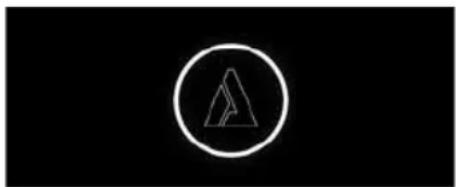
- You deactivate the standby, if you press the function key.
- The AVUS logo will appear on the screen.
- Touch this icon and remove it from the circle.
- Press the function key again, if you want to lock the screen.
natural_image
Abstract geometric symbol with a white triangle inside a circle on black background (no text or symbols)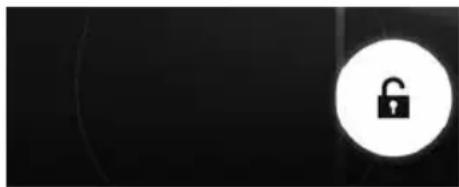
natural_image
Black background with a white circular icon containing a black open padlock symbol (no text or numbers)PHONE 9
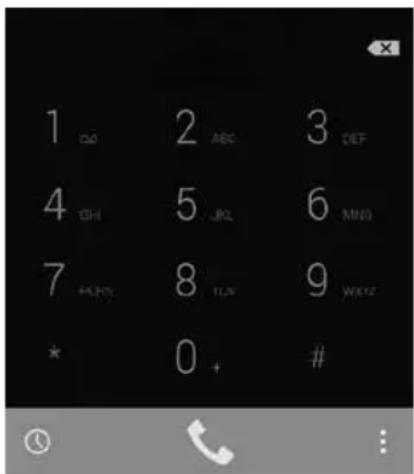
9.1 Make a phone call
- Insert the dialing code and the phone number.
- Touch the handset's icon , if you want to make a phone call (SIM1 or SIM2).
- If the inserted number is not right, you can remove some digits by pressing the remove icon. If you press this symbol longer, you can delete all digits.
- Touch the handset's icon in the red line, if you want to abort a phone call.
Emergency call
If you want to make an emergency call, please ensure that the mobile phone is turned on and the connection to the cellular network is active. Then insert a SOS number (for example "112") and press the handset's icon to make the emergency call.
Please note: You have inserted a valid SIM card. Even if you have inserted a valid SIM card, it could happen that your mobile phone is not connected to the cellular network.
text_image
1 2 ABC 3 DEF 4 5 JRC 6 MNO 7 8 TUN 9 WXYZ * 0 + #9 PHONE
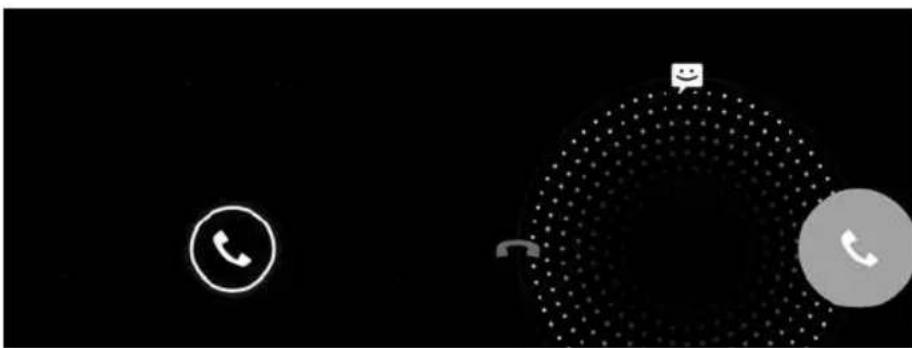
9.2 Answer a call
- Touch the handset's icon , when you get a phone call.
- If you want to answer the call, pull the symbol to the right.
-
If you want to abort the call, pull the symbol to the left.
-
If you receive a phone call and if you are busy at the moment, you can send the calling party a short message. Pull the symbol to the icon of the speech bubble.
natural_image
Abstract digital interface with a phone icon, circular grid pattern, and a smiling face (no text or symbols)- Touch the icon on the left in the lower field of the on-screen keyboard. All calls will be shown.
- You can choose between following displays: all, received, dialed and missed calls.
- Touch the options icon for deleting the list of calls.

natural_image
Gray-scale interface with icons for clock, telephone, and address bar (no text or symbols)11 PEOPLE
- Add a contact: Choose the app "People" and touch the icon in the middle of the screen to add a new contact.
- Search a contact: Touch the loupe to enter the name of the contact you are searching for.
-
If you want to call someone, touch the line of the contact and choose the number, which shall be called.
-
Write new SMS/MMS: Choose the app "Message" in the left corner of the screen to write a new message.
- Add a contact and write the message. You can add multimedia data too (for example pictures).
- If you want to send the message, touch the icon → for sending.
Please note: If you want to write and send a MMS, you have to activate the data service.
Warning: Texting a MMS could bear to additional costs. Please contact your network operator and inform yourself about potential charges.
13 E-MAIL
- Write new e-mail: Choose the app "E-Mail" and touch the icon in the right corner of the screen to write a new e-mail.
- Add the receiver and write the message.
- If you want to send the message, touch the icon for sending.
Please note: Before using the e-mail app you have to configure an account. An assistant helps you with the settings. If you have any questions regarding the required data, please contact the provider of your e-mail address.
Please note: If you want to write and send an e-mail, you have to activate the data service.
Warning: Texting an e-mail could bear to additional costs.
Please contact your network operator and inform yourself about potential charges.
14.1 Bluetooth
You can use the Bluetooth function for sharing data (for example pictures) with another device. You can connect the mobile phone with your hands-free equipment too.
-
Touch the Bluetooth icon ⚙ to activate the Bluetooth function.
-
If you open the app "Settings", you find the menu item "Bluetooth". Go into this menu to run following actions: Rename the mobile phone • Visibility • Paired devices • Search devices
14.2 Browser
- Choose the icon "Browser" to surf on the internet.
- In the upper line you can search for a word or phrase on Google. You can also enter a hyperlink to open a specific web page.
Please note: For using the browser you have to activate the data services or WLAN connection.
Warning: Using the data service could bear to additional costs. Please contact your network operator and inform yourself about potential charges.
14 MULTIMEDIA
14.3 camera
Your mobile phone has two cameras: one on the front and one on the back. The back camera has 8 megapixels. The flashlight is also on the back side. The front camera has 2 megapixels.
- Choose the camera icon for activating the camera function.
- If you want to take a picture, touch the trigger symbol 📂.
- If you want to take a picture with the front camera, touch following icon 📄.
- You can configure the flash light's settings: automatic, turn on/off.
- Touch the symbol "Option" to configure the settings: scene mode, white balance, colour effect, etc. You can also de-/activate the face detection or self-timer.
- You have the possibility to make a video. If you want to start the video recording, touch following icon. If you want to abort the video recording, touch this symbol again.
- If you took a picture or made a video, you can share it for example via Bluetooth or MMS.
Please note: If your mobile phone does not have enough memory space, delete some pictures or insert an external memory card.
14.4 Gallery
- If you open the app "Gallery", you will find all pictures or videos, which you have taken oder downloaded.
- The pictures are arranged in albums (for example "Camera" or "Screenshot").
- If you open an album, you can thumb through the pictures by wiping with the finger on the touch screen.
- You have the possibility to edit the pictures or to set them as background or contact picture. Touch the icon "Option" to open this menu.
- If you want to share a picture, touch the icon in the right corner. You can choose between different communication channels like Bluetooth, MMS or e-mail.
14.5 Videos
Touch the icon "Videos" for playing videos, which you have taken by yourself. You have also the possibility to share this video by touching following symbol.
14.6 FM-Radio
- If you like to use the radio function 📄, you have to plug in your headset with an antenna.
- Touch following icon in the right corner, if you want to search a channel or activate the hands-free function.
- With the control keys on the touch screen you can switch between the frequencies.
14 MULTIMEDIA
14.7 Downloads
If you open the app "Downloads", you will find all data, which you have downloaded (for example attachments, which you have received via e-mail). You can govern, share or delete the data.
14.8 File Manager
If you open the app "File Manager", you can govern your data. You can also peek how many memory space is left.
15.1 Time and Alarm
Touch the app "Clock"
- Touch the symbol
- Touch the symbol
- Touch the symbol
- If you want to see the current times from different cities, touch the icon and choose the particular places.
- To configure the general settings touch the icon ☐.
15.2 calender
- Open the app "Calendar"
- Touch a certain day to add an appointment. If you touch the line with the starting time twice, a pop-up will appear and you can add a new entry.
- Choose the symbol "Option" to define which calendars should be shown (for example Google Mail account)
15 EXTRAS
15.3 To Do
Choose the symbol to add a new entry.
15.4 Calculator
- Touch the icon "Calculator"
- If you wipe to the right, more functions will be shown.
16 GOOGLE PLAY
The app "Google Play"

is the virtual market place.
You can download apps, games, music or books.
SETTINGS 17
For configuring and governing your mobile phone, choose the app "Settings"

17.1 Wireless & Networks
In this menu you can configure the settings which deal with your SIM card. If you use two SIM cards for example, you can configure, which number you use to make a phone call or text a message. You can also de-/activate the data service.
This mobile phone is a dual SIM device. Both SIM cards can be active and in standby, which means that both numbers are reachable.
Please note that the data service can only be active on one SIM card.
In this menu you can also configure the roaming settings.
Warning: If you are abroad, please contact your network operator and inform yourself about potential charges.
In the menu “Mobile networks” you can define the access point names (APN). This data has to be correct and are necessary to get a successful mobile data connection. You get the data, which has to be added, from your network operator.
Warning: The usage of the mobile data service could bear to additional costs.
Please contact your network operator and inform yourself about potential charges.
17 SETTINGS
17.2 Device
In this menu you can de-/activate the user profiles like loud, silent, etc.
Furthermore you can take a look how much memory space is left and request the battery status.
In the menu "Apps" you find a list with all apps, which you have downloaded.
17.3 Personal
You can configure the GPS settings in the menu "Location". If you want to use a navigation app for example, it is necessary to activate GPS. In the menu "Security" you can de-/activate the PIN code from your SIM card. You can also configure other security settings like the screen lock.
REFERENCE TO DECLARATION OF CONFORMITY IN ACCORDANCE WITH THE DIRECTIVE 1999/5/EC (R&TTE)

TYPE: A 34
CE 0700
Ort, Datum / Place, Date of issue
The complete Declaration of Conformity is available for download on www.avus.cc