FIR151B - Router Phicomm - Free user manual and instructions
Find the device manual for free FIR151B Phicomm in PDF.


User questions about FIR151B Phicomm
0 question about this device. Answer the ones you know or ask your own.
Ask a new question about this device
Download the instructions for your Router in PDF format for free! Find your manual FIR151B - Phicomm and take your electronic device back in hand. On this page are published all the documents necessary for the use of your device. FIR151B by Phicomm.
USER MANUAL FIR151B Phicomm
FIR151B/300B/302B/303B
Wireless Router
User Manual

bar
| Category | Value | |---|---| | Category 1 | 45 | | Category 2 | 38 | | Category 3 | 32 | | Category 4 | 27 | | Category 5 | 23 | | Category 6 | 19 | | Category 7 | 15 | | Category 8 | 11 | | Category 9 | 8 | | Category 10 | 5 |>ontents
Important notes and information
- About the user manual
1.1 Structure of the user manual
1.2 Used symbols and fonts
1.3 Standard compliance (CE, FCC) - Introduction
- Hardware connections
- Router configurations
4.1 TCP/IP settings
4.2 Router configurations
4.2.1 Setup wizard
4.2.2 Network settings
4.2.3 Wireless settings
4.2.4 Health and power saving
4.2.5 Running status
4.2.6 System Tools
4.2.7 Wireless advanced settings
4.2.8 Security settings
4.2.9 Parental control
4.2.10 Application
4.2.11 Dynamic DNS
4.2.12 Routing settings
4.2.13 Bandwidth control
4.2.14 IP und +AC binding
4.2.15 >ogout - Troubleshooting
- Technical support – contact us
LEGAL INFORMATION ABOUT INTELLE>TUAL PROPERTY
All company, product and service names mentioned herein are trademarks, registered trademarks or service marks of their respective owners. Shanghai Feixun Communication Co., >td. reserves the right to revise the content of this document at any time without prior notice. No part of this document may be reproduced or transmitted in any form or by any means, electronic or mechanical, including photo-copying, recording or storing in a retrieval system, or translated into any language in any form without prior written permission of Shanghai Feixun Communication Co., >td.
DIS>LAIMER
Any pre-installed software or data provided as a bundle to this device is subject to the applicable law under the responsibility of the issuing software / service provider. The hardware manufacturer cannot be held liable for any breach, malfunction or other occurrence raised by using this third-party software. Only the issuing providers can lawfully be held responsible. Shanghai Feixun Communication Co., >td. does not own the intellectual property of the third-party software and applications that are delivered with this product. Therefore, Shanghai Feixun Communication Co., >td. will not provide any warranty of any kind for these third-party software and applications. Neither will Shanghai Feixun Communication Co., >td. provide support to customers who use these third-party software and applications nor be responsible or liable for the functions of these third-party software and applications. Third-party software and applications services may be interrupted or terminated at any time. Shanghai Feixun Communication Co., >td. does not guarantee that any content or service would be maintained for any period during its availability. Third-party service providers provide content and services through network or transmission tools outside of the control of Shanghai Feixun Communication Co., >td. to the greatest extent permitted by applicable law, it is explicitly stated that Shanghai Feixun Communication Co., >td. shall not compensate or be liable for services provided by third-party service providers or the interruption or termination of third-party contents or services. Shanghai Feixun Communication Co., >td. Shall be not responsible for the legality, quality or any other aspects of any software installed on this product, or for any uploaded or downloadad third-party works, such as texts, images, videos or software. Customers shall bear the risk for any and all effects including incompatibility between the software and this product, which result from installing software or uploading or downloading the third-party works.
LIMITATION OF DAMAGES
To the maximum extent permitted by applicable law, in no event shall Shanghai Feixun Communication Co., >td. be liable for any special incidental, indirect or consequential damages or lost profits, business, revenue, data, goodwill or anticipated savings. The maximum liability (this limitation shall not apply to liability for personal injury to the extent applicable law prohibits such a limitation) of Shanghai Feixun Communication Co., >td. arising from the use of the product described in this document shall be limited to the amount paid by customers for the purchase of this product.
IMPORTANT HEALTH INFORMATION AND SAFETY PRE>AUTIONS
When using this product, the safety precautions below must be taken to avoid possible legal liabilities and damages. Retain and follow all product safety and operating instructions. Observe all warnings in the operating instructions on the product.
To reduce the risk of bodily injury, electric shock, fire and damage to the equipment, observes the following precautions.
SAFETY PRE>AUTIONS FOR PROPER INSTALLATION
CAUTION: Connecting to a weaker inappropriate charger can result in an electric shock to your device.
SAFETY PRE>AUTIONS FOR PROPER SUPPLY UNIT
Use the correct power source!
This product can only be charged with matching standard external power source appointed by Shanghai Feixun Communication Co., >td.
Shanghai Feixun Communication Co., >td. is not liable for any device breakdown or safety accident arising from the use of unauthorized external power source.
PRE>AUTION OF HEARING LOSS
GENERAL WARNING: To prevent possible hearing damage, do not listen at high volume levels for long periods.

Permanent hearing loss may occur if the receiver, headphones, speakerphone or earpieces are used at high volume. Use only compatible receivers, headphones, speakerphones or earpieces with your device. Turn on the audio and check the volume before inserting anything in your ear. You can adapt over time to a higher volume of sound that may sound normal but can be damaging to your hearing. If you experience ringing in your ears or muffled speech, stop listening and check your hearing. The louder the volume, the less time is required before your hearing could be affected.
Copyright @ 2015 Phicomm Europe GmbH – print only for private use!
Hearing experts suggest that to protect your hearing:
-
imit the amount of time you use receiver, headphones, speakerphone or earpieces at high volume.
- Avoid turning up the volume to block out noisy surroundings.
• Turn the volume down if you cannot hear people speaking near you.
SAFETY PRE>AUTION FOR DIRE>T SUNLIGHT
When you are using the device, it is normal for the device to get warm. The exterior of the device functions as a cooling surface that transfers heat from inside the unit to the cooler air outside.
ENVIRONMENT RESTRI>TIONS
Do not use this product in gas stations, fuel depots, chemical plants or where blasting operations are in process, or in potentially explosive atmospheres such as below deck on boats, fuel or chemical transfer or storage facilities, and areas where the air contains chemicals or particles, such as grain, dust or metal powders. Please be aware that sparks in such areas could cause an explosion or fire resulting in bodily injury or even death.
EXPLOSIVE ATMOSPHERES
In any area with a potentially explosive atmosphere or where flammable materials exist, the product should be turned off and the user should obey all signs and instructions. Sparks in such areas could cause an explosion or fire resulting in bodily injury or even death. Users are advised not to use the equipment at refueling areas such as service or gas stations, and are reminded of the need to observe restrictions on the use or radio equipment in fuel depots, chemical plants or where blasting operations are in progress. Areas with a potentially explosive atmosphere are often, but not always, clearly marked. These include fueling areas, below deck on boats, fuel or chemical transfer or storage facilities, and areas where the air contains chemicals or particles, such as dust or metal powders.
SAFETY PRE>AUTIONS FOR RADIO FREQUEN>Y EXPOSURE
- Avoid using your device near metal structures (e.g. the steel frame of a building).
- Avoid using the device near strong electromagnetic sources, such as microwave ovens, sound speakers, TV and radio.
• Use only original manufacturer-approved accessories. - Use of non-original manufacturer-approved accessories may violate your local RF exposure guidelines and should be avoided.
INTERFEREN>ES WITH MEDI>AL EQUIPMENT FUN>TIONS
This product may cause medical equipment to malfunction. The use of this device is forbidden in most hospitals and medical clinics.
If you use any other personal medical device, consult the manufacturer of your device to determine if they are adequately shielded from external RF energy.
HEARING AID DEVI>ES
Some devices may interfere with some hearing aid devices. In the event of such interference, you may want to consult your service provider, or call customer service line to discuss alternatives.
NON-IONIZING RADIATION
Your device has external antennas. This product should be operated in its normal-use position to ensure the radiative performance and safety of the interference. Users are advised that for satisfactory operation of the equipment and for the safety of personnel, it is recommended that no part of the human body be allowed to come too close to the antenna during operation of the equipment.
Use only the supplied antennas. Use of unauthorized or modified antennas may impair transfer quality and damage the device, causing loss of performance and SAR levels exceeding the recommended limits as well as result in noncompliance with local regulatory requirements in your country.
To assure optimal device performance and ensure human exposure to RF energy is within the guidelines set forth in the relevant standards, always use your device only its normal-use position. Contact with the antennas may impair quality and cause your device to operate at a higher power level than needed. Avoiding contact with the antenna area when the device is in use optimizes the antenna performance.
GENERAL PRE>AUTIONS
AVOID APPLYING EX>ESSIVE PRESSURE TO THE DEVI>E
Do not apply excessive pressure on the device to prevent damaging them.
DEVI>E IS GETTING WARM AFTER PROLONGED USE
When using your device for prolonged periods the device may become warm. In most cases this condition is normal and therefore should not be interpreted as a problem with the device.
HEED SERVI>E MARKING
Except as explained in the user manual, do not repair any product yourself. Service needed on components inside the device should be done by an authorized service outlet or provider.
PHICO++ is entitled to use new or reconditioned replacements parts or boards for repairs under warranty, provided they have the same functionality as the parts to be replaced.
DAMAGE REQUIRING SERVI>E
Unplug the device from the electrical outlet and refer servicing to an authorized service center or provider under the following conditions:
-
liquid has been spilled or an object has fallen onto the product.
• The product has to been exposed to rain or water.
• There are noticeable signs of overheating.
• The product does not operate normally when you follow the operating instructions.
AVOID HOT AREAS
The product should be placed away from heat sources such as radiators, heat registers, stoves, or other products (including amplifiers) that products heat.
AVOID HOT AREAS
Never use the product in a wet location.
AVOID USING YOUR DEVI>E AFTER A DRAMATI> >HANGE IN TEMPERATURE
When you move your device between environments with very different temperature and/or humidity ranges, condensation may form on or within the device. To avoid damaging the device, allow sufficient time for the moisture to evaporate before using the device.
NOTICE: When taking the device from low-temperature conditions into a warmer environment or from high-temperature conditions into a cooler environment, allow the device to acclimate to room temperature before turning on power.
AVOID PUSHING OBJE>TS INTO THE DEVI>E
Never push objects of any kind into cabinet slots or other openings in the product. Slots and openings are provided for ventilation. These openings must not be blocked or covered.
MOUNTING A>>ESSORIES
Do not use the product on an unstable table, cart, tripod or bracket. Any mounting of the product should follow the manufacturer's instructions, and should use a mounting accessory recommended by the manufacturer.
AVOID UNSTABLE MOUNTING
Do not place the product with an unstable base.
USE PRODU>T WITH APPROVED EQUIPMENT
This product should be used only with personal computers and options identified as suitable for use with your equipment.
>LEANING
Unplug the product from the wall outlet before cleaning. Do not use liquid cleaners or aerosol cleaners. Use a damp cloth for cleaning, but NEVER use water to clean the device.
The device has been provided with special treatments featuring that it could dispose dirt and sweat on its surface. The device itself does not have a stain-resistant function. In case of smudginess and dyeing, please wipe it with clean damp sponge immediately. Please keep the device dry when necessary.
PA>EMAKER

The device may cause disturbance to pacemakers. Please keep the device a proper distance of least 6 centimeters away from pacemakers.
If you need detailed information about other active implantable medical devices, please consult your doctor to ensure the magnetic interference of such active implantable medical devices.
> AUTION
Update your operating system with caution.
- Improper operation or unforeseen external factors may cause an operating system update fails; the device will not work properly. If such a situation occurs, you need to send the unit in for repair.
- An unofficial operating system can cause security risks. Please install only official updates provided by Phicomm, if not you will void the warranty and a repair is chargeable.
SW-Update
- During the update process all user data will be erased. Please backup your data before.
Package contents
Please check the package content before the installation of the router:
1x Wireless Router
1x power supply unit
1x RJ46 cable
1x quick start guide
GP> license and CE declaration
Summary of changes
| Issue | Issue date | Remarks | |
| 1 | September 2015 | Initial release | |
1. About the user manual
This user manual includes a complete overview of the configuration and functions of PHICO++ routers of the FIR series.
1.1 Structure of the user manual
The document is structured as follows:
| >hapter | Title Subject | |
| 1 About the user manual | Basic description of document content, definition of symbols and conventions | |
| 2 Introduction Description of basic functions | ||
| 3 Hardware connections | Description of the way connecting the router with other hardware | |
| 4 Wireless router configurations | Description of the router configuration | |
| 5 Troubleshooting FA=s and solutions | ||
| 7 Technical support – contact us | ||
1.2 Used symbols and fonts
The following symbols are used in the user manual:

DANGER! WARNING!
+ay result in personal injury

Note
Useful additional information
The following editorial conventions are used in the manual:
| Convention Explanation | |
| Bold Field names / button names are written in boldExample: click menuView | |
| Italic Commands, screen output, file names and paths are written inItalic.Example: Input 192.168.0.1 inIP addresstext box. | |
| <...>keyboard or actual names are represented in angle bracketsExample: Click+ + to open the task manager. | |
| > Used for menu sequence | Example: ClickFile > Printto print. |
1.3 standard compliances (>E, F>>)
Declaration of >onformity
For CE marking in the EU (European Union)
Shanghai Feixun Communication Co., >td.
No.3666, Sixian Rd., Songjiang District, Shanghai, P.R.China
We declare under our sole responsibility that our products
Product Name: Wireless Router
Model: FIR151B, FIR300B, FIR302B, FIR303B
to which this declaration relates are in conformity with the following normative
European and international standards:
Safety
√ EN 60950-1:2006+A11:2009+A1:2010+A12:2011+A2:2013
√ EN 62311:2008
EMC
√ EN 301 489-1 V1.9.2(2011-09)
√ EN 301 489-17 V2.2.1(2012-09)
√ EN 55022:2010
√ EN 61000-3-2:2006+A1:2009+A2:2009
√ EN 61000-3-3:2008
√ EN 55024:2010
Radio Spectrum
√ EN 300 328 V1.7.1(2006-10)
By conformance with the standards referenced our products follow the provisions of the directives listed below.
√ R&TTE Directive 1999/5/EC
√ EMC Directive 2004/108/EC
√ >ow Voltage Directive 2006/95/EC
Date: July 8, 2014
Jie Hu
Manager for Product Certification
F>> STATEMENT
This device has been tested and complies with Part 16 of the FCC Rules for Class B. These regulations are intended to protect against adverse effects of device operation in a home environment.
The operation of a device under FCC regulations Part 16 is subject to the following two conditions:
• The device may not cause harmful interference.
- This device must accept any interference, including all those that cause undesirable behavior.
This router generates and uses radio signals and therefore may interfere with radio communications if not installed. However, there can be no guarantee that interference will not occur. If a communication fault can occur, which can be tested by simply switching off and on the device, you should perform the following actions:
• Realign antennas
• Increase distance of the router to radio or television
• Use router with a different circuit than the radio or TV operate
• Contact dealer or manufacturer
Any use not expressly approved by PHICO++ changes to the device will invalidate the guarantee.
This equipment complies with the FCC RF radiation exposure limits set forth for an uncontrolled environment. This router and its antenna / antennas must not be operated in the immediate vicinity of other radio wave emitting devices / antennas. The antennas used for this router must be at least 20 cm away from people.
2. Introduction
The routers of the FIR series are all-in-one router for home and SOHO users to share broadband internet connection over a wired or a wireless network.
The speed of up to 300 +bps (FIR151B up to 150 +bps) provides users with extraordinary smooth internet surfing, internet phone calling and online gaming.
By adopting external Omni-directional antenna(s), the product greatly increases the wireless range and sensitivity, which enables to receive wireless signals in any corner of your home or your office.
The routers of the FIR series support the following features:
• speed up to 300 +bps (FIR151B up to 150+bps)
• backward compatible with 902.11b/g products
- health and power saving allows parents or administrators to establish restricted access policies for children or staff
• WPS button allows easy ON/OFF of the internet connection
• bandwidth control allows administrators to control the bandwidth for each PC
3. Hardware connections
To establish a connection using a modem, please follow the steps 1-1 to 5 of the chart below. If you use an Ethernet cable, please connect RJ with the WAN port directly (steps 1-2 to 5)
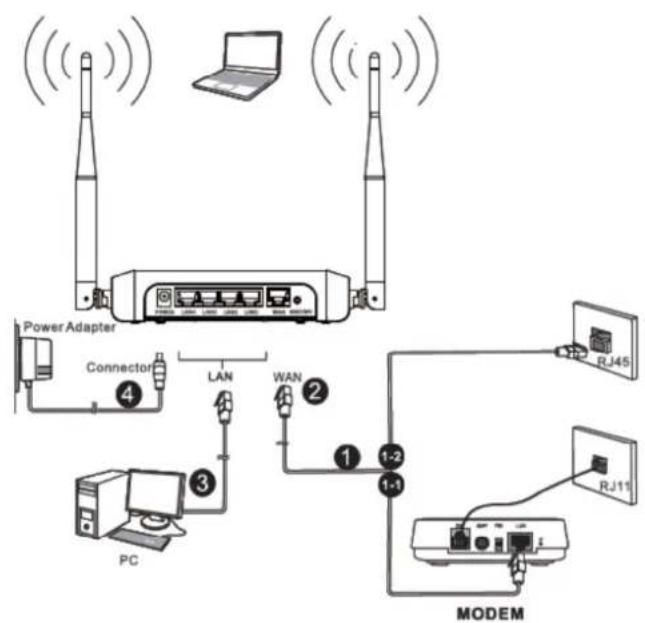
flowchart
graph TD
    A["Power Adapter"] --> B["Connector"]
    B --> C["LAN"]
    C --> D["WAN"]
    D --> E["1-2"]
    E --> F["MODEM"]
    F --> G["RJ45"]
    F --> H["RJ11"]
    F --> I["PC"]
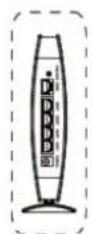
natural_image
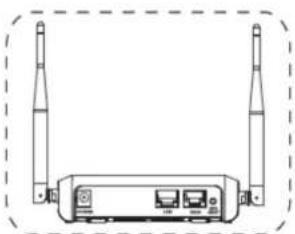
Line drawing of a wireless router with two antennas and ports (no text or symbols)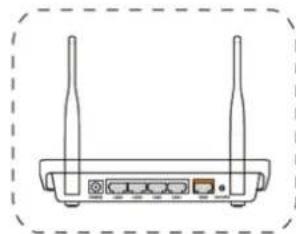
natural_image
Line drawing of a wireless router with two antennas and ports (no text or symbols)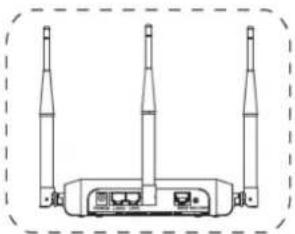
natural_image
Line drawing of a three-tier wireless router with two towers and an internal base (no text or symbols)
Note
The connections might vary by models.
4. Wireless router configurations
This section gives instructions of the procedures that must be performed to enable the wireless router.
After completion of the third point the router is connected with the internet. Please select the corresponding internet connection on your PC and click connect.
4.1 T>P/IP settings
The IP address has to be obtained automatically before starting the configuration of the router. Please follow these steps:
- With the right mouse button please click on the right bottom corner. Click Open Network and Sharing >enter and select >hange adapter settings on the upper left of the screen.

text_image
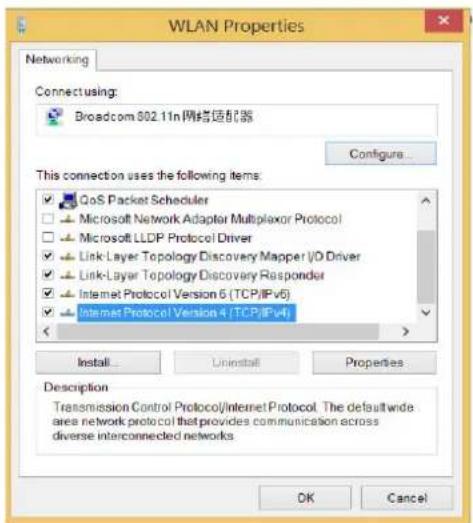
Troubleshoot problems Open Network and Sharing Center 3/6/2014- Select network connection type and open the Properties. In the Properties window please double click Internet Protocol Version 4 (T>P/IPv4).
text_image
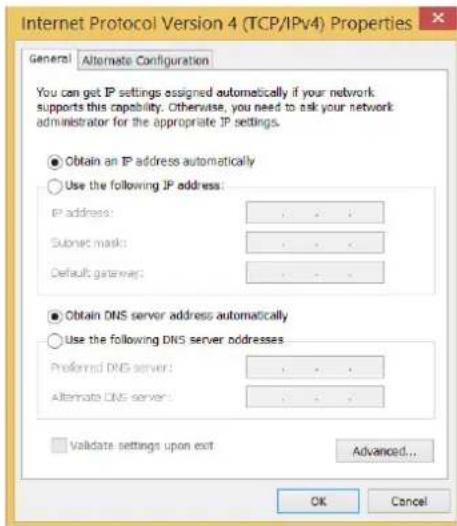
WLAN Properties Networking Connectusing: Broadcom 802.11n网络适配器 Configure... This connection uses the following items: GoS Packet Scheduler Microsoft Network Adapter Multiplexor Protocol Microsoft LLDP Protocol Driver Link-Layer Topology Discovery Mapper I/O Driver Link-Layer Topology Discovery Responder Internet Protocol Version 6 (TCP/IPv6) Internet Protocol Version 4 (TCP/IPv4) Install... Uninstall Properties Description Transmission Control Protocol/Internet Protocol. The default wide area network protocol that provides communication across diverse interconnected networks OK Cancel- Select both Obtain an IP address automatically and Obtain DNS server address automatically. Click OK to confirm the configuration.
text_image
Internet Protocol Version 4 (TCP/IPv4) Properties General Alternate Configuration You can get IP settings assigned automatically if your network supports this capability. Otherwise, you need to ask your network: administrator for the appropriate IP settings. Obtain an IP address automatically Use the following IP address: IP address: ... Subnet mask: ... Default gateway: ... Obtain DNS server address automatically Use the following DNS server addresses Preferred DNS server: ... Alternate DNS server: ... Validate settings upon exit Advanced... OK Cancel4.2 Router configurations
Open the web browser and enter 192.168.2.1 in the address bar.

text_image
FIR302B - Windows Internet Explorer 192.168.2.1 Favorites FIR302BEnter Username and Password (preset as admin/admin). You can find this information also at the bottom of the label on your router. Select the languages on the right side. Then click the Login button.

text_image
PHICOMM Service Tel 400-720-5677 Product Model FIR302B Language English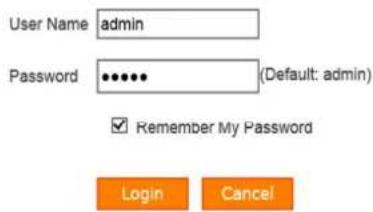
text_image
User Name admin Password •••••• (Default: admin) ✓ Remember My Password Login CancelAfter successful login, you will see the page of the Setup Wizard. Enter the needed settings or click >ancel to leave this page (to see the web management page). You can find the Setup Wizard in menu on the left. A small HELP button is on the right side to provide comprehensive instructions.
To confirm the settings on all pages please click Save. By clicking >ancel you always will return to the former page.
4.2.1 Setup Wizard
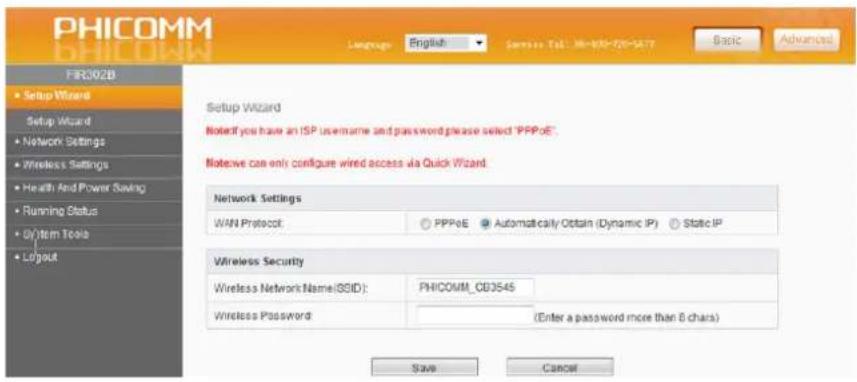
The setup wizard simplifies installation and configuration steps.
text_image
PHICOMM FIR302B Setup Wizard Setup Wizard Network Settings Wireless Settings Health And Power Saving Running Status D/Item Tools Layout Language English Service Tel: 96-88-78-5477 Basic Advanced Setup Wizard Notice if you have an ISP username and password please select "PPPoE" Note we can only configure wired access via Quick Wizard Network Settings WAN Protocol PPPoE Automatically Obtain (Dynamic IP) Static IP Wireless Security Wireless Network Name(SCID): PHICOMM_CB3545 Wireless Password: (Enter a password more than 6 chars) Save Cancel| Menu item Explanation | |
| Network Settings | |
| WAN protocol PPPoE | PPPoE is typically used for DS> services. Select PPPoE and type in theUsernameandPasswordprovided by your internet service provider. Then click theSavebutton.Dynamic IP (automatically obtain)SelectAutomatically obtain (Dynamic IP) if internet service provider does not provide any IP to use. This option is commonly used for cable modem services.Router will obtain IP address information automatically.Click Save button.Static IP addressSelectStatic IP if internet service provider provides the static IP address, subnet mask, default gateway and DNS server address. Type in those information and click theSavebutton. |
| Wireless Security | |
| Wireless network name (SSID) | Define SSID to any other name you prefer or keep it unchanged. |
| Wireless password Set a wireless password (more than 9 characters) to prevent others from accessing your network without permission. | |

The SSID should be changed and no longer match with the name specified by the manufacturer. Please create an anonymous one as possible SSID, which does not allow any conclusions about the location of the router.
4.2.2 Network Settings
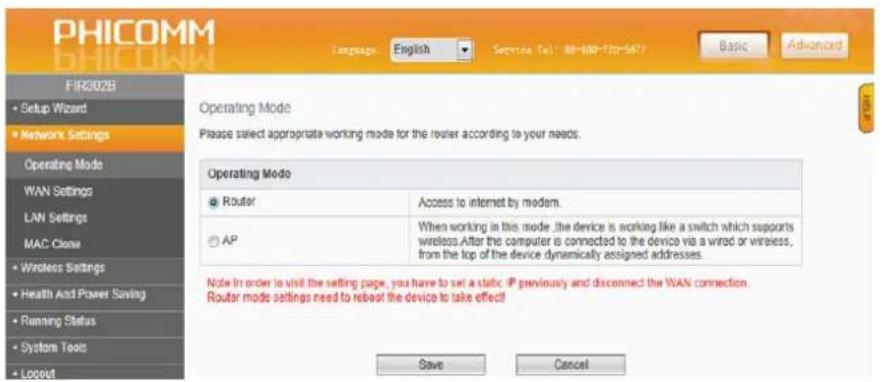
Operating mode
text_image
PHICOMM Language: English Service Tel: 88-600-120-5617 Basic Advanced FIR302B • Setup Wizard • Network Settings Operating Mode WAN Settings LAN Settings MAC Clone • Wireless Settings • Health And Power Saving • Running Status • System Tools • Lecout Operating Mode Please select appropriate working mode for the router according to your needs. Operating Mode Router Access to internet by modem. AP When working in this mode, the device is working like a switch which supports wireless. After the computer is connected to the device via a wired or wireless, from the top of the device dynamically assigned addresses. Note In order to visit the setting page, you have to set a static IP previously and disconnect the WAN connection. Router mode settings need to reboot the device to take effect! Save CancelSelect Router or AP button for operation mode.
| Menu item Explanation | |
| Router This is the default and | the most commonly used wireless operating mode. The router connects wired or wireless with the network / internet. |
| AP The router acts as a central connection point, which wireless clients can connect to. | |
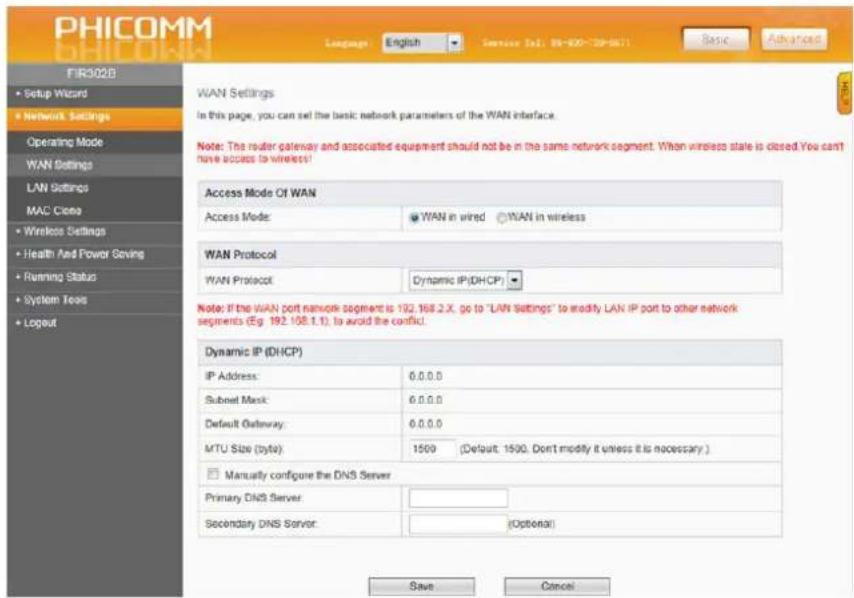
WAN settings
text_image
PHICOMM FIR302B Setup Wizard Network Settings Operating Mode WAN Settings LAN Settings MAC Czone Wireless Settings Health And Power Serving Running Status System Tools Logout Language English Service Sel: 98-800-79-8671 Basic Advanced WAN Settings In this page, you can sell the basic network parameters of the WAN interface. Note: The router gateway and associated equipment should not be in the same network segment. When wireless state is closed. You can't have access to wireless? Access Mode Of WAN Access Mode: WAN in wired WAN in wireless WAN Protocol WAN Protocol Dynamic IP(DHCP) Note: If the WAN port network segment is 192.168.2.X, go to "LAN Settings" to modify LAN IP port to other network segments (Eq. 192.108.1.1). To avoid the conflict. Dynamic IP (DHCP) IP Address: 0.0.0.0 Submit Mask: 0.0.0.0 Default Gateway: 0.0.0.0 MTU Size (byte): 1500 (Default: 1500. Don't modify it unless it is necessary.) Manually configure the DNS Server Primary DNS Server: Secondary DNS Server: (Optional) Save CancelSelect Access Mode Of WAN and WAN Protocol on WAN Settings page. If your internet service provider is running on a DHCP server, select Dynamic IP as connection type. The router will automatically get IP parameters from your internet service provider.

If the WAN port network segment is 192.168.2.X, go to LAN Settings page to modify >AN IP port to other network segments (for example 192.168.2.1) to avoid conflicts.
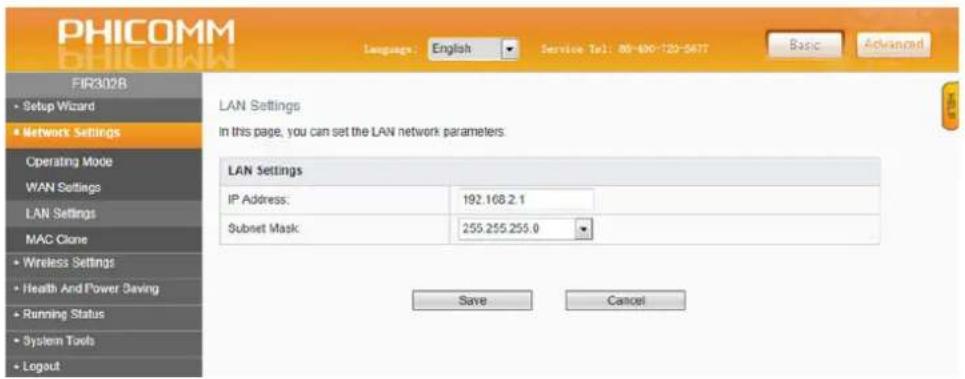
LAN Settings
text_image
PHICOMM FIR302B • Setup Wizard • Network Settings Operating Mode WAN Settings LAN Settings MAC Clone • Wireless Settings • Health And Power Saving • Running Status • System Tools • Logout Language: English Service Tel: 80-400-720-5677 Basic Advanced LAN Settings In this page, you can set the LAN network parameters. LAN Settings IP Address: 192.168.2.1 Subnet Mask: 255.255.255.0 Save Cancel| Menu item Explanation | |
| IP address Enter >AN IP address of the router. | |
| Subnet +ask Enter the subnet mask associated with the >AN IP address. | |

If you change the >AN IP address of the router, log in the web management page with the new IP address.
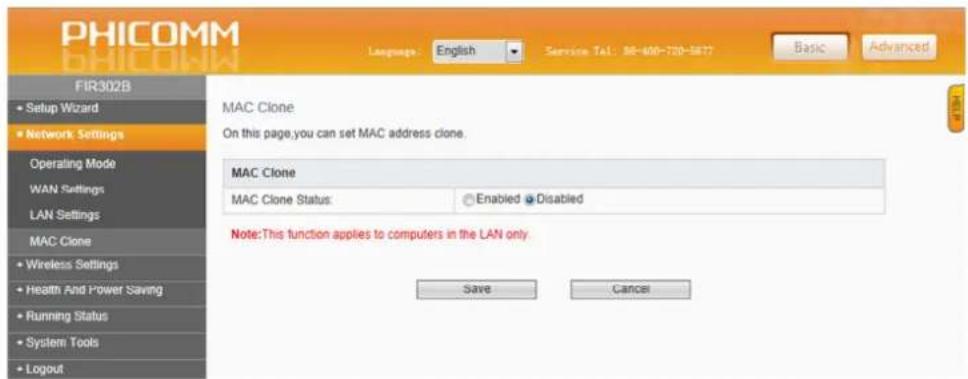
MA>>lone
text_image
PHICOMM FIR302B Setup Wizard Network Settings Operating Mode WAN Settings LAN Settings MAC Clone Wireless Settings Health And Power Saving Running Status System Tools Logout Language: English Service Tel: 98-400-720-5877 Basic Advanced MAC Clone On this page,you can set MAC address clone. MAC Clone MAC Clone Status: Enabled Disabled Note:This function applies to computers in the LAN only. Save CancelSome internet service providers require the registration of your computer's +AC address. If you want to clone the +AC address select Enabled.
4.2.3 Wireless Settings
There are two submenus under the Wireless Settings menu:
• Wireless Basic Settings
- Wireless +AC Filtering
Click any of them to configure the corresponding function.
Wireless Basic Settings

text_image
PHICOMM PHICOMM Language: English Service Tel: M-400-720-5677 Basic Advanced FIR302B Setup Wizard Network Settings Wireless Settings Wireless Basic Settings Wireless MAC Filtering Health And Power Saving Running Status System Tools Logout Wireless Basic Settings Wireless Status: Enabled Disabled SSID Selection: SSID_0 PHICOMM_CB3545 (Enabled) SSID Status: Enabled Disabled SSID: PHICOMM_CB3545 Region: China Channel: Auto Current: 6 Wireless Mode: 11b/g/h Mode The Bandwidth Of Frequency (Band): 20/40MHz SSB Control Channel (40 MHz) : lower(band) AP Isolation: Enabled Disabled SSID Broadcast: Enabled Disabled Wireless Security Settings Security Options: Disabled Save Cancel| Menu item Explanation | ||
| Wireless Basic Settings | ||
| Wireless Status Select Enabled | or Disabled to control the wireless function of the router. | |
| SSID Name of the wireless network | ||
| Wireless +ode If all wireless devices connected with the wireless router are in the same transmission mode (for example 902.22b), select 11b Mode.If the devices use different transmission modes, select 11b/g/n Mode. | ||
| SSID Broadcast If you choose | Enabled, the wireless router will broadcast the SSID name. | |
| Menu item Explanation | |
| Wireless Security Settings | |
| Security Options | Disabled |
| WEP: Wired Equivalent Privacy | |
| WPA-PS<: Pre-Shared <ey of WPA | |
| WPA2-PS<: Pre-Shared <ey of WPA2 | |
| WPA/WPA2-PS<: automatically based on the wireless stations' capacity and request | |
Note

The security modes are different in the kind of encryption.
WEP encryption provides the least protection while WPA2-PS< is to overcome the most difficult and therefore offers the best protection.
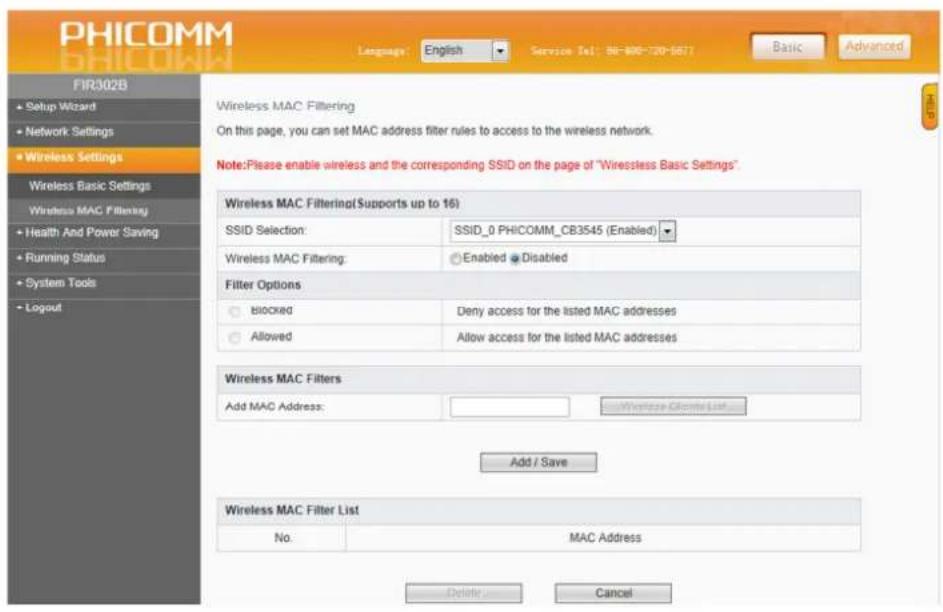
Wireless MA> Filtering
text_image
PHICOMM FIR302B Setup Wizard Network Settings Wireless Settings Wireless Basic Settings Wireless MAC Filtering Health And Power Saving Running Status System Tools Logout Language: English Service Tel: 96-400-720-5877 Basic Advanced Wireless MAC Filtering On this page, you can set MAC address filter rules to access to the wireless network. Note:Please enable wireless and the corresponding SSID on the page of "Wireless Basic Settings". Wireless MAC Filtering(Supports up to 16) SSID Selection: SSID_0 PHICOMM_CB3545 (Enabled) Wireless MAC Filtering: Enabled Disabled Filter Options blocked Deny access for the listed MAC addresses Allowed Allow access for the listed MAC addresses Wireless MAC Filters Add MAC Address: Add / Save Wireless MAC Filter List No. MAC Address Delete CancelEnter the +AC address. Set to block or allow the PC(s) to connect with the wireless router. To set +AC addresses proceed as follows:
- Select Enabled under Wireless MA> Filtering.
- Select Blocked or Allowed under Filter Options.
- Fill 00:0A:EB:00:07:5F in Add MA> Address.
- Click Add/Save button.
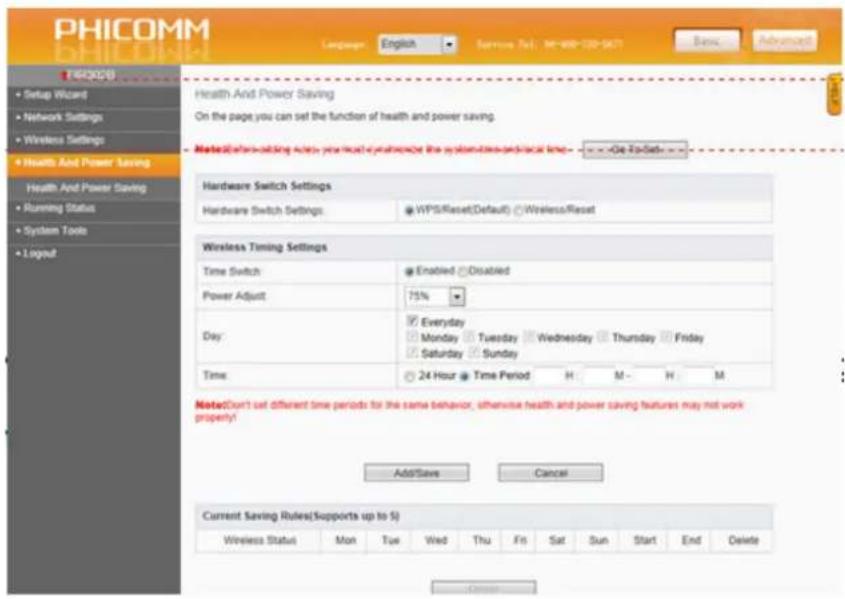
4.2.4 Health and Power Saving
text_image
PHICOMM BHILONGI Language: English Service No. 16-08-120-047 Save Advanced Health And Power Saving On the page you can set the function of health and power saving. Market/Bars setting keys you must be answered or the system/box-and-local time - Go To-Batch Hardware Switch Settings Hardware Switch Settings: WPS/Reset(Default) Wireless/Reset Wireless Timing Settings Time Switch Enabled Disabled Power Adjust 75% Day: Everyday Monday Tuesday Wednesday Thursday Friday Saturday Sunday Time 24 Hour Time Period H M - H M Note:Don't set different time periods for the same behavior, otherwise health and power saving features may not work property! Add/Save Cancel Current Saving Rules(Supports up to 5) Wireless Status Mon Tue Wed Thu Fri Sat Sun Start End Delete CancelSet to turn on/off the wireless router according to your actual needs (for example rest times or limit surfing time for children). You can also turn off the power of the wireless router to save power and protect the environment at the same time.

In order the router is working properly, the router time must be synchronized with the internet time.
If the router time is different from the internet time, proceed as follows to synchronize: Click Set at once > synchronize with P>
Now you can configure the time settings:
-
Select WIFI/Reset >ombination under Hardware Switch Settings.
-
Select Enabled (default) under Time Switch and adjust the RF power in Power Adjust according to your demand.
Note
It will impact the performance and the coverage of the wireless.
- Set time in Time Settings (day, week) and Time Settings (hour) separately.
4.2.5 Running status
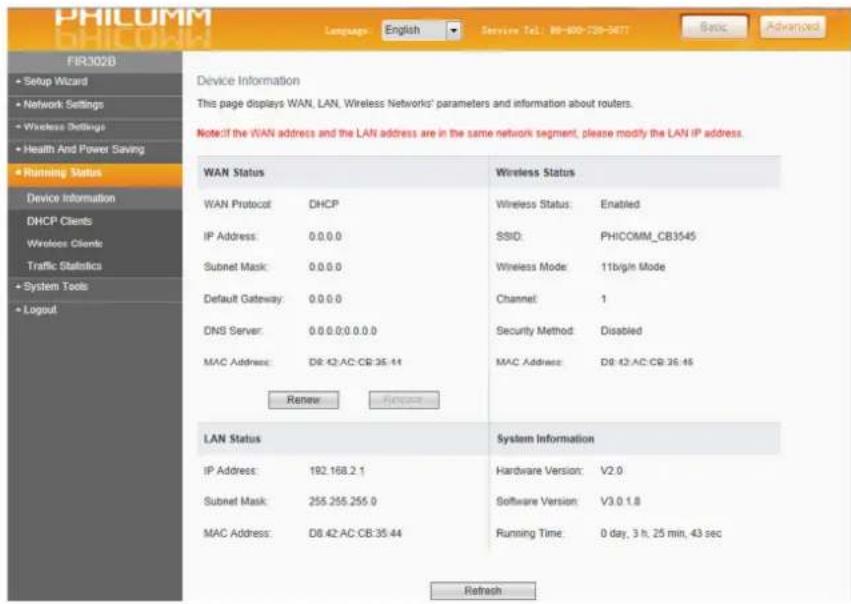
Device Information
text_image
PHILCOMM PHILCOMM Language: English Service Tel: 80-80-726-567 Basic Advanced FIR302B • Setup Wizard • Network Settings • Wireless Settings • Health And Power Saving • Running Status Device Information DHCP Clients Wireless Clients Traffic Statistics • System Tools • Logout Device Information DHCP Clients Wireless Clients Traffic Statistics • System Tools • Logout Device Information WHAN STATUS WHAN Protocol DHCP IP Address: 0.0.0.0 Subnet Mask: 0.0.0.0 Default Gateway: 0.0.0.0 DNS Server: 0.0.0.0;0.0.0.0 MAC Address: D8.42:AC:CB:35.44 Renew Request LAN Status IP Address: 192.168.2.1 Subnet Mask: 255.255.255.0 MAC Address: D8.42:AC:CB:35.44 Wireless Status Wireless Status: Enabled SSID: PHICOMM_CB3545 Wireless Mode: 11b/g/n Mode Channel: 1 Security Method: Disabled MAC Address: D8.42:AC:CB:35.46 System Information Hardware Version: V2.0 Software Version: V3.0.1.8 Running Time: 0 day, 3 h, 25 min, 43 sec RefreshThis page displays WAN, >AN, Wireless network's parameters and information about the router.
There are IP addresses, subnet masks, default gateways, SSID, hardware- and software-versions etc.
Press Refresh button to refresh the Device Information list.
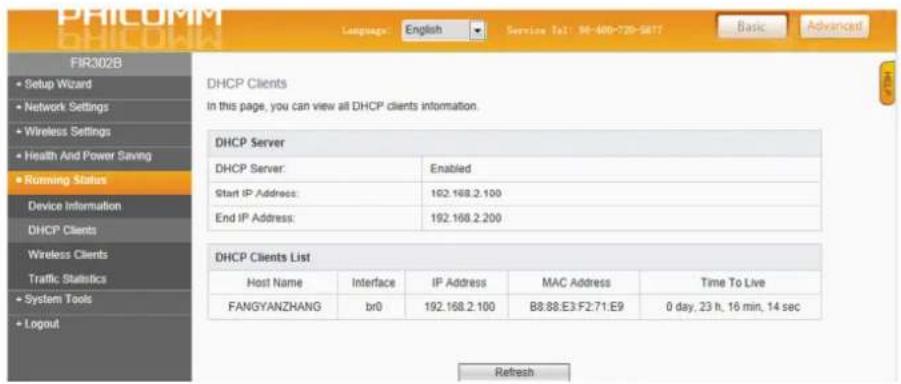
DH>P >lients
text_image
FIR302B Setup Wizard Network Settings Wireless Settings Health And Power Saving Running Status Device Information DHCP Clients Wireless Clients Traffic Statistics System Tools Logout Language: English Service Tel: 94-400-720-5877 Basic Advanced DHCP Clients in this page, you can view all DHCP clients information. DHCP Server DHCP Server: Enabled Start IP Address: 192.168.2.100 End IP Address: 192.168.2.200 DHCP Clients List Host Name Interface IP Address MAC Address Time To Live FANGYANZHANG br0 192.168.2.100 B8:88.E3:F2:71:E9 0 day, 23 h, 16 min, 14 sec Refresh| Menu item Explanation | |
| DH>P >lients | |
| DHCP-Server DHCP server configures the TCP/IP protocol for each PC in the >AN automatically. | |
| Start IP address 1st address in the IP address pool | |
| End IP address >ast address in the IP address pool | |
| DH>P >lients List | |
| Refresh Click the button to refresh the DHCP clients list | |
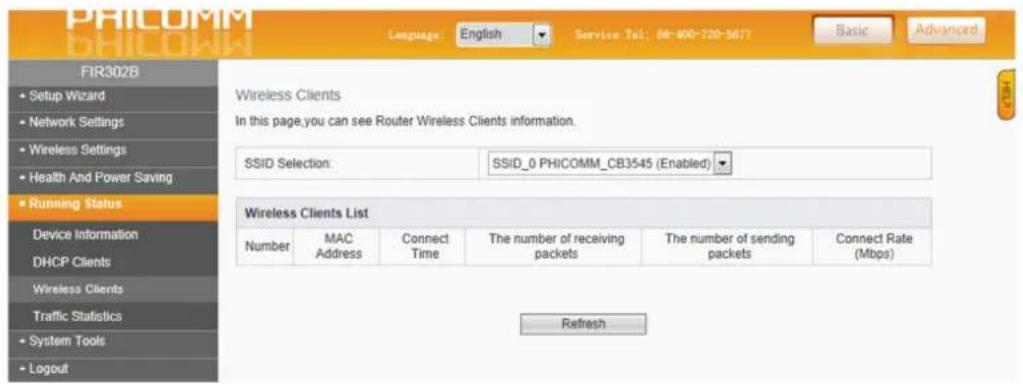
Wireless >lients
text_image
PHICOMM BHICOMM Language: English Service Tel: 68-400-720-3677 Basic Advanced FIR302B • Setup Wizard • Network Settings • Wireless Settings • Health And Power Saving • Running Status Device Information DHCP Clients Wireless Clients Traffic Statistics • System Tools • Logout Wireless Clients List Number MAC Address Connect Time The number of receiving packets The number of sending packets Connect Rate (Mbps) RefreshClick Refresh button to check the wireless clients.
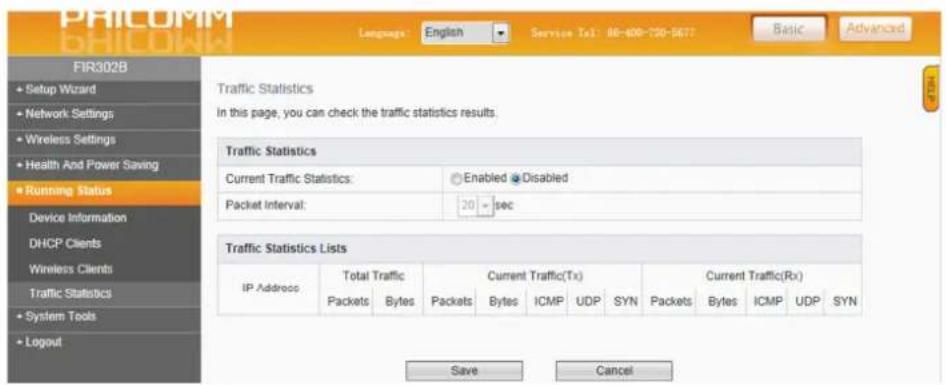
Traffic Statistics
text_image
FIR302B Setup Wizard Network Settings Wireless Settings Health And Power Saving Running Status Device Information DHCP Clients Wireless Clients Traffic Statistics System Tools Logout Language: English Service Tel: 80-400-150-5677 Basic Advanced Traffic Statistics In this page, you can check the traffic statistics results. Traffic Statistics Current Traffic Statistics: Enabled Disabled Packet Interval: 20 sec Traffic Statistics Lists IP Address Total Traffic Current Traffic(Tx) Current Traffic(Rx) Packets Bytes Packets Bytes ICMP UDP SYN Packets Bytes ICMP UDP SYN Save CancelCheck the traffic statistic results and the packet intervals.
4.2.6 System Tools
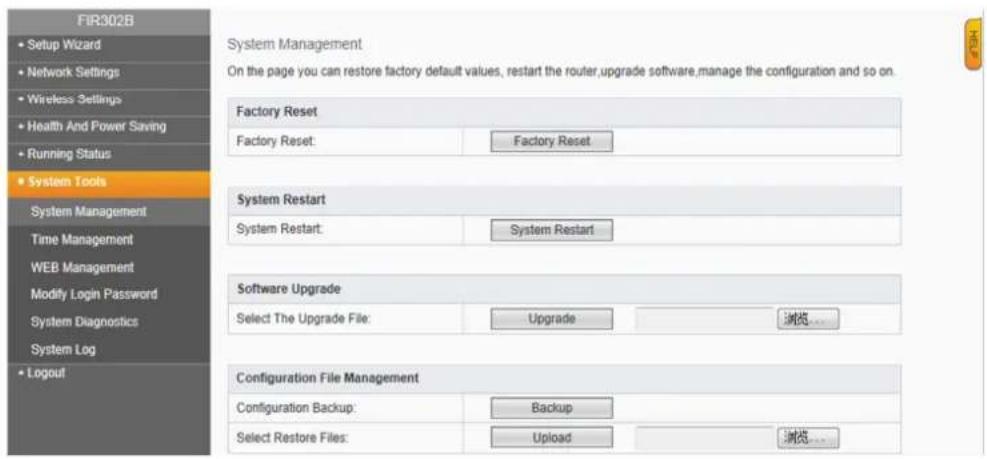
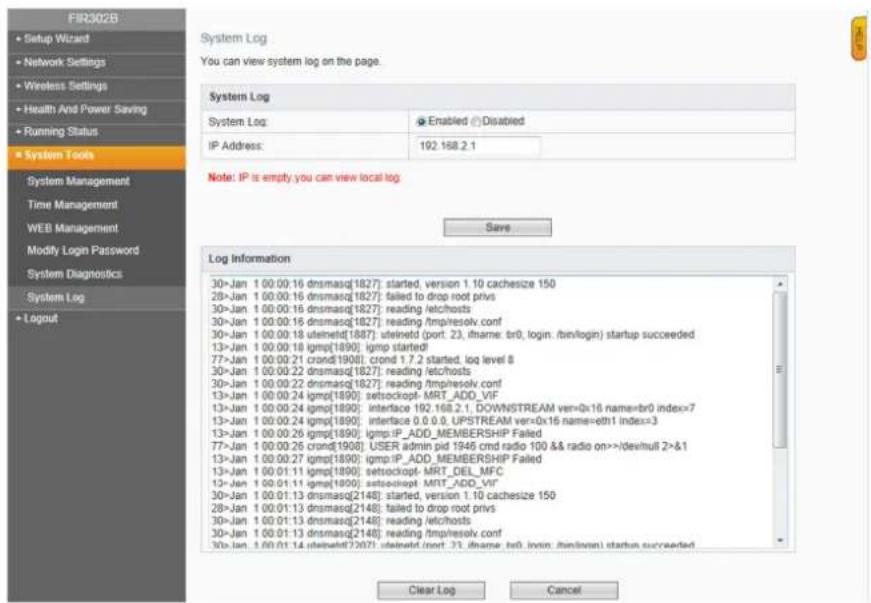
Check out different administration tools: System Management, Time Management, WEB Management, Modify Login Password, System Diagnostics and System Log.
System Management
text_image
FIR302B • Setup Wizard • Network Settings • Wireless Settings • Health And Power Saving • Running Status • System Tools System Management Time Management WEB Management Modify Login Password System Diagnostics System Log • Logout System Management On the page you can restore factory default values, restart the router, upgrade software, manage the configuration and so on. Factory Reset Factory Reset: Factory Reset System Restart System Restart: System Restart Software Upgrade Select The Upgrade File: Upgrade 浏览... Configuration File Management Configuration Backup: Backup Select Restore Files: Upload 浏览...| Menu item Explanation | |
| Factory Reset Restore factory default values | |
| System Restart Restart the router | |
| Software Upgrade Update software | |
| Configuration File +anagement | Backup and restore the configuration |
Note
All user settings will be deleted when factory reset is enabled.
Time Management
text_image
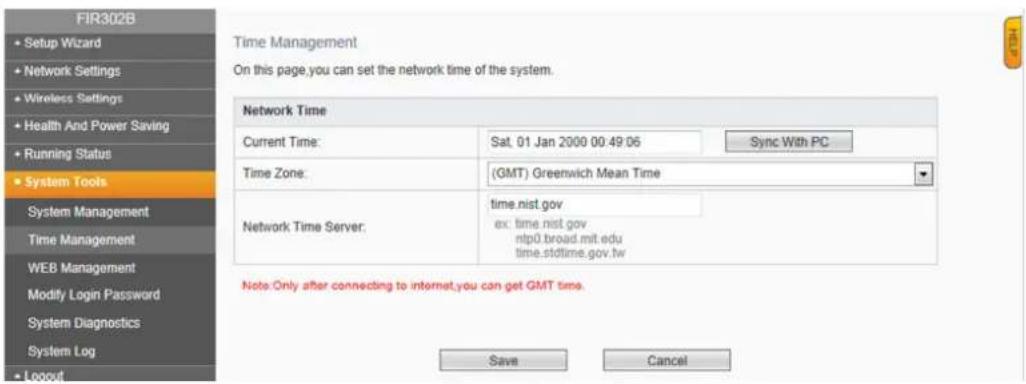
FIR302B + Setup Wizard + Network Settings + Wireless Settings + Health And Power Saving + Running Status + System Tools System Management Time Management WEB Management Modify Login Password System Diagnostics System Log - Logout Time Management Network Settings Current Time: Sat. 01 Jan 2000 00:49:06 Sync With PC Time Zone: (GMT) Greenwich Mean Time Network Time Server: time.nist.gov ex: time.nist.gov ntp0.broad.mit.edu time.stdtime.gov.tw Note: Only after connecting to internet, you can get GMT time. Save CancelSet the network time of your system or click Sync with P> to synchronize with the computer.
Note
You can get G+T time after connecting with the internet.
Web Management
text_image
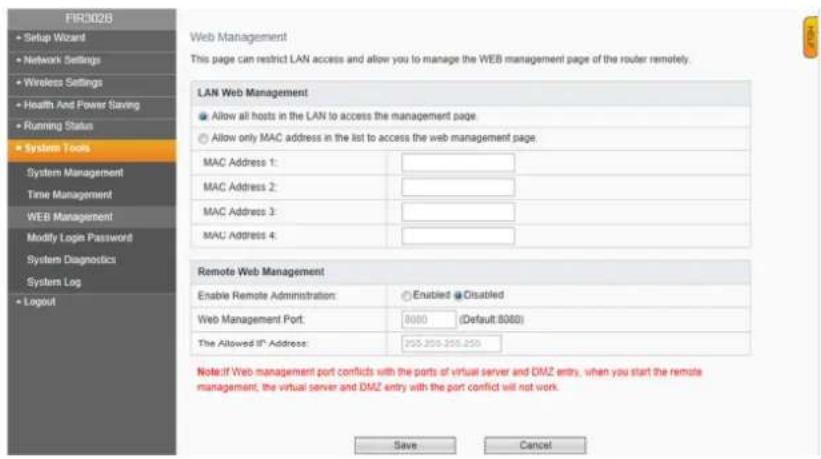
FIR302B Setup Wizard Network Settings Wireless Settings Health And Power Saving Running Status System Tools System Management Time Management WEB Management Modify Login Password System Diagnostics Systems Log Logout Web Management This page can restrict LAN access and allow you to manage the WEB management page of the router remotely. LAN Web Management Allow all hosts in the LAN to access the management page. Allow only MAC address in the list to access the web management page. MAC Address 1: MAC Address 2: MAC Address 3: MAC Address 4: Remote Web Management Enable Remote Administration: Enabled Enabled Web Management Port: 8000 (Default 8000) The Allowed If* Address: 255.255.255.255. Note:If Web management port conflicts with the ports of virtual server and DMZ entry, when you start the remote management, the virtual server and DMZ entry with the port conflict will not work. Save Cancel| Menu item Explanation | |
| >AN Web +anagement Restricts >AN access and only allows +AC addresses in the list to access the Web +anagement page | |
| Remote Web +anagement Allows the remote management of the router | |
Note

If the web management port conflicts with the ports of virtual server and D+Z entry, when you start the remote management, the virtual server and D+Z entry will not work.
Modify Login Password
text_image
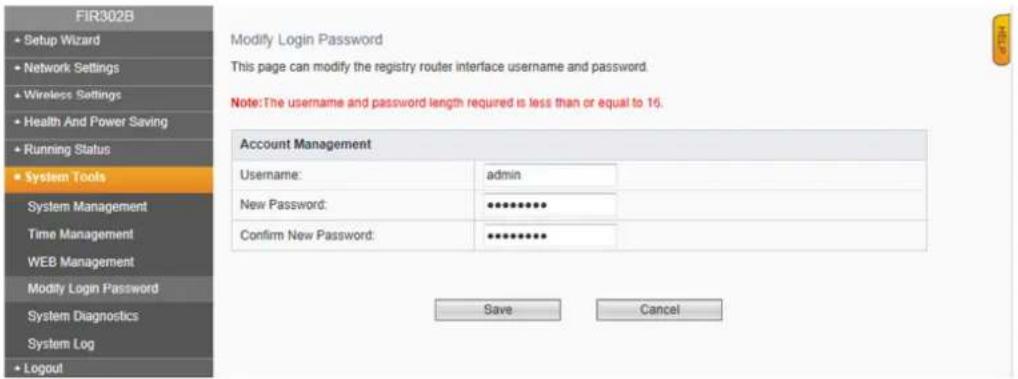
FIR302B Setup Wizard Network Settings Wireless Settings Health And Power Saving Running Status System Tools System Management Time Management WEB Management Modify Login Password System Diagnostics System Log Logout Modify Login Password This page can modify the registry router interface username and password. Note: The username and password length required is less than or equal to 16. Account Management Username: admin New Password: ••••••••• Confirm New Password: •••••••••• Save Cancel+anage the details of your account and modify username and password.

Username and password lengths are less than or equal to 17 characters.
System Diagnostics
text_image
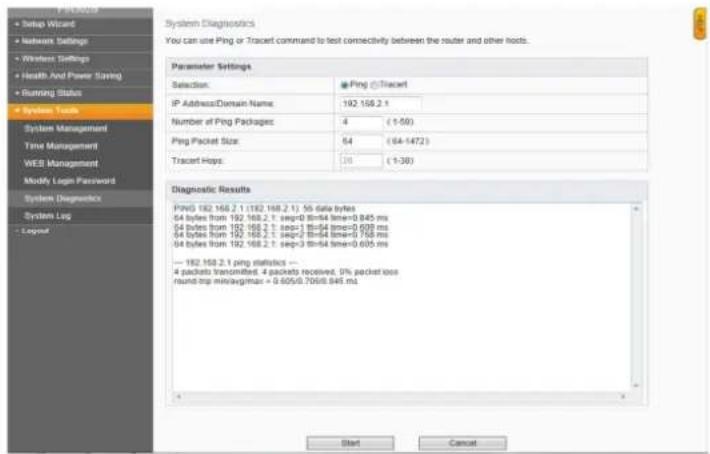
System Diagnostics You can use Ping or Tracert command to test connectivity between the router and other hosts. Parameter Settings Selection: @Ping @Tracert IP Address:Domain Name: 192.168.2.1 Number of Ping Packages: 4 (-1-50) Ping Packet Size: 54 (64-1472) Tracert Heps: 26 (-1-30) Diagnostic Results Ping(182.168.2.1.(182.168.2.1): 55 data bytes 64 bytes from 192.168.2.1: seq=0 th=64 timer=0.845 ms 64 bytes from 192.168.2.1: seq=1 th=64 timer=0.600 ms 64 bytes from 192.168.2.1: seq=2 th=64 timer=0.768 ms 64 bytes from 192.168.2.1: seq=3 th=64 timer=0.605 ms — 182.168.2.1 ping statistics — 4 packets transmitted: 4 packets received: 0% packet loss round-trp min/avg/max = 0.605/0.706/8.845 ms Start CancelPing or Tracert commands to test connectivity between router and other hosts. Please proceed as follows:
- Select Ping.
• Enter IP Address / Domain Name.
• Enter Number of Ping Packages, Ping Packet Size and Tracert Hops. - Click Start.
You will see the results in Diagnostic Results.
System Log
text_image
FIN302B Setup Wizard Network Settings Wireless Settings Health And Power Saving Running Status System Tools System Management Time Management WEB Management Modify Login Password System Diagnostics System Log Logout System Log You can view system log on the page. System Log System Log: Enabled Disabled IP Address: 192.168.2.1 Note: IP is empty you can view local log. Save Log Information 30-Jan 1 00:00:16 dnsmasq[1827]: started, version 1.10 cachesize 150 28-Jan 1 00:00:16 dnsmasq[1827]: failed to drop root privs 30-Jan 1 00:00:16 dnsmasq[1827]: reading /etc/hosts 30-Jan 1 00:00:16 dnsmasq[1827]: reading /tmp/resolv.conf 30-Jan 1 00:00:18 uteineld[187]: uteineld (port: 23, iName: br0, login, /bin/login) startup succeeded 13-Jan 1 00:00:18 igmp[1890]: igmp started 77-Jan 1 00:00:21 crond[1908]: crond 1.7.2 started, loq level 8 30-Jan 1 00:00:22 dnsmasq[1827]: reading /etc/hosts 30-Jan 1 00:00:22 dnsmasq[1827]: reading /tmp/resolv conf 13-Jan 1 00:00:24 igmp[1890]: setsockopt-MRT_ADD_VIF 13-Jan 1 00:00:24 igmp[1890]: interface 192.168.2.1, DOWNSTREAM ven=0x16 name=br0 index=>7 13-Jan 1 00:00:24 igmp[1890]: interface 0.0.0.0, UPSTREAM ven=0x16 name=eth1 index=>3 13-Jan 1 00:00:26 igmp[1890]: igmp.IP_ADD_MEMBERSHIP Failed 77-Jan 1 00:00:26 crond[1908]: USER admin pid 1946 cmd radio 100 && radio on>>devHull 2>&1 13-Jan 1 00:00:27 igmp[1890]: igmp.IP_ADD_MEMBERSHIP Failed 13-Jan 1 00:01:11 igmp[1890]: setsockopt-MRT_DEL_MFC 13-Jan 1 00:01:11 igmp[1890]: setsockopt-MRT_ADD_VIF 30-Jan 1 00:01:13 dnsmasq[2148]: started, version 1.10 cachesize 150 28-Jan 1 00:01:13 dnsmasq[2148]: failed to drop root privs 30-Jan 1 00:01:13 dnsmasq[2148]: reading /etc/hosts 30-Jan 1 00:01:13 dnsmasq[2148]: reading /tmp/resolv conf 30-Jan 1 00:01:14 dsehett[2297]: dsehett (port: 23, iName: br0, login, /bin/login) startup succeeded Clear Log CancelIf you want to set more detailed settings, select Advanced beside the Basic button at the top of the screen.
4.2.7 Wireless Advanced Settings
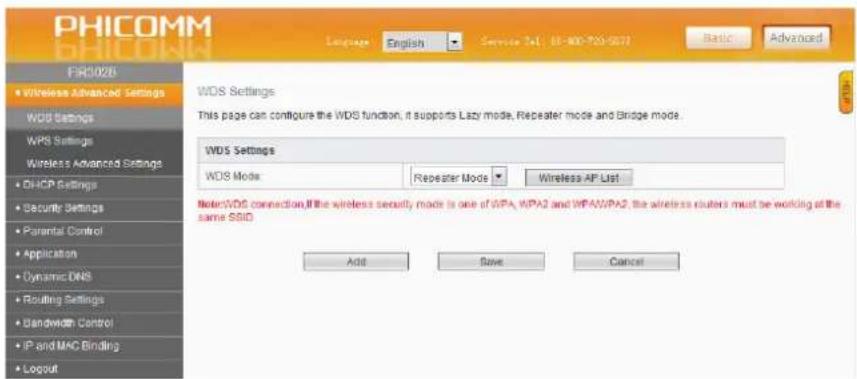
There are WDS Settings, WPS Settings and Wireless Advanced Settings.
WDS Settings
The WDS function can help you to extend the wireless range. It supports >azy +ode, Repeater +ode und Bridge +ode.
text_image
PHICOMM PHICOMM FIR302B Wireless Advanced Settings WDS Settings WPS Settings Wireless Advanced Settings DHCP Settings Security Settings Parental Control Application Dynamic DNS Routing Settings Bandwidth Control IP and MAC Binding Logout Language English Service Fax: 85-800-900-9072 Basic Advanced WDS Settings This page can configure the WDS function, it supports Lazy mode, Repeater mode and Bridge mode. WDS Settings WDS Mode Repeater Mode Wireless AP List Note:WDS connection,If the wireless security mode is one of WPA, WPA2 and WPA3/WPA2, the wireless routers must be working at the same SSD Add Save Cancel| Menu item Explanation | |
| WDS Mode | |
| >azy +ode In this mode no fur | ther configurations are needed. ClickSave and the connecting client should be in Repeater Mode or Bridge Mode. |
| Bridge +ode In this mode you | can connect two or more wired devices wirelessly. You need to add the wireless +AC address of the connected device into the routers AP +AC address table or select one from the scanning table. At the same time the connected device should be in Lazy, Repeater or Bridge Mode. |
| Repeater +ode You can select | this mode to extend the distance between two W>AN devices.It operates as WDS repeater and connects to both - client card as AP and another AP. In typical repeater applications APs with WDS function connect to other APs, which have to support WDS too. In this mode you need to add the +AC address of the connected device into the routers AP +AC address table. The connected client should be in Lazy, Repeater or Bridge Mode. |
Input the +AC address of the other wireless router in MA> address of the wireless access point.
Note

Two wireless routers must use the same channel, encryption type and encryption key. If the wireless security mode is one of WPA, WPA2 and WPA/WPA2, the wireless routers must work with the same SSID.
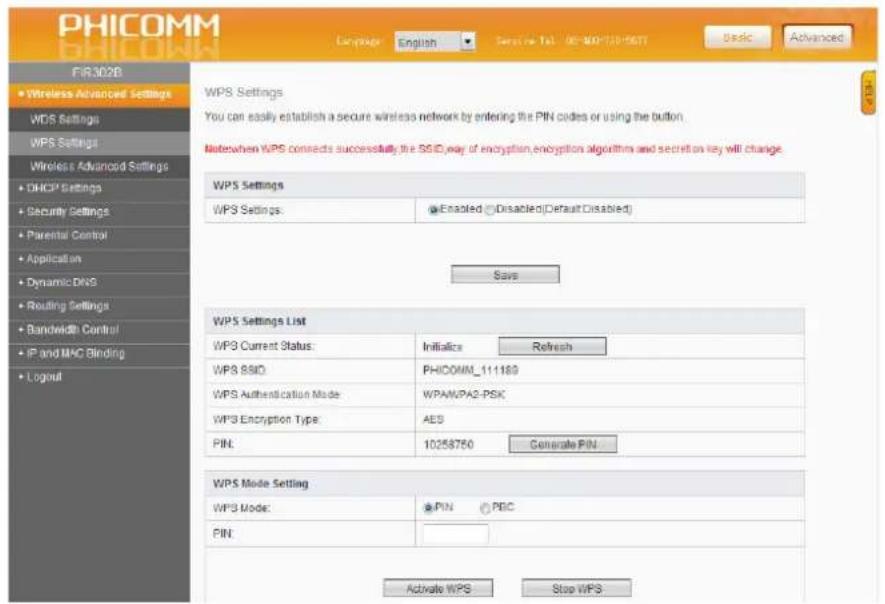
WPS settings
The WPS function can help to add a new device to the network quickly. If the client device supports WPS and is equipped with a WPS button, you can add it to the network by pressing the WPS button on the device and then press the button of the router two minutes. The status >ED on the router becomes green after five minutes, if the device has been added to the network successfully. If your client asks for the router's PIN number, enter this PIN number into your client device. If your client device has a WPS Settings PIN number, enter that number into the PIN box.
text_image
PHICOMM PHICOMM FIR302B • Wireless Advanced Settings WDS Settings WPS Settings Wireless Advanced Settings • DHCP Settings • Security Settings • Parental Control • Application • Dynamic DNS • Routing Settings • Bandwidth Control • IP and MAC Binding • Logout Language: English Service Tel: 00-800-120-5671 Basic Advanced WPS Settings You can easily establish a secure wireless network by entering the PIN codes or using the button. Notewhen WPS connects successfully the SSID way of encryption, encryption algorithms and secretion key will change. WPS Settings WPS Settings: Enabled Disabled Default Disabled) Save WPS Settings List WPS Current Status: Initials Refresh WPS 8810 PHICOMM_111189 WPS Authentication Mode WPAWPA2-PSIC WPS Encryption Type AES PIN: 10258750 Generate PIN WPS Mode Setting WPS Mode: PIN PBC PIN: Activate WPS Stop WPS| Menu item Explanation | |
| WPS Settings | |
| WPS (WiFi Protected Settings) | Establish easy and quick a connection between router and client device through encrypted contents. The users only enter the PIN code to configure. |
| WPS Mode Supports two ways of configuration:PBC (Push-Button-Configuration)PIN Code | |
| PBC (Push-Button-Configuration) | Select PBC button or press the WPS button on the panel of your router (press WPS button on the router and press the WPS button on another network device within two minutes). |
| PIN Enable this option, you need to enter a wireless clientsPIN code in the blank field and keep the same code in the client. | |
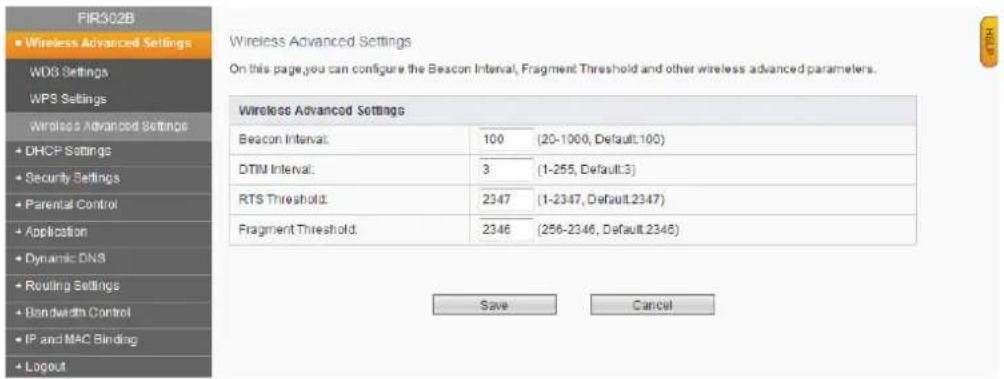
Wireless Advanced Settings
This section is to configure the advanced wireless settings of the router.
If you are not familiar with the setting items on this page, it is strongly recommended to keep the provided default values; otherwise it may result in poor wireless network performance!
text_image
FIR302B ■ Wireless Advanced Settings WDG Settings WPS Settings Wireless Advanced Settings ■ DHCP Settings ■ Security Settings ■ Parental Control ■ Application ■ Dynamic DNS ■ Routing Settings ■ Bandwidth Control ■ IP and MAC Binding ■ Logout Wireless Advanced Settings Beacon Interval: 100 (20-1000, Default:100) DTIM Interval: 3 (1-255, Default:3) RTS Threshold: 2347 (1-2347, Default:2347) Fragment Threshold: 2346 (256-2346, Default:2346) Save Cancel| Menu item Explanation | |
| Wireless Advanced Settings | |
| Beacon Interval Interval for sending packets of the beacon frame (value range 20 – 1000 ms, default = 100 ms) | |
| DTIM Interval Interval for Delivery Traffic Indication Message (DTIM) – value range 1 - 255 ms, default = 1ms | |
| RTS Threshold If the packet size is larger than the preset RTS size, the wireless router will send a RTS to the destination station to start a negotiation (default = 2347). | |
| Fragment Threshold Sets the fragment threshold. Packets larger than the size | |
| set in this field will be fragmented. Too many data packets will degrade the wireless network performance. The fragment threshold value should not be set too low (default = 2346). | |
DH>P Settings
DH>P Service
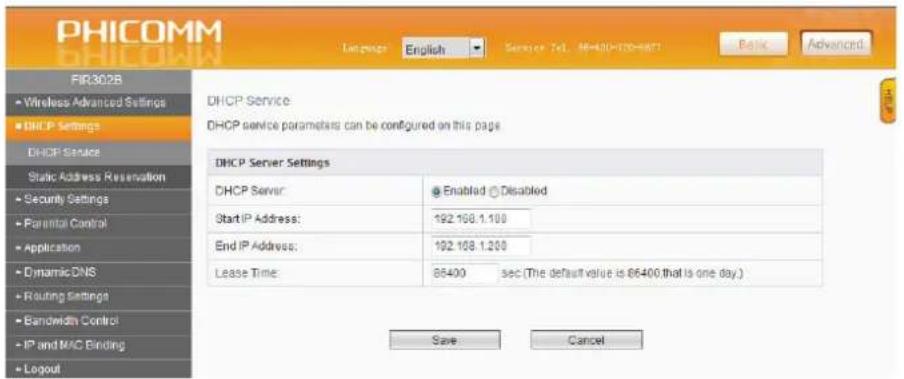
If you enable the DHCP server of the router, the DHCP server will configure the TCP/IP protocol for each PC in the >AN automatically.
text_image
PHICOMM BHICOMM Language English Service Tel: 40-120-8071 Basic Advanced FIR302B • Wireless Advanced Settings • DHCP Settings DHCP Service Static Address Reservation • Security Settings • Parental Control • Application • Dynamic DNS • Routing Settings • Bandwidth Control • IP and MAC Binding • Logout DHCP Server Settings DHCP Server: Enabled Disabled Start IP Address: 192.168.1.100 End IP Address: 192.168.1.200 Lease Time: 86400 sec (The default value is 86400,that is one day.) Save Cancel| Menu item Explanation | |
| DH>P Server Settings | |
| DHCP Server If you disable this server, please make sure that another DHCP server is enabled in your network. | |
| Start IP Address 1st address in your IP address pool | |
| End IP Address >ast address in your IP address pool | |
| >ease Time This is the time interval, after the server uses a different DHCP address. | |
Static Address Reservation
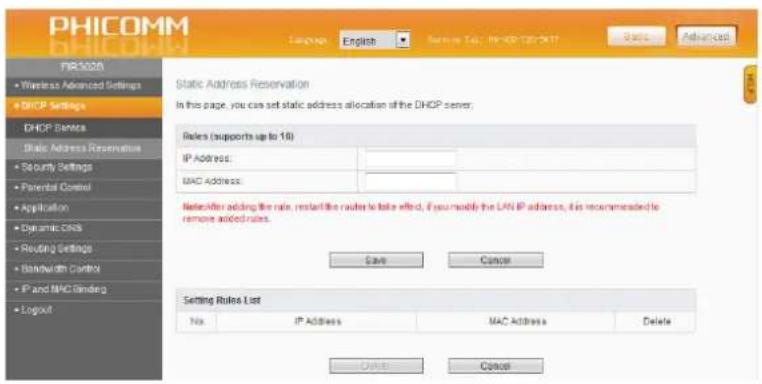
When you specify a reserved IP address for a PC in the >AN, the PC will always receive the same IP address each time accessing the DHCP server. Reserved IP addresses could be assigned to servers that require permanent IP settings.
text_image
PHICOMM PHICOMM Language English Service Tab: PHICOMM-20017 Basic Advanced PHICOMM • Wireless Advanced Settings • DHCP Settings DHCP Services Static Address Reservation • Security Settings • Parental Control • Application • Dynamic Clocks • Reading Settings • Bandwidth Control • IP and MAC Binding • Logout Static Address Reservation In this page, you can set static address allocation of the DHCP server. Rules (supports up to 16) IP Address: MAC Address: NotesAfter adding the rule, restart the router to take effect, if you modify the LAN IP address, it is recommended to remove added rules. Save Cancel Setting Rules List No: IP Address MAC Address Delete Delete Cancel| Menu item Explanation | |
| Rules (supports up to 16) | |
| IP address IP address, reserved for routers | |
| +AC address +AC address of the PC for which you want to reserve an IP address | |
4.2.8 Security Settings
Click Firewall to configure.
Firewall
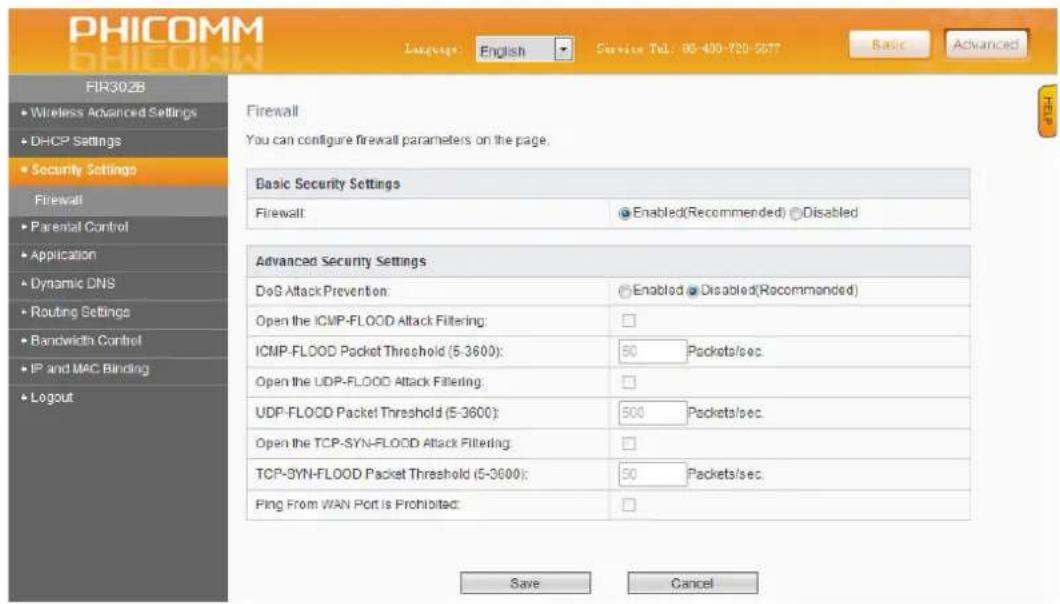
Select Enabled or Disabled to enable or disable the firewall.
If the firewall is enabled, the system refuses all requests from the internet. Only packets from the >AN which are belonging to defined connections and for which the status database is created can pass the firewall and can have access to the >AN.
By default the firewall is enabled. To expose all hosts in the >AN to the internet you can disable the firewall.
text_image
PHICOMM PHICOMM Language: English Service Tel: 88-400-720-5677 Basic Advanced FIR302B • Wireless Advanced Settings • DHCP Settings • Security Settings Firewall • Parental Control • Application • Dynamic DNS • Routing Settings • Bandwidth Control • IP and MAC Binding • Logout Firewall You can configure firewall parameters on the page. Basic Security Settings Firewall: Enabled(Recommended) Disabled Advanced Security Settings DoS Attack Prevention: Enabled - Disabled(Recommended) Open the ICMP-FLOOD Attack Filtering: ICMP-FLOOD Packet Threshold (5-3600): 50 Packets/sec. Open the UDP-FLOOD Attack Filtering: UDP-FLOOD Packet Threshold (5-3600): 500 Packets/sec. Open the TCP-SYN-FLOOD Attack Filtering: TCP-SYN-FLOOD Packet Threshold (5-3600): 50 Packets/sec. Ping From WAN Port Is Prohibited: Save Cancel| Menu item Explanation | |
| Advanced Security Settings | |
| DoS Attack Prevention | Enable for attack prevention. |
| Open the IC+P-Flood Attack Filtering | Select to protect against IC+P-F>OOD attacks. |
| IC+P-Flood Packet Threshold | If the number of IC+P data packets exceeds the threshold, the defense measures act immediately. |
| Open the UDP-Flood Attack Filtering | Select to protect against UDP-F>OOD attacks. |
| UDP-Flood Packet Threshold | If the number of UDP data packets exceeds the threshold, the defense measures act immediately. |
| Open TCP-SYN-F>OOD Attack Filtering | Select to protect against TCP-SYN-F>OOD attacks. |
| TCP-SYN-Attack Packet Threshold | If the number of TCP-SYN data packets exceeds the threshold, the defense measures act immediately. |
| Ping from WAN Port is prohibited: | If you select this option, the PC in the WAN cannot send the Ping packets to the router. |
4.2.9 Parental >ontrol
Parental >ontrol
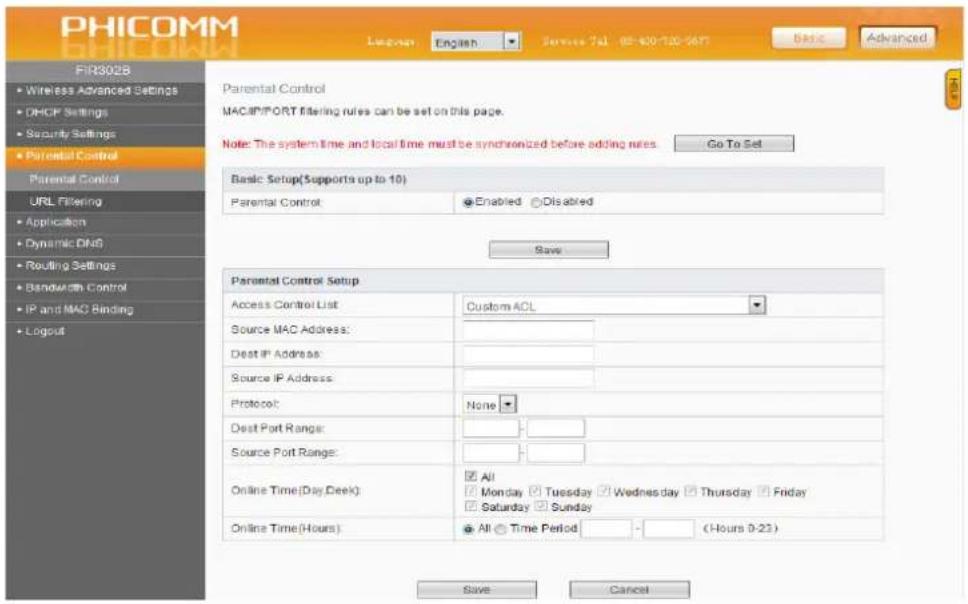
This page is used to enable the firewall filtering function. You can select the blocking service or set the parameters (+AC address, IP address and ports), which need to be blocked, manually. You must set at least one filtering condition. You may also set multiple conditions or all conditions.
text_image
PHICOMM LEADING English Service 741 02-400-130-5671 Basic Advanced FIR3028 • Wireless Advanced Settings • DHCP Settings • Security Settings • Parental Control Parental Control URL Filtering • Application • Dynamic DNS • Routing Settings • Bandwidth Control • IP and MAC Binding • Logout Parental Control Setup Access Control List Custom ACL Source MAC Address: Dest IP Address: Source IP Address: Protocol: None Dest Port Range: Source Port Range: Online Time(Day Deck) All Monday Tuesday Wednesday Thursday Friday Saturday Sunday Online Time(Hours) All Time Period - (Hours 0-22) Save Cancel
Please synchronize the router's time first, if selecting the timing function.
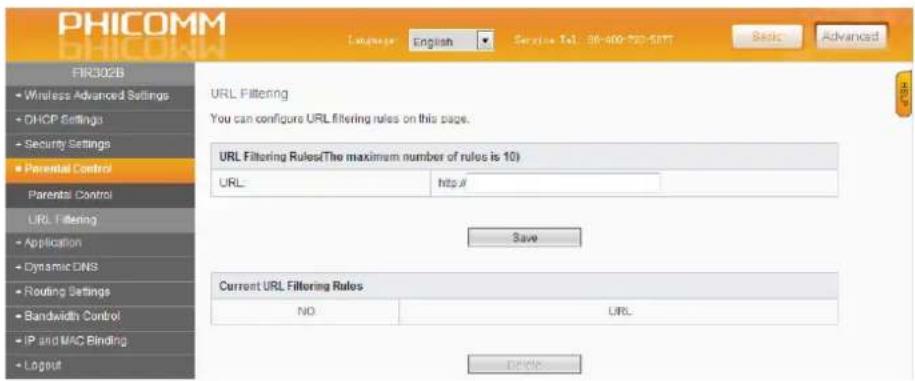
URL Filtering
Enter the UR> address you want to filter in the UR> box.
text_image
PHICOMM FIR302B - Wireless Advanced Settings - DHCP Settings - Security Settings - Parental Control - Parental Control URL Filtering - Application - Dynamic DNS - Routing Settings - Bandwidth Control - IP and MAC Binding - Logout Language: English Service Tel: 98-600-750-587 Basic Advanced URL Filtering You can configure URL filtering rules on this page. URL Filtering Rules(The maximum number of rules is 10) URL http:// Save Current URL Filtering Rules NO URL Cancel4.2.10 Application
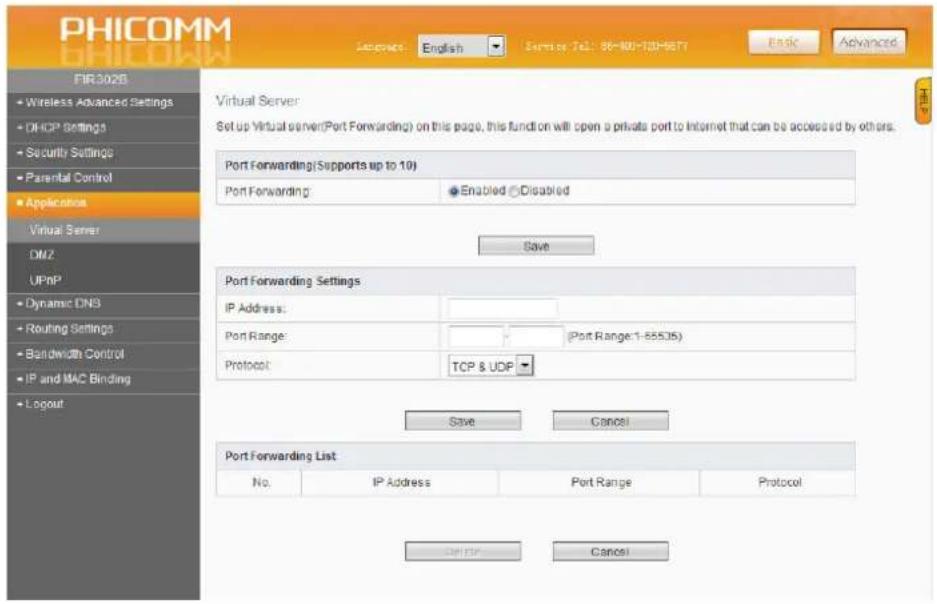
Virtual Server
text_image
PHICOMM PHICOMM Preference: English Service: Tel: 88-800-700-9677 Basic Advanced FIR 302B • Wireless Advanced Settings • DHCP Settings • Security Settings • Parental Control • Applications Virtual Server DMZ UPnP • Dynamic DNS • Routing Settings • Bandwidth Control • IP and MAC Binding • Logout Virtual Server Set up Virtual server(Port Forwarding) on this page, this function will open a private port to Internet that can be accessed by others. Port Forwarding(Supports up to 10) Port Forwarding Enabled Disabled Save Port Forwarding Settings IP Address: Port Range (Port Range:1-85535) Protocol TCP & UDP Save Cancel Port Forwarding List No. IP Address Port Range Protocol Cancel CancelSelect Enabled under Port Forwarding function to open a private port to internet that can be accessed by others.
| Menu item Explanation | |
| Port Forwarding Settings | |
| IP address IP address of the server you want to open the port, for example 192.168.2.X | |
| Port Range Port range of the server you want to open. | |
| Protocol Protocol of the server. | |

Please assign a static IP address to the server.
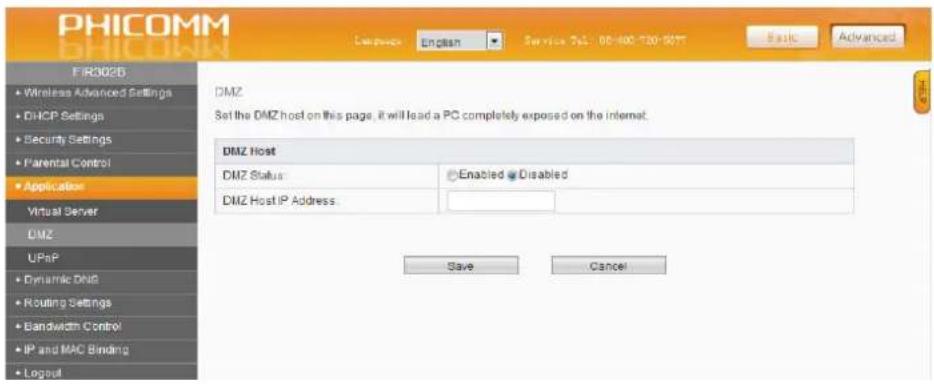
DMZ
Please select Enabled under DMZ Host.
text_image
PHICOMM FR3026 • Wireless Advanced Settings • DHCP Settings • Security Settings • Parental Control • Application Virtual Server DMZ UPnP • Dynamic DNS • Routing Settings • Bandwidth Control • IP and MAC Binding • Logout DMZ Set the DMZ host on this page, it will lead a PC completely exposed on the internet. DMZ Host DMZ Status Enabled Disabled DMZ Host IP Address: Save Cancel| Menu item Explanation | |
| DMZ Host | |
| D+Z Status Select Enabled or | Disabled. |
| D+Z-Host IP address Enter the | IP address of the PC in the >AN that you want to set. |
Note

Before using the D+Z host, you should assign a static IP address to the designated server. Then enter this static IP address into the router as its IP address.
D+Z priority is higher than the port forwarding. If the D+Z is open, all port forwarding rules are not effective.
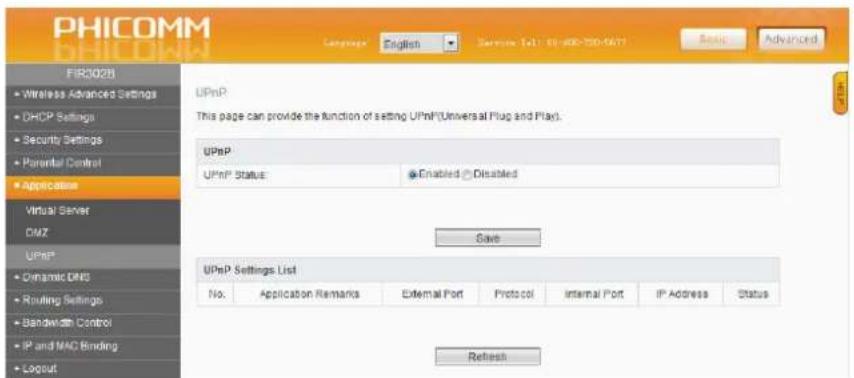
UPnP
Select Enabled or Disabled.
text_image
PHICOMM FIR0028 • Wireless Advanced Settings • DHCP Settings • Security Settings • Parental Control • Application Virtual Server DMZ UPnP • Dynamic DNS • Rsving Settings • Bandwidth Control • IP and MAC Binding • Logout Language: English Service Tel: 61-400-700-6377 Basic Advanced UPnP This page can provide the function of setting UPnP(Universal Plug and Play). UPnP UPnP Status: Enabled Disabled Save UPnP Settings List No. Application Remarks External Port Protocol Internal Port IP Address Status Refresh4.2.11 Dynamic DNS
The dynamic DNS allows assigning a fixed host and domain name to a dynamic internet IP address. If you want to use this feature, please register at a DDNS service provider for this service (e.g. www.no-ip.com). After registration please select your service provider and enter Username, Password and Dynamic DNS Domain Name.
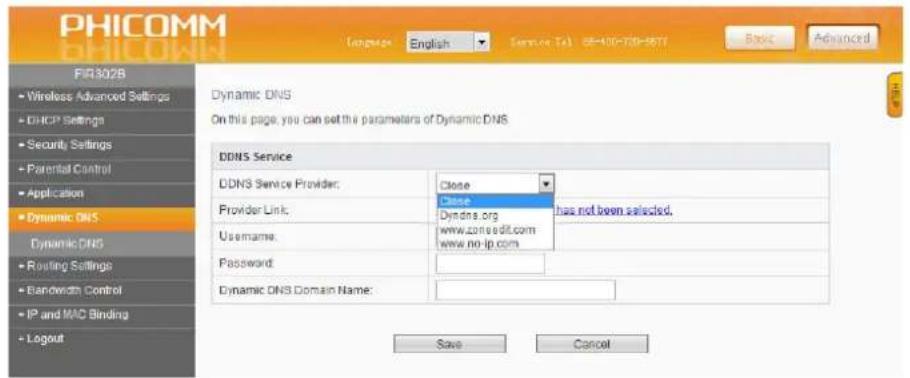
text_image
PHICOMM FIR302B • Wireless Advanced Settings • DHCP Settings • Security Settings • Parental Control • Application • Dynamic DNS Dynamic DNS • Routing Settings • Bandwidth Control • IP and MAC Binding • Logout Language English Service Tel GB-400-700-58TT Basic Advanced Dynamic DNS On this page, you can set the parameters of Dynamic DNS DDNS Service DDNS Service Provider: Close Provider Link: Close Username: Dyndns.org has not been selected. Password: Dynamic DNS Domain Name: Save Cancel4.2.12 Routing Settings
text_image
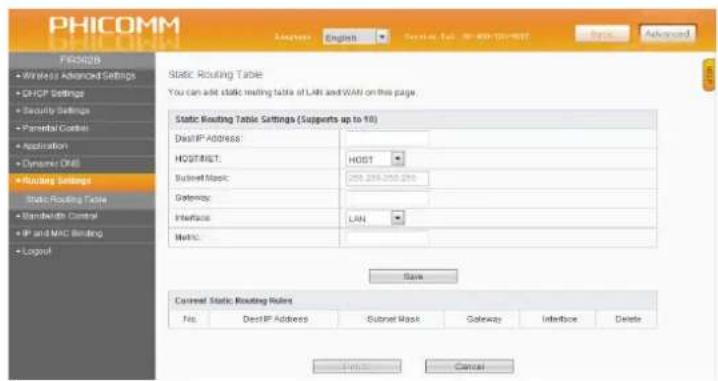
PHICOMM DNS Settings Adapters English Server Fax: 01-498-00000000000000000000000000000000000000000000000000000000000000000000000000000000000 FROSOB • Wireless Advanced Settings • DHCP Settings • Security Settings • Parental Controls • Application • Dynamic Drill • Routing Settings Static Routing Table • Bandwidth Control • IP and MAC Binding • Logout Static Routing Table Settings (Supports up to 10) DistIP Address: HOST: Business Mask: Gateway: Interface: Metric: Save Context Static Routing Rules No: DistIP Address Subnet Mask Gateway Interface Delete Finish CancelStatic Routing Table
Static routing is a form of routing that occurs when a router uses a manually-configured routing entry, rather than information from a dynamic routing protocol to forward traffic.
| Menu item Explanation | |
| Static Routing Table Settings (support up to 10) | |
| Destination IP address IP address of the network or host that you want to assign to a static route | |
| Subnet +ask The subnet mask determines which portion of an IP address is the network portion and which portion is the host portion. | |
| Gateway This is the IP address of the default gateway device that allows the contact between router and network or host. | |
4.2.13 Bandwidth >ontrol
text_image
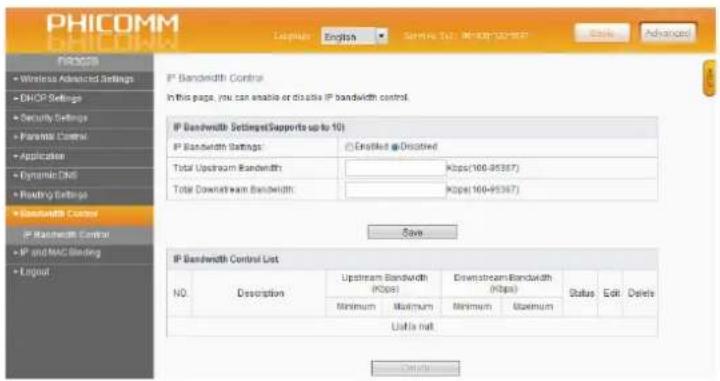
PHICOMM EBITLINES Language English Service Data: MCH007-02-2017 Edit Advanced IP Bandwidth Control In this page, you can enable or disable IP bandwidth control. IP Bandwidth Settings(Supports up to 10) IP Bandwidth Settings Enabled @ Disclosed Total Upstream Bandwidth Kbps(100-95367) Total Downstream Bandwidth Kbps(100-95367) Save IP Bandwidth Control List NO. Description Upstream Bandwidth (Kbps) Downstream Bandwidth (Kbps) Status Edit Delete Minimum Maximum Minimum Maximum Unit is null DetailsIP Bandwidth >ontrol
| Menu item Explanation | |
| IP Bandwidth Settings | |
| IP Bandwidth Settings Select Enabled or Disabled. | |
| Total Upstream Bandwidth Rate of uploading through WAN interface | |
| Total Downstream Bandwidth | Rate of downloading through WAN interface |
Note
Bandwidth conversion: 1 Mbps = 1024 <bps

Select the type of the broadband line and the bandwidth according to the actual situation. If you are not sure about the information, please consult your broadband provider.
After finishing the settings, click the Save button to apply the settings.
4.2.14 IP and MA> Binding
Static ARP Binding
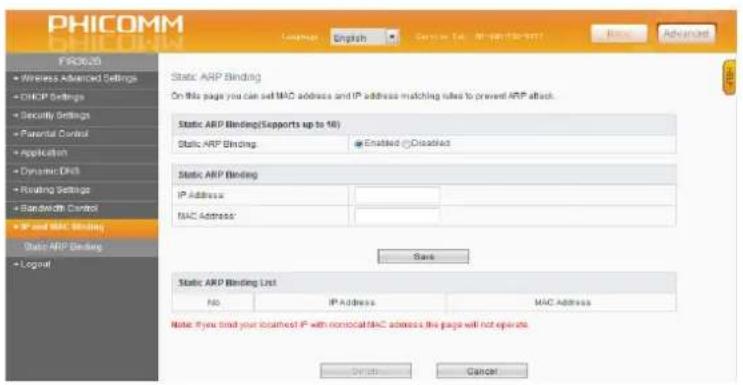
You may use the ARP binding function to control the static ARP cache table for preventing the ARP deception effectively.
text_image
PHICOMM PHICOMM Language: English Service List: IP-647501001 Basic Advanced FRC2020 • Wireless Advanced Settings • DHCP Settings • Security Settings • Parental Control • Application • Dynamic DRL • Routing Settings • Bandwidth Control • IP and MAC Binding Static ARP Binding Logmail Static ARP Binding(Supports up to 18) Static ARP Binding: Enabled Displaced Static ARP Binding IP Address: MAC Address: Save Static ARP Binding List No IP Address MAC Address Note: If you find your closest IP with nonlocal MAC address, this page will not operate. Delete Cancel| Menu item Explanation | |
| Static ARP Binding | |
| IP address IP address of the >AN PC | |
| MAC address MAC address of the >AN PC | |
4.2.15 Logout
text_image
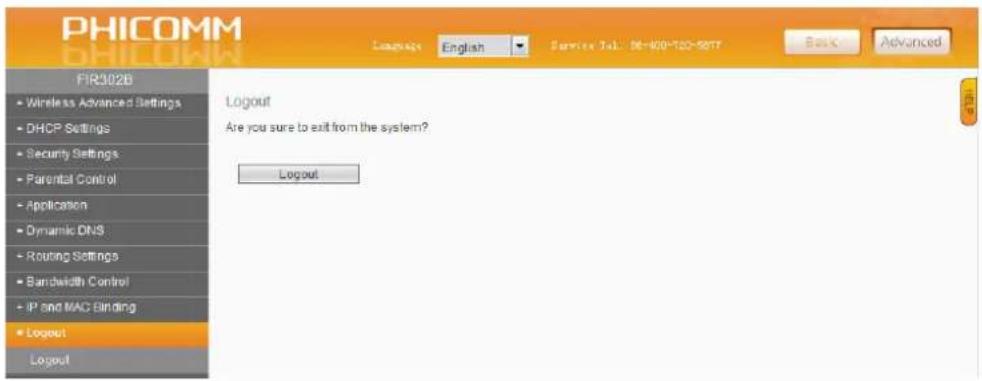
PHICOMM PHICOMM FIR302B • Wireless Advanced Settings • DHCP Settings • Security Settings • Parental Control • Application • Dynamic DNS • Routing Settings • Bandwidth Control • IP and MAC Binding • Logout Logout Language: English Service Tel: 06-400-120-5817 Back Advanced Logout Are you sure to exit from the system? LogoutClick Logout to exit from the router's configuration page.
5. Troubleshooting
Why I cannot open the management page?
- Turn off browser's proxy settings.
• +take sure that your network card has been set to obtaining an IP automatically. - +take sure that your >AN and wireless >ED is on and all cables are connected correctly.
I forgot my network name or encryption keys!
- Try to set up a wired connection and configure the wireless encryption again.
- Press the Reset button of the router longer than 6 seconds.
Why I cannot access the internet via LAN adapter?
• +ove the router closer to the wireless client.
- Check whether the wireless adapter is connected to the correct wireless router.
- Check whether the wireless channel conforms to the channels available in your country / area.
- Retry using another Ethernet cable.
- Check if all cables are connected correctly.
Factory default settings
| Item Default | |
| Basic settings | |
| Username admin | |
| Password admin | |
| IP address 192.168.2.1 | |
| Subnet mask 255.255.255.0 | |
| Wireless | |
| SSID Phicomm_16AE03 | |
| Wireless security Disabled | |
| Wireless MAC address filtering Disabled | |
| DHCP | |
| DHCP server Enabled | |
| Start IP address 192.168.2.100 | |
| End IP address 192.168.2.200 | |
6. Technical support – contact us
Shanghai Feixun >ommunication >o., Ltd.
Phone: +86 21 67754400
Email Sales: info@phicomm.com
Email Support: service@phicomm.com.cn
Phicomm Europe GmbH
Phone: +49 89 66056720
Email Sales: info-eu@phicomm.com
Email Support: support-de@phicomm.com
For detailed product information and Downloads (software, user manuals and certificates) please visit our website:
www.phicomm.com/de for Germany
www.phicomm.com/eu for Europe
www.phicomm.com Phicomm Global