
XEED SX800 - Vidéo-projecteur CANON - Free user manual and instructions
Find the device manual for free XEED SX800 CANON in PDF.


| Product Type | Multimedia Projector |
| Brand | Canon |
| Model | XEED SX800 |
| Display Technology | LCOS (Liquid Crystal On Silicon) with AISYS optical engine |
| Native Resolution | SXGA+ (1400 x 1050) |
| Brightness | 3,000 lumens (Presentation mode) |
| Contrast Ratio | 900:1 (full white:full black, Presentation mode) |
| Lens | 1.5X zoom aspheric lens, f=16.6 to 24.8mm, F1.95 to F2.6 |
| Zoom & Focus | Electronic (manual focus) |
| Light Source | 230W high-pressure mercury lamp |
| Screen Size | 40" to 300" (1.2m to 9.1m projection distance) |
| Keystone Correction | Auto and manual, ±20° vertical |
| Auto Setup | Auto input signal detection, auto keystone adjustment |
| Input Terminals | ANALOG PC-1 (mini D-sub 15-pin), ANALOG PC-2/COMPONENT IN (mini D-sub 15-pin), VIDEO IN (RCA), AUDIO IN (3.5mm stereo mini jack x3), CONTROL (D-sub 9-pin) |
| Audio | Built-in 1W monaural speaker, AUDIO OUT (3.5mm stereo mini jack) |
| Power Consumption | 320W (Normal), 260W (Silent), 8W (Standby) |
| Dimensions (W x H x D) | 332 x 121 x 340 mm (13.3 x 4.8 x 13.6 in), excluding protrusions |
| Weight | 5.0 kg (11.0 lbs) |
| Operating Temperature | +5°C to +35°C (41°F to 95°F) |
| Special Features | Off and Go (instant shutoff), user-friendly on-screen menu, compact wireless remote control, various image modes (Standard, Presentation, Movie, sRGB, Photo) |
| Maintenance | Replaceable air filter and lamp (Part No. RS-LP05) |
Frequently Asked Questions - XEED SX800 CANON
User questions about XEED SX800 CANON
0 question about this device. Answer the ones you know or ask your own.
Ask a new question about this device
Download the instructions for your Vidéo-projecteur in PDF format for free! Find your manual XEED SX800 - CANON and take your electronic device back in hand. On this page are published all the documents necessary for the use of your device. XEED SX800 by CANON.
USER MANUAL XEED SX800 CANON
MULTIMEDIA PROJECTOR
SX80 Mark II
SX800
User's Manual
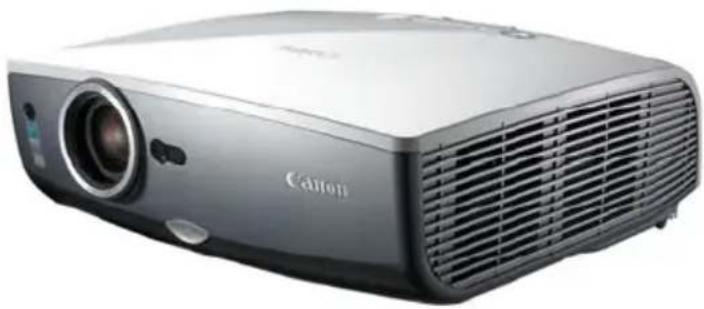
natural_image
Exterior view of a Canon projector (no visible text or symbols on body)
AISYS
Aspectual Illumination System

PictBridge
HDMI ^TM
HIGH DEFINITION MULTIMEDIA INTERFACE
Table of Contents
Safety Instructions
Before Use
Projecting an Image
Useful Functions Available During a Presentation
Setting Up Functions from Menus
Projecting an Image from a Digital Camera or an USB Flash Memory (SX80 II)
Connecting the Projector to Network (SX80 II)
Appendix
Index
Features of SX80 MarkII/SX800 Multimedia Projector
Thank you for purchasing a Canon projector.
The SX80 MarkII/SX800 Multimedia Projector (hereinafter referred to as "the projector") is a high-performance projector that is capable of projecting high-resolution computer screens, high-quality digital images (SX80 MarkII), images from digital cameras and USB flash memories (SX80 MarkII) on a large screen.
Major Features
Smooth and Beautiful Imaging Capability
Incorporation of AISYS, Canon's unique optical engine, and LCOS (Liquid Crystal On Silicon) achieves high brightness, high contrast ratio, and smooth and beautiful lattice-free images.
Native SXGA+ Resolution
Native SXGA+ resolution (1400 by 1050 dots) ensures projection of a high-quality image in a wider projection area with a high degree of resolution.
High-powered 1.5X Zoom Lens
1.5X zoom aspheric lens can project a 100-inch image when placed 3 m (9.8') to 4.9 m (16.1') away. (P35)
"Auto Setup Function" for Making Setup a Breeze
The keystone distortion is automatically adjusted for quick and easy setup of projector. (P52)
Equipped with HDMI Input Terminal (SX80 II)
Connecting the projector to AV equipment via HDMI terminal allows you to project high quality digital images. (P44)
Direct Projection of Images Taken by Digital Camera (SX80 II)
Capable of directly projecting images taken by PictBridge enabled digital cameras. (P114)
Direct Projection of Data on USB Flash Memories (SX80 II)
Capable of directly projecting JPEG images on USB flash memories. (P118)
"Off and Go" Feature
It can be unplugged and packed away immediately. (P68)
* Wait until the cooling fan stops before putting the projector in the carrying bag.
User-Friendly On-Screen Menu
Settings are organized by four tabs. You can easily find settings for each function. (P76-P112)
Compact and Easy-to-use Wireless Remote Control
It comes with a wireless remote control which allows you to control all functions of this projector. (P26)
Various Image Modes for a Particular Use of Your Projector (SX80 II)
When projecting a digital still photo image or an image that has been processed on an sRGB-compatible monitor, you can project the image with higher tone on the screen by incorporating the appropriate image correction function for the particular lighting environment.
It is useful when projecting the image in a photo studio, portrait studio, wedding reception hall, art museum, gallery, etc.
User's Manual (this document)
This is a User's Manual for the SX80 MarkII/SX800 Multimedia Projector. This manual provides detailed information on how to use the projector. Read this manual thoroughly to make the most of your projector and ensure safety.
Important Information and Quick Start Guide
First read document. It provides information about projector safety, cautions, quick start guide*, cleaning and replacing the air filter and lamp replacement.
* This guide shows an outline flowchart of the steps to start and stop the projector, as well as the functions available for projecting images.
Symbols of Button Operations
The projector can be operated using buttons on the remote control or the top control of the projector. The remote control allows you to operate all functions of the projector. In this document, the buttons operation is shown as below.
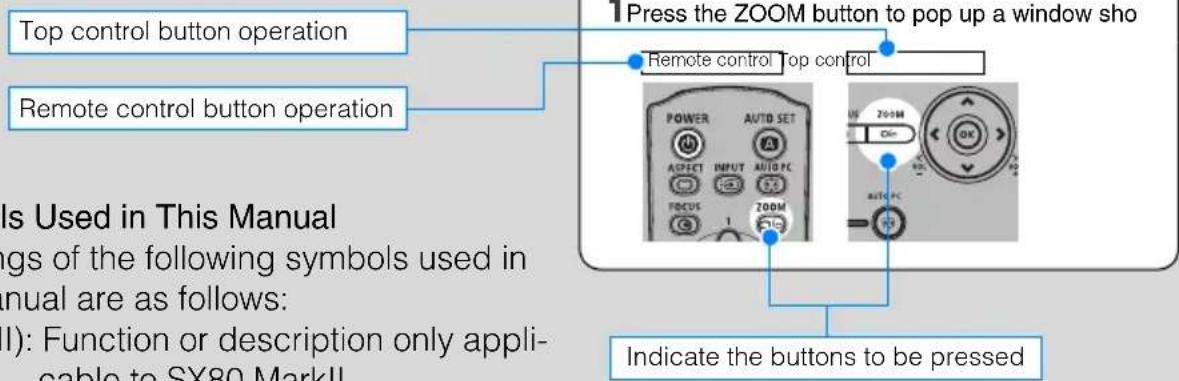
Symbols Used in This Manual
Meanings of the following symbols used in this manual are as follows:
(SX80 II): Function or description only applicable to SX80 MarkII.
(SX800): Function or description only applicable to SX800.

A precaution about operation or restriction is given here.
COPYRIGHT NOTICE
Please note that enlarging or reducing the size of an image for commercial purposes or public presentation may infringe on the legally protected copyright or the copyright holder of the original material.
About Trademarks
- Microsoft, Windows, Windows XP, Windows Vista and Internet Explorer are registered trademarks or trademarks of Microsoft Corporation in the United States and/or other countries.
• Macintosh and Mac are registered trademarks of Apple Computer, Inc., registered in the United States and/or other countries. - HDMI, HDMI logo, and High Definition Multimedia Interface are registered trademarks or trademarks of HDMI Licensing, LLC.
Quick Reference Guide
This Quick Reference Guide will help you find functions that make full use of the projector, are useful in producing an attractive presentation, and so on.
Connecting the Projector
Connecting to the Computer (P40 – P43) Connecting to AV Equipment (P44 – P47) Connecting a Digital Camera (SX80 II) (P48, P114 – P115) Connecting an USB Flash Memory (SX80 II) (P48, P118 – P119)
Projecting an Image
Starting Projection (P49 – P51) Selecting an Input Signal (P54 – P55) Projecting an Image from a Digital Camera (SX80 II) (P114 – P117) Projecting Data on USB Flash Memory (SX80 II) (P118 – P124)
Adjusting Image
Adjusting the Image Size and Focus (P58 – P59) Adjusting Keystone Distortion (P60 – P61) Adjusting Aspect Ratio (P62 – P66) Eliminating Flickers from Computer Screen or Adjusting Positional Shift (P82)
Adjusting Colors and Image Quality
Projecting an Image on a Greenboard (P86) Selecting an Image Mode Suitable for the Projecting Image (P93) Making Fine Color Adjustments (P97, P100) Removing Noise (P98)
Producing a Presentation
Blackened Out an Image Temporarily (P70) Freezing the Picture (P70) Adjusting the Volume (P71) Muting the Sound (P71) Zooming an Image (P72) Showing the Elapsed Time (P73)
Ceiling Mounted Projection or Projecting from behind Screen (P87)
Changing Remote Control Channel (P107)
Resetting Projector Setting
Resetting the Image Settings (P102) Resetting the Key Lock (P105) Resetting Password (P108) Resetting a Network Setting (SX80 II) (P111) Resetting to the Default Setting (P111)
Miscellaneous Functions
Reducing the Lamp Brightness (P102) Using the Power Saving Mode (P103) Turning on the Projector by Connecting the Power Cord (P104) Disabling the Beep During the Operation (P104) Disabling Buttons (P105) Hiding Guide Messages (P106) Turning Off the Projector LED Lamps (P106) Setting a Password (P108)
Table of Contents
Features of SX80 MarkII/SX800 Multimedia Projector 2
Quick Reference Guide.... 5
Safety Instructions....12
Safety Precautions 13
■ READ AND KEEP THIS OWNER'S MANUAL FOR LATER USE.... 14
AC Power Cord Requirement.... 16
Federal Communication Commission Notice 17
Canadian Radio Interference Regulations 17
Precautions on Handling the Batteries in the Remote Controller 18
Lamp Handling Precautions 18
Carrying/Transporting the Projector 19
Installation Precautions 19
Before Use 21
Supplied Accessories.... 22
■ Installing the Lens Cap 22
■ Putting the Projector in the Carrying Bag 23
Part Names 24
Main Unit of Projector.... 24
■ Front Side....24
■ Rear Side 24
■ Bottom Side.... 25
Remote Control 26
Top Control.... 28
Input Terminals.... 29
■ SX80 MarkII....29
■ SX800....29
Preparing the Remote Control.... 31
■ Installing Remote Control Batteries.... 31
■ Remote Control Operating Range 31
Projecting an Image 33
Steps for Setting Up the Projector and Projecting an Image.... 34
Setting Up the Projector.... 35
■ Placing in Front of the Screen 35
■ Placing on a Level Place.... 36
■ When Pointing the Projector Up.... 37
Connecting the Projector 38
Connectable Equipment and Input Terminals 38
■ SX80 MarkII 38
■ SX800....39
Connecting the Projector to the Computer 40
■ Connecting to RGB Monitor Output Terminal (analog connection).... 40
■ Connecting to DVI Monitor Output Terminal (digital connection) (SX80 II) 42
■ Outputting an Image and Audio 42
Connecting to AV Equipment 44
■ Connecting to Digital Video Output Terminal (digital connection) (SX80 II).... 44
■ Connecting to Analog Video Output Terminal (analog connection) 45
■ Outputting Audio to Speakers .... 47
■ Connecting a Digital Camera or an USB Flash Memory (SX80 II) 48
Starting Projection....49
■ When the Language Selection Screen Appears .... 50
■ When the Password Input Screen Appears .... 51
■ When "No signal" Appears....51
■ When Notebook Computer Screen Does Not Appear....51
■ Adjusting Image ....51
Changing Notebook Computer Screen Output 51
■ Turning On External Monitor Output....51
Setting Up the Screen Automatically ....52
Auto Setup 52
■ Performing the Auto Setup ....53
Selecting an Input Signal (INPUT) 54
■ Types of Input Signals....54
■ Selecting an Input Signal....55
Adjusting Image 56
Setting the Display Resolution of the Computer 56
■ Windows Vista .... 56
■ Windows XP 56
■ Macintosh OSX 56
AUTO PC 57
■ Performing the Auto PC Function ....57
Adjusting the Image Size 58
Adjusting the Focus 59
■ Auto focusing (SX80 II)....59
■ Manual focusing ....59
Adjusting Keystone Distortion....60
■ Auto adjustment....60
■ Manual adjustment....60
■ Resetting the Keystone Adjustment ....61
Selecting Screen Aspect and Aspect....62
Selecting Screen Aspect....62
■ Moving Image with 16:9 D. Image Shift....64
■ Resetting the Image Shift 64
Selecting Aspect Ratio....65
■ Types of Aspect Ratios....65
■ How to Select an Aspect Ratio 66
Selecting an Image Mode 67
■ Image modes....67
■ How to Select an Image Mode ....67
Turning Off the Projector....68
Useful Functions Available During a Presentation 69
Useful Functions Available During a Presentation 70
Blackened Out an Image Temporarily 70
Freezing the Picture....70
Adjusting the Volume....71
Muting the Sound 71
Zooming an Image 72
Showing the Elapsed Time....73
Projecting Image Without Computer (SX80 II) 73
Setting Functions from Menus 75
How to Use Menus....76
■ Menu Configuration....76
■ Basic Operation of Menu 77
Setting Display Status 79
Selecting an Image Projection Mode.... 79
Selecting an Input Signal Type (ANALOG PC) 80
Selecting an Input Signal Type (VIDEO/S-VIDEO) 80
Selecting an Input Signal Type (COMPONENT) 81
Adjusting Input Signal (ANALOG PC) – Total Dots 81
Adjusting Input Signal (ANALOG PC) – Tracking 82
Adjust Input Signal (ANALOG PC) – Horizontal position 82
Adjust Input Signal (ANALOG PC) – Vertical position.... 83
Adjust Input Signal (ANALOG PC) – Horizontal pixels.... 83
Adjust Input Signal (ANALOG PC) – Vertical pixels 84
Selecting HDMI Input Level (SX80 II).... 84
Select HDMI Over Scan (SX80 II) 85
Performing Progressive Processing 85
Selecting a Menu Position....86
Correcting the Screen Color 86
Reversing projection.... 87
Capturing a Logo (SX800)...... 88
Selecting the User Logo Display Position (SX800) 88
No Signal Screen (SX80 II) 89
Screen When Blank (SX80 II) 89
Selecting a Logo at Startup (SX80 II)....90
No Signal Screen (SX800) 90
Screen When Blank (SX800) 91
Selecting a Logo at Startup (SX800)....91
Selecting Aspect Ratio of Screen....92
Setting the Image Quality 93
Selecting an Image Quality 93
Adjusting the Brightness....94
Adjusting the Contrast 94
Adjusting the Sharpness 95
Making a Gamma Correction 95
Making Color Adjustment (HDMI) (SX80 II) 96
Making Color Adjustment (Digital PC/Analog PC/USB) (SX80 II) 96
Making Color Adjustment (COMPONENT/VIDEO/S-VIDEO) (SX80 II)....97
Making Color Adjustment (Analog PC) (SX800)....97
Making Color Adjustment (COMPONENT/VIDEO) (SX800)....98
Making Advanced Adjustment (Noise reduction).... 98
Making Advanced Adjustment (Dynamic gamma) 99
Making Advanced Adjustment (Mem. color correct) (SX80 II) 99
Making Advanced Adjustment (Auto fleshtone) (SX800).... 100
Adjusting Fine Color Adjustment (6-axis color adjust) (SX80 II) 100
Correcting the Image According to the Ambient Light (SX80 II) 101
Reducing the Lamp Brightness....102
Resetting the Image Settings....102
Setting Various Function....103
Setting Auto Setup Function....103
Selecting the Power Management Mode 103
Skip the POWER Button Operation 104
Enabling/Disabling the Beep....104
Prohibiting the Projector Operation....105
Selecting a Display Language 105
Showing/hiding the Guide Screen 106
Turning on/off LED Illumination 106
Setting for Slideshow (SX80 II)....107
Setting up the Remote Control Channel 107
Extending the Menu Display Time 108
Setting a Password....108
Registering a Password....109
Resetting the Lamp Counter....109
■ About the Display of the Lamp Counter 110
Initializing network settings (SX80 II)....111
Resetting to the Default Setting 111
Checking the Information of the Projector 112
Projecting an Image from a Digital Camera or an USB
Flash Memory (SX80 II) 113
Projecting an Image from a Digital Camera (SX80 II)....114
Connecting a Digital Camera....114
Operating the Projected Image....116
■ Switching to the Next Image....116
■ Rotating an Image 116
Running a Slideshow 117
■ Setting a Slideshow Interval 117
■ Finishing projection 117
Projecting Data on USB Flash Memory (SX80 II)....118
Connecting an USB Flash Memory 118
Description of USB File Browser 120
Selecting an Image for Projection 121
■ Selecting a Drive.... 121
■ Selecting a Folder 121
■ Selecting an Image File for Projection 122
Operating the Projected Image 123
■ Switching to the Previous/Next Image 123
■ Rotating an Image.... 123
■ Returning to the USB File Browser.... 123
Running a Slideshow of Data saved in a USB Flash Memory 124
■ Creating an Image File Folder 124
■ Setting a Slideshow Interval.... 124
Connecting the Projector to Network (SX80 II).... 125
Setting an IP Address (SX80 II).... 126
■ Setting IP Address of the Computer 126
■ Resetting the IP Address Setting of the Computer 127
Setting Network (SX80 II).... 128
■ Displaying the Network Configuration Screen 128
■ Setting the Network.... 129
■ Resetting the Network Setting.... 134
■ Error Notification Message.... 135
■ Projector Control 136
Appendix.... 137
Troubleshooting....138
WARNING Lamp Flash Patterns.... 138
Symptoms and Solutions.... 139
■ You cannot turn on the projector. 139
■ You cannot project an image from the projector. 139
■ A digital camera or USB flash memory is not recognized. (SX80 II) 140
■ You cannot hear sound.... 140
■ The projected image is blur.... 141
■ You cannot project an image appropriately. 141
■ The projector is forced to be turned off. 141
■ You cannot operate the remote control. 142
Maintenance 143
Cleaning the Projector.... 143
Cleaning and Replacing the Air Filter 144
■ Cleaning the Air Filter.... 144
■ Replacing the Air Filter.... 144
Replacing the Lamp 145
■ About the Replacing Lamp 145
■ Replacing the Lamp.... 146
Relationship between Aspect and Screen Aspect.... 147
When Projecting an Image from a Computer 147
When Projecting an Image from Image Software.... 148
When Projecting an Image from a Digital Camera or a USB Flash Memory (SX80 II) ...... 149
Supported Computer Signal Types 150
Relationship between Screen Size and Projecting Distance ....151
Glossary 152
Specifications....156
■ Projector 156
■ Remote Control....156
■ External View 157
■ ANALOG PC-1 (SX800), ANALOG PC-2/COMPONENT IN terminal.... 157
■ Service Port (CONTROL)....158
Index 160
Menu Configuration 164
Safety Instructions
Before operating this projector, read this manual thoroughly in order to operate the projector properly.
This projector offers many convenient features and functions. Operating the projector properly enables you to manage those features and maintain it in good condition for a long period.
Improper operation may result in not only reducing the product-life, but also malfunctions, fire hazards, or other accidents.
If your projector is not operating correctly, read this manual again, check operations and cable connections, and try the solutions shown in the "Troubleshooting" section at the end of this booklet. If the problem still persists, contact the service center or the dealer where you purchased the projector.

CAUTION
RISK OF ELECTRIC SHOCK DO NOT OPEN

CAUTION: TO REDUCE THE RISK OF ELECTRIC SHOCK, DO NOT REMOVE COVER (OR BACK). THERE ARE NO USER-SERVICEABLE PARTS INSIDE EXCEPT LAMPS. REFER SERVICING TO QUALIFIED SERVICE PERSONNEL.

THIS SYMBOL INDICATES THAT DANGEROUS VOLTAGE CONSTITUTING A RISK OF ELECTRIC SHOCK IS PRESENT WITHIN THIS UNIT.

THIS SYMBOL INDICATES THAT THERE ARE IMPORTANT OPERATING AND MAINTENANCE INSTRUCTIONS FOR THIS UNIT IN THE OWNER'S MANUAL.
CAUTION
Not for use in a computer room as defined in the Standard for the Protection of Electronic Computer/Data Processing Equipment, ANSI/NFPA 75.

Safety Precautions
WARNING: TO REDUCE THE RISK OF FIRE OR ELECTRIC SHOCK, DO NOT EXPOSE THIS APPLIANCE TO RAIN OR MOISTURE.
- This projector projects intense light from the projection lens. Do not stare directly into the lens if possible, as doing so may result in eye damage. Be especially careful that children do not stare directly into the beam.
- Install the projector in an appropriate position. Installing the projector in an inappropriate position may result in a fire hazard.
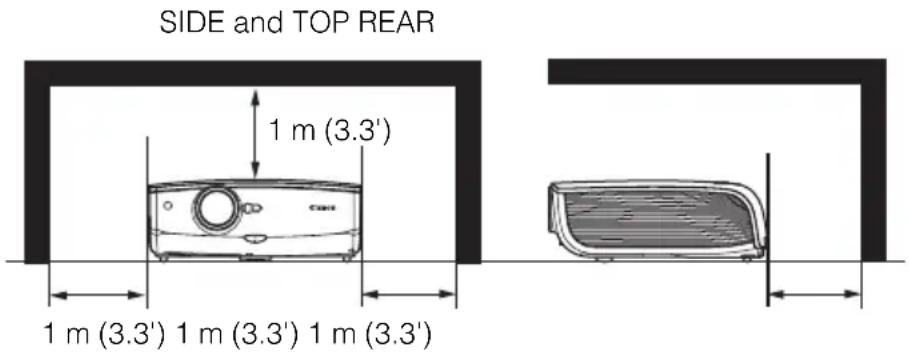
- Allow for appropriate space above beside and behind of the projector cabinet for allowing air circulation and cooling of the projector. Minimum clearances must be maintained. If the projector is to be built into a compartment or similarly space, the minimum distances must be maintained. Do not cover the ventilation slot on the projector. Heat build-up can reduce the service life of your projector, and can also be dangerous.
- Do not put any flammable objects or spray cans near the projector, as the hot air exhausted from the ventilation holes may result in an explosion.
- If the projector is not to be used for an extended period of time, unplug it from the power outlet.
■ READ AND KEEP THIS OWNER'S MANUAL FOR LATER USE.
All the safety and operating instructions should be read before beginning to operate the product.
Read all of the instructions given here and retain them for later use. Unplug this projector from the AC power supply before cleaning. Do not use liquid or aerosol cleaners on the projector. Use a damp cloth for cleaning.
Follow all warnings and instructions marked on the projector.
For added protection of the projector during a lightning storm, or when it is left unattended or unused for long periods of time, unplug it from the wall outlet. This will prevent damage due to lightning and power surges.
Do not expose this unit to rain or use near water... for example, in a wet basement, near a swimming pool, etc...
Do not use attachments not recommended by the manufacturer as they may result in hazards.
Do not place this projector on an unstable cart, stand, or table. The projector may fall, causing serious injury to a child or adult, and serious damage to the projector. Use only with a cart or stand recommended by the manufacturer, or sold with the projector. Wall or shelf mounting should be carried out in accordance with the manufacturer's directions, and should use a mounting kit approved by the manufacturers.
An appliance and cart combination should be moved with care.
Sudden stops, excessive force, and uneven surfaces may cause the appliance and cart combination to overturn.
Slots and openings in the back and bottom of the cabinet are provided for ventilation, to insure reliable operation of the equipment and to protect it from overheating.

natural_image
Symbolic illustration of a person pushing a ladder under a no-smoking circle (no text or symbols)The openings should never be covered with cloth or other materials, and the bottom opening should not be blocked by placing the projector on a bed, sofa, rug, or other similar surface. This projector should never be placed near or over a radiator or heat register.
This projector should not be placed in a built-in installation such as a book case unless proper ventilation is provided.
Never push objects of any kind into this projector through cabinet slots as they may touch dangerous voltage points or short out parts that could result in a fire or electric shock. Never spill liquid of any kind onto the projector.
Do not install the projector near the ventilation duct of air-conditioning equipment.
This projector should be operated using only the type of power source indicated on the marking label. If you are not sure of the type of power supplied, consult your authorized dealer or local power company.
Do not overload wall outlets and extension cords as this can result in fire or electric shock. Do not allow anything to rest on the power cord. Do not locate this projector where the cord may be damaged by people walking on it.
Do not attempt to service this projector yourself as opening or removing covers may expose you to dangerous voltages or other hazards. Refer all servicing to qualified service personnel.
Unplug this projector from the wall outlet and refer servicing to qualified service personnel under the following conditions:
a. When the power cord or plug is damaged or frayed.
b. If liquid has been spilled into the projector.
c. If the projector has been exposed to rain or water.
d. If the projector does not operate normally after following the operating instructions. Adjust only those controls that are covered in the operating instructions as improper adjustment of other controls may result in damage and will often require extensive work by a qualified technician to restore the projector to normal operating condition.
e. If the projector has been dropped or the cabinet has been damaged.
f. When the projector exhibits a distinct change in performance—this indicates a need for servicing.
When replacement parts are required, be sure the service technician uses replacement parts specified by the manufacturer that have the same characteristics as the original parts. Unauthorized substitutions may result in fire, electric shock, or injury.
Upon completion of any service or repairs to this projector, ask the service technician to perform routine safety checks to determine that the projector is in safe operating condition.
AC Power Cord Requirement
The AC Power Cord supplied with this projector meets the requirements for use in the country you purchased it.
AC Power Cord for the United States and Canada:
The AC Power Cord used in the United States and Canada is listed by the Underwriters Laboratories (UL) and certified by the Canadian Standard Association (CSA).
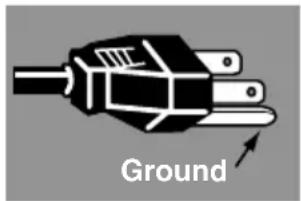
The AC Power Cord has a grounding-type AC line plug. This is a safety feature to ensure the plug fits into the power outlet. Do not try to tamper with this safety feature. Should you be unable to insert the plug into the outlet, contact your electrician.
THE SOCKET-OUTLET SHOULD BE INSTALLED NEAR THE EQUIPMENT AND EASILY ACCESSIBLE.
NOTE FOR CUSTOMERS IN THE US
Hg LAMP(S) INSIDE THIS PRODUCT CONTAIN MERCURY AND MUST BE RECYCLED OR DISPOSED OF ACCORDING TO LOCAL, STATE OR FEDERAL LAWS.

natural_image
Symbol of a trash bin crossed with no text or numbers, representing waste sorting or disposal (no text present)European Union (and EEA) only.
These symbols indicate that this product is not to be disposed of with your household waste, according to the WEEE Directive (2002/96/EC), the Battery Directive (2006/66/EC) and/or your national laws implementing those Directives. If a chemical symbol is printed beneath the symbol shown above, in accordance with the Battery Directive, this indicates that a heavy metal (Hg = Mercury, Cd = Cadmium, Pb = Lead) is present in this battery or accumulator at a concentration above an applicable threshold specified in the Battery Directive. This product should be handed over to a designated collection point, e.g., on an authorized one-for-one basis when you buy a new similar product or to an authorized collection site for recycling waste electrical and electronic equipment (EEE) and batteries and accumulators. Improper handling of this type of waste could have a possible impact on the environment and human health due to potentially hazardous substances that are generally associated with EEE. Your cooperation in the correct disposal of this product will contribute to the effective usage of natural resources. For more information about the recycling of this product, please contact your local city office, waste authority, approved scheme or your household waste disposal service or visit www.canon-europe.com/environment.

natural_image
Symbol of a trash bin crossed out by two diagonal lines (no text or labels)(EEA: Norway, Iceland and Liechtenstein)
Federal Communication Commission Notice
Multimedia Projector, Model: SX80 MarkII/SX800
This device complies with Part 15 of the FCC Rules. Operation is subject to the following two conditions:
(1) This device may not cause harmful interference, and
(2) this device must accept any interference received, including interference that may cause undesired operation.
Note: This equipment has been tested and found to comply with the limits for a Class B digital device, pursuant to Part 15 of the FCC Rules. These limits are designed to provide reasonable protection against harmful interference in a residential installation.
This equipment generates, uses and can radiate radio frequency energy and, if not installed and used in accordance with the instructions, may cause harmful interference to radio communications. However, there is no guarantee that interference will not occur in a particular installation. If this equipment does cause harmful interference to radio or television reception, which can be determined by turning the equipment off and on, the user is encouraged to try to correct the interference by one or more of the following measures:
- Reorient or relocate the receiving antenna.
- Increase the separation between the equipment and receiver.
- Connect the equipment into an outlet on a circuit different from that to which the receiver is connected.
- Consult the dealer or an experienced radio/TV technician for help.
The cable with a ferrite core provided with the projector must be used with this equipment in order to comply with Class B limits in Subpart B of Part 15 of the FCC rules.
Use of a shielded cable is required to comply with class B limits in Subpart B of Part 15 of FCC Rules.
Do not make any changes or modifications to the equipment unless otherwise specified in the instructions. If such changes or modifications should be made, you could be required to stop operation of the equipment.
Canon U.S.A. Inc.
One Canon Plaza, Lake Success, NY 11042-1198, U.S.A.
Tel No. (516) 328-5600
Canadian Radio Interference Regulations
This Class B digital apparatus complies with Canadian ICES-003.
Precautions on Handling the Batteries in the Remote Controller

Observe the following precautions when handling the batteries. Failure to do so may cause explosion, heat generation, fire, or leakage of the battery fluid.
- Do not heat or disassemble the batteries, or throw them into fire.
- Do not attempt to recharge the batteries.

Observe the following precautions when handling the batteries. Failure to do so may cause explosion, heat generation, fire or leakage of the battery fluid.
- Remove the batteries when they have been exhausted or not in use for an extended period of time.
- Be sure to replace both batteries at the same time. Do not mix batteries of different types.
- Insert batteries correctly according to the "+" and "-" markings.
- If a fluid from a battery leaks and comes in contact with your skin, rinse the affected skin thoroughly as soon as possible.
Lamp Handling Precautions
This projector uses a high-pressure mercury lamp which must be handled carefully and correctly as mentioned below.
The mercury lamp has the following characteristics.
- A lamp may explode with a loud sound or burn out due to a shock, scratch, or use beyond its expiry date.
- The lamp life may differ from lamp to lamp and according to the usage environment. There is no guarantee that all lamps will last for the same period of time. Some lamps may fail in a shorter period of time than other similar lamps.
- A lamp gradually becomes darker over time.

If a Lamp Explodes
- If a lamp explodes, gas or dust may come out of the exhaust vent. Open windows and doors for ventilation.
- The gas contains toxic mercury. Always keep your face away from the exhaust vent when the projector is operating to avoid inhaling mercury vapors or to prevent it from getting in your eyes or mouth.
- If you inhale the gas or the shards of the broken lamp contact your eyes or mouth, consult a doctor immediately.
- If a lamp explodes, its shards may scatter inside the projector. Ask the Canon service representative to clean and check the inside of the projector and replace the lamp.

If the projector indicates that the lamp should be replaced (i.e., the LAMP REPLACE indicator lights up twice),
- The chances of an explosion increase. Replace the lamp with a new one immediately if such is the case.

Disposal of Waste Lamp
- Dispose of the projector's mercury lamp according to local regulations just like the fluorescent lamps.
Carrying/Transporting the Projector

- This projector is a precision machine. Do not subject the projector to strong shocks or vibrations or turn it down.
- Install the lens cap to protect the lens and put the projector in the carrying bag to protect it from dust and scratches on the surface of it when you carry the projector. For details, see P23.
- Wait until the cooling fan stops before putting the projector in the carrying bag. Do not put the projector in the carrying bag until the cooling fan stops rotating. The projector may be damaged due to the heat.
- Replace the adjustable foot before putting the projector in the carrying bag. The projector may be damaged if you put it in the bag without replacing the adjustable foot.
- The carrying bag is not designed to protect the projector from external shocks. When carrying the projector with it put in the carrying bag, do not give a shock to it, drop it, or place anything on it. The projector may be damaged or malfunctioned.
- Do not transport the projector through a courier or transport service with the carrying bag. Put the projector in an impact-resistant transport case if such is the case.
Installation Precautions

The area around the exhaust vent and the cabinet above the exhaust vent become hot when the projector is operating.
- Do not touch these areas, or you may get burnt. In particular, keep children away from these areas. Do not put anything that may deform or discolor due to heat on the projector.
Hot air is exhausted from the exhaust vent. Observe the following:
- Do not put any metallic object on the projector. It may become hot, resulting in accident or injury.
- Do not seat anyone near the exhaust vent. Otherwise, you may get burned.
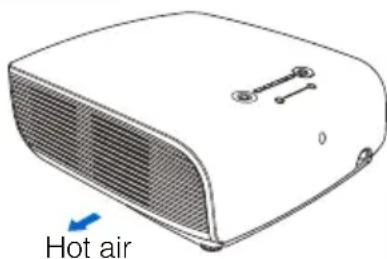
natural_image
Line drawing of a portable air conditioner unit with labeled 'Hot air' (no other text or symbols)When placing the projector on a castered stand or table, be sure to lock the casters.
- Failure to do so may cause the projector to move or topple, resulting in an injury.

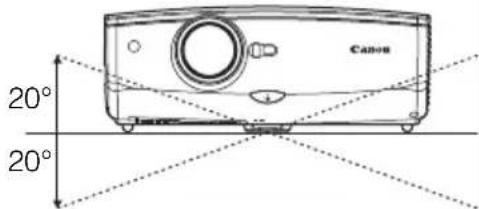
Position the projector in a horizontal position. Incorrect installation may cause troubles and accidents.
- Do not tilt the projector more than 20 degrees above and below the horizontal.
- When you want to use your projector pointing up or down, make sure to place the projector straight up or down.
Do Not Use in the Following Environments
- Do not place the projector on an unstable or slanted surface. The projector may fall causing a personal injury.
- Do not place it in an oily, smoky, or damp location (e.g., near a cooking table or a humidifier). It may cause a fire or an electric shock.
- Place the projector with a minimum distance of 1 m (3.3') from its left, right, rear, and top panels to the neighboring object such as a wall. Otherwise, it may damage the projector due to bad exhaust ventilation.
- Do not put anything near the exhaust vent that may deform or deteriorate due to heat.
- Do not install the projector in a humid or dusty location or a position where there is a lot of oily or cigarette smoke. Optical parts such as a lens and mirror may be stained, resulting in poor picture quality.
- Do not place it near an exhaust outlet of air-conditioning equipment. Otherwise, it may be damaged.
If the projector is carried from a cold place to a warm place or the room temperature is raised rapidly, condensation may form on the lens and mirror due to the moisture in the atmosphere, resulting in a blurred picture. Wait until condensation evaporates and normal picture is shown.
Do not use the projector in a place subject to either very high or very low temperatures. Doing so may cause malfunction. The ranges of the operating and storage temperatures are as shown below:
Operating temperature: +5°C to +35°C (Humidity: 85% or below)
Storage temperature: -10°C to +60°C
Using the Projector at 1900 Meters or More Above Sea Level
- If you use the projector at 1900 meters or more above sea level, the special configuration is required to cool down the projector properly. Contact your dealer.
Before Use
Table of Contents
Safety Instructions
Before Use
Projecting an Image
Useful Functions Available During a Presentation
Setting Up Functions from Menus
Projecting an Image from a Digital Camera or an USB Flash Memory (SX80 II)
Connecting the Projector to Network (SX80 II)
Appendix
Index
Supplied Accessories
Check whether the following accessories are supplied with the projector.
- Remote control - Batteries (type AAA, two) for remote control
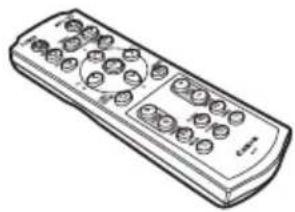
natural_image
Line drawing of a remote control with buttons and dials (no text or symbols)
● Computer connection cable (DVI/Mini D-sub, 15-pin) (SX80 II)
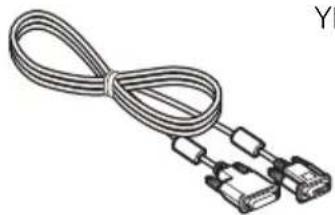
natural_image
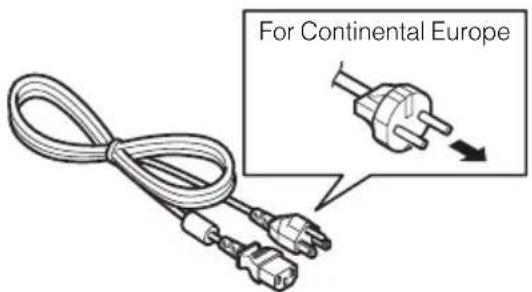
Illustration of a coiled cable with two connected connectors (no text or symbols)- Power cord
● Component cable (RCA/Mini D-sub, 15-pin) YH7-2084
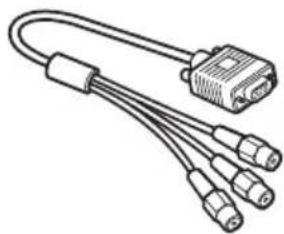
natural_image
Line drawing of a U882A connectors with multiple ports (no text or symbols)● Computer connection cable (VGA/Mini D-sub, 15-pin) (SX800) YH7-2307
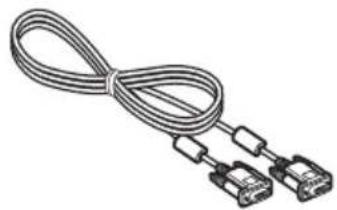
natural_image
Coiled network cable with two connectors (no text or symbols visible)For the U.S.A and Canada
- Lens cap

- Lens cap strap

natural_image
Simple line drawing of a looped object with a small rectangular end (no text or symbols)- Carrying bag

natural_image
Line drawing of a baby bag with straps and straps (no text or symbols)- User's Manual (CD-ROM)
- Warranty card
● Important Information and Quick Start Guide
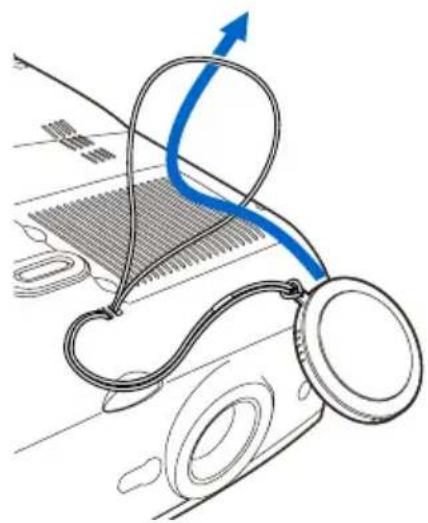
■ Installing the Lens Cap
As shown in the illustration on the right, put the lens cap strap through the hole on the lens cap, and then through the lens cap strap insertion hole at the bottom of the projector.
- When the projector is not in use, attach the lens cap to protect the lens.
natural_image
Diagram of a medical or surgical tool with a blue arrow indicating motion, no text or symbols present■ Putting the Projector in the Carrying Bag
Store the projector and the accessories in the carrying bag as shown in the illustration below.
The carrying bag is intended to protect the surfaces of the projector from dust or scratches, and is not designed to protect the projector from external shocks.
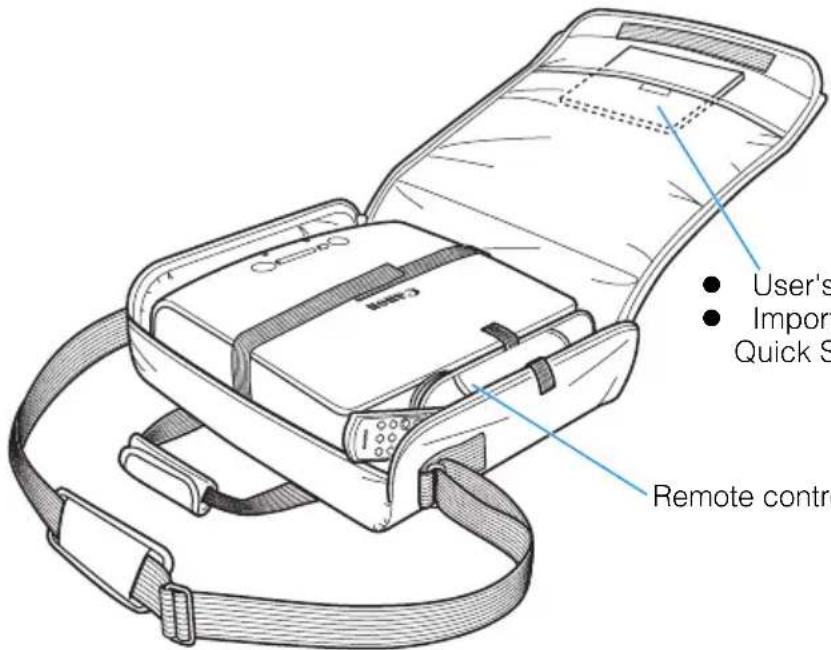
- User's Manual (CD-ROM)
● Important Information and Quick Start Guide
Remote control and cables

- Wait until the cooling fan stops before putting the projector in the carrying bag. Do not put the projector in the carrying bag until the cooling fan stops rotating. The projector may be damaged due to the heat.
- Attach the lens cap to the lens to protect it and put the projector in the carrying bag. Replace the adjustable foot to prevent the damage on the projector.
- When carrying the projector with it put in the carrying bag, do not give a shock to it, drop it, or place anything on it. The projector may be damaged or malfunctioned.
Main Unit of Projector (SX80 MarkII is used in the following illustrations)
■ Front Side
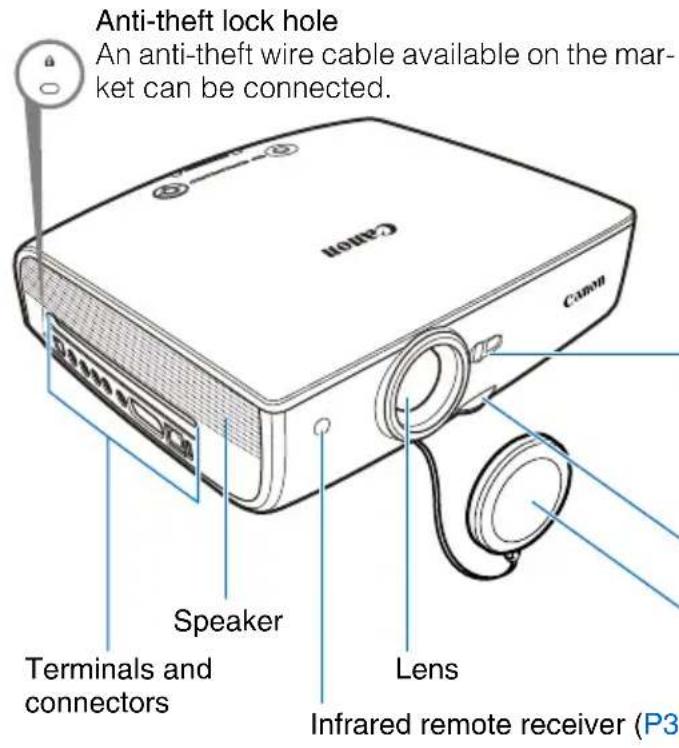

Be sure to remove the lens cap during projection. Failure to do so will result in fire hazards or cap deformation.
Ranging window (SX80 II)
Do not place any obstacle between the projector and the screen, as the auto focusing function may fail to operate correctly.
Adjustable foot lock button (P37)
Lens cap (P22)
■ Rear Side
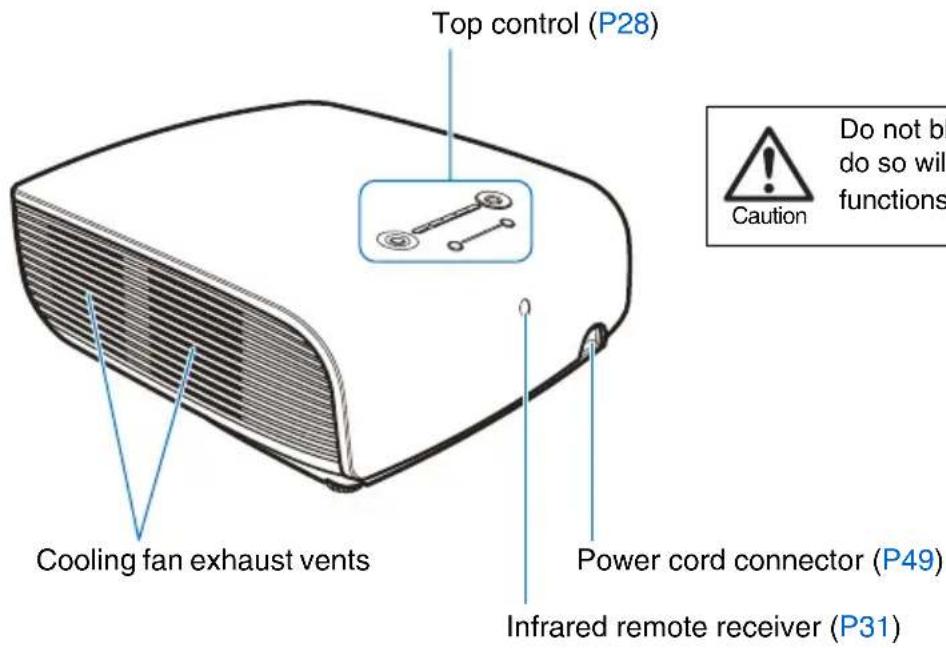

Do not block the air exhaust. Failure to do so will result in fire hazards or malfunctions.
■ Bottom Side
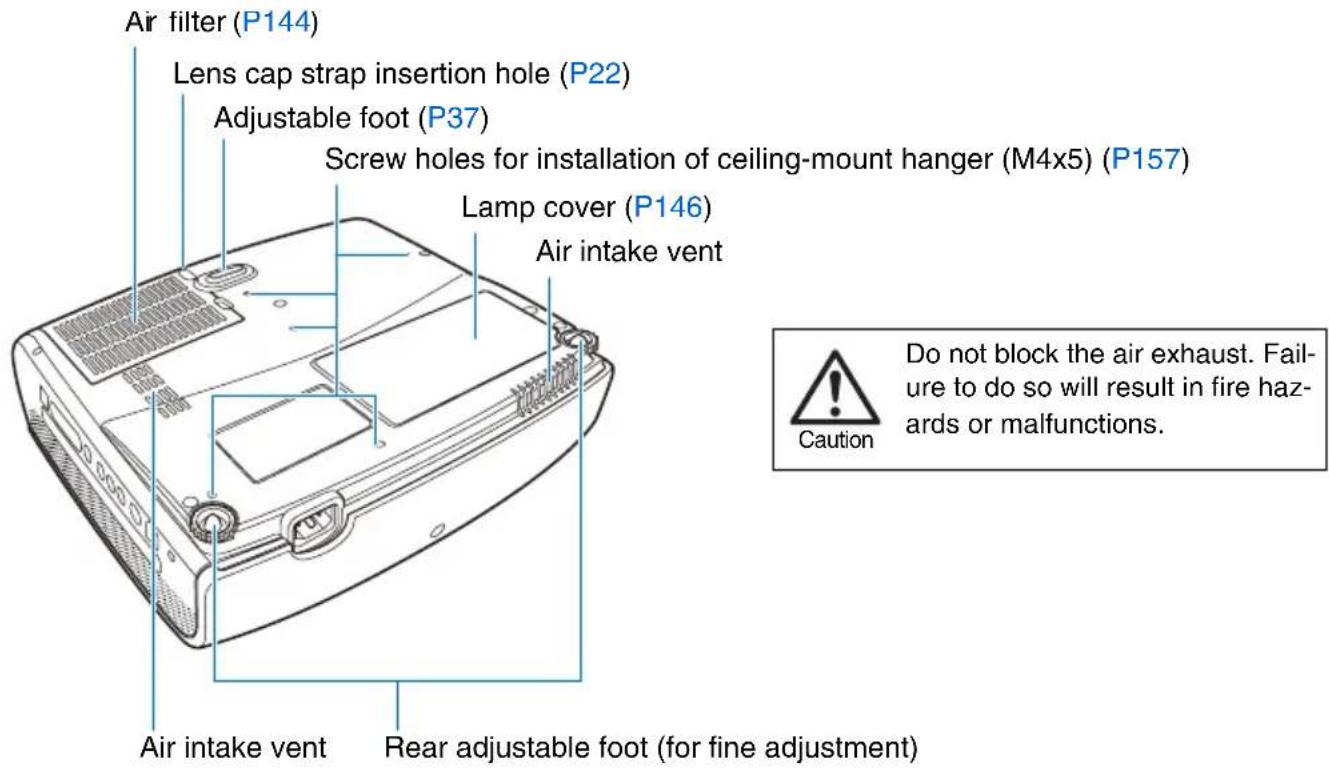
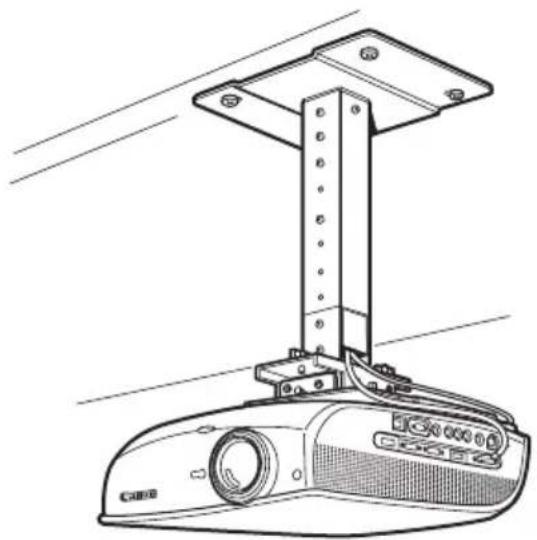
Mounting the Projector on the Ceiling
You can mount the projector on the ceiling. You need an optional ceiling mounting hanger (part number: RS-CL10) and an optional ceiling-mount pipe (part number: RS-CL08 or RS-CL09) when appropriate. Contact the dealer where you purchased the projector for more detailed information.

- Make sure to use the optional ceiling-mount hanger.
- You should never install the ceiling-mount hanger by yourself.
- If you mount the projector on the ceiling, you have to invert the projected image by selecting [Image flip H/V] from the menu. (P87)
natural_image
Technical line drawing of a mechanical device with a mounted platform and base (no text or symbols)Remote Control
The projector can be operated using buttons on the remote control or the top control on the main unit.
The remote control allows you to operate all functions of the projector.
POWER button (P49, P68)
Turns the projector on or off.
ASPECT button (P66)
Toggles between the modes for aspect ratio.
FOCUS button (P59)
Adjusts focusing.
[ ] [ ] For rough adjustment.
[<] [>]: For fine adjustment.
In SX80 MarkII, press FOCUS and then
AUTO SET to adjust the focus automatically.
D.SHIFT/KEYSTONE button (P60)
Corrects keystone distortion.
[ ] [ ]v For keystone adjustment.
Press D.SHIFT/KEYSTONE and then AUTO
SET to adjust the keystone automatically.
- Moves the image up and down when the D. image shift is selected. (P64)
- [ʌ[ ]vAdjust the vertical position.
D. ZOOM button (P72)
Zooms the image in or out digitally.
[+]: Zooms the image in (up to 12x).
[+] : Zooms the image out (1x minimum).
[λ][M[<][>]:Moves an im.age to the desired position.
FREEZE button (P70)
Freezes the projected image.
IMAGE button (P67)
Switches among image modes (image qualities).
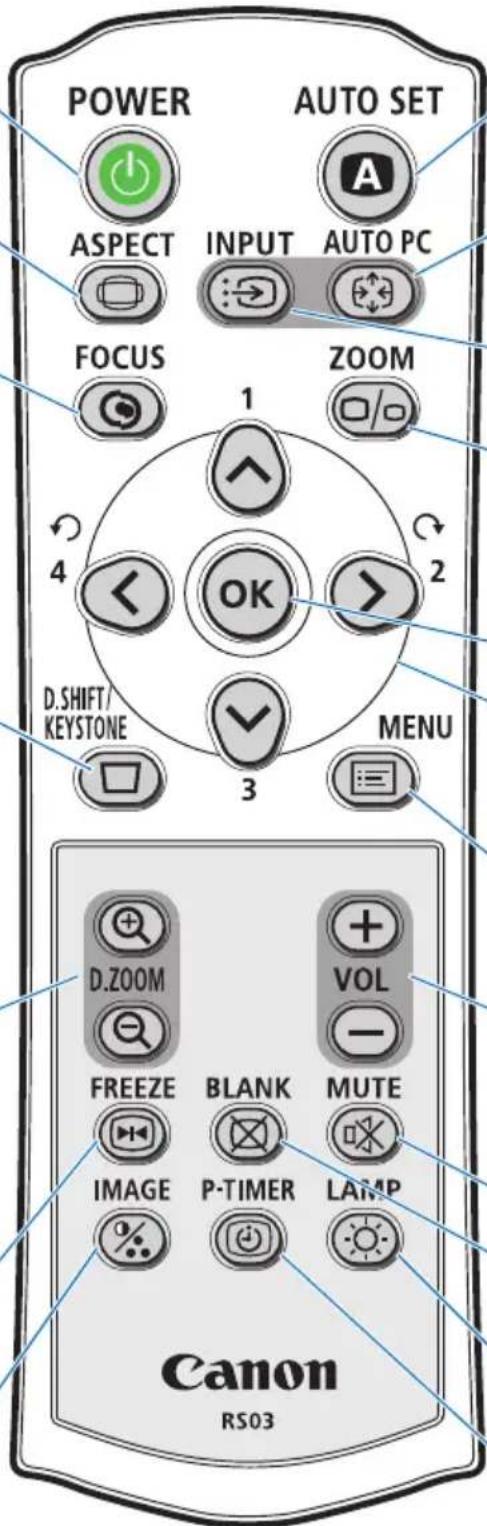
AUTO SET button (P53)
Performs input signal setting, keystone distortion adjustment, focusing (SX80 II), and screen color correction (SX80 II) automatically.
AUTO PC button (P57)
Adjusts tracking and so on automatically in accordance with signal from a computer when ANALOG PC-1 or ANALOG PC-2 is selected.
INPUT button (P55)
Switches among input signals.
ZOOM button (P58)
Adjusts the image size. [∧] [ ]: For rough adjustment. [<] [>]: For fine adjustment.
OK button (P78)
Determines the item selected from the menu.
Pointer buttons (P77)
Selects the upper, lower, left or right item in the menu.
MENU button (P76)
Displays a menu on the screen.
VOL button (P71)
Adjusts the sound volume. [+]: Increases the volume. [-]: Decreases the volume.
MUTE button (P71)
Mutes the sound.
BLANK button (P70)
Toggles between display/non-display of image.
LAMP button (P102)
Switches the lamp mode between Standard and Silent.
P-TIMER button (P73)
Displays the time elapsed since this button was pressed.
Top Control
KEYSTONE button
Corrects keystone distortion. (P60)
[λ[ ]vFor keystone adjustment.
Press KEYSTONE and then AUTO SET to adjust the keystone automatically.
- Moves the image up and down when the D. image shift is selected. (P64)
- [ʌ[ ]v Adjust the vertical position.
MENU button (P76)
Displays a menu on the screen.
AUTO SET button (P53)
Performs input signal setting, keystone distortion adjustment, focusing (SX80 II), and screen color correction (SX80 II) automatically.
![POWER WARNING AUTO SET MENU KEystone FOCUS ZOOM INPUT VOL VOL+ INPUT button (P55) Switches among input signals. WARNING lamp (P138) Flashes red when a problem has been detected on the projector. AUTO PC button (P57) Pointer/VOL button (P77, P7 Adjusts the sound volume. [<]: Decreases the volume. [>]: Increases the volume. Selects the upper, lower, left right item in the menu. AUTO PC button (P57) Adjust tracking and so on automation](/content/2026/05/793021/images/01a8b347b8dfdbc37fbfe647d4605e770c8cc1de475e41a9eba3fa97641cb35e.jpg)
POWER button/lamp (P49, P68)
Turns the projector on or off.
Green: The projector is on.
Flashing green: The projector is being turned on.
Red: The projector can be turned on.
Flashing red: The projector is being turned off (the lamp is being cooled).
LED illumination lamp (P106)
Indicates the projector status with LEDs.
Blinking from the left: The projector is being turned on.
Blinking from the right: The projector is being turned off.
Middle LED flashing slowly: The image is being blanked out.
Left and right LEDs flashing slowly: The image is freezing.
Input Terminals
■ SX80 MarkII
Use a supplied component cable to receive a component image signal (COMPONENT).
(1)-A ANALOG PC-1/DVI-I IN Input Terminal (☐1 DVI-I IN) (SX80 II) (P40, P42)
(1)-B ANALOG PC-1 Input Terminal (IN)(SX800) (P40)
Connects an external monitor output from a computer.
Receives an analog PC (ANALOG PC-1) or a digital signal (DIGITAL PC, SX80 II).
(2) HDMI IN Terminal (SX80 II) (P44)
Receives a digital content image signal (HDMI).
Carries both video and audio signals across a single cable.
(3) ANALOG PC-2/COMPONENT IN Terminal
(2/ C O M P O N
Receives an analog PC signal (ANA-LOG PC-2).
(4) Monitor Output Terminal (MONITOR OUT) (SX80 II) (P42)
Outputs an analog RGB signal to display an image on an external monitor.
(5) USB Terminal (SX80 II) (P48)
Connects a digital camera or an USB flash memory.
(6) S-VIDEO IN Terminal (SX80 II) (P45)
Receives an S-Video signal from AV equipment.
(7) VIDEO IN Terminal (P45) ( P41, P46)
Receives a composite video signal from AV equipment.
(8) ♪ AUDIO IN Terminal (P40, P41, P42, P45, P46)
The audio input terminals for 3 image input systems other than HDMI-IN. They receive the following audio signals in order from the left.
SX80 MarkII: "S-VIDEO or VIDEO", "DIGITAL PC/ANALOG PC-1", and "ANALOG PC-2/COMPONENT"
SX800: "VIDEO", "ANALOG PC-1", and "ANALOG PC-2/COMPONENT"
The internal speaker outputs the audio signal for the selected image signal.
(9) ♪ AUDIO OUT Terminal (P43, P47)
The audio output terminal to output an audio to external AV equipment. It outputs the audio signal corresponding to the projected image signal.
(10)Service port (CONTROL)
Exclusively used by the service personnel (it is not used normally).
(11) LAN port (SX80 II) (P126)
Connects a LAN cable. Used to connect the projector to the network.
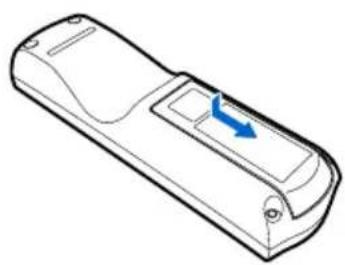
■ Installing Remote Control Batteries
1 Open the battery compartment lid. Slide the lid with it pressed down.
2 Insert batteries. Insert new two AAA-size batteries in the compartment with the + and – poles positioned correctly.
3Replace the compartment lid.
natural_image
Line drawing of a remote control device with a blue arrow pointing to the interior portion (no text or symbols)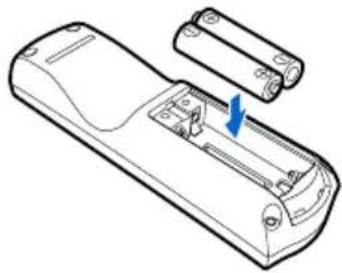
natural_image
Line drawing of a remote control device with two batteries and a blue lightning bolt indicating a component (no text or symbols)
natural_image
Line drawing of a remote control device with a blue arrow pointing to the left side (no text or symbols present)
- If buttons on the remote control are inoperative when you attempt to operate the projector, replace the batteries with new ones.
- Do not drop the remote control or subject it to impact.
- Do not spill any liquids on the remote controller. Doing so could damage it.
■ Remote Control Operating Range
Point the remote control to the infrared remote receiver on the front or rear of the projector whenever pressing any button.


- Use the remote control within a distance of approximately 5m (16.4') from the projector.
- Use the remote control within an angle of 30^ in any direction from directly in front of the infrared remote receiver.
- The remote control may be inoperative if there is an obstacle between the remote control and main unit or the infrared remote receiver on the main unit is exposed to direct sunlight or strong light of lighting equipment.
- When you use two projectors at the same time, you can change the channel settings to prevent the two remote controls from interfering with each other. (P107)
Projecting an Image
Table of Contents
Safety Instructions
Before Use
Projecting an Image
Useful Functions Available During a Presentation
Setting Up Functions from Menus
Projecting an Image from a Digital Camera or an USB Flash Memory (SX80 II)
Connecting the Projector to Network (SX80 II)
Appendix
Index
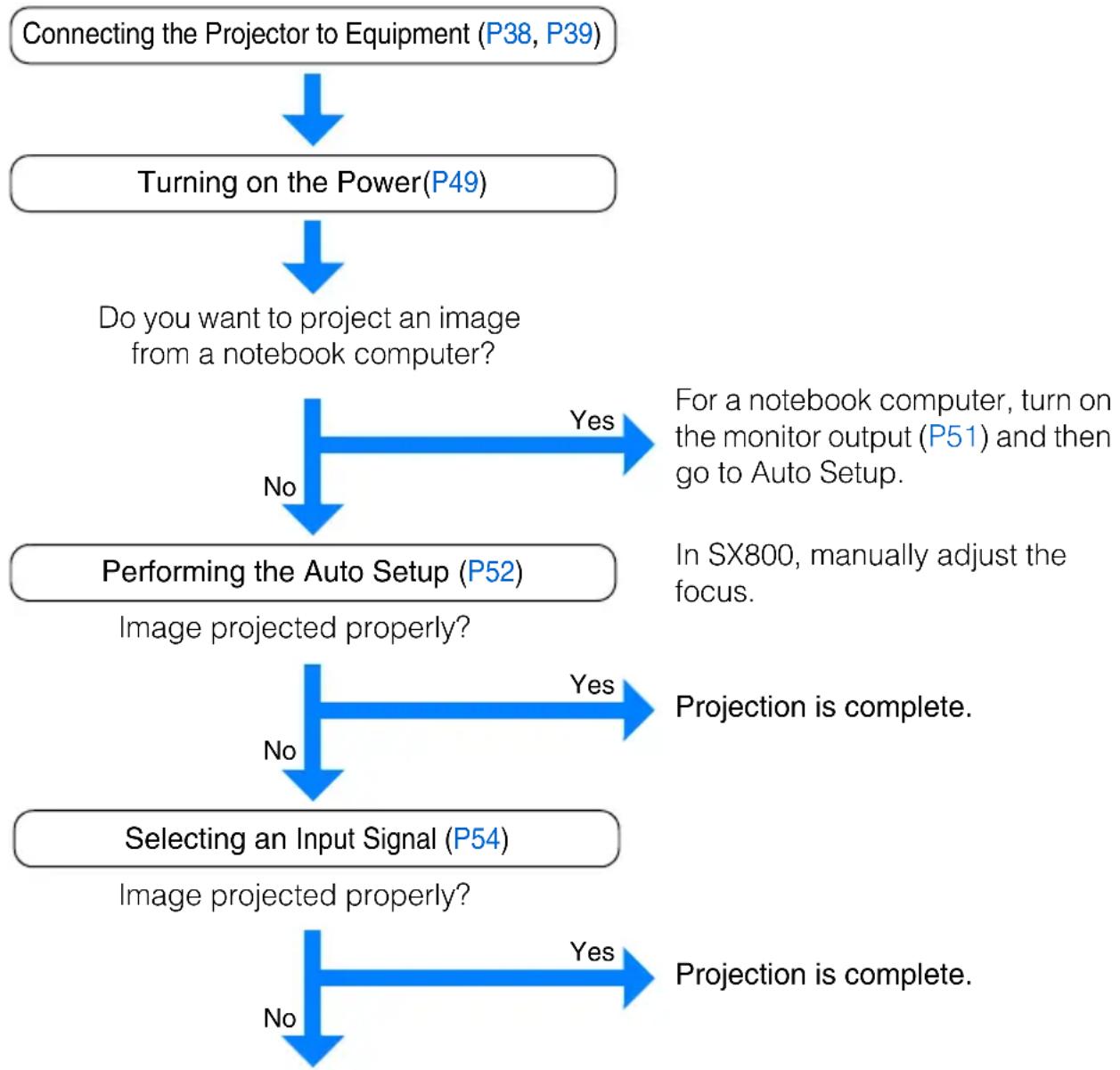
flowchart
graph TD
    A["Connecting the Projector to Equipment (P38, P39)"] --> B["Turning on the Power(P49)"]
    B --> C["Do you want to project an image from a notebook computer?"]
    C --> D{For a notebook computer, turn on the monitor output (P51) and then go to Auto Setup.}
    D -->|Yes| E["For a notebook computer, turn on the monitor output (P51) and then go to Auto Setup."]
    D -->|No| F["Performing the Auto Setup (P52)"]
    F --> G{In SX800, manually adjust the focus.}
    G -->|Yes| H["Selecting an Input Signal (P54)"]
    G -->|No| I{Image projected properly?}
    H -->|Yes| J["Projection is complete."]
    H -->|No| K["Image projected properly?"]
    I -->|Yes| L["Projection is complete."]
    I -->|No| M["Image projected properly?"]
Adjusting the Image (P56)
Do the following adjustments.
- Setting the Display Resolution of the Computer (P56)
- Adjusting misaligned computer images or flickering of the screen using the Auto PC (P57)
- Adjusting the Image Size (P58)
- Adjusting the Focus (P59)
- Adjusting keystone Distortion (P60)
Making Fine Adjustments
- Selecting an Aspect Ratio of Projected Image (Screen aspect) and a Screen Mode (Aspect) (P62, P65)
- Selecting an Image Mode (P67)
■ Placing in Front of the Screen
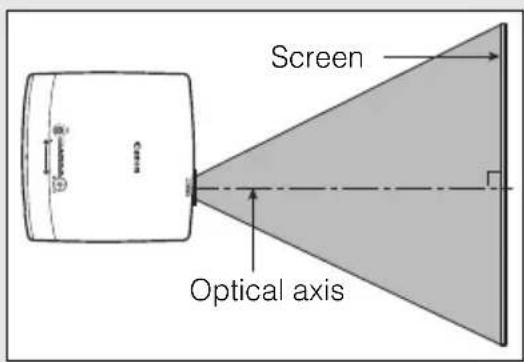
Place the projector in front of the screen.

- Be sure to place the projector parallel to the screen to ensure distortion-free projections.
- The screen must not be exposed to direct sunlight or light from lighting equipment. In a bright room, it is recommended to limit ambient lighting in order to improve the image quality.
Projected Image Size
The projected image size is determined by the distance between the projector and the screen (projection distance) as well as the zoom (P58). For the relationship between the screen size and the projection distance, see also the table listed in "Relationship between Screen Size and Projecting Distance" on page151.
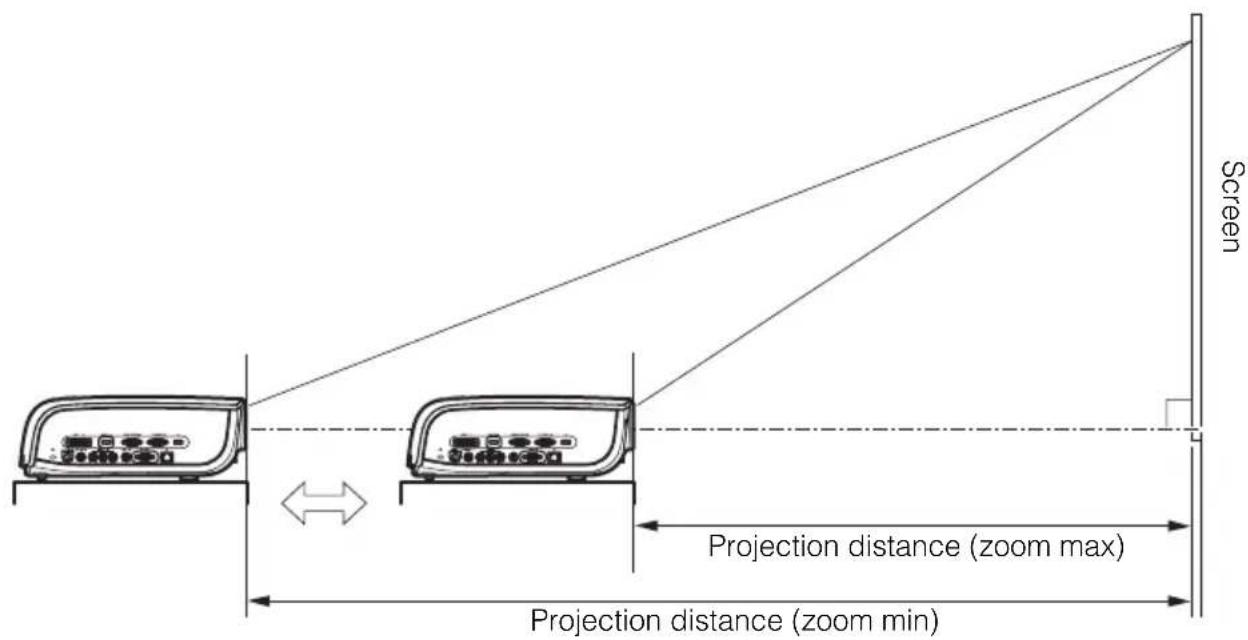
| Screen size 40 60 80 100 150 | 180 200 | 250 300 | |||||||
| Width (cm) 81 122 | 163 203 | 305 366 | 406 508 | 610 | |||||
| Height (cm) 61 91 | 22 152 | 229 274 | 305 381 | 457 | |||||
| Projection distance(zoom max) | 1.2 m(3.9') | 1.8 m(5.9') | 2.4 m(7.9') | 3.0 m(9.8') | 4.5 m(14.8') | 5.4 m(17.7') | 6.0 m(19.7') | 7.6 m(24.9') | 9.1 m(29.9') |
| Projection distance(zoom min) | 1.7 m(5.6') | 2.6 m(8.5') | 3.5 m(11.5') | 4.4 m(14.4') | 6.6 m(21.7') | 8.0 m(26.3') | 8.9(29.2') | - | - |
■ Placing on a Level Place
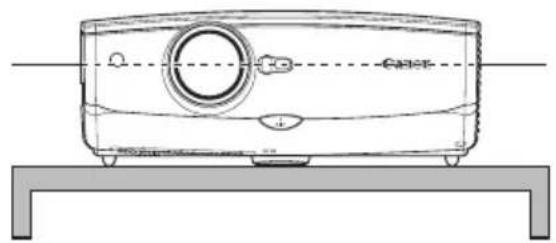
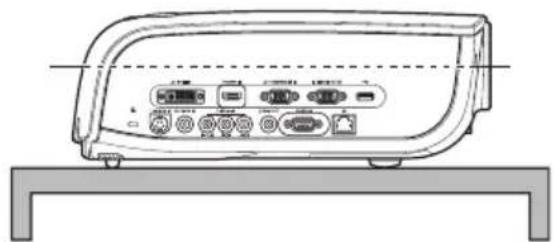
Be sure to keep the projector as horizontal as possible.
If you need to point the projector up (for example, when the screen is placed on a higher position), follow the instruction given in "When Pointing the Projector Up" on the following page.
- Adjust the tilt of the projecting image using the rear adjustable foot.
natural_image
Line drawing of a portable projector with control panel and base mount (no text or symbols)
Make sure that the installation position is free from any obstacle that may block the exhaust vent on the right side of the projector and the air intake vent on the bottom of the projector.
natural_image
Front view of a computer monitor with ports and a stand (no visible text or labels)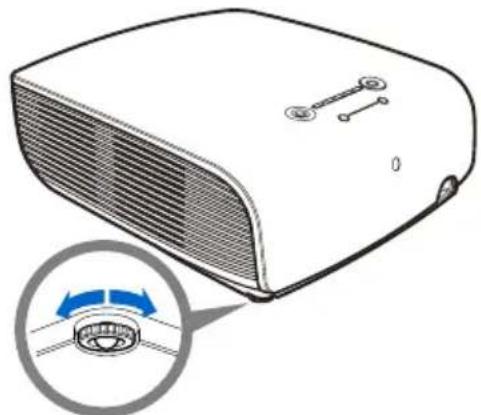
natural_image
Illustration of a portable electronic device with a magnified inset showing a circular dial (no text or symbols)Ceiling Mounting or Rear Projection
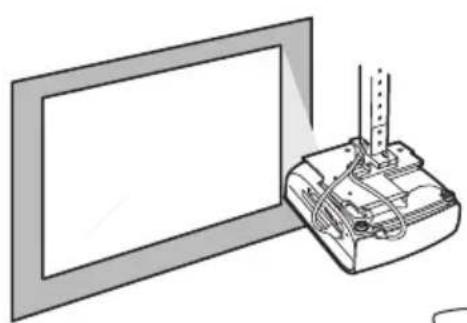
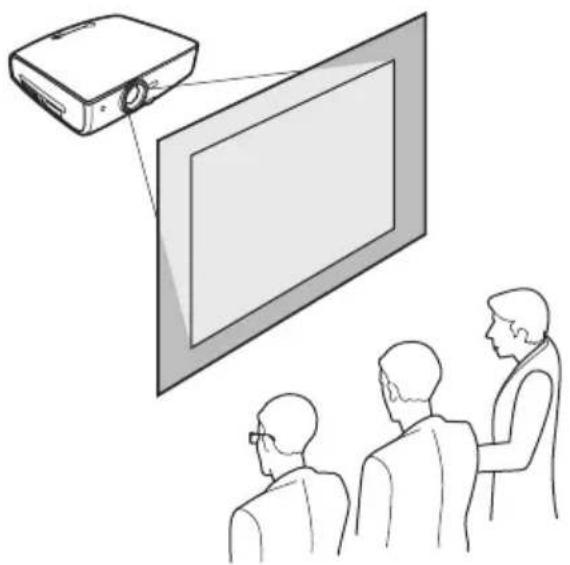
You can mount the projector on the ceiling (Ceiling mounted) with it turned up side down or place it behind the screen (Rear) if you use a translucent screen. For ceiling mounting or rear projection, you have to invert the projected image. (P87)
natural_image
Illustration of a monitor mounted on a device with cables, next to a framed picture (no text or symbols)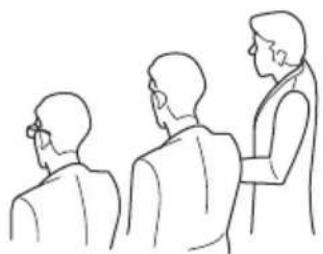
natural_image
Line drawing of three human figures in profile view, viewed from behind (no text or symbols)Ceiling Mounting Rear Projection
natural_image
Illustration of a projector projecting onto a screen to three people watching (no text or symbols present)■ When Pointing the Projector Up
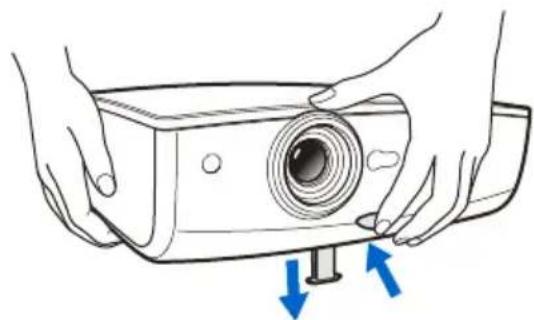
When the screen is placed on a higher position, point the projector up using the adjustable foot.
You can point it up as far as 10 degrees.
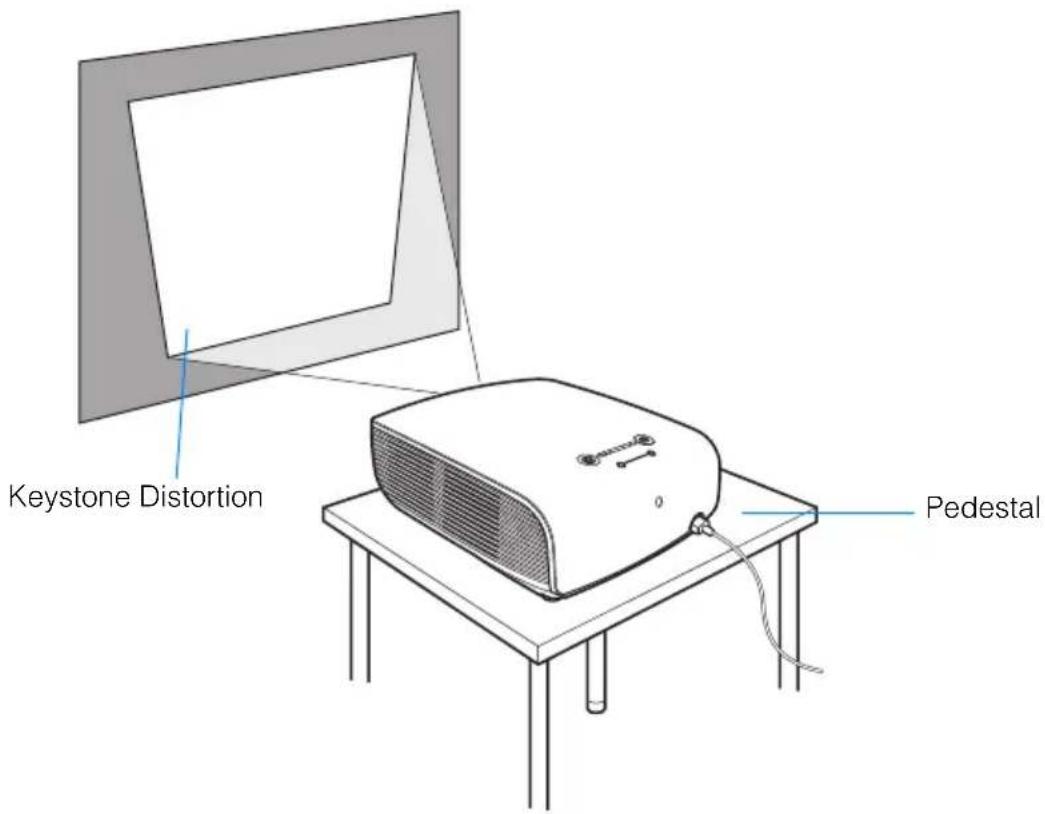
The keystone distortion of the projecting image can be corrected with the auto keystone (P52) or by using the keystone distortion adjust function (P60).
1 Lift the front side of the projector and push the adjusting foot lock button to extend the adjustable foot.
2 Raise the image to the desired height angle, then release the button to lock the foot in place.
natural_image
Illustration of hands holding a projector with blue arrows indicating compression or disassembly (no text or symbols)If Keystone Distortion is Too Large
If the keystone distortion is too large to adjust, adjust the projector height by, for example, placing it on a pedestal.
Connectable Equipment and Input Terminals

■ SX80 MarkII
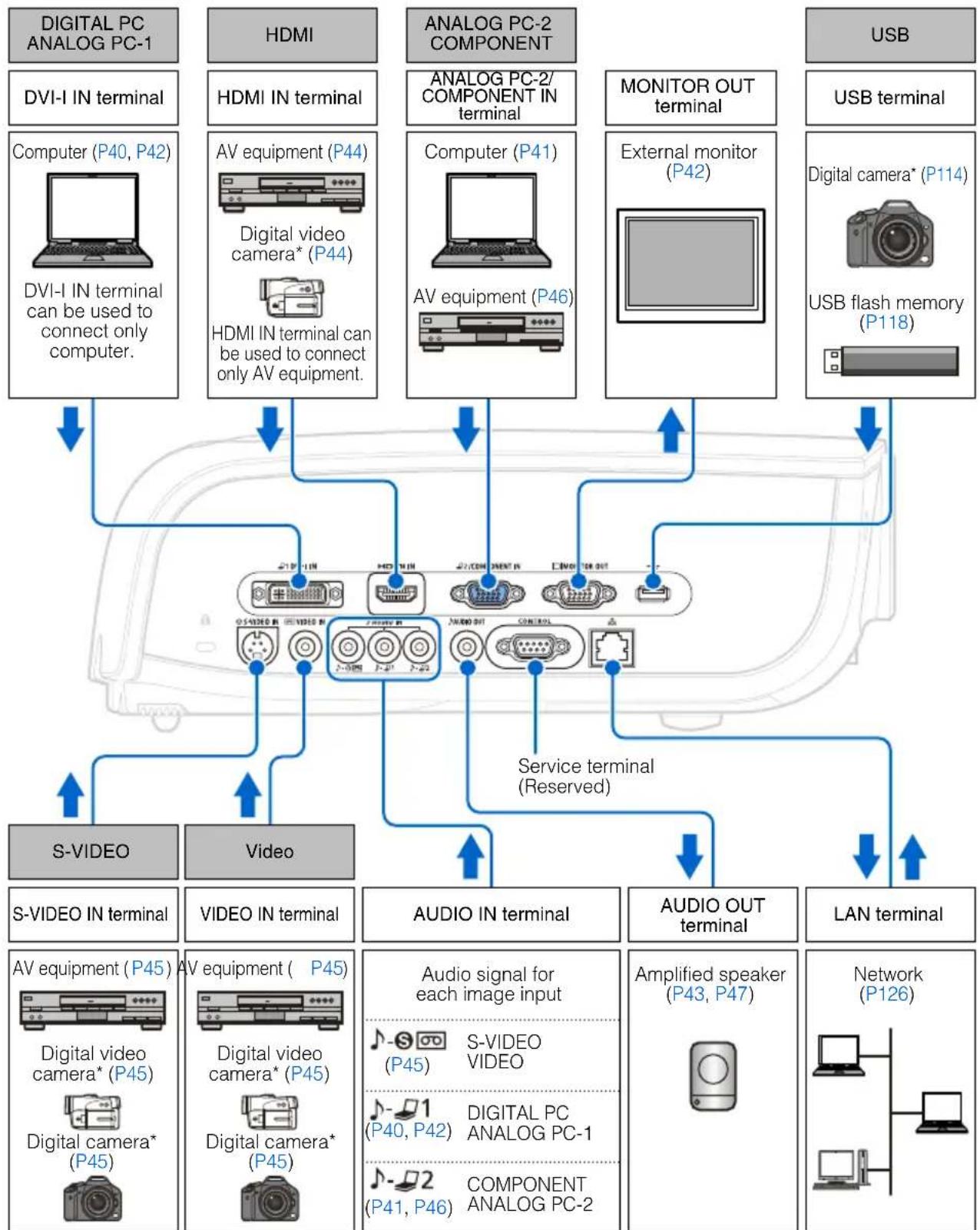
flowchart
graph TD
    A["DIGITAL PC ANALOG PC-1"] --> B["Computer (P40, P42)"]
    B --> C["DVI-I IN terminal can be used to connect only computer."]
    D["HDMI"] --> E["AV equipment (P44)"]
    E --> F["Digital video camera* (P44)"]
    F --> G["HDMI IN terminal can be used to connect only AV equipment."]
    H["ANALOG PC-2 COMPONENT"] --> I["Computer (P41)"]
    I --> J["AV equipment (P46)"]
    J --> K["MONITOR OUT terminal"]
    L["USB"] --> M["USB terminal"]
    M --> N["Digital camera* (P114)"]
    N --> O["USB flash memory (P118)"]
    P["S-VIDEO"] --> Q["Video"]
    R["S-VIDEO IN terminal"] --> S["Video IN terminal"]
    T["AUDIO IN terminal"] --> U["Audio OUT terminal"]
    V["LAN terminal"] --> W["Network (P126)"]
    X["Service terminal (Reserved)"] --> Y["Audio signal for each image input"]
    Z["Audio signal for each image input"] --> AA["S-VIDEO VIDEO (P45)"]
    AB["Amplified speaker (P43, P47)"] --> AC["Digital PC ANALOG PC-1"]
    AD["Digital camera* (P45)"] --> AE["Digital camera* (P45)"]
    AF["COMPONENT ANALOG PC-2"] --> AG["Digital video camera* (P45)"]
    AH["AMplified speaker (P43, P47)"] --> AI["Digital video camera* (P45)"]
* Connect to the playback mode.
SX800
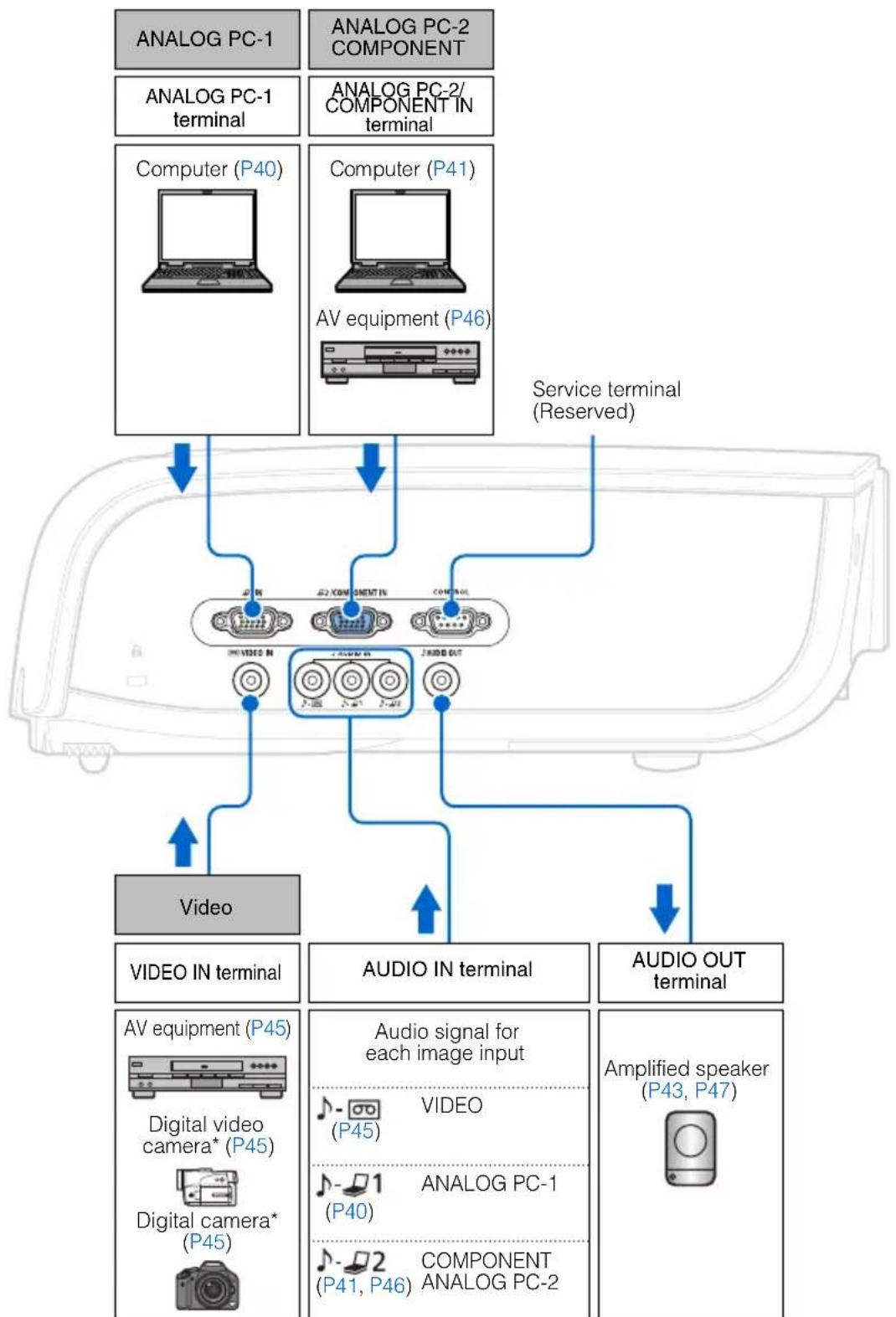
flowchart
graph TD
    A["ANALOG PC-1"] --> B["ANALOG PC-1 terminal"]
    C["ANALOG PC-2 COMPONENT"] --> D["ANALOG PC-2/ COMPONENT IN terminal"]
    E["Computer (P40)"] --> F["Computer (P41)"]
    G["AV equipment (P46)"] --> H["AV equipment (P41)"]
    I["Service terminal (Reserved)"] --> J["Video"]
    K["VIDEO IN terminal"] --> L["AUDIO IN terminal"]
    M["AUDIO OUT terminal"] --> N["Audio signal for each image input"]
    O["AMplified speaker (P43, P47)"] --> P["Amplified speaker (P43, P47)"]
    B --> Q["Computer (P40)"]
    D --> R["Computer (P41)"]
    F --> S["AV equipment (P46)"]
    H --> T["AV equipment (P45)"]
    J --> U["AV equipment (P45)"]
    L --> V["AV equipment (P45)"]
    N --> W["AV equipment (P45)"]
    P --> X["AMplified speaker (P43, P47)"]
* Connect to the playback mode.
Connecting the Projector to the Computer
Connect the projector to the computer.
Before connecting the cables, turn off both the projector and computer.
■ Connecting to RGB Monitor Output Terminal (analog connection)
Supplied computer connection cable (Input signal type: [ANALOG PC-1] - P54)
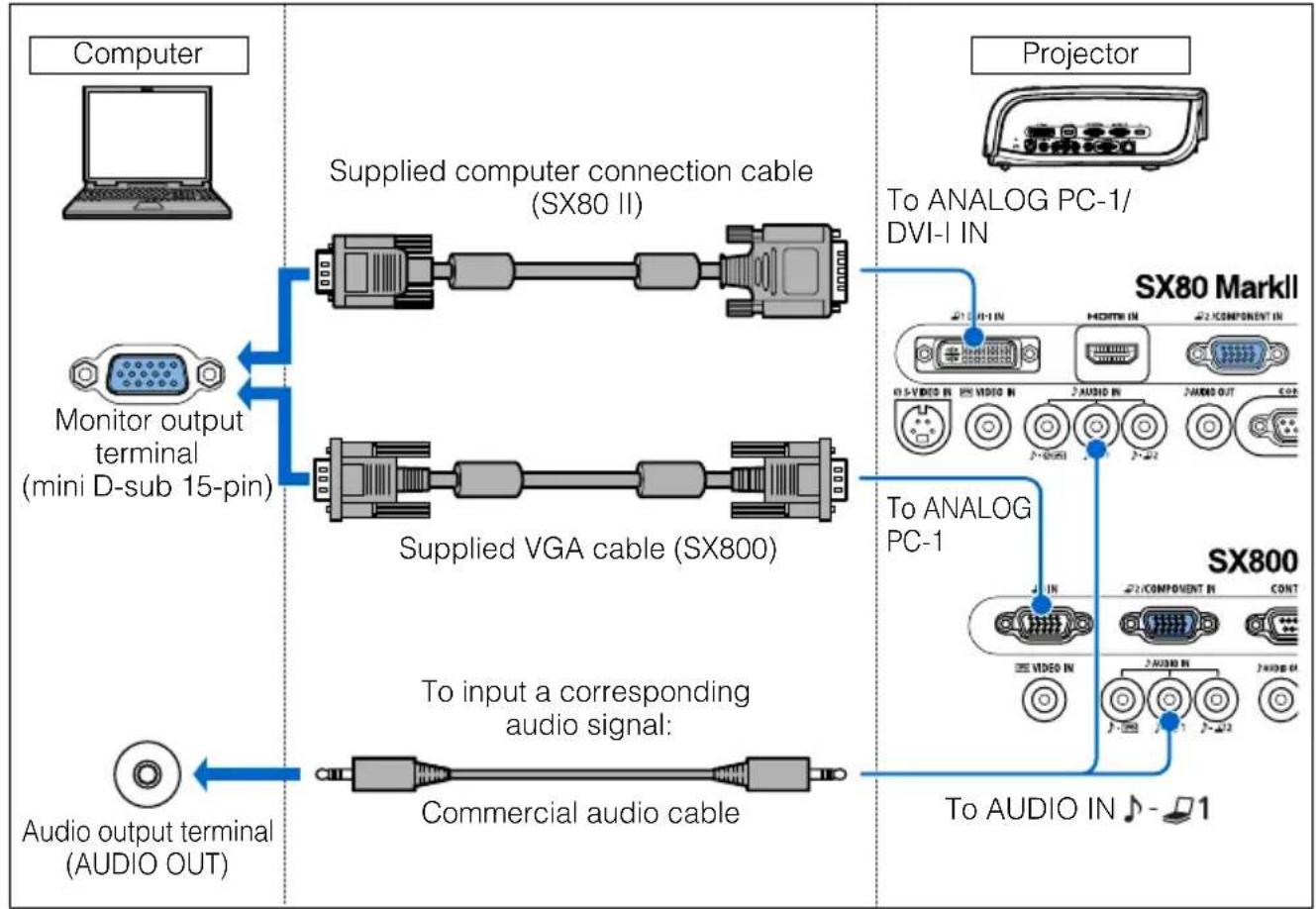
flowchart
graph LR
    A["Computer"] --> B["Monitor output terminal (mini D-sub 15-pin)"]
    B --> C["Supplied VGA cable (SX800)"]
    C --> D["Commercial audio cable"]
    D --> E["To input a corresponding audio signal:"]
    F["Projector"] --> G["To ANALOG PC-1/DVI-IN"]
    G --> H["SX80 MarkII"]
    H --> I["To ANALOG PC-1"]
    I --> J["SX800"]
    J --> K["To AUDIO IN"]
    L["Audio output terminal (AUDIO OUT)"] --> M["Monitor output terminal (min D-sub 15-pin)"]
    M --> N["Supplied computer connection cable (SX80 II)"]
    N --> O["To input a corresponding audio signal:"]

Use an audio cable without a built-in resistor. Using an audio cable with a built-in resistor turns down the sound.
Commercial or supplied VGA cable (Input signal type: [ANALOG PC-2] - P54)
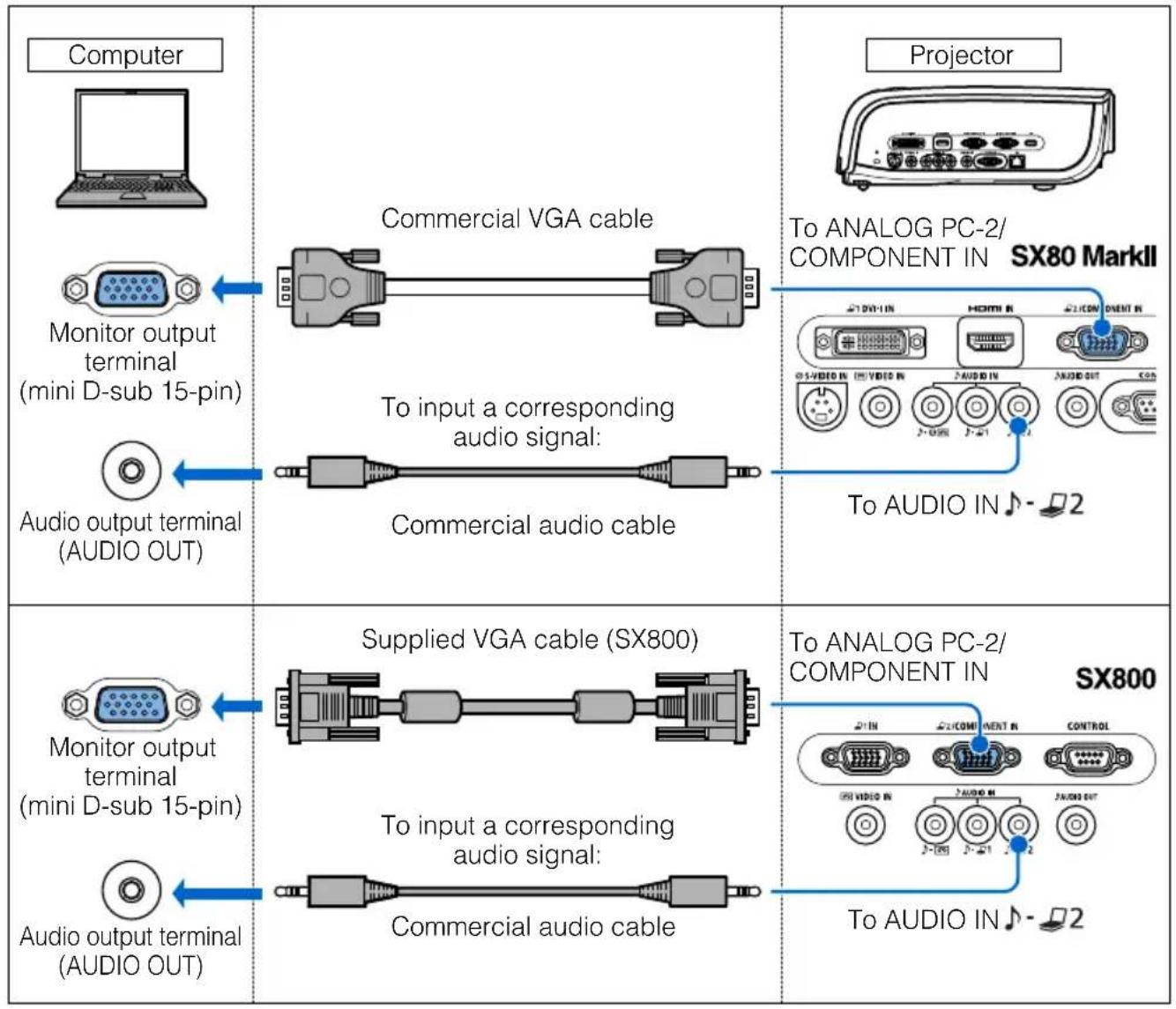
flowchart
graph LR
    A["Computer"] --> B["Monitor output terminal (mini D-sub 15-pin)"]
    B --> C["Audio output terminal (AUDIO OUT)"]
    D["Projector"] --> E["To ANALOG PC-2/ COMPONENT IN SX80 MarkII"]
    E --> F["To AUDIO IN ♪ - ♪2"]
    G["Monitor output terminal (mini D-sub 15-pin)"] --> H["Supplied VGA cable (SX800)"]
    H --> I["To input a corresponding audio signal: Commercial audio cable"]
    I --> J["To AUDIO IN ♪ - ♪2"]

- If you use a commercial VGA cable, make sure to use a full connected VGA cable in which all pins are connected; otherwise, an image may be projected improperly.
- Use an audio cable without a built-in resistor. Using an audio cable with a built-in resistor turns down the sound.
■ Connecting to DVI Monitor Output Terminal (digital connection) (SX80 II)
DVI cable (Input signal type: [DIGITAL PC] - P54)
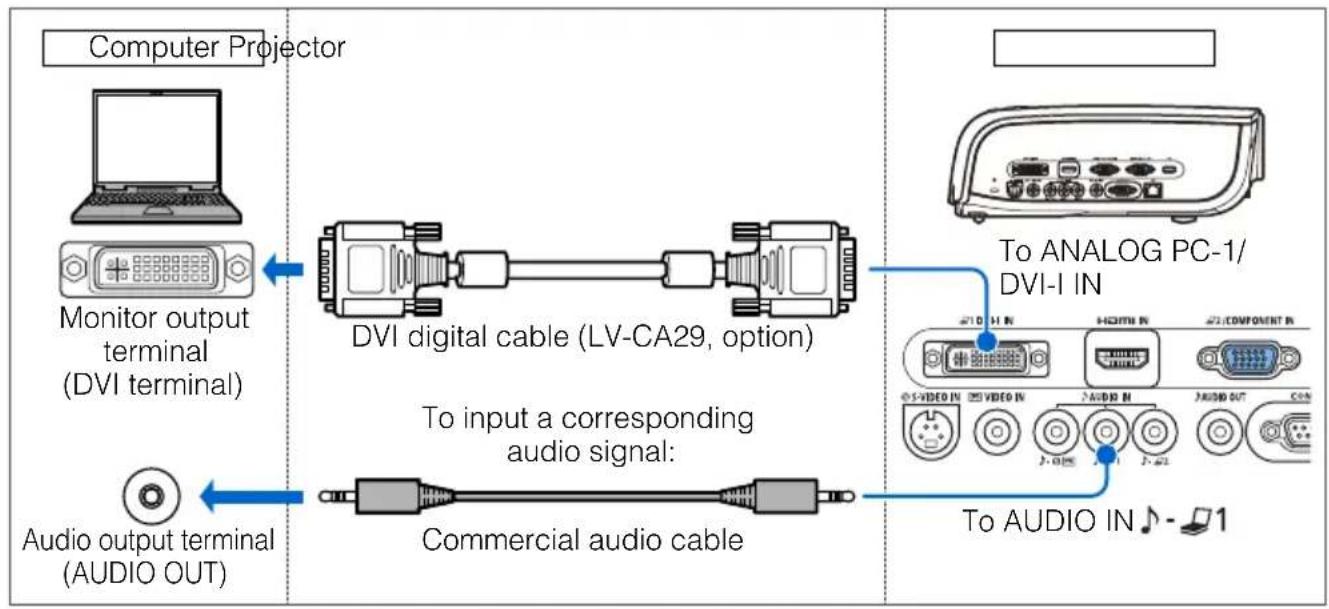
flowchart
graph LR
    A["Computer Projector"] --> B["DVI digital cable (LV-CA29, option)"]
    C["Monitor output terminal (DVI terminal)"] --> B
    D["Audio output terminal (AUDIO OUT)"] --> E["Commercial audio cable"]
    F["To Analog PC-1/DVI-I IN"] --> G["Analog PC-1/DVI-I IN"]
    G --> H["To AUDIO IN 1"]

Use an audio cable without a built-in resistor. Using an audio cable with a built-in resistor turns down the sound.
■ Outputting an Image and Audio
Outputting an Image (SX80 II)
Images can be output to an external monitor via [ANALOG PC-1], [ANALOG PC-2] and [COMPONENT].
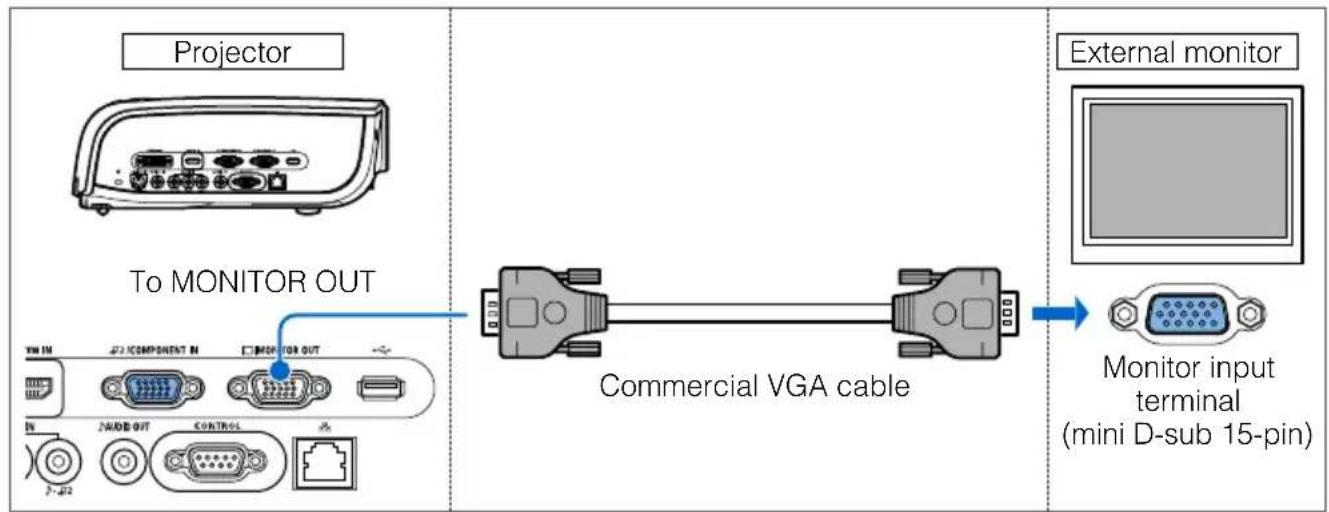
flowchart
graph LR
    A["Projector"] --> B["To MONITOR OUT"]
    B --> C["Commercial VGA cable"]
    C --> D["External monitor"]
    D --> E["Monitor input terminal (mini D-sub 15-pin)"]

- You can connect one external monitor.
- It outputs an image of the analog PC or component video signal, whichever was previously selected
Outputting Audio to Speakers
It is possible to output sound of projected images to AV equipment or amplified speakers.
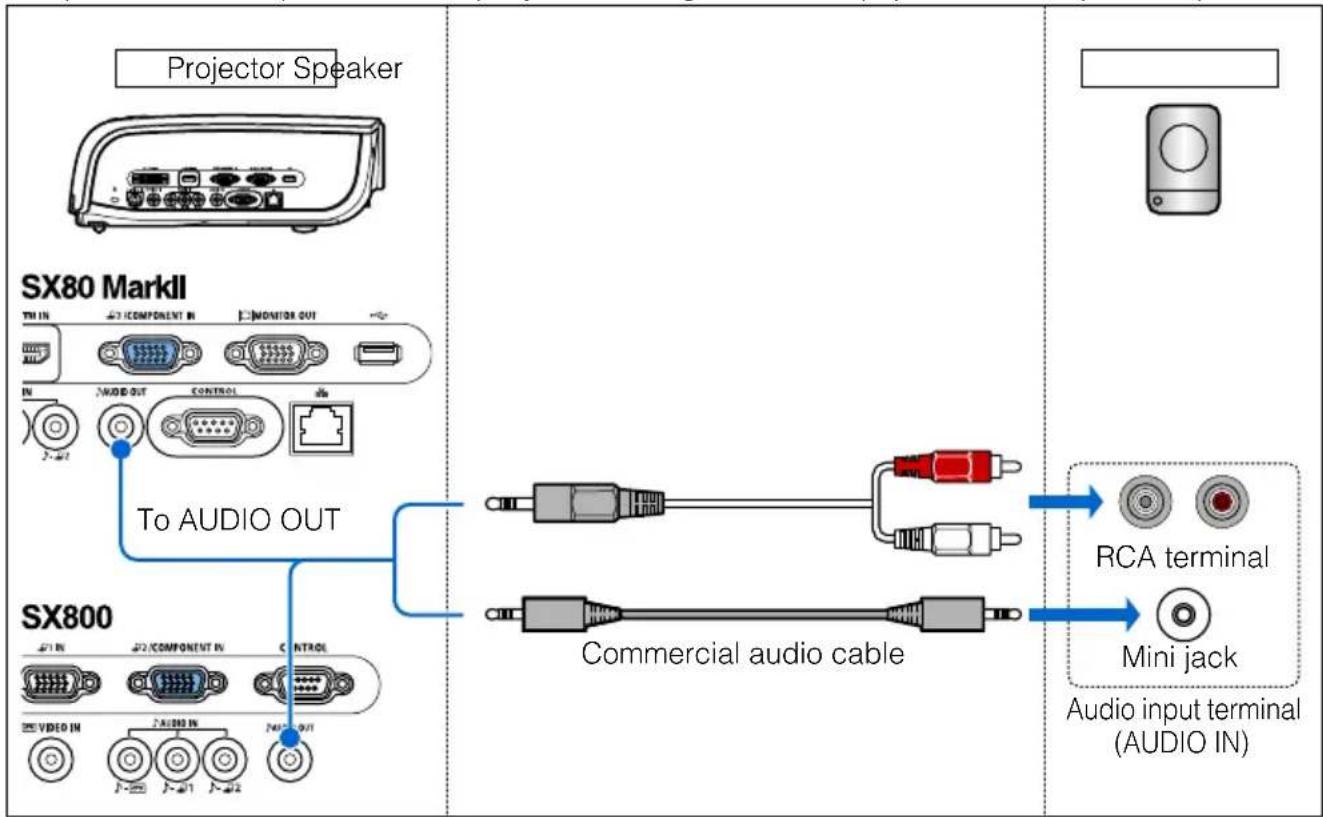
flowchart
graph LR
    A["Projector Speaker"] --> B["To AUDIO OUT"]
    B --> C["Commercial audio cable"]
    C --> D["RCA terminal"]
    C --> E["Mini jack"]
    F["SX80 MarkII"] --> G["To Audio Out"]
    H["SX800"] --> I["To Audio Out"]
    I --> J["Commercial audio cable"]
    J --> K["Audio input terminal (AUDIO IN)"]

- The speaker outputs the audio signal corresponding to the selected image signal.
- Use an audio cable without a built-in resistor. Using an audio cable with a built-in resistor turns down the sound.
Connecting to AV Equipment
Connect the projector and AV equipment.
Before connecting the cables, turn off both the projector and AV equipment.
The description provided here is just examples. For more detailed information, refer to the manual for the connecting AV equipment.
■ Connecting to Digital Video Output Terminal (digital connection) (SX80 II)
HDMI cable (Input signal type: [HDMI] - P54)
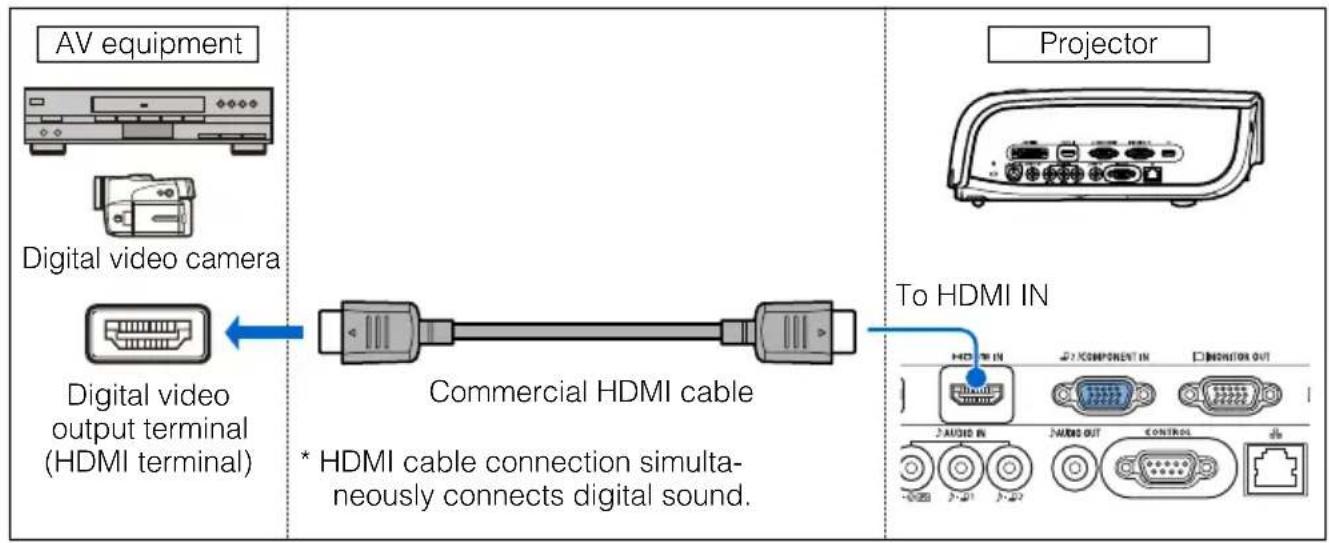
flowchart
graph LR
    A["AV equipment"] --> B["Digital video camera"]
    B --> C["Commercial HDMI cable"]
    C --> D["Projector"]
    D --> E["To HDMI IN"]

    subgraph AV Equipment
        A
        B
    end

    subgraph Digital Video Camera
        B
    end

    subgraph Digital Video Output Terminal (HDMI terminal)
        C
    end

    note1[" * HDMI cable connection simultaneously connects digital sound. "]
■ Connecting to Analog Video Output Terminal (analog connection)
Video cable (Input signal type: [VIDEO] or [S-VIDEO] - P54)
Connect the projector and AV equipment using a video or S-VIDEO cable that fits to the terminal type of the AV equipment.
The input signal type is [VIDEO] or [S-VIDEO].
Sound is common to [VIDEO] and [S-VIDEO].
[S-VIDEO] is supported only in SX80 MarkII.
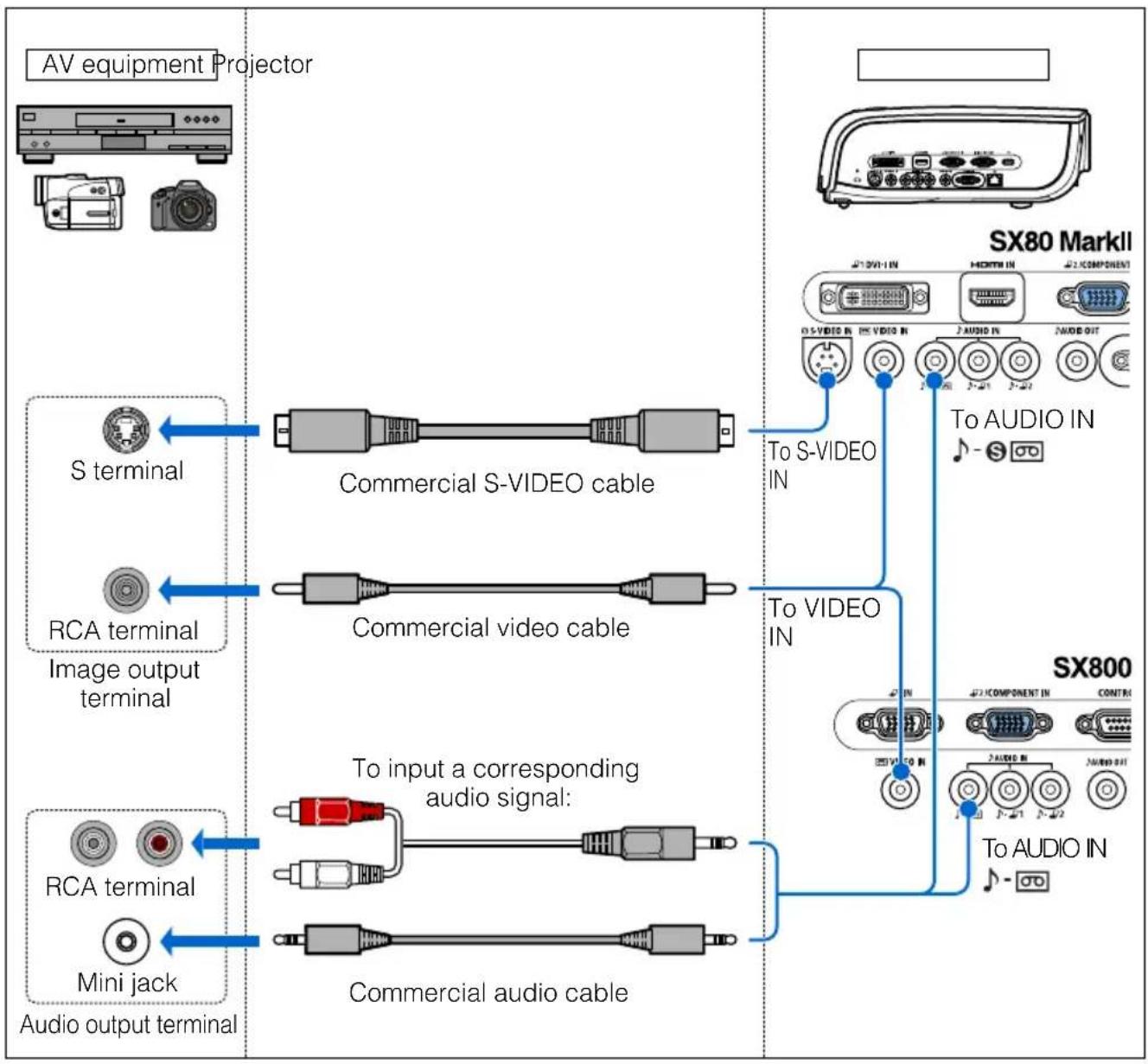
flowchart
graph LR
    A["AV equipment Projector"] --> B["S terminal"]
    A --> C["RCA terminal"]
    A --> D["Mini jack"]
    B --> E["Commercial S-VIDEO cable"]
    C --> F["Commercial video cable"]
    D --> G["Commercial audio cable"]
    H["SX80 MarkII"] --> I["To S-VIDEO IN"]
    H --> J["To VIDEO IN"]
    I --> K["To AUDIO IN"]
    J --> L["To AUDIO IN"]
    M["SX800"] --> N["To S-VIDEO IN"]
    M --> O["To VIDEO IN"]
    P["Audio output terminal"] --> Q["Image output terminal"]
    R["To input a corresponding audio signal:"] --> S["Commercial audio cable"]

Use an audio cable without a built-in resistor. Using an audio cable with a built-in resistor turns down the sound.
Supplied component cable (Input signal type: [COMPONENT] - P54)
A Component video signal from AV equipment can be input to the projector by connecting the supplied component cable to the ANALOG PC-2/COMPONENT IN terminal of the projector.
Use a commercial component cable that fits to the terminal type of the AV equipment to connect the supplied component cable.
![CANON XEED SX800 - Supplied component cable (Input signal type: [COMPONENT] - P54) - 1](/content/2026/05/793021/images/2ca416061ab881045328a7bff6cebb40eec401441e06960ab3cb5d34e83ceeab.jpg)
flowchart
graph LR
    A["AV equipment"] --> B["Image output terminal"]
    B --> C["RCA Component terminal"]
    C --> D["D terminal"]
    D --> E["Commercial component cable with RCA-RCA plugs"]
    E --> F["Supplied component cable"]
    F --> G["To Analog PC-2/ COMPONENT IN"]
    G --> H["Projector"]
    H --> I["SX80 MarkII"]
    I --> J["To AUDIO IN"]
    J --> K["Commercial audio cable"]
    K --> L["Mini jack"]
    L --> M["RCA terminal"]
    M --> N["Audio output terminal"]
    style A fill:#f9f,stroke:#333
    style H fill:#ccf,stroke:#333
![CANON XEED SX800 - Supplied component cable (Input signal type: [COMPONENT] - P54) - 2](/content/2026/05/793021/images/710f61ba64c6009f6187b3fcfd32c29e9da9df4375c28f7c3f1d1dcf916a0708.jpg)
Use an audio cable without a built-in resistor. Using an audio cable with a built-in resistor turns down the sound.
■ Outputting Audio to Speakers
It is possible to output sound of projected images to AV equipment or amplified speakers.
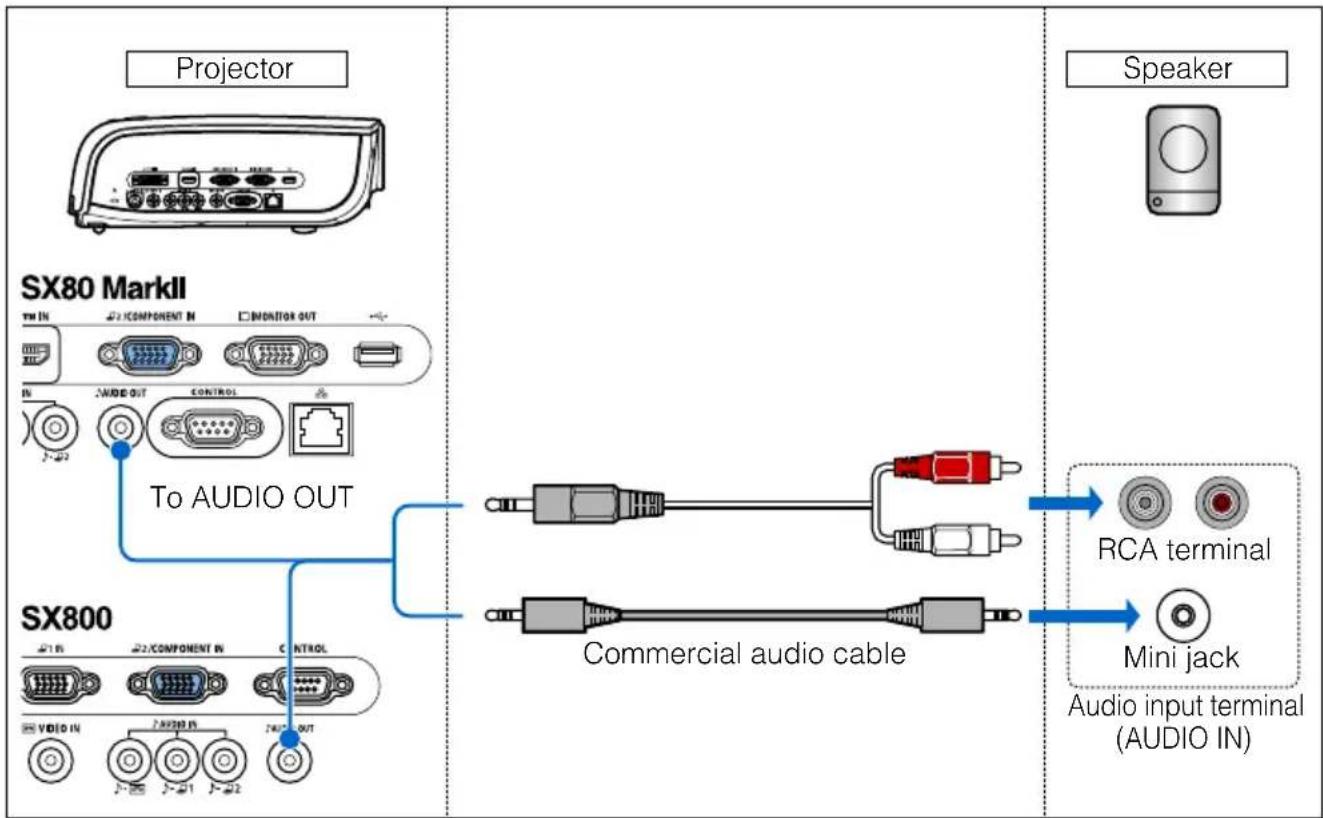
flowchart
graph LR
    A["Projector"] --> B["To AUDIO OUT"]
    B --> C["SX80 MarkII"]
    C --> D["Commercial audio cable"]
    D --> E["Speaker"]
    F["Speaker"] --> G["RCA terminal"]
    F --> H["Mini jack"]
    style A fill:#f9f,stroke:#333
    style B fill:#ccf,stroke:#333
    style C fill:#cfc,stroke:#333
    style D fill:#fcc,stroke:#333
    style E fill:#cff,stroke:#333
    style F fill:#ffc,stroke:#333
    style G fill:#fcf,stroke:#333
    style H fill:#cff,stroke:#333

Use an audio cable without a built-in resistor. Using an audio cable with a built-in resistor turns down the sound.
■ Connecting a Digital Camera or an USB Flash Memory (SX80 II)
SX80 MarkII supports PictBridge.
You can connect a PictBridge enabled digital camera, a digital video camera, an USB flash memory, or an USB memory card reader to directly project images.
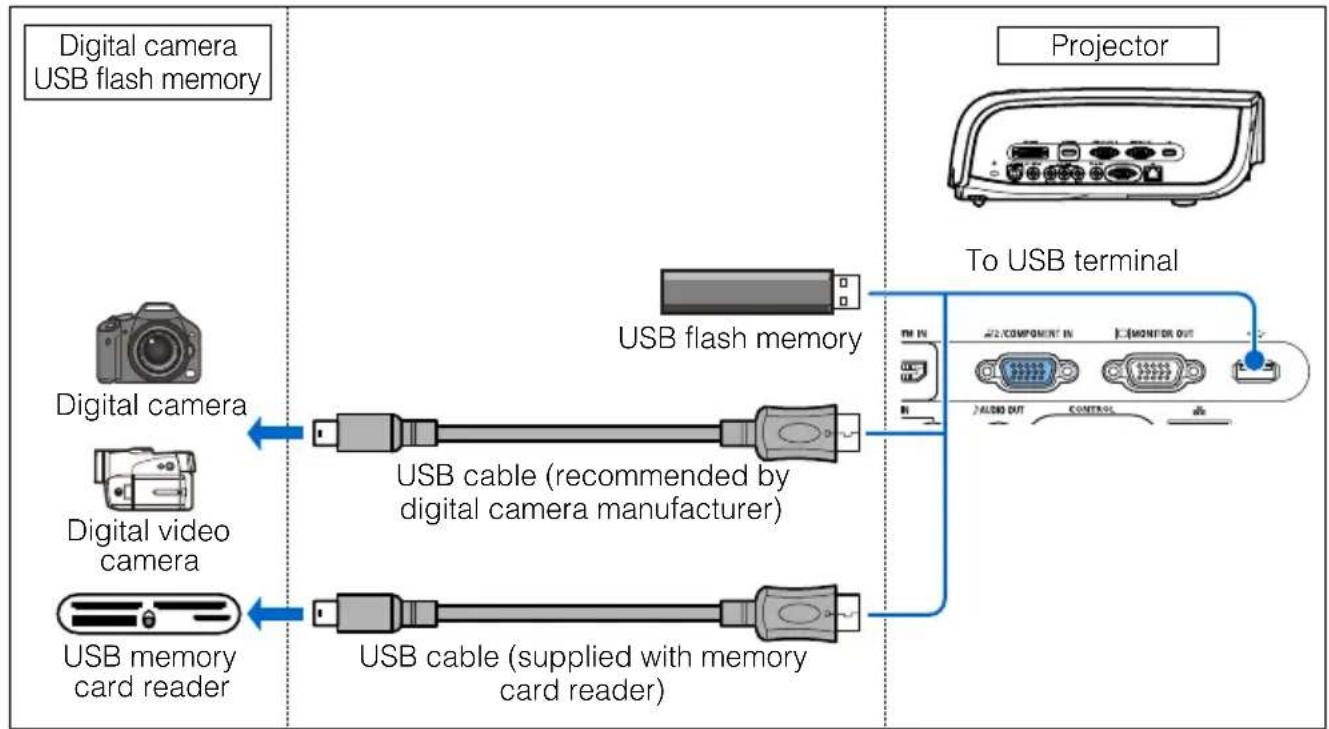
flowchart
graph LR
    A["Digital camera USB flash memory"] --> B["Digital camera"]
    A --> C["Digital video camera"]
    A --> D["USB memory card reader"]
    B <--> E["USB cable (recommended by digital camera manufacturer)"]
    C <--> F["USB cable (supplied with memory card reader)"]
    G["Projector"] --> H["To USB terminal"]
    H --> I["USB flash memory"]
    H --> J["2/COMPONENT IN"]
    H --> K["MONITOR OUT"]
    H --> L["JALOO OUT"]
    H --> M["CONTROLS"]
Starting Projection
1 Check the connection between the projector and a computer or AV equipment. (P38 – P48)
2 Connect the power cord and make sure that the [POWER] indicator lights up red. Flashing red [POWER] indicator indicates that the lamp is being cooled. Wait until the indicator turns a steady red.
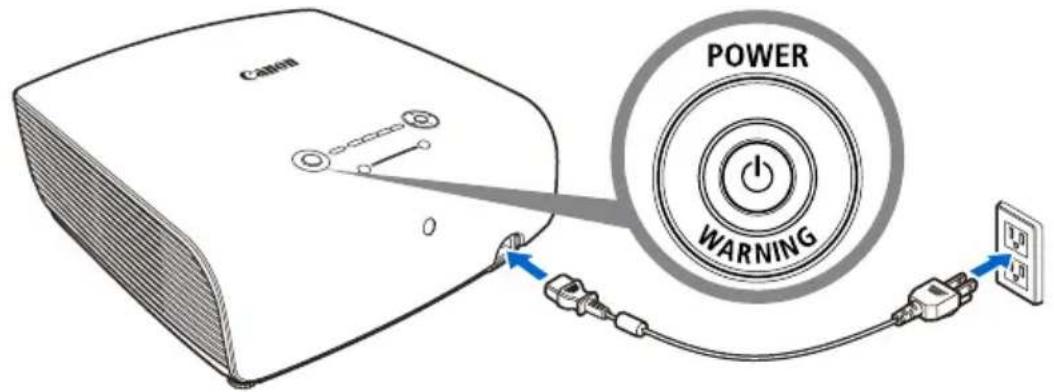
- Fully insert the power cord plug into the socket.
- Connect the ground terminal on the power plug to ground. Otherwise, an electric shock may result or the computer may suffer electromagnetic radiation problems or be subject to poor reception by TV and radio.
- Wait at least 5 minutes before turning on the projector when you turn off the projector. It may shorten the lamp life if you turn on the projector immediately after turning it off.
• To save power, unplug the power cord when not in use.
3Remove the lens cap and press the POWER button.
The POWER indicator flushes green, and then lights in green.
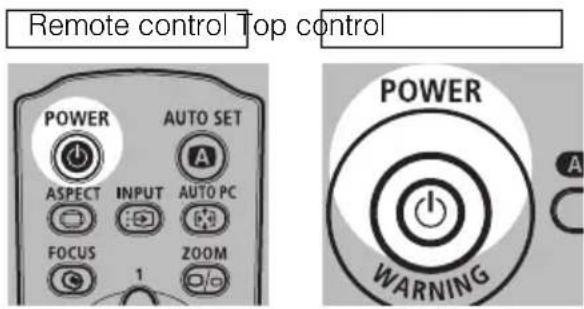
The countdown window is displayed for approximately 20 seconds, and then the projection is started. Press the OK button to make the countdown window disappear.
4Turn on the computer or AV equipment power.
Changing Operations When Projector is Turned On
You can change operations when the projector is turned on as follows:
- You can turn on the projector by connecting the power cord without pressing the POWER button. (P104)
- You can specify whether to enable or disable the LED illumination lamp. (P106)
- You can change the countdown window. (P90)
- You can skip the countdown window. (P49)
Using the Power Saving Mode (power management)
When you enable the power management mode, the lamp is automatically turned off if the projector receives no signal input for a certain period of time. (P103)
5Press the AUTO SET button.
The auto setup function performs the following operations automatically:
SX80 MarkII: focusing and keystone distortion adjustment, input signal setting, and screen color correction
SX800: keystone distortion adjustment and input signal setting
For more details, refer to the page 52.
If the projector is projecting an image properly with [AUTO SETUP], the projection is complete.
In SX800, adjust the focus and correct the screen color manually.
For how to turn off the projector, refer to the page 68. Perform the appropriate operation depending on the following situations.
■ When the Language Selection Screen Appears
A window appears when the projector is turned on for the first time. You can select a language to be used by the projector for displaying menus and messages in the window.
Select the desired language with the pointer buttons and press the OK button.
You can change the language from the menu at a later time. (P105)
If you cannot check the language selection screen due to the out of focus, press the FOCUS button to adjust the focus. (P59)
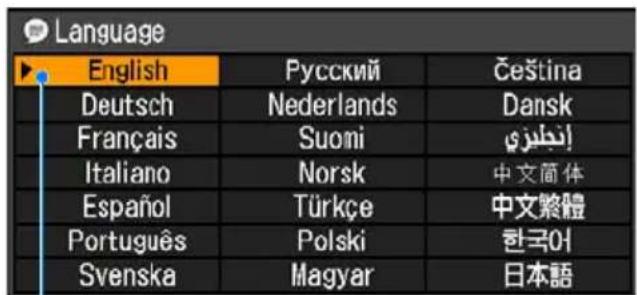
An item highlighted in orange will be selected.
■ When the Password Input Screen Appears
If you have set a password, the Password input screen appears. Enter your password. (P108)
■ When "No signal" Appears
A notebook computer requires to turn on the external monitor output. (P51)
Press the INPUT button to select an appropriate input signal. (P55)
■ When Notebook Computer Screen Does Not Appear
Set your notebook computer to output signals to an external monitor. For more details, refer to "Changing Notebook Computer Screen Output" below.
■ Adjusting Image
- For the display resolution of the computer, select "1400 x 1050 pixels" or a resolution closest to the output signal resolution of the computer. (P56)
- Use the auto PC function to adjust shift in computer image or the flickering of the screen. (P57)
- Use the ZOOM button to adjust the size of the projecting image. (P58)
- Use the FOCUS button to correct the focus adjustment if necessary. (P59)
- Use the D.SHIFT/KEYSTONE button to adjust keystone correction if necessary. (P60)
- Select the aspect ratio of the projecting image (screen aspect) or a screen mode (aspect) according to the aspect ratio of the screen, type of input image signal and so on. (P62 - P66)
- Select an image mode depending on the projecting image. (P67)
Changing Notebook Computer Screen Output
To use a notebook computer, you need to change the screen output on the notebook computer.
This operation is not required for a desktop computer.
■ Turning On External Monitor Output
You can turn on the external monitor output via keyboard operation.
To turn on the external monitor output, press an icon for an external monitor or a function key ([F1] to [F12]) while holding [Fn] key down.
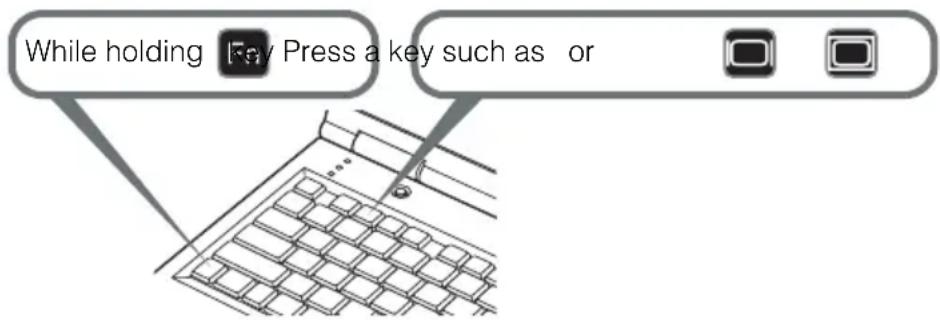

The function keys you use and the method used to turn on the external monitor output vary depending on the model. For details, see the instructions of your notebook computer.
Setting Up the Screen Automatically
Auto Setup
The auto setup function automatically makes the following settings and adjustments.
Setting image input signal (Auto input)
Focusing (Auto focus) (SX80 II)
Keystone correction (Auto keystone)
Screen color correction (Auto screen color correction) (SX80 II)
Use the auto setup function when:
- You turned the power on and the countdown sequence was completed.
- You changed the position or angle of the projector during the projection process.

- The auto screen color correction is disabled at the factory. To enable the auto screen color correction when performing the auto setup, select the function in menu. (SX80 II) (P86)
- You cannot set a digital PC signal or an AV equipment signal ([Digital PC] and [HDMI]) with the auto setup function. Select the appropriate signal by pressing the INPUT button. (SX80 II) (P55)
- When "No signal" message appears, press the INPUT button to select an appropriate input signal. (P55)
- If focusing, keystone distortion and/or screen color correction have not been performed properly, manually adjust them. (Adjusting the focus: P59, Correcting keystone distortion: P60 and Correcting the screen color: P86)
- In SX800, the auto setup function does not adjust the focus. Please manually adjust the focus. (P59)
- If you select [16:9 D. image shift] for [Screen aspect], [Auto setup] will be disabled and the following screen appears.
SX80 MarkII SX800
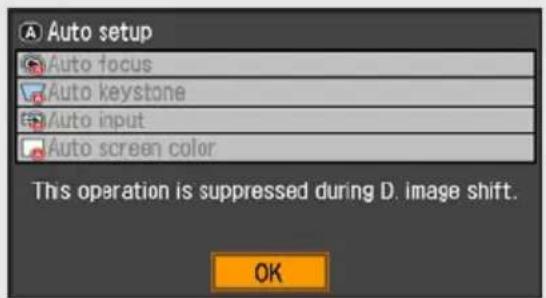
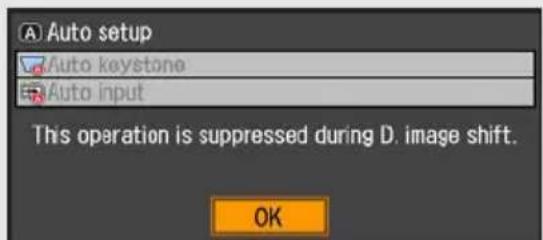
- When you press the INPUT button and then the AUTO SET button, only the input signal type is set.
- When you press the FOCUS button and then the AUTO SET button, only the focus is adjusted. (SX80 II) If you select [16:9 D. image shift] for [Screen aspect], the auto focus function will be disabled.
- When you press the D.SHIFT/KEYSTONE button and then the AUTO SET button, only the keystone distortion is adjusted. If you select [16:9 D. image shift] for [Screen aspect], the keystone adjustment will be disabled.
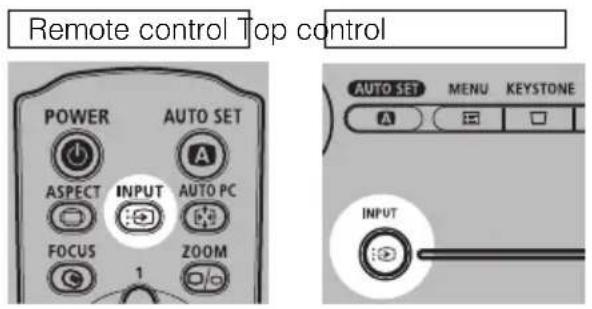
■ Performing the Auto Setup
Press the AUTO SET button to perform the auto setup.
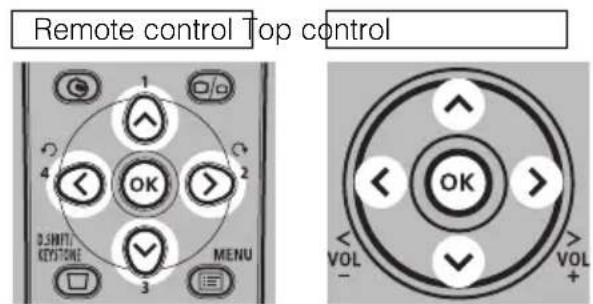
Remote control Top control
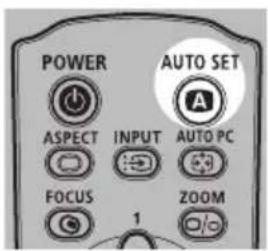
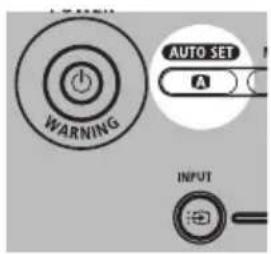
• After the auto setup is complete, the following window appears. Press the OK button.
SX80 MarkII SX800
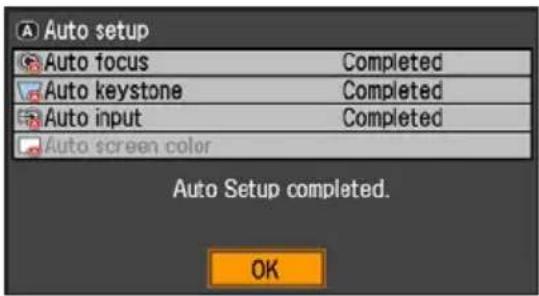
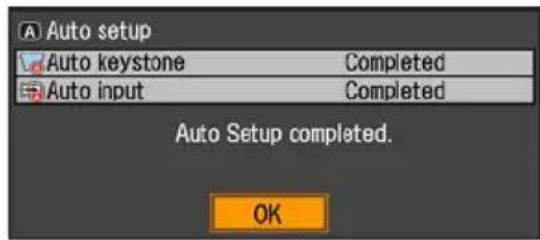
Selecting an Input Signal (INPUT)
Select an appropriate input signal in the [INPUT] menu if you want to project a digital PC or AV equipment signal or you connect multiple computers or AV equipment to receive their input signals. Skip this step if you have not changed the input signal since the last projection.
■ Types of Input Signals
The table below shows the relationship among input signals supported by the projector, input terminals and connection cables.
| Input signal | Supported model | Input terminal Types of connection cables | |
| HDMI SX80 II | HDMI IN  | HDMI cable (commercial item)  | |
| DIGITAL PC SX80 II | ANALOG PC-1/ DVI-I IN 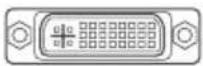 | DVI digital cable (LV-CA29, option)  | |
| ANALOG PC-1 | SX80 II | ANALOG PC-1/ DVI-I IN 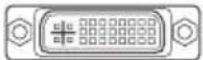 | Computer connection cable (supplied item)  |
| SX800 | ANALOG PC-1  | VGA cable (supplied item)  | |
| ANALOG PC-2 | SX80 II SX800 | ANALOG PC-2/ COMPONENT IN  | VGA cable (commercial item)  |
| COMPONENT | SX80 II SX800 | ANALOG PC-2/ COMPONENT IN  | Cor (sup 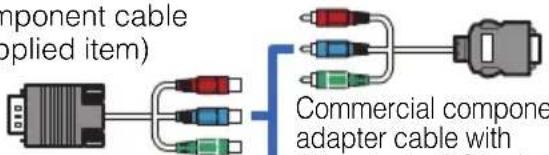 D terminal - RCA plugs Commercial component cable with RCA - RCA plugs D terminal - RCA plugs Commercial component cable with RCA - RCA plugs |
| VIDEO | SX80 II SX800 | VIDEO IN  | Video cable (commercial item) |
| S-VIDEO SX80 II | S-VIDEO IN  | S-VIDEO cable (commercial item) | |
| USB SX80 II | USB  | USB cable or USB flash memory (commercial item) | |
■ Selecting an Input Signal
1 Press the INPUT button to pop up a window shown at the lower right.
SX80 MarkII SX800
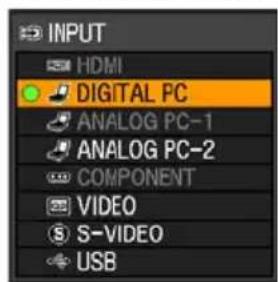
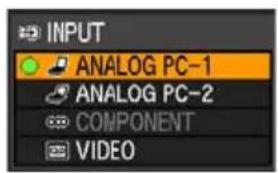
The currently active input signal is marked with a circle and highlighted in orange. An input signal that is ready for projection is displayed in white. When no signal is received, it is displayed in gray.
In SX80 MarkII, [HDMI], [DIGITAL PC], and [ANALOG PC-1] may be displayed in gray even if they are ready for projection.

When you select [USB] with no PictBridge enabled equipment or an USB flash memory connected and pressing the OK button, a window waiting for you to connect a PictBridge enabled equipment or an USB flash memory appears. For more details, refer to "Projecting an Image from a Digital Camera (SX80 II)" (P114 – P117) or "Projecting Data on USB Flash Memory (SX80 II)" (P118 – P124).
flowchart
graph TD
    A["Power"] --> B["Calculator"]
    B --> C["Input Icon"]
    C --> D["Output Icon"]
2 The selection is toggled through available input signal types by pressing the INPUT button.
- You can select the target input signal with [λ/[]v
- Only the input signals displayed in white can be selected.
3 Press the OK button to determine the input signal type.
If no button is pressed in 4 seconds, the selected input signal type is chosen.
Setting the Display Resolution of the Computer
Set the display resolution of the computer to "1400 x 1050 pixels" or a resolution closest to the output signal resolution of the computer based on the performance of the projector (resolution: 1400 x 1050 pixels). (P150)
■ Windows Vista
1 Open the [Control Panel] from the start menu, then select [Appearance and Personalization] - [Adjust screen resolution] in the [Control Panel Home].
2Select "1400 x 1050 pixels" or a resolution closest to the output signal resolution of the computer.
3Click the OK button.
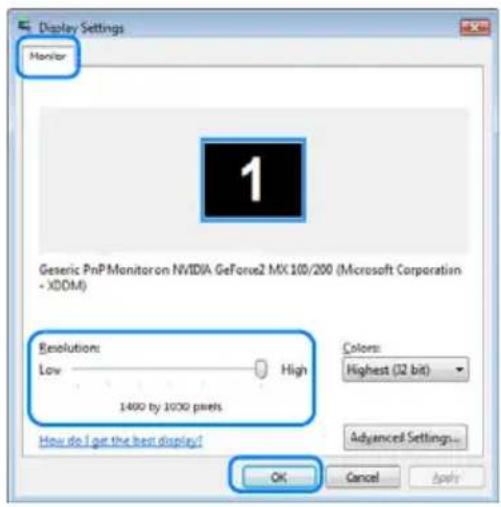
■ Windows XP
1 Right-click on the desktop back-ground and select [Properties] to open the [Display Properties].
2Click the [Settings] tab, and under [Screen Resolution], select "1400 x 1050 pixels" or a resolution closest to the output signal resolution of the computer.
3Click the OK button.
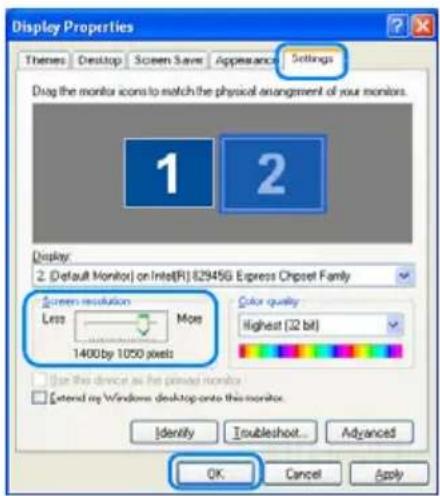
■ Macintosh OSX
1 Open the Apple Menu and select [System Environment Setting].
2 In the System Environment Setting window, click the [Displays] icon to display the Display window.
3 Select the [Display] tab and select "1400 x 1050" or a resolution closest to the output signal resolution of the computer from the [Resolution] list.
4Close [System Environment Setting] window.
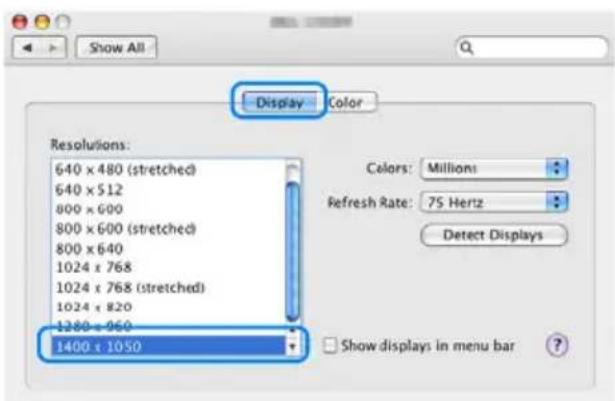
AUTO PC
When you press the AUTO PC button if there is a shift in image display or flickering of screen with the [ANALOG PC-1] or [ANALOG PC-2] selected, the projector is adjusted to an optimum condition.
The result of adjustment is recorded for each input signal ([ANALOG PC-1] or [ANALOG PC-2]). If you connect the projector to the same computer, you can project the image with the same settings as before simply by select the input signal.
■ Performing the Auto PC Function
Press the AUTO PC button to make projector adjustment.
Remote control Top control
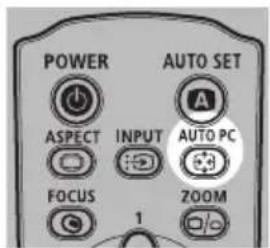
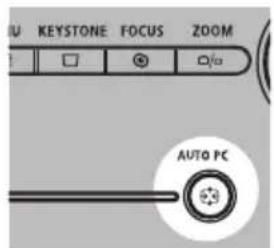

Perform the following if the project image has not been properly adjusted with the auto PC function.
- From [Input signal select], select an input signal type based on the resolution of the computer. (P80)
- If the adjustment is still insufficient, from [Input signal settings] select [Total dots], [Tracking], [Horizontal position], [Vertical position], [Horizontal pixels] and [Vertical pixels] to make adjustments. (P81 – P84)
- For the signal types supported by the projector, see the table on page 150.
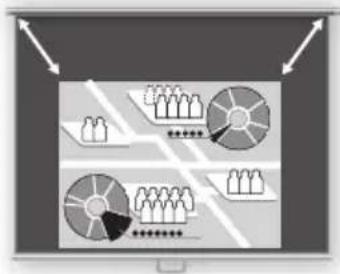
Adjusting the Image Size
Use the ZOOM button to adjust the size of the projecting image.
Change the projector installation position if your desired image is too large or too small to adjust it with the zoom function. (P35)
1 Press the ZOOM button to pop up a window shown at the lower right.
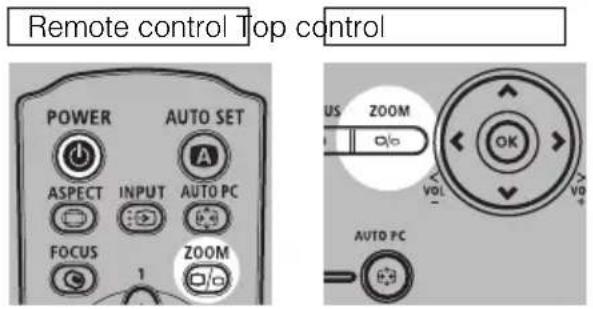
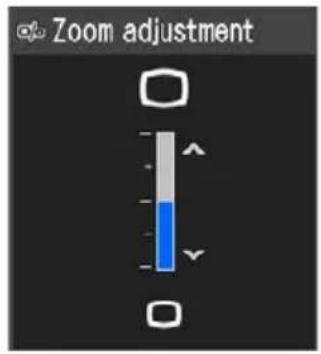
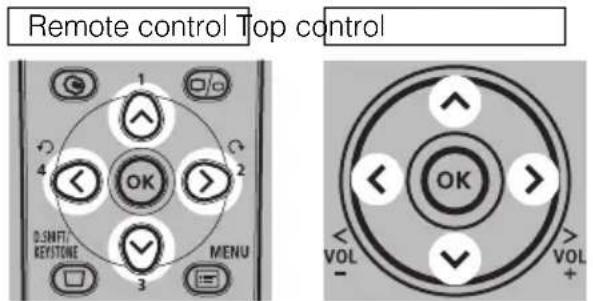
2Press the pointer buttons to adjust the image size.
flowchart
graph TD
    A["User Group"] --> B["User Group 1"]
    A --> C["User Group 2"]
    B --> D["User Group 3"]
    C --> E["User Group 4"]
    D --> F["User Group 5"]
    E --> G["User Group 6"]
    F --> H["User Group 7"]
    G --> I["User Group 8"]
    H --> J["User Group 9"]
    I --> K["User Group 10"]
[λ] / [ ]v Rough adjustment.
[<] / [>]: Fine adjustment.
3 When the image size is determined, press the OK button or the ZOOM button.
Adjusting the Focus
You can adjust the focus with the FOCUS button. The projection image may be out of focus if the projection distance is beyond the range of 1.2 m (3.9') to 9.1 m (29.6'). Move the projector installation position if such is the case. (P35)
■ Auto focusing (SX80 II)
Press the FOCUS button, and then the AUTO SET button.

If you select [16:9 D. image shift] for [Screen aspect], the auto focus function will be disabled.
■ Manual focusing
1 Press the FOCUS button to pop up a window shown at the lower right.
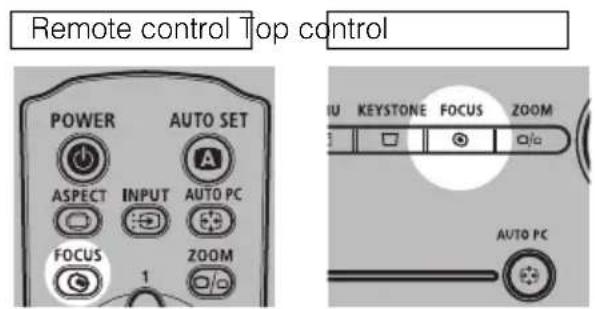
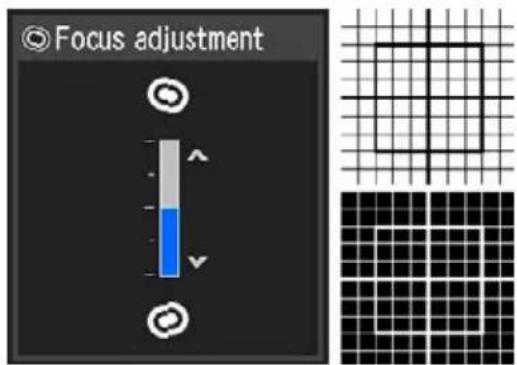
2Press the pointer buttons to adjust the focus.
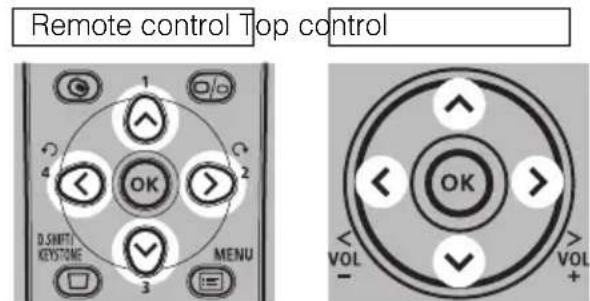
[λ] / [ ]v Rough adjustment.
[<] / [>]: Fine adjustment.
3 When the focus is adjusted optimally, press the OK button or the FOCUS button.
Adjusting Keystone Distortion
The D.SHIFT/KEYSTONE button corrects the keystone distortion.

- Keystone can be adjusted within the range of ± 20 degrees. If the keystone distortion is too large to adjust, move the projector installation position. (P35)
- The amount of adjustment may be smaller depending on type of input signal.
- The result of keystone adjustment is memorized. If you place the projector at the same position, the keystone adjustment is not necessary.
- Signals are processed digitally when keystone distortion is corrected. The image may look different from the original one. In addition, the aspect ratio of the image may change.
- If you select [16:9 D. image shift] for [Screen aspect], the keystone adjustment will be disabled. Project the image at right angle to the screen.
■ Auto adjustment
Press the D.SHIFT/KEYSTONE button, and then the AUTO SET button.
■ Manual adjustment
1 Press the D.SHIFT/KEYSTONE button to pop up a window shown at the lower right.
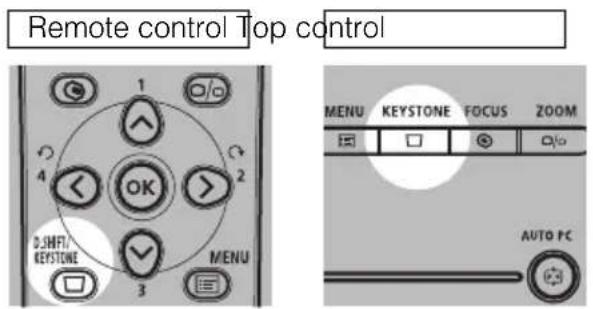
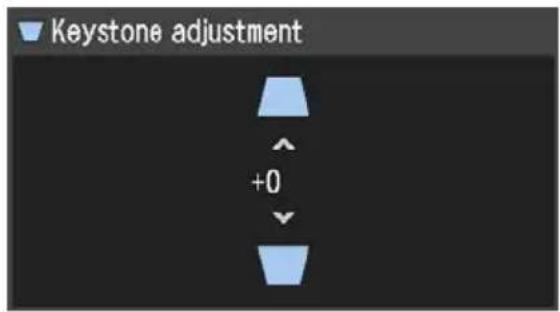
2Press the pointer buttons to adjust the focus.
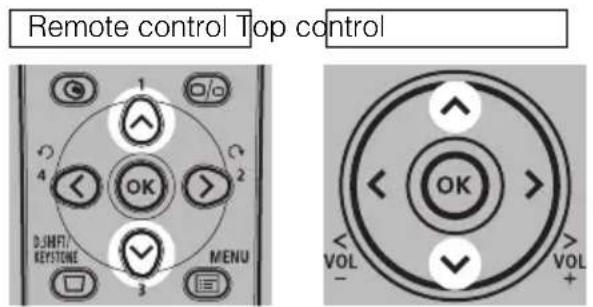
[λ]: Reduces the length of the upper edge.
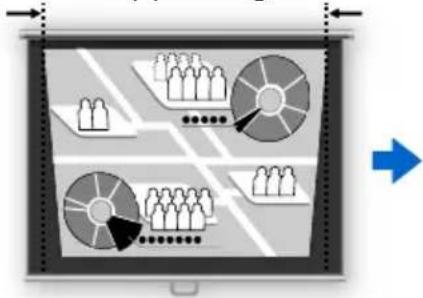
flowchart
graph TD
    A["Group 1"] --> B["Group 2"]
    B --> C["Group 3"]
    C --> D["Group 4"]
    D --> E["Group 5"]
    E --> F["Group 6"]
    F --> G["Group 7"]
    G --> H["Group 8"]
    H --> I["Group 9"]
    I --> J["Group 10"]
    style A fill:#f9f,stroke:#333
    style B fill:#f9f,stroke:#333
    style C fill:#f9f,stroke:#333
    style D fill:#f9f,stroke:#333
    style E fill:#f9f,stroke:#333
    style F fill:#f9f,stroke:#333
    style G fill:#f9f,stroke:#333
    style H fill:#f9f,stroke:#333
    style I fill:#f9f,stroke:#333
    style J fill:#f9f,stroke:#333
[v]: Reduces the length of the lower edge.
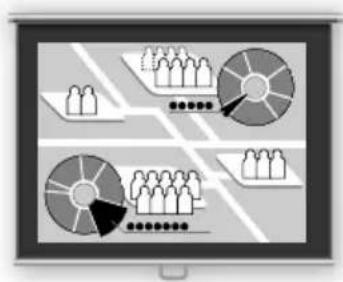
flowchart
graph TD
    A["User Group 1"] --> B["Data Flow Arrow"]
    C["User Group 2"] --> D["Data Flow Arrow"]
    E["User Group 3"] --> F["Data Flow Arrow"]
    G["User Group 4"] --> H["Data Flow Arrow"]
    I["User Group 5"] --> J["Data Flow Arrow"]

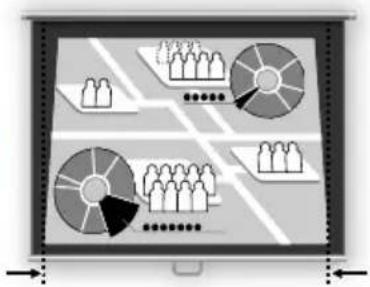
flowchart
graph TD
    A["User Group 1"] --> B["User Group 2"]
    B --> C["User Group 3"]
    C --> D["User Group 4"]
    D --> E["User Group 5"]
3 When the keystone distortion has been adjusted, press the OK button.
■ Resetting the Keystone Adjustment
Perform the following steps to reset the keystone adjustment.
Press the D.SHIFT/KEYSTONE button twice to display the [Keystone reset] window. On the window, select [OK] with [<], and then press the OK button.
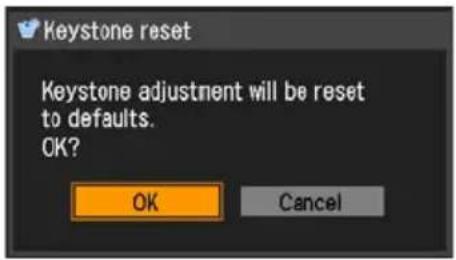
Selecting Screen Aspect and Aspect
Select an optimum aspect ratio of the projecting image (screen aspect) or an optimum screen mode (aspect) according to the aspect ratio of the screen, type of input image signal and so on for the projection making best use of the screen size.
• [Screen aspect]: Select the same aspect ratio with your screen.
- [Aspect]: Select [Auto] unless the type of input signal is [VIDEO].
You may need to change the setting depending on the resolution of the computer. If the image is not projected with a desired aspect ratio, see "Relationship between Aspect and Screen Aspect" in Appendix on page 147.
Selecting Screen Aspect
Select the aspect ratio of projecting image to the aspect ratio of the screen. Perform the following steps to select the aspect ratio of the projecting image.
1 Press the MENU button to display a menu window.
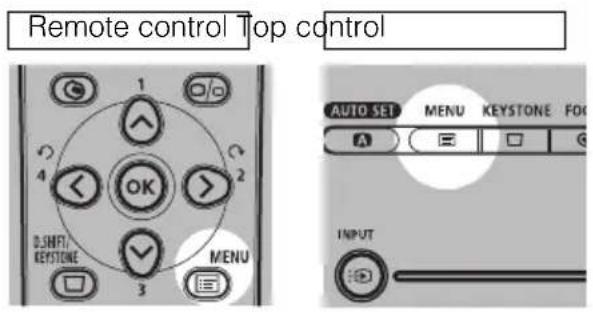
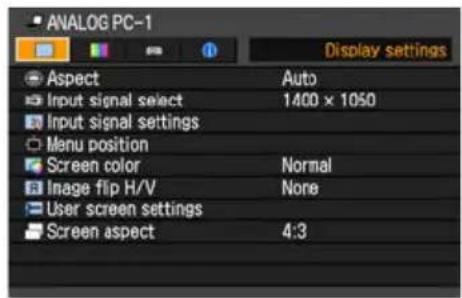
2Use [<] / [>] to select the [Display settings] tab.
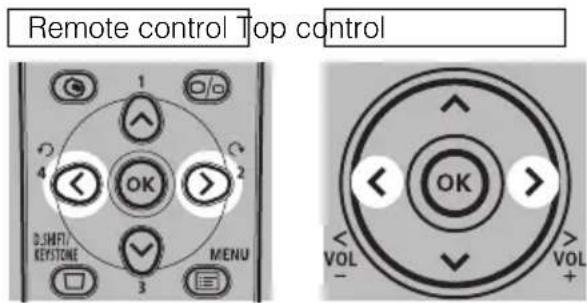
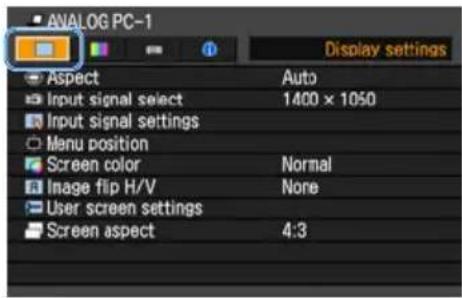
3Select [Screen aspect] with [ ] /[ ], and then press the OK button.
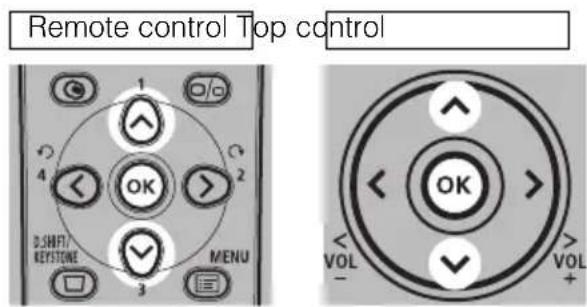
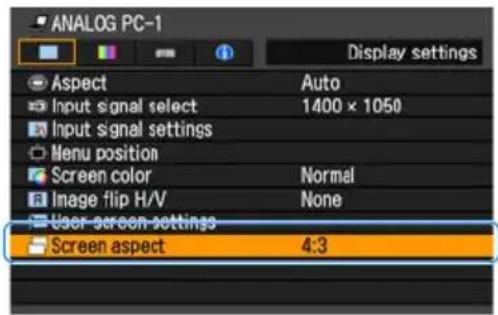
4Use [ ] / [ ] tovselect a screen aspect type.
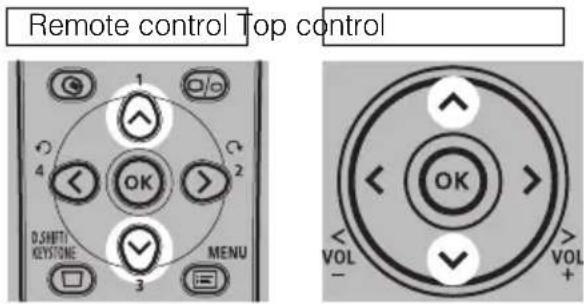
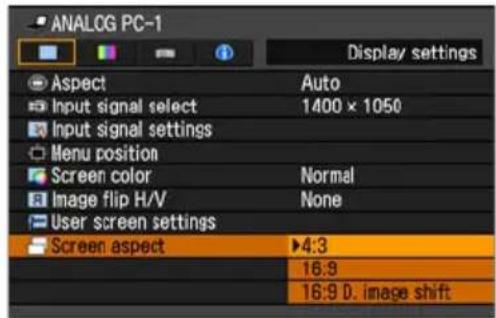
4:3
Select this when you use a screen with aspect ratio of 4:3.
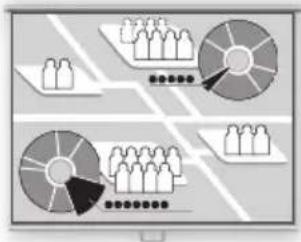
flowchart
graph TD
    A["Group 1"] --> B["Circle Node 1"]
    C["Group 2"] --> D["Circle Node 2"]
    E["Group 3"] --> F["Circle Node 3"]
    G["Group 4"] --> H["Circle Node 4"]
    I["Group 5"] --> J["Circle Node 5"]
    K["Group 6"] --> L["Circle Node 6"]
    M["Group 7"] --> N["Circle Node 7"]
    O["Group 8"] --> P["Circle Node 8"]
    Q["Group 9"] --> R["Circle Node 9"]
    S["Group 10"] --> T["Circle Node 10"]
16:9
Select this when you use a screen with aspect ratio of 16:9.
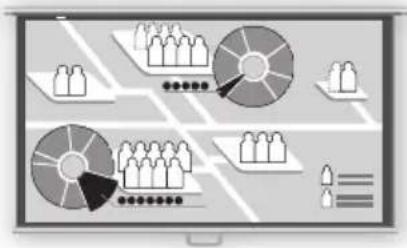
flowchart
graph TD
    A["User Group"] --> B["User Interaction"]
    B --> C["User Group"]
    C --> D["User Interaction"]
    D --> E["User Group"]
    E --> F["User Interaction"]
    F --> G["User Group"]
    G --> H["User Interaction"]
    H --> I["User Group"]
    I --> J["User Interaction"]
    J --> K["User Group"]
16:9 D. image shift
Select this when you use a screen with aspect ratio of 16:9. Suitable for projecting visual software having aspect ratio of 16:9.
You cannot correct the keystone distortion in this mode, but you can move the image up or down with images being projected horizontally.
See the following page on how to shift the image.
natural_image
Scenic view of a river with historic buildings and boats under a clear blue sky (no visible text or symbols)5 Press the OK button to accept your setting and then press the MENU button.
■ Moving Image with 16:9 D. Image Shift
1 Press the D.SHIFT/KEYSTONE button to pop up a window shown at the lower right.
Remote control Top control
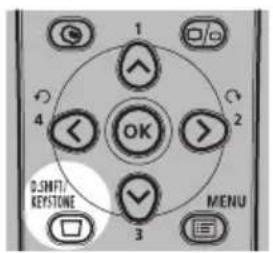
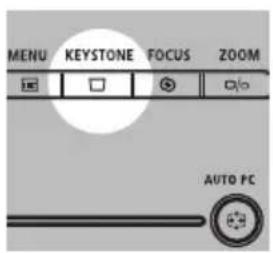
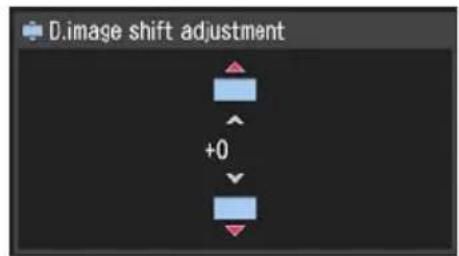
2Use [ ] / [ ] to move the image.
Remote control Top control
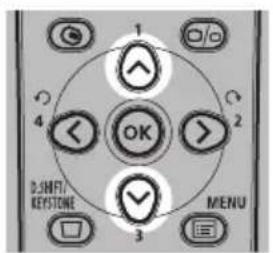
[λ]: Moves up the image.
[y]: Moves down the image.
![CANON XEED SX800 - 2Use [ ] / [ ] to move the image. - 3](/content/2026/05/793021/images/f75bc65b70393cc314ebb60cb43f6a988dfabeabcfce70ae15fa2d5b8c9b5978.jpg)
natural_image
Panoramic view of a cityscape with historic buildings and a river, no visible text or symbols![CANON XEED SX800 - 2Use [ ] / [ ] to move the image. - 4](/content/2026/05/793021/images/65dd0d5aa1a751f5eca5de9805add23d04585e09d36b315acd023a3cbaa7f1d7.jpg)
![CANON XEED SX800 - 2Use [ ] / [ ] to move the image. - 5](/content/2026/05/793021/images/3f90375dccffac136269a5663d871bd79905fdeaaf5b439f09288de4ff2a8fa3.jpg)
natural_image
Scenic view of a river with boats and historic buildings under a clear blue sky (no visible text or symbols)![CANON XEED SX800 - 2Use [ ] / [ ] to move the image. - 6](/content/2026/05/793021/images/d0512962abf5d1312814ea5a012e770c12da3f2c309cf1320a5e58c5948800a0.jpg)
![CANON XEED SX800 - 2Use [ ] / [ ] to move the image. - 7](/content/2026/05/793021/images/c2245dd438877615b69b9eb866e2e0199431652b11f1a5e16999866dcfe5b781.jpg)
natural_image
Scenic view of a canal with boats and buildings along the water, no visible text or symbols3 When the image shift adjustment has been completed, press the OK button.
■ Resetting the Image Shift
Perform the following steps to reset the image shift adjustment.
Press the D.SHIFT/KEYSTONE button twice to display the [D.Image Shift reset] window.
On the window, select [OK] with [<], and then press the OK button.
Selecting Aspect Ratio
Select the aspect ratio of projecting image based on the input signal type, aspect ratio of the screen and resolution.
For more details on the aspect ratios, refer to "When Projecting an Image from a Computer" on page 147.
■ Types of Aspect Ratios
Auto
An image is projected at an aspect ratio of the input signal. Select this mode for normal image projection.

- [Auto] is not available if the input signal type is [VIDEO].
- [Auto] is automatically selected if the input signal type is [USB]. (SX80 II)
4:3
An image is projected at an aspect ratio of 4:3. Select this if an image of 4:3 aspect ratio cannot be appropriately projected in the [AUTO] mode.
16:9
An image is projected at an aspect ratio of 16:9. Select this if an image of 16:9 aspect ratio cannot be appropriately projected in the [AUTO] mode.
Zoom
An image with 4:3 aspect ratio is projected in the center of the screen enlarged in 16:9 aspect ratio with the upper and lower portion of the image cut off. Select this when projecting visual software having aspect ratio of 4:3 and black belts at the top and bottom of the image.
- This mode is available when you select [16:9] or [16:9 D. image shift] for [Screen aspect] and select [HDMI (576p, 480p) (SX80 II)], [COMPONENT (576p, 480p, 576i, 480i)], [VIDEO] or [S-VIDEO (SX80 II)] for input signal.
True size
An image is projected with the original resolution of the input signal. Select this to clearly project computer screen images having a resolution SXGA+ or lower (VGA, SVGA, XGA or SXGA) or visual software having a resolution lower than 1035i.
- This mode is available when you select [HDMI (720p, 576p, 480p) (SX80 II)] or [COMPONENT (720p, 576p, 480p)] for input signal.

- It is not available for an image having a resolution higher than SXGA+ or visual software having a resolution of 1080i, 1080p, 1035i, 576i or 480i.
- It is also available if the input signal is [ANALOG PC-1], [ANALOG PC-2], or [DIGITAL PC (SX80 II)]; however, it may not be available depending on the screen aspect setting.
■ How to Select an Aspect Ratio
Press the ASPECT button on the remote control to select an appropriate aspect ratio. The selection is toggled among types for aspect ratios by pressing the ASPECT button.
For more details on the aspect ratios, refer to "When Projecting an Image from a Computer" on page 147.
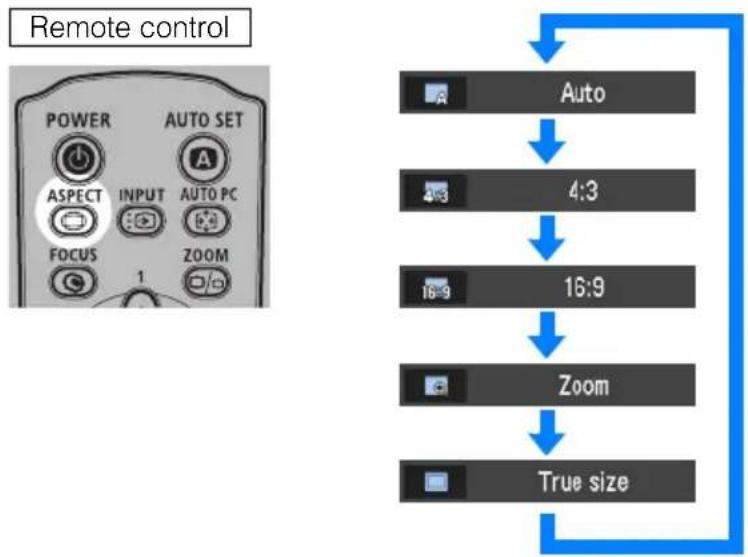
flowchart
graph TD
    A["Remote control"] --> B["Power"]
    A --> C["AUTO SET"]
    A --> D["ASPECT INPUT AUTO PC"]
    A --> E["FOCUS ZOOM 1"]
    B --> F["Auto"]
    C --> G["4:3"]
    D --> H["16:9"]
    E --> I["Zoom"]
    F --> J["True size"]
    G --> J
    H --> J
    I --> J
You can also select any aspect ratio from the menu. (P79)

Some aspect ratios may not appear depending on types of input signals.
You can select an image mode depending on the projecting image.
In each image mode, you can further adjust the brightness, contrast, sharpness, gamma, color adjustment, advanced adjustment, and lamp mode. (P93)
■ Image modes
Standard
Select this to project an image with near-original quality and a high regard for reproduction of white. It is suited to project text-based computer screens or visual software (moving pictures) in a bright room.
Presentation
Select this to project an image with quality suited for the presentation. It is also suited to project visual software (moving pictures) with a high regard for the brightness.
Movie
Select this to project common visual software (moving pictures). It is suited to easily enjoy the atmosphere of a moving theater in a dim room.
sRGB
Select this if you want to project an image in the display mode conforming to the sRGB standard (P152). It is suited to project an image shot by sRGB-compatible digital camera.
Photo (SX80 II)
If you select [Photo] for [Image mode], make sure to set [Ambient light] in the [Image adjustment] as well.
You can correct an image according to the ambient light based on [sRGB] in [Image mode] and project the image with higher tone on the screen by setting [Ambient light]. It is suited to project an ornamental photo, etc. under an ambient light.
It is available if the input signal is [ANALOG PC-1], [ANALOG PC-2], [DIGITAL PC], or [USB].
■ How to Select an Image Mode
Press the IMAGE button on the remote control to select your desired image mode.
The selection is toggled among aspect types by pressing the button.
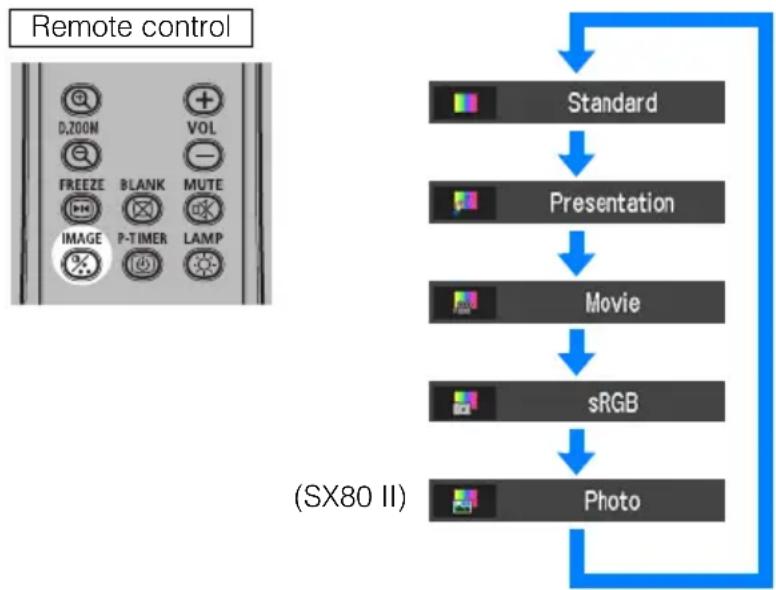
flowchart
graph TD
    A["Remote control"] --> B["Standard"]
    B --> C["Presentation"]
    C --> D["Movie"]
    D --> E["sRGB"]
    E --> F["Photo"]
You can also select any image mode from the [Image mode] menu. (P93)
Turning Off the Projector
1 Press the POWER button to pop up a window shown at the lower right.
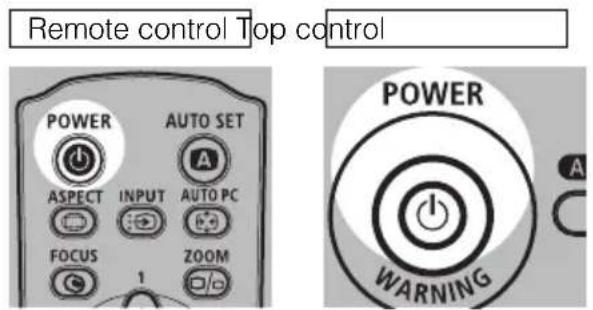
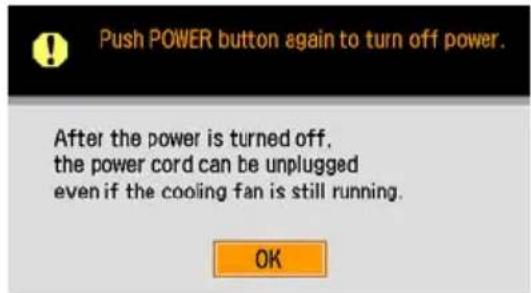
Press the POWER button again while the confirmation message is displayed.
The lamp goes off, the [POWER] indicator starts flashing in red and the cooling fan starts.

- You cannot turn the projector on while the cooling fan is in operation.
- If you want to continue projecting, press a button other than POWER or wait until the confirmation message disappears.
- Wait at least 5 minutes before turning on the projector when you turn off the projector. It may shorten the lamp life if you turn on the projector immediately after turning it off.
- Using the projector for a long time may shorten the life of the lamp and internal optical components.
2Remove the power cord from the AC outlet.
It continues to cool down the lamp even after removing the power cord. Thus, you may move or put away the projector immediately after the use.
With the power cord connected, the LED illumination lamp turns on during cooling cycle.
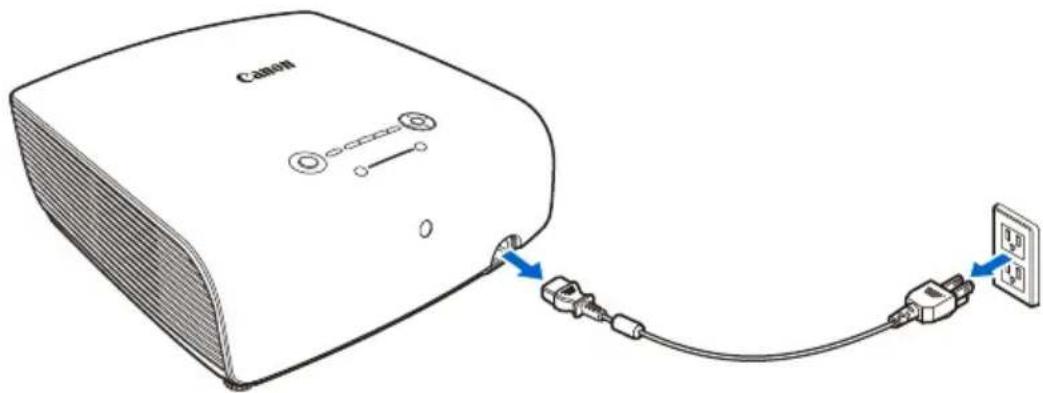

- Wait until the cooling fan stops before putting the projector in the carrying bag. Do not put the projector in the carrying bag until the cooling fan stops rotating. The projector may be damaged due to the heat.
- Attach the lens cap to the lens to protect it and put the projector in the carrying bag. Replace the adjustable foot to prevent the damage on the projector.
Useful Functions Available During a Presentation
Table of Contents
Safety Instructions
Before Use
Projecting an Image
Useful Functions Available During a Presentation
Setting Up Functions from Menus
Projecting an Image from a Digital Camera or an USB Flash Memory (SX80 II)
Connecting the Projector to Network (SX80 II)
Appendix
Index
Useful Functions Available During a Presentation
Blackened Out an Image Temporarily
BLANK

Useful when:
- You finished the presentation.
- You want to divert attendees' attention from the screen.
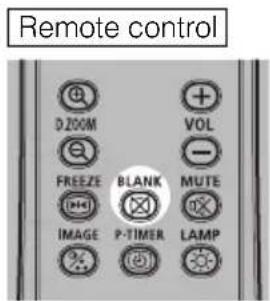
Press the 📄 button to blacken out the image.
Press the button again to show the image.
- You can set the screen state while blackening out the image on the menu. You can also set a specified image. (P89)
- The lamp keeps a turn-on state while blackening out the image.
- The (middle) LED illumination lamp on the top control flush slowly while blackening out the image.
Freezing the Picture
FREEZE

Useful when:
- You want to perform a computer operation which is irrelevant to the proceedings of the presentation.
- You want to stop a moving image.
Remote control
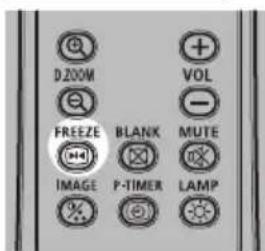
Press the 📋 button to freeze the moving image. The projector shows the following icon.
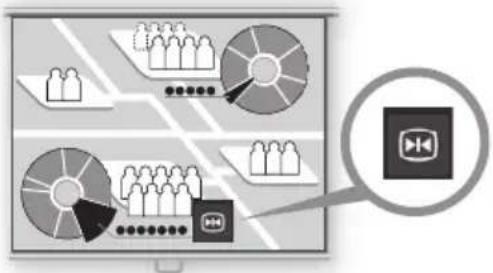
flowchart
graph TD
    A["User Group"] --> B["Video Stream"]
    C["User Group"] --> D["Video Stream"]
    E["User Group"] --> F["Video Stream"]
    G["User Group"] --> H["Video Stream"]
    I["User Group"] --> J["Video Stream"]
    K["User Group"] --> L["Video Stream"]
    M["User Group"] --> N["Video Stream"]
    O["User Group"] --> P["Video Stream"]
    Q["User Group"] --> R["Video Stream"]
    S["User Group"] --> T["Video Stream"]
    U["User Group"] --> V["Video Stream"]
    W["User Group"] --> X["Video Stream"]
    Y["User Group"] --> Z["Video Stream"]
    AA["User Group"] --> AB["Video Stream"]
    AC["User Group"] --> AD["Video Stream"]
    AE["User Group"] --> AF["Video Stream"]
    AG["User Group"] --> AH["Video Stream"]
    AI["User Group"] --> AJ["Video Stream"]
    AK["User Group"] --> AL["Video Stream"]
    AM["User Group"] --> AN["Video Stream"]
    AO["User Group"] --> AP["Video Stream"]
    AQ["User Group"] --> AR["Video Stream"]
    AS["User Group"] --> AT["Video Stream"]
    AU["User Group"] --> AV["Video Stream"]
    AW["User Group"] --> AX["Video Stream"]
Press the FREEZE button again to cancel the FREEZE function.
- The (left and right) LED illumination lamps on the top control flushes slowly while stopping the image.
- It is cancelled once the input signal is terminated.
- You cannot zoom an image (P72) when you are freezing the image.
Adjusting the Volume

Useful when:
- You want to adjust the volume level of the projectors or external speaker.
Remote control Remote control

Press the 📋 button. The following screen appears.
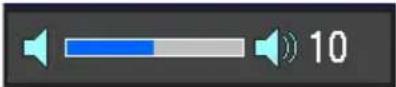
- You can also adjust the volume level with [<] / [>] of the projector.
- Adjust the volume or mute setting on the computer if the volume level is too low.
- You can also adjust the volume level of the speakers connected via the audio output terminal.
Muting the Sound
MUTE

Useful when:
- You want to temporality mute the unnecessary sound.
- You want to immediately mute the sound.
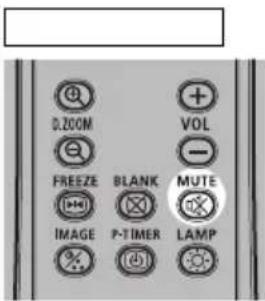
Press the button to mute the sound. The projector shows the following icon.
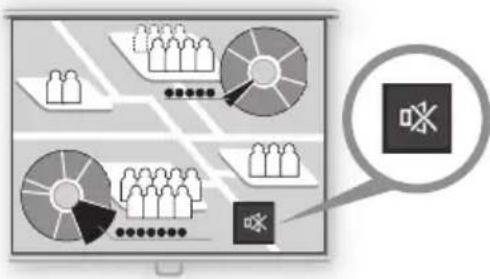
flowchart
graph TD
    A["User Group"] --> B["User Group 1"]
    A --> C["User Group 2"]
    B --> D["User Group 3"]
    C --> E["User Group 4"]
    D --> F["Warning Symbol"]
    E --> F
    style A fill:#f9f,stroke:#333
    style B fill:#ccf,stroke:#333
    style C fill:#ccf,stroke:#333
    style D fill:#cfc,stroke:#333
    style E fill:#cfc,stroke:#333
    style F fill:#fcc,stroke:#333
Press the button again to cancel the MUTE function.
- You can also mute the sound of the speakers connected via the audio output terminal.
Zooming an Image

Useful when:
- Zoom in an object such as a small graph during a presentation (up to 12x).
- Focusing on the current subject.
Press the button. A part of the image is enlarged each time pressed.
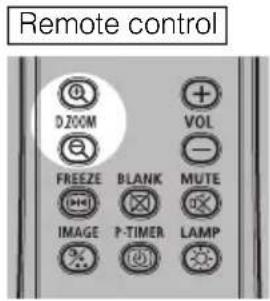
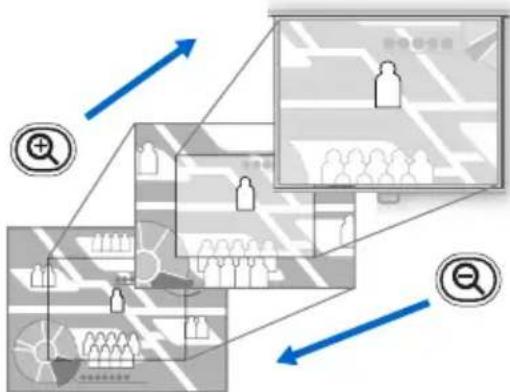
flowchart
graph TD
    A["Search"] --> B["User Interface"]
    C["Monitoring"] --> D["User Interface"]
    E["Contact Entity"] --> F["User Interface"]
    G["User Interface"] --> H["User Interface"]
    I["User Interface"] --> J["User Interface"]
    K["User Interface"] --> L["User Interface"]
    M["User Interface"] --> N["User Interface"]
    O["User Interface"] --> P["User Interface"]
    Q["User Interface"] --> R["User Interface"]
    S["User Interface"] --> T["User Interface"]
    U["User Interface"] --> V["User Interface"]
    W["User Interface"] --> X["User Interface"]
    Y["User Interface"] --> Z["User Interface"]
    AA["User Interface"] --> AB["User Interface"]
    AC["User Interface"] --> AD["User Interface"]
    AE["User Interface"] --> AF["User Interface"]
    AG["User Interface"] --> AH["User Interface"]
    AI["User Interface"] --> AJ["User Interface"]
    AK["User Interface"] --> AL["User Interface"]
    AM["User Interface"] --> AN["User Interface"]
    AO["User Interface"] --> AP["User Interface"]
    AQ["User Interface"] --> AR["User Interface"]
    AS["User Interface"] --> AT["User Interface"]
    AU["User Interface"] --> AV["User Interface"]
    AW["User Interface"] --> AX["User Interface"]
- The magnification appears on the screen.
You can move the area to the enlarged by using [ʌ] / [ ]/ [<] / [>].
Remote control Projector
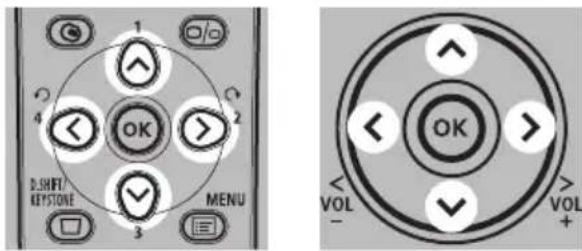
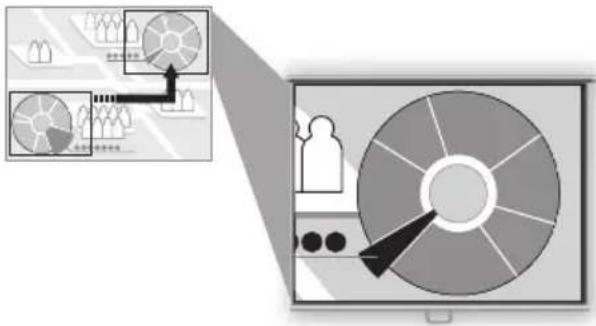
flowchart
graph TD
    A["User Group Selection"] --> B{User Progress?}
    B -->|Yes| C["User Interaction"]
    B -->|No| D["User Progress"]
    C --> E["User Group Select"]
    D --> F["User Progress"]
    E --> G["User Group Progress"]
    F --> H["User Progress"]
You can restore the original size of the image by pressing the button.
Showing the Elapsed Time
P-TIMER

Useful when:
- You want to manage the proceedings of the presentation.
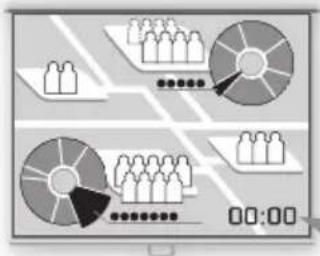
Press the P-TIMER button to start counting.
- The elapsed time is displayed at the lower right corner of the screen.
- Time is counted up to 59:59. Then the timer returns to 00:00.
Remote control

Press the button again to stop the timer.
- Press the button while the timer is stopped. The timer disappears from the screen. Then press the button to start counting from 00:00.
Projecting Image Without Computer (SX80 II)
Useful when:
- You want to project an image from a digital camera.
- You want to project an image from USB flash memory.
You can project an image directly by connecting the projector with a PictBridge-compatible digital camera or USB flash memory.
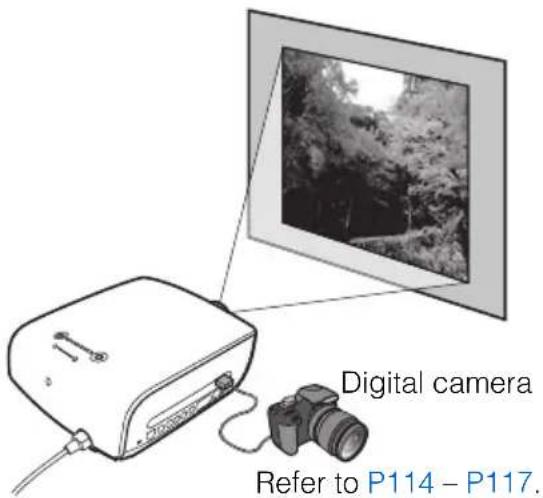
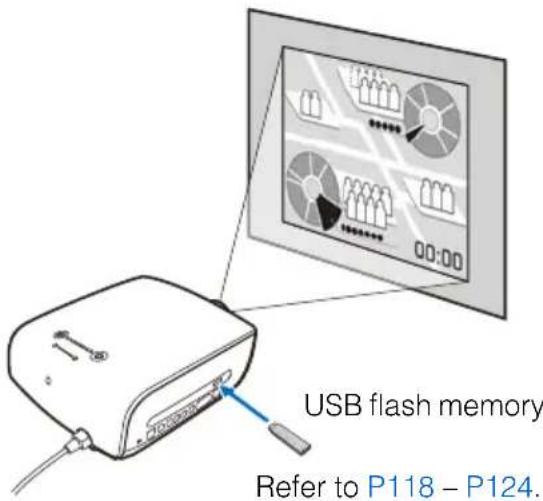
Setting Functions from Menus
Table of Contents
Safety Instructions
Before Use
Projecting an Image
Useful Functions Available During a Presentation
Setting Up Functions from Menus
Projecting an Image from a Digital Camera or an USB Flash Memory (SX80 II)
Connecting the Projector to Network (SX80 II)
Appendix
Index
With a menu, you can set the operation of the projector in detail.
■ Menu Configuration
The menu screen is divided into four tabs as follows:
![[Display settings] tab (P79) You can set the type of signal or the method of projection of the images input. [System settings] tab (P103) You can set the operation of the projector. [Image adjustment] tab (P93) You can adjust the image quality and colors as you like. [Information] tab (P112) You can confirm the information about the signal types of the images projected and other projector-specific information. ANALOG PC-1 Display settings Aspect Input signal select Input signal settings Menu position Screen color Image flip H/V User screen settings Screen aspect Auto 1400 x 1050 Normal None 4:3 Menu items Contents of menu](/content/2026/05/793021/images/fd20dbe68826fc5e17cb48c79133b167e7ef280a1b43695a13100221964d91d8.jpg)
Input Signal Types for which a Menu Item is Displayed
Different menu items are displayed for different input signal types.
In the following explanation of each menu item, the input signal type for which the menu item is displayed is indicated as follows:
The following is for SX80 MarkII.
○ Input signal for which the menu item is displayed
— Input signal for which the menu item is not displayed
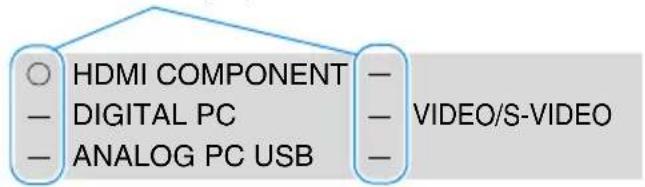
flowchart
graph TD
    A["○ HDMI COMPONENT"] --> B["—"]
    C["— DIGITAL PC"] --> D["—"]
    E["— ANALOG PC USB"] --> F["—"]
    G["VIDEO/S-VIDEO"]
■ Basic Operation of Menu
1 Press the MENU button to display a menu window.
Remote control Top control
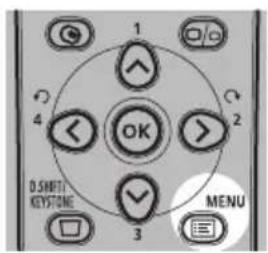
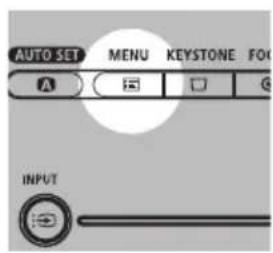
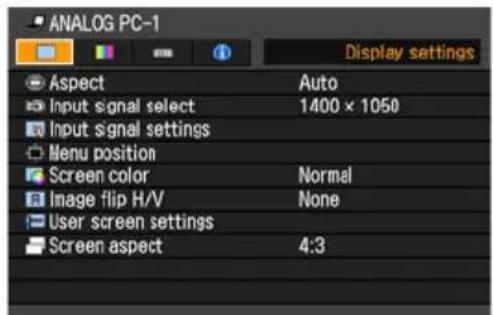
2Use [<] / [>] to select a tab.
Remote control Top control
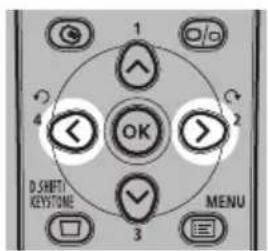
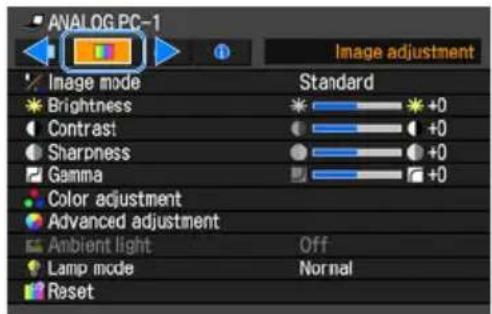
- If the tab position is not highlighted in orange, use [ ]W [ ] to move the highlight to the top.
3 Use [ ] / [ ] tovselect a item.
Remote control Top control
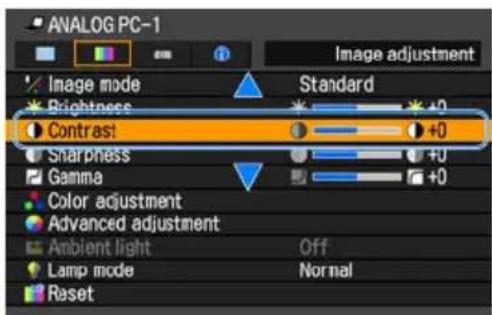
4Select contents.
How to select the contents varies depending on items.
Selection from a list Example: Aspect
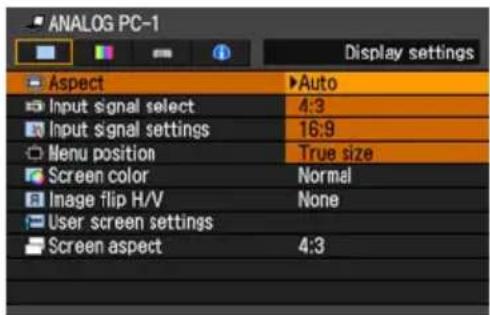
- Press the OK button or [>], and a list of the contents is displayed.
- Use [ ]V [ ] to select contents.
- If you found the contents you desired, press the OK button or [>].
With [<] / [>] Example: Contrast
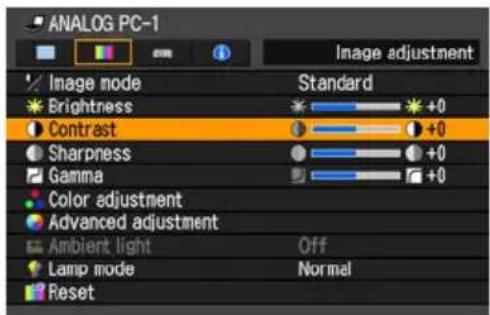
Use [<] / [>] to change the adjustment volume.
In a different screen (1) Example: Menu position
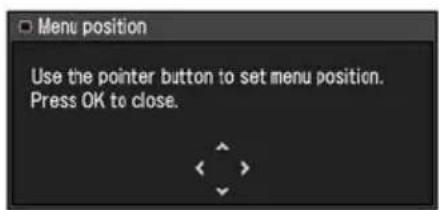
- Press the OK button to display a different screen.
- The follow the instruction on the screen.
In a different screen (2) Example: Tracking
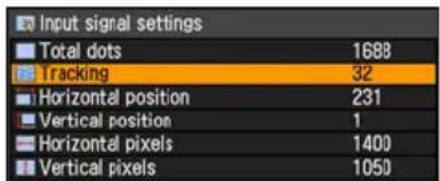
- Press the OK button to display a different screen.
- Use [ ]/ [ ] to select contents, and use [<] / [>] to select a value.
- If you found the contents you desired, press the OK button.
5Press the MENU button, and the menu screen disappears.
Selecting an Image Projection Mode
[Aspect]
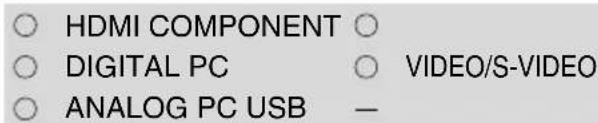
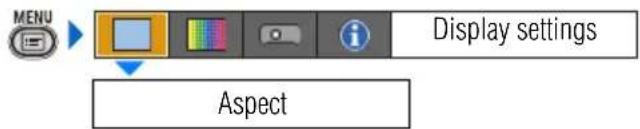
You can select a projection mode corresponding to the aspect ratio of image.
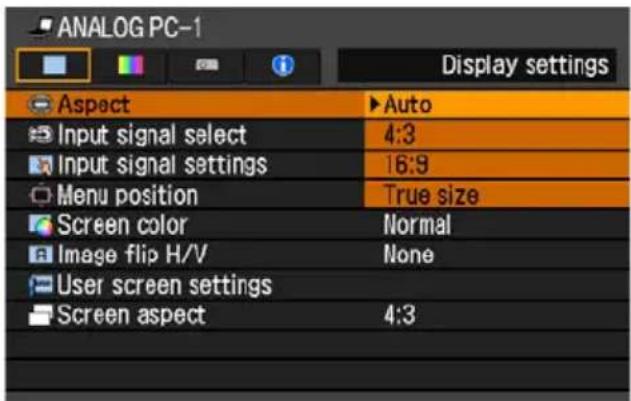
- Different contents are displayed for different screen aspects or input signal types.
- The ASPECT button on the remote control can also be used to select the Aspect settings.
Auto An image is projected at an aspect ratio of the input signal. Select this mode for normal image projection.
4:3 An image is projected at an aspect ratio of 4:3. Select this if an image of 4:3 aspect ratio cannot be appropriately projected in the [AUTO] mode.
16:9 An image is projected at an aspect ratio of 16:9. Select this if an image of 16:9 aspect ratio cannot be appropriately projected in the [AUTO] mode.
Zoom An image with 4:3 aspect ratio is projected in the center of the screen enlarged in 16:9 aspect ratio with the upper and lower portion of the image cut off. Select this when projecting visual software having aspect ratio of 4:3 and black belts at the top and bottom of the image.
- This mode is available when you select [16:9] or [16:9 D. image shift] for [Screen aspect] and select [HDMI (576p, 480p) (SX80 II)], [COMPONENT (576p, 480p, 576i, 480i)], [VIDEO] or [S-VIDEO (SX80 II)] for input signal.
True size An image is projected with the original resolution of the input signal. Select this to clearly project computer screen images having a resolution SXGA+ or lower (VGA, SVGA, XGA or SXGA) or visual software having a resolution lower than 1035i.
- This mode is available when you select [HDMI (720p, 576p, 480p) (SX80 II)] or [COMPONENT (720p, 576p, 480p)] for input signal.
- It is not available for an image having a resolution higher than SXGA+ or visual software having a resolution of 1080i, 1080p, 1035i, 576i or 480i.
- It is also available if the input signal is [ANALOG PC-1], [ANALOG PC-2], or [DIGITAL PC (SX80 II)]; however, it may not be available depending on the screen aspect setting.
Press the OK button to accept your setting and then press the MENU button.
![CANON XEED SX800 - [Aspect] - 4](/content/2026/05/793021/images/b807a9efa97adfea53238fd8bc82870b9d1114cdc97d7fd83d8af3b364788aa8.jpg)
• [Auto] and [True size] are not available if the input signal type is [VIDEO].
• [Auto] is automatically selected if the input signal type is [USB]. (SX80 II)
Selecting an Input Signal Type (ANALOG PC)
[Input signal select]
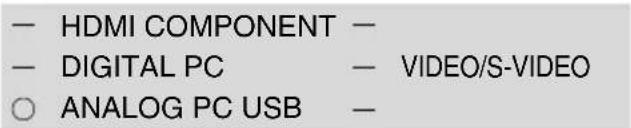

You can select a proper resolution if auto PC adjustment function (P57) cannot project a correct image from a computer.
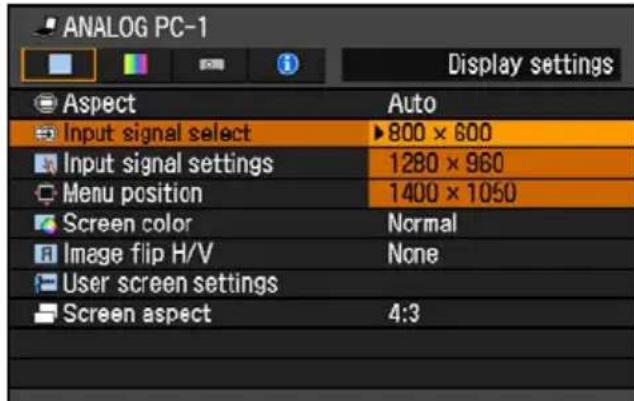
Press the OK button to accept your setting and then press the MENU button.
Select an input signal corresponding to the resolution of the computer.
- For the signal types supported by the projector, see the table on page 150.
Selecting an Input Signal Type (VIDEO/S-VIDEO*)
[Input signal select]
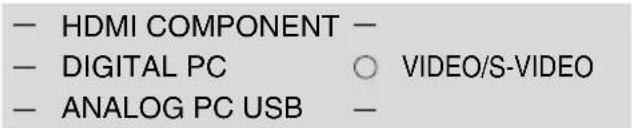
* is only applicable to SX80 MarkII
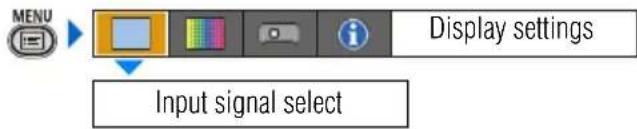
You can select a proper signal type if a video image from your AV equipment is not projected correctly.
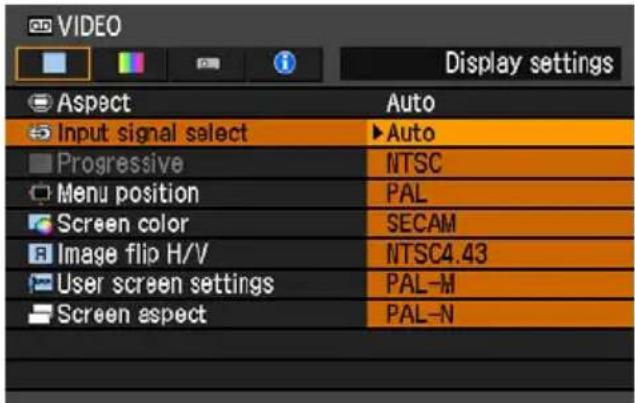
Press the OK button to accept your setting and then press the MENU button.
• [Auto] is the factory default.
- Refer to the User's Manual of your AV equipment connected to the projector to confirm the input signal type.
Selecting an Input Signal Type (COMPONENT)
[Input signal select]
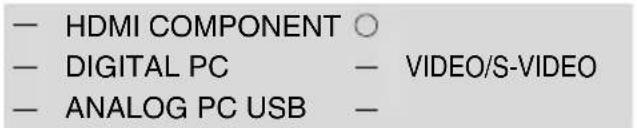

You can select a proper component signal type, if a video image from AV equipment is not projected correctly.
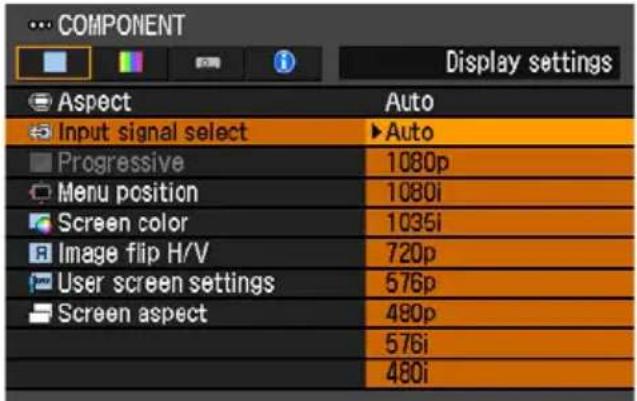
Press the OK button to accept your setting and then press the MENU button.
• [Auto] is the factory default.
- Refer to the User's Manual of your AV equipment connected to the projector to confirm the component signal type.
Adjusting Input Signal (ANALOG PC) – Total Dots
[Input signal settings] - [Total dots]

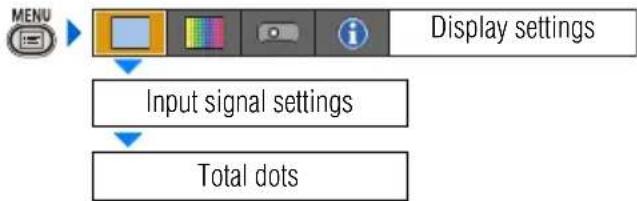
flowchart
graph TD
    A["MENU"] --> B["Display settings"]
    B --> C["Input signal settings"]
    C --> D["Total dots"]
You can adjust the total number of dots in the horizontal direction.
Adjust it when stripes are displayed on the screen.
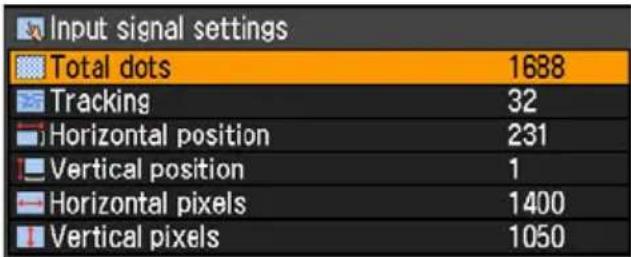
Use [<] / [>] to select a value.
When you have completed the adjustment, press the MENU button.
- Perform this adjustment if the [AUTO PC] function (P57) cannot adjust the project image correctly.
- You can make adjustment either for [ANALOG PC-1] or [ANALOG PC-2].
Adjusting Input Signal (ANALOG PC) – Tracking
[Input signal settings] - [Tracking]
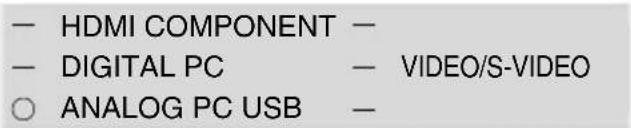
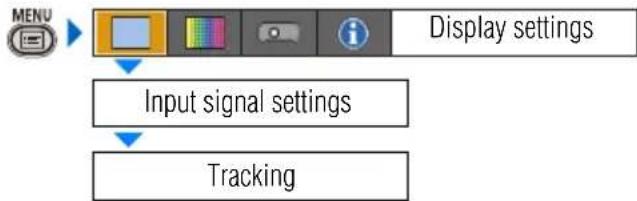
flowchart
graph TD
    A["MENU"] --> B["Display settings"]
    B --> C["Input signal settings"]
    C --> D["Tracking"]
You can fine-tune the timing for generating an image from the image signal.
Adjusts the tracking when the image distorts or flickers.
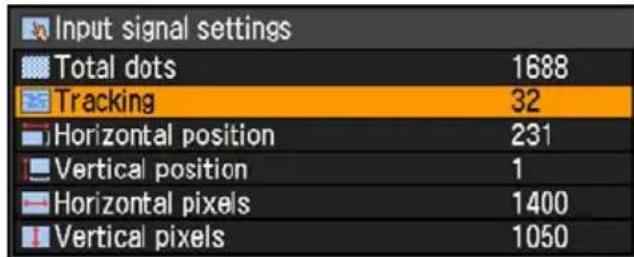
Use [<] / [>] to select a value.
When you have completed the adjustment, press the MENU button.
- Perform this adjustment if the [AUTO PC] function (P57) cannot adjust the project image correctly.
- You can make adjustment either for [ANALOG PC-1] or [ANALOG PC-2].
Adjust Input Signal (ANALOG PC) – Horizontal position
[Input signal settings] - [Horizontal position]
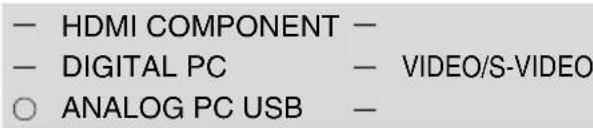

flowchart
graph TD
    A["Input signal settings"] --> B["Horizontal position"]
    C["Display settings"] --> A
You can adjust the horizontal position of the screen when the projected image is shifted in the horizontal direction.
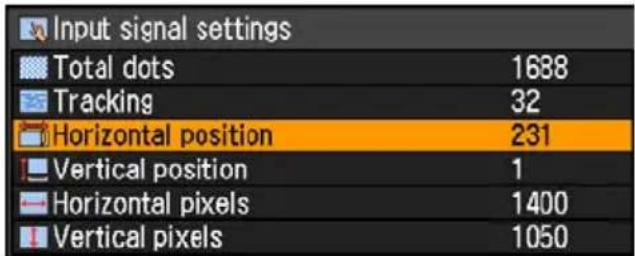
Use [<] / [>] to select a value. As the value increases, the screen moves to the left.
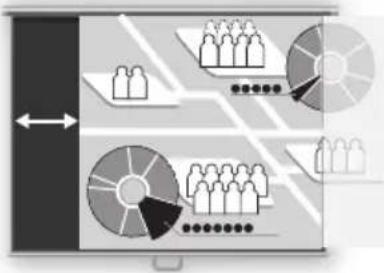
flowchart
graph TD
    A["User Interaction"] --> B["Group 1"]
    A --> C["Group 2"]
    B --> D["User Group 1"]
    C --> E["User Group 2"]
    D --> F["User Group 3"]
    E --> G["User Group 4"]
    style A fill:#f9f,stroke:#333
    style B fill:#ccf,stroke:#333
    style C fill:#ccf,stroke:#333
    style D fill:#cfc,stroke:#333
    style E fill:#cfc,stroke:#333
    style F fill:#ffc,stroke:#333
    style G fill:#ffc,stroke:#333
When you have completed the adjustment, press the MENU button.
- Perform this adjustment if the [AUTO PC] function (P57) cannot adjust the project image correctly.
- You can make adjustment either for [ANALOG PC-1] or [ANALOG PC-2].
Adjust Input Signal (ANALOG PC) – Vertical position
[Input signal settings] - [Vertical position]
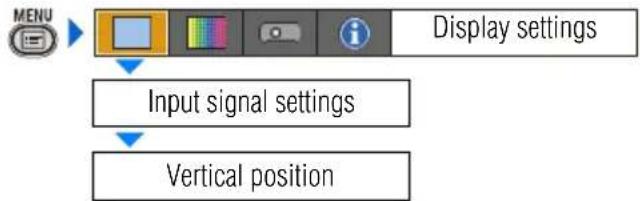
flowchart
graph TD
    A["MENU"] --> B["Display settings"]
    B --> C["Input signal settings"]
    C --> D["Vertical position"]
You can adjust the vertical position of the screen when the projected image is shifted in the vertical direction.
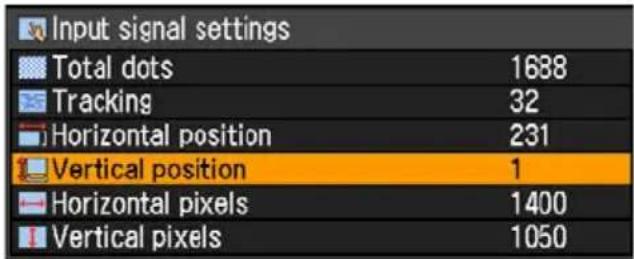
Use [<] / [>] to select a value. As the value increases, the screen moves upward.
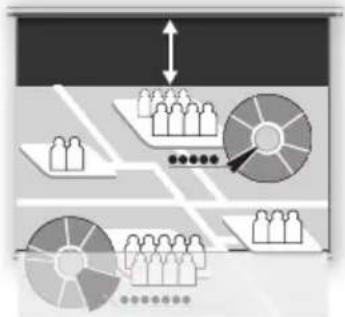
flowchart
graph TD
    A["User Input"] --> B["Group Allocation"]
    B --> C{Decision Point}
    C -->|Yes| D["Output 1"]
    C -->|No| E["Output 2"]
    D --> F["Feedback Loop"]
    E --> F
    style A fill:#f9f,stroke:#333
    style B fill:#ccf,stroke:#333
    style C fill:#cfc,stroke:#333
    style D fill:#fcc,stroke:#333
    style E fill:#cff,stroke:#333
When you have completed the adjustment, press the MENU button.
- Perform this adjustment if the [AUTO PC] function (P57) cannot adjust the project image correctly.
- You can make adjustment either for [ANALOG PC-1] or [ANALOG PC-2].
Adjust Input Signal (ANALOG PC) – Horizontal pixels
[Input signal settings] - [Horizontal pixels]
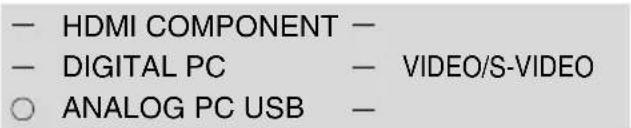
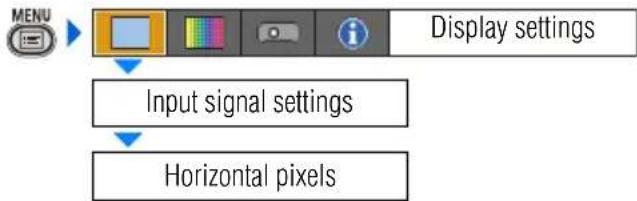
flowchart
graph TD
    A["Input signal settings"] --> B["Horizontal pixels"]
    C["Display settings"] --> A
You can adjust the number of the pixels in the horizontal direction if the length of the screen is too long or too short in the horizontal direction.

Use [<] / [>] to select a value.
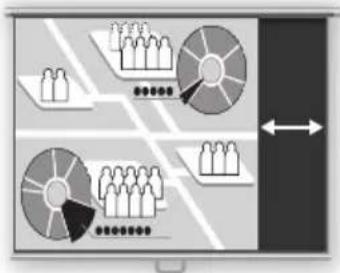
flowchart
graph TD
    A["Group 1"] --> B["Group 2"]
    B --> C["Group 3"]
    C --> D["Group 4"]
    D --> E["Group 5"]
    style A fill:#f9f,stroke:#333
    style B fill:#ccf,stroke:#333
    style C fill:#cfc,stroke:#333
    style D fill:#fcc,stroke:#333
    style E fill:#ffc,stroke:#333
When you have completed the adjustment, press the MENU button.
- Perform this adjustment if the [AUTO PC] function (P57) cannot adjust the project image correctly.
- You can make adjustment either for [ANALOG PC-1] or [ANALOG PC-2].
Adjust Input Signal (ANALOG PC) – Vertical pixels
[Input signal settings] - [Vertical pixels]
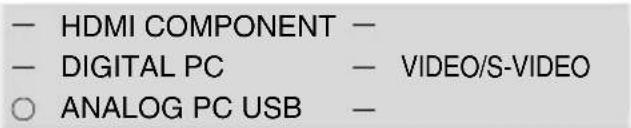
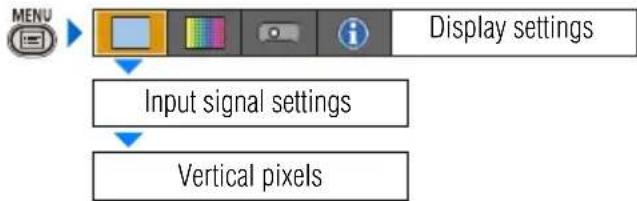
flowchart
graph TD
    A["MENU"] --> B["Display settings"]
    B --> C["Input signal settings"]
    C --> D["Vertical pixels"]
You can adjust the number of the pixels in the vertical direction if the length of the screen is too long or too short in the vertical direction.
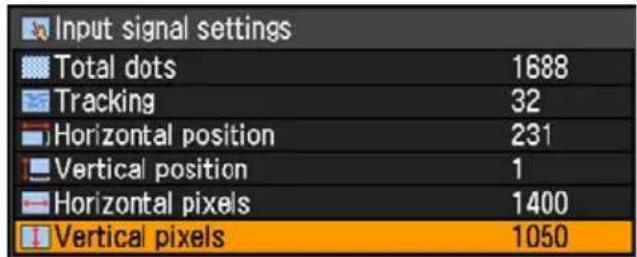
Use [<] / [>] to select a value.
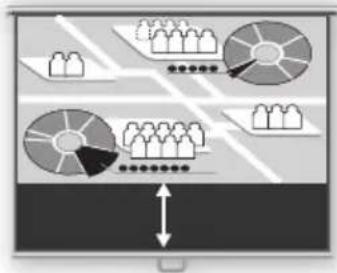
flowchart
graph TD
    A["User Group 1"] --> B["User Group 2"]
    B --> C["User Group 3"]
    C --> D["User Group 4"]
    D --> E["User Group 5"]
    style A fill:#f9f,stroke:#333
    style B fill:#ccf,stroke:#333
    style C fill:#cfc,stroke:#333
    style D fill:#fcc,stroke:#333
    style E fill:#ffc,stroke:#333
When you have completed the adjustment, press the MENU button.
- Perform this adjustment if the [AUTO PC] function (P57) cannot adjust the project image correctly.
- You can make adjustment either for [ANALOG PC-1] or [ANALOG PC-2].
Selecting HDMI Input Level (SX80 II)
[HDMI input level]
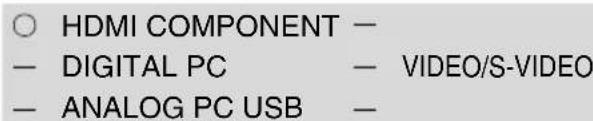

You can select this as required when you project visual software with the HDMI signals.
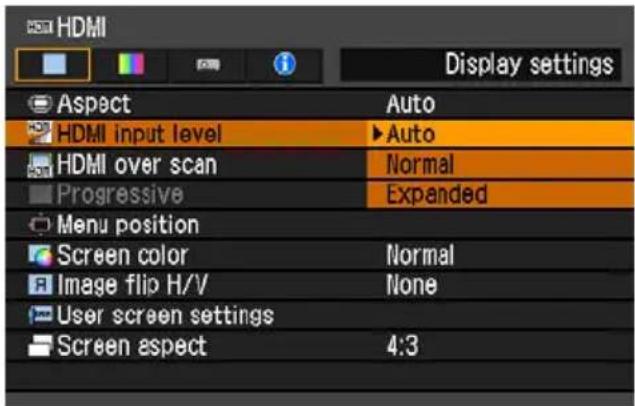
Press the OK button to accept your setting and then press the MENU button.
• [Auto] is the factory default.
- You can select this only when the type of signal sent from AV equipment is RGB.
- The signal level is select automatically in [Auto] mode. (Some AV equipment may not support this.)
- If the HDMI output of your AV equipment allows switching between [Normal] and [Expanded], we recommend you to set [Expanded]. The contrast of images will be improved and dark scenes will be rendered more realistically. In this case, select [Auto] or [Expanded] for the HDMI input level.
For more detailed information, refer to the User's Manual of your AV equipment connected to the projector.
Select HDMI Over Scan (SX80 II)
[HDMI over scan]
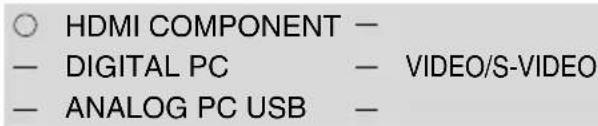
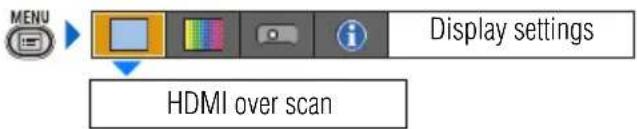
You can select this as required when you project visual software with the HDMI signals.
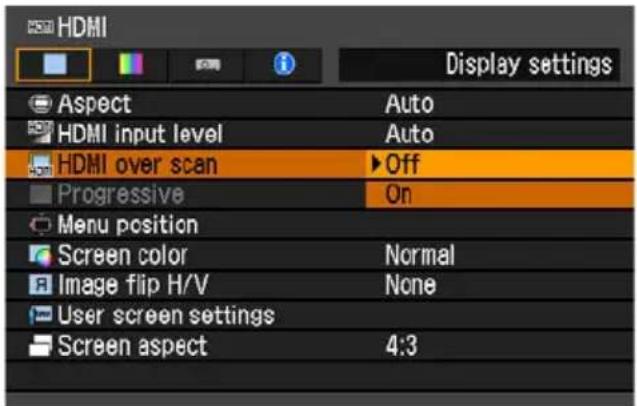
Off The entire input signals (100%) are projected.
The images projected may be smaller than the full projection screen.
On Images are projected with disorders at their peripheral section of images trimmed off. (The central 95% of the images are projected.)
A part of peripheral sections of images may be cut out depending on the resolution of the signals. In such a case, select [Off].
Press the OK button to accept your setting and then press the MENU button.
• [On] is the factory default.
Performing Progressive Processing
[Progressive]
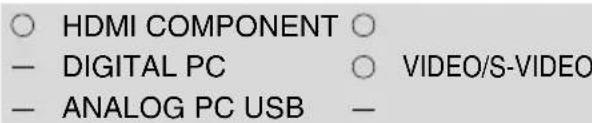
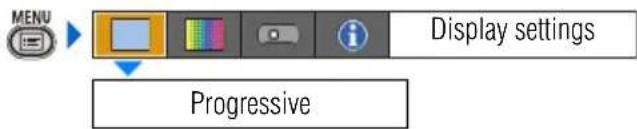
You can select this as required when the images have low resolution.
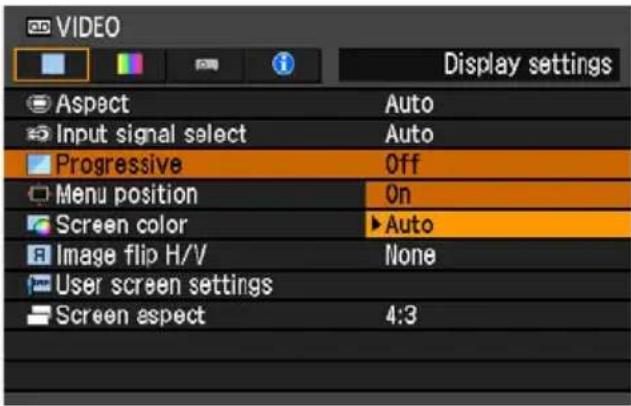
Off Do not perform the progressive processing.
On Performs the progressive processing. This mode is available when the HDMI signal is 1080i or, VIDEO/S-VIDEO or COMPONENT signal is 1080i, 1035i, 576i, or 480i.
Auto Performs the appropriate progressive processing according to the input signal.
Press the OK button to accept your setting and then press the MENU button.
• [Auto] is the factory default.
- You can set this mode for either [HDMI (SX80 II)], [COMPONENT], [VIDEO] or [S-VIDEO (SX80 II)].
- Select [Off] when flickers and horizontal lines are noticeable on a fast-moving picture.
- For the details of the progressive processing, refer to the page 154.
Selecting a Menu Position
[Menu position]
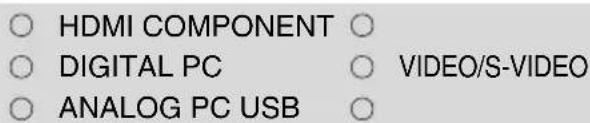
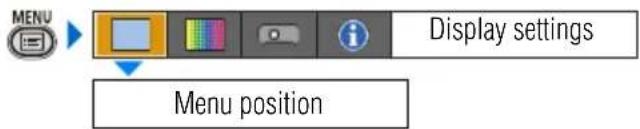
You can change the position of menu displayed.
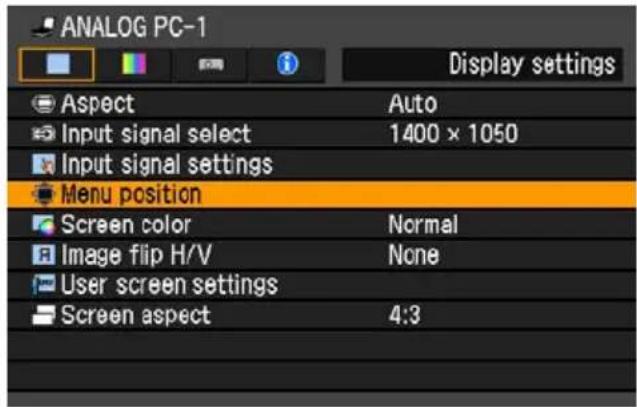
Move the menu to the desired position with []/[<]/[]/[>] .
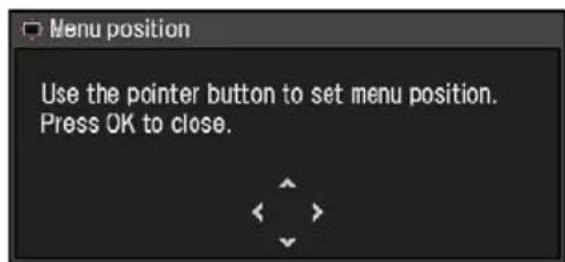
When the menu has been moved to the desired position, press the OK or MENU button.
Correcting the Screen Color
[Screen color]

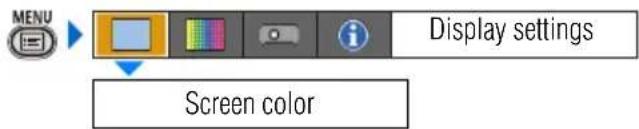
You can adjust the color quality of the images projected corresponding to the color of the projection screen.
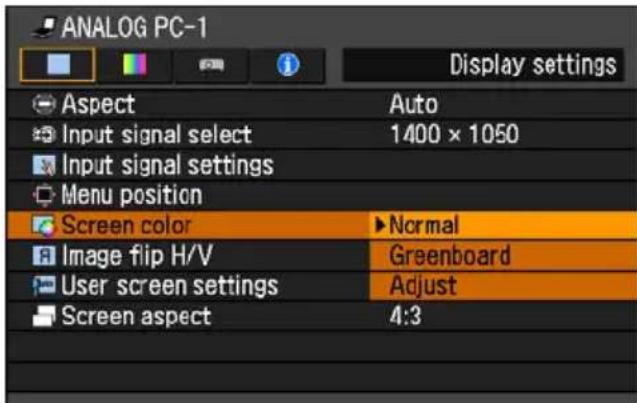
Normal Select this if a standard type of projection screen is used. The images are projected in the light quality similar to that of natural light.
Green-board Select this if a greenboard (in dark green color) is used for the projection screen. The color quality similar to [Normal] is obtained on the greenboard.
Adjust Select this if you make detailed adjustment. The following popup screen will appear.

Use [λ] / [ ] to select a primary color. [>] makes the color selected darker. [<] makes the color selected lighter. Press the AUTO SET button while the screen is displayed if you want to perform the auto color correction. (SX80 II)
Press the OK button to accept your setting and then press the MENU button.
• [Normal] is the factory default.
Reversing projection
[Image flip H/V]
You can make this setting if you want to hang the projector from the ceiling or project an image from behind the screen.
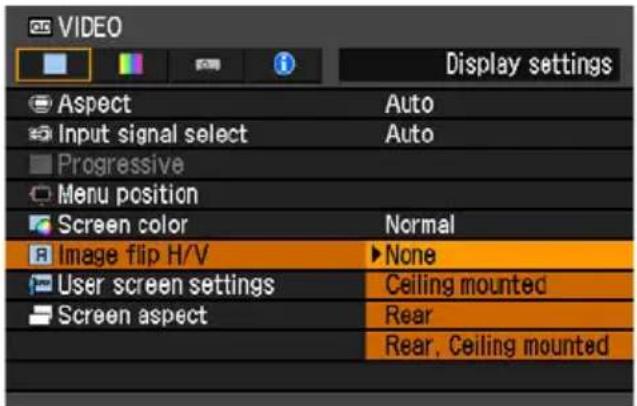
None Select this if you project an image normally.
| Ceiling mounted | Select this if you project an image with the projector hung from the ceiling.The projected images is inverted in both vertical and horizontal directions. |
Rear Select this if you project an image from behind the screen. The projected images is inverted in the horizontal direction.
Rear, Ceiling mounted Select this if you project an image from behind the screen with the projector hung from the ceiling. The projected image is inverted in the vertical direction.
Press the OK button to accept your setting and then press the MENU button.
• [None] is the factory default.
None (Normal image)
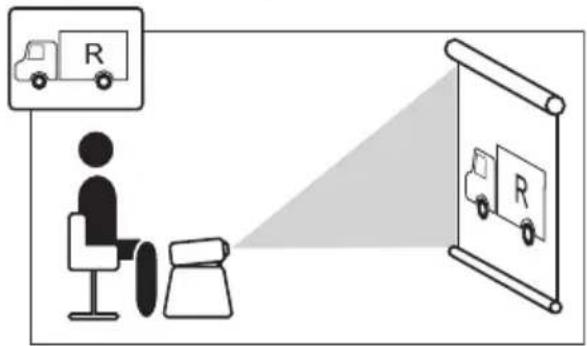
Ceiling mounted
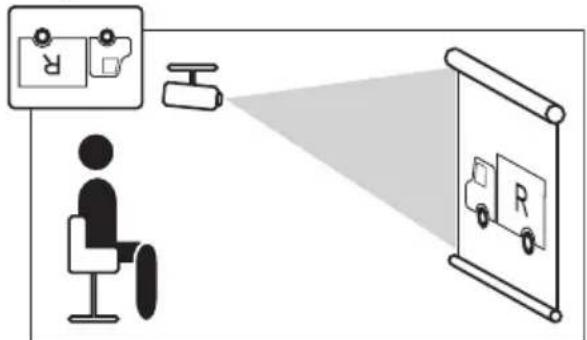
Rear
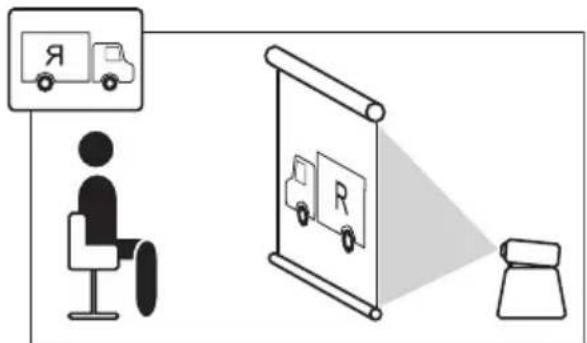
Rear, Ceiling mounted
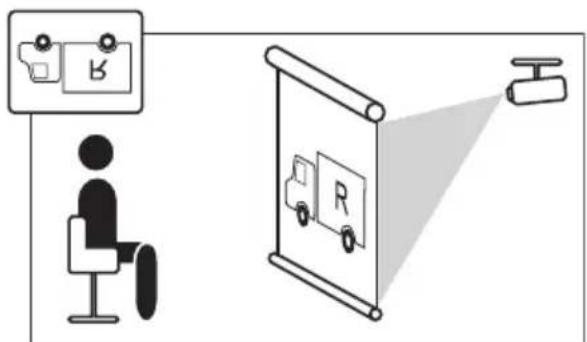
- To hung the projector from the ceiling, use the optional bracket. Contact your Canon dealer.
- The keystone distortion adjustment will be reset.
Capturing a Logo (SX800)
[User screen settings] - [Logo capture]
You can capture a part of the images being projected as [User logo].
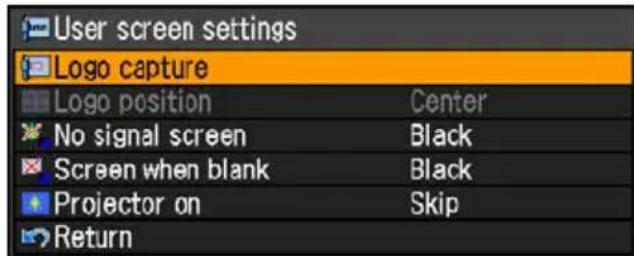
A screen for capturing images is displayed.
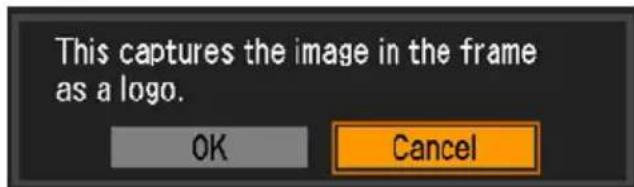
OK Press the OK button, and the image in the red frame is captured as [User logo].
Cancel Cancels the image capturing.
- For projecting the captured log on a screen, select [User logo] on the [Projector on], [No signal screen], [Screen when blank].
- You may not capture an image depending on the resolution and scan system.
- You cannot capture an image when [16:9] or [16:9 D. image shift] is selected for [Screen aspect].
Selecting the User Logo Display Position (SX800)
[User screen settings] - [Logo position]
You can select a log display position.
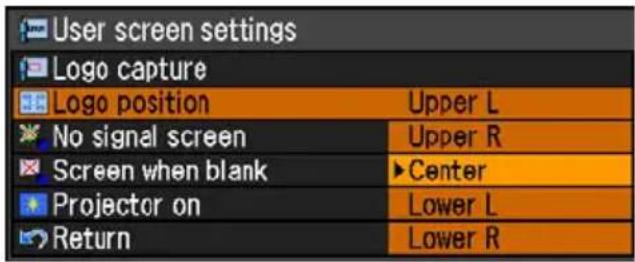
Upper L Select a position you want to dis- Upper R play a user logo and press the Center OK button. Lower L Lower R
Press the OK button to accept your setting and then press the MENU button.
• [Center] is the factory default.
- You cannot select [Logo position] if you have not captured a user logo on the [Logo capture] screen.
No Signal Screen (SX80 II)
[User screen settings] - [No signal screen]
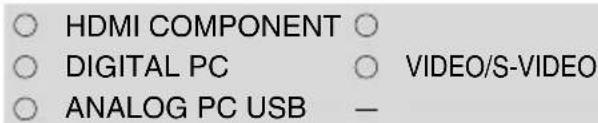

flowchart
graph TD
    A["User screen settings"] --> B["Display settings"]
    B --> C["No signal screen"]
You can display either of a black or blue screen when there is no input signal.
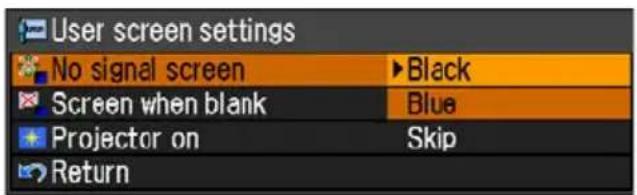
Black The screen is all black.
Blue The screen is blue background.
Press the OK button to accept your setting and then press the MENU button.
• [Blue] is the factory default.
Screen When Blank (SX80 II)
[User screen settings] - [Screen when blank]

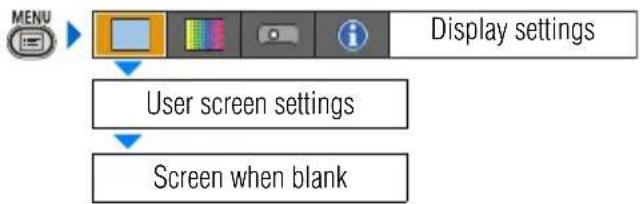
flowchart
graph TD
    A["User screen settings"] --> B["Display settings"]
    B --> C["Screen when blank"]
You can display a black or blue screen when the projected image is blanked off temporarily by pressing the BLANK button on the remote control.
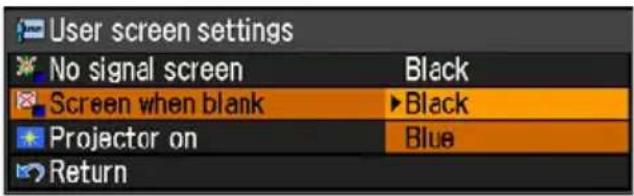
Black The screen is all black.
Blue The screen is blue background.
Press the OK button to accept your setting and then press the MENU button.
- [Black] is the factory default.
Selecting a Logo at Startup (SX80 II)
[User screen settings] - [Projector on]
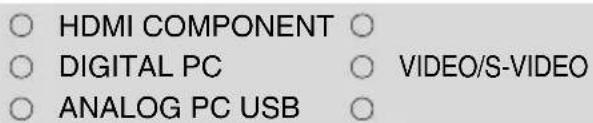
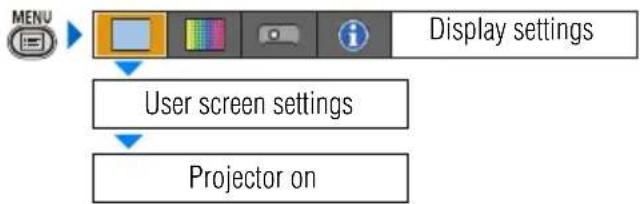
flowchart
graph TD
    A["User screen settings"] --> B["Display settings"]
    B --> C["Projector on"]
You can display a specified logo on a screen from the moment the projector is turned on to the moment it is ready fro projection.
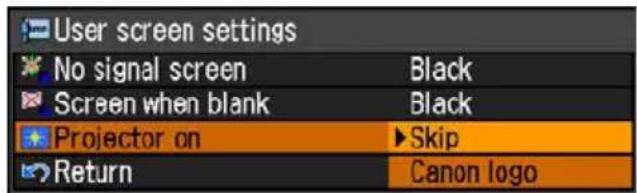
Skip Projects an input signal immediately after turning on the projector.
Canon logo Displays the Canon logo captured at the factory.
Press the OK button to accept your setting and then press the MENU button.
- [Canon logo] is the factory default.
No Signal Screen (SX800)
[User screen settings] - [No signal screen]
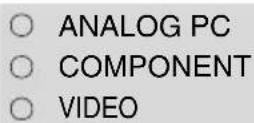
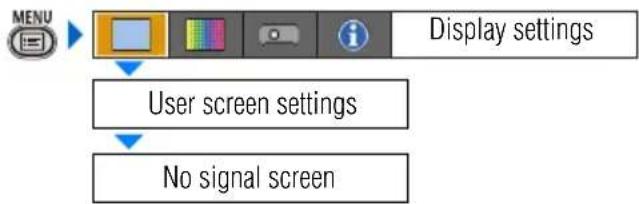
flowchart
graph TD
    A["User screen settings"] --> B["Display settings"]
    B --> C["No signal screen"]
You can display a user logo on a screen when there is no input signal.
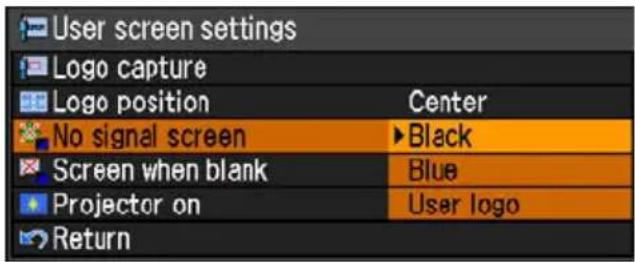
Black The screen is all black. Displays no user logo.
Blue The screen is blue background. Displays no user logo.
User logo Displays a user logo.
Press the OK button to accept your setting and then press the MENU button.
• [Blue] is the factory default.
- [User logo] is available only when a user's logo has been registered.
Screen When Blank (SX800)
[User screen settings] - [Screen when blank]
You can display a user logo a screen when the projected image is blackened out temporarily by pressing the BLANK button on the remote control.
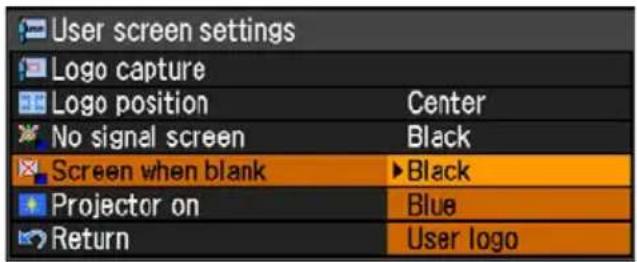
Black The screen is all black. Displays no user logo.
Blue The screen is blue background. Displays no user logo.
User logo Displays a user logo.
Press the OK button to accept your setting and then press the MENU button.
- [Black] is the factory default.
- [User logo] is available only when a user's logo has been registered.
Selecting a Logo at Startup (SX800)
[User screen settings] - [Projector on]
You can display a specified logo on a screen from the moment the projector is turned on to the moment it is ready fro projection.
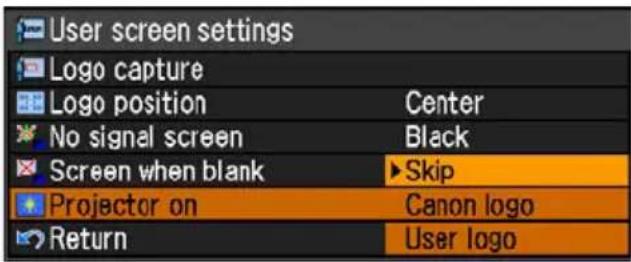
Skip Projects an input signal immediately after turning on the projector.
Canon logo Displays the Canon logo captured at the factory.
User logo Displays a user logo captured on the [Logo capture] screen.
Press the OK button to accept your setting and then press the MENU button.
- [Canon logo] is the factory default.
- [User logo] is available only when a user's logo has been registered.
Selecting Aspect Ratio of Screen
[Screen aspect]
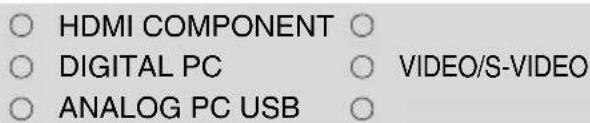

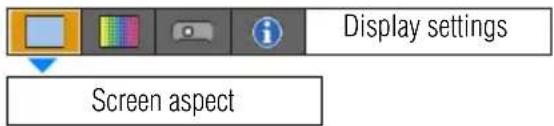
You can select proper option corresponding to the aspect ratio of the projecting screen.
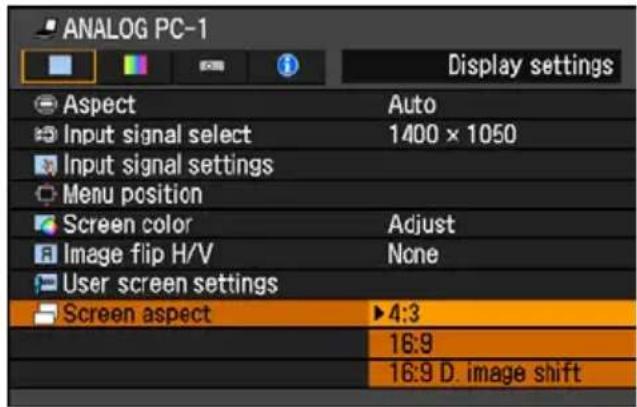
4:3 Select this when you use a screen with aspect ratio of 4:3. You can adjust the keystone distortion with D.SHIFT/KEYSTONE button.
16:9 Select this when you use a screen with aspect ratio of 16:9. You can adjust the keystone distortion with D.SHIFT/KEYSTONE button.
16:9 Select this when you use a screen D. image with aspect ratio of 16:9. shift You can move the screen upward or downward with D.SHIFT/KEYSTONE button.
Press the OK button to accept your setting and then press the MENU button.
• [4:3] is the factory default.
- If you select [16:9 D. image shift], the keystone adjustment will be reset. For more details, refer to the page 63.
- [Auto] may be automatically selected for [Screen aspect] depending on the screen aspect setting.
Selecting an Image Quality
[Image mode]
flowchart
graph TD
    A["MENU"] --> B["Image adjustment"]
    B --> C["Image mode"]
You can select an image mode suitable for the projecting image.
You can select it also with the IMAGE button on the remote control.
SX80 MarkII
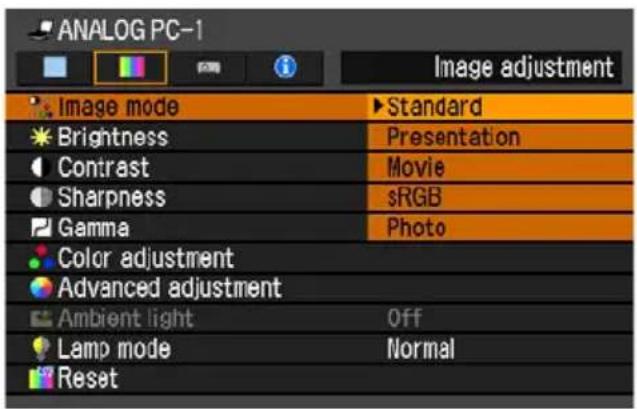
Press the OK button to accept your setting and then press the MENU button.
• [Standard] is the factory default.
- You can decide the image quality by adjusting the following items in each image mode:
[Brightness], [Contrast], [Sharpness], [Gamma], [Color adjustment], [Advanced adjustment] and [Lamp mode].
- The adjustment you have made is stored as each combination of input signals and an image mode.
Standard Select this to project an image with near-original quality and a high regard for reproduction of white. It is suited to showing a computer screen or watching visual software (moving pictures) in a bright room.
Presentation Select this to project an image with quality suited for the presentation. It is also suited to project visual software (moving pictures) with a high regard for the brightness.
Movie Select this to project moving pictures of all kinds. Its brightness is suited to easily enjoy the atmosphere of a movie theatre in a dim room.
sRGB Select this if you want to project an image in the display mode conforming to the sRGB standard (P152). It is suited to project an image shot by sRGB-compatible digital camera.
Photo * If you select [Photo] for [Image mode], make sure to set [Ambient light] in the [Image adjustment] as well. You can correct an image according to the ambient light based on [sRGB] in [Image mode] and project the image with higher tone on the screen by setting [Ambient light]. It is suited to project an ornamental photo, etc. under an ambient light. It is available if the input signal is [ANALOG PC-1], [ANALOG PC-2], [DIGITAL PC], or [USB].
* is only applicable to SX80 MarkII
Adjusting the Brightness
[Brightness]
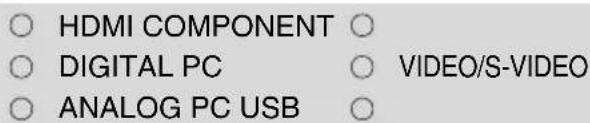
![CANON XEED SX800 - [Brightness] - 2](/content/2026/05/793021/images/2455198041aea316997c87dba98596a8cfa999e023b7744a3c33db064782274e.jpg)
flowchart
graph TD
    A["MENU"] --> B["Image adjustment"]
    B --> C["Brightness"]
You can adjust the brightness of images.
SX80 MarkII
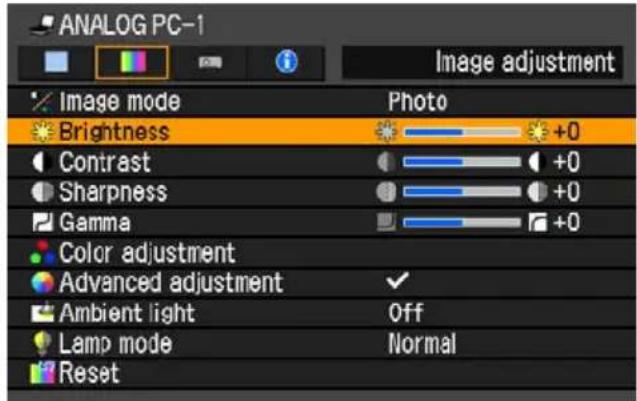
[>] Increases the brightness of an image.
[<] Decreases the brightness of an image.
When you have completed the adjustment, press the MENU button.
- The adjustment you have made is stored as an adjusted value of input signals being projected in an image mode.
Adjusting the Contrast
[Contrast]
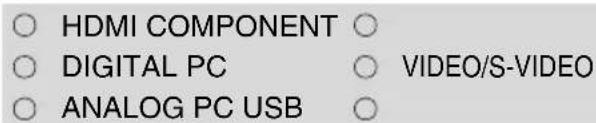
![CANON XEED SX800 - [Contrast] - 2](/content/2026/05/793021/images/e8bf7dde5acd9ad564f8fcfa958d54c90d38c637ca6edba6a1719d19a675dca4.jpg)
flowchart
graph TD
    A["MENU"] --> B["Image adjustment"]
    B --> C["Contrast"]
You can adjust the contrast of images. If you want to make it more or less vivid, adjust the difference in tone between the lightest and darkest portions of the image.
SX80 MarkII
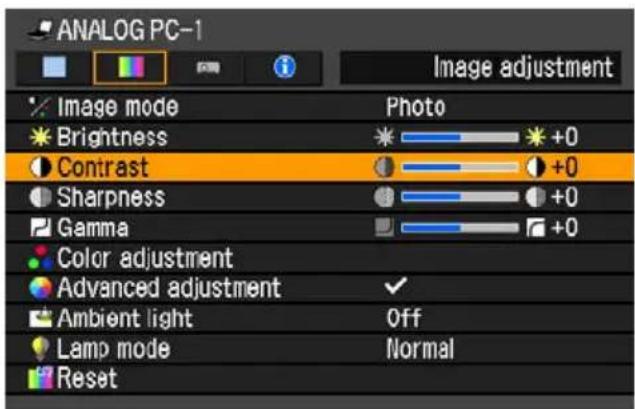
[>] Increases the contrast of an image. It emphasizes the darker portion and the bright portion on the projected image.
[<] Decreases the contrast of an image. The image becomes less vivid.
When you have completed the adjustment, press the MENU button.
- The adjustment you have made is stored as an adjusted value of input signals being projected in an image mode.
Adjusting the Sharpness
[Sharpness]

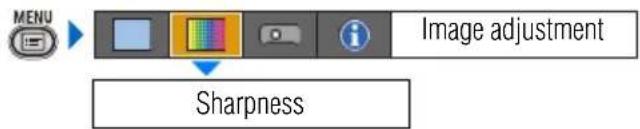
You can adjust the sharpness of images.
SX80 MarkII
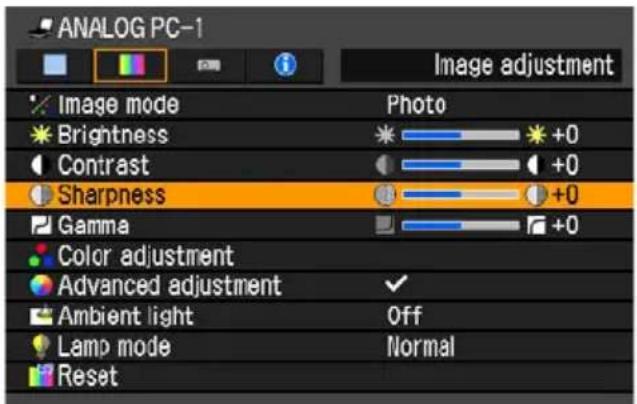
[>] Increases the sharpness of an image.
[<] Decreases the sharpness of an image.
When you have completed the adjustment, press the MENU button.
- The adjustment you have made is stored as an adjusted value of input signals being projected in an image mode.
Making a Gamma Correction
[Gamma]

![CANON XEED SX800 - [Gamma] - 2](/content/2026/05/793021/images/f5f23823bba29966d04a0cada416ce90f82bee2c63c60fff0ae735eb7666dd62.jpg)
flowchart
graph TD
    A["MENU"] --> B["Image adjustment"]
    B --> C["Gamma"]
You can correct the obscure portion of an image due to too dark or bright.
SX80 MarkII
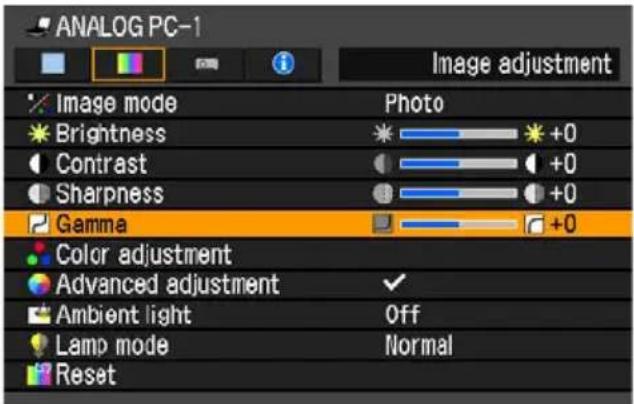
[>] Brighten the dark portion.
[<] Darken the bright portion.
When you have completed the adjustment, press the MENU button.
- The adjustment you have made is stored as an adjusted value of input signals being projected in an image mode.
- For the details of the gamma correction, refer to the page 154.
Making Color Adjustment (HDMI) (SX80 II)
[Color adjustment]
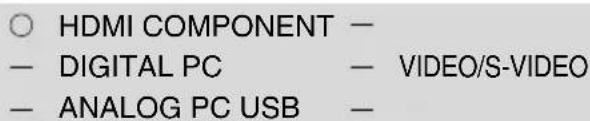

flowchart
graph TD
    A["MENU"] --> B["Image adjustment"]
    B --> C["Color adjustment"]
You can adjust the color quality of images for each of primary colors, red, green and blue.
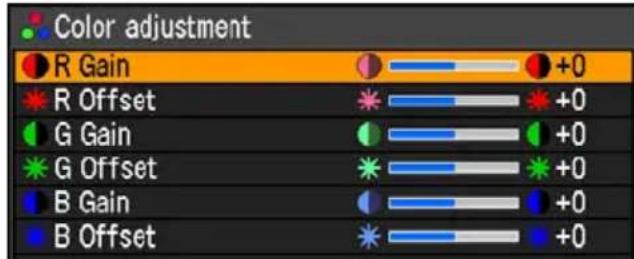
| R/G/B Gain | Adjust the intensity of each color. [>] Increases the color intensity. [<] Decreases the color intensity. |
| R/G/B Offset | Adjusts the color reproducibility of dark portions of each color. [>] Increases the color reproducibility of color. [<] Decreases the color reproducibility of color. |
When you have completed the adjustment, press the MENU button.
- The adjustment you have made is stored as an adjusted value of input signals being projected in an image mode.
- Adjusting a color makes ▼ark shown in [Color adjustment] in the menu.
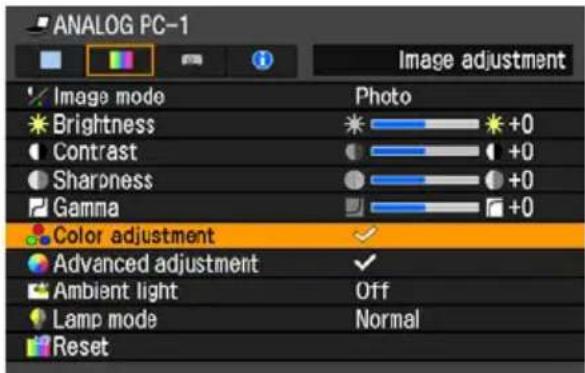
Making Color Adjustment (Digital PC/Analog PC/USB) (SX80 II)
[Color adjustment]
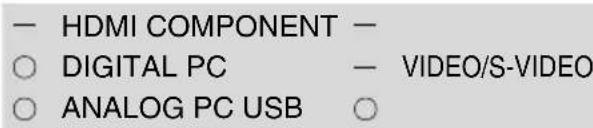
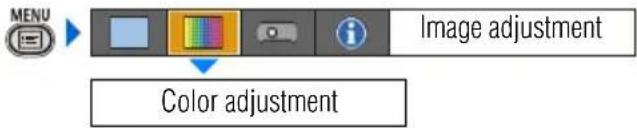
flowchart
graph TD
    A["MENU"] --> B["Image adjustment"]
    B --> C["Color adjustment"]
You can adjust the color of an image for each of primary colors, red, green, and blue. You can also adjust the color temperature.
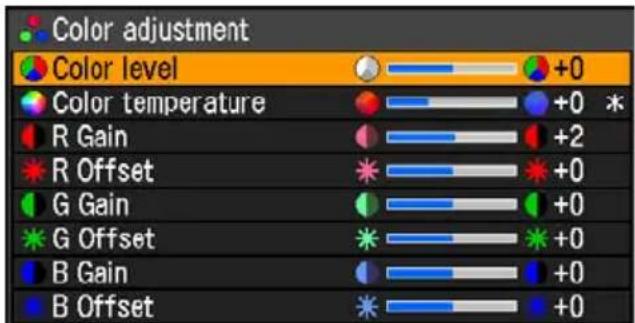
| Color level* | Adjusts the intensity of each color. [>] Increases the intensity of color. [<] Decreases the intensity of color. |
| Color temperature* | Adjusts the color temperature of the temperature-image. [>] Changes to the blue color (cold color). [<] Changes to the red color (warm color). |
| R/G/B Gain | The same as “Making Color Adjustment (HDMI)”. |
| R/G/B Offset | The same as “Making Color Adjustment (HDMI)”. |
* You can set this if you have selected [Photo] for [Image mode].
When you have completed the adjustment, press the MENU button.
- The adjustment you have made is stored as an adjusted value of input signals being projected in an image mode.
- If you change R/G/B Gain or Offset once color temperature has been specified, the "*" mark is displayed at the right side of the setting value to indicate the color temperature has been specified.
Making Color Adjustment (COMPONENT/VIDEO/S-VIDEO) (SX80 II)
[Color adjustment]
flowchart
graph TD
    A["MENU"] --> B["Image adjustment"]
    B --> C["Color adjustment"]
You can adjust the color depth and hue of images for each of primary colors, red, green and blue.
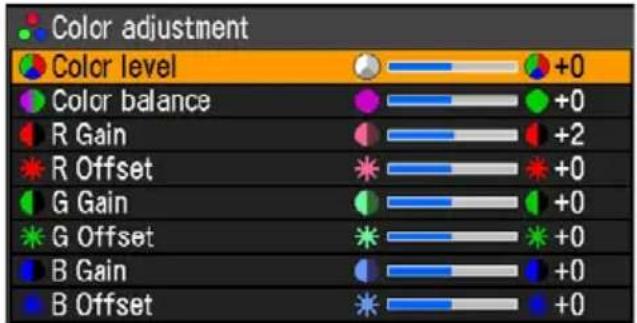
Color level Adjusts the intensity of each color. [>] Increases the intensity of color. [<] Decreases the intensity of color.
Color balance Adjusts the color balance of a reddish or greenish image. [>] Corrects a reddish image. [<] Corrects a greenish image.
R/G/B Gain The same as "Making Color Adjustment (HDMI)".
R/G/B Offset The same as "Making Color Adjustment (HDMI)".
When you have completed the adjustment, press the MENU button.
- You cannot adjust the [Color balance] in [Video] or [S-Video] except NTSC.
- The adjustment you have made is stored as an adjusted value of input signals being projected in an image mode.
Making Color Adjustment (Analog PC) (SX800)
[Color adjustment]
flowchart
graph TD
    A["MENU"] --> B["Image adjustment"]
    B --> C["Color adjustment"]
You can adjust the color quality of images for each of primary colors, red, green and blue.
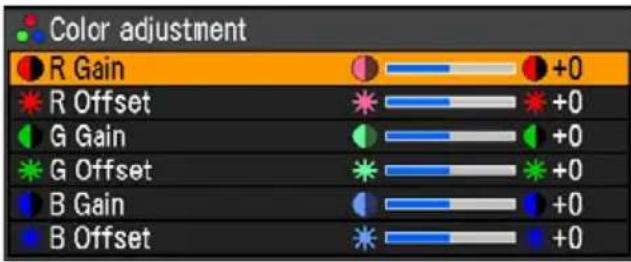
R/G/B Adjust the intensity of each color.
Gain [>] Increases the color intensity.
[<] Decreases the color intensity.
R/G/B Adjusts the color reproducibility of dark Offset portions of each color.
[>] Increases the color reproducibility of color.
[<] Decreases the color reproducibility of color.
When you have completed the adjustment, press the MENU button.
- The adjustment you have made is stored as an adjusted value of input signals being projected in an image mode.
- Adjusting a color makes ▼mark shown in [Color adjustment] in the menu.
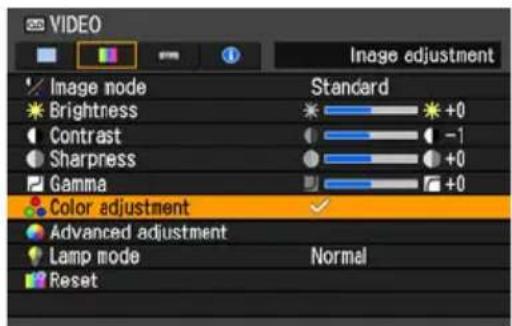
Making Color Adjustment (COMPONENT/VIDEO) (SX800)
[Color adjustment]
- ANALOG PC
COMPONENT
○ VIDEO

flowchart
graph TD
    A["MENU"] --> B["Image adjustment"]
    B --> C["Color adjustment"]
You can adjust the color depth and hue of images for each of primary colors, red, green and blue.
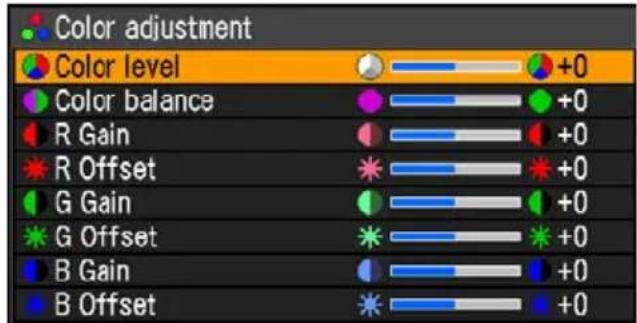
Color level Adjusts the intensity of each color. [>] Increases the intensity of color. [<] Decreases the intensity of color.
Color balance Adjusts the color balance of a reddish or greenish image. [>] Corrects a reddish image. [<] Corrects a greenish image.
R/G/B Gain The same as "Making Color Adjustment (Analog PC) (SX800)".
R/G/B Offset The same as "Making Color Adjustment (Analog PC) (SX800)".
When you have completed the adjustment, press the MENU button.
- You cannot adjust the [Color balance] in [Video] except NTSC.
- The adjustment you have made is stored as an adjusted value of input signals being projected in an image mode.
Making Advanced Adjustment (Noise reduction)
[Advanced adjustment] - [Noise reduction]
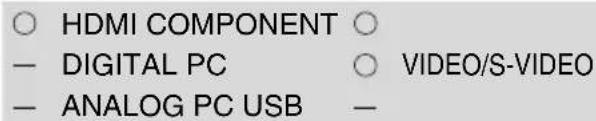
flowchart
graph TD
    A["MENU"] --> B["Image adjustment"]
    B --> C["Advanced adjustment"]
    C --> D["Noise reduction"]
You can reduce noise of picture.
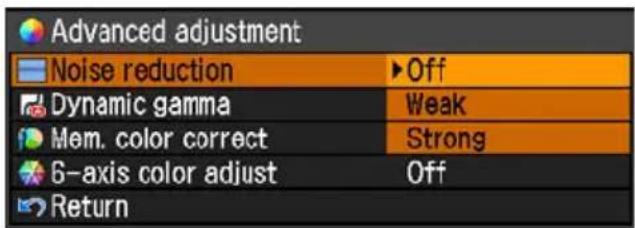
Off Disables noise reduction.
Weak Select this option for noisy picture.
Strong Select this option for excessively noisy picture.
Press the OK button to accept your setting and then press the MENU button.
• [Off] is the factory default.
- Noise reduction may produce an after-image for quick footage.
- Select [Weak] for quick footage. Select [Strong] for slow footage.
- The setting you have made is stored as a setting value of input signals being projected in an image mode.
- Making this setting makes ▼ark shown in [Advanced adjustment] in the menu.
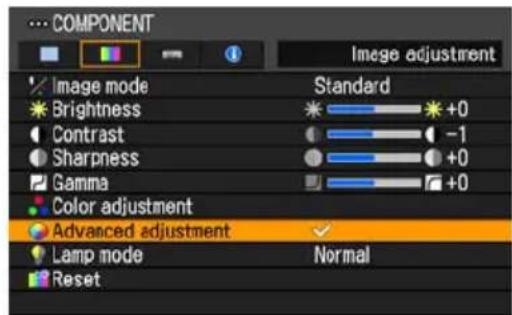
Making Advanced Adjustment (Dynamic gamma)
[Advanced adjustment] - [Dynamic gamma]
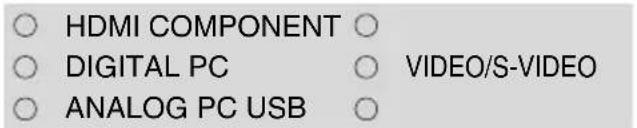
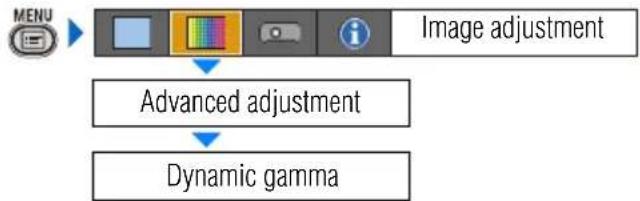
flowchart
graph TD
    A["MENU"] --> B["Image adjustment"]
    B --> C["Advanced adjustment"]
    C --> D["Dynamic gamma"]
You can adjust the gradation representation of light and dark portions of an image automatically.
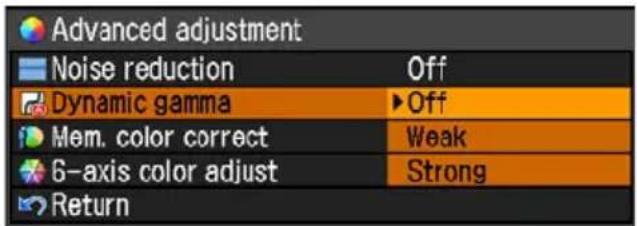
Off Dynamic gamma is disabled.
Weak Dynamic gamma is used a little.
Strong Dynamic gamma is used to a large extent.
Press the OK button to accept your setting and then press the MENU button.
• [Off] is the factory default.
- The adjustment you have made is stored as an adjusted value of input signals being projected in an image mode.
Making Advanced Adjustment (Mem. color correct) (SX80 II)
[Advanced adjustment] - [Mem. color correct]
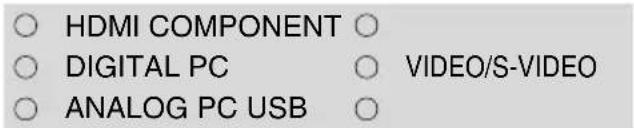
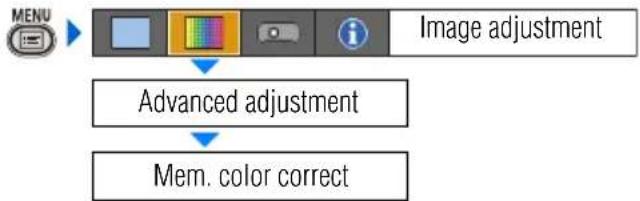
flowchart
graph TD
    A["MENU"] --> B["Image adjustment"]
    B --> C["Advanced adjustment"]
    C --> D["Mem. color correct"]
You can correct colors (e.g. blue sky, field of grass, skin) in our memory so that they can be projected more vividly.

Off Disables the memorized color correction function.
| L | Specifies the intensity of the memorized color correction in three steps. |
| M | |
| H |
Press the OK button to accept your setting and then press the MENU button.
• [Off] is the factory default.
- The adjustment you have made is stored as an adjusted value of input signals being projected in an image mode.
- For the details of the memorized color correction, refer to the page 155.
Making Advanced Adjustment (Auto fleshtone) (SX800)
[Advanced adjustment] - [Auto fleshtone]
You can represent the skin color impressively.
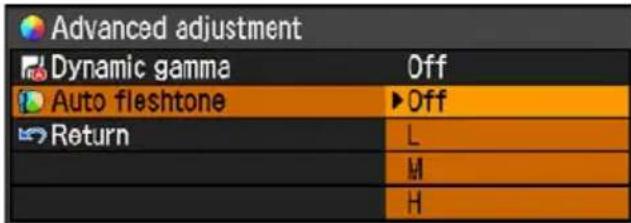
Off Disables the [Auto fleshtone] function.
L Specifies the intensity of the [Auto flesh-tone] in three steps.
H
Press the OK button to accept your setting and then press the MENU button.
- The adjustment you have made is stored as an adjusted value of input signals being projected in an image mode.
Adjusting Fine Color Adjustment (6-axis color adjust) (SX80 II)
[Advanced adjustment] - [6-axis color adjust]
flowchart
graph TD
    A["MENU"] --> B["Image adjustment"]
    B --> C["Advanced adjustment"]
    C --> D["6-axis color adjust"]
You can make fine color adjustment with RGB (red, green, blue) and CMY (cyan, magenta, yellow). For the details of 6-axis color adjust, refer to the page 155.
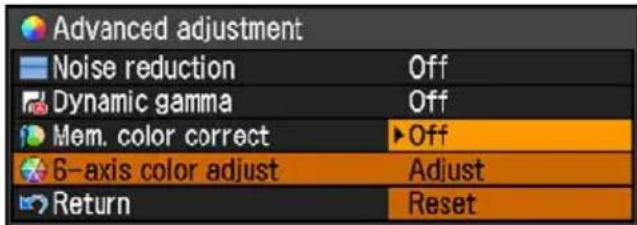
Off Disables the 6-axis color adjustment. If you select [Adjust], the previous setting of 6-axis color adjustment becomes active again.
Adjust Enables the 6-axis color adjustment.
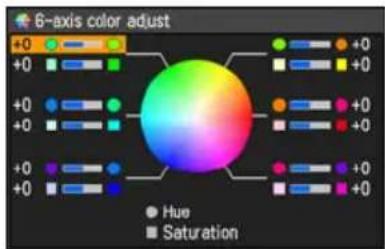
Use [↑] / [ ] to select [ Hue] or [ □ Saturation], then adjust them with [<] / [>].
Reset Returns any adjustment values to zero.
When you have completed the adjustment, press the MENU button.
• [Off] is the factory default.
- The adjustment you have made is stored as an adjusted value of input signals being projected in an image mode.
Correcting the Image According to the Ambient Light (SX80 II)
[Ambient light]
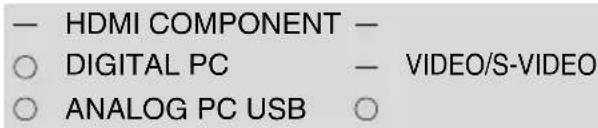
flowchart
graph TD
    A["MENU"] --> B["Image adjustment"]
    B --> C["Ambient light"]
You can correct and project an image more appropriately according to the ambient light on the screen if you have selected [Photo] for [Image mode].
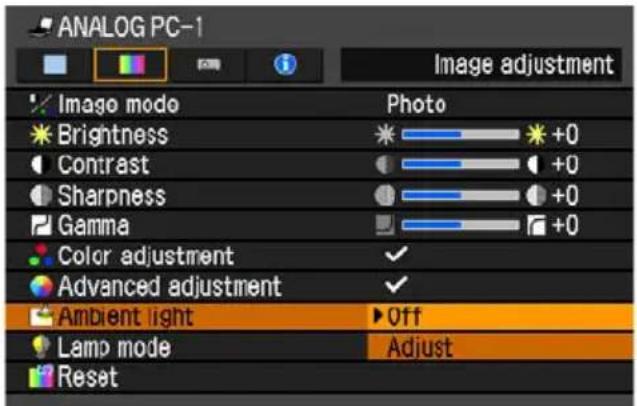
Off Projects an image with no correction.
Adjust You can specify the type and level (brightness) of the ambient light.
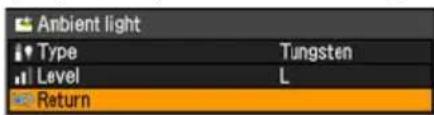
Type Tungsten
Select this if the ambient light source is a light bulb or bulb color fluorescent.
Fluorescent
Select this if the ambient light source is a day white fluorescent.
Fluorescent H
Select this if the ambient light source is a daylight fluorescent.
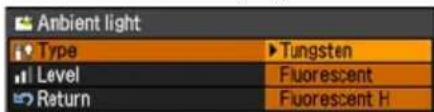
Level L Select this if the ambient light source is a light bulb or bulb color fluorescent.
M Select this if the ambient light source is a day white fluorescent.
H Select this if the ambient light source is a daylight fluorescent.
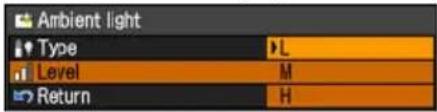
An Example of the Ambient Light Setting
| Level | Example Location |
| L A projection room, sports bar, etc. | |
| M Photo studio, galley | |
| H Conference room, lecture room | |
Press the OK button to accept your setting and then press the MENU button.
• [Off] is the factory default.
- You can set this if you have selected [Photo] for [Image mode].
Reducing the Lamp Brightness
[Lamp mode]
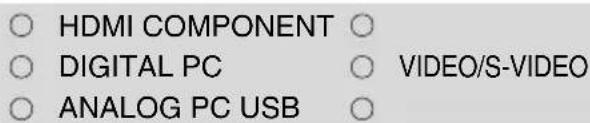
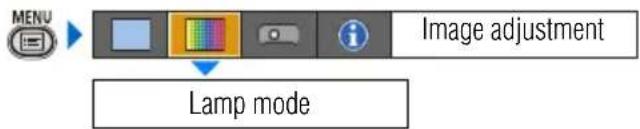
flowchart
graph TD
    A["MENU"] --> B["Image adjustment"]
    B --> C["Lamp mode"]
Reducing the lamp brightness reduces power consumption and cooling fan noise. You can enable or disable this mode also with the LAMP button on the remote control.
SX80 MarkII
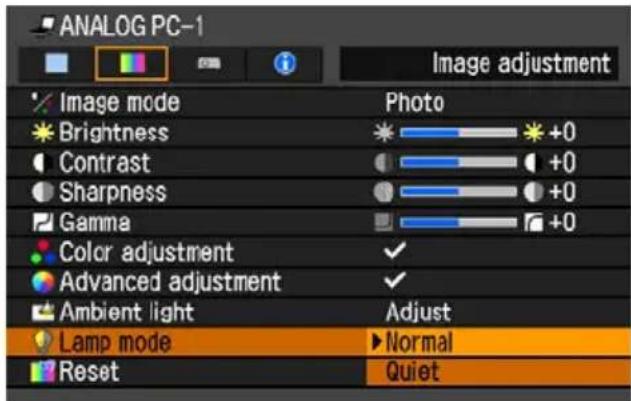
Normal Projects an image at the normal brightness level.
Quiet Reduces the lamp brightness and cooling fan noise.
Press the OK button to accept your setting and then press the MENU button.
• [Normal] is the factory default.
- The setting you have made is stored as a setting value of input signals being projected in an image mode.
Resetting the Image Settings
[Reset]
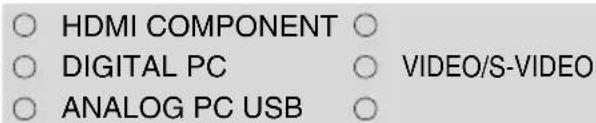
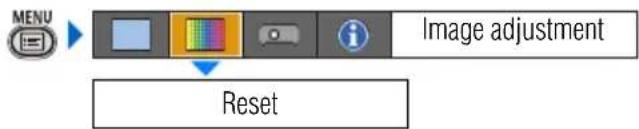
flowchart
graph TD
    A["MENU"] --> B["Image adjustment"]
    B --> C["Reset"]
You can reset the current image settings to the default settings.
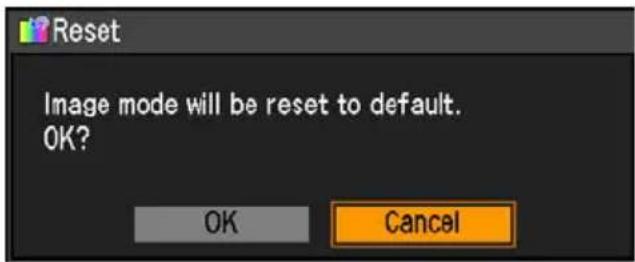
OK Resets the image settings.
Cancel Cancels resetting of the image settings.
Press the OK button to accept your setting and then press the MENU button.
- Only the setting of the combined input signals being projected and an image mode is reset.
Setting Various Function
Setting Auto Setup Function
[Auto setup]
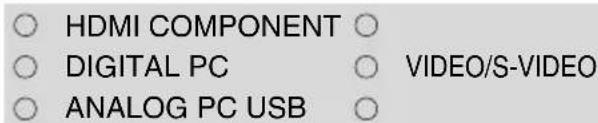
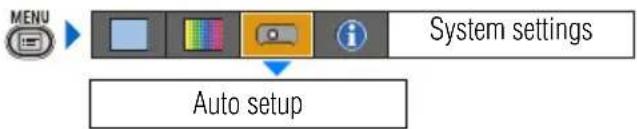
flowchart
graph TD
    A["MENU"] --> B["System settings"]
    B --> C["Auto setup"]
You can select an items you want to enable in the auto setup function.
SX80 MarkII
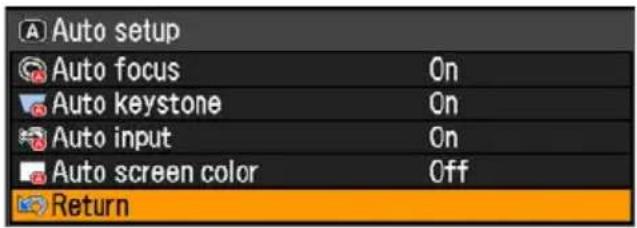
Select [On] for the items if you want to enable in auto setup function.
Auto focus* Enables the auto focusing.
Auto keystone Enables the auto keystone correction.
Auto input Enables the auto input selection.
Auto screen color* Adjusts color quality of images corresponding to the color of the projection screen.
Press the OK button to accept your setting and then press the MENU button.
- The factory default settings are as follows: [Auto focus*]: [On]
- You cannot change any items in [Auto setup] if [16:9 D. Image shift] is selected for [Screen aspect]. In addition, you cannot perform the auto setup function. For the details of the [Auto setup], refer to the page 52.
* is only applicable to SX80 MarkII
Selecting the Power Management Mode
[Power management mode]
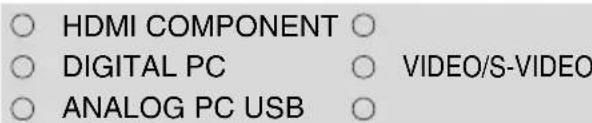
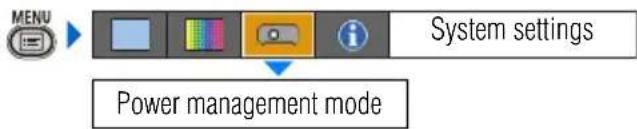
flowchart
graph TD
    A["MENU"] --> B["System settings"]
    B --> C["Power management mode"]
You can turn off the lamp or projector automatically for saving power.
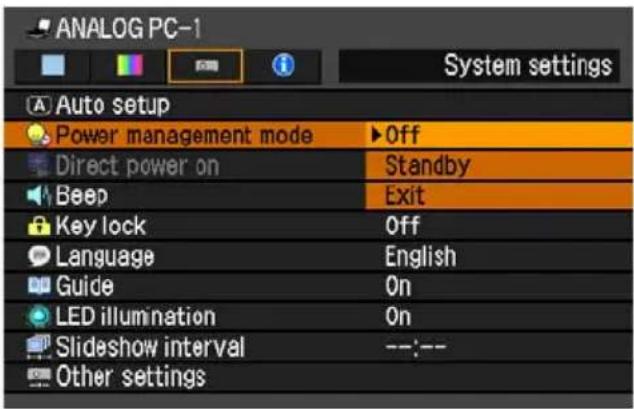
Off Disables the power management mode.
Standby If no input signal is received for 30 seconds, the projector enters the standby mode, turning off the lamp five minutes after start of countdown. If it receives the input signal or is operated during such period of 30 seconds, it resumes projection.
Exit If no input signal is received for 30 seconds, it displays the count down and turns off the projector after 5 minutes.
Press the OK button to accept your setting and then press the MENU button.
• [Off] is the factory default.
- The POWER indicator flashes red and green when the projector is in the [Standby] power management mode.
- You cannot enable the [Direct power on] function (see the next item), if you select [Off].
Skip the POWER Button Operation
[Direct power on]
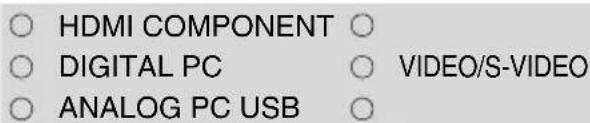
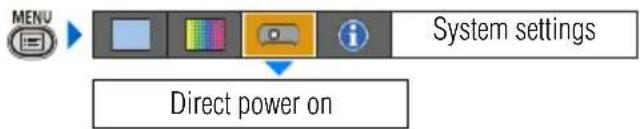
flowchart
graph TD
    A["MENU"] --> B["System settings"]
    B --> C["Direct power on"]
You can turn on the projector only by connecting the power cable without pressing the POWER button.
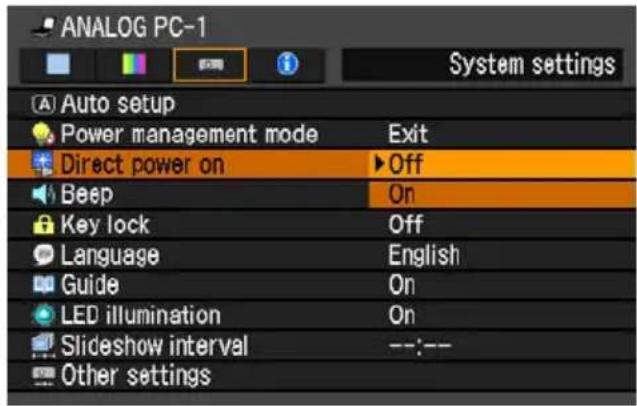
Off You need to press the POWER button to turn on the projector.
On You can turn on the projector only by connecting the power cable.
Press the OK button to accept your setting and then press the MENU button.
• [Off] is the factory default.

- Before setting the direct power-on to [On], be sure to set the [Power management mode], described on the preceding page, to [Standby] or [Exit].
- Wait at least 5 minutes when you power on the projector again after disconnecting it. It may shorten the lamp life if you turn on the projector immediately after turning it off.
Enabling/Disabling the Beep
[Beep]
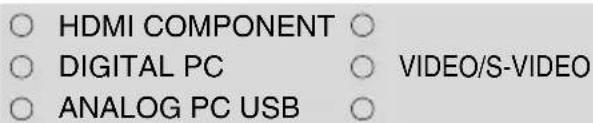
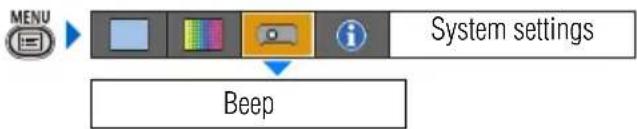
flowchart
graph TD
    A["MENU"] --> B["System settings"]
    B --> C["Beep"]
You can select whether a beep sounds or not when you operate the projector.
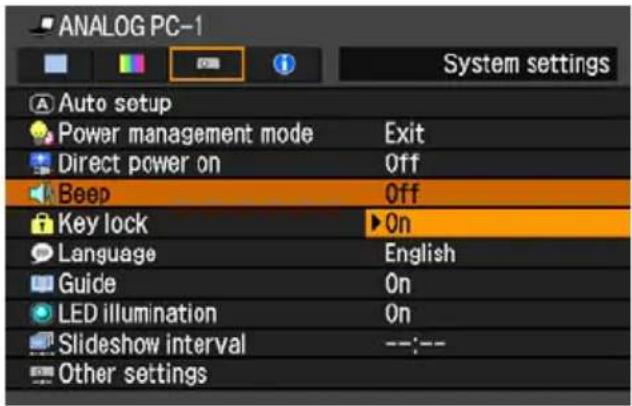
Off Disables the beep.
On Enables the beep.
Press the OK button to accept your setting and then press the MENU button.
• [On] is the factory default.
- It does not beep if you mute the projector sound with the MUTE button on the remote control.
Prohibiting the Projector Operation
[Key lock]

![CANON XEED SX800 - [Key lock] - 2](/content/2026/05/793021/images/6020a5624a1b0b3ff07a8de06d1c941c721b23a5a261394d523a7a6dfa70f62e.jpg)
flowchart
graph TD
    A["MENU"] --> B["System settings"]
    B --> C["Key lock"]
You can prohibit the operation of the projector from either the top control or remote control.
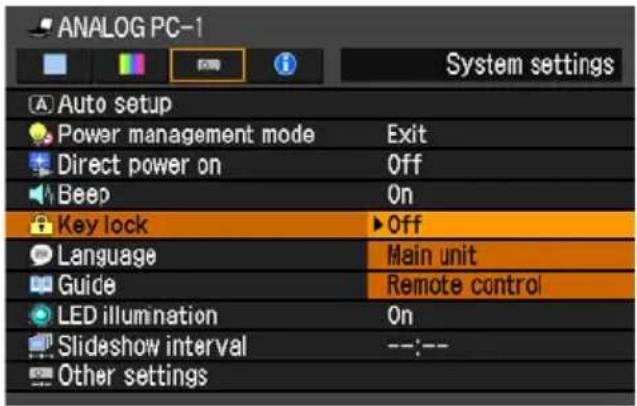
Off Disables the key lock.
| Main unit | Prohibit the operation from the main unit.Use the remote control. |
| Remote control | Prohibit the operation from the remote control.Use the main unit. |
Press the OK button to accept your setting and then press the MENU button.
• [Off] is the factory default.
![CANON XEED SX800 - [Key lock] - 4](/content/2026/05/793021/images/574fe91b3fb73220400076e04835ff5eabbe16be862753a4312d78f81fbbafd1.jpg)
The key lock function becomes effective from the moment the OK button is pressed after selecting [Main unit] or [Remote control]. Be sure to press the OK button on the top control or remote control which is not locked.
To Unlock Key Lock Function
Turn off the projector and unplug the power plug. Hold down the OK button on the top control and connect the power plug. Make sure to keep holding down the OK button until a beep sounds. The key lock is unlocked.
Selecting a Display Language
[Language]
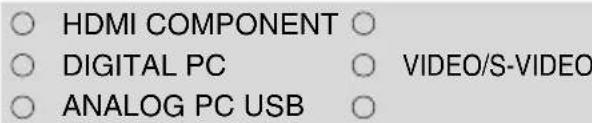
![CANON XEED SX800 - [Language] - 2](/content/2026/05/793021/images/c80682fe2f0e960217e64a8a56a607a8082be9d0bcb65c30f3fe266e3d000455.jpg)
flowchart
graph TD
    A["MENU"] --> B["System settings"]
    B --> C["Language"]
You can select the language in which the menu is displayed.
| Language | ||
| English | Русский | Čeština |
| Deutsch | Nederlands | Dansk |
| Français | Suomi | Ін machining |
| Italiano | Norsk | 中文简体 |
| Español | Türkçe | 中文繁體 |
| Português | Polski | 한국어 |
| Svenska | Magyar | 日本語 |
Use [λ] / [ ]M[<] / [>] to select the language to be used in the menu, then press the OK button.
| English | English | ||
| Germany | Deutsch | ||
| French | Français | ||
| Italian | Italiano | ||
| Spanish | Español | ||
| Portuguese | Português | ||
| Swedish | Svenska | ||
| Russian | Русский | ||
| Dutch | Nederlands | ||
| Finnish | Suomi | ||
| Norwegian | Norsk | ||
| Turkish | Türkçe | ||
| Polish | Polski | ||
| Hungarian | Magyar | ||
| Czech | Čeština | ||
| Danish | Dansk | ||
| Arabic | إنجليزى | ||
| Chinese (Simplified) | 中文简体 | ||
| Chinese (Traditional) | 中文繁體 | ||
| Korean | 한국어 | ||
| Japanese | 日本語 |
When the setting is completed, press the MENU button.
Showing/hiding the Guide Screen
[Guide]
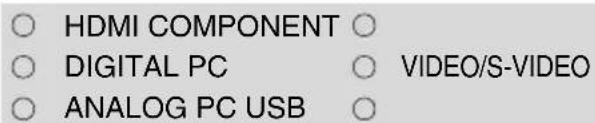
![CANON XEED SX800 - [Guide] - 2](/content/2026/05/793021/images/be14f7585144abda060535eb20df1c55b802499fd15732bbce976729f48c04ce.jpg)
flowchart
graph TD
    A["MENU"] --> B["System settings"]
    B --> C["Guide"]
You can select whether to show or hide the guide screen which explains operations.
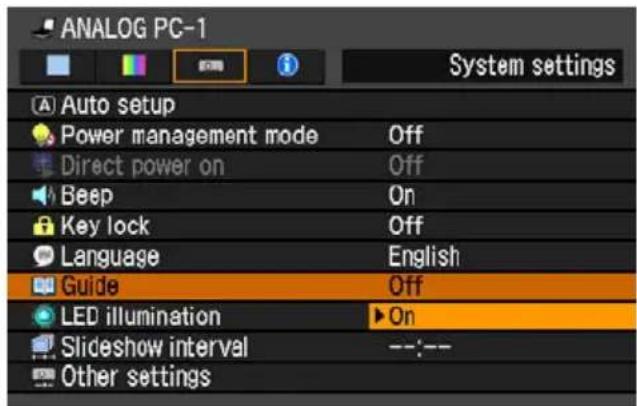
Off Hides the guide screen.
On Shows the guide screen.
Press the OK button to accept your setting and then press the MENU button.
• [On] is the factory default.
• The guide screen is shown when:
- Power is turned off by pressing the POWER button (P68).
- No input signal can be detected (P51).
- An invalid button is pressed in the [BLANK], [FREEZE], or [D.ZOOM] mode (P70, 72).
Turning on/off LED Illumination
[LED illumination]

![CANON XEED SX800 - [LED illumination] - 2](/content/2026/05/793021/images/439d865b63748002ad9c5f33a2da1ee82274ec88aa15e2897c64744603115d93.jpg)
flowchart
graph TD
    A["MENU"] --> B["System settings"]
    B --> C["LED illumination"]
You can select whether to turn on or off LED illumination (P28).
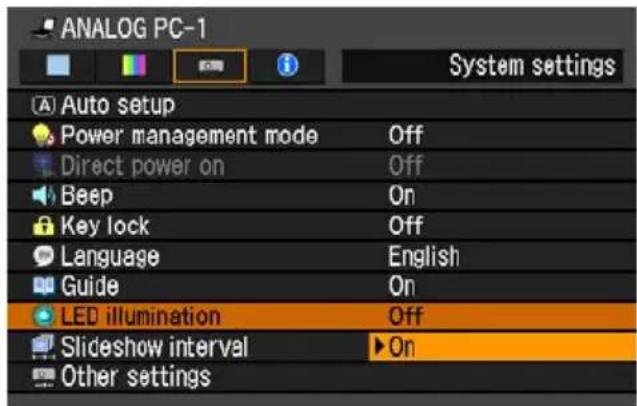
Off Disables the LED illumination.
On Enables the LED illumination.
Press the OK button to accept your setting and then press the MENU button.
• [On] is the factory default.
- LED illumination is unrelated to turning on/off of the POWER or WARNING lamp.
Setting for Slideshow (SX80 II)
[Slideshow interval]
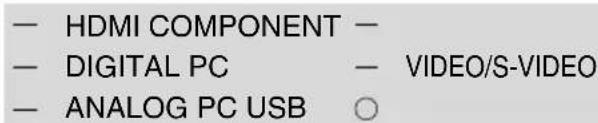
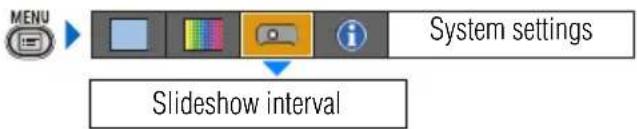
flowchart
graph TD
    A["MENU"] --> B["System settings"]
    B --> C["Slideshow interval"]
You can project the images stored in a PictBridge-compatible device (P114) or a USB flash memory (P118) in the slide-show.
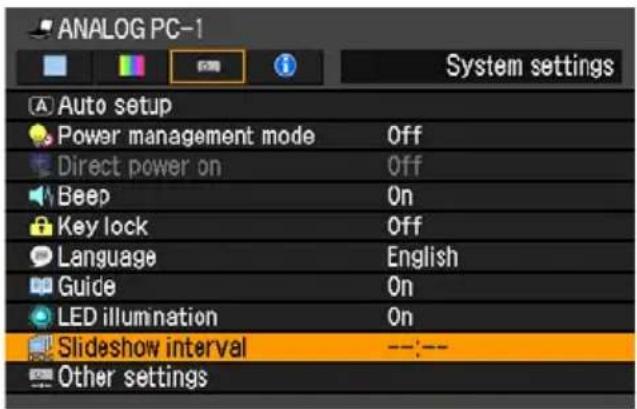
Use [<] / [>] to set the interval (minutes: seconds) of projection (60 minutes = maximum).
Set [-- : --] if no slideshow is performed. When the setting is completed, press the MENU button.
- [-- : --] is the factory default.
- The maximum length of slideshow time is 60 minutes (60:00).
- Use the USB file browser for the projection from the USB flash memory. For more details, refer to the page 120.
Setting up the Remote Control Channel
[Other settings] - [Remote control]
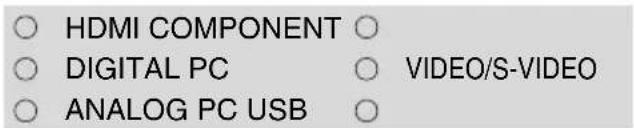
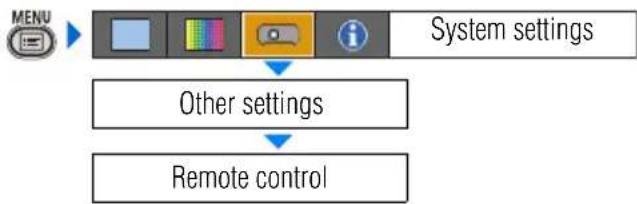
flowchart
graph TD
    A["MENU"] --> B["System settings"]
    B --> C["Other settings"]
    C --> D["Remote control"]
You can set different channels to different remote controls, if you use two projectors at the same time.
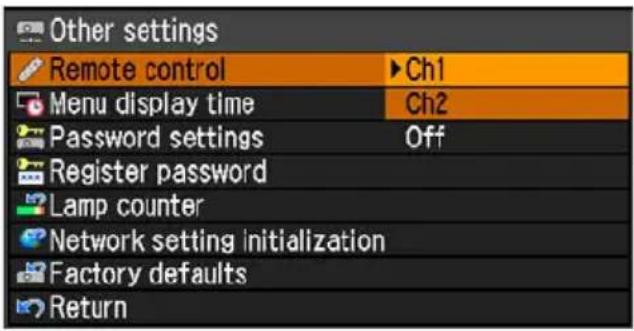
Ch1 Select the channel of the remote control ____ used for this projector, and press the OK Ch2 button.
Press the OK button to accept your setting and then press the MENU button.
- The factory defaults is [Ch1] for both projector and remote control.
• After changing the channel on the menu, be sure to change the channel of the remote control, too.
Selecting a Channel on the Remote Control
You can change the channel on the remote control as follows:
| Ch1 | Press the OK button and [∧] for 3 seconds at the same time. |
| Ch2 | Press the OK button and [>] for 3 seconds at the same time. |
Extending the Menu Display Time
[Other settings] - [Menu display time]
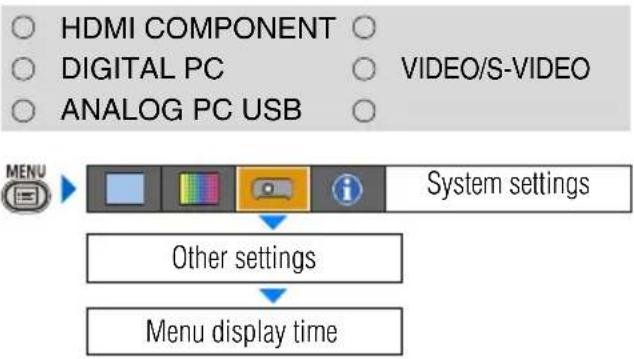
flowchart
graph TD
    A["HDMI COMPONENT"] --> B["Other settings"]
    C["DIGITAL PC"] --> B
    D["ANALOG PC USB"] --> B
    E["VIDEO/S-VIDEO"] --> B
    B --> F["Menu display time"]
You can extend the menu display time, which is 30 seconds usually, to 3 minutes.
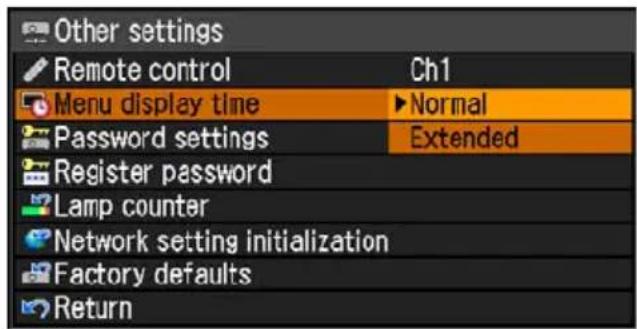
Normal The menu is displayed for 30 seconds.
Extended The menu is displayed for 3 minutes.
Press the OK button to accept your setting and then press the MENU button.
• [Normal] is the factory default.
- You cannot extend the display time for the window indicating the completion of Auto setup (P53), the guide window (P106), the lamp replacement window (preparation) (P145), or the lamp replacement window (warning) (P145).
- You cannot use the button holding operation except when you adjust the image size (P58) or focus (P59).
Setting a Password
[Other settings] - [Password settings]
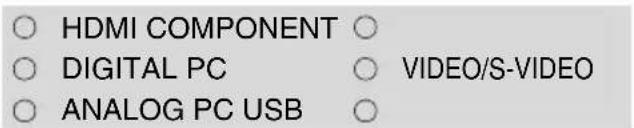
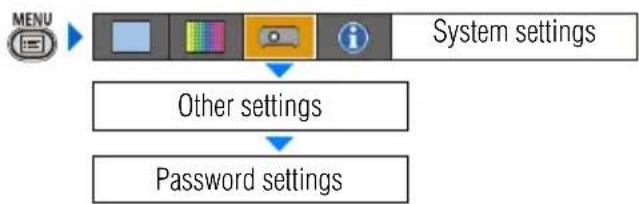
flowchart
graph TD
    A["MENU"] --> B["System settings"]
    B --> C["Other settings"]
    C --> D["Password settings"]
Disables the projector unless the correct password is entered.
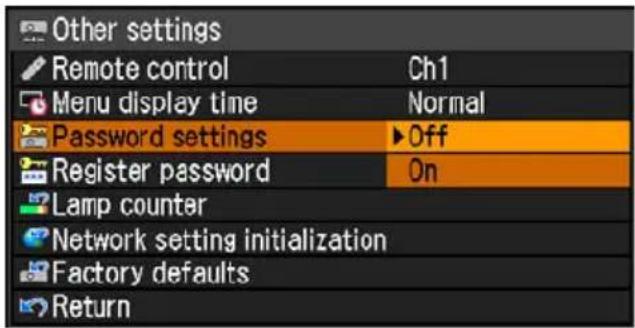
Off The projector can be used even if no password is entered.
On The projector cannot be used unless you enter your password.
Press the OK button to accept your setting and then press the MENU button.
• [Off] is the factory default.
- You cannot set [On] unless you have completed [Register password].
Once you set a password, the password entry screen appears at power-on.
Enter a 4-digit password with [λ] / [ ] ∨ [<] / [>]. If the password is valid, the projection starts. If you enter a wrong passwords three times, the power will be turned off.
- The power is also turned off if no password is inputted for 3 minutes.
To Cancel the Password
Turn off the projector and unplug the power plug. Hold down the MENU button on the top control and connect the power plug. Make sure to keep holding down the MENU button until a beep sounds. The password is cancelled (the registered password is also reset).
Registering a Password
[Other settings] - [Register password]

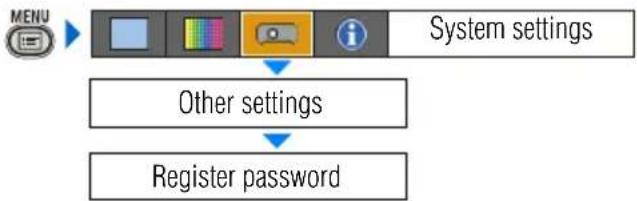
flowchart
graph TD
    A["MENU"] --> B["System settings"]
    B --> C["Other settings"]
    C --> D["Register password"]
You can register a password for starting projection.
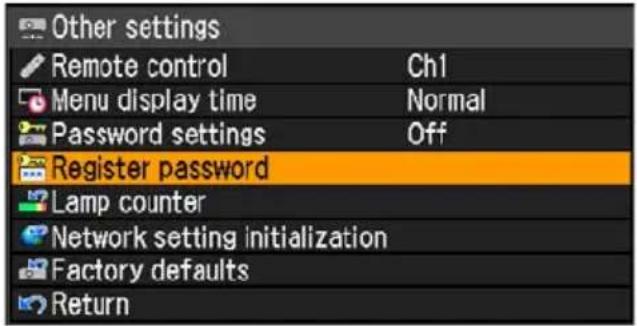
Press the OK button after selecting [Register password], and the following screen for registering a password appears:
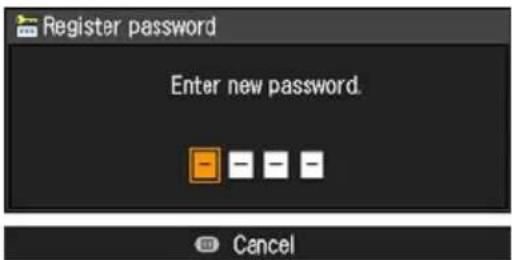
Enter a 4-digit password using [λ] / [<] / [v] / [>] (e.g., ∧∧∧∧<, <>). ∧∨
The 4-digit password is entered from the left to right digits, the password is automatically registered.
- Press the MENU button to abort the registration.
Resetting the Lamp Counter
[Other settings] - [Lamp counter]

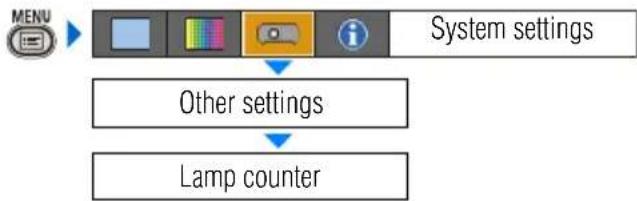
flowchart
graph TD
    A["MENU"] --> B["System settings"]
    B --> C["Other settings"]
    C --> D["Lamp counter"]
You can reset the lamp counter that indicates the timing to replace the projector when you replace it.
Do not reset the lamp counter except when you have replaced the lamp. Otherwise, the lamp counter cannot indicate the correct timing for replacing the lamp. For the details of the lamp replacement, refer to the page 146.
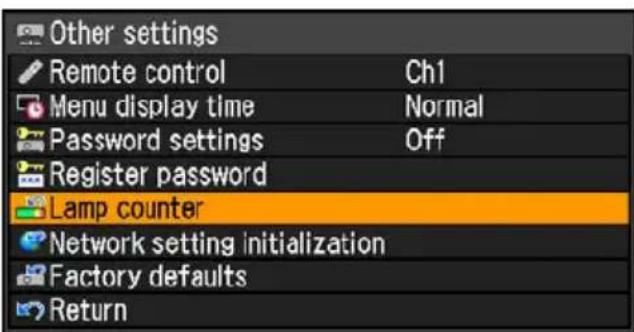
Press the OK button after selecting [Lamp counter], and the lamp counter is displayed.
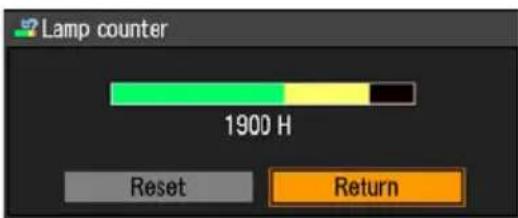
Select the [Reset] and press the OK button.
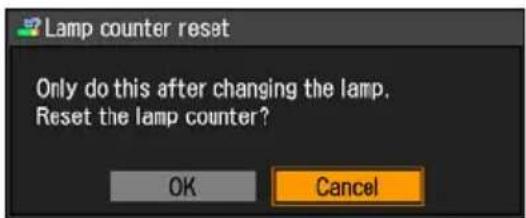
Select [OK] on the screen for confirmation, press the OK button, and the lamp counter is reset.
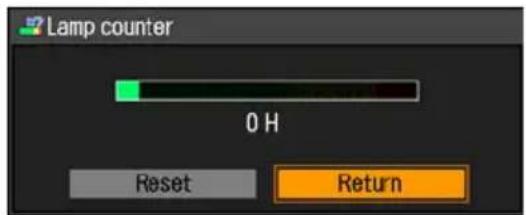
Press the MENU button.
■ About the Display of the Lamp Counter
The lamp counter displays the hours of use of the lamp in the following way:
Less than 1,800 hours Displayed in green bar
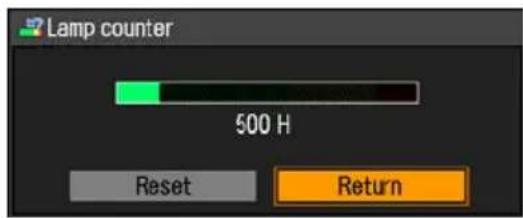
1,800 – less than 2,000 hours Displayed in green and yellow bar.
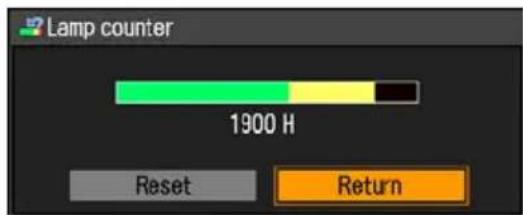
For 1,800 – less than 2,000 hours, a message "Obtain a new lamp." appears when power is turned on.
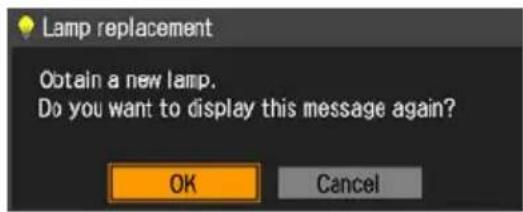
Over 2,000 hours Displayed in green, yellow and red bar.
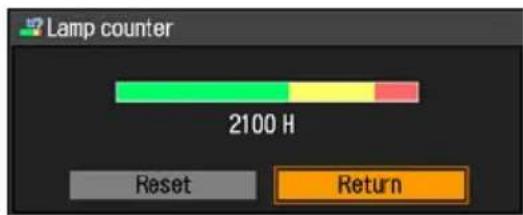
A message "Replace with the new lamp." appears when power is turned on.
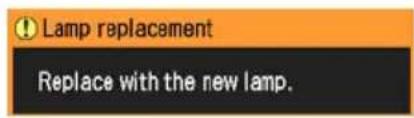
Initializing network settings (SX80 II)
[Other settings] - [Network setting initialization]

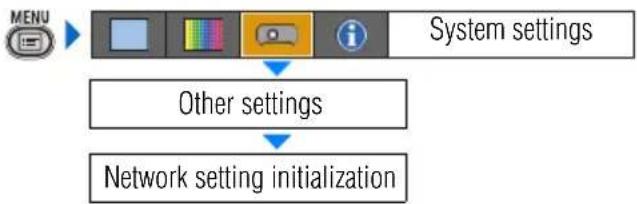
flowchart
graph TD
    A["MENU"] --> B["System settings"]
    B --> C["Other settings"]
    C --> D["Network setting initialization"]
You can Initialize the network settings.
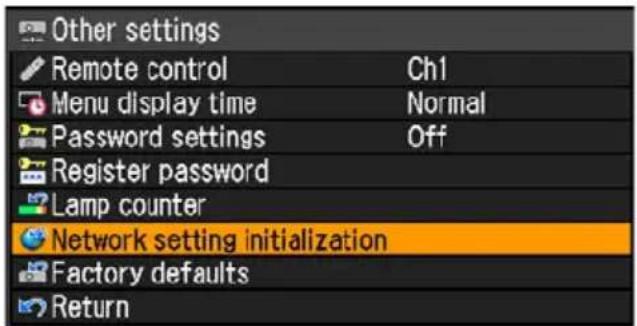
Press the OK button after selecting [Network setting initialization], and the following screen for confirmation appears:
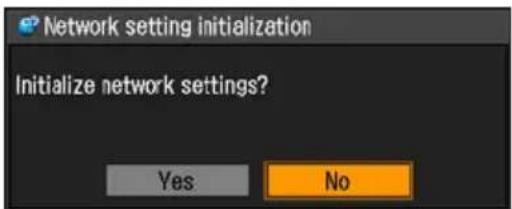
YesThe network settings is initialized.
No Initialization is aborted.
Press the OK button to accept your setting and then press the MENU button.
- Initialized are "IP address" and other items set in "Connecting the Projector to Network (SX80 II)" (P125).
- You can do this initialization also from a Web browser. (P134)
Resetting to the Default Setting
[Other settings] - [Factory defaults]

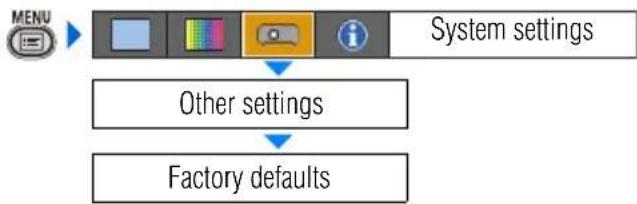
flowchart
graph TD
    A["MENU"] --> B["System settings"]
    B --> C["Other settings"]
    C --> D["Factory defaults"]
You can reset the menu item settings and restore the system settings to the factory defaults.
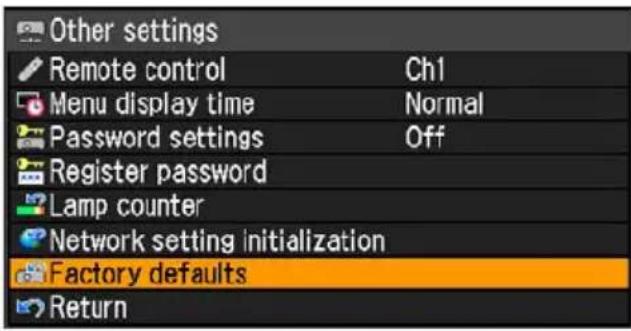
Press the OK button after selecting [Factory defaults], and the following screen for confirmation appears:
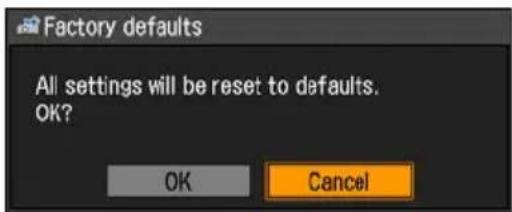
OK Settings are reset to default.
Cancel Settings are not reset to default.
Press the OK button to accept your setting and then press the MENU button.
- This function cannot reset the value of [Lamp counter], [Language], [Remote control], [Input signal] and [Network setting] to default.
- For factory defaults settings, refer to the page 164 - 166.
Checking the Information of the Projector
[Information]
You can confirm the information about the signal types of the images projected and other projector-specific information.
SX80 MarkII SX800
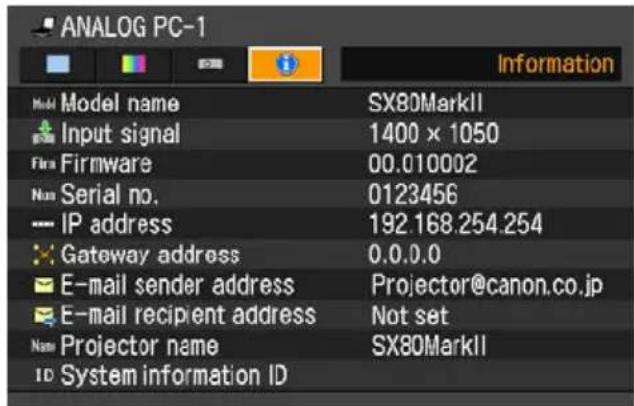
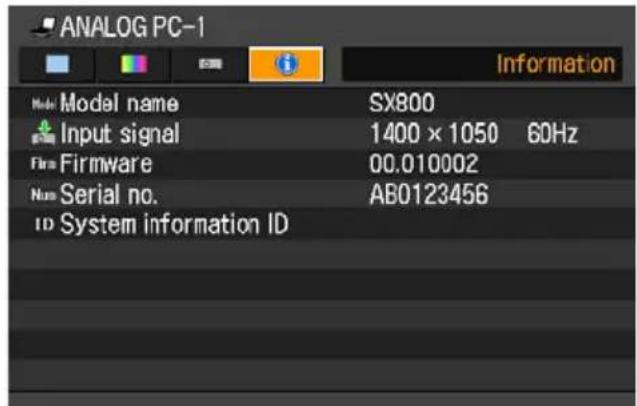
Information shown
| Item Meaning | |
| Model name Model name of this projector | |
| Input signal Details of the input signal currently selected“Type of signal”, “resolution of signal”, “frequency” and other information is shown. | |
| Firmware Current firmware version | |
| Serial no. Serial number unique to this projector | |
| IP address (SX80 II) | Details of the network settings (P126)[Not set] is shown for an item having no settings. |
| Gateway address(SX80 II) | |
| E-mail sender address(SX80 II) | |
| E-mail recipient address(SX80 II) | |
| Projector name (SX80 II) ID of this projector on the network | |
| System information ID | This is an item of system information. Normally this is not displayed. |
Projecting an Image from a Digital Camera or an USB Flash Memory (SX80 II)
Table of Contents
Safety Instructions
Before Use
Projecting an Image
Useful Functions Available During a Presentation
Setting Up Functions from Menus
Projecting an Image from a Digital Camera or an USB Flash Memory (SX80 II)
Connecting the Projector to Network (SX80 II)
Appendix
Index
Projecting an Image from a Digital Camera (SX80 II)
SX80 MarkII supports PictBridge. You can directly project an image by connecting the projector with a PictBridge-compatible digital camera, digital video camera or camera-equipped mobile phone (hereinafter called "PictBridge-compatible device").
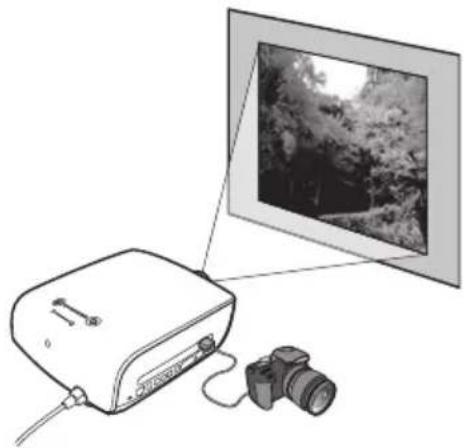
natural_image
Illustration of a projector connected to a screen showing a landscape photo (no text or symbols present)Connectable Cameras
PictBridge is an industry standard enabling the direct printing of images from a digital camera, digital video camera, camera-equipped mobile phone, etc. using a cable without the computer.
With this projector, you can directly project an image by connecting a PictBridge-compatible device and by using the same operation as that of printing.

Cameras bearing this mark supports PictBridge.
For the up-to-date information regarding PictBridge, visit Cannon's website (http://www.canon.com/pictbridge/) or PictBridge's website (http://www.cipa.jp/pictbridge/index_e.html).
Connecting a Digital Camera
1 Turn the projector power on.
2Switch the input signal to [USB].
Press the INPUT button, select [USB] with [^] / [v] buttons, and press the OK button.
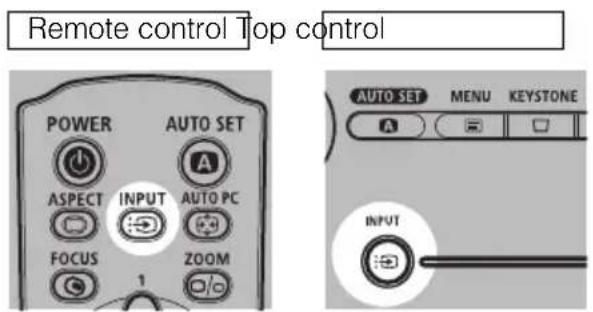
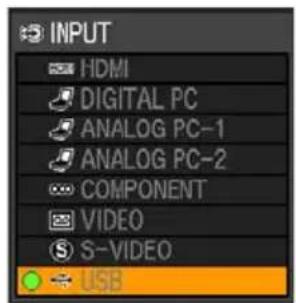

If you switch to [USB] when a PictBridge-compatible device is not connected or not powered on, the screen as shown in the right appears.
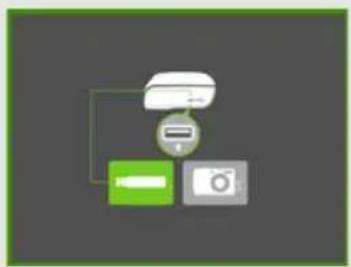
natural_image
Simple diagram showing a device with a battery and two labeled icons (no text or symbols)3Connect a PictBridge-compatible device with the projector using a USB cable.
The terminal form of the device varies depending on the model. Refer to the User's Manual for the relevant equipment.
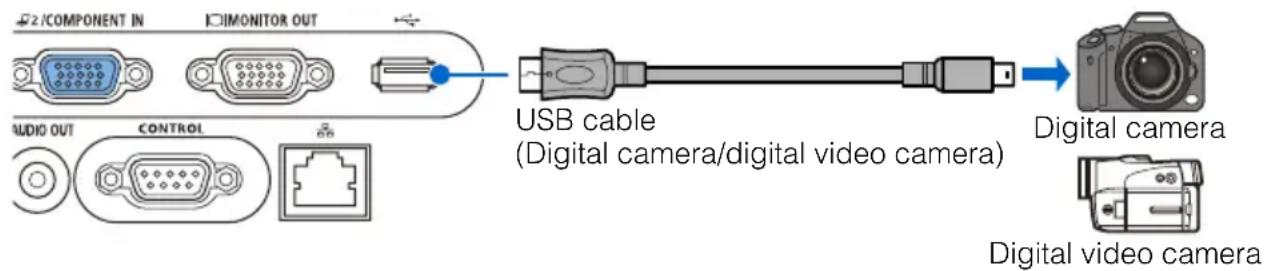
4Turn on the power of the PictBridge-compatible device.
When the communication is ready between the projector and the PictBridge-compatible device, the following mark appears.
With Canon digital camera With non-Canon digital camera
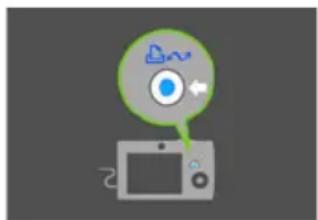
natural_image
Illustration of a microwave oven with a green speech bubble containing a blue eye icon (no text or symbols)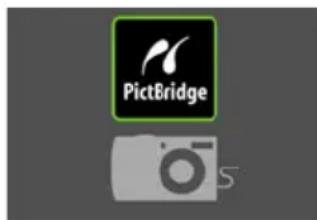
If the projector does not recognize the device or communication is disabled, the screen as shown in the right appears.
If a PictBridge-compatible device is connected, pull out the USB cable and connect it again.
If the screen as shown in the right (USB file browser) appears, the device supports the USB mass storage class (serves as an external hard drive to Windows computers), and you can project an image according to the system. For more details, refer to the page 118.
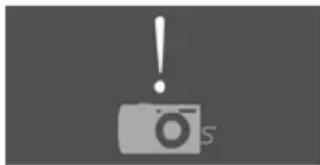
natural_image
Gray icon with exclamation mark and camera symbol (no text or numbers)

- Use a fully-charged battery for PictBridge-compatible device.
- Do not disconnect the cable until projection is ended unless the PictBridge-compatible device allows to do so. For the removal procedure of the cable, refer to the User's Manual for the PictBridge-compatible device.
5Operate the PictBridge-compatible device
Operate the PictBridge-compatible device to start "printing".
The image is transferred to the projector, and projected on the screen.
- You can select from [Single print (project single image)], [Continuous print (project all images continuously)], and [DPOF print (project specified image)].
With [DPOF print], up to 999 images can be specified for projection.
- To view the next image with [Continuous print] and [DPOF print] selected, press the OK button.
Operating the Projected Image
When images are projected, you can perform the following operations.
■ Switching to the Next Image
If you have specified multiple images for printing with the digital camera, you can switch to the next image by pressing the OK button.
Remote control Top control
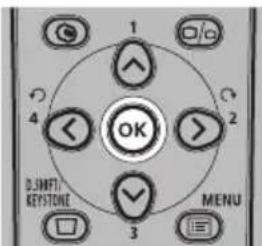
- You cannot switch to the previous image with the projector operation. To switch to the previous image, you must retry the print command with the digital camera.
- Even if a slideshow is running, you can switch to the next image by pressing the OK button.
■ Rotating an Image
You can rotate the image by 90 degrees to the left or to the right by pressing [<] / [>].
Remote control
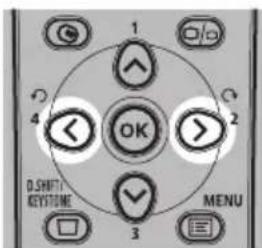
Top control
natural_image
Exterior view of a modern building with a brick window and red flowers in the sky (no signage or text visible)[<][>

Rotate by 90° to the left
natural_image
Exterior view of a modern building with a white door, window grilles, and red flowers (no signage or text visible)
Rotate by 90° to the right
natural_image
Exterior view of a modern building with a window and red-pombed flowers in front (no signage or text visible)- Even if a slideshow is running, you can rotate the image by pressing [<] / [>].
- If the image contains rotational information, the image is rotated to an appropriate direction automatically.
Running a Slideshow
You can run a slideshow that projects multiple images stored in the digital camera at certain intervals.
■ Setting a Slideshow Interval
By setting projection intervals in [Slideshow interval] from the menu, you can run a slide-show of the images (with PictBridge or from a USB flash memory) connected via USB. Set the slideshow interval by following the steps below.
1 Press the MENU button to display the menu.
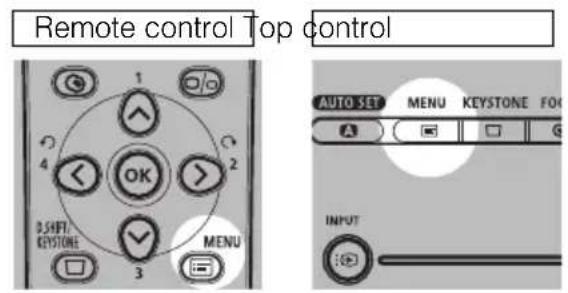
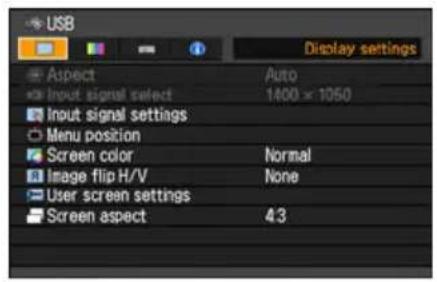
2 Select [System settings] tab with [<] / [>], and select [Slideshow interval] with [^] / [v].
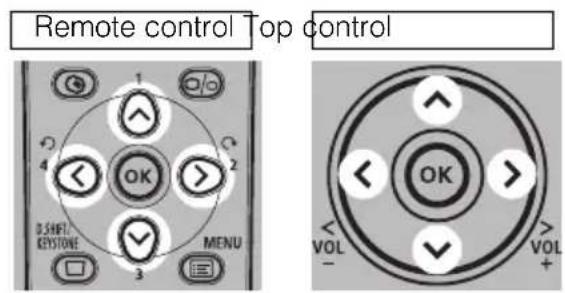
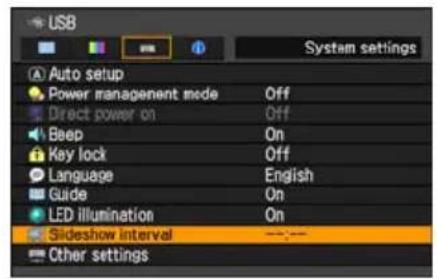
3 Set the interval (minute:second) other than "--:" with [<] / [>].
To stop the slideshow, set as "--:--".
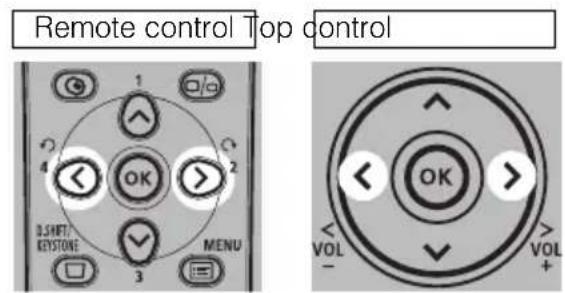
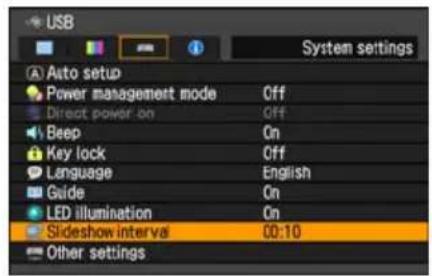
4Press the MENU button to exit the menu.
It may take a certain time depending on the screen size.
■ Finishing projection
To finish projecting images using PictBridge, turn off the power to the PictBridge enabled equipment.
Then, remove the USB cable from the equipment.
Projecting Data on USB Flash Memory (SX80 II)
You can connect a USB flash memory to the projector for direct projection of the images (saved in JPEG format) saved in the USB flash memory.
- Images saved only in JPEG format are available for projection.
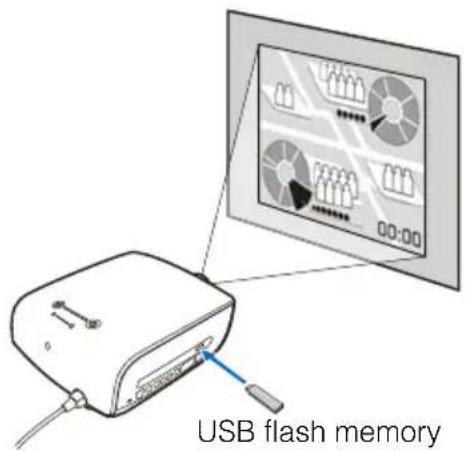
Connectable USB Devices
With this projector, you can connect the USB devices (general USB flash memories or USB-connected hard disks) that support the mass storage class (serves as an external hard drive to Windows computers).
Also, you can connect various memory cards via USB memory card readers.
You can also connect a digital camera or digital video camera that supports a USB mass storage class mode for image projection.
Connecting an USB Flash Memory
1 Turn the projector power on.
2Switch the input signal to [USB].
Press the INPUT button, select [USB] with [^] / [v] buttons, and press the OK button.
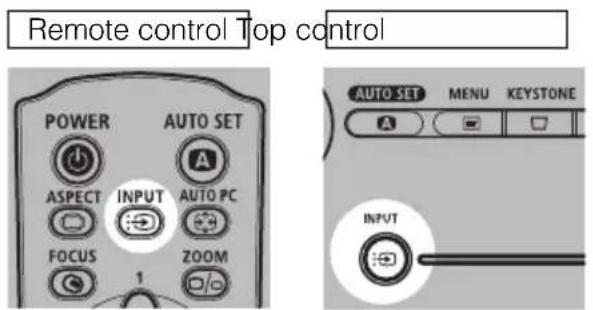
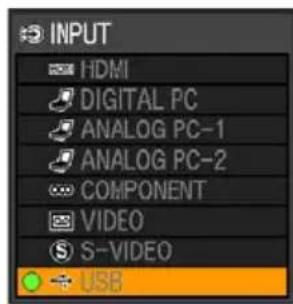
If you switch to [USB] when a USB flash memory is not connected or the hard disk is not powered on, the screen as shown in the right appears.
If the projector recognizes a USB flash memory, The "USB file browser" appears.
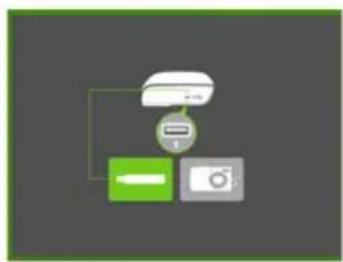
flowchart
graph TD
    A["输入"] --> B["消息图标"]
    B --> C["绿色箭头"]
    B --> D["灰色圆形按钮"]
3Connect a USB flash memory.
Connect a USB flash memory to the USB terminal.
Use a USB cable to connect a digital camera or USB memory card reader.
Be sure to use the USB cable supplied with the equipment connected to the projector.
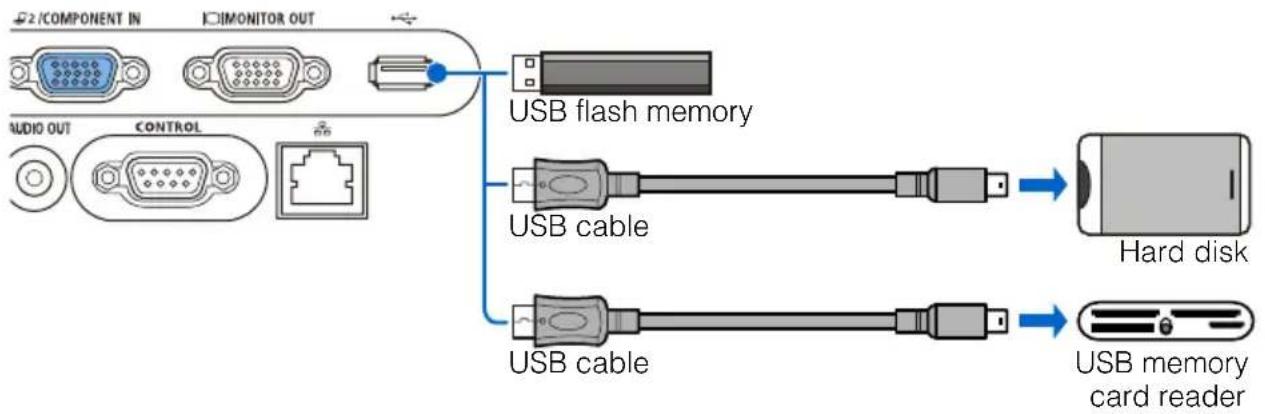
If the projector recognizes a USB flash memory, The "USB file browser" appears.
- Only the drive which has been set in advance is displayed.
- If multiple memory devices are attached to a multiple-card reader, the folder up one level in the hierarchy is displayed.
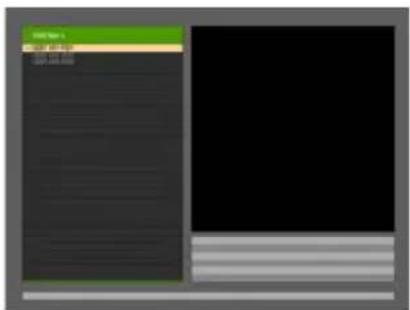
If connection to the USB flash memory fails, the screen as shown in the right appears.
Disconnect the USB flash memory, and connect it again.
If the projector does not recognize the device, the screen as shown in the right appears.

natural_image
Gray-scale icon showing a white exclamation mark above a battery symbol (no text or labels)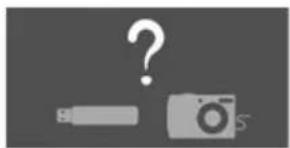
natural_image
Simple icon set with a battery and camera symbol, no text or labels present
- If a USB hub is connected, the screen as shown in the right appears.
- You cannot connect a USB hub to this projector.
- When connecting a device which consumes large amount of power such as USB hard disk, use a commercial power supply.
- If the power supplied from the USB terminal is insufficient, malfunction of the USB flash memory may result or the projector unable to recognize the device.
Description of USB File Browser
If a USB flash memory is connected to the projector, the USB file browser appears. In the USB file browser, you can select the image file to be projected by operating the file list in the USB memory device.
![List title Drive name currently selected Representation varies depending on the manufacturer and/or model. USB1 Canon Media Storage 2/10 Page number of the file list currently displayed (Current page number/total number of pages) You can page up and down with [<] / [>]. Preview area Image selected in the file list appears with reduced size. If a folder is currently selected, the folder icon appears. File list area File information area File path area File information area Information of the image selected in the file list appears here. • File name • File size • Date time original (date and time of when the image was taken) ("Last update" may appear instead.) • Image size (resolution) • Model • Shooting information (shutter speed, diaphragm, ISO sensitivity) File list area File list within the folder appears in the order of file name. Select an image file or folder with [λ/ [ ]v Folder Available image file File path name Path name of the image selected in the file list appears here.](/content/2026/05/793021/images/3b86dcac84bb507c75d0b637819a9a3f1eae3d08f0de0bff8677fee41c90bae9.jpg)
Selecting an Image for Projection
This section describes the steps for selecting an image in the USB file browser and projecting on the screen.
■ Selecting a Drive
If a USB flash memory is connected, skip this step.
If a USB memory card reader having multiple memory slots is connected, the drive (memory slot) list is displayed in the file list.
Select the drive in which the memory card is inserted with []/[v] , and press the OK button.
Remote control Top control
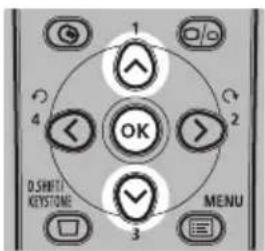

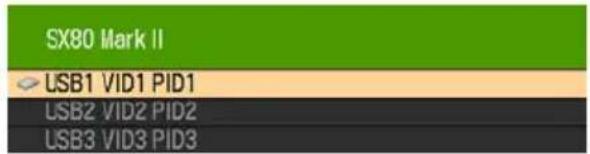
• Active drives are displayed in white text, while inactive drives are grayed out.
- Icons indicate the memory card status of each drive. (They differ depending on the connected equipment.)

Example 1) Memory card is inserted and recognized properly.

Example 2) Memory card is inserted but cannot be recognized.
The file system is destroyed or the projector cannot recognize its format.
■ Selecting a Folder
If the image file is located in a folder, select the folder with [^] / [v], and press the OK button.
Remote control Top control
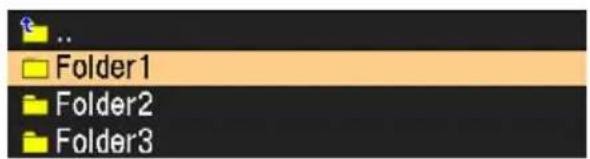
- To return to upper hierarchy, select and press the OK button.
■ Selecting an Image File for Projection
1 Select an image file with [ ] / [ ]. v
Remote control Top control
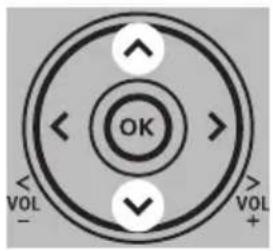
The selected image appears in the preview area with reduced size.
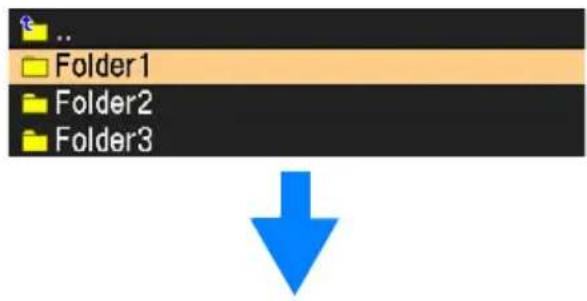
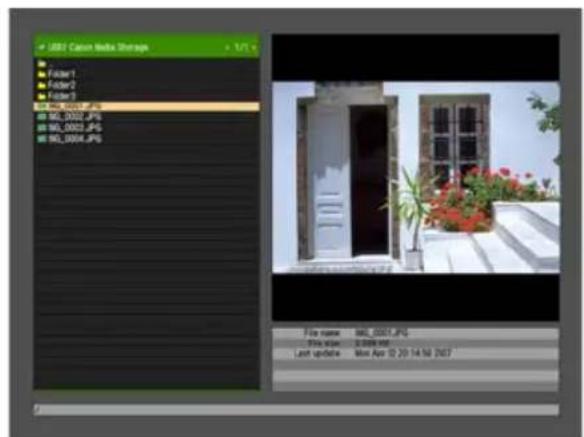
- To return to upper hierarchy, select 📄 and press the OK button.
2Press the OK button to project the image in full screen.
Remote control Top control
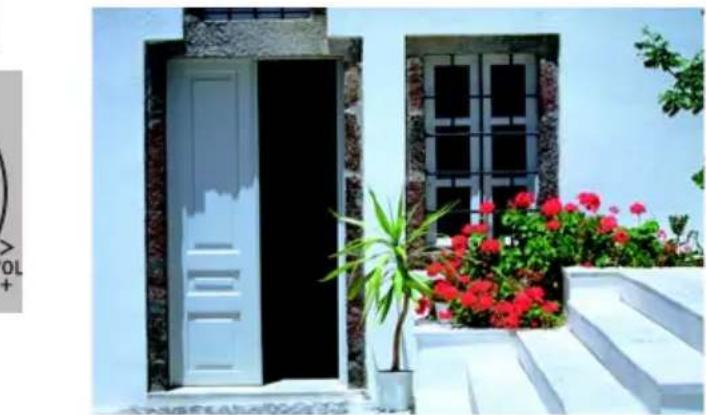
natural_image
Exterior view of a traditional-style building with stone walls, a potted plant, and red flowers (no signage or text visible)- To return to the USB file browser, press the OK button.
Operating the Projected Image
When images are projected, you can perform the following operations.
■ Switching to the Previous/Next Image
If multiple image files are saved in a folder, you can switch to the previous/next image by pressing [λ] / [ ]
Remote control Top control
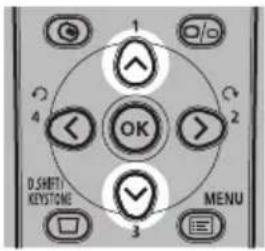
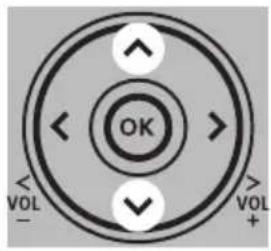
- Even if a slideshow is running, you can switch to the previous/next image by pressing [λ] / [ ]v
■ Rotating an Image
You can rotate the image by 90 degrees to the left or to the right by pressing [<] / [>].
Remote control Top control
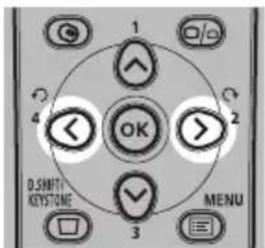

natural_image
Exterior view of a modern building with a window and red flowers on the roof (no signage or text visible)[<][>

Rotate by 90^ to the left
natural_image
Exterior view of a white building with a large door and potted plant in front (no signage or text visible)
Rotate by 90° to the right
natural_image
Exterior view of a modern building with a window and red flowers in front (no visible text or symbols)- Even if a slideshow is running, you can rotate the image by pressing [<] / [>].
- If the image contains rotational information, the image is rotated to an appropriate direction automatically.
■ Returning to the USB File Browser
To return to the USB file browser, press the OK button.
Remote control Top control
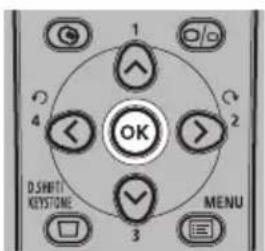

Running a Slideshow of Data saved in a USB Flash Memory
You can run a slideshow that projects multiple images stored in a USB flash memory at certain intervals.
■ Creating an Image File Folder
In the slideshow, image files in a folder are displayed in the alphabetical order of file name. Therefore, create a folder in the USB flash memory and save the image files to be projected in the slideshow in advance.
To start a slideshow, select and project the first image file in a folder in the full-screen display mode using the USB file browser.
If the " slideshow interval" described below has been set, the image files in a folder are automatically projected in sequence.
■ Setting a Slideshow Interval
To run a slideshow, set the time interval in [Slideshow interval] from the menu in advance. For the details of the setting step, refer to "Running a Slideshow" on page 117.
Connecting the Projector to Network (SX80 II)
Table of Contents
Safety Instructions
Before Use
Projecting an Image
Useful Functions Available During a Presentation
Setting Up Functions from Menus
Projecting an Image from a Digital Camera or an USB Flash Memory (SX80 II)
Connecting the Projector to Network (SX80 II)
Appendix
Index
Setting an IP Address (SX80 II)
It is possible to send an error notification e-mail (P135) from the projector to the computer when you connect the projector to the network.
To connect via the network, an IP address must be assigned to the projector. Set an IP address by following the steps below. (The examples shown are Windows XP screenshot images.)
■ Setting IP Address of the Computer
1 Connect the projector and a computer directly via a cross or straight type LAN cable.

2Turn on the power of the projector and computer.
3 Open [Control Panel] from the [Start] menu, then select [Network and Internet Connections] - [Network Connections].
4Right-click [Local Area Connection], and open [Properties].
5 Select [Internet Protocol (TCP/IP)] and click the [Properties] button. Take notes of the original network settings (IP address, subnet mask, DHCP settings, etc).
6Select [Use the following IP address] and set as follows:
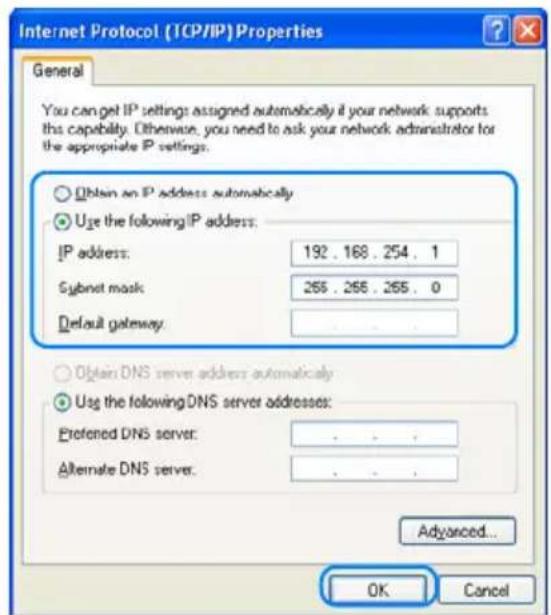
7 When you have specified the settings, click the [OK] button and then click the [OK] button on the [Local Area Connection Properties] window to close it.
■ Resetting the IP Address Setting of the Computer
1 Turn off the projector and remove the LAN cable.
2 Follow the step 3 to 6 to restore the network setting to the original setting.
■ Displaying the Network Configuration Screen
1 Turn on the computer and projector.
2 Launch a web browser, enter "http://192.168.254.254" in the address bar, and press the Enter key.
The password input screen appears.
The supported web browsers is Microsoft Internet Explorer 6 or later.
3 In the password input screen, enter "root" for [User name] and "system" for [Password] and click the [OK] button.
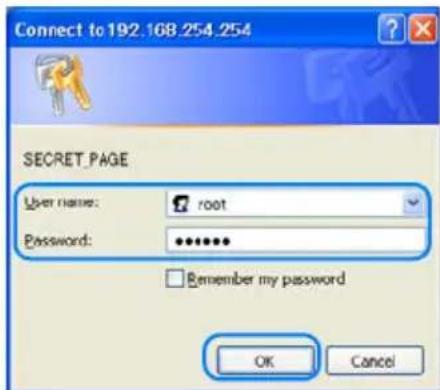
The projector network configuration screen appears on the web browser.
The following information is displayed.
[Projector name]: The name of the projector on the network
[Location]: The location of the projector
[MAC address]: The MAC address of the projector
IP address: The IP address of the projector
[Power Status]: The power status of the projector
[Lamp Time Normal Mode]:The total lamp used time in its normal mode
[Lamp Time Quiet Mode]: The total lamp used time in its quiet mode
[Lamp Time Converted]: The total lamp used time (converted value)
[Filter Time]: The total filter used time
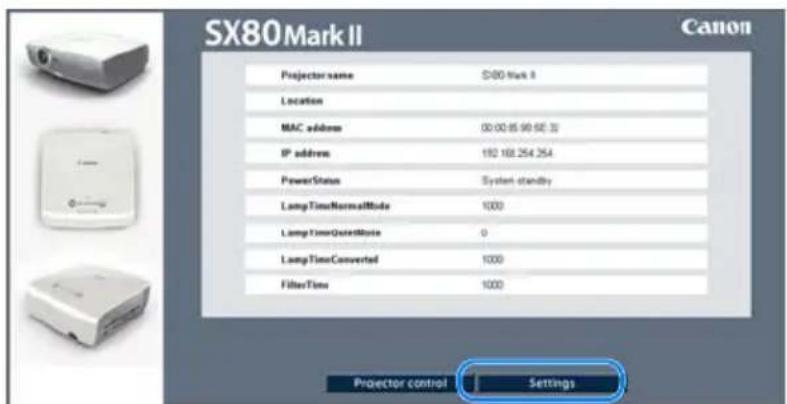
Click the [Settings] button to display the menu screen.
■ Setting the Network
1 In the menu screen, click [Password], input the new user name and password, and click the [OK] button.
Setting items:
[User name]: The user name for logging in the network
[New password]: The new password
[Confirm new password]: The password for confirmation
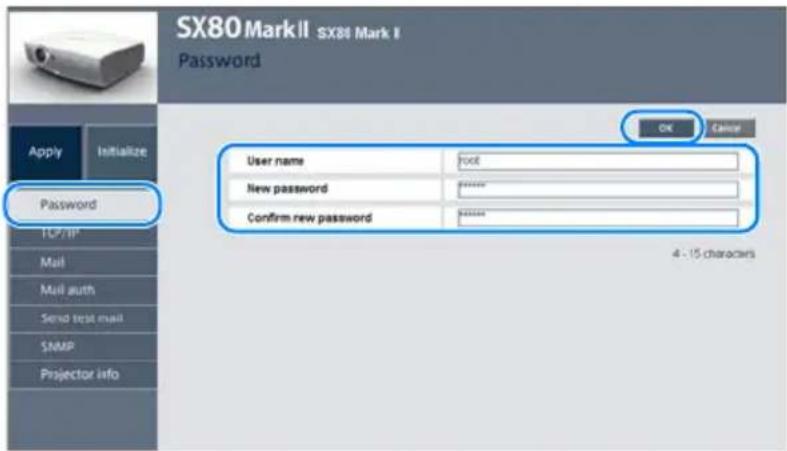
2 Click [TCP/IP], enter appropriate values in the following field, and click the [OK] button. Setting items:
IP address: The IP address of the projector
Subnet mask: The subnet mask of the projector
[Default gateway]: The default gateway of the projector
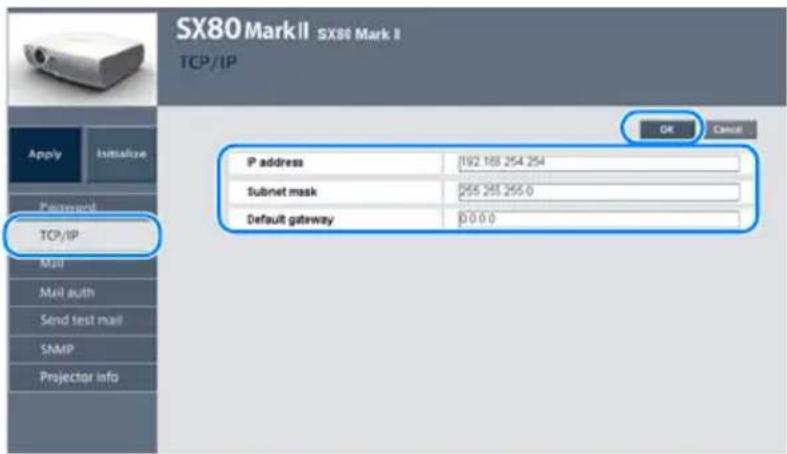
3 Click [Mail], enter appropriate values in the following field for the error report, and click the [OK] button.
Setting items:
[To:]: The E-mail address to which the error report is sent
(Within 63 alphanumeric characters)
[Cc]: The E-mail address to which the carbon copy of the error
report is sent (Within 63 alphanumeric characters, can be omitted)
[From:]: The sender of the E-mail (the projector)
[SMTP server IP address]: The IP address of the available SMTP mail server
[SMTP server port number]: The port number of the available SMTP mail server
[SNTP server IP address]: The IP address of the available SNTP mail server (can be omitted)
[Time zone]: The time zone of the installation site
[Mail resend interval]: The E-mail resending interval at a transmission failure
Setting range: 0 - 59 seconds (the factory default: 10 seconds)
[Mail resend times]: The number of E-mail resending attempts at a transmission failure
Setting range: 0 - 255 times (the factory default: 3 times)
[Error report]: Turning ON/OFF the error report sending function (the
factory default: [OFF])
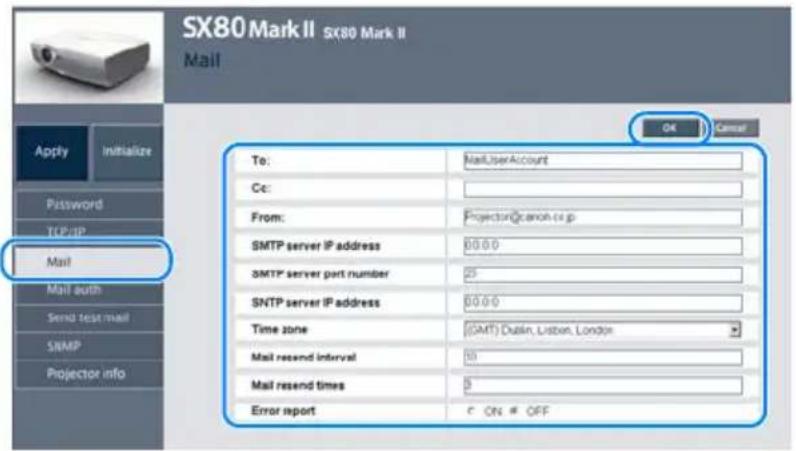
4 If the SMTP mail server authentication is required, click [Mail auth], enter appropriate values in the following field, and click the [OK] button.
Select one of the following four authentication method in [Mail authentication]. Select [OFF] if the mail authentication is not required (the factory default is [OFF]).
[LOGIN (SMTP authentication)], [CRAM-MD5 (SMTP authentication)],
[USER/PASS (POP before SMTP)], [APOP (POP before SMTP)]
Setting items:
[User name]: The user name for the mail authentication
[Password]: The password for the mail authentication
[Confirm password]: The password for confirmation
[POP3 server IP address]: The IP address of the POP3 server
[POP3 server port number]: The port number of the POP3 server
(The factory default: 110)
[POP before SMTP response time]: The wait time between the POP3 authentication and the transmission to the SMTP mail server (millisecond, the factory default: 300)
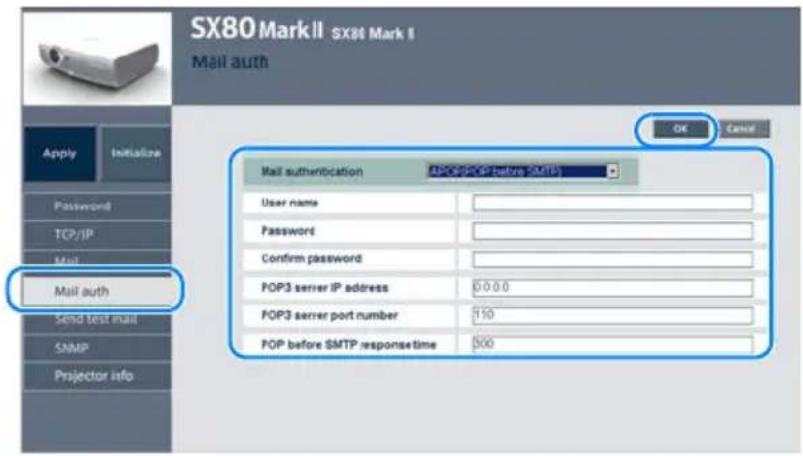
5 If you want to monitor the projector, click [SNMP], enter appropriate values in the following field, and click the [OK] button.
Select one of the following four SNMP version in [SNMP]. Select [OFF] if you don't want to monitor the projector.
(The factory default: [OFF])
[V1], [V2c], [V3 (MD5)], [V3 (DES, MD5)]
Setting items:
[Receive community]: The name of the community (user)
[Password]: The password for the community setting
[Confirm password]: The password for confirmation
[SNMP trap]: Conditions for sending the SNMP trap
[Trap IP address]: The IP address to which the SNMP trap is sent
[Trap community]: The name of the community (user) to which the SNMP trap is sent
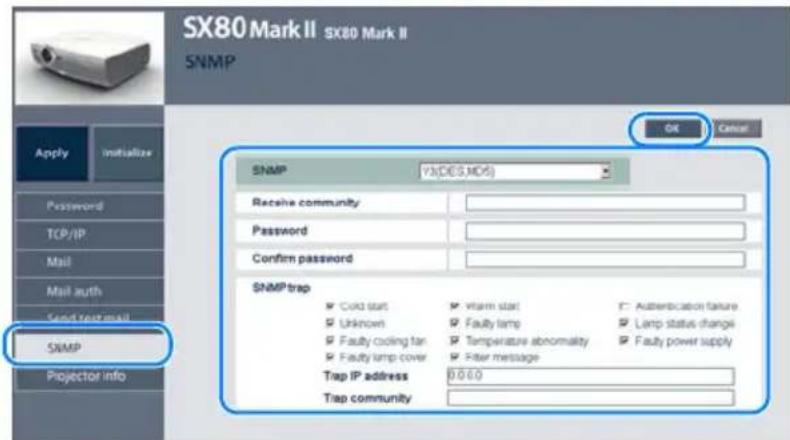
What is the SNMP Agent Function?
This projector supports the SNMP (Simple Network Management Protocol) agent function that monitors the status of the projector. SNMP consists of the manager (a monitoring tool, your PC) and agent (a monitored target, the projector).
The information exchange group via SNMP is called "a community." The message which tells the status of the agent is called "a SNMP trap."
This projector has the following SNMP traps:
- Cold start: it tells the SNMP agent is under initialization.
- Warm start: it tells the SNMP agent is under reset (at the SNMP version upgrade).
- Authentication failure: it tells that it failed the SNMP authentication.
- Faulty lamp: it tells that a lamp-related error was occurred.
- Faulty power supply: it tells that a power supply-related error was occurred.
• Temperature abnormality: it tells that a temperature-related error was occurred.
- Lamp status change: it tells that the status of the lamp used time was changed.
- Faulty cooling fan: it tells that a cooling fan-related error was occurred.
- Faulty lamp cover: it tells that a lamp cover-related error was occurred.
- Filter message: it tells that the air filter has reached its replacement timing.
- Unknown: it tells that an unknown error was occurred.
Make sure to install the SNMP manager program on your PC before using the SNMP agent function.
Authentication and Encryption Protocols
SNMP V3 for the projector uses the DES-CBC for the authentication and encryption protocols.
6Click [Projector info] and enter the projector name.
- You can input 1 to 63 alphanumeric characters.
- The factory default is [SX80 MarkII].
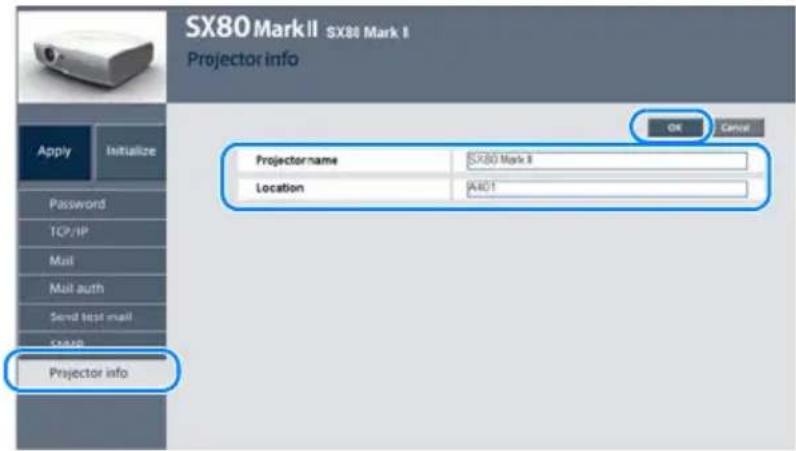
7 Click [Location], enter the projector location, and click the [OK] button.
- You can input up to 63 alphanumeric characters.
• The factory default is blank.
8Click [Apply] when you have completed each menu.
![CANON XEED SX800 - 8Click [Apply] when you have completed each menu. - 1](/content/2026/05/793021/images/d06a854d3e251d0318db41e1ec3220a3bb82e064933e0f19babfe9a1b76093db.jpg)
Click the [OK] button when the following dialog box is displayed.
The network setting of the projector is now completed.
If you want to test the error report transmission, click [Send test mail].
■ Resetting the Network Setting
1 Click [Initialize] in the menu screen.
2Click the [OK] button when the following dialog box is displayed.
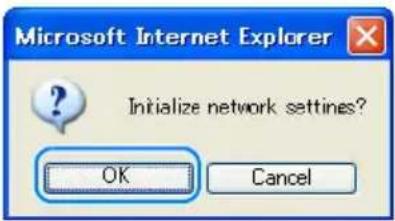
If you want to restore to the factory setting from the projector, perform [Network setting initialization] from the menu.
■ Error Notification Message
It sends the following message when an error occurs in the projector.
Error list
| Errors related to temperature | Error name Temperature | abnormality |
| Text | The temperature inside the projector is too high for some reason or the outside air temperature is higher than the specified one. If the problem is inside the projector, check whether the projector is installed and operated normally, turn off the projector to cool its inside, and retry projection. If the same warning occurs again, the projector may be defective. Contact your dealer. | |
| Errors related to the lamp | Error name Faulty lamp | |
| Text | The lamp has burnt out. Replace the lamp with a new one. If the same warning occurs again, the lamp drive circuit may be defective. Contact your dealer. | |
| Errors related to the lamp cover | Error name Faulty lamp cover | |
| Text | The lamp cover is open. Check whether the lamp cover is installed properly. If it is installed properly, the lamp cover detection switch may be defective. Contact your dealer. | |
| Errors related to the cooling fan | Error name Faulty cooling fan | |
| Text | The cooling fan or another component may be defective. Contact your dealer. | |
| Errors related to the power supply | Error name Faulty power supply | |
| Text | The voltage of part of the power supply is abnormally high or any other problem has occurred in the power supply. Contact your dealer. | |
| Other types of errors | Error name Unknown Error | |
| Text Codes in hexa decimal numbers* |
* Contact your Canon dealer.
■ Projector Control
1 Click the [Projector control] button on the network setting screen.
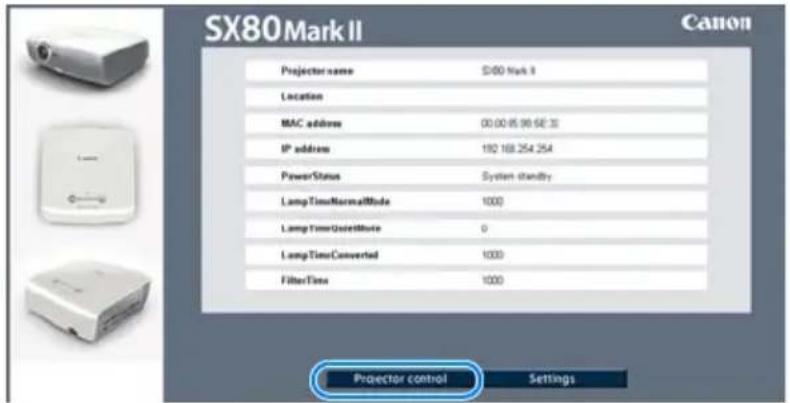
The projector control screen appears.
Controlled items:
[Power]: Turn ON/OFF the projector (P49, P68)
[Input]: Select an input signal (P54)
[Aspect]: Select an aspect ratio (P62)
[Image mode]: Select an image mode (P67)
[Blank]: Blank out the image temporarily (P70)
[Mute]: Mute the sound temporarily (P71)
[Auto setup]: Perform the auto setup function (P52)
[Auto PC]: Perform the auto PC function (P57)
- For [Input], [Aspect], and [Image mode], select an item and click the [Apply] button.
- Click the [Refresh] button to display the latest information.
- Click the [Back] button to return to the network setting screen.
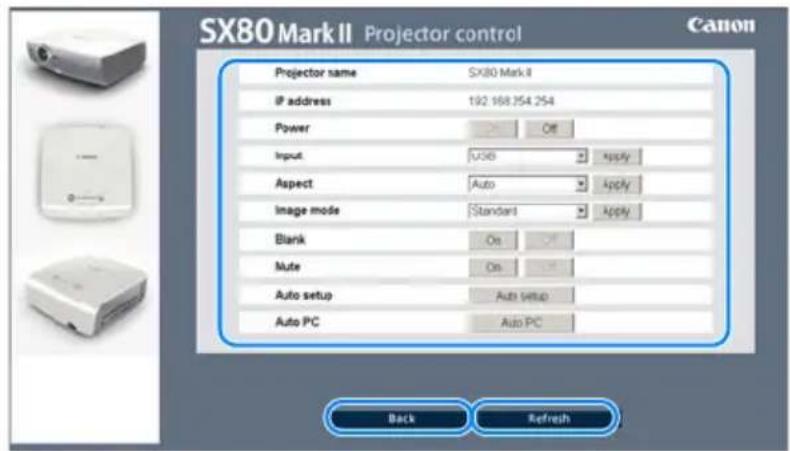
![CANON XEED SX800 - Click the [Projector control] button on the network setting screen. - 3](/content/2026/05/793021/images/bed9f0a469c4bc6fefb9707250ad368ded5425e5667dc5798a1941de2e96d52d.jpg)
- Do not use the [Back], [Forward], or [Refresh] button on your web browser when you control the projector. Using the web browser buttons may cause the projector to be malfunctioned. Be sure to use the buttons on the network setup window.
- Before terminating control of the projector, press the [Refresh] button to check whether the new setting is properly updated or not.
Appendix
Table of Contents
Safety Instructions
Before Use
Projecting an Image
Useful Functions Available During a Presentation
Setting Up Functions from Menus
Projecting an Image from a Digital Camera or an USB Flash Memory (SX80 II)
Connecting the Projector to Network (SX80 II)
Appendix
Index
WARNING Lamp Flash Patterns
The WARNING lamp on the Control Panel flashes in red after the projector is turned off when there is a trouble in the projector.
- Wait until the cooling fan stops and disconnect the power plug from the AC outlet before dealing with the trouble.
| Flash Pattern | Meaning Countermeasure | |
| One flash Temperature | erature, abnormality | The temperature inside the projector is too high for some reason or the outside air temperature is higher than the specified one. If the problem is inside the projector, check whether the projector is installed and operated normally, unplug the projector from the power outlet to cool down the inside of it and retry projection. If the air intake or exhaust vent is blocked, remove the obstacle. If the same warning occurs again, the projector may be defective. Contact your dealer. |
| Two flashes Faulty lamp | lamp The lamp | has burnt out. Replace the lamp with a new one. If the same warning is experienced again, the lamp drive circuit may be defective. Contact your dealer. |
| Three flashes Faulty lamp cover | The lamp cover is open. Unplug the projector from the power outlet, then install the lamp cover and turn on the projector again.If the lamp cover has been installed properly, the lamp cover detection switch may be defective. Contact your dealer. | |
| Four flashes Faulty cooling fan | The cooling fan or another component may be defective. Unplug the projector from the power outlet, then plug it to the outlet and turn on the projector again. Contact your dealer if the same warning is given. | |
| Five flashes Faulty power supply | The abnormal voltage is applied to some parts in the power supply or any other failure may be occurred. Unplug the projector from the power outlet, then plug it to the outlet and turn on the projector again. Contact your dealer if the same warning is given. | |
Symptoms and Solutions
■ You cannot turn on the projector.
| Cause Countermeasure | |
| The power cord is not connected correctly. | Check whether the power cord is connected correctly. (P49) Check that [Key lock] is not enabled. (P105) |
| The power cord has just been connected. | You cannot turn on the projector until the POWER indicator turns red after connecting the power plug. (P49) |
| The lamp cover is open. | Unplug the power cord from the power outlet and correctly install the lamp cover and then turn on the projector again. |
| The safety device has activated because you put the projector in the carrying bag during the cooling fan was rotating. | When the safety device is active, the POWER lamp does not turn on when you connect the power cord. You cannot release the safety device. Contact your dealer. |
| The safety device is activated because the air intake or the exhaust vent is blocked and the internal temperature of the projector is increased. | When the safety device is active, the POWER lamp does not turn on when you connect the power cord. You cannot release the safety device for safety reason. Remove any obstacle that is blocking the air intake or exhaust vent and contact your dealer. |
■ You cannot project an image from the projector.
| Cause Countermeasure | |
| Any connection cable is connected incorrectly. | Check whether the projector is connected to the computer or AV equipment correctly. (P38, P39, P54) |
| 20 seconds have not passed since the projector was turned on. | When the projector is turned on, the Opening window is displayed for approximately 20 seconds. To project an image immediately, press the OK button on the remote control or top control. (P49) |
| No image is sent from the AV equipment. | Check that an image is played on the connected digital camera, video camcorder, DVD, etc. |
| The wrong video terminal or signal type is selected. | Check that the correct video terminal and signal type are selected. (P38, P39, P54) |
| No input signal type has been selected. | Press the INPUT button to select an appropriate input signal type. (P55) |
| The video signal type is incorrect. | Check whether the selected signal type is correct. (P80, P81, P150) |
| The BLANK function has been selected. | Press the BLANK button on the remote control. (P70) |
| No image is sent due to the problem in the computer. | Turn on the projector and computer in this order again. |
| The external monitor output is not set on the notebook computer correctly. | Turn on the external monitor output on the notebook computer. To turn on the external monitor output, press the [LCD] or [VGA] function key or a key with an icon for the external monitor, while holding down the [Fn] key on the keyboard of the notebook computer. (P51)The combination of keys used to perform this operation varies among computer manufacturers. For more detailed information, refer to the User's Manual that came with your computer. |
| The displayed image is not the same as that displayed on the computer. | Check whether the dual screen (multi-display) mode is selected on the computer. If the dual screen mode has been selected, change it to the simultaneous display mode on the computer.The output setting method varies among computer manufacturers. For more detailed information, refer to the User's Manual that came with your computer. |
| The lens cap is not removed. Remove the lens cap. | |
■A digital camera or USB flash memory is not recognized. (SX80 II)
| Cause Countermeasure | |
| PictBridge is not supported. Equipment not supporting PictBridge is not recognized.Refer to the User's Manual for the relevant equipment.(P114) | |
| The mass storage class is not supported. | USB flash memory not supporting the mass storage class is not recognized. Refer to the User's Manual for USB flash memory. (P118) |
■ You cannot hear sound.
| Cause Countermeasure | |
| The audio cable is not connected correctly. | Check the cable connection of the audio cable. (P38, P39) |
| The MUTE function is enabled. | Press the MUTE button on the remote control. (P71) |
| The volume level is adjusted to the minimum. | Press the VOL button on the remote control or the VOL+ button on the top control to adjust the volume level. (P71) |
| An audio cable with a built-in resistor is used. | Use an audio cable without a built-in resistor. |
■ The projected image is blur.
| Cause Countermeasure | |
| The image is out of focus. Adjust the | focus. (P59) |
| The distance to the screen is too short. | Check whether the distance to the screen is appropriate. If the distance is shorter than approximately 1.2m (3.9'), the projector cannot focus on the screen. (P35, P151) |
| The projector is not placed straight in front of the screen. | Check whether the projector is placed obliquely to the screen. A slight error in the projection angle can be corrected through the keystone adjustment function. (P60) |
| The projector has been moved to a place where the temperature varies a lot. | When the projector is moved from a low-temperature place to a high-temperature place, condensation may form on the lens. The condensation will evaporate a while later and the projector will be able to project a normal image. |
| The lens is stained. Clean up the lens. | (P143) |
| The tracking is bad. Adjust the tracking with the AUTO PC or Tracking function. (P57, P82) | |
■ You cannot project an image appropriately.
| Cause Countermeasure | |
| The projected image is inverted in the vertical or horizontal direction. | The ceiling mounted/rear projection setting is incorrect.Check the [Image flip H/V] setting in the [Display settings] menu. (P87) |
| Using a VGA cable in which some pins are not connected. | Use a supplied VGA cable (for SX800).If you use a commercial VGA cable, make sure to use a cable in which all pins are connected. |
■ The projector is forced to be turned off.
| Cause Countermeasure | |
| The air intake or exhaust vent is blocked. | Check whether the air intake or exhaust vent is blocked. If the air intake or exhaust vent is blocked, the temperature inside the projector rises and the power is automatically turned off to protect the projector. (The WARNING lamp flashes once.) Wait until the internal temperature gets down, and then turn on the projector without blocking the intake and exhaust vents. (P24, P25, P49) |
| The air filter is dirty. Check whether the bottom air filter is clogged with dust. If the air filter is clogged, clean or replace the air filter. (P144) | |
| The lamp has exploded (or it is defective). | Check whether the lamp has exploded. If the lamp has exploded, replace the lamp according to "Lamp Handling Precautions" on page 18. Check the lamp by replacing it with a spare lamp if you have one. (P18, P145, P146) |
| The operating temperature is inappropriate. | Check whether the operating temperature is 5 to 35°C. (P20)If you use the projector at 1900 meters or higher above sea level, contact your dealer. |
| Other reasons The projector may be | damaged. Contact your dealer. |
■You cannot operate the remote control.
| CauseCountermeasure | |
| Batteries are not installed properly or they have run out. | Check whether batteries are installed correctly. If batteries are installed correctly, replace them with new batteries. (P31) |
| You are operating the remote control from the outside of the remote control operating range. | Check whether you are operating the remote control within the remote control operating range. (P31) |
| There is an obstacle between the projector and the remote control. | Remove the obstacle between the infrared remote receiver of the projector and the remote control or point the remote control to an obstacle-free path. |
| You are operating the remote control under an inappropriate operating environment. | Check whether the infrared remote receiver of the projector is exposed to direct sunlight or strong light of lighting apparatus. (P31) |
| The channel setting of the remote control does not match with the setting of the projector. | Check whether the channel setting of the remote control has been changed. You can check the [Remote control] setting in the [System settings] menu. (P107) |
| The key lock function is prohibiting the remote control operation. | Check whether [Key lock] is enabled to disable the remote control operation.In the System settings menu, set [Key lock] to [Off]. (P105) |
Cleaning the Projector
Clean the projector frequently to prevent dust from settling on the surface.
A dirty lens may ruin the quality of the projected image.

- The main unit is very hot immediately after turning off the projector. Wait until the projector cools down sufficiently (more than 1 hour) before cleaning the projector. Otherwise, you may get burned or injured.
- Before cleaning the projector, be sure to remove the power plug from the AC outlet. Otherwise, electric shock or fire may result.
Wipe the projector's main unit softly with a soft cloth.
If the projector is heavily soiled, soak the cloth in water with a small amount of detergent in it, squeeze the cloth very well, and then wipe the projector with it. After cleaning, wipe the projector with a dry cloth.

- Never use volatile cleaning liquid or benzine, as these may damage the finish of the projector.
- When using a chemical dust cloth, make sure to read the instructions thoroughly.
- When cleaning the projector's lens, use a commonly available air blower or lens cleaning paper. The lens surface is easily damaged, so do not use a hard cloth or tissues.
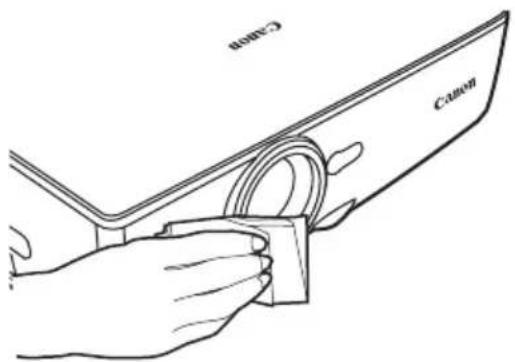
When Not Used for an Extended Period of Time
Be sure to attach the lens cap on the lens and store in the supplied carrying bag.
Cleaning and Replacing the Air Filter
An air filter is installed in the air intake vent on the bottom of the main body to protect the internal lens and mirror from dust. Should the air filter become clogged with dust, the projector may be damaged since it will block the air flow into the projector and raises the internal temperature of the projector. The following screen is displayed when turning on the projector if the air filter needs to be cleaned. Clean the air filter if such is the case.

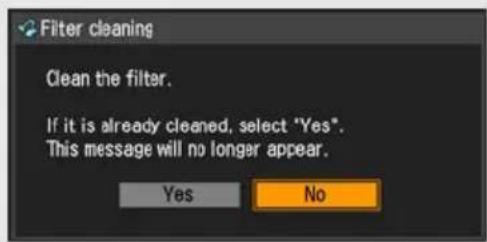
- Only [<], [>], the OK button, and the POWER button are available while this screen is displayed (When you press the POWER button, "Push POWER button again to turn off power." message appears).
• After this screen has been displayed for 10 seconds and disappeared, all buttons become operable.
■ Cleaning the Air Filter
- Turn the projector upside down, remove the cover by pushing the latch, remove the air filter, and clean it with a vacuum cleaner.
- When cleaning dust off the rear exhaust vent and bottom air intake vent, bring the vacuum cleaner nozzle close to them directly.
- If the above screen is displayed when turning on the projector after cleaning the air filter, select [Yes].
■ Replacing the Air Filter
Make sure to replace the air filter when replacing the lamp. Follow the following procedure when replacing the air filter.
1 Turn off the projector, disconnect the power plug from the AC outlet, and let the projector stand for at least 1 hour.
2 Remove the filter cover by pushing the position of the arrow.
3Remove the air filter.
4 Install a cleaned or new air filter.
5 Install the filter cover securely without any space.
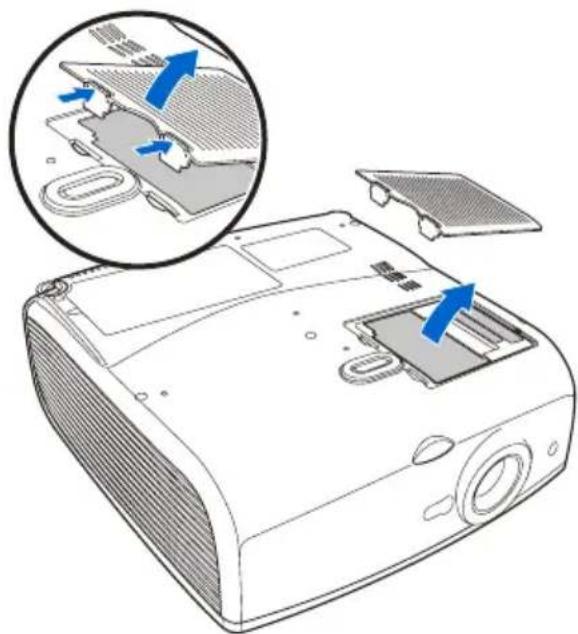
natural_image
Diagram of a projector with an inset showing internal components and blue arrows indicating motion (no text or symbols present)
- Handle the air filter carefully. If damaged, the air filter will not work appropriately - An air filter can be ordered from your dealer.
Replacing the Lamp
When the time of use of the lamp exceeds the certain amount of time, the following message (two types) is displayed for 10 seconds every time the projector is turned on.
1,800 - less than 2,000 hours
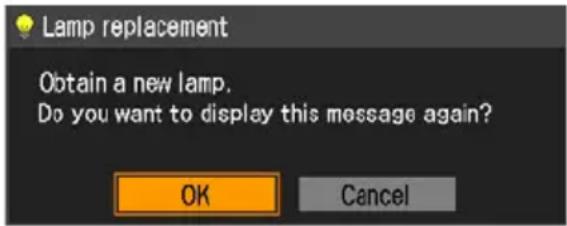
Prepare the new lamp when this screen is displayed.
- Only [<], [>], the OK button, and the POWER button are available while this screen is displayed.
-
When you press the POWER button, "Push POWER button again to turn off power." message appears.
-
After this screen has been displayed for 10 seconds and disappeared, all buttons become operable.
- This message will not be displayed again if you select [Cancel] in response to the message "Do you want to display this message again?".
Over 2,000 hours
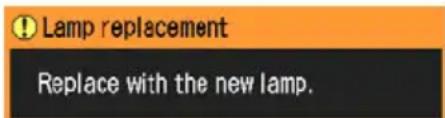
Replace the lamp by referring to the procedure on page 146 when this screen is displayed.
- Only the POWER button is available while this screen is displayed.
-
When you press the POWER button, "Push POWER button again to turn off the power." message appears.
-
After this screen has been displayed for 10 seconds and disappeared, all buttons become operable.
- You can check the time of use of the lamp in [Lamp counter] in the [System settings] menu (P109).
■ About the Replacing Lamp
This projector uses the following lamp.
Lamp type No.RS-LP05

- Be sure to use the specified lamp.
- A lamp can be ordered from your dealer.
- When replacing the lamp, turn off the projector, wait until the cooling fan stops, disconnect the power plug from the AC outlet, and let the projector stand for at least 1 hour. Otherwise, you may get burned because the main unit is very hot immediately after the projector is turned off.
- Do not touch the inner glass surface when you replace the lamp. Otherwise, the projector 's performance may degrade.
- Make sure to handle the lamp carefully and correctly since it may explode if it is scratched or shocked. If a lamp explodes, follow the instructions under "If a Lamp Explodes" on page 18.
- Do not remove screws unless specified.
■ Replacing the Lamp
1 Turn off the projector, disconnect the power plug from the AC outlet, and let the projector stand for at least 1 hour.
2As shown in the figure, insert a flat-head screwdriver in the gap and remove the lamp cover by raising it.
3Loosen two screws with a phillips-head screwdriver and then pull up the handle.
* Pull up the handle as shown in the figure.
4Remove the lamp while holding the center of the handle.
5 Fully insert a new lamp and secure it with two screws.
* After the installation, be sure to push down the handle.
6As shown in the figure, replace the lamp cover. Check whether the lamp cover is installed securely.
7 Turn on the projector.
8 Bring up the menu and select [System settings] -> [Other settings] -> [Lamp counter]. (P109)
9 Select [Reset] -> [OK] to reset the lamp counter.
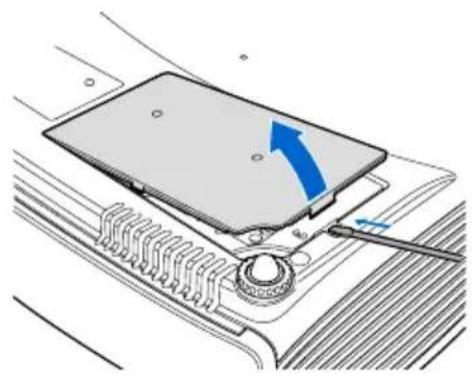
natural_image
Diagram of a device's internal structure with a blue arrow indicating direction (no text or symbols present)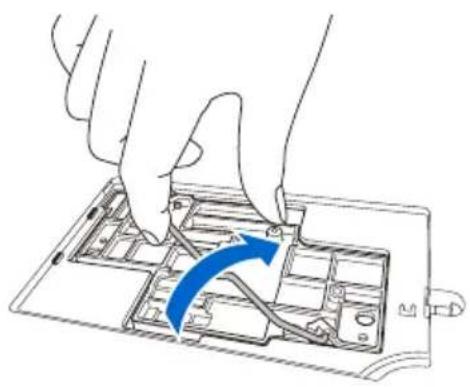
natural_image
Illustration of hands installing or adjusting a device panel with a blue arrow indicating the process (no text or symbols present)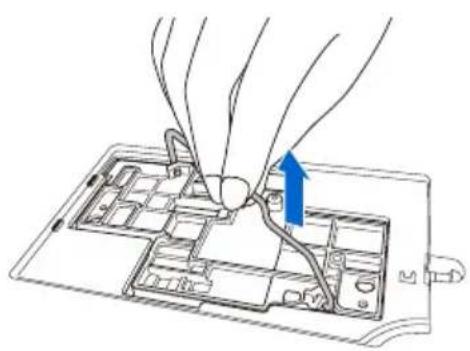
natural_image
Diagram of hands connecting a device into a circuit board with a blue arrow indicating the connection (no text or symbols present)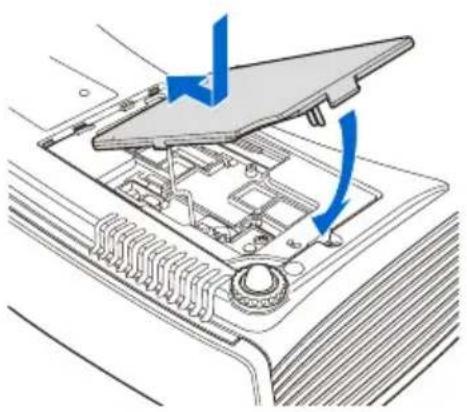
natural_image
Diagram of a computer motherboard with a slide and scroll, showing a blue directional arrow indicating rotation (no text or symbols present)Relationship between Aspect and Screen Aspect
This section describes the relationship between screen aspect (P62) and aspect (P65). To project an image on the whole screen, select the most appropriate screen aspect ratio and aspect according to the aspect ratio of the screen and input signal type.
When Projecting an Image from a Computer
When the input signal is [ANALOG PC-1], [ANALOG PC-2], or [DIGITAL PC (SX80 II)], select screen aspect and aspect as follows according to the resolution of the image on the computer.
| Screen | Screen Aspect Ratio Setting | Resolution of Computer Screen | Object of Projection Aspect Setting | |
| 4:3 | [4:3] | SXGA+ 4:3 4:3 |  | Project an image in a largest possible size on the screen. |
VGA, SVGA, XGA 4:3 4:3 |  | Project an image in a largest possible size on the screen. | ||
 | Project the computer screen in the original resolution. | |||
WXGA | Project an image in a largest possible size on the screen. | |||
 | Project the computer screen in the original resolution.(WUXGA not select-able) | |||
SXGA 5:4 5:4 |  | Project an image in a largest possible size on the screen. | ||
 | Project the computer screen in the original resolution. | |||
| 16:9 | [16:9] | SXGA+ 4:3 4:3 | Project an image in a largest possible size on the screen. | |
VGA, SVGA, XGA 4:3 4:3 |  | Project an image in a largest possible size on the screen. | ||
 | Project the computer screen in the original resolution. | |||
WXGA |  | Project an image in a largest possible size on the screen. | ||
SXGA 5:4 5:4 | Project an image in a largest possible size on the screen. | |||
When Projecting an Image from Image Software
To project an image such as an image shot by a TV set, commercially available DVD software, or video camcorder (input signal [HDMI (SX80 II)], [VIDEO], [S-VIDEO (SX80 II)], [COMPO-NENT]), select an aspect ratio according to the image software format as follows.
| Screen | Screen Aspect Ratio Setting | Image Software Format | Projection Result | Aspect Setting |
| 4:3 | [4:3] [Auto] |  4:3 4:3 |  ____ ____ | *1 |
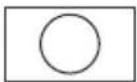 16:9 16:9 |  ____ ____ | |||
| 16:9 | [16:9][16:9 D. image shift]*4 |  4:3 4:3 | 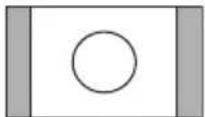 ____ ____ | [Auto]*2 |
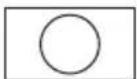 16:9 16:9 | [GAAx]____ | |||
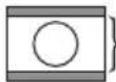 16:94:3 16:94:3 |  ____ ____ | [Zoom]*3 |
*1 [Auto] cannot be selected for the aspect setting if the input signal type is [VIDEO].
*2 If an image from image software with aspect ratio of 16:9 is not projected correctly, select [16:9] as screen aspect.
*3 If you project the 16:9 image with black borders at top and bottom such as in the terrestrial movie broadcasting, you can project the 16:9 image fully on the screen by selecting [Zoom] in [Aspect].
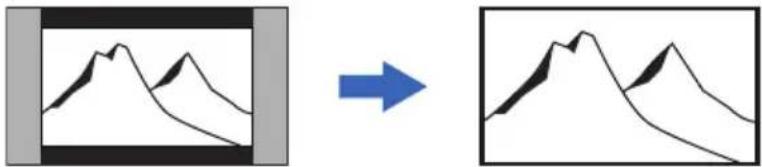
natural_image
Diagram showing a mountain silhouette before and after transformation, with no text or symbols present.[Zoom] is available when [16:9] or [16:9 D. image shift] is selected for the screen aspect and [HDMI (480p)(SX80 II)], [COMPONENT (480p, 480i)], [VIDEO] or [S-VIDEO (SX80 II)] is selected for the input signal.
*4 To perform keystone adjustment (P60), select [4:3] or [16:9] for [Screen aspect].
When Projecting an Image from a Digital Camera or a USB Flash Memory (SX80 II)
The [Auto] mode is automatically selected for the aspect ratio when displaying an image from a digital camera or USB flash memory (selecting [USB] as the input signal).
The image is expanded fully on the screen with the screen aspect maintained.
| Screen | Screen Aspect Ratio Setting | Projection Result Aspect Setting | |
 | [4:3] [Auto] |  | |
 | [16:9] [16:9 D. image shift]* |  | [Auto] |
* To perform keystone adjustment (P60), select [16:9] for [Screen aspect].
Supported Computer Signal Types
This projector supports following signal types.
If your computer or AV equipment is compatible with any one of these signal types, the projector's auto PC function selects the input signal type to project an image appropriately.
ANALOG RGB
| Resolution (dots) | Signal type | Horizontal frequency (KHz) | Vertical frequency (Hz) |
| 640 x 480 | VGA | 31.469 59.94 | |
| 37.50 | 75.00 | ||
| 37.861 72.81 | |||
| 37.861 74.38 | |||
| 43.269 85.01 | |||
| 720 x 400 - | 31.469 70.09 | ||
| 800 x 600 | SVGA | 34.50 | 55.38 |
| 35.156 56.25 | |||
| 37.879 60.32 | |||
| 37.898 61.03 | |||
| 38.00 | 60.51 | ||
| 38.60 | 60.31 | ||
| 46.875 75.00 | |||
| 48.077 72.19 | |||
| 53.674 85.06 | |||
| 1024 x 768 | XGA | 44.028 54.68 | |
| 46.897 58.19 | |||
| 47.00 | 58.31 | ||
| 48.363 60.00 | |||
| 48.496 60.02 | |||
| 56.476 70.07 | |||
| 58.032 72.00 | |||
| 60.023 75.03 | |||
| 60.314 74.92 | |||
| 60.994 75.77 | |||
| 62.04 77.07 | |||
| 63.478 79.35 | |||
| 68.677 85.00 | |||
| 1280 x 768 | WXGA | 47.986 59.88 | |
| 1280 x 800 | 49.702 60.03 | ||
| 1360 x 768 - | 47.712 60.02 | ||
| 1366 x 768 - | 47.712^*1 | 59.79^*1 | |
| 1152 x 864 - | 64.196 70.39 | ||
| 1152 x 900 - | 61.17 65.28 | ||
| 61.846 66.00 | |||
| 71.399 75.64 | |||
| 1280 x 960 - | 60.00 | 60.00 | |
| 1280 x 1024 | SXGA | 62.50 | 58.63 |
| 63.337 59.98 | |||
| 63.364 59.95 | |||
| 63.735 60.01 | |||
| 63.791 60.18 | |||
| 63.899 60.00 | |||
| 63.981 60.02 | |||
| 71.694 67.19 | |||
| 76.97 72.00 | |||
| 79.976 75.03 | |||
| 81.135 76.11 | |||
| 1400 x 1050 | SXGA+ | 63.981 60.02 | |
| 65.317^*1 | 59.98^*1 | ||
| 1600 x 1200 | UXGA | 75.00 | 60.00 |
| 640 x 480 | MAC LC 13 | 34.967 66.60 | |
| 640 x 480 | MAC13 | 35.00 | 66.67 |
| 832 x 624 | MAC16 49.725 74.55 | ||
| 1024 x 768 | MAC19 60.248 75.03 | ||
| 1152 x 870 | MAC21 68.681 75.06 | ||
| 1280 x 960 | MAC | 75.00 | 75.08 |
*1 is only applicable to SX80 MarkII
* This projector does not support any computer signal of which dot clock is 170 MHz or higher.
DVI (SX80 II)
| Resolution (dots) | Signal type | Horizontal frequency (KHz) | Vertical frequency (Hz) |
| 640 x 480 D-VGA | 31.469 | 59.94 | |
| 800 x 600 | D-SVGA | 37.879 | 60.32 |
| 1024 x 768 | D-XGA | 48.363 | 60.00 |
| 1280 x 1024 | D-SXGA | 63.981 | 60.02 |
| 1366 x 768 | - | 47.712 | 59.79 |
| 1400 x 1050 | D-SXGA+ | 65.317 | 59.98 |
| 63.981 | 60.02 | ||
HDMI (SX80 II)
| Signal type | Horizontal frequency (KHz) | Vertical frequency (Hz) |
| 480p | 31.469 | 59.94 |
| 576p | 31.250 | 50.00 |
| 720p | 37.500 | 50.00 |
| 720p | 44.955 | 59.94 |
| 1080i^~2 | 28.125 | 50.00 |
| 1080i^~2 | 33.716 | 59.94 |
| 1080p | 56.250 | 50.00 |
| 1080p | 67.433 | 59.94 |
^*2 Interlaced signal
COMPONENT
| Signal type | Horizontal frequency (KHz) | Vertical frequency (Hz) |
| 480p | 31.469 | 59.94 |
| 480i^*2 | 15.734 | 59.94 |
| 576p | 31.250 | 50.00 |
| 576i^*2 | 15.625 | 50.00 |
| 720p | 37.500 | 50.00 |
| 720p | 44.955 | 59.94 |
| 1035i^*2 | 33.750 | 60.00 |
| 1080i^*2 | 28.125 | 50.00 |
| 1080i^*2 | 33.716 | 59.94 |
| 1080p | 56.250 | 50.00 |
| 1080p | 67.433 | 59.94 |
^2 Interlaced signal
* The specifications in the table above are subject to change without notice.
Relationship between Screen Size and Projecting Distance
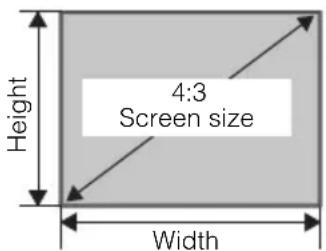
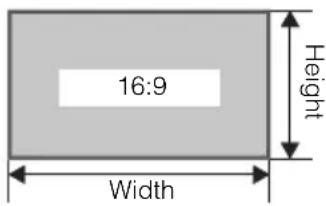
| Screen size at 4:3 aspect ratio Type - W x D cm | Projecting distance m (feet) Max. zooming | Projecting distance m (feet) Min. zooming | Screen size at 16:9 aspect ratio W x D cm | ||
| 40" (81 x 61) | 1.2 | (3.9') | 1.7 | (5.6') | 81 x 46 |
| 50" (102 x 76) 1.5 (4.9') | 2.2 (7.1') 10 | 2 x 57 | |||
| 60" (122 x 91) | 1.8 | (5.9') | 2.6 | (8.5') | 122 x 69 |
| 70" (142 x 107) 2.1 (6.9') | 3.1 (10.0') | 142 x 80 | |||
| 80" (163 x 122) | 2.4 | (7.9') | 3.5 | (11.4') | 163 x 91 |
| 90" (183 x 137) 2.7 (8.9') | 4.0 (13.1') | 183 x 103 | |||
| 100" (203 x 152) | 3.0 | (9.8') | 4.4 | (14.6') | 203 x 114 |
| 110" (224 x 168) 3.3 (10.8') | 4.9 (16.1) | 224 x 126 | |||
| 120" (244 x 183) | 3.6 | (11.8') | 5.3 | (17.4') | 244 x 137 |
| 130" (264 x 198) 3.9 (12.8') | 5.8 (19.0) | 264 x 149 | |||
| 140" (284 x 213) | 4.2 | (13.8') | 6.2 | (20.2') | 284 x 160 |
| 150" (305 x 229) 4.5 (14.8') | 6.6 (21.7) | 305 x 171 | |||
| 160" (325 x 244) | 4.8 | (15.5') | 7.1 | (23.3') | 325 x 183 |
| 170" (345 x 259) 5.1 (16.8') | 7.5 (24.6) | 345 x 194 | |||
| 180" (366 x 274) | 5.4 | (17.7') | 8.0 | (26.3') | 366 x 206 |
| 190" (386 x 290) 5.7 (18.7') | 8.4 (27.6) | 386 x 217 | |||
| 200" (406 x 305) | 6.0 | (19.7') | 8.9 | (29.2') | 406 x 229 |
| 210" (427 x 320) 6.4 (20.3')-- | 427 x 240 | ||||
| 220" (447 x 335) | 6.7 | (22.0') | - | - | 447 x 251 |
| 230" (467 x 351) 7.0 (22.9')-- | 467 x 263 | ||||
| 240" (488 x 366) | 7.3 | (23.9') | - | - | 488 x 274 |
| 250" (508 x 381) 7.6 (24.8')-- | 508 x 286 | ||||
| 260" (528 x 396) | 7.9 | (25.8') | - | - | 528 x 297 |
| 270" (549 x 411) 8.2 (27.2')-- | 549 x 309 | ||||
| 280" (569 x 427) | 8.5 | (27.9') | - | - | 569 x 320 |
| 290" (589 x 442) 8.8 (28.9')-- | 589 x 331 | ||||
| 300" (610 x 457) | 9.1 | (29.9') | - | - | 610 x 343 |
* The values in the table above are approximations rounded off.
* is only applicable to SX80 MarkII
sRGB (P67, P93)
An international standard of color representation (color space) which is applied to general digital cameras, displays and others. In this projector, if you select [sRGB] in the [Image mode] setting, the projector can project the best-quality image conforming to the sRGB Standard.
DVI\* (P42, P54)
A digital video signal connection interface for a computer. This interface allows digital data to be transmitted without converting to analog data, assuring high image quality with no signal degradation.
The DVI-I (integrated) connector can be used to transmit both an analog video signal and digital video signal.
Digital PC\* (P29, P42)
A signal system used to send digital information of individual display dots. This system is free from deterioration of image quality because of no analog conversion. Connect the DVI output terminal on the computer and ANALOG PC-1/DVI-I IN terminal on this projector with an optional DVI digital cable (LV-CA29). Select [DIGITAL PC] at projection.
Analog PC (P29, P40, P80)
A signal system used to send analog signal information of R (red), G (green), and B (blue). Connect the analog RGB output terminal on your computer to ANALOG PC-1/DVI-I IN terminal or ANALOG PC-2/COMPONENT IN terminal on the projector (in SX800, ANALOG PC-1 IN terminal or ANALOG PC-2/COMPONENT IN terminal), and select [ANALOG PC-1] or [ANALOG PC-2] at the time of projection.
HDMI\* (P44, P54)
An abbreviation for High-Definition Multimedia Interface, which is a digital video signal connection interface for AV equipment. It can transmit non-compressed images and audio signals simultaneously. It supports digital contents copy-protected with the HDCP technology. The projector supports HDMI 1.3 standard (10-bit deep color).
HDCP\*
An abbreviation of High-bandwidth Digital Content Protection which is an encryption technology for copy protection of digital image signals. In this projector, you can project digital contents copy-protected with the HDCP technology.
VIDEO (P29, P45, P80)
An output terminal widely used in an AV equipment. It is also called as a composite output terminal (pin terminal or RCA terminal). For more details, refer to "Composite".
Composite (P29, P45)
A video signal system used to send a brightness signal (Y) and a color signal (C) together. Connect the composite output (RCA) terminal on the AV equipment and the VIDEO IN terminal on this projector with a video cable. Select [VIDEO] at projection.
S-VIDEO\* (P29, P45, P80)
A signal system (YC separation signal) used to send a brightness signal (Y) and color signal (C) separately. Connect the S-video terminal on the AV equipment and the S-VIDEO IN terminal on this projector with an S-video cable. Select [S-VIDEO] at projection.
Aspect (P65, P79, P147)
The aspect ratio is the ratio of the horizontal dimension (width) to the vertical dimension (height) of a screen. It is expressed as "width : height."
The following aspect ratios are normally used in Computer or AV equipment.
[4:3]
The aspect ratio for SXGA+ (1400 x 1050) and XGA (1024 x 768) display resolution in PC or for the traditional television screen. The aspect ratio for this projector is 4:3.
[5:4]
The aspect ratio for SXGA (1280 x 1024) display resolution.
[16:9]
The aspect ratio for the high resolution digital television or digital terrestrial broadcasting.
For the aspect ratio for movie screens, "vista vision size" and "cinema scope size", etc. are used.
"Vista vision size"
The aspect ratio close to 16:9. Select [Auto] or [16:9] for [Aspect]. The back belts are added at the top and bottom of the image.
"Cinema scope size"
The landscape-oriented aspect ratio of 8:3. Select [Auto] or [16:9] for [Aspect]. The back belts are added at the top and bottom of the image.
Component (P29, P46, P98)
A signal system in which an image is transmitted by being broken down the brightness signal (Y) and the color signal (C) into the B-Y color difference signal and the R-Y color difference signal. Its image quality is higher than that of the composite video. This system can project a better-quality image as compared with the composite signal system. Connect the component video terminal on the AV equipment and the ANALOG PC-2/COMPONENT IN terminal on this projector with a component cable. Select [COMPONENT] at projection.
Tracking (P57, P82)
To reproduce an image from an analog image signal, the process to accumulate image information at the appropriate timing with reference to the synchronization signal within the image signal is required. This process is called the tracking. This projector can display an image properly by automatically adjust the tracking with the auto PC adjustment function even if there is a small difference in the synchronization signal from an analog imaging device.
Resolution (P56)
The number of dots (horizontal dots x vertical dots) that can be displayed on the screen. It describes the fineness (information amount) of the displayed image.
| Resolution | Number of dots | |
| Horizontal Vertical | ||
| VGA 640 | 480 | |
| SVGA 800 | 600 | |
| XGA 1024 | 768 | |
| SXGA 1280 | 1024 | |
| SXGA+ 1400 | 1050 | |
| UXGA 1600 | 1200 | |
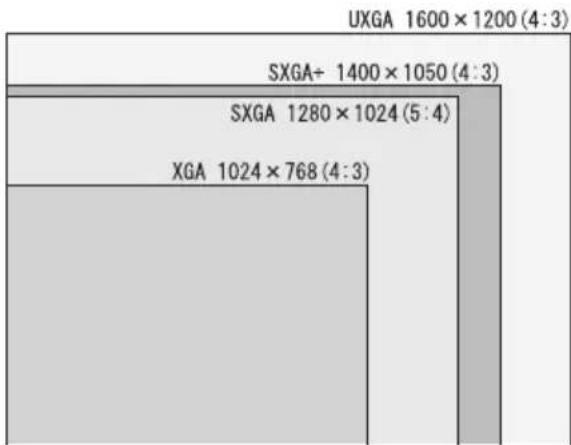
Number of dots in each resolution
If you select SXGA+ (1400 dots x 1050 dots) as the display resolution for the connecting computer, this projector can project high-resolution images. If your computer does not have the SXGA+ option, select the maximum resolution among the selectable options.
Progressive (P85)
An image display system used to display the entire screen per scan. For an interlace signal (video signal) that displays one screen by two scans (one for odd lines and one for even lines) is input, progressive processing is required. When the progressive function is turned off, one screen is displayed using image signals per interlace signal, deteriorating the vertical resolution of the image. When the progressive function is turned on, one screen is displayed using image signals per two interlace signals, improving the vertical resolution of the image. Turn off the progressive function when flickering and horizontal lines are noticeable on a fast-moving picture.
Offset (P97)
A parameter that shifts the reproduction range of a brightness signal from black to white within an image signal toward the higher or lower level of brightness. The reproducibility of the dark tone is mainly changed. Since you can adjust the offset for each RGB color in this projector, you can also adjust colors.
The offset is normally adjusted with the gain.
Color temperature\* (P96)
A value that represents the related color in a light source in general. In this projector, the color temperature is used to adjust the RGB color balance for the projected image to correct the related color influence by the ambient light. If you increase and decrease the color temperature, white changes to blue and red, respectively. You can set the color temperature in the [Color adjustment] menu if [Photo] has been selected for [Image mode].
Ambient light\* (P101)
Lightning environment around the projector. You can correct and project an image more appropriately according to the ambient light on the screen via the setting of [Ambient light] if you have selected [Photo] for [Image mode].
Gamma Correction (P95, P99)
A tone adjustment system used during projection of image data. The gamma correction function works effectively when portions of an image are obscure because they are too light or dark.
This projector supports manual gamma correction and dynamic gamma correction which performs the gamma correction automatically.
Gain (P97)
A parameter that adjusts the reproduction range of a brightness signal from black to white within the image signal to naturally reproduce it on the screen. The reproducibility of the bright tone is mainly changed. Since you can adjust the gain for each RGB color in this projector, you can also adjust colors. The gain is normally adjusted with the offset.
Memorized Color Correction \* (P99)
A memorized color is a color in our memory. The memorized color such as blue for the sky is more vivid than the real color, so you may feel colors of a projected image are dull. If such is the case, enable the memorized color correction function to make the colors close to the ones in our memory. You can enable the memorized color correction function in the image adjustment menu.
6-axis color adjust\* (P100)
The color adjustment function for an advanced user. You can adjust color balance and color level for 6 axis of RGB (red/green/blue) and CMY (cyan/magenta/yellow) of the projected image to make a fine color adjustment. You can perform the 6-axis color adjustment in the image adjustment menu.
PictBridge\* (P114)
A standard protocol established by CIPA (Camera & Imaging Products Association) that supports various digital photo solutions including camera direct print to print shot images by directly connecting a digital camera to a printer without via a computer. Other than digital cameras, some digital video camcorders and mobile phones are compatible with PictBridge. In this projector, you can project shot images by directly connecting PictBridge-compatible equipment.
DPOF\* (P115)
An abbreviation of Digital Print Order Format. It is a protocol to record information specified for printing such as images to be printed and the number of copies on a memory card for PictBridge-compatible digital camera. In this projector, use this function to continuously project multiple shot images from a connected digital camera.
■ Projector
| Model name SX80 MarkII/SX800 | ||
| Display system RGB liquid crystal system | ||
| Optical system | Color separation by dichroic mirror/polarizing beam splitter and color composition by prism | |
| Display device | Type Reflective liquid crystal panel | |
| Size/Aspect ratio 0.55" x 3/4:3 | ||
| Drive system Active matrix system | ||
| Number of pixels/Total Number of pixels 1,470,000 (1400 x 1050) x 3 panels/4,410,000 | ||
| Projection lens | Zoom ratio/Focal length/F value 1.5/f=16.6 to 24.8mm/F1.95 to F2.6 | |
| Zooming and focusing system Electronic operation/electronic operation (SX80 MarkII: with auto focusing function) | ||
| Lens shift 10:0 (fixed) | ||
| Light source 230W high-pressure lamp | ||
| Screen size (projection distance) 40" to 300" (1.2m/3.9' to 9.1m/12.8') | ||
| Number of producible colors 16,770,000 colors (full color) | ||
| Brightness* | 3,000 lm (at presentation) | |
| Contrast ratio | 900:1 (full white:full black, at presentation) | |
| Uniformity* | 88% (at presentation) | |
| Speaker | 1W monaural x 1 | |
| Maximum input resolution | 1600 x 1200 dots (compression) | |
| Video signals | ANALOG PC input | UXGA/SXGA+/SXGA/WXGA/XGA/SVGA/VGA (scan rate: horizontal: 15 to 75KHz, vertical 50 to 85Hz) |
| DIGITAL PC input (SX80 II) | SXGA+/SXGA/XGA/SVGA/VGA | |
| COMPONENT input | 1080p, 1080i, 1035i, 720p, 576p, 576i, 480p, 480i | |
| HDMI input (SX80 II) | 1080p, 1080i, 720p, 576p, 480p | |
| VIDEO/S-VIDEO (SX80 II) input | NTSC, PAL, SECAM, NTSC4.43, PAL-M, PAL-N | |
| Input terminals | ANALOG PC-1/DVI-I IN terminal (SX80 II) | DIGITAL PC, ANALOG PC-1 (DVI-I connector 29-pin) |
| HDMI IN terminal (SX80 II) | HDMI (HDMI ver. 1.3) | |
| ANALOG PC-1 terminal (SX800) | ANALOG PC-1 (mini D-sub 15-pin) | |
| ANALOG PC-2/COMPONENT IN terminal | ANALOG PC-2, COMPONENT (mini D-sub 15-pin) | |
| S-VIDEO IN terminal (SX80 II) | S-Video (mini DIN 4-pin) | |
| VIDEO IN terminal | Composite (RCA) | |
| USB terminal (SX80 II) | USB connection, PictBridge input (USB type A) | |
| CONTROL terminal | RS-232C (D-sub 9-pin) | |
| Audio Input terminal | Audio signal (stereo mini jack x 3) | |
| Video Output terminal (SX80 II) | Analog PC (mini D-sub 15-pin) | |
| Audio Output terminal | Audio signal (stereo mini jack) | |
| LAN terminal (SX80 II) Network connection (RJ-45) | ||
| Input signals | Digital PC (SX80 II) | TMDS (Transition Minimized Differential Signaling) |
| Analog PC | 0.7Vp-p, positive polarity, impedance = 75ΩHorizontal/vertical synchronization: TTL level, negative or positive polarityComposite synchronization in G signal: 0.3Vp-p, negative polarity, impedance=75Ω | |
| Video | Video:1Vp-p, negative synchronization, impedance = 75ΩS-video: Separate YC signal, Y: 1Vp-p, negative synchronization, impedance = 75ΩC: 0.286Vp-p (burst signal), impedance = 75ΩComponent: Separate Y Cb/Pb Cr/Pr signalY: 1Vp-p, Negative synchronization, impedance = 75ΩCb/Pb: 0.7Vp-p, impedance = 75Ω Cr/Pr: 0.7Vp-p, impedance = 75Ω | |
| Audio | 142mVrms, impedance = 47 KΩ or more | |
| Noise (normal mode/silent mode) | 35/31dB | |
| Operating temperature | 5 °C to 35 °C | |
| Power supply | AC 100-240 V 50/60 Hz | |
| Power consumption (normal mode/silent mode/standby state) | 330W/270W/15W (SX80 II) 320W/260W/8W (SX800) | |
| Dimensions | 332 (W) x 121 (H) x 340 (D) mm/13.3 (W) x 4.8 (H) x 13.6 (D) in (excluding protrusions) | |
| Weight | 5.2 kg/11.4 lbs (SX80 II) 5.0 kg/11.0 lbs (SX800) | |
| Accessories | Remote control, batteries for remote control, power cord, computer connection cable, component cable, carrying bag, lens cover, string for lens cover, User's Manual, and Warranty Card. | |
* 99.99% or more of the LCD panel pixels are effective. During projection, 0.01% or less of pixels may stay lit or unlit due to the characteristics of the LCD panel.
* Using the projector continuously for an extended period of time may accelerate the deterioration of optical parts.
■ Remote Control
| Power supply | Two 3.0 V, AAA-size batteries |
| Operating range | About 5 m (16.4') (to infrared remote receiver) |
| Dimensions | 42 (W) x 22 (H) x 135 (D) mm / 1.7 (W) x 0.9 (H) x 5.3 (D) in |
| Weight (not including batteries) | 55 g |
■ External View
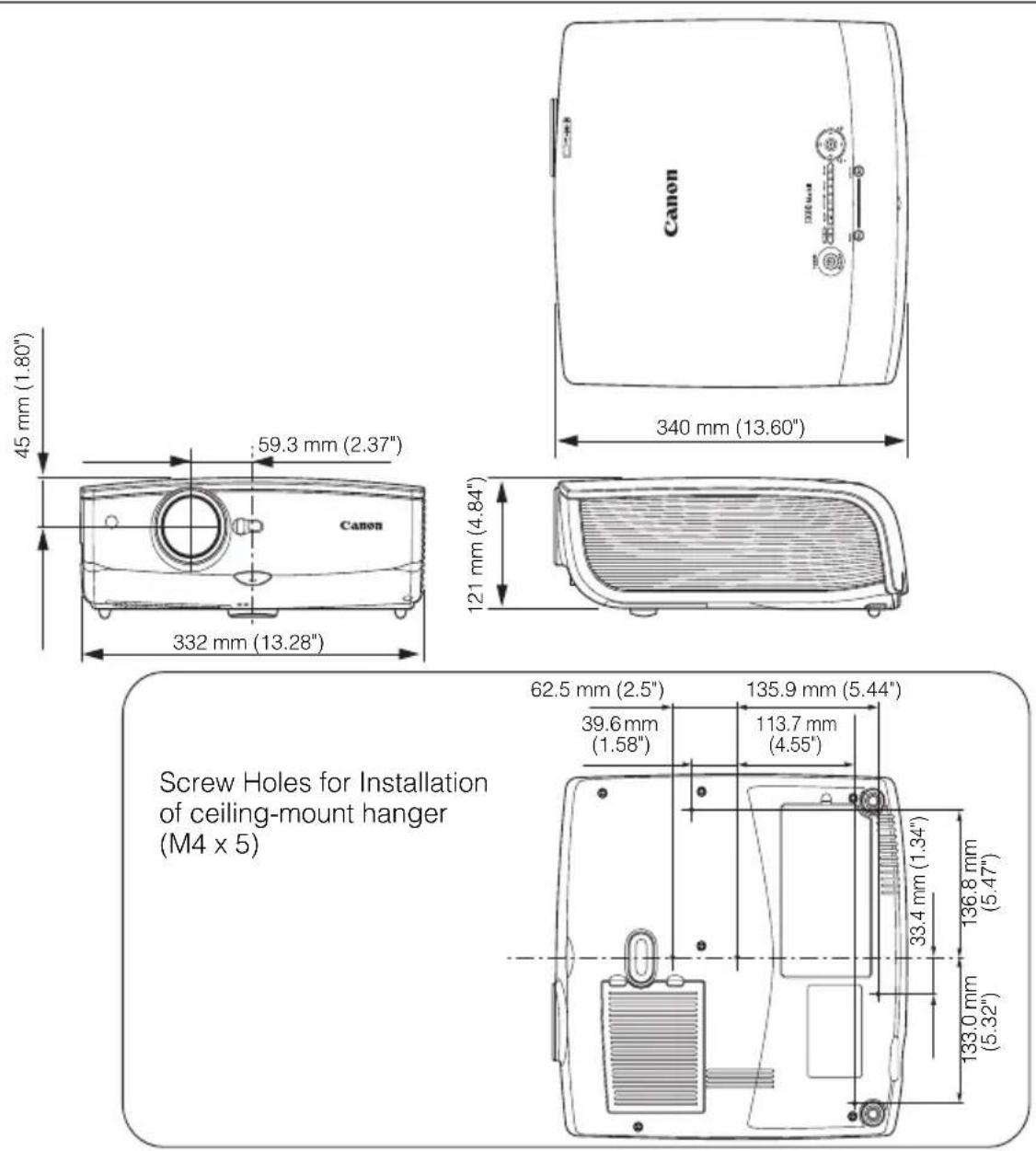
Screw Holes for Installation of ceiling-mount hanger (M4 x 5)
■ ANALOG PC-1 (SX800), ANALOG PC-2/COMPONENT IN terminal
This terminal is used as a computer analog PC input or component input terminal. Use a D-sub computer cable for connection.
The terminal specifications for the analog PC input and component input are the same.
Mini D-sub 15-pin
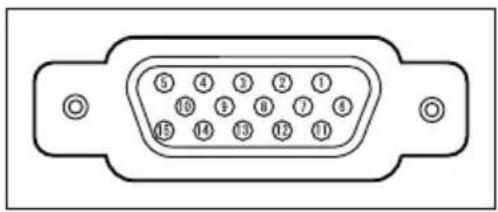
| 1 R 9 +5 V power | ||
| 2 G 10 Ground (Vertical sync.) | ||
| 3 B 11 Monitor ID0 | ||
| 4 Monitor ID2 12 DDC data | ||
| 5 Ground (Horizontal sync.) 13 Horizontal sync. | ||
| 6 Ground (R) 14 Vertical sync. | ||
| 7 Ground (G) 15 DDC clock | ||
| 8 G r o u n d ( B ) | ||
■ Service Port (CONTROL)
D-sub 9pin
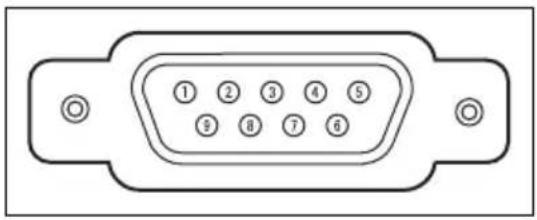
natural_image
Diagram of a 2.5-pin D-sub connector with numbered pins (1-9) on both sides, no text or symbols present.Communication format
Communication mode: RS-232-C, asynchronous, half-duplex communication
Communication speed: 19,200 bps
Character length: 8 bits
Stop bits: 2 bits
Parity: None
Flow control: None
| Pin No. | Signal |
| 1 OPEN | |
| 2 | RxD |
| 3 | TxD |
| 4 OPEN | |
| 5 | GND |
| 6 OPEN | |
| 7 OPEN | |
| 8 OPEN | |
| 9 OPEN | |
Control Commands
| Function ASCII Representation Binary Representation | |||
| Power supply | On POWER O | N50h 4Fh 57h 45h 52h 20h 4Fh 4Eh 0Dh | |
| Off POWER O | FF50h 4Fh 57h 45h 52h | 20h 4Fh 46h 46h 0Dh | |
| Get GET POWER | 47h 45h 54h 20h 50h | 4Fh 57h 45h 52h 0Dh | |
| Input signals | Digital PC(SX80 II) | INPUT=D-RGB49h 4Eh | 50h 55h 54h 3Dh 44h 2Dh 52h 47h 42h 0Dh |
| HDMI(SX80 II) | INPUT=HDMI49h 4Eh 50h | 55h 54h 3Dh 48h 44h 4Dh 49h 0Dh | |
| Analog PC-1 | NPUT=A-RGB149h 4Eh | 50h 55h 54h 3Dh 41h 2Dh 52h 47h 42h 31h 0Dh | |
| Analog PC-2 | NPUT=A-RGB249h 4Eh | 50h 55h 54h 3Dh 41h 2Dh 52h 47h 42h 32h 0Dh | |
| Component IN | INPUT=COMP49h 4Eh 50h | 55h 54h 3Dh 43h 4Fh 4Dh 50h 0Dh | |
| Video INPUT=VIDEO49h 4Eh 50h 55h | 54h 3Dh 56h 49h 44h 45h 4Fh 0Dh | ||
| S-Video(SX80 II) | INPUT=S-VIDEO49h 4Eh | 50h 55h 54h 3Dh 53h 2Dh 56h 49h 44h 45h 4Fh 0Dh | |
| USB(SX80 II) | INPUT=USB49h 4Eh 50h | 55h 54h 3Dh 55h 53h 42h 0Dh | |
| Get GET INPUT | 47h 45h 54h 20h 49h 4Eh 50h 55h 54h 0Dh | ||
| Image mode | Standard | IMAGE=STANDARD | 49h 4Dh 41h 47h 45h 3Dh 53h 54h 41h 4Eh 44h 41h 52h 44h 0Dh |
| Presentation | IMAGE=PRESENTATION | 49h 4Dh 41h 47h 45h 3Dh 50h 52h 45h 53h 45h 4Eh 54h 41h 54h 49h 4Fh 4Eh 0Dh | |
| Movie | IMAGE=MOVIE | 49h 4Dh 41h 47h 45h 3Dh 4Dh 4Fh 56h 49h 45h 0Dh | |
| sRGB | IMAGE=SRGB | 49h 4Dh 41h 47h 45h 3Dh 53h 52h 47h 42h 0Dh | |
| Photo IMAGE=PHOTO49h 4Dh 41h 47h | 45h 3Dh 50h 48h 4Fh 54h 4Fh 0Dh | ||
| Get GET IMAGE47h 45h 54h 20h 49h 4Dh 41h 47h 45h 0Dh | |||
| Brightness | Setting | BRI=42h 52h 49h 3Dh | 0Dh |
| Get GET BRI47h 45h 54h 20h 42h 52h 49h 0Dh | |||
| Sharpness | Setting | SHARP= | 53h 48h 41h 52h 50h 3Dh |
| Get GET SHARP47h 45h 54h 20h 53h 48h 41h 52h 50h 0Dh | |||
| Contrast | Setting | CONT= | 43h 4Fh 4Eh 54h 3Dh |
| Get GET CONT47h 45h 54h 20h 43h 4Fh 4Eh 54h 0Dh | |||
| Aspect ratio | Auto | ASPECT=AUTO | 41h 53h 50h 45h 43h 54h 3Dh 41h 55h 54h 4Fh 0Dh |
| 4:3 | ASPECT=4:3 | 41h 53h 50h 45h 43h 54h 3Dh 34h 3Ah 33h 0Dh | |
| 16:9 | ASPECT=16:9 | 41h 53h 50h 45h 43h 54h 3Dh 31h 36h 3Ah 39h 0Dh | |
| Zoom | ASPECT=ZOOM | 41h 53h 50h 45h 43h 54h 3Dh 5Ah 4Fh 4Dh 0Dh | |
| True size | ASPECT=TRUE | 41h 53h 50h 45h 43h 54h 3Dh 54h 52h 55h 45h 0Dh | |
| Get GET ASPECT47h 45h 54h 20h 41h | 53h 50h 45h 43h 54h 0Dh | ||
| Lamp mode | Normal LAMP=NORMAL4Ch 41h 4Dh50h 3Dh 4Eh 4Fh 52h 4Dh 41h 4Ch 0Dh | ||
| Quiet LAMP=SILENT4Ch 41h 4Dh 50h3Dh 53h 49h 4Ch 45h 4Eh 54h 0Dh | |||
| Get GET LAMP47h 45h 54h 20h 4Ch 41h 4Dh 50h 0Dh | |||
| BLANK | Blank On BLANK=ON42h 4Ch 41h 4Eh 4Bh 3Dh 4Fh 4Eh 0Dh | ||
| Blank Off BLANK=OFF42h 42h 4Ch 41h 4Eh 4Bh 3Dh 4Fh 46h 46h 0Dh | |||
| Get GET BLANK47h 45h 54h 20h 42h4Ch 41h 4Eh 4Bh 0Dh | |||
Numerics
6-axis color adjust (SX80 II) .....100, 155
A
Adjustable foot 37
Adjusting keystone distortion 60
Adjusting the focus 59
Adjusting the volume 71
Air filter 144
Ambient light (SX80 II) 101
ANALOG PC 40,54
Analog PC 152
ANALOG PC-1 Input Terminal (SX800) 29, 40, 54
ANALOG PC-1/DVI-I IN terminal (SX80 II) .....29, 40, 42, 54
ANALOG PC-2/COMPONENT IN terminal 29, 41, 46, 54
ASPECT 66
Aspect 62, 65, 79, 147, 153
Audio IN terminal ..... 30, 40, 41, 42, 45, 46
Audio OUT terminal 30,43,47
Authentication and Encryption Protocols (SX80 II) 133
Auto (Aspect) 65
Auto fleshtone (SX800) 100
Auto focus (SX80 II) 52, 103
Auto input 52,103
Auto keystone 52,103
AUTO PC 57
Auto screen color (SX80 II) .....52, 103
AUTO SET 53
Auto setup ....52, 103
B
Beep 104
BLANK 70
Brightness 94
C
Carrying bag 19,23
Ceiling mounted 36,87
Channel setting 107
Color adjustment 97
Color temperature (SX80 II) 96
COMPONENT 46,54,81
Component 153
Composite 152
Connecting the projector to the computer 40
Contrast 94
D
D. ZOOM 72
D.SHIFT/KEYSTONE 60,64
Digital camera (SX80 II) 114
DIGITAL PC (SX80 II) 42,54
Digital PC (SX80 II) 152
Direct power on 104
Display resolution (preparing the computer) 56
Display settings menu 76
Displays logo 90, 91
DPOF (SX80 II) 115, 155
DVI (SX80 II) 42,54,152
DVI-I IN (SX80 II) 40, 42, 54
Dynamic gamma 99
E
External monitor (SX80 II) 42
F
Factory defaults 111
FOCUS 59
FREEZE 70
G
Gain 96, 97, 155
Gamma correction .....95, 154
Guide 106
H
HDCP 152
HDMI (SX80 II) 44,54,152
HDMI IN terminal (SX80 II) .....29, 44
HDMI input level (SX80 II) 84
HDMI over scan (SX80 II) 85
Horizontal pixels 83
Horizontal position 82
|
IMAGE 67
Image adjustment menu 76
Image flip H/V 87
Image mode 93
Image mode (Image quality) ......67
Information 76,112
INPUT 55
Input signal select 80,81
Input terminal 29
Connecting the projector to the computer....40
Connecting to AV equipment .....44
Installation 19
IP address (SX80 II) 126
K
Key lock 105
Keystone 60
L
LAMP 102
Lamp counter 109
Lamp mode 102
Lamp replacement 109, 145, 146
LAN port (SX80 II) 30,126
Language 105
LED illumination 106
Lens cap 22
Logo capture (SX800) 88
Logo position (SX800) 88
M
Mem. color correct (SX80 II) 99
Memorized color correction (SX80 II)....155
MENU 76
Menu display time 108
Menu position 86
Monitor output terminal (SX80 II) 29,42
MUTE 71
N
Network settings (SX80 II) ...... 111, 126
Noise reduction 98
O
Offset 96,97,154
OK 27
P
Password settings 108
PictBridge (SX80 II) 114, 155
POWER 49,68,104
Power management 50
Power management mode (settings) ....103
Power saving (power management) .....50
Progressive 85,154
Projecting distance 35,151
Projector on 90,91
P-TIMER 73
R
Rear projection 36,87
Register password 109
Remote control 26,31,107
Reset 102,111
Resolution 65,153
Reverse projection (ceiling-mounted/rear projection) .....87
S
Screen aspect 62,92,147
Screen color 86
Screen size 151
Screen when blank 89,91
Selecting a language 50,105
Selecting an input signal 54
Setting Display Status ....79
Setting the Image Quality 93
Setting up the projector 19,35
Setting Various Function 103
Sharpness 95
Signal type 150
Slideshow (SX80 II) ...... 107, 117, 124
SNMP Agent Function (SX80 II) ...... 132
sRGB 67,93,152
S-VIDEO (SX80 II) 45, 54, 152
S-VIDEO input terminal (SX80 II) 29,45
System settings menu 76
T
Top control 28
Total dots 81
Tracking....82,153
True size (Aspect) 65
Turning on external monitor output (preparing the notebook computer) 51
U
USB (SX80 II) 54,118
USB terminal (SX80 II) .....29, 48, 114, 118
V
Vertical pixels 84
Vertical position 83
VIDEO 45,54,152
VIDEO IN terminal 29,45
VOL 71
W
WARNING lamp 28,138
Z
ZOOM 58
Zoom (Aspect) 65
Zoom (image size) 58
Zooming an Image 72
Options
- Replacement lamp Part No.: RS-LP05
- Ceiling-mount hanger Part No.: RS-CL10
- Ceiling-mount pipe (40 cm/16 in to 60 cm/24 in) Part No.: RS-CL08*
- Ceiling-mount pipe (60 cm/24 in to 100 cm/40 in) Part No.: RS-CL09*
• DVI digital cable Part No.: LV-CA29
* This part is used to hang the projector from a ceiling. For more detailed information, refer to the instruction manual that comes with the ceiling-mount hanger RS-CL10.
The Display settings menu
| Aspect | DIGITAL PC (SX80 II)/ANALOG PC | P79 | Input signal settings | ANALOG PC |
| Auto * | Total dots | |||
| 4:3 | Tracking | |||
| 16:9 | Horizontal position | |||
| True size | Vertical position | |||
| VIDEO | HDMI input level(SX80 II) | Horizontal pixels | ||
| 4:3 * | Vertical pixels | |||
| 16:9 | HDMI | |||
| Zoom | Auto * | |||
| S-VIDEO (SX80 II) | Normal | |||
| Auto * | Expanded | |||
| 4:3 | HDMI over scan(SX80 II) | HDMI | ||
| 16:9 | Off | |||
| Zoom | On * | |||
| HDMI (SX80 II) | Progressive | VIDEO/S-VIDEO (SX80 II)/COMPONENT/HDMI (SX80 II) | ||
| Auto * | Off | |||
| 4:3 | On | |||
| 16:9 | Auto * | |||
| Zoom | ||||
| True size | Menu position | P86 | ||
| COMPONENT | Screen color Normal* | |||
| Auto * | Greenboard | |||
| 4:3 | Adjust Red/Green/Blue | |||
| 16:9 | ||||
| Zoom | Image flip H/V None* | |||
| True size | Ceiling mounted | |||
| USB (SX80 II) | Rear | |||
| Auto | Rear, Ceiling mounted | |||
| Input signal select | ANALOG PC | P80 | User screen settings | |
| 640 x 480 | Logo capture (SX800) | OK/Cancel | ||
| : | Logo position (SX800) | Upper L | ||
| 1400 x 1050 | Upper R | |||
| VIDEO/S-VIDEO (SX80 II) | P80 | Center * | ||
| Auto * | Lower L | |||
| NTSC | Lower R | |||
| PAL | No signal screen Black | |||
| SECAM | Blue * | |||
| NTSC4.43 | User logo (SX800) | |||
| PAL-M | ||||
| PAL-N | Screen when blank Black* | |||
| COMPONENT | P81 | Projector on Skip | ||
| Auto * | Canon logo * | |||
| 1080p | User logo (SX800) | |||
| 1080i | Return | |||
| 1035i | Screen aspect 4:3 * | |||
| 720p | 16:9 | |||
| 576p | 16:9 D. image shift | |||
| 480p | ||||
| 576i | ||||
| 480i | ||||
The Image adjustment menu
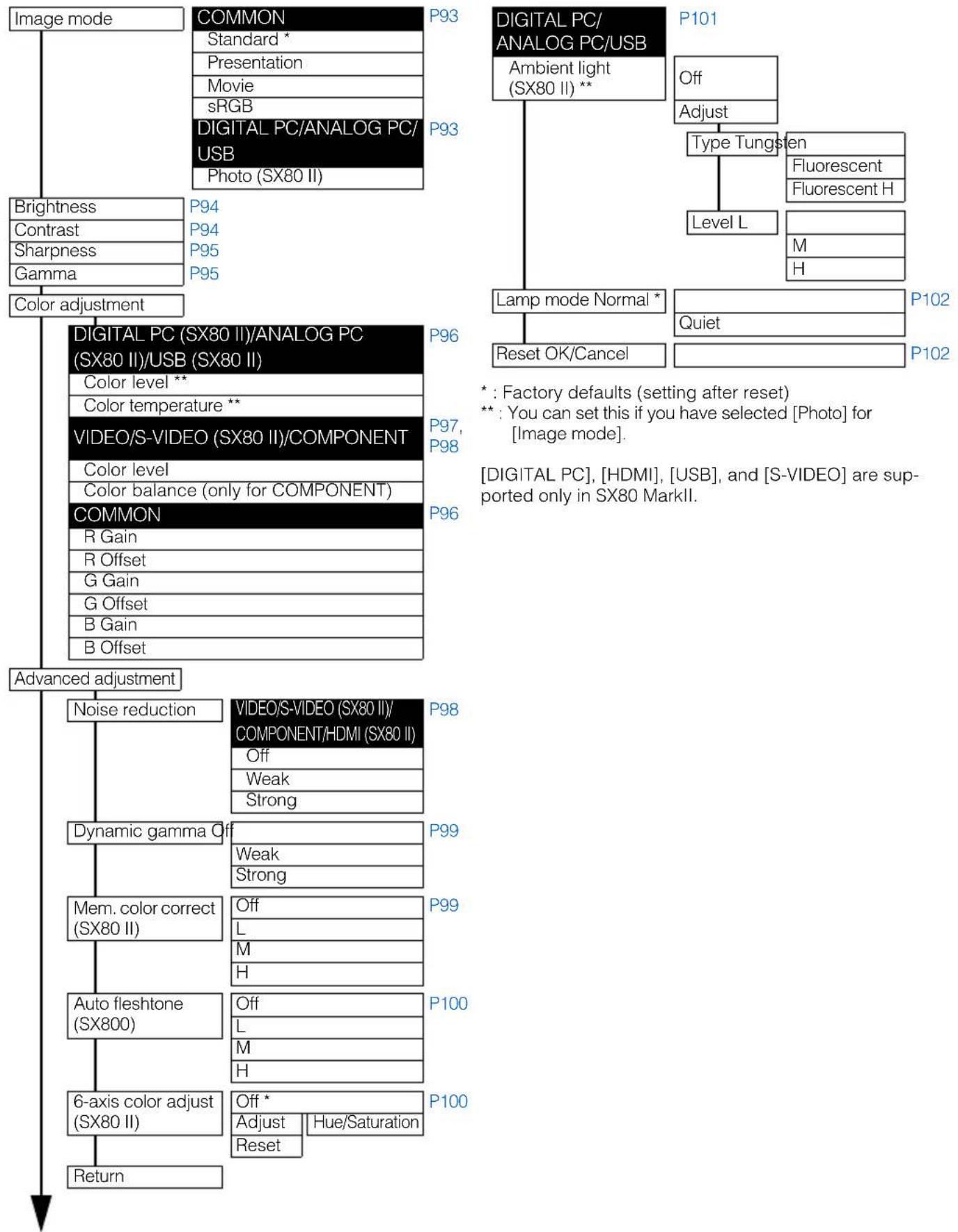
flowchart
graph TD
    A["Image mode"] --> B["Brightness"]
    B --> C["Contrast"]
    C --> D["Sharpness"]
    D --> E["Gamma"]
    E --> F["Color adjustment"]
    F --> G["Advanced adjustment"]

    G --> H["Noise reduction"]
    H --> I["Dynamic gamma Off"]
    I --> J["Mem. color correct (SX80 II)"]
    J --> K["Auto fleshtone (SX800)"]
    K --> L["6-axis color adjust (SX80 II)"]

    L --> M["Return"]

    N["P93"] --> O["Standard *"]
    O --> P["Presentation"]
    P --> Q["Movie"]
    Q --> R["sRGB"]
    R --> S["DIGITAL PC/ANALOG PC/USB"]
    S --> T["Photo (SX80 II)"]

    U["P93"] --> V["DIGITAL PC/ANALOG PC/USB"]
    V --> W["Ambient light (SX80 II) **"]
    W --> X["Lamp mode Normal *"]
    X --> Y["Reset OK/Cancel"]

    Z["P101"] --> AA["Off"]
    AA --> AB["Adjust"]
    AB --> AC["Type Tungsten"]
    AC --> AD["Fluorescent"]
    AD --> AE["Fluorescent H"]
    AE --> AF["Level L"]

    AG["P96"] --> AH["VIDEO/S-VIDEO (SX80 II)/COMPONENT"]
    AH --> AI["Color level **"]
    AI --> AJ["Color temperature **"]

    AK["P97, P98"] --> AL["Color level"]
    AL --> AM["Color balance (only for COMPONENT)"]

    AN["P96"] --> AO["COMMON"]
    AO --> AP["R Gain"]
    AP --> AQ["R Offset"]
    AQ --> AR["G Gain"]
    AR --> AS["G Offset"]
    AS --> AT["B Gain"]
    AT --> AU["B Offset"]

    AV["* : Factory defaults (setting after reset) ** : You can set this if you have selected [Photo"] for["Image mode"].] --> AW["[DIGITAL PC"], [HDMI], [USB], and["S-VIDEO"] are supported only in SX80 MarkII.]
The System settings menu
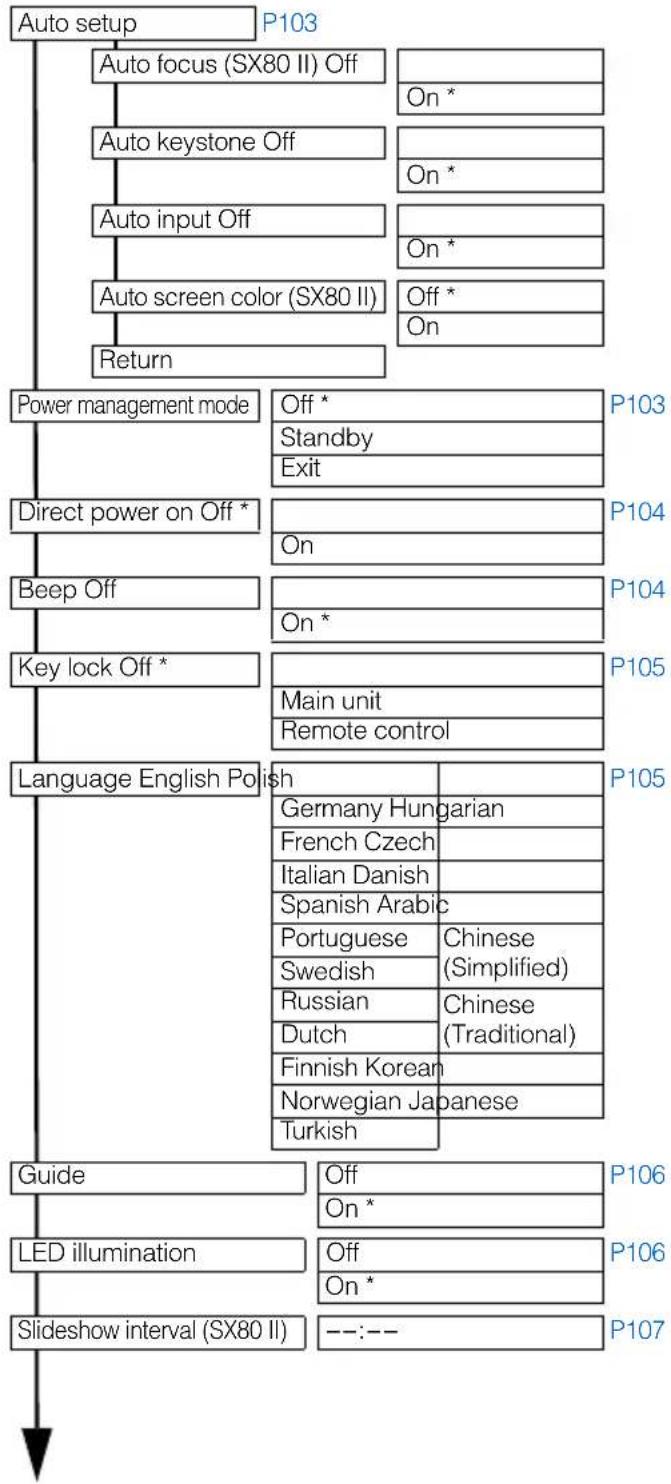
flowchart
graph TD
    A["Auto setup"] --> B["Auto focus (SX80 II) Off"]
    B --> C["Auto keystone Off"]
    C --> D["Auto input Off"]
    D --> E["Auto screen color (SX80 II)"]
    E --> F["Return"]
    F --> G["Power management mode"]
    G --> H["Off *"]
    G --> I["Standby"]
    G --> J["Exit"]
    H --> K["P103"]
    I --> L["P104"]
    J --> M["P104"]
    N["Direct power on Off *"] --> O["On"]
    P["Beep Off"] --> Q["On *"]
    R["Key lock Off *"] --> S["Main unit"]
    R --> T["Remote control"]
    U["Language English Polish"] --> V["Germany Hungarian"]
    U --> W["French Czech"]
    U --> X["Italian Danish"]
    U --> Y["Spanish Arabic"]
    U --> Z["Portuguese"]
    U --> AA["Swedish"]
    U --> AB["Russian"]
    U --> AC["Dutch"]
    U --> AD["Finnish Korean"]
    U --> AE["Norwegian Japanese"]
    U --> AF["Turkish"]
    G --> AG["P105"]
    V --> AH["P105"]
    W --> AI["P106"]
    X --> AJ["P106"]
    Y --> AK["P106"]
    Z --> AL["P106"]
    AA --> AM["P106"]
    AB --> AN["P106"]
    AC --> AO["P106"]
    AD --> AP["P106"]
    AE --> AQ["P107"]
    AF --> AR["P107"]
    AG --> AS["P107"]
    AH --> AT["P107"]
    AI --> AU["P107"]
    AJ --> AV["P107"]
    AK --> AW["P107"]
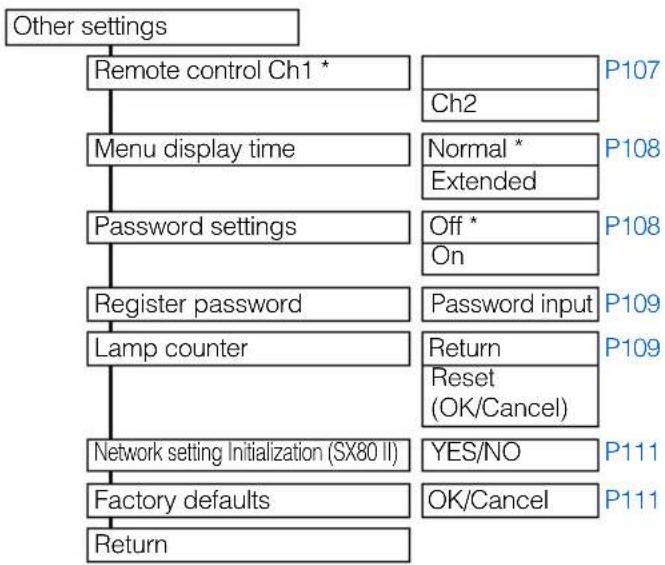
flowchart
graph TD
    A["Other settings"] --> B["Remote control Ch1 *"]
    B --> C["Menu display time"]
    C --> D["Password settings"]
    D --> E["Register password"]
    E --> F["Lamp counter"]
    F --> G["Network setting Initialization (SX80 II)"]
    G --> H["Factory defaults"]
    H --> I["Return"]

    B --> J["Ch2"]
    C --> K["Normal *"]
    C --> L["Extended"]
    D --> M["Off *"]
    D --> N["On"]

    G --> O["Response: YES/NO"]
    G --> P["Response: OK/Cancel"]

    J --> Q["P107"]
    K --> R["P108"]
    L --> S["P108"]
    M --> T["P109"]
    N --> U["P109"]

    O --> V["P111"]
    P --> W["P111"]
The Information menu
| Model name | P112 |
| Input signal | |
| Firmware | |
| Serial no. | |
| IP address (SX80 II) | |
| Gateway address (SX80 II) | |
| E-mail sender address (SX80 II) | |
| E-mail recipient address (SX80 II) | |
| Projector name (SX80 II) | |
| System information ID |
*: Factory defaults (setting after reset)
[ DIGITAL PC ], [ HDMI ], [ USB ], and [ S-VIDEO ] are supported only in SX80 MarkII.
Canon
CANON INC.
30-2, Shimomaruko 3-chome, Ohta-ku, Tokyo 146-8501, Japan
U.S.A.
CANON U.S.A. INC.
One Canon Plaza, Lake Success, NY 11042-1198, U.S.A.
For all inquires concerning this product, call toll free in the U.S. 1-800-OK-CANON
CANADA
CANON CANADA INC. HEADQUARTERS
6390 Dixie Road, Mississauga, Ontario L5T 1P7, Canada
CANON CANADA INC. MONTREAL BRANCH
5990, Côte-de-Liesse, Montréal Québec H4T 1V7, Canada
CANON CANADA INC. CALGARY OFFICE
2828, 16th Street, N.E. Calgary, Alberta T2E 7K7, Canada
For all inquiries concerning this product, call toll free in Canada
1-800-OK-CANON
EUROPE, AFRICA & MIDDLE EAST
CANON EUROPE LTD.
3 The Square Stockley Park, Uxbridge, Middlesex, UB11 1ET United Kingdom
CANON EUROPA N.V.
Bovenkerkerweg 59-61, 1185 XB Amstelveen, The Netherlands
CANON FRANCE S.A.S
17, quai du President Paul Doumer, 92414 Courbevoie Cedex, France
CANON UK LTD.
Woodhatch Reigate Surrey RH2 8BF, United Kingdom
15F Jinbao Building No.89 Jinbao Street, Dongcheng District, Beijing 100005, China
CANON HONGKONG CO., LTD.
19 / F., The Metropolis Tower, 10 Metropolis Drive, Hunghom, Kowloon, Hong Kong
CANON SINGAPORE PTE. LTD.
1 HarbourFront Avenue, #04-01 Keppel Bay Tower, Singapore 098632
CANON KOREA CONSUMER IMAGING INC.
Canon BS Tower 5F, #168-12 Samseong-dong, Gangnam-gu, Seoul, Korea
OCEANIA
CANON AUSTRALIA PTY. LTD.
1 Thomas Holt Drive, North Ryde, N.S.W. 2113, Australia
Akoranga Business Park, Akoranga Drive, Northcote, Auckland, New Zealand

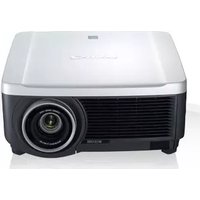
- MULTIMEDIA PROJECTOR
- SX80 Mark II
- SX800
- User's Manual
- Features of SX80 MarkII/SX800 Multimedia Projector
- Major Features
- Smooth and Beautiful Imaging Capability
- Native SXGA+ Resolution
- High-powered 1.5X Zoom Lens
- "Auto Setup Function" for Making Setup a Breeze
- Equipped with HDMI Input Terminal (SX80 II)
- Direct Projection of Images Taken by Digital Camera (SX80 II)
- Direct Projection of Data on USB Flash Memories (SX80 II)
- "Off and Go" Feature
- User-Friendly On-Screen Menu
- Compact and Easy-to-use Wireless Remote Control
- Various Image Modes for a Particular Use of Your Projector (SX80 II)
- User's Manual (this document)
- Important Information and Quick Start Guide
- Symbols of Button Operations
- Symbols Used in This Manual
- COPYRIGHT NOTICE
- About Trademarks
- Quick Reference Guide
- Connecting the Projector
- Projecting an Image
- Adjusting Image
- Adjusting Colors and Image Quality
- Producing a Presentation
- Resetting Projector Setting
- Miscellaneous Functions
- Table of Contents
- Starting Projection....49
- Changing Notebook Computer Screen Output 51
- Setting Up the Screen Automatically ....52
- Auto Setup 52
- Selecting an Input Signal (INPUT) 54
- Adjusting Image 56
- Setting the Display Resolution of the Computer 56
- AUTO PC 57
- Adjusting the Image Size 58
- Adjusting the Focus 59
- Adjusting Keystone Distortion....60
- Selecting Screen Aspect and Aspect....62
- Selecting Screen Aspect....62
- Selecting Aspect Ratio....65
- Selecting an Image Mode 67
- Turning Off the Projector....68
- Useful Functions Available During a Presentation 69
- Useful Functions Available During a Presentation 70
- Blackened Out an Image Temporarily 70
- Freezing the Picture....70
- Adjusting the Volume....71
- Setting Functions from Menus 75
- How to Use Menus....76
- Setting Display Status 79
- Setting the Image Quality 93
- Setting Various Function....103
- Checking the Information of the Projector 112
- Projecting an Image from a Digital Camera or an USB
- Flash Memory (SX80 II) 113
- Projecting Data on USB Flash Memory (SX80 II)....118
- Connecting the Projector to Network (SX80 II).... 125
- Appendix.... 137
- Relationship between Aspect and Screen Aspect.... 147
- Safety Instructions
- CAUTION
- RISK OF ELECTRIC SHOCK DO NOT OPEN
- Safety Precautions
- WARNING: TO REDUCE THE RISK OF FIRE OR ELECTRIC SHOCK, DO NOT EXPOSE THIS APPLIANCE TO RAIN OR MOISTURE.
- ■ READ AND KEEP THIS OWNER'S MANUAL FOR LATER USE.
- AC Power Cord Requirement
- AC Power Cord for the United States and Canada:
- THE SOCKET-OUTLET SHOULD BE INSTALLED NEAR THE EQUIPMENT AND EASILY ACCESSIBLE.
- NOTE FOR CUSTOMERS IN THE US
- European Union (and EEA) only.
- Federal Communication Commission Notice
- Canadian Radio Interference Regulations
- Precautions on Handling the Batteries in the Remote Controller
- Lamp Handling Precautions
- If a Lamp Explodes
- If the projector indicates that the lamp should be replaced (i.e., the LAMP REPLACE indicator lights up twice),
- Disposal of Waste Lamp
- Carrying/Transporting the Projector
- Installation Precautions
- Do Not Use in the Following Environments
- Using the Projector at 1900 Meters or More Above Sea Level
- Before Use
- Supplied Accessories
- ■ Installing the Lens Cap
- ■ Putting the Projector in the Carrying Bag
- Main Unit of Projector (SX80 MarkII is used in the following illustrations)
- ■ Front Side
- ■ Rear Side
- ■ Bottom Side
- Mounting the Projector on the Ceiling
- Remote Control
- POWER button (P49, P68)
- ASPECT button (P66)
- FOCUS button (P59)
- D.SHIFT/KEYSTONE button (P60)
- ZOOM button (P72)
- FREEZE button (P70)
- IMAGE button (P67)
- AUTO SET button (P53)
- AUTO PC button (P57)
- INPUT button (P55)
- ZOOM button (P58)
- OK button (P78)
- Pointer buttons (P77)
- MENU button (P76)
- VOL button (P71)
- MUTE button (P71)
- BLANK button (P70)
- LAMP button (P102)
- P-TIMER button (P73)
- Top Control
- KEYSTONE button
- POWER button/lamp (P49, P68)
- LED illumination lamp (P106)
- Input Terminals
- ■ SX80 MarkII
- ■ Installing Remote Control Batteries
- ■ Remote Control Operating Range
- Adjusting the Image (P56)
- Making Fine Adjustments
- ■ Placing in Front of the Screen
- Projected Image Size
- ■ Placing on a Level Place
- Ceiling Mounting or Rear Projection
- ■ When Pointing the Projector Up
- Connectable Equipment and Input Terminals
- Connecting the Projector to the Computer
- ■ Connecting to RGB Monitor Output Terminal (analog connection)
- ■ Connecting to DVI Monitor Output Terminal (digital connection) (SX80 II)
- ■ Outputting an Image and Audio
- Outputting an Image (SX80 II)
- Outputting Audio to Speakers
- Connecting to AV Equipment
- ■ Connecting to Digital Video Output Terminal (digital connection) (SX80 II)
- ■ Connecting to Analog Video Output Terminal (analog connection)
- Supplied component cable (Input signal type: [COMPONENT] - P54)
- ■ Outputting Audio to Speakers
- ■ Connecting a Digital Camera or an USB Flash Memory (SX80 II)
- Starting Projection
- Changing Operations When Projector is Turned On
- Using the Power Saving Mode (power management)
- 5Press the AUTO SET button.
- ■ When the Language Selection Screen Appears
- ■ When the Password Input Screen Appears
- ■ When "No signal" Appears
- ■ When Notebook Computer Screen Does Not Appear
- ■ Adjusting Image
- Changing Notebook Computer Screen Output
- ■ Turning On External Monitor Output
- Setting Up the Screen Automatically
- Auto Setup
- ■ Performing the Auto Setup
- Selecting an Input Signal (INPUT)
- ■ Types of Input Signals
- ■ Selecting an Input Signal
- Press the INPUT button to pop up a window shown at the lower right.
- The selection is toggled through available input signal types by pressing the INPUT button.
- Press the OK button to determine the input signal type.
- Setting the Display Resolution of the Computer
- ■ Windows Vista
- ■ Windows XP
- ■ Macintosh OSX
- AUTO PC
- ■ Performing the Auto PC Function
- Adjusting the Image Size
- Adjusting the Focus
- ■ Auto focusing (SX80 II)
- ■ Manual focusing
- Adjusting Keystone Distortion
- ■ Auto adjustment
- ■ Manual adjustment
- When the keystone distortion has been adjusted, press the OK button.
- ■ Resetting the Keystone Adjustment
- Selecting Screen Aspect and Aspect
- Selecting Screen Aspect
- Press the MENU button to display a menu window.
- 2Use [<] / [>] to select the [Display settings] tab.
- 3Select [Screen aspect] with [ ] /[ ], and then press the OK button.
- 4Use [ ] / [ ] tovselect a screen aspect type.
- 4:3
- 16:9
- 16:9 D. image shift
- Press the OK button to accept your setting and then press the MENU button.
- ■ Moving Image with 16:9 D. Image Shift
- Press the D.SHIFT/KEYSTONE button to pop up a window shown at the lower right.
- 2Use [ ] / [ ] to move the image.
- When the image shift adjustment has been completed, press the OK button.
- ■ Resetting the Image Shift
- Selecting Aspect Ratio
- ■ Types of Aspect Ratios
- Auto
- Zoom
- True size
- ■ How to Select an Aspect Ratio
- ■ Image modes
- Standard
- Presentation
- Movie
- sRGB
- Photo (SX80 II)
- ■ How to Select an Image Mode
- Turning Off the Projector
- Press the POWER button to pop up a window shown at the lower right.
- 2Remove the power cord from the AC outlet.
- Useful Functions Available During a Presentation
- Blackened Out an Image Temporarily
- Useful when:
- Freezing the Picture
- Adjusting the Volume
- Muting the Sound
- Zooming an Image
- Showing the Elapsed Time
- Projecting Image Without Computer (SX80 II)
- Setting Functions from Menus
- ■ Menu Configuration
- Input Signal Types for which a Menu Item is Displayed
- ■ Basic Operation of Menu
- 2Use [<] / [>] to select a tab.
- Use [ ] / [ ] tovselect a item.
- 4Select contents.
- Selecting an Image Projection Mode
- [Aspect]
- Selecting an Input Signal Type (COMPONENT)
- Adjusting Input Signal (ANALOG PC) – Total Dots
- Adjusting Input Signal (ANALOG PC) – Tracking
- Adjust Input Signal (ANALOG PC) – Horizontal position
- Adjust Input Signal (ANALOG PC) – Vertical position
- Adjust Input Signal (ANALOG PC) – Horizontal pixels
- Adjust Input Signal (ANALOG PC) – Vertical pixels
- Selecting HDMI Input Level (SX80 II)
- Select HDMI Over Scan (SX80 II)
- [HDMI over scan]
- Performing Progressive Processing
- [Progressive]
- Selecting a Menu Position
- [Menu position]
- Correcting the Screen Color
- [Screen color]
- Reversing projection
- [Image flip H/V]
- Capturing a Logo (SX800)
- Selecting the User Logo Display Position (SX800)
- No Signal Screen (SX80 II)
- Screen When Blank (SX80 II)
- Selecting a Logo at Startup (SX80 II)
- No Signal Screen (SX800)
- Screen When Blank (SX800)
- Selecting a Logo at Startup (SX800)
- Selecting Aspect Ratio of Screen
- Selecting an Image Quality
- Adjusting the Brightness
- [Brightness]
- SX80 MarkII
- Adjusting the Contrast
- [Contrast]
- Adjusting the Sharpness
- [Sharpness]
- Making a Gamma Correction
- [Gamma]
- Making Color Adjustment (HDMI) (SX80 II)
- Making Color Adjustment (Digital PC/Analog PC/USB) (SX80 II)
- Making Color Adjustment (COMPONENT/VIDEO/S-VIDEO) (SX80 II)
- Making Color Adjustment (Analog PC) (SX800)
- Making Color Adjustment (COMPONENT/VIDEO) (SX800)
- Making Advanced Adjustment (Noise reduction)
- Making Advanced Adjustment (Dynamic gamma)
- Making Advanced Adjustment (Mem. color correct) (SX80 II)
- Correcting the Image According to the Ambient Light (SX80 II)
- Type Tungsten
- Fluorescent
- Fluorescent H
- Reducing the Lamp Brightness
- Resetting the Image Settings
- Setting Various Function
- Setting Auto Setup Function
- Selecting the Power Management Mode
- Skip the POWER Button Operation
- Enabling/Disabling the Beep
- Prohibiting the Projector Operation
- [Key lock]
- To Unlock Key Lock Function
- Selecting a Display Language
- [Language]
- Showing/hiding the Guide Screen
- [Guide]
- Turning on/off LED Illumination
- [LED illumination]
- Setting for Slideshow (SX80 II)
- Setting up the Remote Control Channel
- Selecting a Channel on the Remote Control
- Extending the Menu Display Time
- Setting a Password
- To Cancel the Password
- Registering a Password
- Resetting the Lamp Counter
- ■ About the Display of the Lamp Counter
- Initializing network settings (SX80 II)
- Resetting to the Default Setting
- Checking the Information of the Projector
- [Information]
- SX80 MarkII SX800
- Information shown
- Projecting an Image from a Digital Camera or an USB Flash Memory (SX80 II)
- Projecting an Image from a Digital Camera (SX80 II)
- Connectable Cameras
- Connecting a Digital Camera
- 3Connect a PictBridge-compatible device with the projector using a USB cable.
- 4Turn on the power of the PictBridge-compatible device.
- 5Operate the PictBridge-compatible device
- Operating the Projected Image
- ■ Switching to the Next Image
- ■ Rotating an Image
- Running a Slideshow
- ■ Setting a Slideshow Interval
- Press the MENU button to display the menu.
- Select [System settings] tab with [<] / [>], and select [Slideshow interval] with [^] / [v].
- Set the interval (minute:second) other than "--:" with [<] / [>].
- 4Press the MENU button to exit the menu.
- ■ Finishing projection
- Projecting Data on USB Flash Memory (SX80 II)
- Connectable USB Devices
- Connecting an USB Flash Memory
- 3Connect a USB flash memory.
- Description of USB File Browser
- Selecting an Image for Projection
- ■ Selecting a Drive
- ■ Selecting a Folder
- ■ Selecting an Image File for Projection
- Select an image file with [ ] / [ ]. v
- 2Press the OK button to project the image in full screen.
- ■ Switching to the Previous/Next Image
- ■ Returning to the USB File Browser
- Running a Slideshow of Data saved in a USB Flash Memory
- ■ Creating an Image File Folder
- Connecting the Projector to Network (SX80 II)
- Setting an IP Address (SX80 II)
- ■ Setting IP Address of the Computer
- ■ Resetting the IP Address Setting of the Computer
- ■ Displaying the Network Configuration Screen
- ■ Setting the Network
- In the menu screen, click [Password], input the new user name and password, and click the [OK] button.
- Click [TCP/IP], enter appropriate values in the following field, and click the [OK] button. Setting items:
- Click [Mail], enter appropriate values in the following field for the error report, and click the [OK] button.
- If the SMTP mail server authentication is required, click [Mail auth], enter appropriate values in the following field, and click the [OK] button.
- What is the SNMP Agent Function?
- Authentication and Encryption Protocols
- 6Click [Projector info] and enter the projector name.
- Click [Location], enter the projector location, and click the [OK] button.
- 8Click [Apply] when you have completed each menu.
- ■ Resetting the Network Setting
- ■ Error Notification Message
- ■ Projector Control
- Click the [Projector control] button on the network setting screen.
- Appendix
- WARNING Lamp Flash Patterns
- Symptoms and Solutions
- Cleaning the Projector
- When Not Used for an Extended Period of Time
- Cleaning and Replacing the Air Filter
- ■ Cleaning the Air Filter
- ■ Replacing the Air Filter
- Replacing the Lamp
- 1,800 - less than 2,000 hours
- Over 2,000 hours
- ■ About the Replacing Lamp
- ■ Replacing the Lamp
- Relationship between Aspect and Screen Aspect
- When Projecting an Image from a Computer
- When Projecting an Image from Image Software
- When Projecting an Image from a Digital Camera or a USB Flash Memory (SX80 II)
- Supported Computer Signal Types
- Relationship between Screen Size and Projecting Distance
- sRGB (P67, P93)
- DVI\* (P42, P54)
- Digital PC\* (P29, P42)
- Analog PC (P29, P40, P80)
- HDMI\* (P44, P54)
- HDCP\*
- VIDEO (P29, P45, P80)
- Composite (P29, P45)
- S-VIDEO\* (P29, P45, P80)
- Aspect (P65, P79, P147)
- Component (P29, P46, P98)
- Tracking (P57, P82)
- Resolution (P56)
- Progressive (P85)
- Offset (P97)
- Color temperature\* (P96)
- Ambient light\* (P101)
- Gamma Correction (P95, P99)
- Gain (P97)
- Memorized Color Correction \* (P99)
- 6-axis color adjust\* (P100)
- PictBridge\* (P114)
- DPOF\* (P115)
- ■ External View
- ■ ANALOG PC-1 (SX800), ANALOG PC-2/COMPONENT IN terminal
- Mini D-sub 15-pin
- ■ Service Port (CONTROL)
- Communication format
- Numerics
- A
- B
- C
- D
- E
- F
- G
- H
- |
- K
- L
- M
- N
- O
- P
- R
- S
- T
- U
- V
- W
- Z
- Options
- Canon
Brand : CANON
Model : XEED SX800
Category : Vidéo-projecteur