T9 - Uncategorized Trano - Free user manual and instructions
Find the device manual for free T9 Trano in PDF.


User questions about T9 Trano
0 question about this device. Answer the ones you know or ask your own.
Ask a new question about this device
Download the instructions for your Uncategorized in PDF format for free! Find your manual T9 - Trano and take your electronic device back in hand. On this page are published all the documents necessary for the use of your device. T9 by Trano.
USER MANUAL T9 Trano
Completed User Manual

text_image
how How How about How about you? How are ...? How are they ... How are you? How are you ... How are you feeling now? TRANSLATE DICTIONARY LEARNING Collins CLOFORD Talking Translator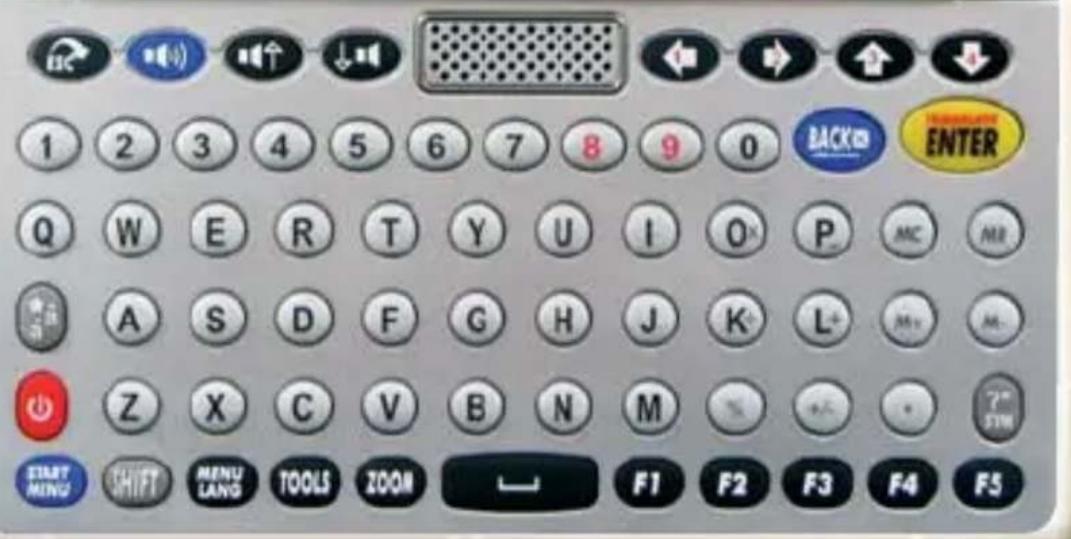
text_image
1 2 3 4 5 6 7 8 9 0 BACK Q W E R T Y U I O P MC MR A S D F G H J K L+ M+ M- Z X C V B N M % +/- 7" START MING SHIFT MENU LANG TOOLS ZOOM F1 F2 F3 F4 F5Power Source
- The translator is powered by 2 AAA Alkaline (non-rechargeable) batteries (included).
- The translator can also operate via USB, connected to PC/laptop. Note batteries will not be charged via USB.
- It can be operated via mini USB adapter (not included), compatible with the cell phone devices in market, e.g. Blackberry, Nokia, Samsung etc.
- When batteries power is low, appear on display. If this happens, replace batteries.
- Turn off the translator before replacing batteries.
- Do not use different types of batteries or used batteries.
- Make sure batteries make good contact with the metal plates.
- Always remove a weak or dead battery from the device.
- To avoid damage caused by leakage of battery fluid, replace batteries once every 6 months.
- Do not expose batteries to direct heat.
Micro-SD Reader
Micro-SD cartridge is provided on the side of translator. Micro-SD card (not included) could be used to download files to the translator. Micro-SD reader accepts card up to 8GB.
“.txt files” file
- Insert your Micro SD card.
-
Press to switch the unit on and press . TOOLS Use down keys to select Text Reader, followed by ENTER
-
Currency Conversion
- Unit Conversion
- Mp3 Player
- My Recorder
- Games
- Science formula
- Text Reader
File Manager

Disk_E

SD Card
- Use ( ) keys to select SD Card and press TRANSLATE ENTER
- Use arrow keys to select the text file and press to read.


"MP3" file
-
Insert your Micro SD card.
-
Press to switch the unit on and press . Use down keys to select MP3, followed by

- Press once to return to E:/, Press
again to return to File Manager. Use (

go to your MP3 folder files. Press again.
Track listing will appear on the screen.

text_image
BACK TRANSLATE ENTER
- Use arrow keys to select the song and press


USB
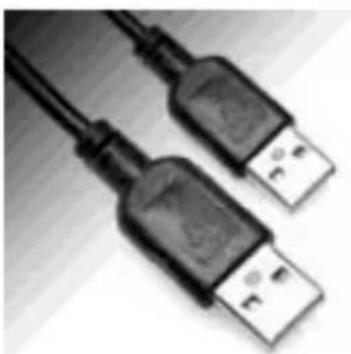
The translator can be connected to a computer via USB cable to download files as necessary. Note USB download works with Windows system only.
natural_image
Close-up of two USB connectors with black leads, no visible text or symbolsUSB
natural_image
Close-up of a metallic USB connector with two pins, partially overlapping (no visible text or symbols)USB driver will automatically install first time you plug in the USB cable. You can copy text files and MP3 files to Removable Disk.
Disconnecting USB cable un-mounts Removable Disk and resets the translator.
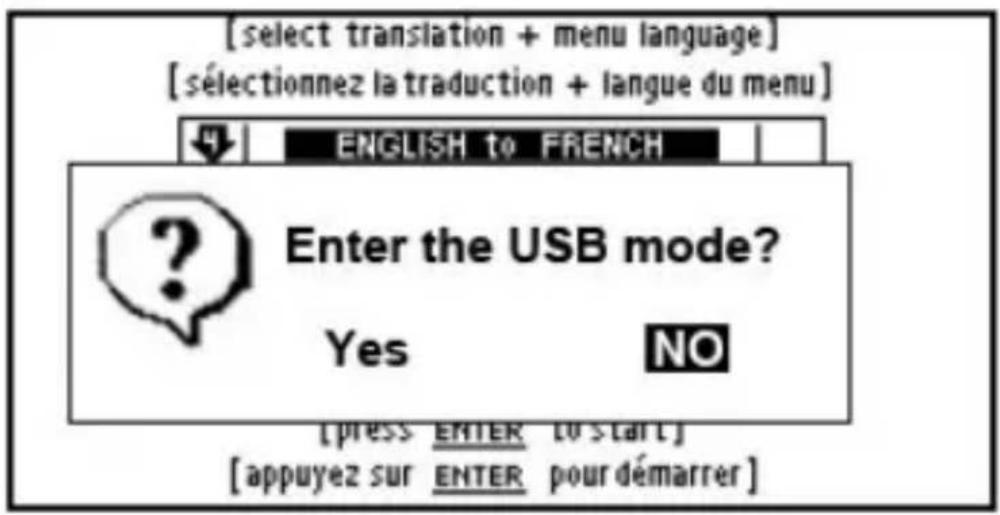
- Connect translator to a computer via USB cable.
- The following message will pop up. Press

o highlight YES and press to

confirm.
Reading “.txt files” in your Translator
- Press TOOLS and select Text Reader.
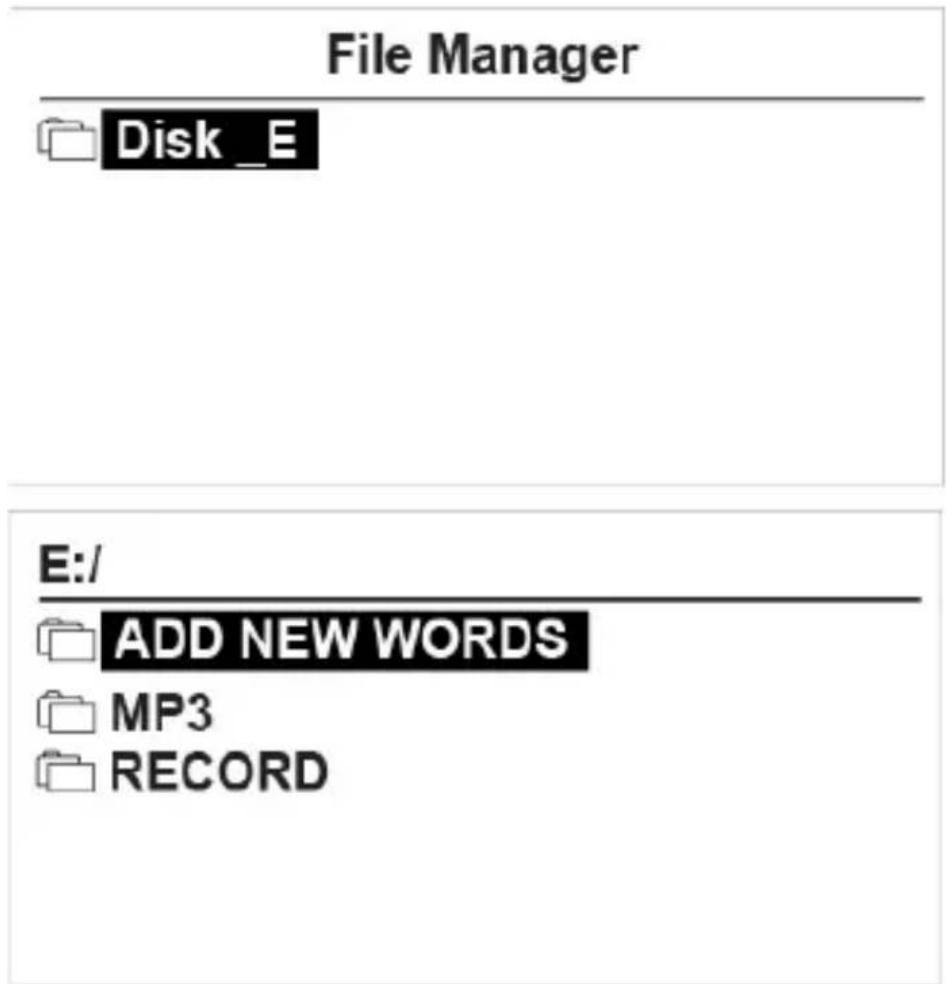
- Highlight Disk E and press ENTER to see your folder list.
- Use arrow keys to select your desired file and press ENTER to read.
text_image
File Manager Disk_E E:/ ADD NEW WORDS MP3 RECORDReading "MP3 files" in your Translator
-
Press TOOLS and select MP3 Player.
-
Press to return to E:/. Use ( / ) keys to select MP3 and press to confirm.
-
Use arrow keys to select the song and press ENTER or F1 key to listen.
Resetting the Translator
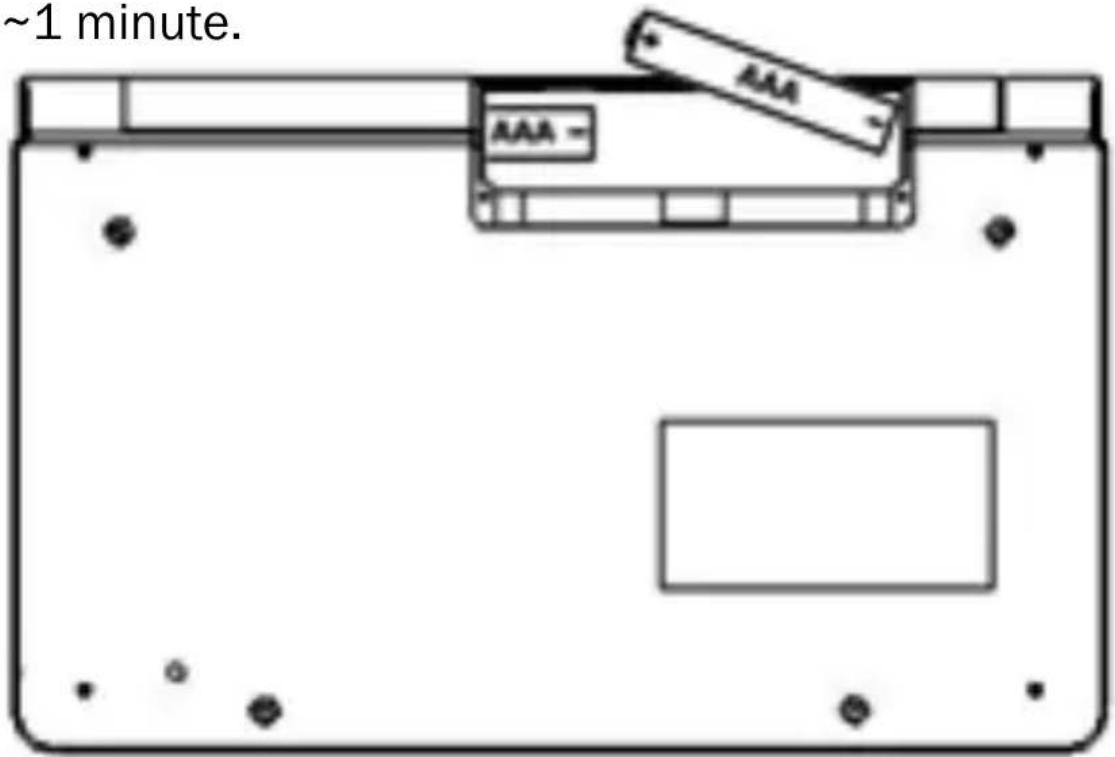
If the keyboard fails to respond, or if the screen performs erratically, you should reset the translator.
Remove the batteries. Put the batteries back after \~1 minute.
text_image
~1 minute. AAA AAA -Key Functions
1.

'Off button. Translator has auto turn off function (3, 5, or 10 minutes). You can set the time under Tool → Shut Off Time. Factory default is set to 3 minutes.
2.

Language Menu.
3.

u language, select your language.
4.

em Setup, Calculator, Conversions, My Record, Games, Science/Formula, Text Reader, User Manual, Copyright, Version.
5.

n. To view bigger font size.
6.

7.

Translate menu, F1 function key. Or Common Phrases menu (for some models)
8.
onary menu, F2 function key.
9.
ning menu, F3 function key.
10.
Conjugation/Inflection, F4 function key.
11.

ple phrases, F5 function key.
12.
Capital letter. If Shift key is pressed twice, CAPS sign will appear on top right corner of screen.
b) In cross word translation, press shift key, then press right arrow key to highlight two or more words.

Tips: While typing letters with the shift key on a PC, the shift key + the letter key are pressed simultaneously, in the translator you have to press shift key once followed by the letter key.
For instance in TAMIL model:
On the PC keyboard:
Press & hold key and press letter (D) to get “ अ”
On the TRANSLATOR keyboard:
Press key once (do not hold it down) then press letter (D) to get “ Delhi”.
13.
- Accent key(Vowel). Press target alphabet, and then press the Accent key to get available characters. E.g. Press ‘o’, then press the Accent key to get [ò, ó, ô, õ, ö] etc.
★ - Favorites. In Translate or Dictionary mode, press this key to copy screen to your favorite list.
Tips: While typing letters with the key on translator keyboard, you have to press the letter key once followed by the key.
For instance in French model, on the translator keyboard press letter (A) once (do not hold it down) then press key to get “á”.
- Symbol. Type punctuation, ./... ?*-
Wildcard. More powerful searches can be done using placeholder symbols (?)(*) to search your unknown letter, e.g. 'AMA?ING' to find 'amazing'; 'AMAZ*' to find 'amaze' or 'amazing'.
-
. Escape. Return to previous screen.
-
: Backspace. Delete the last input.
-
: Speaker. Press to hear voice.
-
/ : up/down and move to available voice option.
-
7: up/Down and Page up/Page Down.
-
/ : Left/ Right.
-
ENTER key. Type something, press this key to get translation.
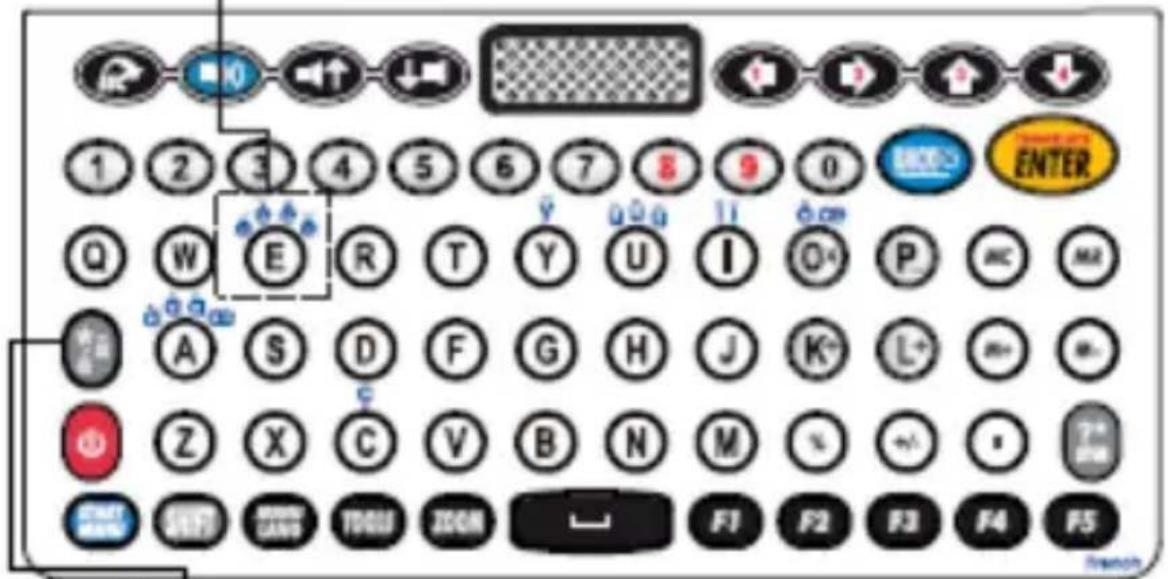
Alphabet with Accent (Vowel) (Available in some European model)
Some languages have their own alphabet with accent. Simply press the original key and key, to get the available characters.
E.g. English-French
In the home language of French.
Type in “e”, display shows: “e”
text_image
Scanned image of a French computer keyboard layout with labeled buttons and iconsPress once, display shows: “è”
Press twice, display shows: “é”
Press three times, display shows: “ê”
Press four times, display shows: “ë”
Alphabet with Accent (Vowel)
| aáàāäāāaæ | Press A, press repeatedly to get your desired character. |
| cćčç | Press C, press repeatedly to get your desired character. |
| dd'd | Press D, press repeatedly to get your desired character. |
| eéèêëēe | Press E, press repeatedly to get your desired character. |
| gğğ | Press G, press repeatedly to get your desired character. |
| iíìîïi | Press I, press repeatedly to get your desired character. |
| kks | Press K, press repeatedly to get your desired character. |
| líl’íł | Press L, press repeatedly to get your desired character. |
| nńññŋ | Press N, press repeatedly to get your desired character. |
| oóòöööøœ | Press O, press repeatedly to get your desired character. |
| rírř | Press R, press repeatedly to get your desired character. |
| sśš§β | Press S, press repeatedly to get your desired character. |
| t‘t’ | Press T, press repeatedly to get your desired character. |
| uúùûüūùuǔ | Press U, press repeatedly to get your desired character. |
| yýÿ | Press Y, press repeatedly to get your desired character. |
| zżżż | Press Z, press repeatedly to get your desired character. |
Getting Started
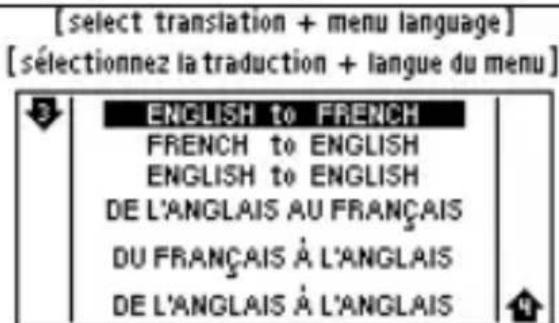
Press to switch the unit on and press, Use arrow keys to select translation and menu language, then press to start.
(e.g. Model of English to French.)
text_image
[select translation + menu language] [sélectionnez la traduction + langue du menu] ENGLISH to FRENCH FRENCH to ENGLISH ENGLISH to ENGLISH DE L'ANGLAIS AU FRANÇAIS DU FRANÇAIS À L'ANGLAIS DE L'ANGLAIS À L'ANGLAISYou can select your desired displaying language by pressing repeatedly or using arrow keys and then press
START MENU
Use arrow keys to select translation and menu language, then press TRANSLATE ENTER
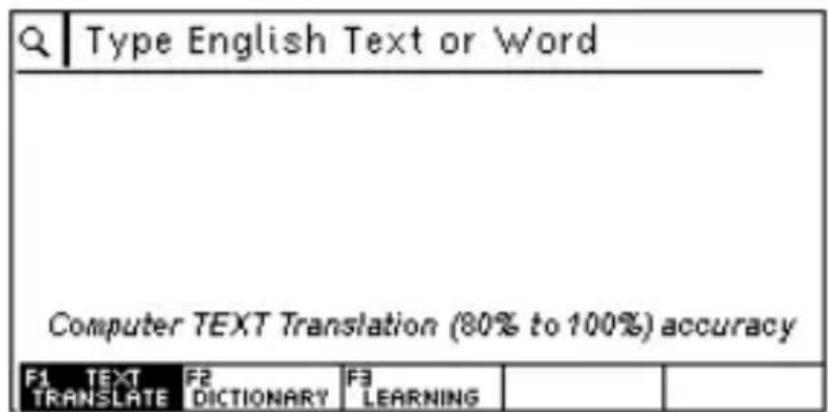
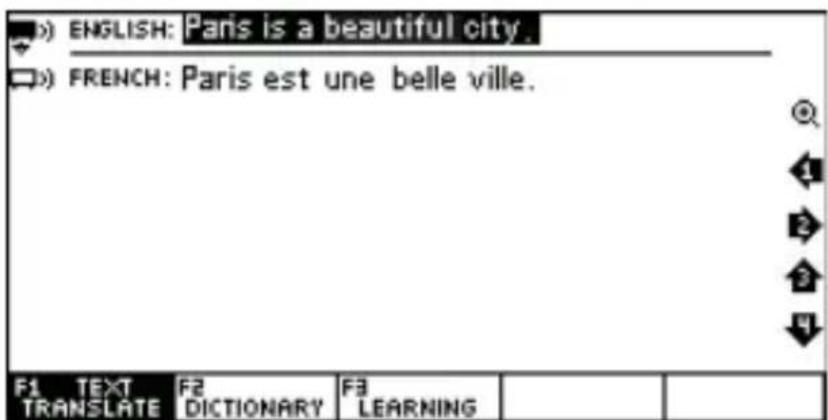
1. TEXT TRANSLATE (F1)
Type any word or phrase and press ENTER. If your input is found in the available database, you will be offered the option. You can navigate with arrow keys to desired option and find the exact translation. If not, the Text Translation Technology (CITE) will be used. The result should be used as reference rather than exact translation.
text_image
Q | Type English Text or Word Computer TEXT Translation (80% to 100%) accuracy F1 TEXT F2 F3 TRANSLATE DICTIONARY LEARNING(e.g. Model of English to French.)
text_image
ENGLISH: Paris is a beautiful city. FRENCH: Paris est une belle ville. F1 TEXT TRANSLATE F2 DICTIONARY F3 LEARNING**F1 = Common Phrases (in some models)
Basic icons
- The sound icons are shown in front of words that have audio recordings.
Press key to hear the pronunciation. Press / keys to move up/down.
■(●) = Human pronunciation is active (selected).
□□□) = Human pronunciation is not active (not selected). Press 7 to select.
■ = Computer pronunciation is active (selected).
☐ = Computer pronunciation is not active (not selected). Press / to select.
□q× = No pronunciation is available.
-
Navigation icons corresponding with the arrow keys on the right side of screen.
-
Zoom in or zoom out.
-
ENER AMERICAN English.
-
E! British English.
-
Ⓧ Roman Phonetic.
2. DICTIONARY (F2)
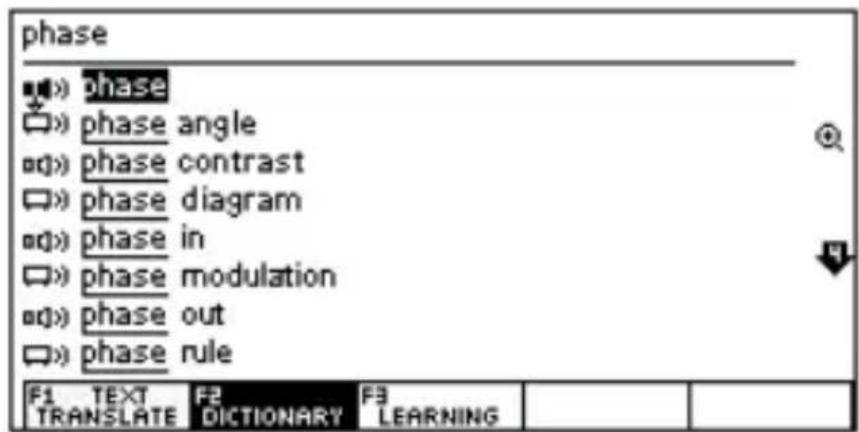
Press to get into ‘Dictionary’ mode. Type a word into the lookup screen, the program will list related words.
text_image
phase phase phase angle phase contrast phase diagram phase in phase modulation phase out phase rule F1 TEXT F2 F3 TRANSLATE DICTIONARY LEARNING(e.g. Model of English to French.)
text_image
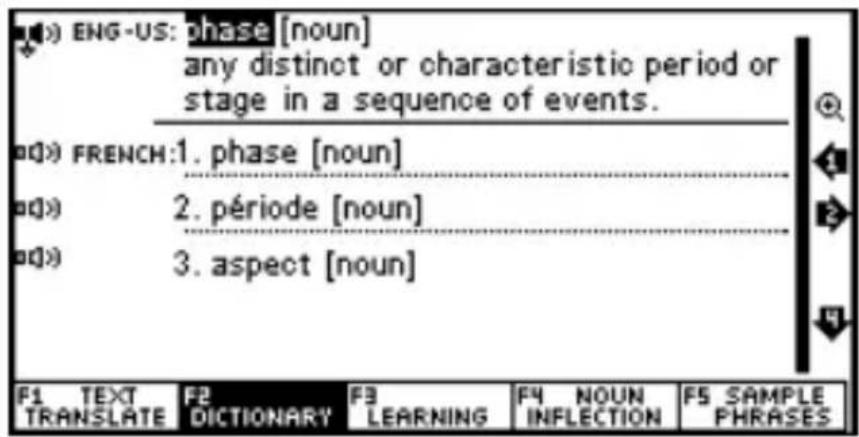
ENG-US: phase [noun] any distinct or characteristic period or stage in a sequence of events. FRENCH:1. phase [noun] période [noun] aspect [noun]Use up/down ( /↑/ /↓key to choose desire word and press to see the result.
You can search for a word directly, which will simply list all the words containing the given word. More powerful searches can be done using placeholder symbols to define a search pattern.
? any unknown letter
* more unknown letter
For example: ‘AMA?ING’ to find ‘amazing’; ‘AMAZ*’ to find ‘amaze’ or ‘amazing’.
Cross Search
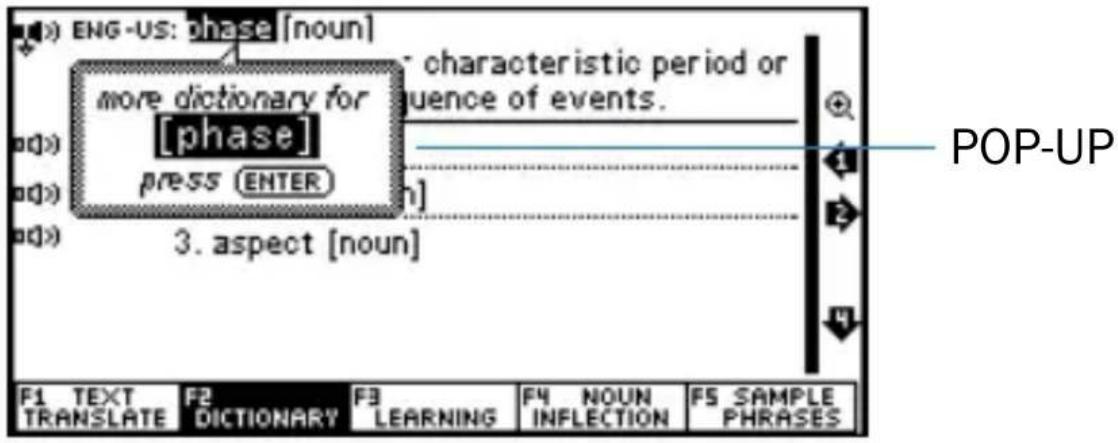
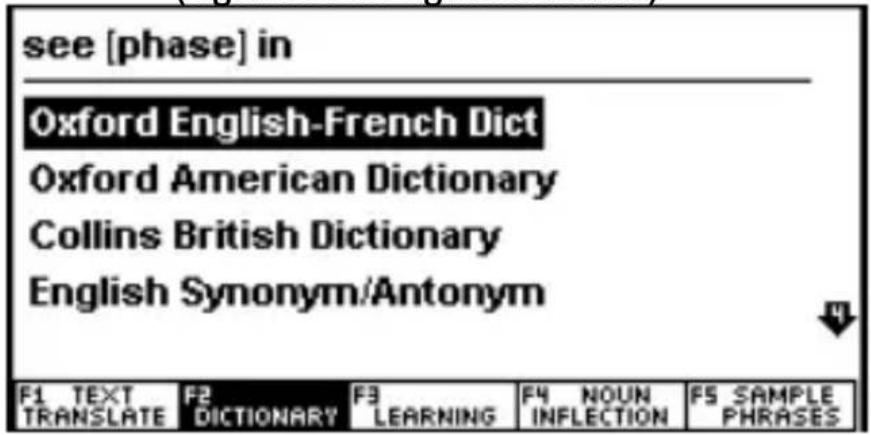
In the definition view you can press to look up the current word in other dictionaries. If the current word has other references, a pop-up will show up momentarily.
text_image
ENG-US: phase [noun] more dictionary for [phase] press ENTER characteristic period or fluence of events. 3. aspect [noun] POP-UP F1 TEXT F2 DICTIONARY F3 LEARNING F4 NOUN F5 SAMPLE TRANSLATE INFLECTION PHRASES- Once you highlight a word, press to view other dictionaries for this word.
(e.g. Model of English to French.)
text_image
see [phase] in Oxford English-French Dict Oxford American Dictionary Collins British Dictionary English Synonym/Antonym F1 TEXT F2 F3 F4 NOUN F5 SAMPLE TRANSLATE DICTIONARY LEARNING INFLECTION PHRASES- The pop-up setup.
Pop-up can be switched off in the Setup menu.
Press 1003 Select System Setup and press ENTER → Select Pop-Up and press ENTER → Select Don’t Show and press ENTER.
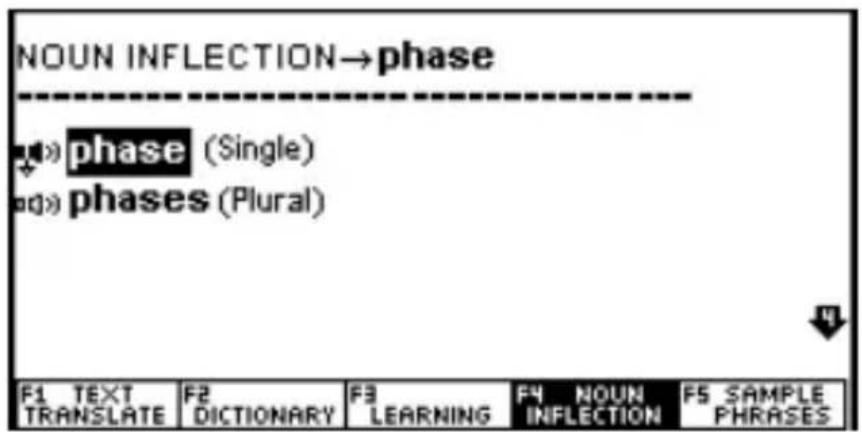
Press key to see inflection of the selected noun.
text_image
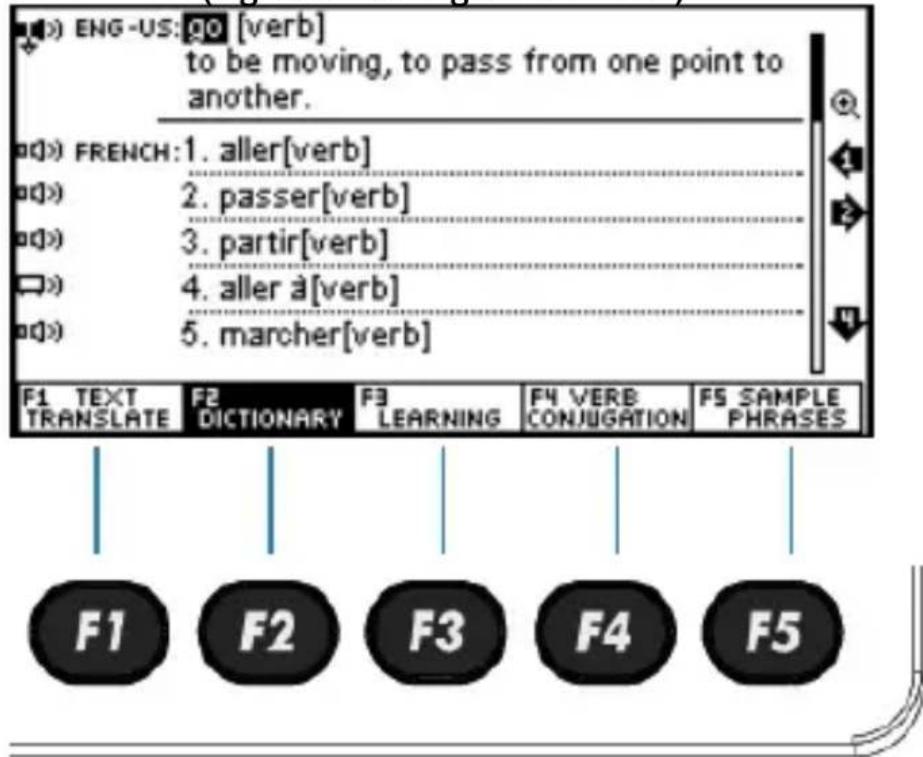
NOUN INFLECTION→phase phase (Single) phases (Plural) F1 TEXT TRANSLATE F2 DICTIONARY F3 LEARNING F4 NOUN INFLECTION F5 SAMPLE PHRASESFor verbs, pressing key will show the conjugation.
Press Speaker up/down ( ) to move sound icon and press to hear the pronunciation.
Function keys (available on selected screen)
F1 == TEXT TRANSLATION OR COMMON PHRASES
F2 == DICTIONARY
F3 == LEARNING
F4 == VERB CONJUGATION or INFLECTION.
F5 == SAMPLE PHRASE. When shows up, press F5 key to look up related phrases on the highlighted word on screen.
(e.g. Model of English to French.)
text_image
ENG-US: go [verb] to be moving, to pass from one point to another. FRENCH: 1. aller[verb] 2. passer[verb] 3. partir[verb] 4. aller à[verb] 5. marcher[verb] F1 TEXT TRANSLATE F2 DICTIONARY F3 LEARNING F4 VERB CONJUGATION FS SAMPLE PHRASES F1 F2 F3 F4 F53. LEARNING (F3)
Press F3 and then ENTER to see the features.
Learn English
English Verb Conjugation
Enter and type Verb to see its conjugation.
English Noun Inflection and Adjective Inflection
Enter and type any noun to see its inflected forms.
English Synonym and Antonym
Enter and type any word to see its synonym or antonym.
English Irregular Verbs
Enter and type ‘a’ to see the list of all English irregular verbs; or type your own verb to see its conjugation.
English Phonics
-
Press LEFT or RIGHT ( / 1 ) key to choose the “Vowel” and “Consonant”, and then press /ɪ or /↓ key to view the corresponding information. Press to hear pronunciation.
-
Press number key 1 to 6 to hear the corresponding line pronunciation.
-
Press
key to hear all pronunciations continuously.
English Lesson
Press




your desired item then press 📄 key, the

screen will display the conversation information.
e.g.: COMMUNICATION
Invitation(1)

cation ,


Peter: You have a wonderful house.
Nancy: Thank you.
Peter: What a nice room!
- All | 2. Single | 3. Select role
a. Press number <1> key, then press key to hear the entire conversation.
b. Press number <2> key, then press key to hear from frist sentence.
c. Press number <3> key. Use up/down arrow keys to choose your role as “Peter” or “Nancy”, and press key to record your own voice.
User Dictionary
Add New Words
Choose "User Dictionary" and press ENTER.
Choose Add New Words and press ENTER.
Add an entry press F2( F2 Add
Press F1( ^FN Irochoose input language.
Type a word and its translation.
Press F2( ) save the entry.
Press F5(Exit.
Editing an entry
While viewing the list of entries, press F4( to edit the highlighted entry.

Deleting an entry
While viewing the list of entries, press F5( ) to delete the highlighted entry.
Favorite List & History
Press key to add it to Favorites.
- Press Up/Down ( / / / key to select an entry and press key to view the detail content.

- To delete an entry, go back to the list and choose the entry, and press BACK ✉

Collins Phrase Book
- Choose "Collins Phrase Book" and press ENTER:
(e.g. Model of English to French.)
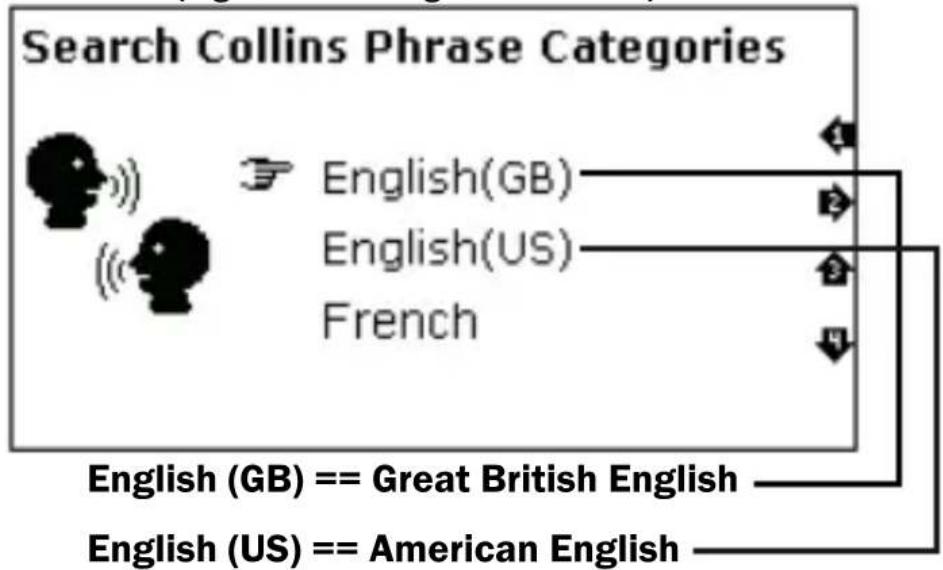
flowchart
graph TD
    A["Search Collins Phrase Categories"] --> B["English(GB)"]
    A --> C["English(US)"]
    A --> D["French"]
    B --> E["English (GB) == Great British English"]
    C --> F["English (US) == American English"]
    D --> G["..."]
- Press up/down arrow keys to select language, for instance, choose “English (GB)”, and press ENTER:
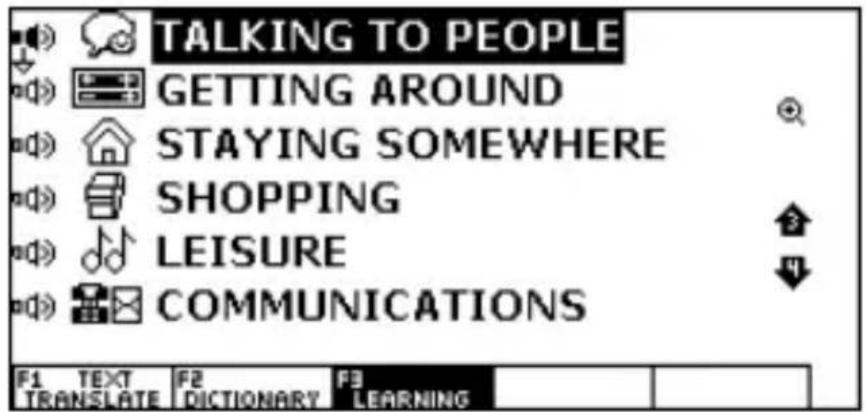
text_image
TALKING TO PEOPLE GETTING AROUND STAYING SOMEWHERE SHOPPING LEISURE COMMUNICATIONS F1 TEXT F2 F3 TRANSLATE DICTIONARY LEARNING- Select the desired choice and press ENTER. Continue doing so to get to the desired conversation.
(e.g. Model of English to French.)
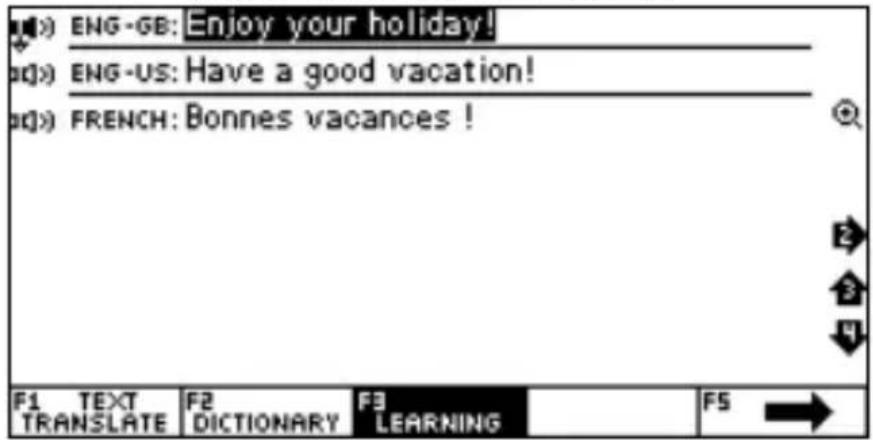
text_image
ENG-GB: Enjoy your holiday! ENG-US: Have a good vacation! FRENCH: Bonnes vacances ! F1 TEXT TRANSLATE F2 DICTIONARY F3 LEARNING FS →English Test
There are 18 courses to choose from. Every course has 100 questions.
Input any number between 1 to 18, and press ENTER.
Input any number between 1 to 100, and press ENTER to see the question.
Choose the answer by pressing “A”, “B”, “C” or “D”.
Press key to get the answer.
Test rules: Full mark is 100 percents. The right answer to each question gives 1 point, a wrong answer gives no point. A right answer followed by the right answer to the same question gives no point.
Once finished with test, press key to return.
At this time, the result will be displayed.
Test
Conjumania
Conjumania is verb conjugations' practice.
-
Type and press ENTER. If correct, you will be prompted to the next step. Continue guessing if your answer is wrong.
-
Press key to see the answer.
-
Press key to see the score (pop-up) followed by the following two options:
a. Press key to continue.
b. Press ENTER to see the meaning in dictionary. Press key to return back to test.
- Press key to get to the next question.
Guess the Word
In this game, you have to fill in the missing letter in the word, which its meaning has been given.
-
Type a character. If correct, you will be prompted to the next step. Continue guessing if your answer is wrong.
-
Press key to see the answer.
-
Press key to see the score (pop-up) followed by the following two options
a. Press key to continue,
b. Press ENTER to see the meaning in dictionary.
Press key to return back to test.
- Press key to get to the next question.
Hangman
The word to guess is represented by a row of question marks (?). If the character you guess exist in the word, it will replace the question mark(s). If not, it will replace one of the dashes (#), which represent the number of allowed wrong guesses. If you guess the word before allowed number of mistakes are reached, you win.
Otherwise you lose.
- Type the character.
- Press key to reveal character(s). You will lose the game if you choose to use F1 option.
- Press key to see the score (pop-up) followed by the following two options:
a. Press key to continue,
b. Press ENTER to see the meaning in dictionary.
Press key to return back to test.




4. TOOLS
System Setup
Menu Language
Menu language determines the language used when displaying menu items, prompts and other information. Highlight the desired language using arrow keys and press ENTER
Volume Setup
It allows you to adjust the rate of speech for all pronunciation as well as the playback volume.
Press / 3 to move the pointer between
Speech rate and Volume setup. Press to adjust the settings and press ENTER.


Shut Off Time
You have three options for auto shut off time. Use arrow key to select your desired time and press ENTER.
Backlight
The backlight setting allows you to switch on or off the screen backlight. If batteries power is low, we recommend switching off the backlight in order to extend battery life. Use arrow keys to choose the option and press ENTER.
Contrast
Use arrow keys to adjust the contrast to your liking and press ENTER.
Key Tone
The Key Tone is the audible beep sound you hear once a key is pressed. Use arrow keys and press ENTER to turn this function on or off.
Pop-Up Reminder
The Pop-up setting allows you to adjust Pop-Up settling time or switch it off completely. Use arrow keys to select your desired setting and press ENTER.
Restore to Factory defaults
This allows you to revert back to the original factory setting. Use arrow key to select Yes or No option and press ENTER.
Calculator
1. Standard Calculator
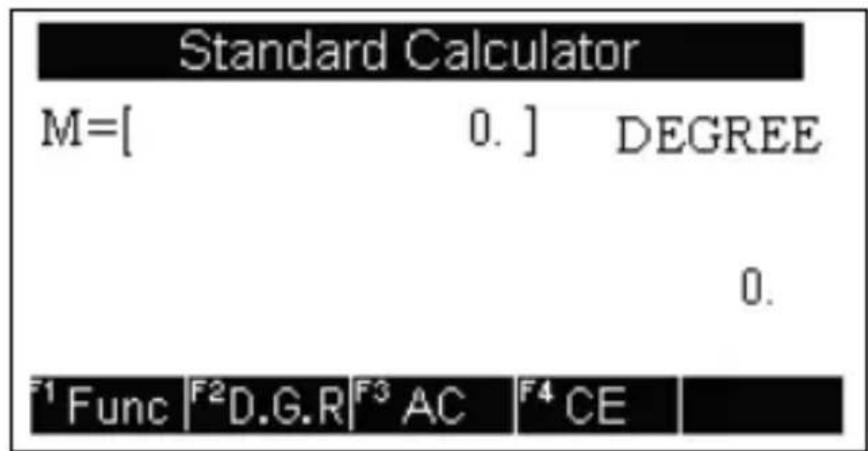
text_image
Standard Calculator M=[ 0. ] DEGREE 0. F1 Func F2 D.G.R F3 AC F4 CEThis translator can be used as a basic calculator up to 12 digits.
(1) Standard calculation: + - × ÷.
(2) Memory
(M+) to total a calculation as well as adding total to the value in the memory.
(M-) to total a calculation as well as subtracting total from the value in the memory.
(MR) to recall or display the value in memory.
(MC) to clear the memory.
(3) Press (F2) to switch between Degree, Gradian, and Radian.
(4) Press ( ) to 3AC .
(5) Press (F4) to enter the last entered number.
(6) Press to display calculation result.
(7) Press (F1) for Up/Down & Left/Right arrow keys to select the desired function, press ENTER, input the number, and press ENTER again to see the result.
Some functions such as x^y & x^1/y have two parameters. In these cases follow the following steps:
Before entering F1 key, input number for x Press F1 key Use arrow keys to highlight the function Press ENTER Input the 2^nd number (y) Press ENTER again to see the result.
2. Science Calculator
The scientific calculator can perform both simple and more complex calculations. Perform standard calculations the way you would in a standard calculator. For more complex equations, this calculator allows you to input an entire equation.
Time Conversion
-
Use ↗key to choose City1 or City 2. Press ↗key to navigate within City1 or City2.
-
Use key to make daylight saving time ON or OFF.
-
In the Time field, input the time, press to edit the input time.
Currency Conversion
-
Press / key to choose the currency type, press / key to set exchange rate, input exchange rate, and press ENTER. Use / to clear your input.
-
Press /1 key to choose the currency, use Up/Down arrow keys to switch between two currencies, and enter a number to see the result.
-
Press the number key to input the money, press key to delete wrong input amount and input correct amount again.
Unit Conversion
1. Unit Conversion
Conversion for units such as area, length, weight, cubage, pressure, speed, temperature, caloric, power, and radian are built int.
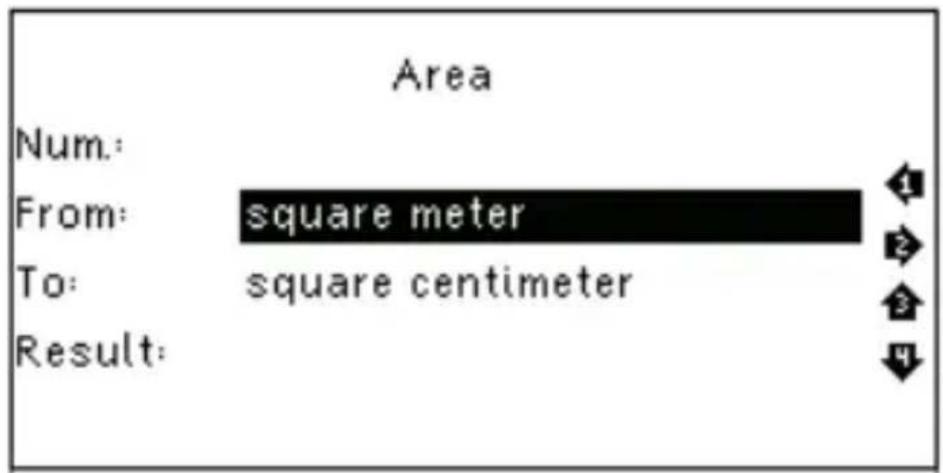
Use Up/Down or Left/Right arrow keys to choose the desired unit, and press ENTER.
Example:
text_image
Area Num: From: square meter To: square centimeter Result:a. Press Up/Down arrow key to choose between From/To. Press Right/Left arrow key to choose the unit.
b. Input the number in the top field. The conversion result will be displayed in the last row (Result).
c. Press key to clear the last input.
2. Size
It includes four international sizes, men/women clothes/shoes. Use arrow keys to select your option and press ENTER to view the corresponding information.
MP3 Player
Press to play the music.
Press to pause.
Press to adjust the volume.
Press to input the file name.
Press to delete the file.
My Recorder
Press (F1) to record.
Press F2 to stop.
Press (F3) to play the file.
Press ( ) to input the file name.
Press F5 to delete the file.
Games
1. Sudoku
Press , 3 , or key to move the 2
cursor to empty box. Input number from 1 to 9.
The following rules should be followed:
a) The digits 1,2,3,4,5,6,7,8,9 should exist in every row.
b) The digits 1,2,3,4,5,6,7,8,9 should exist in every column.
c) The digits 1,2,3,4,5,6,7,8,9 should exist in every 3 × 3 box.
-
Press key to clear the input.
-
When you fill in all the empty boxes, press ENTER to see the result. If all the answers are correct, “” sign will show up on the screen.
2. Snake
-
Use /1 key to choose Speed or Level. Press /3 key to adjust Speed and Level. Press Enter to start the game.
-
Navigate a snake through a playing field with

text_image
, 3, or . Every time the 2snake eats, it grows one unit longer, making it more difficult to control. While moving around the playing field, snake head may not touch the walls, the black obstacles, or any part of the snake.
3. Puzzle
The Puzzle has 15 numbers.
Press , or to move the

numbers.
Pass condition: Arrange the numbers in order from left to right and top to bottom.
Text Reader
You can view “.txt” files in Text Reader. “.txt” file must be edited in English.
You can transfer files between PC and translator via USB.
Use Up/Down arrow keys to select your file/folder, and press ENTER to view the detailed information.
To delete a file, go back to the list, select the file, and press key to delete.
User Manual - Read e-file inside the Translator.
Copyright - Copyrights Notice.
Version - Verison number of the unit.