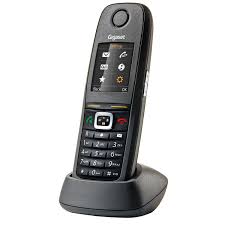
R650H - Cordless phone GIGASET - Free user manual and instructions
Find the device manual for free R650H GIGASET in PDF.


| Product Type | DECT/CAT-iq 2.0 cordless telephone |
| Brand | GIGASET |
| Model | R650H |
| Dimensions (H x W x D) | Approx. 145 × 50 × 25 mm |
| Weight (with battery) | Approx. 130 g |
| Power supply | 2 AAA NiMH rechargeable batteries 1.2 V / 800 mAh; mains charger 5 V DC |
| Charging time | 7.5 hours (in cradle) |
| Standby time | Up to 310 hours (without backlight, radiation disabled) |
| Talk time | Up to 14 hours |
| Display | Backlit display, screen saver (analog/digital clock, image) |
| Phonebook | Up to 200 contacts, 3 numbers per contact, customized VIP ringtone |
| Telephone functions | Call lists (received, missed, dialed), call transfer, 3-way conference, dual call, call waiting |
| Hands-free | Built-in speaker, adjustable volume (5 levels) |
| Sound profiles | 3 preset profiles (Loud, Silent, Personal), customizable sound settings |
| Alarm and calendar | Alarm with snooze, calendar with up to 30 event reminders |
| Room monitoring (Babyphone) | Monitor function, automatic call to a programmable number in case of noise |
| Range | Up to 50 m indoors, up to 300 m outdoors |
| Compatibility | GAP with DECT bases, CAT-iq 2.0 with HD Voice compatible routers |
| Security | Automatic key lock, protection against anonymous calls, blocking unwanted calls |
| Maintenance and cleaning | Damp or antistatic cloth; do not use solvents or a dry cloth |
Frequently Asked Questions - R650H GIGASET
User questions about R650H GIGASET
0 question about this device. Answer the ones you know or ask your own.
Ask a new question about this device
Download the instructions for your Cordless phone in PDF format for free! Find your manual R650H - GIGASET and take your electronic device back in hand. On this page are published all the documents necessary for the use of your device. R650H by GIGASET.
USER MANUAL R650H GIGASET
Gigaset R650H PRO: The robust professional DECT handset for tough everyday conditions
Gigaset pro handsets are optimised for use in commercial environments and form part of the professional Gigaset pro DECT IP systems.
This manual contains a description of all the functions your handset offers.
Please consult the relevant manual to discover the full functionality of a Gigaset PRO DECT IP system.
You can also use your handset with the DECT GAP bases from other manufacturers:
On a DECT telephone/rodter/multicell system from other manufacturers with GAP compatibility
Basic telephony functions are available in GAP mode.
For your further convenience, your R650H PRO offers a locally managed list of missed calls.
On DECT routers with CAT-iq 2.0
Your Gigaset CAT-iq handset is certified in accordance with the DECT/CAT-iq 2.0 standard.
Handset functions on a CAT-iq router (amongst others):
- Convenient call-making and call lists,
- Wideband calls in HD Voice™ quality,
Full access to the central directory in the router, - Use of multiple lines and call numbers *).
Details can be found in the user guide for your router.
Overview of handset
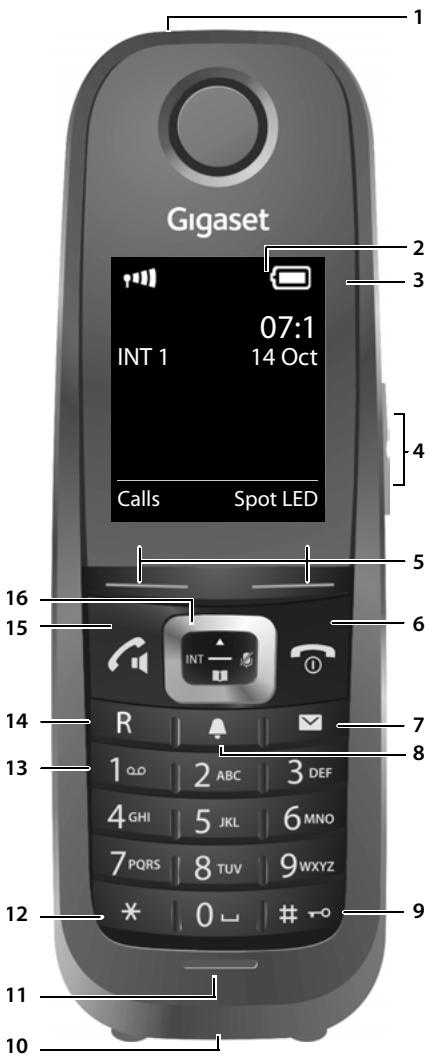

The product images are depicted schematically and may differ from the actual appearance of the product.
1 LED light / Visual call signal ( p.33, p.33)
2 Display in idle status
3 Status bar (p. 38)
Icons display current settings and operating status of the phone
4 Volume keys (p.12)
5 Display keys (p.12)
6 End call key, on/off key
End call, cancel function, go back one menu level (press briefly), back to idle status (press and hold), switch handset on/off (press and hold in idle status)
7 Message key (→ p. 14)
Access to the calls and message lists;
Flashing: new message or new call
8 Profile key (p. 33)
9 Hash key
Keypad lock on/off (press and hold in idle status);
Toggles between upper/ lower case and digits
10 Connection socket for headset (→ p. 8)
11 Microphone
12 Starkey
With an open connection: switch from pulse dialling to tone dialling (press briefly);
When inputting text: Open special characters table
13 Key 1
Select network mailbox (press and hold)
14 Recall key
- Consultation call (flash)
- Insert a dialling pause (press and hold)
15 Answer call key / Handsfree key
Dial number displayed;
Accept call; switch from earpiece to handsfree mode;
Open the radial list (press briefly); start dialling (press and hold);
16 Control key / Menu key (→ p. 11)
Contents
Overview of handset 2
Safety precautions 4
Illustration in the user guide 5
Getting started 6
Getting to know your phone 11
Making calls 16
Adjusting the telephone settings 19
Restoring phone to default setting 27
Multiplehandsets 28
Phonebook (Address book) 29
Call list 32
Sound profiles 33
Spot LED 33
Calendar 34
Alarm clock 35
Room monitoring 36
Display icons 38
Menu tree 40
Service (Customer Care) 42
Environment 44
Appendix 45
Index 48

Not all functions described in the user guide are available in all countries or from all network providers.
Safety precautions
| Read the safety precautions and the user guide before use. Comprehensive user guides for all telephones and telephone systems as well as for accessories can be found online at gigasetpro.com in the Support category. We thereby help to save paper while providing fast access to the complete up-to-date documentation at any time. | |
| Use only the power adapter indicated on the device. | |
| Use only rechargeable batteries that correspond to the specification (see "Specifications"). Never use a conventional (non-rechargeable) battery or other battery types as this could result in significant health risks and personal injury. Rechargeable batteries, which are noticeably damaged, must be replaced. | |
| Using your telephone may affect nearby medical equipment. Be aware of the technical conditions in your particular environment, e.g. doctor's surgery. If you use a medical device (e.g. a pacemaker), please contact the device manufacturer. They will be able to advise you regarding the susceptibility of the device to external sources of high frequency energy (for the specifications of your Gigaset pro product see "Specifications"). | |
| Do not hold the rear of the handset to your ear when it is ringing or when speaker mode is activated. Otherwise you risk serious and permanent damage to your hearing. The phone may cause interference in analogue hearing aids (humming or whistling) or cause them to overload. If you require assistance, please contact the hearing aid supplier. | |
| The base and charger are not splashproof. For this reason do not install them in a damp environment such as bathrooms or shower rooms. | |
| Do not use the devices in environments with a potential explosion hazard (e.g. paint shops). | |
| Remove faulty devices from use or have them repaired by our Service team, as these could interfere with other wireless services. | |
| Do not use the device if the display is cracked or broken. Broken glass or plastic can cause injury to hands and face. Send the device to our Service department to be repaired. | |
| Emergency numbers cannot be dialled if the keypad/display lock is activated! |
Illustration in the user guide
| ! | Warnings, which, if not heeded, can result in injury to persons or damage to devices. |
| ! | Important information regarding function and appropriate handling or functions that could generate costs. |
| Δ | Prerequisite for being able to carry out the following action. |
| i | Additional helpful information. |
Keys
| Talk key | Handsfree key |
| End call key | Number / letter keys |
| Control key rim / centre | Message key |
| Recall key | Star key |
| Hash key | Profile key |
| OK, Back, Select, Change, Save, ... | Display keys |
Procedures
Example: Switching Auto answer on/off
...use to select Settings OK Telephony OK Auto Answer Change (= on)
| Step | Follow this procedure |
| ► | When in idle status press the centre of the control key. The main menu opens. |
| ►OK | Navigate to the icon using the control key. Select OK to confirm. The submenu Settings opens. |
| ►Telephony | Select the Telephony entry using the control key. Select OK to confirm. The submenu Telephony opens. |
| ►OK | |
| ►Auto Answer | The function to switch Auto answer on/off appears as the first menu item. |
| ►Change | Select Change to activate or deactivate. Function is activated /deactivated |
Getting started
Checking the contents of the package
One handset,
One charging cradle incl. power adapter,
- One battery cover (rear cover for the handset),
- One locking disc for the battery cover,
Two batteries,
One belt clip,
One rubber cover for the headset socket,
- Safety precautions.
Installing the charging cradle
The charging cradle is designed for use in closed, dry rooms in a temperature range of +5^ to +45^ .
Set up the charging cradle on a flat, non-slip surface.
The phone's feet do not usually leave any marks on surfaces. However, due to the multitude of different varnishes and polishes used on today's furnishings, marks on the surfaces cannot be completely ruled out.

- Never expose the telephone to the effects of heat sources, direct sunlight or other electrical devices.
- Protect your Gigaset from moisture, dust, corrosive liquids and fumes.
Connecting the charging cradle
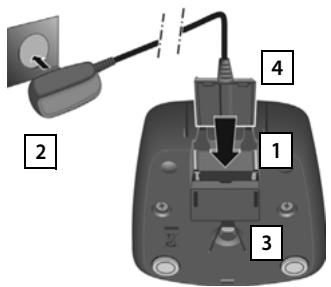
Connect the flat plug to the charging cradle 1
Plug the power adapter into the power socket 2. If you have to remove the plug from the charging cradle again:
Disconnect the power adapter from the mains power supply.
Press the release button 3 and disconnect the plug 4.
Setting up the handset for use
The display is protected by a plastic film. Please remove the protective film!
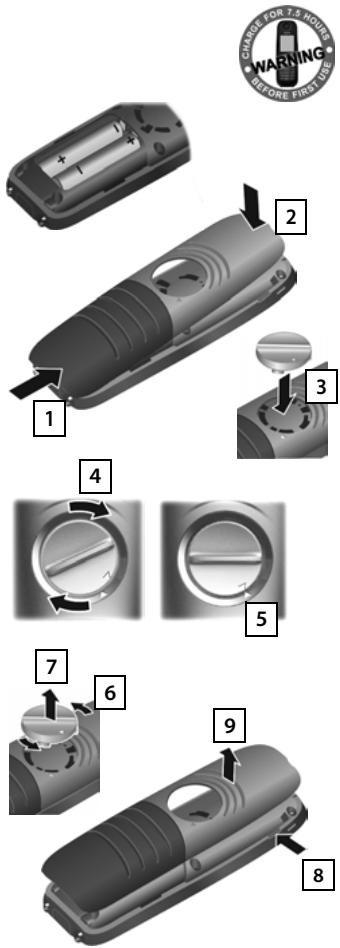
Inserting the batteries and closing the battery cover

Use only rechargeable batteries recommended by Gigaset Communications GmbH (→ p. 46), as this could otherwise result in significant health risks and personal injury. For example, the outer casing of the batteries could be destroyed or the batteries could explode. The phone could also malfunction or be damaged as a result of using batteries that are not of the recommended type.
Insert the batteries with the polarity in the right direction (for correct +/- direction, see diagram).
- Hold the battery cover at a slight angle and insert the bottom into the casing first 1.
Then press the cover 2 until it clicks into place.
Insert the locking disc as shown (at an angle of approx. 20^ 3). Pay attention to the arrow markings.
Turn locking disc clockwise to the end stop 4 . The locking disc is closed once the markings on the disc are aligned with those on the cover 5 .
To open the battery cover, for example to change the batteries:
Turn the locking disc anti-clockwise to the end stop (approx. 20^ ) and remove 7.
- Place your fingernail in the notch on the side between the cover and the casing [8] and remove the cover [9].
Charging the batteries
The batteries are supplied partially charged. Please charge completely before use. (The batteries are fully charged when the power icon disappears from the display.)
Charge the handset in the charging cradle for 7.5 hours.
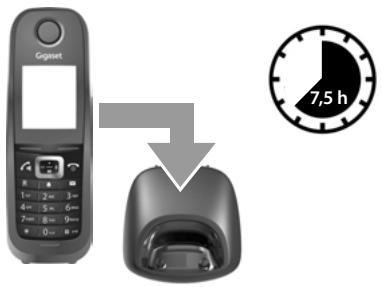

- The handset may only be placed in the designated base/charging cradle.
- The battery may heat up during charging. This is not dangerous.
- After a time, the charge capacity of the battery will decrease for technical reasons.
Belt clip
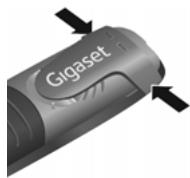
The handset has notches on each side to attach the belt clip.
- To attach — press the belt clip onto the back of the handset so that the tabs on the belt clip click into place in the notches.
- To remove — press the centre of the belt clip firmly with your right thumb, push the fingernail of your left thumb up between the clip and the casing and pull the clip in an upward direction.
Connecting the headset
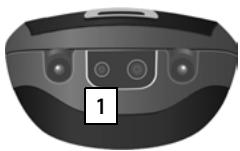
You can connect a headset to the underside of your telephone with the 2.5 mm jack connector [1]. For information on recommended headsets, see the relevant product page at wiki.gigasetpro.com.
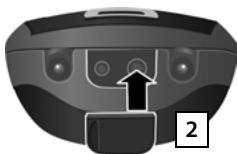
If you do not wish to connect a headset, please insert the rubber cover supplied 2 to guarantee the unit is still splash proof.
Changing the display language
Change the display language if you do not understand the language currently set.
6 5 Select language Select (O = selected)
Registering the handset
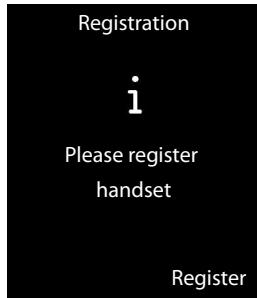
The registration process depends on the base. You must initiate registration on the handset and on the base. Both must be carried out within 60 secs.
On the base: Press and hold (min. 3 secs) the Registration/ paging key.
On the handset, press the display key Register.
Or:



Display shows: Searching for a base in registration mode. The connection to the base will be established; this may take some time.
Enter the system PIN if required (factory setting: 0000). OK
When registering, the display screen shows: Handset is registering
After registering successfully, the display screen shows: Handset registered
Your handset can be registered on up to four bases. To see how to use your handset with multiple bases and de-register a handset, refer to the user guide for the base.

For information on registering to a DECT IP multicell system, consult the relevant user guide at wiki.gigasetpro.com
Setting the date and time
Set the date/time so that the correct date and time can be assigned to incoming calls, and so that you can use the alarm.
Press the display key Time.
Or:


Setting the date and time:
Save
Your phone is now ready for use.
What would you like to do next?
After successfully setting up the phone, you can make calls straight away, customise your Gigaset according to your requirements or firstly familiarise yourself with the operation.
Setting ringtones
Assign specific tunes to internal and external calls, reminders (→ p. 22), wake-up calls (→ p. 35) and to certain callers (→ p. 29).
Protecting yourself against unwanted calls
Set your phone up so that it doesn't ring if there is an anonymous call or use the time control (→ p. 24).
Adjusting your phone to your surroundings
Use 3 sound profiles to adjust your phone to a quiet or loud background (→ p. 33).
Register an existing Gigaset pro handset and add it to the phonebook
Use available handsets to continue calling from your new base. Transfer directory entries from these handsets to your new handset (→ p. 31).
If you have any questions about using your phone, please read the tips on troubleshooting ( p. 42) or contact our Customer Service team ( p. 42).
Getting to know your phone
Switching the handset on/off
Press and hold the End call key in idle status to switch the handset on or off.
Locking/unlocking the keypad
The keypad lock prevents any accidental use of the phone. If you press a key when the keypad is locked, a message is displayed.
Press and hold the # key to lock or unlock the keypad.
If a call is signalled on the handset, the keypad automatically unlocks. and you can accept the call. It then locks again when the call is finished.
Control key
In the description below, the side of the control key (up, down, right, left, middle) that you have to press in the different operating situations is marked in black, e.g. for "press right on the control key".
The control key allows you to navigate within menus and entry fields. In idle status or during an external call, it has the following functions:
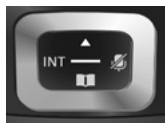
When the handset is in idle status

Open the phonebook.

Open the main menu.

Open list of handsets.
During an external call

Open the phonebook.

Initiate an internal consultation call.

Adjust the loudspeaker volume for earpiece and handsfree mode.
Functions when pressing the centre of the control key
The key has different functions, depending on the operating situation.
- In idle status, it opens the main menu.
- In submenus, selection and entry fields, the key takes on the function of the display keys OK, Yes, Save, Select or Change.

These instructions demonstrate opening the main menu by pressing the right of the control key and confirming the functions by pressing the appropriate display key. However, if you prefer, you can also press the middle of the control key.
Volume keys

Press these keys on the right-hand side of the handset to set the volume for the earpiece, ringtone, handsfree mode, alarm clock, appointments and the headset depending on the situation.
Display keys
The display keys have a function preset by default in idle status, but the keys can be re-assigned ( p. 25).
The functions of the display keys change depending on the operating situation.
Example
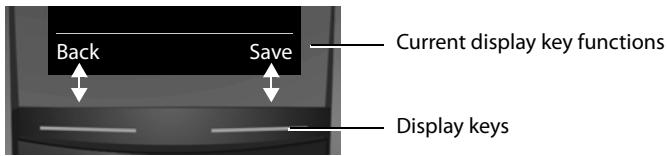
Some of the important display keys are:
Options Open a menu for further functions.
OK Confirm selection.
Back Skip back one menu level or cancel operation.
Save Save entry.
Overview of icons on the display keys p. 38.
Menu guidance
The functions of your telephone are displayed on a menu that consists of several levels. Menu overview p. 40.
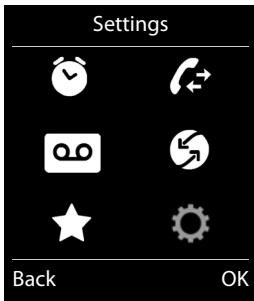
Main menu (first menu level)
When the handset is in idle status, press right on the control key to open the main menu.
The main menu functions are shown in the display as icons. The icon for the selected function is highlighted and the name of the associated function appears in the display header.
Accessing a function, i.e. opening the corresponding submenu (next menu level):
Use the control key to navigate to the required function and press the display key OK.
Returning to idle status: Briefly press the display key Back or End call key.
Example
Submenus
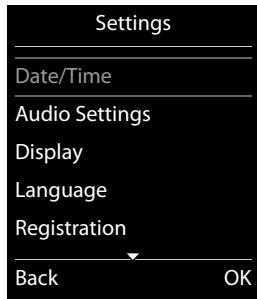
The functions in the submenus are displayed as lists.
To access a function:
Scroll to the function using the control key and press OK.
Returning to the previous menu level: Briefly press the display key Back or End call key.
Example
Returning to idle status
From any menu:
Press and hold the End call key
Or:
If you do not press a key, the display automatically returns to idle status after 2 minutes.
Message lists
Any messages you receive are saved in the message lists.
An advisory tone sounds as soon as a new entry appears on a list.
The Message key also flashes. Icons for message types and the
number of new messages are shown on the idle display.
New messages available:
- On the answer machine (depending on the base)/network mailbox
In the missed calls list
In the missed alarms list
Open the message list by pressing the Message key. You can access the following message lists:
Answer Mach.: Answer machine list (depending on the base)
- Mailbox: Network mailbox (if your network provider supports this function and the number of the network mailbox has been stored.)
Missed Calls: Missed call list (see "Call list" p. 32)
- Missed Alarms: Missed appointments list
The icon for the network mailbox is always displayed, provided the number is stored in the telephone. The other lists are only displayed if they contain messages.
Opening the list: Select required list. OK
Exception: If you select the network mailbox, the number of the network mailbox will be selected. Lists are not opened on the display.
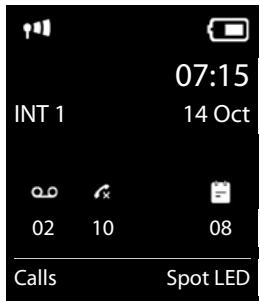
Example
Entering numbers and text
If several number and/or text fields are displayed (e.g.
First Name and Surname in a phonebook entry), the field is automatically activated. The following fields must be activated by navigating with the control key. A field is activated when a cursor is blinking inside it.
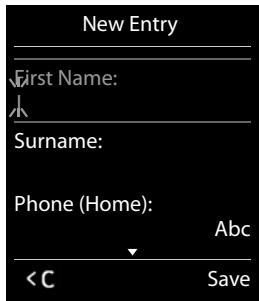
Correcting incorrect entries
- Deleting characters before the cursor: press the display key < briefly.
- Deleting words before the cursor: press and hold the display key <C
Entering text
- Letters/Characters: Multiple letters and characters are assigned to each key between 0 and 9. The characters are shown according to the key in a selection line at the bottom left of the display. The selected character is highlighted. Briefly press the key several times in succession to select the required letter/character.
- Placing the cursor: Letters/characters are inserted at the cursor position. You can insert the cursor by pressing the control key , or in fields with multiple characters.
- Typing lower case, upper case and numbers: Press the hash key # to switch between lower case, upper case or numbers for the following letters.
When editing a phonebook entry, the first letter and each letter following a space is automatically in upper case.
- Special characters: Press the star key * to open the special characters table. Navigate to the character desired using the star key and press the display key Insert to select it.
- Special letters: Umlauts or other marked/diacritic characters can be selected by pressing the corresponding letter several times. See the character table p. 47.
Making calls
Making an external call
Enter number, briefly press the Answer call key
Or:
Press and hold the Answer call key enter number. You can cancel the dialling process with the End call key
Dialling with the radial list
The radial list contains the 20 numbers last dialled with the handset. You can manage this similarly to your phone's message lists (→ p. 14).
Press the Answer call key briefly to open the radial list.
Select entry. Press the Answer call key The number is dialled.
When a name and corresponding phone number are displayed: Press the display key View.
Managing entries in the radial list:
Open radial list. Select entry. Options
You can select the following functions:
- Copy to Directory OK
Copy an entry to the phonebook ( p. 29).
Display number OK
Copy a number into the display and edit it or add to it, then select with 4 or save as a new entry in the phonebook with. - Delete entry OK
Delete the selected entry.
Delete all OK
Delete all entries.
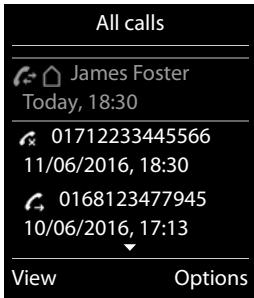
Dialling from the call list
OK OK Select list. OK Select entry.
The number is dialled.

- You can also bring up the call list using the display key Calls, but you must assign a display key accordingly (→ p. 25).
- You can also open the list Missed calls using the Message key.
Example
Dialling with the phonebook


Select entry.

If multiple numbers are entered: Select the number with and press the Answer call key or OK. The number is dialled.
One touch call
You can set up your phone so that you can dial a specific number when you press any key on the keyboard. This allows children, who are unable to enter a number, to call a certain number, for example.






Call to Enter or change the number that you wish to dial.
Save
The activated One Touch Call appears on the idle display. The saved number is dialled by pressing any key. Press the End call key to cancel dialling.
Ending one touch call mode:
Press the display key OFF. Press and hold the # key.
Or:
Press and hold the # key.
Accepting a call
You have the following options:
Press
If Auto Answer is switched on (→ p. 21), remove the handset from the charging cradle.
Activate/deactivate Simple Auto Answer
In addition to using the Answer call key 1 , you can also answer a call using the keys 0 9 , * and # .









Please note: Changes are only saved permanently in Profile Personal (→ p. 33).
Handsfree mode
If you are going to let someone listen in, you should tell the other party that this is happening.
Press
Placing the handset in the charging cradle during a call:
Press and hold for a further 2 seconds while placing the handset in the charging cradle.
Adjusting the loudspeaker volume
- Accessing the settings via the menu:






Earpiece:
Volume can be set at 5 levels for the earpiece and headset.
Speaker:
Set the volume at 5 levels.
Save
- Accessing the settings during a call for the mode currently in use (handsfree, earpiece, headset):
Press side keys +/ - (→
p.2) or control key
The setting is saved automatically after 2 seconds or press the display key Save. The screen reverts back to its previous display.

Changes are only saved permanently in Profile Personal ( p. 33).
Switching the microphone on/off (muting)
If you turn the microphone off during a call, your caller can no longer hear you.
Press to switch the microphone on/off.
Setting the microphone sensitivity
During a call: There are four settings for the microphone sensitivity. With these settings you get better acoustics in noisy or echoing environments.
Press and hold the key ... set the microphone sensitivity with Save ... the change is immediately effective and also applies to subsequent calls

If you do not save the setting, it only applies for the current call.
Adjusting the telephone settings
The handset and base station are preconfigured, but you can change the settings to suit your individual requirements.
The settings can be changed via the menu Settings whilst on a call or in idle status.
Date and time
To ensure you have the correct time for incoming calls and to use the alarm clock and calendar, for example, the date and time must be set.
If the date and time have not yet been set on the handset, the display key Time appears.
Press the display key Time
or
...use to select Settings OK Date/Time OK...then
Set the date:
Date: ...use to enter the day, month and year in 8-digit format e.g. 1 一 4 0 - 1 一 2 0 - 1 一 6 for 14/01/2016
Set the time:
Time ...use to enter hours and minutes in 4-digit format e.g.0715 for 07:15
Save settings:
Save
Changing the display language
Setting your country and local area codes
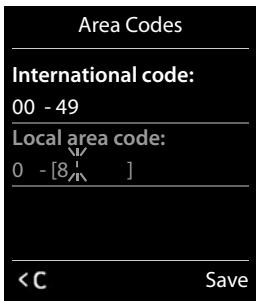
Your area code (international and local area code) must be saved on the phone before you can transfer phone numbers (e.g. in vCards). Some of these numbers are already preset. Please ensure that the prefix is correctly separated from the rest of the area code.
OK Telephony OK Area Codes OK Navigate to the entry field, delete the number using if needed Enter the number Save
Example
Adjusting the handset display settings
Setting a screenshot
You can set a screenshot for the display when in idle status. You can choose from an analogue clock, a digital clock or an image.
To show the display in idle status, briefly press


Screensaver

= activated)

Activation

On/Off

Selection:


Cal Clock / AnalogClock
ock/[Images]
Or:
View(Viewscreensaver)

Selectscreensaver
OK
Save
Example
Screensaver
Activation
Selection:
Analog Clock
Back
Save
Setting the colour scheme
You can set the display to show a dark or a light background.


ur Scheme 1 /
Setting the display backlight
The display backlight is always lit when the handset is not in the base/charging cradle or when a key is pressed. Any digit keys pressed appear on the display for pre-dialling.
You can also activate/deactivate the display backlight for idle status:



In Charger: On/Off
Out of Charger: On / Off
Save

The handset's standby time can be significantly reduced if the display backlight is activated.
Activating/deactivating visual call
Incoming calls are signalled visually (e.g. in noisy environments).






Please note: Changes are only saved permanently in Profile Personal (→ p. 33).
Activating/deactivating automatic keypad lock
Automatically lock the keypad when the handset has been in idle status for around 15 seconds.
...use to select Settings OK Display&Keypad OK Auto Keypadlock Change ( = on)
Keypad lock with PIN protection: Set the handset PIN
Changing the handset PIN
The handset is protected against unauthorised use by a PIN (default setting: 0000). The handset PIN must be entered e.g. when deactivating the keypad lock or when entering Bluetooth connections.
Change the telephone's 4-digit PIN (default setting: 0000):
▶ ...use to select Settings OK System OK Handset PIN OK ...use to enter the current handset PIN OK ...use to enter new handset PIN OK
Activating/deactivating Auto Answer
When set to Auto Answer, the handset accepts an incoming call as soon as you remove it from the charging cradle.
OK OK Telephony OK Auto Answer Change = activated)
Regardless of the setting Auto Answer, the connection ends as soon as you place the handset back in the charging cradle. Exception: Press and hold for a further 2 seconds while placing the handset in the charging cradle.
Changing the earpiece and speaker volume
You can set the volume of the earpiece and speaker at 5 levels independently of each other.
During a conversation
Handset Volume ...use to select volume Save ...the setting is saved

The setting is automatically saved after around 3 seconds without saving.
In idle status
...use to select Settings OK Audio Settings OK Handset Volume OK ...then
For the earpiece: Earpiece: ... use to set the volume
For the speaker: Speaker ... use to set the volume
Save settings: Save

Changes are only saved permanently in Profile Personal.
Earpiece and handsfree profile
Select a profile for the earpiece and handsfree mode in order to adapt the telephone as much as possible to the surroundings. Check which is the most comfortable profile for you and your caller.
...use to select Settings OK Audio Settings OK
Acoustic Profiles Earpiece Profiles / Handsfree Profiles OK ...use to select profile Select selected)
Earpiece Profiles: High or Low (default setting)
Handsfree Profiles: Profile 1 (default setting) ... Profile 2
Setting the handset ringtones
Setting the ringtone volume
OK Audio Settings OK
Ringtones (Handset) OK Volume OK
For internal calls and alarms:
Volume can be set at 5 levels or crescendo (increasing volume) for internal calls and anniversaries.
External Calls:
Volume can be set at 5 levels or crescendo (increasing volume) for external calls.
Save
When the telephone rings, you can permanently change the ring-tone volume using the side keys + (louder) or - (quieter).
Please note: Changes are only saved permanently in Profile Personal (→ p. 33).
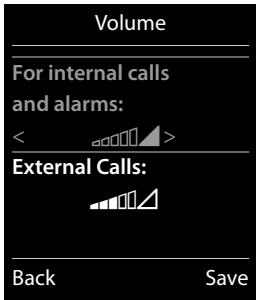
Example
Setting the ring melody
OK Audio Settings OK Ringtones (Handset) OK
Melodies OK
Internal Calls: Setting the volume/melody for internal calls and anniversaries.
External Calls: Setting volumes/melodies for external calls.
Save
Activating/deactivating the ringtone
Deactivating the ringtone permanently: Using the Profile key , set the Profile Silent (→ p. 33). appears in the status bar.
Activating the ringtone permanently: Using the Profile key, set the Profile Loud or Profile Personal (→ p. 33).
Deactivating the ringtone for a current call: Press Silence or
Silent alert
Incoming calls and other messages are indicated by a silent alert.
OK Audio Settings OK Silent Alert Change = activated)
Please note: Changes are only saved permanently in Profile Personal (→ p. 33). This setting is saved in the Profile Silent.
Activating/deactivating advisory tones
Your handset uses advisory tones to tell you about different activities and statuses. These advisory tones can be activated/deactivated independently of each other.
OK Audio Settings OK Advisory Tones OK
Key Tones: On / Off Tone when keys are pressed.
Confirmation: On / Off Confirmation/errortone after making entries, advisory tone when a new message has been received.
Battery: On / Off Warning tone when there are fewer than 10 minutes of talktime remaining (every 60 seconds). There is no battery warning when the room monitor is activated.
Out of Range: On / Off Warning tone when the handset is moved out of range of the base station.
Save Please note: Changes are only saved permanently in Profile Personal ( p. 33).
Protection against unwanted calls
Setting time control for external calls
You can specify a time period when you do not want the telephone to ring.











If activated:
Suspend ring. from: Enter the start of the period.
Suspend ring. until: Enter the end of the period.
Save
Example
Time Control
For external calls:
On
Suspend ring, from:
2:00
Suspend ring, until:
07:00
Back
Save

During this period, your phone will continue to ring for numbers to which you have assigned a VIP ringtone in the phonebook.
Protection from anonymous callers
You can set your phone so that it doesn't ring for anonymous calls (callers who have withheld Calling Line Identification). The call is only signalled on the display. The setting only applies to handsets for which the setting is configured.











Switch off ringtone when in charging cradle
The handset will not ring when placed in the charging cradle. The call is only indicated on the display.














off when in charging cradle)
Quick access to numbers and functions
The digit keys 0 and 2 up to 9 can be assigned to a number from the phonebook.
The left and right display keys have a function preset by default, but the keys can be re-assigned (→ p. 25).
You can then dial the number or start the function by simply pressing a key.
Assigning digit keys
Prerequisite: You must assign a number to the digit key.
Press and hold the digit key.
Or:
Briefly press the digit key. Press the display key QuickDial.
The phonebook opens. Select entry. OK
The entry is saved to the corresponding digit key.

If you delete or edit the entry in the phonebook at a later date, this will not affect the assignment to the number key.
Selecting numbers/changing an assignment
Prerequisite: You must have assigned a number to the digit key.
When the handset is in idle status
Press and hold the digit key: The number is dialled immediately.
Or:
- Briefly press the digit key: Press the left-hand display key with the number/name (abbreviated if necessary) to dial the number.
Or:
Press the display key Change to change the key assignment, or
press the display key Clear Key to delete the assignment.
Assigning display keys
In idle status, press and hold the left or right-hand display key. The list of possible key assignments is opened. Select entry OK
Choose from the following functions:
Room Monitor Set and activate the room monitor ( p. 37).
Alarm Clock Set and activate the alarm clock (p. 35).
Calendar Open calendar ( p. 34).
One Touch Call Set up one touch call ( p. 17).
Redial Show radial list ( p. 16).
Spot LED: LED light (torch function) on/off ( p. 33).
More Functions... You can also choose further functions:
Call Lists Show call list ( p. 32).
Changing the name of a connection (line)
(only on a CAT-iq router)
...use to select Settings OK Telephony OK
Connections OK ... all available connections (lines) are displayed ... use to select connection OK Connection Name OK ... use to change the name of the connection Save
Assigning handsets to a connection (line)
(only on a CAT-iq router)
Multiple handsets can be assigned to a connection. Incoming calls to the number designated to a connection will be forwarded to all handsets assigned to the connection.
...use to select Settings OK Telephony OK
Connections OK ...use to select connection OK Assigned Handsets...
all registered handsets are displayed use to select handset
Change = handset is assigned)
Permit/prevent multiple calls
(only on a CAT-iq router)
If the function is activated, multiple calls can be made in parallel.
...use to select Settings OK Telephony OK
Connections OK ...use to select connection OK Multiple Calls
Change ( = on)
Permit/prevent internal listening in
(only on a CAT-iq router)
If the function is enabled, an internal party can listen in to an external call and take part in the conversation (conference).
...use to select Settings OK Telephony OK
Connections OK ...use to select connection OK Listening In OK
Change ( = on)
Handset update
(only on a CAT-iq router which supports updating of the handset firmware)
▶ ...use to select Settings OK System OK Handset
Update OK Update OK OK ... updating of the handset firmware is carried out
Restoring phone to default setting
You can reset individual modifications to handset settings.
The following are not affected by the reset:
- Date / time,
- Registration of handsets to the base and the current selection of the base,
Entries in the calendar and phonebook, - Redial list.
When resetting the handset (Handset Reset), audio and display settings will be deleted.
Resetting the handset
OK System OK Handset Reset OK Confirm security prompt with Yes
Multiple handsets
Making internal calls
Internal calls to other handsets registered to the same base are free of charge.
(press briefly) The list of handsets is opened. Your own handset is marked < . Select the handset or Call all (group call) from the list if required.
Holding down immediately starts a call on all registered handsets.
Internal consultation/internal transfer
You receive a call from an external participant and would like to transfer the call to an internal participant or wish to consult him/her.
The list of handsets is opened. If more than two handsets are registered to the base, select one handset or Call all. or OK
Holding a consultation call: You are speaking to the internal participant and are returning to your external call: ▷ Options ▷ End active call ▷ OK
Transferring an external call: You have two options to transfer the call:
Wait until the participant called answers, then hang up:
Press the End call key
Or:
Hang up before the participant calls: Press the End call key.
If the participant called does not answer of does not transfer the call, end the consultation with End.
Establishing a conference call/call swapping
You are taking a call while a second call is being held. Both callers are indicated on the display.
Call swapping: You can switch between both participants using
Establishing a three-way conference call: Press Conf.
Ending a conference call: Press End Conf. You are reconnected with the external participant.
You can switch again between both participants using
Each of the callers can end their participation in the conference call by pressing the End call key .
Accepting/rejecting call waiting
If you get an external call while conducting an internal call, you will hear the call waiting tone. If the number is transferred, you will see it or the name of the caller on the display.
Rejecting a call: Press the display key Reject.
Accepting a call: Press the display key Accept. You are now speaking to the new caller. The previous call is placed on hold.
Ending the current call and returning to the call on hold:
Options End active call OK.
Phonebook (Address book)
In a phonebook entry, you can store first names and surnames, up to three numbers, an anniversary with a reminder, and caller melody.
You can create the directory (with up to 200 entries) individually for each of your handsets. You can also send lists/entries to other handsets ( p. 31).
Length of the entries
3 numbers:
Max. 32 digits each
First name and surname:
Max. 16 characters each
Managing directory entries
Opening phonebook
Press the key in idle status or, depending on the situation, the display key.
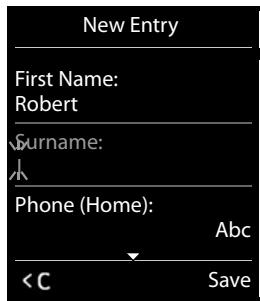
Creating a new entry
Open directory. OK
Switch between the input fields using and enter the relevant components of the entry (names, numbers, anniversary, ringtone).
Navigate downwards to display further components.
Press the display key Save.
To create an entry, you must enter at least one number.If you have assigned a caller melody, the entry in the phonebook is supplemented with the symbol VIP.
Example
Displaying/changing an entry
- Open phonebook. Select the desired entry. View Display all components of the entry. Edit
Or:
Options Edit entry OK
Deleting an entry
Open phonebook. Select the desired entry. Options Delete entry OK
Delete all entries in the directory:
Open phonebook. > Options > Delete List OK
Defining the order of the contacts entries
You can define whether the entries are to be sorted by first name or surname.
Open phonebook. > Options > Press Sort by Surname or Sort by First Name.
If no name was entered, the default number is shown in the surname field. These entries appear at the beginning of the list, regardless of how the entries are sorted.
The sort order is as follows:
Space |Digits (0-9) |Letters (alphabetical) | Other characters
Displaying the number of entries that are available in the directory
Open phonebook. > Options > Available Memory OK
Selecting a phonebook entry, searching in the phonebook
Open phonebook.
Scroll to the name you are searching for using . Holding down scrolls continuously upwards or downwards through the phonebook.
Or:
Enter the first few letters (max. 8 letters) using the keypad. The display jumps to the first name that begins with these letters. If necessary, scroll on to the desired entry using
Transferring an entry/phonebook to another handset
Prerequisites:
- The sending and receiving handsets must both be registered to the same base.
- The other handset and the base can send and receive directory entries.
You can transfer the entire directory, an individual entry or several individual entries.

- An external call interrupts the transfer.
- Caller pictures and sounds are not transferred. Only the date is transferred for an anniversary.
- When transferring an entry between two vCard handsets: If the recipient does not yet have an entry with that name, a new entry is created. If there is already an entry with that name, this entry is expanded with the new numbers. If the entry contains more numbers than the recipient permits, a further entry is created with the same name.
- If the recipient is not a vCard handset: A separate entry is created and sent for each number.
- Your handset receives entries from a non-vCard handset: Entries with numbers that are already stored are discarded, otherwise a new entry is created.
Transferring individual entries
Open phonebook. Select the desired entry. Options Copy Entry OK
to Internal OK Select the recipient handset. OK
Transferring the entire directory
Open phonebook. Select the desired entry. Options Copy List OK
to Internal OK Select the recipient handset. OK
Transferring a displayed number to the phonebook
The number is displayed or highlighted.
Press display key or Options Copy to Directory. OK
Or:
Select entry. OK Select number type. OK The number is entered or an existing number is overwritten (answer the prompt using Yes/No).
Save
Call list
Your telephone stores calls in various lists. Opening the lists:
- Missed calls list: Message key ☑ Missed Calls: OK
List selection: OK Select list. OK
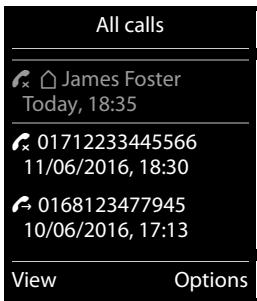
List entry
The following information is displayed in the list entries:
The list type (in the header row)
- Icon for the type of entry:
(Missed calls), (Accepted calls), (Outgoing calls)
- Caller's number. If the number is stored in the phonebook, name and number type are displayed instead (Phone (Home), Phone (Office), Phone (Mobile)). For missed calls, the number of missed calls from this number is also shown in square brackets.
- Date and time of call (if set).

Select entry.
Options
View: All available information is displayed, e.g. the corresponding number when a name is displayed.
Options: You can delete the entry or transfer the number to the phonebook (→ p. 31).
Calling back a caller from the call list:
Select entry. Press the Answer call key
Example
Sound profiles
You can call up the 3 sound profiles that are adapted for your handset to your surroundings consecutively by using the key. The profile is switched immediately without a prompt. By default, Profile Personal is activated.
Profile Loud Profile Silent Profile Personal
The profiles are set as follows by default:
| Default setting | Profile Loud | Profile Silent | Profile Personal | |
| Silent alert (→ p. 23) | On | like Profile Personal | Off | |
| Ringer (→ p. 23) | On | Off | On | |
| Ringtone volume (→ p. 22) | Internal | 5 | Off | 3 |
| External | 5 | Off | 3 | |
| Handset volume (→ p. 18) | Handset | 5 | 3 | 3 |
| Handsfree | 5 | 3 | 3 | |
| LED light for a call (→ p. 20) | Yes | No | No | |
| Simple Auto Answer (→ p. 17) | Yes | No | No | |
| Advisory tones (→ p. 23) | Key click | Yes | No | Yes |
| Confirmation tone | Yes | No | Yes | |
| Battery tone | Yes | Yes | Yes | |
When switching to Profile Silent you can activate an alert tone by pressing the Beep display key. appears in the status bar.
Changes in Profile Loud and Profile Silent only apply provided that the profile is not changed (by pressing the Profile key). Changes to Profile Personal are stored permanently for this profile.
The set profile remains set when switching the phone off and back on.
Spot LED
You can use your telephone as a torch.
Activating/deactivating the torch function
Press the Spot LED display key (→ p. 25).
Or:
OK OK Spot LED OK
After 2 minutes the function is automatically deactivated or press the OFF display key.
Calendar
You can remind yourself of up to 30 appointments.
In the calendar, the current day is outlined in white; on days with appointments, the numbers are displayed in colour. When a day is selected, it will be highlighted.
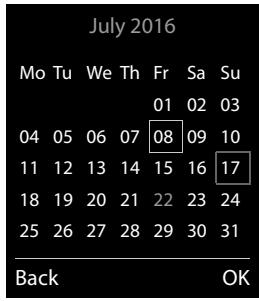
Saving appointments to the calendar
Prerequisite: Date and time are set ( p.9).
OK Calendar OK Select the desired day. OK
- Appointments that have already been stored are shown.
OK opens the window to enter an additional appointment. - If no appointments have been entered, the data input window will open immediately to add the new appointment.
Activation: On/Off
The following information can be added:
- Date: The selected day is preset. Enter new data to change.
- Time: Time (hour and minute) of the appointment.
Text: Appointment name (e.g. dinner, meeting). - Signal: Select the melody of the reminder signal or deactivate the acoustic signalling.
Save
Signalling of appointments/anniversaries
Anniversaries are transferred from the phonebook and displayed as an appointment. An appointment/anniversary is displayed in idle status and signalled for 60 seconds with the selected ringtone.
You can deactivate the reminder call:
Press OFF to acknowledge and end the reminder call.
When you are on the phone, a reminder call is indicated on the handset with a single advisory tone.
During the reminder call you can turn the ringtone volume + (up) or - (down) continuously using the side keys.
Displaying missed appointments/anniversaries
The following appointments and anniversaries are stored in the Missed Alarms list:
The appointment/anniversary call was not acknowledged.
- The appointment/anniversary was signalled during a phone call.
- The handset was switched off at the time of the appointment/anniversary.
The last 10 entries are stored. The icon and the number of new entries are shown in the display. The most recent entry appears at the head of the list.
To open the list: Message key Missed Alarms OK Or via the menu: OK Missed Alarms OK
scroll in the list if required
Information about the appointment/anniversary is displayed. You can:
Delete an appointment/anniversary: Delete
Displaying/changing/deleting stored appointments
OK Calendar OK Select the desired day. OK The appointment list is displayed. Select the desired appointment.
View: Display appointment settings, change, if required using Edit.
Or:
Options: Change settings or delete appointments.
Edit entry OK
- Delete entry OK
Activate/Deactivate OK
- Delete all Appoints. OK Confirm prompt with Yes. All appointments for the selected day are deleted.
Alarm clock
Prerequisite: Date and time are set ( p. 9).
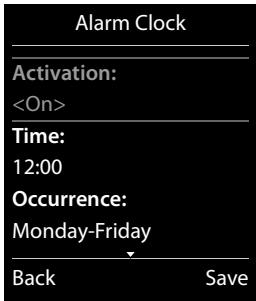
You can activate/deactivate and set the alarm clock as follows:
OK Activation: On/Off
Changing the settings:
- Time: Set the hour and minute for the wake-up time (time setting p.9).
Occurrence: Daily/Monday-Friday
Volume: Volume can be set at 5 levels or crescendo (increasing volume). - Melody: Select a ringtone for the alarm call.
Press the display key Save.
When the alarm clock is activated, the icon and the alarm time is displayed in idle status.
An alarm call is signalled in the display and with the selected ringtone for a maximum of 60 seconds. During a call, the wake-up call is only signalled by a short tone.
Example
During the sounding of the alarm you can turn the volume + (up) or - (down) continuously using the side keys.
Deactivating the alarm call/repeating after a pause (snooze mode)
Prerequisite: One alarm call sounds.
Deactivating until the next alarm call: Press OFF.
Or:
Snoopze mode:
Press Snooze or any key. The wake-up call is deactivated and then repeated after 5 minutes. Or:
Press nothing. The alarm call is deactivated after 60 seconds and then repeated after 5 minutes. After the fourth repetition, the alarm call is deactivated for 24 hours.
Room monitoring
When the room monitor is switched on, the stored (internal or external) destination number is called as soon as a defined noise level is exceeded in the vicinity of the handset. The alarm to an external number is cancelled after approximately 90 seconds.
You can answer the alarm using the Two Way Talk function. This function is used to switch the loudspeaker of the handset located in the room being monitored on or off.
In room monitor mode, incoming calls are only indicated on the display (without ringtone). The display backlight is reduced to 50% . Advisory tones are deactivated. All keys are locked, with the exception of the display keys and the ability to press the centre of the control key.
If you accept an incoming call, the room monitor mode is suspended for the duration of the call, but the function remains activated. The room monitor mode is not deactivated by switching the handset off and on again.

The handset should be positioned 1 to 2 metres away from the area of the room being monitored. The microphone must point towards the area of the room being monitored.
Activating the function reduces the operating time of your handset. For that reason, place the handset in the charging cradle if necessary.
The room monitor is activated 20 seconds after switching on.
The answer machine for the destination number must be switched off.
After switching on:
Test sensitivity.
Test the connection, if the alarm is being forwarded to an external number.
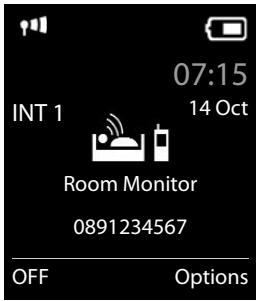
Activating and setting the room monitor
use to select Additional Features OK
Room Monitor OK ...then
Switch on/off:
Activation: ...use to select On or Off
Enter destination:
Send alarm to ...use to select External or Internal
External: Number ...use to enter the number
or select a number from the directory: l Internal: Handset Change ...use to select the handset OK
Room Monitor activated
Activate/deactivate two-way talk:
Two Way Talk ...use to select On or Off
Set microphone sensitivity:
Sensitivity ...use to select High or Low
Save settings: Save
The destination number is displayed in idle display when the room monitor is activated.
Switching off/interrupting the alarm
Switch off the alarm:
In idle status press the display key OFF
Interrupt the alarm:
Press the End call key during an alarm
Deactivating the alarm remotely
Prerequisites:
- The alarm is forwarded to an external destination number.
The receiving phone supports tone dialling. - If the alarm is activated via a VoIP connection, the DTMF signalling must take place via SIP info or RFC2833 (→ setting on the base station).
Accept alarm call Press keys # ... the call is ended
The alarm is deactivated and the handset is in idle status. The room monitor settings on the handset (e.g. no ringtone) will remain activated until you press the display key OFF.
Activate room monitor with the same number: Activate (p.37) Save
Display icons
Icons in the status bar
The following icons are displayed in the status bar depending on the settings and the operating status of your telephone:
| Icon | Meaning |
| Signal strength (No Radiation off) | |
| 76% - 100% White, if Maximum Range is on; 51% - 75% Green, if Maximum Range is off | |
| 26% - 50% 1% - 25% Red: no connection to the base | |
| No Radiation activated: white, if Maximum Range is on; green, if Maximum Range is off | |
| Profile Silent activated (The ringtone is switched off) | |
| "Beep" ringtone activated | |
| Key lock |
| Icon | Meaning |
| Battery charge status: | |
| White: charged over 66% | |
| White: charged between 34 and 66% | |
| White: charged between 11 and 33% | |
| Red: charged below 11% | |
| Flashes red: battery almost empty (approx. 5 minutes talktime remaining) | |
| Battery is charging (current charge status): | |
| 0% - 10% | |
| 11%–33% | |
| 34% - 66% | |
| 67% - 100% |
Menu icons
| Alarm Clock |
| Call Lists |
| Answer Machine |
| Select Services | |
| Additional Features | |
| Settings |
Display key icons
The following icons indicate the current function of the display keys according to the operating situation:
| Icon | Action |
| Last number radial | |
| < C | Deleting text |
| Icon | Action |
| Opening phonebook | |
| Copy number to the phonebook |
Display icons for signalling of

Establishing a call (outgoing call)

Connection established

No connection established/connection terminated

External call

Internal call

Reminder call for anniversary

Reminder call for appointment

Alarm call
Other display icons

Information

(Security) prompt

Please wait...

Action complete (green)

Action failed (red)
Menu tree
Opening the main menu: Press whilst the telephone is in idle status.

Not all functions are available on all base stations, in all countries or from all network providers.
Depending on the number and type of available functions, you can display menus at top level or in a submenu, e.g. Audio Settings may be in a top-level menu or the Settings submenu.

Alarm Clock
p.35

Call Lists
depending on base)

Answer Machine
(dependently on base)

Select Services
depending on base)

Additional Features
| Spot LED | → p. 33 |
| Calendar | → p. 34 |
| Room Monitor | → p. 36 |
| One Touch Call | → p. 17 |
| Missed Alarms | → p. 35 |

Settings
| Date/Time | → p.9 | |
| Audio Settings | Handset Volume | → p.18 |
| Acoustic Profiles | → p.22 | |
| Advisory Tones | → p.23 | |
| Silent Alert | → p.23 | |
| Ringtones (Handset) | → p.22 | |
| (further submenus depending on base) | ||
| Display | Screensaver | → p.20 |
| Colour Schemes | → p.20 | |
| Backlight | → p.20 | |
| Auto Keypadlock | → p.21 | |
| Language | → p.19 | |
| Registration | Register Handset | → p.9 |
| (further submenus depending on base) | ||
| Telephony | Auto Answer | → p. 21 |
| Easy Acceptance | → p. 17 | |
| LED Call Signal | → p. 20 | |
| Area Codes | → p. 19 | |
| (further submenus depending on base) | ||
| System | Reset Handset | → p. 27 |
| (further submenus depending on base) | ||
Service (Customer Care)
Questions? For rapid assistance, refer to this user guide or visit gigasetpro.com.
The trade outlet will be happy to help with further questions relating to your
Gigaset R650H PRO.
Questions and answers
If you have any queries about the use of your telephone, suggested solutions are available on our web-site at wiki.gigasetpro.com FAQ.
The table below also lists steps for troubleshooting.
| You are not sure whether your device is equipped with an integrated answer machine. • Open the answer machine menu: OK Your device is equipped with an integrated answer machine if the submenu Activation is available. |
| The display is blank. 1. The handset is not activated. • Hold down. 2. The battery is empty. • Charge the battery or replace it (→ p. 7). 3. The key and display lock is activated. • Hold down the hash key #. |
| "No Base" flashes on the display. 1. The handset is outside the range of the base. • Move the handset closer to the base. 2. The base is not activated. • Check the base power adapter. 3. The base's range is reduced because Maximum Range is deactivated. • Activate Maximum Range or reduce the distance between the handset and base. |
| "Please register handset" or "Place handset in base" flashes on the display. The handset has not yet been registered or was de-registered due to the registration of an additional handset (more than six DECT registrations). • Register the handset again (→ p. 9). |
| Your settings are not accepted. • Ensure that you have set the Profile Personal before you make changes to the device settings (→ p. 33). |
| The handset does not ring. 1. The ringtone is deactivated. • Activate ringtone (→ p. 23). 2. Call forwarding is set. • Deactivate call forwarding. 3. The phone does not ring if the caller has withheld his number. • Activate the ringtone for unknown calls (→ p. 24). 4. The phone does not ring during a specific period or for certain numbers. • Check time control for external calls (→ p. 24) . |
| The other party cannot hear you. The handset is "muted". • Activate the microphone again (→ p. 18). |
The caller's number is not displayed.
- Calling Line Identification (CLI) is not approved for the caller.
The caller should ask the network provider to enable Calling Line Identification (CLI).
-
Caller display (CLIP) is not supported by the network provider or is not enabled for you.
-
Caller display (CLIP) is enabled by the network provider.
-
Your telephone is connected via a PABX or a router with an integrated PABX (gateway) that does not transmit all information.
Reset the system: Briefly pull out the power plug. Reinsert the plug and wait until the device restarts.
- Check the settings on the PABX and activate phone number display, if necessary. To do this, search for terms such as CLIP, calling line identification, phone number identification, caller ID, etc. in the system's user guide or ask the system manufacturer.
You hear an error tone when keying an input.
Action has failed/invalid input.
Repeat the process.
Read the display and refer to the user guide if necessary.
You cannot listen to messages on the network mailbox.
Your PABX is set to pulse dialling.
Set your PABX to tone dialling.
Authorisation
This device is intended for use worldwide. Use outside the European Economic Area (with the exception of Switzerland) is subject to national approval.
Country-specific requirements have been taken into consideration.
We, Gigaset Communications GmbH, declare that this device meets the essential requirements and other relevant regulations laid down in Directive 1999/5/EC.
A copy of the Declaration of Conformity is available at this Internet address: gigasetpro.com/docs
CE 0682
Environment
Our environmental mission statement
We, Gigaset Communications GmbH, bear social responsibility and are actively committed to a better world. Our ideas, technologies and actions serve people, society and the environment. The aim of our global activity is to secure sustainable life resources for humanity. We are committed to a responsibility for our products that comprises their entire life cycle. The environmental impact of products, including their manufacture, procurement, distribution, utilisation, service and disposal, are already evaluated during product and process design.
Further information on environmentally friendly products and processes is available on the Internet at gigasetpro.com.
Environmental management system

Gigaset Communications GmbH is certified pursuant to the international standards ISO 14001 and ISO 9001.
ISO 14001 (Environment): Certified since September 2007 by TÜV SÜD Management Service GmbH.
ISO 9001 (Quality): Certified since 17/02/1994 by TÜV SÜD Management Service GmbH.
Disposal
Batteries should not be disposed of in general waste. Observe the local waste disposal regulations, details of which can be obtained from your local authority.
All electrical and electronic products should be disposed of separately from the municipal waste stream via designated collection facilities appointed by the government or the local authorities.

This crossed-out wheeled bin symbol on the product means the product is covered by the European Directive 2002/96/EC. The correct disposal and separate collection of your old appliance will help prevent potential negative consequences for the environment and human health. It is a precondition for reuse and recycling of used electrical and electronic equipment.
For more detailed information about disposal of your old appliance, please contact your local council refuse centre or the original supplier of the product.
Appendix
Care
Wipe the device with a damp cloth or an antistatic cloth. Do not use solvents or microfibre cloths.
Never use a dry cloth; this can cause static.
In rare cases, contact with chemical substances can cause changes to the device's exterior. Due to the wide variety of chemical products available on the market, it was not possible to test all substances.
Impairments in high-gloss finishes can be carefully removed using display polishes for mobile phones.
Contact with liquid

Your handset is splash proof.
If it comes into contact with water, knock the water out of the microphone opening and remove any water on the handset with an absorbent cloth. Your handset is ready for use.
If your handset comes into contact with a larger amount of liquid take the following steps:
1 Disconnect the power supply.
2 Remove the batteries and leave the battery compartment open.
3 Allow the liquid to drain from the device.
4 Pat all parts dry.
5 Place the device in a dry, warm place for at least 72 hours (not in a microwave, oven etc.) with the battery compartment open and the keypad facing down (if applicable).
6 Do not switch on the device again until it is completely dry.
When it has fully dried out, you will normally be able to use it again.
Technical data
Batteries
Technology: 2 x AAA NiMH
Voltage: 1.2 V
Capacity: 800 mAh
Handset operating times/charging times
The operating time of your Gigaset depends on the capacity and age of the battery and the way it is used. (All times are maximum possible times).
| Standby time (hours) * | 310 *200 ** |
| Talktime (hours) | 14 |
| Operating time for 1.5 hours of calls per day (hours) * | 130 *100 ** |
| Charging time in charging cradle (hours) | 7.5 |
No Radiation deactivated, without display backlight in idle status
*No Radiation activated, without display backlight in idle status
Power consumption of the handset in the charging cradle
When charging: approx. 1.5 W
To maintain the charge status: approx. 0.5 W
General specifications
DECT
| DECT standard | Supported |
| CAT-iq standard | Certified in accordance with standard CAT-iq 2.0 with HD Voice dect.org/cat-iq-certification.aspx |
| GAP standard | Supported |
| No. of channels | 60 duplex channels |
| Radio frequency range | 1880-1900 MHz |
| Duplex method | Time division multiplexing, 10 ms frame length |
| Repetition frequency of the transmission pulse | 100 Hz |
| Duration of the transmission pulse | 370 μs |
| Channel grid | 1728 kHz |
| Bit rate | 1152 kbit/s |
| Modulation | GFSK |
| Language code | 32 kbit/s |
| Transmission power | 10 mW average power per channel, 250 mW pulse power |
| Range | Up to 50 m indoors, up to 300 m outdoors |
| Environmental conditions for operation | +5℃ to +45℃, 20% to 75% relative humidity |
Character charts
Standard characters
Press the relevant key the number of times indicated.
| 1x | 2x | 3x | 4x | 5x | 6x | 7x | 8x | 9x | 10x | |
| [1-] | 1 | |||||||||
| [2-sec] | a | b | c | 2 | ä | á | à | á | ã | ç |
| [3-sec] | d | e | f | 3 | ë | é | è | è | ||
| [4-sec] | g | h | i | 4 | ï | í | ì | ì | ||
| [5-sec] | j | k | l | 5 | ||||||
| [6-sec] | m | n | o | 6 | ö | ñ | ó | ò | ô | ō |
| [7-sec] | p | q | r | s | 7 | β | ||||
| [8-sec] | t | u | v | 8 | ü | ú | ù | ú | ||
| [9-sec] | w | x | y | z | 9 | ý | ý | æ | ø | å |
| [0-] | 1) | . | , | ? | ! | ←2) | 0 |
1) Space
2) Line break
Index
A
Address book, see Phonebook
Advisory tones 23
Alarm (room monitor)
switch off 37
Alarm clock. 35
Anniversary.
displaying missed 35
Anonymous calls off
Answer call key 2
Answer machine
answer machine list. 14
Appointment
displaying missed 35
Area code
setting own area code 19
Assigning number key 25
Authorisation 43
Auto Answer 21
simple 17
B
Backlight, display. 20
Base
setting up. 6
Base station
changing the settings 19
Battery
charging. 8
charging status 38
display 2
icon 2
inserting. 7
Birthday, see Anniversary
Broken display. 4
C
Call
accepting 17
accepting automatically. 21
external 16
internal 28
transferring (connecting) 28
transferring internally (connecting). 28
Call lists 32
deleting an entry. 32
Call protection 24
Call signal, visual 20
Call waiting
external during an internal call. 28
internal during an external call. 28
Calling
external 16
internal 28
Care 45
Care of the device. 45
Changing
display language 9
handset PIN 21
Changing the phone settings. 19
Changing the settings. 19
Character charts 47
Charge status indicator 2
Charge status of the batteries 38
Charging cradle (handset)
connecting 6
setting up 6
Charging time of handset 46
Charging, silent 24
Colour scheme 20
Connecting the headset 8
Connection
assigning handset 26
changing name 26
Consultation call
internal 28
Contact with liquid 45
Contents of the package 6
Control key. 2, 11
Correcting incorrect entries 15
Correction of incorrect entries 15
Customer Care 42
D
Default setting 27
Dialling
from the call list 16
using speed dial 25
using the radial list 16
with directory 17
Directory
saving entry 29
Display
backlight 20
broken. 4
changing display language 9
colour scheme 20
network mailbox message. 14
phonebook memory. 30
screensaver 20
setting. 20
setting the backlight. 20
Display icons 38
Display keys 2, 12
assigning. 25
icons 38
Displays
missed appointments/anniversaries. 35
Disposal. 44
E
Earpiece profile 22
Earpiece volume .18
End call key. 2
End call/End key .16
Ending a conference call .28
Entering special characters. 15
Entering special letters. 15
Entering text. 15
Entering umlauts. 15
Environment .44
External call transferring internally (connecting). 28
External calls time control for ringtone .24
F Factory settings. 27 Field strength .38
G Getting started 6
Handset
advisory tones 23
assigning connection 26
automatic keypad lock. 21
changing the PIN 21
changing the settings 19
colour scheme 20
connecting the charging cradle .6
display backlight. 20
display language. 9, 19
earpiece volume 18
idle status. 13
list .11
muting. 18
registering .9
restoring to default setting. 27
screensaver. 20
setting. 19
setting up. 7
speaker volume. 18
switching on/off . 11
transferring a call . 28
use as a room monitor. 36
use for room monitoring . 36
using multiple. 28
Handsfree mode 17
Handsfree profile. 22
Handsfree volume.. 18
Hash key. 2
Headset socket . 8
Hearing aids . 4
Help. 42
Icon alarm clock 35
Icons displaying new messages 14 on display keys. 38 status bar.. 38
Idle status returning to . 13
Internal making calls. 28 Internal call 28 call waiting 28 Internal consultation call. 28 Internal listening in. 26
K
Key
assigning to a function or number. 25
Profile key. 2
Key 1 (fast access) . 2
Keypad lock, automatic. 21
Keys
Answer call key.. 2
control key. 2, 11
display keys. 2, 12
End call key. 2
End call/End key. 16
fast access. 2
Hash key. 2
Message key. 2
On/off key. 2
profiles. 33
Recall key. 2
side key. 12
Star key. 2
Volume key. 12
L
Language display. 9 LED light 33 Line. 26 Liquid 45 List accepted calls.. 32 answer machine. 14 call lists 32 handsets 11 missed calls 32 outgoing calls 32 List entry 32 Locking/unlocking the keypad. 11 Lower/upper case. 15
M
Making calls accepting a call 17
external . 16
internal . 28
Managing the calendar 34
Marked characters. 15
Medical equipment 4
Melody ringtone for internal/external calls 22
Memory in the phonebook. 30
Menu opening 11 tree . 40
Message key 2
Message lists. 14 opening. 14
Microphone 2
Microphone sensitivity. 18
Missed anniversaries/appointments 35
Missed call 32
Multiple calls. 26
Muting the handset 18
N
Number copying to the phonebook. 31
Numbers entering 15
0
On/off key. 2
One touch call. 17
Operating time of handset 46
Order in the phonebook. 30
P
Phone
restoring to default setting. 27
setting 19
Phonebook. 29
copying number from text. 31
opening 11
order of entries 30
sending entry/list to handset 31
sending to handset 31
Poweradapter. 4
Profilekey. 2,33
Profiles 33
Protection against unwanted calls. 24
Protection from anonymous callers. 24
Protection from calls switch off ringtone when in charging cradle 24
Q
Questions and answers 42
R
Recall key. 2
Redial list. 16
Registering (handset) 9
Restoring to default setting 27
Restoring to factory settings 27
Ringtone
changing 22
melody for internal/external calls. 22
silencing for anonymous calls 24
switch off when in charging cradle. 24
time control for external calls. 24
Ringtones 22
Room monitor 36
activation. 37
Room monitoring 36
S
Safety precautions 4
Saving a number in the directory 29
Screensaver 20
Searching in directory 30
Selecting an entry from the phonebook 30
Sending phonebook entry to handset. 31
Service. 42
Setting an appointment 34
Setting options phone 19
Setting the date 9,40
Setting the display language 19
Setting the time 9,40
Setting up handset. 7
Side key 12
Signal tone, see Advisory tones
Silent alert 23
Silent charging 24
Simple Auto Answer 17
Snoope mode (alarm) 36
Sound profiles 33
Sound, see Ringtone
Speaker 17
Speed dial 25
Star key 2
status bar. 2
icons 38
Switching microphone (handset) on/off 18
T
Technical data 46
Technical data, see Internet/CD
Telephone operating. 11
Three-way conference call ending. 28
Time control
ringtone for external calls 24
Torch function. 33
Transferring an external call internally 28
Troubleshooting
general. 42
U
Upper/ lower case 15
V
Viewing network mailbox message 14
VIP ringtone 29
Visual call signal 2, 20
Volume
earpiece. 21
handset handsfree/earpiece volume 18
speaker 21
Volume key 12
W
Warning tone, see Advisory tones
Issued by
Gigaset Communications GmbH
Frankenstr. 2a, 46395 Bocholt
© Gigaset Communications GmbH 2016
Subject to availability.
All rights reserved. Rights of modifications reserved.
www.gigasetpro.com

- Gigaset R650H PRO: The robust professional DECT handset for tough everyday conditions
- On a DECT telephone/rodter/multicell system from other manufacturers with GAP compatibility
- On DECT routers with CAT-iq 2.0
- Overview of handset
- Contents
- Safety precautions
- Illustration in the user guide
- Keys
- Procedures
- Getting started
- Checking the contents of the package
- Installing the charging cradle
- Connecting the charging cradle
- Setting up the handset for use
- Inserting the batteries and closing the battery cover
- Charging the batteries
- Belt clip
- Connecting the headset
- Changing the display language
- Registering the handset
- Setting the date and time
- What would you like to do next?
- Setting ringtones
- Protecting yourself against unwanted calls
- Adjusting your phone to your surroundings
- Register an existing Gigaset pro handset and add it to the phonebook
- Getting to know your phone
- Switching the handset on/off
- Locking/unlocking the keypad
- Control key
- When the handset is in idle status
- During an external call
- Functions when pressing the centre of the control key
- Volume keys
- Display keys
- Menu guidance
- Main menu (first menu level)
- Example
- Submenus
- Returning to idle status
- Message lists
- Entering numbers and text
- Correcting incorrect entries
- Entering text
- Making calls
- Making an external call
- Dialling with the radial list
- Managing entries in the radial list:
- Dialling from the call list
- Dialling with the phonebook
- One touch call
- Accepting a call
- Activate/deactivate Simple Auto Answer
- Handsfree mode
- Adjusting the loudspeaker volume
- Switching the microphone on/off (muting)
- Setting the microphone sensitivity
- Adjusting the telephone settings
- Date and time
- Setting your country and local area codes
- Adjusting the handset display settings
- Setting a screenshot
- Setting the colour scheme
- Setting the display backlight
- Activating/deactivating visual call
- Activating/deactivating automatic keypad lock
- Changing the handset PIN
- Activating/deactivating Auto Answer
- Changing the earpiece and speaker volume
- During a conversation
- In idle status
- Earpiece and handsfree profile
- Setting the handset ringtones
- Setting the ringtone volume
- Setting the ring melody
- Activating/deactivating the ringtone
- Silent alert
- Activating/deactivating advisory tones
- Protection against unwanted calls
- Setting time control for external calls
- Time Control
- Protection from anonymous callers
- Switch off ringtone when in charging cradle
- Quick access to numbers and functions
- Assigning digit keys
- Selecting numbers/changing an assignment
- Assigning display keys
- Changing the name of a connection (line)
- Assigning handsets to a connection (line)
- Permit/prevent multiple calls
- Permit/prevent internal listening in
- Handset update
- Restoring phone to default setting
- Resetting the handset
- Multiple handsets
- Making internal calls
- Internal consultation/internal transfer
- Establishing a conference call/call swapping
- Accepting/rejecting call waiting
- Phonebook (Address book)
- Length of the entries
- Managing directory entries
- Opening phonebook
- Creating a new entry
- Displaying/changing an entry
- Deleting an entry
- Defining the order of the contacts entries
- Displaying the number of entries that are available in the directory
- Selecting a phonebook entry, searching in the phonebook
- Transferring an entry/phonebook to another handset
- Prerequisites:
- Transferring individual entries
- Transferring the entire directory
- Transferring a displayed number to the phonebook
- Call list
- List entry
- Calling back a caller from the call list:
- Sound profiles
- Spot LED
- Activating/deactivating the torch function
- Calendar
- Saving appointments to the calendar
- Signalling of appointments/anniversaries
- Displaying missed appointments/anniversaries
- Displaying/changing/deleting stored appointments
- Alarm clock
- Deactivating the alarm call/repeating after a pause (snooze mode)
- Room monitoring
- Activating and setting the room monitor
- Switching off/interrupting the alarm
- Deactivating the alarm remotely
- Display icons
- Icons in the status bar
- Menu icons
- Display key icons
- Display icons for signalling of
- Other display icons
- Menu tree
- Call Lists
- Answer Machine
- Select Services
- Additional Features
- Settings
- Service (Customer Care)
- Questions and answers
- The caller's number is not displayed.
- You hear an error tone when keying an input.
- You cannot listen to messages on the network mailbox.
- Authorisation
- Environment
- Our environmental mission statement
- Environmental management system
- Disposal
- Appendix
- Care
- Contact with liquid
- Technical data
- Batteries
- Handset operating times/charging times
- Power consumption of the handset in the charging cradle
- General specifications
- Character charts
- Standard characters
- Index
- A
- B
- C
- D
- M
- N
- 0
- P
- Q
- R
- S
- T
Brand : GIGASET
Model : R650H
Category : Cordless phone