MSR 120 - Uncategorized Unitech - Free user manual and instructions
Find the device manual for free MSR 120 Unitech in PDF.


User questions about MSR 120 Unitech
0 question about this device. Answer the ones you know or ask your own.
Ask a new question about this device
Download the instructions for your Uncategorized in PDF format for free! Find your manual MSR 120 - Unitech and take your electronic device back in hand. On this page are published all the documents necessary for the use of your device. MSR 120 by Unitech.
USER MANUAL MSR 120 Unitech
Magnetic Stripe Card Reader
Universal Serial Bus (USB) Interface
Thank you for purchasing the MSR120 series products. The MSR120 Series USB Interface Magnetic Card Reader is ideal for retail systems, time keeping systems, security systems and the card reader related systems. The MSR120 series are designed to offer the user a card reader solution that will complement many applications. Triple track MSR120 reader is uniquely designed to read both credit cards and Driver Licenses (AAMVA and California standard).
FEATURES
| 1 | Light weight: 120g |
| 2 | Compact size: 100L*34W*28H (mm) |
| 3 | LED and Buzzer indicators indicate card status |
| 4 | Low power consumption |
| 5 | Single, dual, or triple track versions allow for reading all types of magnetic cards, including credit cards and drivers licenses. |
CONFIGURATION
MSR120-33 Triple track 1&2&3
AGENCY APPROVED
- Comply with the limits for a Class A digital device, pursuant to part 15 of the FCC rules.
- Comply with CE mark Class A, UL, and cUL
WARRANTY
This product is served under one-year warranty of defects in material and functionality to the original purchasers. Within the warranty period, if the product found to be defective will be repaired or replaced. This warranty applies to the products only under the normal use of the original purchasers, and in no circumstances covers incidental or consequential damages through consumers' misuse or modification of the product.
WARNING
You are cautioned that changes or modifications not expressly approved by the party responsible for compliance could void your authority to operate the equipment.
SET-UP
1) Turn the system power off.
2) Connect PC and MSR120 USB connector of signal cable to a free USB port
3) Turn the system power on.
4) Install USB driver (ref. to Appendix A)
SPECIFICATIONS
Recording Method: Two-frequency coherent phase (F2F), compatible with ISO 7811 and AAMVA.
Swipe Speed: 5 to 50 in/sec (worst case with +/- 12% jitter card)
Power Requirements: 5VDC/120mA
Communication: Standard USB signal levels (comply with USB specification v 1.1)
Operating Temp: - 10°C to +50°C Storage Temp: -30°C to +70°C
Operating Humidity: 10% to 85% relative humidity
Magnetic Head Life: 500K swipes Min. 1M option
Dimensions: 100mm in L x 34mm in W x 28mm in H
Weight: 120g
Signal Cable Length: 1.7M
OUTPUT DATA FORMAT
DUAL TRACKS:
TRIPLE TRACKS:
For ISO card: SS (Start Sentinel)=“%” (Track 1), and “;” (Track 2 & 3); ES (End Sentinel)=“?” (Track 1, 2, & 3)
➢ SETTING OPTION by USING utility disk
| Parameter Default Setting Option | ||
| SS, ES CODE | Exist* Non-exist | |
| Buzzer | Enable* | Disable |
| * FACTORY SETTING AT TIME OF SHIPPING | ||
NOTICE: The issuer of this manual has made every effort to provide accurate information. The issuer should not be held liable for any technical and editorial omission or errors made herein; nor for incidental consequential damages resulting from the furnishing, performance or use of this material. This document contains proprietary information that is protected by copyright. All rights are reserved. No part of this document may be photocopied, reproduced, or translated without the prior written consent of the issuer. The information provided in this manual is subject to change without notice.
Appendix A USB Driver Installation
This section illustrates instructions in the USB driver installation guide for Windows 95/98.
System Requirements
Before you use the MSR120, make sure your computer is an IBM PC-compatible with the following minimum system requirements:
- Intel-compatible 486DX-66 MHz CPU or higher
- One standard USB port (4-pin) and has the symbol
- Either the following operating systems:
Windows 95 OSR2.1 (B version) with USB version 1214, Windows 98, Windows 98 SE, or Windows 2000.
Driver Installation
Follow the steps below on installing the MSR120 for the first time:
- Power on computer where you will connect the MSR120 and make sure that the USB port is enabled and working properly.
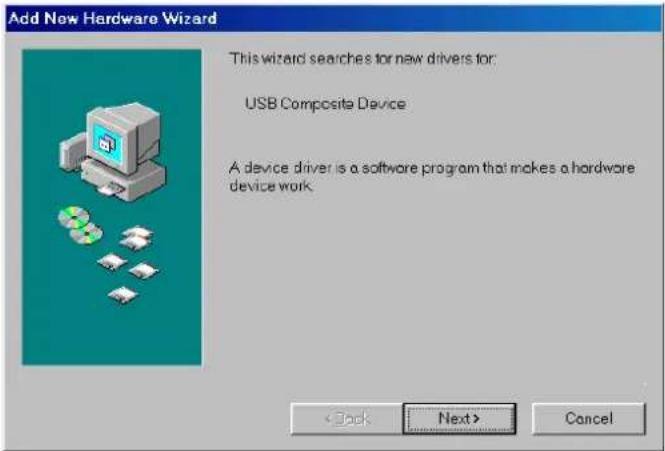
- Plug in the USB cable into the USB port and Windows will detect an USB Device and run the Add New Hardware Wizard to assist you in setting up the new USB Composite Device.
text_image
Add New Hardware Wizard This wizard searches for new drivers for: USB Composite Device A device driver is a software program that makes a hardware device work. < Back Next > Cancel- Insert the USB driver diskette (DISK 2) into the floppy drive and click Next to continue:
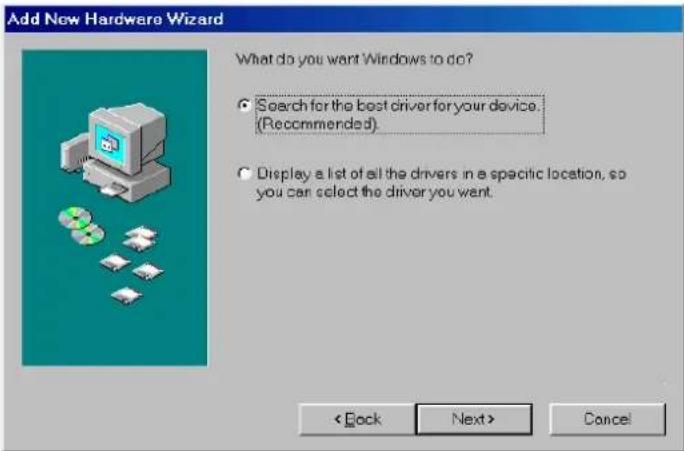
a. Select Search for the best driver for your device and click Next.
text_image
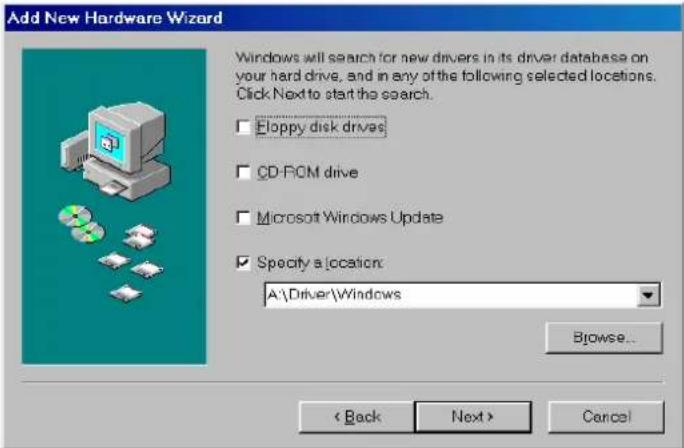
Add New Hardware Wizard What do you want Windows to do? • Search for the best driver for your device. (Recommended). • Display a list of all the drivers in a specific location, so you can select the driver you want. < Back Next> Cancelb. Select Specify a location and click Browse. Change the folder of your floppy drive
(i.e.: A:\Driver\Windows) and click OK.
text_image
Add New Hardware Wizard Windows will search for new drivers in its driver database on your hard drive, and in any of the following selected locations. Click Next to start the search. Eloppy disk drives CD-ROM drive Microsoft Windows Update Specify a location: A:\Driver\Windows Browse... < Back Next > Cancelc. Double-check the directory that Windows prompts. Click Next.
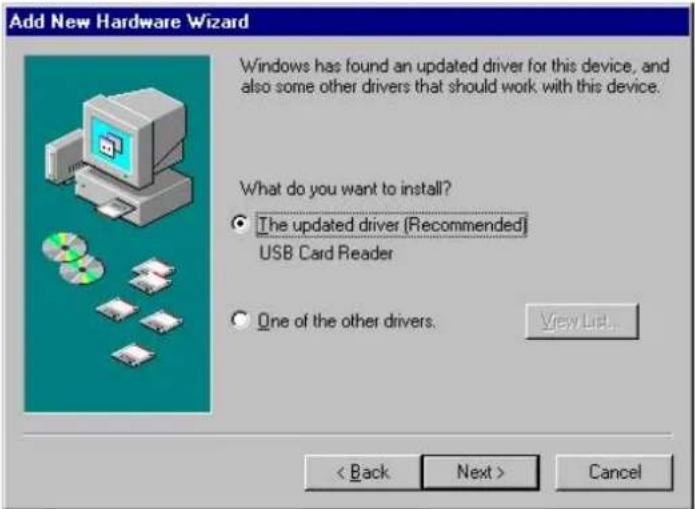
text_image
Add New Hardware Wizard Windows has found an updated driver for this device, and also some other drivers that should work with this device. What do you want to install? ● The updated driver (Recommended) USB Card Reader ○ One of the other drivers. View List... < Back Next > Canceld. Windows will detect the driver (SER9PL.inf) and shows the USB Card Reader.
Click Next to continue until installation is complete.
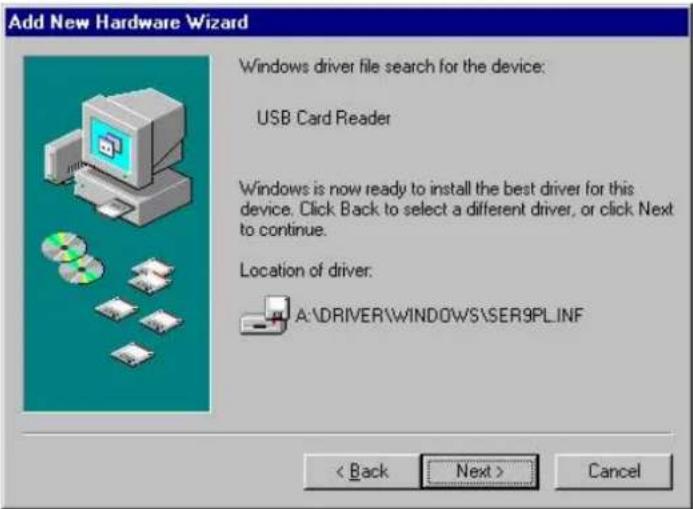
text_image
Add New Hardware Wizard Windows driver file search for the device: USB Card Reader Windows is now ready to install the best driver for this device. Click Back to select a different driver, or click Next to continue. Location of driver: A:\DRIVER\WINDOWS\SER9PLINF < Back Next > Cancele. Click Next to continue and let Windows copy the needed files to your hard disk.
Click Finish while installation is complete.
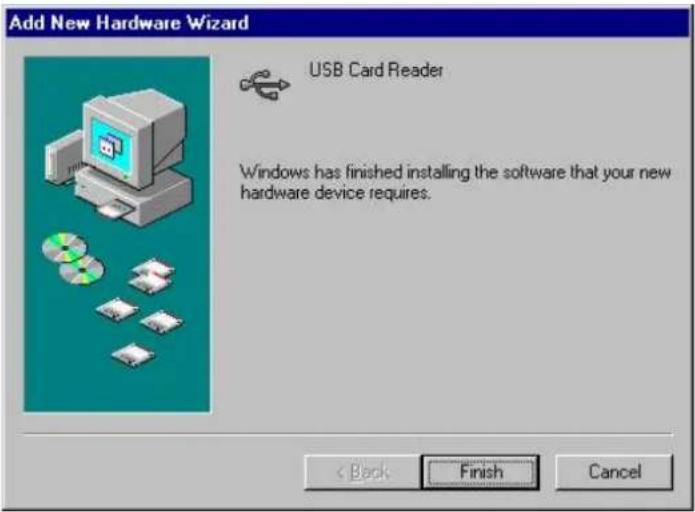
text_image
Add New Hardware Wizard USB Card Reader Windows has finished installing the software that your new hardware device requires. < Back Finish Cancelf. After installing, the System will generate an additional COM Port, USB Card Reader (e.g.: COM3) for the connection to RS232 Serial Device.
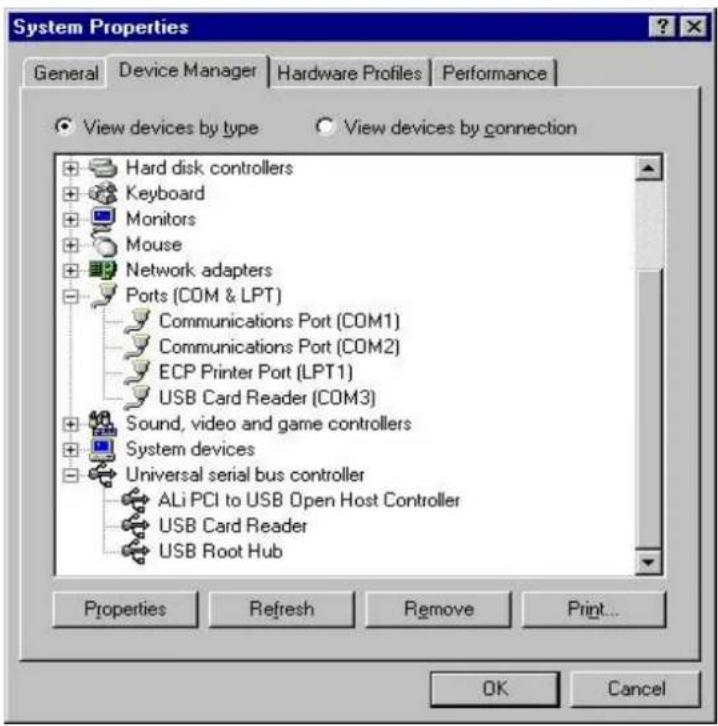
text_image
System Properties General Device Manager Hardware Profiles Performance View devices by type View devices by connection Hard disk controllers Keyboard Monitors Mouse Network adapters Ports (COM & LPT) Communications Port (COM1) Communications Port (COM2) ECP Printer Port (LPT1) USB Card Reader (COM3) Sound, video and game controllers System devices Universal serial bus controller ALi PCI to USB Open Host Controller USB Card Reader USB Root Hub Properties Refresh Remove Print... OK CancelDriver Un-installation
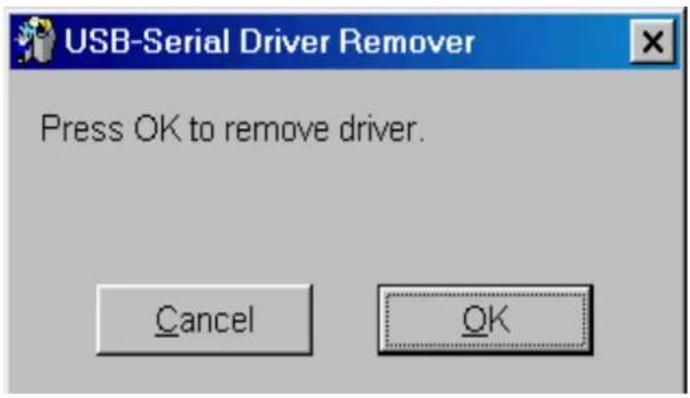
You can uninstall the MSR120 driver by executing Uninstall Program: Dremover98.exc in the driver diskette and click the Remove button to accomplish the un-installation.