 ManualGo.com
LC-LE812E - Television SHARP - Free user manual and instructions
Find the device manual for free LC-LE812E SHARP in PDF.


Download the instructions for your Television in PDF format for free! Find your manual LC-LE812E - SHARP and take your electronic device back in hand. On this page are published all the documents necessary for the use of your device. LC-LE812E by SHARP.
USER MANUAL LC-LE812E SHARP
SPECIAL NOTE FOR USERS IN THE UK. The mains lead ofthis product is ftted with a non-rewireable (moulded) plug incorporating à 13A fuse. Should the fuse need to be replaced, a BSI or ASTA approved BS 1362 fuse marked ® or and ofthe same rating as above, which is also indicated on the pin face of the plug, must be used. Always refit the fuse cover after replacing the fuse. Never use the plug without the fuse cover fitted. In the unikely event of the socket outiet in your home not being compatible with the plug supplied, cutoff the mains plug and fit an appropriate type.
The fuse from the cut-off plug should be removed and the cut-off plug destroyed immediately and disposed of in a safe manner. Under no circumstances should the cut-off plug be inserted elsewhere into a 13A socket outlet, as a serious electric shock may occur. To fitan appropriate plug to the mains lead, follow the instructions below: IMPORTANT: The wires in the mains lead are coloured in accordance with the following code: Blue: As the colours ofthe wires in the mains lead of this product may not correspond with the coloured markings identifying the terminals in your plug, proceed as follows: +_ The wire which is coloured blue must be connected to the plug terminal which is marked N or coloured black +_ The wire which is coloured brown must be connected to the plug terminal which is marked L'or coloured red. Ensure that neither the brown nor the blue wire is connected to the earth terminal in your three- pin plug Before replacing the plug cover make sure that: +_Ifthe new fitted plug contains a fuse, its value is the same as that removed from the cut-off plug +_ The cord grip is clamped over the sheath ofthe mains lead, and not simply over the lead wires; IF YOU HAVE ANY DOUBT, CONSULT À QUALIFIED ELECTRICIAN. | Cover GB02_LE822ERU.ndd 1 The details on this page are only for Russian models UHbpopmauus Ha 3Toùû CTPaHMLIe OTHOCHTCA TONEKO K MOAENAM, H3TOTOBNEHHEIM ana Poccun UHHOPMALIUA O CEPTHHHUKALIUHU MPOAYKLUUH Xuakokpucrannuueckne TenreBU30pb1 Mapkh «SHARP»
OPERATION MANUAL The ilustrations and the OSD in his operation manual are for explanation purposes and may vary light from the actual operations. The examples used throughout this manual are based on the LO-A8LE822E model. Dear SHARP customer Thank you for your purchase of the SHARP LCD colour TV product. To ensure safety and many years of trouble. free operation of your product, please read Important safety precautions carefully before using this product. Trademarks + “HDMI the HDMI logo and High-Defhition Multimedia: Interiace are trademarks or registered trademarks of HDMI Licensing LLC in the United States and other countries. Manufactured under license from Dolby Laboratories. Dolby” and the double-D symbol are trademarks of Dolby Laboratories. ‘The “HD TV 1080p" Logo is a trademark of EICTA. ‘The DVB logo is the registered trademark of Ine Digital Video Broadcasting—DVB—project. LG7#2k; LOFONT, LJL—72 7h and LO logo mark are registered trademarks of SHARP Corporation. This: product is embedded with LG Font technology, which was: developed by SHARP Corporation for clearly displaying easy-to-read characters on an LCD screen, However, other non-LCD fonts are used for displaying some screen pages. DiX® is a registered trademark of DIX, Inc. and is used under license. ABOUT DIVX VIDEO: DiX@ is a digital video format reated by DIX, Inc. This is an official DivX Certified dece that plays DX video. Visit www divx com for more information and software 1001S to convert your fles into Dax video. ABOUT DIVX VIDEO-ON-DEMAND: This DivX Certiied® device must be registered in order lo play DivX Video-on- Demand (VOD) content. To generale the registration code, locate the DivX VOD section in the device setup menu, Go to vod divx. com with this code to complete {ne registration process and learn more about DIX VOD. x Colour” and xwColour are trademarks of Sony Corporation. | LC-LE822ERU_GBindd 1 ENGLISH Introduction Important safety precautions Part name. What is the Menu? Supplied accessories. Preparation. Attaching the stand unit Using the remote control unit Quick guide Initial installation overview. Before tuning on the power 10 Inserting the CA card into the CI module 10 Initial auto installation 11 Watching TV. Daily operation EPG. Teletext Connecting external devices. Video connections Audio connections AQUOS LINK Controling HDMI devices using AQUOS LINK... 25 AQUOS LINK connection 25 AQUOS LINK setup 26 Operating an AQUOS LINK device: 27 Basic adjustment. Picture settings 28 Audio settings. 80 Power save settings. 81 Channel settings 82 Password/Lock settings. 85 Language settings Useful settings Useful viewing functions. Time shift Selecting the picture size 39 Display settings: Other useful features . Setting when using external devices 42 Additional features 43 Connecting a USB device 44 GConnecting a Home network server 44 USB media/Home network 44 USB device/Home network server compatibiity…. 47 Selecting the picture size for video mode 47 Connecting a PC. Connecting a PC 48 Displaying a PC image on the screen 48 RS-232C port specifications 50 Appendix . Troubleshooting 52 Updating your TV via DVB-T 53 Getting update information. 53 Updating your TV via USB 54 Specifications 56 Environmental specifications. 57 Dimensional drawings 59 End of life disposal 6
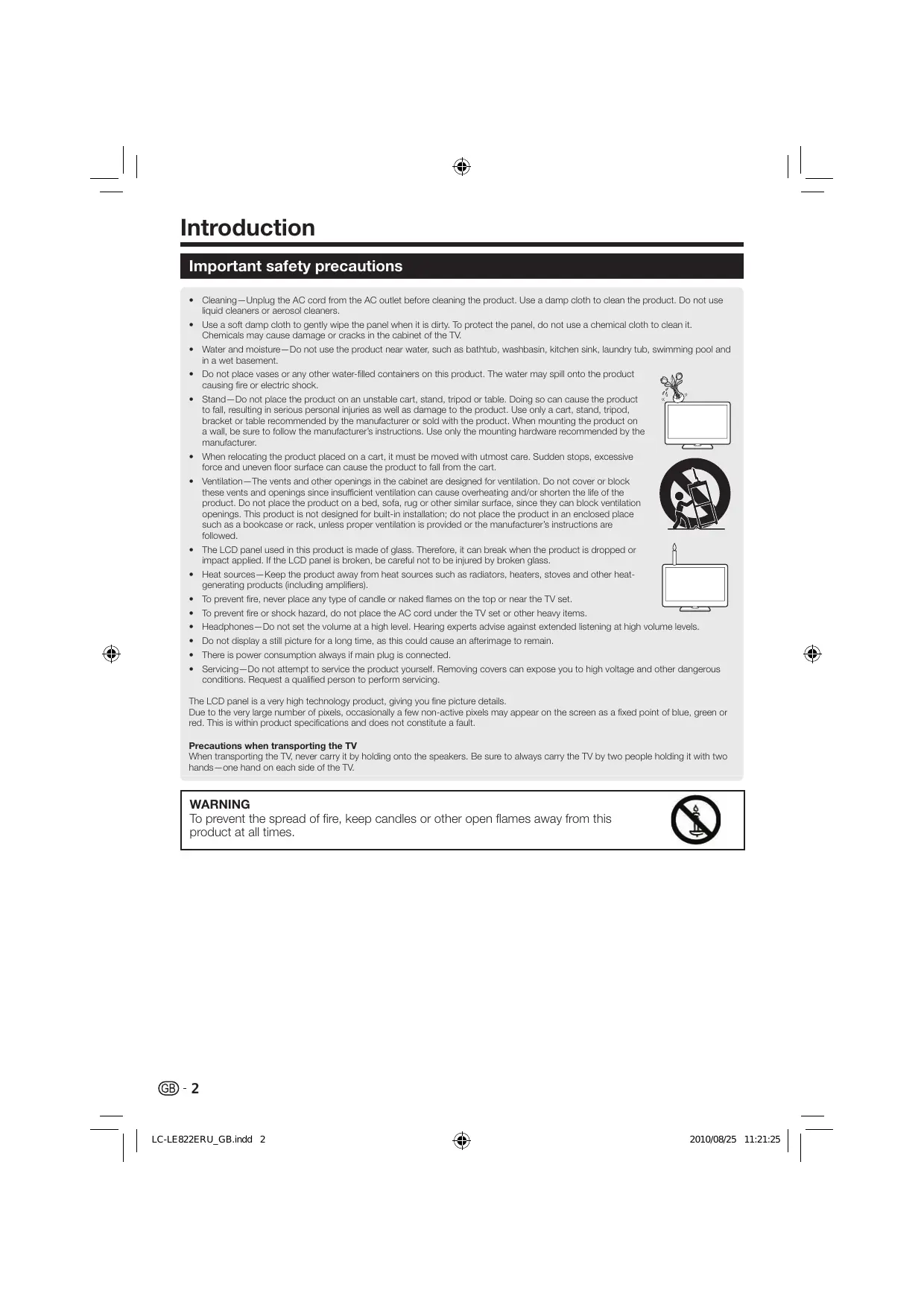
Introduction Important safety precautions + Cleaning—Unplug the AC cord from the AC outlet before cleaning the product. Use a damp cloth to clean the product. Do not use liquid cleaners or aerosol cleaners Use a soit damp cloth to gentiy wipe the panel when it is city. To protect the panel, do not use a chemical clath to clean it. Chemicals may cause damage or cracks in the cabinet of he TV. Water and moisture—Do not use the product near water, such as bathtub, washbasin, kitchen sink, laundry tub, swimming pool and in a wet basement. Do not place vases or any other water-filed containers on this product, The water may spil onto the product causing fre or electric shock. Stand-Do not place the product on an unstable cart, stand, tipod or table. Doing so can cause the product to fall resulting in serious personal injuries as well as damage to the product. Use only a cart, stand, tnipod, bracket or table recommended by 1he manufacturer or sold with the product, When mounting the product on a wal, be sure to follow the manufacturers instructions. Use on the mounting hardware recommended by the manufacturer. en relocating the product placed on a cart, it must be moved with utmost care. Sudden stops, excessive force and uneven floor surface can cause the product to fal from the cart. Ventlation—The vents and other openings in the cabinet are designed for ventilation. Do not cover or block these vents and openings since insuficient ventilation can cause overheating and/or shorten the life of he product. Do not place the product on a bed, sofa, rug or other similar surface, since they can block ventilation openings. This product is not designed for buit-i installation, do not place the product in an enclosed place Süch as a bookcase or rack, unless proper ventilation Is provided or the manufacturers instructions are folowed. ‘The LCD panel used in this product is made of glass. Therefore, it can break when the product is droppedi or impact apple. Ithe LCD panel is broken, be carefui not to be injured by broken glass. Heat sources—Keep the product away from heat sources such as radiators, heaters, stoves and other heat- generating products (nclucing amplifers) Te prevent fre, never place any type of candie or naked flames on the top or near the TV set. To prevent fre or shock hazard, do not place the AC cord under the TV set or other heavy items. Headphones—Do not set the volume at a high level. Hearing experts advise against extended listening at high volume levels. Do not display a stil picture for a long time, as this could cause an aiterimage to remain. ‘There is power consumption always if main plug is connected. Servicing—Do not attempt to service the product yoursel. Remowing covers can expose you Lo high voltage and other dangerous conditions. Request a qualfied person to perform servicing ‘The LCD panel is a very high technology product, gving you fine picture details. Due to the very large number of pixels, occasionaly a few non-active pixels may appear on the screen as a fixed point of blue, green or red. This is within product speciications and does not constitute a fau. Precautions when transporting the TV. Wen transporing the TV, never carry it by holding onto the speakers. Be sure to always cany the TV by two people holding it with two hands—one hand on each side of the TV. WARNING To prevent the spread of fire, keep candles or other open flames away from this product at al times. © -2 | LC-LE822ERU GBiindd 2 & 20100825 11: as | |
Introduction Remote control unit 1 TVO (Standby/On) (Page 16) 2 AT Press 1 access conventional analogue TV mode. prv Press to access digital TV mode. SAT Press to access satelite mode. RADIO DTV/SAT: Switch between radio and data mode. +_ When only data broadcasting {no radio broadcasting) is transmitted by DVB, the radio broadcasting wil be skipped 3 AQUOS LINK buttons Ifextemal equipment such as a AQUOS BD player s connected via HDMI cables and is AQUOS LINK compatible, you can use these AQUOS LINK butions. See pages 25 and 27 for details. + The four buttons (44, D. D A function during time sh for the 822 model series. 4 TIME SHIFT (READV/x—/ Te) Press 10 temporariy record a programme you are watching if you want to interrupt a programme to answer a phone cal, for example (Pages 37-38) + This function is available oniy for the 822 model series. 5 Numeric buttons 0-9 Set the channel Enter desied numbers. Set the page in teletext mode When the five Nordic countries (Sweden, Norway, Finland Denmark or lceland) are selected in the country setting from “Auto instalation” (page 32), DTV services are four digits. When another country is selected, DTV services are three digit. 6 5 (Flashback) Press to retum to the previous selected channel or external input. 7 “4! (Sound mode) Select a sound mutiplex mode (Page 17) 43 (Wide mode) Select a wide mode (Pages 39, 47 and 48). 8 uk (Mute) TV sound onvof. | LC-LE822ERU_GBindd 3
ET) 8 se 9 _1+/- (Volume) increase/decrease TV volume. 10 MENU “Menu” screen on/of. 11 CONTROL Press to display the panel to operate some functions on the 2 screen. 12 A/V/4/» (Cursor) Select a desired item on the setting screen Execute a command within the “Menu” screen. ATV/DTV/SAT: Display “CH list” when no other “Menu” screen is running, END Exit the “Menu screen. (Display information) Press to display the station information (channel number, signal, etc. in the upper right corner of the screen (Page 41). P. INFO Press to display programme information transmitted through digital video broadcasting (DTV/SAT
© (INPUT) Select an input source (Page 17). AV MODE Select a video setting (Page 28). ECO (Standard/Advanced/Off) Select “Energy save” setting (Page 31) © eletext) ATV: Display analogue teletext (Page 21). DTV/SAT: Select MHEG-5 and teletext for DTV/SAT (Page 21). PA/V Select the TV channel. EPG DTV/SAT: Display the EPG screen (Pages 18-20). (Return) Return to the previous “Menu” screen. Buttons for useful operations Q (Subtitle) Switch subtitle languages on/off {Pages 21 and 36). €? (Reveal hidden teletext) (Page 21) @ (Subpage) (Page 21) €2 (Freeze/Hold) Press to freeze a moving image on the screen. Teletext: Stop updating teletext pages automatically or release the hold mode. R/G/Y/B (Colour) buttons The coloured buttons are correspondingly used to select the coloured items on the screen (e.g., EPG, MHEG-5, teletext). 2010/0825 11:21:26 |
+1 This terminal is not avallabl for the 812 mode! series. +2 The HDMI 2 and EXT 8 terminais can both use the same audio input terminal (HDMI 2/EXT 3 AUDIO (L/R}). However, the proper item must be selected in the “Audio select” menu (rfer to page 30 for detail) + When the MAIN POWER switch is turned of ((), the amount of electric power consumed wil be reduced to 0.01 W or less, Howeuer, unike when unplugging the AC cord, the power is not completely disconnectedl @-4 LC-LE822ERU_GBiindd 4
Introduction at is t LEUN You need to call up the OSD to perform settings for the TV. The OSD for the settings is called “Menu”. The “Menu” enables various settings and adjustments. Basic operation (1) (3) Display the Menu Exit the Menu screen screen The operation will exit the “Menu” Mn screen if you press END before it is Press MENU and the “Menu” screen niv n completed Select an item The “Menu” is classified by setting categories for improving TV viewing Selecting in the Menu Selecting options © Press 4/» to select the desired menu, and then press OK. © Press A/Y or 4/» to configure Press to return to the previous menu category. the control for improving TV © Press 4/» to select the desired sub-menu, and then press viewing, and then press OK. ok. EXAMPLE © Press À/Y to select the item you want to select/adjust, and then press OK. Backlight Menu “Eva Re PE NOTE + Refer to the guide display below the menu bar to see when to press the OK button. —s Th produet is embeddod van LG Font technology, which was deveioped by SHARP Corpcraïon for lea dsplaying e2sy-10 ad 1 LOFONT [él one comen ” me NOTE +_“Menur options der in the setected input modes, but ne operating procedures are the same. Items with © cannot be selected for various reasons +_ Some items cannot be selected depending on signal types, optional settings or connected devices, @-5 | LC-LE822ERU GBiindd 5 & 20100825 11: 22 | |
| LC-LE822ERU_GB.indd 6 & Introduction Operation without a remote control unit This function is useful when there is no remote control unit within your reach. 1 Press MENU and the “Menu” screen displays. 2 Press CH\//A instead of A/Y or VOL —/+ instead of 4/à to select the item. 3 Press INPUT -Œ) to complete the setting. About the guide display The guide display below the menu bar shows operations for the OSD. +__ The bar above is an operational guide for the remote control unit, Tne bar vil change in accordance with each menu setting screen. Remote control unit (x 1) “AAA" size alkaline battery (x 2) Cable clamp (x 1) Pages 3 and 8 Page 8 Page 10 RGB component cable {x 1) SCART cable (x 1) AV cable (x 1) Page 23 Page 23 Pages 23 and 24 Stand unit (x 1) Operation manual (this publication) LS 7 mE fig ve Page 7 @-6 2010/0825 11:21:30 |
| LC-LE822ERU GBiindd 7 & 20100825 11: a | | Preparation Attaching the stand unit +_ Before perlomming work, spread ushioning over the surface on which you wil be laÿing the TV. This wil prevent it from being damaged. CAUTION + Attach the stand in the correct direction. +_ Be sure to follow the instructions. Incorrect installation of the stand may result in the TV falling over. 1 Confirm that there are nine screws (four long 4 Insert and tighten four short screws into the screws and five short screws) with the stand four holes on the rear of the TV. unit. DUT vou © 2 Attach the supporting post for the stand unit onto the base using the four long screws with a screwdriver as shown. 5 Attaching the stand cover. @ Slide the stand cover into the two catches on the stand base. @_ Insert and tighten a short screw into the hole on the centre of the stand cover. Supporting post 3 Insert the stand into the openings on the bottom of the TV (hold the stand so it will not drop from the edge of the base area). Soft cushion NOTE ‘To detach the stand unit, perform the steps in reverse order. A screwdriver is not supplied with this product. ‘The stand base is made of glass. Therefore, be carefui not 10 drop the stand base or apply pressure Lo it Do not place heauy objects on 1he stand base. @-7
Preparation Using the remote control un Inserting the batteries Before using the TV for the first time, insert two supplied "AAA" size alkaline batteries, When the batteries become depleted and the remote control unit fails to operate, replace the batteries with new "AAA" size batteries. 1 Open the battery cover. 2 Insert two supplied “AAA’ size alkaline batteries. + Place batteries with their erminals corresponding ta the {+} and (—) indications in the battery compartment. 3 Close the battery cover. CAUTION Improper use of batteries can result in chemical leakage or explosion. Be sure 10 follow the instructions below: Do not mix batteries of different types. Diflerent types of batteries have different characteristics. + Do not mx old and new batteries. Mixing old and new batteries can shorten the If of new batteries or cause chemical leakage in old batteries, Remove batteries as soon as they have worn out. Chemicals that leak from batteries can cause a rash. you find any chemical leakage, vipe thoroughiy with a cioth The batteries supplied with this product may have a shorter lfe expectancy due to storage conditions. I you wil not be using the remote control unit for an extended period of time, remove the batteries from it + When replacing the batteries, use alkaline batteries instead of zinc-carbon ones. Note on disposing batteries The batteries provided contain no harmful materials such as cadmium, lead or mercury. Regulations concerning used batteries stipulate that batteries may no longer be thrown out with the household rubbish. Deposit any used batteries free of charge into the designated collection containers set up at commercial businesses. Angjle of the remote control unit Use the remote control unit by pointing it towards the remote control sensor. Objects between the remote control unit and sensor may prevent proper operation. Remote control sensor Cautions regarding the remote control unit +_ Do not expose the remote control unit to shock. In addition, do not expose the remote control unit to liquids, and do not place in an area with high humicit. + Do not install or place the remote control unit under direct sunlight. The heat may cause deformation of the unit. The remote control unit may not work properiy if the remote control sensor of the TV is under direct sunlight or strong lighting. In such cases, change the angle of the lighting or the TV, or operate the remote control unit closer to the remote control sensor. @-38 | LC-LE822ERU GBiindd 8 & 20100825 11: as | |
Quick guide Initial installation overview Follow the steps below one by one when using the TV for the first time. Some steps may not be necessary depending on your TV installation and connection. © Connect an antenna cable to the antenna terminal (Page 10). @ if necessary, insert a CA card into the CI slot to watch scrambled broadcasts (Page 10). © Piug the AC cord into the AC outlet (Page 10) Product shape varies in some countries. | LC-LE822ERU_GB.indd 9 Run the initial settings © Check that the MAIN POWER switch on the rear of the TV is turned on (|) + The factory defau for the MAIN POWER switch is set Lo on (|). © Turn on the power using POWER(D on the TV (Page 16). © Congratulations! Now you can watch TV. @ 1f necessary, adjust the antenna to attain maximum signal reception (Page 15). Connect external COS © Connect external devices
© Run the initial auto installation (Pages 11-14). # Language setting Y_ Home/Store setting V Country setting
Channel search setting (“Digital search”/"Analogue search”/"Skip”)
Start searching channels
such as a DVD player/ LA recorder as instructed (Pages 22-24).
© Connect external audio devices such as speakers/ ape as instructed (Page
Place the TV close to the AC outlet, and keep the power plug within reach © Standard DIN45325 plug (IEC 169-2) 75 Q coaxial cable © Satelite antenna cable © AC cord (product shape varies in some countries) © Check that the MAIN POWER switch on the rear of the TV is turned on (Us © Cable clamp (bundie the cables with the clamp) Inserting the CA card into the CI module In order to receive coded digital stations, a common interface module (CI module) and a CA card must be inserted in the CI slot of the TV. Checking CI module information Go to “Menu” > “Setup” > “Option” > “CI menu”. +__ This menu is only available for digital stations. +__ The content of this menu depends on the provider of the CI module. Module General information on CI module displays. 1 Carefully insert the CI module in m ” lenu the CI slot with the contact side ‘Adjustment parameters of each CA card displays. forward. Grey 2 The logo on the CI module must You can input numerical values such as password here. be facing outward from the rear of the TV. NOTE It takes about 20 seconds to certiy the license key when you insert a CA card into the CI+ compatible CI module for the first time. This process may fai when there is no antenna input or you have never run “Auto instalation The C+ compatible CI module sometimes upgrades its firmware. You may not receive any TV images before upgrading. You can only use the power button during upgrading. +__ The Ck compatible CI module does not allow you to output any copy protected programmes using monitor out. In this case, the copy protect icon* is shown in the programme information when P. INFO IS pressed Protect icon: XX +_Ifthe TV displays an update confrmation message for the CA card while receWing CI+ compatible broadcasts, allow the screen prompts. +" Make sure that the CI module is propery inserted. @)- 10 20100825 11:21:41 |
Quick guide When the TV is powered on for the first time after purchase, the initial auto installation wizard appears. Follow the menus and make the necessary settings one after another. g before turning on pol @ the antenna cable connected? ls the AC cord plugged in? @ 5 the MAIN POWER switch tumed on (|)? 1 Press POWER(D on the TV. +_ The iniil auto installation wizard appears. 2 Setting the OSD language. Press A/W/4/» to select the desired language, and then press OK 3 Selecting the location of the TV. STORE Press @/@ to select where you will use this TV, and then press OK +_ The confirmation screen pops up only when selectng “STORE”. Press 4/10 select “Yes” or “No” HOME: “STANDARD" il be the default value for the "AV mode” seting STORE: “DYNAMIC (Fixed)" will be the default value for ne “AV mode” setting. line “AV mode” s changed, the TV wil automaticaly switch back 10 "DYNAMIC (Fed when there is no signal input from the TV or remote control uni for 30 minutes. STORE: À demonstralion image wil be displayed after iniil auto instalation is complete. I you have chosen “STORE” by mistake, go 1o “Setup” > “View seing” > “Resel” > select "HOME" again. 4 Setting the country. Press A /W/4/» to select your country or area, and then press OK +_ This selng screen only appears during ie frst instalation. NOTE *_ If you set “Sweden” in the country setting, you can select the cable provider *ComHem”. Refer to the ŒED mark in the following steps or instructions about the settings for ‘ComHem”
Starting channel search. Digital search Anslogue search Skip Press A/Y to select “Digital search”, “Analogue search" or “Skip”, and then press OK: To watch boih analogue broadcasts, digital broadcasts and satellte broadcasts, you should perform the auto installation setting for each format (Page 32) I you want to search for more broadcasts, execute ‘Additional search” from the “Programme selup” menu (Pages 82-84) Wnen you select “Skip”, only “Satelite search” will be performed. You should perlorm “Digital search” and ‘Analogue search” from “Auto installation" under the Setup” menu if needed. ‘After performing “Digital search” or *Analogue searcn, the screen ses to the “Satellte search” setting. You should then execute “Ves” i you want Lo search for the satelite channels NOTE 1 you turn off the power on the TV while performing a channel search, the initial auto installation wizard wil not appear. The auto installation function allows you to execute the installation again from “Setup” > “View setting” (Page 32). ‘The initial auto installation wizard wal abort fou ieave the TV unattended for 30 minutes before searching for channeis. Aer initial auto installation is completed, te defaut PIN is automatically set to “1234°. To change the PIN setting, refer to Password/Lock settings (Page 35). To clear he PIN setting {PIN input wil no longer be needed}, refer to CLEARING THE PIN (Page 52) When “a” I selected in the country seting, the defaut age restriction value is set to 18. Digital broadcast setting Press 4/» to select “Terrestrial” or “Cable”, and then press OK. Cable +" When you set ‘Sweden’ in the country setting and select “Cable” for the searching format, you can select the cable provider *ComHem © Searching for terrestrial broadcasts | LC-LE822ERU GBindd 11 The TV searches for, sorts and stores all the receivable TV stations according to their settings and the connected antenna. + To aboñ the iii auto instalation in progress, press &.
After searching for DVB-T channels, the screen switches to the “Satellite search” setting (Page 13). 2010/0825 11:21:
Quick guide © Searching for cable broadcasts To change each item to the appropriate settings: @ Press A/Y to select the menu, and then press OK. Serambled stations Des Search method Channel] Start frequency 70] Netuok ID None] Symbol rate 1 16875] Symbol rate 2 1600) QAM modulation 1 164 QAM modulation 2 1256] Reset Search start @ Press A/V/<4/» or 0-9 to select or input the appropriate item/value, and then press ok. @ Press A/Y to select “Search star”, and then press OK. Press 4/D to select “Yes” lo start searching cable broadcasts, and then press OK. @ The TV searches for, sorts and stores all the receivable TV stations according to their settings and the connected antenna. + To abort he init auto instalation in progress, press ©
After searching for DVB-C channels, the screen switches to the “Satellite search” setting (Page 13). +__ The “Scrambled stations” menu and the “Search method” menu are not displayed on the screen as each menu tem is fixed. +__ The value of “Start frequency" and “Network ID should be set to the value specified by the cable provider.
@-12 | LC-LE822ERU GBindd 12 = en Vo Species you Scrambled Serambled Sander | vs, No ais CETTE) Sfinermaïon Fom à channel (quick, but nee cena ang TV stations). Frauare Check Gen teauenoy ice (eos Seareh | spoores how you L method search channels. QUICK": All services are searched by Eos mie manu Mot en An Jo ee provider proies Fe Vogue and the network ID (e.g. Heming chamoÿ Sun Riom 470-8580 freguency Me Ses ie neo Sete" Eye poste . Nemonm… [ei specled | None, 0-26535 rnneng any pecl sices Te sms poche Smbolrate | mput | 1000-6000 eve rave or can Te sn ae pocfe by the Smbdtrte [Ed ha | 1000-6000 de va rca or Can EU] CS A6, 22,64, 128,256 ET] RRES modulation 2 128.280 *1 Set up “Symbot rate 2” if the cable provider uses several symbol rates, +2 When “Quick” Is selected, “Scrambled stations” is automatically set 10 “No” #2 When “Quick” is selected, “None” for the "Network ID” menu cannot be selected. When you set “Sweden’ in the country setling and select Cable” for the searching format, you can select the cable provider “ComHem'. Follow the screen prompts. Analogue broadcast setting The TV searches for, sorts and stores all the receivable TV stations according to their settings and the connected antenna. + To abort the initial auto installation in progress, press
After searching for analogue channels, the screen switches to the “Satellite search” setting (Page 13).
Quick guide Searching for satellite broadcasts Press 4/p to select Yes”, and then press OK. +_ If you do not perform *Satelite search" setting, select “No”, and then press OK. + The current DVB-S/S2 setting screen is displayed. DISEQC mutiswitch LAB Frequency Low ASTRAT 9700 ASTRA2 9700
‘Change setting © (e] + You must first complete “Change setting” before moving totne “New” setting @ When starting the satellite search after setting the scrambled station: Press 4/» to select “Next”, and then press Ok. NOTE *+_ Wen you perform 1he initial auto instalation, “Next” cannot be selected. Compleling “Change setting" enables you to select New” Symbol
Startsearch Change setting | LC-LE822ERU GBindd 13 © Start searcl DVB-S/S2 channel searching. 1 Press 4/» to select “Start search”, and then press OK. 2 The TV searches for, sorts and stores all the receivable TV stations according to their settings and the connected antenna. + To aboñ the iii auto instalation in progress, press &. © Change setting: 1 Press 4/» to select “Change setting”, and then press OK. + The seling screen of “Scrambled stations” and “Symbol rate” is displayed Scrambled stations _ [No] SRTIS RER 1 16675) SATLSymborat 2 (6875) SAT2Symbol rat 1 [6875] Search start 2 Press A/Y to select “Scrambled stations”, and then press OK. + Scrambled stations: Species i you need to add pay-TV senices. 3 Press 4/ to select “Yes”, and then press ok. 4 Press A/Y to select the symbol rate you want to modify, and then press OK. + Symbolrate: You need to sel each symbol rate of al 1e satelite broadcasts that he TV can receive [eight is the madmum number of symbol rates hat can be displayed 5 Press 4/ to select “Search start”, and then press OK. 6 The TV searches for, sorts and stores all the receivable TV stations according to their settings and the connected antenna. + To abort the initial auto installation in progress, press
Quick guide @ When you change the antenna connection setting: Press 4/» to select “Change setting” on the DVB-S/S2 setting screen in the left column, and then press OK. + The anenna connection setting screen is displayed 2 satellites on 22KHz switchbox 2 satelites on toneburst switchbox Max. 4 satellites on DISEqC multiswitch Communal satellite system NOTE +" You can select the antenna connection method from the five types. Consul your dealers before using a method otner than ‘Single satelite” © “Single satellite” setting 1 Press A/Y to select “Single satellite”, and then press OK. 2 Press A/Y to select “SAT1 [None] to display the satellite broadcasts that the TV can receive, and then press OK. SAT1 [None] Next 3 Press A/V/4/» to select your favorite satellite, and then press OK. + _ You cannot select “Next unless you set the satelite broadcast in step 3
©@)-14 | LC-LE822ERU GBindd 14 6 Press A/Y to select the item and press 4, 4 Press A/Y to select “Next”, and then press Ok. SATLIASTRA 1] 5 Press 4/» to select “Yes (0/22kHz)” or “No” to set the LNB frequency, and then press OK. Yes (0/22kHz) to adjust 9,000 MHz to 12,000 MHz to the appropriate value. EXAMPLE SATA high [12000] 9000 mm" 12000
After completing this setting, the screen switches to the DVB-S/S2 setting screen shown in the left column on page 13. NOTE Follow the instructions on the screen for “2 satelites on 22kHz switchbox", "2 satelites on toneburst switchbox", “Max. 4 satelites on DISEqC muiswitoh" and “Communal satelite system” setings. To set multiple satelite channels, go to ‘Max. 4 satelites on DISEQC mutiswitoh”. 2010/0825 11:21:46 |
Quick guide Checking signal strength and channel strength (DVB-T/C/S/S2) I you install a DVB-T/C/S/S2 antenna for the first time or relocate it, you should adjust the alignment of the antenna to receive a good reception while checking the antenna setup screen. 1 Go to “Menu” > “Setup” > “View setting" > “Channel settings” > “Antenna setup- DIGITAL”. 2 Press A/Y to select “Digital setup” or “Satellite setup”, and then press OK. © Checking signal strength 3 Press A/Y to select “Signal strength”, and then press OK. Signal strength for DVB-T/C Suppiy voltage Signal strength Channel strength Signal sreng Channel strength © Checking channel strength 4 Press A/Y to select “Channel strength”, and then press OK. + You can input a specified frequency band using the 0-8 numerc butions Supplying power to the antenna Channel strength of DVB-T Supply voltage Signal strength Channel strength Signal Current Quaiiy Current Supply voltage
Signal strength Channel strength is 5 Position and align the antenna so that the maximum possible values for “Signal strength” and “Quality” are obtained. NOTE + The values of “Signal strength” and "Quality indicate when to check the appropriate alignment of the antenna. You must supply power to the antenna in order to receive digitally/terrestrially broadcast stations or satellite broadcast stations after connecting the antenna cable to the antenna terminal on the rear of the TV. Press MENU and the “Menu” screen displays. Press @/» to select “Setup”, and then press OK. NouRwn= Press 4/p> to select “On”, and then press OK. | LC-LE822ERU GBindd 15 Press 4/b to select “View setting”, and then press OK. Press A/Y to select “Channel settings”, and then press OK. Press A/Y to select “Antenna setup-DIGITAL”, and then press OK. Press A/Y to select “Supply voltage”, and then press OK. @-15 2010/0825 11:21:47 |
Watching TV Daily ol [e] Switching between digital, satellite and analogue broadcasts Switching on/off Watching digital Watching analogue broadcasts broadcasts Turning on/off the power ATV DIV SAT RADIO ATV DIV. SAT RADIO 1 Tum on (|) the MAIN POWER switch on the rear of the TV (Page 4). 2 Toturn on the TV, press POWER(D on the TV or TV() on the remote control unit. 3 Toturnoffthe TV, press POWER(D on the TV or TV() on the remote control unit. 4 Turn off (() the MAIN POWER switch on the rear of the TV (Page 4). + Wen turing of the power using {he MAIN POWER switch on the rear of ine TV, EPG data wil be lost. Standby mode © To standby mode Ifthe MAIN POWER switch on the rear of the TV is turn on (|), you can switch it to standby by pressing POWERG) on the TV or TV) on the remote control unit © Switching on from standby From standby, press POWER(D on the TV or TV(D on the remote control unit. J| GAË NOTE I you are not going to use this TV for a long period of time, be sure lo remove the AC cord from the AG oullet or turn of (D) the MAIN POWER switch on the rear of Ine TV (Page 4) A smal amount of electric power is stil consumed even when the MAIN POWER switch iS turned off ()) (Page 4). Watching satellite broadcasts
NOTE + _ la number of satelite channels are set, each time you press the SAT button the channel switches as folows. SAT =——p# SAT2 | SATA @m—— SATS Changing channels With PA/V With 0-9 @)- 16 | LC-LE822ERU GBindd 16 & 20100825 11: nes | |
Watching TV Selecting an external video Selecting a sound mode source © DTV/SAT mode I multi sound modes are received, each time you press “the mode switches as follows. Once the connection is made, press 5) to display the “INPUT” screen, and then press &) or AZ Y to switch over to the appropriate external source with OK. NOTE + You can also select an external video source from ‘CH ist > “INPUT” Audio (ENG) : STEREO INPUT Audio (ENG) CHB |CHAB
Audio (ENG) : MON Press 4/» to select L'or R sound when the STEREO or DUAL MONO screen is displayed. (ENG) : STEREO R LR NOTE +__ The sound mode screen disappears in six second. + Selectabl items vary depending on he received broadcast. © ATV mode Each time you press “#1, the mode switches as shown & in the following tables. & NICAM TV broadcasts selection Signal Selectable items Stereo NICAM STEREO, MONO Biingual NICAM CH À NIGAM CHE, NGAM CH AB Monaural NICAM MONO, MONO A2 TV broadcasts selection Signal Selectable items Stereo STEREO, MONO Bilingual CHACHE, CHAE Monaural MONO NOTE + When no signal is input, the sound mode wil display “MONO” © - 17 | LC-LE822ERU GBindd 17 & 2010/0825 11:21:51 |
Watching TV EPG is a programme list that is displayed on the screen. With the EPG, you can check the schedule of DTV/SAT/RADIO/ DATA, view detailed information about them, tune to an event currently on-air. Useful settings for using EPG Basic setting View setting EPG display settings Option Display range setup I you want to use the EPG for digital stations, select “Yes”. The EPG data must be automatically captured while the TV is in standby mode. After setting to “Yes”. it may take some time to turn off the power using the remote control unit due to the process of the data capture. Go to “Menu” > “Setup” > “View setting” > “Individual setting” > “Standby search” > “EPG”. NOTE +_Ifthe MAIN POWER switch is switched of, ihe EPG data wi not be captured. © Confirmation for the “EPG” setting I you set “EPG" to “Yes” or “No”, the selected item is displayed on the item bar in “EPG setup” under “Option”. Option Option for vieur AQUOS LINK setup Icon Genre Genre Terminal seting Movie/Drama Music/BalletDance News/Current Ans/Cuture afairs {without music) The “Display range setup” allows you to select three types of time spans for display on the screen Go to “Menu” > “Setup” > “Option” > *EPG setup” > “Display range setup”. Item Mode 1 [Wide Displays sx hours of programme angle) information Displays three hours of programme Mode 2 (Zoom) information. Mode 3 (Vertical | Changes line EPG display format with angle) a verical üme span 4 ] Genre icon setup You can grey out or place a mark on desired genres and smoothly search for programmes you frequentiy watch. 1 Go to “Menu” > “Setup” > “Option” > “EPG setup” > “Genre icon setup”. 2 Press A/Y to select the desired genre, and then press OK. © Genre icon list ©@)- 18 LC-LE822ERU_GBindd 18 Socia/Poitical Show/Game show issues/Economics Education/Science/ Sports Factual topics Chiaren's/Youth programmes ÉASIAILSE Leisure hobbies 3 Press A/Y to select a level to pick out or search for programmes you want to watch Standard”, “Light”, “Remark”). 2010/0825 11:21:52 |
Watching TV The illustrations on this page are explained using three digit services. © Display/Close the EPG screen Press EPG. IRD Programme info. ({ÿ) Search by genre Q) ô
rer NOTE éées © Select a programme @ Select the time span + You can aso display the EPG screen from “Menu” > “EPG" > “EPG" @) Select the desired programme Press A/Y to select the desired programme. +_ If A or Y are displayed on the lef of the services, Press 4/» to select the time span you want to search. screen + Gontinue to press à lo display programmes in {ne next Aime spar. Check programme information Press A/V/4/» to select the programme you want to check. Press R, and then press OK to tune to the selected programme.
@ Search a programme in a category 1 Press G. 2 Press A/Y to select the desired genre, and then press OK. 3 Press A/Y to select a programme you want to watch, and then press OK. + Refer to page 18 for the genre seting + You can also display this setting screen from “Menu” > “EPG" > "Search by genre”. @) Search for a programme by date/time 1 Press Y. 2 Press 4/» to select the desired time span, and then press OK. Search by time Today oam-6au DECO) oPM-6PM | 6PM-0a AD:Selecttime ŒMB:Enter R BacktoEPG G Enter (D +1 Week D Next B JNext 3 Press A/Y to select the desired programme, and then press OK. NOTE + You can also display this setting screen from “Menu” > “EPG" > “Search by date | LCLES22ERU GB.ndd 19 & continue to press A /Y Lo display next or previous @-19 2010/0825 11:21:55 |
Watching TV programmes Press EPG. Press A/V/-<4/» to select the programme
3 Press 4/p to select “Cancel”, and then press ok.
Press B. +_Refer to page 20 for the timer setup. You can switch to a programme at a set time. 1 Press EPG Press 4/» to select “Yes”, and then press 2 Press A/V/4/» to select the programme OK. you want to set, and then press OK. © Cancelling using B button on the remote control unit Press EPG. Lage 5-7 Pat Ening read he story af Fauré he or bug and 06. Press B to display the timer setup list. Press A/Y to select the programme you want to cancel timer setup, and then press OK. Press 4/» to select “Cancel”, and then press OK. 5 Press 4/à to select “Yes”, and then press OK. R Back to EPG B Mer PB &N= 3 Press 4/p to select “Watch”, and then press
+ Hyou select “No”, the TV returns to he EPG screen. 4 Press 4/à to select “Yes”, and then press OK. + The selected TV programme is marked with an icon. 5 Press OK to select “Back”. @)- 20 | LC-LE822ERU GB.indd 20 & 2010/0825 nas | |
Watching TV Teletext What is teletext? Teletext broadcasts pages of information and entertainment to specially equipped TV. Your TV receives teletext signals broadcast by a TV network, and decodes them into graphical format for viewing. News, weather and sports information, stock exchange prices and programme previews are among the many services available. Turning teletext on/off 1 Select a TV channel or external source providing a teletext programme. 2 Press © to display the teletext. + Many Siations use the TOP operating system, wie some use FLOF (2.9. CNN). Your TV supports both inese systems. The pages are dvided into topic groups and topics. Afler swlching on {ne teetex, up 10 2,000 pages are slored for fast access I you select a programme with no teletex signal, “No Teleiext avalable” displays The same message displays during other modes no ielelext signal is avale.
| TELETEXT © ELETENT Each time you press ©) the screen sitches as shoun above Press © again to display the teletext on the right screen and the normal image on the left screen. NOTE + Teletext wil not work the selected signal type is RGB (Page 42) | LC-LE822ERU GBindd 21 Buttons for teletext operations Buttons Description PA Increase or decrease the page number. Select a group or block of pages displayed in the coloured brackets at the bottom of the screen by pressing the corresponding coleur (R/G/Y/B) on he remote control unit. Colour (R/G/V/B) Numeric buttons | Directiy select any page from 100 to 899 by 0-9 using he 0-9 numeric buttons. ŒReveal | Aevealorhidehiddeninomaïon suenas hidden teletext)_| an answer to à qui Stop updating teletext pages automatically & Frecze/Hold) |; riease ine hold mode, Display the subtile or exit the subtile screen. Subiites wi not be displayed when the savice dogs not contain subite information. C2 (Subtitle for teletext} Reveal or hide subpages. + More to the preious subpage () € (Subpage) | +" Move to te folowing subpage (G) + Theso Ho buttons are sh by the symbol * +” and * Using the MHEG-5 application (UK only) Some services bring you programmes with the MHEG application encoded, letting you experience DTV/SAT interactively. When provided, the MHEG-5 application will Start when you press © 2010/0825 11:21:57 |
Connecting external devices © Before connecting +_ Be sure to tum off the TV and any devices before making any connections. + Fimiy connect a cable to a terminal or terminels. + Careluly read the operation manual of each external device for possible connection types. This also helps you get the best possible auciosual quality to maximise the potential of the TV and the connected device. +_Refer to page 48 for connecting a PC to the TV. NOTE + The cables Ilustrated except as described in “supplied accessory)" in pages 22-24 are commercialy available items. Video connections HDMI connection Example of connectable devices @ D\D pyer/recorder Blu-ray player/recorder @ Game console The HDMI comnections permit digital video and audio transmission via a connection cable from a player/recorder. The digital picture and sound data are transmitted without data compression and therefore lose none of their quality. Analogue/digital conversion is no longer necessary in the connected devices, which also would result in quality losses: SD ie © © HDMI-certified cable © 5 3.5 mm stereo minijack cable © ov/HDMI cable © -22 | LC-LE822ERU GBindd 22 DVI/HDMI conversion Using a DM/HDMI cable, the digital video signals of a DVD can also be played via the compatible HDMI connection. The sound must be fed in additional. +_ When connecting à DW/HDMI cable to the HDMI terminal, the image may not come in clear. + Both HDMI and DVI use the same HDCP copy protection method! © When using the HDMI 2 terminal You must set the audio signal input source depending on the type of HDMI cable connected {refer to page 80 for details). HDMi-certified cable 1 Press ©) to select “HDMI 2” from the “INPUT” menu, and then press OK. 2 Goto “Menu” > “Setup” > “Option” > “Terminal setting” > “PC input” > “Audio select” > select “HDMI (Digital). DV/HDMI cable 1 Press ©) to select “HDMI 2” from the “INPUT” menu, and then press OK. 2 Goto “Menu” > “Setup” > “Option” > “Terminal setting” > “PC input” > “Audio select” > select “HDMI+Analog” NOTE If a connected HDMI device is AQUOS LINK compatible, you can take advantage of versatile functions (Pages 25-27). Video noise may oceur depending on the type of HDMI cable used. Make sure Lo use à certified HDMI cable. When playing the HDMI image, the best possible format for the picture wil be detected and set automaticaly. An ARC (Audio Return Channel) compatible aucio receiver must be connected to the HDMI 1 terminal with an ARC-compatible cable. Supported video signal 576i, 576p, 480, 480p, 1080i, 720p, 1080p See page 49 for PC signal compatibilty. 2010/0825 11:21:58 |
Connecting external devices You wil enjoy accurate colour reproduction and high quality images through the EXT 3 terminal when connecting a DVD player/recorder or other device. VCR Decoder © SCART cable (supplied accessory/Conversion & cable © SCART cable NOTE In cases when le decoder needs lo recelve a signal from the TV, make sure Lo select the EXT 1 terminal to which the ju un j decoder is connected in “Manual adjust"in ne *Analogue © Stereo conversion @ RGB component selng” menu (Page 34). ° ù + You cannot connect the VCR with decoder using a full wired cable cable (supplied SCART cable when selecting Y/C* under “EXT 1” in the “input accessory) select” menu Conversion cable
- The supplied conversion cable (AV cable] is oniy used for the EXT 2 terminal, not for the Audio IN/OUT terminal, Use a stereo conversion cable (commercially available) instead. | LCLES22ERU GB.ndd 23 &
Connecting external devices You can use the EXT 2 terminal when connecting to a game console, camorder, a DVD player/recorder or other device. un a
© AY cable (supplied accessory/Conversion cable ©) - 24 | LC-LES22ERU GB.ndd 24 Audio connections Connect an amplifier with extemal speakers as shown below. © Connecting an amplifier with digital/ analogue audio inputs
- This terminal is also used for headphones. Reduce the volume before using eadphones, Overshelming sound may damage Your hearing. +1. The supplied conversion cable (AV cable} is oniy used for the EXT 2 terminal not for the Audio INOUT terminal. Use à stereo conversion cable (commercial avalable) nsteacl. 2010/0825 11:22:00 |
AQUOS LINK Controlling HDMI devices using AQUOS LINK © What is AQUOS LINK? Using the HDMI CEC protocol, with AQUOS LINK you can interactively operate compatible system devices (AV amplifier, DVD player/recorder, Blu-ray player/ recorder) using a single remote control unit. NOTE + AQUOS LINK-compatible AGUOS AUDIO speaker system and AQUOS recorder are schedued to be on sale after the release of this TV. +_AQUOS LINK does not work while using time shift functions. © What you can do with AQUOS LINK # One touch recording (DTV/SAT only) You do not have to search for the remote control unit of your recording device. Press the REC @ or REC STOP I buttons to start/Stop recording what you see on the recorder.
# One touch play ‘When the TV is in standby mode, it will automatically turn on and play back the DUOQ image from the HDMI source. x [Ep] [AN # Single remote control operation 8sUIe AQUOS LINK automatically recognises connected HDMI devices and you can control the TV and the devices as if using a universal remote control unit.
Operating title list of external devices In addition to displaying the TV's own timer list (Page 20), you can also cal up the external players top menu or AQUOS BD player s/AQUOS recorders title list provided that the devices support AQUOS LINK. Multiple control of HDMI devices You can select which HDMI device to aperate using the “Link operation” menu or the PPPE OPTION button. oo NOTE Wen you use AQUOS LINK, make sure Lo use à certifd HDMI cable. AQUOS + Pot the remote control uni toward the TV, nat la the connected HDMI device. + Video noise may oceur depending on the type of HDMI cable used, Make sure to use a certfied HDMI cable. + Up to three HDMI recoring devices, one AV amplifier and ree players can be connected sHar? using this system. These operations affect the HDMI device selected as the current external source. the device does not operate, turn on the device and select the appropriate external source using -E). Wen you insert/remove HDMI cables or change connections, turn on all connected HDMI devices before tuming on he TV. Conf that picture and audio are carrectly output by selecting "HDMI 1”, “HDMI 2”, HDMI 3° or “HDMI 4” from the “INPUT SOURCE" menu, AQUOS LINK connection First connect the AQUOS AUDIO speaker system or an AQUOS BD player/AQUOS recorder that supports the HDMI CEC protocol. NOTE +_ Relerto the operalion manuel of the device to be connected for further detais. After unplugging connection cables ar changing {he connection pattern, turn on the power of ine TV after al relevant devices" power have been turned on. Change the extemal input source by pressing 5), select the appropriate external source and verfy the audiovisual output The cables ilustrated in the following explanation are commercial avalable items. he four buttons (44 >. be. M) connected by a green Ine are used for time shift operations for {ne time shift function @-25 | LC-LE822ERU GBindd 25 & 20100825 11: 200 | |
> > à AQUOS BD player/AQUOS AQUOS AUDIO speaker system AQUOS BD player/AQUOS recorder recorder © HDMI-certified cable © optical audio cable The ARC (Audio Return Channe) function warks only when using the HDMI 1 terminal AQUOS LINK setup Basic operation Go to “Menu” > “Link operation” > “AQUOS LINK setup” > select the menu you want to Selecting channel key This function allows you to select the channel of the connected HDMI device using the TV's remote control unit set. 1 Press A/Y to select the input source of the AQUOS LINK control connected HDMI device you want to control using the TV's remote control unit, and then Set to “On” to enable HDMI CEC functions. press OK. 2 Press 4/» to select “On”, and then press Auto power on ok. this is activated, the one touch play function is enabled. While the TV is in standby mode, it automatically turns on and plays back the image from the HDMI source. NOTE + The factor delaui or this item is “Or Selecting recorder Here, you can select a recorder for the recording from several connected recorcers. NOTE +_ if you have connected the AQUOS AUDIO speaker system between the TV and an AQUOS recorder, ne external sources indication changes (e.g., from “HDMI 1° to “HDMI 1 (Sub)". Using genre info This function allows you to automatically switch to the appropriate sound mode depending on the genre information included the digital broadcast Audio return channel (ARC) I this function is set to “Auto”, the TV can send audio data for video content shown on the TV to a connected audio device with just one ARC-compatible cable. Using this function eliminates the need to use a separate digital or analogue audio cable: Connection for using “Audio return channel” +_ You need to use ARC-compatible cables/devices and connect Lo the HDMI 1 terminal lo activate {his function. The connection method is the same 28 he above Connecting an AQUOS BD player/AQUOS recorder only. © - 26 LC-LE822ERU GBindd 26 & 2010/0825 11:22:01 |
AQUOS LINK Operating an AQUOS LINK device AQUOS LINK allows you to operate the HDMI-connected device with a single remote control unit. 1 Press to start playback of a title. + See ie section Top menu/title list if you want 1 start playback using 1e st of the iles in the AQUOS ED player/AQUOS recorder. 2 Press B} to fast forward. Press 44 to reverse. Press IA to stop. Press SOURCE (l) | to turn the HDMI- connected device on/off. AQUOS LINK menu You can arrange the settings for he sound or external device by pressing OPTION on the remote control unit to display the AQUOS LINK menu screen NOTE + You can also select the AQUOS LINK menu from the “Link operation" menu. Recorder power on/off You can call up the CEC-compatible recorder's EPG and preset timer recordings using the TV's remote control unit. 1 Press A/Y to select “Recorder on/off”, and then press OK. + The external input source switches and the recorders EPG is displayed 2 Select the programme to record. + Reler Lo 1he operation manual of the recorder for detals Top menu/title list This section explains how to play back a title in the AQUOS BD player/AQUOS recorder. 1 Press A/Y to select “Top menu/itle list”, and then press OK. + The linked recorder now powers on and ine TV automaticaly seects {he appropriate external input source The le let data from the connected AQUOS ED player/ AQUOS recorder dsplays. 2 Press MENU to hide the menu screen to operate A/V/4/» buttons. 3 Select the title with A/V/4/ press PLAY Be. ; and then | LC-LE822ERU GBindd 27 Setup menu You can call up the menu of an HDMI CEC-compatible external device (player, recorder, decoder, etc.) using the “Setup menu” function. Press A/Y to select “Setup menu”, and then press OK. NOTE + Ifa connected device does not have this function or the device is in a status where the menu cannot be displayed (recording, entering standby etc}, this function may not be avallable. Media change I your recorder has multiple storage media, select the media type here. 1 Press A/Y to select “Media change”, and then press OK. 2 Select the desired medium, such as DVD recorder or HDD. The media type changes every time you press OK. Change audio output device By AQUOS audio SP You can choose ta listen to the TV sound only from the AQUOS AUDIO speaker system Press A/Y to select “By AQUOS audio SP”, and then press OK. +__ The sound from the TV speaker and headphone terminal is sienced and ani the sound from the AQUOS AUDIO specker system is audibl. By AQUOS SP You can choose ta listen to the TV sound only from the AQUOS TV speaker system: Press À/Y to select “By AQUOS SP”, and then press OK. Sound mode change You can manually change the AQUOS AUDIO speaker system's sound mode. 1 Press A/Y to select “Sound mode change”. 2 The sound mode changes every time you press OK. + fer lo the operation manual of the AQUOS AUDIO speaker sysiem for detale, Model select If multiple HDMI devices are connected in a daisy chain, you can specify which device to control here. Press A/Y to select “Model select”, and then press OK. The HDMI device changes every time you press OK. © - 27 2010/0825 11:22:02 |
Basic adjustment NOTE Picture settings +_ You can also select “AV mode" by pressing AV MODE. ‘The item marked with * is avallable only when selecting “HDMI 1°, HDMI 2", HDMI 3, HDMI 4° or “EXT 3° from the “INPUT” menu. ‘The ie marked with is avaïlable only when accepting an “xwColour' signal through an HDMI terminal +_ li you select “AUTO”, some selections in the “AV mode” menu may not be automatically set Go to “Menu' > “Setup” > “Picture”. Picture Automaticall adjusts the brighiness of the screen.
on The brighiness sed at Ie value Set in “Backight Contrast on Automatcaly adjusts. a ——— Displays the OPC effect on the screen On:Display while adjusting the brighiness of the screen —- } AV mode NOTE When set to “On', the TV senses the surrounding light and automaticalÿ adjusts the backight brightness. Make sure no “AV mode" gives you several viewing options to choose object obstructs the OPC sensor, which could afect ts ability from to best match the system environment, which to sense surounding light can vary due to factors like room-brighiness, type of programme watched or the type of image input from external equipment Picture adjustments & Press A /Y to select the desired mode, and J & then press OK. + You can also switch the mode on the "Picture" and Adiusts the picture to your preference with the following “Audio” menu sereen by pressing AV MODE. picture settings. Adjustment items The TV automalicaly sets the Selectable appropriate selection from the “AV items <(Curson > (Cursor) AUTO mode” menu depending on the lghting Backlight “The screen dims “The screen brightens Conditions and the type of programme watched Contrast Forless contrast | Formore contrast STANDARD For agi defnedimage a normal Brightness _|Foriess bighiness | For more brighiness il Colour For less colour For more colour MOVIE For viewing a movie in a darkened room intensity intensity GAME For playing of video games. Tnt Skün tones become _ | Skin tones become purplish greenish Pc For Po. Rio ar one eat ee Sharpness _|Foriess charpness | For more sharpness USER deshed. You can set the mode for each input source. n Produce realsic colour on Ihe TV x.Golour screen uniike any other signal. DYNAMIC. For a clear-out mage emphasising high contrast for sports viewing For a clear-out image emphasising high contrast for sports vieing [ne DYNAMIC (Fixed) | «cture” and *Audio" settings cannot be adjusted) ©@- 28 | LC-LE822ERU GBindd 28 & 2010/0825 220 | |
Basic adjustment Picture This TV provides various advanced functions for optimising the picture quality. Go to “Menu” > “Setup” > “Picture” > “Advanced”. This function adjusts the hue of a selected colour using a six-colour adjustment system. This function increases or decreases the saturation of a selected colour using a six-colour adjustment system. This function adjusts the brighiness of a selected colour using a six-colour adjustment system. Automaticalÿ detects a flm-based source (originally encoded at 24 or 25 frames per second, depending on the vertical frequency), analyses it and then recreates each st flm frame for high-defiition picture quality Advanced (High)”, “Advanced (Low, “Standard”, “Off. Automatically adjusts the contrast of an image according to the scene. “DNR" produces a clearer image l'Auto”, “High”, “Middle”, “Low”, Of”). NOTE +_ This function may not be avalable depending on the input signal pe. Provides high quality images with minimal dot crawl and cross colour noise by detecting changes in the image. : Item. Adjusts the colour temperature to give the best white image. Standard Normal adjustment Fast Sets ihe optimum image quality or fast- Item maung images. High White with biuish tone. Siow Sets ihe optimum image quality for Intermediate tone between “High” and slow-moving images. Mid-High Des Middle Natural tone. NOTE - +_“3D-Y/C° may not operate depending on the input signal type Mid-Low Intermeciate tone between “Middle or when ine input signal is noi, and'Lowr. +_“aD-Y/C° has even more effect on composite video signals Low. -Wnite with reddish tone. (CVBS). R/G/B Gain (LO), | Aguets 1ne wie balance by changing R/G/B Gain (HI) | ine value of each item. “Fine motion advanced" technology provides superior solutions for digital display picture quality removing motion blur (‘High”, “Low, *Off"). NOTE “This effect is greater on fast moving images. cases. 11 The type of signal received is a PC signal.
2) An OSD is being displayed.
8) Teletext is aclivated.
Selects the tone difference of the brighiness and darkness of the image according to the type of programme watched from a maximum of + 2 to a minimum of — 2. | LCLES22ERU GB.ndd 29 “Fine molion advanced” wil have no effect in the folowing Iimages appear blurred, set the “Fine motion advanced” to For viewing a video in black & white. ‘The brighiness level range of the OPC sensor's automatic adjustments can be set according to your preferences. ‘The adjustment range of the OPC sensor can be set to a maximum of + 16 and a minimum of — 16. NOTE ‘This function is available oniy when the “OPC® setting is set to “On” or “On:Display”. ‘The maximum setting cannot be set to a smaller number {han he minimum setting. ‘The minimum seting cannot be set to a bigger number than. the maximum setting. The maximum and minimum settings cannot be set to the same number. Depending on the brighiness of 1he surounding light, the OPC sensor might not operate if the adjusment range is smal.
Basic adjustment Audio settings Go to “Menu' > “Setup” > “Audio”. Clear voice This function emphasises speech against background noise for greater ciarity, Setting audio input LX ] Audio select When using the EXT 3 terminal or HDMI 2 terminal, you must select which terminal uses the AUDIO (R/L) jack for analogue audio input. Go to “Menu” > “Setup” > “Option” > “Terminal setting” > “PC input” > “Audio Different sound sources sometimes do not have the select”. same volume level, such as a programme and its When selecting “HDMI 2” from the “INPUT” menu commercial breaks. This function reduces this problem by equalizing levels. Rem S When connecting devices (cluding & HDMI (Digital) PC) with HDMI cable to the HDMI 2 & Hi Strangjy reduces the volume gaps terminal sh among different sound sources. Wen connecting devices (hcluding à Middle î PC) vh DVHDMI cable to the HDMI HDMI+Analog 2 terminal and inputing analogue audio Low Sighi reduces îhe volume gaps among Signais rom the AUDIO (R/L) jack. different sound sources. of Does not adjust he voume gaps. NOTE + You must set this Lo “HDMI+ Analog" when connecting devices finclucing a PC) with an HDMI-certifed cable to the HDMI 2 terminal. IF *HDMI (Digita)" is set, there well be no sound output Audio adjustment When selecting “EXT 3" from the “INPUT” menu You can adjust the sound quality to your preference with Œ the following settings. Wen connecling devices wilh AV cable Video to the EXT 8 terminal, display images Selectable without audio 4 (Curs > (Curs hems Cy ny Wen connecling a PC Lo 1he EXT 3 Treble For weaker treble __ | For stronger reble Videosaudio terminal, and inputing analogue audio Bass For weaker bass —__ [For stronger bass signais from the AUDIO (R/L) jack Decrease audio from | Decrease audio from Balance the right speaker | the left speaker NOTE + _ You must also set *COMPONENT" from the “Input select” menu when selecting “EXT 8" from the “INPUT” menu (Pages 17 and 42), Surround This function allows you to enjoy realistic live sound ©) - 30 | LC-LE822ERU GBindd 30 & 2010/0825 11:22:
Basic adjustment Power save settings Go to “Menu” > “Setup” > “ECO”. ECO picture control
tés Energy save No signal off No operation off ECO picture control This function automatically detects the image source and decreases the power consumption while keeping the brightness of the image unchanged. NOTE + This function does not work when ‘AV mode” is set to DYNAMIC (Fixed)" or “AUTO”. + This function does not work when “Energy save” is set to Standard” or “Advanced”. ECO This function enables you to reduce the backlight brightness in order to decrease the power consumption and increase the backlight life span as shown in the following table.
Standard Reduces ihe backight brghiness. Reduces ihe backight brghiness more Advanced than “Standard”. The backight brighiness is the same of value of your settings in the selected AV mode” NOTE + This function does not work when “AV mode” is set to DYNAMIC (Fixed" | LC-LE822ERU GBindd 31 © “Energy save” status icons Icon Description D |'encrgane oo -Stnacr DD | Enonranri aito encor When “Energy save” is set to “Standard” or “Advanced”, “Energy save” status icons appear in the “Picture” menu and channel information windows. ECO No signal off When set to “Enable”, the TV will automatically enter Standby mode if there is no signal input for 15 minutes. NOTE + Even ia TV programme nishes, this function may not operate because of interference from other TV stations or other signals. No operation off The TV will automatically enter standby mode if no operations are performed in three hours if “Enable” is selected NOTE + Five minutes before the TV enters standby mode, the remaining time isplays every minute: Lé Sleep timer Allows you to set a time when the TV automatically enters Standby mode. You can set the time span for entering Standby mode after selecting "Change" NOTE + Select “OI” to cancel the sleep timer. +_ When the time has been set, countdoun automaticaly starts. + Five minutes before the preset of time expires, the remaining time displays each minute. > Audio only When listening to music from a music programme, you can set the TV of and enjoy audio oniy. Rem on ‘Audio is output without a screen Image. Both screen mages and audio are o# output @)-31 20100825 11:22:18 |
" setting Auto installation
tés Channel setings Quick start Individual setting Auto installation © Digital search After selecting the service you want to search either “Terrestrial” or “Cable”, refer to Digital broadcast setting on pages 11-12. © Analogue search The TV searches for, sorts and stores all the receivable TV stations. Refer to Analogue broadcast setting on page 12. © Satellite search After selecting “Satellite search”, the current DVB-S/S2 setting screen is displayed. Refer to the “Satellite search” setting on pages 13-14. NOTE + After selecting “Nexl‘in the DVB-S/S2 seting screen, you need to select your preferred satelite broadcast to start searching. View setting Programme setup The TV automatically detects and stores al available services in your area. This function also allows you to perform the channel setting for digital, satelite and analogue individually and reconfigure the settings after the initial auto installation has been completed. 1 Go to “Menu > “Setup” > “View setting” > “Auto installation”. 2 Press 4/» to select “Yes”, and then press Ok. 3 Press A/V/4/» to select the desired language, and then press OK. NOTE FIN input is required when executing ‘Auto instalation”. The defaut PIN is “1234°, To change the PIN setting, refer to Password/Lock settings (Page 35). To clear the PIN setting {PIN input wl no longer be needed}, rer to CLEARING THE PIN (Page 52) You cannot sel the Home/Store setting and the country setting in “Auto installation” in the “Selup” menu. 1 you want to reconfigure those settings, automaticaly execute intl auto installation aîter executing “Reset” from the “Setup” menu. +_The current country seting is displayed on he screen. 4 Press A/Y to select the broadcast standard you want to search, and then press OK. © - 32 | LC-LE822ERU GBindd 32 You can reconfigure the DTV service settings automatically or manually. 1 Go to “Menu” > “Setup” > “View setting” > “Channel settings” > “Programme setup”. 2 Press A/Y to select the broadcast standard you want to reconfigure, and then press OK. NOTE FIN put is required when executing “Programme setup” The défaut PIN is “1234”. To change the PIN seing, réler to Password/Lock settings (Page 35). To clear 1ne PIN setting {PIN input wi no longer be needed}, refer to CLEARING THE PIN (Page 52) Digital setting Terrestrial You can reconfigure the following settings when you select “Terrestral" in the initial auto installation or the “Auto installation" menu. © Additional search Use this menu to add new services automaticaly after “Digital search” in the “Auto installation” menu has been completed © Manual search Add new services within a specified frequency band. Enter the frequency ueing 0-8 numerc buttons. You can perform “Manual search” with a service number oniy when ihe fe Nordic countries have been selected in {he country setting 2010/0825 11:22:27 |
Basic adjustment © Manual adjust Gonfgure various settings for each service using the colour (R/G/Y/B) buttons. Dry 4 12 DIV 9% SIA Drvses Press A /Y to select the desired service. 2 Press the colour button on the remote control unit corresponding with the item you want to reconfigure. + Te w markindicates the operations set to on. Each lime he colour button is pressed, you can switch he correspanding operation on’of. Buttons for “Manual adjust” operation [Lock [es R button | When the service is locked, you must enter your PIN whenever you tune to the service. [oh sup (Press G button. ] Services with a w” mark are passed over when pressing P A\/V/ on the TV or remote control unit. [belote Press Y baton ] The selected service is deleted. If you want to watch the service you deleted once again, perform “Auto installation”, “Additional search”, or “Manual search”. [son (Pres B butin ] ‘The item position of services can be sorted. @ Press A/Y to select the service whose item position you want to move, and then press OK. DIV &5 SiTi @ Press A/Y to moveit to the desired position, and then press OK. @ Repeat steps 1 and 2 until all desired service items are sorted. Cable You can reconfigure the following settings when you select “Cable” in the initial auto installation or the “Auto installation” menu: © Additional search Use this menu to add new services automatically after “Digital search” in the "Auto installation” menu has been completed. Follow steps 4) to (6) in Searching for cable broadcasts on page 12. | LC-LE822ERU GBindd 33 © Manual search Add new services within a specified frequency band. After setting the items on the following screen, the TV Starts searching. + Reñer to ihe table about menu items in the right column on page 12. Frequency Symbol rate QAM modulation Search start © Manual adjust This function is the same as in “Terrestrial”. Refer to “Manual adjus®” in “Terrestria” 2 You can on reconfgure the “hanual guet setings À You can any cet he Lock octing n Manual ad" Satellite setting Before selecting the type of search in “Satelite setting”, you need to select the satelite broadcast. SATA [ASTRA 1] SAT2 (Hot Bird 13€] ©SAT3 INone] SATA [Turksat] © Additional search Use this menu to add new services automaticaly after auto installation has been completed. Follow steps 1 to 6 in the right column on page 13. © Manual search Add new services within a specified frequency band. After setting the items on the following screen, select “Yes” from “Search start’ menu Frequency 112750] Symbol rate (27500) Search start VertHigh HorizLowr Horiz/High © Manual adjust This function is the same as in “Digital setting”. Refer to “Manual adjust” in “Digital setting”. © -33 2010/0825 11:22:30 |
Basic adjustment Analogue setting You can reconfigure the analogue TV channels settings automatically or manual: © Additional search Use this menu to add new services automatically after “Analogue search” in the “Auto installation” menu has been completed. + Star searching chamnels after selecting the colour system and Sound system © Manual adjust Use this menu to set up analogue TV channels manual. After selecting “Yes” on the screen, press A/V/-4/» to select the channel you want to set and then press OK. Fine You can adjust the frequency to the desired position. NOTE + Ajust wie checking the background picture as a reference. +_Instead of pressing 4/ to adjust the frequency, you can set by directly entering the frequency number of the channel with 0-9 numeric buttons. EXAMPLE + 179.25 MHz: Press 1 >7>0>2>5. + 49.25 MHz: Press 4 > 9 > 2 > 5 > OK. Colour sys. Select the optimum colour system to receive (‘Auto”, “PAL”, *SECAM') Sound sys. Select the optimum sound system systems) to receive (-B/G”, “DK”, (broadcasting
Label When a TV channel sends its network name, the “Auto installation” detects the information and assigns a name to it. However, you can change channel names individual). 1 Press A/V/<4/» to select each character of the new name for the channel, and then press Ok. 2 Repeat step 1 above until the name is fully spelt out. NOTE The name can be five characiers or ess. IF channel name is less Ihan five characters, select “END” to set 1e channel name. Skip Channels with “Skip” set to “On” are passed over when using P A/V even if selected while watching the image from the TV. Decoder When connecting a decoder to the TV, you need to select “ET 1" NOTE + The factory preset value is OI" Lock You can block the viewing of any channel. NOTE + See “PIN for setting a PIN When “Lock” is set to “On' for a channel, “Child lock has been activated” displays, and the image and sound of tne channel are blockes. When pressing < while “Child lock has been activated” displays, the PIN input window wil display. nputting the correct PIN unlocks the “PIN temporariy until the power is turned of. © Sort Channel positions can be sorted freoly. 1 Press 4/» to select “Yes”, and then press ok. 2 Press A/W/<4/» to select the channel you want to move, and then press OK. 3 Press A/V/4/» to move it to the desired position, and then press OK. 4 Repeat steps 2 and 8 until all desired channels are sorted. © Erase programme Channels can be erased individual. 1 Press 4/» to select “Yes”, and then press Ok. 2 Press A/V/<4/» to select the channel you want to erase, and then press OK. + A message window pops up. 3 Press 4/ to select “Yes”, and then press OK to erase the selected channel. Al the subsequent channels move up. 4 Repeat steps 2 and 8 until all desired channels are erased. ©@)-34 | LC-LE822ERU GBindd 34 & 20100825 11: 25 | |
Basic adjustment Password/Lock settings PIN Alows you to use a PIN to protect certain settings from being accidentally changed. Go to “Menu” > “Setup” > “View setting” > “Individual setting” > “PIN”. NOTE + PIN input is required when executing “PIN”. The defaut PIN is “1284”. To clear the PIN setting (PIN input wil no longer be needed), refer 10 GLEARING THE PIN (Page 52) © When selecting “Yes” Register a four-digit password number to use the “PIN' function 1 Press 4/» to select “Yes”, and then press Ok. 2 Enter the four-digit number as a PIN using 0-9 numeric buttons. 3 Enterthe same four-digit number as in step 1 to confirm. + The system PIN has been changed successful" displays. 4 Press OK. NOTE +__ To view a locked channel, you must enter the PIN {see pages 88 and 84 for locking channels from viewing in DTV, SAT and ATV mode). When you select a locked channel, a PIN prompt message pops up. Press & 10 display Ihe PIN input window. © When selecting “No” Alows you to reset your PIN Press 4/» to select “Yes”, and then press Ok. NOTE +_ As a precautionary measure, make a note of your PIN on the back of this operation manual, cut it out and keep it in a safe place that children cannot reach. | LC-LE822ERU GBindd 35 Parental rating This function allows DTV services to be restricted. It prevents children from watching violent or sexual scenes that may be harmful 1 Go to “Menu” > “Setup” > “View setting” > “Individual setting” > “Parental rating”. 2 Repeat steps 1 to 4 in when selecting “Yes” to the left. NOTE +_“Universal viewing and “Parental approval ref" are ratings used exclusivel} in France. + Refer to page 58 for details about ratings. Le) Key lock This function allows you to lock the buttons on the TV or remote control unit in order to prohibit children from changing the channel or volume. Go to “Menu” > “Setup” > “Option” > “Key lock”. Item of Uniocks ihe buttons. Locks all buttons on the remote control RC control lock | [9 Locks the buttons on the TV except the Button control lock power switch. NOTE + You cannot set both RC control lock” and “Button control lock" at the same time. © Cancelling the lock Press MENU on the TV and set to “Off to cancel the “RG control lock”. Press MENU on the remote control unit and set to “Off to cancel the “Button control lock" +_ Refer to page 6 for menu operation using MENU on the Hront of the TV. @-35 20100825 na | |
Basic adjustment Lan: age settings Digital audio language Set up to three preferred multi audio languages to display if the audio languages are available. Go to “Menu” > “Setup” > “View setting" > “Individual setting” > “Digital audio language”. © Switching the multi audio languages Each time you press “41 on the remote control unit, the audio language switches. Subtitle Set up to two preferred subtitle languages (including subtitles for the hearing impaired) to display if subtitles are available Go to “Menu” > “Setup” > “View setting” > “Individual setting” > “Subtitle”. Selectable items © :stianguage 2nd language © For hearing impaired © Switching subtitle languages Each time you press G) on the remote control unit, the subtile switches. Of —+ 1stlanguage — 1 4—— 2nd language © Set “For hearing impaired” to “Yes” Subtiies for the hearing impaired have priority over each of the subtile language settings (e.g. “It language”, “2nd language”, etc.) EXAMPLE
1st language 1st language {For hearing impaired) NOTE + Subties wi not be displayed when the programme does not contain subttl information ©) - 36 LC-LE822ERU_GBiindd 36 a Language You can select an OSD language from among 23 languages. Refer to the OSD language column in the specification table for the selectable languages (Page 56). Go to “Menu” > “Setup” > “View setting” > “Language”. Useful settings View setting Quick start You can reduce the TV: start-up time after turning on the power with the remote control unit. Go to “Menu” > “Setup” > “View setting” > “Quick start”.
The TV quick stats up rom standy. on 20 W or more of power consumption is required during standby. Power consumption is smal during standby. 2010/0825 11:22:35 |
| LC-LE822ERU GBindd 37 Useful viewing functions This function enables you to pause the digital TV or satelite programme you are watching and start watching it again from the paused scene. This function is available onfy for the 822 model series. 1 Press READY. + The TV starts temporary recording of he real time broadcast in the background. +_ Time shift recordable time is approximately 150 minutes for SD or 60 minutes for HD (depending on the programmes). 2 Pressk. + Te TV shows the programme from Îhe scene Ihat ne TV started recording and {he recording caries on. + When the TV again playbacks aîter once pressing I to stop the programme, the TV shows he programme from {he stopped scene Time shift does not work for ATV, external inputs, data broadcasts and radio broadcasts. To release time shift, press READY, change the DTV/SAT channel, change “INPUT” or turn off the power of the TV. Time shift wa be released if no operations are performed for three hours. Some functions do not work during time shift. Time shif is not actual a recording function, so the recorded data is reset when you ex time shift Time shift does not work automatically, Stars oniy when you press READY. The PIN is required wnen you use the buttons such as 44 DD», x if you set the PIN and the items for “Parental rating except “None” are selected. Recording automatically stops when no signal is received {recorded data wil be lost) Time shift does not work for any copy protected programmes. For certain signals, resolution may be reduced during time shit playback Examples of time shift usage When you move away from the TV for a while {press READY when you move away from the TV) Without time shift . . . Auay Buttons for time shift operation Cm Euttons Description You miss the scene ie you are au}, Star recording Ine programme you are Watcñng With time shift + You cannot playback the recorded READY programme until approximately three: Away Seconds after pressing READY 10 start [ 1H 1 recording > Playback tre rECOIEd programme You can watch ie missed scene when you come back Stop the programme in playback (lime shit 0] recording continues) and go back to the real time broadcast (ie) Pause the programme in playback (time shift recording continues). +__This function is released in 15 minutes. When you want to watch the same scene again (you must press READY in advance for time shift to function) Without time shift « ee Baie ou press Eu 7 Ie ee ape chaes ee ve, Fast forward (each time you press this You cannot watch the same scene again. >» button, the fast forward speed changes in With time shift three levels). = Payet te RM Das 07 10 L es 1 Pa ae png ray ED T seconds. NOTE +_ Instead of pressing buttons on the remote control unit, the operations above are also avalable on 1he screen with the operation panel. You can Call up this operation panel by pressing GONTROL on the remole control unit or select “Gontrl (Time shit)" from “Option” > “Option for view” The operalion panel for time shift displays oniy during time shit operation. Wnen the amount of memory used for time shit reaches ‘Fu and the blue point ls around the left edge of ine bar {see @ and in the Counter section on page 88), you cannot operate some functions (FA (Pause), 4 (Reverse}, — (Jumping backwards by 10 seconds). © - 37 2010/0825 11:22:41 |
Useful viewing functions Display information regarding time shift Auto input selection ‘Channel display Channel information dsplays by pressing () on he remote You can choose whether or not to switch the input control unit. source automatically when receiving an AQUOS LINK or RECONE snEuro SGART compatible signal on the TV during time shift operations. Le nv ® op e Go to “Menu” > “Setup” > “Option” > “Time D shift setting” > “Auto input selection”. 5 City Hospital 11:00 - 12:00 Ta Audi (ENG) : … STEREO Video Sri Release time ahift when receming Subrtle of Enable an AQUOS LINK or a Eure SCART >> Neu infamation compatible signal. Svétch Input Source automatical, © The time shift ready icon shows up when Time shift continues to work. The READY is pressed and the TV is recording the (TV does not swich input source rogrammé Disable automaticaly even wien recehing Pi " an AQUOS LINK or à Eure SCART compatible signa. © The status icon shows up depending on what is shown on the screen. Counter en you set “On” in “Display he Time etup" > “Option” > Time shift setting The counter displays shift memory” (Go to Fime Shi Memory used —e 0 —7 — & e € © The grey bar shows how much memory is in use. @ This blue point shows how much time has progressed. © “FULL” shows up when the grey bar reaches the right edge. The TV starts overwriting the previously recorded data NOTE + You can also call up the information above by pressing GONTROL on ne remote control uni or select “Control (Time sh” from “Option” > “Option for view. © - 38 | LC-LE822ERU GBindd 38 & 20100825 11: zu | |
Useful viewing functions Selecting the picture size Item (for SD [Standard-Definition] signals) Keeps the original aspect ratio in à full Normal screen display. Selecting the WSS picture size For 14:9 letierbox pictures. À thin side automatically 00m 149 bar appears on each side, and you may also see bars on the top and bottom wiih some programmes. In this mode, the picture is siretched! toward each side of ihe screen. The Panorama Picture may appear similar to “Full” Bspendng on Broad Sgna The “WSS” allows the TV to switch automatically among Full For 16:9 squeeze pictures. the different picture size. For 16:9 letterbox pictures. Bars may ÉMenur à “Sotup” > “Option” > wesr. [Gnemaice [in ont too endbotamuin Go to “Menu” > “Setup” > “Option” > “WSS”. some programmes. NOTE . | For 4 to ES Bas may 2" “Ve ide moder fan mage does not sich he cema go [549 box pures Barr appropriate picture size. When the broadcast signal contains no WSS" information, 1he function wil not work even if enabled. Item (for HD [High-Definition] signals) Selecting the WSS picture size 5 Fu isplays van overscan image. Crops: manually al sides of screen Displays with an underscan image onby when receMing a 720p signal Displays with the High-Delinition image some programmes. Undersean adjusted optimal Noise may appear on the edge of he screen with some programmes, The “WSS” signal has 4:3 auto-switching that allows you Displays an image wi the same to select between “Normal and “Panorama Dot by Dot number of pixels on {he screen ven Go to “Menu > “Setup” > “Option” > “4:3 recehing 1080/1080 signals oniÿ. & mode”. & NOTE Item + Some items do not appear depending on the type of received Normal Normal range Keeping 413 or 16:9 sral aspect ratio 1 Go to “Menu” > “Setup” > “Option” > “Option Panorama Wide image without side bars. for view” > “Wide mode”. + You can also select an tem by pressing ŒB on the . remote control unit. WSS signal 4:3 screen + The menu lists the “Wide mode” options selectable for 4:3 mode 1e 1ype of video signal curently receive. “Panorama” 2 Press A/Y to select the desired item. +_As you loggl 1he options, each is mmeciatei refected on the screen. There is no need lo press OK Basically, if you set “WSS” to “On” in the “Option” menu, the optimum “Wide mode” is automatically chosen for every broadcast or programme played using a VCR or DVD n n player/recorder. Selecting the picture NOTE manually + Even if you select your desired “Wide mode" manualy, the: TV may automatically switch to the optimum “Wide mode” ‘depending on the signal received when “WSS" is set 10 “On” 4:3 mode “Normal” #2 ] Wide mode You can select the picture size. Selectable picture size varies with the type of signal received. | LC-LE822ERU GBindd 39 & 2010/0825 11:22:
Useful viewing functions Selecting the recording size manually roi GpHon * } Position REC picture size For adijusting a picture's horizontal and vertical position. You can use this menu to set the appropriate picture size Go to “Menu” > “Setup” > “Option” > “Screen for viewing a 16:9 format TV programme on a 4:3 TV. effect” > “Position”. Go to “Menu” > “Setup” > “Option” > En “Terminal setting” > “REC picture size”. pos. Centres he mage by moving to he " left or right. Vos. Centres he image by moving H up or dou NOTE Adjustments are stored separately for each input source: Depending on the input signal type, “Wide mode” setting or “Video mode” for the USB mode, a position setting may not UN be available. ‘This function is not available for DTV/SAT broadcasts with
Useful viewing func play settings Channel display You can display the channel information by pressing Æ on the remote control unit. DTV mode ATV mode BBC ONE n BecT DIV A Fe 04 Ali (ENG) : _ STEREO um 80 Vies sr En Suite Hi >> New information Subtitle . SAT mode il BBC ONE 1? sAT1 w 0001 Ali (ENG) : _ STEREO Vies Sa Suite Hi > New formation +1 Four digit numbers (8.g., 0001) are displayed after selecting the fie Nordic countries in the country setting. *? Satelite channels are displayed by four digit numbers (eg. Q00). +3 You can set four satelite stations to “SAT”, *SAT2", *SATS' SAT4". © Time display in channel information You can display the time information included in DTV, SAT and teletext broadcasts. NOTE + Skip step 1 if receiving DTV/SAT broadcasts. 1 Select a TV channel (the time information is automatically captured). The channel display will appear on gain within the several seconds that the channel display is on the screen. Time information will be shown in the lower-right corner of the screen for several seconds. 4 Even when you change the TV channel, you can display the time information with steps 2 and 3 above. NOTE + Ifacqured successful} the time information will appear in the upperrght comer of he screen by pressing MENU. | LC-LE822ERU GBindd 41 Go to “Menu” > “Setup” > “View setting” > “Individual setting” > “Time display”. Time display This function allows you to display the clock time in the lower-right comer of the screen. Rem on Displays the clock time: : Displays the clock lime in 80-minute ‘On (half-hourly) increments. off Hides the clock lime. Time format You can select the time format (either “24HR" or *AM/ PM') for the clock time. Game play time This function allows you to display the elapsed time on the screen when “AV mode” is set to “GAME” Go to “Menu” > “Setup” > “Option” > “Game play time”. Under comnecting a game console to on the TU the elapsed me is displayed in 30-minute increments after you start playing a game. of Hides the ime NOTE +_ This menu is not selectable if the input source is “TV or USB" Programme title display This function allows you to display programme information such as the title and airtime by tuning a channel Go to “Menu” > “Setup” > “Option” > “Screen effect” > “Programme title display”. NOTE +_ This function is available onÿy when the DTV/SAT mode is selected @)-41 2010/0825 11:22:58 |
Other useful features Setting when using external devices Input source settings Input select For setting the signal type of extemal equipment. 1 Press 5) to select the input source for setting the input signal (“EXT 1 or “EXT 3”) from the “INPUT” menu, and then press OK. 2 Goto “Menu” > “Setup” > “Option” > “Terminal setting” > “Input select”. Item
NOTE +_Ino (colour) image displays, try changing to another signal type. + Check the operation manual of the external equipment for the signal type.
Input label You can label each input source with a custom description. 1 Press 5) to select the desired input source from the “INPUT” menu, and then press OK. 2 Goto “Menu” > “Setup” > “Option” > “Terminal setting” > “Input label”. 3 Press A/V/4/» to select each character of the new name for the input source, and then press OK. DVD + ABCOEFGHIUJ CLEAR KLMNOPQORST BACK UVWXYZ+ L 0123456789 END @ -42 | LC-LE822ERU GBindd 42 4 Repeat until the label is fully spelt out. NOTE The label can be six characters or less. +_ When you want to set an input source label of less than six characters, select “END” 1o set the name. INPUT NOTE + You cannot change labels if the input source Skipping specified inputs Input skip This setting allows you to skip the SCART, HDMI, RGB, ATV, DTV or SAT input on the input source selection operation. Go to “Menu” > “Setup” > “Option” > “Input skip”. Input skip EXT 1 (SCART) EXT 2 (CVES) ATV NOTE +_ When you select “ATV”, “DT” or “SAT”, the skip function works oniy when using the INPUT -ÆJ button on the front of the TV. 2010/0825 11:23:04 |
Other useful features
- } Colour system You can change the colour system to one that is ‘compatible with the image on the screen. Go to “Menu' > “Setup” > “Option” > “Colour NOTE +__ The factory preset value is “Auto” I *Auto” is selected, the colour system for each channel is automaticaly set. If an image does not display clearl, select another colour system (e.g, “PAL”, “SECAM. Le Headphone/Audio out select You can select which device is used for outputting audio Go to “Menu' > “Setup” > “Option” > “Terminal setting” > “Headphone/Audio out select”. Headphone Output audio through headphones. Output audio through an AW recelver or Audio out surround audio controller. CAUTION +__ This terminal is also used for headphones. Reduce the volume before using headphones. Overwheiming sound may damage your hearing. NOTE +_ lyou select “Audio out” when a cable is nserted in the HDMI 2/EXT 8 AUDIO (LF) terminal, the TV speakers are muted + Wnen you select “Audio ouf’, you can adjuet ine TV sound volume with {ne VOL —/+ buttons on te TV or 1+/— buttons on the remote control uni | LC-LE822ERU GBindd 43 Channel selecting effect This function shows a screen effect when choosing or changing channels. Go to “Menu” > “Setup” > “Option” > “Screen effect” > “Channel selecting effect”. Illumination This function makes the LED on the front of TV iluminated in several ways. Go to “Menu” > “Setup” > “Option” > “lllumination". Rem off The LED 18 not iluminated The LED fs iluminated wie 1h TV in Standby standby mode. Watch The LED iluminated while you watch Always The LED iluminated al the time. NOTE + The factory defaut for this item is "Watch". Set to “Off if you do not want the LED to iluminate. ©@-43 20100825 nasao | |
Other useful features Connecting a USB device Connect a USB device to the TV as shown below. The TV automatically swsitches to the USB mode when a USB device is inserted in the USB terminal (is does not work when using the time shit function) Depending on the USB device, 1he TV may not be able to recognise the contained data. Use only alphanumenc characters for naming fles. Fle names over 80 characters (may vary depending on the character set) may not be displayed. Do not disconnect a USE device or memory card from the TV. will transferring fles, using the slide show function, when a screen is switching to another or before you ex “USB” from the “INPUT” menu. Do not connect and disconnect a USB device from ihe TV. repeatedy. CAUTION + Do not use a USB extension cable when connecting a USB device to 1he USB terminal of the TV. +_ Using a USB extension cable may prevent the TV from performing correct. g a Home network Connect a Home network server to the TV as shown below. This function is available only for the 822 model series. © Home network server © Router © LAN cable ©@-44 | LC-LE822ERU GBindd 44 NOTE + You may need to setup the TV for a Home network server in Ethernet setup” from the “View setting” menu ‘The factory preset value for the “Ethernet selup” is “Auto”. Ifthe TV does no automatically connect to Home network content, go 10 “Menu” > “Setup” > "View setting” > “Ethernet setup” > select “Change”. Follow the screen prompts and perform each setting. Depending on the Home network server, ne TV may not be able to recagnise lhe contained data. Use on aiphanumeric characters for naming îles. Flle names over 80 characters (may vary depending on the character set) may not be displayed Do nt disconnect a Home network server from the TV while transfeming les, using the slide show function, when a screen is switching to another or before you exit "Home network" from the “INPUT” menu. Do not connect and disconnect a Home network server from the TV repeatecly. USB media/Home network Select “USB" or “Home network" from the “INPUT” menu to enter this mode or the TV automatically switches to the USB/Home network mode when a USB device/a Home network server is connected to the TV. USB media In this mode, you can enjoy viewing photos, listening to music and watching videos from extemal USB devices, Home network In this mode, you can enjoy viewing photos and listening to music from external Home network server. NOTE + You cannot enter this mode when there is no USE device or Home network server connected o 1he TV. +_ “Wide mode” is fixed during “Photo mode”. During “Video mode”, you can select *Auto” or “Original Selecting modes and drives/servers 1 Press B to select the drive/server where you want to find your files, and then press OK. 2 Press 4/» to select among “Photo mode”, “Music mode” or “Video mode”, and then press OK. NOTE +_ “Video mode” is only avalable for USB mode. You do nt need to select the drive/server in step 1 when there is only one drive in the connected USB device or there Is only one Home network server connected to the TU 1618 the maximum number of dives/servers that can be displayed 20100825 11:23:15 |
Other useful features Photo mode Viewing thumbnails “This bar is not shown in the “Home network” screen. Buttons for thumbnail operations Slide show © Selecting the BGM Setup the slide show BGM from “Select slide show EGM' by pressing B when selecting photo thumbnail. “HR F7 SONG-R2-m0 E SoNG-Nmo3 2 sonc-o4
Æ s0NG_10m03 “This bar is not shown in the “Home network Buttons for slide show BGM select operation Buttons Description Wen selecting a folder icon: Enter this Buttons. Description œK directory. Wen selecting a photo thumbnai: ok When selecting a music fle: Play music. Enlarge the photo. A!V/4/» (Cursor) | Select a desired item. A/Y/4/» (Cursor) | Select a desired item. s Return to the previous operation. S Return to the previous operation: Select/deselect items (47 mark appears R button de seed Rbutton Select/deseleot items (/ mark appears on the selected items). on the selected items), G button Stop music. G button Select BGM for the slide show. Y button Play/pause muse. Y button Star the side show B button Show slide show setup options. B button Show slide show setup options: NOTE NOTE + Side show BGM wil be reset in the cases below. Wen there are invalid photo les, the X mark wil be displayed for the fl. You can see 1he fle name, shooting date, fle size and pixel size ofthe selected phota on the left of the screen (shooling date Is only avallble in the EXIF fie forma) Viewing enlarged photos Buttons for enlarged photo display operation + Select "Reset al BGM" by pressing B during selecting music les. + Go back ta the top menu + Change the “INPUT” Wen there are Invalid music fles, he X mark wil be cisplayedi for the le. The displayed play time may air slightiy from the actuel play time depending on the fes. © Slide show Buttons for slide show operation Buttons Description c. Go to the previous/next photo in the Buttons Desorption <> (Gurson same directory. s Return to the previous operation. 3 Return to the thumbnail selection Y button Revealhide 1he guide aisplay. se B button Show sde show setup options. R button Riot ne photo by 80 degrees to NOTE button Rotate ine photo by 90 degrees 10 +_ The selected BGMS are played repeatedy. the right + The side show continues untl you press our Rave 1e guise pay +_ The side show interval per photo can be set in “Select side show interval” by pressing B. NOTE + Rolaling photos onty applis lo 1he temporariy selected item and this seting is not saved. | LC-LE822ERU GBindd 45 @-45 2010/0825 11:23:16 |
Other useful features Music mode “This bar is not shown in the “Home network” screen. Buttons for music mode Buttons Description ok Wen selecting a music fle: Play music. A/Y/ 4» (Curson | Select a desired item. S Return to the previous operation: Select/deseleot items (/ mark appears À button on the selected items). G button Stop must. button Play/pause music B button Show auto play setup options NOTE + When there are invalid music files, the X mark will be displayed for the fl. +__The displayed play time may difler sightiy from the actual play ‘ime depending on the les. Video mode Buttons for file selecting operations Buttons Description Wen selecting a folder icon: Enter this œK directory. Wen selecting a video fle: Play the vide. Select a desired item. Return to the previous operation: Select/deseleot items (/ mark appears on the selected items), Show auto play setup options. ©@- 46 | LC-LE822ERU GBindd 46 NOTE +_“Video mode” is only avalable for USB mode. Instead of pressing buttons on the remote control unit, the operations above are also available on the screen with the operation panel. You can cal up this operation panel by pressing CONTROL on the remote control unit or select “Gontrol (USB)" rom “Option” > “Option for view” Buttons for playing mode Buttons. Description Go ta the beginning of a le by pressing A (Curson A once and ihe previous fl by pressing A twice. Y (Curson Go to the next le <> (Cursor) Reverse/last forward a video. s Go back to the fl selection screen R button Saone rom Ihe previously G button Stop a video. Y button Reveal/hide the guide display. NOTE + Reverse/fast forward continues from one file Lo another during continuous playback. 20100825 11:23:18 |
Other useful features DivX® setup This is the function to confirm your registration code. You need to register the code at www.divx.com. Go to “Menu' > “Setup” > “View setting” > “DivX® setup”. © DivX® VOD registration You can find your registration code on this menu. You NOTE Progressive format jpeg fes are not supported. Music fles or video les in USB 1.1 devices may not be played properiy Operation using USB hubs is not guaranteed Some video fl formats may not be played depending on the fie. Selecting the picture size for video mode You can select the picture size in “Video mode" need ta register the TV at www.divx.com before playing 1 Select “Video mode”. the DivX content + Reïer 10 Selecting modes and drives/servers on : age 44. © DivX® VOD deregistration pes You can find your deregistration code on this menu. You Press ®. noce menu deplas need to deregister the TV at www.divx.com to release the 5 ae menu displays registration. Press 4 or A/Y to select the desired item. +_ AS you toggl Îhe options, each is mmecialey relectecl USB device/Home network server n ihe screen. There is no need to press OK compatibility EXAMPLE USB device Storage ciass) File system FAT/FATS2) g—— Photo file format | JPEG (jpg) (DOF2.0 complant) MPS (mp3) Biraté: 32 k, 40k, 48 k, 56 k, 64 k, 80 Music file format | k, 96, 112k, 128k, 160k, 192 K, 224 K:256 k, 320 kbps em a Samplng fequenoy: 22k 441 k 48e] [ Keeps ie offgnal aspect rain a ul @ Screen display. DEEE Original Keëps ine onginal aspect allo and si. File extension | Container Video Audio DXBNANSTEO| jpg XUD ee “ai A H264 Peu MPEG4 adroy Motion peg DXBTANSEO| MFS - XUD A3 my Mkv H264 LPOM MPEG4 ADPOM DXB11ANS 1/60 | yypg XD a cas ASF H264 MPEG4 Heu er ADFOM cumv | ASE voi WMA H264 cmpa | MPa MP3 ons D MPEG4 mo (SMP4) es AAG AC3 Ps REG MPEG Audio LPOM © - 47 | LC-LE822ERU_GBindd 47 & 20100825 11:23:18 |
Connecting a PC Connecting a PC HDMI connection PC HDMI 1,2,3or4 Dos © HDMI-certified cable PC HDMI 2* © 035 mm stereo © ov/HDMI cable minijack cable Wnen using the HDMI 2 terminal, you must select 1he proper item in the “Audio select” menu depending on the type of HDMI cable connected (refer to page 80 for details). Analogue connection
D—$— 0 © rar © oV/RGB conversion @ 0 3.5 mm stereo cable minijack cable Wen using the EXT 3 terminal, you must select “Video+ Audio" in the “Audio select” menu (refer to page 30 for detail) ©@- 48 LC-LE822ERU_GBindd 48 © After connecting You must also set “RGB? from the “Input select menu when selecting “EXT 8° from the “INPUT” menu (Pages 17 and 42) NOTE + The PO input terminal are DDC1/2B-compatble. + Referlo page 49 for a list of PC signais compatible with the TV. Displaying a PC image on the screen Selecting the picture size You can select the picture size. 1 Press 4. + Me “Wide mode” menu displays 2 Press {D or A/Y to select the desired item. EXAMPLE
Keeps Ine original aspect rain a fui Normal screen display. For letterbox pictures. Bars may appear Cinema on the top and bottom with some programmes. Full An image fui fi ne screen Displays an image wilh îhe same Dot by Dot number of pixels on the screen. NOTE + You can also select an item by pressing ŒB on the remote contral unit Connect he PC before making adjusiments Selectable picture size may vary wi input signal type: Refer 1 page 89 or AV signals HDMI 4801/480p/578/576p/720p/1080/1080p ANALOGUE RGB: 576p/720p (50 Hz}/1080i The ANALOGUE RGB (PC) terninal (EXT 3) is not compatible with 480/576/1080p signak 2010/0825 11:23:20 |
Connecting a PC Adjusting the PC image automatically This function enables the screen to be automatically adjusted to its best possible condition when the analogue terminals of the TV and PC are connected with a commerciall available DVI/RGB conversion cable, etc. 1 Press 5) to select “EXT 3” from the “INPUT” menu, and then press OK. 2 Goto “Menu” > “Setup” > “Option” > “Terminal setting” > “input select” > select “RGB”. 3 Goto “Menu” > “Setup” > “Option” > “Terminal setting” > “PC input” > “Auto sync.". NOTE + Wen ‘Auto sync. is successiu, *Auto Sync completed successfuly” displays. 1 not, “Auto sync." failed. ‘Auto sync." may fal even "Auto Sync completed successfuly” cisplays. ‘Auto sync." may fa i'tne PC image has low resolution, has unclear (black eciges, or is moved vil executing “Auto sync le sure to connect the PC ta the TV and switch it on before Staring “Auto sync.” Auto sync." can be execuled only when inputting analogue signais Inrough 1ne EXT 3 terminal, Adjusting the PC image manually co Fine sync. Ordinariy you can easily adjust the picture as necessary to change image position using “Auto sync.”. In some cases, however, manual adjustment is needed to optimise the image. 1 Press 4) to select “EXT 3” from the “INPUT” menu, and then press OK. 2 Goto “Menu” > “Setup” > “Option” > “Terminal setting” > “Input select” > select “RGB”. 3 Goto “Menu” > “Setup” > “Option” > “Terminal setting” > “PC input” > “Fine sync”. . 4 Press A/Y to select the specific adjustment item. 5 Press 4/» to adjust the item to the desired position.
H-Pos. Centres Ihe mage by moving K 1 1ne lt or right. pos, Centres Ihe image by moving up or down. Aqusts when the image fickers wi Glock vertical stripes. Aqusts when characters have low Lu contrast ar when the image flickers. NOTE + For resetting al adjugtment items to the factory preset values, /Y to select ‘Resel”, and nen press OK. + “Clock' and “Phase” in te “Fine sync." menu can be acjusted only when inputting analogue signals through the EXT 3 | LC-LE822ERU GBindd 49 terminal Horizontal Vertical Analogue (D- Resolution RE Re #5 Digital (HDMI) | VESA standard VGA Gao x 480 si5ke co v v v SVGA 00x80 ETS CT v v v XGA 1.024 x 768 a8ake com v v v WXGA 1.260 x 768 are CE v v v SGA 280 x 1024 coke CE v v v SGAr FA00 x 1,080 esse CE v v v UxGA 11800 x 1,200 7sok& CT v v v 1080p 11920 x 1.080 CE com v v NOTE VGA, SVGA, XGA, WXGA, SXGA, SXGA+ and UXGA +_ This TV has oniy limited PC compatbilty, correct operation can are registered trademarks of International Business on be guaranteed if ne video card conformes exacly ta tne Machines Corporation. VESA 80 Hz standard. Any variations from this standard will result in picture distortions, © - 49 2010/0825 11:23:23 |
PC control of the TV +_ When a programme is set, the TV can be controlled from the PC using the RS-232C terminal. The input signal (PCHideo) can be selected, the volume can be adjusted and various other adjustments and settings can be made, enabling automatic programmed playing. Use an RS-232C serial control cable (cross type) {commercially available) for the connections. NOTE +_ This operation system should be used by a person who is accustomed to using PCs. RS-232C serial control cable (cross type) Communication conditions Set the RS-232C communications settings on the PC: to match the TV's communications conditions. The TV's communications settings are as follows: Üe—o\ Baud rate 9,600 bps. Data length Sbits Parity bit. None Stop bit toit Flow control None Communication procedure Send the control commands from the PC via the RS- 232C connector. The TV operates according to the received command and sends a response message to the PC. Do not send multiple commandés at the same time. Wait until the PC receives the OK response before sending the next command. Make sure to send “A” with the carriage return and confirm that “ERR" returns before operating. @-50 | LC-LE822ERU GBindd 50 Command format Eight ASCII codes +CR [ci]c2]c3]c4]P1 [pe [Ps [Pa] ] © Command four digits: Command. The text of four characters. @ Parameter four digits: Parameter 0-9, blank, ?, minus © Return code (0DH): «1 Parameter Input the parameter values, aligning left, and fil with blank(s) for the remainder (be sure that four values are input for the parameter) When the input parameter is not within an adjustable range, “ERR" returns (refer to “Response code format") When “?" is input for some commands, the present setting value respondé. Response code format CRE
Return code (DDH) Normal response Problem response (communication error or incorrect command)
Appendix Troubleshooti Problem Possible solution No power. Turn on (1 the MAIN POWER switch on the rear of the TV (Page 4) Is the AC cord disconnected? Check you prescecl POWERG) on he TV. ne TV cannot be operated. External influences such as lghining, staïc clectrci, ot. may cause mproper operation. In this case, operate the TV after first tuming of the power, ar nplugging the AC cord and re-plugging in After one or Mo minutes. +" Remote control unit does not operate. | » Are batteries inseñted with poly (+, —) aigned? Are batteries wom out? (Replace with new batteries.) Are you using it under strong or fucrescent lighting? _ 5 a fluorescent light iluminating to the remote control sensor? + Pictures cut of + the image position correct? *__ Are screen mode adjustments (Wide mode) such as picture size made comectiy? (Pages 89, 47 and 48) + Strange colour light colour ordak [= Adhetihe picturetonc. coleur, ar colour misalignment. 1 the room too bright? The picture may look dlrk in a room that is 00 right. *__ Check the "Colour system setting (Pages 84 and 43) + Po x is sudideny turned of. The TVS internal temparalure has increased. Remove any objects blocking Ie vent or clean. Is the “Sieop limer' st? Select “Of from the “Sleep timer menu (Page 31). #_1 "No signal of" or “No operation of" activated? (Page 81) No picture. + _ Are connections to external equipment correct? (Pages 22-24) Is the input signal ype selected coecl after connection? (Page 42) 1 the correct input source selected? (Page 17] Is a non-compañble signal being input? (Page 49) + Is the picture adustment correct? (Pages 28-29) 1 the antenna connected propery? (Page 10) #_s “On” selected in “Audio oniy"? (Page 81) No sound Is he volume 100 lou? Make sure that heaciphones are not connected Check you pressed af on he remote contra uni. IS the propar item selected in the “Aucio select” menu uhen connecting devices ta the HDMI 2 terminal or the EXT 3 terminal? (Pages 22, 23 and 30) The TV sometimes makes a cracking | +" This not a maïunclion. Tis happens when the cabinet sightl expands and contracts according to sound changes in temperature. This does not aflect the TVS performance,
1 Goto“Menu > “Setup”. 2 Press A/Y to select “Auto installation”, “Programme setup”, “PIN” or “Reset”, and then press OK. The PIN input window will display. 3 Press and hold both PA and 24+ on the TV simultaneously until the message appears on the screen. Reset lf complex adjustments are made so that the settings cannot be restored to normal, you can reset the settings to the factory preset values. 1 Goto “Menu” > “Setup” > “View setting” > “Reset”. 2 Press 4/» to select “Yes”, and then press OK. + “Now, TV wil restart automaticaly, OK?” displays on the screen. 3 Press 4/» to select “Yes”, and then press OK. + “Now niialising. displays on the screen and blinks. +_ After the reset has completed, the power shuts off and then comes back on. The screen wil have returned ta ts original settings. NOTE + PIN input is required wen executing “Reset”. The default PIN is “1284", To change the PIN setting, refer to Password/Lock settings (Page 85). To clear the PIN setting (PIN input wll no longer be needed), refer to CLEARING THE PIN (Page 52) @-52 | LC-LE822ERU GBindd 52 & 20100825 11: 220 | |
Appendix Updating your TV via DVB-T Ensure that your TV software version is always up to date. From time to time SHARP will make updated TV base software and DVB software available. View setting Download setup Go to “Menu' > “Setup” > “View setting” > “Individual setting” > “Standby search” > “Download setup”. Searching for updates* Al countries except UK, Sweden and Italy are set to “No” for this function, The TV automatically determines whether a new software version is available when the TV is in standby mode. Getting update information La Message list When new software is detected, you can confirm the update information and download the software from “Message list” Go to “Menu” > “Setup” > “information” > “Message list”. NOTE When the TV succeeds at dounloading new soft message is updated in the “Message list” of the “information” menu. The software update wil not be carried out if there is no new soitware avalabl at the specifed download time. Information Receiver report Item Automatically searches for new software Yes updates avallable when the TV is in standby mode. No Does not search for update information. Now Checks if Inere 18 new software immediately Downloading the software You can select the method of update. 1 lfthe software is updated, the confirmation message “New download information has been detected.” appears. +_ line TV recenes the update service while in standby mode, a confrmation message displays alter lurning on 1e power. 2 Follow the screen prompts. Item Stans downioading mmediateÿ. I takes approximately one hour to update. You cannot carry out other operations while Yes downioading, +. Cancels he download by pressing OK on the remate control uni when “Discontinue"is displayed on the screen duing the update. No Stans dounioading automatically several minutes after enterng standby mode. NOTE + The TV must remain in standby mode for download. Do not turn of the poner using TVCD on the TV. + Updating the software may take some time LC-LE822ERU_GBindd 53 Display reports regarding failures and changes for timer settings. Go to “Menu” > “Setup” > “Information” > “Receiver report”. Identification You can check the TV ID on the screen for reporting to customer service. Go to “Menu” > “Setup” > “Information” > “Identification”. 2010/0825 11:23:30 |
Appendix Updating your TV via USB La Software update This function allows you to update to the latest software using a USB device. You must update the software through the USB terminal. + To check the software version for the TV, ue the URL shoun on the back cover. 1 Goto “Menu” > “Setup” > “Information” > “Software update”. 2 Press OK and then insert the USB device containing the software update file. CAUTION +_ Be sure to insert the USB device correctly into the terminal. @-54 | LC-LE822ERU GBindd 54 3 The TV displays a confirmation screen while checking the data in the inserted USB device. CAUTION + Ifihe data is not compatible wih the system, an error message appears on the screen, Repeat steps 2 and 3 aîer pressing +_ When an error message displays, check to see The USB device i inserted fm The USB memory has two or more software update fes. No data for updating the system exists in the USB memory The sofware update fle is broken The soñware update fle is not compatible wilh your TVS software The curent system is same as Îhe system update data. 4 The TV displays the software version information after checking the data. 5 Press 4/» to select “Yes” to update the system, and then press OK. 6 Press OK to automatically reset and start the update operation. + This operation may take a wie The TV starts updating the system A confirmation message appears on the screen after completing the update and then automatically restarts the TV. Press OK to complete the operation. 2010/0825 11:23:32 |
| LC-LE822ERU GBindd 55 & Appendix Information on the software license for this product Software composition ‘The software included in this product is comprised of various sofware components whose individual copyrights are held by SHARP or by. third parties. Software developed by SHARP and open source software ‘The copyrights for ine software components and various relevant documents included with this product that were developed or written: by SHARP are ouned by SHARP and are protected by the Copyright Act, international trealies, and other relevant laws. This product also makes use of freely distributed software and software components whose copyright are held by third parties. These include software Components covered by a GNU General Publi License (nereafter GPL), a GNU Lesser General Public License (hereaîter LGPL) or ather license agreement. Obtaining source code Some of the open source software licensors require the distributor to provide the source code with ihe executable software components. GPL and LGPL include similar requirements. For information on obtaining the source code for the open source software and for obtaining the GPL, LGPL, and other icense agreement infommation, visit the following website: ttp:/Awwv sharp-eu.com/gpl” We are unable 19 answer any questions about 1he source code for the apen source software. The source code for Ihe software components whose copyrights are held by SHARP is not cistributed. Acknowledgements ‘The following open source software companents are included in this product: + inux kernel + busy box + gibe + 21 + bpng + lbjpeg + mtd-utls + u-Boot + cevice-mapper Software copyrights. ‘This product includes software developed by the University of California, Berkeley and BSD License its contbutors.
ii) This software is copyright © 1991-1998, Thomas G. Lane. Portions of this software are
peg based in part on the work of the Independent JPEG Group. Portions copyright © 2004 Intel Corporation Warning regarding basic use Cautions regarding use high and low temperature environments. When the TV is used in a low temperature space {e.g. room, office}, the picture may leave trails or appear slightly delayed. This is not a malunction, and tne TV il recover vien Îhe temperature returns to normal Do not leave ie TV in a hot or cold location. Also, do not leave he TV:n a location exposed to direct unlight or near a hear, as this may cause he cabinet 10 deform and 1e LCD panel to mallunction: Storage temperalure: + 5 °C lo + 35 °C. Devices connected to the protective earthing of the building installation through the MAINS connection or through other devices with a connection to protective earthing and to a television distribution system using coaxial cable, may in some cicumstances create a fre hazard, Connection to a television distribution system therefore has Lo be provided thraugh a device providing electrical isolation wéthin a certain frequency range (galvanic isolator, see EN 60728-11). NOTE + For requirements in Norway and Sweden, the requirements for isolation re also relevant for devices that can be connected to television distribution systemes. @-55 2010/0825 11:23:34 |
Audio ampliier TOWx21SWx 1 Speaker (284 mm x 22 mm) x 2/0 110 mm Terminals Antenna| UHF/VHE 75 Din type (analogue & digital, Satelte 75 © F type (DVE-S/S2) RS-2320 D-Sub 9 pin male connector ET SCART (AV input, V/C input, RGB input, TV output) OUTPUT/Headphones RCA pin (AUDIO R/L}/9 3.5 mm jack (audio output) Hungarian, ltalan, Latvian, Lithuanian, Norwegian, Polish, Portuguese, Russian, Slovak, Slovene, Spanish, Swedish, Turkish, Ukrainian Power requirement AC 220-240 V, 50 Hz Power consumption (method 822 modes T27W (0.2 W standby 4 | 147 W0.2W standby | 159 W (0.2 w standby4 16062087) 812 modes 127 WW (0.2 W standby" | 147 W (0.2 W standby" Weight 822 models 195 Kg (wilhout stanch, | 24.5 kg (without stand), | 30.0 kg {without stand}
23.5 kg (with stand) 30.0 kg (win stand) 35.0 kg (with stanc)
812 models 16.0 Kg fwilhout stanch, | 20.5 Kg (without stand,
19.5 Kg {with stand) 26.0 kg (with stand)
Operating temperature o°Gto + 40°C +1 The HDMI 2 and EXT 3 terminals can both use the same audio input terminal *2 Standby power consumption applies when the TV is set to not receive EPG data. *s The satelite channeïs frequency may vary according to satelites and antennes. +__ AS a part of our policy of continuous improvement, SHARP reserves the right to make design and specification changes for product improvement without prior notice. The performance spécification figures indicated are nominal values of production units. There may be some deviations from Ihese values in indidual units. @-56 | LC-LE822ERU GBindd 56 & 20100825 11: 2 | |
Appendix Environmental specifications em A0inchmodels | 4Ginchmodels | S2inchmodels *1 On-Mode (W) (HOME MODE) 71W 85w 26 wW X2 Energy-Save-Mode (W) Advanced 69 W 7TW 86w X3_Standby-Mode (W) o20w o20w o20w 4 Of Mode (W) MANPONER Q.01 Worless Q.01 Worless Q.01 Worless *5 Annual Energy Consumption (kWh) 108.7 kWh 124.1 kWh 140.2 kWh *6 ÉMR Gonsmtoning ‘Advanced 100.7 kWh 112.4 kWh 125.6 kWh +1 Measured accorcing to IEC 62087 Ed. 2 *2 For further information about the Energy Save function, please see related pages in this operation manual + Measured accorcing to IEC 62301 Ed. 1 *4 Measured according to IEC 62301 Ed. 1 *5 Annual energy consumption is calculated on the basis of the On-Mode (HOME MODE) power consumption, watching TV 4 hours a da, 365 days a year *S Annual energy consumption Is calculated on the basis of the Energy-Save-Mode power consumption, watching TV 4 hours a day, 365 days a year NOTE +" The power consumption of On-Mode varies depending on the images the TV cisplays. Mounting the TV on a wall This TV should be mounted on a wall only with the wall mount bracket and attachment* available from SHARP (Page 57). The use of other wall mount brackets may result in an unstable installation and may cause serious injuries. Mounting the LCD colour TV requires special skills and should only be performed by qualified service personnel. Customers should not attempt to do the work themselves. SHARP bears no responsibility for improper mounting or mounting that & results in accident or injury. æ +. You can ask qualiled service personnel about using an optional bracket and attachment* to mount the TV to a wall. 4 + When you mount the TV on a wal, ou should attach the supporting post Detach the AC cord holder on 1he rear of ne TV before mounting {he TV on a wall Only for 40 inch modeis. © Wall mount audio setup When you mount the TV on a wal, you can adjust the sound to a more suitable one by setting this function to “Yes” Go to “Menu” > “Setup” > “View setting” > “Wall mount audio setup”. © Optional accessories The listed optional accessories are available for this LCD colour TV. Please purchase them at your nearest shop. + Additional optional accessories may be avalable in the near future. When purchasing, please read 1he newest catalogue for compatibiity and check the availabiity. No. Part name Part number Notes 1 pat mount racket (40 neh models) AN-37AG2 __| Te centre of ne TV screen is 7.6 mm below the mark *A' on
Appendix CERTES ( ) :LC-46LE822E LC-46LE822ERU LC-46LU822E & [ ]:LC-40LE822E LC-40LE822ERU LC-40LU822E : LC-46LE822E LC-46LE822ERU LC-46LU822E LC-40LE 822E LC-40LE822ERU LC-40LU822E & Li LC-40LE822E LC-40LE822ERU LC-40LU822E NOTE +_ Dimensions do not include protrusions such as sc: and some parts. - 59 | LC-LE822ERU GBindd 59 & 20100825 11: 25 | |
(1020.8)/1887.8 T1020.8)/188 14040] 505 Sr) NOTE +_ Dimensions do not include protrusions such as sorews and some parts. @- 60 | LC-LE822ERU GBiindd 60 & 20100825 11: 2336 | |
Appendix End of I e disposal Attention: Your product is marked with this symbol It means that used electrical and electronic products should not be mixed with general household waste. There is a separate collection system for these products. A. Information on Disposal for Users (private households)
1. In the European Union
Attention: f you want to dispose of this equipment, please do not use the ordinary dust bin! Used electrical and electronic equipment must be treated separately and in accordance with legislation that requires proper treatment, recovery and recycling of used electrical and electronic equipment Following the implementation by member states, private households within the EU states may return their used electrical and electronic equipment to designated collection faclities free of charge”. In some countries” your local retaller may also take back your old product free of charge if vou purchase a similar new one. *j Please contact your local authority for further detail. I your used electrical or electronic equipment has batteries or accumulators, please dispose of these separately beforehand according to local requirements. By disposing of this product comectly you will help ensure that the waste undergoes the necessary treatment, recovery and recycling and thus prevent potential negative effects on the environment and human health which could otherwise arise due to inappropriate waste handling
2. In other Countries outside the EU
I you wish to discard this product, please contact your local authorities and ask for the correct method of disposal. For Switzerland: Used electrical or electronic equipment can be returned free of charge to the dealer, even if you don't purchase a new product. Further collection facilties are listed on the homepage of www.swico.ch or ww.sens.ch. B. Information on Disposal for Business Users
1. In the European Union
Ifthe product is used for business purposes and you want to discard it Please contact your SHARP dealer who will inform you about the take-back of the product. You might be charged for the costs arising from take-back and recycling. Small products [and small amounts) might be taken back by your local collection faclitis. For Spain: Please contact the established collection system or your local authority fo take-back of your used products.
2. In other Countries outside the EU
I you wish to discard of this product, please contact your local authoriies and ask for the correct method of disposal. | LC-LE822ERU GBindd 61 For EU: The crossed-out wheeled bin implies that used batteries should not be put to the general household wastel There is a separate collection system for used batteries, to allow proper treatment and recycling in accordance with legislation. Please contact your local authority for details on the collection and recycling schemes. For Switzerland: The used battery is to be returned to the sellng point. For other non-EU countries: Please contact your local authority for correct method of disposal of the used battery. @-61 & 2010/0825 11:23:36 |
SPECIAL NOTE FOR USERS IN THE UK. The mains lead ofthis product is ftted with a non-rewireable (moulded) plug incorporating à 13A fuse. Should the fuse need to be replaced, a BSI or ASTA approved BS 1362 fuse marked ® or and ofthe same rating as above, which is also indicated on the pin face of the plug, must be used. Always refit the fuse cover after replacing the fuse. Never use the plug without the fuse cover fitted. In the unikely event of the socket outiet in your home not being compatible with the plug supplied, cutoff the mains plug and fit an appropriate type.
The fuse from the cut-off plug should be removed and the cut-off plug destroyed immediately and disposed of in a safe manner. Under no circumstances should the cut-off plug be inserted elsewhere into a 13A socket outlet, as a serious electric shock may occur. To fitan appropriate plug to the mains lead, follow the instructions below: IMPORTANT: The wires in the mains lead are coloured in accordance with the following code: Blue: As the colours ofthe wires in the mains lead of this product may not correspond with the coloured markings identifying the terminals in your plug, proceed as follows: +_ The wire which is coloured blue must be connected to the plug terminal which is marked N or coloured black +_ The wire which is coloured brown must be connected to the plug terminal which is marked L'or coloured red. Ensure that neither the brown nor the blue wire is connected to the earth terminal in your three- pin plug Before replacing the plug cover make sure that: +_Ifthe new fitted plug contains a fuse, its value is the same as that removed from the cut-off plug +_ The cord grip is clamped over the sheath ofthe mains lead, and not simply over the lead wires; IF YOU HAVE ANY DOUBT, CONSULT À QUALIFIED ELECTRICIAN. | Cover GB02_LE822ERU.ndd 1 The details on this page are only for Russian models UHbpopmauus Ha 3Toùû CTPaHMLIe OTHOCHTCA TONEKO K MOAENAM, H3TOTOBNEHHEIM ana Poccun UHHOPMALIUA O CEPTHHHUKALIUHU MPOAYKLUUH Xuakokpucrannuueckne TenreBU30pb1 Mapkh «SHARP»