 ManualGo.com
LC-24LE210E - Television SHARP - Free user manual and instructions
Find the device manual for free LC-24LE210E SHARP in PDF.


Download the instructions for your Television in PDF format for free! Find your manual LC-24LE210E - SHARP and take your electronic device back in hand. On this page are published all the documents necessary for the use of your device. LC-24LE210E by SHARP.
USER MANUAL LC-24LE210E SHARP
DivX® DivX Certified to play DivX video, including premium content. ABOUT DIVX VIDEO: DivX® is a digital video format created by DivX,Inc. This is an official DivX Certified device that plays DivX video. Visit www.divx.com for more information and software tools to convert your files into DivX video. ABOUT DIVX VIDEO-ON-DEMAND: This DivX Certified® device must be registered in order to play DivX Video-on-Demand (VOD) content. To generate the registration code, locate the DivX VOD section in the device setup menu. Go to vod.divx.com with this code to complete the registration process and learn more about DivX VOD. Covered by one or more of the following U.S. Patents: 7,295,673; 7,460,668; 7,515,710; 7,519,274 SPECIAL NOTE FOR USERS IN THE U.K. The mains lead of this product is fitted with a non-rewireable (moulded) plug incorporating a 13A fuse. Should the fuse need to be replaced, a BSI or ASTA approved BS 1362 fuse marked @ or & and of the same rating as above, which is also indicated on the pin face of the plug, must be used. Always refit the fuse cover after replacing the fuse. Never use the plug without the fuse cover fitted. In the unlikely event of the socket outlet in your home not being compatible with the plug supplied, cut off the mains plug and fit an appropriate type.
The fuse from the cut-off plug should be removed and the cut-off plug destroyed immediately and disposed of in a safe manner. Under no circumstances should the cut-off plug be inserted elsewhere into a 13A socket outlet, as a serious electric shock may occur. To fit an appropriate plug to the mains lead, follow the instructions below: IMPORTANT: The wires in the mains lead are coloured in accordance with the following code: Blue: Neutral Brown: Live As the colours of the wires in the mains lead of this product may not correspond with the coloured markings identifying the terminals in your plug, proceed as follows: + The wire which is coloured blue must be connected to the plug terminal which is marked N or coloured black. +_ The wire which is coloured brown must be connected to the plug terminal which is marked L or coloured red. Ensure that neither the brown nor the blue wire is connected to the earth terminal in your three-pin plug. Before replacing the plug cover make sure that: + Ifthe new fitted plug contains a fuse, its value is the same as that removed from the cut-off plug. +_The cord grip is clamped over the sheath of the mains lead, and not simply over the lead wires. IF YOU HAVE ANY DOUBT, CONSULT À QUALIFIED ELECTRICIAN. LC-24LE210E / LC-24LE220E LC-32LE210E / LC-32LB220E / LC-32LE220E / LC-32LS220E [ ]:LC-24LE210/220E LC-32LE210/220E LC-32LB220E LC-32LS220E [87] [40] L 1587] 787 : CE 1 à sauor 1
OPERATION MANUAL ENGLISH + Theilustrations and the OSD in this operation manual are for explanation purposes and may vary slightly from the actual operations. + The examples used throughout this manual are based on the LC-32LE220E model + The LC-24LE210E, LC-24LE220E, LC-32LE210E, LC-82LB220E, LC-32LS220E and LC-32LE220E models are compatible with high definition broadcasts, H.264 compressed (MPEG4 H.264, MPEG4 AVC, MPEG4 AVC/H.264). Contents Contents Introduction Dear SHARP customer Important Safety Precautions Trademarks Remote Control unit TV (Front view) TV (Top and rear view) Preparation Supplied accessories . Attaching the stand unit . Optional accessory ….. Inserting the batteries . Using the Remote Control unit . Cautions regarding the remote control unit Quick guide Initial installation overview . Before turning on the power . Inserting a CA card …. Initial Auto Installation . Checking quality and signal strength . Watching TV Daily operation . Switching on/off Switching between analogue an: Changing channels Selecting an external video source . Selecting language audio Switching subtitle language EPG Selecting a programme using EPG . Teletext Using MHEG-5 application (UK only) . Connecting external devices Introduction to connections HDMI connection Components connection VIDEO connection … SCART connection … Speaker/amplifier connector ….
LOHHIN HOMO À 5 NN NN =
Connecting a PC HDMI (DVI) connection . Analogue connection. Menu Operation . What is the menu? Common operations Basic Adjustment . Picture settings Audio settings . Channel settings Install channels Time settings Option settings. Lock settings. Channel list . Selecting the channel you want display . Channel information display (DTV/CADTV only) . Useful viewing functions Selecting the picture format … Selecting the picture format manually Setting when using external devices …… Input source settings Connecting a USB device (Media Player function) MEDIA PLAYER Function PHOTO mode MUSIC mode . MOVIE mode TEXT mode . : USB device compatibility … Power save settings USB REC and TimeShift functions Abbreviation list Appendix … Troubleshooting Information on the software license for this product Fixing the TV on a wall Specifications … Environmental Specifications . Information about EU Eco-Label End of life disposal ENGLISH
Introduction Dear SHARP customer Thank you for your purchase of the SHARP LCD colour TV product. To ensure safety and many years of trouble- free operation of your product, please read the Important Safety Precautions carefully before using this product. Important Safety Precautions
+ _Cleaning—Unplug the AC cord from the AC outlet before cleaning the product. Use a damp cloth to clean the product. Do not use liquid cleaners or aerosol cleaners. Use a soft damp cloth to gently wipe the panel when it is dirty. To protect the panel, do not use a chemical cloth to clean it. Chemicals may cause damage or cracks in the cabient of the TV. + Water and moisture—Do not use the product near water, such as bathtub, washbasin, Kitchen sink, laundry tub, swimming pool and in a wet basement. 6 y + Do not place vases or any other water-filed containers on this product. The water may spill onto the product causing fire or electric shock. Stand—Do not place the product on an unstable cart, stand, tripod or table. Doing so can cause the product to fall, resulting in serious personal injuries as well as damage to the product. Use only a cart, stand, tripod, bracket or table recommended by the manufacturer or sold with the product. When mounting the product on a wall, be sure to follow the manufacturer's instructions. Use only the mounting hardware recommended by the manufacturer. When relocating the product placed on a cart, it must be moved with utmost care. Sudden stops, excessive force and uneven floor surface can cause the product to fall from the cart. Ventilation —The vents and other openings in the cabinet are designed for ventilation. Do not cover or block these vents and openings since insufficient ventilation can cause overheating and/or shorten the life of the product. Do not place the product on a bed, sofa, rug or other similar surface, since they can block ventilation openings. This product is not designed for built-in installation; do not place the product in an enclosed place such as a bookcase or rack, unless proper ventilation is provided or the manufacturer's instructions are followed. + The LCD panel used in this product is made of glass. Therefore, it can break when the product is dropped or impact applied. If the LCD panel is broken, be careful not to be injured by broken glass. Î + Heat sources —Keep the product away from heat sources such as radiators, heaters, stoves and other heat-generating products (including amplifiers). 7 + Headphones—Do not set the volume at a high level. Hearing experts advise against extended listening at high volume levels.
- To prevent fire, never place any type of candle or naked flames on the top or near the TV set. + To prevent fire or shock hazard, do not place the AC cord under the TV set or other heavy items. Do not display a still picture for a long time, as this could damage the LCD screen. There is power consumption always if main plug is connected. Servicing—Do not attempt to service the product yourself. Removing covers can expose you to high voltage and other dangerous conditions. Request a qualified person to perform servicing. The LCD panel is a very high technology product, giving you fine picture details. Due to the very large number of pixels, occasionally a few non-active pixels may appear on the screen as a fixed point of blue, green or red. This is within product specifications and does not constitute a fault. Precautions when transporting the TV When transporting the TV, never carry it by holding onto the speakers. Be sure to always carry the TV by two people holding it with two hands —one hand on each side of the TV. Trademark +_ “HDMI, the HDMI logo and High-Definition Multimedia Interface are trademarks or registered trademarks of HDMI Licensing LLC.” + Manufactured under license from Dolby Laboratories. + “Dolby” and the double-D symbol are trademarks of Dolby Laboratories. + The “HD TV 1080p” Logo is trademark of DIGITALEUROPE. + The DVB logo is the registered trademark of the Digital Video Broadcasting —DVB —project. + DivX® is a registered trademark of DivX, Inc., and is used under license. + The “CI Plus” Logo is a trademark of CI Plus LLP. @ - 2
Introduction Remote control unit 1 (DIStandby/On Enter standby mode or turn on the power. 2 Channel information / EPG (See pages 11 and 22.) 3 MEDIA PLAYER Display the MEDIA PLAYER screen. 4 0-9 Set the channel in TV mode. Set the page in Teletext mode. When one of the 5 Nordic countries (Sweden, Norway, Finland, Denmark or Iceland) is selected in the country setting of Auto Installation, DTV channels are 4 digits. When another country is selected, DTV channels are 3 digits. 5 SFlashback Press to return to the previous selected channel or external input mode. 6 DTV Change between ATVDTV or ATV& CADTV* mode. 7 (Picture format Change between different picture formats (see page 23.) 8 TimeShift / Play-Pause Activate or deactivate the TimeShift. Start / stop the reproduction. 9 A/V/4» (Cursor) TV mode: Select a desired item on the setting screen. <CD> USB REC and TimeShift mode: Rewind and fast forward. KO»D1 Rewind and forward the recording in units of 5 minutes.
Execute a command within the menu screen. ATV/DTV or ATV/CADTV mode: Display the channel list. (See page 22.) END Exit the menu screen. EPG DTV/CADTV: To display EPG (Electronic Programme Guide) screen. (See page 11.)
.Uei vo Using 1141 DTV/CADTV mode: 5X Mute Switch the sound on and off. 18 ,X?1 Audio mode 15 Select the sound multiplex mode. É (See below.) 1 COQ 16 419 _4(#/-) Volume 2 © © 17 À (+) Increase the volume. 3 : 1 (:-) Decrease the volume. ® © @® 18 20 P(A/V) Z! 19 TV/DTV/CADTV: Select the program 4 @ (©) (G) or move up or down the channel list pages. @ [©] (O} 20 Input source: Switch to TV or DTV or CADTV input mode. 5 @ € 21 Teletext: Move to the next/previous page. 5 æ Là 21 —) Input source nn, 7 Select an input source. 8 24 (See page 10.) 22 RADIO 8 DTV/CADTV: Switch between RADIO and digital mode. “Due to the large variation in 10 25 transmitted volume levels in RADIO mode, some stations will produce 26 distortion if the volume level is set 11 7 3 pe high. 13 29 Select PC input source (Analogue connection, see page 16.) 14 30 24 MENU Display the MENU screen. (See page 18.) 25 REC Starts the USB REC recording. 12 © Teletext 26 Colour (Red/Green/Yellow/Blue)
ATV: Select the TELETEXT mode (See page 12.) DTV/CADTV: Select DTV/CADTV (MHEG-5) data broadcasting or TELETEXT. FAV Shows the favourite list. €2 Freeze / Hold Freeze a picture (TV) or the Teletext on the screen (See page 12) SLEEP Set the sleep timer on (in units of 10 min. up to max. 4 hr) and off. REC LIST Shows list of recorded programs. (See page 28.) on the remote control unit Press ,X21 to open the multi audio screen. (See page 10.) Analogue TV mode: TELETEXT: Select a page. (See page 12.) DTV/CADTV: The coloured buttons are used to select correspondingly to the coloured items in the menu screen. © Subtitle for Teletext ATV: Subtitles on / off. DTV/CADTV: Display the subtitle selection screen. (See page 10 and 12.) Reveal hidden Teletext e page 12.) Top/Bottom/Full Switch the Teletext image to Top, Bottom or Full. 30 Subpage (See page 12.)
*CADTV only Lx220 series. Each time you press #71, the mode switches as illustrated in the following tables: NICAM TV broadcasts selection A2 TV broadcasts selection Signal Selectable items Signal Selectable items Stereo NICAM STEREO, MONO Stereo STEREO, MONO Bilingual NICAM CH À, NICAM CH B, NICAM Bilingual CHA, CHB, CHAB SH AB, MONO Monoaural | MONO Monoaural | NICAM MONO, MONO
5 PCinput 10 HDMI 2 (HDMI/DVI) WARNING + _Excessive sound pressure from earphones and headphones can cause hearing loss. + Do not set the volume at a high level. Hearing experts advise against extended listening at high volume levels. @ - 4
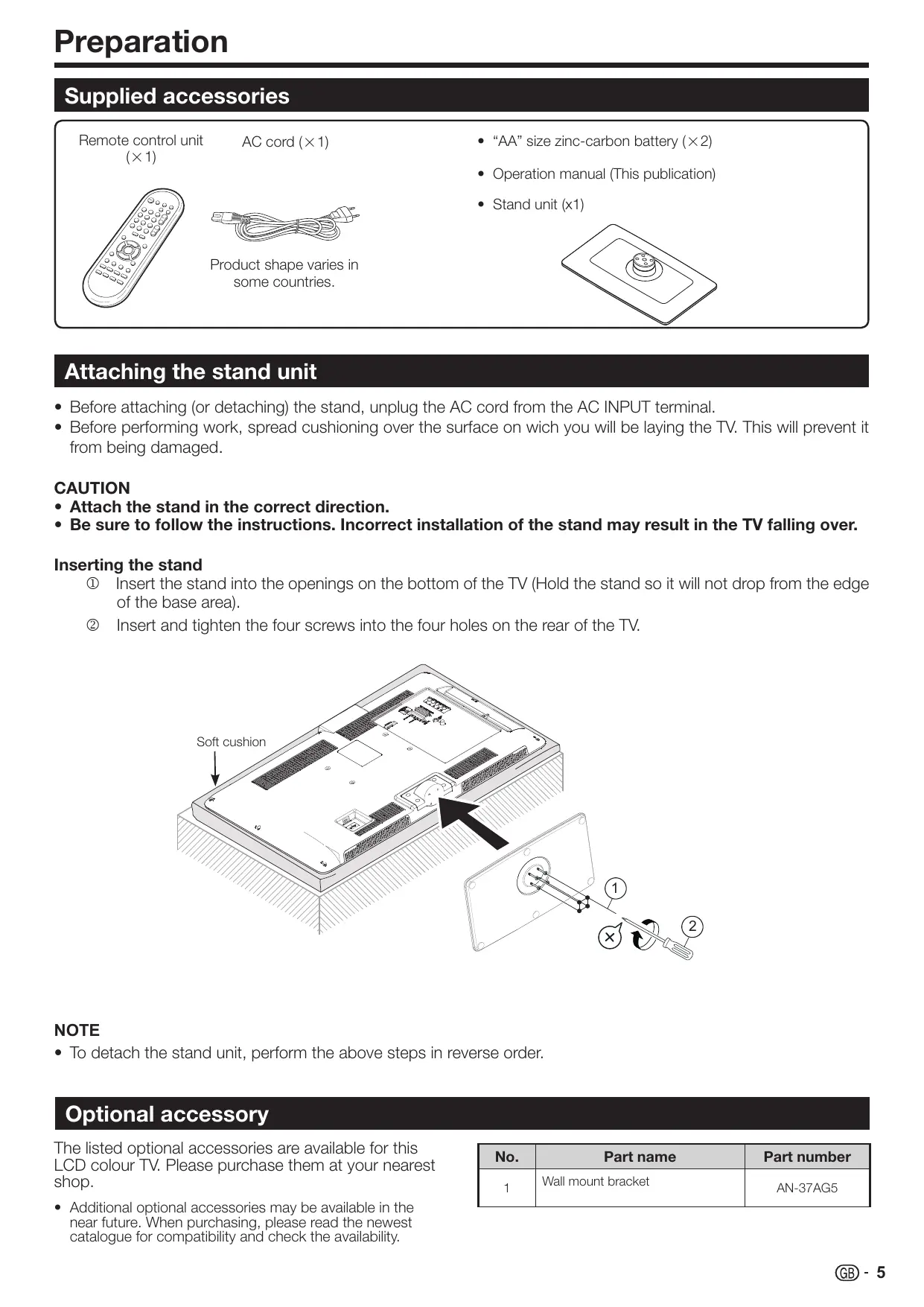
Preparation Supplied accessories Remote control unit AC cord (X 1) + “AA size zinc-carbon battery (X2) œ1) + Operation manual (This publication) + Stand unit (x1) Product shape varies in some countries Attaching the stand unit < Before attaching (or detaching) the stand, unplug the AC cord from the AC INPUT terminal. < Before performing work, spread cushioning over the surface on wich you will be laying the TV. This will prevent it from being damaged. CAUTION
- Attach the stand in the correct direction. - Be sure to follow the instructions. Incorrect installation of the stand may result in the TV falling over. Inserting the stand © Insert the stand into the openings on the bottom of the TV (Hold the stand so it will not drop from the edge of the base area). © Insert and tighten the four screws into the four holes on the rear of the TV. Soft cushion NOTE
- To detach the stand unit, perform the above steps in reverse order. Optional accessory The listed optional accessories are available for this LOD colour TV. Please purchase them at your nearest Re RerMeme) Rarnumeen shop. 1 Wall mount bracket AN-37AG5 + Additional optional accessories may be available in the near future. When purchasing, please read the newest catalogue for compatibility and check the availability.
Preparation tteries Inserting the Before using the TV for the first time, insert two supplied “AA” size zinc-carbon batteries. When the batteries become depleted and the remote control unit fails to operate, replace the batteries with new “AA” size batteries. 1 Hold in the tab on the battery cover and pull the cover towards the direction of the arrow. 2 Insert two supplied “AA” size batteries. - Place batteries with their terminals corresponding to the (+) and (-) indications in the battery compartment. 3 Close the battery cover. CAUTION Improper use of batteries can result in chemical leakage or explosion. Be sure to follow the instructions below. + Do not mix batteries of different types. Different types of batteries have different characteristics. + Do not mix old and new batteries. Mixing old and new batteries can shorten the life of new batteries or cause chemical leakage in old batteries. + Remove batteries as soon as they have worn out. Chemicals that leak from batteries can cause a rash. If you find any chemical leakage, wipe thoroughly with a cloth. < The batteries supplied with this product may have a shorter life expectancy due to storage conditions. + If you will not be using the remote control unit for an extended period of time, remove the batteries from it. Note on disposing batteries: The batteries provided contain no harmful materials such as cadmium, lead or mercury. Regulations concerning used batteries stipulate that batteries may no longer be thrown out with the household rubbish. Deposit any used batteries free of charge into the designated collection containers set up at commercial businesses. Using the remote control unit Use the remote control unit by pointing it towards the remote control sensor. Objects between the remote control unit and sensor may prevent proper operation. Remote control sensor Cautions regarding the remote control unit + Do not expose the remote control unit to shock. In addition, do not expose the remote control unit to liquids, and do not place in an area with high humidity. Do not install or place the remote control unit under direct sunlight. The heat may cause deformation of the unit. The remote control unit may not work properly if the remote control sensor of the TV is under direct sunlight or strong lighting. In such cases, change the angle of the lighting or the TV, or operate the remote control unit closer to the remote control sensor. @ - 6
Quick guide Initial installation overview Follow the steps below one by one when using the TV for the first time. Some steps may not be necessary depending on your TV installation and connection. Oo Connect an antenna cable to the antenna terminal (Page 8).
[2] If necessary, insert a CA card into the CI slot to watch scrambled broadcasts (Page 8.) 3] Connect the AC cord to the TV (Page 8). Product shape varies in some countries. Power on and run the auto installation Oo Turn on the power using (l) on the TV (Page 10). (2] Run the initial auto installation (Page 9). Y_ Language, country and tune type setting (3) O0 Congratulations! Now you can watch TV. If necessary, adjust the antenna to attain maximum signal reception (Page 9). Connect external devices Oo Connect external devices such as a DVD player/recorder as instructed (Pages 14 and 15). instalation guide (OSD language TV Location setting
Start searching channels
(2] Connect external audio devices such as speakers/amplifier as instructed (Pages 14 and 15). ©@-7
Quick guide efore turning on the power 1 Carefully insert the CI Module in the CI slot with the contaot side forward. 2 The logo onthe CI Module must be facing outward from the rear of the TV. Place the TV close to the Standard AC outlet, and keep the T ED DIN45325 plug power plug within reach (IEC 169-2) 75 Q coaxial cable. Product shape varies in some countries. Inserting a In order to receive coded digital stations, a Common Checking CI Module information Interface Module (GI Module) and a CA Card must be 1 Press MENU and the “PICTURE” menu is The CI Module and the CA Card are not supplied shown. accessories. They are usually available from your 2 Press 4/» to select “CHANNEL” menu. dealers. + _ The content of this menu depends on the provider of Inserting the CA Card into the CI Module the CI Module À Withthe side with the 3 Press A/Y to select “CI information”, and then gold coloured contact nc ( mn. press OK. chip facing the side of gr À the CI Module marked with the provider’s cA Gard © Module logo, push the CA Card into the CI Module as far as it will go. Note the Cenaellinenmeiten em GIE dsseye. direction of the arrow printed on the CA Card. e Menu . Inserting the CI Module in the CI slot Guen parameters of each CA Card displays. 2 Carefully insert the CI Module in the CI slot with © Enquiry the contact side forward. The You can input numerical values such as passwords here. logo on the CI Module must be NOTE facing outward from the rear of The content of each screen depends on the provider of the TV. Do not use excessive the CI Module. force. Make sure the module is not bent in the process. NOTE + Make sure that the CI module is properly inserted. + This menu is only available for digital stations. +_Ittakes about 80 seconds to certify the license key when you insert a CA card into the CI+ compatible CI module for the first time. This process may fail when there is no antenna input or you have never run “Auto installation”. (CI only for Lx220 series) + The CI+ compatible CI module sometimes upgrades its fimware. You may not receive any TV images before upgrading. You can only use the power button during upgrading. + The CI+ compatible CI module does not allow you to output any copy protected programmes using monitor out. +_lfthe TV displays an update confirmation message for the CA card while receiving CI+ compatible broadcasts, follow the screen prompts. @ - 8
Quick guide Initial auto installation When the TV is powered on for the first time after purchase, the initial auto installation wizard appears. Follow the menus and make the necessary settings one after another. Confirm the following before turning on the power @ is the antenna cable connected? @ 1 the AC cord plugged in? 1 Press (bon the TV. + Theinitial auto installation wizard appears. 2 Setting the OSD language. Press 4A/v/<4/»# to select the desired language. 3 Setting the country. Press A/V/-<4/» to select your country or area. 4 Select broadcast settings. Press A/Y to select “Tune type”. Press 4/ to select between differents tune type: CADTV: Cable digital broadcasts. ATV: Analogue broadcasts. DTV: Digital broadcasts. DTV + ATV: Digital and analogue broadcasts. CADTV+ATV: Cable and analogue broadcasts. 5 Starting channel search. Press A/Y to select “Channel tuning” and then press OK. e lf you want to search for more broadcasts, execute “DTV (or ATV, or CADTV) manual tuning” from the menu “CHANNEL” (Page 20). + To watch both analogue broadcasts and digital broadcasts, you should perform the channel search setting “DTV+ATV” or “CADTV+ATV”. + _ Is not possible to search digital and cable digital broadcasts at the same time. 6 Selecting the TV location. Home Press <«/ to select where you will use this TV, and then press OK. HOME: For home. -STORE: DYNAMIC mode is predetermined. If the “Picture Mode” is changed, the TV will automatically switch back to “DYNAMIC” when there is no signal input from the TV or remote control unit for 80 minutes. If you have chosen “STORE” by mistake, go to “OPTION” — “Restore Factory Default” — OK, and the TV returns to the initial screen. 7 The TV searches for, sorts and stores all the receivable TV stations according to their settings and the connected antenna. -To cancel the initial auto installation in progress, press END. NOTE + If you turn the power on the TV after performing step 4, initial auto installation wizard does not appear. The auto installation function allows you to execute the installation again from the “CHANNEL” menu (Page 20). + After initial Auto Tuning is completed, the default PIN is automatically set to “1234”. To change the PIN setting, refer to “LOCK” menu on page 22. Checking quality and signal strength If you install a DVB-T antenna for the first time of relocate it, you should adjust the alignment of the antenna to receive a good reception while checking the antenna setup screen. 1 Press a channel you want to check. 2 Press MENU. “PICTURE” menu will appear. 3 Press «/k to select “CHANNEL” menu.
Press A/Y to select “Signal Information” and then press OK.
CHANNEL © © 0% 5 Position and align the antenna so that the maximum possible values for “Quality” and “Strength” are obtained. NOTE The values of “Quality” and “Strength” indicate when to check the appropriate alignment of the antenna. @:- 9
Watching TV Daily operation Switching on/off Turning on/off the power Press (D on the TV to switch it on. Switch it off by pressing (> on the TV. : NOTE +_ When tuming off the power using € on the TV, EPG data wil be lost. + _ The terminal layout may differ depending on the model Standby mode © Switching to standby mode Ifthe TV is switched on (BLUE LED), you can switch it to standby by pressing (1 | on the remote control unit. © Switching on from standby From standby (RED LED), press (1 | on the remote control unit. TVindicator status Selecting an external video source Once the connection is made, press -&) to display the “INPUT SOURCE” screen, and then press A/Y to switch over to the appropriate external source with OK. NPUT SOURŒ | Selecting language audio © DTV/CADTV mode: Pressing #1 appear a menu with languages or audio sources availables depending on the received broadcast. Audio Languages Français Press A/Y to select the language and press OK. NOTE + The audio mode screen disappears in three seconds. + Selectable items vary depending on the received broadcasts. © ATV mode: Each time you press #21, the mode switches as shown in the following tables. () | indicator Status NICAM TV broadcasts selection Off Power off Signal Selectable items Blue Power on Stereo NICAM STEREO, MONO Red Standb Bilingual NICAM CH A, NICAM CH B, NICAM CH AB, MONO re 2) Monaural | NICAM MONO, MONO Violet StandBy with USB REC programmed ‘A2 TV broadcasts selection NOTE Signal Selectable items +_lf you are not going to use this TV for a long period of time, be sure to remove the AC cord from the AC outlet. Stereo STEREO, MONO + _A small amount of electric power is still consumed even Bilingual CH A, CHB, CH AB when () is turned off. Monaural MONO NOTE Switching between analogue and digital broadcasts © Press “DTV” to change between ATV&DTV or ATV&CADTV mode. PC_ RADIO DV Gp CG © © Changing channels With PA/V/: With 0-9: c000® © @0®e6 Ë @0® @0e @ - 10 + When no signal is received, the audio mode will display “MONO”. Switching subtitle languages © DTV/CADTV mode: Press SUBTITLES ©) button to access “SUBTITLE LANGUAGES”. Subtitle Languages off © ATV mode: The available subtitles according to the broadcasting will be enabled or disabled by pressing the SUBTITLES ©) key.
Watching TV EPG is a programme list that is displayed on the screen. With the EPG, you can check the schedule of digital channels, view detailed information about it, tune to an event currently on-air and set a timer for future events. Selecting a prog me using EPG Basic Operation Theillustrations on this page are explained using three digit services. © Display/Close the EPG screen Press EPG. © Select a program ® Select the time span
016 Qvc 017 UK Gold 023 biduptv 10 Mar 2010 15:48 PROGRAMME GUDE 0005 five 15:00 - 1640 Aftemoon Performanc BBC Phiharmonic: The orchestraiperform a programme of Russian Press Æ/p to select the time span you want to search, press OK. + Continue to press to display programs in the next time span. @) Select the desired program Press A/Y to select the desired program, press OK. + If A or Y are displayed on the left of the programs, continue to press A/Y to display next or previous screen. Other EPG functions @) Revise the program information 1 Press A/V/<4/» to select the program you want to revise. 2 Press Program information 1130-1215 10 Mar 2009 Series big a the va of house jun, Kara rington a professional snge tn à aniues, nikkrade and fume, Food by BBC News, Weather. house fu of 3 Press to return to EPG. @) “Reminder” function 1 Select the broadcasting emitting the program which you want to remember. 2 Pressthe BLUE key on the remote control. lAte Fa ë D Programme Heure tn. 3 With A/w/<4/» select Hour, Minute, Mode, Date and Month which you want the program to be remembered. Press OK. eThis program stays skipped in red within the programming guide. G) ”Schedule” function 1 Press the YELLOW key to visualize all programmed reminders. 2 Press A/V/4/» to select a reminder and then press the RED key to delete it. See figure in the next page. @- 1
Watching TV KES REMIN bte E @) “REC” function Press the REC key to setup the recording parameters. See “Recording with timer” on page 27. What is Teletext? Teletext broadcasts pages of information and entertainment to specially equipped TV. Your TV receives teletext signals broadcast by a TV network, and decodes them into graphical format for viewing. News, weather and sports information, stock exchange prices and programme previews are among the many services available. Turning Teletext on/off 1 Select a TV channel or external source providing a teletext programme. 2 Press ©) to display the Teletext. + Many stations use the TOP operating system, while some use FLOF (e.g. CNN). Your TV supports both these systems. The pages are divided into topic groups and topics. After switching on the teletext, up to 1.000 pages are stored for fast access. Each time you press ©), the screen switches as Shown below. If you select a programme with no teletext signal, “No Teletext available” displays The same message displays during other modes if no teletext signal is available. NOTE + Teletext will not work if the selected signal type is RGB. @- 12 Buttons for teletext operations Buttons Description PA/V Increase or decrease the page number. Colour (R/G/ | Select a group or block of pages Y/B) displayed in the coloured brackets at the bottom of the screen by pressing the corresponding Colour (R/G/Y/B) on the remote control unit. 0-9 Directly select any page from 100 to 899 by using the 0-9 numeric buttons. (Top/ Switch the teletext image to Top, Bottom Bottom/Full) or Full. Reveal or hide hidden information such as an answer to a quiz. Teletext) € (Freeze/ Stop updating teletext pages Hold) automatically or release the hold mode. © (Subtitle Display the subtitle or exit the subtitle screen. + Subtitles will not be displayed when the service does not contain subtitle information. for Teletext) (Subpage) | TXT mode: Reveal or hide subpages. °_R button: Move to the previous subpage. + _G button: Move to the following subpage. + These two buttons are shown on the screen by the symbols “+” and “—”. TV mode: Display the time. Using the MHEG-5 application (UK only) Some services bring you programmes with the MHEG application encoded, letting you experience DTV/ CADTV interactively. When provided, the MHEG-5 application will start when you press ©. Sample MHEG-5 screen Weather 11:87 25 Feb The South Exst- Fiday 1200 Banbury Oxford London Marge Brackaell Gti Junbridge Wells
Connecting external devices © Before connecting … - Be sure to turn off the TV and any devices before making any connections. + Firmly connect a cable to a terminal or terminals. e Carefully read the operation manual of each external device for possible connection types. This also helps you get the best possible audiovisual quality to maximise the potential of the TV and the connected device. Introduction to connections The TV is equipped with the terminals as shown below. Find the cable corresponding the TV's terminal and connect the device. NOTE < The cables illustrated in pages 18, 14 and 15 are commercially available items. Audio device (Page 15) Audio cable _ Audio cable — SCART cable SORT ARE VIDEO) Components cable IE FT ) _ Audio cable — AV cable [Oi—0 |— HDMi-certified cable HDM-certified cable _ IRL. 1 __ DV/HDMI Cable C0 —
Connecting external devices HDMI connection Example of connectable devices e DVD player/recorder + Blu-ray player/recorder e Game console The HDMI connections permit digital video and audio transmission via a connection cable from a player/ recorder. The digital picture and sound data are transmitted without data compression and therefore lose none of their quality. Analogue/digital conversion is no longer necessary in the connected devices, which also would result in quality losses. AUDIO 1 HDMI (OV) PIN © 3.5 mm HEmS stereo mini Ham jack cable HDMi-certified Ferre Îl cable L DVI/HDMI cable DVI/HDMI conversion Using a cable DVI/HDMI, the digital signals of a DVD video, can be also reproduced through a compatible HDMI connection. The sound should be supplied additionally. + On connecting a DVI/HDMI cable to the HDMI terminal, may be the picture does not become visualized clearly. < Both HDMI and DVI use the same method of HDCP protection against copy. + For connecting a DVI cable, a commercially available adaptor {not supplied) is necessary. NOTE + Depending on the type of HDMI cable used, it may appear a video noise. Be sure to use a certified HDMI cable. + On reproducing HDMI picture, the best format is automatically detected and adjusted for the picture. Compatible video signal 576i, 576p, 480i, 480p, 1080i, 720p, 1080p @- 14 ® 2? Component connection Example of connectable devices e VCR + DVD player/recorder e Blu-ray player/recorder You will enjoy accurate colour reproduction and high quality images through the INPUT COMPONENTS / AV terminal when connecting a DVD player/recorder or other device. Audio cable Components cable VIDEO connection Example of connectable devices e VCR « DVD player/recorder - Blu-ray player/recorder e Game console e Camcorder You can use the COMPONENTS/AV terminal when connecting to a game console, camcorder, a DVD player / recorder or other device.
Connecting external devices SCART connection Speaker/amplifier connector Example of connectable devices : e VCR « Decoder Example of connectable devices e DVD player/recorder e Connecting an amplifier with digital audio input Connect an amplifier with external speakers as shown | below. SCART cable
Amplifier with digital audio input Decoder NOTE +_In cases when the decoder needs to receive a signal from e After connecting the TV, make sure to select the appropriate input terminal to which the decoder is connected in “Input Source” (Page 10). Digital audio output setting After connecting an amplifier with digital audio input and external speakers as shown, you should set an audio output format compatible with the programme you are watching or the device connected. Go to “MENU” > “SOUND” > “SPDIF Mode” > select “PCM” or “Dolby Digital”. NOTE + When you set this to “Dolby Digital”, and you receive the Dolby Digital or Dolby Digital Plus audio formats, Dolby Digital audio is output. Otherwise, PCM audio is output. When you set this to “PCM”, PCM audio is output no matter what audio formats you receive. @ - 15
Homis 9 3,5 mm stereo mini jack cable e After connection e lf after connecting a PC to the TV through a HDMI cable, the audio does not run, connect a mini stereo connector of g 8.5mm between TV and PC as indicated in the previous drawing. e When a PC is connected to the TV with a DVI cable, it will be necessary to connect a mini stereo connector of 9 3.5mm of the TV to PC as indicated in the previous drawing. Analogue Connection VGA cable 9 3,5 mm stereo mini jack cable © - 16 DVI/VGA Conversion cable 9 3,5 mm stereo mini jack cable NOTE + When using the PC-IN terminal is necessary to connect a audio cable. Selecting the picture size You can select the picture size. 1 Press MENU on the remote control. 2 Press Y key to select “Aspect ratio”. 3 Press key to select the desired item.
Example Normal Full Item Normal 4:3 Keeps the original aspect ratio in a full screen display Full An image fully fills the screen Dot by Dot Displays an image with the same number of pixels on the screen NOTE + You can also select an item by pressing 4? on the remote control unit. Connect the PC before making adjustments. Selectable picture size may vary with input signal type. + The “Aspect ratio” adjustment is only available for analogue signals through the “PC IN” terminal
Connecting a PC Adjusting the PC image automatically This function enables the screen to be automatically adjusted to its best possible condition when the analogue terminals of the TV and PC are connected With a commercially available DVI/VGA conversion cable, etc.
1. Press 7 to select “PC-RGB” from INPUT
SOURCE, and then press OK.
2. Press MENU key and go to PICTURE - Screen
— Auto adjust, and then press OK. NOTE + When connect a PC and select PC-RGB source, the “Auto adjust” is executed automatically. “Auto adjust” may fail if the PC image has low resolution, has unclear (black) edges, o is moved while executing “Auto adjust”. + Be sure to connect the PC to the TV and switch it on before starting “Auto adjust”. “Auto adjust” can be executed only when inputting analoque signals through the “PC IN” terminal. Adjusting the PC image manually Ordinarily you can easily adjust the picture as necessary to change image position using “Auto adjust”. In some cases, however, manual adjustment is needed to optimise the image.
1. Press 7) to select PC-RGB from INPUT
SOURCE, and then press OK.
2. Press MENU key and go to PICTURE - Screen.
3. Press A/Y to select the specific adjustment item.
4. Press Æ/ to adjust the item to the desired
position. Item H-Pos. Centres the image by moving it to the left or right. V-Pos. Centres the image by moving it up or down. Size Changes the image size. Phase Adjusts when characters have low contrast or when the image flickers. NOTE + The “Screen” options in the “PICTURE” menu can be adjusted only when inputting analogue signals through the “PC IN” terminal. PC compatibility chart Resolution poeme Den VGA 640 x 480 81,5 kHz 60 Hz VGA 720 x 400 31,47 kHz 70 Hz SVGA 800 x 600 87,9 kHz 60 Hz XGA 1.024 x 768 48,4 kHz 60 Hz WXGA 1.360 x 768 47,7 kHz 60 Hz SXGA 1.280 x 1.024 64,0 kHz 60 Hz SXGA+ 1.400 x 1.050 65,3 kHz 60 Hz UXGA 1.600 x 1.200 75,0 kHz 60 Hz 1080p 1.920 x 1.080 67,5 kHz 60 Hz VGA, SVGA, XGA, WXGA, SXGA, SXGA+ and UXGA are registered trademarks of International Business Machines Corporation. NOTE + This TV has only limited PC compatibility, correct operation can only be guaranteed if the video card conforms exactly to the VESA 60 Hz standard. Any variations from this standard may result in picture distortions. @ - 17
Menu operation What is the men + _You need to call up the OSD to perform settings for the TV. The OSD for the settings is called menu. + The menu enables various settings and adjustments. + The menu can be operated with the remote control unit and with the TV panel control keys. Common operations (1) Display the menu screen Press MENU and the “PICTURE" screen displays. PICTURE. Const Brgness Cour Sharpness Exit the menu screen The operation will exit the menu screen if you press END before it is (completed.
© p . 2 ress A/V/<4/p to select/adjust the 4 desired menu, and adjust the item to e the desired level, and then press OK. Press MENU to return to the previous page. © Selecting in the menu Picture mode Backlight Contrast User
© Selecting options Backlight
+ The menu options differ in the selected input modes, but the operating procedures are the same. + The screens in the operation manual are for explanation purposes (some are enlarged, others cropped) and may vary slightly from the actual screens. + Items in darker grey cannot be selected. Operation without a remote control unit {with the TV panel control keys) This function is useful when there is no remote control unit within your reach. 1 Press MENU and the “PICTURE" screen displays. 2 Press PA/V instead of A/Y or 71+/- instead of @/@ to select the item. 3 Press 5) to complete the setting. NOTE + The “PICTURE” screen will disappear if left unattended for several seconds. @- 18 About the Guide Display The Guide Display at the bottom of the screen shows operations with the OSD. The bar above is an operational guide for the remote control unit. The bar will change in accordance with each menu setting screen.
Basic adjustment Picture settings udio settings PICTURE Picture mode Backlight Contrast Brightness Colour Sharpness Treble Bass Balance Auto volume Surround Sound Picture Picture adjustments When the Picture Mode is set to “User”, the picture can be adjusted according to your preferences. See the following setting table. Adjustments options Sound adjustments When the Sound Mode is set to “User”, the sound can be adjusted according to your preferences. See the following setting table. Adjustments options Selected setting < Button > Button Treble Reduce trebles Increase trebles Bass Reduce bass Increase bass Balance | Increase audio from | Increase audio from the left speaker the right speaker Auto Volume of on Surround Sound of on SPDIF (PCM) Activates a Mode | digital audio output Dolby Digital e Sound Mode Selected setting < Button »> Button Backlight The screen dims The screen brightens Contrast Contrast goes down | Contrast goes up : Brightness goes : Brightness down Brightness goes up Colour intensity Colour intensity Colour goes down goes up Sharpness Soften details Emphasize details Tint Skin tones become | Skin tones become purplish greenish Colour Reddish white Bluish white Temperature Aspect : : : Ratio Changes between different picture sizes Noise Improves picture quality Reduction* (choose among different options) ve See Adjusting the PC image manually Screen’ on page 17 Select your desired setting. The available options are:
STANDARD-MUSIC—MOVIE- SPORTS USERS
e Auto Volume Reduces sudden volume changes, for example, during commercials or when switching from one *_ This function may be not available in some types of input signal. ** Only available in PC mode. e Picture Mode Select your desired setting. The available options are:
STANDARD —+ SOFT — ECO — USER — DYNAMIC S
channel to another. e Surround Sound This function allows you to enjoy surround sound. e SPDIF Mode Digital audio output.
Basic adjustment Channel settings CHANNEL Auto tuning DTV manual tuning ATV manual tuning Programme edit Signal information
Channel Channel adjustments Allows to reconfigure the channels after initial auto installation has been completed. Install channels e Auto Tuning This function allows you to select the country and automatically adjusts the channels for digital, cable or analogue individually. e DTV Manual Tuning Allows you to tune digital channels manually. e CADTV Manual Tuning (Only Lx220 series) Allows you to add new cable services manually. This setting appears after searching for cable broadcasts. © ATV Manual Tuning Allows you to tune in analogue channels manually. © Programme Edit Allows you to delete channels, to skip channels and to set up a favourite channels list. Select the channel you want to reorganize and press the RED button to delete it, the BLUE button to skip it (to ignore it), YELLOW button to move it, FAV to mark it as favourite or GREEN button to rename it (only in ATV mode.) NOTE If you press FAV when you are not in any adjustment menu, the favourite channel list will appear. © Signal Information Show the signal power and quality. e CI Information Allows to see the CA card information (Conditional Access Module): name, supplier and OSD. Searching for cable broadcasts (Only Lx220 series) Allows you to add cable services. 1 Press Y key to select Auto Tuning and press OK. @) - 20 2\With A/V/<4/» keys select Tune type and CADTV. Go to Start and press OK.
3 In Scan type choose between Full search or Network. Full: The TV searches for, sorts and stores all the receivable TV stations according to their settings and the connected antenna for any network. © © 6% Network: Add new services within a specified network identification. If you choose Network, you can do an automatic search (Auto) or may introduce the next parameters: Frequency: start frequency searching. Network ID: select a provider (Network identification number.) Symbol(ks/s): symbol rate of signal cable. NOTE: The value of “Frequency”, “Network ID” and “Symbol(ks/s)” should be set to the value specified by the cable provider. 4 With A/Y go to “OK” and press OK to start searching cable broadcasts. Time settings 16/1n 1305
Basic adjustment This adjustment allows you to set or to display the following functions: Clock, Off / On Timer and Sleep Timer. Time adjustments © Clock This function allows you to display the clock information (day / month / hour/ minute). The time and the date can't be modified in this option. e Off Timer Allows you to set a time when the TV automatically enters in standby mode. © On Timer Allows you to set the time when the TV must switch on. © Sleep Timer Allows you to setup the automatic Switch Off for: 10min., 20min., 80Omin., 60min., 9Omin., 120min., 180min. and 240 min. NOTE + Select “Off” to cancel the sleep timer. +-When the time has been set, countdown starts automatically. - The last minute is displayed second to second. © No Operation Off Switches the TV off when no key is pressed for 3 hours. © No Signal Off When this function is activated the TV automatically enter standby mode if there is no signal input during 10 minutes. In PC mode, when there is no signal input, the TV goes into standby mode for 15 seconds. e Time Zone Allows you to setup the time zone. © Summer time Allows you to change automatically to summer time (auto, off, on.) © USB REC Manual Temporization Allows you to schedule the program recorder. © USB REC Programmed Recording List Allows you to visualize all scheduled recordings. © USB REC Recorded List Allows you to see the recorded program list. Option settings Options Options menu e OSD Language Allows you to select the screens language. © Audio Languages Allows you to select the audio language. © Subtitle Language Allows you to select the subtitles language. © Hearing Impaired This function allows you to activate or deactivate the subtitles for the hearing impaired. These subtitles have priority. NOTE Subtitles will not be displayed when the service does not contain subtitle information. e USB REC and TimeShift setup Allows to select modes, disk, disk setup and speed test for TimeShift function. Also allows you to see the disk space reserved for USB REC. See the operation on page 26. © Restore factory default Recover the configuration that the TV had when it left the factory. © Software Update (USB) This option allows you to have the TV software version always updated. 1 Add the binary file to USB memory root. 2 Insert the memory in the TV USB socket. 3 Press MENU on the remote control unit and select OPTION. 4 Press Y until Software Update (USB) option appears. OPTION Restore factory default Software update (USB) DivX® reg. code SHARP v1.12 Deactivate DivX® - Press OK. Are you sure? message is displayed. - Select Yes with €/» and press OK. The software update will start. -The updated percentage appears. The TV will restart automatically when the process arrives at 100%. OPTION Restore factory default Sof © Software upgrading.. Div. 5 Return to OPTION menu to check that the version has been updated successfully. @ - 21
Basic adjustment © DivX® registration code (VOD) This TV allows play video on demand (Divx® VOD). To activate this option you need to register the TV at www.divx.com/vod, download the VOD log file and reproduce it in TV. © Deactivation code DivX® (VOD) Displays the deactivation code necessary to write off this TV at www.divx.com/vod. Set Password Block program Parental guidance Lock programs This function allows you to use a password to lock certain programs and adjustments. The password is always needed to access to this menu ( by default, the password is 1234.) e Set password Allows you to change the password. Press OK, enter the new password and confirm. e Block program The password program. 1 Select the program or programs you want to lock and press GREEN button. A padlock appears next to the locked channel in the channel list. 2 Press End to exit. This option enters your selection in a locked channels list. NOTE + To prevent the channel search, when one program is locked, the channel menu is locked too. + To view a locked channel, you must enter the password. When you select a locked channel a password prompt message POpS UP. + You must repeat the previous steps to unlock one locked program. is needed before locking one e Parental Guidance This function allows you to restrict DTV/CADTV programs depending on the age classification. The information about classification is provided by the broadcasting station. @ - 22 hannel list Selecting the channel you want to watch 1 Press OK and the list of tuned channels will be displayed. 2 Use A/Y to select the channel you want to watch and press OK. CHANNEL LIST 002 BBC TWO 007 BBC THRE 070 CBBC Chamel 080 BBC NEWS 105 BBC Red Butt 800 3/24 801 D 802 Canal 9
Channel information display (DTV/CADTV only) You can display the channel information that you are watching at this moment by pressing 4 on the remote control unit. Information that appears on the screen: © Program number © Program name ® Channel information © Language © Teletext @linformation about the program which is being broadcast
If you lose or forget your PIN, you can clear the PIN following these steps: 1 Go to «MENU»—«L OCK>—«PASSWORD». 2 Enter “3001” to cancel out the current PIN. The current PIN is reset to “1234”.
Useful viewing functions Selecting the picture format Selecting the picture format manually You can select the picture format. The selected picture format varies depending on the type of signal received. 1 Press D on the remote control unit to change between different kinds of pictures. . Sizes for SD Signal (Standard Definition) — Normal 4:3 : Keeps the original aspect ratio in a full screen display. Zoom 14:9 : For 14:9 letterbox pictures. A thin side bar appears on each side, and you may also see bars on the top and bottom with some programs. Panorama: In this mode, picture is stretched toward each side of the screen. The picture may appear similar to “Full” depending on broadcast signals. Full: For 16:9 squeeze pictures. Cinema 16:9: For 16:9 letterbox pictures. Bars may appear on the top and bottom with some programs. Cinema 14:9: For 14:9 letterbox pictures. Bars may appear on the top and bottom with some programs. Auto: The TV selects the picture size automatically. Sizes for HD Signal (High Definition) HDMI Full: Overscan image. Cuts out all sides of the picture. Underscan: Displays a high definition picture adjusted perfectly. Picture noise may appear on the sides of picture with some programs. Auto: this mode allows the TV to change between different picture sizes automatically. NOTE Some items do not appear depending on the type of received signal. Setting when using external devices Input source settings For selecting the input type of external equipment. + If no (colour) image is displayed, try changing to another signal type. e Check the operations manual ofthe external equipment for the signal type. Connecting a USB device (Media Player) Connect an USB device to the TV as shown below. + Depending on the USB device, the TV may not be able to recognise the contained data. + Use only alphanumeric characters for naming files. - File names over 80 characters (may vary depending on character set) may not be displayed. e Do not disconnect a USB device or memory card from the TV while transferring files, using the slide show function, when a screen is switching to another or before you exit “MEDIA PLAYER” from the “INPUT SOURCE” menu. e Compatibility with USB hard disc connection. + Do not connect and disconnect a USB device from the TV repeatedly. © - 23
Useful viewing functions Viewing photos on full screen SCART AV SCART RGB Buttons for full screen display operation SCART S-VIDEO Buttons Description COMPONENTS A/Y Cursor | Go to the previous/next photo in the PC-RGB same directory. AV y» Cursor Select / unselect the photos you want to see. HDMI 1 HDMI 2 END button Go back to the previous screen. HDMI 3 F &? button Zoom: A/V/4/» allow to move through MEDIA PLAYER the pictures when zoom is activated. Us | S button Rotates 90° the photo on screen MEDIA PLAYER function After selecting Media Player, the TV loads USB device files, and shows the following screen: MUSIC mode Reproduces MP3 music files. 1 Select MUSIC mode and press OK. 2 Select the files you want to reproduce with A/ /-4/» buttons and press OK to start the reproduction. 3 Press OK to stop the reproduction of MP3 files and press END to exit the MUSIC mode. + You can stop/restart the reproduction pressing OK. Buttons for music reproduction Buttons Description 1 Pressing </» buttons you can change between — . different modes: PHOTO, MUSIC, MOVIE or TEXT. A/Y Cursor Go to the previous/next track in the same Press OK to select the option you want to reproduce. directory. «> Cursor Mark with X the tracks you want to play 2 Press A/V/<4/» to select the folder where you {on MUSIC MENU) . want to search the files and then press OK. Fa Fast forward (on reproduction mode) END button Go back to the previous screen. RED button Options: @Reproduce the selected files PHOTO mode indefinitely. @Reproduce the folder files only once. When the reproduction has finished, go ï 1 “ back to the previous screen. You can reproduce photos with JPEG (*.JPE, *. JPG), a BMP and PNG format on your TV. Reproduce all the files on the folder : : indefinitely. Several kinds of reproduction are possible. 1 Select PHOTO mode and press OK. 2 Select the file you want to display on full screen With A/Y /<4/» buttons and press OK to start the viewing.
Useful viewing functions USB device compatibility MOVIE mode ï USB 2.0 USB Memory, USB card reader, HDD Reproduces films and videos. device (Mass Storage class) 1 Select MOVIE mode and press OK. File system FAT / FAT32 / NTFS 2Selectthefiles you wanttoreproduce with A/w /-@/» buttons and press OK to start the reproduction. Photo file JPEG (*.JPE, *. JPG), BMP, PNG -lfthereis only onefile, the reproduction will start automatically format when this file is selected. Music file MPEG1 (-.MP3), AAC / HE AAC (AAC 3 Press OK to stop / restart the reproduction. format “M4A), PCM (WAV) 4 Press END to exit the MOVIE mode. pate: ge ae ae As qe 256k, 320kbps Sampling frequency: 32k, 44.1K, 48kHz Buttons for film reproduction Butt D ipti Video file MPEG1/2 (.MPG, *.MPE, * MPEG, uflons escription format “VOB, “DAT, “TS, *TRP), MPEG (AVI, A/Y Cursor Go to the previous/next file in the same * MOV, *.MP4, *.MKV), H.264 (AVI, TS, directory (on MOVIE MENU) *TRP, *.MOV, *.MP4, *.MKV), DivX® DIVX, *.AVI, *.MP4), XviD (-.AVI, *.MK 4» Cursor | ° Mark with X the flles you want to play. ( ), XviD ( V) ° Backward / Fast forward Text file TXT (TXT, *.SRT, *.SSA) (on reproduction mode) format END button Go back to the previous screen. NOTE RED button -Movie M ti 4 : © Ony reproduees 1he selected file + Progressive format jpeg files are not supported. @ Reproduce the folder files only once. + Music files in USB 1.1 devices may not be played properly. When the reproduction has finished go + Operation using USB hubs is not guaranteed. back to the previous screen. ’ . [re external red ni With capacity exceeding 1TB cannot À ; . À ® Reproduce the folder fles indefinitely. + Cables used to prolong the USB device must be certified as ï USB 2.0. -On reproduction mode: : Alows you to repeat a fragment of a ein USB devices, video files may not be played properly if fim indefinitely. The frst keystroke defines |, fPeedisnoterougn. a À (initial point, the second keystroke ay non-standard encoded files is not guaranteed. defines B (final point). The third keystroke BLUE button | Allows you to backward or forward until a LOI SELE settings point in the movie. Introduce “hh:mmi:ss” and press OK. This function enables you to automatically reduce the backlight brightness in order to decrease the power TEXT mode Displays text files. 1 Select TEXT mode and press OK. 2 Select the file you want to display with A/w /-@/» buttons and press OK. The selected file will appear on full screen. 3 You can move up and downinthe file with A/W/-4/» buttons. 4 You can display the previous or next text file with » buttons. 5 Press END to exit the TEXT mode. consumption and increase the backlight life span. In menu PICTURE — Picture Mode select the ECO setting. PICTURE Picture mode Backight Contrast. Brightness. Colour, Sharpness,
Useful viewing functions USB REC and TimeShift functions TimeShift TimeShift function allows you to record the current digital TV programme and watch it later, always before turning off the TV set. USB REC (Video Recorder) USB REC function allows you to record a TV programme and watch it later. Also allows you to temporize one or more recording and they wil be available for a later on view. These recordings will not be lost when the TV is turned off. TimeShift and USB REC require an external USB 2.0 memory, always connected and previously configured to record the information. The USB 2.0 memory must be formatted before first use for TimeShift and USB REC function. USB REC and TimeShift setup TimeShift start mode Select disk Disk setup Speed test USB REC free space
e TimeShift Start mode Change between Manual and Always mode. Manual: The recording starts when user decides. Always: The recording starts automatically each time that a digital programme is selected. To confirm the change of mode is necessary press END button to exit of this menu, and then enter again in the “USB REC and TimeShift setup” menu. © Select disk Only available in case that there are more than one partition in the external USB memory (Choose between C:, D:, etc.). e Disk setup You can choose the size of USB device which will be used for TimeShift and USB REC functions, in 1GByte fractions. The USB device will be formatted. USB REC and TimeShift setup Timestift Select dis © 6 ® ATTENTION: < All the data in this device will be lost. + In case that you have a USB device with partitions, all the data in the selected partition will be lost. © Speed test Allows to see the compatibility grade between USB memory and the TV set. e USB REC free space Allows to see the free disk space for USB REC function.
- The file system of USB device must be FAT/FATS2. If the device has other system, the TV set does not recognize it. + The minimum USB 2.0 memory size to use with TimeShift function is 1GByte. ° As a concept, TimeShift can record up to 26 minutes on SD DTV/CADTV broadcasts and 7 minutes on HD DTV/ CADTV broadcasts, for every GByte. TimeShift operation © Manual mode The recording starts when user decides.
1. Press & to start recording the current programme.
The picture remains frozen and the TV set shows HE symbol on screen.
2. Press ®) to resume the recorded broadcast. The
TV set continues recording the broadcast while you are watching the recorded programme. The TV set shows BR symbol on screen.
8. Press pp key to fast forward. By pressing pp key
repeatedly, allows you to select the fast forward speed. Press 1) to restore the normal speed.
4. Press € key to rewind. By pressing dé key
repeatedly, allows you to select the rewind speed. Press 1) to restore the normal speed.
5. To cancel TimeShift mode press “END”, change
TV programme or input source, or switch-off the TV set. While TimeShift is activated, or FE symbols, or the recording progress bar may be displayed. Him Live hmmss
The bar shows Start, Play and Live markers, and the maximum recording time. © Always mode The recording starts automatically each time that a digital TV programme is selected.
1. Press € to rewind until the desired point.
2. Press 6 to resume or pause the recorded
broadcast. This action does not interrupt the real time TV programme recording.
8. Press “END” to return to real time broadcast,
without losing any data. The recording process will continue activated.
4. By changing the TV programme the TimeShift
function will be reset (all the previous data will be lost), and will return to real time broadcast. The recording process will continue activated. In this mode, after the user selects any of the TimeShift available functions (fast forward, rewind, play, pause, etc...), the “D” or ‘JF symbols, or the recording progress bar can be displayed. NOTES: + The TimeShift function does not work for ATV channels or external inputs. + With TimeShift activated only will be available video, audio and subtitles services. + If during TimeShift the maximum capacity of USB is exceeded, the oldest data will be lost. et can appear displaying troubles during rewind or fast forward modes, depending on the USB memory characteristics.
Useful viewing functions + Thimehift has not been created as a real recording method, so the recorded data will be deleted each time you cancel it, change programme or input source, or switch off the TV. The recorded data will never be available for any external device. + During TimeShift mode, (+, “EPG” and ©) show live broadcast information, not recorded one. Keeping “ALWAYS” mode as a permanent option may shorten the life of the external USB memory. Programmes which require a PIN to watch them cannot be recorded with TimeShift function until you enter the PIN. USB REC operation USB REC can activate immediately recording by using REC on the remote control, or with a timer using data taken from EPG or programming an event manually. To use either method follow the instructions below: e Immediate recording:
he recording starts when user decides: Press REC on the remote control to start recording the current programme. REC symbol appears in the bottom left corner of the screen. To stop recording the current programme, press END twice, change TV programme or input source, or switch- off the TV set. Press &® to playback the programme being recorded. The TV set continues recording the broadcast while you are watching the recorded programme. The TV set shows symbol on the screen. Press 1) during playback to pause. The TV shows the symbol FE on the screen. Press px playback to fast forward. By pressing >» key repeatedly, allows you to select the fast forward. By pressing pp key the rcorong est forwards in intervals of five minutes. Press to restore the normal speed. Press Æç during playback to rewind. By pressing key repeatediy, allows you to select the rewind speed. By pressing Kg key the recording rewinds in intervals of five minutes. Press &) to restore the normal speed. Press END during playback mode to stop the playback and return to recording mode of current programme. The TV set continues recording and the REC symbol is shown on the screen. While the recording is activated the REC symbol, the recording progress bar or playback progress bar will be
isplayed. © hh:mm:ss The bar shows the recording start time, current time and expected end, and the remaining recording time. e Recording with timer I can be programmed a recording by using two methods. Using the programme guide (EPG) or manually With the option “USB REC Manual Temporization” on the menu TIME.
Programming a timer with the EPG Press EPG to select the programme you want to record. Then press REC. Set up the recording parameters (auto, once, every day or weekly) and press OK to confirm. Programming with “USB REC Manual Temporization”. . To activate a timer recording use the menu option TIME and the option USB REC Manual Temporization. Time zone Summer time USB REC Manual Temporization USB REC Programmed Recording List USB REC Recorded List Set up the desired recording parameters (channel, mode, date, start time and end) and press OK. Recordings and timings e Recordings and timings
The timings will be stored in the USB REC Programmed Recording List in the TIME menu, pending to be executed. 10 Mar 2010 1548 -17:00 Gold Warkshop Win jan.Springer Asshoimease of ct go jewélr in a variety af desk Start date End date Programme Mode 2010/03/10 15:00 2010/03/10 17:00 0016 QVE: © - 27
Useful viewing functions
2. Al the finished recordings are available on the e Deleting recordings
“USB REC Recorded List” in the TIME menu, or they are also accessible by pressing REC LIST key To delete non desired recordings stored in USB device, on the remote control. follow the instructions below:
1. Press REC LIST on the remote control.
2. Select the recording you want delete.
8. Press RED button on the remote control.
The deletion process is irreversible and causes permanent loss of the recording. NOTES: + The USB REC recording function does not work for ATV channels or external inputs. . lt can appear displaying troubles during rewind or fast forward modes, depending on the USB memory characteristics. + The recorded data will be never available for any external device (computer) or in other TV even if it is the same
8. The TV set can start a timer recording while is in model. The recordings only can be displayed in the same
standby mode. When the recording starts in this TV in which they were made. mode, the status indicator (AQUOS pyramid) will change from red to violet. . Programmes wich require a PIN to watch them cannot be recorded until you enter the PIN. + While TimeShift is activated, USB REC wil be disconnected. It is recommended to enable immediate recording (REC) instead of TimeShift @), if you are NOTES: °___ lfyoutrytoswitchoffthe TV(() |) during a USB recording, an on screen menu will appear where you can decide to switch off completely or continue with the recording until the maximum capacity of the USB device is reached. If not sure when you are going to watch the recorded you choose to continue with the recording, the TV will programme. switch off, but continue to show the pyramide icon lit in Remember: with TimeShift function all the data will purple be lost when switch-off the TV set.
4. The timer recordings are not possible when the TV
Appendix Troubleshooting Problem Possible Solution + No power. + Check if you pressed (D | on the remote control unit. If the indicator on the TV lights up red, press () | +_Is the AC cord disconnected? + Check if you pressed () on the TV. + _ The TV cannot be operated + _ External influences such as lightning, static electricity, etc., may cause improper operation. In this case, operate the TV after first tuming off the power, or unplugging the AC cord and re-plugging it in after one or two minutes. + _ Remote control unit does not operate. + Are batteries inserted with polarity (+, —) aligned? +_Are batteries worn out? (Replace with new batteries.) +_Are you using it under strong or fluorescent lighting? +_|s a fluorescent light iluminating to the remote control sensor? + Picture is out off +_!s the image position correct? +_Are screen mode adjustments (Aspect ratio) such as picture size made correctiy? (Page 23.) + Strange colour, light colour, or dark +_Adjust the picture tone. colour, or colour misalignment. +_Is the room too bright? The picture may look dark in a room that is too bright + Check the “PICTURE" setting (Page 19). Power is suddenly turned off. +_The TVS intemal temperature has increased. Remove any objects blocking the vent or clean. +_Isthe “Sleep Timer” set? Select “Off” from the “TIME” menu (Page 20). +_ Is “No Signal Off” or “No operation Off” activated? No picture +_Are connections to external equipment correct? (Pages 13, 14 and 15) +_ Is the input signal type selected correctly after connection? (Page 10) +_Isthe correct input source selected? (Page 10) +_Isthe picture adjustment correct? (Pages 19) Is the antenna connected proper? (Page 8) No sound +_ Is the volume too low? + Make sure that headphones are not connected + Check if you pressed 1 on the remote control unit The TV sometimes makes a cracking | + This is not a malfunction. This happens when the cabinet slightiy expands and contracts sound according to changes in temperature. This does not affect the TV's performance. Cautions regarding use in high and low temperature environments + When the TVis used in a low temperature space (e.g. room, office), the picture may leave trails or appear slightly delayed. This is not a malfunction, and the TV will recover when the temperature returns to normal. + Do not leave the TV in a hot or cold location. Also, do not leave the TV in a location exposed to direct sunlight or near a heater, as this may cause the cabinet to deform and the LCD panel to malfunction. Storage temperature: -20 °C to +60 °C. Information on the software license for this product Software composition The software included in this product is comprised of various software components whose individual copyrights are held by SHARP or by third parties. Software developed by SHARP and/or third part The copyrights for the software components and various relevant documents included with this product that were developed or written by SHARP are owned by SHARP and are protected by the Copyright Act, international treaties, and other relevant laws. This product also makes use of freely distributed software and software components whose copyrights are held by third parties. Fixing the TV on a wall This TV should be fixed on a wall only with the wall fix bracket available from SHARP (Page 5). The use of other wall fix brackets may result in an unstable installation and may cause serious injuries. Fixing the LCD colour TV requires special skills and should only be performed by qualified service personnel. Customers should not attempt to do the work themselves. SHARP bears no responsibility for improper fixing or fixing that results in accident or injury. You can ask qualified service personnel about using an optional bracket to fix the TV on a wall. To use this TV fixed on a wall, first remove the adhesive tape at the two locations on the rear of the TV, and then use the screws supplied with the wall fix bracket to secure the bracket to the rear of the TV. When you fix the TV on a wall, you should attach the supporting post © - 29
Appendix Item 24” LCD COLOUR TV, Model: 32” LCD COLOUR TV, Model: LC-24LE210E, LC-32LE210E, LC-32LE220E, LC-24LE220E LC-32LB220E, LC-32LS220E LCD Panel 24" BLACK TFT LCD LED TV 32° BLACK TFT LCD LED TV Resolution 6.220.800 dots (1.920 x 1.080 pixels) Video Colour System PAL/SECAM/NTSC 3.58/NTSC 4.43/PAL 60 TV Standard Analogue _ | CCIR (B/G, I, DK, LA) Digital DVB-T (2K/8K OFDM)(H.264), DVB-C (Only Lx220) TV VHF/UHF _ | E2-E69 ch, F2-F10 ch, 121-169 ch, IR AIR J ch (Digital: IR À ch-E69 ch) pe Receiving Channel | CATV Hyper-band, S1-S41 ch TV.Tuning System Auto Preset 999 ch: non-Nordic / 9999 ch: Nordic (ATV: 99 ch), Auto Label, Auto Sort
Viewing angles H: 176°, V: 176° Audio Amplifier 6Wx2 10Wx2 Speaker (25 mm x 100 mm) x 2 (80 mm x 100 mm) x 2 TV Antenna UHF/VHF 75 Q Din type (Analogue & Digital) SERVICE 9 3.5 mm jack SCART. SCART (AV input, RGB input, TV output, Y/C input) PC INPUT VGA (D-Sub 15pin), 3 3.5mm jack COMPONENTS COMPONENT IN: Y/PB(CB)/PR(CR). RCA (AUDIO R/L) HDMI HDMI, 3.5mm jack HDMI2 HDMI, 3 3.5mm jack TT HDMI, 3 3.5mm jack AV RCA connector (AV input) MEDIA PLAYER/ TIME-SHIFT/ | USB 2.0 HOST (A type) USB REC DIGITAL AUDIO OUTPUT RCA S/PDIF digital audio output. C. 1. (Common Interface) EN50221, R206001, CI+ specification (Only Lx220) Headphones 9 3.5 mm jack (Audio output) Czech, Danish, Dutch, English, Estonian, Finnish, French, German, Greek, Hungarian, ltalian, OSD language Labian, Lihuanian, Norwegian, Palah Portuguese, Russian, Slovak, Sven, Spanish wedish, Turkish, Ukrainian, Byelorussian, Romanian Power Requirement AC 220-240 V, 50 Hz Power Consumption (IEC62087 Method) 30W (0.25 W Standby) 85W (0.25 W Standby) Weight 4,9 Kg (Without stand), 6 Kg (With stand) | 8,5 Kg (Without stand), 9,8 Kg (With stand) Operating Temperature 0 °C to +40 °C onmental Specifications P7T Fr “1 Measured according to IEC 62087 Ed. 2 *2 For further information about the Energy Save function, “1 On-Mode (W) (HOME MODE) 25 W 63 W please see related pages in this operation manual *2 Energy-Save-Mode (W) ECO 22W 48 W *3 Measured according to IEC 62301 Ed. 1 3 Standby-Mode (W) 025 W | 025 W *4 Measured according to IEC 62301 Ed. 1 = *5 Annual energy consumption is calculated on the basis 4 Off Mode (W) 018W | 018 W of the On-Mode (HOME MODE) power consumption, 5 Annual Energy Consumption (kWh) 37 kWh | 92kwh watching TV 4 hours a day, 365 days a year. *6 Annual Energy Consumption ECO 31kWh | 71kWh “6 Annual energy consumption is calculated on the basis of Energy-Save-Mode (kWh) the Energy-Save-Mode power consumption, watching TV 4 hours a day, 365 days a year. NOTE + The power consumption of On-Mode varies depending on the images the TV displays. ©@ - 30
Appendix Information on the EU Eco-label Sharp LCD-TV with an EU Eco-label This product has officially been awarded the Eco-label of the European Union, “The Flower” (for details see EU Commission Decision 2009/300/EC - OJ L 82/3 dated 28.3.2009). Sharp is the first company to achieve this Eco-label for TVs thus demonstrating its commitment to improving our environment. The Floweris granted only to the products that meetrigorous criteria and demonstrate positive contributions towards a better environment. Further information can be found at: http:/www.ecolabel.eu What makes this Sharp product ecologically outstanding? This TV set uses a Liquid Crystal Display (LCD) instead of the classical Cathode Ray Tube (CRT). Some of the advantages are: + Design for high energy efficiency. This cuts energy consumption and saves money. + Reduced energy consumption during use and stand-by. Energy savings in different modes are possible (see Appendix in this operation manual.) ° The lifetime of the background light is approx. 2.5 times longer than that of a CRT. ° This TV complies with the chemical requirements of the EU Eco-label. + Aminimum of two year functionality are granted in all EU-states. + Spare parts will be available after ceasing the production of this model for: > seven years, for electrical components > five years, for mechanical parts > four years, for decorative parts This product has been designed for easy disassembly, recovery and recycling and should not be discarded with your ordinary household waste — for further details please refer to the “Information on Proper Disposal” mentioned in this operation manual. + Should repair become necessary, please contact your retailer. You can also contact your local Sharp approved service centre (see Sharp local website). What can you do to contribute towards helping to protect the environment? + Please do not leave your TV in stand-by mode, unplug it when it is not used for a long time. There is zero energy consumption if you unplug your TV or nearly zero watt if the TV has a hard-off-switch. The location is described in this operation manual. + The energy consumption in the on-mode can be reduced by lowering the brightness of the backlight when the unit is in operation. This will reduce overall running costs. July 2009 VAN Caution : DANGEROUS VOLTAGE INSIDE ! TO PREVENT ELECTRIC SHOCK, DO NOT REMOVE COVER. NO-USER SERVICEABLE PARTS INSIDE. REFER SERVICING TO QUALIFIED SERVICE PERSONAL. @- 31
Attention: Your product is marked with this symbol. It means that used electrical and electronic products should not be mixed with general household waste. There is a separate collection system for these products. d of life disposal A. Information on Disposal for Users (private households)
1. In the European Union
Attention: If you want to dispose of this equipment, please do not use the ordinary dust bin! Used electrical and electronic equipment must be treated separately and in accordance with legislation that requires proper treatment, recovery and recycling of used electrical and electronic equipment. Following the implementation by member states, private households within the EU states may return their used electrical and electronic equipment to designated collection facilities free of charge”. In some countries” your local retailer may also take back your old product free of charge if you purchase a similar new one. *) Please contact your local authority for further details. If your used electrical or electronic equipment has batteries or accumulators, please dispose of these separately beforehand according to local requirements. By disposing of this product correctly you will help ensure that the waste undergoes the necessary treatment, recovery and recycling and thus prevent potential negative effects on the environment and human health which could otherwise arise due to inappropriate waste handling.
2. In other Countries outside the EU
If you wish to discard this product, please contact your local authorities and ask for the correct method of disposal. For Switzerland: Used electrical or electronic equipment can be returned free of charge to the dealer, even if you don't purchase a new product. Further collection facilities are listed on the homepage of www.swico.ch or www.sens.ch. B. Information on Disposal for Business Users
1. In the European Union
Ifthe product is used for business purposes and you want to discard it: Please contact your SHARP dealer who will inform you about the take-back of the product. You might be charged for the costs arising from take-back and recycling. Small products (and small amounts) might be taken back by your local collection facilities. For Spain: Please contact the established collection system or your local authority for take-back of your used products.
2. In other Countries outside the EU
If you wish to discard of this product, please contact your local authorities and ask for the correct method of disposal.
The battery supplied with this product contains traces of Lead. For EU: The crossed-out wheeled bin implies that used batteries should not be put to the general household waste! There is a separate collection system for used batteries, to allow proper treatment and recycling in accordance with legislation. Please contact your local authority for details on the collection and recycling schemes. For Switzerland: The used battery is to be returned to the selling point. For other non-EU countries: Please contact your local authority for correct method of disposal of the used battery.
DivX® DivX Certified to play DivX video, including premium content. ABOUT DIVX VIDEO: DivX® is a digital video format created by DivX,Inc. This is an official DivX Certified device that plays DivX video. Visit www.divx.com for more information and software tools to convert your files into DivX video. ABOUT DIVX VIDEO-ON-DEMAND: This DivX Certified® device must be registered in order to play DivX Video-on-Demand (VOD) content. To generate the registration code, locate the DivX VOD section in the device setup menu. Go to vod.divx.com with this code to complete the registration process and learn more about DivX VOD. Covered by one or more of the following U.S. Patents: 7,295,673; 7,460,668; 7,515,710; 7,519,274 SPECIAL NOTE FOR USERS IN THE U.K. The mains lead of this product is fitted with a non-rewireable (moulded) plug incorporating a 13A fuse. Should the fuse need to be replaced, a BSI or ASTA approved BS 1362 fuse marked @ or & and of the same rating as above, which is also indicated on the pin face of the plug, must be used. Always refit the fuse cover after replacing the fuse. Never use the plug without the fuse cover fitted. In the unlikely event of the socket outlet in your home not being compatible with the plug supplied, cut off the mains plug and fit an appropriate type.
The fuse from the cut-off plug should be removed and the cut-off plug destroyed immediately and disposed of in a safe manner. Under no circumstances should the cut-off plug be inserted elsewhere into a 13A socket outlet, as a serious electric shock may occur. To fit an appropriate plug to the mains lead, follow the instructions below: IMPORTANT: The wires in the mains lead are coloured in accordance with the following code: Blue: Neutral Brown: Live As the colours of the wires in the mains lead of this product may not correspond with the coloured markings identifying the terminals in your plug, proceed as follows: + The wire which is coloured blue must be connected to the plug terminal which is marked N or coloured black. +_ The wire which is coloured brown must be connected to the plug terminal which is marked L or coloured red. Ensure that neither the brown nor the blue wire is connected to the earth terminal in your three-pin plug. Before replacing the plug cover make sure that: + Ifthe new fitted plug contains a fuse, its value is the same as that removed from the cut-off plug. +_The cord grip is clamped over the sheath of the mains lead, and not simply over the lead wires. IF YOU HAVE ANY DOUBT, CONSULT À QUALIFIED ELECTRICIAN. LC-24LE210E / LC-24LE220E LC-32LE210E / LC-32LB220E / LC-32LE220E / LC-32LS220E [ ]:LC-24LE210/220E LC-32LE210/220E LC-32LB220E LC-32LS220E [87] [40] L 1587] 787 : CE 1 à sauor 1