 ManualGo.com
LC-26 - Television SHARP - Free user manual and instructions
Find the device manual for free LC-26 SHARP in PDF.


Download the instructions for your Television in PDF format for free! Find your manual LC-26 - SHARP and take your electronic device back in hand. On this page are published all the documents necessary for the use of your device. LC-26 by SHARP.
USER MANUAL LC-26 SHARP
ALS2E-01/RLS0Z-D1/RLS61-01
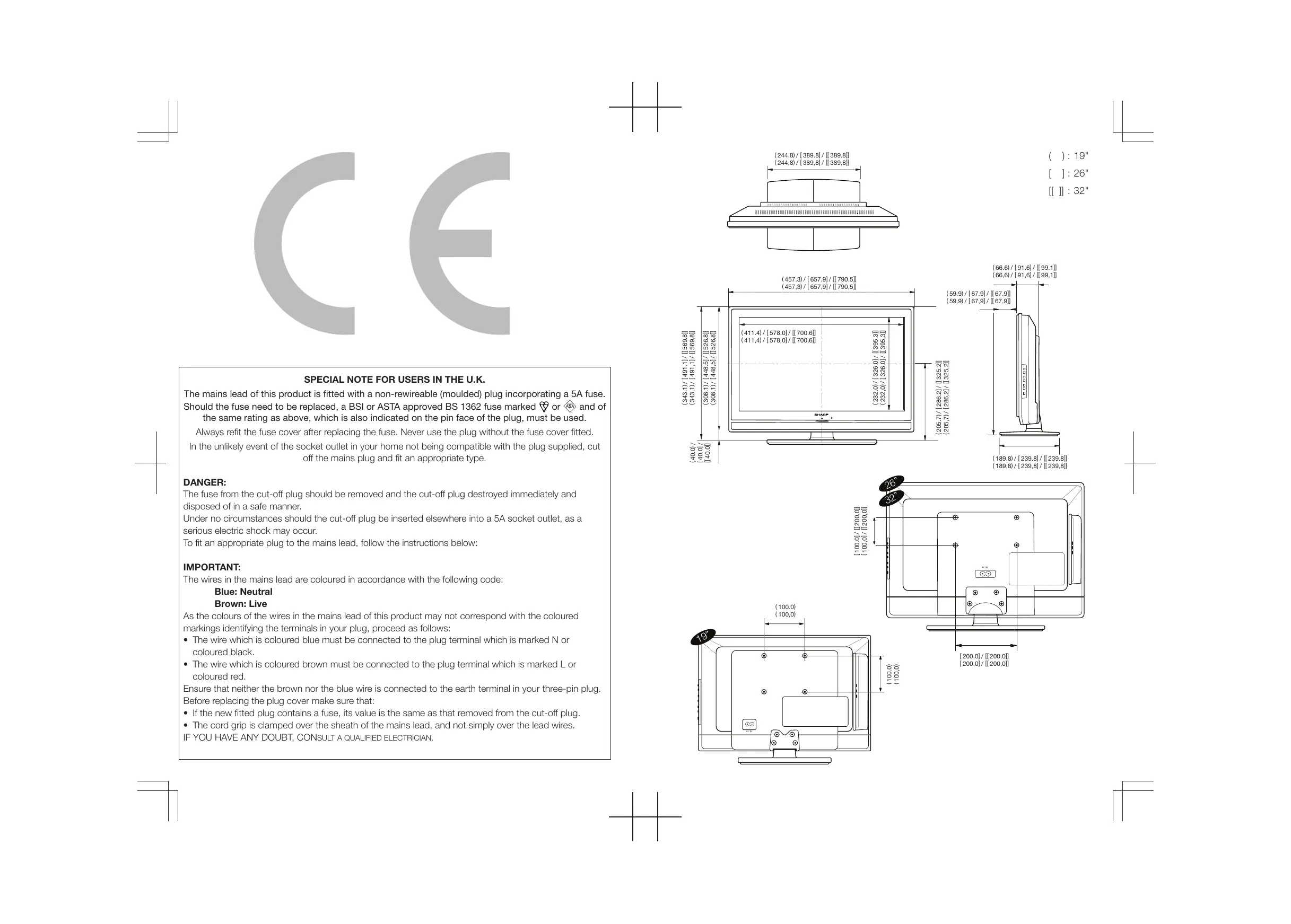
{457.3)/[657.9]/ [1790.5]] (457.3)/1657.,9]/ [I790,5]| (66.6)/[91.81/ [89.1] CROP EN SPECIAL NOTE FOR USERS IN THE U.K. The mains lead of this product is fitted with a non-rewireable (moulded) plug incorporating a 5A fuse. Should the fuse need to be replaced, a BSI or ASTA approved BS 1362 fuse marked ® or @ and of the same rating as above, which is also indicated on the pin face of the plug, must be used. Always refi the fuse cover after replacing the fuse. Never use the plug without the fuse cover fitted. In the unlikely event of the socket outlet in your home not being compatible with the plug supplied, cut off the mains plug and fit an appropriate type
The fuse from the cut-off plug should be removed and the cut-off plug destroyed immediately and disposed of in a safe manner. Under no circumstances should the cut-off plug be inserted elsewhere into a 5A socket outlet, as a serious electric shock may occur. To fit an appropriate plug to the mains lead, follow the instructions below: IMPORTANT: The wires in the mains lead are coloured in accordance with the following code: Blue: Neutral Brown: Live As the colours of the wires in the mains lead of this product may not correspond with the coloured markings identifying the terminals in your plug, proceed as follows: + The wire which is coloured blue must be connected to the plug terminal which is marked N or coloured black. + The wire which is coloured brown must be connected to the plug terminal which is marked L or coloured red. Ensure that neither the brown nor the blue wire is connected to the earth terminal in your three-pin plug. Before replacing the plug cover make sure that: + _lfthe new fitted plug contains a fuse, its value is the same as that removed from the cut-off plug. + The cord grip is clamped over the sheath of the mains lead, and not simply over the lead wires. IF YOU HAVE ANY DOUBT, CONSULT A QUALIFIED ELECTRICIAN. {411.4)/1578.0)/ [17006] {a11,4)/1578,0)/ ((700,6]) (59.9)/[67.21/ [167.9] (9,9)/[67.91/[L67.9])
+_ The ilustrations and on-screen displays in this operation manual are for explanation purposes and may vary sightiy from the actual operations. ENGLISH Contents Contents... 1 Automatically switch the TV to standby Introduction. 2 (Sleeptimer) 13 Dear SHARP customer 2 Automatically switch the TV on (On timer) Important Safety Precautions 2 13 Remote control unit 3 Use TV lock 13 Preparation 5 Set / change code 18 Supplied accessories. 5 Lock or unlock all channels and Mount the TV Stand. 5 connected devices. 13 Wall mounting 5 Lock or unlock one or more channels. 14 Bundling the cables 5 Installation. 15 Installation of batteries 6 Install channels 15 Using the remote control unit 6 Rename channels 16 Display the Menu Screen 6 Rearrange channels 17 Select an item by the remote control 6 Access decoder channel. 17 Exit the Menu screen 6 Set decoder channel 17 Quick guide 7 Reset the TV to factory settings 17 Initial installation overview. 7 Eco. 17 Watching TV. 8 Connecting external devices. 18 Daily operation. 8 HDMI connection 18 Turning on/off the power 8 {YPbPr) Component connection: 18 Changing channels 8 AV IN connection 18 Standby mode 8 SCART connection 19 TVindicator status 8 Speaker/ amplifier connection. 19 Selecting external video source. 8 Connecting a PC 20 Operation without a remote control 8 HDMI Connection 20 Teletext 9 Analogue Connection. 20 Buttons for teletext operations 9 Supported display resolutions 20 TV menu Computer formats (PC) 20 Picture 10 Video formats. 20 Use smart picture. 10 Appendix Adjust picture settings. 10 Troubleshooting 21 Change picture format 11 Specification 22 Sound. 12 Environmental specification 22 Use smart sound 12 Other information 23 Adjust sound settings. 12 Trademarks. 23 Features 12 End of life disposal 24 Set the TV clock. 12 User timers 12
Introduction Dear SHARP customer Thank you for your purchase of the SHARP LCD colour TV product, To ensure safety and many years of trouble-free operation of your product, please read the Important Safety Precautions carefully before using this product Important Safety Precautions (> cleaning Unplug the AG cord om the AG out before cleaning the product. Use a damp cloth % à Lo clean the product. Do not use liquid cleaners or aerosol cleaners. Water and moisture—Do not use the product near water, such as bathtub, washbasin, kitchen Sink, laundry tub, swimming pool and in a wet basement Do not place vases or any other water-lled containers on this product. The water may spil ont the product causing fire or electric shock. Stand—Do not place the product on an unstable cart, stand, tipod or table. Doing so can cause the product to fall, resulting in serious personal injuries as wel as damage to the product. Use only a cart, stand, tipod, bracket or table recommended by the manufacturer or sold with the product, When mounting the product on a wall be sure to follow the manufacturers instructions. Use only the mounting hardware recommended by the manufacturer. When relocating the product placed on a cart, it must be moved with utmost care. Sudden stops, excessive force and uneven floor surface can cause the product to fall from the cart Ventilation— The vents and other openings in the cabinet are designed for ventilation. Do not cover or block these vents and openings since insuficient ventilation can cause overheating and/or shorten the life of the product. Do not place the product on a bed, sofa, rug or other similar surface, since they can block ventilation openings. This product is not designed for built-in installation: do not place the product in an enclosed place such as a bookcase or rack, unless proper ventilation is provided or the manufacturers instructions are followed. The LCD panel used in this product is made of glass. Therefore, it can break when the product is dropped or impact applied. the LCD panel is broken, be caretul not to be injured by broken glass. Heat sources — Keep the product away from heat sources such as radiators, heaters, stoves and other heat-generating products (including amplifiers). To prevent fe, never place any type of candle or naked flames on the top or near the TV set. To prevent fre or shock hazard, do not place the AC cord under the TV set or other heavy items. Do not display a st picture for a long time, as this could cause an afterimage to remain. There is power consumption always if main plug is connected. Servicing—Do not attempt to service the product yourself. Removing covers can expose you to high voltage and other dangerous conditions. Request a qualifed person to perform servicing. For ventilation, leave at least 4” to 6 free all around the TV. Do not place the TV on a carpe. The equipment shall not be exposed to dripping or splashing. The equipment shall not be exposed to rain or moisture and objects flled with liquids, such as vases, shall be placed on the apparatus. The appliance coupler is used as the disconnect device of this apparatus, the disconnect device shall remain readily operable: The LCD panel is a very high technology product, giving you fine picture details. Due to the very large number of pixels, occasionaly a few non-active pixels may appear on the screen as a fxed point of blue, green or red. This is within product specifications and does not constitute a faut Precautions when transporting the TV When moving the TV, it should always be carried by two people, using both hands, be careful not to apply pressure to the display. Wall mounting Installng the LCD Colour TV requires special skil that should only be performed by qualfied service personnel Customers should not attempt to do the work themseWves. SHARP bears no responsibility for improper mounting or mounting that results in accident or injury.
Side. 9 PC Press to direct to the PC mode. 10 01 (+7) Press 1o adjust the volume. 11 ck Press to toggle audio on and of. You can also press 21 (+/-) to restore the previous volume level 12 @ Change the aspect ratio: please refer to Picture format section. 13 P(A/V) Press to select the channel. 14 DUAL Select MONO, STEREO, DUAL 1 and DUAL 2 for ATV channel 15 AUDIO (ADJ) Press to set the LCD TV to a predefined sound setting. 16 VIDEO (ADJ) Press to set the LCD TV to a predefined picture setting. 17 SLEEP Press to turn the LCD TV off within an amount of time. (5-180 minutes.) 18 AV<> Press À V < > to navigate and confirm your selection 19 OK Press to activate a setting 20 MENU/EXIT Press to activate the LCD TV OSD. Press again to exit the LCD TV Se] 21 © Display programme information, if available. 22 R/G/Y/B (COLOUR BUTTON) Press buttons to select the pictures with various colours of text. Different channels display different functions. 28 TELETEXT Press this button to activate Teletext. Press again to turn off Teletext. 24 MIX Press this button lo activate Teletext with TV. 25 SIZE Press this button to change the font size: Full screen, Top half and Bottom half 26 SUBPAGE To select the subpage when the current page contains subpage(s) 27 INDEX Press this button to return to page 100 or the index page: and then press 0 to 9. The teletext page will be numbered and added to the page you select or the secondary item. 28 SUBTITLE When the Teletext and subtile function is activated, press this button to find the fist subtitle page. Press SUBTITLE repeatecly to switch page in order. 29 HOLD Press this button to stop the scroling of pages. The text decoder stops receiving data. 30 REVEAL Reveal hidden information such as answers to a quiz 31 ECO Press this button to set the picture with less brightness for saving energy. 32 PRLIST Press to display a list of channels. 33 FREEZE To freeze the picture on the screen. {Not available when your input sources are PC mode and HDMI with PC mode.)
Preparation Supplied accessories Stand unit and Screws AG cord (xt) Product shape varies in some countries Cable clamp (k1) AAttached in the back of the TV. Remote control unit (ct) AAA battery (2) Operation manual Mount the TV Stand
1. Putthe TV face down on a safe surface that is
covered by a soft and smooth cloth.
2. Adjust the TV stand to the bottom of the TV.
3. Fasten screws by using a cross-head
screwdriver (Not supplied). NOTE + To detach the TV stand, perform the steps in reverse order. Wall mounting “[1 TV VESA-compatible | Screw type screen | wall bracket size {millimeters) Unches) | (WxH) 19" 100 x 100 mm Metric 4 x 10 mm 26" 200 x 100 mm Metric 4 x 10 mm 32" 200 x 200 mm Metric 6 x 10 mm NOTE + Atthe time of purchasing wall bracket, please check if there is enough space between the wall bracket and TV terminals for the terminal connection Buni g the cables
Preparation Installation of batteries
1. Insert two AAA batteries into Remote control
Make sure (+) and (—) are facing the proper direction.
2. Replace the cover.
NOTE +_Ifthe remote control will not to be used for a long time, remove the batteries to avoid remote control damage. CAUTION Improper use of batteries can result in chemical leakage or explosion. Be sure to follow the instructions. below. Do not mix batteries of different types. Different types of batteries have diflerent characteristics. Do not mix old and new batteries. Mixing old and new batteries can shorten the life of new batteries or cause chemical leakage in old batteries. Remove batteries as soon as they have worn out. Chemicals that leak from batteries can cause a rash I you find any chemical leakage, wipe thoroughly with a cloth. The batteries supplied with this product may have a shorter life expectancy due to storage conditions. I you wil not be using the remote control unit for an extended period of time, remove the batteries from it. Note on disposing batteries: The batteries provided contain no harmful materials such as cadmium, lead or mercury. Regulations concerning used batteries stipulate that batteries may no longer be thrown out with the household rubbish. Deposit any used batteries free of charge into the designated collection containers set up at commercial businesses. Using the remote control unit Use the remote control unit by pointing it towards the remote control sensor. Objects between the remote control unit and sensor may prevent proper operation. lemote cantral sensor Display the Menu Screen Press MENU/EXIT and the MENU screen displays. Select an item by the remote control
desired level. The setting on screen is applied immdiately.
38. Press < to return to the previous layer.
San Pieare Back Const Sanders Bignnes | Epees Cour CET He Srapness Exit the Menu screen The operation will exit the menu screen if you press MENU/EXIT before it is complete.
Quick guide stallation overview Follow the below steps one by one when using the TV for the first time. Some steps may not be necessary depending on your TV installation and connection. Connect antenna cable to the antenna terminal. Connect the AC cord to the TV. A cord (Xi) Product shape varies in some countries Dm GI Power on and run the auto installation © ur on the TV power with (0)
© fun the initial auto installation. # Country setting
If necessary, adjust the antenna to attain maximum signal reception.
Watching TV Daily operation Turning on/off the power Press (bon the TV. Switch it off by pressing @) on the TV.
Changing channels With PA/PV/ _ 3
Standby mode To standby mode Hthe TV set is switched on, you can switch it to Standby by pressing (D | on ihe remote control. Switching on from standby From standby, press ) | on the remote control. Status Power off Power on Red Standby NOTE I you are not going to use this TV for a long period of time, be sure to remove the AC cord from the power outlet A small amount of electric power is stil consumed even when (D is turned of. Selecting external video source Once the connection is made, press <&) to display the INPUT SOURCE screen, and then press A/V to switch over to the appropriate external source with OK.
Operation without a remote control This function is useful when there is no remote control within your reach
3. Press MENU to confirm the selection.
NOTE + The direct control menu screen wil disappear if left unattended for several seconds,
Watching TV LOS What is Teletext? Teletext broadcasts pages of information and entertainment to specially equipped television sets. Your TV receives Teletext signals broadcast by a TV network, and decodes them into graphical format for viewing. News, weather and sports information, stock exchange prices and programme previews are among the many services available. Turning on and off Teletext
1. Select a TV channel or external source
providing a Teletext programme.
2. Press Teletext to display Teletext.
+ Many stations use the TOP operating system, while some use FLOF (e.g. CNN. Your TV supports both these systems. The pages are divided into topic groups and topics. After switching on the teletext, up to 1000 pages are tored for fast access, NOTE + Teletext will not work ithe selected signal type is RGB. Buttons for teletext operations Buttons Description SUBPAGE Select the subpage when the current page contains subpage(s). Press SUBPAGE buttons on the remote control to switch the subpage directly. NOTE + Press P(A/V) to exit te subpage. Buttons Description Increase or decrease the page PIAV) number. Colour Select a group or block of pages (R/G/V/8) displayed in the coloured brackets at the bottom of the screen by pressing the corresponding Colour (R/G/Y/B) on the remote control unit 0-9 Directiy select any page from 100 +0 899 by using 0 - 9. MIX Press this button to activate TTeletext with TV. SIZE Switch the Teletext image to Top, Bottom or Full INDEX Press this button to return to page 100 or index page HOLD Stop updating Teletext pages automatically or release the hold mode. REVEAL Reveal or hide hidden information such as an answer to a quiz.
SThe Smart picture menu appears.
2. Press A V to select one of the following smart .
picture settings. + Personal + Vivid + Standard + Movie + Game + Eco
3. Press OK to confirm you choice.
The selected smart picture setting is applied. Adjust picture settings. Menu D Pau ) Sani Conuast = Brghiness > Faure : Cour CES Hu ———— | sramness LE CD sci ]
2. Press OK to select Picture.
The Picture menu appears.
8. Press À V < > to select one of the following
picture settings. + Smart picture: Accesses pre-defined smart picture settings. + Backlight: Adjusts the backlight brighter or darker. + Gontrast: Changes the level of bright parts in the picture keeping the dark parts unchanged. + Brightness: Changes the level of light in the picture. + Colour: Changes the level of saturation. + Hue: Compensates colour variations in NTSC encoded transmissions. + Sharpness: Changes the level of sharpness of fine details. @) - 10 Noise reduction: Flers and reduces the noise in the picture. Colour temperature: Sets the colour temperature to Cool (bluer), Normal (balanced), Warm (redder) Ad. picture: Digitally adjusts picture quality to optimal contrast, colour and sharpness. -Dynamie contrast: Automatically enhances contrast in an image. Medium setting is recommended. -Dynamic backlight: Adjusts the brightness of the TV backlight to match lighting conditions. -MPEG artifact re.: Smooths out transitions on digital pictures. You can switch this feature on or off. -Colour enhancement: Makes colours more vivid and improves the resolution of details in bright colours. You can switch this feature on or off. PC mode: Adjusts the picture when a PC is connected to the TV via HDMI/DVI Picture format: Changes the picture format. Horizontal shift: Adjusts the picture horizontally for PC-VGA or YPbPr. Vertical shift: Adjusts the picture vertically for PC-VGA or YPbPr.
Press À V to select one of the following picture formats: Wide screen: Stretches the classic 4:3 format to 16:9. Unscaled: Allows maximum Sharpness. Some distortion may be present due to the
broadcaster's systems. Set your PC resolution to wide screen mode for best results. (Only for PC mode and 1080i/p.) Auto format: Enlarges the picture automatically to best fit the screen. The subtitles remain visible. (Only for TV, AV side, and SCART.) Super zoom: Removes the black bars on the side of 4:3 broadcasts. There is minimal distortion. (Not for PC mode and 1080ÿ/p.) 4:3: Displays the classic 4:3 format. Subtitle zoom: Displays 4:3 pictures over the full area of the screen, with sub-titles visible. Part of the top of the picture is clipped off. (Not for PC mode and 1080i/p.) Movie exp.14:9: Scales 4:3 format to 14:9. (Not for PC mode and 1080i/p.) Movie exp.16:9: Scales 4:3 format to 16:9. (Not for PC: mode and 1080i/p) CELENS When source input is PC mode, only 4:3, Wide screen and Unscaled are available.
TV menu Use smart sound Use smart sound to apply pre-defined sound settings.
1. Press AUDIO (ADJ).
SThe Smart sound menu appears.
2. Press A V to select one of the following smart
sound settings. + Standard: Adjusts sound settings to suit standard environments and types of audio. + News: Adjusts sound settings to ideally suit spoken audio, such as the news. + Movie: Adjusts sound settings to ideally suit movies. + Personal: Applies the settings that were customised in the sound settings.
3. Press OK to confirm your choice.
The selected smart sound setting is applied. Adjust sound settings
SThe Sound menu appears. + Mono/Stereo: Selects between mono or stereo if stereo is broadcast. + Surround: Enables spatial sound + Auto volume: Automatically reduces sudden volume changes, for example, when switching channels. When enabled, this produces a more consistent audio volume. + Delta volume: Levels out volume differences between channels or connected devices. Switch to the connected device before you change the delta volume. atures Set the TV clock You can display a clock on the TV screen
The Clock menu appears.
4. Press Done to confirm.
5. Press MENU to exit.
Menu Bree res Standard UOTRÈEES .. = You can set timers to switch the TV on or switch to Treble nt standby at a specified time. Vaume = eau Bancs = Menu Cr Suround ot | im of Slim ——° " Gock aco0 Ce CE ] One raie TViock Unlock Sat code
38. Press À V < > to select one of the following C7 irsataton
sound settings. ——_—_— + Smart sound: Accesses pre-defined smart — = sound settings. + Bass: Adjusts the bass value to fit your best + Treble: Adjusts the treble value to fit your best listening. + Volume: Adjusts the volume. + Balance: Sets the balance of the left and right speakers to best fit your listening. + Dual III: Selects between audio languages if dual sound is broadcast. @) - 12
TV menu Automatically switch the TV to standby (Sleeptimer) Sleeptimer switches the TV to standby after a defined period of time.
The Sleeptimer menu appears.
38. Press < > to set the sleep time.
The Sleeptimer can be up to 180 minutes in steps of five minutes. If set to zero minutes, the Sleeptimer is switched off.
4. Press OK to activate the Sleeptimer.
The TV switches to standby after the pre- defined period of time. NOTE +_ You can always switch off your TV earier or reset Sleeptimer during the countdown. +_ Wen you press any button on the remote control with less than one minute le in the countdoun, Sleeptimer will be automatically canceled Automatically switch the TV on {On timer) On timer switches the TV to a specified channel at a specified time from standby.
. Press À V < > to select Activate and set a frequency Daily, Once, or Off
5. Press OK to confirm.
6. Press À V < > to select Time and setthe
7. Press Done to confirm.
8. Press À V < > to select Programme no. and
external source to set the channel.
9. Press OK to contirm.
10. Press MENU to exit.
NOTE +_ Select On timer > Activate > Off to disable On timer. +_ When On timer is Off, only Activate can be selected + Setthe TV clock before activating On timer feature. Use TV lock You can prevent your children from watching certain programmes or certain channels by locking the TV controls. Set / change code
8. Press > to enter the code setup.
4. Enter your code using the Numeric buttons.
5. Re-enter the same code in the new dialogue
box for confirmation. If the code is set successfully, the dialogue box will disappear. However, if the code cannot be set, a new dialogue box will prompt you to re-enter the code.
6. If you want to change the code, select
buttons. If the code is validated, a new dialogue box will prompt you to enter your new code.
8. Enter the new code using the Numeric
buttons. À message appears prompting you to enter the new code again for confirmation. NOTE +_Hf you forget your code, enter ‘8888' to override any existing codes. Lock or unlock all channels and connected devices.
8. Press > to enter the TV Lock
LA screen appears prompting you to enter a code.
Al channels and connected devices are locked or unlocked.
TV menu NOTE +_ you select Lock, you have to enter your code every time you turn on your TV. + Once you set the code, step 8 and 4 won't appear before turn off the TV. Lock or unlock one or more channels
2. Press À V < > to select a channel to lock or
5. For each selection, press OK to lock or unlock
TV menu Install channels The first time you set up your TV, you are prompted to select a menu language and to install TV. Menu This chapter provides instructions on how to reinstall and fine tune channels. D Peu Menu language [Gramnerassisant CE ce Mara Automatically install channels ©) sam a ange 9 Features nn Current otre This section describes how to search and store channels automatically Step 1 Select your menu language ET Da NOTE + skip this step if your language setings are correct.
1. Press MENU. 8. Press < > to select Start or Cancel.
2. Select Installation > Menu language. 4. Press OK to confirm your choice.
8. Press À V to select a language setting. 5. Press À V to select your country.
Menu @ soiectyour country Sweden Tax Menu language Eanrap. set D ET True Decoder *
Guen ofiwars ù Sound 2 Fesures Ukraine Eng Oiner Español CZ © se ]
6. Press > to next step.
4. Press OK to confirm. 7. Select Start and press OK to re-install
5. Press MENU to exit.
8. If you want to stop searching, select Stop and
Press OK. LA dialogue box appears asking you if you really want to Stop or Continue with the process.
2. Select Installation > Channel install. >
9. Press < > to select Stop or Continue.
10. Press OK to confirm your choice.
11: When done, press MENU to exit.
TV menu Manually install channels This section describes how to search and store analogue TV channels manual.
2. Select Installation > Channel install. >
Analogue: Manual SThe Analogue: Manual menu appears.
38. Press A V to select the item you want to
adjust. + System + Search + Fine-tune + Store cur. chan. + Store new channel + Skip channel Step 1 Select your system NOTE + Skip this step if your system settings are correct.
2. Select Installation > Channel install. >
Analogue: Manual SThe Analogue: Manual menu appears. .. Press À V < > to select and enter System. . Press À V to select your country or region. Press OK to confirm. Press MENU to exit. Step 2 Search and store new TV channels
2. Select Installation > Channel install. >
Analogue: Manual SThe Analogue: Manual menu appears.
8. Press À V < > to select and enter Search.
4. Press À V or use Numeric buttons to
manual enter the three digit frequency.
5. Press OK to begin search.
6. Press < when the new channel is found.
7. Press À V to select Store new channel under
a new channel number.
8. Press > to enter Store new channel.
9. Press < > to select Yes and press OK to store
Fine tune analogue channels You can manually fine tune analogue channels when reception is poor.
2. Select Installation > Channel
Analogue: Manual The Analogue: Manual menu appears. stall. > .. Press À V < > to select and enter Fine-tune. . Press À V to adjust frequency. Press OK when done. . Press À V to select Store cur. chan. to store channel number.
7. Press > to enter Store cur.chan..
8. Press < > to select Yes and press OK to store
the current channel.
2. Select Installation > Channel
Analogue: Manual The Analogue: Manual menu appears. stall. >
8. Press À V to select and enter Skip channel.
4. Press < > to select Yes and press OK to skip
the channel you are currently watching, The selected channel is skipped when you press P +/- on your remote control or view the channel list.
5. Press MENU to exit.
NOTE +_ You can restore a skipped channel to your channel listing (see ‘Step 2 Search and store new TV channels) Rename channels Channels can be renamed so that a name of your choice appears whenever the channel is selected.
2. Select the channel you want to rename.
The channel options menu appears.
4. Press À V < > to select and enter Rename
chan.. LA text input box appears.
6. Press OK to confirm each of the characters.
NOTE + Rename chamnels- the length of the name is limited to six characters. +_ Use Aa to change upper-case letter to lower-case letter and vice versa. Rearrange channels After you install channels, you can rearrange the order in which they appear.
SThe channel options menu appears.
8. Press À V < > to select and enter Reorder.
5. Press OK to confirm the new position.
‘Done reordering appears.
7. Press OK to finish reordering.
Access decoder channel You can map channels provided through a decoder or descrambler to your TV channel selection. In this way, you can select these channels by using the RC of your ‘TV. The decoder or a descrambler must be connected 10 SCART1 or SCART2. Set decoder channel Map channels from a decoder or descrambler
8. Press > to enter Channel.
. Press À V to select channel number to map to the decoder/descrambler channel.
7. Press À V to select the connector used by
NOTE + Select None if you do not want to map to the decoder/ descrambler channel + SCARTZ is available only in TVs of 26 inches and larger. Reset the TV to factory settings You can restore the default picture and sound settings of your TV. Channel installation settings remain the same.
4. Press OK to reset to factory settings.
5. Press MENU to exit.
Eco This function enables you to automatically reduce the backlght brighiness in order to decrease the power consumption and increase the backlght life span. Menu ns 7 & sans on LP reaurs
Connecting external devices © Before connecting … +_ Be sure to turn offthe TV and any devices before making any connections. + Fimly connect a cable to a terminal or terminal. + Carefully read the operation manual of each external device for possible connection types. This also helps you get the best possible audiovisual quality to maximise the potential of the TV and the connected device. HDMI connection Example of connectable devices @ DD @Eu-rey player/recorder The HDMI connections (High Definition Multimedia Interface) permit digital video and audio transmission via a connection cable from a player/recorcer. The digital picture and sound data are transmitted without data compression and therefore lose none of their quality. Analogue/digital conversion is no longer necessary in the connected devices, which also would result in quality losses. HDMI cable ? owroui L. ui cabie acapier cab L
=MNT10E; DVI/HDMI conversion Using an DV/HDMI adapter cable, the digital video signals of a DVD can also be played via the compatible HDMI connection. The sound must be fed in additional. Both HDMI and DVI use the same HDCP copy protection method. Supported video signal: 576i, 576p, 480i, 480p, 1080i, 720p, 1080p See page 20 for PC signal compatibilty. {YPbPr) Component connection Example of connectable devices @\CR@D\D @ Bury player/recorder You will enjoy accurate colour reproduction and high quality images through the (YPbPr) when connecting a DVD recorder or other recording equipment. Component cable Audio cable AV IN connection Example of connectable devices /CR @ DVD @ Blu-ray player/recorder @ Game console @ Camcorder You can use the AV IN when connecting to a game console, camcorder, a DVD recorder and some other equipment. © Side Av
Connecting external devices SCART connection Example of connectable devices @ Decoder © When using the SCART 1 Full SCART, which transmits RGB, and CVBS in, and CVBS tuner out. SGART cable Decoder NOTE Example of connectable devices @ LCR @ DVD recorder © When using the SCART 2 Haif SCART, which transmits CVBS in, and CVBS monitor out. Vue] 'scaRT 2 SGART cable +_In cases when the decoder needs to receive a signal from the TV, make sure to select the appropriate input source. +_ Do not connect the decoder to the SCART 2. +_ You cannot connect the VCR with Decoder using a fuly wired SCART cable under the SCART 2 source. Speaker/ amplifier connection © Connecting an amplifier with analogue audio input Audio cable Amplifier with analogue audio input
1. Connect power cord correct.
4. Press any button on the LCD TV.
Abnormal colours Connect signal cable correct. Twisted picture
1. Connect signal cable correct.
2. Please use compatible signal
Picture too dark Adjust brighiness and contrast. Audio only, no images:
1. Please check if input signal is connected correct.
2. TV-RF signal must not be lower than 50dB.
Picture only, no audio Connect signal cable correctiy. Adjust volume to proper level. Connect audio signal cable correct}, TV-RF signal must not be lower than 50dB, s6nN 2 Cannot use remote control
1. Please change battery.
2. Turn off power for 10 seconds; and then restart power.
Cannot receive suffcient channels through antenna Please use the Channel scan function to increase the number of channels not included in memory. No colours Please adjust the colour setup. Blinking picture accompanied by ghost image
1. Check the connection of antenna/signal cable.
2. Check if channel is in play mode.
3. Press signal source and change input mode.
Broken lines or segments Adjust antenna. Keep the TV away from noise sources, such as automobiles, neon lights, and hair dryers. Certain TV channels are blocked {Hope to acquire some channels) Please use the Update scan method to add the channels not included in memory. Overlapping images or ghost images: Please use muli-directional outdoor antenna. {f your TV is subject to the influence of nearby mountains or buildings). Cannot use a function I the item you choose turns gray, that item cannot be selected. Cannot receive programmes Please use the Update scan method to add the channels not included in memory.
Viewing angles H: 170" V: 160 H:160 V: 150 HET V: 176 Audio amplifier sw x2 sw x2 sw x 2 Speaker (1288 mm x 40,2 mm) x 2 | (164.5mm x 42mm) x 2 | (164.5 mm x 42 mm) x 2 Rear Antenna UHFAHE 750 SCART, SCART 1 SGART (AV input, RGB input, TV output-analogue only) ScART 2 SGART (AV input, monitor output (analogue source - RF, SCART 1, SIDE AV) PIN D-sub 15 pin (AV input 9 3.5mm jack (Audio input) Component Y/Pb(Gb}Pr(C, RCA pin (L/R) AVOUT RCA pin (AV output) HDMI / HDMI + HDMI 2 For 26° and larger AVIN RCA pin (AV input) Headphones 9 3.5mm jack (Audio output) Sie Service Service socket OSD language Buigaran, Croatian, Czech, Danish, Dutch, English, Finnish, French, German, Greek, Hungarian, falan, Norwegian, Polish, Portuguese, Romanian, Russian, Serbian, Siovak, Slovene, Spanish, Swedish, Turkish, Latvian, Lithuanian, Ukrainian, Estonian, Gaelic Power Requirement AG 220-240 V, 50 Hz Power Gonsumption 45W (Standby<0.3W) 55W (Standby.<0.3W) 1350 (Standby<0.3W) {Method 1EC62087) Method IECÉ2087) {Method IEC62087) Weight 3.8 Kg (Without stand 7.3 kg (Without stand) 11.0g (Without stand), 4-0 Kg (Win stand) 84 Kg (With stand) 12.4 kg (With stand) Operating temperature 0° to +400 +_ As a part of polioy of continuous improvement, SHARP reserves the right to make design and specification changes: for product improvement without prior notice, The performance speciication figures indicated are nominal values of production units. There may be some deviations from these values in individual units. NOTE + Refer to the inside back cover for dimensional drawings. +_ Audio cannot be output through the HDMI terminal, nvironmental speci Item 19" 26" 32" X1._On-Mode {W) Vid sw sw sw
Appendix Item 19" 26" 32" X2_ Energy-Save-Mode (W) Eco > On 25w sw &w K3 Standby-Mode {W) osw osw o3w K4 Off Mode (W) Power button ozw o2w o2w X5 Annual Energy Consumption 55.5 kWh 75.9 km 167.9 kn tn) X8 Annual Energy Consumption | Eco > On 36.5 kWh 482 km 118.7 kw {kh) ÆEnergy-Save-Mode) x1 Measured according to IEC 62087 Ed. 2 #2 For further information about the Energy Save function, please see related pages in this operation manual +3 Measured according to IEC 62301 Ed. 1 +4 Messured according to IEC 62301 Ed. 1
- 6 Annual energy consumption Is calculated on the bas days a year X6 Annual energy consumption is calculated on the basis of he Energy-Save-Mode power consumption, walching TV 4 hours & day, 365 days a year of the On-Mode (Vivic) power consumption, watching TV 4 hours à day, 865 NOTE +__ The power consumption of On-Mode varies depending on the images the TV displays: Other information Cautions regarding use in high and low temperature environments When the unit is used in a low temperature space (e.g. room, ofice), the picture may leave trals or appear slightiy delayed. This is not a malfunction, and the unit wil recaver when the temperature returs to normal. Do not leave the unit in a hot or cold location. Also, do not leave the unit in a location exposed to direct suniight or near a heater, as this may cause the cabinet to deform and the LCD panel to malfunction. Storage temperature: + 5°C to +85°C. Information on the software license for this product Software composition The software included in this product is comprised of various software components whose individual copyrights are held by SHARP or by third parties. Software developed by SHARP and open source software The copyrights for the software components and various relevant documents included with this product that were developed or written by SHARP are owned by SHARP and are protected by the Copyright Act, international treaties, and other relevant laws. This product also makes use of freely distributed software and software components whose copyrighis are held by third parties. These include software components covered by a GNU General Public License {ereafter GPL), a GNU Lesser General Public License (hereatter LGPL) or other license agreement: Acknowledgements The following open source software components are included in this product: + linux kernel + modutis + glibc + lb + libpng je “HDMI, the HDMI logo and High-Definition Multimedia Interface are trademarks or registered trademarks of HDMI Licensing LLC." le The “HD ready” Logo is a trademark of EICTA.
Attention: Your product is marked with this symbol. It means that used electrical and electronic products should not be mixed with general household waste. There is a separate collection system for these products. À. Information on Disposal for Users (private households)
1. In the European Union
Attention: If you want to dispose of this equipment, please do not use the ordinary dust bin! Used electrical and electronic equipment must be treated separately and in accordance with legislation that requires proper treatment, recovery and recycling of used electrical and electronic equipment. Following the implementation by member states, private households within the EU states may return their used electrical and electronic equipment to designated collection facilities free of charge”. In some countries” your local retailer may also take back your old product free of charge if you purchase a similar new one. *) Please contact your local authority for further details. If your used electrical or electronic equipment has batteries or accumulators, please dispose of these separately beforehand according to local requirements. By disposing of this product correctly you will help ensure that the waste undergoes the necessary treatment, recovery and recycling and thus prevent potential negative effects on the environment and human health which could otherwise arise due to inappropriate waste handling.
2. In other Countries outside the EU
If you wish to discard this product, please contact your local authorities and ask for the correct method of disposal. For Switzerland: Used electrical or electronic equipment can be returned free of charge to the dealer, even if you don't purchase a new product. Further collection facilities are listed on the homepage of www.Swico.ch or www.sens.ch. B. Information on Disposal for Business Users
1. In the European Union
If the product is used for business purposes and you want to discard it: Please contact your SHARP dealer who wil inform you about the take-back of the product. You might be charged for the costs arising from take-back and recycling. Small products (and small amounts) might be taken back by your local collection facilities. For Spain: Please contact the established collection system or your local authority for take-back of your used products.
2. In other Countries outside the EU
If you wish to discard of this product, please contact your local authorities and ask for the correct method of disposal. For EU: The crossed-out wheeled bin Implies that used batteries should not be put to the general household waste ! There is a separate collection system for used batteries, to allow proper treatment and recycling in accordance with legislation. Please contact your local authority for details on the collection and recycling schemes. For Switzerland: The used battery is to be retumed to the selling point. For other non-EU countries: Please contact your local authority for correct method of disposal of the used battery.