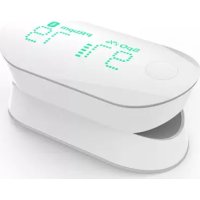
BG5 - Glucometer IHEALTH - Free user manual and instructions
Find the device manual for free BG5 IHEALTH in PDF.


User questions about BG5 IHEALTH
0 question about this device. Answer the ones you know or ask your own.
Ask a new question about this device
Download the instructions for your Glucometer in PDF format for free! Find your manual BG5 - IHEALTH and take your electronic device back in hand. On this page are published all the documents necessary for the use of your device. BG5 by IHEALTH.
USER MANUAL BG5 IHEALTH
Welcome to your iHealth Wireless Smart Gluco-Monitoring System (the iHealth system). Designed to be used with the free iHealth Gluco-Smart App (the app), the system will help you manage your diabetes in an easy and convenient way.
Contents of the Wireless Smart Gluco-Monitoring System
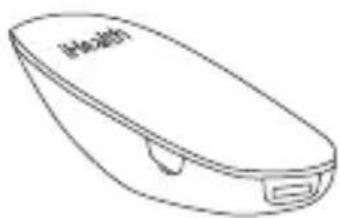
natural_image
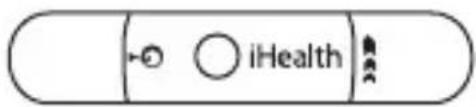
Line drawing of a closed electronic device with a button and label (no text or symbols on the device itself)• iHealth Smart Glucose Meter (the meter)
• Clear Cap for Alternate Site Testing
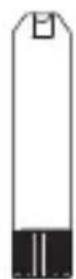
- iHealth Test Strip • iHealth Lancing Device
text_image
iHealth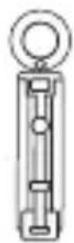
• Lancet
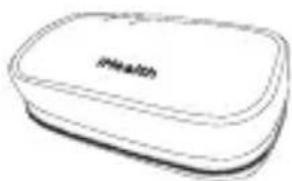
text_image
Health- Travel Case
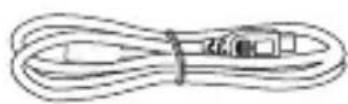
- USB Charging Cable
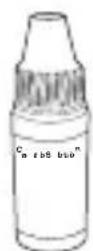
• iHealth Control Solution
text_image
iHealth™ Wireless Smart Glue Monitoring System 100% OWNER'S MANUAL- Owner's Manual • Quick Start Guide
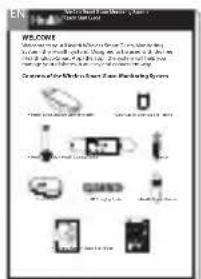
These contents may vary according to geographic markets. Please refer to the package contents listed on the package you purchased.
FIRST TIME SETUP INSTRUCTIONS
- Download the companion app
Prior to first use, download and install the free iHealth Gluco-Smart App from the App Store to your iOS device. Follow the on-screen instructions to create your iHealth ID.

- Access iHealth Cloud
You can use your iHealth ID to gain access to free and secure Cloud Services. Go to www.ihealthlabs.com and click on "Sign In".
- Charge the battery
Out of the box
Your meter is powered by a built-in, rechargeable battery. Plug one end of the charging cable into the side of the meter and the other end into your computer's USB port. Charge it for two to four hours before first use. A fully charged battery can typically take up to 200 tests depending on your daily usage.
Low battery message
After you have used your meter for some time, for 2 seconds when the battery in your meter is low on power.
You must recharge the battery before using it again. After 2 seconds, the meter shuts off automatically. The meter does not take any measurement when the battery is low.
Important: If battery is completely drained, fully charge the
appears
battery and launch the app to sync the meter before using it again.
- Sync the meter
Prior to first use, follow the steps below to connect the meter to the app on your iOS device to set your meter's time and date. By connecting the two, the date and time of the meter will be synced with your iOS device.
- Enable Bluetooth on your iOS device.
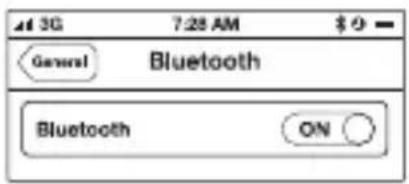
text_image
44 3G 7:28 AM $ 0 General Bluetooth Bluetooth ON- Press and hold the "Memory" button for three seconds to turn the meter on.
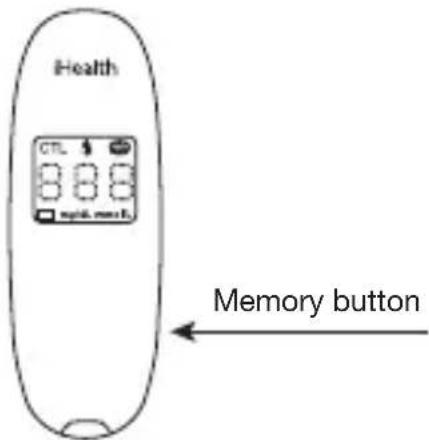
text_image
Health CTL RIP16 mmH Memory button- Select the model name "BG5xxxxxx" in the Bluetooth menu to pair and connect.
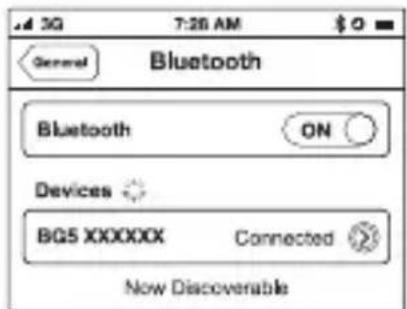
text_image
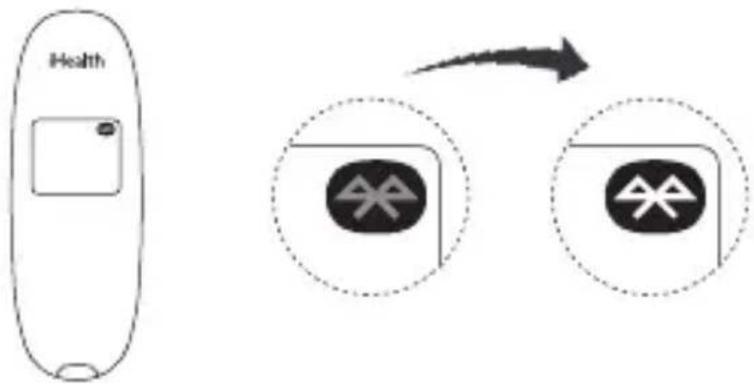
3G 7:26 AM $ 0 General Bluetooth Bluetooth ON Devices BG5 XXXXXX Connected Now Discoverable- Launch the app to connect the meter to the app. The Bluetooth
symbol “ ” will flash and remain lighted on the meter.
flowchart
graph TD
    A["Health"] --> B["Device 1"]
    A --> C["Device 2"]
    B --> D["Arrow"]
    C --> D
Note: Repeat steps 1-4 when switching to a different iOS device.
- Scan the test strip vial
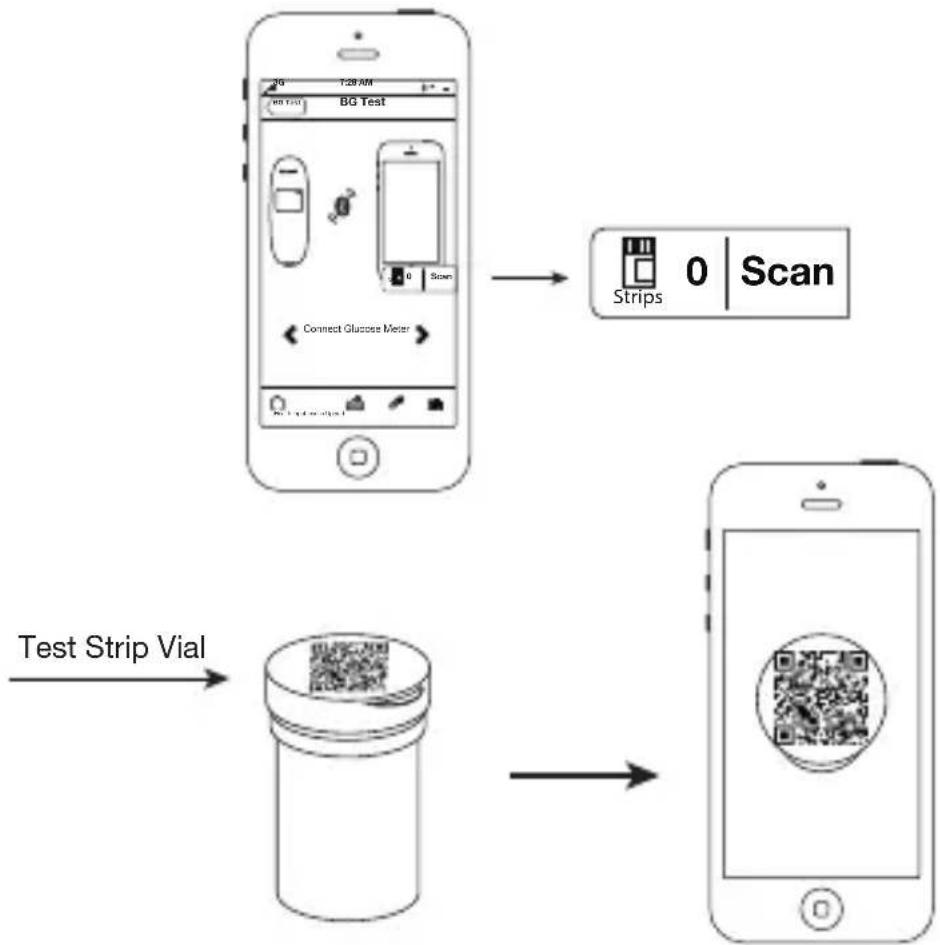
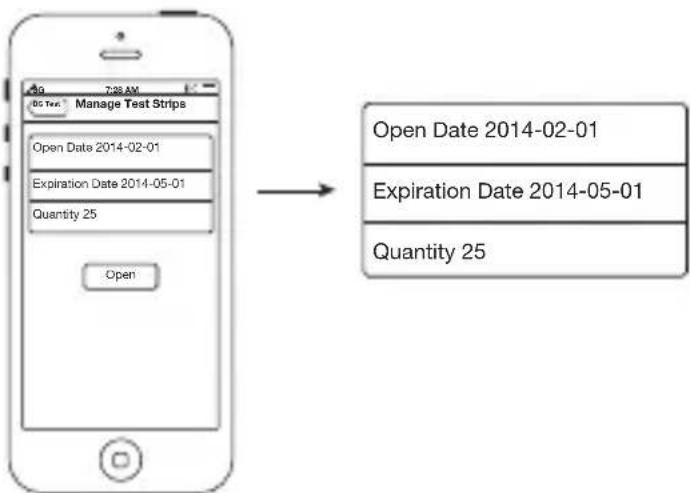
Scan the QR code, located on the top of the iHealth test strips vial, one time, and each time a new vial is opened. Each vial contains 25 test strips. Scanning the QR code enables the app to track and show you the quantity of test strips in the vial as well as expiration information.
flowchart
graph TD
    A["Mobile Test"] --> B["Strips 0 Scan"]
    B --> C["Test Strip Vial"]
    C --> D["Mobile Test"]
flowchart
graph LR
    A["Open Date 2014-02-01"] --> B["Expiration Date 2014-05-01"]
    B --> C["Quantity 25"]
    D["Open"] --> E["Quantity 25"]
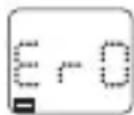
When all 25 strips in a vial have been used, 📄 appears on the meter to alert you that it is time to open a new vial, and the meter shuts off automatically. Launch the app and scan a new vial of iHealth test strips. The meter does not take any measurement when “Er d” appears on the meter.
- Test blood glucose level
If you have synced your meter to the app on your iOS device, scanned the QR code of a test strip vial, and want to take a reading with the app:
[1] Turn the Bluetooth on and launch the app.
If you have synced your meter to the app on your iOS device, scanned the QR code of test strip vial, and want to take a reading without the app launched: Skip step [1].
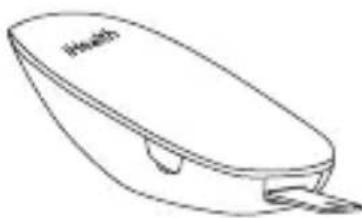
[2] Insert the test strip into the meter's strip port. Insert the test strip into the strip port with the contact bars facing toward you.
natural_image
Line drawing of a computer mouse with a label 'Health' on the body (no other text or symbols)[3] Prepare the lancing device.
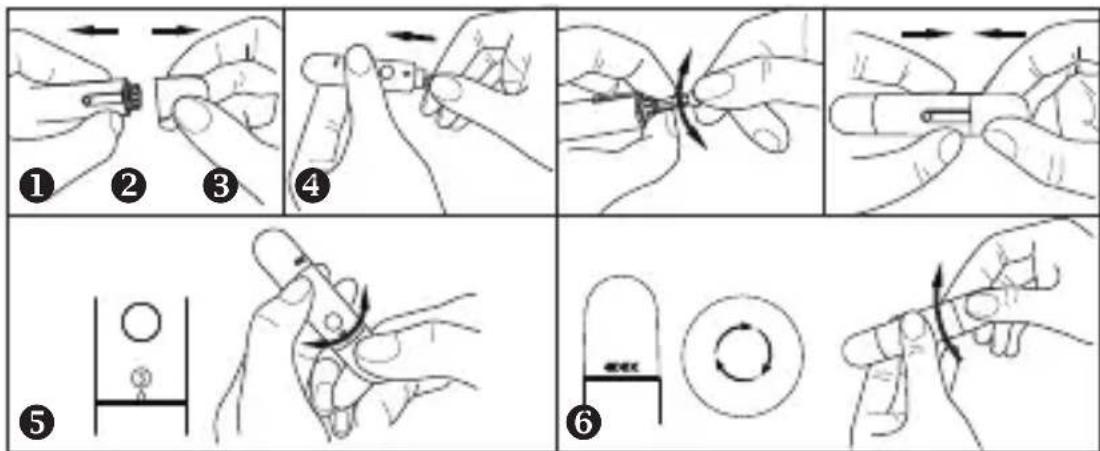
① Snap off the lancet device cap
② Insert a new lancet firmly into the lancing holder cup
③ Twist the lancet cover off
④ Replace the lancing device cap
⑤ Set the lancing level
⑥ Cock the handle until it clicks
text_image
Six-step diagram illustrating hand tool application and adjustment, labeled 1 to 6 with directional arrows and a magnified view.[4] Obtain a blood sample.
Press the lancing device against the site to be lanced. Press the release button to puncture the site. Squeeze your finger until a drop of blood forms. Wipe away the first blood drop and squeeze until a second small blood drops forms.

natural_image
Line drawings of two hand gestures, one pointing with a pen, the other holding a finger (no text or symbols)[5] Apply the blood sample to the test strip.
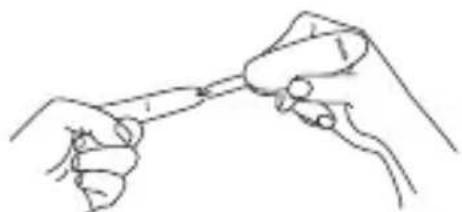
Quickly apply the blood sample to the absorbent hole of the test strip. Make sure the confirmation window of the test strip is completely filled with the blood sample.
natural_image
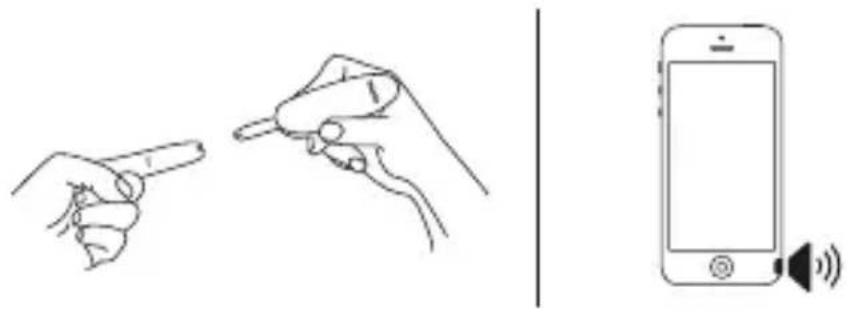
Line drawing of two hands holding a tool, no text or symbols presentQuickly remove your finger from the test strip when the countdown (from 5 to 1) begins on the meter display, or when you hear a sound alert from your iOS device.
natural_image
Illustration showing a hand holding a pen and a smartphone with sound waves (no text or symbols)[6] Read the test results.
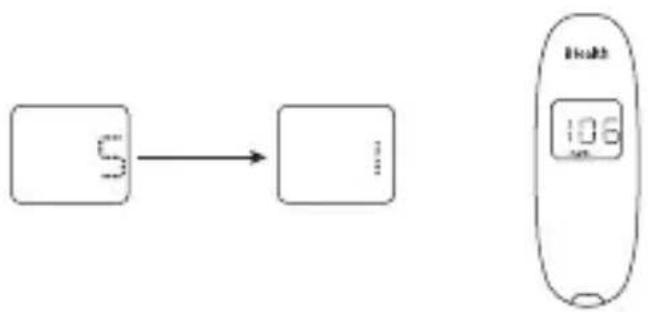
-If the meter is not connected to the app, the test result will appear on the meter after counting down from 5 to 1.
flowchart
graph LR
    A["5"] --> B["..."]
    C["106"] --> D["..."]
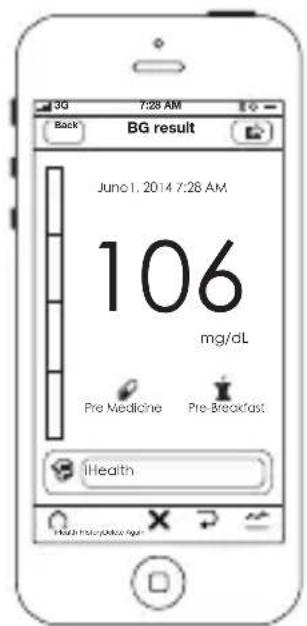
- If the meter is connected to the app, the test result will appear on the app.
text_image
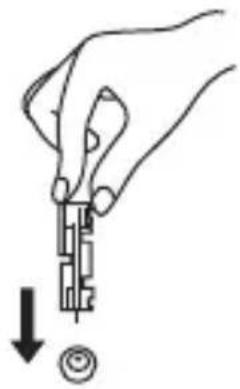
3G 7:28 AM Back BG result June 1, 2014 7:28 AM 106 mg/dL Pre Medicine Pre-Breakfast Health[7] Discard the used test strip and lancet. Remove the used test strip from the meter using a small amount of tissue paper. Discard the used test strip and lancet properly. (Tip: Prior to disposal, stick the lancet into the cover.)
natural_image
Hand holding a mechanical component with a downward arrow and circular button (no text or symbols)DATA SYNCING
The meter can save up to 500 of the most recent blood glucose test results. When the meter needs to save a new test result and has already stored 500 test results, the oldest test result will be overwritten by the new test result.
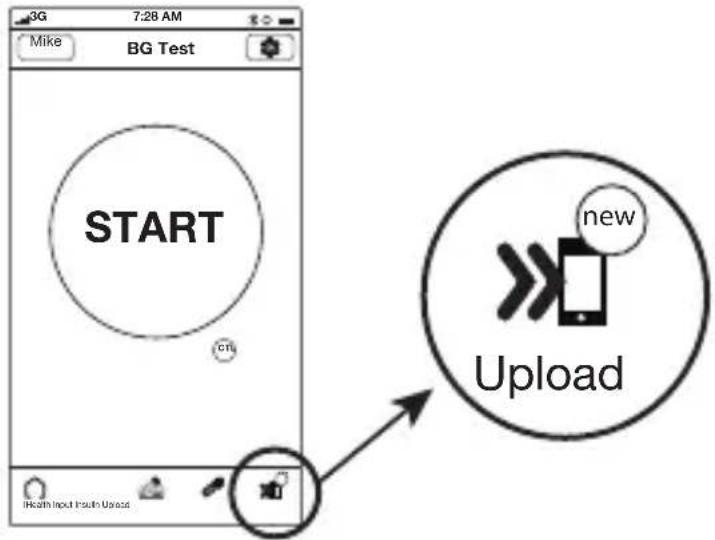
When the meter is connected to the app on your iOS device, tap the "Upload" button to upload the saved data from the meter to the app.
text_image
3G 7:28 AM Mike BG Test START new Upload Health Input Insulin UseadCUSTOMER SERVICE
If you need additional iHealth test strips, iHealth control solution, lancing devices, and lancets, please contact:
USA:
Tel: 855.816.7705 (8:30 A.M. – 5:30 P.M. PST, Monday to Friday except holidays)
Email: support@ihealthlabs.com
Europe:
Tel: +33(0)1 44 94 04 81 (9:00 A.M. – 5:30 P.M., Monday to Friday except holidays)
Email: support@ihealthlabs.eu
For additional product information, please go to www.ihealth-labs.com.
IMPORTANT SAFETY INSTRUCTIONS: Use only iHealth test strips. The meter and lancing device are for single patient use only. Don't share them with anyone, including other family members. Please refer to the iHealth Wireless Smart Gluco-Monitoring System Owner's Manual for more information.
iHealth is a trademark of iHealth Lab Inc.
©2013 iHealth Lab Inc. All rights reserved.
Manufactured for iHealth Lab Inc., Mountain View, CA 94043, USA.