
LC-20A2E - Television SHARP - Free user manual and instructions
Find the device manual for free LC-20A2E SHARP in PDF.


User questions about LC-20A2E SHARP
0 question about this device. Answer the ones you know or ask your own.
Ask a new question about this device
Download the instructions for your Television in PDF format for free! Find your manual LC-20A2E - SHARP and take your electronic device back in hand. On this page are published all the documents necessary for the use of your device. LC-20A2E by SHARP.
USER MANUAL LC-20A2E SHARP
Printed on post-consumer recycled paper.
natural_image
Illustration of a modern flat-screen monitor with two speakers on either side (no text or symbols visible)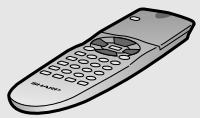
OPERATION MANUAL
BEDIENUNGSANLEITUNG
MODE D'EMPLOI
This equipment complies with the requirements of Directive 89/336/EEC and 73/23/EEC as amended by 93/68/EEC.
The mains lead of this product is fitted with a non-rewireable (moulded) plug incorporating a 3A fuse. Should the fuse need to be replaced, a BSI or ASTA approved BS 1362 fuse marked 🌿 or ◆ and of the same rating as above, which is also indicated on the pin face of the plug, must be used.
Always refit the fuse cover after replacing the fuse. Never use the plug without the fuse cover fitted. In the unlikely event of the socket outlet in your home not being compatible with the plug supplied, cut off the mains plug and fit an appropriate type.
DANGER: The fuse from the cut-off plug should be removed and the cut-off plug destroyed immediately and disposed of in a safe manner.
Under no circumstances should the cut-off plug be inserted elsewhere into a 13A socked outlet, as a serious electric shock may occur.
To fit an appropriate plug to the mains lead, follow the instructions below:
IMPORTANT: The wires in the mains lead are coloured in accordance with the following code:
Blue: Neutral Brown: Live
As the colours of the wires in the mains lead of this product may not correspond with the coloured markings identifying the terminals in your plug, proceed as follows;
- The wire which is coloured blue must be connected to the plug terminal which is marked N or coloured black.
- The wire which is coloured brown must be connected to the plug terminal which is marked L or coloured red.
Ensure that neither the brown nor the blue wire is connected to the earth terminal in your three-pin plug. Before replacing the plug cover make sure that:
- If the new fitted plug contains a fuse, its value is the same as that removed from the cut-off plug.
- The cord grip is clamped over the sheath of the mains lead, and not simply over the lead wires.
IF YOU HAVE ANY DOUBT, CONSULT A QUALIFIED ELECTRICIAN.
LC-20A2E
LCD COLOUR TELEVISION
ENGLISH
OPERATION MANUAL
Contents
Page
Dear SHARP Customer....2
Important Safety Precautions 2
Supplied Accessories 4
Preparation 5
Installing Batteries in the Remote Control ..... 5
Using Remote Control 5
Power Connection 6
Antenna Connection 6
First Installation....7
Part Names of Main Unit 9
Replacing the Speaker Net 10
Removing Back Cover 11
Part Names of Remote Control 12
Basic Operation 13
Turning On and Off the Main Power 13
Switching the TV/VIDEO (AV1/AV2/AVS/TV)
Mode 13
Sound Volume 14
ON/OFF Standby 14
Changing Channels 15
Useful Features 16
Adjusting Picture Settings 16
Page
Adjusting Sound Settings 17
Using Programme Table.... 18
Selecting Menu Items 19
Standard Settings 21
Programmes 22
AV Connections 29
Child Lock 32
On-screen Display 37
Timer Functions 38
Setting Time and Date (Manual) 39
NICAM Broadcast Selection 40
IGR (German stereo system) Broadcasts..... 41
Teletext 42
Connecting External Devices 47
Examples of external devices that can be connected 47
21-pin Euro-SCART (RGB) 48
How to fix the cables 50
Troubleshooting 51
Specifications 53
Dimensional Drawings 54
Dear SHARP Customer
Thank you for your purchase of the SHARP LCD Colour TV product. To ensure safety and many years of trouble-free operation of your product, please read the Important Safety Precautions carefully before using this product.
Important Safety Precautions
Electricity is used to perform many useful functions, but it can also cause personal injuries and property damage if improperly handled. This product has been engineered and manufactured with the highest priority on safety. However, improper use can result in electric shock and/or fire. In order to prevent potential danger, please observe the following instructions when installing, operating and cleaning the product. To ensure your safety and prolong the service life of your LCD colour TV product, please read the following precautions carefully before using the product.
- Read instructions—All operating instructions must be read and understood before the product is operated.
- Keep this manual in a safe place—These safety and operating instructions must be kept in a safe place for future reference.
■ Observe warnings—All warnings on the product and in the instructions must be observed closely.
■ Follow instructions—All operating instructions must be followed.
■ Attachments—Do not use attachments not recommended by the manufacturer. Use of inadequate attachments can result in accidents.
■ Power source—This product must operate on a power source specified on the specification label. If you are not sure of the type of power supply used in your home, consult your dealer or local power company. For units designed to operate on batteries or another power source, refer to the operating instructions.
■ Power cord protection—The power cords must be routed properly to prevent people from stepping on them or objects from resting on them. Check the cords at the plugs and product.
If you plan to use a 13-VDC power supply unit other than the AC adapter supplied with the product, make sure the power supply unit provides stable voltage with minimum fluctuations. Unstable power supply can cause problems in the product.
■ Overloading—Do not overload AC outlets or extension cords. Overloading can cause fire or electric shock.
■ Entering of objects and liquids—Never insert an object into the product through vents or openings. High voltage flows in the product, and inserting an object can cause electric shock and/or short internal parts. For the same reason, do not spill water or liquid on the product.
■ Servicing—Do not attempt to service the product yourself. Removing covers can expose you to high voltage and other dangerous conditions. Request a qualified service person to perform servicing.
■ Repair—If any of the following conditions occurs, unplug the power cord from the AC outlet, and request a qualified service person to perform repairs:
a. When the power cord or plug is damaged.
b. When a liquid was spilled on the product or when objects have fallen into the product.
c. When the product has been exposed to rain or water.
d. When the product does not operate properly as described in the operating instructions. Do not touch the controls other than those described in the operating instructions. Improper adjustment of controls not described in the instructions can cause damage, which often requires extensive adjustment work by a qualified technician.
e. When the product has been dropped or damaged.
f. When the product displays an abnormal condition. Any noticeable abnormality in the product indicates that the product needs servicing.
■ Replacement parts—In case the product needs replacement parts, make sure that the service person uses replacement parts specified by the manufacturer, or those with the same characteristics and performance as the original parts. Use of unauthorized parts can result in fire, electric shock and/or other danger.
■ Safety checks—Upon completion of service or repair work, request the service technician to perform safety checks to ensure that the product is in proper operating condition.
■ Wall or ceiling mounting—When mounting the product on a wall or ceiling, be sure to install the product according to the method recommended by the manufacturer.
Important Safety Precautions (Continued)
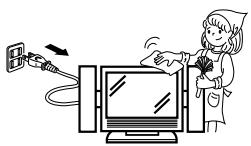
■ Cleaning—Unplug the power cord from the AC outlet before cleaning the product. Use a damp cloth to clean the product. Do not use liquid cleaners or aerosol cleaners.
■ Water and moisture—Do not use the product near water, such as bathtub, washbasin, kitchen sink and laundry tub, swimming pool and in a wet basement.
■ Stand—Do not place the product on an unstable cart, stand, tripod or table. Placing the product on an unstable base can cause the product to fall, resulting in serious personal injuries as well as damage to the product. Use only a cart, stand, tripod, bracket or table recommended by the manufacturer or sold with the product. When mounting the product on a wall, be sure to follow the manufacturer's instructions. Use only the mounting hardware recommended by the manufacturer.
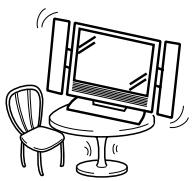
■ When relocating the product placed on a cart, it must be moved with utmost care. Sudden stops, excessive force and uneven floor surface can cause the product to fall from the cart.

■ Ventilation—The vents and other openings in the cabinet are designed for ventilation. Do not cover or block these vents and openings since insufficient ventilation can cause overheating and/or shorten the life of the product. Do not place the product on a bed, sofa, rug or other similar surface, since they can block ventilation openings. This product is not designed for built-in installation; do not place the product in an enclosed place such as a bookcase or rack, unless proper ventilation is provided or the manufacturer's instructions are followed.
■ The LCD panel used in this product is made of glass. Therefore, it can break when the product is dropped or applied with impact. Be careful not to be injured by broken glass pieces in case the LCD panel breaks.

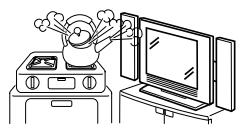
■ Heat sources—Keep the product away from heat sources such as radiators, heaters, stoves and other heat-generating products (including amplifiers).

natural_image
Illustration of a computer connected to a monitor and cables (no text or symbols)The LCD panel is a very high technology product with 921,600 thin film transistors, giving you fine picture details.
Occasionally, a few non-active pixels may appear on the screen as a fixed point of blue, green or red. Please note that this does not affect the performance of your product.
Supplied Accessories
Make sure the following accessories are provided with the product.
| Operation manual (×1) | Wireless remote control (×1) | ||
 |  | ||
| AC adapter (×1) | AC cord (×1) | ||
 |  * Product shape varies in some countries. * Product shape varies in some countries. | ||
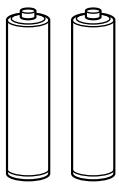
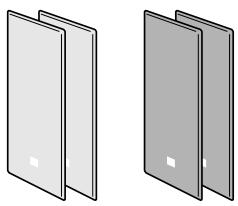
| Size AA dry battery (×2) | Speaker net (×2, Red/Blue) | Cable clamp (×2) | |
 |  |  | |
Preparation
Installing Batteries in the Remote Control
Before using the LCD TV set for the first time, install the two AA batteries supplied in the remote control. When the batteries become depleted and the remote control fails to operate, replace the batteries with new AA batteries.
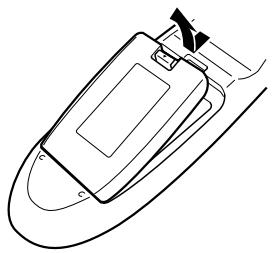
1 Open the battery cover.
natural_image
Line drawing of a mechanical component or device with no visible text, numbers, or symbols■ Raise the cover while pressing the (▼) part.
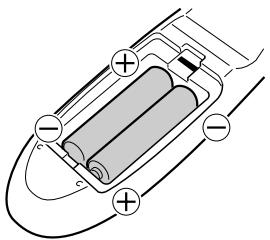
2 Insert two AA batteries.
text_image
Diagram of a battery pack with positive and negative terminals, showing charge distribution in a housing■ Position the positive and negative ends of the batteries as indicated in the compartment.
3 Replace the battery cover.
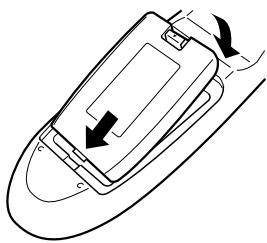
natural_image
Line drawing of a mechanical component with arrows indicating motion direction (no text or symbols)■ Engaging the lower claw with the remote control, close the cover.
Caution!
Precautions regarding batteries
■ Improper use of batteries can result in a leakage of chemicals and/or explosion. Be sure to follow the instructions below.
- Place batteries with their terminals corresponding to the (+) and (−) indications.
- Different types of batteries have different characteristics. Do not mix batteries of different types.
- Do not mix old and new batteries. Mixing old and new batteries can shorten the life of new batteries and/or cause old batteries to leak chemicals.
- Remove batteries as soon as they are depleted. Chemicals that leak from batteries can cause a rash. If chemical leakage is found, wipe it off with a cloth.
- The batteries supplied with the product may have a shorter life expectancy due to storage conditions.
- If the remote control is not to be used for an extended period of time, remove the batteries from the remote control.
Using Remote Control
■ Use the remote control by pointing it towards the remote sensor window of the main unit. Objects between the remote control and sensor window may prevent proper operation.
Cautions regarding use of remote control
■ Do not expose the remote control to shock. In addition, do not expose the remote control to liquids, and do not place it in an area with high humidity.
■ Do not install or place the remote control under direct sunlight. The heat may cause deformation of the unit.
■ The remote control may not work properly if the remote sensor window is under direct sunlight or strong lighting. In such a case, change the angle of the lighting or main unit, or operate the remote control closer to the remote sensor window.
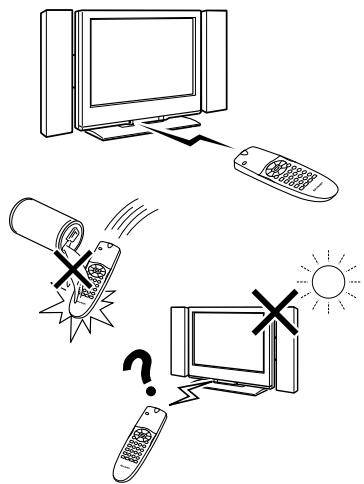
text_image
Diagram illustrating computer security and communication, showing a monitor, remote, phone, and unknown phone with warning symbolsPreparation (Continued)
Power Connection
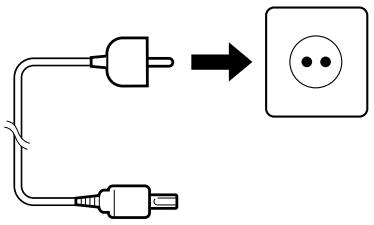
Connect to the DC input terminal of the product.
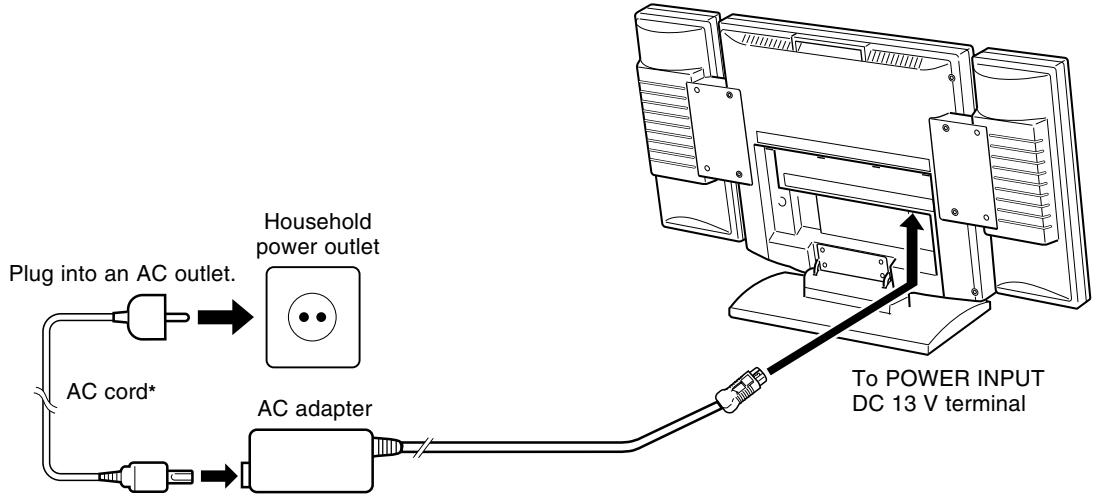
flowchart
graph TD
    A["Plug into an AC outlet."] --> B["Household power outlet"]
    C["AC cord*"] --> D["AC adapter"]
    D --> E["To POWER INPUT DC 13 V terminal"]
* Product shape varies in some countries.
Notes:
■ Always turn the POWER switch of the LCD TV set to OFF when connecting the AC adapter.
■ Unplug the AC adapter from the LCD TV set and power outlet when the LCD TV set is not to be used for a long period of time.
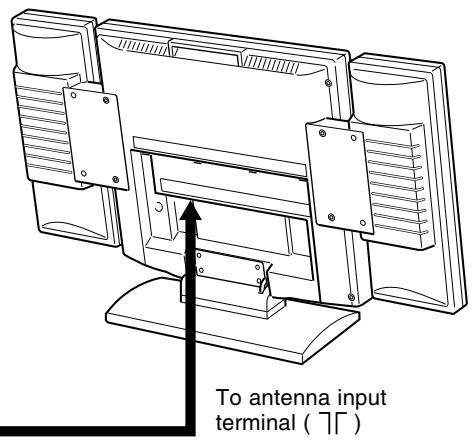
Antenna Connection
To enjoy a clearer picture, we recommend that you use an outdoor antenna. The following is a brief explanation of the types of connection that are used for coaxial and feeder cables:
(1) If your outdoor antenna uses a 75-ohm coaxial cable, change this for a new standard DIN45325 (IEC169-2) plug and plug it into the antenna terminal at the back of TV set via the antenna cable (not supplied).
(2) If your outdoor antenna uses a 300-ohm twin-lead flat feeder, change this for a 300-ohm to 75-ohm impedance converter and plug it into the antenna terminal at the back of TV set via the antenna cable (not supplied).
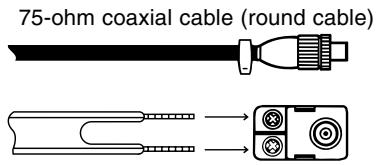
text_image
75-ohm coaxial cable (round cable)300-ohm twin-lead flat feeder
text_image
To antenna input terminal ( 7Γ )Preparation (Continued)
First Installation
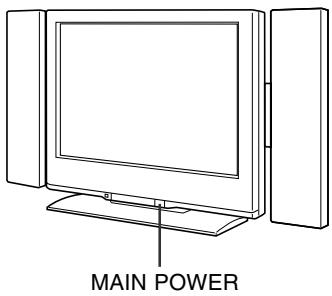
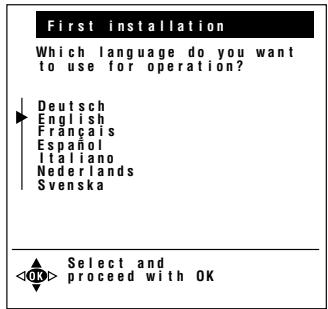
When you turn on the LCD TV set for the first time, the First Installation routine, which makes installation easier, is activated. Using this routine, you can select the on-screen display language, and automatically search for and store all the receivable channels.
text_image
MAIN POWER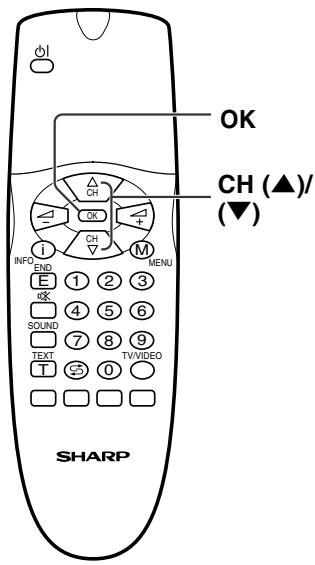
text_image
OK CH (▲)/ (▼) M MENU I CH OK Δ CH E 1 2 3 OK 4 5 6 SOUND 7 8 9 TEXT T 0 TVVIDEO SHARP1 Press MAIN POWER, located on the front side of the main unit. The "First installation" screen with a list of the languages for the on-screen display appears.
2 Press CH (▲)/(▼) to select the desired language, and then press OK. The “Location of TV set” screen appears in the language selected.
Note:
■ You can change the on-screen display language after the First Installation routine by selecting "Language" on the TV menu (see pages 19 and 20).
3 Press CH (▲)/(▼) to select the TV set location, and then press OK. The “Autom. programme search” screen appears.
4 Press CH (▲)/(▼) to select "Start search."
text_image
First installation Which language do you want to use for operation? ► Deutsch English Français Español Italiano Nederlands Svenska Select and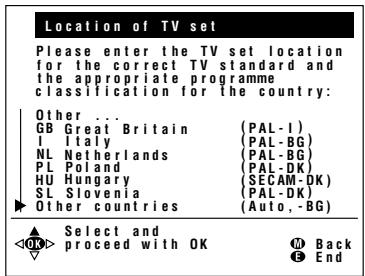
text_image
Location of TV set Please enter the TV set location for the correct TV standard and the appropriate programme classification for the country: Other ... GB Great Britain (PAL-I) I Italy (PAL-BG) NL Netherlands (PAL-BG) PL Poland (PAL-DK) HU Hungary (SECAM-OK) SL Slovenia (PAL-DK) Other countries (Auto, -BG) Select and proceed with OK Back OK End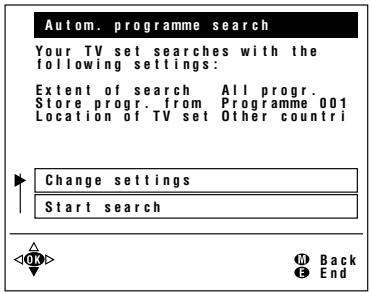
text_image
Autom. programme search Your TV set searches with the following settings: Extent of search All progr. Store progr. from Programme 001 Location of TV set Other countri Change settings Start search OK Back EndPreparation (Continued)
First Installation (Continued)
text_image
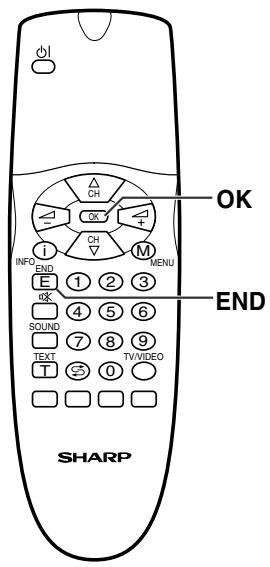
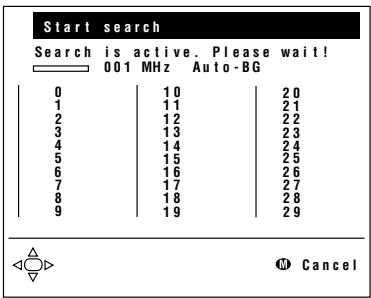
OK CH OK CH M MENU E ① ② ③ OK SOUND ④ ⑤ ⑥ TEXT ⑦ ⑧ ⑨ T ⑩ ⑪ TV/VIDEO END SHARP5 Press OK to begin the automatic programme search. The bar on the screen shows the progress.
When the search is completed, the number of the programmes found is displayed. The new programmes found are displayed in blue on the programme list.
text_image
Start search Search is active. Please wait! 001 MHz Auto-BG 0 10 20 1 11 21 2 12 22 3 13 23 4 14 24 5 15 25 6 16 26 7 17 27 8 18 28 9 19 29 M Cancel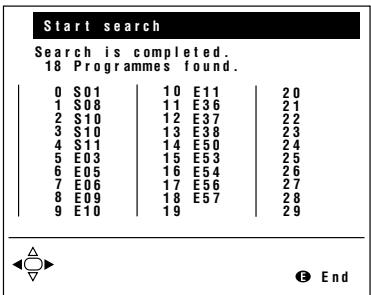
text_image
Start search Search is completed. 18 Programmes found. 0 S01 10 E11 20 1 S08 11 E36 21 2 S10 12 E37 22 3 S10 13 E38 23 4 S11 14 E50 24 5 E03 15 E53 25 6 E05 16 E54 26 7 E06 17 E56 27 8 E09 18 E57 28 9 E10 19 29 ◀ △ ▼ E End6 Press END to exit.
Part Names of Main Unit
Controls
text_image
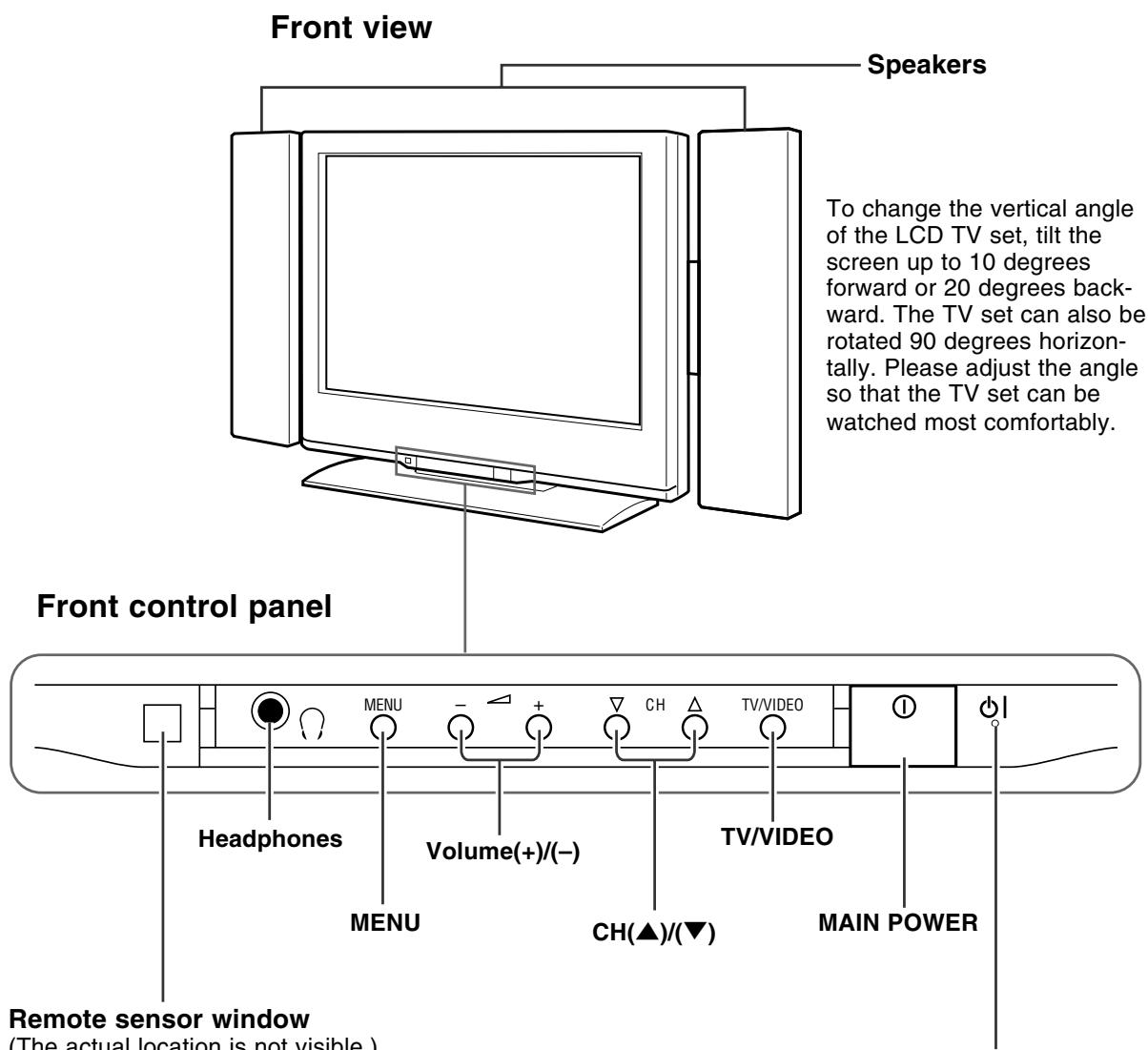
Front view Speakers To change the vertical angle of the LCD TV set, tilt the screen up to 10 degrees forward or 20 degrees backward. The TV set can also be rotated 90 degrees horizontally. Please adjust the angle so that the TV set can be watched most comfortably. Front control panel Headphones MENU Volume(+)/(-) CH ▲ TV/VIDEO TV/VIDEO MENU CH(▲)/(▼) MAIN POWER Remote sensor window (The actual location is not visible)(The actual location is not visible.)
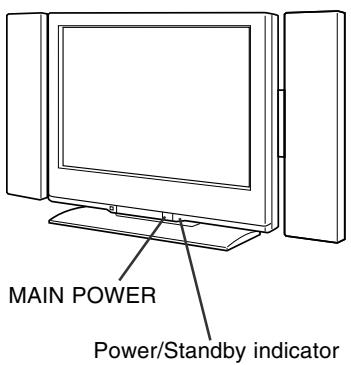
Power/Standby indicator
A green indicator lights when the power is on and a red indicator lights when in the standby mode (the indicator will not light when the main power is off).
Note:
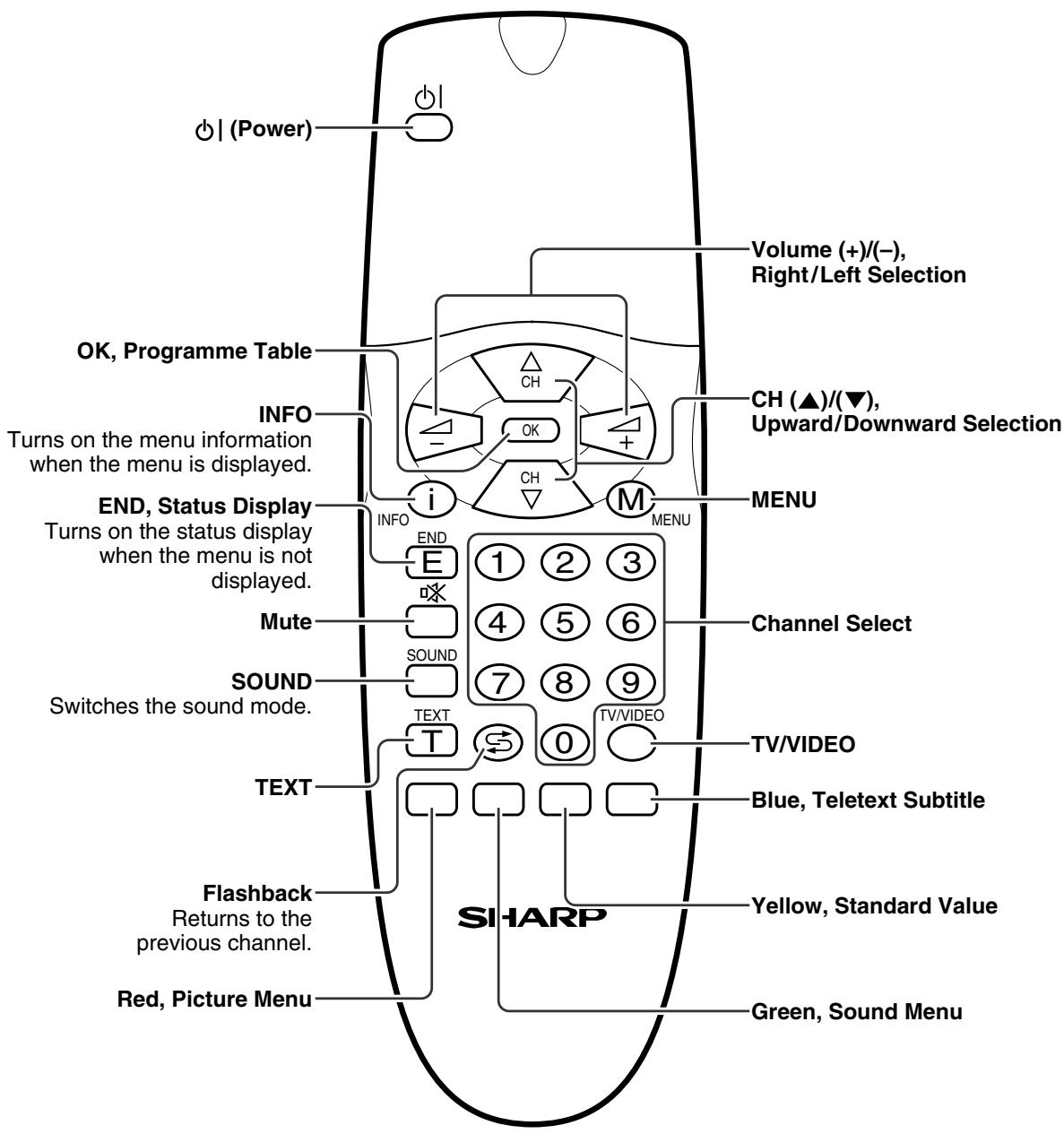
■ TV/VIDEO, CH(▲)/(▼), and Volume (+)/(-) on the main unit have the same functions as the same buttons on the remote control. Fundamentally, this operation manual provides a description based on operation using the remote control.
Part Names of Main Unit (Continued)
Replacing the Speaker Net
■ Replacement
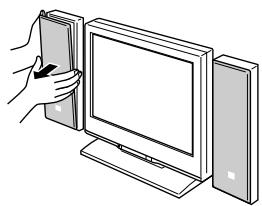
(1) With your hand on the rear of the speaker, grasp both sides of the speaker net with your fingers at the top, centre, then the bottom, and slowly pull the speaker net toward you.
■ Attachment (left and right)
(1) Check the (L) and (R) marks on the rear of the speaker net.
(2) Insert the six pins on the rear of the speaker net into the holes in the speaker.
(3) With your hand on the rear of the speaker, press gently against the net at the top, centre, and then bottom with the palm of your hand.
■ Notes on handling the speaker net
- For regular care and cleaning, wipe away dust and dirty using a duster or soft brush.
- Do not let your nails or other sharp object scratch the speaker net.
- Do not wipe with a house-cloth or use a vacuum cleaner.
- Do not rip the speaker net by touching it with your hand.
natural_image
Line drawing of a hand holding a book next to a computer monitor (no text or symbols present)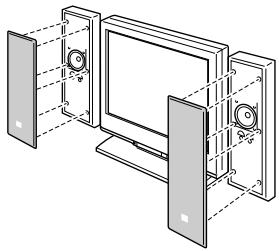
natural_image
Diagram of a computer monitor with multiple speakers and display panels (no text or symbols)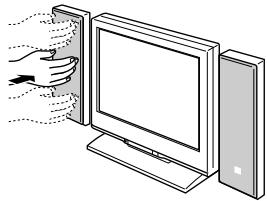
natural_image
Illustration of a hand inserting a device into a flat-screen monitor (no text or symbols visible)Note:
■ The speakers should only be removed by a SHARP service person.
Notes on Lifting
natural_image
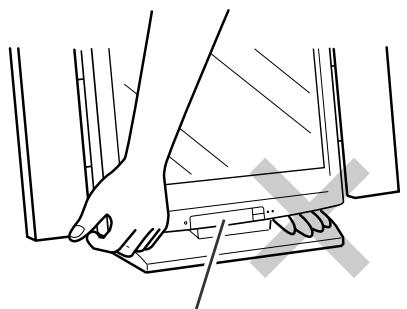
Line drawing of hands using a laptop computer (no text or symbols)Do not grasp the front cover to carry the product.
Note:
■ Do not reach inside the gap between the installation stand and the unit with your hands. If the stand and unit are inclined, your hands may be caught, resulting in an injury, etc.
Part Names of Main Unit (Continued)
Terminals
text_image
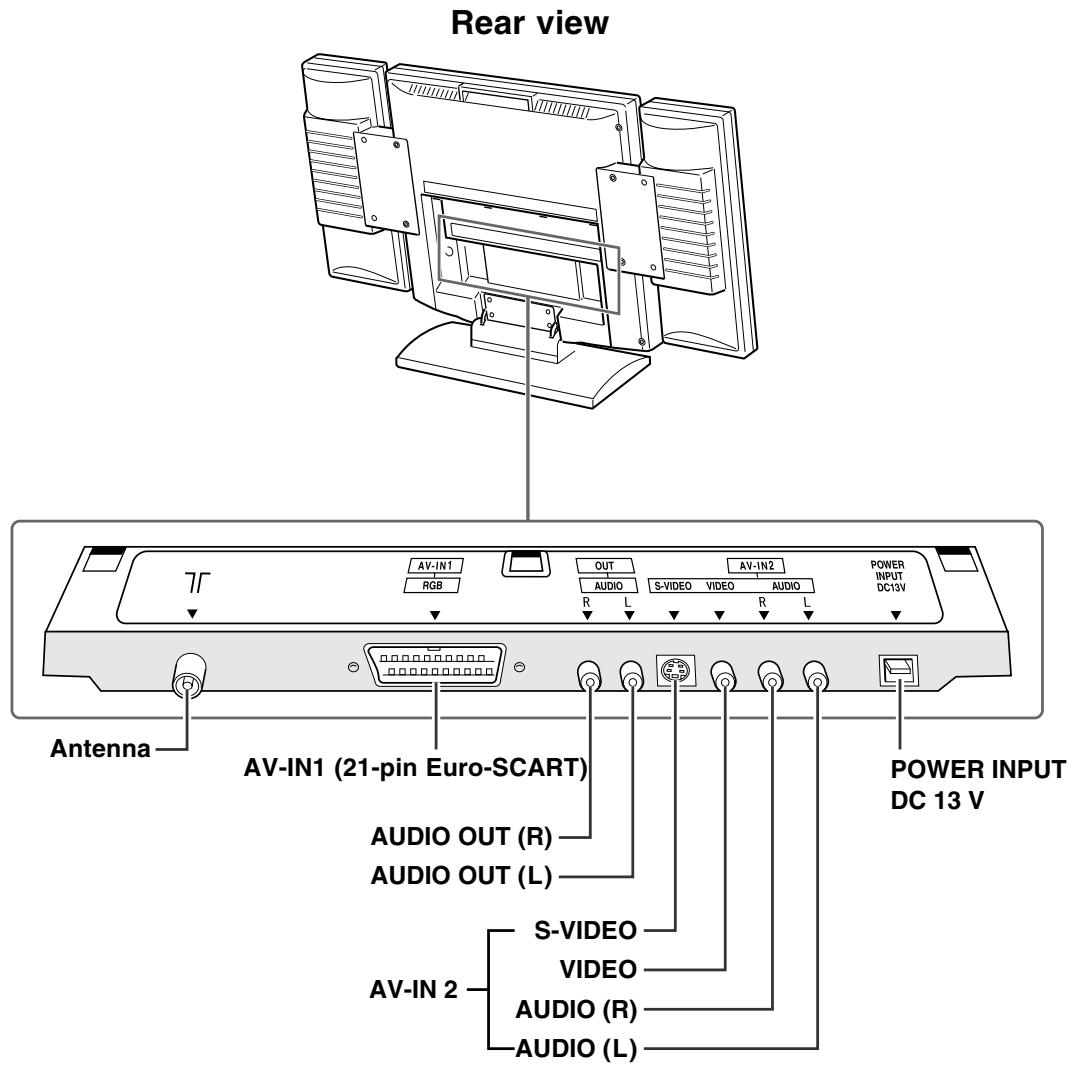
Rear view AV-IN1 RGB OUT AUDIO S-VIDEO AV-IN2 AUDIO POWER INPUT DC13V Antenna AV-IN1 (21-pin Euro-SCART) AUDIO OUT (R) AUDIO OUT (L) POWER INPUT DC 13 V AV-IN 2 S-VIDEO VIDEO AUDIO (R) AUDIO (L)Removing Back Cover
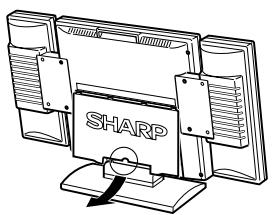
■ When connecting the cords to the terminals, remove the back cover by gently pulling the part marked ○ forward.
■ To replace the back cover, first fit the four top clips (①) into the corresponding slots of the terminal section, and then align the four side clips (②) with the corresponding slots. Then, press the marked parts (③) until the two hooks on the bottom of the cover lock in place with a click.
natural_image
Line drawing of a computer monitor with 'SHARP' branding on the front panel (no additional text or symbols)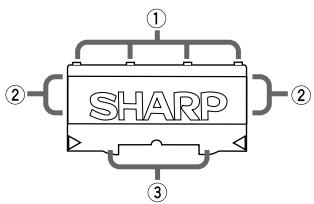
text_image
SHARPPart Names of Remote Control
text_image
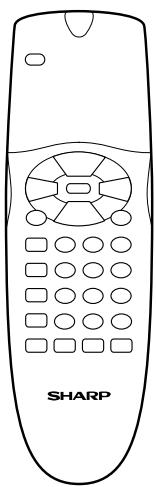
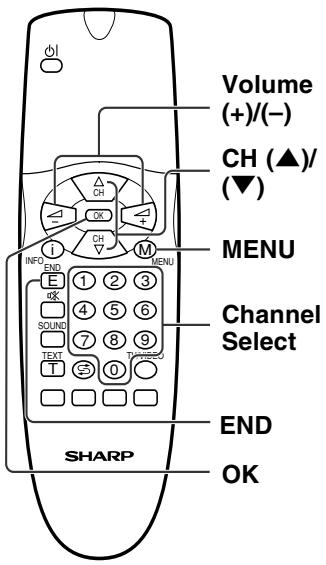
Power Volume (+)/(-), Right/Left Selection OK, Programme Table CH CH (▲)/(▼), Upward/Downward Selection INFO Turns on the menu information when the menu is displayed. END, Status Display Turns on the status display when the menu is not displayed. Mute SOUND Switches the sound mode. TEXT Flashback Returns to the previous channel. Red, Picture Menu CHANNEL Select i ii iii iv v v v v v v v v v v v v v v v v v v v v v v v v v v v v v v v v v v v v v v v v v v v v v v v v v v sHARP Blue, Teletext Subtitle Yellow, Standard Value Green, Sound MenuBasic Operation
Turning On and Off the Main Power
text_image
MAIN POWER Power/Standby indicator- Press MAIN POWER, located on the front side of the main unit. The power indicator instantaneously changes from red to green and the main unit is turned on.
Note:
■ The display time of the on-screen indicators can be selected with “On-screen time” for the “On-screen display” menu item in the TV menu (see page 37).
● To turn off the main power, press MAIN POWER again. The power indicator instantaneously changes from green to red and the main unit is turned off.
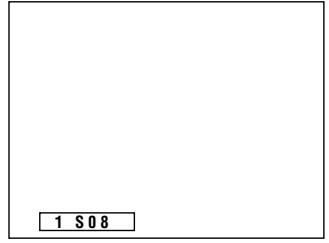
▼ On-screen display
text_image
1 S08Switching the TV/VIDEO (AV1/AV2/AVS/TV) Mode
text_image
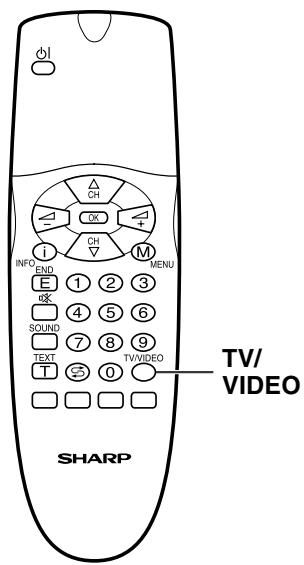
OFF INF° END E 1 2 3 OK 4 5 6 SOUND 7 8 9 TEXT TV/VIDEO T 0 SHARP MENU CH OK M I E 1 2 3 4 5 6 7 8 9 0 TV/VIDEO1 Turn on the power of the connected video equipment.
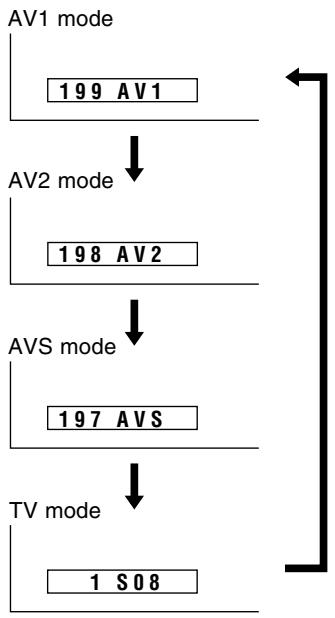
2 Press TV/VIDEO to select the applicable input source. The screen displays AV1, AV2, AVS or TV mode each time TV/VIDEO is pressed.
Note:
■ About the video modes
- AV1: Select this when viewing the signals from the video equipment connected to the AV-IN1 terminal.
- AV2: Select this when viewing the signals from the video equipment connected to the AV-IN2 terminals using the VIDEO terminal for video input.
• AVS: Select this when viewing the signals from the video equipment connected to the AV-IN2 terminals using the S-VIDEO terminal for video input. (If both the S-VIDEO and VIDEO terminals are connected, the S-VIDEO terminal takes priority.)
flowchart
graph TD
    A["AV1 mode"] --> B["199 AV1"]
    B --> C["AV2 mode"]
    C --> D["198 AV2"]
    D --> E["AVS mode"]
    E --> F["197 AVS"]
    F --> G["TV mode"]
    G --> H["1 S08"]
Basic Operation (Continued)
Sound Volume
text_image
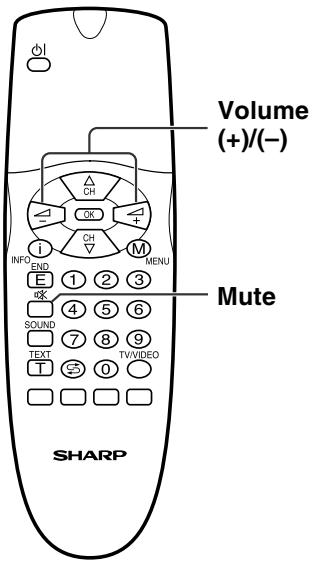
Volume (+)/(-) Mute SHARPTo adjust the volume
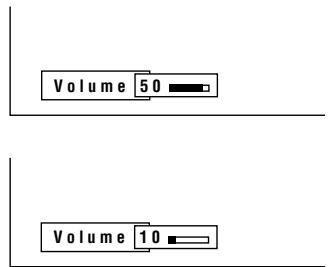
- Press Volume (+) to increase the sound volume. The numerical value increases.
- Press Volume (−) to decrease the sound volume. The numerical value decreases.
To mute the sound
- Press Mute to temporarily turn off the sound. "Sound off" is displayed.
- Press Mute to turn off the Mute function. "Sound on" is displayed.
Note:
■ When Volume (+)/(-) is pressed in the Mute mode, the sound turns on and the volume indicator is displayed.
■ The Mute function is cancelled when ⏻| is pressed.
text_image
Volume 50 Volume 10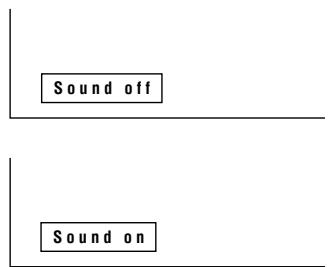
text_image
Sound off Sound onON/OFF Standby
text_image
SHARP INFO END E ① ② ③ OK ④ ⑤ ⑥ SOUND ⑦ ⑧ ⑨ TEXT ⑩ ⑪ TV/VIDEO T ⑫ ⑬To turn off the LCD TV
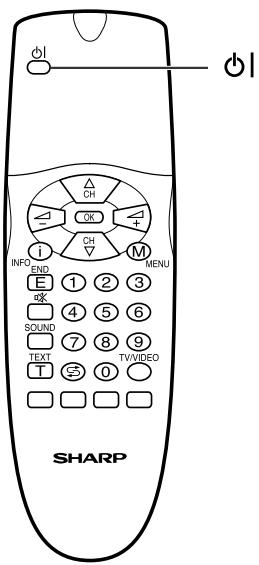
Press ⏻. The power indicator will turn red.
To turn the LCD TV back on
Press ⏻| again. The power indicator will turn green.
Basic Operation (Continued)
Changing Channels
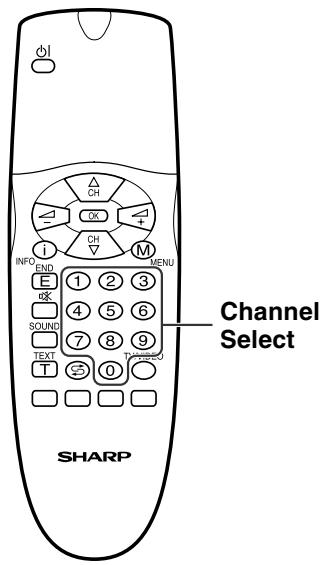
You can select channels using Channel Select or CH (▲)/(▼).
- To handle the increasing number of channels available, this LCD TV set allows you to select up to 200 channels (0 to 199).
Using Channel Select
When selecting the channel using Channel Select, finish inputting the channel number by holding down the button for the last digit for a moment.
text_image
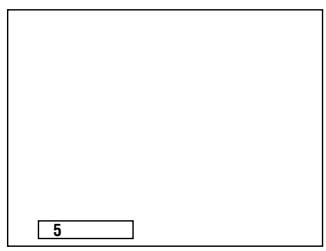
Channel Select SHARPTo select a one-digit channel (e.g. Channel 5):
1 Hold down the ⑤ button.
text_image
5To select a two/three-digit channel (e.g. Channel 15):
1 Press the ① button.
2 Hold down the ⑤ button.
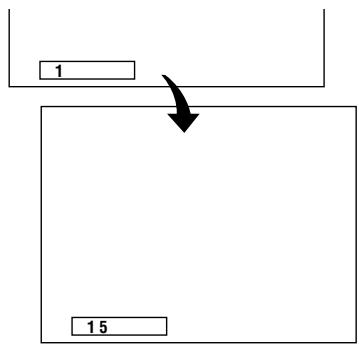
flowchart
graph TD
    A["1"] --> B
    C["15"] --> B
Using CH (▲)/(▼)
Press CH (▲) and the channels change in the order shown below:
$$ 1 \rightarrow 2 \rightarrow 3 \rightarrow \dots \rightarrow 1 9 8 \rightarrow 1 9 9 \rightarrow 0 \rightarrow 1 \rightarrow 2 \rightarrow 3 \rightarrow \dots $$
Press CH (▼) and the channels change in the order shown below:
$$ 3 \rightarrow 2 \rightarrow 1 \rightarrow 0 \rightarrow 1 9 9 \rightarrow 1 9 8 \rightarrow \dots \rightarrow 3 \rightarrow 2 \rightarrow 1 \rightarrow \dots $$
Useful Features
Adjusting Picture Settings
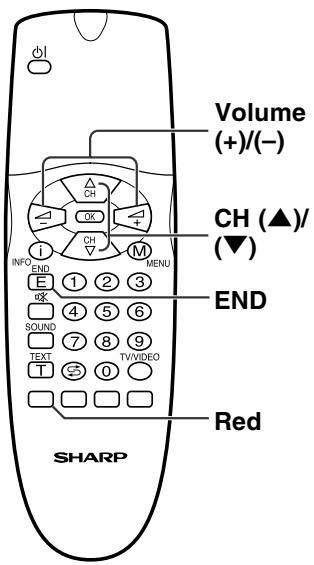
text_image
Volume (+)/(-) CH (▲)/ ▼ END Red SHARP1 Press Red to display the Picture screen.
Note:
■ The Picture screen can also be displayed by selecting “Picture” in the TV menu (see pages 19 and 20).
2 Press CH (▲)/(▼) to select the desired adjustment item.
- Select “Other...” to display the other part of the Picture screen.
3 Press Volume (+)/(-) to make the adjustment.
4 Press END to exit.
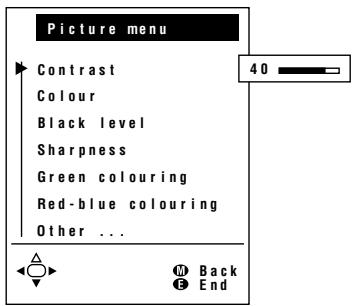
text_image
Picture menu Contrast Colour Black level Sharpness Green colouring Red-blue colouring Other ...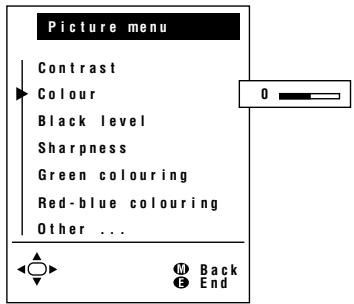
text_image
Picture menu Contrast Colour Black level Sharpness Green colouring Red-blue colouring Other ...| Adjustment item | Press Volume (−) | Choice/Value range | Press Volume (+) |
| Contrast | Decrease contrast | 0 – 60 | Increase contrast |
| Colour | Lower colour intensity | -30 – 30 | Higher colour intensity |
| Black level | Less bright | -30 – 30 | More bright |
| Sharpness | Soft picture | 0 – 5 | Sharp picture |
| Green colouring | Less green | -5 – 5 | More green |
| Red-blue colouring | More red | -5 – 5 | More blue |
| Tint | Toward purple | -15 – 15 | Toward green |
| Brightness | — | dark←→medium←→bright | — |
| Rotate horizontally | — | off←→on | — |
| Rotate vertically | — | off←→on | — |
Useful Features (Continued)
Adjusting Sound Settings
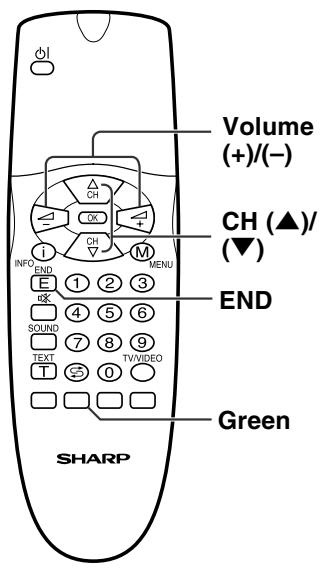
text_image
Volume (+)/(-) CH (▲)/ (▼) END Green SHARP1 Press Green to display the Sound screen.
Note:
■ The Sound screen can also be displayed by selecting “Sound” in the TV menu (see pages 19 and 20).
2 Press CH (▲)/(▼) to select the desired adjustment item.
- Select "Other..." to display the other part of the Sound screen.
3 Press Volume (+)/(-) to make the adjustment.
4 Press END to exit.
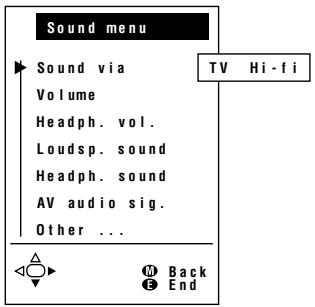
text_image
Sound menu Sound via Volume Headph. vol. Loudsp. sound Headph. sound AV audio sig. Other ... TV Hi-fi Back End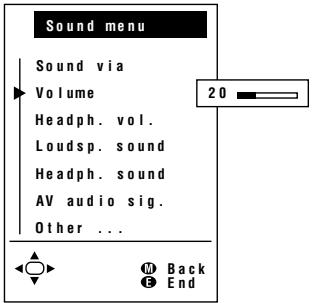
text_image
Sound menu Sound via Volume Headph. vol. Loudsp. sound Headph. sound AV audio sig. Other ...| Adjustment item | Press Volume (−) | Choice/Value range | Press Volume (+) |
| Sound via | — | TV←→Hi-fi | — |
| Volume*/Hi-fi volume | Decrease volume | 0 – 60 | Increase volume |
| Headph. vol.* | Decrease head-phones volume | 0 – 60 | Increase head-phones volume |
| Loudsp. sound | — | Mono←→Mono!/Sound1←→Sound2←→Sound1+2←→Mono!/Stereo←→Mono!/Nicam←→Mono!(* The choices differ depending on whether or not a NICAM or IGR signal is received.) | — |
| Headph. sound* | |||
| AV audio sig. | — | Sound1←→Sound2←→Sound1+2 | — |
| Maximum volume* | Decrease maximum volume | 10 – 60 | Increase maximum volume |
| Sound wide* | — | off←→on | — |
| Balance* | Increase the volume of the left speaker | -15 – 15 | Increase the volume of the right speaker |
* These items are not displayed when the "Sound via" item is set to "Hi-fi".
Note:
In the “AV audio sig.” item, mono-video recorders should select “Sound1” or “Sound2”. Stereo-video recorders should select “Sound1+2” so that the desired sound can be selected when playing back the video.
Useful Features (Continued)
Using Programme Table
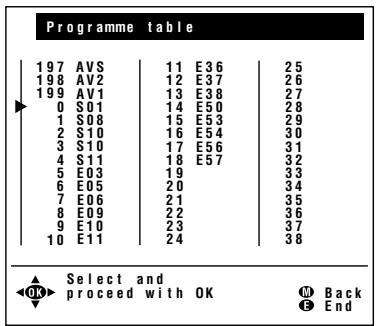
The Programme table shows a list of all receivable programmes. They are located in channels 0 to 199. The currently selected programme is displayed in blue, and the child-locked programmes are displayed in red.
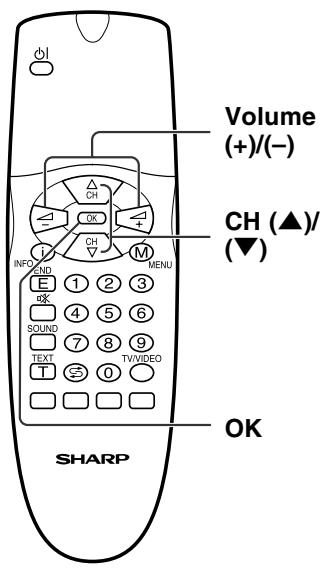
text_image
Volume (+)/(-) CH (▲)/ (▼) INFO AND MENU E 1 2 3 OK 4 5 6 SOUND 7 8 9 TEXT TV/VIDEO T 0 SHARP OKTo select the desired programme
1 Press OK to display the Programme table.
2 Press CH (▲)/(▼) and/or Volume (+)/(-) to select the desired programme.
- To display the next or previous list of the Programme table, press CH (▲)/(▼) when the cursor is at a programme in the lower-right or upper-left position, or press Volume (+)/(−) when the cursor is at a programme in the right or left column.
3 Press OK to display the selected programme.
text_image
Programme table 197 AVS 11 E36 25 198 AV2 12 E37 26 199 AV1 13 E38 27 0 S01 14 E50 28 1 S08 15 E53 29 2 S10 16 E54 30 3 S10 17 E56 31 4 S11 18 E57 32 5 E03 19 33 6 E05 20 34 7 E06 21 35 8 E09 22 36 9 E10 23 37 10 E11 24 38 Select and OK proceed with OK Back EndUseful Features (Continued)
Selecting Menu Items
- The menus can be used to adjust the various settings of your LCD TV set. Select the desired menu item by following the steps below.
■ Using TV Menus
text_image
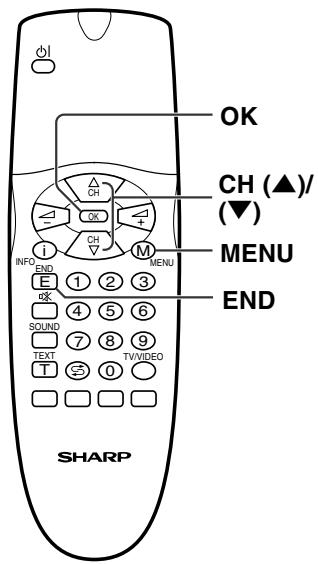
OK CH (▲)/ (▼) MENU END SHARP1 Press MENU on the remote control to display the TV menu.
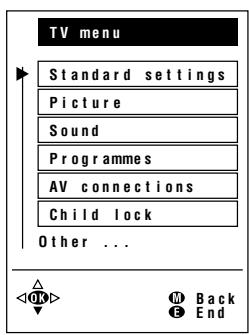
2 Press CH (▲)/(▼) to select the desired menu item.
- The cursor moves up or down.
- The cursor indicates the selected menu item.
- Select "Other..." to display the other part of the menu.
3 Press OK to display the setting screen for the selected menu item.
- See the next page for a table of the setting screens.
4 Press MENU to return to the previous screen or END to return to the normal screen.
text_image
TV menu Standard settings Picture Sound Programmes AV connections Child lock Other ...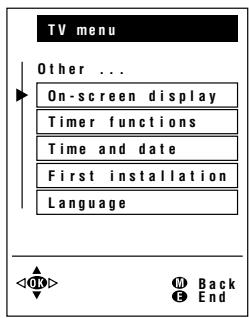
text_image
TV menu Other ... On-screen display Timer functions Time and date First installation Language■ Using Direct Control Menu
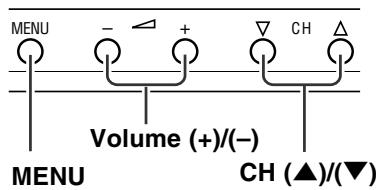
Front control panel of the main unit
text_image
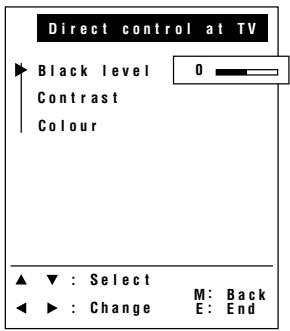
MENU Volume (+)/(-) MENU CH (▲)/(▼)1 Press MENU on the main unit to display the Direct Control menu.
2 Press CH (▲)/(▼) to select the desired menu item.
- The cursor moves up or down.
- The cursor indicates the selected menu item.
3 Press Volume (+)/(-) to make the adjustment.
- See page 16 for details on the use of each item.
4 Press MENU to turn off the Direct Control menu.
text_image
Direct control at TV Black level 0 Contrast Colour ▲ ▼ : Select M: Back ◀ ▶ : Change E: EndNotes:
■ The items displayed differ depending on the setting conditions.
■ The item selected is displayed in blue.
■ The adjustment values and settings which were changed before the screen is restored are saved as is in the memory.
Useful Features (Continued)
Selecting Menu Items (Continued)
■ TV Menu Setting Screens
For details on using each setting screen, refer to the page number indicated.
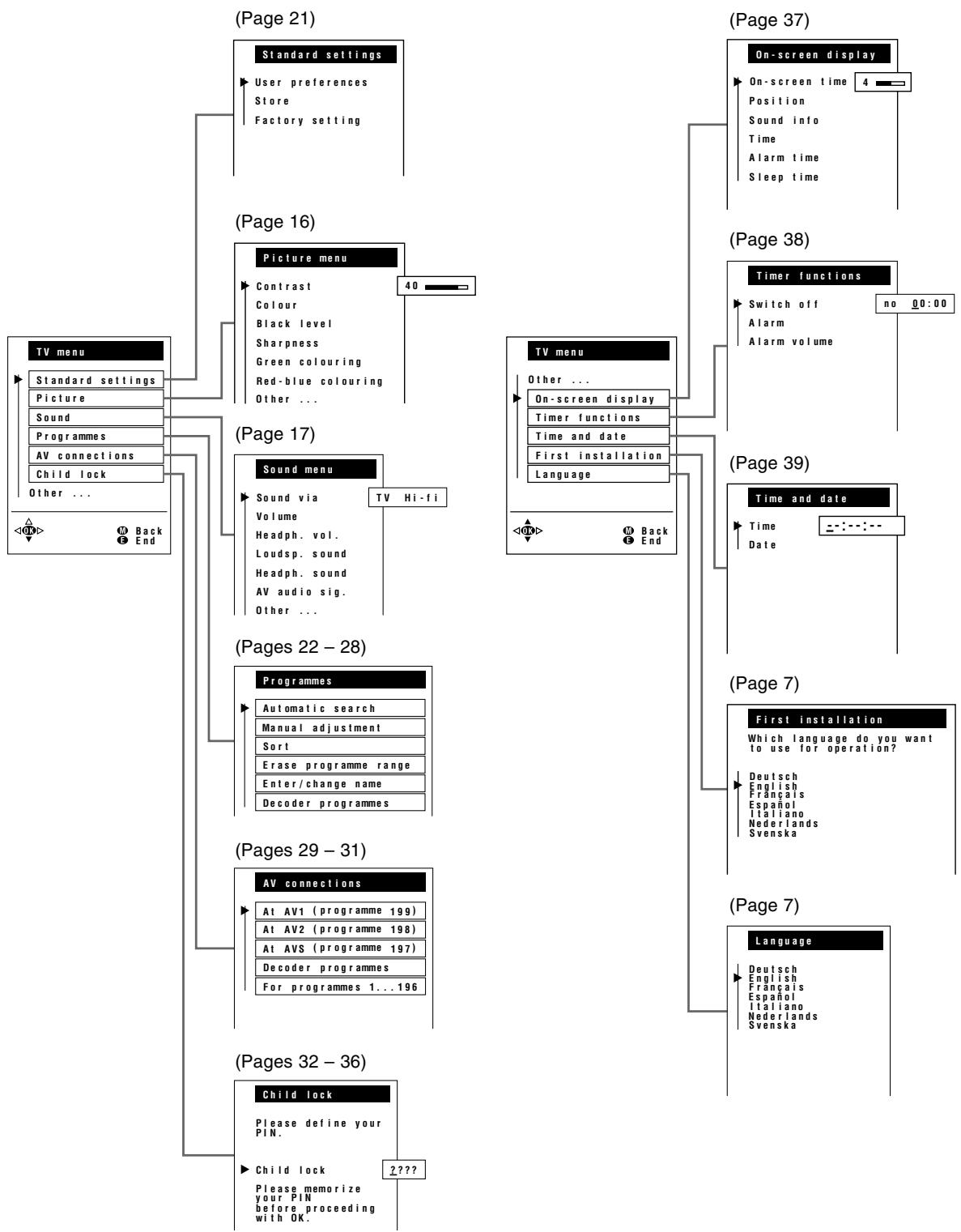
flowchart
graph TD
    A["Standard settings"] --> B["User preferences"]
    A --> C["Store"]
    A --> D["Factory setting"]
    E["Picture menu"] --> F["Contrast"]
    E --> G["Colour"]
    E --> H["Black level"]
    E --> I["Sharpness"]
    E --> J["Green colouring"]
    E --> K["Red-blue colouring"]
    E --> L["Other ..."]
    M["TV menu"] --> N["Standard settings"]
    M --> O["Picture"]
    M --> P["Sound"]
    M --> Q["Programmes"]
    M --> R["AV connections"]
    M --> S["Child lock"]
    M --> T["Other ..."]
    U["Sound menu"] --> V["Sound via"]
    U --> W["Volume"]
    U --> X["Headph. vol."]
    U --> Y["Loudsp. sound"]
    U --> Z["Headph. sound"]
    U --> AA["AV audio sig."]
    U --> AB["Other ..."]
    AC["TV menu"] --> AD["On-screen display"]
    AC --> AE["Position"]
    AC --> AF["Sound info"]
    AC --> AG["Time"]
    AC --> AH["Alarm time"]
    AC --> AI["Sleep time"]
    AJ["Timer functions"] --> AK["Switch off"]
    AJ --> AL["Alarm"]
    AJ --> AM["Alarm volume"]
    AN["Time and date"] --> AO["Time"]
    AN --> AP["Date"]
    AQ["Programmes"] --> AR["Automatic search"]
    AQ --> AS["Manual adjustment"]
    AQ --> AT["Sort"]
    AQ --> AU["Erase programme range"]
    AQ --> AV["Enter/change name"]
    AQ --> AW["Decoder programmes"]
    AX["AV connections"] --> AY["At AV1 (programme 199)"]
    AX --> AZ["At AV2 (programme 198)"]
    AX --> BA["At AVS (programme 197)"]
    AX --> BB["Decoder programmes"]
    AX --> BC["For programmes 1...196"]
    BD["Picture menu"] --> BE["40"]
    BF["TV hi-fi"] --> BG["TV Hi-fi"]
    BH["Picture menu"] --> BI["Other ..."]
    BJ["TV menu"] --> BK["On-screen display"]
    BJ --> BL["Timer functions"]
    BJ --> BM["Time and date"]
    BN["TV menu"] --> BO["Back"]
    BN --> BP["End"]
Useful Features (Continued)
Standard Settings
You can optionally set the standard settings for the following adjustments. You can also easily call up those standard settings or factory-preset settings.
- Mute
• Picture menu item: Contrast, Colour, Sharpness, Tint, Brightness - Sound menu item: Volume, Hi-fi volume, Headph. vol., Balance
text_image
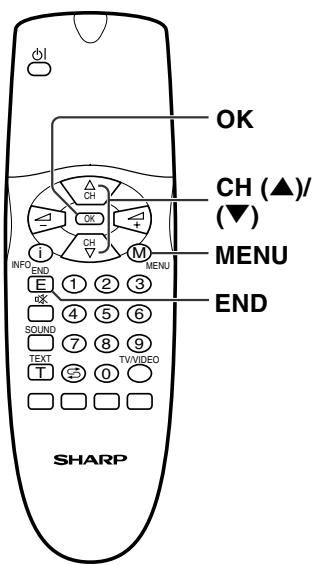
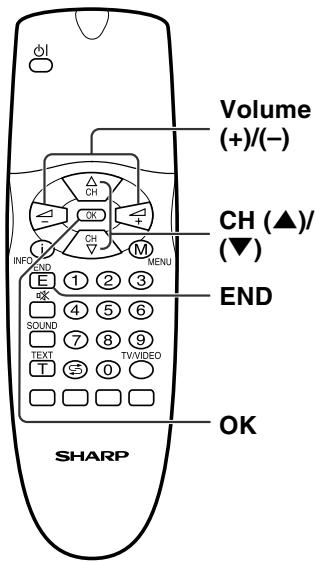
OK CH (▲)/ (▼) MENU END SHARP1 Press MENU to display the TV menu.
2 Press CH (▲)/(▼) to select "Standard settings", and then press OK to display the "Standard settings" screen.
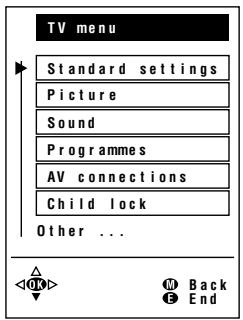
text_image
TV menu Standard settings Picture Sound Programmes AV connections Child lock Other ...3 Press CH (▲)/(▼) to select the desired function.
■ User preferences: The standard settings are retrieved.
■ Store: The currently selected settings are stored as the standard settings.
■ Factory setting: The factory-preset settings are retrieved.
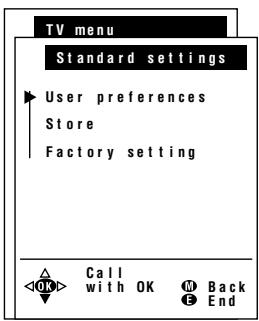
text_image
TV menu Standard settings User preferences Store Factory setting Call with OK Back End4 Press OK to execute the selected function.
5 Press END to exit.
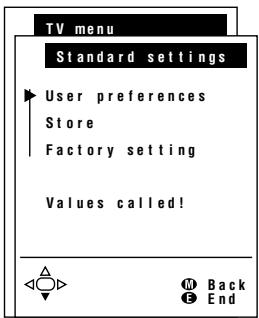
text_image
TV menu Standard settings User preferences Store Factory setting Values called! Back EndNote:
■ You can also call up the standard settings by pressing Yellow with the normal screen displayed.
Useful Features (Continued)
Programmes
[1] Automatic search
Perform the procedure below to search for and store new programmes after the First Installation routine.
![SHARP LC-20A2E - [1] Automatic search - 1](/content/2025/01/78618/images/77fb411946496f7dde1a79e3d9280a35ed7b63d6bcf1db69a5bab5d328018587.jpg)
text_image
OK CH (▲)/ (▼) MENU SHARP1 Press MENU to display the TV menu.
2 Press CH (▲)/(▼) to select "Programmes", and then press OK to display the "Programmes" screen.
![SHARP LC-20A2E - [1] Automatic search - 2](/content/2025/01/78618/images/d6cceaaa586ecbdd2f73517dccc99312b9baabe03293a5a4807b544e484184d1.jpg)
text_image
TV menu Standard settings Picture Sound Programmes AV connections Child lock Other ...3 Press CH (▲)/(▼) to select "Automatic search", and then press OK to display the "Autom. programme search" screen.
![SHARP LC-20A2E - [1] Automatic search - 3](/content/2025/01/78618/images/8f6831984f947615ec73af163f498c9c5222545131da03c03164c5c0b4f315e0.jpg)
flowchart
graph TD
    A["Programmes"] --> B["Automatic search"]
    A --> C["Manual adjustment"]
    A --> D["Sort"]
    A --> E["Erase programme range"]
    A --> F["Enter/change name"]
    A --> G["Decoder programmes"]
4 Press CH (▲)/(▼) to select "Change settings", and then press OK to display the "Extent of search" screen.
![SHARP LC-20A2E - [1] Automatic search - 4](/content/2025/01/78618/images/dce78e37d642a9187129ea298b3b17f25d589965de158ea6afac12436e3ae2f4.jpg)
text_image
Autom. programme search Your TV set searches with the following settings: Extent of search New pr. only Store progr. from Programme 019 Location of TV set Other countri Change settings Start search <300> M Back E End5 Press CH (▲)/(▼) to select the extent of the programmes to be searched, and then press OK to display the "Store progr. from" screen.
![SHARP LC-20A2E - [1] Automatic search - 5](/content/2025/01/78618/images/e65153eb00d216006b9ab5f5018152209fa7d644d5895476ee7991ce5f9db5ae.jpg)
text_image
Autom. programme search Extent of search Please define the extent of programmes for search: All programmes New programmes only Select and proceed with OK Back EndUseful Features (Continued)
Programmes (Continued)
[1] Automatic search (Continued)
text_image
Volume (+)/(-) CH (▲)/ (▼) END OK SHARP6 Press CH (▲)/(▼) and/or Volume (+)/(−) to select the programme position from which the programmes are to be stored, and then press OK to display the “Location of TV set” screen.
7 Press CH (▲)/(▼) to select the TV set location.
- Select “Other...” to display the other part of the country list.
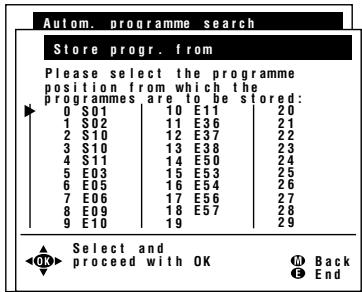
text_image
Autom. programme search Store progr. from Please select the programme position from which the programmes are to be stored: 0 S01 10 E11 20 1 S02 11 E36 21 2 S10 12 E37 22 3 S10 13 E38 23 4 S11 14 E50 24 5 E03 15 E53 25 6 E05 16 E54 26 7 E06 17 E56 27 8 E09 18 E57 28 9 E10 19 29 Select and proceed with OK Back End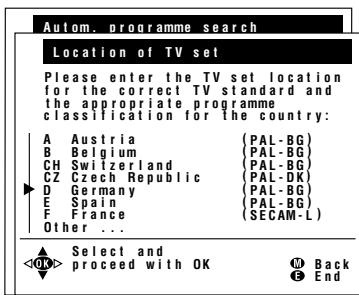
text_image
Autom. programme search Location of TV set Please enter the TV set location for the correct TV standard and the appropriate programme classification for the country: A Austria {PAL-BG} B Belgium {PAL-BG} CH Switzerland {PAL-BG} CZ Czech Republic {PAL-DK} D Germany {PAL-BG} E Spain {PAL-BG} F France {SECAM-L} Other ... Select and8 Press OK. The selected settings are displayed.
9 Press CH (▲)/(▼) to select "Start search", and then press OK to begin the automatic programme search.
Note:
■ See pages 7 and 8 for details of the search process.
10 After the search is completed, press END to exit.
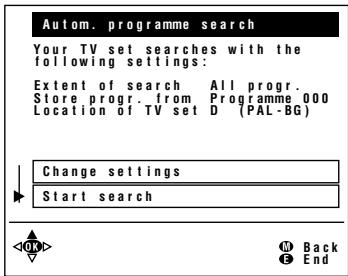
text_image
Autom. programme search Your TV set searches with the following settings: Extent of search All progr. Store progr. from Programme 000 Location of TV set D (PAL-BG) Change settings Start search < Back EndUseful Features (Continued)
Programmes (Continued)
[2] Manual adjustment
Individual settings of programmes can be adjusted.
![SHARP LC-20A2E - [2] Manual adjustment - 1](/content/2025/01/78618/images/432ee0fe1f7112a1644b8101268ad80f72621b4cb963828fa81f6e9006c5303f.jpg)
text_image
Volume (+)/(-) CH (▲)/ (▼) Channel Select OK Red SHARP1 Perform steps 1 and 2 in [1] Automatic search to display the "Programmes" screen.
2 Press CH (▲)/(▼) to select "Manual adjustment", and then press OK to display the "Manual adjustment" screen.
3 Press CH (▲)/(▼) to select the item, and then press Volume (+)/(-) to make the adjustment. (See the table on the next page for details.)
- You can also use Channel Select to adjust the “Channel” and “Frequency” items.
- To adjust "Name", first press OK to activate the text input mode. Press Volume (+)/(-) to select the input position and press CH (▲)/(▼) to select the desired character. When you finish inputting, press OK to set the name.
4 Press Red to store the adjusted channel. The "Store" screen appears.
![SHARP LC-20A2E - [2] Manual adjustment - 2](/content/2025/01/78618/images/03badfc2c47c91d6355b1d8e03cf84d7665a8eb17b12cb138d53999ce9546f2e.jpg)
flowchart
graph TD
    A["TV menu"] --> B["Programmes"]
    B --> C["Automatic search"]
    B --> D["Manual adjustment"]
    B --> E["Sort"]
    B --> F["Erase programme range"]
    B --> G["Enter/change name"]
    B --> H["Decoder programmes"]
    H --> I["OK"]
    I --> J["M Back"]
    I --> K["E End"]
![SHARP LC-20A2E - [2] Manual adjustment - 3](/content/2025/01/78618/images/8e92436a253282d971740fd82be37f8b258cbd8eb1defd3a025d460a3261eb8a.jpg)
text_image
Manual adjustment Range VHF UHF Cable Channel E36 Frequency 591.25 MHz Name E36 TV stand. B/G Col. st. Autom. Search Back Store End![SHARP LC-20A2E - [2] Manual adjustment - 4](/content/2025/01/78618/images/e2efff9a2ec8ce63315cd8f8923d24874bcd2adefebda3f2f0196a15ed2b4506.jpg)
text_image
Store 0 S01 10 E11 20 1 S08 11 E36 21 2 S10 12 E37 22 3 S10 13 E38 23 4 S11 14 E50 24 5 E03 15 E53 25 6 E05 16 E54 26 7 E06 17 E56 27 8 E09 18 E57 28 9 E10 19 29 Insert Back Overwrite End5 Press CH (▲)/(▼) and/or Volume (+)/(-) to select the desired programme position to insert the channel.
Useful Features (Continued)
Programmes (Continued)
[2] Manual adjustment (Continued)
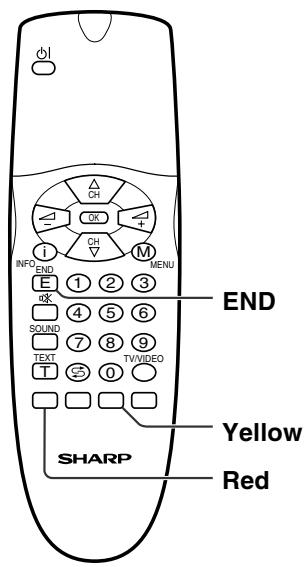
text_image
OFF INF END E 1 2 3 OK 4 5 6 SOUND 7 8 9 TEXT T 0 TVVIDEO M MENU END YELLOW SHARP Red6 Press Yellow to insert a free programme position for the channel, or press Red to overwrite the existing channel on the marked programme position.
• If you press Yellow, all subsequent programmes including the marked one move one programme position back.
7 Press END to exit.
| Adjustment item | Choice/Value range | Description |
| Range | VHF, UHF, Cable | Receivable ranges depending on TV norm and installation site |
| Channel | E02 – E12 (VHF, B/G)E21 – E69 (UHF)S01 – S41 (Cable, B/G)A – K (VHF, I), etc. | Receivable channels depending on TV norm, installation site, and range |
| Frequency | 044 – 859 (MHz) | Receivable frequencies depending on TV norm, installation site, and range |
| Name | A – Z, +, -, ., !, /, 0 – 9 | Programme name (up to five characters) |
| TV stand. | B/G, I, L, D/K, M, N | TV norm |
| Col. st. | Autom., PAL, SECAM,NTSC-V, PAL-VNTSC, PAL(Norm → M), etc. | Colour norm |
Useful Features (Continued)
Programmes (Continued)
[3] Sort
The programme positions for individual programmes can be freely changed.
![SHARP LC-20A2E - [3] Sort - 1](/content/2025/01/78618/images/bfa06a5d5b3c03bbba17423febfb7ad550e9aadb0416e0aed1043daf07dea37d.jpg)
text_image
Volume (+)/(-) CH (▲)/ (▼) END Blue Yellow Red OK SHARP1 Perform steps 1 and 2 in [1] Automatic search to display the "Programmes" screen.
2 Press CH (▲)/(▼) to select "Sort," and then press OK to display the "Sort" screen.
3 Press CH (▲)/(▼) and/or Volume (+)/(-) to select the desired programme, and then press Yellow, Red, or Blue to sort.
- When Yellow is pressed, a free programme position is inserted at the current cursor position. All subsequent programmes including the marked one move one programme position back.
- When Red is pressed, the currently marked programme is erased. All subsequent programmes move one programme position up.
- When Blue is pressed, the Move mode is activated. Press CH (▲)/(▼) to move the currently marked programme to the desired programme position. The marked programme is swapped with the programme at the selected programme position. Press Blue to leave the Move mode.
4 Press END to exit.
![SHARP LC-20A2E - [3] Sort - 2](/content/2025/01/78618/images/7447ab0b64e5ef2e8a88521aa20130bc2e747a25abdafe59f76837f4480df7e2.jpg)
text_image
TV menu Programmes Automatic search Manual adjustment Sort Erase programme range Enter/change name Decoder programmes <0.0> M Back E End![SHARP LC-20A2E - [3] Sort - 3](/content/2025/01/78618/images/999758c86ce7ae0384cdd4587a2703227667bf012dc905f28d619d7a76fb0537.jpg)
text_image
Sort 0 S01 10 E11 20 1 S08 11 E36 21 2 S10 12 E37 22 3 S10 13 E38 23 4 S11 14 E50 24 5 E03 15 E53 25 6 E05 16 E54 26 7 E06 17 E56 27 8 E09 18 E57 28 9 E10 19 29 Move Insert Erase Back EndUseful Features (Continued)
Programmes (Continued)
[4] Erase programme range
The individual programmes or programmes in a connected range can be erased.
![SHARP LC-20A2E - [4] Erase programme range - 1](/content/2025/01/78618/images/aadaa41dafb1c31ffa56efde69305f31bb21a4395648e0f709521861f16d9971.jpg)
text_image
Volume (+)/(-) CH (▲)/ (▼) END OK SHARP1 Perform steps 1 and 2 in [1] Automatic search to display the "Programmes" screen.
2 Press CH (▲)/(▼) to select "Erase programme range," and then press OK to display the "Erase programme range" screen.
![SHARP LC-20A2E - [4] Erase programme range - 2](/content/2025/01/78618/images/8507a356c854e0ce652662f227d3d363452dadd0a50ff390eca4c496a5d7f426.jpg)
text_image
TV menu Programmes Automatic search Manual adjustment Sort Erase programme range Enter/change name Decoder programmes OK Back End3 Press CH (▲)/(▼) and/or Volume (+)/(-) to select the programme to be erased, and then press OK. The selected programme is shown in blue.
- If you want to erase programmes in a connected range, select the programme at the beginning of the desired range.
![SHARP LC-20A2E - [4] Erase programme range - 3](/content/2025/01/78618/images/32de1e1d9d1500ddf01715a20b559106ac7a71949ce59d9eb6f7f56d3ec6d099.jpg)
text_image
Erase programme range 0 S01 10 E11 20 1 S08 11 E36 21 2 S10 12 E37 22 3 S10 13 E38 23 4 S11 14 E50 24 5 E03 15 E53 25 6 E05 16 E54 26 7 E06 17 E56 27 8 E09 18 E57 28 9 E10 19 29 ▲ Start with OK, ◀OK▶ select end ▲ Back ▼ and erase with OK ◼ End4 If you are erasing programmes in a connected range, press CH (▲)/(▼) and/or Volume (+)/(-) to select the programme at the end of the range. The selected programmes are shown in blue.
5 Press OK to erase the selected programme(s). All the subsequent programmes move up.
6 Press END to exit.
![SHARP LC-20A2E - [4] Erase programme range - 4](/content/2025/01/78618/images/434eab5daea01438b732e1ece259bf86c6dc517fe37a1e55eadeaa2d48b78f8a.jpg)
text_image
Erase programme range 0 S01 10 E11 20 1 S08 11 E36 21 2 S10 12 E37 22 3 S10 13 E38 23 4 S11 14 E50 24 5 E03 15 E53 25 6 E05 16 E54 26 7 E06 17 E56 27 8 E09 18 E57 28 9 E10 19 29 Start with OK, OK select end M Back and erase with OK E End![SHARP LC-20A2E - [4] Erase programme range - 5](/content/2025/01/78618/images/852a7cdd383295f8408d763ae539b5616727ce5b18cae7c1abae8a47eb3661a9.jpg)
text_image
Erase programme range 0 E03 10 E53 20 1 E05 11 E54 21 2 E06 12 E56 22 3 E09 13 E57 23 4 E10 14 24 5 E11 15 25 6 E36 16 26 7 E37 17 27 8 E38 18 28 9 E50 19 29 Start with OK, OK select end M Back and erase with OK E EndUseful Features (Continued)
Programmes (Continued)
[5] Enter/change name
The name of an individual programme can be entered or changed.
![SHARP LC-20A2E - [5] Enter/change name - 1](/content/2025/01/78618/images/5d76d57806d20595f9ef21da8eb14d4c18a686a64a8d2116ea3a1446d03f3ecf.jpg)
text_image
Volume (+)/(-) CH (▲)/ (▼) END OK SHARP1 Perform steps 1 and 2 in [1] Automatic search to display the "Programmes" screen.
2 Press CH (▲)/(▼) to select "Enter/change name," and then press OK to display the "Enter/change name" screen.
3 Press CH (▲)/(▼) and/or Volume (+)/(-) to select the desired programme, and then press OK. An underscore and question marks are displayed as an input prompt.
4 Press Volume (+)/(-) to select the input position, and then press CH (▲)/(▼) to select the desired character.
5 Press OK to accept the name entered, and then press END to exit.
![SHARP LC-20A2E - [5] Enter/change name - 2](/content/2025/01/78618/images/03fa5ff7f9c6ad1ad2b69bd434385db6f096763ace0bfad3c3e782d1b2f8e483.jpg)
text_image
TV menu Programmes Automatic search Manual adjustment Sort Erase programme range Enter/change name Decoder programmes OK Back End![SHARP LC-20A2E - [5] Enter/change name - 3](/content/2025/01/78618/images/9043735723a91d16e1f35e37cc41ec18a67ad46e22d374ca6e3a0e1043b72368.jpg)
text_image
Enter/change name 197 AVS 7 E06 17 E56 198 AV2 8 E09 18 E57 199 AV1 9 E10 19 0 S01 10 E11 20 1 208 11 E36 21 2 S10 12 E37 22 3 S10 13 E38 23 4 S11 14 E50 24 5 E03 15 E53 25 6 E05 16 E54 26 Start with OK then enter/change M Back and end with OK E End![SHARP LC-20A2E - [5] Enter/change name - 4](/content/2025/01/78618/images/6ac9fb31b9024b35b133d6470c1e5fbfb8760db7c67f25a997821ef1bff8fb97.jpg)
text_image
Enter/change name 197 AVS 7 E06 17 E56 198 AV2 8 E09 18 E57 199 AV1 9 E10 19 0 S01 10 E11 20 1 S02 11 E36 21 2 S10 12 E37 22 3 S10 13 E38 23 4 S11 14 E50 24 5 E03 15 E53 25 6 E05 16 E54 26 Start with OK then enter/change M Back and end with OK E End![SHARP LC-20A2E - [5] Enter/change name - 5](/content/2025/01/78618/images/75d2b37134eec7dbf76e15482e620bfa8ebf8e08254df5cd11c3397d4beb1ed2.jpg)
text_image
Enter/change name 197 AVS 7 E06 17 E56 198 AV2 8 E09 18 E57 199 AV1 9 E10 19 0 S01 10 E11 20 1 S02 11 E36 21 2 S10 12 E37 22 3 S10 13 E38 23 4 S11 14 E50 24 5 E03 15 E53 25 6 E05 16 E54 26 Start with OK then enter/change M Back and end with OK E EndNote:
■ See page 30 for information on how to use the “Decoder programmes” item.

Useful Features (Continued)
AV Connections
It is possible to manually adjust various settings for connections with external devices on the AV connections screen.
[1] At AV1 (programme 199)/AV2 (programme 198)/AVS (programme 197)
Select the appropriate signal type and colour standard for the signals from the video equipment connected to the AV1, AV2, or AVS terminal.
text_image
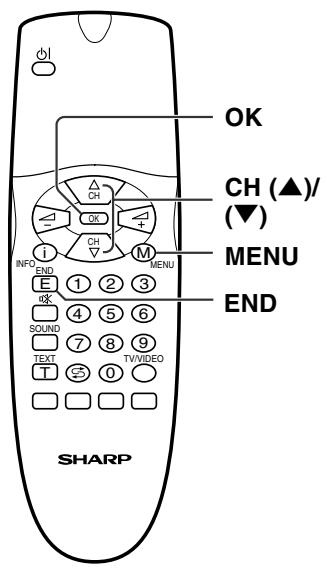
OK CH (▲)/ (▼) MENU END SHARP1 Press MENU to display the TV menu.
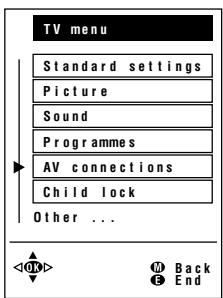
2 Press CH (▲)/(▼) to select "AV connections," and then press OK to display the "AV connections" screen.
3 Press CH (▲)/(▼) to select "At AV1 (programme 199)," "At AV2 (programme 198)," or "At AVS (programme 197)," and then press OK to display the signal type selection screen.
text_image
TV menu Standard settings Picture Sound Programmes AV connections Child lock Other ...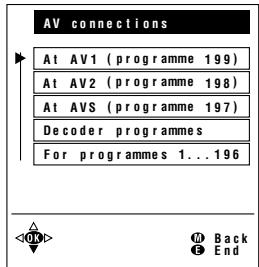
text_image
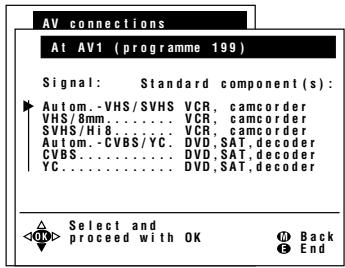
AV connections At AV1 (programme 199) At AV2 (programme 198) At AVS (programme 197) Decoder programmes For programmes 1...1964 Press CH (▲)/(▼) to select the desired signal type, and then press OK. The colour standard selection screen appears.
text_image
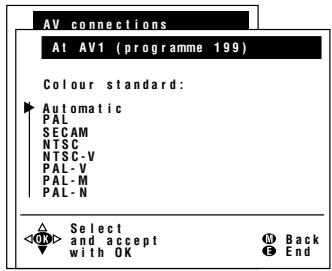
AV connections At AV1 (programme 199) Signal: Standard component(s): Autom.-VHS/SVHS VCR, camcorder VHS/8mm... VCR, camcorder SVHS/Hi8... VCR, camcorder Autom.-CVBS/YC... DVD,SAT,decoder CVBS... DVD,SAT,decoder YC... DVD,SAT,decoder Select and5 Press CH (▲)/(▼) to select the desired colour standard, and then press OK.
6 Press END to exit.
text_image
AV connections At AV1 (programme 199) Colour standard: ▶ Automatic PAL SECAM NTSC NTSC-V PAL-V PAL-M PAL-M PAL-N Select and accept with OK Back EndUseful Features (Continued)
AV Connections (Continued)
[2] Decoder programmes
When connecting a video device to the AV1 terminal, you need to adjust the decoder programme settings.
![SHARP LC-20A2E - [2] Decoder programmes - 1](/content/2025/01/78618/images/28e5125199bfce85341011ff69f0bdcf2a5262ca25f924063c86aa717c70153c.jpg)
text_image
Volume (+)/(-) CH (▲)/ (▼) MENU END OK SHARP1 Perform steps 1 and 2 in [1] At AV1 (programme 199)/AV2 (programme 198)/AVS (programme 197) to display the "AV connections" screen.
2 Press CH (▲)/(▼) to select "Decoder programmes," and then press OK to display the "Decoder programmes" screen.
3 Press CH (▲)/(▼) to select "For decoder connected to AV1," and then press OK to display the decoder programme selection screen.
![SHARP LC-20A2E - [2] Decoder programmes - 2](/content/2025/01/78618/images/e7b078274445ab6bae7e4fb19283ffcae3b1db4fe8fbcd38a3f947ef719136f6.jpg)
text_image
AV connections At AV1 (programme 199) At AV2 (programme 198) At AVS (programme 197) Decoder programmes For programmes 1...196 OK Back End![SHARP LC-20A2E - [2] Decoder programmes - 3](/content/2025/01/78618/images/7f9ee618bb27ee10654d9eb55b7ca6bcdc3e6066dfcbb1e952246d9a5845f683.jpg)
text_image
Decoder programmes For decoder connected to AV1 Sound from AV1 OK Back End4 Press CH (▲)/(▼) and/or Volume (+)/(-) to select the programme for the decoder, and then press OK. Repeat the same procedure if you want to specify other decoder programmes.
5 Press MENU to return to the "Decoder programmes" screen.
6 Press CH (▲)/(▼) to select "Sound from AV1", and then press Volume (+)/(-) to select the desired sound source.
7 Press END to exit.
![SHARP LC-20A2E - [2] Decoder programmes - 4](/content/2025/01/78618/images/788ef45bc3ef405c8f048f7ee6944c6a1cf5a5cff037f163f4517389fab306db.jpg)
text_image
Decoder programmes For decoder connected to AV1 0 S01 10 E11 20 1 S08 11 E36 21 2 S10 12 E37 22 3 S10 13 E38 23 4 S11 14 E50 24 5 E03 15 E53 25 6 E05 16 E54 26 7 E06 17 E56 27 8 E09 18 E57 28 9 E10 19 29 Select decoder programme Back and confirm with OK End![SHARP LC-20A2E - [2] Decoder programmes - 5](/content/2025/01/78618/images/8827a67e583468d5a379ae50db5ed8bde016c209864ccbf168942121c52f813a.jpg)
text_image
Decoder programmes For decoder connected to AV1 Sound from AV1 Autom. Dec. TV Back EndUseful Features (Continued)
AV Connections (Continued)
[3] For programmes 1...196
The influence of the AV control voltage and of fast blank at programme positions from 1 to 196 can be set.
![SHARP LC-20A2E - [3] For programmes 1...196 - 1](/content/2025/01/78618/images/6fd395a8bc1e1b349032e5c52f943c852579d4bad3bf6b3e28c50b12c2c757cd.jpg)
text_image
Volume (+)/(-) CH (▲)/ (▼) END OK SHARP1 Perform steps 1 and 2 in [1] At AV1 (programme 199)/AV2 (programme 198)/AVS (programme 197) to display the "AV connections" screen.
2 Press CH (▲)/(▼) to select "For programmes 1...196," and then press OK to display the "For programmes 1...196" screen.
![SHARP LC-20A2E - [3] For programmes 1...196 - 2](/content/2025/01/78618/images/d97fdc1719032c33d5271bcf2df036d01ed1ed6c069d6375b7393e4ac21a3428.jpg)
text_image
AV connections At AV1 (programme 199) At AV2 (programme 198) At AVS (programme 197) Decoder programmes For programmes 1...1963 Press CH (▲)/(▼) to select the desired item.
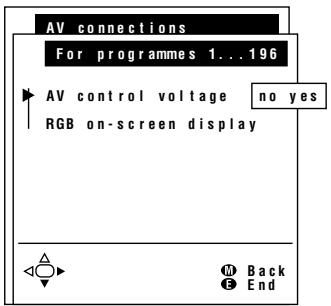
4 Press Volume (+)/(-) to select "yes" or "no."
Note:
If the item concerned is set to "yes", the appropriate picture is through-connected at all programme positions from 1 to 196 when a control voltage/an RGB signal is applied.
text_image
AV connections For programmes 1...196 AV control voltage no yes RGB on-screen display Back End5 Press END to exit.
Useful Features (Continued)
Child Lock
The Child Lock function blocks the viewing of any channel for which the child lock has been set. To use the Child Lock function, you first need to define your PIN (Personal Identification Number).
[1] Defining a PIN
text_image
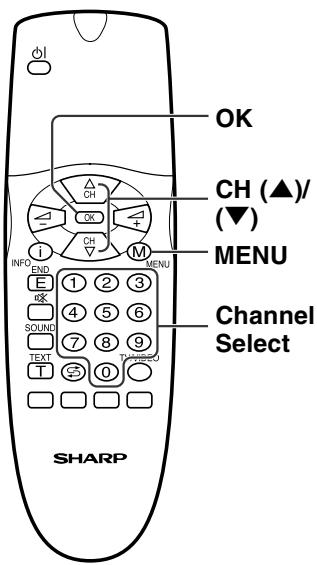
OK CH (▲)/ (▼) MENU Channel Select SHARP1 Press MENU to display the TV menu.
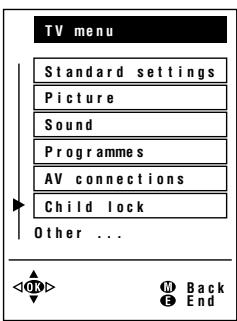
2 Press CH (▲)/(▼) to select "Child lock."
3 Press OK to display the PIN input screen.
text_image
TV menu Standard settings Picture Sound Programmes AV connections Child lock Other ...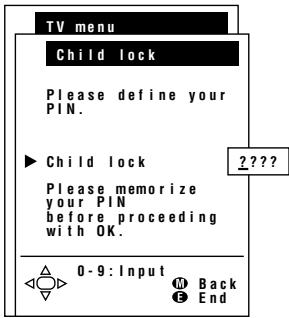
text_image
TV menu Child lock Please define your PIN. ► Child lock Please memorize your PIN before proceeding with OK. 0-9: Input Back End ????4 Input the desired four-digit PIN (e.g. 1234) with Channel Select.
Notes:
■ Be sure to make a note of your PIN before pressing OK.
■ The PIN will not be set if MENU or END is pressed before the fourth digit has been input.
5 Press OK to accept the entered PIN.
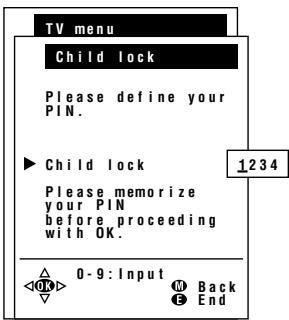
text_image
TV menu Child lock Please define your PIN. ► Child lock Please memorize your PIN before proceeding with OK. 1234 0-9: Input Back EndUseful Features (Continued)
Child Lock (Continued)
[2] Changing/Cancelling a PIN
text_image
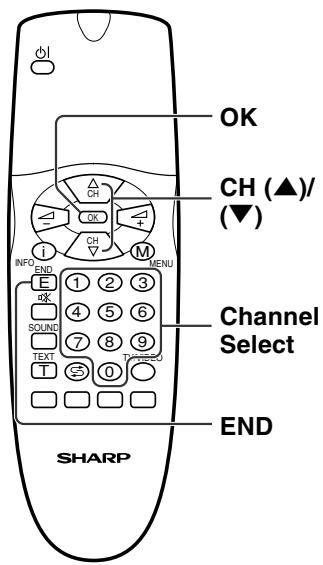
OK CH (▲)/ (▼) Channel Select END SHARPTo change a PIN
1 Perform steps 1 to 3 in [1] Defining a PIN to display the PIN input screen.
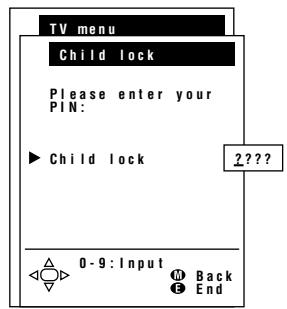
2 Enter your four-digit PIN (e.g. 1234) with Channel Select.
Notes:
■ Numbers entered are hidden with ????
If the PIN has been input incorrectly, "Wrong PIN!" is displayed.
When the PIN is correctly entered, the "Child lock" screen appears.
3 Press CH (▲)/(▼) to select "Change PIN." The currently defined PIN is displayed.
text_image
TV menu Child lock Please enter your PIN: ▶ Child lock 2???? 0-9:Input Back End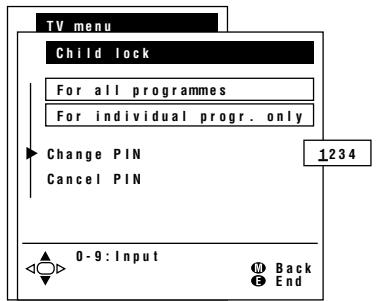
text_image
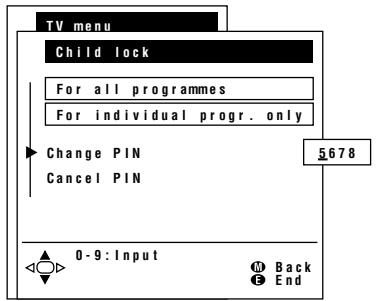
TV menu Child lock For all programmes For individual progr. only Change PIN Cancel PIN 1234 0-9:Input M Back E End4 Input the new four-digit PIN (e.g. 5678) with Channel Select.
5 Press END to exit.
text_image
TV menu Child lock For all programmes For individual progr. only Change PIN Cancel PIN 5678 0-9:Input M Back E EndTo cancel a PIN
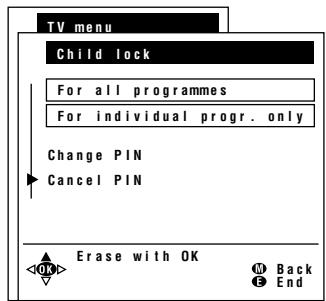
- In step 3 above, press CH (▲)/ (▼) to select "Cancel PIN," and then press OK to cancel the currently defined PIN.
text_image
TV menu Child lock For all programmes For individual progr. only Change PIN Cancel PIN Erase with OK Back EndUseful Features (Continued)
Child Lock (Continued)
[3] Setting Child Lock
There are four different ways of activating a child lock:
- General child lock for all programmes immediately
- General child lock for all programmes with daily time limit
- General child lock for all programmes with single time limit
- Programme-position related child lock without time limit
The Child Lock comes into effect only after the LCD TV set has entered the standby mode and is then turned on again.
![SHARP LC-20A2E - [3] Setting Child Lock - 1](/content/2025/01/78618/images/8805df102ad8b2a97fc8144076b2c71bfd412cb347e347be2f541b3a9d9ee310.jpg)
text_image
Volume (+)/(-) CH (▲)/ (▼) Channel Select END OK SHARPTo set a Child Lock for all programmes with a time limit
1 Perform steps 1 to 3 in [2] Changing/Cancelling a PIN to display the "Child lock" screen.
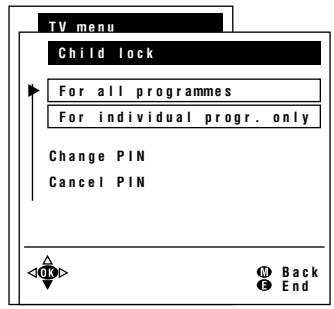
2 Press CH (▲)/(▼) to select "For all programmes," and then press OK to display the "For all programmes" screen.
text_image
TV menu Child lock For all programmes For individual progr. only Change PIN Cancel PIN3 Press CH (▲)/(▼) to select the desired item. (See the table below.)
4 Press Volume (+)/(−) to select the desired choice, and, if required, input digits with Channel Select.
5 Press END to exit.
Notes:
If the current clock time is within the time limit, the Child Lock is activated immediately after the LCD TV set is turned off and on again. For example, if the current clock time is 9:00 and the time limit is specified from 22:00 to 14:00, the lock is effective from 9:00 to 14:00.
■ When a Child Lock is set for all programmes with a time limit, the “Time and date” item is not displayed in the TV menu and cannot be selected.
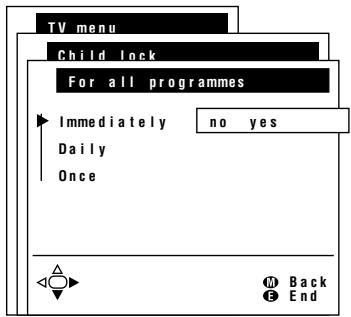
text_image
TV menu Child lock For all programmes Immediately no yes Daily Once Back End| Adjustment item | Choice/Input value | Description |
| Immediately | no←→yes | Select “yes” to activate the Child Lock immediately (after the LCD TV set has been turned off and on again). The lock remains effective until “no” is selected. |
| Daily | no←→HH:MM-HH:MM | Input the start and end time for a daily-recurring Child Lock. The lock is activated everyday unless “no” is selected. |
| Once | no←→HH:MM-HH:MM | Input the start and end time for a once-only Child Lock. The length of the period should be up to 24 hours. |
Useful Features (Continued)
Child Lock (Continued)
[3] Setting Child Lock (Continued)
text_image
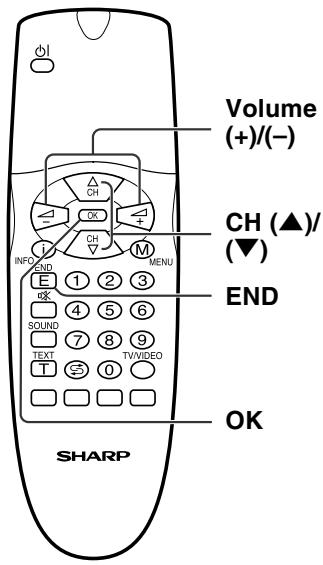
Volume (+)/(-) CH (▲)/ (▼) END OK SHARPTo set a Child Lock for individual programmes without time limit
1 Perform steps 1 to 3 in [2] Changing/Cancelling a PIN to display the "Child lock" screen.
2 Press CH (▲)/(▼) to select "For individual progr. only," and then press OK to display the "For individual progr. only" screen.
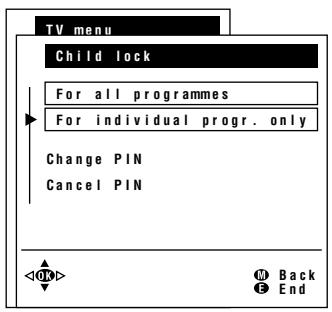
text_image
TV menu Child lock For all programmes For individual progr. only Change PIN Cancel PIN3 Press CH (▲)/(▼) and/or Volume (+)/(-) to select the desired programme.
4 Press OK to lock the programme. The locked programme is displayed in red.
Notes:
■ To unlock the programme, select the programme and press OK.
■ The Child Lock remains effective until it is cancelled.
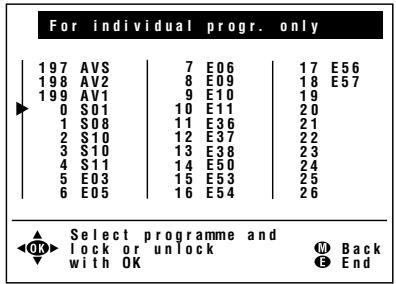
text_image
For individual progr. only 197 AVS 7 E06 17 E56 198 AV2 8 E09 18 E57 199 AV1 9 E10 19 0 S01 10 E11 20 1 S08 11 E36 21 2 S10 12 E37 22 3 S10 13 E38 23 4 S11 14 E50 24 5 E03 15 E53 25 6 E05 16 E54 26 Select programme and OK lock or unlock M Back with OK F End5 Press END to exit.
Note:
- When a Child Lock is activated, the “Programmes” item is not displayed in the TV menu and cannot be selected.
Useful Features (Continued)
Child Lock (Continued)
[4] Temporarily cancelling the Child Lock setting
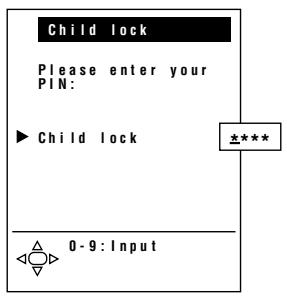
You can view a programme for which a Child Lock has been set by temporarily cancelling the Child Lock setting. Perform the procedure below to input your PIN and cancel the Child Lock if you are prompted to do so.
![SHARP LC-20A2E - [4] Temporarily cancelling the Child Lock setting - 1](/content/2025/01/78618/images/5a0de77856693a7d18c4a038310cc9b10bc47646031faedef299e03a011512b3.jpg)
text_image
Channel Select SHARP- When the PIN input screen appears, input your PIN with Channel Select. The normal screen appears when the PIN is correctly entered.
Note:
If the PIN has been input incorrectly, "Wrong PIN!" is displayed.
text_image
Child lock Please enter your PIN: ▶ Child lock 0-9: InputUseful Features (Continued)
On-screen Display
You can adjust various settings for on-screen displays.
text_image
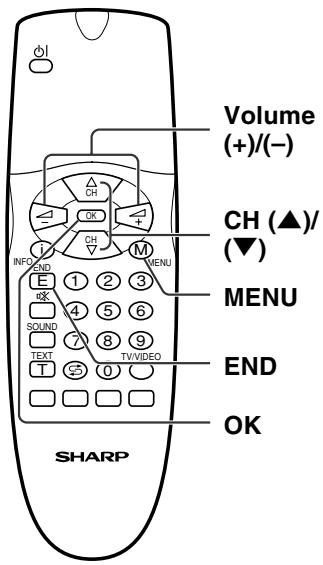
Volume (+)/(-) CH (▲)/ (▼) MENU END OK THRU T TV/VIDEO E 1 2 3 OK SOUND 7 8 9 T 0 SHARP1 Press MENU to display the TV menu.
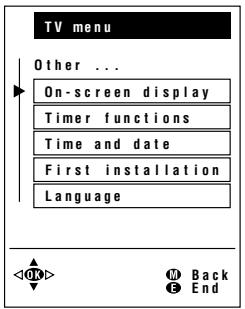
2 Press CH (▲)/(▼) to select "On-screen display," and then press OK to display the "On-screen display" screen.
3 Press CH (▲)/(▼) to select the desired adjustment item. (See the table below.)
4 Press Volume (+)/(-) to make the adjustment.
5 Press END to exit.
text_image
TV menu Other ... On-screen display Timer functions Time and date First installation Language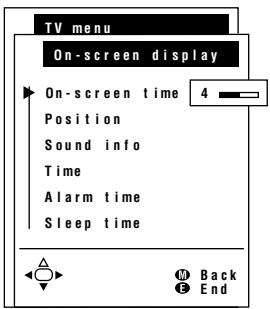
text_image
TV menu On-screen display On-screen time 4 Position Sound info Time Alarm time Sleep time Back End| Adjustment item | Choice/Value range | Description |
| On-screen time | 2 – 9 | To select display time in seconds for the information windows (TV status, programme identification, volume, etc.), Direct Control menu, and certain messages. |
| Position | bottom ↔ top | To select display position of information windows. |
| Sound info | no ↔ yes | To select information displays is selected to be turned on or off in the TV status window. |
| Time | no ↔ yes | |
| Alarm time | no ↔ yes | |
| Sleep time | no ↔ yes |
Useful Features (Continued)
Timer Functions
text_image
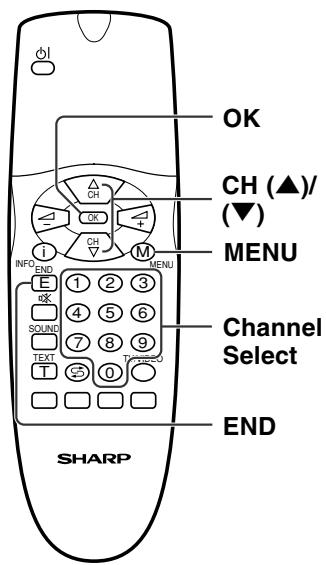
Volume (+)/(-) CH (▲)/ (▼) MENU Channel Select END OK SHARP1 Press MENU to display the TV menu.
2 Press CH (▲)/(▼) to select "Timer functions," and then press OK to display the "Timer functions" screen.

text_image
TV menu Other ... On-screen display Timer functions Time and date First installation Language3 Press CH (▲)/(▼) to select the desired item. (See the table below.)
4 Press Volume (+)/(-) to make the adjustment. If you select "00:00" for "Switch off" or "Alarm," input the desired time with Channel Select.
5 Press END to exit.
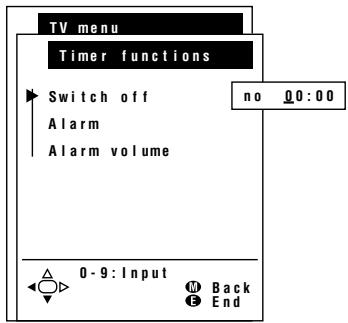
text_image
TV menu Timer functions Switch off Alarm Alarm volume no 0:0:00 0-9:Input Back End| Adjustment item | Choice/Input value/Value range | Description |
| Switch off | no←HH:MM | The LCD TV set automatically turns off at the specified time everyday. |
| Alarm | no←HH:MM | The alarm sound turns on at the specified time everyday. |
| Alarm volume | 0 – 39 | The volume of the alarm sound is selected. |
Useful Features (Continued)
Setting Time and Date (Manual)
The time and the date can be manually set if the LCD TV set is unable to get these from the Teletext function.
text_image
OK CH (▲)/ (▼) MENU Channel Select END SHARP1 Press MENU to display the TV menu.
2 Press CH (▲)/(▼) to select "Time and date," and then press OK to display the "Time and date" screen.
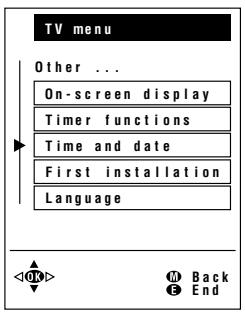
text_image
TV menu Other ... On-screen display Timer functions Time and date First installation Language OK Back End3 Press CH (▲)/(▼) to select "Time."
4 Input the current time (HH:MM:SS) with Channel Select.
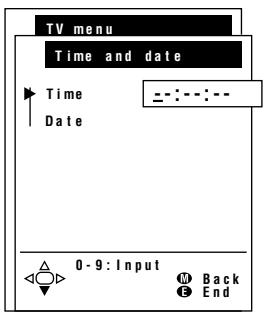
text_image
TV menu Time and date Time Date 0-9: Input Back End5 Press CH (▲)/(▼) to select "Date."
6 Input the current date (DD:MM:YYYY) with Channel Select.
7 Press END to exit.
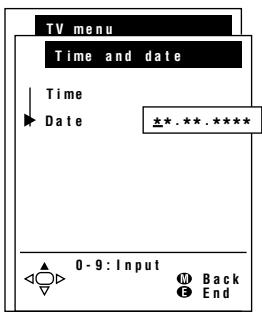
text_image
TV menu Time and date Time Date *.*.*.***** 0-9: Input MD Back E EndUseful Features (Continued)
NICAM Broadcast Selection
This enables the selection of the reception mode when receiving a NICAM-I or NICAM-B/G signal. To let you enjoy NICAM broadcasting, this LCD TV set receives NICAM system stereo, bilingual, and monaural broadcasts.
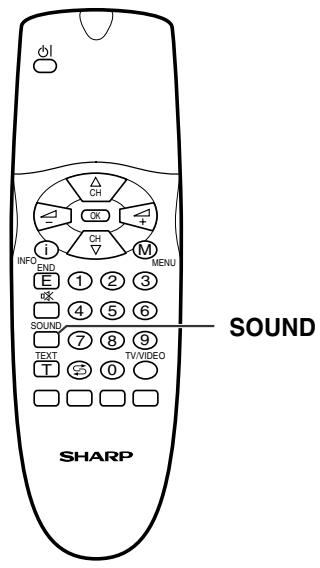
text_image
OFF Δ CH OK + ↓ CH M MENU INF END E 1 2 3 OK 4 5 6 SOUND 7 8 9 TEXT TVVIDEO T 0 SHARPStereo
The LCD TV set is receiving a stereo broadcast.
- Each time you press SOUND, the mode changes between “Stereo” and “Mono!.”
- When "Mono!" is selected, the TV sound is output monaurally.
Bilingual
When the LCD TV set is receiving a bilingual programme, the "Sound1" mode is automatically selected.
• Each time you press SOUND, the mode changes as follows:
Sound 1 → Sound 2 → Sound 1+2 → Mono!
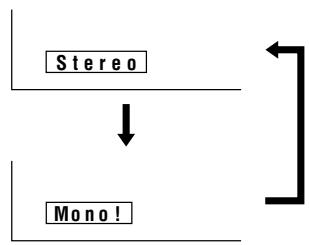
flowchart
graph TD
    A["Stereo"] --> B["Mono!"]
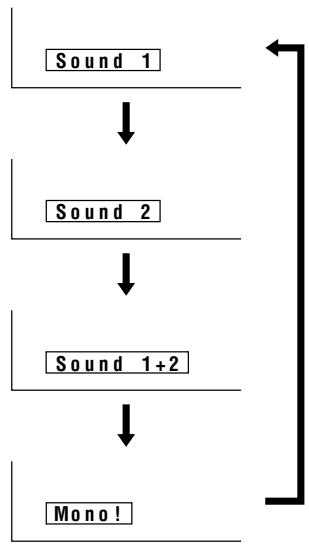
flowchart
graph TD
    A["Sound 1"] --> B["Sound 2"]
    B --> C["Sound 1+2"]
    C --> D["Mono!"]
Monaural
The LCD TV set is receiving a monaural broadcast.
- Each time you press SOUND, the mode changes between “Nicam” and “Mono!.”
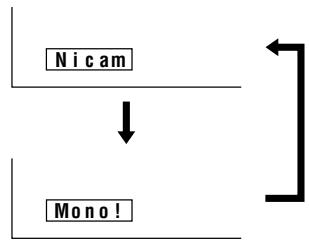
flowchart
graph TD
    A["N ic am"] --> B["Mono !"]
    style A fill:#fff,stroke:#000
    style B fill:#fff,stroke:#000
Notes:
If approximately 3 seconds pass without a button being pressed, the mode setting is automatically terminated and the LCD TV set returns to the normal mode.
■ The setting can be individually selected for each channel number.
■ You can also turn off the NICAM mode by setting the “Loudsp. sound” item to “Mono!” in the Sound screen, which is displayed when you press Green (see page 17).
Useful Features (Continued)
IGR (German stereo system) Broadcasts
This enables the selection of the reception mode when receiving an IGR-B/G signal. To let you enjoy IGR broadcasting, this LCD TV set receives IGR system stereo and bilingual broadcasts.
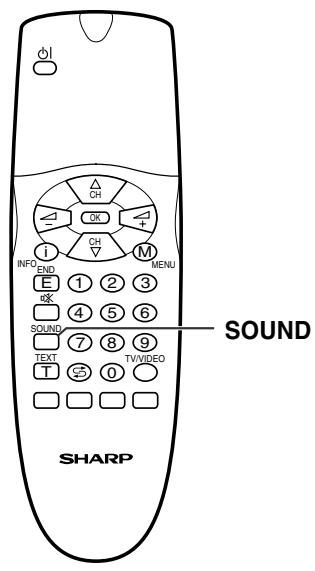
text_image
O Δ CH OK + CH M INFO END E ① ② ③ OK ④ ⑤ ⑥ SOUND ⑦ ⑧ ⑨ TEXT TV/VIDEO T S 0 SHARP SOUNDStereo
The LCD TV set is receiving a stereo broadcast.
- Each time you press SOUND, the mode changes between “Stereo” and “Mono!.”
- When "Mono!" is selected, the TV sound is output monaurally.
Bilingual
When the LCD TV set is receiving a bilingual programme, the “Sound 1” mode is automatically selected.
• Each time you press SOUND, the mode changes as follows:
Sound 1 → Sound 2 → Sound 1+2 → Mono!
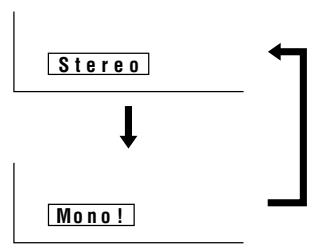
flowchart
graph TD
    A["Stereo"] --> B["Mono!"]
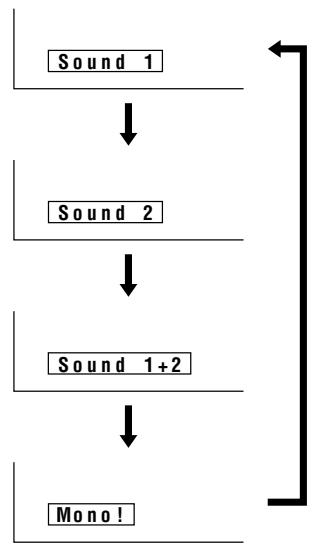
flowchart
graph TD
    A["Sound 1"] --> B["Sound 2"]
    B --> C["Sound 1+2"]
    C --> D["Mono!"]
Notes:
If approximately 3 seconds pass without a button being pressed, the mode setting is automatically terminated and the LCD TV set returns to normal mode setting.
■ The setting can be selected individually for each channel number.
■ You can also turn off the IGR mode by setting the “Loudsp. sound” item to “Mono!” in the Sound screen, which is displayed when you press Green (see page 17).
Teletext
■ What is Teletext?
Teletext is an information service organized like a magazine, which is provided by some TV stations in addition to regular television broadcasting. Your LCD TV set receives special Teletext signals broadcast by a TV station, processes the information and displays it graphically on the screen. News, weather and sports information, stock exchange prices, program previews and closed captioning for the deaf are among the many services available through Teletext.
■ Teletext mode
Teletext is activated with TEXT on the remote control and is also closed with it. The LCD TV set can be controlled in Teletext mode either directly by inputting commands with the remote control or indirectly through the on-screen display.
■ Operating instructions in Teletext mode
Only lines 0 to 23 (one transmitted Teletext page) can be displayed on the screen simultaneously. When you turn on a control line holding the operating instructions for TOP text or subpages, it is superimposed on line 23. Only one control line can be displayed at one time.
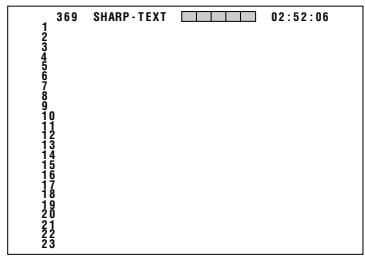
text_image
369 SHARP-TEXT 02:52:06 1 2 3 4 5 6 7 8 9 10 11 12 13 14 15 16 17 18 19 20 21 22 23The function executed with a control line displayed is not implemented additionally. This means specifically:
- If FLOF Teletext is broadcast, a control line is transmitted as the 24th line, which cannot be displayed on the screen, so it is superimposed on line 23. To prevent constant loss of information on line 23, turn off the control line.
- If TOP Teletext is broadcast, a control line, TOP line, can be displayed on the screen. The TOP line involves the operating instructions associated with all of the coloured buttons if TOP text is transmitted, or the operating instructions for only Red and Green if TOP text is not being transmitted.
- If there are subpages, a control line holding the operating instructions for subpages can be displayed on line 23.

text_image
369 SHARP-TEXT 02:52:21 1 2 3 4 5 6 7 8 9 10 11 12 13 14 15 16 17 18 19 20 21 22 --- --- P6FE ---Note:
■ The subtitles page may differ according to the country of operation and therefore must be set accordingly.
Teletext (Continued)
[1] Turning on and off Teletext mode
![SHARP LC-20A2E - [1] Turning on and off Teletext mode - 1](/content/2025/01/78618/images/cfe4e25f57ed14b9de00a148c1c8af94ce3f23476c18ea6c899fb60e116daf55.jpg)
text_image
OFF CH OK CH M INFO END E ① ② ③ OK 4 ⑤ ⑥ SOUND 7 ⑧ ⑨ TEXT TWVIDEO T ⑩ MENU TEXT SHARP1 Select a TV channel that is broadcasting the Teletext programme.
2 Press TEXT. The Teletext screen appears.
● To turn off Teletext mode, press TEXT again.
![SHARP LC-20A2E - [1] Turning on and off Teletext mode - 2](/content/2025/01/78618/images/ca10d065ae64cf670e18f8e917652b8ad7ff4d0431dc6a2c7a54a1dc42c4c4ce.jpg)
text_image
369 SHARP-TEXT 02:52:06 1 2 3 4 5 6 7 8 9 10 11 12 13 14 15 16 17 18 19 20 21 22 23[2] Using the TOP line
When TOP Teletext is being broadcast, you can display the TOP line, which contains the operating instructions on the screen.
![SHARP LC-20A2E - [2] Using the TOP line - 1](/content/2025/01/78618/images/da9239d079639913c79ab8582bf694837e7598f8185e8ae9b7e75197d5491206.jpg)
text_image
OFF CH OK CH M INFO END MENU E ① ② ③ SOUND ④ ⑤ ⑥ TEXT ⑦ ⑧ ⑨ TV/VIDEO ⑩ T ◎ 0 END Coloured buttons SHARP1 Press any Coloured button to display the TOP line.
2 Use the Coloured buttons to operate the Teletext screen.
- Press Red to display the previous page and Green to display the next page. Yellow and Blue are as indicated on the TOP line.
3 Press END to turn off the TOP line.
![SHARP LC-20A2E - [2] Using the TOP line - 2](/content/2025/01/78618/images/48329c9589707052d38a5a07ca29e1c19f4cbd1820887674a524392e25476ddc.jpg)
text_image
369 SHARP-TEXT 02:52:21 1 2 3 4 5 6 7 8 9 10 11 12 13 14 15 16 17 18 19 20 21 22 ... ... P6FE ...Teletext (Continued)
[3] Changing subpages
If a page has been selected from among several subpages, you can display a control line which contains the subpage numbers.
![SHARP LC-20A2E - [3] Changing subpages - 1](/content/2025/01/78618/images/ea8050f6f3bb92f4492ba153f3714a8c04781ac350c76100d700fe48fcea7faa.jpg)
text_image
Volume (+)/(-) INFO END E 1 2 3 OK 4 5 6 SOUND 7 8 9 TEXT TV/VIDEO T 0 M MENU END SHARP1 Press Volume (+)/(-). The control line with the subpage numbers is superimposed on line 23, and the number of the currently selected subpage is displayed in blue.
Note:
■ Page numbers can be displayed for up to eight subpages simultaneously. If there are more than eight subpages attached to a page, the existing subpages are repeatedly overwritten.
2 Press Volume (+)/(-) to select the desired subpage number. The selected subpage is displayed.
3 Press END to turn off the control line.
[4] Using the TOP table
When TOP Teletext is being broadcast, you can display the TOP table with the current programme data if one exist.
![SHARP LC-20A2E - [4] Using the TOP table - 1](/content/2025/01/78618/images/42f89d65be077b8522cf81cc4f71e5021bf7b64820e99417b925fa9ecc5fd623.jpg)
text_image
Volume (+)/(-) CH (▲)/ (▼) INFO E 1 2 3 OK 4 5 6 SOUND 7 8 9 TEXT TV/VIDEO T 5 0 OK SHARP1 Press OK to display the TOP table. The Teletext page is temporarily turned off.
2 Press CH (▲)/(▼) to select the desired item. Press Volume (+)/(−) to select topics (column 1) or subtopics (column 2) if they exist.
3 Press OK. A page associated with the selected item is displayed.
Teletext (Continued)
[5] Using Teletext menu
text_image
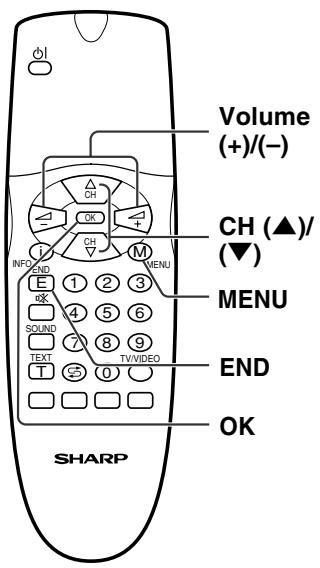
Volume (+)/(-) CH (▲)/ MENU END OK SHARP1 Press MENU in Teletext mode to display the Teletext menu.
2 Press CH (▲)/(▼) to select the desired item.
3 Perform the required operation for the item. (See the table below.)
4 Press MENU or END to exit.
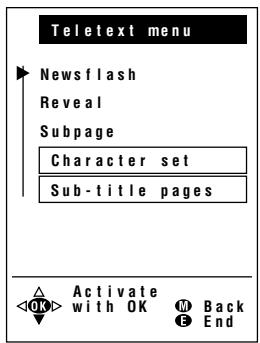
text_image
Teletext menu Newsflash Reveal Subpage Character set Sub-title pages Activate with OK M Back OK End| Item | Description |
| Newsflash | You can activate Newsflash mode by pressing OK. To turn off Newsflash mode, press OK or MENU. |
| Reveal | You can reveal hidden information (application e.g. in puzzle solutions or VPS times). Press Volume (+)/(-) to select “yes,” and then press OK. The last Teletext page is displayed with the Reveal function activated. The Reveal function applies to this page only once. |
| Subpage | You can display the desired subpage by directly inputting a four-digit subpage number with CH (▲)/(▼). |
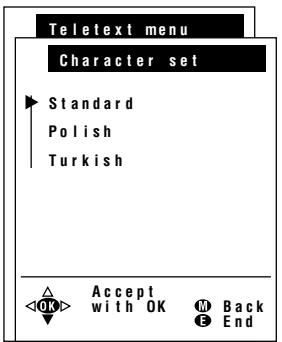
| Character set | Press OK to display the “Character set” screen. |
| Sub-title pages | Press OK to display the “Sub-title pages” screen. |
Teletext (Continued)
[5] Using Teletext menu (Continued)
text_image
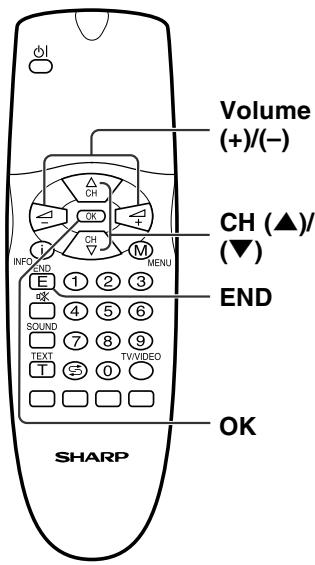
Volume (+)/(-) CH (▲)/ (▼) END OK SHARPTo select the character set
1 With the "Character set" screen displayed, press CH (▲)/(▼) to select the desired character set, and then press OK.
2 Press END to exit.
To use the Sub-title pages screen
1 With the Sub-title pages screen displayed, press CH (▲)/(▼) and/or Volume (+)/(-) to select the desired programme.
2 Press END to exit.
Notes:
■ To obtain the correct sub-title in other countries (page 150 default), it is necessary to input the transmitting-station-dependent numbers for these pages beforehand.
■ Moving the programme position in the Programme table also moves the sub-title page.
text_image
Teletext menu Character set Standard Polish Turkish Accept with OK Back EndConnecting External Devices
It is possible to enjoy video and sound by connecting a VCR and home video game system to the terminals located on the rear of the main unit.
When connecting an external device, turn off the power of the main unit and connecting device to prevent any possible damage.
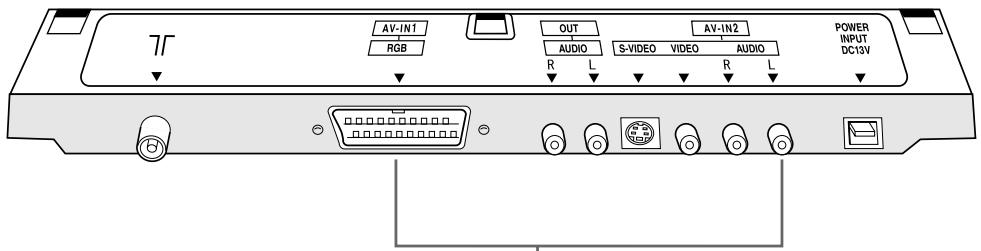
text_image
AV-IN1 RGB OUT AUDIO R L S-VIDEO AV-IN2 AUDIO R L POWER INPUT DC13VTo AV-IN1 or 2 terminal
Examples of external devices that can be connected
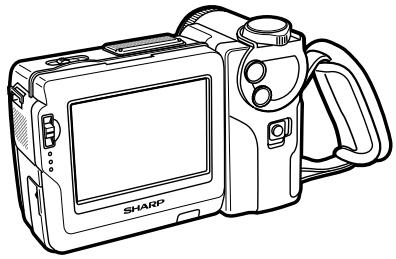
- Video camera
• Home video game system
• VCR - Laser disc player
• DVD
natural_image
Line drawing of a Sharp digital camera with display screen and handle (no text or symbols)
natural_image
Line drawing of a portable electronic device with ports and control panel (no text or symbols)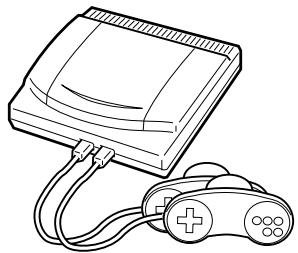
natural_image
Line drawing of a vintage-style electronic device with a flat top and connected cables (no text or symbols)* PC connection is not possible.
Notes:
■ Use a commercially available audio/video cord for the cable.
■ Only connect audio/video signals to AV-IN1 and 2 terminals. Connecting other signals may result in a malfunction.
■ The VIDEO input terminal and the S-VIDEO input terminal on the AV-IN2 side are shared connections with priority given to the S-VIDEO terminal. If both terminals are connected, the video signals from the S-VIDEO input terminal are selected for the AV-IN2 input.
When viewing video from the VIDEO input terminal, do not connect anything to the S-VIDEO input terminal.
■ For details concerning usage and connection of external devices, see the respective instruction manuals.
Connecting External Devices (Continued)
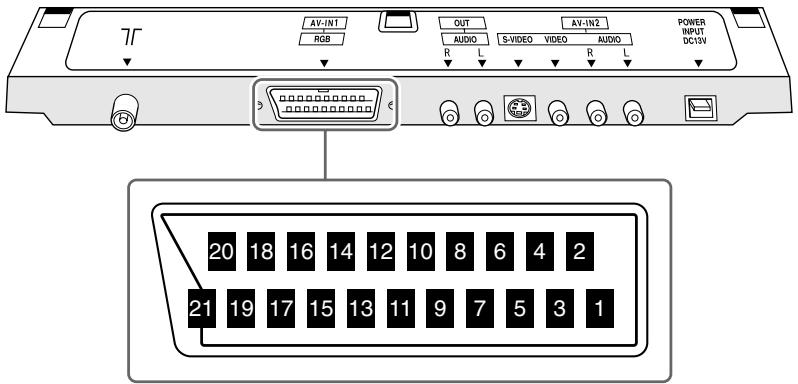
Connecting a Decoder through the 21-pin Euro-SCART (AV-IN1/RGB)
text_image
7T AV-INT RGB OUT AUDIO S-VIDEO AV-IN2 AUDIO R L R L POWER INPUT DC10V 20 18 16 14 12 10 8 6 4 2 21 19 17 15 13 11 9 7 5 3 121-pin Euro-SCART (RGB)
- Audio right output
- Audio-video control
- Red input
- Audio right input
- Earth for green
- Red/Green/Blue control
- Audio left output
- Not used
- Earth for video
- Common earth for audio
- Green input
- Earth for Red/Green/Blue control
- Earth for blue
- Not used
- Video output
- Audio left input
- Earth for red
- Video input (PAL/SECAM/NTSC)
- Blue input
- Not used
- Plug shield
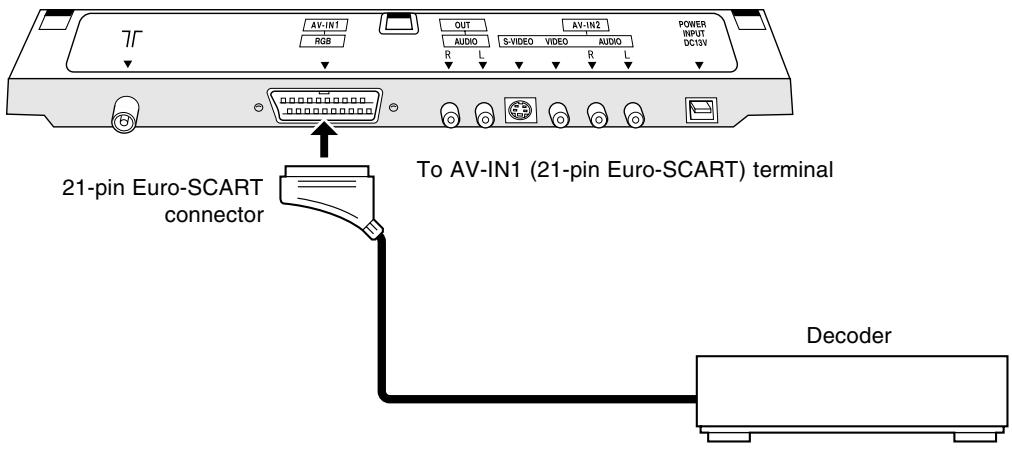
text_image
7T AV-IN1 RGB OUT AUDIO R S-VIDEO R AV-IN2 S-VIDEO VIDEO R AVIN2 AUDIO POWER INPUT DC10V 21-pin Euro-SCART connector To AV-IN1 (21-pin Euro-SCART) terminal DecoderConnecting External Devices (Continued)
Connecting a VCR or a home video game system (AV-IN2)
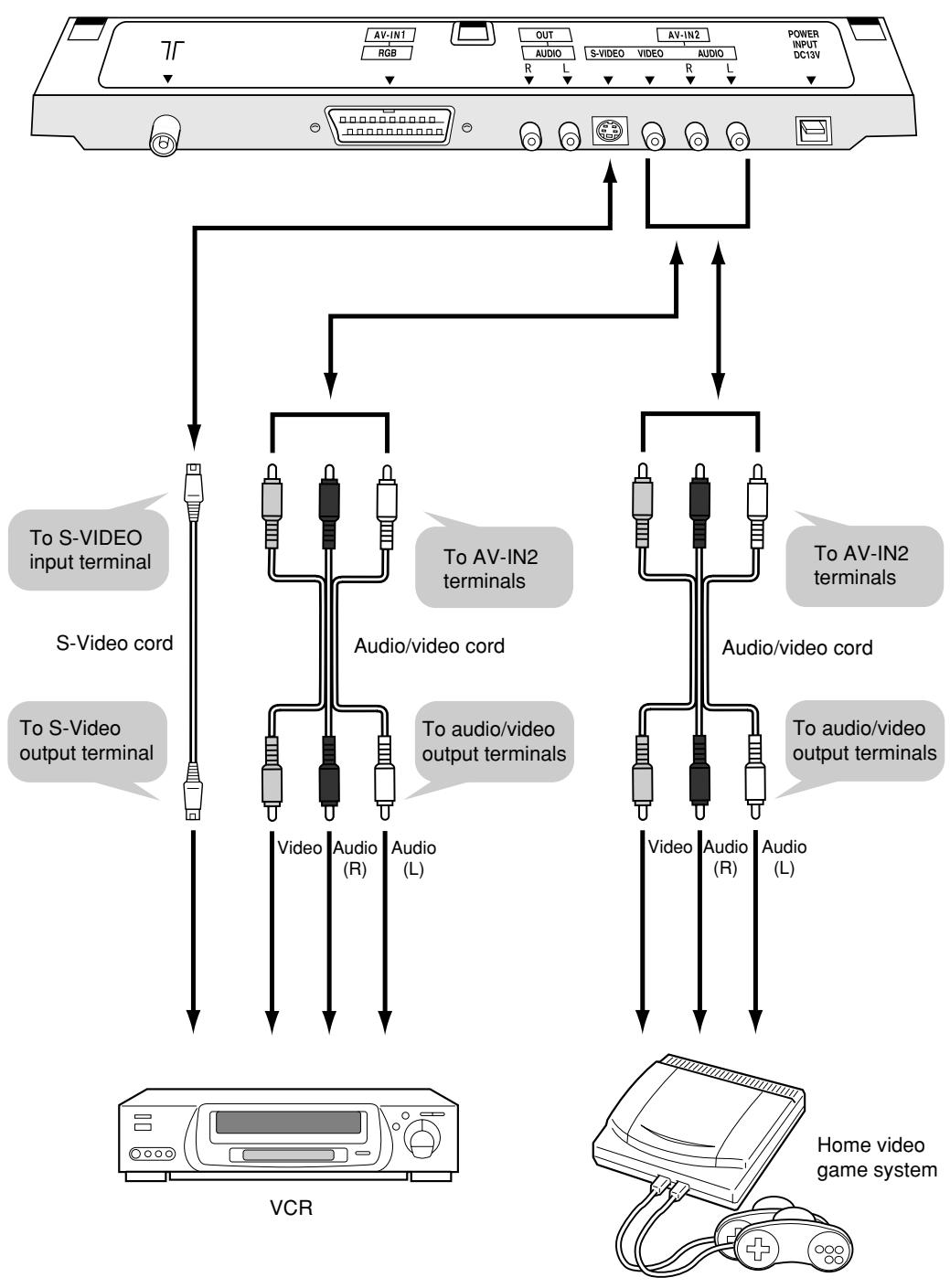
flowchart
graph TD
    A["TV"] --> B["AV-IN1 RGB"]
    A --> C["OUT AUDIO R L"]
    A --> D["AV-IN2 S-VIDEO VIDEO R L"]
    A --> E["POWER INPUT DC13V"]
    B --> F["S-Video cord"]
    C --> G["To AV-IN2 terminals"]
    D --> H["To AV-IN2 terminals"]
    E --> I["To audio/video output terminals"]
    F --> J["Video Audio (R) Audio (L)"]
    G --> K["Audio/video cord"]
    H --> L["Audio/video cord"]
    I --> M["Video Audio (R) Audio (L)"]
    J --> N["VCR"]
    K --> O["Home video game system"]
Notes:
■ When connecting to both the VIDEO input and S-VIDEO input terminals for AV-IN2, priority is given to the S-VIDEO input terminal.
■ Do not connect antennas or headphones to AV-IN2.
Connecting External Devices (Continued)
Outputting audio (AUDIO OUT)
It is possible to output audio from the LCD TV set through the AUDIO OUT terminals.
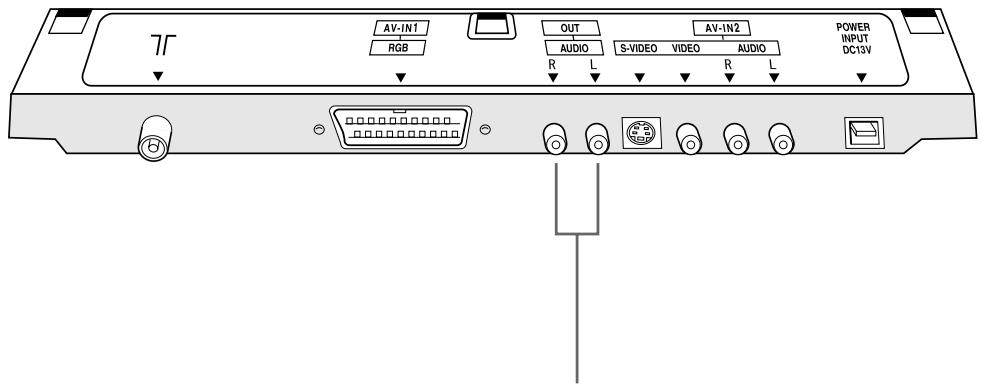
text_image
AV-IN1 RGB OUT AUDIO S-VIDEO AV-IN2 AUDIO R L R L POWER INPUT DC13VConnect an audio amplifier, etc.
How to fix the cables
- Secure cables and cords with the supplied cable clamps so that they do not get caught when mounting the cover.
- Connect the cables and cords after affixing the cable clamps (2 positions) close to the antenna terminal and the POWER INPUT terminal.
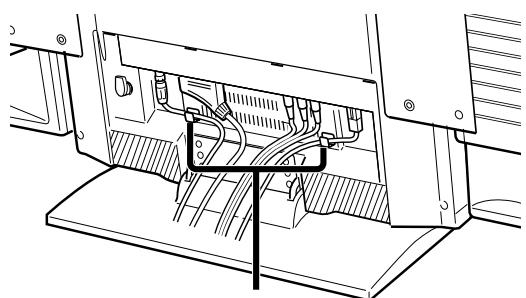
natural_image
Technical line drawing of an electronic device showing internal wiring and a bracket (no text or symbols)Cable clamps
Troubleshooting
Before calling for repair services, make the following checks for possible remedies to the symptoms encountered.
LCD TV set
| Problem | Check item | Reference page | |
 | There is no picture or sound. | Make sure the AC adapter is properly inserted in the power outlet.Reception other than that of broadcasting stations can be considered.Make sure the input mode is set to TV.Make sure the main power switch of the main unit is on. | 61313 |
 | There is no picture.There is no picture from AV-IN2. | Make sure Picture adjustment is properly adjusted.The fluorescent lamp may have reached the end of its service life.Make sure the S-Video terminal has nothing connected. | 16–49 |
 | There is no sound. | Make sure the volume is not set to minimum.Make sure the sound is not set to mute.Make sure the headphones are not connected. | 141411 |
 | There is no picture or sound, just noise. | Make sure the antenna cable is properly connected.Bad reception should be considered. | 6– |
 | Picture is not clear. | Make sure the antenna cable is properly connected.Bad reception can be considered. | 6– |
 | Picture is too light or improperly tinted. | Check the colour adjustment.(NTSC mode) | 16 |
 | The picture is too dark. | Check if “Brightness” is set to “dark.”Check “Contrast” and “Black level.”The fluorescent lamp may have reached the end of its service life. | 1616– |
| Remote control does not work. | Check if batteries in the remote control have sufficient power.Make sure the remote sensor window is not under strong lighting. | 55 | |
Troubleshooting (Continued)
LCD TV set
| On-screen message | Check item | Reference page |
 | ·Referring to the “Sub-title pages” screen of the Teletext menu check if the channel for the sub-title is set for your country.·Check if a programme having sub-titles is received. | 46- |
Antenna
| Problem | Check item | |
 | The picture is not sharp. | · The reception may be weak.· The quality of the broadcast may also be bad.· Make sure the antenna is facing the correct direction.· Make sure the outside antenna has not been disconnected. |
 | The picture shakes. | |
 | The picture has ghosts. | · Make sure the antenna is facing the correct direction.· Broadcast waves may be reflected from adjacent mountains or buildings. |
 | The picture is spotted. | · There may be interference from automobiles, trains, high-voltage lines, neon lights, etc.· There may be interference between the antenna cable and power cable. Try positioning them further apart. |
 | There are stripes on the screen or colours fade. | · Is the unit receiving interference from other devices? Transmission antennas of radio broadcasting stations and transmission antennas of amateur radios and cellular phones may also cause interference.· Use the unit as far apart as possible from devices that may cause possible interference. |
Specifications
| Items | 20" LCD COLOUR TV, Model: LC-20A2E | |
| LCD panel | 20" TFT LCD | |
| Number of pixels | 921,600 dots | |
| Video colour system | PAL/SECAM/NTSC | |
| TV Function | TV-Standard (CCIR) | BG/L/DK, I, M, N |
| TV-Tuning System | Auto preset 200 ch. | |
| STEREO/BILINGUAL | NICAM, IGR | |
| AUTO PRESET | Yes | |
| CATV | ~Hyper Band | |
| Brightness | 450 cd/m2 | |
| Lamp life | 40,000 hours | |
| Viewing angles | H: 160° V: 160° | |
| Audio amplifier | 2.6 W × 2 | |
| Speakers | 80 mm ø 2 pcs. | |
| Terminals | AV-IN1 | RGB, VIDEO, AUDIO |
| AV-IN2 | S-VIDEO, VIDEO, AUDIO | |
| OUT | AUDIO | |
| Antenna | DIN | |
| Headphones | 3.5 mm ø jack (Front) | |
| OSD language | English/German/French/Spanish/Italian/Swedish/Dutch | |
| Power requirement | DC 13 V, AC 110 – 240 V, 50/60 Hz | |
| Weight | 10.5 kg, incl. stand, excl. accessories | |
| Accessories | Remote Control, Batteries, AC adapter, AC cord, Speaker nets, Cable clamps | |
■ Design and specifications are subject to change without notice.
Dimensional Drawings
Unit: mm
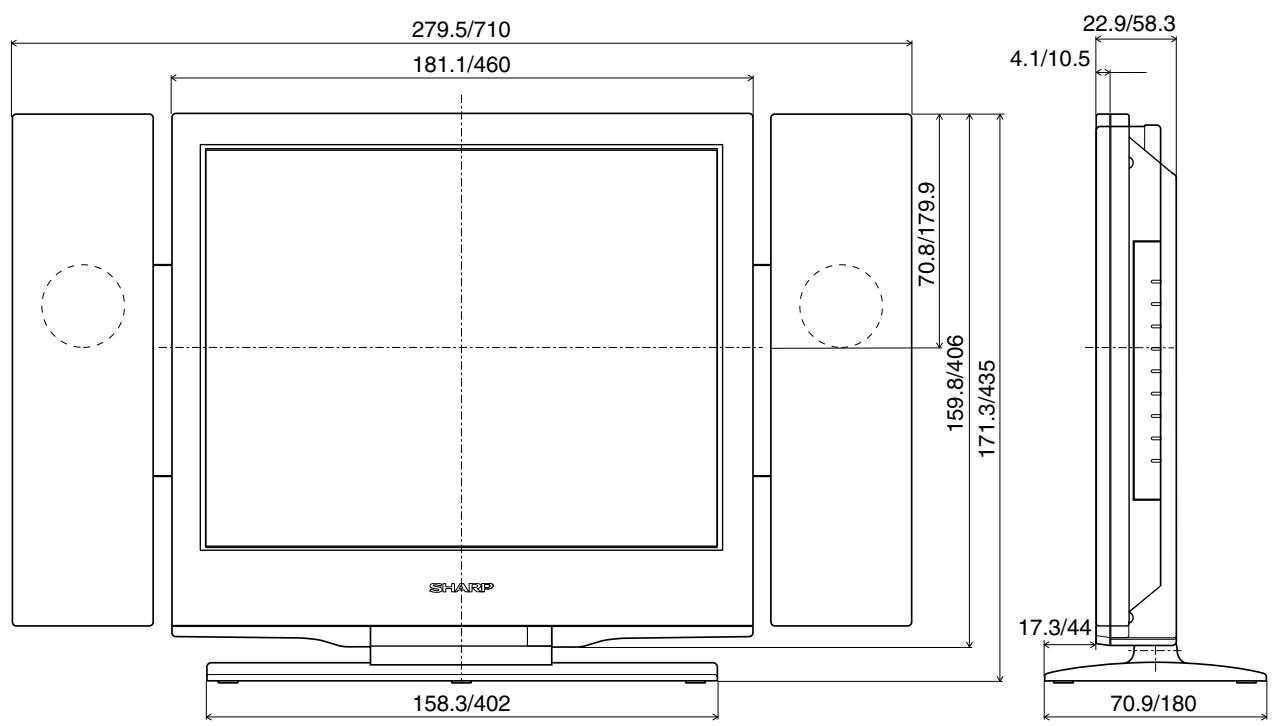
text_image
279.5/710 181.1/460 70.8/179.9 159.8/406 171.3/435 22.9/58.3 4.1/10.5 SHARP 158.3/402 17.3/44 70.9/180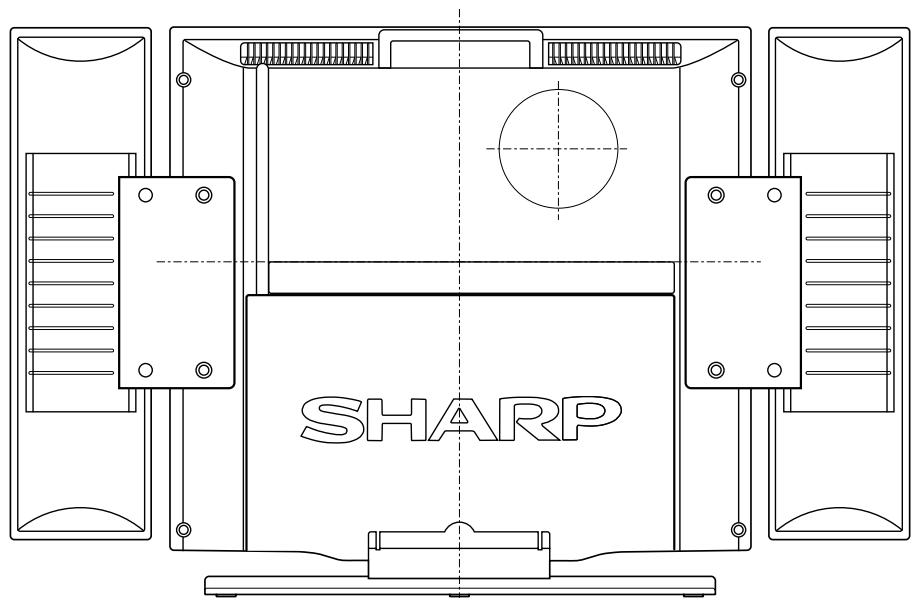
natural_image
Technical line drawing of a mechanical component labeled 'SHARP' (no other text or symbols)IMPORTANT NOTE ON DISENGAGING ADVANCED CHILD LOCK
If you have forgotten your personal code number and cannot disengage ADVANCED CHILD LOCK, follow the procedure below.
- Press MENU to display the TV menu.
- Press CH (▲)/(▼) to select "Child lock," then press OK.
- The PIN input menu appears.
- Input "3001" with Channel Select.
The Child lock setting menu appears and the PIN is cleared.
A new PIN can now be input.
ADVANCED CHILD LOCK will now be disengaged.
We suggest that you remove this instruction from the manual to prevent children from reading it. Keep it in a safe space for future reference.

natural_image
Two horizontal bar designs with grayscale shades and a central crosshair (no text or symbols)
natural_image
Pure geometric lines with crosshair markers, no text or symbols present