
TC920 - Keyboard Anker - Free user manual and instructions
Find the device manual for free TC920 Anker in PDF.


| Product Type | Bluetooth Keyboard Cover for iPad Air |
| Brand | Anker |
| Model | TC920 |
| Dimensions | 240 × 175 × 10 mm (9.4 × 6.9 × 0.4 in) |
| Weight | 330 g (11.6 oz) |
| Connectivity | Bluetooth 3.0 |
| Operating Range | Up to 10 m (33 ft) |
| Battery Type | Built-in Lithium-ion, 800 mAh |
| Battery Life | 180 days (3 hours use per day) or 110 days standby |
| Charging Time | ≤ 4 hours |
| Charging Port | Micro USB |
| Key Lifetime | 5 million clicks |
| Working Temperature | -10°C to +55°C (14°F to 131°F) |
| Standby Time | 110 days |
| Power Saving | Auto sleep after 15 minutes idle |
| Special Features | Built-in stand groove for iPad Air, magnetic closure, auto sleep/wake, multimedia keys (music control, volume, screen lock, brightness, etc.) |
| Warranty | 18 months |
| Package Contents | Keyboard cover, USB charging cable, user manual |
| Cleaning | Wipe with a slightly damp cloth; avoid oil, chemicals, organic liquids |
| Disposal | Dispose of batteries according to local laws |
Frequently Asked Questions - TC920 Anker
User questions about TC920 Anker
0 question about this device. Answer the ones you know or ask your own.
Ask a new question about this device
Download the instructions for your Keyboard in PDF format for free! Find your manual TC920 - Anker and take your electronic device back in hand. On this page are published all the documents necessary for the use of your device. TC920 by Anker.
USER MANUAL TC920 Anker
Specifications ....5
Pairing Instructions....6
Power Saving Mode 6
Charging Instructions....7
Troubleshooting....7
Usage Tips 8
Federal Communication Commission Interference
Statement 9
Warranty 10
Contact Us....10
Statement 10
Inhaltsverzeichnis
Packungsinhalt 11
Features 11
Troubleshooting....16
■ Stylish, super-slim body fits securely onto your iPad Air and easily into your bag.
■ Built-in groove holds your iPad Air for easy hands-free viewing.
■ Automatic sleep/wake mode triggered by opening and closing the case.
■ Low-profile, quiet keys enhance the typing experience.
■ Great for writing messages and emails when you're on the go.
Product Overview
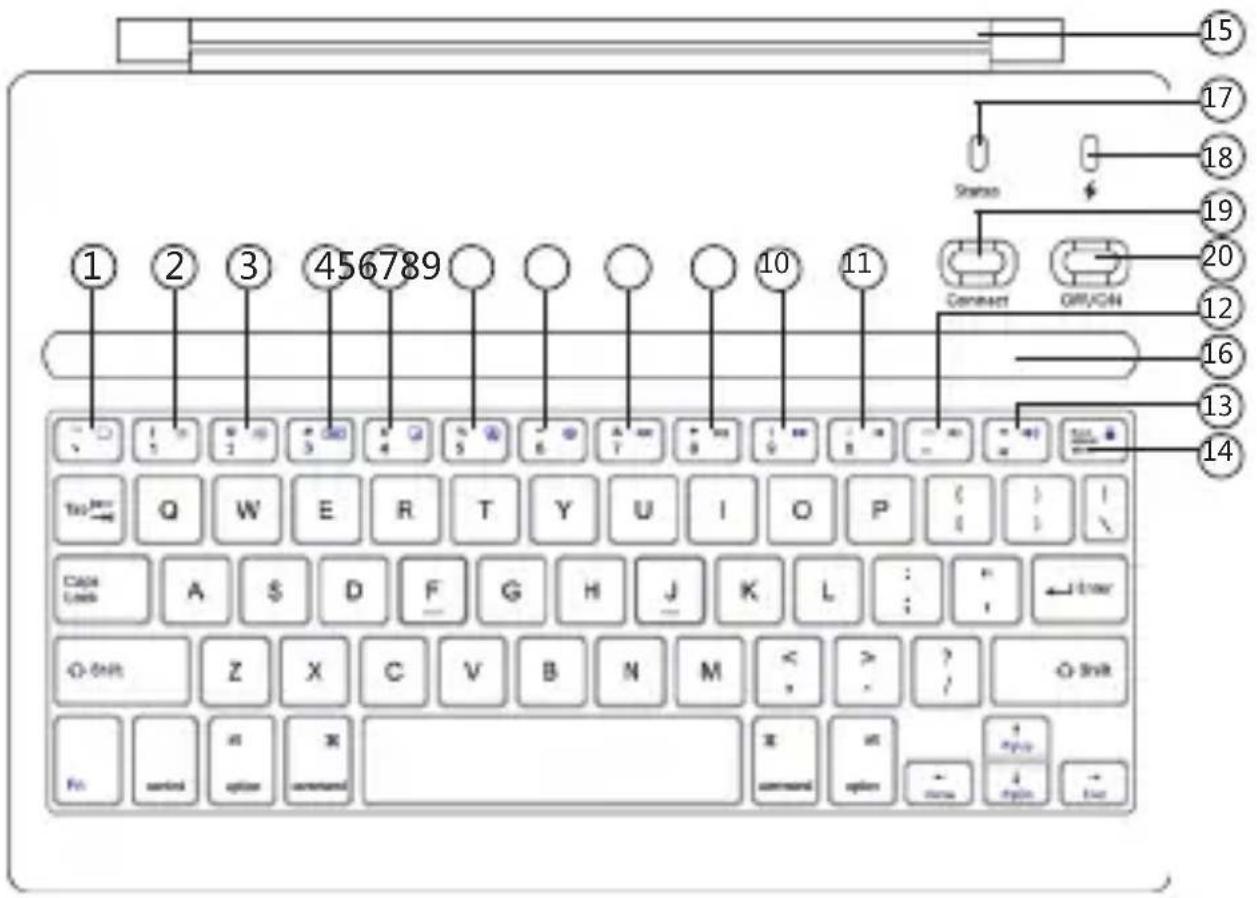
(1) Back to Home
(2) Brightness Down
(3) Brightness Up
(4) Keyboard Display
(5) Copy
(6) Paste
(7) Switch Input Language
(8) Previous Song
(9) Pause
(10) Next Song
(11) Mute
(12) Volume Down
(13) Volume Up
(14) Screen Lock / Unlock
(15) Magnet
(16) Stand Groove
(17) Status Indicator
(18) Battery Indicator
(19) Connect Button
(20) Power Button
Specifications
| Bluetooth Specification Bluetooth 3.0 | |
| Product Dimensions 240 × | 175 × 10mm / 9.4 × 6.9 × 0.4in |
| Product Weight 330g / 11.6oz | |
| Operating Range Up to 10 meters / 33 feet | |
| Modulation System GFSK | |
| Standby Time 110 days | |
| Charge Time ≤4 hours | |
| Battery life 180 days (3 hours of use per day) | |
| Working Temperature -10 - | +55 °C |
| Lithium Battery Capacity 800mAh | |
| Battery's Lifespan 400 charge cycles | |
| Key Life 5 million clicks | |
Pairing Instructions
- Press the Power Button, and the Status Indicator will turn on for 1 second and then shut off.
- Press the Connect Button. The Status Indicator will start blinking. The keyboard cover is now ready to connect to your device.
- Activate your device's Bluetooth function and search for the device.
- Once the Bluetooth keyboard cover has been found, click on its name to connect.
- Enter the password code as displayed on the screen.
- Once the Bluetooth keyboard cover has successfully connected to your device, the Status Indicator will turn off.
Note: Before you connect the keyboard cover to other Bluetooth-enabled devices, please verify the device's Bluetooth standard and compatibility.
Power Saving Mode
The keyboard cover will enter sleep mode after being idle for 15 minutes. To activate it, press any key and wait for 2 seconds.
Charging Instructions
When the battery power is low, the Battery Indicator will begin to blink to indicate that it is time to recharge the keyboard cover.
- Connect the micro end of the USB power cable to the micro USB port on the keyboard cover.
- Connect the other end of the cable to a power adapter or computer USB port.
- The Power Indicator will turn on while the keyboard cover is charging. Once it is fully charged, the Power Indicator will turn off.
Note: The built-in lithium battery has no memory effect, so feel free to charge the keyboard cover whenever necessary. If the cover will not be used for an extended period of time, we recommend that you turn the power switch off so as to conserve power and extend battery life.
Troubleshooting
A. Unable to connect:
■ Make sure your keyboard is powered on.
■ Make sure the keyboard cover is within operating distance.
■ Make sure the battery still holds a charge.
■ Make sure the Bluetooth on your device is enabled.
Usage Tips
■ Make sure the keyboard cover is paired to your device successfully.
B. Unable to charge the keyboard cover:
■ Make sure the USB power cable is connected properly to the keyboard cover and the power source.
■ Make sure the wall charger is connected properly to the power outlet.
■ Do not place heavy objects on the keyboard cover.
■ Do not knock or dismantle the product.
- Keep the product away from oil, chemicals, and organic liquids.
■ Clean the keyboard by lightly rubbing it with a slightly damp cloth.
■ Dispose of batteries according to local laws.
Federal Communication Commission Interference Statement
This device complies with Part 15 of the FCC Rules.
Operation is subject to the following two conditions:
1. This device may not cause harmful interference.
2. This device must accept any interference received, including interference that may cause undesired operation. Caution: Changes or modifications not expressly approved by the party responsible for compliance could void the user's authority to operate the equipment.
Warranty
Our company provides customers with warranty of 18 MONTHS from the date of purchase.
Contact Us
For any inquiries or comments concerning our products, please send an email to support@ianker.com, and we will respond to you as soon as possible. If there is any quality-related issue with the product, you may request a REPLACEMENT OR REFUND by submitting a request form at www.ianker.com/support.
Statement
■ We're only able to provide after-sales service for purchases made directly from Anker. If you purchased through a different retailer, please contact them for any exchange or refund requests.
■ Please note that unauthorized reselling of Anker products is prohibited.