
R-N - Photocopier SHARP - Free user manual and instructions
Find the device manual for free R-N SHARP in PDF.


| Product Type | Digital desktop multifunction copier |
| Brand | Sharp |
| Model | R-N (AR-5516/5520 series) |
| Dimensions (W × D × H) | 590 × 550 × 470 mm (basic models); 590 × 550 × 555 mm (models with RSPF) |
| Weight | Approx. 28.2 kg (AR-5516S) to 33.3 kg (AR-5520N) |
| Power supply | Local voltage ±10%; maximum power consumption 1.2 kW |
| Main functions | Copy, print, scan (depending on model) |
| Copy speed (A4) | 16 copies/min (AR-5516); 20 copies/min (AR-5520) |
| Print resolution | 600 × 600 dpi |
| Paper sizes | Max. A3, min. A6 (via bypass tray) |
| Paper capacity | 1 or 2 trays of 250 sheets + 100-sheet bypass |
| Memory | 16 MB (AR-5516S/5520S); 64 MB (other models) |
| Interface | USB 2.0 (non-network models); Ethernet 10/100 (N models) |
| Maintenance and cleaning | Do not use solvents; clean exterior with a dry cloth; avoid moisture and dust |
| Safety | Class 1 laser product; do not look directly at the light source; unplug before servicing |
| Spare parts and repairability | Toner cartridge, OPC drum, fuser unit available; repairability index not communicated |
| General information | Manual available in PDF; operating temperature 10–32 °C; humidity 20–80% RH |
Frequently Asked Questions - R-N SHARP
User questions about R-N SHARP
0 question about this device. Answer the ones you know or ask your own.
Ask a new question about this device
Download the instructions for your Photocopier in PDF format for free! Find your manual R-N - SHARP and take your electronic device back in hand. On this page are published all the documents necessary for the use of your device. R-N by SHARP.
USER MANUAL R-N SHARP
DIGITAL MULTIFUNCTIONAL SYSTEM
START GUIDE
BEFORE USING
This section provides the safety information to use the machine and explains how to use this manual.
SETUP
This section explains software installation and connection to a computer.
APPENDIX
This section includes the troubleshooting and specifications.
Do not make copies of anything which is prohibited from copying by law. The following items are normally prohibited from copying by national law. Other items may be prohibited by local law.
Money
Stamps
Bonds
Stocks
Bank drafts
- Checks
Passports
Driver's licenses
In some areas, the "POWER" switch positions are marked "I" and "O" on the copier instead of "ON" and "OFF".
If your copier is so marked, please read "I" for "ON" and "O" for "OFF".
Caution!
For a complete electrical disconnection, pull out the main plug.
The socket-outlet shall be installed near the equipment and shall be easily accessible.
Shielded interface cables must be used with this equipment to maintain compliance with EMC regulations.
The equipment should be installed near an accessible socket outlet for easy disconnection.
Warning
This is a Class A product. In a domestic environment this product may cause radio interference in which case the user may be required to take adequate measures.
CONTENTS
BEFORE USING
CAUTIONS 2
CAUTIONS ON USING. 2 - IMPORTANT POINTS WHEN SELECTING AN INSTALLATION SITE CAUTIONS ON HANDLING 3 CAUTIONS ON LASER 3 ENVIRONMENTAL INFORMATION. 4
USING THE MANUAL 4
ABOUT THE MANUALS 4
Follow the cautions below when using this machine.
CAUTIONS ON USING
Warning:
- The fusing area is hot. Exercise care in this area when removing misfed paper.
- Do not look directly at the light source. Doing so may damage your eyes.
Caution:
- Do not switch the machine rapidly on and off. After turning the machine off, wait 10 to 15 seconds before turning it back on.
- Machine power must be turned off before installing any supplies.
- Place the machine on a firm, level surface.
- Do not install the machine in a humid or dusty location.
- When the machine is not used for a long time, for example, during prolonged holidays, turn the power switch off and remove the power cord from the outlet.
- When moving the machine, be sure to turn the power switch off and remove the power cord from the outlet.
- Do not cover the machine with a dust cover, cloth or plastic film while the power is on. Doing so may prevent heat dissipation, damaging the machine.
- Use of controls or adjustments or performance of procedures other than those specified herein may result in hazardous laser radiation exposure.
- The socket-outlet should be installed near the machine and should be easily accessible.
IMPORTANT POINTS WHEN SELECTING AN INSTALLATION SITE
Improper installation may damage the machine. Please note the following during initial installation and whenever the machine is moved.

If the machine is moved from a cool place to a warm place, condensation may form inside the machine. Operation in this condition will cause poor copy quality and malfunctions. Leave the machine at room temperature for at least 2 hours before use.
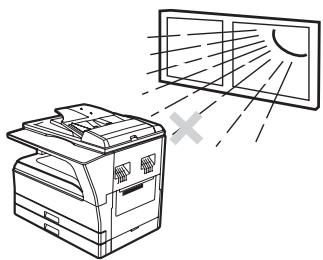
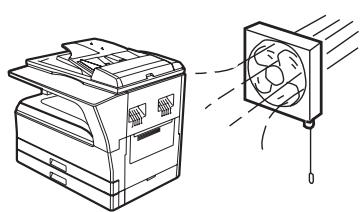
Do not install your machine in areas that are:
- damp, humid, or very dusty
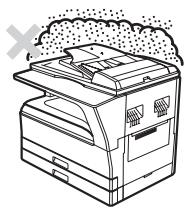
- exposed to direct sunlight
poorly ventilated
- subject to extreme temperature or humidity changes, e.g., near an air conditioner or heater
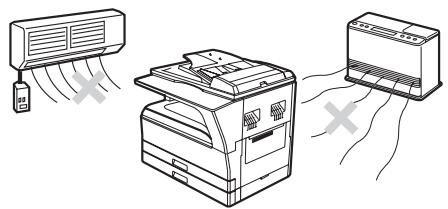
The machine should be installed near an accessible power outlet for easy connection and disconnection.
Be sure to connect the power cord only to a power outlet that meets the specified voltage and current requirements. Also make certain the outlet is properly grounded.

Connect the machine to a power outlet which is not used for other electric appliances. If a lighting fixture is connected to the same outlet, the light may flicker.
Be sure to allow the required space around the machine for servicing and proper ventilation.
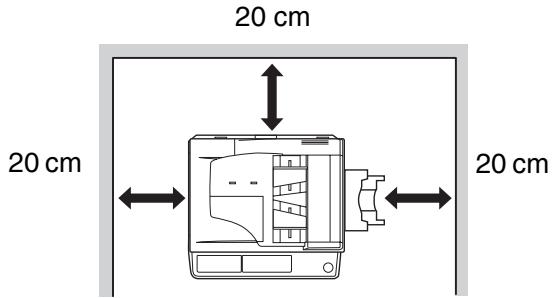
A small amount of ozone is produced within the copier during operation. The emission level is insufficient to cause any health hazard.
CAUTION:
It is advisable to place the copier in a ventilated area, since the small amount that is emitted may have an objectionable odor.
CAUTIONS ON HANDLING
Be careful in handling the machine as follows to maintain the performance of this machine.
Do not drop the machine, subject it to shock or strike it against any object.
Store spare toner cartridges in a cool dry place without removing from the package before use.
- If they are exposed to direct sunlight or excessive heat, poor copies may result.
Do not touch the photoconductive drum (green portion).
- Scratches or smudges on the drum will cause dirty copies.
CAUTIONS ON LASER
| Wave length | 785 nm ± 15 nm |
| Pulse times | (10.32 μs ± 10.32 ns)/7 mm |
| Output power | Max. 0.6 mW |
Caution
Use of controls or adjustments or performance of procedures other than those specified herein may result in hazardous radiation exposure.
This Digital Equipment is CLASS 1 LASER PRODUCT (IEC 60825-1 Edition 1.2-2001)
Trademark acknowledgements
The following trademarks and registered trademarks are used in conjunction with the machine and its peripheral devices and accessories.
- Microsoft®, Windows®, Windows® 2000, Windows® XP, and Windows Vista® are registered trademarks or trademarks of Microsoft Corporation in the U.S.A. and other countries.
- IBM, PC/AT, and PowerPC are trademarks of International Business Machines Corporation.
- Adobe, the Adobe logo, Acrobat, the Adobe PDF logo, and Reader are registered trademarks or trademarks of Adobe Systems Incorporated in the United States and other countries.
- All other trademarks and copyrights are the property of their respective owners.
ENVIRONMENTAL INFORMATION

Products that have earned the ENERGY STAR® are designed to protect the environment through superior energy efficiency.
The products that meet the ENERGY STAR® guidelines carry the logo shown above.
The products without the logo may not meet the ENERGY STAR® guidelines.
USING THE MANUAL
This machine has been designed to provide convenient copying features in a minimum amount of office space and with maximum operational ease. To get full use of all machine features, be sure to familiarise yourself with this manual and the machine. For quick reference during machine use, keep this manual in a handy location.
ABOUT THE MANUALS
The manuals for the machine are as follows:
Start Guide (this manual)
This manual explains:
- How to install the software that allows the machine to be used as a printer and scanner for your computer
- Troubleshooting for using the machine
- Specifications
- Cautions for using the machine in safety
Operation Guide (on the accessory CD-ROM)
This manual explains:
- Part names of the machine Available paper type for this machine
- Basic copy procedure and advanced copy functions (For example: rotating the image 90 degrees, copying multiple originals onto a single sheet of paper)
- Basic print procedure and other frequently used print functions (For example: fitting the printed image to the paper, enlarging/reducing the print image)
- Scanning on the machine and from a computer
- Toner cartridge replacement and peripheral devices

- The display screens, messages, and key names shown in the manual may differ from those on the actual machine due to product improvements and modifications.
- Where "AR-XXXX" appears in this manual, please substitute the name of your model for "XXXX".
SOFTWARE LICENSE
The SOFTWARE LICENSE will appear when you install the software from the CD-ROM. By using all or any portion of the software on the CD-ROM or in the machine, you are agreeing to be bound by the terms of the SOFTWARE LICENSE.
The Operation Guide provides detailed instructions for operating the machine. View the Operation Guide when you use the machine after the initial setup is completed.
Viewing the manual
The CD-ROM that accompanies the machine contains a manual in PDF format. To view the manual in PDF format, Acrobat Reader or Adobe Reader of Adobe Systems Incorporated is required. If neither program is installed on your computer, the programs can be downloaded from the following URL:
http://www.adobe.com/
1 Turn on your computer. 2 Insert the supplied CD-ROM into your CD-ROM drive. 3 Click the "Start" button, click "Computer", and then double-click the CD-ROM icon ( ).
- In Windows XP, click the "start" button, click "My Computer", and then double-click the CD-ROM icon.
- In Windows 2000, double-click "My Computer" and then double-click the CD-ROM icon.
4 Double-click the "Manual" folder, double-click the "English" folder, and then double-click the "AR_5516_5520.pdf" icon (for AR-5516S/5520S/5516/5520/5516D/5520D) or "AR_5516N_5520N.pdf" (for AR-5516N/5520N).

- If you will be viewing the Operation Guide repeatedly, you may find it convenient to copy this Operation Guide file to your computer.
- The Operation Guide can be printed out using Acrobat Reader. SHARP recommends printing out the sections which you refer to regularly.
- Refer to "Help" of Acrobat Reader for more details on how to use Acrobat Reader.
THE MEANING OF "R" IN ORIGINAL AND PAPER SIZE INDICATIONS
An "R" appearing at the end of an original or paper size (A4R, etc.) indicates that the original or paper is oriented horizontally as shown below.
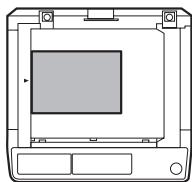
Sizes that can be placed only in the horizontal (landscape) orientation (B4, A3) do not contain the "R" in their size indication.
CONVENTIONS USED IN THIS MANUAL

Warns the user that injury may result if the contents of the warning are not properly followed.

Cautions the user that damage to the machine or one of its components may result if the contents of the caution are not properly followed.

Notes provide information relevant to the machine regarding specifications, functions, performance, operation and such, that may be useful to the user.
SPF (AR-5516S/AR-5520S, AR-5516/AR-5520)
This manual refers to the Single Pass Feeder as the "SPF".
RSPF (AR-5516D/AR-5520D/AR-5516N/AR-5520N)
This manual refers to the Reversing Single Pass Feeder as the "RSPF".
DIFFERENCES BETWEEN MODELS
This manual covers the following models.
| Model | AR-5520S/AR-5520/AR-5520D/AR-5520N | AR-5516S/AR-5516/AR-5516D/AR-5516N |
| Appearance | (With optional SPF/RSPF installed) The above illustration is used in instances where a function and/or the operation of the machine is the same on both models. | (With optional SPF/RSPF installed) The above illustration is used in instances where a function and/or the operation of the machine is the same on both models. |
| Copy speed | 20CPM | 16CPM |
| Paper trays | Two (250 x 2) | One (250 x 1) |
BEFORE SOFTWARE SETUP
This chapter explains how to install and configure the software that is required for the printer and scanner functions of the machine.

- The scanner function is not available on the AR-5516S/AR-5520S.
- This manual refers to the CD-ROM that accompanied the machine simply as "CD-ROM".
SOFTWARE
The CD-ROM that accompanies the machine contains the following software:
AR-5516S/AR-5520S
Printer driver
The printer driver enables you to use the printer function of the machine.
The printer driver includes the Print Status Window. This is a utility that monitors the machine and informs you of the printing status, the name of the document currently being printed, and error messages.
AR-5516/AR-5520, AR-5516D/AR-5520D
MFP driver
Printer driver
The printer driver enables you to use the printer function of the machine.
The printer driver includes the Print Status Window. This is a utility that monitors the machine and informs you of the printing status, the name of the document currently being printed, and error messages.
Scanner driver
The scanner driver allows you to use the scanning function of the machine with TWAIN-compliant and WIA-compliant applications.
Button Manager
Button Manager allows you to use the scanner menus on the machine to scan a document.
AR-5516N/AR-5520N
Printer driver
The printer driver enables you to use the printer function of the machine.
Scanner driver
The scanner driver allows you to use the scanning function of the machine with TWAIN-compliant and WIA-compliant applications.
Button Manager
Button Manager allows you to use the scanner menus on the machine to scan a document.
HARDWARE AND SOFTWARE REQUIREMENTS
Check the following hardware and software requirements before installing the software.
| Computer type | AR-5516S/AR-5520S/AR-5516/AR-5520/AR-5516D/AR-5520D : IBM PC/AT or compatible computer equipped with a USB 2.0*1/1.1*2 AR-5516N/AR-5520N : IBM PC/AT or compatible computer equipped with a 10BASE-T/100BASE-TX LAN connector |
| Operating system*3 | Windows 2000 Professional, Windows XP Professional, Windows XP Home Edition, Windows Vista |
| Other hardware requirements | An environment on which any of the operating systems listed above can fully operate |
1 The machine's USB 2.0 port will transfer data at the speed specified by the USB 2.0 (Hi-Speed) only if the Microsoft USB 2.0 driver is preinstalled in the computer, or if the USB 2.0 driver for Windows 2000 Professional/XP/Vista that Microsoft provides through its "Windows Update" is installed. 2 Compatible with Windows 2000 Professional, Windows XP Professional, Windows XP Home Edition, or Windows Vista preinstalled models equipped with a USB interface as standard. *3 • The machine does not support printing from a Macintosh environment.
- Administrator's rights are required to install the software using the installer.
The power switch is located on the left side of the machine.
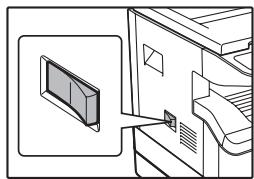
Turn the power switch to the "ON" position.
INSTALLING THE SOFTWARE
(AR-5516S/AR-5520S/AR-5516/AR-5520/AR-5516D/AR-5520D)

- The screen images in this manual are mainly for Windows Vista. With other versions of Windows, some screen images may be different from those in this manual.
- If an error message appears, follow the instructions on the screen to solve the problem. After the problem is solved, the installation procedure will continue. Depending on the problem, you may have to click the "Cancel" button to exit the installer. In this case, reinstall the software from the beginning after solving the problem.
1 The USB cable must not be connected to the machine. Make sure that the cable is not connected before proceeding.
If the cable is connected, a Plug and Play window will appear. If this happens, click the "Cancel" button to close the window and disconnect the cable.

The cable will be connected in step 12.
2 Insert the CD-ROM into your CD-ROM drive.
3 Click the "Start" button, click "Computer", and then double-click the CD-ROM icon ( ).
- In Windows XP, click the "start" button, click "My Computer", and then double-click the CD-ROM icon.
- In Windows 2000, double-click "My Computer", and then double-click the CD-ROM icon.
4 Double-click the "Setup" icon (B).
In Windows Vista, if a message screen appears asking you for confirmation, click "Allow".
5 The "SOFTWARE LICENSE" window will appear. Make sure that you understand the contents of the software license, and then click the "Yes" button.

You can show the "SOFTWARE LICENSE" in a different language by selecting the desired language from the language menu. To install the software in the selected language, continue the installation with that language selected.
Read the message in the "Welcome" window and then click the "Next" button.
7 To install all of the software, click the "Standard" button and go to step 11. To install particular packages, click the "Custom" button and go to the next step.
For AR-5516S/AR-5520S
To connect the machine and a computer directly via a USB cable, normally click the "Standard" button and go to step 11. When you click the "Custom" button, go to the next step.
8 Click the "MFP Driver" button.
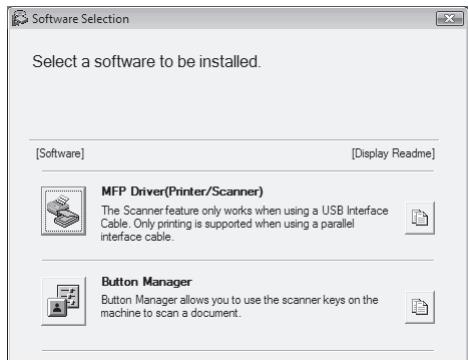
Click the "Display Readme" button to show information on packages that are selected.
For AR-5516S/AR-5520S
Click the "Printer Driver" button.
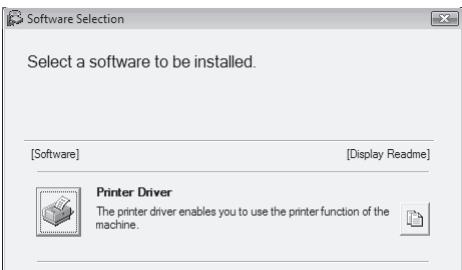
Click the "Display Readme" button to show information on packages that are selected.

Select "Connected to this computer" and click the "Next" button.
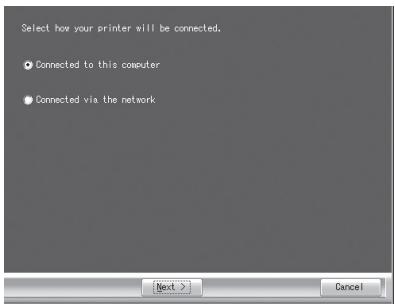
Follow the on-screen instructions.
When "The installation of the SHARP software is complete." appears, click the "OK" button.
For AR-5516S/AR-5520S
When "The installation of the SHARP software is complete." appears, click the "OK" button and go to step 11.

Caution
- If you are using Windows Vista and a security warning window appears, be sure to click "Install this driver software anyway".
- If you are running Windows 2000/XP and a warning message appears regarding the Windows logo test or digital signature, be sure to click "Continue Anyway" or "Yes".

You will return to the window of step 8. If you wish to install Button Manager, click the "Button Manager" button.
If you do not wish to install the Button Manager, go to step 11.
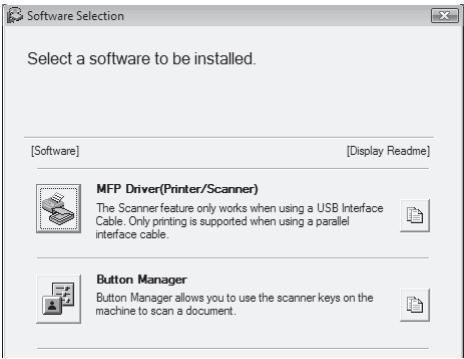
Follow the on-screen instructions.

After the installation, a message prompting you to restart your computer may appear. In this case, click the "Yes" button to restart your computer.

When the installation is finished, click the "Close" button.
Caution
- If you are using Windows Vista and a security warning window appears, be sure to click "Install this driver software anyway".
- If you are running Windows 2000/XP and a warning message appears regarding the Windows logo test or digital signature, be sure to click "Continue Anyway" or "Yes".
A message will appear instructing you to connect the machine to your computer. Click the "OK" button.
Note
After the installation, a message prompting you to restart your computer may appear. In this case, click the "Yes" button to restart your computer.

Make sure that the power of the machine is turned on, and then connect the USB cable (p.10).
Windows will detect the machine and a Plug and Play window will appear.

Follow the instructions in the Plug and Play window to install the driver.
Follow the on-screen instructions.
Caution
- If you are using Windows Vista and a security warning window appears, be sure to click "Install this driver software anyway".
- If you are running Windows 2000/XP and a warning message appears regarding the Windows logo test or digital signature, be sure to click "Continue Anyway" or "Yes".
This completes the installation of the software.
- If you installed Button Manager, set up Button Manager as explained in "SETTING UP BUTTON MANAGER" (p.19).
CONNECTING TO A COMPUTER
(AR-5516S/AR-5520S/AR-5516/AR-5520/AR-5516D/AR-5520D)
Follow the procedure below to connect the machine to your computer.
A USB cable for connecting the machine to your computer is not included with the machine. Please purchase the appropriate cable for your computer.
Interface cable
USB cable
Shielded twisted pair cable, high-speed transmission equivalent (3 m max.)
If the machine will be connected using a USB 2.0 interface, please purchase a USB cable that supports USB 2.0.

- USB is available with a PC/AT compatible computer that was originally equipped with USB and had Windows 2000 Professional, Windows XP Professional, Windows XP Home Edition or Windows Vista preinstalled.
- Do not connect the USB cable before installing the Printer/MFP driver. The USB cable should be connected during installation of the Printer/MFP driver.
CONNECTING A USB CABLE
1 Insert the cable into the USB connector on the machine.
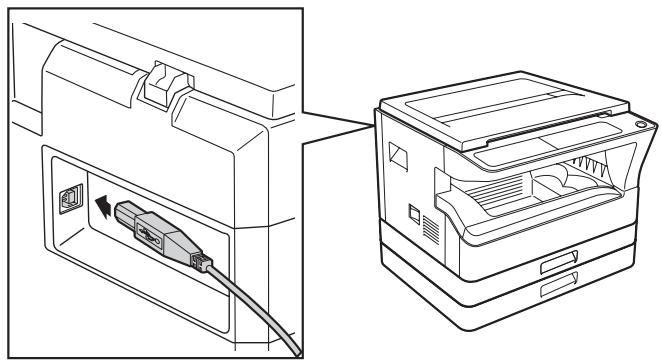
2 Insert the other end of the cable into your computer's USB connector.
System requirements for USB 2.0 (Hi-Speed mode)
- The machine's USB 2.0 connector will transfer data at the speed specified by the USB 2.0 (Hi-Speed) only if the Microsoft USB 2.0 driver is preinstalled in the computer, or if the USB 2.0 driver for Windows 2000 Professional/XP/Vista that Microsoft provides through its "Windows Update" Web page is installed.
- Even when the Microsoft USB 2.0 driver is used, it may not be possible to obtain full USB 2.0 speed if a PC card supporting USB 2.0 is used. To obtain the latest driver (which may enable a higher speed), contact the manufacturer of your PC card.
- Connection is also possible using a USB 1.1 port on your computer. However, the specifications will be USB 1.1 specifications (Full-Speed).
- If your computer is not compatible with USB 2.0 (Hi-Speed), the "USB 2.0 mode switching" setting in the machine's system setting must be set to "Full-Speed". For more information, see "SYSTEM SETTINGS" in the Operation Guide.
USING THE MACHINE AS A SHARED PRINTER
If the machine will be used as a shared printer on a Windows network, follow these steps to install the printer driver in the client computer.

To configure the appropriate settings in the print server, see the operation manual or help file of your operating system.
1 Perform steps 2 through 6 in "INSTALLING THE SOFTWARE (AR-5516S/AR-5520S/AR-5516/AR-5520/ AR-5516D/AR-5520D)" (p.8). 2 Click the "Custom" button. 3 Click the "MFP Driver" button.
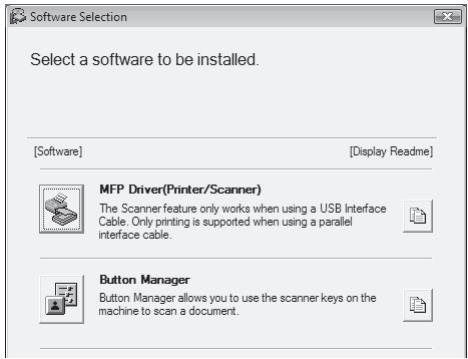
Click the "Display Readme" button to show information on packages that are selected.
For AR-5516S/AR-5520S
Click the "Printer Driver" button.
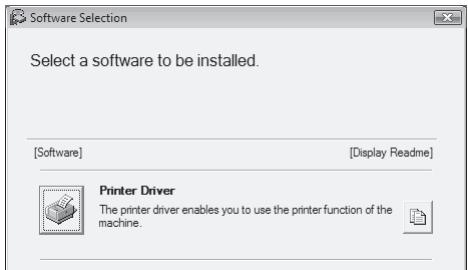
Click the "Display Readme" button to show information on packages that are selected.
4 Select "Connected via the network" and click the "Next" button.
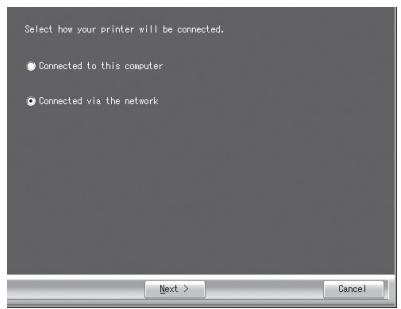
5 Select the printer name (configured as a shared printer on a print server) from the list.
In Windows 2000/XP, you can also click the "Add Network Port" button displayed below the list and select the printer to be shared by browsing the network in the window that appears.
6 Click the "Next" button.
Follow the on-screen instructions.

If the shared printer does not appear in the list, check the settings on the print server.

- If you are using Windows Vista and a security warning window appears, be sure to click "Install this driver software anyway".
- If you are running Windows 2000/XP and a warning message appears regarding the Windows logo test or digital signature, be sure to click "Continue Anyway" or "Yes".
7 You will return to the window of step 3. Click the "Close" button.

After the installation, a message prompting you to restart your computer may appear. In this case, click the "Yes" button to restart your computer.
This completes the installation of the software.
INSTALLING THE SOFTWARE
(AR-5516N/AR-5520N)

- The screen images in this manual are mainly for Windows Vista. With other versions of Windows, some screen images may be different from those in this manual.
- If an error message appears, follow the instructions on the screen to solve the problem. After the problem is solved, the installation procedure will continue. Depending on the problem, you may have to click the "Cancel" button to exit the installer. In this case, reinstall the software from the beginning after solving the problem.
Set the IP Address
1 Insert the LAN cable into the LAN connector on the machine.
Use a network cable that is shielded.
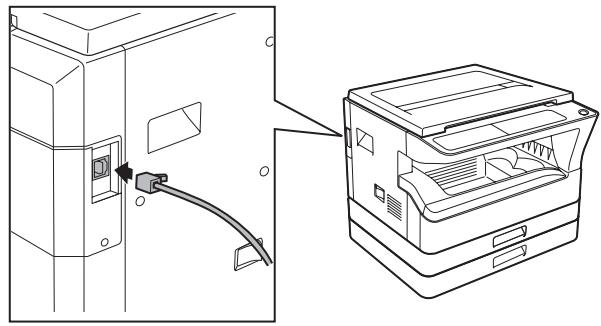
2 Insert the CD-ROM into your CD-ROM drive.
3 Click the "Start" button, click "Computer", and then double-click the CD-ROM icon ( ).
- In Windows XP, click the "start" button, click "My Computer", and then double-click the CD-ROM icon.
- In Windows 2000, double-click "My Computer", and then double-click the CD-ROM icon.
4 Double-click the "Setup" icon ( ).
In Windows Vista, if a message screen appears asking you for confirmation, click "Allow".
5 The "SOFTWARE LICENSE" window will appear. Make sure that you understand the contents of the software license, and then click the "Yes" button.

You can show the "SOFTWARE LICENSE" in a different language by selecting the desired language from the language menu. To install the software in the selected language, continue the installation with that language selected.
Read the message in the "Welcome" window and then click the "Next" button.
7 Click the "Set the IP Address" button.
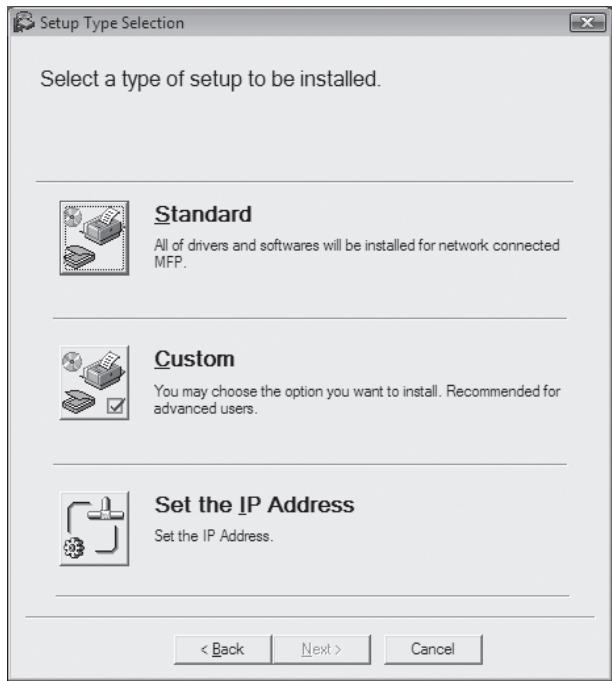
When the software selection screen appears, click the "Set the IP Address" button.
9 The printer or printers connected to the network will be detected. Click the printer to be configured (the machine) and click the "Next" button.
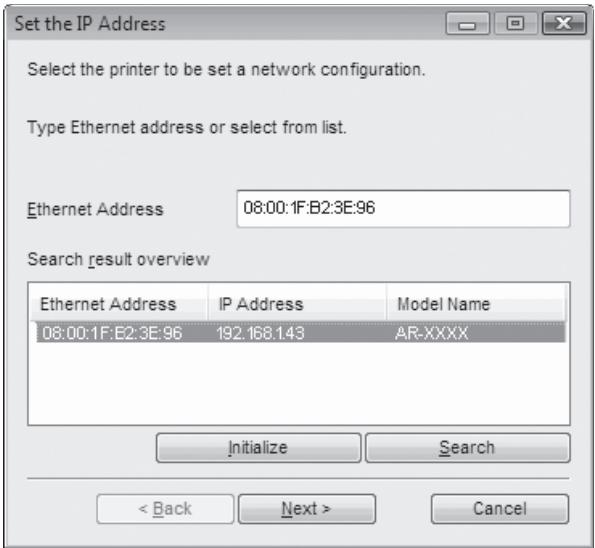
If a message appears regarding the Windows firewall, click the "Yes" button.

- The "Ethernet Address" is indicated on the left side of the machine near the LAN connector.
- If the machine cannot be recognized, enter the Ethernet address and click the "Initialize" button to initialize the IP address. Follow the on-screen instructions to click the "OK" button and then the "Search" button. If the machine is still not recognized, disable your computer's firewall and then repeat the installation from the beginning.
1. Enter the IP address, subnet mask, and default gateway.
The settings in the window below are examples. Be sure to ask your network administrator for the correct IP address, subnet mask, and default gateway to be entered.
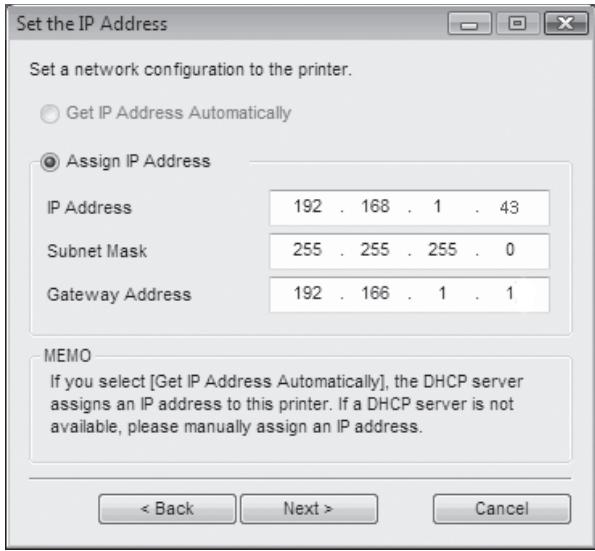

When "Get IP Address Automatically" is selected, the IP address may at times change automatically. This will prevent printing. In this event, select "Assign IP Address" and enter the IP address.
11. Click the "Next" button.
12. When the "Finish" screen appears, click the "Close" button.
This completes setting the IP address. - To install all of the software, go to "Install all of the software" (p.14). - To install particular packages, go to "Choose the option you want to install" (p.15).
Install all of the software
If you have not set the IP address yet, go to "Set the IP Address" (p.12).
1. Perform steps 4 through 7 in "Set the IP Address" (p.12).
2. Click the "Standard" button.
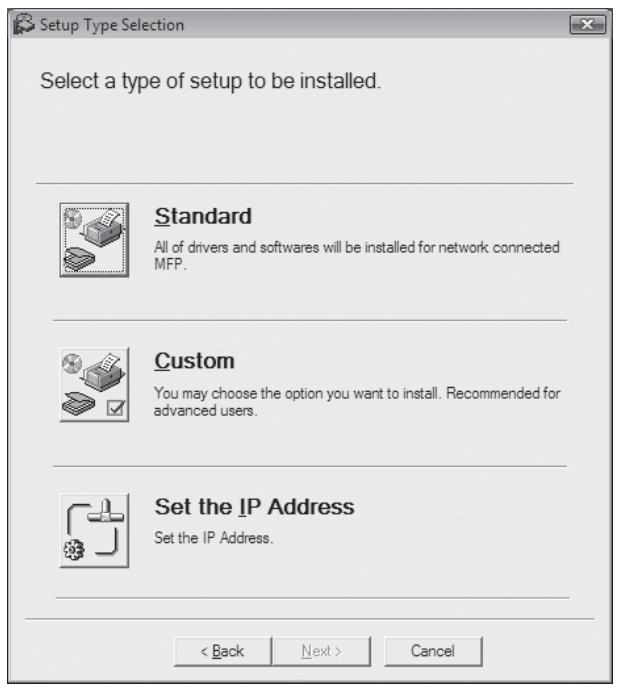
3. The printer or printers connected to the network will be detected. Click the printer to be configured (the machine) and click the "Next" button.
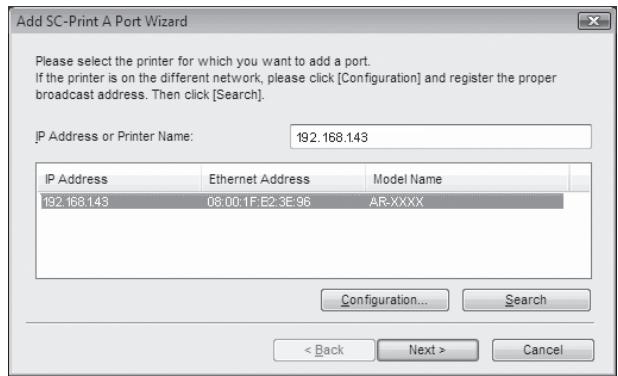

If the machine's IP address cannot be found, make sure the machine is powered on, make sure the network cable is connected correctly, and then click the "Search" button.
4. In the window for setting the destination print port name, make sure that ":lp" appears at the end of the IP address and click the "Next" button.
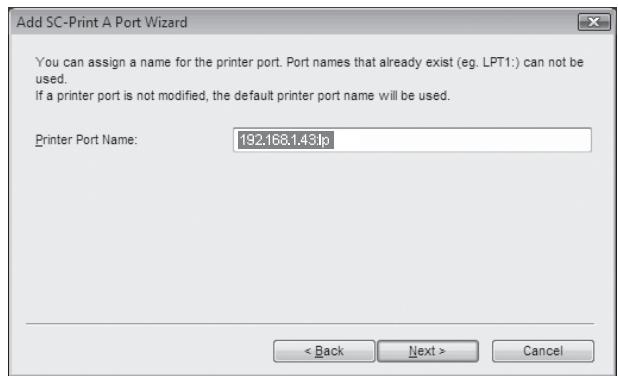

Any name can be entered in "Printer Port Name" (maximum of 63 characters).
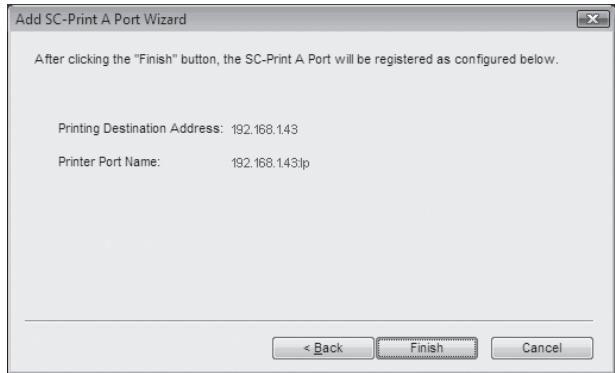
A window appears to let you check your entries. Make sure that the entries are correct and then click the "Finish" button.
If any of the entries are incorrect, click the "Back" button to return to the appropriate window and correct the entry.

Select the model that you will be using, and click the "Next" button.
Caution
- If you are using Windows Vista and a security warning window appears, be sure to click "Install this driver software anyway".
- If you are running Windows 2000/XP and a warning message appears regarding the Windows logo test or digital signature, be sure to click "Continue Anyway" or "Yes".
If a message appears regarding the Windows firewall, click the "Yes" button.

When the "Finish" screen appears, click the "Close" button to finish the installation.
Note
To use the scanner driver, you need to connect to the scanner function using SC-Scan A (see "CONNECTING TO AND DISCONNECTING FROM THE SCANNER FUNCTION USING SC-Scan A" in the Operation Guide).
This completes the installation of the software.
- If you installed Button Manager, set up Button Manager as explained in "SETTING UP BUTTON MANAGER" (p.19).
Choose the option you want to install
If you have not set the IP Address yet, go to "Set the IP Address" (p.12).

Perform step 4 through 7 in "Set the IP Address" (p.12).

Click the "Custom" button.

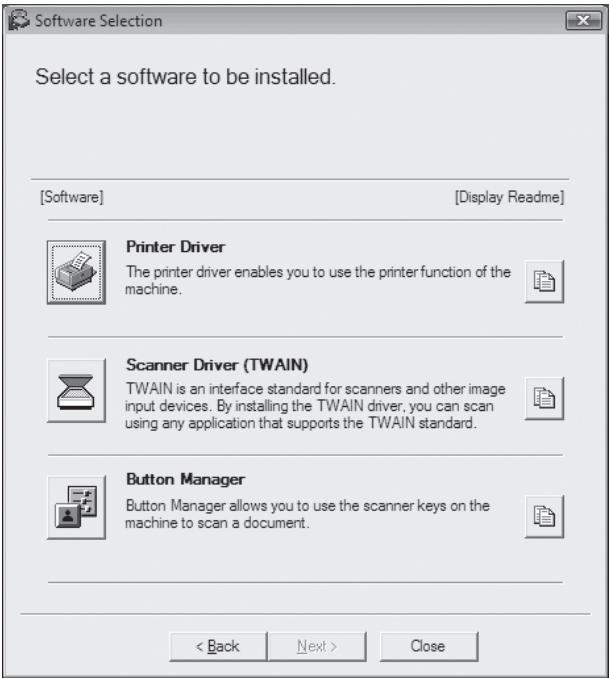
Click the "Printer Driver" button.

Select "LPR Direct Print", click the "Next" button and go to the next step.
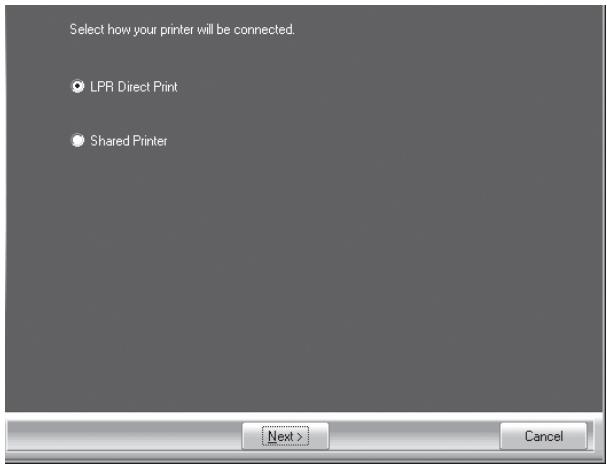
If the machine will be used as a shared printer on a network, select "Shared Printer" and click the "Next" button.
- For the port to be used, select the printer name set as a shared printer, and click the "Next" button.
- In Windows 2000/XP, you can also click the "Add Network Port" button and select the printer to be shared (the machine) by browsing the network in the window that appears.

If the shared printer does not appear in the list, check the settings in the printer server.

- If you are using Windows Vista and a security warning window appears, be sure to click "Install this driver software anyway".
- If you are running Windows 2000/XP and a warning message appears regarding the Windows logo test or digital signature, be sure to click "Continue Anyway" or "Yes".
Follow the on-screen instructions and go to step 8.
5 The printer or printers connected to the network will be detected. Click the printer to be configured (the machine) and click the "Next" button.
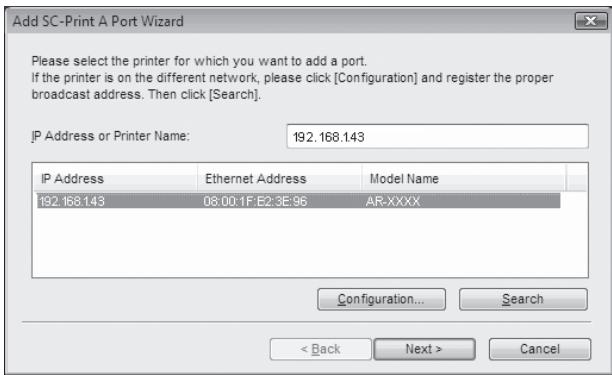

If the machine's IP address cannot be found, make sure the machine is powered on, make sure the network cable is connected correctly, and then click the "Search" button.
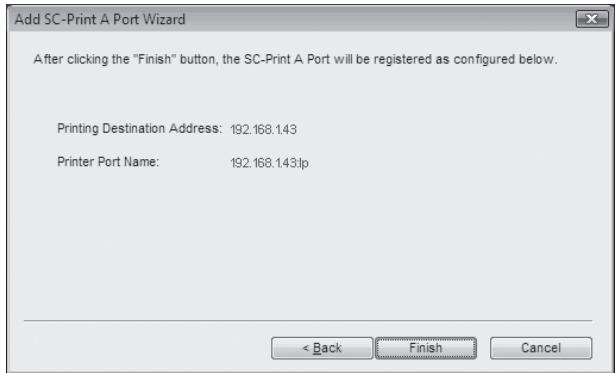
In the window for setting the destination print port name, make sure that ":lp" appears at the end of the IP address and click the "Next" button.
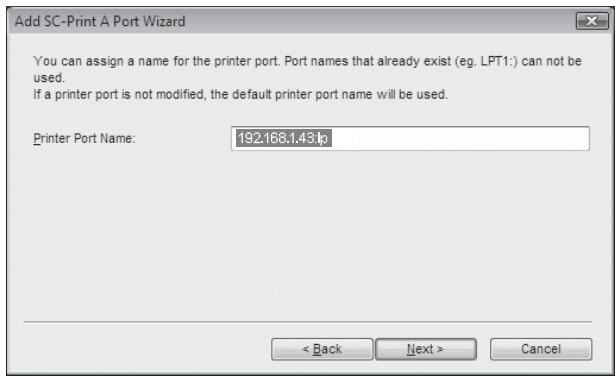

Any name can be entered in "Printer Port Name" (maximum of 63 characters).
7 A window appears to let you check your entries. Make sure that the entries are correct and then click the "Finish" button.
If any of the entries are incorrect, click the "Back" button to return to the appropriate window and correct the entry.
8 Select the model that you will be using, and click the "Next" button.
9 Select whether or not you wish the printer to be your default printer and click the "Next" button.
Follow the on-screen instructions.
Caution
- If you are using Windows Vista and a security warning window appears, be sure to click "Install this driver software anyway".
- If you are running Windows 2000/XP and a warning message appears regarding the Windows logo test or digital signature, be sure to click "Continue Anyway" or "Yes".
10 When "The installation of the SHARP software is complete." appears, click the "OK" button.
11 You will return to the window of step 3 on page 15.
To install the Scanner Driver, go to step 12. - To install the Button Manager, go to step 16. - If you do not want to install the Scanner Driver or the Button Manager, go to step 19.
12 Click the "Scanner Driver (TWAIN)" button.
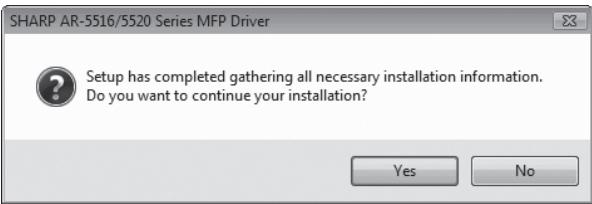
13 Click the "Yes" button.
Caution
- If you are using Windows Vista and a security warning window appears, be sure to click "Install this driver software anyway".
- If you are running Windows 2000/XP and a warning message appears regarding the Windows logo test or digital signature, be sure to click "Continue Anyway" or "Yes".
If a message appears regarding the Windows firewall, click the "Yes" button.
14 When "The installation of the SHARP software is complete." appears, click the "OK" button.
You will return to the window of step 3 on page 11.
- If you want to install the Button Manager continuously, go to the next step.
- If you want to end the installation, go to step 19.
16 Click the "Button Manager" button.
Follow the on-screen instructions.
17 When "The installation of the Software is complete." appears, click the "Finish" button.
18 You will return to the window of step 3 on page 11.
19 Click the "Close" button to finish the installation.

To use the scanner driver, you need to connect to the scanner function using SC-Scan A (see "CONNECTING TO AND DISCONNECTING FROM THE SCANNER FUNCTION USING SC-Scan A" in the Operation Guide).
This completes the installation of the software.
- If you installed Button Manager, set up Button Manager as explained in "SETTING UP BUTTON MANAGER" (p.19).
CONFIGURING THE PRINTER DRIVER
After installing the printer driver, you must configure the printer driver settings appropriately for the number of paper trays on the machine and the size of paper loaded in each.
1 Click the "Start" button, click "Control Panel", and then click "Printer".
- In Windows XP, click the "start" button and click "Printers and Faxes".
- In Windows 2000, click the "Start" button, select "Settings", and then click "Printers".

In Windows XP, if "Printers and Faxes" does not appear in the "start" menu, select "Control Panel", select "Printers and Other Hardware", and then select "Printers and Faxes".
2 Click the "SHARP AR-XXXX" printer driver icon and select "Properties" from the "Organize" menu.
In Windows XP/2000, select "Properties" from the "File" menu.
3 Click the "Configuration" tab and set the printer configuration based on the options that have been installed.
Set the printer configuration properly. If not, printing may not take place correctly.
Printer driver screen for AR-5520/AR-5520D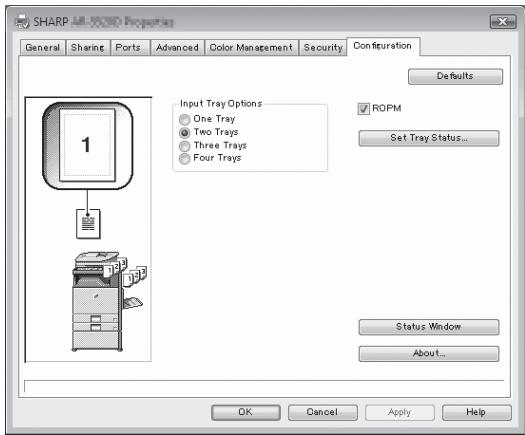
4 Click the "Set Tray Status" button and select the size of paper that is loaded in each tray.
Select a tray in the "Paper Source" menu, and select the size of paper loaded in that tray from the "Set Paper Size" menu. Repeat for each tray.
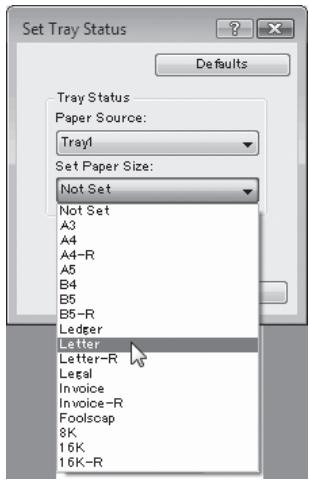
5 Click the "OK" button in the "Set Tray Status" window.
6 Click the "OK" button in the printer properties window.
SETTING UP BUTTON MANAGER
Button Manager is a software program that works with the scanner driver to enable scanning from the machine. To scan using the machine, Button Manager must be linked with the scan menu on the machine. Follow the steps below to link Button Manager to scanner events.
When using AR-5516N/5520N, note that you need to connect to the scanner function using SC-Scan A previously (see "CONNECTING TO AND DISCONNECTING FROM THE SCANNER FUNCTION USING SC-Scan A" in the Operation Guide).
Windows XP/Vista
1 Click the "Start" button, click "Control Panel", click "Hardware and Sound", and then click "Scanners and Cameras".
In Windows XP, click the "start" button, select "Control Panel" and click "Printers and Other Hardware", and then click "Scanners and Cameras".
2 Click the "SHARP AR-XXXX" icon and select "Properties".
In Windows XP, select "Properties" from the "File" menu.
3 In the "Properties" screen, click the "Events" tab.
4 Select "ScanMenu SC1" from the "Select an event" pull-down menu.
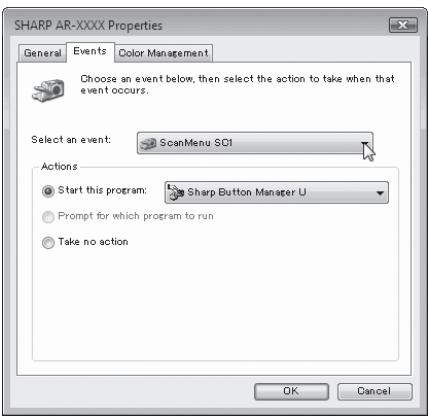
5 Select "Start this program" and then select "Sharp Button Manager U" from the pull-down menu.
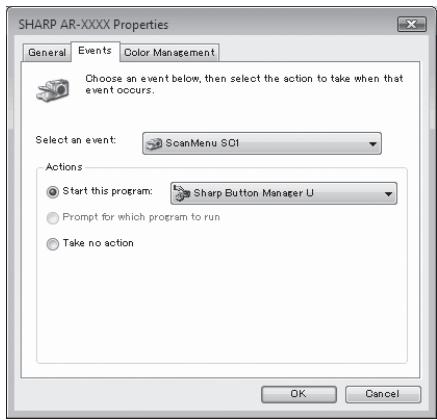
6 Repeat Steps 4 and 5 to link Button Manager to "ScanMenu SC2" through "ScanMenu SC6".
Select "ScanMenu SC2" from the "Select an event" pull-down menu. Select "Start this program", select "Sharp Button Manager U" from the pull-down menu. Do the same for each ScanMenu through "ScanMenu SC6".
7 Click the "OK" button.
Button Manager is now linked to the scan menu (1 through 6).
The scan settings for each of scan menu 1 through 6 can be changed with the setting window of Button Manager.
For the factory default settings of the scan menu and the procedures for configuring Button Manager settings, see "BUTTON MANAGER SETTINGS" in the Operation Guide.
Windows 2000
1. Click the "Start" button, select "Settings", and then click "Control Panel". 2. Double-click the "Scanners and Cameras" icon. 3. Select "SHARP AR-XXXX" and click the "Properties" button. 4. In the "Properties" screen, click the "Events" tab. 5. Select "ScanMenu SC1" from the "Scanner events" pull-down menu.
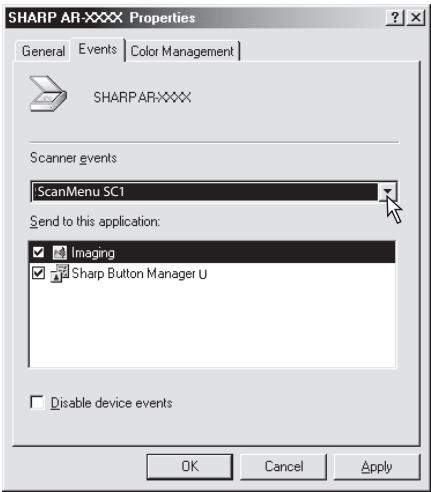
6. Select "Sharp Button Manager U" in "Send to this application".
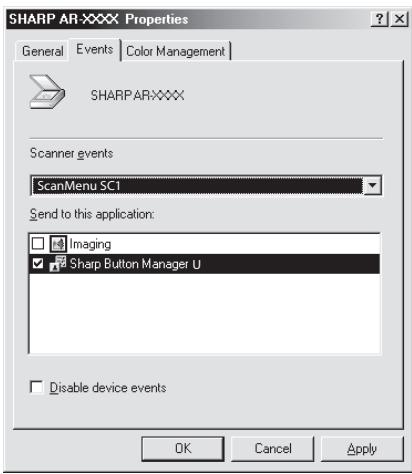

If other applications are shown, deselect the checkboxes for the other applications and leave only the Button Manager checkbox selected.
7. Click the "Apply" button.
Repeat Steps 5 through 7 to link Button Manager to "ScanMenu SC2" through "ScanMenu SC6".
Select "ScanMenu SC2" from the "Scanner events" pull-down menu. Select "Sharp Button Manager U" in "Send to this application" and click the "Apply" button. Do the same for each ScanMenu through "ScanMenu SC6". When the settings have been completed, click the "OK" button to close the screen.
Button Manager is now linked to the scan menu (1 through 6).
The scan settings for each of scan menu 1 through 6 can be changed with the setting window of Button Manager.
For the factory default settings of the scan menu and the procedures for configuring Button Manager settings, see "BUTTON MANAGER SETTINGS" in the Operation Guide.
TROUBLESHOOTING
If the software is not installed correctly, check the following items on your computer.
The driver cannot be installed (Windows 2000/XP)
If the driver cannot be installed in Windows 2000/XP, follow these steps to check your computer's settings.
1. Click the "Start" button and then click "Control Panel".
In Windows 2000, click the "Start" button, select "Settings", and then click "Control Panel".
2 Click "Performance and Maintenance", and then click "System".
In Windows 2000, double-click the "System" icon.
3 Click the "Hardware" tab and then click the "Driver Signing" button.
4 Check "What action do you want Windows to take?" ("File signature verification" in Windows 2000).
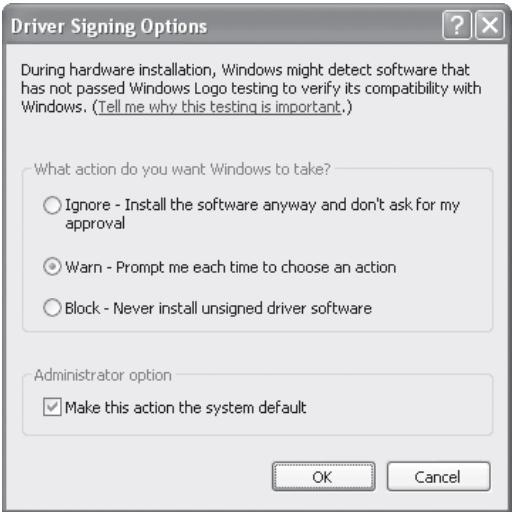
If the option "Block" has been selected, it will not be possible to install the driver. Select the option "Warn" and then install the driver as explained in "INSTALLING THE SOFTWARE (AR-5516S/AR-5520S/AR-5516/AR-5520/AR-5516D/AR-5520D)" (p.8).
Plug and Play window does not appear (AR-5516S/AR-5520S/AR-5516/AR-5520/ AR-5516D/AR-5520D)
If the Plug and Play window does not appear after you connect the machine to your computer with a USB cable and turn on the machine, follow the steps below to verify that the USB port is available.
1 Click the "Start" button, select "Control Panel", and then click "System and Maintenance".
- In Windows XP, click the "start" button, click "Control Panel", and then click "Performance and Maintenance".
- In Windows 2000, click the "Start" button, select "Settings", and then click "Control Panel".
2 Click "Device Manager", and if a message screen appears asking you for confirmation, click "Continue".
"Universal Serial Bus controllers" will appear in the list of devices.
- In Windows XP, click "System", click the "Hardware" tab, and click the "Device Manager" button.
- In Windows 2000, double-click the "System" icon, click the "Hardware" tab, and click the "Device Manager" button.
3 Click the + icon beside "Universal Serial Bus controllers".

Universal Serial Bus controllers

Standard OpenHCD USB Host Controller
USB Root Hub

Two items should appear: your controller chipset type and Root Hub. If these items appear, you can use the USB port. If the "Universal Serial Bus controllers" shows a yellow exclamation point or does not appear, you must check your computer manual for USB troubleshooting or contact your computer manufacturer.
4 Once you have verified that the USB port is enabled, install the software as explained in "INSTALLING THE SOFTWARE (AR-5516S/AR-5520S/AR-5516/AR-5520/ AR-5516D/AR-5520D)" (p.8).
The driver cannot be correctly installed by Plug and Play (AR-5516S/AR-5520S/AR-5516/AR-5520/ AR-5516D/AR-5520D)
If the driver cannot be correctly installed by Plug and Play (for example, Plug and Play takes place without copying the required files for the driver installation), follow these steps to remove unneeded devices and then install the driver as explained in "INSTALLING THE SOFTWARE (AR-5516S/AR-5520S/AR-5516/AR-5520/AR-5516D/ AR-5520D)" (p.8).
1 Click the "Start" button, select "Control Panel", and then click "System and Maintenance".
- In Windows XP, click the "start" button, click "Control Panel", and then click "Performance and Maintenance".
- In Windows 2000, click the "Start" button, select "Settings", and then click "Control Panel".
2 Click "Device Manager", and if a message screen appears asking you for confirmation, click "Continue".
- In Windows XP, click "System", click the "Hardware" tab, and click the "Device Manager" button.
- In Windows 2000, double-click the "System" icon, click the "Hardware" tab, and click the "Device Manager" button.
3 Click the + icon beside "Other devices".


SHARPAR-XXXXX
If "SHARP AR-XXXX" appears, select and delete the item.

If "Other devices" does not appear, close the "Device Manager" window.
4 Install the software as explained in "INSTALLING THE SOFTWARE (AR-5516S/AR-5520S/AR-5516/AR-5520/AR-5516D/AR-5520D)" (p.8).
Removing the software
If you need to remove the software, follow these steps.
1 Click the "Start" button, and then click "Control Panel".
- In Windows XP, click the "Start" button and then click "Control Panel".
- In Windows 2000, click the "Start" button, select "Settings", and then click "Control Panel".
2 Click "Uninstall a program".
- In Windows XP, click "Add or Remove Programs".
- In Windows 2000, double-click the "Add/Remove Programs" icon.
3 Select the driver from the list, and remove the software.
For more information, refer to your operating manual or to the help files for your operating system.
4 Restart your computer.
SPECIFICATIONS
| Model | AR-5516S/AR-5516/AR-5516D/AR-5516N | AR-5520S/AR-5520/AR-5520D/AR-5520N |
| Type | Digital Multifunctional System, Desktop | |
| Photoconductive type | OPC drum | |
| Document glass type | Fixed | |
| Copy system | Dry, electrostatic transfer | |
| Originals | Sheets, bound documents | |
| Original sizes | Max. A3 | |
| Copy size | Max. A3Min. A6 (A6 must be fed from the bypass tray)Image loss: Max. 4 mm (leading and trailing edges)Max. 4.5 mm (along other edges in total) | |
| Copying speed(one-sided copying at100% copy ratio) | 9 copies/min. A310 copies/min. B412 copies/min. A4R14 copies/min. B5R16 copies/min. A4, B5, A5 | 11 copies/min. A312 copies/min. B414 copies/min. A4R16 copies/min. B5R20 copies/min. A4, B5, A5 |
| Continuous copy | Max. 999 copies; subtractive counter | |
| First-copy time* | Approx. 7.2 sec. or less | |
| Warm-up time | Approx. 45 sec. | |
| Copy ratio | Variable: 25% to 400%, in 1% increments (total 376 steps)(50% to 200% when SPF/RSPF is used.)Fixed preset: 50%, 70%, 81%, 86%, 100%, 115%, 122%, 141%, 200% | |
| Exposure system | Document glass: Moving optical source, slit exposure (stationary platen) withautomatic exposureSPF/RSPF: Moving original | |
| Paper feed | One automatic feeding paper tray (250sheets) + bypass tray (100 sheets) | Two automatic feeding paper trays (250sheets each) + bypass tray (100 sheets) |
| Fusing system | Heat rollers | |
| Developing system | Dry-type two-component magnetic brush development | |
| Light source | Cold cathode fluorescent lamp | |
| Resolution | (AUTO/TEXT mode)Scan: 600 x 300 dpi (Factory default), 600 x 600 dpiOutput: 600 x 600 dpi(PHOTO mode)Scan: 600 x 600 dpiOutput: 600 x 600 dpi | |
| Gradation | Scanning: 256Printing: 2 value | |
| Power supply | Local voltage ±10% (For this machine's power supply requirements, see the nameplate located on the back of the machine.) | |
| Power consumption | Max. 1.2 kW | |
| Typical electricityconsumption | 1.71 kWh/week1.95 kWh/week (AR-5516N) | 2.03 kWh/week2.24 kWh/week (AR-5520N) |
| Weight | Approx. 28.2 kg Approx. 28.4 kg (AR-5516N) | Approx. 33.1kg Approx. 33.3 kg (AR-5520N) |
| Dimensions | 590 mm (W) x 550 mm (D) x 470 mm (H) | 590 mm (W) x 550 mm (D) x 555 mm (H) |
- First-copy time is measured with original on the document glass with the following settings made, in fully ready condition with fuser at operating temperature and mirror motor at operating speed, actual time may vary based on environment conditions. A4 size paper is fed from paper tray 1.
- Exposure mode is AUTO.
- Scanning resolution is 600 × 300 dpi.
Acoustic noise emission (measurement according to ISO7779).
| Sound power level LwA | ||
| Printing mode (continuous printing) | 6.5 B | |
| Standby mode | 3.3 B | |
| Sound pressure level LpA (actual measurement) | ||
| Printing mode | Bystander positions | 48 dB (A) |
| Operator positions | 49 dB (A) | |
| Standby mode | Bystander positions | 18 dB (A) |
| Operator positions | 17 dB (A) | |
Ambient environment.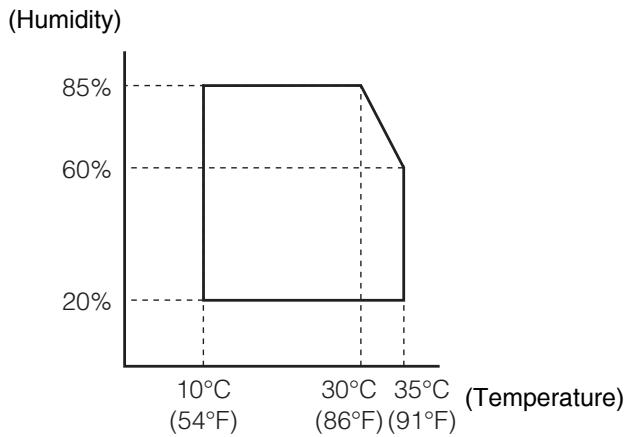
Peripheral Devices.
The following peripheral devices can be connected to the machine. For details, see "PERIPHERAL DEVICES AND SUPPLIES" in the Operation Guide.
| Product name | Model |
| 250-sheet paper feed unit | AR-D34 |
| 2 x 250-sheet paper feed unit | AR-D35 |
| Single pass feeder | AR-SP10*1 |
| Reversing Single pass feeder | AR-RP10*2 |
1 AR-5516S/AR-5520S/AR-5516/AR-5520 2 AR-5516D/AR-5520D/AR-5516N/AR-5520N
Printer Function.
| Print speed* | AR-5516S/AR-5516/AR-5516D/AR-5516N Max. 16 ppm AR-5520S/AR-5520/AR-5520D/AR-5520N Max. 20 ppm |
| Resolution | 600 dpi |
| Memory | AR-5516S/AR-5520S 16 MB AR-5516/AR-5520, AR-5516D/AR-5520D, AR-5516N/AR-5520N 64 MB |
| Emulation | SHARP SPLC (Sharp Printer Language with Compression) |
| Interface connector | AR-5516S/AR-5520S/AR-5516/AR-5520/AR-5516D/AR-5520D : USB connector (USB 2.0) AR-5516N/AR-5520N : 10BASE-T/100BASE-TX |
| Interface cables | AR-5516S/AR-5520S/AR-5516/AR-5520/AR-5516D/AR-5520D : [USB cable] Shielded twisted pair cable (max. length 3 m, must support USB 2.0) Please purchase a commercially available USB cable. AR-5516N/AR-5520N : [network cable] Shielded network cable that supports 10BASE-T/100BASE-TX Please purchase a commercially available shielded network cable. |
- Print speed during printing of the second sheet and following sheets when using A4 plain paper and performing continuous one-sided printing of the same page.
Scanner Function (AR-5516/AR-5520, AR-5516D/AR-5520D, AR-5516N/AR-5520N).
| Type | Flatbed scanner |
| Scanning method | Document glass/SPF/RSPF |
| Light source | Cold cathode fluorescent lamp |
| Resolution | Factory default: 150 dpi Setting range: 50 dpi - 9600 dpi |
| Original types | Sheets, bound documents |
| Effective scanning area | Approx. 297 mm (Lengthwise) x 431 mm (Width) |
| Scanning speed | 0.962 msec/line (300 dpi) |
| Input Data | 1 bit or 12 bit |
| Output Data | 1 bit or 8 bit |
| Scanning colours | Black and white 2 value, Greyscale |
| Protocol | TWAIN, WIA (Windows XP/Vista), STI |
| Interface | AR-5516S/AR-5520S/AR-5516/AR-5520/AR-5516D/AR-5520D: USB 2.0 (Full-Speed/Hi-Speed compatible interface) AR-5516N/AR-5520N: 10BASE-T/100BASE-TX |
| Drop out colour | No |
| Supported operating systems | Windows 2000/XP/Vista (Detailed information can be found in "HARDWARE AND SOFTWARE REQUIREMENTS" (p.7)) |
| Void area | Max. 2.5 mm (leading and trailing edges) Max. 3.0 mm (along other edges in total) |
| Interface cables | AR-5516S/AR-5520S/AR-5516/AR-5520/AR-5516D/AR-5520D: [USB cable] Shielded twisted pair cable (max. length 3 m, must support USB 2.0) Please purchase a commercially available USB cable. AR-5516N/AR-5520N: [network cable] Shielded network cable that supports 10BASE-T/100BASE-TX Please purchase a commercially available shielded cable. |
| Scanner utilities | Button Manager |

As a part of our policy of continuous improvement, SHARP reserves the right to make design and specification changes for product improvement without prior notice. The performance specification figures indicated are nominal values of production units. There may be some deviations from these values in individual units.
INFORMATION ON DISPOSAL
A. Information on Disposal for Users (private households).
1. In the European Union
Attention: If you want to dispose of this equipment, please do not use the ordinary dust bin!
Used electrical and electronic equipment must be treated separately and in accordance with legislation that requires proper treatment, recovery and recycling of used electrical and electronic equipment.
Following the implementation by member states, private households within the EU states may return their used electrical and electronic equipment to designated collection facilities free of charge. In some countries your local retailer may also take back your old product free of charge if you purchase a similar new one.
*) Please contact your local authority for further details.
If your used electrical or electronic equipment has batteries or accumulators, please dispose of these separately beforehand according to local requirements.
By disposing of this product correctly you will help ensure that the waste undergoes the necessary treatment, recovery and recycling and thus prevent potential negative effects on the environment and human health which could otherwise arise due to inappropriate waste handling.
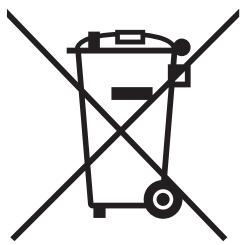
Attention: Your product is marked with this symbol. It means that used electrical and electronic products should not be mixed with general household waste. There is a separate collection system for these products.
2. In other Countries outside the EU
If you wish to discard this product, please contact your local authorities and ask for the correct method of disposal. For Switzerland: Used electrical or electronic equipment can be returned free of charge to the dealer, even if you don't purchase a new product. Further collection facilities are listed on the homepage of www.swico.ch or www.sens.ch.
B. Information on Disposal for Business Users.
1. In the European Union
If the product is used for business purposes and you want to discard it:
Please contact your SHARP dealer who will inform you about the take-back of the product. You might be charged for the costs arising from take-back and recycling. Small products (and small amounts) might be taken back by your local collection facilities.
For Spain: Please contact the established collection system or your local authority for take-back of your used products.
2. In other Countries outside the EU
If you wish to discard of this product, please contact your local authorities and ask for the correct method of disposal.
CLASS 1 LASER DEVICE
CLASS 1 LASER APPARATUS
CLASS 1 LASER PRODUCT LASER CLASS 1 LASER CLASS 1
CAUTION
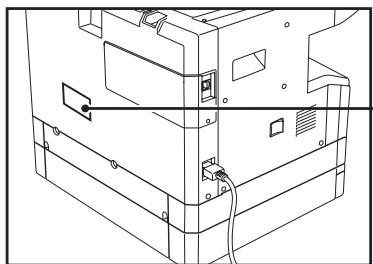
CLASS 3B INVISIBLE LASER RADIATION WHEN OPEN AND INTERLOCKS DEFEATED. AVOID EXPOSURE TO BEAM.
CAUTION
The above label is affixed to the laser unit inside the machine.
SHARP ELECTRONICS (Europe) GmbH
- DIGITAL MULTIFUNCTIONAL SYSTEM
- START GUIDE
- BEFORE USING
- SETUP
- APPENDIX
- CAUTION
- WARNING
- CONTENTS
- CAUTIONS
- USING THE MANUAL
- CAUTIONS ON USING
- IMPORTANT POINTS WHEN SELECTING AN INSTALLATION SITE
- DO NOT INSTALL YOUR MACHINE IN AREAS THAT ARE
- CAUTIONS ON HANDLING
- CAUTIONS ON LASER
- TRADEMARK ACKNOWLEDGEMENTS
- ENVIRONMENTAL INFORMATION
- ABOUT THE MANUALS
- START GUIDE (THIS MANUAL)
- OPERATION GUIDE (ON THE ACCESSORY CD-ROM)
- SOFTWARE LICENSE
- VIEWING THE MANUAL
- THE MEANING OF "R" IN ORIGINAL AND PAPER SIZE INDICATIONS
- CONVENTIONS USED IN THIS MANUAL
- SPF (AR-5516S/AR-5520S, AR-5516/AR-5520)
- RSPF (AR-5516D/AR-5520D/AR-5516N/AR-5520N)
- DIFFERENCES BETWEEN MODELS
- BEFORE SOFTWARE SETUP
- SOFTWARE
- AR-5516S/AR-5520S
- PRINTER DRIVER
- AR-5516/AR-5520, AR-5516D/AR-5520D
- MFP DRIVER
- SCANNER DRIVER
- BUTTON MANAGER
- AR-5516N/AR-5520N
- HARDWARE AND SOFTWARE REQUIREMENTS
- INSTALLING THE SOFTWARE
- (AR-5516S/AR-5520S/AR-5516/AR-5520/AR-5516D/AR-5520D)
- THE USB CABLE MUST NOT BE CONNECTED TO THE MACHINE. MAKE SURE THAT THE CABLE IS NOT CONNECTED BEFORE PROCEEDING
- INSERT THE CD-ROM INTO YOUR CD-ROM DRIVE
- CLICK THE "START" BUTTON, CLICK "COMPUTER", AND THEN DOUBLE-CLICK THE CD-ROM ICON ( )
- DOUBLE-CLICK THE "SETUP" ICON (B)
- THE "SOFTWARE LICENSE" WINDOW WILL APPEAR. MAKE SURE THAT YOU UNDERSTAND THE CONTENTS OF THE SOFTWARE LICENSE, AND THEN CLICK THE "YES" BUTTON
- READ THE MESSAGE IN THE "WELCOME" WINDOW AND THEN CLICK THE "NEXT" BUTTON
- TO INSTALL ALL OF THE SOFTWARE, CLICK THE "STANDARD" BUTTON AND GO TO STEP 11. TO INSTALL PARTICULAR PACKAGES, CLICK THE "CUSTOM" BUTTON AND GO TO THE NEXT STEP
- CLICK THE "MFP DRIVER" BUTTON
- SELECT "CONNECTED TO THIS COMPUTER" AND CLICK THE "NEXT" BUTTON
- YOU WILL RETURN TO THE WINDOW OF STEP 8. IF YOU WISH TO INSTALL BUTTON MANAGER, CLICK THE "BUTTON MANAGER" BUTTON
- WHEN THE INSTALLATION IS FINISHED, CLICK THE "CLOSE" BUTTON
- NOTE
- MAKE SURE THAT THE POWER OF THE MACHINE IS TURNED ON, AND THEN CONNECT THE USB CABLE (P.10)
- FOLLOW THE INSTRUCTIONS IN THE PLUG AND PLAY WINDOW TO INSTALL THE DRIVER
- THIS COMPLETES THE INSTALLATION OF THE SOFTWARE
- CONNECTING TO A COMPUTER
- INTERFACE CABLE
- USB CABLE
- CONNECTING A USB CABLE
- INSERT THE CABLE INTO THE USB CONNECTOR ON THE MACHINE
- INSERT THE OTHER END OF THE CABLE INTO YOUR COMPUTER'S USB CONNECTOR
- SYSTEM REQUIREMENTS FOR USB 2.0 (HI-SPEED MODE)
- USING THE MACHINE AS A SHARED PRINTER
- (AR-5516N/AR-5520N)
- SET THE IP ADDRESS
- INSERT THE LAN CABLE INTO THE LAN CONNECTOR ON THE MACHINE
- DOUBLE-CLICK THE "SETUP" ICON ( )
- CLICK THE "SET THE IP ADDRESS" BUTTON
- WHEN THE SOFTWARE SELECTION SCREEN APPEARS, CLICK THE "SET THE IP ADDRESS" BUTTON
- THE PRINTER OR PRINTERS CONNECTED TO THE NETWORK WILL BE DETECTED. CLICK THE PRINTER TO BE CONFIGURED (THE MACHINE) AND CLICK THE "NEXT" BUTTON
- ENTER THE IP ADDRESS, SUBNET MASK, AND DEFAULT GATEWAY
- CLICK THE "NEXT" BUTTON
- WHEN THE "FINISH" SCREEN APPEARS, CLICK THE "CLOSE" BUTTON
- INSTALL ALL OF THE SOFTWARE
- PERFORM STEPS 4 THROUGH 7 IN "SET THE IP ADDRESS" (P.12)
- CLICK THE "STANDARD" BUTTON
- IN THE WINDOW FOR SETTING THE DESTINATION PRINT PORT NAME, MAKE SURE THAT ":LP" APPEARS AT THE END OF THE IP ADDRESS AND CLICK THE "NEXT" BUTTON
- A WINDOW APPEARS TO LET YOU CHECK YOUR ENTRIES. MAKE SURE THAT THE ENTRIES ARE CORRECT AND THEN CLICK THE "FINISH" BUTTON
- SELECT THE MODEL THAT YOU WILL BE USING, AND CLICK THE "NEXT" BUTTON
- WHEN THE "FINISH" SCREEN APPEARS, CLICK THE "CLOSE" BUTTON TO FINISH THE INSTALLATION
- CHOOSE THE OPTION YOU WANT TO INSTALL
- PERFORM STEP 4 THROUGH 7 IN "SET THE IP ADDRESS" (P.12)
- CLICK THE "CUSTOM" BUTTON
- CLICK THE "PRINTER DRIVER" BUTTON
- SELECT "LPR DIRECT PRINT", CLICK THE "NEXT" BUTTON AND GO TO THE NEXT STEP
- SELECT WHETHER OR NOT YOU WISH THE PRINTER TO BE YOUR DEFAULT PRINTER AND CLICK THE "NEXT" BUTTON
- WHEN "THE INSTALLATION OF THE SHARP SOFTWARE IS COMPLETE." APPEARS, CLICK THE "OK" BUTTON
- YOU WILL RETURN TO THE WINDOW OF STEP 3 ON PAGE
- CLICK THE "SCANNER DRIVER (TWAIN)" BUTTON
- CLICK THE "YES" BUTTON
- CLICK THE "BUTTON MANAGER" BUTTON
- WHEN "THE INSTALLATION OF THE SOFTWARE IS COMPLETE." APPEARS, CLICK THE "FINISH" BUTTON
- CLICK THE "CLOSE" BUTTON TO FINISH THE INSTALLATION
- CONFIGURING THE PRINTER DRIVER
- CLICK THE "START" BUTTON, CLICK "CONTROL PANEL", AND THEN CLICK "PRINTER
- CLICK THE "SHARP AR-XXXX" PRINTER DRIVER ICON AND SELECT "PROPERTIES" FROM THE "ORGANIZE" MENU
- CLICK THE "CONFIGURATION" TAB AND SET THE PRINTER CONFIGURATION BASED ON THE OPTIONS THAT HAVE BEEN INSTALLED
- CLICK THE "SET TRAY STATUS" BUTTON AND SELECT THE SIZE OF PAPER THAT IS LOADED IN EACH TRAY
- CLICK THE "OK" BUTTON IN THE "SET TRAY STATUS" WINDOW
- CLICK THE "OK" BUTTON IN THE PRINTER PROPERTIES WINDOW
- SETTING UP BUTTON MANAGER
- WINDOWS XP/VISTA
- CLICK THE "START" BUTTON, CLICK "CONTROL PANEL", CLICK "HARDWARE AND SOUND", AND THEN CLICK "SCANNERS AND CAMERAS
- CLICK THE "SHARP AR-XXXX" ICON AND SELECT "PROPERTIES
- IN THE "PROPERTIES" SCREEN, CLICK THE "EVENTS" TAB
- SELECT "SCANMENU SC1" FROM THE "SELECT AN EVENT" PULL-DOWN MENU
- SELECT "START THIS PROGRAM" AND THEN SELECT "SHARP BUTTON MANAGER U" FROM THE PULL-DOWN MENU
- REPEAT STEPS 4 AND 5 TO LINK BUTTON MANAGER TO "SCANMENU SC2" THROUGH "SCANMENU SC
- CLICK THE "OK" BUTTON
- WINDOWS
- SELECT "SHARP BUTTON MANAGER U" IN "SEND TO THIS APPLICATION
- CLICK THE "APPLY" BUTTON
- REPEAT STEPS 5 THROUGH 7 TO LINK BUTTON MANAGER TO "SCANMENU SC2" THROUGH "SCANMENU SC
- TROUBLESHOOTING
- THE DRIVER CANNOT BE INSTALLED (WINDOWS 2000/XP)
- CLICK THE "START" BUTTON AND THEN CLICK "CONTROL PANEL
- CLICK "PERFORMANCE AND MAINTENANCE", AND THEN CLICK "SYSTEM
- CLICK THE "HARDWARE" TAB AND THEN CLICK THE "DRIVER SIGNING" BUTTON
- CHECK "WHAT ACTION DO YOU WANT WINDOWS TO TAKE?" ("FILE SIGNATURE VERIFICATION" IN WINDOWS 2000)
- PLUG AND PLAY WINDOW DOES NOT APPEAR (AR-5516S/AR-5520S/AR-5516/AR-5520/ AR-5516D/AR-5520D)
- CLICK THE "START" BUTTON, SELECT "CONTROL PANEL", AND THEN CLICK "SYSTEM AND MAINTENANCE
- CLICK "DEVICE MANAGER", AND IF A MESSAGE SCREEN APPEARS ASKING YOU FOR CONFIRMATION, CLICK "CONTINUE
- CLICK THE + ICON BESIDE "UNIVERSAL SERIAL BUS CONTROLLERS
- UNIVERSAL SERIAL BUS CONTROLLERS
- ONCE YOU HAVE VERIFIED THAT THE USB PORT IS ENABLED, INSTALL THE SOFTWARE AS EXPLAINED IN "INSTALLING THE SOFTWARE (AR-5516S/AR-5520S/AR-5516/AR-5520/ AR-5516D/AR-5520D)" (P.8)
- THE DRIVER CANNOT BE CORRECTLY INSTALLED BY PLUG AND PLAY (AR-5516S/AR-5520S/AR-5516/AR-5520/ AR-5516D/AR-5520D)
- CLICK THE + ICON BESIDE "OTHER DEVICES
- INSTALL THE SOFTWARE AS EXPLAINED IN "INSTALLING THE SOFTWARE (AR-5516S/AR-5520S/AR-5516/AR-5520/AR-5516D/AR-5520D)" (P.8)
- REMOVING THE SOFTWARE
- CLICK THE "START" BUTTON, AND THEN CLICK "CONTROL PANEL
- CLICK "UNINSTALL A PROGRAM
- SELECT THE DRIVER FROM THE LIST, AND REMOVE THE SOFTWARE
- RESTART YOUR COMPUTER
- PERIPHERAL DEVICES
- PRINTER FUNCTION
- SCANNER FUNCTION (AR-5516/AR-5520, AR-5516D/AR-5520D, AR-5516N/AR-5520N)
- INFORMATION ON DISPOSAL
- INFORMATION ON DISPOSAL FOR USERS (PRIVATE HOUSEHOLDS)
- IN THE EUROPEAN UNION
- IN OTHER COUNTRIES OUTSIDE THE EU
- INFORMATION ON DISPOSAL FOR BUSINESS USERS
Brand : SHARP
Model : R-N
Category : Photocopier