T1000S - Phone Telstra - Free user manual and instructions
Find the device manual for free T1000S Telstra in PDF.


User questions about T1000S Telstra
0 question about this device. Answer the ones you know or ask your own.
Ask a new question about this device
Download the instructions for your Phone in PDF format for free! Find your manual T1000S - Telstra and take your electronic device back in hand. On this page are published all the documents necessary for the use of your device. T1000S by Telstra.
USER MANUAL T1000S Telstra
HOW TO USE YOUR TELSTRA T1000S TELEPHONE FEATURES
To Use Call Back When a Number is Busy
This feature enables you to arrange an automatic call back to a busy number.
When you hear prBasy Tone

Announcement

To Cancel Call Back

Wait for Dial Tone
press


Using Telstra Voice Assistant

Wait for Dial Tone
press

Follow voice prompts
Telstra Voice Assistant can help you activate and de-activate Telstra Phone Features, eg Call Waiting and Call Forward.
IMPORTANT SAFETY INSTRUCTIONS

Do not use the telephone during an electrical storm as it is possible to get a shock.
Refer to the Telstra White Pages directory for further information.
RENTAL TERMS AND CONDITIONS
Your rental telephone is subject to the terms and conditions set out in the Standard Form of Agreement that is available from most Telstra Shops. OR visit www.telstra.com.au/sfoa
RENTAL TELEPHONE FAULTS
For any faults call 13 2203 for residential or 13 2255 for business customers or refer to the White Pages Directory.
CARE OF THE TELEPHONE
- Avoid hard knocks and do not drop the telephone.
- Keep the telephone away from heaters.
- Clean the telephone with a damp cloth. Do not use detergents or immerse the telephone in water.
- The performance of the telephone may be affected by electro-magnetic interference if placed near radio transmitters, diathermy machines, welding machines etc.
1 Applicable usage charges and call costs apply. Available most areas.
2 Telstra Voice Assistant will be available from June 2003, subject to terms and conditions available from Telstra.
T1000SAUG/06/03
www.telstra.com

Telstra T1000S
Standard Rental Telephone
User Guide
To fully benefit from the features of this Australian designed and manufactured telephone, please read the User Guide and keep handy for future reference.

text_image
Taternal Valve Auditorium©COPYRIGHT 2003 Telstra Corporation Limited This work is copyright.
All rights reserved. This document is subject to conditions prescribed under the Copyright Act.
© Registered trade mark of Telstra Corporation Limited ABN 33 051 775 556
text_image
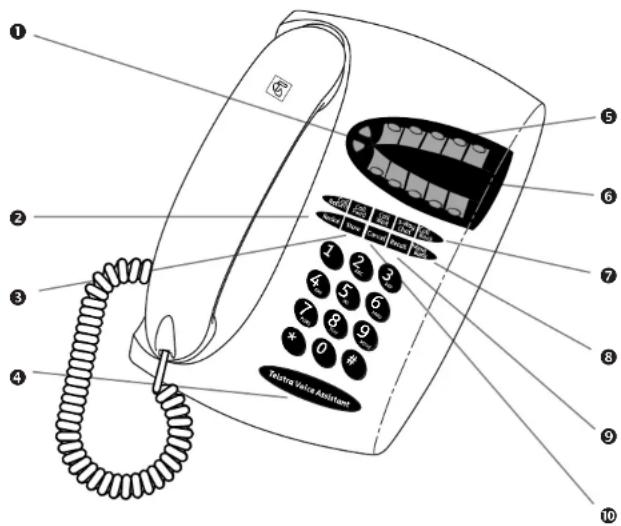
Diagram of a tele Nicaragua phone with numbered parts and keypad, labeled in English.- Ringer and earpiece volume level
- Redial button - used to easily redial the last number dialled
- Store button - used to store numbers in one touch memories. This button is also used to adjust ringer volume
- Telstra Voice Assistant button - for voice activation/de-activation of phone features
- 10 One Touch Memory buttons
- Double sided memory card, lift clear window
- One Touch phone feature buttons
- One Touch MessageBank button
- Recall button - used to make an enquiry call
- Cancel button - used to turn off phone features eg Call Wait
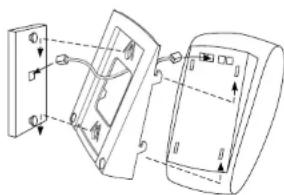
Wall MountingT1000S Explanatory Diagram
A wall-mounting bracket can be purchased separately from Telstra.
natural_image
Diagram of a device with two panels, one showing internal components and arrows indicating movement (no text or symbols)Wall mounting diagram
GETTING STARTED
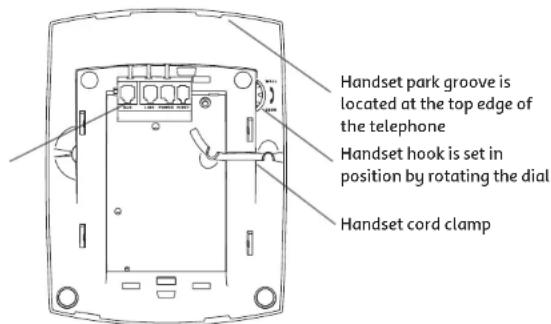
When you unpack the telephone you will need to ensure the cords are placed in the slots in the base as per diagram below.
Connect the telephone to a line, lift the handset and check for dial tone. This ensures the telephone is powered up and will ring correctly.

Wait for Dial Tone

Repeat this step whenever the telephone has been disconnected from the line.
An additional line socket is located at the rear to allow connection of other ACA equipment, eg answering machine, extension ringer or modem
text_image
Handset park groove is located at the top edge of the telephone Handset hook is set in position by rotating the dial Handset cord clampTELEPHONE OPERATION
Adjusting the Ringer Volume When the Telephone is Idle
The ringer has two levels, high and low.

Press


Setting will be saved. Confirmation tone will stop at min or max setting.
Adjusting the Ringer Volume When the Telephone is Ringing

D

While the phone is ringing
Adjusting the Handset Earpiece Volume Setting

Press or

Adjusts the handset earpiece volume to one of four levels. Confirmation tone will stop at min or max setting.
Note: The earpiece volume will reset to normal when the handset is replaced.
The T1000S also provides a magnetic coupling in the handset for use with hearing aids with a 'T' position switch.
Last Number Redial

Wait for Dial Tone
press

als the last number dialled.

Wait for Dial Tone
Select and press Memory

Programming the 10 Memory Buttons

Store
Dial phone number
and select and press

Note: Hang up after programming each Memory button. Use 3-Way Chat button to enter a 1.5 second pause if required.
Storing the Last Number Dialled into Memory

Press Store and press


USING MESSAGEBANK ^®
If you are a MessageBank ^® user, it's now even easier to retrieve your messages. Your T1000S is programmed to access Telstra Home Messages 101 and MessageBank.
To Retrieve a Message from Your MessageBank ^®

Wait for Dial Tone
press

Follow MessageBank prompts
You Can Store Your PIN Under the MessageBank® Button

Press p

Enter PIN


Note: A PIN is not required for Telstra Home Messages 101
To Retrieve a Message from Your MessageBank® When You Have Stored Your PIN

Wait for Dial Tone
press

the password prompt, press

Follow MessageBank prompts
To Delete your PIN

Press


You can change the programmed number to access other messaging services, eg MessageBank Virtual & MessageBank Combined.
To Change Your MessageBank® Access Number and PIN to Access Other Messaging Services

press

enfiber R


- Monthly call charges may apply
HOW TO USE YOUR TELSTRA T1000S TELEPHONE FEATURES
To Turn on Call Waiting

Wait for Dial Tone
press


Announcement

This feature allows you to answer a second call when you are on the phone. When you are on a call and you hear two beeps:
Press to call up between callers.
Press Cancel to hang up one caller and return to the caller on hold.
Press to 3-Way to both callers at the same time ^1 .
To Turn Off Call Waiting

Wait for Dial Tone
Press


Announcement

To Make an enquiry Call While You are on a Call
This feature enables you to call a second person while you are on a call.
During a call press T recell ur wtof rist balla lel after the second
person hangs up, press Recall otherwise press Cancel to end the second call.
To Have a 3-Way Chat
This feature enables you to establish a 3 way conversation.
Dial first person
Press

Wait for Dial Tone
Dial second person

To end 3-Way Chat

To Turn on Call Forward
This feature enables you to forward your calls to your mobile or another other selected number.

Wait for Dial Tone


Dial phoe
umber

Announcement

To Forward Calls to a Number Stored in Memory

Wait for Dial Tone
Press

lemory
otton


Announcement

To Turn Off Call Forward
To Use Call Return ^3

Wait for Dial Tone
Press

Call EWRD


This enables you to check the number of your last unanswered call (*10#)

Wait for Dial Tone
Press

Last unanswered Call announcement

- Applicable call costs and usage charges apply. Available most areas.
- Applicable call costs apply for forwarded calls. Calls can be forwarded to most numbers in Australia.
- Not available for blocked calls. Available most areas.