
Streamy 1 - Hi-Fi System Imperial - Free user manual and instructions
Find the device manual for free Streamy 1 Imperial in PDF.


| Product Type | Hi-Fi System |
| Brand | Imperial |
| Model | Streamy 1 |
| Dimensions (H x L x W) | 21 x 81 x 70 mm |
| Power Supply | 5V / 0.8 A (via USB mains adapter) |
| Operating Voltage | 220-240 V~, 50-60 Hz (via adapter) |
| Connections | DC 5V, 3.5mm jack socket, Optical S/PDIF (TOS Link) |
| Supported Wireless Protocols | AirPlay, DLNA, UPnP 1.0 |
| Audio Codecs | MP3, AAC, Vorbis/OGG, MIDI, PCM/WAV, WMA, AC3, FLAC/APE, ALAC |
| Optical Output Level | -17 dBm |
| Status LED Indicator | Red/Blue (steady/flashing for connection status) |
| Reset Function | Yes, press for 5 seconds |
| Direct Play | Yes, direct WiFi connection to mobile device |
| Multi-Play (Multi-Room) | Yes, requires 150 Mbit/s network bandwidth |
| Internet Radio | Yes, via STREAMY Configuration App |
| Items Included | STREAMY 1, USB Mains Adapter, 3.5mm/Cinch Stereo Jack Cable, Optical Toslink digital cable, 3.5mm/3.5mm cable |
| Compatible Apps | iOS (iPhone/iPad/iPod Touch), Android, Windows |
| Cleaning Instructions | Use dry cloth, avoid liquids |
| Spare Parts Availability | From manufacturer |
| Service Hotline | +49-(0)2676 / 9520101 (Germany) |
| Disposal | Take to appropriate collection point for electronic equipment |
Frequently Asked Questions - Streamy 1 Imperial
User questions about Streamy 1 Imperial
0 question about this device. Answer the ones you know or ask your own.
Ask a new question about this device
Download the instructions for your Hi-Fi System in PDF format for free! Find your manual Streamy 1 - Imperial and take your electronic device back in hand. On this page are published all the documents necessary for the use of your device. Streamy 1 by Imperial.
USER MANUAL Streamy 1 Imperial
natural_image
Red-toned world map silhouette showing continents and oceans (no text or labels)Bedienungsanleitung
User Manual
IMPERIAL® STREAMY 1
D
E
INHALTSVERZEICHNIS
- VORWORT .... 4
- SICHERHEITSHINWEISE .... 5
- LIEfERuMfANg....8
- ElgENSCHAfTEN uNd TECHNISCHE dATEN ..... 9
- ABBILduNgEN 10
- INBETRIEBNAHME uNd BEdIENuNg....15
- fEHLERBEHEBuNg 24
- ENTSORguNgSHINWEIS 25
- SERVICE uNd SuPPORT....26
- CE KENNZEICHNuNg 28
1. VORWORT
natural_image
Product lineup showing five connected devices: a black remote device, a black plug, a black cable with red connector, and two black cables (no visible text or labels)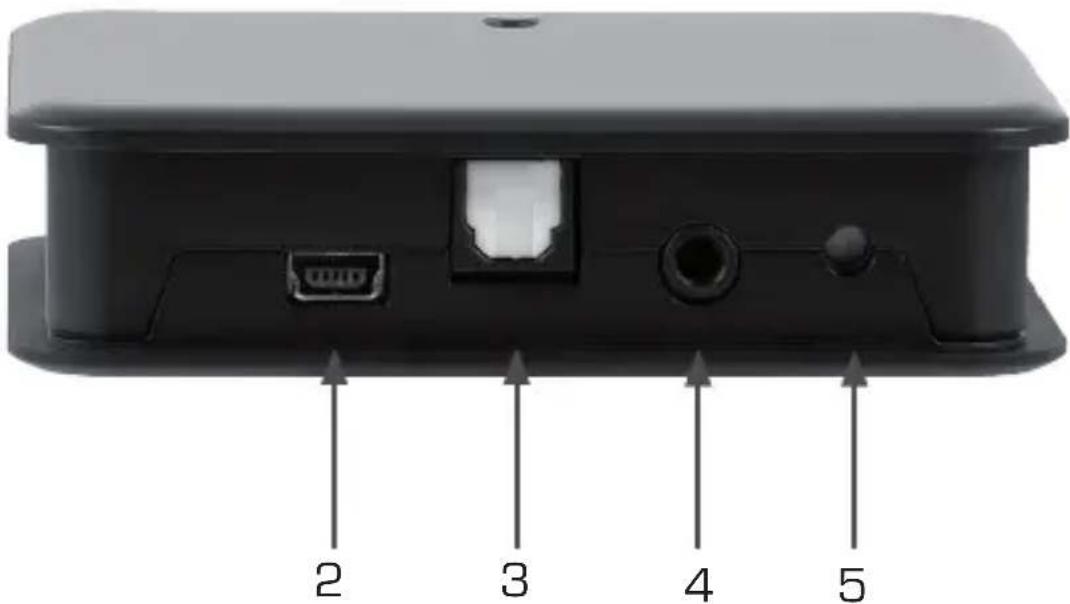
5. ABBILDuNGEN
natural_image
Illustration of a generic mobile phone with a screen and keypad (no text or symbols)
natural_image
Abstract blue wave-like graphic with concentric arcs and a small white dot (no text or symbols)
natural_image
Three electronic devices: two speakers and one CD, shown in grayscale with no visible text or symbols.5. ABBILDuNGEN
natural_image
Simple line drawing of a trash bin with diagonal lines crossing it, no text or symbols present.
Thank you for choosing the IMPERIAL STREAMY 1.
When operating the product for the first time, please read this operating manual carefully, and keep it close at hand for future reference. If you follow the instructions, you will be able to enjoy the functions of your STREAMY 1 optimally.
This operating manual will assist you with the correct
safe
optimal
use of the IMPERIAL STREAMY 1.
We assume the user of this product has general knowledge related to the operation of consumer electronics products.
Any person
installing
connecting
operating
cleaning
disposing of
this device must first have taken notice of the entire contents of this operating manual.
Always keep this operating manual close to the device.
1.1. SERVICE and SuPPORT
Should your STREAMY 1 not work properly, this does not necessarily mean it is defective. Please do not send in the unit for repairs, rather give us a call first!
Technical Hotline for Germany: +49-(0)2676 / 9520101
E You may also send an E-Mail to service@telestar.de or a fax to +49-(0)2676 / 9520159. Should we not be able to solve the problem in this manner, please send the product to our service centre at the following address:
For Germany:
TELESTAR Service Center, Am Weiher 14, D-56766 Ulmen
For Austria:
fsms GmbH, Welser Straße 79, A-4060 Leonding
2. SAFETY NOTICES
Please read the safety notices carefully before operating the STREAMY 1. Please note all warnings and instructions both on the product and in the operating manual.
2.1. Basic Safety Instructions
In case of operating problems, disconnect the device from the power source.
To avoid the risk of fire or the danger of an electrical shock, do not expose the STREAMY 1 to rain or to very humid, wet conditions.
Do not open the housing of the product, otherwise you are at risk of getting an electrical shock.
Only connect the device to the mains current via a properly installed 220-240 V\~, 50-60 Hz mains outlet. Use always the mains adapter, included in delivery content.
If you will not be using the device for an extended period, disconnect the external mains adapter from the mains outlet. Only pull out the adapter, do not pull on the cable.
In case of an electrical storm, disconnect the mains adapter from the mains outlet.
Should liquid or foreign objects fall into the device, immediately disconnect the mains adapter from the mains outlet. Have the product checked by qualified personnel before resuming operation. Otherwise you are in danger of getting an electrical shock.
Please ensure the electrical outlet (plug) is easily accessible.
Do not squeeze or sharply bend cable connections.
2.1. Basic Safety Instructions
Never allow children to use the device without supervision.
Always leave maintenance or repair work to qualified personnel.
Ignoring this may endanger yourself and others.

In case of operating problems, disconnect the device from the power supply.
Obtain spare parts exclusively from the manufacturer.
Changes to the product will result in a termination of liability by the manufacturer.
Remove protective foils/films.
Note!
Note on disconnecting from mains supply. The product draws power even when in standby mode. To completely disconnect the product from the mains supply, the adapter must be disconnected from the mains outlet.
Correct positioning
Place the device on a firm, even surface.
Avoid placing the STREAMY 1 close to sources of heat, e.g. radiators, open fires, e.g. candles, or devices with strong magnetic fields, e.g. loudspeakers.
Do not place any containers with liquids (e.g. vases) on the device.
Avoid places subject to direct sunshine or with a very high level of dust. Do not place any heavy objects on the device.
When moving the device from a cold to a warm environment, humidity may condense inside the STREAMY 1. In this case you should wait for an hour before operating the device again.
2.2. Explanation of safety notices
You will find the following categories of safety notices in the operating manual:
Danger!
Notes marked with the word DANGER will warn you of possible danger of injury to persons.
Note!
Instructions with the word NOTE will warn you of possible material or environmental damage. These notes contain special advice related to the economic operation of the receiver.
3. ITEMS SuPPLIED
natural_image
Product lineup showing a device labeled 'E' connected to five different cable types (no text or symbols on components)Nr. Quantity Explanation
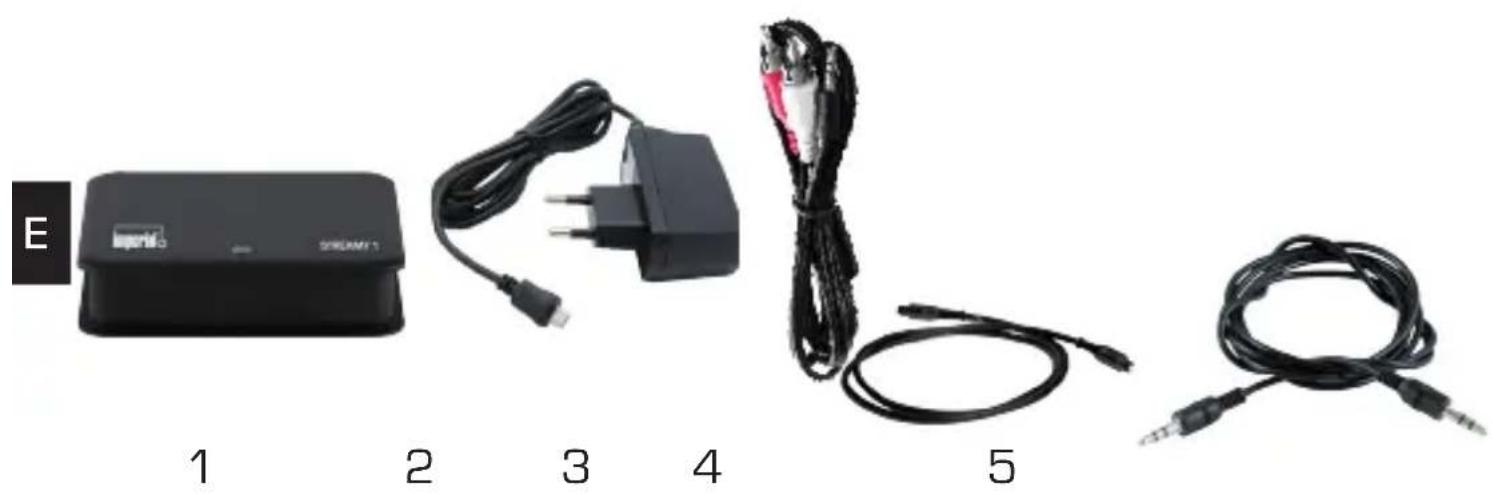
1 1 STREAMY 1
2 1 USB Mains Adapter
3 1 3,5 mm/Cinch Stereo Jack Cable
4 1 Optical Toslink digital cable
5 1 3,5 mm/3,5 mm cable
4. TECHNICAL SPECIFICATIONS
• Optical output level: -17 dBm
• Power supply: 5V / 0,8 A
- Dimensions: H 21 × L 81 × W 70 mm
- Connections: DC 5V, 3,5mm jack socket, optical S/PDIF (TOS Link)
Compatible protocols
AirPlay
DLNA
UPnP 1.0
Audio codecs
MP3
AAC
Vorbis/OGG
MIDI
PCM/WAV
WMA
AC3
FLAC/APE
ALAC
5. ILLuSTRATIONS AND DESCRIPTIONS
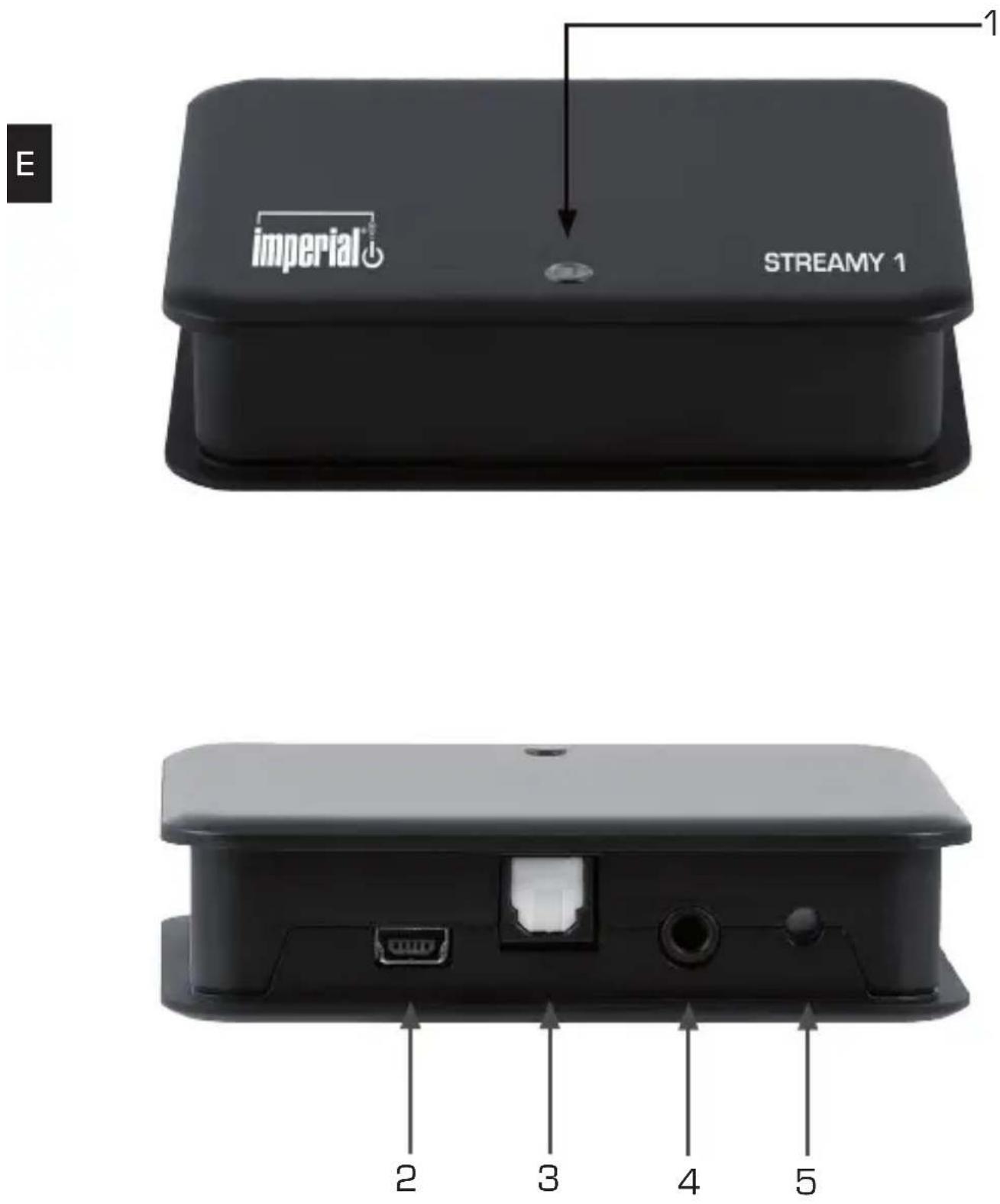
5. ILLuSTRATIONS AND DESCRIPTIONS
1. Status LED
The following status messages can be displayed:
Permanent red: Device can be connected to a WiFi network
Permanent blue: Device is probably connected with a WiFi network and is ready to receive audio signals.
Flashing red: Device is unable to connect to a WiFi network
Flashing blue: Booting procedure (about 3 seconds) or firmware upgrade (about 2 minutes)
2. MINI USB jack for USB mains adapter
Please connect the mains adapter, included in delivery content, with this Mini USB jack. It is also possible, to operate the STREAMY 1 with a PC or Laptop by using a cable Mini USB-USB which is not included in delivery content.
3. Optical TOSLINK (S/PIDF) output
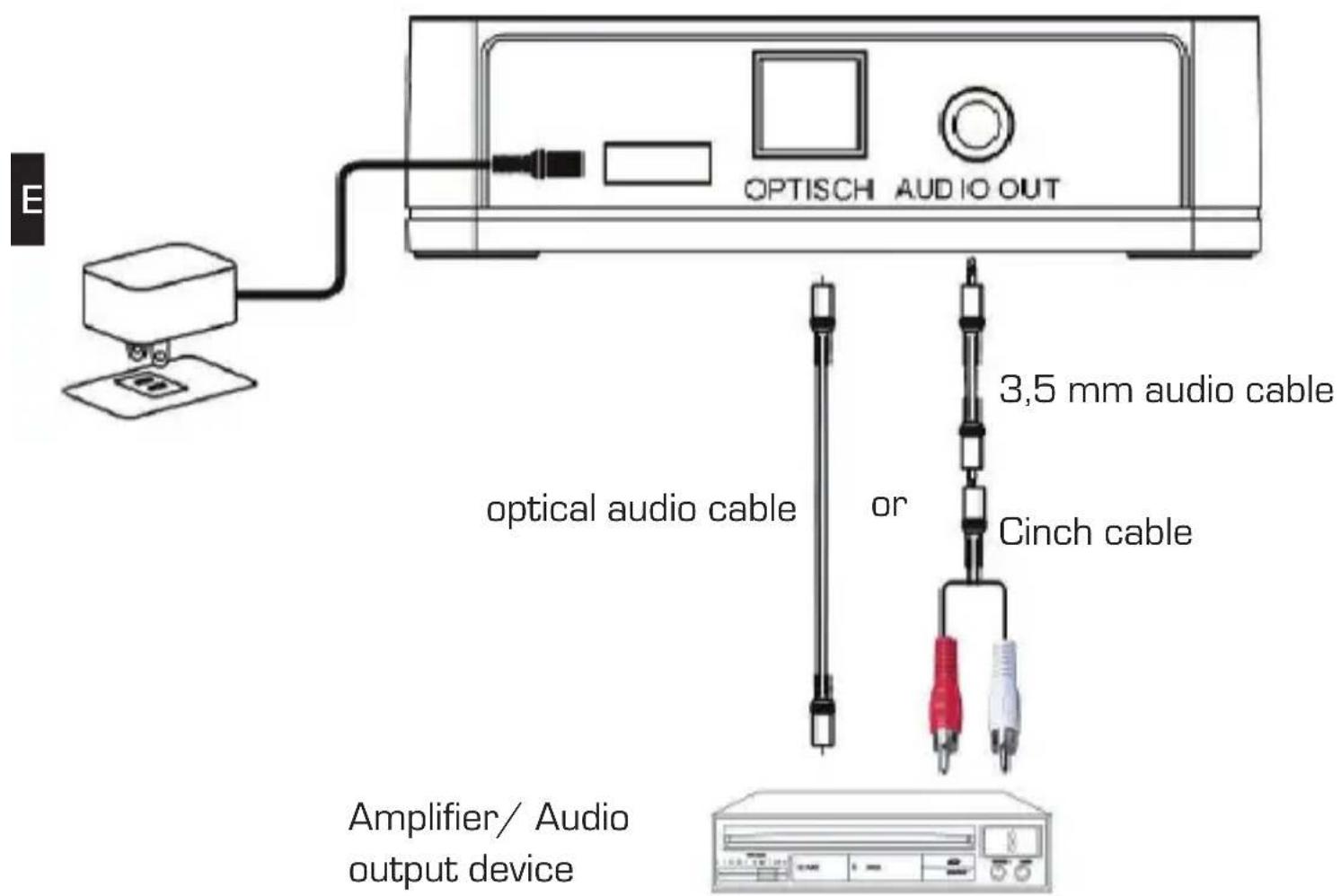
Via this output you can connect any audio device equipped with an optical S/PIDF input by using the optical Toslink cable, included in delivery content.
4. LINE OUT analogue stereo output
On this output you can connect any audio device equipped with an analogue audio input, by using one of the analogue stereo cables included in delivery content.
5. RESET
Press this reset button any hold it pressed for about 5 seconds in order to reset the device.
5. ILLuSTRATIONS AND DESCRIPTIONS
5. ILLuSTRATIONS AND DESCRIPTIONS
Tablet or Smart Phone with direct WiFi connection to STREAMY 1
natural_image
Illustration of a generic mobile phone with a blank screen and control buttons (no text or symbols)
natural_image
Abstract blue wave pattern with no text or symbols
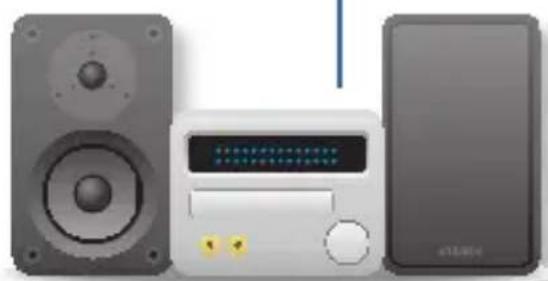
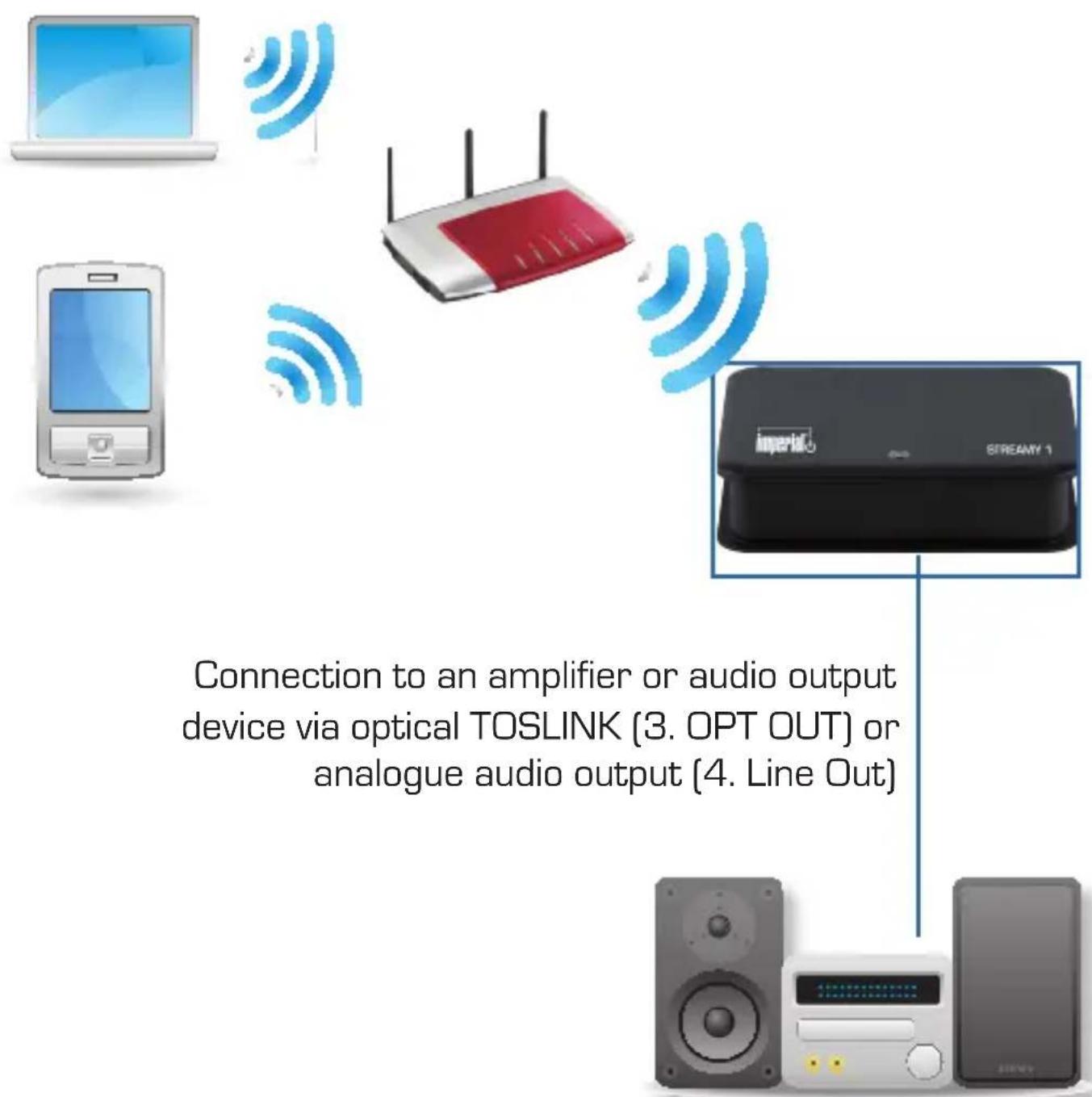
Connection to an amplifier or audio output device via optical TOSLINK (3. OPT OUT) or analogue audio output (4. Line Out)
natural_image
Illustration of a CD-ROM with speaker, front panel, and front-mounted tower (no text or symbols visible)5. ILLuSTRATIONS AND DESCRIPTIONS
Example: STREAMY 1 integration in an existing network
PC, Tablet or Smart Phone

6. OPERATION
6.1. Direct Play (please see page 41 also)
With Direct Play you can realize a direct WiFi connection among the STREAMY 1 and your mobile musicplayer device.
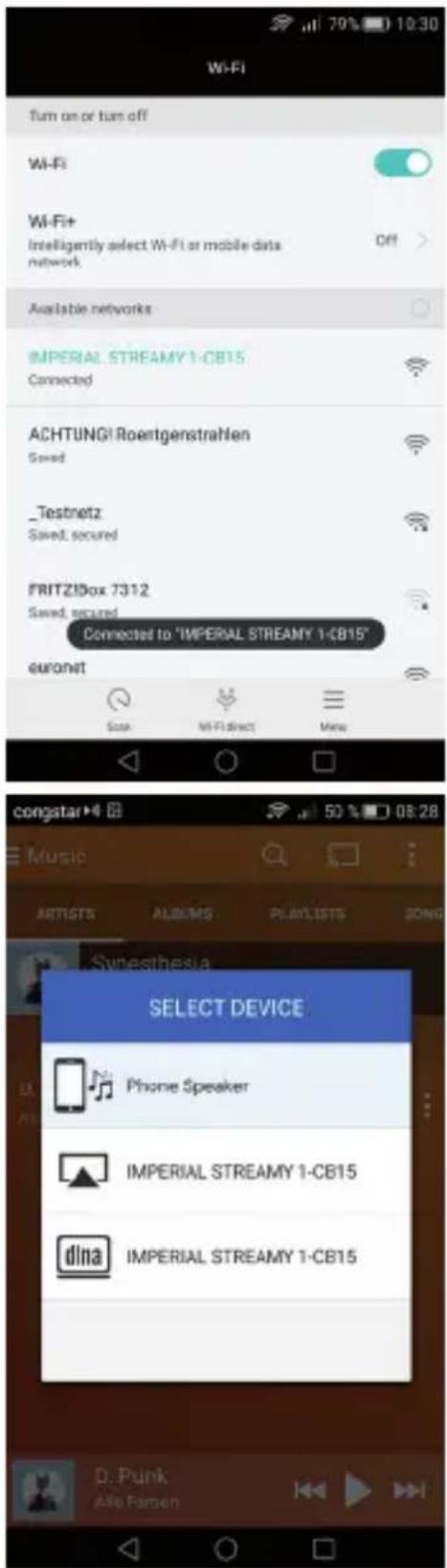
Select the WiFi settings menu on your tablet, your smartphone or your PC, and display the available WiFi networks.
Select „IMPERIAL STREAMY 1“ and establish a connection.
Now you can stream music direct from your mobile device to the STREAMY 1.
Many musicplayer applications support this pairing method. On some applications you can also establish a connection to the
STREAMY 1 without previous connection settings.
6.2. WiFi integration in an existing WiFi network
(please see also page 42)
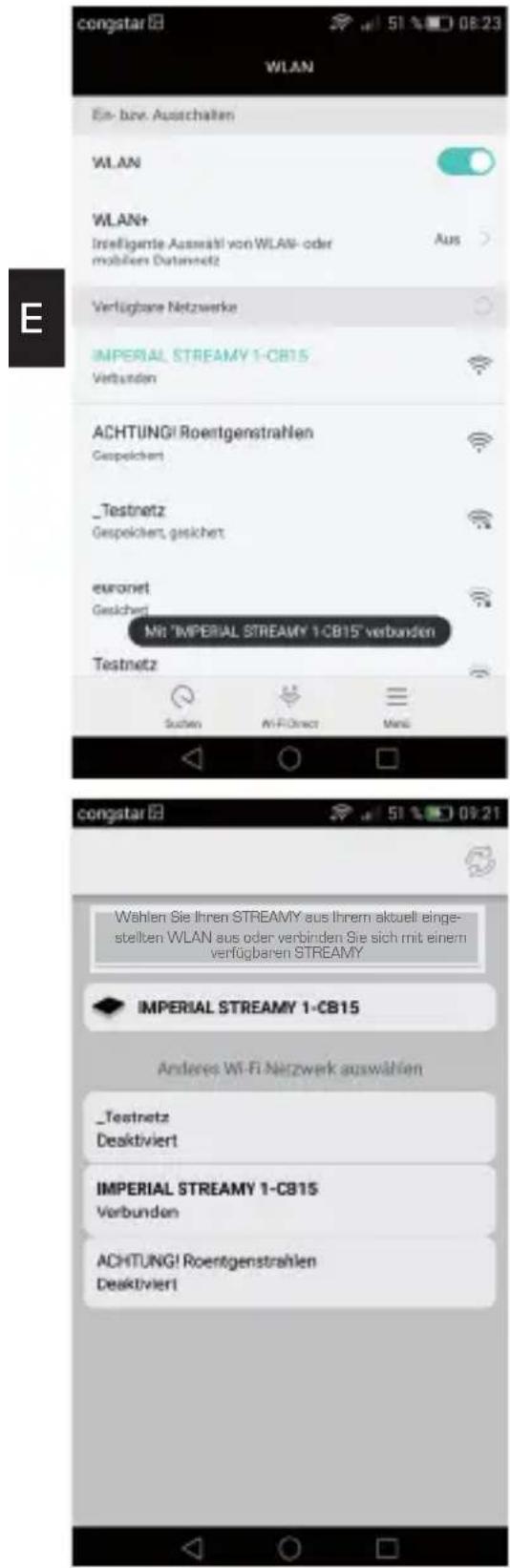
Select the WiFi settings menu on your tablet, your smartphone or your PC, and display the available WiFi networks.
Select „IMPERIAL STREAMY 1.
Your smart-phone, tablet or PC will establish a connection to your STREAMY 1.
Start the application
„STREAMY Configuration App“.
You can download this app from Apple App Store or Google PlayStore.
Please download the PC Windows Software from http://www.digitalbox.de.
Please select the STREAMY 1 in the application.
Please select „Network settings“
Now you can choose a name for the device, which will be displayed in the list of network devices. Please select NEXT to continue.
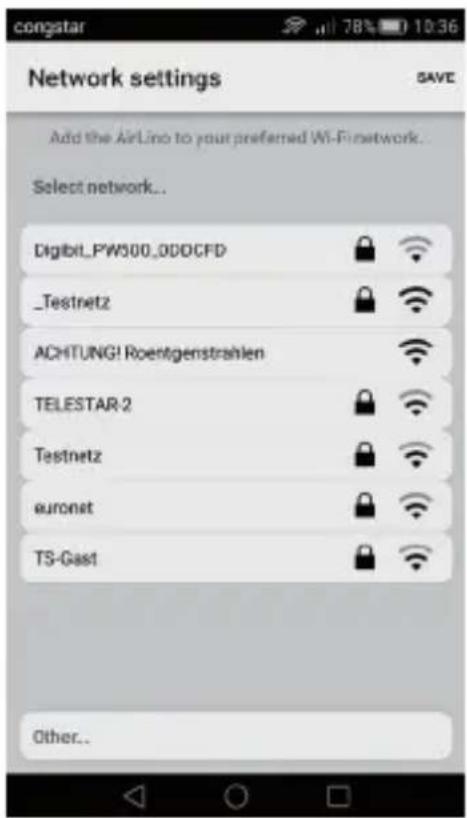
Now, select the network, you want to connect with.
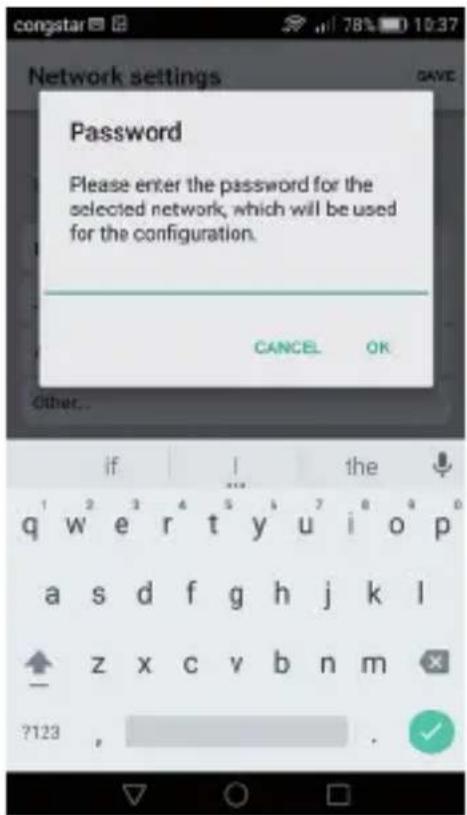
Please enter the WiFi key and press SAVE to confirm your input.
Now, the application starts to login the STREAMY 1 into the selected network.
This process can take some minutes. During this time, the status LED flashes with blue light.
Once connected with the network properly, the LED shines permanently in blue color. If the login was successful, the
STREAMY 1 will be connected to the WiFi network on every start automatically.
6. OPERATION
If the status starts flashing with red light, please disconnect the device from mains, and connect it again after some seconds.
STREAMY 1 starts up with the network settings, while the status LED is flashing with blue light that indicates the login process to selected I network.

If the status LED is still flashing in red or blue color after several
minutes, please check, wether the WiFi key was entered correctly.
With the wrong WiFi key, it is not possible to login with the selected network.
In this case, please reset the device by using the reset button.
Please see page 39 also.
6. OPERATION
6.3. Multi-Play
With Muli-Play you can stream audio files from one musicplayer to several STREAMY 1. By using this option, you may simultaneously send your music to several rooms.
This option is available if
- all STREAMY 1 devices are logged in correctly to the network
- the musicplayer is logged in in the same network
- the Multi-Play function is supported by the musicplayer
- the network has a bandwidth of at least 150 Mbit/s
Most basic musicplayers on smartphones or tablets do not support this Multi-Play function. But there are several applications available, supporting this function. Please search in google PlayStore or Apple App store for these kinds of applications.
6.4. App functions
In Apple App Store, Google Play Store and on http://www.digitalbox.de as Windows version.
You can find the application for your mobile device by searching for the following keyword: "STREAMY Configuration"
for iOS
E (iPhone, iPad, iPod Touch), Android
With the STREAMY Configurator App, you can
- connect the STRAMY 1 to your network
- set the STRAMY 1 as internet radio
- select an individual network name
• make some other settings
• make a reset of the device
6.5 Internet-Radio Streaming
With the STREAMY Configuration APP you are able to start playing internet radio stations, once connected to a WiFi network. You can store one or more internet radio streaming URLs.
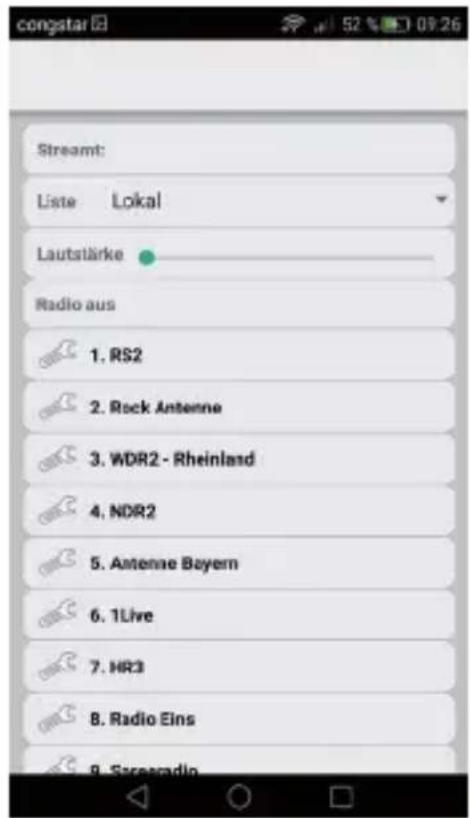
Start the app STREAMY 1 Configurator. Select your STREAMY 1 and then select „Radio-Streaming“
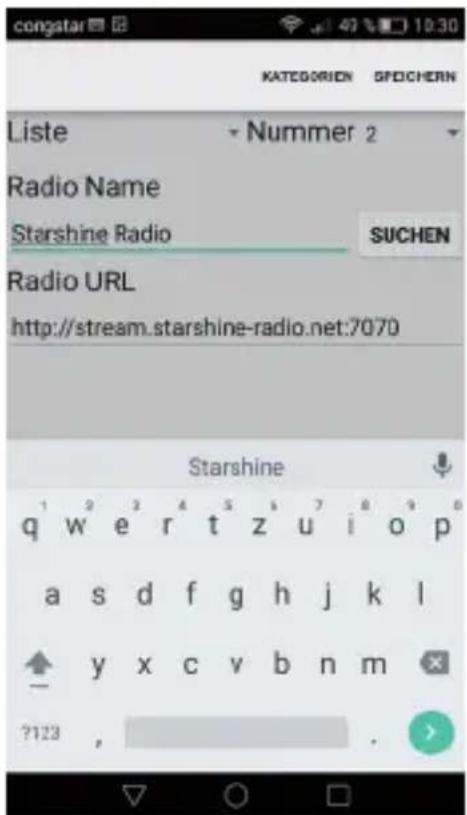
With the tool symbol, you can configure and store new radio stations.
Therefore, please enter the name and the correct URL of the stream to be playback or stored.
Press stop, to stop play back the stream.
There are several ways to find out the URL of the radio stations. For example you can use http://www.stream-urls.de/webradio Maybe some URLs have any kind of file extension. This URL's can not be copied directly as new radio URL. In this case you have to do the following:
- open http://www.stream-urls.de/webradio
- Select webradio
- Search radio provider
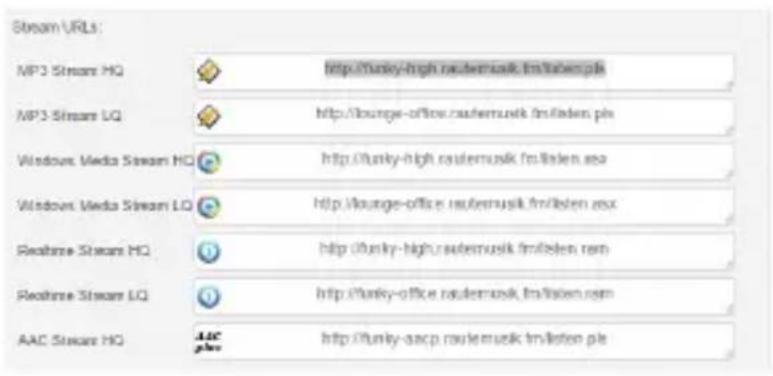
- Copy the stream, paste it in a new browser window. (Internet Explorer, Chrome etc.)
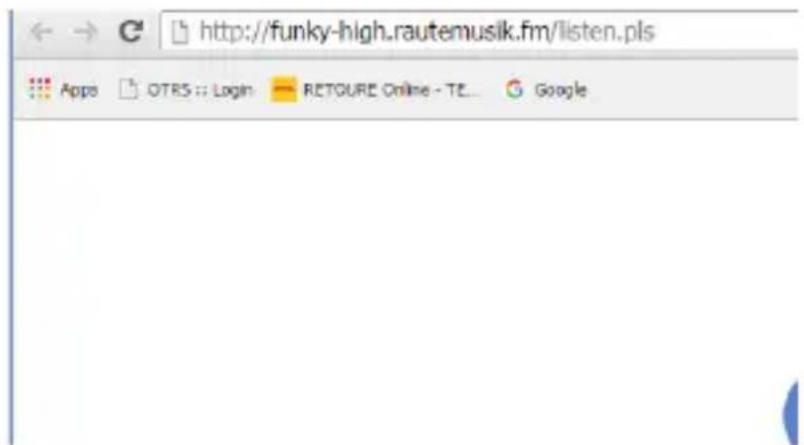
- Press enter to open.
A new file is saved. Open this file with a text editor tool.
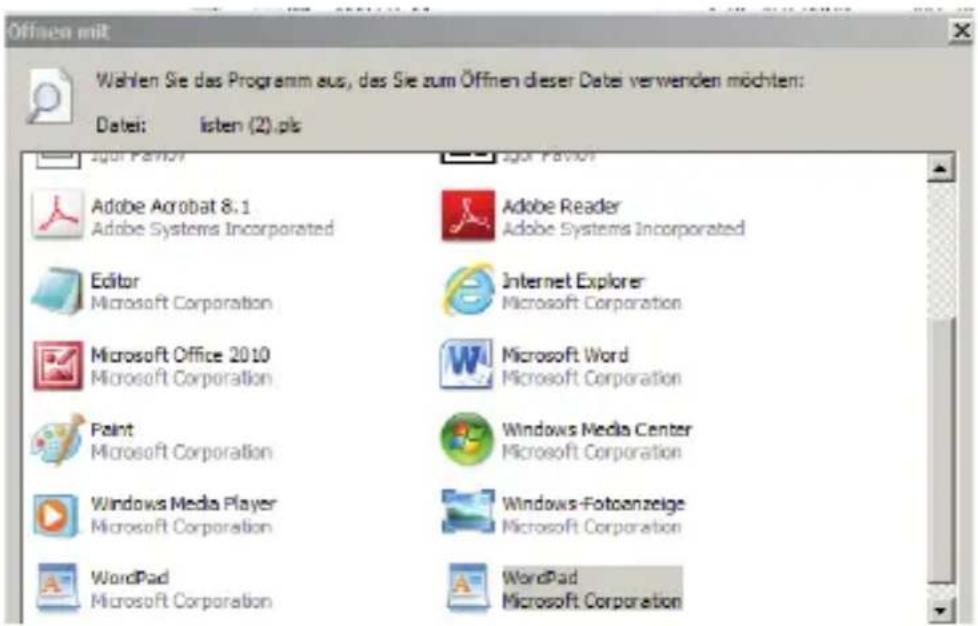
- Copy this link and paste it as new radio station into the application. Press save to store the setting.
[playlist]
File1=http://funky-high.rautemusik.fm
Title1=#Musik.House
Length1=-1
NumberOfEntries=1
Version=2

7. TROUBLESHOOTING

| Problem | Possible cause and solution |
| No connection to the network, or flashing blue or red lightBad audio quality | Power off the device. Wait 5 seconds Power on the device again.Please check the bitrate of the stream or music you send to the device. We recommend a mp3 bitrate of 192 Kbt/s or higher. |
| No correct function Hold | the reset button on device pressed for about 6 seconds. Start new network search. |
8. DISPOSIAL Of ELECTRONIC EQuIPMENT
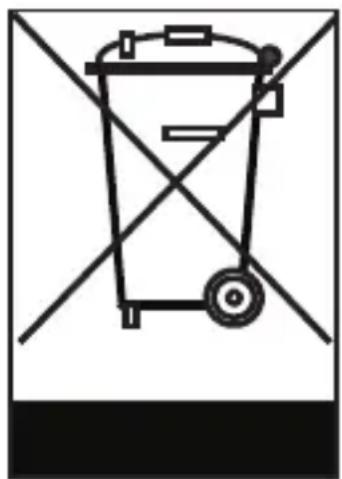
This symbol on a product or a package indicates that the product cannot be disposed of in normal household waste. The product must be taken to an appropriate collection point for the recovery and recycling of old electrical and electronic equipment. By ensuring this product is disposed of properly, you will help ensure that negative impacts are avoided on the environment and on human health, which could occur if this device is not properly disposed of. The recycling of raw materials helps to conserve natural resources. For more details of disposal, contact your local authority waste recycling in your area, or the dealer from whom you purchased this device.
natural_image
Simple line drawing of a trash bin with diagonal lines crossing it, no text or symbols present.9. SERVICE uND SuPPORT
Dear customer,
Thank you for selecting this product.
E The technical specifications are correct at time of printing. This product was produced under permanent quality control. The warranty in conform with the legal regulations.
We provide a professional HOTLINE-SERVICE, in which we give a support for all of our IMPERIAL products. Please feel free to contact us, if there are any questions or technical problems.
Our support team is available monday to friday 8:00 AM to 4:45 PM
Tel : (+49) (0) 2676 / 95 20 101 or via email: service@telestar.de
If the problem can not be solved via our support, you can send our product to the following address:
TELESTAR - DIGITAL GmbH
Service Center
CE symbol for European markets
The CE symbol on this unit gives you the reassurance that the product complies with the regulations set out in EU directives 2004/108/EC, the RoHS directive 2011/65/EG, the ErP directive 2009/125/EG, the regulation 107/2009 as well as with the RTTE directive 1999/5/EC.
The declaration of conformity is downloadable on
Copy and reproduction only with authorization of the publisher Subject to change without notice. Not responsible for printing errors.

- Bedienungsanleitung
- User Manual
- IMPERIAL® STREAMY 1
- INHALTSVERZEICHNIS
- VORWORT
- ABBILDuNGEN
- SERVICE and SuPPORT
- SAFETY NOTICES
- Basic Safety Instructions
- Note!
- Correct positioning
- Explanation of safety notices
- Danger!
- ITEMS SuPPLIED
- Nr. Quantity Explanation
- TECHNICAL SPECIFICATIONS
- ILLuSTRATIONS AND DESCRIPTIONS
- Status LED
- MINI USB jack for USB mains adapter
- Optical TOSLINK (S/PIDF) output
- LINE OUT analogue stereo output
- RESET
- Example: STREAMY 1 integration in an existing network
- OPERATION
- Direct Play (please see page 41 also)
- WiFi integration in an existing WiFi network
- Multi-Play
- This option is available if
- App functions
- Internet-Radio Streaming
- TROUBLESHOOTING
- DISPOSIAL Of ELECTRONIC EQuIPMENT
- SERVICE uND SuPPORT
- Dear customer,
- CE symbol for European markets
Brand : Imperial
Model : Streamy 1
Category : Hi-Fi System